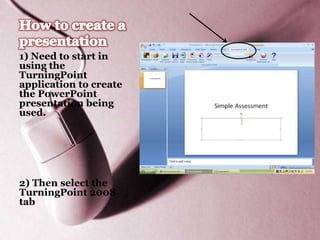
1) Need to start in
using the
TurningPoint
application to create
the PowerPoint
presentation being
used.


2) Then select the
TurningPoint 2008
tab
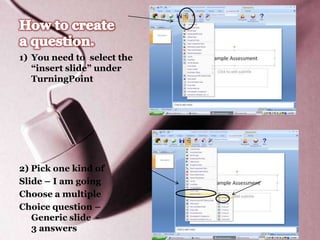
1) You need to select the
   “insert slide” under
   TurningPoint


2) Pick one kind of
Slide – I am going
Choose a multiple
Choice question –
   Generic slide -
   3 answers
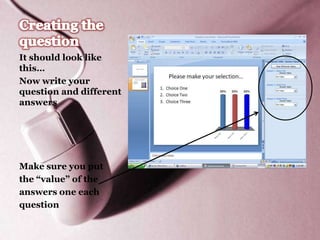
It should look like
this…
Now write your
question and different
answers


Make sure you put
the “value” of the
answers one each
question
I personally “cut” out
the graph – it shows
how the kids are
answering live.


I can see it good for
when you want a
consensus.
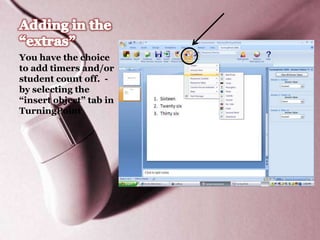
You have the choice
to add timers and/or
student count off. -
by selecting the
“insert object” tab in
TurningPoint
You will have 20 minutes
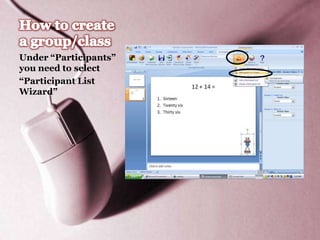
Under “Participants”
you need to select
“Participant List
Wizard”
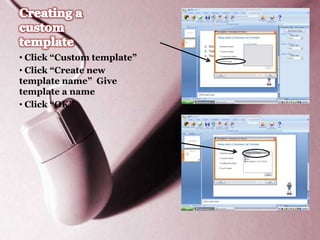
• Click “Custom template”
• Click “Create new
template name” Give
template a name
• Click “OK”
2


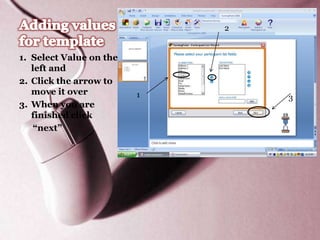
1. Select Value on the
   left and
2. Click the arrow to
   move it over          1       3
3. When you are
   finished click
    “next”
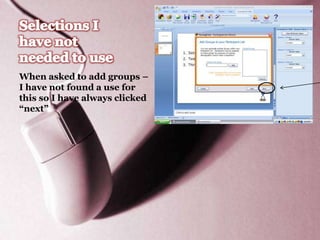
When asked to add groups –
I have not found a use for
this so I have always clicked
“next”
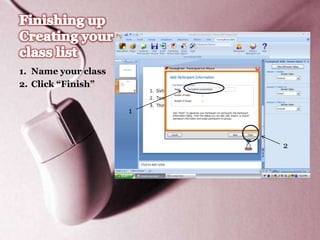
1. Name your class
2. Click “Finish”

                     1


                         2
1


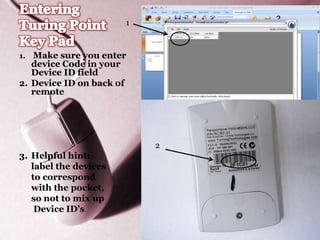
1. Make sure you enter
   device Code in your
   Device ID field
2. Device ID on back of
   remote


                           2
3. Helpful hint:
   label the devices
   to correspond
   with the pocket,
   so not to mix up
    Device ID’s
Looking at our data that we collected from the beginning of class
1

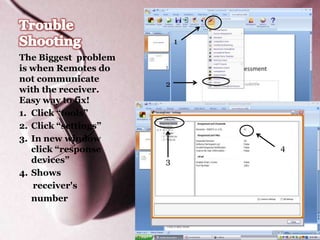
The Biggest problem
is when Remotes do
not communicate
                      2
with the receiver.
Easy way to fix!
1. Click “tools”
2. Click “settings”
3. In new window
   click “response            4
   devices”           3
4. Shows
   receiver's
   number
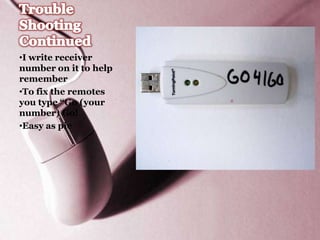
•I write receiver
number on it to help
remember
•To fix the remotes
you type “Go (your
number) Go!
•Easy as pie

Turning point powerpoint directions

  • 2.
    1) Need tostart in using the TurningPoint application to create the PowerPoint presentation being used. 2) Then select the TurningPoint 2008 tab
  • 3.
    1) You needto select the “insert slide” under TurningPoint 2) Pick one kind of Slide – I am going Choose a multiple Choice question – Generic slide - 3 answers
  • 4.
    It should looklike this… Now write your question and different answers Make sure you put the “value” of the answers one each question
  • 5.
    I personally “cut”out the graph – it shows how the kids are answering live. I can see it good for when you want a consensus.
  • 6.
    You have thechoice to add timers and/or student count off. - by selecting the “insert object” tab in TurningPoint
  • 7.
    You will have20 minutes
  • 8.
    Under “Participants” you needto select “Participant List Wizard”
  • 9.
    • Click “Customtemplate” • Click “Create new template name” Give template a name • Click “OK”
  • 10.
    2 1. Select Valueon the left and 2. Click the arrow to move it over 1 3 3. When you are finished click “next”
  • 11.
    When asked toadd groups – I have not found a use for this so I have always clicked “next”
  • 12.
    1. Name yourclass 2. Click “Finish” 1 2
  • 13.
    1 1. Make sureyou enter device Code in your Device ID field 2. Device ID on back of remote 2 3. Helpful hint: label the devices to correspond with the pocket, so not to mix up Device ID’s
  • 14.
    Looking at ourdata that we collected from the beginning of class
  • 15.
    1 The Biggest problem iswhen Remotes do not communicate 2 with the receiver. Easy way to fix! 1. Click “tools” 2. Click “settings” 3. In new window click “response 4 devices” 3 4. Shows receiver's number
  • 16.
    •I write receiver numberon it to help remember •To fix the remotes you type “Go (your number) Go! •Easy as pie