Tomcat and Servlets 
HaifengLiu
Tutorial Overview 
„Tomcat Overview 
„Setting Up and Running Tomcat on CDF 
„Installing and Running Servletson CDF 
„Setting up SysdeoEclipse Tomcat Launcher plugin 
„FAQ?
Tomcat Overview 
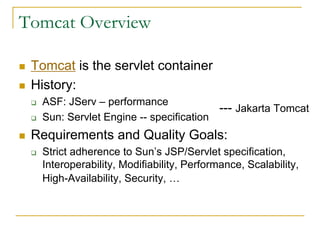
„Tomcatis the servletcontainer 
„History: 
‰ASF: JServ–performance 
‰Sun: ServletEngine --specification 
„Requirements and Quality Goals: 
‰Strict adherence to Sun’s JSP/Servletspecification, Interoperability, Modifiability, Performance, Scalability, High-Availability, Security, … 
---Jakarta Tomcat
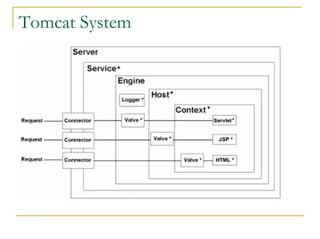
Tomcat System
Setting Up Tomcat on CDF 
„Status: Installed with user privileges in 
/u/csc309h/lib/brad/tomcat-5.0.27 
„Step 1 –go to website, read instructions 
http://www.cs.toronto.edu/~delara/courses/csc309/resources/csc309guide.html#WebServer 
„Step 2 –download the tar file tomcat.tar.gz 
„Step 3 –untarit (tar xvztomcat.tar.gz) and copy the files into a working directory which is referedas 
e.g. ~/csc309/ 
„Inside tomcat: 
Bin, conf, logs, webapps, work
Start Tomcat Server 
„Step 1 --cd~/csc309/tomcat/bin 
„Step 2 --Run the script start.sh(may need to chmoda+x*.sh) ./start.sh 
„Step 3 --Enter the port number. Tomcat will use 3 ports, the number entered and the next two (e.g., if you are assigned port 32000, tomcat will use 32000, 32001, 32002). 
„Step 4 –check /bin/ps-ef| grepyour_user_id 
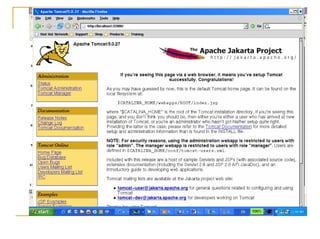
„Step 5 –view http://localhost:your_port_number
Stop Tomcat Server 
„To stop your server, run bin/stop.sh. 
„Always remember to stop your server before logging off CDF.
Directory Structure 
„Bin –Startup/shutdown scripts and other useful files. 
„Conf –Configuration files, including modules.xml, server.xml, and a number of apps-<name>.xml. 
„Logs –event log file for each day 
„Webapps–web application files 
„Wok --intermediate files (such as compiled JSP files) during its work. If you delete this directory while Tomcat is running you will not be able to execute JSP pages!
Installing and Compiling Servlets 
„Step 1 --Download the sample files, untarit, put into webapps 
„Step 2 --Compile the Java class 
‰Include the following jar file in your CLASSPATH 
/u/csc309h/lib/tomcat-5.0.27/common/lib/servlet-api.jar. 
setenvCLASSPATH ${CLASSPATH}: /u/csc309h/lib/tomcat- 
5.0.27/common/lib/servlet-api.jar 
‰cd~/csc309/tomcat/webapps/csc309/WEB-INF/classes 
‰Compile the servletjavacHelloWorld.java 
„Step 3 --Start Tomcat 
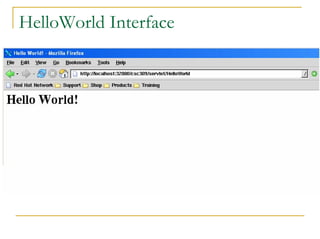
„Step 4 –Start Browser: 
http://127.0.0.1:yourPortNumber/csc309/servlet/HelloWorld
HelloWorldInterface
Adding a Servletto a Web Application 
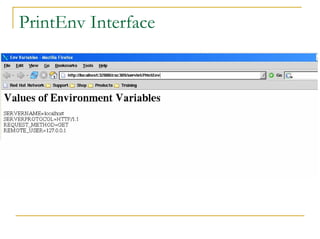
„Step 1 –Download PrintEnv.javaand copy it to ~/csc309/tomcat/webapps/csc309/WEB-INF/classes 
„Step 2 --Compile PrintEnv.java 
„Step 3 –Add the following entries to the application descriptor located at ~/csc309/tomcat/webapps/csc309/WEB-INF/web.xml. 
<servlet> 
<servlet-name>PrintEnv</servlet-name> 
<servlet-class>PrintEnv</servlet-class> 
</servlet> 
<servlet-mapping> 
<servlet-name>PrintEnv</servlet-name> 
<url-pattern>/servlet/PrintEnv</url-pattern> 
</servlet-mapping> 
„Step 4 --Restart Tomcat 
„Step 5 –Open browser to http://127.0.0.1:yourPortNumber/csc309/servlet/PrintEnv
PrintEnvInterface
SysdeoEclipse Tomcat Launcher plugin 
„Starting, stopping and restarting Tomcat 4.x, 5.0.x, 3.3 
„Registering Tomcat process to Eclipse debugger 
„Creating a WAR project (wizard can update server.xmlfile) 
„Adding Java Projects to Tomcat classpath 
„Setting Tomcat JVM parameters, classpathand bootclasspath 
„Exporting a Tomcat project to a WAR File 
„Choosing Tomcat configuration file 
„Capability to use a special Tomcat classloaderto have classes in several java projects loaded at the same classloaderlevel than classes in a Tomcat project, see readmeDevLoader.html(Thanks Martin Kahr)
Software Prerequisite 
„Tomcat Server – ”http://jakarta.apache.org/tomcat/” 
„Eclipse 3.X – “http://www.eclipse.org/downloads/index.php” 
„SysdeoEclipse tomcat Launcher plugin-- 
”http://www.sysdeo.com/eclipse/tomcatPlugin. 
html”
Setup Tomcat in Eclipse 
„Enable tomcat 
‰Go to the menu "Window-> Preferences" 
‰go to "Tomcat" and select your Tomcat version 
‰adjust the field "Tomcat Home" to point to the install directory 
„Add a new user 
‰scroll down the menu point "Tomcat" and click the item "Tomcat Manager App" 
‰add a username and a password 
‰click on "Add user to tomcat-users.xml" 
„Test Start Tomcat Server
HelloWorldExample 
„Open a new project 
‰select "Tomcat Project"..., click Next button 
‰call our new project "Hello World" 
‰adjust URI http://localhost:8080/HelloWorld/hello 
„create a new class named HelloServletin the directory WEB-INF/src 
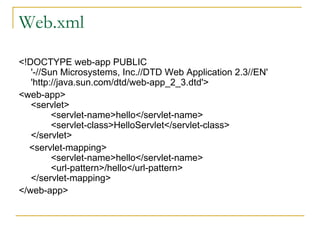
„create the file web.xmlin the directory WEB- INF (Note: not in WEB-INF/src!!!) 
„Start browser "http://localhost:8080/HelloWorld/hello"
HelloServlet 
importjava.io.*; 
importjavax.servlet.http.*; 
importjavax.servlet.*; 
publicclass HelloServletextends HttpServlet{ 
publicvoid doGet(HttpServletRequestreq, 
HttpServletResponseres) throws ServletException, 
IOException{ 
PrintWriterout = res.getWriter(); 
out.println("Hello, Brave new World!"); 
out.close(); 
} 
}
Web.xml 
<!DOCTYPE web-app PUBLIC 
'-//Sun Microsystems, Inc.//DTD Web Application 2.3//EN' 
'http://java.sun.com/dtd/web-app_2_3.dtd'> 
<web-app> 
<servlet> 
<servlet-name>hello</servlet-name> 
<servlet-class>HelloServlet</servlet-class> 
</servlet> 
<servlet-mapping> 
<servlet-name>hello</servlet-name> 
<url-pattern>/hello</url-pattern> 
</servlet-mapping> 
</web-app>

Tomcat tutorail

  • 1.
  • 2.
    Tutorial Overview „TomcatOverview „Setting Up and Running Tomcat on CDF „Installing and Running Servletson CDF „Setting up SysdeoEclipse Tomcat Launcher plugin „FAQ?
  • 3.
    Tomcat Overview „Tomcatisthe servletcontainer „History: ‰ASF: JServ–performance ‰Sun: ServletEngine --specification „Requirements and Quality Goals: ‰Strict adherence to Sun’s JSP/Servletspecification, Interoperability, Modifiability, Performance, Scalability, High-Availability, Security, … ---Jakarta Tomcat
  • 4.
  • 5.
    Setting Up Tomcaton CDF „Status: Installed with user privileges in /u/csc309h/lib/brad/tomcat-5.0.27 „Step 1 –go to website, read instructions http://www.cs.toronto.edu/~delara/courses/csc309/resources/csc309guide.html#WebServer „Step 2 –download the tar file tomcat.tar.gz „Step 3 –untarit (tar xvztomcat.tar.gz) and copy the files into a working directory which is referedas e.g. ~/csc309/ „Inside tomcat: Bin, conf, logs, webapps, work
  • 6.
    Start Tomcat Server „Step 1 --cd~/csc309/tomcat/bin „Step 2 --Run the script start.sh(may need to chmoda+x*.sh) ./start.sh „Step 3 --Enter the port number. Tomcat will use 3 ports, the number entered and the next two (e.g., if you are assigned port 32000, tomcat will use 32000, 32001, 32002). „Step 4 –check /bin/ps-ef| grepyour_user_id „Step 5 –view http://localhost:your_port_number
  • 8.
    Stop Tomcat Server „To stop your server, run bin/stop.sh. „Always remember to stop your server before logging off CDF.
  • 9.
    Directory Structure „Bin–Startup/shutdown scripts and other useful files. „Conf –Configuration files, including modules.xml, server.xml, and a number of apps-<name>.xml. „Logs –event log file for each day „Webapps–web application files „Wok --intermediate files (such as compiled JSP files) during its work. If you delete this directory while Tomcat is running you will not be able to execute JSP pages!
  • 10.
    Installing and CompilingServlets „Step 1 --Download the sample files, untarit, put into webapps „Step 2 --Compile the Java class ‰Include the following jar file in your CLASSPATH /u/csc309h/lib/tomcat-5.0.27/common/lib/servlet-api.jar. setenvCLASSPATH ${CLASSPATH}: /u/csc309h/lib/tomcat- 5.0.27/common/lib/servlet-api.jar ‰cd~/csc309/tomcat/webapps/csc309/WEB-INF/classes ‰Compile the servletjavacHelloWorld.java „Step 3 --Start Tomcat „Step 4 –Start Browser: http://127.0.0.1:yourPortNumber/csc309/servlet/HelloWorld
  • 11.
  • 12.
    Adding a Servlettoa Web Application „Step 1 –Download PrintEnv.javaand copy it to ~/csc309/tomcat/webapps/csc309/WEB-INF/classes „Step 2 --Compile PrintEnv.java „Step 3 –Add the following entries to the application descriptor located at ~/csc309/tomcat/webapps/csc309/WEB-INF/web.xml. <servlet> <servlet-name>PrintEnv</servlet-name> <servlet-class>PrintEnv</servlet-class> </servlet> <servlet-mapping> <servlet-name>PrintEnv</servlet-name> <url-pattern>/servlet/PrintEnv</url-pattern> </servlet-mapping> „Step 4 --Restart Tomcat „Step 5 –Open browser to http://127.0.0.1:yourPortNumber/csc309/servlet/PrintEnv
  • 13.
  • 14.
    SysdeoEclipse Tomcat Launcherplugin „Starting, stopping and restarting Tomcat 4.x, 5.0.x, 3.3 „Registering Tomcat process to Eclipse debugger „Creating a WAR project (wizard can update server.xmlfile) „Adding Java Projects to Tomcat classpath „Setting Tomcat JVM parameters, classpathand bootclasspath „Exporting a Tomcat project to a WAR File „Choosing Tomcat configuration file „Capability to use a special Tomcat classloaderto have classes in several java projects loaded at the same classloaderlevel than classes in a Tomcat project, see readmeDevLoader.html(Thanks Martin Kahr)
  • 15.
    Software Prerequisite „TomcatServer – ”http://jakarta.apache.org/tomcat/” „Eclipse 3.X – “http://www.eclipse.org/downloads/index.php” „SysdeoEclipse tomcat Launcher plugin-- ”http://www.sysdeo.com/eclipse/tomcatPlugin. html”
  • 16.
    Setup Tomcat inEclipse „Enable tomcat ‰Go to the menu "Window-> Preferences" ‰go to "Tomcat" and select your Tomcat version ‰adjust the field "Tomcat Home" to point to the install directory „Add a new user ‰scroll down the menu point "Tomcat" and click the item "Tomcat Manager App" ‰add a username and a password ‰click on "Add user to tomcat-users.xml" „Test Start Tomcat Server
  • 17.
    HelloWorldExample „Open anew project ‰select "Tomcat Project"..., click Next button ‰call our new project "Hello World" ‰adjust URI http://localhost:8080/HelloWorld/hello „create a new class named HelloServletin the directory WEB-INF/src „create the file web.xmlin the directory WEB- INF (Note: not in WEB-INF/src!!!) „Start browser "http://localhost:8080/HelloWorld/hello"
  • 18.
    HelloServlet importjava.io.*; importjavax.servlet.http.*; importjavax.servlet.*; publicclass HelloServletextends HttpServlet{ publicvoid doGet(HttpServletRequestreq, HttpServletResponseres) throws ServletException, IOException{ PrintWriterout = res.getWriter(); out.println("Hello, Brave new World!"); out.close(); } }
  • 19.
    Web.xml <!DOCTYPE web-appPUBLIC '-//Sun Microsystems, Inc.//DTD Web Application 2.3//EN' 'http://java.sun.com/dtd/web-app_2_3.dtd'> <web-app> <servlet> <servlet-name>hello</servlet-name> <servlet-class>HelloServlet</servlet-class> </servlet> <servlet-mapping> <servlet-name>hello</servlet-name> <url-pattern>/hello</url-pattern> </servlet-mapping> </web-app>