Lesson 2
Perform Mensuration and
Calculation
Click here to begin
Definition of Terms
Bit - a fundamental unit of information having just two possible values, as
either of the binary digits 0 or 1.
Byte - a unit of digital information in computing and telecommunications
that most
commonly consists of eight bits.
Booting – starting (a computer) by loading an operating system from a
disk.
Electronic storage - a device for recording (storing) information (data).
Firewire - Apple Computer's version of a standard, IEEE 1394, High
Performance Serial Bus, for connecting devices to your personal
computer.
Hot-swappable - the connection and disconnection of peripherals or
other components without interrupting system operation.
Next
Definition of Terms
Magnetic platter - a thin, high precision disk that is coated on both sides with a
high precision magnetic material and which is used in a hard disk drive
(HDD) to store data.
Memory module - a narrow printed circuit board that holds memory chips.
Magnetic storage media - any storage medium in which different patterns of
magnetization are used to represent stored bits or bytes of information
Operating system - a set of programs that manage computer hardware resources
and provide common services for application software.
Optical storage media - any storage in which data is written and read with a laser
for archival or backup purposes.
Interface - the point of interaction or communication between a computer and
any other entity, such as a printer or human operator.
Laser - a device that emits light (electromagnetic radiation) through a process of
optical amplification based on the stimulated emission of photons.
Next
Acronyms
HDD – hard disk drive
IDE - Integrated Drive Electronics
Next
Learning Outcome 1
Select components to be
measured
Next
Performance Standard
1. Object or component to be measured is identified.
2. Correct specifications are obtained from relevant source.
3. Accurate measurements are obtained for job.
Chips that are located on the motherboard.
Registers Flash Drive
Read Only Memory IDE
A. Direction. Click on the correct answer.
A magnetic storage device that is installed
inside the computer.
Memory Module Optical Drive
Hard Drive Floppy Drive
Early drive controller interface that connects
computers and hard disk drives which an
interface that uses a 40-pin connector.
Read Only Memory IDE
Flash Drive Optical Drive
Temporary storage for data and programs
that are being accessed by the CPU.
Registers DDR
Hex Driver Random Access Memory
A storage device that uses lasers to read
data on the optical media.
Flash Drive Floppy Drive
Optical Drive IDE
A storage device that uses removable 3.5-
inch disks.
Floppy Drive Read Only Memory
Optical Drive Random Access Memory
Soldered the memory chips on a special
circuit board.
Random Access Memory DDR
Hard Drive Memory Module
A removable storage device that connects
to a USB port.
Flash Drive Floppy Drive
Optical Drive Hard Disk Drive
Memory cells built right into the CPU that
contain specific data needed particularly
the Arithmetic and Logic Unit.
Random Access Memory Registers
Read Only Memory DDR
Technology that doubles the maximum
bandwidth of SDRAM.
DDR RAM
HDD ROM
Memory
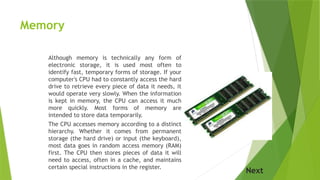
Although memory is technically any form of
electronic storage, it is used most often to
identify fast, temporary forms of storage. If your
computer's CPU had to constantly access the hard
drive to retrieve every piece of data it needs, it
would operate very slowly. When the information
is kept in memory, the CPU can access it much
more quickly. Most forms of memory are
intended to store data temporarily.
The CPU accesses memory according to a distinct
hierarchy. Whether it comes from permanent
storage (the hard drive) or input (the keyboard),
most data goes in random access memory (RAM)
first. The CPU then stores pieces of data it will
need to access, often in a cache, and maintains
certain special instructions in the register.
Next
Read-Only Memory
(ROM) chips are located in the motherboard.
ROM chips contain instructions that can be
directly accessed by the CPU. Basic
instructions for booting the computer and
loading the operating system are stored in
ROM. ROM chips retain their contents even
when the computer is powered down. The
contents cannot be erased or changed by
normal means.
Next
Random Access Memory
(RAM) is the temporary storage for
data and programs that are being
accessed by the CPU. RAM is
volatile memory, which means
that the contents are erased when
the computer is powered off. The
more RAM in a computer, the
more capacity the computer has
to hold and process large
programs and files, as well as
enhance system performance.
Next
Memory Module
Early computers had RAM installed in the
motherboard as individual chips. The
individual memory chips, called dual inline
package (DIP) chips, was difficult to install
and often became loose on the motherboard.
To solve this problem, designers soldered the
memory chips on a special circuit board
called a memory module.
Next
Memory Module
Next
Memory Module
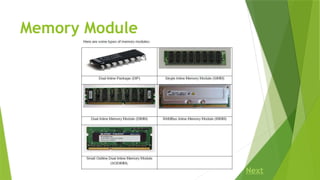
SIMMs have 30-pin and 72-pin configurations. DIMM is a circuit board that holds
SDRAM, DDR SDRAM and DDR2 SDRAM.
The speed of memory has a direct impact on how much data a processor can
process because faster memory improves the performance of the processor. As
processor speed increases, memory speed must also increase. For example,
single-channel memory is capable of transferring data at 64 bits. Dual-channel
memory increases speed by using a second channel of memory, creating a data
transfer rate of 128 bits.
Next
Double Data Rate
(DDR) technology doubles the maximum
bandwidth of SDRAM. DDR2 offers faster
performance while using less energy.
DDR3 operates at even higher speeds than
DDR2; however, none of these DDR
technologies are backward- or forward
compatible.
Next
Registers
Even with a wide and fast bus, it still takes longer for data to get from the
memory card to the CPU than it takes for the CPU to actually process the
data. Caches are designed to alleviate this bottleneck by making the data
used most often by the CPU instantly available.
Registers are memory cells built right into the CPU that contain specific data
needed by the CPU, particularly the Arithmetic and Logic Unit (ALU). An
integral part of the CPU itself, they are controlled directly by the compiler
that sends information for the CPU to process.
Next
Storage Drives
Storage drives read or write information on magnetic or optical storage
media. The drive can be used to store data permanently or to retrieve
information from a media disk. Storage drives can be installed inside
the computer case, such as a hard drive. For portability, some storage
drives can connect to the computer using a USB port, a FireWire port,
or an SCSI port. These portable storage drives are sometimes referred
to as removable drives and can be used on multiple computers. Here
are some common types of storage drives: Floppy drive, Hard drive,
Optical drive and Flash drive.
Next
Floppy Drive
A floppy drive, or floppy disk drive, is a
storage device that uses removable 3.5-inch
floppy disks. These magnetic floppy disks can
store 720 KB or 1.44 MB of data. In a
computer, the floppy drive is usually
configured as the A: drive. The floppy drive
can be used to boot the computer if it
contains a bootable floppy disk. A 5.25-inch
floppy drive is older technology and is
seldom used.
Next
Hard Drive (HDD)
A hard drive, or hard disk drive, is a
magnetic storage device that
is installed inside the computer. The hard
drive is used as permanent storage for
data. In a Windows computer, the hard
drive is usually configured as the C: drive
and contains the operating system and
applications. The hard drive is often
configured as the first drive in the boot
sequence. The storage capacity of a hard
drive is measured in billions of bytes, or
gigabytes (GB). The speed of a hard drive
is measured in revolutions per minute
(RPM). Multiple hard drives can be added
to increase storage capacity. Next
Hard Drive (SSD)
Traditional hard drives are magnetic.
Magnetic hard drives have drive motors
designed to spin magnetic platters and the
drive heads. In contrast, the newer solid
state drives (SSDs) do not have moving
parts. Because there are no drive motors
and moving parts, the SSD uses far less
energy than the magnetic hard drive. Non-
volatile flash memory chips manage all
storage on an SSD, which results in faster
access to data, higher reliability, and
reduced power usage. SSDs have the same
form factor as magnetic hard drives and
use ATA or SATA interfaces. SSDs can be
installed as a replacement for magnetic
drives.
Next
Optical Drive
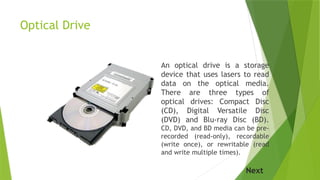
An optical drive is a storage
device that uses lasers to read
data on the optical media.
There are three types of
optical drives: Compact Disc
(CD), Digital Versatile Disc
(DVD) and Blu-ray Disc (BD).
CD, DVD, and BD media can be pre-
recorded (read-only), recordable
(write once), or rewritable (read
and write multiple times).
Next
External Flash Drive
An external flash drive, also
known as a thumb drive, is a
removable storage device
that connects to a USB port.
An external flash drive uses
the same type of non-volatile
memory chips as solid state
drives and does not require
power to maintain the data.
These drives can be accessed
by the operating system in
the same way that other
types of drives are accessed.
Next
Types of Drive Interfaces
Hard drives and optical drives are
manufactured with different interfaces that are
used to connect the drive to the computer. To
install a storage drive in a computer, the
connection interface on the drive must be the
same as the controller on the motherboard.
Here are some common drive interfaces:
Next
Types of Drive Interfaces
IDE – Integrated Drive Electronics,
also called Advanced Technology
Attachment (ATA) is an early drive
controller interface that connects
computers and hard disk drives.
An IDE interface uses a 40-pin
connector.
Next
Types of Drive Interfaces
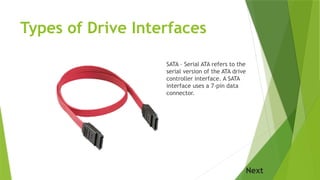
SATA – Serial ATA refers to the
serial version of the ATA drive
controller interface. A SATA
interface uses a 7-pin data
connector.
Next
Types of Drive Interfaces
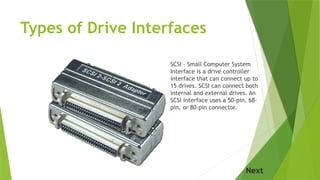
SCSI – Small Computer System
Interface is a drive controller
interface that can connect up to
15 drives. SCSI can connect both
internal and external drives. An
SCSI interface uses a 50-pin, 68-
pin, or 80-pin connector.
Next
How Much Have You Learned?
Click Here to test if indeed you
learned from this lesson
Next

TLE - 8 Perform Mensuration and Calculation

  • 1.
    Lesson 2 Perform Mensurationand Calculation Click here to begin
  • 2.
    Definition of Terms Bit- a fundamental unit of information having just two possible values, as either of the binary digits 0 or 1. Byte - a unit of digital information in computing and telecommunications that most commonly consists of eight bits. Booting – starting (a computer) by loading an operating system from a disk. Electronic storage - a device for recording (storing) information (data). Firewire - Apple Computer's version of a standard, IEEE 1394, High Performance Serial Bus, for connecting devices to your personal computer. Hot-swappable - the connection and disconnection of peripherals or other components without interrupting system operation. Next
  • 3.
    Definition of Terms Magneticplatter - a thin, high precision disk that is coated on both sides with a high precision magnetic material and which is used in a hard disk drive (HDD) to store data. Memory module - a narrow printed circuit board that holds memory chips. Magnetic storage media - any storage medium in which different patterns of magnetization are used to represent stored bits or bytes of information Operating system - a set of programs that manage computer hardware resources and provide common services for application software. Optical storage media - any storage in which data is written and read with a laser for archival or backup purposes. Interface - the point of interaction or communication between a computer and any other entity, such as a printer or human operator. Laser - a device that emits light (electromagnetic radiation) through a process of optical amplification based on the stimulated emission of photons. Next
  • 4.
    Acronyms HDD – harddisk drive IDE - Integrated Drive Electronics Next
  • 5.
    Learning Outcome 1 Selectcomponents to be measured Next Performance Standard 1. Object or component to be measured is identified. 2. Correct specifications are obtained from relevant source. 3. Accurate measurements are obtained for job.
  • 6.
    Chips that arelocated on the motherboard. Registers Flash Drive Read Only Memory IDE A. Direction. Click on the correct answer.
  • 7.
    A magnetic storagedevice that is installed inside the computer. Memory Module Optical Drive Hard Drive Floppy Drive
  • 8.
    Early drive controllerinterface that connects computers and hard disk drives which an interface that uses a 40-pin connector. Read Only Memory IDE Flash Drive Optical Drive
  • 9.
    Temporary storage fordata and programs that are being accessed by the CPU. Registers DDR Hex Driver Random Access Memory
  • 10.
    A storage devicethat uses lasers to read data on the optical media. Flash Drive Floppy Drive Optical Drive IDE
  • 11.
    A storage devicethat uses removable 3.5- inch disks. Floppy Drive Read Only Memory Optical Drive Random Access Memory
  • 12.
    Soldered the memorychips on a special circuit board. Random Access Memory DDR Hard Drive Memory Module
  • 13.
    A removable storagedevice that connects to a USB port. Flash Drive Floppy Drive Optical Drive Hard Disk Drive
  • 14.
    Memory cells builtright into the CPU that contain specific data needed particularly the Arithmetic and Logic Unit. Random Access Memory Registers Read Only Memory DDR
  • 15.
    Technology that doublesthe maximum bandwidth of SDRAM. DDR RAM HDD ROM
  • 16.
    Memory Although memory istechnically any form of electronic storage, it is used most often to identify fast, temporary forms of storage. If your computer's CPU had to constantly access the hard drive to retrieve every piece of data it needs, it would operate very slowly. When the information is kept in memory, the CPU can access it much more quickly. Most forms of memory are intended to store data temporarily. The CPU accesses memory according to a distinct hierarchy. Whether it comes from permanent storage (the hard drive) or input (the keyboard), most data goes in random access memory (RAM) first. The CPU then stores pieces of data it will need to access, often in a cache, and maintains certain special instructions in the register. Next
  • 17.
    Read-Only Memory (ROM) chipsare located in the motherboard. ROM chips contain instructions that can be directly accessed by the CPU. Basic instructions for booting the computer and loading the operating system are stored in ROM. ROM chips retain their contents even when the computer is powered down. The contents cannot be erased or changed by normal means. Next
  • 18.
    Random Access Memory (RAM)is the temporary storage for data and programs that are being accessed by the CPU. RAM is volatile memory, which means that the contents are erased when the computer is powered off. The more RAM in a computer, the more capacity the computer has to hold and process large programs and files, as well as enhance system performance. Next
  • 19.
    Memory Module Early computershad RAM installed in the motherboard as individual chips. The individual memory chips, called dual inline package (DIP) chips, was difficult to install and often became loose on the motherboard. To solve this problem, designers soldered the memory chips on a special circuit board called a memory module. Next
  • 20.
  • 21.
    Memory Module SIMMs have30-pin and 72-pin configurations. DIMM is a circuit board that holds SDRAM, DDR SDRAM and DDR2 SDRAM. The speed of memory has a direct impact on how much data a processor can process because faster memory improves the performance of the processor. As processor speed increases, memory speed must also increase. For example, single-channel memory is capable of transferring data at 64 bits. Dual-channel memory increases speed by using a second channel of memory, creating a data transfer rate of 128 bits. Next
  • 22.
    Double Data Rate (DDR)technology doubles the maximum bandwidth of SDRAM. DDR2 offers faster performance while using less energy. DDR3 operates at even higher speeds than DDR2; however, none of these DDR technologies are backward- or forward compatible. Next
  • 23.
    Registers Even with awide and fast bus, it still takes longer for data to get from the memory card to the CPU than it takes for the CPU to actually process the data. Caches are designed to alleviate this bottleneck by making the data used most often by the CPU instantly available. Registers are memory cells built right into the CPU that contain specific data needed by the CPU, particularly the Arithmetic and Logic Unit (ALU). An integral part of the CPU itself, they are controlled directly by the compiler that sends information for the CPU to process. Next
  • 24.
    Storage Drives Storage drivesread or write information on magnetic or optical storage media. The drive can be used to store data permanently or to retrieve information from a media disk. Storage drives can be installed inside the computer case, such as a hard drive. For portability, some storage drives can connect to the computer using a USB port, a FireWire port, or an SCSI port. These portable storage drives are sometimes referred to as removable drives and can be used on multiple computers. Here are some common types of storage drives: Floppy drive, Hard drive, Optical drive and Flash drive. Next
  • 25.
    Floppy Drive A floppydrive, or floppy disk drive, is a storage device that uses removable 3.5-inch floppy disks. These magnetic floppy disks can store 720 KB or 1.44 MB of data. In a computer, the floppy drive is usually configured as the A: drive. The floppy drive can be used to boot the computer if it contains a bootable floppy disk. A 5.25-inch floppy drive is older technology and is seldom used. Next
  • 26.
    Hard Drive (HDD) Ahard drive, or hard disk drive, is a magnetic storage device that is installed inside the computer. The hard drive is used as permanent storage for data. In a Windows computer, the hard drive is usually configured as the C: drive and contains the operating system and applications. The hard drive is often configured as the first drive in the boot sequence. The storage capacity of a hard drive is measured in billions of bytes, or gigabytes (GB). The speed of a hard drive is measured in revolutions per minute (RPM). Multiple hard drives can be added to increase storage capacity. Next
  • 27.
    Hard Drive (SSD) Traditionalhard drives are magnetic. Magnetic hard drives have drive motors designed to spin magnetic platters and the drive heads. In contrast, the newer solid state drives (SSDs) do not have moving parts. Because there are no drive motors and moving parts, the SSD uses far less energy than the magnetic hard drive. Non- volatile flash memory chips manage all storage on an SSD, which results in faster access to data, higher reliability, and reduced power usage. SSDs have the same form factor as magnetic hard drives and use ATA or SATA interfaces. SSDs can be installed as a replacement for magnetic drives. Next
  • 28.
    Optical Drive An opticaldrive is a storage device that uses lasers to read data on the optical media. There are three types of optical drives: Compact Disc (CD), Digital Versatile Disc (DVD) and Blu-ray Disc (BD). CD, DVD, and BD media can be pre- recorded (read-only), recordable (write once), or rewritable (read and write multiple times). Next
  • 29.
    External Flash Drive Anexternal flash drive, also known as a thumb drive, is a removable storage device that connects to a USB port. An external flash drive uses the same type of non-volatile memory chips as solid state drives and does not require power to maintain the data. These drives can be accessed by the operating system in the same way that other types of drives are accessed. Next
  • 30.
    Types of DriveInterfaces Hard drives and optical drives are manufactured with different interfaces that are used to connect the drive to the computer. To install a storage drive in a computer, the connection interface on the drive must be the same as the controller on the motherboard. Here are some common drive interfaces: Next
  • 31.
    Types of DriveInterfaces IDE – Integrated Drive Electronics, also called Advanced Technology Attachment (ATA) is an early drive controller interface that connects computers and hard disk drives. An IDE interface uses a 40-pin connector. Next
  • 32.
    Types of DriveInterfaces SATA – Serial ATA refers to the serial version of the ATA drive controller interface. A SATA interface uses a 7-pin data connector. Next
  • 33.
    Types of DriveInterfaces SCSI – Small Computer System Interface is a drive controller interface that can connect up to 15 drives. SCSI can connect both internal and external drives. An SCSI interface uses a 50-pin, 68- pin, or 80-pin connector. Next
  • 34.
    How Much HaveYou Learned? Click Here to test if indeed you learned from this lesson Next