Ring Documentation, Release 1.5.4
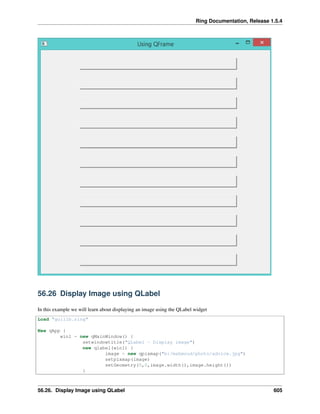
56.26 Display Image using QLabel
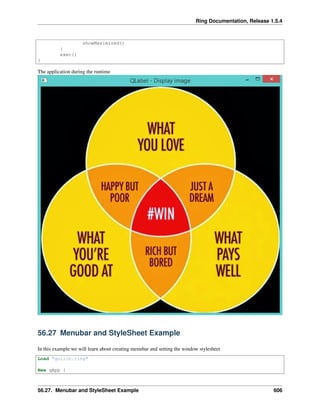
In this example we will learn about displaying an image using the QLabel widget
Load "guilib.ring"
New qApp {
win1 = new qMainWindow() {
setwindowtitle("QLabel - Display image")
new qlabel(win1) {
image = new qpixmap("b:/mahmoud/photo/advice.jpg")
setpixmap(image)
setGeometry(0,0,image.width(),image.height())
}
56.26. Display Image using QLabel 605
Ring Documentation, Release 1.5.4
showMaximized()
}
exec()
}
The application during the runtime
56.27 Menubar and StyleSheet Example
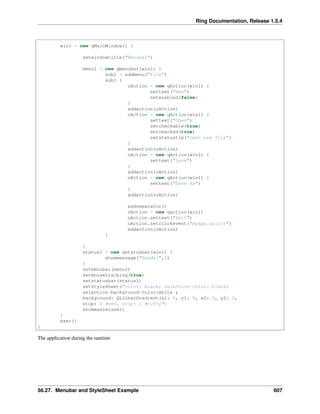
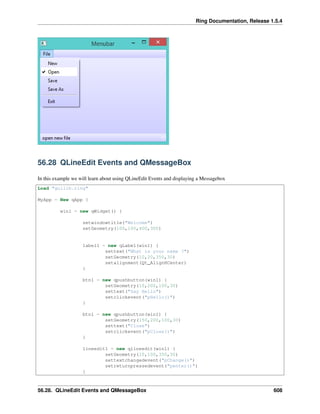
In this example we will learn about creating menubar and setting the window stylesheet
Load "guilib.ring"
New qApp {
56.27. Menubar and StyleSheet Example 606
Ring Documentation, Release 1.5.4
win1 = new qMainWindow() {
setwindowtitle("Menubar")
menu1 = new qmenubar(win1) {
sub1 = addmenu("File")
sub1 {
oAction = new qAction(win1) {
settext("New")
setenabled(false)
}
addaction(oAction)
oAction = new qAction(win1) {
settext("Open")
setcheckable(true)
setchecked(true)
setstatustip("open new file")
}
addaction(oAction)
oAction = new qAction(win1) {
settext("Save")
}
addaction(oAction)
oAction = new qAction(win1) {
settext("Save As")
}
addaction(oAction)
addseparator()
oAction = new qaction(win1)
oAction.settext("Exit")
oAction.setclickevent("myapp.quit()")
addaction(oAction)
}
}
status1 = new qstatusbar(win1) {
showmessage("Ready!",0)
}
setmenubar(menu1)
setmousetracking(true)
setstatusbar(status1)
setStyleSheet("color: black; selection-color: black;
selection-background-color:white ;
background: QLinearGradient(x1: 0, y1: 0, x2: 0, y2: 1,
stop: 0 #eef, stop: 1 #ccf);")
showmaximized()
}
exec()
}
The application during the runtime
56.27. Menubar and StyleSheet Example 607
Ring Documentation, Release 1.5.4
56.28 QLineEdit Events and QMessageBox
In this example we will learn about using QLineEdit Events and displaying a Messagebox
Load "guilib.ring"
MyApp = New qApp {
win1 = new qWidget() {
setwindowtitle("Welcome")
setGeometry(100,100,400,300)
label1 = new qLabel(win1) {
settext("What is your name ?")
setGeometry(10,20,350,30)
setalignment(Qt_AlignHCenter)
}
btn1 = new qpushbutton(win1) {
setGeometry(10,200,100,30)
settext("Say Hello")
setclickevent("pHello()")
}
btn1 = new qpushbutton(win1) {
setGeometry(150,200,100,30)
settext("Close")
setclickevent("pClose()")
}
lineedit1 = new qlineedit(win1) {
setGeometry(10,100,350,30)
settextchangedevent("pChange()")
setreturnpressedevent("penter()")
}
56.28. QLineEdit Events and QMessageBox 608
Ring Documentation, Release 1.5.4
show()
}
exec()
}
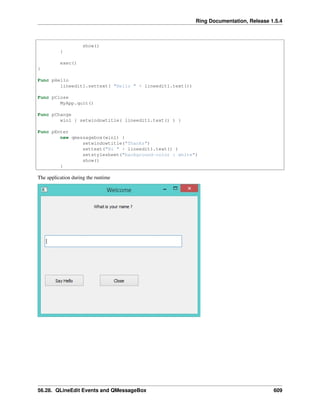
Func pHello
lineedit1.settext( "Hello " + lineedit1.text())
Func pClose
MyApp.quit()
Func pChange
win1 { setwindowtitle( lineedit1.text() ) }
Func pEnter
new qmessagebox(win1) {
setwindowtitle("Thanks")
settext("Hi " + lineedit1.text() )
setstylesheet("background-color : white")
show()
}
The application during the runtime
56.28. QLineEdit Events and QMessageBox 609
Ring Documentation, Release 1.5.4
56.29 Other Widgets Events
Each Qt signal can be used in RingQt, just add Set before the signal name and add event after the signal name to get
the method that can be used to determine the event code.
For example the QProgressBar class contains a signal named valueChanged() To use it just use the function setVal-
ueChangedEvent()
Example:
Load "guilib.ring"
New qApp {
win1 = new qMainWindow() {
setwindowtitle("QProgressBar valueChanged Event")
progress1 = new qprogressbar(win1) {
setGeometry(100,100,350,30)
setvalue(10)
setvaluechangedevent("pChange()")
}
new qpushbutton(win1) {
setGeometry(10,10,100,30)
settext("increase")
setclickevent("pIncrease()")
}
showMaximized()
}
56.29. Other Widgets Events 610
Ring Documentation, Release 1.5.4
exec()
}
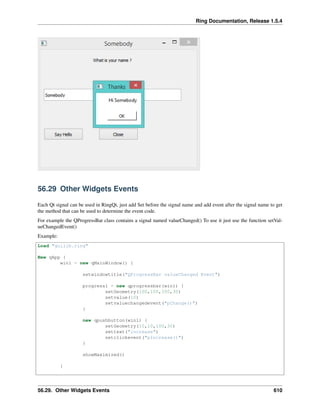
func pIncrease
progress1 { setvalue(value()+1) }
func pchange
win1.setwindowtitle("value : " + progress1.value() )
The application during the runtime
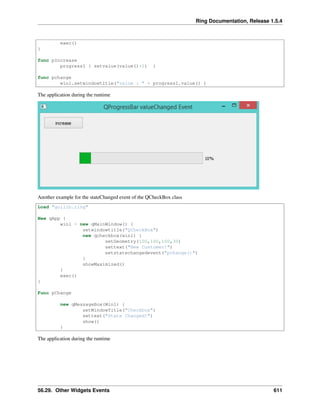
Another example for the stateChanged event of the QCheckBox class
Load "guilib.ring"
New qApp {
win1 = new qMainWindow() {
setwindowtitle("QCheckBox")
new qcheckbox(win1) {
setGeometry(100,100,100,30)
settext("New Customer!")
setstatechangedevent("pchange()")
}
showMaximized()
}
exec()
}
Func pChange
new qMessageBox(Win1) {
setWindowTitle("Checkbox")
settext("State Changed!")
show()
}
The application during the runtime
56.29. Other Widgets Events 611
Ring Documentation, Release 1.5.4
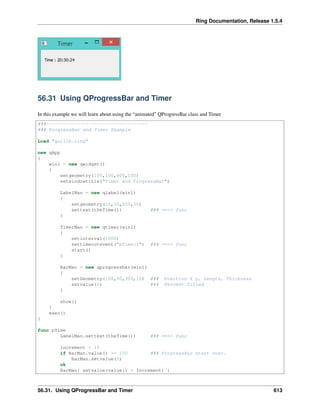
56.30 Using the QTimer Class
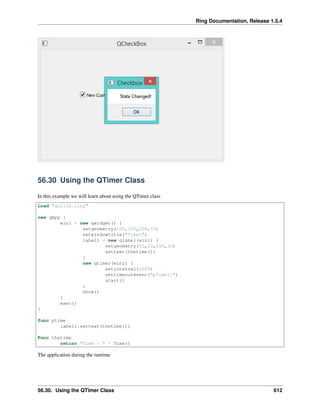
In this example we will learn about using the QTimer class
Load "guilib.ring"
new qApp {
win1 = new qwidget() {
setgeometry(100,100,200,70)
setwindowtitle("Timer")
label1 = new qlabel(win1) {
setgeometry(10,10,200,30)
settext(thetime())
}
new qtimer(win1) {
setinterval(1000)
settimeoutevent("pTime()")
start()
}
show()
}
exec()
}
func ptime
label1.settext(thetime())
Func thetime
return "Time : " + Time()
The application during the runtime
56.30. Using the QTimer Class 612
Ring Documentation, Release 1.5.4
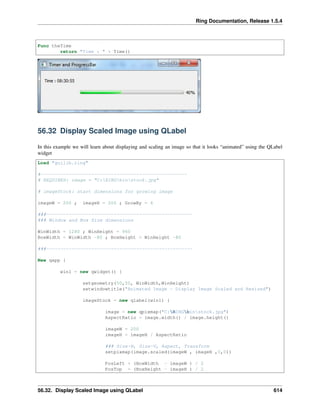
56.31 Using QProgressBar and Timer
In this example we will learn about using the “animated” QProgressBar class and Timer
###------------------------------------
### ProgressBar and Timer Example
Load "guilib.ring"
new qApp
{
win1 = new qwidget()
{
setgeometry(100,100,400,100)
setwindowtitle("Timer and ProgressBar")
LabelMan = new qlabel(win1)
{
setgeometry(10,10,200,30)
settext(theTime()) ### ==>> func
}
TimerMan = new qtimer(win1)
{
setinterval(1000)
settimeoutevent("pTime()") ### ==>> func
start()
}
BarMan = new qprogressbar(win1)
{
setGeometry(100,50,300,10) ### Position X y, Length, Thickness
setvalue(0) ### Percent filled
}
show()
}
exec()
}
func pTime
LabelMan.settext(theTime()) ### ==>> func
Increment = 10
if BarMan.value() >= 100 ### ProgressBar start over.
BarMan.setvalue(0)
ok
BarMan{ setvalue(value() + Increment) }
56.31. Using QProgressBar and Timer 613
Ring Documentation, Release 1.5.4
Func theTime
return "Time : " + Time()
56.32 Display Scaled Image using QLabel
In this example we will learn about displaying and scaling an image so that it looks “animated” using the QLabel
widget
Load "guilib.ring"
#----------------------------------------------------
# REQUIRES: image = "C:RINGbinstock.jpg"
# imageStock: start dimensions for growing image
imageW = 200 ; imageH = 200 ; GrowBy = 4
###----------------------------------------------------
### Window and Box Size dimensions
WinWidth = 1280 ; WinHeight = 960
BoxWidth = WinWidth -80 ; BoxHeight = WinHeight -80
###----------------------------------------------------
New qapp {
win1 = new qwidget() {
setgeometry(50,50, WinWidth,WinHeight)
setwindowtitle("Animated Image - Display Image Scaled and Resized")
imageStock = new qlabel(win1) {
image = new qpixmap("C:RINGbinstock.jpg")
AspectRatio = image.width() / image.height()
imageW = 200
imageH = imageH / AspectRatio
### Size-H, Size-V, Aspect, Transform
setpixmap(image.scaled(imageW , imageH ,0,0))
PosLeft = (BoxWidth - imageW ) / 2
PosTop = (BoxHeight - imageH ) / 2
56.32. Display Scaled Image using QLabel 614

The Ring programming language version 1.5.4 book - Part 64 of 185

  • 1.
    Ring Documentation, Release1.5.4 56.26 Display Image using QLabel In this example we will learn about displaying an image using the QLabel widget Load "guilib.ring" New qApp { win1 = new qMainWindow() { setwindowtitle("QLabel - Display image") new qlabel(win1) { image = new qpixmap("b:/mahmoud/photo/advice.jpg") setpixmap(image) setGeometry(0,0,image.width(),image.height()) } 56.26. Display Image using QLabel 605
  • 2.
    Ring Documentation, Release1.5.4 showMaximized() } exec() } The application during the runtime 56.27 Menubar and StyleSheet Example In this example we will learn about creating menubar and setting the window stylesheet Load "guilib.ring" New qApp { 56.27. Menubar and StyleSheet Example 606
  • 3.
    Ring Documentation, Release1.5.4 win1 = new qMainWindow() { setwindowtitle("Menubar") menu1 = new qmenubar(win1) { sub1 = addmenu("File") sub1 { oAction = new qAction(win1) { settext("New") setenabled(false) } addaction(oAction) oAction = new qAction(win1) { settext("Open") setcheckable(true) setchecked(true) setstatustip("open new file") } addaction(oAction) oAction = new qAction(win1) { settext("Save") } addaction(oAction) oAction = new qAction(win1) { settext("Save As") } addaction(oAction) addseparator() oAction = new qaction(win1) oAction.settext("Exit") oAction.setclickevent("myapp.quit()") addaction(oAction) } } status1 = new qstatusbar(win1) { showmessage("Ready!",0) } setmenubar(menu1) setmousetracking(true) setstatusbar(status1) setStyleSheet("color: black; selection-color: black; selection-background-color:white ; background: QLinearGradient(x1: 0, y1: 0, x2: 0, y2: 1, stop: 0 #eef, stop: 1 #ccf);") showmaximized() } exec() } The application during the runtime 56.27. Menubar and StyleSheet Example 607
  • 4.
    Ring Documentation, Release1.5.4 56.28 QLineEdit Events and QMessageBox In this example we will learn about using QLineEdit Events and displaying a Messagebox Load "guilib.ring" MyApp = New qApp { win1 = new qWidget() { setwindowtitle("Welcome") setGeometry(100,100,400,300) label1 = new qLabel(win1) { settext("What is your name ?") setGeometry(10,20,350,30) setalignment(Qt_AlignHCenter) } btn1 = new qpushbutton(win1) { setGeometry(10,200,100,30) settext("Say Hello") setclickevent("pHello()") } btn1 = new qpushbutton(win1) { setGeometry(150,200,100,30) settext("Close") setclickevent("pClose()") } lineedit1 = new qlineedit(win1) { setGeometry(10,100,350,30) settextchangedevent("pChange()") setreturnpressedevent("penter()") } 56.28. QLineEdit Events and QMessageBox 608
  • 5.
    Ring Documentation, Release1.5.4 show() } exec() } Func pHello lineedit1.settext( "Hello " + lineedit1.text()) Func pClose MyApp.quit() Func pChange win1 { setwindowtitle( lineedit1.text() ) } Func pEnter new qmessagebox(win1) { setwindowtitle("Thanks") settext("Hi " + lineedit1.text() ) setstylesheet("background-color : white") show() } The application during the runtime 56.28. QLineEdit Events and QMessageBox 609
  • 6.
    Ring Documentation, Release1.5.4 56.29 Other Widgets Events Each Qt signal can be used in RingQt, just add Set before the signal name and add event after the signal name to get the method that can be used to determine the event code. For example the QProgressBar class contains a signal named valueChanged() To use it just use the function setVal- ueChangedEvent() Example: Load "guilib.ring" New qApp { win1 = new qMainWindow() { setwindowtitle("QProgressBar valueChanged Event") progress1 = new qprogressbar(win1) { setGeometry(100,100,350,30) setvalue(10) setvaluechangedevent("pChange()") } new qpushbutton(win1) { setGeometry(10,10,100,30) settext("increase") setclickevent("pIncrease()") } showMaximized() } 56.29. Other Widgets Events 610
  • 7.
    Ring Documentation, Release1.5.4 exec() } func pIncrease progress1 { setvalue(value()+1) } func pchange win1.setwindowtitle("value : " + progress1.value() ) The application during the runtime Another example for the stateChanged event of the QCheckBox class Load "guilib.ring" New qApp { win1 = new qMainWindow() { setwindowtitle("QCheckBox") new qcheckbox(win1) { setGeometry(100,100,100,30) settext("New Customer!") setstatechangedevent("pchange()") } showMaximized() } exec() } Func pChange new qMessageBox(Win1) { setWindowTitle("Checkbox") settext("State Changed!") show() } The application during the runtime 56.29. Other Widgets Events 611
  • 8.
    Ring Documentation, Release1.5.4 56.30 Using the QTimer Class In this example we will learn about using the QTimer class Load "guilib.ring" new qApp { win1 = new qwidget() { setgeometry(100,100,200,70) setwindowtitle("Timer") label1 = new qlabel(win1) { setgeometry(10,10,200,30) settext(thetime()) } new qtimer(win1) { setinterval(1000) settimeoutevent("pTime()") start() } show() } exec() } func ptime label1.settext(thetime()) Func thetime return "Time : " + Time() The application during the runtime 56.30. Using the QTimer Class 612
  • 9.
    Ring Documentation, Release1.5.4 56.31 Using QProgressBar and Timer In this example we will learn about using the “animated” QProgressBar class and Timer ###------------------------------------ ### ProgressBar and Timer Example Load "guilib.ring" new qApp { win1 = new qwidget() { setgeometry(100,100,400,100) setwindowtitle("Timer and ProgressBar") LabelMan = new qlabel(win1) { setgeometry(10,10,200,30) settext(theTime()) ### ==>> func } TimerMan = new qtimer(win1) { setinterval(1000) settimeoutevent("pTime()") ### ==>> func start() } BarMan = new qprogressbar(win1) { setGeometry(100,50,300,10) ### Position X y, Length, Thickness setvalue(0) ### Percent filled } show() } exec() } func pTime LabelMan.settext(theTime()) ### ==>> func Increment = 10 if BarMan.value() >= 100 ### ProgressBar start over. BarMan.setvalue(0) ok BarMan{ setvalue(value() + Increment) } 56.31. Using QProgressBar and Timer 613
  • 10.
    Ring Documentation, Release1.5.4 Func theTime return "Time : " + Time() 56.32 Display Scaled Image using QLabel In this example we will learn about displaying and scaling an image so that it looks “animated” using the QLabel widget Load "guilib.ring" #---------------------------------------------------- # REQUIRES: image = "C:RINGbinstock.jpg" # imageStock: start dimensions for growing image imageW = 200 ; imageH = 200 ; GrowBy = 4 ###---------------------------------------------------- ### Window and Box Size dimensions WinWidth = 1280 ; WinHeight = 960 BoxWidth = WinWidth -80 ; BoxHeight = WinHeight -80 ###---------------------------------------------------- New qapp { win1 = new qwidget() { setgeometry(50,50, WinWidth,WinHeight) setwindowtitle("Animated Image - Display Image Scaled and Resized") imageStock = new qlabel(win1) { image = new qpixmap("C:RINGbinstock.jpg") AspectRatio = image.width() / image.height() imageW = 200 imageH = imageH / AspectRatio ### Size-H, Size-V, Aspect, Transform setpixmap(image.scaled(imageW , imageH ,0,0)) PosLeft = (BoxWidth - imageW ) / 2 PosTop = (BoxHeight - imageH ) / 2 56.32. Display Scaled Image using QLabel 614