Ring Documentation, Release 1.10
show()
}
exec()
}
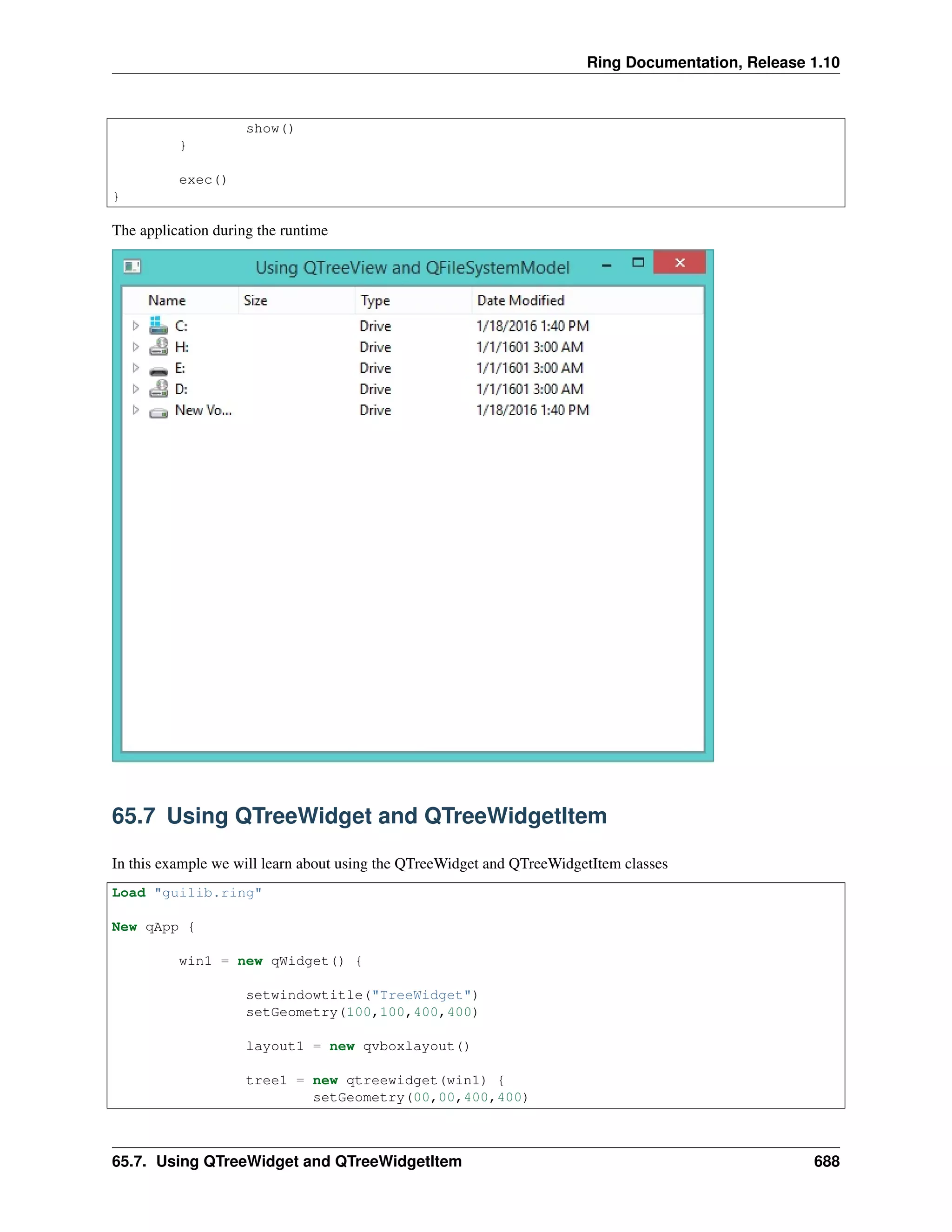
The application during the runtime
65.7 Using QTreeWidget and QTreeWidgetItem
In this example we will learn about using the QTreeWidget and QTreeWidgetItem classes
Load "guilib.ring"
New qApp {
win1 = new qWidget() {
setwindowtitle("TreeWidget")
setGeometry(100,100,400,400)
layout1 = new qvboxlayout()
tree1 = new qtreewidget(win1) {
setGeometry(00,00,400,400)
65.7. Using QTreeWidget and QTreeWidgetItem 688
Ring Documentation, Release 1.10
setcolumncount(1)
myitem = new qtreewidgetitem()
myitem.settext(0,"The First Step")
addtoplevelitem(myitem)
for x = 1 to 10
myitem2 = new qtreewidgetitem()
myitem2.settext(0,"hello"+x)
myitem.addchild(myitem2)
for y = 1 to 10
myitem3 = new qtreewidgetitem()
myitem3.settext(0,"hello"+x)
myitem2.addchild(myitem3)
next
next
setheaderlabel("Steps Tree")
}
layout1.addwidget(tree1)
setlayout(layout1)
show()
}
exec()
}
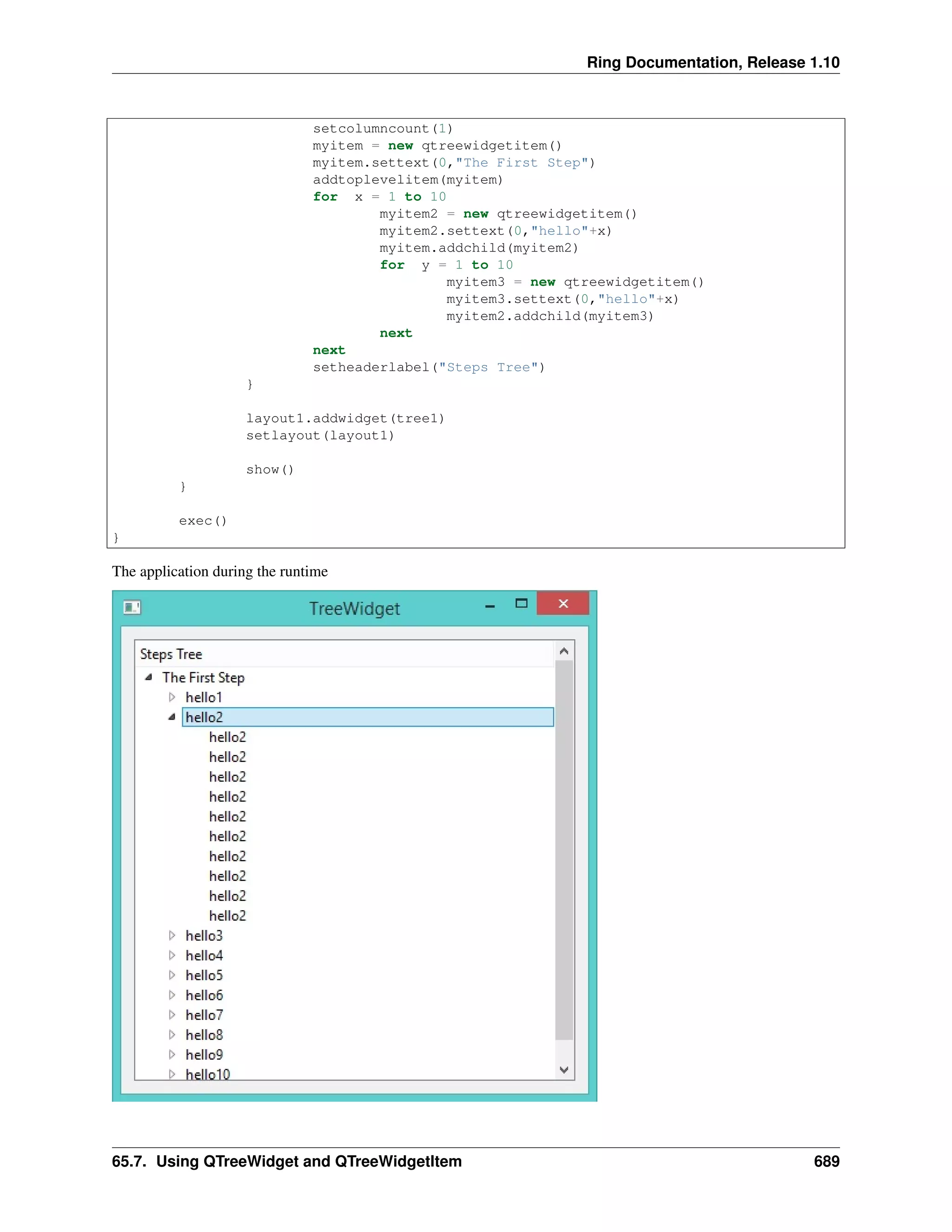
The application during the runtime
65.7. Using QTreeWidget and QTreeWidgetItem 689
Ring Documentation, Release 1.10
65.8 Using QComboBox Class
In this example we will learn about using the QComboBox class
Load "guilib.ring"
New qApp {
win1 = new qWidget() {
setwindowtitle("Using QComboBox")
setGeometry(100,100,400,400)
New QComboBox(win1) {
setGeometry(150,100,200,30)
alist = ["one","two","three","four","five"]
for x in aList additem(x,0) next
}
show()
}
exec()
}
The application during the runtime
65.8. Using QComboBox Class 690
Ring Documentation, Release 1.10
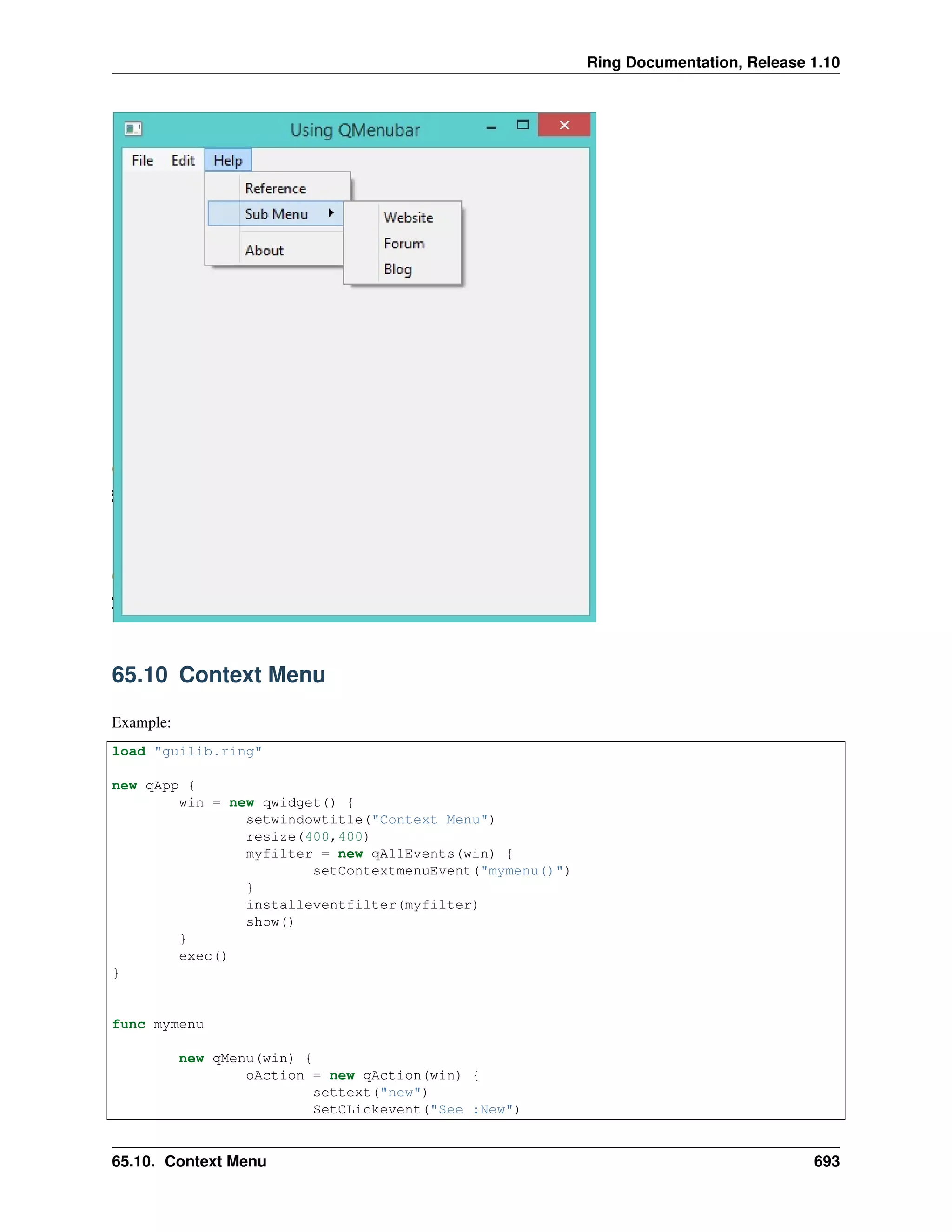
65.9 Creating Menubar
In this example we will learn about using the QMenuBar class
Load "guilib.ring"
MyApp = New qApp {
win1 = new qWidget() {
setwindowtitle("Using QMenubar")
setGeometry(100,100,400,400)
menu1 = new qmenubar(win1) {
sub1 = addmenu("File")
sub2 = addmenu("Edit")
sub3 = addmenu("Help")
sub1 {
oAction = new qAction(win1) {
settext("New")
}
addaction(oAction)
oAction = new qAction(win1) {
settext("Open")
}
addaction(oAction)
oAction = new qAction(win1) {
settext("Save")
}
addaction(oAction)
oAction = new qAction(win1) {
settext("Save As")
}
addaction(oAction)
addseparator()
oAction = new qaction(win1) {
settext("Exit")
setclickevent("myapp.quit()")
}
addaction(oAction)
}
sub2 {
oAction = new qAction(win1) {
settext("Cut")
}
addaction(oAction)
oAction = new qAction(win1) {
settext("Copy")
}
addaction(oAction)
oAction = new qAction(win1) {
settext("Paste")
}
addaction(oAction)
addseparator()
oAction = new qAction(win1) {
settext("Select All")
}
65.9. Creating Menubar 691
Ring Documentation, Release 1.10
addaction(oAction)
}
sub3 {
oAction = new qAction(win1) {
settext("Reference")
}
addaction(oAction)
sub4 = addmenu("Sub Menu")
sub4 {
oAction = new qAction(win1) {
settext("Website")
}
addaction(oAction)
oAction = new qAction(win1) {
settext("Forum")
}
addaction(oAction)
oAction = new qAction(win1) {
settext("Blog")
}
addaction(oAction)
}
addseparator()
oAction = new qAction(win1) {
settext("About")
}
addaction(oAction)
}
}
show()
}
exec()
}
The application during the runtime
65.9. Creating Menubar 692
Ring Documentation, Release 1.10
65.10 Context Menu
Example:
load "guilib.ring"
new qApp {
win = new qwidget() {
setwindowtitle("Context Menu")
resize(400,400)
myfilter = new qAllEvents(win) {
setContextmenuEvent("mymenu()")
}
installeventfilter(myfilter)
show()
}
exec()
}
func mymenu
new qMenu(win) {
oAction = new qAction(win) {
settext("new")
SetCLickevent("See :New")
65.10. Context Menu 693
Ring Documentation, Release 1.10
}
addaction(oAction)
oAction = new qAction(win) {
settext("open")
SetCLickevent("See :Open")
}
addaction(oAction)
oAction = new qAction(win) {
settext("save")
SetCLickevent("See :Save")
}
addaction(oAction)
oAction = new qAction(win) {
settext("close")
SetCLickevent("See :Close")
}
addaction(oAction)
oCursor = new qCursor()
exec(oCursor.pos())
}
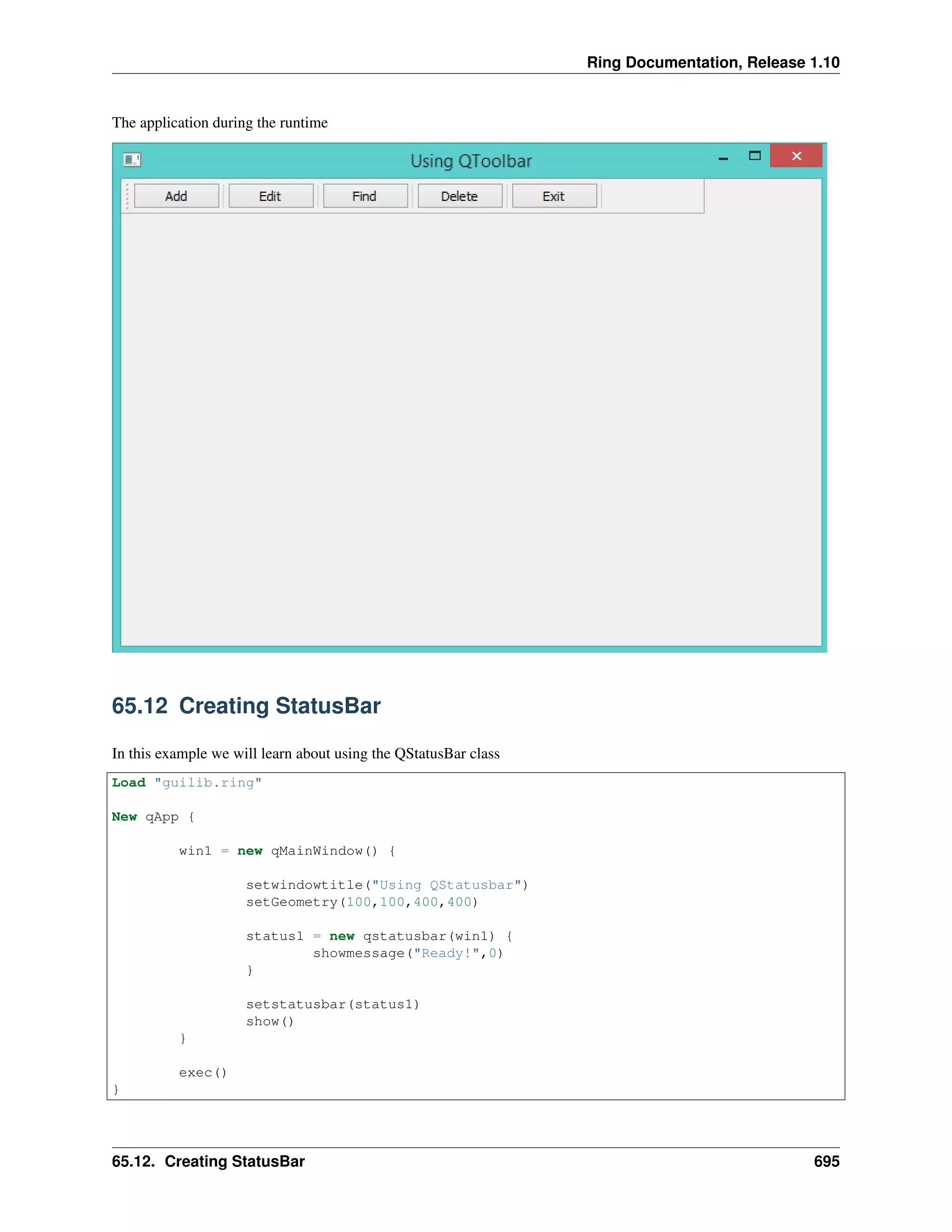
65.11 Creating Toolbar
In this example we will learn about using the QToolBar class
Load "guilib.ring"
New qApp {
win1 = new qMainWindow() {
setwindowtitle("Using QToolbar")
setGeometry(100,100,600,400)
abtns = [
new qpushbutton(win1) { settext("Add") } ,
new qpushbutton(win1) { settext("Edit") } ,
new qpushbutton(win1) { settext("Find") } ,
new qpushbutton(win1) { settext("Delete") } ,
new qpushbutton(win1) { settext("Exit")
setclickevent("win1.close()") }
]
tool1 = new qtoolbar(win1) {
for x in abtns addwidget(x) addseparator() next
setmovable(true)
setGeometry(0,0,500,30)
setFloatable(true)
}
show()
}
exec()
}
65.11. Creating Toolbar 694
Ring Documentation, Release 1.10
The application during the runtime
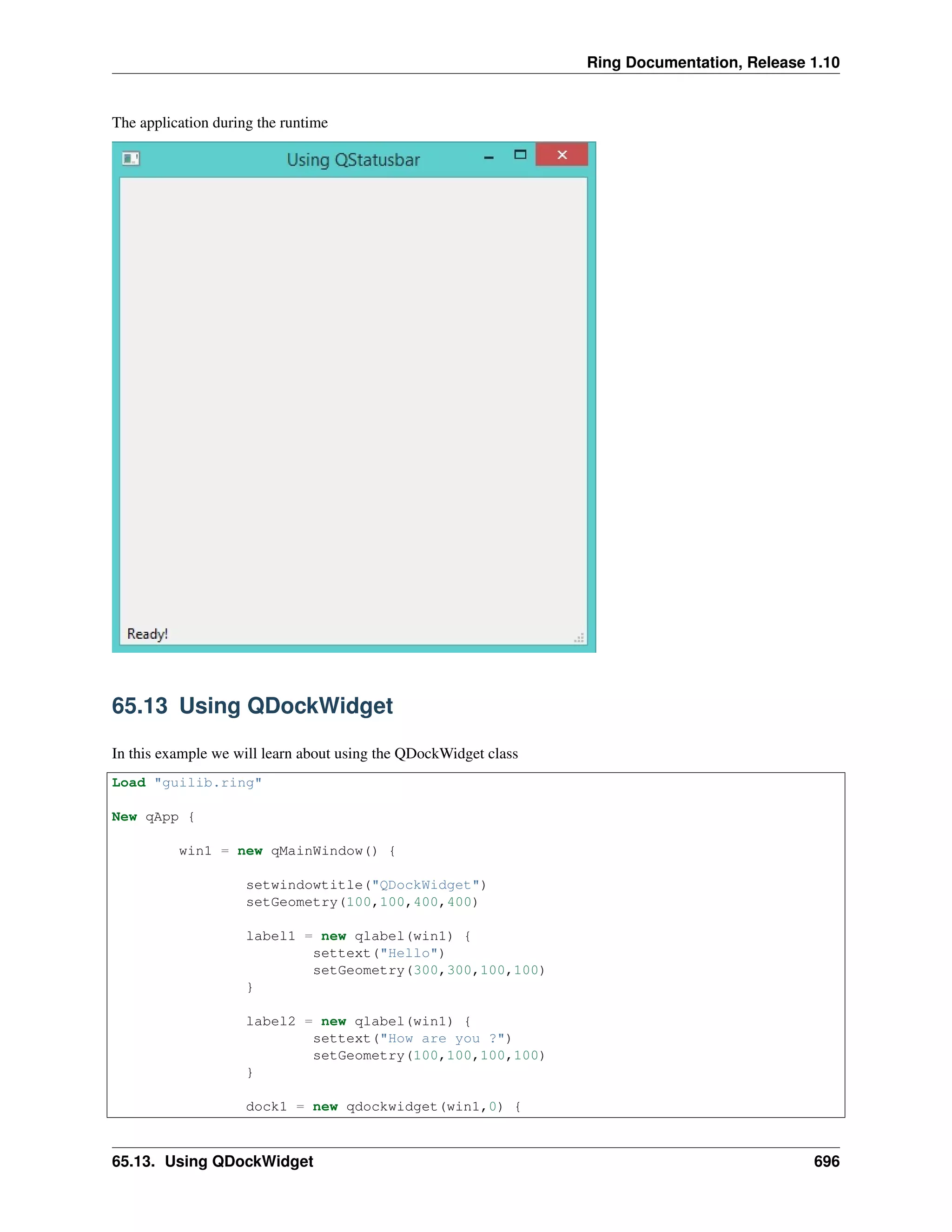
65.12 Creating StatusBar
In this example we will learn about using the QStatusBar class
Load "guilib.ring"
New qApp {
win1 = new qMainWindow() {
setwindowtitle("Using QStatusbar")
setGeometry(100,100,400,400)
status1 = new qstatusbar(win1) {
showmessage("Ready!",0)
}
setstatusbar(status1)
show()
}
exec()
}
65.12. Creating StatusBar 695
Ring Documentation, Release 1.10
The application during the runtime
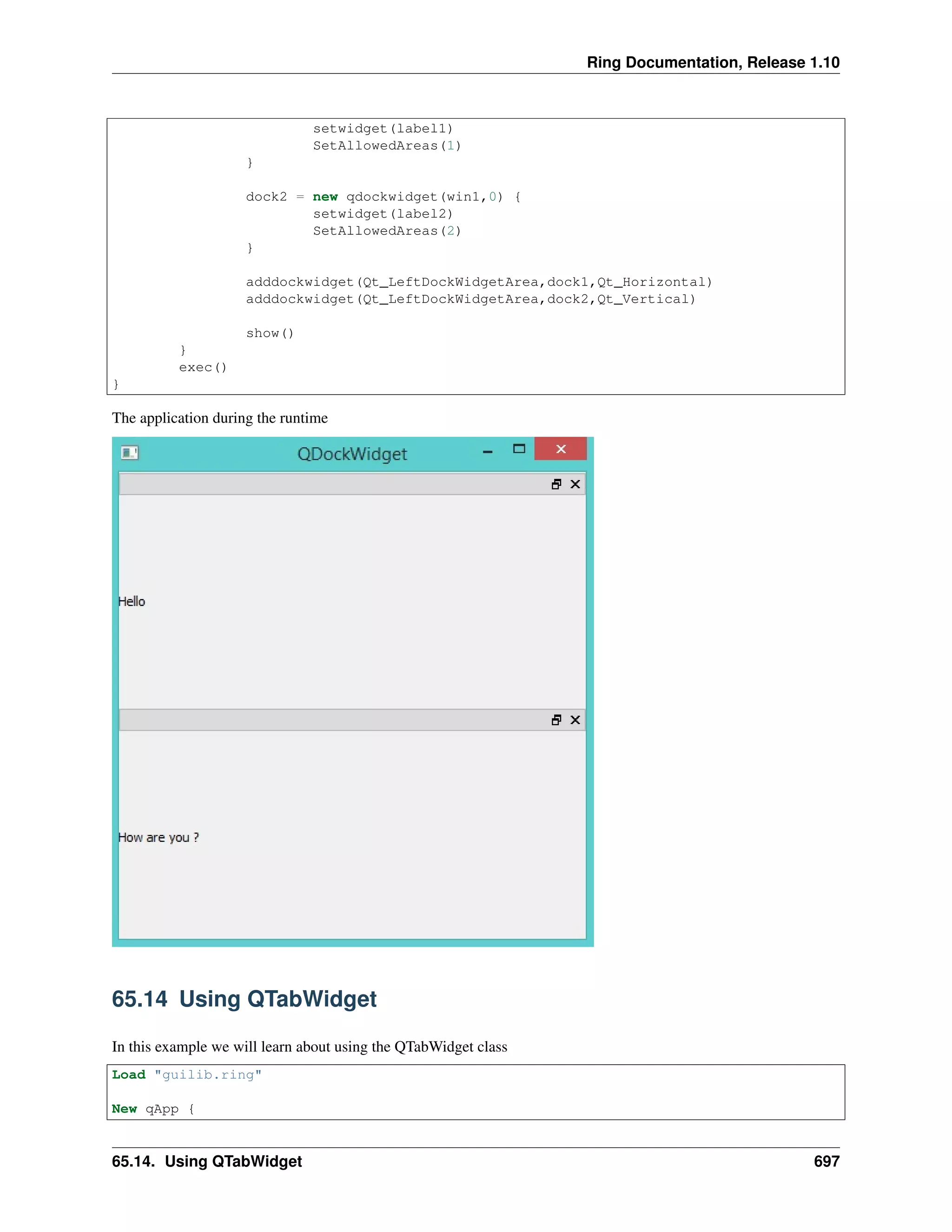
65.13 Using QDockWidget
In this example we will learn about using the QDockWidget class
Load "guilib.ring"
New qApp {
win1 = new qMainWindow() {
setwindowtitle("QDockWidget")
setGeometry(100,100,400,400)
label1 = new qlabel(win1) {
settext("Hello")
setGeometry(300,300,100,100)
}
label2 = new qlabel(win1) {
settext("How are you ?")
setGeometry(100,100,100,100)
}
dock1 = new qdockwidget(win1,0) {
65.13. Using QDockWidget 696
Ring Documentation, Release 1.10
setwidget(label1)
SetAllowedAreas(1)
}
dock2 = new qdockwidget(win1,0) {
setwidget(label2)
SetAllowedAreas(2)
}
adddockwidget(Qt_LeftDockWidgetArea,dock1,Qt_Horizontal)
adddockwidget(Qt_LeftDockWidgetArea,dock2,Qt_Vertical)
show()
}
exec()
}
The application during the runtime
65.14 Using QTabWidget
In this example we will learn about using the QTabWidget class
Load "guilib.ring"
New qApp {
65.14. Using QTabWidget 697

The Ring programming language version 1.10 book - Part 73 of 212

  • 1.
    Ring Documentation, Release1.10 show() } exec() } The application during the runtime 65.7 Using QTreeWidget and QTreeWidgetItem In this example we will learn about using the QTreeWidget and QTreeWidgetItem classes Load "guilib.ring" New qApp { win1 = new qWidget() { setwindowtitle("TreeWidget") setGeometry(100,100,400,400) layout1 = new qvboxlayout() tree1 = new qtreewidget(win1) { setGeometry(00,00,400,400) 65.7. Using QTreeWidget and QTreeWidgetItem 688
  • 2.
    Ring Documentation, Release1.10 setcolumncount(1) myitem = new qtreewidgetitem() myitem.settext(0,"The First Step") addtoplevelitem(myitem) for x = 1 to 10 myitem2 = new qtreewidgetitem() myitem2.settext(0,"hello"+x) myitem.addchild(myitem2) for y = 1 to 10 myitem3 = new qtreewidgetitem() myitem3.settext(0,"hello"+x) myitem2.addchild(myitem3) next next setheaderlabel("Steps Tree") } layout1.addwidget(tree1) setlayout(layout1) show() } exec() } The application during the runtime 65.7. Using QTreeWidget and QTreeWidgetItem 689
  • 3.
    Ring Documentation, Release1.10 65.8 Using QComboBox Class In this example we will learn about using the QComboBox class Load "guilib.ring" New qApp { win1 = new qWidget() { setwindowtitle("Using QComboBox") setGeometry(100,100,400,400) New QComboBox(win1) { setGeometry(150,100,200,30) alist = ["one","two","three","four","five"] for x in aList additem(x,0) next } show() } exec() } The application during the runtime 65.8. Using QComboBox Class 690
  • 4.
    Ring Documentation, Release1.10 65.9 Creating Menubar In this example we will learn about using the QMenuBar class Load "guilib.ring" MyApp = New qApp { win1 = new qWidget() { setwindowtitle("Using QMenubar") setGeometry(100,100,400,400) menu1 = new qmenubar(win1) { sub1 = addmenu("File") sub2 = addmenu("Edit") sub3 = addmenu("Help") sub1 { oAction = new qAction(win1) { settext("New") } addaction(oAction) oAction = new qAction(win1) { settext("Open") } addaction(oAction) oAction = new qAction(win1) { settext("Save") } addaction(oAction) oAction = new qAction(win1) { settext("Save As") } addaction(oAction) addseparator() oAction = new qaction(win1) { settext("Exit") setclickevent("myapp.quit()") } addaction(oAction) } sub2 { oAction = new qAction(win1) { settext("Cut") } addaction(oAction) oAction = new qAction(win1) { settext("Copy") } addaction(oAction) oAction = new qAction(win1) { settext("Paste") } addaction(oAction) addseparator() oAction = new qAction(win1) { settext("Select All") } 65.9. Creating Menubar 691
  • 5.
    Ring Documentation, Release1.10 addaction(oAction) } sub3 { oAction = new qAction(win1) { settext("Reference") } addaction(oAction) sub4 = addmenu("Sub Menu") sub4 { oAction = new qAction(win1) { settext("Website") } addaction(oAction) oAction = new qAction(win1) { settext("Forum") } addaction(oAction) oAction = new qAction(win1) { settext("Blog") } addaction(oAction) } addseparator() oAction = new qAction(win1) { settext("About") } addaction(oAction) } } show() } exec() } The application during the runtime 65.9. Creating Menubar 692
  • 6.
    Ring Documentation, Release1.10 65.10 Context Menu Example: load "guilib.ring" new qApp { win = new qwidget() { setwindowtitle("Context Menu") resize(400,400) myfilter = new qAllEvents(win) { setContextmenuEvent("mymenu()") } installeventfilter(myfilter) show() } exec() } func mymenu new qMenu(win) { oAction = new qAction(win) { settext("new") SetCLickevent("See :New") 65.10. Context Menu 693
  • 7.
    Ring Documentation, Release1.10 } addaction(oAction) oAction = new qAction(win) { settext("open") SetCLickevent("See :Open") } addaction(oAction) oAction = new qAction(win) { settext("save") SetCLickevent("See :Save") } addaction(oAction) oAction = new qAction(win) { settext("close") SetCLickevent("See :Close") } addaction(oAction) oCursor = new qCursor() exec(oCursor.pos()) } 65.11 Creating Toolbar In this example we will learn about using the QToolBar class Load "guilib.ring" New qApp { win1 = new qMainWindow() { setwindowtitle("Using QToolbar") setGeometry(100,100,600,400) abtns = [ new qpushbutton(win1) { settext("Add") } , new qpushbutton(win1) { settext("Edit") } , new qpushbutton(win1) { settext("Find") } , new qpushbutton(win1) { settext("Delete") } , new qpushbutton(win1) { settext("Exit") setclickevent("win1.close()") } ] tool1 = new qtoolbar(win1) { for x in abtns addwidget(x) addseparator() next setmovable(true) setGeometry(0,0,500,30) setFloatable(true) } show() } exec() } 65.11. Creating Toolbar 694
  • 8.
    Ring Documentation, Release1.10 The application during the runtime 65.12 Creating StatusBar In this example we will learn about using the QStatusBar class Load "guilib.ring" New qApp { win1 = new qMainWindow() { setwindowtitle("Using QStatusbar") setGeometry(100,100,400,400) status1 = new qstatusbar(win1) { showmessage("Ready!",0) } setstatusbar(status1) show() } exec() } 65.12. Creating StatusBar 695
  • 9.
    Ring Documentation, Release1.10 The application during the runtime 65.13 Using QDockWidget In this example we will learn about using the QDockWidget class Load "guilib.ring" New qApp { win1 = new qMainWindow() { setwindowtitle("QDockWidget") setGeometry(100,100,400,400) label1 = new qlabel(win1) { settext("Hello") setGeometry(300,300,100,100) } label2 = new qlabel(win1) { settext("How are you ?") setGeometry(100,100,100,100) } dock1 = new qdockwidget(win1,0) { 65.13. Using QDockWidget 696
  • 10.
    Ring Documentation, Release1.10 setwidget(label1) SetAllowedAreas(1) } dock2 = new qdockwidget(win1,0) { setwidget(label2) SetAllowedAreas(2) } adddockwidget(Qt_LeftDockWidgetArea,dock1,Qt_Horizontal) adddockwidget(Qt_LeftDockWidgetArea,dock2,Qt_Vertical) show() } exec() } The application during the runtime 65.14 Using QTabWidget In this example we will learn about using the QTabWidget class Load "guilib.ring" New qApp { 65.14. Using QTabWidget 697