Ring Documentation, Release 1.2
47.34 Printing using QPrinter
In this example we will learn how to print to PDF file using QPrinter
Load "guilib.ring"
new qApp {
win1 = new qwidget() {
setwindowtitle("Printer")
setgeometry(100,100,500,500)
myweb = new qwebview(win1) {
setgeometry(100,100,1000,500)
loadpage(new qurl("http://google.com"))
}
new qpushbutton(win1) {
setGeometry(20,20,100,30)
settext("Print")
setclickevent("print()")
}
showmaximized()
47.34. Printing using QPrinter 430
Ring Documentation, Release 1.2
}
exec()
}
func print
printer1 = new qPrinter(0) {
setoutputformat(1) # 1 = pdf
setoutputfilename("test.pdf")
painter = new qpainter() {
begin(printer1)
myfont = new qfont("Times",50,-1,0)
setfont(myfont)
drawtext(100,100,"test")
printer1.newpage()
drawtext(100,100,"test2")
endpaint()
}
}
printer1 = new qPrinter(0) {
setoutputformat(1)
setoutputfilename("test2.pdf")
myweb.print(printer1)
myweb.show()
}
system ("test.pdf")
system ("test2.pdf")
47.35 Creating More than one Window
The next example demonstrates how to create more than one window
Load "guilib.ring"
app1 = new qapp {
win1 = new qwidget() {
setwindowtitle("First")
setgeometry(100,100,500,500)
new qpushbutton(win1) {
setgeometry(100,100,100,30)
settext("close")
setclickevent("app1.quit()")
}
new qpushbutton(win1) {
setgeometry(250,100,100,30)
settext("Second")
setclickevent("second()")
}
showmaximized()
}
exec()
}
47.35. Creating More than one Window 431
Ring Documentation, Release 1.2
func second
win2 = new qwidget() {
setwindowtitle("Second")
setgeometry(100,100,500,500)
setwindowflags(Qt_dialog)
show()
}
The application during the runtime
47.36 Playing Sound
Example:
Load "guilib.ring"
new qapp {
win1 = new qwidget() {
setwindowtitle("play sound!") show()
}
new qmediaplayer() {
setmedia(new qurl("footstep.wav"))
setvolume(50) play()
}
exec()
}
47.37 Using the QColorDialog Class
Example:
47.36. Playing Sound 432
Ring Documentation, Release 1.2
Load "guilib.ring"
oApp = new myapp { start() }
Class MyApp
oColor win1
Func start
myapp = new qapp
win1 = new qMainWindow() {
setwindowtitle("Color Dialog")
setgeometry(100,100,400,400)
}
new qpushbutton(win1) {
setgeometry(10,10,100,30)
settext("Get Color")
setclickevent("oApp.pColor()")
}
win1.show()
myapp.exec()
Func pColor
myobj = new qcolordialog()
aColor = myobj.GetColor()
r=acolor[1] g=acolor[2] b=acolor[3]
win1.setstylesheet("background-color: rgb("+r+", " + g+ "," + b + ")")
The application during the runtime
47.37. Using the QColorDialog Class 433
Ring Documentation, Release 1.2
47.38 Using qLCDNumber Class
In this example we will learn about using the qLCDNumber class
Load "guilib.ring"
New qApp
{
win1 = new qWidget()
{
setwindowtitle("LCD Number")
setgeometry(100,100,250,120)
new qLCDNumber(win1)
{
setgeometry(10,10,100,40)
display(100)
}
new qLCDNumber(win1)
{
setgeometry(10,60,100,40)
display(80)
}
show()
}
exec()
}
The application during the runtime
47.39 Movable Label Example
Load "guilib.ring"
new qApp {
win1 = new qWidget()
{
47.38. Using qLCDNumber Class 434
Ring Documentation, Release 1.2
label1 = new qLabel(win1)
{
setText("Welcome")
setgeometry(10,10,200,50)
setstylesheet("color: purple ; font-size: 30pt;")
}
new qTimer(win1)
{
setInterVal(10)
setTimeOutEvent("pMove()")
start()
}
setWindowTitle("Movable Label")
setgeometry(100,100,600,80)
setStyleSheet("background-color: white;")
show()
}
exec()
}
Func pMove
label1
{
move(x()+1,y())
if x() > 600
move(10,y())
ok
}
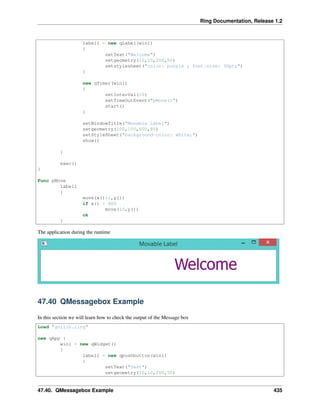
The application during the runtime
47.40 QMessagebox Example
In this section we will learn how to check the output of the Message box
Load "guilib.ring"
new qApp {
win1 = new qWidget()
{
label1 = new qpushbutton(win1)
{
setText("Test")
setgeometry(10,10,200,50)
47.40. QMessagebox Example 435
Ring Documentation, Release 1.2
setstylesheet("color: purple ; font-size: 30pt;")
setclickevent("pWork()")
}
setWindowTitle("Messagebox")
setgeometry(100,100,600,80)
setStyleSheet("background-color: white;")
show()
}
exec()
}
func pWork
new qmessagebox(win1)
{
setwindowtitle("messagebox title")
settext("messagebox text")
setInformativeText("Do you want to save your changes?")
setstandardbuttons(QMessageBox_Yes | QMessageBox_No | QMessageBox_Close)
result = exec()
win1 {
if result = QMessageBox_Yes
setwindowtitle("Yes")
but result = QMessageBox_No
setwindowtitle("No")
but result = QMessageBox_Close
setwindowtitle("Close")
ok
}
}
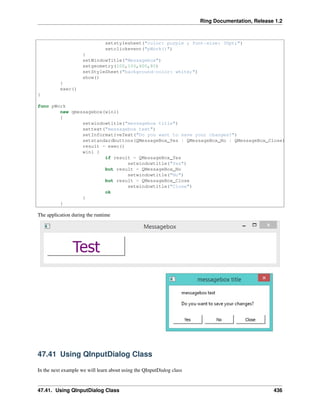
The application during the runtime
47.41 Using QInputDialog Class
In the next example we will learn about using the QInputDialog class
47.41. Using QInputDialog Class 436
Ring Documentation, Release 1.2
Load "guilib.ring"
New QApp {
Win1 = New QWidget () {
SetGeometry(100,100,400,400)
SetWindowTitle("Input Dialog")
New QPushButton(win1)
{
SetText ("Input Dialog")
SetGeometry(100,100,100,30)
SetClickEvent("pWork()")
}
Show()
}
exec()
}
Func pWork
oInput = New QInputDialog(win1)
{
setwindowtitle("What is your name?")
setgeometry(100,100,400,50)
setlabeltext("User Name")
settextvalue("Mahmoud")
lcheck = exec()
if lCheck win1.setwindowtitle(oInput.textvalue()) ok
}
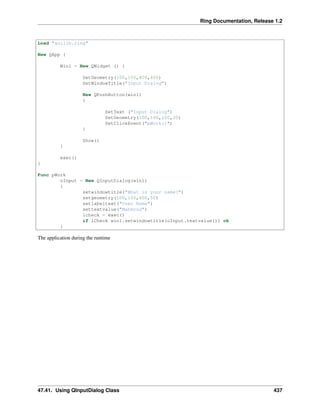
The application during the runtime
47.41. Using QInputDialog Class 437
Ring Documentation, Release 1.2
47.42 KeyPress and Mouse Move Events
In this example we will learn how to use the Events Filter to know about KeyPress and Mouse Move Events
Load "guilib.ring"
new qApp {
win1 = new qWidget()
{
setWindowTitle("Test using Event Filter!")
setGeometry(100,100,400,400)
setmousetracking(true)
myfilter = new qallevents(win1)
myfilter.setKeyPressEvent("pWork()")
myfilter.setMouseButtonPressevent("pClick()")
myfilter.setmousemoveevent("pMove()")
installeventfilter(myfilter)
show()
}
exec()
}
47.42. KeyPress and Mouse Move Events 438
Ring Documentation, Release 1.2
func pWork
win1.setwindowtitle('KeyPress! : ' + myfilter.getkeycode())
func pClick
new qmessagebox(win1) {
setgeometry(100,100,400,100)
setwindowtitle("click event!")
settext("x : " + myfilter.getx() +
" y : " + myfilter.gety() + " button : " +
myfilter.getbutton() )
show()
}
func pMove
win1.setwindowtitle("Mouse Move , X : " + myfilter.getx() +
" Y : " + myfilter.gety() )
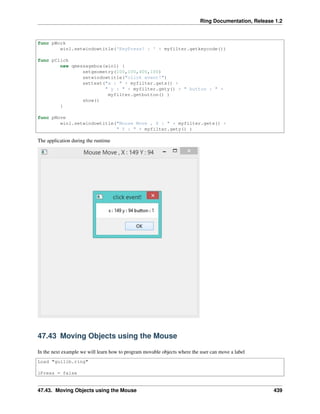
The application during the runtime
47.43 Moving Objects using the Mouse
In the next example we will learn how to program movable objects where the user can move a label
Load "guilib.ring"
lPress = false
47.43. Moving Objects using the Mouse 439

The Ring programming language version 1.2 book - Part 46 of 84

  • 1.
    Ring Documentation, Release1.2 47.34 Printing using QPrinter In this example we will learn how to print to PDF file using QPrinter Load "guilib.ring" new qApp { win1 = new qwidget() { setwindowtitle("Printer") setgeometry(100,100,500,500) myweb = new qwebview(win1) { setgeometry(100,100,1000,500) loadpage(new qurl("http://google.com")) } new qpushbutton(win1) { setGeometry(20,20,100,30) settext("Print") setclickevent("print()") } showmaximized() 47.34. Printing using QPrinter 430
  • 2.
    Ring Documentation, Release1.2 } exec() } func print printer1 = new qPrinter(0) { setoutputformat(1) # 1 = pdf setoutputfilename("test.pdf") painter = new qpainter() { begin(printer1) myfont = new qfont("Times",50,-1,0) setfont(myfont) drawtext(100,100,"test") printer1.newpage() drawtext(100,100,"test2") endpaint() } } printer1 = new qPrinter(0) { setoutputformat(1) setoutputfilename("test2.pdf") myweb.print(printer1) myweb.show() } system ("test.pdf") system ("test2.pdf") 47.35 Creating More than one Window The next example demonstrates how to create more than one window Load "guilib.ring" app1 = new qapp { win1 = new qwidget() { setwindowtitle("First") setgeometry(100,100,500,500) new qpushbutton(win1) { setgeometry(100,100,100,30) settext("close") setclickevent("app1.quit()") } new qpushbutton(win1) { setgeometry(250,100,100,30) settext("Second") setclickevent("second()") } showmaximized() } exec() } 47.35. Creating More than one Window 431
  • 3.
    Ring Documentation, Release1.2 func second win2 = new qwidget() { setwindowtitle("Second") setgeometry(100,100,500,500) setwindowflags(Qt_dialog) show() } The application during the runtime 47.36 Playing Sound Example: Load "guilib.ring" new qapp { win1 = new qwidget() { setwindowtitle("play sound!") show() } new qmediaplayer() { setmedia(new qurl("footstep.wav")) setvolume(50) play() } exec() } 47.37 Using the QColorDialog Class Example: 47.36. Playing Sound 432
  • 4.
    Ring Documentation, Release1.2 Load "guilib.ring" oApp = new myapp { start() } Class MyApp oColor win1 Func start myapp = new qapp win1 = new qMainWindow() { setwindowtitle("Color Dialog") setgeometry(100,100,400,400) } new qpushbutton(win1) { setgeometry(10,10,100,30) settext("Get Color") setclickevent("oApp.pColor()") } win1.show() myapp.exec() Func pColor myobj = new qcolordialog() aColor = myobj.GetColor() r=acolor[1] g=acolor[2] b=acolor[3] win1.setstylesheet("background-color: rgb("+r+", " + g+ "," + b + ")") The application during the runtime 47.37. Using the QColorDialog Class 433
  • 5.
    Ring Documentation, Release1.2 47.38 Using qLCDNumber Class In this example we will learn about using the qLCDNumber class Load "guilib.ring" New qApp { win1 = new qWidget() { setwindowtitle("LCD Number") setgeometry(100,100,250,120) new qLCDNumber(win1) { setgeometry(10,10,100,40) display(100) } new qLCDNumber(win1) { setgeometry(10,60,100,40) display(80) } show() } exec() } The application during the runtime 47.39 Movable Label Example Load "guilib.ring" new qApp { win1 = new qWidget() { 47.38. Using qLCDNumber Class 434
  • 6.
    Ring Documentation, Release1.2 label1 = new qLabel(win1) { setText("Welcome") setgeometry(10,10,200,50) setstylesheet("color: purple ; font-size: 30pt;") } new qTimer(win1) { setInterVal(10) setTimeOutEvent("pMove()") start() } setWindowTitle("Movable Label") setgeometry(100,100,600,80) setStyleSheet("background-color: white;") show() } exec() } Func pMove label1 { move(x()+1,y()) if x() > 600 move(10,y()) ok } The application during the runtime 47.40 QMessagebox Example In this section we will learn how to check the output of the Message box Load "guilib.ring" new qApp { win1 = new qWidget() { label1 = new qpushbutton(win1) { setText("Test") setgeometry(10,10,200,50) 47.40. QMessagebox Example 435
  • 7.
    Ring Documentation, Release1.2 setstylesheet("color: purple ; font-size: 30pt;") setclickevent("pWork()") } setWindowTitle("Messagebox") setgeometry(100,100,600,80) setStyleSheet("background-color: white;") show() } exec() } func pWork new qmessagebox(win1) { setwindowtitle("messagebox title") settext("messagebox text") setInformativeText("Do you want to save your changes?") setstandardbuttons(QMessageBox_Yes | QMessageBox_No | QMessageBox_Close) result = exec() win1 { if result = QMessageBox_Yes setwindowtitle("Yes") but result = QMessageBox_No setwindowtitle("No") but result = QMessageBox_Close setwindowtitle("Close") ok } } The application during the runtime 47.41 Using QInputDialog Class In the next example we will learn about using the QInputDialog class 47.41. Using QInputDialog Class 436
  • 8.
    Ring Documentation, Release1.2 Load "guilib.ring" New QApp { Win1 = New QWidget () { SetGeometry(100,100,400,400) SetWindowTitle("Input Dialog") New QPushButton(win1) { SetText ("Input Dialog") SetGeometry(100,100,100,30) SetClickEvent("pWork()") } Show() } exec() } Func pWork oInput = New QInputDialog(win1) { setwindowtitle("What is your name?") setgeometry(100,100,400,50) setlabeltext("User Name") settextvalue("Mahmoud") lcheck = exec() if lCheck win1.setwindowtitle(oInput.textvalue()) ok } The application during the runtime 47.41. Using QInputDialog Class 437
  • 9.
    Ring Documentation, Release1.2 47.42 KeyPress and Mouse Move Events In this example we will learn how to use the Events Filter to know about KeyPress and Mouse Move Events Load "guilib.ring" new qApp { win1 = new qWidget() { setWindowTitle("Test using Event Filter!") setGeometry(100,100,400,400) setmousetracking(true) myfilter = new qallevents(win1) myfilter.setKeyPressEvent("pWork()") myfilter.setMouseButtonPressevent("pClick()") myfilter.setmousemoveevent("pMove()") installeventfilter(myfilter) show() } exec() } 47.42. KeyPress and Mouse Move Events 438
  • 10.
    Ring Documentation, Release1.2 func pWork win1.setwindowtitle('KeyPress! : ' + myfilter.getkeycode()) func pClick new qmessagebox(win1) { setgeometry(100,100,400,100) setwindowtitle("click event!") settext("x : " + myfilter.getx() + " y : " + myfilter.gety() + " button : " + myfilter.getbutton() ) show() } func pMove win1.setwindowtitle("Mouse Move , X : " + myfilter.getx() + " Y : " + myfilter.gety() ) The application during the runtime 47.43 Moving Objects using the Mouse In the next example we will learn how to program movable objects where the user can move a label Load "guilib.ring" lPress = false 47.43. Moving Objects using the Mouse 439