Ring Documentation, Release 1.5.4
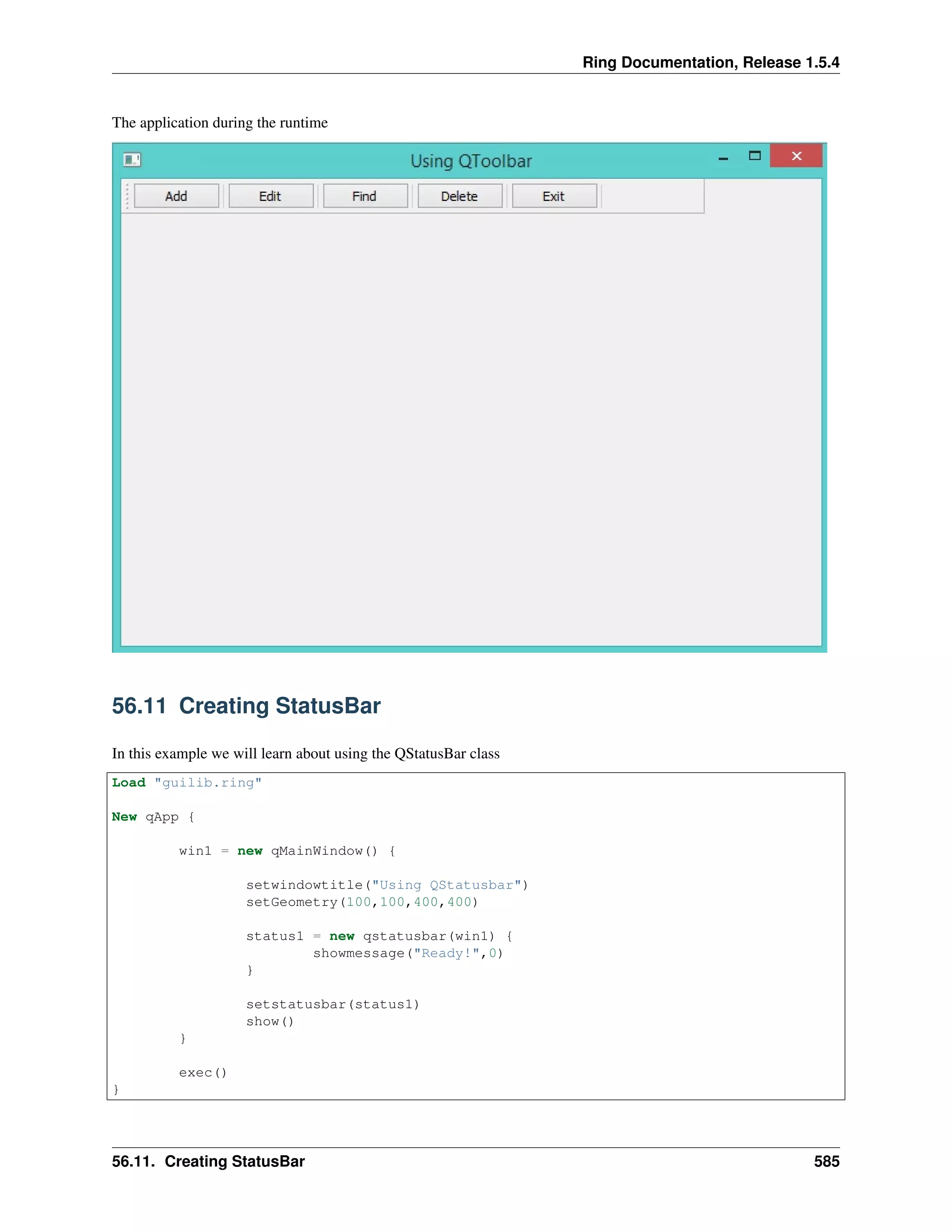
The application during the runtime
56.11 Creating StatusBar
In this example we will learn about using the QStatusBar class
Load "guilib.ring"
New qApp {
win1 = new qMainWindow() {
setwindowtitle("Using QStatusbar")
setGeometry(100,100,400,400)
status1 = new qstatusbar(win1) {
showmessage("Ready!",0)
}
setstatusbar(status1)
show()
}
exec()
}
56.11. Creating StatusBar 585
Ring Documentation, Release 1.5.4
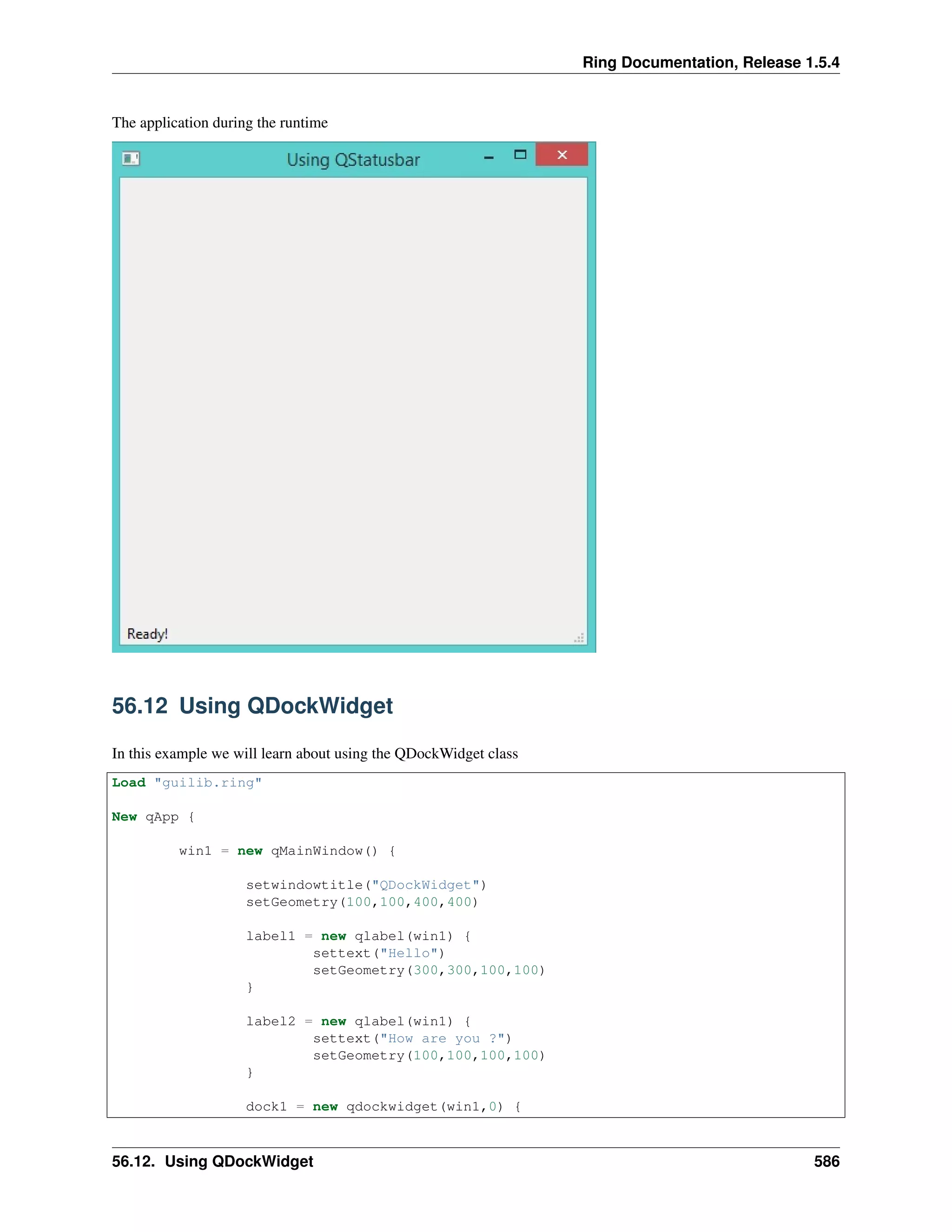
The application during the runtime
56.12 Using QDockWidget
In this example we will learn about using the QDockWidget class
Load "guilib.ring"
New qApp {
win1 = new qMainWindow() {
setwindowtitle("QDockWidget")
setGeometry(100,100,400,400)
label1 = new qlabel(win1) {
settext("Hello")
setGeometry(300,300,100,100)
}
label2 = new qlabel(win1) {
settext("How are you ?")
setGeometry(100,100,100,100)
}
dock1 = new qdockwidget(win1,0) {
56.12. Using QDockWidget 586
Ring Documentation, Release 1.5.4
setwidget(label1)
SetAllowedAreas(1)
}
dock2 = new qdockwidget(win1,0) {
setwidget(label2)
SetAllowedAreas(2)
}
adddockwidget(Qt_LeftDockWidgetArea,dock1,Qt_Horizontal)
adddockwidget(Qt_LeftDockWidgetArea,dock2,Qt_Vertical)
show()
}
exec()
}
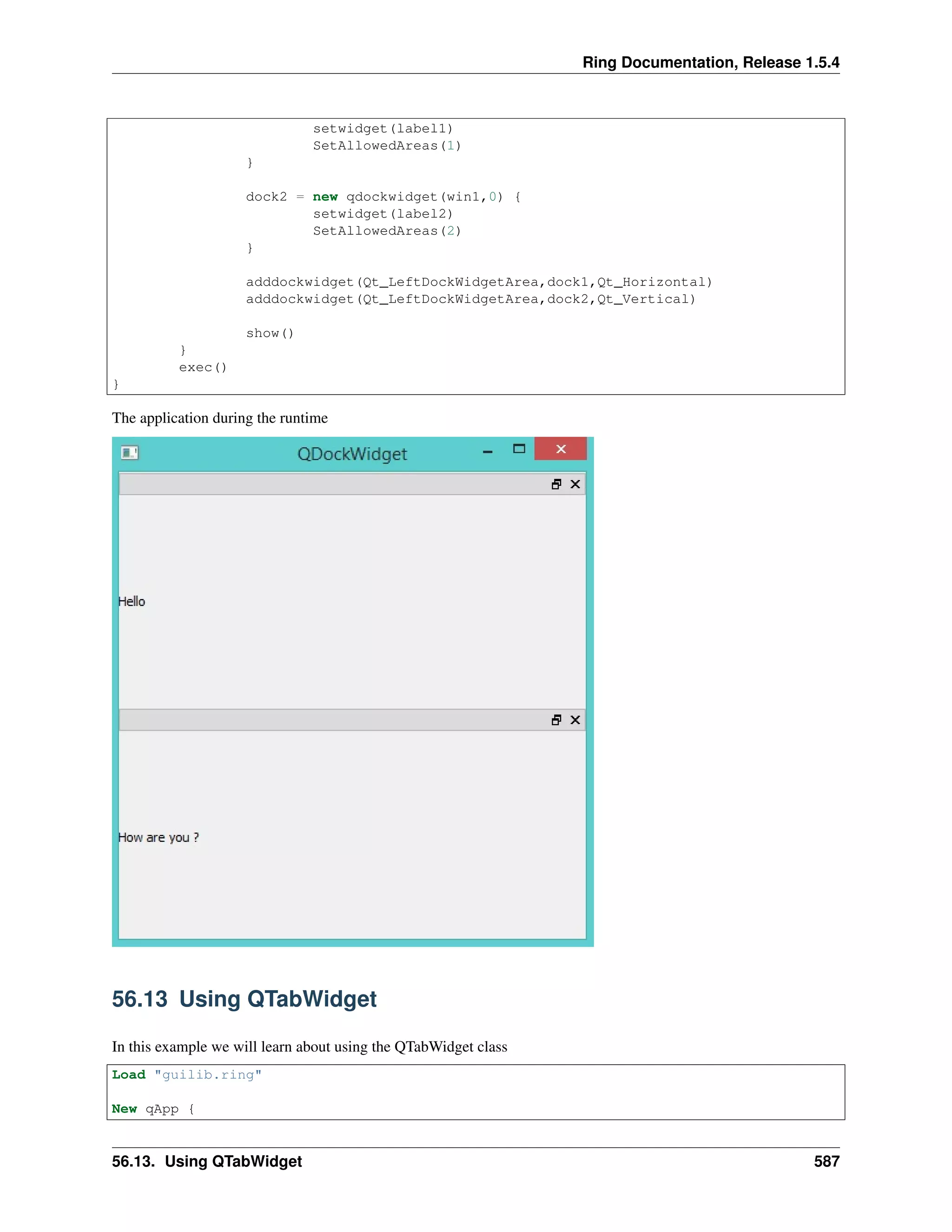
The application during the runtime
56.13 Using QTabWidget
In this example we will learn about using the QTabWidget class
Load "guilib.ring"
New qApp {
56.13. Using QTabWidget 587
Ring Documentation, Release 1.5.4
win1 = new qMainWindow() {
setwindowtitle("Using QTabWidget")
setGeometry(100,100,400,400)
page1 = new qwidget() {
new qpushbutton(page1) {
settext("The First Page")
}
}
page2 = new qwidget() {
new qpushbutton(page2) {
settext("The Second Page")
}
}
page3 = new qwidget() {
new qpushbutton(page3) {
settext("The Third Page")
}
}
tab1 = new qtabwidget(win1) {
inserttab(0,page1,"Page 1")
inserttab(1,page2,"Page 2")
inserttab(2,page3,"Page 3")
setGeometry(100,100,400,400)
}
status1 = new qstatusbar(win1) {
showmessage("Ready!",0)
}
setstatusbar(status1)
showMaximized()
}
exec()
}
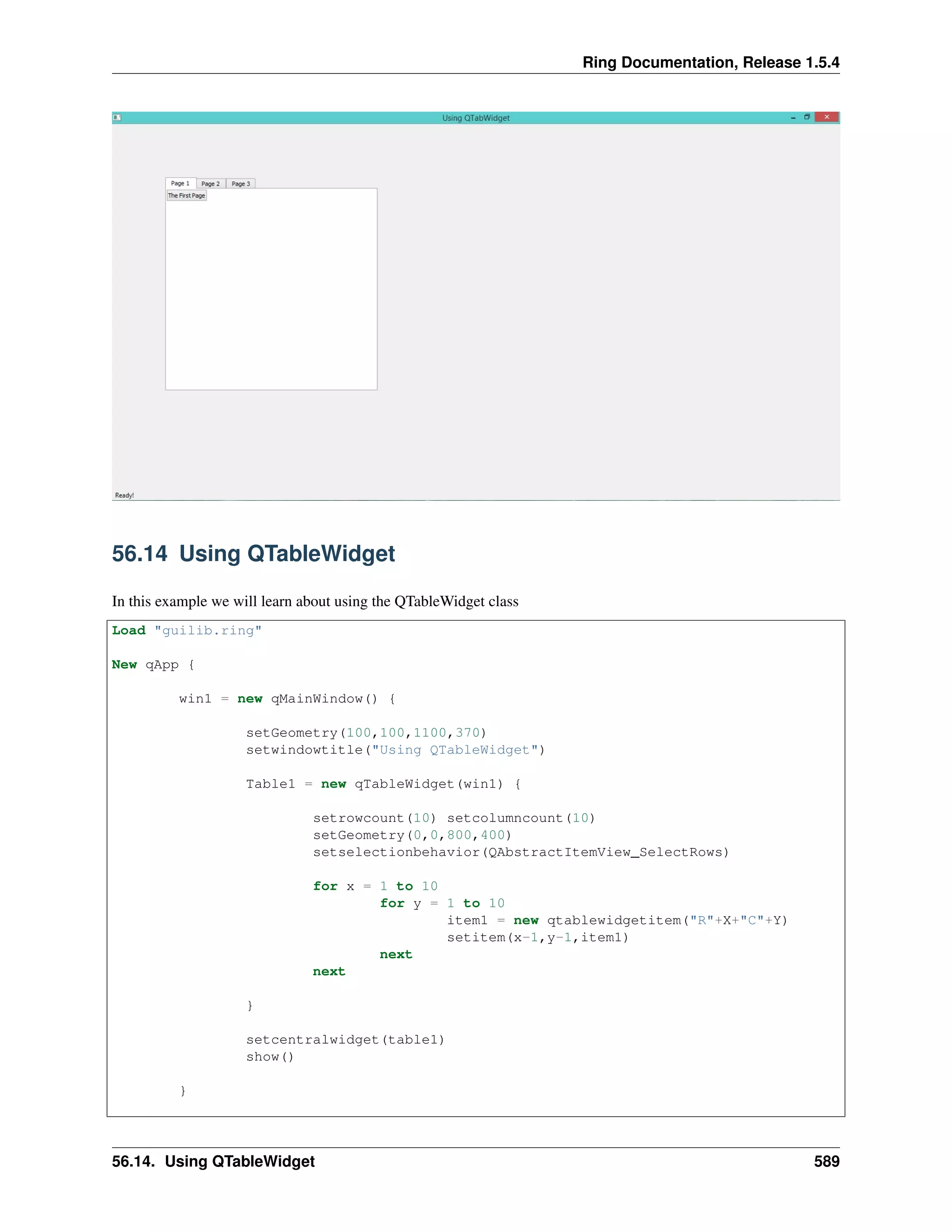
The application during the runtime
56.13. Using QTabWidget 588
Ring Documentation, Release 1.5.4
56.14 Using QTableWidget
In this example we will learn about using the QTableWidget class
Load "guilib.ring"
New qApp {
win1 = new qMainWindow() {
setGeometry(100,100,1100,370)
setwindowtitle("Using QTableWidget")
Table1 = new qTableWidget(win1) {
setrowcount(10) setcolumncount(10)
setGeometry(0,0,800,400)
setselectionbehavior(QAbstractItemView_SelectRows)
for x = 1 to 10
for y = 1 to 10
item1 = new qtablewidgetitem("R"+X+"C"+Y)
setitem(x-1,y-1,item1)
next
next
}
setcentralwidget(table1)
show()
}
56.14. Using QTableWidget 589
Ring Documentation, Release 1.5.4
exec()
}
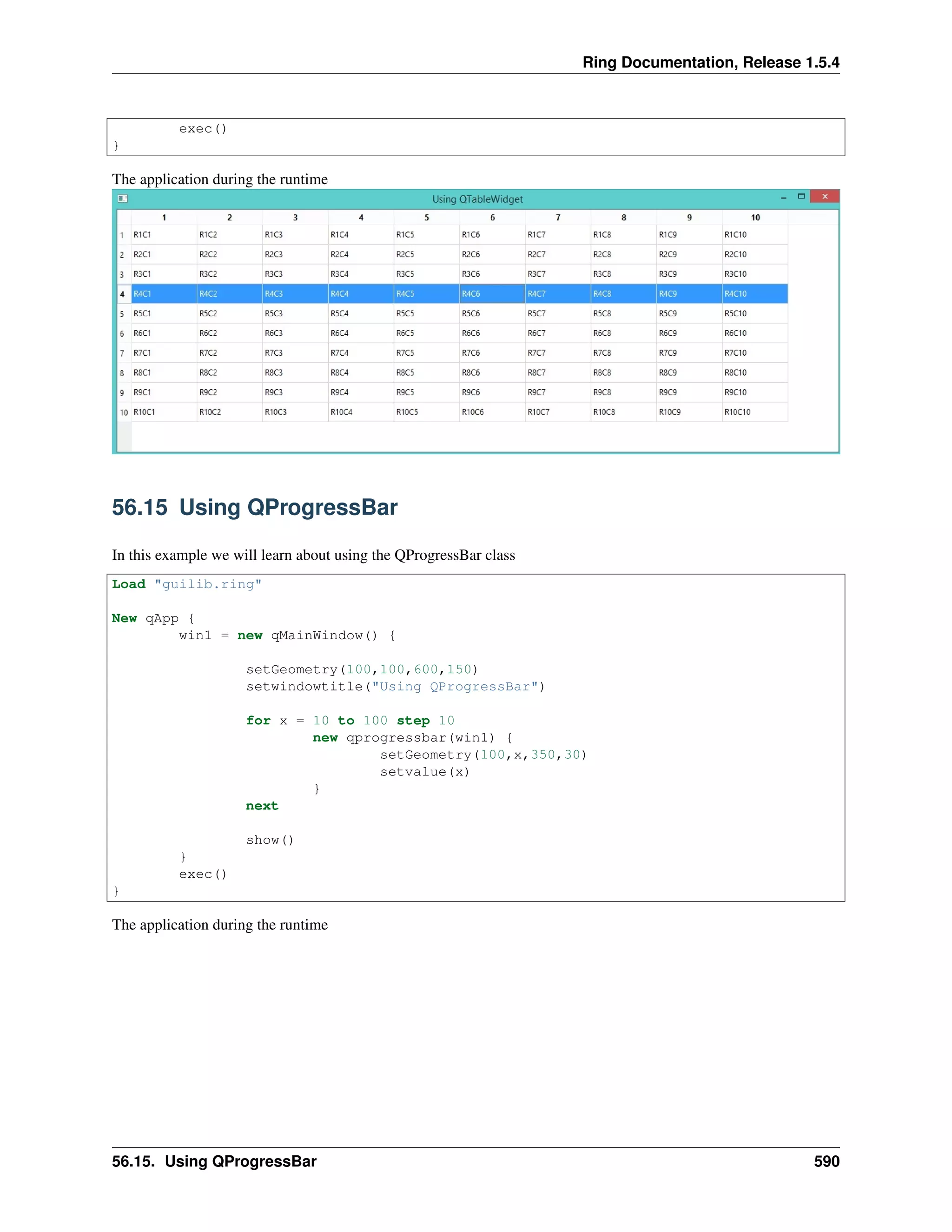
The application during the runtime
56.15 Using QProgressBar
In this example we will learn about using the QProgressBar class
Load "guilib.ring"
New qApp {
win1 = new qMainWindow() {
setGeometry(100,100,600,150)
setwindowtitle("Using QProgressBar")
for x = 10 to 100 step 10
new qprogressbar(win1) {
setGeometry(100,x,350,30)
setvalue(x)
}
next
show()
}
exec()
}
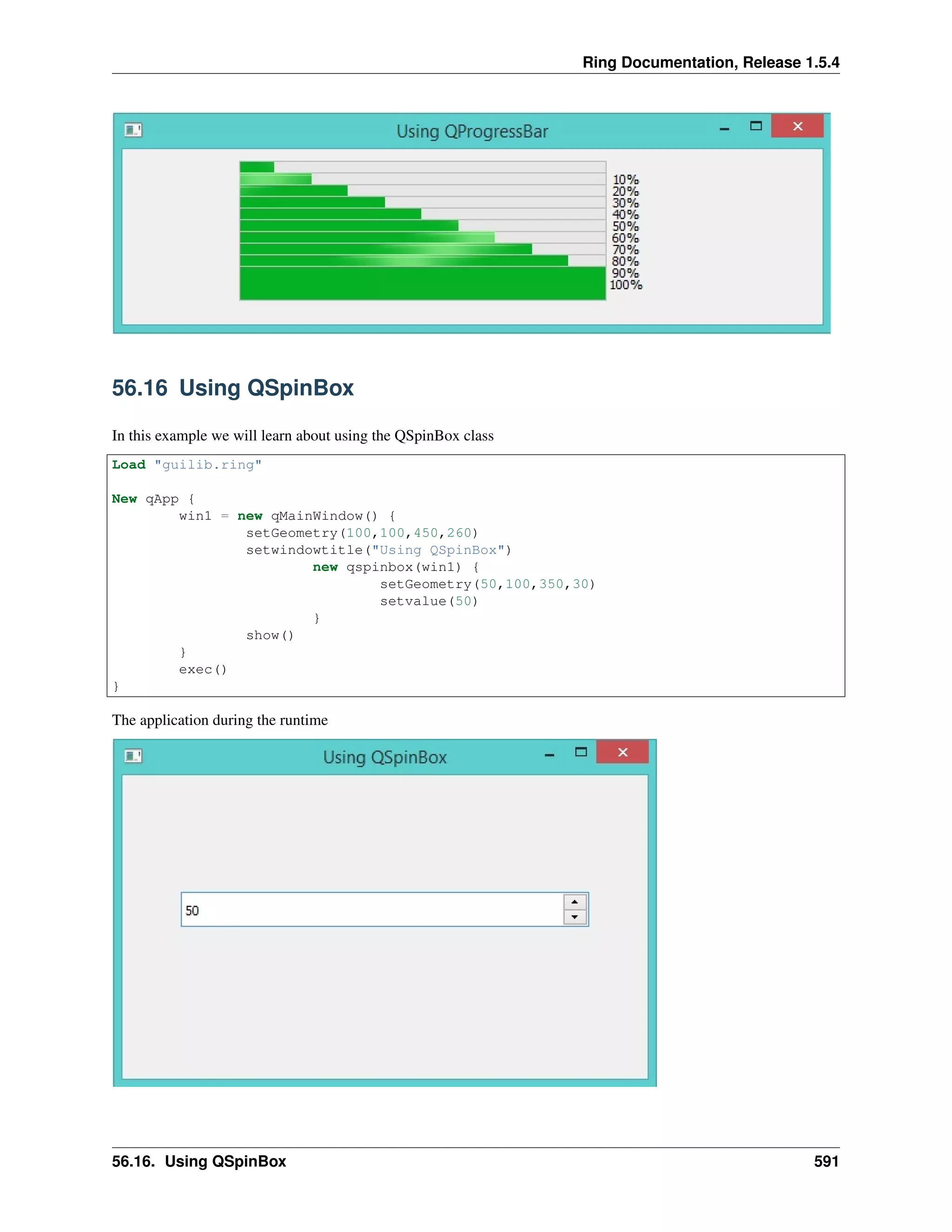
The application during the runtime
56.15. Using QProgressBar 590
Ring Documentation, Release 1.5.4
56.16 Using QSpinBox
In this example we will learn about using the QSpinBox class
Load "guilib.ring"
New qApp {
win1 = new qMainWindow() {
setGeometry(100,100,450,260)
setwindowtitle("Using QSpinBox")
new qspinbox(win1) {
setGeometry(50,100,350,30)
setvalue(50)
}
show()
}
exec()
}
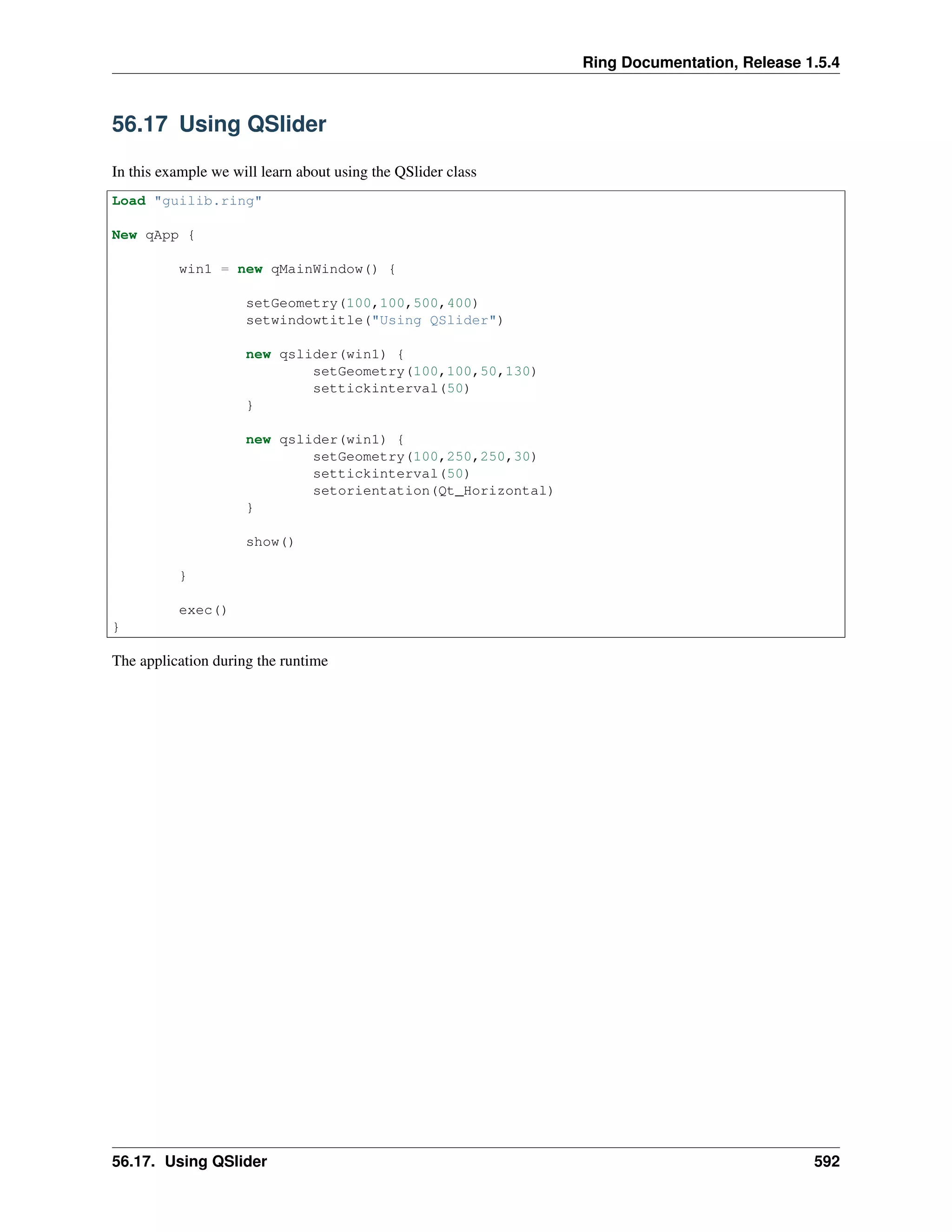
The application during the runtime
56.16. Using QSpinBox 591
Ring Documentation, Release 1.5.4
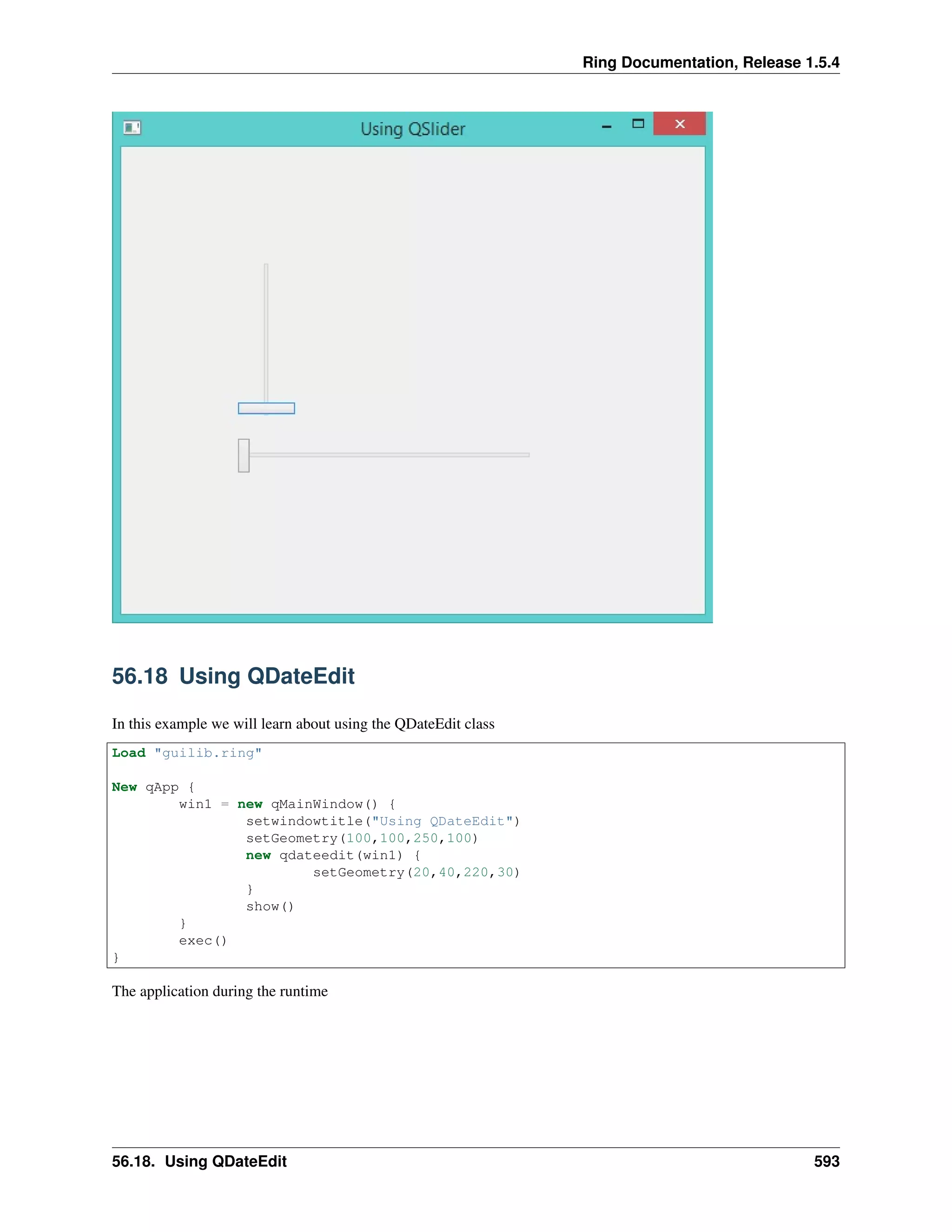
56.17 Using QSlider
In this example we will learn about using the QSlider class
Load "guilib.ring"
New qApp {
win1 = new qMainWindow() {
setGeometry(100,100,500,400)
setwindowtitle("Using QSlider")
new qslider(win1) {
setGeometry(100,100,50,130)
settickinterval(50)
}
new qslider(win1) {
setGeometry(100,250,250,30)
settickinterval(50)
setorientation(Qt_Horizontal)
}
show()
}
exec()
}
The application during the runtime
56.17. Using QSlider 592
Ring Documentation, Release 1.5.4
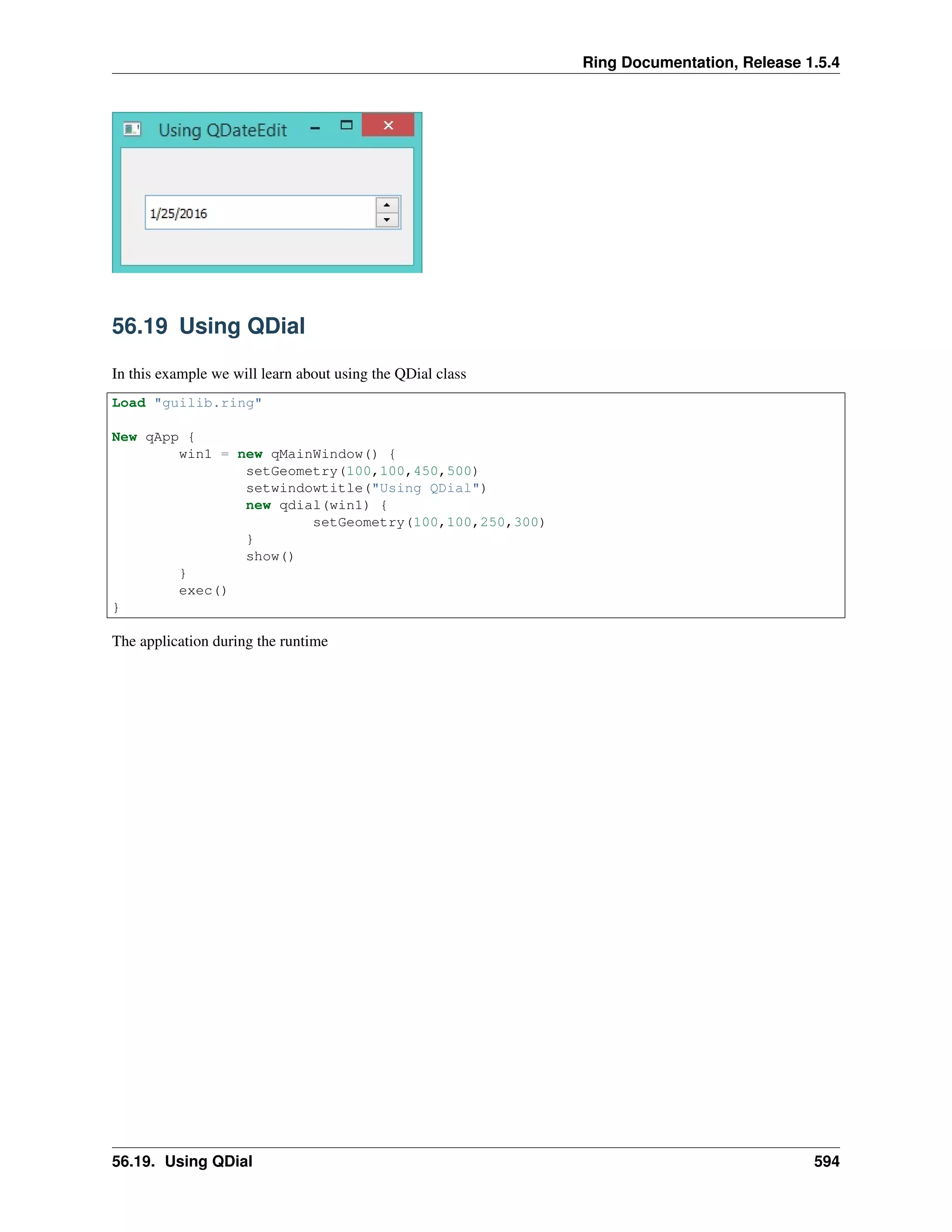
56.18 Using QDateEdit
In this example we will learn about using the QDateEdit class
Load "guilib.ring"
New qApp {
win1 = new qMainWindow() {
setwindowtitle("Using QDateEdit")
setGeometry(100,100,250,100)
new qdateedit(win1) {
setGeometry(20,40,220,30)
}
show()
}
exec()
}
The application during the runtime
56.18. Using QDateEdit 593
Ring Documentation, Release 1.5.4
56.19 Using QDial
In this example we will learn about using the QDial class
Load "guilib.ring"
New qApp {
win1 = new qMainWindow() {
setGeometry(100,100,450,500)
setwindowtitle("Using QDial")
new qdial(win1) {
setGeometry(100,100,250,300)
}
show()
}
exec()
}
The application during the runtime
56.19. Using QDial 594

The Ring programming language version 1.5.4 book - Part 62 of 185

  • 1.
    Ring Documentation, Release1.5.4 The application during the runtime 56.11 Creating StatusBar In this example we will learn about using the QStatusBar class Load "guilib.ring" New qApp { win1 = new qMainWindow() { setwindowtitle("Using QStatusbar") setGeometry(100,100,400,400) status1 = new qstatusbar(win1) { showmessage("Ready!",0) } setstatusbar(status1) show() } exec() } 56.11. Creating StatusBar 585
  • 2.
    Ring Documentation, Release1.5.4 The application during the runtime 56.12 Using QDockWidget In this example we will learn about using the QDockWidget class Load "guilib.ring" New qApp { win1 = new qMainWindow() { setwindowtitle("QDockWidget") setGeometry(100,100,400,400) label1 = new qlabel(win1) { settext("Hello") setGeometry(300,300,100,100) } label2 = new qlabel(win1) { settext("How are you ?") setGeometry(100,100,100,100) } dock1 = new qdockwidget(win1,0) { 56.12. Using QDockWidget 586
  • 3.
    Ring Documentation, Release1.5.4 setwidget(label1) SetAllowedAreas(1) } dock2 = new qdockwidget(win1,0) { setwidget(label2) SetAllowedAreas(2) } adddockwidget(Qt_LeftDockWidgetArea,dock1,Qt_Horizontal) adddockwidget(Qt_LeftDockWidgetArea,dock2,Qt_Vertical) show() } exec() } The application during the runtime 56.13 Using QTabWidget In this example we will learn about using the QTabWidget class Load "guilib.ring" New qApp { 56.13. Using QTabWidget 587
  • 4.
    Ring Documentation, Release1.5.4 win1 = new qMainWindow() { setwindowtitle("Using QTabWidget") setGeometry(100,100,400,400) page1 = new qwidget() { new qpushbutton(page1) { settext("The First Page") } } page2 = new qwidget() { new qpushbutton(page2) { settext("The Second Page") } } page3 = new qwidget() { new qpushbutton(page3) { settext("The Third Page") } } tab1 = new qtabwidget(win1) { inserttab(0,page1,"Page 1") inserttab(1,page2,"Page 2") inserttab(2,page3,"Page 3") setGeometry(100,100,400,400) } status1 = new qstatusbar(win1) { showmessage("Ready!",0) } setstatusbar(status1) showMaximized() } exec() } The application during the runtime 56.13. Using QTabWidget 588
  • 5.
    Ring Documentation, Release1.5.4 56.14 Using QTableWidget In this example we will learn about using the QTableWidget class Load "guilib.ring" New qApp { win1 = new qMainWindow() { setGeometry(100,100,1100,370) setwindowtitle("Using QTableWidget") Table1 = new qTableWidget(win1) { setrowcount(10) setcolumncount(10) setGeometry(0,0,800,400) setselectionbehavior(QAbstractItemView_SelectRows) for x = 1 to 10 for y = 1 to 10 item1 = new qtablewidgetitem("R"+X+"C"+Y) setitem(x-1,y-1,item1) next next } setcentralwidget(table1) show() } 56.14. Using QTableWidget 589
  • 6.
    Ring Documentation, Release1.5.4 exec() } The application during the runtime 56.15 Using QProgressBar In this example we will learn about using the QProgressBar class Load "guilib.ring" New qApp { win1 = new qMainWindow() { setGeometry(100,100,600,150) setwindowtitle("Using QProgressBar") for x = 10 to 100 step 10 new qprogressbar(win1) { setGeometry(100,x,350,30) setvalue(x) } next show() } exec() } The application during the runtime 56.15. Using QProgressBar 590
  • 7.
    Ring Documentation, Release1.5.4 56.16 Using QSpinBox In this example we will learn about using the QSpinBox class Load "guilib.ring" New qApp { win1 = new qMainWindow() { setGeometry(100,100,450,260) setwindowtitle("Using QSpinBox") new qspinbox(win1) { setGeometry(50,100,350,30) setvalue(50) } show() } exec() } The application during the runtime 56.16. Using QSpinBox 591
  • 8.
    Ring Documentation, Release1.5.4 56.17 Using QSlider In this example we will learn about using the QSlider class Load "guilib.ring" New qApp { win1 = new qMainWindow() { setGeometry(100,100,500,400) setwindowtitle("Using QSlider") new qslider(win1) { setGeometry(100,100,50,130) settickinterval(50) } new qslider(win1) { setGeometry(100,250,250,30) settickinterval(50) setorientation(Qt_Horizontal) } show() } exec() } The application during the runtime 56.17. Using QSlider 592
  • 9.
    Ring Documentation, Release1.5.4 56.18 Using QDateEdit In this example we will learn about using the QDateEdit class Load "guilib.ring" New qApp { win1 = new qMainWindow() { setwindowtitle("Using QDateEdit") setGeometry(100,100,250,100) new qdateedit(win1) { setGeometry(20,40,220,30) } show() } exec() } The application during the runtime 56.18. Using QDateEdit 593
  • 10.
    Ring Documentation, Release1.5.4 56.19 Using QDial In this example we will learn about using the QDial class Load "guilib.ring" New qApp { win1 = new qMainWindow() { setGeometry(100,100,450,500) setwindowtitle("Using QDial") new qdial(win1) { setGeometry(100,100,250,300) } show() } exec() } The application during the runtime 56.19. Using QDial 594