© 2014 Maveryx srl.
All rights reserved.
Testing Java Applications
with Maveryx
Overview of Maveryx
Why Maveryx is different
Testing a Java Application Step-by-Step
Overview
© 2014 Maveryx srl.
All rights reserved.
Overview of Maveryx
Maveryx is a professional, award-winning test automation tool for
functional and regression testing of Java™ & Android™ applications.
Maveryx provides testers with automated testing capabilities for
functional, regression, GUI, data-driven and keyword-driven testing.
Maveryx
No GUI Maps ⇒ Runtime GUI
Inspection tool
Intelligent UI Objects Recognition
Code-free Keyword-driven Testing
Data-driven testing
Assertion-based Verification
Points
Extension plugin mechanism
Suitable for Java™ and Android™
Standard Test Logging
Automated Testing in Java™
Test Data Generation Tool
Advanced Test API
Available as Eclipse plugin
For Windows, Linux & Mac
…
Features
© 2014 Maveryx srl.
All rights reserved.
© 2014 Maveryx srl.
All rights reserved.
Why Maveryx is different?
No UI Maps. No Recording.
No recording. No capture. No UI
Maps.
o NO UI MAPS or Object Repositories to ‘learn’ & maintain
o No pre-recording or UI capture
o Test scripts immediately executable!
o Automatic UI inspection directly at runtime
o Support for all standard and advanced Java™ GUI controls
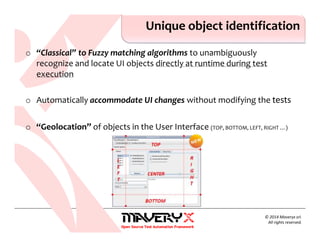
o “Classical” to Fuzzy matching algorithms to unambiguously
recognize and locate UI objects directly at runtime during test
execution
o Automatically accommodate UI changes without modifying the tests
o “Geolocation” of objects in the User Interface (TOP, BOTTOM, LEFT, RIGHT …)
Unique object identification
© 2014 Maveryx srl.
All rights reserved.
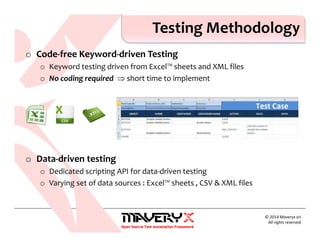
o Code-free Keyword-driven Testing
o Keyword testing driven from Excel™ sheets and XML files
o No coding required ⇒ short time to implement
o Data-driven testing
o Dedicated scripting API for data-driven testing
o Varying set of data sources : Excel™ sheets , CSV & XML files
Testing Methodology
© 2014 Maveryx srl.
All rights reserved.
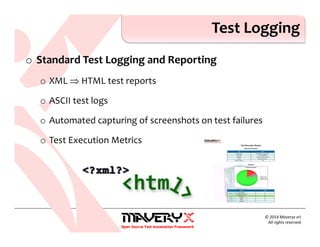
o Standard Test Logging and Reporting
o XML ⇒ HTML test reports
o ASCII test logs
o Automated capturing of screenshots on test failures
o Test Execution Metrics
Test Logging
© 2014 Maveryx srl.
All rights reserved.
© 2014 Maveryx srl.
All rights reserved.
Testing a Java Application
Step-by-step
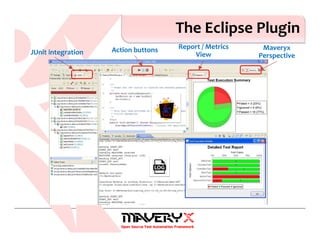
The Eclipse Plugin
Maveryx
PerspectiveJUnit integration Action buttons Report / Metrics
View
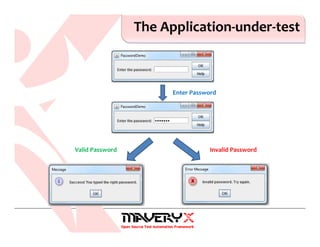
The Application-under-test
Enter Password
Invalid PasswordValid Password
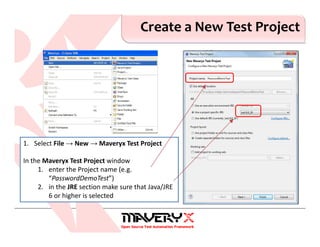
Create a New Test Project
1. Select File → New → Maveryx Test Project
In the Maveryx Test Project window
1. enter the Project name (e.g.
“PasswordDemoTest”)
2. in the JRE section make sure that Java/JRE
6 or higher is selected
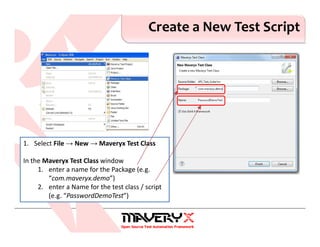
Create a New Test Script
1. Select File → New → Maveryx Test Class
In the Maveryx Test Class window
1. enter a name for the Package (e.g.
“com.maveryx.demo”)
2. enter a Name for the test class / script
(e.g. “PasswordDemoTest”)
Create the Launch file
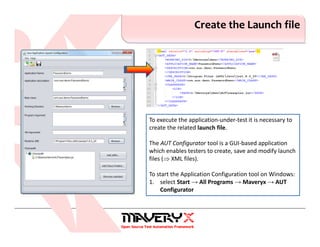
To execute the application-under-test it is necessary to
create the related launch file.
The AUT Configurator tool is a GUI-based application
which enables testers to create, save and modify launch
files (⇒ XML files).
To start the Application Configuration tool on Windows:
1. select Start → All Programs → Maveryx → AUT
Configurator
The Test Script «Stub»
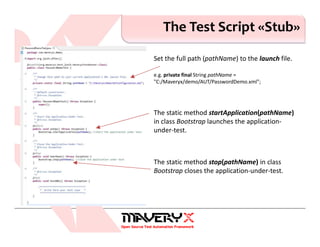
Set the full path (pathName) to the launch file.
e.g. private final String pathName =
"C:/Maveryx/demo/AUT/PasswordDemo.xml";
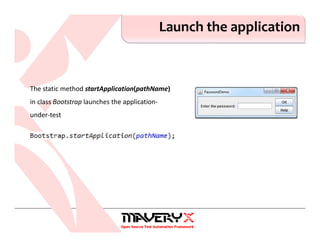
The static method startApplication(pathName)
in class Bootstrap launches the application-
under-test.
The static method stop(pathName) in class
Bootstrap closes the application-under-test.
The Test Cases
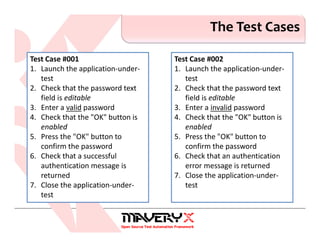
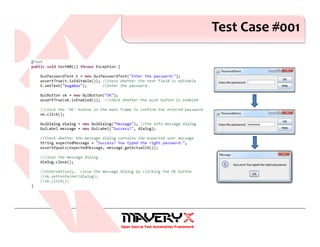
Test Case #001
1. Launch the application-under-
test
2. Check that the password text
field is editable
3. Enter a valid password
4. Check that the "OK" button is
enabled
5. Press the "OK" button to
confirm the password
6. Check that a successful
authentication message is
returned
7. Close the application-under-
test
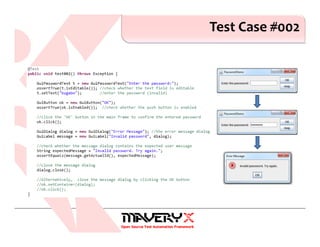
Test Case #002
1. Launch the application-under-
test
2. Check that the password text
field is editable
3. Enter a invalid password
4. Check that the "OK" button is
enabled
5. Press the "OK" button to
confirm the password
6. Check that an authentication
error message is returned
7. Close the application-under-
test
Launch the application
Test Case #001
1. Launch the application-under-test
2. Check that the password text field
is editable
3. Enter a valid password
4. Check that the "OK" button is
enabled
5. Press the "OK" button to confirm
the password
6. Check that a successful
authentication message is
returned
7. Close the application-under-test
Launch the application
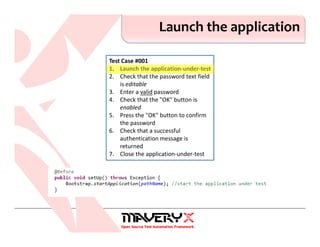
The static method startApplication(pathName)
in class Bootstrap launches the application-
under-test
Working with text fields
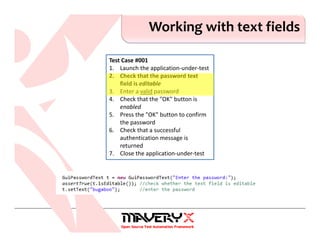
Test Case #001
1. Launch the application-under-test
2. Check that the password text
field is editable
3. Enter a valid password
4. Check that the "OK" button is
enabled
5. Press the "OK" button to confirm
the password
6. Check that a successful
authentication message is
returned
7. Close the application-under-test
Working with text fields
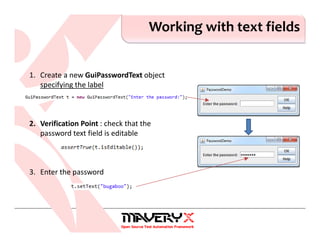
1. Create a new GuiPasswordText object
specifying the label
2. Verification Point : check that the
password text field is editable
3. Enter the password
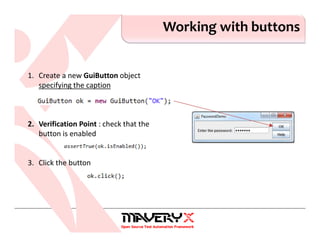
Working with buttons
Test Case #001
1. Launch the application-under-test
2. Check that the password text field
is editable
3. Enter a valid password
4. Check that the "OK" button is
enabled
5. Press the "OK" button to confirm
the password
6. Check that a successful
authentication message is
returned
7. Close the application-under-test
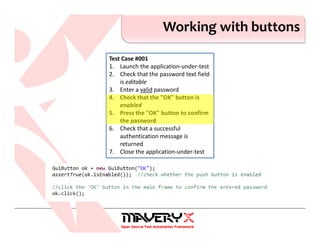
Working with buttons
1. Create a new GuiButton object
specifying the caption
2. Verification Point : check that the
button is enabled
3. Click the button
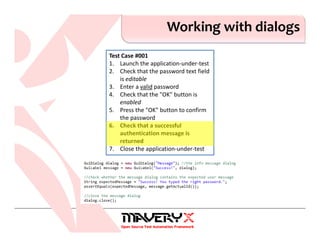
Working with dialogs
Test Case #001
1. Launch the application-under-test
2. Check that the password text field
is editable
3. Enter a valid password
4. Check that the "OK" button is
enabled
5. Press the "OK" button to confirm
the password
6. Check that a successful
authentication message is
returned
7. Close the application-under-test
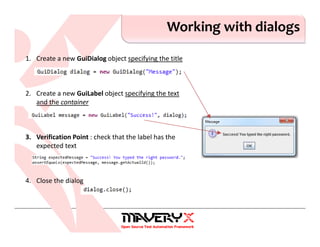
Working with dialogs
1. Create a new GuiDialog object specifying the title
2. Create a new GuiLabel object specifying the text
and the container
3. Verification Point : check that the label has the
expected text
4. Close the dialog
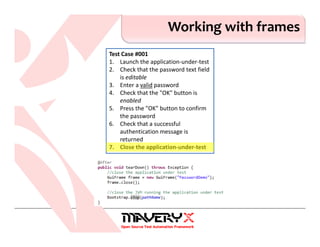
Working with frames
Test Case #001
1. Launch the application-under-test
2. Check that the password text field
is editable
3. Enter a valid password
4. Check that the "OK" button is
enabled
5. Press the "OK" button to confirm
the password
6. Check that a successful
authentication message is
returned
7. Close the application-under-test
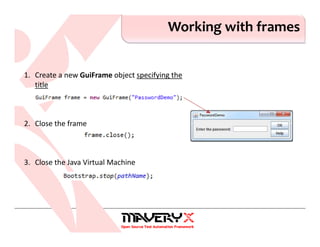
Working with frames
1. Create a new GuiFrame object specifying the
title
2. Close the frame
3. Close the Java Virtual Machine
Test Case #001
Test Case #002
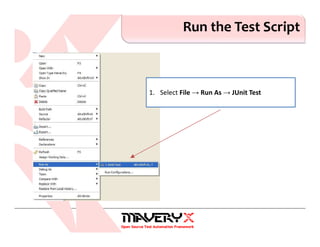
Run the Test Script
1. Select File → Run As → JUnit Test
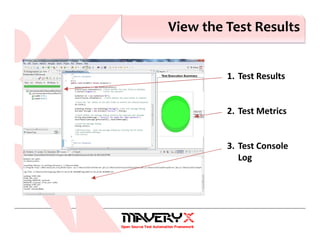
View the Test Results
1. Test Results
2. Test Metrics
3. Test Console
Log
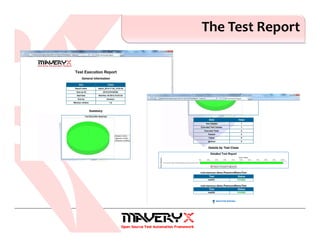
The Test Report
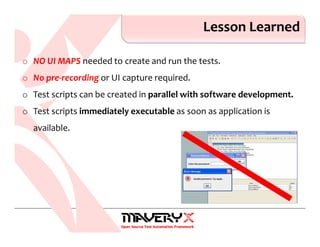
Lesson Learned
o NO UI MAPS needed to create and run the tests.
o No pre-recording or UI capture required.
o Test scripts can be created in parallel with software development.
o Test scripts immediately executable as soon as application is
available.
Useful Links
o Maveryx – http://www.maveryx.com
o User guide – http://www.maveryx.com/en/support/learn-
more/user-documentation.html
o Forum – http://www.maveryx.com/en/forum/index.html
o Training – http://www.maveryx.com/en/services/training.html
Thank You!
• www.maveryx.com
• sales@maveryx.com
• info@maveryx.com

Testing Java applications with Maveryx

  • 1.
    © 2014 Maveryxsrl. All rights reserved. Testing Java Applications with Maveryx
  • 2.
    Overview of Maveryx WhyMaveryx is different Testing a Java Application Step-by-Step Overview
  • 3.
    © 2014 Maveryxsrl. All rights reserved. Overview of Maveryx
  • 4.
    Maveryx is aprofessional, award-winning test automation tool for functional and regression testing of Java™ & Android™ applications. Maveryx provides testers with automated testing capabilities for functional, regression, GUI, data-driven and keyword-driven testing. Maveryx
  • 5.
    No GUI Maps⇒ Runtime GUI Inspection tool Intelligent UI Objects Recognition Code-free Keyword-driven Testing Data-driven testing Assertion-based Verification Points Extension plugin mechanism Suitable for Java™ and Android™ Standard Test Logging Automated Testing in Java™ Test Data Generation Tool Advanced Test API Available as Eclipse plugin For Windows, Linux & Mac … Features © 2014 Maveryx srl. All rights reserved.
  • 6.
    © 2014 Maveryxsrl. All rights reserved. Why Maveryx is different?
  • 7.
    No UI Maps.No Recording. No recording. No capture. No UI Maps. o NO UI MAPS or Object Repositories to ‘learn’ & maintain o No pre-recording or UI capture o Test scripts immediately executable! o Automatic UI inspection directly at runtime o Support for all standard and advanced Java™ GUI controls
  • 8.
    o “Classical” toFuzzy matching algorithms to unambiguously recognize and locate UI objects directly at runtime during test execution o Automatically accommodate UI changes without modifying the tests o “Geolocation” of objects in the User Interface (TOP, BOTTOM, LEFT, RIGHT …) Unique object identification © 2014 Maveryx srl. All rights reserved.
  • 9.
    o Code-free Keyword-drivenTesting o Keyword testing driven from Excel™ sheets and XML files o No coding required ⇒ short time to implement o Data-driven testing o Dedicated scripting API for data-driven testing o Varying set of data sources : Excel™ sheets , CSV & XML files Testing Methodology © 2014 Maveryx srl. All rights reserved.
  • 10.
    o Standard TestLogging and Reporting o XML ⇒ HTML test reports o ASCII test logs o Automated capturing of screenshots on test failures o Test Execution Metrics Test Logging © 2014 Maveryx srl. All rights reserved.
  • 11.
    © 2014 Maveryxsrl. All rights reserved. Testing a Java Application Step-by-step
  • 12.
    The Eclipse Plugin Maveryx PerspectiveJUnitintegration Action buttons Report / Metrics View
  • 13.
  • 14.
    Create a NewTest Project 1. Select File → New → Maveryx Test Project In the Maveryx Test Project window 1. enter the Project name (e.g. “PasswordDemoTest”) 2. in the JRE section make sure that Java/JRE 6 or higher is selected
  • 15.
    Create a NewTest Script 1. Select File → New → Maveryx Test Class In the Maveryx Test Class window 1. enter a name for the Package (e.g. “com.maveryx.demo”) 2. enter a Name for the test class / script (e.g. “PasswordDemoTest”)
  • 16.
    Create the Launchfile To execute the application-under-test it is necessary to create the related launch file. The AUT Configurator tool is a GUI-based application which enables testers to create, save and modify launch files (⇒ XML files). To start the Application Configuration tool on Windows: 1. select Start → All Programs → Maveryx → AUT Configurator
  • 17.
    The Test Script«Stub» Set the full path (pathName) to the launch file. e.g. private final String pathName = "C:/Maveryx/demo/AUT/PasswordDemo.xml"; The static method startApplication(pathName) in class Bootstrap launches the application- under-test. The static method stop(pathName) in class Bootstrap closes the application-under-test.
  • 18.
    The Test Cases TestCase #001 1. Launch the application-under- test 2. Check that the password text field is editable 3. Enter a valid password 4. Check that the "OK" button is enabled 5. Press the "OK" button to confirm the password 6. Check that a successful authentication message is returned 7. Close the application-under- test Test Case #002 1. Launch the application-under- test 2. Check that the password text field is editable 3. Enter a invalid password 4. Check that the "OK" button is enabled 5. Press the "OK" button to confirm the password 6. Check that an authentication error message is returned 7. Close the application-under- test
  • 19.
    Launch the application TestCase #001 1. Launch the application-under-test 2. Check that the password text field is editable 3. Enter a valid password 4. Check that the "OK" button is enabled 5. Press the "OK" button to confirm the password 6. Check that a successful authentication message is returned 7. Close the application-under-test
  • 20.
    Launch the application Thestatic method startApplication(pathName) in class Bootstrap launches the application- under-test
  • 21.
    Working with textfields Test Case #001 1. Launch the application-under-test 2. Check that the password text field is editable 3. Enter a valid password 4. Check that the "OK" button is enabled 5. Press the "OK" button to confirm the password 6. Check that a successful authentication message is returned 7. Close the application-under-test
  • 22.
    Working with textfields 1. Create a new GuiPasswordText object specifying the label 2. Verification Point : check that the password text field is editable 3. Enter the password
  • 23.
    Working with buttons TestCase #001 1. Launch the application-under-test 2. Check that the password text field is editable 3. Enter a valid password 4. Check that the "OK" button is enabled 5. Press the "OK" button to confirm the password 6. Check that a successful authentication message is returned 7. Close the application-under-test
  • 24.
    Working with buttons 1.Create a new GuiButton object specifying the caption 2. Verification Point : check that the button is enabled 3. Click the button
  • 25.
    Working with dialogs TestCase #001 1. Launch the application-under-test 2. Check that the password text field is editable 3. Enter a valid password 4. Check that the "OK" button is enabled 5. Press the "OK" button to confirm the password 6. Check that a successful authentication message is returned 7. Close the application-under-test
  • 26.
    Working with dialogs 1.Create a new GuiDialog object specifying the title 2. Create a new GuiLabel object specifying the text and the container 3. Verification Point : check that the label has the expected text 4. Close the dialog
  • 27.
    Working with frames TestCase #001 1. Launch the application-under-test 2. Check that the password text field is editable 3. Enter a valid password 4. Check that the "OK" button is enabled 5. Press the "OK" button to confirm the password 6. Check that a successful authentication message is returned 7. Close the application-under-test
  • 28.
    Working with frames 1.Create a new GuiFrame object specifying the title 2. Close the frame 3. Close the Java Virtual Machine
  • 29.
  • 30.
  • 31.
    Run the TestScript 1. Select File → Run As → JUnit Test
  • 32.
    View the TestResults 1. Test Results 2. Test Metrics 3. Test Console Log
  • 33.
  • 34.
    Lesson Learned o NOUI MAPS needed to create and run the tests. o No pre-recording or UI capture required. o Test scripts can be created in parallel with software development. o Test scripts immediately executable as soon as application is available.
  • 35.
    Useful Links o Maveryx– http://www.maveryx.com o User guide – http://www.maveryx.com/en/support/learn- more/user-documentation.html o Forum – http://www.maveryx.com/en/forum/index.html o Training – http://www.maveryx.com/en/services/training.html
  • 36.
    Thank You! • www.maveryx.com •sales@maveryx.com • info@maveryx.com