1
Telosys tutorial
for
Python – MVC / SQL application
2
Web browser
APPLICATION ARCHITECTURE
Controllers Services
Views
D.A.O.
Entities
What we want to generate :
3
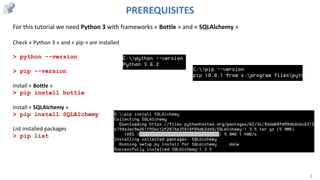
For this tutorial we need Python 3 with frameworks « Bottle » and « SQLAlchemy »
Check « Python 3 » and « pip » are installed
> python --version
> pip --version
Install « Bottle »
> pip install bottle
Install « SQLAlchemy »
> pip install SQLAlchemy
List installed packages
> pip list
PREREQUISITES
4
Telosys CLI
installation
5
Create 2 folders : « tuto » and « tuto/project »
Check Java version ( Java 1.8 or + required )
> java -version
Download Telosys-CLI
from https://www.telosys.org/download/telosys-cli/
in « tuto » folder
Unzip Telosys-CLI in the « tuto » folder
If you want Telosys to use your preferred editor
just define it in the ”telosys-cli.cfg” file
Example for « Notepad++ » :
EditorCommand = "C:/Program Files (x86)/Notepad++/notepad++.exe" $FILE
INSTALL TELOSYS-CLI
Telosys-CLI files after « unzip » :
Telosys-CLI is packaged
in a “.zip” file
6
Open a Command Prompt in « tuto » folder
and run « tt » command (shell file or .bat file )
Print commands help :
telosys> ?
Print current directory :
telosys> pwd
Change current directory to « tuto /project »
telosys> cd project
Set home directory ( project directory ) :
telosys> h .
Initialize the Telosys tools in the project :
telosys> init
LAUNCH TELOSYS-CLI AND INITIALIZE THE PROJECT
7
Step 1 - Model setup
( entities definition )
8
Create a new model « students » :
telosys> nm students
List existing models :
telosys> lm
List entities defined in the current model :
telosys> le
Create a new entity « student » :
telosys> ne student
List entities :
telosys> le
Edit entity « student »
telosys> ee student
Check the current model
telosys> cm
HOW TO CREATE A MODEL FROM SCRATCH
The current model is
displayed in the prompt
9
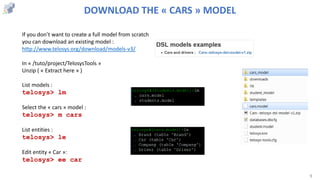
If you don’t want to create a full model from scratch
you can download an existing model :
http://www.telosys.org/download/models-v3/
In « /tuto/project/TelosysTools »
Unzip ( « Extract here » )
List models :
telosys> lm
Select the « cars » model :
telosys> m cars
List entities :
telosys> le
Edit entity « Car »:
telosys> ee car
DOWNLOAD THE « CARS » MODEL
10
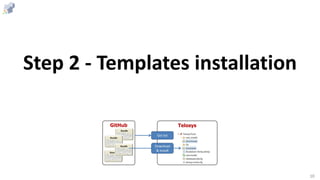
Step 2 - Templates installation
11
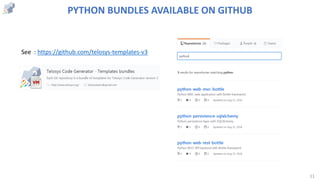
PYTHON BUNDLES AVAILABLE ON GITHUB
See : https://github.com/telosys-templates-v3
12
For our application we need 2 bundles of templates :
• 1 bundle for the persistence layer
• 1 bundle for the web MVC layer
REQUIRED BUNDLES OF TEMPLATES
Web browser
Controllers Services
Views
D.A.O.
Entities
python-web-mvc-bottle python-persistence-sqlalchemy
13
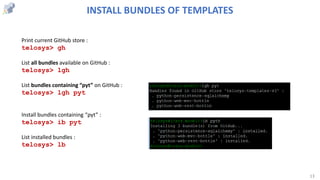
Print current GitHub store :
telosys> gh
List all bundles available on GitHub :
telosys> lgh
List bundles containing “pyt” on GitHub :
telosys> lgh pyt
Install bundles containing “pyt” :
telosys> ib pyt
List installed bundles :
telosys> lb
INSTALL BUNDLES OF TEMPLATES
14
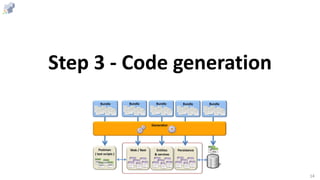
Step 3 - Code generation
15
Select the bundle of templates for the MVC layer ( “python-web-mvc-bottle” )
 select bundle containing “mvc” :
telosys> b mvc
Launch generation :
telosys> gen * * -r
( generate all entities
target files using
all templates and
copy static resources
if any )
USE « Web MVC » FOR CODE GENERATION
16
For each entity :
• “form” template
• “list” template
« Web MVC » GENERATION RESULT
A controller for each entity
Home page controller
& utility functions
17
Select bundle containing “sqlal” :
telosys> b sqlal
Launch generation :
telosys> gen * * -r
USE « Persistence SQL Alchemy » FOR CODE GENERATION
18
« Persistence SQL Alchemy » GENERATION RESULT
A DAO for each entity
A domain class for each entity
A persistence service for each entity
A unit test for each DAO
19
Now let’s use the
generated code…
20
Initialize database and launch DAO tests
1) Create the SQLite database
Launch “create_database.py”
( creates the SQLite file “database.sqlite” )
2) Initialize the database :
Launch “init_database.py”
( insert few records in each table )
3) Launch DAO unit tests :
Launch “run_tests.py”
21
1) Start the web application
Launch “app.py”
( creates the SQLite file “database.sqlite” )
2) Test the application with a web browser
http://localhost:3000/
Launch the generated web application
22
That's it !
Now you can customize
the entities or the templates…

Telosys tutorial - Code generation for a Python web application based on Bottle and SQLAlchemy

  • 1.
    1 Telosys tutorial for Python –MVC / SQL application
  • 2.
    2 Web browser APPLICATION ARCHITECTURE ControllersServices Views D.A.O. Entities What we want to generate :
  • 3.
    3 For this tutorialwe need Python 3 with frameworks « Bottle » and « SQLAlchemy » Check « Python 3 » and « pip » are installed > python --version > pip --version Install « Bottle » > pip install bottle Install « SQLAlchemy » > pip install SQLAlchemy List installed packages > pip list PREREQUISITES
  • 4.
  • 5.
    5 Create 2 folders: « tuto » and « tuto/project » Check Java version ( Java 1.8 or + required ) > java -version Download Telosys-CLI from https://www.telosys.org/download/telosys-cli/ in « tuto » folder Unzip Telosys-CLI in the « tuto » folder If you want Telosys to use your preferred editor just define it in the ”telosys-cli.cfg” file Example for « Notepad++ » : EditorCommand = "C:/Program Files (x86)/Notepad++/notepad++.exe" $FILE INSTALL TELOSYS-CLI Telosys-CLI files after « unzip » : Telosys-CLI is packaged in a “.zip” file
  • 6.
    6 Open a CommandPrompt in « tuto » folder and run « tt » command (shell file or .bat file ) Print commands help : telosys> ? Print current directory : telosys> pwd Change current directory to « tuto /project » telosys> cd project Set home directory ( project directory ) : telosys> h . Initialize the Telosys tools in the project : telosys> init LAUNCH TELOSYS-CLI AND INITIALIZE THE PROJECT
  • 7.
    7 Step 1 -Model setup ( entities definition )
  • 8.
    8 Create a newmodel « students » : telosys> nm students List existing models : telosys> lm List entities defined in the current model : telosys> le Create a new entity « student » : telosys> ne student List entities : telosys> le Edit entity « student » telosys> ee student Check the current model telosys> cm HOW TO CREATE A MODEL FROM SCRATCH The current model is displayed in the prompt
  • 9.
    9 If you don’twant to create a full model from scratch you can download an existing model : http://www.telosys.org/download/models-v3/ In « /tuto/project/TelosysTools » Unzip ( « Extract here » ) List models : telosys> lm Select the « cars » model : telosys> m cars List entities : telosys> le Edit entity « Car »: telosys> ee car DOWNLOAD THE « CARS » MODEL
  • 10.
    10 Step 2 -Templates installation
  • 11.
    11 PYTHON BUNDLES AVAILABLEON GITHUB See : https://github.com/telosys-templates-v3
  • 12.
    12 For our applicationwe need 2 bundles of templates : • 1 bundle for the persistence layer • 1 bundle for the web MVC layer REQUIRED BUNDLES OF TEMPLATES Web browser Controllers Services Views D.A.O. Entities python-web-mvc-bottle python-persistence-sqlalchemy
  • 13.
    13 Print current GitHubstore : telosys> gh List all bundles available on GitHub : telosys> lgh List bundles containing “pyt” on GitHub : telosys> lgh pyt Install bundles containing “pyt” : telosys> ib pyt List installed bundles : telosys> lb INSTALL BUNDLES OF TEMPLATES
  • 14.
    14 Step 3 -Code generation
  • 15.
    15 Select the bundleof templates for the MVC layer ( “python-web-mvc-bottle” )  select bundle containing “mvc” : telosys> b mvc Launch generation : telosys> gen * * -r ( generate all entities target files using all templates and copy static resources if any ) USE « Web MVC » FOR CODE GENERATION
  • 16.
    16 For each entity: • “form” template • “list” template « Web MVC » GENERATION RESULT A controller for each entity Home page controller & utility functions
  • 17.
    17 Select bundle containing“sqlal” : telosys> b sqlal Launch generation : telosys> gen * * -r USE « Persistence SQL Alchemy » FOR CODE GENERATION
  • 18.
    18 « Persistence SQLAlchemy » GENERATION RESULT A DAO for each entity A domain class for each entity A persistence service for each entity A unit test for each DAO
  • 19.
    19 Now let’s usethe generated code…
  • 20.
    20 Initialize database andlaunch DAO tests 1) Create the SQLite database Launch “create_database.py” ( creates the SQLite file “database.sqlite” ) 2) Initialize the database : Launch “init_database.py” ( insert few records in each table ) 3) Launch DAO unit tests : Launch “run_tests.py”
  • 21.
    21 1) Start theweb application Launch “app.py” ( creates the SQLite file “database.sqlite” ) 2) Test the application with a web browser http://localhost:3000/ Launch the generated web application
  • 22.
    22 That's it ! Nowyou can customize the entities or the templates…