Prezi

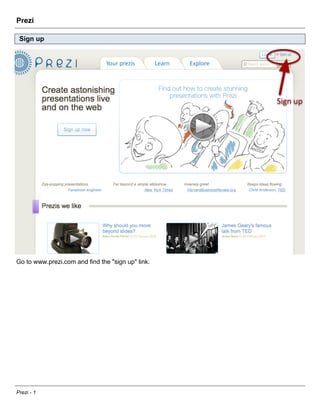
 Sign up


Go to www.prezi.com and find the "sign up" link.


Prezi - 1
Student/teacher license


Prezi - 2
A free Prezi license will allow you to create and store prezis online, download finished prezis, choose
between several degrees of access to your prezis and add the logo of the Bahrain Polytechnic.


Prezi - 3
Register with your university email. Check and verify email address in order to gain full access to the
Prezi platform.

 Create a prezi


Prezi - 4
give it a title and a description

 The Prezi menu


Swish, swoosh, up, down, left, right, drag... all important Prezi movements. In the Prezi page, there are
4 important areas: the editing panel, the workspace (where you click and add content), the workspace
management area (zoom in/out and home button) and the saving panel.


Prezi - 5
Editing panel


The editing panel includes 6 steps: write, insert, frame, path, color and show. The follow the logical
order of generating a prezi. First add content (write and insert images or video links), group content into
conceptual clusters, choose a path to display the content and choose a background.

To choose one action, click on the chosen circle (e.g. insert). To view all editing options again click on
the central "write" circle.

 Add text


Click anywhere and add text. To change alignment, choose from one of the options provided (see point
1). To change text choose from the options provided (see point 2 - title 1, title 2 and body can be
customized using from a list of fonts).


Prezi - 6
Edit text


To increase/decrease size of text click into the middle of the circle and move the mouse up and down
(point 1).

To change orientation of the text, clocke on the outer side of the circle and move the mouse left and
right (point 2).

 Add a file

Use the "Insert" area in the menu. You can upload a jpg or pdf file. Alternatively you can embed a
YouTube video by copy and pasting the URL of your video of choice.

 Group concepts (Frame)

A frame could work as a powerpoint slide. It enables you to group content around desired concepts and
notions. Once grouped the content will be shown both as a whole as well as element by element.

 Present

The "path" menu obtion enables you to choose the order in which you want your content displayed. It
allows you to show a step more than once.

The "show" option plays to functions: it helps you verify your prezi but also showcase it.


Prezi - 7

Tecki Breki Prezi

  • 1.
    Prezi Sign up Goto www.prezi.com and find the "sign up" link. Prezi - 1
  • 2.
  • 3.
    A free Prezilicense will allow you to create and store prezis online, download finished prezis, choose between several degrees of access to your prezis and add the logo of the Bahrain Polytechnic. Prezi - 3
  • 4.
    Register with youruniversity email. Check and verify email address in order to gain full access to the Prezi platform. Create a prezi Prezi - 4
  • 5.
    give it atitle and a description The Prezi menu Swish, swoosh, up, down, left, right, drag... all important Prezi movements. In the Prezi page, there are 4 important areas: the editing panel, the workspace (where you click and add content), the workspace management area (zoom in/out and home button) and the saving panel. Prezi - 5
  • 6.
    Editing panel The editingpanel includes 6 steps: write, insert, frame, path, color and show. The follow the logical order of generating a prezi. First add content (write and insert images or video links), group content into conceptual clusters, choose a path to display the content and choose a background. To choose one action, click on the chosen circle (e.g. insert). To view all editing options again click on the central "write" circle. Add text Click anywhere and add text. To change alignment, choose from one of the options provided (see point 1). To change text choose from the options provided (see point 2 - title 1, title 2 and body can be customized using from a list of fonts). Prezi - 6
  • 7.
    Edit text To increase/decreasesize of text click into the middle of the circle and move the mouse up and down (point 1). To change orientation of the text, clocke on the outer side of the circle and move the mouse left and right (point 2). Add a file Use the "Insert" area in the menu. You can upload a jpg or pdf file. Alternatively you can embed a YouTube video by copy and pasting the URL of your video of choice. Group concepts (Frame) A frame could work as a powerpoint slide. It enables you to group content around desired concepts and notions. Once grouped the content will be shown both as a whole as well as element by element. Present The "path" menu obtion enables you to choose the order in which you want your content displayed. It allows you to show a step more than once. The "show" option plays to functions: it helps you verify your prezi but also showcase it. Prezi - 7