www.shsph.blogspot.com
Computer
Systems
Servicing NC II
Quarter 1 – Module 3:
POST and BIOS
11
1
www.shsph.blogspot.com
Computer Systems Servicing NC II – Grade 11
Quarter 1- Module 3: POST and BIOS
Republic Act 8293, section 176 states that: No copyright shall subsist in any work of the
Government of the Philippines. However, prior approval of the government agency or office wherein
the work is created shall be necessary for exploitation of such work for profit. Such agency or office
may, among other things, impose as a condition the payment of royalties.
Borrowed materials (i.e., songs, stories, poems, pictures, photos, brand names, trademarks,
etc.) included in this book are owned by their respective copyright holders. Every effort has been
exerted to locate and seek permission to use these materials from their respective copyright owners.
The publisher and authors do not represent nor claim ownership over them.
Regional Director: Gilbert T. Sadsad
Assistant Regional Director: Jessie L. Amin
Development Team of the Module
Writer: SHAILAC N. RODELAS
Editors: ANTHONY S. CAPISTRANO, TIII and JOVELYN A. FLORECE, TIII
Reviewers: DR. NIXON SA. OLFINDO, EPS/DARCY GUY Y. MAÑEBO, EPS
Illustrator: SHAILAC N. RODELAS
Layout Artist: SHAILAC N. RODELAS
1
Computer Systems Servicing NC II - Grade 11
Quarter 1- Module 3: POST and BIOS
Every computer with a motherboard comprises a special chip referred to as BIOS or ROM
BIOS (Read Only Memory Basic Input/Output System). The BIOS includes instructions on how to
load basic computer hardware. The BIOS also includes a test referred to as POST (Power -On Self-
Test) which safeguards that the computer meets requirements to boot up correctly.
This module will give you an in-depth explanation of their functionalities inside a computer
system.
Learning Competency: LO 1. Assemble Computer Hardware
 Identify the roles of POST during the startup process (TLE_IACSS9-12ICCS-Ia-e-28)
 Determine the problems arising during the POST phase. (TLE_IACSS9-12ICCS-Ia-e-28)
 Acquire the steps in entering the BIOS Setup Utility (TLE_IACSS9-12ICCS-Ia-e-28)
 Navigate BIOS configuration using the Setup Utility Screen (TLE_IACSS9-12ICCS-Ia-e-28)
 Embrace the importance of POST and BIOS in a computer system (TLE_IACSS9-12ICCS-
Ia-e-28)
 Apply troubleshooting skills in dealing with BIOS settings (TLE_IACSS9-12ICCS-Ia-e-28)
For better understanding of the lesson , here is the list of words and their meanings.
Read and understand them carefully.
 Beep Code
sound signals released by a computer to communicate the condition of the computer system
 Basic Input Output System (BIOS)
program a personal computer's microprocessor uses to get the computer system started after
you turn it on.
 Basic Input Output System (BIOS) Setup Utility
setup utility that allows a user to change the BIOS settings of a computer.
 Boot
process of turning on the computer and initializing the system
 Boot Device Priority
BIOS settings allowing a user to select and change the order of the devices inside the
computer
 Boot Sequence
Objectives
II.
Introduction
I.
Vocabulary List
III.
2
primary set of instructions performed by computer as it starts booting
 Configuration
arrangement and settings of a computer system
 Confirmation Dialog Box
dialog box that prompts in the screen for the approval of an operation
 Erasable Programmable Read-Only Memory (EPROM)
a programmable read-only memory (PROM) chip that is capable of saving the data even
when the power is off.
 Firmware
computer software that allows a user to control specific settings of a hardware.
 Hotkey/s
a key or set of keys that does a pre- designed purpose in a computer.
 Light Emitting Diode LED
a semiconductor device that releases light once electric current has entered it.
 Operating System (OS)
Handles the hardware, software components and the entire services of a computer system.
 Parameters
a special kind of variable in programming language that is used to pass information between
functions or procedures
 Peripheral Devices
internal or external device directly connected to a computer.
 Power-On Self-Test (POST)
primary set of instructions executed to check the hardware issues of a computer.
 Startup
Also known as boot-up where a computer initializes its hardware and software resources.
 Troubleshooting
Applying different procedures to resolve computer issues
 Unified Extensible Firmware Interface (UEFI)
a specification that replaced the legacy Basic Input/ Output System (BIOS) firmware interface
originally present in all IBM PC-compatible personal computers
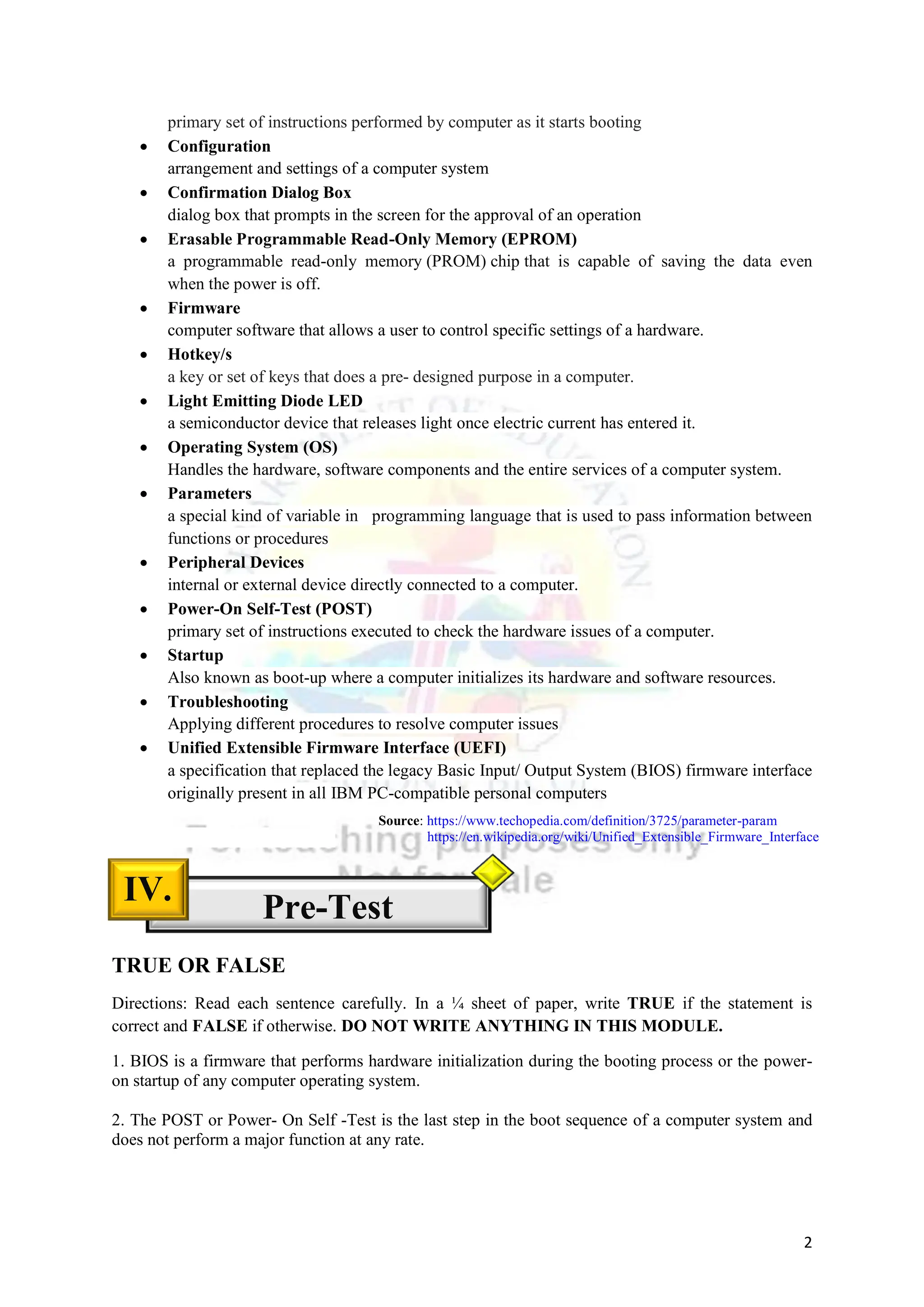
TRUE OR FALSE
Directions: Read each sentence carefully. In a ¼ sheet of paper, write TRUE if the statement is
correct and FALSE if otherwise. DO NOT WRITE ANYTHING IN THIS MODULE.
1. BIOS is a firmware that performs hardware initialization during the booting process or the power-
on startup of any computer operating system.
2. The POST or Power- On Self -Test is the last step in the boot sequence of a computer system and
does not perform a major function at any rate.
Pre-Test
IV.
Source: https://www.techopedia.com/definition/3725/parameter-param
https://en.wikipedia.org/wiki/Unified_Extensible_Firmware_Interface
3
3. Windows logo key is categorized as hotkey during the startup process allowing a user to get
through the BIOS Setup Utility and configure its settings.
4. The BIOS operates in lower Windows versions and relies only to a specific operating system.
5. If a computer system is having an internal hardware problem, error messages are expected to
display in the startup process.
Learning Activity 1. The Challenge: A Self-Check 
In the previous modules, you have been given a prior scheme of how a computer works.
What’s more is that you are now knowledgeable about the various computer types and the existing
operating systems to run them. Furthermore, you were able to acquaint yourself with the peripheral
devices used for manipulating the computer system.
This time, you are about to jump to a new series of learning tasks. As you go on to the
extensive and wider scope of computer systems, you need to acquire the concepts of POST and
BIOS. In order to do so, let me take you to the first task.
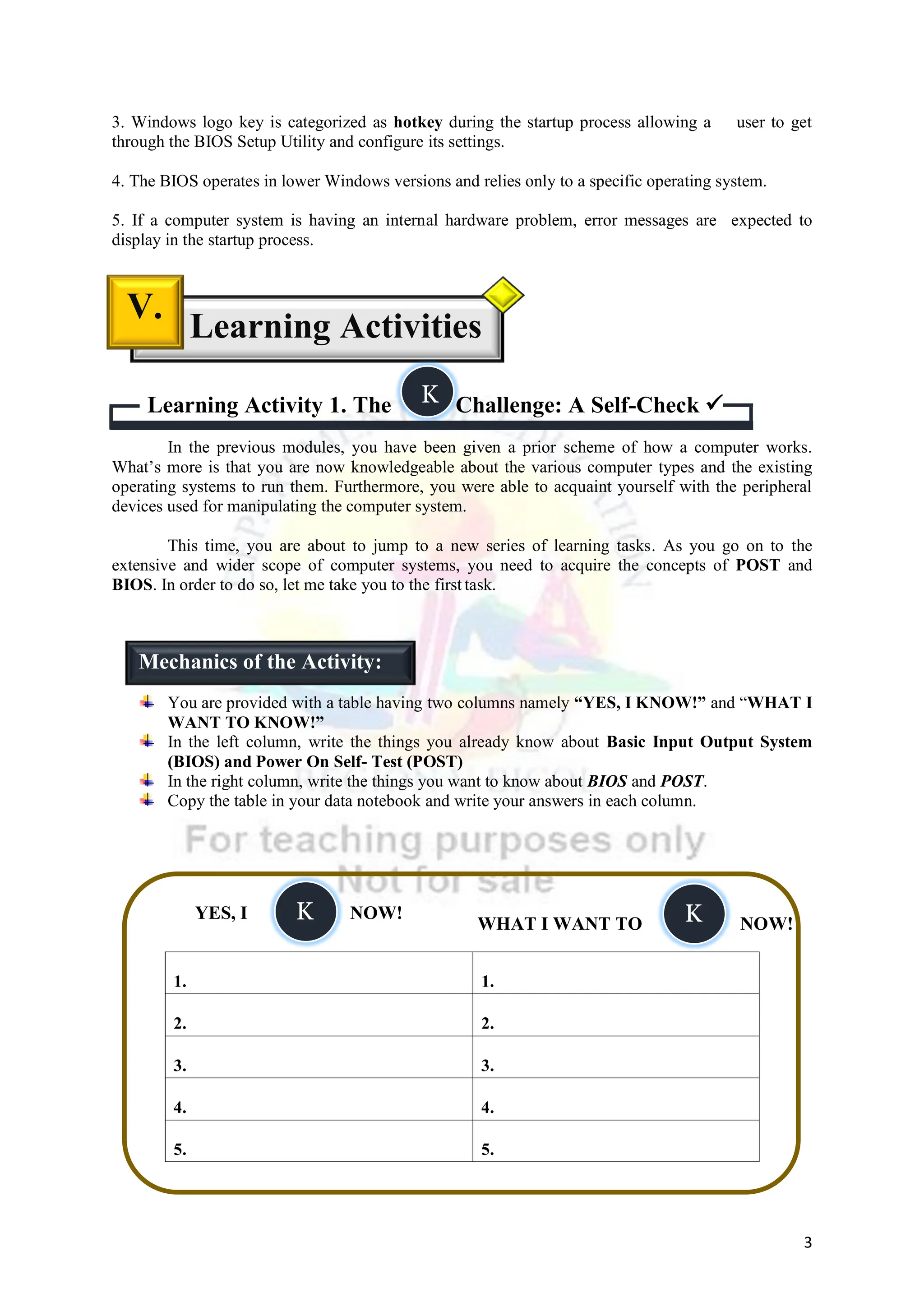
You are provided with a table having two columns namely “YES, I KNOW!” and “WHAT I
WANT TO KNOW!”
In the left column, write the things you already know about Basic Input Output System
(BIOS) and Power On Self- Test (POST)
In the right column, write the things you want to know about BIOS and POST.
Copy the table in your data notebook and write your answers in each column.
1. 1.
2. 2.
3. 3.
4. 4.
5. 5.
Learning Activities
V.
YES, I NOW!
WHAT I WANT TO NOW!
Mechanics of the Activity:
K
K K
4
The previous task allowed you to write the things you already know and those you want to
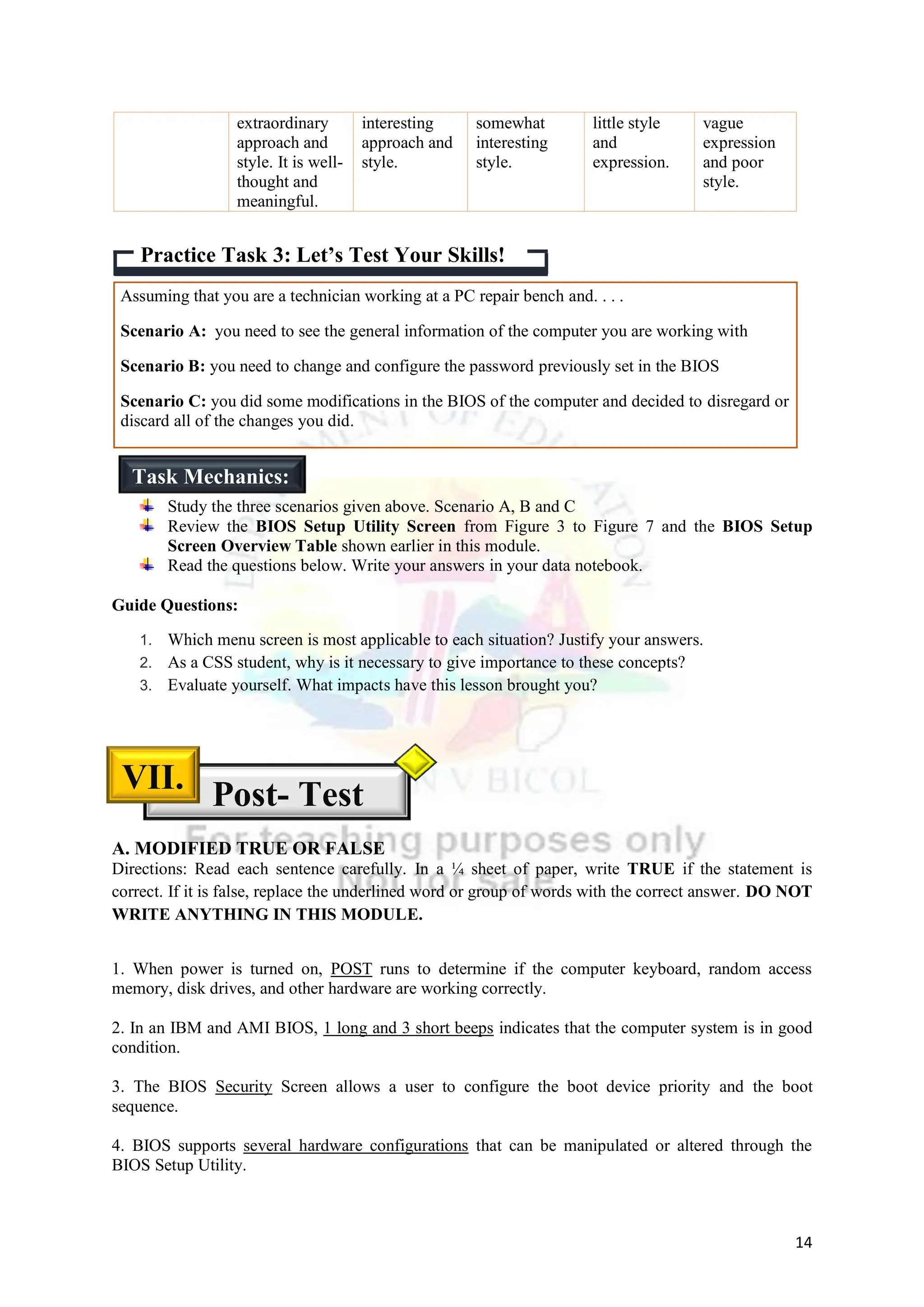
know about the concepts of BIOS and POST. This time, you will be given another task to assess how
far you understand BIOS and POST. In order to do so, let me take you to the second activity you
need to complete.
You are given four photos for this activity. These photos depict the BIOS and POST
functions of a computer system.
By looking at these photos, construct a meaning, description or functionalities that you may
directly associate to them.
Your answers may be written in a bulleted outline, tabular, phrasal or sentence form. Write as
many as you can provided that you are able to explain your thoughts very well.
You may write your answers in a separate sheet or in your data notebook.
Learning Activity 3. WORD LINK: The Brainteaser Activity
The previous task gave you a chance to explore your own description of BIOS and POST
using pictures only. You were able to construct meaning and definition associated to those given
pictures.
Learning Activity 2. Think About It! : A Photo Reflection
Mechanics of the Activity:
Source: Wikimedia Commons. (2018, May 11). File:POST2.png
[Screenshot]. Wikimedia Commons.
https://commons.wikimedia.org/wiki/File:POST2.png
Source : Oracle and/or its affiliates. Intel and AMD-based BIOS Setup Utility
screen [Screenshot]. Oracle. https://docs.oracle.com/cd/E19530-01/html/835-
0797/nh2ug.cehfbjhj.html
Source : intrepid software. (n.d.). Normal PC Boot Process [Illustration].
Intrepid Software. https://intrepidsoftware.com/know-the-importance-of-
following-proper-booting-sequence/
Source : Learn Computer Science .BIOS. (2016, September 8). [Photograph].
Learn Computer Science. https://www.learncomputerscienceonline.com/bios/
5
This time, you will be given another task highlighting terms which you may encounter in the
following pages. Now, let me take you to the third activity.
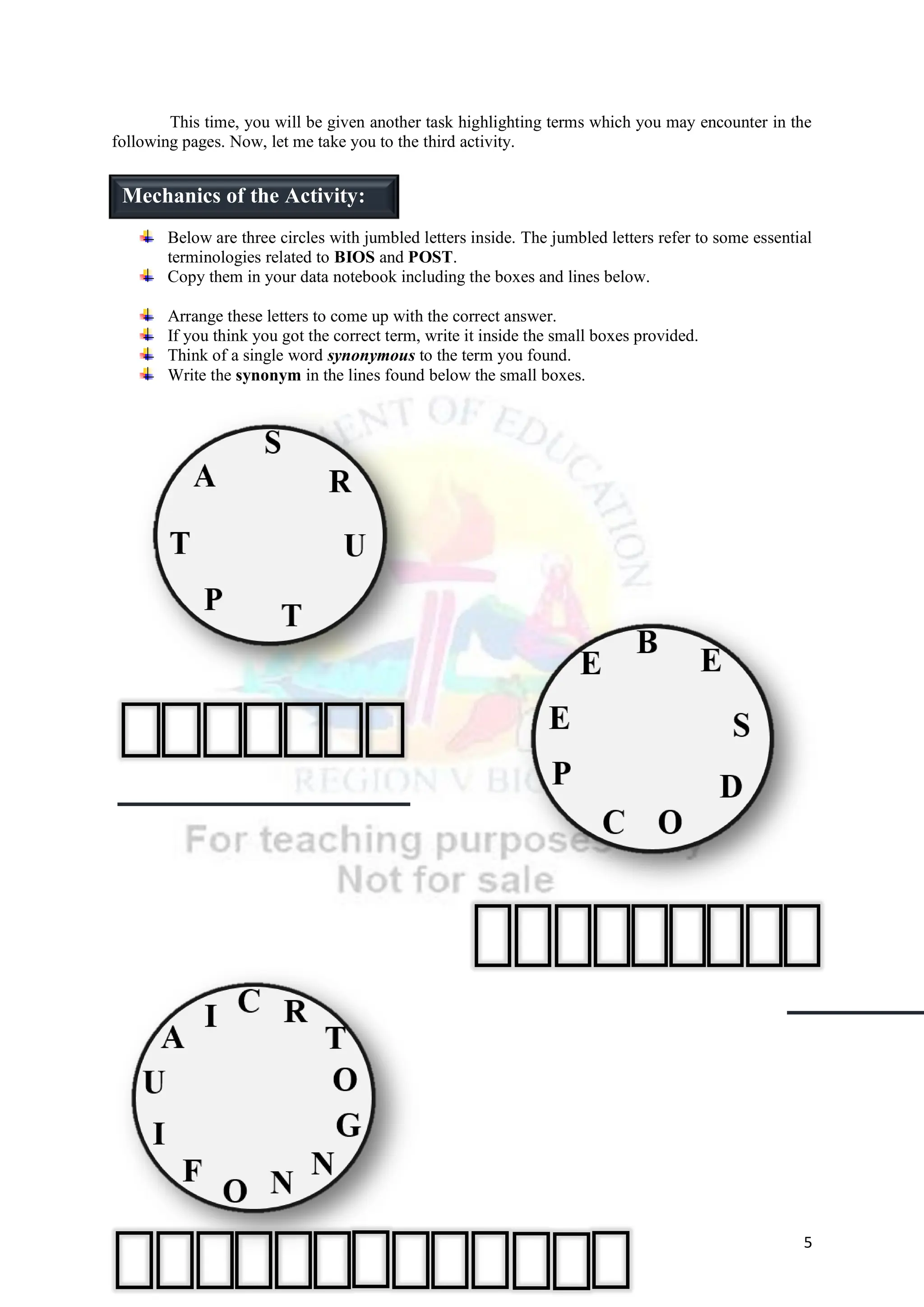
Below are three circles with jumbled letters inside. The jumbled letters refer to some essential
terminologies related to BIOS and POST.
Copy them in your data notebook including the boxes and lines below.
Arrange these letters to come up with the correct answer.
If you think you got the correct term, write it inside the small boxes provided.
Think of a single word synonymous to the term you found.
Write the synonym in the lines found below the small boxes.
Mechanics of the Activity:
6
 A Power On Self -Test is the first step of the boot sequence. It doesn't
matter if you've just restarted your computer or if you've just powered
it on for the first time in days; the POST is going to run, regardless.
 POST doesn't rely on any specific operating system. In fact, there
doesn't even need to be an OS installed on a hard drive for the POST
to run. This is because the test is handled by the system's BIOS, not
any installed software.
 A
Power On
Self-Test
checks that basic system devices are present and working properly,
like the keyboard and other peripheral devices, and other hardware
elements like the processor, storage devices, and memory.
 The computer will continue to boot after the POST but only if it was
successful. Problems can certainly appear after the POST, like
Windows hanging during startup, but most of the time those can be
attributed to an operating system or software problem, not a hardware.
 If the POST finds something wrong during its test, you'll usually get
an
error of some kind, and hopefully, one clear enough to help
jump-start the troubleshooting process (Fisher, 2020)
Errors might come in the form of flashing LEDs, audible beeps, or error messages on the monitor,
all of which are technically referred to as POST codes, beep codes, and on-screen POST error
messages, respectively (Fisher, 2020).
Computers aren't the
only devices that run
a POST. Some
appliances, medical
equipment, and other
devices also run very
similar self-tests
after being powered.
on.
Did You
Know?
POST, short for Power On Self-Test, is the
initial set of diagnostic tests performed by the
computer right after it's powered on, with the intent
to check for any hardware related issues. When
power is turned on, POST (Power-On Self-Test) is
the diagnostic testing sequence that a computer's
basic input/output system runs to determine if the
computer keyboard, random access memory, disk
drives, and other hardware are working correctly.
(Fisher, 2020).
 The Roles of POST in the Startup Process 
 Problems During the POST 
|The Power - On Self -Test (POST)|
Figure 1. Power-on Self-Test
Source : LogosRated. (2016, August 26). Phoenix Software Logo [Screenshot].
LogosRated. https://logosrated.net/phoenix-software-logo/
Source : LogosRated. (2016, August
26). Phoenix Software Logo
[Photograph].
LogosRated.https://logosrated.net/phoen
ix-software-logo/
7
3
Take
Note
If some part of the POST fails, you'll know very soon
after
powering on your computer, but how you find out depends
on the type and severity, of the problem (Fisher, 2020).
If the problem lies with the video card, and therefore you
can't see anything on the monitor, then looking for an error
message wouldn't be as helpful as listening for a beep code
or reading a POST code with a POST test card (Fisher,
2020).
In MacOS computers, POST errors often appear as an icon or another graphic instead of an
actual error message. For example, a broken folder icon after starting up your Mac may mean
that the computer can't find a suitable hard drive (Fisher, 2020).
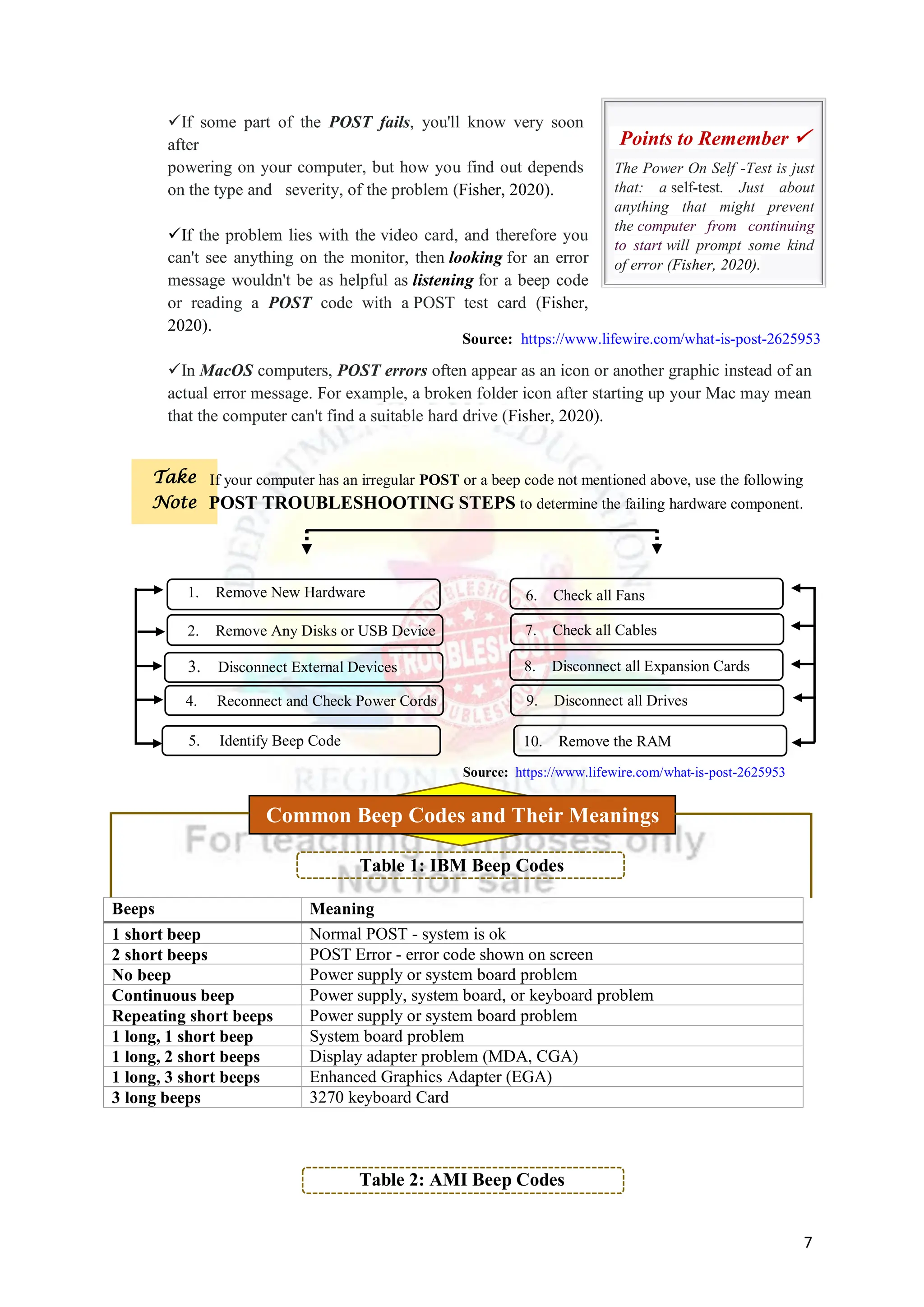
Table 1: IBM Beep Codes
Beeps Meaning
1 short beep Normal POST - system is ok
2 short beeps POST Error - error code shown on screen
No beep Power supply or system board problem
Continuous beep Power supply, system board, or keyboard problem
Repeating short beeps Power supply or system board problem
1 long, 1 short beep System board problem
1 long, 2 short beeps Display adapter problem (MDA, CGA)
1 long, 3 short beeps Enhanced Graphics Adapter (EGA)
3 long beeps 3270 keyboard Card
Table 2: AMI Beep Codes
The Power On Self -Test is just
that: a self-test. Just about
anything that might prevent
the computer from continuing
to start will prompt some kind
of error (Fisher, 2020).
Points to Remember 
If your computer has an irregular POST or a beep code not mentioned above, use the following
POST TROUBLESHOOTING STEPS to determine the failing hardware component.
1. Remove New Hardware
2. Remove Any Disks or USB Device
3. Disconnect External Devices
4. Reconnect and Check Power Cords
5. Identify Beep Code
6. Check all Fans
7. Check all Cables
10. Remove the RAM
9. Disconnect all Drives
8. Disconnect all Expansion Cards
Source: https://www.lifewire.com/what-is-post-2625953
Common Beep Codes and Their Meanings
Source: https://www.lifewire.com/what-is-post-2625953
8
Beeps Meaning
Short Beep Normal POST - system is ok
2/3/4 short beeps Memory Problem
5 short beeps System board problem
6 short beeps System board or keyboard problem
7 Short beeps CPU or BIOS problem, Cache memory chips on motherboard problem
1 long, 3 short beeps Memory Chips
1 long, 8 short beeps Video card problem
Table 3: Award Beep Codes
Beeps Meaning
1 long, 2 short Video adapter error: Bad or improperly seated video card
Repeating beeps Memory error: Bad or improperly seated RAM
1 long, 3 short Bad video RAM or video card not present
High-frequency beeps Overheated CPU: Check fans
Repeating high/low beeps CPU: Improperly seated or defective CPU
Table 4: Phoenix Beep Codes
Beeps Meaning
1-1-1-1 Unconfirmed beep code. Reseat RAM chips or replace RAM chips
as possible solution.
1-1-1-3 Verify real mode.
1-1-2-1 Get CPU type
1-1-2-3 Initialize system hardware.
1-1-3-1 Initialize chipset registers with initial POST values.
BIOS, which stands for Basic Input Output
System, is a small piece of code programmed on an
erasable, programmable, read-only memory
(EPROM) chip on the motherboard. It's BIOS
that's responsible for the POST and therefore makes
it the very first software to run when a computer is
started. The BIOS firmware is non-volatile,
meaning that its settings are saved and recoverable
even after power has been removed from the device
(Fisher, 2020).
|The Basic Input Output System (BIOS)|
Figure 2. The BIOS Chip
BIOS is pronounced as by-oss and is sometimes referred to as the System
BIOS, ROM BIOS, or PC BIOS. However, it's also incorrectly referred to as
the Basic Integrated Operating System or Built-In Operating System (Fisher,
2020)
Source: https://kb.iu.edu/d/afzy
https://www.computerhope.com/issues/ch000607.htm
http://www.pchell.com/hardware/beepcodes.shtml
Did You
Know?
Source : Getty Images. (n.d.). Bios Chip [Photograph]. Getty Images.
https://www.gettyimages.com/photos/bioschip?mediatype=photograp
hy&phrase=BIOS%20chip&sort=mostpopular
Source: http://www.pchell.com/hardware/beepcodes.shtml
9
BIOS is accessed and configured through the BIOS Setup Utility. The BIOS Setup Utility is,
for all practical purposes, the BIOS itself. All available options in BIOS are configurable through the
BIOS Setup Utility. Unlike an operating system like Windows, which is often downloaded or
obtained on a disc and needs to be installed by the user or manufacturer, BIOS comes installed from
the moment the machine is manufactured (Fisher, 2020).
Before configuring the BIOS, check what version is currently running on your computer.
BIOS Setup Utility is accessed in various ways depending on your computer or motherboard make
and model. The required or Hot Keys could be F1, F2, Delete or Esc. Some systems also require
holding down the Fn key while tapping the F1 and F2 keys. You may refer to your hardware
documentation or do a simple google search (Lenovo Support, 2016).
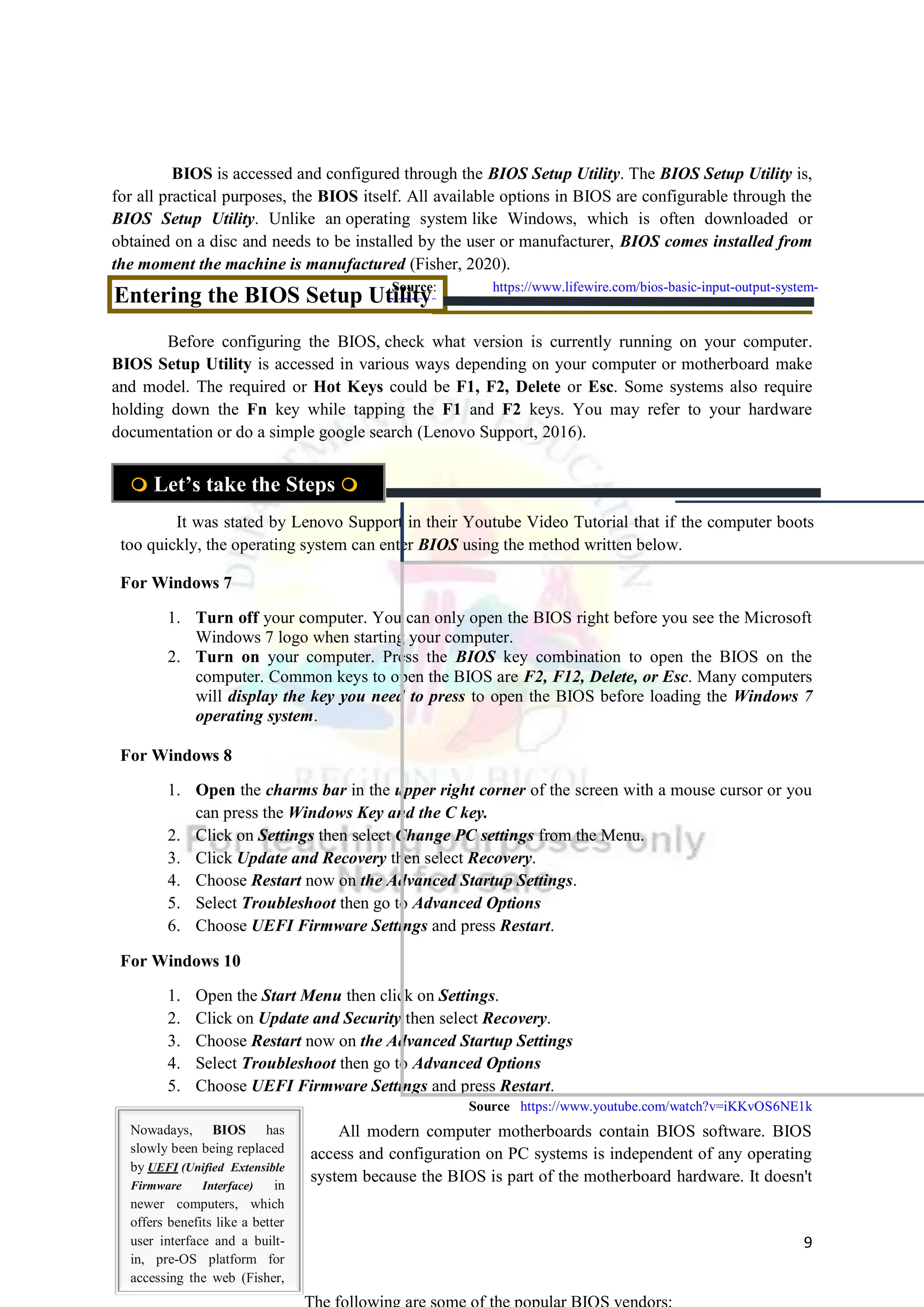
For Windows 7
1. Turn off your computer. You can only open the BIOS right before you see the Microsoft
Windows 7 logo when starting your computer.
2. Turn on your computer. Press the BIOS key combination to open the BIOS on the
computer. Common keys to open the BIOS are F2, F12, Delete, or Esc. Many computers
will display the key you need to press to open the BIOS before loading the Windows 7
operating system.
For Windows 8
1. Open the charms bar in the upper right corner of the screen with a mouse cursor or you
can press the Windows Key and the C key.
2. Click on Settings then select Change PC settings from the Menu.
3. Click Update and Recovery then select Recovery.
4. Choose Restart now on the Advanced Startup Settings.
5. Select Troubleshoot then go to Advanced Options
6. Choose UEFI Firmware Settings and press Restart.
For Windows 10
1. Open the Start Menu then click on Settings.
2. Click on Update and Security then select Recovery.
3. Choose Restart now on the Advanced Startup Settings
4. Select Troubleshoot then go to Advanced Options
5. Choose UEFI Firmware Settings and press Restart.
All modern computer motherboards contain BIOS software. BIOS
access and configuration on PC systems is independent of any operating
system because the BIOS is part of the motherboard hardware. It doesn't
 Let’s take the Steps 
Entering the BIOS Setup Utility
It was stated by Lenovo Support in their Youtube Video Tutorial that if the computer boots
too quickly, the operating system can enter BIOS using the method written below.
Nowadays, BIOS has
slowly been being replaced
by UEFI (Unified Extensible
Firmware Interface) in
newer computers, which
offers benefits like a better
user interface and a built-
in, pre-OS platform for
accessing the web (Fisher,
2020)
Source: https://www.lifewire.com/bios-basic-input-output-system-
2625820
Source https://www.youtube.com/watch?v=iKKvOS6NE1k
10
matter if a computer is running Windows 10, Windows 8, Windows 7, Windows
Vista, Windows XP, Linux, Unix, or no operating system at all—BIOS functions
outside of the operating system environment and is no way dependent upon it (Fisher,
2020).
Configuring the BIOS
 Setup Utility Menu Screens 
|Phoenix Technologies | IBM | Dell | Gateway | BYOSOFT |American Megatrends (AMI) | Insyde
Software |
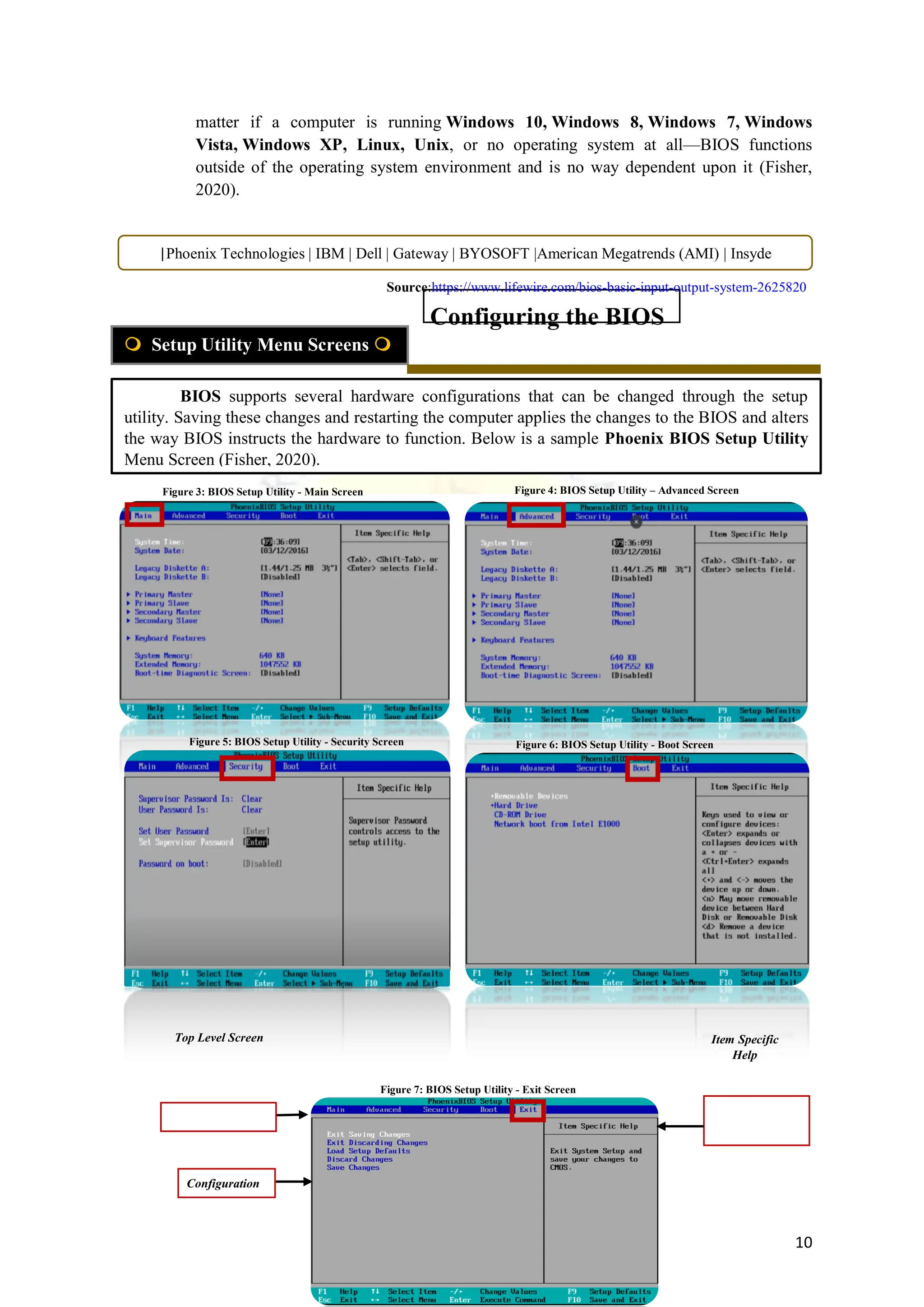
BIOS supports several hardware configurations that can be changed through the setup
utility. Saving these changes and restarting the computer applies the changes to the BIOS and alters
the way BIOS instructs the hardware to function. Below is a sample Phoenix BIOS Setup Utility
Menu Screen (Fisher, 2020).
Figure 3: BIOS Setup Utility - Main Screen Figure 4: BIOS Setup Utility – Advanced Screen
Figure 5: BIOS Setup Utility - Security Screen Figure 6: BIOS Setup Utility - Boot Screen
Figure 7: BIOS Setup Utility - Exit Screen
Top Level Screen
Configuration
Item Specific
Help
Source:https://www.lifewire.com/bios-basic-input-output-system-2625820
11
 Use the left and right arrow keys to select the different menu options.
 As you select each menu option, the top-level screen for that menu option appears.
 To select an option on a top-level screen, use the up and down arrow keys to scroll up and
down the options presented.
a. Only options that can be modified are highlighted when you press the up and
down arrow keys.
b. If a field can be modified, as you select the option, user instructions for modifying
the option appear in the right column of the screen.
c. If a field is a link to a sub-screen, instructions to press the Enter key to access the
sub screen appear in the right column.
 Modify the setup field and press the Esc key to save the changes and exit the screen.
Some screens present a confirmation dialog box that enables unwanted changes to be
retracted.
 On sub-screens that only provide configuration information and cannot be modified, press the
Esc key to exit the screen.
 To continue modifying other setup parameters, repeat 3rd
through 6th. Otherwise, go to 8th.
 Press and release the right arrow key until the Exit menu screen appears.
 Follow the instructions on the Exit menu screen to save or discard your changes and exit the
BIOS Setup utility. (Oracle, 2010)
Table 5: BIOS Setup Screen Overview
Screen Description See this section
(Press Ctrl + Mouse
Left Click)
Main Provides general product information, including BIOS,
processor, system memory, and system time/date.
BIOS Main Menu Screen
Advanced Configuration information for the CPU, memory, IDE,
Super IO, trusted computing, USB, PCI, MPS and other
information.
BIOS Advanced Menu
Screens
Security Set or change the user and supervisor passwords. BIOS Security Menu
Screens
Boot Configure the boot device priority (storage drives and the
DVD-ROM drive)
BIOS Setup Utility: Boot
Settings
Exit Save changes and exit, discard changes and exit, discard BIOS Exit Menu Screens
 Navigating the Screens 
Keyboard
Functions
Image Source: MDTechVideos. (2016c, March 12). How To Change Boot Order In Computer BIOS [For Beginners]
[Screenshot]. Youtube. https://www.youtube.com/watch?v=9GblKZO-smU
Take
Note
Source: https://www.youtube.com/watch?v=9GblKZO-smU
BIOS Setup Utility may differ and it is not recommended for inexperienced users to change the BIOS
Settings except for reasonable cause. All settings are set to its best default settings.
12
changes, or load optimal or fail-safe default s.
Using 3 to 5 sentences, write a paragraph depicting your learning on this lesson.
Precisely, your essay should contain the following ideas:
 Functionality of BIOS and POST inside a computer system.
 BIOS Configuration using the Setup Utility
Write your answer in a clean sheet of paper or in your data notebook.
If you have access to the internet, post this to your Facebook social media account
with hashtags. #BIOS and #POST. Do not forget to tag your classmates for them to
learn from you. If you do not have access to the internet. Disregard this last
instruction. Just write or paste your output your data notebook.
Please be guided by the rubrics provided below.
How to Utilize the Scoring Rubrics?
The content of your output will be evaluated using the Scoring Rubrics provided below. The
first component is Organization and Content while the second one is Grammar, Usage and
Mechanics.
The score for each component ranges from 5 (highest) to 1(lowest). he scores for both components
will be added to determine your final score.
Example: Organization and Content 5
Grammar, Usage and Mechanics 5
Total Points 10
Scoring Rubrics
Components 5 4 3 2 1
Practice Task 1: Write it Down, Share What You’ve Learned!
Practice Tasks
VI.
Let’s check your learning 
Task Mechanics:
Source: https://docs.oracle.com/cd/E19477-01/820-5830-13/app_bios.html
https://www.lifewire.com/bios-basic-input-output-system-2625820
13
Organization
and Content
Essay is well-
organized and
shows a
thorough and
thoughtful
understanding
of the lesson.
Essay is
organized and
shows a
comprehensive
understanding
of the lesson.
Essay is
slightly
organized and
shows a basic
understanding
of the lesson
Essay needs
to improve in
terms of
organization.
Shows a
limited
understanding
of the lesson
Essay does
not appear to
have a good
organization
at all. Shows
a little
understanding
of the lesson
Grammar,
Usage and
Mechanics
Essay does
not contain
any spelling,
punctuation
and
grammatical
errors.
Essay has at
least 2
spelling and
punctuation
errors with
minor
grammatical
errors
Essay has at
least 3
spelling,
punctuation
and
grammatical
errors
Essay has
poor spelling,
punctuation
and
grammatical
errors
Essay has
serious
spelling,
punctuations
and
grammatical
errors
Using the content of the paragraph you wrote in the 1st
Practice Task, create a poem, a
song or an illustration expressing how you feel towards the role of BIOS or POST in a
system.
If it’s a poem, write at least 1-2 stanza/s. If it’s a song, you can adopt the melody of your
song choice. If it’s an illustration, associate it well to the topics.
Write/Draw them in a clean short bond paper with your name on top.
Please be guided by the rubrics provided below.
How to Utilize the Scoring Rubrics?
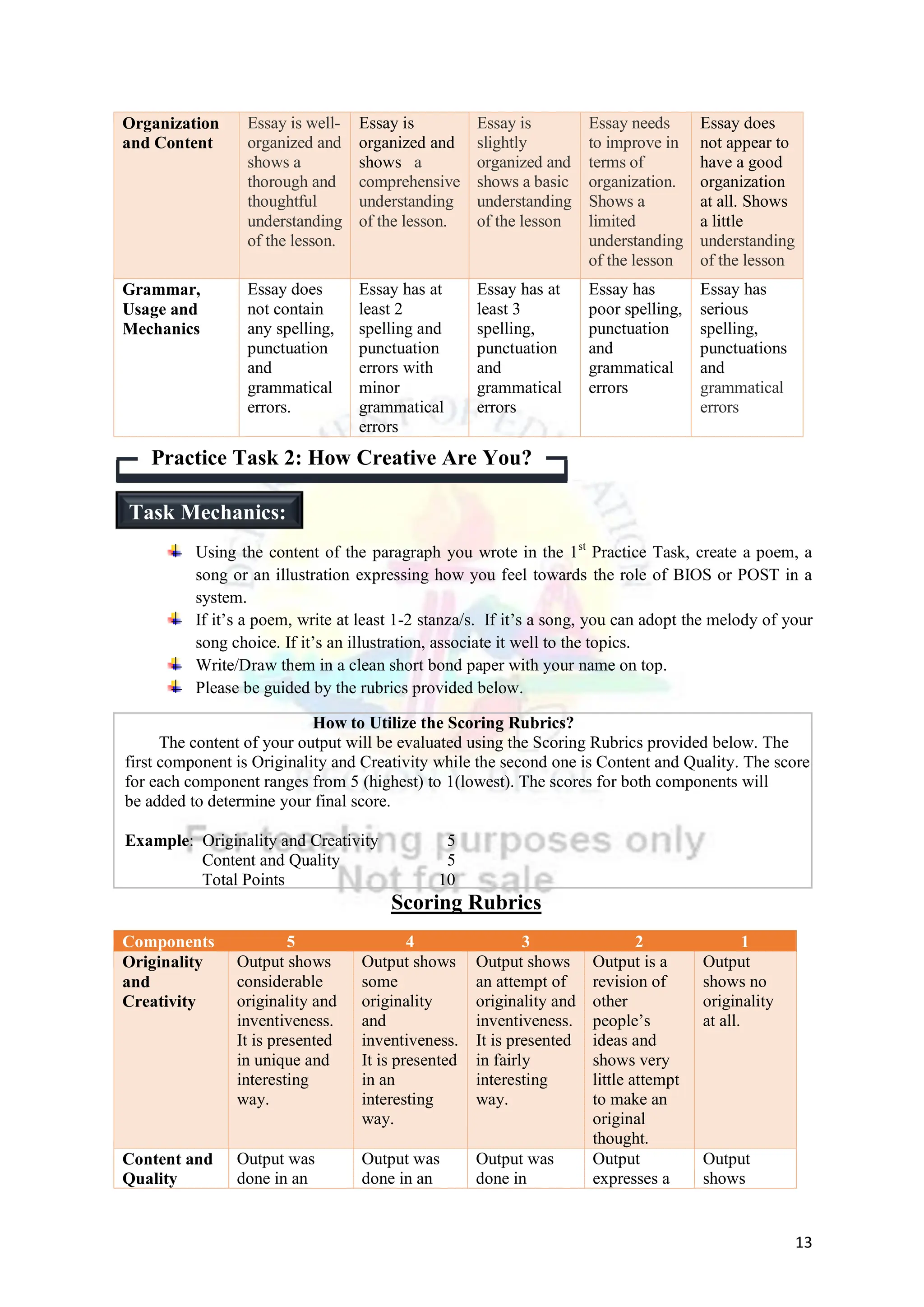
The content of your output will be evaluated using the Scoring Rubrics provided below. The
first component is Originality and Creativity while the second one is Content and Quality. The score
for each component ranges from 5 (highest) to 1(lowest). The scores for both components will
be added to determine your final score.
Example: Originality and Creativity 5
Content and Quality 5
Total Points 10
Scoring Rubrics
Components 5 4 3 2 1
Originality
and
Creativity
Output shows
considerable
originality and
inventiveness.
It is presented
in unique and
interesting
way.
Output shows
some
originality
and
inventiveness.
It is presented
in an
interesting
way.
Output shows
an attempt of
originality and
inventiveness.
It is presented
in fairly
interesting
way.
Output is a
revision of
other
people’s
ideas and
shows very
little attempt
to make an
original
thought.
Output
shows no
originality
at all.
Content and
Quality
Output was
done in an
Output was
done in an
Output was
done in
Output
expresses a
Output
shows
Practice Task 2: How Creative Are You?
Task Mechanics:
14
extraordinary
approach and
style. It is well-
thought and
meaningful.
interesting
approach and
style.
somewhat
interesting
style.
little style
and
expression.
vague
expression
and poor
style.
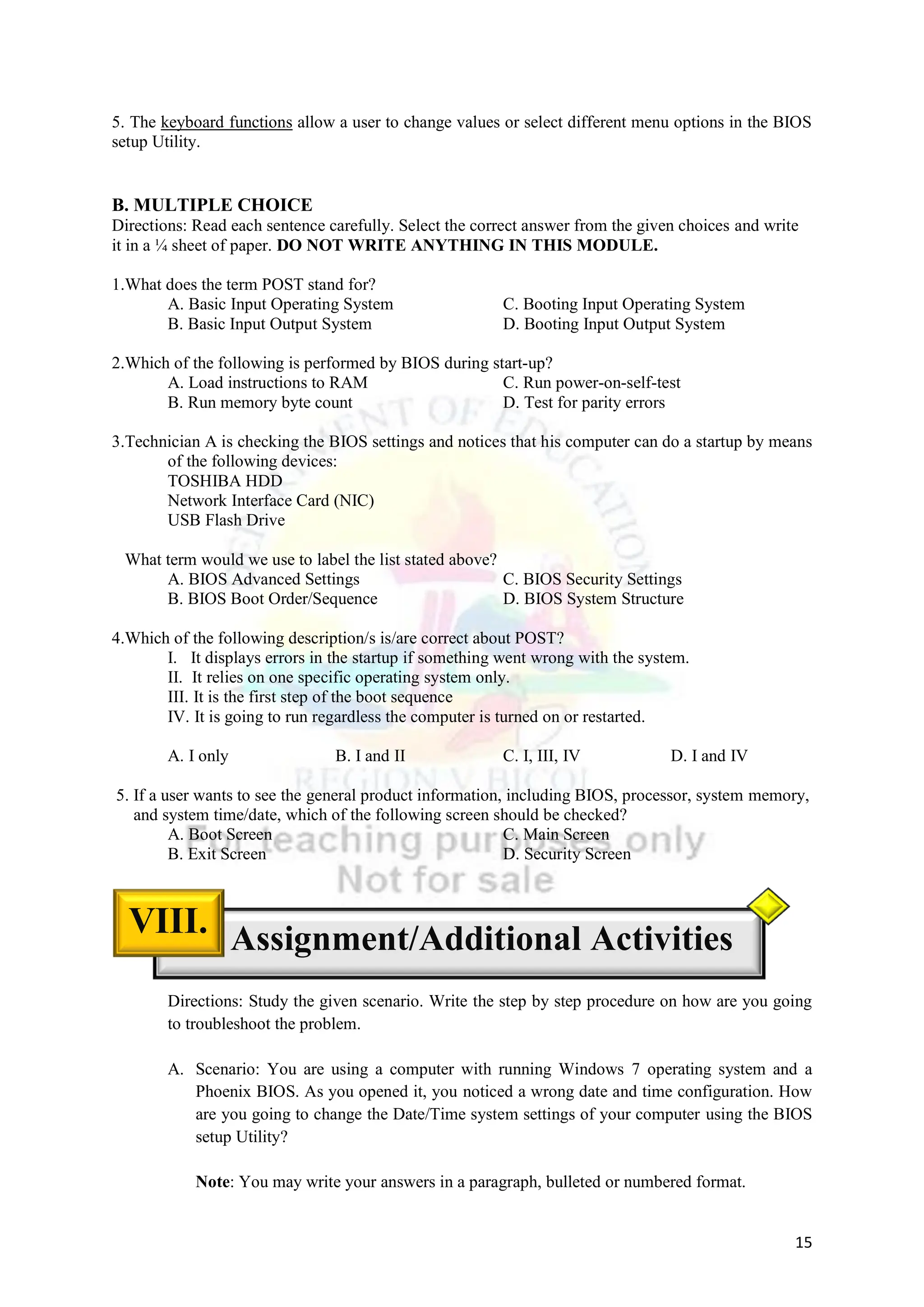
Assuming that you are a technician working at a PC repair bench and. . . .
Scenario A: you need to see the general information of the computer you are working with
Scenario B: you need to change and configure the password previously set in the BIOS
Scenario C: you did some modifications in the BIOS of the computer and decided to disregard or
discard all of the changes you did.
Study the three scenarios given above. Scenario A, B and C
Review the BIOS Setup Utility Screen from Figure 3 to Figure 7 and the BIOS Setup
Screen Overview Table shown earlier in this module.
Read the questions below. Write your answers in your data notebook.
Guide Questions:
1. Which menu screen is most applicable to each situation? Justify your answers.
2. As a CSS student, why is it necessary to give importance to these concepts?
3. Evaluate yourself. What impacts have this lesson brought you?
A. MODIFIED TRUE OR FALSE
Directions: Read each sentence carefully. In a ¼ sheet of paper, write TRUE if the statement is
correct. If it is false, replace the underlined word or group of words with the correct answer. DO NOT
WRITE ANYTHING IN THIS MODULE.
1. When power is turned on, POST runs to determine if the computer keyboard, random access
memory, disk drives, and other hardware are working correctly.
2. In an IBM and AMI BIOS, 1 long and 3 short beeps indicates that the computer system is in good
condition.
3. The BIOS Security Screen allows a user to configure the boot device priority and the boot
sequence.
4. BIOS supports several hardware configurations that can be manipulated or altered through the
BIOS Setup Utility.
Practice Task 3: Let’s Test Your Skills!
Task Mechanics:
Post- Test
VII.
15
5. The keyboard functions allow a user to change values or select different menu options in the BIOS
setup Utility.
B. MULTIPLE CHOICE
Directions: Read each sentence carefully. Select the correct answer from the given choices and write
it in a ¼ sheet of paper. DO NOT WRITE ANYTHING IN THIS MODULE.
1.What does the term POST stand for?
A. Basic Input Operating System C. Booting Input Operating System
B. Basic Input Output System D. Booting Input Output System
2.Which of the following is performed by BIOS during start-up?
A. Load instructions to RAM C. Run power-on-self-test
B. Run memory byte count D. Test for parity errors
3.Technician A is checking the BIOS settings and notices that his computer can do a startup by means
of the following devices:
TOSHIBA HDD
Network Interface Card (NIC)
USB Flash Drive
What term would we use to label the list stated above?
A. BIOS Advanced Settings C. BIOS Security Settings
B. BIOS Boot Order/Sequence D. BIOS System Structure
4.Which of the following description/s is/are correct about POST?
I. It displays errors in the startup if something went wrong with the system.
II. It relies on one specific operating system only.
III. It is the first step of the boot sequence
IV. It is going to run regardless the computer is turned on or restarted.
A. I only B. I and II C. I, III, IV D. I and IV
5. If a user wants to see the general product information, including BIOS, processor, system memory,
and system time/date, which of the following screen should be checked?
A. Boot Screen C. Main Screen
B. Exit Screen D. Security Screen
Directions: Study the given scenario. Write the step by step procedure on how are you going
to troubleshoot the problem.
A. Scenario: You are using a computer with running Windows 7 operating system and a
Phoenix BIOS. As you opened it, you noticed a wrong date and time configuration. How
are you going to change the Date/Time system settings of your computer using the BIOS
setup Utility?
Note: You may write your answers in a paragraph, bulleted or numbered format.
Assignment/Additional Activities
VIII.
16
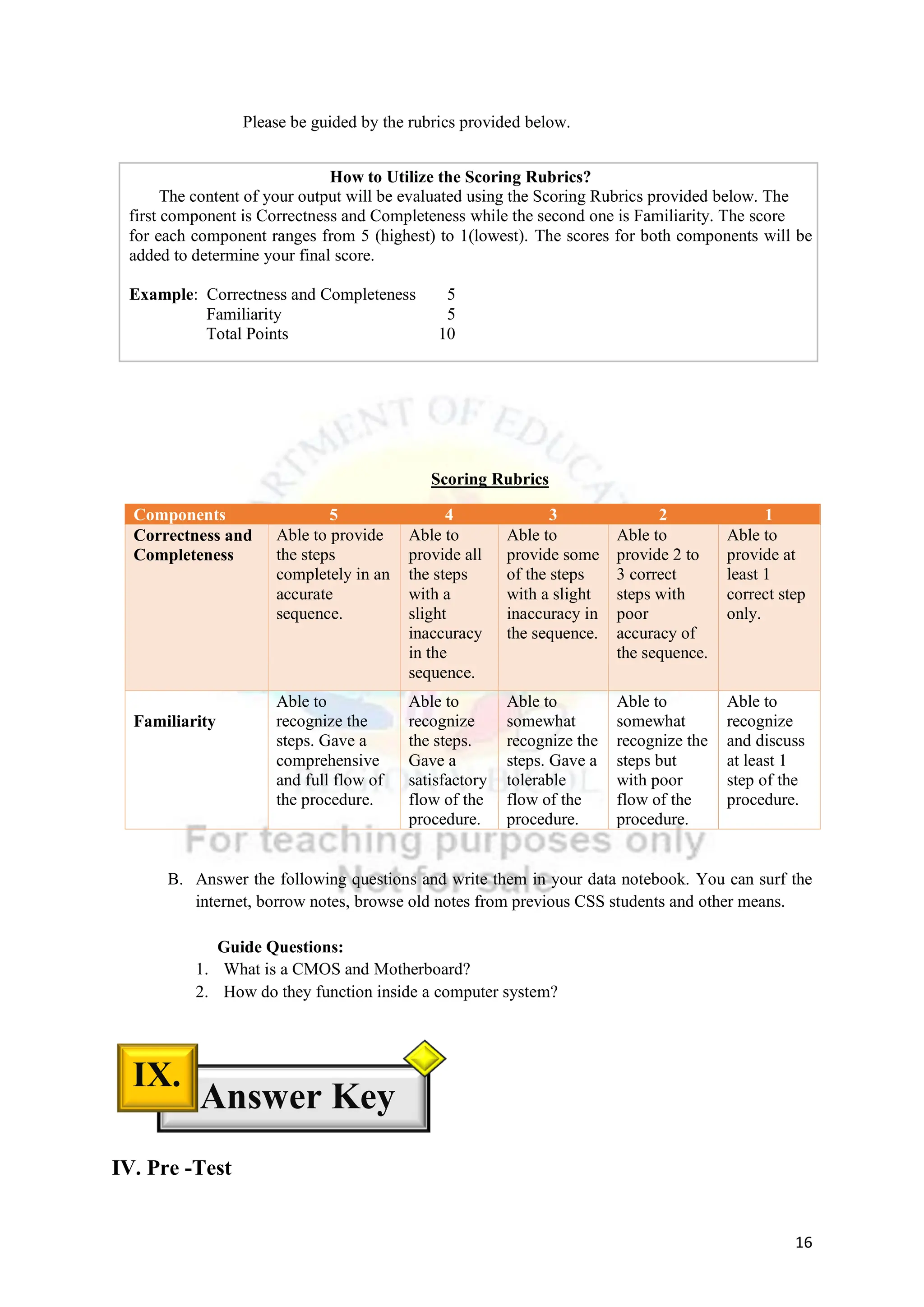
Please be guided by the rubrics provided below.
How to Utilize the Scoring Rubrics?
The content of your output will be evaluated using the Scoring Rubrics provided below. The
first component is Correctness and Completeness while the second one is Familiarity. The score
for each component ranges from 5 (highest) to 1(lowest). The scores for both components will be
added to determine your final score.
Example: Correctness and Completeness 5
Familiarity 5
Total Points 10
Scoring Rubrics
Components 5 4 3 2 1
Correctness and
Completeness
Able to provide
the steps
completely in an
accurate
sequence.
Able to
provide all
the steps
with a
slight
inaccuracy
in the
sequence.
Able to
provide some
of the steps
with a slight
inaccuracy in
the sequence.
Able to
provide 2 to
3 correct
steps with
poor
accuracy of
the sequence.
Able to
provide at
least 1
correct step
only.
Familiarity
Able to
recognize the
steps. Gave a
comprehensive
and full flow of
the procedure.
Able to
recognize
the steps.
Gave a
satisfactory
flow of the
procedure.
Able to
somewhat
recognize the
steps. Gave a
tolerable
flow of the
procedure.
Able to
somewhat
recognize the
steps but
with poor
flow of the
procedure.
Able to
recognize
and discuss
at least 1
step of the
procedure.
B. Answer the following questions and write them in your data notebook. You can surf the
internet, borrow notes, browse old notes from previous CSS students and other means.
Guide Questions:
1. What is a CMOS and Motherboard?
2. How do they function inside a computer system?
IV. Pre -Test
Answer Key
IX.
.
17
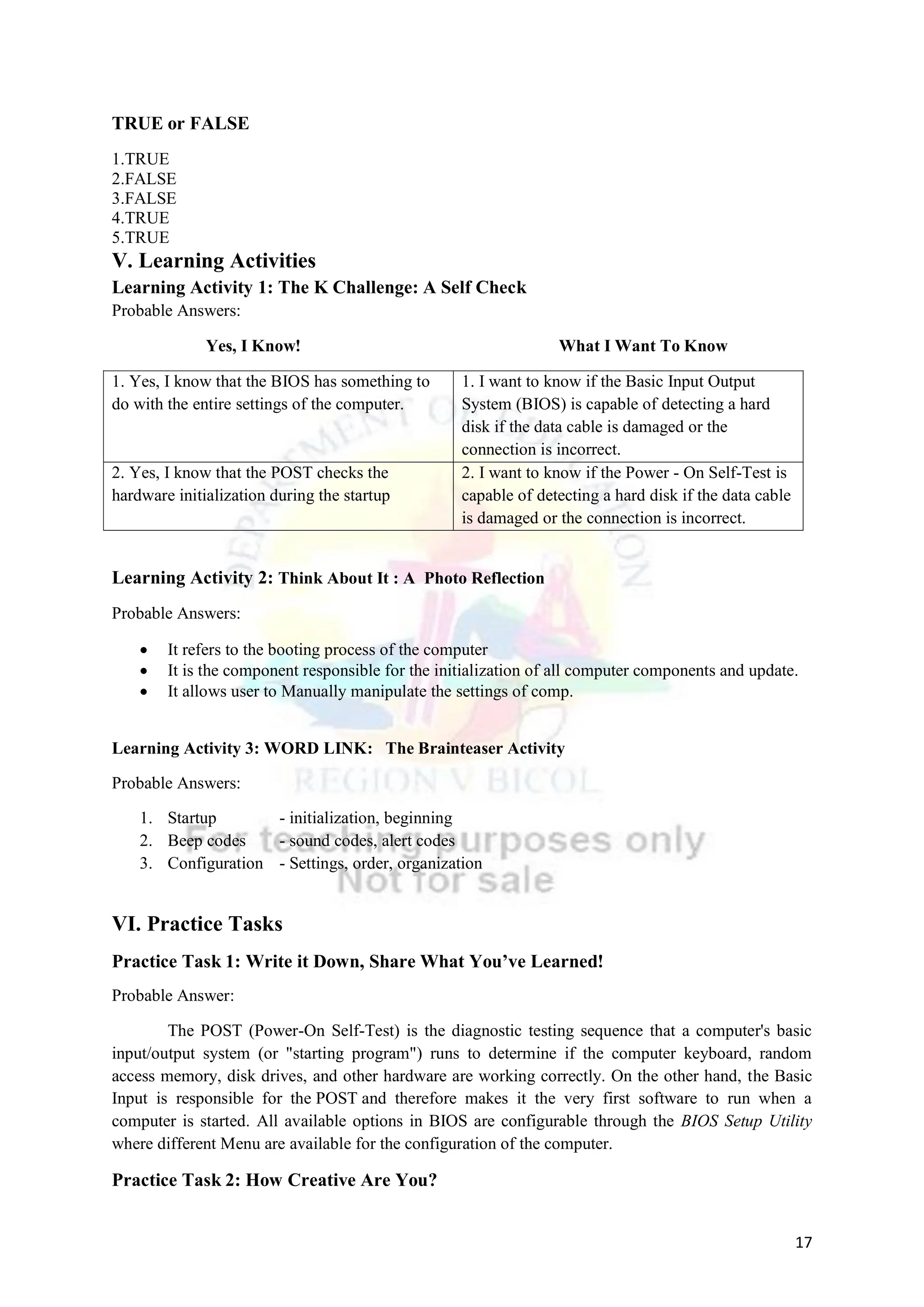
TRUE or FALSE
1.TRUE
2.FALSE
3.FALSE
4.TRUE
5.TRUE
V. Learning Activities
Learning Activity 1: The K Challenge: A Self Check
Probable Answers:
Yes, I Know! What I Want To Know
1. Yes, I know that the BIOS has something to
do with the entire settings of the computer.
1. I want to know if the Basic Input Output
System (BIOS) is capable of detecting a hard
disk if the data cable is damaged or the
connection is incorrect.
2. Yes, I know that the POST checks the
hardware initialization during the startup
2. I want to know if the Power - On Self-Test is
capable of detecting a hard disk if the data cable
is damaged or the connection is incorrect.
Learning Activity 2: Think About It : A Photo Reflection
Probable Answers:
 It refers to the booting process of the computer
 It is the component responsible for the initialization of all computer components and update.
 It allows user to Manually manipulate the settings of comp.
Learning Activity 3: WORD LINK: The Brainteaser Activity
Probable Answers:
1. Startup - initialization, beginning
2. Beep codes - sound codes, alert codes
3. Configuration - Settings, order, organization
VI. Practice Tasks
Practice Task 1: Write it Down, Share What You’ve Learned!
Probable Answer:
The POST (Power-On Self-Test) is the diagnostic testing sequence that a computer's basic
input/output system (or "starting program") runs to determine if the computer keyboard, random
access memory, disk drives, and other hardware are working correctly. On the other hand, the Basic
Input is responsible for the POST and therefore makes it the very first software to run when a
computer is started. All available options in BIOS are configurable through the BIOS Setup Utility
where different Menu are available for the configuration of the computer.
Practice Task 2: How Creative Are You?
18
Sample Output for a Poem
Here comes the POST, initializing during startup
Doing diagnostic tests, checking hardware and other setups
BIOS of course is responsible for the POST to run
Through the BIOS Setup Utility, you can configure with fun
Practice Task 3: Test Your Skills!
Probable Answers:
1. For Scenario A, the most applicable to use is the Main Menu Screen since it provides all the
information of the BIOS settings of the model. For Scenario B, the most applicable to use is the
Security Screen since it allows the user to manipulate security settings of the BIOS. Lastly, for
Scenario C, the most applicable to use is the Exit Screen since it allows a user to save or discard
changes made in the system.
2. As a CSS student, it is necessary to give importance to these concepts because to be able to
understand the wider and complex functions of a whole computer system, fundamentals are very
important. The BIOS and POST may be the basic concepts but undeniably contributes to the entirety
of the computer system.
As a CSS student, it is necessary to give importance to these concepts because I or we may
encounter computer difficulties associated to these concepts. If these troubles arise, at least I have the
prior idea on how to work on it.
As a CSS student, it is necessary to give importance to these concepts because computer
systems are wide-ranging, therefore I have to equip myself even with the basics. Aside from that, I
can also offer help to people whom are struggling with computer settings.
3. Probable Answers:
I realized that the BIOS and POST are not just concepts to be overlooked or unnoticed
because they perform major roles in a computer system. BIOS and POST made me think of how
great yet complicated a computer system is. No worries at all, it’s fun to learn these concepts along
the way.
VII. Post -Test
A. Modified TRUE or FALSE
1. TRUE
2. 1 short
3. boot
4. TRUE
5. TRUE
B. Multiple Choice
1. A.
2. C.
19
3. B.
4. C.
5. C.
VII. Assignment/Additional Activities
Probable Answers:
A. My objective is to change the Date and Time Settings of a computer using the BIOS Setup
Utility. The first step to be done is to restart the computer (not only for me to check the BIOS key
which displays before loading the Operating System but also for me to use it in accessing the BIOS
Setup Utility Screen. It could be F1, F2, F12, Delete or Esc key that is obtainable and applicable to
the system. Afterwards, the BIOS Setup Utility will appear showing various Menu. I will tap the
“MAIN” Menu. Using the keyboard functions, I will select the System Time and System Date and
adjust the settings. Lastly, I will press the “EXIT” Menu and select the “Save Changes” option.
B.
1.CMOS is small amount of memory on a computer motherboard that stores the BIOS settings while a
Motherboard is a printed circuit board containing the principal components of a computer or other
device, with connectors into which other circuit boards can be slotted.
2.The function of a CMOS is to handle and store the BIOS configuration while a motherboard serves
to connect all of the parts of a computer together. The CPU, memory, hard drives, and other ports and
expansion cards all connect to the motherboard directly or via cables.
20
References :
Techopedia. (2014, June 19). Parameter (param). Techopedia.Com. Retrieved from:
https://www.techopedia.com/definition/3725/parameter-param
Wikipedia contributors. (2020, July 12). Unified Extensible Firmware Interface. Wikipedia.
Retrieved from: https://en.wikipedia.org/wiki/Unified_Extensible_Firmware_Interface
LenovoSupport. (2016, December 22). How To - Enter The BIOS Setup Utility In Windows 8 And
Windows 10. YouTube. Retrieved from: https://www.youtube.com/watch?v=iKKvOS6NE1k
Hoffman,C. (2018, October 12). What Does a PC’s BIOS Do, and When Should I Use It? How-To
Geek. Retrieved from: https://www.howtogeek.com/179789/htg-explains-what-is-bios-and-
when-should-i-use-it/
Fisher,T. (2020a, February 26). BIOS: Everything You Need to Know. Lifewire. Retrieved from:
https://www.lifewire.com/bios-basic-input-output-system-2625820
Rouse, M. (2014, August 22). BIOS (basic input/output system). WhatIs.Com.
Retrieved from: https://whatis.techtarget.com/definition/BIOS-basic-input-output-system
Computer Hope. (2020, March 6). What is BIOS? Computer Hope Free Computer Help since 1998.
Retrieved from: https://www.computerhope.com/jargon/b/bios.htm
Crider, M. (2017, December 11). How to Build Your Own Computer, Part One: Choosing Hardware.
How-To Geek. Retrieved from: https://www.howtogeek.com/howto/the-geek-blog/building-
a-new-computer-part-1-choosing-hardware/
Contributors to Wikimedia projects. (2020, June 13). How To Assemble A Desktop PC/Choosing the
parts. Wikibooks, Open Books for an Open World. Retrieved from:
https://en.wikibooks.org/wiki/How_To_Assemble_A_Desktop_PC/Choosing_the_parts
Oracle and/or its affiliates. (2010, December 1). Configuring BIOS Settings. Oracle.
Retrieved from:https://docs.oracle.com/cd/E19477-01/820-5830-13/app_bios.html
21
D., S. (n.d.). How to open the BIOS in Windows 7. Itstillworks. Retrieved July 12, 2020, from
Retrieved
from https://itstillworks.com/open-bios-windows-7-6521285.html
Crider, M. (2017b, December 11). How to Build Your Own Computer, Part One: Choosing
Hardware.
How-To Geek. Retrieved from https://www.howtogeek.com/howto/the-geek-blog/building-
a-new-computer-part-1-choosing-hardware/
Fisher, T. (2020b, January 17). Everything You Need to Know About the PC POST Process. Lifewire.
Retrieved from https://www.lifewire.com/what-is-post-2625953
S. (2019b, April 10). POST or Power On Self Test. Tutorial. Retrieved from
https://www.vskills.in/certification/tutorial/it-support/post-or-power-on-self-test/
Oracle. (2010, December 1). Configuring BIOS Settings. Oracle and/or Its Affiliates. Retrieved from
https://docs.oracle.com/cd/E19477-01/820-5830-13/app_bios.html
Indiana University. (n.d.). Indiana University Knowledge Base. The Trustees of Indiana University.
Retrieved from https://kb.iu.edu/d/afzy+
PC Hell: BIOS Error Beep Codes. (n.d.-b). PCHELL.Com. Retrieved from
http://www.pchell.com/hardware/beepcodes.shtml
MDTechVideos. (2016b, March 12). How To Change Boot Order In Computer BIOS [For
Beginners].
Retrieved from YouTube. https://www.youtube.com/watch?v=9GblKZO-smU

Technology and Livelihood Education: Computer System Servicing Grade 11 Module 3 Quarter 1.pdf

  • 1.
  • 2.
  • 3.
    www.shsph.blogspot.com Computer Systems ServicingNC II – Grade 11 Quarter 1- Module 3: POST and BIOS Republic Act 8293, section 176 states that: No copyright shall subsist in any work of the Government of the Philippines. However, prior approval of the government agency or office wherein the work is created shall be necessary for exploitation of such work for profit. Such agency or office may, among other things, impose as a condition the payment of royalties. Borrowed materials (i.e., songs, stories, poems, pictures, photos, brand names, trademarks, etc.) included in this book are owned by their respective copyright holders. Every effort has been exerted to locate and seek permission to use these materials from their respective copyright owners. The publisher and authors do not represent nor claim ownership over them. Regional Director: Gilbert T. Sadsad Assistant Regional Director: Jessie L. Amin Development Team of the Module Writer: SHAILAC N. RODELAS Editors: ANTHONY S. CAPISTRANO, TIII and JOVELYN A. FLORECE, TIII Reviewers: DR. NIXON SA. OLFINDO, EPS/DARCY GUY Y. MAÑEBO, EPS Illustrator: SHAILAC N. RODELAS Layout Artist: SHAILAC N. RODELAS
  • 4.
    1 Computer Systems ServicingNC II - Grade 11 Quarter 1- Module 3: POST and BIOS Every computer with a motherboard comprises a special chip referred to as BIOS or ROM BIOS (Read Only Memory Basic Input/Output System). The BIOS includes instructions on how to load basic computer hardware. The BIOS also includes a test referred to as POST (Power -On Self- Test) which safeguards that the computer meets requirements to boot up correctly. This module will give you an in-depth explanation of their functionalities inside a computer system. Learning Competency: LO 1. Assemble Computer Hardware  Identify the roles of POST during the startup process (TLE_IACSS9-12ICCS-Ia-e-28)  Determine the problems arising during the POST phase. (TLE_IACSS9-12ICCS-Ia-e-28)  Acquire the steps in entering the BIOS Setup Utility (TLE_IACSS9-12ICCS-Ia-e-28)  Navigate BIOS configuration using the Setup Utility Screen (TLE_IACSS9-12ICCS-Ia-e-28)  Embrace the importance of POST and BIOS in a computer system (TLE_IACSS9-12ICCS- Ia-e-28)  Apply troubleshooting skills in dealing with BIOS settings (TLE_IACSS9-12ICCS-Ia-e-28) For better understanding of the lesson , here is the list of words and their meanings. Read and understand them carefully.  Beep Code sound signals released by a computer to communicate the condition of the computer system  Basic Input Output System (BIOS) program a personal computer's microprocessor uses to get the computer system started after you turn it on.  Basic Input Output System (BIOS) Setup Utility setup utility that allows a user to change the BIOS settings of a computer.  Boot process of turning on the computer and initializing the system  Boot Device Priority BIOS settings allowing a user to select and change the order of the devices inside the computer  Boot Sequence Objectives II. Introduction I. Vocabulary List III.
  • 5.
    2 primary set ofinstructions performed by computer as it starts booting  Configuration arrangement and settings of a computer system  Confirmation Dialog Box dialog box that prompts in the screen for the approval of an operation  Erasable Programmable Read-Only Memory (EPROM) a programmable read-only memory (PROM) chip that is capable of saving the data even when the power is off.  Firmware computer software that allows a user to control specific settings of a hardware.  Hotkey/s a key or set of keys that does a pre- designed purpose in a computer.  Light Emitting Diode LED a semiconductor device that releases light once electric current has entered it.  Operating System (OS) Handles the hardware, software components and the entire services of a computer system.  Parameters a special kind of variable in programming language that is used to pass information between functions or procedures  Peripheral Devices internal or external device directly connected to a computer.  Power-On Self-Test (POST) primary set of instructions executed to check the hardware issues of a computer.  Startup Also known as boot-up where a computer initializes its hardware and software resources.  Troubleshooting Applying different procedures to resolve computer issues  Unified Extensible Firmware Interface (UEFI) a specification that replaced the legacy Basic Input/ Output System (BIOS) firmware interface originally present in all IBM PC-compatible personal computers TRUE OR FALSE Directions: Read each sentence carefully. In a ¼ sheet of paper, write TRUE if the statement is correct and FALSE if otherwise. DO NOT WRITE ANYTHING IN THIS MODULE. 1. BIOS is a firmware that performs hardware initialization during the booting process or the power- on startup of any computer operating system. 2. The POST or Power- On Self -Test is the last step in the boot sequence of a computer system and does not perform a major function at any rate. Pre-Test IV. Source: https://www.techopedia.com/definition/3725/parameter-param https://en.wikipedia.org/wiki/Unified_Extensible_Firmware_Interface
  • 6.
    3 3. Windows logokey is categorized as hotkey during the startup process allowing a user to get through the BIOS Setup Utility and configure its settings. 4. The BIOS operates in lower Windows versions and relies only to a specific operating system. 5. If a computer system is having an internal hardware problem, error messages are expected to display in the startup process. Learning Activity 1. The Challenge: A Self-Check  In the previous modules, you have been given a prior scheme of how a computer works. What’s more is that you are now knowledgeable about the various computer types and the existing operating systems to run them. Furthermore, you were able to acquaint yourself with the peripheral devices used for manipulating the computer system. This time, you are about to jump to a new series of learning tasks. As you go on to the extensive and wider scope of computer systems, you need to acquire the concepts of POST and BIOS. In order to do so, let me take you to the first task. You are provided with a table having two columns namely “YES, I KNOW!” and “WHAT I WANT TO KNOW!” In the left column, write the things you already know about Basic Input Output System (BIOS) and Power On Self- Test (POST) In the right column, write the things you want to know about BIOS and POST. Copy the table in your data notebook and write your answers in each column. 1. 1. 2. 2. 3. 3. 4. 4. 5. 5. Learning Activities V. YES, I NOW! WHAT I WANT TO NOW! Mechanics of the Activity: K K K
  • 7.
    4 The previous taskallowed you to write the things you already know and those you want to know about the concepts of BIOS and POST. This time, you will be given another task to assess how far you understand BIOS and POST. In order to do so, let me take you to the second activity you need to complete. You are given four photos for this activity. These photos depict the BIOS and POST functions of a computer system. By looking at these photos, construct a meaning, description or functionalities that you may directly associate to them. Your answers may be written in a bulleted outline, tabular, phrasal or sentence form. Write as many as you can provided that you are able to explain your thoughts very well. You may write your answers in a separate sheet or in your data notebook. Learning Activity 3. WORD LINK: The Brainteaser Activity The previous task gave you a chance to explore your own description of BIOS and POST using pictures only. You were able to construct meaning and definition associated to those given pictures. Learning Activity 2. Think About It! : A Photo Reflection Mechanics of the Activity: Source: Wikimedia Commons. (2018, May 11). File:POST2.png [Screenshot]. Wikimedia Commons. https://commons.wikimedia.org/wiki/File:POST2.png Source : Oracle and/or its affiliates. Intel and AMD-based BIOS Setup Utility screen [Screenshot]. Oracle. https://docs.oracle.com/cd/E19530-01/html/835- 0797/nh2ug.cehfbjhj.html Source : intrepid software. (n.d.). Normal PC Boot Process [Illustration]. Intrepid Software. https://intrepidsoftware.com/know-the-importance-of- following-proper-booting-sequence/ Source : Learn Computer Science .BIOS. (2016, September 8). [Photograph]. Learn Computer Science. https://www.learncomputerscienceonline.com/bios/
  • 8.
    5 This time, youwill be given another task highlighting terms which you may encounter in the following pages. Now, let me take you to the third activity. Below are three circles with jumbled letters inside. The jumbled letters refer to some essential terminologies related to BIOS and POST. Copy them in your data notebook including the boxes and lines below. Arrange these letters to come up with the correct answer. If you think you got the correct term, write it inside the small boxes provided. Think of a single word synonymous to the term you found. Write the synonym in the lines found below the small boxes. Mechanics of the Activity:
  • 9.
    6  A PowerOn Self -Test is the first step of the boot sequence. It doesn't matter if you've just restarted your computer or if you've just powered it on for the first time in days; the POST is going to run, regardless.  POST doesn't rely on any specific operating system. In fact, there doesn't even need to be an OS installed on a hard drive for the POST to run. This is because the test is handled by the system's BIOS, not any installed software.  A Power On Self-Test checks that basic system devices are present and working properly, like the keyboard and other peripheral devices, and other hardware elements like the processor, storage devices, and memory.  The computer will continue to boot after the POST but only if it was successful. Problems can certainly appear after the POST, like Windows hanging during startup, but most of the time those can be attributed to an operating system or software problem, not a hardware.  If the POST finds something wrong during its test, you'll usually get an error of some kind, and hopefully, one clear enough to help jump-start the troubleshooting process (Fisher, 2020) Errors might come in the form of flashing LEDs, audible beeps, or error messages on the monitor, all of which are technically referred to as POST codes, beep codes, and on-screen POST error messages, respectively (Fisher, 2020). Computers aren't the only devices that run a POST. Some appliances, medical equipment, and other devices also run very similar self-tests after being powered. on. Did You Know? POST, short for Power On Self-Test, is the initial set of diagnostic tests performed by the computer right after it's powered on, with the intent to check for any hardware related issues. When power is turned on, POST (Power-On Self-Test) is the diagnostic testing sequence that a computer's basic input/output system runs to determine if the computer keyboard, random access memory, disk drives, and other hardware are working correctly. (Fisher, 2020).  The Roles of POST in the Startup Process   Problems During the POST  |The Power - On Self -Test (POST)| Figure 1. Power-on Self-Test Source : LogosRated. (2016, August 26). Phoenix Software Logo [Screenshot]. LogosRated. https://logosrated.net/phoenix-software-logo/ Source : LogosRated. (2016, August 26). Phoenix Software Logo [Photograph]. LogosRated.https://logosrated.net/phoen ix-software-logo/
  • 10.
    7 3 Take Note If some partof the POST fails, you'll know very soon after powering on your computer, but how you find out depends on the type and severity, of the problem (Fisher, 2020). If the problem lies with the video card, and therefore you can't see anything on the monitor, then looking for an error message wouldn't be as helpful as listening for a beep code or reading a POST code with a POST test card (Fisher, 2020). In MacOS computers, POST errors often appear as an icon or another graphic instead of an actual error message. For example, a broken folder icon after starting up your Mac may mean that the computer can't find a suitable hard drive (Fisher, 2020). Table 1: IBM Beep Codes Beeps Meaning 1 short beep Normal POST - system is ok 2 short beeps POST Error - error code shown on screen No beep Power supply or system board problem Continuous beep Power supply, system board, or keyboard problem Repeating short beeps Power supply or system board problem 1 long, 1 short beep System board problem 1 long, 2 short beeps Display adapter problem (MDA, CGA) 1 long, 3 short beeps Enhanced Graphics Adapter (EGA) 3 long beeps 3270 keyboard Card Table 2: AMI Beep Codes The Power On Self -Test is just that: a self-test. Just about anything that might prevent the computer from continuing to start will prompt some kind of error (Fisher, 2020). Points to Remember  If your computer has an irregular POST or a beep code not mentioned above, use the following POST TROUBLESHOOTING STEPS to determine the failing hardware component. 1. Remove New Hardware 2. Remove Any Disks or USB Device 3. Disconnect External Devices 4. Reconnect and Check Power Cords 5. Identify Beep Code 6. Check all Fans 7. Check all Cables 10. Remove the RAM 9. Disconnect all Drives 8. Disconnect all Expansion Cards Source: https://www.lifewire.com/what-is-post-2625953 Common Beep Codes and Their Meanings Source: https://www.lifewire.com/what-is-post-2625953
  • 11.
    8 Beeps Meaning Short BeepNormal POST - system is ok 2/3/4 short beeps Memory Problem 5 short beeps System board problem 6 short beeps System board or keyboard problem 7 Short beeps CPU or BIOS problem, Cache memory chips on motherboard problem 1 long, 3 short beeps Memory Chips 1 long, 8 short beeps Video card problem Table 3: Award Beep Codes Beeps Meaning 1 long, 2 short Video adapter error: Bad or improperly seated video card Repeating beeps Memory error: Bad or improperly seated RAM 1 long, 3 short Bad video RAM or video card not present High-frequency beeps Overheated CPU: Check fans Repeating high/low beeps CPU: Improperly seated or defective CPU Table 4: Phoenix Beep Codes Beeps Meaning 1-1-1-1 Unconfirmed beep code. Reseat RAM chips or replace RAM chips as possible solution. 1-1-1-3 Verify real mode. 1-1-2-1 Get CPU type 1-1-2-3 Initialize system hardware. 1-1-3-1 Initialize chipset registers with initial POST values. BIOS, which stands for Basic Input Output System, is a small piece of code programmed on an erasable, programmable, read-only memory (EPROM) chip on the motherboard. It's BIOS that's responsible for the POST and therefore makes it the very first software to run when a computer is started. The BIOS firmware is non-volatile, meaning that its settings are saved and recoverable even after power has been removed from the device (Fisher, 2020). |The Basic Input Output System (BIOS)| Figure 2. The BIOS Chip BIOS is pronounced as by-oss and is sometimes referred to as the System BIOS, ROM BIOS, or PC BIOS. However, it's also incorrectly referred to as the Basic Integrated Operating System or Built-In Operating System (Fisher, 2020) Source: https://kb.iu.edu/d/afzy https://www.computerhope.com/issues/ch000607.htm http://www.pchell.com/hardware/beepcodes.shtml Did You Know? Source : Getty Images. (n.d.). Bios Chip [Photograph]. Getty Images. https://www.gettyimages.com/photos/bioschip?mediatype=photograp hy&phrase=BIOS%20chip&sort=mostpopular Source: http://www.pchell.com/hardware/beepcodes.shtml
  • 12.
    9 BIOS is accessedand configured through the BIOS Setup Utility. The BIOS Setup Utility is, for all practical purposes, the BIOS itself. All available options in BIOS are configurable through the BIOS Setup Utility. Unlike an operating system like Windows, which is often downloaded or obtained on a disc and needs to be installed by the user or manufacturer, BIOS comes installed from the moment the machine is manufactured (Fisher, 2020). Before configuring the BIOS, check what version is currently running on your computer. BIOS Setup Utility is accessed in various ways depending on your computer or motherboard make and model. The required or Hot Keys could be F1, F2, Delete or Esc. Some systems also require holding down the Fn key while tapping the F1 and F2 keys. You may refer to your hardware documentation or do a simple google search (Lenovo Support, 2016). For Windows 7 1. Turn off your computer. You can only open the BIOS right before you see the Microsoft Windows 7 logo when starting your computer. 2. Turn on your computer. Press the BIOS key combination to open the BIOS on the computer. Common keys to open the BIOS are F2, F12, Delete, or Esc. Many computers will display the key you need to press to open the BIOS before loading the Windows 7 operating system. For Windows 8 1. Open the charms bar in the upper right corner of the screen with a mouse cursor or you can press the Windows Key and the C key. 2. Click on Settings then select Change PC settings from the Menu. 3. Click Update and Recovery then select Recovery. 4. Choose Restart now on the Advanced Startup Settings. 5. Select Troubleshoot then go to Advanced Options 6. Choose UEFI Firmware Settings and press Restart. For Windows 10 1. Open the Start Menu then click on Settings. 2. Click on Update and Security then select Recovery. 3. Choose Restart now on the Advanced Startup Settings 4. Select Troubleshoot then go to Advanced Options 5. Choose UEFI Firmware Settings and press Restart. All modern computer motherboards contain BIOS software. BIOS access and configuration on PC systems is independent of any operating system because the BIOS is part of the motherboard hardware. It doesn't  Let’s take the Steps  Entering the BIOS Setup Utility It was stated by Lenovo Support in their Youtube Video Tutorial that if the computer boots too quickly, the operating system can enter BIOS using the method written below. Nowadays, BIOS has slowly been being replaced by UEFI (Unified Extensible Firmware Interface) in newer computers, which offers benefits like a better user interface and a built- in, pre-OS platform for accessing the web (Fisher, 2020) Source: https://www.lifewire.com/bios-basic-input-output-system- 2625820 Source https://www.youtube.com/watch?v=iKKvOS6NE1k
  • 13.
    10 matter if acomputer is running Windows 10, Windows 8, Windows 7, Windows Vista, Windows XP, Linux, Unix, or no operating system at all—BIOS functions outside of the operating system environment and is no way dependent upon it (Fisher, 2020). Configuring the BIOS  Setup Utility Menu Screens  |Phoenix Technologies | IBM | Dell | Gateway | BYOSOFT |American Megatrends (AMI) | Insyde Software | BIOS supports several hardware configurations that can be changed through the setup utility. Saving these changes and restarting the computer applies the changes to the BIOS and alters the way BIOS instructs the hardware to function. Below is a sample Phoenix BIOS Setup Utility Menu Screen (Fisher, 2020). Figure 3: BIOS Setup Utility - Main Screen Figure 4: BIOS Setup Utility – Advanced Screen Figure 5: BIOS Setup Utility - Security Screen Figure 6: BIOS Setup Utility - Boot Screen Figure 7: BIOS Setup Utility - Exit Screen Top Level Screen Configuration Item Specific Help Source:https://www.lifewire.com/bios-basic-input-output-system-2625820
  • 14.
    11  Use theleft and right arrow keys to select the different menu options.  As you select each menu option, the top-level screen for that menu option appears.  To select an option on a top-level screen, use the up and down arrow keys to scroll up and down the options presented. a. Only options that can be modified are highlighted when you press the up and down arrow keys. b. If a field can be modified, as you select the option, user instructions for modifying the option appear in the right column of the screen. c. If a field is a link to a sub-screen, instructions to press the Enter key to access the sub screen appear in the right column.  Modify the setup field and press the Esc key to save the changes and exit the screen. Some screens present a confirmation dialog box that enables unwanted changes to be retracted.  On sub-screens that only provide configuration information and cannot be modified, press the Esc key to exit the screen.  To continue modifying other setup parameters, repeat 3rd through 6th. Otherwise, go to 8th.  Press and release the right arrow key until the Exit menu screen appears.  Follow the instructions on the Exit menu screen to save or discard your changes and exit the BIOS Setup utility. (Oracle, 2010) Table 5: BIOS Setup Screen Overview Screen Description See this section (Press Ctrl + Mouse Left Click) Main Provides general product information, including BIOS, processor, system memory, and system time/date. BIOS Main Menu Screen Advanced Configuration information for the CPU, memory, IDE, Super IO, trusted computing, USB, PCI, MPS and other information. BIOS Advanced Menu Screens Security Set or change the user and supervisor passwords. BIOS Security Menu Screens Boot Configure the boot device priority (storage drives and the DVD-ROM drive) BIOS Setup Utility: Boot Settings Exit Save changes and exit, discard changes and exit, discard BIOS Exit Menu Screens  Navigating the Screens  Keyboard Functions Image Source: MDTechVideos. (2016c, March 12). How To Change Boot Order In Computer BIOS [For Beginners] [Screenshot]. Youtube. https://www.youtube.com/watch?v=9GblKZO-smU Take Note Source: https://www.youtube.com/watch?v=9GblKZO-smU BIOS Setup Utility may differ and it is not recommended for inexperienced users to change the BIOS Settings except for reasonable cause. All settings are set to its best default settings.
  • 15.
    12 changes, or loadoptimal or fail-safe default s. Using 3 to 5 sentences, write a paragraph depicting your learning on this lesson. Precisely, your essay should contain the following ideas:  Functionality of BIOS and POST inside a computer system.  BIOS Configuration using the Setup Utility Write your answer in a clean sheet of paper or in your data notebook. If you have access to the internet, post this to your Facebook social media account with hashtags. #BIOS and #POST. Do not forget to tag your classmates for them to learn from you. If you do not have access to the internet. Disregard this last instruction. Just write or paste your output your data notebook. Please be guided by the rubrics provided below. How to Utilize the Scoring Rubrics? The content of your output will be evaluated using the Scoring Rubrics provided below. The first component is Organization and Content while the second one is Grammar, Usage and Mechanics. The score for each component ranges from 5 (highest) to 1(lowest). he scores for both components will be added to determine your final score. Example: Organization and Content 5 Grammar, Usage and Mechanics 5 Total Points 10 Scoring Rubrics Components 5 4 3 2 1 Practice Task 1: Write it Down, Share What You’ve Learned! Practice Tasks VI. Let’s check your learning  Task Mechanics: Source: https://docs.oracle.com/cd/E19477-01/820-5830-13/app_bios.html https://www.lifewire.com/bios-basic-input-output-system-2625820
  • 16.
    13 Organization and Content Essay iswell- organized and shows a thorough and thoughtful understanding of the lesson. Essay is organized and shows a comprehensive understanding of the lesson. Essay is slightly organized and shows a basic understanding of the lesson Essay needs to improve in terms of organization. Shows a limited understanding of the lesson Essay does not appear to have a good organization at all. Shows a little understanding of the lesson Grammar, Usage and Mechanics Essay does not contain any spelling, punctuation and grammatical errors. Essay has at least 2 spelling and punctuation errors with minor grammatical errors Essay has at least 3 spelling, punctuation and grammatical errors Essay has poor spelling, punctuation and grammatical errors Essay has serious spelling, punctuations and grammatical errors Using the content of the paragraph you wrote in the 1st Practice Task, create a poem, a song or an illustration expressing how you feel towards the role of BIOS or POST in a system. If it’s a poem, write at least 1-2 stanza/s. If it’s a song, you can adopt the melody of your song choice. If it’s an illustration, associate it well to the topics. Write/Draw them in a clean short bond paper with your name on top. Please be guided by the rubrics provided below. How to Utilize the Scoring Rubrics? The content of your output will be evaluated using the Scoring Rubrics provided below. The first component is Originality and Creativity while the second one is Content and Quality. The score for each component ranges from 5 (highest) to 1(lowest). The scores for both components will be added to determine your final score. Example: Originality and Creativity 5 Content and Quality 5 Total Points 10 Scoring Rubrics Components 5 4 3 2 1 Originality and Creativity Output shows considerable originality and inventiveness. It is presented in unique and interesting way. Output shows some originality and inventiveness. It is presented in an interesting way. Output shows an attempt of originality and inventiveness. It is presented in fairly interesting way. Output is a revision of other people’s ideas and shows very little attempt to make an original thought. Output shows no originality at all. Content and Quality Output was done in an Output was done in an Output was done in Output expresses a Output shows Practice Task 2: How Creative Are You? Task Mechanics:
  • 17.
    14 extraordinary approach and style. Itis well- thought and meaningful. interesting approach and style. somewhat interesting style. little style and expression. vague expression and poor style. Assuming that you are a technician working at a PC repair bench and. . . . Scenario A: you need to see the general information of the computer you are working with Scenario B: you need to change and configure the password previously set in the BIOS Scenario C: you did some modifications in the BIOS of the computer and decided to disregard or discard all of the changes you did. Study the three scenarios given above. Scenario A, B and C Review the BIOS Setup Utility Screen from Figure 3 to Figure 7 and the BIOS Setup Screen Overview Table shown earlier in this module. Read the questions below. Write your answers in your data notebook. Guide Questions: 1. Which menu screen is most applicable to each situation? Justify your answers. 2. As a CSS student, why is it necessary to give importance to these concepts? 3. Evaluate yourself. What impacts have this lesson brought you? A. MODIFIED TRUE OR FALSE Directions: Read each sentence carefully. In a ¼ sheet of paper, write TRUE if the statement is correct. If it is false, replace the underlined word or group of words with the correct answer. DO NOT WRITE ANYTHING IN THIS MODULE. 1. When power is turned on, POST runs to determine if the computer keyboard, random access memory, disk drives, and other hardware are working correctly. 2. In an IBM and AMI BIOS, 1 long and 3 short beeps indicates that the computer system is in good condition. 3. The BIOS Security Screen allows a user to configure the boot device priority and the boot sequence. 4. BIOS supports several hardware configurations that can be manipulated or altered through the BIOS Setup Utility. Practice Task 3: Let’s Test Your Skills! Task Mechanics: Post- Test VII.
  • 18.
    15 5. The keyboardfunctions allow a user to change values or select different menu options in the BIOS setup Utility. B. MULTIPLE CHOICE Directions: Read each sentence carefully. Select the correct answer from the given choices and write it in a ¼ sheet of paper. DO NOT WRITE ANYTHING IN THIS MODULE. 1.What does the term POST stand for? A. Basic Input Operating System C. Booting Input Operating System B. Basic Input Output System D. Booting Input Output System 2.Which of the following is performed by BIOS during start-up? A. Load instructions to RAM C. Run power-on-self-test B. Run memory byte count D. Test for parity errors 3.Technician A is checking the BIOS settings and notices that his computer can do a startup by means of the following devices: TOSHIBA HDD Network Interface Card (NIC) USB Flash Drive What term would we use to label the list stated above? A. BIOS Advanced Settings C. BIOS Security Settings B. BIOS Boot Order/Sequence D. BIOS System Structure 4.Which of the following description/s is/are correct about POST? I. It displays errors in the startup if something went wrong with the system. II. It relies on one specific operating system only. III. It is the first step of the boot sequence IV. It is going to run regardless the computer is turned on or restarted. A. I only B. I and II C. I, III, IV D. I and IV 5. If a user wants to see the general product information, including BIOS, processor, system memory, and system time/date, which of the following screen should be checked? A. Boot Screen C. Main Screen B. Exit Screen D. Security Screen Directions: Study the given scenario. Write the step by step procedure on how are you going to troubleshoot the problem. A. Scenario: You are using a computer with running Windows 7 operating system and a Phoenix BIOS. As you opened it, you noticed a wrong date and time configuration. How are you going to change the Date/Time system settings of your computer using the BIOS setup Utility? Note: You may write your answers in a paragraph, bulleted or numbered format. Assignment/Additional Activities VIII.
  • 19.
    16 Please be guidedby the rubrics provided below. How to Utilize the Scoring Rubrics? The content of your output will be evaluated using the Scoring Rubrics provided below. The first component is Correctness and Completeness while the second one is Familiarity. The score for each component ranges from 5 (highest) to 1(lowest). The scores for both components will be added to determine your final score. Example: Correctness and Completeness 5 Familiarity 5 Total Points 10 Scoring Rubrics Components 5 4 3 2 1 Correctness and Completeness Able to provide the steps completely in an accurate sequence. Able to provide all the steps with a slight inaccuracy in the sequence. Able to provide some of the steps with a slight inaccuracy in the sequence. Able to provide 2 to 3 correct steps with poor accuracy of the sequence. Able to provide at least 1 correct step only. Familiarity Able to recognize the steps. Gave a comprehensive and full flow of the procedure. Able to recognize the steps. Gave a satisfactory flow of the procedure. Able to somewhat recognize the steps. Gave a tolerable flow of the procedure. Able to somewhat recognize the steps but with poor flow of the procedure. Able to recognize and discuss at least 1 step of the procedure. B. Answer the following questions and write them in your data notebook. You can surf the internet, borrow notes, browse old notes from previous CSS students and other means. Guide Questions: 1. What is a CMOS and Motherboard? 2. How do they function inside a computer system? IV. Pre -Test Answer Key IX. .
  • 20.
    17 TRUE or FALSE 1.TRUE 2.FALSE 3.FALSE 4.TRUE 5.TRUE V.Learning Activities Learning Activity 1: The K Challenge: A Self Check Probable Answers: Yes, I Know! What I Want To Know 1. Yes, I know that the BIOS has something to do with the entire settings of the computer. 1. I want to know if the Basic Input Output System (BIOS) is capable of detecting a hard disk if the data cable is damaged or the connection is incorrect. 2. Yes, I know that the POST checks the hardware initialization during the startup 2. I want to know if the Power - On Self-Test is capable of detecting a hard disk if the data cable is damaged or the connection is incorrect. Learning Activity 2: Think About It : A Photo Reflection Probable Answers:  It refers to the booting process of the computer  It is the component responsible for the initialization of all computer components and update.  It allows user to Manually manipulate the settings of comp. Learning Activity 3: WORD LINK: The Brainteaser Activity Probable Answers: 1. Startup - initialization, beginning 2. Beep codes - sound codes, alert codes 3. Configuration - Settings, order, organization VI. Practice Tasks Practice Task 1: Write it Down, Share What You’ve Learned! Probable Answer: The POST (Power-On Self-Test) is the diagnostic testing sequence that a computer's basic input/output system (or "starting program") runs to determine if the computer keyboard, random access memory, disk drives, and other hardware are working correctly. On the other hand, the Basic Input is responsible for the POST and therefore makes it the very first software to run when a computer is started. All available options in BIOS are configurable through the BIOS Setup Utility where different Menu are available for the configuration of the computer. Practice Task 2: How Creative Are You?
  • 21.
    18 Sample Output fora Poem Here comes the POST, initializing during startup Doing diagnostic tests, checking hardware and other setups BIOS of course is responsible for the POST to run Through the BIOS Setup Utility, you can configure with fun Practice Task 3: Test Your Skills! Probable Answers: 1. For Scenario A, the most applicable to use is the Main Menu Screen since it provides all the information of the BIOS settings of the model. For Scenario B, the most applicable to use is the Security Screen since it allows the user to manipulate security settings of the BIOS. Lastly, for Scenario C, the most applicable to use is the Exit Screen since it allows a user to save or discard changes made in the system. 2. As a CSS student, it is necessary to give importance to these concepts because to be able to understand the wider and complex functions of a whole computer system, fundamentals are very important. The BIOS and POST may be the basic concepts but undeniably contributes to the entirety of the computer system. As a CSS student, it is necessary to give importance to these concepts because I or we may encounter computer difficulties associated to these concepts. If these troubles arise, at least I have the prior idea on how to work on it. As a CSS student, it is necessary to give importance to these concepts because computer systems are wide-ranging, therefore I have to equip myself even with the basics. Aside from that, I can also offer help to people whom are struggling with computer settings. 3. Probable Answers: I realized that the BIOS and POST are not just concepts to be overlooked or unnoticed because they perform major roles in a computer system. BIOS and POST made me think of how great yet complicated a computer system is. No worries at all, it’s fun to learn these concepts along the way. VII. Post -Test A. Modified TRUE or FALSE 1. TRUE 2. 1 short 3. boot 4. TRUE 5. TRUE B. Multiple Choice 1. A. 2. C.
  • 22.
    19 3. B. 4. C. 5.C. VII. Assignment/Additional Activities Probable Answers: A. My objective is to change the Date and Time Settings of a computer using the BIOS Setup Utility. The first step to be done is to restart the computer (not only for me to check the BIOS key which displays before loading the Operating System but also for me to use it in accessing the BIOS Setup Utility Screen. It could be F1, F2, F12, Delete or Esc key that is obtainable and applicable to the system. Afterwards, the BIOS Setup Utility will appear showing various Menu. I will tap the “MAIN” Menu. Using the keyboard functions, I will select the System Time and System Date and adjust the settings. Lastly, I will press the “EXIT” Menu and select the “Save Changes” option. B. 1.CMOS is small amount of memory on a computer motherboard that stores the BIOS settings while a Motherboard is a printed circuit board containing the principal components of a computer or other device, with connectors into which other circuit boards can be slotted. 2.The function of a CMOS is to handle and store the BIOS configuration while a motherboard serves to connect all of the parts of a computer together. The CPU, memory, hard drives, and other ports and expansion cards all connect to the motherboard directly or via cables.
  • 23.
    20 References : Techopedia. (2014,June 19). Parameter (param). Techopedia.Com. Retrieved from: https://www.techopedia.com/definition/3725/parameter-param Wikipedia contributors. (2020, July 12). Unified Extensible Firmware Interface. Wikipedia. Retrieved from: https://en.wikipedia.org/wiki/Unified_Extensible_Firmware_Interface LenovoSupport. (2016, December 22). How To - Enter The BIOS Setup Utility In Windows 8 And Windows 10. YouTube. Retrieved from: https://www.youtube.com/watch?v=iKKvOS6NE1k Hoffman,C. (2018, October 12). What Does a PC’s BIOS Do, and When Should I Use It? How-To Geek. Retrieved from: https://www.howtogeek.com/179789/htg-explains-what-is-bios-and- when-should-i-use-it/ Fisher,T. (2020a, February 26). BIOS: Everything You Need to Know. Lifewire. Retrieved from: https://www.lifewire.com/bios-basic-input-output-system-2625820 Rouse, M. (2014, August 22). BIOS (basic input/output system). WhatIs.Com. Retrieved from: https://whatis.techtarget.com/definition/BIOS-basic-input-output-system Computer Hope. (2020, March 6). What is BIOS? Computer Hope Free Computer Help since 1998. Retrieved from: https://www.computerhope.com/jargon/b/bios.htm Crider, M. (2017, December 11). How to Build Your Own Computer, Part One: Choosing Hardware. How-To Geek. Retrieved from: https://www.howtogeek.com/howto/the-geek-blog/building- a-new-computer-part-1-choosing-hardware/ Contributors to Wikimedia projects. (2020, June 13). How To Assemble A Desktop PC/Choosing the parts. Wikibooks, Open Books for an Open World. Retrieved from: https://en.wikibooks.org/wiki/How_To_Assemble_A_Desktop_PC/Choosing_the_parts Oracle and/or its affiliates. (2010, December 1). Configuring BIOS Settings. Oracle. Retrieved from:https://docs.oracle.com/cd/E19477-01/820-5830-13/app_bios.html
  • 24.
    21 D., S. (n.d.).How to open the BIOS in Windows 7. Itstillworks. Retrieved July 12, 2020, from Retrieved from https://itstillworks.com/open-bios-windows-7-6521285.html Crider, M. (2017b, December 11). How to Build Your Own Computer, Part One: Choosing Hardware. How-To Geek. Retrieved from https://www.howtogeek.com/howto/the-geek-blog/building- a-new-computer-part-1-choosing-hardware/ Fisher, T. (2020b, January 17). Everything You Need to Know About the PC POST Process. Lifewire. Retrieved from https://www.lifewire.com/what-is-post-2625953 S. (2019b, April 10). POST or Power On Self Test. Tutorial. Retrieved from https://www.vskills.in/certification/tutorial/it-support/post-or-power-on-self-test/ Oracle. (2010, December 1). Configuring BIOS Settings. Oracle and/or Its Affiliates. Retrieved from https://docs.oracle.com/cd/E19477-01/820-5830-13/app_bios.html Indiana University. (n.d.). Indiana University Knowledge Base. The Trustees of Indiana University. Retrieved from https://kb.iu.edu/d/afzy+ PC Hell: BIOS Error Beep Codes. (n.d.-b). PCHELL.Com. Retrieved from http://www.pchell.com/hardware/beepcodes.shtml MDTechVideos. (2016b, March 12). How To Change Boot Order In Computer BIOS [For Beginners]. Retrieved from YouTube. https://www.youtube.com/watch?v=9GblKZO-smU