ARUBA INSTANT BEST PRACTICES &
TROUBLESHOOTING
Technical Climb Webinar
12:00 GMT | 13:00 CET | 15:00 GST
March 29th, 2016
Presenter: Barath Srinivasan
barath.srinivasan@hpe.com
2
Welcome to the Technical Climb Webinar
Listen to this webinar using the computer
audio broadcasting or dial in by phone.
The dial in number can be found in the audio
panel, click additional numbers to view local
dial in numbers.
If you experience any difficulties accessing
the webinar contact us
using the questions panel.
3
Housekeeping
This	webinar	will	be	recorded
All	lines	will	be	muted	during	the	
webinar
How	can	you	ask	questions?
Use	the	question	panel	on	your	screen
The	recorded	presentation	will	be	posted	on	Arubapedia	for
Partners	(https://arubapedia.arubanetworks.com/afp/)
IDENTIFYING AP AND USER HEALTH
An insight into the areas to analyze, when a given WLAN is
experiencing AP or User related performance issues.
5
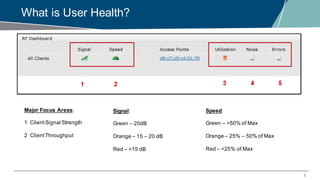
What is User Health?
Major Focus Areas:
1 ClientSignal Strength
2 ClientThroughput
Signal:
Green – 20dB
Orange – 15 – 20 dB
Red – <15 dB
Speed:
Green – >50% of Max
Orange – 25% – 50% of Max
Red – <25% of Max
6
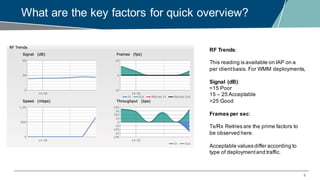
What are the key factors for quick overview?
RF Trends:
This reading is available on IAP on a
per clientbasis. For WMM deployments,
Signal (dB):
<15 Poor
15 – 25 Acceptable
>25 Good
Frames per sec:
Tx/Rx Retries are the prime factors to
be observed here.
Acceptable values differ according to
type of deploymentand traffic.
7
What are the key factors for quick overview?
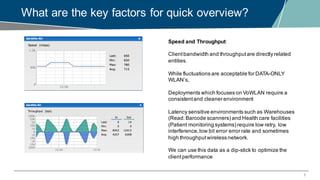
Speed and Throughput:
Clientbandwidth and throughputare directly related
entities.
While fluctuations are acceptable for DATA-ONLY
WLAN’s,
Deployments which focuses on VoWLAN require a
consistentand cleaner environment
Latency sensitive environments such as Warehouses
(Read:Barcode scanners) and Health care facilities
(Patient monitoring systems) require low retry, low
interference,low bit error error rate and sometimes
high throughputwireless network.
We can use this data as a dip-stick to optimize the
clientperformance
8
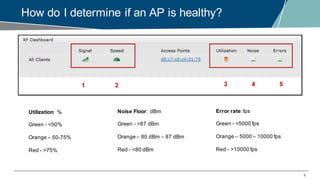
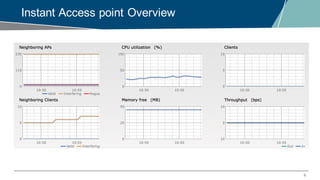
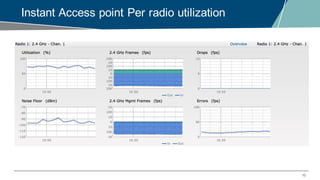
How do I determine if an AP is healthy?
Utilization: %
Green - <50%
Orange – 50-75%
Red - >75%
Noise Floor: dBm
Green - >87 dBm
Orange – 80 dBm – 87 dBm
Red - <80 dBm
Error rate:fps
Green - <5000 fps
Orange – 5000 – 10000 fps
Red - >10000 fps
9
Instant Access point Overview
10
Instant Access point Per radio utilization
CLIENT CONNECTIVITY
TROUBLESHOOTING
What are the important commands to analyze in order to isolate a
client connectivity issue
12
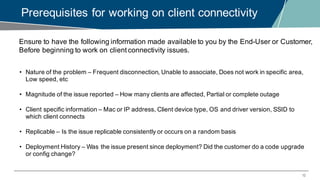
Prerequisites for working on client connectivity
Ensure to have the following information made available to you by the End-User or Customer,
Before beginning to work on client connectivity issues.
• Nature of the problem – Frequent disconnection, Unable to associate, Does not work in specific area,
Low speed, etc
• Magnitude of the issue reported – How many clients are affected, Partial or complete outage
• Client specific information – Mac or IP address, Client device type, OS and driver version, SSID to
which client connects
• Replicable – Is the issue replicable consistently or occurs on a random basis
• Deployment History – Was the issue present since deployment? Did the customer do a code upgrade
or config change?
13
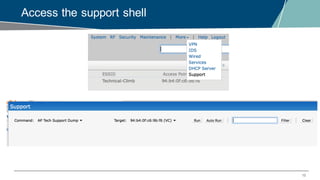
Access the support shell
14
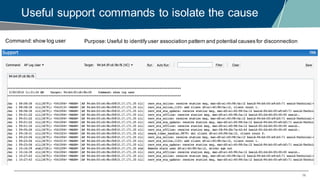
Useful support commands to isolate the cause
Command:show log user Purpose:Useful to identify user association pattern and potential causes for disconnection
15
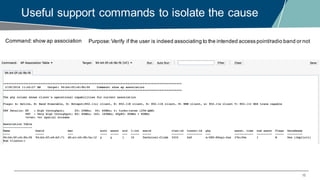
Useful support commands to isolate the cause
Command:show ap association Purpose:Verify if the user is indeed associating to the intended access point/radio band or not
16
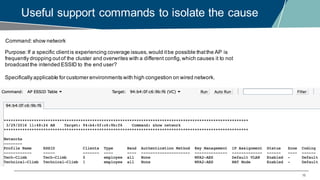
Useful support commands to isolate the cause
Command:show network
Purpose:If a specific clientis experiencing coverage issues,would itbe possible thatthe AP is
frequently dropping outof the cluster and overwrites with a different config,which causes it to not
broadcastthe intended ESSID to the end user?
Specifically applicable for customer environments with high congestion on wired network.
17
Useful support commands to isolate the cause
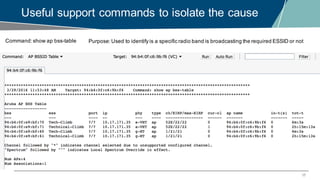
Command:show ap bss-table Purpose:Used to identify is a specific radio band is broadcasting the required ESSID or not
18
Useful support commands to isolate the cause
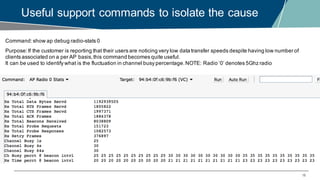
Command:show ap debug radio-stats 0
Purpose:If the customer is reporting that their users are noticing very low data transfer speeds despite having low number of
clients associated on a per AP basis,this command becomes quite useful.
It can be used to identify what is the fluctuation in channel busy percentage.NOTE: Radio ‘0’ denotes 5Ghz radio
19
Useful support commands to isolate the cause
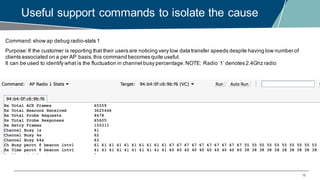
Command:show ap debug radio-stats 1
Purpose:If the customer is reporting that their users are noticing very low data transfer speeds despite having low number of
clients associated on a per AP basis,this command becomes quite useful.
It can be used to identify what is the fluctuation in channel busy percentage.NOTE: Radio ‘1’ denotes 2.4Ghz radio
20
Useful support commands to isolate the cause
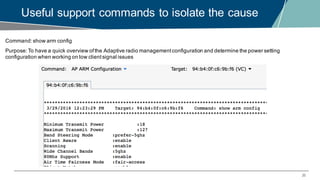
Command:show arm config
Purpose:To have a quick overview ofthe Adaptive radio managementconfiguration and determine the power setting
configuration when working on low clientsignal issues
21
Useful support commands to isolate the cause
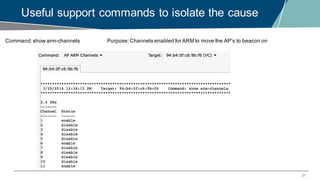
Command:show arm-channels Purpose:Channels enabled for ARM to move the AP’s to beacon on
22
Useful support commands to isolate the cause
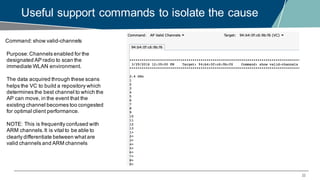
Command:show valid-channels
Purpose:Channels enabled for the
designated AP radio to scan the
immediate WLAN environment.
The data acquired through these scans
helps the VC to build a repository which
determines the best channel to which the
AP can move, in the event that the
existing channel becomes too congested
for optimal client performance.
NOTE: This is frequently confused with
ARM channels.It is vital to be able to
clearly differentiate between whatare
valid channels and ARM channels
23
Useful support commands to isolate the cause
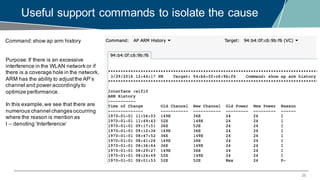
Command:show ap arm history
Purpose:If there is an excessive
interference in the WLAN network or if
there is a coverage hole in the network,
ARM has the ability to adjustthe AP’s
channel and power accordingly to
optimize performance.
In this example,we see that there are
numerous channel changes occurring
where the reason is mention as
I – denoting ‘Interference’
24
Useful support commands to isolate the cause
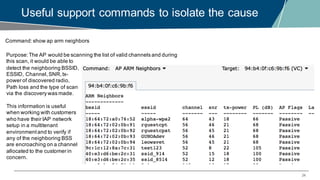
Command:show ap arm neighbors
Purpose:The AP would be scanning the list of valid channels and during
this scan, it would be able to
detect the neighboring BSSID,
ESSID, Channel,SNR,tx-
power of discovered radio,
Path loss and the type of scan
via the discovery was made.
This information is useful
when working with customers
who have their IAP network
setup in a multitenant
environmentand to verify if
any of the neighboring BSS
are encroaching on a channel
allocated to the customer in
concern.
BEST PRACTICES
Default WLAN config is not suitable for all customer environments.
The following section gives a preview of how to right-size a given
WLAN depending on requirements and environmental conditions.
26
Best Practices – Network RightSizing
What is meant by network Right-Sizing?
It is a proven fact that network rightsizing results in cutting network operation costs by 70%.
Converging from wired to wireless would be the first step but optimizing the WLAN environmentfor best performance is
absolute key for your customers to achieve this result.
You can refer the following data for in-depth details,
http://www.arubanetworks.com/pdf/technology/whitepapers/wp_Rightsizing.pdf
http://www.arubanetworks.com/assets/so/SB_Rightsizing.pdf
Optimizing a poorly performing WLAN may result in customers requiring fewer data ports to be active,Also the connected
devices can utilize the VHT data rates along with mobility, which results in an extremely agile as well as high performing
access network for your customers.
The primary bottleneck is during the post-deploymentphase,where the deployed network under-performs.
Let us have a quick overview on how to help customers optimize this and take advantage oftheir HPE-Aruba WLAN.
27
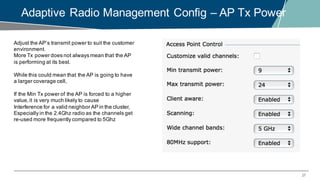
Adaptive Radio Management Config – AP Tx Power
Adjust the AP’s transmit power to suit the customer
environment.
More Tx power does not always mean that the AP
is performing at its best.
While this could mean that the AP is going to have
a larger coverage cell,
If the Min Tx power of the AP is forced to a higher
value,it is very much likely to cause
Interference for a valid neighbor AP in the cluster,
Especially in the 2.4Ghz radio as the channels get
re-used more frequently compared to 5Ghz
28
Adaptive Radio Management Config – AP Tx Power
How do I quickly determine what would be a suitable Tx power range for a customer?
They cannot budget a site survey just for this purpose.
The customer does not have to run a WLAN network analysis to determine this.
Observe the Tx EIRP of the AP’s in the cluster, if the Min Tx is set to 18 and most of the
AP’s
are reporting their Tx EIRP as ‘18’, then the next step would be to check whether we
have ARM doing excessive channel changes with the reason being “I - Interference”.
LOGIC:
As the Min Tx has already been capped at a high value, the AP is trying to shrink its cell
size.
However, it cannot push lower than 18, hence it keeps bouncing between multiple
channels.
29
Adaptive Radio Management Config – AP Tx Power
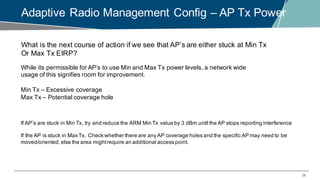
What is the next course of action if we see that AP’s are either stuck at Min Tx
Or Max Tx EIRP?
While its permissible for AP’s to use Min and Max Tx power levels, a network wide
usage of this signifies room for improvement.
Min Tx – Excessive coverage
Max Tx – Potential coverage hole
If AP’s are stuck in Min Tx, try and reduce the ARM Min Tx value by 3 dBm until the AP stops reporting interference
If the AP is stuck in Max Tx, Check whether there are any AP coverage holes and the specific AP may need to be
moved/oriented,else the area mightrequire an additional access point.
30
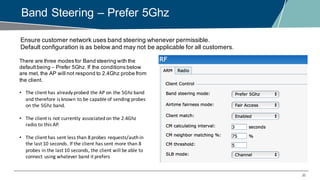
Band Steering – Prefer 5Ghz
Ensure customer network uses band steering whenever permissible.
Default configuration is as below and may not be applicable for all customers.
There are three modes for Band steering with the
defaultbeing – Prefer 5Ghz. If the conditions below
are met, the AP will not respond to 2.4Ghz probe from
the client.
• The	client	has	already	probed	the	AP	on	the	5Ghz	band	
and	therefore	is	known	to	be	capable	of	sending	probes	
on	the	5Ghz	band.
• The	client	is	not	currently	associated	on	the	2.4Ghz	
radio	to	this	AP.
• The	client	has	sent	less	than	8	probes	requests/authin	
the	last	10	seconds.	If	the	client	has	sent	more	than	8	
probes	in	the	last	10	seconds,	the	client	will	be	able	to	
connect	using	whatever	band	it	prefers
31
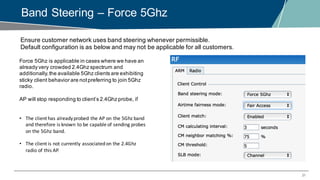
Band Steering – Force 5Ghz
Ensure customer network uses band steering whenever permissible.
Default configuration is as below and may not be applicable for all customers.
Force 5Ghz is applicable in cases where we have an
already very crowded 2.4Ghz spectrum and
additionally,the available 5Ghz clients are exhibiting
sticky client behavior are notpreferring to join 5Ghz
radio.
AP will stop responding to client’s 2.4Ghz probe, if
• The	client	has	already	probed	the	AP	on	the	5Ghz	band	
and	therefore	is	known	to	be	capable	of	sending	probes	
on	the	5Ghz	band.
• The	client	is	not	currently	associated	on	the	2.4Ghz	
radio	of	this	AP.
32
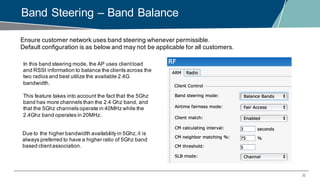
Band Steering – Band Balance
Ensure customer network uses band steering whenever permissible.
Default configuration is as below and may not be applicable for all customers.
In this band steering mode, the AP uses clientload
and RSSI information to balance the clients across the
two radios and best utilize the available 2.4G
bandwidth.
This feature takes into account the fact that the 5Ghz
band has more channels than the 2.4 Ghz band, and
that the 5Ghz channels operate in 40MHz while the
2.4Ghz band operates in 20MHz.
Due to the higher bandwidth availability in 5Ghz,it is
always preferred to have a higher ratio of 5Ghz band
based clientassociation.
33
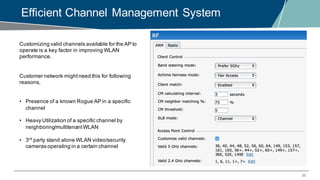
Efficient Channel Management System
Customizing valid channels available for the AP to
operate is a key factor in improving WLAN
performance.
Customer network mightneed this for following
reasons,
• Presence of a known Rogue AP in a specific
channel
• Heavy Utilization of a specific channel by
neighboring/multitenantWLAN
• 3rd
party stand alone WLAN video/security
cameras operating in a certain channel
34
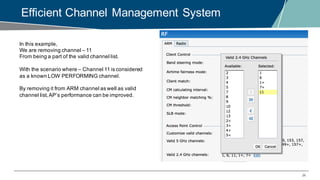
Efficient Channel Management System
In this example,
We are removing channel – 11
From being a part of the valid channel list.
With the scenario where – Channel 11 is considered
as a known LOW PERFORMING channel.
By removing it from ARM channel as well as valid
channel list,AP’s performance can be improved.
35
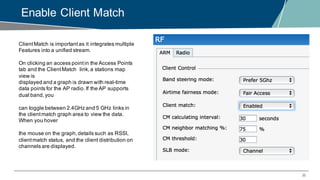
Enable Client Match
ClientMatch is importantas it integrates multiple
Features into a unified stream.
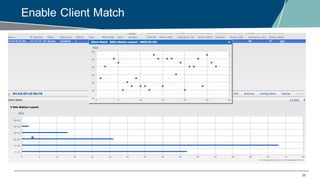
On clicking an access pointin the Access Points
tab and the ClientMatch link,a stations map
view is
displayed and a graph is drawn with real-time
data points for the AP radio.If the AP supports
dual band,you
can toggle between 2.4GHz and 5 GHz links in
the clientmatch graph area to view the data.
When you hover
the mouse on the graph,details such as RSSI,
clientmatch status, and the client distribution on
channels are displayed.
36
Enable Client Match
37
Use Airtime Fairness feature Effectively
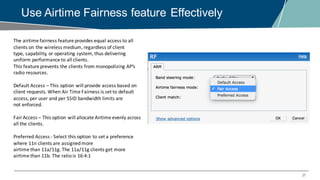
The	airtime	fairness	feature	provides	equal	access	to	all	
clients	on	the	wireless	medium,	regardless	of	client
type,	capability,	or	operating	system,	thus	delivering	
uniform	performance	to	all	clients.	
This	feature	prevents	the	clients	from	monopolizing	AP’s	
radio	resources.
Default	Access	– This	option	will	provide	access	based	on	
client	requests.	When	Air	Time	Fairness	is	set	to	default	
access,	per	user	and	per	SSID	bandwidth	limits	are
not	enforced.
Fair	Access	– This	option	will	allocate	Airtime	evenly	across	
all	the	clients.
Preferred	Access	- Select	this	option	to	set	a	preference	
where	11n	clients	are	assigned	more
airtime	than	11a/11g.	The	11a/11g	clients	get	more	
airtime	than	11b.	The	ratio	is 16:4:1
38
Next month
• Original topic request: Aruba Instant Best practices and
Troubleshooting
• Split in two Technical climbs:
− Today: Part1: Basics - Identifying AP and User health, Best Practices
− Next month on Technical Climb Webinar: Part2: Advanced Troubleshooting, WMM
• Quick Recap of Part-1 Essentials required for the session-2
• Understanding and interpreting system debug logs
• What does it really mean? How to use it to fix customer network issues
• What is WMM? How does it work with Aruba Instant AP’s?
QUESTIONS
Any Questions?

EMEA Airheads- Instant AP traffic optimization

  • 1.
    ARUBA INSTANT BESTPRACTICES & TROUBLESHOOTING Technical Climb Webinar 12:00 GMT | 13:00 CET | 15:00 GST March 29th, 2016 Presenter: Barath Srinivasan barath.srinivasan@hpe.com
  • 2.
    2 Welcome to theTechnical Climb Webinar Listen to this webinar using the computer audio broadcasting or dial in by phone. The dial in number can be found in the audio panel, click additional numbers to view local dial in numbers. If you experience any difficulties accessing the webinar contact us using the questions panel.
  • 3.
  • 4.
    IDENTIFYING AP ANDUSER HEALTH An insight into the areas to analyze, when a given WLAN is experiencing AP or User related performance issues.
  • 5.
    5 What is UserHealth? Major Focus Areas: 1 ClientSignal Strength 2 ClientThroughput Signal: Green – 20dB Orange – 15 – 20 dB Red – <15 dB Speed: Green – >50% of Max Orange – 25% – 50% of Max Red – <25% of Max
  • 6.
    6 What are thekey factors for quick overview? RF Trends: This reading is available on IAP on a per clientbasis. For WMM deployments, Signal (dB): <15 Poor 15 – 25 Acceptable >25 Good Frames per sec: Tx/Rx Retries are the prime factors to be observed here. Acceptable values differ according to type of deploymentand traffic.
  • 7.
    7 What are thekey factors for quick overview? Speed and Throughput: Clientbandwidth and throughputare directly related entities. While fluctuations are acceptable for DATA-ONLY WLAN’s, Deployments which focuses on VoWLAN require a consistentand cleaner environment Latency sensitive environments such as Warehouses (Read:Barcode scanners) and Health care facilities (Patient monitoring systems) require low retry, low interference,low bit error error rate and sometimes high throughputwireless network. We can use this data as a dip-stick to optimize the clientperformance
  • 8.
    8 How do Idetermine if an AP is healthy? Utilization: % Green - <50% Orange – 50-75% Red - >75% Noise Floor: dBm Green - >87 dBm Orange – 80 dBm – 87 dBm Red - <80 dBm Error rate:fps Green - <5000 fps Orange – 5000 – 10000 fps Red - >10000 fps
  • 9.
  • 10.
    10 Instant Access pointPer radio utilization
  • 11.
    CLIENT CONNECTIVITY TROUBLESHOOTING What arethe important commands to analyze in order to isolate a client connectivity issue
  • 12.
    12 Prerequisites for workingon client connectivity Ensure to have the following information made available to you by the End-User or Customer, Before beginning to work on client connectivity issues. • Nature of the problem – Frequent disconnection, Unable to associate, Does not work in specific area, Low speed, etc • Magnitude of the issue reported – How many clients are affected, Partial or complete outage • Client specific information – Mac or IP address, Client device type, OS and driver version, SSID to which client connects • Replicable – Is the issue replicable consistently or occurs on a random basis • Deployment History – Was the issue present since deployment? Did the customer do a code upgrade or config change?
  • 13.
  • 14.
    14 Useful support commandsto isolate the cause Command:show log user Purpose:Useful to identify user association pattern and potential causes for disconnection
  • 15.
    15 Useful support commandsto isolate the cause Command:show ap association Purpose:Verify if the user is indeed associating to the intended access point/radio band or not
  • 16.
    16 Useful support commandsto isolate the cause Command:show network Purpose:If a specific clientis experiencing coverage issues,would itbe possible thatthe AP is frequently dropping outof the cluster and overwrites with a different config,which causes it to not broadcastthe intended ESSID to the end user? Specifically applicable for customer environments with high congestion on wired network.
  • 17.
    17 Useful support commandsto isolate the cause Command:show ap bss-table Purpose:Used to identify is a specific radio band is broadcasting the required ESSID or not
  • 18.
    18 Useful support commandsto isolate the cause Command:show ap debug radio-stats 0 Purpose:If the customer is reporting that their users are noticing very low data transfer speeds despite having low number of clients associated on a per AP basis,this command becomes quite useful. It can be used to identify what is the fluctuation in channel busy percentage.NOTE: Radio ‘0’ denotes 5Ghz radio
  • 19.
    19 Useful support commandsto isolate the cause Command:show ap debug radio-stats 1 Purpose:If the customer is reporting that their users are noticing very low data transfer speeds despite having low number of clients associated on a per AP basis,this command becomes quite useful. It can be used to identify what is the fluctuation in channel busy percentage.NOTE: Radio ‘1’ denotes 2.4Ghz radio
  • 20.
    20 Useful support commandsto isolate the cause Command:show arm config Purpose:To have a quick overview ofthe Adaptive radio managementconfiguration and determine the power setting configuration when working on low clientsignal issues
  • 21.
    21 Useful support commandsto isolate the cause Command:show arm-channels Purpose:Channels enabled for ARM to move the AP’s to beacon on
  • 22.
    22 Useful support commandsto isolate the cause Command:show valid-channels Purpose:Channels enabled for the designated AP radio to scan the immediate WLAN environment. The data acquired through these scans helps the VC to build a repository which determines the best channel to which the AP can move, in the event that the existing channel becomes too congested for optimal client performance. NOTE: This is frequently confused with ARM channels.It is vital to be able to clearly differentiate between whatare valid channels and ARM channels
  • 23.
    23 Useful support commandsto isolate the cause Command:show ap arm history Purpose:If there is an excessive interference in the WLAN network or if there is a coverage hole in the network, ARM has the ability to adjustthe AP’s channel and power accordingly to optimize performance. In this example,we see that there are numerous channel changes occurring where the reason is mention as I – denoting ‘Interference’
  • 24.
    24 Useful support commandsto isolate the cause Command:show ap arm neighbors Purpose:The AP would be scanning the list of valid channels and during this scan, it would be able to detect the neighboring BSSID, ESSID, Channel,SNR,tx- power of discovered radio, Path loss and the type of scan via the discovery was made. This information is useful when working with customers who have their IAP network setup in a multitenant environmentand to verify if any of the neighboring BSS are encroaching on a channel allocated to the customer in concern.
  • 25.
    BEST PRACTICES Default WLANconfig is not suitable for all customer environments. The following section gives a preview of how to right-size a given WLAN depending on requirements and environmental conditions.
  • 26.
    26 Best Practices –Network RightSizing What is meant by network Right-Sizing? It is a proven fact that network rightsizing results in cutting network operation costs by 70%. Converging from wired to wireless would be the first step but optimizing the WLAN environmentfor best performance is absolute key for your customers to achieve this result. You can refer the following data for in-depth details, http://www.arubanetworks.com/pdf/technology/whitepapers/wp_Rightsizing.pdf http://www.arubanetworks.com/assets/so/SB_Rightsizing.pdf Optimizing a poorly performing WLAN may result in customers requiring fewer data ports to be active,Also the connected devices can utilize the VHT data rates along with mobility, which results in an extremely agile as well as high performing access network for your customers. The primary bottleneck is during the post-deploymentphase,where the deployed network under-performs. Let us have a quick overview on how to help customers optimize this and take advantage oftheir HPE-Aruba WLAN.
  • 27.
    27 Adaptive Radio ManagementConfig – AP Tx Power Adjust the AP’s transmit power to suit the customer environment. More Tx power does not always mean that the AP is performing at its best. While this could mean that the AP is going to have a larger coverage cell, If the Min Tx power of the AP is forced to a higher value,it is very much likely to cause Interference for a valid neighbor AP in the cluster, Especially in the 2.4Ghz radio as the channels get re-used more frequently compared to 5Ghz
  • 28.
    28 Adaptive Radio ManagementConfig – AP Tx Power How do I quickly determine what would be a suitable Tx power range for a customer? They cannot budget a site survey just for this purpose. The customer does not have to run a WLAN network analysis to determine this. Observe the Tx EIRP of the AP’s in the cluster, if the Min Tx is set to 18 and most of the AP’s are reporting their Tx EIRP as ‘18’, then the next step would be to check whether we have ARM doing excessive channel changes with the reason being “I - Interference”. LOGIC: As the Min Tx has already been capped at a high value, the AP is trying to shrink its cell size. However, it cannot push lower than 18, hence it keeps bouncing between multiple channels.
  • 29.
    29 Adaptive Radio ManagementConfig – AP Tx Power What is the next course of action if we see that AP’s are either stuck at Min Tx Or Max Tx EIRP? While its permissible for AP’s to use Min and Max Tx power levels, a network wide usage of this signifies room for improvement. Min Tx – Excessive coverage Max Tx – Potential coverage hole If AP’s are stuck in Min Tx, try and reduce the ARM Min Tx value by 3 dBm until the AP stops reporting interference If the AP is stuck in Max Tx, Check whether there are any AP coverage holes and the specific AP may need to be moved/oriented,else the area mightrequire an additional access point.
  • 30.
    30 Band Steering –Prefer 5Ghz Ensure customer network uses band steering whenever permissible. Default configuration is as below and may not be applicable for all customers. There are three modes for Band steering with the defaultbeing – Prefer 5Ghz. If the conditions below are met, the AP will not respond to 2.4Ghz probe from the client. • The client has already probed the AP on the 5Ghz band and therefore is known to be capable of sending probes on the 5Ghz band. • The client is not currently associated on the 2.4Ghz radio to this AP. • The client has sent less than 8 probes requests/authin the last 10 seconds. If the client has sent more than 8 probes in the last 10 seconds, the client will be able to connect using whatever band it prefers
  • 31.
    31 Band Steering –Force 5Ghz Ensure customer network uses band steering whenever permissible. Default configuration is as below and may not be applicable for all customers. Force 5Ghz is applicable in cases where we have an already very crowded 2.4Ghz spectrum and additionally,the available 5Ghz clients are exhibiting sticky client behavior are notpreferring to join 5Ghz radio. AP will stop responding to client’s 2.4Ghz probe, if • The client has already probed the AP on the 5Ghz band and therefore is known to be capable of sending probes on the 5Ghz band. • The client is not currently associated on the 2.4Ghz radio of this AP.
  • 32.
    32 Band Steering –Band Balance Ensure customer network uses band steering whenever permissible. Default configuration is as below and may not be applicable for all customers. In this band steering mode, the AP uses clientload and RSSI information to balance the clients across the two radios and best utilize the available 2.4G bandwidth. This feature takes into account the fact that the 5Ghz band has more channels than the 2.4 Ghz band, and that the 5Ghz channels operate in 40MHz while the 2.4Ghz band operates in 20MHz. Due to the higher bandwidth availability in 5Ghz,it is always preferred to have a higher ratio of 5Ghz band based clientassociation.
  • 33.
    33 Efficient Channel ManagementSystem Customizing valid channels available for the AP to operate is a key factor in improving WLAN performance. Customer network mightneed this for following reasons, • Presence of a known Rogue AP in a specific channel • Heavy Utilization of a specific channel by neighboring/multitenantWLAN • 3rd party stand alone WLAN video/security cameras operating in a certain channel
  • 34.
    34 Efficient Channel ManagementSystem In this example, We are removing channel – 11 From being a part of the valid channel list. With the scenario where – Channel 11 is considered as a known LOW PERFORMING channel. By removing it from ARM channel as well as valid channel list,AP’s performance can be improved.
  • 35.
    35 Enable Client Match ClientMatchis importantas it integrates multiple Features into a unified stream. On clicking an access pointin the Access Points tab and the ClientMatch link,a stations map view is displayed and a graph is drawn with real-time data points for the AP radio.If the AP supports dual band,you can toggle between 2.4GHz and 5 GHz links in the clientmatch graph area to view the data. When you hover the mouse on the graph,details such as RSSI, clientmatch status, and the client distribution on channels are displayed.
  • 36.
  • 37.
    37 Use Airtime Fairnessfeature Effectively The airtime fairness feature provides equal access to all clients on the wireless medium, regardless of client type, capability, or operating system, thus delivering uniform performance to all clients. This feature prevents the clients from monopolizing AP’s radio resources. Default Access – This option will provide access based on client requests. When Air Time Fairness is set to default access, per user and per SSID bandwidth limits are not enforced. Fair Access – This option will allocate Airtime evenly across all the clients. Preferred Access - Select this option to set a preference where 11n clients are assigned more airtime than 11a/11g. The 11a/11g clients get more airtime than 11b. The ratio is 16:4:1
  • 38.
    38 Next month • Originaltopic request: Aruba Instant Best practices and Troubleshooting • Split in two Technical climbs: − Today: Part1: Basics - Identifying AP and User health, Best Practices − Next month on Technical Climb Webinar: Part2: Advanced Troubleshooting, WMM • Quick Recap of Part-1 Essentials required for the session-2 • Understanding and interpreting system debug logs • What does it really mean? How to use it to fix customer network issues • What is WMM? How does it work with Aruba Instant AP’s?
  • 39.