Disclaimer: This presentation is prepared by trainees of baabtra as a
  part of mentoring program. This is not official document of baabtra-
  Mentoring Partner.
  Baabtra-Mentoring Partner is the mentoring division of baabte System
  Technologies Pvt Ltd


10/11/12
TABLE LAYOUT IN ANDROID
              vineethmenon18@gmail.com
Table layout
• In a table layout, as the name suggests, all the
  controls are arranged into rows and columns.
• Why Table layout?
Table layouts can be used for displaying tabular
 data or neatly aligning screen contents in a
 way similar to an HTML table on a web page.
 It organizes user interface controls, or
 widgets, on the screen in neatly defined rows
 and columns.
10/11/12
• Create layout XML

• Create new android project [File >> New >>
  Android Project] with project name
  TableLayout
• Click next and select target android device
  version [I chose version 2.3]
• Click next and enter package name –
  ‘com.calicut.TableLayout’
• Click finish
10/11/12
• By default main.xml will be created (can be
  found under /res/layout folder) when you
  create new project and the same is set as
  layout for the application
  using setContentView(R.layout.main)method.
  Check the onCreate method in
  TableLayoutExample class to know about how
  the layout xml is set:


10/11/12
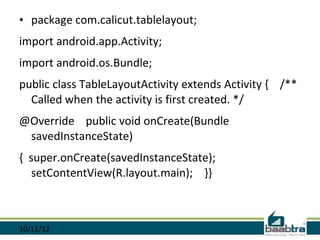
• package com.calicut.tablelayout;
import android.app.Activity;
import android.os.Bundle;
public class TableLayoutActivity extends Activity { /**
  Called when the activity is first created. */
@Override public void onCreate(Bundle
 savedInstanceState)
{ super.onCreate(savedInstanceState);
   setContentView(R.layout.main); }}


10/11/12
10/11/12
10/11/12
10/11/12
10/11/12
10/11/12
10/11/12
10/11/12
10/11/12
10/11/12
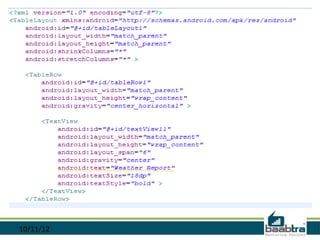
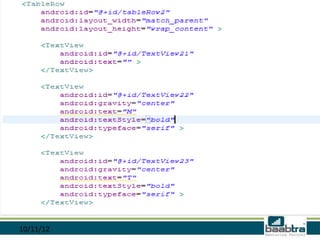
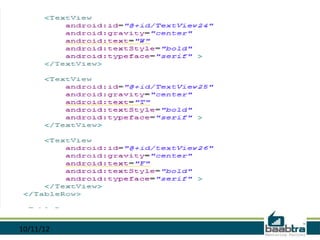
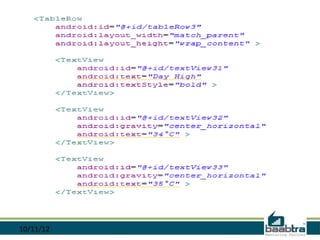
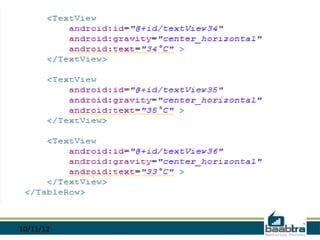
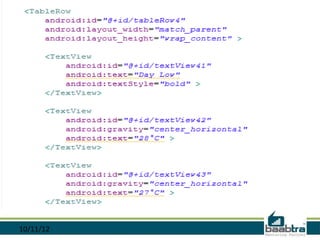
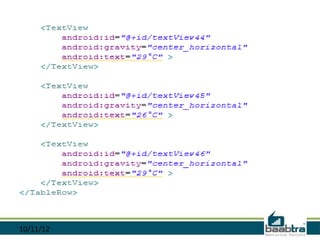
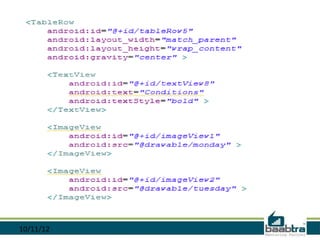
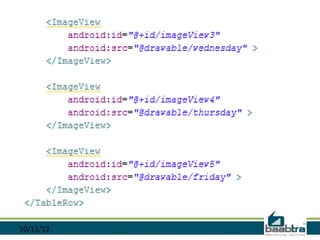
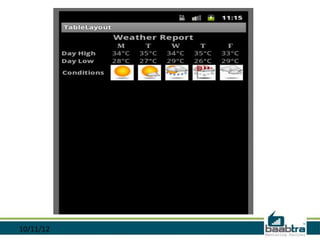
• So you can see a layout as shown in the
  subsequent slide with distinct rows and
  columns.


10/11/12
10/11/12
Contact Us

Tablelayout

  • 2.
    Disclaimer: This presentationis prepared by trainees of baabtra as a part of mentoring program. This is not official document of baabtra- Mentoring Partner. Baabtra-Mentoring Partner is the mentoring division of baabte System Technologies Pvt Ltd 10/11/12
  • 3.
    TABLE LAYOUT INANDROID vineethmenon18@gmail.com
  • 4.
    Table layout • Ina table layout, as the name suggests, all the controls are arranged into rows and columns. • Why Table layout? Table layouts can be used for displaying tabular data or neatly aligning screen contents in a way similar to an HTML table on a web page. It organizes user interface controls, or widgets, on the screen in neatly defined rows and columns. 10/11/12
  • 5.
    • Create layoutXML • Create new android project [File >> New >> Android Project] with project name TableLayout • Click next and select target android device version [I chose version 2.3] • Click next and enter package name – ‘com.calicut.TableLayout’ • Click finish 10/11/12
  • 6.
    • By defaultmain.xml will be created (can be found under /res/layout folder) when you create new project and the same is set as layout for the application using setContentView(R.layout.main)method. Check the onCreate method in TableLayoutExample class to know about how the layout xml is set: 10/11/12
  • 7.
    • package com.calicut.tablelayout; importandroid.app.Activity; import android.os.Bundle; public class TableLayoutActivity extends Activity { /** Called when the activity is first created. */ @Override public void onCreate(Bundle savedInstanceState) { super.onCreate(savedInstanceState); setContentView(R.layout.main); }} 10/11/12
  • 8.
  • 9.
  • 10.
  • 11.
  • 12.
  • 13.
  • 14.
  • 15.
  • 16.
  • 17.
    • So youcan see a layout as shown in the subsequent slide with distinct rows and columns. 10/11/12
  • 18.
  • 19.