System Administration
Workstations
Topics
1. Machine Lifecycle
2. Automated Installs
3. Updates
4. Network Configuration
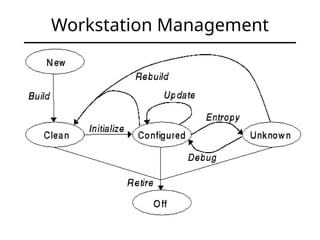
Workstation Management
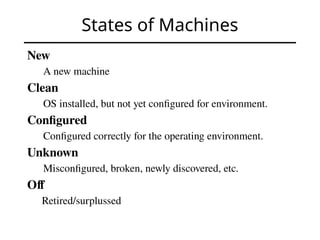
States of Machines
New
A new machine
Clean
OS installed, but not yet configured for environment.
Configured
Configured correctly for the operating environment.
Unknown
Misconfigured, broken, newly discovered, etc.
Off
Retired/surplussed
State Transitions
Build
Set up hardware and install OS.
Initialize
Configure for environment; often part of build.
Update
Install new software.
Patch old software.
Change configurations.
Why Automate Installs?
1. Save time.
Boot the computer, then go do something else.
2. Ensure consistency.
No chance of entering wrong input during install.
Avoid user requests due to mistakes in config.
What works on one desktop, works on all.
3. Fast system recovery.
Rebuild system with auto-install vs. slow tapes.
Trusting the Vendor Installation
Always reload the OS on new machines.
– You need to configure the host for your env.
– Eventually you’ll reload the OS on a desktop,
leaving you with two platforms to support: the
vendor OS install and your OS install.
– Vendors change their OS images from time to
time, so systems you bought today have a
different OS from systems bought 6 months ago.
Install Types
1. Hard Disk Imaging
Duplicate hard disk of installed system.
Advantages: fast, simple.
Disadvantages: need identical hardware, leads to
many images, all of which must be updated
manually when you make a change
2. Scripted Installs
Installer accepts input from script.
Advantages: flexible, systems can be different
Disadvantages: more effort to setup initially
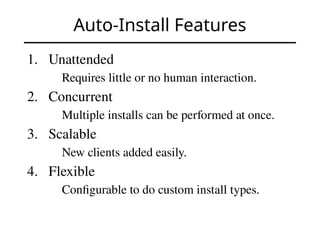
Auto-Install Features
1. Unattended
Requires little or no human interaction.
2. Concurrent
Multiple installs can be performed at once.
3. Scalable
New clients added easily.
4. Flexible
Configurable to do custom install types.
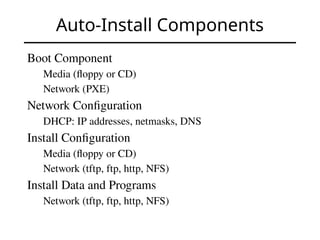
Auto-Install Components
Boot Component
Media (floppy or CD)
Network (PXE)
Network Configuration
DHCP: IP addresses, netmasks, DNS
Install Configuration
Media (floppy or CD)
Network (tftp, ftp, http, NFS)
Install Data and Programs
Network (tftp, ftp, http, NFS)
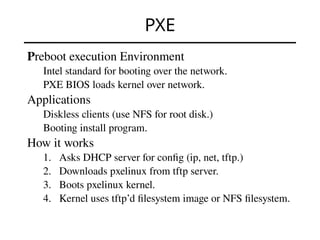
PXE
Preboot execution Environment
Intel standard for booting over the network.
PXE BIOS loads kernel over network.
Applications
Diskless clients (use NFS for root disk.)
Booting install program.
How it works
1. Asks DHCP server for config (ip, net, tftp.)
2. Downloads pxelinux from tftp server.
3. Boots pxelinux kernel.
4. Kernel uses tftp’d filesystem image or NFS filesystem.
Slide #12
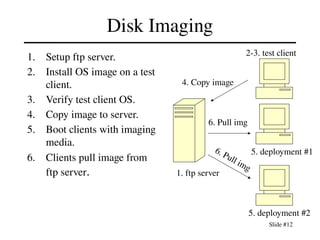
Disk Imaging
1. Setup ftp server.
2. Install OS image on a test
client.
3. Verify test client OS.
4. Copy image to server.
5. Boot clients with imaging
media.
6. Clients pull image from
ftp server.
4. Copy image
1. ftp server
2-3. test client
5. deployment #1
5. deployment #2
6. Pull img
6. Pull img
Disk Imaging Tools
• Acronis TrueImage
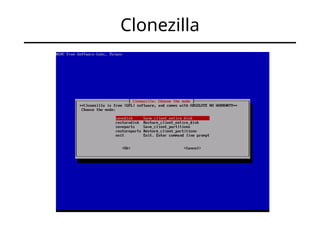
• Clonezilla (free)
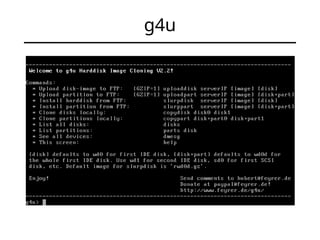
• g4u: Ghost for UNIX (free)
• Symantec GHOST
• System Imager (free)
Clonezilla
g4u
Scripted Install Tools
Red Hat distributions, incl. Centos
– Kickstart - simple text file that contains configuration
information
– Cobbler – is Linux installation server that allows for rapid
setup of network installation environments.
Debian distributions, incl. Ubuntu
– FAI - a tool for unattended mass deployment of Linux
– Preseed
Mandriva Linux
– DrakX
Solaris
– Jumpstart
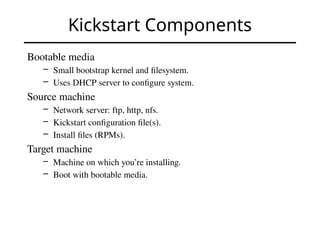
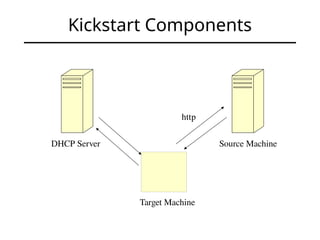
Kickstart Components
Bootable media
– Small bootstrap kernel and filesystem.
– Uses DHCP server to configure system.
Source machine
– Network server: ftp, http, nfs.
– Kickstart configuration file(s).
– Install files (RPMs).
Target machine
– Machine on which you’re installing.
– Boot with bootable media.
Kickstart Components
Target Machine
DHCP Server Source Machine
http
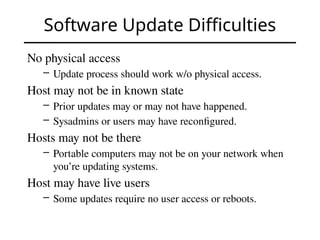
Software Update Difficulties
No physical access
– Update process should work w/o physical access.
Host may not be in known state
– Prior updates may or may not have happened.
– Sysadmins or users may have reconfigured.
Hosts may not be there
– Portable computers may not be on your network when
you’re updating systems.
Host may have live users
– Some updates require no user access or reboots.
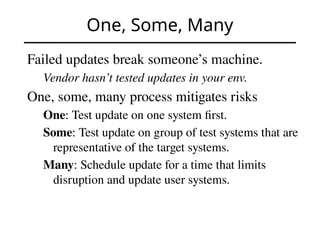
One, Some, Many
Failed updates break someone’s machine.
Vendor hasn’t tested updates in your env.
One, some, many process mitigates risks
One: Test update on one system first.
Some: Test update on group of test systems that are
representative of the target systems.
Many: Schedule update for a time that limits
disruption and update user systems.
Network Configuration
What’s so bad about manual net settings?
– It’s only an IP address and netmask.
– What happens if you need to renumber?
Use DHCP instead of manual settings
– Make all changes on a single server.
– Easy to change settings for entire network.
– DHCP can assign static IPs as well as dynamic.
Key Points
Desktop Lifecycle
– New, clean, configured, unknown states.
Automated Installs
– Why: consistency, fast recovery, saves time.
– Install types: imaging vs. scripted.
– Components: boot, network, config, data.
– Think about how Principles of SA apply.
One, Some, Many approach to updates.
References
1. Mark Burgess, Principles of System and Network Administration,
Wiley, 2000.
2. Aeleen Frisch, Essential System Administration, 3rd
edition, O’Reilly,
2002.
3. R. Evard. "An analysis of unix system configuration." Proceedings of
the 11th Systems Administration conference (LISA), page 179,
http://www.usenix.org/publications/library/proceedings/lisa97/full_pa
pers/20.evard/20_html/main.html
, 1997
4. Thomas Limoncelli, Christine Hogan, Strata Chalup, The Practice of
System and Network Administration, 2nd
ed, Limoncelli and Hogan,
Addison-Wesley, 2007.
5. Evi Nemeth et al, UNIX System Administration Handbook, 3rd
edition, Prentice Hall, 2001.

System adminstration Workstations work.pptx

  • 1.
  • 2.
    Topics 1. Machine Lifecycle 2.Automated Installs 3. Updates 4. Network Configuration
  • 3.
  • 4.
    States of Machines New Anew machine Clean OS installed, but not yet configured for environment. Configured Configured correctly for the operating environment. Unknown Misconfigured, broken, newly discovered, etc. Off Retired/surplussed
  • 5.
    State Transitions Build Set uphardware and install OS. Initialize Configure for environment; often part of build. Update Install new software. Patch old software. Change configurations.
  • 6.
    Why Automate Installs? 1.Save time. Boot the computer, then go do something else. 2. Ensure consistency. No chance of entering wrong input during install. Avoid user requests due to mistakes in config. What works on one desktop, works on all. 3. Fast system recovery. Rebuild system with auto-install vs. slow tapes.
  • 7.
    Trusting the VendorInstallation Always reload the OS on new machines. – You need to configure the host for your env. – Eventually you’ll reload the OS on a desktop, leaving you with two platforms to support: the vendor OS install and your OS install. – Vendors change their OS images from time to time, so systems you bought today have a different OS from systems bought 6 months ago.
  • 8.
    Install Types 1. HardDisk Imaging Duplicate hard disk of installed system. Advantages: fast, simple. Disadvantages: need identical hardware, leads to many images, all of which must be updated manually when you make a change 2. Scripted Installs Installer accepts input from script. Advantages: flexible, systems can be different Disadvantages: more effort to setup initially
  • 9.
    Auto-Install Features 1. Unattended Requireslittle or no human interaction. 2. Concurrent Multiple installs can be performed at once. 3. Scalable New clients added easily. 4. Flexible Configurable to do custom install types.
  • 10.
    Auto-Install Components Boot Component Media(floppy or CD) Network (PXE) Network Configuration DHCP: IP addresses, netmasks, DNS Install Configuration Media (floppy or CD) Network (tftp, ftp, http, NFS) Install Data and Programs Network (tftp, ftp, http, NFS)
  • 11.
    PXE Preboot execution Environment Intelstandard for booting over the network. PXE BIOS loads kernel over network. Applications Diskless clients (use NFS for root disk.) Booting install program. How it works 1. Asks DHCP server for config (ip, net, tftp.) 2. Downloads pxelinux from tftp server. 3. Boots pxelinux kernel. 4. Kernel uses tftp’d filesystem image or NFS filesystem.
  • 12.
    Slide #12 Disk Imaging 1.Setup ftp server. 2. Install OS image on a test client. 3. Verify test client OS. 4. Copy image to server. 5. Boot clients with imaging media. 6. Clients pull image from ftp server. 4. Copy image 1. ftp server 2-3. test client 5. deployment #1 5. deployment #2 6. Pull img 6. Pull img
  • 13.
    Disk Imaging Tools •Acronis TrueImage • Clonezilla (free) • g4u: Ghost for UNIX (free) • Symantec GHOST • System Imager (free)
  • 14.
  • 15.
  • 16.
    Scripted Install Tools RedHat distributions, incl. Centos – Kickstart - simple text file that contains configuration information – Cobbler – is Linux installation server that allows for rapid setup of network installation environments. Debian distributions, incl. Ubuntu – FAI - a tool for unattended mass deployment of Linux – Preseed Mandriva Linux – DrakX Solaris – Jumpstart
  • 17.
    Kickstart Components Bootable media –Small bootstrap kernel and filesystem. – Uses DHCP server to configure system. Source machine – Network server: ftp, http, nfs. – Kickstart configuration file(s). – Install files (RPMs). Target machine – Machine on which you’re installing. – Boot with bootable media.
  • 18.
    Kickstart Components Target Machine DHCPServer Source Machine http
  • 19.
    Software Update Difficulties Nophysical access – Update process should work w/o physical access. Host may not be in known state – Prior updates may or may not have happened. – Sysadmins or users may have reconfigured. Hosts may not be there – Portable computers may not be on your network when you’re updating systems. Host may have live users – Some updates require no user access or reboots.
  • 20.
    One, Some, Many Failedupdates break someone’s machine. Vendor hasn’t tested updates in your env. One, some, many process mitigates risks One: Test update on one system first. Some: Test update on group of test systems that are representative of the target systems. Many: Schedule update for a time that limits disruption and update user systems.
  • 21.
    Network Configuration What’s sobad about manual net settings? – It’s only an IP address and netmask. – What happens if you need to renumber? Use DHCP instead of manual settings – Make all changes on a single server. – Easy to change settings for entire network. – DHCP can assign static IPs as well as dynamic.
  • 22.
    Key Points Desktop Lifecycle –New, clean, configured, unknown states. Automated Installs – Why: consistency, fast recovery, saves time. – Install types: imaging vs. scripted. – Components: boot, network, config, data. – Think about how Principles of SA apply. One, Some, Many approach to updates.
  • 23.
    References 1. Mark Burgess,Principles of System and Network Administration, Wiley, 2000. 2. Aeleen Frisch, Essential System Administration, 3rd edition, O’Reilly, 2002. 3. R. Evard. "An analysis of unix system configuration." Proceedings of the 11th Systems Administration conference (LISA), page 179, http://www.usenix.org/publications/library/proceedings/lisa97/full_pa pers/20.evard/20_html/main.html , 1997 4. Thomas Limoncelli, Christine Hogan, Strata Chalup, The Practice of System and Network Administration, 2nd ed, Limoncelli and Hogan, Addison-Wesley, 2007. 5. Evi Nemeth et al, UNIX System Administration Handbook, 3rd edition, Prentice Hall, 2001.

Editor's Notes

  • #3 http://www.usenix.org/publications/library/proceedings/lisa97/full_papers/20.evard/20_html/main.html
  • #17 A kickstart file is a simple text file that contains configuration information for a Red Hat Enterprise Linux installation. The system reads this configuration information at boot time and carries out the installation process without any further input from you.