Lecture - 1
Introduction
CoSc3212 – Network and System Administration
Topics
INTRODUCTION
1. What do sysadmins do?
2. Organizations
3. SAGE Classifications and Skills
4. Certifications
5. Principles and First Steps
DESKTOPS
1. Machine Lifecycle
2. Automated Installs
3. Updates
4. Network Configuration
What is a Sysadmin?
In a small org, sysadmin can be entire IT staff
 Phone support
 Order and install software and hardware
 Fix anything that breaks from phones to servers
 Develop software
In a large org, sysadmin is part of large IT org
 Specialists instead of “jack of all trades”
 Database admin, Network admin, Fileserver
admin, Help desk worker, Programmers,
Logistics
What do sysadmins do?
1. Add and remove users.
2. Add and remove hardware.
3. Perform backups.
4. Install new software systems.
5. Troubleshooting.
6. System monitoring.
7. Auditing security.
8. Helping users.
User Management
Creating user accounts
 Consistency requires automation
 Startup (dot) files
Username and UID namespace management
Home directory backups and quotas
Removing user accounts
 Consistency requires automation
 Remove everything, not just homedir and
passwd
Hardware Management
Adding and removing hardware
 Configuration, cabling, etc.
 Device drivers
 Scheduling downtimes and notifying users
Evaluation and purchase
Capacity planning
 How many servers?
 How much bandwidth, disk space?
Data Center management
 Power, racks, environment (cooling, fire alarm)
Backups
Backup strategy and policies
 Scheduling: when and how often?
 Capacity planning
 Location: On-site vs off-site.
Installing backup software
Performing backups and restores
Monitoring backups
 Checking logs
 Verifying media
Software Installation
Automated consistent OS installs
Evaluation of software
Finding and building open source software
Purchase of commercial software
Managing software installations
 Distributing software to multiple hosts
 Package management
 Managing multiple versions of a software pkg
Patching and updating software
Scheduling downtimes and notifying users
Troubleshooting
Problem identification
 By user notification
 By log files or monitoring programs
Tracking and visibility
 Ensure users know you’re working on problem
 Provide an ETA if possible
Finding the root cause of problems
 Provide temporary solution if necessary
 Solve the root problem to permanently eliminate
Performance Monitoring
Automatically monitor systems for
 Problems (disk full, error logs, security)
 Performance (CPU, mem, disk, network)
Log rotation and backups
Provides data for capacity planning
 Convince management of need for
hardware
Helping Users
Request tracking system
 Ensures that you don’t forget problems.
 Ensures users know you’re working on their
problem; reduces interruptions, status
queries.
 Lets management know what you’ve done.
User documentation and training
 Acceptable Use Policies
 Document software, hardware (printers), etc.
Qualities of a Successful Sysadmin
Customer oriented
 Ability to deal with interrupts, time pressure
 Communication skills
 Service provider, not system police
Technical knowledge
 Hardware, network, and software knowledge
 Debugging and troubleshooting skills
Time management
 Automate everything possible.
 Ability to prioritize tasks: urgency and importance.
Organizations
USENIX: Advanced Computing Systems
Association
LISA: Large Installation System
Administration
SAGE: System Administration Guild
SAGE: Goals
1. Advance status of system administration
as a profession.
2. Establish standards of professional
excellence and recognize those who attain
them.
3. Develop guidelines for improving the
technical and managerial capabilities of
members of the profession.
4. Promote activities that advance the state
of the art or the community.
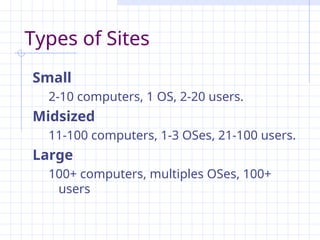
Types of Sites
Small
2-10 computers, 1 OS, 2-20 users.
Midsized
11-100 computers, 1-3 OSes, 21-100 users.
Large
100+ computers, multiples OSes, 100+
users
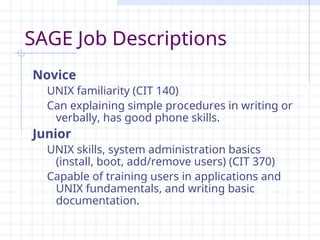
SAGE Job Descriptions
Novice
UNIX familiarity (CIT 140)
Can explaining simple procedures in writing or
verbally, has good phone skills.
Junior
UNIX skills, system administration basics
(install, boot, add/remove users) (CIT 370)
Capable of training users in applications and
UNIX fundamentals, and writing basic
documentation.
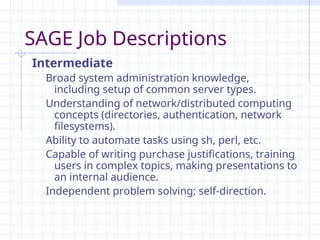
SAGE Job Descriptions
Intermediate
Broad system administration knowledge,
including setup of common server types.
Understanding of network/distributed computing
concepts (directories, authentication, network
filesystems).
Ability to automate tasks using sh, perl, etc.
Capable of writing purchase justifications, training
users in complex topics, making presentations to
an internal audience.
Independent problem solving; self-direction.
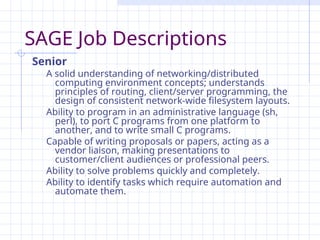
SAGE Job Descriptions
Senior
A solid understanding of networking/distributed
computing environment concepts; understands
principles of routing, client/server programming, the
design of consistent network-wide filesystem layouts.
Ability to program in an administrative language (sh,
perl), to port C programs from one platform to
another, and to write small C programs.
Capable of writing proposals or papers, acting as a
vendor liaison, making presentations to
customer/client audiences or professional peers.
Ability to solve problems quickly and completely.
Ability to identify tasks which require automation and
automate them.
Other Skills
Heterogenous Environments
Integrating multiple-OSes, hardware types, or
network protocols.
Site Types
Size variations, distributed sites, local variations.
Hardware
Databases
SQL RDMS
Networking
Complex routing, high speed networks.
Security
Firewalls, authentication, NIDS, cryptography.
Certifications
CCNA, CCNP, CCIE
cSAGE
MCSA and MCSE
RHCE
Sun Certified System / Network
Admin
Principles of SA
Simplicity
 Choose the simplest solution that solves the entire problem.
Clarity
 Choose a straightforward solution that’s easy to change,
maintain, debug, and explain to other SAs.
Generality
 Choose reusable solutions and open protocols.
Automation
 Use software to replace human effort.
Communication
 Be sure that you’re solving the right problems and that
people know what you’re doing.
Basics First
 Solve basic infrastructure problems before moving to
advanced ones.
First Steps
Use a request system.
 Customers know what you’re doing.
 You know what you’re doing.
Manage quick requests right
 Handle emergencies quickly.
 Use request system to avoid interruptions.
Policies
 How do people get help?
 What is the scope of responsibility for SA team?
 What is our definition of emergency?
Start every host in a known state.
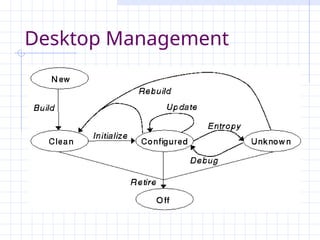
Desktop Management
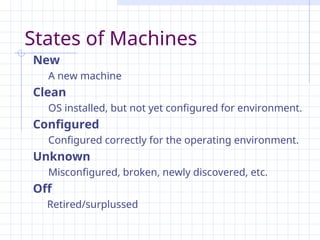
States of Machines
New
A new machine
Clean
OS installed, but not yet configured for environment.
Configured
Configured correctly for the operating environment.
Unknown
Misconfigured, broken, newly discovered, etc.
Off
Retired/surplussed
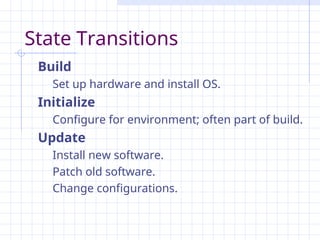
State Transitions
Build
Set up hardware and install OS.
Initialize
Configure for environment; often part of build.
Update
Install new software.
Patch old software.
Change configurations.
Why Automate Installs?
1. Save time.
Boot the computer, then go do something else.
2. Ensure consistency.
No chance of entering wrong input during install.
Avoid user requests due to mistakes in config.
What works on one desktop, works on all.
3. Fast system recovery.
Rebuild system with auto-install vs. slow tapes.
Trusting the Vendor Installation
Always reload the OS on new machines.
 You need to configure the host for your env.
 Eventually you’ll reload the OS on a desktop,
leaving you with two platforms to support:
the vendor OS install and your OS install.
 Vendors change their OS images from time
to time, so systems you bought today have a
different OS from systems bought 6 months
ago.
Install Types
1. Hard Disk Imaging
Duplicate hard disk of installed system.
Advantages: fast, simple.
Disadvantages: need identical hardware, leads
to many images, all of which must be
updated manually when you make a change
2. Scripted Installs
Installer accepts input from script.
Advantages: flexible, systems can be different
Disadvantages: more effort to setup initially
Auto-Install Features
1. Unattended
Requires little or no human interaction.
2. Concurrent
Multiple installs can be performed at once.
3. Scalable
New clients added easily.
4. Flexible
Configurable to do custom install types.
Auto-Install Components
Boot Component
Media (floppy or CD)
Network (PXE)
Network Configuration
DHCP: IP addresses, netmasks, DNS
Install Configuration
Media (floppy or CD)
Network (tftp, ftp, http, NFS)
Install Data and Programs
Network (tftp, ftp, http, NFS)
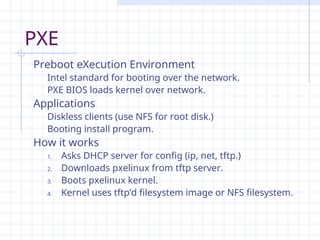
PXE
Preboot eXecution Environment
Intel standard for booting over the network.
PXE BIOS loads kernel over network.
Applications
Diskless clients (use NFS for root disk.)
Booting install program.
How it works
1. Asks DHCP server for config (ip, net, tftp.)
2. Downloads pxelinux from tftp server.
3. Boots pxelinux kernel.
4. Kernel uses tftp’d filesystem image or NFS filesystem.
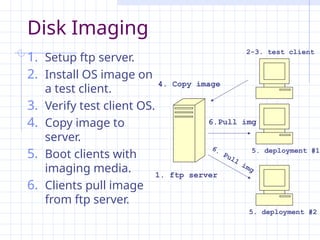
Disk Imaging
1. Setup ftp server.
2. Install OS image on
a test client.
3. Verify test client OS.
4. Copy image to
server.
5. Boot clients with
imaging media.
6. Clients pull image
from ftp server.
4. Copy image
1. ftp server
2-3. test client
5. deployment #1
5. deployment #2
6.Pull img
6.
Pull
img
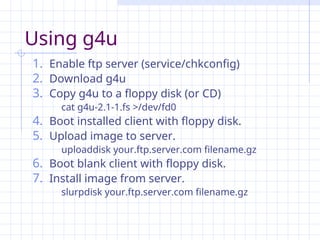
Using g4u
1. Enable ftp server (service/chkconfig)
2. Download g4u
3. Copy g4u to a floppy disk (or CD)
cat g4u-2.1-1.fs >/dev/fd0
4. Boot installed client with floppy disk.
5. Upload image to server.
uploaddisk your.ftp.server.com filename.gz
6. Boot blank client with floppy disk.
7. Install image from server.
slurpdisk your.ftp.server.com filename.gz
Disk Imaging Tools
Acronis TrueImage
Clonezilla (free)
g4u: Ghost for UNIX (free)
Symantec GHOST
System Imager (free)
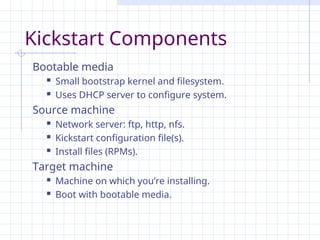
Kickstart Components
Bootable media
 Small bootstrap kernel and filesystem.
 Uses DHCP server to configure system.
Source machine
 Network server: ftp, http, nfs.
 Kickstart configuration file(s).
 Install files (RPMs).
Target machine
 Machine on which you’re installing.
 Boot with bootable media.
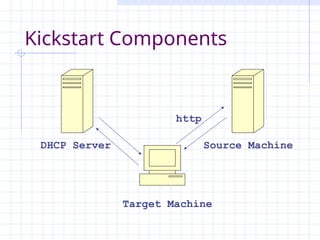
Kickstart Components
Target Machine
DHCP Server Source Machine
http
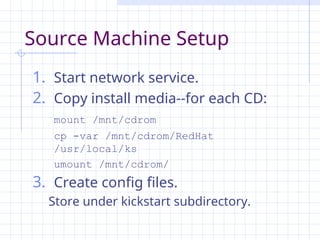
Source Machine Setup
1. Start network service.
2. Copy install media--for each CD:
mount /mnt/cdrom
cp -var /mnt/cdrom/RedHat
/usr/local/ks
umount /mnt/cdrom/
3. Create config files.
Store under kickstart subdirectory.
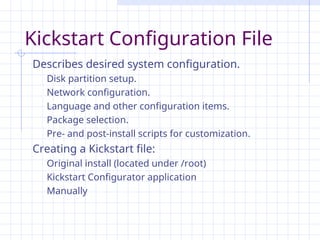
Kickstart Configuration File
Describes desired system configuration.
Disk partition setup.
Network configuration.
Language and other configuration items.
Package selection.
Pre- and post-install scripts for customization.
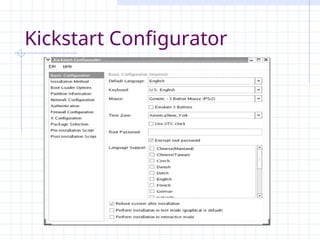
Creating a Kickstart file:
Original install (located under /root)
Kickstart Configurator application
Manually
Kickstart Configurator
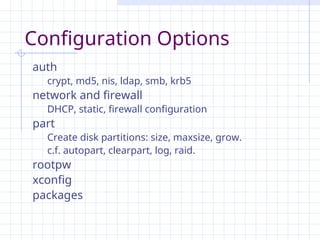
Configuration Options
auth
crypt, md5, nis, ldap, smb, krb5
network and firewall
DHCP, static, firewall configuration
part
Create disk partitions: size, maxsize, grow.
c.f. autopart, clearpart, log, raid.
rootpw
xconfig
packages
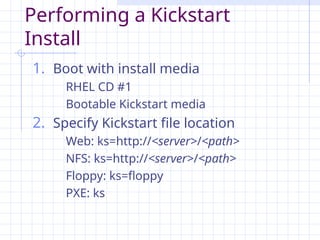
Performing a Kickstart
Install
1. Boot with install media
RHEL CD #1
Bootable Kickstart media
2. Specify Kickstart file location
Web: ks=http://<server>/<path>
NFS: ks=http://<server>/<path>
Floppy: ks=floppy
PXE: ks
Auto-Install Tools
DrakX: Mandriva Linux
FAI, Preseed: Debian Linux
Jumpstart: Solaris
Kickstart: Red Hat Linux
Software Update Difficulties
No physical access
 Update process should work w/o physical access.
Host may not be in known state
 Prior updates may or may not have happened.
 Sysadmins or users may have reconfigured.
Hosts may not be there
 Portable computers may not be on your network
when you’re updating systems.
Host may have live users
 Some updates require no user access or reboots.
One, Some, Many
Failed updates break someone’s machine.
 Vendor hasn’t tested updates in your env.
One, some, many process mitigates risks
 One: Test update on one system first.
 Some: Test update on group of test systems
that are representative of the target systems.
 Many: Schedule update for a time that limits
disruption and update user systems.
Network Configuration
What’s so bad about manual net settings?
 It’s only an IP address and netmask.
 What happens if you need to renumber?
Use DHCP instead of manual settings
 Make all changes on a single server.
 Easy to change network settings for entire net.
 DHCP can assign static IPs as well as dynamic.
Key Points
Being a Sysadmin
 Customer-oriented, technical knowledge, time.
 Basics: request system, known host state, policies.
Desktop Lifecycle
 New, clean, configured, unknown states.
Automated Installs
 Why: consistency, fast recovery, saves time.
 Install types: imaging vs. scripted.
 Components: boot, network, config, data.
One, some, many Approach to Updates.
References
1. Mark Burgess, Principles of System and Network
Administration, Wiley, 2000.
2. Aeleen Frisch, Essential System Administration, 3rd
edition,
O’Reilly, 2002.
3. R. Evard. "An analysis of unix system configuration."
Proceedings of the 11th Systems Administration conference
(LISA), page 179,
http://www.usenix.org/publications/library/proceedings/lis
a97/full_papers/20.evard/20_html/main.html
, 1997
4. Evi Nemeth et al, UNIX System Administration Handbook, 3rd
edition, Prentice Hall, 2001.
5. SAGE, Job Descriptions,
http://www.sage.org/field/jobs-descriptions.mm.
6. SAGE, SAGE Code of Ethics, http://www.sage.org/ethics.mm
7. Shelley Powers et. al., UNIX Power Tools, 3rd
edition, O’Reilly,
2002.

Network administrationcode Lecture 1.ppt

  • 1.
    Lecture - 1 Introduction CoSc3212– Network and System Administration
  • 2.
    Topics INTRODUCTION 1. What dosysadmins do? 2. Organizations 3. SAGE Classifications and Skills 4. Certifications 5. Principles and First Steps DESKTOPS 1. Machine Lifecycle 2. Automated Installs 3. Updates 4. Network Configuration
  • 3.
    What is aSysadmin? In a small org, sysadmin can be entire IT staff  Phone support  Order and install software and hardware  Fix anything that breaks from phones to servers  Develop software In a large org, sysadmin is part of large IT org  Specialists instead of “jack of all trades”  Database admin, Network admin, Fileserver admin, Help desk worker, Programmers, Logistics
  • 4.
    What do sysadminsdo? 1. Add and remove users. 2. Add and remove hardware. 3. Perform backups. 4. Install new software systems. 5. Troubleshooting. 6. System monitoring. 7. Auditing security. 8. Helping users.
  • 5.
    User Management Creating useraccounts  Consistency requires automation  Startup (dot) files Username and UID namespace management Home directory backups and quotas Removing user accounts  Consistency requires automation  Remove everything, not just homedir and passwd
  • 6.
    Hardware Management Adding andremoving hardware  Configuration, cabling, etc.  Device drivers  Scheduling downtimes and notifying users Evaluation and purchase Capacity planning  How many servers?  How much bandwidth, disk space? Data Center management  Power, racks, environment (cooling, fire alarm)
  • 7.
    Backups Backup strategy andpolicies  Scheduling: when and how often?  Capacity planning  Location: On-site vs off-site. Installing backup software Performing backups and restores Monitoring backups  Checking logs  Verifying media
  • 8.
    Software Installation Automated consistentOS installs Evaluation of software Finding and building open source software Purchase of commercial software Managing software installations  Distributing software to multiple hosts  Package management  Managing multiple versions of a software pkg Patching and updating software Scheduling downtimes and notifying users
  • 9.
    Troubleshooting Problem identification  Byuser notification  By log files or monitoring programs Tracking and visibility  Ensure users know you’re working on problem  Provide an ETA if possible Finding the root cause of problems  Provide temporary solution if necessary  Solve the root problem to permanently eliminate
  • 10.
    Performance Monitoring Automatically monitorsystems for  Problems (disk full, error logs, security)  Performance (CPU, mem, disk, network) Log rotation and backups Provides data for capacity planning  Convince management of need for hardware
  • 11.
    Helping Users Request trackingsystem  Ensures that you don’t forget problems.  Ensures users know you’re working on their problem; reduces interruptions, status queries.  Lets management know what you’ve done. User documentation and training  Acceptable Use Policies  Document software, hardware (printers), etc.
  • 12.
    Qualities of aSuccessful Sysadmin Customer oriented  Ability to deal with interrupts, time pressure  Communication skills  Service provider, not system police Technical knowledge  Hardware, network, and software knowledge  Debugging and troubleshooting skills Time management  Automate everything possible.  Ability to prioritize tasks: urgency and importance.
  • 13.
    Organizations USENIX: Advanced ComputingSystems Association LISA: Large Installation System Administration SAGE: System Administration Guild
  • 14.
    SAGE: Goals 1. Advancestatus of system administration as a profession. 2. Establish standards of professional excellence and recognize those who attain them. 3. Develop guidelines for improving the technical and managerial capabilities of members of the profession. 4. Promote activities that advance the state of the art or the community.
  • 15.
    Types of Sites Small 2-10computers, 1 OS, 2-20 users. Midsized 11-100 computers, 1-3 OSes, 21-100 users. Large 100+ computers, multiples OSes, 100+ users
  • 16.
    SAGE Job Descriptions Novice UNIXfamiliarity (CIT 140) Can explaining simple procedures in writing or verbally, has good phone skills. Junior UNIX skills, system administration basics (install, boot, add/remove users) (CIT 370) Capable of training users in applications and UNIX fundamentals, and writing basic documentation.
  • 17.
    SAGE Job Descriptions Intermediate Broadsystem administration knowledge, including setup of common server types. Understanding of network/distributed computing concepts (directories, authentication, network filesystems). Ability to automate tasks using sh, perl, etc. Capable of writing purchase justifications, training users in complex topics, making presentations to an internal audience. Independent problem solving; self-direction.
  • 18.
    SAGE Job Descriptions Senior Asolid understanding of networking/distributed computing environment concepts; understands principles of routing, client/server programming, the design of consistent network-wide filesystem layouts. Ability to program in an administrative language (sh, perl), to port C programs from one platform to another, and to write small C programs. Capable of writing proposals or papers, acting as a vendor liaison, making presentations to customer/client audiences or professional peers. Ability to solve problems quickly and completely. Ability to identify tasks which require automation and automate them.
  • 19.
    Other Skills Heterogenous Environments Integratingmultiple-OSes, hardware types, or network protocols. Site Types Size variations, distributed sites, local variations. Hardware Databases SQL RDMS Networking Complex routing, high speed networks. Security Firewalls, authentication, NIDS, cryptography.
  • 20.
    Certifications CCNA, CCNP, CCIE cSAGE MCSAand MCSE RHCE Sun Certified System / Network Admin
  • 21.
    Principles of SA Simplicity Choose the simplest solution that solves the entire problem. Clarity  Choose a straightforward solution that’s easy to change, maintain, debug, and explain to other SAs. Generality  Choose reusable solutions and open protocols. Automation  Use software to replace human effort. Communication  Be sure that you’re solving the right problems and that people know what you’re doing. Basics First  Solve basic infrastructure problems before moving to advanced ones.
  • 22.
    First Steps Use arequest system.  Customers know what you’re doing.  You know what you’re doing. Manage quick requests right  Handle emergencies quickly.  Use request system to avoid interruptions. Policies  How do people get help?  What is the scope of responsibility for SA team?  What is our definition of emergency? Start every host in a known state.
  • 23.
  • 24.
    States of Machines New Anew machine Clean OS installed, but not yet configured for environment. Configured Configured correctly for the operating environment. Unknown Misconfigured, broken, newly discovered, etc. Off Retired/surplussed
  • 25.
    State Transitions Build Set uphardware and install OS. Initialize Configure for environment; often part of build. Update Install new software. Patch old software. Change configurations.
  • 26.
    Why Automate Installs? 1.Save time. Boot the computer, then go do something else. 2. Ensure consistency. No chance of entering wrong input during install. Avoid user requests due to mistakes in config. What works on one desktop, works on all. 3. Fast system recovery. Rebuild system with auto-install vs. slow tapes.
  • 27.
    Trusting the VendorInstallation Always reload the OS on new machines.  You need to configure the host for your env.  Eventually you’ll reload the OS on a desktop, leaving you with two platforms to support: the vendor OS install and your OS install.  Vendors change their OS images from time to time, so systems you bought today have a different OS from systems bought 6 months ago.
  • 28.
    Install Types 1. HardDisk Imaging Duplicate hard disk of installed system. Advantages: fast, simple. Disadvantages: need identical hardware, leads to many images, all of which must be updated manually when you make a change 2. Scripted Installs Installer accepts input from script. Advantages: flexible, systems can be different Disadvantages: more effort to setup initially
  • 29.
    Auto-Install Features 1. Unattended Requireslittle or no human interaction. 2. Concurrent Multiple installs can be performed at once. 3. Scalable New clients added easily. 4. Flexible Configurable to do custom install types.
  • 30.
    Auto-Install Components Boot Component Media(floppy or CD) Network (PXE) Network Configuration DHCP: IP addresses, netmasks, DNS Install Configuration Media (floppy or CD) Network (tftp, ftp, http, NFS) Install Data and Programs Network (tftp, ftp, http, NFS)
  • 31.
    PXE Preboot eXecution Environment Intelstandard for booting over the network. PXE BIOS loads kernel over network. Applications Diskless clients (use NFS for root disk.) Booting install program. How it works 1. Asks DHCP server for config (ip, net, tftp.) 2. Downloads pxelinux from tftp server. 3. Boots pxelinux kernel. 4. Kernel uses tftp’d filesystem image or NFS filesystem.
  • 32.
    Disk Imaging 1. Setupftp server. 2. Install OS image on a test client. 3. Verify test client OS. 4. Copy image to server. 5. Boot clients with imaging media. 6. Clients pull image from ftp server. 4. Copy image 1. ftp server 2-3. test client 5. deployment #1 5. deployment #2 6.Pull img 6. Pull img
  • 33.
    Using g4u 1. Enableftp server (service/chkconfig) 2. Download g4u 3. Copy g4u to a floppy disk (or CD) cat g4u-2.1-1.fs >/dev/fd0 4. Boot installed client with floppy disk. 5. Upload image to server. uploaddisk your.ftp.server.com filename.gz 6. Boot blank client with floppy disk. 7. Install image from server. slurpdisk your.ftp.server.com filename.gz
  • 34.
    Disk Imaging Tools AcronisTrueImage Clonezilla (free) g4u: Ghost for UNIX (free) Symantec GHOST System Imager (free)
  • 35.
    Kickstart Components Bootable media Small bootstrap kernel and filesystem.  Uses DHCP server to configure system. Source machine  Network server: ftp, http, nfs.  Kickstart configuration file(s).  Install files (RPMs). Target machine  Machine on which you’re installing.  Boot with bootable media.
  • 36.
    Kickstart Components Target Machine DHCPServer Source Machine http
  • 37.
    Source Machine Setup 1.Start network service. 2. Copy install media--for each CD: mount /mnt/cdrom cp -var /mnt/cdrom/RedHat /usr/local/ks umount /mnt/cdrom/ 3. Create config files. Store under kickstart subdirectory.
  • 38.
    Kickstart Configuration File Describesdesired system configuration. Disk partition setup. Network configuration. Language and other configuration items. Package selection. Pre- and post-install scripts for customization. Creating a Kickstart file: Original install (located under /root) Kickstart Configurator application Manually
  • 39.
  • 40.
    Configuration Options auth crypt, md5,nis, ldap, smb, krb5 network and firewall DHCP, static, firewall configuration part Create disk partitions: size, maxsize, grow. c.f. autopart, clearpart, log, raid. rootpw xconfig packages
  • 41.
    Performing a Kickstart Install 1.Boot with install media RHEL CD #1 Bootable Kickstart media 2. Specify Kickstart file location Web: ks=http://<server>/<path> NFS: ks=http://<server>/<path> Floppy: ks=floppy PXE: ks
  • 42.
    Auto-Install Tools DrakX: MandrivaLinux FAI, Preseed: Debian Linux Jumpstart: Solaris Kickstart: Red Hat Linux
  • 43.
    Software Update Difficulties Nophysical access  Update process should work w/o physical access. Host may not be in known state  Prior updates may or may not have happened.  Sysadmins or users may have reconfigured. Hosts may not be there  Portable computers may not be on your network when you’re updating systems. Host may have live users  Some updates require no user access or reboots.
  • 44.
    One, Some, Many Failedupdates break someone’s machine.  Vendor hasn’t tested updates in your env. One, some, many process mitigates risks  One: Test update on one system first.  Some: Test update on group of test systems that are representative of the target systems.  Many: Schedule update for a time that limits disruption and update user systems.
  • 45.
    Network Configuration What’s sobad about manual net settings?  It’s only an IP address and netmask.  What happens if you need to renumber? Use DHCP instead of manual settings  Make all changes on a single server.  Easy to change network settings for entire net.  DHCP can assign static IPs as well as dynamic.
  • 46.
    Key Points Being aSysadmin  Customer-oriented, technical knowledge, time.  Basics: request system, known host state, policies. Desktop Lifecycle  New, clean, configured, unknown states. Automated Installs  Why: consistency, fast recovery, saves time.  Install types: imaging vs. scripted.  Components: boot, network, config, data. One, some, many Approach to Updates.
  • 47.
    References 1. Mark Burgess,Principles of System and Network Administration, Wiley, 2000. 2. Aeleen Frisch, Essential System Administration, 3rd edition, O’Reilly, 2002. 3. R. Evard. "An analysis of unix system configuration." Proceedings of the 11th Systems Administration conference (LISA), page 179, http://www.usenix.org/publications/library/proceedings/lis a97/full_papers/20.evard/20_html/main.html , 1997 4. Evi Nemeth et al, UNIX System Administration Handbook, 3rd edition, Prentice Hall, 2001. 5. SAGE, Job Descriptions, http://www.sage.org/field/jobs-descriptions.mm. 6. SAGE, SAGE Code of Ethics, http://www.sage.org/ethics.mm 7. Shelley Powers et. al., UNIX Power Tools, 3rd edition, O’Reilly, 2002.
Editor's Notes

  • #23 http://www.usenix.org/publications/library/proceedings/lisa97/full_papers/20.evard/20_html/main.html