

































































66 © 2010 eresource Infotech Private Limited. All rights reserved
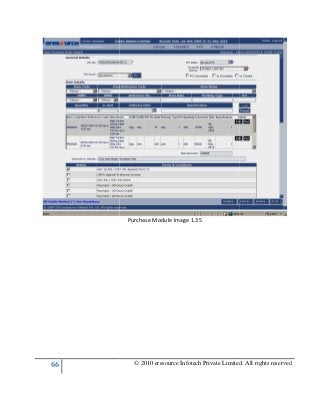
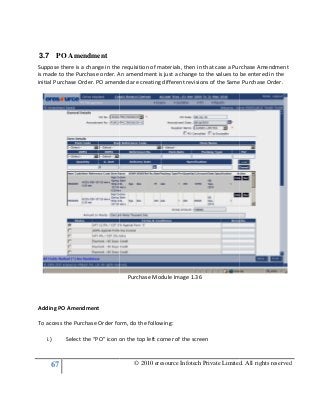
Purchase Module Image 1.35
© 2010 eresource Infotech Private Limited. All rights reserved
67
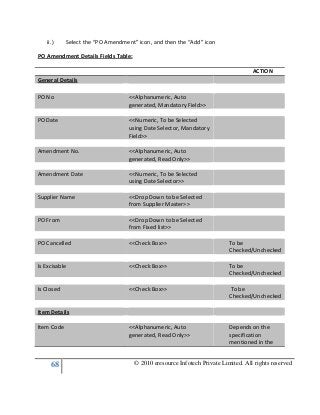
3.7 PO Amendment
Suppose there is a change in the requisition of materials, then in that case a Purchase Amendment
is made to the Purchase order. An amendment is just a change to the values to be entered in the
initial Purchase Order. PO amended are creating different revisions
Adding PO Amendment
To access the Purchase Order form, do the following:
i.) Select the “PO” icon on the top left corner of the screen
© 2010 eresource Infotech Private Limited. All rights reserved
e there is a change in the requisition of materials, then in that case a Purchase Amendment
is made to the Purchase order. An amendment is just a change to the values to be entered in the
PO amended are creating different revisions of the Same Purchase Order.
Purchase Module Image 1.36
To access the Purchase Order form, do the following:
Select the “PO” icon on the top left corner of the screen
© 2010 eresource Infotech Private Limited. All rights reserved
e there is a change in the requisition of materials, then in that case a Purchase Amendment
is made to the Purchase order. An amendment is just a change to the values to be entered in the
of the Same Purchase Order.
68 © 2010 eresource Infotech Private Limited. All rights reserved
ii.) Select the “PO Amendment” icon, and then the “Add” icon
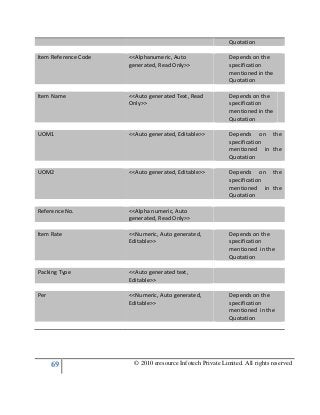
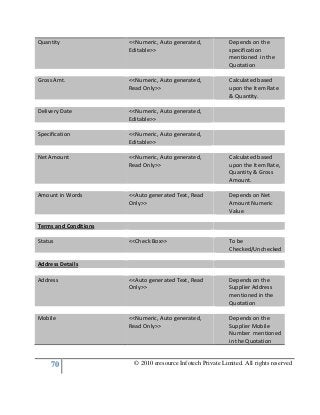
PO Amendment Details Fields Table:
ACTION
General Details
PO No <<Alphanumeric, Auto
generated, Mandatory Field>>
PO Date <<Numeric, To be Selected
using Date Selector, Mandatory
Field>>
Amendment No. <<Alphanumeric, Auto
generated, Read Only>>
Amendment Date <<Numeric, To be Selected
using Date Selector>>
Supplier Name <<Drop Down to be Selected
from Supplier Master>>
PO From <<Drop Down to be Selected
from Fixed list>>
PO Cancelled <<Check Box>> To be
Checked/Unchecked
Is Excisable <<Check Box>> To be
Checked/Unchecked
Is Closed <<Check Box>> To be
Checked/Unchecked
Item Details
Item Code <<Alphanumeric, Auto
generated, Read Only>>
Depends on the
specification
mentioned in the
69 © 2010 eresource Infotech Private Limited. All rights reserved
Quotation
Item Reference Code <<Alphanumeric, Auto
generated, Read Only>>
Depends on the
specification
mentioned in the
Quotation
Item Name <<Auto generated Text, Read
Only>>
Depends on the
specification
mentioned in the
Quotation
UOM1 <<Auto generated, Editable>> Depends on the
specification
mentioned in the
Quotation
UOM2 <<Auto generated, Editable>> Depends on the
specification
mentioned in the
Quotation
Reference No. <<Alpha numeric, Auto
generated, Read Only>>
Item Rate <<Numeric, Auto generated,
Editable>>
Depends on the
specification
mentioned in the
Quotation
Packing Type <<Auto generated text,
Editable>>
Per <<Numeric, Auto generated,
Editable>>
Depends on the
specification
mentioned in the
Quotation
70 © 2010 eresource Infotech Private Limited. All rights reserved
Quantity <<Numeric, Auto generated,
Editable>>
Depends on the
specification
mentioned in the
Quotation
Gross Amt. <<Numeric, Auto generated,
Read Only>>
Calculated based
upon the Item Rate
& Quantity.
Delivery Date <<Numeric, Auto generated,
Editable>>
Specification <<Numeric, Auto generated,
Editable>>
Net Amount <<Numeric, Auto generated,
Read Only>>
Calculated based
upon the Item Rate,
Quantity & Gross
Amount.
Amount in Words <<Auto generated Text, Read
Only>>
Depends on Net
Amount Numeric
Value
Terms and Conditions
Status <<Check Box>> To be
Checked/Unchecked
Address Details
Address <<Auto generated Text, Read
Only>>
Depends on the
Supplier Address
mentioned in the
Quotation
Mobile <<Numeric, Auto generated,
Read Only>>
Depends on the
Supplier Mobile
Number mentioned
in the Quotation
71 © 2010 eresource Infotech Private Limited. All rights reserved
Location <<Auto generated Text, Read
Only>>
Depends on the
Supplier Location
mentioned in the
Quotation
Fax <<Numeric, Auto generated
,Read Only>>
Depends on the
Supplier Fax
Number mentioned
in the Quotation
City <<Auto generated Text, Read
Only>>
Depends on the
Supplier City
Number mentioned
in the Quotation
Email <<Alpha numeric, Auto
generated , Read Only>>
Depends on the
Supplier Email
mentioned in the
Quotation
Charges Status
Discount <<Numeric, Auto generated
,Read Only>>
Depends on the
Discount mentioned
in the Quotation
Excise Duty <<Numeric, Auto generated
,Read Only>>
Depends on the
Excise Duty
mentioned in the
Quotation
Inclusive <<Check Box>> To be
Checked/Unchecked
Edu/Cess <<Numeric, Auto generated
,Read Only>>
Depends on the Edu
Cess mentioned in
the Quotation
SH Cess <<Numeric, Auto generated Depends on the SH
72 © 2010 eresource Infotech Private Limited. All rights reserved
,Read Only>> Cess mentioned in
the Quotation
Tax <<Numeric, Auto generated
,Read Only>>
Depends on the Tax
mentioned in the
Quotation
VAT/CST <<Numeric, Auto generated
,Read Only>>
Depends on the
VAT/CST mentioned
in the Quotation
Insurance <<Numeric, Auto generated
,Read Only>>
Depends on the
Insurance
mentioned in the
Quotation
Freight <<Numeric, Auto generated
,Read Only>>
Depends on the
Freight charges
mentioned in the
Quotation
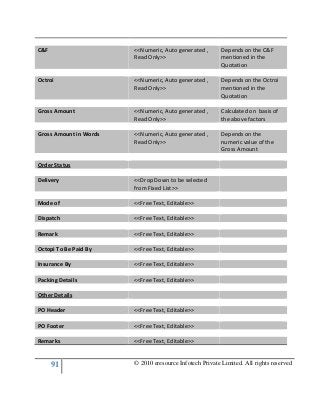
C&F <<Numeric, Auto generated
,Read Only>>
Depends on the C&F
mentioned in the
Quotation
Octroi <<Numeric, Auto generated
,Read Only>>
Depends on the
Octroi mentioned in
the Quotation
Gross Amount <<Numeric, Auto generated
,Read Only>>
Calculated on basis
of the above factors
Gross Amount in Words <<Numeric, Auto generated
,Read Only>>
Depends on the
numeric value of
the Gross Amount
Order Status
Delivery <<Drop Down to be selected
from Fixed List>>
73 © 2010 eresource Infotech Private Limited. All rights reserved
Mode of Dispatch <<Free Text, Editable>>
Remark <<Free Text, Editable>>
Octroi To Be Paid By <<Free Text, Editable>>
Insurance By <<Free Text, Editable>>
Packing Details <<Free Text, Editable>>
Other Details
PO Header <<Free Text, Editable>>
PO Footer <<Free Text, Editable>>
Remarks <<Free Text, Editable>>
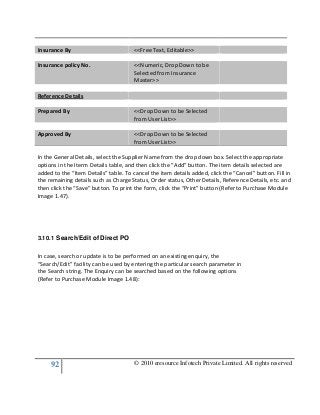
Insurance By <<Free Text, Editable>>
Insurance policy No. <<Numeric, Drop Down to be
Selected from Insurance
Master>>
Reference Details
Prepared By <<Drop Down to be Selected
from User List>>
Approved By <<Drop Down to be Selected
from User List>>
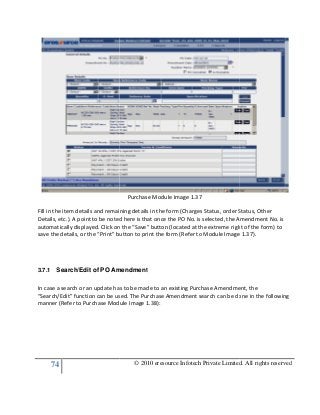
Select the “PO Order No” and the Supplier from the “Supplier” box (Refer to Purchase Module
Image 1.37). The Item Details table is appropriately populated depending on the selections made.
74
Fill in the item details and remaining details in the form (Charges Status, order Status, Other
Details, etc.). A point to be noted here is that once the PO No. is selected, the Amendment No. is
automatically displayed. Click on the “Save” button (located at the extreme right of the form) to
save the details, or the “Print” button to print the form (Refer to
3.7.1 Search/Edit of PO Amendment
In case a search or an update has to be made to an existing Purchase Amendment, the
“Search/Edit” function can be used. The Purchase Amendment search can be done in the following
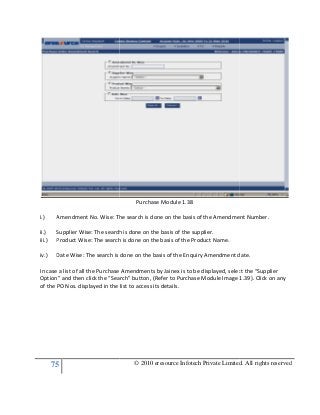
manner (Refer to Purchase Module Image 1.38):
© 2010 eresource Infotech Private Limited. All rights reserved
Purchase Module Image 1.37
Fill in the item details and remaining details in the form (Charges Status, order Status, Other
etc.). A point to be noted here is that once the PO No. is selected, the Amendment No. is
automatically displayed. Click on the “Save” button (located at the extreme right of the form) to
save the details, or the “Print” button to print the form (Refer to Module Image 1.37).
Search/Edit of PO Amendment
In case a search or an update has to be made to an existing Purchase Amendment, the
“Search/Edit” function can be used. The Purchase Amendment search can be done in the following
e Module Image 1.38):
© 2010 eresource Infotech Private Limited. All rights reserved
Fill in the item details and remaining details in the form (Charges Status, order Status, Other
etc.). A point to be noted here is that once the PO No. is selected, the Amendment No. is
automatically displayed. Click on the “Save” button (located at the extreme right of the form) to
Module Image 1.37).
In case a search or an update has to be made to an existing Purchase Amendment, the
“Search/Edit” function can be used. The Purchase Amendment search can be done in the following
75
i.) Amendment No. Wise: The search is done on the basis of the Amendment Number.
ii.) Supplier Wise: The search is done on the basis of the supplier.
iii.) Product Wise: The search is done on the basis of the Product Name.
iv.) Date Wise: The search is done on the basis of the Enquiry Amendment date.
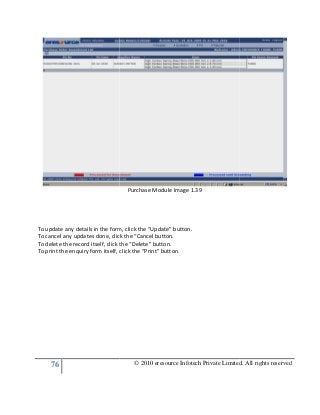
In case a list of all the Purchase Amendments by Jainex is to be displayed, select the “Supplier
Option” and then click the “Search” button, (Refer to Purchase Module Image 1.39).
of the PO Nos. displayed in the list to access its details.
© 2010 eresource Infotech Private Limited. All rights reserved
Purchase Module 1.38
Amendment No. Wise: The search is done on the basis of the Amendment Number.
The search is done on the basis of the supplier.
Product Wise: The search is done on the basis of the Product Name.
Date Wise: The search is done on the basis of the Enquiry Amendment date.
In case a list of all the Purchase Amendments by Jainex is to be displayed, select the “Supplier
Option” and then click the “Search” button, (Refer to Purchase Module Image 1.39).
of the PO Nos. displayed in the list to access its details.
© 2010 eresource Infotech Private Limited. All rights reserved
Amendment No. Wise: The search is done on the basis of the Amendment Number.
Date Wise: The search is done on the basis of the Enquiry Amendment date.
In case a list of all the Purchase Amendments by Jainex is to be displayed, select the “Supplier
Option” and then click the “Search” button, (Refer to Purchase Module Image 1.39). Click on any
76
To update any details in the form, click the “Update” button.
To cancel any updates done, click the “Cancel button.
To delete the record itself, click the “Delete” button.
To print the enquiry form itself, click the “Print” button
© 2010 eresource Infotech Private Limited. All rights reserved
Purchase Module Image 1.39
To update any details in the form, click the “Update” button.
To cancel any updates done, click the “Cancel button.
ck the “Delete” button.
To print the enquiry form itself, click the “Print” button.
© 2010 eresource Infotech Private Limited. All rights reserved
77 © 2010 eresource Infotech Private Limited. All rights reserved
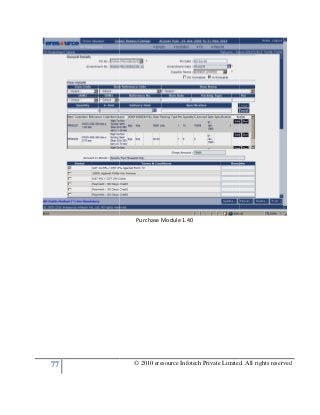
Purchase Module 1.40
© 2010 eresource Infotech Private Limited. All rights reserved
78
3.8 PO Scheduling
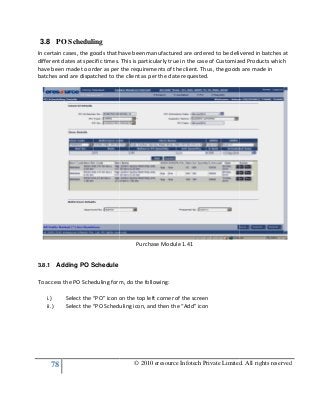
In certain cases, the goods that have been manufactured are ordered to be delivered in batches at
different dates at specific times. This is particularly true in the case of Customized Products which
have been made to order as per the requirements of the client. Thus, the goods are made in
batches and are dispatched to the client as per the date requested.
3.8.1 Adding PO Schedule
To access the PO Scheduling form, do the following:
i.) Select the “PO” icon on the top left corner of the screen
ii.) Select the “PO Scheduling icon, and then the “Add” icon
© 2010 eresource Infotech Private Limited. All rights reserved
In certain cases, the goods that have been manufactured are ordered to be delivered in batches at
. This is particularly true in the case of Customized Products which
have been made to order as per the requirements of the client. Thus, the goods are made in
batches and are dispatched to the client as per the date requested.
Purchase Module 1.41
To access the PO Scheduling form, do the following:
Select the “PO” icon on the top left corner of the screen
Select the “PO Scheduling icon, and then the “Add” icon
© 2010 eresource Infotech Private Limited. All rights reserved
In certain cases, the goods that have been manufactured are ordered to be delivered in batches at
. This is particularly true in the case of Customized Products which
have been made to order as per the requirements of the client. Thus, the goods are made in
79 © 2010 eresource Infotech Private Limited. All rights reserved
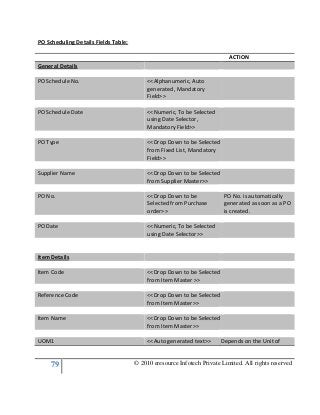
PO Scheduling Details Fields Table:
ACTION
General Details
PO Schedule No. <<Alphanumeric, Auto
generated, Mandatory
Field>>
PO Schedule Date <<Numeric, To be Selected
using Date Selector,
Mandatory Field>>
PO Type <<Drop Down to be Selected
from Fixed List, Mandatory
Field>>
Supplier Name <<Drop Down to be Selected
from Supplier Master>>
PO No. <<Drop Down to be
Selected from Purchase
order>>
PO No. is automatically
generated as soon as a PO
is created.
PO Date <<Numeric, To be Selected
using Date Selector>>
Item Details
Item Code <<Drop Down to be Selected
from Item Master >>
Reference Code <<Drop Down to be Selected
from Item Master>>
Item Name <<Drop Down to be Selected
from Item Master>>
UOM1 <<Auto generated text>> Depends on the Unit of
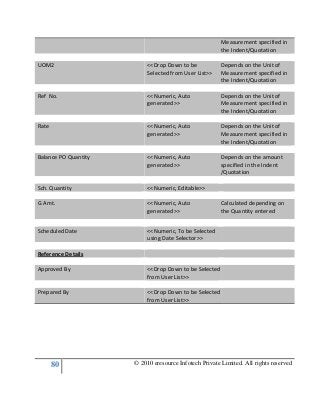
80 © 2010 eresource Infotech Private Limited. All rights reserved
Measurement specified in
the Indent/Quotation
UOM2 <<Drop Down to be
Selected from User List>>
Depends on the Unit of
Measurement specified in
the Indent/Quotation
Ref No. <<Numeric, Auto
generated>>
Depends on the Unit of
Measurement specified in
the Indent/Quotation
Rate <<Numeric, Auto
generated>>
Depends on the Unit of
Measurement specified in
the Indent/Quotation
Balance PO Quantity <<Numeric, Auto
generated>>
Depends on the amount
specified in the Indent
/Quotation
Sch. Quantity <<Numeric, Editable>>
G Amt. <<Numeric, Auto
generated>>
Calculated depending on
the Quantity entered
Scheduled Date <<Numeric, To be Selected
using Date Selector>>
Reference Details
Approved By <<Drop Down to be Selected
from User List>>
Prepared By <<Drop Down to be Selected
from User List>>
81
Select the PO Type depending on w
Name. Select the appropriate details in the “Item Details” table and click the “Add” button. The
item details get added to the Item Details table. To cancel any information added, click the
“Cancel” button. Finally, after all the relevant information has been added, click the “Save” button.
To cancel the entries, click the “Cancel” button, or to delete the entire record itself, click the
“Delete” button (Refer to Purchase Module Image 1.42).
© 2010 eresource Infotech Private Limited. All rights reserved
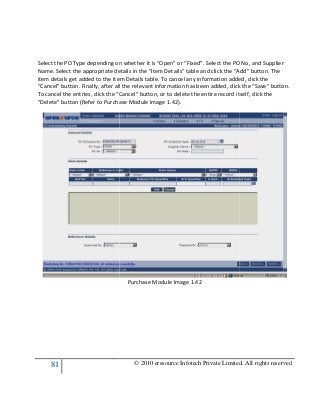
Select the PO Type depending on whether it is “Open” or “Fixed”. Select the PO No, and Supplier
Name. Select the appropriate details in the “Item Details” table and click the “Add” button. The
item details get added to the Item Details table. To cancel any information added, click the
ncel” button. Finally, after all the relevant information has been added, click the “Save” button.
To cancel the entries, click the “Cancel” button, or to delete the entire record itself, click the
“Delete” button (Refer to Purchase Module Image 1.42).
Purchase Module Image 1.42
© 2010 eresource Infotech Private Limited. All rights reserved
hether it is “Open” or “Fixed”. Select the PO No, and Supplier
Name. Select the appropriate details in the “Item Details” table and click the “Add” button. The
item details get added to the Item Details table. To cancel any information added, click the
ncel” button. Finally, after all the relevant information has been added, click the “Save” button.
To cancel the entries, click the “Cancel” button, or to delete the entire record itself, click the
82
3.8.2 Search/Edit PO Schedule
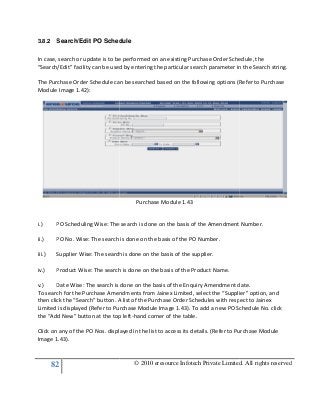
In case, search or update is to be performed on an existing Purchase Order Schedule, the
“Search/Edit” facility can be used by entering the particular search parameter in the Search string.
The Purchase Order Schedule can be searched based on the following options (Refer to Purchase
Module Image 1.42):
i.) PO Scheduling Wise: The search is done on the basis of the Amendment Number.
ii.) PO No. Wise: The search is done on the basis of
iii.) Supplier Wise: The search is done on the basis of the supplier.
iv.) Product Wise: The search is done on the basis of the Product Name.
v.) Date Wise: The search is done on the basis of the Enquiry Amendment date.
To search for the Purchase Amend
then click the “Search” button. A list of the Purchase Order Schedules with respect to Jainex
Limited is displayed (Refer to Purchase Module Image 1.43). To add a new PO Schedule No. click
the “Add New” button at the top left
Click on any of the PO Nos. displayed in the list to access its details. (Refer to Purchase Module
Image 1.43).
© 2010 eresource Infotech Private Limited. All rights reserved
Search/Edit PO Schedule
In case, search or update is to be performed on an existing Purchase Order Schedule, the
“Search/Edit” facility can be used by entering the particular search parameter in the Search string.
ase Order Schedule can be searched based on the following options (Refer to Purchase
Purchase Module 1.43
PO Scheduling Wise: The search is done on the basis of the Amendment Number.
PO No. Wise: The search is done on the basis of the PO Number.
The search is done on the basis of the supplier.
Product Wise: The search is done on the basis of the Product Name.
Date Wise: The search is done on the basis of the Enquiry Amendment date.
To search for the Purchase Amendments from Jainex Limited, select the “Supplier” option, and
then click the “Search” button. A list of the Purchase Order Schedules with respect to Jainex
Limited is displayed (Refer to Purchase Module Image 1.43). To add a new PO Schedule No. click
dd New” button at the top left-hand corner of the table.
Click on any of the PO Nos. displayed in the list to access its details. (Refer to Purchase Module
© 2010 eresource Infotech Private Limited. All rights reserved
In case, search or update is to be performed on an existing Purchase Order Schedule, the
“Search/Edit” facility can be used by entering the particular search parameter in the Search string.
ase Order Schedule can be searched based on the following options (Refer to Purchase
PO Scheduling Wise: The search is done on the basis of the Amendment Number.
Date Wise: The search is done on the basis of the Enquiry Amendment date.
ments from Jainex Limited, select the “Supplier” option, and
then click the “Search” button. A list of the Purchase Order Schedules with respect to Jainex
Limited is displayed (Refer to Purchase Module Image 1.43). To add a new PO Schedule No. click
Click on any of the PO Nos. displayed in the list to access its details. (Refer to Purchase Module
83
To update any information given in the table, do the
© 2010 eresource Infotech Private Limited. All rights reserved
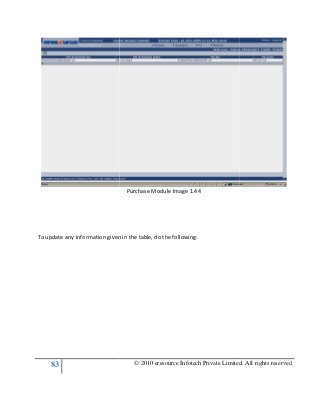
Purchase Module Image 1.44
To update any information given in the table, do the following:
© 2010 eresource Infotech Private Limited. All rights reserved
84
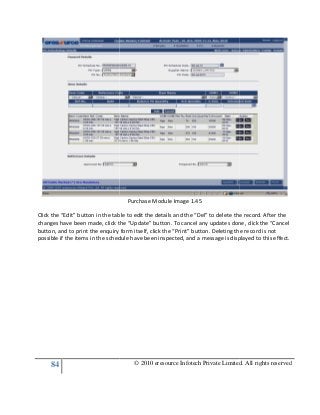
Click the “Edit” button in the table to edit the details and the “Del” to delete the record. After the
changes have been made, click the “Update” button. To cancel any updates done, click the “Cancel
button, and to print the enquiry form itself, click the “Print” button. Deleting the record is not
possible if the items in the schedule have been inspected, and a message is displayed to this effect.
© 2010 eresource Infotech Private Limited. All rights reserved
Purchase Module Image 1.45
Click the “Edit” button in the table to edit the details and the “Del” to delete the record. After the
changes have been made, click the “Update” button. To cancel any updates done, click the “Cancel
o print the enquiry form itself, click the “Print” button. Deleting the record is not
possible if the items in the schedule have been inspected, and a message is displayed to this effect.
© 2010 eresource Infotech Private Limited. All rights reserved
Click the “Edit” button in the table to edit the details and the “Del” to delete the record. After the
changes have been made, click the “Update” button. To cancel any updates done, click the “Cancel
o print the enquiry form itself, click the “Print” button. Deleting the record is not
possible if the items in the schedule have been inspected, and a message is displayed to this effect.
85
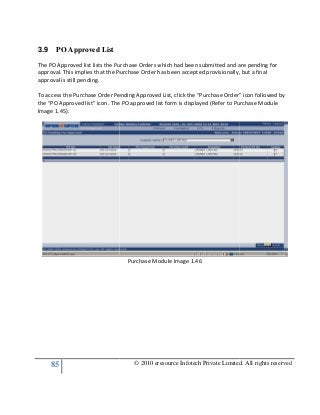
3.9 PO Approved List
The PO Approved list lists the Purchase Orders
approval. This implies that the Purchase Order has been accepted provisionally, but a final
approval is still pending.
To access the Purchase Order Pending Approved List, click the “Purchase Order” icon follow
the “PO Approved list” icon. The PO approved list form is displayed (Refer to Purchase Module
Image 1.45).
© 2010 eresource Infotech Private Limited. All rights reserved
The PO Approved list lists the Purchase Orders which had been submitted and are pending for
approval. This implies that the Purchase Order has been accepted provisionally, but a final
To access the Purchase Order Pending Approved List, click the “Purchase Order” icon follow
the “PO Approved list” icon. The PO approved list form is displayed (Refer to Purchase Module
Purchase Module Image 1.46
© 2010 eresource Infotech Private Limited. All rights reserved
which had been submitted and are pending for
approval. This implies that the Purchase Order has been accepted provisionally, but a final
To access the Purchase Order Pending Approved List, click the “Purchase Order” icon followed by
the “PO Approved list” icon. The PO approved list form is displayed (Refer to Purchase Module
86
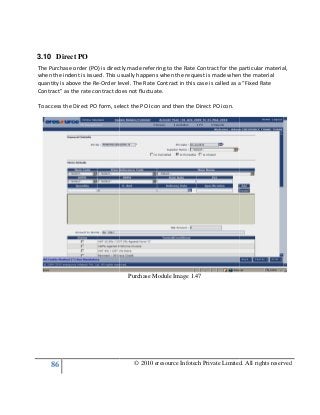
3.10 Direct PO
The Purchase order (PO) is directly made referring to the Rate Contract for the particular materi
when the indent is issued. This usually happens when the request is made when the material
quantity is above the Re-Order level. The Rate Contract in this case is called as a “Fixed Rate
Contract” as the rate contract does not fluctuate.
To access the Direct PO form, select the PO Icon and then the Direct PO icon.
© 2010 eresource Infotech Private Limited. All rights reserved
The Purchase order (PO) is directly made referring to the Rate Contract for the particular materi
when the indent is issued. This usually happens when the request is made when the material
Order level. The Rate Contract in this case is called as a “Fixed Rate
Contract” as the rate contract does not fluctuate.
Direct PO form, select the PO Icon and then the Direct PO icon.
Purchase Module Image 1.47
© 2010 eresource Infotech Private Limited. All rights reserved
The Purchase order (PO) is directly made referring to the Rate Contract for the particular material,
when the indent is issued. This usually happens when the request is made when the material
Order level. The Rate Contract in this case is called as a “Fixed Rate
87 © 2010 eresource Infotech Private Limited. All rights reserved
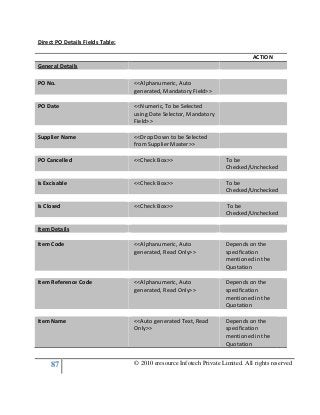
Direct PO Details Fields Table:
ACTION
General Details
PO No. <<Alphanumeric, Auto
generated, Mandatory Field>>
PO Date <<Numeric, To be Selected
using Date Selector, Mandatory
Field>>
Supplier Name <<Drop Down to be Selected
from Supplier Master>>
PO Cancelled <<Check Box>> To be
Checked/Unchecked
Is Excisable <<Check Box>> To be
Checked/Unchecked
Is Closed <<Check Box>> To be
Checked/Unchecked
Item Details
Item Code <<Alphanumeric, Auto
generated, Read Only>>
Depends on the
specification
mentioned in the
Quotation
Item Reference Code <<Alphanumeric, Auto
generated, Read Only>>
Depends on the
specification
mentioned in the
Quotation
Item Name <<Auto generated Text, Read
Only>>
Depends on the
specification
mentioned in the
Quotation
88 © 2010 eresource Infotech Private Limited. All rights reserved
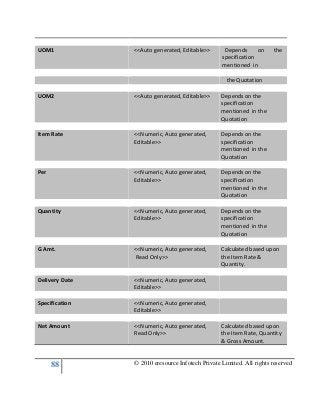
UOM1 <<Auto generated, Editable>> Depends on the
specification
mentioned in
the Quotation
UOM2 <<Auto generated, Editable>> Depends on the
specification
mentioned in the
Quotation
Item Rate <<Numeric, Auto generated,
Editable>>
Depends on the
specification
mentioned in the
Quotation
Per <<Numeric, Auto generated,
Editable>>
Depends on the
specification
mentioned in the
Quotation
Quantity <<Numeric, Auto generated,
Editable>>
Depends on the
specification
mentioned in the
Quotation
G Amt. <<Numeric, Auto generated,
Read Only>>
Calculated based upon
the Item Rate &
Quantity.
Delivery Date <<Numeric, Auto generated,
Editable>>
Specification <<Numeric, Auto generated,
Editable>>
Net Amount <<Numeric, Auto generated,
Read Only>>
Calculated based upon
the Item Rate, Quantity
& Gross Amount.
89 © 2010 eresource Infotech Private Limited. All rights reserved
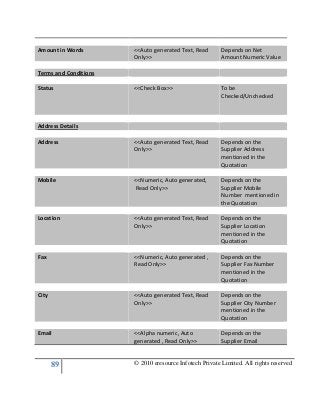
Amount in Words <<Auto generated Text, Read
Only>>
Depends on Net
Amount Numeric Value
Terms and Conditions
Status <<Check Box>> To be
Checked/Unchecked
Address Details
Address <<Auto generated Text, Read
Only>>
Depends on the
Supplier Address
mentioned in the
Quotation
Mobile <<Numeric, Auto generated,
Read Only>>
Depends on the
Supplier Mobile
Number mentioned in
the Quotation
Location <<Auto generated Text, Read
Only>>
Depends on the
Supplier Location
mentioned in the
Quotation
Fax <<Numeric, Auto generated ,
Read Only>>
Depends on the
Supplier Fax Number
mentioned in the
Quotation
City <<Auto generated Text, Read
Only>>
Depends on the
Supplier City Number
mentioned in the
Quotation
Email <<Alpha numeric, Auto
generated , Read Only>>
Depends on the
Supplier Email
90 © 2010 eresource Infotech Private Limited. All rights reserved
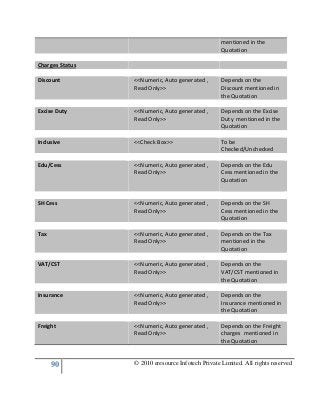
mentioned in the
Quotation
Charges Status
Discount <<Numeric, Auto generated ,
Read Only>>
Depends on the
Discount mentioned in
the Quotation
Excise Duty <<Numeric, Auto generated ,
Read Only>>
Depends on the Excise
Duty mentioned in the
Quotation
Inclusive <<Check Box>> To be
Checked/Unchecked
Edu/Cess <<Numeric, Auto generated ,
Read Only>>
Depends on the Edu
Cess mentioned in the
Quotation
SH Cess <<Numeric, Auto generated ,
Read Only>>
Depends on the SH
Cess mentioned in the
Quotation
Tax <<Numeric, Auto generated ,
Read Only>>
Depends on the Tax
mentioned in the
Quotation
VAT/CST <<Numeric, Auto generated ,
Read Only>>
Depends on the
VAT/CST mentioned in
the Quotation
Insurance <<Numeric, Auto generated ,
Read Only>>
Depends on the
Insurance mentioned in
the Quotation
Freight <<Numeric, Auto generated ,
Read Only>>
Depends on the Freight
charges mentioned in
the Quotation
91 © 2010 eresource Infotech Private Limited. All rights reserved
C&F <<Numeric, Auto generated ,
Read Only>>
Depends on the C&F
mentioned in the
Quotation
Octroi <<Numeric, Auto generated ,
Read Only>>
Depends on the Octroi
mentioned in the
Quotation
Gross Amount <<Numeric, Auto generated ,
Read Only>>
Calculated on basis of
the above factors
Gross Amount in Words <<Numeric, Auto generated ,
Read Only>>
Depends on the
numeric value of the
Gross Amount
Order Status
Delivery <<Drop Down to be selected
from Fixed List>>
Mode of <<Free Text, Editable>>
Dispatch <<Free Text, Editable>>
Remark <<Free Text, Editable>>
Octopi To Be Paid By <<Free Text, Editable>>
Insurance By <<Free Text, Editable>>
Packing Details <<Free Text, Editable>>
Other Details
PO Header <<Free Text, Editable>>
PO Footer <<Free Text, Editable>>
Remarks <<Free Text, Editable>>
92 © 2010 eresource Infotech Private Limited. All rights reserved
Insurance By <<Free Text, Editable>>
Insurance policy No. <<Numeric, Drop Down to be
Selected from Insurance
Master>>
Reference Details
Prepared By <<Drop Down to be Selected
from User List>>
Approved By <<Drop Down to be Selected
from User List>>
In the General Details, select the Supplier Name from the drop down box. Select the appropriate
options in the Iterm Details table, and then click the “Add” button. The item details selected are
added to the “Item Details” table. To cancel the item details added, click the “Cancel” button. Fill in
the remaining details such as Charge Status, Order status, Other Details, Reference Details, etc. and
then click the “Save” button. To print the form, click the “Print” button (Refer to Purchase Module
Image 1.47).
3.10.1 Search/Edit of Direct PO
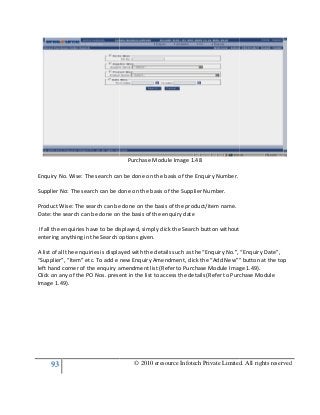
In case, search or update is to be performed on an existing enquiry, the
“Search/Edit” facility can be used by entering the particular search parameter in
the Search string. The Enquiry can be searched based on the following options
(Refer to Purchase Module Image 1.48):
93
Enquiry No. Wise: The search can be done on the basis of the Enquiry Number.
Supplier No: The search can be done on the basis of the
Product Wise: The search can be done on the basis of the product/item name.
Date: the search can be done on the basis of the enquiry date
If all the enquiries have to be displayed, simply click the Search button without
entering anything in the Search options given.
A list of all the enquiries is displayed with the details such as the “Enquiry No.”, “Enquiry Date”,
“Supplier”, “Item” etc. To add e new Enquiry Amendment, click the “Add New”” button at the top
left hand corner of the enquiry amendment list (Refer to Purchase Module Image 1.49).
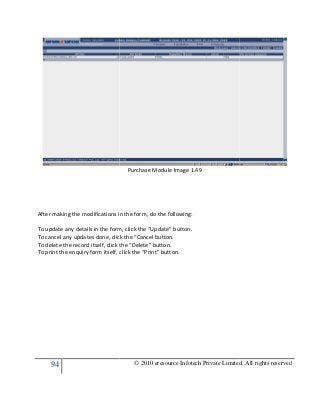
Click on any of the PO Nos. present in the list to access the details (Refer to Purchase Module
Image 1.49).
© 2010 eresource Infotech Private Limited. All rights reserved
Purchase Module Image 1.48
Enquiry No. Wise: The search can be done on the basis of the Enquiry Number.
Supplier No: The search can be done on the basis of the Supplier Number.
Product Wise: The search can be done on the basis of the product/item name.
Date: the search can be done on the basis of the enquiry date
If all the enquiries have to be displayed, simply click the Search button without
ng in the Search options given.
A list of all the enquiries is displayed with the details such as the “Enquiry No.”, “Enquiry Date”,
“Supplier”, “Item” etc. To add e new Enquiry Amendment, click the “Add New”” button at the top
uiry amendment list (Refer to Purchase Module Image 1.49).
Click on any of the PO Nos. present in the list to access the details (Refer to Purchase Module
© 2010 eresource Infotech Private Limited. All rights reserved
If all the enquiries have to be displayed, simply click the Search button without
A list of all the enquiries is displayed with the details such as the “Enquiry No.”, “Enquiry Date”,
“Supplier”, “Item” etc. To add e new Enquiry Amendment, click the “Add New”” button at the top
uiry amendment list (Refer to Purchase Module Image 1.49).
Click on any of the PO Nos. present in the list to access the details (Refer to Purchase Module
94
After making the modifications in the form, do the fo
To update any details in the form, click the “Update” button.
To cancel any updates done, click the “Cancel button.
To delete the record itself, click the “Delete” button.
To print the enquiry form itself, click the “Print” button.
© 2010 eresource Infotech Private Limited. All rights reserved
Purchase Module Image 1.49
After making the modifications in the form, do the following:
To update any details in the form, click the “Update” button.
To cancel any updates done, click the “Cancel button.
To delete the record itself, click the “Delete” button.
To print the enquiry form itself, click the “Print” button.
© 2010 eresource Infotech Private Limited. All rights reserved
95 © 2010 eresource Infotech Private Limited. All rights reserved
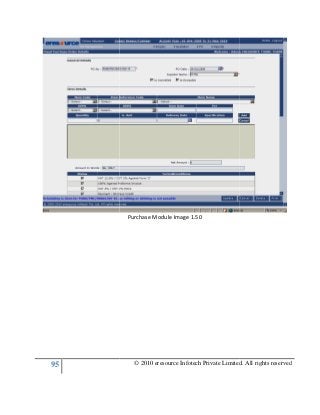
Purchase Module Image 1.50
© 2010 eresource Infotech Private Limited. All rights reserved
96 © 2010 eresource Infotech Private Limited. All rights reserved
4 REPORTS
What do we mean by a Report? If we go by the reports in an organization, we could say that a
Report is essentially a summary of data which has been gathered over a period of time, for all the
employees, belonging to different departments, and over a period of time. i.e. Reports are
gathered as well maintained for each month. The reports are normally made by collating data
which has been gathered on a daily basis depending on the activity of that employee for that
particular day. All this data collected goes on to prepare the final report at the end of each month.
Now, why do we have to make reports? The prime reason for preparing as well as maintaining a
report is for keeping a file of all the activities that have been done by the employees. This file does
not have to exist inside the PC and can always be stored in a real-time location. It can always be
accessed when there is any sort of auditing or any other activity for which files or records may be
desired. Also, it helps having files like these, as they can be easily accessible in case of a power
break-down or some such activity during which the system may be shut down.
Now, there are various types of reports which exist in the realm of any organization and these
reports will vary according to the various departments which exist in the organization as well as the
nature of the Industry to which the organization belongs. E.g. In a production facility, there is
always the possibility of employees working in shifts, and for this, a shift report may be desirable
which gives all the details of the employees who have been working on that particular shift.
However, the Banking sector is a 9.00 to 5.00 job and it does not have any shift timings, and this is
also reflected in the type of reports that may be generated in the banking sector, which will, of
course, be different from that of the Manufacturing Industry.
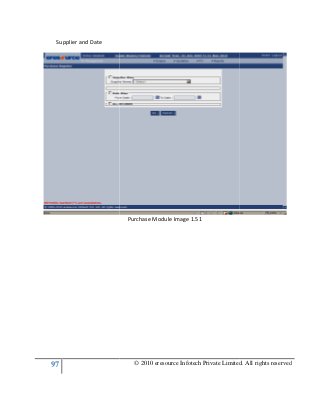
To access the Reports (Refer to Purchase Module Image 1.54):
i.) Select the “Reports” icon on the top of the screen
ii.) Select the particular report desired. e.g. To generate the report for “Jainex Ltd”, select
Jainex ltd. from the drop down box
iii.) Depending on the option which is to be used to generate the report, click any of the
following:
a.) Supplier Wise – The reports will generated according to the supplier name
selected
b.) Date Wise - The reports will be generated in accordance with the dates selected
c.) All Records – The reports will be generated with respect to both the above criteria i.e
97
Supplier and Date
© 2010 eresource Infotech Private Limited. All rights reserved
Purchase Module Image 1.51
© 2010 eresource Infotech Private Limited. All rights reserved
98
4.1 PO Register
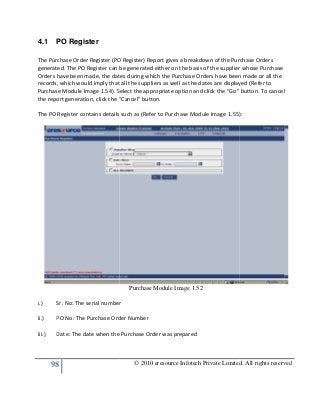
The Purchase Order Register (PO Register) Report gives a breakdown of the Purchase Orders
generated. The PO Register can be generated
Orders have been made, the dates during which the Purchase Orders have been made or all the
records, which would imply that all the suppliers as well as the dates are displayed (Refer to
Purchase Module Image 1.54). Select the appropriate option and click the “Go” button. To cancel
the report generation, click the “Cancel” button.
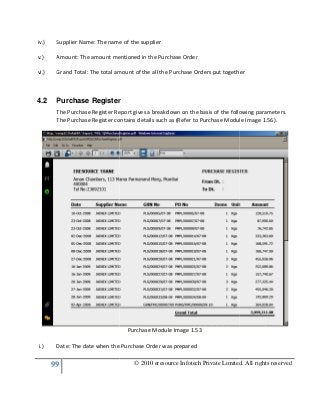
The PO Register contains details such as (Refer to Purchase Module Image 1.55):
i.) Sr. No: The serial number
ii.) PO No: The Purchase Order Number
iii.) Date: The date when the Purchase Order was prepared
© 2010 eresource Infotech Private Limited. All rights reserved
The Purchase Order Register (PO Register) Report gives a breakdown of the Purchase Orders
generated. The PO Register can be generated either on the basis of the supplier whose Purchase
Orders have been made, the dates during which the Purchase Orders have been made or all the
records, which would imply that all the suppliers as well as the dates are displayed (Refer to
age 1.54). Select the appropriate option and click the “Go” button. To cancel
the report generation, click the “Cancel” button.
The PO Register contains details such as (Refer to Purchase Module Image 1.55):
Purchase Module Image 1.52
al number
PO No: The Purchase Order Number
Date: The date when the Purchase Order was prepared
© 2010 eresource Infotech Private Limited. All rights reserved
The Purchase Order Register (PO Register) Report gives a breakdown of the Purchase Orders
either on the basis of the supplier whose Purchase
Orders have been made, the dates during which the Purchase Orders have been made or all the
records, which would imply that all the suppliers as well as the dates are displayed (Refer to
age 1.54). Select the appropriate option and click the “Go” button. To cancel
The PO Register contains details such as (Refer to Purchase Module Image 1.55):
99
iv.) Supplier Name: The name of the supplier
v.) Amount: The amount mentioned in the Purchase Order
vi.) Grand Total: The total amount of the all the Purchase Orders put
4.2 Purchase Register
The Purchase Register Report gives a breakdown on the basis of the following parameters.
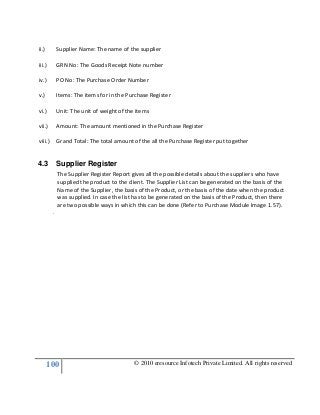
The Purchase Register contains details such as (Refer to Purchase Module Image 1.56).
i.) Date: The date when the Purchase Order was prepared
© 2010 eresource Infotech Private Limited. All rights reserved
Supplier Name: The name of the supplier
Amount: The amount mentioned in the Purchase Order
Grand Total: The total amount of the all the Purchase Orders put together
Purchase Register
The Purchase Register Report gives a breakdown on the basis of the following parameters.
The Purchase Register contains details such as (Refer to Purchase Module Image 1.56).
Purchase Module Image 1.53
the Purchase Order was prepared
© 2010 eresource Infotech Private Limited. All rights reserved
together
The Purchase Register Report gives a breakdown on the basis of the following parameters.
The Purchase Register contains details such as (Refer to Purchase Module Image 1.56).
100 © 2010 eresource Infotech Private Limited. All rights reserved
ii.) Supplier Name: The name of the supplier
iii.) GRN No: The Goods Receipt Note number
iv.) PO No: The Purchase Order Number
v.) Items: The items for in the Purchase Register
vi.) Unit: The unit of weight of the items
vii.) Amount: The amount mentioned in the Purchase Register
viii.) Grand Total: The total amount of the all the Purchase Register put together
4.3 Supplier Register
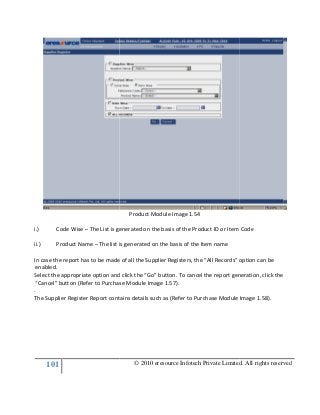
The Supplier Register Report gives all the possible details about the suppliers who have
supplied the product to the client. The Supplier List can be generated on the basis of the
Name of the Supplier, the basis of the Product, or the basis of the date when the product
was supplied. In case the list has to be generated on the basis of the Product, then there
are two possible ways in which this can be done (Refer to Purchase Module Image 1.57).
.
101
i.) Code Wise – The List is generated on the basis of the Product ID or Item Code
ii.) Product Name – The list is generated on the basis of the Item name
In case the report has to be made of all the Supplier Registers, the “All Records” option can be
enabled.
Select the appropriate option and click the “Go” button. To cancel the report generation, click the
“Cancel” button (Refer to Purchase Module Image 1.57).
.
The Supplier Register Report contains details such as (Refer to Purchase Module Image 1.58).
© 2010 eresource Infotech Private Limited. All rights reserved
Product Module Image 1.54
The List is generated on the basis of the Product ID or Item Code
The list is generated on the basis of the Item name
port has to be made of all the Supplier Registers, the “All Records” option can be
Select the appropriate option and click the “Go” button. To cancel the report generation, click the
“Cancel” button (Refer to Purchase Module Image 1.57).
plier Register Report contains details such as (Refer to Purchase Module Image 1.58).
© 2010 eresource Infotech Private Limited. All rights reserved
The List is generated on the basis of the Product ID or Item Code
port has to be made of all the Supplier Registers, the “All Records” option can be
Select the appropriate option and click the “Go” button. To cancel the report generation, click the
plier Register Report contains details such as (Refer to Purchase Module Image 1.58).
103
4.4 Supplier Summary
The Supplier Summary Report gives a summary of the products which have been supplied by the
supplier. The Supplier Summary Report contains details such as (Refer to Purchase Module Image
1.59):
i.) Date: The date when the Purchase Order was prepared
ii.) Supplier Name: The name of the supplier
iii.) GRN No: The Goods Receipt Note number
iv.) PO No: The Purchase Order Number
© 2010 eresource Infotech Private Limited. All rights reserved
Supplier Summary
The Supplier Summary Report gives a summary of the products which have been supplied by the
supplier. The Supplier Summary Report contains details such as (Refer to Purchase Module Image
Purchase Module Image 1.56
Date: The date when the Purchase Order was prepared
Supplier Name: The name of the supplier
GRN No: The Goods Receipt Note number
PO No: The Purchase Order Number
© 2010 eresource Infotech Private Limited. All rights reserved
The Supplier Summary Report gives a summary of the products which have been supplied by the
supplier. The Supplier Summary Report contains details such as (Refer to Purchase Module Image
104
v.) Items: The amount of items supplied
vi.) Unit: The unit of weight of the items
vii.) Amount: The amount mentioned in the Purchase Order
viii.) Grand Total: The total amount of all the products in the Purchase Order put together
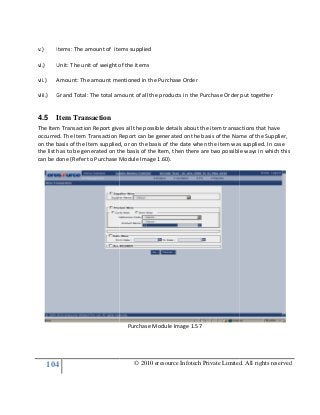
4.5 Item Transaction
The Item Transaction Report gives all the possible details about the item transactions that have
occurred. The Item Transaction Report can be generated on the basis of the Name of the Supplier,
on the basis of the Item supplied, or on the basis of the date when the item was supplied. In case
the list has to be generated on the basis of the Item, then there are
can be done (Refer to Purchase Module Image 1.60).
© 2010 eresource Infotech Private Limited. All rights reserved
Items: The amount of items supplied
Unit: The unit of weight of the items
The amount mentioned in the Purchase Order
Grand Total: The total amount of all the products in the Purchase Order put together
The Item Transaction Report gives all the possible details about the item transactions that have
The Item Transaction Report can be generated on the basis of the Name of the Supplier,
on the basis of the Item supplied, or on the basis of the date when the item was supplied. In case
the list has to be generated on the basis of the Item, then there are two possible ways in which this
can be done (Refer to Purchase Module Image 1.60).
Purchase Module Image 1.57
© 2010 eresource Infotech Private Limited. All rights reserved
Grand Total: The total amount of all the products in the Purchase Order put together
The Item Transaction Report gives all the possible details about the item transactions that have
The Item Transaction Report can be generated on the basis of the Name of the Supplier,
on the basis of the Item supplied, or on the basis of the date when the item was supplied. In case
two possible ways in which this
105
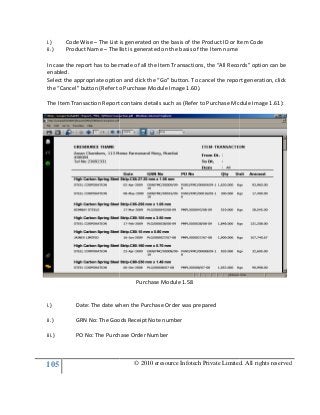
i.) Code Wise – The List is generated on the basis of the Product ID or Item Code
ii.) Product Name – The list is generated on the basis of the Item na
In case the report has to be made of all the Item Transactions, the “All Records” option can be
enabled.
Select the appropriate option and click the “Go” button. To cancel the report generation, click
the “Cancel” button (Refer to Purchase Module Image
The Item Transaction Report contains details such as (Refer to Purchase Module Image 1.61):
i.) Date: The date when the Purchase Order was prepared
ii.) GRN No: The Goods Receipt Note number
iii.) PO No: The Purch
© 2010 eresource Infotech Private Limited. All rights reserved
The List is generated on the basis of the Product ID or Item Code
The list is generated on the basis of the Item name
In case the report has to be made of all the Item Transactions, the “All Records” option can be
Select the appropriate option and click the “Go” button. To cancel the report generation, click
the “Cancel” button (Refer to Purchase Module Image 1.60).
The Item Transaction Report contains details such as (Refer to Purchase Module Image 1.61):
Purchase Module 1.58
Date: The date when the Purchase Order was prepared
GRN No: The Goods Receipt Note number
PO No: The Purchase Order Number
© 2010 eresource Infotech Private Limited. All rights reserved
The List is generated on the basis of the Product ID or Item Code
In case the report has to be made of all the Item Transactions, the “All Records” option can be
Select the appropriate option and click the “Go” button. To cancel the report generation, click
The Item Transaction Report contains details such as (Refer to Purchase Module Image 1.61):
106 © 2010 eresource Infotech Private Limited. All rights reserved
iv.) Qty: The quantity of items supplied
v.) Unit: The unit of weight of the items
vi.) Amount: The amount mentioned in the Purchase Order
vii.) Grand Total: The total amount of all the products in the Purchase Order put together
4.6 PO Schedule
In case the items to be procured are customised, then the general trend is that the items are
not shipped at one go, but are sent in batches at different time intervals. Thus, the Purchase
Order is also made accordingly in which the different dates and time intervals is mentioned.
This is called as Purchase Order Scheduling. The schedule for the item delivery is decided by the
client and it is the responsibility of the manufacturer to see that the items are delivered at the
date and time mentioned in the schedule.
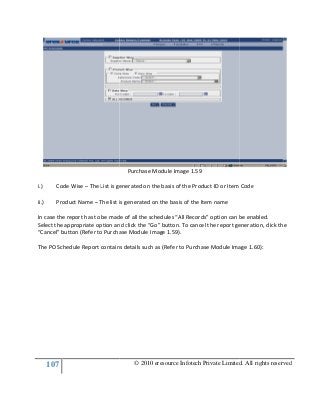
The PO Schedule Report gives all the possible details about the item transactions that have
occurred. The PO Schedule Report can be generated on the basis of the Name of the Supplier,
on the basis of the item supplied, or on the basis of the date when the item was supplied. In
case the list has to be generated on the basis of the Item, then there are two possible ways in
which this can be done (Refer to Purchase Module Image 1.59).
107
i.) Code Wise – The List is generated on the basis of the Product ID or Item Code
ii.) Product Name – The list is generated on the basis of the Item name
In case the report has to be made of all the schedules “All Records” option can be enabled.
Select the appropriate option and
“Cancel” button (Refer to Purchase Module Image 1.
The PO Schedule Report contains details such as (Refer to Purchase Module Image 1.
© 2010 eresource Infotech Private Limited. All rights reserved
Purchase Module Image 1.59
List is generated on the basis of the Product ID or Item Code
The list is generated on the basis of the Item name
In case the report has to be made of all the schedules “All Records” option can be enabled.
Select the appropriate option and click the “Go” button. To cancel the report generation, click the
“Cancel” button (Refer to Purchase Module Image 1.59).
The PO Schedule Report contains details such as (Refer to Purchase Module Image 1.
© 2010 eresource Infotech Private Limited. All rights reserved
List is generated on the basis of the Product ID or Item Code
In case the report has to be made of all the schedules “All Records” option can be enabled.
click the “Go” button. To cancel the report generation, click the
The PO Schedule Report contains details such as (Refer to Purchase Module Image 1.60):
111
4.8 Enquiry Not Raised
At times it happens that there is requirement from the Stor
which the Stores gives an Indent to the Purchase Department. But, due to certain factors
like the request for the items being cancelled by t
113
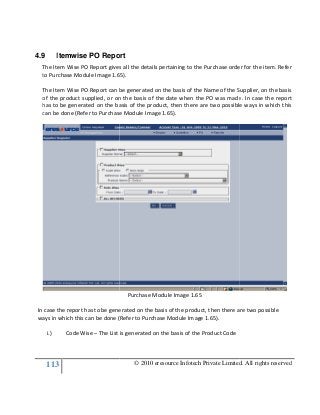
4.9 Itemwise PO Report
The Item Wise PO Report gives all the details pertaining to the Purchase order for the item. Refer
to Purchase Module Image 1.6
The Item Wise PO Report can be generated on the basis of the Name of the Supplier, on the basis
of the product supplied, or on the basis of the
has to be generated on the basis of the product, then there are two possible ways in which this
can be done (Refer to Purchase Module Image 1.6
In case the report has to be gene
ways in which this can be done (Refer to Purchase Module Image 1.6
i.) Code Wise – The List is generated on the basis of the Product Code
© 2010 eresource Infotech Private Limited. All rights reserved
Itemwise PO Report
ort gives all the details pertaining to the Purchase order for the item. Refer
to Purchase Module Image 1.65).
The Item Wise PO Report can be generated on the basis of the Name of the Supplier, on the basis
of the product supplied, or on the basis of the date when the PO was made. In case the report
has to be generated on the basis of the product, then there are two possible ways in which this
can be done (Refer to Purchase Module Image 1.65).
Purchase Module Image 1.65
In case the report has to be generated on the basis of the product, then there are two possible
ways in which this can be done (Refer to Purchase Module Image 1.65).
The List is generated on the basis of the Product Code
© 2010 eresource Infotech Private Limited. All rights reserved
ort gives all the details pertaining to the Purchase order for the item. Refer
The Item Wise PO Report can be generated on the basis of the Name of the Supplier, on the basis
date when the PO was made. In case the report
has to be generated on the basis of the product, then there are two possible ways in which this
rated on the basis of the product, then there are two possible
114
ii.) Product Name – The list is generated on the basis of t
In case the report has to be made of all the Items, the “All Records” option can be enabled.
Select the appropriate option and click the “Go” button. To cancel the report generation, click the
“Cancel” button.
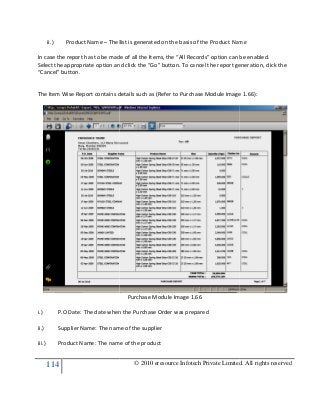
The Item Wise Report contains details such as (Refer to Purchase Module Image 1.6
i.) P.O Date: The date when the Purchase Order was prepared
ii.) Supplier Name: The name of the supplier
iii.) Product Name: The name of the product
© 2010 eresource Infotech Private Limited. All rights reserved
The list is generated on the basis of the Product Name
In case the report has to be made of all the Items, the “All Records” option can be enabled.
Select the appropriate option and click the “Go” button. To cancel the report generation, click the
ns details such as (Refer to Purchase Module Image 1.6
Purchase Module Image 1.66
P.O Date: The date when the Purchase Order was prepared
Supplier Name: The name of the supplier
Product Name: The name of the product
© 2010 eresource Infotech Private Limited. All rights reserved
he Product Name
In case the report has to be made of all the Items, the “All Records” option can be enabled.
Select the appropriate option and click the “Go” button. To cancel the report generation, click the
ns details such as (Refer to Purchase Module Image 1.66):
115 © 2010 eresource Infotech Private Limited. All rights reserved
iv.) Size: The size of the product
v.) Quantity (Kgs): The quantity of products
vi.) Challan No: The Challan No. of the Product Shipment
vii.) Remarks: Any remarks regarding the products

Supplier and purchase management in eresource erp

  • 66.
    66 © 2010eresource Infotech Private Limited. All rights reserved Purchase Module Image 1.35 © 2010 eresource Infotech Private Limited. All rights reserved
  • 67.
    67 3.7 PO Amendment Supposethere is a change in the requisition of materials, then in that case a Purchase Amendment is made to the Purchase order. An amendment is just a change to the values to be entered in the initial Purchase Order. PO amended are creating different revisions Adding PO Amendment To access the Purchase Order form, do the following: i.) Select the “PO” icon on the top left corner of the screen © 2010 eresource Infotech Private Limited. All rights reserved e there is a change in the requisition of materials, then in that case a Purchase Amendment is made to the Purchase order. An amendment is just a change to the values to be entered in the PO amended are creating different revisions of the Same Purchase Order. Purchase Module Image 1.36 To access the Purchase Order form, do the following: Select the “PO” icon on the top left corner of the screen © 2010 eresource Infotech Private Limited. All rights reserved e there is a change in the requisition of materials, then in that case a Purchase Amendment is made to the Purchase order. An amendment is just a change to the values to be entered in the of the Same Purchase Order.
  • 68.
    68 © 2010eresource Infotech Private Limited. All rights reserved ii.) Select the “PO Amendment” icon, and then the “Add” icon PO Amendment Details Fields Table: ACTION General Details PO No <<Alphanumeric, Auto generated, Mandatory Field>> PO Date <<Numeric, To be Selected using Date Selector, Mandatory Field>> Amendment No. <<Alphanumeric, Auto generated, Read Only>> Amendment Date <<Numeric, To be Selected using Date Selector>> Supplier Name <<Drop Down to be Selected from Supplier Master>> PO From <<Drop Down to be Selected from Fixed list>> PO Cancelled <<Check Box>> To be Checked/Unchecked Is Excisable <<Check Box>> To be Checked/Unchecked Is Closed <<Check Box>> To be Checked/Unchecked Item Details Item Code <<Alphanumeric, Auto generated, Read Only>> Depends on the specification mentioned in the
  • 69.
    69 © 2010eresource Infotech Private Limited. All rights reserved Quotation Item Reference Code <<Alphanumeric, Auto generated, Read Only>> Depends on the specification mentioned in the Quotation Item Name <<Auto generated Text, Read Only>> Depends on the specification mentioned in the Quotation UOM1 <<Auto generated, Editable>> Depends on the specification mentioned in the Quotation UOM2 <<Auto generated, Editable>> Depends on the specification mentioned in the Quotation Reference No. <<Alpha numeric, Auto generated, Read Only>> Item Rate <<Numeric, Auto generated, Editable>> Depends on the specification mentioned in the Quotation Packing Type <<Auto generated text, Editable>> Per <<Numeric, Auto generated, Editable>> Depends on the specification mentioned in the Quotation
  • 70.
    70 © 2010eresource Infotech Private Limited. All rights reserved Quantity <<Numeric, Auto generated, Editable>> Depends on the specification mentioned in the Quotation Gross Amt. <<Numeric, Auto generated, Read Only>> Calculated based upon the Item Rate & Quantity. Delivery Date <<Numeric, Auto generated, Editable>> Specification <<Numeric, Auto generated, Editable>> Net Amount <<Numeric, Auto generated, Read Only>> Calculated based upon the Item Rate, Quantity & Gross Amount. Amount in Words <<Auto generated Text, Read Only>> Depends on Net Amount Numeric Value Terms and Conditions Status <<Check Box>> To be Checked/Unchecked Address Details Address <<Auto generated Text, Read Only>> Depends on the Supplier Address mentioned in the Quotation Mobile <<Numeric, Auto generated, Read Only>> Depends on the Supplier Mobile Number mentioned in the Quotation
  • 71.
    71 © 2010eresource Infotech Private Limited. All rights reserved Location <<Auto generated Text, Read Only>> Depends on the Supplier Location mentioned in the Quotation Fax <<Numeric, Auto generated ,Read Only>> Depends on the Supplier Fax Number mentioned in the Quotation City <<Auto generated Text, Read Only>> Depends on the Supplier City Number mentioned in the Quotation Email <<Alpha numeric, Auto generated , Read Only>> Depends on the Supplier Email mentioned in the Quotation Charges Status Discount <<Numeric, Auto generated ,Read Only>> Depends on the Discount mentioned in the Quotation Excise Duty <<Numeric, Auto generated ,Read Only>> Depends on the Excise Duty mentioned in the Quotation Inclusive <<Check Box>> To be Checked/Unchecked Edu/Cess <<Numeric, Auto generated ,Read Only>> Depends on the Edu Cess mentioned in the Quotation SH Cess <<Numeric, Auto generated Depends on the SH
  • 72.
    72 © 2010eresource Infotech Private Limited. All rights reserved ,Read Only>> Cess mentioned in the Quotation Tax <<Numeric, Auto generated ,Read Only>> Depends on the Tax mentioned in the Quotation VAT/CST <<Numeric, Auto generated ,Read Only>> Depends on the VAT/CST mentioned in the Quotation Insurance <<Numeric, Auto generated ,Read Only>> Depends on the Insurance mentioned in the Quotation Freight <<Numeric, Auto generated ,Read Only>> Depends on the Freight charges mentioned in the Quotation C&F <<Numeric, Auto generated ,Read Only>> Depends on the C&F mentioned in the Quotation Octroi <<Numeric, Auto generated ,Read Only>> Depends on the Octroi mentioned in the Quotation Gross Amount <<Numeric, Auto generated ,Read Only>> Calculated on basis of the above factors Gross Amount in Words <<Numeric, Auto generated ,Read Only>> Depends on the numeric value of the Gross Amount Order Status Delivery <<Drop Down to be selected from Fixed List>>
  • 73.
    73 © 2010eresource Infotech Private Limited. All rights reserved Mode of Dispatch <<Free Text, Editable>> Remark <<Free Text, Editable>> Octroi To Be Paid By <<Free Text, Editable>> Insurance By <<Free Text, Editable>> Packing Details <<Free Text, Editable>> Other Details PO Header <<Free Text, Editable>> PO Footer <<Free Text, Editable>> Remarks <<Free Text, Editable>> Insurance By <<Free Text, Editable>> Insurance policy No. <<Numeric, Drop Down to be Selected from Insurance Master>> Reference Details Prepared By <<Drop Down to be Selected from User List>> Approved By <<Drop Down to be Selected from User List>> Select the “PO Order No” and the Supplier from the “Supplier” box (Refer to Purchase Module Image 1.37). The Item Details table is appropriately populated depending on the selections made.
  • 74.
    74 Fill in theitem details and remaining details in the form (Charges Status, order Status, Other Details, etc.). A point to be noted here is that once the PO No. is selected, the Amendment No. is automatically displayed. Click on the “Save” button (located at the extreme right of the form) to save the details, or the “Print” button to print the form (Refer to 3.7.1 Search/Edit of PO Amendment In case a search or an update has to be made to an existing Purchase Amendment, the “Search/Edit” function can be used. The Purchase Amendment search can be done in the following manner (Refer to Purchase Module Image 1.38): © 2010 eresource Infotech Private Limited. All rights reserved Purchase Module Image 1.37 Fill in the item details and remaining details in the form (Charges Status, order Status, Other etc.). A point to be noted here is that once the PO No. is selected, the Amendment No. is automatically displayed. Click on the “Save” button (located at the extreme right of the form) to save the details, or the “Print” button to print the form (Refer to Module Image 1.37). Search/Edit of PO Amendment In case a search or an update has to be made to an existing Purchase Amendment, the “Search/Edit” function can be used. The Purchase Amendment search can be done in the following e Module Image 1.38): © 2010 eresource Infotech Private Limited. All rights reserved Fill in the item details and remaining details in the form (Charges Status, order Status, Other etc.). A point to be noted here is that once the PO No. is selected, the Amendment No. is automatically displayed. Click on the “Save” button (located at the extreme right of the form) to Module Image 1.37). In case a search or an update has to be made to an existing Purchase Amendment, the “Search/Edit” function can be used. The Purchase Amendment search can be done in the following
  • 75.
    75 i.) Amendment No.Wise: The search is done on the basis of the Amendment Number. ii.) Supplier Wise: The search is done on the basis of the supplier. iii.) Product Wise: The search is done on the basis of the Product Name. iv.) Date Wise: The search is done on the basis of the Enquiry Amendment date. In case a list of all the Purchase Amendments by Jainex is to be displayed, select the “Supplier Option” and then click the “Search” button, (Refer to Purchase Module Image 1.39). of the PO Nos. displayed in the list to access its details. © 2010 eresource Infotech Private Limited. All rights reserved Purchase Module 1.38 Amendment No. Wise: The search is done on the basis of the Amendment Number. The search is done on the basis of the supplier. Product Wise: The search is done on the basis of the Product Name. Date Wise: The search is done on the basis of the Enquiry Amendment date. In case a list of all the Purchase Amendments by Jainex is to be displayed, select the “Supplier Option” and then click the “Search” button, (Refer to Purchase Module Image 1.39). of the PO Nos. displayed in the list to access its details. © 2010 eresource Infotech Private Limited. All rights reserved Amendment No. Wise: The search is done on the basis of the Amendment Number. Date Wise: The search is done on the basis of the Enquiry Amendment date. In case a list of all the Purchase Amendments by Jainex is to be displayed, select the “Supplier Option” and then click the “Search” button, (Refer to Purchase Module Image 1.39). Click on any
  • 76.
    76 To update anydetails in the form, click the “Update” button. To cancel any updates done, click the “Cancel button. To delete the record itself, click the “Delete” button. To print the enquiry form itself, click the “Print” button © 2010 eresource Infotech Private Limited. All rights reserved Purchase Module Image 1.39 To update any details in the form, click the “Update” button. To cancel any updates done, click the “Cancel button. ck the “Delete” button. To print the enquiry form itself, click the “Print” button. © 2010 eresource Infotech Private Limited. All rights reserved
  • 77.
    77 © 2010eresource Infotech Private Limited. All rights reserved Purchase Module 1.40 © 2010 eresource Infotech Private Limited. All rights reserved
  • 78.
    78 3.8 PO Scheduling Incertain cases, the goods that have been manufactured are ordered to be delivered in batches at different dates at specific times. This is particularly true in the case of Customized Products which have been made to order as per the requirements of the client. Thus, the goods are made in batches and are dispatched to the client as per the date requested. 3.8.1 Adding PO Schedule To access the PO Scheduling form, do the following: i.) Select the “PO” icon on the top left corner of the screen ii.) Select the “PO Scheduling icon, and then the “Add” icon © 2010 eresource Infotech Private Limited. All rights reserved In certain cases, the goods that have been manufactured are ordered to be delivered in batches at . This is particularly true in the case of Customized Products which have been made to order as per the requirements of the client. Thus, the goods are made in batches and are dispatched to the client as per the date requested. Purchase Module 1.41 To access the PO Scheduling form, do the following: Select the “PO” icon on the top left corner of the screen Select the “PO Scheduling icon, and then the “Add” icon © 2010 eresource Infotech Private Limited. All rights reserved In certain cases, the goods that have been manufactured are ordered to be delivered in batches at . This is particularly true in the case of Customized Products which have been made to order as per the requirements of the client. Thus, the goods are made in
  • 79.
    79 © 2010eresource Infotech Private Limited. All rights reserved PO Scheduling Details Fields Table: ACTION General Details PO Schedule No. <<Alphanumeric, Auto generated, Mandatory Field>> PO Schedule Date <<Numeric, To be Selected using Date Selector, Mandatory Field>> PO Type <<Drop Down to be Selected from Fixed List, Mandatory Field>> Supplier Name <<Drop Down to be Selected from Supplier Master>> PO No. <<Drop Down to be Selected from Purchase order>> PO No. is automatically generated as soon as a PO is created. PO Date <<Numeric, To be Selected using Date Selector>> Item Details Item Code <<Drop Down to be Selected from Item Master >> Reference Code <<Drop Down to be Selected from Item Master>> Item Name <<Drop Down to be Selected from Item Master>> UOM1 <<Auto generated text>> Depends on the Unit of
  • 80.
    80 © 2010eresource Infotech Private Limited. All rights reserved Measurement specified in the Indent/Quotation UOM2 <<Drop Down to be Selected from User List>> Depends on the Unit of Measurement specified in the Indent/Quotation Ref No. <<Numeric, Auto generated>> Depends on the Unit of Measurement specified in the Indent/Quotation Rate <<Numeric, Auto generated>> Depends on the Unit of Measurement specified in the Indent/Quotation Balance PO Quantity <<Numeric, Auto generated>> Depends on the amount specified in the Indent /Quotation Sch. Quantity <<Numeric, Editable>> G Amt. <<Numeric, Auto generated>> Calculated depending on the Quantity entered Scheduled Date <<Numeric, To be Selected using Date Selector>> Reference Details Approved By <<Drop Down to be Selected from User List>> Prepared By <<Drop Down to be Selected from User List>>
  • 81.
    81 Select the POType depending on w Name. Select the appropriate details in the “Item Details” table and click the “Add” button. The item details get added to the Item Details table. To cancel any information added, click the “Cancel” button. Finally, after all the relevant information has been added, click the “Save” button. To cancel the entries, click the “Cancel” button, or to delete the entire record itself, click the “Delete” button (Refer to Purchase Module Image 1.42). © 2010 eresource Infotech Private Limited. All rights reserved Select the PO Type depending on whether it is “Open” or “Fixed”. Select the PO No, and Supplier Name. Select the appropriate details in the “Item Details” table and click the “Add” button. The item details get added to the Item Details table. To cancel any information added, click the ncel” button. Finally, after all the relevant information has been added, click the “Save” button. To cancel the entries, click the “Cancel” button, or to delete the entire record itself, click the “Delete” button (Refer to Purchase Module Image 1.42). Purchase Module Image 1.42 © 2010 eresource Infotech Private Limited. All rights reserved hether it is “Open” or “Fixed”. Select the PO No, and Supplier Name. Select the appropriate details in the “Item Details” table and click the “Add” button. The item details get added to the Item Details table. To cancel any information added, click the ncel” button. Finally, after all the relevant information has been added, click the “Save” button. To cancel the entries, click the “Cancel” button, or to delete the entire record itself, click the
  • 82.
    82 3.8.2 Search/Edit POSchedule In case, search or update is to be performed on an existing Purchase Order Schedule, the “Search/Edit” facility can be used by entering the particular search parameter in the Search string. The Purchase Order Schedule can be searched based on the following options (Refer to Purchase Module Image 1.42): i.) PO Scheduling Wise: The search is done on the basis of the Amendment Number. ii.) PO No. Wise: The search is done on the basis of iii.) Supplier Wise: The search is done on the basis of the supplier. iv.) Product Wise: The search is done on the basis of the Product Name. v.) Date Wise: The search is done on the basis of the Enquiry Amendment date. To search for the Purchase Amend then click the “Search” button. A list of the Purchase Order Schedules with respect to Jainex Limited is displayed (Refer to Purchase Module Image 1.43). To add a new PO Schedule No. click the “Add New” button at the top left Click on any of the PO Nos. displayed in the list to access its details. (Refer to Purchase Module Image 1.43). © 2010 eresource Infotech Private Limited. All rights reserved Search/Edit PO Schedule In case, search or update is to be performed on an existing Purchase Order Schedule, the “Search/Edit” facility can be used by entering the particular search parameter in the Search string. ase Order Schedule can be searched based on the following options (Refer to Purchase Purchase Module 1.43 PO Scheduling Wise: The search is done on the basis of the Amendment Number. PO No. Wise: The search is done on the basis of the PO Number. The search is done on the basis of the supplier. Product Wise: The search is done on the basis of the Product Name. Date Wise: The search is done on the basis of the Enquiry Amendment date. To search for the Purchase Amendments from Jainex Limited, select the “Supplier” option, and then click the “Search” button. A list of the Purchase Order Schedules with respect to Jainex Limited is displayed (Refer to Purchase Module Image 1.43). To add a new PO Schedule No. click dd New” button at the top left-hand corner of the table. Click on any of the PO Nos. displayed in the list to access its details. (Refer to Purchase Module © 2010 eresource Infotech Private Limited. All rights reserved In case, search or update is to be performed on an existing Purchase Order Schedule, the “Search/Edit” facility can be used by entering the particular search parameter in the Search string. ase Order Schedule can be searched based on the following options (Refer to Purchase PO Scheduling Wise: The search is done on the basis of the Amendment Number. Date Wise: The search is done on the basis of the Enquiry Amendment date. ments from Jainex Limited, select the “Supplier” option, and then click the “Search” button. A list of the Purchase Order Schedules with respect to Jainex Limited is displayed (Refer to Purchase Module Image 1.43). To add a new PO Schedule No. click Click on any of the PO Nos. displayed in the list to access its details. (Refer to Purchase Module
  • 83.
    83 To update anyinformation given in the table, do the © 2010 eresource Infotech Private Limited. All rights reserved Purchase Module Image 1.44 To update any information given in the table, do the following: © 2010 eresource Infotech Private Limited. All rights reserved
  • 84.
    84 Click the “Edit”button in the table to edit the details and the “Del” to delete the record. After the changes have been made, click the “Update” button. To cancel any updates done, click the “Cancel button, and to print the enquiry form itself, click the “Print” button. Deleting the record is not possible if the items in the schedule have been inspected, and a message is displayed to this effect. © 2010 eresource Infotech Private Limited. All rights reserved Purchase Module Image 1.45 Click the “Edit” button in the table to edit the details and the “Del” to delete the record. After the changes have been made, click the “Update” button. To cancel any updates done, click the “Cancel o print the enquiry form itself, click the “Print” button. Deleting the record is not possible if the items in the schedule have been inspected, and a message is displayed to this effect. © 2010 eresource Infotech Private Limited. All rights reserved Click the “Edit” button in the table to edit the details and the “Del” to delete the record. After the changes have been made, click the “Update” button. To cancel any updates done, click the “Cancel o print the enquiry form itself, click the “Print” button. Deleting the record is not possible if the items in the schedule have been inspected, and a message is displayed to this effect.
  • 85.
    85 3.9 PO ApprovedList The PO Approved list lists the Purchase Orders approval. This implies that the Purchase Order has been accepted provisionally, but a final approval is still pending. To access the Purchase Order Pending Approved List, click the “Purchase Order” icon follow the “PO Approved list” icon. The PO approved list form is displayed (Refer to Purchase Module Image 1.45). © 2010 eresource Infotech Private Limited. All rights reserved The PO Approved list lists the Purchase Orders which had been submitted and are pending for approval. This implies that the Purchase Order has been accepted provisionally, but a final To access the Purchase Order Pending Approved List, click the “Purchase Order” icon follow the “PO Approved list” icon. The PO approved list form is displayed (Refer to Purchase Module Purchase Module Image 1.46 © 2010 eresource Infotech Private Limited. All rights reserved which had been submitted and are pending for approval. This implies that the Purchase Order has been accepted provisionally, but a final To access the Purchase Order Pending Approved List, click the “Purchase Order” icon followed by the “PO Approved list” icon. The PO approved list form is displayed (Refer to Purchase Module
  • 86.
    86 3.10 Direct PO ThePurchase order (PO) is directly made referring to the Rate Contract for the particular materi when the indent is issued. This usually happens when the request is made when the material quantity is above the Re-Order level. The Rate Contract in this case is called as a “Fixed Rate Contract” as the rate contract does not fluctuate. To access the Direct PO form, select the PO Icon and then the Direct PO icon. © 2010 eresource Infotech Private Limited. All rights reserved The Purchase order (PO) is directly made referring to the Rate Contract for the particular materi when the indent is issued. This usually happens when the request is made when the material Order level. The Rate Contract in this case is called as a “Fixed Rate Contract” as the rate contract does not fluctuate. Direct PO form, select the PO Icon and then the Direct PO icon. Purchase Module Image 1.47 © 2010 eresource Infotech Private Limited. All rights reserved The Purchase order (PO) is directly made referring to the Rate Contract for the particular material, when the indent is issued. This usually happens when the request is made when the material Order level. The Rate Contract in this case is called as a “Fixed Rate
  • 87.
    87 © 2010eresource Infotech Private Limited. All rights reserved Direct PO Details Fields Table: ACTION General Details PO No. <<Alphanumeric, Auto generated, Mandatory Field>> PO Date <<Numeric, To be Selected using Date Selector, Mandatory Field>> Supplier Name <<Drop Down to be Selected from Supplier Master>> PO Cancelled <<Check Box>> To be Checked/Unchecked Is Excisable <<Check Box>> To be Checked/Unchecked Is Closed <<Check Box>> To be Checked/Unchecked Item Details Item Code <<Alphanumeric, Auto generated, Read Only>> Depends on the specification mentioned in the Quotation Item Reference Code <<Alphanumeric, Auto generated, Read Only>> Depends on the specification mentioned in the Quotation Item Name <<Auto generated Text, Read Only>> Depends on the specification mentioned in the Quotation
  • 88.
    88 © 2010eresource Infotech Private Limited. All rights reserved UOM1 <<Auto generated, Editable>> Depends on the specification mentioned in the Quotation UOM2 <<Auto generated, Editable>> Depends on the specification mentioned in the Quotation Item Rate <<Numeric, Auto generated, Editable>> Depends on the specification mentioned in the Quotation Per <<Numeric, Auto generated, Editable>> Depends on the specification mentioned in the Quotation Quantity <<Numeric, Auto generated, Editable>> Depends on the specification mentioned in the Quotation G Amt. <<Numeric, Auto generated, Read Only>> Calculated based upon the Item Rate & Quantity. Delivery Date <<Numeric, Auto generated, Editable>> Specification <<Numeric, Auto generated, Editable>> Net Amount <<Numeric, Auto generated, Read Only>> Calculated based upon the Item Rate, Quantity & Gross Amount.
  • 89.
    89 © 2010eresource Infotech Private Limited. All rights reserved Amount in Words <<Auto generated Text, Read Only>> Depends on Net Amount Numeric Value Terms and Conditions Status <<Check Box>> To be Checked/Unchecked Address Details Address <<Auto generated Text, Read Only>> Depends on the Supplier Address mentioned in the Quotation Mobile <<Numeric, Auto generated, Read Only>> Depends on the Supplier Mobile Number mentioned in the Quotation Location <<Auto generated Text, Read Only>> Depends on the Supplier Location mentioned in the Quotation Fax <<Numeric, Auto generated , Read Only>> Depends on the Supplier Fax Number mentioned in the Quotation City <<Auto generated Text, Read Only>> Depends on the Supplier City Number mentioned in the Quotation Email <<Alpha numeric, Auto generated , Read Only>> Depends on the Supplier Email
  • 90.
    90 © 2010eresource Infotech Private Limited. All rights reserved mentioned in the Quotation Charges Status Discount <<Numeric, Auto generated , Read Only>> Depends on the Discount mentioned in the Quotation Excise Duty <<Numeric, Auto generated , Read Only>> Depends on the Excise Duty mentioned in the Quotation Inclusive <<Check Box>> To be Checked/Unchecked Edu/Cess <<Numeric, Auto generated , Read Only>> Depends on the Edu Cess mentioned in the Quotation SH Cess <<Numeric, Auto generated , Read Only>> Depends on the SH Cess mentioned in the Quotation Tax <<Numeric, Auto generated , Read Only>> Depends on the Tax mentioned in the Quotation VAT/CST <<Numeric, Auto generated , Read Only>> Depends on the VAT/CST mentioned in the Quotation Insurance <<Numeric, Auto generated , Read Only>> Depends on the Insurance mentioned in the Quotation Freight <<Numeric, Auto generated , Read Only>> Depends on the Freight charges mentioned in the Quotation
  • 91.
    91 © 2010eresource Infotech Private Limited. All rights reserved C&F <<Numeric, Auto generated , Read Only>> Depends on the C&F mentioned in the Quotation Octroi <<Numeric, Auto generated , Read Only>> Depends on the Octroi mentioned in the Quotation Gross Amount <<Numeric, Auto generated , Read Only>> Calculated on basis of the above factors Gross Amount in Words <<Numeric, Auto generated , Read Only>> Depends on the numeric value of the Gross Amount Order Status Delivery <<Drop Down to be selected from Fixed List>> Mode of <<Free Text, Editable>> Dispatch <<Free Text, Editable>> Remark <<Free Text, Editable>> Octopi To Be Paid By <<Free Text, Editable>> Insurance By <<Free Text, Editable>> Packing Details <<Free Text, Editable>> Other Details PO Header <<Free Text, Editable>> PO Footer <<Free Text, Editable>> Remarks <<Free Text, Editable>>
  • 92.
    92 © 2010eresource Infotech Private Limited. All rights reserved Insurance By <<Free Text, Editable>> Insurance policy No. <<Numeric, Drop Down to be Selected from Insurance Master>> Reference Details Prepared By <<Drop Down to be Selected from User List>> Approved By <<Drop Down to be Selected from User List>> In the General Details, select the Supplier Name from the drop down box. Select the appropriate options in the Iterm Details table, and then click the “Add” button. The item details selected are added to the “Item Details” table. To cancel the item details added, click the “Cancel” button. Fill in the remaining details such as Charge Status, Order status, Other Details, Reference Details, etc. and then click the “Save” button. To print the form, click the “Print” button (Refer to Purchase Module Image 1.47). 3.10.1 Search/Edit of Direct PO In case, search or update is to be performed on an existing enquiry, the “Search/Edit” facility can be used by entering the particular search parameter in the Search string. The Enquiry can be searched based on the following options (Refer to Purchase Module Image 1.48):
  • 93.
    93 Enquiry No. Wise:The search can be done on the basis of the Enquiry Number. Supplier No: The search can be done on the basis of the Product Wise: The search can be done on the basis of the product/item name. Date: the search can be done on the basis of the enquiry date If all the enquiries have to be displayed, simply click the Search button without entering anything in the Search options given. A list of all the enquiries is displayed with the details such as the “Enquiry No.”, “Enquiry Date”, “Supplier”, “Item” etc. To add e new Enquiry Amendment, click the “Add New”” button at the top left hand corner of the enquiry amendment list (Refer to Purchase Module Image 1.49). Click on any of the PO Nos. present in the list to access the details (Refer to Purchase Module Image 1.49). © 2010 eresource Infotech Private Limited. All rights reserved Purchase Module Image 1.48 Enquiry No. Wise: The search can be done on the basis of the Enquiry Number. Supplier No: The search can be done on the basis of the Supplier Number. Product Wise: The search can be done on the basis of the product/item name. Date: the search can be done on the basis of the enquiry date If all the enquiries have to be displayed, simply click the Search button without ng in the Search options given. A list of all the enquiries is displayed with the details such as the “Enquiry No.”, “Enquiry Date”, “Supplier”, “Item” etc. To add e new Enquiry Amendment, click the “Add New”” button at the top uiry amendment list (Refer to Purchase Module Image 1.49). Click on any of the PO Nos. present in the list to access the details (Refer to Purchase Module © 2010 eresource Infotech Private Limited. All rights reserved If all the enquiries have to be displayed, simply click the Search button without A list of all the enquiries is displayed with the details such as the “Enquiry No.”, “Enquiry Date”, “Supplier”, “Item” etc. To add e new Enquiry Amendment, click the “Add New”” button at the top uiry amendment list (Refer to Purchase Module Image 1.49). Click on any of the PO Nos. present in the list to access the details (Refer to Purchase Module
  • 94.
    94 After making themodifications in the form, do the fo To update any details in the form, click the “Update” button. To cancel any updates done, click the “Cancel button. To delete the record itself, click the “Delete” button. To print the enquiry form itself, click the “Print” button. © 2010 eresource Infotech Private Limited. All rights reserved Purchase Module Image 1.49 After making the modifications in the form, do the following: To update any details in the form, click the “Update” button. To cancel any updates done, click the “Cancel button. To delete the record itself, click the “Delete” button. To print the enquiry form itself, click the “Print” button. © 2010 eresource Infotech Private Limited. All rights reserved
  • 95.
    95 © 2010eresource Infotech Private Limited. All rights reserved Purchase Module Image 1.50 © 2010 eresource Infotech Private Limited. All rights reserved
  • 96.
    96 © 2010eresource Infotech Private Limited. All rights reserved 4 REPORTS What do we mean by a Report? If we go by the reports in an organization, we could say that a Report is essentially a summary of data which has been gathered over a period of time, for all the employees, belonging to different departments, and over a period of time. i.e. Reports are gathered as well maintained for each month. The reports are normally made by collating data which has been gathered on a daily basis depending on the activity of that employee for that particular day. All this data collected goes on to prepare the final report at the end of each month. Now, why do we have to make reports? The prime reason for preparing as well as maintaining a report is for keeping a file of all the activities that have been done by the employees. This file does not have to exist inside the PC and can always be stored in a real-time location. It can always be accessed when there is any sort of auditing or any other activity for which files or records may be desired. Also, it helps having files like these, as they can be easily accessible in case of a power break-down or some such activity during which the system may be shut down. Now, there are various types of reports which exist in the realm of any organization and these reports will vary according to the various departments which exist in the organization as well as the nature of the Industry to which the organization belongs. E.g. In a production facility, there is always the possibility of employees working in shifts, and for this, a shift report may be desirable which gives all the details of the employees who have been working on that particular shift. However, the Banking sector is a 9.00 to 5.00 job and it does not have any shift timings, and this is also reflected in the type of reports that may be generated in the banking sector, which will, of course, be different from that of the Manufacturing Industry. To access the Reports (Refer to Purchase Module Image 1.54): i.) Select the “Reports” icon on the top of the screen ii.) Select the particular report desired. e.g. To generate the report for “Jainex Ltd”, select Jainex ltd. from the drop down box iii.) Depending on the option which is to be used to generate the report, click any of the following: a.) Supplier Wise – The reports will generated according to the supplier name selected b.) Date Wise - The reports will be generated in accordance with the dates selected c.) All Records – The reports will be generated with respect to both the above criteria i.e
  • 97.
    97 Supplier and Date ©2010 eresource Infotech Private Limited. All rights reserved Purchase Module Image 1.51 © 2010 eresource Infotech Private Limited. All rights reserved
  • 98.
    98 4.1 PO Register ThePurchase Order Register (PO Register) Report gives a breakdown of the Purchase Orders generated. The PO Register can be generated Orders have been made, the dates during which the Purchase Orders have been made or all the records, which would imply that all the suppliers as well as the dates are displayed (Refer to Purchase Module Image 1.54). Select the appropriate option and click the “Go” button. To cancel the report generation, click the “Cancel” button. The PO Register contains details such as (Refer to Purchase Module Image 1.55): i.) Sr. No: The serial number ii.) PO No: The Purchase Order Number iii.) Date: The date when the Purchase Order was prepared © 2010 eresource Infotech Private Limited. All rights reserved The Purchase Order Register (PO Register) Report gives a breakdown of the Purchase Orders generated. The PO Register can be generated either on the basis of the supplier whose Purchase Orders have been made, the dates during which the Purchase Orders have been made or all the records, which would imply that all the suppliers as well as the dates are displayed (Refer to age 1.54). Select the appropriate option and click the “Go” button. To cancel the report generation, click the “Cancel” button. The PO Register contains details such as (Refer to Purchase Module Image 1.55): Purchase Module Image 1.52 al number PO No: The Purchase Order Number Date: The date when the Purchase Order was prepared © 2010 eresource Infotech Private Limited. All rights reserved The Purchase Order Register (PO Register) Report gives a breakdown of the Purchase Orders either on the basis of the supplier whose Purchase Orders have been made, the dates during which the Purchase Orders have been made or all the records, which would imply that all the suppliers as well as the dates are displayed (Refer to age 1.54). Select the appropriate option and click the “Go” button. To cancel The PO Register contains details such as (Refer to Purchase Module Image 1.55):
  • 99.
    99 iv.) Supplier Name:The name of the supplier v.) Amount: The amount mentioned in the Purchase Order vi.) Grand Total: The total amount of the all the Purchase Orders put 4.2 Purchase Register The Purchase Register Report gives a breakdown on the basis of the following parameters. The Purchase Register contains details such as (Refer to Purchase Module Image 1.56). i.) Date: The date when the Purchase Order was prepared © 2010 eresource Infotech Private Limited. All rights reserved Supplier Name: The name of the supplier Amount: The amount mentioned in the Purchase Order Grand Total: The total amount of the all the Purchase Orders put together Purchase Register The Purchase Register Report gives a breakdown on the basis of the following parameters. The Purchase Register contains details such as (Refer to Purchase Module Image 1.56). Purchase Module Image 1.53 the Purchase Order was prepared © 2010 eresource Infotech Private Limited. All rights reserved together The Purchase Register Report gives a breakdown on the basis of the following parameters. The Purchase Register contains details such as (Refer to Purchase Module Image 1.56).
  • 100.
    100 © 2010eresource Infotech Private Limited. All rights reserved ii.) Supplier Name: The name of the supplier iii.) GRN No: The Goods Receipt Note number iv.) PO No: The Purchase Order Number v.) Items: The items for in the Purchase Register vi.) Unit: The unit of weight of the items vii.) Amount: The amount mentioned in the Purchase Register viii.) Grand Total: The total amount of the all the Purchase Register put together 4.3 Supplier Register The Supplier Register Report gives all the possible details about the suppliers who have supplied the product to the client. The Supplier List can be generated on the basis of the Name of the Supplier, the basis of the Product, or the basis of the date when the product was supplied. In case the list has to be generated on the basis of the Product, then there are two possible ways in which this can be done (Refer to Purchase Module Image 1.57). .
  • 101.
    101 i.) Code Wise– The List is generated on the basis of the Product ID or Item Code ii.) Product Name – The list is generated on the basis of the Item name In case the report has to be made of all the Supplier Registers, the “All Records” option can be enabled. Select the appropriate option and click the “Go” button. To cancel the report generation, click the “Cancel” button (Refer to Purchase Module Image 1.57). . The Supplier Register Report contains details such as (Refer to Purchase Module Image 1.58). © 2010 eresource Infotech Private Limited. All rights reserved Product Module Image 1.54 The List is generated on the basis of the Product ID or Item Code The list is generated on the basis of the Item name port has to be made of all the Supplier Registers, the “All Records” option can be Select the appropriate option and click the “Go” button. To cancel the report generation, click the “Cancel” button (Refer to Purchase Module Image 1.57). plier Register Report contains details such as (Refer to Purchase Module Image 1.58). © 2010 eresource Infotech Private Limited. All rights reserved The List is generated on the basis of the Product ID or Item Code port has to be made of all the Supplier Registers, the “All Records” option can be Select the appropriate option and click the “Go” button. To cancel the report generation, click the plier Register Report contains details such as (Refer to Purchase Module Image 1.58).
  • 103.
    103 4.4 Supplier Summary TheSupplier Summary Report gives a summary of the products which have been supplied by the supplier. The Supplier Summary Report contains details such as (Refer to Purchase Module Image 1.59): i.) Date: The date when the Purchase Order was prepared ii.) Supplier Name: The name of the supplier iii.) GRN No: The Goods Receipt Note number iv.) PO No: The Purchase Order Number © 2010 eresource Infotech Private Limited. All rights reserved Supplier Summary The Supplier Summary Report gives a summary of the products which have been supplied by the supplier. The Supplier Summary Report contains details such as (Refer to Purchase Module Image Purchase Module Image 1.56 Date: The date when the Purchase Order was prepared Supplier Name: The name of the supplier GRN No: The Goods Receipt Note number PO No: The Purchase Order Number © 2010 eresource Infotech Private Limited. All rights reserved The Supplier Summary Report gives a summary of the products which have been supplied by the supplier. The Supplier Summary Report contains details such as (Refer to Purchase Module Image
  • 104.
    104 v.) Items: Theamount of items supplied vi.) Unit: The unit of weight of the items vii.) Amount: The amount mentioned in the Purchase Order viii.) Grand Total: The total amount of all the products in the Purchase Order put together 4.5 Item Transaction The Item Transaction Report gives all the possible details about the item transactions that have occurred. The Item Transaction Report can be generated on the basis of the Name of the Supplier, on the basis of the Item supplied, or on the basis of the date when the item was supplied. In case the list has to be generated on the basis of the Item, then there are can be done (Refer to Purchase Module Image 1.60). © 2010 eresource Infotech Private Limited. All rights reserved Items: The amount of items supplied Unit: The unit of weight of the items The amount mentioned in the Purchase Order Grand Total: The total amount of all the products in the Purchase Order put together The Item Transaction Report gives all the possible details about the item transactions that have The Item Transaction Report can be generated on the basis of the Name of the Supplier, on the basis of the Item supplied, or on the basis of the date when the item was supplied. In case the list has to be generated on the basis of the Item, then there are two possible ways in which this can be done (Refer to Purchase Module Image 1.60). Purchase Module Image 1.57 © 2010 eresource Infotech Private Limited. All rights reserved Grand Total: The total amount of all the products in the Purchase Order put together The Item Transaction Report gives all the possible details about the item transactions that have The Item Transaction Report can be generated on the basis of the Name of the Supplier, on the basis of the Item supplied, or on the basis of the date when the item was supplied. In case two possible ways in which this
  • 105.
    105 i.) Code Wise– The List is generated on the basis of the Product ID or Item Code ii.) Product Name – The list is generated on the basis of the Item na In case the report has to be made of all the Item Transactions, the “All Records” option can be enabled. Select the appropriate option and click the “Go” button. To cancel the report generation, click the “Cancel” button (Refer to Purchase Module Image The Item Transaction Report contains details such as (Refer to Purchase Module Image 1.61): i.) Date: The date when the Purchase Order was prepared ii.) GRN No: The Goods Receipt Note number iii.) PO No: The Purch © 2010 eresource Infotech Private Limited. All rights reserved The List is generated on the basis of the Product ID or Item Code The list is generated on the basis of the Item name In case the report has to be made of all the Item Transactions, the “All Records” option can be Select the appropriate option and click the “Go” button. To cancel the report generation, click the “Cancel” button (Refer to Purchase Module Image 1.60). The Item Transaction Report contains details such as (Refer to Purchase Module Image 1.61): Purchase Module 1.58 Date: The date when the Purchase Order was prepared GRN No: The Goods Receipt Note number PO No: The Purchase Order Number © 2010 eresource Infotech Private Limited. All rights reserved The List is generated on the basis of the Product ID or Item Code In case the report has to be made of all the Item Transactions, the “All Records” option can be Select the appropriate option and click the “Go” button. To cancel the report generation, click The Item Transaction Report contains details such as (Refer to Purchase Module Image 1.61):
  • 106.
    106 © 2010eresource Infotech Private Limited. All rights reserved iv.) Qty: The quantity of items supplied v.) Unit: The unit of weight of the items vi.) Amount: The amount mentioned in the Purchase Order vii.) Grand Total: The total amount of all the products in the Purchase Order put together 4.6 PO Schedule In case the items to be procured are customised, then the general trend is that the items are not shipped at one go, but are sent in batches at different time intervals. Thus, the Purchase Order is also made accordingly in which the different dates and time intervals is mentioned. This is called as Purchase Order Scheduling. The schedule for the item delivery is decided by the client and it is the responsibility of the manufacturer to see that the items are delivered at the date and time mentioned in the schedule. The PO Schedule Report gives all the possible details about the item transactions that have occurred. The PO Schedule Report can be generated on the basis of the Name of the Supplier, on the basis of the item supplied, or on the basis of the date when the item was supplied. In case the list has to be generated on the basis of the Item, then there are two possible ways in which this can be done (Refer to Purchase Module Image 1.59).
  • 107.
    107 i.) Code Wise– The List is generated on the basis of the Product ID or Item Code ii.) Product Name – The list is generated on the basis of the Item name In case the report has to be made of all the schedules “All Records” option can be enabled. Select the appropriate option and “Cancel” button (Refer to Purchase Module Image 1. The PO Schedule Report contains details such as (Refer to Purchase Module Image 1. © 2010 eresource Infotech Private Limited. All rights reserved Purchase Module Image 1.59 List is generated on the basis of the Product ID or Item Code The list is generated on the basis of the Item name In case the report has to be made of all the schedules “All Records” option can be enabled. Select the appropriate option and click the “Go” button. To cancel the report generation, click the “Cancel” button (Refer to Purchase Module Image 1.59). The PO Schedule Report contains details such as (Refer to Purchase Module Image 1. © 2010 eresource Infotech Private Limited. All rights reserved List is generated on the basis of the Product ID or Item Code In case the report has to be made of all the schedules “All Records” option can be enabled. click the “Go” button. To cancel the report generation, click the The PO Schedule Report contains details such as (Refer to Purchase Module Image 1.60):
  • 111.
    111 4.8 Enquiry NotRaised At times it happens that there is requirement from the Stor which the Stores gives an Indent to the Purchase Department. But, due to certain factors like the request for the items being cancelled by t
  • 113.
    113 4.9 Itemwise POReport The Item Wise PO Report gives all the details pertaining to the Purchase order for the item. Refer to Purchase Module Image 1.6 The Item Wise PO Report can be generated on the basis of the Name of the Supplier, on the basis of the product supplied, or on the basis of the has to be generated on the basis of the product, then there are two possible ways in which this can be done (Refer to Purchase Module Image 1.6 In case the report has to be gene ways in which this can be done (Refer to Purchase Module Image 1.6 i.) Code Wise – The List is generated on the basis of the Product Code © 2010 eresource Infotech Private Limited. All rights reserved Itemwise PO Report ort gives all the details pertaining to the Purchase order for the item. Refer to Purchase Module Image 1.65). The Item Wise PO Report can be generated on the basis of the Name of the Supplier, on the basis of the product supplied, or on the basis of the date when the PO was made. In case the report has to be generated on the basis of the product, then there are two possible ways in which this can be done (Refer to Purchase Module Image 1.65). Purchase Module Image 1.65 In case the report has to be generated on the basis of the product, then there are two possible ways in which this can be done (Refer to Purchase Module Image 1.65). The List is generated on the basis of the Product Code © 2010 eresource Infotech Private Limited. All rights reserved ort gives all the details pertaining to the Purchase order for the item. Refer The Item Wise PO Report can be generated on the basis of the Name of the Supplier, on the basis date when the PO was made. In case the report has to be generated on the basis of the product, then there are two possible ways in which this rated on the basis of the product, then there are two possible
  • 114.
    114 ii.) Product Name– The list is generated on the basis of t In case the report has to be made of all the Items, the “All Records” option can be enabled. Select the appropriate option and click the “Go” button. To cancel the report generation, click the “Cancel” button. The Item Wise Report contains details such as (Refer to Purchase Module Image 1.6 i.) P.O Date: The date when the Purchase Order was prepared ii.) Supplier Name: The name of the supplier iii.) Product Name: The name of the product © 2010 eresource Infotech Private Limited. All rights reserved The list is generated on the basis of the Product Name In case the report has to be made of all the Items, the “All Records” option can be enabled. Select the appropriate option and click the “Go” button. To cancel the report generation, click the ns details such as (Refer to Purchase Module Image 1.6 Purchase Module Image 1.66 P.O Date: The date when the Purchase Order was prepared Supplier Name: The name of the supplier Product Name: The name of the product © 2010 eresource Infotech Private Limited. All rights reserved he Product Name In case the report has to be made of all the Items, the “All Records” option can be enabled. Select the appropriate option and click the “Go” button. To cancel the report generation, click the ns details such as (Refer to Purchase Module Image 1.66):
  • 115.
    115 © 2010eresource Infotech Private Limited. All rights reserved iv.) Size: The size of the product v.) Quantity (Kgs): The quantity of products vi.) Challan No: The Challan No. of the Product Shipment vii.) Remarks: Any remarks regarding the products