Sublime Text
Regis Hideki Hattori
• Key-bindings
– Preferences -> Key-bindings – [Default|User]
Warning: Shortcuts in Linux
• Multi-selection
– By line: Shift + right click.
• Multi-selection
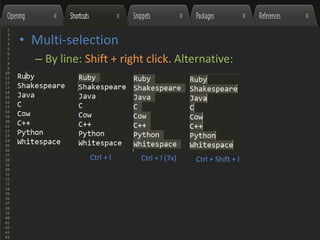
– By line: Shift + right click. Alternative:
• Multi-selection
– By line: Shift + right click. Alternative:
Ctrl + l
• Multi-selection
– By line: Shift + right click. Alternative:
Ctrl + l Ctrl + l (7x)
• Multi-selection
– By line: Shift + right click. Alternative:
Ctrl + l Ctrl + l (7x) Ctrl + Shift + l
• Multi-selection
– By line: Shift + right click. Alternative:
Ctrl + l Ctrl + l (7x) Ctrl + Shift + l “
• Multi-selection
– By line: Shift + right click. Alternative:
Ctrl + l Ctrl + l (7x) Ctrl + Shift + l “
Ctrl + j
• Multi-selection
– By word
• Multi-selection
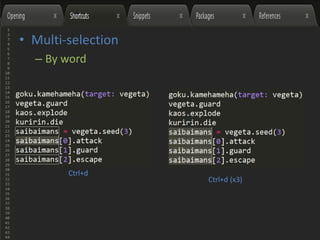
– By word
Ctrl+d
• Multi-selection
– By word
Ctrl+d
Ctrl+d (x3)
• Other multi-selections
– By paragraph
• Other multi-selections
– By paragraph
– By scope
• Other multi-selections
– By paragraph
– By scope
– By indentation
• Other multi-selections
– By paragraph
– By scope
– By indentation
– By tag
• Other multi-selections
– By paragraph
– By scope
– By indentation
– By tag
– By brackets/parenthesis/braces
• Other shortcuts
– Bookmark line:
• Other shortcuts
– Bookmark line:
• Mark: Ctrl+F2
• Other shortcuts
– Bookmark line:
• Mark: Ctrl+F2
• Find next: F2
• Other shortcuts
– Bookmark line:
• Mark: Ctrl+F2
• Find next: F2
• Find previous: Shift+F2
• Other shortcuts
– Bookmark line:
• Mark: Ctrl+F2
• Find next: F2
• Find previous: Shift+F2
• Clean: Ctrl+Shift+F2
• Other shortcuts
– Bookmark line:
• Mark: Ctrl+F2
• Find next: F2
• Find previous: Shift+F2
• Clean: Ctrl+Shift+F2
– Move line or selection: Ctrl+Shift+ /Ctrl+Shif+
• Other shortcuts
– Bookmark line:
• Mark: Ctrl+F2
• Find next: F2
• Find previous: Shift+F2
• Clean: Ctrl+Shift+F2
– Move line or selection: Ctrl+Shift+ /Ctrl+Shif+
– Clone line: Ctrl+Shift+d
• Other shortcuts
– Bookmark line:
• Mark: Ctrl+F2
• Find next: F2
• Find previous: Shift+F2
• Clean: Ctrl+Shift+F2
– Move line or selection: Ctrl+Shift+ /Ctrl+Shif+
– Clone line: Ctrl+Shift+d
– Comment line or selection: Ctrl+/
• Other shortcuts
– Bookmark line:
• Mark: Ctrl+F2
• Find next: F2
• Find previous: Shift+F2
• Clean: Ctrl+Shift+F2
– Move line or selection: Ctrl+Shift+ /Ctrl+Shif+
– Clone line: Ctrl+Shift+d
– Comment line or selection: Ctrl+/
– Soft undo: Ctrl+U
• Other shortcuts
– Bookmark line:
• Mark: Ctrl+F2
• Find next: F2
• Find previous: Shift+F2
• Clean: Ctrl+Shift+F2
– Move line or selection: Ctrl+Shift+ /Ctrl+Shif+
– Clone line: Ctrl+Shift+d
– Comment line or selection: Ctrl+/
– Soft undo: Ctrl+U
– Past and indent: Ctrl+Shift+v
• Other shortcuts
– Bookmark line:
• Mark: Ctrl+F2
• Find next: F2
• Find previous: Shift+F2
• Clean: Ctrl+Shift+F2
– Move line or selection: Ctrl+Shift+ /Ctrl+Shif+
– Clone line: Ctrl+Shift+d
– Comment line or selection: Ctrl+/
– Soft undo: Ctrl+U
– Past and indent: Ctrl+Shift+v
– Go to matched (brace/bracket/parenthesis):
Ctrl+m
• Multipurpose: fuzzy search with Ctrl+p
– Search file.
• Multipurpose: fuzzy search with Ctrl+p
– Search file. Ex: oper spec model transac
• Multipurpose: fuzzy search with Ctrl+p
– Search file. Ex: oper spec model transac
– Search in file:
• Multipurpose: fuzzy search with Ctrl+p
– Search file. Ex: oper spec model transac
– Search in file:
• By class/method
– Start with @
• Multipurpose: fuzzy search with Ctrl+p
– Search file. Ex: oper spec model transac
– Search in file:
• By class/method
– Start with @
• By word
– Start with #
• Multipurpose: fuzzy search with Ctrl+p
– Search file. Ex: oper spec model transac
– Search in file:
• By class/method
– Start with @
• By word
– Start with #
• By line
– Start with :
• Google it!
– Sublime Text shortcuts <SO>
• Snippets o/
– Default snippets: Ctrl+Shift+p, Snippets
• Snippets o/
– Default snippets: Ctrl+Shift+p, Snippets
• Snippets o/
– Default snippets: Ctrl+Shift+p, Snippets
– Create a new Snippet: Tools -> New Snippet.
• Package Control: https://packagecontrol.io/
• Install Package: Ctrl+Shift+p -> Package
Control: Install Package.
• It’ll open another window. Press <Package Name>
• Some packages
– Git Gutter
• Some packages
– Git Gutter
• Some packages
– Emmet
• Some packages
– Emmet
Ctrl+Alt+x
• Some packages
– Emmet
Ctrl+Alt+x
• Some packages
– Emmet
• Some packages
– Emmet
Ctrl+Alt+x
• Some packages
– Emmet
• Some packages
– Emmet
Tab
• Some packages
– Emmet
Tab
• Some packages
– Emmet
Tab
• Some packages
– Emmet
Tab
Tab
• Some packages
– Emmet
Tab
• Some packages
– Emmet
Tab
Tab
Tab
• Some packages
– Emmet
• Some packages
– Emmet
Tab
• Some packages
– Sidebar Enhancements
• Some packages
– Sidebar Enhancements
• Some packages
– Examples of other packages functionalities:
• Some packages
– Examples of other packages functionalities:
• Sintax highlight
• Some packages
– Examples of other packages functionalities:
• Sintax highlight
• Sintax error detection
• Some packages
– Examples of other packages functionalities:
• Sintax highlight
• Sintax error detection
• Github commands
• Some packages
– Examples of other packages functionalities:
• Sintax highlight
• Sintax error detection
• Github commands
• Clipboard history
• Some packages
– Examples of other packages functionalities:
• Sintax highlight
• Sintax error detection
• Github commands
• Clipboard history
• File history
• Some packages
– Examples of other packages functionalities:
• Sintax highlight
• Sintax error detection
• Github commands
• Clipboard history
• File history
• File diff
• Some packages
– Examples of other packages functionalities:
• Sintax highlight
• Sintax error detection
• Github commands
• Clipboard history
• File history
• File diff
• Snippets set
• Some packages
– Examples of other packages functionalities:
• Sintax highlight
• Sintax error detection
• Github commands
• Clipboard history
• File history
• File diff
• Snippets set
• Etc
• Some packages
– Examples of other packages functionalities:
• Sintax highlight
• Sintax error detection
• Github commands
• Clipboard history
• File history
• File diff
• Snippets set
• Etc
• Google it: [Best] Sublime Packages [for X]
• http://www.sublimetext.com/
• http://docs.sublimetext.info/en/latest/
• http://code.tutsplus.com/courses/perfect-
workflow-in-sublime-text-2

Sublime