AusLUG2012
                   Streamline client deployments with
                   customised installation packages

                   Christian Petters
                   Systems and Data Services Manager
Meet.Share.Learn   Statistics NZ
                   www.cubetoon.com


                                              29th & 30th March, Melbourne, Victoria, Australia
AusLUG2011
                                                                        AusLUG2012


           About me
           • Christian Petters
           • Systems and Data Services Manager at Statistics New Zealand
           • Administration and Development using IBM products for almost a
             decade
           • Working with Notes/Domino, Sametime, LEI, Connections, …
           • Living in New Zealand with two kids and one wife
           • Born and raised in East Germany


Meet.Share.Learn                                                     29th & 30th March, Melbourne, Victoria,
                                                                                                  Australia
AusLUG2012


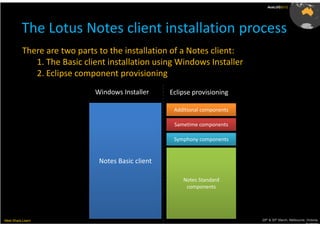
          The Lotus Notes client installation process
          There are two parts to the installation of a Notes client:
             1. The Basic client installation using Windows Installer
             2. Eclipse component provisioning
                             Windows Installer     Eclipse provisioning

                                                    Additional components

                                                    Sametime components

                                                    Symphony components


                              Notes Basic client

                                                       Notes Standard
                                                        components


Meet.Share.Learn                                                            29th & 30th March, Melbourne, Victoria,
                                                                                                         Australia
AusLUG2012


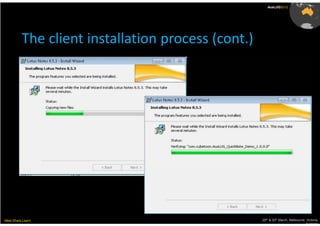
          The client installation process (cont.)


Meet.Share.Learn                                    29th & 30th March, Melbourne, Victoria,
                                                                                 Australia
AusLUG2012


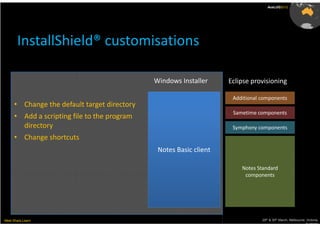
       InstallShield® customisations

                                              Windows Installer     Eclipse provisioning

                                                                     Additional components
      • Change the default target directory
                                                                     Sametime components
      • Add a scripting file to the program
        directory                                                    Symphony components
      • Change shortcuts
                                               Notes Basic client

                                                                        Notes Standard
                                                                         components


Meet.Share.Learn                                                                29th & 30th March, Melbourne, Victoria,
                                                                                                             Australia
AusLUG2012


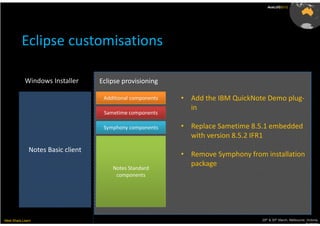
          Eclipse customisations

            Windows Installer      Eclipse provisioning

                                    Additional components   • Add the IBM QuickNote Demo plug-
                                                              in
                                    Sametime components

                                    Symphony components     • Replace Sametime 8.5.1 embedded
                                                              with version 8.5.2 IFR1
              Notes Basic client
                                                            • Remove Symphony from installation
                                                              package
                                       Notes Standard
                                        components


Meet.Share.Learn                                                                  29th & 30th March, Melbourne, Victoria,
                                                                                                               Australia
AusLUG2012


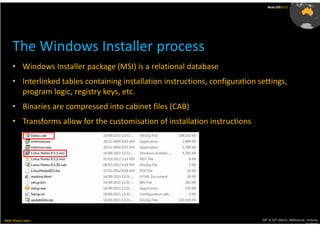
     The Windows Installer process
    • Windows Installer package (MSI) is a relational database
    • Interlinked tables containing installation instructions, configuration settings,
      program logic, registry keys, etc.
    • Binaries are compressed into cabinet files (CAB)
    • Transforms allow for the customisation of installation instructions


Meet.Share.Learn                                                              29th & 30th March, Melbourne, Victoria,
                                                                                                           Australia
AusLUG2012


     The InstallShield® Tuner for IBM Lotus Notes
    • Is used for the creation of transform files (MST)
    • Customises the Windows installer set-up (Windows solution only)
    • Gives you the control required for an enterprise wide Lotus Notes deployment
    • Is FREE as part of the Lotus Notes license


Meet.Share.Learn                                                        29th & 30th March, Melbourne, Victoria,
                                                                                                     Australia
AusLUG2012


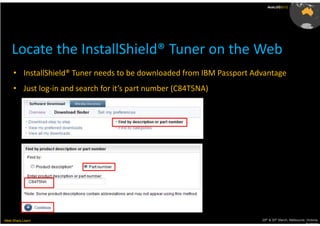
    Locate the InstallShield® Tuner on the Web
     • InstallShield® Tuner needs to be downloaded from IBM Passport Advantage
     • Just log-in and search for it’s part number (C84T5NA)


Meet.Share.Learn                                                       29th & 30th March, Melbourne, Victoria,
                                                                                                    Australia
AusLUG2012


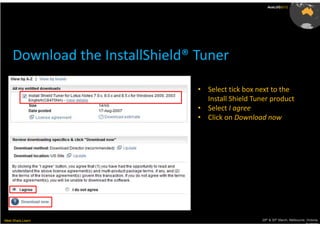
     Download the InstallShield® Tuner

                                 • Select tick box next to the
                                   Install Shield Tuner product
                                 • Select I agree
                                 • Click on Download now


Meet.Share.Learn                                     29th & 30th March, Melbourne, Victoria,
                                                                                  Australia
AusLUG2012


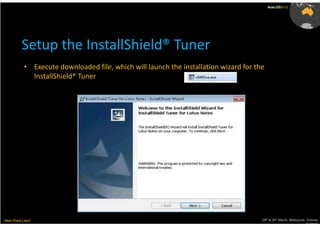
          Setup the InstallShield® Tuner
           • Execute downloaded file, which will launch the installation wizard for the
             InstallShield® Tuner


Meet.Share.Learn                                                                      29th & 30th March, Melbourne, Victoria,
                                                                                                                   Australia
AusLUG2012


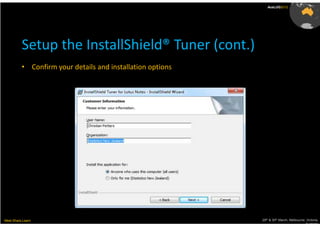
          Setup the InstallShield® Tuner (cont.)
          • Confirm your details and installation options


Meet.Share.Learn                                            29th & 30th March, Melbourne, Victoria,
                                                                                         Australia
AusLUG2012


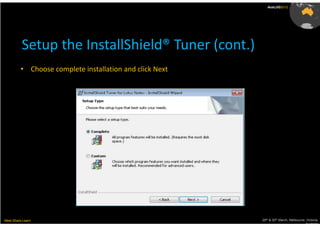
          Setup the InstallShield® Tuner (cont.)
         • Choose complete installation and click Next


Meet.Share.Learn                                         29th & 30th March, Melbourne, Victoria,
                                                                                      Australia
AusLUG2012


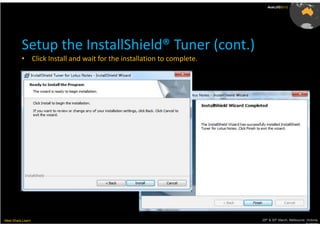
          Setup the InstallShield® Tuner (cont.)
          • Click Install and wait for the installation to complete.


Meet.Share.Learn                                                       29th & 30th March, Melbourne, Victoria,
                                                                                                    Australia
AusLUG2012


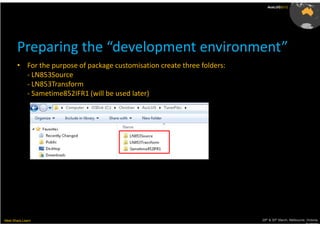
       Preparing the “development environment”
       • For the purpose of package customisation create three folders:
         - LN853Source
         - LN853Transform
         - Sametime852IFR1 (will be used later)


Meet.Share.Learn                                                          29th & 30th March, Melbourne, Victoria,
                                                                                                       Australia
AusLUG2012


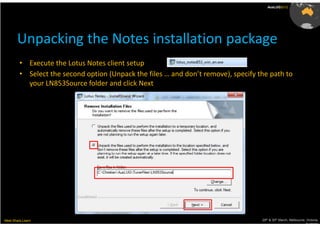
       Unpacking the Notes installation package
         • Execute the Lotus Notes client setup
         • Select the second option (Unpack the files … and don’t remove), specify the path to
           your LN853Source folder and click Next


Meet.Share.Learn                                                                    29th & 30th March, Melbourne, Victoria,
                                                                                                                 Australia
AusLUG2012


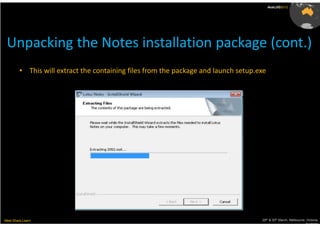
 Unpacking the Notes installation package (cont.)
         • This will extract the containing files from the package and launch setup.exe


Meet.Share.Learn                                                                     29th & 30th March, Melbourne, Victoria,
                                                                                                                  Australia
AusLUG2012


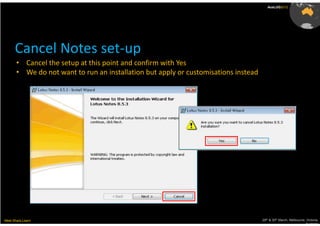
      Cancel Notes set-up
       • Cancel the setup at this point and confirm with Yes
       • We do not want to run an installation but apply or customisations instead


Meet.Share.Learn                                                                     29th & 30th March, Melbourne, Victoria,
                                                                                                                  Australia
AusLUG2012


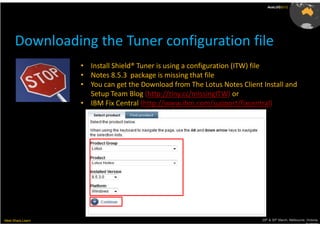
      Downloading the Tuner configuration file
                   • Install Shield® Tuner is using a configuration (ITW) file
                   • Notes 8.5.3 package is missing that file
                   • You can get the Download from The Lotus Notes Client Install and
                     Setup Team Blog (http://tiny.cc/missingITW) or
                   • IBM Fix Central (http://www.ibm.com/support/fixcentral)


Meet.Share.Learn                                                          29th & 30th March, Melbourne, Victoria,
                                                                                                       Australia
AusLUG2012


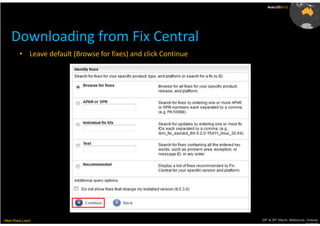
    Downloading from Fix Central
         • Leave default (Browse for fixes) and click Continue


Meet.Share.Learn                                                 29th & 30th March, Melbourne, Victoria,
                                                                                              Australia
AusLUG2012


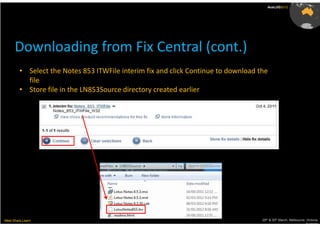
      Downloading from Fix Central (cont.)
         • Select the Notes 853 ITWFile interim fix and click Continue to download the
           file
         • Store file in the LN853Source directory created earlier


Meet.Share.Learn                                                                    29th & 30th March, Melbourne, Victoria,
                                                                                                                 Australia
AusLUG2012


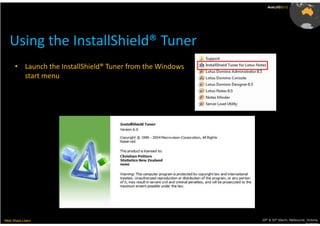
   Using the InstallShield® Tuner
      • Launch the InstallShield® Tuner from the Windows
        start menu


Meet.Share.Learn                                           29th & 30th March, Melbourne, Victoria,
                                                                                        Australia
AusLUG2012


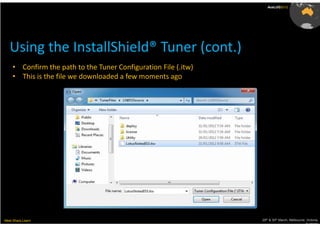
   Using the InstallShield® Tuner (cont.)
     • Confirm the path to the Tuner Configuration File (.itw)
     • This is the file we downloaded a few moments ago


Meet.Share.Learn                                                 29th & 30th March, Melbourne, Victoria,
                                                                                              Australia
AusLUG2012


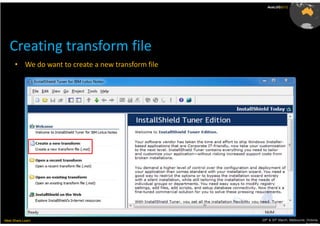
   Creating transform file
      • We do want to create a new transform file


Meet.Share.Learn                                    29th & 30th March, Melbourne, Victoria,
                                                                                 Australia
AusLUG2012


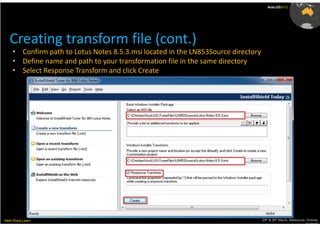
   Creating transform file (cont.)
     • Confirm path to Lotus Notes 8.5.3.msi located in the LN853Source directory
     • Define name and path to your transformation file in the same directory
     • Select Response Transform and click Create


Meet.Share.Learn                                                                    29th & 30th March, Melbourne, Victoria,
                                                                                                                 Australia
AusLUG2012


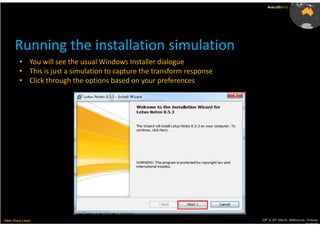
      Running the installation simulation
         • You will see the usual Windows Installer dialogue
         • This is just a simulation to capture the transform response
         • Click through the options based on your preferences


Meet.Share.Learn                                                         29th & 30th March, Melbourne, Victoria,
                                                                                                      Australia
AusLUG2012


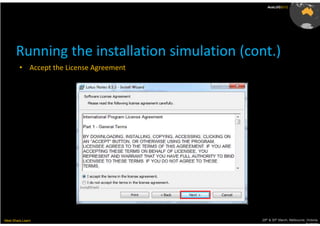
       Running the installation simulation (cont.)
         • Accept the License Agreement


Meet.Share.Learn                              29th & 30th March, Melbourne, Victoria,
                                                                           Australia
AusLUG2012


         Running the installation simulation (cont.)
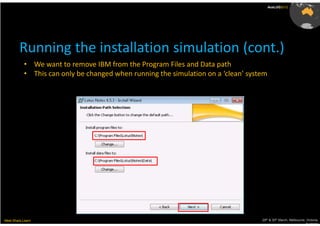
           • We want to remove IBM from the Program Files and Data path
           • This can only be changed when running the simulation on a ‘clean’ system


Meet.Share.Learn                                                                   29th & 30th March, Melbourne, Victoria,
                                                                                                                Australia
AusLUG2012


       Running the installation simulation (cont.)
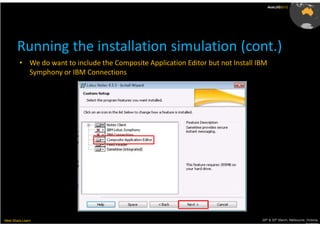
         • We do want to include the Composite Application Editor but not Install IBM
           Symphony or IBM Connections


Meet.Share.Learn                                                                   29th & 30th March, Melbourne, Victoria,
                                                                                                                Australia
AusLUG2012


      Running the installation simulation (cont.)
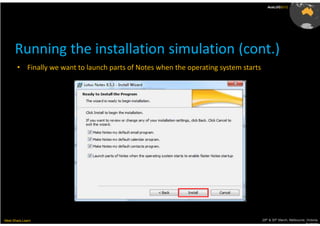
       • Finally we want to launch parts of Notes when the operating system starts


Meet.Share.Learn                                                                     29th & 30th March, Melbourne, Victoria,
                                                                                                                  Australia
AusLUG2012


       Running the installation simulation (cont.)
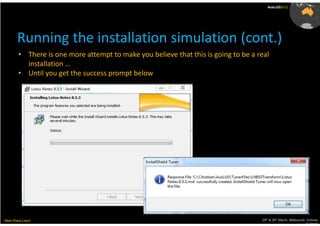
        • There is one more attempt to make you believe that this is going to be a real
          installation …
        • Until you get the success prompt below


Meet.Share.Learn                                                                    29th & 30th March, Melbourne, Victoria,
                                                                                                                 Australia
AusLUG2012


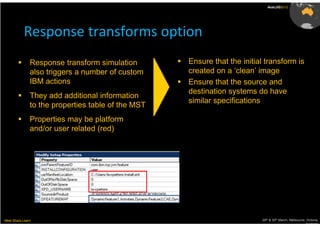
           Response transforms option
               Response transform simulation        Ensure that the initial transform is
               also triggers a number of custom     created on a ‘clean’ image
               IBM actions                          Ensure that the source and
                                                    destination systems do have
               They add additional information
                                                    similar specifications
               to the properties table of the MST
               Properties may be platform
               and/or user related (red)


Meet.Share.Learn                                                          29th & 30th March, Melbourne, Victoria,
                                                                                                       Australia
AusLUG2012


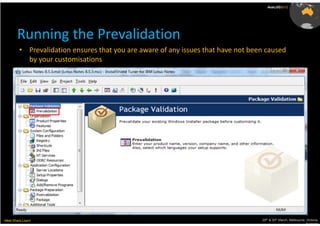
       Running the Prevalidation
         • Prevalidation ensures that you are aware of any issues that have not been caused
           by your customisations


Meet.Share.Learn                                                                   29th & 30th March, Melbourne, Victoria,
                                                                                                                Australia
AusLUG2012


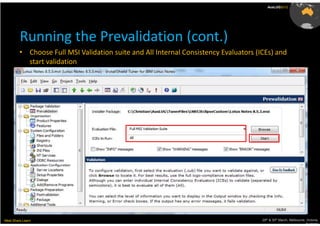
         Running the Prevalidation (cont.)
         • Choose Full MSI Validation suite and All Internal Consistency Evaluators (ICEs) and
           start validation


Meet.Share.Learn                                                                      29th & 30th March, Melbourne, Victoria,
                                                                                                                   Australia
AusLUG2012


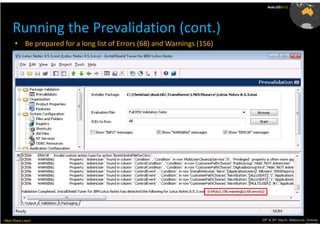
     Running the Prevalidation (cont.)
      • Be prepared for a long list of Errors (68) and Warnings (156)


Meet.Share.Learn                                                        29th & 30th March, Melbourne, Victoria,
                                                                                                     Australia
AusLUG2012


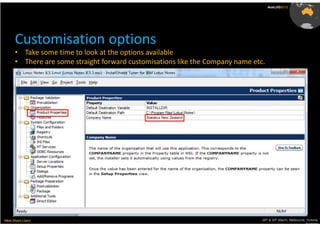
      Customisation options
      • Take some time to look at the options available
      • There are some straight forward customisations like the Company name etc.


Meet.Share.Learn                                                                29th & 30th March, Melbourne, Victoria,
                                                                                                             Australia
AusLUG2012


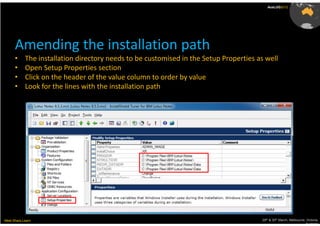
      Amending the installation path
      •     The installation directory needs to be customised in the Setup Properties as well
      •     Open Setup Properties section
      •     Click on the header of the value column to order by value
      •     Look for the lines with the installation path


Meet.Share.Learn                                                                       29th & 30th March, Melbourne, Victoria,
                                                                                                                    Australia
AusLUG2012


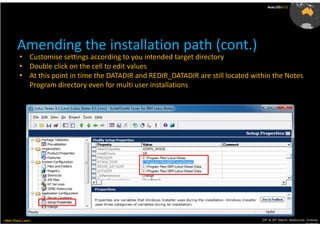
       Amending the installation path (cont.)
         • Customise settings according to you intended target directory
         • Double click on the cell to edit values
         • At this point in time the DATADIR and REDIR_DATADIR are still located within the Notes
           Program directory even for multi user installations


Meet.Share.Learn                                                                    29th & 30th March, Melbourne, Victoria,
                                                                                                                 Australia
AusLUG2012


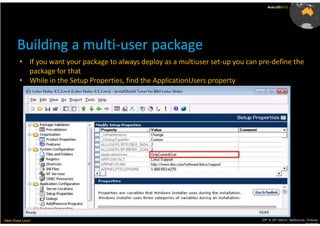
       Building a multi-user package
         • If you want your package to always deploy as a multiuser set-up you can pre-define the
           package for that
         • While in the Setup Properties, find the ApplicationUsers property


Meet.Share.Learn                                                                    29th & 30th March, Melbourne, Victoria,
                                                                                                                 Australia
AusLUG2012


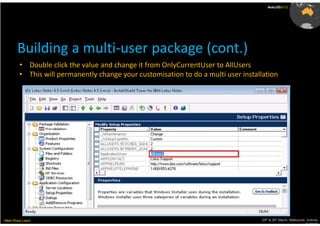
       Building a multi-user package (cont.)
         • Double click the value and change it from OnlyCurrentUser to AllUsers
         • This will permanently change your customisation to do a multi user installation


Meet.Share.Learn                                                                     29th & 30th March, Melbourne, Victoria,
                                                                                                                  Australia
AusLUG2012


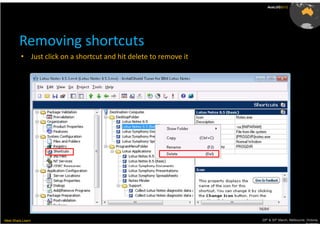
         Removing shortcuts
          • Just click on a shortcut and hit delete to remove it


Meet.Share.Learn                                                   29th & 30th March, Melbourne, Victoria,
                                                                                                Australia
AusLUG2012


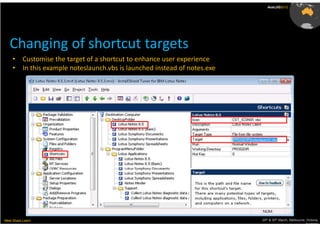
   Changing of shortcut targets
     •     Customise the target of a shortcut to enhance user experience
     •     In this example noteslaunch.vbs is launched instead of notes.exe


Meet.Share.Learn                                                              29th & 30th March, Melbourne, Victoria,
                                                                                                           Australia
AusLUG2012


                                                                              Start
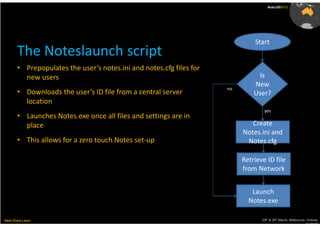
       The Noteslaunch script
       • Prepopulates the user’s notes.ini and notes.cfg files for
         new users                                                              Is
                                                                              New
                                                                     no
       • Downloads the user’s ID file from a central server                   User?
         location
                                                                                  yes
       • Launches Notes.exe once all files and settings are in
         place                                                               Create
                                                                          Notes.ini and
       • This allows for a zero touch Notes set-up                         Notes.cfg

                                                                          Retrieve ID file
                                                                          from Network


                                                                             Launch
                                                                            Notes.exe

Meet.Share.Learn                                                                 29th & 30th March, Melbourne, Victoria,
                                                                                                              Australia
AusLUG2012


    Configuration set by Noteslaunch.vbs
          Notes.ini
          [Notes]
          Directory=C:UserscpettersAppDataLocalLotusNotesData
          KeyFileName=C:UserscpettersAppDataLocalLotusNotesDataCPetters.id
          MailFile=mailCPetters.nsf
          MailServer=CN=ServerName/O=Organisation
          ConfigFile=C:UserscpettersAppDataLocalLotusNotesDatanotes.cfg
          SharedDataDirectory=C:ProgramDataLotusNotesDataShared
          DisabledPorts=SPX,COM1,COM2,COM3,COM4,COM5,LAN0
          TCPIP=TCP,0,15,0                         Notes.cfg
          LAN0=NETBIOS,0,15,0                      UserName=Christian Petters/OU/Organisation
          SPX=NWSPX,0,15,0                         AdditionalServices=-1
          COM1=XPC,1,15,0                          IM.Server=STServer/Organisation *
          COM2=XPC,2,15,0                          IM.Port=1533 *
          COM3=XPC,3,15,0                          IM.ConnectWhen=0 *
          COM4=XPC,4,15,0                          IM.Protocol=0 *
          COM5=XPC,5,15,0
          PORTS=TCPIP                              * Sametime settings are only required for
          Location=Online                          Sametime basic set-up
                                                                                                      th   th
                                                                                        29 & 30 March, Melbourne, Victoria,
Meet.Share.Learn
          IM_NO_SETUP=1                                                                                          Australia
AusLUG2012


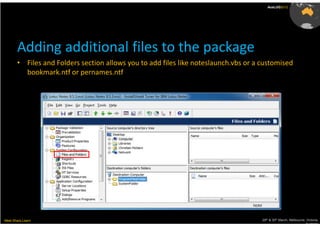
       Adding additional files to the package
       • Files and Folders section allows you to add files like noteslaunch.vbs or a customised
         bookmark.ntf or pernames.ntf


Meet.Share.Learn                                                                     29th & 30th March, Melbourne, Victoria,
                                                                                                                  Australia
AusLUG2012


       Adding additional files to the package (cont.)
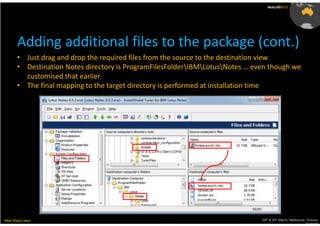
       • Just drag and drop the required files from the source to the destination view
       • Destination Notes directory is ProgramFilesFolderIBMLotusNotes … even though we
         customised that earlier
       • The final mapping to the target directory is performed at installation time


Meet.Share.Learn                                                               29th & 30th March, Melbourne, Victoria,
                                                                                                            Australia
AusLUG2012


         Adding additional files to the package (cont.)
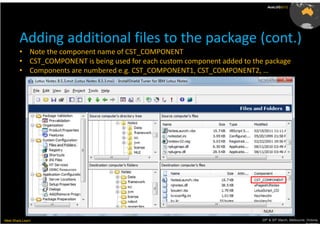
         • Note the component name of CST_COMPONENT
         • CST_COMPONENT is being used for each custom component added to the package
         • Components are numbered e.g. CST_COMPONENT1, CST_COMPONENT2, …


Meet.Share.Learn                                                             29th & 30th March, Melbourne, Victoria,
                                                                                                          Australia
AusLUG2012


        Changing the component target
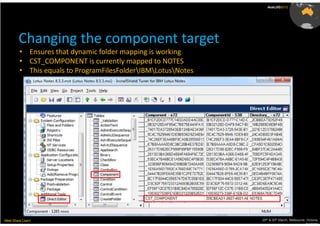
         • Ensures that dynamic folder mapping is working
         • CST_COMPONENT is currently mapped to NOTES
         • This equals to ProgramFilesFolderIBMLotusNotes


Meet.Share.Learn                                               29th & 30th March, Melbourne, Victoria,
                                                                                            Australia
AusLUG2012


         Changing the component target directory
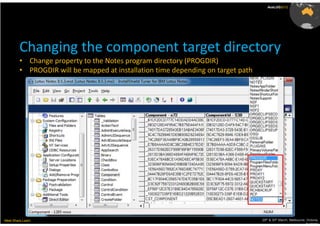
         • Change property to the Notes program directory (PROGDIR)
         • PROGDIR will be mapped at installation time depending on target path


Meet.Share.Learn                                                                  29th & 30th March, Melbourne, Victoria,
                                                                                                               Australia
AusLUG2012


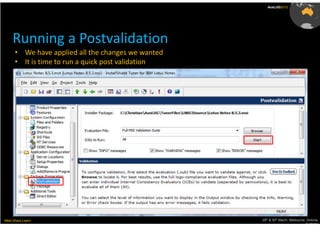
     Running a Postvalidation
      • We have applied all the changes we wanted
      • It is time to run a quick post validation


Meet.Share.Learn                                    29th & 30th March, Melbourne, Victoria,
                                                                                 Australia
AusLUG2012


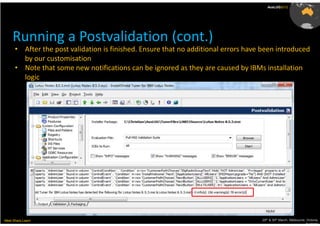
     Running a Postvalidation (cont.)
      • After the post validation is finished. Ensure that no additional errors have been introduced
        by our customisation
      • Note that some new notifications can be ignored as they are caused by IBMs installation
        logic


Meet.Share.Learn                                                                    29th & 30th March, Melbourne, Victoria,
                                                                                                                 Australia
AusLUG2012


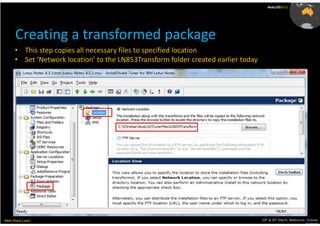
      Creating a transformed package
      • This step copies all necessary files to specified location
      • Set ‘Network location’ to the LN853Transform folder created earlier today


Meet.Share.Learn                                                                    29th & 30th March, Melbourne, Victoria,
                                                                                                                 Australia
AusLUG2012


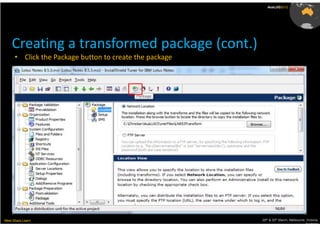
    Creating a transformed package (cont.)
      • Click the Package button to create the package


Meet.Share.Learn                                         29th & 30th March, Melbourne, Victoria,
                                                                                      Australia
AusLUG2012


   Creating a transformed package (cont.)
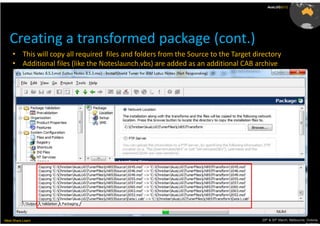
     • This will copy all required files and folders from the Source to the Target directory
     • Additional files (like the Noteslaunch.vbs) are added as an additional CAB archive


Meet.Share.Learn                                                                     29th & 30th March, Melbourne, Victoria,
                                                                                                                  Australia
AusLUG2012


   Creating a transformed package (cont.)
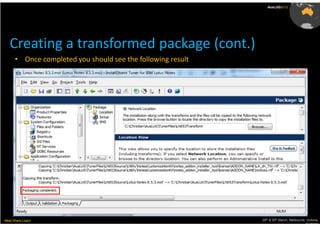
      • Once completed you should see the following result


Meet.Share.Learn                                             29th & 30th March, Melbourne, Victoria,
                                                                                          Australia
AusLUG2012


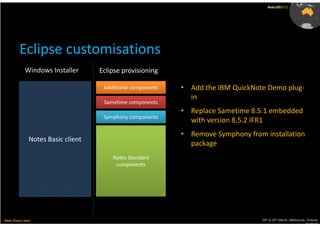
         Eclipse customisations
            Windows Installer      Eclipse provisioning

                                    Additional components   • Add the IBM QuickNote Demo plug-
                                                              in
                                    Sametime components
                                                            • Replace Sametime 8.5.1 embedded
                                    Symphony components
                                                              with version 8.5.2 IFR1
                                                            • Remove Symphony from installation
              Notes Basic client
                                                              package
                                       Notes Standard
                                        components


Meet.Share.Learn                                                                  29th & 30th March, Melbourne, Victoria,
                                                                                                               Australia
AusLUG2012


         Customising Eclipse features
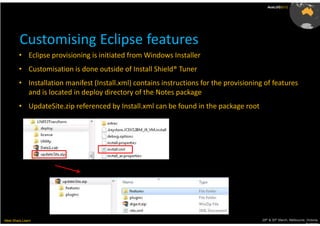
        • Eclipse provisioning is initiated from Windows Installer
        • Customisation is done outside of Install Shield® Tuner
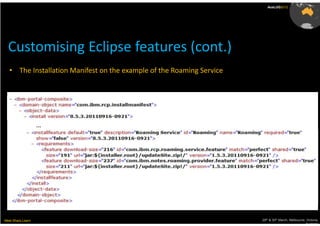
        • Installation manifest (Install.xml) contains instructions for the provisioning of features
          and is located in deploy directory of the Notes package
        • UpdateSite.zip referenced by Install.xml can be found in the package root


Meet.Share.Learn                                                                        29th & 30th March, Melbourne, Victoria,
                                                                                                                     Australia
AusLUG2012


  Customising Eclipse features (cont.)
   • The Installation Manifest on the example of the Roaming Service


                   …


Meet.Share.Learn                                                       29th & 30th March, Melbourne, Victoria,
                                                                                                    Australia
AusLUG2012


     Including Sametime 8.5.2 IFR1
      • A number of options are available to upgrade to Sametime 8.5.2 IFR1 during Lotus Notes
        8.5.3 deployment
               1. Chaining the Notes 8.5.3 and Sametime 8.5.2 IFR1 together
                  - more details on http://tiny.cc/ChainInstall
               2. Customise installation manifest (install.xml) to include ST ST 8.5.2 IFR1
                  - Consolidate Notes and Sametime upgrade sites or
                  - Provision Sametime from additional update site
                  - We will discuss this option today


Meet.Share.Learn                                                                          29th & 30th March, Melbourne, Victoria,
                                                                                                                       Australia
AusLUG2012


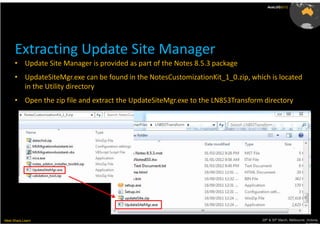
      Extracting Update Site Manager
      • Update Site Manager is provided as part of the Notes 8.5.3 package
      • UpdateSiteMgr.exe can be found in the NotesCustomizationKit_1_0.zip, which is located
        in the Utility directory
      • Open the zip file and extract the UpdateSiteMgr.exe to the LN853Transform directory


Meet.Share.Learn                                                                 29th & 30th March, Melbourne, Victoria,
                                                                                                              Australia
AusLUG2012


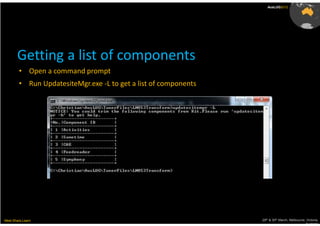
       Getting a list of components
        • Open a command prompt
        • Run UpdatesiteMgr.exe -L to get a list of components


Meet.Share.Learn                                                 29th & 30th March, Melbourne, Victoria,
                                                                                              Australia
AusLUG2012


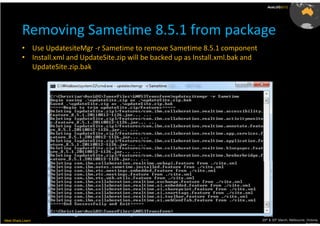
          Removing Sametime 8.5.1 from package
          • Use UpdatesiteMgr -r Sametime to remove Sametime 8.5.1 component
          • Install.xml and UpdateSite.zip will be backed up as Install.xml.bak and
            UpdateSite.zip.bak


Meet.Share.Learn                                                                      29th & 30th March, Melbourne, Victoria,
                                                                                                                   Australia
AusLUG2012


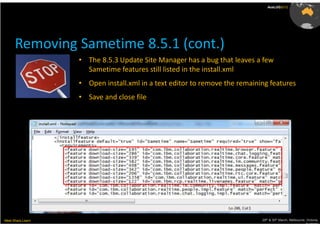
      Removing Sametime 8.5.1 (cont.)
                   • The 8.5.3 Update Site Manager has a bug that leaves a few
                     Sametime features still listed in the install.xml
                   • Open install.xml in a text editor to remove the remaining features
                   • Save and close file


Meet.Share.Learn                                                            29th & 30th March, Melbourne, Victoria,
                                                                                                         Australia
AusLUG2012


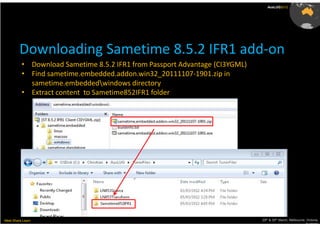
         Downloading Sametime 8.5.2 IFR1 add-on
          • Download Sametime 8.5.2 IFR1 from Passport Advantage (CI3YGML)
          • Find sametime.embedded.addon.win32_20111107-1901.zip in
            sametime.embeddedwindows directory
          • Extract content to Sametime852IFR1 folder


Meet.Share.Learn                                                             29th & 30th March, Melbourne, Victoria,
                                                                                                          Australia
AusLUG2012


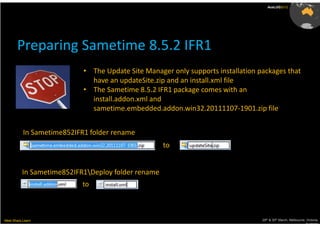
       Preparing Sametime 8.5.2 IFR1
                            • The Update Site Manager only supports installation packages that
                              have an updateSite.zip and an install.xml file
                            • The Sametime 8.5.2 IFR1 package comes with an
                              install.addon.xml and
                              sametime.embedded.addon.win32.20111107-1901.zip file


           In Sametime852IFR1 folder rename
                                                    to


          In Sametime852IFR1Deploy folder rename
                            to


Meet.Share.Learn                                                                  29th & 30th March, Melbourne, Victoria,
                                                                                                               Australia
AusLUG2012


         Preparing Sametime 8.5.2 IFR1 (cont.)
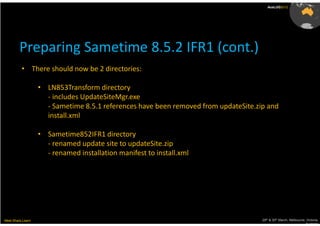
          • There should now be 2 directories:

                   • LN853Transform directory
                     - includes UpdateSiteMgr.exe
                     - Sametime 8.5.1 references have been removed from updateSite.zip and
                     install.xml

                   • Sametime852IFR1 directory
                     - renamed update site to updateSite.zip
                     - renamed installation manifest to install.xml


Meet.Share.Learn                                                                     29th & 30th March, Melbourne, Victoria,
                                                                                                                  Australia
AusLUG2012


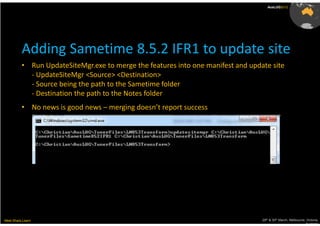
          Adding Sametime 8.5.2 IFR1 to update site
          • Run UpdateSiteMgr.exe to merge the features into one manifest and update site
            - UpdateSiteMgr <Source> <Destination>
            - Source being the path to the Sametime folder
            - Destination the path to the Notes folder
          • No news is good news – merging doesn’t report success


Meet.Share.Learn                                                                  29th & 30th March, Melbourne, Victoria,
                                                                                                               Australia
AusLUG2012


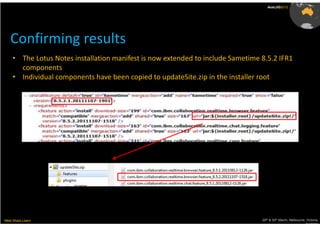
   Confirming results
     • The Lotus Notes installation manifest is now extended to include Sametime 8.5.2 IFR1
       components
     • Individual components have been copied to updateSite.zip in the installer root


Meet.Share.Learn                                                                 29th & 30th March, Melbourne, Victoria,
                                                                                                              Australia
AusLUG2012


     Adding the IBM QuickNote Demo plug-in
       • Using IBM’s QuickNote toolbar extensions demo
       • We will manually add the component to the installation manifest
         (install.xml)
       • Update site will be provided as a separate file (AusLUG.zip)
       • This is demonstrating an alternative way to add components to the
         installation manifest


Meet.Share.Learn                                                        29th & 30th March, Melbourne, Victoria,
                                                                                                     Australia
AusLUG2012


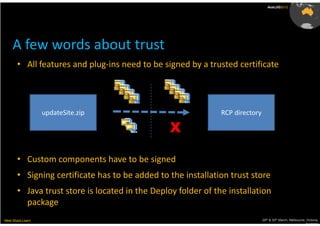
     A few words about trust
       • All features and plug-ins need to be signed by a trusted certificate


                   updateSite.zip                              RCP directory

                                                 X

       • Custom components have to be signed
       • Signing certificate has to be added to the installation trust store
       • Java trust store is located in the Deploy folder of the installation
         package
Meet.Share.Learn                                                               29th & 30th March, Melbourne, Victoria,
                                                                                                            Australia
AusLUG2012


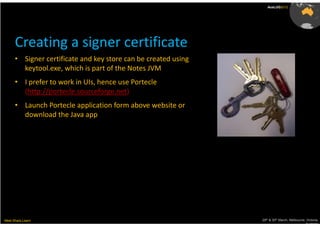
      Creating a signer certificate
      • Signer certificate and key store can be created using
        keytool.exe, which is part of the Notes JVM
      • I prefer to work in UIs, hence use Portecle
        (http://portecle.sourceforge.net)
      • Launch Portecle application form above website or
        download the Java app


Meet.Share.Learn                                                29th & 30th March, Melbourne, Victoria,
                                                                                             Australia
AusLUG2012


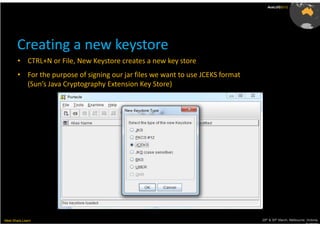
       Creating a new keystore
        • CTRL+N or File, New Keystore creates a new key store
        • For the purpose of signing our jar files we want to use JCEKS format
          (Sun’s Java Cryptography Extension Key Store)


Meet.Share.Learn                                                                 29th & 30th March, Melbourne, Victoria,
                                                                                                              Australia
AusLUG2012


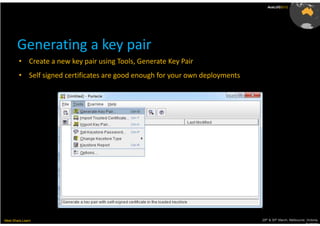
       Generating a key pair
        • Create a new key pair using Tools, Generate Key Pair
        • Self signed certificates are good enough for your own deployments


Meet.Share.Learn                                                              29th & 30th March, Melbourne, Victoria,
                                                                                                           Australia
AusLUG2012


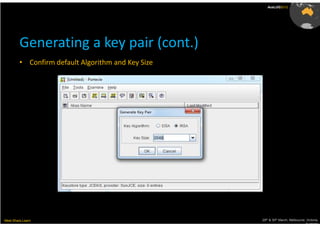
         Generating a key pair (cont.)
         • Confirm default Algorithm and Key Size


Meet.Share.Learn                                    29th & 30th March, Melbourne, Victoria,
                                                                                 Australia
AusLUG2012


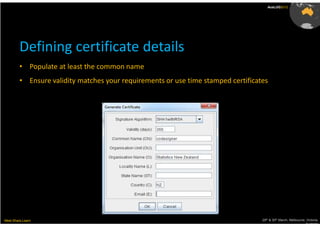
         Defining certificate details
         • Populate at least the common name
         • Ensure validity matches your requirements or use time stamped certificates


Meet.Share.Learn                                                                   29th & 30th March, Melbourne, Victoria,
                                                                                                                Australia
AusLUG2012


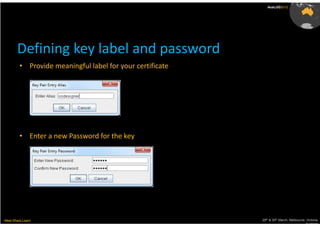
       Defining key label and password
         • Provide meaningful label for your certificate


         • Enter a new Password for the key


Meet.Share.Learn                                           29th & 30th March, Melbourne, Victoria,
                                                                                        Australia
AusLUG2012


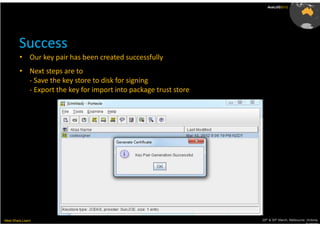
         Success
         • Our key pair has been created successfully
         • Next steps are to
           - Save the key store to disk for signing
           - Export the key for import into package trust store


Meet.Share.Learn                                                  29th & 30th March, Melbourne, Victoria,
                                                                                               Australia
AusLUG2012


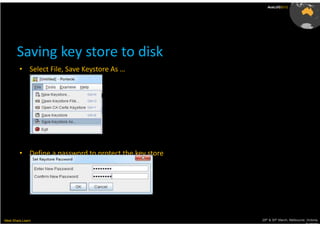
       Saving key store to disk
         • Select File, Save Keystore As …


         • Define a password to protect the key store


Meet.Share.Learn                                        29th & 30th March, Melbourne, Victoria,
                                                                                     Australia
AusLUG2012


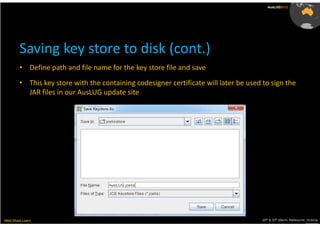
         Saving key store to disk (cont.)
         • Define path and file name for the key store file and save
         • This key store with the containing codesigner certificate will later be used to sign the
           JAR files in our AusLUG update site


Meet.Share.Learn                                                                        29th & 30th March, Melbourne, Victoria,
                                                                                                                     Australia
AusLUG2012


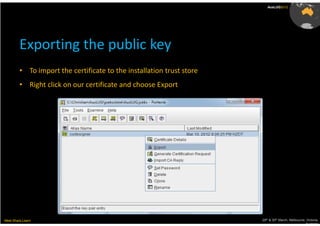
         Exporting the public key
         • To import the certificate to the installation trust store
         • Right click on our certificate and choose Export


Meet.Share.Learn                                                       29th & 30th March, Melbourne, Victoria,
                                                                                                    Australia
AusLUG2012


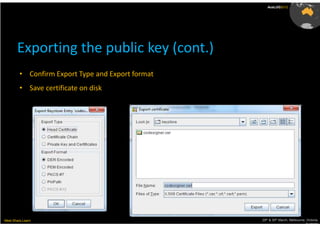
       Exporting the public key (cont.)
         • Confirm Export Type and Export format
         • Save certificate on disk


Meet.Share.Learn                                   29th & 30th March, Melbourne, Victoria,
                                                                                Australia
AusLUG2012


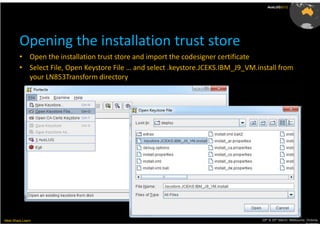
         Opening the installation trust store
         • Open the installation trust store and import the codesigner certificate
         • Select File, Open Keystore File … and select .keystore.JCEKS.IBM_J9_VM.install from
           your LN853Transform directory


Meet.Share.Learn                                                                    29th & 30th March, Melbourne, Victoria,
                                                                                                                 Australia
AusLUG2012


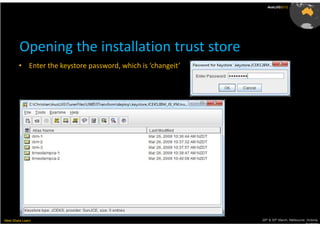
         Opening the installation trust store
        • Enter the keystore password, which is ‘changeit’


Meet.Share.Learn                                             29th & 30th March, Melbourne, Victoria,
                                                                                          Australia
AusLUG2012


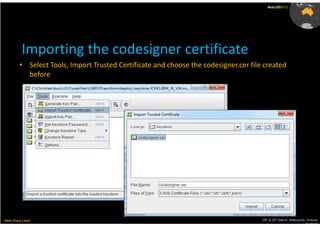
          Importing the codesigner certificate
         • Select Tools, Import Trusted Certificate and choose the codesigner.cer file created
           before


Meet.Share.Learn                                                                      29th & 30th March, Melbourne, Victoria,
                                                                                                                   Australia
AusLUG2012


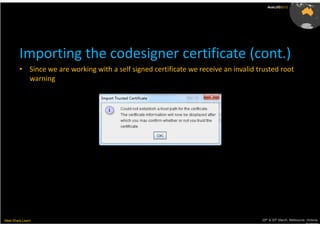
         Importing the codesigner certificate (cont.)
         • Since we are working with a self signed certificate we receive an invalid trusted root
           warning


Meet.Share.Learn                                                                      29th & 30th March, Melbourne, Victoria,
                                                                                                                   Australia
AusLUG2012


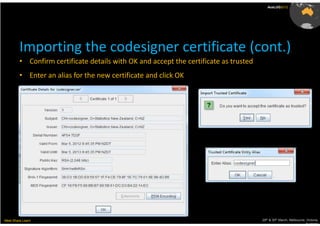
         Importing the codesigner certificate (cont.)
         • Confirm certificate details with OK and accept the certificate as trusted
         • Enter an alias for the new certificate and click OK


Meet.Share.Learn                                                                       29th & 30th March, Melbourne, Victoria,
                                                                                                                    Australia
AusLUG2012


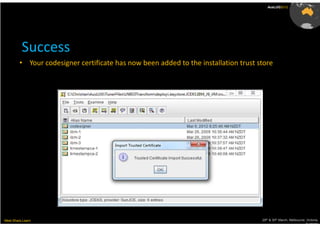
          Success
         • Your codesigner certificate has now been added to the installation trust store


Meet.Share.Learn                                                                     29th & 30th March, Melbourne, Victoria,
                                                                                                                  Australia
AusLUG2012


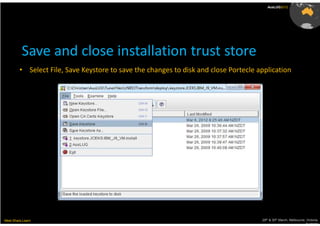
          Save and close installation trust store
         • Select File, Save Keystore to save the changes to disk and close Portecle application


Meet.Share.Learn                                                                      29th & 30th March, Melbourne, Victoria,
                                                                                                                   Australia
AusLUG2012


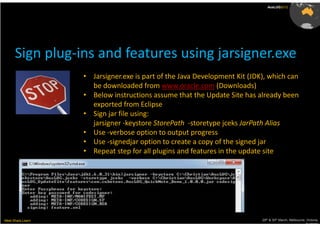
      Sign plug-ins and features using jarsigner.exe
                   • Jarsigner.exe is part of the Java Development Kit (JDK), which can
                     be downloaded from www.oracle.com (Downloads)
                   • Below instructions assume that the Update Site has already been
                     exported from Eclipse
                   • Sign jar file using:
                     jarsigner -keystore StorePath -storetype jceks JarPath Alias
                   • Use -verbose option to output progress
                   • Use -signedjar option to create a copy of the signed jar
                   • Repeat step for all plugins and features in the update site


Meet.Share.Learn                                                           29th & 30th March, Melbourne, Victoria,
                                                                                                        Australia
AusLUG2012


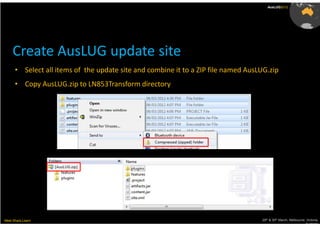
     Create AusLUG update site
      • Select all items of the update site and combine it to a ZIP file named AusLUG.zip
      • Copy AusLUG.zip to LN853Transform directory


Meet.Share.Learn                                                                   29th & 30th March, Melbourne, Victoria,
                                                                                                                Australia
AusLUG2012


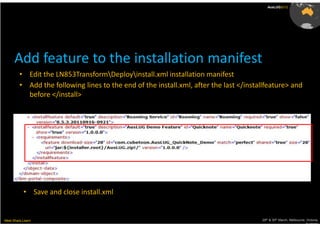
      Add feature to the installation manifest
         • Edit the LN853TransformDeployinstall.xml installation manifest
         • Add the following lines to the end of the install.xml, after the last </installfeature> and
           before </install>


           • Save and close install.xml


Meet.Share.Learn                                                                        29th & 30th March, Melbourne, Victoria,
                                                                                                                     Australia
AusLUG2012


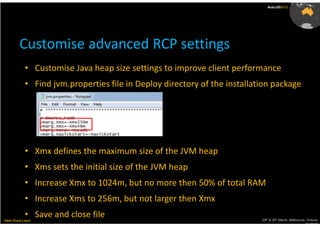
         Customise advanced RCP settings
            • Customise Java heap size settings to improve client performance
            • Find jvm.properties file in Deploy directory of the installation package


            • Xmx defines the maximum size of the JVM heap
            • Xms sets the initial size of the JVM heap
            • Increase Xmx to 1024m, but no more then 50% of total RAM
            • Increase Xms to 256m, but not larger then Xmx
            • Save and close file
Meet.Share.Learn                                                           29th & 30th March, Melbourne, Victoria,
                                                                                                        Australia
AusLUG2012


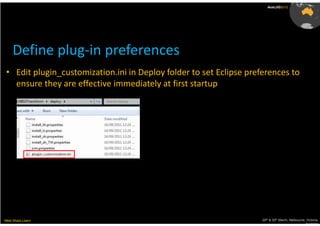
     Define plug-in preferences
 • Edit plugin_customization.ini in Deploy folder to set Eclipse preferences to
   ensure they are effective immediately at first startup


Meet.Share.Learn                                                     29th & 30th March, Melbourne, Victoria,
                                                                                                  Australia
AusLUG2012


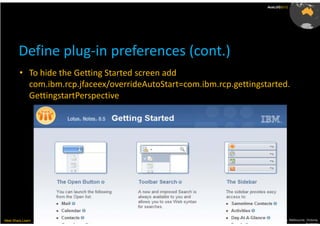
        Define plug-in preferences (cont.)
         • To hide the Getting Started screen add
           com.ibm.rcp.jfaceex/overrideAutoStart=com.ibm.rcp.gettingstarted.
           GettingstartPerspective


Meet.Share.Learn                                                     29th & 30th March, Melbourne, Victoria,
                                                                                                  Australia
AusLUG2012


          Define plug-in preferences (cont.)
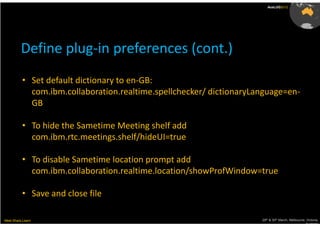
          • Set default dictionary to en-GB:
            com.ibm.collaboration.realtime.spellchecker/ dictionaryLanguage=en-
            GB

          • To hide the Sametime Meeting shelf add
            com.ibm.rtc.meetings.shelf/hideUI=true

          • To disable Sametime location prompt add
            com.ibm.collaboration.realtime.location/showProfWindow=true

          • Save and close file

Meet.Share.Learn                                                     29th & 30th March, Melbourne, Victoria,
                                                                                                  Australia
AusLUG2012


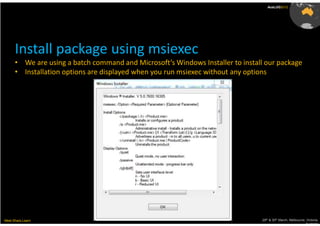
      Install package using msiexec
      • We are using a batch command and Microsoft’s Windows Installer to install our package
      • Installation options are displayed when you run msiexec without any options


Meet.Share.Learn                                                                29th & 30th March, Melbourne, Victoria,
                                                                                                             Australia
AusLUG2012


        The msiexec syntax
         • In our case we are using
           msiexec /i “Lotus Notes 8.5.3.msi” TRANSFORMS=“Lotus Notes 8.5.3.mst” /qb-

         • This will:
                 - Install an application package with the name of Lotus Notes 8.5.3.msi (/i)
                 - Apply our transformation file during installation (TRANSFORMS=)
                 - Display a basic user interface during installation with no modal dialogue (/qb-)


Meet.Share.Learn                                                                       29th & 30th March, Melbourne, Victoria,
                                                                                                                    Australia
AusLUG2012


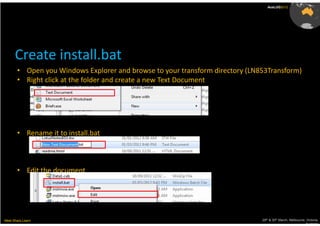
      Create install.bat
       • Open you Windows Explorer and browse to your transform directory (LN853Transform)
       • Right click at the folder and create a new Text Document


       • Rename it to install.bat


       • Edit the document


Meet.Share.Learn                                                              29th & 30th March, Melbourne, Victoria,
                                                                                                           Australia
AusLUG2012


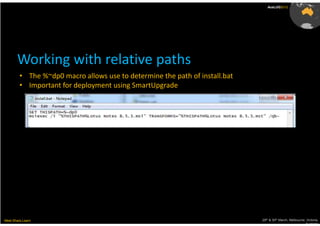
       Working with relative paths
         • The %~dp0 macro allows use to determine the path of install.bat
         • Important for deployment using SmartUpgrade


Meet.Share.Learn                                                             29th & 30th March, Melbourne, Victoria,
                                                                                                          Australia
AusLUG2012


         Performance considerations
         • You can never change a first impression
         • The installation is the first thing users are going to see from the new
           version of Lotus Notes
         • The faster you get the package installed on the user’s machine the more
           likely (s)he is going to recommend the update to others or to accept the
           changes


Meet.Share.Learn                                                          29th & 30th March, Melbourne, Victoria,
                                                                                                       Australia
AusLUG2012


          Performance considerations
         • Remove backup files from package
              - install.xml.bak in Deploy directory
              - updateSite.zip.bak in installation root
         • Remove language dependent mst and ini files
              - 0xnnnn.ini files
              - nnnn.mst files
         • Shrink size of the update site
                - run UpdateSiteMgr.exe –r Symphony if you don’t install it
                - run UpdateSiteMgr.exe –r Activities if you don’t install it


Meet.Share.Learn                                                          29th & 30th March, Melbourne, Victoria,
                                                                                                       Australia
AusLUG2012


          Testing your package
           • Building a deployment package is a development job
           • You need to test, test and test once more to ensure that your
             customisations apply in a way you intended them to apply
           • Individual components can be tested independent from each other
           • Run a full test on a number of different machines
           • Run a pilot with a subset of users


Meet.Share.Learn                                                        29th & 30th March, Melbourne, Victoria,
                                                                                                     Australia
AusLUG2012


         Deployment options
         • There are various ways to deploy packages
         • Every organisation has their own preference and tools (e.g. Symantec
           Altiris, Novell ZCM, Microsoft SMS, Log-in scripts, etc.)
         • If you haven’t got any deployment solution in place already or even if you
           do I recommend to start looking at the SmartUpgrade functionality
         • Unfortunately there are only seconds left for this session, otherwise I
           could tell you a bit or two about SmartUpgrade (starting with version 8 it
           is working pretty well)


Meet.Share.Learn                                                         29th & 30th March, Melbourne, Victoria,
                                                                                                      Australia
AusLUG2012


     Reference links:
     • Windows Installer reference
       http://msdn.microsoft.com/en-
       us/library/windows/desktop/aa372860%28v=vs.85%29.aspx
     • Puttin’ on the Bits Blog, The Lotus Notes Client Install and Setup team blog
       http://www-10.lotus.com/ldd/installblog.nsf
     • The New Domino Admin (Marc Champoux), My first source of information when I started
       to customise Notes installation packages
       http://www.thenewdominoadmin.com/blog/?tag=install-shield-tuner
     • Andy Donaldson’s installation instruction, which apparently inspired Marc (TNDA) in first
       instance
       http://blog.macian.net
         • Customizing the Notes install kit documentation
               http://publib.boulder.ibm.com/infocenter/domhelp/v8r0/index.jsp?topic=%2Fcom.ibm.h
               elp.domino.admin85.doc%2FH_CUSTOMIZING_NOTES_8_INSTALL_FOR_ISV_OR_THIRD_
               PARTY_ECLIPSE_FEATURES_9460_OVER.html
Meet.Share.Learn                                                                                   th   th
                                                                                    29 & 30 March, Melbourne, Victoria,
                                                                                                                  Australia
AusLUG2012


                   Questions ?


Meet.Share.Learn                 29th & 30th March, Melbourne, Victoria,
                                                              Australia
AusLUG2012


          Thank you for listening!


             Contact me at
             Email:    info@cubetoon.com
             Web:      www.cubetoon.com
             Twitter: cubetoon
             Linkedin: nz.linkedin.com/in/cubetoon


Meet.Share.Learn                                     29th & 30th March, Melbourne, Victoria,
                                                                                  Australia
AusLUG2012


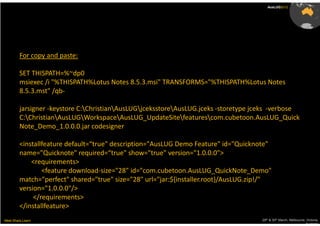
         For copy and paste:

         SET THISPATH=%~dp0
         msiexec /i "%THISPATH%Lotus Notes 8.5.3.msi" TRANSFORMS="%THISPATH%Lotus Notes
         8.5.3.mst" /qb-

         jarsigner -keystore C:ChristianAusLUGjceksstoreAusLUG.jceks -storetype jceks -verbose
         C:ChristianAusLUGWorkspaceAusLUG_UpdateSitefeaturescom.cubetoon.AusLUG_Quick
         Note_Demo_1.0.0.0.jar codesigner

         <installfeature default=“true" description="AusLUG Demo Feature" id="Quicknote"
         name="Quicknote" required=“true" show="true" version="1.0.0.0">
             <requirements>
                 <feature download-size="28" id="com.cubetoon.AusLUG_QuickNote_Demo"
         match="perfect" shared="true" size="28" url="jar:${installer.root}/AusLUG.zip!/"
         version="1.0.0.0"/>
              </requirements>
         </installfeature>
Meet.Share.Learn                                                                      29th & 30th March, Melbourne, Victoria,
                                                                                                                   Australia

Streamline client deployments with customised installation packages

  • 1.
    AusLUG2012 Streamline client deployments with customised installation packages Christian Petters Systems and Data Services Manager Meet.Share.Learn Statistics NZ www.cubetoon.com 29th & 30th March, Melbourne, Victoria, Australia
  • 2.
    AusLUG2011 AusLUG2012 About me • Christian Petters • Systems and Data Services Manager at Statistics New Zealand • Administration and Development using IBM products for almost a decade • Working with Notes/Domino, Sametime, LEI, Connections, … • Living in New Zealand with two kids and one wife • Born and raised in East Germany Meet.Share.Learn 29th & 30th March, Melbourne, Victoria, Australia
  • 3.
    AusLUG2012 The Lotus Notes client installation process There are two parts to the installation of a Notes client: 1. The Basic client installation using Windows Installer 2. Eclipse component provisioning Windows Installer Eclipse provisioning Additional components Sametime components Symphony components Notes Basic client Notes Standard components Meet.Share.Learn 29th & 30th March, Melbourne, Victoria, Australia
  • 4.
    AusLUG2012 The client installation process (cont.) Meet.Share.Learn 29th & 30th March, Melbourne, Victoria, Australia
  • 5.
    AusLUG2012 InstallShield® customisations Windows Installer Eclipse provisioning Additional components • Change the default target directory Sametime components • Add a scripting file to the program directory Symphony components • Change shortcuts Notes Basic client Notes Standard components Meet.Share.Learn 29th & 30th March, Melbourne, Victoria, Australia
  • 6.
    AusLUG2012 Eclipse customisations Windows Installer Eclipse provisioning Additional components • Add the IBM QuickNote Demo plug- in Sametime components Symphony components • Replace Sametime 8.5.1 embedded with version 8.5.2 IFR1 Notes Basic client • Remove Symphony from installation package Notes Standard components Meet.Share.Learn 29th & 30th March, Melbourne, Victoria, Australia
  • 7.
    AusLUG2012 The Windows Installer process • Windows Installer package (MSI) is a relational database • Interlinked tables containing installation instructions, configuration settings, program logic, registry keys, etc. • Binaries are compressed into cabinet files (CAB) • Transforms allow for the customisation of installation instructions Meet.Share.Learn 29th & 30th March, Melbourne, Victoria, Australia
  • 8.
    AusLUG2012 The InstallShield® Tuner for IBM Lotus Notes • Is used for the creation of transform files (MST) • Customises the Windows installer set-up (Windows solution only) • Gives you the control required for an enterprise wide Lotus Notes deployment • Is FREE as part of the Lotus Notes license Meet.Share.Learn 29th & 30th March, Melbourne, Victoria, Australia
  • 9.
    AusLUG2012 Locate the InstallShield® Tuner on the Web • InstallShield® Tuner needs to be downloaded from IBM Passport Advantage • Just log-in and search for it’s part number (C84T5NA) Meet.Share.Learn 29th & 30th March, Melbourne, Victoria, Australia
  • 10.
    AusLUG2012 Download the InstallShield® Tuner • Select tick box next to the Install Shield Tuner product • Select I agree • Click on Download now Meet.Share.Learn 29th & 30th March, Melbourne, Victoria, Australia
  • 11.
    AusLUG2012 Setup the InstallShield® Tuner • Execute downloaded file, which will launch the installation wizard for the InstallShield® Tuner Meet.Share.Learn 29th & 30th March, Melbourne, Victoria, Australia
  • 12.
    AusLUG2012 Setup the InstallShield® Tuner (cont.) • Confirm your details and installation options Meet.Share.Learn 29th & 30th March, Melbourne, Victoria, Australia
  • 13.
    AusLUG2012 Setup the InstallShield® Tuner (cont.) • Choose complete installation and click Next Meet.Share.Learn 29th & 30th March, Melbourne, Victoria, Australia
  • 14.
    AusLUG2012 Setup the InstallShield® Tuner (cont.) • Click Install and wait for the installation to complete. Meet.Share.Learn 29th & 30th March, Melbourne, Victoria, Australia
  • 15.
    AusLUG2012 Preparing the “development environment” • For the purpose of package customisation create three folders: - LN853Source - LN853Transform - Sametime852IFR1 (will be used later) Meet.Share.Learn 29th & 30th March, Melbourne, Victoria, Australia
  • 16.
    AusLUG2012 Unpacking the Notes installation package • Execute the Lotus Notes client setup • Select the second option (Unpack the files … and don’t remove), specify the path to your LN853Source folder and click Next Meet.Share.Learn 29th & 30th March, Melbourne, Victoria, Australia
  • 17.
    AusLUG2012 Unpacking theNotes installation package (cont.) • This will extract the containing files from the package and launch setup.exe Meet.Share.Learn 29th & 30th March, Melbourne, Victoria, Australia
  • 18.
    AusLUG2012 Cancel Notes set-up • Cancel the setup at this point and confirm with Yes • We do not want to run an installation but apply or customisations instead Meet.Share.Learn 29th & 30th March, Melbourne, Victoria, Australia
  • 19.
    AusLUG2012 Downloading the Tuner configuration file • Install Shield® Tuner is using a configuration (ITW) file • Notes 8.5.3 package is missing that file • You can get the Download from The Lotus Notes Client Install and Setup Team Blog (http://tiny.cc/missingITW) or • IBM Fix Central (http://www.ibm.com/support/fixcentral) Meet.Share.Learn 29th & 30th March, Melbourne, Victoria, Australia
  • 20.
    AusLUG2012 Downloading from Fix Central • Leave default (Browse for fixes) and click Continue Meet.Share.Learn 29th & 30th March, Melbourne, Victoria, Australia
  • 21.
    AusLUG2012 Downloading from Fix Central (cont.) • Select the Notes 853 ITWFile interim fix and click Continue to download the file • Store file in the LN853Source directory created earlier Meet.Share.Learn 29th & 30th March, Melbourne, Victoria, Australia
  • 22.
    AusLUG2012 Using the InstallShield® Tuner • Launch the InstallShield® Tuner from the Windows start menu Meet.Share.Learn 29th & 30th March, Melbourne, Victoria, Australia
  • 23.
    AusLUG2012 Using the InstallShield® Tuner (cont.) • Confirm the path to the Tuner Configuration File (.itw) • This is the file we downloaded a few moments ago Meet.Share.Learn 29th & 30th March, Melbourne, Victoria, Australia
  • 24.
    AusLUG2012 Creating transform file • We do want to create a new transform file Meet.Share.Learn 29th & 30th March, Melbourne, Victoria, Australia
  • 25.
    AusLUG2012 Creating transform file (cont.) • Confirm path to Lotus Notes 8.5.3.msi located in the LN853Source directory • Define name and path to your transformation file in the same directory • Select Response Transform and click Create Meet.Share.Learn 29th & 30th March, Melbourne, Victoria, Australia
  • 26.
    AusLUG2012 Running the installation simulation • You will see the usual Windows Installer dialogue • This is just a simulation to capture the transform response • Click through the options based on your preferences Meet.Share.Learn 29th & 30th March, Melbourne, Victoria, Australia
  • 27.
    AusLUG2012 Running the installation simulation (cont.) • Accept the License Agreement Meet.Share.Learn 29th & 30th March, Melbourne, Victoria, Australia
  • 28.
    AusLUG2012 Running the installation simulation (cont.) • We want to remove IBM from the Program Files and Data path • This can only be changed when running the simulation on a ‘clean’ system Meet.Share.Learn 29th & 30th March, Melbourne, Victoria, Australia
  • 29.
    AusLUG2012 Running the installation simulation (cont.) • We do want to include the Composite Application Editor but not Install IBM Symphony or IBM Connections Meet.Share.Learn 29th & 30th March, Melbourne, Victoria, Australia
  • 30.
    AusLUG2012 Running the installation simulation (cont.) • Finally we want to launch parts of Notes when the operating system starts Meet.Share.Learn 29th & 30th March, Melbourne, Victoria, Australia
  • 31.
    AusLUG2012 Running the installation simulation (cont.) • There is one more attempt to make you believe that this is going to be a real installation … • Until you get the success prompt below Meet.Share.Learn 29th & 30th March, Melbourne, Victoria, Australia
  • 32.
    AusLUG2012 Response transforms option Response transform simulation Ensure that the initial transform is also triggers a number of custom created on a ‘clean’ image IBM actions Ensure that the source and destination systems do have They add additional information similar specifications to the properties table of the MST Properties may be platform and/or user related (red) Meet.Share.Learn 29th & 30th March, Melbourne, Victoria, Australia
  • 33.
    AusLUG2012 Running the Prevalidation • Prevalidation ensures that you are aware of any issues that have not been caused by your customisations Meet.Share.Learn 29th & 30th March, Melbourne, Victoria, Australia
  • 34.
    AusLUG2012 Running the Prevalidation (cont.) • Choose Full MSI Validation suite and All Internal Consistency Evaluators (ICEs) and start validation Meet.Share.Learn 29th & 30th March, Melbourne, Victoria, Australia
  • 35.
    AusLUG2012 Running the Prevalidation (cont.) • Be prepared for a long list of Errors (68) and Warnings (156) Meet.Share.Learn 29th & 30th March, Melbourne, Victoria, Australia
  • 36.
    AusLUG2012 Customisation options • Take some time to look at the options available • There are some straight forward customisations like the Company name etc. Meet.Share.Learn 29th & 30th March, Melbourne, Victoria, Australia
  • 37.
    AusLUG2012 Amending the installation path • The installation directory needs to be customised in the Setup Properties as well • Open Setup Properties section • Click on the header of the value column to order by value • Look for the lines with the installation path Meet.Share.Learn 29th & 30th March, Melbourne, Victoria, Australia
  • 38.
    AusLUG2012 Amending the installation path (cont.) • Customise settings according to you intended target directory • Double click on the cell to edit values • At this point in time the DATADIR and REDIR_DATADIR are still located within the Notes Program directory even for multi user installations Meet.Share.Learn 29th & 30th March, Melbourne, Victoria, Australia
  • 39.
    AusLUG2012 Building a multi-user package • If you want your package to always deploy as a multiuser set-up you can pre-define the package for that • While in the Setup Properties, find the ApplicationUsers property Meet.Share.Learn 29th & 30th March, Melbourne, Victoria, Australia
  • 40.
    AusLUG2012 Building a multi-user package (cont.) • Double click the value and change it from OnlyCurrentUser to AllUsers • This will permanently change your customisation to do a multi user installation Meet.Share.Learn 29th & 30th March, Melbourne, Victoria, Australia
  • 41.
    AusLUG2012 Removing shortcuts • Just click on a shortcut and hit delete to remove it Meet.Share.Learn 29th & 30th March, Melbourne, Victoria, Australia
  • 42.
    AusLUG2012 Changing of shortcut targets • Customise the target of a shortcut to enhance user experience • In this example noteslaunch.vbs is launched instead of notes.exe Meet.Share.Learn 29th & 30th March, Melbourne, Victoria, Australia
  • 43.
    AusLUG2012 Start The Noteslaunch script • Prepopulates the user’s notes.ini and notes.cfg files for new users Is New no • Downloads the user’s ID file from a central server User? location yes • Launches Notes.exe once all files and settings are in place Create Notes.ini and • This allows for a zero touch Notes set-up Notes.cfg Retrieve ID file from Network Launch Notes.exe Meet.Share.Learn 29th & 30th March, Melbourne, Victoria, Australia
  • 44.
    AusLUG2012 Configuration set by Noteslaunch.vbs Notes.ini [Notes] Directory=C:UserscpettersAppDataLocalLotusNotesData KeyFileName=C:UserscpettersAppDataLocalLotusNotesDataCPetters.id MailFile=mailCPetters.nsf MailServer=CN=ServerName/O=Organisation ConfigFile=C:UserscpettersAppDataLocalLotusNotesDatanotes.cfg SharedDataDirectory=C:ProgramDataLotusNotesDataShared DisabledPorts=SPX,COM1,COM2,COM3,COM4,COM5,LAN0 TCPIP=TCP,0,15,0 Notes.cfg LAN0=NETBIOS,0,15,0 UserName=Christian Petters/OU/Organisation SPX=NWSPX,0,15,0 AdditionalServices=-1 COM1=XPC,1,15,0 IM.Server=STServer/Organisation * COM2=XPC,2,15,0 IM.Port=1533 * COM3=XPC,3,15,0 IM.ConnectWhen=0 * COM4=XPC,4,15,0 IM.Protocol=0 * COM5=XPC,5,15,0 PORTS=TCPIP * Sametime settings are only required for Location=Online Sametime basic set-up th th 29 & 30 March, Melbourne, Victoria, Meet.Share.Learn IM_NO_SETUP=1 Australia
  • 45.
    AusLUG2012 Adding additional files to the package • Files and Folders section allows you to add files like noteslaunch.vbs or a customised bookmark.ntf or pernames.ntf Meet.Share.Learn 29th & 30th March, Melbourne, Victoria, Australia
  • 46.
    AusLUG2012 Adding additional files to the package (cont.) • Just drag and drop the required files from the source to the destination view • Destination Notes directory is ProgramFilesFolderIBMLotusNotes … even though we customised that earlier • The final mapping to the target directory is performed at installation time Meet.Share.Learn 29th & 30th March, Melbourne, Victoria, Australia
  • 47.
    AusLUG2012 Adding additional files to the package (cont.) • Note the component name of CST_COMPONENT • CST_COMPONENT is being used for each custom component added to the package • Components are numbered e.g. CST_COMPONENT1, CST_COMPONENT2, … Meet.Share.Learn 29th & 30th March, Melbourne, Victoria, Australia
  • 48.
    AusLUG2012 Changing the component target • Ensures that dynamic folder mapping is working • CST_COMPONENT is currently mapped to NOTES • This equals to ProgramFilesFolderIBMLotusNotes Meet.Share.Learn 29th & 30th March, Melbourne, Victoria, Australia
  • 49.
    AusLUG2012 Changing the component target directory • Change property to the Notes program directory (PROGDIR) • PROGDIR will be mapped at installation time depending on target path Meet.Share.Learn 29th & 30th March, Melbourne, Victoria, Australia
  • 50.
    AusLUG2012 Running a Postvalidation • We have applied all the changes we wanted • It is time to run a quick post validation Meet.Share.Learn 29th & 30th March, Melbourne, Victoria, Australia
  • 51.
    AusLUG2012 Running a Postvalidation (cont.) • After the post validation is finished. Ensure that no additional errors have been introduced by our customisation • Note that some new notifications can be ignored as they are caused by IBMs installation logic Meet.Share.Learn 29th & 30th March, Melbourne, Victoria, Australia
  • 52.
    AusLUG2012 Creating a transformed package • This step copies all necessary files to specified location • Set ‘Network location’ to the LN853Transform folder created earlier today Meet.Share.Learn 29th & 30th March, Melbourne, Victoria, Australia
  • 53.
    AusLUG2012 Creating a transformed package (cont.) • Click the Package button to create the package Meet.Share.Learn 29th & 30th March, Melbourne, Victoria, Australia
  • 54.
    AusLUG2012 Creating a transformed package (cont.) • This will copy all required files and folders from the Source to the Target directory • Additional files (like the Noteslaunch.vbs) are added as an additional CAB archive Meet.Share.Learn 29th & 30th March, Melbourne, Victoria, Australia
  • 55.
    AusLUG2012 Creating a transformed package (cont.) • Once completed you should see the following result Meet.Share.Learn 29th & 30th March, Melbourne, Victoria, Australia
  • 56.
    AusLUG2012 Eclipse customisations Windows Installer Eclipse provisioning Additional components • Add the IBM QuickNote Demo plug- in Sametime components • Replace Sametime 8.5.1 embedded Symphony components with version 8.5.2 IFR1 • Remove Symphony from installation Notes Basic client package Notes Standard components Meet.Share.Learn 29th & 30th March, Melbourne, Victoria, Australia
  • 57.
    AusLUG2012 Customising Eclipse features • Eclipse provisioning is initiated from Windows Installer • Customisation is done outside of Install Shield® Tuner • Installation manifest (Install.xml) contains instructions for the provisioning of features and is located in deploy directory of the Notes package • UpdateSite.zip referenced by Install.xml can be found in the package root Meet.Share.Learn 29th & 30th March, Melbourne, Victoria, Australia
  • 58.
    AusLUG2012 CustomisingEclipse features (cont.) • The Installation Manifest on the example of the Roaming Service … Meet.Share.Learn 29th & 30th March, Melbourne, Victoria, Australia
  • 59.
    AusLUG2012 Including Sametime 8.5.2 IFR1 • A number of options are available to upgrade to Sametime 8.5.2 IFR1 during Lotus Notes 8.5.3 deployment 1. Chaining the Notes 8.5.3 and Sametime 8.5.2 IFR1 together - more details on http://tiny.cc/ChainInstall 2. Customise installation manifest (install.xml) to include ST ST 8.5.2 IFR1 - Consolidate Notes and Sametime upgrade sites or - Provision Sametime from additional update site - We will discuss this option today Meet.Share.Learn 29th & 30th March, Melbourne, Victoria, Australia
  • 60.
    AusLUG2012 Extracting Update Site Manager • Update Site Manager is provided as part of the Notes 8.5.3 package • UpdateSiteMgr.exe can be found in the NotesCustomizationKit_1_0.zip, which is located in the Utility directory • Open the zip file and extract the UpdateSiteMgr.exe to the LN853Transform directory Meet.Share.Learn 29th & 30th March, Melbourne, Victoria, Australia
  • 61.
    AusLUG2012 Getting a list of components • Open a command prompt • Run UpdatesiteMgr.exe -L to get a list of components Meet.Share.Learn 29th & 30th March, Melbourne, Victoria, Australia
  • 62.
    AusLUG2012 Removing Sametime 8.5.1 from package • Use UpdatesiteMgr -r Sametime to remove Sametime 8.5.1 component • Install.xml and UpdateSite.zip will be backed up as Install.xml.bak and UpdateSite.zip.bak Meet.Share.Learn 29th & 30th March, Melbourne, Victoria, Australia
  • 63.
    AusLUG2012 Removing Sametime 8.5.1 (cont.) • The 8.5.3 Update Site Manager has a bug that leaves a few Sametime features still listed in the install.xml • Open install.xml in a text editor to remove the remaining features • Save and close file Meet.Share.Learn 29th & 30th March, Melbourne, Victoria, Australia
  • 64.
    AusLUG2012 Downloading Sametime 8.5.2 IFR1 add-on • Download Sametime 8.5.2 IFR1 from Passport Advantage (CI3YGML) • Find sametime.embedded.addon.win32_20111107-1901.zip in sametime.embeddedwindows directory • Extract content to Sametime852IFR1 folder Meet.Share.Learn 29th & 30th March, Melbourne, Victoria, Australia
  • 65.
    AusLUG2012 Preparing Sametime 8.5.2 IFR1 • The Update Site Manager only supports installation packages that have an updateSite.zip and an install.xml file • The Sametime 8.5.2 IFR1 package comes with an install.addon.xml and sametime.embedded.addon.win32.20111107-1901.zip file In Sametime852IFR1 folder rename to In Sametime852IFR1Deploy folder rename to Meet.Share.Learn 29th & 30th March, Melbourne, Victoria, Australia
  • 66.
    AusLUG2012 Preparing Sametime 8.5.2 IFR1 (cont.) • There should now be 2 directories: • LN853Transform directory - includes UpdateSiteMgr.exe - Sametime 8.5.1 references have been removed from updateSite.zip and install.xml • Sametime852IFR1 directory - renamed update site to updateSite.zip - renamed installation manifest to install.xml Meet.Share.Learn 29th & 30th March, Melbourne, Victoria, Australia
  • 67.
    AusLUG2012 Adding Sametime 8.5.2 IFR1 to update site • Run UpdateSiteMgr.exe to merge the features into one manifest and update site - UpdateSiteMgr <Source> <Destination> - Source being the path to the Sametime folder - Destination the path to the Notes folder • No news is good news – merging doesn’t report success Meet.Share.Learn 29th & 30th March, Melbourne, Victoria, Australia
  • 68.
    AusLUG2012 Confirming results • The Lotus Notes installation manifest is now extended to include Sametime 8.5.2 IFR1 components • Individual components have been copied to updateSite.zip in the installer root Meet.Share.Learn 29th & 30th March, Melbourne, Victoria, Australia
  • 69.
    AusLUG2012 Adding the IBM QuickNote Demo plug-in • Using IBM’s QuickNote toolbar extensions demo • We will manually add the component to the installation manifest (install.xml) • Update site will be provided as a separate file (AusLUG.zip) • This is demonstrating an alternative way to add components to the installation manifest Meet.Share.Learn 29th & 30th March, Melbourne, Victoria, Australia
  • 70.
    AusLUG2012 A few words about trust • All features and plug-ins need to be signed by a trusted certificate updateSite.zip RCP directory X • Custom components have to be signed • Signing certificate has to be added to the installation trust store • Java trust store is located in the Deploy folder of the installation package Meet.Share.Learn 29th & 30th March, Melbourne, Victoria, Australia
  • 71.
    AusLUG2012 Creating a signer certificate • Signer certificate and key store can be created using keytool.exe, which is part of the Notes JVM • I prefer to work in UIs, hence use Portecle (http://portecle.sourceforge.net) • Launch Portecle application form above website or download the Java app Meet.Share.Learn 29th & 30th March, Melbourne, Victoria, Australia
  • 72.
    AusLUG2012 Creating a new keystore • CTRL+N or File, New Keystore creates a new key store • For the purpose of signing our jar files we want to use JCEKS format (Sun’s Java Cryptography Extension Key Store) Meet.Share.Learn 29th & 30th March, Melbourne, Victoria, Australia
  • 73.
    AusLUG2012 Generating a key pair • Create a new key pair using Tools, Generate Key Pair • Self signed certificates are good enough for your own deployments Meet.Share.Learn 29th & 30th March, Melbourne, Victoria, Australia
  • 74.
    AusLUG2012 Generating a key pair (cont.) • Confirm default Algorithm and Key Size Meet.Share.Learn 29th & 30th March, Melbourne, Victoria, Australia
  • 75.
    AusLUG2012 Defining certificate details • Populate at least the common name • Ensure validity matches your requirements or use time stamped certificates Meet.Share.Learn 29th & 30th March, Melbourne, Victoria, Australia
  • 76.
    AusLUG2012 Defining key label and password • Provide meaningful label for your certificate • Enter a new Password for the key Meet.Share.Learn 29th & 30th March, Melbourne, Victoria, Australia
  • 77.
    AusLUG2012 Success • Our key pair has been created successfully • Next steps are to - Save the key store to disk for signing - Export the key for import into package trust store Meet.Share.Learn 29th & 30th March, Melbourne, Victoria, Australia
  • 78.
    AusLUG2012 Saving key store to disk • Select File, Save Keystore As … • Define a password to protect the key store Meet.Share.Learn 29th & 30th March, Melbourne, Victoria, Australia
  • 79.
    AusLUG2012 Saving key store to disk (cont.) • Define path and file name for the key store file and save • This key store with the containing codesigner certificate will later be used to sign the JAR files in our AusLUG update site Meet.Share.Learn 29th & 30th March, Melbourne, Victoria, Australia
  • 80.
    AusLUG2012 Exporting the public key • To import the certificate to the installation trust store • Right click on our certificate and choose Export Meet.Share.Learn 29th & 30th March, Melbourne, Victoria, Australia
  • 81.
    AusLUG2012 Exporting the public key (cont.) • Confirm Export Type and Export format • Save certificate on disk Meet.Share.Learn 29th & 30th March, Melbourne, Victoria, Australia
  • 82.
    AusLUG2012 Opening the installation trust store • Open the installation trust store and import the codesigner certificate • Select File, Open Keystore File … and select .keystore.JCEKS.IBM_J9_VM.install from your LN853Transform directory Meet.Share.Learn 29th & 30th March, Melbourne, Victoria, Australia
  • 83.
    AusLUG2012 Opening the installation trust store • Enter the keystore password, which is ‘changeit’ Meet.Share.Learn 29th & 30th March, Melbourne, Victoria, Australia
  • 84.
    AusLUG2012 Importing the codesigner certificate • Select Tools, Import Trusted Certificate and choose the codesigner.cer file created before Meet.Share.Learn 29th & 30th March, Melbourne, Victoria, Australia
  • 85.
    AusLUG2012 Importing the codesigner certificate (cont.) • Since we are working with a self signed certificate we receive an invalid trusted root warning Meet.Share.Learn 29th & 30th March, Melbourne, Victoria, Australia
  • 86.
    AusLUG2012 Importing the codesigner certificate (cont.) • Confirm certificate details with OK and accept the certificate as trusted • Enter an alias for the new certificate and click OK Meet.Share.Learn 29th & 30th March, Melbourne, Victoria, Australia
  • 87.
    AusLUG2012 Success • Your codesigner certificate has now been added to the installation trust store Meet.Share.Learn 29th & 30th March, Melbourne, Victoria, Australia
  • 88.
    AusLUG2012 Save and close installation trust store • Select File, Save Keystore to save the changes to disk and close Portecle application Meet.Share.Learn 29th & 30th March, Melbourne, Victoria, Australia
  • 89.
    AusLUG2012 Sign plug-ins and features using jarsigner.exe • Jarsigner.exe is part of the Java Development Kit (JDK), which can be downloaded from www.oracle.com (Downloads) • Below instructions assume that the Update Site has already been exported from Eclipse • Sign jar file using: jarsigner -keystore StorePath -storetype jceks JarPath Alias • Use -verbose option to output progress • Use -signedjar option to create a copy of the signed jar • Repeat step for all plugins and features in the update site Meet.Share.Learn 29th & 30th March, Melbourne, Victoria, Australia
  • 90.
    AusLUG2012 Create AusLUG update site • Select all items of the update site and combine it to a ZIP file named AusLUG.zip • Copy AusLUG.zip to LN853Transform directory Meet.Share.Learn 29th & 30th March, Melbourne, Victoria, Australia
  • 91.
    AusLUG2012 Add feature to the installation manifest • Edit the LN853TransformDeployinstall.xml installation manifest • Add the following lines to the end of the install.xml, after the last </installfeature> and before </install> • Save and close install.xml Meet.Share.Learn 29th & 30th March, Melbourne, Victoria, Australia
  • 92.
    AusLUG2012 Customise advanced RCP settings • Customise Java heap size settings to improve client performance • Find jvm.properties file in Deploy directory of the installation package • Xmx defines the maximum size of the JVM heap • Xms sets the initial size of the JVM heap • Increase Xmx to 1024m, but no more then 50% of total RAM • Increase Xms to 256m, but not larger then Xmx • Save and close file Meet.Share.Learn 29th & 30th March, Melbourne, Victoria, Australia
  • 93.
    AusLUG2012 Define plug-in preferences • Edit plugin_customization.ini in Deploy folder to set Eclipse preferences to ensure they are effective immediately at first startup Meet.Share.Learn 29th & 30th March, Melbourne, Victoria, Australia
  • 94.
    AusLUG2012 Define plug-in preferences (cont.) • To hide the Getting Started screen add com.ibm.rcp.jfaceex/overrideAutoStart=com.ibm.rcp.gettingstarted. GettingstartPerspective Meet.Share.Learn 29th & 30th March, Melbourne, Victoria, Australia
  • 95.
    AusLUG2012 Define plug-in preferences (cont.) • Set default dictionary to en-GB: com.ibm.collaboration.realtime.spellchecker/ dictionaryLanguage=en- GB • To hide the Sametime Meeting shelf add com.ibm.rtc.meetings.shelf/hideUI=true • To disable Sametime location prompt add com.ibm.collaboration.realtime.location/showProfWindow=true • Save and close file Meet.Share.Learn 29th & 30th March, Melbourne, Victoria, Australia
  • 96.
    AusLUG2012 Install package using msiexec • We are using a batch command and Microsoft’s Windows Installer to install our package • Installation options are displayed when you run msiexec without any options Meet.Share.Learn 29th & 30th March, Melbourne, Victoria, Australia
  • 97.
    AusLUG2012 The msiexec syntax • In our case we are using msiexec /i “Lotus Notes 8.5.3.msi” TRANSFORMS=“Lotus Notes 8.5.3.mst” /qb- • This will: - Install an application package with the name of Lotus Notes 8.5.3.msi (/i) - Apply our transformation file during installation (TRANSFORMS=) - Display a basic user interface during installation with no modal dialogue (/qb-) Meet.Share.Learn 29th & 30th March, Melbourne, Victoria, Australia
  • 98.
    AusLUG2012 Create install.bat • Open you Windows Explorer and browse to your transform directory (LN853Transform) • Right click at the folder and create a new Text Document • Rename it to install.bat • Edit the document Meet.Share.Learn 29th & 30th March, Melbourne, Victoria, Australia
  • 99.
    AusLUG2012 Working with relative paths • The %~dp0 macro allows use to determine the path of install.bat • Important for deployment using SmartUpgrade Meet.Share.Learn 29th & 30th March, Melbourne, Victoria, Australia
  • 100.
    AusLUG2012 Performance considerations • You can never change a first impression • The installation is the first thing users are going to see from the new version of Lotus Notes • The faster you get the package installed on the user’s machine the more likely (s)he is going to recommend the update to others or to accept the changes Meet.Share.Learn 29th & 30th March, Melbourne, Victoria, Australia
  • 101.
    AusLUG2012 Performance considerations • Remove backup files from package - install.xml.bak in Deploy directory - updateSite.zip.bak in installation root • Remove language dependent mst and ini files - 0xnnnn.ini files - nnnn.mst files • Shrink size of the update site - run UpdateSiteMgr.exe –r Symphony if you don’t install it - run UpdateSiteMgr.exe –r Activities if you don’t install it Meet.Share.Learn 29th & 30th March, Melbourne, Victoria, Australia
  • 102.
    AusLUG2012 Testing your package • Building a deployment package is a development job • You need to test, test and test once more to ensure that your customisations apply in a way you intended them to apply • Individual components can be tested independent from each other • Run a full test on a number of different machines • Run a pilot with a subset of users Meet.Share.Learn 29th & 30th March, Melbourne, Victoria, Australia
  • 103.
    AusLUG2012 Deployment options • There are various ways to deploy packages • Every organisation has their own preference and tools (e.g. Symantec Altiris, Novell ZCM, Microsoft SMS, Log-in scripts, etc.) • If you haven’t got any deployment solution in place already or even if you do I recommend to start looking at the SmartUpgrade functionality • Unfortunately there are only seconds left for this session, otherwise I could tell you a bit or two about SmartUpgrade (starting with version 8 it is working pretty well) Meet.Share.Learn 29th & 30th March, Melbourne, Victoria, Australia
  • 104.
    AusLUG2012 Reference links: • Windows Installer reference http://msdn.microsoft.com/en- us/library/windows/desktop/aa372860%28v=vs.85%29.aspx • Puttin’ on the Bits Blog, The Lotus Notes Client Install and Setup team blog http://www-10.lotus.com/ldd/installblog.nsf • The New Domino Admin (Marc Champoux), My first source of information when I started to customise Notes installation packages http://www.thenewdominoadmin.com/blog/?tag=install-shield-tuner • Andy Donaldson’s installation instruction, which apparently inspired Marc (TNDA) in first instance http://blog.macian.net • Customizing the Notes install kit documentation http://publib.boulder.ibm.com/infocenter/domhelp/v8r0/index.jsp?topic=%2Fcom.ibm.h elp.domino.admin85.doc%2FH_CUSTOMIZING_NOTES_8_INSTALL_FOR_ISV_OR_THIRD_ PARTY_ECLIPSE_FEATURES_9460_OVER.html Meet.Share.Learn th th 29 & 30 March, Melbourne, Victoria, Australia
  • 105.
    AusLUG2012 Questions ? Meet.Share.Learn 29th & 30th March, Melbourne, Victoria, Australia
  • 106.
    AusLUG2012 Thank you for listening! Contact me at Email: info@cubetoon.com Web: www.cubetoon.com Twitter: cubetoon Linkedin: nz.linkedin.com/in/cubetoon Meet.Share.Learn 29th & 30th March, Melbourne, Victoria, Australia
  • 107.
    AusLUG2012 For copy and paste: SET THISPATH=%~dp0 msiexec /i "%THISPATH%Lotus Notes 8.5.3.msi" TRANSFORMS="%THISPATH%Lotus Notes 8.5.3.mst" /qb- jarsigner -keystore C:ChristianAusLUGjceksstoreAusLUG.jceks -storetype jceks -verbose C:ChristianAusLUGWorkspaceAusLUG_UpdateSitefeaturescom.cubetoon.AusLUG_Quick Note_Demo_1.0.0.0.jar codesigner <installfeature default=“true" description="AusLUG Demo Feature" id="Quicknote" name="Quicknote" required=“true" show="true" version="1.0.0.0"> <requirements> <feature download-size="28" id="com.cubetoon.AusLUG_QuickNote_Demo" match="perfect" shared="true" size="28" url="jar:${installer.root}/AusLUG.zip!/" version="1.0.0.0"/> </requirements> </installfeature> Meet.Share.Learn 29th & 30th March, Melbourne, Victoria, Australia