To start off with I first created a colorful background for the poster. I did this using the program ‘Sumo Paint’2. I  selected the size the background was going to be, which in this case as it would be a magazine advert would be A4.
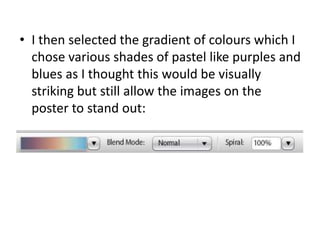
I then selected the gradient of colourswhich I chose various shades of pastel like purples and blues as I thought this would be visually striking but still allow the images on the poster to stand out:
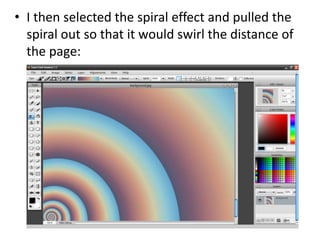
I then selected the spiral effect and pulled the spiral out so that it would swirl the distance of the page:
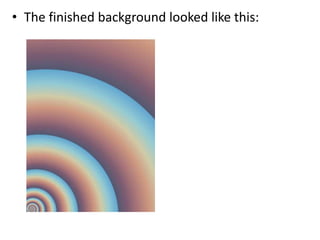
The finished background looked like this:
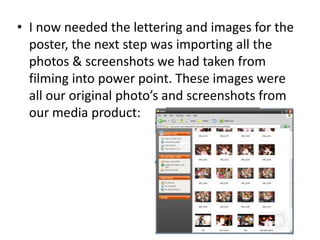
I now needed the lettering and images for the poster, the next step was importing all the photos & screenshots we had taken from filming into power point. These images were all our original photo’s and screenshots from our media product:
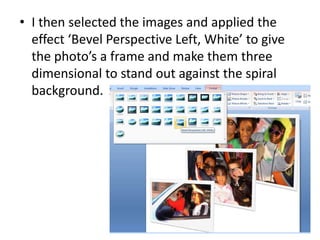
I then selected the images and applied the effect ‘Bevel Perspective Left, White’ to give the photo’s a frame and make them three dimensional to stand out against the spiral background.
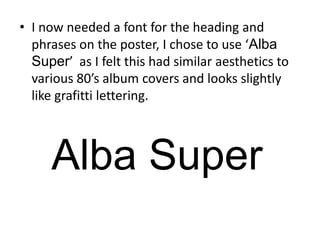
I now needed a font for the heading and phrases on the poster, I chose to use ‘Alba Super’  as I felt this had similar aesthetics to various 80’s album covers and looks slightly like grafitti lettering.Alba Super
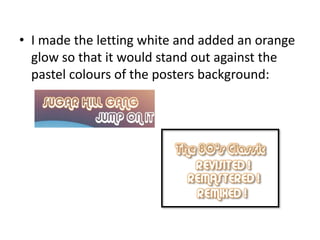
I made the letting white and added an orange glow so that it would stand out against the pastel colours of the posters background:
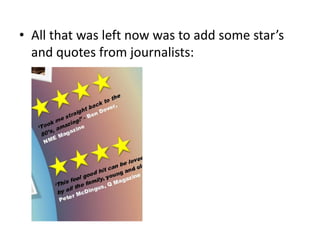
All that was left now was to add some star’s and quotes from journalists:
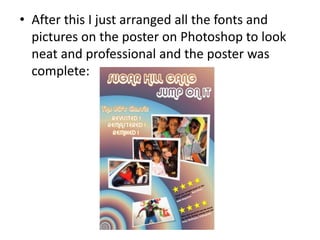
After this I just arranged all the fonts and pictures on the poster on Photoshop to look neat and professional and the poster was complete:

Stages - Poster

  • 1.
    To start offwith I first created a colorful background for the poster. I did this using the program ‘Sumo Paint’2. I selected the size the background was going to be, which in this case as it would be a magazine advert would be A4.
  • 2.
    I then selectedthe gradient of colourswhich I chose various shades of pastel like purples and blues as I thought this would be visually striking but still allow the images on the poster to stand out:
  • 3.
    I then selectedthe spiral effect and pulled the spiral out so that it would swirl the distance of the page:
  • 4.
    The finished backgroundlooked like this:
  • 5.
    I now neededthe lettering and images for the poster, the next step was importing all the photos & screenshots we had taken from filming into power point. These images were all our original photo’s and screenshots from our media product:
  • 6.
    I then selectedthe images and applied the effect ‘Bevel Perspective Left, White’ to give the photo’s a frame and make them three dimensional to stand out against the spiral background.
  • 7.
    I now neededa font for the heading and phrases on the poster, I chose to use ‘Alba Super’ as I felt this had similar aesthetics to various 80’s album covers and looks slightly like grafitti lettering.Alba Super
  • 8.
    I made theletting white and added an orange glow so that it would stand out against the pastel colours of the posters background:
  • 9.
    All that wasleft now was to add some star’s and quotes from journalists:
  • 10.
    After this Ijust arranged all the fonts and pictures on the poster on Photoshop to look neat and professional and the poster was complete: