Decoding the Business Intelligence
Alphabet Soup
SSRS, KPI, OLAP, BISM and more!
Scott Brickey, SharePoint Practice Manager
www.sds-consulting.com
SharePoint Saturday Chicago Suburbs2
Speaker Feedback: SPSCSM.COM
About Us
SDS provides SharePoint solutions
Agile development and SharePoint experience create an
optimal solution for your unique SharePoint needs.
• Business Intelligence : Self service, team, and enterprise
• Collaboration, Content Management
• Intranets, Portals, and Public Websites
• Workflow + forms = application
Agile Practices for proven faster delivery, higher quality, & increased business value.
A Brief Forward
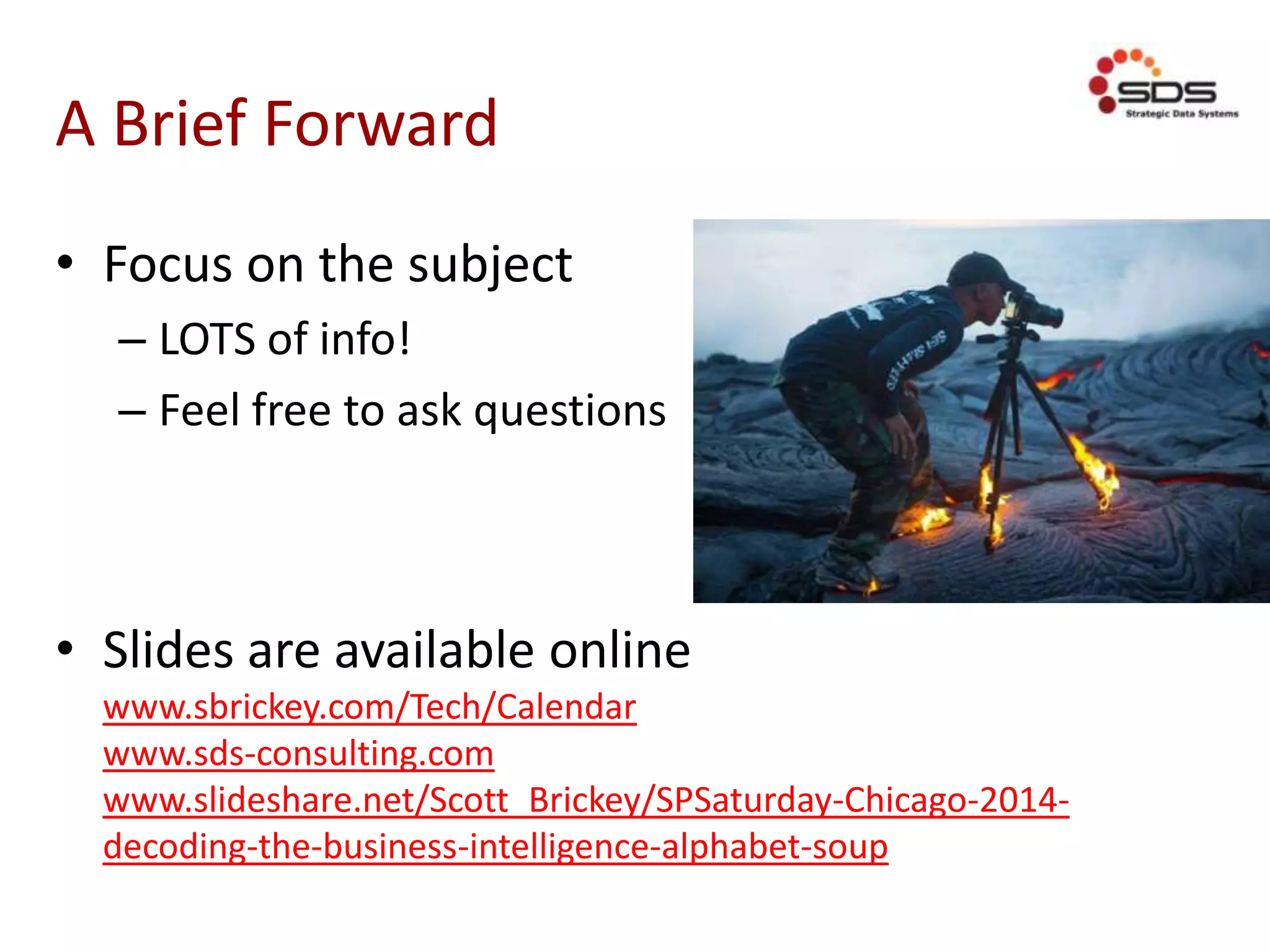
• Focus on the subject
– LOTS of info!
– Feel free to ask questions
• Slides are available online
www.sbrickey.com/Tech/Calendar
www.sds-consulting.com
www.slideshare.net/Scott_Brickey/SPSaturday-Chicago-2014-
decoding-the-business-intelligence-alphabet-soup
Business Intelligence Overview
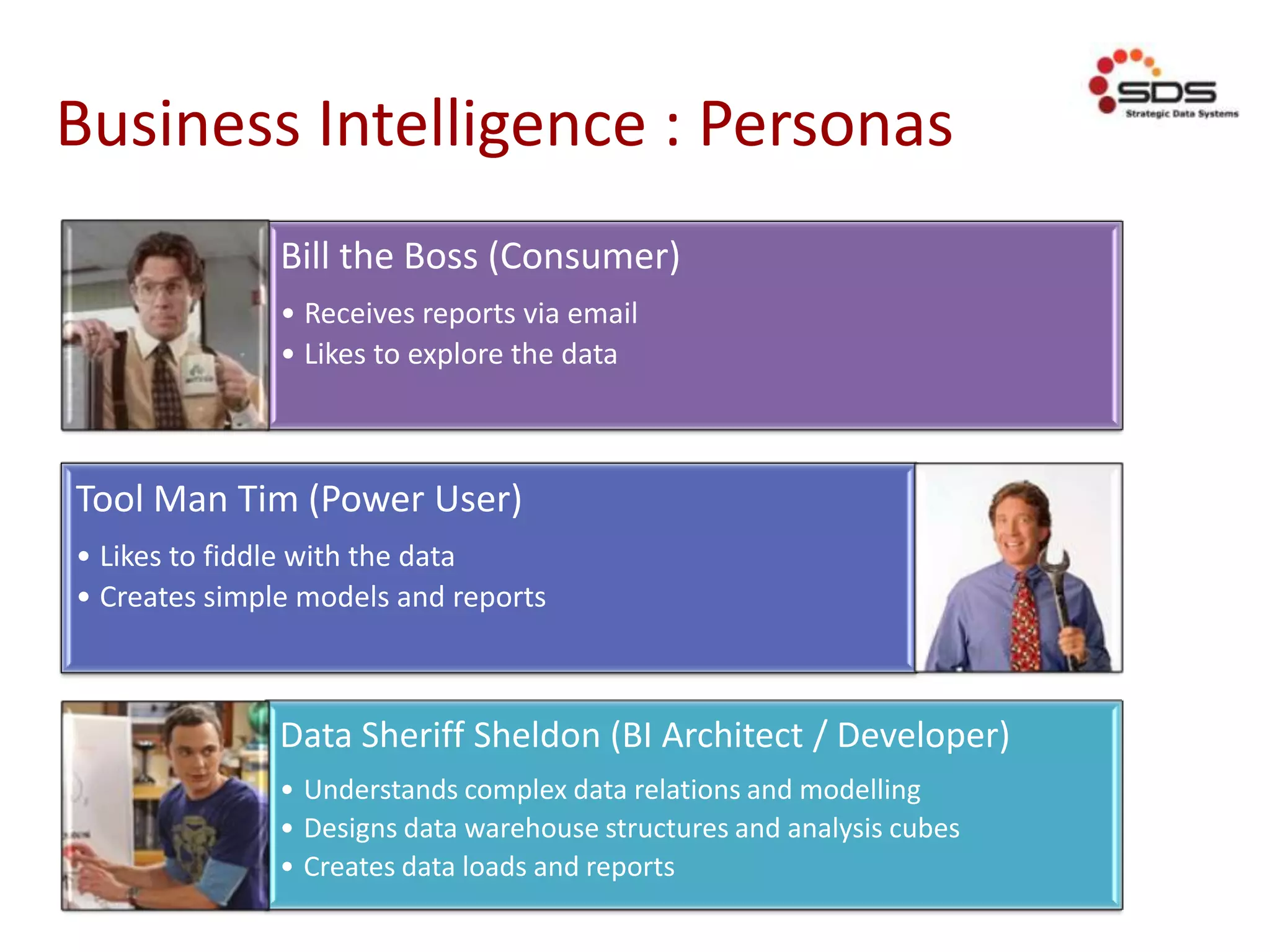
Business Intelligence : Personas
Bill the Boss (Consumer)
• Receives reports via email
• Likes to explore the data
Tool Man Tim (Power User)
• Likes to fiddle with the data
• Creates simple models and reports
Data Sheriff Sheldon (BI Architect / Developer)
• Understands complex data relations and modelling
• Designs data warehouse structures and analysis cubes
• Creates data loads and reports
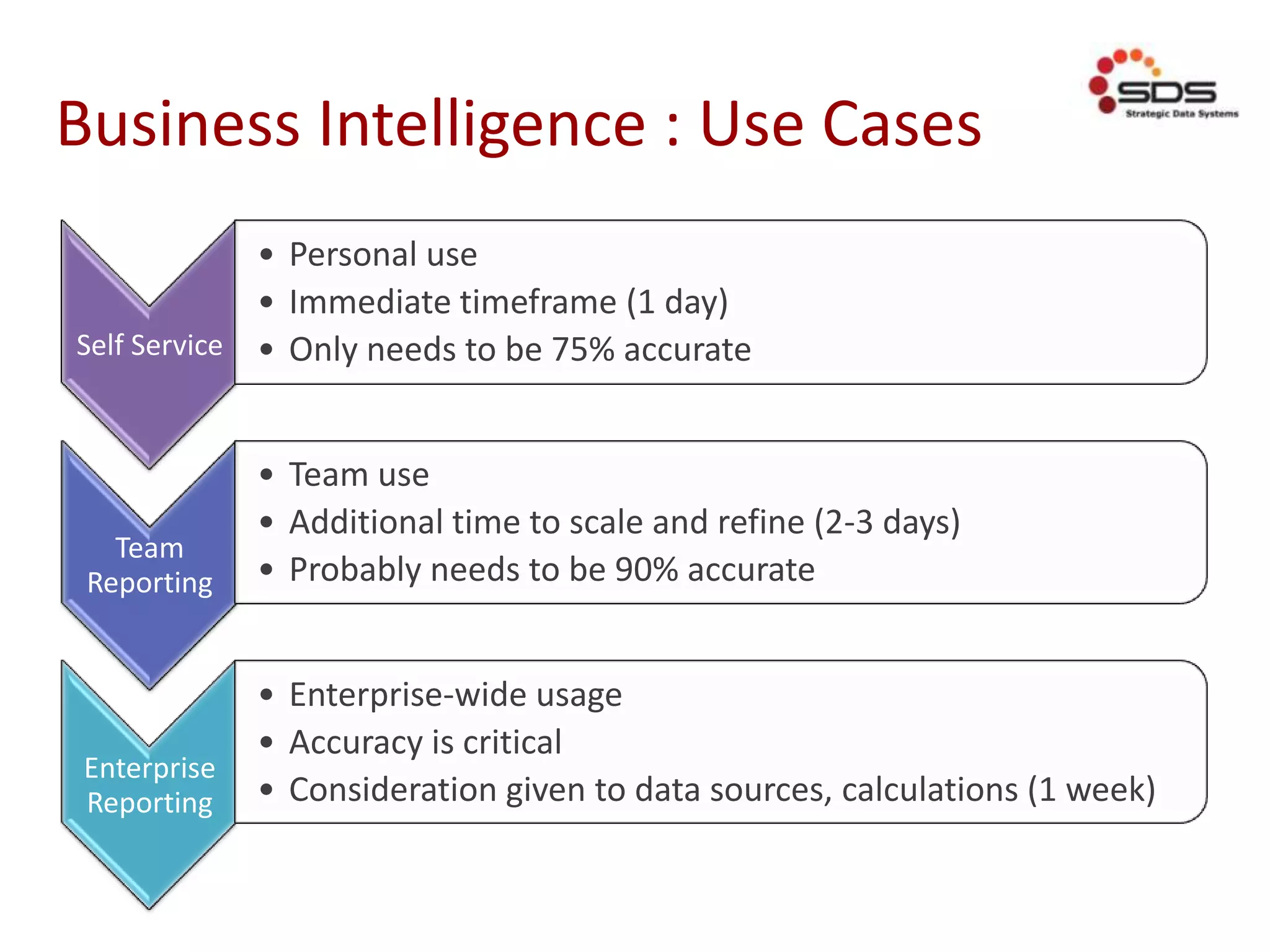
Business Intelligence : Use Cases
Self Service
• Personal use
• Immediate timeframe (1 day)
• Only needs to be 75% accurate
Team
Reporting
• Team use
• Additional time to scale and refine (2-3 days)
• Probably needs to be 90% accurate
Enterprise
Reporting
• Enterprise-wide usage
• Accuracy is critical
• Consideration given to data sources, calculations (1 week)
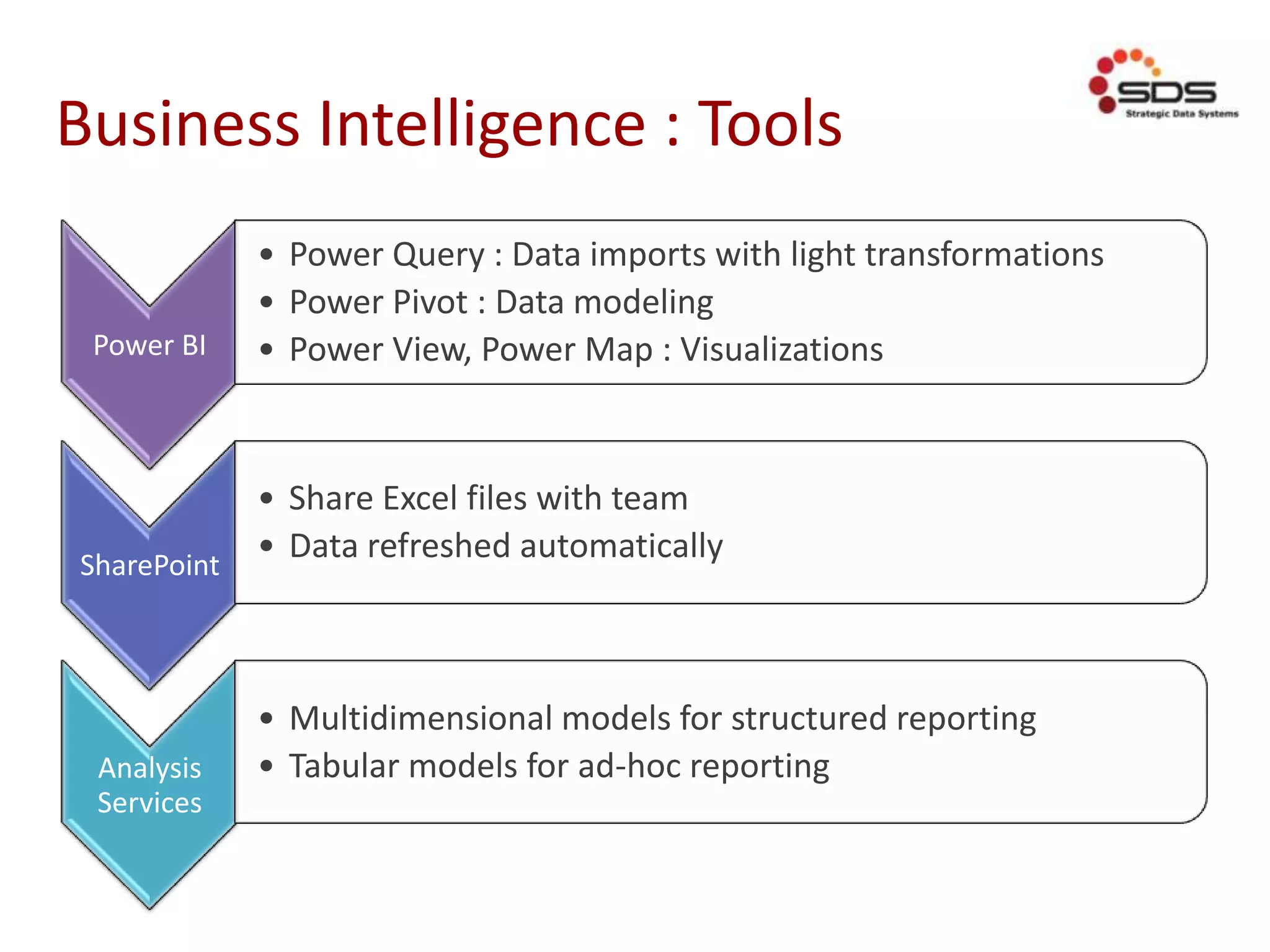
Business Intelligence : Tools
Power BI
• Power Query : Data imports with light transformations
• Power Pivot : Data modeling
• Power View, Power Map : Visualizations
SharePoint
• Share Excel files with team
• Data refreshed automatically
Analysis
Services
• Multidimensional models for structured reporting
• Tabular models for ad-hoc reporting
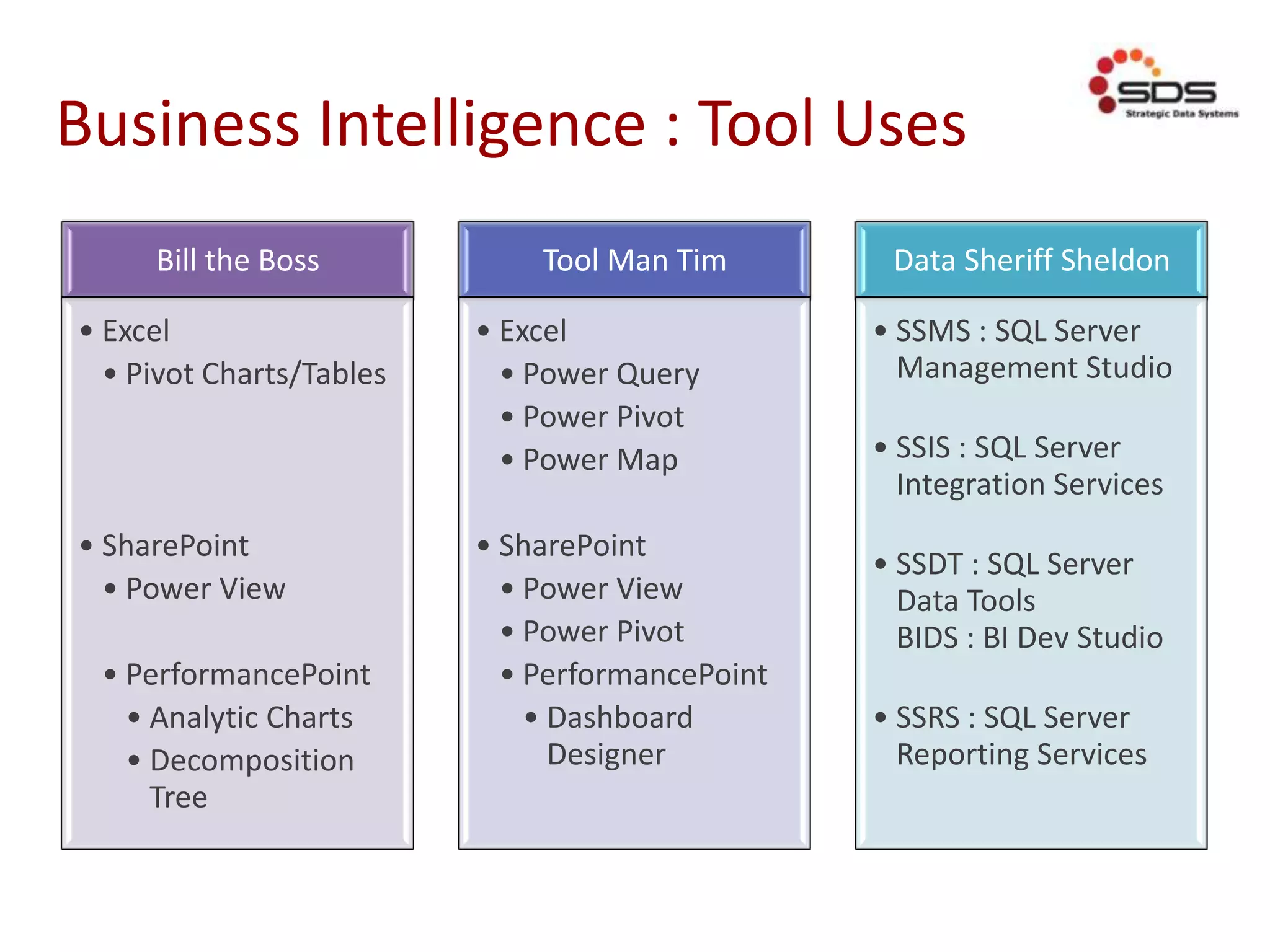
Business Intelligence : Tool Uses
Bill the Boss
• Excel
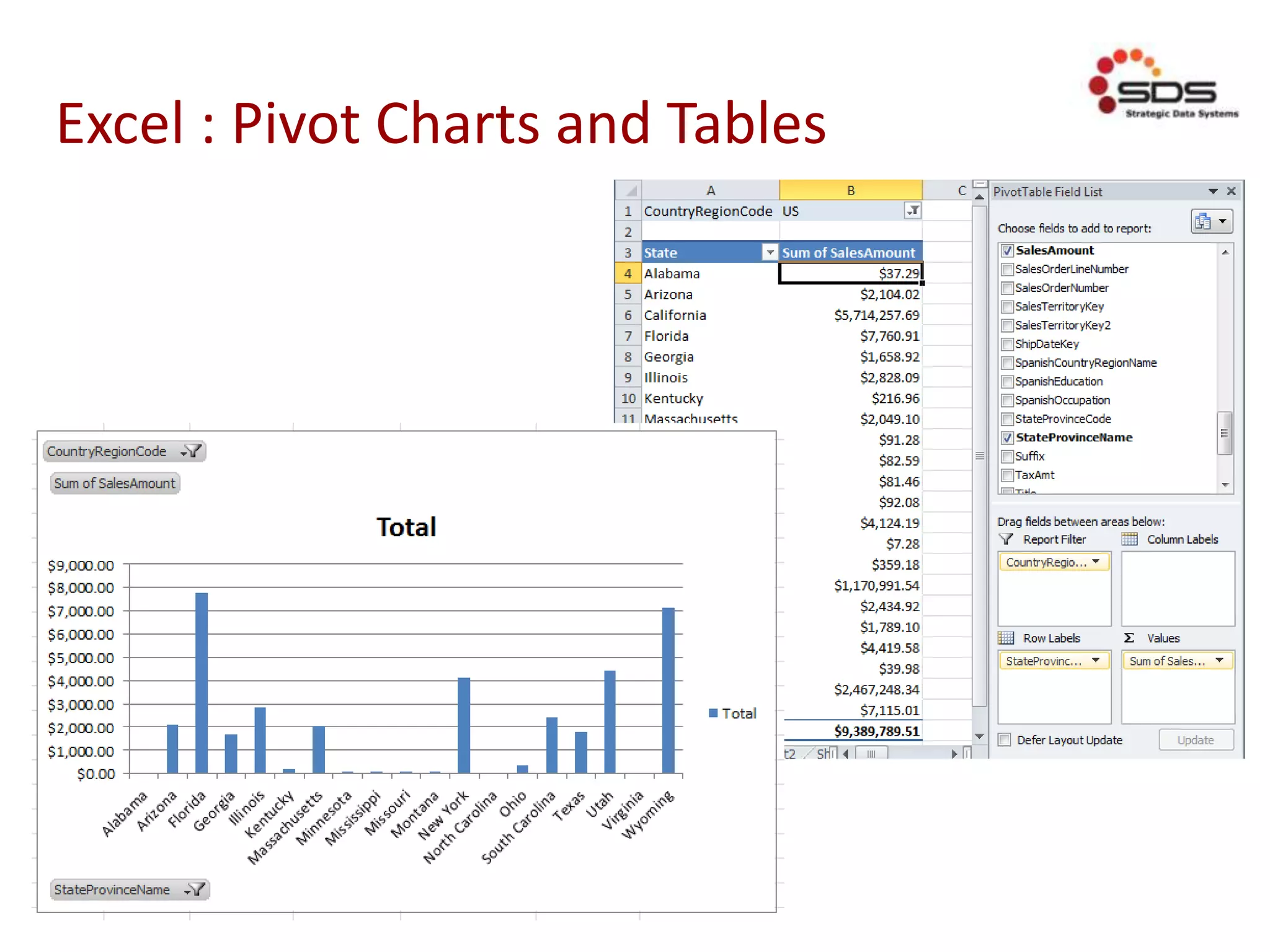
• Pivot Charts/Tables
• SharePoint
• Power View
• PerformancePoint
• Analytic Charts
• Decomposition
Tree
Tool Man Tim
• Excel
• Power Query
• Power Pivot
• Power Map
• SharePoint
• Power View
• Power Pivot
• PerformancePoint
• Dashboard
Designer
Data Sheriff Sheldon
• SSMS : SQL Server
Management Studio
• SSIS : SQL Server
Integration Services
• SSDT : SQL Server
Data Tools
BIDS : BI Dev Studio
• SSRS : SQL Server
Reporting Services
Excel
I can take care of this
myself.
Excel : Pivot Charts and Tables
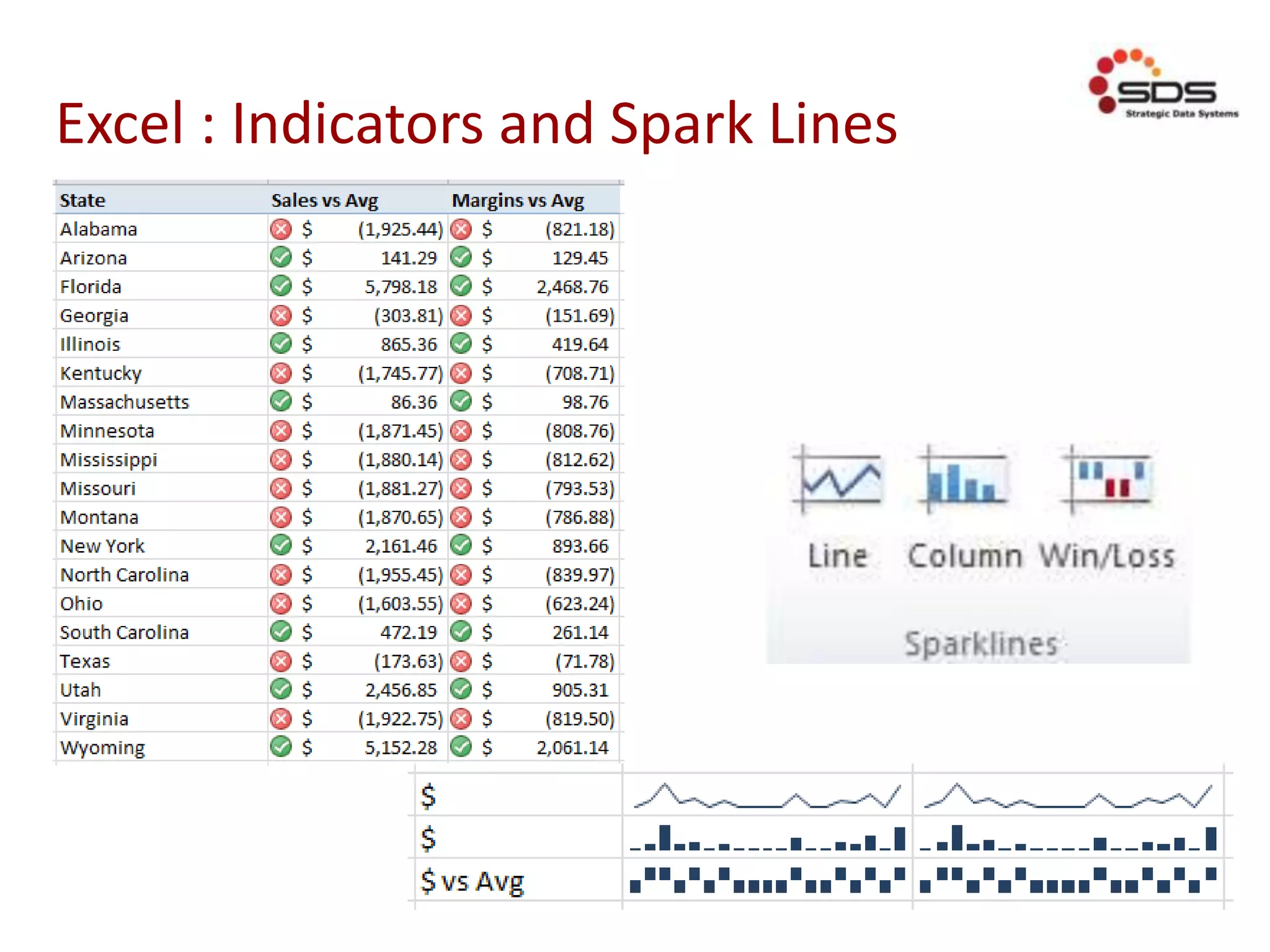
Excel : Indicators and Spark Lines
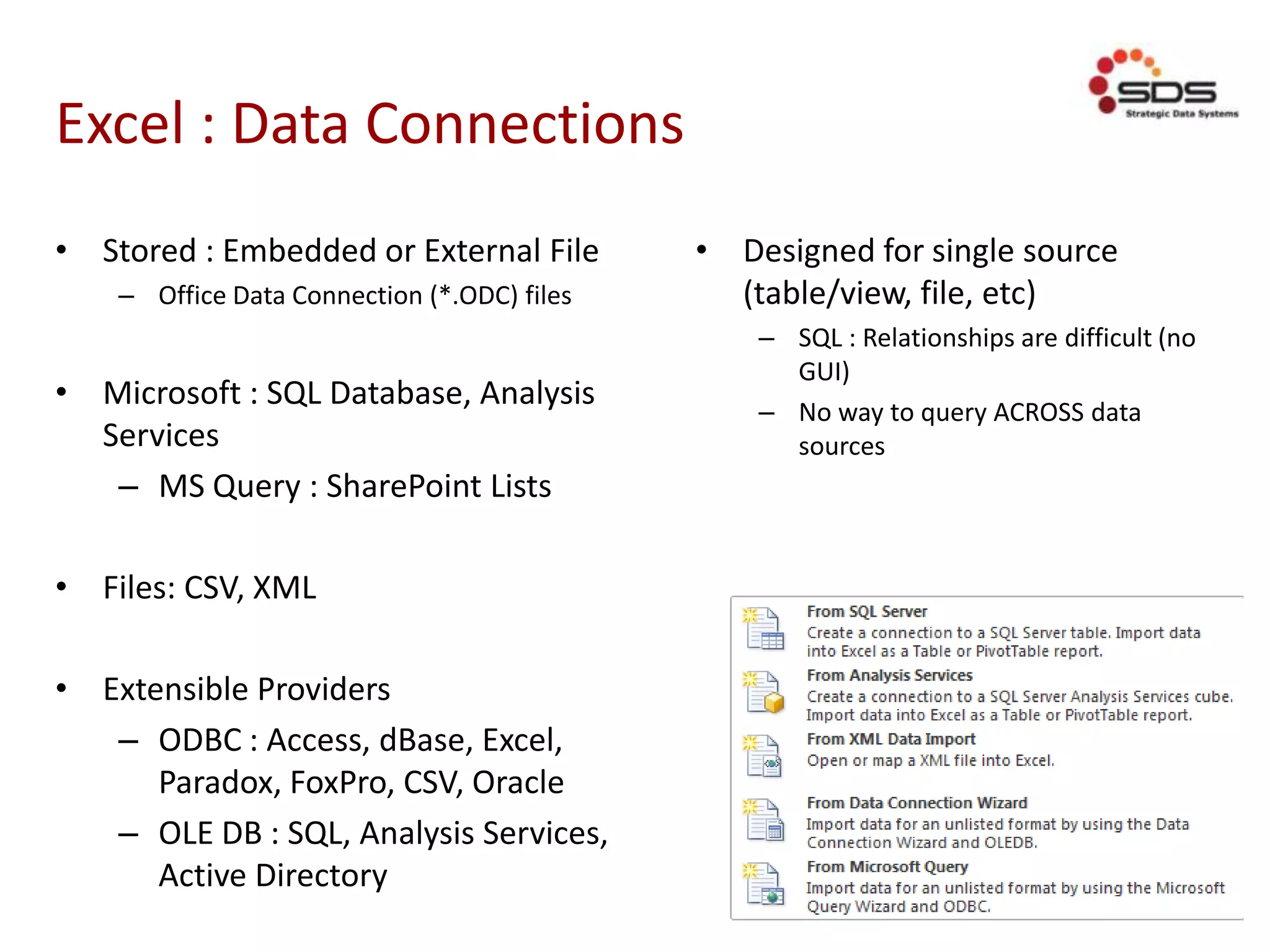
Excel : Data Connections
• Stored : Embedded or External File
– Office Data Connection (*.ODC) files
• Microsoft : SQL Database, Analysis
Services
– MS Query : SharePoint Lists
• Files: CSV, XML
• Extensible Providers
– ODBC : Access, dBase, Excel,
Paradox, FoxPro, CSV, Oracle
– OLE DB : SQL, Analysis Services,
Active Directory
• Designed for single source
(table/view, file, etc)
– SQL : Relationships are difficult (no
GUI)
– No way to query ACROSS data
sources
Power Pivot
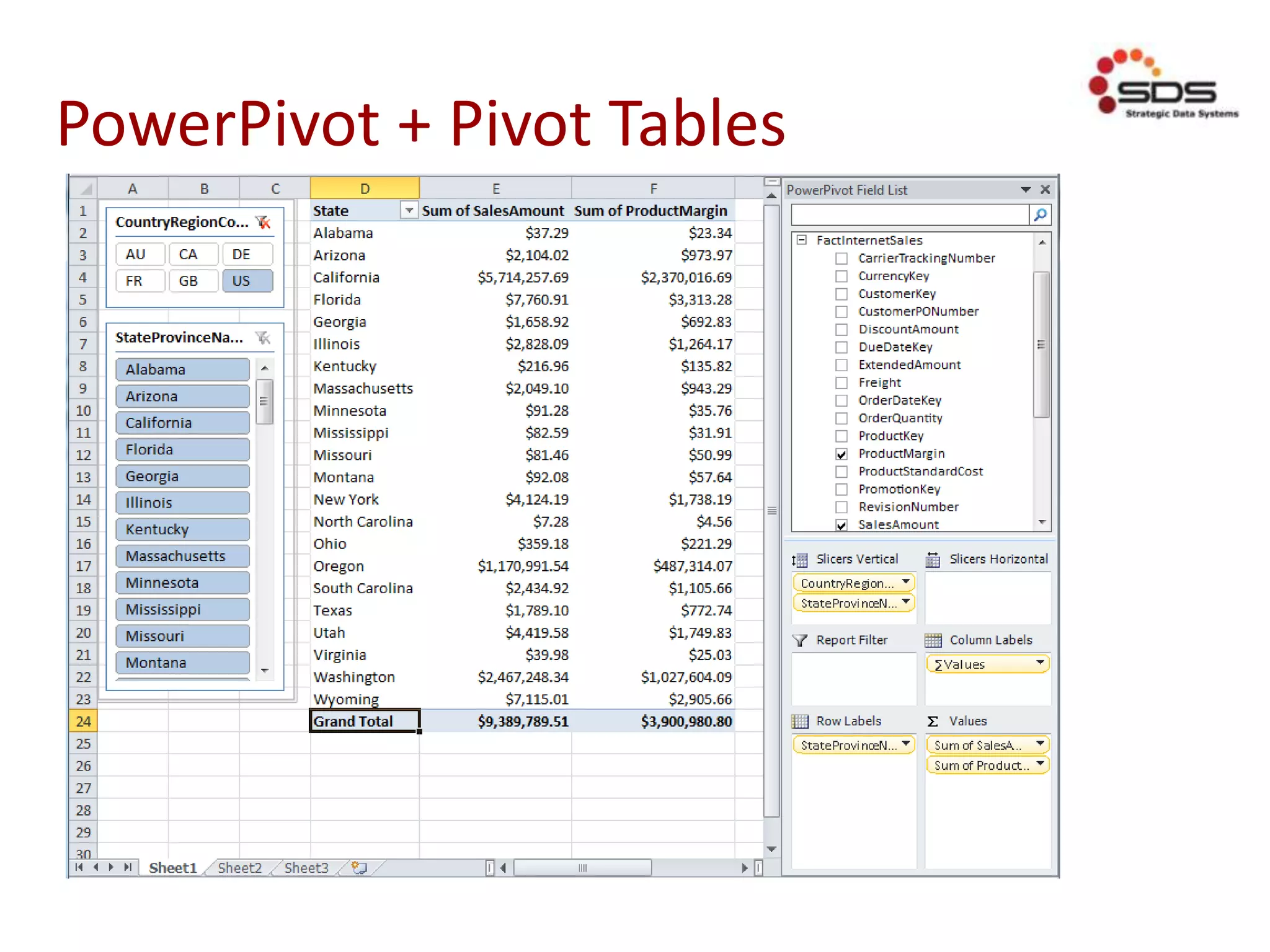
PowerPivot + Pivot Tables
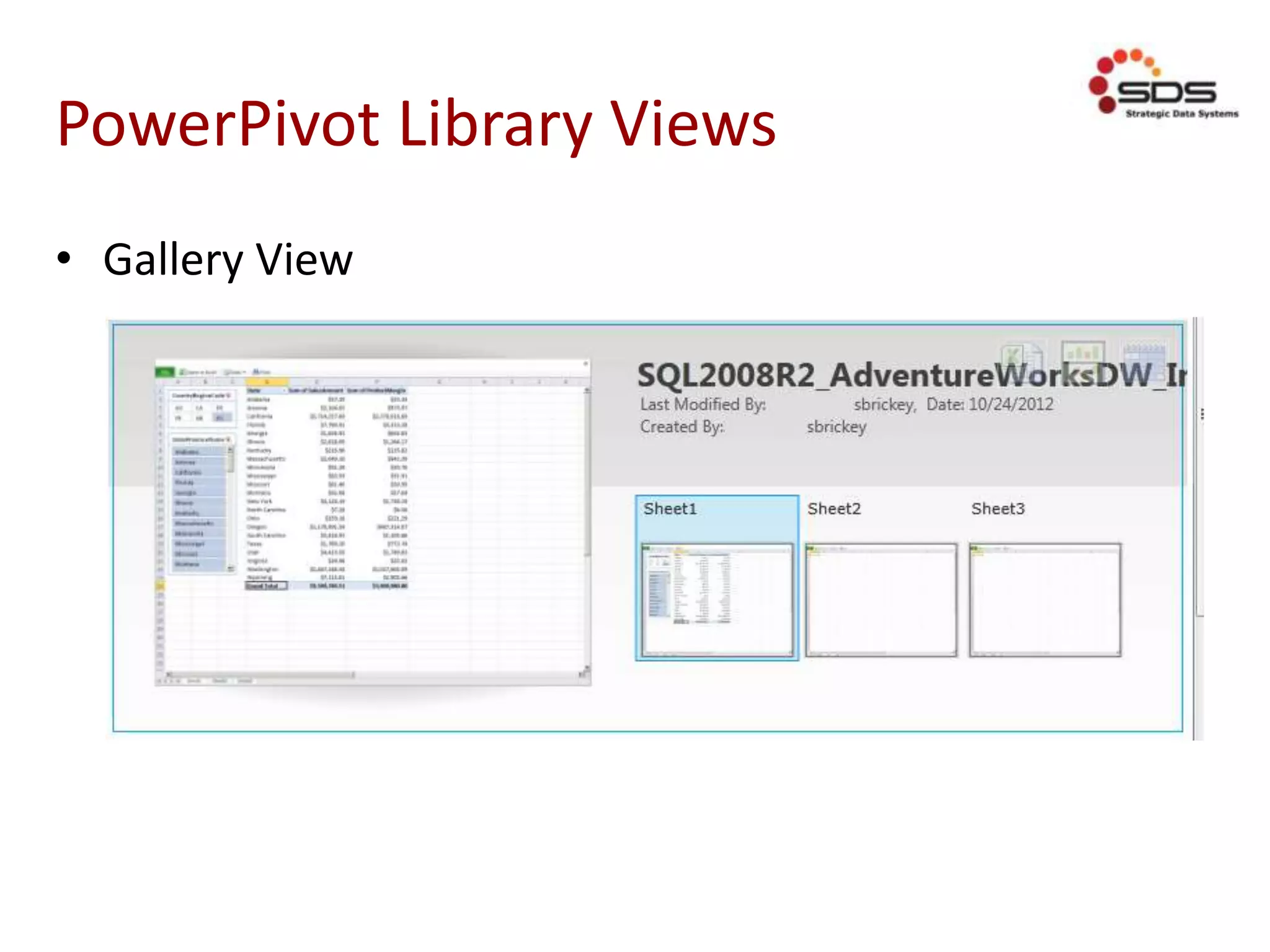
PowerPivot Library Views
• Gallery View
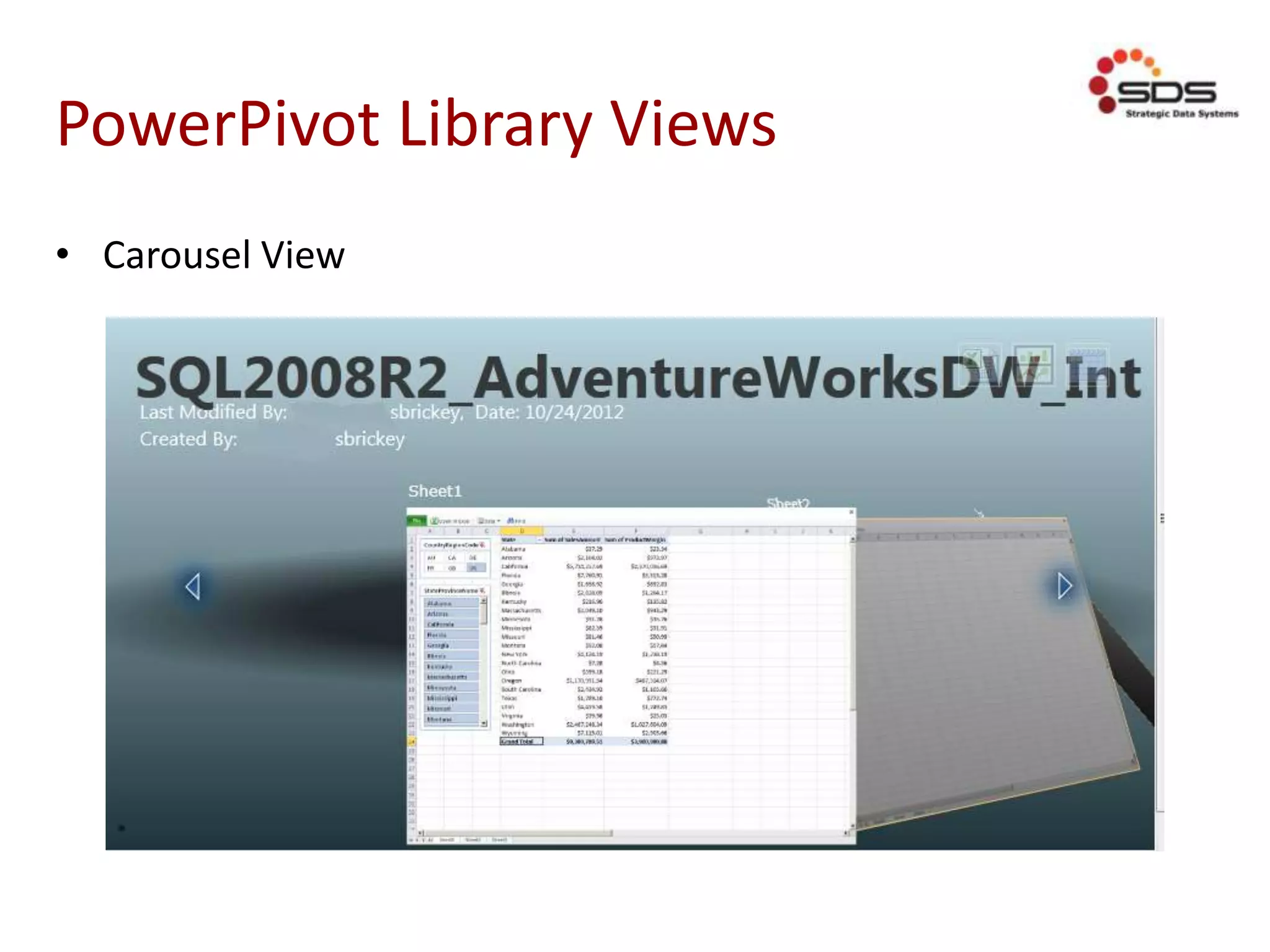
PowerPivot Library Views
• Carousel View
PowerPivot Library Views
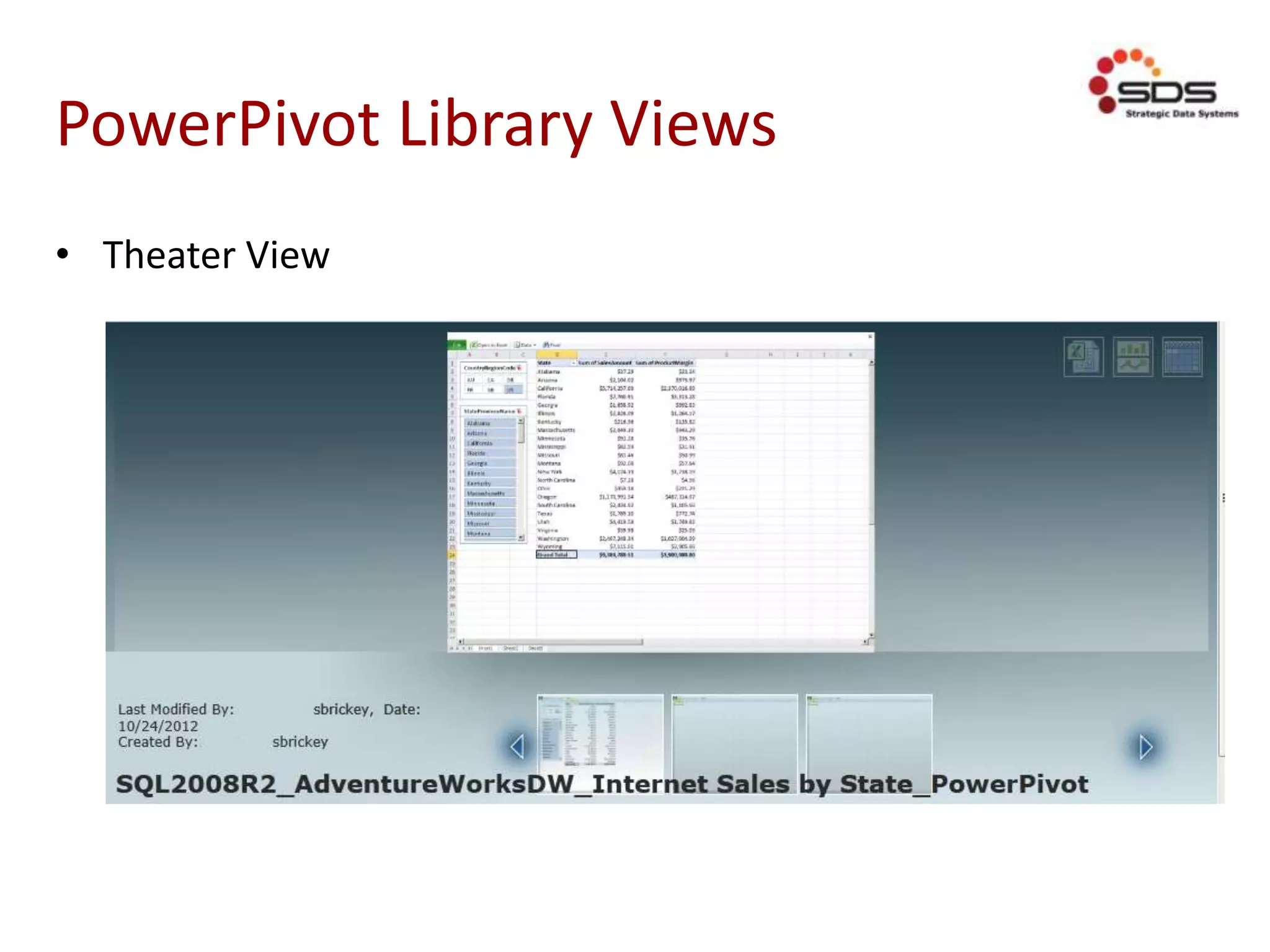
• Theater View
PowerPivot : What and Why
• NO row limit (technically)
– Only limited by available RAM
• Not 64k x 256 (up to 2003)
or 1mil x 16k (2007 and above)
– Load ALL the data!
• Relate multiple data sources
• No cube processing
• No penalty for new calculations
• PowerPivot for SharePoint
– Interactive Web Rendering
– Automatic background refreshing of data
PowerPivot : Data Sources
• Databases
– SQL Database, Analysis Services, Access
– SQL Azure
– Oracle, Teradata, Sybase, Informix, DB2
– OLE DB / ODBC
• Excel File / Cell Range
– Power Query!
• SSRS Report
• Azure DataMarket
– https://datamarket.azure.com/browse
• Atom Data Feed
• CSV
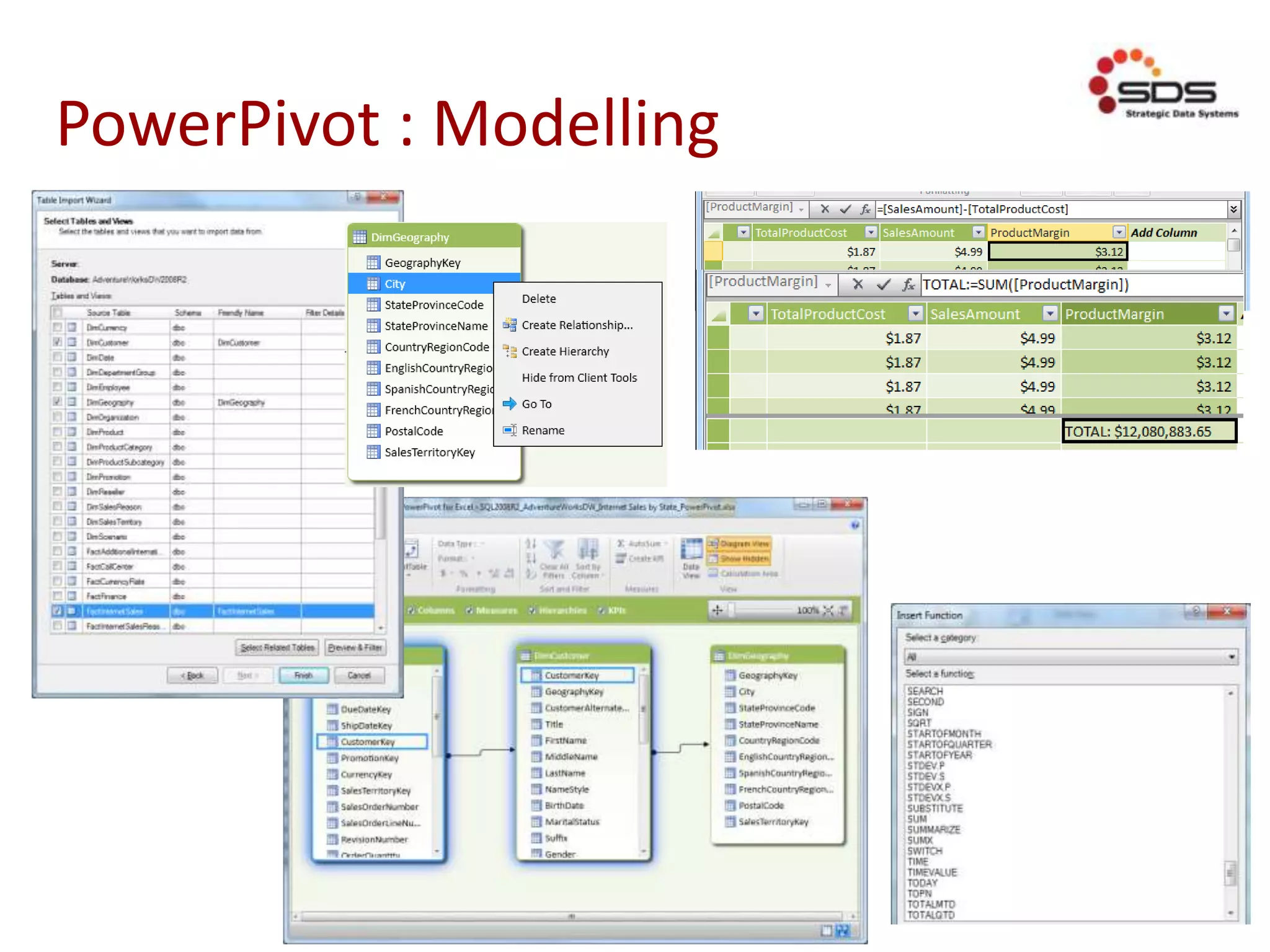
PowerPivot : Modelling
PowerPivot
Software Requirements
• SharePoint : Enterprise (Excel Services)
– Excel Services Application
– PowerPivot Service Application
– Secure Store Service
– Claims to Windows Token Service
• SQL : Dev, Eval, Business Intelligence, Enterprise
– RS in SharePoint [Integrated] mode
– Analysis Services : SQL Server PowerPivot for SharePoint
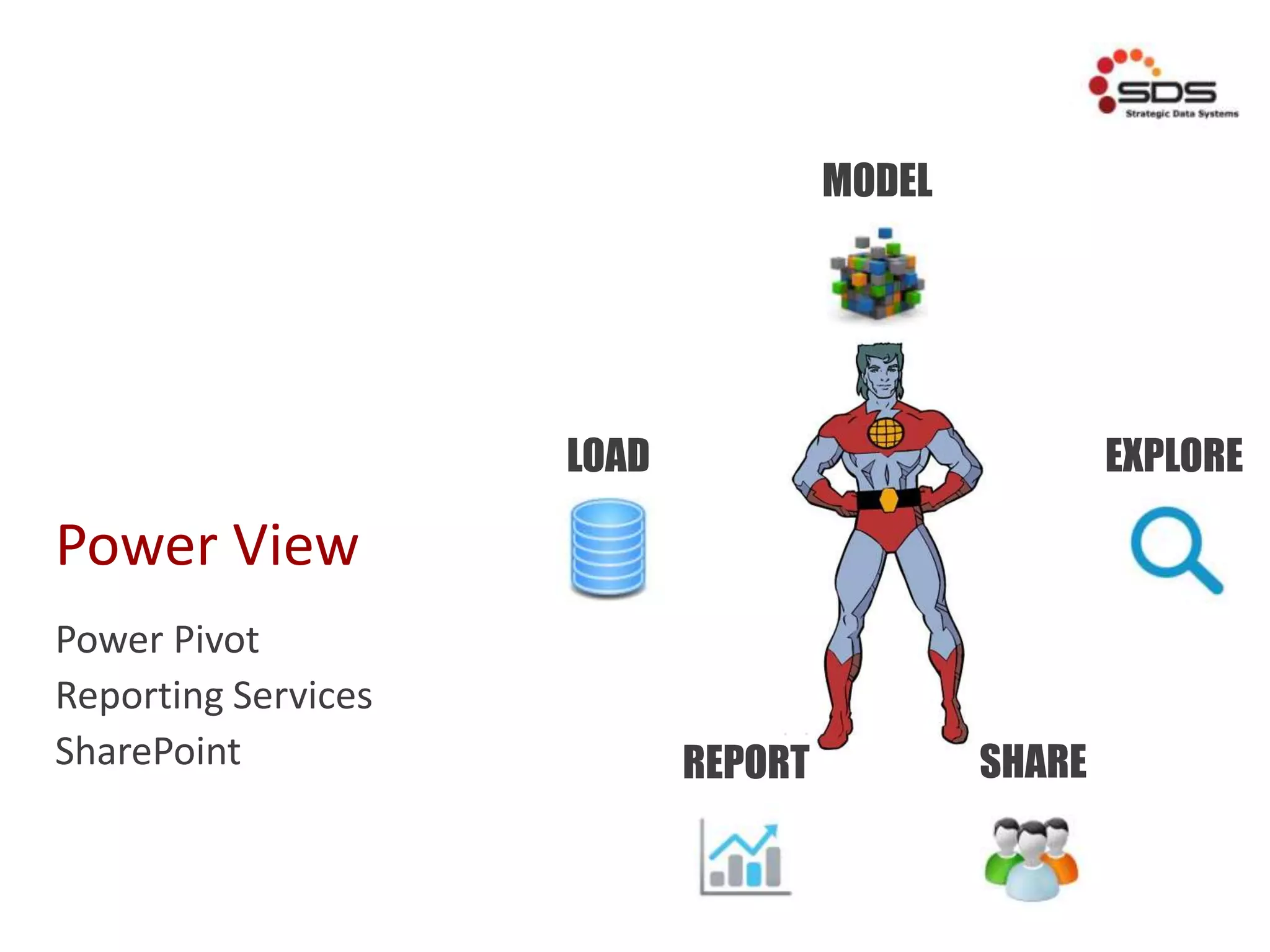
Power View
Power Pivot
Reporting Services
SharePoint
LOAD
MODEL
REPORT
EXPLORE
SHARE
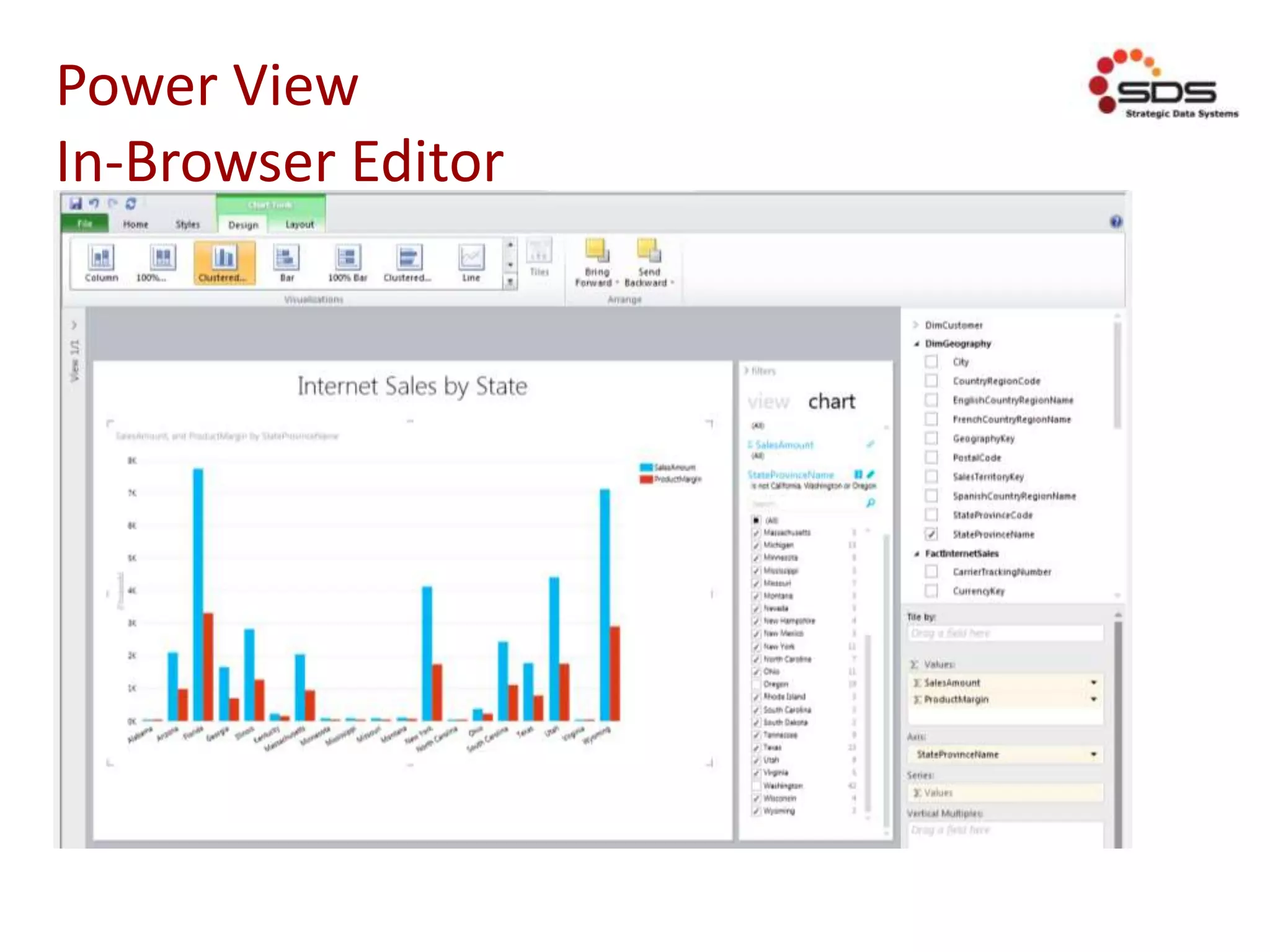
Power View
In-Browser Editor
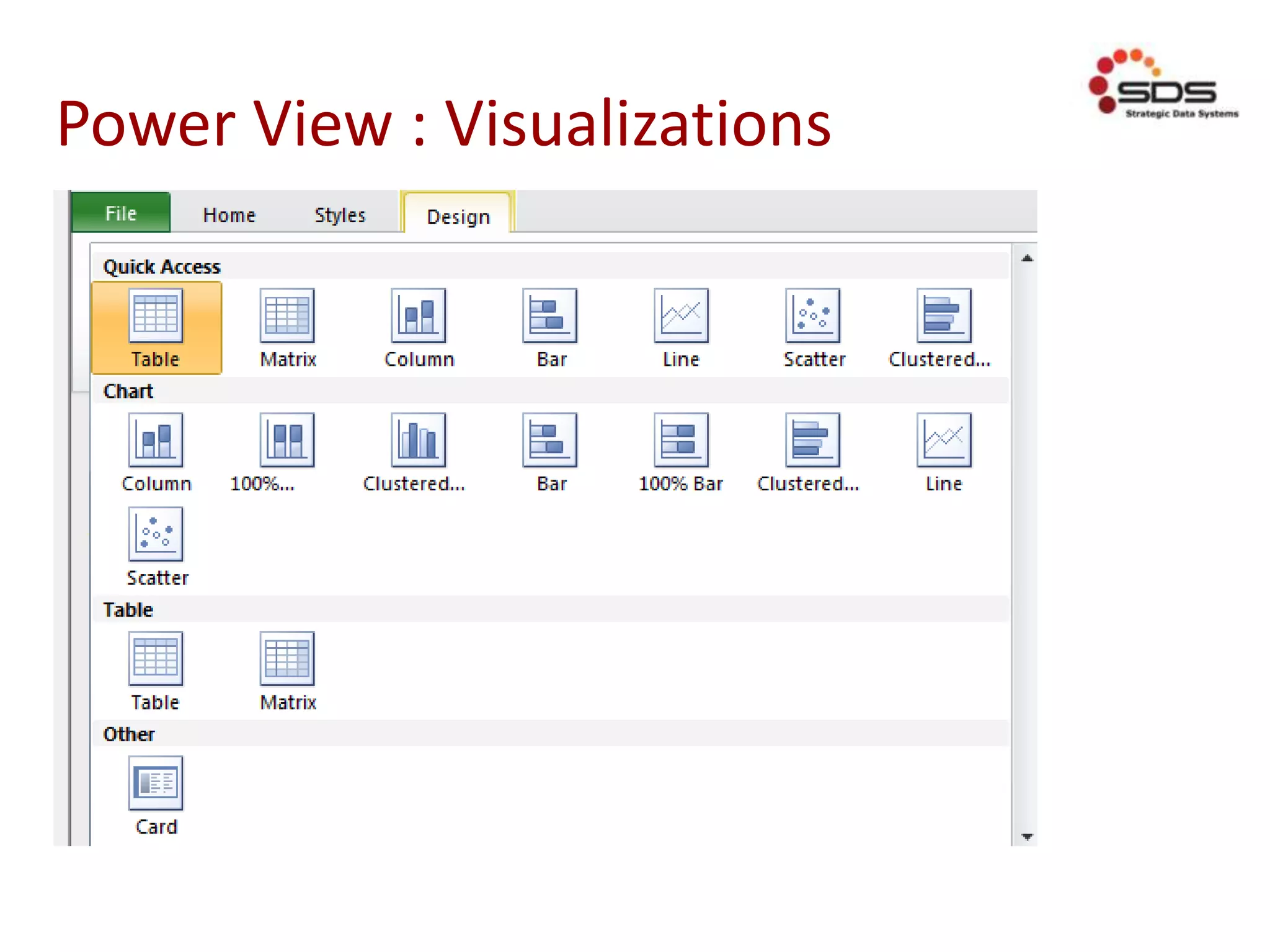
Power View : Visualizations
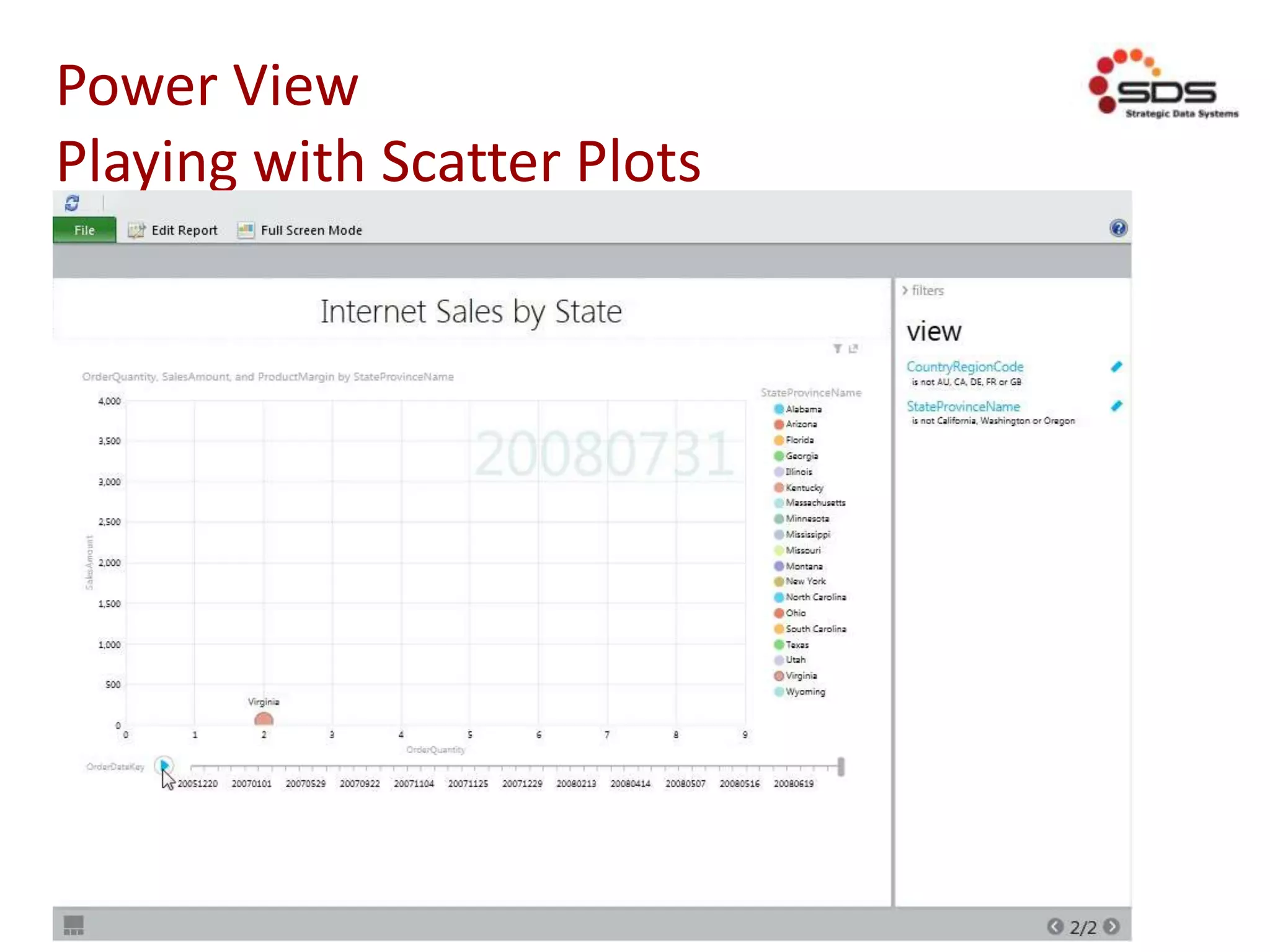
Power View
Playing with Scatter Plots
Power View
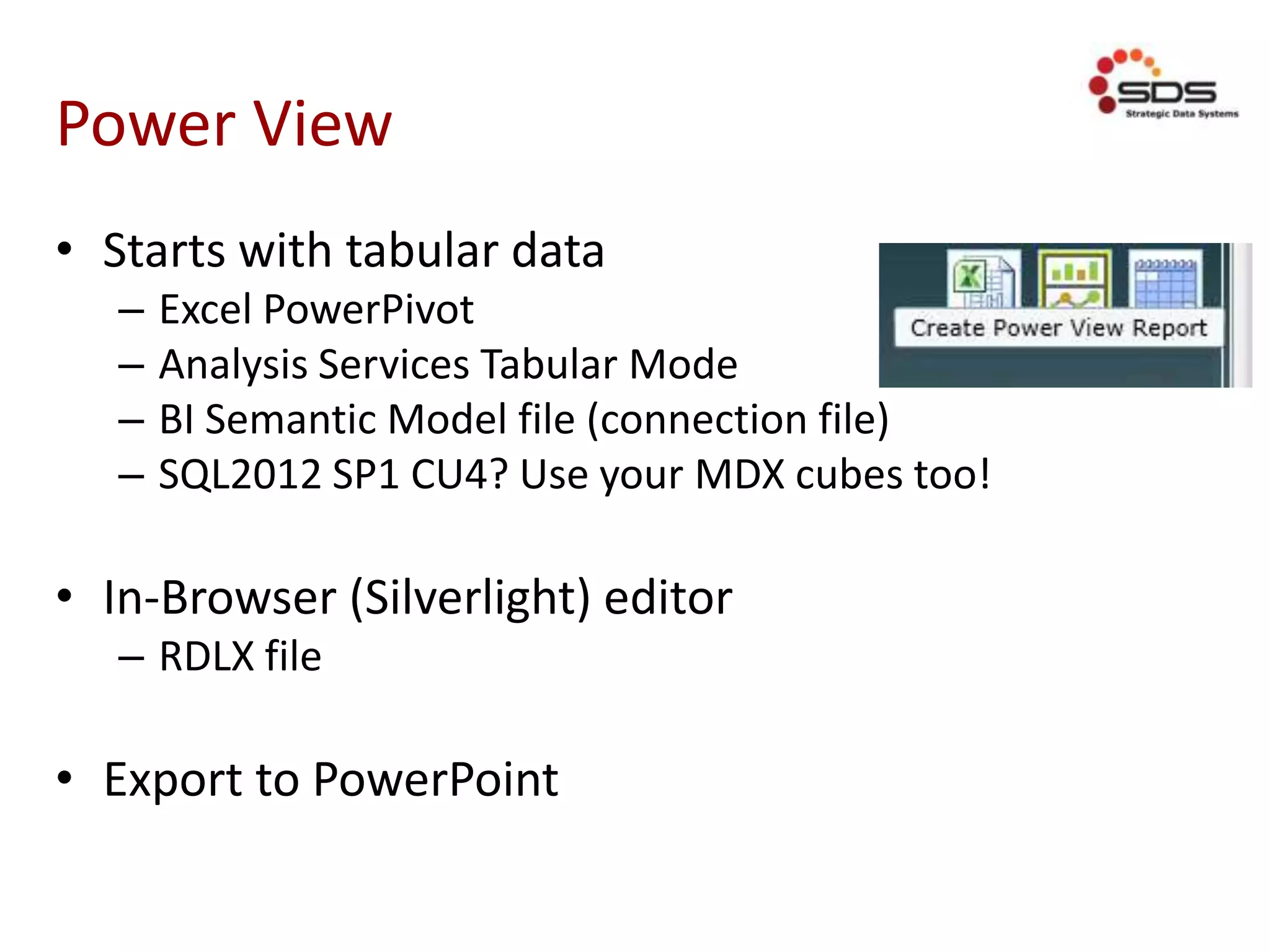
• Starts with tabular data
– Excel PowerPivot
– Analysis Services Tabular Mode
– BI Semantic Model file (connection file)
– SQL2012 SP1 CU4? Use your MDX cubes too!
• In-Browser (Silverlight) editor
– RDLX file
• Export to PowerPoint
Interlude for Questions
SQL Server
Reporting Services
Still learning new tricks with
SharePoint integration
Why Integrate Reporting Services
• Include reports in existing SharePoint sites!
– Intranet, Extranet, Public Website
• Recycle Bin, Versioning, Content
Approval, Workflow, Permissions, Authenticatio
n
• Power View
Reporting Services
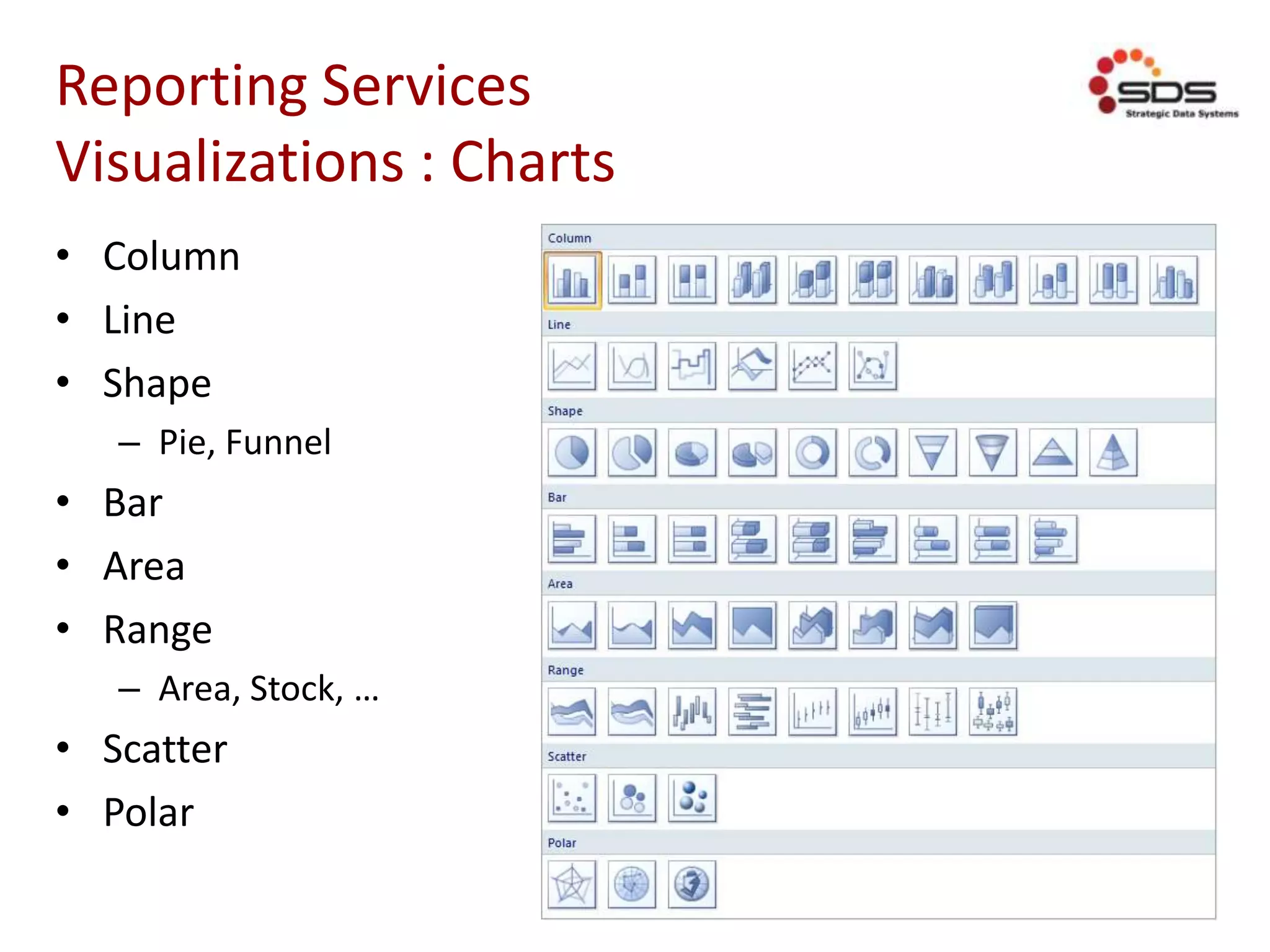
Visualizations : Charts
• Column
• Line
• Shape
– Pie, Funnel
• Bar
• Area
• Range
– Area, Stock, …
• Scatter
• Polar
Reporting Services
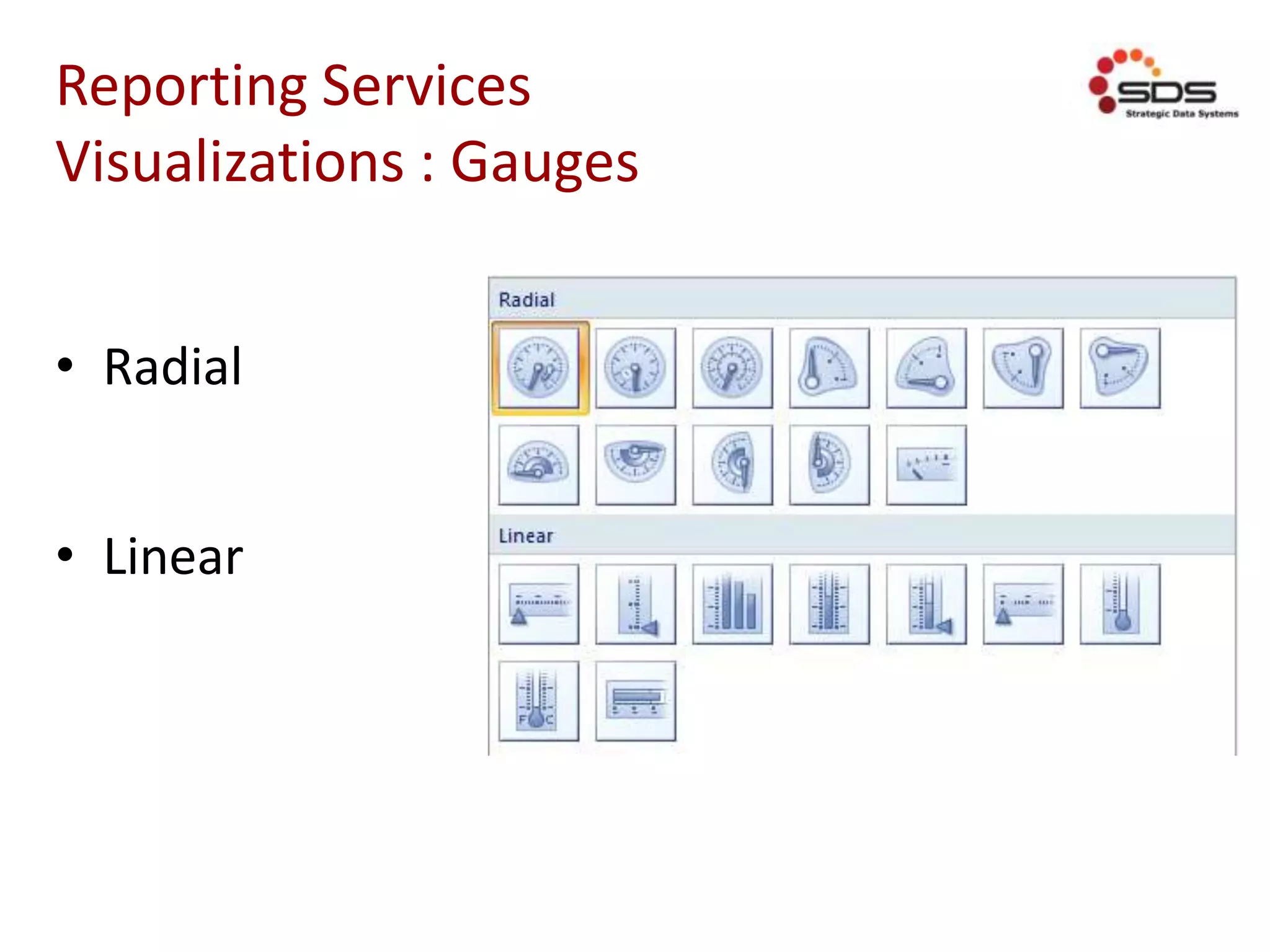
Visualizations : Gauges
• Radial
• Linear
Reporting Services
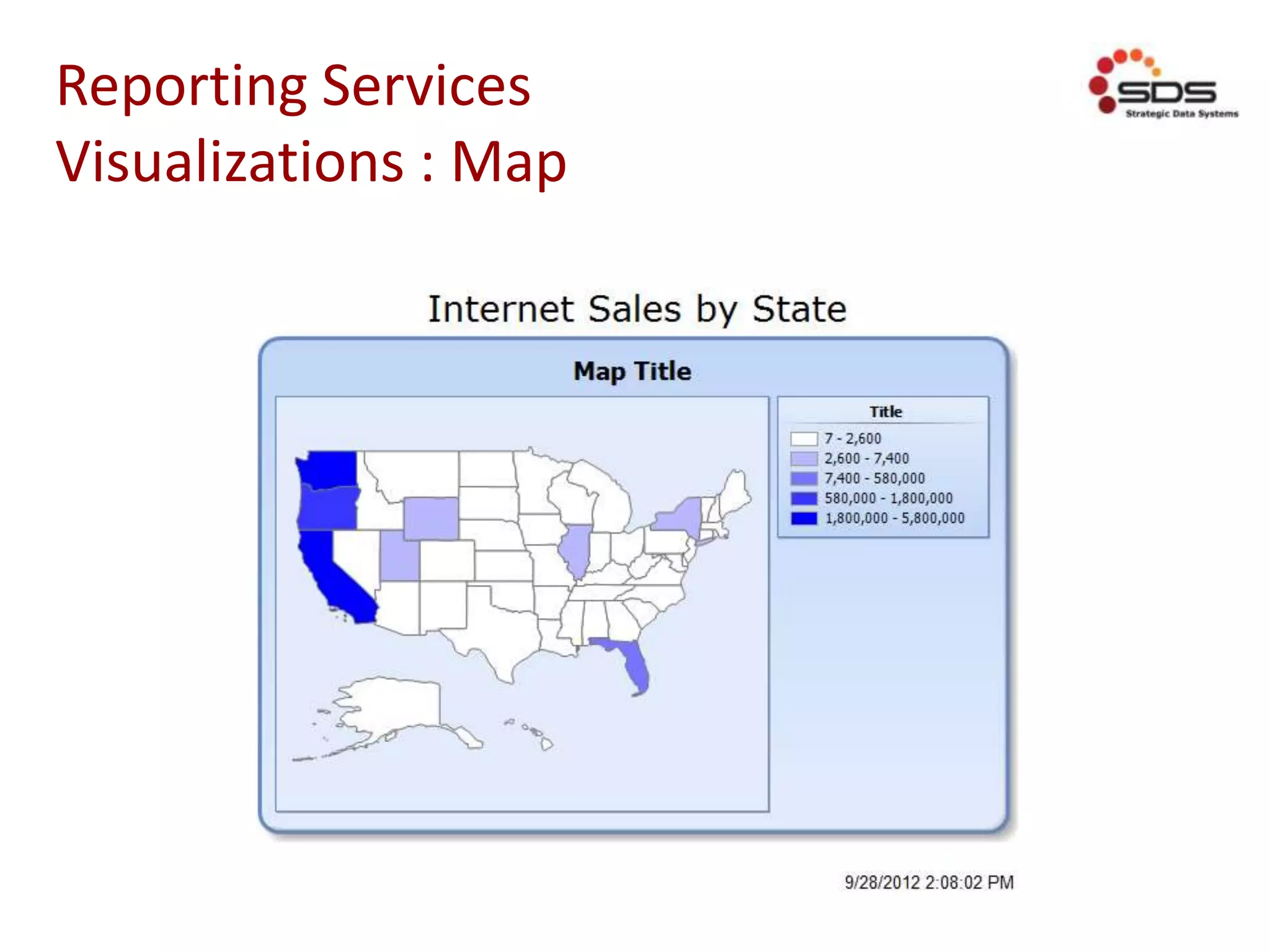
Visualizations : Map
Reporting Services
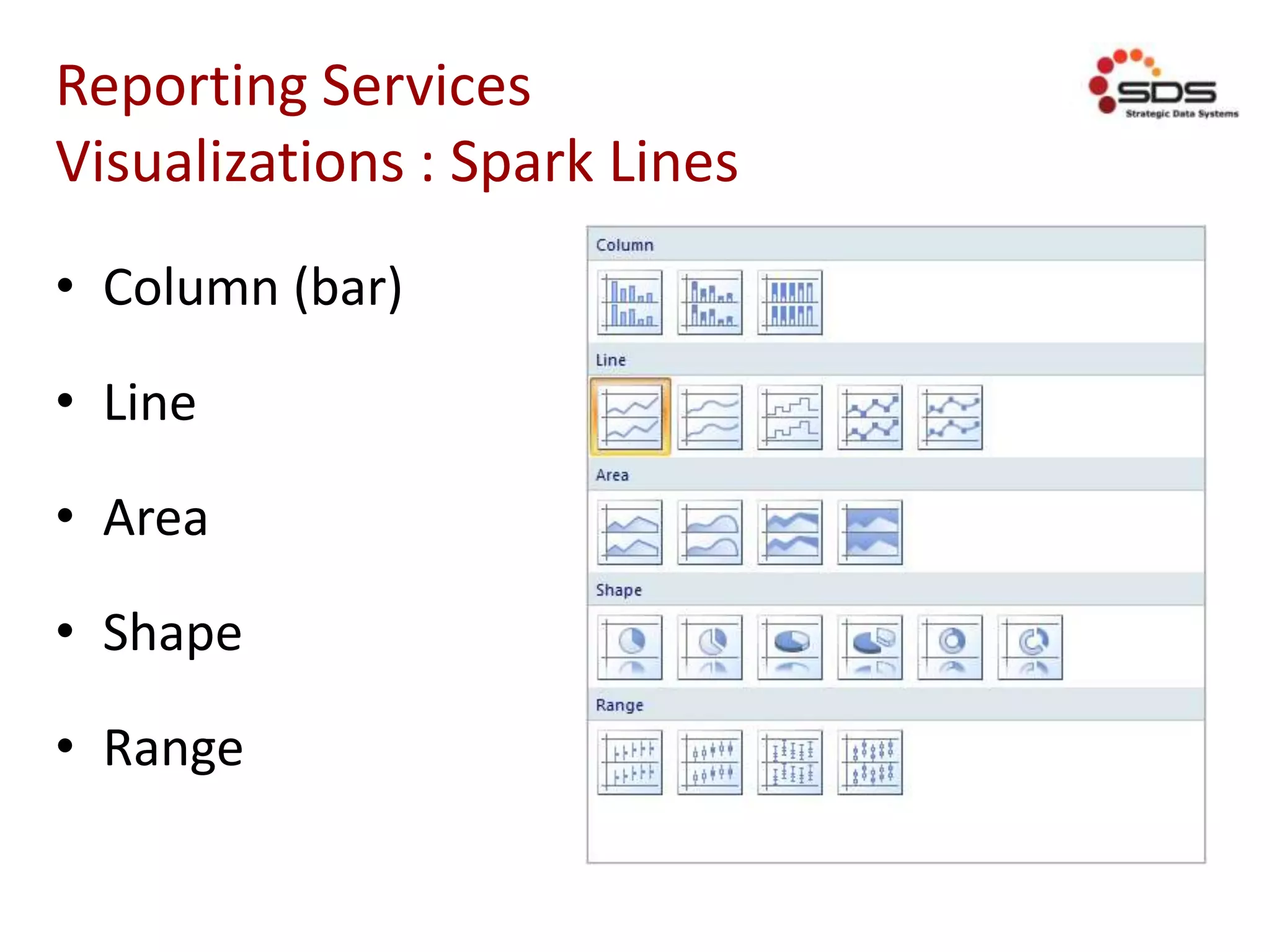
Visualizations : Spark Lines
• Column (bar)
• Line
• Area
• Shape
• Range
Reporting Services
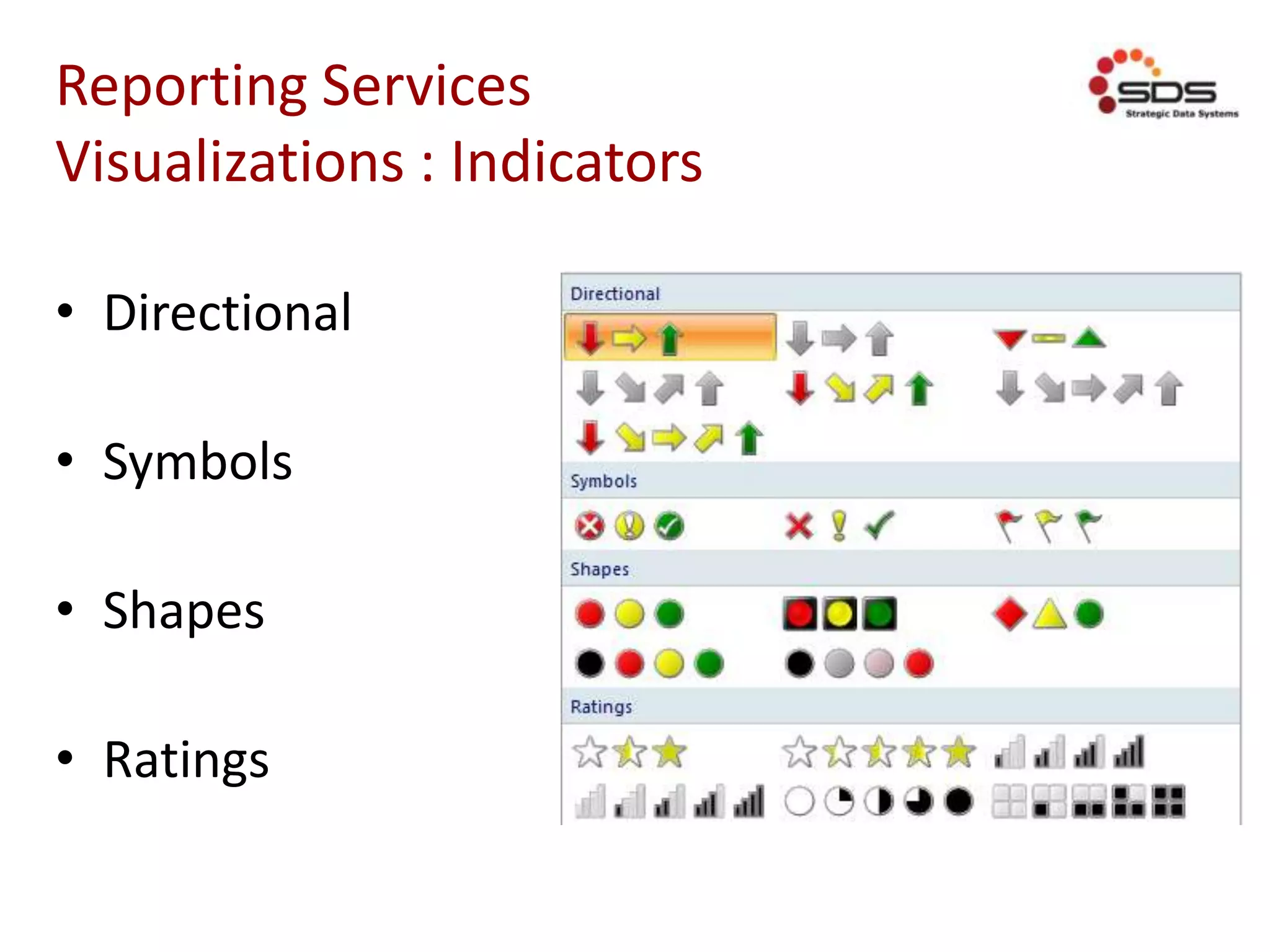
Visualizations : Indicators
• Directional
• Symbols
• Shapes
• Ratings
Reporting Services
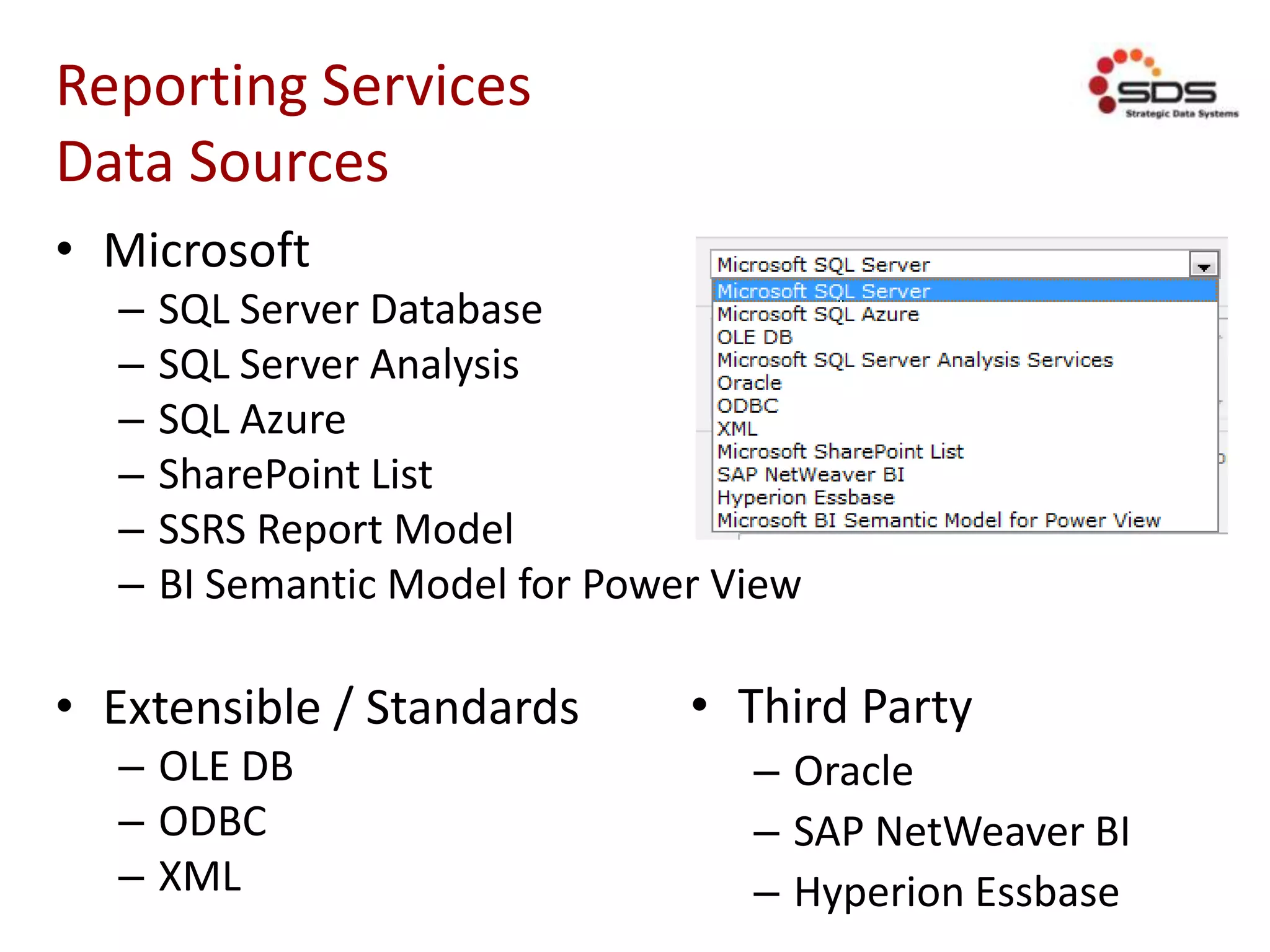
Data Sources
• Microsoft
– SQL Server Database
– SQL Server Analysis
– SQL Azure
– SharePoint List
– SSRS Report Model
– BI Semantic Model for Power View
• Extensible / Standards
– OLE DB
– ODBC
– XML
• Third Party
– Oracle
– SAP NetWeaver BI
– Hyperion Essbase
Reporting Services
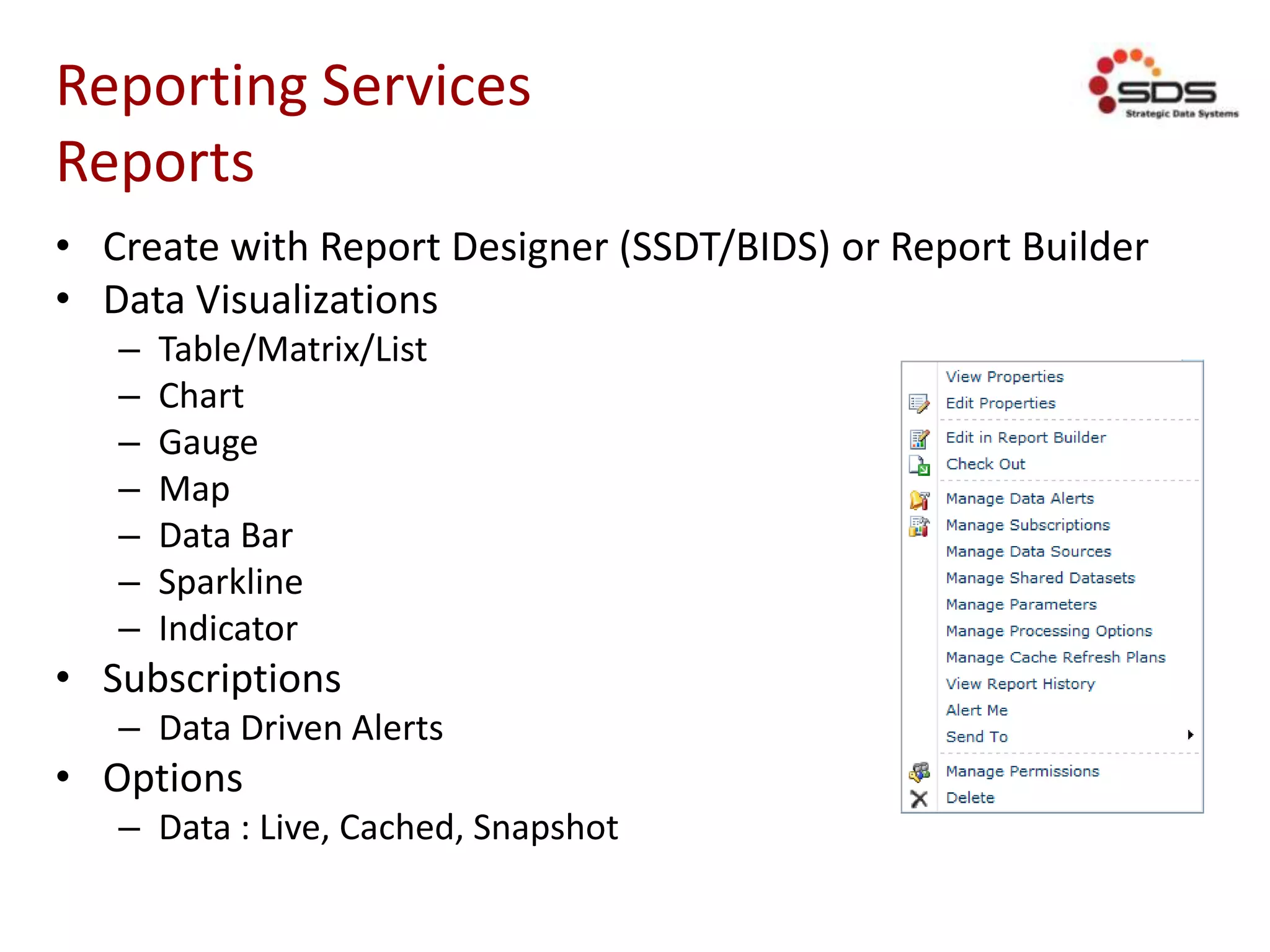
Reports
• Create with Report Designer (SSDT/BIDS) or Report Builder
• Data Visualizations
– Table/Matrix/List
– Chart
– Gauge
– Map
– Data Bar
– Sparkline
– Indicator
• Subscriptions
– Data Driven Alerts
• Options
– Data : Live, Cached, Snapshot
Reporting Services
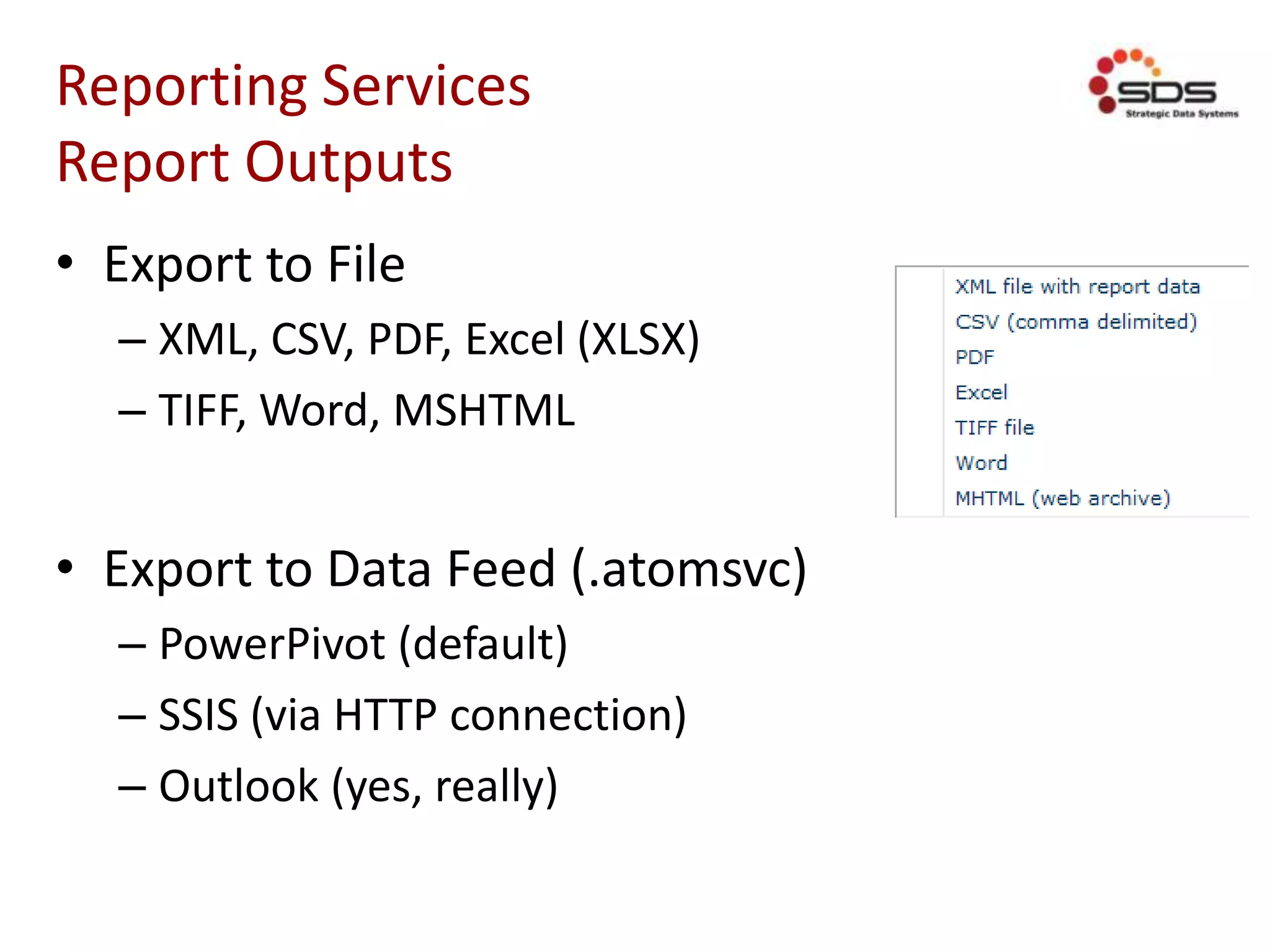
Report Outputs
• Export to File
– XML, CSV, PDF, Excel (XLSX)
– TIFF, Word, MSHTML
• Export to Data Feed (.atomsvc)
– PowerPivot (default)
– SSIS (via HTTP connection)
– Outlook (yes, really)
Reporting Services
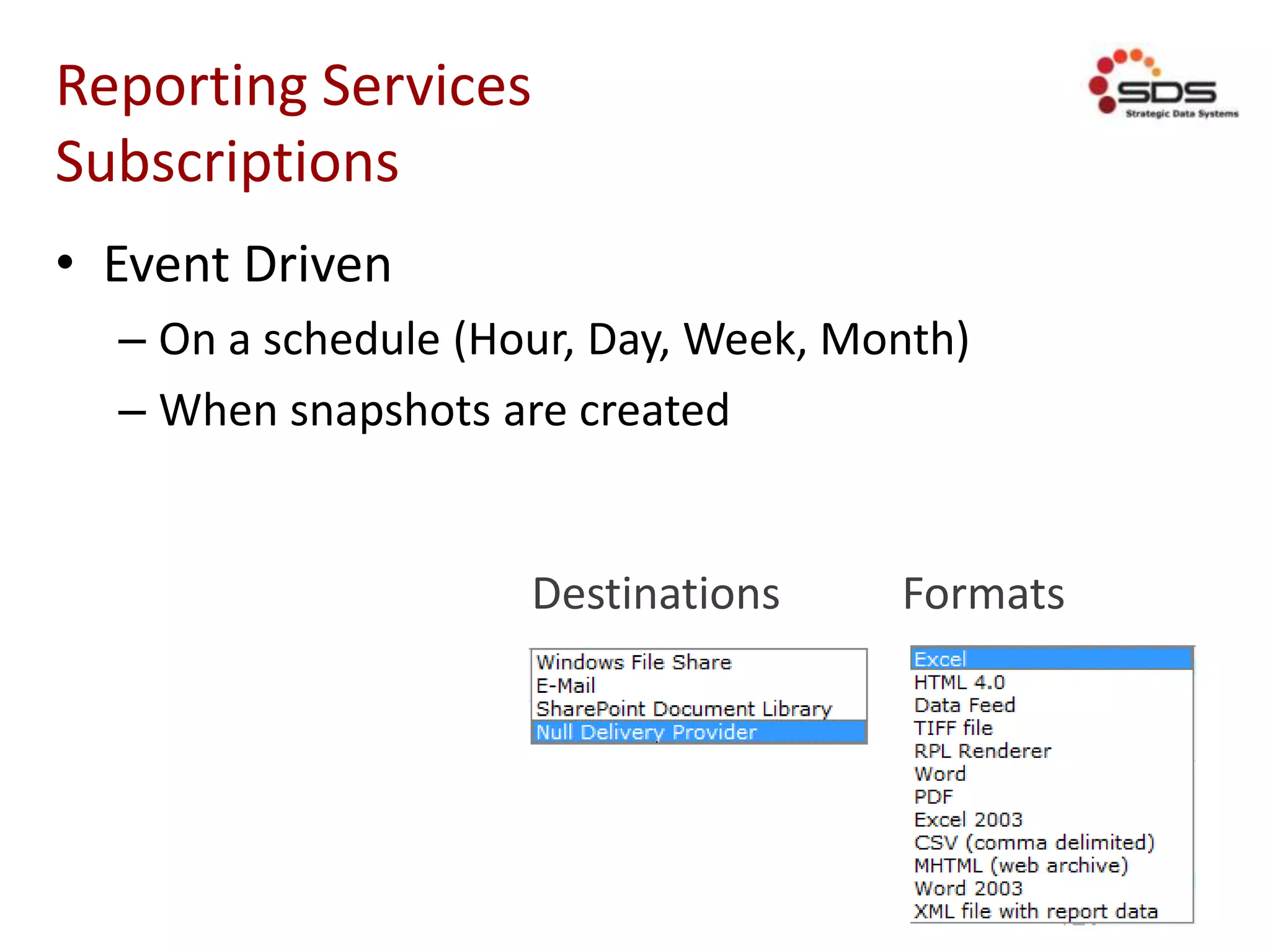
Subscriptions
• Event Driven
– On a schedule (Hour, Day, Week, Month)
– When snapshots are created
FormatsDestinations
Reporting Services
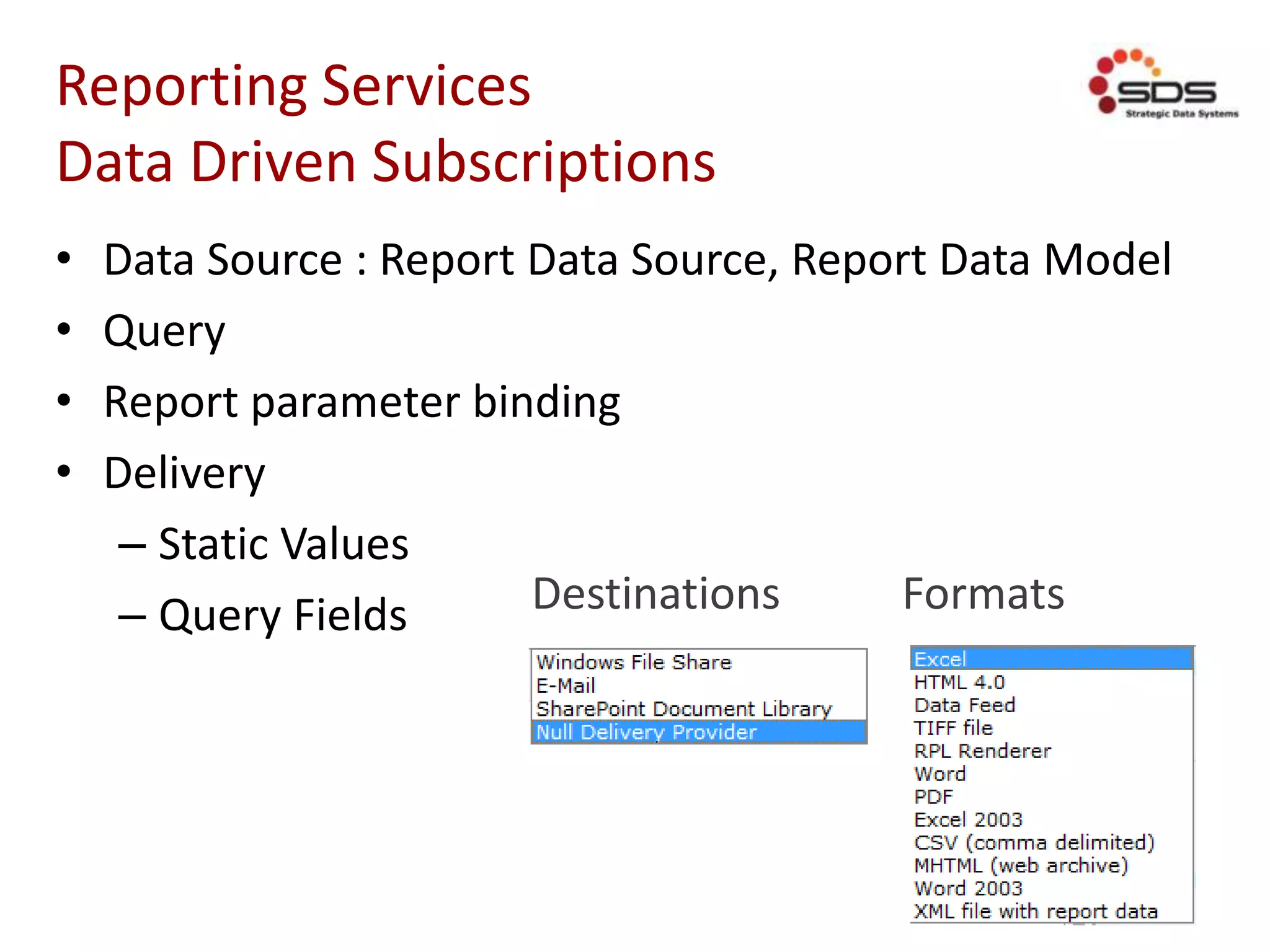
Data Driven Subscriptions
• Data Source : Report Data Source, Report Data Model
• Query
• Report parameter binding
• Delivery
– Static Values
– Query Fields FormatsDestinations
Governance
It’s SharePoint, what did you expect?
Governance
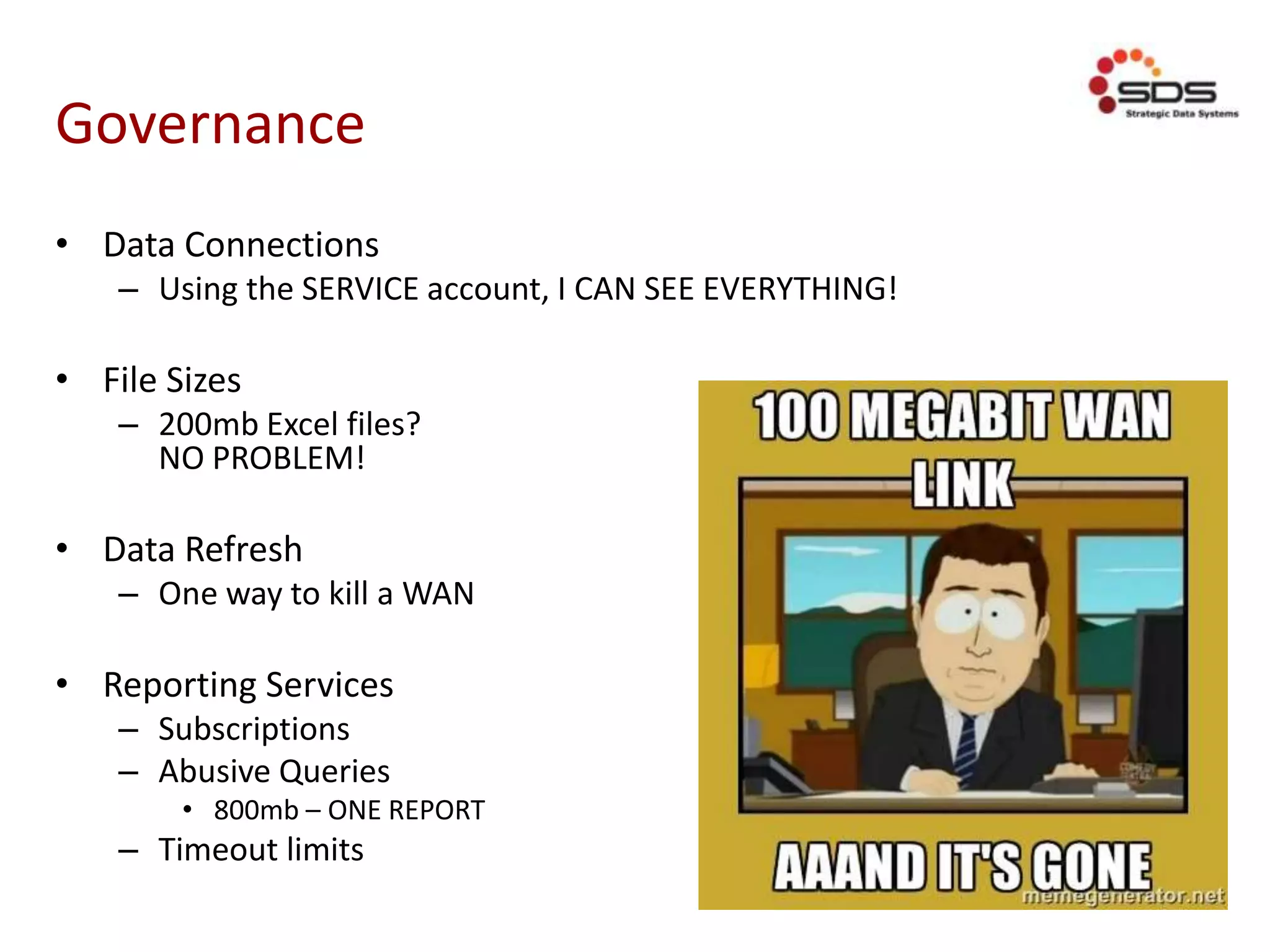
• Data Connections
– Using the SERVICE account, I CAN SEE EVERYTHING!
• File Sizes
– 200mb Excel files?
NO PROBLEM!
• Data Refresh
– One way to kill a WAN
• Reporting Services
– Subscriptions
– Abusive Queries
• 800mb – ONE REPORT
– Timeout limits
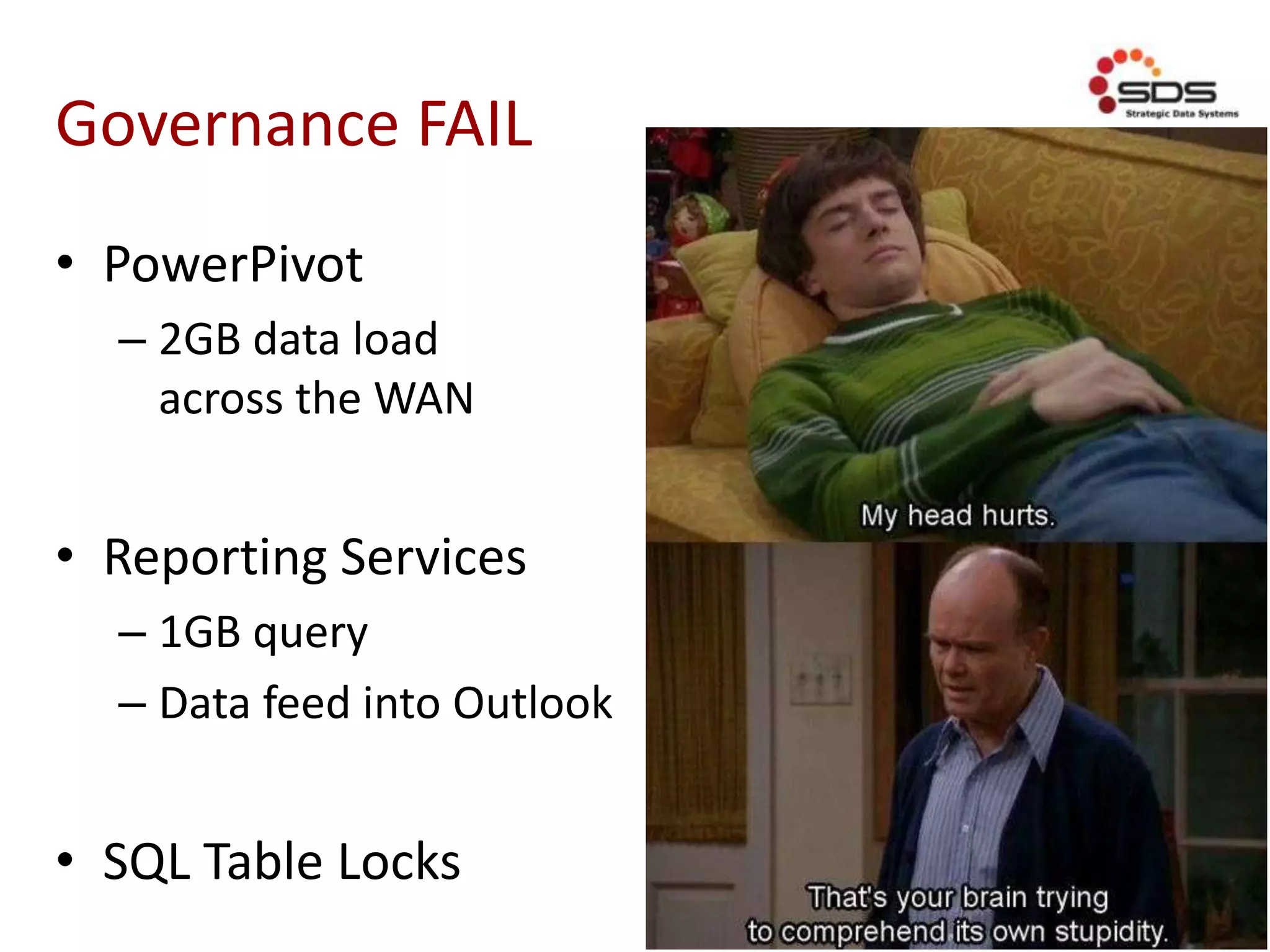
Governance FAIL
• PowerPivot
– 2GB data load
across the WAN
• Reporting Services
– 1GB query
– Data feed into Outlook
• SQL Table Locks
Governance
• Service Account policies
• Logs / Usage
– Server resources
– Service utilization
• Locate
– Large data models
– Expensive reports
Conclusion
Final Thoughts
• BI starts with the end user
– Connect to the data, wherever it is
• BI should be easy to share
– Available to the users, wherever they are
• BI should be agile
– Requirements change, mistakes happen
• BI should be promotable
– Optimize the use of resources
Appendixes
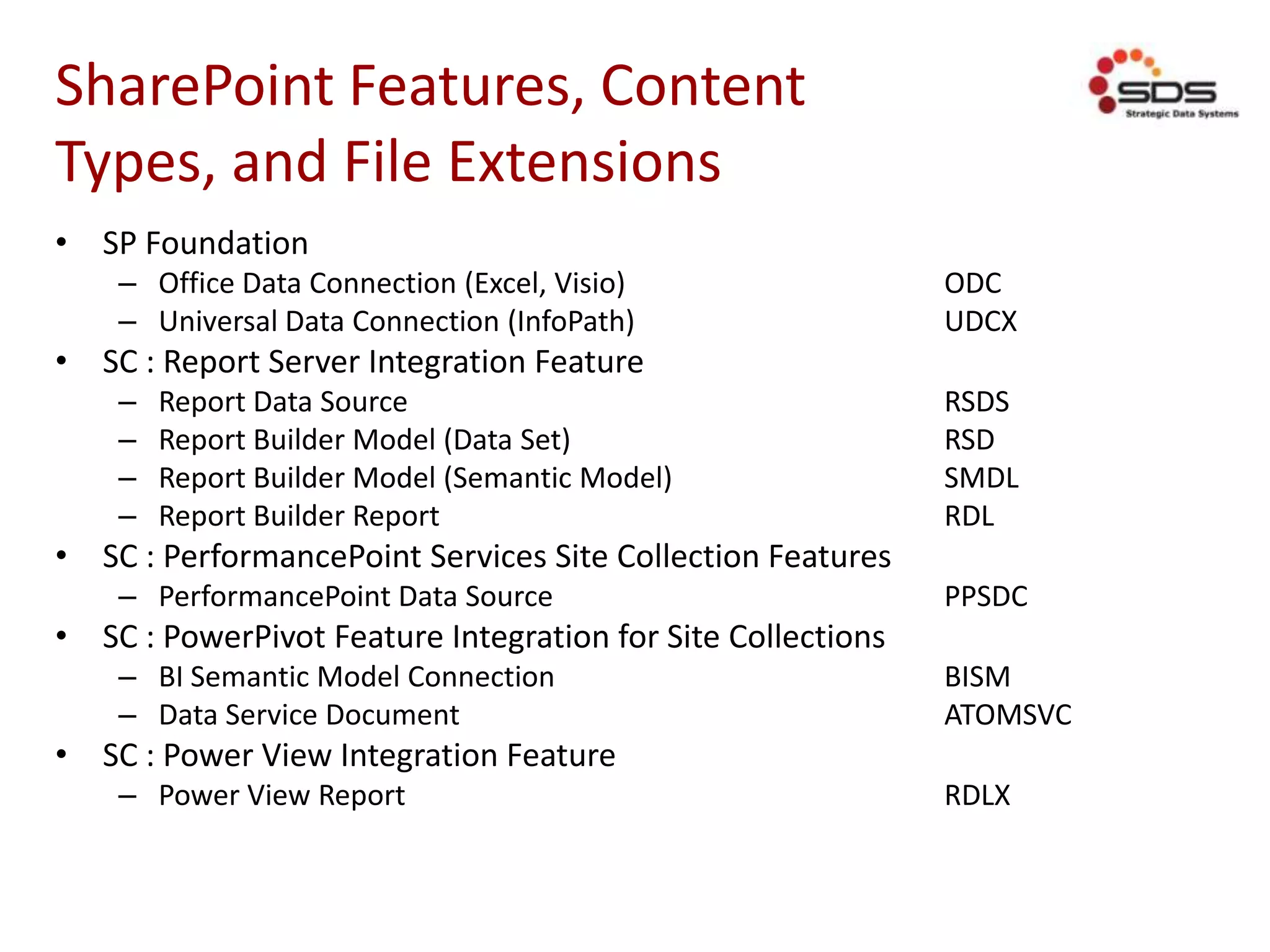
SharePoint Features, Content
Types, and File Extensions
• SP Foundation
– Office Data Connection (Excel, Visio) ODC
– Universal Data Connection (InfoPath) UDCX
• SC : Report Server Integration Feature
– Report Data Source RSDS
– Report Builder Model (Data Set) RSD
– Report Builder Model (Semantic Model) SMDL
– Report Builder Report RDL
• SC : PerformancePoint Services Site Collection Features
– PerformancePoint Data Source PPSDC
• SC : PowerPivot Feature Integration for Site Collections
– BI Semantic Model Connection BISM
– Data Service Document ATOMSVC
• SC : Power View Integration Feature
– Power View Report RDLX
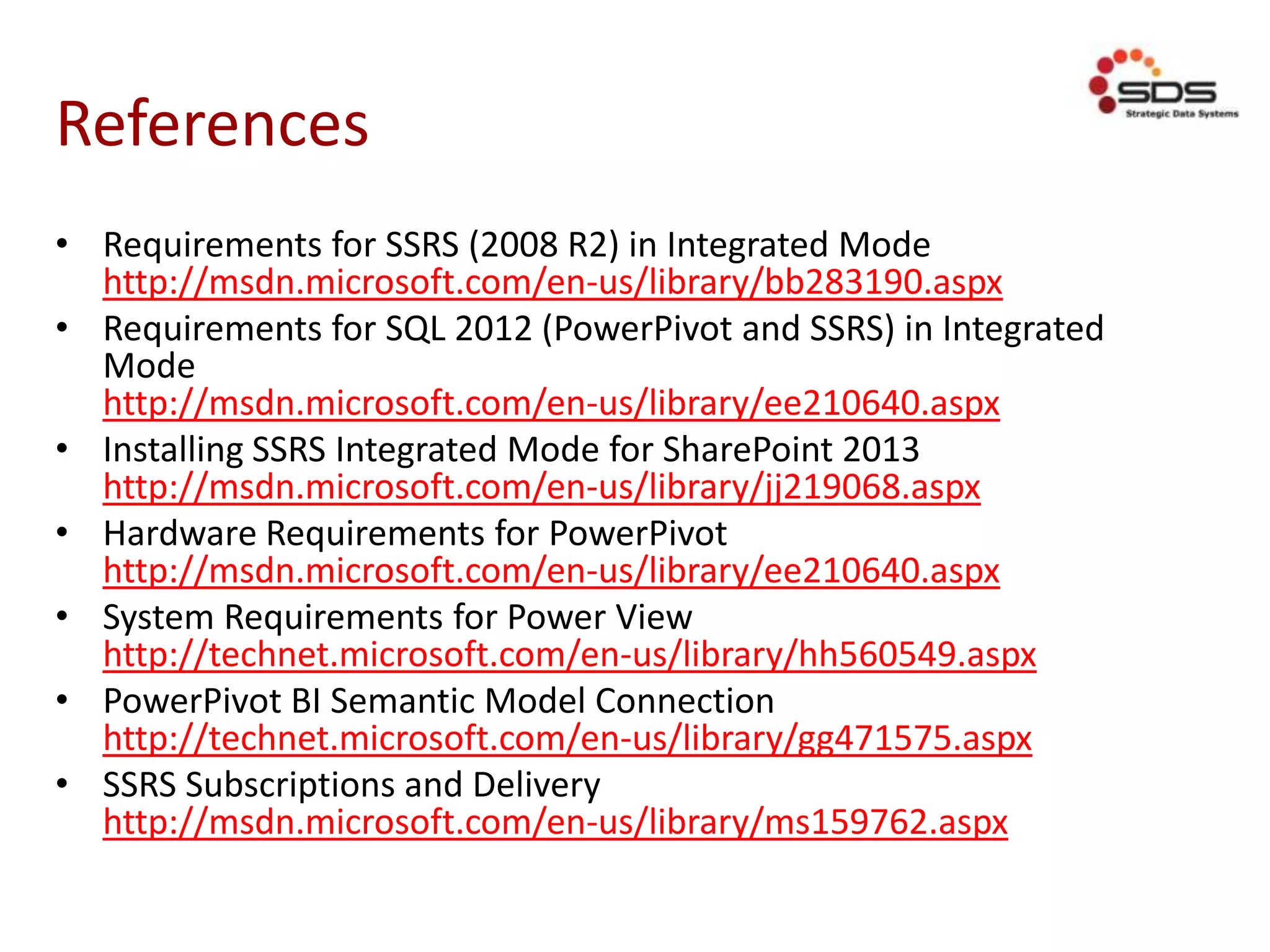
References
• Requirements for SSRS (2008 R2) in Integrated Mode
http://msdn.microsoft.com/en-us/library/bb283190.aspx
• Requirements for SQL 2012 (PowerPivot and SSRS) in Integrated
Mode
http://msdn.microsoft.com/en-us/library/ee210640.aspx
• Installing SSRS Integrated Mode for SharePoint 2013
http://msdn.microsoft.com/en-us/library/jj219068.aspx
• Hardware Requirements for PowerPivot
http://msdn.microsoft.com/en-us/library/ee210640.aspx
• System Requirements for Power View
http://technet.microsoft.com/en-us/library/hh560549.aspx
• PowerPivot BI Semantic Model Connection
http://technet.microsoft.com/en-us/library/gg471575.aspx
• SSRS Subscriptions and Delivery
http://msdn.microsoft.com/en-us/library/ms159762.aspx
Questions?
SharePoint Saturday Chicago Suburbs51
Speaker Feedback: SPSCSM.COM
MORE INFORMATION
• Strategic Data Systems
http://sds-consulting.com
Lunch and Learn sessions
• SharePoint Library
http://sdsSharePointLibrary.codeplex.com/
• Scott Brickey
http://www.sbrickey.com

SharePoint Saturday - Chicago - 2014 - Decoding the Business Intelligence Alphabet Soup

  • 1.
    Decoding the BusinessIntelligence Alphabet Soup SSRS, KPI, OLAP, BISM and more! Scott Brickey, SharePoint Practice Manager www.sds-consulting.com
  • 2.
    SharePoint Saturday ChicagoSuburbs2 Speaker Feedback: SPSCSM.COM
  • 3.
    About Us SDS providesSharePoint solutions Agile development and SharePoint experience create an optimal solution for your unique SharePoint needs. • Business Intelligence : Self service, team, and enterprise • Collaboration, Content Management • Intranets, Portals, and Public Websites • Workflow + forms = application Agile Practices for proven faster delivery, higher quality, & increased business value.
  • 4.
    A Brief Forward •Focus on the subject – LOTS of info! – Feel free to ask questions • Slides are available online www.sbrickey.com/Tech/Calendar www.sds-consulting.com www.slideshare.net/Scott_Brickey/SPSaturday-Chicago-2014- decoding-the-business-intelligence-alphabet-soup
  • 5.
  • 6.
    Business Intelligence :Personas Bill the Boss (Consumer) • Receives reports via email • Likes to explore the data Tool Man Tim (Power User) • Likes to fiddle with the data • Creates simple models and reports Data Sheriff Sheldon (BI Architect / Developer) • Understands complex data relations and modelling • Designs data warehouse structures and analysis cubes • Creates data loads and reports
  • 7.
    Business Intelligence :Use Cases Self Service • Personal use • Immediate timeframe (1 day) • Only needs to be 75% accurate Team Reporting • Team use • Additional time to scale and refine (2-3 days) • Probably needs to be 90% accurate Enterprise Reporting • Enterprise-wide usage • Accuracy is critical • Consideration given to data sources, calculations (1 week)
  • 8.
    Business Intelligence :Tools Power BI • Power Query : Data imports with light transformations • Power Pivot : Data modeling • Power View, Power Map : Visualizations SharePoint • Share Excel files with team • Data refreshed automatically Analysis Services • Multidimensional models for structured reporting • Tabular models for ad-hoc reporting
  • 9.
    Business Intelligence :Tool Uses Bill the Boss • Excel • Pivot Charts/Tables • SharePoint • Power View • PerformancePoint • Analytic Charts • Decomposition Tree Tool Man Tim • Excel • Power Query • Power Pivot • Power Map • SharePoint • Power View • Power Pivot • PerformancePoint • Dashboard Designer Data Sheriff Sheldon • SSMS : SQL Server Management Studio • SSIS : SQL Server Integration Services • SSDT : SQL Server Data Tools BIDS : BI Dev Studio • SSRS : SQL Server Reporting Services
  • 10.
    Excel I can takecare of this myself.
  • 11.
    Excel : PivotCharts and Tables
  • 12.
    Excel : Indicatorsand Spark Lines
  • 13.
    Excel : DataConnections • Stored : Embedded or External File – Office Data Connection (*.ODC) files • Microsoft : SQL Database, Analysis Services – MS Query : SharePoint Lists • Files: CSV, XML • Extensible Providers – ODBC : Access, dBase, Excel, Paradox, FoxPro, CSV, Oracle – OLE DB : SQL, Analysis Services, Active Directory • Designed for single source (table/view, file, etc) – SQL : Relationships are difficult (no GUI) – No way to query ACROSS data sources
  • 14.
  • 15.
  • 16.
  • 17.
  • 18.
  • 19.
    PowerPivot : Whatand Why • NO row limit (technically) – Only limited by available RAM • Not 64k x 256 (up to 2003) or 1mil x 16k (2007 and above) – Load ALL the data! • Relate multiple data sources • No cube processing • No penalty for new calculations • PowerPivot for SharePoint – Interactive Web Rendering – Automatic background refreshing of data
  • 20.
    PowerPivot : DataSources • Databases – SQL Database, Analysis Services, Access – SQL Azure – Oracle, Teradata, Sybase, Informix, DB2 – OLE DB / ODBC • Excel File / Cell Range – Power Query! • SSRS Report • Azure DataMarket – https://datamarket.azure.com/browse • Atom Data Feed • CSV
  • 21.
  • 22.
    PowerPivot Software Requirements • SharePoint: Enterprise (Excel Services) – Excel Services Application – PowerPivot Service Application – Secure Store Service – Claims to Windows Token Service • SQL : Dev, Eval, Business Intelligence, Enterprise – RS in SharePoint [Integrated] mode – Analysis Services : SQL Server PowerPivot for SharePoint
  • 23.
    Power View Power Pivot ReportingServices SharePoint LOAD MODEL REPORT EXPLORE SHARE
  • 24.
  • 25.
    Power View :Visualizations
  • 26.
  • 27.
    Power View • Startswith tabular data – Excel PowerPivot – Analysis Services Tabular Mode – BI Semantic Model file (connection file) – SQL2012 SP1 CU4? Use your MDX cubes too! • In-Browser (Silverlight) editor – RDLX file • Export to PowerPoint
  • 28.
  • 29.
    SQL Server Reporting Services Stilllearning new tricks with SharePoint integration
  • 30.
    Why Integrate ReportingServices • Include reports in existing SharePoint sites! – Intranet, Extranet, Public Website • Recycle Bin, Versioning, Content Approval, Workflow, Permissions, Authenticatio n • Power View
  • 31.
    Reporting Services Visualizations :Charts • Column • Line • Shape – Pie, Funnel • Bar • Area • Range – Area, Stock, … • Scatter • Polar
  • 32.
    Reporting Services Visualizations :Gauges • Radial • Linear
  • 33.
  • 34.
    Reporting Services Visualizations :Spark Lines • Column (bar) • Line • Area • Shape • Range
  • 35.
    Reporting Services Visualizations :Indicators • Directional • Symbols • Shapes • Ratings
  • 36.
    Reporting Services Data Sources •Microsoft – SQL Server Database – SQL Server Analysis – SQL Azure – SharePoint List – SSRS Report Model – BI Semantic Model for Power View • Extensible / Standards – OLE DB – ODBC – XML • Third Party – Oracle – SAP NetWeaver BI – Hyperion Essbase
  • 37.
    Reporting Services Reports • Createwith Report Designer (SSDT/BIDS) or Report Builder • Data Visualizations – Table/Matrix/List – Chart – Gauge – Map – Data Bar – Sparkline – Indicator • Subscriptions – Data Driven Alerts • Options – Data : Live, Cached, Snapshot
  • 38.
    Reporting Services Report Outputs •Export to File – XML, CSV, PDF, Excel (XLSX) – TIFF, Word, MSHTML • Export to Data Feed (.atomsvc) – PowerPivot (default) – SSIS (via HTTP connection) – Outlook (yes, really)
  • 39.
    Reporting Services Subscriptions • EventDriven – On a schedule (Hour, Day, Week, Month) – When snapshots are created FormatsDestinations
  • 40.
    Reporting Services Data DrivenSubscriptions • Data Source : Report Data Source, Report Data Model • Query • Report parameter binding • Delivery – Static Values – Query Fields FormatsDestinations
  • 41.
  • 42.
    Governance • Data Connections –Using the SERVICE account, I CAN SEE EVERYTHING! • File Sizes – 200mb Excel files? NO PROBLEM! • Data Refresh – One way to kill a WAN • Reporting Services – Subscriptions – Abusive Queries • 800mb – ONE REPORT – Timeout limits
  • 43.
    Governance FAIL • PowerPivot –2GB data load across the WAN • Reporting Services – 1GB query – Data feed into Outlook • SQL Table Locks
  • 44.
    Governance • Service Accountpolicies • Logs / Usage – Server resources – Service utilization • Locate – Large data models – Expensive reports
  • 45.
  • 46.
    Final Thoughts • BIstarts with the end user – Connect to the data, wherever it is • BI should be easy to share – Available to the users, wherever they are • BI should be agile – Requirements change, mistakes happen • BI should be promotable – Optimize the use of resources
  • 47.
  • 48.
    SharePoint Features, Content Types,and File Extensions • SP Foundation – Office Data Connection (Excel, Visio) ODC – Universal Data Connection (InfoPath) UDCX • SC : Report Server Integration Feature – Report Data Source RSDS – Report Builder Model (Data Set) RSD – Report Builder Model (Semantic Model) SMDL – Report Builder Report RDL • SC : PerformancePoint Services Site Collection Features – PerformancePoint Data Source PPSDC • SC : PowerPivot Feature Integration for Site Collections – BI Semantic Model Connection BISM – Data Service Document ATOMSVC • SC : Power View Integration Feature – Power View Report RDLX
  • 49.
    References • Requirements forSSRS (2008 R2) in Integrated Mode http://msdn.microsoft.com/en-us/library/bb283190.aspx • Requirements for SQL 2012 (PowerPivot and SSRS) in Integrated Mode http://msdn.microsoft.com/en-us/library/ee210640.aspx • Installing SSRS Integrated Mode for SharePoint 2013 http://msdn.microsoft.com/en-us/library/jj219068.aspx • Hardware Requirements for PowerPivot http://msdn.microsoft.com/en-us/library/ee210640.aspx • System Requirements for Power View http://technet.microsoft.com/en-us/library/hh560549.aspx • PowerPivot BI Semantic Model Connection http://technet.microsoft.com/en-us/library/gg471575.aspx • SSRS Subscriptions and Delivery http://msdn.microsoft.com/en-us/library/ms159762.aspx
  • 50.
  • 51.
    SharePoint Saturday ChicagoSuburbs51 Speaker Feedback: SPSCSM.COM
  • 52.
    MORE INFORMATION • StrategicData Systems http://sds-consulting.com Lunch and Learn sessions • SharePoint Library http://sdsSharePointLibrary.codeplex.com/ • Scott Brickey http://www.sbrickey.com

Editor's Notes

  • #20 Practically speaking, exceptionally large files (4mil rows == 120mb) will take time to transfer, load, and then display to the user