The world leader in serving science
Merja Castrén
February 2019
Smarter workflows with Chromeleon CDS
2
Topics
• eWorkflow
• Peak detection and integration
• Cobra™ Peak Detection Algorithm
• SmartPeaks™
• System Suitability Test (SST) and
Intelligent Run Control (IRC)
The world leader in serving science
eWorkflow
4
• eWorkflows automate all chromatography processes
• Takes you from samples to results in a few steps
• Customizable for a wide range of applications
Instrument Method
Sequence Template
Processing
Method
Report Template
eWorkfloweWorkflow
5
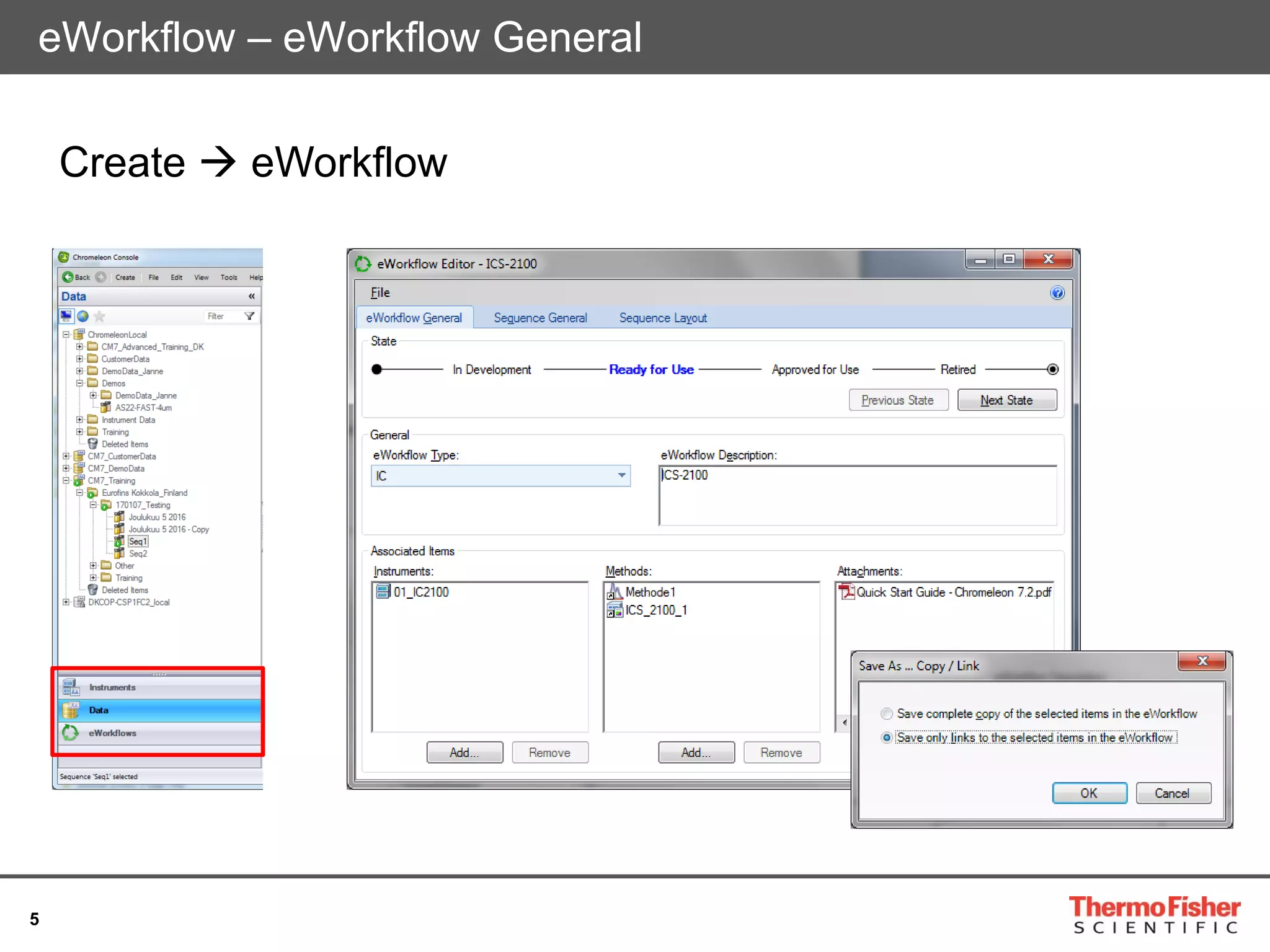
Create  eWorkflow
eWorkflow – eWorkflow General
6
eWorkflow – Sequence General
7
eWorkflow – Sequence Layout
A sequence layout can consist of
four block types, each in a different
color:
 Sequence header – for Sample
Types like Equilibration Sample
or Standards
 Sample block
 Bracket (includes injections that
will be performed between
sample blocks)
 Sequence Footer – for Sample
Types like Standby or Shutdown
Samples
8
eWorkflow
Completed Sequence Layout
9
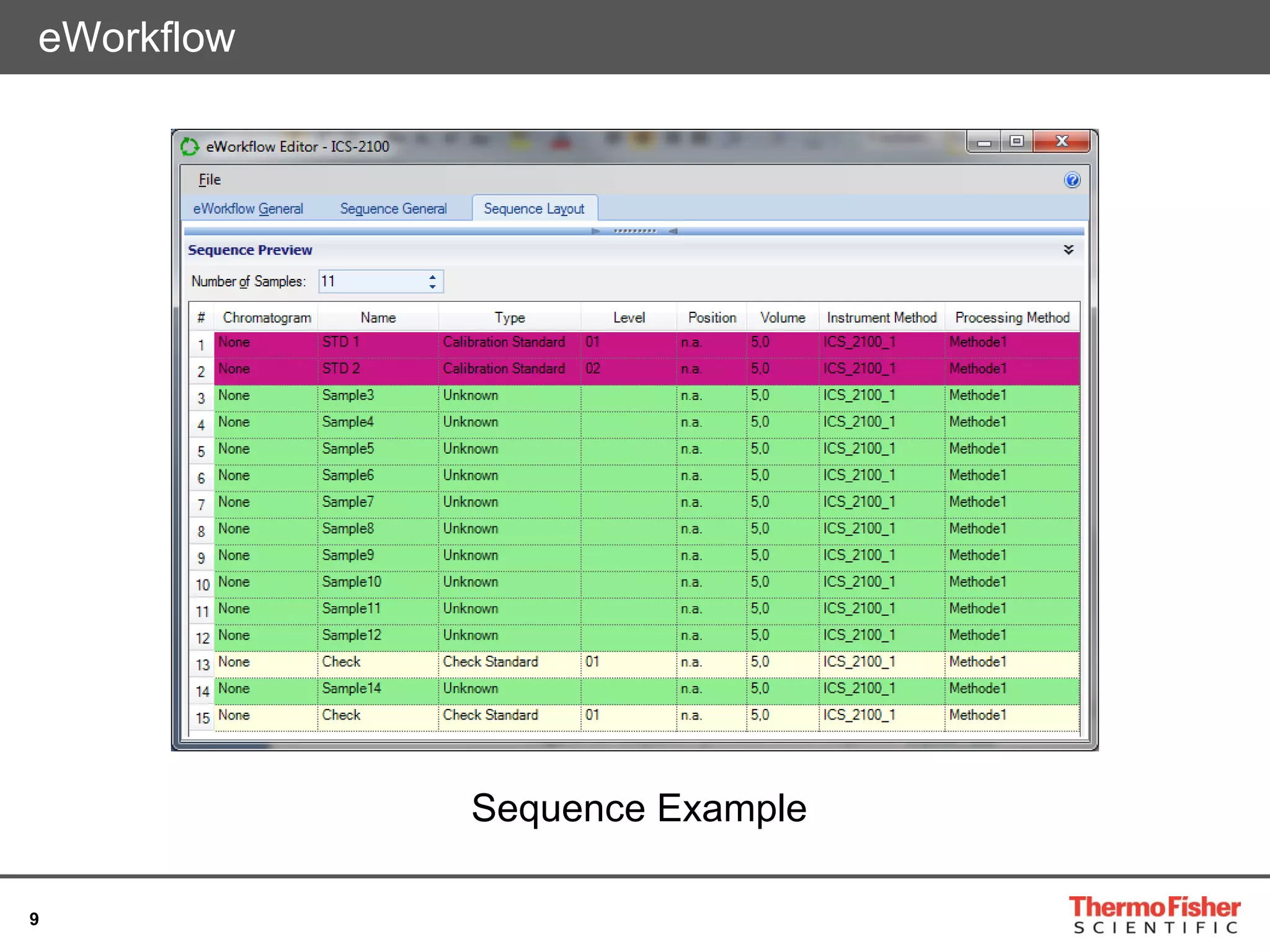
eWorkflow
Sequence Example
10
Running an eWorkflow
1. Choose
eWorkflow, Select
Instrument, and
Click “Launch”
2. Enter Number of
Samples and Start
Position
3. Sequence is created and
can be immediately run
The world leader in serving science
Peak Detection and Integration
• Cobra™ Peak Detection Algorithm and SmartPeaks™
12
Cobra™ Peak Detection Algorithm
1. Start Cobra Wizard
3. Select the narrowest peak
to be integrated
4. Select the smallest peak
to be integrated
2. Define the Integration range
13
Cobra™ Peak Detection Algorithm
And your integration is done!
14
SmartPeaks – A Revolution in Ease of Use
• There are many ways to integrate unresolved peaks
Is this what
we want?
Is this what
we want?
15
SmartPeaks™ Integration Assistant
1. Activate SmartPeaks™ wizard
2. Select area of Interest
3. Select the Integration
you want
16
SmartPeaks™ Integration Assistant
And Your Integration Is Done!
The world leader in serving science
System Suitability Test (SST)
Intelligent Run Control (IRC)
18
SST/IRC
• Define one or more test cases in a Processing Method.
• During the run, test cases are automatically applied to the
injections.
 Test the injections: for example SST case can be used to check
whether the operational conditions required for a specific
measurement are met.
 Perform specific actions: can be dependent on the pass or fail
result of the test case. This feature is called IRC and it includes
built-in error handling to help you achieve the desired results.
19
SST/IRC
Processing Method
SST/IRC Tab
“Click here to add a new test case”
20
SST/IRC
• Select predefined test case
• Select injection conditions
• Create evaluation criterias
21
SST/IRC
• Define components/peaks
and channel
• Define Pass and Fail actions
22
SST/IRC
• Add as many test as needed
• Modify by double clicking one cell
23
SST
Report Designer
Table Tools  Test Case Summary
• Executed Results Test Cases Only
• Detailed Test
24
IRC Example: Autodilution
Automatic sample dilution
• Create a new test case (SST)
• Fail Actions
• Insert dilution method and position where to dilute
• Injection.relativePosition(x), where x is an offset value to the
new vial position: current vial in RA1,
Injection.relativePosition(10)  new vial position for dilution
RA11
25
IRC Example: Autodilution
Automatic sample dilution
• Automatic dilution mode ON
• Select the mode: Vial to Vial Dilution
26
IRC Example: Autodilution – Instrument Method
Instrument Method for Automatic Sample Dilution
• Dilute
27
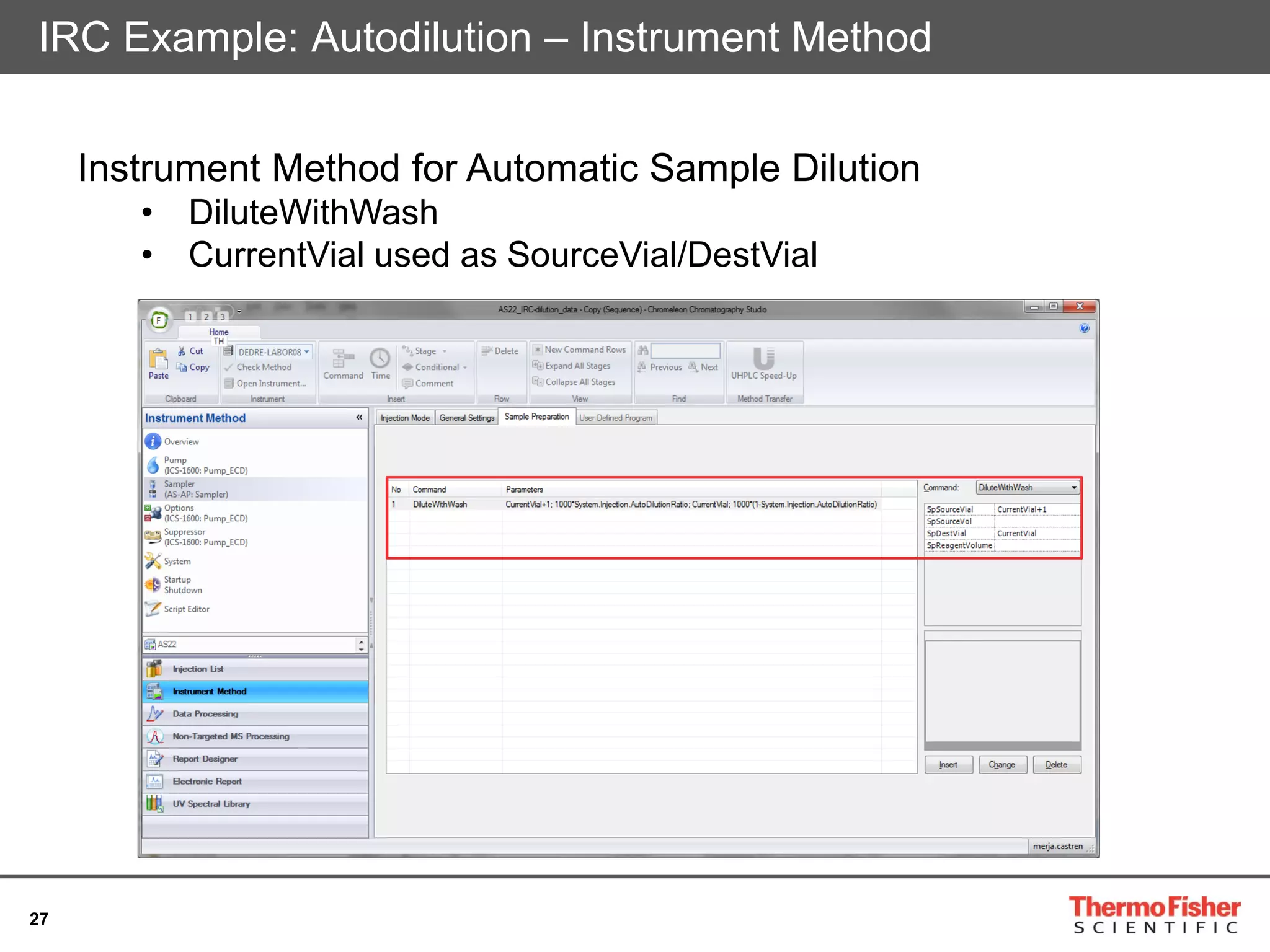
IRC Example: Autodilution – Instrument Method
Instrument Method for Automatic Sample Dilution
• DiluteWithWash
• CurrentVial used as SourceVial/DestVial
28
IRC Example: Autodilution – Instrument Method
Instrument Method for Automatic Sample Dilution
• DiluteWithWash
29
CDS Resource Library
https://www.thermofisher.com/fi/en/home/industrial/chromatography/
chromatography-learning-center/chromeleon-cds-
information/chromeleon-cds-resources.html#learning-materials
30
Questions?

Smarter workflows with thermo scientific chromeleon cds