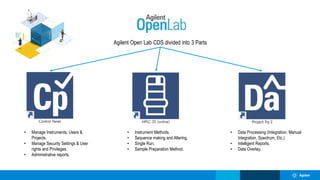
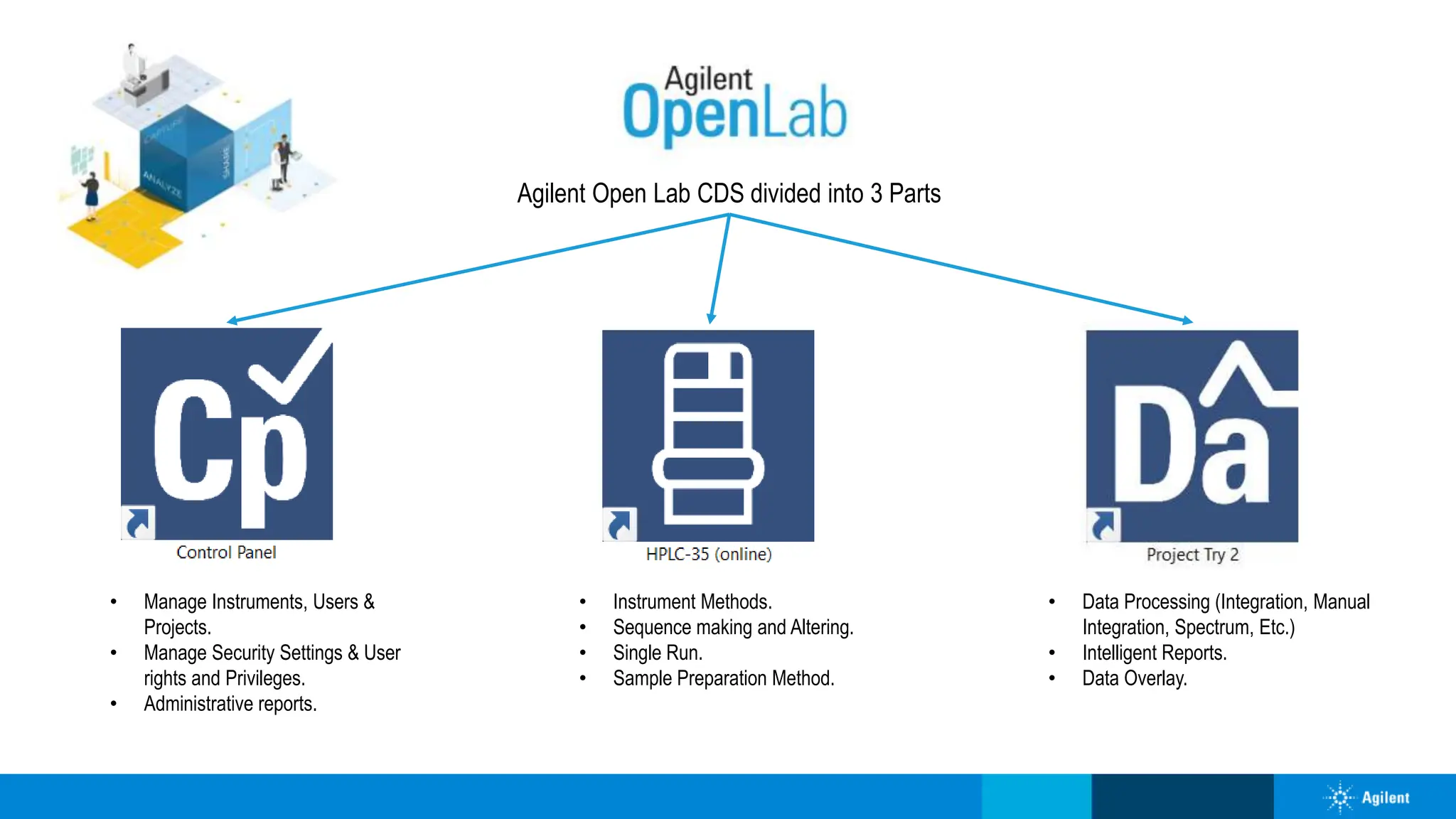
Agilent Open Lab CDS divided into 3 Parts
• Manage Instruments, Users &
Projects.
• Manage Security Settings & User
rights and Privileges.
• Administrative reports.
• Instrument Methods.
• Sequence making and Altering.
• Single Run.
• Sample Preparation Method.
• Data Processing (Integration, Manual
Integration, Spectrum, Etc.)
• Intelligent Reports.
• Data Overlay.
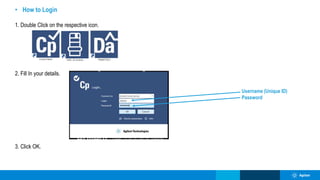
• How to Login
1. Double Click on the respective icon.
2. Fill In your details.
3. Click OK.
Username (Unique ID)
Password
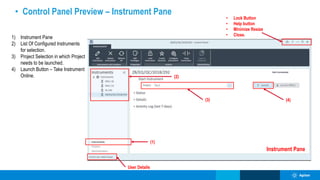
• Control Panel Preview – Instrument Pane
(1)
(2)
Instrument Pane
(3) (4)
1) Instrument Pane
2) List Of Configured Instruments
for selection.
3) Project Selection in which Project
needs to be launched.
4) Launch Button – Take Instrument
Online.
User Details
• Lock Button
• Help button
• Minimize Resize
• Close.
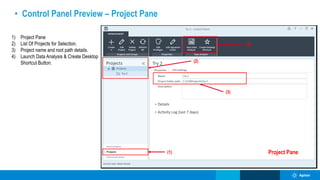
• Control Panel Preview – Project Pane
(1)
(2)
Project Pane
(3)
(4)
1) Project Pane
2) List Of Projects for Selection.
3) Project name and root path details.
4) Launch Data Analysis & Create Desktop
Shortcut Button.
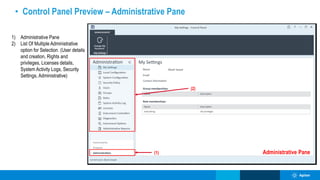
• Control Panel Preview – Administrative Pane
(1)
(2)
Administrative Pane
1) Administrative Pane
2) List Of Multiple Administrative
option for Selection. (User details
and creation, Rights and
privileges, Licenses details,
System Activity Logs, Security
Settings, Administrative)
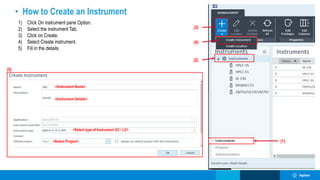
• How to Create an Instrument
1) Click On instrument pane Option.
2) Select the instrument Tab.
3) Click on Create.
4) Select Create instrument.
5) Fill in the details.
(1)
(2)
(3)
(4)
(5)
<Instrument Name>
<Instrument Details>
<Select type of Instrument GC / LC>
<Select Project>
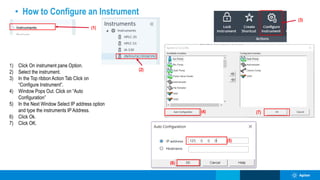
• How to Configure an Instrument
1) Click On instrument pane Option.
2) Select the instrument.
3) In the Top ribbon Action Tab Click on
“Configure Instrument”.
4) Window Pops Out. Click on “Auto
Configuration”
5) In the Next Window Select IP address option
and type the instruments IP Address.
6) Click Ok.
7) Click OK.
(4) (7)
(5)
(6)
(3)
(2)
(1)
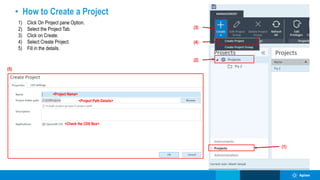
• How to Create a Project
1) Click On Project pane Option.
2) Select the Project Tab.
3) Click on Create.
4) Select Create Project.
5) Fill in the details.
(1)
(2)
(3)
(4)
(5)
<Project Name>
<Project Path Details>
<Check the CDS Box>
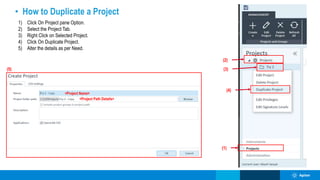
• How to Duplicate a Project
1) Click On Project pane Option.
2) Select the Project Tab.
3) Right Click on Selected Project.
4) Click On Duplicate Project.
5) Alter the details as per Need.
(1)
(2)
(3)
(4)
(5)
<Project Name>
<Project Path Details>
(2)
(1)
(3)
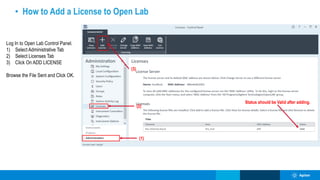
• How to Add a License to Open Lab
Log In to Open Lab Control Panel.
1) Select Administrative Tab
2) Select Licenses Tab
3) Click On ADD LICENSE
Browse the File Sent and Click OK.
Status should be Valid after adding.
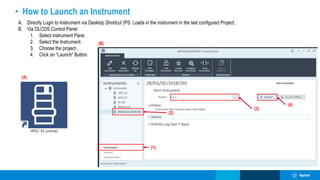
• How to Launch an Instrument
A. Directly Login to Instrument via Desktop Shortcut (PS: Loads in the instrument in the last configured Project.
B. Via OLCDS Control Panel
1. Select instrument Pane.
2. Select the Instrument.
3. Choose the project .
4. Click on “Launch” Button.
(1)
(2)
(4)
(A)
(B)
(3)
(4)
(2)
(1)
(3)
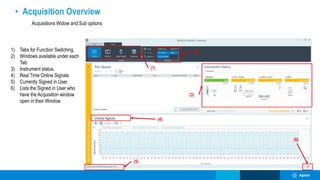
• Acquisition Overview
Acquisitions Widow and Sub options
1) Tabs for Function Switching.
2) Windows available under each
Tab.
3) Instrument status.
4) Real Time Online Signals
5) Currently Signed in User.
6) Lists the Signed in User who
have the Acquisition window
open in their Window
(5)
(6)
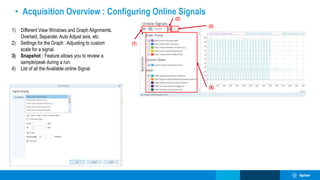
• Acquisition Overview : Configuring Online Signals
1) Different View Windows and Graph Alignments.
Overlaid, Separate, Auto Adjust axis, etc.
2) Settings for the Graph : Adjusting to custom
scale for a signal.
3) Snapshot : Feature allows you to review a
sample/peak during a run.
4) List of all the Available online Signal.
(4)
(2)
(1)
(3)
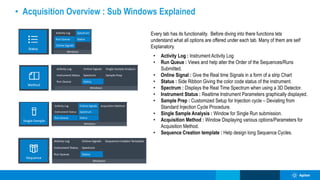
• Acquisition Overview : Sub Windows Explained
Every tab has its functionality. Before diving into there functions lets
understand what all options are offered under each tab. Many of them are self
Explanatory.
• Activity Log : Instrument Activity Log
• Run Queue : Views and help alter the Order of the Sequences/Runs
Submitted.
• Online Signal : Give the Real time Signals in a form of a strip Chart
• Status : Side Ribbon Giving the color code status of the instrument.
• Spectrum : Displays the Real Time Spectrum when using a 3D Detector.
• Instrument Status : Realtime Instrument Parameters graphically displayed.
• Sample Prep : Customized Setup for Injection cycle – Deviating from
Standard Injection Cycle Procedure.
• Single Sample Analysis : Window for Single Run submission.
• Acquisition Method : Window Displaying various options/Parameters for
Acquisition Method.
• Sequence Creation template : Help design long Sequence Cycles.
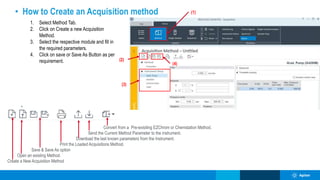
• How to Create an Acquisition method
1. Select Method Tab.
2. Click on Create a new Acquisition
Method.
3. Select the respective module and fill in
the required parameters.
4. Click on save or Save As Button as per
requirement.
(1)
(2)
(4)
(3)
Convert from a Pre-exisiting EZChrom or Chemstation Method.
Send the Current Method Parameter to the instrument.
Download the last known parameters from the Instrument.
Print the Loaded Acquisitions Method.
Save & Save As option
Open an existing Method.
Create a New Acquisition Method
(4)
(2)
(1)
(3)
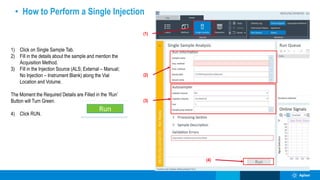
• How to Perform a Single Injection
1) Click on Single Sample Tab.
2) Fill in the details about the sample and mention the
Acquisition Method.
3) Fill in the Injection Source (ALS; External – Manual;
No Injection – Instrument Blank) along the Vial
Location and Volume.
The Moment the Required Details are Filled in the ‘Run’
Button will Turn Green.
4) Click RUN.
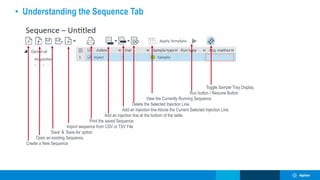
• Understanding the Sequence Tab
Toggle Sample Tray Display.
Run button / Resume Button
View the Currently Running Sequence.
Delete the Selected Injection Line.
Add an Injection line Above the Current Selected Injection Line.
Add an injection line at the bottom of the table.
Print the saved Sequence.
Import sequence from CSV or TSV File
‘Save’ & ‘Save As’ option
Open an existing Sequence.
Create a New Sequence
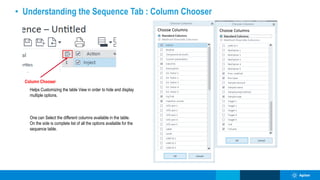
• Understanding the Sequence Tab : Column Chooser
Column Chooser
Helps Customizing the table View in order to hide and display
multiple options.
One can Select the different columns available in the table.
On the side is complete list of all the options available for the
sequence table.
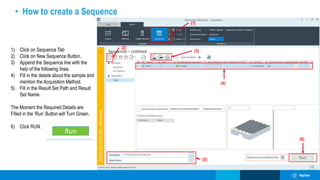
• How to create a Sequence
1) Click on Sequence Tab
2) Click on New Sequence Button.
3) Append the Sequence line with the
help of the following lines.
4) Fill in the details about the sample and
mention the Acquisition Method.
5) Fill in the Result Set Path and Result
Set Name.
The Moment the Required Details are
Filled in the ‘Run’ Button will Turn Green.
6) Click RUN.
(4)
(2)
(1)
(3)
(5)
(6)
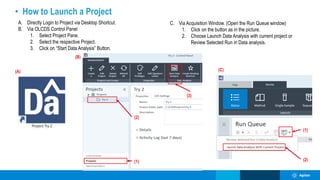
• How to Launch a Project
A. Directly Login to Project via Desktop Shortcut.
B. Via OLCDS Control Panel
1. Select Project Pane.
2. Select the respective Project.
3. Click on “Start Data Analysis” Button.
(A)
(B)
(1)
(2)
(3)
(1)
(2)
(C)
C. Via Acquisition Window. (Open the Run Queue window)
1. Click on the button as in the picture.
2. Choose Launch Data Analysis with current project or
Review Selected Run in Data analysis.
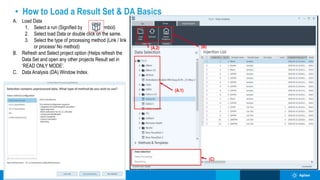
• How to Load a Result Set & DA Basics
(A.2)
(A.1)
(B)
(C)
A. Load Data
1. Select a run (Signified by Symbol)
2. Select load Data or double click on the same.
3. Select the type of processing method (Link / link
or process/ No method)
B. Refresh and Select project option (Helps refresh the
Data Set and open any other projects Result set in
‘READ ONLY MODE’.
C. Data Analysis (DA) Window Index.
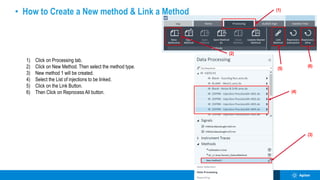
• How to Create a New method & Link a Method
(4)
(2)
(1)
(3)
(5)
1) Click on Processing tab.
2) Click on New Method. Then select the method type.
3) New method 1 will be created.
4) Select the List of injections to be linked.
5) Click on the Link Button.
6) Then Click on Reprocess All button.
(6)
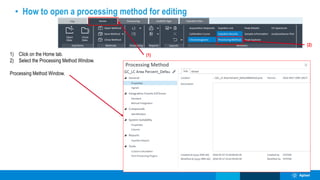
• How to open a processing method for editing
(2)
(1)
1) Click on the Home tab.
2) Select the Processing Method Window.
Processing Method Window.
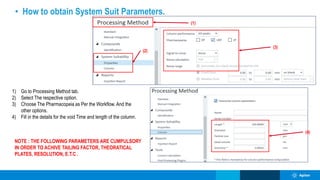
• How to obtain System Suit Parameters.
(4)
(2)
(1)
(3)
1) Go to Processing Method tab.
2) Select The respective option.
3) Choose The Pharmacopeia as Per the Workflow. And the
other options.
4) Fill in the details for the void Time and length of the column.
NOTE : THE FOLLOWING PARAMETERS ARE CUMPULSORY
IN ORDER TO ACHIVE TAILING FACTOR, THEORATICAL
PLATES, RESOLUTION, E.T.C .
(2)
(1)
(3)
• How to add peaks as compound
(4)
1) Select the Chromatogram Window from the Home Tab.
2) Right Click on the peak.
3) Select “Add peak as compound to method“.
4) The compound is added to the Method with the default
format as ‘peak@RT’ – Can Be renamed to a
compound.
NOTE : To select multiple peaks, hold the [Ctrl] key while
clicking the peaks. To select a range of peaks, hold the [Shift]
key while clicking the peaks.
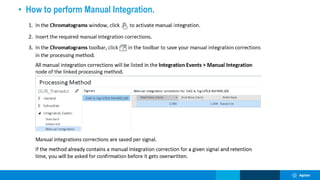
• How to perform Manual Integration.
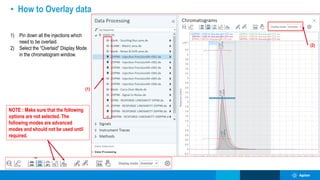
• How to Overlay data
(2)
(1)
1) Pin down all the injections which
need to be overlaid.
2) Select the “Overlaid” Display Mode
in the chromatogram window.
NOTE : Make sure that the following
options are not selected. The
following modes are advanced
modes and should not be used until
required.
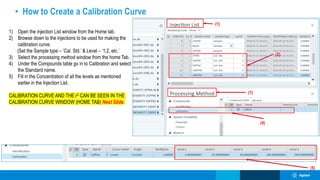
• How to Create a Calibration Curve
(4)
(2)
(1)
(5)
1) Open the injection List window from the Home tab.
2) Browse down to the injections to be used for making the
calibration curve.
(Set the Sample type – ‘Cal. Std.’ & Level – ‘1,2, etc.’
3) Select the processing method window from the home Tab.
4) Under the Compounds table go in to Calibration and select
the Standard name.
5) Fill in the Concentration of all the levels as mentioned
earlier in the Injection List.
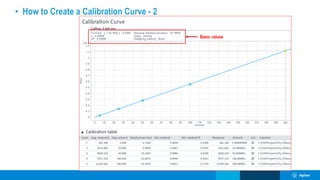
CALIBRATION CURVE AND THE r2 CAN BE SEEN IN THE
CALIBRATION CURVE WINDOW (HOME TAB) Next Slide.
(1)
• How to Create a Calibration Curve - 2
Basic values
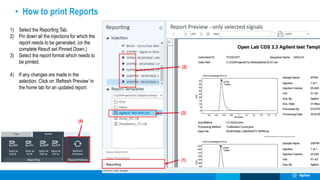
• How to print Reports
(4)
(2)
(1)
(3)
1) Select the Reporting Tab.
2) Pin down all the injections for which the
report needs to be generated. (or the
complete Result set Pinned Down.)
3) Select the report format which needs to
be printed.
4) If any changes are made in the
selection. Click on ‘Refresh Preview’ in
the home tab for an updated report.
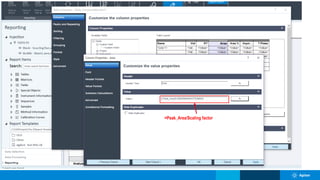
=Peak_Area/Scaling factor

AgilentHPLC_SOP_Base_1_InfinitySeries.pptx

  • 1.
    Agilent Open LabCDS divided into 3 Parts • Manage Instruments, Users & Projects. • Manage Security Settings & User rights and Privileges. • Administrative reports. • Instrument Methods. • Sequence making and Altering. • Single Run. • Sample Preparation Method. • Data Processing (Integration, Manual Integration, Spectrum, Etc.) • Intelligent Reports. • Data Overlay.
  • 2.
    • How toLogin 1. Double Click on the respective icon. 2. Fill In your details. 3. Click OK. Username (Unique ID) Password
  • 3.
    • Control PanelPreview – Instrument Pane (1) (2) Instrument Pane (3) (4) 1) Instrument Pane 2) List Of Configured Instruments for selection. 3) Project Selection in which Project needs to be launched. 4) Launch Button – Take Instrument Online. User Details • Lock Button • Help button • Minimize Resize • Close.
  • 4.
    • Control PanelPreview – Project Pane (1) (2) Project Pane (3) (4) 1) Project Pane 2) List Of Projects for Selection. 3) Project name and root path details. 4) Launch Data Analysis & Create Desktop Shortcut Button.
  • 5.
    • Control PanelPreview – Administrative Pane (1) (2) Administrative Pane 1) Administrative Pane 2) List Of Multiple Administrative option for Selection. (User details and creation, Rights and privileges, Licenses details, System Activity Logs, Security Settings, Administrative)
  • 6.
    • How toCreate an Instrument 1) Click On instrument pane Option. 2) Select the instrument Tab. 3) Click on Create. 4) Select Create instrument. 5) Fill in the details. (1) (2) (3) (4) (5) <Instrument Name> <Instrument Details> <Select type of Instrument GC / LC> <Select Project>
  • 7.
    • How toConfigure an Instrument 1) Click On instrument pane Option. 2) Select the instrument. 3) In the Top ribbon Action Tab Click on “Configure Instrument”. 4) Window Pops Out. Click on “Auto Configuration” 5) In the Next Window Select IP address option and type the instruments IP Address. 6) Click Ok. 7) Click OK. (4) (7) (5) (6) (3) (2) (1)
  • 8.
    • How toCreate a Project 1) Click On Project pane Option. 2) Select the Project Tab. 3) Click on Create. 4) Select Create Project. 5) Fill in the details. (1) (2) (3) (4) (5) <Project Name> <Project Path Details> <Check the CDS Box>
  • 9.
    • How toDuplicate a Project 1) Click On Project pane Option. 2) Select the Project Tab. 3) Right Click on Selected Project. 4) Click On Duplicate Project. 5) Alter the details as per Need. (1) (2) (3) (4) (5) <Project Name> <Project Path Details>
  • 10.
    (2) (1) (3) • How toAdd a License to Open Lab Log In to Open Lab Control Panel. 1) Select Administrative Tab 2) Select Licenses Tab 3) Click On ADD LICENSE Browse the File Sent and Click OK. Status should be Valid after adding.
  • 11.
    • How toLaunch an Instrument A. Directly Login to Instrument via Desktop Shortcut (PS: Loads in the instrument in the last configured Project. B. Via OLCDS Control Panel 1. Select instrument Pane. 2. Select the Instrument. 3. Choose the project . 4. Click on “Launch” Button. (1) (2) (4) (A) (B) (3)
  • 12.
    (4) (2) (1) (3) • Acquisition Overview AcquisitionsWidow and Sub options 1) Tabs for Function Switching. 2) Windows available under each Tab. 3) Instrument status. 4) Real Time Online Signals 5) Currently Signed in User. 6) Lists the Signed in User who have the Acquisition window open in their Window (5) (6)
  • 13.
    • Acquisition Overview: Configuring Online Signals 1) Different View Windows and Graph Alignments. Overlaid, Separate, Auto Adjust axis, etc. 2) Settings for the Graph : Adjusting to custom scale for a signal. 3) Snapshot : Feature allows you to review a sample/peak during a run. 4) List of all the Available online Signal. (4) (2) (1) (3)
  • 14.
    • Acquisition Overview: Sub Windows Explained Every tab has its functionality. Before diving into there functions lets understand what all options are offered under each tab. Many of them are self Explanatory. • Activity Log : Instrument Activity Log • Run Queue : Views and help alter the Order of the Sequences/Runs Submitted. • Online Signal : Give the Real time Signals in a form of a strip Chart • Status : Side Ribbon Giving the color code status of the instrument. • Spectrum : Displays the Real Time Spectrum when using a 3D Detector. • Instrument Status : Realtime Instrument Parameters graphically displayed. • Sample Prep : Customized Setup for Injection cycle – Deviating from Standard Injection Cycle Procedure. • Single Sample Analysis : Window for Single Run submission. • Acquisition Method : Window Displaying various options/Parameters for Acquisition Method. • Sequence Creation template : Help design long Sequence Cycles.
  • 15.
    • How toCreate an Acquisition method 1. Select Method Tab. 2. Click on Create a new Acquisition Method. 3. Select the respective module and fill in the required parameters. 4. Click on save or Save As Button as per requirement. (1) (2) (4) (3) Convert from a Pre-exisiting EZChrom or Chemstation Method. Send the Current Method Parameter to the instrument. Download the last known parameters from the Instrument. Print the Loaded Acquisitions Method. Save & Save As option Open an existing Method. Create a New Acquisition Method
  • 16.
    (4) (2) (1) (3) • How toPerform a Single Injection 1) Click on Single Sample Tab. 2) Fill in the details about the sample and mention the Acquisition Method. 3) Fill in the Injection Source (ALS; External – Manual; No Injection – Instrument Blank) along the Vial Location and Volume. The Moment the Required Details are Filled in the ‘Run’ Button will Turn Green. 4) Click RUN.
  • 17.
    • Understanding theSequence Tab Toggle Sample Tray Display. Run button / Resume Button View the Currently Running Sequence. Delete the Selected Injection Line. Add an Injection line Above the Current Selected Injection Line. Add an injection line at the bottom of the table. Print the saved Sequence. Import sequence from CSV or TSV File ‘Save’ & ‘Save As’ option Open an existing Sequence. Create a New Sequence
  • 18.
    • Understanding theSequence Tab : Column Chooser Column Chooser Helps Customizing the table View in order to hide and display multiple options. One can Select the different columns available in the table. On the side is complete list of all the options available for the sequence table.
  • 19.
    • How tocreate a Sequence 1) Click on Sequence Tab 2) Click on New Sequence Button. 3) Append the Sequence line with the help of the following lines. 4) Fill in the details about the sample and mention the Acquisition Method. 5) Fill in the Result Set Path and Result Set Name. The Moment the Required Details are Filled in the ‘Run’ Button will Turn Green. 6) Click RUN. (4) (2) (1) (3) (5) (6)
  • 20.
    • How toLaunch a Project A. Directly Login to Project via Desktop Shortcut. B. Via OLCDS Control Panel 1. Select Project Pane. 2. Select the respective Project. 3. Click on “Start Data Analysis” Button. (A) (B) (1) (2) (3) (1) (2) (C) C. Via Acquisition Window. (Open the Run Queue window) 1. Click on the button as in the picture. 2. Choose Launch Data Analysis with current project or Review Selected Run in Data analysis.
  • 21.
    • How toLoad a Result Set & DA Basics (A.2) (A.1) (B) (C) A. Load Data 1. Select a run (Signified by Symbol) 2. Select load Data or double click on the same. 3. Select the type of processing method (Link / link or process/ No method) B. Refresh and Select project option (Helps refresh the Data Set and open any other projects Result set in ‘READ ONLY MODE’. C. Data Analysis (DA) Window Index.
  • 22.
    • How toCreate a New method & Link a Method (4) (2) (1) (3) (5) 1) Click on Processing tab. 2) Click on New Method. Then select the method type. 3) New method 1 will be created. 4) Select the List of injections to be linked. 5) Click on the Link Button. 6) Then Click on Reprocess All button. (6)
  • 23.
    • How toopen a processing method for editing (2) (1) 1) Click on the Home tab. 2) Select the Processing Method Window. Processing Method Window.
  • 24.
    • How toobtain System Suit Parameters. (4) (2) (1) (3) 1) Go to Processing Method tab. 2) Select The respective option. 3) Choose The Pharmacopeia as Per the Workflow. And the other options. 4) Fill in the details for the void Time and length of the column. NOTE : THE FOLLOWING PARAMETERS ARE CUMPULSORY IN ORDER TO ACHIVE TAILING FACTOR, THEORATICAL PLATES, RESOLUTION, E.T.C .
  • 25.
    (2) (1) (3) • How toadd peaks as compound (4) 1) Select the Chromatogram Window from the Home Tab. 2) Right Click on the peak. 3) Select “Add peak as compound to method“. 4) The compound is added to the Method with the default format as ‘peak@RT’ – Can Be renamed to a compound. NOTE : To select multiple peaks, hold the [Ctrl] key while clicking the peaks. To select a range of peaks, hold the [Shift] key while clicking the peaks.
  • 26.
    • How toperform Manual Integration.
  • 27.
    • How toOverlay data (2) (1) 1) Pin down all the injections which need to be overlaid. 2) Select the “Overlaid” Display Mode in the chromatogram window. NOTE : Make sure that the following options are not selected. The following modes are advanced modes and should not be used until required.
  • 28.
    • How toCreate a Calibration Curve (4) (2) (1) (5) 1) Open the injection List window from the Home tab. 2) Browse down to the injections to be used for making the calibration curve. (Set the Sample type – ‘Cal. Std.’ & Level – ‘1,2, etc.’ 3) Select the processing method window from the home Tab. 4) Under the Compounds table go in to Calibration and select the Standard name. 5) Fill in the Concentration of all the levels as mentioned earlier in the Injection List. CALIBRATION CURVE AND THE r2 CAN BE SEEN IN THE CALIBRATION CURVE WINDOW (HOME TAB) Next Slide. (1)
  • 29.
    • How toCreate a Calibration Curve - 2 Basic values
  • 30.
    • How toprint Reports (4) (2) (1) (3) 1) Select the Reporting Tab. 2) Pin down all the injections for which the report needs to be generated. (or the complete Result set Pinned Down.) 3) Select the report format which needs to be printed. 4) If any changes are made in the selection. Click on ‘Refresh Preview’ in the home tab for an updated report.
  • 31.