Project to a Second Display
in Windows®
10
Projecting to a second display
opens up a world of possibilities.
It allows you to share a
presentation easily or to increase
productivity by decreasing the
time you waste clicking back and
forth between files.
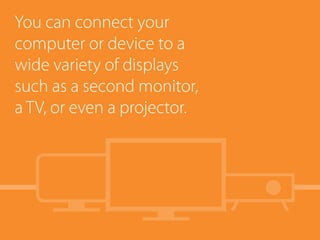
You can connect your
computer or device to a
wide variety of displays
such as a second monitor,
a TV, or even a projector.
To project your work
to another display, first
connect that display to
your Windows 10 computer
or device through a port
such as VGA, DVI, HDMI, or
Mini DisplayPort.
After you connect the second display,
press Windows+P on your keyboard
and then select how you want to
project the image.
There are four options.
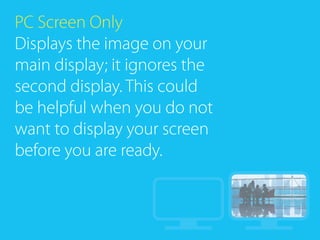
PC Screen Only
Displays the image on your
main display; it ignores the
second display. This could
be helpful when you do not
want to display your screen
before you are ready.
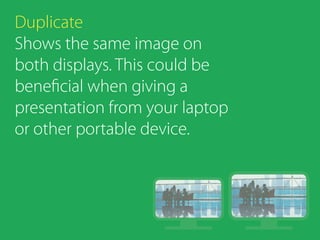
Duplicate
Shows the same image on
both displays. This could be
beneficial when giving a
presentation from your laptop
or other portable device.
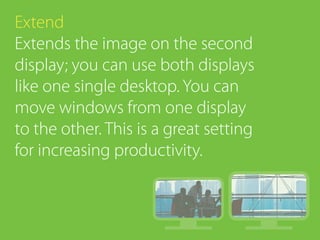
Extend
Extends the image on the second
display; you can use both displays
like one single desktop. You can
move windows from one display
to the other. This is a great setting
for increasing productivity.
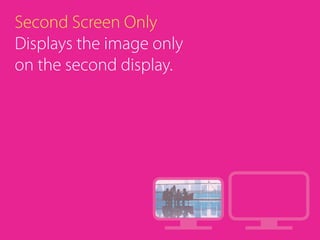
Second Screen Only
Displays the image only
on the second display.
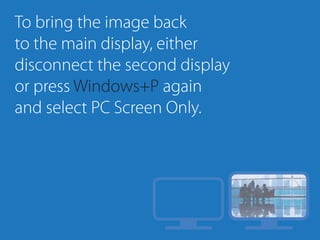
To bring the image back
to the main display, either
disconnect the second display
or press Windows+P again
and select PC Screen Only.
Now that you know how to
project your screen to a second
display, you can save time by
accessing applications quickly
and impress your colleagues
with easily shared presentations.
For more information
and tips on how to save
time at work, check out
www.dummies.com.
Office workers walking © amana images RF/ Getty Images; Business people having meeting © Robert Churchill/iStockphoto
For Dummies is a registered trademark of John Wiley & Sons, Inc. All other trademarks are the property of their respective owners.

Projecting to a Second Display with Windows 10

  • 1.
    Project to aSecond Display in Windows® 10
  • 2.
    Projecting to asecond display opens up a world of possibilities. It allows you to share a presentation easily or to increase productivity by decreasing the time you waste clicking back and forth between files.
  • 3.
    You can connectyour computer or device to a wide variety of displays such as a second monitor, a TV, or even a projector.
  • 4.
    To project yourwork to another display, first connect that display to your Windows 10 computer or device through a port such as VGA, DVI, HDMI, or Mini DisplayPort.
  • 5.
    After you connectthe second display, press Windows+P on your keyboard and then select how you want to project the image. There are four options.
  • 6.
    PC Screen Only Displaysthe image on your main display; it ignores the second display. This could be helpful when you do not want to display your screen before you are ready.
  • 7.
    Duplicate Shows the sameimage on both displays. This could be beneficial when giving a presentation from your laptop or other portable device.
  • 8.
    Extend Extends the imageon the second display; you can use both displays like one single desktop. You can move windows from one display to the other. This is a great setting for increasing productivity.
  • 9.
    Second Screen Only Displaysthe image only on the second display.
  • 10.
    To bring theimage back to the main display, either disconnect the second display or press Windows+P again and select PC Screen Only.
  • 11.
    Now that youknow how to project your screen to a second display, you can save time by accessing applications quickly and impress your colleagues with easily shared presentations.
  • 12.
    For more information andtips on how to save time at work, check out www.dummies.com. Office workers walking © amana images RF/ Getty Images; Business people having meeting © Robert Churchill/iStockphoto For Dummies is a registered trademark of John Wiley & Sons, Inc. All other trademarks are the property of their respective owners.