Sitecore 8.2
{Layout}
BY MANISH PURI
How To Create Your First Sitecore Layout
Topics
 The Building Blocks
 Sitecore Templates
 What Is A Sitecore Layout?
 How To Create Your First Sitecore Layout
 Preview Page
 Final Page
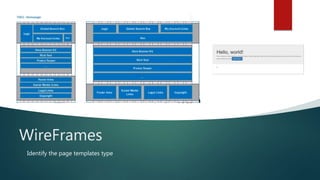
WireFrames
Identify the page templates type
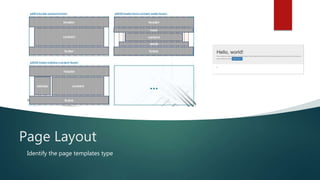
Page Layout
Identify the page templates type
The Building Blocks
 A page in Sitecore is built using three main types of object, Layouts,
Renderings, and Data Templates. The aim of today's guide is to hopefully
give you a clear understanding of what each of these objects is used for,
where they live in Sitecore and how they are used to eventually build a
webpage within Sitecore.
 Layouts,
 Renderings,
 Data Templates
Sitecore
Templates
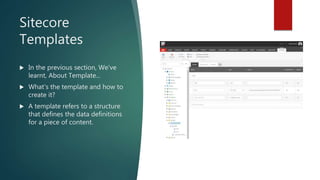
 In the previous section, We've
learnt, About Template...
 What's the template and how to
create it?
 A template refers to a structure
that defines the data definitions
for a piece of content.
What Is A Sitecore Layout?
 In Sitecore, the data template and the layout is decoupled. This
decoupling is pretty powerful, as it means you can create a
content page and change the way it looks very easily.
 It also means you can have an adaptive layout, you can have one
layout for your mobile view and one for your web view.
 Another example where this is useful is if you run several websites
within your Sitecore instance, that share content and require
different layouts. When you decouple content from how it looks,
you have a lot more power.
How To Create Your First Sitecore Layout
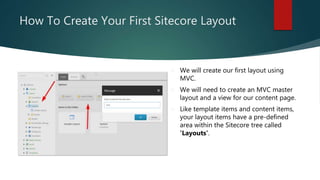
 We will create our first layout using
MVC.
 We will need to create an MVC master
layout and a view for our content page.
 Like template items and content items,
your layout items have a pre-defined
area within the Sitecore tree called
'Layouts'.
Your First Sitecore
Layout ...
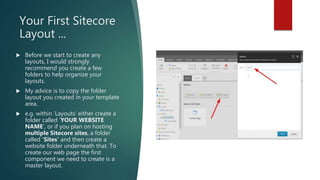
 Before we start to create any
layouts, I would strongly
recommend you create a few
folders to help organize your
layouts.
 My advice is to copy the folder
layout you created in your template
area,
 e.g. within ‘Layouts’ either create a
folder called ‘YOUR WEBSITE
NAME’, or if you plan on hosting
multiple Sitecore sites, a folder
called ‘Sites’ and then create a
website folder underneath that. To
create our web page the first
component we need to create is a
master layout.
Continue...
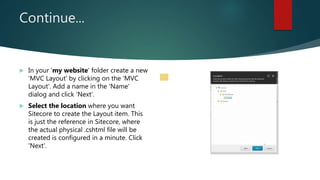
 In your 'my website' folder create a new
'MVC Layout' by clicking on the 'MVC
Layout'. Add a name in the 'Name'
dialog and click 'Next'.
 Select the location where you want
Sitecore to create the Layout item. This
is just the reference in Sitecore, where
the actual physical .cshtml file will be
created is configured in a minute. Click
'Next'.
Continue...
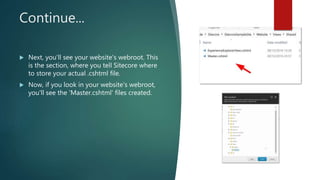
 Next, you'll see your website's webroot. This
is the section, where you tell Sitecore where
to store your actual .cshtml file.
 Now, if you look in your website's webroot,
you'll see the 'Master.cshtml' files created.
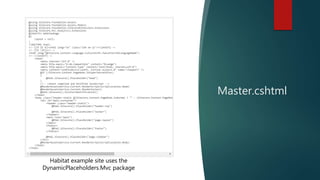
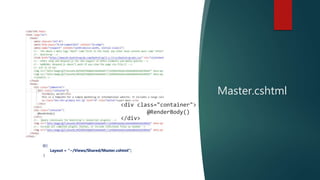
Master.cshtml
Habitat example site uses the
DynamicPlaceholders.Mvc package
Master.cshtml
<div class="container">
@RenderBody()
</div>
@{
Layout = "~/Views/Shared/Master.cshtml";
}
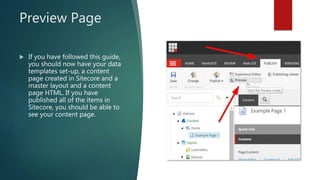
Preview Page
 If you have followed this guide,
you should now have your data
templates set-up, a content
page created in Sitecore and a
master layout and a content
page HTML. If you have
published all of the items in
Sitecore, you should be able to
see your content page.
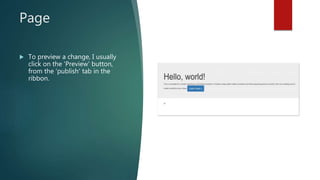
Page
 To preview a change, I usually
click on the 'Preview' button,
from the 'publish' tab in the
ribbon.
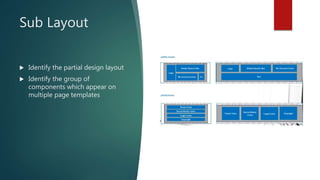
Sub Layout
 Identify the partial design layout
 Identify the group of
components which appear on
multiple page templates
Thank you...
Staty in touch
Linked In: linkedin.com/in/manish-puri/

Sitecore KT for Layout

  • 1.
    Sitecore 8.2 {Layout} BY MANISHPURI How To Create Your First Sitecore Layout
  • 2.
    Topics  The BuildingBlocks  Sitecore Templates  What Is A Sitecore Layout?  How To Create Your First Sitecore Layout  Preview Page  Final Page
  • 3.
  • 4.
    Page Layout Identify thepage templates type
  • 5.
    The Building Blocks A page in Sitecore is built using three main types of object, Layouts, Renderings, and Data Templates. The aim of today's guide is to hopefully give you a clear understanding of what each of these objects is used for, where they live in Sitecore and how they are used to eventually build a webpage within Sitecore.  Layouts,  Renderings,  Data Templates
  • 6.
    Sitecore Templates  In theprevious section, We've learnt, About Template...  What's the template and how to create it?  A template refers to a structure that defines the data definitions for a piece of content.
  • 7.
    What Is ASitecore Layout?  In Sitecore, the data template and the layout is decoupled. This decoupling is pretty powerful, as it means you can create a content page and change the way it looks very easily.  It also means you can have an adaptive layout, you can have one layout for your mobile view and one for your web view.  Another example where this is useful is if you run several websites within your Sitecore instance, that share content and require different layouts. When you decouple content from how it looks, you have a lot more power.
  • 8.
    How To CreateYour First Sitecore Layout  We will create our first layout using MVC.  We will need to create an MVC master layout and a view for our content page.  Like template items and content items, your layout items have a pre-defined area within the Sitecore tree called 'Layouts'.
  • 9.
    Your First Sitecore Layout...  Before we start to create any layouts, I would strongly recommend you create a few folders to help organize your layouts.  My advice is to copy the folder layout you created in your template area,  e.g. within ‘Layouts’ either create a folder called ‘YOUR WEBSITE NAME’, or if you plan on hosting multiple Sitecore sites, a folder called ‘Sites’ and then create a website folder underneath that. To create our web page the first component we need to create is a master layout.
  • 10.
    Continue...  In your'my website' folder create a new 'MVC Layout' by clicking on the 'MVC Layout'. Add a name in the 'Name' dialog and click 'Next'.  Select the location where you want Sitecore to create the Layout item. This is just the reference in Sitecore, where the actual physical .cshtml file will be created is configured in a minute. Click 'Next'.
  • 11.
    Continue...  Next, you'llsee your website's webroot. This is the section, where you tell Sitecore where to store your actual .cshtml file.  Now, if you look in your website's webroot, you'll see the 'Master.cshtml' files created.
  • 12.
    Master.cshtml Habitat example siteuses the DynamicPlaceholders.Mvc package
  • 13.
  • 14.
    Preview Page  Ifyou have followed this guide, you should now have your data templates set-up, a content page created in Sitecore and a master layout and a content page HTML. If you have published all of the items in Sitecore, you should be able to see your content page.
  • 15.
    Page  To previewa change, I usually click on the 'Preview' button, from the 'publish' tab in the ribbon.
  • 16.
    Sub Layout  Identifythe partial design layout  Identify the group of components which appear on multiple page templates
  • 17.
    Thank you... Staty intouch Linked In: linkedin.com/in/manish-puri/