Build better teams
Getting started
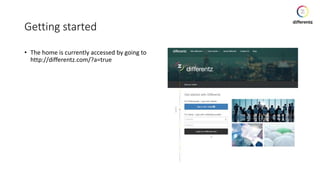
• The home is currently accessed by going to
http://differentz.com/?a=true
Log into the site using Linkedin
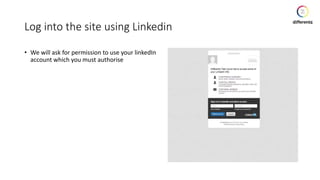
• We will ask for permission to use your linkedIn
account which you must authorise
1 Logged in landing page
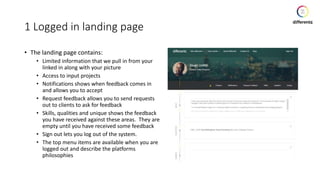
• The landing page contains:
• Limited information that we pull in from your
linked in along with your picture
• Access to input projects
• Notifications shows when feedback comes in
and allows you to accept
• Request feedback allows you to send requests
out to clients to ask for feedback
• Skills, qualities and unique shows the feedback
you have received against these areas. They are
empty until you have received some feedback
• Sign out lets you log out of the system.
• The top menu items are available when you are
logged out and describe the platforms
philosophies
2 Logged in landing page
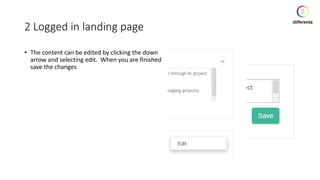
• The content can be edited by clicking the down
arrow and selecting edit. When you are finished
save the changes
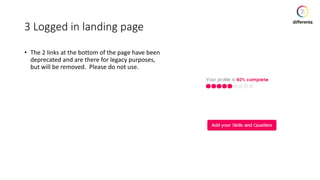
3 Logged in landing page
• The 2 links at the bottom of the page have been
deprecated and are there for legacy purposes,
but will be removed. Please do not use.
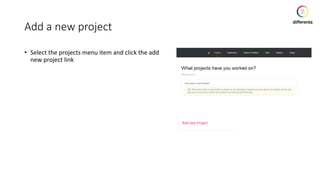
Add a new project
• Select the projects menu item and click the add
new project link
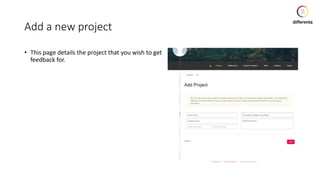
Add a new project
• This page details the project that you wish to get
feedback for.
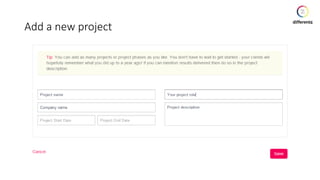
Add a new project
Add a new project
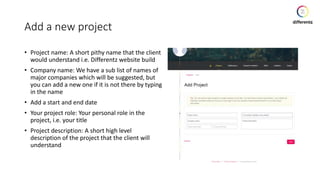
• Project name: A short pithy name that the client
would understand i.e. Differentz website build
• Company name: We have a sub list of names of
major companies which will be suggested, but
you can add a new one if it is not there by typing
in the name
• Add a start and end date
• Your project role: Your personal role in the
project, i.e. your title
• Project description: A short high level
description of the project that the client will
understand
Project detail
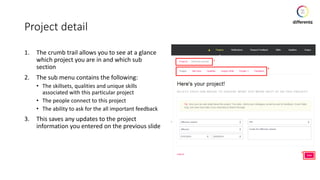
1. The crumb trail allows you to see at a glance
which project you are in and which sub
section
2. The sub menu contains the following:
• The skillsets, qualities and unique skills
associated with this particular project
• The people connect to this project
• The ability to ask for the all important feedback
3. This saves any updates to the project
information you entered on the previous slide
Project detail - Skill Sets
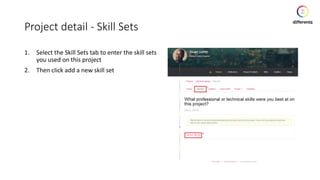
1. Select the Skill Sets tab to enter the skill sets
you used on this project
2. Then click add a new skill set
Project detail - Skill Sets overview
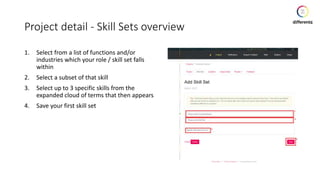
1. Select from a list of functions and/or
industries which your role / skill set falls
within
2. Select a subset of that skill
3. Select up to 3 specific skills from the
expanded cloud of terms that then appears
4. Save your first skill set
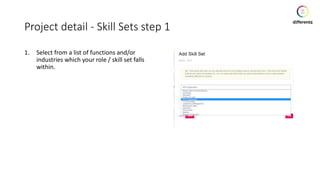
Project detail - Skill Sets step 1
1. Select from a list of functions and/or
industries which your role / skill set falls
within.
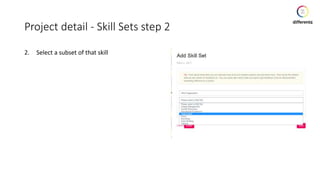
Project detail - Skill Sets step 2
2. Select a subset of that skill
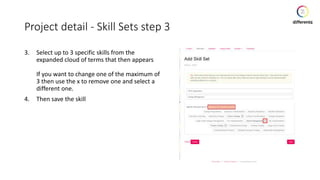
Project detail - Skill Sets step 3
3. Select up to 3 specific skills from the
expanded cloud of terms that then appears
If you want to change one of the maximum of
3 then use the x to remove one and select a
different one.
4. Then save the skill
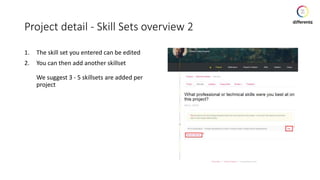
Project detail - Skill Sets overview 2
1. The skill set you entered can be edited
2. You can then add another skillset
We suggest 3 - 5 skillsets are added per
project
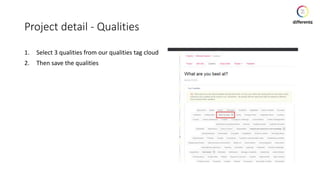
Project detail - Qualities
1. Select 3 qualities from our qualities tag cloud
2. Then save the qualities
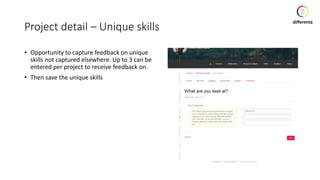
Project detail – Unique skills
• Opportunity to capture feedback on unique
skills not captured elsewhere. Up to 3 can be
entered per project to receive feedback on.
• Then save the unique skills
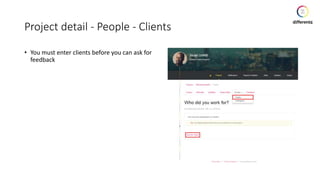
Project detail - People - Clients
• You must enter clients before you can ask for
feedback
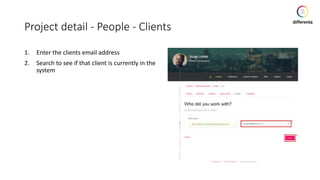
Project detail - People - Clients
1. Enter the clients email address
2. Search to see if that client is currently in the
system
Project detail - People - Clients
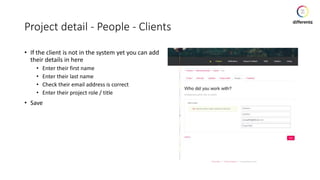
• If the client is not in the system yet you can add
their details in here
• Enter their first name
• Enter their last name
• Check their email address is correct
• Enter their project role / title
• Save
Project detail - People - Clients
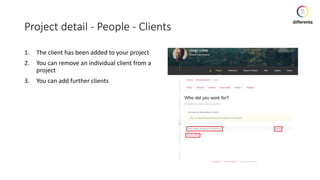
1. The client has been added to your project
2. You can remove an individual client from a
project
3. You can add further clients
Project detail - People - Colleagues
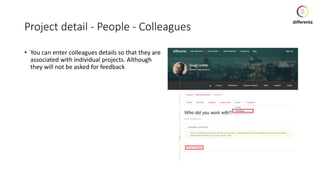
• You can enter colleagues details so that they are
associated with individual projects. Although
they will not be asked for feedback
Project detail - People - Colleagues
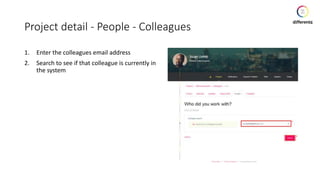
1. Enter the colleagues email address
2. Search to see if that colleague is currently in
the system
Project detail - People - Colleagues
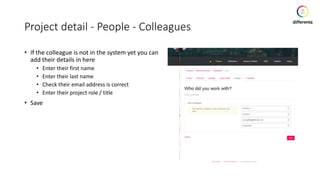
• If the colleague is not in the system yet you can
add their details in here
• Enter their first name
• Enter their last name
• Check their email address is correct
• Enter their project role / title
• Save
Project detail - People - Colleagues
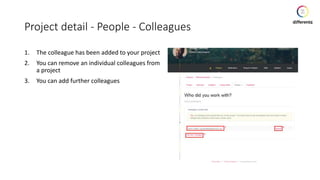
1. The colleague has been added to your project
2. You can remove an individual colleagues from
a project
3. You can add further colleagues
Project detail - Feedback
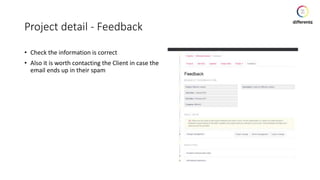
• Check the information is correct
• Also it is worth contacting the Client in case the
email ends up in their spam
Project detail - Feedback
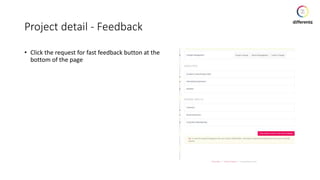
• Click the request for fast feedback button at the
bottom of the page
Feedback email
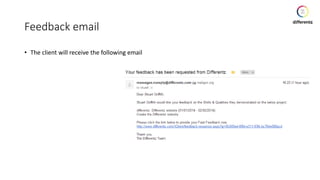
• The client will receive the following email
Feedback system
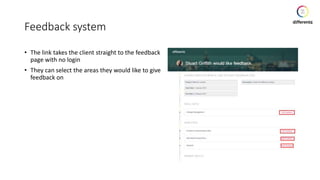
• The link takes the client straight to the feedback
page with no login
• They can select the areas they would like to give
feedback on
Feedback system
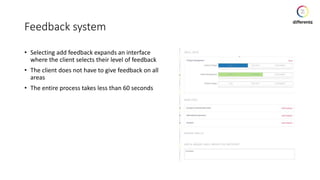
• Selecting add feedback expands an interface
where the client selects their level of feedback
• The client does not have to give feedback on all
areas
• The entire process takes less than 60 seconds
Feedback system
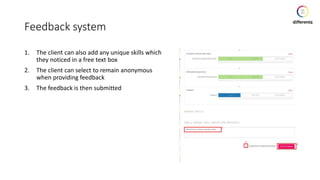
1. The client can also add any unique skills which
they noticed in a free text box
2. The client can select to remain anonymous
when providing feedback
3. The feedback is then submitted
Feedback system
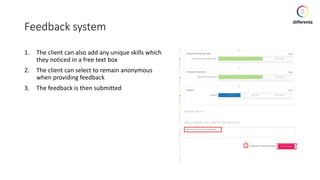
1. The client can also add any unique skills which
they noticed in a free text box
2. The client can select to remain anonymous
when providing feedback
3. The feedback is then submitted
Feedback received email
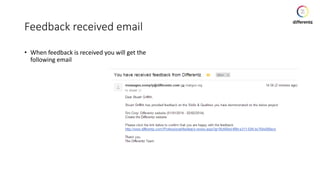
• When feedback is received you will get the
following email
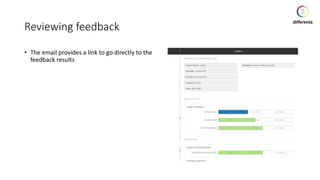
Reviewing feedback
• The email provides a link to go directly to the
feedback results
Reviewing feedback
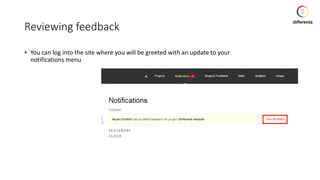
• You can log into the site where you will be greeted with an update to your
notifications menu
Reviewing feedback
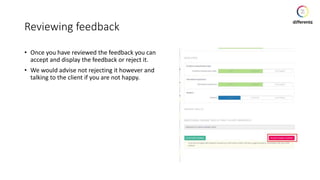
• Once you have reviewed the feedback you can
accept and display the feedback or reject it.
• We would advise not rejecting it however and
talking to the client if you are not happy.
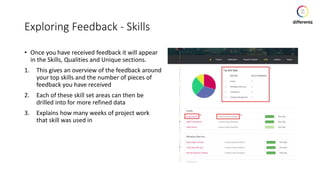
Exploring Feedback - Skills
• Once you have received feedback it will appear
in the Skills, Qualities and Unique sections.
1. This gives an overview of the feedback around
your top skills and the number of pieces of
feedback you have received
2. Each of these skill set areas can then be
drilled into for more refined data
3. Explains how many weeks of project work
that skill was used in
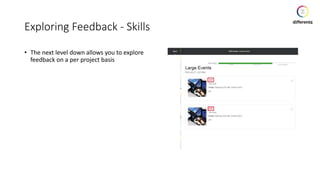
Exploring Feedback - Skills
• The next level down allows you to explore
feedback on a per project basis
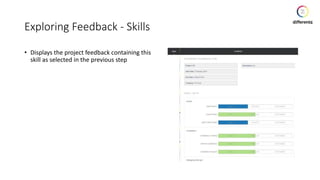
Exploring Feedback - Skills
• Displays the project feedback containing this
skill as selected in the previous step
Exploring Feedback - Qualities
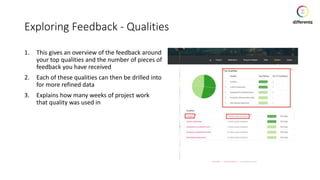
1. This gives an overview of the feedback around
your top qualities and the number of pieces of
feedback you have received
2. Each of these qualities can then be drilled into
for more refined data
3. Explains how many weeks of project work
that quality was used in
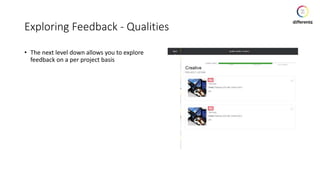
Exploring Feedback - Qualities
• The next level down allows you to explore
feedback on a per project basis
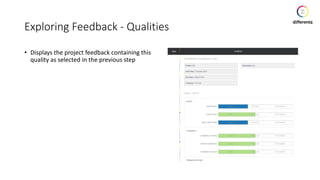
Exploring Feedback - Qualities
• Displays the project feedback containing this
quality as selected in the previous step
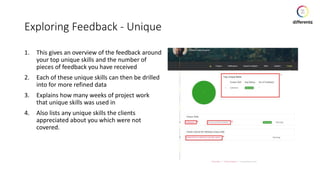
Exploring Feedback - Unique
1. This gives an overview of the feedback around
your top unique skills and the number of
pieces of feedback you have received
2. Each of these unique skills can then be drilled
into for more refined data
3. Explains how many weeks of project work
that unique skills was used in
4. Also lists any unique skills the clients
appreciated about you which were not
covered.
Exploring Feedback - Unique
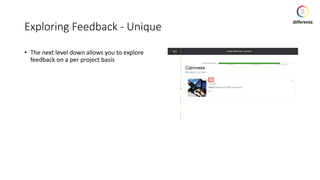
• The next level down allows you to explore
feedback on a per project basis
Exploring Feedback - Unique
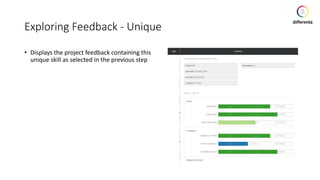
• Displays the project feedback containing this
unique skill as selected in the previous step
Build better teams

Site documentation

  • 1.
  • 2.
    Getting started • Thehome is currently accessed by going to http://differentz.com/?a=true
  • 3.
    Log into thesite using Linkedin • We will ask for permission to use your linkedIn account which you must authorise
  • 4.
    1 Logged inlanding page • The landing page contains: • Limited information that we pull in from your linked in along with your picture • Access to input projects • Notifications shows when feedback comes in and allows you to accept • Request feedback allows you to send requests out to clients to ask for feedback • Skills, qualities and unique shows the feedback you have received against these areas. They are empty until you have received some feedback • Sign out lets you log out of the system. • The top menu items are available when you are logged out and describe the platforms philosophies
  • 5.
    2 Logged inlanding page • The content can be edited by clicking the down arrow and selecting edit. When you are finished save the changes
  • 6.
    3 Logged inlanding page • The 2 links at the bottom of the page have been deprecated and are there for legacy purposes, but will be removed. Please do not use.
  • 7.
    Add a newproject • Select the projects menu item and click the add new project link
  • 8.
    Add a newproject • This page details the project that you wish to get feedback for.
  • 9.
    Add a newproject
  • 10.
    Add a newproject • Project name: A short pithy name that the client would understand i.e. Differentz website build • Company name: We have a sub list of names of major companies which will be suggested, but you can add a new one if it is not there by typing in the name • Add a start and end date • Your project role: Your personal role in the project, i.e. your title • Project description: A short high level description of the project that the client will understand
  • 11.
    Project detail 1. Thecrumb trail allows you to see at a glance which project you are in and which sub section 2. The sub menu contains the following: • The skillsets, qualities and unique skills associated with this particular project • The people connect to this project • The ability to ask for the all important feedback 3. This saves any updates to the project information you entered on the previous slide
  • 12.
    Project detail -Skill Sets 1. Select the Skill Sets tab to enter the skill sets you used on this project 2. Then click add a new skill set
  • 13.
    Project detail -Skill Sets overview 1. Select from a list of functions and/or industries which your role / skill set falls within 2. Select a subset of that skill 3. Select up to 3 specific skills from the expanded cloud of terms that then appears 4. Save your first skill set
  • 14.
    Project detail -Skill Sets step 1 1. Select from a list of functions and/or industries which your role / skill set falls within.
  • 15.
    Project detail -Skill Sets step 2 2. Select a subset of that skill
  • 16.
    Project detail -Skill Sets step 3 3. Select up to 3 specific skills from the expanded cloud of terms that then appears If you want to change one of the maximum of 3 then use the x to remove one and select a different one. 4. Then save the skill
  • 17.
    Project detail -Skill Sets overview 2 1. The skill set you entered can be edited 2. You can then add another skillset We suggest 3 - 5 skillsets are added per project
  • 18.
    Project detail -Qualities 1. Select 3 qualities from our qualities tag cloud 2. Then save the qualities
  • 19.
    Project detail –Unique skills • Opportunity to capture feedback on unique skills not captured elsewhere. Up to 3 can be entered per project to receive feedback on. • Then save the unique skills
  • 20.
    Project detail -People - Clients • You must enter clients before you can ask for feedback
  • 21.
    Project detail -People - Clients 1. Enter the clients email address 2. Search to see if that client is currently in the system
  • 22.
    Project detail -People - Clients • If the client is not in the system yet you can add their details in here • Enter their first name • Enter their last name • Check their email address is correct • Enter their project role / title • Save
  • 23.
    Project detail -People - Clients 1. The client has been added to your project 2. You can remove an individual client from a project 3. You can add further clients
  • 24.
    Project detail -People - Colleagues • You can enter colleagues details so that they are associated with individual projects. Although they will not be asked for feedback
  • 25.
    Project detail -People - Colleagues 1. Enter the colleagues email address 2. Search to see if that colleague is currently in the system
  • 26.
    Project detail -People - Colleagues • If the colleague is not in the system yet you can add their details in here • Enter their first name • Enter their last name • Check their email address is correct • Enter their project role / title • Save
  • 27.
    Project detail -People - Colleagues 1. The colleague has been added to your project 2. You can remove an individual colleagues from a project 3. You can add further colleagues
  • 28.
    Project detail -Feedback • Check the information is correct • Also it is worth contacting the Client in case the email ends up in their spam
  • 29.
    Project detail -Feedback • Click the request for fast feedback button at the bottom of the page
  • 30.
    Feedback email • Theclient will receive the following email
  • 31.
    Feedback system • Thelink takes the client straight to the feedback page with no login • They can select the areas they would like to give feedback on
  • 32.
    Feedback system • Selectingadd feedback expands an interface where the client selects their level of feedback • The client does not have to give feedback on all areas • The entire process takes less than 60 seconds
  • 33.
    Feedback system 1. Theclient can also add any unique skills which they noticed in a free text box 2. The client can select to remain anonymous when providing feedback 3. The feedback is then submitted
  • 34.
    Feedback system 1. Theclient can also add any unique skills which they noticed in a free text box 2. The client can select to remain anonymous when providing feedback 3. The feedback is then submitted
  • 35.
    Feedback received email •When feedback is received you will get the following email
  • 36.
    Reviewing feedback • Theemail provides a link to go directly to the feedback results
  • 37.
    Reviewing feedback • Youcan log into the site where you will be greeted with an update to your notifications menu
  • 38.
    Reviewing feedback • Onceyou have reviewed the feedback you can accept and display the feedback or reject it. • We would advise not rejecting it however and talking to the client if you are not happy.
  • 39.
    Exploring Feedback -Skills • Once you have received feedback it will appear in the Skills, Qualities and Unique sections. 1. This gives an overview of the feedback around your top skills and the number of pieces of feedback you have received 2. Each of these skill set areas can then be drilled into for more refined data 3. Explains how many weeks of project work that skill was used in
  • 40.
    Exploring Feedback -Skills • The next level down allows you to explore feedback on a per project basis
  • 41.
    Exploring Feedback -Skills • Displays the project feedback containing this skill as selected in the previous step
  • 42.
    Exploring Feedback -Qualities 1. This gives an overview of the feedback around your top qualities and the number of pieces of feedback you have received 2. Each of these qualities can then be drilled into for more refined data 3. Explains how many weeks of project work that quality was used in
  • 43.
    Exploring Feedback -Qualities • The next level down allows you to explore feedback on a per project basis
  • 44.
    Exploring Feedback -Qualities • Displays the project feedback containing this quality as selected in the previous step
  • 45.
    Exploring Feedback -Unique 1. This gives an overview of the feedback around your top unique skills and the number of pieces of feedback you have received 2. Each of these unique skills can then be drilled into for more refined data 3. Explains how many weeks of project work that unique skills was used in 4. Also lists any unique skills the clients appreciated about you which were not covered.
  • 46.
    Exploring Feedback -Unique • The next level down allows you to explore feedback on a per project basis
  • 47.
    Exploring Feedback -Unique • Displays the project feedback containing this unique skill as selected in the previous step
  • 48.