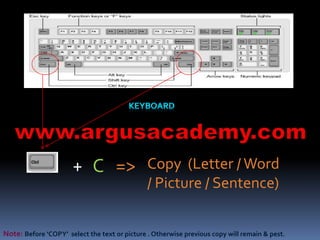
Copy (Letter / Word 
/ Picture / Sentence) 
+ C => 
Note: Before ‘COPY’ select the text or picture . Otherwise previous copy will remain & pest.
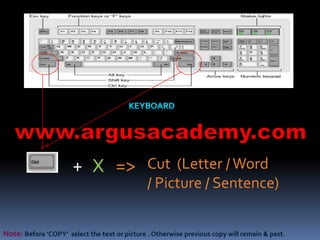
Cut (Letter / Word 
/ Picture / Sentence) 
+ X => 
Note: Before ‘COPY’ select the text or picture . Otherwise previous copy will remain & pest.
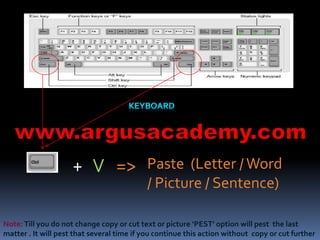
Paste (Letter / Word 
/ Picture / Sentence) 
+ V => 
Note: Till you do not change copy or cut text or picture ‘PEST’ option will pest the last 
matter . It will pest that several time if you continue this action without copy or cut further
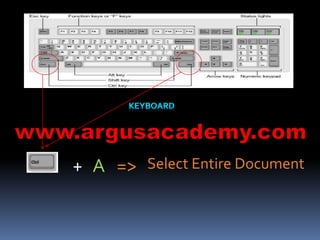
+ A => Select Entire Document
Save Document 
[At the first time SAVE computer will 
ask you ‘Desired Name’, ‘Destination 
of SAVE’ and ‘Type of Document’.] 
+ S => 
Note: Change ‘Type of Document’ to 97 &2003 Document mode for viewing that at Win 2003 also.
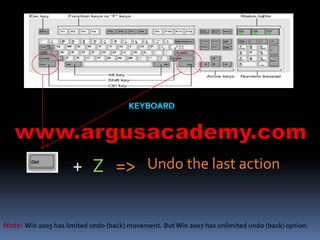
+ Z => Undo the last action 
Note: Win 2003 has limited undo (back) movement. But Win 2007 has unlimited undo (back) option.
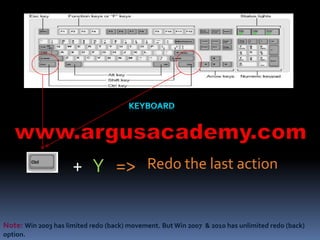
+ Y => Redo the last action 
Note: Win 2003 has limited redo (back) movement. But Win 2007 & 2010 has unlimited redo (back) 
option.
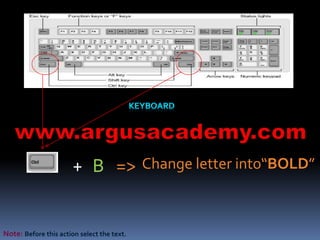
+ B => Change letter into“BOLD” 
Note: Before this action select the text.
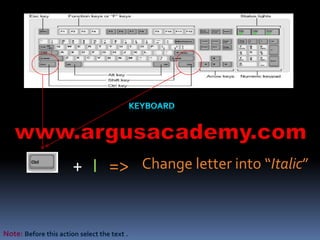
+ I => Change letter into “Italic” 
Note: Before this action select the text .
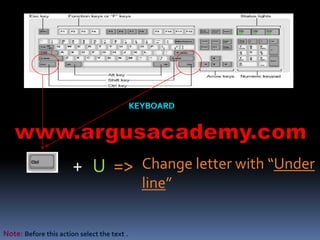
Change letter with “Under 
line” 
+ U => 
Note: Before this action select the text .
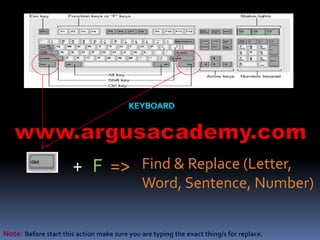
Find & Replace (Letter, 
Word, Sentence, Number) 
+ F => 
Note: Before start this action make sure you are typing the exact thing/s for replace.
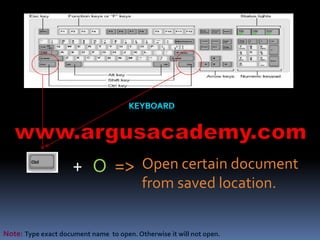
Open certain document 
from saved location. 
+ O => 
Note: Type exact document name to open. Otherwise it will not open.
Insert Hyperlink 
[Location under same document, 
different location under the computer, 
Email link, website link can be created] 
+ K => 
Note: For redirecting active courser under the same document, ‘Target Location’ should be with 
HEADING (any type).
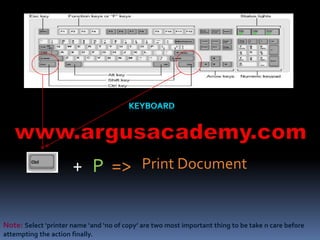
+ P => Print Document 
Note: Select ‘printer name ‘and ‘no of copy’ are two most important thing to be take n care before 
attempting the action finally.
Move TAB position to the 
right. 
[You can change letter position to that 
location where you have set TAB by 
clicking TAB KEY] 
+ T =>
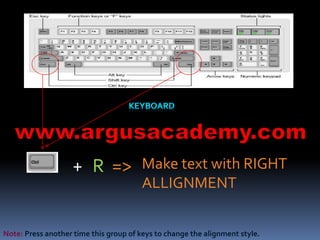
Make text with RIGHT 
ALLIGNMENT 
+ R => 
Note: Press another time this group of keys to change the alignment style.
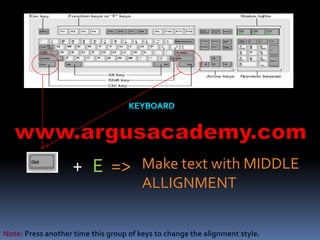
Make text with MIDDLE 
ALLIGNMENT 
+ E => 
Note: Press another time this group of keys to change the alignment style.
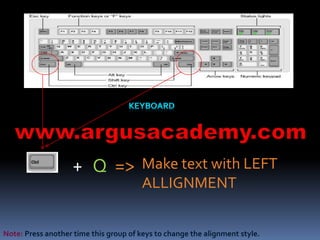
Make text with LEFT 
ALLIGNMENT 
+ Q => 
Note: Press another time this group of keys to change the alignment style.
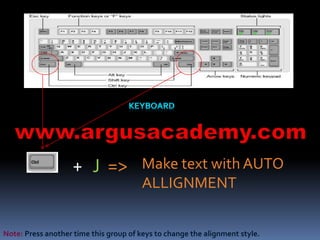
Make text with AUTO 
ALLIGNMENT 
+ J => 
Note: Press another time this group of keys to change the alignment style.
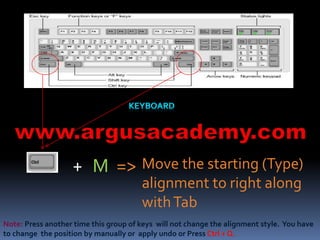
Move the starting (Type) 
alignment to right along 
with Tab 
+ M => 
Note: Press another time this group of keys will not change the alignment style. You have 
to change the position by manually or apply undo or Press Ctrl + Q.
+ ] or => Increase font size. 
Note: Before this action select the text.
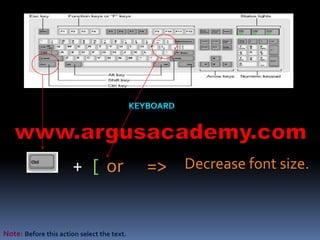
+ [ or => Decrease font size. 
Note: Before this action select the text.
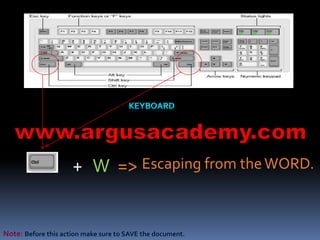
+ W => Escaping from the WORD. 
Note: Before this action make sure to SAVE the document.
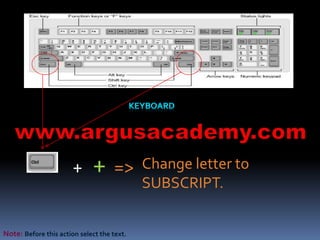
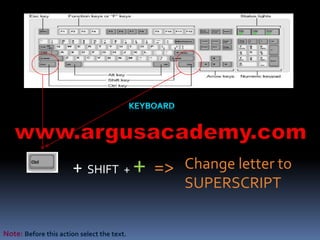
Change letter to 
SUBSCRIPT. 
+ + => 
Note: Before this action select the text.
Change letter to 
SUPERSCRIPT 
+ SHIFT + + => 
Note: Before this action select the text.
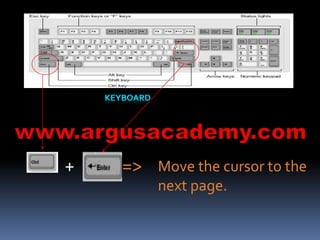
Move the cursor to the 
next page. 
+ =>
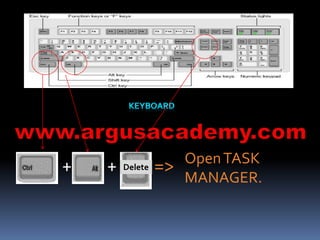
Open TASK 
MANAGER. 
+ + Delete =>
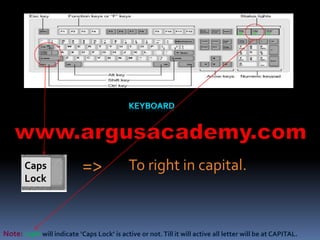
=> To right in capital. 
Caps 
Lock 
Note: Light will indicate ‘Caps Lock’ is active or not. Till it will active all letter will be at CAPITAL.
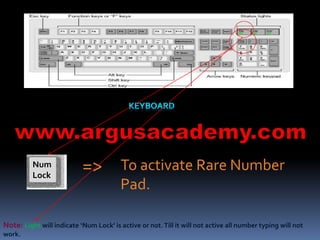
To activate Rare Number 
Pad. 
=> 
Num 
Lock 
Note: Light will indicate ‘Num Lock’ is active or not. Till it will not active all number typing will not 
work.
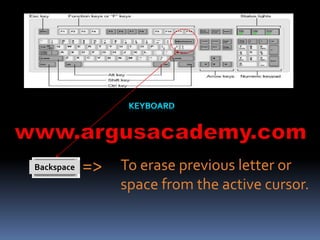
To erase previous letter or 
space from the active cursor. 
Backspace =>
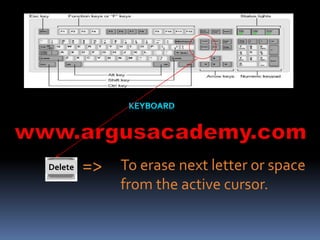
To erase next letter or space 
from the active cursor. 
Delete =>
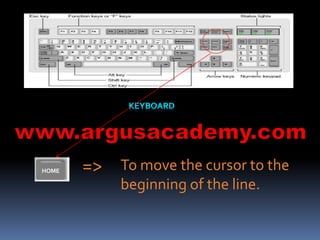
To move the cursor to the 
beginning of the line. 
=> HOME
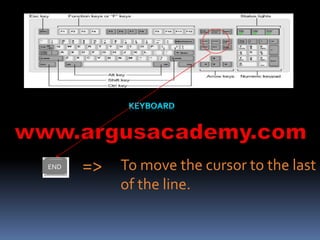
To move the cursor to the last 
of the line. 
END =>
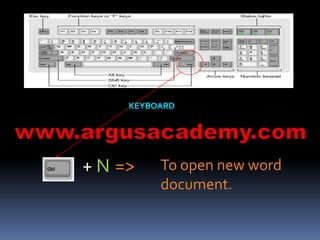
To open new word 
document. 
+ N =>
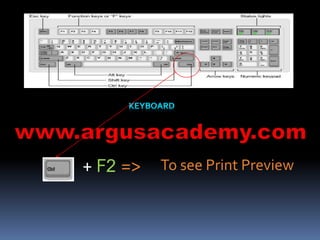
+ F2 => To see Print Preview
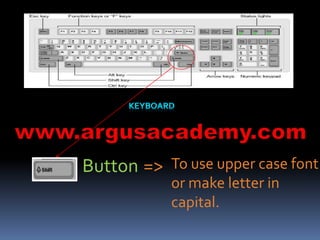
To use upper case font 
or make letter in 
capital. 
Button =>
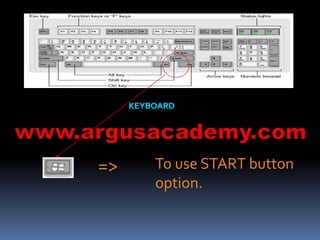
To use START button 
option. 
=>
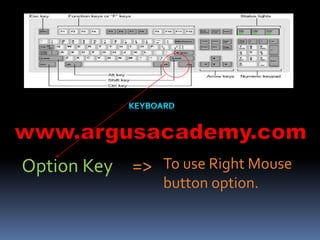
To use Right Mouse 
button option. 
Option Key =>
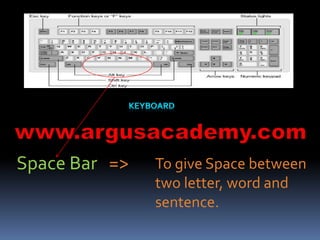
To give Space between 
two letter, word and 
sentence. 
Space Bar =>

Short cut keys

  • 2.
    Copy (Letter /Word / Picture / Sentence) + C => Note: Before ‘COPY’ select the text or picture . Otherwise previous copy will remain & pest.
  • 3.
    Cut (Letter /Word / Picture / Sentence) + X => Note: Before ‘COPY’ select the text or picture . Otherwise previous copy will remain & pest.
  • 4.
    Paste (Letter /Word / Picture / Sentence) + V => Note: Till you do not change copy or cut text or picture ‘PEST’ option will pest the last matter . It will pest that several time if you continue this action without copy or cut further
  • 5.
    + A =>Select Entire Document
  • 6.
    Save Document [Atthe first time SAVE computer will ask you ‘Desired Name’, ‘Destination of SAVE’ and ‘Type of Document’.] + S => Note: Change ‘Type of Document’ to 97 &2003 Document mode for viewing that at Win 2003 also.
  • 7.
    + Z =>Undo the last action Note: Win 2003 has limited undo (back) movement. But Win 2007 has unlimited undo (back) option.
  • 8.
    + Y =>Redo the last action Note: Win 2003 has limited redo (back) movement. But Win 2007 & 2010 has unlimited redo (back) option.
  • 9.
    + B =>Change letter into“BOLD” Note: Before this action select the text.
  • 10.
    + I =>Change letter into “Italic” Note: Before this action select the text .
  • 11.
    Change letter with“Under line” + U => Note: Before this action select the text .
  • 12.
    Find & Replace(Letter, Word, Sentence, Number) + F => Note: Before start this action make sure you are typing the exact thing/s for replace.
  • 13.
    Open certain document from saved location. + O => Note: Type exact document name to open. Otherwise it will not open.
  • 14.
    Insert Hyperlink [Locationunder same document, different location under the computer, Email link, website link can be created] + K => Note: For redirecting active courser under the same document, ‘Target Location’ should be with HEADING (any type).
  • 15.
    + P =>Print Document Note: Select ‘printer name ‘and ‘no of copy’ are two most important thing to be take n care before attempting the action finally.
  • 16.
    Move TAB positionto the right. [You can change letter position to that location where you have set TAB by clicking TAB KEY] + T =>
  • 17.
    Make text withRIGHT ALLIGNMENT + R => Note: Press another time this group of keys to change the alignment style.
  • 18.
    Make text withMIDDLE ALLIGNMENT + E => Note: Press another time this group of keys to change the alignment style.
  • 19.
    Make text withLEFT ALLIGNMENT + Q => Note: Press another time this group of keys to change the alignment style.
  • 20.
    Make text withAUTO ALLIGNMENT + J => Note: Press another time this group of keys to change the alignment style.
  • 21.
    Move the starting(Type) alignment to right along with Tab + M => Note: Press another time this group of keys will not change the alignment style. You have to change the position by manually or apply undo or Press Ctrl + Q.
  • 22.
    + ] or=> Increase font size. Note: Before this action select the text.
  • 23.
    + [ or=> Decrease font size. Note: Before this action select the text.
  • 24.
    + W =>Escaping from the WORD. Note: Before this action make sure to SAVE the document.
  • 25.
    Change letter to SUBSCRIPT. + + => Note: Before this action select the text.
  • 26.
    Change letter to SUPERSCRIPT + SHIFT + + => Note: Before this action select the text.
  • 27.
    Move the cursorto the next page. + =>
  • 28.
    Open TASK MANAGER. + + Delete =>
  • 29.
    => To rightin capital. Caps Lock Note: Light will indicate ‘Caps Lock’ is active or not. Till it will active all letter will be at CAPITAL.
  • 30.
    To activate RareNumber Pad. => Num Lock Note: Light will indicate ‘Num Lock’ is active or not. Till it will not active all number typing will not work.
  • 31.
    To erase previousletter or space from the active cursor. Backspace =>
  • 32.
    To erase nextletter or space from the active cursor. Delete =>
  • 33.
    To move thecursor to the beginning of the line. => HOME
  • 34.
    To move thecursor to the last of the line. END =>
  • 35.
    To open newword document. + N =>
  • 36.
    + F2 =>To see Print Preview
  • 37.
    To use uppercase font or make letter in capital. Button =>
  • 38.
    To use STARTbutton option. =>
  • 39.
    To use RightMouse button option. Option Key =>
  • 40.
    To give Spacebetween two letter, word and sentence. Space Bar =>