Blue Coat® Systems
SG510 Series
Installation Guide
Version: SGOS 5.2.x
P/N 231-02942 Blue Coat SG510 Installation Guide
Contact Information
Blue Coat Systems Inc.
420 North Mary Ave
Sunnyvale, CA 94085-4121
http://www.bluecoat.com/support/contact.html
bcs.info@bluecoat.com
http://www.bluecoat.com
For concerns or feedback about the documentation:
documentation@bluecoat.com
Copyright© 1999-2008 Blue Coat Systems, Inc. All rights reserved worldwide. No part of this
document may be reproduced by any means nor modified, decompiled, disassembled, published or
distributed, in whole or in part, or translated to any electronic medium or other means without the
written consent of Blue Coat Systems, Inc. All right, title and interest in and to the Software and
documentation are and shall remain the exclusive property of Blue Coat Systems, Inc. and its licensors.
ProxyAV™, CacheOS™, SGOS™, SG™, Spyware Interceptor™, Scope™, RA Connector™,
RA Manager™, Remote Access™ and MACH5™ are trademarks of Blue Coat Systems, Inc. and
CacheFlow®, Blue Coat®, Accelerating The Internet®, ProxySG®, WinProxy®, AccessNow®, Ositis®,
Powering Internet Management®, The Ultimate Internet Sharing Solution®, Cerberian®, Permeo®,
Permeo Technologies, Inc.®, and the Cerberian and Permeo logos are registered trademarks of Blue
Coat Systems, Inc. All other trademarks contained in this document and in the Software are the
property of their respective owners.
BLUE COAT SYSTEMS, INC. DISCLAIMS ALL WARRANTIES, CONDITIONS OR OTHER TERMS,
EXPRESS OR IMPLIED, STATUTORY OR OTHERWISE, ON SOFTWARE AND DOCUMENTATION
FURNISHED HEREUNDER INCLUDING WITHOUT LIMITATION THE WARRANTIES OF
DESIGN, MERCHANTABILITY OR FITNESS FOR A PARTICULAR PURPOSE AND
NONINFRINGEMENT. IN NO EVENT SHALL BLUE COAT SYSTEMS, INC., ITS SUPPLIERS OR
ITS LICENSORS BE LIABLE FOR ANY DAMAGES, WHETHER ARISING IN TORT, CONTRACT OR
ANY OTHER LEGAL THEORY EVEN IF BLUE COAT SYSTEMS, INC. HAS BEEN ADVISED OF
THE POSSIBILITY OF SUCH DAMAGES.
Document Number: 231-02942
Document Revision: B.0
P/N 231-02942 Blue Coat SG510 Installation Guide page iii
Contents
Chapter 1: The SG510 Series
Unpacking an SG510 ................................................................................................ 7
SG510 Front Panel Features..................................................................................... 8
SG510 Back Panel Features...................................................................................... 9
Mounting the SG510 in an Equipment Rack....................................................... 10
Rack-Mounting Notes ......................................................................................... 10
Attaching the Cable Management Support......................................................... 11
Installing the Disk Drives ...................................................................................... 12
Connecting the Cables............................................................................................ 16
Powering On the SG510 ......................................................................................... 17
Chapter 2: Configuring an SG510
Overview of First-Time Configuration................................................................ 20
Section A: Initial Configuration Using the Front Panel
LCD Behavior .......................................................................................................... 23
System LCD and Modes......................................................................................... 24
SG510 Control Buttons........................................................................................... 26
Using the Front Panel to Configure Basic Network Settings............................ 27
Section B: Initial Configuration Using the Web Setup Wizard
Requirements........................................................................................................... 30
Section C: Initial Configuration Using a Serial Console
Section D: Configuring the SG510 Using Director Registration
Section E: Logging in to the SG510
Logging in to the SG510 Management Console .............................................. 53
Logging in to the SG510 CLI .............................................................................. 55
P/N 231-02942 Blue Coat SG510 Installation Guide page iv
Section F: Configuring a Front-Panel PIN
Section G: Configuring the Front-Panel LCD Behavior
Chapter 3: Removing and Installing Disk Drives
Removing a Disk Drive.......................................................................................... 62
Installing a New Disk Drive.................................................................................. 63
Setting the Default Boot System......................................................................... 64
Chapter 4: Next Steps
Chapter 5: Troubleshooting
The SG510 Does Not Come Back Up After Rebooting...................................... 71
The SG510 Does Not Power Up............................................................................ 72
The Disk Drive LED Has A Solid Amber Light.................................................. 72
Testing the SG510.................................................................................................... 73
CLI Session Times Out ........................................................................................... 73
CLI Limited to 16 Sessions..................................................................................... 73
The Web Setup Wizard Page is Not Accessible.................................................. 73
You Cannot Access the Serial Console ................................................................ 75
You Cannot Access the Management Console................................................... 75
A Security Warning Appears for the Initial Configuration Web Page ........... 76
The SG510 Certificate is No Longer Valid .......................................................... 76
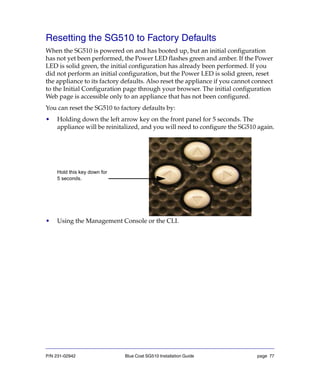
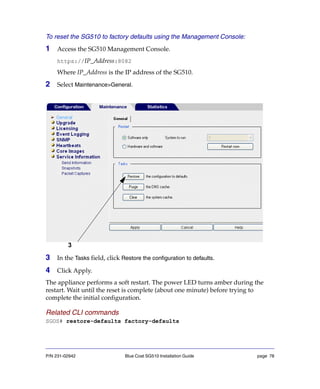
Resetting the SG510 to Factory Defaults.............................................................. 77
The SG510 Does Not Come Back Up After Rebooting...................................... 79
The SG510 Cannot Connect to the Director ........................................................ 79
Connection Request Rejected by Director........................................................... 80
Appendix A: Specifications
General Specifications ............................................................................................ 81
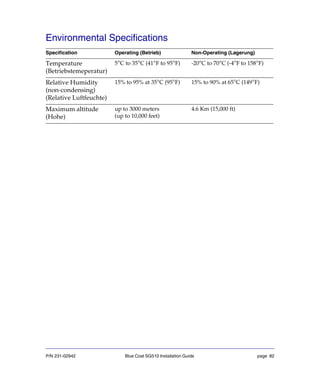
Environmental Specifications................................................................................ 82
P/N 231-02942 Blue Coat SG510 Installation Guide page v
Appendix B: Regulatory Statements
General System Cautions....................................................................................... 83
Rack-Mounting Notes ......................................................................................... 83
Power Cord Cautions............................................................................................. 84
Class A Digital Warning ........................................................................................ 84
Advertencia Digital Clase A.................................................................................. 85
EC Community EMC Warning............................................................................. 85
Advertencia EMC de la Comunidad EC ............................................................. 85
Canadian EC EMC Warning ................................................................................. 85
Australia/New Zealand EC EMC Warning........................................................ 85
Taiwan BSMI Notification ..................................................................................... 85
Japan VCCI EMC Notification .............................................................................. 86
Battery Warning Notification................................................................................ 86
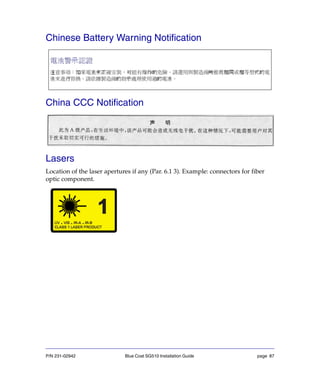
Chinese Battery Warning Notification................................................................. 87
China CCC Notification ......................................................................................... 87
Lasers ........................................................................................................................ 87
Declaration of Conformity..................................................................................... 91
Appendix C: Apéndice C: Declaraciones Regulatorias
Precauciones generales del sistema...................................................................... 93
Conexión del cable de alimentación..................................................................... 93
Lasers ........................................................................................................................ 94
Appendix D: Anhang D: Regulierende Anweisungen
Allgemeine Systemvorsichtsmassnahmen.......................................................... 95
Anschliessen des Stromkabels .............................................................................. 95
Lasers ........................................................................................................................ 96
P/N 231-02942 Blue Coat SG510 Installation Guide page vi
Appendix E: Simplified Chinese Regulatory Statements
Appendix F: Traditional Chinese Regulatory Statements
Index
P/N 231-02942 Blue Coat SG510 Installation Guide page 7
Chapter 1: The SG510 Series
This installation guide provides general instructions for installing, configuring, and
using the Blue Coat SG510.
This chapter explains how to unpack the SG510, install it in an equipment rack,
insert the disk drives, connect the cables, and power it on.
Important: Follow all warnings and instructions marked on the product and
included in this manual.
Unpacking an SG510
When you receive and unpack the SG510, verify that the package contains the
following items:
• Blue Coat SG510 Series Appliance • AC Power cord
• Quick Start Guide • Disk drives (up to two)
• Null-modem serial cable • Cable Management Support
• License, Warranty, and Safety information
P/N 231-02942 Blue Coat SG510 Installation Guide page 8
SG510 Front Panel Features
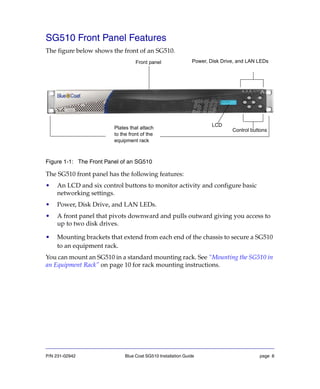
The figure below shows the front of an SG510.
Figure 1-1: The Front Panel of an SG510
The SG510 front panel has the following features:
• An LCD and six control buttons to monitor activity and configure basic
networking settings.
• Power, Disk Drive, and LAN LEDs.
• A front panel that pivots downward and pulls outward giving you access to
up to two disk drives.
• Mounting brackets that extend from each end of the chassis to secure a SG510
to an equipment rack.
You can mount an SG510 in a standard mounting rack. See “Mounting the SG510 in
an Equipment Rack” on page 10 for rack mounting instructions.
Power, Disk Drive, and LAN LEDs
Control buttons
LCD
Plates that attach
to the front of the
equipment rack
Front panel
P/N 231-02942 Blue Coat SG510 Installation Guide page 9
SG510 Back Panel Features
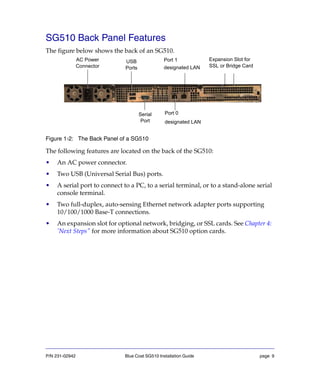
The figure below shows the back of an SG510.
Figure 1-2: The Back Panel of a SG510
The following features are located on the back of the SG510:
• An AC power connector.
• Two USB (Universal Serial Bus) ports.
• A serial port to connect to a PC, to a serial terminal, or to a stand-alone serial
console terminal.
• Two full-duplex, auto-sensing Ethernet network adapter ports supporting
10/100/1000 Base-T connections.
• An expansion slot for optional network, bridging, or SSL cards. See Chapter 4:
’Next Steps" for more information about SG510 option cards.
AC Power
Connector
Port 0
designated LAN
Serial
Port
USB
Ports
Expansion Slot for
SSL or Bridge Card
Port 1
designated LAN
P/N 231-02942 Blue Coat SG510 Installation Guide page 10
Mounting the SG510 in an Equipment Rack
The Blue Coat SG510 is designed to fit into a standard telco-style or four-post
cabinet style equipment rack.
The SG510 ships with the rack-mounting ears installed.
Rack-Mounting Notes
Read these notes before rack-mounting the SG510.
A Elevated Operating Ambient—If installed in a closed or multi-unit rack
assembly, the operating ambient temperature of the rack environment may be
greater than room ambient. Therefore, consideration should be given to
installing the equipment in an environment compatible with the maximum
ambient temperature (Tmax) specified by the manufacturer.
B Reduced Air Flow—Installation of the equipment in a rack should be such
that the amount of air flow required for safe operation of the equipment is not
compromised.
C Mechanical Loading—Mounting of the equipment in the rack should be such
that a hazardous condition is not achieved due to uneven mechanical loading.
D Circuit Overloading—Consideration should be given to the connection of the
equipment to the supply circuit and the effect that overloading of the circuits
might have on overcurrent protection and supply wiring. Appropriate
consideration of equipment nameplate ratings should be used when
addressing this concern.
E Reliable Earthing —Reliable earthing of rack-mounted equipment should be
maintained. Particular attention should be given to supply connections other
than direct connections to the branch circuit (for example, use of power
strips).
To rack mount the SG510:
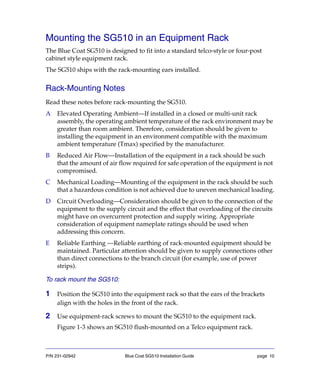
1 Position the SG510 into the equipment rack so that the ears of the brackets
align with the holes in the front of the rack.
2 Use equipment-rack screws to mount the SG510 to the equipment rack.
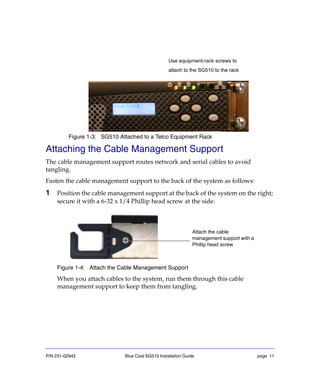
Figure 1-3 shows an SG510 flush-mounted on a Telco equipment rack.
P/N 231-02942 Blue Coat SG510 Installation Guide page 11
Figure 1-3: SG510 Attached to a Telco Equipment Rack
Attaching the Cable Management Support
The cable management support routes network and serial cables to avoid
tangling.
Fasten the cable management support to the back of the system as follows:
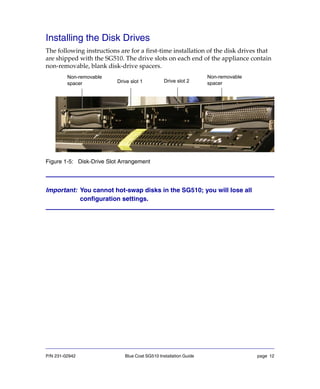
1 Position the cable management support at the back of the system on the right;
secure it with a 6-32 x 1/4 Phillip head screw at the side.
Figure 1-4: Attach the Cable Management Support
When you attach cables to the system, run them through this cable
management support to keep them from tangling.
Use equipment-rack screws to
attach to the SG510 to the rack
Attach the cable
management support with a
Phillip head screw
P/N 231-02942 Blue Coat SG510 Installation Guide page 12
Installing the Disk Drives
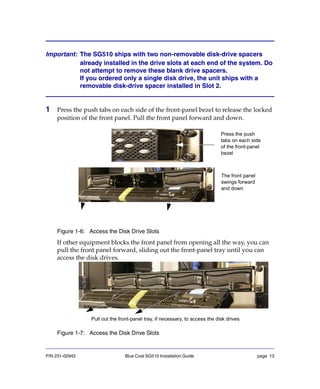
The following instructions are for a first-time installation of the disk drives that
are shipped with the SG510. The drive slots on each end of the appliance contain
non-removable, blank disk-drive spacers.
Figure 1-5: Disk-Drive Slot Arrangement
Important: You cannot hot-swap disks in the SG510; you will lose all
configuration settings.
Drive slot 2
Non-removable
spacer Drive slot 1
Non-removable
spacer
P/N 231-02942 Blue Coat SG510 Installation Guide page 13
Important: The SG510 ships with two non-removable disk-drive spacers
already installed in the drive slots at each end of the system. Do
not attempt to remove these blank drive spacers.
If you ordered only a single disk drive, the unit ships with a
removable disk-drive spacer installed in Slot 2.
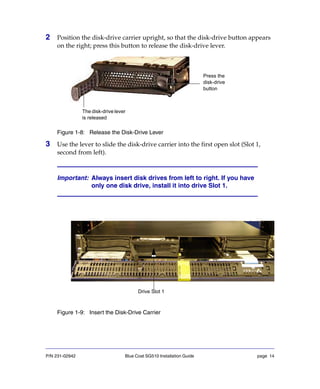
1 Press the push tabs on each side of the front-panel bezel to release the locked
position of the front panel. Pull the front panel forward and down.
Figure 1-6: Access the Disk Drive Slots
If other equipment blocks the front panel from opening all the way, you can
pull the front panel forward, sliding out the front-panel tray until you can
access the disk drives.
Figure 1-7: Access the Disk Drive Slots
Press the push
tabs on each side
of the front-panel
bezel
The front panel
swings forward
and down
Pull out the front-panel tray, if necessary, to access the disk drives
P/N 231-02942 Blue Coat SG510 Installation Guide page 14
2 Position the disk-drive carrier upright, so that the disk-drive button appears
on the right; press this button to release the disk-drive lever.
Figure 1-8: Release the Disk-Drive Lever
3 Use the lever to slide the disk-drive carrier into the first open slot (Slot 1,
second from left).
Figure 1-9: Insert the Disk-Drive Carrier
Important: Always insert disk drives from left to right. If you have
only one disk drive, install it into drive Slot 1.
Press the
disk-drive
button
The disk-drive lever
is released
Drive Slot 1
P/N 231-02942 Blue Coat SG510 Installation Guide page 15
4 When the disk-drive carrier meets the SG510 frame, firmly press the edges of
the disk drive carrier into the drive slot. Then, push the lever in towards the
button until the handle latches on the buttonSG510, seating the drive firmly in
place.
Note: When the disk drive in properly positioned for insertion, the disk drive
lever is on the left.
5 Repeat steps 2 to 4 to install the optional disk drive in drive slot 2.
Important: Before you move or transport an SG510 chassis, you must
remove all the disk drives from the system. Package the drives
separately in ESD protective materials and place them back into
the accessory kit or equivalent packaging to prevent damage. If
you do not follow this guideline, hard drive failure might occur.
Note: If you need to remove a drive, press the button on the right
side of the disk-drive carrier to release the lever. Pull the
lever towards you to slide the carrier out of the slot.
P/N 231-02942 Blue Coat SG510 Installation Guide page 16
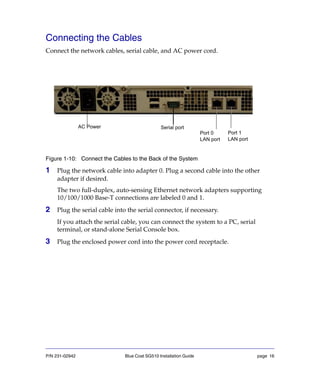
Connecting the Cables
Connect the network cables, serial cable, and AC power cord.
Figure 1-10: Connect the Cables to the Back of the System
1 Plug the network cable into adapter 0. Plug a second cable into the other
adapter if desired.
The two full-duplex, auto-sensing Ethernet network adapters supporting
10/100/1000 Base-T connections are labeled 0 and 1.
2 Plug the serial cable into the serial connector, if necessary.
If you attach the serial cable, you can connect the system to a PC, serial
terminal, or stand-alone Serial Console box.
3 Plug the enclosed power cord into the power cord receptacle.
Port 0
LAN port
Serial portAC Power
Port 1
LAN port
P/N 231-02942 Blue Coat SG510 Installation Guide page 17
Powering On the SG510
1 After you have connected the power cord to the rear of the system, plug the
other end of the power cord into a power receptacle.
2 Verify that the system has powered on successfully. See the four system states
described below and the corresponding states of the Power LED.
Power LED
• No color: the SG510 is powered off or non-functional
• Solid Amber: the SG510 is powered on but unable to perform tasks (for
example, while booting up)
• Flashing Green to Amber: the SG510 is powered on but is not configured
• Green: the SG510 is powered on and at least minimally configured
3 The steps below show a typical, first-time, start-up sequence.
• The Power LED lights up and the LCD becomes green and displays the
name Blue Coat. The Power LED starts of solid amber and then begins
flashing green and amber.
• After a moment, the disk drive LEDs corresponding to the disk drives
that are installed light up. If you are connected to the network, the LAN
LEDs light up.
P/N 231-02942 Blue Coat SG510 Installation Guide page 18
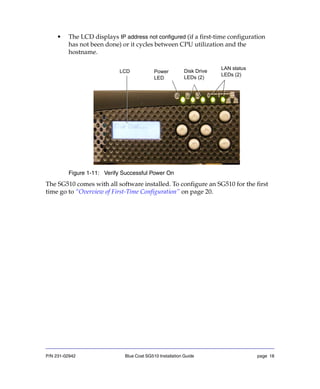
• The LCD displays IP address not configured (if a first-time configuration
has not been done) or it cycles between CPU utilization and the
hostname.
Figure 1-11: Verify Successful Power On
The SG510 comes with all software installed. To configure an SG510 for the first
time go to “Overview of First-Time Configuration” on page 20.
Power
LED
Disk Drive
LEDs (2)
LCD
LAN status
LEDs (2)
P/N 231-02942 Blue Coat SG510 Installation Guide page 19
Chapter 2: Configuring an SG510
You need to configure an SG510 the first time you power it on — set the basic
network parameters and make sure that the SG510 hardware and software are
working properly.
The initial configuration might be done either using a standalone PC, a serial
terminal, or after placing the SG510 into your network. The placement of the
SG510 depends on the flow of traffic within your organization. The SG510 must
be able to intercept initial packets on each client or application connection that
needs to be optimized. Typical deployments include:
• Explicit proxy configuration — where the client browser is explicitly
configured to use a proxy server. The browser is given the IP address and port
number of the SG510.
You may also configure the browser to download the proxy settings from a
Web server. This is called a Proxy Auto-Configuration (PAC) file.
• Transparent proxy — where the client browser does not know that the traffic
is being processed by a machine other than the Origin Content Server. To
enable the SG510 to intercept traffic sent to it, you must create a service and
define it as transparent. The service is configured to intercept traffic for a
specified port, or for all IP addresses on that port. Traffic redirection is
managed through polices you create on the redirection device.
A transparent HTTP proxy, for example, typically intercepts all traffic on port
80 (all IP addresses). To make sure that the appropriate traffic is directed to
the SG510, deploy hardware such as a Layer-4 switch or a WCCP router, or
use the SG510 appliance’s software bridge to redirect selected traffic to the
appliance.
The following procedure describes a a typical scenario for placing the SG510 into
your network—placing the SG510 between the LAN and a router or firewall
connected to the WAN. Use this procedure under the following circumstances:
• You have already completed an initial configuration on the SG510 using the
front-panel setup.
• You are going to complete an initial configuration on the SG510 using a direct
serial port connection, Web Setup Wizard, or Director Registration.
P/N 231-02942 Blue Coat SG510 Installation Guide page 20
To place the SG510 into the network:
1 Connect the SG510 to the WAN—connect one end of an Ethernet cable
(straight or crossover depending on your network topology) to one of the
SG510’s Ethernet ports (either one). Connect the other end to the router or
firewall connected to the WAN.
2 Connect the SG510 to the LAN—connect one end of an Ethernet cable
(straight or crossover depending on your network topology) into the other
Ethernet port on the SG510. Connect the other end to the LAN (such as a PC
or a hub).
3 Verify that the network link is established by checking the network
connection LEDs at the back of the SG510. If the network connection is
functioning, the left-hand LED on each connection glows green.
The cabling and connections specific to the deployment of the SG510 are not
within the scope of this book. Consult with your network administrator for
guidance on deploying the SG510 within your organization and refer to the Blue
Coat ProxySG Configuration and Management Guide Suite .
Overview of First-Time Configuration
While performing the first-time configuration, you must assign an IP address,
subnet mask, and IP gateway for the SG510. These parameters must be assigned
through the serial console or the front panel.
You can select among four options to configure your SG510. Each of these
methods allows you make the basic network settings required to test the
connection and functionality.
P/N 231-02942 Blue Coat SG510 Installation Guide page 21
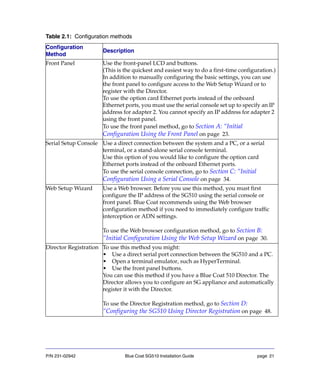
Table 2.1: Configuration methods
Configuration
Method
Description
Front Panel Use the front-panel LCD and buttons.
(This is the quickest and easiest way to do a first-time configuration.)
In addition to manually configuring the basic settings, you can use
the front panel to configure access to the Web Setup Wizard or to
register with the Director.
To use the option card Ethernet ports instead of the onboard
Ethernet ports, you must use the serial console set up to specify an IP
address for adapter 2. You cannot specify an IP address for adapter 2
using the front panel.
To use the front panel method, go to Section A: “Initial
Configuration Using the Front Panel on page 23.
Serial Setup Console Use a direct connection between the system and a PC, or a serial
terminal, or a stand-alone serial console terminal.
Use this option of you would like to configure the option card
Ethernet ports instead of the onboard Ethernet ports.
To use the serial console connection, go to Section C: “Initial
Configuration Using a Serial Console on page 34.
Web Setup Wizard Use a Web browser. Before you use this method, you must first
configure the IP address of the SG510 using the serial console or
front panel. Blue Coat recommends using the Web browser
configuration method if you need to immediately configure traffic
interception or ADN settings.
To use the Web browser configuration method, go to Section B:
“Initial Configuration Using the Web Setup Wizard on page 30.
Director Registration To use this method you might:
• Use a direct serial port connection between the SG510 and a PC.
• Open a terminal emulator, such as HyperTerminal.
• Use the front panel buttons.
You can use this method if you have a Blue Coat 510 Director. The
Director allows you to configure an SG appliance and automatically
register it with the Director.
To use the Director Registration method, go to Section D:
“Configuring the SG510 Using Director Registration on page 48.
P/N 231-02942 Blue Coat SG510 Installation Guide page 22
After you complete the first-time configuration, you must log on to the system
and use the command-line interface (CLI) or the Management Console graphical
user interface to fully configure the system. See Section E: “Logging in to the
SG510 on page 53 for more information.
Refer to the Blue Coat ProxySG Configuration and Management Guide Suite for
information on how to fully configure the software. Download this manual from
the Blue Coat WebPower site at: http://www.bluecoat.com/support/manuals
Note: You must have a WebPower account to access the documentation.
P/N 231-02942 Blue Coat SG510 Installation Guide page 23
Section A: Initial Configuration Using the Front Panel
You can configure an SG510 the first time you power it on using the front panel
LCD and control buttons. Using the front panel you can:
• manually configure the basic settings.
• configure access to the Web setup wizard, and continue further configuration
using the Web browser.
• register the SG510 with the Director. You might then push the configurations
pre-staged on the Director to the SG510.
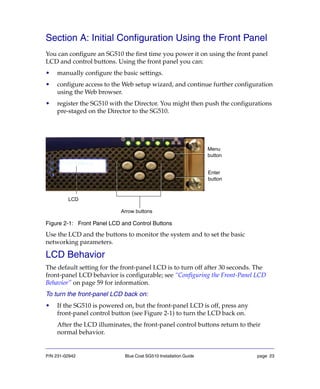
Figure 2-1: Front Panel LCD and Control Buttons
Use the LCD and the buttons to monitor the system and to set the basic
networking parameters.
LCD Behavior
The default setting for the front-panel LCD is to turn off after 30 seconds. The
front-panel LCD behavior is configurable; see “Configuring the Front-Panel LCD
Behavior” on page 59 for information.
To turn the front-panel LCD back on:
• If the SG510 is powered on, but the front-panel LCD is off, press any
front-panel control button (see Figure 2-1) to turn the LCD back on.
After the LCD illuminates, the front-panel control buttons return to their
normal behavior.
Menu
button
LCD
Enter
button
Arrow buttons
P/N 231-02942 Blue Coat SG510 Installation Guide page 24
System LCD and Modes
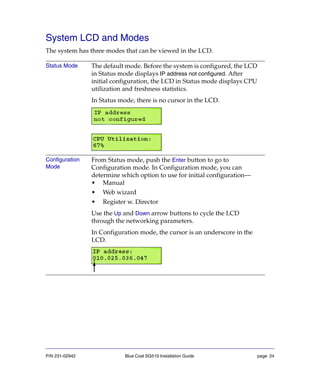
The system has three modes that can be viewed in the LCD.
Status Mode The default mode. Before the system is configured, the LCD
in Status mode displays IP address not configured. After
initial configuration, the LCD in Status mode displays CPU
utilization and freshness statistics.
In Status mode, there is no cursor in the LCD.
Configuration
Mode
From Status mode, push the Enter button to go to
Configuration mode. In Configuration mode, you can
determine which option to use for initial configuration—
• Manual
• Web wizard
• Register w. Director
Use the Up and Down arrow buttons to cycle the LCD
through the networking parameters.
In Configuration mode, the cursor is an underscore in the
LCD.
P/N 231-02942 Blue Coat SG510 Installation Guide page 25
Edit Mode From Configuration mode, use the Up or Down arrow button
until the parameter you want to configure is displayed,
then press the Enter button to go to Edit mode for that
parameter (for a first-time configuration, you must begin
with the first displayed parameter—IP address).
To configure the parameter, use the Left and Right arrow
buttons to position the cursor over a character you want to
change, then use the Up and Down arrow buttons to cycle
through the characters. When the entire parameter is
configured correctly, press the Enter button to save the
setting and return to Configuration mode.
Important: The system automatically exits Edit mode,
without saving parameter configurations, if
no activity is detected for 20 seconds.
In Edit mode, the cursor is a blinking box in the LCD.
P/N 231-02942 Blue Coat SG510 Installation Guide page 26
SG510 Control Buttons
Use the control buttons in conjunction with the modes as follows:
Enter Button The Enter button functions as follows:
Status mode: When you push the Enter button in
Status mode, the system enters Configuration mode.
In Configuration mode, one of the six configurable
parameters displays in the LCD (starting with IP
address).
Configuration mode: When you push the Enter
button in Configuration mode, the system enters Edit
mode for the parameter displayed.
Edit mode: When you push the Enter button in Edit
mode, the system saves any changes you made to the
parameter displayed and returns to Configuration
mode.
Menu Button The Menu button functions like an Escape key. When
you push the Menu button in Edit mode, the system
returns to Configuration mode, cancelling any changes
you made to the displayed parameter.
When you push the Menu button in Configuration
mode, the system returns to Status mode. Any
changes you made while in Edit mode have already
been saved, and are not affected when you push the
Menu button in Configuration mode.
Left and Right Arrow
Buttons
When you push the Left and Right arrow buttons in
Edit mode, the cursor moves back and forth over the
configurable settings of the parameter displayed.
P/N 231-02942 Blue Coat SG510 Installation Guide page 27
Using the Front Panel to Configure Basic Network
Settings
Use the front panel to do a quick first-time configuration of the following
networking parameters on Adapter 0:
The networking parameters that you provide information on, varies according to
the configuration option you select on the front panel.
Important: A default username (admin) is already set on the SG510. A
unique console and enable password are generated
automatically. You can configure the passwords now, or write
down the auto-generated passwords and use them to log in,
changing them later. The enable password is not required if you
log in using a browser.
1 When the LCD displays “IP address not configured,” press Enter to enter
Configure mode.
2 Select your preference — Manual setup console, Web wizard, Register with
Director.
The IP address parameter appears in the LCD, and the cursor appears as an
underscore.
Up and Down Arrow
Buttons
When you push the Up and Down arrow buttons in
Configuration mode, the system cycles through the
six configurable parameters.
When you push the Up and Down arrow buttons in
Edit mode, the system cycles through the characters
available for the selected setting of the parameter (the
selected setting is the character that the cursor is over
when you push the arrow buttons).
• IP address • Subnet mask
• Gateway address • DNS address
• Console password • Enable password
P/N 231-02942 Blue Coat SG510 Installation Guide page 28
3 Press Enter again to enter Edit mode.
The cursor changes to a blinking box.
4 Press the Left or Right arrow buttons to position the cursor over the characters
you want to change; press the Up or Down arrow buttons to change them.
5 When you have entered all the characters of the parameter, press Enter to save
the changes and return to Configure mode.
6 Press the Down arrow button to move to the next parameter; press Enter to
enter Edit mode.
7 Repeat Steps 3 through 5 for assigning the parameters. Your preference in
Step 2 above triggers the sequence of parameters for which you provide
values.
Note: If you had selected the Web Wizard, you are directed to use the Web
browser for the rest of the configuration, see Section B: “Initial
Configuration Using the Web Setup Wizard on page 30.
If you had selected Director registration, see Section D: “Configuring
the SG510 Using Director Registration on page 48.
If you had selected Manual setup console, continue with the
instructions below.
1 When the LCD reads, “Console password: Push to set,”, press Enter to enter
Edit mode and complete one of the following steps:
• To configure the password later (after you log in), write down the
auto-generated password and press Enter to return to Configure mode.
• To configure the password now, follow Steps 5.
2 Set the enable password parameter; when the LCD displays “Enable
password: Push to configure” when you are back in Configuration mode. Do
not push Enter again, or a new auto-generated enable password will be
created (if that happens, repeat Step 4).
P/N 231-02942 Blue Coat SG510 Installation Guide page 29
3 In configuration mode, secure the serial port.
If you select Yes to secure the serial port, you must provide the administrative
username/password when accessing the serial console and the setup
password when accessing the setup console.
To restrict access to the front panel, configure the front panel PIN from the
CLI after initial setup is complete (see “Configuring a Front-Panel PIN” on
page 58).
4 Select the trial edition license that you purchased— Proxy or MACH5. If you
leave the None option selected, an Invalid trial edition error message is
displayed.
5 Press Menu to return to Status mode.
Initial network configuration is now complete. The LCD cycles between CPU
Utilization and Freshness statistics.
P/N 231-02942 Blue Coat SG510 Installation Guide page 30
Section B: Initial Configuration Using the Web Setup
Wizard
This section describes how to configure the SG510 with a Web browser.
Requirements
To configure your SG510 using a browser, you must meet the following
requirements.
• The browser must support Javascript and Javascript must be enabled.
• The browser must not be proxied. For information about proxied browsers,
see “The Web Setup Wizard Page is Not Accessible” on page 73.
• Your SG510 must not already be configured.
Note: If the SG510 has already been configured, you cannot access the Web
wizard unless you reset the SG510 to factory defaults as described in
“Resetting the SG510 to Factory Defaults” on page 77.
• You must configure the SG510 IP address, subnet mask, gateway, using the
front panel or the serial console before accessing the Setup Wizard through
the Web browser.
To configure the SG510 using the Web Setup Wizard:
1 Connect the SG510 to a PC or place it within your network, and configure an
IP address, subnet mask, and IP gateway using the serial console or the front
panel buttons. See “Overview of First-Time Configuration” on page 20.
2 Enter the following URLs into your browser:
https://proxysg_IP:8083/
where, proxysg_IP is the IP address you configured for this SG510 using the
front panel or the serial console.
P/N 231-02942 Blue Coat SG510 Installation Guide page 31
A security warning dialog appears. For more information about this warning
dialog, see “A Security Warning Appears for the Initial Configuration Web Page”
on page 76.
Note: The appearance of the dialog varies depending on the browser that
you use.
3 Click Yes (or OK) in the dialog.
Important: If you do not see the warning dialog or if you cannot connect to
the Initial Configuration page, see “The Web Setup Wizard Page is
Not Accessible” on page 73.
When the appliance connects, the Setup Wizard displays, as shown in the
following figure.
P/N 231-02942 Blue Coat SG510 Installation Guide page 32
4 Enter information on each screen, as prompted, and click Next to proceed to
the next screen.
Each page is described; some pages include mouse-over help. To complete the
Setup Wizard you must:
a. Enter the console access information in Security > Console.
b. Enter the CLI Enable password in Security > CLI.
(Optional but highly recommended) Secure the serial port in Security > Serial
Port.
The serial port allows you to configure and access the SG510 using a serial
cable. This option allows you to set a password for the serial console setup,
thus enabling only authorized personnel (who have access to the serial port
password) to reconfigure the appliance.
c. Enter the network settings:
❖ IP Address
❖ Subnet Mask
❖ Gateway
❖ DNS Server
d. (Optional) Configure the Application Delivery Network (ADN) settings.
The ADN settings optimize the delivery of applications over the WAN.If
you choose to set up the ADN, you need to configure the Primary ADN
Manager IP Address and/or the Backup ADN Manager IP Address.
e. Select the traffic types that the appliance should intercept in Services >
Intercepted Traffic.
f. Set the Default Settings policy to either the MACH5 settings for WAN
acceleration or retain the default more secure settings.
Note: Select the license trial version that matches the license you
purchased when buying the Blue Coat SG510 Series appliance.
P/N 231-02942 Blue Coat SG510 Installation Guide page 33
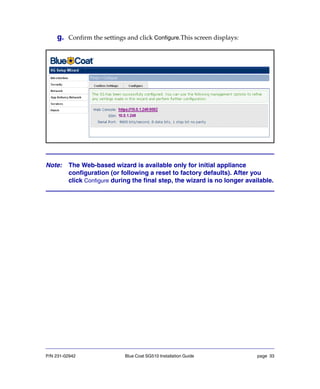
g. Confirm the settings and click Configure.This screen displays:
Note: The Web-based wizard is available only for initial appliance
configuration (or following a reset to factory defaults). After you
click Configure during the final step, the wizard is no longer available.
P/N 231-02942 Blue Coat SG510 Installation Guide page 34
Section C: Initial Configuration Using a Serial Console
This section describes how to configure the SG510 using a direct serial port
connection.
A PC, serial terminal, or a stand-alone serial console terminal can be used to
configure an SG510 the first time you power it on. Use the serial console setup to
configure the following basic network information:
You can also configure a bridge or a forwarding host, or you can restrict access to
the SG510 to a particular IP address or set of IP addresses.
PC Note: If the PC is using standard serial port settings, you should have
a problem-free connection. You can run into problems, though, if
there are non-standard PC serial port settings.
• IP address • Subnet mask
• Gateway address • DNS address
• Console username
and password
• Enable password
P/N 231-02942 Blue Coat SG510 Installation Guide page 35
Configuring the SG510 Using a Direct Serial Port Connection:
Do the following procedure by reading the onscreen material and entering data
where necessary. In the procedure below, places that require you to enter data are
illustrated by example entries in bold text.
1 Power on and connect the serial terminal or PC as described below (the SG510
must be powered off):
Serial terminal: Connect the terminal’s serial cable to the SG510’s serial
console port; start the terminal and verify that it is set using the parameters
described below.
Table 2.2: RS-232C Parameters
PC: Connect a serial cable to a serial port on the PC and to the SG510’s serial
console port; start the PC, open a terminal emulator (such as HyperTerminal),
and connect to the serial port to which you attached the cable. Create and
name a new connection (either a COM or TCP/IP), and verify that the port is
set using the parameters described in the preceding table.
Parameter Setting
Baud rate 9600 bps
Data bits 8
Parity none
Stop bits 1
Flow control none
Smooth-scroll disabled
Emulation VT 100
P/N 231-02942 Blue Coat SG510 Installation Guide page 36
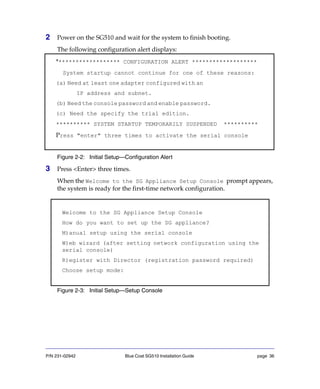
2 Power on the SG510 and wait for the system to finish booting.
The following configuration alert displays:
Figure 2-2: Initial Setup—Configuration Alert
3 Press <Enter> three times.
When the Welcome to the SG Appliance Setup Console prompt appears,
the system is ready for the first-time network configuration.
Figure 2-3: Initial Setup—Setup Console
******************* CONFIGURATION ALERT *******************
System startup cannot continue for one of these reasons:
(a) Need at least one adapter configured with an
IP address and subnet.
(b) Need the console password and enable password.
(c) Need the specify the trial edition.
********** SYSTEM STARTUP TEMPORARILY SUSPENDED **********
Press "enter" three times to activate the serial console
Welcome to the SG Appliance Setup Console
How do you want to set up the SG appliance?
M)anual setup using the serial console
W)eb wizard (after setting network configuration using the
serial console)
R)egister with Director (registration password required)
Choose setup mode:
P/N 231-02942 Blue Coat SG510 Installation Guide page 37
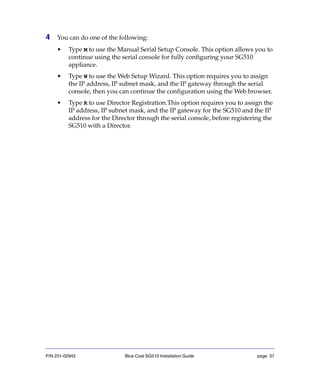
4 You can do one of the following:
• Type M to use the Manual Serial Setup Console. This option allows you to
continue using the serial console for fully configuring your SG510
appliance.
• Type W to use the Web Setup Wizard. This option requires you to assign
the IP address, IP subnet mask, and the IP gateway through the serial
console, then you can continue the configuration using the Web browser.
• Type R to use Director Registration.This option requires you to assign the
IP address, IP subnet mask, and the IP gateway for the SG510 and the IP
address for the Director through the serial console, before registering the
SG510 with a Director.
P/N 231-02942 Blue Coat SG510 Installation Guide page 38
5 If you select M, the following screen displays:
Figure 2-4: Setup Console—Page One
Enter the interface number, IP address, IP subnet mask, IP gateway, and DNS
server parameters.
Note: If you enter YES, to configure a bridge, you must configure at least
one bridge port and associate a network interface with it
Welcome to the SG Appliance Setup Console
---------------------- (page 1 of 5)---------------------
Press<ESC>atanytimetoreturntothemainmenu
Setup mode: Manual
DIRECTIONS:
Please enter the IP addresses for the SG Appliance.
The following interface will be configured:
1. Bridge passthru-0 (no WAN link, LAN link)
IP address [0.0.0.0]: 10.0.1.246
IP subnet mask [255.255.255.0]:
IP gateway [0.0.0.0]: 10.0.1.1
DNS server [0.0.0.0]: 10.9.8.700
You have entered the following IP addresses:
IP address: 10.0.1.246
IP subnet mask: 255.255.255.0
IP gateway: 10.0.1.1
DNS server: 10.9.8.700
Would you like to change any of them? Y/N [No]
P/N 231-02942 Blue Coat SG510 Installation Guide page 39
6 To continue using the serial console, continue with Step 7.
To use the Web Setup Wizard, see Section B: “Initial Configuration Using the
Web Setup Wizard on page 30.
To use the Director Registration feature, see Section D: “Configuring the SG510
Using Director Registration on page 48.
Note: A similar screen displays for each of the configuration options.
The parameters that you enter vary according to the selected
configuration option — M, W, R .
P/N 231-02942 Blue Coat SG510 Installation Guide page 40
7 On page 2, enter a console username and a console and enable password. A
default username (admin) is already in place—you can change it here.
Usernames and passwords can each be from 1 to 64 characters in length.
Passwords that contain special characters (such as an exclamation point) must
be in quotes.
Figure 2-5: Setup Console—Page Two
---------------------- (page 2 of 5) ---------------------
Press <ESC> at any time to return to the main menu
DIRECTIONS:
The console username, password, and enable password are
special administrative credentials which can be used to log in
to the command line interface or web management interface.
WARNING - The console password and enable password are not
defined.
The system cannot start up until these are defined.
You must configure the console user account now.
Enter console username [admin]: admin
Enter console password: *****
Verify console password: *****
That password is easily guessed.Choose another? Y/N [Yes] No
Enter enable password: *****
Verify enable password: *****
That password is easily guessed.Choose another? Y/N [Yes] No
P/N 231-02942 Blue Coat SG510 Installation Guide page 41
8 (Optional) On page 2, you also have the option to secure the serial port.For
maximum security, secure the serial port.
The serial port allows you to configure and access the SG510 using a serial
cable. This can pose a security risk because anyone with access to the
appliance can reconfigure the SG510 settings. This optional step sets a
password for the serial console setup, allowing only authorized personnel the
ability to reconfigure the appliance.
Note: If you set the serial console password and then lose the password,
you must restore the appliance to its original factory defaults to
access the serial setup console (see “Resetting the SG510 to Factory
Defaults” on page 77).
You might still be able to access the Management Console or CLI if
you know the administrative credentials— console username,
password, and the enable password.
P/N 231-02942 Blue Coat SG510 Installation Guide page 42
Figure 2-6: SetUp Console- Page two continued
Doyouwanttosecuretheserialport?Y/N[Yes]Yes
Enter setup password:*****
Verify setup password: *****
That password is easily guessed.
Choose another? Y/N [Yes] No
WARNING:
If you continue and enable the secure serial port it will
not be possible to enter the setup console without the
setup password. If the setup password is lost, assistance
from Blue Coat Systems will be required and all system
configuration may be lost. It is recommended that the
password be stored in a physically secure location.
Access to the CLI on the serial port will challenge for
credentials.
To enable the secure serial port, re-enter the setup
password:
P/N 231-02942 Blue Coat SG510 Installation Guide page 43
9 (Optional) On page 3, you might restrict the use of the console account to a
specific workstation. On this screen, you can add one IP address to the list of
authorized workstations that are approved to use the console account.
Additional workstations maybe configured later using the CLI or through the
Management Console.
Figure 2-7: Setup Console—Page Three
---------------------- (page 3 of 5) ---------------------
Press <ESC> at any time to return to the main menu
DIRECTIONS:
The console username and password are special. They can be used
to log in to the CLI or Web Management interface even in
circumstances where this is denied by VPM or CPL policy.
This makes the console account useful in emergencies, as a way
to log in when policy is broken, but it may also create a
security hole.
To close the security hole, we recommend that you restrict the
use of the console account to specific workstations, identified
by their IP address.
This dialog allows you to add one IP address to the list of
workstations that are authorized to use the console account.
(This same list is also used to restrict which workstations can
use SSH with RSA authentication.)
Additional workstations may be configured later from the command
line interface or the Web interface.
WARNING: The console account can currently be used to log in
from any workstation.
Would you like to restrict access to an authorized workstation?
Y/N [Yes] Yes
Authorized workstation [0.0.0.0]: 10.2.33.1
P/N 231-02942 Blue Coat SG510 Installation Guide page 44
10 Select the trial license version that matches the license that you purchased for
the SG510.
Important: In the trial period, Blue Coat allows you to migrate between the
MACH5 edition and the Proxy edition.
If you have purchased a MACH5 edition license, you may run the
Proxy edition during the trial period. When you switch from the
Proxy edition to the MACH5 edition at the end of the trial period,
the SG510 will lose all configuration settings.
Conversely, if you have purchased a Proxy edition license and
you move from the MACH5 edition to the Proxy edition at the end
of the trial period, you might need to reconfigure the
SG510—because some default settings for the Proxy edition
differ from those of the MACH5 edition.
P/N 231-02942 Blue Coat SG510 Installation Guide page 45
Figure 2-8: Setup Console—Page Four
---------------------- (page 4 of 5) ---------------------
Press <ESC> at any time to return to the main menu
DIRECTIONS:
An SG can have either a MACH5 Edition or Proxy Edition
license.
The SGOS MACH5 Edition is designed to optimize and secure WAN
networks being used in Application Delivery Networks (ADN).
The MACH5 Edition does not include all of the security and
control features included in the Proxy Edition. All SGOS
MACH5 Edition features, including ADN optimization, are
available in the Proxy Edition.
A new SG will run with a 60 day trial prior to installing a
license.
The SG can run either the MACH5 or Proxy Edition of SGOS
during the trial period.
It is important to note that a downgrade from Proxy Edition
to MACH5 Edition will result in a loss of configuration. As
well, some defaults differ between the MACH5 and Proxy
Edition of SGOS so settings may need to be changed after an
upgrade from MACH5 Edition to Proxy Edition.
Which edition would you like to run during the trial period?
M)ACH5 Edition
P)roxy Edition
Choose edition [Proxy]: MACH5 Edition
You have chosen MACH5 Edition as the trial edition.
Would you like to change it? Y/N [No]
P/N 231-02942 Blue Coat SG510 Installation Guide page 46
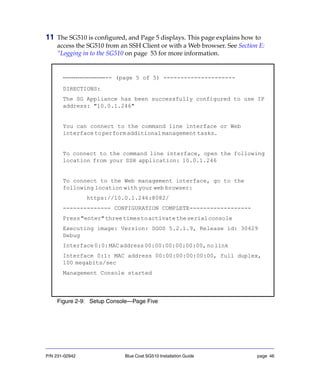
11 The SG510 is configured, and Page 5 displays. This page explains how to
access the SG510 from an SSH Client or with a Web browser. See Section E:
“Logging in to the SG510 on page 53 for more information.
Figure 2-9: Setup Console—Page Five
---------------------- (page 5 of 5) ---------------------
DIRECTIONS:
The SG Appliance has been successfully configured to use IP
address: "10.0.1.246"
You can connect to the command line interface or Web
interfacetoperformadditionalmanagementtasks.
To connect to the command line interface, open the following
location from your SSH application: 10.0.1.246
To connect to the Web management interface, go to the
following location with your web browser:
https://10.0.1.246:8082/
-------------- CONFIGURATION COMPLETE------------------
Press"enter"threetimestoactivatetheserialconsole
Executing image: Version: SGOS 5.2.1.9, Release id: 30429
Debug
Interface0:0:MACaddress00:00:00:00:00:00,nolink
Interface 0:1: MAC address 00:00:00:00:00:00, full duplex,
100 megabits/sec
Management Console started
P/N 231-02942 Blue Coat SG510 Installation Guide page 47
12 To log in to the serial console right away, press <Enter> three times.
A menu displays offering two choices:
1) Command Line Interface
2) Setup Console
13 Access the CLI or Management Console:
• Enter 1 in the serial console menu to select the CLI.
See “Logging in to the SG510 CLI” on page 55 for information about using
the SG510 CLI.
• To access the SG510 Management Console, enter the following address
into your Web browser:
https://proxysg_IP:8082/
where proxysg_IP is the IP address that you configured for this SG510.
See “Logging in to the SG510 Management Console” on page 53 for more
information about accessing the SG510.
P/N 231-02942 Blue Coat SG510 Installation Guide page 48
Section D: Configuring the SG510 Using Director
Registration
This section describes how to configure the SG510 using the Director Registration
feature.
Director Registration is a process that provides appliance authentication and
allows Blue Coat devices to verify each other without exchanging passwords over
the network. Director registration establishes a secure administrative session with
the SG510 and authenticates the SG appliance to the Director as an SSL client.
Upon authentication, it allows you to control access to the SG510 through the
Director. To complete the registration process, both the SG510 and the Director
need to authenticate each other.
If you have Internet connectivity, an appliance certificate is automatically fetched
by the SG510. If the Internet connection is delayed or if you do not have Internet
access, you might have to manually initiate the process of obtaining an appliance
certificate. For details on manually obtaining an appliance certificate refer to the
Blue Coat ProxySG Configuration and Management Guide Suite (Volume 5: Advanced
Networking, Chapter 6: Authenticating a ProxySG).
If the SG appliance does not have an appliance certificate, you must configure a
registration password on the Director and enter the same password when
configuring the SG appliance to confirm their identities before exchanging public
keys. For details on setting a registration password, refer to Blue Coat Systems
Director—Configuration and Management Guide.
Note: Director Registration feature is only supported on the SG510
Director.
P/N 231-02942 Blue Coat SG510 Installation Guide page 49
Important: Before using Director Registration in the SG510 set up console,
log in to the Director and obtain the appliance certificate for it.
The Director must have an appliance certificate and it must be
configured properly so that it can receive the registration
request from the SG510.
To configure the SG510 using Director Registration:
1 Connect the SG510 to a serial console, PC, or place it within your network,
and configure an IP address, subnet mask, and IP gateway using the serial
console or the front panel buttons. See “Overview of First-Time Configuration”
on page 20.
2 Power on the SG510 and wait for the system to finish booting.
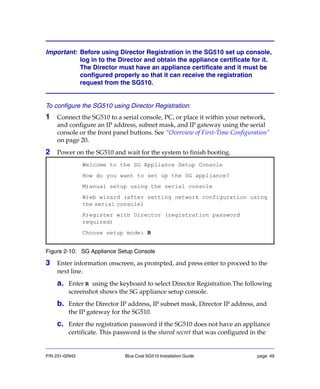
Figure 2-10: SG Appliance Setup Console
3 Enter information onscreen, as prompted, and press enter to proceed to the
next line.
a. Enter R using the keyboard to select Director Registration.The following
screenshot shows the SG appliance setup console.
b. Enter the Director IP address, IP subnet mask, Director IP address, and
the IP gateway for the SG510.
c. Enter the registration password if the SG510 does not have an appliance
certificate. This password is the shared secret that was configured in the
Welcome to the SG Appliance Setup Console
How do you want to set up the SG appliance?
M)anual setup using the serial console
W)eb wizard (after setting network configuration using
the serial console)
R)egister with Director (registration password
required)
Choose setup mode: R
P/N 231-02942 Blue Coat SG510 Installation Guide page 50
Director to authenticate the SG510 appliance. For more information refer
to Blue Coat Systems Director—Configuration and Management Guide.
Note: The SG510 does not prompt for a registration password if it detects
that it has an appliance certificate.
d. Enter the appliance name. The appliance name is for your reference, for
example: SG510 Atlanta— you can name the appliance based on its
location.
If you provide an appliance name, the Director uses the appliance name
to create a Device ID. Otherwise, the IP address of the SG510 is the
default Device ID.
P/N 231-02942 Blue Coat SG510 Installation Guide page 51
e. Verify the IP addresses.
Type Y to confirm the serial number of the Director. The SG510 is
registered.
or, Type N to abort the registration process.
f.
Figure 2-11: Screen to verify Director serial number and register with Director
4 To configure the SG510 using Director, go to the Director Management
Console or the Director CLI.
5 To log in to the serial console right away, press <Enter> three times.
A menu displays offering two choices:
1) Command Line Interface
2) Setup Console
Choose setup mode:R
IP address[0.0.0.0]:10.0.0.146
IP subnet mask [255.255.255.0]:
Director IP address [0.0.0.0]: 10.0.0.146
IP
Registration password:
Appliance name (optional):
You have entered the following IP addresses:
IP address:10.0.0.1
IP subnet mask: 255.255.255.0
Director IP: 10.0.0.146
IP gateway: 10.9.44.1
Choose setup mode:R
IP
IP
Director
IP gateway [0.0.0.0]:10.0.1.1
Registration password:
Appliance name (optional):
You have entered the following IP addresses:
IP subnet mask: 255.255.255.0
IP gateway: 10.9.44.1
Would you like to change any of them? Y/N N
Connecting to 10.0.0.146 to determine Director serial number
This can take up to 90 seconds ... please wait
Director reports serial number: 1234567899
Is that the expected serial number? Y/N Y
Connecting to 10.0.0.146 to register with Director 1234567899
Registration succeeded
Press "enter" three times to activate the serial console
b
e
d
P/N 231-02942 Blue Coat SG510 Installation Guide page 52
6 To access the CLI or Management Console of the SG510:
• Enter 1 in the serial console menu to select the CLI.
See “Logging in to the SG510 CLI” on page 55 for information about using
the SG510 CLI.
• To access the SG510 Management Console, enter the following address
into your Web browser:
https://proxysg_IP:8082/
where proxysg_IP is the IP address that you configured for this SG510. See
“Logging in to the SG510 Management Console” on page 53 for more
information about accessing the SG510.
P/N 231-02942 Blue Coat SG510 Installation Guide page 53
Section E: Logging in to the SG510
After the SG510 is configured, the LCD will cycle through and display various
messages, such as CPU Utilization and Freshness.
After completing initial configuration and connecting the SG510 to the network,
you must log on to the SG510 to fully configure the appliance. There are two ways
to do this.
• Use a browser to access the SG510 Management Console Web interface.
• Use a direct serial connection or an SSH Client to access the SG510
command-line interface (CLI).
Important: Blue Coat recommends that you set up a secure SSL connection
for greater security. For instructions, refer to Volume 5: Securing
the ProxySG in the Blue Coat ProxySG Configuration and Management
Guide Suite .
Logging in to the SG510 Management Console
The Management Console is a graphical interface for configuring and managing
all aspects of the SG510. You can log on to the Management Console using a
browser.
To log in to the Management Console using a Web browser:
1 Start the SG510.
2 Launch a browser. Refer to the release notes of your SGOS version for details
on compatible Web browsers.
3 Enter the IP address configured during initial configuration, followed by the
port number 8082. For example, enter: https://10.25.36.47:8082.
4 Click Yes in the Security Alert dialog; enter a username and password in the
Enter Network Password dialog that displays. If the username has not been
changed, the default is admin. The password is the one you wrote down or
configured during initial configuration.
P/N 231-02942 Blue Coat SG510 Installation Guide page 54
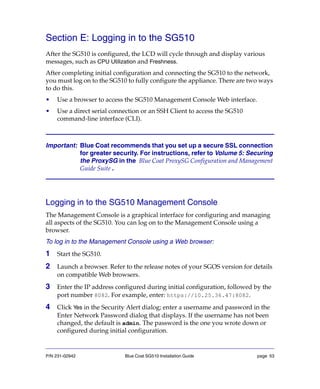
The SG510 home page displays.
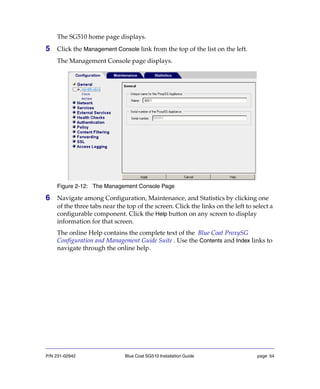
5 Click the Management Console link from the top of the list on the left.
The Management Console page displays.
Figure 2-12: The Management Console Page
6 Navigate among Configuration, Maintenance, and Statistics by clicking one
of the three tabs near the top of the screen. Click the links on the left to select a
configurable component. Click the Help button on any screen to display
information for that screen.
The online Help contains the complete text of the Blue Coat ProxySG
Configuration and Management Guide Suite . Use the Contents and Index links to
navigate through the online help.
P/N 231-02942 Blue Coat SG510 Installation Guide page 55
Logging in to the SG510 CLI
You can connect to the SG510 CLI (a) by using a direct serial connection or (b) by
using an SSH client, such as PuTTY or F-Secure. To connect to the SG510 CLI using
Telnet, you must first enable the Telnet-Console. Refer to the Volume 2: Proxies and
Proxy Services of the Blue Coat ProxySG Configuration and Management Guide Suite .
Note: The CLI uses two passwords: The console password is required to
establish a connection to the interface, and the enable password can
be set to restrict access to the privileged mode configuration
options. If you forget the username or password, you can reset them
using either the front panel control buttons and LCD or a serial
terminal or PC.
To log in to the SG510 CLI using a direct serial connection:
1 To set up the serial connection, complete steps 1 and 2 in the section “Initial
Configuration Using a Serial Console” on page 34.
2 After the system has finished booting, press the computer keyboard Enter key
three times. The following text displays:
Figure 2-13: Serial Console Login Page
3 Enter 1 to select the Command Line Interface option.
4 Enter the username and password when prompted. If the username has not
been changed, the default is admin. The password is the one you wrote down
or configured during initial configuration.
Welcome to the Appliance Serial Console
Version: SGOS 5.2.2.0, Release id: 12345
------------------------MENU---------------------------
1) Command Line Interface
2) Setup Console
-------------------------------------------------------
Enter option:
P/N 231-02942 Blue Coat SG510 Installation Guide page 56
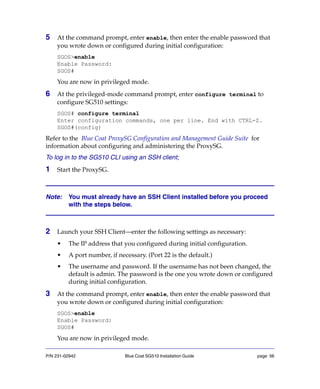
5 At the command prompt, enter enable, then enter the enable password that
you wrote down or configured during initial configuration:
SGOS>enable
Enable Password:
SGOS#
You are now in privileged mode.
6 At the privileged-mode command prompt, enter configure terminal to
configure SG510 settings:
SGOS# configure terminal
Enter configuration commands, one per line. End with CTRL-Z.
SGOS#(config)
Refer to the Blue Coat ProxySG Configuration and Management Guide Suite for
information about configuring and administering the ProxySG.
To log in to the SG510 CLI using an SSH client;
1 Start the ProxySG.
Note: You must already have an SSH Client installed before you proceed
with the steps below.
2 Launch your SSH Client—enter the following settings as necessary:
• The IP address that you configured during initial configuration.
• A port number, if necessary. (Port 22 is the default.)
• The username and password. If the username has not been changed, the
default is admin. The password is the one you wrote down or configured
during initial configuration.
3 At the command prompt, enter enable, then enter the enable password that
you wrote down or configured during initial configuration:
SGOS>enable
Enable Password:
SGOS#
You are now in privileged mode.
P/N 231-02942 Blue Coat SG510 Installation Guide page 57
4 At the privileged-mode command prompt, enter configure terminal to
configure ProxySG settings:
SGOS#configure terminal
[Enter configuration commands, one per line. End with CTRL-Z.]
SGOS#(config)
Refer to the Blue Coat ProxySG Configuration and Management Guide Suite for
information about configuring and administering the ProxySG.
P/N 231-02942 Blue Coat SG510 Installation Guide page 58
Section F: Configuring a Front-Panel PIN
The front panel allows you to reconfigure the initial settings of the SG510, which
can represent a security risk. Setting a front-panel PIN limits access to authorized
personnel only.
This procedure is only available through the CLI—you cannot set a front-panel
PIN through the Management Console.
To configure a front-panel PIN:
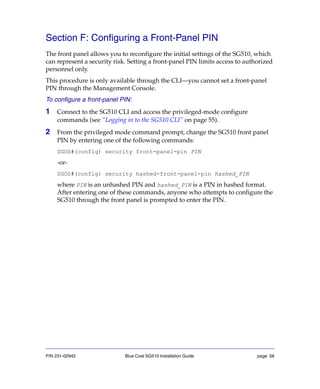
1 Connect to the SG510 CLI and access the privileged-mode configure
commands (see “Logging in to the SG510 CLI” on page 55).
2 From the privileged mode command prompt, change the SG510 front panel
PIN by entering one of the following commands:
SGOS#(config) security front-panel-pin PIN
-or-
SGOS#(config) security hashed-front-panel-pin hashed_PIN
where PIN is an unhashed PIN and hashed_PIN is a PIN in hashed format.
After entering one of these commands, anyone who attempts to configure the
SG510 through the front panel is prompted to enter the PIN.
P/N 231-02942 Blue Coat SG510 Installation Guide page 59
Section G: Configuring the Front-Panel LCD Behavior
The front-panel LCD turns off after 30 seconds by default. This behavior is
configurable—you can set the LCD to remain on at all times, to turn off after a
specified length of time, or to flash (the flash setting can be helpful if you need to
find one SG510 in a room full of them).
The front-panel LCD cannot be configured through the Management
Console—you must use the CLI.
To configure the front-panel LCD through the CLI:
1 Open a terminal session with the SG510; at the standard-mode command
prompt, enter enable and your privileged-mode password.
SGOS>enable
Enable Password: ******
SGOS#
2 At the privileged-mode command prompt, enter the configure terminal
command to access the privileged mode configure commands:
SGOS#configure terminal
SGOS#(config)
3 At the (config) prompt, enter the front-panel command to access the
front-panel mode commands and to configure the front-panel LCD behavior.
SGOS#(config) front-panel
SGOS#(config front-panel)
SGOS#(config front-panel) backlight flash
SGOS#(config front-panel) backlight state {off | on | timeout}
SGOS#(config front-panel) backlight timeout seconds
P/N 231-02942 Blue Coat SG510 Installation Guide page 60
where:
flash Configures the LCD to flash. When set, the LCD
continues to flash until the user presses a front panel
button or the setting is changed through the CLI
command no backlight flash.
The flash setting can overwrite the backlight state
setting.
state off Configures the LCD to always remain off when the
ProxySG is powered on. This is the default behavior.
on Configures the LCD to always remain on when the
SG510 is powered on.
timeout Configures the LCD to turn off after a specified
number of seconds. Use the backlight timeout
seconds command (described below) to specify the
number of seconds.
timeout seconds Specifies the number of seconds that the LCD
remains on without activity. The backlight
state timeout command specifies an LCD
timeout; this command specifies the number of
seconds before timeout occurs.
P/N 231-02942 Blue Coat SG510 Installation Guide page 61
Chapter 3: Removing and Installing Disk Drives
This chapter describes how to remove and install disk drives.
Important: The SG510 only supports disk-drive upgrade packages obtained
from Blue Coat Systems, Inc.
Important: You cannot hot-swap disks in the SG510; you will lose all
configuration settings.
A SG510 Appliance has open slots for two disk drives. The unit ships with two
blank disk-drive spacers already installed. Do not attempt to remove these blank
drives.
If your original appliance came with a single disk drive, upgrade options are
available from Blue Coat.
If you are upgrading your SG510 by adding (not replacing) disk drives, you can
skip to “Installing a New Disk Drive” on page 63.
For initial installation of disk drives into a new SG510, see “Installing the Disk
Drives” on page 12.
P/N 231-02942 Blue Coat SG510 Installation Guide page 62
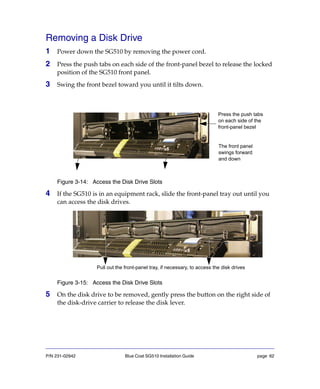
Removing a Disk Drive
1 Power down the SG510 by removing the power cord.
2 Press the push tabs on each side of the front-panel bezel to release the locked
position of the SG510 front panel.
3 Swing the front bezel toward you until it tilts down.
Figure 3-14: Access the Disk Drive Slots
4 If the SG510 is in an equipment rack, slide the front-panel tray out until you
can access the disk drives.
Figure 3-15: Access the Disk Drive Slots
5 On the disk drive to be removed, gently press the button on the right side of
the disk-drive carrier to release the disk lever.
Press the push tabs
on each side of the
front-panel bezel
The front panel
swings forward
and down
Pull out the front-panel tray, if necessary, to access the disk drives
P/N 231-02942 Blue Coat SG510 Installation Guide page 63
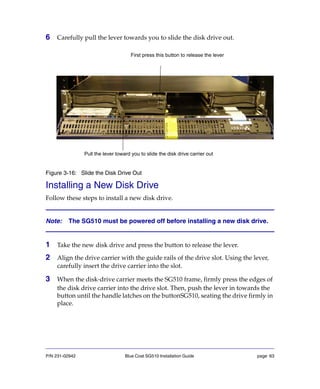
6 Carefully pull the lever towards you to slide the disk drive out.
Figure 3-16: Slide the Disk Drive Out
Installing a New Disk Drive
Follow these steps to install a new disk drive.
Note: The SG510 must be powered off before installing a new disk drive.
1 Take the new disk drive and press the button to release the lever.
2 Align the drive carrier with the guide rails of the drive slot. Using the lever,
carefully insert the drive carrier into the slot.
3 When the disk-drive carrier meets the SG510 frame, firmly press the edges of
the disk drive carrier into the drive slot. Then, push the lever in towards the
button until the handle latches on the buttonSG510, seating the drive firmly in
place.
First press this button to release the lever
Pull the lever toward you to slide the disk drive carrier out
P/N 231-02942 Blue Coat SG510 Installation Guide page 64
4 Slide in the front panel tray, if necessary, and close the front panel.
5 Power up the SG510.
The SG510 recognizes and initializes the disk; no configuration is necessary. When
the new disk is plugged in, the corresponding Disk Drive LED lights up to show
that the drive is online.
Setting the Default Boot System
The system will always try to boot the newest software image, which might be the
image installed on the new disk drive. If you do not want to boot that software
image on the next reboot, you must reselect the default software image.
Using the Management Console, configure the appliance to boot the desired
system image.
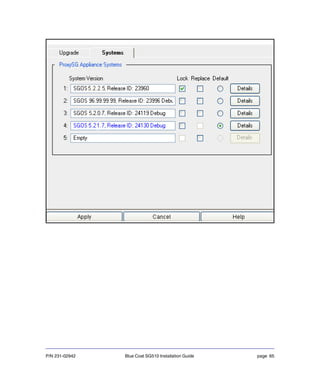
To set the default boot system using the Management Console:
1 Select Maintenance > Upgrade > Systems.
2 In the SG Appliance Systems section, locate the desired software image and
select the Default radio button.
The SG appliance Systems tab displays the five available systems. Empty
systems are indicated by the word Empty.
The system currently running is highlighted in blue and cannot be replaced or
deleted.
P/N 231-02942 Blue Coat SG510 Installation Guide page 65
P/N 231-02942 Blue Coat SG510 Installation Guide page 66
P/N 231-02942 Blue Coat SG510 Installation Guide page 67
Chapter 4: Next Steps
After you have completed the first-time configuration of the SG510 and have
logged in, you should do the following:
• Upgrade the SG510 software by downloading the latest patch release
(available at http://download.bluecoat.com).
• Fully configure the appliance.
To configure the SG510, you will need to download the Blue Coat ProxySG
Configuration and Management Guide Suite, (the CMG) available on the Blue
Coat Web site at http://www.bluecoat.com/support/manuals
You must have a WebPower account to access the documentation. If you do
yet have an account, go to: https://services.bluecoat.com/
You can also find tech briefs (technical briefs) on the Blue Coat Web site.
If you log on to the SG510 using a Web browser, you can access the online
help by clicking the Help button on the Management Console screens. The
Management Console is the graphical user interface for the SG510. See
“Logging in to the SG510 Management Console” on page 53 for more
information.
• Activate the SG510 license. You must have a Blue Coat WebPower account.
Note: If you have new SG810 hardware that previously has been registered, the
license is already associated with the hardware. Go to Maintenance >
Licensing > Install and click Retrieve to obtain the license.
If you have older hardware that previously has been registered or if the
SG510 does not have Internet access, you can install the software license
under Maintenance > Licensing > Install.
To activate the SG510 license:
1. Open a Web browser.
2. Disable the browser’s pop-up blocker.
3. Enter the IP address you assigned to this appliance during initial setup:
https://ip_address:8082
4. Enter the access credentials, as specified during initial setup.
P/N 231-02942 Blue Coat SG510 Installation Guide page 68
5. Click Management Console. The license warning/registration screen displays.
6. Enter your WebPower credentials and click Register Now; this automatically
registers the hardware and software.
7. From the Management Console, go to the License page to begin the license
retrieval process: Maintenance > Licensing > Install.
8. Click Retrieve. The Request License Key dialog displays.
9. Enter your WebPower credentials and click Send Request.
10.To verify license installation, click the View tab and click Refresh Data.
If you require detailed procedures regarding registration, license retrieval,
and installation, refer to the Licensing chapter in the SG Appliance Volume 1:
Getting Started document, or click the Help button to view the contents of that
chapter in HTML format.
Blue Coat recommends attaching one of the software license stickers to the
chassis and saving the other one for future reference. You can attach it to this
document and file it, or attach it to another document, as required in your
enterprise.
Table 4.1: Licensed Users
• Archive your system configuration and store it in a remote location so that
you may restore it, if needed.
For comprehensive archiving instrutions, refer to the Backup chapter in
Volume 1: Getting Started of the Blue Coat ProxySG Configuration and
Management Guide.
Hardware Model
Number of Users (Without ADN
Enabled)
Number of Users
(With ADN Enabled)
510-5 200 50
510-10 500 125
510-20 1200 300
510-25 Not License Limited Not License Limited
P/N 231-02942 Blue Coat SG510 Installation Guide page 69
• (Optional) Purchase the SG510 option card kits. The different option cards
that are compatible with the SG510 are listed below:
• Dual GigE Fiber
• Dual GigE Copper NIC
• Dual GigE Copper with Pass-Through
• Quad GigE Copper with Pass-Through
• SSL Accelerator Card. You must purchase an SSL license to use the SSL
Accelerator card.
• (Optional) Purchase the SG510 upgrade kits. For more details and upgrade
paths, refer to the table on the following page.
The following table describes the components included in each upgrade kit.
To purchase your upgrade kit, find the table entry that matches your upgrade
Upgrading
from. . . to. . .
Part
Number
Kit contains:
510-5 510-10 085-02501 Two 320GB SATA HDD; one two-port
Pass-Through card; one SSL card
Older Models
510-a 510-10 085-02501 Two 1Gb DIMM; two 320Gb SATA HDD; one
two-port Pass-Through card; one SSL card
510-b 510-10 085-02501 Two 1Gb DIMM; two 320Gb SATA HDD; one
two-port Pass-Through card; one SSL card
510-c 510-10 085-02501 Two 1Gb DIMM; two 320Gb SATA HDD; one
two-port Pass-Through card; one SSL card
Each kit also includes the following:
• Upgrade Instructions
• Upgrade Sticker
• Software License Agreement
• ESD Wrist Strap
P/N 231-02942 Blue Coat SG510 Installation Guide page 70
P/N 231-02942 Blue Coat SG510 Installation Guide page 71
Chapter 5: Troubleshooting
This chapter describes how to isolate and solve common problems during the
installation of the SG510.
The topics discussed in this section are:
• “The Disk Drive LED Has A Solid Amber Light” on page 72
• “The SG510 Does Not Power Up” on page 72
• “The Disk Drive LED Has A Solid Amber Light” on page 72
• “Testing the SG510” on page 73
• “CLI Session Times Out” on page 73
• “CLI Limited to 16 Sessions” on page 73
• “The Web Setup Wizard Page is Not Accessible” on page 73
• “You Cannot Access the Serial Console” on page 75
• “You Cannot Access the Management Console” on page 75
• “A Security Warning Appears for the Initial Configuration Web Page” on page 76
• “The SG510 Certificate is No Longer Valid” on page 76
• “Resetting the SG510 to Factory Defaults” on page 77
• “The SG510 Cannot Connect to the Director” on page 79
• “Connection Request Rejected by Director” on page 80
The SG510 Does Not Come Back Up After Rebooting
If the appliance is not coming back up after rebooting and the serial port is
connected to terminal server (terminal concentrator) try the following:
1 Open an active session on the terminal server, noting any traffic being
outputted.
2 Unplug the terminal server from the appliance.
P/N 231-02942 Blue Coat SG510 Installation Guide page 72
The SG510 Does Not Power Up
If the SG510 does not power up, check the following:
• The power cord is fully inserted into the back of the SG510.
• The power cord is plugged into a working outlet or power supply.
When the SG510 is powered up and running, the Power LED on the front panel of
the SG510 is on, the Disk Drive LEDs (for as many disks as are installed) are on,
and the LCD displays Blue Coat when starting up and then the LCD cycles
between CPU utilization and proxied traffic statistics when the SG510 is running.
Figure 5-1: SG510 Powering Up
The Disk Drive LED Has A Solid Amber Light
If the disk drive LED is glowing amber, the disk drive is not well-seated. To reseat
the disk drive see “Installing a New Disk Drive” on page 66.
When the disk drive is properly seated, the disk drive LED glows solid green.
LCD
Power LED
P/N 231-02942 Blue Coat SG510 Installation Guide page 73
Testing the SG510
If you suspect a problem with the SG510, test its operation and connection using
the CLI. Use the ping and traceroute commands to test the network connection.
From enable mode, use test http get command to retrieve an object or test
http loopback command to run a loopback test to verify that the device is
operational. Refer to Blue Coat ProxySG Command Line Interface Reference for
information on these commands.
CLI Session Times Out
An SSH session to the CLI remains open as long as there is activity. If you leave
the session idle, the connection eventually times out and you will have to
reconnect. The default timeout is five minutes. You can set the timeout by using
the line-vty command in configure mode, as follows:
SGOS#(config)line-vty
SGOS#(config line-vty)timeout minutes
SGOS#(config line-vty)exit
CLI Limited to 16 Sessions
The CLI is limited to 16 active sessions (and one serial console session). If you try
to connect a 17th session, you receive a message saying that no more sessions are
available. To connect, you will have to wait for one of the active sessions to close.
The Web Setup Wizard Page is Not Accessible
This is a networking problem or you entered an incorrect network address.
Attempt the following:
• Verify that the SG510 is powered on.
• Verify that both interfaces have established a network link.
• Ping the SG510 or have the SG510 ping other devices on the network, such as
its gateway.
• If you are using a bridged deployment, verify that you entered the correct
initial configuration URL: https://proxysg_IP.bluecoat.com:8083/
where, proxysg_IP is the IP address you configured for this SG510 using the
front panel or the serial console.
P/N 231-02942 Blue Coat SG510 Installation Guide page 74
• Verify that the browser is not proxied. To change or check the browser
settings, complete one of the following steps:
• In a Windows browser, select Tools > Internet Options > Connections. Click
LAN Settings and deselect Proxy server if it is selected.
• In a Firefox browser, select Tools > Options > Advanced > Network >
Connections . Click Settings and clear Manual or Automatic Proxy Configuration
if one of them is selected (select Direct Connection to the Internet).
• In a Netscape Communicator browser, select Edit > Preferences > Advanced
> Proxies and clear Manual or Automatic Proxy Configuration if one of them is
selected (select Direct Connection to the Internet).
• Restore the appliance to its factory defaults (the Initial Configuration page is
not accessible to an appliance that has already been configured). See
“Resetting the SG510 to Factory Defaults” on page 77.
• Use another method, such as the serial console.
P/N 231-02942 Blue Coat SG510 Installation Guide page 75
You Cannot Access the Serial Console
If you have connected a serial cable to the SG510 but you cannot open the serial
console, do the following:
• Check cable connections.
• Check configuration information at the terminal emulator for the correct
settings (see “Initial Configuration Using a Serial Console” on page 34 for
information).
• Verify that the serial cable is a Null Modem type cable. The cable pin outs can
be found at http://www.bluecoat.com/support/self-service/1/pinouts.html
• Use a different cable.
You Cannot Access the Management Console
If the browser fails to connect to the SG510 successfully, complete the following
steps to identify the problem.
• Verify that you have the correct IP address and port for the SG510 in your
Web browser (the default port is 8082).
Verify the address and port using the CLI through the Serial Console, and
display the network configuration. For information on how to do this, see
“Initial Configuration Using a Serial Console” on page 34.
• Verify that the workstation is configured and working properly by connecting
to other Web sites. This test might fail if your browser is configured to use the
SG510 as a proxy server and there is a problem with the SG510.
• If accessing a SG510 located on a remote network (any segment other than the
segment to which the workstation is attached), verify that other servers on
that network are accessible.
• Ping the IP address to verify that the SG510 is accessible from the
workstation. If the SG510 does not respond to the ping, verify that the SG510
is operational (as described earlier).
P/N 231-02942 Blue Coat SG510 Installation Guide page 76
A Security Warning Appears for the Initial
Configuration Web Page
When you open the Initial Configuration page, a security warning dialog appears.
This warning indicates that the SG510 credentials could not be verified by a
known certificate authority (such as VeriSign®). This is because the SG510
dynamically generated the self-signed credentials at the time of the last factory
reset—they are not registered with a known certificate authority.
Normally, accepting such a credential represents a security risk because of the
possibility of a man-in-the-middle attack. However, when you have connected
your PC directly to the SG510, as described in this guide, a man-in-the-middle
attack is impossible. The SG510 has not yet been configured and is connected
directly to your PC. The Initial Configuration Web page is accessible only through
a SG510 that has not yet been configured.
You can verify that the serial number in the credential matches the serial number
printed on the SG510 if you want to be absolutely certain that you have connected
to the correct device.
The SG510 Certificate is No Longer Valid
If you move the SG510 from its original location or change the IP address for any
reason, the SG510’s security certificate might not be accepted the next time you
open the Management Console.
This is because the hostname no longer matches the hostname on the certificate.
You must create a new certificate and then edit the HTTPS-Console service to use
it.
For information about creating a new certificate and editing the HTTPS-Console
service, refer to the “Configuring HTTPS Termination” and “HTTPS Console
(Secure Console)” sections of the Blue Coat ProxySG Configuration and Management
Guide Suite.
P/N 231-02942 Blue Coat SG510 Installation Guide page 77
Resetting the SG510 to Factory Defaults
When the SG510 is powered on and has booted up, but an initial configuration
has not yet been performed, the Power LED flashes green and amber. If the Power
LED is solid green, the initial configuration has already been performed. If you
did not perform an initial configuration, but the Power LED is solid green, reset
the appliance to its factory defaults. Also reset the appliance if you cannot connect
to the Initial Configuration page through your browser. The initial configuration
Web page is accessible only to an appliance that has not been configured.
You can reset the SG510 to factory defaults by:
• Holding down the left arrow key on the front panel for 5 seconds. The
appliance will be reinitalized, and you will need to configure the SG510 again.
• Using the Management Console or the CLI.
Hold this key down for
5 seconds.
P/N 231-02942 Blue Coat SG510 Installation Guide page 78
To reset the SG510 to factory defaults using the Management Console:
1 Access the SG510 Management Console.
https://IP_Address:8082
Where IP_Address is the IP address of the SG510.
2 Select Maintenance>General.
3 In the Tasks field, click Restore the configuration to defaults.
4 Click Apply.
The appliance performs a soft restart. The power LED turns amber during the
restart. Wait until the reset is complete (about one minute) before trying to
complete the initial configuration.
Related CLI commands
SGOS# restore-defaults factory-defaults
3
P/N 231-02942 Blue Coat SG510 Installation Guide page 79
The SG510 Does Not Come Back Up After Rebooting
If the appliance is not coming back up after rebooting and the serial port is
connected to terminal server (terminal concentrator) try the following:
1 Open an active session on the terminal server, noting any traffic being
outputted.
2 Unplug the terminal server from the appliance.
The SG510 Cannot Connect to the Director
If the SG810 is unable to connect to the Director during Director Registration, the
following screen displays:
Check the following details:
• Check if you have obtained the Director appliance certificate. To obtain the
Director appliance certificate log in to the Director appliance and from the
configuration mode prompt enter:
Director (config) # ssl request-appliance-certificate ,when you have
an active internet connection.
• Validate network connection.
• Verify the IP address of the Director.
You have entered the following IP addresses:
IP address: 10.0.1.246
IP subnet mask: 255.255.255.0
Director IP: 10.0.0.1
IP gateway: 10.0.1.1
Would you like to change any of them? Y/N [No]
Connectingto10.0.0.1todetermineDirectorserialnumber
This can take up to 90 seconds ... please wait
Could not contact Director
P/N 231-02942 Blue Coat SG510 Installation Guide page 80
Connection Request Rejected by Director
The Director rejects a registration request when it fails to match the SG appliance
request information with the pre-staged Device ID on the Director. If more than
one parameter exists in the device record, all the parameters are matched. When
any parameter fails, Director rejects the registration request and the error message
displays.
Verify that the following parameters on the SG510 match the pre-staged Device ID
(for the same appliance) on the Director:
• IP Address
• Serial Number
• Appliance Name
P/N 231-02942 Blue Coat SG510 Installation Guide page 81
Appendix A: Specifications
General Specifications
Important: Any modifications to the unit, unless expressly approved by Blue
Coat, could void the user’s warranty.
Dimensions (Abmessungen)
(L x W x H)
58 cm x 44 cm x 4.4 cm
22.8 in. x 17.4 in. x 2.7 in.
Weight (Gewicht) 15 kilograms maximum
33 pounds maximum
Power Input, AC
(Stromversorgung)
100 - 240 VAC
50 - 60 Hz
6.3 - 3.0A
Processor (Prozessor) Intel®
Celeron
Memory (Speicher) SDRAM DDR333
Up to 2GB
Hard Drives (Festplatte) IDE SATA 1.5Gb/s
Network (Netzwerk) Two, on-board 10/100/1000 Base-T NICs
(Network Interface Cards)
Optional cards include the 1000B-SX
MTBF 100,000 Hours
P/N 231-02942 Blue Coat SG510 Installation Guide page 82
Environmental Specifications
Specification Operating (Betrieb) Non-Operating (Lagerung)
Temperature
(Betriebstemeperatur)
5°C to 35°C (41°F to 95°F) -20°C to 70°C (-4°F to 158°F)
Relative Humidity
(non-condensing)
(Relative Luftfeuchte)
15% to 95% at 35°C (95°F) 15% to 90% at 65°C (149°F)
Maximum altitude
(Hohe)
up to 3000 meters
(up to 10,000 feet)
4.6 Km (15,000 ft)
P/N 231-02942 Blue Coat SG510 Installation Guide page 83
Appendix B: Regulatory Statements
Any modification to this product, unless expressly approved by Blue Coat
Systems, Inc., could void the user’s authority to operate the equipment.
Do not service the proxy yourself. If you have any questions, please
contact Blue Coat.
Blue Coat Corporate
420 North Mary Avenue
Sunnyvale, CA 94085-4121
408.220.2200
General System Cautions
To ensure normal operation, follow these guidelines:
Top cover removal—Before removing the top cover, turn off the power.
Ventilation guidelines—Be Careful! Do not block any openings in the system to
avoid overheating the system.
Water caution—Be Careful! Do not get any water on the system.
System use and installation—The system is intended for use in a server room
only. It is not intended be installed in individual employee work areas.
Rack-Mounting Notes
Read these notes before rack-mounting the ProxySG.
A Elevated Operating Ambient—If installed in a closed or multi-unit rack
assembly, the operating ambient temperature of the rack environment may be
greater than room ambient. Therefore, consideration should be given to
installing the equipment in an environment compatible with the maximum
ambient temperature (Tmax) specified by the manufacturer.
B Reduced Air Flow—Installation of the equipment in a rack should be such
that the amount of air flow required for safe operation of the equipment is not
compromised.
P/N 231-02942 Blue Coat SG510 Installation Guide page 84
C Mechanical Loading—Mounting of the equipment in the rack should be such
that a hazardous condition is not achieved due to uneven mechanical loading.
D Circuit Overloading—Consideration should be given to the connection of the
equipment to the supply circuit and the effect that overloading of the circuits
might have on overcurrent protection and supply wiring. Appropriate
consideration of equipment nameplate ratings should be used when
addressing this concern.
E Reliable Earthing —Reliable earthing of rack-mounted equipment should be
maintained. Particular attention should be given to supply connections other
than direct connections to the branch circuit (for example, use of power
strips).
Power Cord Cautions
Caution—This product is designed to work with power systems having a
grounded neutral. To reduce the risk of electric shock, do not plug this product
into any other type of power system. Contact a qualified electrician if you are not
sure what type of power is supplied to your building.
Caution—Not all power cords have the same current ratings. Do not use the
power cord provided with your equipment for any other products or use.
Caution—there is no power switch equipped on this device. The power cord
serves as the primary disconnect device for the system. Be sure to plug the power
cord into a grounded power outlet that is nearby the system and is readily
accessible. Do not connect the power cord when the power supply has been
removed from the system chassis.
Class A Digital Warning
This equipment has been tested and found to comply with the limits for a Class A
digital device, pursuant to Part 15 of the FCC rules. These limits are designed to
provide reasonable protection against harmful interference when the equipment
is operated in a commercial environment. This equipment generates, uses, and
can radiate radio frequency energy, and if not installed and used in accordance
with the instruction manual, might cause harmful interference to radio
communications. Operation of this equipment in a residential area is likely to
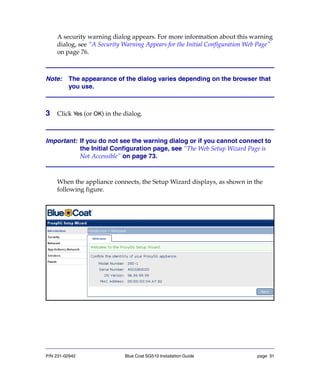
cause harmful interference, in which case the users are required to correct the
interference at their own expense.
P/N 231-02942 Blue Coat SG510 Installation Guide page 85
Advertencia Digital Clase A
Este equipo ha sido probado y se ha visto que se mantiene dentro de los límites de
un dispositivo digital Clase A según la parte 15 de las normas de la FCC. Estos
límites están designados para proveer una protección razonable contra
interferencias dañinas cuando el equipo es usado en un ambiente comercial. Este
equipo genera, usa y puede irradiar energía de radiofrecuencia; si no es instalado
y usado de acuerdo al manual de instrucciones, puede causar interferencias
perjudiciales para las comunicaciones de radio. El uso de este equipo en un área
residencial puede causar interferencia perjudicial; en este caso los usuarios
deberán corregir la interferencia cubriendo los gastos por ellos mismos.
EC Community EMC Warning
This is a Class A product. In a domestic environment, this product might cause
radio interference in which case the user might be required to take adequate
measures.
Advertencia EMC de la Comunidad EC
Este es un producto Clase A En un ambiente doméstico, este producto puede
causar interferencia de radio, en cuyo caso el usuario podría verse obligado a
tomar medidas adecuadas.
Canadian EC EMC Warning
This Class A digital apparatus complies with Canadian ICES-003. Cet appareil
numerique de la class A est conforme a la norme NMB-003 du Canada.
Australia/New Zealand EC EMC Warning
This is a Class A product. In a domestic environment, this product might cause
radio interference, in which case the user might be required to take adequate
measures.
Taiwan BSMI Notification
P/N 231-02942 Blue Coat SG510 Installation Guide page 86
Japan VCCI EMC Notification
Battery Warning Notification
CAUTION: Danger of explosion if battery is incorrectly placed. Replace only with
the same or equivalent type recommended by the manufacturer. Dispose of used
batteries according to the manufacturer’s instructions.
Connection to ports not defined for normal operation, according to this manual,
might result in excessive radiated emissions. The user is then responsible for all
corrective action in the event of any problem.
PRECAUCION: Peligro de explosión si la batería es colocada incorrectamente.
Substituya sólo con el con el modelo original o la recomendacion del fabricante.
Elimine las baterías usadas segun las instrucciones del fabricante.
La conexión a puertos no definidos para operación normal, de acuerdo a este
manual, puede producir emisiones excesivas de radiación. El usuario es
responsable de corregir esto en caso de cualquier problema.
ATTENTION: Il y a danger d’explosion s’il y a remplacement incorrect de la
batterie. Remplacer uniquement avec une batterie de meme type ou d’un type
equivalent recommande par le constructeur. Metter au rebut less batteries usagees
conformement aux instructions du fabricant.
VORSICHT! Explosionsgefahr bei unsachgemäßem Austausch der Batterie.
Ersatz nur durch denselben oder einen vom Hersteller empfohlenen
glelchwertigen Typ.
Entsorgung gebrauchter Batterien nach Angaben des Herstellers.
P/N 231-02942 Blue Coat SG510 Installation Guide page 87
Chinese Battery Warning Notification
China CCC Notification
Lasers
Location of the laser apertures if any (Par. 6.1 3). Example: connectors for fiber
optic component.
P/N 231-02942 Blue Coat SG510 Installation Guide page 88
P/N 231-02942 Blue Coat SG510 Installation Guide page 89
P/N 231-02942 Blue Coat SG510 Installation Guide page 90
P/N 231-02942 Blue Coat SG510 Installation Guide page 91
Declaration of Conformity
We, Blue Coat Systems
420 North Mary Avenue
Sunnyvale, CA 94085
Declare under our sole responsibility that the products
Blue Coat Systems Model 510 Series
to which this declaration relates is in conformity with the following
standards:
EN 60950: 1999-2004
EN 55022: 1994
EN 50024: 1998
Following the provisions of the 73/23/EEC and 89/336/EEC Directives,
including the Amending Directive 93/68/EEC.
Blue Coat Systems Model 510 Series is also in conformity with the following
standard:
Directive 2002/95/EC, Restriction of Hazardous Substances (RoHS).
Sunnyvale, CA 94085
Date: July 1, 2006
420 North Mary Avenue Tim Redjaian
Sunnyvale, CA 94085-4121 Director of Engineering
USA
866.30.BCOAT Tool Free
408.220.2200 Direct
408.220.2250 Fax
www.bluecoat.com
P/N 231-02942 Blue Coat SG510 Installation Guide page 92
P/N 231-02942 Blue Coat SG510 Installation Guide page 93
Appendix C: Apéndice C: Declaraciones
Regulatorias
Cualquier modificación hecha a este producto, excepto con aprobación explícita
de Blue Coat Systems, Inc., puede anular la autoridad del usuario para usar el
equipo.
No repare el proxy por su cuenta. Si tiene alguna pregunta, contacte a Blue Coat.
Azul Coat Corporate
420 North Mary Avenue
Sunnyvale, CA 94085-4121 
408.220.2200
Precauciones generales del sistema
Para asegurar una operación normal, siga estas líneas directivas:
Remoción de la cubierta superior—Antes de remover la cubierta superior,
apague el equipo.
Líneas directivas sobre la ventilación—¡Tenga cuidado! Para evitar el
sobrecalentamiento del sistema, no bloquee las aberturas del sistema.
Tenga precaución con el agua—¡Tenga cuidado! No deje que el agua moje el
sistema
Uso e instalación del sistema—El sistema está diseñado para ser usado sólo en
una sala de servidores. No está diseñado para ser instalado en las áreas de trabajo
de los empleados.
Conexión del cable de alimentación
Para conectar el cable de alimentación:
1Enchufe el cable de alimentación en la conexión para el cable de alimentación.
2Mueva hacia abajo el retenedor del cable de alimentación para asegurar el cable
de alimentación.
Para más información, vea la Guía rápida de comienzo.
P/N 231-02942 Blue Coat SG510 Installation Guide page 94
Precaución—Este producto está diseñado para funcionar con sistemas de
alimentación con conexión a tierra. Para reducir el riesgo de electrocución, no
enchufe este producto en ningún otro tipo de sistema. Contacte un electricista
competente si no está seguro de qué tipo de alimentación es suministrado a su
edificio.
Precaución—No todos los cables de alimentación tienen la misma categorización
de corriente. No use el cable de alimentación provisto con su equipo para otros
productos u otro uso.
Precaución—este dispositivo no está equipado con una perilla de encendido. El
cable de alimentación sirve de dispositivo primario de desconexión del sistema.
Asegúrese de enchufar el cable de alimentación a un tomacorriente con conexión
a tierra que esté cerca del sistema y esté accesible. No conecte el cable de
alimentación si la fuente de alimentación ha sido removida del chasis del sistema.
Lasers
Ubicación de las aberturas láser, si existen (Párr. 6.1 3). Ejemplo: conectores para
componente de fibra óptica.
P/N 231-02942 Blue Coat SG510 Installation Guide page 95
Appendix D: Anhang D: Regulierende
Anweisungen
Jede Veränderung dieses Produktes, welche nicht ausdrücklich von Blue Coat
Systems, Inc genehmigt wurde, kann die Nutzungserlaubnis des Benutzers
vernichten.
Üben Sie die Bevollmächtigung nicht selbst aus. Wenn Sie Fragen haben, wenden
Sie sich bitte an Blue Coat.
Blue Coat Corporate
420 North Mary Avenue
Sunnyvale, CA 94085-4121
408.220.2200
Allgemeine Systemvorsichtsmassnahmen
Um eine normale Funktionsweise zu garantieren, befolgen Sie bitte folgende
Richtlinien:
Entfernen der oberen Abdeckung—Bevor Sie die obere Abdeckung entfernen,
schalten Sie den Strom ab.
Belüftungsrichtlinie—Seien Sie vorsichtig! Blockieren Sie keine Öffnung am
System, um eine Überhitzung des Systems zu vermeiden.
Feuchtigkeitsschutzmassnahmen—Seien Sie vorsichtig! Lassen Sie kein Wasser
in das System gelangen.
Systembenutzung und Installation—Das System ist nur für die Benutzung in
einem Serverraum ausgerichtet. Es ist nicht zur Installation an einzelnen
Arbeitsplätzen gedacht.
Anschliessen des Stromkabels
Schliessen Sie das Stromkabel wie folgt an:
1 Stecken Sie das Stromkabel in den Stromkabelanschluss.
P/N 231-02942 Blue Coat SG510 Installation Guide page 96
2 Drehen Sie die Stromkabelhalterung nach unten, um das Stromkabel zu
sichern.
Für weitere Informationen wenden Sie sich an die Schnellstartanweisung.
Achtung—Dieses Produkt ist zum Betrieb mit Stromsystemen, welche einen
geerdeten Nulleiter haben, ausgerichtet. Um das Risiko eines Stromschlages zu
verringern, stecken Sie das Produkt nicht in andere Stromsysteme ein.
Wenn Sie nicht sicher sind, welche Art von Strom in Ihrem Haus verwendet wird,
setzen Sie sich mit einem qualifizierten Elektriker in Verbindung.
Vorsicht—Nicht alle Stromkabel haben die gleiche Stromstärkeleistung.
Verwenden Sie das mitgelieferte Stromkabel nicht mit anderen Geräten.
Vorsicht—das Gerät hat keinen Stromschalter. Das Stromkabel dient als das
Hauptabschaltgerät. Stellen Sie sicher, dass Sie das Stromkabel in eine geerdete
Steckdose in der Nähe des Geräts stecken. Schliessen Sie das Stromkabel nicht an,
wenn das Netzteil vom Gehäuse des Systems entfernt wurde.
VORSICHT! Explosionsgefahr bei unsachgemäßem Austausch der Batterie.
Ersatz nur durch denselben oder einen vom Hersteller empfohlenen
glelchwertigen Typ.
Entsorgung gebrauchter Batterien nach Angaben des Herstellers.
Lasers
Lage der Laseröffnungen, falls vorhanden (Par. 6.1 3). Beispiel: Anschlüsse für
Fiber Optic Komponenten.
P/N 231-02942 Blue Coat SG510 Installation Guide page 97
Appendix E: Simplified Chinese Regulatory
Statements
P/N 231-02942 Blue Coat SG510 Installation Guide page 98
P/N 231-02942 Blue Coat SG510 Installation Guide page 99
.
P/N 231-02942 Blue Coat SG510 Installation Guide page 100
P/N 231-02942 Blue Coat SG510 Installation Guide page 101
Appendix F: Traditional Chinese Regulatory
Statements
P/N 231-02942 Blue Coat SG510 Installation Guide page 102
P/N 231-02942 Blue Coat SG510 Installation Guide page 103
.
P/N 231-02942 Blue Coat SG510 Installation Guide page 104
Index Blue Coat SG510 Installation Guide 105
Index
A
AC power cord, see power cord
activate license 67
automatic exit warning 25
B
back panel of SG510 9
booting,software image 64
buttons, see control buttons 23
C
cable management for the SG510 11
certificate
invalid if SG510 moves or changes IP
address 76
CLI
limited to four sessions 73
logging in to using a direct serial
connection 47, 51
logging in to using an SSH client 55–57
session times out 73
configuration mode 24
configuring the SG210
using Director registration, problems 79
configuring the SG510
configuring network settings 27–29
using a serial terminal or PC 35–46
using a Web browser 30–33
using Director registration 48–51
using front panel LCD and buttons 23–29
using the Setup Wizard 30
viewing modes in the LCD 24–25
connecting the SG510
into a network 19
control buttons 23
D
default boot system,setting 64
disk drives
inserting into the SG510 13
lever on 14, 62
release button for lever 14, 62
removing 14
disk-drive LEDs 17, 64
DNS server, setting and changing 27
E
edit mode 25
ethernet cables
attaching to the SG510 16
F
first-time configuration
configuring a bridge 39
Director registration 48–51
security warning dialog 31, 76
using a direct serial connection 35–47
using a Web browser 30–33
conditions required 30
front panel
control buttons, LEDs and LCD 23
front panel of SG510
disk-drive LEDs 64
opening 13
front panel of SG510, description of 8
front-panel PIN
configuring 58
I
IP address, setting and changing 27
IP gateway, setting and changing 27
IP subnet mask, setting and changing 27
Index Blue Coat SG510 Installation Guide 106
L
LCD
behavior, configuring 59
behavior, turning back on 23
cursor in 24–25
modes reflected in 24–25
LEDs
disk-drive 17, 64
power 17
LEDs, see front-panel LEDs or network LEDs
license, activation 67
logging in
using a direct serial connection 47, 51
M
Management Console
logging in to 53–54
modes
configuration 24
edit 25
status 24
mounting, see rack mounting
N
network settings, configuring 27
O
on/off switch, see power switch
option card kits 69
P
password
auto-configuration of 27
CLI 55
configure using a serial terminal or PC 43
configuring using the front panel 28
PC
using with the SG510 34–47
PC, connection problems 34
ping command 73
placing the SG510 into a network 19
power cord
power LED
description of 17
power switch 16
R
rack mounting the SG510 10
S
safety instructions
rack mounting 10
security
configuring a front-panel PIN 58
security warning dialog
at first-time configuration 31, 76
serial cable
connector for the SG510 16
serial port password
securing 41
serial terminal
using with the SG510 34–47
setting up the SG510, see configuring the
SG510
SG510
back panel 9
cable management for 11
CLI passwords for 55
CLI username for 55
configuring 20
front panel features 8, 23
inserting disk drives 13
invalid certificate 76
logging in to 53–55
modes in 24–25
opening the front panel 13
package contents 7
power cord 16
power switch 16
rack mounting 10
troubleshooting 71–79
SG510, testing 73
status mode 24
T
terminal emulator
direct serial connection parameters 35
testing the SG510 73
troubleshooting 71–79
Index Blue Coat SG510 Installation Guide 107
U
upgrade kit 69
username
CLI 55
configure using a serial terminal or PC 43
default 27
W
warnings, automatic exit 25
Web setup wizard not accessible 73
Index Blue Coat SG510 Installation Guide 108

Sg510 installation guide_(sgos_5.2.x)

  • 1.
    Blue Coat® Systems SG510Series Installation Guide Version: SGOS 5.2.x
  • 2.
    P/N 231-02942 BlueCoat SG510 Installation Guide Contact Information Blue Coat Systems Inc. 420 North Mary Ave Sunnyvale, CA 94085-4121 http://www.bluecoat.com/support/contact.html bcs.info@bluecoat.com http://www.bluecoat.com For concerns or feedback about the documentation: documentation@bluecoat.com Copyright© 1999-2008 Blue Coat Systems, Inc. All rights reserved worldwide. No part of this document may be reproduced by any means nor modified, decompiled, disassembled, published or distributed, in whole or in part, or translated to any electronic medium or other means without the written consent of Blue Coat Systems, Inc. All right, title and interest in and to the Software and documentation are and shall remain the exclusive property of Blue Coat Systems, Inc. and its licensors. ProxyAV™, CacheOS™, SGOS™, SG™, Spyware Interceptor™, Scope™, RA Connector™, RA Manager™, Remote Access™ and MACH5™ are trademarks of Blue Coat Systems, Inc. and CacheFlow®, Blue Coat®, Accelerating The Internet®, ProxySG®, WinProxy®, AccessNow®, Ositis®, Powering Internet Management®, The Ultimate Internet Sharing Solution®, Cerberian®, Permeo®, Permeo Technologies, Inc.®, and the Cerberian and Permeo logos are registered trademarks of Blue Coat Systems, Inc. All other trademarks contained in this document and in the Software are the property of their respective owners. BLUE COAT SYSTEMS, INC. DISCLAIMS ALL WARRANTIES, CONDITIONS OR OTHER TERMS, EXPRESS OR IMPLIED, STATUTORY OR OTHERWISE, ON SOFTWARE AND DOCUMENTATION FURNISHED HEREUNDER INCLUDING WITHOUT LIMITATION THE WARRANTIES OF DESIGN, MERCHANTABILITY OR FITNESS FOR A PARTICULAR PURPOSE AND NONINFRINGEMENT. IN NO EVENT SHALL BLUE COAT SYSTEMS, INC., ITS SUPPLIERS OR ITS LICENSORS BE LIABLE FOR ANY DAMAGES, WHETHER ARISING IN TORT, CONTRACT OR ANY OTHER LEGAL THEORY EVEN IF BLUE COAT SYSTEMS, INC. HAS BEEN ADVISED OF THE POSSIBILITY OF SUCH DAMAGES. Document Number: 231-02942 Document Revision: B.0
  • 3.
    P/N 231-02942 BlueCoat SG510 Installation Guide page iii Contents Chapter 1: The SG510 Series Unpacking an SG510 ................................................................................................ 7 SG510 Front Panel Features..................................................................................... 8 SG510 Back Panel Features...................................................................................... 9 Mounting the SG510 in an Equipment Rack....................................................... 10 Rack-Mounting Notes ......................................................................................... 10 Attaching the Cable Management Support......................................................... 11 Installing the Disk Drives ...................................................................................... 12 Connecting the Cables............................................................................................ 16 Powering On the SG510 ......................................................................................... 17 Chapter 2: Configuring an SG510 Overview of First-Time Configuration................................................................ 20 Section A: Initial Configuration Using the Front Panel LCD Behavior .......................................................................................................... 23 System LCD and Modes......................................................................................... 24 SG510 Control Buttons........................................................................................... 26 Using the Front Panel to Configure Basic Network Settings............................ 27 Section B: Initial Configuration Using the Web Setup Wizard Requirements........................................................................................................... 30 Section C: Initial Configuration Using a Serial Console Section D: Configuring the SG510 Using Director Registration Section E: Logging in to the SG510 Logging in to the SG510 Management Console .............................................. 53 Logging in to the SG510 CLI .............................................................................. 55
  • 4.
    P/N 231-02942 BlueCoat SG510 Installation Guide page iv Section F: Configuring a Front-Panel PIN Section G: Configuring the Front-Panel LCD Behavior Chapter 3: Removing and Installing Disk Drives Removing a Disk Drive.......................................................................................... 62 Installing a New Disk Drive.................................................................................. 63 Setting the Default Boot System......................................................................... 64 Chapter 4: Next Steps Chapter 5: Troubleshooting The SG510 Does Not Come Back Up After Rebooting...................................... 71 The SG510 Does Not Power Up............................................................................ 72 The Disk Drive LED Has A Solid Amber Light.................................................. 72 Testing the SG510.................................................................................................... 73 CLI Session Times Out ........................................................................................... 73 CLI Limited to 16 Sessions..................................................................................... 73 The Web Setup Wizard Page is Not Accessible.................................................. 73 You Cannot Access the Serial Console ................................................................ 75 You Cannot Access the Management Console................................................... 75 A Security Warning Appears for the Initial Configuration Web Page ........... 76 The SG510 Certificate is No Longer Valid .......................................................... 76 Resetting the SG510 to Factory Defaults.............................................................. 77 The SG510 Does Not Come Back Up After Rebooting...................................... 79 The SG510 Cannot Connect to the Director ........................................................ 79 Connection Request Rejected by Director........................................................... 80 Appendix A: Specifications General Specifications ............................................................................................ 81 Environmental Specifications................................................................................ 82
  • 5.
    P/N 231-02942 BlueCoat SG510 Installation Guide page v Appendix B: Regulatory Statements General System Cautions....................................................................................... 83 Rack-Mounting Notes ......................................................................................... 83 Power Cord Cautions............................................................................................. 84 Class A Digital Warning ........................................................................................ 84 Advertencia Digital Clase A.................................................................................. 85 EC Community EMC Warning............................................................................. 85 Advertencia EMC de la Comunidad EC ............................................................. 85 Canadian EC EMC Warning ................................................................................. 85 Australia/New Zealand EC EMC Warning........................................................ 85 Taiwan BSMI Notification ..................................................................................... 85 Japan VCCI EMC Notification .............................................................................. 86 Battery Warning Notification................................................................................ 86 Chinese Battery Warning Notification................................................................. 87 China CCC Notification ......................................................................................... 87 Lasers ........................................................................................................................ 87 Declaration of Conformity..................................................................................... 91 Appendix C: Apéndice C: Declaraciones Regulatorias Precauciones generales del sistema...................................................................... 93 Conexión del cable de alimentación..................................................................... 93 Lasers ........................................................................................................................ 94 Appendix D: Anhang D: Regulierende Anweisungen Allgemeine Systemvorsichtsmassnahmen.......................................................... 95 Anschliessen des Stromkabels .............................................................................. 95 Lasers ........................................................................................................................ 96
  • 6.
    P/N 231-02942 BlueCoat SG510 Installation Guide page vi Appendix E: Simplified Chinese Regulatory Statements Appendix F: Traditional Chinese Regulatory Statements Index
  • 7.
    P/N 231-02942 BlueCoat SG510 Installation Guide page 7 Chapter 1: The SG510 Series This installation guide provides general instructions for installing, configuring, and using the Blue Coat SG510. This chapter explains how to unpack the SG510, install it in an equipment rack, insert the disk drives, connect the cables, and power it on. Important: Follow all warnings and instructions marked on the product and included in this manual. Unpacking an SG510 When you receive and unpack the SG510, verify that the package contains the following items: • Blue Coat SG510 Series Appliance • AC Power cord • Quick Start Guide • Disk drives (up to two) • Null-modem serial cable • Cable Management Support • License, Warranty, and Safety information
  • 8.
    P/N 231-02942 BlueCoat SG510 Installation Guide page 8 SG510 Front Panel Features The figure below shows the front of an SG510. Figure 1-1: The Front Panel of an SG510 The SG510 front panel has the following features: • An LCD and six control buttons to monitor activity and configure basic networking settings. • Power, Disk Drive, and LAN LEDs. • A front panel that pivots downward and pulls outward giving you access to up to two disk drives. • Mounting brackets that extend from each end of the chassis to secure a SG510 to an equipment rack. You can mount an SG510 in a standard mounting rack. See “Mounting the SG510 in an Equipment Rack” on page 10 for rack mounting instructions. Power, Disk Drive, and LAN LEDs Control buttons LCD Plates that attach to the front of the equipment rack Front panel
  • 9.
    P/N 231-02942 BlueCoat SG510 Installation Guide page 9 SG510 Back Panel Features The figure below shows the back of an SG510. Figure 1-2: The Back Panel of a SG510 The following features are located on the back of the SG510: • An AC power connector. • Two USB (Universal Serial Bus) ports. • A serial port to connect to a PC, to a serial terminal, or to a stand-alone serial console terminal. • Two full-duplex, auto-sensing Ethernet network adapter ports supporting 10/100/1000 Base-T connections. • An expansion slot for optional network, bridging, or SSL cards. See Chapter 4: ’Next Steps" for more information about SG510 option cards. AC Power Connector Port 0 designated LAN Serial Port USB Ports Expansion Slot for SSL or Bridge Card Port 1 designated LAN
  • 10.
    P/N 231-02942 BlueCoat SG510 Installation Guide page 10 Mounting the SG510 in an Equipment Rack The Blue Coat SG510 is designed to fit into a standard telco-style or four-post cabinet style equipment rack. The SG510 ships with the rack-mounting ears installed. Rack-Mounting Notes Read these notes before rack-mounting the SG510. A Elevated Operating Ambient—If installed in a closed or multi-unit rack assembly, the operating ambient temperature of the rack environment may be greater than room ambient. Therefore, consideration should be given to installing the equipment in an environment compatible with the maximum ambient temperature (Tmax) specified by the manufacturer. B Reduced Air Flow—Installation of the equipment in a rack should be such that the amount of air flow required for safe operation of the equipment is not compromised. C Mechanical Loading—Mounting of the equipment in the rack should be such that a hazardous condition is not achieved due to uneven mechanical loading. D Circuit Overloading—Consideration should be given to the connection of the equipment to the supply circuit and the effect that overloading of the circuits might have on overcurrent protection and supply wiring. Appropriate consideration of equipment nameplate ratings should be used when addressing this concern. E Reliable Earthing —Reliable earthing of rack-mounted equipment should be maintained. Particular attention should be given to supply connections other than direct connections to the branch circuit (for example, use of power strips). To rack mount the SG510: 1 Position the SG510 into the equipment rack so that the ears of the brackets align with the holes in the front of the rack. 2 Use equipment-rack screws to mount the SG510 to the equipment rack. Figure 1-3 shows an SG510 flush-mounted on a Telco equipment rack.
  • 11.
    P/N 231-02942 BlueCoat SG510 Installation Guide page 11 Figure 1-3: SG510 Attached to a Telco Equipment Rack Attaching the Cable Management Support The cable management support routes network and serial cables to avoid tangling. Fasten the cable management support to the back of the system as follows: 1 Position the cable management support at the back of the system on the right; secure it with a 6-32 x 1/4 Phillip head screw at the side. Figure 1-4: Attach the Cable Management Support When you attach cables to the system, run them through this cable management support to keep them from tangling. Use equipment-rack screws to attach to the SG510 to the rack Attach the cable management support with a Phillip head screw
  • 12.
    P/N 231-02942 BlueCoat SG510 Installation Guide page 12 Installing the Disk Drives The following instructions are for a first-time installation of the disk drives that are shipped with the SG510. The drive slots on each end of the appliance contain non-removable, blank disk-drive spacers. Figure 1-5: Disk-Drive Slot Arrangement Important: You cannot hot-swap disks in the SG510; you will lose all configuration settings. Drive slot 2 Non-removable spacer Drive slot 1 Non-removable spacer
  • 13.
    P/N 231-02942 BlueCoat SG510 Installation Guide page 13 Important: The SG510 ships with two non-removable disk-drive spacers already installed in the drive slots at each end of the system. Do not attempt to remove these blank drive spacers. If you ordered only a single disk drive, the unit ships with a removable disk-drive spacer installed in Slot 2. 1 Press the push tabs on each side of the front-panel bezel to release the locked position of the front panel. Pull the front panel forward and down. Figure 1-6: Access the Disk Drive Slots If other equipment blocks the front panel from opening all the way, you can pull the front panel forward, sliding out the front-panel tray until you can access the disk drives. Figure 1-7: Access the Disk Drive Slots Press the push tabs on each side of the front-panel bezel The front panel swings forward and down Pull out the front-panel tray, if necessary, to access the disk drives
  • 14.
    P/N 231-02942 BlueCoat SG510 Installation Guide page 14 2 Position the disk-drive carrier upright, so that the disk-drive button appears on the right; press this button to release the disk-drive lever. Figure 1-8: Release the Disk-Drive Lever 3 Use the lever to slide the disk-drive carrier into the first open slot (Slot 1, second from left). Figure 1-9: Insert the Disk-Drive Carrier Important: Always insert disk drives from left to right. If you have only one disk drive, install it into drive Slot 1. Press the disk-drive button The disk-drive lever is released Drive Slot 1
  • 15.
    P/N 231-02942 BlueCoat SG510 Installation Guide page 15 4 When the disk-drive carrier meets the SG510 frame, firmly press the edges of the disk drive carrier into the drive slot. Then, push the lever in towards the button until the handle latches on the buttonSG510, seating the drive firmly in place. Note: When the disk drive in properly positioned for insertion, the disk drive lever is on the left. 5 Repeat steps 2 to 4 to install the optional disk drive in drive slot 2. Important: Before you move or transport an SG510 chassis, you must remove all the disk drives from the system. Package the drives separately in ESD protective materials and place them back into the accessory kit or equivalent packaging to prevent damage. If you do not follow this guideline, hard drive failure might occur. Note: If you need to remove a drive, press the button on the right side of the disk-drive carrier to release the lever. Pull the lever towards you to slide the carrier out of the slot.
  • 16.
    P/N 231-02942 BlueCoat SG510 Installation Guide page 16 Connecting the Cables Connect the network cables, serial cable, and AC power cord. Figure 1-10: Connect the Cables to the Back of the System 1 Plug the network cable into adapter 0. Plug a second cable into the other adapter if desired. The two full-duplex, auto-sensing Ethernet network adapters supporting 10/100/1000 Base-T connections are labeled 0 and 1. 2 Plug the serial cable into the serial connector, if necessary. If you attach the serial cable, you can connect the system to a PC, serial terminal, or stand-alone Serial Console box. 3 Plug the enclosed power cord into the power cord receptacle. Port 0 LAN port Serial portAC Power Port 1 LAN port
  • 17.
    P/N 231-02942 BlueCoat SG510 Installation Guide page 17 Powering On the SG510 1 After you have connected the power cord to the rear of the system, plug the other end of the power cord into a power receptacle. 2 Verify that the system has powered on successfully. See the four system states described below and the corresponding states of the Power LED. Power LED • No color: the SG510 is powered off or non-functional • Solid Amber: the SG510 is powered on but unable to perform tasks (for example, while booting up) • Flashing Green to Amber: the SG510 is powered on but is not configured • Green: the SG510 is powered on and at least minimally configured 3 The steps below show a typical, first-time, start-up sequence. • The Power LED lights up and the LCD becomes green and displays the name Blue Coat. The Power LED starts of solid amber and then begins flashing green and amber. • After a moment, the disk drive LEDs corresponding to the disk drives that are installed light up. If you are connected to the network, the LAN LEDs light up.
  • 18.
    P/N 231-02942 BlueCoat SG510 Installation Guide page 18 • The LCD displays IP address not configured (if a first-time configuration has not been done) or it cycles between CPU utilization and the hostname. Figure 1-11: Verify Successful Power On The SG510 comes with all software installed. To configure an SG510 for the first time go to “Overview of First-Time Configuration” on page 20. Power LED Disk Drive LEDs (2) LCD LAN status LEDs (2)
  • 19.
    P/N 231-02942 BlueCoat SG510 Installation Guide page 19 Chapter 2: Configuring an SG510 You need to configure an SG510 the first time you power it on — set the basic network parameters and make sure that the SG510 hardware and software are working properly. The initial configuration might be done either using a standalone PC, a serial terminal, or after placing the SG510 into your network. The placement of the SG510 depends on the flow of traffic within your organization. The SG510 must be able to intercept initial packets on each client or application connection that needs to be optimized. Typical deployments include: • Explicit proxy configuration — where the client browser is explicitly configured to use a proxy server. The browser is given the IP address and port number of the SG510. You may also configure the browser to download the proxy settings from a Web server. This is called a Proxy Auto-Configuration (PAC) file. • Transparent proxy — where the client browser does not know that the traffic is being processed by a machine other than the Origin Content Server. To enable the SG510 to intercept traffic sent to it, you must create a service and define it as transparent. The service is configured to intercept traffic for a specified port, or for all IP addresses on that port. Traffic redirection is managed through polices you create on the redirection device. A transparent HTTP proxy, for example, typically intercepts all traffic on port 80 (all IP addresses). To make sure that the appropriate traffic is directed to the SG510, deploy hardware such as a Layer-4 switch or a WCCP router, or use the SG510 appliance’s software bridge to redirect selected traffic to the appliance. The following procedure describes a a typical scenario for placing the SG510 into your network—placing the SG510 between the LAN and a router or firewall connected to the WAN. Use this procedure under the following circumstances: • You have already completed an initial configuration on the SG510 using the front-panel setup. • You are going to complete an initial configuration on the SG510 using a direct serial port connection, Web Setup Wizard, or Director Registration.
  • 20.
    P/N 231-02942 BlueCoat SG510 Installation Guide page 20 To place the SG510 into the network: 1 Connect the SG510 to the WAN—connect one end of an Ethernet cable (straight or crossover depending on your network topology) to one of the SG510’s Ethernet ports (either one). Connect the other end to the router or firewall connected to the WAN. 2 Connect the SG510 to the LAN—connect one end of an Ethernet cable (straight or crossover depending on your network topology) into the other Ethernet port on the SG510. Connect the other end to the LAN (such as a PC or a hub). 3 Verify that the network link is established by checking the network connection LEDs at the back of the SG510. If the network connection is functioning, the left-hand LED on each connection glows green. The cabling and connections specific to the deployment of the SG510 are not within the scope of this book. Consult with your network administrator for guidance on deploying the SG510 within your organization and refer to the Blue Coat ProxySG Configuration and Management Guide Suite . Overview of First-Time Configuration While performing the first-time configuration, you must assign an IP address, subnet mask, and IP gateway for the SG510. These parameters must be assigned through the serial console or the front panel. You can select among four options to configure your SG510. Each of these methods allows you make the basic network settings required to test the connection and functionality.
  • 21.
    P/N 231-02942 BlueCoat SG510 Installation Guide page 21 Table 2.1: Configuration methods Configuration Method Description Front Panel Use the front-panel LCD and buttons. (This is the quickest and easiest way to do a first-time configuration.) In addition to manually configuring the basic settings, you can use the front panel to configure access to the Web Setup Wizard or to register with the Director. To use the option card Ethernet ports instead of the onboard Ethernet ports, you must use the serial console set up to specify an IP address for adapter 2. You cannot specify an IP address for adapter 2 using the front panel. To use the front panel method, go to Section A: “Initial Configuration Using the Front Panel on page 23. Serial Setup Console Use a direct connection between the system and a PC, or a serial terminal, or a stand-alone serial console terminal. Use this option of you would like to configure the option card Ethernet ports instead of the onboard Ethernet ports. To use the serial console connection, go to Section C: “Initial Configuration Using a Serial Console on page 34. Web Setup Wizard Use a Web browser. Before you use this method, you must first configure the IP address of the SG510 using the serial console or front panel. Blue Coat recommends using the Web browser configuration method if you need to immediately configure traffic interception or ADN settings. To use the Web browser configuration method, go to Section B: “Initial Configuration Using the Web Setup Wizard on page 30. Director Registration To use this method you might: • Use a direct serial port connection between the SG510 and a PC. • Open a terminal emulator, such as HyperTerminal. • Use the front panel buttons. You can use this method if you have a Blue Coat 510 Director. The Director allows you to configure an SG appliance and automatically register it with the Director. To use the Director Registration method, go to Section D: “Configuring the SG510 Using Director Registration on page 48.
  • 22.
    P/N 231-02942 BlueCoat SG510 Installation Guide page 22 After you complete the first-time configuration, you must log on to the system and use the command-line interface (CLI) or the Management Console graphical user interface to fully configure the system. See Section E: “Logging in to the SG510 on page 53 for more information. Refer to the Blue Coat ProxySG Configuration and Management Guide Suite for information on how to fully configure the software. Download this manual from the Blue Coat WebPower site at: http://www.bluecoat.com/support/manuals Note: You must have a WebPower account to access the documentation.
  • 23.
    P/N 231-02942 BlueCoat SG510 Installation Guide page 23 Section A: Initial Configuration Using the Front Panel You can configure an SG510 the first time you power it on using the front panel LCD and control buttons. Using the front panel you can: • manually configure the basic settings. • configure access to the Web setup wizard, and continue further configuration using the Web browser. • register the SG510 with the Director. You might then push the configurations pre-staged on the Director to the SG510. Figure 2-1: Front Panel LCD and Control Buttons Use the LCD and the buttons to monitor the system and to set the basic networking parameters. LCD Behavior The default setting for the front-panel LCD is to turn off after 30 seconds. The front-panel LCD behavior is configurable; see “Configuring the Front-Panel LCD Behavior” on page 59 for information. To turn the front-panel LCD back on: • If the SG510 is powered on, but the front-panel LCD is off, press any front-panel control button (see Figure 2-1) to turn the LCD back on. After the LCD illuminates, the front-panel control buttons return to their normal behavior. Menu button LCD Enter button Arrow buttons
  • 24.
    P/N 231-02942 BlueCoat SG510 Installation Guide page 24 System LCD and Modes The system has three modes that can be viewed in the LCD. Status Mode The default mode. Before the system is configured, the LCD in Status mode displays IP address not configured. After initial configuration, the LCD in Status mode displays CPU utilization and freshness statistics. In Status mode, there is no cursor in the LCD. Configuration Mode From Status mode, push the Enter button to go to Configuration mode. In Configuration mode, you can determine which option to use for initial configuration— • Manual • Web wizard • Register w. Director Use the Up and Down arrow buttons to cycle the LCD through the networking parameters. In Configuration mode, the cursor is an underscore in the LCD.
  • 25.
    P/N 231-02942 BlueCoat SG510 Installation Guide page 25 Edit Mode From Configuration mode, use the Up or Down arrow button until the parameter you want to configure is displayed, then press the Enter button to go to Edit mode for that parameter (for a first-time configuration, you must begin with the first displayed parameter—IP address). To configure the parameter, use the Left and Right arrow buttons to position the cursor over a character you want to change, then use the Up and Down arrow buttons to cycle through the characters. When the entire parameter is configured correctly, press the Enter button to save the setting and return to Configuration mode. Important: The system automatically exits Edit mode, without saving parameter configurations, if no activity is detected for 20 seconds. In Edit mode, the cursor is a blinking box in the LCD.
  • 26.
    P/N 231-02942 BlueCoat SG510 Installation Guide page 26 SG510 Control Buttons Use the control buttons in conjunction with the modes as follows: Enter Button The Enter button functions as follows: Status mode: When you push the Enter button in Status mode, the system enters Configuration mode. In Configuration mode, one of the six configurable parameters displays in the LCD (starting with IP address). Configuration mode: When you push the Enter button in Configuration mode, the system enters Edit mode for the parameter displayed. Edit mode: When you push the Enter button in Edit mode, the system saves any changes you made to the parameter displayed and returns to Configuration mode. Menu Button The Menu button functions like an Escape key. When you push the Menu button in Edit mode, the system returns to Configuration mode, cancelling any changes you made to the displayed parameter. When you push the Menu button in Configuration mode, the system returns to Status mode. Any changes you made while in Edit mode have already been saved, and are not affected when you push the Menu button in Configuration mode. Left and Right Arrow Buttons When you push the Left and Right arrow buttons in Edit mode, the cursor moves back and forth over the configurable settings of the parameter displayed.
  • 27.
    P/N 231-02942 BlueCoat SG510 Installation Guide page 27 Using the Front Panel to Configure Basic Network Settings Use the front panel to do a quick first-time configuration of the following networking parameters on Adapter 0: The networking parameters that you provide information on, varies according to the configuration option you select on the front panel. Important: A default username (admin) is already set on the SG510. A unique console and enable password are generated automatically. You can configure the passwords now, or write down the auto-generated passwords and use them to log in, changing them later. The enable password is not required if you log in using a browser. 1 When the LCD displays “IP address not configured,” press Enter to enter Configure mode. 2 Select your preference — Manual setup console, Web wizard, Register with Director. The IP address parameter appears in the LCD, and the cursor appears as an underscore. Up and Down Arrow Buttons When you push the Up and Down arrow buttons in Configuration mode, the system cycles through the six configurable parameters. When you push the Up and Down arrow buttons in Edit mode, the system cycles through the characters available for the selected setting of the parameter (the selected setting is the character that the cursor is over when you push the arrow buttons). • IP address • Subnet mask • Gateway address • DNS address • Console password • Enable password
  • 28.
    P/N 231-02942 BlueCoat SG510 Installation Guide page 28 3 Press Enter again to enter Edit mode. The cursor changes to a blinking box. 4 Press the Left or Right arrow buttons to position the cursor over the characters you want to change; press the Up or Down arrow buttons to change them. 5 When you have entered all the characters of the parameter, press Enter to save the changes and return to Configure mode. 6 Press the Down arrow button to move to the next parameter; press Enter to enter Edit mode. 7 Repeat Steps 3 through 5 for assigning the parameters. Your preference in Step 2 above triggers the sequence of parameters for which you provide values. Note: If you had selected the Web Wizard, you are directed to use the Web browser for the rest of the configuration, see Section B: “Initial Configuration Using the Web Setup Wizard on page 30. If you had selected Director registration, see Section D: “Configuring the SG510 Using Director Registration on page 48. If you had selected Manual setup console, continue with the instructions below. 1 When the LCD reads, “Console password: Push to set,”, press Enter to enter Edit mode and complete one of the following steps: • To configure the password later (after you log in), write down the auto-generated password and press Enter to return to Configure mode. • To configure the password now, follow Steps 5. 2 Set the enable password parameter; when the LCD displays “Enable password: Push to configure” when you are back in Configuration mode. Do not push Enter again, or a new auto-generated enable password will be created (if that happens, repeat Step 4).
  • 29.
    P/N 231-02942 BlueCoat SG510 Installation Guide page 29 3 In configuration mode, secure the serial port. If you select Yes to secure the serial port, you must provide the administrative username/password when accessing the serial console and the setup password when accessing the setup console. To restrict access to the front panel, configure the front panel PIN from the CLI after initial setup is complete (see “Configuring a Front-Panel PIN” on page 58). 4 Select the trial edition license that you purchased— Proxy or MACH5. If you leave the None option selected, an Invalid trial edition error message is displayed. 5 Press Menu to return to Status mode. Initial network configuration is now complete. The LCD cycles between CPU Utilization and Freshness statistics.
  • 30.
    P/N 231-02942 BlueCoat SG510 Installation Guide page 30 Section B: Initial Configuration Using the Web Setup Wizard This section describes how to configure the SG510 with a Web browser. Requirements To configure your SG510 using a browser, you must meet the following requirements. • The browser must support Javascript and Javascript must be enabled. • The browser must not be proxied. For information about proxied browsers, see “The Web Setup Wizard Page is Not Accessible” on page 73. • Your SG510 must not already be configured. Note: If the SG510 has already been configured, you cannot access the Web wizard unless you reset the SG510 to factory defaults as described in “Resetting the SG510 to Factory Defaults” on page 77. • You must configure the SG510 IP address, subnet mask, gateway, using the front panel or the serial console before accessing the Setup Wizard through the Web browser. To configure the SG510 using the Web Setup Wizard: 1 Connect the SG510 to a PC or place it within your network, and configure an IP address, subnet mask, and IP gateway using the serial console or the front panel buttons. See “Overview of First-Time Configuration” on page 20. 2 Enter the following URLs into your browser: https://proxysg_IP:8083/ where, proxysg_IP is the IP address you configured for this SG510 using the front panel or the serial console.
  • 31.
    P/N 231-02942 BlueCoat SG510 Installation Guide page 31 A security warning dialog appears. For more information about this warning dialog, see “A Security Warning Appears for the Initial Configuration Web Page” on page 76. Note: The appearance of the dialog varies depending on the browser that you use. 3 Click Yes (or OK) in the dialog. Important: If you do not see the warning dialog or if you cannot connect to the Initial Configuration page, see “The Web Setup Wizard Page is Not Accessible” on page 73. When the appliance connects, the Setup Wizard displays, as shown in the following figure.
  • 32.
    P/N 231-02942 BlueCoat SG510 Installation Guide page 32 4 Enter information on each screen, as prompted, and click Next to proceed to the next screen. Each page is described; some pages include mouse-over help. To complete the Setup Wizard you must: a. Enter the console access information in Security > Console. b. Enter the CLI Enable password in Security > CLI. (Optional but highly recommended) Secure the serial port in Security > Serial Port. The serial port allows you to configure and access the SG510 using a serial cable. This option allows you to set a password for the serial console setup, thus enabling only authorized personnel (who have access to the serial port password) to reconfigure the appliance. c. Enter the network settings: ❖ IP Address ❖ Subnet Mask ❖ Gateway ❖ DNS Server d. (Optional) Configure the Application Delivery Network (ADN) settings. The ADN settings optimize the delivery of applications over the WAN.If you choose to set up the ADN, you need to configure the Primary ADN Manager IP Address and/or the Backup ADN Manager IP Address. e. Select the traffic types that the appliance should intercept in Services > Intercepted Traffic. f. Set the Default Settings policy to either the MACH5 settings for WAN acceleration or retain the default more secure settings. Note: Select the license trial version that matches the license you purchased when buying the Blue Coat SG510 Series appliance.
  • 33.
    P/N 231-02942 BlueCoat SG510 Installation Guide page 33 g. Confirm the settings and click Configure.This screen displays: Note: The Web-based wizard is available only for initial appliance configuration (or following a reset to factory defaults). After you click Configure during the final step, the wizard is no longer available.
  • 34.
    P/N 231-02942 BlueCoat SG510 Installation Guide page 34 Section C: Initial Configuration Using a Serial Console This section describes how to configure the SG510 using a direct serial port connection. A PC, serial terminal, or a stand-alone serial console terminal can be used to configure an SG510 the first time you power it on. Use the serial console setup to configure the following basic network information: You can also configure a bridge or a forwarding host, or you can restrict access to the SG510 to a particular IP address or set of IP addresses. PC Note: If the PC is using standard serial port settings, you should have a problem-free connection. You can run into problems, though, if there are non-standard PC serial port settings. • IP address • Subnet mask • Gateway address • DNS address • Console username and password • Enable password
  • 35.
    P/N 231-02942 BlueCoat SG510 Installation Guide page 35 Configuring the SG510 Using a Direct Serial Port Connection: Do the following procedure by reading the onscreen material and entering data where necessary. In the procedure below, places that require you to enter data are illustrated by example entries in bold text. 1 Power on and connect the serial terminal or PC as described below (the SG510 must be powered off): Serial terminal: Connect the terminal’s serial cable to the SG510’s serial console port; start the terminal and verify that it is set using the parameters described below. Table 2.2: RS-232C Parameters PC: Connect a serial cable to a serial port on the PC and to the SG510’s serial console port; start the PC, open a terminal emulator (such as HyperTerminal), and connect to the serial port to which you attached the cable. Create and name a new connection (either a COM or TCP/IP), and verify that the port is set using the parameters described in the preceding table. Parameter Setting Baud rate 9600 bps Data bits 8 Parity none Stop bits 1 Flow control none Smooth-scroll disabled Emulation VT 100
  • 36.
    P/N 231-02942 BlueCoat SG510 Installation Guide page 36 2 Power on the SG510 and wait for the system to finish booting. The following configuration alert displays: Figure 2-2: Initial Setup—Configuration Alert 3 Press <Enter> three times. When the Welcome to the SG Appliance Setup Console prompt appears, the system is ready for the first-time network configuration. Figure 2-3: Initial Setup—Setup Console ******************* CONFIGURATION ALERT ******************* System startup cannot continue for one of these reasons: (a) Need at least one adapter configured with an IP address and subnet. (b) Need the console password and enable password. (c) Need the specify the trial edition. ********** SYSTEM STARTUP TEMPORARILY SUSPENDED ********** Press "enter" three times to activate the serial console Welcome to the SG Appliance Setup Console How do you want to set up the SG appliance? M)anual setup using the serial console W)eb wizard (after setting network configuration using the serial console) R)egister with Director (registration password required) Choose setup mode:
  • 37.
    P/N 231-02942 BlueCoat SG510 Installation Guide page 37 4 You can do one of the following: • Type M to use the Manual Serial Setup Console. This option allows you to continue using the serial console for fully configuring your SG510 appliance. • Type W to use the Web Setup Wizard. This option requires you to assign the IP address, IP subnet mask, and the IP gateway through the serial console, then you can continue the configuration using the Web browser. • Type R to use Director Registration.This option requires you to assign the IP address, IP subnet mask, and the IP gateway for the SG510 and the IP address for the Director through the serial console, before registering the SG510 with a Director.
  • 38.
    P/N 231-02942 BlueCoat SG510 Installation Guide page 38 5 If you select M, the following screen displays: Figure 2-4: Setup Console—Page One Enter the interface number, IP address, IP subnet mask, IP gateway, and DNS server parameters. Note: If you enter YES, to configure a bridge, you must configure at least one bridge port and associate a network interface with it Welcome to the SG Appliance Setup Console ---------------------- (page 1 of 5)--------------------- Press<ESC>atanytimetoreturntothemainmenu Setup mode: Manual DIRECTIONS: Please enter the IP addresses for the SG Appliance. The following interface will be configured: 1. Bridge passthru-0 (no WAN link, LAN link) IP address [0.0.0.0]: 10.0.1.246 IP subnet mask [255.255.255.0]: IP gateway [0.0.0.0]: 10.0.1.1 DNS server [0.0.0.0]: 10.9.8.700 You have entered the following IP addresses: IP address: 10.0.1.246 IP subnet mask: 255.255.255.0 IP gateway: 10.0.1.1 DNS server: 10.9.8.700 Would you like to change any of them? Y/N [No]
  • 39.
    P/N 231-02942 BlueCoat SG510 Installation Guide page 39 6 To continue using the serial console, continue with Step 7. To use the Web Setup Wizard, see Section B: “Initial Configuration Using the Web Setup Wizard on page 30. To use the Director Registration feature, see Section D: “Configuring the SG510 Using Director Registration on page 48. Note: A similar screen displays for each of the configuration options. The parameters that you enter vary according to the selected configuration option — M, W, R .
  • 40.
    P/N 231-02942 BlueCoat SG510 Installation Guide page 40 7 On page 2, enter a console username and a console and enable password. A default username (admin) is already in place—you can change it here. Usernames and passwords can each be from 1 to 64 characters in length. Passwords that contain special characters (such as an exclamation point) must be in quotes. Figure 2-5: Setup Console—Page Two ---------------------- (page 2 of 5) --------------------- Press <ESC> at any time to return to the main menu DIRECTIONS: The console username, password, and enable password are special administrative credentials which can be used to log in to the command line interface or web management interface. WARNING - The console password and enable password are not defined. The system cannot start up until these are defined. You must configure the console user account now. Enter console username [admin]: admin Enter console password: ***** Verify console password: ***** That password is easily guessed.Choose another? Y/N [Yes] No Enter enable password: ***** Verify enable password: ***** That password is easily guessed.Choose another? Y/N [Yes] No
  • 41.
    P/N 231-02942 BlueCoat SG510 Installation Guide page 41 8 (Optional) On page 2, you also have the option to secure the serial port.For maximum security, secure the serial port. The serial port allows you to configure and access the SG510 using a serial cable. This can pose a security risk because anyone with access to the appliance can reconfigure the SG510 settings. This optional step sets a password for the serial console setup, allowing only authorized personnel the ability to reconfigure the appliance. Note: If you set the serial console password and then lose the password, you must restore the appliance to its original factory defaults to access the serial setup console (see “Resetting the SG510 to Factory Defaults” on page 77). You might still be able to access the Management Console or CLI if you know the administrative credentials— console username, password, and the enable password.
  • 42.
    P/N 231-02942 BlueCoat SG510 Installation Guide page 42 Figure 2-6: SetUp Console- Page two continued Doyouwanttosecuretheserialport?Y/N[Yes]Yes Enter setup password:***** Verify setup password: ***** That password is easily guessed. Choose another? Y/N [Yes] No WARNING: If you continue and enable the secure serial port it will not be possible to enter the setup console without the setup password. If the setup password is lost, assistance from Blue Coat Systems will be required and all system configuration may be lost. It is recommended that the password be stored in a physically secure location. Access to the CLI on the serial port will challenge for credentials. To enable the secure serial port, re-enter the setup password:
  • 43.
    P/N 231-02942 BlueCoat SG510 Installation Guide page 43 9 (Optional) On page 3, you might restrict the use of the console account to a specific workstation. On this screen, you can add one IP address to the list of authorized workstations that are approved to use the console account. Additional workstations maybe configured later using the CLI or through the Management Console. Figure 2-7: Setup Console—Page Three ---------------------- (page 3 of 5) --------------------- Press <ESC> at any time to return to the main menu DIRECTIONS: The console username and password are special. They can be used to log in to the CLI or Web Management interface even in circumstances where this is denied by VPM or CPL policy. This makes the console account useful in emergencies, as a way to log in when policy is broken, but it may also create a security hole. To close the security hole, we recommend that you restrict the use of the console account to specific workstations, identified by their IP address. This dialog allows you to add one IP address to the list of workstations that are authorized to use the console account. (This same list is also used to restrict which workstations can use SSH with RSA authentication.) Additional workstations may be configured later from the command line interface or the Web interface. WARNING: The console account can currently be used to log in from any workstation. Would you like to restrict access to an authorized workstation? Y/N [Yes] Yes Authorized workstation [0.0.0.0]: 10.2.33.1
  • 44.
    P/N 231-02942 BlueCoat SG510 Installation Guide page 44 10 Select the trial license version that matches the license that you purchased for the SG510. Important: In the trial period, Blue Coat allows you to migrate between the MACH5 edition and the Proxy edition. If you have purchased a MACH5 edition license, you may run the Proxy edition during the trial period. When you switch from the Proxy edition to the MACH5 edition at the end of the trial period, the SG510 will lose all configuration settings. Conversely, if you have purchased a Proxy edition license and you move from the MACH5 edition to the Proxy edition at the end of the trial period, you might need to reconfigure the SG510—because some default settings for the Proxy edition differ from those of the MACH5 edition.
  • 45.
    P/N 231-02942 BlueCoat SG510 Installation Guide page 45 Figure 2-8: Setup Console—Page Four ---------------------- (page 4 of 5) --------------------- Press <ESC> at any time to return to the main menu DIRECTIONS: An SG can have either a MACH5 Edition or Proxy Edition license. The SGOS MACH5 Edition is designed to optimize and secure WAN networks being used in Application Delivery Networks (ADN). The MACH5 Edition does not include all of the security and control features included in the Proxy Edition. All SGOS MACH5 Edition features, including ADN optimization, are available in the Proxy Edition. A new SG will run with a 60 day trial prior to installing a license. The SG can run either the MACH5 or Proxy Edition of SGOS during the trial period. It is important to note that a downgrade from Proxy Edition to MACH5 Edition will result in a loss of configuration. As well, some defaults differ between the MACH5 and Proxy Edition of SGOS so settings may need to be changed after an upgrade from MACH5 Edition to Proxy Edition. Which edition would you like to run during the trial period? M)ACH5 Edition P)roxy Edition Choose edition [Proxy]: MACH5 Edition You have chosen MACH5 Edition as the trial edition. Would you like to change it? Y/N [No]
  • 46.
    P/N 231-02942 BlueCoat SG510 Installation Guide page 46 11 The SG510 is configured, and Page 5 displays. This page explains how to access the SG510 from an SSH Client or with a Web browser. See Section E: “Logging in to the SG510 on page 53 for more information. Figure 2-9: Setup Console—Page Five ---------------------- (page 5 of 5) --------------------- DIRECTIONS: The SG Appliance has been successfully configured to use IP address: "10.0.1.246" You can connect to the command line interface or Web interfacetoperformadditionalmanagementtasks. To connect to the command line interface, open the following location from your SSH application: 10.0.1.246 To connect to the Web management interface, go to the following location with your web browser: https://10.0.1.246:8082/ -------------- CONFIGURATION COMPLETE------------------ Press"enter"threetimestoactivatetheserialconsole Executing image: Version: SGOS 5.2.1.9, Release id: 30429 Debug Interface0:0:MACaddress00:00:00:00:00:00,nolink Interface 0:1: MAC address 00:00:00:00:00:00, full duplex, 100 megabits/sec Management Console started
  • 47.
    P/N 231-02942 BlueCoat SG510 Installation Guide page 47 12 To log in to the serial console right away, press <Enter> three times. A menu displays offering two choices: 1) Command Line Interface 2) Setup Console 13 Access the CLI or Management Console: • Enter 1 in the serial console menu to select the CLI. See “Logging in to the SG510 CLI” on page 55 for information about using the SG510 CLI. • To access the SG510 Management Console, enter the following address into your Web browser: https://proxysg_IP:8082/ where proxysg_IP is the IP address that you configured for this SG510. See “Logging in to the SG510 Management Console” on page 53 for more information about accessing the SG510.
  • 48.
    P/N 231-02942 BlueCoat SG510 Installation Guide page 48 Section D: Configuring the SG510 Using Director Registration This section describes how to configure the SG510 using the Director Registration feature. Director Registration is a process that provides appliance authentication and allows Blue Coat devices to verify each other without exchanging passwords over the network. Director registration establishes a secure administrative session with the SG510 and authenticates the SG appliance to the Director as an SSL client. Upon authentication, it allows you to control access to the SG510 through the Director. To complete the registration process, both the SG510 and the Director need to authenticate each other. If you have Internet connectivity, an appliance certificate is automatically fetched by the SG510. If the Internet connection is delayed or if you do not have Internet access, you might have to manually initiate the process of obtaining an appliance certificate. For details on manually obtaining an appliance certificate refer to the Blue Coat ProxySG Configuration and Management Guide Suite (Volume 5: Advanced Networking, Chapter 6: Authenticating a ProxySG). If the SG appliance does not have an appliance certificate, you must configure a registration password on the Director and enter the same password when configuring the SG appliance to confirm their identities before exchanging public keys. For details on setting a registration password, refer to Blue Coat Systems Director—Configuration and Management Guide. Note: Director Registration feature is only supported on the SG510 Director.
  • 49.
    P/N 231-02942 BlueCoat SG510 Installation Guide page 49 Important: Before using Director Registration in the SG510 set up console, log in to the Director and obtain the appliance certificate for it. The Director must have an appliance certificate and it must be configured properly so that it can receive the registration request from the SG510. To configure the SG510 using Director Registration: 1 Connect the SG510 to a serial console, PC, or place it within your network, and configure an IP address, subnet mask, and IP gateway using the serial console or the front panel buttons. See “Overview of First-Time Configuration” on page 20. 2 Power on the SG510 and wait for the system to finish booting. Figure 2-10: SG Appliance Setup Console 3 Enter information onscreen, as prompted, and press enter to proceed to the next line. a. Enter R using the keyboard to select Director Registration.The following screenshot shows the SG appliance setup console. b. Enter the Director IP address, IP subnet mask, Director IP address, and the IP gateway for the SG510. c. Enter the registration password if the SG510 does not have an appliance certificate. This password is the shared secret that was configured in the Welcome to the SG Appliance Setup Console How do you want to set up the SG appliance? M)anual setup using the serial console W)eb wizard (after setting network configuration using the serial console) R)egister with Director (registration password required) Choose setup mode: R
  • 50.
    P/N 231-02942 BlueCoat SG510 Installation Guide page 50 Director to authenticate the SG510 appliance. For more information refer to Blue Coat Systems Director—Configuration and Management Guide. Note: The SG510 does not prompt for a registration password if it detects that it has an appliance certificate. d. Enter the appliance name. The appliance name is for your reference, for example: SG510 Atlanta— you can name the appliance based on its location. If you provide an appliance name, the Director uses the appliance name to create a Device ID. Otherwise, the IP address of the SG510 is the default Device ID.
  • 51.
    P/N 231-02942 BlueCoat SG510 Installation Guide page 51 e. Verify the IP addresses. Type Y to confirm the serial number of the Director. The SG510 is registered. or, Type N to abort the registration process. f. Figure 2-11: Screen to verify Director serial number and register with Director 4 To configure the SG510 using Director, go to the Director Management Console or the Director CLI. 5 To log in to the serial console right away, press <Enter> three times. A menu displays offering two choices: 1) Command Line Interface 2) Setup Console Choose setup mode:R IP address[0.0.0.0]:10.0.0.146 IP subnet mask [255.255.255.0]: Director IP address [0.0.0.0]: 10.0.0.146 IP Registration password: Appliance name (optional): You have entered the following IP addresses: IP address:10.0.0.1 IP subnet mask: 255.255.255.0 Director IP: 10.0.0.146 IP gateway: 10.9.44.1 Choose setup mode:R IP IP Director IP gateway [0.0.0.0]:10.0.1.1 Registration password: Appliance name (optional): You have entered the following IP addresses: IP subnet mask: 255.255.255.0 IP gateway: 10.9.44.1 Would you like to change any of them? Y/N N Connecting to 10.0.0.146 to determine Director serial number This can take up to 90 seconds ... please wait Director reports serial number: 1234567899 Is that the expected serial number? Y/N Y Connecting to 10.0.0.146 to register with Director 1234567899 Registration succeeded Press "enter" three times to activate the serial console b e d
  • 52.
    P/N 231-02942 BlueCoat SG510 Installation Guide page 52 6 To access the CLI or Management Console of the SG510: • Enter 1 in the serial console menu to select the CLI. See “Logging in to the SG510 CLI” on page 55 for information about using the SG510 CLI. • To access the SG510 Management Console, enter the following address into your Web browser: https://proxysg_IP:8082/ where proxysg_IP is the IP address that you configured for this SG510. See “Logging in to the SG510 Management Console” on page 53 for more information about accessing the SG510.
  • 53.
    P/N 231-02942 BlueCoat SG510 Installation Guide page 53 Section E: Logging in to the SG510 After the SG510 is configured, the LCD will cycle through and display various messages, such as CPU Utilization and Freshness. After completing initial configuration and connecting the SG510 to the network, you must log on to the SG510 to fully configure the appliance. There are two ways to do this. • Use a browser to access the SG510 Management Console Web interface. • Use a direct serial connection or an SSH Client to access the SG510 command-line interface (CLI). Important: Blue Coat recommends that you set up a secure SSL connection for greater security. For instructions, refer to Volume 5: Securing the ProxySG in the Blue Coat ProxySG Configuration and Management Guide Suite . Logging in to the SG510 Management Console The Management Console is a graphical interface for configuring and managing all aspects of the SG510. You can log on to the Management Console using a browser. To log in to the Management Console using a Web browser: 1 Start the SG510. 2 Launch a browser. Refer to the release notes of your SGOS version for details on compatible Web browsers. 3 Enter the IP address configured during initial configuration, followed by the port number 8082. For example, enter: https://10.25.36.47:8082. 4 Click Yes in the Security Alert dialog; enter a username and password in the Enter Network Password dialog that displays. If the username has not been changed, the default is admin. The password is the one you wrote down or configured during initial configuration.
  • 54.
    P/N 231-02942 BlueCoat SG510 Installation Guide page 54 The SG510 home page displays. 5 Click the Management Console link from the top of the list on the left. The Management Console page displays. Figure 2-12: The Management Console Page 6 Navigate among Configuration, Maintenance, and Statistics by clicking one of the three tabs near the top of the screen. Click the links on the left to select a configurable component. Click the Help button on any screen to display information for that screen. The online Help contains the complete text of the Blue Coat ProxySG Configuration and Management Guide Suite . Use the Contents and Index links to navigate through the online help.
  • 55.
    P/N 231-02942 BlueCoat SG510 Installation Guide page 55 Logging in to the SG510 CLI You can connect to the SG510 CLI (a) by using a direct serial connection or (b) by using an SSH client, such as PuTTY or F-Secure. To connect to the SG510 CLI using Telnet, you must first enable the Telnet-Console. Refer to the Volume 2: Proxies and Proxy Services of the Blue Coat ProxySG Configuration and Management Guide Suite . Note: The CLI uses two passwords: The console password is required to establish a connection to the interface, and the enable password can be set to restrict access to the privileged mode configuration options. If you forget the username or password, you can reset them using either the front panel control buttons and LCD or a serial terminal or PC. To log in to the SG510 CLI using a direct serial connection: 1 To set up the serial connection, complete steps 1 and 2 in the section “Initial Configuration Using a Serial Console” on page 34. 2 After the system has finished booting, press the computer keyboard Enter key three times. The following text displays: Figure 2-13: Serial Console Login Page 3 Enter 1 to select the Command Line Interface option. 4 Enter the username and password when prompted. If the username has not been changed, the default is admin. The password is the one you wrote down or configured during initial configuration. Welcome to the Appliance Serial Console Version: SGOS 5.2.2.0, Release id: 12345 ------------------------MENU--------------------------- 1) Command Line Interface 2) Setup Console ------------------------------------------------------- Enter option:
  • 56.
    P/N 231-02942 BlueCoat SG510 Installation Guide page 56 5 At the command prompt, enter enable, then enter the enable password that you wrote down or configured during initial configuration: SGOS>enable Enable Password: SGOS# You are now in privileged mode. 6 At the privileged-mode command prompt, enter configure terminal to configure SG510 settings: SGOS# configure terminal Enter configuration commands, one per line. End with CTRL-Z. SGOS#(config) Refer to the Blue Coat ProxySG Configuration and Management Guide Suite for information about configuring and administering the ProxySG. To log in to the SG510 CLI using an SSH client; 1 Start the ProxySG. Note: You must already have an SSH Client installed before you proceed with the steps below. 2 Launch your SSH Client—enter the following settings as necessary: • The IP address that you configured during initial configuration. • A port number, if necessary. (Port 22 is the default.) • The username and password. If the username has not been changed, the default is admin. The password is the one you wrote down or configured during initial configuration. 3 At the command prompt, enter enable, then enter the enable password that you wrote down or configured during initial configuration: SGOS>enable Enable Password: SGOS# You are now in privileged mode.
  • 57.
    P/N 231-02942 BlueCoat SG510 Installation Guide page 57 4 At the privileged-mode command prompt, enter configure terminal to configure ProxySG settings: SGOS#configure terminal [Enter configuration commands, one per line. End with CTRL-Z.] SGOS#(config) Refer to the Blue Coat ProxySG Configuration and Management Guide Suite for information about configuring and administering the ProxySG.
  • 58.
    P/N 231-02942 BlueCoat SG510 Installation Guide page 58 Section F: Configuring a Front-Panel PIN The front panel allows you to reconfigure the initial settings of the SG510, which can represent a security risk. Setting a front-panel PIN limits access to authorized personnel only. This procedure is only available through the CLI—you cannot set a front-panel PIN through the Management Console. To configure a front-panel PIN: 1 Connect to the SG510 CLI and access the privileged-mode configure commands (see “Logging in to the SG510 CLI” on page 55). 2 From the privileged mode command prompt, change the SG510 front panel PIN by entering one of the following commands: SGOS#(config) security front-panel-pin PIN -or- SGOS#(config) security hashed-front-panel-pin hashed_PIN where PIN is an unhashed PIN and hashed_PIN is a PIN in hashed format. After entering one of these commands, anyone who attempts to configure the SG510 through the front panel is prompted to enter the PIN.
  • 59.
    P/N 231-02942 BlueCoat SG510 Installation Guide page 59 Section G: Configuring the Front-Panel LCD Behavior The front-panel LCD turns off after 30 seconds by default. This behavior is configurable—you can set the LCD to remain on at all times, to turn off after a specified length of time, or to flash (the flash setting can be helpful if you need to find one SG510 in a room full of them). The front-panel LCD cannot be configured through the Management Console—you must use the CLI. To configure the front-panel LCD through the CLI: 1 Open a terminal session with the SG510; at the standard-mode command prompt, enter enable and your privileged-mode password. SGOS>enable Enable Password: ****** SGOS# 2 At the privileged-mode command prompt, enter the configure terminal command to access the privileged mode configure commands: SGOS#configure terminal SGOS#(config) 3 At the (config) prompt, enter the front-panel command to access the front-panel mode commands and to configure the front-panel LCD behavior. SGOS#(config) front-panel SGOS#(config front-panel) SGOS#(config front-panel) backlight flash SGOS#(config front-panel) backlight state {off | on | timeout} SGOS#(config front-panel) backlight timeout seconds
  • 60.
    P/N 231-02942 BlueCoat SG510 Installation Guide page 60 where: flash Configures the LCD to flash. When set, the LCD continues to flash until the user presses a front panel button or the setting is changed through the CLI command no backlight flash. The flash setting can overwrite the backlight state setting. state off Configures the LCD to always remain off when the ProxySG is powered on. This is the default behavior. on Configures the LCD to always remain on when the SG510 is powered on. timeout Configures the LCD to turn off after a specified number of seconds. Use the backlight timeout seconds command (described below) to specify the number of seconds. timeout seconds Specifies the number of seconds that the LCD remains on without activity. The backlight state timeout command specifies an LCD timeout; this command specifies the number of seconds before timeout occurs.
  • 61.
    P/N 231-02942 BlueCoat SG510 Installation Guide page 61 Chapter 3: Removing and Installing Disk Drives This chapter describes how to remove and install disk drives. Important: The SG510 only supports disk-drive upgrade packages obtained from Blue Coat Systems, Inc. Important: You cannot hot-swap disks in the SG510; you will lose all configuration settings. A SG510 Appliance has open slots for two disk drives. The unit ships with two blank disk-drive spacers already installed. Do not attempt to remove these blank drives. If your original appliance came with a single disk drive, upgrade options are available from Blue Coat. If you are upgrading your SG510 by adding (not replacing) disk drives, you can skip to “Installing a New Disk Drive” on page 63. For initial installation of disk drives into a new SG510, see “Installing the Disk Drives” on page 12.
  • 62.
    P/N 231-02942 BlueCoat SG510 Installation Guide page 62 Removing a Disk Drive 1 Power down the SG510 by removing the power cord. 2 Press the push tabs on each side of the front-panel bezel to release the locked position of the SG510 front panel. 3 Swing the front bezel toward you until it tilts down. Figure 3-14: Access the Disk Drive Slots 4 If the SG510 is in an equipment rack, slide the front-panel tray out until you can access the disk drives. Figure 3-15: Access the Disk Drive Slots 5 On the disk drive to be removed, gently press the button on the right side of the disk-drive carrier to release the disk lever. Press the push tabs on each side of the front-panel bezel The front panel swings forward and down Pull out the front-panel tray, if necessary, to access the disk drives
  • 63.
    P/N 231-02942 BlueCoat SG510 Installation Guide page 63 6 Carefully pull the lever towards you to slide the disk drive out. Figure 3-16: Slide the Disk Drive Out Installing a New Disk Drive Follow these steps to install a new disk drive. Note: The SG510 must be powered off before installing a new disk drive. 1 Take the new disk drive and press the button to release the lever. 2 Align the drive carrier with the guide rails of the drive slot. Using the lever, carefully insert the drive carrier into the slot. 3 When the disk-drive carrier meets the SG510 frame, firmly press the edges of the disk drive carrier into the drive slot. Then, push the lever in towards the button until the handle latches on the buttonSG510, seating the drive firmly in place. First press this button to release the lever Pull the lever toward you to slide the disk drive carrier out
  • 64.
    P/N 231-02942 BlueCoat SG510 Installation Guide page 64 4 Slide in the front panel tray, if necessary, and close the front panel. 5 Power up the SG510. The SG510 recognizes and initializes the disk; no configuration is necessary. When the new disk is plugged in, the corresponding Disk Drive LED lights up to show that the drive is online. Setting the Default Boot System The system will always try to boot the newest software image, which might be the image installed on the new disk drive. If you do not want to boot that software image on the next reboot, you must reselect the default software image. Using the Management Console, configure the appliance to boot the desired system image. To set the default boot system using the Management Console: 1 Select Maintenance > Upgrade > Systems. 2 In the SG Appliance Systems section, locate the desired software image and select the Default radio button. The SG appliance Systems tab displays the five available systems. Empty systems are indicated by the word Empty. The system currently running is highlighted in blue and cannot be replaced or deleted.
  • 65.
    P/N 231-02942 BlueCoat SG510 Installation Guide page 65
  • 66.
    P/N 231-02942 BlueCoat SG510 Installation Guide page 66
  • 67.
    P/N 231-02942 BlueCoat SG510 Installation Guide page 67 Chapter 4: Next Steps After you have completed the first-time configuration of the SG510 and have logged in, you should do the following: • Upgrade the SG510 software by downloading the latest patch release (available at http://download.bluecoat.com). • Fully configure the appliance. To configure the SG510, you will need to download the Blue Coat ProxySG Configuration and Management Guide Suite, (the CMG) available on the Blue Coat Web site at http://www.bluecoat.com/support/manuals You must have a WebPower account to access the documentation. If you do yet have an account, go to: https://services.bluecoat.com/ You can also find tech briefs (technical briefs) on the Blue Coat Web site. If you log on to the SG510 using a Web browser, you can access the online help by clicking the Help button on the Management Console screens. The Management Console is the graphical user interface for the SG510. See “Logging in to the SG510 Management Console” on page 53 for more information. • Activate the SG510 license. You must have a Blue Coat WebPower account. Note: If you have new SG810 hardware that previously has been registered, the license is already associated with the hardware. Go to Maintenance > Licensing > Install and click Retrieve to obtain the license. If you have older hardware that previously has been registered or if the SG510 does not have Internet access, you can install the software license under Maintenance > Licensing > Install. To activate the SG510 license: 1. Open a Web browser. 2. Disable the browser’s pop-up blocker. 3. Enter the IP address you assigned to this appliance during initial setup: https://ip_address:8082 4. Enter the access credentials, as specified during initial setup.
  • 68.
    P/N 231-02942 BlueCoat SG510 Installation Guide page 68 5. Click Management Console. The license warning/registration screen displays. 6. Enter your WebPower credentials and click Register Now; this automatically registers the hardware and software. 7. From the Management Console, go to the License page to begin the license retrieval process: Maintenance > Licensing > Install. 8. Click Retrieve. The Request License Key dialog displays. 9. Enter your WebPower credentials and click Send Request. 10.To verify license installation, click the View tab and click Refresh Data. If you require detailed procedures regarding registration, license retrieval, and installation, refer to the Licensing chapter in the SG Appliance Volume 1: Getting Started document, or click the Help button to view the contents of that chapter in HTML format. Blue Coat recommends attaching one of the software license stickers to the chassis and saving the other one for future reference. You can attach it to this document and file it, or attach it to another document, as required in your enterprise. Table 4.1: Licensed Users • Archive your system configuration and store it in a remote location so that you may restore it, if needed. For comprehensive archiving instrutions, refer to the Backup chapter in Volume 1: Getting Started of the Blue Coat ProxySG Configuration and Management Guide. Hardware Model Number of Users (Without ADN Enabled) Number of Users (With ADN Enabled) 510-5 200 50 510-10 500 125 510-20 1200 300 510-25 Not License Limited Not License Limited
  • 69.
    P/N 231-02942 BlueCoat SG510 Installation Guide page 69 • (Optional) Purchase the SG510 option card kits. The different option cards that are compatible with the SG510 are listed below: • Dual GigE Fiber • Dual GigE Copper NIC • Dual GigE Copper with Pass-Through • Quad GigE Copper with Pass-Through • SSL Accelerator Card. You must purchase an SSL license to use the SSL Accelerator card. • (Optional) Purchase the SG510 upgrade kits. For more details and upgrade paths, refer to the table on the following page. The following table describes the components included in each upgrade kit. To purchase your upgrade kit, find the table entry that matches your upgrade Upgrading from. . . to. . . Part Number Kit contains: 510-5 510-10 085-02501 Two 320GB SATA HDD; one two-port Pass-Through card; one SSL card Older Models 510-a 510-10 085-02501 Two 1Gb DIMM; two 320Gb SATA HDD; one two-port Pass-Through card; one SSL card 510-b 510-10 085-02501 Two 1Gb DIMM; two 320Gb SATA HDD; one two-port Pass-Through card; one SSL card 510-c 510-10 085-02501 Two 1Gb DIMM; two 320Gb SATA HDD; one two-port Pass-Through card; one SSL card Each kit also includes the following: • Upgrade Instructions • Upgrade Sticker • Software License Agreement • ESD Wrist Strap
  • 70.
    P/N 231-02942 BlueCoat SG510 Installation Guide page 70
  • 71.
    P/N 231-02942 BlueCoat SG510 Installation Guide page 71 Chapter 5: Troubleshooting This chapter describes how to isolate and solve common problems during the installation of the SG510. The topics discussed in this section are: • “The Disk Drive LED Has A Solid Amber Light” on page 72 • “The SG510 Does Not Power Up” on page 72 • “The Disk Drive LED Has A Solid Amber Light” on page 72 • “Testing the SG510” on page 73 • “CLI Session Times Out” on page 73 • “CLI Limited to 16 Sessions” on page 73 • “The Web Setup Wizard Page is Not Accessible” on page 73 • “You Cannot Access the Serial Console” on page 75 • “You Cannot Access the Management Console” on page 75 • “A Security Warning Appears for the Initial Configuration Web Page” on page 76 • “The SG510 Certificate is No Longer Valid” on page 76 • “Resetting the SG510 to Factory Defaults” on page 77 • “The SG510 Cannot Connect to the Director” on page 79 • “Connection Request Rejected by Director” on page 80 The SG510 Does Not Come Back Up After Rebooting If the appliance is not coming back up after rebooting and the serial port is connected to terminal server (terminal concentrator) try the following: 1 Open an active session on the terminal server, noting any traffic being outputted. 2 Unplug the terminal server from the appliance.
  • 72.
    P/N 231-02942 BlueCoat SG510 Installation Guide page 72 The SG510 Does Not Power Up If the SG510 does not power up, check the following: • The power cord is fully inserted into the back of the SG510. • The power cord is plugged into a working outlet or power supply. When the SG510 is powered up and running, the Power LED on the front panel of the SG510 is on, the Disk Drive LEDs (for as many disks as are installed) are on, and the LCD displays Blue Coat when starting up and then the LCD cycles between CPU utilization and proxied traffic statistics when the SG510 is running. Figure 5-1: SG510 Powering Up The Disk Drive LED Has A Solid Amber Light If the disk drive LED is glowing amber, the disk drive is not well-seated. To reseat the disk drive see “Installing a New Disk Drive” on page 66. When the disk drive is properly seated, the disk drive LED glows solid green. LCD Power LED
  • 73.
    P/N 231-02942 BlueCoat SG510 Installation Guide page 73 Testing the SG510 If you suspect a problem with the SG510, test its operation and connection using the CLI. Use the ping and traceroute commands to test the network connection. From enable mode, use test http get command to retrieve an object or test http loopback command to run a loopback test to verify that the device is operational. Refer to Blue Coat ProxySG Command Line Interface Reference for information on these commands. CLI Session Times Out An SSH session to the CLI remains open as long as there is activity. If you leave the session idle, the connection eventually times out and you will have to reconnect. The default timeout is five minutes. You can set the timeout by using the line-vty command in configure mode, as follows: SGOS#(config)line-vty SGOS#(config line-vty)timeout minutes SGOS#(config line-vty)exit CLI Limited to 16 Sessions The CLI is limited to 16 active sessions (and one serial console session). If you try to connect a 17th session, you receive a message saying that no more sessions are available. To connect, you will have to wait for one of the active sessions to close. The Web Setup Wizard Page is Not Accessible This is a networking problem or you entered an incorrect network address. Attempt the following: • Verify that the SG510 is powered on. • Verify that both interfaces have established a network link. • Ping the SG510 or have the SG510 ping other devices on the network, such as its gateway. • If you are using a bridged deployment, verify that you entered the correct initial configuration URL: https://proxysg_IP.bluecoat.com:8083/ where, proxysg_IP is the IP address you configured for this SG510 using the front panel or the serial console.
  • 74.
    P/N 231-02942 BlueCoat SG510 Installation Guide page 74 • Verify that the browser is not proxied. To change or check the browser settings, complete one of the following steps: • In a Windows browser, select Tools > Internet Options > Connections. Click LAN Settings and deselect Proxy server if it is selected. • In a Firefox browser, select Tools > Options > Advanced > Network > Connections . Click Settings and clear Manual or Automatic Proxy Configuration if one of them is selected (select Direct Connection to the Internet). • In a Netscape Communicator browser, select Edit > Preferences > Advanced > Proxies and clear Manual or Automatic Proxy Configuration if one of them is selected (select Direct Connection to the Internet). • Restore the appliance to its factory defaults (the Initial Configuration page is not accessible to an appliance that has already been configured). See “Resetting the SG510 to Factory Defaults” on page 77. • Use another method, such as the serial console.
  • 75.
    P/N 231-02942 BlueCoat SG510 Installation Guide page 75 You Cannot Access the Serial Console If you have connected a serial cable to the SG510 but you cannot open the serial console, do the following: • Check cable connections. • Check configuration information at the terminal emulator for the correct settings (see “Initial Configuration Using a Serial Console” on page 34 for information). • Verify that the serial cable is a Null Modem type cable. The cable pin outs can be found at http://www.bluecoat.com/support/self-service/1/pinouts.html • Use a different cable. You Cannot Access the Management Console If the browser fails to connect to the SG510 successfully, complete the following steps to identify the problem. • Verify that you have the correct IP address and port for the SG510 in your Web browser (the default port is 8082). Verify the address and port using the CLI through the Serial Console, and display the network configuration. For information on how to do this, see “Initial Configuration Using a Serial Console” on page 34. • Verify that the workstation is configured and working properly by connecting to other Web sites. This test might fail if your browser is configured to use the SG510 as a proxy server and there is a problem with the SG510. • If accessing a SG510 located on a remote network (any segment other than the segment to which the workstation is attached), verify that other servers on that network are accessible. • Ping the IP address to verify that the SG510 is accessible from the workstation. If the SG510 does not respond to the ping, verify that the SG510 is operational (as described earlier).
  • 76.
    P/N 231-02942 BlueCoat SG510 Installation Guide page 76 A Security Warning Appears for the Initial Configuration Web Page When you open the Initial Configuration page, a security warning dialog appears. This warning indicates that the SG510 credentials could not be verified by a known certificate authority (such as VeriSign®). This is because the SG510 dynamically generated the self-signed credentials at the time of the last factory reset—they are not registered with a known certificate authority. Normally, accepting such a credential represents a security risk because of the possibility of a man-in-the-middle attack. However, when you have connected your PC directly to the SG510, as described in this guide, a man-in-the-middle attack is impossible. The SG510 has not yet been configured and is connected directly to your PC. The Initial Configuration Web page is accessible only through a SG510 that has not yet been configured. You can verify that the serial number in the credential matches the serial number printed on the SG510 if you want to be absolutely certain that you have connected to the correct device. The SG510 Certificate is No Longer Valid If you move the SG510 from its original location or change the IP address for any reason, the SG510’s security certificate might not be accepted the next time you open the Management Console. This is because the hostname no longer matches the hostname on the certificate. You must create a new certificate and then edit the HTTPS-Console service to use it. For information about creating a new certificate and editing the HTTPS-Console service, refer to the “Configuring HTTPS Termination” and “HTTPS Console (Secure Console)” sections of the Blue Coat ProxySG Configuration and Management Guide Suite.
  • 77.
    P/N 231-02942 BlueCoat SG510 Installation Guide page 77 Resetting the SG510 to Factory Defaults When the SG510 is powered on and has booted up, but an initial configuration has not yet been performed, the Power LED flashes green and amber. If the Power LED is solid green, the initial configuration has already been performed. If you did not perform an initial configuration, but the Power LED is solid green, reset the appliance to its factory defaults. Also reset the appliance if you cannot connect to the Initial Configuration page through your browser. The initial configuration Web page is accessible only to an appliance that has not been configured. You can reset the SG510 to factory defaults by: • Holding down the left arrow key on the front panel for 5 seconds. The appliance will be reinitalized, and you will need to configure the SG510 again. • Using the Management Console or the CLI. Hold this key down for 5 seconds.
  • 78.
    P/N 231-02942 BlueCoat SG510 Installation Guide page 78 To reset the SG510 to factory defaults using the Management Console: 1 Access the SG510 Management Console. https://IP_Address:8082 Where IP_Address is the IP address of the SG510. 2 Select Maintenance>General. 3 In the Tasks field, click Restore the configuration to defaults. 4 Click Apply. The appliance performs a soft restart. The power LED turns amber during the restart. Wait until the reset is complete (about one minute) before trying to complete the initial configuration. Related CLI commands SGOS# restore-defaults factory-defaults 3
  • 79.
    P/N 231-02942 BlueCoat SG510 Installation Guide page 79 The SG510 Does Not Come Back Up After Rebooting If the appliance is not coming back up after rebooting and the serial port is connected to terminal server (terminal concentrator) try the following: 1 Open an active session on the terminal server, noting any traffic being outputted. 2 Unplug the terminal server from the appliance. The SG510 Cannot Connect to the Director If the SG810 is unable to connect to the Director during Director Registration, the following screen displays: Check the following details: • Check if you have obtained the Director appliance certificate. To obtain the Director appliance certificate log in to the Director appliance and from the configuration mode prompt enter: Director (config) # ssl request-appliance-certificate ,when you have an active internet connection. • Validate network connection. • Verify the IP address of the Director. You have entered the following IP addresses: IP address: 10.0.1.246 IP subnet mask: 255.255.255.0 Director IP: 10.0.0.1 IP gateway: 10.0.1.1 Would you like to change any of them? Y/N [No] Connectingto10.0.0.1todetermineDirectorserialnumber This can take up to 90 seconds ... please wait Could not contact Director
  • 80.
    P/N 231-02942 BlueCoat SG510 Installation Guide page 80 Connection Request Rejected by Director The Director rejects a registration request when it fails to match the SG appliance request information with the pre-staged Device ID on the Director. If more than one parameter exists in the device record, all the parameters are matched. When any parameter fails, Director rejects the registration request and the error message displays. Verify that the following parameters on the SG510 match the pre-staged Device ID (for the same appliance) on the Director: • IP Address • Serial Number • Appliance Name
  • 81.
    P/N 231-02942 BlueCoat SG510 Installation Guide page 81 Appendix A: Specifications General Specifications Important: Any modifications to the unit, unless expressly approved by Blue Coat, could void the user’s warranty. Dimensions (Abmessungen) (L x W x H) 58 cm x 44 cm x 4.4 cm 22.8 in. x 17.4 in. x 2.7 in. Weight (Gewicht) 15 kilograms maximum 33 pounds maximum Power Input, AC (Stromversorgung) 100 - 240 VAC 50 - 60 Hz 6.3 - 3.0A Processor (Prozessor) Intel® Celeron Memory (Speicher) SDRAM DDR333 Up to 2GB Hard Drives (Festplatte) IDE SATA 1.5Gb/s Network (Netzwerk) Two, on-board 10/100/1000 Base-T NICs (Network Interface Cards) Optional cards include the 1000B-SX MTBF 100,000 Hours
  • 82.
    P/N 231-02942 BlueCoat SG510 Installation Guide page 82 Environmental Specifications Specification Operating (Betrieb) Non-Operating (Lagerung) Temperature (Betriebstemeperatur) 5°C to 35°C (41°F to 95°F) -20°C to 70°C (-4°F to 158°F) Relative Humidity (non-condensing) (Relative Luftfeuchte) 15% to 95% at 35°C (95°F) 15% to 90% at 65°C (149°F) Maximum altitude (Hohe) up to 3000 meters (up to 10,000 feet) 4.6 Km (15,000 ft)
  • 83.
    P/N 231-02942 BlueCoat SG510 Installation Guide page 83 Appendix B: Regulatory Statements Any modification to this product, unless expressly approved by Blue Coat Systems, Inc., could void the user’s authority to operate the equipment. Do not service the proxy yourself. If you have any questions, please contact Blue Coat. Blue Coat Corporate 420 North Mary Avenue Sunnyvale, CA 94085-4121 408.220.2200 General System Cautions To ensure normal operation, follow these guidelines: Top cover removal—Before removing the top cover, turn off the power. Ventilation guidelines—Be Careful! Do not block any openings in the system to avoid overheating the system. Water caution—Be Careful! Do not get any water on the system. System use and installation—The system is intended for use in a server room only. It is not intended be installed in individual employee work areas. Rack-Mounting Notes Read these notes before rack-mounting the ProxySG. A Elevated Operating Ambient—If installed in a closed or multi-unit rack assembly, the operating ambient temperature of the rack environment may be greater than room ambient. Therefore, consideration should be given to installing the equipment in an environment compatible with the maximum ambient temperature (Tmax) specified by the manufacturer. B Reduced Air Flow—Installation of the equipment in a rack should be such that the amount of air flow required for safe operation of the equipment is not compromised.
  • 84.
    P/N 231-02942 BlueCoat SG510 Installation Guide page 84 C Mechanical Loading—Mounting of the equipment in the rack should be such that a hazardous condition is not achieved due to uneven mechanical loading. D Circuit Overloading—Consideration should be given to the connection of the equipment to the supply circuit and the effect that overloading of the circuits might have on overcurrent protection and supply wiring. Appropriate consideration of equipment nameplate ratings should be used when addressing this concern. E Reliable Earthing —Reliable earthing of rack-mounted equipment should be maintained. Particular attention should be given to supply connections other than direct connections to the branch circuit (for example, use of power strips). Power Cord Cautions Caution—This product is designed to work with power systems having a grounded neutral. To reduce the risk of electric shock, do not plug this product into any other type of power system. Contact a qualified electrician if you are not sure what type of power is supplied to your building. Caution—Not all power cords have the same current ratings. Do not use the power cord provided with your equipment for any other products or use. Caution—there is no power switch equipped on this device. The power cord serves as the primary disconnect device for the system. Be sure to plug the power cord into a grounded power outlet that is nearby the system and is readily accessible. Do not connect the power cord when the power supply has been removed from the system chassis. Class A Digital Warning This equipment has been tested and found to comply with the limits for a Class A digital device, pursuant to Part 15 of the FCC rules. These limits are designed to provide reasonable protection against harmful interference when the equipment is operated in a commercial environment. This equipment generates, uses, and can radiate radio frequency energy, and if not installed and used in accordance with the instruction manual, might cause harmful interference to radio communications. Operation of this equipment in a residential area is likely to cause harmful interference, in which case the users are required to correct the interference at their own expense.

  • 85.
    P/N 231-02942 BlueCoat SG510 Installation Guide page 85 Advertencia Digital Clase A Este equipo ha sido probado y se ha visto que se mantiene dentro de los límites de un dispositivo digital Clase A según la parte 15 de las normas de la FCC. Estos límites están designados para proveer una protección razonable contra interferencias dañinas cuando el equipo es usado en un ambiente comercial. Este equipo genera, usa y puede irradiar energía de radiofrecuencia; si no es instalado y usado de acuerdo al manual de instrucciones, puede causar interferencias perjudiciales para las comunicaciones de radio. El uso de este equipo en un área residencial puede causar interferencia perjudicial; en este caso los usuarios deberán corregir la interferencia cubriendo los gastos por ellos mismos. EC Community EMC Warning This is a Class A product. In a domestic environment, this product might cause radio interference in which case the user might be required to take adequate measures. Advertencia EMC de la Comunidad EC Este es un producto Clase A En un ambiente doméstico, este producto puede causar interferencia de radio, en cuyo caso el usuario podría verse obligado a tomar medidas adecuadas. Canadian EC EMC Warning This Class A digital apparatus complies with Canadian ICES-003. Cet appareil numerique de la class A est conforme a la norme NMB-003 du Canada. Australia/New Zealand EC EMC Warning This is a Class A product. In a domestic environment, this product might cause radio interference, in which case the user might be required to take adequate measures. Taiwan BSMI Notification
  • 86.
    P/N 231-02942 BlueCoat SG510 Installation Guide page 86 Japan VCCI EMC Notification Battery Warning Notification CAUTION: Danger of explosion if battery is incorrectly placed. Replace only with the same or equivalent type recommended by the manufacturer. Dispose of used batteries according to the manufacturer’s instructions. Connection to ports not defined for normal operation, according to this manual, might result in excessive radiated emissions. The user is then responsible for all corrective action in the event of any problem. PRECAUCION: Peligro de explosión si la batería es colocada incorrectamente. Substituya sólo con el con el modelo original o la recomendacion del fabricante. Elimine las baterías usadas segun las instrucciones del fabricante. La conexión a puertos no definidos para operación normal, de acuerdo a este manual, puede producir emisiones excesivas de radiación. El usuario es responsable de corregir esto en caso de cualquier problema. ATTENTION: Il y a danger d’explosion s’il y a remplacement incorrect de la batterie. Remplacer uniquement avec une batterie de meme type ou d’un type equivalent recommande par le constructeur. Metter au rebut less batteries usagees conformement aux instructions du fabricant. VORSICHT! Explosionsgefahr bei unsachgemäßem Austausch der Batterie. Ersatz nur durch denselben oder einen vom Hersteller empfohlenen glelchwertigen Typ. Entsorgung gebrauchter Batterien nach Angaben des Herstellers.


  • 87.
    P/N 231-02942 BlueCoat SG510 Installation Guide page 87 Chinese Battery Warning Notification China CCC Notification Lasers Location of the laser apertures if any (Par. 6.1 3). Example: connectors for fiber optic component.
  • 88.
    P/N 231-02942 BlueCoat SG510 Installation Guide page 88
  • 89.
    P/N 231-02942 BlueCoat SG510 Installation Guide page 89
  • 90.
    P/N 231-02942 BlueCoat SG510 Installation Guide page 90
  • 91.
    P/N 231-02942 BlueCoat SG510 Installation Guide page 91 Declaration of Conformity Declaration of Conformity We, Blue Coat Systems 420 North Mary Avenue Sunnyvale, CA 94085 Declare under our sole responsibility that the products Blue Coat Systems Model 510 Series to which this declaration relates is in conformity with the following standards: EN 60950: 1999-2004 EN 55022: 1994 EN 50024: 1998 Following the provisions of the 73/23/EEC and 89/336/EEC Directives, including the Amending Directive 93/68/EEC. Blue Coat Systems Model 510 Series is also in conformity with the following standard: Directive 2002/95/EC, Restriction of Hazardous Substances (RoHS). Sunnyvale, CA 94085 Date: July 1, 2006 420 North Mary Avenue Tim Redjaian Sunnyvale, CA 94085-4121 Director of Engineering USA 866.30.BCOAT Tool Free 408.220.2200 Direct 408.220.2250 Fax www.bluecoat.com
  • 92.
    P/N 231-02942 BlueCoat SG510 Installation Guide page 92
  • 93.
    P/N 231-02942 BlueCoat SG510 Installation Guide page 93 Appendix C: Apéndice C: Declaraciones Regulatorias Cualquier modificación hecha a este producto, excepto con aprobación explícita de Blue Coat Systems, Inc., puede anular la autoridad del usuario para usar el equipo. No repare el proxy por su cuenta. Si tiene alguna pregunta, contacte a Blue Coat. Azul Coat Corporate 420 North Mary Avenue Sunnyvale, CA 94085-4121 408.220.2200 Precauciones generales del sistema Para asegurar una operación normal, siga estas líneas directivas: Remoción de la cubierta superior—Antes de remover la cubierta superior, apague el equipo. Líneas directivas sobre la ventilación—¡Tenga cuidado! Para evitar el sobrecalentamiento del sistema, no bloquee las aberturas del sistema. Tenga precaución con el agua—¡Tenga cuidado! No deje que el agua moje el sistema Uso e instalación del sistema—El sistema está diseñado para ser usado sólo en una sala de servidores. No está diseñado para ser instalado en las áreas de trabajo de los empleados. Conexión del cable de alimentación Para conectar el cable de alimentación: 1Enchufe el cable de alimentación en la conexión para el cable de alimentación. 2Mueva hacia abajo el retenedor del cable de alimentación para asegurar el cable de alimentación. Para más información, vea la Guía rápida de comienzo.
  • 94.
    P/N 231-02942 BlueCoat SG510 Installation Guide page 94 Precaución—Este producto está diseñado para funcionar con sistemas de alimentación con conexión a tierra. Para reducir el riesgo de electrocución, no enchufe este producto en ningún otro tipo de sistema. Contacte un electricista competente si no está seguro de qué tipo de alimentación es suministrado a su edificio. Precaución—No todos los cables de alimentación tienen la misma categorización de corriente. No use el cable de alimentación provisto con su equipo para otros productos u otro uso. Precaución—este dispositivo no está equipado con una perilla de encendido. El cable de alimentación sirve de dispositivo primario de desconexión del sistema. Asegúrese de enchufar el cable de alimentación a un tomacorriente con conexión a tierra que esté cerca del sistema y esté accesible. No conecte el cable de alimentación si la fuente de alimentación ha sido removida del chasis del sistema. Lasers Ubicación de las aberturas láser, si existen (Párr. 6.1 3). Ejemplo: conectores para componente de fibra óptica.
  • 95.
    P/N 231-02942 BlueCoat SG510 Installation Guide page 95 Appendix D: Anhang D: Regulierende Anweisungen Jede Veränderung dieses Produktes, welche nicht ausdrücklich von Blue Coat Systems, Inc genehmigt wurde, kann die Nutzungserlaubnis des Benutzers vernichten. Üben Sie die Bevollmächtigung nicht selbst aus. Wenn Sie Fragen haben, wenden Sie sich bitte an Blue Coat. Blue Coat Corporate 420 North Mary Avenue Sunnyvale, CA 94085-4121 408.220.2200 Allgemeine Systemvorsichtsmassnahmen Um eine normale Funktionsweise zu garantieren, befolgen Sie bitte folgende Richtlinien: Entfernen der oberen Abdeckung—Bevor Sie die obere Abdeckung entfernen, schalten Sie den Strom ab. Belüftungsrichtlinie—Seien Sie vorsichtig! Blockieren Sie keine Öffnung am System, um eine Überhitzung des Systems zu vermeiden. Feuchtigkeitsschutzmassnahmen—Seien Sie vorsichtig! Lassen Sie kein Wasser in das System gelangen. Systembenutzung und Installation—Das System ist nur für die Benutzung in einem Serverraum ausgerichtet. Es ist nicht zur Installation an einzelnen Arbeitsplätzen gedacht. Anschliessen des Stromkabels Schliessen Sie das Stromkabel wie folgt an: 1 Stecken Sie das Stromkabel in den Stromkabelanschluss.
  • 96.
    P/N 231-02942 BlueCoat SG510 Installation Guide page 96 2 Drehen Sie die Stromkabelhalterung nach unten, um das Stromkabel zu sichern. Für weitere Informationen wenden Sie sich an die Schnellstartanweisung. Achtung—Dieses Produkt ist zum Betrieb mit Stromsystemen, welche einen geerdeten Nulleiter haben, ausgerichtet. Um das Risiko eines Stromschlages zu verringern, stecken Sie das Produkt nicht in andere Stromsysteme ein. Wenn Sie nicht sicher sind, welche Art von Strom in Ihrem Haus verwendet wird, setzen Sie sich mit einem qualifizierten Elektriker in Verbindung. Vorsicht—Nicht alle Stromkabel haben die gleiche Stromstärkeleistung. Verwenden Sie das mitgelieferte Stromkabel nicht mit anderen Geräten. Vorsicht—das Gerät hat keinen Stromschalter. Das Stromkabel dient als das Hauptabschaltgerät. Stellen Sie sicher, dass Sie das Stromkabel in eine geerdete Steckdose in der Nähe des Geräts stecken. Schliessen Sie das Stromkabel nicht an, wenn das Netzteil vom Gehäuse des Systems entfernt wurde. VORSICHT! Explosionsgefahr bei unsachgemäßem Austausch der Batterie. Ersatz nur durch denselben oder einen vom Hersteller empfohlenen glelchwertigen Typ. Entsorgung gebrauchter Batterien nach Angaben des Herstellers. Lasers Lage der Laseröffnungen, falls vorhanden (Par. 6.1 3). Beispiel: Anschlüsse für Fiber Optic Komponenten.
  • 97.
    P/N 231-02942 BlueCoat SG510 Installation Guide page 97 Appendix E: Simplified Chinese Regulatory Statements
  • 98.
    P/N 231-02942 BlueCoat SG510 Installation Guide page 98
  • 99.
    P/N 231-02942 BlueCoat SG510 Installation Guide page 99 .
  • 100.
    P/N 231-02942 BlueCoat SG510 Installation Guide page 100
  • 101.
    P/N 231-02942 BlueCoat SG510 Installation Guide page 101 Appendix F: Traditional Chinese Regulatory Statements
  • 102.
    P/N 231-02942 BlueCoat SG510 Installation Guide page 102
  • 103.
    P/N 231-02942 BlueCoat SG510 Installation Guide page 103 .
  • 104.
    P/N 231-02942 BlueCoat SG510 Installation Guide page 104
  • 105.
    Index Blue CoatSG510 Installation Guide 105 Index A AC power cord, see power cord activate license 67 automatic exit warning 25 B back panel of SG510 9 booting,software image 64 buttons, see control buttons 23 C cable management for the SG510 11 certificate invalid if SG510 moves or changes IP address 76 CLI limited to four sessions 73 logging in to using a direct serial connection 47, 51 logging in to using an SSH client 55–57 session times out 73 configuration mode 24 configuring the SG210 using Director registration, problems 79 configuring the SG510 configuring network settings 27–29 using a serial terminal or PC 35–46 using a Web browser 30–33 using Director registration 48–51 using front panel LCD and buttons 23–29 using the Setup Wizard 30 viewing modes in the LCD 24–25 connecting the SG510 into a network 19 control buttons 23 D default boot system,setting 64 disk drives inserting into the SG510 13 lever on 14, 62 release button for lever 14, 62 removing 14 disk-drive LEDs 17, 64 DNS server, setting and changing 27 E edit mode 25 ethernet cables attaching to the SG510 16 F first-time configuration configuring a bridge 39 Director registration 48–51 security warning dialog 31, 76 using a direct serial connection 35–47 using a Web browser 30–33 conditions required 30 front panel control buttons, LEDs and LCD 23 front panel of SG510 disk-drive LEDs 64 opening 13 front panel of SG510, description of 8 front-panel PIN configuring 58 I IP address, setting and changing 27 IP gateway, setting and changing 27 IP subnet mask, setting and changing 27
  • 106.
    Index Blue CoatSG510 Installation Guide 106 L LCD behavior, configuring 59 behavior, turning back on 23 cursor in 24–25 modes reflected in 24–25 LEDs disk-drive 17, 64 power 17 LEDs, see front-panel LEDs or network LEDs license, activation 67 logging in using a direct serial connection 47, 51 M Management Console logging in to 53–54 modes configuration 24 edit 25 status 24 mounting, see rack mounting N network settings, configuring 27 O on/off switch, see power switch option card kits 69 P password auto-configuration of 27 CLI 55 configure using a serial terminal or PC 43 configuring using the front panel 28 PC using with the SG510 34–47 PC, connection problems 34 ping command 73 placing the SG510 into a network 19 power cord power LED description of 17 power switch 16 R rack mounting the SG510 10 S safety instructions rack mounting 10 security configuring a front-panel PIN 58 security warning dialog at first-time configuration 31, 76 serial cable connector for the SG510 16 serial port password securing 41 serial terminal using with the SG510 34–47 setting up the SG510, see configuring the SG510 SG510 back panel 9 cable management for 11 CLI passwords for 55 CLI username for 55 configuring 20 front panel features 8, 23 inserting disk drives 13 invalid certificate 76 logging in to 53–55 modes in 24–25 opening the front panel 13 package contents 7 power cord 16 power switch 16 rack mounting 10 troubleshooting 71–79 SG510, testing 73 status mode 24 T terminal emulator direct serial connection parameters 35 testing the SG510 73 troubleshooting 71–79
  • 107.
    Index Blue CoatSG510 Installation Guide 107 U upgrade kit 69 username CLI 55 configure using a serial terminal or PC 43 default 27 W warnings, automatic exit 25 Web setup wizard not accessible 73
  • 108.
    Index Blue CoatSG510 Installation Guide 108