
Setting Up Resources
Objectives Set up basic resource information for the people who work on projects.Enter basic resource information for the equipment that will be used in projects.Enter resource information for the materials that will be consumed as the project progresses.Enter cost resource information for financial tracking.Set up cost information for work resources.Change a resource’s availability for work.Record additional information about a resource in a note.
Resourcesinclude the people and equipment needed to complete the tasks in a projectMicrosoft Office Project 2007 focuses on two aspects of resourcesAvailabilityCostsAvailability determines when specific resources can work on tasks and how much work they can performcosts refer to how much money will be required to pay for those resources
Setting Up People ResourcesProject works with three types of resources:WorkMaterialCost Work resources are the people and equipment that do the work of the project
Cont>>Some examples of work resources
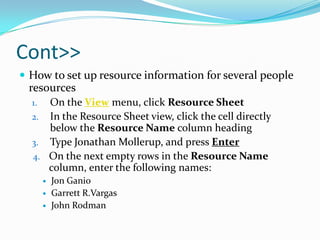
Cont>>How to set up resource information for several people resourcesOn the View menu, click Resource SheetIn the Resource Sheet view, click the cell directly below the Resource Name column headingType Jonathan Mollerup, and press EnterOn the next empty rows in the Resource Name column, enter the following names:Jon GanioGarrett R.VargasJohn Rodman
Cont>>In the Resource Name field below the last resource, type Electrician, and then press TABIn the Type field, make sure that Work is selected, and then press TABseveral times to move to the Max. UnitsfieldThe Max. Units field represents the maximum capacity of a resource to accomplish any taskThe Max. Units field represents the maximum capacity of a resource to accomplish any task ENTERClick the Max. Units field for Jon Ganio, type or select 50%, and then press
Setting Up Equipment ResourcesIn Project, you set up people and equipment resources in exactly the same way because people and equipment are both examples of work resourcesHowever, you should be aware of important differencespeople resources might be flexible in the tasks they can perform, but equipment resources tend to be more specialized
Cont>>you might want to set up equipment resources whenMultiple teams or people might need a piece of equipment to accomplish different tasks simultaneously, and the equipment might be overbooked.You want to plan and track costs associated with the equipment.
Enter information about equipment resourcesIn the Resource Sheet, click the next empty cell in the Resource NamecolumnOn the Standard toolbar, click the Resource Information button OR double-click a resource nameClick the General tab if it is not already displayedIn the Resource name field, type Mini-DV CamcorderIn the Type field, click Work. In the Max. Units field for the Mini-DV Camcorder, type or click the arrows until the value shown is 300% and press ENTER
Cont>>Enter the following information about equipment resources directly in the Resource Sheet or in the Resource Information dialog box, whichever you prefer. In either case, make sure Work is selected in the Type field.
Setting Up Material ResourcesMaterial resources are consumables that you use up as the project proceedsOn a construction project, material resources might include nails, lumber, and concreteYou work with material resources in Project mainly to track the rate of consumption and the associated cost
Cont>>How to enter information about a material resourceIn the Resource Sheet, click the next empty cell in the Resource NamecolumnType Video Tape and press TABIn the Type field, click the down arrow, select Material, and press TABIn the Material Label field, type 30-min. cassette and press ENTERNote that you cannot enter a Max. Units value for a material resource. Since a material resource is a consumable item and not a person or piece of equipment that performs work, the Max. Units value doesn’t apply
Setting Up Cost ResourcesThe third and final type of resource that you can use in Project is the cost resourceYou can use a cost resource to represent a financial cost associated with a task in a projectCommon types of cost resources might include categories of expenses you’d want to track on a project for accounting purposes such as travel, entertainment, or trainingLike material resources, cost resources do no work and have no effect on the scheduling of a task
Cont>>However, after you assign a cost resource to a task and specify the cost amount per task, you can then see the cumulative costs for that type of cost resourceIn the Resource Sheet, click the next empty cell in the Resource Name column.2. Type Travel and press TAB.3. In the Type field, click the down arrow, select Cost, and press ENTER.
Entering Resource Pay RatesAlmost all projects have some financial aspect, and cost limits drive the scope of many projects. Tracking and managing cost information allows the project manager to answer such important questions asWhat is the expected total cost of the project based on our task duration and resource estimates?Are we using expensive resources to do work that less expensive resources could do?How much money will a specific type of resource or task cost over the life of the project?How have we allocated a particular type of expense, such as travel, in a project?Are we spending money at a rate that we can sustain for the planned duration of the project
Cont>>How to enter cost information for each work resourceIn the Resource Sheet, click the Std. Rate field for Jonathan MollerupType 10 and press  ENTERIn the Std. Rate field for Jon Ganio, type 15.50 and press ENTEREnter the following standard pay rates for the given resources
Cont>>
Adjusting Working Time for Individual ResourcesProject uses different types of calendars for different purposesA resource calendar controls the working and nonworking times of a resourceProject uses resource calendars to determine when work for a specific resource can be scheduledResource calendars apply only to work resources (people and equipment) and not to material or cost resources
Cont>>When you initially create resources in a project plan, Project creates a resource calendar for each work resource. The initial working time settings for resource calendars exactly match those of the Standard base calendar,chances are that some of your resources will need exceptions to the working time in the Standard base calendar-such asA flex-time work scheduleVacation timeOther times when a resource is not available to work on the project, such as time spent training or attending a conference
Cont>>How to specify the working and nonworking times for individual work resourcesOn the Tools menu, click Change Working Time.The Change Working Time dialog box appears.In the For calendar box, click Garrett R.Vargas.Garrett R.Vargas’s resource calendar appears in the Change Working Time dialog box. Garrett has told you he will not be available to work on Thursday and Friday, January 10 and 11, because he plans to attend a film festival.On the Exceptions tab in the Change Working Time dialog box, click in the first row directly below the Name column heading and type Garrett attending West Coast Film Festival
Cont>>Click in the Start field and type or select 1/10/2008.Click in the Finish field, type or select 1/11/2008, and then press ENTER

Setting up resources

  • 1.
  • 2.
    Objectives Set upbasic resource information for the people who work on projects.Enter basic resource information for the equipment that will be used in projects.Enter resource information for the materials that will be consumed as the project progresses.Enter cost resource information for financial tracking.Set up cost information for work resources.Change a resource’s availability for work.Record additional information about a resource in a note.
  • 3.
    Resourcesinclude the peopleand equipment needed to complete the tasks in a projectMicrosoft Office Project 2007 focuses on two aspects of resourcesAvailabilityCostsAvailability determines when specific resources can work on tasks and how much work they can performcosts refer to how much money will be required to pay for those resources
  • 4.
    Setting Up PeopleResourcesProject works with three types of resources:WorkMaterialCost Work resources are the people and equipment that do the work of the project
  • 5.
    Cont>>Some examples ofwork resources
  • 6.
    Cont>>How to setup resource information for several people resourcesOn the View menu, click Resource SheetIn the Resource Sheet view, click the cell directly below the Resource Name column headingType Jonathan Mollerup, and press EnterOn the next empty rows in the Resource Name column, enter the following names:Jon GanioGarrett R.VargasJohn Rodman
  • 7.
    Cont>>In the ResourceName field below the last resource, type Electrician, and then press TABIn the Type field, make sure that Work is selected, and then press TABseveral times to move to the Max. UnitsfieldThe Max. Units field represents the maximum capacity of a resource to accomplish any taskThe Max. Units field represents the maximum capacity of a resource to accomplish any task ENTERClick the Max. Units field for Jon Ganio, type or select 50%, and then press
  • 8.
    Setting Up EquipmentResourcesIn Project, you set up people and equipment resources in exactly the same way because people and equipment are both examples of work resourcesHowever, you should be aware of important differencespeople resources might be flexible in the tasks they can perform, but equipment resources tend to be more specialized
  • 9.
    Cont>>you might wantto set up equipment resources whenMultiple teams or people might need a piece of equipment to accomplish different tasks simultaneously, and the equipment might be overbooked.You want to plan and track costs associated with the equipment.
  • 10.
    Enter information aboutequipment resourcesIn the Resource Sheet, click the next empty cell in the Resource NamecolumnOn the Standard toolbar, click the Resource Information button OR double-click a resource nameClick the General tab if it is not already displayedIn the Resource name field, type Mini-DV CamcorderIn the Type field, click Work. In the Max. Units field for the Mini-DV Camcorder, type or click the arrows until the value shown is 300% and press ENTER
  • 11.
    Cont>>Enter the followinginformation about equipment resources directly in the Resource Sheet or in the Resource Information dialog box, whichever you prefer. In either case, make sure Work is selected in the Type field.
  • 12.
    Setting Up MaterialResourcesMaterial resources are consumables that you use up as the project proceedsOn a construction project, material resources might include nails, lumber, and concreteYou work with material resources in Project mainly to track the rate of consumption and the associated cost
  • 13.
    Cont>>How to enterinformation about a material resourceIn the Resource Sheet, click the next empty cell in the Resource NamecolumnType Video Tape and press TABIn the Type field, click the down arrow, select Material, and press TABIn the Material Label field, type 30-min. cassette and press ENTERNote that you cannot enter a Max. Units value for a material resource. Since a material resource is a consumable item and not a person or piece of equipment that performs work, the Max. Units value doesn’t apply
  • 14.
    Setting Up CostResourcesThe third and final type of resource that you can use in Project is the cost resourceYou can use a cost resource to represent a financial cost associated with a task in a projectCommon types of cost resources might include categories of expenses you’d want to track on a project for accounting purposes such as travel, entertainment, or trainingLike material resources, cost resources do no work and have no effect on the scheduling of a task
  • 15.
    Cont>>However, after youassign a cost resource to a task and specify the cost amount per task, you can then see the cumulative costs for that type of cost resourceIn the Resource Sheet, click the next empty cell in the Resource Name column.2. Type Travel and press TAB.3. In the Type field, click the down arrow, select Cost, and press ENTER.
  • 16.
    Entering Resource PayRatesAlmost all projects have some financial aspect, and cost limits drive the scope of many projects. Tracking and managing cost information allows the project manager to answer such important questions asWhat is the expected total cost of the project based on our task duration and resource estimates?Are we using expensive resources to do work that less expensive resources could do?How much money will a specific type of resource or task cost over the life of the project?How have we allocated a particular type of expense, such as travel, in a project?Are we spending money at a rate that we can sustain for the planned duration of the project
  • 17.
    Cont>>How to entercost information for each work resourceIn the Resource Sheet, click the Std. Rate field for Jonathan MollerupType 10 and press ENTERIn the Std. Rate field for Jon Ganio, type 15.50 and press ENTEREnter the following standard pay rates for the given resources
  • 18.
  • 19.
    Adjusting Working Timefor Individual ResourcesProject uses different types of calendars for different purposesA resource calendar controls the working and nonworking times of a resourceProject uses resource calendars to determine when work for a specific resource can be scheduledResource calendars apply only to work resources (people and equipment) and not to material or cost resources
  • 20.
    Cont>>When you initiallycreate resources in a project plan, Project creates a resource calendar for each work resource. The initial working time settings for resource calendars exactly match those of the Standard base calendar,chances are that some of your resources will need exceptions to the working time in the Standard base calendar-such asA flex-time work scheduleVacation timeOther times when a resource is not available to work on the project, such as time spent training or attending a conference
  • 21.
    Cont>>How to specifythe working and nonworking times for individual work resourcesOn the Tools menu, click Change Working Time.The Change Working Time dialog box appears.In the For calendar box, click Garrett R.Vargas.Garrett R.Vargas’s resource calendar appears in the Change Working Time dialog box. Garrett has told you he will not be available to work on Thursday and Friday, January 10 and 11, because he plans to attend a film festival.On the Exceptions tab in the Change Working Time dialog box, click in the first row directly below the Name column heading and type Garrett attending West Coast Film Festival
  • 22.
    Cont>>Click in theStart field and type or select 1/10/2008.Click in the Finish field, type or select 1/11/2008, and then press ENTER