Setting up Client Users
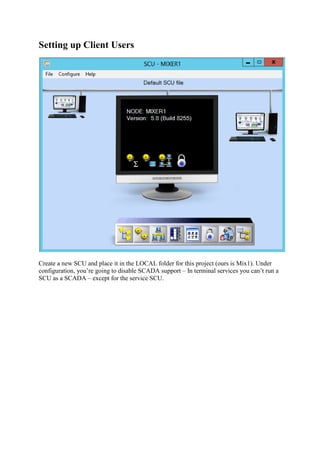
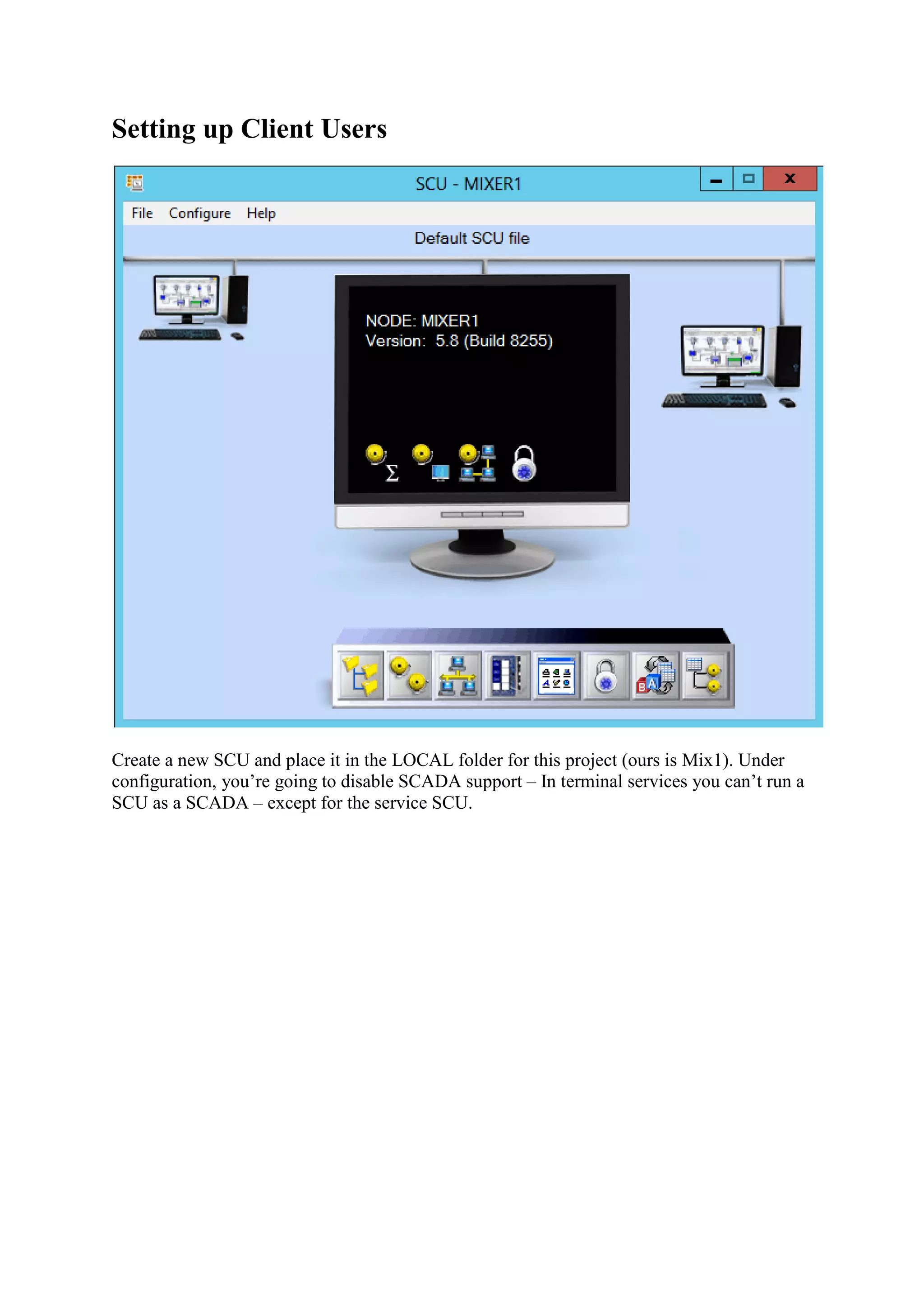
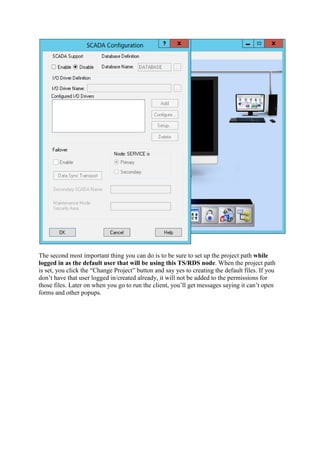
Create a new SCU and place it in the LOCAL folder for this project (ours is Mix1). Under
configuration, you’re going to disable SCADA support – In terminal services you can’t run a
SCU as a SCADA – except for the service SCU.
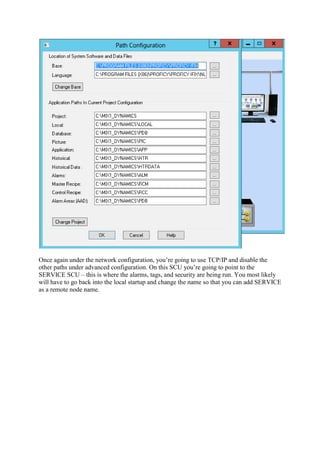
The second most important thing you can do is to be sure to set up the project path while
logged in as the default user that will be using this TS/RDS node. When the project path
is set, you click the “Change Project” button and say yes to creating the default files. If you
don’t have that user logged in/created already, it will not be added to the permissions for
those files. Later on when you go to run the client, you’ll get messages saying it can’t open
forms and other popups.
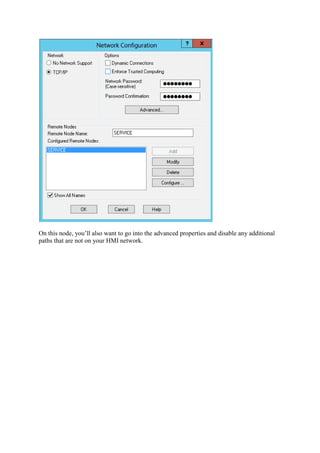
Once again under the network configuration, you’re going to use TCP/IP and disable the
other paths under advanced configuration. On this SCU you’re going to point to the
SERVICE SCU – this is where the alarms, tags, and security are being run. You most likely
will have to go back into the local startup and change the name so that you can add SERVICE
as a remote node name.
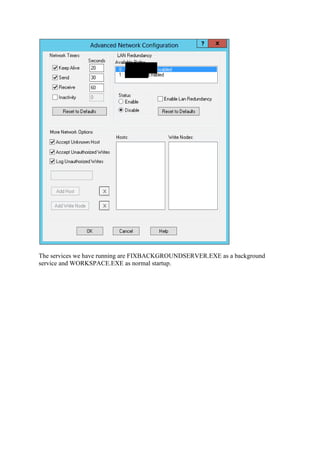
On this node, you’ll also want to go into the advanced properties and disable any additional
paths that are not on your HMI network.
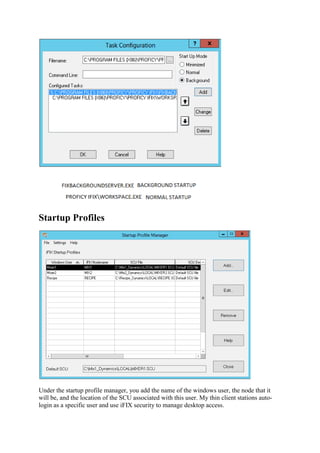
The services we have running are FIXBACKGROUNDSERVER.EXE as a background
service and WORKSPACE.EXE as normal startup.
Startup Profiles
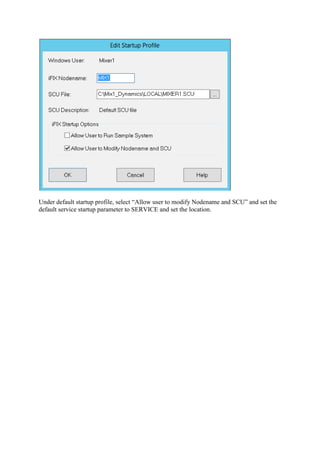
Under the startup profile manager, you add the name of the windows user, the node that it
will be, and the location of the SCU associated with this user. My thin client stations auto-
login as a specific user and use iFIX security to manage desktop access.
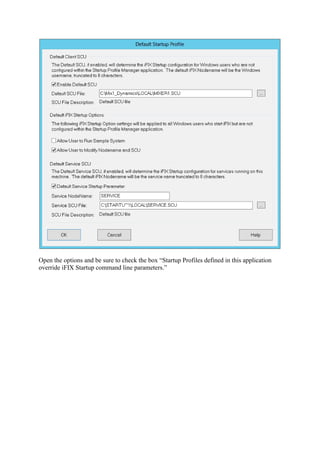
Under default startup profile, select “Allow user to modify Nodename and SCU” and set the
default service startup parameter to SERVICE and set the location.
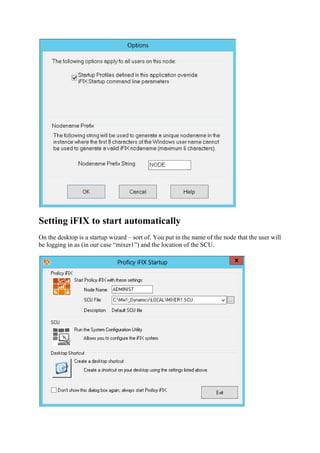
Open the options and be sure to check the box “Startup Profiles defined in this application
override iFIX Startup command line parameters.”
Setting iFIX to start automatically
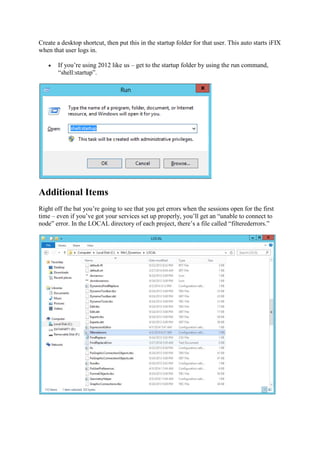
On the desktop is a startup wizard – sort of. You put in the name of the node that the user will
be logging in as (in our case “mixer1”) and the location of the SCU.
Create a desktop shortcut, then put this in the startup folder for that user. This auto starts iFIX
when that user logs in.
 If you’re using 2012 like us
“shell:startup”.
Additional Items
Right off the bat you’re going to see that you get errors when the sessions
time – even if you’ve got your
node” error. In the LOCAL directory of each project, there’s a file called “filterederrors.”
then put this in the startup folder for that user. This auto starts iFIX
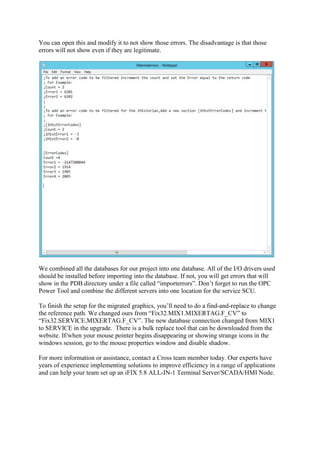
If you’re using 2012 like us – get to the startup folder by using the run command,
Right off the bat you’re going to see that you get errors when the sessions open for the first
even if you’ve got your services set up properly, you’ll get an “unable to connect to
node” error. In the LOCAL directory of each project, there’s a file called “filterederrors.”
then put this in the startup folder for that user. This auto starts iFIX
get to the startup folder by using the run command,
open for the first
services set up properly, you’ll get an “unable to connect to
node” error. In the LOCAL directory of each project, there’s a file called “filterederrors.”
You can open this and modify it to
errors will not show even if they are legitimate.
We combined all the databases for our project into one database. A
should be installed before importing into the database. If not, you will get errors that will
show in the PDB directory under a file called “importerrors”. Don’t forget to run the OPC
Power Tool and combine the different servers
To finish the setup for the migrated graphics, you’ll need to do a find
the reference path. We changed ours from “Fix32.MIX1.MIXERTAG.F_CV” to
“Fix32.SERVICE.MIXERTAG.F_CV”. The new database conn
to SERVICE in the upgrade. There is a bulk replace tool that can be downloaded from the
website. If/when your mouse pointer begins disappearing or showing strange icons
windows session, go to the mouse properties window and
For more information or assistance, contact a Cross team member today. Our experts have
years of experience implementing solutions to improve efficiency in a range of applications
and can help your team set up an iFIX 5.8 ALL
You can open this and modify it to not show those errors. The disadvantage is that those
errors will not show even if they are legitimate.
We combined all the databases for our project into one database. All of the I/O drivers used
should be installed before importing into the database. If not, you will get errors that will
show in the PDB directory under a file called “importerrors”. Don’t forget to run the OPC
Power Tool and combine the different servers into one location for the service SCU.
To finish the setup for the migrated graphics, you’ll need to do a find-and-replace to change
the reference path. We changed ours from “Fix32.MIX1.MIXERTAG.F_CV” to
“Fix32.SERVICE.MIXERTAG.F_CV”. The new database connection changed from MIX1
There is a bulk replace tool that can be downloaded from the
website. If/when your mouse pointer begins disappearing or showing strange icons
go to the mouse properties window and disable shadow.
For more information or assistance, contact a Cross team member today. Our experts have
years of experience implementing solutions to improve efficiency in a range of applications
and can help your team set up an iFIX 5.8 ALL-IN-1 Terminal Server/SCADA/HMI Node.
not show those errors. The disadvantage is that those
ll of the I/O drivers used
should be installed before importing into the database. If not, you will get errors that will
show in the PDB directory under a file called “importerrors”. Don’t forget to run the OPC
into one location for the service SCU.
replace to change
the reference path. We changed ours from “Fix32.MIX1.MIXERTAG.F_CV” to
ection changed from MIX1
There is a bulk replace tool that can be downloaded from the
website. If/when your mouse pointer begins disappearing or showing strange icons in the
For more information or assistance, contact a Cross team member today. Our experts have
years of experience implementing solutions to improve efficiency in a range of applications
Server/SCADA/HMI Node.

setting up client user.pdf

  • 1.
    Setting up ClientUsers Create a new SCU and place it in the LOCAL folder for this project (ours is Mix1). Under configuration, you’re going to disable SCADA support – In terminal services you can’t run a SCU as a SCADA – except for the service SCU.
  • 2.
    The second mostimportant thing you can do is to be sure to set up the project path while logged in as the default user that will be using this TS/RDS node. When the project path is set, you click the “Change Project” button and say yes to creating the default files. If you don’t have that user logged in/created already, it will not be added to the permissions for those files. Later on when you go to run the client, you’ll get messages saying it can’t open forms and other popups.
  • 3.
    Once again underthe network configuration, you’re going to use TCP/IP and disable the other paths under advanced configuration. On this SCU you’re going to point to the SERVICE SCU – this is where the alarms, tags, and security are being run. You most likely will have to go back into the local startup and change the name so that you can add SERVICE as a remote node name.
  • 4.
    On this node,you’ll also want to go into the advanced properties and disable any additional paths that are not on your HMI network.
  • 5.
    The services wehave running are FIXBACKGROUNDSERVER.EXE as a background service and WORKSPACE.EXE as normal startup.
  • 6.
    Startup Profiles Under thestartup profile manager, you add the name of the windows user, the node that it will be, and the location of the SCU associated with this user. My thin client stations auto- login as a specific user and use iFIX security to manage desktop access.
  • 7.
    Under default startupprofile, select “Allow user to modify Nodename and SCU” and set the default service startup parameter to SERVICE and set the location.
  • 8.
    Open the optionsand be sure to check the box “Startup Profiles defined in this application override iFIX Startup command line parameters.”
  • 9.
    Setting iFIX tostart automatically On the desktop is a startup wizard – sort of. You put in the name of the node that the user will be logging in as (in our case “mixer1”) and the location of the SCU.
  • 10.
    Create a desktopshortcut, then put this in the startup folder for that user. This auto starts iFIX when that user logs in.  If you’re using 2012 like us “shell:startup”. Additional Items Right off the bat you’re going to see that you get errors when the sessions time – even if you’ve got your node” error. In the LOCAL directory of each project, there’s a file called “filterederrors.” then put this in the startup folder for that user. This auto starts iFIX If you’re using 2012 like us – get to the startup folder by using the run command, Right off the bat you’re going to see that you get errors when the sessions open for the first even if you’ve got your services set up properly, you’ll get an “unable to connect to node” error. In the LOCAL directory of each project, there’s a file called “filterederrors.” then put this in the startup folder for that user. This auto starts iFIX get to the startup folder by using the run command, open for the first services set up properly, you’ll get an “unable to connect to node” error. In the LOCAL directory of each project, there’s a file called “filterederrors.”
  • 11.
    You can openthis and modify it to errors will not show even if they are legitimate. We combined all the databases for our project into one database. A should be installed before importing into the database. If not, you will get errors that will show in the PDB directory under a file called “importerrors”. Don’t forget to run the OPC Power Tool and combine the different servers To finish the setup for the migrated graphics, you’ll need to do a find the reference path. We changed ours from “Fix32.MIX1.MIXERTAG.F_CV” to “Fix32.SERVICE.MIXERTAG.F_CV”. The new database conn to SERVICE in the upgrade. There is a bulk replace tool that can be downloaded from the website. If/when your mouse pointer begins disappearing or showing strange icons windows session, go to the mouse properties window and For more information or assistance, contact a Cross team member today. Our experts have years of experience implementing solutions to improve efficiency in a range of applications and can help your team set up an iFIX 5.8 ALL You can open this and modify it to not show those errors. The disadvantage is that those errors will not show even if they are legitimate. We combined all the databases for our project into one database. All of the I/O drivers used should be installed before importing into the database. If not, you will get errors that will show in the PDB directory under a file called “importerrors”. Don’t forget to run the OPC Power Tool and combine the different servers into one location for the service SCU. To finish the setup for the migrated graphics, you’ll need to do a find-and-replace to change the reference path. We changed ours from “Fix32.MIX1.MIXERTAG.F_CV” to “Fix32.SERVICE.MIXERTAG.F_CV”. The new database connection changed from MIX1 There is a bulk replace tool that can be downloaded from the website. If/when your mouse pointer begins disappearing or showing strange icons go to the mouse properties window and disable shadow. For more information or assistance, contact a Cross team member today. Our experts have years of experience implementing solutions to improve efficiency in a range of applications and can help your team set up an iFIX 5.8 ALL-IN-1 Terminal Server/SCADA/HMI Node. not show those errors. The disadvantage is that those ll of the I/O drivers used should be installed before importing into the database. If not, you will get errors that will show in the PDB directory under a file called “importerrors”. Don’t forget to run the OPC into one location for the service SCU. replace to change the reference path. We changed ours from “Fix32.MIX1.MIXERTAG.F_CV” to ection changed from MIX1 There is a bulk replace tool that can be downloaded from the website. If/when your mouse pointer begins disappearing or showing strange icons in the For more information or assistance, contact a Cross team member today. Our experts have years of experience implementing solutions to improve efficiency in a range of applications Server/SCADA/HMI Node.