ASPIRE. ACHIEVE. ASCEND
Jaspreet Kaur
Assistant Professor
Adding pictures to
your website
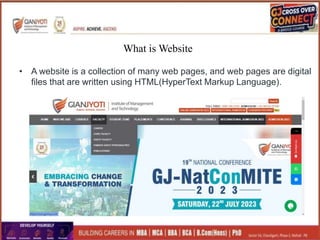
What is Website
• A website is a collection of many web pages, and web pages are digital
files that are written using HTML(HyperText Markup Language).
Displaying “Images” on web pages
How to Display “Images” on web pages
What to Display….
How to create, change, modify images.
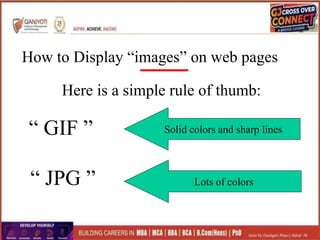
How to Display “images” on web pages
“ GIF ”
“ JPG ”
Here is a simple rule of thumb:
Lots of colors
Solid colors and sharp lines
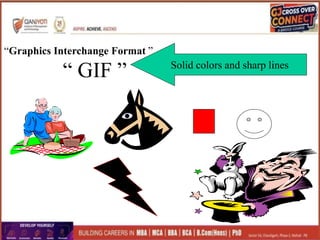
“ GIF ” Solid colors and sharp lines
“Graphics Interchange Format ”
“ JPG ” Lots of colors
Joint Photographic Experts Group
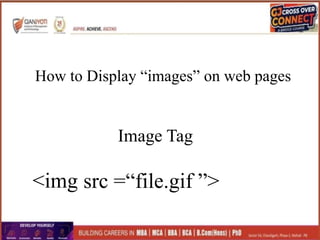
How to Display “images” on web pages
Image Tag
<img src =“file.gif ”>
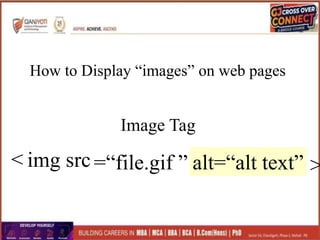
How to Display “images” on web pages
Image Tag
< img src =“file.gif ” alt=“alt text” >
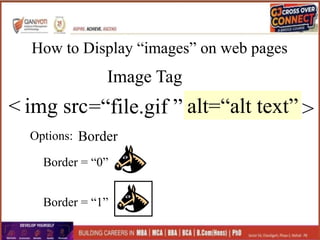
How to Display “images” on web pages
Image Tag
< img src=“file.gif ” alt=“alt text” >
Options:
Border = “0”
Border = “1”
Border
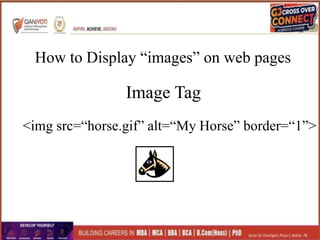
How to Display “images” on web pages
Image Tag
<img src=“horse.gif” alt=“My Horse” border=“1”>
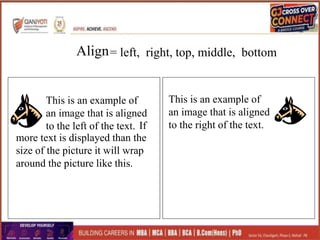
Align= left, right, top, middle, bottom
This is an example of
an image that is aligned
to the left of the text.
This is an example of
an image that is aligned
to the right of the text.
If
more text is displayed than the
size of the picture it will wrap
around the picture like this.
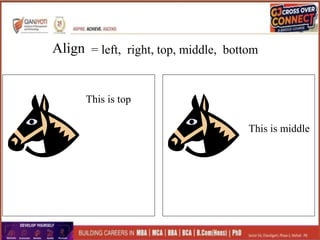
Align = left, right, top, middle, bottom
This is top
This is middle
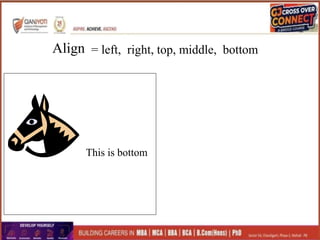
Align = left, right, top, middle, bottom
This is bottom
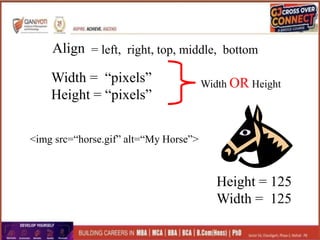
Align = left, right, top, middle, bottom
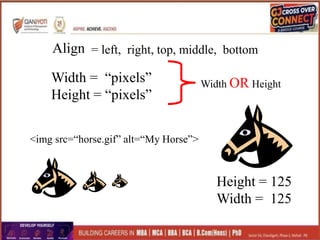
Width = “pixels”
Height = “pixels”
Width OR Height
<img src=“horse.gif” alt=“My Horse”>
Height = 125
Width = 125
Align = left, right, top, middle, bottom
Width = “pixels”
Height = “pixels”
Width OR Height
<img src=“horse.gif” alt=“My Horse”>
Height = 125
Width = 125
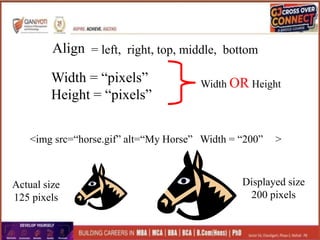
<img src=“horse.gif” alt=“My Horse” >
Align = left, right, top, middle, bottom
Width = “pixels”
Height = “pixels”
Width OR Height
Width = “200”
Actual size
125 pixels
Displayed size
200 pixels
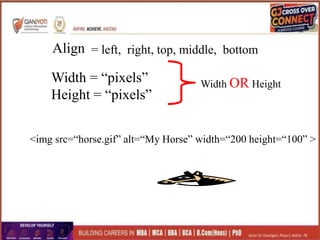
<img src=“horse.gif” alt=“My Horse” width=“200 height=“100” >
Align = left, right, top, middle, bottom
Width = “pixels”
Height = “pixels”
Width OR Height
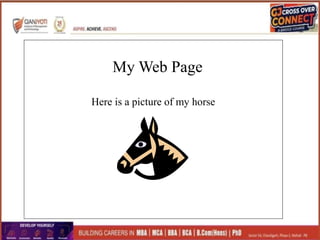
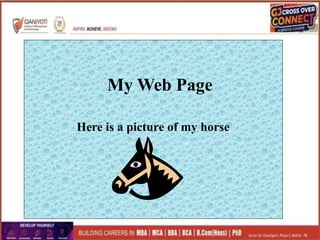
My Web Page
Here is a picture of my horse
My Web Page
Here is a picture of my horse
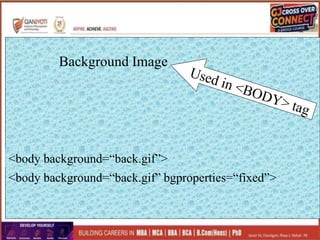
Background Image
<body>
<body background=“back.gif”>
<body background=“back.gif” bgproperties=“fixed”>
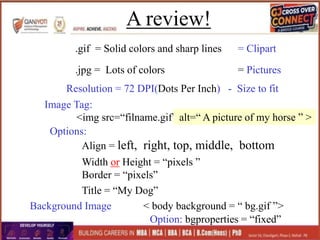
A review!
Image Tag:
<img src=“filname.gif” >
.gif = Solid colors and sharp lines
.jpg = Lots of colors = Pictures
= Clipart
alt=“ A picture of my horse ” >
Options:
Align = left, right, top, middle, bottom
Width or Height = “pixels ”
Border = “pixels”
Background Image < body background = “ bg.gif ”>
Option: bgproperties = “fixed”
Resolution = 72 DPI(Dots Per Inch) - Size to fit
Title = “My Dog”
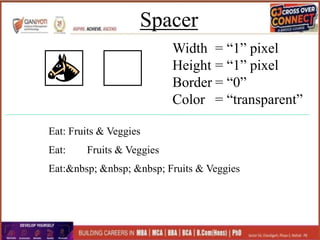
Spacer
Width
Height
Border
Color
= “1” pixel
= “1” pixel
= “0”
= “transparent”
Eat: Fruits & Veggies
Eat:&nbsp; &nbsp; &nbsp; Fruits & Veggies
Assignment:
You'll Develop An Image Gallery
Application That Displays Different Images
of your College or School Life.

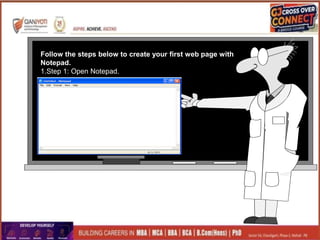
Follow the steps below to create your first web page with
Notepad.

1.Step 1: Open Notepad.
2.Step 2: Write Some HTML. ...
3.Step 3: Save the HTML Page as (Image.html) ...
4.Step 4: View the HTML Page in Your Browser.
Follow the steps below to create your first web page with
Notepad.
1.Step 1: Open Notepad.
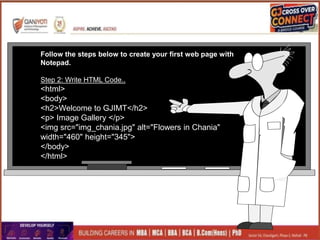
Follow the steps below to create your first web page with
Notepad.
Step 2: Write HTML Code..
<html>
<body>
<h2>Welcome to GJIMT</h2>
<p> Image Gallery </p>
<img src="img_chania.jpg" alt="Flowers in Chania"
width="460" height="345">
</body>
</html>
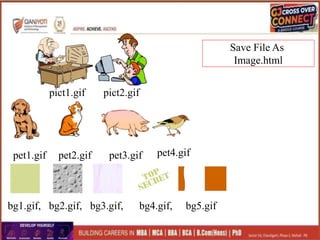
pict1.gif pict2.gif
pet4.gif
pet3.gif
pet2.gif
pet1.gif
bg1.gif, bg2.gif, bg3.gif, bg4.gif, bg5.gif
Save File As
Image.html
What is CANVA?
Canvas makes graphic design amazingly simple for
everyone.
It brings together adrag and drop design tool with alibrary of more
than 1 million stock photographs, graphic elements and fonts.
https://forms.gle/dfB1ti4m7HF
we1vf8
Session7 Adding pictures to Website and Canva.ppt

Session7 Adding pictures to Website and Canva.ppt

  • 1.
    ASPIRE. ACHIEVE. ASCEND JaspreetKaur Assistant Professor
  • 2.
  • 3.
    What is Website •A website is a collection of many web pages, and web pages are digital files that are written using HTML(HyperText Markup Language).
  • 5.
    Displaying “Images” onweb pages How to Display “Images” on web pages What to Display…. How to create, change, modify images.
  • 6.
    How to Display“images” on web pages “ GIF ” “ JPG ” Here is a simple rule of thumb: Lots of colors Solid colors and sharp lines
  • 7.
    “ GIF ”Solid colors and sharp lines “Graphics Interchange Format ”
  • 8.
    “ JPG ”Lots of colors Joint Photographic Experts Group
  • 9.
    How to Display“images” on web pages Image Tag <img src =“file.gif ”>
  • 10.
    How to Display“images” on web pages Image Tag < img src =“file.gif ” alt=“alt text” >
  • 11.
    How to Display“images” on web pages Image Tag < img src=“file.gif ” alt=“alt text” > Options: Border = “0” Border = “1” Border
  • 12.
    How to Display“images” on web pages Image Tag <img src=“horse.gif” alt=“My Horse” border=“1”>
  • 13.
    Align= left, right,top, middle, bottom This is an example of an image that is aligned to the left of the text. This is an example of an image that is aligned to the right of the text. If more text is displayed than the size of the picture it will wrap around the picture like this.
  • 14.
    Align = left,right, top, middle, bottom This is top This is middle
  • 15.
    Align = left,right, top, middle, bottom This is bottom
  • 16.
    Align = left,right, top, middle, bottom Width = “pixels” Height = “pixels” Width OR Height <img src=“horse.gif” alt=“My Horse”> Height = 125 Width = 125
  • 17.
    Align = left,right, top, middle, bottom Width = “pixels” Height = “pixels” Width OR Height <img src=“horse.gif” alt=“My Horse”> Height = 125 Width = 125
  • 18.
    <img src=“horse.gif” alt=“MyHorse” > Align = left, right, top, middle, bottom Width = “pixels” Height = “pixels” Width OR Height Width = “200” Actual size 125 pixels Displayed size 200 pixels
  • 19.
    <img src=“horse.gif” alt=“MyHorse” width=“200 height=“100” > Align = left, right, top, middle, bottom Width = “pixels” Height = “pixels” Width OR Height
  • 20.
    My Web Page Hereis a picture of my horse
  • 21.
    My Web Page Hereis a picture of my horse
  • 22.
    Background Image <body> <body background=“back.gif”> <bodybackground=“back.gif” bgproperties=“fixed”>
  • 23.
    A review! Image Tag: <imgsrc=“filname.gif” > .gif = Solid colors and sharp lines .jpg = Lots of colors = Pictures = Clipart alt=“ A picture of my horse ” > Options: Align = left, right, top, middle, bottom Width or Height = “pixels ” Border = “pixels” Background Image < body background = “ bg.gif ”> Option: bgproperties = “fixed” Resolution = 72 DPI(Dots Per Inch) - Size to fit Title = “My Dog”
  • 24.
    Spacer Width Height Border Color = “1” pixel =“1” pixel = “0” = “transparent” Eat: Fruits & Veggies Eat: Fruits & Veggies Eat:&nbsp; &nbsp; &nbsp; Fruits & Veggies
  • 26.
    Assignment: You'll Develop AnImage Gallery Application That Displays Different Images of your College or School Life.
  • 28.
    Follow the stepsbelow to create your first web page with Notepad. 1.Step 1: Open Notepad. 2.Step 2: Write Some HTML. ... 3.Step 3: Save the HTML Page as (Image.html) ... 4.Step 4: View the HTML Page in Your Browser.
  • 29.
    Follow the stepsbelow to create your first web page with Notepad. 1.Step 1: Open Notepad.
  • 30.
    Follow the stepsbelow to create your first web page with Notepad. Step 2: Write HTML Code.. <html> <body> <h2>Welcome to GJIMT</h2> <p> Image Gallery </p> <img src="img_chania.jpg" alt="Flowers in Chania" width="460" height="345"> </body> </html>
  • 31.
    pict1.gif pict2.gif pet4.gif pet3.gif pet2.gif pet1.gif bg1.gif, bg2.gif,bg3.gif, bg4.gif, bg5.gif Save File As Image.html
  • 33.
    What is CANVA? Canvasmakes graphic design amazingly simple for everyone.
  • 34.
    It brings togetheradrag and drop design tool with alibrary of more than 1 million stock photographs, graphic elements and fonts.
  • 46.