How Did I Get That Model?
      Session Logs in SPM


         Dan Steinberg
        Salford Systems
http://www.salford-systems.com

       December 2012
SPM Version Numbers

• Salford Systems has begun offering SPM 7.0 to all of our
  customers (as of November 30, 2012) and from this date
  forward our videos and instructional materials will make use
  of the SPM 7 application
• The SPM interface was designed to be as similar as
  possible to the SPM 6 series of software meaning that you
  can follow along for much of the presentation with that
  version (or with version 6 generations of the standalone
  engines
• We will clearly point out features, options, and controls that
  are unique to 7
• The current video and blog is largely relevant to SPM 6 and
  you will not require SPM 7 for most of its content
                    © Copyright Salford Systems 2012
How Did I Get That Model or Result?

• In the course of interactive data analysis modelers typically
  modify many model setup controls and options
• Many modelers will also alter the data they use
   – Construction of new variables during the session
   – Focusing on specific subsets of the data (segments)
   – Using SELECT statements or DELETE records via the built-in
     Salford BASIC programming language
• After a long session of changing this and that you might find
  that you have lost track of exactly what you have done
• You might not realize this until you save work and come
  back to again after a long weekend or after a hiatus of
  several weeks

                     © Copyright Salford Systems 2012
How SPM Can Help You

• SPM and its predecessor standalone data mining products
  CART, MARS, TreeNet, and RandomForests all maintain an
  audit trail of every session
• The audit trail is a set of commands that were generated
  either by you or by the GUI (Graphical User Interface) on
  your behalf as you conducted your session
• The audit trail does not record pure GUI actions you might
  have taken such as viewing the Variable Importance ranking
  or resizing a window
• The audit trail records all file open and save actions and
  commands that set up or run a model


                  © Copyright Salford Systems 2012
The Command Log

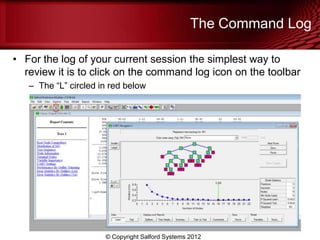
• For the log of your current session the simplest way to
  review it is to click on the command log icon on the toolbar
   – The “L” circled in red below


                      © Copyright Salford Systems 2012
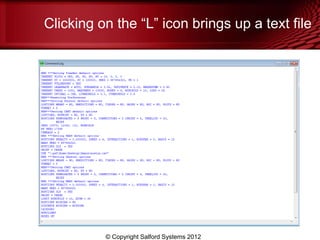
Clicking on the “L” icon brings up a text file


          © Copyright Salford Systems 2012
Understanding the Command Log

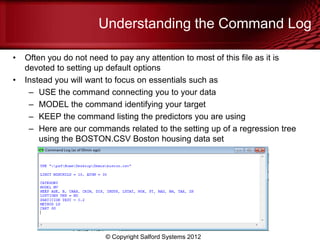
•   Often you do not need to pay any attention to most of this file as it is
    devoted to setting up default options
•   Instead you will want to focus on essentials such as
     – USE the command connecting you to your data
     – MODEL the command identifying your target
     – KEEP the command listing the predictors you are using
     – Here are our commands related to the setting up of a regression tree
        using the BOSTON.CSV Boston housing data set


                         © Copyright Salford Systems 2012
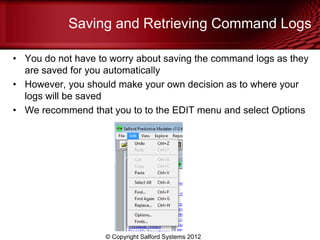
Saving and Retrieving Command Logs

• You do not have to worry about saving the command logs as they
  are saved for you automatically
• However, you should make your own decision as to where your
  logs will be saved
• We recommend that you to to the EDIT menu and select Options


                    © Copyright Salford Systems 2012
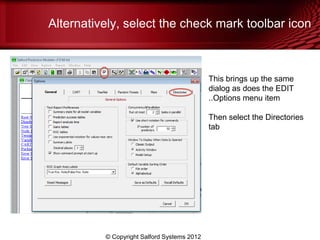
Alternatively, select the check mark toolbar icon


                                             This brings up the same
                                             dialog as does the EDIT
                                             ..Options menu item

                                             Then select the Directories
                                             tab


          © Copyright Salford Systems 2012
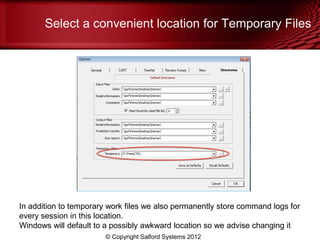
Select a convenient location for Temporary Files


In addition to temporary work files we also permanently store command logs for
every session in this location.
Windows will default to a possibly awkward location so we advise changing it
                        © Copyright Salford Systems 2012
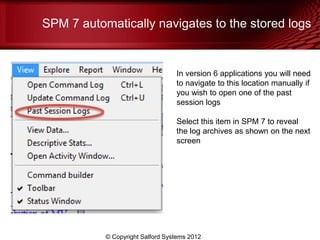
SPM 7 automatically navigates to the stored logs


                                  In version 6 applications you will need
                                  to navigate to this location manually if
                                  you wish to open one of the past
                                  session logs

                                  Select this item in SPM 7 to reveal
                                  the log archives as shown on the next
                                  screen


           © Copyright Salford Systems 2012
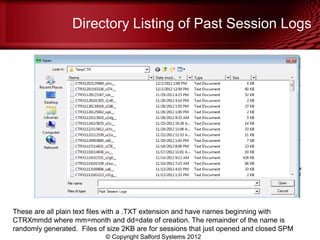
Directory Listing of Past Session Logs


These are all plain text files with a .TXT extension and have names beginning with
CTRXmmdd where mm=month and dd=date of creation. The remainder of the name is
randomly generated. Files of size 2KB are for sessions that just opened and closed SPM
                            © Copyright Salford Systems 2012
Session Logs Are Permanent

• We do not ever delete session logs but you might want to
  both selectively delete some sessions including the ones in
  which next to nothing was done
• You might also want to rename important logs so that you
  can tell what they are about
• Session logs are updated after each command is generated
  either by you directly from the command line or via the
  commands that the GUI generates for you
• Session logs are generally complete but may lack the very
  last command issued if the application of the Operating
  System subsequently crashed
• Session logs are critical for diagnosing problems as well as
  for determining exactly what you did to obtain a result
                   © Copyright Salford Systems 2012
Command Logs and Groves

• SPM stores all models in a special form we call a grove.
  Groves may optionally be saved and transferred from one
  machine to another including between Windows and
  Linux/UNIX platforms
• Groves store model information and the entire command log
  up to the point at which the model in question was
  generated
• If you build three consecutive models
   – The first model grove will contain the command log up to the point
     that the first model was built
   – The second model grove will contain the command log relevant to
     both the first and the second models
   – The third model grove will contain the command log for al three
     models built
                      © Copyright Salford Systems 2012
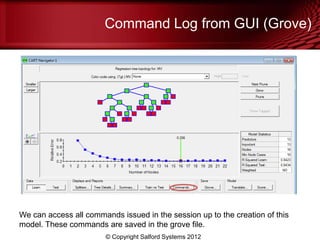
Command Log from GUI (Grove)


We can access all commands issued in the session up to the creation of this
model. These commands are saved in the grove file.
                        © Copyright Salford Systems 2012
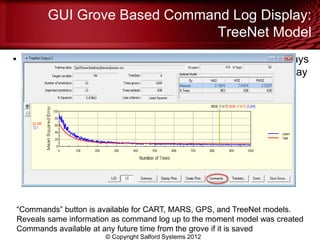
GUI Grove Based Command Log Display:
                              TreeNet Model
• If a model’s main results are being displayed you will always
  see a “Commands” button towards the bottom of the display


“Commands” button is available for CART, MARS, GPS, and TreeNet models.
Reveals same information as command log up to the moment model was created
Commands available at any future time from the grove if it is saved
                      © Copyright Salford Systems 2012
Hints on Trouble Shooting

• Since the command logs contain literally every command
  issued either by you directly or by the GUI on your behalf it
  serves as a source of information for explaining unexpected
  results
• Some common causes unexpected results include
   – A SELECT command being active or inactive
   – BASIC commands deleting some records, setting certain predictors
     to missing, or altering some predictors
   – Analysis type being changed from Classification to Regression
   – An active LIMIT command preventing a CART tree from growing as
     large as expected or desired
   – Model setup controls altered such as CART growing method or
     number of nodes in TreeNet trees, etc.

                     © Copyright Salford Systems 2012

Session Logs Tutorial for SPM

  • 1.
    How Did IGet That Model? Session Logs in SPM Dan Steinberg Salford Systems http://www.salford-systems.com December 2012
  • 2.
    SPM Version Numbers •Salford Systems has begun offering SPM 7.0 to all of our customers (as of November 30, 2012) and from this date forward our videos and instructional materials will make use of the SPM 7 application • The SPM interface was designed to be as similar as possible to the SPM 6 series of software meaning that you can follow along for much of the presentation with that version (or with version 6 generations of the standalone engines • We will clearly point out features, options, and controls that are unique to 7 • The current video and blog is largely relevant to SPM 6 and you will not require SPM 7 for most of its content © Copyright Salford Systems 2012
  • 3.
    How Did IGet That Model or Result? • In the course of interactive data analysis modelers typically modify many model setup controls and options • Many modelers will also alter the data they use – Construction of new variables during the session – Focusing on specific subsets of the data (segments) – Using SELECT statements or DELETE records via the built-in Salford BASIC programming language • After a long session of changing this and that you might find that you have lost track of exactly what you have done • You might not realize this until you save work and come back to again after a long weekend or after a hiatus of several weeks © Copyright Salford Systems 2012
  • 4.
    How SPM CanHelp You • SPM and its predecessor standalone data mining products CART, MARS, TreeNet, and RandomForests all maintain an audit trail of every session • The audit trail is a set of commands that were generated either by you or by the GUI (Graphical User Interface) on your behalf as you conducted your session • The audit trail does not record pure GUI actions you might have taken such as viewing the Variable Importance ranking or resizing a window • The audit trail records all file open and save actions and commands that set up or run a model © Copyright Salford Systems 2012
  • 5.
    The Command Log •For the log of your current session the simplest way to review it is to click on the command log icon on the toolbar – The “L” circled in red below © Copyright Salford Systems 2012
  • 6.
    Clicking on the“L” icon brings up a text file © Copyright Salford Systems 2012
  • 7.
    Understanding the CommandLog • Often you do not need to pay any attention to most of this file as it is devoted to setting up default options • Instead you will want to focus on essentials such as – USE the command connecting you to your data – MODEL the command identifying your target – KEEP the command listing the predictors you are using – Here are our commands related to the setting up of a regression tree using the BOSTON.CSV Boston housing data set © Copyright Salford Systems 2012
  • 8.
    Saving and RetrievingCommand Logs • You do not have to worry about saving the command logs as they are saved for you automatically • However, you should make your own decision as to where your logs will be saved • We recommend that you to to the EDIT menu and select Options © Copyright Salford Systems 2012
  • 9.
    Alternatively, select thecheck mark toolbar icon This brings up the same dialog as does the EDIT ..Options menu item Then select the Directories tab © Copyright Salford Systems 2012
  • 10.
    Select a convenientlocation for Temporary Files In addition to temporary work files we also permanently store command logs for every session in this location. Windows will default to a possibly awkward location so we advise changing it © Copyright Salford Systems 2012
  • 11.
    SPM 7 automaticallynavigates to the stored logs In version 6 applications you will need to navigate to this location manually if you wish to open one of the past session logs Select this item in SPM 7 to reveal the log archives as shown on the next screen © Copyright Salford Systems 2012
  • 12.
    Directory Listing ofPast Session Logs These are all plain text files with a .TXT extension and have names beginning with CTRXmmdd where mm=month and dd=date of creation. The remainder of the name is randomly generated. Files of size 2KB are for sessions that just opened and closed SPM © Copyright Salford Systems 2012
  • 13.
    Session Logs ArePermanent • We do not ever delete session logs but you might want to both selectively delete some sessions including the ones in which next to nothing was done • You might also want to rename important logs so that you can tell what they are about • Session logs are updated after each command is generated either by you directly from the command line or via the commands that the GUI generates for you • Session logs are generally complete but may lack the very last command issued if the application of the Operating System subsequently crashed • Session logs are critical for diagnosing problems as well as for determining exactly what you did to obtain a result © Copyright Salford Systems 2012
  • 14.
    Command Logs andGroves • SPM stores all models in a special form we call a grove. Groves may optionally be saved and transferred from one machine to another including between Windows and Linux/UNIX platforms • Groves store model information and the entire command log up to the point at which the model in question was generated • If you build three consecutive models – The first model grove will contain the command log up to the point that the first model was built – The second model grove will contain the command log relevant to both the first and the second models – The third model grove will contain the command log for al three models built © Copyright Salford Systems 2012
  • 15.
    Command Log fromGUI (Grove) We can access all commands issued in the session up to the creation of this model. These commands are saved in the grove file. © Copyright Salford Systems 2012
  • 16.
    GUI Grove BasedCommand Log Display: TreeNet Model • If a model’s main results are being displayed you will always see a “Commands” button towards the bottom of the display “Commands” button is available for CART, MARS, GPS, and TreeNet models. Reveals same information as command log up to the moment model was created Commands available at any future time from the grove if it is saved © Copyright Salford Systems 2012
  • 17.
    Hints on TroubleShooting • Since the command logs contain literally every command issued either by you directly or by the GUI on your behalf it serves as a source of information for explaining unexpected results • Some common causes unexpected results include – A SELECT command being active or inactive – BASIC commands deleting some records, setting certain predictors to missing, or altering some predictors – Analysis type being changed from Classification to Regression – An active LIMIT command preventing a CART tree from growing as large as expected or desired – Model setup controls altered such as CART growing method or number of nodes in TreeNet trees, etc. © Copyright Salford Systems 2012