Server and Domain Setup
With WebFaction
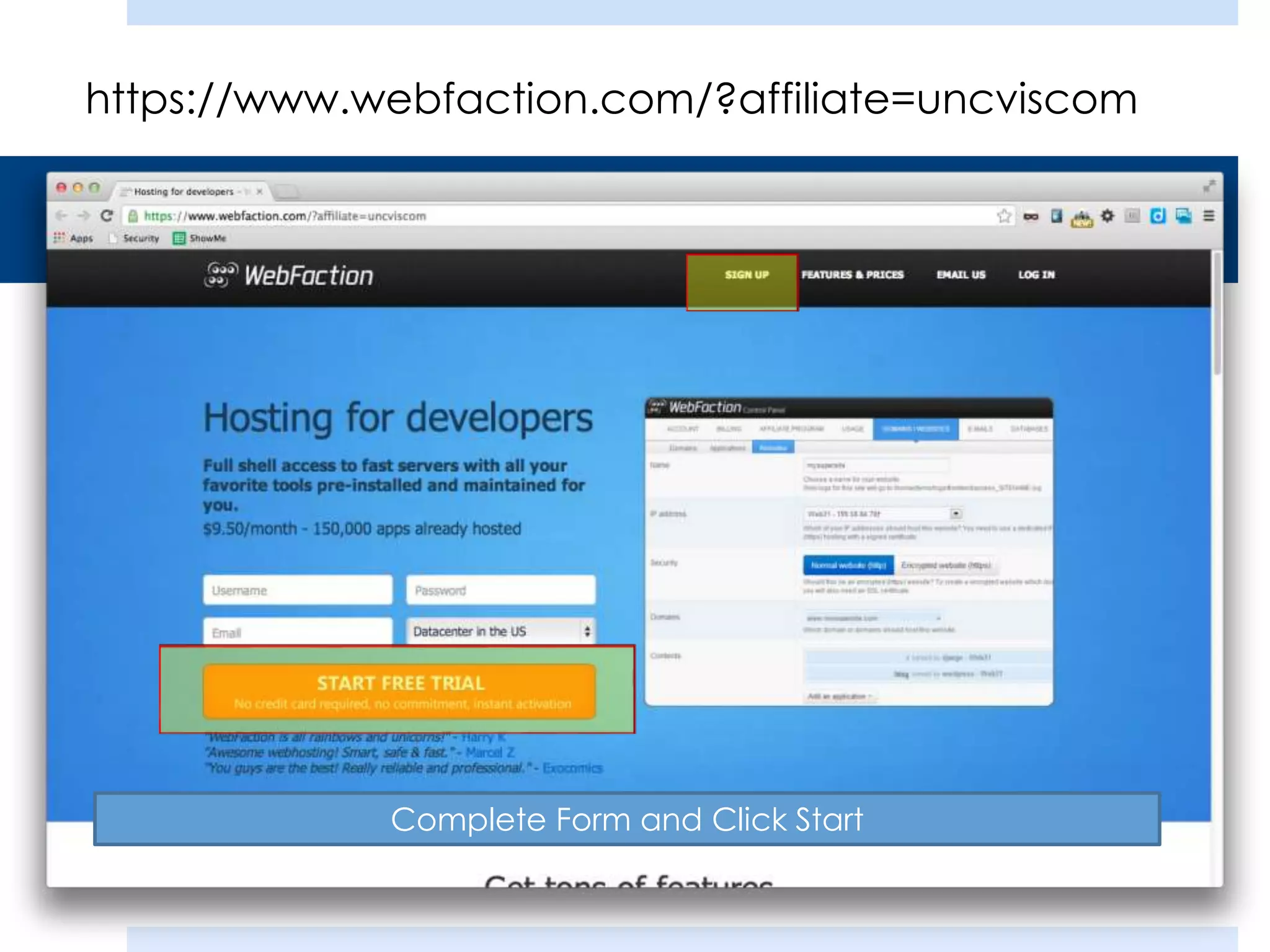
https://www.webfaction.com/?affiliate=uncviscom

Complete Form and Click Start
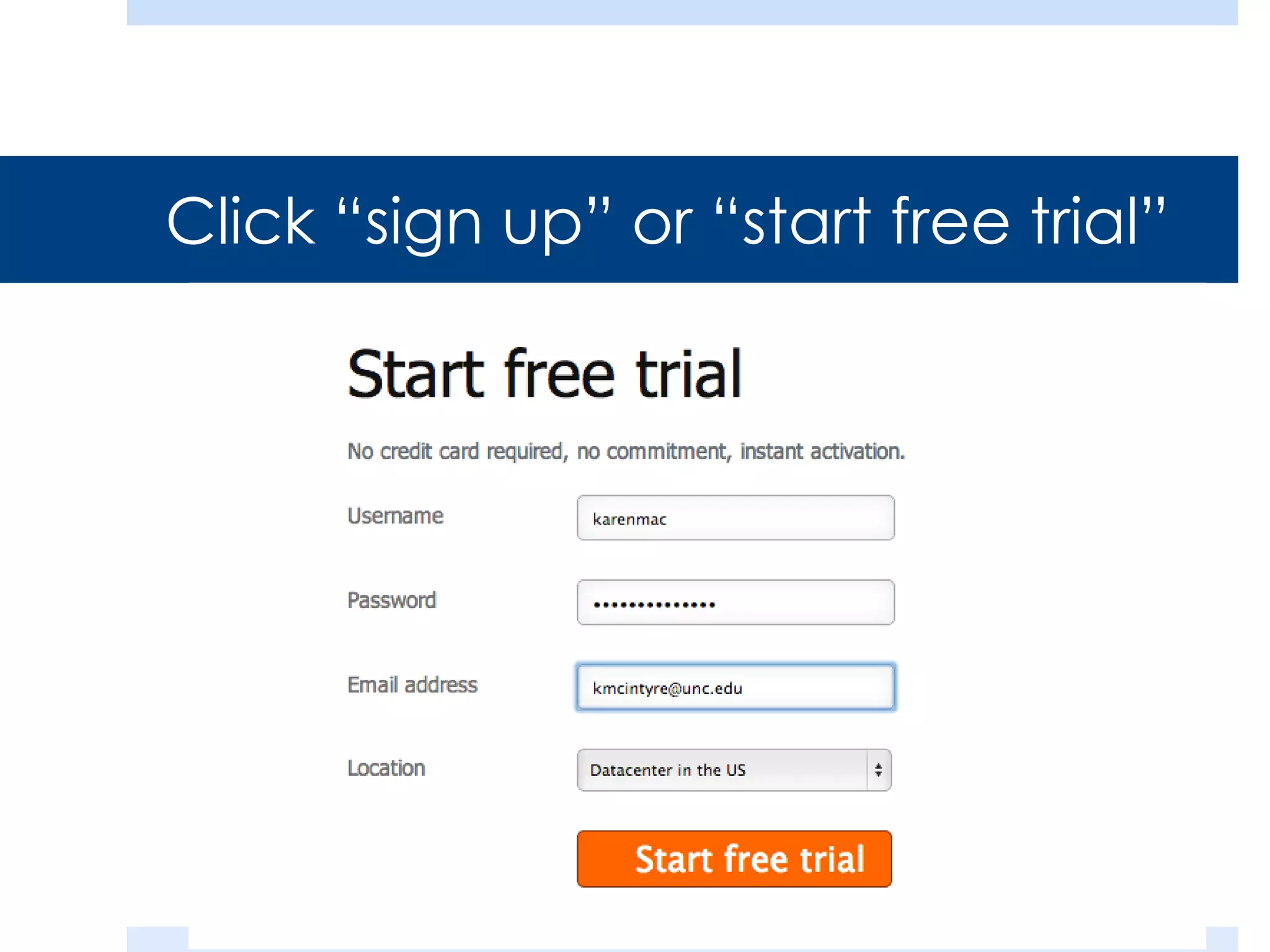
Click “sign up” or “start free trial”
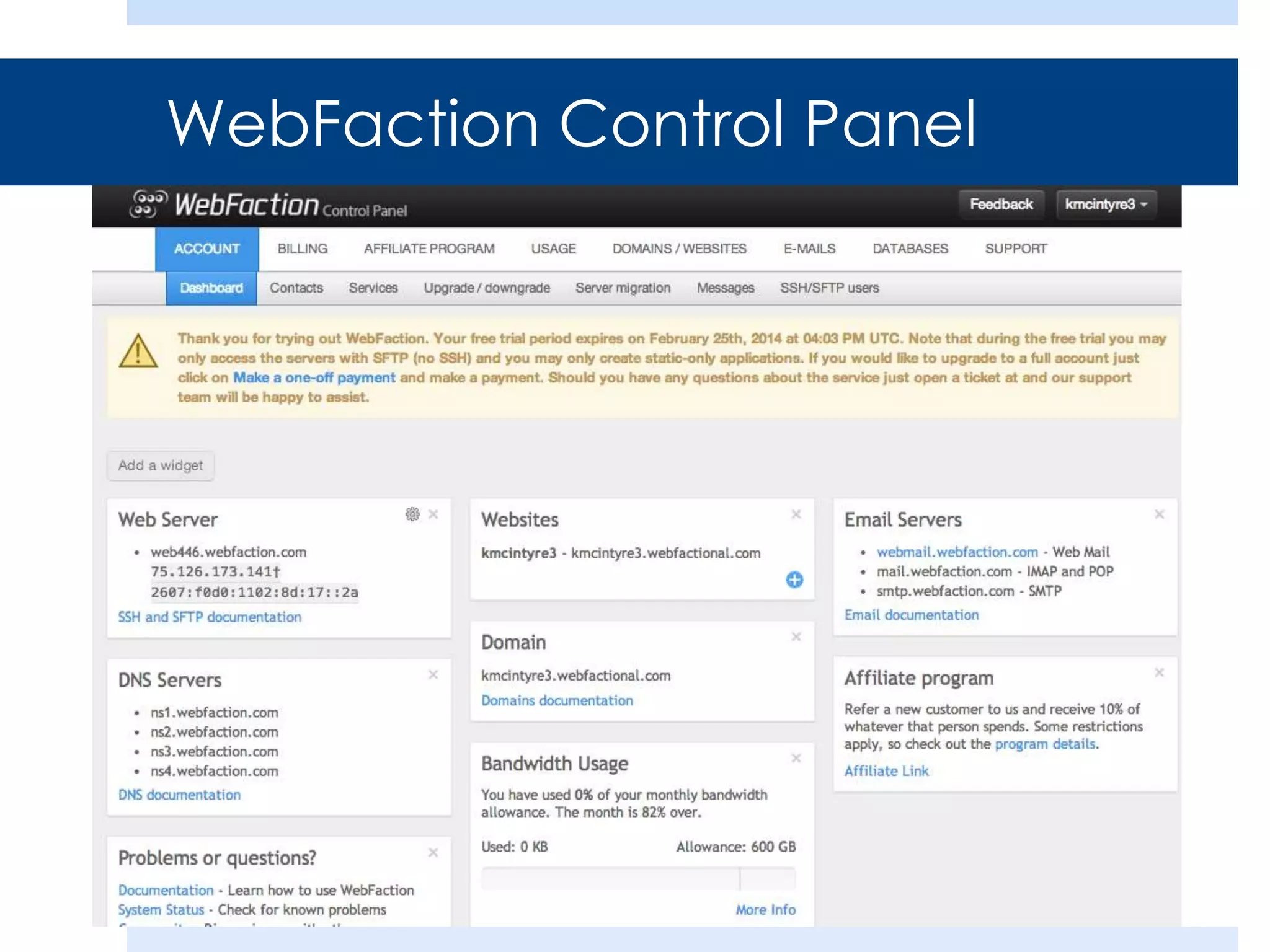
WebFaction Control Panel
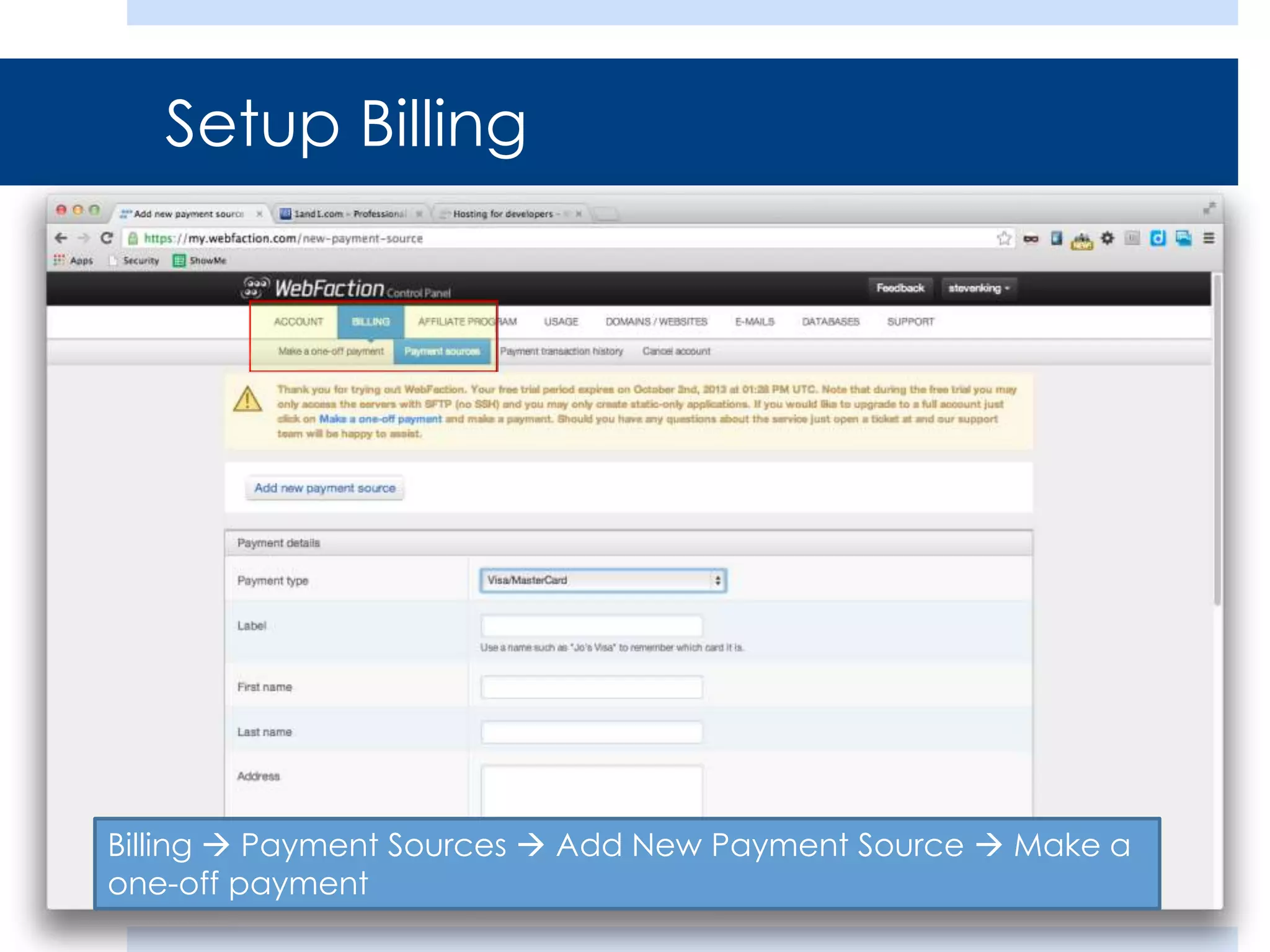
Setup Billing

Billing  Payment Sources  Add New Payment Source  Make a
one-off payment
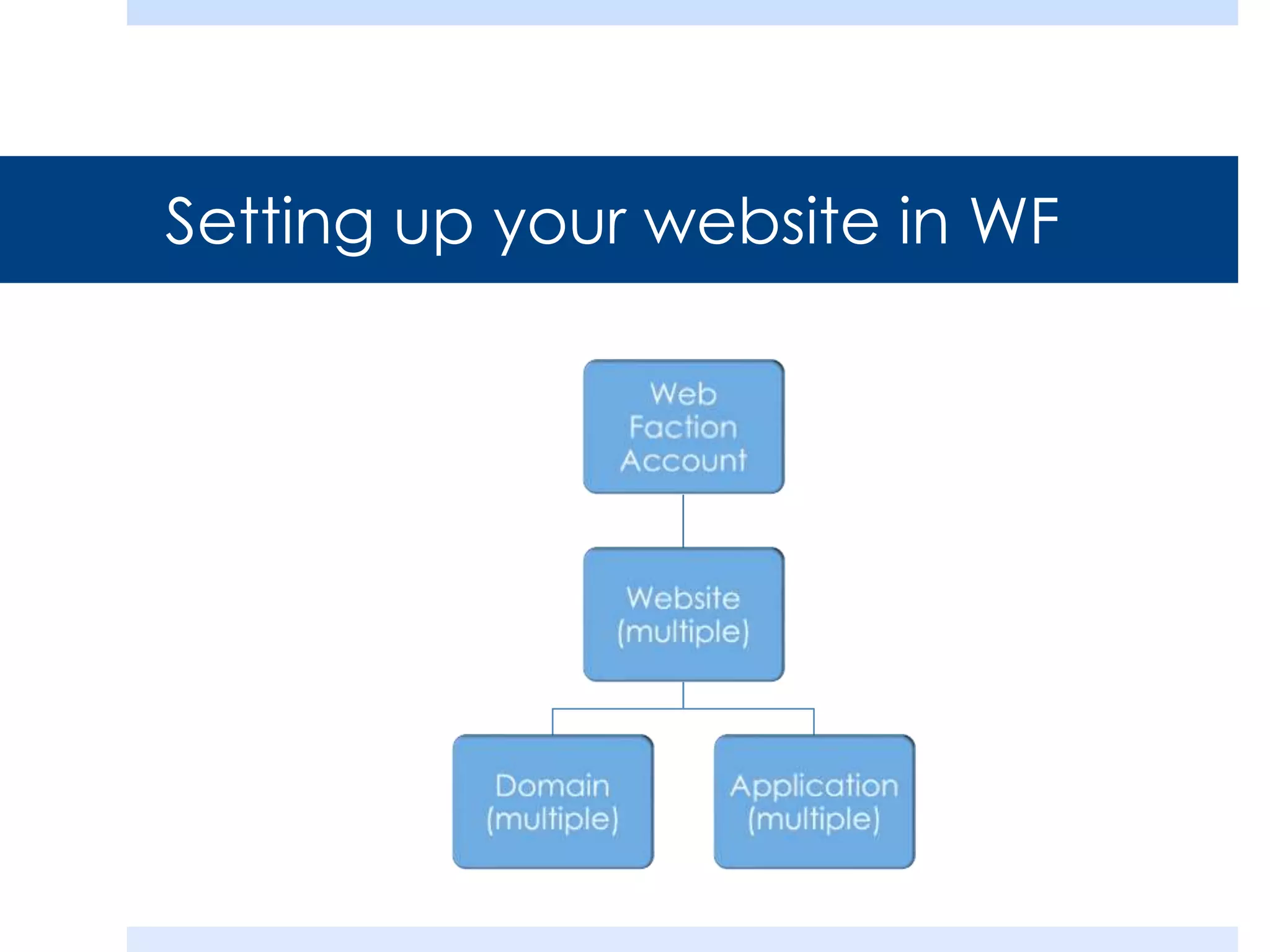
Setting up your website in WF
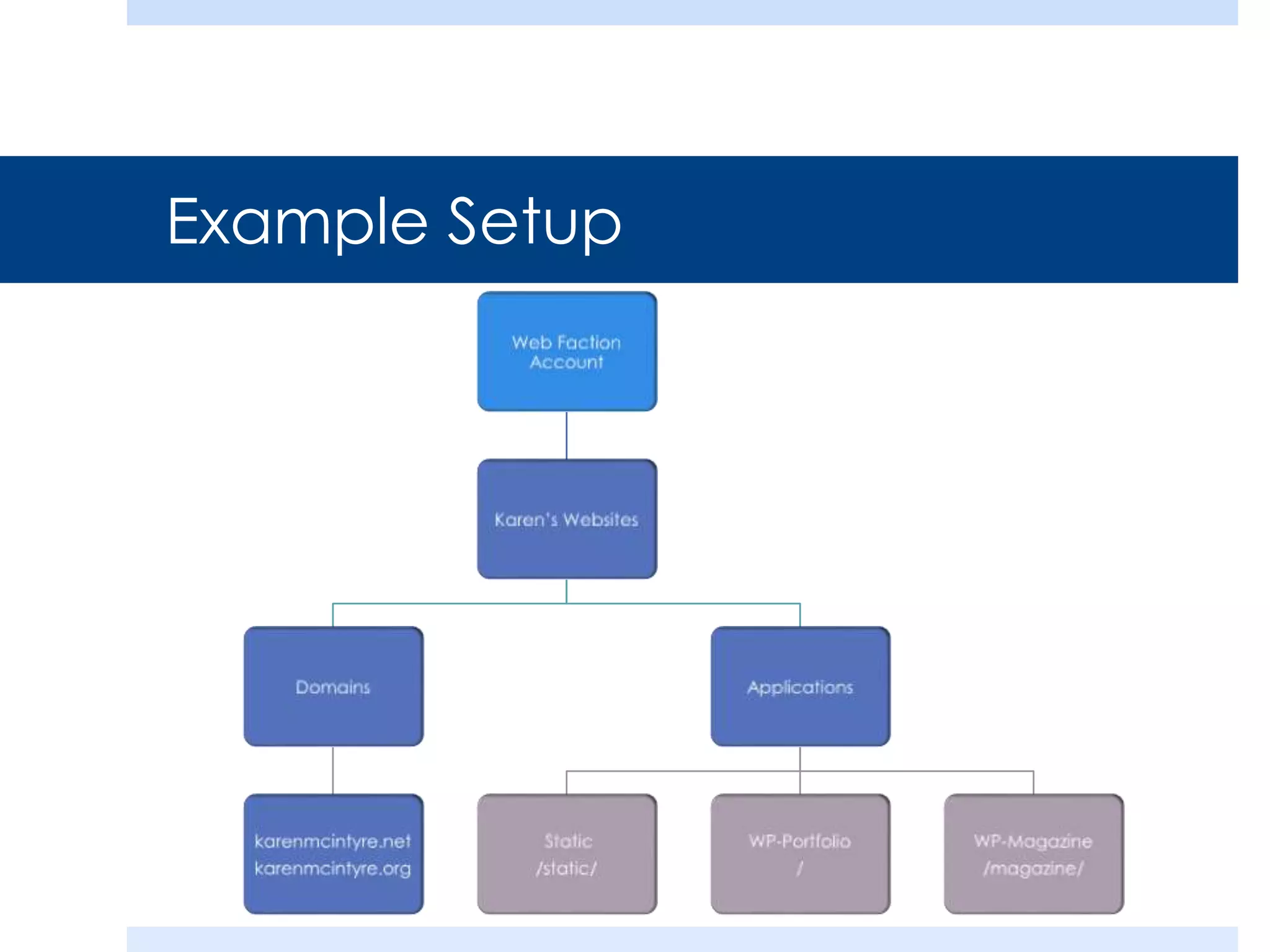
Example Setup
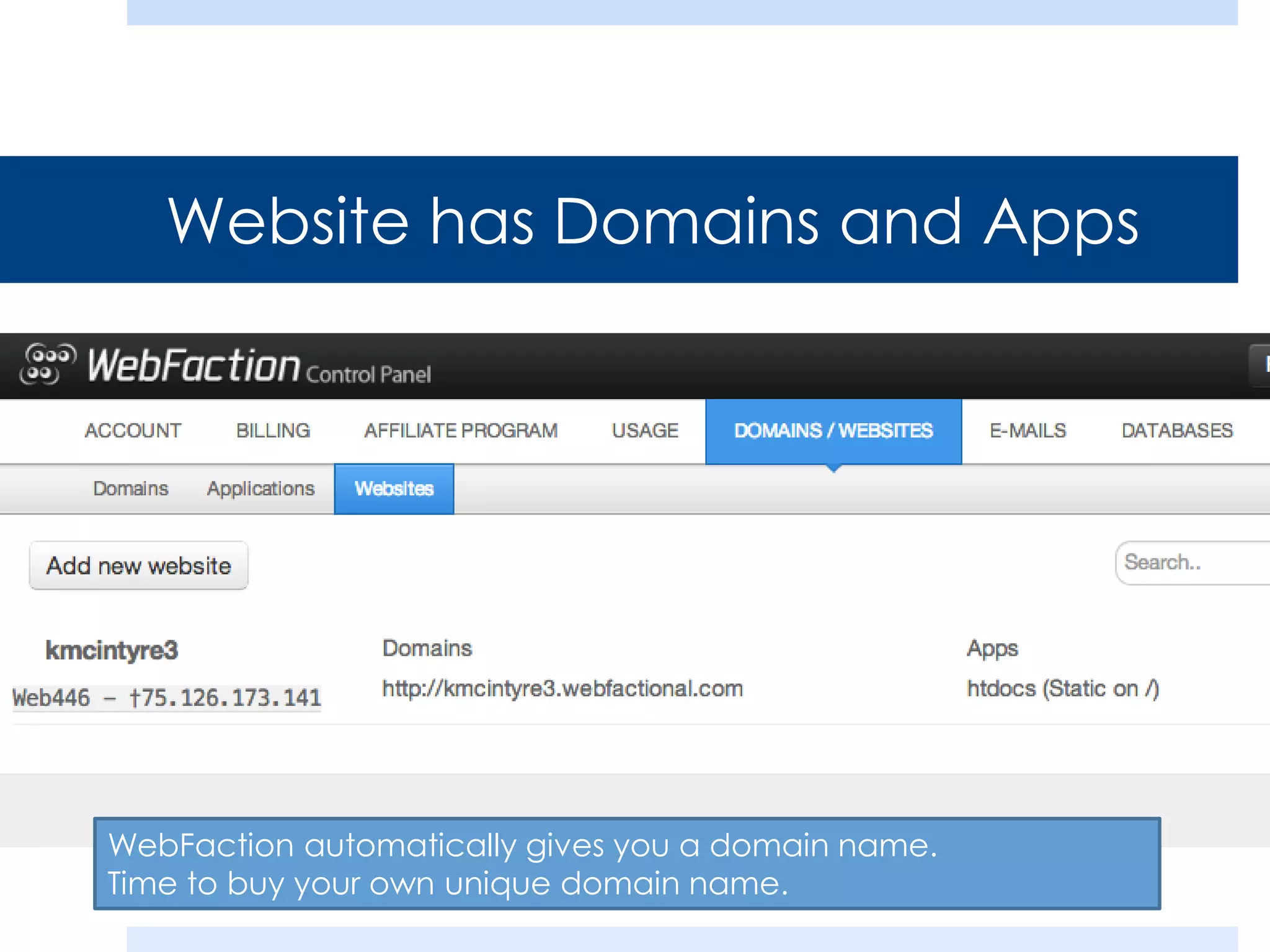
Website has Domains and Apps

WebFaction automatically gives you a domain name.
Time to buy your own unique domain name.
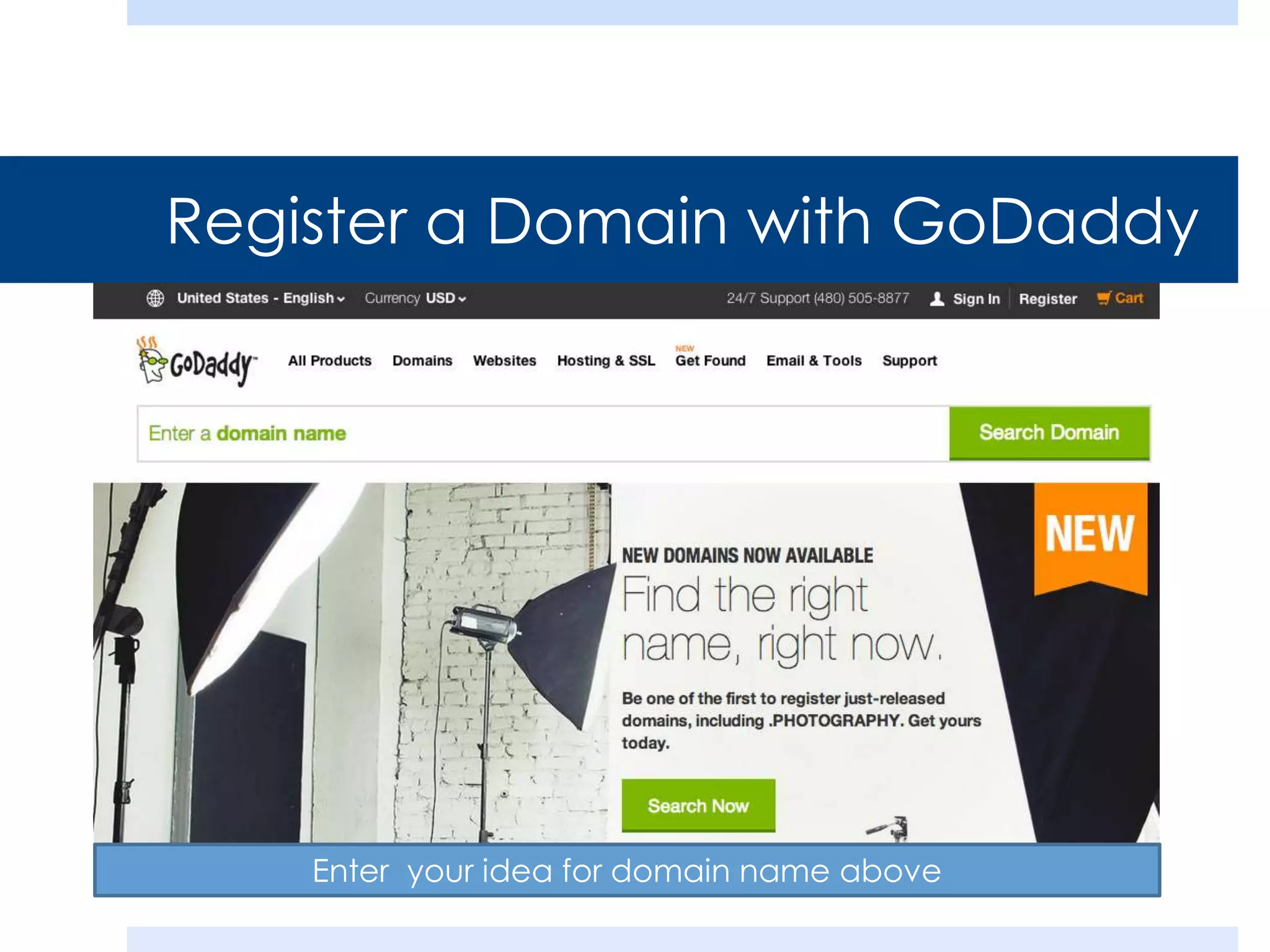
Register a Domain with GoDaddy

Enter your idea for domain name above
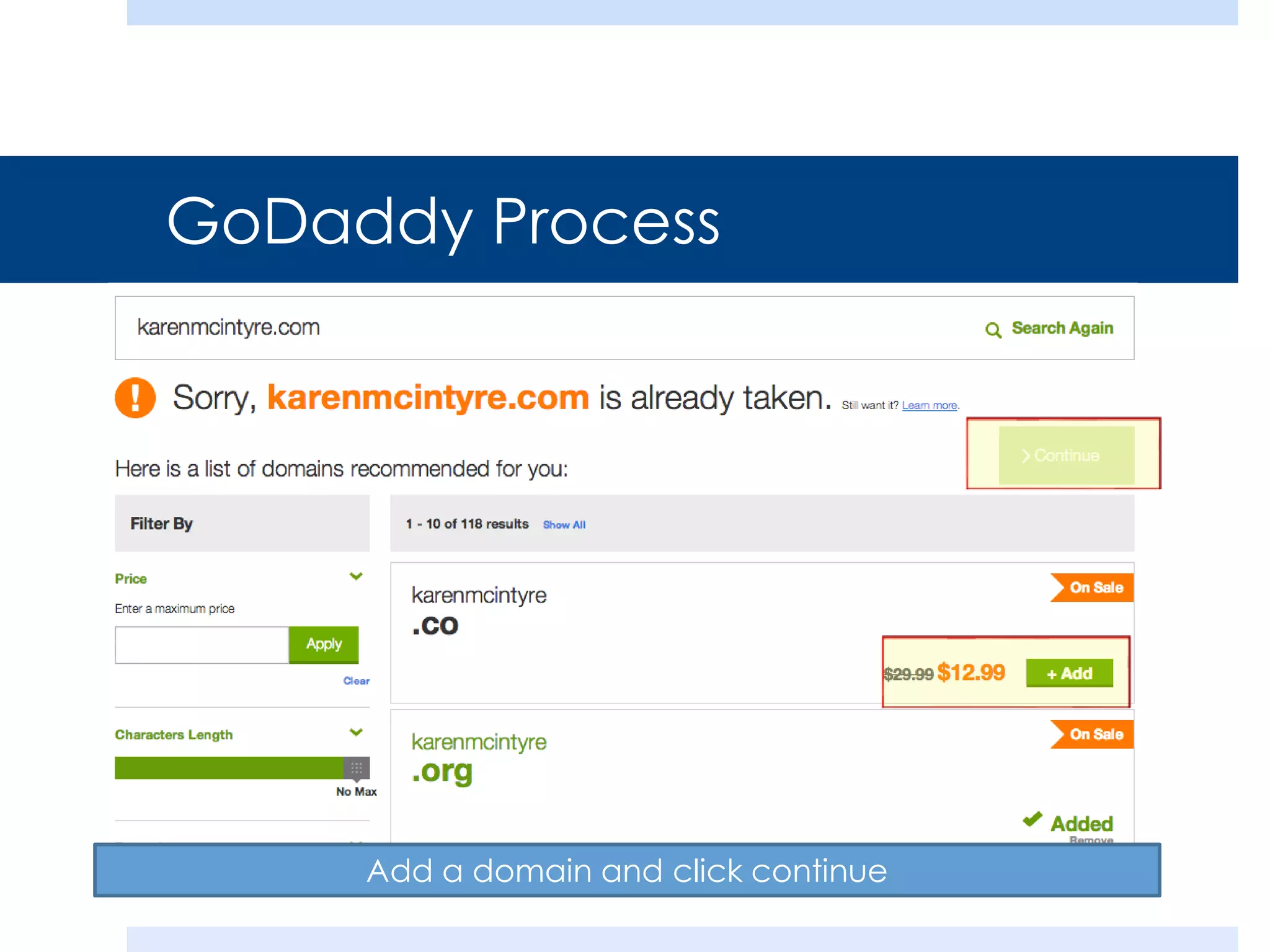
GoDaddy Process

Add a domain and click continue
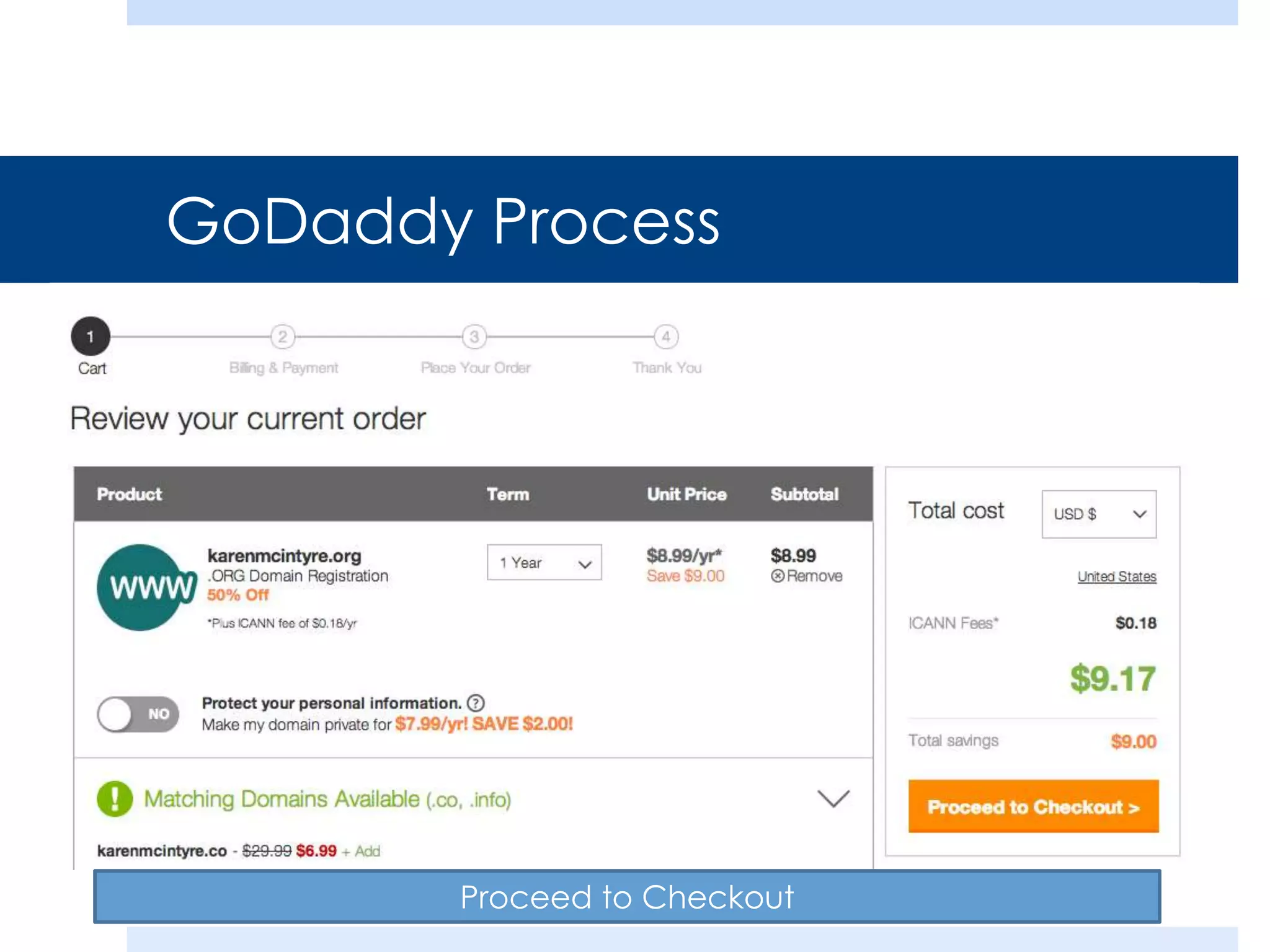
GoDaddy Process

Proceed to Checkout
GoDaddy Process
 Complete the signup steps
 There is no need to add additional or extra features,
security, privacy, etc.

 Keep track of your account info (username, password,
etc.)
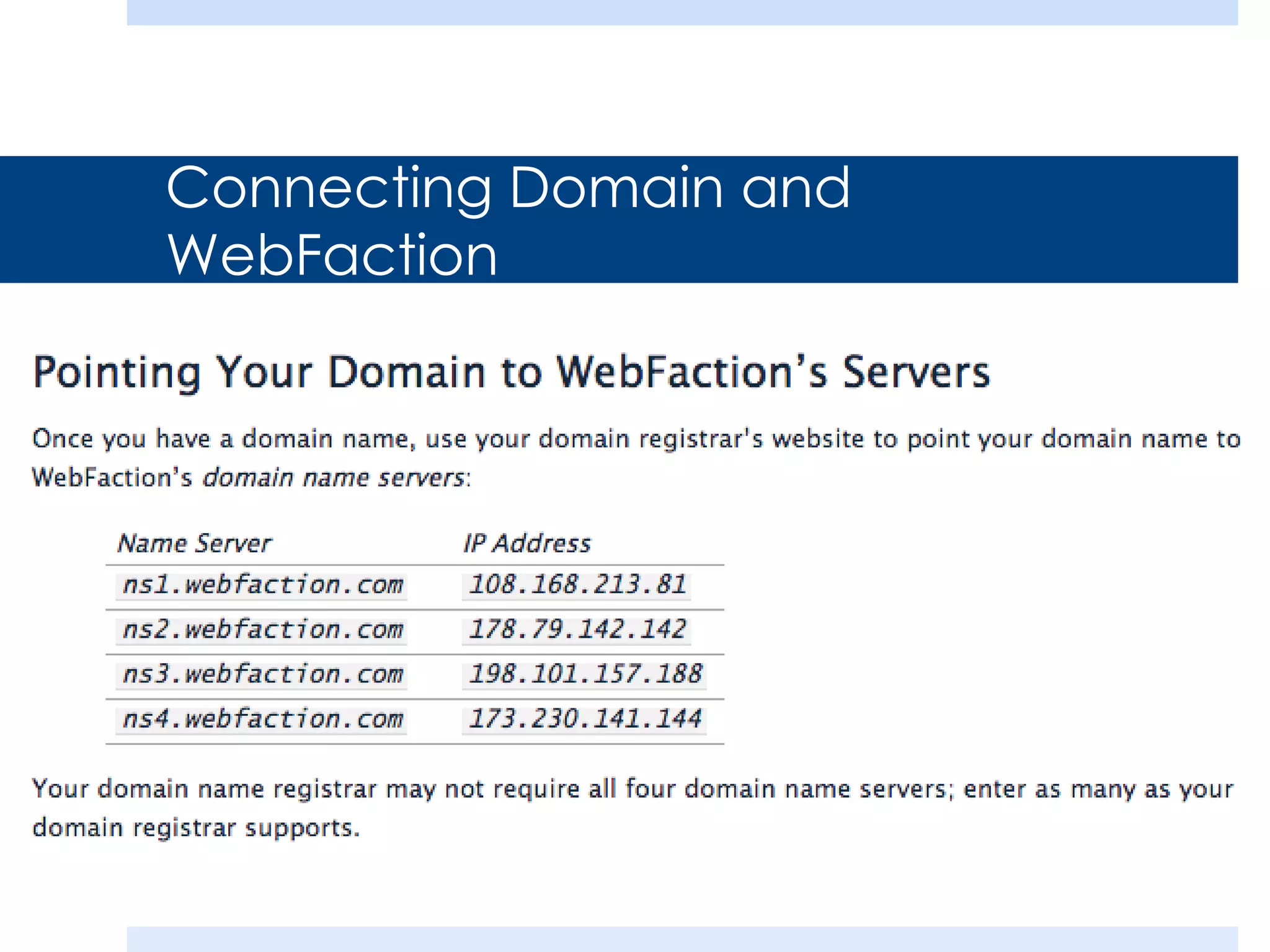
Connecting Domain and
WebFaction
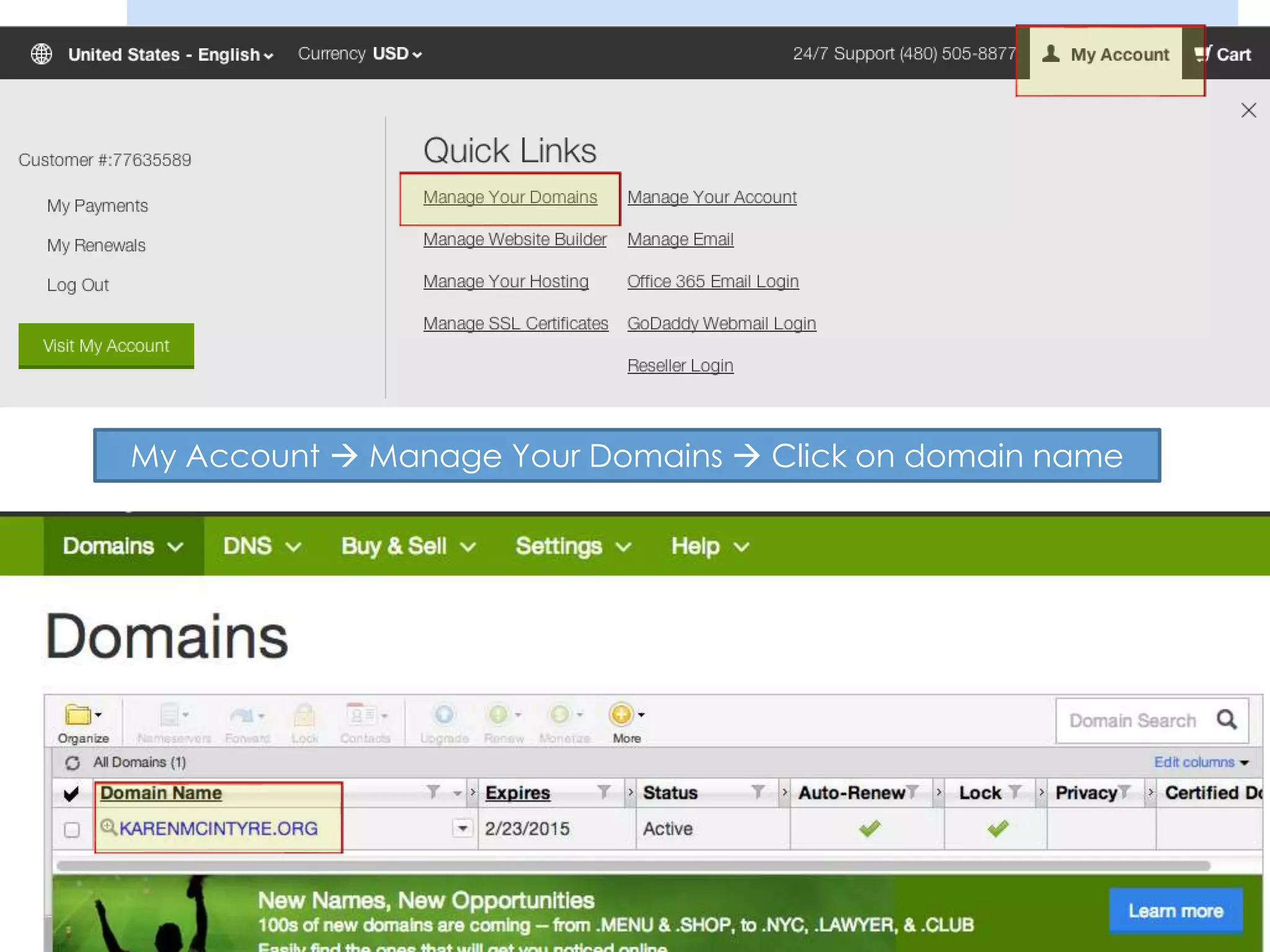
My Account  Manage Your Domains  Click on domain name
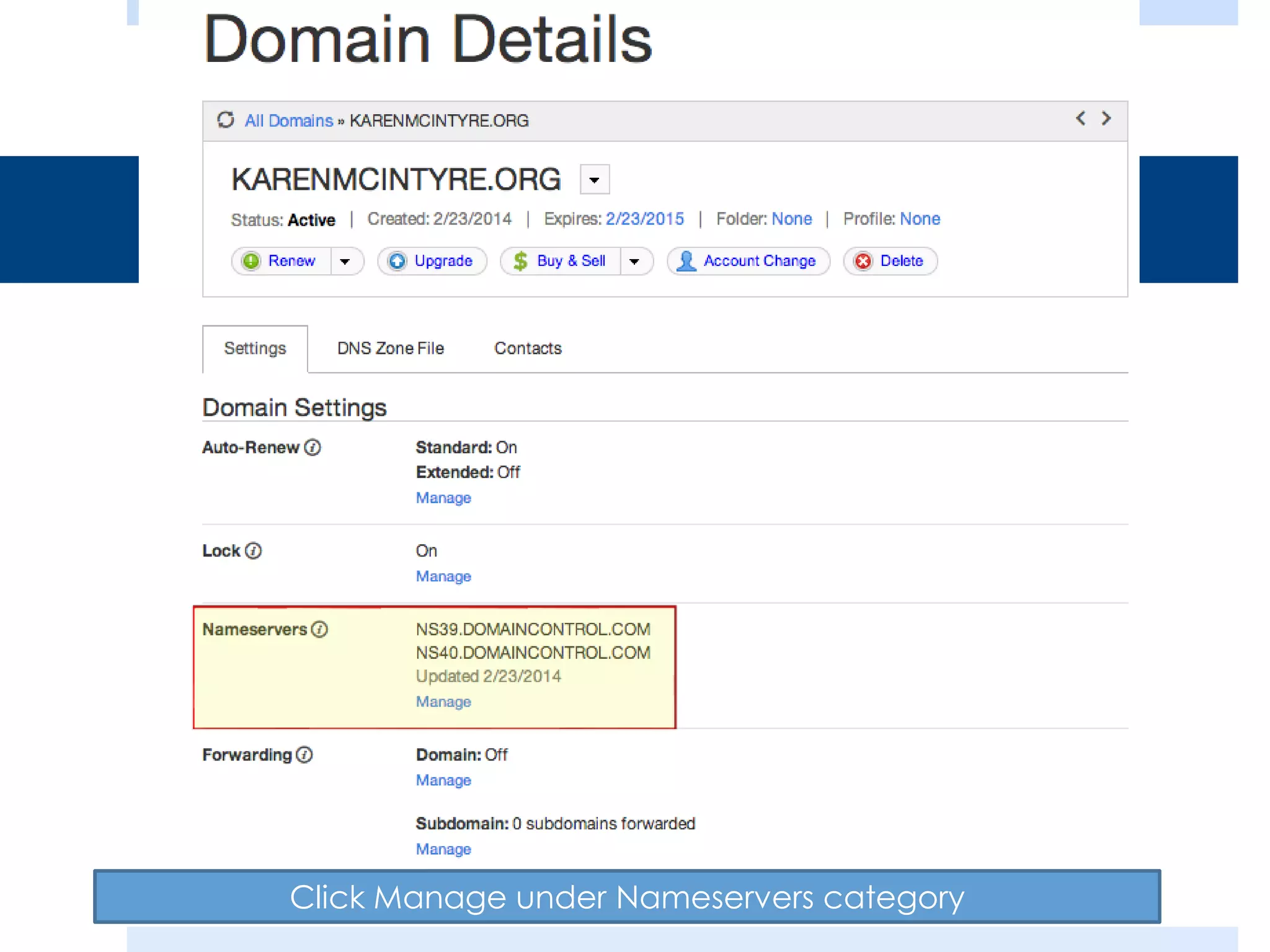
Click Manage under Nameservers category
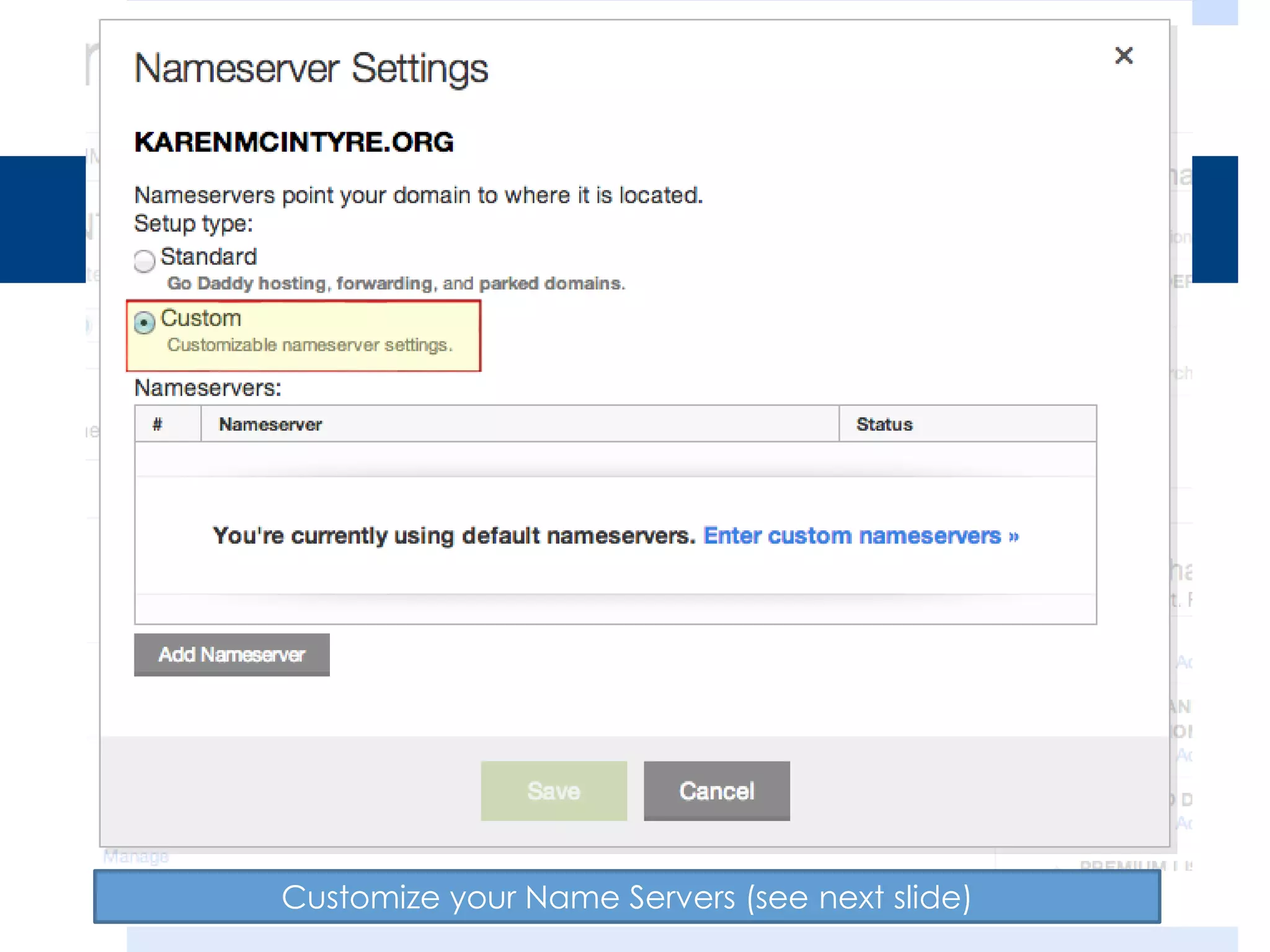
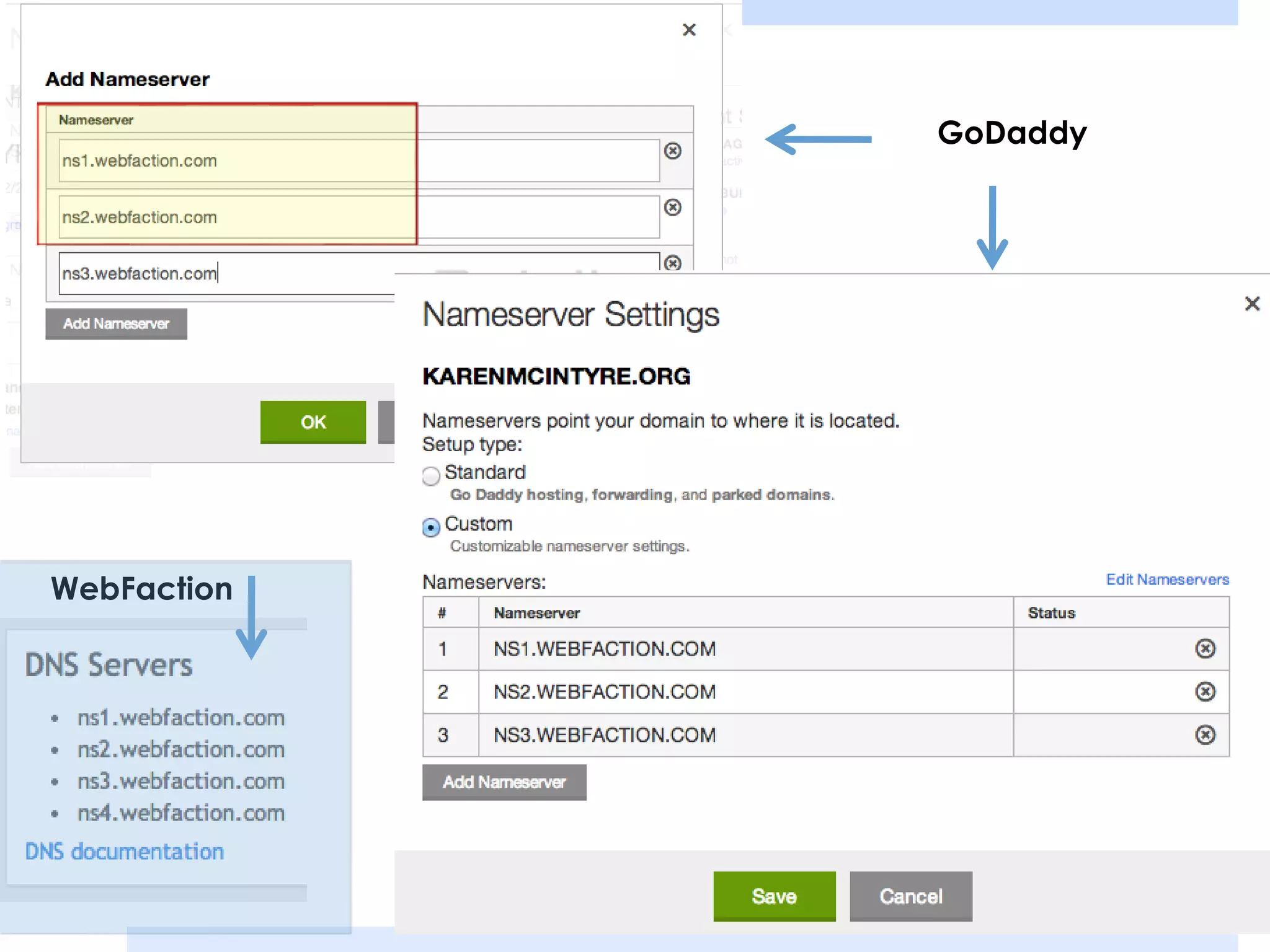
Customize your Name Servers (see next slide)
GoDaddy

WebFaction
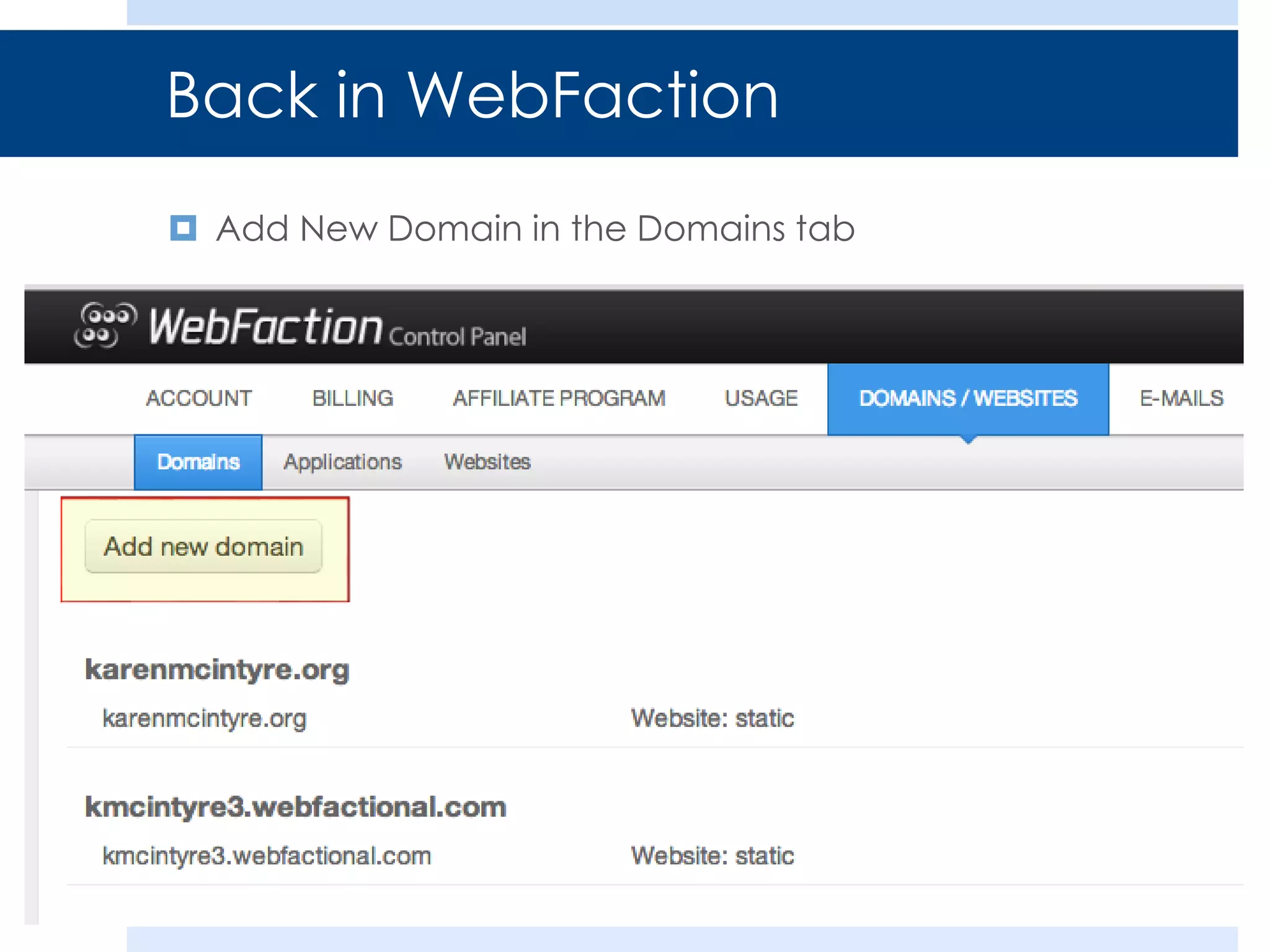
Back in WebFaction
 Add New Domain in the Domains tab
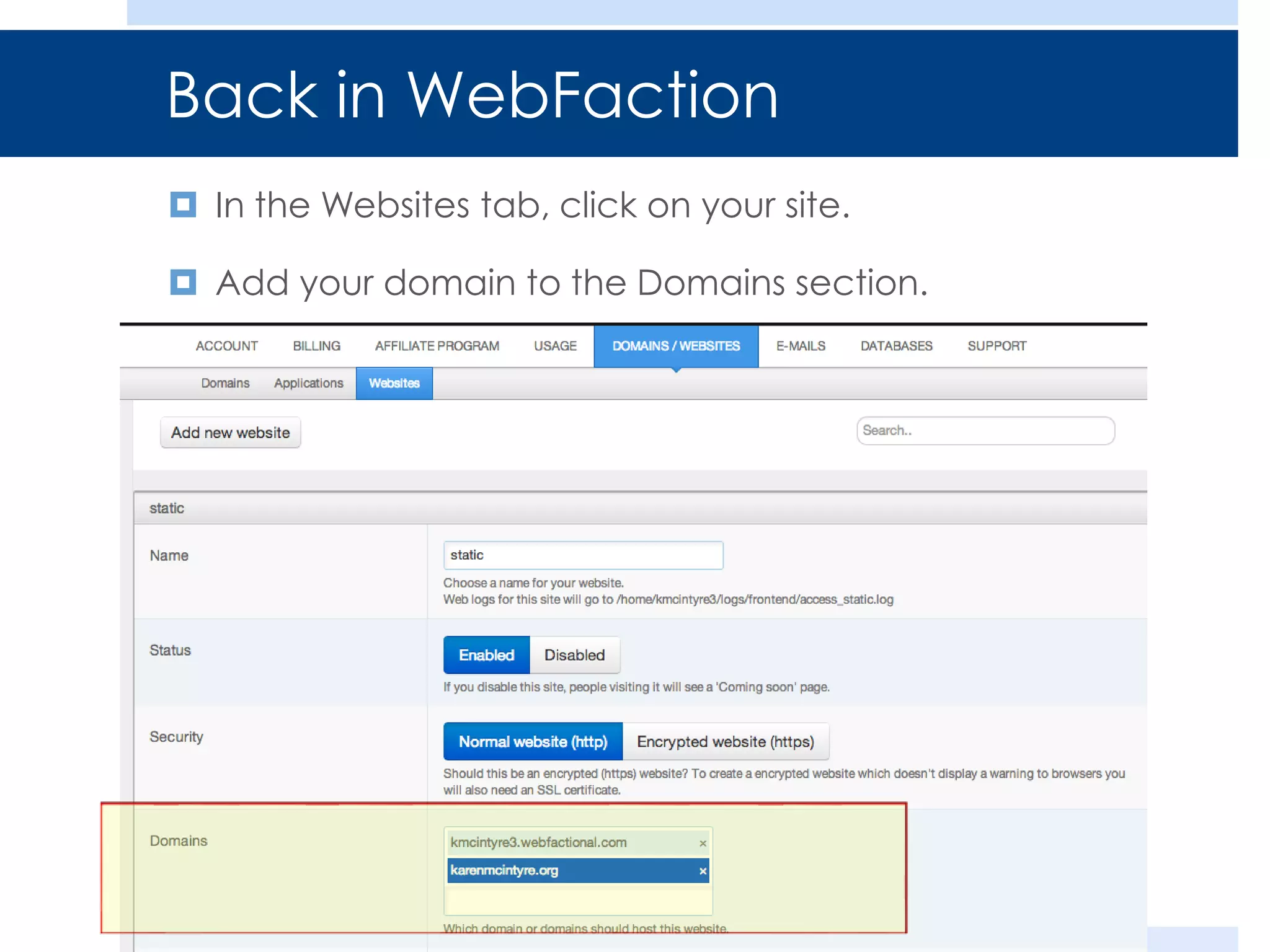
Back in WebFaction
 In the Websites tab, click on your site.
 Add your domain to the Domains section.
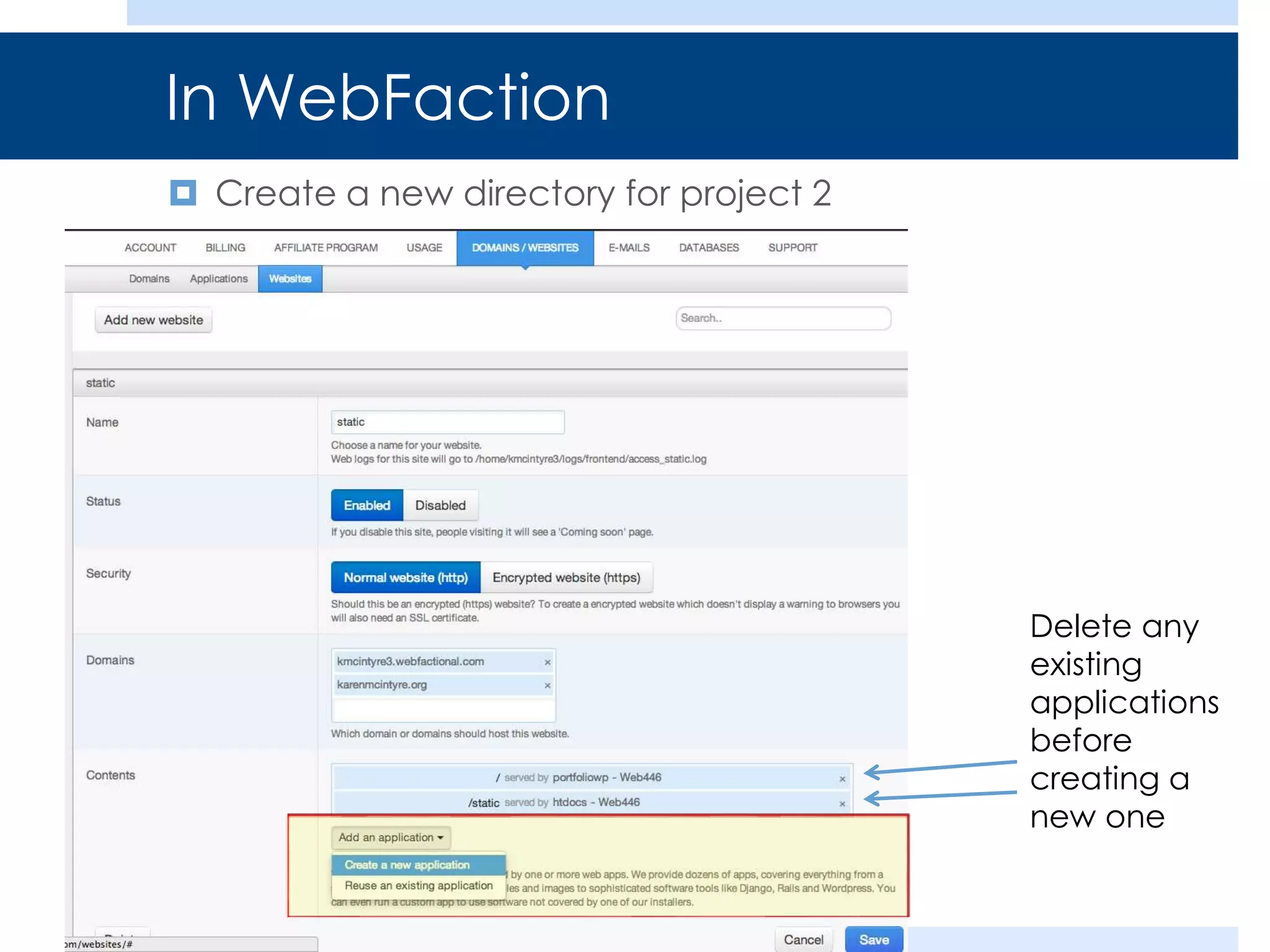
In WebFaction
 Create a new directory for project 2

Delete any
existing
applications
before
creating a
new one
Creating a new directory
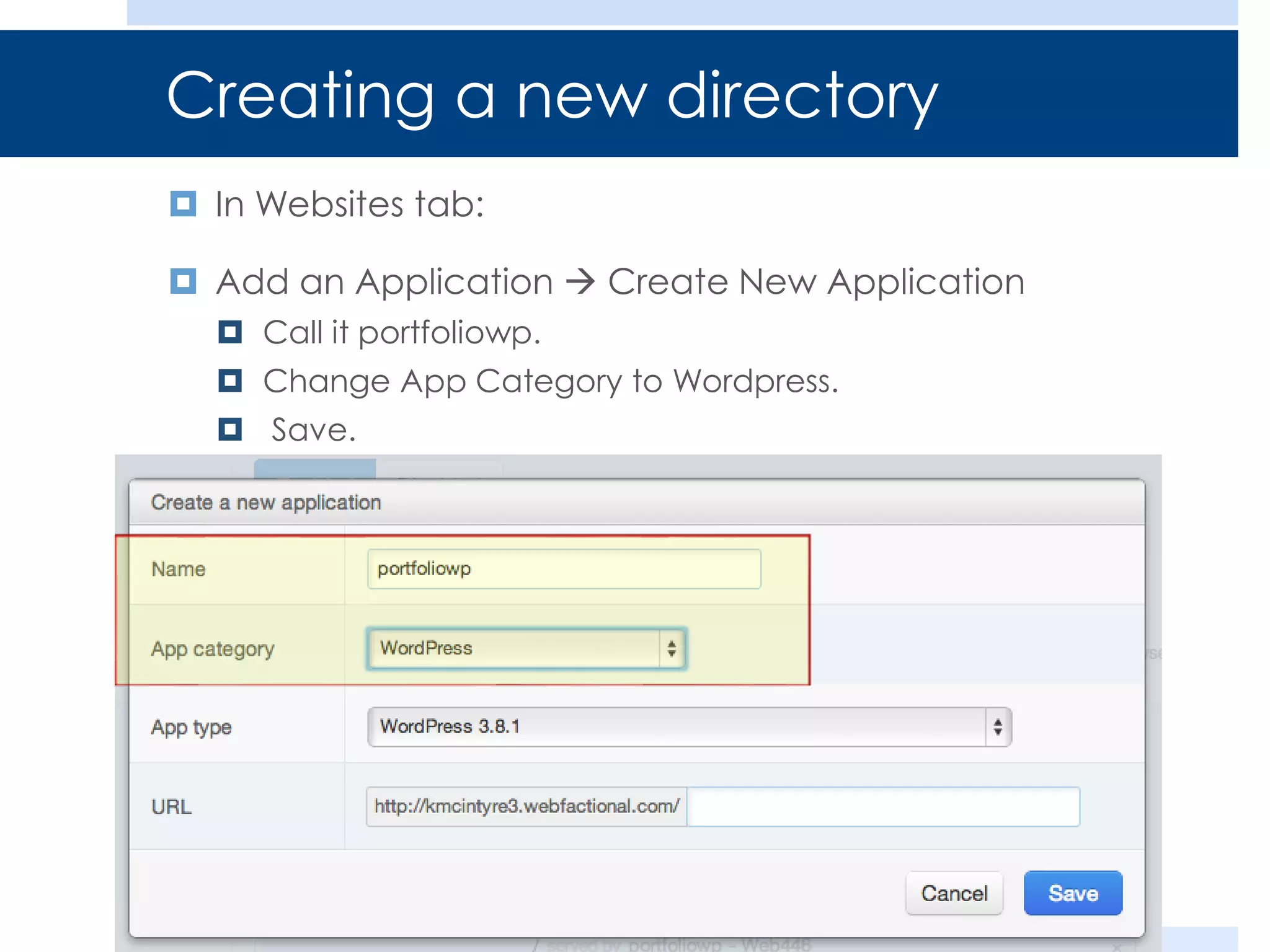
 In Websites tab:
 Add an Application  Create New Application
 Call it portfoliowp.
 Change App Category to Wordpress.
 Save.
Creating a new directory
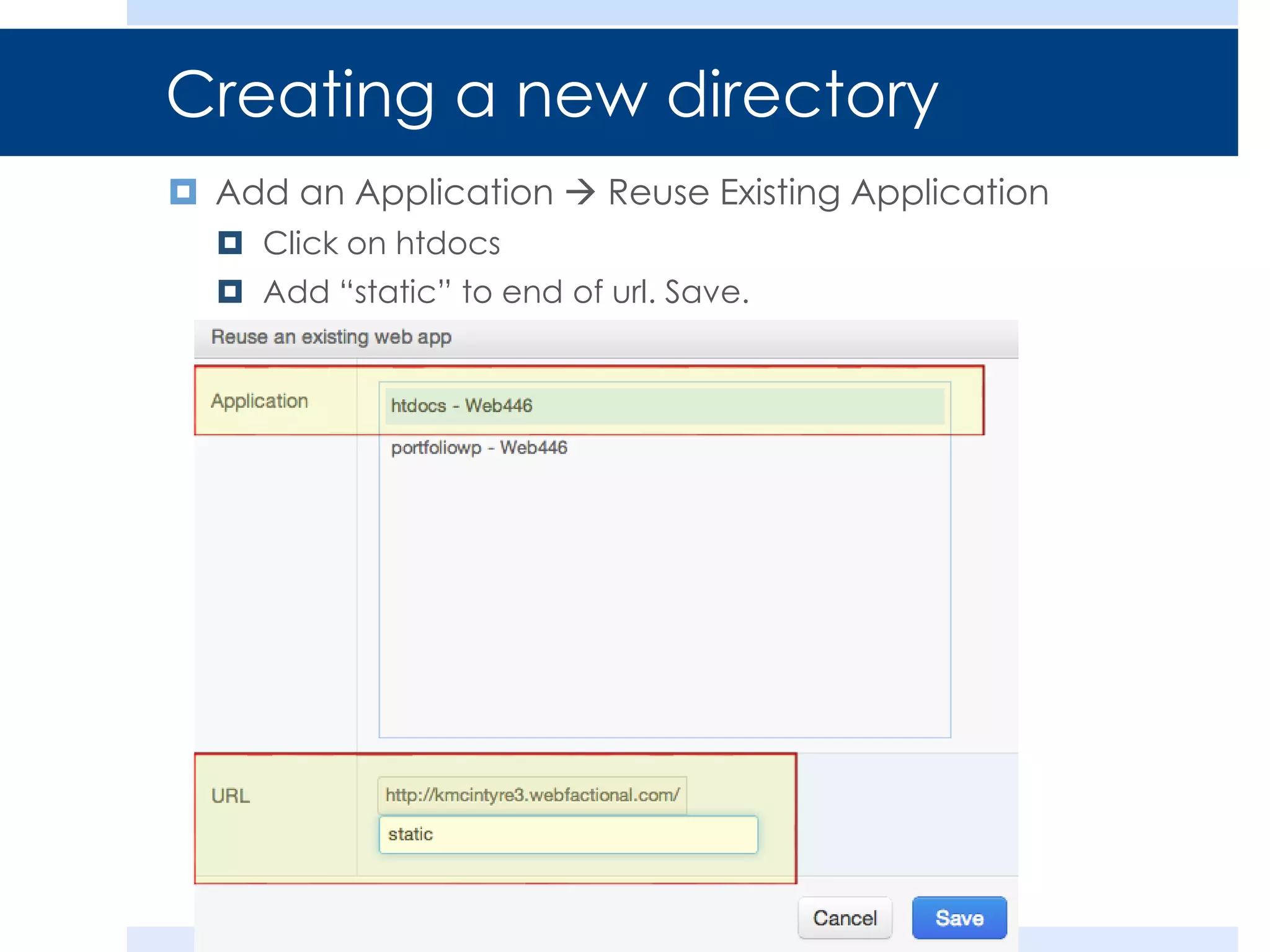
 Add an Application  Reuse Existing Application
 Click on htdocs
 Add “static” to end of url. Save.
Done!
 Now wait! (Possibly up to 24 or even 48 hours, but likely
only a few minutes)

Server and domain setup