SELENIUM COMMANDS (1)
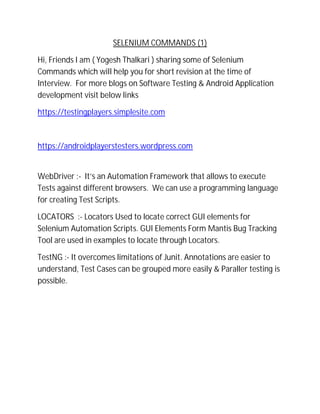
Hi, Friends I am ( Yogesh Thalkari ) sharing some of Selenium
Commands which will help you for short revision at the time of
Interview. For more blogs on Software Testing & Android Application
development visit below links
https://testingplayers.simplesite.com
https://androidplayerstesters.wordpress.com
WebDriver :- It’s an Automation Framework that allows to execute
Tests against different browsers. We can use a programming language
for creating Test Scripts.
LOCATORS :- Locators Used to locate correct GUI elements for
Selenium Automation Scripts. GUI Elements Form Mantis Bug Tracking
Tool are used in examples to locate through Locators.
TestNG :- It overcomes limitations of Junit. Annotations are easier to
understand, Test Cases can be grouped more easily & Paraller testing is
possible.
COMMANDS DESCRIPTION SYNTAX
1. By.ClassName Finds
element on
the value of
“Class”
attribute.
findElement(By.ClassName(“Class attributes value”)
2. By.cssSelector Finds
element on
cssSelector
engine.
findElment(By.cssSelector(“value”)
e.g.
driver.findElement(By.cssSelector(“input.button”)).click();
3. By.id Finds
element by
value of “ID”
attribute
findElement(By.id(“id value”))
e.g. driver.findElement(By.id(“report_stay”))
4. By.linkText Find element
by exact text
which is
visible
findElement(By.linkText(“type link text as it is”))
e.g. driver.findElement(By.id(“Report Issue”)).click();
5. By.partialLinkText Finds
element by
text of link.
We can enter
short text to
locate
findElement(By.partialLinkText(“enter short link text instead of full link
text”))
e.g. driver.findElement(By.partialLinkText(“Report”))
6. By.name Finds
element by
value of
“name”
attribute
findElement(By.name(“enter value of name attribute”))
e.g. driver.findElement(By.id(“username”))
7. By.tagName Finds
element by
tag name
findElement(By.tagName(“enter tag name”))
e.g. driver.findElement(By.tagName(“”))
8. By.xpath Finds
element by
Xpath
FindElement(By.xpath(“enter xpath”))
e.g. driver.findElement(By.xpath(“html/body.....”))
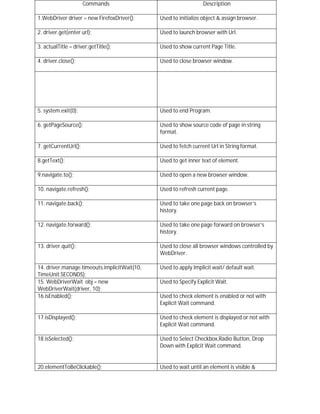
Commands Description
1.WebDriver driver = new FirefoxDriver(); Used to initialize object & assign browser.
2. driver.get(enter url); Used to launch browser with Url.
3. actualTitle = driver.getTitle(); Used to show current Page Title.
4. driver.close(); Used to close browser window.
5. system.exit(0); Used to end Program.
6. getPageSource(); Used to show source code of page in string
format.
7. getCurrentUrl(); Used to fetch current Url in String format.
8.getText(); Used to get inner text of element.
9.navigate.to(); Used to open a new browser window.
10. navigate.refresh(); Used to refresh current page.
11. navigate.back(); Used to take one page back on browser’s
history.
12. navigate.forward(); Used to take one page forward on browser’s
history.
13. driver.quit(); Used to close all browser windows controlled by
WebDriver.
14. driver.manage.timeouts.implicitWait(10,
TimeUnit.SECONDS);
Used to apply Implicit wait/ default wait.
15. WebDriverWait obj = new
WebDriverWait(driver, 10);
Used to Specify Explicit Wait.
16.isEnabled(); Used to check element is enabled or not with
Explicit Wait command.
17.isDisplayed(); Used to check element is displayed or not with
Explicit Wait command.
18.isSelected(); Used to Select Checkbox,Radio Button, Drop
Down with Explicit Wait command.
20.elementToBeClickable(); Used to wait until an element is visible &
enabled.
21.frameToBeAvailableAndSwitchToIt(); Used to wait until given Frame is available & it
switches automatically to that Frame.
22.selectByVisibleText() &
deselectByVisisbleText();
Used to Select/Deselect the option that displays
the text matching Parameter.
23.selectByValue() & deselectByValue(); Used to Select/Deselct the option whose values
matches to Parameter.
24.selectByIndex() & deselectByIndex(); Used to Select/Deselect the option at specified
index.
25.isMultiple(); Used to check that drop down allows multiple
selection.
26.deselectAll(); Used to clear all Selected entries.

Selenium Commands (Short Interview Preparation)

  • 1.
    SELENIUM COMMANDS (1) Hi,Friends I am ( Yogesh Thalkari ) sharing some of Selenium Commands which will help you for short revision at the time of Interview. For more blogs on Software Testing & Android Application development visit below links https://testingplayers.simplesite.com https://androidplayerstesters.wordpress.com WebDriver :- It’s an Automation Framework that allows to execute Tests against different browsers. We can use a programming language for creating Test Scripts. LOCATORS :- Locators Used to locate correct GUI elements for Selenium Automation Scripts. GUI Elements Form Mantis Bug Tracking Tool are used in examples to locate through Locators. TestNG :- It overcomes limitations of Junit. Annotations are easier to understand, Test Cases can be grouped more easily & Paraller testing is possible.
  • 2.
    COMMANDS DESCRIPTION SYNTAX 1.By.ClassName Finds element on the value of “Class” attribute. findElement(By.ClassName(“Class attributes value”) 2. By.cssSelector Finds element on cssSelector engine. findElment(By.cssSelector(“value”) e.g. driver.findElement(By.cssSelector(“input.button”)).click(); 3. By.id Finds element by value of “ID” attribute findElement(By.id(“id value”)) e.g. driver.findElement(By.id(“report_stay”)) 4. By.linkText Find element by exact text which is visible findElement(By.linkText(“type link text as it is”)) e.g. driver.findElement(By.id(“Report Issue”)).click(); 5. By.partialLinkText Finds element by text of link. We can enter short text to locate findElement(By.partialLinkText(“enter short link text instead of full link text”)) e.g. driver.findElement(By.partialLinkText(“Report”)) 6. By.name Finds element by value of “name” attribute findElement(By.name(“enter value of name attribute”)) e.g. driver.findElement(By.id(“username”)) 7. By.tagName Finds element by tag name findElement(By.tagName(“enter tag name”)) e.g. driver.findElement(By.tagName(“”)) 8. By.xpath Finds element by Xpath FindElement(By.xpath(“enter xpath”)) e.g. driver.findElement(By.xpath(“html/body.....”))
  • 3.
    Commands Description 1.WebDriver driver= new FirefoxDriver(); Used to initialize object & assign browser. 2. driver.get(enter url); Used to launch browser with Url. 3. actualTitle = driver.getTitle(); Used to show current Page Title. 4. driver.close(); Used to close browser window. 5. system.exit(0); Used to end Program. 6. getPageSource(); Used to show source code of page in string format. 7. getCurrentUrl(); Used to fetch current Url in String format. 8.getText(); Used to get inner text of element. 9.navigate.to(); Used to open a new browser window. 10. navigate.refresh(); Used to refresh current page. 11. navigate.back(); Used to take one page back on browser’s history. 12. navigate.forward(); Used to take one page forward on browser’s history. 13. driver.quit(); Used to close all browser windows controlled by WebDriver. 14. driver.manage.timeouts.implicitWait(10, TimeUnit.SECONDS); Used to apply Implicit wait/ default wait. 15. WebDriverWait obj = new WebDriverWait(driver, 10); Used to Specify Explicit Wait. 16.isEnabled(); Used to check element is enabled or not with Explicit Wait command. 17.isDisplayed(); Used to check element is displayed or not with Explicit Wait command. 18.isSelected(); Used to Select Checkbox,Radio Button, Drop Down with Explicit Wait command. 20.elementToBeClickable(); Used to wait until an element is visible &
  • 4.
    enabled. 21.frameToBeAvailableAndSwitchToIt(); Used towait until given Frame is available & it switches automatically to that Frame. 22.selectByVisibleText() & deselectByVisisbleText(); Used to Select/Deselect the option that displays the text matching Parameter. 23.selectByValue() & deselectByValue(); Used to Select/Deselct the option whose values matches to Parameter. 24.selectByIndex() & deselectByIndex(); Used to Select/Deselect the option at specified index. 25.isMultiple(); Used to check that drop down allows multiple selection. 26.deselectAll(); Used to clear all Selected entries.