1
Unit 1 : Introduction to Web Technologies
 Introduction to HTML:
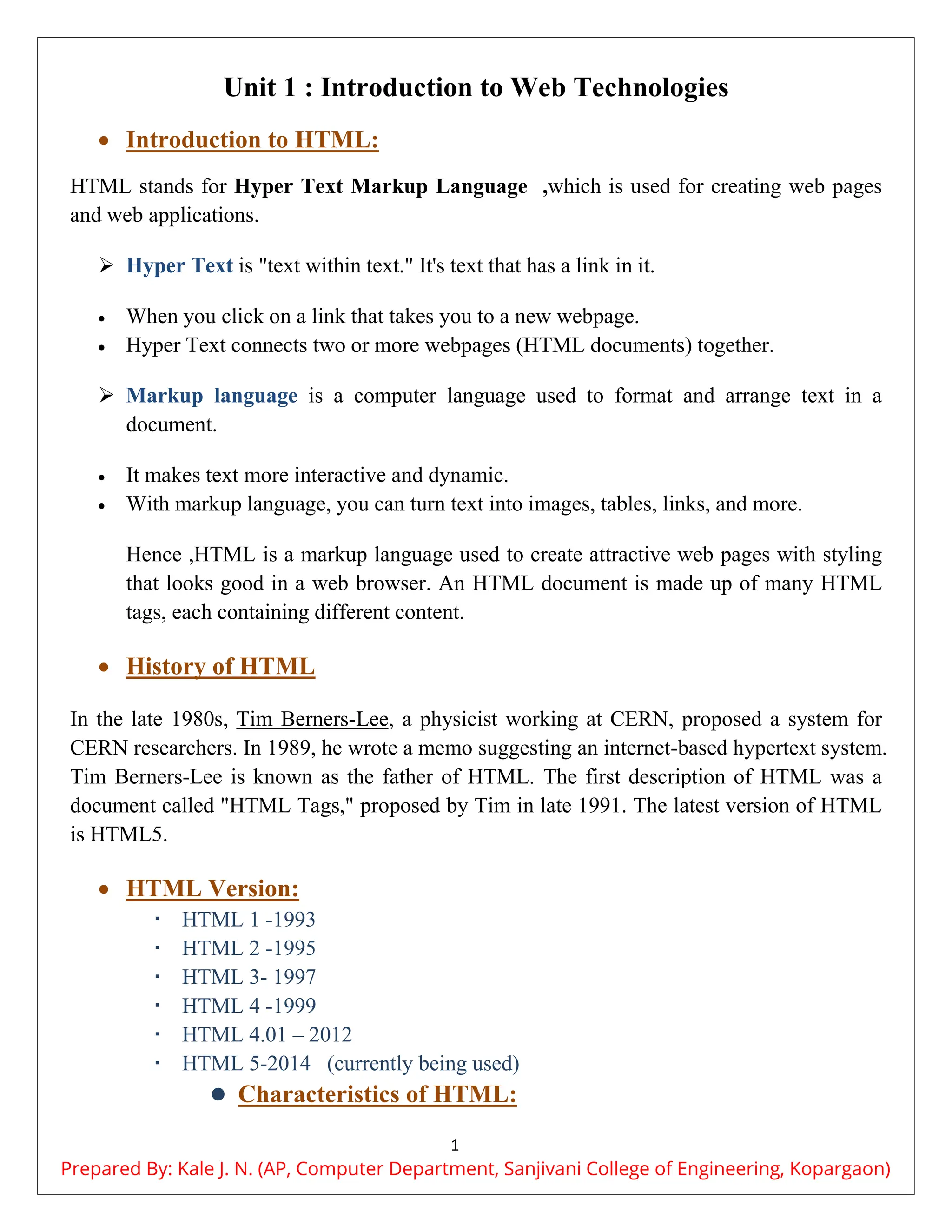
HTML stands for Hyper Text Markup Language ,which is used for creating web pages
and web applications.
 Hyper Text is "text within text." It's text that has a link in it.
 When you click on a link that takes you to a new webpage.
 Hyper Text connects two or more webpages (HTML documents) together.
 Markup language is a computer language used to format and arrange text in a
document.
 It makes text more interactive and dynamic.
 With markup language, you can turn text into images, tables, links, and more.
Hence ,HTML is a markup language used to create attractive web pages with styling
that looks good in a web browser. An HTML document is made up of many HTML
tags, each containing different content.
 History of HTML
In the late 1980s, Tim Berners-Lee, a physicist working at CERN, proposed a system for
CERN researchers. In 1989, he wrote a memo suggesting an internet-based hypertext system.
Tim Berners-Lee is known as the father of HTML. The first description of HTML was a
document called "HTML Tags," proposed by Tim in late 1991. The latest version of HTML
is HTML5.
 HTML Version:
 HTML 1 -1993
 HTML 2 -1995
 HTML 3- 1997
 HTML 4 -1999
 HTML 4.01 – 2012
 HTML 5-2014 (currently being used)
 Characteristics of HTML:
Prepared By: Kale J. N. (AP, Computer Department, Sanjivani College of Engineering, Kopargaon)
2
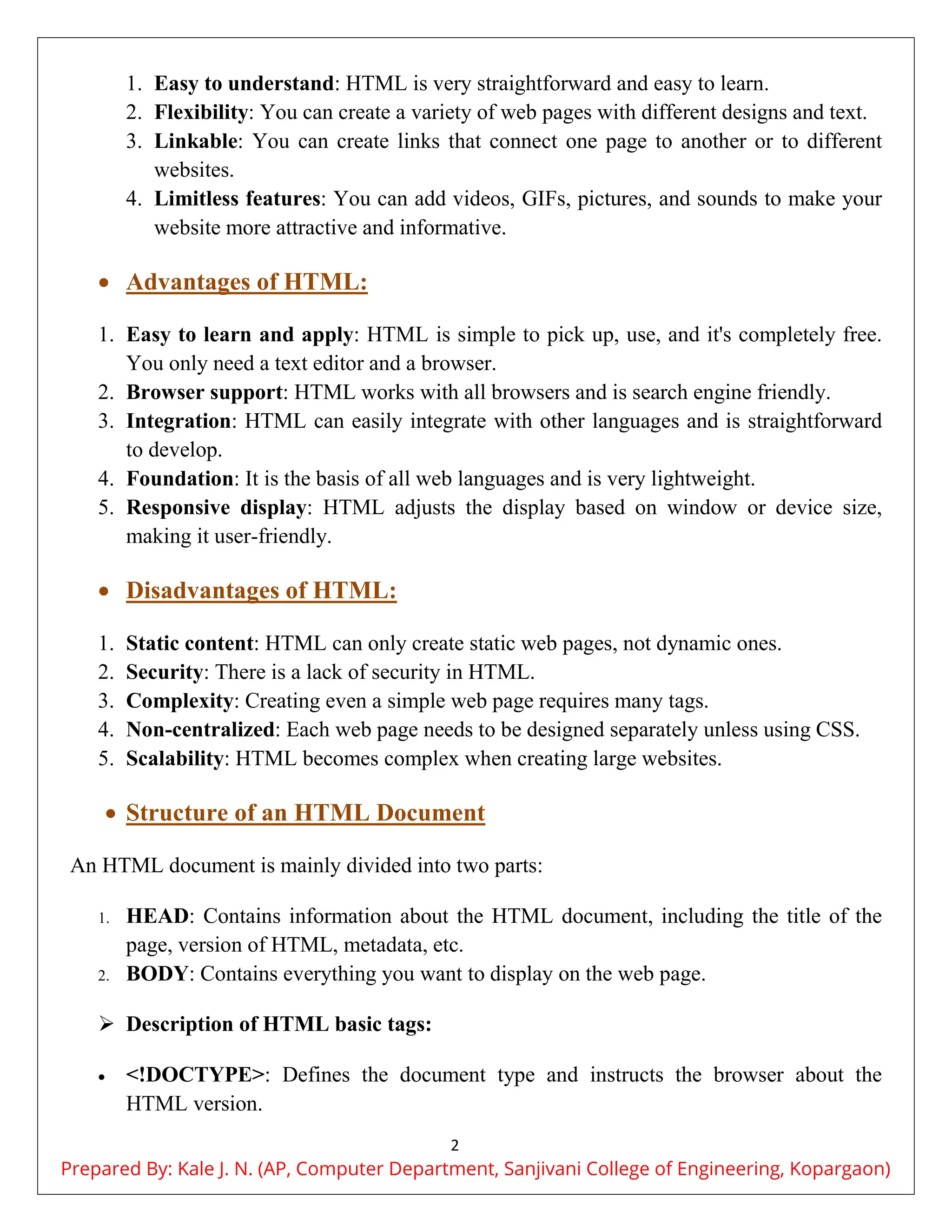
1. Easy to understand: HTML is very straightforward and easy to learn.
2. Flexibility: You can create a variety of web pages with different designs and text.
3. Linkable: You can create links that connect one page to another or to different
websites.
4. Limitless features: You can add videos, GIFs, pictures, and sounds to make your
website more attractive and informative.
 Advantages of HTML:
1. Easy to learn and apply: HTML is simple to pick up, use, and it's completely free.
You only need a text editor and a browser.
2. Browser support: HTML works with all browsers and is search engine friendly.
3. Integration: HTML can easily integrate with other languages and is straightforward
to develop.
4. Foundation: It is the basis of all web languages and is very lightweight.
5. Responsive display: HTML adjusts the display based on window or device size,
making it user-friendly.
 Disadvantages of HTML:
1. Static content: HTML can only create static web pages, not dynamic ones.
2. Security: There is a lack of security in HTML.
3. Complexity: Creating even a simple web page requires many tags.
4. Non-centralized: Each web page needs to be designed separately unless using CSS.
5. Scalability: HTML becomes complex when creating large websites.
 Structure of an HTML Document
An HTML document is mainly divided into two parts:
1. HEAD: Contains information about the HTML document, including the title of the
page, version of HTML, metadata, etc.
2. BODY: Contains everything you want to display on the web page.
 Description of HTML basic tags:
 <!DOCTYPE>: Defines the document type and instructs the browser about the
HTML version.
Prepared By: Kale J. N. (AP, Computer Department, Sanjivani College of Engineering, Kopargaon)
3
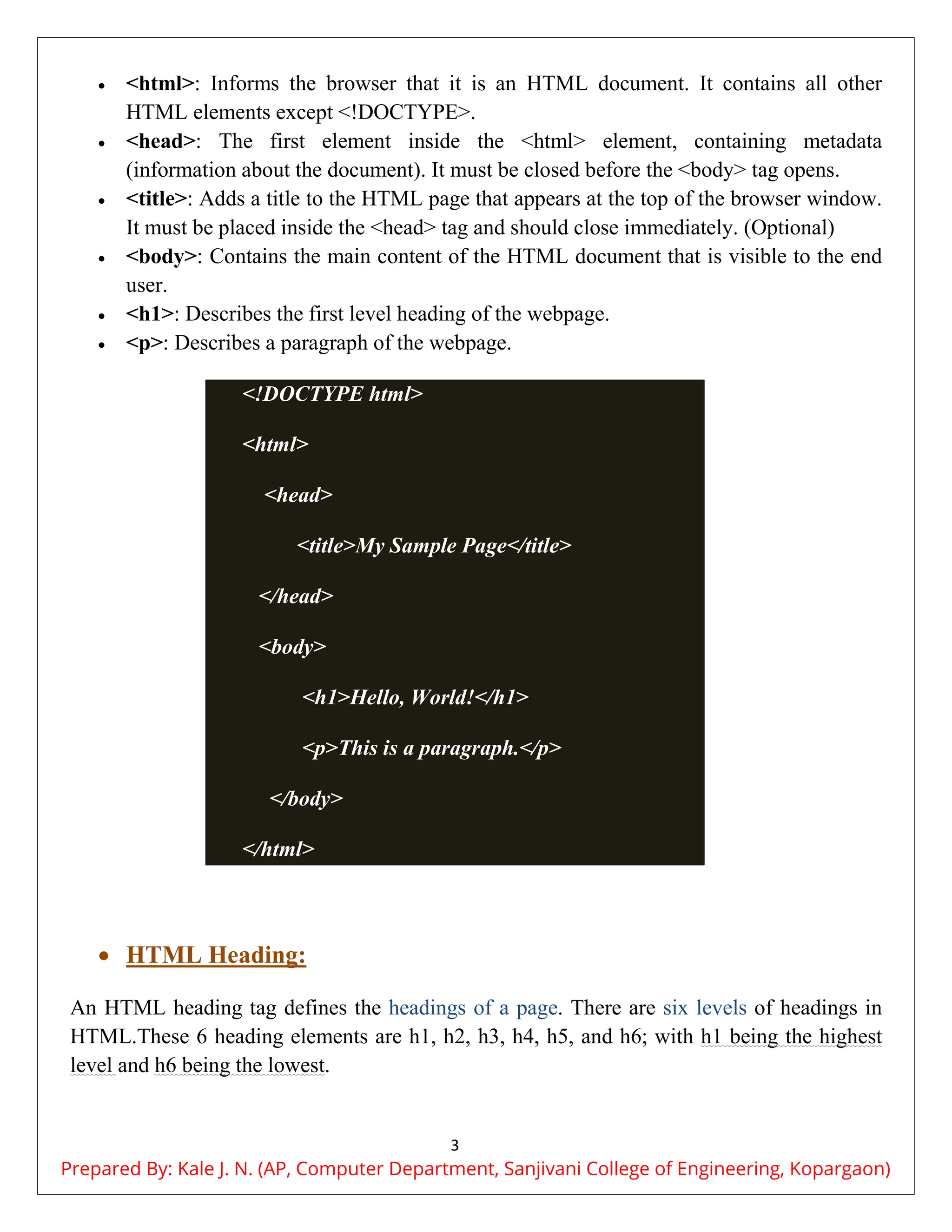
 <html>: Informs the browser that it is an HTML document. It contains all other
HTML elements except <!DOCTYPE>.
 <head>: The first element inside the <html> element, containing metadata
(information about the document). It must be closed before the <body> tag opens.
 <title>: Adds a title to the HTML page that appears at the top of the browser window.
It must be placed inside the <head> tag and should close immediately. (Optional)
 <body>: Contains the main content of the HTML document that is visible to the end
user.
 <h1>: Describes the first level heading of the webpage.
 <p>: Describes a paragraph of the webpage.
<!DOCTYPE html>
<html>
<head>
<title>My Sample Page</title>
</head>
<body>
<h1>Hello, World!</h1>
<p>This is a paragraph.</p>
</body>
</html>
 HTML Heading:
An HTML heading tag defines the headings of a page. There are six levels of headings in
HTML.These 6 heading elements are h1, h2, h3, h4, h5, and h6; with h1 being the highest
level and h6 being the lowest.
Prepared By: Kale J. N. (AP, Computer Department, Sanjivani College of Engineering, Kopargaon)
4
 <h1> is used for the main heading (biggest in size).
 <h2> is used for subheadings.
 If there are further sections under the subheadings, then the <h3> elements are used.
 <h6> is used for the smallest headings (smallest in size).
Browsers display the contents of headings in different sizes.
 Importance of Headings:
1. Search Engine Indexing: Search engines use headings to index and organize the
content of the webpage.
2. Highlighting Important Topics: Headings are used to highlight important topics.
3. Document Structure: They provide valuable information and help outline the
structure of the document.
 Horizontal Rule
The <hr> tag stands for "horizontal rule" and is used to define a thematic break in an
HTML page. It is an empty tag, meaning it does not require an end tag.
The <hr> tag is mainly used to separate content.
 Paragraph Tag
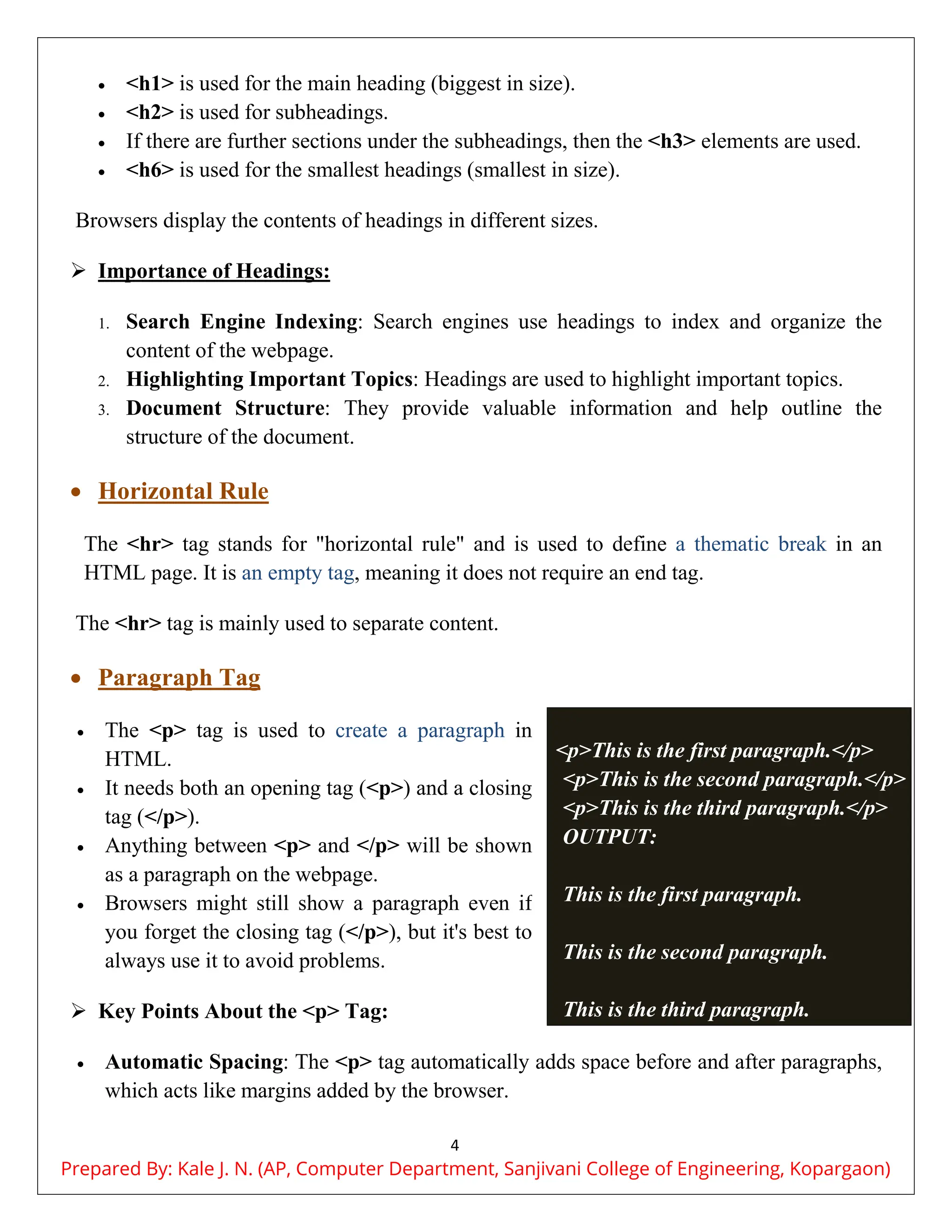
 The <p> tag is used to create a paragraph in
HTML.
 It needs both an opening tag (<p>) and a closing
tag (</p>).
 Anything between <p> and </p> will be shown
as a paragraph on the webpage.
 Browsers might still show a paragraph even if
you forget the closing tag (</p>), but it's best to
always use it to avoid problems.
 Key Points About the <p> Tag:
 Automatic Spacing: The <p> tag automatically adds space before and after paragraphs,
which acts like margins added by the browser.
<p>This is the first paragraph.</p>
<p>This is the second paragraph.</p>
<p>This is the third paragraph.</p>
OUTPUT:
This is the first paragraph.
This is the second paragraph.
This is the third paragraph.
Prepared By: Kale J. N. (AP, Computer Department, Sanjivani College of Engineering, Kopargaon)
5
Example:
 Space Reduction: If you add multiple spaces or lines, the browser reduces them to a
single space or line.
 <br> Tag
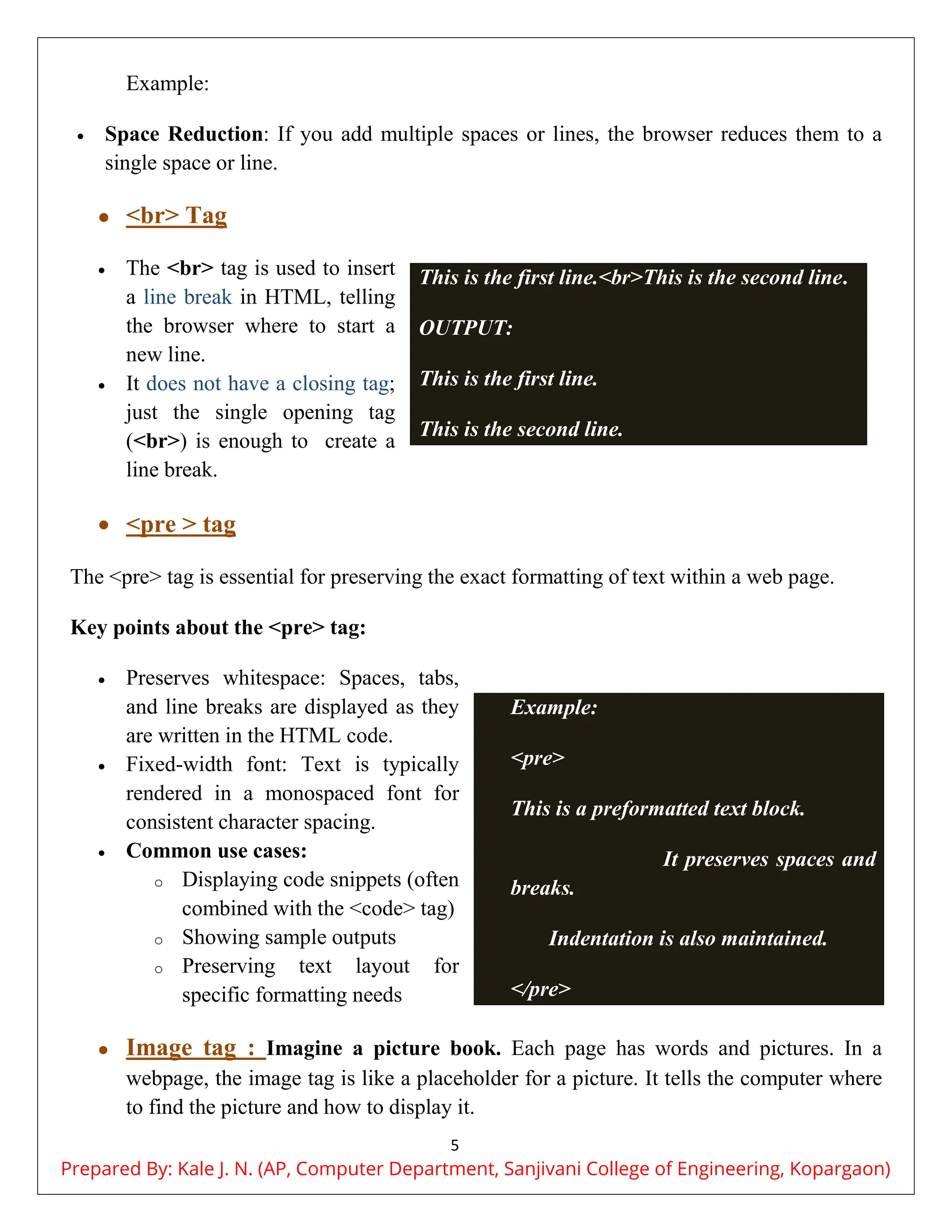
 The <br> tag is used to insert
a line break in HTML, telling
the browser where to start a
new line.
 It does not have a closing tag;
just the single opening tag
(<br>) is enough to create a
line break.
 <pre > tag
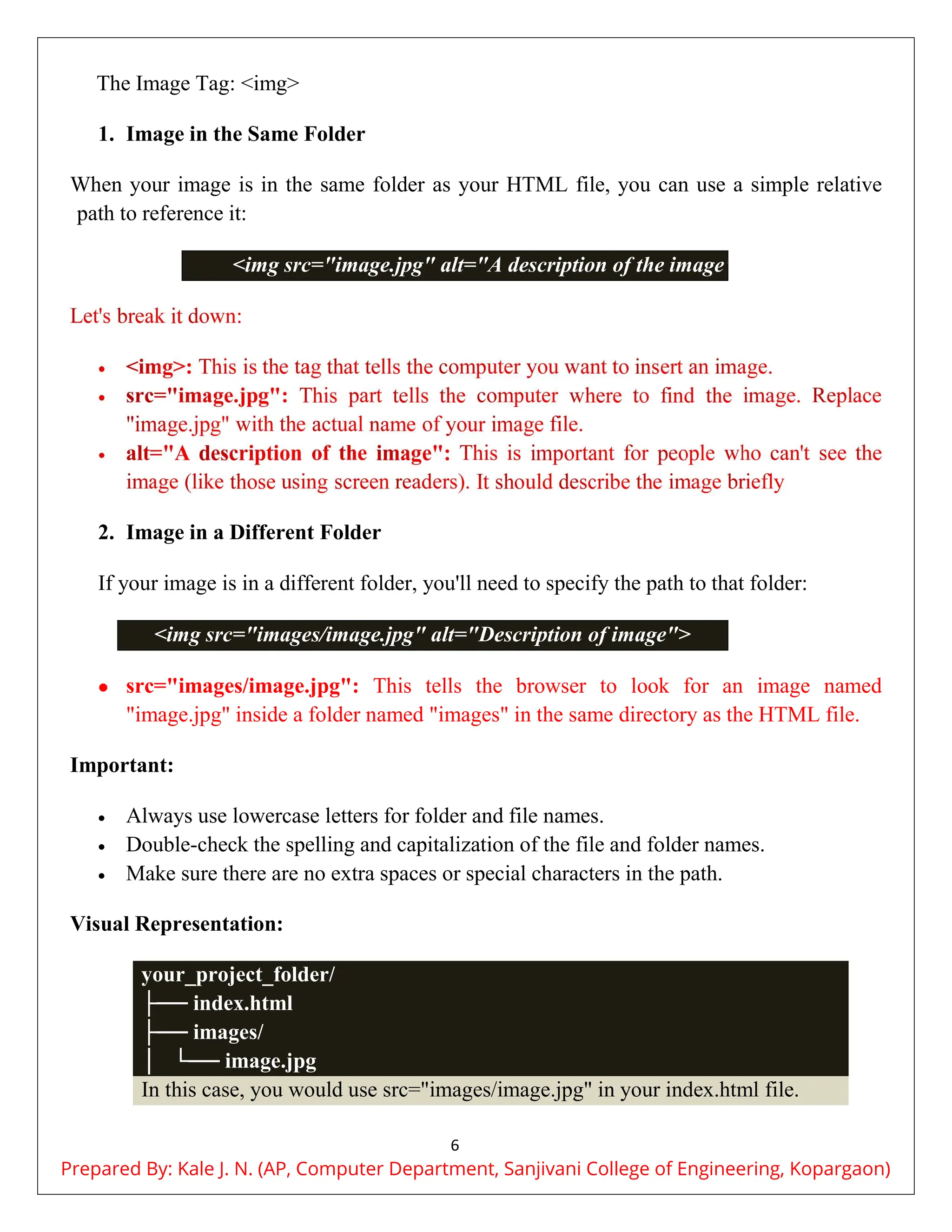
The <pre> tag is essential for preserving the exact formatting of text within a web page.
Key points about the <pre> tag:
 Preserves whitespace: Spaces, tabs,
and line breaks are displayed as they
are written in the HTML code.
 Fixed-width font: Text is typically
rendered in a monospaced font for
consistent character spacing.
 Common use cases:
o Displaying code snippets (often
combined with the <code> tag)
o Showing sample outputs
o Preserving text layout for
specific formatting needs
 Image tag : Imagine a picture book. Each page has words and pictures. In a
webpage, the image tag is like a placeholder for a picture. It tells the computer where
to find the picture and how to display it.
This is the first line.<br>This is the second line.
OUTPUT:
This is the first line.
This is the second line.
Example:
<pre>
This is a preformatted text block.
It preserves spaces and line
breaks.
Indentation is also maintained.
</pre>
Prepared By: Kale J. N. (AP, Computer Department, Sanjivani College of Engineering, Kopargaon)
6
The Image Tag: <img>
1. Image in the Same Folder
When your image is in the same folder as your HTML file, you can use a simple relative
path to reference it:
<img src="image.jpg" alt="A description of the image">
2. Image in a Different Folder
If your image is in a different folder, you'll need to specify the path to that folder:
<img src="images/image.jpg" alt="Description of image">
 src="images/image.jpg": This tells the browser to look for an image named
"image.jpg" inside a folder named "images" in the same directory as the HTML file.
Important:
 Always use lowercase letters for folder and file names.
 Double-check the spelling and capitalization of the file and folder names.
 Make sure there are no extra spaces or special characters in the path.
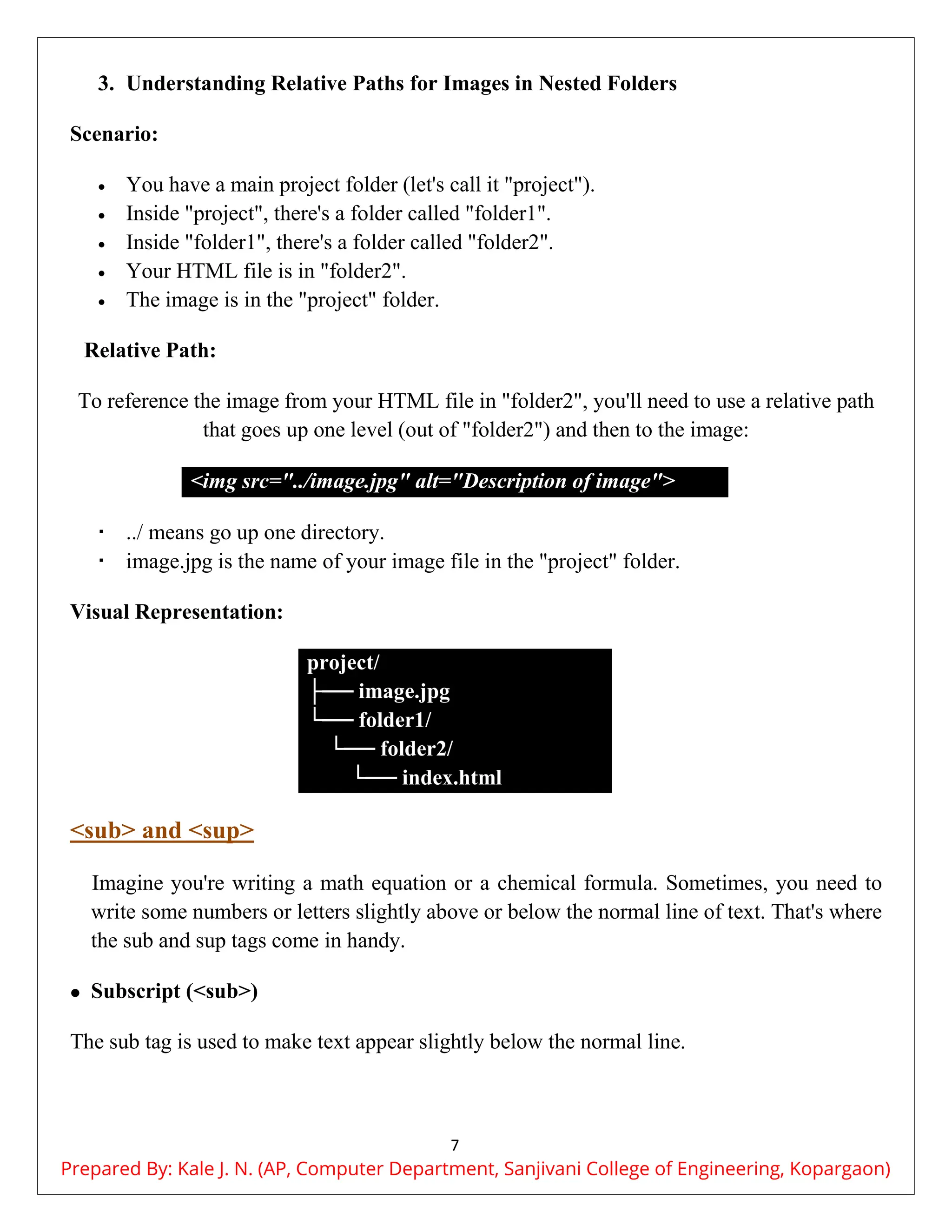
Visual Representation:
your_project_folder/
├── index.html
├── images/
│ └── image.jpg
In this case, you would use src="images/image.jpg" in your index.html file.
Prepared By: Kale J. N. (AP, Computer Department, Sanjivani College of Engineering, Kopargaon)
7
3. Understanding Relative Paths for Images in Nested Folders
Scenario:
 You have a main project folder (let's call it "project").
 Inside "project", there's a folder called "folder1".
 Inside "folder1", there's a folder called "folder2".
 Your HTML file is in "folder2".
 The image is in the "project" folder.
Relative Path:
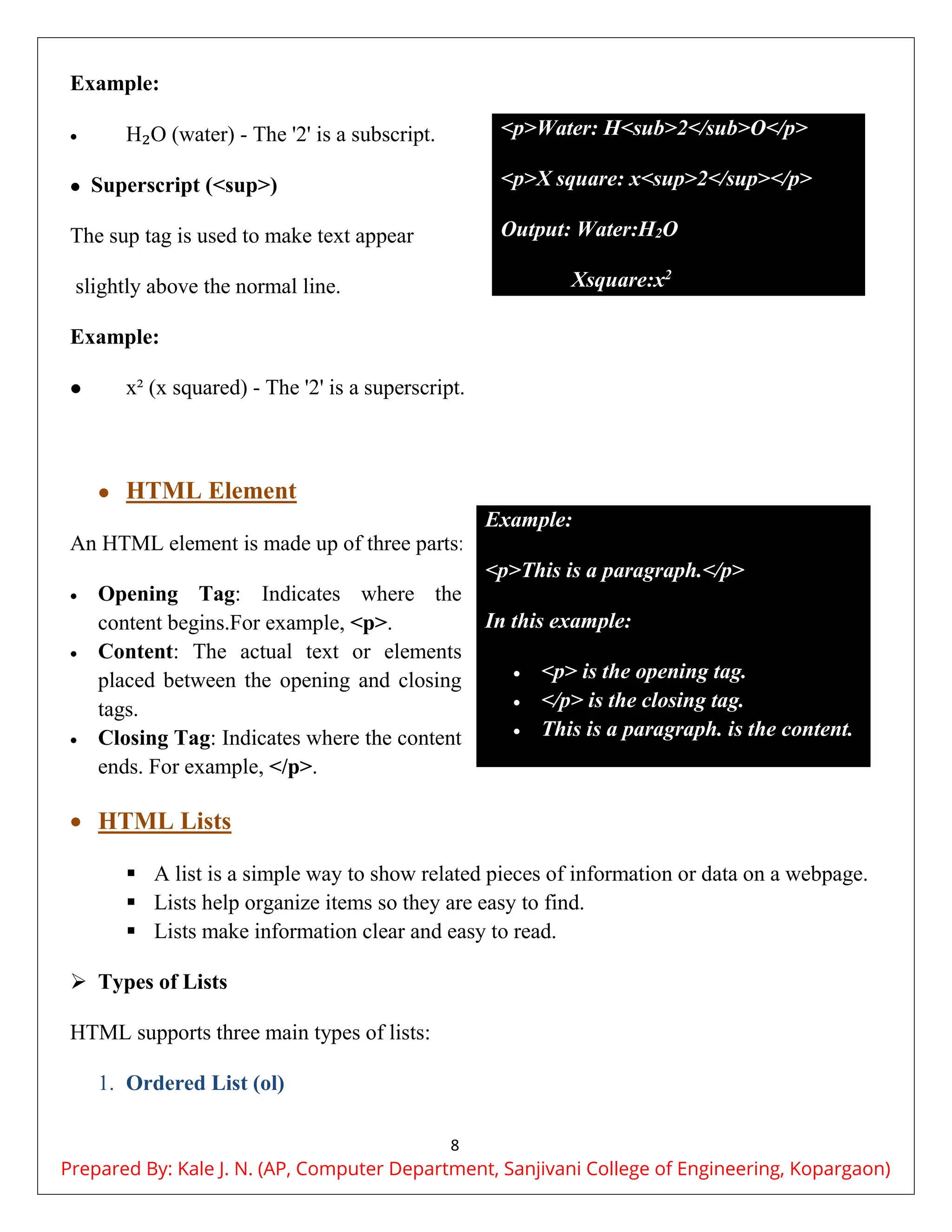
To reference the image from your HTML file in "folder2", you'll need to use a relative path
that goes up one level (out of "folder2") and then to the image:
<img src="../image.jpg" alt="Description of image">
 ../ means go up one directory.
 image.jpg is the name of your image file in the "project" folder.
Visual Representation:
project/
├── image.jpg
└── folder1/
└── folder2/
└── index.html
<sub> and <sup>
Imagine you're writing a math equation or a chemical formula. Sometimes, you need to
write some numbers or letters slightly above or below the normal line of text. That's where
the sub and sup tags come in handy.
 Subscript (<sub>)
The sub tag is used to make text appear slightly below the normal line.
Prepared By: Kale J. N. (AP, Computer Department, Sanjivani College of Engineering, Kopargaon)
8
Example:
 H₂O (water) - The '2' is a subscript.
 Superscript (<sup>)
The sup tag is used to make text appear
slightly above the normal line.
Example:
 x² (x squared) - The '2' is a superscript.
 HTML Element
An HTML element is made up of three parts:
 Opening Tag: Indicates where the
content begins.For example, <p>.
 Content: The actual text or elements
placed between the opening and closing
tags.
 Closing Tag: Indicates where the content
ends. For example, </p>.
 HTML Lists
 A list is a simple way to show related pieces of information or data on a webpage.
 Lists help organize items so they are easy to find.
 Lists make information clear and easy to read.
 Types of Lists
HTML supports three main types of lists:
1. Ordered List (ol)
<p>Water: H<sub>2</sub>O</p>
<p>X square: x<sup>2</sup></p>
Output: Water:H2O
Xsquare:x2
Example:
<p>This is a paragraph.</p>
In this example:
 <p> is the opening tag.
 </p> is the closing tag.
 This is a paragraph. is the content.
Prepared By: Kale J. N. (AP, Computer Department, Sanjivani College of Engineering, Kopargaon)
9
o Displays items in a numbered format.
o Useful for lists where the order of items is important.
2. Unordered List (ul)
o Displays items with bullets.
o Suitable for lists where the order does not matter.
3. Description List (dl)
o Displays terms and their descriptions.
o Useful for glossaries or name-value pairs.
 HTML Ordered List
 The <ol> tag is used to create an ordered list.
 You can represent items in different formats, such as numerical or alphabetical order,
or any format where an order is important.
 Types of Numbered Lists:
 Numeric (1, 2, 3)
 Uppercase Roman Numerals (I, II, III)
 Lowercase Roman Numerals (i, ii, iii)
 Attributes of the <ol> Tag
In HTML, the <ol> tag is used for ordered lists, and it has
several attributes to customize how the list is displayed:
 reversed: Makes the list number in descending order.
This is a new attribute in HTML5. For example, if you
have a list with reversed, it will count down from 7 to 1.
 start: Sets the starting number or letter for the list. It allows you to begin numbering or
lettering from a specific point.
 type: Specifies the type of numbering for the list items. Options include:
o "1": Numeric (1, 2, 3)
o "A": Uppercase letters (A, B, C)
o "a": Lowercase letters (a, b, c)
o "I": Uppercase Roman numerals (I, II, III)
o "i": Lowercase Roman numerals (i, ii, iii)
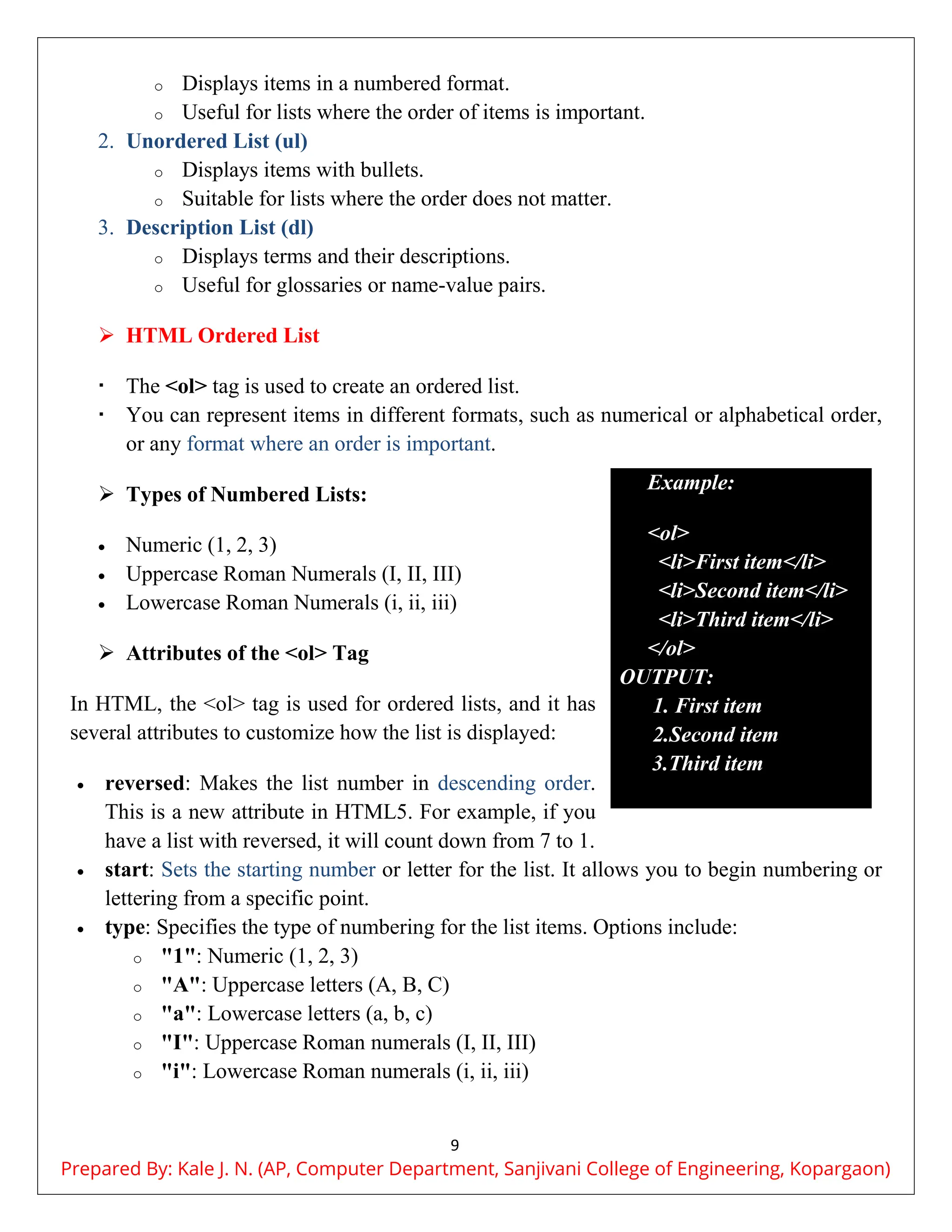
Example:
<ol>
<li>First item</li>
<li>Second item</li>
<li>Third item</li>
</ol>
OUTPUT:
1. First item
2.Second item
3.Third item
Prepared By: Kale J. N. (AP, Computer Department, Sanjivani College of Engineering, Kopargaon)
10
 Unordered List
 Displays items with bullets, used when the
order of items doesn’t matter.
 <ul> is used to create an unordered list,
and
 <li> is used for each list item.
 By default, items in an unordered list are
marked with small black circles (bullets).
Types of Bullets:
1. disc: Default style with filled circles.
2. circle: Hollow circles.
3. square: Squares.
4. none: No bullets.
 Description List
 Used for lists where each item has a term and a description, like a glossary.
 Tags:
1. <dl>: Defines the start of the description list.
2. <dt>: Defines a term.
3. <dd>: Defines the term’s description.
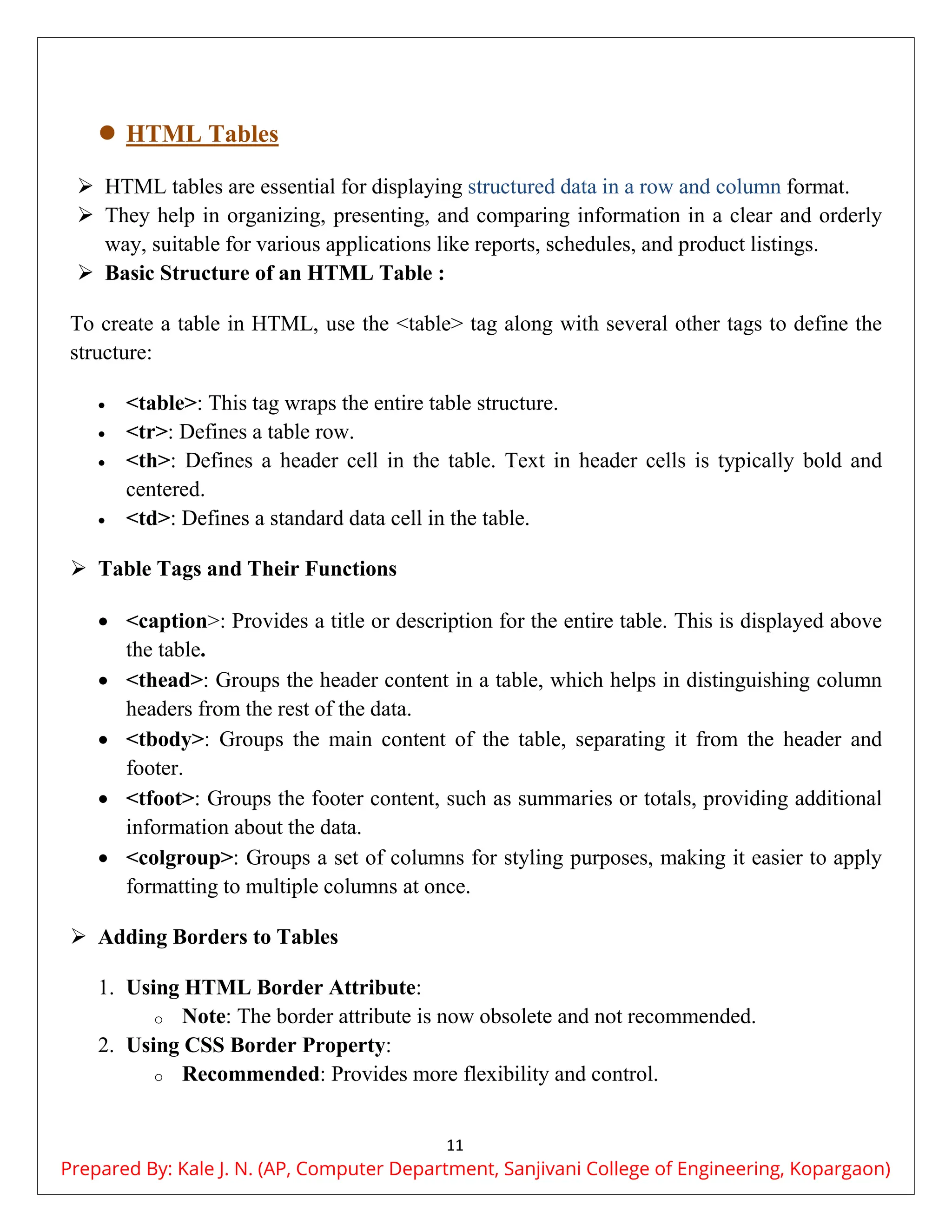
Example:
<dl>
<dt>Coffee</dt>
<dd>Black hot drink.</dd>
<dt>Milk</dt>
<dd>White liquid food.</dd> </dl>
Output:
Coffee
Black hot drink.
Milk
White liquid food.
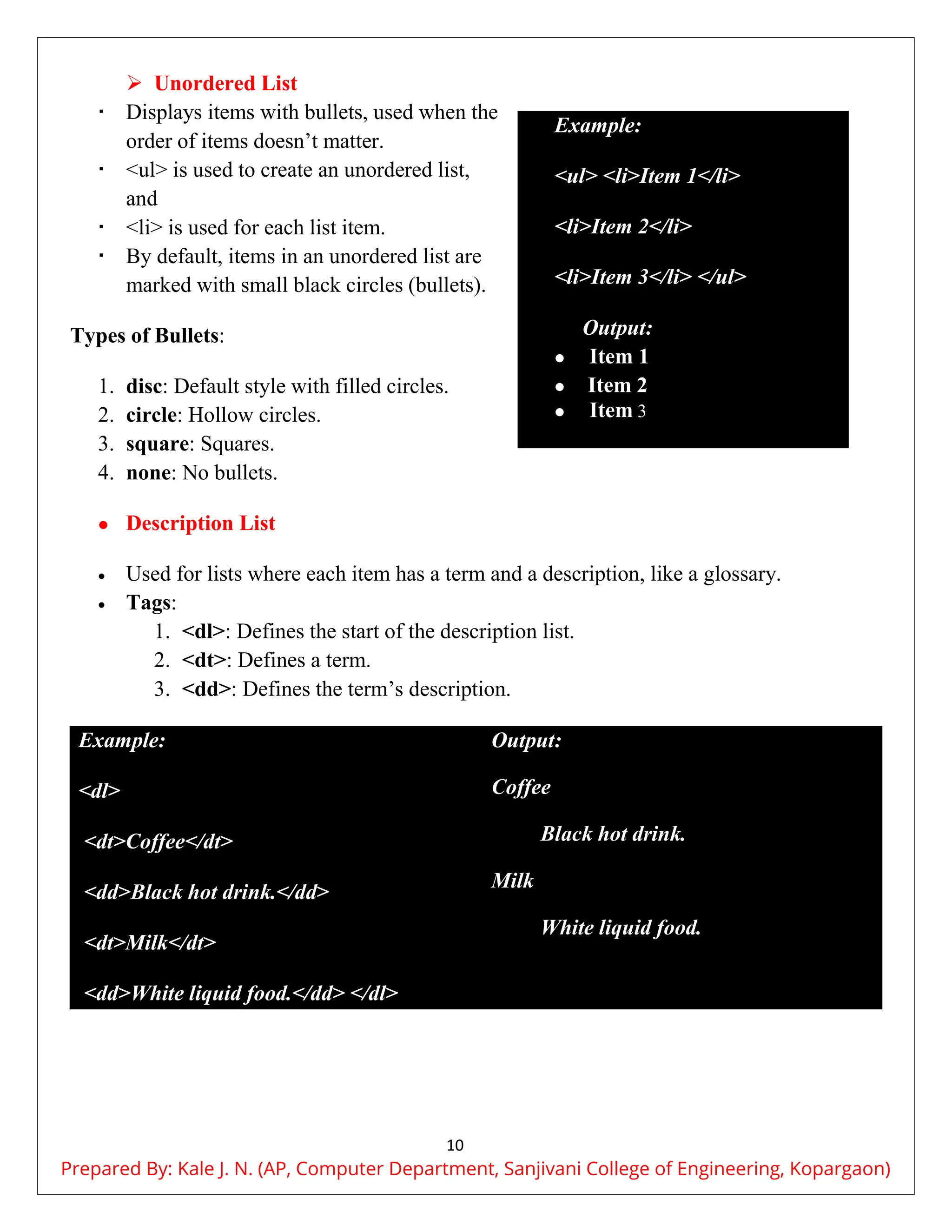
Example:
<ul> <li>Item 1</li>
<li>Item 2</li>
<li>Item 3</li> </ul>
Output:
 Item 1
 Item 2
 Item 3
Prepared By: Kale J. N. (AP, Computer Department, Sanjivani College of Engineering, Kopargaon)
11
 HTML Tables
 HTML tables are essential for displaying structured data in a row and column format.
 They help in organizing, presenting, and comparing information in a clear and orderly
way, suitable for various applications like reports, schedules, and product listings.
 Basic Structure of an HTML Table :
To create a table in HTML, use the <table> tag along with several other tags to define the
structure:
 <table>: This tag wraps the entire table structure.
 <tr>: Defines a table row.
 <th>: Defines a header cell in the table. Text in header cells is typically bold and
centered.
 <td>: Defines a standard data cell in the table.
 Table Tags and Their Functions
 <caption>: Provides a title or description for the entire table. This is displayed above
the table.
 <thead>: Groups the header content in a table, which helps in distinguishing column
headers from the rest of the data.
 <tbody>: Groups the main content of the table, separating it from the header and
footer.
 <tfoot>: Groups the footer content, such as summaries or totals, providing additional
information about the data.
 <colgroup>: Groups a set of columns for styling purposes, making it easier to apply
formatting to multiple columns at once.
 Adding Borders to Tables
1. Using HTML Border Attribute:
o Note: The border attribute is now obsolete and not recommended.
2. Using CSS Border Property:
o Recommended: Provides more flexibility and control.
Prepared By: Kale J. N. (AP, Computer Department, Sanjivani College of Engineering, Kopargaon)
12
 Advanced Table Features
 Spanning Cells
 colspan: Allows a cell to span multiple columns.
 rowspan: Allows a cell to span multiple rows.
 Common Uses of HTML Tables
 Reports: Displaying detailed data and summaries.
 Schedules: Showing timelines and appointments.
 Product Listings: Organizing product details and comparisons.
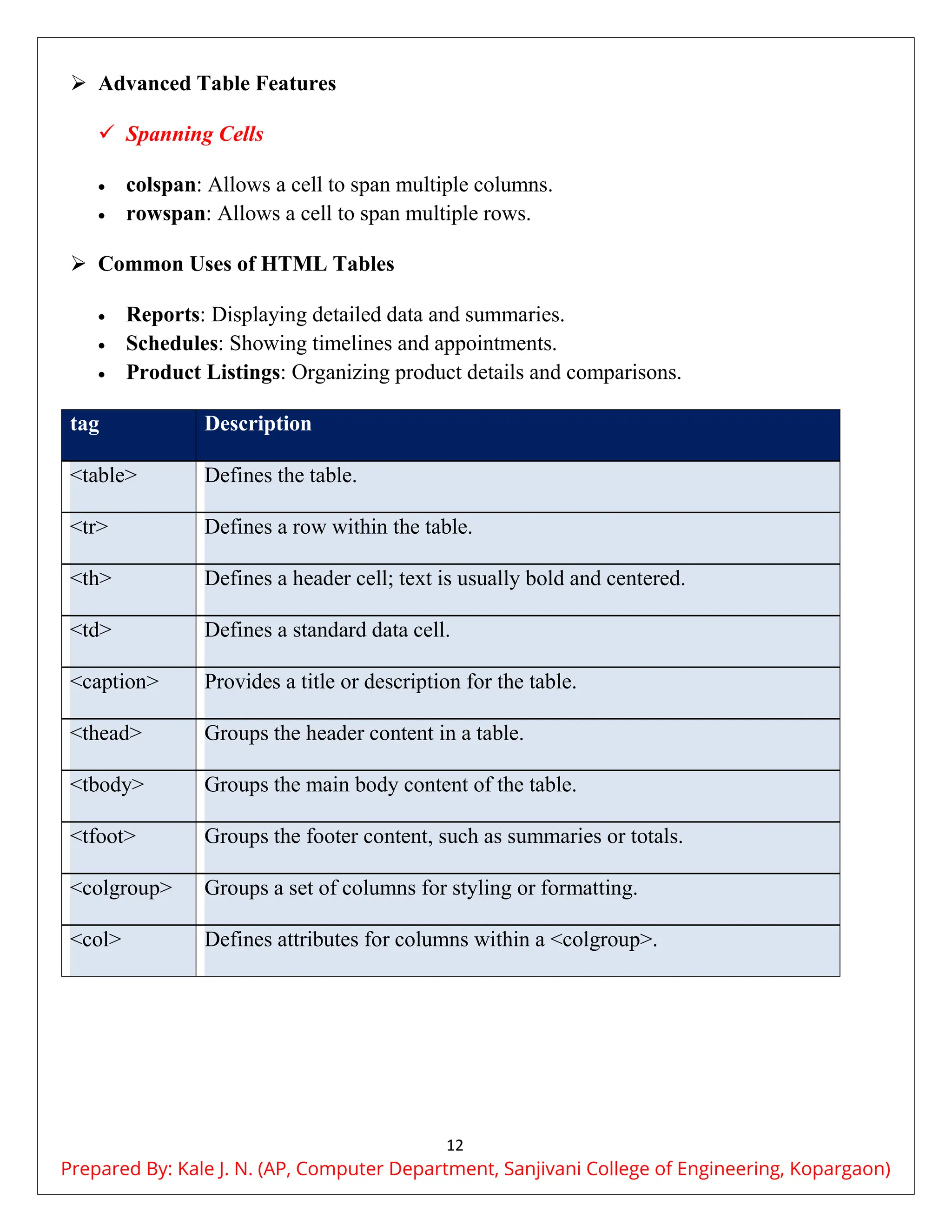
tag Description
<table> Defines the table.
<tr> Defines a row within the table.
<th> Defines a header cell; text is usually bold and centered.
<td> Defines a standard data cell.
<caption> Provides a title or description for the table.
<thead> Groups the header content in a table.
<tbody> Groups the main body content of the table.
<tfoot> Groups the footer content, such as summaries or totals.
<colgroup> Groups a set of columns for styling or formatting.
<col> Defines attributes for columns within a <colgroup>.
Prepared By: Kale J. N. (AP, Computer Department, Sanjivani College of Engineering, Kopargaon)
13
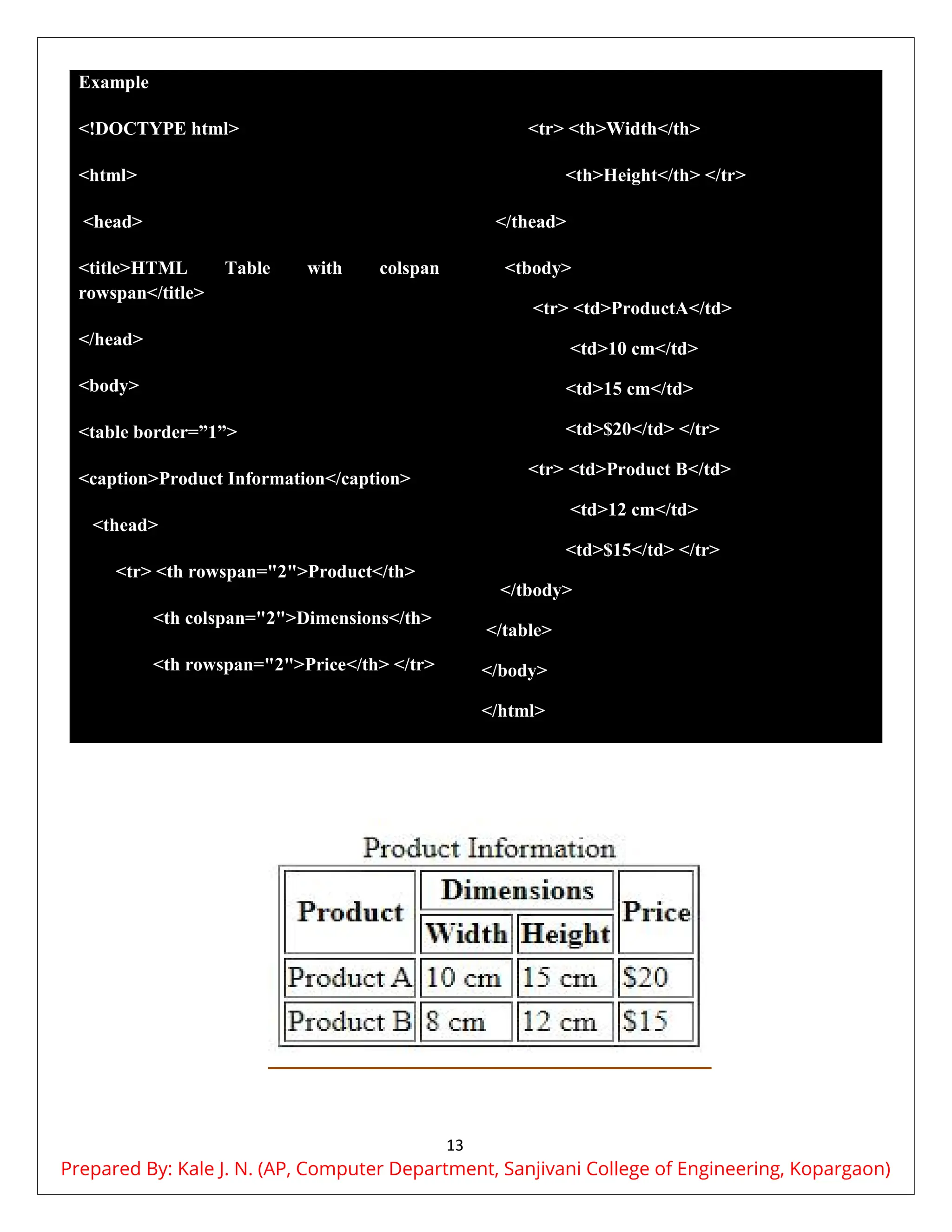
Example
<!DOCTYPE html>
<html>
<head>
<title>HTML Table with colspan and
rowspan</title>
</head>
<body>
<table border=”1”>
<caption>Product Information</caption>
<thead>
<tr> <th rowspan="2">Product</th>
<th colspan="2">Dimensions</th>
<th rowspan="2">Price</th> </tr>
<tr> <th>Width</th>
<th>Height</th> </tr>
</thead>
<tbody>
<tr> <td>ProductA</td>
<td>10 cm</td>
<td>15 cm</td>
<td>$20</td> </tr>
<tr> <td>Product B</td>
<td>12 cm</td>
<td>$15</td> </tr>
</tbody>
</table>
</body>
</html>
Prepared By: Kale J. N. (AP, Computer Department, Sanjivani College of Engineering, Kopargaon)
14
Types of HTML Tags
 Semantic Tags:
 These tags have clear meanings.
 They describe the type of content they contain.
 Examples include:
 <header>: Represents the header of a page or section.
 <footer>: Represents the footer of a page or section.
 <nav>: Represents navigation links.
 <article>: Represents a standalone piece of content like a news article.
 Non-Semantic Tags:
 These tags do not provide any meaning about the content they enclose.
 They are used more for styling and layout.
 Examples include:
 <div>: A generic container with no specific meaning.
 <span>: A generic inline container with no specific meaning.
 Semantic Tags
In HTML, semantic elements are tags that clearly define the content they enclose,
making it easier for both browsers and developers to understand their purpose.
 Why Use Semantic Elements?
In older versions of HTML (like HTML4), developers used generic tags and had to add
custom names (id/class) to style and identify different parts of their pages. This made it
harder for search engines and other tools to understand the structure of the content.
With HTML5, new semantic elements make this easier:
 Improved Structure: Tags like <header>, <footer>, and <nav> make it clear what
each part of the page is for, improving the organization.
 Better Accessibility: Semantic tags help screen readers and other assistive
technologies understand the content better.
Prepared By: Kale J. N. (AP, Computer Department, Sanjivani College of Engineering, Kopargaon)
15
 Easier to Read and Maintain: The clear meaning of these tags makes the code easier
to read and manage.
Key Semantic HTML Elements
Tag Description
<article> Defines a complete piece of content, like a blog post or news article.
<aside> Contains content that is related to the main content but is secondary, like a
sidebar.
<details> Provides additional details that users can expand or hide.
<figcaption> Adds a caption to a <figure> element, like an image or diagram.
<figure> Contains media or illustrations along with optional captions.
<footer> Contains footer information, such as contact details or copyright.
<header> Contains the header for a section or the entire page, often with navigation and
titles.
<main> Specifies the main content of the page, excluding headers, footers, and
navigation.
<mark> Highlights text to show its relevance or importance.
<nav> Provides navigation links for the site.
<section> Defines a section of content, such as a chapter or group of related topics.
<summary> Provides a visible heading for a <details> element.
<time> Represents a specific time or date.
Example Using Semantic Elements
Here’s how you might use these elements in a simple webpage:
<!DOCTYPE html>
<html>
<head>
<title>Simple Webpage</title>
<style>
body {
font-family: Arial, sans-serif;
}
header, footer {
background-color: #f1f1f1;
padding: 10px;
}
aside {
background-color: #e1e1e1;
padding: 10px;
}
section {
margin-bottom: 20px;
}
figure {
border: 1px solid #ddd;
padding: 10px;
Prepared By: Kale J. N. (AP, Computer Department, Sanjivani College of Engineering, Kopargaon)
16
margin: 10px 0;
} </style>
</head>
<body>
<header>
<h1>My Website</h1>
<nav>
<ul>
<li><a href="#">Home</a></li>
<li><a href="#">About</a></li>
<li><a href="#">Contact</a></li>
</ul>
</nav>
</header>
<main>
<section>
<h2>About Us</h2>
<p>We provide high-quality
products to our customers.</p>
</section>
<section>
<h2>Our Products</h2>
<p>Explore our range of
products including electronics
and fashion.</p>
<figure>
<img src="product.jpg"
alt="Our Product">
<figcaption>Our
featured product.</figcaption>
</figure>
</section>
<aside>
<h2>Related Links</h2>
<ul>
<li><a href="#">Link 1</a></li>
<li><a href="#">Link 2</a></li>
<li><a href="#">Link 3</a></li>
</ul>
</aside>
</main>
<footer>
<p>&copy; 2024 My
Website. All rights reserved.</p>
</footer>
</body>
</html>
 Block, Inline, and Inline-Block
HTML elements are categorized based on how they display on a web page. Here’s a clear
guide to understand the differences:
1. Block Elements
 Characteristics:
o Full Width: They take up the entire width of their container.
o New Line: They always start on a new line.
o Margins: They have space (margins) above and below them.
Prepared By: Kale J. N. (AP, Computer Department, Sanjivani College of Engineering, Kopargaon)
17
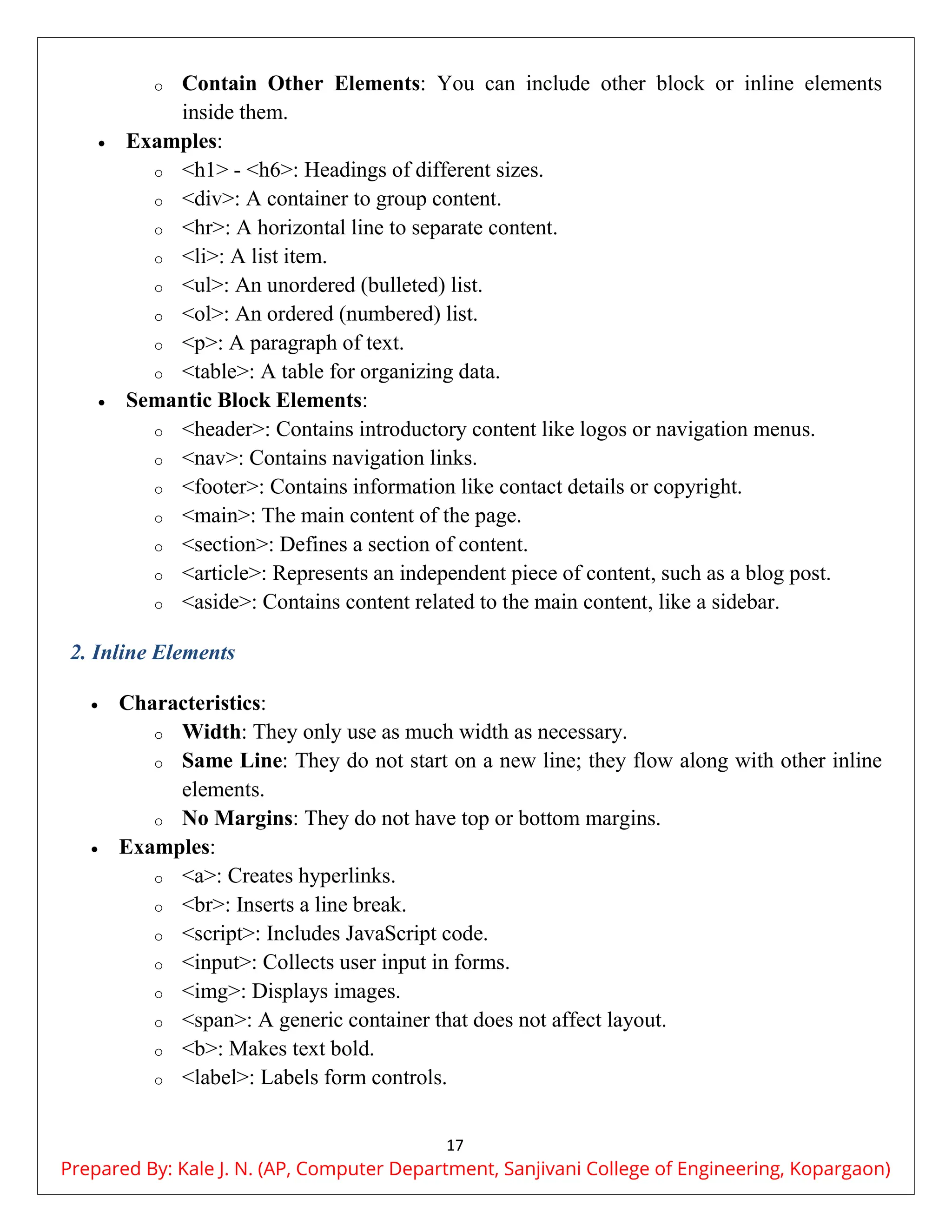
o Contain Other Elements: You can include other block or inline elements
inside them.
 Examples:
o <h1> - <h6>: Headings of different sizes.
o <div>: A container to group content.
o <hr>: A horizontal line to separate content.
o <li>: A list item.
o <ul>: An unordered (bulleted) list.
o <ol>: An ordered (numbered) list.
o <p>: A paragraph of text.
o <table>: A table for organizing data.
 Semantic Block Elements:
o <header>: Contains introductory content like logos or navigation menus.
o <nav>: Contains navigation links.
o <footer>: Contains information like contact details or copyright.
o <main>: The main content of the page.
o <section>: Defines a section of content.
o <article>: Represents an independent piece of content, such as a blog post.
o <aside>: Contains content related to the main content, like a sidebar.
2. Inline Elements
 Characteristics:
o Width: They only use as much width as necessary.
o Same Line: They do not start on a new line; they flow along with other inline
elements.
o No Margins: They do not have top or bottom margins.
 Examples:
o <a>: Creates hyperlinks.
o <br>: Inserts a line break.
o <script>: Includes JavaScript code.
o <input>: Collects user input in forms.
o <img>: Displays images.
o <span>: A generic container that does not affect layout.
o <b>: Makes text bold.
o <label>: Labels form controls.
Prepared By: Kale J. N. (AP, Computer Department, Sanjivani College of Engineering, Kopargaon)
18
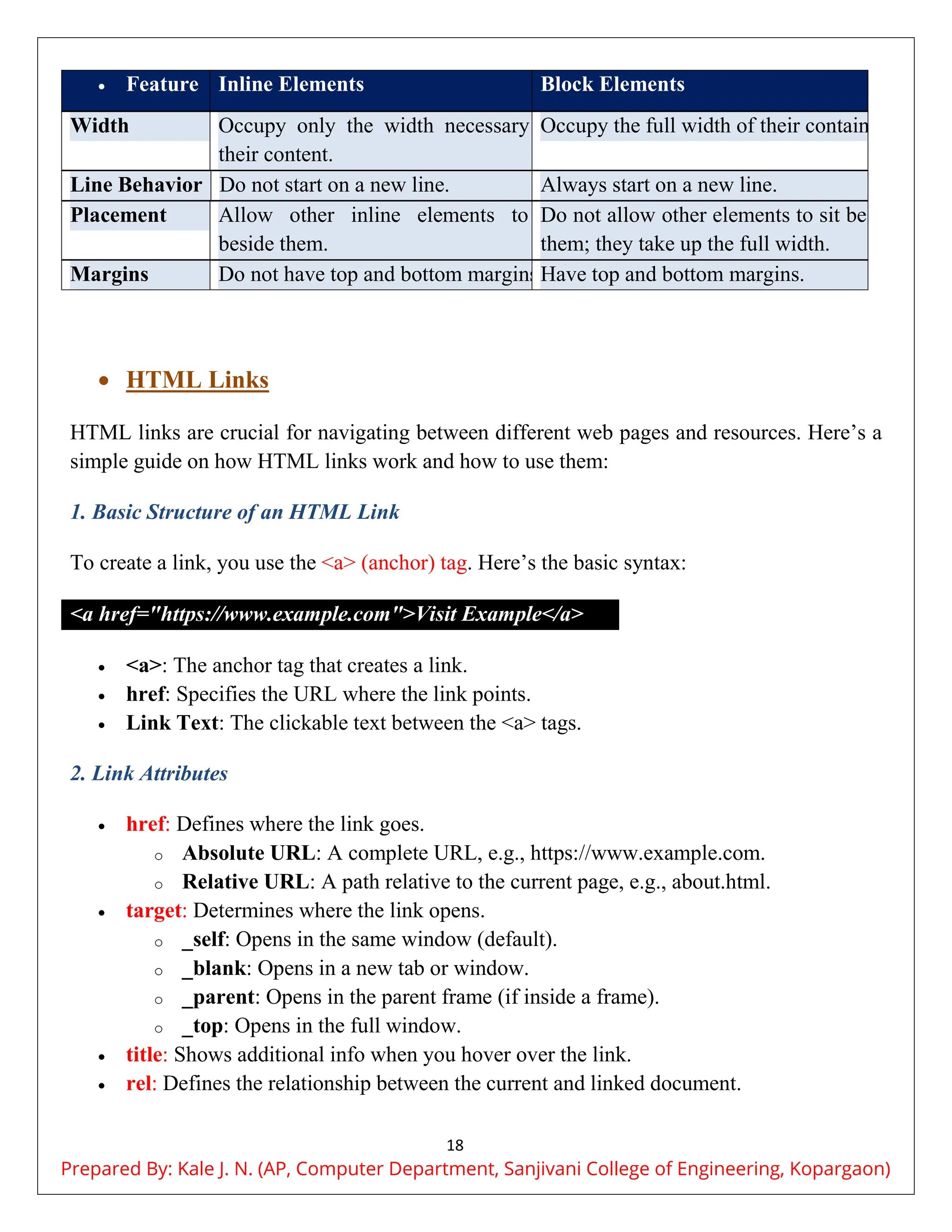
 Feature Inline Elements Block Elements
Width Occupy only the width necessary for
their content.
Occupy the full width of their container.
Line Behavior Do not start on a new line. Always start on a new line.
Placement Allow other inline elements to sit
beside them.
Do not allow other elements to sit beside
them; they take up the full width.
Margins Do not have top and bottom margins.Have top and bottom margins.
 HTML Links
HTML links are crucial for navigating between different web pages and resources. Here’s a
simple guide on how HTML links work and how to use them:
1. Basic Structure of an HTML Link
To create a link, you use the <a> (anchor) tag. Here’s the basic syntax:
<a href="https://www.example.com">Visit Example</a>
 <a>: The anchor tag that creates a link.
 href: Specifies the URL where the link points.
 Link Text: The clickable text between the <a> tags.
2. Link Attributes
 href: Defines where the link goes.
o Absolute URL: A complete URL, e.g., https://www.example.com.
o Relative URL: A path relative to the current page, e.g., about.html.
 target: Determines where the link opens.
o _self: Opens in the same window (default).
o _blank: Opens in a new tab or window.
o _parent: Opens in the parent frame (if inside a frame).
o _top: Opens in the full window.
 title: Shows additional info when you hover over the link.
 rel: Defines the relationship between the current and linked document.
Prepared By: Kale J. N. (AP, Computer Department, Sanjivani College of Engineering, Kopargaon)
19
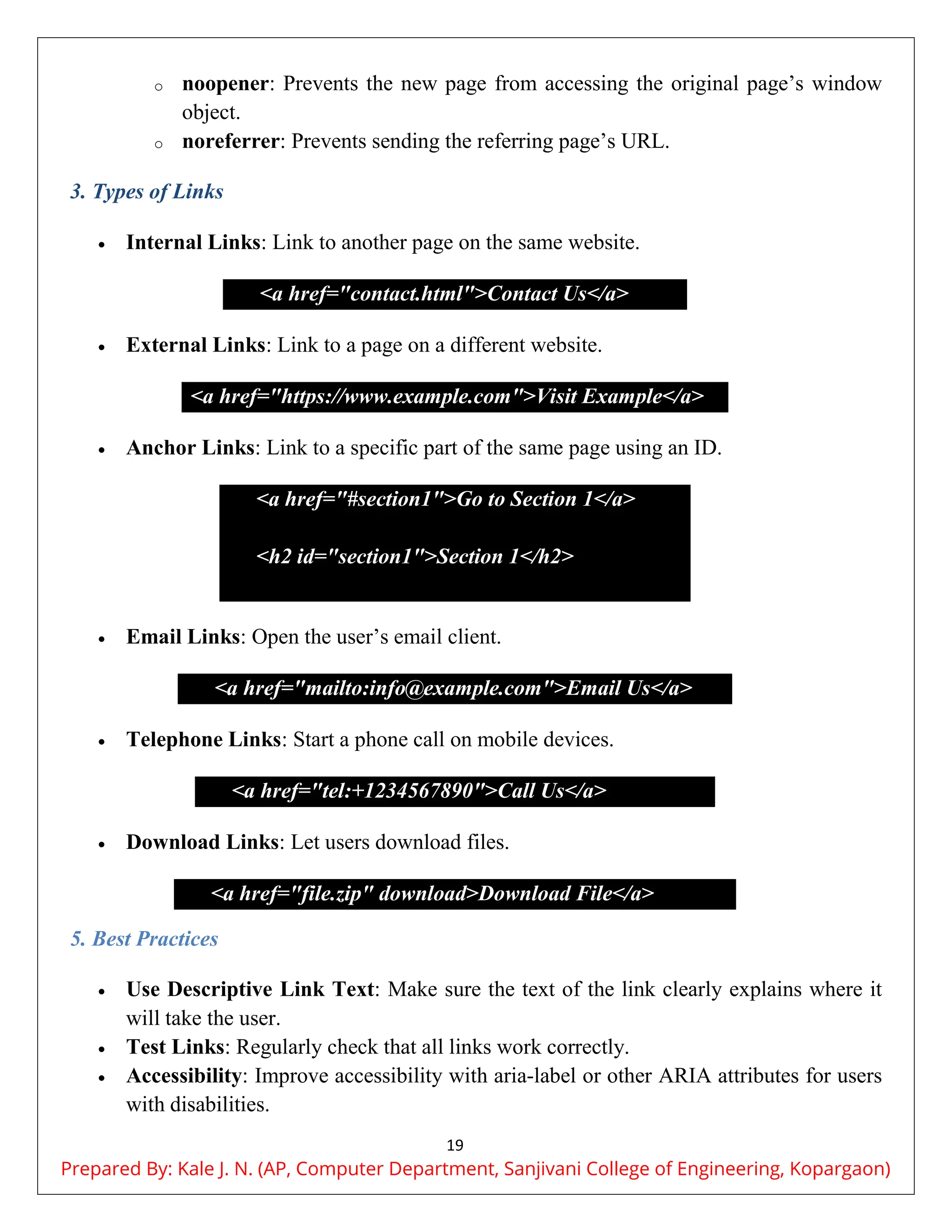
o noopener: Prevents the new page from accessing the original page’s window
object.
o noreferrer: Prevents sending the referring page’s URL.
3. Types of Links
 Internal Links: Link to another page on the same website.
<a href="contact.html">Contact Us</a>
 External Links: Link to a page on a different website.
<a href="https://www.example.com">Visit Example</a>
 Anchor Links: Link to a specific part of the same page using an ID.
<a href="#section1">Go to Section 1</a>
<h2 id="section1">Section 1</h2>
 Email Links: Open the user’s email client.
<a href="mailto:info@example.com">Email Us</a>
 Telephone Links: Start a phone call on mobile devices.
<a href="tel:+1234567890">Call Us</a>
 Download Links: Let users download files.
<a href="file.zip" download>Download File</a>
5. Best Practices
 Use Descriptive Link Text: Make sure the text of the link clearly explains where it
will take the user.
 Test Links: Regularly check that all links work correctly.
 Accessibility: Improve accessibility with aria-label or other ARIA attributes for users
with disabilities.
Prepared By: Kale J. N. (AP, Computer Department, Sanjivani College of Engineering, Kopargaon)
20
Understanding and using HTML links properly helps in creating a well-organized and user-
friendly website.
 HTML Forms
HTML Forms are required when you want to collect some data from the site visitor. For
example during user registration you would like to collect information such as name, email
address, credit card, etc.
The HTML <form> tag is used to create an HTML form and it has following syntax:
<form>
<!--form elements-->
</form>
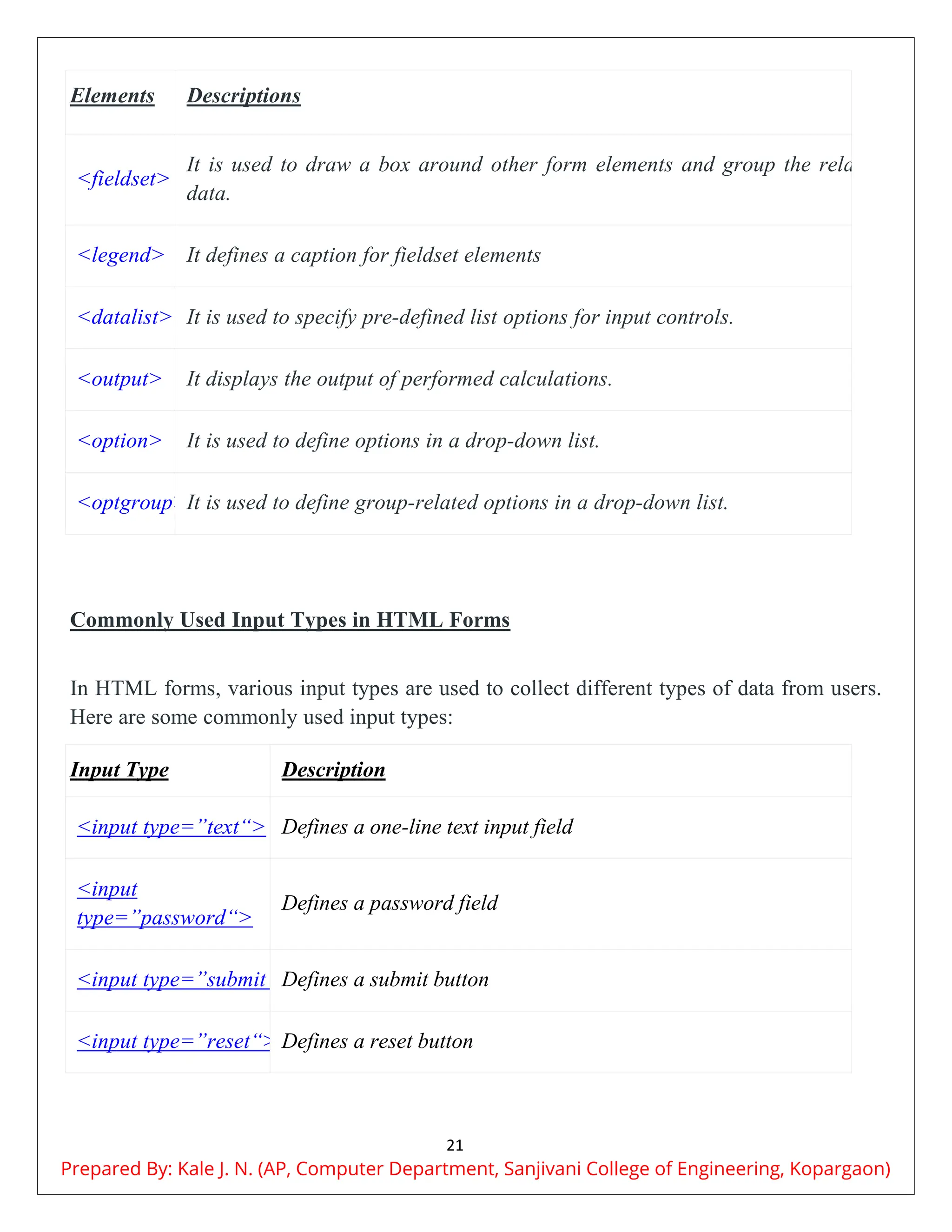
Form Elements
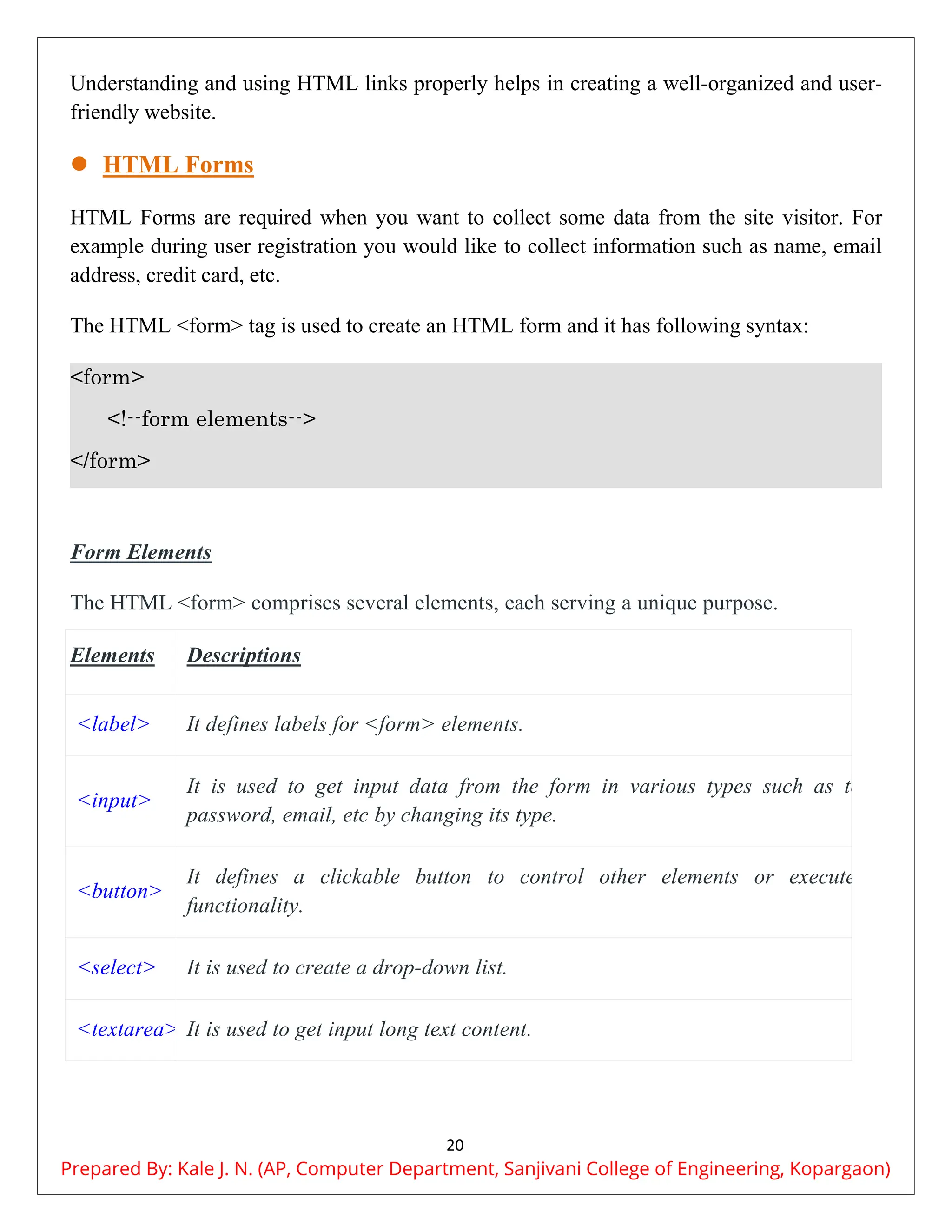
The HTML <form> comprises several elements, each serving a unique purpose.
Elements Descriptions
<label> It defines labels for <form> elements.
<input>
It is used to get input data from the form in various types such as text,
password, email, etc by changing its type.
<button>
It defines a clickable button to control other elements or execute a
functionality.
<select> It is used to create a drop-down list.
<textarea> It is used to get input long text content.
Prepared By: Kale J. N. (AP, Computer Department, Sanjivani College of Engineering, Kopargaon)
21
Elements Descriptions
<fieldset>
It is used to draw a box around other form elements and group the related
data.
<legend> It defines a caption for fieldset elements
<datalist> It is used to specify pre-defined list options for input controls.
<output> It displays the output of performed calculations.
<option> It is used to define options in a drop-down list.
<optgroup>It is used to define group-related options in a drop-down list.
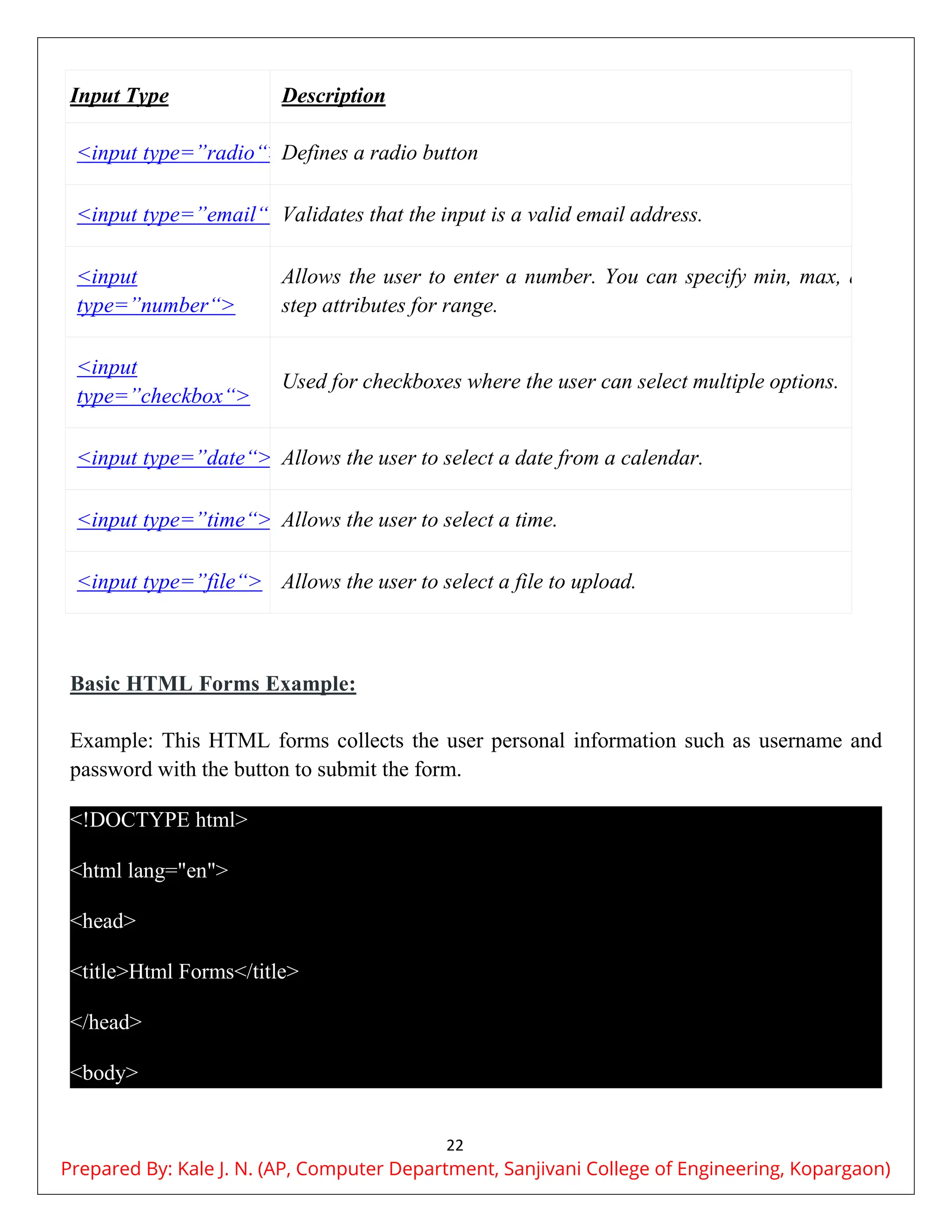
Commonly Used Input Types in HTML Forms
In HTML forms, various input types are used to collect different types of data from users.
Here are some commonly used input types:
Input Type Description
<input type=”text“> Defines a one-line text input field
<input
type=”password“>
Defines a password field
<input type=”submit“>
Defines a submit button
<input type=”reset“> Defines a reset button
Prepared By: Kale J. N. (AP, Computer Department, Sanjivani College of Engineering, Kopargaon)
22
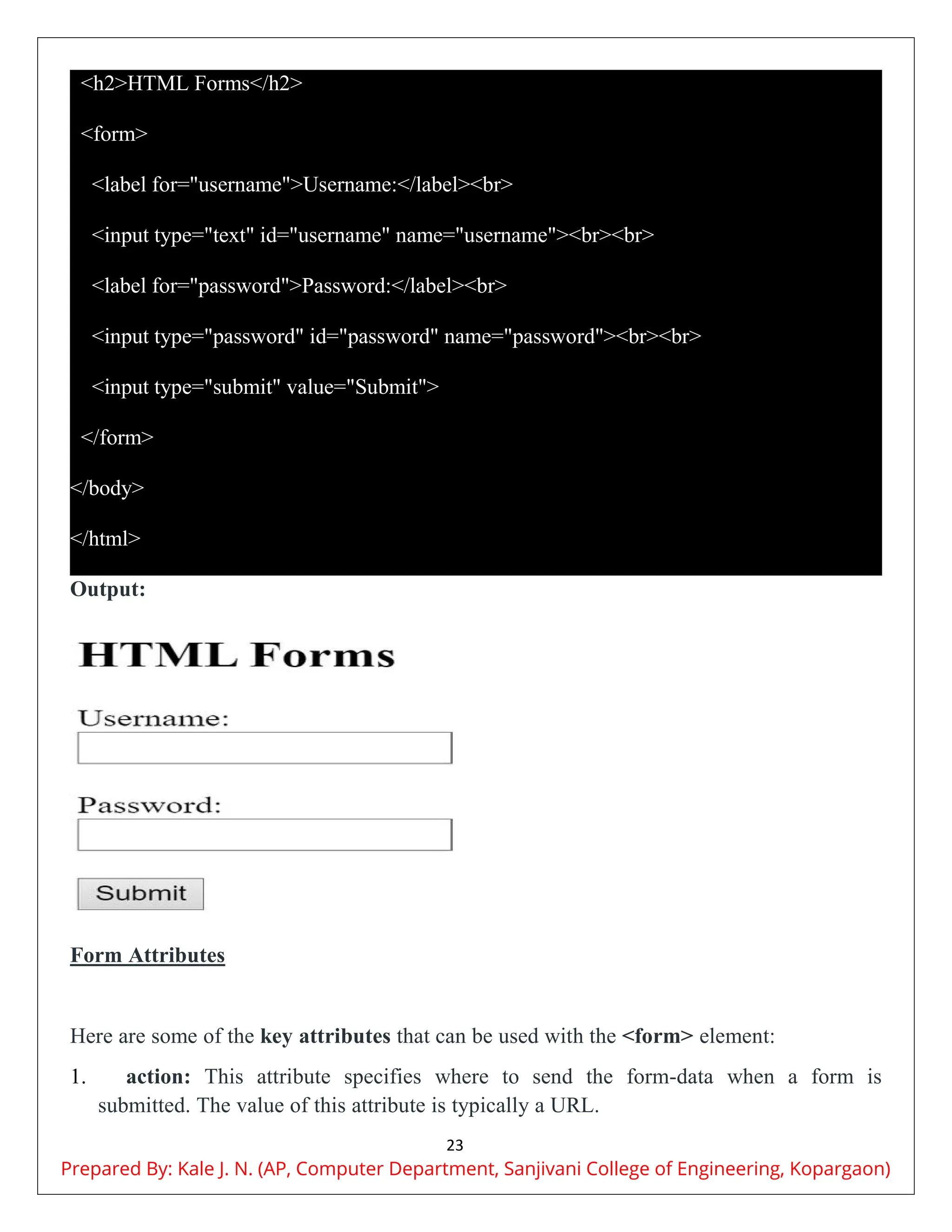
Input Type Description
<input type=”radio“>Defines a radio button
<input type=”email“>Validates that the input is a valid email address.
<input
type=”number“>
Allows the user to enter a number. You can specify min, max, and
step attributes for range.
<input
type=”checkbox“>
Used for checkboxes where the user can select multiple options.
<input type=”date“> Allows the user to select a date from a calendar.
<input type=”time“> Allows the user to select a time.
<input type=”file“> Allows the user to select a file to upload.
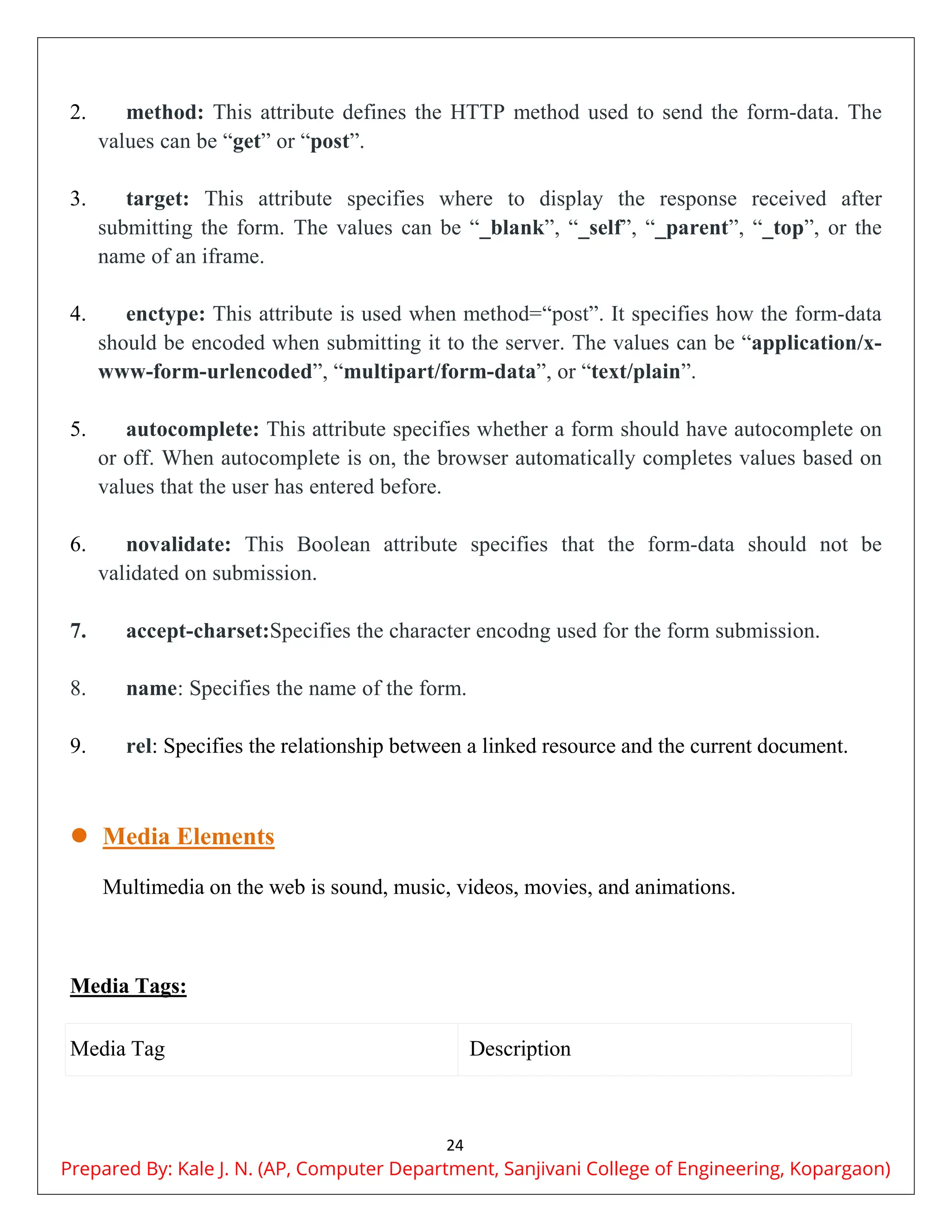
Basic HTML Forms Example:
Example: This HTML forms collects the user personal information such as username and
password with the button to submit the form.
<!DOCTYPE html>
<html lang="en">
<head>
<title>Html Forms</title>
</head>
<body>
Prepared By: Kale J. N. (AP, Computer Department, Sanjivani College of Engineering, Kopargaon)
23
<h2>HTML Forms</h2>
<form>
<label for="username">Username:</label><br>
<input type="text" id="username" name="username"><br><br>
<label for="password">Password:</label><br>
<input type="password" id="password" name="password"><br><br>
<input type="submit" value="Submit">
</form>
</body>
</html>
Output:
Form Attributes
Here are some of the key attributes that can be used with the <form> element:
1. action: This attribute specifies where to send the form-data when a form is
submitted. The value of this attribute is typically a URL.
Prepared By: Kale J. N. (AP, Computer Department, Sanjivani College of Engineering, Kopargaon)
24
2. method: This attribute defines the HTTP method used to send the form-data. The
values can be “get” or “post”.
3. target: This attribute specifies where to display the response received after
submitting the form. The values can be “_blank”, “_self”, “_parent”, “_top”, or the
name of an iframe.
4. enctype: This attribute is used when method=“post”. It specifies how the form-data
should be encoded when submitting it to the server. The values can be “application/x-
www-form-urlencoded”, “multipart/form-data”, or “text/plain”.
5. autocomplete: This attribute specifies whether a form should have autocomplete on
or off. When autocomplete is on, the browser automatically completes values based on
values that the user has entered before.
6. novalidate: This Boolean attribute specifies that the form-data should not be
validated on submission.
7. accept-charset:Specifies the character encodng used for the form submission.
8. name: Specifies the name of the form.
9. rel: Specifies the relationship between a linked resource and the current document.
 Media Elements
Multimedia on the web is sound, music, videos, movies, and animations.
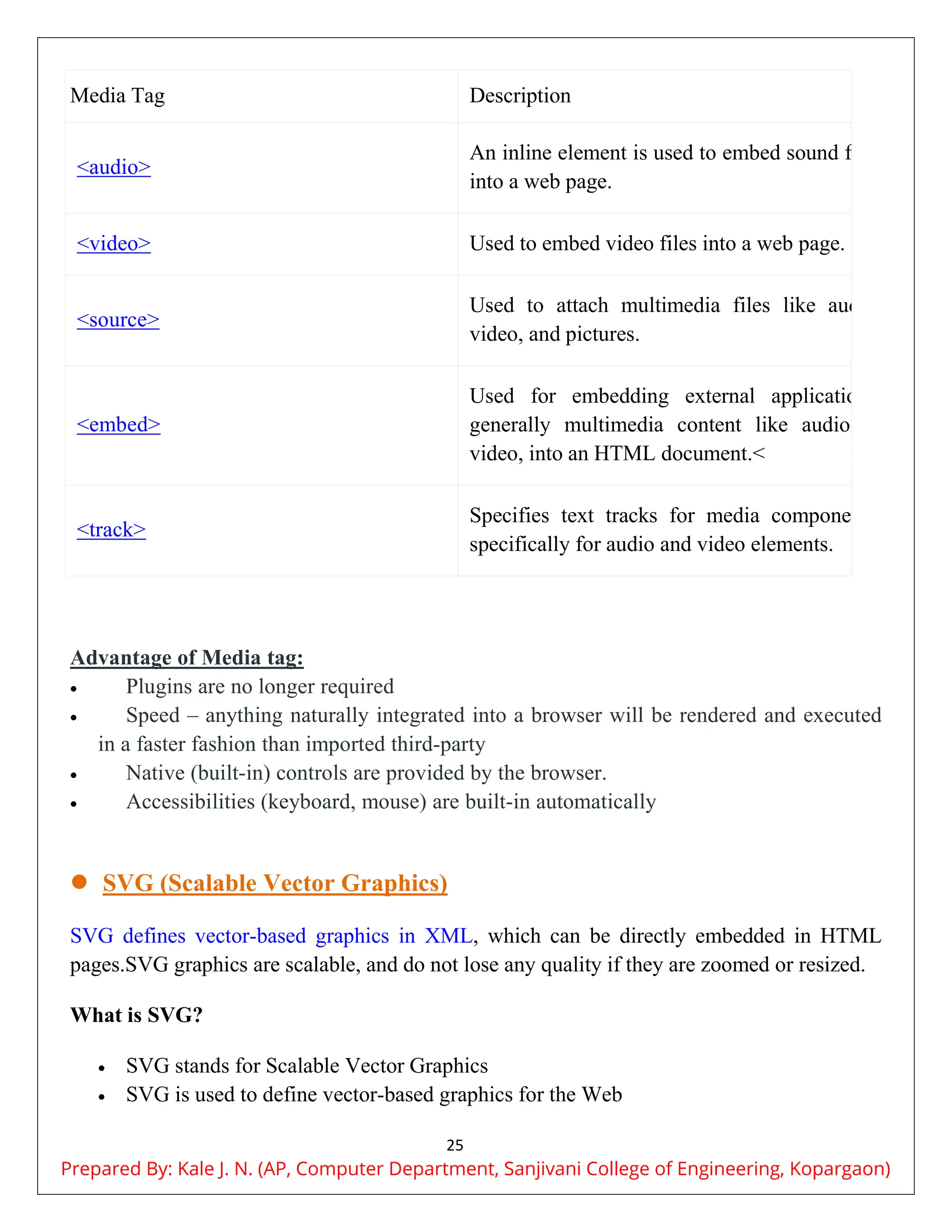
Media Tags:
Media Tag Description
Prepared By: Kale J. N. (AP, Computer Department, Sanjivani College of Engineering, Kopargaon)
25
Media Tag Description
<audio>
An inline element is used to embed sound files
into a web page.
<video> Used to embed video files into a web page.
<source>
Used to attach multimedia files like audio,
video, and pictures.
<embed>
Used for embedding external applications,
generally multimedia content like audio or
video, into an HTML document.<
<track>
Specifies text tracks for media components,
specifically for audio and video elements.
Advantage of Media tag:
 Plugins are no longer required
 Speed – anything naturally integrated into a browser will be rendered and executed
in a faster fashion than imported third-party
 Native (built-in) controls are provided by the browser.
 Accessibilities (keyboard, mouse) are built-in automatically
 SVG (Scalable Vector Graphics)
SVG defines vector-based graphics in XML, which can be directly embedded in HTML
pages.SVG graphics are scalable, and do not lose any quality if they are zoomed or resized.
What is SVG?
 SVG stands for Scalable Vector Graphics
 SVG is used to define vector-based graphics for the Web
Prepared By: Kale J. N. (AP, Computer Department, Sanjivani College of Engineering, Kopargaon)
26
 SVG defines graphics in XML format
 Each element and attribute in SVG files can be animated
 SVG is a W3C recommendation
 SVG integrates with other standards, such as CSS, DOM, XSL and JavaScript
The <svg> Element
The HTML <svg> element is a container for SVG graphics.
SVG has several methods for drawing paths, rectangles, circles, polygons, text, and much
more.
Ways to use SVG in HTML:
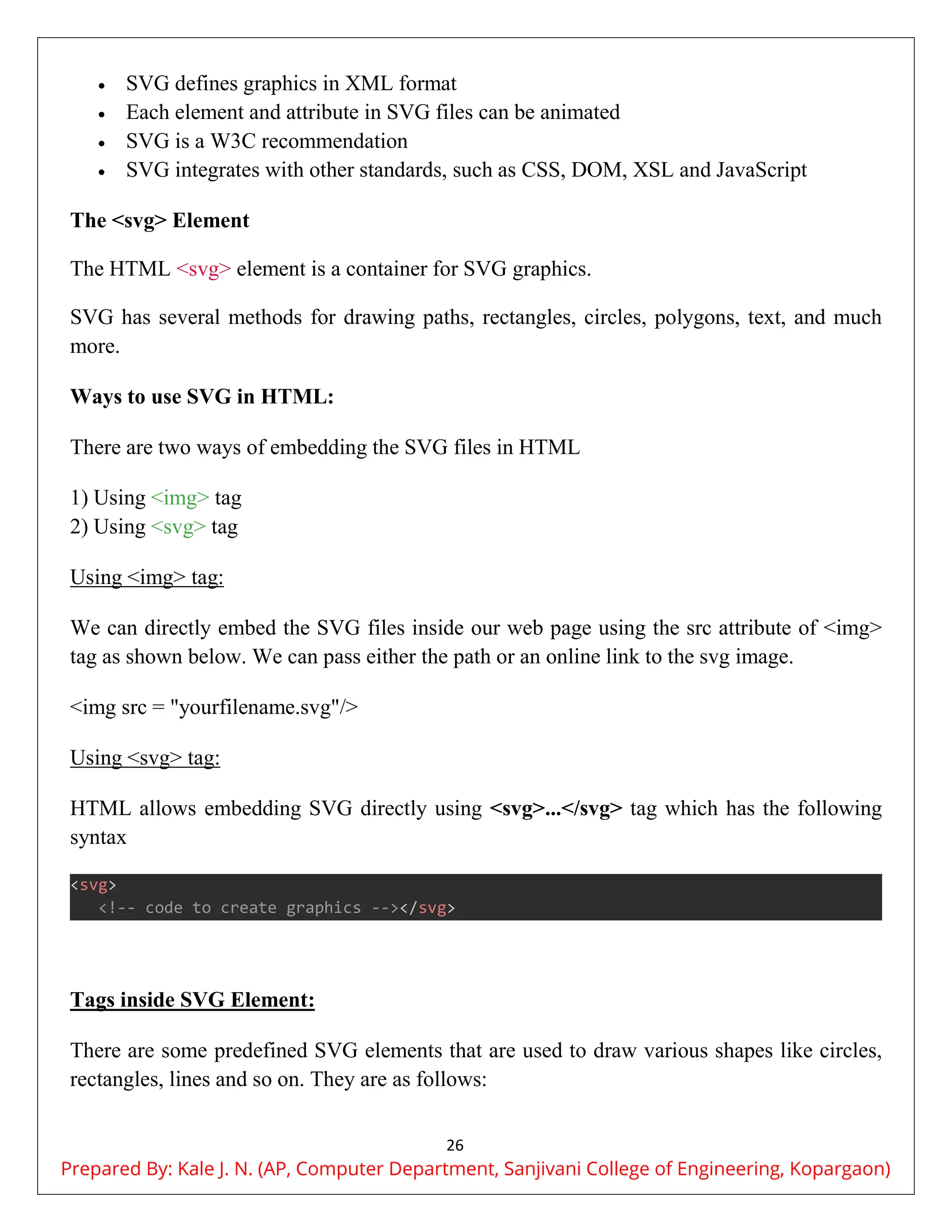
There are two ways of embedding the SVG files in HTML
1) Using <img> tag
2) Using <svg> tag
Using <img> tag:
We can directly embed the SVG files inside our web page using the src attribute of <img>
tag as shown below. We can pass either the path or an online link to the svg image.
<img src = "yourfilename.svg"/>
Using <svg> tag:
HTML allows embedding SVG directly using <svg>...</svg> tag which has the following
syntax
<svg>
<!-- code to create graphics --></svg>
Tags inside SVG Element:
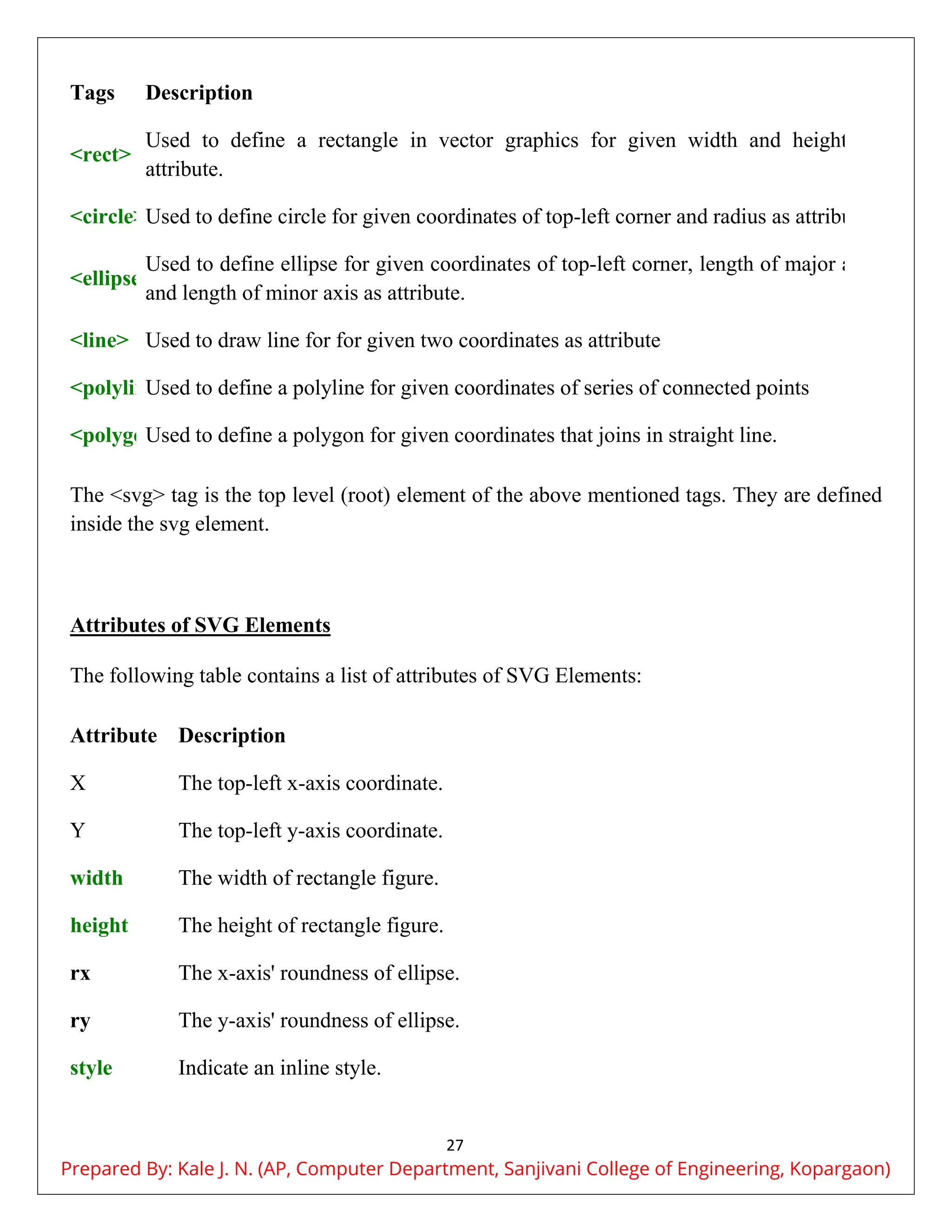
There are some predefined SVG elements that are used to draw various shapes like circles,
rectangles, lines and so on. They are as follows:
Prepared By: Kale J. N. (AP, Computer Department, Sanjivani College of Engineering, Kopargaon)
27
Tags Description
<rect>
Used to define a rectangle in vector graphics for given width and height as
attribute.
<circle>Used to define circle for given coordinates of top-left corner and radius as attribute.
<ellipse>
Used to define ellipse for given coordinates of top-left corner, length of major axis
and length of minor axis as attribute.
<line> Used to draw line for for given two coordinates as attribute
<polyline>
Used to define a polyline for given coordinates of series of connected points
<polygon>
Used to define a polygon for given coordinates that joins in straight line.
The <svg> tag is the top level (root) element of the above mentioned tags. They are defined
inside the svg element.
Attributes of SVG Elements
The following table contains a list of attributes of SVG Elements:
Attribute Description
X The top-left x-axis coordinate.
Y The top-left y-axis coordinate.
width The width of rectangle figure.
height The height of rectangle figure.
rx The x-axis' roundness of ellipse.
ry The y-axis' roundness of ellipse.
style Indicate an inline style.
Prepared By: Kale J. N. (AP, Computer Department, Sanjivani College of Engineering, Kopargaon)
28
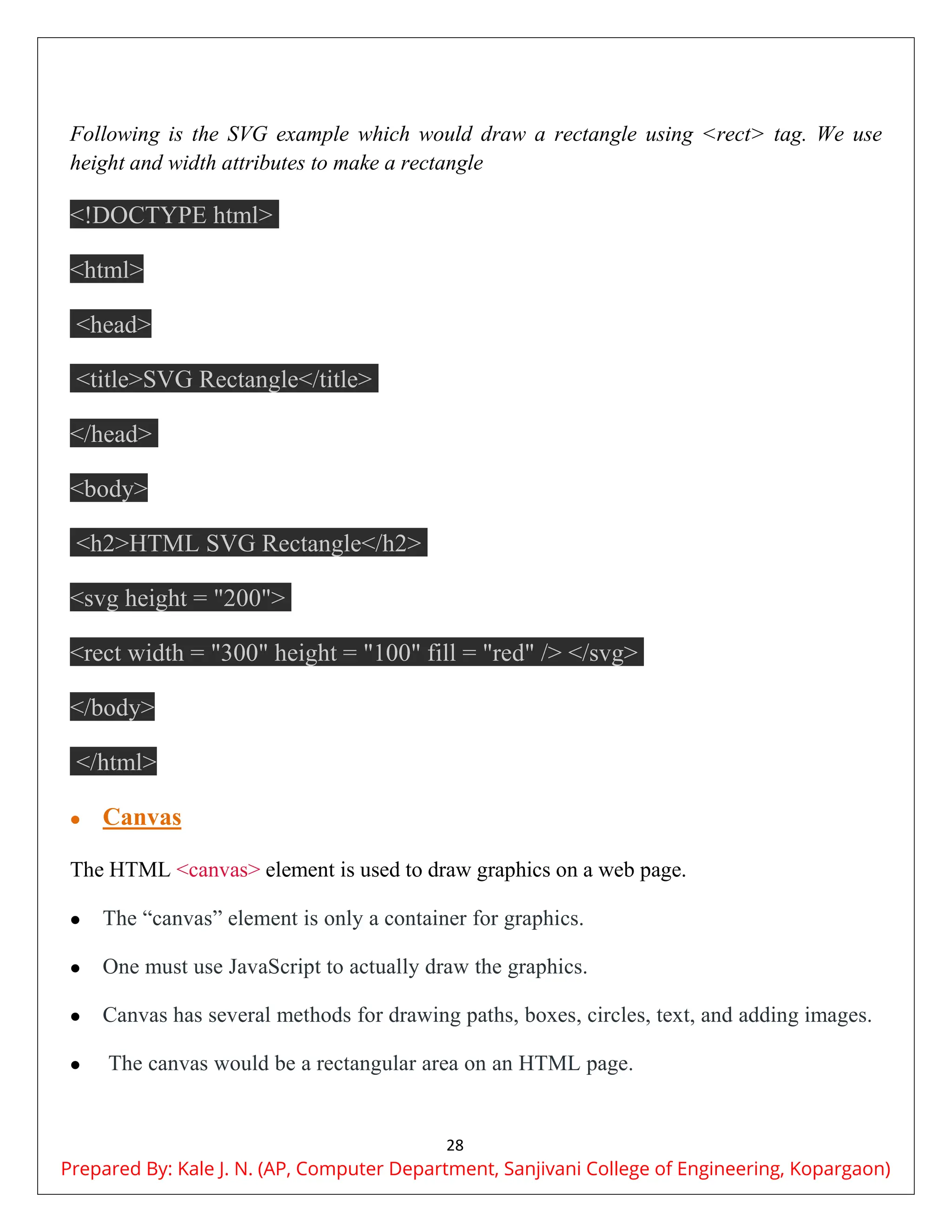
Following is the SVG example which would draw a rectangle using <rect> tag. We use
height and width attributes to make a rectangle
<!DOCTYPE html>
<html>
<head>
<title>SVG Rectangle</title>
</head>
<body>
<h2>HTML SVG Rectangle</h2>
<svg height = "200">
<rect width = "300" height = "100" fill = "red" /> </svg>
</body>
</html>
 Canvas
The HTML <canvas> element is used to draw graphics on a web page.
 The “canvas” element is only a container for graphics.
 One must use JavaScript to actually draw the graphics.
 Canvas has several methods for drawing paths, boxes, circles, text, and adding images.
 The canvas would be a rectangular area on an HTML page.
Prepared By: Kale J. N. (AP, Computer Department, Sanjivani College of Engineering, Kopargaon)
29
 By default, a canvas has no border and no content.
Syntax:
<canvas>
Content...
</canvas>
Here is an example of a basic, empty canvas:
<!DOCTYPE html>
<html>
<body>
<canvas id="myCanvas" width="200" height="100" style="border:1px solid #000000;">
</canvas>
</body>
</html>
 Drag and Drop
 Drag and Drop is a very interactive and user-friendly concept that makes it easier to
move an object to a different location by grabbing it.
Prepared By: Kale J. N. (AP, Computer Department, Sanjivani College of Engineering, Kopargaon)
30
 This allows the user to click and hold the mouse button over an element, drag it to
another location, and release the mouse button to drop the element there.
Drag and Drop Events
Events Description
ondrag
It is used to use when the element or text
selection is being dragged in HTML.
ondragstart
It is used to call a function, drag(event), that
specifies what data to be dragged
ondragenter
It is used to determine whether or not the drop
target is to accept the drop. If the drop is to be
accepted, then this event has to be canceled.
ondragleave
It occurs when the mouse leaves an element
before a valid drop target while the drag is
occurring.
ondragover
It specifies where the dragged data can be
dropped.
ondrop
It specifies where the drop has occurred at the
end of the drag operation.
ondragend
It occurs when the user has finished dragging
an element.
The Data Transfer Object
Prepared By: Kale J. N. (AP, Computer Department, Sanjivani College of Engineering, Kopargaon)
31
The data transfer property is used when the whole process of Drag and Drop happens. It is
used to hold the dragged data from the source and drop it to the desired location. These are
the properties associated with it:
Property Description
dataTransfer.setData(format, data) Sets the data to be dragged.
dataTransfer.clearData(format)
Clears data, if a format is specified, it
removes only that specific data.
dataTransfer.getData(format)
Returns data of the specified format; returns
an empty string if no data.
dataTransfer.types
Returns an array of all formats set during
dragstart.
dataTransfer.files Returns all files to be dropped.
dataTransfer.setDragImage(element, x, y)
Displays an existing image during drag, with
coordinates for drop location
dataTransfer.addElement(element)
Adds the specified element as a drag feedback
image.
dataTransfer.effectAllowed(value)
Specifies allowed operations for the user:
none, copy, link, move, etc.
dataTransfer.dropEffect(value)
Controls feedback during dragenter/dragover
events, indicating operation type: none, copy,
link, move.
The example below is a simple drag and drop example; to drag an image into the rectangle:
Prepared By: Kale J. N. (AP, Computer Department, Sanjivani College of Engineering, Kopargaon)
32
<!DOCTYPE HTML>
<html>
<head>
<style>
#div1 {
width: 350px;
height: 70px;
padding: 10px;
border: 1px solid #aaaaaa;
}
</style>
<script>
function allowDrop(ev) {
ev.preventDefault();
}
function drag(ev) {
ev.dataTransfer.setData("text", ev.target.id);
}
function drop(ev) {
ev.preventDefault();
var data = ev.dataTransfer.getData("text");
Prepared By: Kale J. N. (AP, Computer Department, Sanjivani College of Engineering, Kopargaon)
33
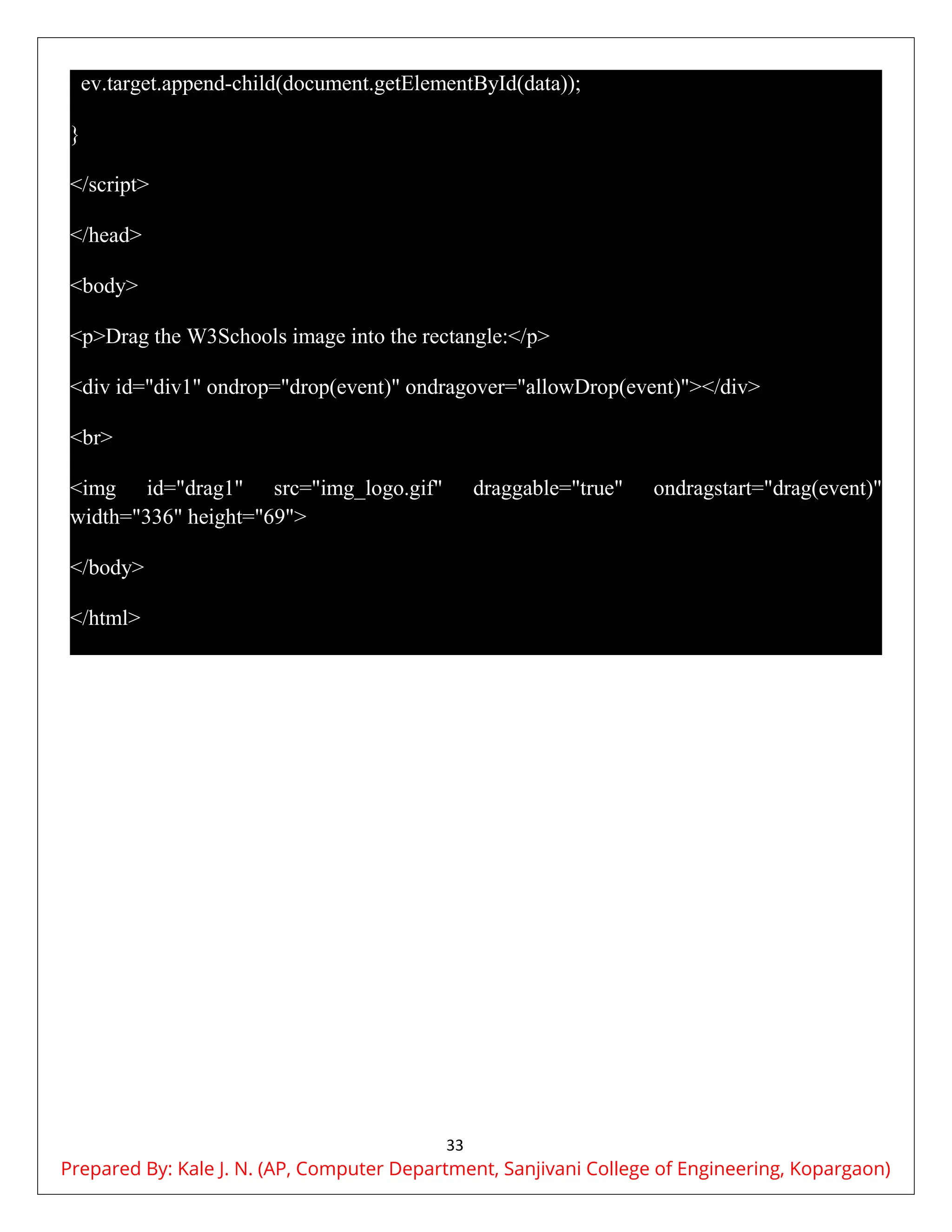
ev.target.append-child(document.getElementById(data));
}
</script>
</head>
<body>
<p>Drag the W3Schools image into the rectangle:</p>
<div id="div1" ondrop="drop(event)" ondragover="allowDrop(event)"></div>
<br>
<img id="drag1" src="img_logo.gif" draggable="true" ondragstart="drag(event)"
width="336" height="69">
</body>
</html>
Prepared By: Kale J. N. (AP, Computer Department, Sanjivani College of Engineering, Kopargaon)

HTML_Final notes_with_header_and_footer.pdf

  • 1.
    1 Unit 1 :Introduction to Web Technologies  Introduction to HTML: HTML stands for Hyper Text Markup Language ,which is used for creating web pages and web applications.  Hyper Text is "text within text." It's text that has a link in it.  When you click on a link that takes you to a new webpage.  Hyper Text connects two or more webpages (HTML documents) together.  Markup language is a computer language used to format and arrange text in a document.  It makes text more interactive and dynamic.  With markup language, you can turn text into images, tables, links, and more. Hence ,HTML is a markup language used to create attractive web pages with styling that looks good in a web browser. An HTML document is made up of many HTML tags, each containing different content.  History of HTML In the late 1980s, Tim Berners-Lee, a physicist working at CERN, proposed a system for CERN researchers. In 1989, he wrote a memo suggesting an internet-based hypertext system. Tim Berners-Lee is known as the father of HTML. The first description of HTML was a document called "HTML Tags," proposed by Tim in late 1991. The latest version of HTML is HTML5.  HTML Version:  HTML 1 -1993  HTML 2 -1995  HTML 3- 1997  HTML 4 -1999  HTML 4.01 – 2012  HTML 5-2014 (currently being used)  Characteristics of HTML: Prepared By: Kale J. N. (AP, Computer Department, Sanjivani College of Engineering, Kopargaon)
  • 2.
    2 1. Easy tounderstand: HTML is very straightforward and easy to learn. 2. Flexibility: You can create a variety of web pages with different designs and text. 3. Linkable: You can create links that connect one page to another or to different websites. 4. Limitless features: You can add videos, GIFs, pictures, and sounds to make your website more attractive and informative.  Advantages of HTML: 1. Easy to learn and apply: HTML is simple to pick up, use, and it's completely free. You only need a text editor and a browser. 2. Browser support: HTML works with all browsers and is search engine friendly. 3. Integration: HTML can easily integrate with other languages and is straightforward to develop. 4. Foundation: It is the basis of all web languages and is very lightweight. 5. Responsive display: HTML adjusts the display based on window or device size, making it user-friendly.  Disadvantages of HTML: 1. Static content: HTML can only create static web pages, not dynamic ones. 2. Security: There is a lack of security in HTML. 3. Complexity: Creating even a simple web page requires many tags. 4. Non-centralized: Each web page needs to be designed separately unless using CSS. 5. Scalability: HTML becomes complex when creating large websites.  Structure of an HTML Document An HTML document is mainly divided into two parts: 1. HEAD: Contains information about the HTML document, including the title of the page, version of HTML, metadata, etc. 2. BODY: Contains everything you want to display on the web page.  Description of HTML basic tags:  <!DOCTYPE>: Defines the document type and instructs the browser about the HTML version. Prepared By: Kale J. N. (AP, Computer Department, Sanjivani College of Engineering, Kopargaon)
  • 3.
    3  <html>: Informsthe browser that it is an HTML document. It contains all other HTML elements except <!DOCTYPE>.  <head>: The first element inside the <html> element, containing metadata (information about the document). It must be closed before the <body> tag opens.  <title>: Adds a title to the HTML page that appears at the top of the browser window. It must be placed inside the <head> tag and should close immediately. (Optional)  <body>: Contains the main content of the HTML document that is visible to the end user.  <h1>: Describes the first level heading of the webpage.  <p>: Describes a paragraph of the webpage. <!DOCTYPE html> <html> <head> <title>My Sample Page</title> </head> <body> <h1>Hello, World!</h1> <p>This is a paragraph.</p> </body> </html>  HTML Heading: An HTML heading tag defines the headings of a page. There are six levels of headings in HTML.These 6 heading elements are h1, h2, h3, h4, h5, and h6; with h1 being the highest level and h6 being the lowest. Prepared By: Kale J. N. (AP, Computer Department, Sanjivani College of Engineering, Kopargaon)
  • 4.
    4  <h1> isused for the main heading (biggest in size).  <h2> is used for subheadings.  If there are further sections under the subheadings, then the <h3> elements are used.  <h6> is used for the smallest headings (smallest in size). Browsers display the contents of headings in different sizes.  Importance of Headings: 1. Search Engine Indexing: Search engines use headings to index and organize the content of the webpage. 2. Highlighting Important Topics: Headings are used to highlight important topics. 3. Document Structure: They provide valuable information and help outline the structure of the document.  Horizontal Rule The <hr> tag stands for "horizontal rule" and is used to define a thematic break in an HTML page. It is an empty tag, meaning it does not require an end tag. The <hr> tag is mainly used to separate content.  Paragraph Tag  The <p> tag is used to create a paragraph in HTML.  It needs both an opening tag (<p>) and a closing tag (</p>).  Anything between <p> and </p> will be shown as a paragraph on the webpage.  Browsers might still show a paragraph even if you forget the closing tag (</p>), but it's best to always use it to avoid problems.  Key Points About the <p> Tag:  Automatic Spacing: The <p> tag automatically adds space before and after paragraphs, which acts like margins added by the browser. <p>This is the first paragraph.</p> <p>This is the second paragraph.</p> <p>This is the third paragraph.</p> OUTPUT: This is the first paragraph. This is the second paragraph. This is the third paragraph. Prepared By: Kale J. N. (AP, Computer Department, Sanjivani College of Engineering, Kopargaon)
  • 5.
    5 Example:  Space Reduction:If you add multiple spaces or lines, the browser reduces them to a single space or line.  <br> Tag  The <br> tag is used to insert a line break in HTML, telling the browser where to start a new line.  It does not have a closing tag; just the single opening tag (<br>) is enough to create a line break.  <pre > tag The <pre> tag is essential for preserving the exact formatting of text within a web page. Key points about the <pre> tag:  Preserves whitespace: Spaces, tabs, and line breaks are displayed as they are written in the HTML code.  Fixed-width font: Text is typically rendered in a monospaced font for consistent character spacing.  Common use cases: o Displaying code snippets (often combined with the <code> tag) o Showing sample outputs o Preserving text layout for specific formatting needs  Image tag : Imagine a picture book. Each page has words and pictures. In a webpage, the image tag is like a placeholder for a picture. It tells the computer where to find the picture and how to display it. This is the first line.<br>This is the second line. OUTPUT: This is the first line. This is the second line. Example: <pre> This is a preformatted text block. It preserves spaces and line breaks. Indentation is also maintained. </pre> Prepared By: Kale J. N. (AP, Computer Department, Sanjivani College of Engineering, Kopargaon)
  • 6.
    6 The Image Tag:<img> 1. Image in the Same Folder When your image is in the same folder as your HTML file, you can use a simple relative path to reference it: <img src="image.jpg" alt="A description of the image"> 2. Image in a Different Folder If your image is in a different folder, you'll need to specify the path to that folder: <img src="images/image.jpg" alt="Description of image">  src="images/image.jpg": This tells the browser to look for an image named "image.jpg" inside a folder named "images" in the same directory as the HTML file. Important:  Always use lowercase letters for folder and file names.  Double-check the spelling and capitalization of the file and folder names.  Make sure there are no extra spaces or special characters in the path. Visual Representation: your_project_folder/ ├── index.html ├── images/ │ └── image.jpg In this case, you would use src="images/image.jpg" in your index.html file. Prepared By: Kale J. N. (AP, Computer Department, Sanjivani College of Engineering, Kopargaon)
  • 7.
    7 3. Understanding RelativePaths for Images in Nested Folders Scenario:  You have a main project folder (let's call it "project").  Inside "project", there's a folder called "folder1".  Inside "folder1", there's a folder called "folder2".  Your HTML file is in "folder2".  The image is in the "project" folder. Relative Path: To reference the image from your HTML file in "folder2", you'll need to use a relative path that goes up one level (out of "folder2") and then to the image: <img src="../image.jpg" alt="Description of image">  ../ means go up one directory.  image.jpg is the name of your image file in the "project" folder. Visual Representation: project/ ├── image.jpg └── folder1/ └── folder2/ └── index.html <sub> and <sup> Imagine you're writing a math equation or a chemical formula. Sometimes, you need to write some numbers or letters slightly above or below the normal line of text. That's where the sub and sup tags come in handy.  Subscript (<sub>) The sub tag is used to make text appear slightly below the normal line. Prepared By: Kale J. N. (AP, Computer Department, Sanjivani College of Engineering, Kopargaon)
  • 8.
    8 Example:  H₂O (water)- The '2' is a subscript.  Superscript (<sup>) The sup tag is used to make text appear slightly above the normal line. Example:  x² (x squared) - The '2' is a superscript.  HTML Element An HTML element is made up of three parts:  Opening Tag: Indicates where the content begins.For example, <p>.  Content: The actual text or elements placed between the opening and closing tags.  Closing Tag: Indicates where the content ends. For example, </p>.  HTML Lists  A list is a simple way to show related pieces of information or data on a webpage.  Lists help organize items so they are easy to find.  Lists make information clear and easy to read.  Types of Lists HTML supports three main types of lists: 1. Ordered List (ol) <p>Water: H<sub>2</sub>O</p> <p>X square: x<sup>2</sup></p> Output: Water:H2O Xsquare:x2 Example: <p>This is a paragraph.</p> In this example:  <p> is the opening tag.  </p> is the closing tag.  This is a paragraph. is the content. Prepared By: Kale J. N. (AP, Computer Department, Sanjivani College of Engineering, Kopargaon)
  • 9.
    9 o Displays itemsin a numbered format. o Useful for lists where the order of items is important. 2. Unordered List (ul) o Displays items with bullets. o Suitable for lists where the order does not matter. 3. Description List (dl) o Displays terms and their descriptions. o Useful for glossaries or name-value pairs.  HTML Ordered List  The <ol> tag is used to create an ordered list.  You can represent items in different formats, such as numerical or alphabetical order, or any format where an order is important.  Types of Numbered Lists:  Numeric (1, 2, 3)  Uppercase Roman Numerals (I, II, III)  Lowercase Roman Numerals (i, ii, iii)  Attributes of the <ol> Tag In HTML, the <ol> tag is used for ordered lists, and it has several attributes to customize how the list is displayed:  reversed: Makes the list number in descending order. This is a new attribute in HTML5. For example, if you have a list with reversed, it will count down from 7 to 1.  start: Sets the starting number or letter for the list. It allows you to begin numbering or lettering from a specific point.  type: Specifies the type of numbering for the list items. Options include: o "1": Numeric (1, 2, 3) o "A": Uppercase letters (A, B, C) o "a": Lowercase letters (a, b, c) o "I": Uppercase Roman numerals (I, II, III) o "i": Lowercase Roman numerals (i, ii, iii) Example: <ol> <li>First item</li> <li>Second item</li> <li>Third item</li> </ol> OUTPUT: 1. First item 2.Second item 3.Third item Prepared By: Kale J. N. (AP, Computer Department, Sanjivani College of Engineering, Kopargaon)
  • 10.
    10  Unordered List Displays items with bullets, used when the order of items doesn’t matter.  <ul> is used to create an unordered list, and  <li> is used for each list item.  By default, items in an unordered list are marked with small black circles (bullets). Types of Bullets: 1. disc: Default style with filled circles. 2. circle: Hollow circles. 3. square: Squares. 4. none: No bullets.  Description List  Used for lists where each item has a term and a description, like a glossary.  Tags: 1. <dl>: Defines the start of the description list. 2. <dt>: Defines a term. 3. <dd>: Defines the term’s description. Example: <dl> <dt>Coffee</dt> <dd>Black hot drink.</dd> <dt>Milk</dt> <dd>White liquid food.</dd> </dl> Output: Coffee Black hot drink. Milk White liquid food. Example: <ul> <li>Item 1</li> <li>Item 2</li> <li>Item 3</li> </ul> Output:  Item 1  Item 2  Item 3 Prepared By: Kale J. N. (AP, Computer Department, Sanjivani College of Engineering, Kopargaon)
  • 11.
    11  HTML Tables HTML tables are essential for displaying structured data in a row and column format.  They help in organizing, presenting, and comparing information in a clear and orderly way, suitable for various applications like reports, schedules, and product listings.  Basic Structure of an HTML Table : To create a table in HTML, use the <table> tag along with several other tags to define the structure:  <table>: This tag wraps the entire table structure.  <tr>: Defines a table row.  <th>: Defines a header cell in the table. Text in header cells is typically bold and centered.  <td>: Defines a standard data cell in the table.  Table Tags and Their Functions  <caption>: Provides a title or description for the entire table. This is displayed above the table.  <thead>: Groups the header content in a table, which helps in distinguishing column headers from the rest of the data.  <tbody>: Groups the main content of the table, separating it from the header and footer.  <tfoot>: Groups the footer content, such as summaries or totals, providing additional information about the data.  <colgroup>: Groups a set of columns for styling purposes, making it easier to apply formatting to multiple columns at once.  Adding Borders to Tables 1. Using HTML Border Attribute: o Note: The border attribute is now obsolete and not recommended. 2. Using CSS Border Property: o Recommended: Provides more flexibility and control. Prepared By: Kale J. N. (AP, Computer Department, Sanjivani College of Engineering, Kopargaon)
  • 12.
    12  Advanced TableFeatures  Spanning Cells  colspan: Allows a cell to span multiple columns.  rowspan: Allows a cell to span multiple rows.  Common Uses of HTML Tables  Reports: Displaying detailed data and summaries.  Schedules: Showing timelines and appointments.  Product Listings: Organizing product details and comparisons. tag Description <table> Defines the table. <tr> Defines a row within the table. <th> Defines a header cell; text is usually bold and centered. <td> Defines a standard data cell. <caption> Provides a title or description for the table. <thead> Groups the header content in a table. <tbody> Groups the main body content of the table. <tfoot> Groups the footer content, such as summaries or totals. <colgroup> Groups a set of columns for styling or formatting. <col> Defines attributes for columns within a <colgroup>. Prepared By: Kale J. N. (AP, Computer Department, Sanjivani College of Engineering, Kopargaon)
  • 13.
    13 Example <!DOCTYPE html> <html> <head> <title>HTML Tablewith colspan and rowspan</title> </head> <body> <table border=”1”> <caption>Product Information</caption> <thead> <tr> <th rowspan="2">Product</th> <th colspan="2">Dimensions</th> <th rowspan="2">Price</th> </tr> <tr> <th>Width</th> <th>Height</th> </tr> </thead> <tbody> <tr> <td>ProductA</td> <td>10 cm</td> <td>15 cm</td> <td>$20</td> </tr> <tr> <td>Product B</td> <td>12 cm</td> <td>$15</td> </tr> </tbody> </table> </body> </html> Prepared By: Kale J. N. (AP, Computer Department, Sanjivani College of Engineering, Kopargaon)
  • 14.
    14 Types of HTMLTags  Semantic Tags:  These tags have clear meanings.  They describe the type of content they contain.  Examples include:  <header>: Represents the header of a page or section.  <footer>: Represents the footer of a page or section.  <nav>: Represents navigation links.  <article>: Represents a standalone piece of content like a news article.  Non-Semantic Tags:  These tags do not provide any meaning about the content they enclose.  They are used more for styling and layout.  Examples include:  <div>: A generic container with no specific meaning.  <span>: A generic inline container with no specific meaning.  Semantic Tags In HTML, semantic elements are tags that clearly define the content they enclose, making it easier for both browsers and developers to understand their purpose.  Why Use Semantic Elements? In older versions of HTML (like HTML4), developers used generic tags and had to add custom names (id/class) to style and identify different parts of their pages. This made it harder for search engines and other tools to understand the structure of the content. With HTML5, new semantic elements make this easier:  Improved Structure: Tags like <header>, <footer>, and <nav> make it clear what each part of the page is for, improving the organization.  Better Accessibility: Semantic tags help screen readers and other assistive technologies understand the content better. Prepared By: Kale J. N. (AP, Computer Department, Sanjivani College of Engineering, Kopargaon)
  • 15.
    15  Easier toRead and Maintain: The clear meaning of these tags makes the code easier to read and manage. Key Semantic HTML Elements Tag Description <article> Defines a complete piece of content, like a blog post or news article. <aside> Contains content that is related to the main content but is secondary, like a sidebar. <details> Provides additional details that users can expand or hide. <figcaption> Adds a caption to a <figure> element, like an image or diagram. <figure> Contains media or illustrations along with optional captions. <footer> Contains footer information, such as contact details or copyright. <header> Contains the header for a section or the entire page, often with navigation and titles. <main> Specifies the main content of the page, excluding headers, footers, and navigation. <mark> Highlights text to show its relevance or importance. <nav> Provides navigation links for the site. <section> Defines a section of content, such as a chapter or group of related topics. <summary> Provides a visible heading for a <details> element. <time> Represents a specific time or date. Example Using Semantic Elements Here’s how you might use these elements in a simple webpage: <!DOCTYPE html> <html> <head> <title>Simple Webpage</title> <style> body { font-family: Arial, sans-serif; } header, footer { background-color: #f1f1f1; padding: 10px; } aside { background-color: #e1e1e1; padding: 10px; } section { margin-bottom: 20px; } figure { border: 1px solid #ddd; padding: 10px; Prepared By: Kale J. N. (AP, Computer Department, Sanjivani College of Engineering, Kopargaon)
  • 16.
    16 margin: 10px 0; }</style> </head> <body> <header> <h1>My Website</h1> <nav> <ul> <li><a href="#">Home</a></li> <li><a href="#">About</a></li> <li><a href="#">Contact</a></li> </ul> </nav> </header> <main> <section> <h2>About Us</h2> <p>We provide high-quality products to our customers.</p> </section> <section> <h2>Our Products</h2> <p>Explore our range of products including electronics and fashion.</p> <figure> <img src="product.jpg" alt="Our Product"> <figcaption>Our featured product.</figcaption> </figure> </section> <aside> <h2>Related Links</h2> <ul> <li><a href="#">Link 1</a></li> <li><a href="#">Link 2</a></li> <li><a href="#">Link 3</a></li> </ul> </aside> </main> <footer> <p>&copy; 2024 My Website. All rights reserved.</p> </footer> </body> </html>  Block, Inline, and Inline-Block HTML elements are categorized based on how they display on a web page. Here’s a clear guide to understand the differences: 1. Block Elements  Characteristics: o Full Width: They take up the entire width of their container. o New Line: They always start on a new line. o Margins: They have space (margins) above and below them. Prepared By: Kale J. N. (AP, Computer Department, Sanjivani College of Engineering, Kopargaon)
  • 17.
    17 o Contain OtherElements: You can include other block or inline elements inside them.  Examples: o <h1> - <h6>: Headings of different sizes. o <div>: A container to group content. o <hr>: A horizontal line to separate content. o <li>: A list item. o <ul>: An unordered (bulleted) list. o <ol>: An ordered (numbered) list. o <p>: A paragraph of text. o <table>: A table for organizing data.  Semantic Block Elements: o <header>: Contains introductory content like logos or navigation menus. o <nav>: Contains navigation links. o <footer>: Contains information like contact details or copyright. o <main>: The main content of the page. o <section>: Defines a section of content. o <article>: Represents an independent piece of content, such as a blog post. o <aside>: Contains content related to the main content, like a sidebar. 2. Inline Elements  Characteristics: o Width: They only use as much width as necessary. o Same Line: They do not start on a new line; they flow along with other inline elements. o No Margins: They do not have top or bottom margins.  Examples: o <a>: Creates hyperlinks. o <br>: Inserts a line break. o <script>: Includes JavaScript code. o <input>: Collects user input in forms. o <img>: Displays images. o <span>: A generic container that does not affect layout. o <b>: Makes text bold. o <label>: Labels form controls. Prepared By: Kale J. N. (AP, Computer Department, Sanjivani College of Engineering, Kopargaon)
  • 18.
    18  Feature InlineElements Block Elements Width Occupy only the width necessary for their content. Occupy the full width of their container. Line Behavior Do not start on a new line. Always start on a new line. Placement Allow other inline elements to sit beside them. Do not allow other elements to sit beside them; they take up the full width. Margins Do not have top and bottom margins.Have top and bottom margins.  HTML Links HTML links are crucial for navigating between different web pages and resources. Here’s a simple guide on how HTML links work and how to use them: 1. Basic Structure of an HTML Link To create a link, you use the <a> (anchor) tag. Here’s the basic syntax: <a href="https://www.example.com">Visit Example</a>  <a>: The anchor tag that creates a link.  href: Specifies the URL where the link points.  Link Text: The clickable text between the <a> tags. 2. Link Attributes  href: Defines where the link goes. o Absolute URL: A complete URL, e.g., https://www.example.com. o Relative URL: A path relative to the current page, e.g., about.html.  target: Determines where the link opens. o _self: Opens in the same window (default). o _blank: Opens in a new tab or window. o _parent: Opens in the parent frame (if inside a frame). o _top: Opens in the full window.  title: Shows additional info when you hover over the link.  rel: Defines the relationship between the current and linked document. Prepared By: Kale J. N. (AP, Computer Department, Sanjivani College of Engineering, Kopargaon)
  • 19.
    19 o noopener: Preventsthe new page from accessing the original page’s window object. o noreferrer: Prevents sending the referring page’s URL. 3. Types of Links  Internal Links: Link to another page on the same website. <a href="contact.html">Contact Us</a>  External Links: Link to a page on a different website. <a href="https://www.example.com">Visit Example</a>  Anchor Links: Link to a specific part of the same page using an ID. <a href="#section1">Go to Section 1</a> <h2 id="section1">Section 1</h2>  Email Links: Open the user’s email client. <a href="mailto:info@example.com">Email Us</a>  Telephone Links: Start a phone call on mobile devices. <a href="tel:+1234567890">Call Us</a>  Download Links: Let users download files. <a href="file.zip" download>Download File</a> 5. Best Practices  Use Descriptive Link Text: Make sure the text of the link clearly explains where it will take the user.  Test Links: Regularly check that all links work correctly.  Accessibility: Improve accessibility with aria-label or other ARIA attributes for users with disabilities. Prepared By: Kale J. N. (AP, Computer Department, Sanjivani College of Engineering, Kopargaon)
  • 20.
    20 Understanding and usingHTML links properly helps in creating a well-organized and user- friendly website.  HTML Forms HTML Forms are required when you want to collect some data from the site visitor. For example during user registration you would like to collect information such as name, email address, credit card, etc. The HTML <form> tag is used to create an HTML form and it has following syntax: <form> <!--form elements--> </form> Form Elements The HTML <form> comprises several elements, each serving a unique purpose. Elements Descriptions <label> It defines labels for <form> elements. <input> It is used to get input data from the form in various types such as text, password, email, etc by changing its type. <button> It defines a clickable button to control other elements or execute a functionality. <select> It is used to create a drop-down list. <textarea> It is used to get input long text content. Prepared By: Kale J. N. (AP, Computer Department, Sanjivani College of Engineering, Kopargaon)
  • 21.
    21 Elements Descriptions <fieldset> It isused to draw a box around other form elements and group the related data. <legend> It defines a caption for fieldset elements <datalist> It is used to specify pre-defined list options for input controls. <output> It displays the output of performed calculations. <option> It is used to define options in a drop-down list. <optgroup>It is used to define group-related options in a drop-down list. Commonly Used Input Types in HTML Forms In HTML forms, various input types are used to collect different types of data from users. Here are some commonly used input types: Input Type Description <input type=”text“> Defines a one-line text input field <input type=”password“> Defines a password field <input type=”submit“> Defines a submit button <input type=”reset“> Defines a reset button Prepared By: Kale J. N. (AP, Computer Department, Sanjivani College of Engineering, Kopargaon)
  • 22.
    22 Input Type Description <inputtype=”radio“>Defines a radio button <input type=”email“>Validates that the input is a valid email address. <input type=”number“> Allows the user to enter a number. You can specify min, max, and step attributes for range. <input type=”checkbox“> Used for checkboxes where the user can select multiple options. <input type=”date“> Allows the user to select a date from a calendar. <input type=”time“> Allows the user to select a time. <input type=”file“> Allows the user to select a file to upload. Basic HTML Forms Example: Example: This HTML forms collects the user personal information such as username and password with the button to submit the form. <!DOCTYPE html> <html lang="en"> <head> <title>Html Forms</title> </head> <body> Prepared By: Kale J. N. (AP, Computer Department, Sanjivani College of Engineering, Kopargaon)
  • 23.
    23 <h2>HTML Forms</h2> <form> <label for="username">Username:</label><br> <inputtype="text" id="username" name="username"><br><br> <label for="password">Password:</label><br> <input type="password" id="password" name="password"><br><br> <input type="submit" value="Submit"> </form> </body> </html> Output: Form Attributes Here are some of the key attributes that can be used with the <form> element: 1. action: This attribute specifies where to send the form-data when a form is submitted. The value of this attribute is typically a URL. Prepared By: Kale J. N. (AP, Computer Department, Sanjivani College of Engineering, Kopargaon)
  • 24.
    24 2. method: Thisattribute defines the HTTP method used to send the form-data. The values can be “get” or “post”. 3. target: This attribute specifies where to display the response received after submitting the form. The values can be “_blank”, “_self”, “_parent”, “_top”, or the name of an iframe. 4. enctype: This attribute is used when method=“post”. It specifies how the form-data should be encoded when submitting it to the server. The values can be “application/x- www-form-urlencoded”, “multipart/form-data”, or “text/plain”. 5. autocomplete: This attribute specifies whether a form should have autocomplete on or off. When autocomplete is on, the browser automatically completes values based on values that the user has entered before. 6. novalidate: This Boolean attribute specifies that the form-data should not be validated on submission. 7. accept-charset:Specifies the character encodng used for the form submission. 8. name: Specifies the name of the form. 9. rel: Specifies the relationship between a linked resource and the current document.  Media Elements Multimedia on the web is sound, music, videos, movies, and animations. Media Tags: Media Tag Description Prepared By: Kale J. N. (AP, Computer Department, Sanjivani College of Engineering, Kopargaon)
  • 25.
    25 Media Tag Description <audio> Aninline element is used to embed sound files into a web page. <video> Used to embed video files into a web page. <source> Used to attach multimedia files like audio, video, and pictures. <embed> Used for embedding external applications, generally multimedia content like audio or video, into an HTML document.< <track> Specifies text tracks for media components, specifically for audio and video elements. Advantage of Media tag:  Plugins are no longer required  Speed – anything naturally integrated into a browser will be rendered and executed in a faster fashion than imported third-party  Native (built-in) controls are provided by the browser.  Accessibilities (keyboard, mouse) are built-in automatically  SVG (Scalable Vector Graphics) SVG defines vector-based graphics in XML, which can be directly embedded in HTML pages.SVG graphics are scalable, and do not lose any quality if they are zoomed or resized. What is SVG?  SVG stands for Scalable Vector Graphics  SVG is used to define vector-based graphics for the Web Prepared By: Kale J. N. (AP, Computer Department, Sanjivani College of Engineering, Kopargaon)
  • 26.
    26  SVG definesgraphics in XML format  Each element and attribute in SVG files can be animated  SVG is a W3C recommendation  SVG integrates with other standards, such as CSS, DOM, XSL and JavaScript The <svg> Element The HTML <svg> element is a container for SVG graphics. SVG has several methods for drawing paths, rectangles, circles, polygons, text, and much more. Ways to use SVG in HTML: There are two ways of embedding the SVG files in HTML 1) Using <img> tag 2) Using <svg> tag Using <img> tag: We can directly embed the SVG files inside our web page using the src attribute of <img> tag as shown below. We can pass either the path or an online link to the svg image. <img src = "yourfilename.svg"/> Using <svg> tag: HTML allows embedding SVG directly using <svg>...</svg> tag which has the following syntax <svg> <!-- code to create graphics --></svg> Tags inside SVG Element: There are some predefined SVG elements that are used to draw various shapes like circles, rectangles, lines and so on. They are as follows: Prepared By: Kale J. N. (AP, Computer Department, Sanjivani College of Engineering, Kopargaon)
  • 27.
    27 Tags Description <rect> Used todefine a rectangle in vector graphics for given width and height as attribute. <circle>Used to define circle for given coordinates of top-left corner and radius as attribute. <ellipse> Used to define ellipse for given coordinates of top-left corner, length of major axis and length of minor axis as attribute. <line> Used to draw line for for given two coordinates as attribute <polyline> Used to define a polyline for given coordinates of series of connected points <polygon> Used to define a polygon for given coordinates that joins in straight line. The <svg> tag is the top level (root) element of the above mentioned tags. They are defined inside the svg element. Attributes of SVG Elements The following table contains a list of attributes of SVG Elements: Attribute Description X The top-left x-axis coordinate. Y The top-left y-axis coordinate. width The width of rectangle figure. height The height of rectangle figure. rx The x-axis' roundness of ellipse. ry The y-axis' roundness of ellipse. style Indicate an inline style. Prepared By: Kale J. N. (AP, Computer Department, Sanjivani College of Engineering, Kopargaon)
  • 28.
    28 Following is theSVG example which would draw a rectangle using <rect> tag. We use height and width attributes to make a rectangle <!DOCTYPE html> <html> <head> <title>SVG Rectangle</title> </head> <body> <h2>HTML SVG Rectangle</h2> <svg height = "200"> <rect width = "300" height = "100" fill = "red" /> </svg> </body> </html>  Canvas The HTML <canvas> element is used to draw graphics on a web page.  The “canvas” element is only a container for graphics.  One must use JavaScript to actually draw the graphics.  Canvas has several methods for drawing paths, boxes, circles, text, and adding images.  The canvas would be a rectangular area on an HTML page. Prepared By: Kale J. N. (AP, Computer Department, Sanjivani College of Engineering, Kopargaon)
  • 29.
    29  By default,a canvas has no border and no content. Syntax: <canvas> Content... </canvas> Here is an example of a basic, empty canvas: <!DOCTYPE html> <html> <body> <canvas id="myCanvas" width="200" height="100" style="border:1px solid #000000;"> </canvas> </body> </html>  Drag and Drop  Drag and Drop is a very interactive and user-friendly concept that makes it easier to move an object to a different location by grabbing it. Prepared By: Kale J. N. (AP, Computer Department, Sanjivani College of Engineering, Kopargaon)
  • 30.
    30  This allowsthe user to click and hold the mouse button over an element, drag it to another location, and release the mouse button to drop the element there. Drag and Drop Events Events Description ondrag It is used to use when the element or text selection is being dragged in HTML. ondragstart It is used to call a function, drag(event), that specifies what data to be dragged ondragenter It is used to determine whether or not the drop target is to accept the drop. If the drop is to be accepted, then this event has to be canceled. ondragleave It occurs when the mouse leaves an element before a valid drop target while the drag is occurring. ondragover It specifies where the dragged data can be dropped. ondrop It specifies where the drop has occurred at the end of the drag operation. ondragend It occurs when the user has finished dragging an element. The Data Transfer Object Prepared By: Kale J. N. (AP, Computer Department, Sanjivani College of Engineering, Kopargaon)
  • 31.
    31 The data transferproperty is used when the whole process of Drag and Drop happens. It is used to hold the dragged data from the source and drop it to the desired location. These are the properties associated with it: Property Description dataTransfer.setData(format, data) Sets the data to be dragged. dataTransfer.clearData(format) Clears data, if a format is specified, it removes only that specific data. dataTransfer.getData(format) Returns data of the specified format; returns an empty string if no data. dataTransfer.types Returns an array of all formats set during dragstart. dataTransfer.files Returns all files to be dropped. dataTransfer.setDragImage(element, x, y) Displays an existing image during drag, with coordinates for drop location dataTransfer.addElement(element) Adds the specified element as a drag feedback image. dataTransfer.effectAllowed(value) Specifies allowed operations for the user: none, copy, link, move, etc. dataTransfer.dropEffect(value) Controls feedback during dragenter/dragover events, indicating operation type: none, copy, link, move. The example below is a simple drag and drop example; to drag an image into the rectangle: Prepared By: Kale J. N. (AP, Computer Department, Sanjivani College of Engineering, Kopargaon)
  • 32.
    32 <!DOCTYPE HTML> <html> <head> <style> #div1 { width:350px; height: 70px; padding: 10px; border: 1px solid #aaaaaa; } </style> <script> function allowDrop(ev) { ev.preventDefault(); } function drag(ev) { ev.dataTransfer.setData("text", ev.target.id); } function drop(ev) { ev.preventDefault(); var data = ev.dataTransfer.getData("text"); Prepared By: Kale J. N. (AP, Computer Department, Sanjivani College of Engineering, Kopargaon)
  • 33.
    33 ev.target.append-child(document.getElementById(data)); } </script> </head> <body> <p>Drag the W3Schoolsimage into the rectangle:</p> <div id="div1" ondrop="drop(event)" ondragover="allowDrop(event)"></div> <br> <img id="drag1" src="img_logo.gif" draggable="true" ondragstart="drag(event)" width="336" height="69"> </body> </html> Prepared By: Kale J. N. (AP, Computer Department, Sanjivani College of Engineering, Kopargaon)