Right Click ICT & Robotics Curriculum
K12 curriculum
TECHDays 2022
Scratch for Grade 1 to 6
Objectives of the Workshop
To explore the steps to
follow in order to offer a
comprehensive
introduction on Scratch.
Audience: ICT teachers for grades 1 to 6
Before We start…
A General Overview on the entire
Scratch Scope and Sequence.
As you all know, Scratch is developed by MIT
university and its main focus is to develop
skills in algorithm and coding for kids.
Background Knowledge for teachers
Teachers must know that
Scratch exists in 3 versions!
Background Knowledge for teachers
Scratch Junior
Available on tablets and
computers for lower
grades (Grade 1 & 2).
Background Knowledge for teachers
Scratch 3.0
Available on computers
for grades 3 and up.
Background Knowledge for teachers
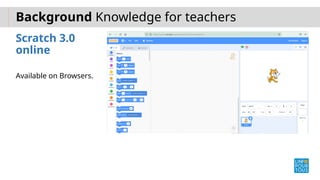
Scratch 3.0
online
Available on Browsers.
Background Knowledge for teachers
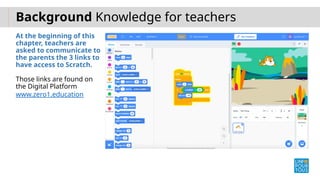
At the beginning of this
chapter, teachers are
asked to communicate to
the parents the 3 links to
have access to Scratch.
Those links are found on
the Digital Platform
www.zero1.education
Background Knowledge for teachers
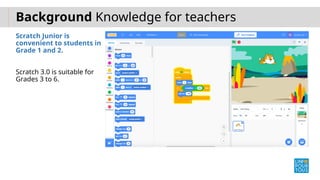
Scratch Junior is
convenient to students in
Grade 1 and 2.
Scratch 3.0 is suitable for
Grades 3 to 6.
Background Knowledge for teachers
Teachers must always
keep in mind that:
It is possible to change the
language of the interface.
Background Knowledge for teachers
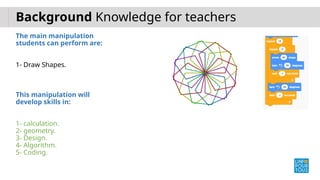
The main manipulation
students can perform are:
1- Draw Shapes.
This manipulation will
develop skills in:
1- calculation.
2- geometry.
3- Design.
4- Algorithm.
5- Coding.
Background Knowledge for teachers
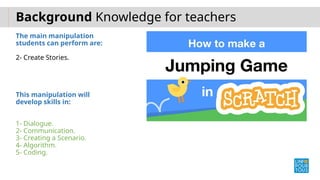
The main manipulation
students can perform are:
2- Create Stories.
This manipulation will
develop skills in:
1- Dialogue.
2- Communication.
3- Creating a Scenario.
4- Algorithm.
5- Coding.
Background Knowledge for teachers
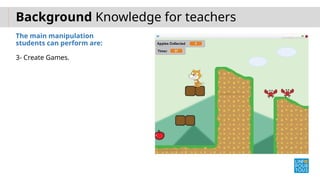
The main manipulation
students can perform are:
3- Create Games.
Background Knowledge for teachers
While manipulating Scratch,
Students are asked to develop skills in
coding by mastering:
1- Algorithm
2- Loops
3- Conditions
4- Variables
5- Routines
6- etc
Background Knowledge for teachers
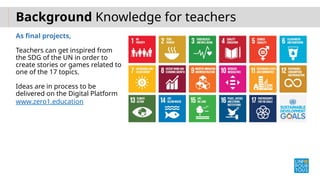
As final projects,
Teachers can get inspired from
the SDG of the UN in order to
create stories or games related to
one of the 17 topics.
Ideas are in process to be
delivered on the Digital Platform
www.zero1.education
Background Knowledge for teachers
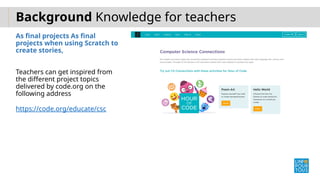
As final projects As final
projects when using Scratch to
create stories,
Teachers can get inspired from
the different project topics
delivered by code.org on the
following address
https://code.org/educate/csc
Background Knowledge for teachers
As final projects when using
Scratch to draw shapes,
Teachers can collaborate with the
Math teachers in order to be
aligned with the skills in
geometry.
Step 1
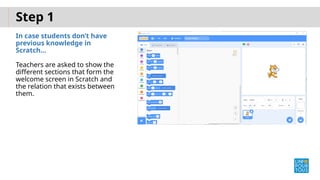
In case students don’t have
previous knowledge in
Scratch…
Teachers are asked to show the
different sections that form the
welcome screen in Scratch and
the relation that exists between
them.
Step 1
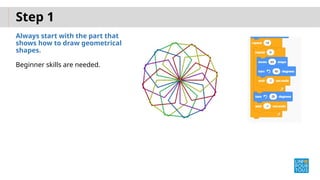
Always start with the part that
shows how to draw geometrical
shapes.
Beginner skills are needed.
Step 1
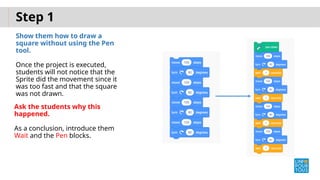
Show them how to draw a
square without using the Pen
tool.
Once the project is executed,
students will not notice that the
Sprite did the movement since it
was too fast and that the square
was not drawn.
Ask the students why this
happened.
As a conclusion, introduce them
Wait and the Pen blocks.
Step 1
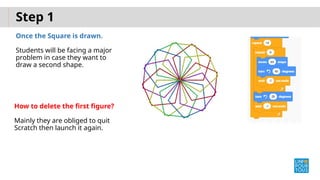
Once the Square is drawn.
Students will be facing a major
problem in case they want to
draw a second shape.
How to delete the first figure?
Mainly they are obliged to quit
Scratch then launch it again.
Step 1
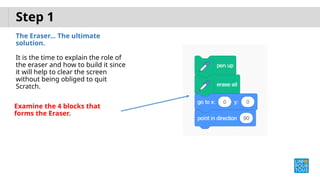
The Eraser… The ultimate
solution.
It is the time to explain the role of
the eraser and how to build it since
it will help to clear the screen
without being obliged to quit
Scratch.
Examine the 4 blocks that
forms the Eraser.
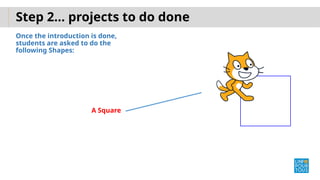
Step 2… projects to do done
Once the introduction is done,
students are asked to do the
following Shapes:
A Square
Step 2… projects to do done
Once the introduction is done,
students are asked to do the
following Shapes:
A Rectangle
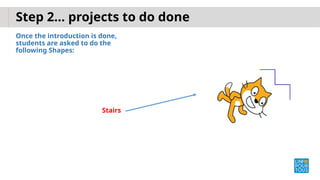
Step 2… projects to do done
Once the introduction is done,
students are asked to do the
following Shapes:
Stairs
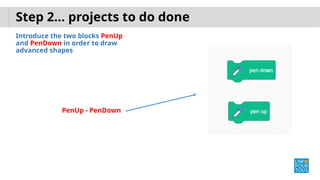
Step 2… projects to do done
Introduce the two blocks PenUp
and PenDown in order to draw
advanced shapes
PenUp - PenDown
Step 3…
Add the 4 blocks to control the
color and the width of the Pen.
Control the Pen Width and Color
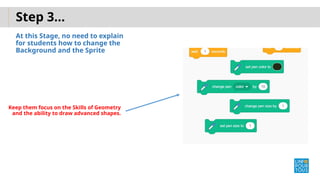
Step 3…
At this Stage, no need to explain
for students how to change the
Background and the Sprite
Keep them focus on the Skills of Geometry
and the ability to draw advanced shapes.
Step 4…
For Higher grades starting Grade
4
The Repeat Block should be
introduced
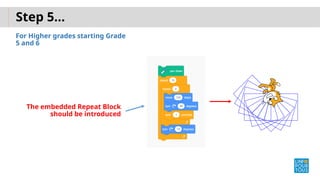
Step 5…
For Higher grades starting Grade
5 and 6
The embedded Repeat Block
should be introduced
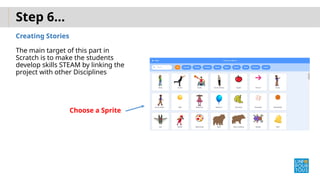
Step 6…
Creating Stories
The main target of this part in
Scratch is to make the students
develop skills STEAM by linking the
project with other Disciplines
Choose a Sprite
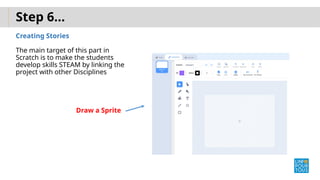
Step 6…
Creating Stories
The main target of this part in
Scratch is to make the students
develop skills STEAM by linking the
project with other Disciplines
Draw a Sprite
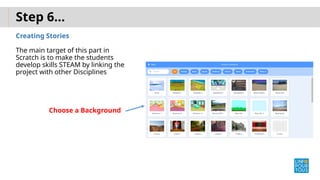
Step 6…
Creating Stories
The main target of this part in
Scratch is to make the students
develop skills STEAM by linking the
project with other Disciplines
Choose a Background
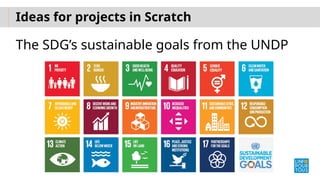
Ideas for projects in Scratch
The SDG’s sustainable goals from the UNDP
To receive the certificate of participation, please send us the below
Send to support@zero1.education
1- School name
2- Your full name
3- Grades you teach
4- Your WhatsApp number
(international format: 966 56…..)
My number: +961 3380633
Subscribe to our YouTube Channel :
www.youtube.com/linfopourtousonline

Scratch Programming for Grades 1 to 6.pptx

  • 1.
    Right Click ICT& Robotics Curriculum K12 curriculum TECHDays 2022 Scratch for Grade 1 to 6
  • 2.
    Objectives of theWorkshop To explore the steps to follow in order to offer a comprehensive introduction on Scratch. Audience: ICT teachers for grades 1 to 6
  • 3.
    Before We start… AGeneral Overview on the entire Scratch Scope and Sequence. As you all know, Scratch is developed by MIT university and its main focus is to develop skills in algorithm and coding for kids.
  • 4.
    Background Knowledge forteachers Teachers must know that Scratch exists in 3 versions!
  • 5.
    Background Knowledge forteachers Scratch Junior Available on tablets and computers for lower grades (Grade 1 & 2).
  • 6.
    Background Knowledge forteachers Scratch 3.0 Available on computers for grades 3 and up.
  • 7.
    Background Knowledge forteachers Scratch 3.0 online Available on Browsers.
  • 8.
    Background Knowledge forteachers At the beginning of this chapter, teachers are asked to communicate to the parents the 3 links to have access to Scratch. Those links are found on the Digital Platform www.zero1.education
  • 9.
    Background Knowledge forteachers Scratch Junior is convenient to students in Grade 1 and 2. Scratch 3.0 is suitable for Grades 3 to 6.
  • 10.
    Background Knowledge forteachers Teachers must always keep in mind that: It is possible to change the language of the interface.
  • 11.
    Background Knowledge forteachers The main manipulation students can perform are: 1- Draw Shapes. This manipulation will develop skills in: 1- calculation. 2- geometry. 3- Design. 4- Algorithm. 5- Coding.
  • 12.
    Background Knowledge forteachers The main manipulation students can perform are: 2- Create Stories. This manipulation will develop skills in: 1- Dialogue. 2- Communication. 3- Creating a Scenario. 4- Algorithm. 5- Coding.
  • 13.
    Background Knowledge forteachers The main manipulation students can perform are: 3- Create Games.
  • 14.
    Background Knowledge forteachers While manipulating Scratch, Students are asked to develop skills in coding by mastering: 1- Algorithm 2- Loops 3- Conditions 4- Variables 5- Routines 6- etc
  • 15.
    Background Knowledge forteachers As final projects, Teachers can get inspired from the SDG of the UN in order to create stories or games related to one of the 17 topics. Ideas are in process to be delivered on the Digital Platform www.zero1.education
  • 16.
    Background Knowledge forteachers As final projects As final projects when using Scratch to create stories, Teachers can get inspired from the different project topics delivered by code.org on the following address https://code.org/educate/csc
  • 17.
    Background Knowledge forteachers As final projects when using Scratch to draw shapes, Teachers can collaborate with the Math teachers in order to be aligned with the skills in geometry.
  • 18.
    Step 1 In casestudents don’t have previous knowledge in Scratch… Teachers are asked to show the different sections that form the welcome screen in Scratch and the relation that exists between them.
  • 19.
    Step 1 Always startwith the part that shows how to draw geometrical shapes. Beginner skills are needed.
  • 20.
    Step 1 Show themhow to draw a square without using the Pen tool. Once the project is executed, students will not notice that the Sprite did the movement since it was too fast and that the square was not drawn. Ask the students why this happened. As a conclusion, introduce them Wait and the Pen blocks.
  • 21.
    Step 1 Once theSquare is drawn. Students will be facing a major problem in case they want to draw a second shape. How to delete the first figure? Mainly they are obliged to quit Scratch then launch it again.
  • 22.
    Step 1 The Eraser…The ultimate solution. It is the time to explain the role of the eraser and how to build it since it will help to clear the screen without being obliged to quit Scratch. Examine the 4 blocks that forms the Eraser.
  • 23.
    Step 2… projectsto do done Once the introduction is done, students are asked to do the following Shapes: A Square
  • 24.
    Step 2… projectsto do done Once the introduction is done, students are asked to do the following Shapes: A Rectangle
  • 25.
    Step 2… projectsto do done Once the introduction is done, students are asked to do the following Shapes: Stairs
  • 26.
    Step 2… projectsto do done Introduce the two blocks PenUp and PenDown in order to draw advanced shapes PenUp - PenDown
  • 27.
    Step 3… Add the4 blocks to control the color and the width of the Pen. Control the Pen Width and Color
  • 28.
    Step 3… At thisStage, no need to explain for students how to change the Background and the Sprite Keep them focus on the Skills of Geometry and the ability to draw advanced shapes.
  • 29.
    Step 4… For Highergrades starting Grade 4 The Repeat Block should be introduced
  • 30.
    Step 5… For Highergrades starting Grade 5 and 6 The embedded Repeat Block should be introduced
  • 31.
    Step 6… Creating Stories Themain target of this part in Scratch is to make the students develop skills STEAM by linking the project with other Disciplines Choose a Sprite
  • 32.
    Step 6… Creating Stories Themain target of this part in Scratch is to make the students develop skills STEAM by linking the project with other Disciplines Draw a Sprite
  • 33.
    Step 6… Creating Stories Themain target of this part in Scratch is to make the students develop skills STEAM by linking the project with other Disciplines Choose a Background
  • 34.
    Ideas for projectsin Scratch The SDG’s sustainable goals from the UNDP
  • 35.
    To receive thecertificate of participation, please send us the below Send to support@zero1.education 1- School name 2- Your full name 3- Grades you teach 4- Your WhatsApp number (international format: 966 56…..) My number: +961 3380633 Subscribe to our YouTube Channel : www.youtube.com/linfopourtousonline

Editor's Notes

  • #1 Publishing House + Brands… 18 years = 3 updates The power of the collection is that it is made by teachers.