Scratch Part 2 – Character Commands
What does a command do? Commands in programming allow an object whatever it is to do something. In the case of this object it will be your character moving.
What does this guide show? In this guide you will learn to make your character do the following: - Move up Move Down Move Left Move Right Stop at the edge of the screen
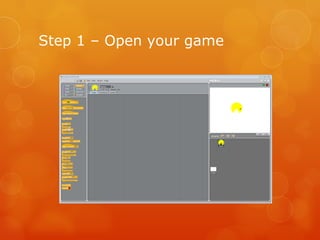
Step 1 – Open your game
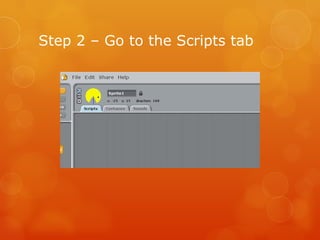
Step 2 – Go to the Scripts tab
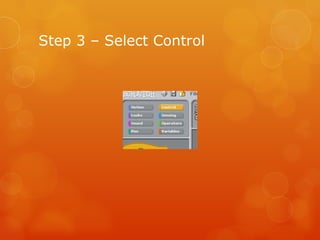
Step 3 – Select Control
Step 4 – Drag “When [Space] key pressed” box into script area
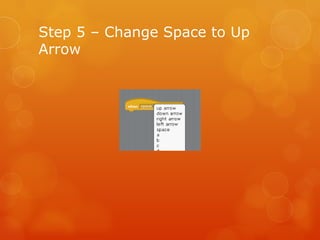
Step 5 – Change Space to Up Arrow
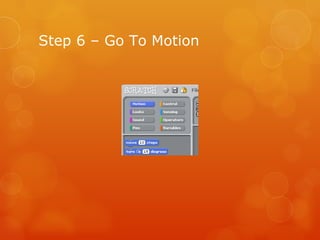
Step 6 – Go To Motion
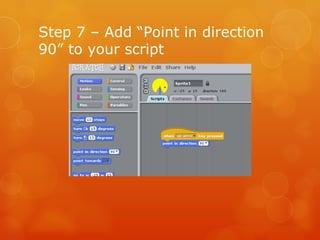
Step 7 – Add “Point in direction 90” to your script
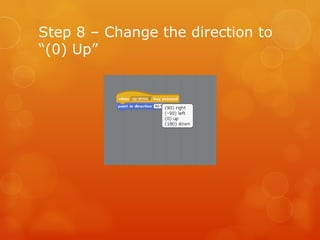
Step 8 – Change the direction to “(0) Up”
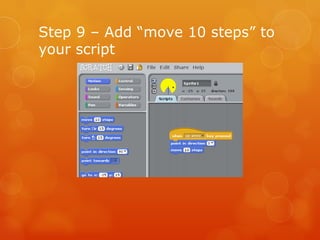
Step 9 – Add “move 10 steps” to your script
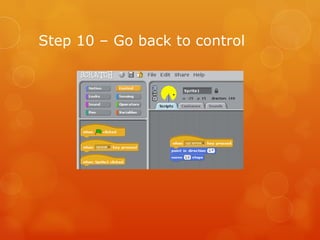
Step 10 – Go back to control
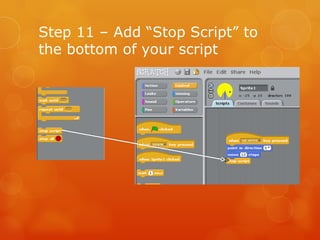
Step 11 – Add “Stop Script” to the bottom of your script
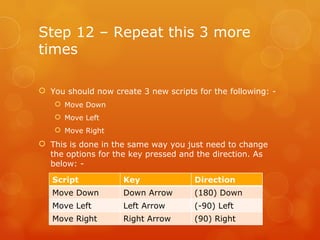
Step 12 – Repeat this 3 more times You should now create 3 new scripts for the following: - Move Down Move Left Move Right This is done in the same way you just need to change the options for the key pressed and the direction. As below: - Script Key Direction Move Down Down Arrow (180) Down Move Left Left Arrow (-90) Left Move Right Right Arrow (90) Right
You have now made your character move, however if it goes to the edge of the screen it doesn’t stop this need to be fixed. If your scripts work move on to the next slide. If not you need to go back over the steps making sure you haven’t made a mistake.
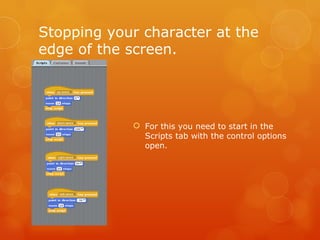
Stopping your character at the edge of the screen. For this you need to start in the Scripts tab with the control options open.
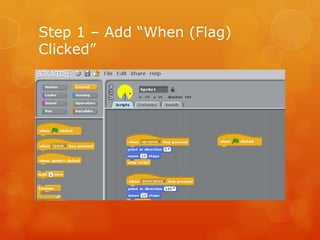
Step 1 – Add “When (Flag) Clicked”
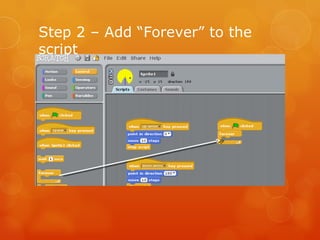
Step 2 – Add “Forever” to the script
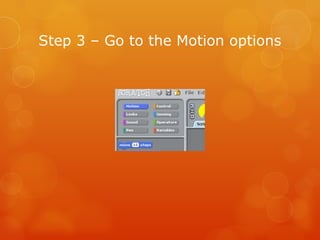
Step 3 – Go to the Motion options
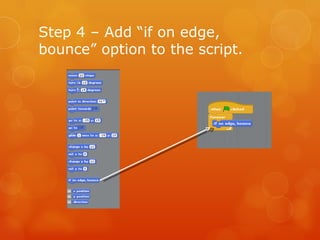
Step 4 – Add “if on edge, bounce” option to the script.
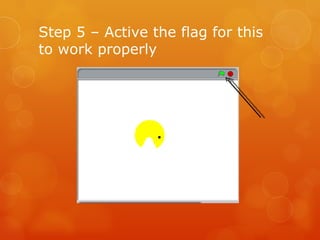
Step 5 – Active the flag for this to work properly
Complete You have now created your own character and it should be able to move around the white screen and stop at the edges. Well Done.

Scratch character commands

  • 1.
    Scratch Part 2– Character Commands
  • 2.
    What does acommand do? Commands in programming allow an object whatever it is to do something. In the case of this object it will be your character moving.
  • 3.
    What does thisguide show? In this guide you will learn to make your character do the following: - Move up Move Down Move Left Move Right Stop at the edge of the screen
  • 4.
    Step 1 –Open your game
  • 5.
    Step 2 –Go to the Scripts tab
  • 6.
    Step 3 –Select Control
  • 7.
    Step 4 –Drag “When [Space] key pressed” box into script area
  • 8.
    Step 5 –Change Space to Up Arrow
  • 9.
    Step 6 –Go To Motion
  • 10.
    Step 7 –Add “Point in direction 90” to your script
  • 11.
    Step 8 –Change the direction to “(0) Up”
  • 12.
    Step 9 –Add “move 10 steps” to your script
  • 13.
    Step 10 –Go back to control
  • 14.
    Step 11 –Add “Stop Script” to the bottom of your script
  • 15.
    Step 12 –Repeat this 3 more times You should now create 3 new scripts for the following: - Move Down Move Left Move Right This is done in the same way you just need to change the options for the key pressed and the direction. As below: - Script Key Direction Move Down Down Arrow (180) Down Move Left Left Arrow (-90) Left Move Right Right Arrow (90) Right
  • 16.
    You have nowmade your character move, however if it goes to the edge of the screen it doesn’t stop this need to be fixed. If your scripts work move on to the next slide. If not you need to go back over the steps making sure you haven’t made a mistake.
  • 17.
    Stopping your characterat the edge of the screen. For this you need to start in the Scripts tab with the control options open.
  • 18.
    Step 1 –Add “When (Flag) Clicked”
  • 19.
    Step 2 –Add “Forever” to the script
  • 20.
    Step 3 –Go to the Motion options
  • 21.
    Step 4 –Add “if on edge, bounce” option to the script.
  • 22.
    Step 5 –Active the flag for this to work properly
  • 23.
    Complete You havenow created your own character and it should be able to move around the white screen and stop at the edges. Well Done.