Who’s Account are you logged into? Remember to always log into the account when doing this project!
Here we will look at some parts of numbers in a new way. Welcome to Partsville Click on the Arrow to go forward.
This is a CHECKER activity. SHARERS and MEASURERS please DO NOT TOUCH the computer. Click on the Arrow to go forward or backwards.
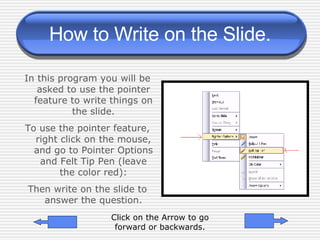
How to Write on the Slide. In this program you will be asked to use the pointer feature to write things on the slide. To use the pointer feature, right click on the mouse, and go to Pointer Options and Felt Tip Pen (leave the color red): Then write on the slide to answer the question. Click on the Arrow to go forward or backwards.
Software Download Click on the button to download the latest version of this software.


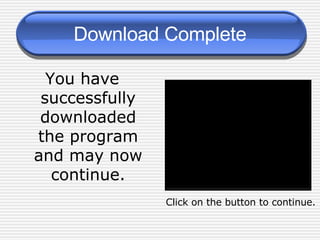
Download Complete You have successfully downloaded the program and may now continue. Click on the button to continue.
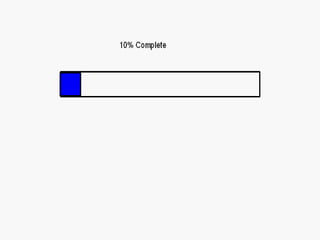
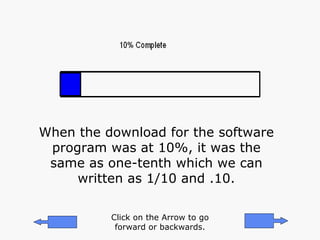
When the download for the software program was at 10%, it was the same as one-tenth which we can written as 1/10 and .10. Click on the Arrow to go forward or backwards.
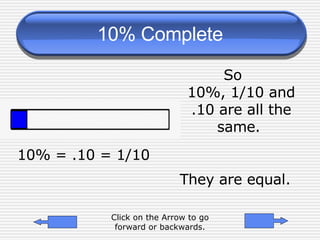
10% Complete So  10%, 1/10 and .10 are all the same.  They are equal. 10% = .10 = 1/10 Click on the Arrow to go forward or backwards.
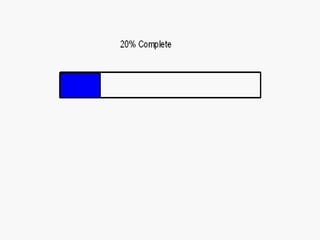
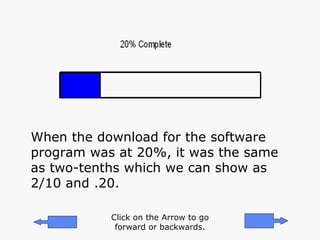
When the download for the software program was at 20%, it was the same as two-tenths which we can show as 2/10 and .20. Click on the Arrow to go forward or backwards.
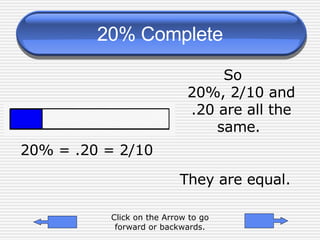
20% Complete So  20%, 2/10 and .20 are all the same.  They are equal. 20% = .20 = 2/10 Click on the Arrow to go forward or backwards.
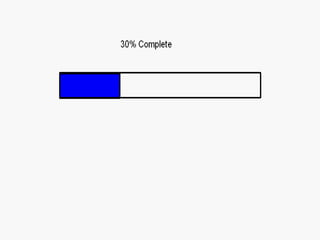
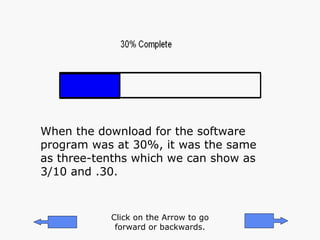
When the download for the software program was at 30%, it was the same as three-tenths which we can show as 3/10 and .30. Click on the Arrow to go forward or backwards.
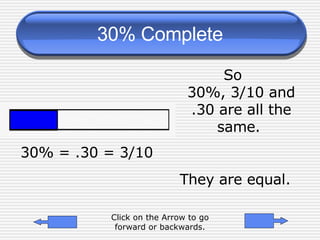
30% Complete So  30%, 3/10 and .30 are all the same.  They are equal. 30% = .30 = 3/10 Click on the Arrow to go forward or backwards.
Your Turn! Using the pattern from the last 3 problems complete the next portion of the presentation. Click on the Arrow to go forward or backwards.
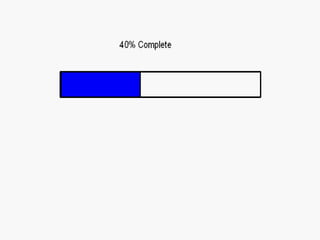
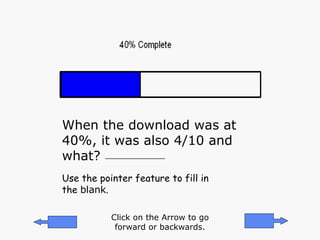
When the download was at 40%, it was also 4/10 and what? Use the pointer feature to fill in the  blank . _______________ Click on the Arrow to go forward or backwards.
So, that means that  40% = 4/10 = _____________ Use the pointer feature to fill in the blank. Click on the Arrow to go forward or backwards.
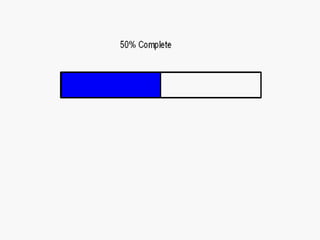
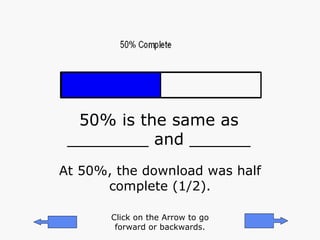
50% is the same as ________ and ______ At 50%, the download was half complete (1/2). Click on the Arrow to go forward or backwards.
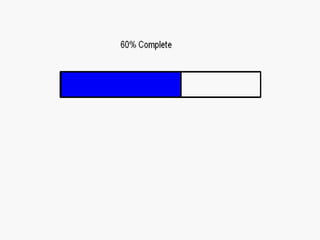
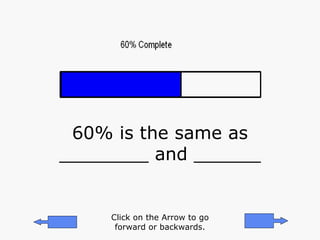
60% is the same as ________ and ______ Click on the Arrow to go forward or backwards.
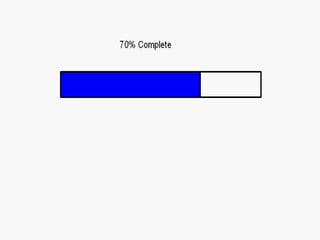
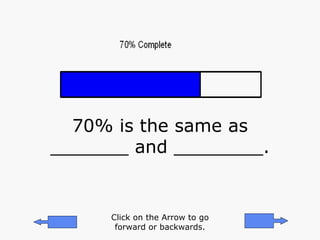
70% is the same as _______ and ________. Click on the Arrow to go forward or backwards.
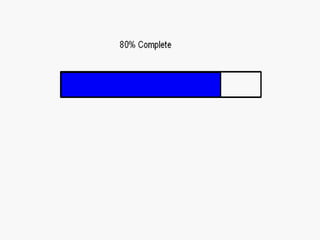
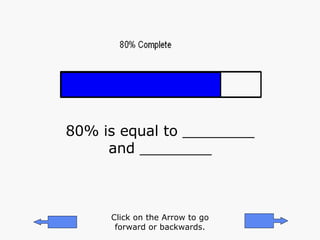
80% is equal to ________ and ________ Click on the Arrow to go forward or backwards.
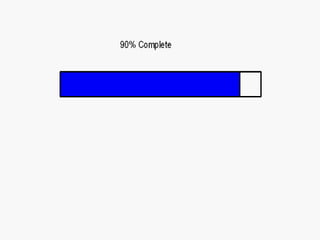
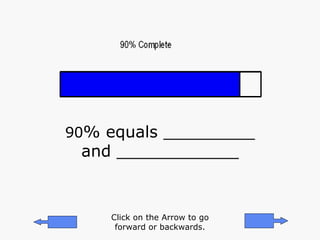
90 % equals _________ and ____________ Click on the Arrow to go forward or backwards.
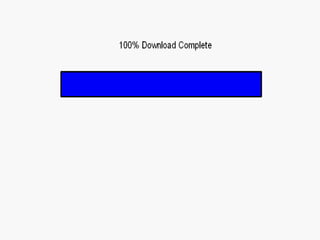
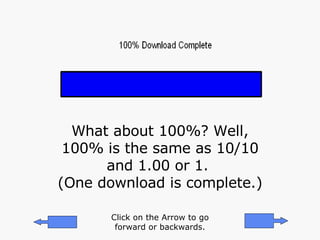
What about 100%? Well, 100% is the same as 10/10 and 1.00 or 1.  (One download is complete.) Click on the Arrow to go forward or backwards.
Other Percents and Problems Our download didn’t show us 25%, but if it did, what other way could we show 25%?  One way would be .25.  Another way would be 1/4 because when the download was 25% complete, 1/4 of it was downloaded. Click on the Arrow to go forward or backwards.
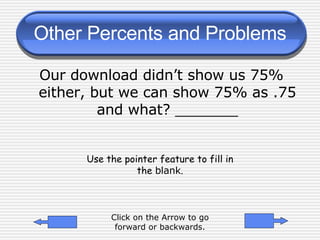
Other Percents and Problems Our download didn’t show us 75% either, but we can show 75% as .75 and what? _______ Use the pointer feature to fill in the  blank . Click on the Arrow to go forward or backwards.
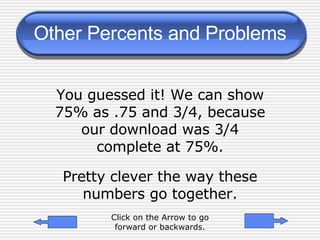
You guessed it! We can show 75% as .75 and 3/4, because our download was 3/4 complete at 75%. Pretty clever the way these numbers go together. Other Percents and Problems Click on the Arrow to go forward or backwards.
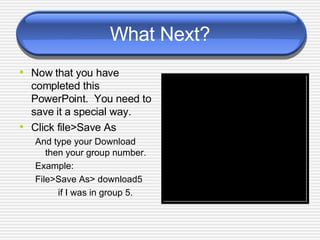
What Next? Now that you have completed this PowerPoint.  You need to save it a special way.  Click file>Save As And type your Download then your group number.  Example:  File>Save As> download5  if I was in group 5.

Computer Download

  • 1.
    Who’s Account areyou logged into? Remember to always log into the account when doing this project!
  • 2.
    Here we willlook at some parts of numbers in a new way. Welcome to Partsville Click on the Arrow to go forward.
  • 3.
    This is aCHECKER activity. SHARERS and MEASURERS please DO NOT TOUCH the computer. Click on the Arrow to go forward or backwards.
  • 4.
    How to Writeon the Slide. In this program you will be asked to use the pointer feature to write things on the slide. To use the pointer feature, right click on the mouse, and go to Pointer Options and Felt Tip Pen (leave the color red): Then write on the slide to answer the question. Click on the Arrow to go forward or backwards.
  • 5.
    Software Download Clickon the button to download the latest version of this software.
  • 6.
  • 7.
  • 8.
  • 9.
  • 10.
  • 11.
  • 12.
  • 13.
  • 14.
  • 15.
  • 16.
    Download Complete Youhave successfully downloaded the program and may now continue. Click on the button to continue.
  • 17.
    When the downloadfor the software program was at 10%, it was the same as one-tenth which we can written as 1/10 and .10. Click on the Arrow to go forward or backwards.
  • 18.
    10% Complete So 10%, 1/10 and .10 are all the same. They are equal. 10% = .10 = 1/10 Click on the Arrow to go forward or backwards.
  • 19.
    When the downloadfor the software program was at 20%, it was the same as two-tenths which we can show as 2/10 and .20. Click on the Arrow to go forward or backwards.
  • 20.
    20% Complete So 20%, 2/10 and .20 are all the same. They are equal. 20% = .20 = 2/10 Click on the Arrow to go forward or backwards.
  • 21.
    When the downloadfor the software program was at 30%, it was the same as three-tenths which we can show as 3/10 and .30. Click on the Arrow to go forward or backwards.
  • 22.
    30% Complete So 30%, 3/10 and .30 are all the same. They are equal. 30% = .30 = 3/10 Click on the Arrow to go forward or backwards.
  • 23.
    Your Turn! Usingthe pattern from the last 3 problems complete the next portion of the presentation. Click on the Arrow to go forward or backwards.
  • 24.
    When the downloadwas at 40%, it was also 4/10 and what? Use the pointer feature to fill in the blank . _______________ Click on the Arrow to go forward or backwards.
  • 25.
    So, that meansthat 40% = 4/10 = _____________ Use the pointer feature to fill in the blank. Click on the Arrow to go forward or backwards.
  • 26.
    50% is thesame as ________ and ______ At 50%, the download was half complete (1/2). Click on the Arrow to go forward or backwards.
  • 27.
    60% is thesame as ________ and ______ Click on the Arrow to go forward or backwards.
  • 28.
    70% is thesame as _______ and ________. Click on the Arrow to go forward or backwards.
  • 29.
    80% is equalto ________ and ________ Click on the Arrow to go forward or backwards.
  • 30.
    90 % equals_________ and ____________ Click on the Arrow to go forward or backwards.
  • 31.
    What about 100%?Well, 100% is the same as 10/10 and 1.00 or 1. (One download is complete.) Click on the Arrow to go forward or backwards.
  • 32.
    Other Percents andProblems Our download didn’t show us 25%, but if it did, what other way could we show 25%? One way would be .25. Another way would be 1/4 because when the download was 25% complete, 1/4 of it was downloaded. Click on the Arrow to go forward or backwards.
  • 33.
    Other Percents andProblems Our download didn’t show us 75% either, but we can show 75% as .75 and what? _______ Use the pointer feature to fill in the blank . Click on the Arrow to go forward or backwards.
  • 34.
    You guessed it!We can show 75% as .75 and 3/4, because our download was 3/4 complete at 75%. Pretty clever the way these numbers go together. Other Percents and Problems Click on the Arrow to go forward or backwards.
  • 35.
    What Next? Nowthat you have completed this PowerPoint. You need to save it a special way. Click file>Save As And type your Download then your group number. Example: File>Save As> download5 if I was in group 5.