Savanna365 iPlus
User Guide
Contact CGS Learning
ewoodward@cgsinc.ca
1
Contents
Check Your Browser.............................................................................................................................2
Create a Savanna iPlus Account ...........................................................................................................2
Log on to Savanna iPlus .......................................................................................................................3
Upload a PowerPoint Presentation......................................................................................................3
Select a Presentation to Begin Recording.............................................................................................6
Record Your Savanna iPlus...................................................................................................................8
Record Audio...................................................................................................................................9
Record Animation..........................................................................................................................11
Record Video in a Quadrant...........................................................................................................13
Record Full Screen .........................................................................................................................15
Build a Savanna iPlus .........................................................................................................................16
Download Your Savanna iPlus............................................................................................................18
Notes.................................................................................................................................................19
2
Check Your Browser
Please ensure that you are using a supported browser.
 Internet Explorer (tested under 11.0.9600)
 Chrome (tested under 47.0.2526)
Create a Savanna iPlus Account
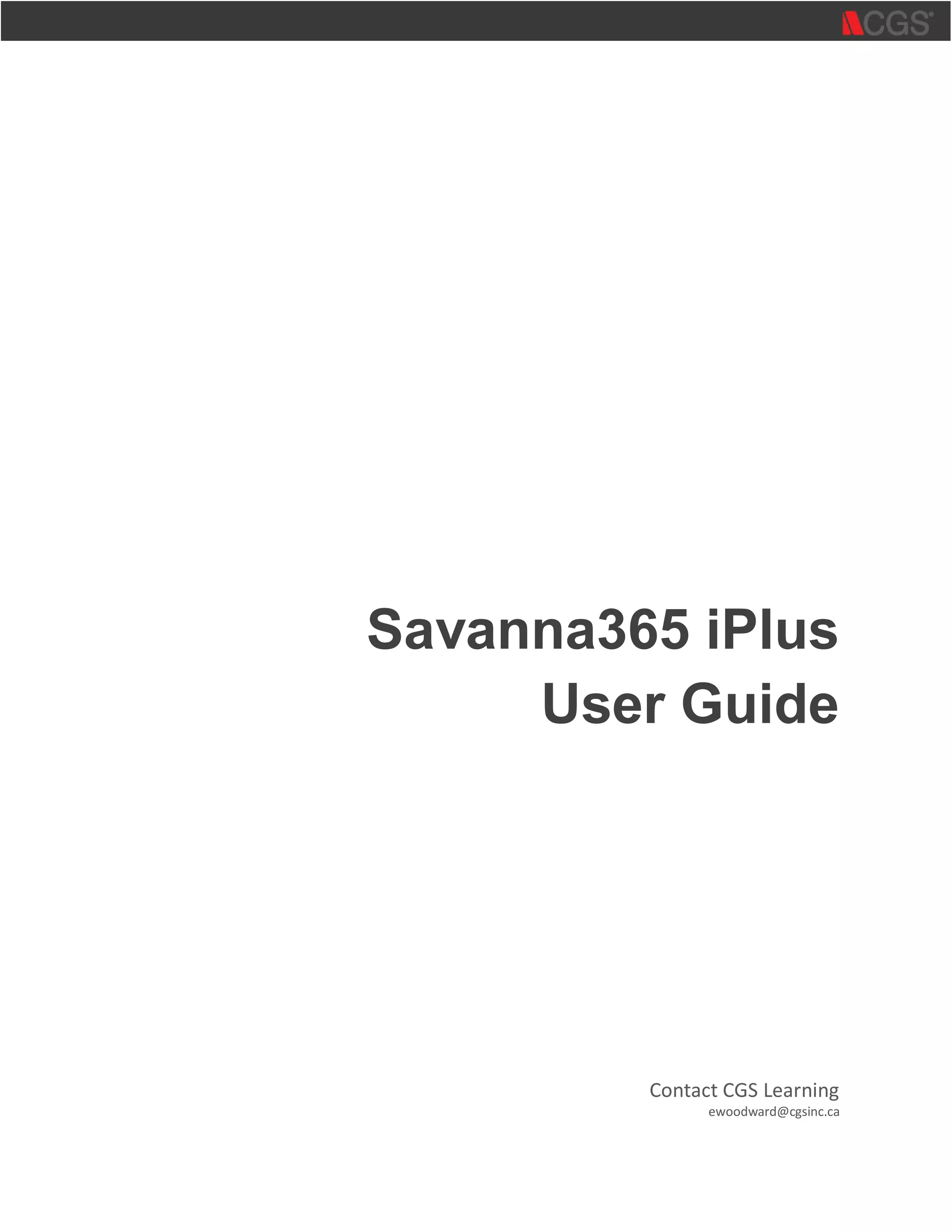
Access the following URL with your browser: http://iplus.savanna365.com:8080/iplus2015/login
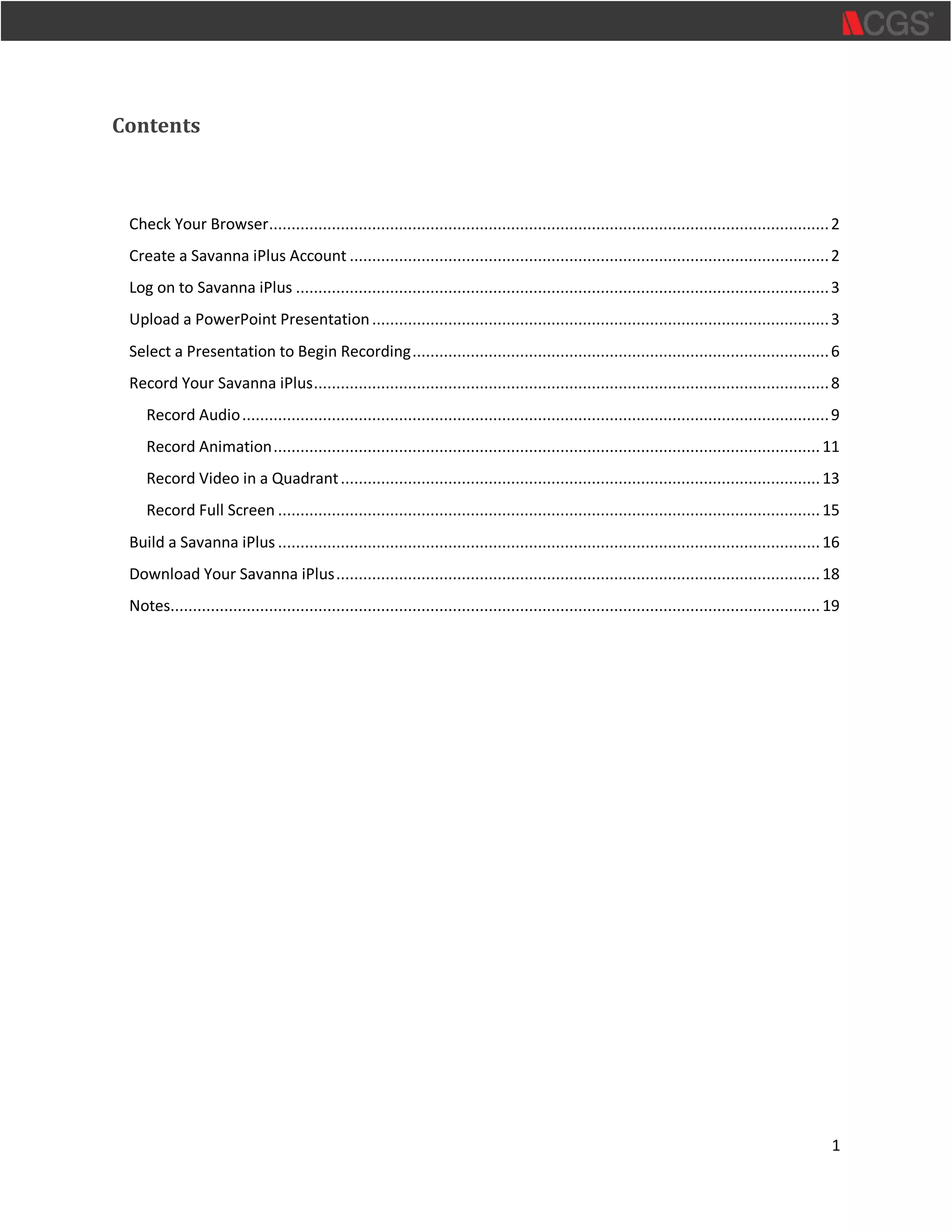
If this is your first time using Savanna iPlus, complete the Create an iPlus user account part of the form.
1. Enter your First Name, Last Name, Email, Password and password confirmation.
3
Important: Make sure you use a corporate email account (not gmail.com or hotmail.com).
2. Select Create Account. Your account will be created and you will automatically be taken to the upload
page with no need to log on.
Log on to Savanna iPlus
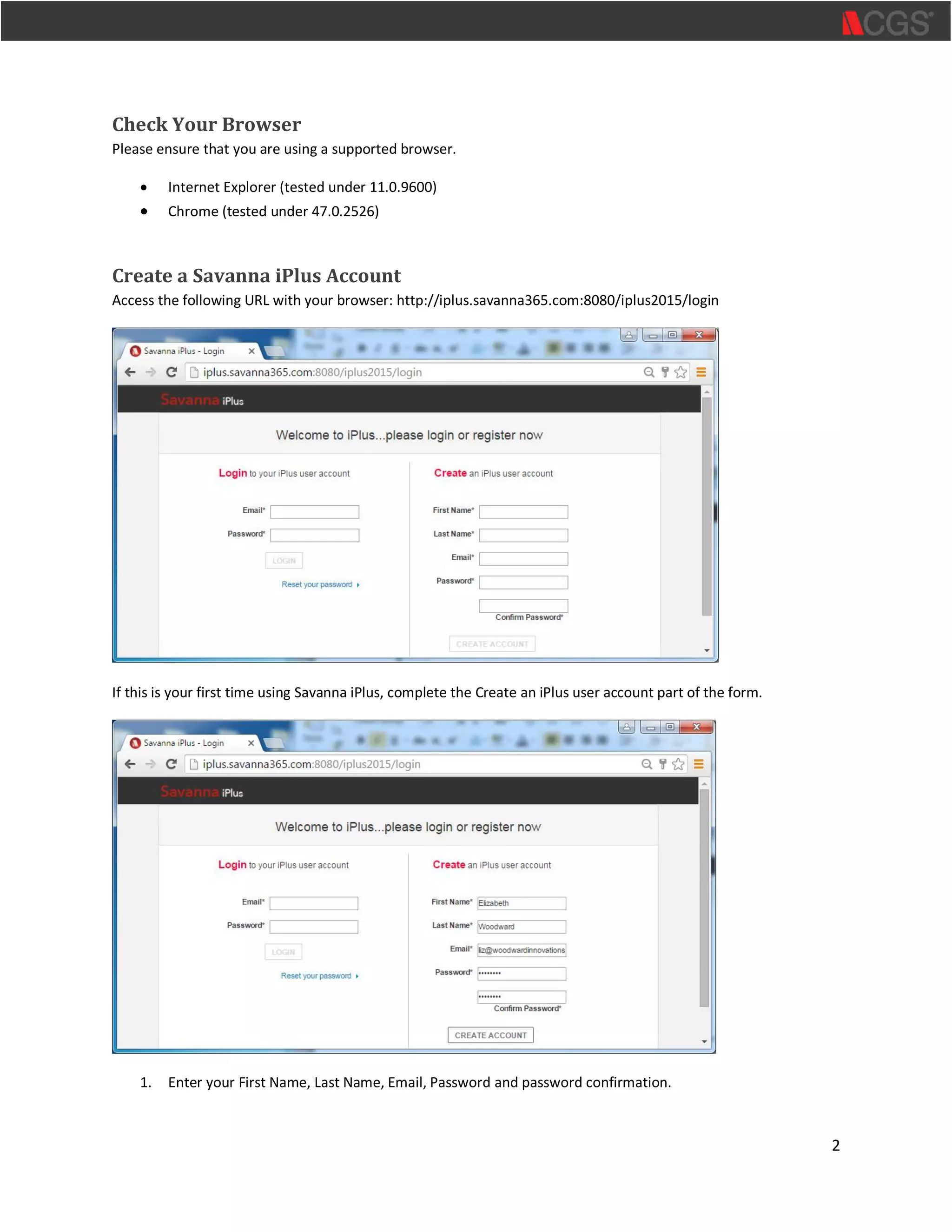
To log on to Savanna iPlus with an existing account, access the following URL with your browser:
http://iplus.savanna365.com:8080/iplus2015/login
1. Enter your Email address.
2. Enter your Password.
3. Select Login.
Upload a PowerPoint Presentation
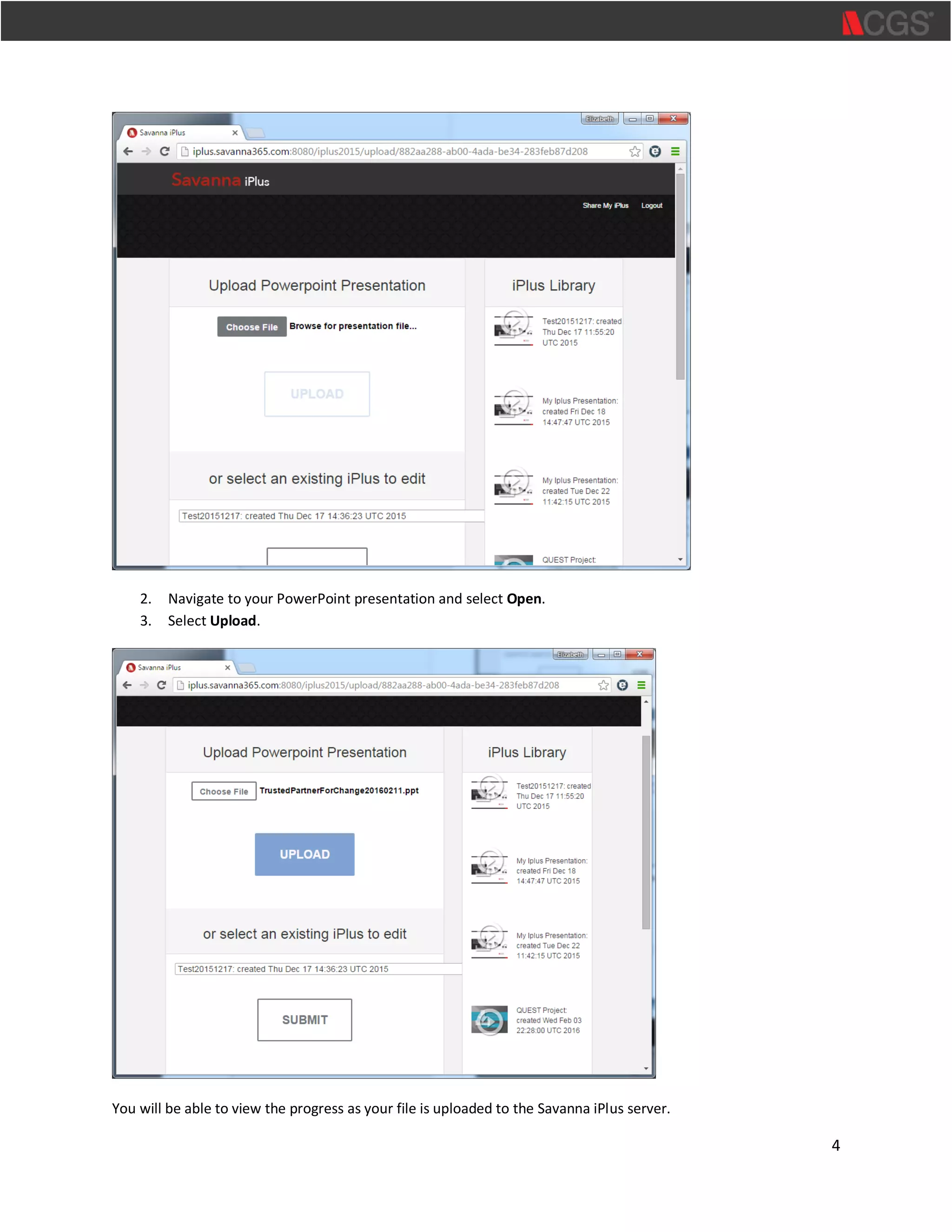
To upload a PowerPoint presentation:
1. Select Choose File.
4
2. Navigate to your PowerPoint presentation and select Open.
3. Select Upload.
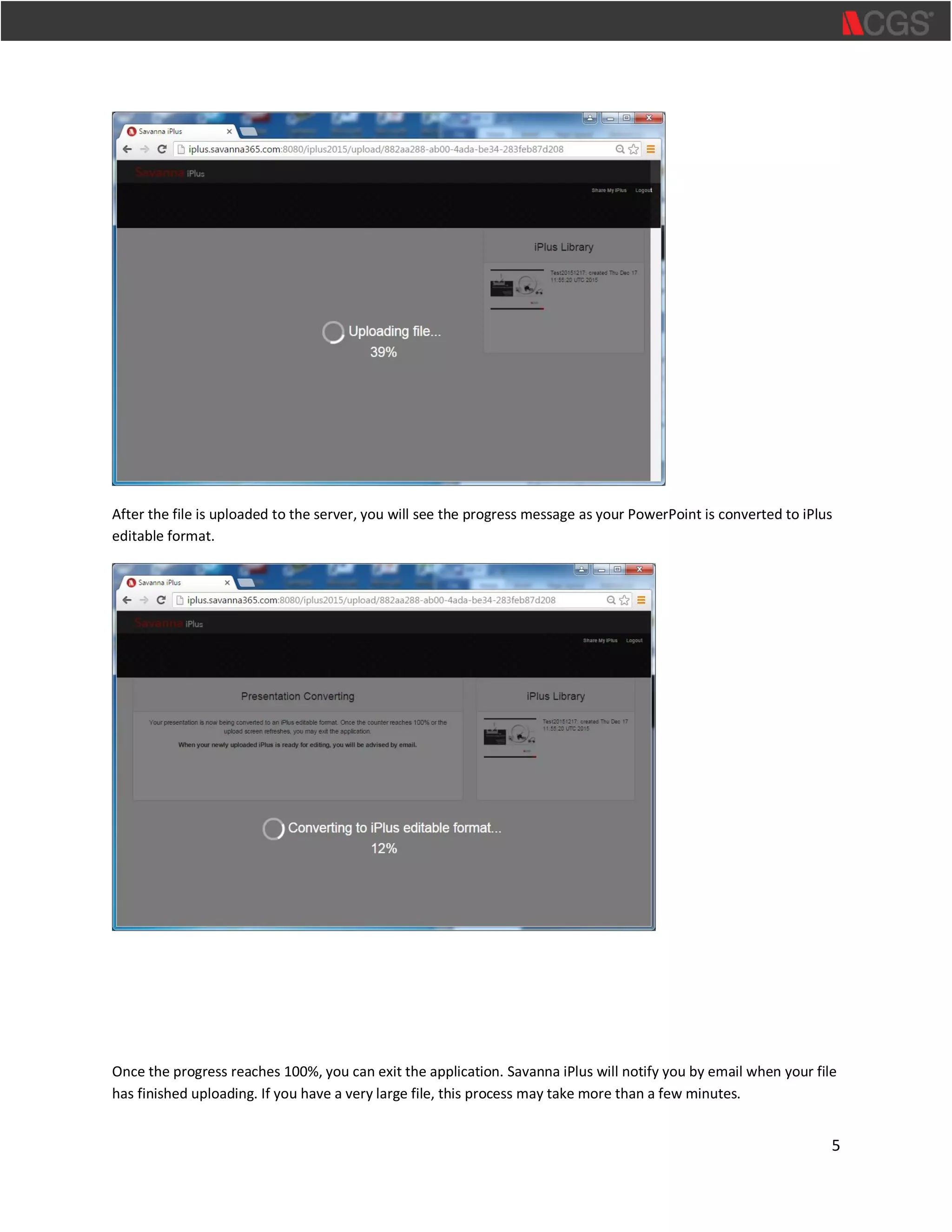
You will be able to view the progress as your file is uploaded to the Savanna iPlus server.
5
After the file is uploaded to the server, you will see the progress message as your PowerPoint is converted to iPlus
editable format.
Once the progress reaches 100%, you can exit the application. Savanna iPlus will notify you by email when your file
has finished uploading. If you have a very large file, this process may take more than a few minutes.
6
Note: On rare occasion, very large files that are > than 50MB, such as those with embedded video, will not
complete the process. Contact CGS Learning support if you encounter an issue.
Select a Presentation to Begin Recording
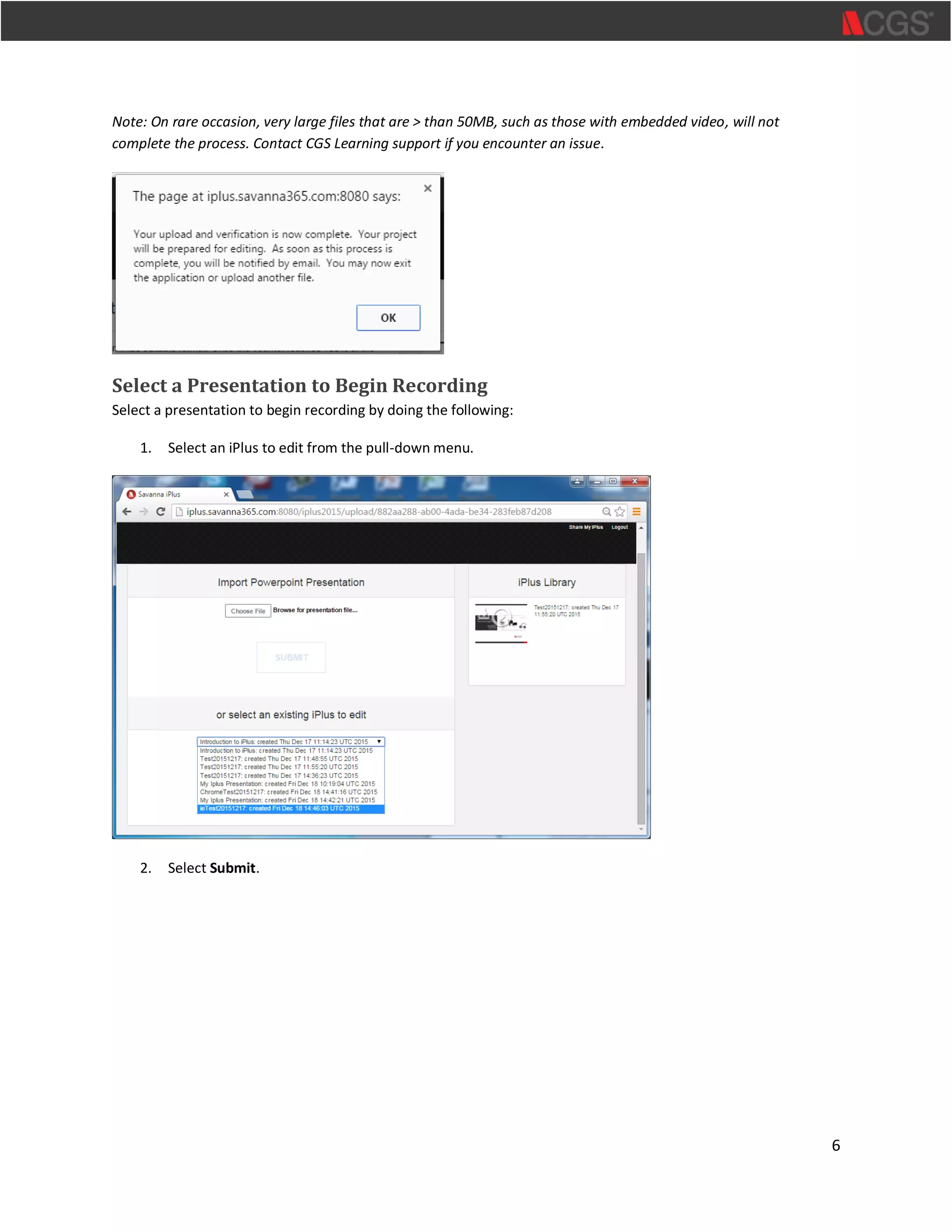
Select a presentation to begin recording by doing the following:
1. Select an iPlus to edit from the pull-down menu.
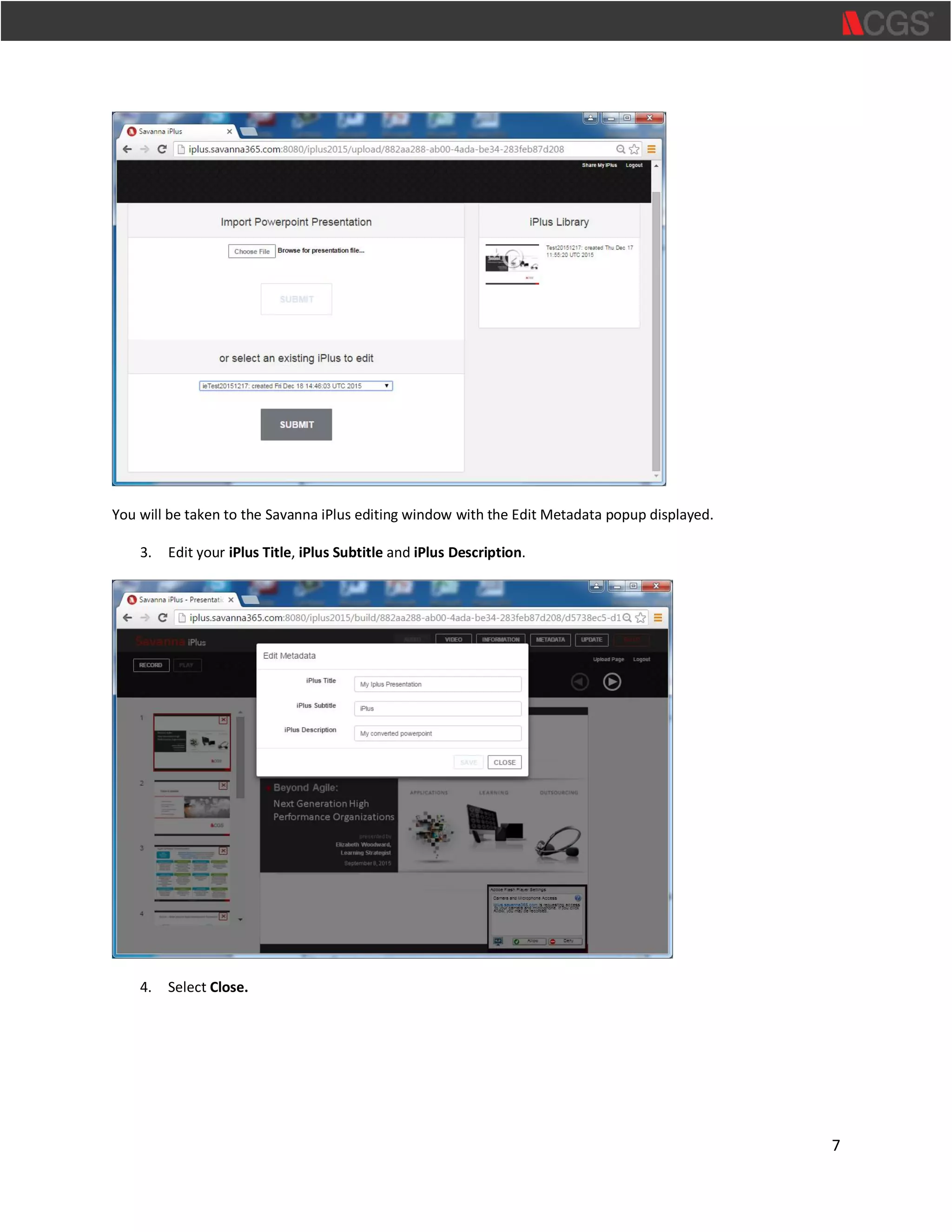
2. Select Submit.
7
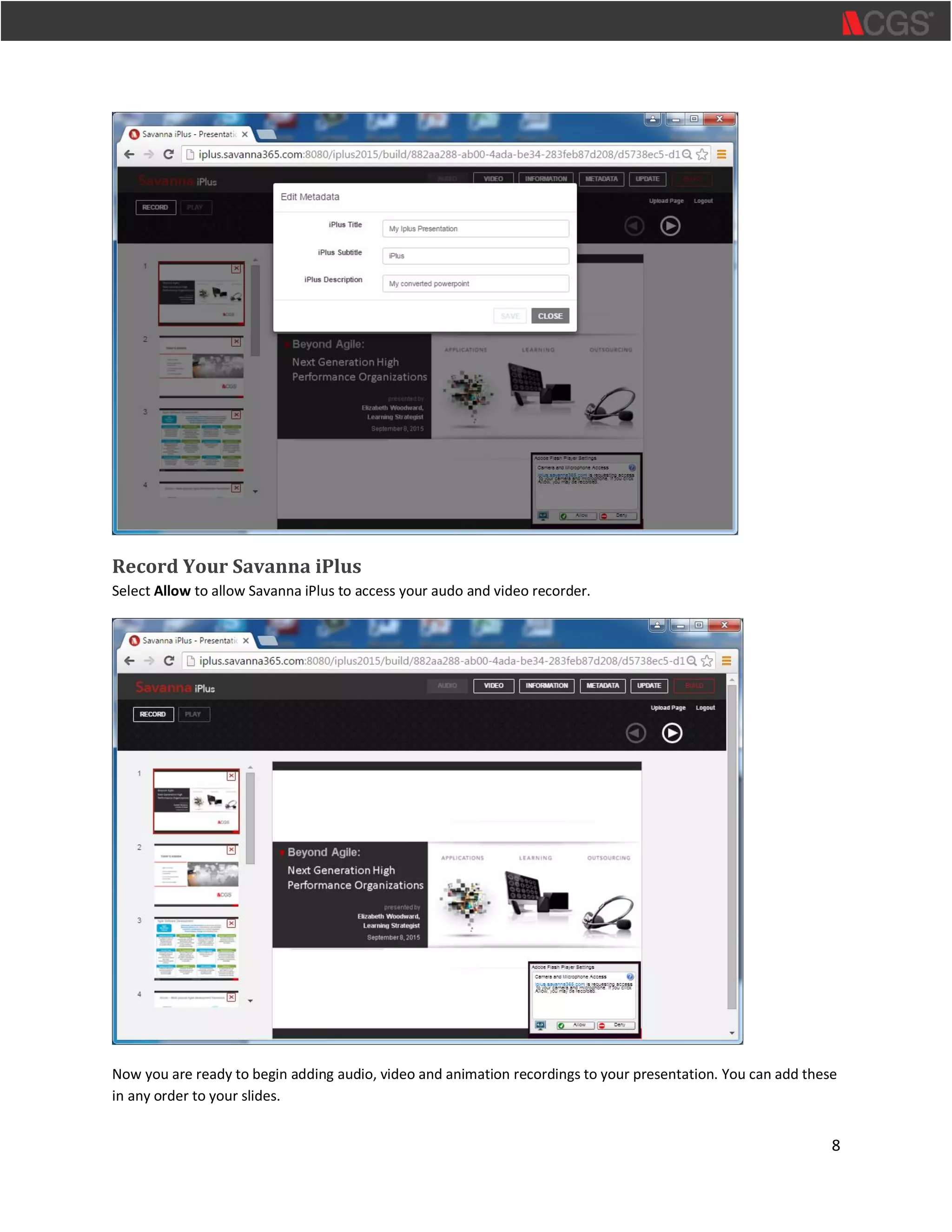
You will be taken to the Savanna iPlus editing window with the Edit Metadata popup displayed.
3. Edit your iPlus Title, iPlus Subtitle and iPlus Description.
4. Select Close.
8
Record Your Savanna iPlus
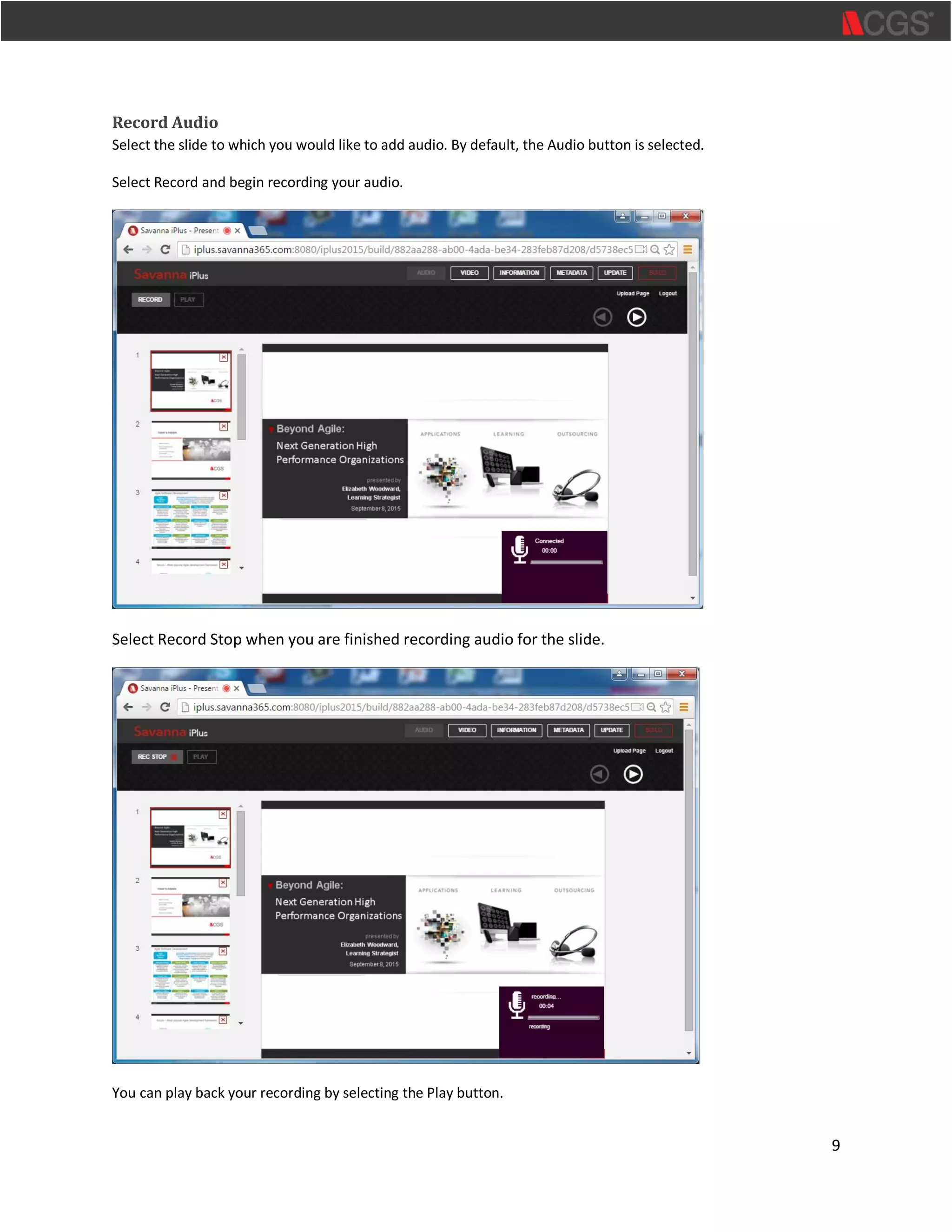
Select Allow to allow Savanna iPlus to access your audo and video recorder.
Now you are ready to begin adding audio, video and animation recordings to your presentation. You can add these
in any order to your slides.
9
Record Audio
Select the slide to which you would like to add audio. By default, the Audio button is selected.
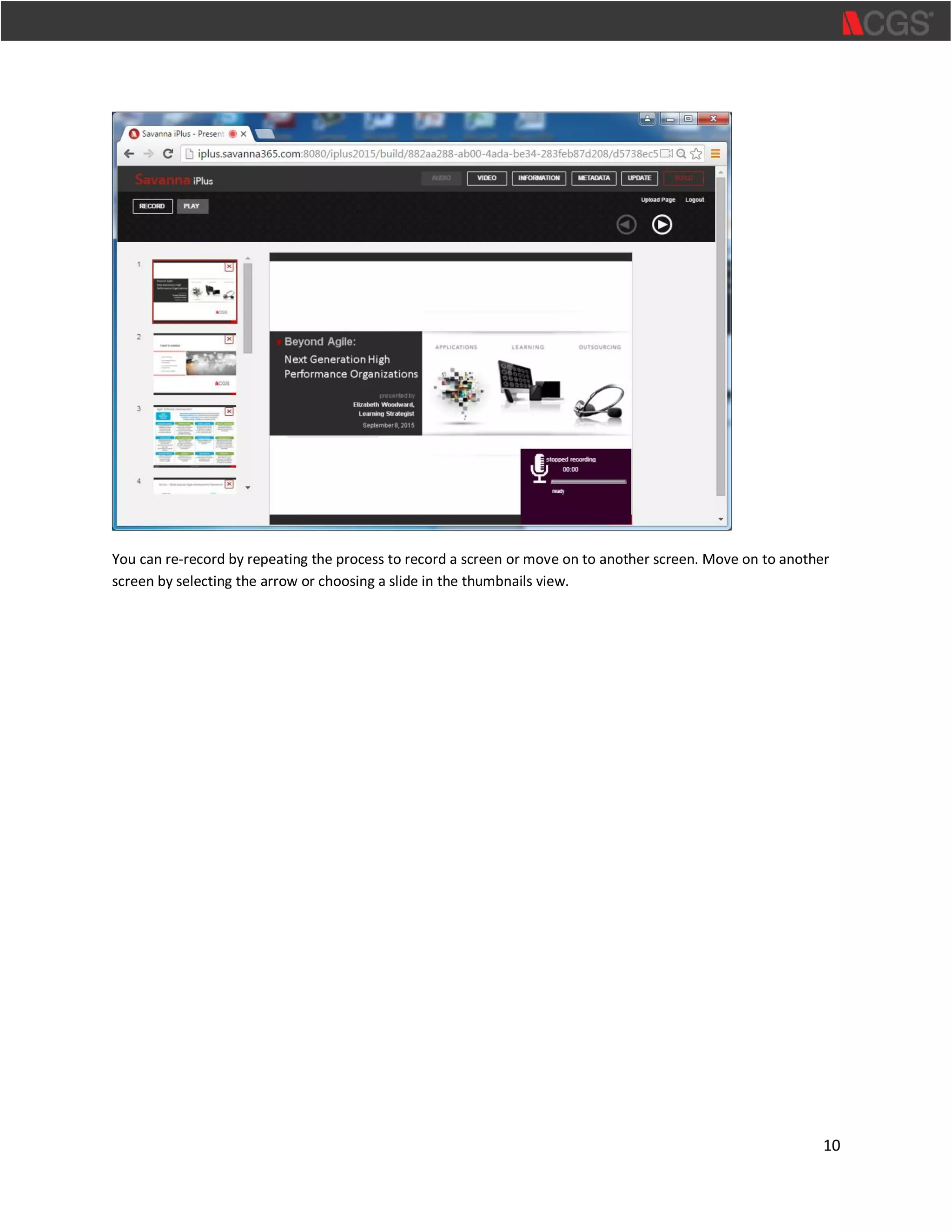
Select Record and begin recording your audio.
Select Record Stop when you are finished recording audio for the slide.
You can play back your recording by selecting the Play button.
10
You can re-record by repeating the process to record a screen or move on to another screen. Move on to another
screen by selecting the arrow or choosing a slide in the thumbnails view.
11
Record Animation
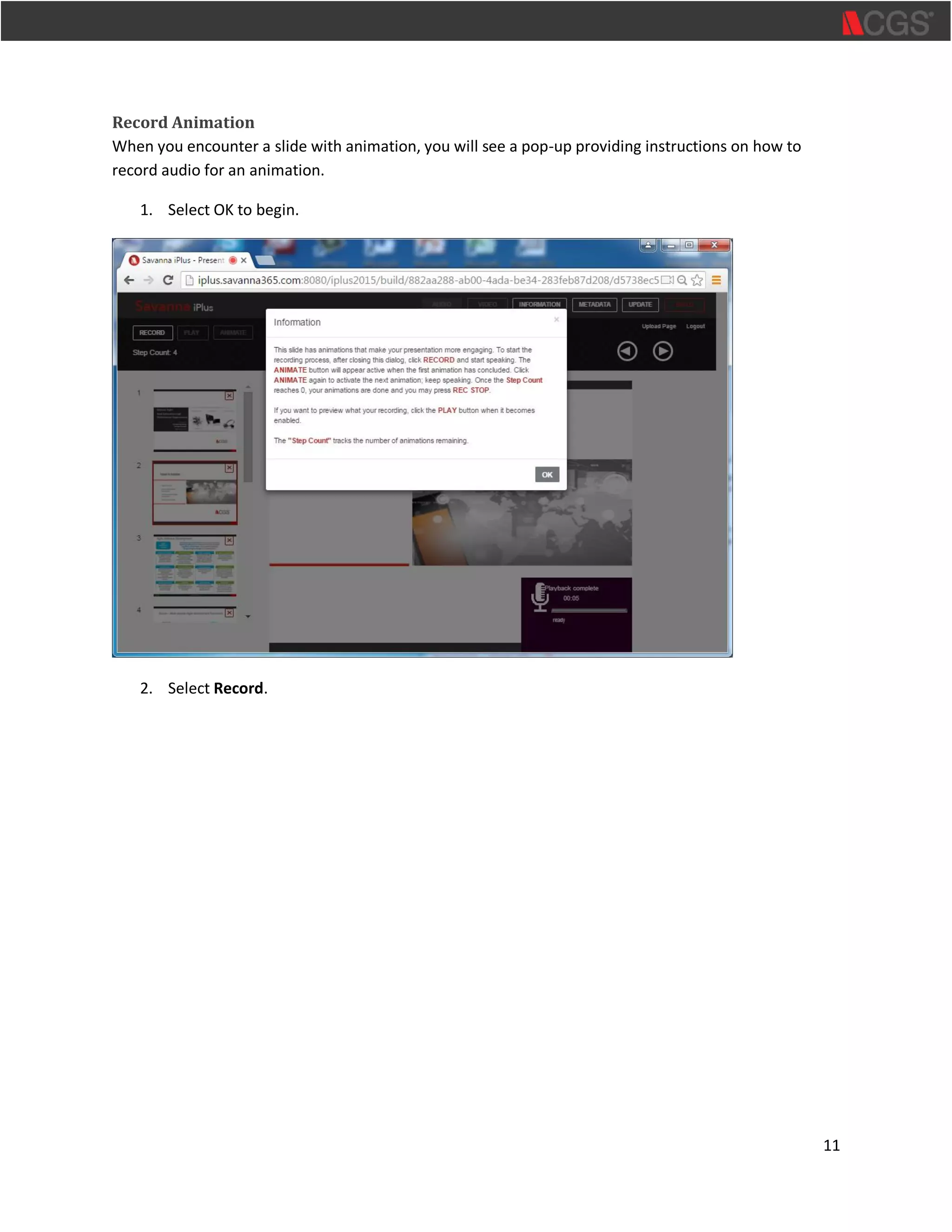
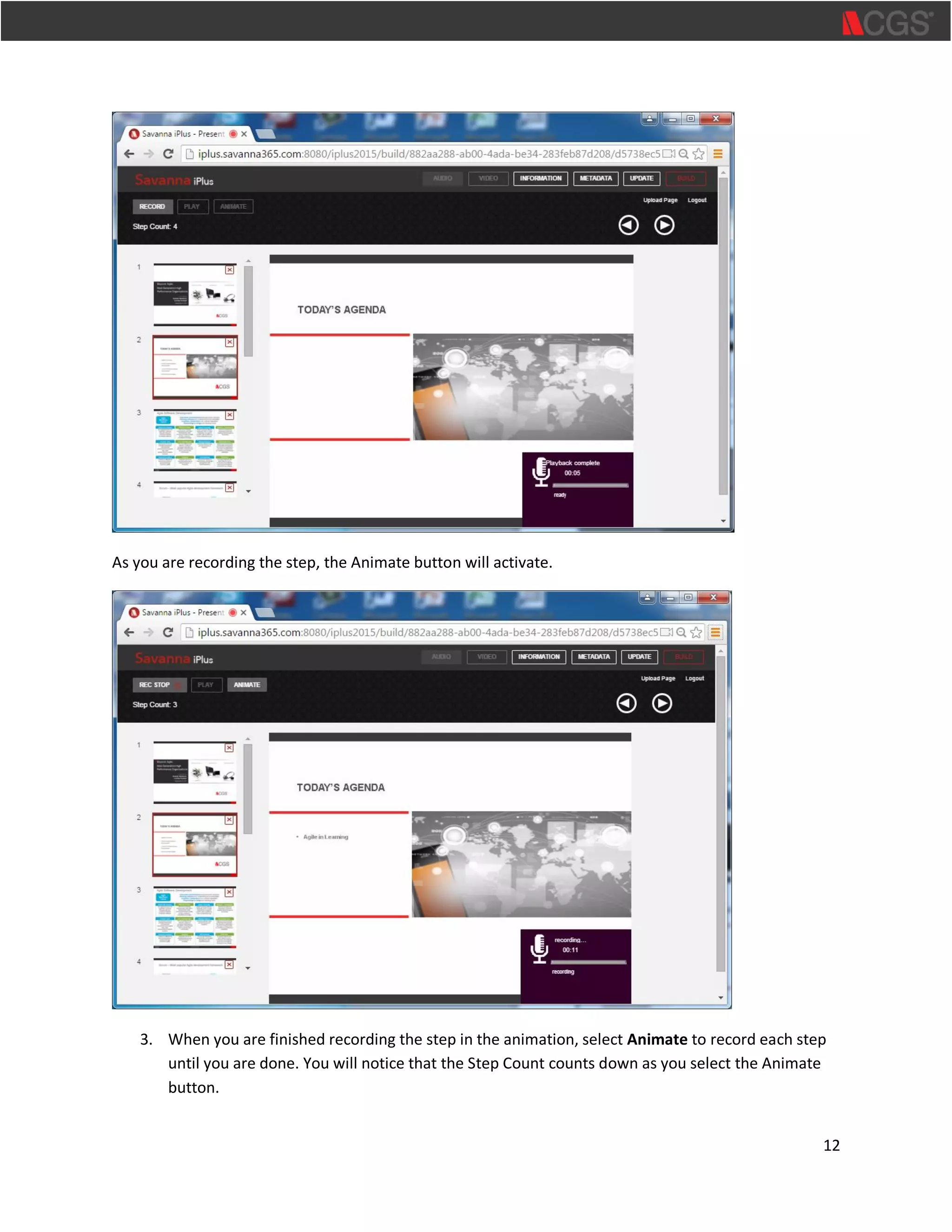
When you encounter a slide with animation, you will see a pop-up providing instructions on how to
record audio for an animation.
1. Select OK to begin.
2. Select Record.
12
As you are recording the step, the Animate button will activate.
3. When you are finished recording the step in the animation, select Animate to record each step
until you are done. You will notice that the Step Count counts down as you select the Animate
button.
13
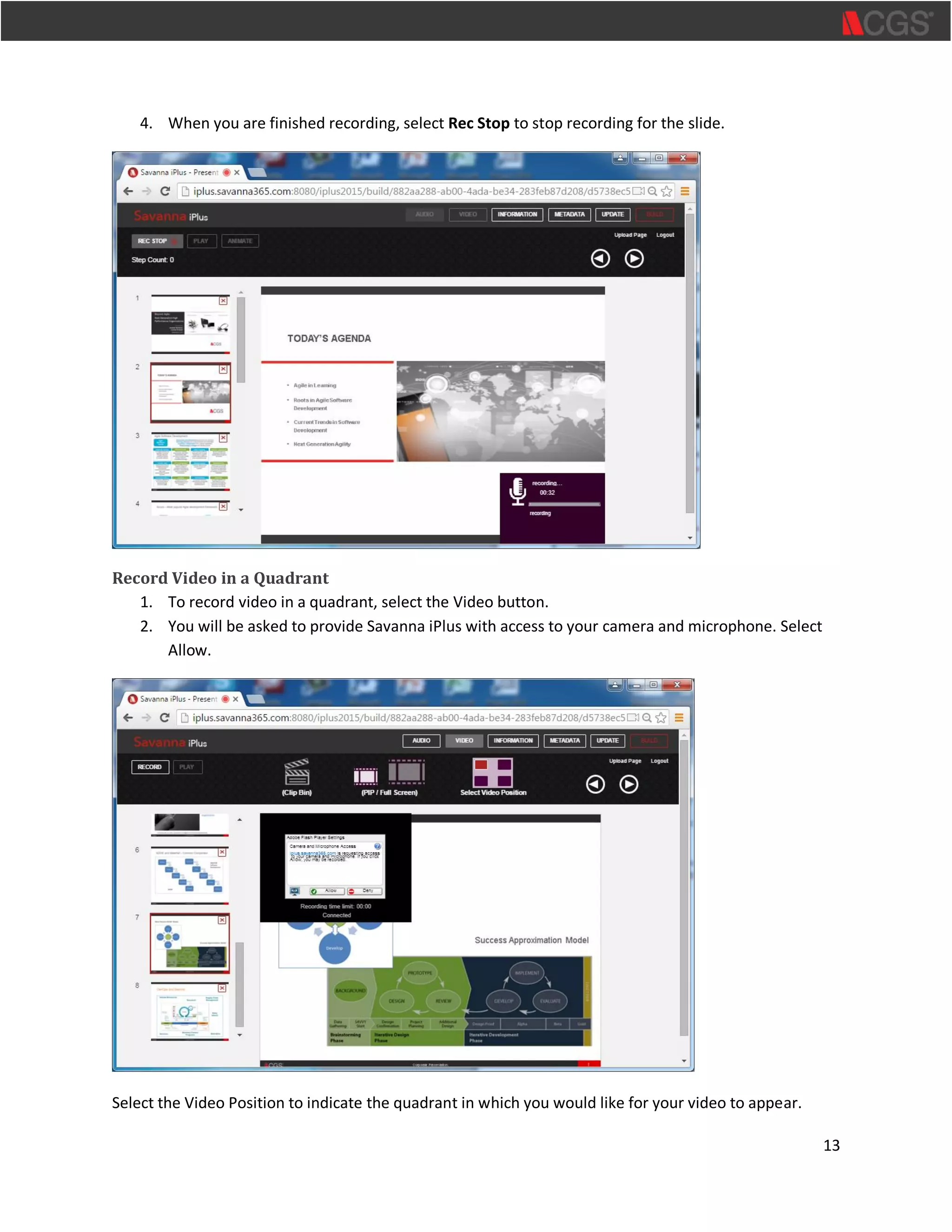
4. When you are finished recording, select Rec Stop to stop recording for the slide.
Record Video in a Quadrant
1. To record video in a quadrant, select the Video button.
2. You will be asked to provide Savanna iPlus with access to your camera and microphone. Select
Allow.
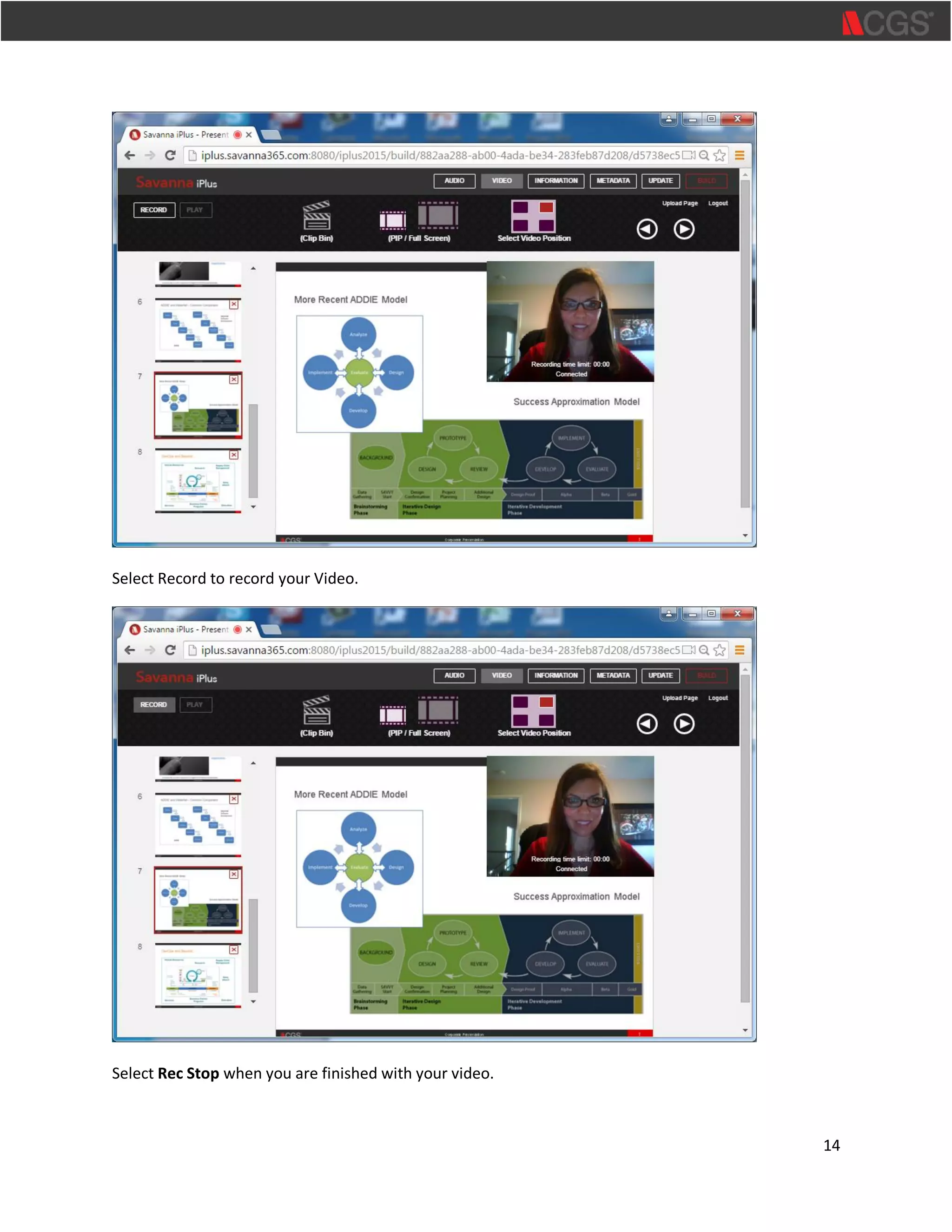
Select the Video Position to indicate the quadrant in which you would like for your video to appear.
14
Select Record to record your Video.
Select Rec Stop when you are finished with your video.
15
Record Full Screen
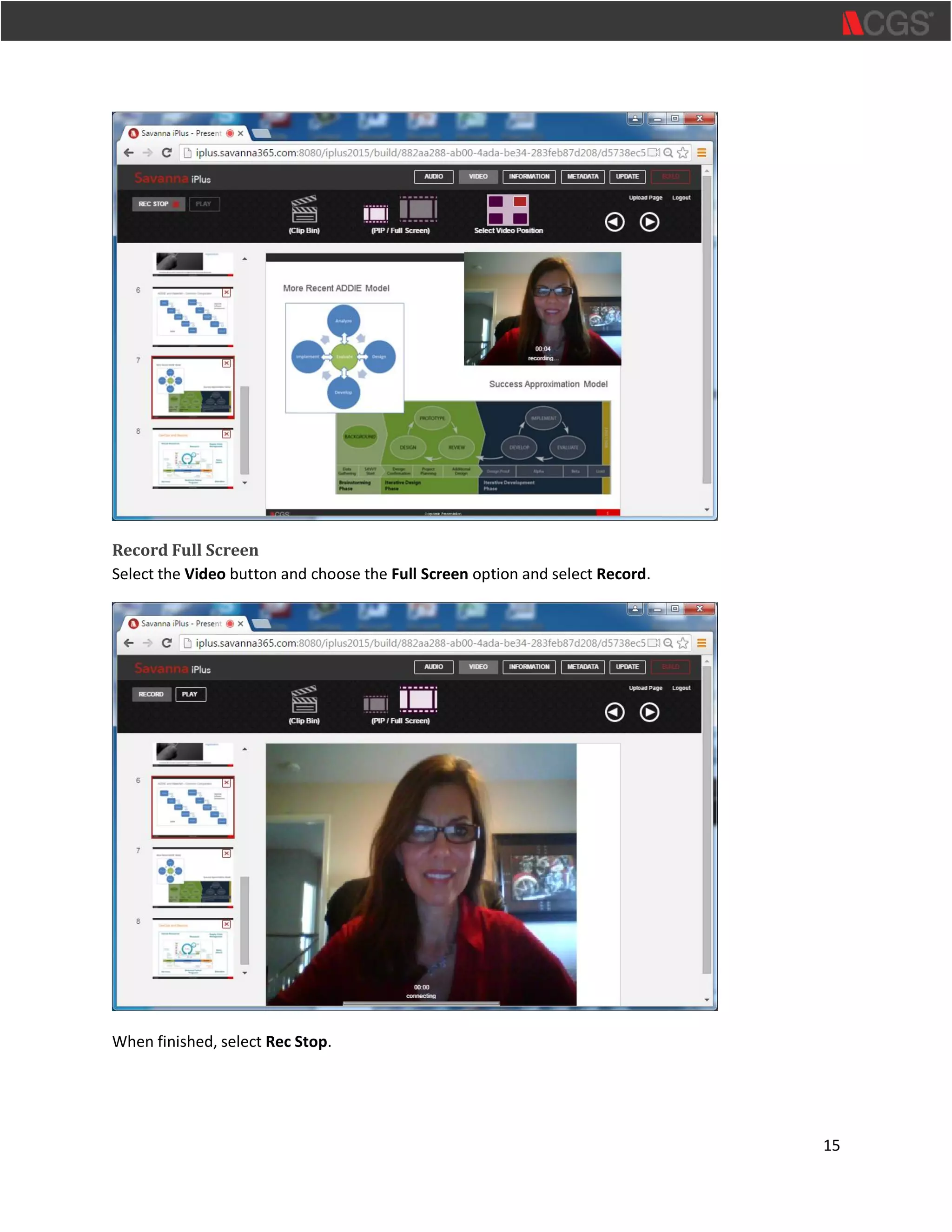
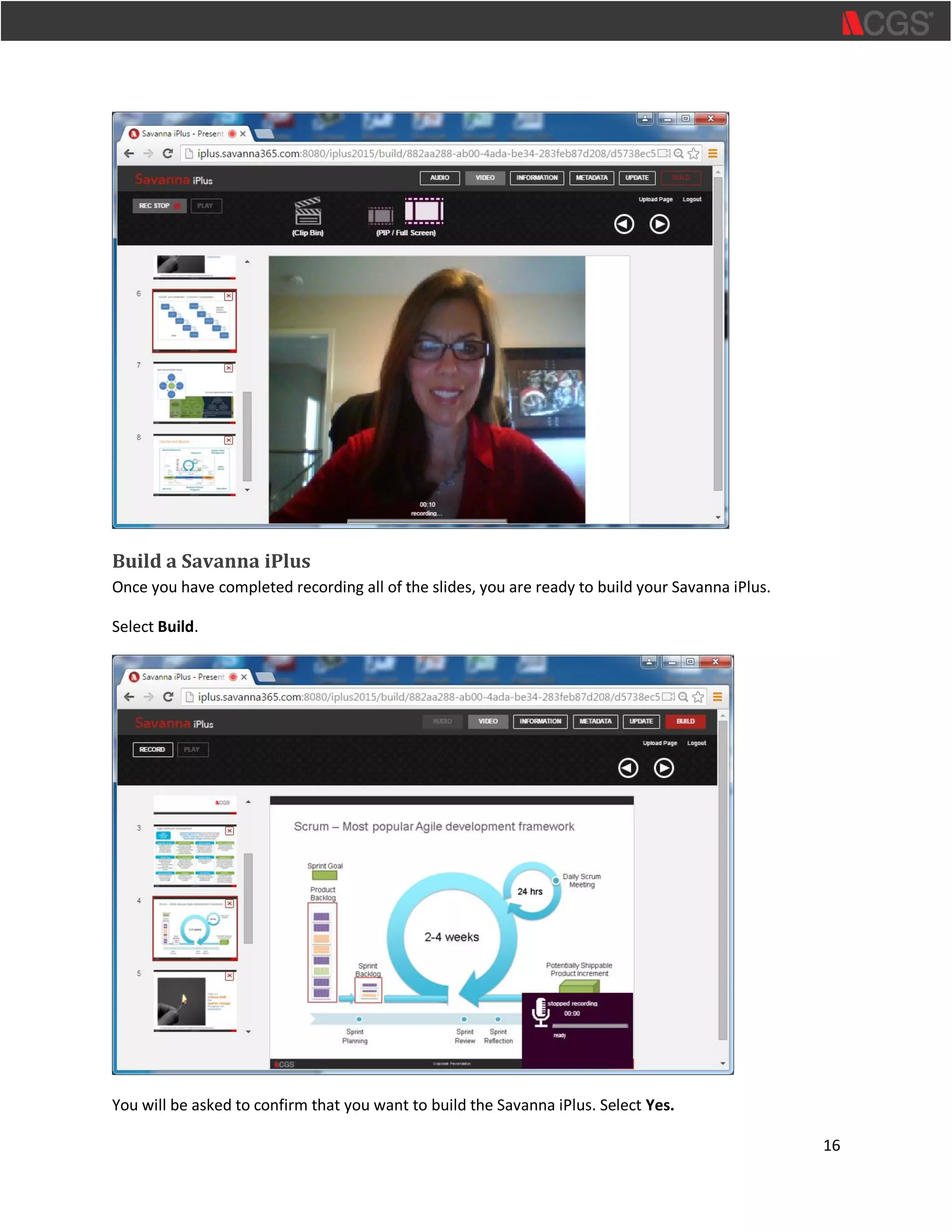
Select the Video button and choose the Full Screen option and select Record.
When finished, select Rec Stop.
16
Build a Savanna iPlus
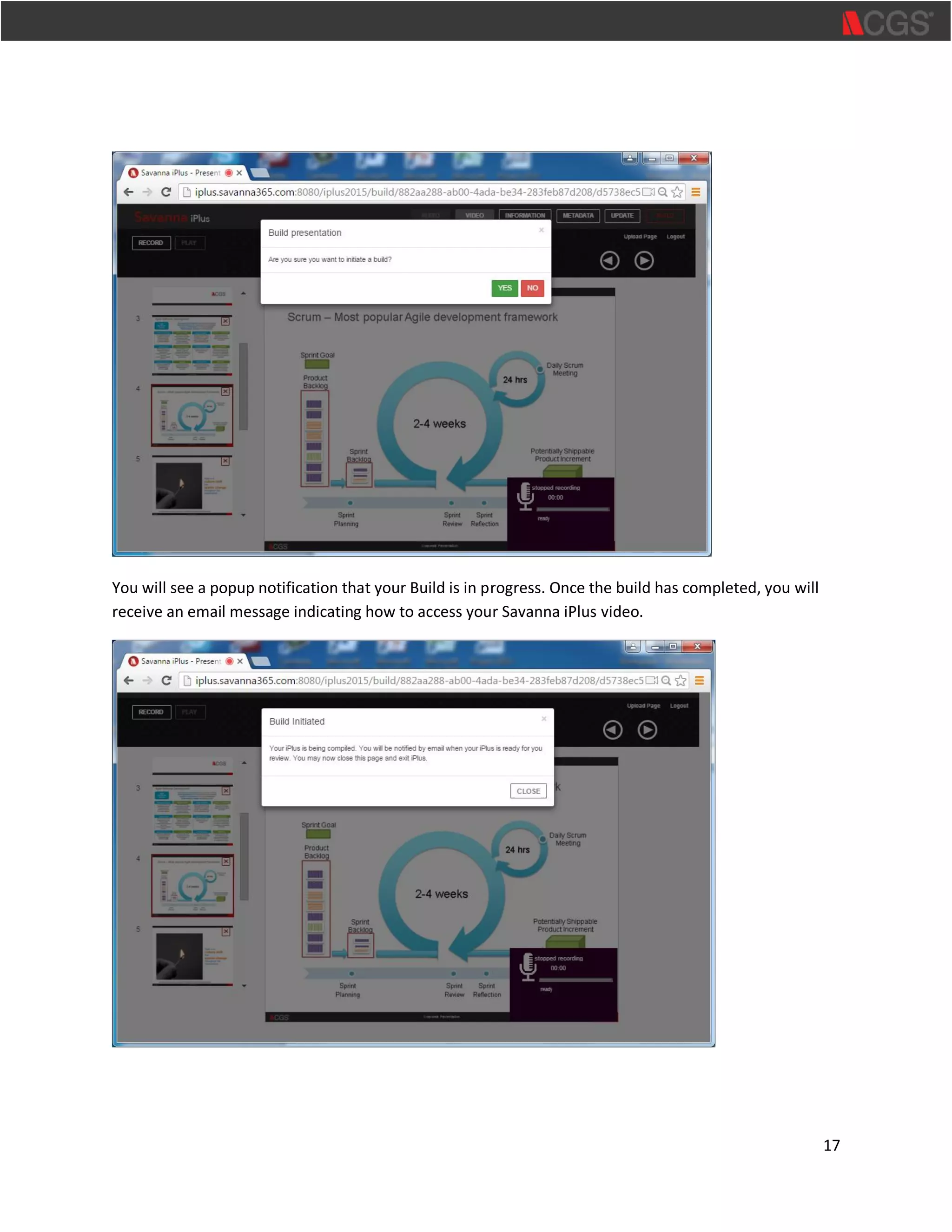
Once you have completed recording all of the slides, you are ready to build your Savanna iPlus.
Select Build.
You will be asked to confirm that you want to build the Savanna iPlus. Select Yes.
17
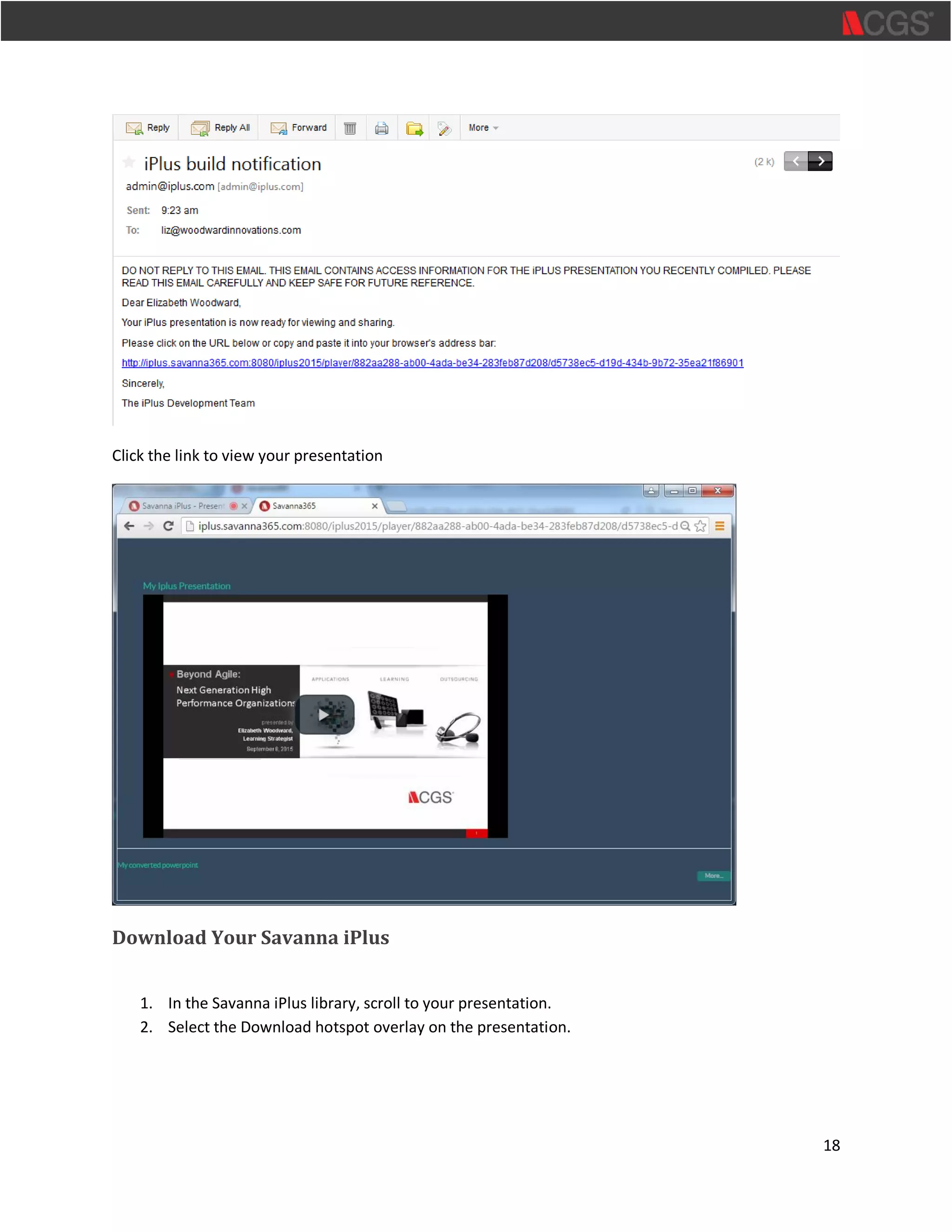
You will see a popup notification that your Build is in progress. Once the build has completed, you will
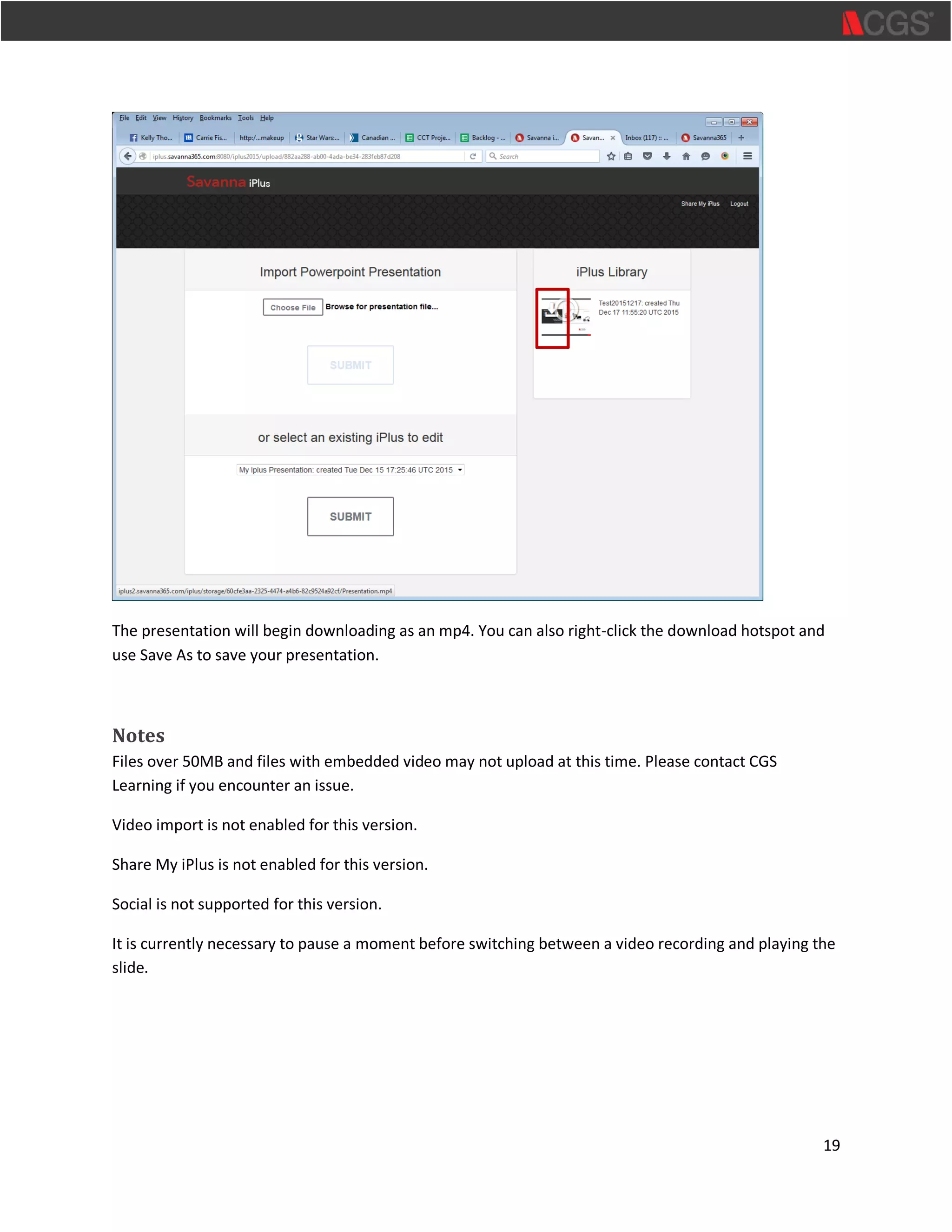
receive an email message indicating how to access your Savanna iPlus video.
18
Click the link to view your presentation
Download Your Savanna iPlus
1. In the Savanna iPlus library, scroll to your presentation.
2. Select the Download hotspot overlay on the presentation.
19
The presentation will begin downloading as an mp4. You can also right-click the download hotspot and
use Save As to save your presentation.
Notes
Files over 50MB and files with embedded video may not upload at this time. Please contact CGS
Learning if you encounter an issue.
Video import is not enabled for this version.
Share My iPlus is not enabled for this version.
Social is not supported for this version.
It is currently necessary to pause a moment before switching between a video recording and playing the
slide.

Savanna365 iPlus User's Guide

  • 1.
    Savanna365 iPlus User Guide ContactCGS Learning ewoodward@cgsinc.ca
  • 2.
    1 Contents Check Your Browser.............................................................................................................................2 Createa Savanna iPlus Account ...........................................................................................................2 Log on to Savanna iPlus .......................................................................................................................3 Upload a PowerPoint Presentation......................................................................................................3 Select a Presentation to Begin Recording.............................................................................................6 Record Your Savanna iPlus...................................................................................................................8 Record Audio...................................................................................................................................9 Record Animation..........................................................................................................................11 Record Video in a Quadrant...........................................................................................................13 Record Full Screen .........................................................................................................................15 Build a Savanna iPlus .........................................................................................................................16 Download Your Savanna iPlus............................................................................................................18 Notes.................................................................................................................................................19
  • 3.
    2 Check Your Browser Pleaseensure that you are using a supported browser.  Internet Explorer (tested under 11.0.9600)  Chrome (tested under 47.0.2526) Create a Savanna iPlus Account Access the following URL with your browser: http://iplus.savanna365.com:8080/iplus2015/login If this is your first time using Savanna iPlus, complete the Create an iPlus user account part of the form. 1. Enter your First Name, Last Name, Email, Password and password confirmation.
  • 4.
    3 Important: Make sureyou use a corporate email account (not gmail.com or hotmail.com). 2. Select Create Account. Your account will be created and you will automatically be taken to the upload page with no need to log on. Log on to Savanna iPlus To log on to Savanna iPlus with an existing account, access the following URL with your browser: http://iplus.savanna365.com:8080/iplus2015/login 1. Enter your Email address. 2. Enter your Password. 3. Select Login. Upload a PowerPoint Presentation To upload a PowerPoint presentation: 1. Select Choose File.
  • 5.
    4 2. Navigate toyour PowerPoint presentation and select Open. 3. Select Upload. You will be able to view the progress as your file is uploaded to the Savanna iPlus server.
  • 6.
    5 After the fileis uploaded to the server, you will see the progress message as your PowerPoint is converted to iPlus editable format. Once the progress reaches 100%, you can exit the application. Savanna iPlus will notify you by email when your file has finished uploading. If you have a very large file, this process may take more than a few minutes.
  • 7.
    6 Note: On rareoccasion, very large files that are > than 50MB, such as those with embedded video, will not complete the process. Contact CGS Learning support if you encounter an issue. Select a Presentation to Begin Recording Select a presentation to begin recording by doing the following: 1. Select an iPlus to edit from the pull-down menu. 2. Select Submit.
  • 8.
    7 You will betaken to the Savanna iPlus editing window with the Edit Metadata popup displayed. 3. Edit your iPlus Title, iPlus Subtitle and iPlus Description. 4. Select Close.
  • 9.
    8 Record Your SavannaiPlus Select Allow to allow Savanna iPlus to access your audo and video recorder. Now you are ready to begin adding audio, video and animation recordings to your presentation. You can add these in any order to your slides.
  • 10.
    9 Record Audio Select theslide to which you would like to add audio. By default, the Audio button is selected. Select Record and begin recording your audio. Select Record Stop when you are finished recording audio for the slide. You can play back your recording by selecting the Play button.
  • 11.
    10 You can re-recordby repeating the process to record a screen or move on to another screen. Move on to another screen by selecting the arrow or choosing a slide in the thumbnails view.
  • 12.
    11 Record Animation When youencounter a slide with animation, you will see a pop-up providing instructions on how to record audio for an animation. 1. Select OK to begin. 2. Select Record.
  • 13.
    12 As you arerecording the step, the Animate button will activate. 3. When you are finished recording the step in the animation, select Animate to record each step until you are done. You will notice that the Step Count counts down as you select the Animate button.
  • 14.
    13 4. When youare finished recording, select Rec Stop to stop recording for the slide. Record Video in a Quadrant 1. To record video in a quadrant, select the Video button. 2. You will be asked to provide Savanna iPlus with access to your camera and microphone. Select Allow. Select the Video Position to indicate the quadrant in which you would like for your video to appear.
  • 15.
    14 Select Record torecord your Video. Select Rec Stop when you are finished with your video.
  • 16.
    15 Record Full Screen Selectthe Video button and choose the Full Screen option and select Record. When finished, select Rec Stop.
  • 17.
    16 Build a SavannaiPlus Once you have completed recording all of the slides, you are ready to build your Savanna iPlus. Select Build. You will be asked to confirm that you want to build the Savanna iPlus. Select Yes.
  • 18.
    17 You will seea popup notification that your Build is in progress. Once the build has completed, you will receive an email message indicating how to access your Savanna iPlus video.
  • 19.
    18 Click the linkto view your presentation Download Your Savanna iPlus 1. In the Savanna iPlus library, scroll to your presentation. 2. Select the Download hotspot overlay on the presentation.
  • 20.
    19 The presentation willbegin downloading as an mp4. You can also right-click the download hotspot and use Save As to save your presentation. Notes Files over 50MB and files with embedded video may not upload at this time. Please contact CGS Learning if you encounter an issue. Video import is not enabled for this version. Share My iPlus is not enabled for this version. Social is not supported for this version. It is currently necessary to pause a moment before switching between a video recording and playing the slide.