Salesforce Overview
Self-Study – Prerequisite to All Courses
Learning Objectives
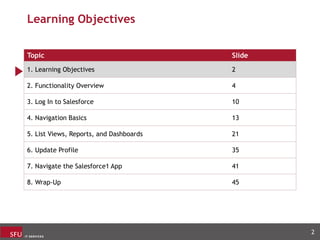
Topic Slide
1. Learning Objectives 2
2. Functionality Overview 4
3. Log In to Salesforce 10
4. Navigation Basics 13
5. List Views, Reports, and Dashboards 21
6. Update Profile 35
7. Navigate the Salesforce1 App 41
8. Wrap-Up 45
2
Learning Objectives
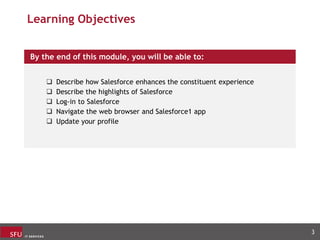
By the end of this module, you will be able to:
 Describe how Salesforce enhances the constituent experience
 Describe the highlights of Salesforce
 Log-in to Salesforce
 Navigate the web browser and Salesforce1 app
 Update your profile
3
Functionality Overview
Topic Slide
1. Learning Objectives 2
2. Functionality Overview 4
3. Log In to Salesforce 10
4. Navigation Basics 13
5. List Views, Reports, and Dashboards 21
6. Update Profile 35
7. Navigate the Salesforce1 App 41
8. Wrap-Up 45
4
An Improved Constituent Experience with
Salesforce
• Salesforce CRM (Constituent Relationship Management) system represents a
commitment to SFU's strategic vision of being a student-centric university.
• When fully implemented, the enterprise-wide system will help us foster
strong, lifelong relationships with prospects, students and alumni and
deliver more intentional and personalized experiences
• For our constituents, these outcomes will enhance the value of an SFU
education and the perceived quality of the institution.
5
Salesforce Highlights
 Efficient navigation using global search and related records
 Record layouts that focus on what you can do instead of what you can
view
 User-friendly dashboards with components that span both columns
and rows
 Track all interactions for a constituent in a single place, providing a
360 degree view of the constituent
 Dynamic and easy to navigate list views that let you easily filter and
visualize your data
 Sleek report views that you can filter quickly to see the data that's
most important to you
6
Salesforce Objects
Salesforce objects are database tables that allow us to store data specific to SFU.
Objects are interconnected, allowing for a 360 degree view of a constituent.
7
Events
Constituents
Cases
Applications
Salesforce Environment
Campaigns Opportunities
Objects
Educational Institutions
Affiliations
Academic Programs
Campaign Members Event Registration Activities (calls)
Programs Program Enrolment Course Connection
Business Organizations Sports Organizations University Departments
Affiliations Communications Tasks
Integrations (1/2)
Salesforce is integrated with multiple third party applications that push data into
Salesforce, providing you with a robust view of constituent information, all in one
place.
8
Third-Party
Application
Description Frequency Manual or
Automatic
• Send Campaigner information to Salesforce such as
Date Sent, Bounced, Date Opened, Bounced reason,
Unsubscribed, etc.
Custom
Batch
Automatic
• Constituents who enter their information and indicate
their interests on the Stay in touch area of the
Contact Us page are created/updated as contacts and
campaign members in Salesforce
Upon
Submission
Manual
• Inquiries (cases) will be sent via the connector into
Salesforce.
• For new contacts, the connector creates a new
Contact in Salesforce
On Demand Manual
Integrations (2/2)
9
Third-Party
Application
Description Frequency Manual or
Automatic
• For inbound calls where callers are identified by a
preferred phone number, a Salesforce screen will pop
up if that caller exists.
• A phone call recording is sent to Salesforce after the
call is completed on that person’s contact record.
On Demand Manual
• Event Registration Information to Salesforce Batch -
Connector
Automatic
SIMS • New and Active Applicants and Application data will be
pushed to Salesforce.
Hourly
Batch
Automatic
SERA • New Applicant and Application data will be pushed to
Salesforce.
Nightly
Batch
Automatic
Log In to Salesforce
Topic Slide
1. Learning Objectives 2
2. Functionality Overview 4
3. Log In to Salesforce 10
4. Navigation Basics 13
5. List Views, Reports, and Dashboards 21
6. Update Profile 35
7. Navigate the Salesforce1 App 41
8. Wrap-Up 45
10
Log In to Salesforce
Your welcome email includes a link
to the SFU Salesforce site.
To log in for the first time:
1. Copy and paste the link provided
in the email into Google Chrome
– this is the preferred browser
for Salesforce.
2. Enter your SFU Computing ID
and Password. Then, click Sign
In.
3. Bookmark the link to access
Salesforce quickly in the future.
11
Log In to Salesforce
12
To log-in from your mobile
device:
1. Download the Salesforce1
application from your
smartphone or tablet’s
application store.
2. Click Use Custom Domain.
3. Copy and Paste the link
provided to you in the
welcome email (remove the
https://), then click
Continue.
4. Enter your SFU Computing ID
and Password, then click
Sign In.
1
2 3 4
Navigation Basics
Topic Slide
1. Learning Objectives 2
2. Functionality Overview 4
3. Log In to Salesforce 10
4. Navigation Basics 13
5. List Views, Reports, and Dashboards 21
6. Update Profile 35
7. Navigate the Salesforce1 App 41
8. Wrap-Up 45
13
Overview of the Home Page
The Homepage is the landing page that employees see after logging in. Here you
will find some helpful tools.
14
Search Field
The Home Page is a
dashboard – a collection of
reports, that displays key
information relevant to
you.
These reports help you to
identify your tasks,
events, and keep on top of
cases and campaigns.
1
2
3
Icons
Navigation Bar
4
Global Search
Use the Search field to dynamically look up information in Salesforce across all
objects, such as Contacts, Accounts, Cases, Events, and more.
15
Start a global search by typing
directly in the Search field.
1
Auto-fill suggestions will appear
as you type. Select from the list as
desired or click Enter to see the full
search results.
2
Full search results will appear in a
list on a search results page. Click
the appropriate item to view more
information.
3
You can also filter by object type on the
search results page by clicking on a category in
the left hand menu.
4
The global search field operates differently than Google search. It takes many
factors into consideration, including prioritizing objects you use the most, and
objects most relevant to your search term. Salesforce breaks down your search
query into smaller pieces and searches through the information in the records,
displaying the most relevant results at the top.
Use these helpful tips & tricks to improve the relevance of your results:
1. Limit your search results to one object:
Use key words relevant to
the object in the global
search, such as name or
email address, for example.
Click the drop-down arrow and
select an object to limit results to
that object.
Global Search Field: Tips & Tricks (1/2)
16
Notice that only Contacts appear
in the search results, as that was
the object selected.
Global Search Field: Tips & Tricks (2/2
2. Use an asterisk (wildcard)
The (*) allows you to find items that match one or more characters in the
middle or at the end of your search term.
• For example, Al* will return results such as Alice Spruce, Alison Blair,
Jimmy Allen
3. Use Search Operators:
• AND - search for items that match all of the search terms.
• AND NOT - search for items that don't contain the search term.
• OR - search for items containing at least one of the search terms.
• Parenthesis - group search terms together (grouped search terms are
evaluated before other terms in your string).
• Quotation marks - search for items that match all of the search terms in
the order entered.
You can combine multiple operators in a search string and they'll be evaluated
in the following order:
1. Parenthesis
2. AND or AND NOT (in order from right to left)
3. OR
17
*
Navigation Bar
The Navigation Bar is available on all pages and provides an efficient and
consistent interface to navigate through various apps and items.
18
Click the tabs in the Navigation
Bar to access each item.
1
You can click the pencil icon to
add or edit the objects that
appear in your Navigation Bar.
2
Click the
downward arrow ˅
to access recent
records or create
new records for
that object.
Icon Name Description
Create Menu
From here, you can create activities, such as a new
task, case, log a call, etc.
Help and
Training Menu
Search through online help and training materials.
Setup
This is mostly used for development purposes. This
is where the Data Import Wizard is located, which
you will learn about in the Trips&Events
Management Course.
Notifications
Currently you will receive notification via email and
will not be using this icon.
View Profile
From here you can click on your name to change
your profile and upload a picture.
Icons
On the upper-right corner of the homepage,
you will find 5 unique icons:
19
Adding Favourites
If there is a page that you use often, such as a dashboard, for example, you can
add it as a favourite.
20
Click the star icon on
the page you would like
to add as a favourite.
You can click the down
arrow next to the star
from anywhere in
Salesforce to access
your favourites list and
navigate to that page.
List Views, Reports, and Dashboards
Topic Slide
1. Learning Objectives 2
2. Functionality Overview 4
3. Log In to Salesforce 10
4. Navigation Basics 13
5. List Views, Reports, and Dashboards 21
6. Update Profile 35
7. Navigate the Salesforce1 App 41
8. Wrap-Up 45
21
List Views vs. Reports
Salesforce provides many ways to view data.
• List Views are typically used to view a quick snapshot of a segment and take
action on records.
• A Report is generally used to summarize data for analysis.
22
List View Report
Quickly segment data X
Take immediate action X
In-line editing/Mass updates (if available) X
Group, summarize, or calculate X
Schedule to run automatically X
Export to Excel X
View over 2,000 records X
Combine multiple objects in one view X
List Views Permissions and Governance
In order to prevent an unmanageable list of list views, always create a personal
list view, NOT a public list view.
23
Staff System Admin
Create a new personal list view X X
Create a new public list view X
Clone an existing list view and make it personal X X
Clone an existing list view and make it public X
Delete a public list view X
System default is set to personal list view at the
time of list view creation or cloning
X X
Navigate to List Views
List views allow you to see a scrollable list of records that meet filter criteria.
When you click a tab in the Navigation Bar, the first list view you will see by
default is Recently Viewed, which displays the records that you have last opened.
24
Click on a tab to see the list
views for that object.
Click on the down arrow to
see the different list views
for that object.
Create and Manage List Views
To create your own list view, navigate to an existing list view then follow these
steps:
25
Click New or click
Clone to copy the
existing filters on a
list.
1
Create and Manage List Views
26
Personalize the title of the list.
Keep this option selected.
2
Important! Do NOT select the “All users can see this list view”. If selected, all SFU staff can see this view, which will cause there
to be irrelevant lists that appear for others and make it difficult to find one’s own list.
Create and Manage List Views
You will be prompted to update the filters, as needed.
27
These filters and
filter logic are
already set-up.
You can additional
filters.
Click the ‘x’ on an
existing filter to
remove it.
Update Filter Logic,
as needed.
3
Create and Manage List Views
Filters segment the data in your list. To add a filter:
28
Click the Add Filter
button.
Search the field you
would like to filter on.
Select the appropriate
operator based on
whether you would
like to include or
exclude information.
Value options are
based on field type
and could be a
picklist, text box, or
True or False.
4
Create and Manage List Views
Filter logic determines the rules within the filters. This is used when
there are multiple filters in the list view. To add filter logic:
29
Logic Description Example
AND Intersection of filters
1 AND 2. A list displays cases that
are originated from an email AND
are Admissions related.
OR
Mutually exclusive
filters.
1 OR 2. A list displays cases that
originated from a phone call or an
email.
NOT
The field matches one
filter, but not the other.
1 NOT 2. A list displays cases that
originated from an email and are
NOT Admissions related.
5
Create and Manage List Views
30
You can also customize which fields to display in the column headings:
Select available fields
that you would like
displayed as column
headings.
Use the arrows to
determine which fields to
display by moving fields
to the right column.
6
7
Create and Manage List Views
From your customized list view, you can sort information and drill down into the
records in that view
For more information on creating list views, please click:
https://trailhead.salesforce.com/en/modules/lex_customization/units/lex_custo
mization_list
31
You can sort the
table using the
column headings.
You can sort the table
using the column
headings. For example,
you could sort by Due
Date or Priority.
Important! It is only possible to sort by one column at a time.
Click the subject to
navigate to that
item.
8
Reports & Dashboards
• The reports that currently exist in Salesforce include out of the box reporting
capabilities. These standard reports can be modified or cloned (subject to SFU
user licensing). Our training will focus on this as the starting point, and we will
cover applicable reports and dashboards in each course.
• Custom reports refer to net new report types that need to be created, which
we will not be covering, although capability does exist with the system.
– Please contact your SFU Salesforce Admin for any custom report request.
– SFU anticipates introducing a business process for making any custom
report request and a will share with the stated users group post go-live
what this process may entail.
32
Reports
A Report is generally used to summarize data for analysis. Click the Reports tab,
from the Navigation Bar, then All Reports to view reports.
33
If there is a particular report that you think would be helpful for your team, contact a Salesforce Administrator to set it up.
Dashboards
Dashboards are a collection of multiple reports in one view. They allow you to see
information easily and the information is presented in an organized manner. Click the
Dashboards tab from the Navigation Bar, then All Dashboards to view dashboards.
34
If there is a dashboard view that you think would be helpful for your team, contact a Salesforce Administrator to set it up.
Update Profile
Topic Slide
1. Learning Objectives 2
2. Functionality Overview 4
3. Log In to Salesforce 10
4. Navigation Basics 13
5. List Views, Reports, and Dashboards 21
6. Update Profile 35
7. Navigate the Salesforce1 App 41
8. Wrap-Up 45
35
Update Profile – Information (1/2)
You can update your profile to keep your information current and personable:
36
1
2
Click Edit.
Update Profile – Information (1/2)
37
Complete or update fields as
needed.
3
Update Profile – Photo (1/2)
38
Click the camera icon.
Select Update
Photo and choose
a picture from your
files.
1
2
Update Profile – Photo (2/2)
39
Adjust size, as
needed.
Move the picture
within the circle until
your face is
centered.
3
Update Profile – Create Email Signature
40
1
2 3
Fill in the Email
Signature box.
Navigate the Salesforce1 App
Topic Slide
1. Learning Objectives 2
2. Functionality Overview 4
3. Log In to Salesforce 10
4. Navigation Basics 13
5. List Views, Reports, and Dashboards 21
6. Update Profile 35
7. Navigate the Salesforce1 App 41
8. Wrap-Up 45
41
Navigate the Salesforce1 App
The Salesforce1 App is an application for your mobile device or tablet, that you
can use to access Salesforce information on the go.
The app is a reflection of what is in the browser. This is particularly helpful for
travelling recruiters, who may wish to look up constituent information or event
details while they are commuting.
42
Home Page
The mobile home page contains many quick links to activities and information:
43
Click the icons to quickly
navigate to activities.
Click Show More to access
additional activities.
The Feed shows a log of
past activity.
Click Details to view your
contact information.
Click Related to view associated
items, such as files.
Click to access the full
menu.
1
2 3
4 5
Menu
The menu provides access to other sections in the mobile app. This is
similar to the Navigation Bar tabs in the browser view. By clicking on a
section, you can view records and update them if needed.
44
1
Click to
access the
full menu.
2
The menu contains
frequently used
items, recently used
items, apps, and
more. Scroll to view
additional items.
Click the profile icon
from anywhere in the
app to return to the
home page.
3
Click Show More to
edit the record.
Take actions relevant to
the record.
Scroll to see more
information.
Click Related to see
the objects the record
is associated to.
Wrap-Up
Topic Slide
1. Learning Objectives 2
2. Functionality Overview 4
3. Log In to Salesforce 10
4. Navigation Basics 13
5. List Views, Reports, and Dashboards 21
6. Update Profile 35
7. Navigate the Salesforce1 App 41
8. Wrap-Up 45
45
Learning Objectives
You should now be able to:
 Describe how Salesforce enhances the constituent experience
 Describe the highlights of Salesforce
 Log-in to Salesforce
 Navigate the web browser and Salesforce1 app
 Update your profile
46
47
Congratulations!
You have completed the Salesforce Overview Course.

salesforce_.pptx

  • 1.
    Salesforce Overview Self-Study –Prerequisite to All Courses
  • 2.
    Learning Objectives Topic Slide 1.Learning Objectives 2 2. Functionality Overview 4 3. Log In to Salesforce 10 4. Navigation Basics 13 5. List Views, Reports, and Dashboards 21 6. Update Profile 35 7. Navigate the Salesforce1 App 41 8. Wrap-Up 45 2
  • 3.
    Learning Objectives By theend of this module, you will be able to:  Describe how Salesforce enhances the constituent experience  Describe the highlights of Salesforce  Log-in to Salesforce  Navigate the web browser and Salesforce1 app  Update your profile 3
  • 4.
    Functionality Overview Topic Slide 1.Learning Objectives 2 2. Functionality Overview 4 3. Log In to Salesforce 10 4. Navigation Basics 13 5. List Views, Reports, and Dashboards 21 6. Update Profile 35 7. Navigate the Salesforce1 App 41 8. Wrap-Up 45 4
  • 5.
    An Improved ConstituentExperience with Salesforce • Salesforce CRM (Constituent Relationship Management) system represents a commitment to SFU's strategic vision of being a student-centric university. • When fully implemented, the enterprise-wide system will help us foster strong, lifelong relationships with prospects, students and alumni and deliver more intentional and personalized experiences • For our constituents, these outcomes will enhance the value of an SFU education and the perceived quality of the institution. 5
  • 6.
    Salesforce Highlights  Efficientnavigation using global search and related records  Record layouts that focus on what you can do instead of what you can view  User-friendly dashboards with components that span both columns and rows  Track all interactions for a constituent in a single place, providing a 360 degree view of the constituent  Dynamic and easy to navigate list views that let you easily filter and visualize your data  Sleek report views that you can filter quickly to see the data that's most important to you 6
  • 7.
    Salesforce Objects Salesforce objectsare database tables that allow us to store data specific to SFU. Objects are interconnected, allowing for a 360 degree view of a constituent. 7 Events Constituents Cases Applications Salesforce Environment Campaigns Opportunities Objects Educational Institutions Affiliations Academic Programs Campaign Members Event Registration Activities (calls) Programs Program Enrolment Course Connection Business Organizations Sports Organizations University Departments Affiliations Communications Tasks
  • 8.
    Integrations (1/2) Salesforce isintegrated with multiple third party applications that push data into Salesforce, providing you with a robust view of constituent information, all in one place. 8 Third-Party Application Description Frequency Manual or Automatic • Send Campaigner information to Salesforce such as Date Sent, Bounced, Date Opened, Bounced reason, Unsubscribed, etc. Custom Batch Automatic • Constituents who enter their information and indicate their interests on the Stay in touch area of the Contact Us page are created/updated as contacts and campaign members in Salesforce Upon Submission Manual • Inquiries (cases) will be sent via the connector into Salesforce. • For new contacts, the connector creates a new Contact in Salesforce On Demand Manual
  • 9.
    Integrations (2/2) 9 Third-Party Application Description FrequencyManual or Automatic • For inbound calls where callers are identified by a preferred phone number, a Salesforce screen will pop up if that caller exists. • A phone call recording is sent to Salesforce after the call is completed on that person’s contact record. On Demand Manual • Event Registration Information to Salesforce Batch - Connector Automatic SIMS • New and Active Applicants and Application data will be pushed to Salesforce. Hourly Batch Automatic SERA • New Applicant and Application data will be pushed to Salesforce. Nightly Batch Automatic
  • 10.
    Log In toSalesforce Topic Slide 1. Learning Objectives 2 2. Functionality Overview 4 3. Log In to Salesforce 10 4. Navigation Basics 13 5. List Views, Reports, and Dashboards 21 6. Update Profile 35 7. Navigate the Salesforce1 App 41 8. Wrap-Up 45 10
  • 11.
    Log In toSalesforce Your welcome email includes a link to the SFU Salesforce site. To log in for the first time: 1. Copy and paste the link provided in the email into Google Chrome – this is the preferred browser for Salesforce. 2. Enter your SFU Computing ID and Password. Then, click Sign In. 3. Bookmark the link to access Salesforce quickly in the future. 11
  • 12.
    Log In toSalesforce 12 To log-in from your mobile device: 1. Download the Salesforce1 application from your smartphone or tablet’s application store. 2. Click Use Custom Domain. 3. Copy and Paste the link provided to you in the welcome email (remove the https://), then click Continue. 4. Enter your SFU Computing ID and Password, then click Sign In. 1 2 3 4
  • 13.
    Navigation Basics Topic Slide 1.Learning Objectives 2 2. Functionality Overview 4 3. Log In to Salesforce 10 4. Navigation Basics 13 5. List Views, Reports, and Dashboards 21 6. Update Profile 35 7. Navigate the Salesforce1 App 41 8. Wrap-Up 45 13
  • 14.
    Overview of theHome Page The Homepage is the landing page that employees see after logging in. Here you will find some helpful tools. 14 Search Field The Home Page is a dashboard – a collection of reports, that displays key information relevant to you. These reports help you to identify your tasks, events, and keep on top of cases and campaigns. 1 2 3 Icons Navigation Bar 4
  • 15.
    Global Search Use theSearch field to dynamically look up information in Salesforce across all objects, such as Contacts, Accounts, Cases, Events, and more. 15 Start a global search by typing directly in the Search field. 1 Auto-fill suggestions will appear as you type. Select from the list as desired or click Enter to see the full search results. 2 Full search results will appear in a list on a search results page. Click the appropriate item to view more information. 3 You can also filter by object type on the search results page by clicking on a category in the left hand menu. 4
  • 16.
    The global searchfield operates differently than Google search. It takes many factors into consideration, including prioritizing objects you use the most, and objects most relevant to your search term. Salesforce breaks down your search query into smaller pieces and searches through the information in the records, displaying the most relevant results at the top. Use these helpful tips & tricks to improve the relevance of your results: 1. Limit your search results to one object: Use key words relevant to the object in the global search, such as name or email address, for example. Click the drop-down arrow and select an object to limit results to that object. Global Search Field: Tips & Tricks (1/2) 16 Notice that only Contacts appear in the search results, as that was the object selected.
  • 17.
    Global Search Field:Tips & Tricks (2/2 2. Use an asterisk (wildcard) The (*) allows you to find items that match one or more characters in the middle or at the end of your search term. • For example, Al* will return results such as Alice Spruce, Alison Blair, Jimmy Allen 3. Use Search Operators: • AND - search for items that match all of the search terms. • AND NOT - search for items that don't contain the search term. • OR - search for items containing at least one of the search terms. • Parenthesis - group search terms together (grouped search terms are evaluated before other terms in your string). • Quotation marks - search for items that match all of the search terms in the order entered. You can combine multiple operators in a search string and they'll be evaluated in the following order: 1. Parenthesis 2. AND or AND NOT (in order from right to left) 3. OR 17 *
  • 18.
    Navigation Bar The NavigationBar is available on all pages and provides an efficient and consistent interface to navigate through various apps and items. 18 Click the tabs in the Navigation Bar to access each item. 1 You can click the pencil icon to add or edit the objects that appear in your Navigation Bar. 2 Click the downward arrow ˅ to access recent records or create new records for that object.
  • 19.
    Icon Name Description CreateMenu From here, you can create activities, such as a new task, case, log a call, etc. Help and Training Menu Search through online help and training materials. Setup This is mostly used for development purposes. This is where the Data Import Wizard is located, which you will learn about in the Trips&Events Management Course. Notifications Currently you will receive notification via email and will not be using this icon. View Profile From here you can click on your name to change your profile and upload a picture. Icons On the upper-right corner of the homepage, you will find 5 unique icons: 19
  • 20.
    Adding Favourites If thereis a page that you use often, such as a dashboard, for example, you can add it as a favourite. 20 Click the star icon on the page you would like to add as a favourite. You can click the down arrow next to the star from anywhere in Salesforce to access your favourites list and navigate to that page.
  • 21.
    List Views, Reports,and Dashboards Topic Slide 1. Learning Objectives 2 2. Functionality Overview 4 3. Log In to Salesforce 10 4. Navigation Basics 13 5. List Views, Reports, and Dashboards 21 6. Update Profile 35 7. Navigate the Salesforce1 App 41 8. Wrap-Up 45 21
  • 22.
    List Views vs.Reports Salesforce provides many ways to view data. • List Views are typically used to view a quick snapshot of a segment and take action on records. • A Report is generally used to summarize data for analysis. 22 List View Report Quickly segment data X Take immediate action X In-line editing/Mass updates (if available) X Group, summarize, or calculate X Schedule to run automatically X Export to Excel X View over 2,000 records X Combine multiple objects in one view X
  • 23.
    List Views Permissionsand Governance In order to prevent an unmanageable list of list views, always create a personal list view, NOT a public list view. 23 Staff System Admin Create a new personal list view X X Create a new public list view X Clone an existing list view and make it personal X X Clone an existing list view and make it public X Delete a public list view X System default is set to personal list view at the time of list view creation or cloning X X
  • 24.
    Navigate to ListViews List views allow you to see a scrollable list of records that meet filter criteria. When you click a tab in the Navigation Bar, the first list view you will see by default is Recently Viewed, which displays the records that you have last opened. 24 Click on a tab to see the list views for that object. Click on the down arrow to see the different list views for that object.
  • 25.
    Create and ManageList Views To create your own list view, navigate to an existing list view then follow these steps: 25 Click New or click Clone to copy the existing filters on a list. 1
  • 26.
    Create and ManageList Views 26 Personalize the title of the list. Keep this option selected. 2 Important! Do NOT select the “All users can see this list view”. If selected, all SFU staff can see this view, which will cause there to be irrelevant lists that appear for others and make it difficult to find one’s own list.
  • 27.
    Create and ManageList Views You will be prompted to update the filters, as needed. 27 These filters and filter logic are already set-up. You can additional filters. Click the ‘x’ on an existing filter to remove it. Update Filter Logic, as needed. 3
  • 28.
    Create and ManageList Views Filters segment the data in your list. To add a filter: 28 Click the Add Filter button. Search the field you would like to filter on. Select the appropriate operator based on whether you would like to include or exclude information. Value options are based on field type and could be a picklist, text box, or True or False. 4
  • 29.
    Create and ManageList Views Filter logic determines the rules within the filters. This is used when there are multiple filters in the list view. To add filter logic: 29 Logic Description Example AND Intersection of filters 1 AND 2. A list displays cases that are originated from an email AND are Admissions related. OR Mutually exclusive filters. 1 OR 2. A list displays cases that originated from a phone call or an email. NOT The field matches one filter, but not the other. 1 NOT 2. A list displays cases that originated from an email and are NOT Admissions related. 5
  • 30.
    Create and ManageList Views 30 You can also customize which fields to display in the column headings: Select available fields that you would like displayed as column headings. Use the arrows to determine which fields to display by moving fields to the right column. 6 7
  • 31.
    Create and ManageList Views From your customized list view, you can sort information and drill down into the records in that view For more information on creating list views, please click: https://trailhead.salesforce.com/en/modules/lex_customization/units/lex_custo mization_list 31 You can sort the table using the column headings. You can sort the table using the column headings. For example, you could sort by Due Date or Priority. Important! It is only possible to sort by one column at a time. Click the subject to navigate to that item. 8
  • 32.
    Reports & Dashboards •The reports that currently exist in Salesforce include out of the box reporting capabilities. These standard reports can be modified or cloned (subject to SFU user licensing). Our training will focus on this as the starting point, and we will cover applicable reports and dashboards in each course. • Custom reports refer to net new report types that need to be created, which we will not be covering, although capability does exist with the system. – Please contact your SFU Salesforce Admin for any custom report request. – SFU anticipates introducing a business process for making any custom report request and a will share with the stated users group post go-live what this process may entail. 32
  • 33.
    Reports A Report isgenerally used to summarize data for analysis. Click the Reports tab, from the Navigation Bar, then All Reports to view reports. 33 If there is a particular report that you think would be helpful for your team, contact a Salesforce Administrator to set it up.
  • 34.
    Dashboards Dashboards are acollection of multiple reports in one view. They allow you to see information easily and the information is presented in an organized manner. Click the Dashboards tab from the Navigation Bar, then All Dashboards to view dashboards. 34 If there is a dashboard view that you think would be helpful for your team, contact a Salesforce Administrator to set it up.
  • 35.
    Update Profile Topic Slide 1.Learning Objectives 2 2. Functionality Overview 4 3. Log In to Salesforce 10 4. Navigation Basics 13 5. List Views, Reports, and Dashboards 21 6. Update Profile 35 7. Navigate the Salesforce1 App 41 8. Wrap-Up 45 35
  • 36.
    Update Profile –Information (1/2) You can update your profile to keep your information current and personable: 36 1 2 Click Edit.
  • 37.
    Update Profile –Information (1/2) 37 Complete or update fields as needed. 3
  • 38.
    Update Profile –Photo (1/2) 38 Click the camera icon. Select Update Photo and choose a picture from your files. 1 2
  • 39.
    Update Profile –Photo (2/2) 39 Adjust size, as needed. Move the picture within the circle until your face is centered. 3
  • 40.
    Update Profile –Create Email Signature 40 1 2 3 Fill in the Email Signature box.
  • 41.
    Navigate the Salesforce1App Topic Slide 1. Learning Objectives 2 2. Functionality Overview 4 3. Log In to Salesforce 10 4. Navigation Basics 13 5. List Views, Reports, and Dashboards 21 6. Update Profile 35 7. Navigate the Salesforce1 App 41 8. Wrap-Up 45 41
  • 42.
    Navigate the Salesforce1App The Salesforce1 App is an application for your mobile device or tablet, that you can use to access Salesforce information on the go. The app is a reflection of what is in the browser. This is particularly helpful for travelling recruiters, who may wish to look up constituent information or event details while they are commuting. 42
  • 43.
    Home Page The mobilehome page contains many quick links to activities and information: 43 Click the icons to quickly navigate to activities. Click Show More to access additional activities. The Feed shows a log of past activity. Click Details to view your contact information. Click Related to view associated items, such as files. Click to access the full menu. 1 2 3 4 5
  • 44.
    Menu The menu providesaccess to other sections in the mobile app. This is similar to the Navigation Bar tabs in the browser view. By clicking on a section, you can view records and update them if needed. 44 1 Click to access the full menu. 2 The menu contains frequently used items, recently used items, apps, and more. Scroll to view additional items. Click the profile icon from anywhere in the app to return to the home page. 3 Click Show More to edit the record. Take actions relevant to the record. Scroll to see more information. Click Related to see the objects the record is associated to.
  • 45.
    Wrap-Up Topic Slide 1. LearningObjectives 2 2. Functionality Overview 4 3. Log In to Salesforce 10 4. Navigation Basics 13 5. List Views, Reports, and Dashboards 21 6. Update Profile 35 7. Navigate the Salesforce1 App 41 8. Wrap-Up 45 45
  • 46.
    Learning Objectives You shouldnow be able to:  Describe how Salesforce enhances the constituent experience  Describe the highlights of Salesforce  Log-in to Salesforce  Navigate the web browser and Salesforce1 app  Update your profile 46
  • 47.
    47 Congratulations! You have completedthe Salesforce Overview Course.