VBA Excel User-form Project
BBW-301
Group Partners-
Abhishek Kumar Sharma
Jyoti Narayan Verma
Karan Verma
Sagar Anand
Subhash Kumar
Sales Inventory Invoice
1
VBA UserForm
Invoice
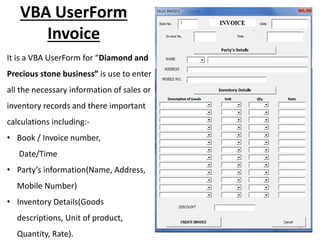
It is a VBA UserForm for “Diamond and
Precious stone business” is use to enter
all the necessary information of sales or
inventory records and there important
calculations including:-
• Book / Invoice number,
Date/Time
• Party’s information(Name, Address,
Mobile Number)
• Inventory Details(Goods
descriptions, Unit of product,
Quantity, Rate).
2
Contd….
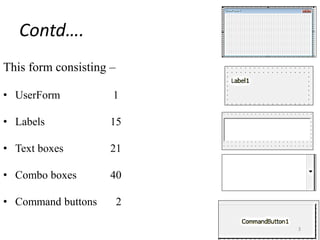
This form consisting –
• UserForm 1
• Labels 15
• Text boxes 21
• Combo boxes 40
• Command buttons 2
3
Excel Invoice
Format
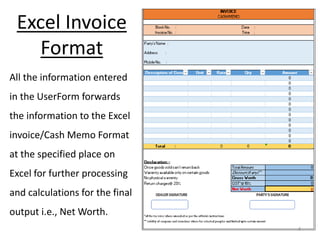
All the information entered
in the UserForm forwards
the information to the Excel
invoice/Cash Memo Format
at the specified place on
Excel for further processing
and calculations for the final
output i.e., Net Worth.
4
Contd….
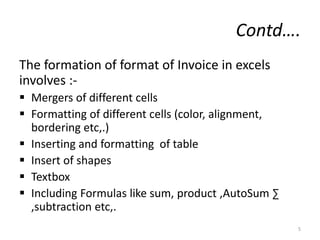
The formation of format of Invoice in excels
involves :-
 Mergers of different cells
 Formatting of different cells (color, alignment,
bordering etc,.)
 Inserting and formatting of table
 Insert of shapes
 Textbox
 Including Formulas like sum, product ,AutoSum ∑
,subtraction etc,.
5
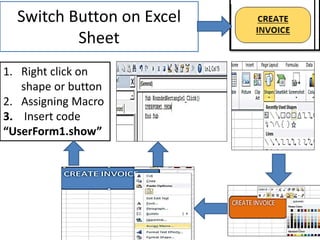
Switch Button on Excel
Sheet
1. Right click on
shape or button
2. Assigning Macro
3. Insert code
“UserForm1.show”
6
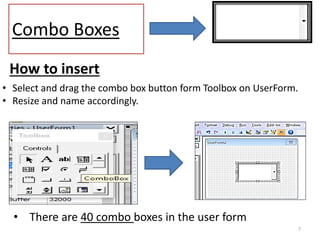
Combo Boxes
7
• There are 40 combo boxes in the user form
How to insert
• Select and drag the combo box button form Toolbox on UserForm.
• Resize and name accordingly.
Contd….
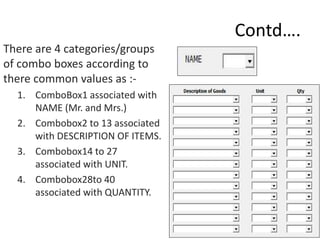
There are 4 categories/groups
of combo boxes according to
there common values as :-
1. ComboBox1 associated with
NAME (Mr. and Mrs.)
2. Combobox2 to 13 associated
with DESCRIPTION OF ITEMS.
3. Combobox14 to 27
associated with UNIT.
4. Combobox28to 40
associated with QUANTITY.
8
9
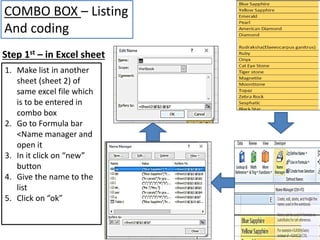
1. Make list in another
sheet (sheet 2) of
same excel file which
is to be entered in
combo box
2. Go to Formula bar
<Name manager and
open it
3. In it click on “new”
button
4. Give the name to the
list
5. Click on “ok”
COMBO BOX – Listing
And coding
Step 1st – in Excel sheet
Contd….
10
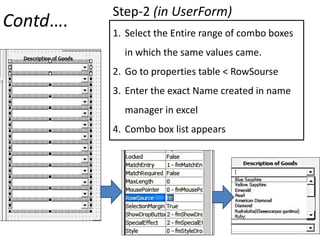
1. Select the Entire range of combo boxes
in which the same values came.
2. Go to properties table < RowSourse
3. Enter the exact Name created in name
manager in excel
4. Combo box list appears
Step-2 (in UserForm)
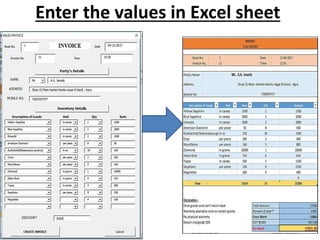
Enter the values in Excel sheet
11
Contd….
12
• The Data entered in the UserForm can be forwarded to
Invoice on the Excel sheet through Tabbing on a
command button named “CREATE INVOICE”.
• For these, there is requirement of coding by which all
values in the UserForm come on the exact cell where
needed.
• The common coding require for addressing is
Range(“##").Value = Text Box/combo box #. Text
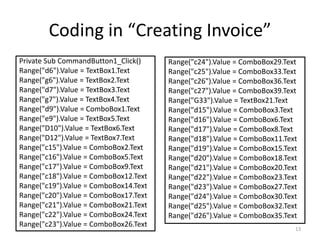
Coding in “Creating Invoice”
Private Sub CommandButton1_Click()
Range("d6").Value = TextBox1.Text
Range("g6").Value = TextBox2.Text
Range("d7").Value = TextBox3.Text
Range("g7").Value = TextBox4.Text
Range("d9").Value = ComboBox1.Text
Range("e9").Value = TextBox5.Text
Range("D10").Value = TextBox6.Text
Range("D12").Value = TextBox7.Text
Range("c15").Value = ComboBox2.Text
Range("c16").Value = ComboBox5.Text
Range("c17").Value = ComboBox9.Text
Range("c18").Value = ComboBox12.Text
Range("c19").Value = ComboBox14.Text
Range("c20").Value = ComboBox17.Text
Range("c21").Value = ComboBox21.Text
Range("c22").Value = ComboBox24.Text
Range("c23").Value = ComboBox26.Text
13
Range("c24").Value = ComboBox29.Text
Range("c25").Value = ComboBox33.Text
Range("c26").Value = ComboBox36.Text
Range("c27").Value = ComboBox39.Text
Range("G33").Value = TextBox21.Text
Range("d15").Value = ComboBox3.Text
Range("d16").Value = ComboBox6.Text
Range("d17").Value = ComboBox8.Text
Range("d18").Value = ComboBox11.Text
Range("d19").Value = ComboBox15.Text
Range("d20").Value = ComboBox18.Text
Range("d21").Value = ComboBox20.Text
Range("d22").Value = ComboBox23.Text
Range("d23").Value = ComboBox27.Text
Range("d24").Value = ComboBox30.Text
Range("d25").Value = ComboBox32.Text
Range("d26").Value = ComboBox35.Text
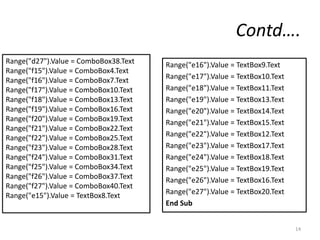
Contd….
14
Range("e16").Value = TextBox9.Text
Range("e17").Value = TextBox10.Text
Range("e18").Value = TextBox11.Text
Range("e19").Value = TextBox13.Text
Range("e20").Value = TextBox14.Text
Range("e21").Value = TextBox15.Text
Range("e22").Value = TextBox12.Text
Range("e23").Value = TextBox17.Text
Range("e24").Value = TextBox18.Text
Range("e25").Value = TextBox19.Text
Range("e26").Value = TextBox16.Text
Range("e27").Value = TextBox20.Text
End Sub
Range("d27").Value = ComboBox38.Text
Range("f15").Value = ComboBox4.Text
Range("f16").Value = ComboBox7.Text
Range("f17").Value = ComboBox10.Text
Range("f18").Value = ComboBox13.Text
Range("f19").Value = ComboBox16.Text
Range("f20").Value = ComboBox19.Text
Range("f21").Value = ComboBox22.Text
Range("f22").Value = ComboBox25.Text
Range("f23").Value = ComboBox28.Text
Range("f24").Value = ComboBox31.Text
Range("f25").Value = ComboBox34.Text
Range("f26").Value = ComboBox37.Text
Range("f27").Value = ComboBox40.Text
Range("e15").Value = TextBox8.Text
Usage
• Recordings the Transactions in Quantitative form.
• Provide a reliable and concise form to enter
details.
• Record the flow of inventories.
• Provide a Source for tax payment (GST).
• Calculation Total amount to be pay.
• Enrolled the Necessary details about the
customer.
• Proof for the Transaction.
15

Sales invoice VBA excel user-form

  • 1.
    VBA Excel User-formProject BBW-301 Group Partners- Abhishek Kumar Sharma Jyoti Narayan Verma Karan Verma Sagar Anand Subhash Kumar Sales Inventory Invoice 1
  • 2.
    VBA UserForm Invoice It isa VBA UserForm for “Diamond and Precious stone business” is use to enter all the necessary information of sales or inventory records and there important calculations including:- • Book / Invoice number, Date/Time • Party’s information(Name, Address, Mobile Number) • Inventory Details(Goods descriptions, Unit of product, Quantity, Rate). 2
  • 3.
    Contd…. This form consisting– • UserForm 1 • Labels 15 • Text boxes 21 • Combo boxes 40 • Command buttons 2 3
  • 4.
    Excel Invoice Format All theinformation entered in the UserForm forwards the information to the Excel invoice/Cash Memo Format at the specified place on Excel for further processing and calculations for the final output i.e., Net Worth. 4
  • 5.
    Contd…. The formation offormat of Invoice in excels involves :-  Mergers of different cells  Formatting of different cells (color, alignment, bordering etc,.)  Inserting and formatting of table  Insert of shapes  Textbox  Including Formulas like sum, product ,AutoSum ∑ ,subtraction etc,. 5
  • 6.
    Switch Button onExcel Sheet 1. Right click on shape or button 2. Assigning Macro 3. Insert code “UserForm1.show” 6
  • 7.
    Combo Boxes 7 • Thereare 40 combo boxes in the user form How to insert • Select and drag the combo box button form Toolbox on UserForm. • Resize and name accordingly.
  • 8.
    Contd…. There are 4categories/groups of combo boxes according to there common values as :- 1. ComboBox1 associated with NAME (Mr. and Mrs.) 2. Combobox2 to 13 associated with DESCRIPTION OF ITEMS. 3. Combobox14 to 27 associated with UNIT. 4. Combobox28to 40 associated with QUANTITY. 8
  • 9.
    9 1. Make listin another sheet (sheet 2) of same excel file which is to be entered in combo box 2. Go to Formula bar <Name manager and open it 3. In it click on “new” button 4. Give the name to the list 5. Click on “ok” COMBO BOX – Listing And coding Step 1st – in Excel sheet
  • 10.
    Contd…. 10 1. Select theEntire range of combo boxes in which the same values came. 2. Go to properties table < RowSourse 3. Enter the exact Name created in name manager in excel 4. Combo box list appears Step-2 (in UserForm)
  • 11.
    Enter the valuesin Excel sheet 11
  • 12.
    Contd…. 12 • The Dataentered in the UserForm can be forwarded to Invoice on the Excel sheet through Tabbing on a command button named “CREATE INVOICE”. • For these, there is requirement of coding by which all values in the UserForm come on the exact cell where needed. • The common coding require for addressing is Range(“##").Value = Text Box/combo box #. Text
  • 13.
    Coding in “CreatingInvoice” Private Sub CommandButton1_Click() Range("d6").Value = TextBox1.Text Range("g6").Value = TextBox2.Text Range("d7").Value = TextBox3.Text Range("g7").Value = TextBox4.Text Range("d9").Value = ComboBox1.Text Range("e9").Value = TextBox5.Text Range("D10").Value = TextBox6.Text Range("D12").Value = TextBox7.Text Range("c15").Value = ComboBox2.Text Range("c16").Value = ComboBox5.Text Range("c17").Value = ComboBox9.Text Range("c18").Value = ComboBox12.Text Range("c19").Value = ComboBox14.Text Range("c20").Value = ComboBox17.Text Range("c21").Value = ComboBox21.Text Range("c22").Value = ComboBox24.Text Range("c23").Value = ComboBox26.Text 13 Range("c24").Value = ComboBox29.Text Range("c25").Value = ComboBox33.Text Range("c26").Value = ComboBox36.Text Range("c27").Value = ComboBox39.Text Range("G33").Value = TextBox21.Text Range("d15").Value = ComboBox3.Text Range("d16").Value = ComboBox6.Text Range("d17").Value = ComboBox8.Text Range("d18").Value = ComboBox11.Text Range("d19").Value = ComboBox15.Text Range("d20").Value = ComboBox18.Text Range("d21").Value = ComboBox20.Text Range("d22").Value = ComboBox23.Text Range("d23").Value = ComboBox27.Text Range("d24").Value = ComboBox30.Text Range("d25").Value = ComboBox32.Text Range("d26").Value = ComboBox35.Text
  • 14.
    Contd…. 14 Range("e16").Value = TextBox9.Text Range("e17").Value= TextBox10.Text Range("e18").Value = TextBox11.Text Range("e19").Value = TextBox13.Text Range("e20").Value = TextBox14.Text Range("e21").Value = TextBox15.Text Range("e22").Value = TextBox12.Text Range("e23").Value = TextBox17.Text Range("e24").Value = TextBox18.Text Range("e25").Value = TextBox19.Text Range("e26").Value = TextBox16.Text Range("e27").Value = TextBox20.Text End Sub Range("d27").Value = ComboBox38.Text Range("f15").Value = ComboBox4.Text Range("f16").Value = ComboBox7.Text Range("f17").Value = ComboBox10.Text Range("f18").Value = ComboBox13.Text Range("f19").Value = ComboBox16.Text Range("f20").Value = ComboBox19.Text Range("f21").Value = ComboBox22.Text Range("f22").Value = ComboBox25.Text Range("f23").Value = ComboBox28.Text Range("f24").Value = ComboBox31.Text Range("f25").Value = ComboBox34.Text Range("f26").Value = ComboBox37.Text Range("f27").Value = ComboBox40.Text Range("e15").Value = TextBox8.Text
  • 15.
    Usage • Recordings theTransactions in Quantitative form. • Provide a reliable and concise form to enter details. • Record the flow of inventories. • Provide a Source for tax payment (GST). • Calculation Total amount to be pay. • Enrolled the Necessary details about the customer. • Proof for the Transaction. 15