KALNA COLLEGE
B.EDSECTION
AFFILITEDTO THE UNIVERSITY OF BURDWAN
INTERNALASSIGNMENT
COURSE: EPC3
S U B M I T T E D T O
DR. ANIKET SUTRADHAR
B.ED SECTION
SUBMITTED BY
NAME: PRITY MUKHERJEE
ROLL NO: 220711130043
REG. NO: 201701011488 OF 2017-18
SEASON: 2022-24
SEMESTER: IV
SUBJECT: HISTORY
Microsoft powerpoint is a microsoft office
application that can help you create a
professional, computerized slide show
presentation.
Developed by Microsoft.
Presentation is an application that allows a user
to create and save to use as a slide show.
INTRODUCTION
MS POWER POINT
PowerPoint (PPT) is a
powerful, easy-to-use
presentation graphics
software program that
allows you to create
professional-looking
electronic slide shows.
oInitially Called 'Presenter'
oIn 1987, it was renamed to "PowerPoint"
oIn the same year, Forethought was bought by
Microsoft for $14 million USD.
oPowerPoint was officially launched on May 22,
1990.
History
OBJECTIVES
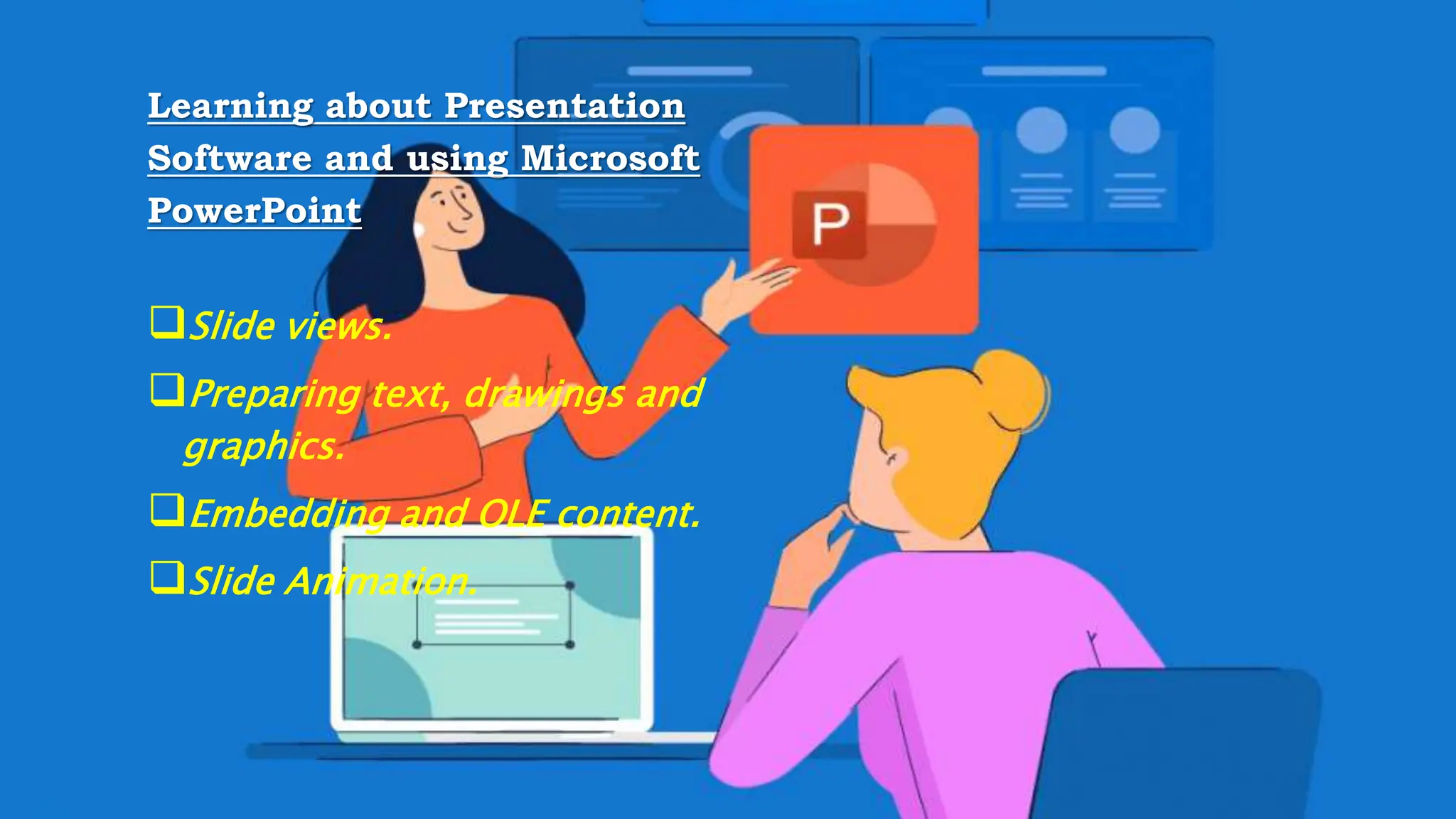
Learning about Presentation
Software and using Microsoft
PowerPoint
Slide views.
Preparing text, drawings and
graphics.
Embedding and OLE content.
Slide Animation.
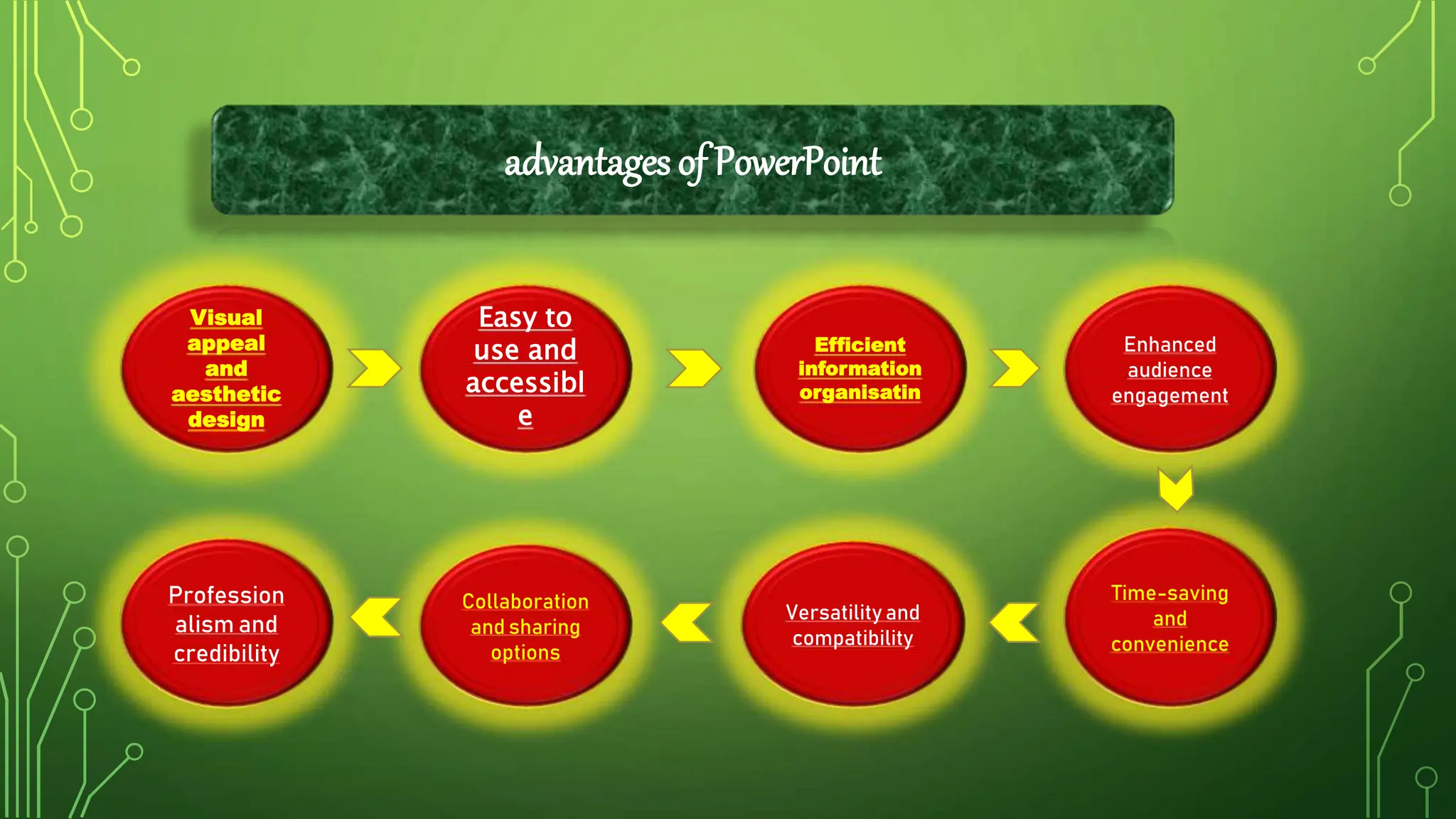
Visual
appeal
and
aesthetic
design
Easy to
use and
accessibl
e
Collaboration
and sharing
options
Profession
alism and
credibility
Enhanced
audience
engagement
Time-saving
and
convenience
Versatility and
compatibility
Efficient
information
organisatin
advantages of PowerPoint
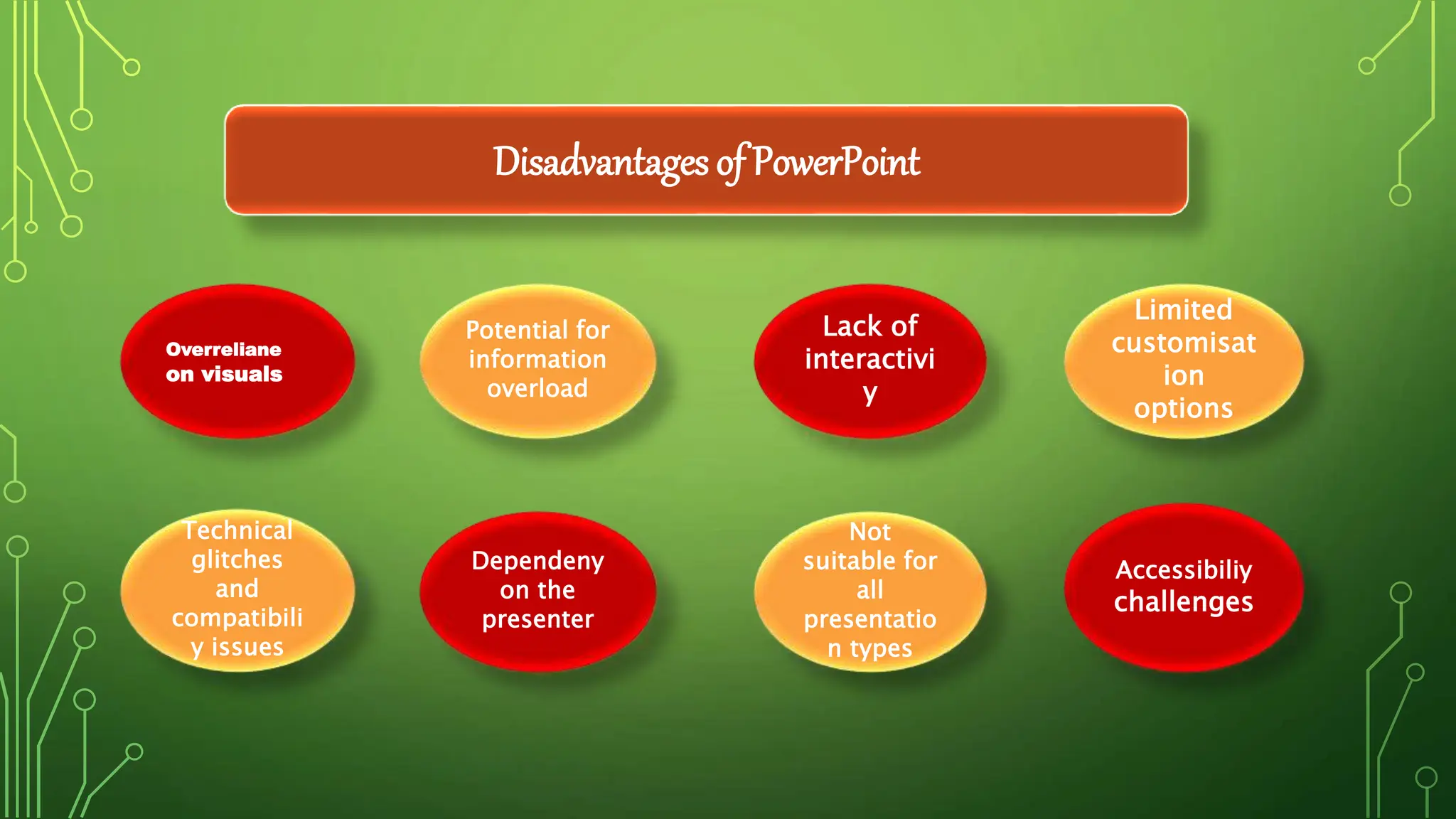
Overreliane
on visuals
Potential for
information
overload
Dependeny
on the
presenter
Technical
glitches
and
compatibili
y issues
Limited
customisat
ion
options
Accessibiliy
challenges
Not
suitable for
all
presentatio
n types
Lack of
interactivi
y
Disadvantages of PowerPoint
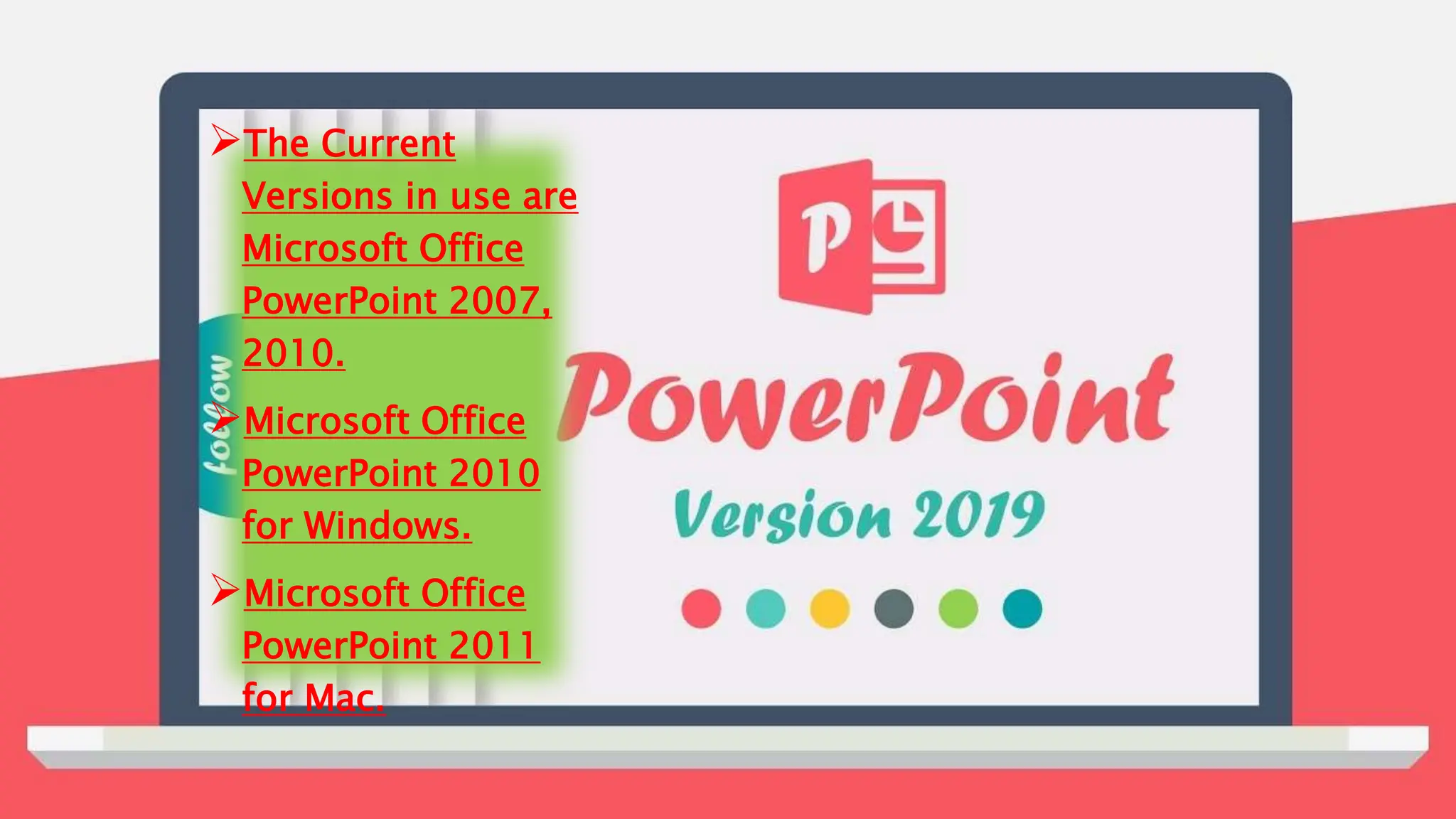
VERSION
The Current
Versions in use are
Microsoft Office
PowerPoint 2007,
2010.
Microsoft Office
PowerPoint 2010
for Windows.
Microsoft Office
PowerPoint 2011
for Mac.
GETTING STARTED
Create a new presentation
 MS Office Button >> “New “
A new Presentation window opens up The MS Office Button is located in the top left
corner of the Window.
 To start a new file from scratch:
Choose "Blank Document" and press "Create".
 Open an existing presentation
MS Office Button >> “Open”
 Save the current document
MS Office Button >> “Save”
 Save a document under a different name, version, or format
MS Office Button >> “Save As”...
EFFECTIVE USE OF MS
POWER POINT
Layout and use of software ribbon.
Use of software help function.
Use of different text fonts and appropriate
fonts sizes.
Use of headers and footers.
Use of page numbering.
Inserting new slides.
Inserting text boxes.
Inserting images, audio files and
photographs.
SAVE & PRINT
• MS Office Button Save As...
• MS Office Button Print
• MS Office Button Close
Thank you

Roll_No_220711130043__Prity_Mukherjee-MS POWERPOINT

  • 1.
    KALNA COLLEGE B.EDSECTION AFFILITEDTO THEUNIVERSITY OF BURDWAN INTERNALASSIGNMENT COURSE: EPC3 S U B M I T T E D T O DR. ANIKET SUTRADHAR B.ED SECTION SUBMITTED BY NAME: PRITY MUKHERJEE ROLL NO: 220711130043 REG. NO: 201701011488 OF 2017-18 SEASON: 2022-24 SEMESTER: IV SUBJECT: HISTORY
  • 2.
    Microsoft powerpoint isa microsoft office application that can help you create a professional, computerized slide show presentation. Developed by Microsoft. Presentation is an application that allows a user to create and save to use as a slide show. INTRODUCTION
  • 3.
    MS POWER POINT PowerPoint(PPT) is a powerful, easy-to-use presentation graphics software program that allows you to create professional-looking electronic slide shows.
  • 4.
    oInitially Called 'Presenter' oIn1987, it was renamed to "PowerPoint" oIn the same year, Forethought was bought by Microsoft for $14 million USD. oPowerPoint was officially launched on May 22, 1990. History
  • 5.
    OBJECTIVES Learning about Presentation Softwareand using Microsoft PowerPoint Slide views. Preparing text, drawings and graphics. Embedding and OLE content. Slide Animation.
  • 6.
    Visual appeal and aesthetic design Easy to use and accessibl e Collaboration andsharing options Profession alism and credibility Enhanced audience engagement Time-saving and convenience Versatility and compatibility Efficient information organisatin advantages of PowerPoint
  • 7.
    Overreliane on visuals Potential for information overload Dependeny onthe presenter Technical glitches and compatibili y issues Limited customisat ion options Accessibiliy challenges Not suitable for all presentatio n types Lack of interactivi y Disadvantages of PowerPoint
  • 8.
    VERSION The Current Versions inuse are Microsoft Office PowerPoint 2007, 2010. Microsoft Office PowerPoint 2010 for Windows. Microsoft Office PowerPoint 2011 for Mac.
  • 9.
    GETTING STARTED Create anew presentation  MS Office Button >> “New “ A new Presentation window opens up The MS Office Button is located in the top left corner of the Window.  To start a new file from scratch: Choose "Blank Document" and press "Create".  Open an existing presentation MS Office Button >> “Open”  Save the current document MS Office Button >> “Save”  Save a document under a different name, version, or format MS Office Button >> “Save As”...
  • 10.
    EFFECTIVE USE OFMS POWER POINT Layout and use of software ribbon. Use of software help function. Use of different text fonts and appropriate fonts sizes. Use of headers and footers. Use of page numbering. Inserting new slides. Inserting text boxes. Inserting images, audio files and photographs.
  • 11.
    SAVE & PRINT •MS Office Button Save As... • MS Office Button Print • MS Office Button Close
  • 12.