Quick & Easy Data Visualization
with Google Visualization API
+ Google Chart Libraries
Bohyun Kim ( Twitter: @bohyunkim)
Associate Director for Library Applications & Knowledge Systems
University of Maryland, Baltimore
Health Sciences & Human Services Library
CODE4LIB Conference, Raleigh, NC. Mar. 25, 2014.
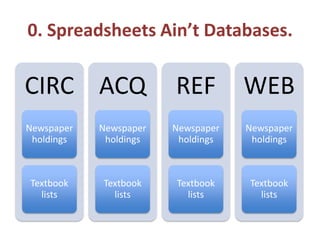
0. Spreadsheets Ain’t Databases.
CIRC
Newspaper
holdings
Textbook
lists
ACQ
Newspaper
holdings
Textbook
lists
REF
Newspaper
holdings
Textbook
lists
WEB
Newspaper
holdings
Textbook
lists
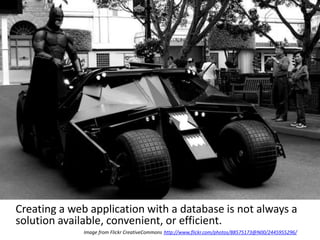
Creating a web application with a database is not always a
solution available, convenient, or efficient.
Image from Flickr CreativeCommons http://www.flickr.com/photos/88575173@N00/2445955296/
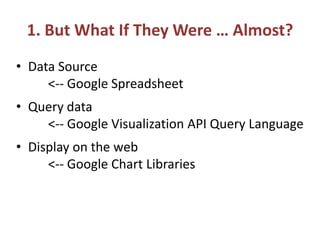
1. But What If They Were … Almost?
• Data Source
<-- Google Spreadsheet
• Query data
<-- Google Visualization API Query Language
• Display on the web
<-- Google Chart Libraries
2. Google Visualization API
Query Language
• Allows you to perform various data manipulations with the
query to the data source, such as Google spreadsheet, fusion
table, or your own database.
• Enables you to query the data source and visualize data with
Google Chart Libraries
• Similar to SQL
https://developers.google.com/chart/interactive/docs/query
language
• Google Visualization API Reference:
https://developers.google.com/chart/interactive/docs/refere
nce
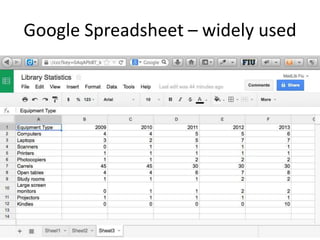
Google Spreadsheet – widely used
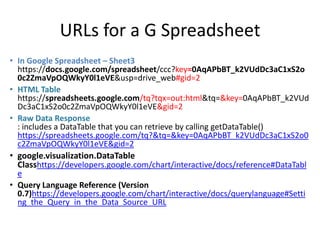
URLs for a G Spreadsheet
• In Google Spreadsheet – Sheet3
https://docs.google.com/spreadsheet/ccc?key=0AqAPbBT_k2VUdDc3aC1xS2o
0c2ZmaVpOQWkyY0l1eVE&usp=drive_web#gid=2
• HTML Table
https://spreadsheets.google.com/tq?tqx=out:html&tq=&key=0AqAPbBT_k2VUd
Dc3aC1xS2o0c2ZmaVpOQWkyY0l1eVE&gid=2
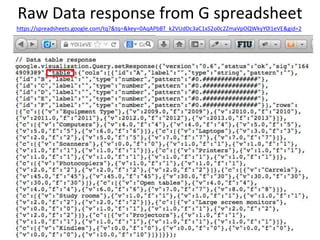
• Raw Data Response
: includes a DataTable that you can retrieve by calling getDataTable()
https://spreadsheets.google.com/tq?&tq=&key=0AqAPbBT_k2VUdDc3aC1xS2o0
c2ZmaVpOQWkyY0l1eVE&gid=2
• google.visualization.DataTable
Classhttps://developers.google.com/chart/interactive/docs/reference#DataTabl
e
• Query Language Reference (Version
0.7)https://developers.google.com/chart/interactive/docs/querylanguage#Setti
ng_the_Query_in_the_Data_Source_URL
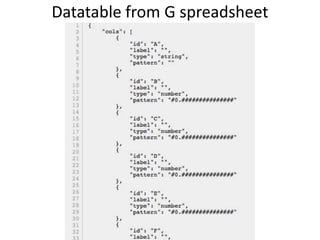
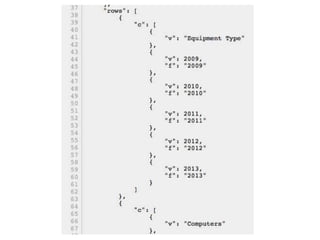
Raw Data response from G spreadsheet
https://spreadsheets.google.com/tq?&tq=&key=0AqAPbBT_k2VUdDc3aC1xS2o0c2ZmaVpOQWkyY0l1eVE&gid=2
Datatable from G spreadsheet
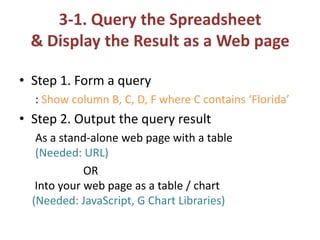
3-1. Query the Spreadsheet
& Display the Result as a Web page
• Step 1. Form a query
: Show column B, C, D, F where C contains ‘Florida’
• Step 2. Output the query result
As a stand-alone web page with a table
(Needed: URL)
OR
Into your web page as a table / chart
(Needed: JavaScript, G Chart Libraries)
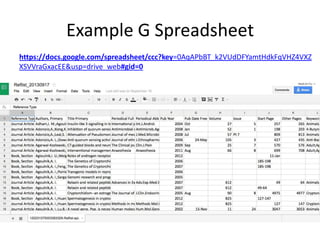
Example G Spreadsheet
https://docs.google.com/spreadsheet/ccc?key=0AqAPbBT_k2VUdDFYamtHdkFqVHZ4VXZ
XSVVraGxacEE&usp=drive_web#gid=0
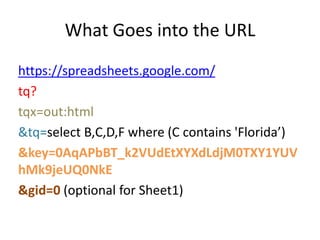
What Goes into the URL
https://spreadsheets.google.com/
tq?
tqx=out:html
&tq=select B,C,D,F where (C contains 'Florida’)
&key=0AqAPbBT_k2VUdEtXYXdLdjM0TXY1YUV
hMk9jeUQ0NkE
&gid=0 (optional for Sheet1)
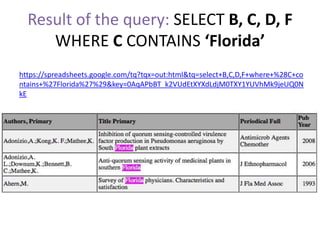
https://spreadsheets.google.com/tq?tqx=out:html&tq=select+B,C,D,F+where+%28C+co
ntains+%27Florida%27%29&key=0AqAPbBT_k2VUdEtXYXdLdjM0TXY1YUVhMk9jeUQ0N
kE
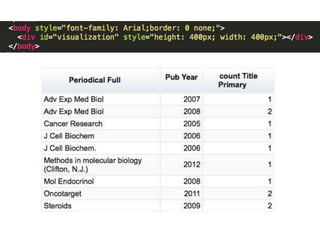
Result of the query: SELECT B, C, D, F
WHERE C CONTAINS ‘Florida’
N.B. Google Spreadsheet Size Limit: 400k cells, 256 columns, 20 MB
https://support.google.com/drive/answer/2505921?hl=en
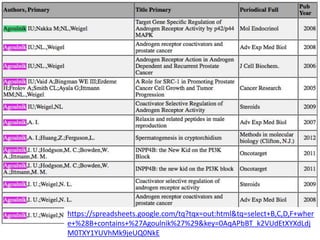
https://spreadsheets.google.com/tq?tqx=out:html&tq=select+B,C,D,F+wher
e+%28B+contains+%27Agoulnik%27%29&key=0AqAPbBT_k2VUdEtXYXdLdj
M0TXY1YUVhMk9jeUQ0NkE
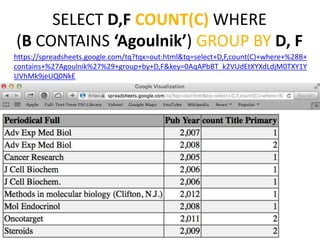
SELECT D,F COUNT(C) WHERE
(B CONTAINS ‘Agoulnik’) GROUP BY D, F
https://spreadsheets.google.com/tq?tqx=out:html&tq=select+D,F,count(C)+where+%28B+
contains+%27Agoulnik%27%29+group+by+D,F&key=0AqAPbBT_k2VUdEtXYXdLdjM0TXY1Y
UVhMk9jeUQ0NkE
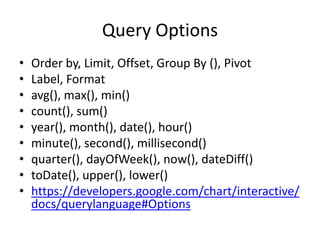
Query Options
• Order by, Limit, Offset, Group By (), Pivot
• Label, Format
• avg(), max(), min()
• count(), sum()
• year(), month(), date(), hour()
• minute(), second(), millisecond()
• quarter(), dayOfWeek(), now(), dateDiff()
• toDate(), upper(), lower()
• https://developers.google.com/chart/interactive/
docs/querylanguage#Options
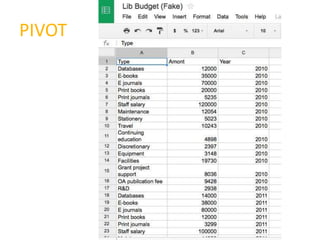
PIVOT
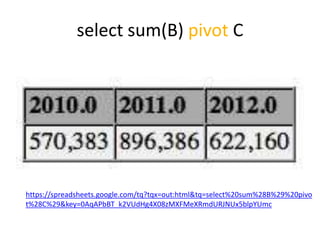
select sum(B) pivot C
https://spreadsheets.google.com/tq?tqx=out:html&tq=select%20sum%28B%29%20pivo
t%28C%29&key=0AqAPbBT_k2VUdHg4X08zMXFMeXRmdURJNUx5blpYUmc
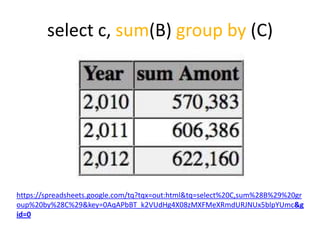
select c, sum(B) group by (C)
https://spreadsheets.google.com/tq?tqx=out:html&tq=select%20C,sum%28B%29%20gr
oup%20by%28C%29&key=0AqAPbBT_k2VUdHg4X08zMXFMeXRmdURJNUx5blpYUmc&g
id=0
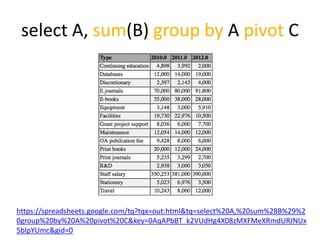
select A, sum(B) group by A pivot C
https://spreadsheets.google.com/tq?tqx=out:html&tq=select%20A,%20sum%28B%29%2
0group%20by%20A%20pivot%20C&key=0AqAPbBT_k2VUdHg4X08zMXFMeXRmdURJNUx
5blpYUmc&gid=0
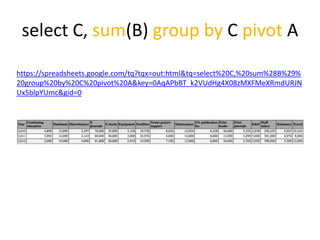
select C, sum(B) group by C pivot A
https://spreadsheets.google.com/tq?tqx=out:html&tq=select%20C,%20sum%28B%29%
20group%20by%20C%20pivot%20A&key=0AqAPbBT_k2VUdHg4X08zMXFMeXRmdURJN
Ux5blpYUmc&gid=0
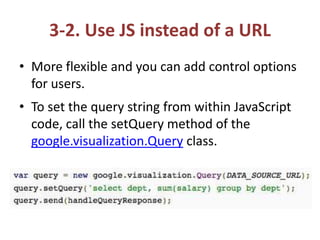
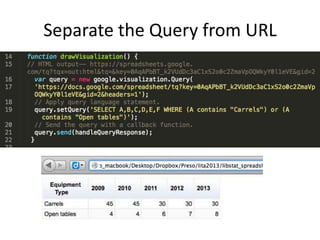
3-2. Use JS instead of a URL
• More flexible and you can add control options
for users.
• To set the query string from within JavaScript
code, call the setQuery method of the
google.visualization.Query class.
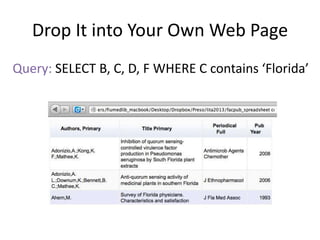
Drop It into Your Own Web Page
Query: SELECT B, C, D, F WHERE C contains ‘Florida’
Parameters
• headers=N - Specifies how many rows are header rows, where N is
an integer zero or greater. These will be excluded from the data and
assigned as column labels in the data table. If not specified, the
spreadsheet will guess how many rows are header rows.
• Range=NN:NN
Example: range=A1:C6
• gid=N - Specifies which sheet in a multi-sheet document to link to, if
you are not linking to the first sheet. N is the sheet's ID number.
Example: gid=0 (for Sheet1)
• sheet=sheet_name - Specifies which sheet in a multi-sheet
document you are linking to, if you are not linking to the first sheet.
sheet_name is the display name of the sheet. You can use the gid
parameter instead of this parameter.
Example: sheet=Sheet5
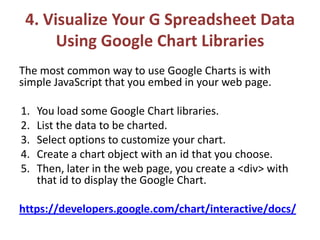
4. Visualize Your G Spreadsheet Data
Using Google Chart Libraries
The most common way to use Google Charts is with
simple JavaScript that you embed in your web page.
1. You load some Google Chart libraries.
2. List the data to be charted.
3. Select options to customize your chart.
4. Create a chart object with an id that you choose.
5. Then, later in the web page, you create a <div> with
that id to display the Google Chart.
https://developers.google.com/chart/interactive/docs/
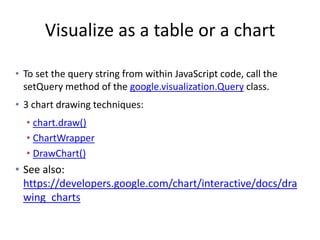
Visualize as a table or a chart
• To set the query string from within JavaScript code, call the
setQuery method of the google.visualization.Query class.
• 3 chart drawing techniques:
• chart.draw()
• ChartWrapper
• DrawChart()
• See also:
https://developers.google.com/chart/interactive/docs/dra
wing_charts
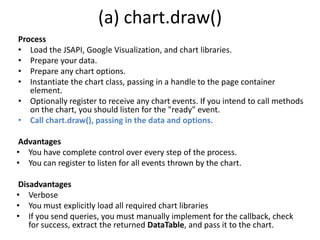
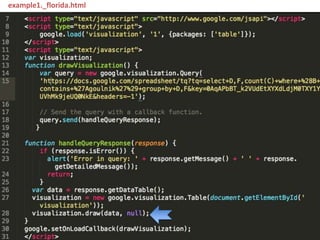
(a) chart.draw()
Process
• Load the JSAPI, Google Visualization, and chart libraries.
• Prepare your data.
• Prepare any chart options.
• Instantiate the chart class, passing in a handle to the page container
element.
• Optionally register to receive any chart events. If you intend to call methods
on the chart, you should listen for the "ready" event.
• Call chart.draw(), passing in the data and options.
Advantages
• You have complete control over every step of the process.
• You can register to listen for all events thrown by the chart.
Disadvantages
• Verbose
• You must explicitly load all required chart libraries
• If you send queries, you must manually implement for the callback, check
for success, extract the returned DataTable, and pass it to the chart.
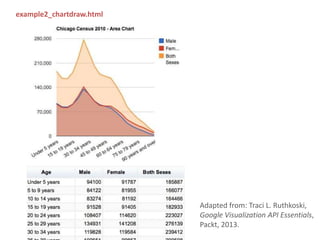
example1._florida.html
Separate the Query from URL
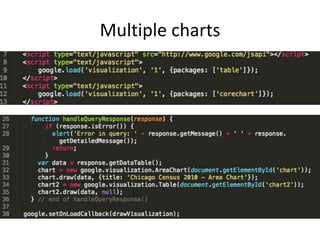
Multiple charts
example2_chartdraw.html
Adapted from: Traci L. Ruthkoski,
Google Visualization API Essentials,
Packt, 2013.
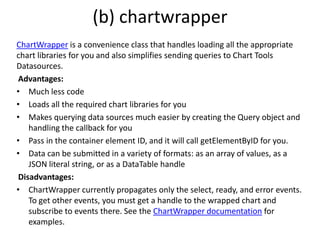
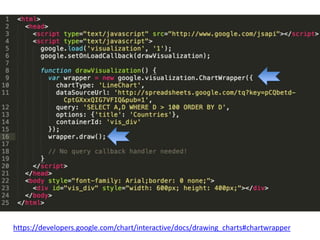
(b) chartwrapper
ChartWrapper is a convenience class that handles loading all the appropriate
chart libraries for you and also simplifies sending queries to Chart Tools
Datasources.
Advantages:
• Much less code
• Loads all the required chart libraries for you
• Makes querying data sources much easier by creating the Query object and
handling the callback for you
• Pass in the container element ID, and it will call getElementByID for you.
• Data can be submitted in a variety of formats: as an array of values, as a
JSON literal string, or as a DataTable handle
Disadvantages:
• ChartWrapper currently propagates only the select, ready, and error events.
To get other events, you must get a handle to the wrapped chart and
subscribe to events there. See the ChartWrapper documentation for
examples.
https://developers.google.com/chart/interactive/docs/drawing_charts#chartwrapper
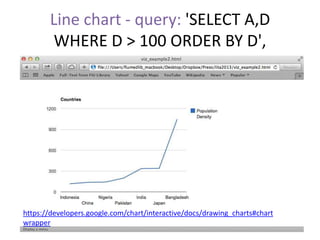
Line chart - query: 'SELECT A,D
WHERE D > 100 ORDER BY D',
https://developers.google.com/chart/interactive/docs/drawing_charts#chart
wrapper
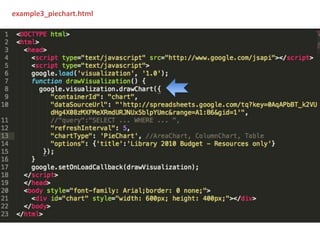
(c) Drawchart()
DrawChart() is a global static method that wraps a
ChartWrapper.
Advantages:
• Same as ChartWrapper, but slightly shorter to
use.
Disadvantages:
• Does not return a handle to the wrapper, so you
cannot handle any events.
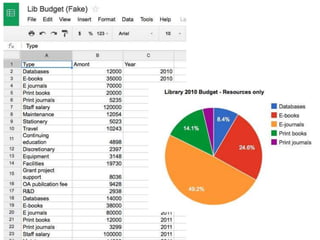
example3_piechart.html
5. Use Data from Your Own Database
with Google Chart Libraries
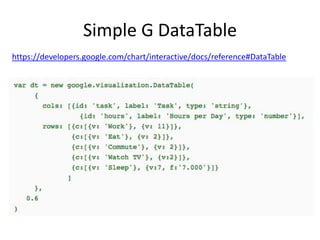
Simple G DataTable
https://developers.google.com/chart/interactive/docs/reference#DataTable
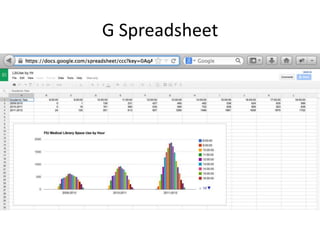
G Spreadsheet
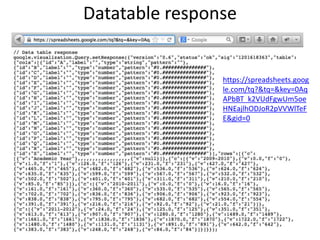
Datatable response
https://spreadsheets.goog
le.com/tq?&tq=&key=0Aq
APbBT_k2VUdFgwUm5oe
HNEajlhODJoR2pVVWlTeF
E&gid=0
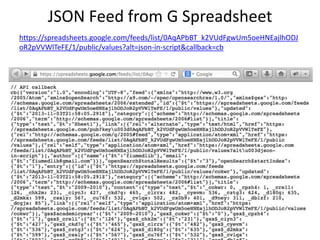
JSON Feed from G Spreadsheet
https://spreadsheets.google.com/feeds/list/0AqAPbBT_k2VUdFgwUm5oeHNEajlhODJ
oR2pVVWlTeFE/1/public/values?alt=json-in-script&callback=cb
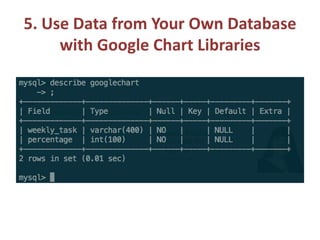
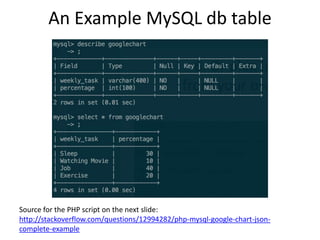
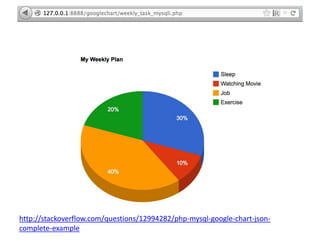
An Example MySQL db table
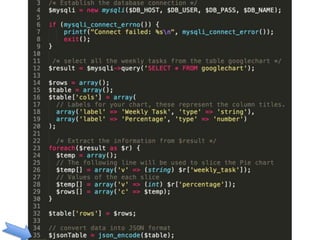
Source for the PHP script on the next slide:
http://stackoverflow.com/questions/12994282/php-mysql-google-chart-json-
complete-example
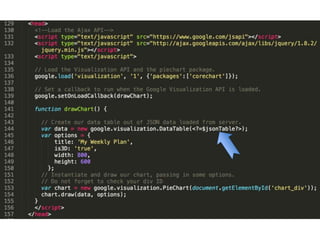
Construct G DataTable from MySQL db
{
"cols":[{"label":"Weekly
Task","type":"string"},{"label":"Percentage","type":"
number"}],
"rows":[{"c":[{"v":"Sleep"},{"v":30}]},{"c":[{"v":"Watc
hing
Movie"},{"v":10}]},{"c":[{"v":"Job"},{"v":40}]},{"c":[{"
v":"Exercise"},{"v":20}]}]
}
http://stackoverflow.com/questions/12994282/php-mysql-google-chart-json-
complete-example
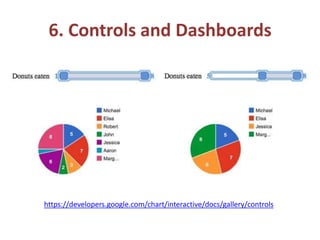
6. Controls and Dashboards
https://developers.google.com/chart/interactive/docs/gallery/controls
Draw a Dashboard
1. Create An HTML Skeleton For Your Dashboard
2. Load Your Libraries
3. Prepare Your Data
4. Create a Dashboard Instance
5. Create Control and Chart Instances
6. Establish Dependencies (=bind)
7. Draw Your Dashboard
8. Programmatic Changes after Draw
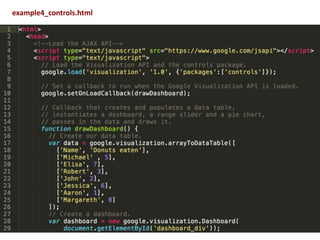
google.load('visualization', '1.0',{'packages':['controls']});
….
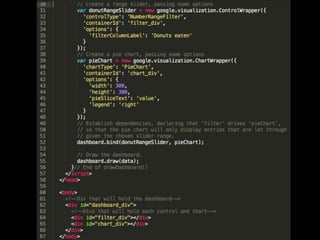
dashboard.bind(donutRangeSlider, pieChart);
dashboard.draw(data);
https://developers.google.com/chart/interactive/docs/gallery/controls
example4_controls.html
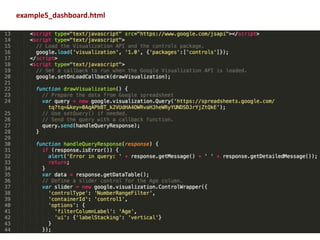
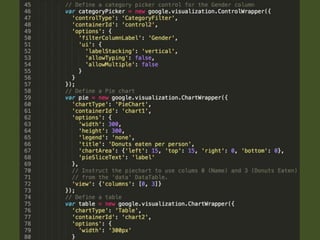
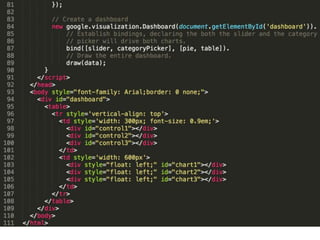
Dashboard with multiple controls
and a remote data source
new google.visualization.Dashboard(document.getElementById('dashboard'))
.bind([slider, categoryPicker], [pie, table]).draw(data);
example5_dashboard.html
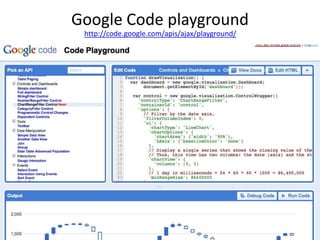
Google Code playground
http://code.google.com/apis/ajax/playground/
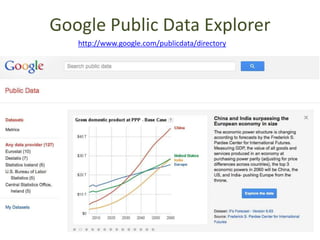
Google Public Data Explorer
http://www.google.com/publicdata/directory
Questions?
• Slides: http://slideshare.net/bohyunkim
• Code: https://github.com/bohyunkim/examples
• Twitter: @bohyunkim
• Web: http://bohyunkim.net/blog
Image credit for the title slide:
https://www.flickr.com/photos/44718928@N00/7219422352/
by the Flickr user @justgrimes
Quick & Easy Data Visualization with Google Visualization API + Google Chart Libraries

  • 1.
    Quick & EasyData Visualization with Google Visualization API + Google Chart Libraries Bohyun Kim ( Twitter: @bohyunkim) Associate Director for Library Applications & Knowledge Systems University of Maryland, Baltimore Health Sciences & Human Services Library CODE4LIB Conference, Raleigh, NC. Mar. 25, 2014.
  • 2.
    0. Spreadsheets Ain’tDatabases. CIRC Newspaper holdings Textbook lists ACQ Newspaper holdings Textbook lists REF Newspaper holdings Textbook lists WEB Newspaper holdings Textbook lists
  • 3.
    Creating a webapplication with a database is not always a solution available, convenient, or efficient. Image from Flickr CreativeCommons http://www.flickr.com/photos/88575173@N00/2445955296/
  • 4.
    1. But WhatIf They Were … Almost? • Data Source <-- Google Spreadsheet • Query data <-- Google Visualization API Query Language • Display on the web <-- Google Chart Libraries
  • 5.
    2. Google VisualizationAPI Query Language • Allows you to perform various data manipulations with the query to the data source, such as Google spreadsheet, fusion table, or your own database. • Enables you to query the data source and visualize data with Google Chart Libraries • Similar to SQL https://developers.google.com/chart/interactive/docs/query language • Google Visualization API Reference: https://developers.google.com/chart/interactive/docs/refere nce
  • 6.
  • 7.
    URLs for aG Spreadsheet • In Google Spreadsheet – Sheet3 https://docs.google.com/spreadsheet/ccc?key=0AqAPbBT_k2VUdDc3aC1xS2o 0c2ZmaVpOQWkyY0l1eVE&usp=drive_web#gid=2 • HTML Table https://spreadsheets.google.com/tq?tqx=out:html&tq=&key=0AqAPbBT_k2VUd Dc3aC1xS2o0c2ZmaVpOQWkyY0l1eVE&gid=2 • Raw Data Response : includes a DataTable that you can retrieve by calling getDataTable() https://spreadsheets.google.com/tq?&tq=&key=0AqAPbBT_k2VUdDc3aC1xS2o0 c2ZmaVpOQWkyY0l1eVE&gid=2 • google.visualization.DataTable Classhttps://developers.google.com/chart/interactive/docs/reference#DataTabl e • Query Language Reference (Version 0.7)https://developers.google.com/chart/interactive/docs/querylanguage#Setti ng_the_Query_in_the_Data_Source_URL
  • 8.
    Raw Data responsefrom G spreadsheet https://spreadsheets.google.com/tq?&tq=&key=0AqAPbBT_k2VUdDc3aC1xS2o0c2ZmaVpOQWkyY0l1eVE&gid=2
  • 9.
    Datatable from Gspreadsheet
  • 11.
    3-1. Query theSpreadsheet & Display the Result as a Web page • Step 1. Form a query : Show column B, C, D, F where C contains ‘Florida’ • Step 2. Output the query result As a stand-alone web page with a table (Needed: URL) OR Into your web page as a table / chart (Needed: JavaScript, G Chart Libraries)
  • 12.
  • 13.
    What Goes intothe URL https://spreadsheets.google.com/ tq? tqx=out:html &tq=select B,C,D,F where (C contains 'Florida’) &key=0AqAPbBT_k2VUdEtXYXdLdjM0TXY1YUV hMk9jeUQ0NkE &gid=0 (optional for Sheet1)
  • 14.
    https://spreadsheets.google.com/tq?tqx=out:html&tq=select+B,C,D,F+where+%28C+co ntains+%27Florida%27%29&key=0AqAPbBT_k2VUdEtXYXdLdjM0TXY1YUVhMk9jeUQ0N kE Result of thequery: SELECT B, C, D, F WHERE C CONTAINS ‘Florida’ N.B. Google Spreadsheet Size Limit: 400k cells, 256 columns, 20 MB https://support.google.com/drive/answer/2505921?hl=en
  • 15.
  • 16.
    SELECT D,F COUNT(C)WHERE (B CONTAINS ‘Agoulnik’) GROUP BY D, F https://spreadsheets.google.com/tq?tqx=out:html&tq=select+D,F,count(C)+where+%28B+ contains+%27Agoulnik%27%29+group+by+D,F&key=0AqAPbBT_k2VUdEtXYXdLdjM0TXY1Y UVhMk9jeUQ0NkE
  • 17.
    Query Options • Orderby, Limit, Offset, Group By (), Pivot • Label, Format • avg(), max(), min() • count(), sum() • year(), month(), date(), hour() • minute(), second(), millisecond() • quarter(), dayOfWeek(), now(), dateDiff() • toDate(), upper(), lower() • https://developers.google.com/chart/interactive/ docs/querylanguage#Options
  • 18.
  • 19.
    select sum(B) pivotC https://spreadsheets.google.com/tq?tqx=out:html&tq=select%20sum%28B%29%20pivo t%28C%29&key=0AqAPbBT_k2VUdHg4X08zMXFMeXRmdURJNUx5blpYUmc
  • 20.
    select c, sum(B)group by (C) https://spreadsheets.google.com/tq?tqx=out:html&tq=select%20C,sum%28B%29%20gr oup%20by%28C%29&key=0AqAPbBT_k2VUdHg4X08zMXFMeXRmdURJNUx5blpYUmc&g id=0
  • 21.
    select A, sum(B)group by A pivot C https://spreadsheets.google.com/tq?tqx=out:html&tq=select%20A,%20sum%28B%29%2 0group%20by%20A%20pivot%20C&key=0AqAPbBT_k2VUdHg4X08zMXFMeXRmdURJNUx 5blpYUmc&gid=0
  • 22.
    select C, sum(B)group by C pivot A https://spreadsheets.google.com/tq?tqx=out:html&tq=select%20C,%20sum%28B%29% 20group%20by%20C%20pivot%20A&key=0AqAPbBT_k2VUdHg4X08zMXFMeXRmdURJN Ux5blpYUmc&gid=0
  • 23.
    3-2. Use JSinstead of a URL • More flexible and you can add control options for users. • To set the query string from within JavaScript code, call the setQuery method of the google.visualization.Query class.
  • 24.
    Drop It intoYour Own Web Page Query: SELECT B, C, D, F WHERE C contains ‘Florida’
  • 25.
    Parameters • headers=N -Specifies how many rows are header rows, where N is an integer zero or greater. These will be excluded from the data and assigned as column labels in the data table. If not specified, the spreadsheet will guess how many rows are header rows. • Range=NN:NN Example: range=A1:C6 • gid=N - Specifies which sheet in a multi-sheet document to link to, if you are not linking to the first sheet. N is the sheet's ID number. Example: gid=0 (for Sheet1) • sheet=sheet_name - Specifies which sheet in a multi-sheet document you are linking to, if you are not linking to the first sheet. sheet_name is the display name of the sheet. You can use the gid parameter instead of this parameter. Example: sheet=Sheet5
  • 26.
    4. Visualize YourG Spreadsheet Data Using Google Chart Libraries The most common way to use Google Charts is with simple JavaScript that you embed in your web page. 1. You load some Google Chart libraries. 2. List the data to be charted. 3. Select options to customize your chart. 4. Create a chart object with an id that you choose. 5. Then, later in the web page, you create a <div> with that id to display the Google Chart. https://developers.google.com/chart/interactive/docs/
  • 27.
    Visualize as atable or a chart • To set the query string from within JavaScript code, call the setQuery method of the google.visualization.Query class. • 3 chart drawing techniques: • chart.draw() • ChartWrapper • DrawChart() • See also: https://developers.google.com/chart/interactive/docs/dra wing_charts
  • 28.
    (a) chart.draw() Process • Loadthe JSAPI, Google Visualization, and chart libraries. • Prepare your data. • Prepare any chart options. • Instantiate the chart class, passing in a handle to the page container element. • Optionally register to receive any chart events. If you intend to call methods on the chart, you should listen for the "ready" event. • Call chart.draw(), passing in the data and options. Advantages • You have complete control over every step of the process. • You can register to listen for all events thrown by the chart. Disadvantages • Verbose • You must explicitly load all required chart libraries • If you send queries, you must manually implement for the callback, check for success, extract the returned DataTable, and pass it to the chart.
  • 29.
  • 31.
  • 32.
  • 33.
    example2_chartdraw.html Adapted from: TraciL. Ruthkoski, Google Visualization API Essentials, Packt, 2013.
  • 34.
    (b) chartwrapper ChartWrapper isa convenience class that handles loading all the appropriate chart libraries for you and also simplifies sending queries to Chart Tools Datasources. Advantages: • Much less code • Loads all the required chart libraries for you • Makes querying data sources much easier by creating the Query object and handling the callback for you • Pass in the container element ID, and it will call getElementByID for you. • Data can be submitted in a variety of formats: as an array of values, as a JSON literal string, or as a DataTable handle Disadvantages: • ChartWrapper currently propagates only the select, ready, and error events. To get other events, you must get a handle to the wrapped chart and subscribe to events there. See the ChartWrapper documentation for examples.
  • 35.
  • 36.
    Line chart -query: 'SELECT A,D WHERE D > 100 ORDER BY D', https://developers.google.com/chart/interactive/docs/drawing_charts#chart wrapper
  • 37.
    (c) Drawchart() DrawChart() isa global static method that wraps a ChartWrapper. Advantages: • Same as ChartWrapper, but slightly shorter to use. Disadvantages: • Does not return a handle to the wrapper, so you cannot handle any events.
  • 38.
  • 40.
    5. Use Datafrom Your Own Database with Google Chart Libraries
  • 41.
  • 42.
  • 43.
  • 44.
    JSON Feed fromG Spreadsheet https://spreadsheets.google.com/feeds/list/0AqAPbBT_k2VUdFgwUm5oeHNEajlhODJ oR2pVVWlTeFE/1/public/values?alt=json-in-script&callback=cb
  • 45.
    An Example MySQLdb table Source for the PHP script on the next slide: http://stackoverflow.com/questions/12994282/php-mysql-google-chart-json- complete-example
  • 46.
    Construct G DataTablefrom MySQL db { "cols":[{"label":"Weekly Task","type":"string"},{"label":"Percentage","type":" number"}], "rows":[{"c":[{"v":"Sleep"},{"v":30}]},{"c":[{"v":"Watc hing Movie"},{"v":10}]},{"c":[{"v":"Job"},{"v":40}]},{"c":[{" v":"Exercise"},{"v":20}]}] }
  • 49.
  • 50.
    6. Controls andDashboards https://developers.google.com/chart/interactive/docs/gallery/controls
  • 51.
    Draw a Dashboard 1.Create An HTML Skeleton For Your Dashboard 2. Load Your Libraries 3. Prepare Your Data 4. Create a Dashboard Instance 5. Create Control and Chart Instances 6. Establish Dependencies (=bind) 7. Draw Your Dashboard 8. Programmatic Changes after Draw google.load('visualization', '1.0',{'packages':['controls']}); …. dashboard.bind(donutRangeSlider, pieChart); dashboard.draw(data); https://developers.google.com/chart/interactive/docs/gallery/controls
  • 52.
  • 54.
    Dashboard with multiplecontrols and a remote data source new google.visualization.Dashboard(document.getElementById('dashboard')) .bind([slider, categoryPicker], [pie, table]).draw(data);
  • 55.
  • 58.
  • 59.
    Google Public DataExplorer http://www.google.com/publicdata/directory
  • 60.
    Questions? • Slides: http://slideshare.net/bohyunkim •Code: https://github.com/bohyunkim/examples • Twitter: @bohyunkim • Web: http://bohyunkim.net/blog Image credit for the title slide: https://www.flickr.com/photos/44718928@N00/7219422352/ by the Flickr user @justgrimes
Editor's Notes
  • #3 Cannot run a queryCannot display on the Web