Power BI - Query Editor
learn how to transform values, create conditional columns, group data
and merge queries
Common
Data
Transformati
ons
• Renaming
Elements
• Make First Row as
the Header
• Change Data Type
of Column
• Format operations
in PowerBI
• Remove Row
Option
• Keep Row Option
• Remove Column
Operations
• Merge Operation
• Replace values
operations
• Split Column
operations
• Pivot Column
Operations
• Unpivot Column
operations
Renaming Elements
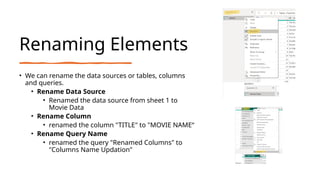
• We can rename the data sources or tables, columns
and queries.
• Rename Data Source
• Renamed the data source from sheet 1 to
Movie Data
• Rename Column
• renamed the column "TITLE" to "MOVIE NAME“
• Rename Query Name
• renamed the query "Renamed Columns" to
"Columns Name Updation"
Make First Row As the Header in Power BI
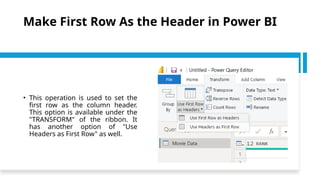
• This operation is used to set the
first row as the column header.
This option is available under the
"TRANSFORM" of the ribbon. It
has another option of "Use
Headers as First Row" as well.
Change Data Types of a
Column in Power BI
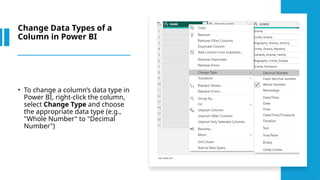
• To change a column’s data type in
Power BI, right-click the column,
select Change Type and choose
the appropriate data type (e.g.,
"Whole Number" to "Decimal
Number")
Format Operation in Power
BI
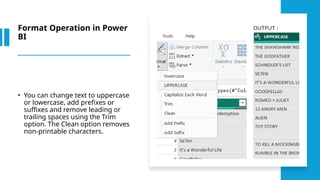
• You can change text to uppercase
or lowercase, add prefixes or
suffixes and remove leading or
trailing spaces using the Trim
option. The Clean option removes
non-printable characters.
Removal Operation in
Power BI
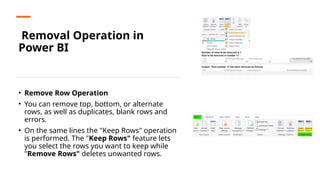
• Remove Row Operation
• You can remove top, bottom, or alternate
rows, as well as duplicates, blank rows and
errors.
• On the same lines the "Keep Rows" operation
is performed. The "Keep Rows" feature lets
you select the rows you want to keep while
"Remove Rows" deletes unwanted rows.
Remove Column Operation
Remove Columns
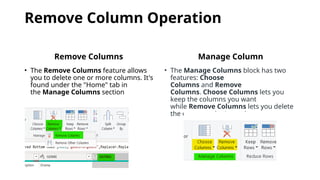
• The Remove Columns feature allows
you to delete one or more columns. It's
found under the "Home" tab in
the Manage Columns section
Manage Column
• The Manage Columns block has two
features: Choose
Columns and Remove
Columns. Choose Columns lets you
keep the columns you want
while Remove Columns lets you delete
the ones you don't need.
Merge Operation in
Power BI
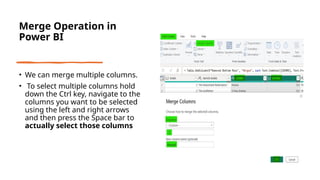
• We can merge multiple columns.
• To select multiple columns hold
down the Ctrl key, navigate to the
columns you want to be selected
using the left and right arrows
and then press the Space bar to
actually select those columns
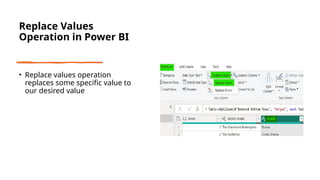
Replace Values
Operation in Power BI
• Replace values operation
replaces some specific value to
our desired value
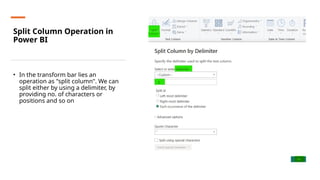
Split Column Operation in
Power BI
• In the transform bar lies an
operation as "split column". We can
split either by using a delimiter, by
providing no. of characters or
positions and so on
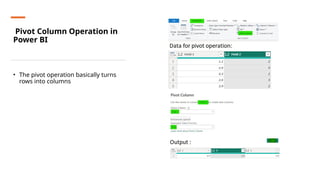
Pivot Column Operation in
Power BI
• The pivot operation basically turns
rows into columns
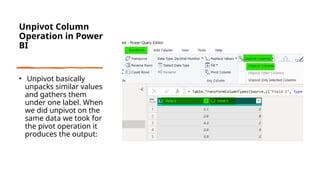
Unpivot Column
Operation in Power
BI
• Unpivot basically
unpacks similar values
and gathers them
under one label. When
we did unpivot on the
same data we took for
the pivot operation it
produces the output:
Query Editor in Powerbi-learn how to transform values, create conditional columns, group data and merge queries

Query Editor in Powerbi-learn how to transform values, create conditional columns, group data and merge queries

  • 1.
    Power BI -Query Editor learn how to transform values, create conditional columns, group data and merge queries
  • 2.
    Common Data Transformati ons • Renaming Elements • MakeFirst Row as the Header • Change Data Type of Column • Format operations in PowerBI • Remove Row Option • Keep Row Option • Remove Column Operations • Merge Operation • Replace values operations • Split Column operations • Pivot Column Operations • Unpivot Column operations

  • 3.
    Renaming Elements • Wecan rename the data sources or tables, columns and queries. • Rename Data Source • Renamed the data source from sheet 1 to Movie Data • Rename Column • renamed the column "TITLE" to "MOVIE NAME“ • Rename Query Name • renamed the query "Renamed Columns" to "Columns Name Updation"
  • 4.
    Make First RowAs the Header in Power BI • This operation is used to set the first row as the column header. This option is available under the "TRANSFORM" of the ribbon. It has another option of "Use Headers as First Row" as well.
  • 5.
    Change Data Typesof a Column in Power BI • To change a column’s data type in Power BI, right-click the column, select Change Type and choose the appropriate data type (e.g., "Whole Number" to "Decimal Number")
  • 6.
    Format Operation inPower BI • You can change text to uppercase or lowercase, add prefixes or suffixes and remove leading or trailing spaces using the Trim option. The Clean option removes non-printable characters.
  • 7.
    Removal Operation in PowerBI • Remove Row Operation • You can remove top, bottom, or alternate rows, as well as duplicates, blank rows and errors. • On the same lines the "Keep Rows" operation is performed. The "Keep Rows" feature lets you select the rows you want to keep while "Remove Rows" deletes unwanted rows.
  • 8.
    Remove Column Operation RemoveColumns • The Remove Columns feature allows you to delete one or more columns. It's found under the "Home" tab in the Manage Columns section Manage Column • The Manage Columns block has two features: Choose Columns and Remove Columns. Choose Columns lets you keep the columns you want while Remove Columns lets you delete the ones you don't need.
  • 9.
    Merge Operation in PowerBI • We can merge multiple columns. • To select multiple columns hold down the Ctrl key, navigate to the columns you want to be selected using the left and right arrows and then press the Space bar to actually select those columns
  • 10.
    Replace Values Operation inPower BI • Replace values operation replaces some specific value to our desired value
  • 11.
    Split Column Operationin Power BI • In the transform bar lies an operation as "split column". We can split either by using a delimiter, by providing no. of characters or positions and so on
  • 12.
    Pivot Column Operationin Power BI • The pivot operation basically turns rows into columns
  • 13.
    Unpivot Column Operation inPower BI • Unpivot basically unpacks similar values and gathers them under one label. When we did unpivot on the same data we took for the pivot operation it produces the output: