QBO User Permissions
Setup
The quick answer...
● Gear (icon) > Manage Users (Your Company section) > Add user (button)
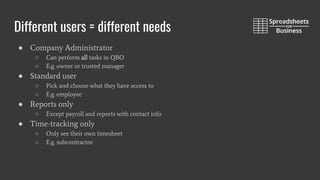
Different users = different needs
● Company Administrator
○ Can perform all tasks in QBO
○ E.g. owner or trusted manager
● Standard user
○ Pick and choose what they have access to
○ E.g. employee
● Reports only
○ Except payroll and reports with contact info
● Time-tracking only
○ Only see their own timesheet
○ E.g. subcontractor
Creating a new user
1. Gear (icon) > Manage Users (Your Company section)
a. List of users
2. Add user (button)
3. Select user type
a. Standard
b. Company admin
c. Reports only
d. Time tracking only
4. Select access rights & user settings…
5. Enter contact info
a. User get notification via email and signs in to confirm access
Payroll access?
● Standard user
● Select access rights (screen)
● Masks individual payroll information
○ Workers > Employees
■ Not shown - notification of lack of access rights
○ Transaction report
■ Payroll entries will mask name - “Payroll”
○ Bank register
■ Payroll entries will mask name - “Payroll”
● Not an option in sample company
Company admin access rights/user settings
● This user is my accountant (check box)
○ Can only have one
● First name, Last name, Email
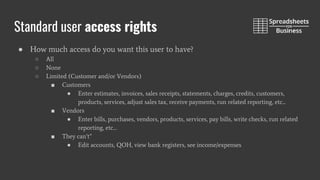
Standard user access rights
● How much access do you want this user to have?
○ All
○ None
○ Limited (Customer and/or Vendors)
■ Customers
● Enter estimates, invoices, sales receipts, statements, charges, credits, customers,
products, services, adjust sales tax, receive payments, run related reporting, etc...
■ Vendors
● Enter bills, purchases, vendors, products, services, pay bills, write checks, run related
reporting, etc…
■ They can’t”
● Edit accounts, QOH, view bank registers, see income/expenses
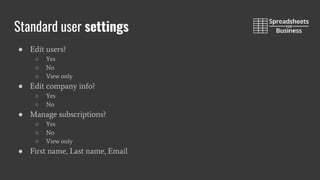
Standard user settings
● Edit users?
○ Yes
○ No
○ View only
● Edit company info?
○ Yes
○ No
● Manage subscriptions?
○ Yes
○ No
○ View only
● First name, Last name, Email
Reports only access rights/user settings
● First name, Last name, Email
Time-tracking only access rights/user settings
● Select employee/vendor name (dropdown)
○ If not available - Add new
■ Name
■ Type
● Vendor
● Employee
● First name, Last name, Email
Don’t have time to DIY?
● Automate the bookkeeping tasks you hate to do with Botkeeper
● Do more business and less data entry
● Spend more time helping your business grow, and less time on menial tasks with
Botkeeper
○ Click the link in the description
Thank you for liking & subscribing!
Like because this video was short and to-the-point,
but detailed.
Subscribe so that you know where to look for
QBO “how-to” videos in the future.

Qbo user permissions

  • 1.
  • 2.
    The quick answer... ●Gear (icon) > Manage Users (Your Company section) > Add user (button)
  • 3.
    Different users =different needs ● Company Administrator ○ Can perform all tasks in QBO ○ E.g. owner or trusted manager ● Standard user ○ Pick and choose what they have access to ○ E.g. employee ● Reports only ○ Except payroll and reports with contact info ● Time-tracking only ○ Only see their own timesheet ○ E.g. subcontractor
  • 4.
    Creating a newuser 1. Gear (icon) > Manage Users (Your Company section) a. List of users 2. Add user (button) 3. Select user type a. Standard b. Company admin c. Reports only d. Time tracking only 4. Select access rights & user settings… 5. Enter contact info a. User get notification via email and signs in to confirm access
  • 5.
    Payroll access? ● Standarduser ● Select access rights (screen) ● Masks individual payroll information ○ Workers > Employees ■ Not shown - notification of lack of access rights ○ Transaction report ■ Payroll entries will mask name - “Payroll” ○ Bank register ■ Payroll entries will mask name - “Payroll” ● Not an option in sample company
  • 6.
    Company admin accessrights/user settings ● This user is my accountant (check box) ○ Can only have one ● First name, Last name, Email
  • 7.
    Standard user accessrights ● How much access do you want this user to have? ○ All ○ None ○ Limited (Customer and/or Vendors) ■ Customers ● Enter estimates, invoices, sales receipts, statements, charges, credits, customers, products, services, adjust sales tax, receive payments, run related reporting, etc... ■ Vendors ● Enter bills, purchases, vendors, products, services, pay bills, write checks, run related reporting, etc… ■ They can’t” ● Edit accounts, QOH, view bank registers, see income/expenses
  • 8.
    Standard user settings ●Edit users? ○ Yes ○ No ○ View only ● Edit company info? ○ Yes ○ No ● Manage subscriptions? ○ Yes ○ No ○ View only ● First name, Last name, Email
  • 9.
    Reports only accessrights/user settings ● First name, Last name, Email
  • 10.
    Time-tracking only accessrights/user settings ● Select employee/vendor name (dropdown) ○ If not available - Add new ■ Name ■ Type ● Vendor ● Employee ● First name, Last name, Email
  • 11.
    Don’t have timeto DIY? ● Automate the bookkeeping tasks you hate to do with Botkeeper ● Do more business and less data entry ● Spend more time helping your business grow, and less time on menial tasks with Botkeeper ○ Click the link in the description
  • 12.
    Thank you forliking & subscribing! Like because this video was short and to-the-point, but detailed. Subscribe so that you know where to look for QBO “how-to” videos in the future.