Python – For Beginners
By Jainul Musani
[ 1 ]
Introduction to Python
• A Scripting Language
• Founder: Guido Van Rossum
• Year: 1985- 1990
• At: National Research Institute for Mathematics and
Computer Science in the Netherlands
• Python is copyrighted - source code available under the
GNU General Public License (GPL)
Python Features: - 1
• General purpose, simple & Easy to Learn
• Few keywords, simple structure, clear syntax.
• Powerful and Versatile scripting language
• Dynamic, High level and Interpreted programming
language. (.pyc)
• Easy-to-maintain source code
 Supports multiple programming patternObject Oriented,
 Imperative and
 Functional or Procedural programming styles.
Python Features: - 2
• Multipurpose language - used with web, enterprise, 3D
CAD etc.
• Object Oriented programming approach
• Provides lots of high-level data structures.
• Rapid Application Development - Python's syntax
and dynamic typing, interpreted nature.
• No need to use data types for variable declaration -
dynamically typed (i.e. a=10 assign an integer value in
an integer variable).
Python Features: - 3
• Broad, Standard, Cross-Platform and Portable Library
• Interactive Mode − allows interactive testing and
debugging of snippets of code.
• Portable – support a wide variety of hardware
platforms and same interface on all platforms.
• Extendable − you can add low-level modules to the
Python interpreter.
Python Features: - 4
• Databases − Python provides interfaces to all major
commercial databases.
• GUI Programming − Python supports GUI applications
that can be created and ported to many system calls,
libraries and windows systems, such as Windows MFC,
Macintosh, and the X Window system of Unix.
• Scalable − Python provides a better structure and
support for large programs than shell scripting.
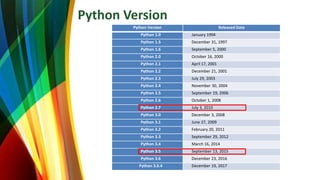
Python Version
Python Version Released Date
Python 1.0 January 1994
Python 1.5 December 31, 1997
Python 1.6 September 5, 2000
Python 2.0 October 16, 2000
Python 2.1 April 17, 2001
Python 2.2 December 21, 2001
Python 2.3 July 29, 2003
Python 2.4 November 30, 2004
Python 2.5 September 19, 2006
Python 2.6 October 1, 2008
Python 2.7 July 3, 2010
Python 3.0 December 3, 2008
Python 3.1 June 27, 2009
Python 3.2 February 20, 2011
Python 3.3 September 29, 2012
Python 3.4 March 16, 2014
Python 3.5 September 13, 2015
Python 3.6 December 23, 2016
Python 3.6.4 December 19, 2017
Python Applications Areas:
1) Web Applications [Frameworks such as Django, Pyramid, Flask etc]
2) Desktop GUI Applications [wxWidgets, Kivy, pyqt ]
3) Software Development
4) Scientific and Numeric[SciPy, Pandas, IPython etc]
5) Business Applications [ERP and e-commerce systems i.e. Tryton]
6) Console Based Application [Ipython]
7) Audio or Video based Applications [TimPlayer, cplay etc]
8) 3D CAD Applications
9) Enterprise Applications [OpenErp, Tryton, Picalo etc]
10) Applications for Images [VPython, Gogh, imgSeek etc]
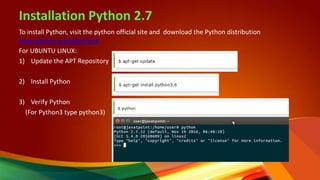
Installation Python 2.7
To install Python, visit the python official site and download the Python distribution
www.python.org/download
For UBUNTU LINUX:
1) Update the APT Repository
2) Install Python
3) Verify Python
(For Python3 type python3)
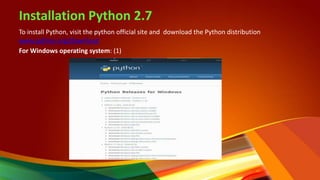
Installation Python 2.7
To install Python, visit the python official site and download the Python distribution
www.python.org/download
For Windows operating system: (1)
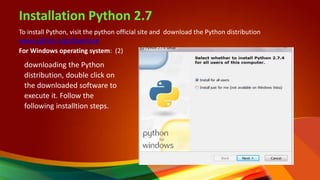
Installation Python 2.7
To install Python, visit the python official site and download the Python distribution
www.python.org/download
For Windows operating system: (2)
downloading the Python
distribution, double click on
the downloaded software to
execute it. Follow the
following installtion steps.
Installation Python 2.7
To install Python, visit the python official site and download the Python distribution
www.python.org/download
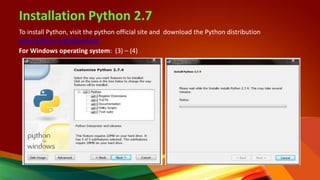
For Windows operating system: (3) – (4)
Installation Python 2.7
To install Python, visit the python official site and download the Python distribution
www.python.org/download
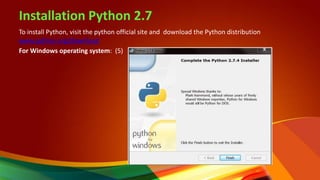
For Windows operating system: (5)
Installation Python 2.7
Setting path for UBUNTU Linux
 To add the Python directory to the path for a particular session in Unix −
 In the csh shell − type setenv PATH "$PATH:/usr/local/bin/python" and press Enter.
 In the bash shell (Linux) − type export ATH="$PATH:/usr/local/bin/python" and press
Enter.
 In the sh or ksh shell − type PATH="$PATH:/usr/local/bin/python" and press Enter.
 Note − /usr/local/bin/python is the path of the Python directory
Installation Python 2.7
Setting path for Windows
1. Right click on My Computer and click on properties.
2. Click on Advanced System settings
3. Click on Environment Variable tab.
4. Click on new tab of user variables.
5. Write path in variable name
6. Copy the path of Python folder
7. Click on Ok button
Test Python Installation by an Example
Interactive Shell to execute code immediately and produce
output instantly…
1) Go to OS command prompt
2) Type ‘python’, you will get python prompt
Test Python Installation by an Example
Test with simple Expressions
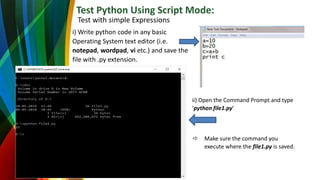
Test Python Using Script Mode:
Test with simple Expressions
i) Write python code in any basic
Operating System text editor (i.e.
notepad, wordpad, vi etc.) and save the
file with .py extension.
ii) Open the Command Prompt and type
‘python file1.py’
 Make sure the command you
execute where the file1.py is saved.
Test Python Using IDE:
Click on Start button -> All Programs -> Python -> IDLE(Python GUI)
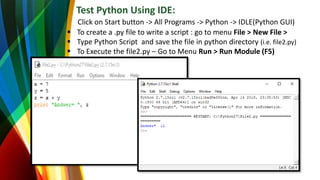
Test Python Using IDE:
Click on Start button -> All Programs -> Python -> IDLE(Python GUI)
 To create a .py file to write a script : go to menu File > New File >
 Type Python Script and save the file in python directory (i.e. file2.py)
 To Execute the file2.py – Go to Menu Run > Run Module (F5)
Next Python for Beginners
Part – 2 … >>

Python 1

  • 1.
    Python – ForBeginners By Jainul Musani [ 1 ]
  • 2.
    Introduction to Python •A Scripting Language • Founder: Guido Van Rossum • Year: 1985- 1990 • At: National Research Institute for Mathematics and Computer Science in the Netherlands • Python is copyrighted - source code available under the GNU General Public License (GPL)
  • 3.
    Python Features: -1 • General purpose, simple & Easy to Learn • Few keywords, simple structure, clear syntax. • Powerful and Versatile scripting language • Dynamic, High level and Interpreted programming language. (.pyc) • Easy-to-maintain source code  Supports multiple programming patternObject Oriented,  Imperative and  Functional or Procedural programming styles.
  • 4.
    Python Features: -2 • Multipurpose language - used with web, enterprise, 3D CAD etc. • Object Oriented programming approach • Provides lots of high-level data structures. • Rapid Application Development - Python's syntax and dynamic typing, interpreted nature. • No need to use data types for variable declaration - dynamically typed (i.e. a=10 assign an integer value in an integer variable).
  • 5.
    Python Features: -3 • Broad, Standard, Cross-Platform and Portable Library • Interactive Mode − allows interactive testing and debugging of snippets of code. • Portable – support a wide variety of hardware platforms and same interface on all platforms. • Extendable − you can add low-level modules to the Python interpreter.
  • 6.
    Python Features: -4 • Databases − Python provides interfaces to all major commercial databases. • GUI Programming − Python supports GUI applications that can be created and ported to many system calls, libraries and windows systems, such as Windows MFC, Macintosh, and the X Window system of Unix. • Scalable − Python provides a better structure and support for large programs than shell scripting.
  • 7.
    Python Version Python VersionReleased Date Python 1.0 January 1994 Python 1.5 December 31, 1997 Python 1.6 September 5, 2000 Python 2.0 October 16, 2000 Python 2.1 April 17, 2001 Python 2.2 December 21, 2001 Python 2.3 July 29, 2003 Python 2.4 November 30, 2004 Python 2.5 September 19, 2006 Python 2.6 October 1, 2008 Python 2.7 July 3, 2010 Python 3.0 December 3, 2008 Python 3.1 June 27, 2009 Python 3.2 February 20, 2011 Python 3.3 September 29, 2012 Python 3.4 March 16, 2014 Python 3.5 September 13, 2015 Python 3.6 December 23, 2016 Python 3.6.4 December 19, 2017
  • 8.
    Python Applications Areas: 1)Web Applications [Frameworks such as Django, Pyramid, Flask etc] 2) Desktop GUI Applications [wxWidgets, Kivy, pyqt ] 3) Software Development 4) Scientific and Numeric[SciPy, Pandas, IPython etc] 5) Business Applications [ERP and e-commerce systems i.e. Tryton] 6) Console Based Application [Ipython] 7) Audio or Video based Applications [TimPlayer, cplay etc] 8) 3D CAD Applications 9) Enterprise Applications [OpenErp, Tryton, Picalo etc] 10) Applications for Images [VPython, Gogh, imgSeek etc]
  • 9.
    Installation Python 2.7 Toinstall Python, visit the python official site and download the Python distribution www.python.org/download For UBUNTU LINUX: 1) Update the APT Repository 2) Install Python 3) Verify Python (For Python3 type python3)
  • 10.
    Installation Python 2.7 Toinstall Python, visit the python official site and download the Python distribution www.python.org/download For Windows operating system: (1)
  • 11.
    Installation Python 2.7 Toinstall Python, visit the python official site and download the Python distribution www.python.org/download For Windows operating system: (2) downloading the Python distribution, double click on the downloaded software to execute it. Follow the following installtion steps.
  • 12.
    Installation Python 2.7 Toinstall Python, visit the python official site and download the Python distribution www.python.org/download For Windows operating system: (3) – (4)
  • 13.
    Installation Python 2.7 Toinstall Python, visit the python official site and download the Python distribution www.python.org/download For Windows operating system: (5)
  • 14.
    Installation Python 2.7 Settingpath for UBUNTU Linux  To add the Python directory to the path for a particular session in Unix −  In the csh shell − type setenv PATH "$PATH:/usr/local/bin/python" and press Enter.  In the bash shell (Linux) − type export ATH="$PATH:/usr/local/bin/python" and press Enter.  In the sh or ksh shell − type PATH="$PATH:/usr/local/bin/python" and press Enter.  Note − /usr/local/bin/python is the path of the Python directory
  • 15.
    Installation Python 2.7 Settingpath for Windows 1. Right click on My Computer and click on properties. 2. Click on Advanced System settings 3. Click on Environment Variable tab. 4. Click on new tab of user variables. 5. Write path in variable name 6. Copy the path of Python folder 7. Click on Ok button
  • 16.
    Test Python Installationby an Example Interactive Shell to execute code immediately and produce output instantly… 1) Go to OS command prompt 2) Type ‘python’, you will get python prompt
  • 17.
    Test Python Installationby an Example Test with simple Expressions
  • 18.
    Test Python UsingScript Mode: Test with simple Expressions i) Write python code in any basic Operating System text editor (i.e. notepad, wordpad, vi etc.) and save the file with .py extension. ii) Open the Command Prompt and type ‘python file1.py’  Make sure the command you execute where the file1.py is saved.
  • 19.
    Test Python UsingIDE: Click on Start button -> All Programs -> Python -> IDLE(Python GUI)
  • 20.
    Test Python UsingIDE: Click on Start button -> All Programs -> Python -> IDLE(Python GUI)  To create a .py file to write a script : go to menu File > New File >  Type Python Script and save the file in python directory (i.e. file2.py)  To Execute the file2.py – Go to Menu Run > Run Module (F5)
  • 21.
    Next Python forBeginners Part – 2 … >>

Editor's Notes

  • #2 This template is provided by http://www.free-power-point-templates.com/