













Cambium
PTP 600 Series
User Guide
System Release 600-10-03
Accuracy
While reasonable efforts have been made to assure the accuracy of this document, Cambium
Networks assumes no liability resulting from any inaccuracies or omissions in this document, or
from use of the information obtained herein. Cambium reserves the right to make changes to
any products described herein to improve reliability, function, or design, and reserves the right
to revise this document and to make changes from time to time in content hereof with no
obligation to notify any person of revisions or changes. Cambium does not assume any liability
arising out of the application or use of any product, software, or circuit described herein;
neither does it convey license under its patent rights or the rights of others. It is possible that
this publication may contain references to, or information about Cambium products (machines
and programs), programming, or services that are not announced in your country. Such
references or information must not be construed to mean that Cambium intends to announce
such Cambium products, programming, or services in your country.
Copyrights
This document, Cambium products, and 3rd Party software products described in this document
may include or describe copyrighted Cambium and other 3rd Party supplied computer programs
stored in semiconductor memories or other media. Laws in the United States and other
countries preserve for Cambium, its licensors, and other 3rd Party supplied software certain
exclusive rights for copyrighted material, including the exclusive right to copy, reproduce in any
form, distribute and make derivative works of the copyrighted material. Accordingly, any
copyrighted material of Cambium, its licensors, or the 3rd Party software supplied material
contained in the Cambium products described in this document may not be copied, reproduced,
reverse engineered, distributed, merged or modified in any manner without the express written
permission of Cambium. Furthermore, the purchase of Cambium products shall not be deemed
to grant either directly or by implication, estoppel, or otherwise, any license under the
copyrights, patents or patent applications of Cambium or other 3rd Party supplied software,
except for the normal non-exclusive, royalty free license to use that arises by operation of law in
the sale of a product.
Restrictions
Software and documentation are copyrighted materials. Making unauthorized copies is
prohibited by law. No part of the software or documentation may be reproduced, transmitted,
transcribed, stored in a retrieval system, or translated into any language or computer language,
in any form or by any means, without prior written permission of Cambium.
License Agreements
The software described in this document is the property of Cambium and its licensors. It is
furnished by express license agreement only and may be used only in accordance with the
terms of such an agreement.
High Risk Materials
Components, units, or 3rd Party products used in the product described herein are NOT fault-
tolerant and are NOT designed, manufactured, or intended for use as on-line control equipment
in the following hazardous environments requiring fail-safe controls: the operation of Nuclear
Facilities, Aircraft Navigation or Aircraft Communication Systems, Air Traffic Control, Life
Support, or Weapons Systems (High Risk Activities). Cambium and its supplier(s) specifically
disclaim any expressed or implied warranty of fitness for such High Risk Activities.

               © 2011 – 2012 Cambium Networks Limited. All Rights Reserved.


                                                                     phn-2512_004v000 (Jun 2012)
PTP 600 Series User Guide


Safety and regulatory information

       This section describes important safety and regulatory guidelines that must be observed by
       personnel installing or operating PTP 600 equipment.


Important safety information

        To prevent loss of life or physical injury, observe the safety guidelines in this
        section.


       Power lines
       Exercise extreme care when working near power lines.


       Working at heights
       Exercise extreme care when working at heights.


       Grounding and protective earth
       The Outdoor Unit (ODU) must be properly grounded to protect against lightning. It is the
       user’s responsibility to install the equipment in accordance with national regulations. In
       the USA, follow Section 810 of the National Electric Code, ANSI/NFPA No.70-1984 (USA).
       In Canada, follow Section 54 of the Canadian Electrical Code. These codes describe
       correct installation procedures for grounding the outdoor unit, mast, lead-in wire and
       discharge unit, size of grounding conductors and connection requirements for grounding
       electrodes. Other regulations may apply in different countries and therefore it is
       recommended that installation of the outdoor unit be contracted to a professional installer.


       PIDU
       Always use the Cambium Power Indoor Unit Plus (PIDU Plus PTP 300/500/600 Series) to
       power the ODU. Failure to use the Cambium supplied PIDU could result in equipment
       damage and will invalidate the safety certification and may cause a safety hazard.


phn-2512_004v000 (Jun 2012)                                                                      I
Safety and regulatory information


     Alternative DC supplies
     If an AC supply is not required or an additional back up DC supply is required, the DC
     supply is connected to the PIDU DC IN terminals. This is the only method of supplying
     external DC to the ODU. The DC supply must comply with the following requirements:
     •   The voltage and polarity is correct and is applied to the correct terminals in the PIDU.
     •   The power source is rated as Safety Extra Low Voltage (SELV).
     •   The power source is rated to supply at least 1A continuously.
     •   The power source cannot provide more than the Energy Hazard Limit as defined by
         IEC/EN/UL60950-1, Clause 2.5, Limited Power (The Energy Hazard Limit is 240VA).


     Powering down before servicing
     Always power down and unplug the equipment before servicing.


     Lightning protection unit (LPU)
     Do not remove the LPU printed circuit board when the LPU is connected to the power
     supply, as high voltages are present.


     Drop cable tester
     The drop cable tester must NEVER be used at the ODU end connected to power from the
     PIDU. It must only be used (with a multimeter) to test a cable with an ODU attached, not a
     cable with a PIDU attached. This is because the PIDU voltage exceeds the limit allowed in
     some countries for safe handling in wet conditions and therefore may create a safety
     hazard.


     Primary disconnect device
     The main power supply is the primary disconnect device.


     External cables
     Safety may be compromised if outdoor rated cables are not used for connections that will
     be exposed to the outdoor environment.


     Grounding PTP-SYNC
     In order to meet the safety requirements for deployment in Australia and New Zealand
     (AS/NZS 60950-1), the PTP-SYNC unit, if deployed, must be grounded to a Protective
     Ground in accordance with Local Electrical Regulations.


II                                                                  phn-2512_004v000 (Jun 2012)
PTP 600 Series User Guide


       RF exposure near the antenna
       Strong radio frequency (RF) fields will be present close to the antenna when the
       transmitter is on. Always turn off the power to the ODU before undertaking maintenance
       activities in front of the antenna.


       Minimum separation distances
       Install the ODUs so as to provide and maintain the minimum separation distances from all
       persons.
       The minimum separation distances for each frequency variant are specified in Calculated
       distances and power compliance margins on page 4-51.


Important regulatory information
       The PTP 600 product is certified as an unlicensed device in frequency bands where it is not
       allowed to cause interference to licensed services (called primary users of the bands).


       Radar avoidance
       In countries where radar systems are the primary band users, the regulators have
       mandated special requirements to protect these systems from interference caused by
       unlicensed devices. Unlicensed devices must detect and avoid co-channel operation with
       radar systems.

       The PTP 600 provides detect and avoid functionality for countries and frequency bands
       requiring protection for radar systems.
       Installers and users must meet all local regulatory requirements for radar detection. To
       meet these requirements, users must set the correct license key and region code during
       commissioning of the the PTP 600. If this is not done, installers and users may be liable to
       civil and criminal penalties.

       Contact the Cambium helpdesk if more guidance is required.


phn-2512_004v000 (Jun 2012)                                                                     III
Safety and regulatory information


     USA and Canada specific information
     The USA Federal Communications Commission (FCC) has asked manufacturers to
     implement special features to prevent interference to weather radar systems that operate
     in the band 5600 MHz to 5650 MHz. These features must be implemented in all products
     able to operate outdoors in the band 5470 MHz to 5725 MHz.
     Manufacturers must ensure that such radio products cannot be configured to operate
     outside of FCC rules; specifically it must not be possible to disable or modify the radar
     protection functions that have been demonstrated to the FCC.

     In order to comply with these FCC requirements, Cambium supplies variants of the
     PTP 600 for operation in the USA or Canada. These variants are only allowed to operate
     with license keys and region codes that comply with FCC/IC rules. In particular, operation
     of radio channels overlapping the band 5600-5650 MHz is not allowed and these channels
     are permanently barred.
     In addition, other channels may also need to be barred when operating close to weather
     radar installations.


         To ensure compliance with FCC rules (KDB 443999: Interim Plans to Approve UNII
         Devices Operating in the 5470 - 5725 MHz Band with Radar Detection and DFS
         Capabilities), follow the instructions in Avoidance of weather radars (USA only) on page
         2-5.

     Other variants of the PTP 600 are available for use in the rest of the world, but these
     variants are not supplied to the USA or Canada except under strict controls, when they are
     needed for export and deployment outside the USA or Canada.


Specific expertise and training required for professional installers
     To ensure that the PTP 600 is installed and configured in compliance with the
     requirements of Industry Canada and the FCC, installers must have the radio engineering
     skills and training described in this section. This is particularly important when installing
     and configuring a PTP 600 system for operation in the 5.4 GHz UNII band.


     Avoidance of weather radars
     The installer must be familiar with the requirements in FCC KDB 443999. Essentially, the
     installer must be able to:
     •     Access the FCC data base of weather radar location and channel frequencies.
     •     Use this information to correctly configure the product (using the GUI) to avoid
           operation on channels that should be barred according to the guidelines that are
           contained in the KDB and explained in detail in this user guide.

IV                                                                   phn-2512_004v000 (Jun 2012)
PTP 600 Series User Guide


       External antennas
       When using a connectorized version of the product (as compared to the version with an
       integrated antenna), the conducted transmit power must be reduced to ensure the
       regulatory limit on transmitter EIRP is not exceeded. The installer must have an
       understanding of how to compute the effective antenna gain from the actual antenna gain
       and the feeder cable losses.
       The range of permissible values for maximum antenna gain and feeder cable losses are
       included in the user guide together with a sample calculation. The product GUI
       automatically applies the correct conducted power limit to ensure that it is not possible for
       the installation to exceed the EIRP limit, when the appropriate values for antenna gain and
       feeder cable losses are entered into the GUI.


       Ethernet networking skills
       The installer must have the ability to configure IP addressing on a PC and to set up and
       control products using a web browser interface.


       Lightning protection
       To protect outdoor radio installations from the impact of lightning strikes, the installer
       must be familiar with the normal procedures for site selection, bonding and grounding.
       Installation guidelines for the PTP 600 can be found in Chapter 2: Planning considerations
       and Chapter 5: Installation.


       Training
       The installer needs to have basic competence in radio and IP network installation. The
       specific requirements applicable to the PTP 600 should be gained by reading Chapter 5:
       Installation and Chapter 6: Configuration and alignment and by performing sample set
       ups at base workshop before live deployments.


phn-2512_004v000 (Jun 2012)                                                                       V
Safety and regulatory information


VI     phn-2512_004v000 (Jun 2012)
PTP 600 Series User Guide


Contents

Safety and regulatory information .................................................................................... I 
         Important safety information .................................................................................................. I 
         Important regulatory information ........................................................................................ III 
About This User Guide ..................................................................................................... 1 
    General information ..................................................................................................................... 2 
         Version information................................................................................................................ 2 
         Contacting Cambium Networks ............................................................................................. 2 
    Problems and warranty ................................................................................................................ 4 
    Security advice ............................................................................................................................. 6 
    Warnings, cautions, and notes ..................................................................................................... 7 
    Caring for the environment.......................................................................................................... 8 
Chapter 1:          Product description .................................................................................. 1-1 
    Overview of the PTP 600 ........................................................................................................... 1-2 
         Purpose ............................................................................................................................... 1-2 
         Key features ........................................................................................................................ 1-2 
         Typical deployment ............................................................................................................. 1-3 
         System components ............................................................................................................ 1-4 
         Product variants .................................................................................................................. 1-5 
    Outdoor unit (ODU) .................................................................................................................. 1-7 
         ODU description .................................................................................................................. 1-7 
         ODU interfaces .................................................................................................................... 1-8 
         Connectorized ODU antenna interfaces.............................................................................. 1-9 
         Mounting brackets .............................................................................................................. 1-9 
         Network connection .......................................................................................................... 1-10 
         Further reading on the ODU ............................................................................................. 1-11 
    Powered indoor unit (PIDU) .................................................................................................... 1-12 
         PIDU description ............................................................................................................... 1-12 
         PIDU interfaces ................................................................................................................. 1-12 
         Redundancy and alternative powering configurations ..................................................... 1-14 
         Remote LEDs and recovery switch ................................................................................... 1-15 
         Further reading on the PIDU ............................................................................................ 1-16 


phn-2512_004v000 (Jun 2012)                                                                                                                      i
Contents


     Cabling and lightning protection ............................................................................................ 1-17 
          PTP and lightning protection ............................................................................................ 1-17 
          Outdoor connections ......................................................................................................... 1-17 
          Indoor connections............................................................................................................ 1-18 
          Cable grounding kits ......................................................................................................... 1-18 
          Lightning protection units (LPUs) .................................................................................... 1-19 
          Further reading on cabling and lightning protection ....................................................... 1-21 
     PTP-SYNC unit ........................................................................................................................ 1-22 
          PTP-SYNC unit description ............................................................................................... 1-22 
          Model number ................................................................................................................... 1-22 
          PTP-SYNC unit interfaces ................................................................................................. 1-23 
          Further reading on PTP-SYNC .......................................................................................... 1-24 
     Wireless operation .................................................................................................................. 1-25 
          Time division duplexing .................................................................................................... 1-25 
          Link mode optimization..................................................................................................... 1-27 
          Link symmetry .................................................................................................................. 1-27 
          OFDM and channel bandwidth ......................................................................................... 1-28 
          Spectrum management ..................................................................................................... 1-28 
          Adaptive modulation ......................................................................................................... 1-30 
          MIMO ................................................................................................................................ 1-30 
          Intelligent dynamic frequency selection ........................................................................... 1-31 
          Radar avoidance................................................................................................................ 1-31 
          Encryption ......................................................................................................................... 1-32 
          Region codes ..................................................................................................................... 1-32 
          PTP networks .................................................................................................................... 1-33 
          TDD synchronization ......................................................................................................... 1-34 
          Further reading on wireless operation ............................................................................. 1-36 
     Ethernet bridging.................................................................................................................... 1-37 
          Customer network............................................................................................................. 1-37 
          Management network ....................................................................................................... 1-38 
          Back-to-back links ............................................................................................................. 1-41 
          Protocol model .................................................................................................................. 1-41 
          Further reading on Ethernet bridging .............................................................................. 1-44 
     Telecoms circuits .................................................................................................................... 1-45 
          Lowest telecoms modulation mode ................................................................................... 1-45 
          Fixed frequency operation ................................................................................................ 1-45 
          Further reading on telecoms circuits ............................................................................... 1-46 

ii                                                                                                     phn-2512_004v000 (Jun 2012)
PTP 600 Series User Guide


   System management ............................................................................................................... 1-47 
        Management agent ........................................................................................................... 1-47 
        Web server ........................................................................................................................ 1-47 
        RADIUS authentication ..................................................................................................... 1-49 
        SNMP ................................................................................................................................ 1-50 
        Simple Network Time Protocol (SNTP)............................................................................. 1-51 
        SNMPv3 security............................................................................................................... 1-51 
        System logging (syslog) .................................................................................................... 1-54 
        AES license........................................................................................................................ 1-55 
        Critical security parameters ............................................................................................. 1-56 
        Login information .............................................................................................................. 1-56 
        Capacity upgrades ............................................................................................................ 1-56 
        Software upgrade .............................................................................................................. 1-56 
        Recovery mode .................................................................................................................. 1-57 
        Further reading on system management .......................................................................... 1-58 
   FIPS 140-2 mode ..................................................................................................................... 1-59 
        FIPS 140-2 capability ........................................................................................................ 1-59 
        FIPS 140-2 mode ............................................................................................................... 1-61 
        Further reading on FIPS 140-2 ......................................................................................... 1-62 
   Unified Capabilities Approved Product (UC APL) mode ......................................................... 1-64 

        UC APL capability ............................................................................................................. 1-64 
        UC APL mode .................................................................................................................... 1-65 
        Further reading on UC APL .............................................................................................. 1-66 
Chapter 2:         Planning considerations ........................................................................... 2-1 
   Regulatory planning .................................................................................................................. 2-2 
        Regulatory limits ................................................................................................................. 2-2 
        Conforming to the limits ..................................................................................................... 2-2 
        Available spectrum .............................................................................................................. 2-3 
        Channel bandwidth ............................................................................................................. 2-4 
        Frequency selection ............................................................................................................ 2-4 
        Avoidance of weather radars (USA only) ............................................................................ 2-5 
   Site planning ............................................................................................................................. 2-6 
        ODU site selection............................................................................................................... 2-6 
        PIDU site selection .............................................................................................................. 2-6 
        PTP-SYNC site selection...................................................................................................... 2-7 
        Maximum cable lengths ...................................................................................................... 2-7 
        Wind loading ....................................................................................................................... 2-9 

phn-2512_004v000 (Jun 2012)                                                                                                                   iii
Contents


          Hazardous locations .......................................................................................................... 2-11 
     Link planning .......................................................................................................................... 2-12 
          PTP LINKPlanner .............................................................................................................. 2-12 
          Range and obstacles ......................................................................................................... 2-12 
          PTP LINKPlanner for synchronized networks................................................................... 2-13 
          Path loss considerations ................................................................................................... 2-13 
          System threshold, output power and link loss .................................................................. 2-15 
          Calculating data rate capacity .......................................................................................... 2-15 
     Planning for connectorized units ............................................................................................ 2-17 
          When to install connectorized units .................................................................................. 2-17 
          Choosing external antennas .............................................................................................. 2-17 
          Calculating maximum power level for connectorized units .............................................. 2-18 
          Calculating RF cable length (5.8 GHz FCC only) .............................................................. 2-20 
     Grounding and lightning protection ....................................................................................... 2-21 
          The need for power surge protection ............................................................................... 2-21 
          Standards .......................................................................................................................... 2-21 
          Lightning protection zones ............................................................................................... 2-22 
          General protection requirements...................................................................................... 2-23 
          Protection requirements for a mast or tower installation................................................. 2-24 
          Protection requirements for a wall installation ................................................................ 2-26 
          Protection requirements on a high rise building .............................................................. 2-27 
     Configuration options for TDD synchronization ..................................................................... 2-29 
          Single link configuration with UltraSync .......................................................................... 2-29 
          Single link configuration with PTP-SYNC ......................................................................... 2-30 
          Cluster with PTP-SYNC and GPS receiver ........................................................................ 2-31 
          Cluster with PTP-SYNC and no GPS receiver ................................................................... 2-32 
     Mounting options for the PTP-SYNC GPS receiver ................................................................. 2-33 
          GPS receiver location requirements ................................................................................. 2-33 
          Mounting the GPS receiver module on the equipment building ....................................... 2-34 
          Mounting the GPS receiver module on a metal tower or mast ......................................... 2-35 
     Data network planning............................................................................................................ 2-36 
          Management mode ........................................................................................................... 2-36 
          VLAN membership ............................................................................................................ 2-37 
          Priority for management traffic ........................................................................................ 2-37 
          IP interface........................................................................................................................ 2-37 
          Quality of service for bridged Ethernet traffic ................................................................. 2-38 
          Back-to-back links ............................................................................................................. 2-39 

iv                                                                                                     phn-2512_004v000 (Jun 2012)
PTP 600 Series User Guide


        ‘Green Ethernet’ switches ................................................................................................. 2-39 
   Security planning .................................................................................................................... 2-40 
        Planning for SNTP operation ............................................................................................ 2-40 
        Planning for HTTPS/TLS operation ................................................................................... 2-40 
        Planning for FIPS 140-2 operation .................................................................................... 2-41 
        Planning for UC APL operation ......................................................................................... 2-42 
        Planning for SNMP operation ........................................................................................... 2-43 
        Planning for SNMPv3 operation ....................................................................................... 2-45 
        Planning for RADIUS operation ........................................................................................ 2-49 
   Ordering components.............................................................................................................. 2-52 
        PTP 600 kits ...................................................................................................................... 2-52 
        Other standard components .............................................................................................. 2-59 
        Components required with connectorized ODUs .............................................................. 2-62 
        UltraSync installations ...................................................................................................... 2-70 
        PTP-SYNC installations ..................................................................................................... 2-71 
        GPS receiver installations ................................................................................................. 2-72 
        E1 or T1 installations ........................................................................................................ 2-73 
        Fiber installations ............................................................................................................. 2-74 
Chapter 3:        Legal information ..................................................................................... 3-1 
   Cambium Networks end user license agreement ..................................................................... 3-2 
        Acceptance of this agreement ............................................................................................. 3-2 
        Definitions ........................................................................................................................... 3-2 
        Grant of license ................................................................................................................... 3-2 
        Conditions of use ................................................................................................................. 3-3 
        Title and restrictions ........................................................................................................... 3-4 
        Confidentiality ..................................................................................................................... 3-4 
        Right to use Cambium’s name ............................................................................................ 3-5 
        Transfer ............................................................................................................................... 3-5 
        Updates ............................................................................................................................... 3-5 
        Maintenance........................................................................................................................ 3-5 
        Disclaimer ........................................................................................................................... 3-6 
        Limitation of liability ........................................................................................................... 3-6 
        U.S. government ................................................................................................................. 3-7 
        Term of license .................................................................................................................... 3-7 
        Governing law ..................................................................................................................... 3-7 
        Assignment .......................................................................................................................... 3-8 
        Survival of provisions .......................................................................................................... 3-8 

phn-2512_004v000 (Jun 2012)                                                                                                                     v
Contents


          Entire agreement ................................................................................................................ 3-8 
          Third party software ........................................................................................................... 3-8 
     Hardware warranty ................................................................................................................. 3-19 
     Limit of liability ....................................................................................................................... 3-20 
Chapter 4:           Reference information .............................................................................. 4-1 
     Equipment specifications .......................................................................................................... 4-2 
          ODU specifications .............................................................................................................. 4-2 
          PIDU specifications ............................................................................................................. 4-3 
          PTP-SYNC specifications..................................................................................................... 4-4 
          Fiber specifications ............................................................................................................. 4-6 
     Wireless specifications .............................................................................................................. 4-9 
          General wireless specifications........................................................................................... 4-9 
          Available spectrum settings .............................................................................................. 4-11 
          System threshold, output power and link loss .................................................................. 4-28 
     Data network specifications .................................................................................................... 4-43 
          Ethernet and telecoms interfaces ..................................................................................... 4-43 
          Layer 2 control protocols .................................................................................................. 4-44 
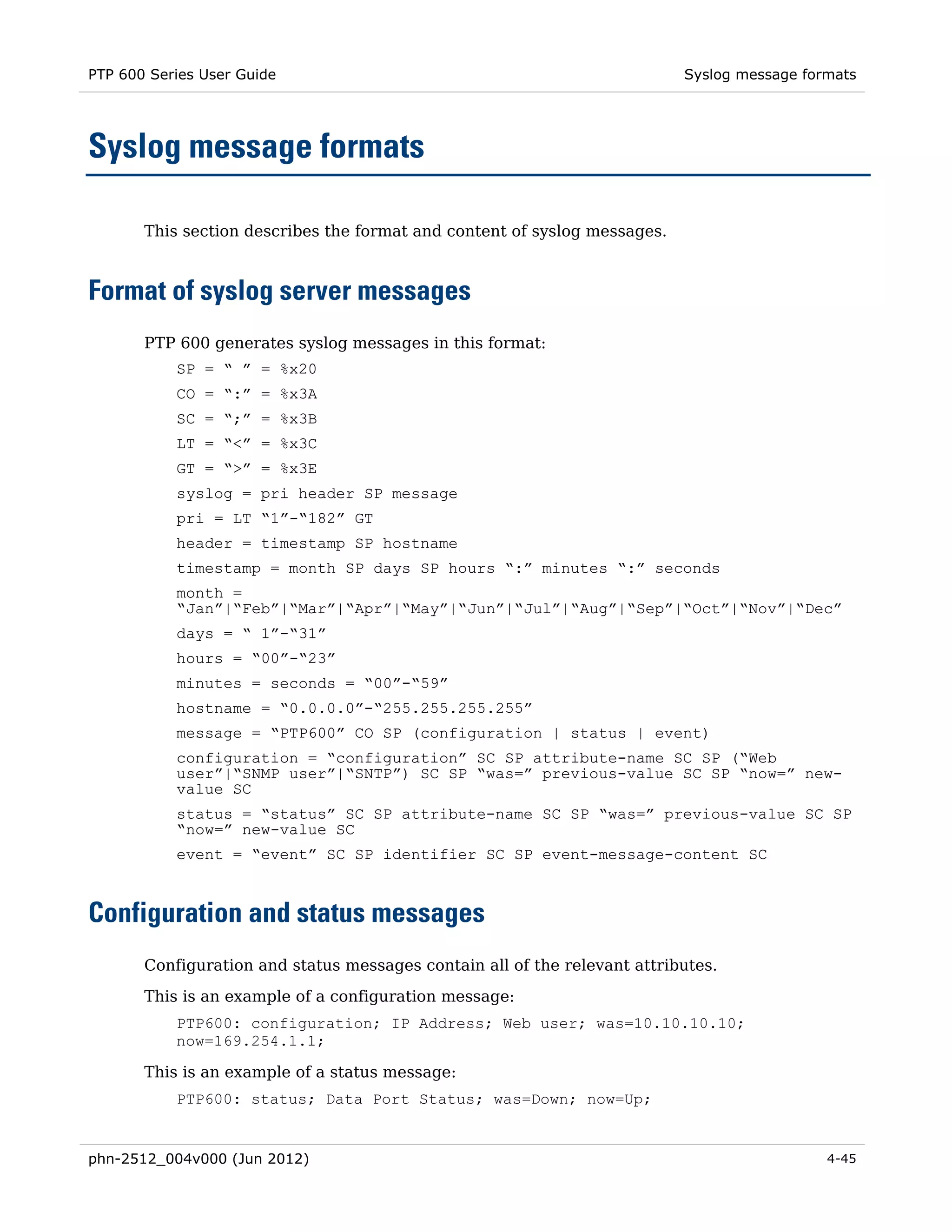
     Syslog message formats .......................................................................................................... 4-45 
          Format of syslog server messages .................................................................................... 4-45 
          Configuration and status messages .................................................................................. 4-45 
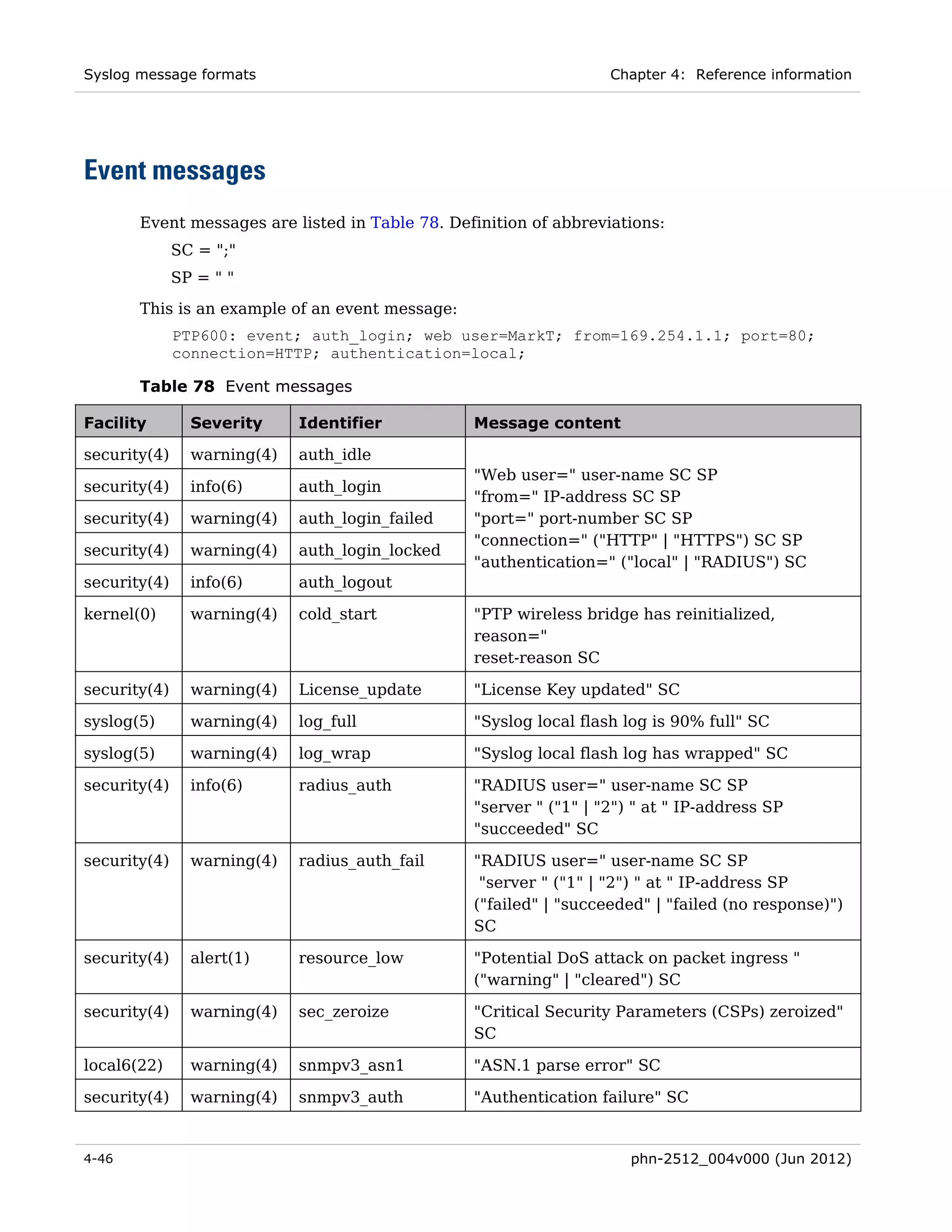
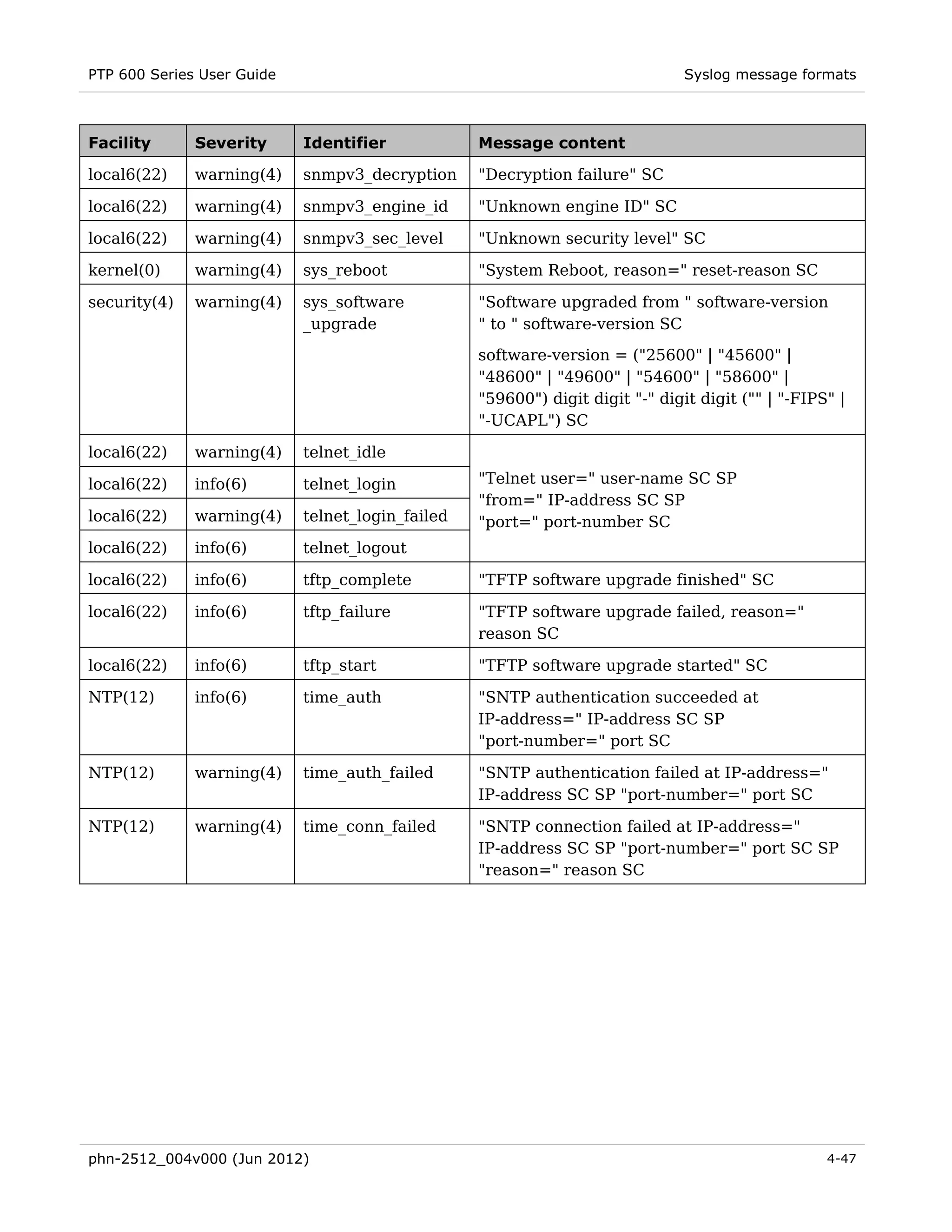
          Event messages ................................................................................................................. 4-46 
     Compliance with safety standards .......................................................................................... 4-48 
          Electrical safety compliance ............................................................................................. 4-48 
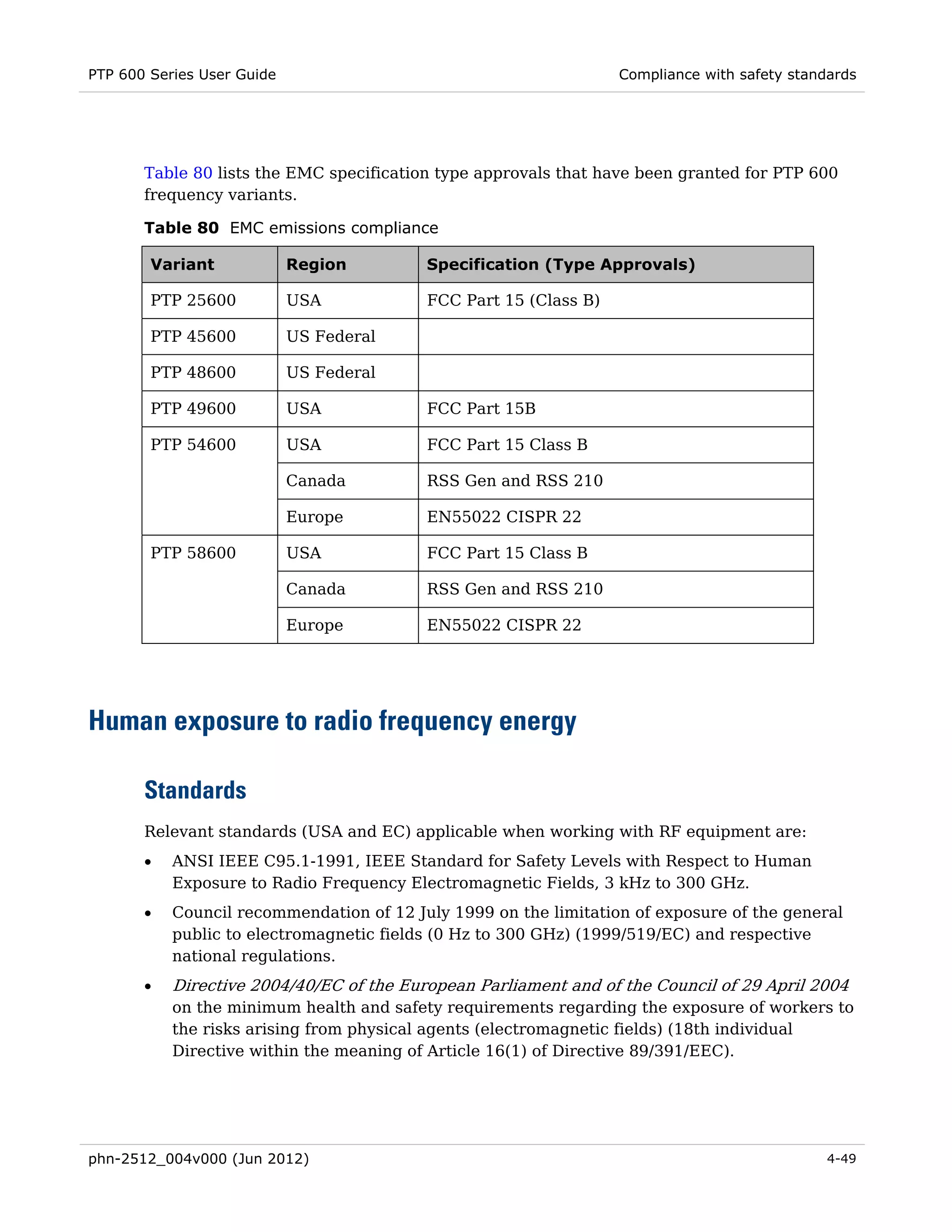
          Electromagnetic compatibility (EMC) compliance ........................................................... 4-48 
          Human exposure to radio frequency energy..................................................................... 4-49 
          Hazardous location compliance ........................................................................................ 4-53 
     Compliance with radio regulations ......................................................................................... 4-55 
          Type approvals .................................................................................................................. 4-55 
          FCC and ETSI compliance testing (without PTP-SYNC) ................................................... 4-56 
          FCC and ETSI compliance testing (with PTP-SYNC) ........................................................ 4-56 
          Examples of regulatory limits ........................................................................................... 4-57 
          Default and alternative region codes ................................................................................ 4-63 
     Notifications ............................................................................................................................ 4-64 
          PTP 25600 regulatory compliance .................................................................................... 4-64 
          PTP 49600 regulatory compliance .................................................................................... 4-65 
          PTP 54600 regulatory compliance .................................................................................... 4-65 
          PTP 58600 regulatory compliance .................................................................................... 4-67 

vi                                                                                                      phn-2512_004v000 (Jun 2012)
PTP 600 Series User Guide


        PTP 59600 regulatory compliance .................................................................................... 4-69 
        Thailand notification ......................................................................................................... 4-70 
   Data throughput tables ........................................................................................................... 4-71 
        Data throughput capacity ................................................................................................. 4-71 
        Range adjustment curves .................................................................................................. 4-82 
Chapter 5:        Installation ............................................................................................... 5-1 
   Preparing for installation .......................................................................................................... 5-2 
        Unit pre-configuration......................................................................................................... 5-2 
        Safety precautions before installation ................................................................................ 5-2 
        Protection requirements ..................................................................................................... 5-2 
        Selecting installation options .............................................................................................. 5-3 
        Preparing personnel ............................................................................................................ 5-3 
        Preparing inventory ............................................................................................................ 5-3 
        Preparing tools .................................................................................................................... 5-3 
   Installing the ODU and top LPU ............................................................................................... 5-4 
        Checks and safety precautions ........................................................................................... 5-4 
        Selecting a position for the ODU (connectorized) .............................................................. 5-5 
        Selecting a mounting option for the top LPU ..................................................................... 5-6 
        Mounting the ODU and top LPU ......................................................................................... 5-7 
        Connecting and grounding the ODU and top LPU .............................................................. 5-8 
        Installing an UltraSync GPS receiver ................................................................................. 5-9 
   Installing connectorized antennas .......................................................................................... 5-10 
        Preparing for connectorized installations ......................................................................... 5-10 
        Mounting and connecting antennas .................................................................................. 5-10 
        Weatherproofing an N type connector .............................................................................. 5-13 
   Installing the drop cable and bottom LPU .............................................................................. 5-16 
        Preparing drop cables ....................................................................................................... 5-17 
        Assembling an RJ45 connector and gland......................................................................... 5-18 
        Installing and grounding the main drop cable .................................................................. 5-20 
        Connecting an RJ45 and gland to a unit ........................................................................... 5-21 
        Disconnecting an RJ45 and gland from a unit .................................................................. 5-22 
        Making a drop cable ground point .................................................................................... 5-23 
        Installing and grounding the drop cable at building entry ............................................... 5-27 
   Installing the PIDU.................................................................................................................. 5-29 
        Mounting the PIDU ........................................................................................................... 5-29 
        Connecting the PIDU to the ODU cable ............................................................................ 5-29 
        Preparing the PIDU to LAN cable ..................................................................................... 5-31 

phn-2512_004v000 (Jun 2012)                                                                                                                vii
Contents


       Installing a PTP-SYNC unit ..................................................................................................... 5-32 
            Preparing for PTP-SYNC installation ................................................................................ 5-32 
            Mounting the PTP-SYNC unit............................................................................................ 5-33 
            Connecting up the PTP-SYNC unit .................................................................................... 5-34 
            Powering up the PTP-SYNC installation ........................................................................... 5-36 
       Installing a GPS receiver for PTP-SYNC ................................................................................. 5-37 
            Mounting the GPS receiver ............................................................................................... 5-37 
            Preparing GPS drop cables ............................................................................................... 5-38 
            Assembling an RJ45 plug and housing for GPS ................................................................ 5-39 
            Assembling a 12 way circular connector .......................................................................... 5-42 
            Installing the GPS drop cable ........................................................................................... 5-46 
            Grounding the GPS drop cable ......................................................................................... 5-47 
            Installing the GPS drop cable at building entry................................................................ 5-49 
       Installing an E1 or T1 interface .............................................................................................. 5-50 
            Preparing for E1 or T1 installation ................................................................................... 5-50 
            Installing E1 or T1 ............................................................................................................ 5-50 
            Testing the E1/T1 installation ........................................................................................... 5-53 
       Installing an OOBM interface ................................................................................................. 5-55 
            Preparing for OOBM installation ...................................................................................... 5-55 
            Installing OOBM ............................................................................................................... 5-55 
       Installing a fiber interface ...................................................................................................... 5-57 
            Optical safety precautions ................................................................................................ 5-57 
            Inserting the SFP fiber module ......................................................................................... 5-58 
            Connecting the fiber optic cable ....................................................................................... 5-59 
            Removing the fiber optic cable ......................................................................................... 5-61 
            Removing the SFP fiber module ....................................................................................... 5-61 
Chapter 6:            Configuration and alignment .................................................................... 6-1 
       Preparing for configuration and alignment .............................................................................. 6-2 
            Safety precautions during configuration and alignment .................................................... 6-2 
            Regulatory compliance during configuration and alignment ............................................. 6-2 
            Selecting configuration options .......................................................................................... 6-2 
       Task 1: Connecting to the unit .................................................................................................. 6-3 
            Configuring the management PC ........................................................................................ 6-3 
            Connecting to the PC and powering up .............................................................................. 6-5 
            Logging into the web interface ........................................................................................... 6-5 
       Task 2: Configuring IP and Ethernet interfaces ....................................................................... 6-7 
            Configuring the IP interface and management mode ......................................................... 6-7 

viii                                                                                                  phn-2512_004v000 (Jun 2012)
PTP 600 Series User Guide


        Reconnecting to the management PC ............................................................................... 6-13 
   Task 3: Installing license keys ................................................................................................ 6-14 
        Checking licensed capabilities .......................................................................................... 6-14 
        Generating a new license key ........................................................................................... 6-15 
        Entering a new license key ............................................................................................... 6-16 
   Task 4: Upgrading software version ....................................................................................... 6-17 
        Checking the installed software version ........................................................................... 6-17 
        Upgrading to a new software version ............................................................................... 6-18 
   Task 5: Configuring security ................................................................................................... 6-21 
        Configuring AES encryption ............................................................................................. 6-22 
        Configuring HTTPS/TLS .................................................................................................... 6-23 
        Using the Security Wizard ................................................................................................ 6-24 
        Configuring local user accounts........................................................................................ 6-33 
        Changing own user password ........................................................................................... 6-39 
        Protecting access to the summary and status pages ........................................................ 6-39 
        Configuring RADIUS authentication ................................................................................. 6-40 
   Task 6: Configuring wireless and telecoms interfaces ........................................................... 6-43 
        Starting installation wizard ............................................................................................... 6-43 
        Step 1: Interface configuration ......................................................................................... 6-46 
        Step 2: Wireless configuration .......................................................................................... 6-49 
        Step 3: TDD synchronization (optional) ............................................................................ 6-56 
        Step 3 or 4: Confirm installation configuration ................................................................ 6-58 
        Barring channels ............................................................................................................... 6-60 
   Task 7: Setting up SNMP agent .............................................................................................. 6-61 
        Configuring SNMPv3 agent .............................................................................................. 6-61 
        Configuring SNMPv1/2c agent ......................................................................................... 6-70 
   Task 8: Configuring alarms and messages.............................................................................. 6-75 
        Configuring generation of diagnostics alarms .................................................................. 6-75 
        Configuring generation of email messages ....................................................................... 6-76 
   Task 9: Configuring syslog ...................................................................................................... 6-78 
        Configuring system logging (syslog) ................................................................................. 6-78 
   Task 10: Configuring remote access ....................................................................................... 6-80 
        Configuring web-based management attributes ............................................................... 6-80 
   Task 11: Aligning antennas ..................................................................................................... 6-82 
        Starting up the units ......................................................................................................... 6-82 
        Checking that the units are armed ................................................................................... 6-82 
        Aligning antennas ............................................................................................................. 6-83 

phn-2512_004v000 (Jun 2012)                                                                                                              ix
Contents


         Aligning separate antennas for spatial diversity .............................................................. 6-84 
         Monitoring received signal level ....................................................................................... 6-85 
         Disarming the units ........................................................................................................... 6-88 
    Task 12: Updating system configuration ................................................................................ 6-89 
         Reviewing system configuration attributes ...................................................................... 6-89 
    Task 13: Checking wireless performance ............................................................................... 6-92 
         Comparing actual to predicted performance .................................................................... 6-92 
    Task 14: Configuring quality of service .................................................................................. 6-93 
         Configuring quality of service ........................................................................................... 6-93 
    Task 15: Connecting link to the network ................................................................................ 6-96 
         Connecting to the network with in-band management ..................................................... 6-96 
         Connecting to the network with out-of-band management .............................................. 6-97 
         Setting the real-time clock ................................................................................................ 6-97 
    Task 16: Configuring the fiber interface............................................................................... 6-102 
         Obtaining the license key for Ethernet fiber support ..................................................... 6-102 
         Connecting to the unit and checking for fiber support................................................... 6-102 
         Entering the license key for Ethernet fiber support ....................................................... 6-103 
         Connecting to the fiber network ..................................................................................... 6-104 
         Configuring SFP .............................................................................................................. 6-106 
    Task 17: Saving the system configuration ............................................................................ 6-107 
         Saving the system configuration ..................................................................................... 6-107 
    Configuring for FIPS 140-2 applications .............................................................................. 6-108 
         Prerequisites for FIPS 140-2 configuration .................................................................... 6-108 
         Configuration procedures for FIPS 140-2 ....................................................................... 6-109 
         Checking that the unit is in FIPS 140-2 secure mode..................................................... 6-109 
         HTTPS key size warning ................................................................................................. 6-110 
    Configuring for UC APL applications .................................................................................... 6-111 
         Prerequisites for UC APL configuration ......................................................................... 6-111 
         Configuration procedures for UC APL ............................................................................ 6-112 
         Checking that the unit is in UC APL secure mode .......................................................... 6-114 
         HTTPS key size warning ................................................................................................. 6-115 
Chapter 7:         Operation ................................................................................................. 7-1 
    Web-based management ........................................................................................................... 7-2 
         Accessing the web interface ............................................................................................... 7-2 
         Using the menu options ...................................................................................................... 7-3 
         Viewing the system summary ............................................................................................. 7-5 
         Viewing the system status .................................................................................................. 7-6 

x                                                                                                 phn-2512_004v000 (Jun 2012)
PTP 600 Series User Guide


   Managing alarms and events .................................................................................................. 7-14 
        Managing alarms .............................................................................................................. 7-14 
        Managing email alerts ...................................................................................................... 7-18 
        Managing event notification messages ............................................................................. 7-19 
   Managing spectrum ................................................................................................................ 7-20 
        Configuring spectrum usage at the master....................................................................... 7-20 
        Viewing spectrum usage at the slave ................................................................................ 7-23 
        Interpreting the spectrum management plots .................................................................. 7-24 
        Viewing the active channel history ................................................................................... 7-32 
        Viewing historic spectrum management metrics .............................................................. 7-33 
   Managing security .................................................................................................................. 7-34 
        Exiting FIPS 140-2 or UC APL mode................................................................................. 7-34 
        Zeroizing critical security parameters .............................................................................. 7-34 
   Managing performance ........................................................................................................... 7-35 
        Checking system statistics ................................................................................................ 7-35 
        Checking detailed counters............................................................................................... 7-41 
        Using the diagnostics plotter ............................................................................................ 7-45 
        Downloading diagnostic data ............................................................................................ 7-46 
        Diagnostics calculated over time ...................................................................................... 7-47 
   Restoring, upgrading and rebooting ....................................................................................... 7-48 
        Restoring the system configuration .................................................................................. 7-48 
        Upgrading software .......................................................................................................... 7-49 
        Rebooting or reviewing reboot reasons ............................................................................ 7-52 
   Using recovery mode .............................................................................................................. 7-53 
        Entering recovery mode .................................................................................................... 7-53 
        Selecting a recovery option .............................................................................................. 7-54 
        Upgrading software image ................................................................................................ 7-56 
        Resetting IP & Ethernet configuration ............................................................................. 7-57 
        Erasing configuration........................................................................................................ 7-58 
        Rebooting the unit............................................................................................................. 7-58 
Chapter 8:        Troubleshooting ....................................................................................... 8-1 
   Testing link end hardware ........................................................................................................ 8-2 
        Checking the PIDU LEDs .................................................................................................... 8-2 
        Power LED is off.................................................................................................................. 8-3 
        Power LED is blinking ......................................................................................................... 8-3 
        Ethernet LED did not blink 10 times .................................................................................. 8-3 
        Ethernet LED is off.............................................................................................................. 8-4 

phn-2512_004v000 (Jun 2012)                                                                                                               xi
Contents


           Ethernet LED blinks irregularly.......................................................................................... 8-5 
           Power LED is on, Ethernet LED blinks randomly ............................................................... 8-5 
           Test resistance in the ODU cable........................................................................................ 8-8 
           Test UltraSync GPS receiver ............................................................................................ 8-10 
      Testing the radio link .............................................................................................................. 8-11 
           No activity ......................................................................................................................... 8-11 
           Some activity ..................................................................................................................... 8-11 
           Radio and television interference ..................................................................................... 8-12 
      Testing PTP-SYNC................................................................................................................... 8-13 
           Checking the PTP-SYNC LEDs .......................................................................................... 8-13 
           LEDs do not illuminate...................................................................................................... 8-14 
           STATUS LED is on steady ................................................................................................. 8-14 
           STATUS LED double-blinks .............................................................................................. 8-14 
           ODU LED does not illuminate within 90 seconds ............................................................. 8-14 
           ODU LED blinks red .......................................................................................................... 8-15 
           GPS LED does not illuminate or blink on clustered units ................................................. 8-15 
      Testing a telecoms link ........................................................................................................... 8-16 
           Performing a telecoms loopback test ................................................................................ 8-16 
      Troubleshooting a fiber interface ........................................................................................... 8-18 
           No response from the unit via 1000BaseT ........................................................................ 8-18 
           No response from the unit via fiber .................................................................................. 8-18 
           License key is incorrect for optical ................................................................................... 8-18 
           Fiber alarms are raised ..................................................................................................... 8-19 
Glossary ........................................................................................................................... I 


xii                                                                                                     phn-2512_004v000 (Jun 2012)
PTP 600 Series User Guide


List of Figures
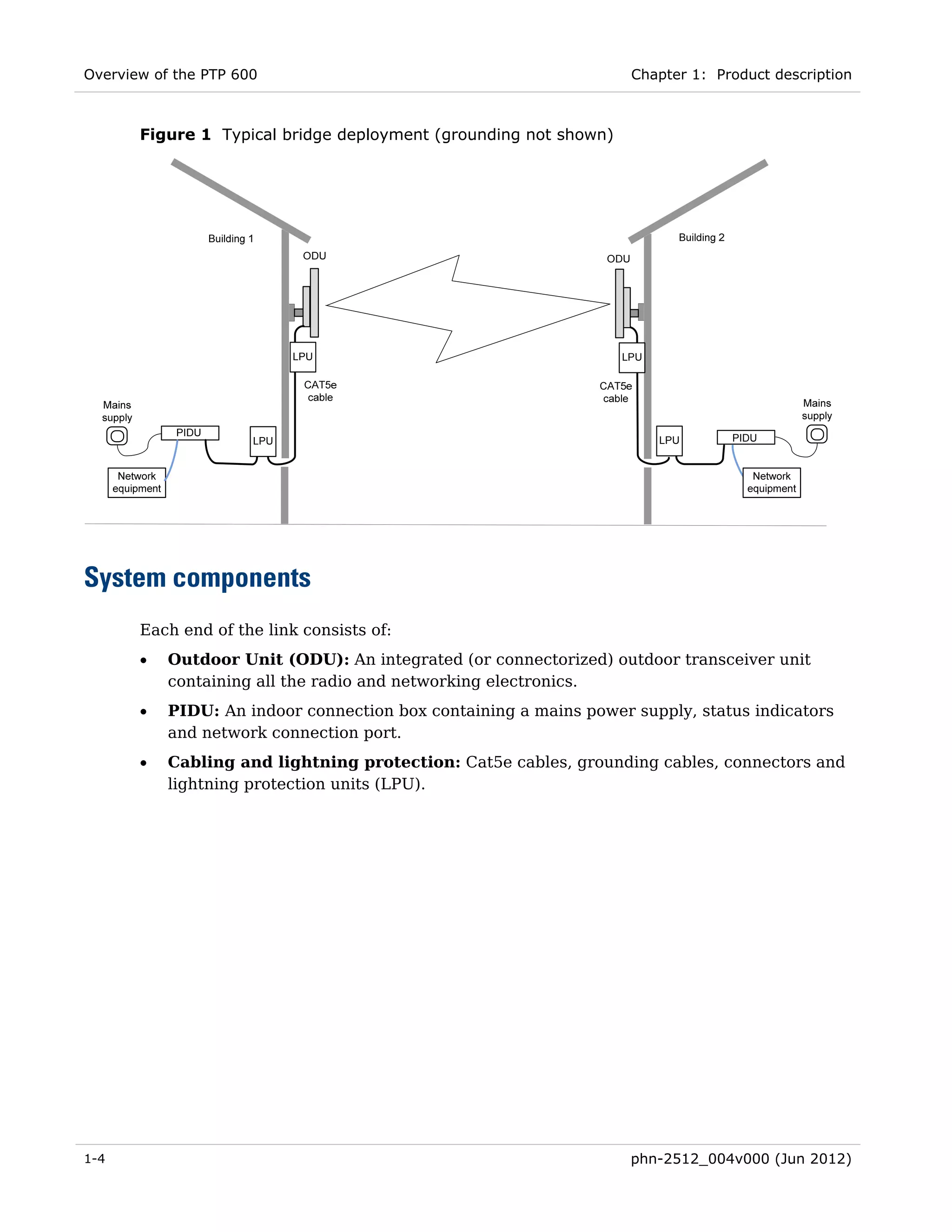
Figure 1 Typical bridge deployment (grounding not shown) ........................................................ 1-4 
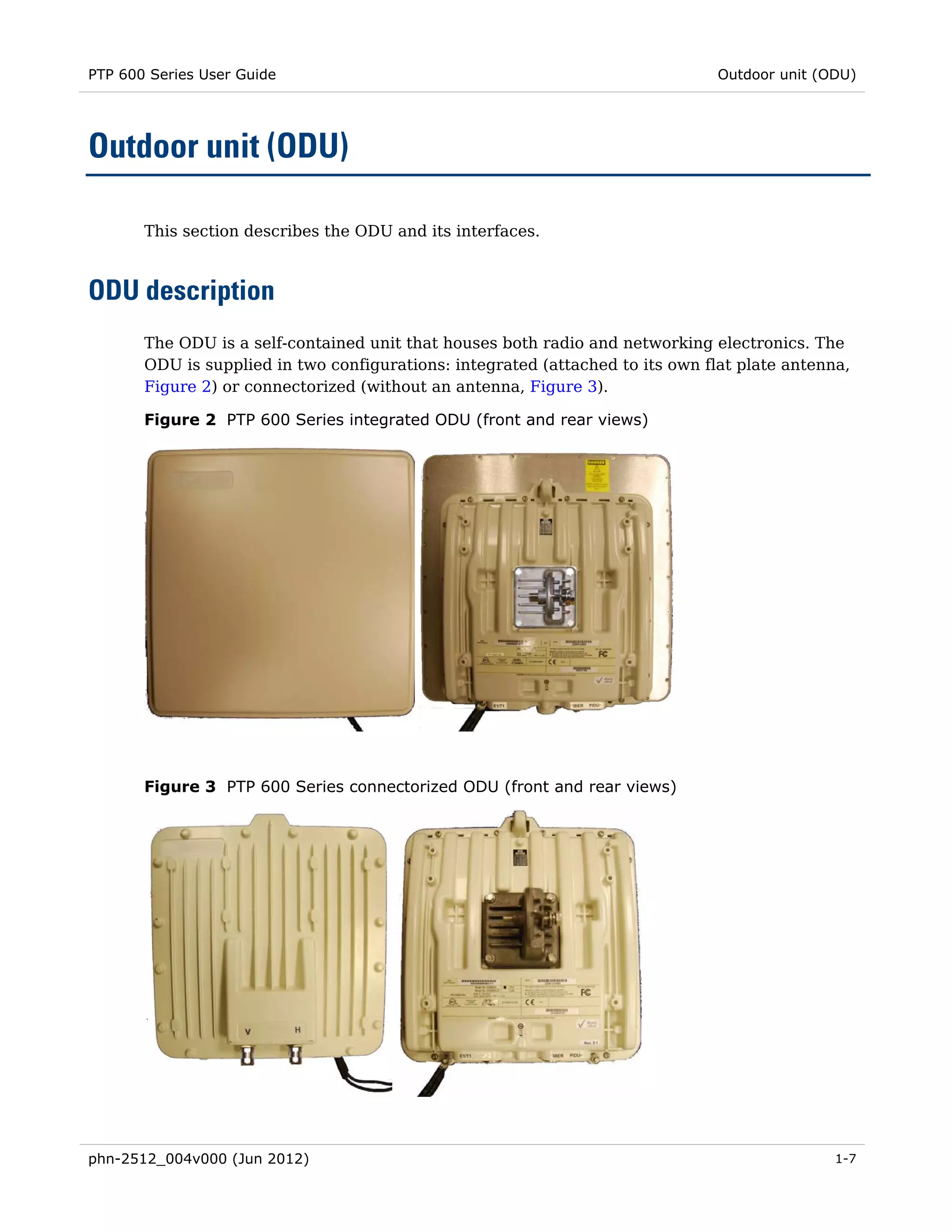
Figure 2 PTP 600 Series integrated ODU (front and rear views) ................................................. 1-7 
Figure 3 PTP 600 Series connectorized ODU (front and rear views)............................................ 1-7 
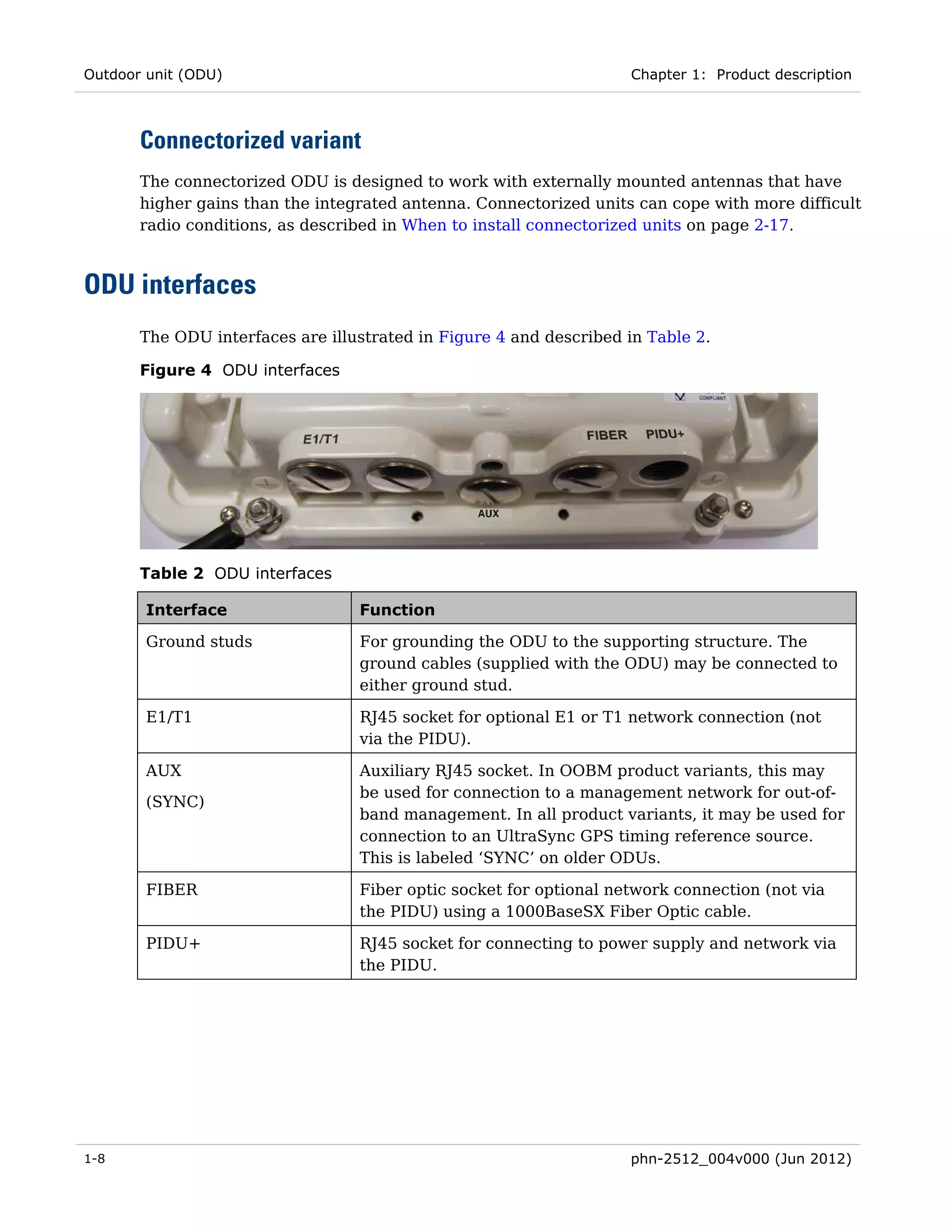
Figure 4 ODU interfaces ............................................................................................................... 1-8 
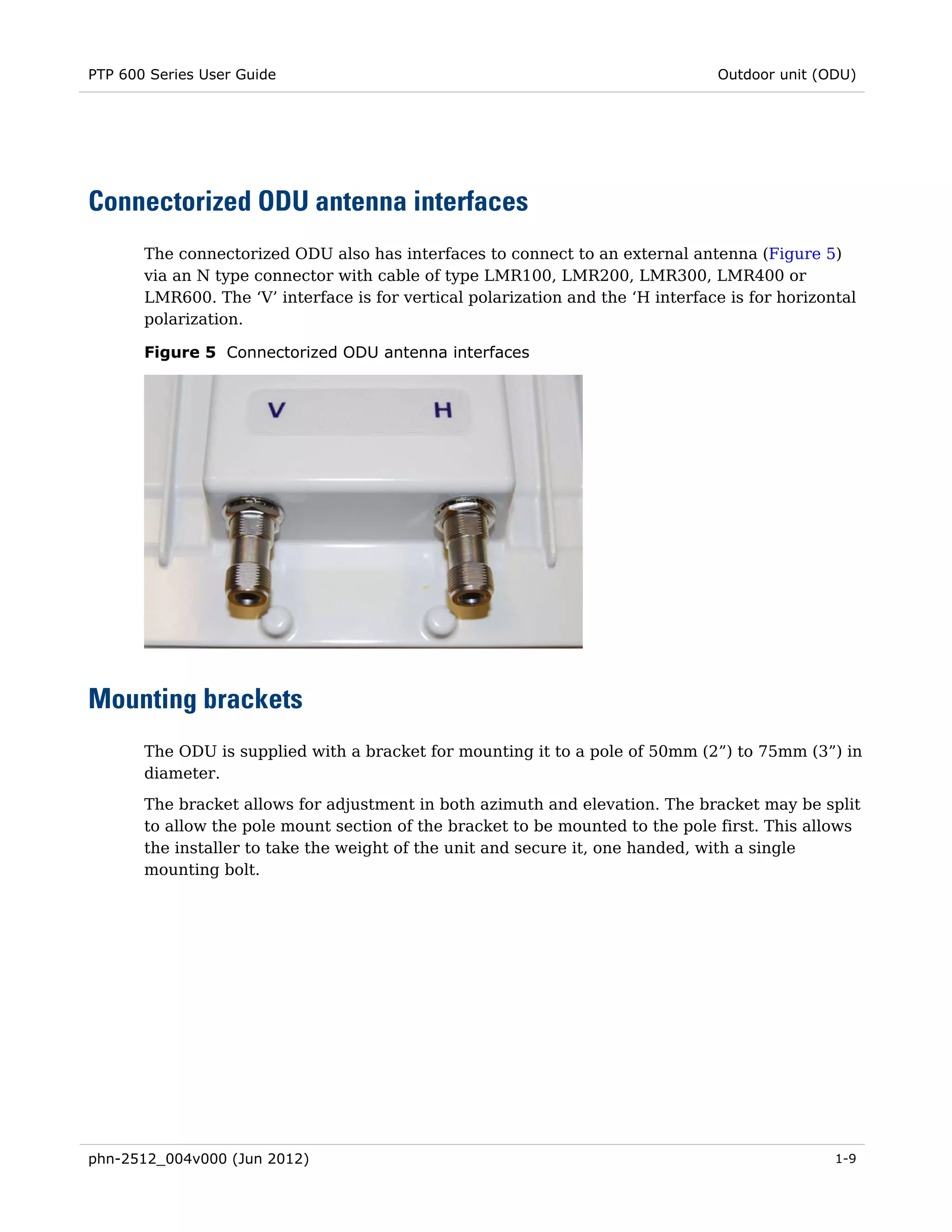
Figure 5 Connectorized ODU antenna interfaces ......................................................................... 1-9 
Figure 6 Mod record label ........................................................................................................... 1-10 
Figure 7 PIDU interfaces ............................................................................................................. 1-12 
Figure 8 External DC supply only ............................................................................................... 1-14 
Figure 9 External DC supply and AC supply ............................................................................... 1-14 
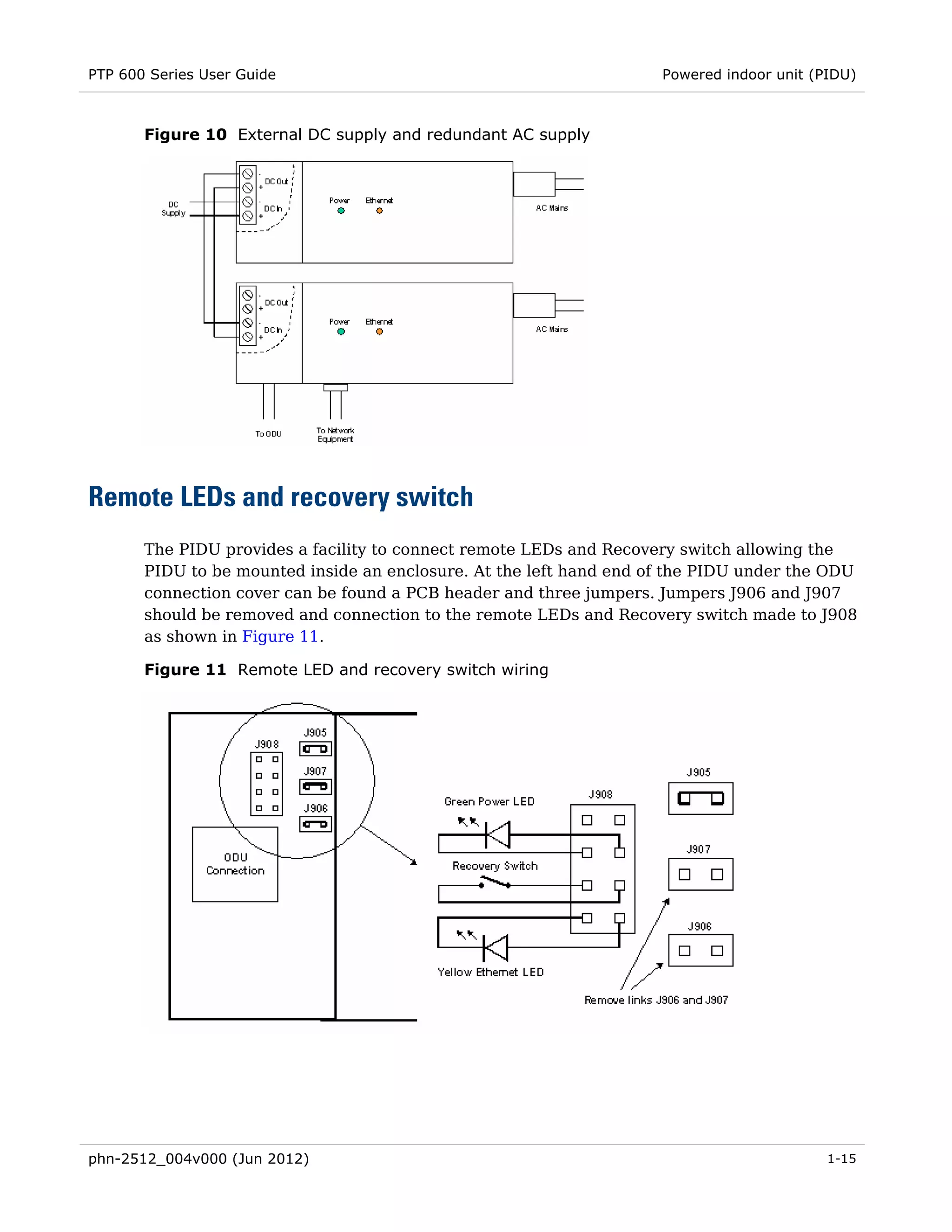
Figure 10 External DC supply and redundant AC supply ........................................................... 1-15 
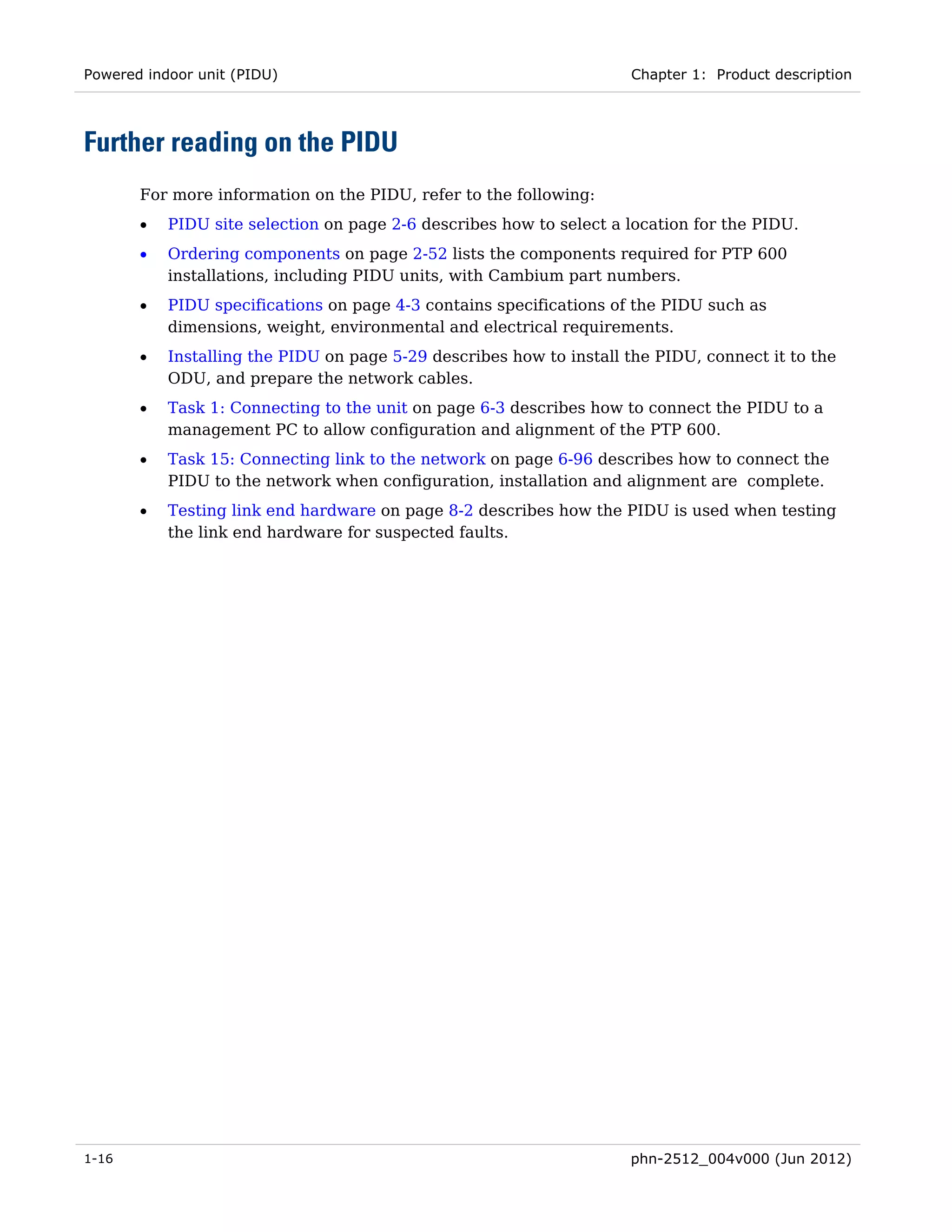
Figure 11 Remote LED and recovery switch wiring.................................................................... 1-15 
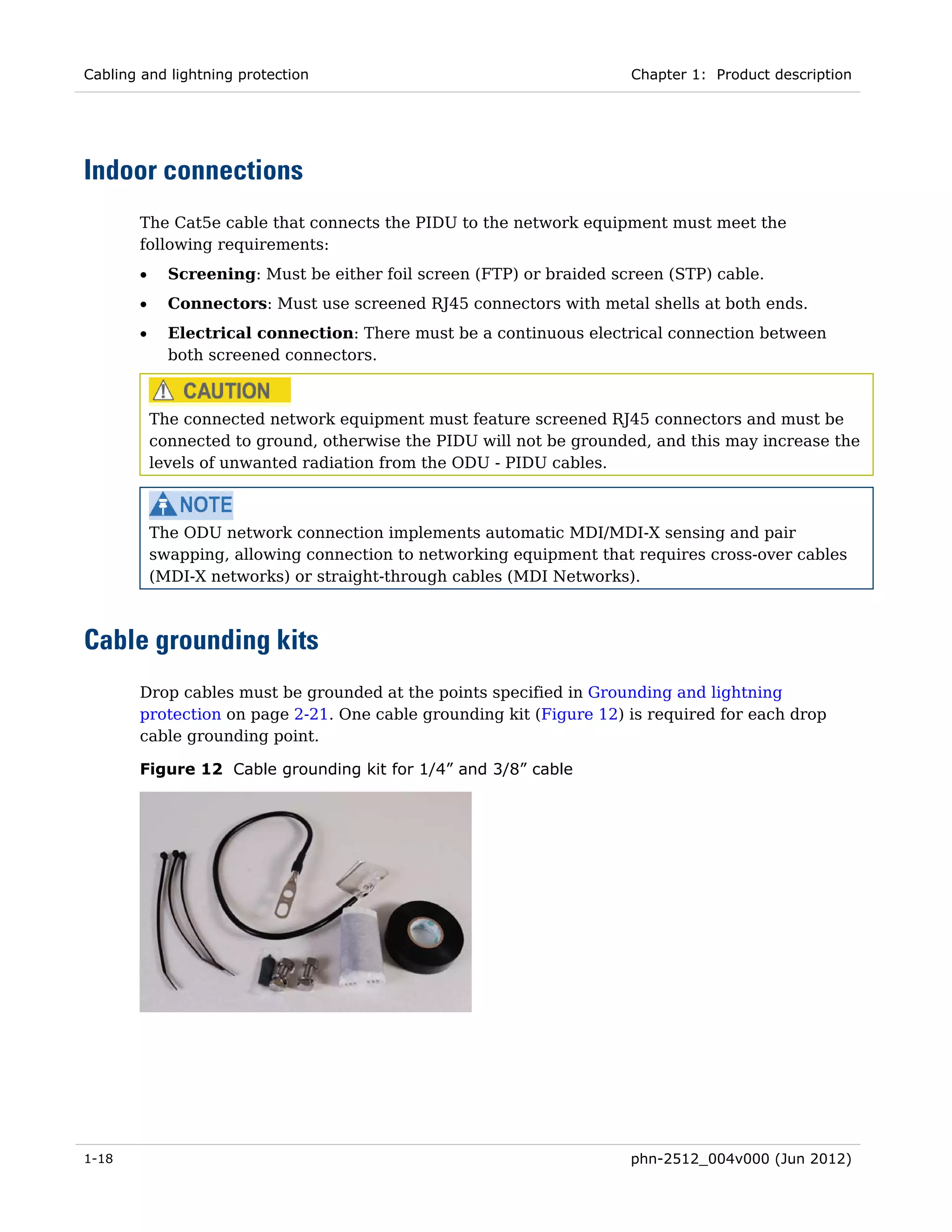
Figure 12 Cable grounding kit for 1/4” and 3/8” cable ............................................................... 1-18 
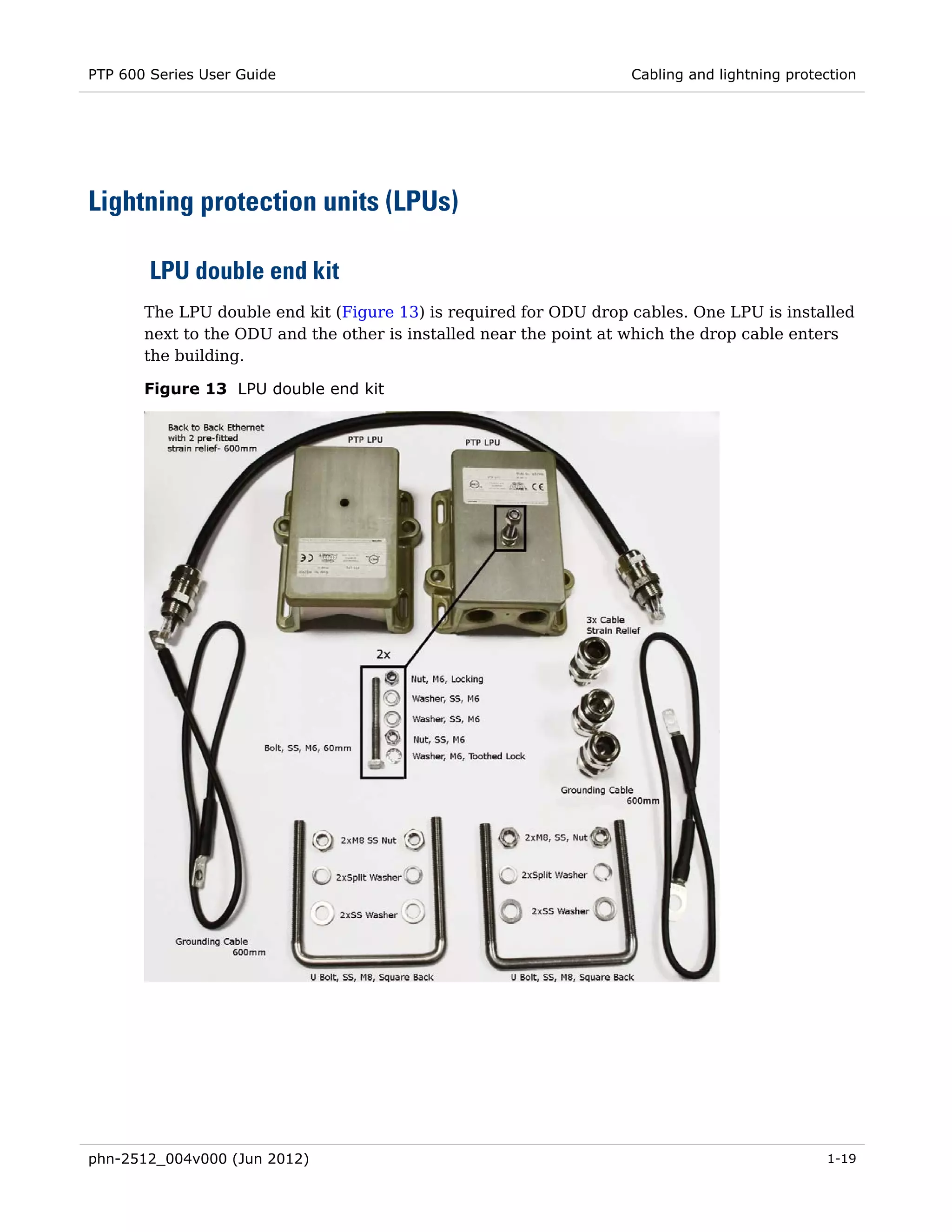
Figure 13 LPU double end kit ..................................................................................................... 1-19 
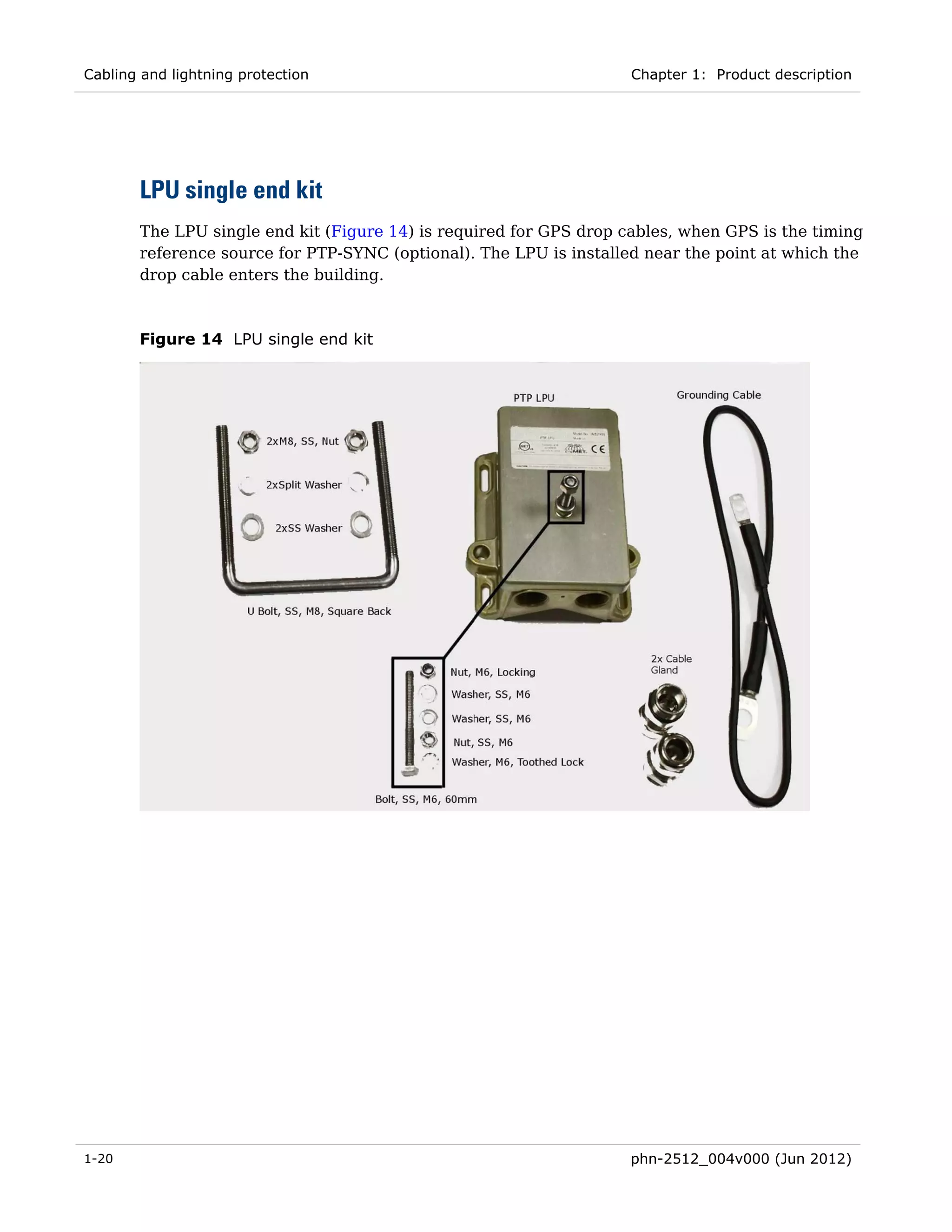
Figure 14 LPU single end kit ....................................................................................................... 1-20 
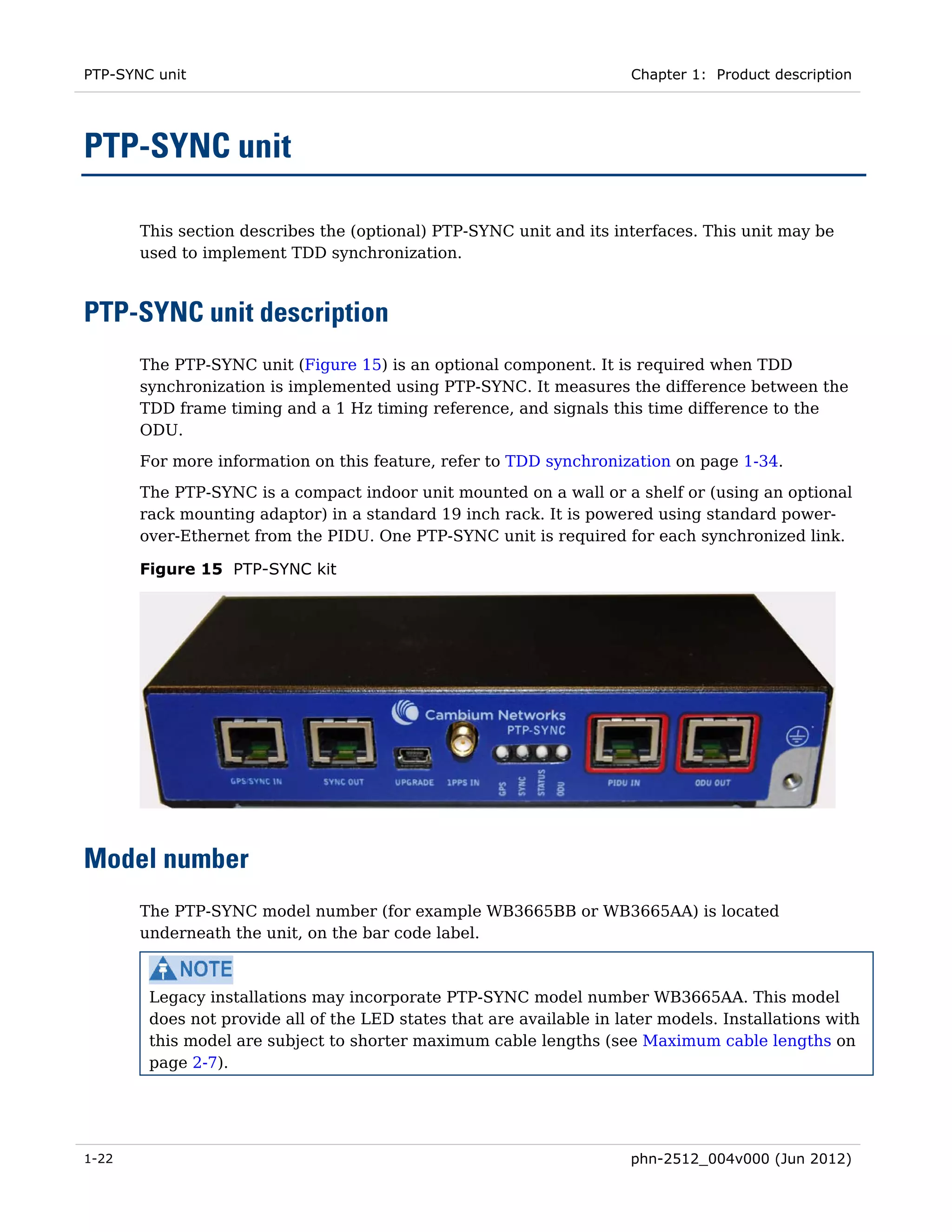
Figure 15 PTP-SYNC kit .............................................................................................................. 1-22 
Figure 16 PTP-SYNC front panel ................................................................................................. 1-23 
Figure 17 TDD cycle .................................................................................................................... 1-26 
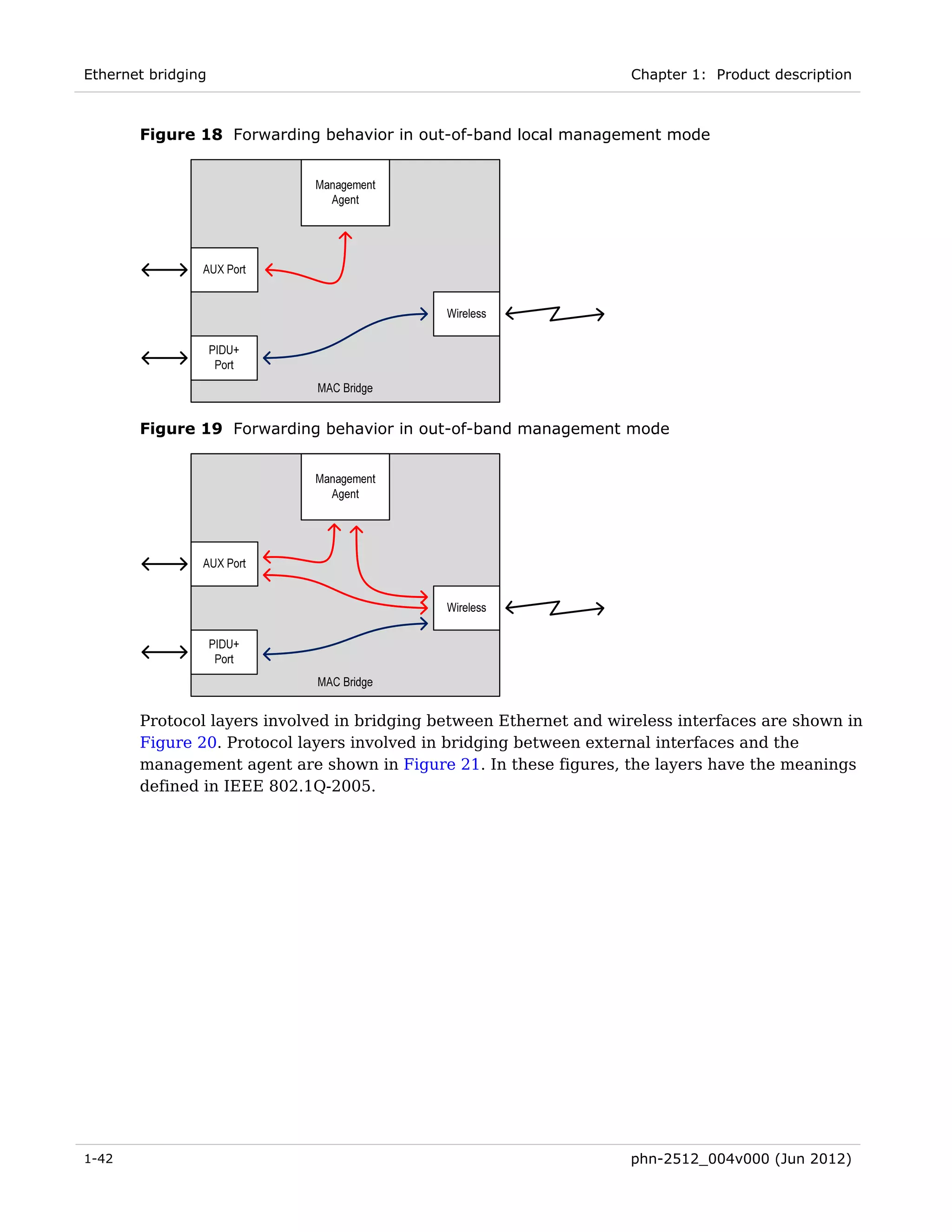
Figure 18 Forwarding behavior in out-of-band local management mode ................................... 1-42 
Figure 19 Forwarding behavior in out-of-band management mode ............................................ 1-42 
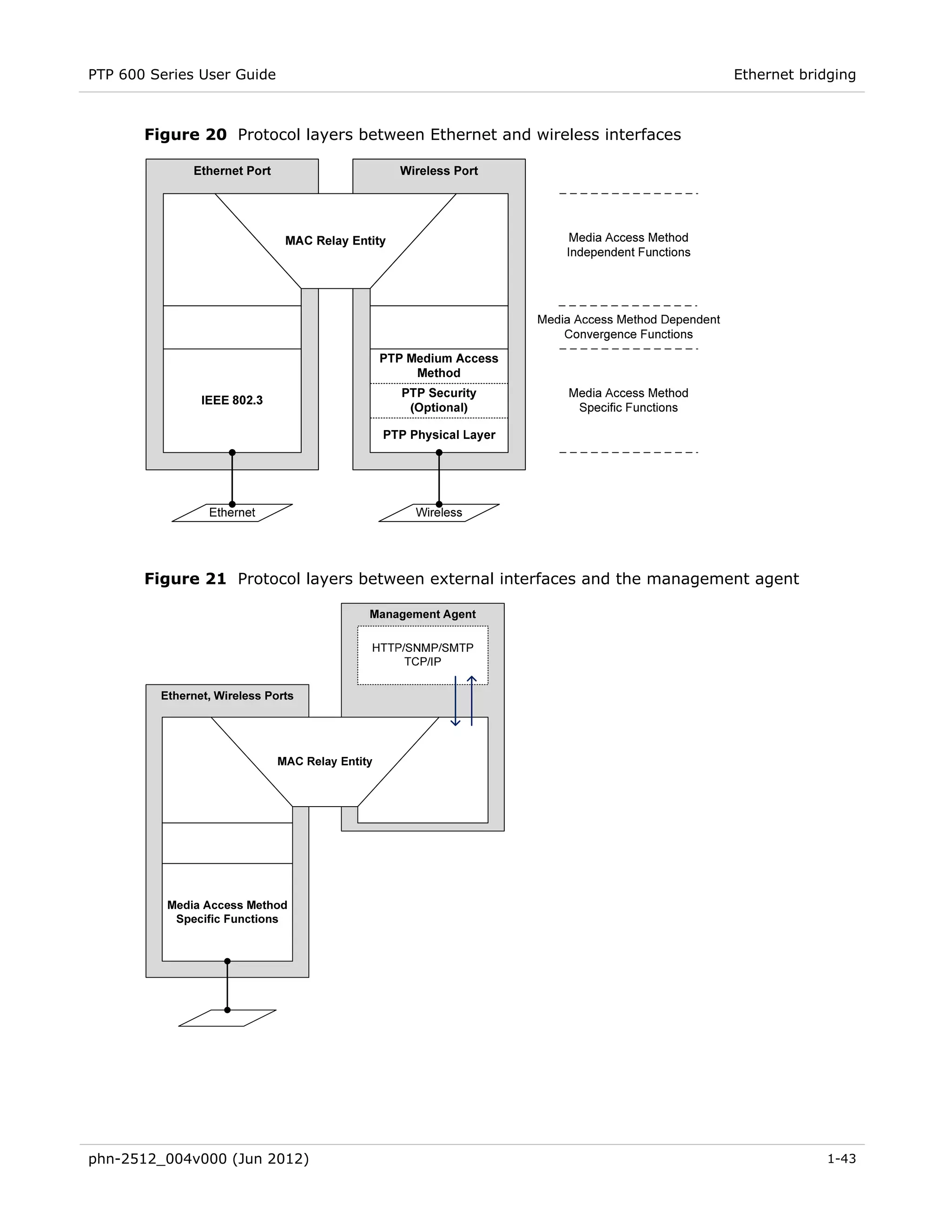
Figure 20 Protocol layers between Ethernet and wireless interfaces ........................................ 1-43 
Figure 21 Protocol layers between external interfaces and the management agent.................. 1-43 
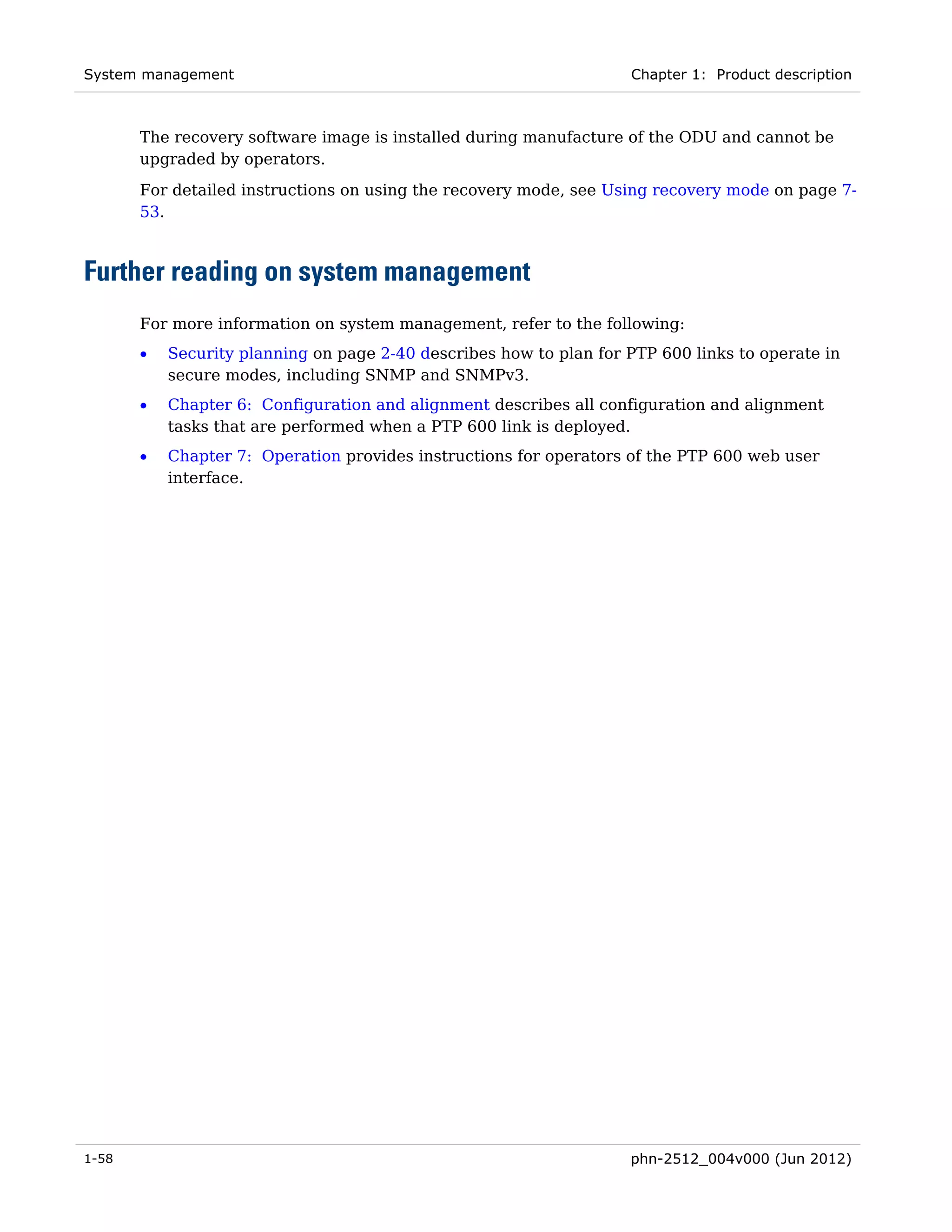
Figure 22 Tamper evident label on side edge of ODU ................................................................ 1-60 
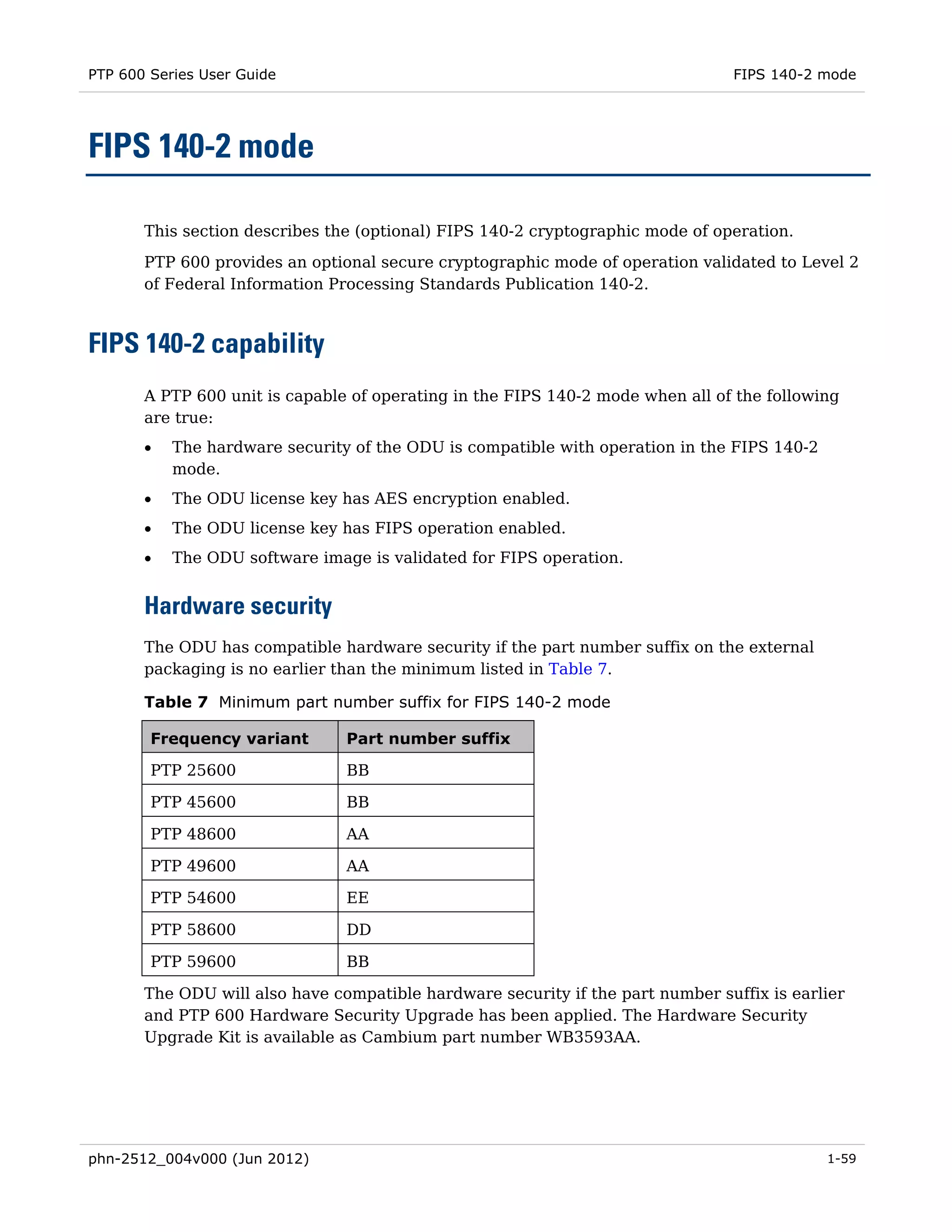
Figure 23 Tamper evident label on top edge of ODU.................................................................. 1-60 
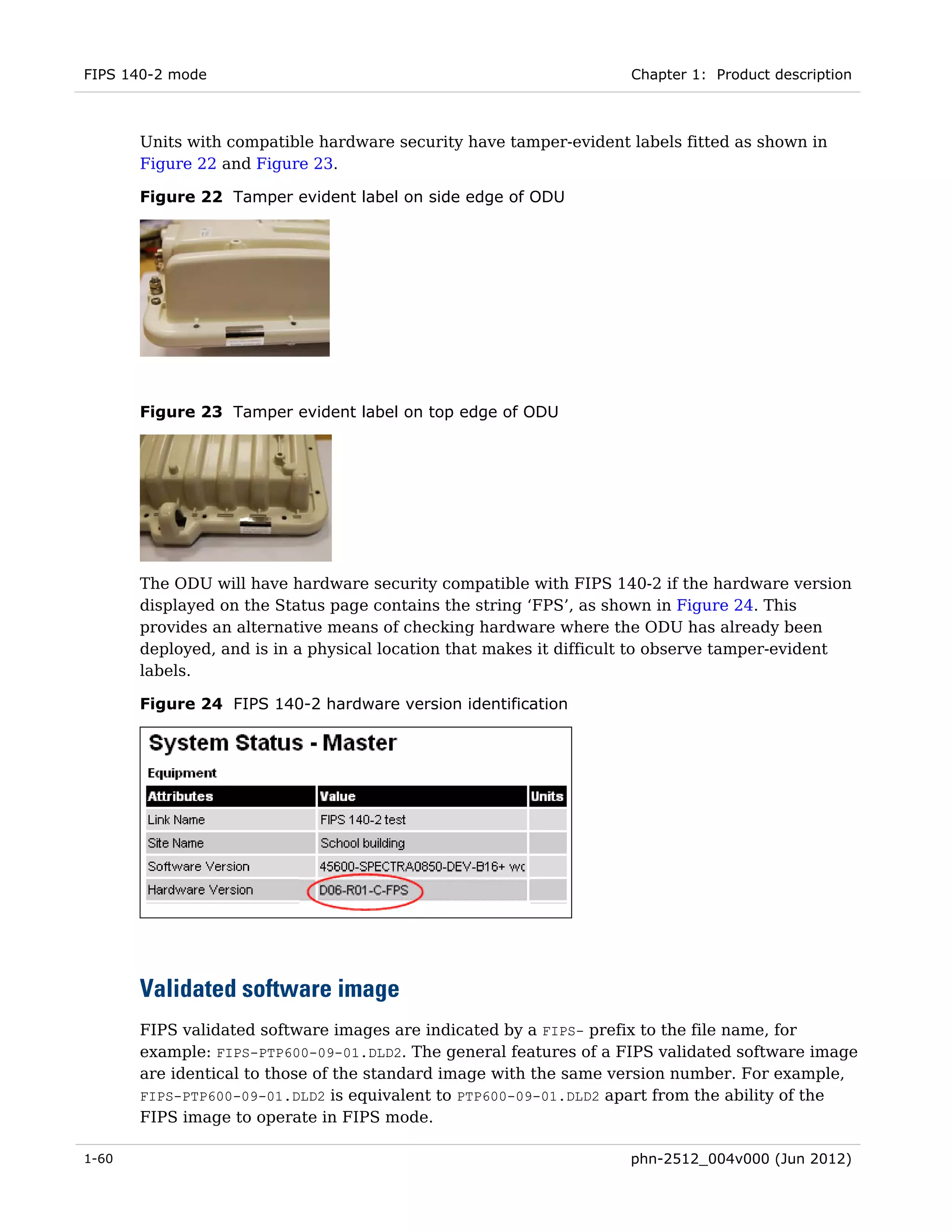
Figure 24 FIPS 140-2 hardware version identification ............................................................... 1-60 
Figure 25 Indication of FIPS 140-2 capability............................................................................. 1-61 
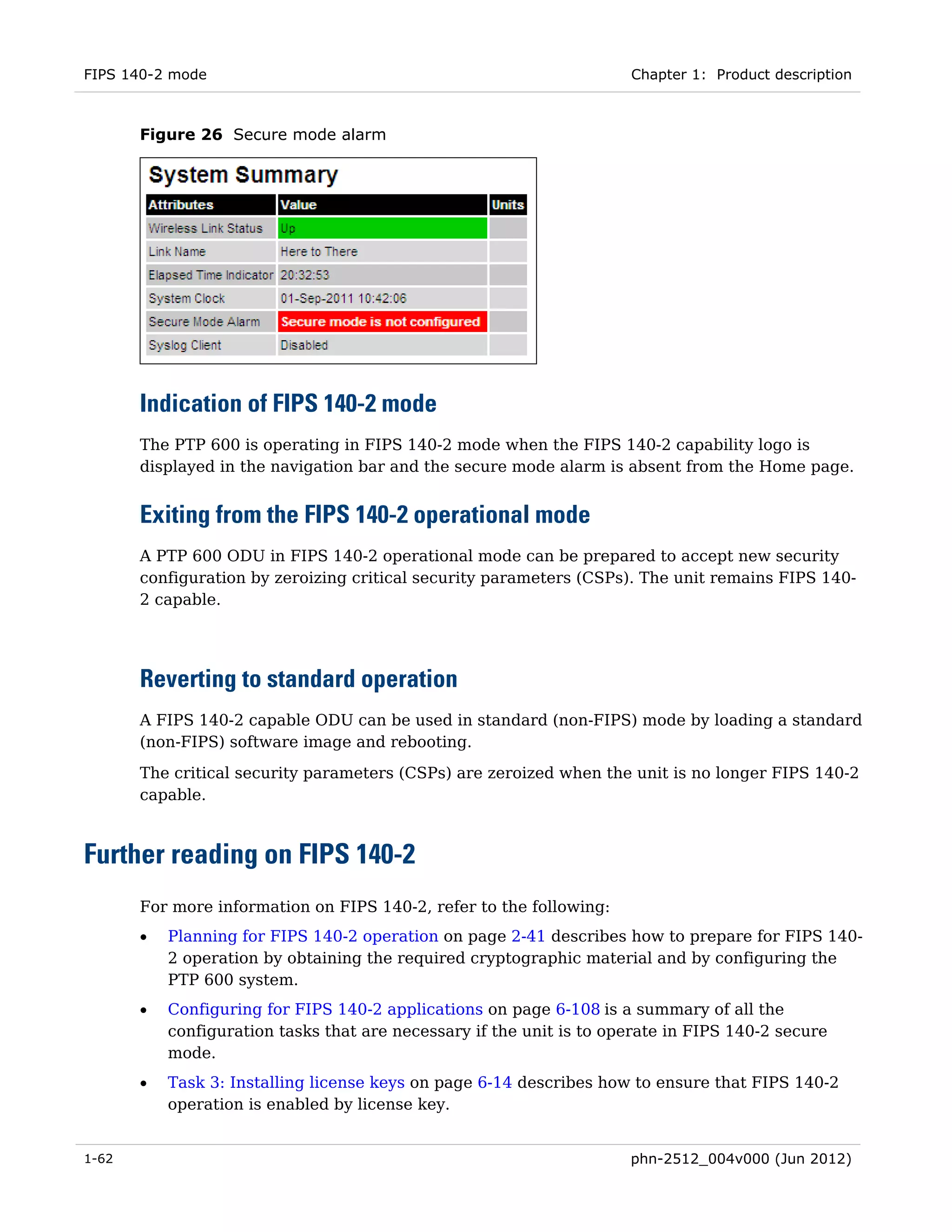
Figure 26 Secure mode alarm ..................................................................................................... 1-62 
Figure 27 Indication of UC APL capability .................................................................................. 1-64 
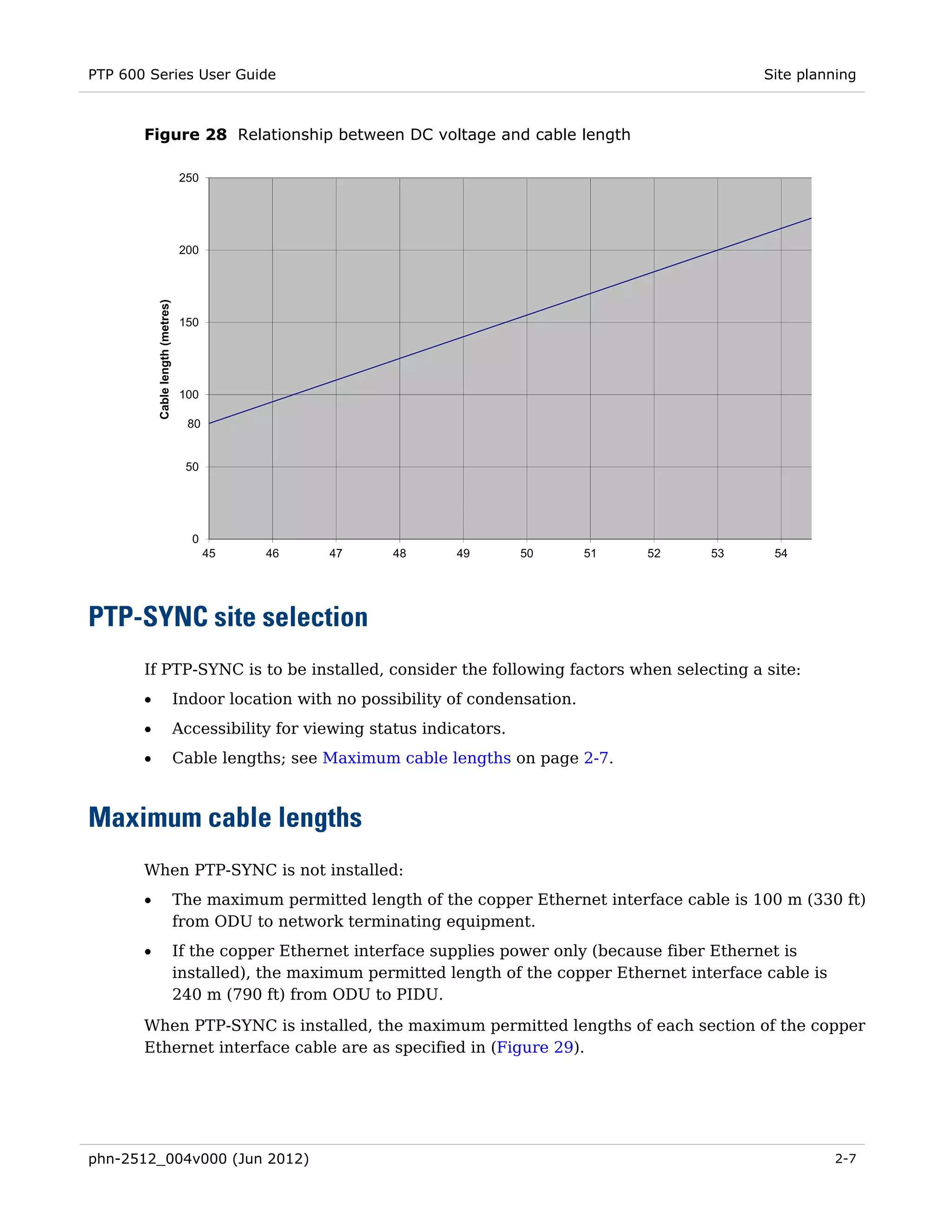
Figure 28 Relationship between DC voltage and cable length ..................................................... 2-7 
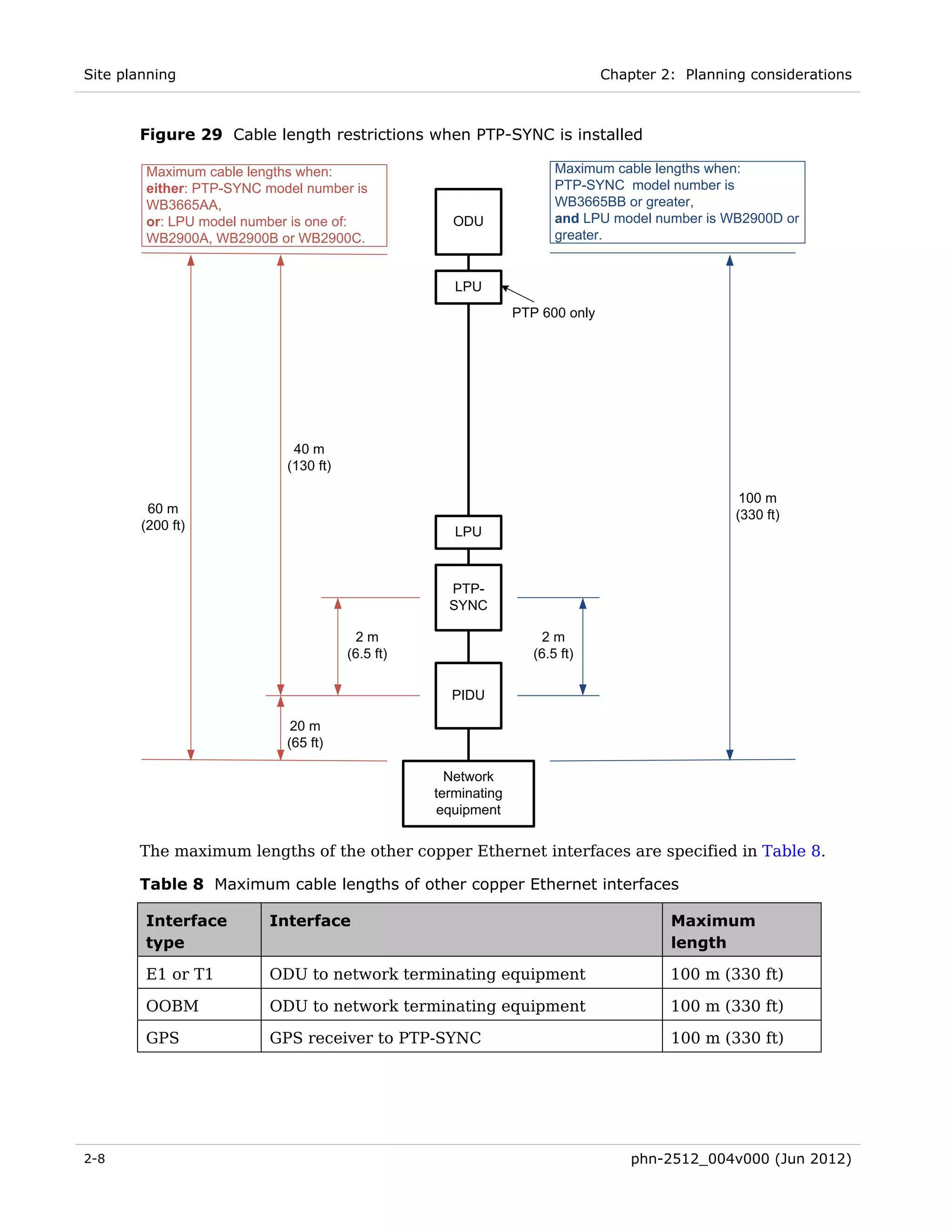
Figure 29 Cable length restrictions when PTP-SYNC is installed ................................................. 2-8 
Figure 30 Rolling sphere method to determine the lightning protection zones ......................... 2-22 
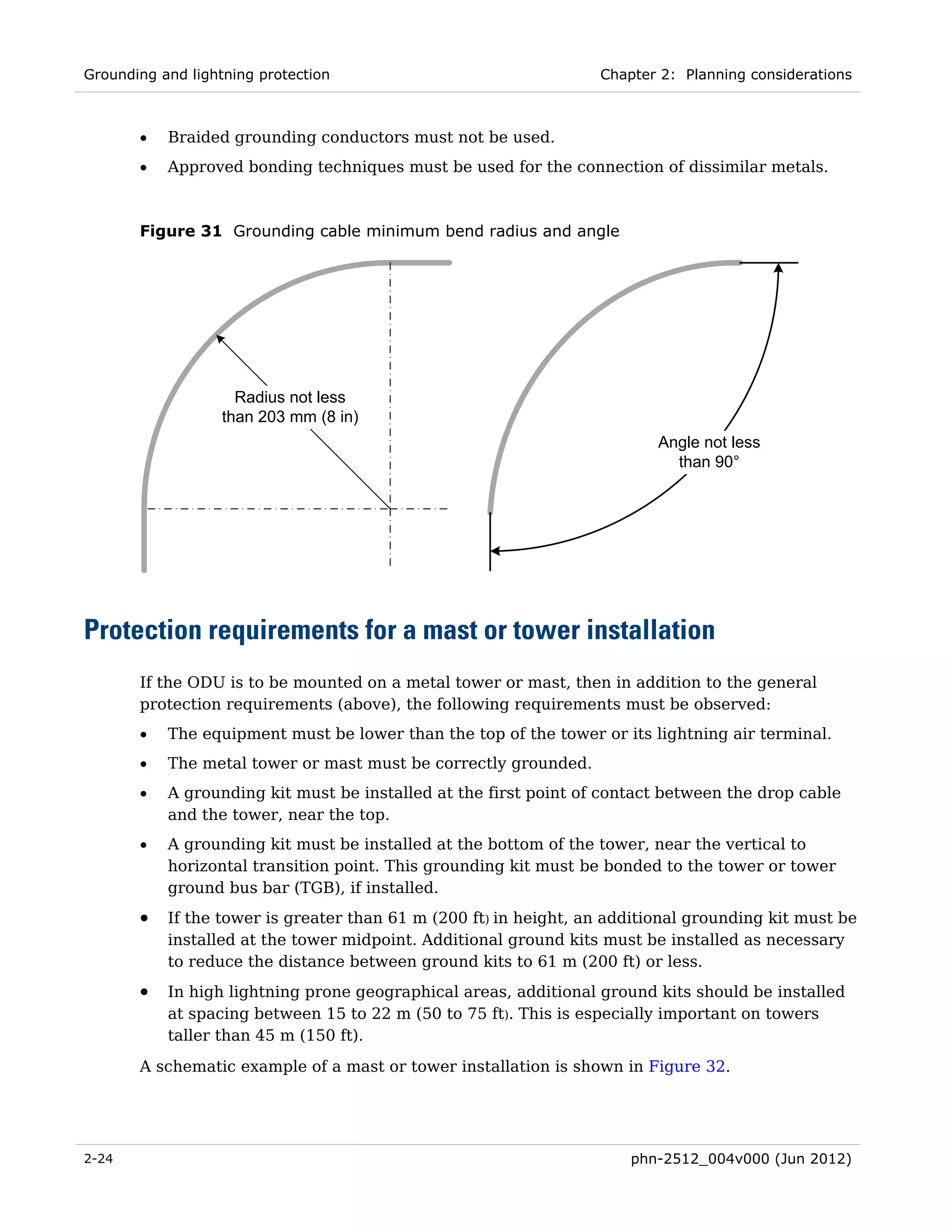
Figure 31 Grounding cable minimum bend radius and angle ..................................................... 2-24 


phn-2512_004v000 (Jun 2012)                                                                                                             xiii
List of Figures


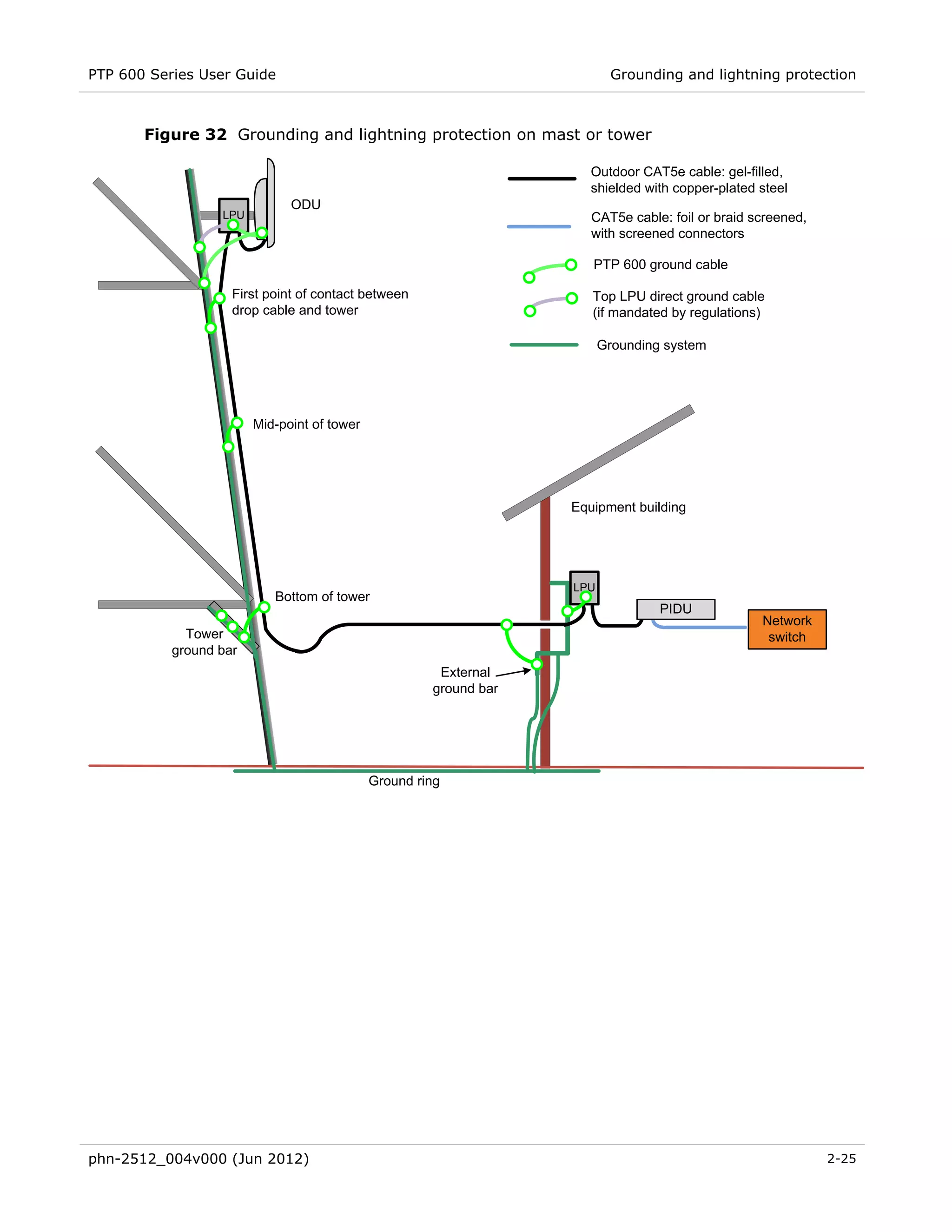
Figure 32 Grounding and lightning protection on mast or tower ............................................... 2-25 
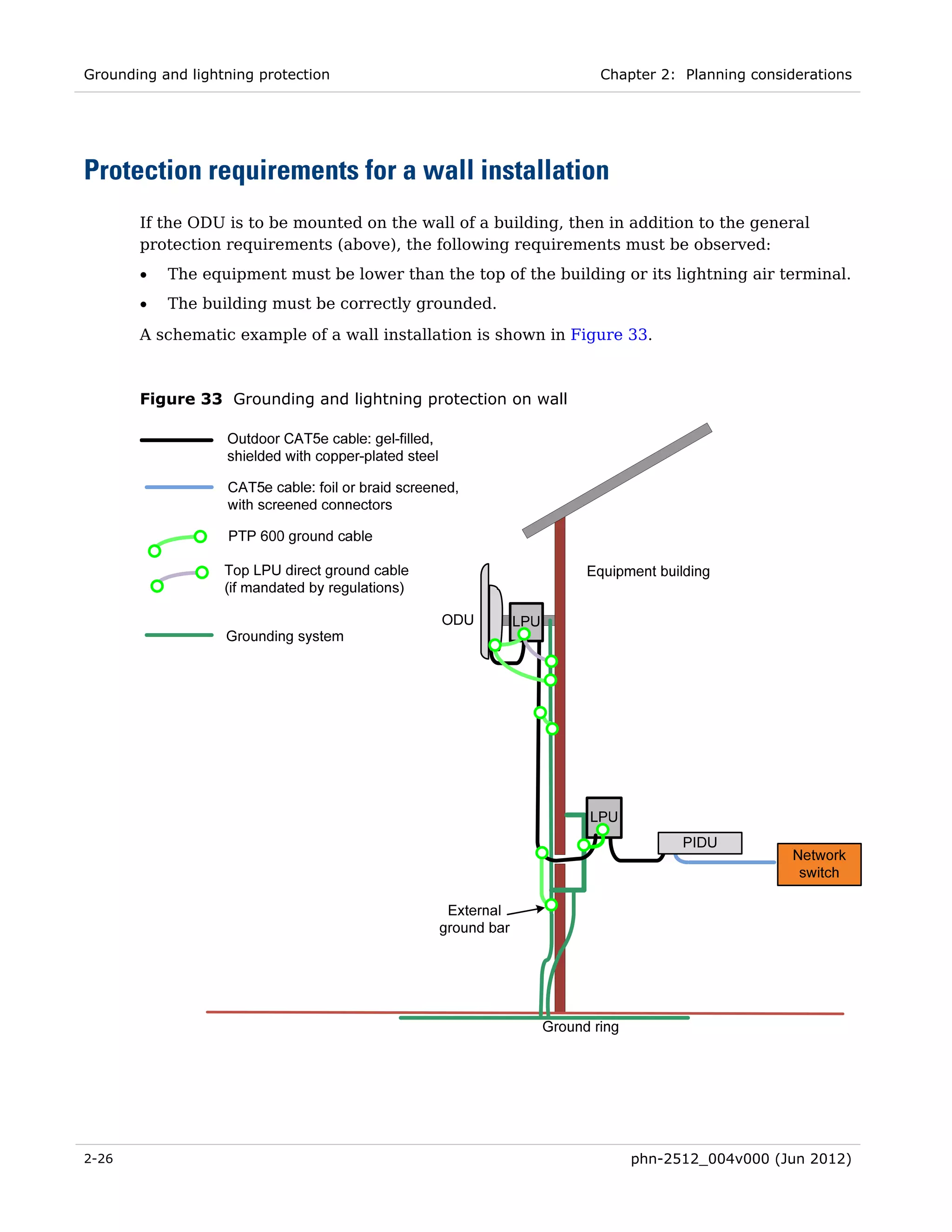
Figure 33 Grounding and lightning protection on wall ............................................................... 2-26 
Figure 34 Grounding and lightning protection on building ........................................................ 2-27 
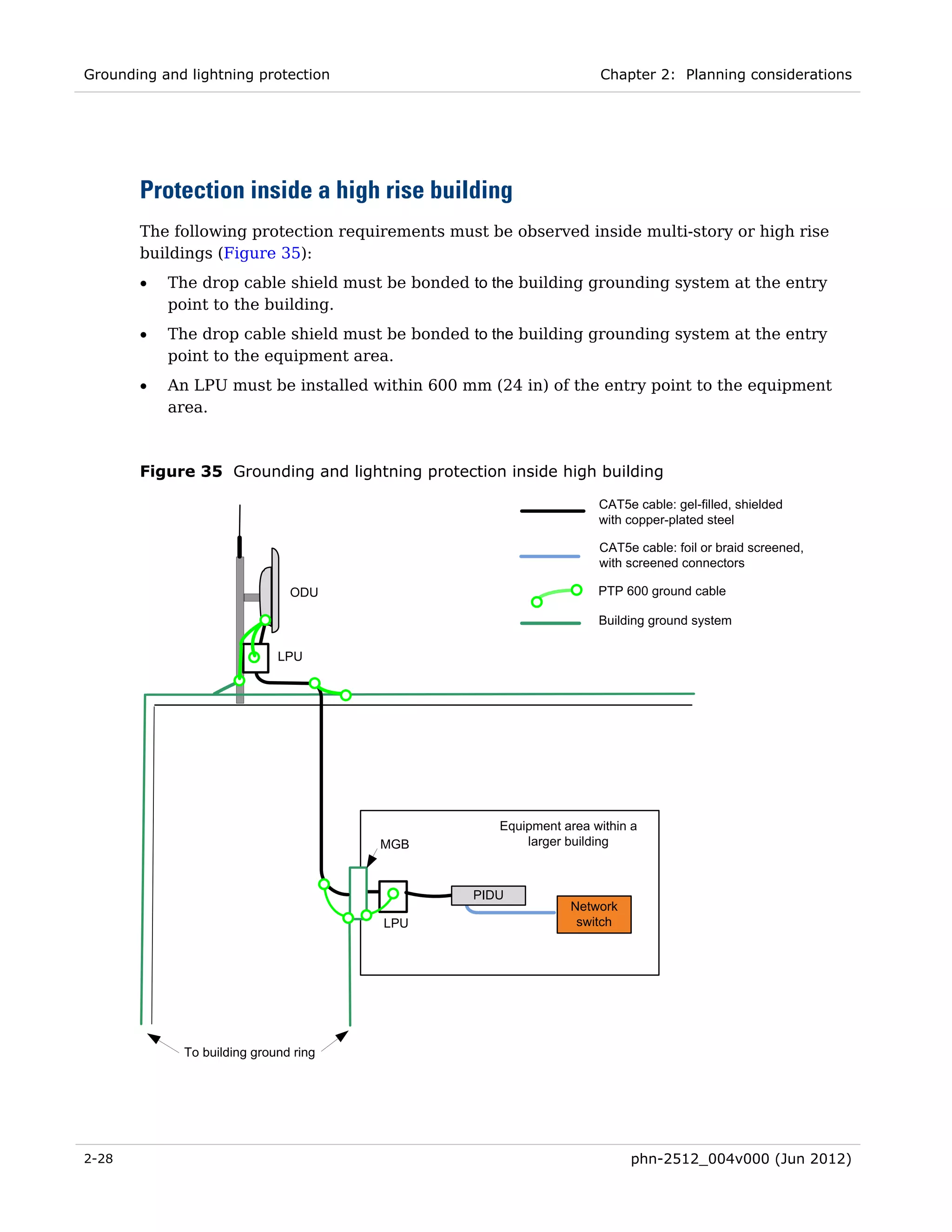
Figure 35 Grounding and lightning protection inside high building .......................................... 2-28 
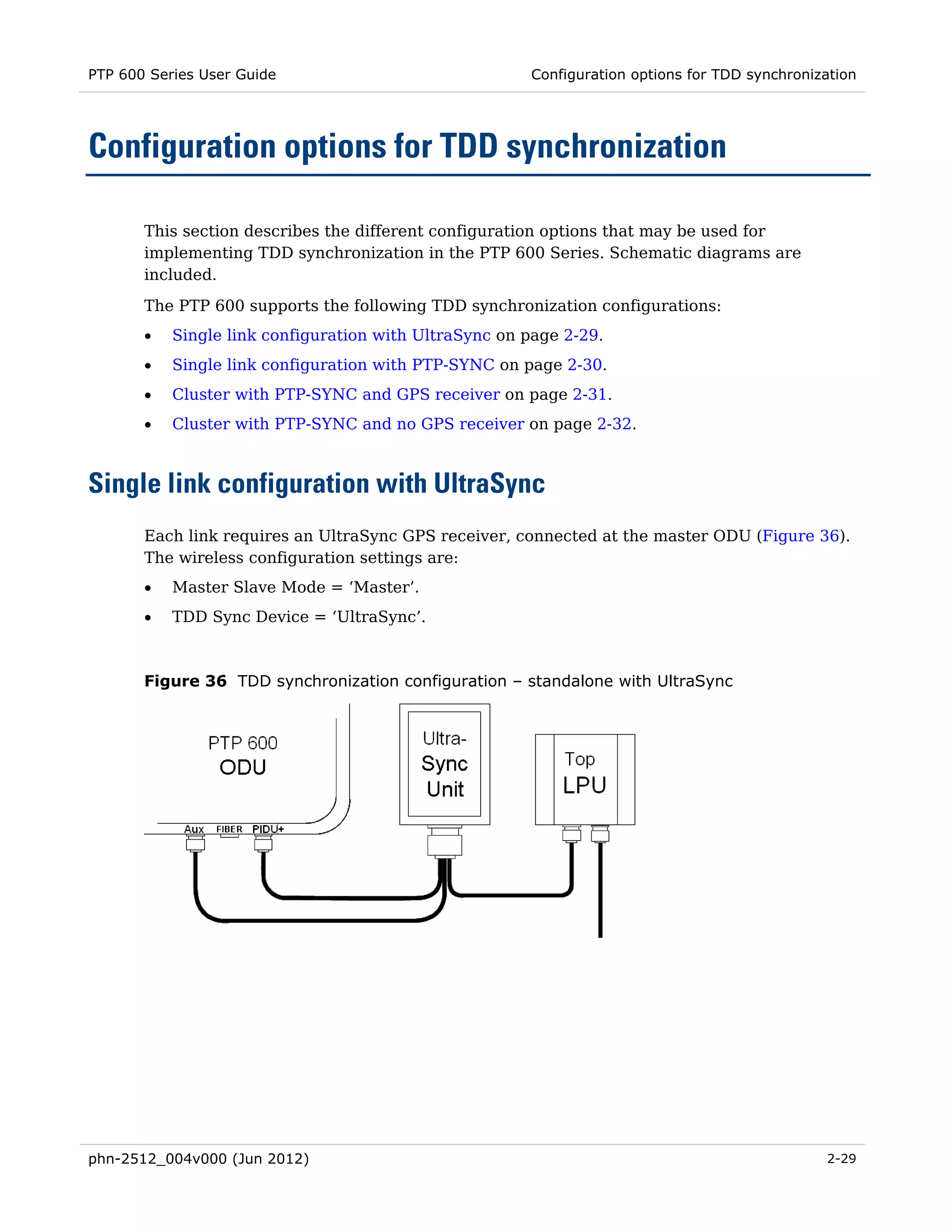
Figure 36 TDD synchronization configuration – standalone with UltraSync .............................. 2-29 
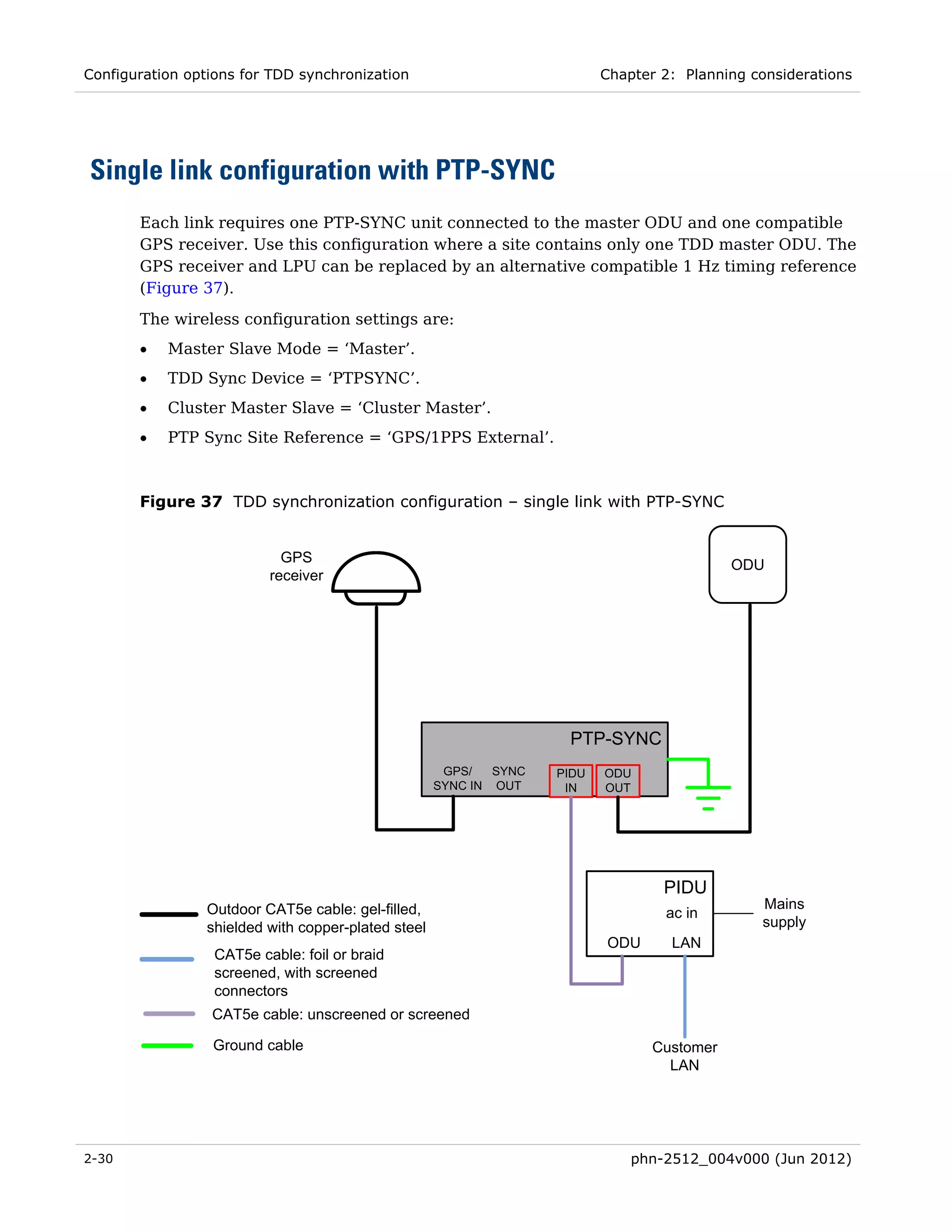
Figure 37 TDD synchronization configuration – single link with PTP-SYNC .............................. 2-30 
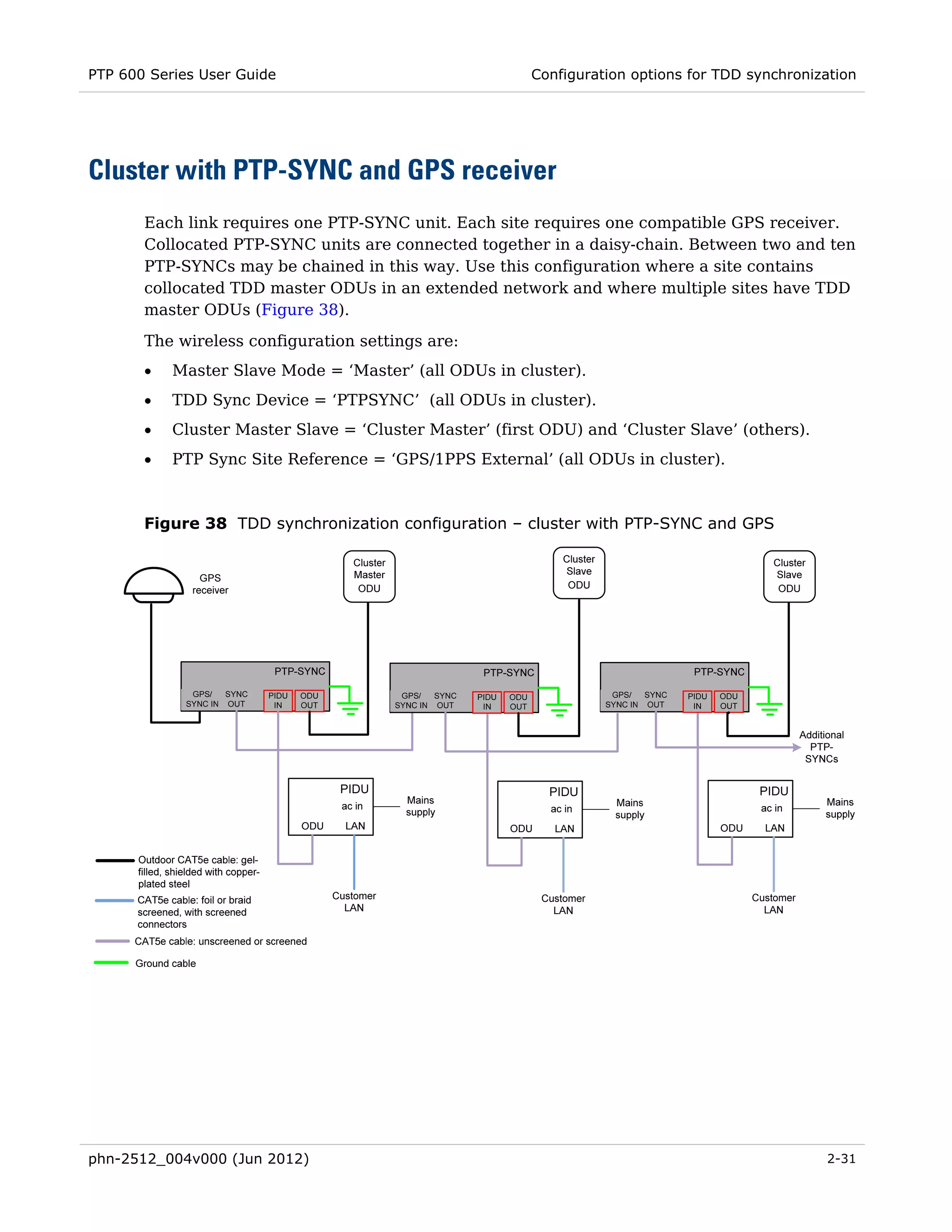
Figure 38 TDD synchronization configuration – cluster with PTP-SYNC and GPS ..................... 2-31 
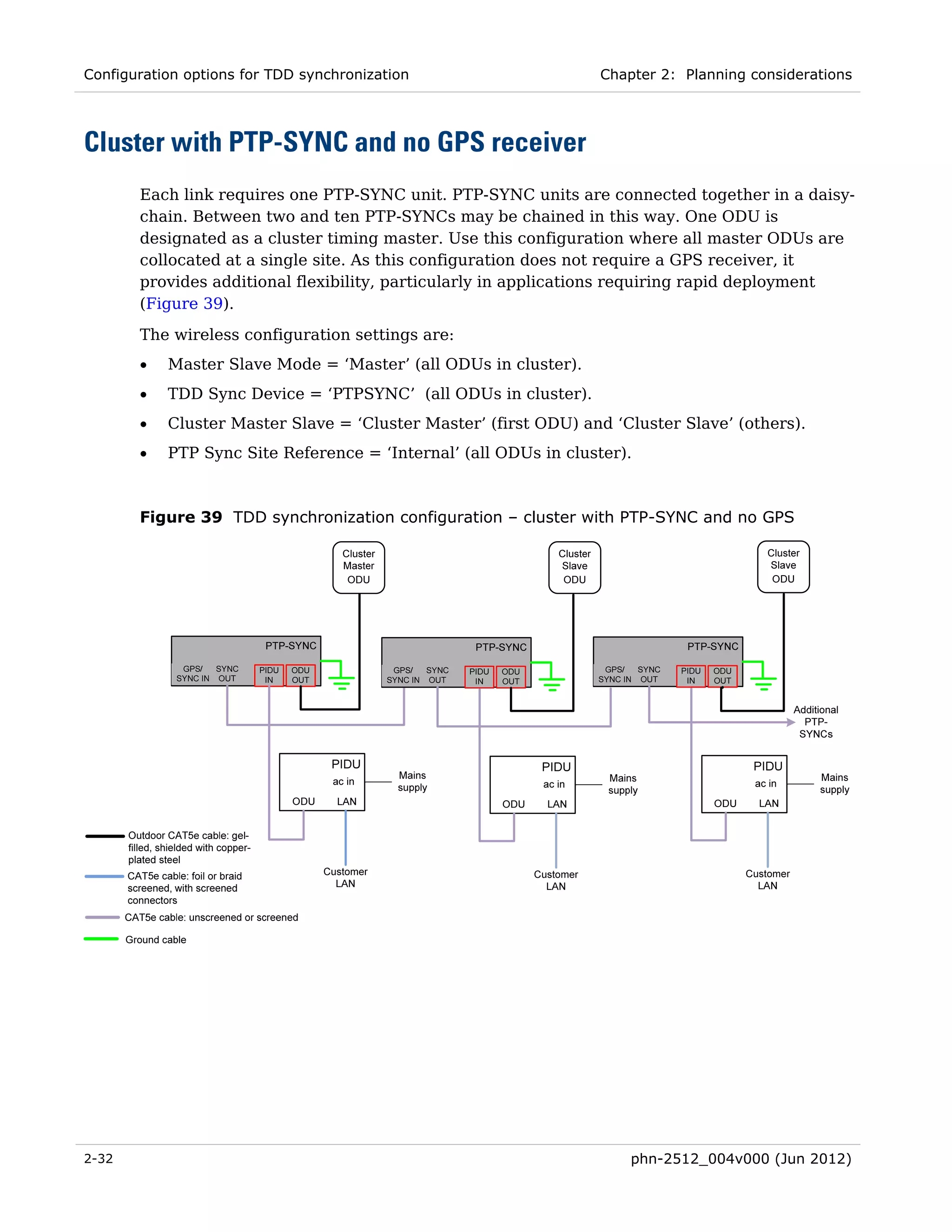
Figure 39 TDD synchronization configuration – cluster with PTP-SYNC and no GPS ................ 2-32 
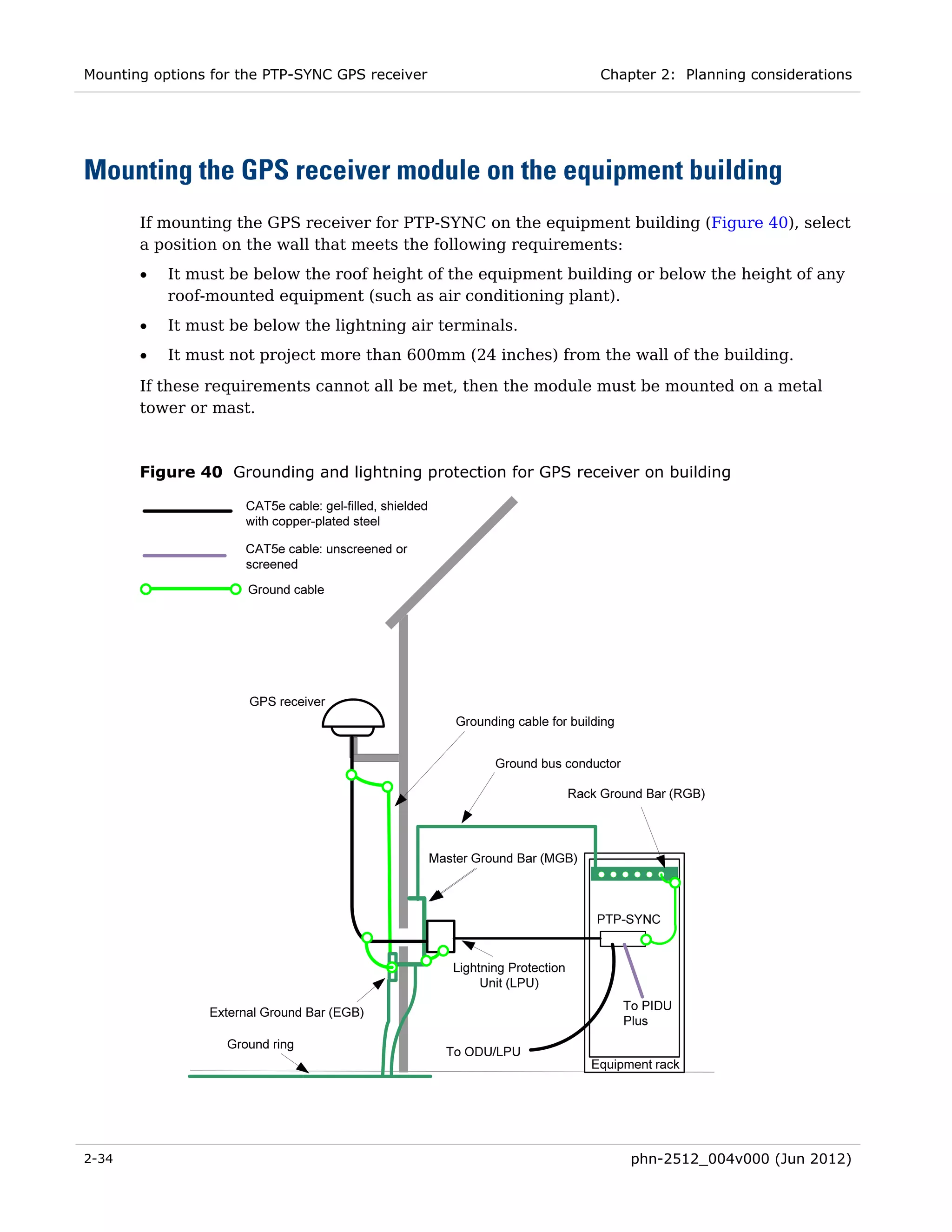
Figure 40 Grounding and lightning protection for GPS receiver on building ............................. 2-34 
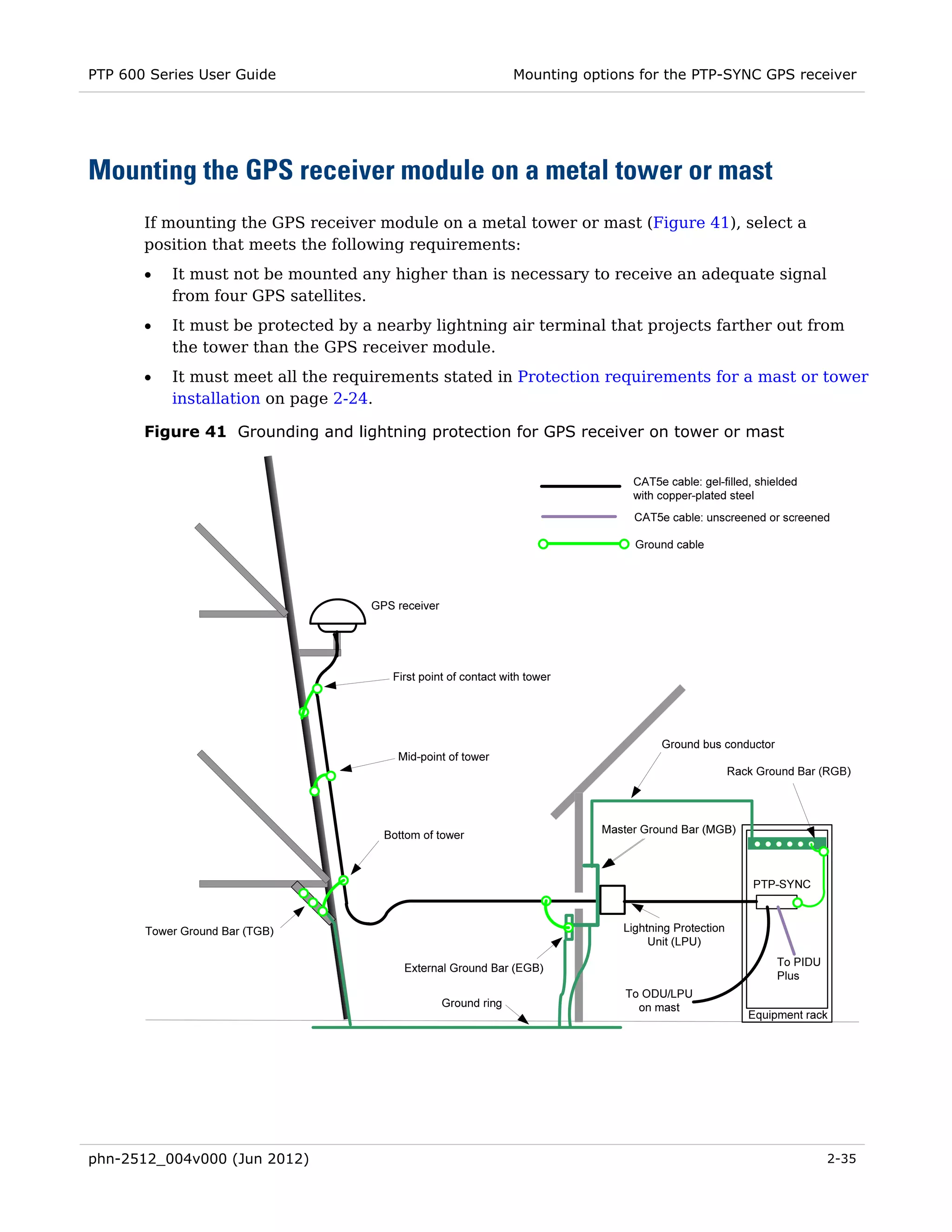
Figure 41 Grounding and lightning protection for GPS receiver on tower or mast ................... 2-35 
Figure 42 Fiber optic cable and connector specification .............................................................. 4-8 
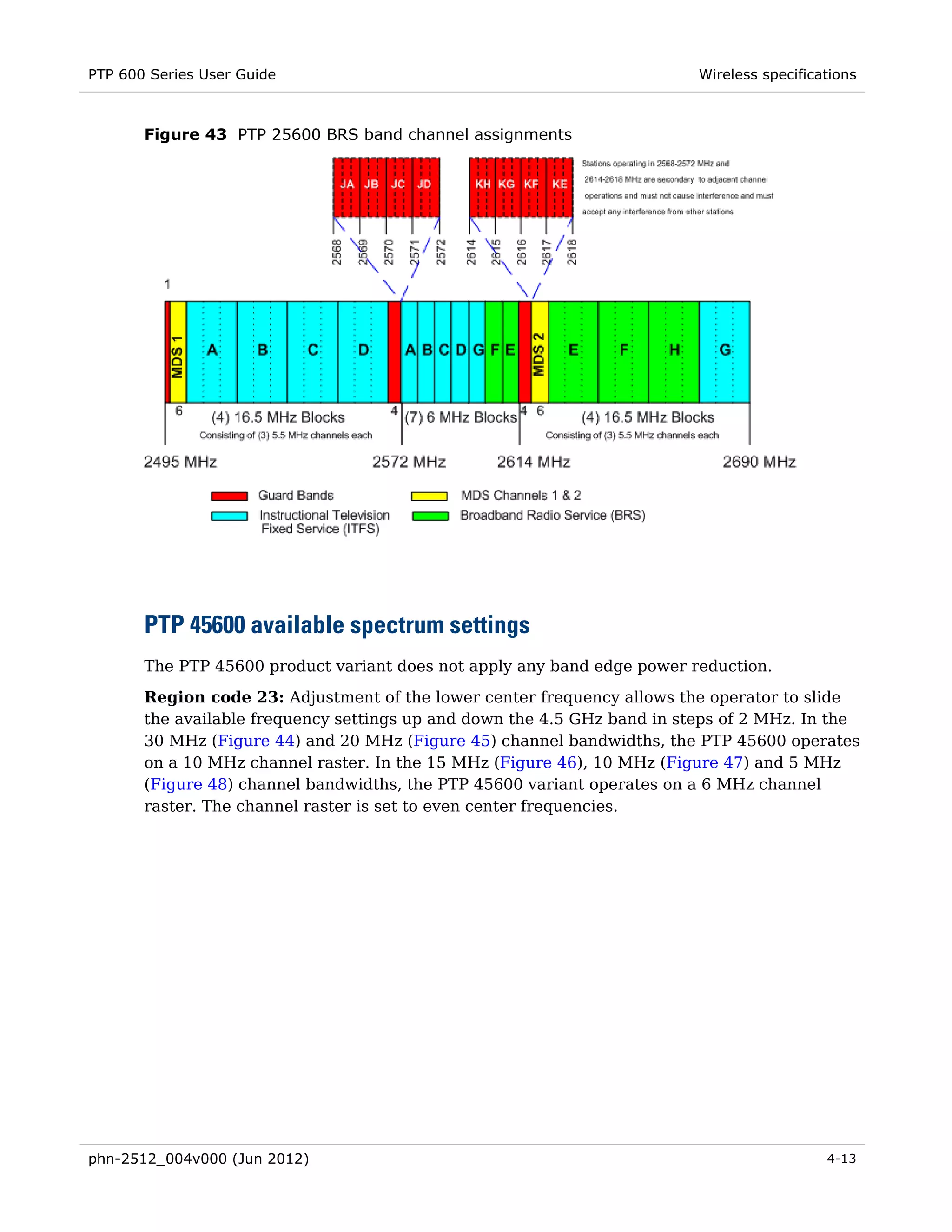
Figure 43 PTP 25600 BRS band channel assignments ............................................................... 4-13 
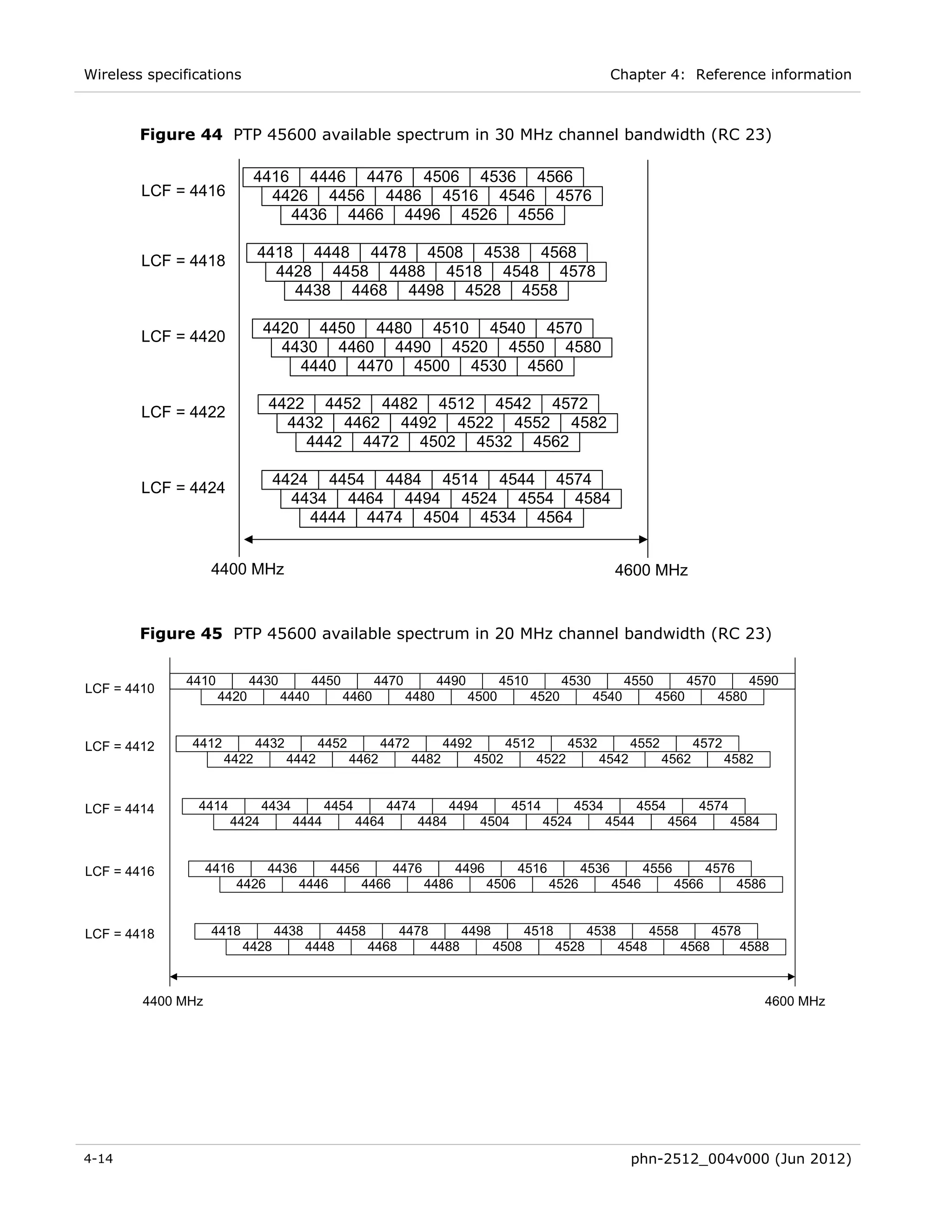
Figure 44 PTP 45600 available spectrum in 30 MHz channel bandwidth (RC 23) ..................... 4-14 
Figure 45 PTP 45600 available spectrum in 20 MHz channel bandwidth (RC 23) ..................... 4-14 
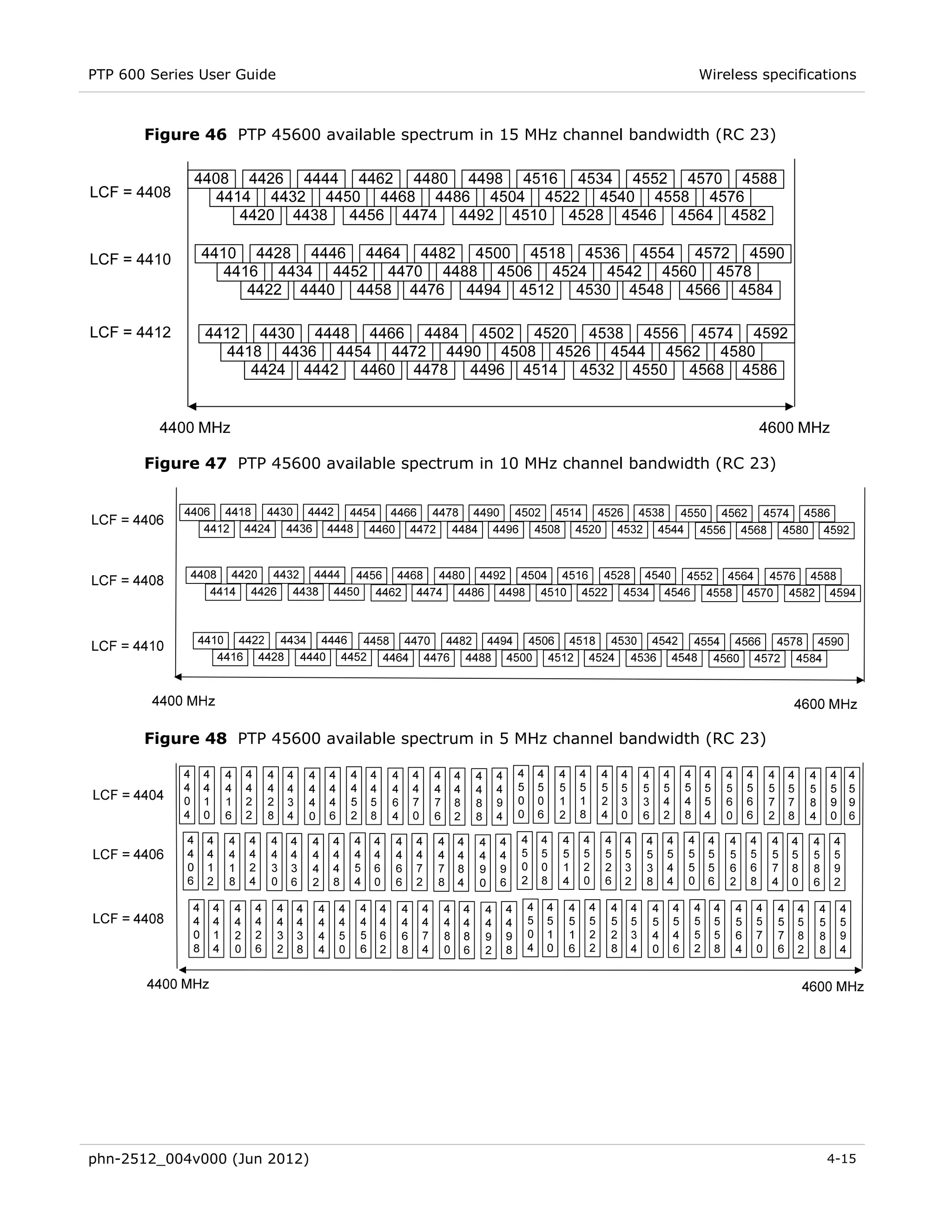
Figure 46 PTP 45600 available spectrum in 15 MHz channel bandwidth (RC 23) ..................... 4-15 
Figure 47 PTP 45600 available spectrum in 10 MHz channel bandwidth (RC 23) ..................... 4-15 
Figure 48 PTP 45600 available spectrum in 5 MHz channel bandwidth (RC 23) ....................... 4-15 
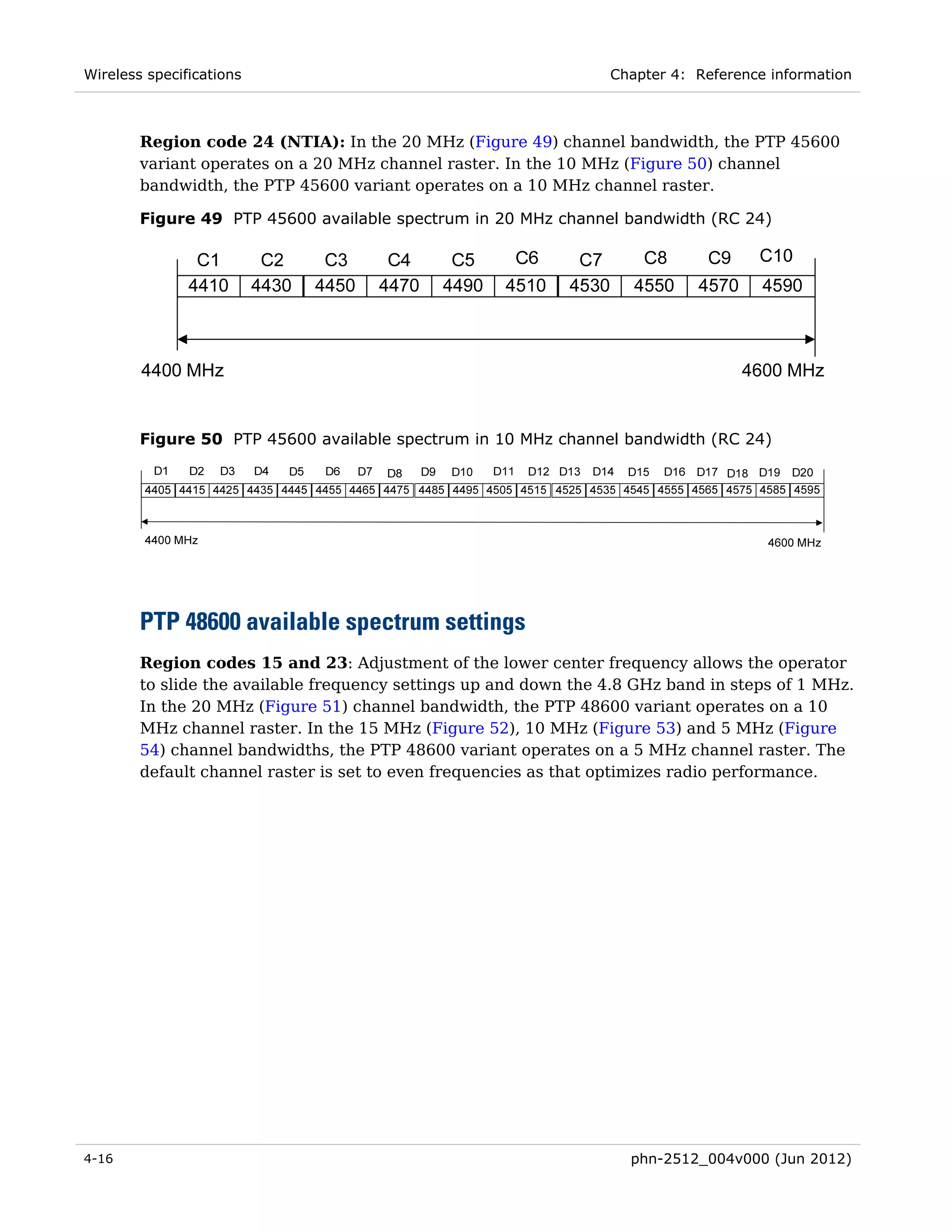
Figure 49 PTP 45600 available spectrum in 20 MHz channel bandwidth (RC 24) ..................... 4-16 
Figure 50 PTP 45600 available spectrum in 10 MHz channel bandwidth (RC 24) ..................... 4-16 
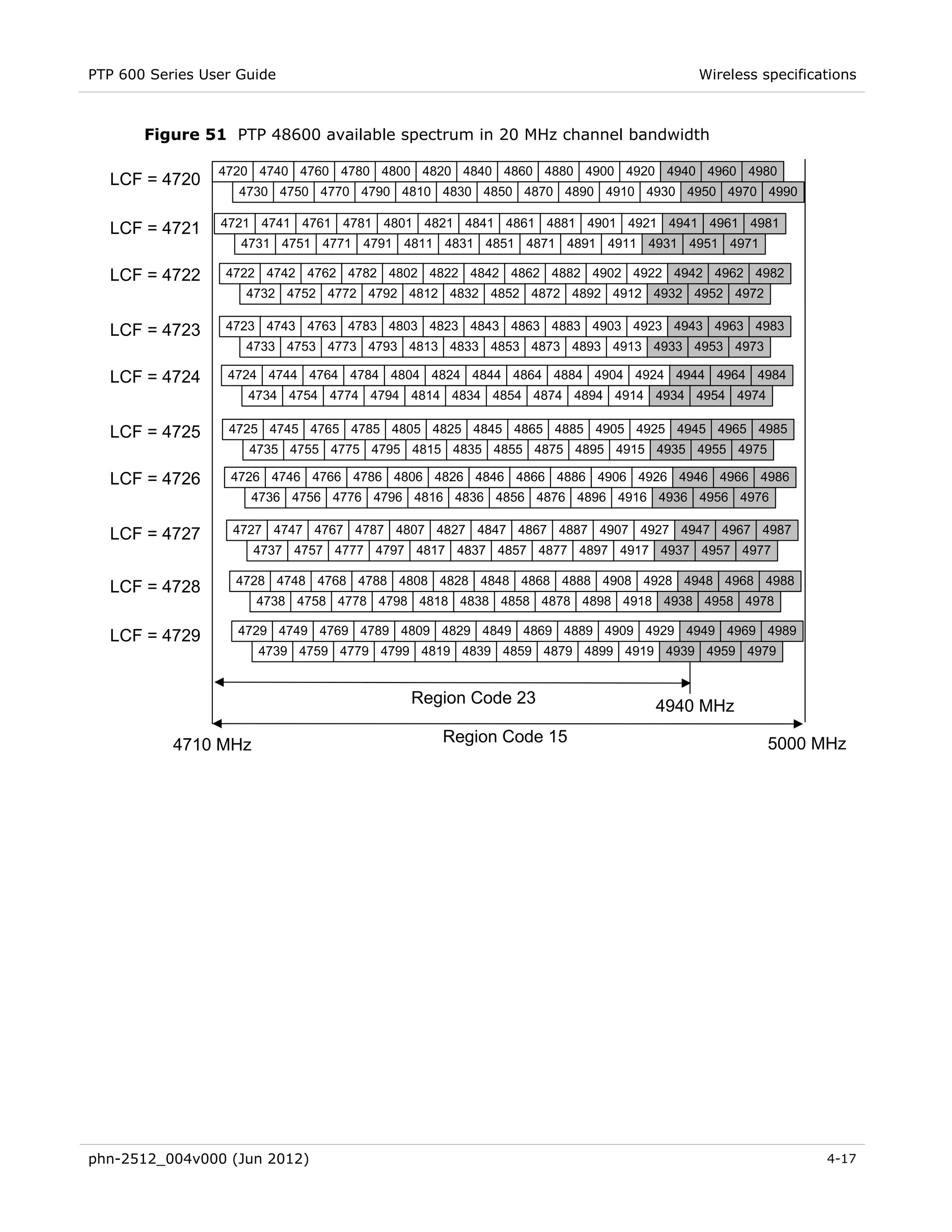
Figure 51 PTP 48600 available spectrum in 20 MHz channel bandwidth .................................. 4-17 
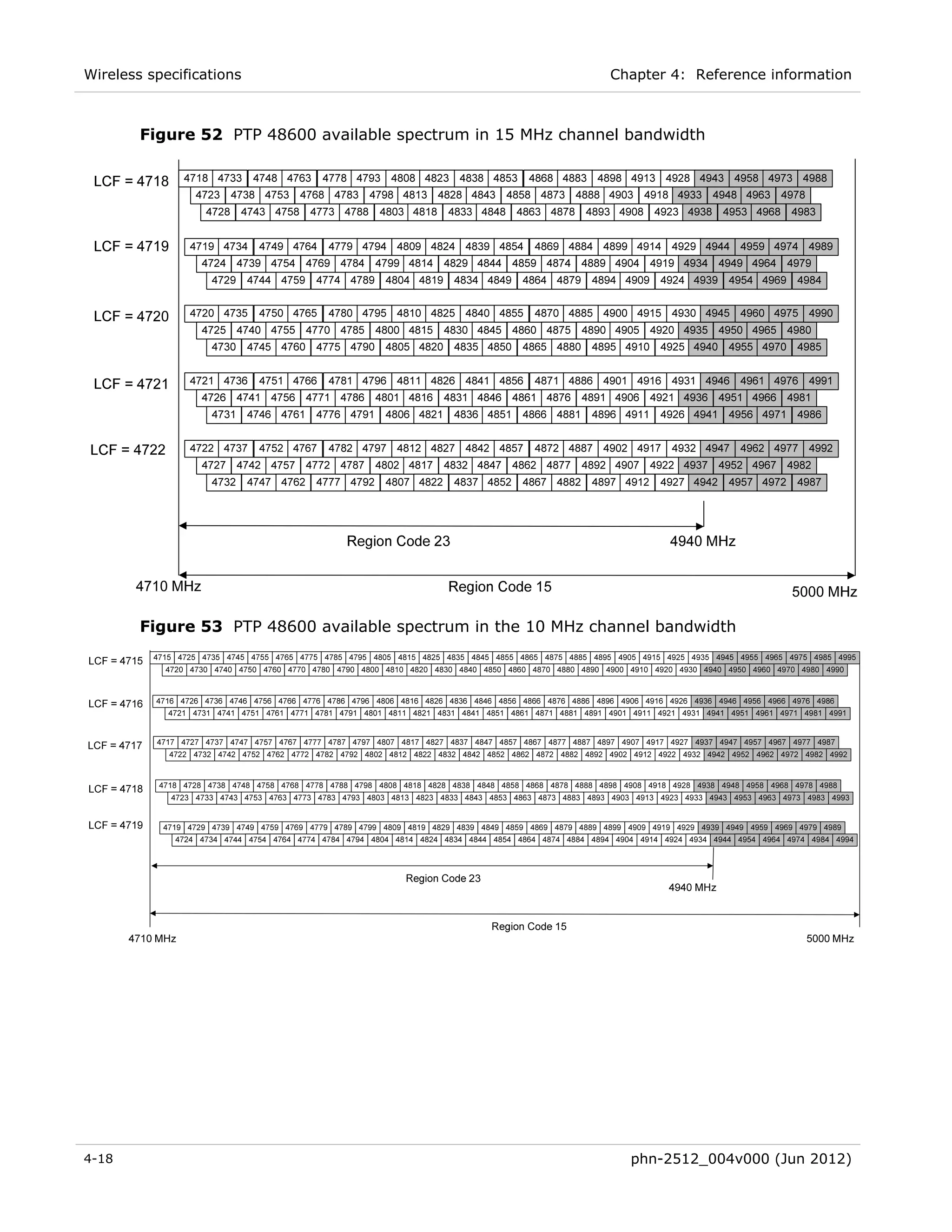
Figure 52 PTP 48600 available spectrum in 15 MHz channel bandwidth .................................. 4-18 
Figure 53 PTP 48600 available spectrum in the 10 MHz channel bandwidth ............................ 4-18 
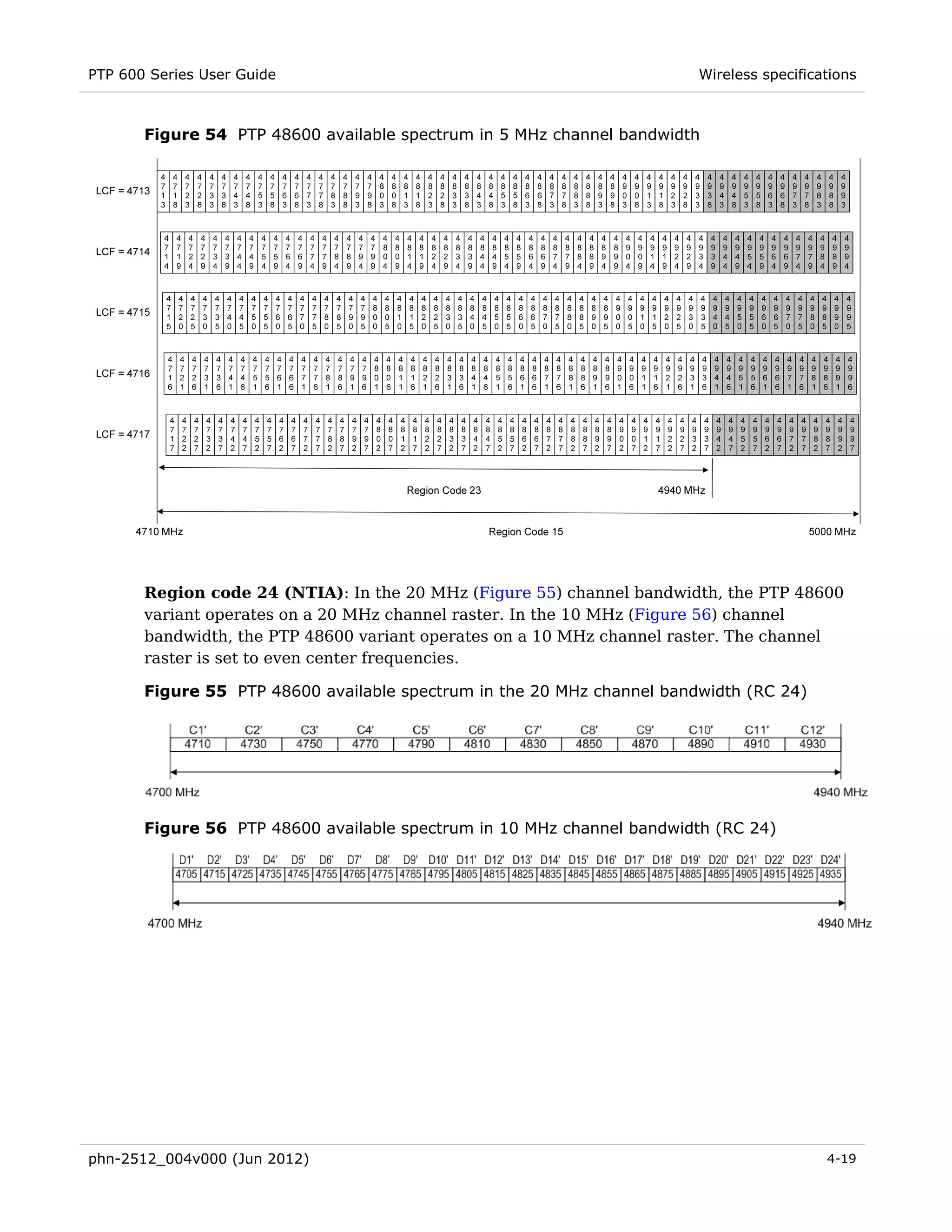
Figure 54 PTP 48600 available spectrum in 5 MHz channel bandwidth .................................... 4-19 
Figure 55 PTP 48600 available spectrum in the 20 MHz channel bandwidth (RC 24) ............... 4-19 
Figure 56 PTP 48600 available spectrum in 10 MHz channel bandwidth (RC 24) ..................... 4-19 
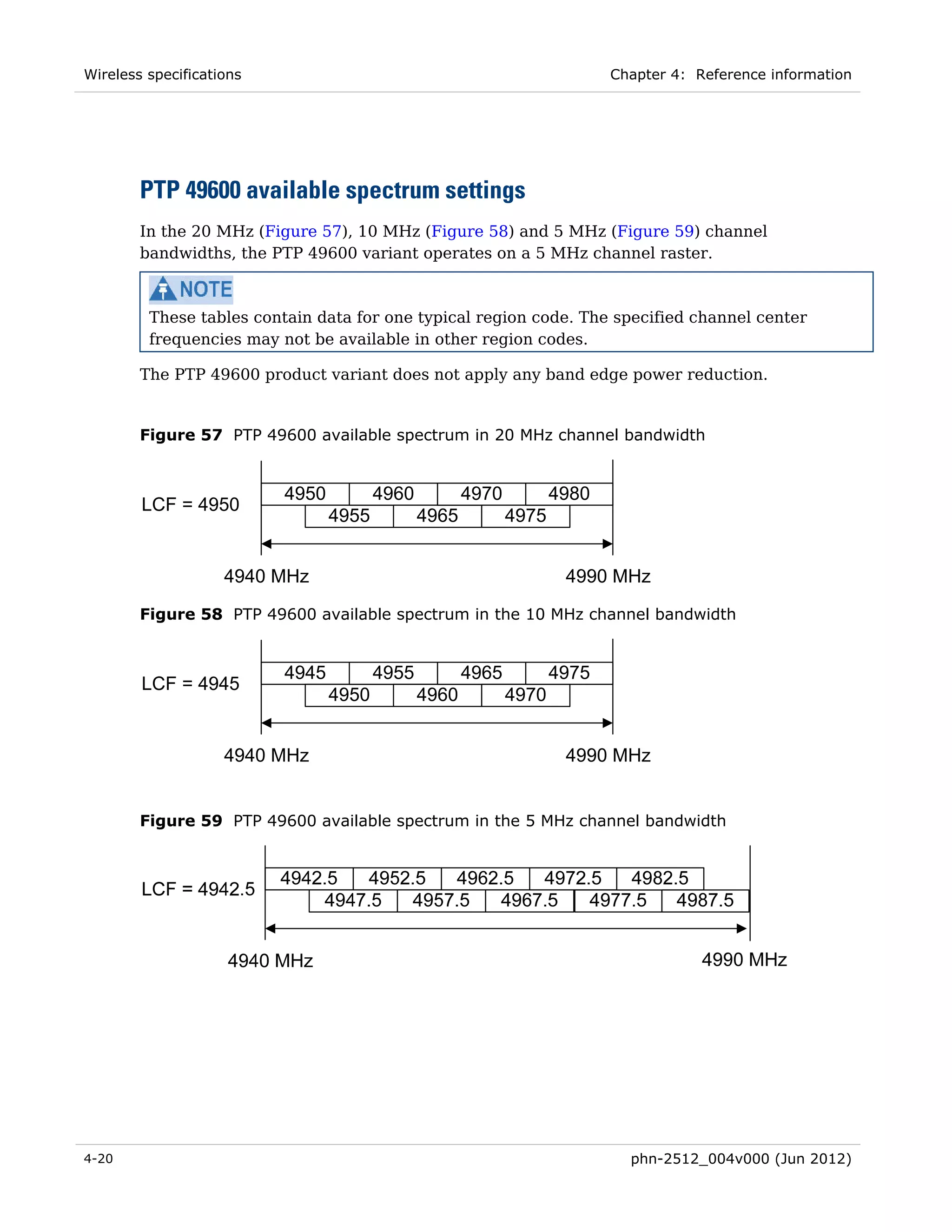
Figure 57 PTP 49600 available spectrum in 20 MHz channel bandwidth .................................. 4-20 
Figure 58 PTP 49600 available spectrum in the 10 MHz channel bandwidth ............................ 4-20 
Figure 59 PTP 49600 available spectrum in the 5 MHz channel bandwidth .............................. 4-20 
Figure 60 PTP 54600 available spectrum in 30 MHz channel bandwidth .................................. 4-21 
Figure 61 PTP 54600 available spectrum in 15 MHz channel bandwidth .................................. 4-22 
Figure 62 PTP 54600 available spectrum in 10 MHz channel bandwidth .................................. 4-22 
Figure 63 PTP 54600 available spectrum in 5 MHz channel bandwidth .................................... 4-22 
Figure 64 PTP 58600 available spectrum in 30 MHz channel bandwidth .................................. 4-23 
Figure 65 PTP 58600 available spectrum in 15 MHz channel bandwidth .................................. 4-24 
Figure 66 PTP 58600 available spectrum in the 10 MHz channel bandwidth ............................ 4-24 
Figure 67 PTP 58600 available spectrum in 5 MHz channel bandwidth .................................... 4-24 
Figure 68 PTP 59600 available spectrum in 30 MHz channel bandwidth .................................. 4-26 

xiv                                                                                  phn-2512_004v000 (Jun 2012)
PTP 600 Series User Guide


Figure 69 PTP 59600 available spectrum in 15 MHz channel bandwidth .................................. 4-27 
Figure 70 PTP 59600 available spectrum in 10 MHz channel bandwidth .................................. 4-27 
Figure 71 PTP 59600 available spectrum in 5 MHz channel bandwidth .................................... 4-28 
Figure 72 FCC certifications on 2.5 GHz product label .............................................................. 4-64 
Figure 73 FCC and IC certifications on 4.9 GHz product label .................................................. 4-65 
Figure 74 FCC and IC certifications on 5.4 GHz product label .................................................. 4-66 
Figure 75 European Union certification on 5.4 GHz product label............................................. 4-67 
Figure 76 FCC and IC certifications on 5.8 GHz product label .................................................. 4-68 
Figure 77 European Union certification on 5.8 GHz product label............................................. 4-69 
Figure 78 PTP 600 range adjustment for data rates, curve A ..................................................... 4-83 
Figure 79 PTP 600 range adjustment for data rates, curve B ..................................................... 4-83 
Figure 80 PTP 600 range adjustment for data rates, curve C..................................................... 4-84 
Figure 81 PTP 600 range adjustment for data rates, curve D .................................................... 4-84 
Figure 82 PTP 600 range adjustment for data rates, curve E ..................................................... 4-85 
Figure 83 PTP 600 range adjustment for data rates, curve F ..................................................... 4-85 
Figure 84 PTP 600 range adjustment for data rates, curve G .................................................... 4-86 
Figure 85 PTP 600 range adjustment for data rates, curve H .................................................... 4-86 
Figure 86 PTP 600 range adjustment for data rates, curve K..................................................... 4-87 
Figure 87 PTP 600 range adjustment for data rates, curve L ..................................................... 4-87 
Figure 88 PTP 600 range adjustment for data rates, curve N ..................................................... 4-88 
Figure 89 PTP 600 range adjustment for data rates, curve O .................................................... 4-88 
Figure 90 Do not reverse the rear bracket strap .......................................................................... 5-4 
Figure 91 ODU with mounting bracket and earth bonding leads ................................................. 5-5 
Figure 92 Top LPU mounting options ........................................................................................... 5-6 
Figure 93 UltraSync deployment diagram .................................................................................... 5-9 
Figure 94 UltraSync unit connections ........................................................................................... 5-9 
Figure 95 Correct cable preparation for drop cable of the supported type ................................ 5-19 
Figure 96 Drop cable with RJ45 and gland ................................................................................. 5-20 
Figure 97 Grounding at building entry ....................................................................................... 5-27 
Figure 98 Rack mount securing screws for PTP-SYNC ............................................................... 5-33 
Figure 99 PTP-SYNC mounted on a wall ..................................................................................... 5-33 
Figure 100 Inserting RJ45 pins into the 12 way circular connector ........................................... 5-43 
Figure 101 Grounding and weatherproofing requirements for GPS adapter cable .................... 5-48 
Figure 102 Wrapping self-amalgamating tape around the GPS adapter cable joint................... 5-48 
Figure 103 Wrapping PVC tape around the GPS adapter cable joint ......................................... 5-49 
Figure 104 Grounding and weatherproofing example for GPS adapter cable ............................ 5-49 
Figure 105 Example of a Balun ................................................................................................... 5-53 

phn-2512_004v000 (Jun 2012)                                                                                                      xv
List of Figures


Figure 106 Software License Key page ....................................................................................... 6-14 
Figure 107 Security Configuration Wizard page......................................................................... 6-25 
Figure 108 Step 1: Enter Key of Keys page ................................................................................ 6-25 
Figure 109 Step 2: TLS Private Key and Public Certificate page ............................................... 6-26 
Figure 110 Step 3: User Security Banner page .......................................................................... 6-27 
Figure 111 Step 4: Login Information Settings page .................................................................. 6-28 
Figure 112 Step 5: Random Number Entropy Input page .......................................................... 6-29 
Figure 113 Step 6: Enter Wireless Link Encryption Key page .................................................... 6-29 
Figure 114 Step 7: HTTP and Telnet Settings page.................................................................... 6-30 
Figure 115 Step 8: Commit Security Configuration page ........................................................... 6-32 
Figure 116 User Accounts page (identity-based user accounts not shown) ............................... 6-33 
Figure 117 Identity-based user accounts .................................................................................... 6-37 
Figure 118 Change Password page (System Administration example)....................................... 6-39 
Figure 119 Webpage Properties page ......................................................................................... 6-40 
Figure 120 RADIUS Configuration page ..................................................................................... 6-41 
Figure 121 Disarm Installation page (when unit is armed) ........................................................ 6-44 
Figure 122 Current installation summary page .......................................................................... 6-45 
Figure 123 Step 1: Interface Configuration page ....................................................................... 6-46 
Figure 124 Step 1: Interface Configuration page with T1 enabled ............................................ 6-47 
Figure 125 Step 2: Wireless Configuration page (example) ....................................................... 6-49 
Figure 126 Step 2: Wireless Configuration page (extract) for fixed frequency .......................... 6-56 
Figure 127 Step 3: TDD Synchronization page ........................................................................... 6-57 
Figure 128 Step 3: Confirm Installation Configuration page ...................................................... 6-59 
Figure 129 Reboot confirmation pop up ..................................................................................... 6-59 
Figure 130 Current SNMP Summary page (when SNMP is disabled) ........................................ 6-61 
Figure 131 Step 1: SNMP Configuration page (for SNMPv3)..................................................... 6-62 
Figure 132 Step 2: SNMP MIB-II System Objects page (for SNMPv3)....................................... 6-63 
Figure 133 Step 3: SNMP User Policy Configuration page (for SNMPv3) ................................. 6-64 
Figure 134 Step 4: SNMP User Accounts Configuration page (for SNMPv3) ............................ 6-66 
Figure 135 Step 5: SNMP Trap Configuration page (for SNMPv3) ............................................ 6-67 
Figure 136 Confirm SNMP Configuration page (for SNMPv3) ................................................... 6-69 
Figure 137 Step 1: SNMP Configuration page (for SNMPv1/2c) ................................................ 6-70 
Figure 138 Step 2: SNMP MIB-II System Objects page (for SNMPv1/2c) .................................. 6-71 
Figure 139 Step 3: SNMP Trap Configuration page (for SNMPv1/2c) ....................................... 6-72 
Figure 140 Confirm SNMP Configuration page (for SNMPv1/2c) .............................................. 6-74 
Figure 141 Diagnostic Alarms page ............................................................................................ 6-75 
Figure 142 Syslog Configuration page ........................................................................................ 6-78 

xvi                                                                                         phn-2512_004v000 (Jun 2012)
PTP 600 Series User Guide


Figure 143 Web-Based Management page ................................................................................. 6-80 
Figure 144 System Summary page (when unit is armed) ........................................................... 6-83 
Figure 145 Graphical installation page ....................................................................................... 6-87 
Figure 146 Optional post-disarm configuration .......................................................................... 6-88 
Figure 147 System Configuration page....................................................................................... 6-89 
Figure 148 QoS Configuration page (Ethernet) .......................................................................... 6-93 
Figure 149 QoS Configuration page (IP/MPLS) .......................................................................... 6-94 
Figure 150 Time Configuration page (SNTP disabled) ............................................................... 6-98 
Figure 151 Time Configuration page (SNTP enabled) ................................................................ 6-99 
Figure 152 Fiber license key instructions ................................................................................. 6-102 
Figure 153 Fiber license key alarm........................................................................................... 6-103 
Figure 154 Ethernet fiber support enabled .............................................................................. 6-103 
Figure 155 Ethernet fiber link enabled ..................................................................................... 6-105 
Figure 156 SFP Configuration page .......................................................................................... 6-106 
Figure 157 Save & Restore Configuration page ....................................................................... 6-107 
Figure 158 HTTPS key size warning alarm ............................................................................... 6-110 
Figure 159 Login page (with username) ....................................................................................... 7-2 
Figure 160 System Summary page ............................................................................................... 7-5 
Figure 161 System Status page .................................................................................................... 7-6 
Figure 162 Status page - TDD enabled and synchronized .......................................................... 7-13 
Figure 163 Status page - TDD enabled and not synchronized .................................................... 7-13 
Figure 164 Alarm warning triangle ............................................................................................. 7-14 
Figure 165 Syslog local log ......................................................................................................... 7-19 
Figure 166 Spectrum Management as seen from the Master ..................................................... 7-21 
Figure 167 Spectrum Management as seen from the Slave ....................................................... 7-23 
Figure 168 Example spectrum management plot ....................................................................... 7-24 
Figure 169 Spectrum Management Fixed Frequency Mode page .............................................. 7-27 
Figure 170 Spectrum Management page with radar avoidance - master ................................... 7-28 
Figure 171 Spectrum Management page with radar avoidance - slave ...................................... 7-29 
Figure 172 PTP 25600 example of Spectrum Management page ............................................... 7-31 
Figure 173 Active channel history screen ................................................................................... 7-32 
Figure 174 Spectrum management time series plot ................................................................... 7-33 
Figure 175 System Statistics page .............................................................................................. 7-36 
Figure 176 Detailed Counters page ............................................................................................ 7-42 
Figure 177 Diagnostic Plotter page ............................................................................................ 7-45 
Figure 178 Diagnostic attributes calculated over time (System Status page) ............................. 7-47 
Figure 179 Reboot Wireless Unit page ....................................................................................... 7-52 

phn-2512_004v000 (Jun 2012)                                                                                                         xvii
List of Figures


Figure 180 Reboot confirmation pop up ..................................................................................... 7-52 
Figure 181 PIDU recovery switch location ................................................................................. 7-53 
Figure 182 Recovery Image Warning page ................................................................................. 7-54 
Figure 183 Recovery Options page ............................................................................................. 7-54 
Figure 184 Ethernet packet test flowchart ................................................................................... 8-6 
Figure 185 Drop cable tester (front and back views) ................................................................... 8-8 
Figure 186 GPS synchronization unit.......................................................................................... 8-10 
Figure 187 Telecoms page .......................................................................................................... 8-17 


xviii                                                                                          phn-2512_004v000 (Jun 2012)
PTP 600 Series User Guide


List of Tables
Table 1 PTP 600 Series frequency variants................................................................................... 1-5 
Table 2 ODU interfaces ................................................................................................................. 1-8 
Table 3 PIDU interface functions ................................................................................................ 1-13 
Table 4 PIDU LED functions ........................................................................................................ 1-13 
Table 5 PTP-SYNC interface functions ........................................................................................ 1-23 
Table 6 PTP-SYNC LED functions ............................................................................................... 1-23 
Table 7 Minimum part number suffix for FIPS 140-2 mode ........................................................ 1-59 
Table 8 Maximum cable lengths of other copper Ethernet interfaces .......................................... 2-8 
Table 9 Lateral force – metric ..................................................................................................... 2-10 
Table 10 Lateral force – US ......................................................................................................... 2-10 
Table 11 EIRP limits from ATEX and Hazloc standards .............................................................. 2-11 
Table 12 Parameters that influence modulation mode selection ................................................ 2-14 
Table 13 Normal EIRP limits with operating channel bandwidth ............................................... 2-19 
Table 14 Setting maximum transmit power to meet general EIRP limits ................................... 2-19 
Table 15 RF cable lengths required to achieve 1.2 dB loss at 5.8 GHz ...................................... 2-20 
Table 16 HTTPS/TLS security material ....................................................................................... 2-40 
Table 17 Permitted character set for SNMPv3 passphrases....................................................... 2-47 
Table 18 Default SNMPv3 users ................................................................................................. 2-48 
Table 19 Default VACM view trees.............................................................................................. 2-49 
Table 20 Default data fill for access table ................................................................................... 2-49 
Table 21 Definition of auth-role vendor-specific attribute ........................................................... 2-51 
Table 22 PTP 54600 product variants available in each regulation ............................................ 2-52 
Table 23 PTP 58600 product variants available in each regulation ............................................ 2-53 
Table 24 PTP 25600 kit part numbers ......................................................................................... 2-54 
Table 25 PTP 45600 kit part numbers ......................................................................................... 2-54 
Table 26 PTP 48600 kit part numbers ......................................................................................... 2-55 
Table 27 PTP 49600 kit part numbers ......................................................................................... 2-55 
Table 28 PTP 54600 kit part numbers ......................................................................................... 2-55 
Table 29 PTP 58600 kit part numbers ......................................................................................... 2-56 
Table 30 PTP 59600 kit part numbers ......................................................................................... 2-57 
Table 31 Inventory for PTP 600 kits ............................................................................................ 2-58 


phn-2512_004v000 (Jun 2012)                                                                                                            xix
List of Tables


Table 32 Inventory for standard installations ............................................................................. 2-59 
Table 33 Additional inventory for connectorized ODUs .............................................................. 2-62 
Table 34 Allowed antennas for deployment in USA/Canada – 5.4 GHz ...................................... 2-63 
Table 35 Allowed antennas for deployment in USA/Canada – 5.8 GHz ...................................... 2-65 
Table 36 Sectored antennas for deployment in USA/Canada – 5.8 GHz ..................................... 2-69 
Table 37 Additional inventory for UltraSync installations .......................................................... 2-70 
Table 38 Additional inventory for PTP-SYNC installations ......................................................... 2-71 
Table 39 Additional inventory for GPS receiver installations ..................................................... 2-72 
Table 40 Recommended outdoor connectors for Trimble GPS receiver ..................................... 2-73 
Table 41 Additional inventory for E1 or T1 or OOBM installations ............................................ 2-73 
Table 42 Additional inventory for fiber installations ................................................................... 2-74 
Table 43 Integrated ODU physical specifications ......................................................................... 4-2 
Table 44 Connectorized ODU physical specifications ................................................................... 4-2 
Table 45 ODU environmental specifications ................................................................................. 4-2 
Table 46 PIDU physical specifications .......................................................................................... 4-3 
Table 47 PIDU environmental specifications ................................................................................ 4-3 
Table 48 PIDU electrical specifications ........................................................................................ 4-3 
Table 49 PTP-SYNC unit physical specifications ........................................................................... 4-4 
Table 50 PTP-SYNC unit environmental specifications ................................................................. 4-4 
Table 51 PTP-SYNC unit electrical specifications ......................................................................... 4-4 
Table 52 PTP-SYNC unit timing specifications - GPS/SYNC IN (RJ-45) ........................................ 4-5 
Table 53 PTP-SYNC unit timing specifications - 1PPS IN (SMA) .................................................. 4-5 
Table 54 GPS/SYNC IN port pinouts ............................................................................................. 4-6 
Table 55 Fiber Ethernet interface specifications (1000BaseSX) .................................................. 4-7 
Table 56 Fiber Ethernet interface specifications (1000BaseLX) .................................................. 4-7 
Table 57 PTP 600 wireless specifications (all variants) ................................................................ 4-9 
Table 58 PTP 600 wireless specifications (per frequency variant) ............................................. 4-10 
Table 59 PTP 25600 channel plan - FCC BRS-EBS Post-Transition Band ................................... 4-12 
Table 60 PTP 58600 band edge Tx power reduction................................................................... 4-25 
Table 61 PTP 25600 - IP mode - threshold, power and link loss ................................................. 4-29 
Table 62 PTP 25600 - TDM mode - threshold, power and link loss............................................. 4-30 
Table 63 PTP 45600 - IP mode - threshold, power and link loss ................................................. 4-31 
Table 64 PTP 45600 - TDM mode - threshold, power and link loss............................................. 4-32 
Table 65 PTP 48600 - IP mode - threshold, power and link loss ................................................. 4-33 
Table 66 PTP 48600 - TDM mode - threshold, power and link loss............................................. 4-34 
Table 67 PTP 49600 - IP mode - threshold, power and link loss ................................................. 4-35 
Table 68 PTP 49600 - TDM mode - threshold, power and link loss............................................. 4-36 

xx                                                                                          phn-2512_004v000 (Jun 2012)
PTP 600 Series User Guide


Table 69 PTP 54600 - IP mode - threshold, power and link loss ................................................. 4-37 
Table 70 PTP 54600 - TDM mode - threshold, power and link loss ............................................. 4-38 
Table 71 PTP 58600 - IP mode - threshold, power and link loss ................................................. 4-39 
Table 72 PTP 58600 - TDM mode - threshold, power and link loss ............................................. 4-40 
Table 73 PTP 59600 - IP mode - threshold, power and link loss ................................................. 4-41 
Table 74 PTP 59600 - TDM mode - threshold, power and link loss ............................................. 4-42 
Table 75 PTP 600 Ethernet bridging specifications .................................................................... 4-43 
Table 76 PTP 600 telecoms interface specifications ................................................................... 4-43 
Table 77 Destination address in layer 2 control protocols .......................................................... 4-44 
Table 78 Event messages ............................................................................................................ 4-46 
Table 79 PTP 600 safety compliance specifications .................................................................... 4-48 
Table 80 EMC emissions compliance .......................................................................................... 4-49 
Table 81 Power compliance margins........................................................................................... 4-52 
Table 82 Radio certifications ....................................................................................................... 4-55 
Table 83 Licenses and region codes for PTP 25600 .................................................................... 4-57 
Table 84 Licenses and region codes for PTP 45600 .................................................................... 4-58 
Table 85 Licenses and region codes for PTP 48600 .................................................................... 4-58 
Table 86 Licenses and region codes for PTP 49600 .................................................................... 4-58 
Table 87 Licenses and region codes for PTP 54600 .................................................................... 4-59 
Table 88 Licenses and region codes for PTP 58600 .................................................................... 4-60 
Table 89 Licenses and region codes for 5.9 GHz ........................................................................ 4-62 
Table 90 Default and alternative region codes for PTP 600 variants.......................................... 4-63 
Table 91 Throughput for PTP 600 Full, link symmetry 1:1, link optimization IP ........................ 4-72 
Table 92 Throughput for PTP 600 Full, link symmetry 1:1, link optimization TDM ................... 4-74 
Table 93 Throughput for PTP 600 Full, link symmetry 2:1, link optimization = IP .................... 4-76 
Table 94 Throughput for PTP 600 Full, link symmetry 2:1, link optimization = TDM ................ 4-78 
Table 95 Throughput for PTP 600 Full, link symmetry Adaptive, link optimization = IP ........... 4-80 
Table 96 Range adjustment characteristics ................................................................................ 4-82 
Table 97 GPS 12 way circular connector to RJ45 pin mappings ................................................. 5-42 
Table 98 E1 or T1 patch panel pin outs ...................................................................................... 5-52 
Table 99 Resistance referenced to the E1/T1 source .................................................................. 5-53 
Table 100 IP interface attributes .................................................................................................. 6-9 
Table 101 Management port attributes ...................................................................................... 6-10 
Table 102 Data port attributes .................................................................................................... 6-11 
Table 103 Bridging attributes ..................................................................................................... 6-13 
Table 104 Capability summary attributes ................................................................................... 6-15 
Table 105 HTTP and Telnet attributes ........................................................................................ 6-30 

phn-2512_004v000 (Jun 2012)                                                                                                          xxi
List of Tables


Table 106 User account management attributes ........................................................................ 6-34 
Table 107 Password complexity configuration attributes ........................................................... 6-35 
Table 108 Identity-based user accounts attributes ..................................................................... 6-38 
Table 109 RADIUS Authentication attributes ............................................................................. 6-42 
Table 110 Step 1: Interface Configuration standard attributes .................................................. 6-47 
Table 111 Step 2: Wireless Configuration attributes .................................................................. 6-50 
Table 112 Step 3: TDD Synchronization attributes ..................................................................... 6-57 
Table 113 Step 1: SNMP Configuration attributes (for SNMPv3) .............................................. 6-62 
Table 114 Step 2: SNMP MIB-II System Objects attributes (for SNMPv3) ................................ 6-63 
Table 115 Step 3: SNMP User Policy Configuration attributes (for SNMPv3) ........................... 6-65 
Table 116 Step 4: SNMP User Accounts Configuration attributes (for SNMPv3) ...................... 6-66 
Table 117 Step 5: SNMP Trap Configuration attributes (for SNMPv3) ...................................... 6-68 
Table 118 Step 1: SNMP Configuration attributes (for SNMPv1/2c) ......................................... 6-71 
Table 119 Step 2: SNMP MIB-II System Objects attributes (for SNMPv1/2c)............................ 6-72 
Table 120 Step 3: SNMP Trap Configuration attributes (for SNMPv1/2c) ................................. 6-73 
Table 121 Email Configuration attributes ................................................................................... 6-77 
Table 122 Syslog Configuration attributes ................................................................................. 6-79 
Table 123 Web-Based Management attributes ........................................................................... 6-80 
Table 124 ODU installation tones ............................................................................................... 6-85 
Table 125 System Configuration attributes ................................................................................ 6-90 
Table 126 Layer 2 Control Protocols ........................................................................................... 6-95 
Table 127 Ethernet Priority Queue settings................................................................................ 6-95 
Table 128 Manual clock attributes .............................................................................................. 6-98 
Table 129 SNTP clock attributes............................................................................................... 6-100 
Table 130 Procedures performed from each menu option ............................................................ 7-3 
Table 131 System Summary attributes ......................................................................................... 7-5 
Table 132 System Status attributes .............................................................................................. 7-7 
Table 133 System alarms ............................................................................................................ 7-15 
Table 134 Email alerts ................................................................................................................ 7-18 
Table 135 Spectrum Management attributes ............................................................................. 7-21 
Table 136 Channel states represented in the spectrum management plot ................................ 7-25 
Table 137 Key metrics represented in the spectrum management plot ..................................... 7-26 
Table 138 Channel states in the spectrum management plot (radar avoidance)........................ 7-30 
Table 139 Interference represented in the time series plot ....................................................... 7-33 
Table 140 System Histograms attributes in the System Statistics page .................................... 7-37 
Table 141 Data Port Counter attributes in the System Statistics page ...................................... 7-38 
Table 142 Management Port Counter attributes in the System Statistics page ......................... 7-39 

xxii                                                                                              phn-2512_004v000 (Jun 2012)
PTP 600 Series User Guide


Table 143 Wireless Port Counter attributes in the System Statistics page ................................ 7-39 
Table 144 Other attributes in the System Statistics page........................................................... 7-40 
Table 145 Detailed Counters attributes ...................................................................................... 7-43 
Table 146 Setting tFTP attributes ............................................................................................... 7-50 
Table 147 Monitoring tFTP attributes ......................................................................................... 7-51 
Table 148 Recovery Options attributes ....................................................................................... 7-55 
Table 149 Recovery Options buttons........................................................................................... 7-55 
Table 150 RJ45 cable resistance tests at the PIDU end ................................................................ 8-9 
Table 151 PTP-SYNC indicator LED states ................................................................................. 8-13 
Table 152 Clustered PTP-SYNC units - ‘GPS’ LEDs Fault-finding............................................... 8-15 
Table 153 Telecoms attributes .................................................................................................... 8-17 


phn-2512_004v000 (Jun 2012)                                                                                                      xxiii
List of Tables


xxiv   phn-2512_004v000 (Jun 2012)
PTP 600 Series User Guide


About This User Guide

       This guide describes the planning, installation and operation of the Cambium PTP 600
       Series of point-to-point wireless Ethernet bridges. It is intended for use by the system
       designer, system installer and system administrator.
       Users of this guide should have knowledge of the following areas:
       •   Radio network design
       •   Outdoor radio equipment installation
       •   System installation, configuration, monitoring and fault finding

       System designers should refer to the following chapters:
       •   Chapter 1: Product description
       •   Chapter 2: Planning considerations
       •   Chapter 3: Legal information
       •   Chapter 4: Reference information

       Installers should refer to the following chapters:
       •   Chapter 5: Installation
       •   Chapter 6: Configuration and alignment
       •   Chapter 8: Troubleshooting

       Operators should refer to the following chapters:
       •   Chapter 1: Product description
       •   Chapter 6: Configuration and alignment
       •   Chapter 7: Operation
       •   Chapter 8: Troubleshooting


phn-2512_004v000 (Jun 2012)                                                                       1
General information                                                       About This User Guide


General information


Version information
       The following shows the issue status of this document.

        Document issue      Date of issue   Remarks

        001v000             Nov 2011        System Release 600-10-00

        002v000             Feb 2012        System Release 600-10-00 (revised)

        003v000             Mar 2012        System Release 600-10-02

        004v000             Jun 2012        System Release 600-10-03


Contacting Cambium Networks

       Support website:                http://www.cambiumnetworks.com/support
       Main website:                   http://www.cambiumnetworks.com

       Sales enquiries:                solutions@cambiumnetworks.com
       Support enquiries:              support@cambiumnetworks.com
       Telephone number list:          http://www.cambiumnetworks.com/contact.php

       Address:                        Cambium Networks Limited,
                                       Linhay Business Park,
                                       Eastern Road,
                                       Ashburton,
                                       Devon, UK,
                                       TQ13 7UP


2                                                                  phn-2512_004v000 (Jun 2012)
PTP 600 Series User Guide                                                        General information


Purpose
       Cambium Networks Point-To-Point (PTP) documents are intended to instruct and assist
       personnel in the operation, installation and maintenance of the Cambium PTP equipment
       and ancillary devices. It is recommended that all personnel engaged in such activities be
       properly trained.
       Cambium disclaims all liability whatsoever, implied or express, for any risk of damage, loss
       or reduction in system performance arising directly or indirectly out of the failure of the
       customer, or anyone acting on the customer's behalf, to abide by the instructions, system
       parameters, or recommendations made in this document.


Cross references
       References to external publications are shown in italics. Other cross references,
       emphasized in blue text in electronic versions, are active links to the references.
       This document is divided into numbered chapters that are divided into sections. Sections
       are not numbered, but are individually named at the top of each page, and are listed in the
       table of contents.


Feedback
       We appreciate feedback from the users of our documents. This includes feedback on the
       structure, content, accuracy, or completeness of our documents. Send feedback to
       support@cambiumnetworks.com.


phn-2512_004v000 (Jun 2012)                                                                       3
Problems and warranty                                                         About This User Guide


Problems and warranty


Reporting problems
       If any problems are encountered when installing or operating this equipment, follow this
       procedure to investigate and report:

         1    Search this document and the software release notes of supported releases.

         2    Visit the support website.

         3    Ask for assistance from the Cambium product supplier.

         4    Gather information from affected units, such as any available diagnostic
              downloads.

         5    Escalate the problem by emailing or telephoning support.


Repair and service
       If unit failure is suspected, obtain details of the Return Material Authorization (RMA)
       process from the support website.


Warranty
       Cambium’s standard hardware warranty is for one (1) year from date of shipment from
       Cambium or a Cambium distributor. Cambium warrants that hardware will conform to the
       relevant published specifications and will be free from material defects in material and
       workmanship under normal use and service. Cambium shall within this time, at its own
       option, either repair or replace the defective product within thirty (30) days of receipt of
       the defective product. Repaired or replaced product will be subject to the original
       warranty period but not less than thirty (30) days.
       To register PTP products or activate warranties, visit the support website.
       For warranty assistance, contact the reseller or distributor.


        Using non-Cambium parts for repair could damage the equipment or void warranty.
        Contact Cambium for service and repair instructions.


4                                                                      phn-2512_004v000 (Jun 2012)
PTP 600 Series User Guide                                              Problems and warranty


        Portions of Cambium equipment may be damaged from exposure to electrostatic
        discharge. Use precautions to prevent damage.


phn-2512_004v000 (Jun 2012)                                                               5
Security advice                                                                About This User Guide


Security advice

       Cambium Networks systems and equipment provide security parameters that can be
       configured by the operator based on their particular operating environment. Cambium
       recommends setting and using these parameters following industry recognized security
       practices. Security aspects to be considered are protecting the confidentiality, integrity,
       and availability of information and assets. Assets include the ability to communicate,
       information about the nature of the communications, and information about the parties
       involved.
       In certain instances Cambium makes specific recommendations regarding security
       practices, however the implementation of these recommendations and final responsibility
       for the security of the system lies with the operator of the system.


6                                                                     phn-2512_004v000 (Jun 2012)
PTP 600 Series User Guide                                               Warnings, cautions, and notes


Warnings, cautions, and notes

       The following describes how warnings and cautions are used in this document and in all
       documents of the Cambium Networks document set.


Warnings
       Warnings precede instructions that contain potentially hazardous situations. Warnings are
       used to alert the reader to possible hazards that could cause loss of life or physical injury.
       A warning has the following format:


        Warning text and consequence for not following the instructions in the warning.


Cautions
       Cautions precede instructions and are used when there is a possibility of damage to
       systems, software, or individual items of equipment within a system. However, this
       damage presents no danger to personnel. A caution has the following format:


        Caution text and consequence for not following the instructions in the caution.


Notes
       A note means that there is a possibility of an undesirable situation or provides additional
       information to help the reader understand a topic or concept. A note has the following
       format:


        Note text.


phn-2512_004v000 (Jun 2012)                                                                          7
Caring for the environment                                                   About This User Guide


Caring for the environment

       The following information describes national or regional requirements for the disposal of
       Cambium Networks supplied equipment and for the approved disposal of surplus
       packaging.


In EU countries
       The following information is provided to enable regulatory compliance with the European
       Union (EU) directives identified and any amendments made to these directives when using
       Cambium equipment in EU countries.


       Disposal of Cambium equipment
       European Union (EU) Directive 2002/96/EC Waste Electrical and Electronic Equipment
       (WEEE)
       Do not dispose of Cambium equipment in landfill sites. In the EU, Cambium in conjunction
       with a recycling partner ensures that equipment is collected and recycled according to the
       requirements of EU environmental law.


       Disposal of surplus packaging
       Do not dispose of surplus packaging in landfill sites. In the EU, it is the individual
       recipient’s responsibility to ensure that packaging materials are collected and recycled
       according to the requirements of EU environmental law.


In non-EU countries
       In non-EU countries, dispose of Cambium equipment and all surplus packaging in
       accordance with national and regional regulations.


8                                                                    phn-2512_004v000 (Jun 2012)
PTP 600 Series User Guide


Chapter 1: Product description

       This chapter provides a high level description of the PTP 600 product. It describes in
       general terms the function of the product, the main product variants and typical
       deployment. It also describes the main hardware components.
       The following topics are described in this chapter:
       •   Overview of the PTP 600 on page 1-2 introduces the key features, typical uses, product
           variants and components of the PTP 600.
       •   Outdoor unit (ODU) on page 1-7 describes the ODU and its interfaces.
       •   Powered indoor unit (PIDU) on page 1-12 describes the PIDU and its interfaces.
       •   Cabling and lightning protection on page 1-17 describes the cabling and lightning
           protection components of a PTP 600 installation.
       •   PTP-SYNC unit on page 1-22 describes the (optional) PTP-SYNC unit and its interfaces.
           This unit may be used to implement TDD synchronization.
       •   Wireless operation on page 1-25 describes how the PTP 600 wireless link is operated,
           including modulation modes, power control and security.
       •   Ethernet bridging on page 1-37 describes how the PTP 600 controls Ethernet data, in
           both the customer data and system management networks.
       •   Telecoms circuits on page 1-45 describes how telecoms traffic (E1 or T1) may be
           carried over PTP 600 links.
       •   System management on page 1-47 introduces the PTP 600 management system,
           including the web interface, installation, configuration, alerts and upgrades.
       •   FIPS 140-2 mode on page 1-59 describes the (optional) FIPS 140-2 a mode of
           operation.
       •   Unified Capabilities Approved Product (UC APL) mode on page 1-64 describes the
           (optional) UC APL mode of operation.


phn-2512_004v000 (Jun 2012)                                                                     1-1
Overview of the PTP 600                                                Chapter 1: Product description


Overview of the PTP 600

       This section introduces the key features, typical uses, product variants and components of
       the PTP 600.


Purpose
       Cambium PTP 600 Series Bridge products are designed for Ethernet bridging over point-
       to-point microwave links in the licensed bands 2.5 GHz, 4.5 GHz, 4.8 GHz and 4.9 GHz,
       and in the unlicensed bands 5.4 GHz (ETSI Band B), 5.8 GHz (ETSI Band C and FCC ISM
       band) and 5.9 GHz. Users must ensure that the PTP 600 Series complies with local
       operating regulations.
       The PTP 600 Series acts as a transparent bridge between two segments of the operator’s
       network. In this sense, it can be treated as a virtual wired connection between two points.
       The PTP 600 Series forwards 802.3 Ethernet packets destined for the other part of the
       network and filters packets it does not need to forward. The system is transparent to
       higher-level protocols such as VLANs and Spanning Tree.


Key features
       The key features of the PTP 600 Series include:
       •   True non-line-of-sight (NLOS) operation by using a combination of Orthogonal
           Frequency Division Multiplexing (OFDM) modulation and Multiple-Input Multiple-
           Output (MIMO) techniques.
       •   Wireless connections of up to 200km (124 miles) in near line-of-sight conditions and up
           to 10km (6 miles) in deep non-line-of-sight conditions.
       •   Coexistence with other users of the band using a combination of Automatic Transmit
           Power Control (ATPC), Spectrum Management functionality and Antenna beam shape.
       •   High link availability, through the use of adaptive modulation techniques that
           dynamically reduce the data throughput in severe or adverse conditions.
       •   High system gain through high sensitivity antennas for improved signal recovery.
       •   A radio system that operates on ultra-fast digital signal processors but is controlled by
           updateable firmware.
       •   A built-in web server for advanced management capabilities including detailed radio
           signal diagnosis.


1-2                                                                    phn-2512_004v000 (Jun 2012)
PTP 600 Series User Guide                                                   Overview of the PTP 600


       •   A comprehensive range of security features to prevent unauthorized access to data.
           Optional AES encryption for data transmitted over the wireless, with 128-bit or 256-bit
           encryption keys. Optional HTTPS/TLS security on the web-based management
           interface. SNMPv3 with optional AES privacy and SHA1 authentication. Remote
           authentication using RADIUS.


       Benefit of the chosen bands
       The PTP 600 operates in bands that offer the dual benefits of high data throughput and
       good radio propagation characteristics. The wide band of spectrum available is subdivided
       into several channels such that multiple systems can operate in the vicinity without
       causing interference to one another.


       Similarity to 802.11a devices
       The PTP 600 Series products are not 802.11a devices. Although similar, they use different
       encoding and radio transmission systems from 802.11a. In areas where 802.11a systems
       are operating, the products will detect the 802.11a radio signals and choose a clear
       channel away from any interference.


       Avoiding interference from nearby devices
       At initialization, the PTP 600 Series monitors the available frequency channels to find a
       channel that is clear of interference. In operation, the PTP 600 Series continuously
       monitors the spectrum to ensure it is operating on the cleanest channel.


Typical deployment
       The PTP 600 Series Bridge consists of a pair of units, deployed one at each end of the link.
       The radio link operates on a single frequency channel in each direction using Time Division
       Duplex (TDD). One unit is deployed as a master and the other as a slave. The master unit
       takes responsibility for controlling the link in both directions.
       The PTP 600 Series Bridge is aimed at a wide range of applications. An example
       application is an enterprise that has a requirement to connect together the Local Area
       Network (LAN) of two or more buildings as shown in Figure 1.


phn-2512_004v000 (Jun 2012)                                                                     1-3
Overview of the PTP 600                                            Chapter 1: Product description


       Figure 1 Typical bridge deployment (grounding not shown)


System components
       Each end of the link consists of:
       •   Outdoor Unit (ODU): An integrated (or connectorized) outdoor transceiver unit
           containing all the radio and networking electronics.
       •   PIDU: An indoor connection box containing a mains power supply, status indicators
           and network connection port.
       •   Cabling and lightning protection: Cat5e cables, grounding cables, connectors and
           lightning protection units (LPU).


1-4                                                                phn-2512_004v000 (Jun 2012)
PTP 600 Series User Guide                                                     Overview of the PTP 600


Product variants
       The PTP 600 Series is available in the following product variants:
       •    Frequency variants: There is a frequency variant for each license exempt frequency
            band, as well as the licensed 2.5 GHz band in the USA (Table 1). Check that local
            regulations allow the use of these frequency variants.
       •    Integrated or Connectorized: All frequency variants are available in either
            Integrated (with attached antenna) or Connectorized (without an antenna) variants.
       •    Link Complete or End Complete: The Link Complete kit consists of two ODUs and
            two PIDU units, pre-configured as a link. The End Complete kit consists of one ODU
            and one PIDU unit.
       •    Lite or Full: Some frequency variants are available in either Lite or Full variants. Lite
            data rates are half those of Full.
       •    FCC/IC or ETSI/RoW: The PTP 54600 and PTP 58600 are available in two regional
            variants: one is for use in regions where FCC or IC licensing restrictions apply
            (FCC/IC), and the other is for use in ETSI or the rest of the world (ETSI/RoW).
       •    ATEX/Hazloc: The PTP 54600 and PTP 58600 are available in ATEX/Hazloc variants
            for operation in selected regions in locations where gas hazards exist, as defined by
            Hazloc (USA) and ATEX (Europe).
       •    OOBM: The PTP 54600 and PTP 58600 are available in out-of-band management
            variants in selected regions.
       To identify the available combinations of the above variants, refer to PTP 600 kits on page
       2-52.

       Table 1 PTP 600 Series frequency variants

           Variant     Region                        Frequency     Channel         Channel
                                                     Coverage      Bandwidth       Raster
                                                     (MHz)         (MHz)           (MHz)

           PTP 25600   FCC BRS-EBS Post-             2496-2568     5, 10, 15, 30   5.5
                       Transition Band
                                                     2572-2614     5, 10, 15, 30   6

                                                     2618-2690     5, 10, 15, 30   5.5

           PTP 45600   US Federal                    4404-4596     5, 10, 15, 20   6

                                                     4404-4596     30              10

                       NTIA                          4400-4600     10, 20          6

           PTP 48600   US Federal                    4710-4940     5, 10, 15, 20   5


phn-2512_004v000 (Jun 2012)                                                                       1-5
Overview of the PTP 600                                            Chapter 1: Product description


        Variant       Region                     Frequency    Channel         Channel
                                                 Coverage     Bandwidth       Raster
                                                 (MHz)        (MHz)           (MHz)

                      US Federal Extended        4710-5000    5, 10, 15, 20   5

                      NTIA                       4700-4940    10, 20          5

        PTP 49600     USA/Canada Public Safety   4940-4990    5, 10, 20       5

                      UK, License Required       4940-4990    5, 10, 20       5

                      Hong Kong Public Safety    4900-4950    5, 10, 20       5

                      EU Broadband Disaster      4900-4950    5, 10, 20       5
                      Recovery

        PTP 54600     ETSI 5 GHz Band B          5470-5725    5, 10, 15       6

                      FCC UNII Band              5470-5725    30              10

        PTP 58600     ETSI 5 GHz Band C          5725-5850    5, 10, 15       6
                      FCC ISM Band               5725-5850    30              10

        PTP 59600     Russia                     5825-5925    5, 10, 15       6

                                                              30              10

                      India                      5875-5925    5, 10, 15       6

                                                              30              10


        For PTP 25600, channel widths of 30 MHz are available where allowed by local
        regulations and subject to some restrictions on channel choice.
        For PTP 58600 ETSI 5 GHz Band C, use of the product is only allowed where permitted
        by country-specific regulations.


1-6                                                                phn-2512_004v000 (Jun 2012)
PTP 600 Series User Guide                                                       Outdoor unit (ODU)


Outdoor unit (ODU)

       This section describes the ODU and its interfaces.


ODU description
       The ODU is a self-contained unit that houses both radio and networking electronics. The
       ODU is supplied in two configurations: integrated (attached to its own flat plate antenna,
       Figure 2) or connectorized (without an antenna, Figure 3).

       Figure 2 PTP 600 Series integrated ODU (front and rear views)


       Figure 3 PTP 600 Series connectorized ODU (front and rear views)


phn-2512_004v000 (Jun 2012)                                                                    1-7
Outdoor unit (ODU)                                                  Chapter 1: Product description


       Connectorized variant
       The connectorized ODU is designed to work with externally mounted antennas that have
       higher gains than the integrated antenna. Connectorized units can cope with more difficult
       radio conditions, as described in When to install connectorized units on page 2-17.


ODU interfaces
       The ODU interfaces are illustrated in Figure 4 and described in Table 2.

       Figure 4 ODU interfaces


       Table 2 ODU interfaces

        Interface                 Function

        Ground studs              For grounding the ODU to the supporting structure. The
                                  ground cables (supplied with the ODU) may be connected to
                                  either ground stud.

        E1/T1                     RJ45 socket for optional E1 or T1 network connection (not
                                  via the PIDU).

        AUX                       Auxiliary RJ45 socket. In OOBM product variants, this may
                                  be used for connection to a management network for out-of-
        (SYNC)
                                  band management. In all product variants, it may be used for
                                  connection to an UltraSync GPS timing reference source.
                                  This is labeled ‘SYNC’ on older ODUs.

        FIBER                     Fiber optic socket for optional network connection (not via
                                  the PIDU) using a 1000BaseSX Fiber Optic cable.

        PIDU+                     RJ45 socket for connecting to power supply and network via
                                  the PIDU.


1-8                                                                 phn-2512_004v000 (Jun 2012)
PTP 600 Series User Guide                                                        Outdoor unit (ODU)


Connectorized ODU antenna interfaces
       The connectorized ODU also has interfaces to connect to an external antenna (Figure 5)
       via an N type connector with cable of type LMR100, LMR200, LMR300, LMR400 or
       LMR600. The ‘V’ interface is for vertical polarization and the ‘H interface is for horizontal
       polarization.

       Figure 5 Connectorized ODU antenna interfaces


Mounting brackets
       The ODU is supplied with a bracket for mounting it to a pole of 50mm (2”) to 75mm (3”) in
       diameter.
       The bracket allows for adjustment in both azimuth and elevation. The bracket may be split
       to allow the pole mount section of the bracket to be mounted to the pole first. This allows
       the installer to take the weight of the unit and secure it, one handed, with a single
       mounting bolt.


phn-2512_004v000 (Jun 2012)                                                                      1-9
Outdoor unit (ODU)                                                  Chapter 1: Product description


Network connection
       The network connection to a PTP 600 Series is made via a 1000BaseT Ethernet connection.
       Power is provided to the ODU over the 1000BaseT Ethernet connection using a patented
       non-standard powering technique.
       Very early releases of the PTP 600 Series platform used different powering and connection
       arrangements. Users of equipment prior to Mod Record 1 should refer to the User Guide
       shipped with the original equipment. The Mod Record label can be found on the back of
       the ODU as shown in Figure 6.

       Figure 6 Mod record label


       Fiber optic connection
       Alternatively, the network connection to a PTP 600 Series can be made using a
       1000BaseSX or 1000BaseLX fiber Optic cable connected directly to the ODU. In this case
       power is still provided over the 1000BaseT Ethernet connection. If the fiber optic cable
       fails, the PTP 600 automatically falls back to the copper Ethernet connection, provided
       that the cable length does not exceed 100 m (330 ft). PTP 600 Series Fiber Interface
       Upgrade Kits can be obtained from your distributor, reseller or system integrator.
       For more information, refer to the PTP 600 Series Optical Interface Upgrade Guide.


1-10                                                                phn-2512_004v000 (Jun 2012)
PTP 600 Series User Guide                                                      Outdoor unit (ODU)


Further reading on the ODU
       For more information on the ODU, refer to the following:
       •   ODU site selection on page 2-6 describes how to select a site for the ODU.
       •   When to install connectorized units on page 2-17 describes when to choose
           connectorized ODUs and external antennas rather than integrated ODUs.
       •   General protection requirements on page 2-23 describes the grounding and lightning
           protection requirements of a PTP 600 installation, including the ODU.
       •   Ordering components on page 2-52 lists the components required for PTP 600
           installations, including ODUs, with Cambium part numbers.
       •   FCC and IC approved antennas on page 2-63 contains specifications of the antennas
           that may be used with connectorized ODUs.
       •   ODU specifications on page 4-2 contains specifications of the ODU such as dimensions,
           weight and environmental requirements.
       •   Installing the ODU and top LPU on page 5-4 describes how to install the ODU
           (integrated or connectorized) on the supporting structure.
       •   Installing connectorized antennas on page 5-10 describes how to install separate
           antenna(s) for a connectorized ODU.
       •   Task 11: Aligning antennas on page 6-82 describes how to align the antennas for both
           integrated and connectorized ODUs.


phn-2512_004v000 (Jun 2012)                                                                   1-11
Powered indoor unit (PIDU)                                           Chapter 1: Product description


Powered indoor unit (PIDU)

       This section describes the PIDU Plus PTP 300/500/600 Series and its interfaces.


PIDU description
       The PIDU generates the ODU supply voltage from the mains supply (or from an external
       DC source) and injects this supply voltage into the ODU.

       The PIDU is connected to the ODU and network equipment using Cat5e cable with RJ45
       connectors.
       The ODU should only be deployed using the supplied PIDU Plus PTP 300/500/600 Series.


        The PIDU ODU port is designed to connect only to PTP 300, PTP 500 or PTP 600 ODUs,
        LPUs or PTP-SYNC units. Do not connect any other equipment, as damage may occur.
        The PIDU Plus PTP 300/500/600 Series is not interchangeable with the PIDU Plus
        PTP 400 Series.


PIDU interfaces
       The PIDU interfaces are illustrated in Figure 7 and described in Table 3 and Table 4.

       Figure 7 PIDU interfaces


1-12                                                                 phn-2512_004v000 (Jun 2012)
PTP 600 Series User Guide                                                 Powered indoor unit (PIDU)


       Table 3 PIDU interface functions

        Interface                  Function

        100-240V 47-63Hz 1.8A      Mains power input.

        DC In                      Alternative DC power supply input. Refer to Redundancy and
                                   alternative powering configurations on page 1-14.

        DC Out                     DC power output to a second PIDU. Used to provide power
                                   supply redundancy. Refer to Redundancy and alternative
                                   powering configurations on page 1-14.

        ODU                        RJ45 socket for connecting Cat5e cable to ODU.

        LAN                        RJ45 socket for connecting Cat5e cable to network.

        Recovery                   Used to recover the unit from configuration errors or
                                   software image corruption.


       Table 4 PIDU LED functions

        LED                    Function

        Power (green)          Power supply detection

        Ethernet (yellow)      Ethernet traffic detection


        For a full list of LED states and fault-finding actions, refer to Testing link end hardware
        on page 8-2.


phn-2512_004v000 (Jun 2012)                                                                     1-13
Powered indoor unit (PIDU)                                            Chapter 1: Product description


Redundancy and alternative powering configurations
       The PTP 600 Series can be powered from an external DC source and can be provided with
       power supply redundancy as follows:
       •   External DC supply only (Figure 8): This configuration is for use where there is no
           mains supply.
       •   External DC supply and AC supply (Figure 9): This configuration provides redundancy
           through the use of mains and DC supply.
       •   External DC supply and redundant AC Supply (Figure 10): This configuration guards
           against mains failure and failure of the DC output of one PIDU.


       Figure 8 External DC supply only


       Figure 9 External DC supply and AC supply


1-14                                                                 phn-2512_004v000 (Jun 2012)
PTP 600 Series User Guide                                            Powered indoor unit (PIDU)


       Figure 10 External DC supply and redundant AC supply


Remote LEDs and recovery switch
       The PIDU provides a facility to connect remote LEDs and Recovery switch allowing the
       PIDU to be mounted inside an enclosure. At the left hand end of the PIDU under the ODU
       connection cover can be found a PCB header and three jumpers. Jumpers J906 and J907
       should be removed and connection to the remote LEDs and Recovery switch made to J908
       as shown in Figure 11.

       Figure 11 Remote LED and recovery switch wiring


phn-2512_004v000 (Jun 2012)                                                                1-15
Powered indoor unit (PIDU)                                           Chapter 1: Product description


Further reading on the PIDU
       For more information on the PIDU, refer to the following:
       •   PIDU site selection on page 2-6 describes how to select a location for the PIDU.
       •   Ordering components on page 2-52 lists the components required for PTP 600
           installations, including PIDU units, with Cambium part numbers.
       •   PIDU specifications on page 4-3 contains specifications of the PIDU such as
           dimensions, weight, environmental and electrical requirements.
       •   Installing the PIDU on page 5-29 describes how to install the PIDU, connect it to the
           ODU, and prepare the network cables.
       •   Task 1: Connecting to the unit on page 6-3 describes how to connect the PIDU to a
           management PC to allow configuration and alignment of the PTP 600.
       •   Task 15: Connecting link to the network on page 6-96 describes how to connect the
           PIDU to the network when configuration, installation and alignment are complete.
       •   Testing link end hardware on page 8-2 describes how the PIDU is used when testing
           the link end hardware for suspected faults.


1-16                                                                 phn-2512_004v000 (Jun 2012)
PTP 600 Series User Guide                                            Cabling and lightning protection


Cabling and lightning protection

       This section describes the cabling and lightning protection components of a PTP 600
       installation.


PTP and lightning protection
       The PIDU meets the low level static discharge specifications identified in Electromagnetic
       compatibility (EMC) compliance on page 4-48 but does not provide lightning or surge
       suppression.
       The amount of lightning protection is dependent on regulatory requirements and the end
       user requirements. The standard ODU for the PTP 600 Series is fitted with surge limiting
       circuits and other features to minimize the risk of damage due to nearby lightning strikes.
       To be fully effective, these standard features require some additional equipment to be
       configured as part of the system installation.


        The units are not designed to survive direct lightning strike. For this reason they
        must not be installed in ‘Zone A’, as defined in Grounding and lightning
        protection on page 2-21. Mounting in Zone A may put equipment, structures and
        life at risk.


Outdoor connections
       The term ‘drop cable’ refers to the cable that is used for all connections that terminate
       outside the building, for example, connections between the ODU, LPUs (if installed), GPS
       receiver (if installed) and the ODU port of the PIDU.


        For outdoor connections, always use Cat5e cable that is gel-filled and shielded with
        copper-plated steel. This is the only type of outdoor drop cable supported in this
        application.


phn-2512_004v000 (Jun 2012)                                                                     1-17
Cabling and lightning protection                                      Chapter 1: Product description


Indoor connections
       The Cat5e cable that connects the PIDU to the network equipment must meet the
       following requirements:
       •     Screening: Must be either foil screen (FTP) or braided screen (STP) cable.
       •     Connectors: Must use screened RJ45 connectors with metal shells at both ends.
       •     Electrical connection: There must be a continuous electrical connection between
             both screened connectors.


           The connected network equipment must feature screened RJ45 connectors and must be
           connected to ground, otherwise the PIDU will not be grounded, and this may increase the
           levels of unwanted radiation from the ODU - PIDU cables.


           The ODU network connection implements automatic MDI/MDI-X sensing and pair
           swapping, allowing connection to networking equipment that requires cross-over cables
           (MDI-X networks) or straight-through cables (MDI Networks).


Cable grounding kits
       Drop cables must be grounded at the points specified in Grounding and lightning
       protection on page 2-21. One cable grounding kit (Figure 12) is required for each drop
       cable grounding point.

       Figure 12 Cable grounding kit for 1/4” and 3/8” cable


1-18                                                                  phn-2512_004v000 (Jun 2012)
PTP 600 Series User Guide                                          Cabling and lightning protection


Lightning protection units (LPUs)

        LPU double end kit
       The LPU double end kit (Figure 13) is required for ODU drop cables. One LPU is installed
       next to the ODU and the other is installed near the point at which the drop cable enters
       the building.

       Figure 13 LPU double end kit


phn-2512_004v000 (Jun 2012)                                                                   1-19
Cabling and lightning protection                                    Chapter 1: Product description


       LPU single end kit
       The LPU single end kit (Figure 14) is required for GPS drop cables, when GPS is the timing
       reference source for PTP-SYNC (optional). The LPU is installed near the point at which the
       drop cable enters the building.


       Figure 14 LPU single end kit


1-20                                                                phn-2512_004v000 (Jun 2012)
PTP 600 Series User Guide                                           Cabling and lightning protection


Further reading on cabling and lightning protection
       For more information on cabling and lightning protection, refer to the following:
       •   Maximum cable lengths on page 2-7 gives maximum permitted lengths of interface
           cables in PTP 600 installations.
       •   Grounding and lightning protection on page 2-21 describes the grounding and
           lightning protection requirements of a PTP 600 installation.
       •   Ordering components on page 2-52 lists the components required for PTP 600
           installations, including cables, connectors, grounding kits and LPUs.
       •   Installing the drop cable and bottom LPU on page 5-16 describes how to install the
           drop cable from the ODU to the LPU and PIDU, and to provide grounding for the
           installation.
       •   Installing the PIDU on page 5-29 describes how to prepare the indoor cables to connect
           to the network.


phn-2512_004v000 (Jun 2012)                                                                    1-21
PTP-SYNC unit                                                          Chapter 1: Product description


PTP-SYNC unit

       This section describes the (optional) PTP-SYNC unit and its interfaces. This unit may be
       used to implement TDD synchronization.


PTP-SYNC unit description
       The PTP-SYNC unit (Figure 15) is an optional component. It is required when TDD
       synchronization is implemented using PTP-SYNC. It measures the difference between the
       TDD frame timing and a 1 Hz timing reference, and signals this time difference to the
       ODU.
       For more information on this feature, refer to TDD synchronization on page 1-34.
       The PTP-SYNC is a compact indoor unit mounted on a wall or a shelf or (using an optional
       rack mounting adaptor) in a standard 19 inch rack. It is powered using standard power-
       over-Ethernet from the PIDU. One PTP-SYNC unit is required for each synchronized link.

       Figure 15 PTP-SYNC kit


Model number
       The PTP-SYNC model number (for example WB3665BB or WB3665AA) is located
       underneath the unit, on the bar code label.


        Legacy installations may incorporate PTP-SYNC model number WB3665AA. This model
        does not provide all of the LED states that are available in later models. Installations with
        this model are subject to shorter maximum cable lengths (see Maximum cable lengths on
        page 2-7).


1-22                                                                   phn-2512_004v000 (Jun 2012)
PTP 600 Series User Guide                                                          PTP-SYNC unit


PTP-SYNC unit interfaces
       The PTP-SYNC front panel is illustrated in Figure 16. The annotated interfaces are
       described in Table 5 and Table 6.

       Figure 16 PTP-SYNC front panel


       Table 5 PTP-SYNC interface functions

        Number      Description      Function

        1           GPS/SYNC IN      Input from GPS receiver or from the daisy-chained SYNC
                                     OUT signal of another PTP-SYNC.

        2           SYNC OUT         Output to daisy-chained PTP-SYNC units.

        3           USB              Input for software upgrades. Contact Cambium for
                                     instructions.

        4           1PPS IN          Coaxial alternative to GPS/SYNC IN. Peak input voltage
                                     must not exceed 5 V.

        5           LED bank         LEDs and their functions are described in Table 6.

        6           PIDU IN          Input from PIDU.

        7           ODU OUT          Output to ODU.

        8           Ground stud      For connecting to a ground point.

       Table 6 PTP-SYNC LED functions

        LED         Function

        GPS         GPS satellite data detection.

        SYNC        SYNC OUT port data detection.

        STATUS      Power and satellite lock detection.

        ODU         ODU signal detection.


phn-2512_004v000 (Jun 2012)                                                                   1-23
PTP-SYNC unit                                                            Chapter 1: Product description


           For a full list of LED states and fault-finding actions, refer to Testing PTP-SYNC on page
           8-13.


Further reading on PTP-SYNC
       For more information on PTP-SYNC and TDD synchronization, refer to the following:
       •     TDD synchronization on page 1-34 describes how TDD synchronization is achieved
             using PTP-SYNC.
       •     PTP-SYNC site selection on page 2-7 describes factors to be considered when choosing
             sites for the PTP-SYNC unit.
       •     Configuration options for TDD synchronization on page 2-29 describes the different
             TDD synchronization methods that may be implemented using PTP-SYNC.
       •     Mounting options for the PTP-SYNC GPS receiver on page 2-33 describes the
             requirements of the (optional) GPS receiver for PTP-SYNC.
       •     Ordering components on page 2-52 lists the components required for PTP 600
             installations, including PTP-SYNC and GPS units, with Cambium part numbers.
       •     PTP-SYNC specifications on page 4-4 contains specifications of the PTP-SYNC unit that
             is supplied by Cambium for PTP 600 installations.
       •     Installing a PTP-SYNC unit on page 5-32 describes how to install a PTP-SYNC unit.
       •     Installing a GPS receiver for PTP-SYNC on page 5-37 describes how to install an
             optional GPS receiver for PTP-SYNC.
       •     Task 6: Configuring wireless and telecoms interfaces on page 6-43 describes how to
             configure TDD synchronization.
       •     Testing PTP-SYNC on page 8-13 describes how to test a PTP-SYNC installation when a
             fault is suspected.


1-24                                                                    phn-2512_004v000 (Jun 2012)
PTP 600 Series User Guide                                                           Wireless operation


Wireless operation

       This section describes how the PTP 600 wireless link is operated, including modulation
       modes, power control and security.


Time division duplexing

       TDD cycle
       PTP 600 links operate using Time Division Duplexing (TDD). They use a TDD cycle in
       which the ODUs alternately transmit and receive TDD bursts. The TDD cycle is illustrated
       in Figure 17. The steps in the cycle are as follows:
       1.      The TDD master transmits a burst to the TDD slave.

       2.      A delay occurs as the master-slave burst propagates over the link.
       3.      The slave receives the burst from the master.
       4.      The slave processes the master-slave burst.
       5.      The slave transmits a burst to the master.
       6.      A delay occurs as the slave-master burst propagates over the link.
       7.      The master receives the burst from the slave.

       8.      The master transmits the next burst to the slave.


       TDD frame parameters
       The TDD burst duration varies depending on the following:
       •    Channel bandwidth
       •    Link range
       •    Link optimization mode
       •    Link symmetry
       •    Offered traffic loading.
       The TDD frame duration varies depending on the following:
       •    TDD burst duration master-slave.
       •    TDD burst duration slave-master.
       •    Link range.


phn-2512_004v000 (Jun 2012)                                                                      1-25
Wireless operation                                                                  Chapter 1: Product description


       The propagation delay in Step 2 is necessarily equal to the propagation delay in Step 6,
       and is determined solely by the link range. There will be added delays between rx and tx
       on the master and slave to minimize interference, as set up by the link planner or installer.

       Figure 17 TDD cycle

        TDD frame                                                  Frame duration


        Burst                             Burst duration


                              1                                                                  8

       Master transmits


       Propagation delay                     2


       Slave receives

                                   3


        Slave receive to transmit delay                    4


                                                                     5
        Slave transmits


        Propagation delay                                      6


        Master receives
                                                                           7


       Channel selection
       The PTP 600 series links are capable of transmitting and receiving on the same channel or
       on different channels. In other words, the slave-master direction may use a different
       channel from the master-slave direction. Independent selection of transmit and receive
       frequencies can be useful in planned networks or for countering interference.
       When links operate in radar avoidance regions, each unit must monitor its transmit
       channel for the presence of radar signals, and thus transmit and receive channels are
       always identical.


1-26                                                                                phn-2512_004v000 (Jun 2012)
PTP 600 Series User Guide                                                           Wireless operation


Link mode optimization
       Link mode optimization allows the PTP 600 link to be optimized according to the type of
       traffic that will be bridged. The link supports two modes, IP Traffic and TDM Traffic.


       IP traffic
       IP Traffic mode is optimized to provide the maximum possible link capacity. IP Traffic
       mode is an appropriate choice where applications in the bridged networks provide some
       measure of reliable transmission, and where very low latency is not critical. IP mode
       supports both fixed and adaptive link symmetry (see Link symmetry on page 1-27).


       TDM traffic
       TDM Traffic mode is optimized to provide the lowest possible latency. TDM Traffic mode
       additionally implements a more conservative approach to adaptive modulation, leading to
       lower error rates in fading channels at the expense of slightly lower link capacity. TDM
       Traffic mode is an appropriate choice for delay intolerant data without reliable
       transmission (for example voice over IP data). TDM mode is selected automatically when
       Telecom interfaces are enabled.


Link symmetry
       The PTP 600 series provides four configuration options for apportioning the available
       capacity between the two link directions.
       •     Symmetric: The Master and Slave have equal capacity. The PTP 600 series achieves
             this by allocating an equal Burst Duration for the Master and the Slave.
       •     2:1 The capacity in the direction Master to Slave is twice that of the direction Slave to
             Master. The PTP 600 series achieves this by setting the Burst Duration of the Master to
             twice that of the Slave.
       •     1:2 The capacity in the direction Slave to Master is twice that of the direction Master
             to Slave. The PTP 600 series achieves this by setting the Burst Duration of the Slave to
             twice that of the Master.


           The 2:1 and 1:2 modes are not available when TDD synchronization is enabled or when
           5 MHz bandwidth is selected.


phn-2512_004v000 (Jun 2012)                                                                      1-27
Wireless operation                                                        Chapter 1: Product description


       •     Adaptive: The capacity allocated to a given link direction is dependent on the offered
             level of network traffic in both link directions. If the level of offered traffic in both
             directions is equally high or equally low, the PTP 600 will allocate equal capacity to
             both directions. If however the offered level of traffic is greater in one direction, it is
             allocated a greater proportion of the overall link capacity. The PTP 600 series achieves
             this by increasing (or decreasing) the duration of the Transmit Burst in a given link
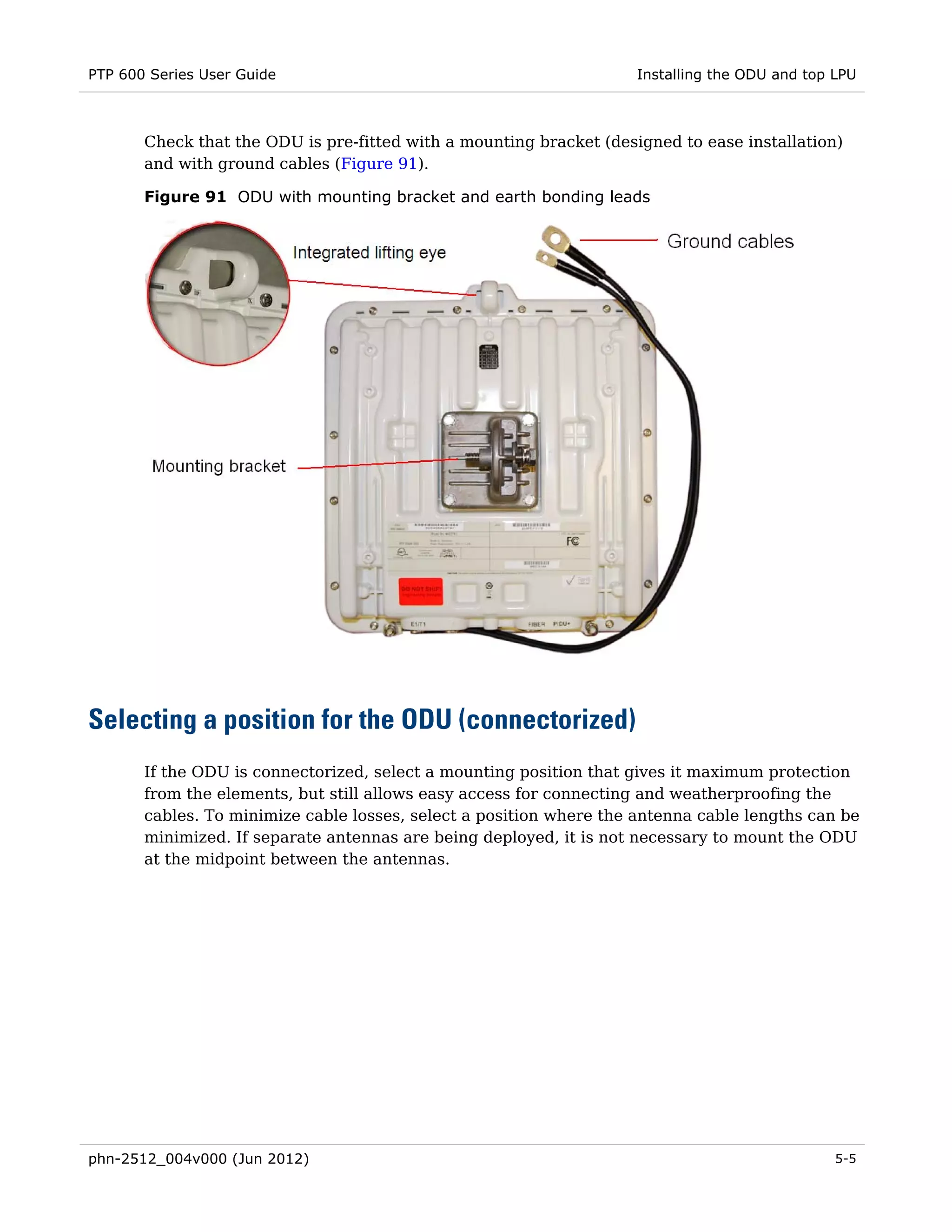
             direction as the offered level of network traffic increases (or decreases) in this same
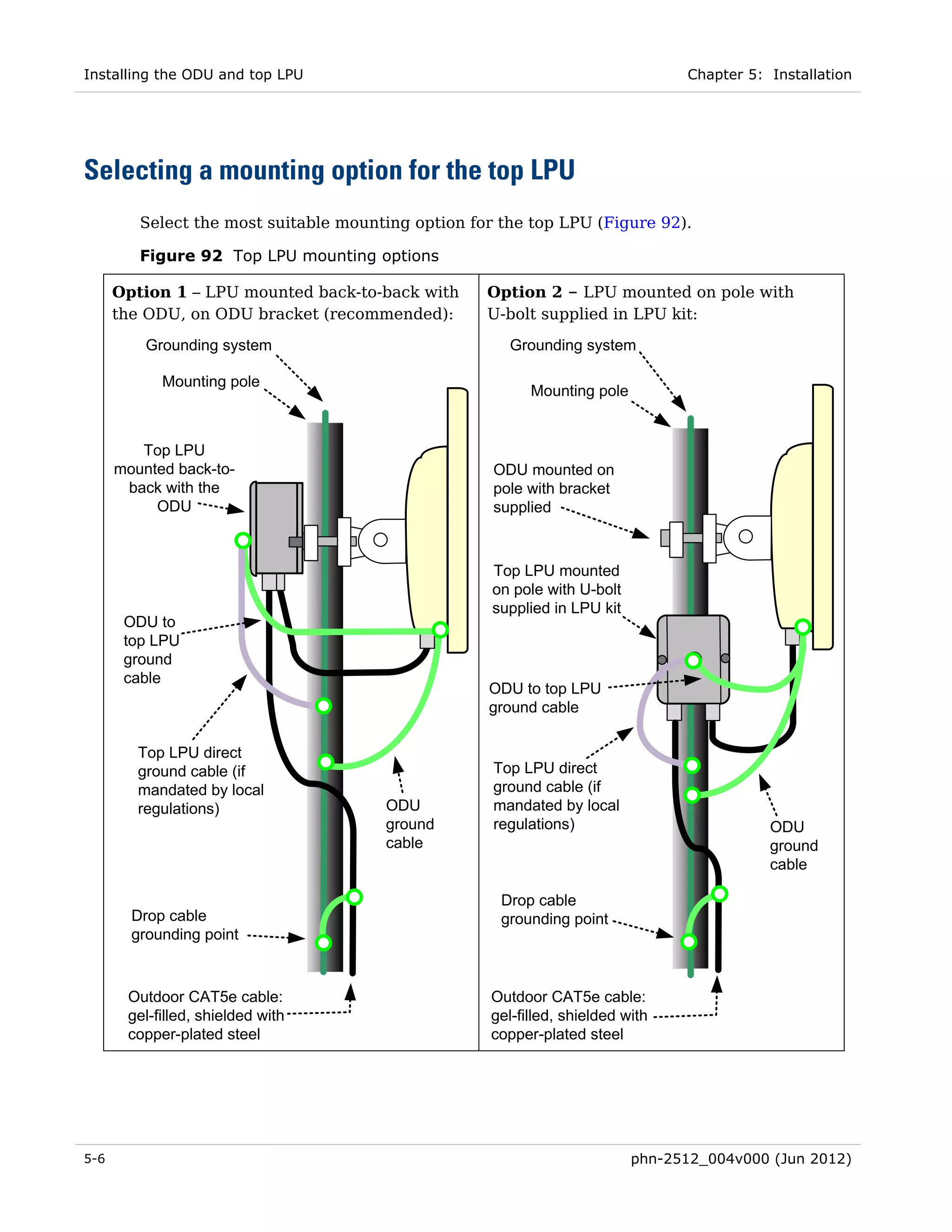
             direction. This is done independently for the two directions.
             Adaptive mode is not available in the following configurations:
             o   When link mode optimization is set to TDM Traffic (see Link mode optimization on
                 page 1-27).
             o   When TDD synchronization is enabled.
             o   In regions where radar avoidance is operational (see Radar avoidance on page 1-
                 31).
             o   When 5 MHz bandwidth is selected.


OFDM and channel bandwidth
       The PTP 600 series transmits using Orthogonal Frequency Division Multiplexing (OFDM).
       This wideband signal consists of many equally spaced sub-carriers. Although each sub
       carrier is modulated at a low rate using conventional modulation schemes, the resultant
       data rate from all the sub-carriers is high. OFDM works exceptionally over a Non-Line-of-
       Sight (NLoS) channel.
       The channel bandwidth of the OFDM signal is configurable to one of five values: 5 MHz,
       10 MHz, 15 MHz, 20 MHz and 30 MHz. Higher bandwidths provide greater link capacity
       at the expense of using more spectrum. Systems configured for a narrower channel
       bandwidth provide better receiver sensitivity and can also be an appropriate choice in
       deployments where the amount of free spectrum is limited.
       Each channel is offset in center frequency from its neighboring channel by 10 MHz or
       6 MHz.


           The Channel Bandwidth must be configured to the same value at both ends of the link.

           Not all channel bandwidths are available in all regions or all frequency variants.


Spectrum management
       The spectrum management feature of the PTP 600 Series monitors the available wireless
       spectrum and directs both ends of the wireless link to operate on a channel with a
       minimum level of co-channel and adjacent channel interference.


1-28                                                                      phn-2512_004v000 (Jun 2012)
PTP 600 Series User Guide                                                         Wireless operation


       Spectrum management measurements
       The PTP 600 Series performs two mean signal measurements per TDD cycle, per channel.
       This mean measurement represents the mean received signal power for the 40
       microsecond measurement period.
       The Spectrum Management algorithm collects measurements equally from all channels.
       This process is called the Channel Availability Check (hereafter referred to by the acronym
       CAC). The CAC uses a round-robin channel selection process to collect an equal amount of
       measurements from each channel. The CAC measurement process is not altered by the
       channel barring process. Measurements are still collected for all channels irrespective of
       the number of barred channels.


       Measurement analysis
       Spectrum Management uses statistical analysis to process the received peak and mean
       measurement. The statistical analysis is based on a fixed, one minute, measurement
       quantization period. Spectrum Management collects data for the specified quantization
       period and only at the end of the period is the statistical analysis performed. The analysis
       produces three key metrics for each channel:
       •   Peak of Means
       •   99.9% Percentile of the Means
       •   Mean of Means
       These metrics are defined in Interpreting the spectrum management plots on page 7-24.


       Statistical summary
       The display of statistical measurement on the spectrum management page always shows a
       statistical summary of all channel measurement. The statistical summary is controlled by
       the Statistics Window attribute. This attribute defaults to a value of twenty minutes, which
       means that the mean and percentile values displayed for each channel are calculated over
       the 20 minute period. All channel decisions are made using the values computed over the
       statistics window period.


       Spectrum management in fixed frequency mode
       The transmit and receive frequencies can be fixed in a PTP 600 wireless link. Once fixed
       frequency mode is configured, the spectrum management software will not attempt to
       move the wireless link to a channel with lower co-channel and adjacent-channel
       interference. Therefore this mode of operation is only recommended for deployments
       where the installer has a good understanding of the prevailing interference environment
       (see Step 2: Wireless configuration on page 6-49). Care must also be taken to ensure that
       the frequency allocations at each end of the link are compatible.


phn-2512_004v000 (Jun 2012)                                                                    1-29
Wireless operation                                                    Chapter 1: Product description


       Fixed frequency mode is not available in regions where radar detection is required by the
       regulations.


Adaptive modulation
       The PTP 600 series can transport data over the wireless link using a number of different
       modulation modes ranging from 256QAM 0.81 to BPSK 0.63. For a given channel
       bandwidth and TDD frame structure, each modulation mode transports data at a fixed rate.
       Also, the receiver requires a given signal to noise ratio in order to successfully demodulate
       a given modulation mode. Although the more complex modulations such as 256QAM 0.81
       will transport data at a much higher rate than the less complex modulation modes, the
       receiver requires a much higher signal to noise ratio.
       The PTP 600 series provides an adaptive modulation scheme where the receiver constantly
       monitors the quality of the received signal and notifies the far end of the link of the
       optimum modulation mode with which to transmit. In this way, optimum capacity is
       achieved at all times. This is one of a number of features which allows the PTP 600 to
       operate in challenging non-line of sight radio channels.
       Specifications of capacity for all channel bandwidths, modulation modes and
       configurations are provided in Data throughput capacity on page 4-71.
       Specifications of receive level thresholds for each modulation mode (assuming no
       interference) are provided in the various system threshold tables in Chapter 4: Reference
       information.


           PTP LINKPlanner includes an estimate of mean data rate, the data rate provided by each
           modulation and the percentage of time spent in each modulation mode.


MIMO
       Multiple-Input Multiple-Output (MIMO) techniques provide protection against fading and
       increase the probability that the receiver will decode a usable signal. When the effects of
       MIMO are combined with those of OFDM techniques and a high link budget, there is a
       high probability of a robust connection over a non-line-of-sight path.
       The PTP 600 transmits two signals on the same radio frequency, one of which is vertically
       polarized and the other horizontally polarized. The PTP 600 also has the ability to adapt
       between two modes of operation:
       •     Dual Payload: When the radio channel conditions allow, the PTP 600 will transmit two
             different and parallel data streams, one on the vertical channel and one on the
             horizontal channel. This doubles the capacity of the PTP 600.


1-30                                                                  phn-2512_004v000 (Jun 2012)
PTP 600 Series User Guide                                                          Wireless operation


       •     Single Payload: As the radio channel becomes more challenging, the PTP 600 has the
             ability to detect this and switch to a mode which transmits the same data stream on
             both vertical and horizontal channels. This provides polar diversity and is another key
             feature which allows the PTP 600 to operate in challenging non- line of sight radio
             channels.
       The two modes have been implemented by the introduction of two sets of modulation
       modes. The lower order modulations (BPSK 0.63 up to QPSK 0.87) are only available as
       single payload modes. Each of the higher order modulations (16QAM 0.63 to 256QAM
       0.81) are available in single payload mode and dual payload mode. The switching between
       modes is automatically controlled by the adaptive modulation feature described in
       Adaptive modulation on page 1-30.


           The system automatically chooses between dual and single payload to try to increase the
           capacity of a link. However the user can disable the dual payload mode, forcing the more
           robust option of single payload.


Intelligent dynamic frequency selection
       The PTP 600 series uses an interference mitigation technique known as Intelligent
       Dynamic Frequency Selection (i-DFS) (not available in the 2.5 GHz band). Both the Master
       and Slave continually monitor for interference on all channels and then select the best
       frequency of operation. This is a dynamic process where the PTP 600 can continually move
       channels in response to changes in interference. Two modes of operation are available:
       •     First mode: the two link directions are forced to select the same frequency, determined
             by the Master.
       •     Second mode: the frequency of operation can be determined independently for each
             direction. This mode is not permitted in radar regions.


Radar avoidance
       In regions where protection of radars is part of the local regulations, the PTP 600 must
       detect interference from radar-like systems and avoid co-channel operation with these
       systems.
       To meet this requirement, the PTP 600 implements the following features:
       •     The equipment can only transmit on available channels, of which there are none at
             initial power up. The radar detection algorithm will always scan a usable channel for 60
             seconds for radar interference before making the channel an available channel.
       •     This compulsory channel scan will mean that there is at least 60 seconds service
             outage every time radar is detected and that the installation time is extended by at
             least 60 seconds even if there is found to be no radar on the channel


phn-2512_004v000 (Jun 2012)                                                                     1-31
Wireless operation                                                     Chapter 1: Product description


       •     When operating on a channel, the spectrum management algorithm implements a radar
             detection function which looks for impulsive interference on the operating channel. If
             impulsive interference is detected, spectrum management will mark the current
             operating channel as having detected radar (unavailable channel) and initiate a
             channel hop to an available channel. The previous operating channel will remain in the
             unavailable state for thirty minutes after the impulsive interference pulse was
             detected.
       •     After the thirty minutes have expired the channel will be returned to the usable
             channel pool.

       There is a secondary requirement for bands requiring radar avoidance. Regulators have
       mandated that products provide a uniform loading of the spectrum across all devices. In
       general, this prevents operation with fixed frequency allocations. However:
       •     ETSI regulations do allow frequency planning of networks (as that has the same effect
             of spreading the load across the spectrum).
       •     The FCC does allow channels to be barred if there is actually interference on them.


           Fixed frequency allocation is not recommended in radar avoidance regions, as any radar
           detection would cause a system outage of at least 30 minutes.


Encryption
       The PTP 600 supports optional encryption for data transmitted over the wireless link. The
       encryption algorithm used is the Advanced Encryption Standard (AES) with 128-bit and
       256-bit key size. AES is a symmetric encryption algorithm approved by U.S. Government
       organizations (and others) to protect sensitive information. The AES implementation in
       PTP 600 is approved to FIPS-197.
       Encryption is enabled through the purchase of an upgrade.


Region codes
       Some aspects of wireless operation are controlled, enforced or restricted according to a
       region code. PTP 600 region codes represent individual countries (for example Denmark)
       or regulatory regions (for example FCC or ETSI).
       Region codes affect the following aspects of wireless operation:
       •     Maximum transmit power
       •     Radar avoidance
       •     Transmit power reduction in edge channels
       •     Frequency range


1-32                                                                   phn-2512_004v000 (Jun 2012)
PTP 600 Series User Guide                                                          Wireless operation


       •     Channel plan
       A region code is encoded in the PTP 600 license key. The region code can be changed by
       generating and entering a new license key.


           Some units are supplied with two alternative license keys for different region codes, one
           of which is factory configured.


           To avoid possible enforcement action by the country regulator, always operate links in
           accordance with local regulations.


PTP networks

       Using Intelligent Dynamic Frequency Selection
       The Intelligent Dynamic Frequency Selection (i-DFS) feature allows a PTP 600 unit to
       select wireless channels for a lower level of radio frequency (RF) interference. This
       approach is appropriate where the network consists of a small number of PTP links, or
       where the RF interference is predominantly from equipment belonging to other operators.


       Using frequency planning
       Networks will benefit from the use of fixed channel allocations if (a) the network consists
       of multiple PTP links, and (b) RF interference predominantly arises from equipment in the
       same network.
       Frequency planning is the exercise of assigning operating channels to PTP units so as to
       minimize RF interference between links. Frequency planning must consider interference
       from any PTP unit to any other PTP unit in the network. Low levels of interference
       normally allow for stable operation and high link capacity.
       The frequency planning task is made more straightforward by use of the following
       techniques:
       •     Using several different channels
       •     Separating units located on the same mast
       •     Using high performance (directional) external antennas
       For help with planning networks, refer to Chapter 2: Planning considerations, or contact
       your Cambium distributor or re-seller.


phn-2512_004v000 (Jun 2012)                                                                     1-33
Wireless operation                                                     Chapter 1: Product description


       Synchronized networks
       TDD synchronization can be used to relax constraints on the frequency planning of PTP
       networks. Synchronization has the following benefits:
       •     Allows tighter frequency re-use, and thus wider channel bandwidth.
       •     Allows more convenient collocation of units on a single mast.
       •     Allows use of smaller or lower performance antennas.
       •     Reduces inference, resulting in use of more efficient modulation modes.
       In a correctly designed synchronised network, all links are configured with the same TDD
       frame duration, and the TDD frame contains guard periods longer than the propagation
       delay between the most distant interfering units.

       Each synchronized unit is assigned to one of two phases. A master ODU can be assigned to
       either phase. A slave ODU must be assigned to a different phase from the associated
       master ODU. The phase is set by suitable configuration of TDD Frame Offset.
       TDD synchronization eliminates RF interference between units in the same phase. This
       means that frequency planning in a synchronized network is concerned only with
       interference between units in different phases. Frequency planning is still necessary, but
       the number of potential interference paths to be considered is halved. Frequency planning
       in a synchronized TDD network has approximately the same level of complexity as
       frequency planning in a Frequency Division Duplex (FDD) network.


TDD synchronization

       Additional hardware
       Additional hardware is needed to synchronize PTP 600 links. Two alternative approaches
       are supported:
       •     MemoryLink UltraSync GPS receiver: This unit contains a GPS receiver producing a
             1 Hz timing reference locked to the GPS network. The UltraSync unit is connected
             directly to the Sync input at the master ODU. One UltraSync unit is required for each
             synchronized link.
       •     PTP-SYNC: This option is the preferred solution. One PTP-SYNC unit is required for
             each master ODU. The PTP-SYNC unit is connected in line in the drop cable between
             the PIDU and the ODU, and is collocated with the PIDU.


           PTP 600 System Releases earlier than 600-08-04 do not support PTP-SYNC.


1-34                                                                   phn-2512_004v000 (Jun 2012)
PTP 600 Series User Guide                                                       Wireless operation


       Timing references for use with PTP-SYNC
       PTP-SYNC requires an external timing reference in all but the simplest networks. Up to ten
       PTP-SYNCs can be connected in a chain to share the timing signal from one timing
       reference. In the majority of applications, one reference is required for each site that
       contains PTP 600 master ODUs.
       The timing reference can be from any timing system that provides a 1 Hz signal,
       accurately synchronized in frequency and phase with a network-wide master timing
       reference. GPS timing receivers are a very practical way of obtaining a suitable reference.
       The PTP-SYNC is compatible with the following GPS timing receivers:
       •   Trimble Acutime™ Gold GPS receiver

       In simple networks where all master ODUs are at a single site, the external reference can
       be omitted. In this case, one ODU acts as a reference for other collocated units.


       Configuring the TDD frame
       In synchronized operation, frame duration and burst duration must be configured directly
       in the web-based management interface. Frame duration must be identical across all links
       in a synchronized network.
       The PTP Link Planner provides a capability for computing suitable frame parameters in a
       synchronized network. Please refer to the Link Planner User Guide for guidance on
       configuring TDD synchronization.
       Link symmetry is always 1:1 in synchronized networks.


       Link capacity in synchronized networks
       The TDD frame duration is extended in synchronized networks to allow for the propagation
       delay of the longest link in the network and to incorporate additional guard periods. These
       guard periods protect against delayed interference from distant units in the same network.
       The longer frame duration results in slightly lower link capacity than for an equivalent
       non-synchronized link with the same channel bandwidth and modulation mode. However,
       TDD synchronization also reduces interference, and this may allow operation in higher
       modulation modes. The benefit of operating in a higher modulation mode normally
       outweighs the penalty of the slightly longer TDD frame.


       Advantages of PTP-SYNC over UltraSync
       PTP-SYNC has several advantages over the UltraSync solution:
       •   PTP-SYNC does not require individual GPS receivers, nor must they be located close to
           the ODUs. This reduces the complexity and the cost of the installation on the mast.
       •   The GPS receiver can be located anywhere with a clear view of the sky, offering
           additional flexibility in the installation.


phn-2512_004v000 (Jun 2012)                                                                  1-35
Wireless operation                                                    Chapter 1: Product description


       •   The PTP-SYNC solution is compatible with standard 1 Hz interfaces, allowing an
           operator to take advantage of alternative timing references that may be already
           present at the site.
       •   The recommended GPS receiver continues to provide accurate timing even after the
           number of received satellites has dropped down to one, leading to significantly better
           availability of the reference signal.
       •   The PTP-SYNC offers the possibility of creating synchronized single-hub networks
           where no GPS receiver is required.


Further reading on wireless operation
       For information on planning wireless operation, refer to the following:
       •   Regulatory planning on page 2-2 describes the regulatory restrictions that affect radio
           spectrum usage, such as frequency range and radar avoidance.
       •   Link planning on page 2-12 describes factors to be taken into account when planning
           links, such as range, path loss and data throughput, and introduces PTP LINKPlanner.
       •   Wireless specifications on page 4-9 contains specifications of the PTP 600 wireless
           interface, such as RF bands, channel width, spectrum settings, maximum power and
           link loss.
       •   Compliance with safety standards on page 4-48 lists the safety specifications against
           which the PTP 600 has been tested, and describes how to keep RF exposure within
           safe limits.
       •   Compliance with radio regulations on page 4-55 describes how the PTP 600 complies
           with the radio regulations that are in force in various countries.
       •   Notifications on page 4-64 contains notifications of compliance with the radio
           regulations that are in force in various regions.
       •   Data throughput tables on page 4-71 contains tables and graphs to support calculation
           of the data rate capacity that can be provided by PTP 600 configurations.
       For information on configuring and operating the wireless link, refer to the following:
       •   Task 6: Configuring wireless and telecoms interfaces on page 6-43 describes how to
           configure the wireless interface using the installation wizard.
       •   Comparing actual to predicted performance on page 6-92 describes how to check that
           a newly installed link is achieving predicted levels of performance.
       •   Managing performance on page 7-35 describes how to manage the performance of a
           PTP 600 link.
       •   Testing the radio link on page 8-11 describes what to do if the radio link is not working,
           or it is unreliable, or the data throughput rate is too low.


1-36                                                                  phn-2512_004v000 (Jun 2012)
PTP 600 Series User Guide                                                        Ethernet bridging


Ethernet bridging

       This section describes how the PTP 600 controls Ethernet data, in both the customer and
       system management networks.


Customer network

       Transparent Ethernet service
       The PTP 600 Series provides an Ethernet service between the Ethernet port at a local ODU
       and the Ethernet port at an associated remote ODU. The Ethernet service is based on
       conventional layer two transparent bridging, and is equivalent to the Ethernet Private Line
       (EPL) service defined by the Metro Ethernet Forum (MEF).

       The service is transparent to untagged frames, standard VLAN frames, priority-tagged
       frames, provider bridged frames, Q-in-Q frames and provider backbone bridged frames. In
       each case, the service preserves MAC addresses, VLAN ID, Ethernet priority and Ethernet
       payload in the forwarded frame. The maximum frame size for bridged frames in the
       customer network is 2000 octets.


       Layer two control protocols
       The PTP 600 Series is transparent to layer two control protocols (L2CP) including:
       •   Spanning tree protocol (STP), rapid spanning tree protocol (RSTP)
       •   Multiple spanning tree protocol (MSTP)
       •   Link aggregation control protocol (LACP)
       •   Link OAM, IEEE 802.3ah
       •   Port authentication, IEEE 802.1X
       •   Ethernet local management interface (E-LMI), ITU-T Q.933.
       •   Link layer discovery protocol (LLDP)
       •   Multiple registration protocol (MRP)
       •   Generic attribute registration protocol (GARP)

       The PTP 600 Series does not generate or respond to any L2CP traffic.


phn-2512_004v000 (Jun 2012)                                                                  1-37
Ethernet bridging                                                    Chapter 1: Product description


       Quality of service for bridged Ethernet traffic
       The PTP 600 Series supports eight traffic queues for Ethernet frames waiting for
       transmission over the wireless link. Ethernet frames are classified by inspection of the
       Ethernet destination address, the Ethernet priority code point in the outermost VLAN tag,
       the Differentiated Services Code Point (DSCP) in an IPv4 or IPv6 header, or the Traffic
       Class in an MPLS header.
       PTP 600 provides a configurable mapping between Ethernet, IP or MPLS priority and
       transmission queue, together with a simple way to restore a default mapping based on the
       recommended default in IEEE 802.1Q-2005. Untagged frames, or frames with an unknown
       network layer protocol, can be separately classified.
       Scheduling for transmission over the wireless link is by strict priority. In other words, a
       frame at the head of a given queue is transmitted only when all higher priority queues are
       empty.


       Fragmentation
       The PTP 600 Series minimizes latency and jitter for high-priority Ethernet traffic by
       fragmenting Ethernet frames before transmission over the wireless link. The fragment size
       is selected automatically according to channel bandwidth and modulation mode of the
       wireless link. Fragments are reassembled on reception, and incomplete Ethernet frames
       are discarded.


Management network

       IP interface
       The PTP 600 ODU contains an embedded management agent with a single IP interface.
       Network management communication is exclusively based on IP and associated higher
       layer transport and application protocols. The default IP address of the management agent
       is 169.254.1.2 in the master ODU and 169.254.1.1 in the slave ODU. The PTP 600 does not
       require use of supplementary serial interfaces.


       MAC address
       The management agent end-station MAC address is recorded on the enclosure. The MAC
       address is not configurable by the user.


1-38                                                                 phn-2512_004v000 (Jun 2012)
PTP 600 Series User Guide                                                       Ethernet bridging


       VLAN membership
       The management agent can be configured to transmit and receive either untagged,
       priority-tagged, C-tagged (IEEE 802.1Q) or S-tagged (IEEE 802.1ad) frames. S-tagged
       frames must be single tagged, in other words, an S-tag with no encapsulated C-tag. The
       VLAN ID can be 0 (priority tagged) or in the range 1 to 4094.


       In-band management
       In the in-band management mode, the management agent can be reached from the PIDU+
       port at the local ODU, and (assuming that the wireless link is established) the PIDU+ port
       at the remote ODU.

       Management frames in the customer network are processed by the management agent if
       (a) destination MAC address in the frame matches the ODU MAC address, and (b) the
       VLAN ID in the frame matches the VLAN configuration of the management agent.

       If Local Packet Filtering is enabled, unicast frames forwarded to the management agent
       are filtered, that is, not forwarded in the customer network.


       In-band quality of service
       Frames generated within the management agent may be assigned a configured Ethernet
       priority. Management frames are multiplexed with customer frames of the same priority
       for transmission at the wireless port.


       In-band local management
       In the in-band local management mode, the management agent can be reached from the
       PIDU+ port at the local ODU, but not from the PIDU+ port at the remote ODU.
       Management frames in the customer network are processed by the management agent if
       (a) destination MAC address in the frame matches the ODU MAC address, and (b) the
       VLAN ID in the frame matches the VLAN configuration of the management agent. All
       Ethernet frames in the management VLAN (regardless of destination address) are filtered
       (discarded) at the wireless port.
       In-band local management mode is useful in networks that require only local access for
       network management. For correct operation of in-band local management mode, ensure
       that the same management VLAN ID is configured at both ends of the link.


phn-2512_004v000 (Jun 2012)                                                                 1-39
Ethernet bridging                                                    Chapter 1: Product description


       Out-of-band management
       PTP 600 supports an end-to-end out-of-band management mode in which the management
       agent can be reached from the AUX port at the local ODU, and (assuming that the wireless
       link is established) the AUX port at the remote ODU. This management mode allows
       communication from the ODU management port to Ethernet end stations reached through
       the remote ODU, supporting construction of an extended management network that is
       isolated from the customer network.
       The capacity of the out-of-band management network is approximately 500 kbit/s in each
       direction.
       End-to-end out-of-band management is possible only when the network management mode
       is configured to “out-of-band” at every ODU.
       Out-of-band management is only available in the following product variants:
       •   PTP 45600
       •   PTP 54600 OOBM
       •   PTP 58600 OOBM


       Out-of-band quality of service
       Out-of-band management traffic is forwarded over the wireless link using a dedicated
       channel. The management channel represents a single traffic class, and the same quality
       of service is afforded to all management frames. Traffic in the management channel is
       fragmented for transmission over the wireless link to minimize the jitter imposed on high
       priority traffic in the customer network.

       The management channel has higher priority than traffic in the customer network.


       Out-of-band local management
       The out-of-band local management mode is similar to the standard out-of-band mode,
       except that management frames are not forwarded over the wireless link. Connection to
       the management agent is solely through the management port of the local ODU.


       Source address learning
       If Local Packet Filtering is enabled, the PTP 600 learns the location of end stations from
       the source addresses in received management frames. The agent filters transmitted
       management frames to ensure that the frame is transmitted at the Ethernet port, or over
       the wireless link as appropriate. If the end station address is unknown, then management
       traffic is transmitted at the Ethernet port and over the wireless link.


1-40                                                                 phn-2512_004v000 (Jun 2012)
PTP 600 Series User Guide                                                         Ethernet bridging


       Wireless link down alert
       The PTP 600 Series provides an optional indication of failure of the wireless link by means
       of a brief disconnection of the copper data port or the fiber data port. The Wireless link
       down alert can be used to trigger protection switching by Spanning Tree Protocol (STP) or
       Ethernet Automatic Protection Switching (EAPS) in a redundant network.


Back-to-back links
       PTP 600 will not operate correctly if a direct cabled copper connection is made between
       two PIDUs. Where two or more links are deployed in a chain, use one of the following
       solutions:
       •   Copper or fiber connections between the PIDU and a suitable Ethernet switch or
           router.
       •   A fiber connection between two ODUs, with the ‘Ethernet Media Type to Use’ control
           set to ‘Fiber Media Only’. For more information, refer to the PTP 600 Series Optical
           Interface Upgrade Guide.


Protocol model
       Ethernet bridging behavior at each end of the wireless link is equivalent to a two-port,
       managed, transparent MAC bridge where the two ports are:
       •   Ethernet Port
       •   Wireless Port
       Frames are transmitted at the Wireless port over a proprietary point-to-point circuit-mode
       link layer between ends of the PTP 600 link. Ethernet frames received at the Ethernet port,
       or generated internally within the management agent, are encapsulated within a
       lightweight MAC layer for transmission over the wireless link.
       In out-of-band local mode (Figure 18) and out-of-band mode (Figure 19), the management
       network (shown in red) is isolated from the customer data network (shown in blue). In out-
       of-band mode, the management network is isolated from the customer data at the wireless
       port by use of a separate service access point and associated dedicated logical channel.
       Ethernet frames will not leak between management and data networks, even in the
       presence of configuration errors.


phn-2512_004v000 (Jun 2012)                                                                   1-41
Ethernet bridging                                                   Chapter 1: Product description


       Figure 18 Forwarding behavior in out-of-band local management mode


       Figure 19 Forwarding behavior in out-of-band management mode


       Protocol layers involved in bridging between Ethernet and wireless interfaces are shown in
       Figure 20. Protocol layers involved in bridging between external interfaces and the
       management agent are shown in Figure 21. In these figures, the layers have the meanings
       defined in IEEE 802.1Q-2005.


1-42                                                                phn-2512_004v000 (Jun 2012)
PTP 600 Series User Guide                                                    Ethernet bridging


       Figure 20 Protocol layers between Ethernet and wireless interfaces


       Figure 21 Protocol layers between external interfaces and the management agent


phn-2512_004v000 (Jun 2012)                                                              1-43
Ethernet bridging                                                   Chapter 1: Product description


Further reading on Ethernet bridging
       For more information on Ethernet bridging, refer to the following:
       •   Data network planning on page 2-36 describes factors to be considered when planning
           PTP 600 data networks.
       •   Data network specifications on page 4-43 contains specifications of the PTP 600
           Ethernet interface.
       •   Task 6: Configuring wireless and telecoms interfaces on page 6-43 describes how to
           configure the IP and Ethernet attributes of the PTP 600.
       •   Reviewing system configuration attributes on page 6-89 describes how to review the IP
           and Ethernet attributes of the PTP 600.


1-44                                                                phn-2512_004v000 (Jun 2012)
PTP 600 Series User Guide                                                          Telecoms circuits


Telecoms circuits

       This section describes how telecoms traffic (E1 or T1) may be carried over PTP 600 links.
       The PTP 600 link provides native support for one or two E1 links, or one or two T1 links.
       The link relays unstructured E1 or T1 data and provides accurate timing transfer.


Lowest telecoms modulation mode
       In narrow channel bandwidth and lower modulation modes, the link may have insufficient
       capacity to relay the E1/T1 payload; in this case, the wireless link continues to carry timing
       information in order to maintain accurate clock synchronization. The relay of telecoms
       data resumes automatically when the link reaches a suitable modulation mode.
       Links that are able to operate consistently in a high modulation mode can take advantage
       of lower link latency. This option is configured by setting the "Lowest Telecoms Modulation
       Mode" during installation. Appropriate settings for this control may be determined by
       using the PTP LINKPlanner tool. The reduction in latency is achieved by disabling the relay
       of telecoms data in lower modulation modes, and this necessarily results in somewhat
       lower availability for the telecoms circuit. The loss of availability can be estimated using
       the Link Planner.
       The unit will override the user setting of Lowest Telecoms Modulation Mode if the selected
       mode has insufficient capacity to carry the telecoms data, or if the mode demands very
       high latency and requires more buffering than the link can provide. When the effective
       mode differs for Single and Dual Payload operation two modes will be displayed: "Lowest
       Dual Payload Modulation Mode" and "Lowest Single Payload Modulation Mode".


Fixed frequency operation
       In the PTP 600 link, data errors may occur during channel changes on an operational link.
       It may be appropriate to minimize channel-change-related errors in a link carrying
       Telecoms traffic by preventing channel changes initiated by i-DFS. This can be achieved by
       barring all channels except one in the Spectrum Management page, or alternately by
       selecting Fixed Frequency mode. These steps unavoidably disable interference avoidance
       mechanisms, and should not be taken if the risk of errors due to interference is more
       severe than the risk due to channel changes.
       Fixed frequency operation is not available when radar detection requirements exist in the
       frequency band. Channel barring is allowed in radar regions, but it is unwise to bar all
       channels except one, as any radar signals detected on that channel will drop the link for up
       to 30 minutes.


phn-2512_004v000 (Jun 2012)                                                                    1-45
Telecoms circuits                                                    Chapter 1: Product description


Further reading on telecoms circuits
       For more information on telecoms circuits, refer to the following:
       •   Installing an E1 or T1 interface on page 5-50 describes how to install the hardware for
           an E1 or T1 interface.
       •   Task 6: Configuring wireless and telecoms interfaces on page 6-43 describes how to
           configure the telecoms interfaces using the installation wizard.
       •   Performing a telecoms loopback test on page 8-16 describes how to test and E1 or T1
           link when a fault is suspected.


1-46                                                                 phn-2512_004v000 (Jun 2012)
PTP 600 Series User Guide                                                    System management


System management

       This section introduces the PTP 600 management system, including the web interface,
       installation, configuration, alerts and upgrades.


Management agent
       PTP 600 equipment is managed through an embedded management agent. Management
       workstations, network management systems or PCs can be connected to this agent using a
       choice of two in-band and two out-of-band modes. These modes are described in detail in
       Management network on page 1-38.
       The management agent supports the following interfaces:
       •   Hyper text transfer protocol (HTTP)
       •   HTTP over transport layer security (HTTPS/TLS)
       •   RADIUS authentication
       •   TELNET
       •   Simple network management protocol (SNMP)
       •   Simple mail transfer protocol (SMTP)
       •   Simple network time protocol (SNTP)
       •   System logging (syslog)
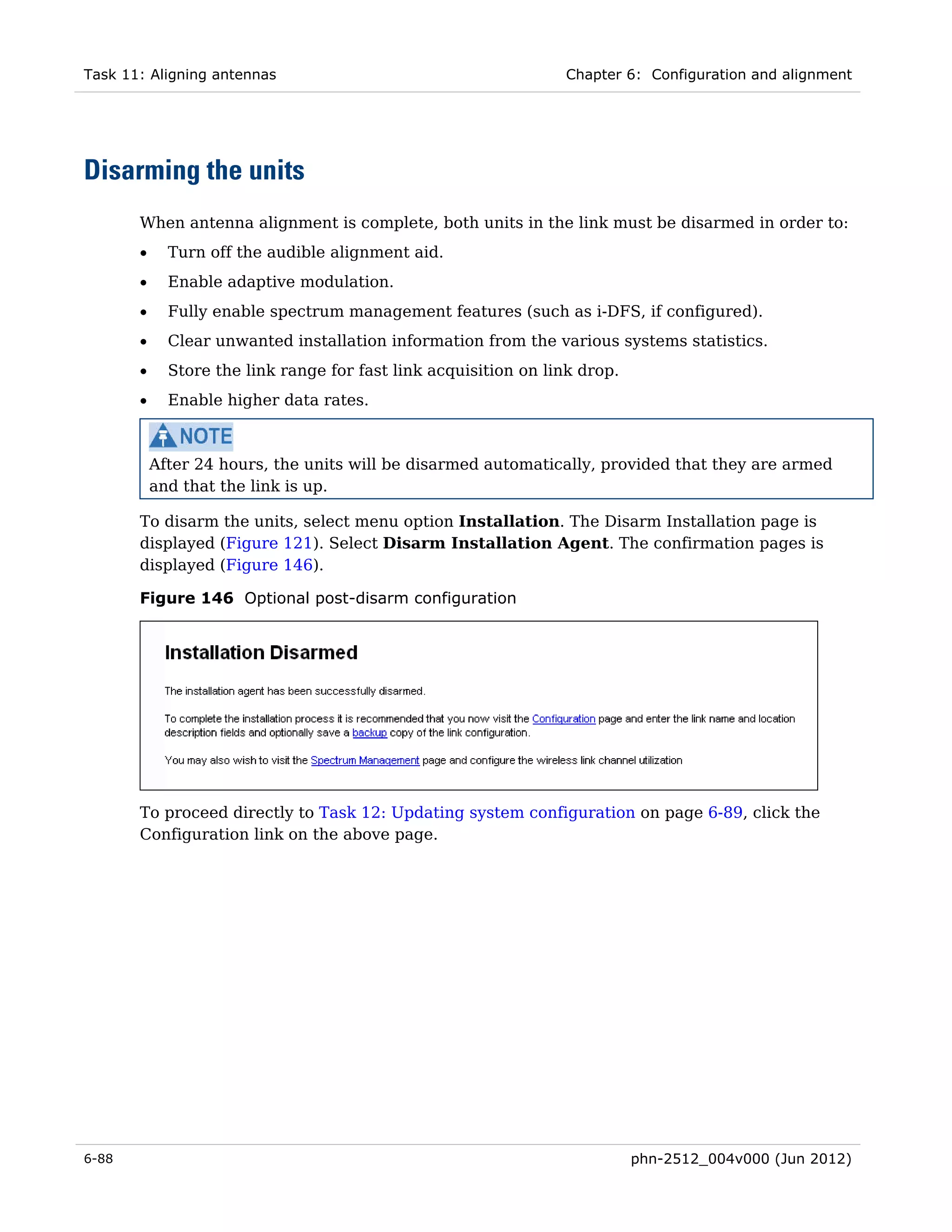


Web server
       The PTP 600 management agent contains a web server. The web server supports the HTTP
       and HTTPS/TLS interfaces.
       Operation of HTTPS/TLS is enabled by purchase of an optional AES upgrade as described
       in Task 3: Installing license keys on page 6-14.
       Web-based management offers a convenient way to manage the PTP 600 equipment from a
       locally connected computer or from a network management workstation connected
       through a management network, without requiring any special management software. The
       web-based interfaces are the only interfaces supported for installation of PTP 600, and for
       the majority of PTP 600 configuration management tasks.


phn-2512_004v000 (Jun 2012)                                                                  1-47
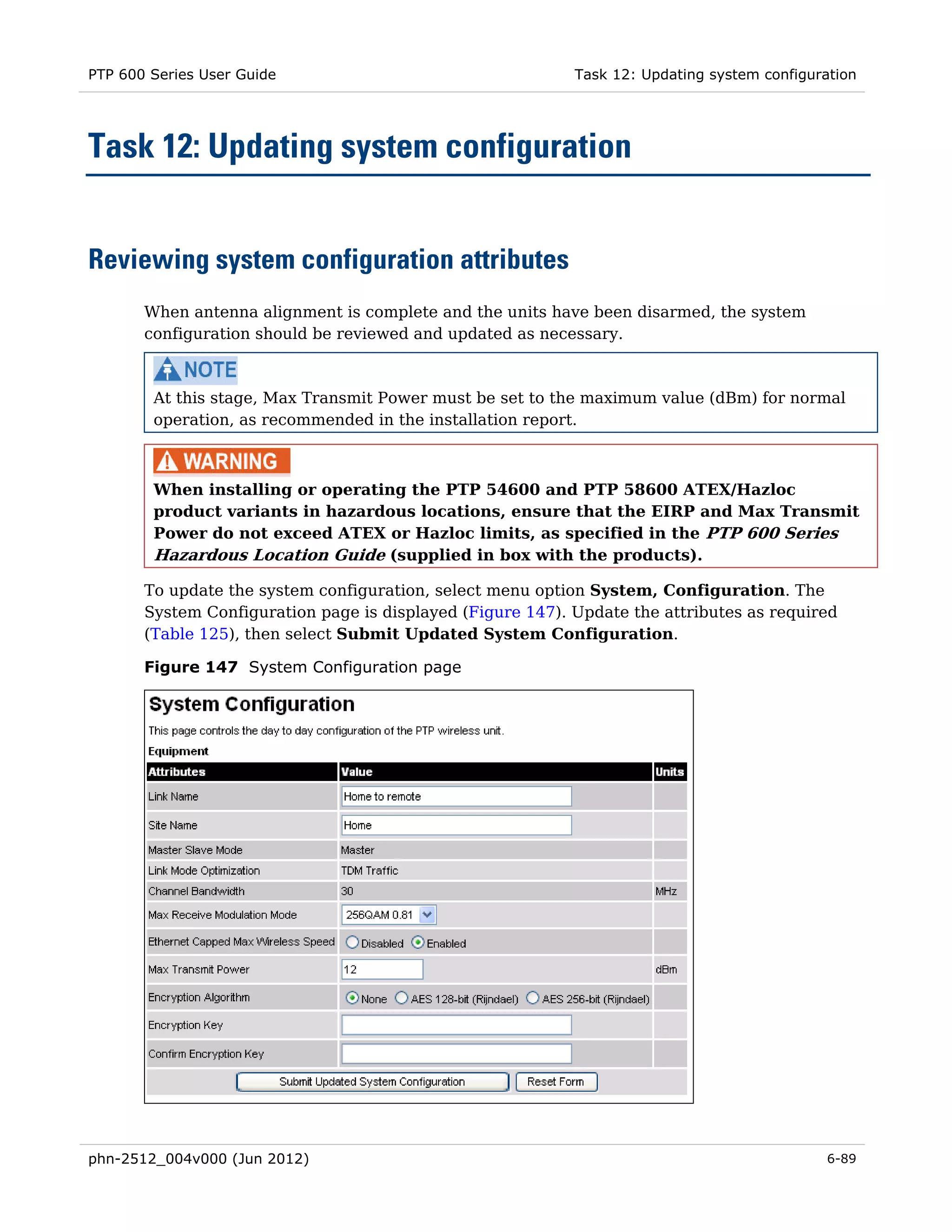
System management                                                       Chapter 1: Product description


       Web pages
       The web-based management interfaces provide comprehensive web-based fault,
       configuration, performance and security management functions organized into the
       following web-pages and groups:
       •     Home: The Home web-page reports Wireless Link Status and basic information needed
             to identify the link. The Home page additionally lists all active alarm conditions
       •     Status: The Status web-page reports the detailed status of the PTP 600.
       •     System: These web-pages are used for configuration management, including IP and
             Ethernet, AES encryption keys, quality of service, software upgrade and installation of
             license keys. The System pages additionally provide detailed counters and diagnostic
             measurements used for performance management.
       •     Installation: The Installation Wizard is used in the initial configuration of the PTP 600
             and arming the unit ready for alignment.
       •     Management: These web-pages are used to configure the network management
             interfaces.
       •     Security: The Security Wizard is used to configure the HTTPS/TLS interface, and to
             operate the PTP 600 with optional enhanced security for FIPS 140-2 or UC APL
             applications. The Security Wizard is disabled until AES encryption is enabled by license
             key.
       •     Change Password: The Change Password web-page changes the web-interface
             password of the active user. Users use this screen to change their own password.
       •     Logout: Allows a user to log out from the web-based interface.


       Transport layer security
       The HTTPS/TLS interface provides the same set of web-pages as the HTTP interface, but
       allows HTTP traffic to be encrypted using Transport Layer Security (TLS). PTP 600 uses
       AES encryption for HTTPS/TLS. Operation of HTTPS/TLS is enabled by purchase of an
       optional AES upgrade as described in Task 3: Installing license keys on page 6-14.
       HTTPS/TLS requires installation of a private key and a public key certificate where the
       common name of the subject in the public key certificate is the IP address or host name of
       the PTP 600 unit. PTP 600 supports certificates with 1024-bit and 2048-bit key size.
       HTTPS/TLS operation is configured through the web-based interfaces using the Security
       Wizard.
       Details of the security material needed for HTTPS/TLS are provided in Security planning
       on page 2-40.


           The PTP 600 has no default public key certificate, and Cambium is not able to generate
           private keys or public key certificates for specific network applications.

1-48                                                                    phn-2512_004v000 (Jun 2012)
PTP 600 Series User Guide                                                     System management


       User account management
       PTP 600 allows a network operator to configure a policy for login attempts, the period of
       validity of passwords and the action taken on expiry of passwords. See Configuring local
       user accounts on page 6-33 for further details.


       Identity-based user accounts
       The PTP 600 web-based interface provides two methods of authenticating users:
       •   Role-based user authentication allows the user, on entry of a valid password, to access
           all configuration capabilities and controls. This is the default method.
       •   Identity-based user authentication supports up to 10 users with individual usernames
           and passwords.

       When identity-based user accounts are enabled, a security officer can define from one to
       ten user accounts, each of which may have one of the three possible roles:
       •   Security officer.
       •   System administrator.
       •   Read only.
       Identity-based user accounts are enabled in the Local User Accounts page of the web-
       based interface.


       Password complexity
       PTP 600 allows a network operator to enforce a configurable policy for password
       complexity. Password complexity configuration additionally allows a pre-determined best
       practice configuration to be set. See Configuring local user accounts on page 6-33 for
       further details.


RADIUS authentication
       PTP 600 supports remote authentication for users of the web interface using the Remote
       Authentication Dial-In User Service (RADIUS) with one of the following authentication
       methods:
       •   Challenge Handshake Authentication Protocol (CHAP)
       •   Microsoft CHAP Version 2 (MS-CHAPv2)
       •   MS-CHAPv2 with Protected EAP.
       Operation of Protected EAP is enabled by purchase of an optional AES upgrade as
       described in Task 3: Installing license keys on page 6-14.


phn-2512_004v000 (Jun 2012)                                                                   1-49
System management                                                    Chapter 1: Product description


       PTP 600 supports connections to primary and secondary RADIUS servers. The RADIUS
       interface is configured through the RADIUS Authentication page of the web-based
       interfaces.
       PTP 600 RADIUS supports the standard Service Type attribute to indicate authentication
       roles of System Administrator and Read Only together with a vendor specific attribute to
       indicate authentication roles of Security Officer, System Administrator, and Read Only.
       Remote authentication can be used in addition to local authentication, or can be used as a
       replacement for local authentication. If remote and local authentications are used
       together, PTP 600 checks log in attempts against locally stored user credentials before
       submitting a challenge and response for remote authentication. Remote authentication is
       not attempted if the username and password match locally stored credentials.
       RADIUS is only available when PTP 600 is configured for Identity-based User Accounts.
       For more information, refer to Planning for RADIUS operation on page 2-49.

       PTP 600 supports Protected EAP with Microsoft Windows Server 2003.


SNMP
       The management agent supports fault and performance management by means of an
       SNMP interface. The management agent is compatible with SNMP v1, SNMP v2c, and
       SNMPv3 using the following Management Information Bases (MIBs):
       •   RFC-1493. BRIDGE-MIB. dot1dBase group.
       •   RFC-2233. IF-MIB. Interfaces group, and ifXTable table.
       •   RFC-3411. SNMP-FRAMEWORK-MIB. snmpEngine group.
       •   RFC-3412. SNMP-MPD-MIB. snmpMPDStats group.
       •   RFC-3413. SNMP-TARGET-MIB. snmpTargetObjects group and SNMP-NOTIFICATION-
           MIB snmpNotifyTable table.
       •   RFC-3414. SNMP-USER-BASED-SM-MIB. usmStats group and usmUser group.
       •   RFC-3415. SNMP-VIEW-BASED-ACM-MIB vacmMIBObjects group.
       •   RFC-3418. SNMPv2-MIB. System group, SNMP group, and set group.
       •   RFC-3826. SNMP-USM-AES-MIB. usmAesCfb128Protocol OID.
       •   PTP 600 Series proprietary MIB.


1-50                                                                 phn-2512_004v000 (Jun 2012)
PTP 600 Series User Guide                                                     System management


Simple Network Time Protocol (SNTP)
       The clock supplies accurate date and time information to the system. It can be set to run
       with or without a connection to a network time server (SNTP). It can be configured to
       display local time by setting the time zone and daylight saving in the Time web page.
       If an SNTP server connection is available, the clock can be set to synchronize with the
       server time at regular intervals. For secure applications, the PTP 600 can be configured to
       authenticate received NTP messages using the DES protocol.


SNMPv3 security

       SNMP Engine ID
       PTP 600 supports three different formats for SNMP Engine ID:
       •   MAC address
       •   IP address
       •   Configurable text string
       SNMPv3 security configuration is re-initialized when the SNMP Engine ID is changed.


       User-based security model
       PTP 600 supports the SNMPv3 user-based security model (USM) for up to 10 users, with
       MD5, SHA-1, DES and (subject to the license key) AES protocols in the following
       combinations:
       •   No authentication, no privacy,
       •   MD5, no privacy,
       •   SHA-1, no privacy,
       •   MD5, DES,
       •   SHA-1, DES,
       •   MD5, AES,
       •   SHA-1, AES.

       Use of AES privacy requires the PTP 600 AES upgrade described in AES license on page 1-
       55. The ODU will allow the creation of users configured with AES privacy protocol,
       regardless of license key. However, a user configured to use AES privacy protocol will not
       be able to transmit and receive encrypted messages unless the license key enables the
       AES capability.


phn-2512_004v000 (Jun 2012)                                                                  1-51
System management                                                     Chapter 1: Product description


       View-based access control model
       PTP 600 supports the SNMPv3 view-based access control model (VACM) with a single
       context. The context name is the empty string. The context table is read-only, and cannot
       be modified by users.


       Access to critical security parameters
       The SNMPv3 management interface does not provide access to critical security
       parameters (CSPs) of PTP 600. It is not possible to read or modify AES keys used to
       encrypt data transmitted at the wireless interface. Neither is it possible to read or modify
       security parameters associated with TLS protection of the web-based management
       interface. The recovery mode option to zeroize CSPs does not affect SNMPv3
       configuration.


       MIB-based management of SNMPv3 security
       PTP 600 supports a standards-based approach to configuring SNMPv3 users and views
       through the SNMP MIB. This approach provides maximum flexibility in terms of defining
       views and security levels appropriate for different types of user.
       PTP 600 provides a default SNMPv3 configuration. This initial configuration is not secure,
       but it provides the means by which a secure configuration can be created using SNMPv3.
       The secure configuration should be configured in a controlled environment to prevent
       disclosure of the initial security keys necessarily sent as plaintext, or sent as encrypted
       data using a predictable key. The initial security information should not be configured over
       an insecure network.
       The default configuration is restored when any of the following occurs:
       •   All ODU configuration data is erased.
       •   All SNMP users are deleted using the SNMP management interface.
       •   The SNMP Engine ID Format has been changed.
       •   The SNMP Engine ID Format is IP Address AND the IP Address has been changed.
       •   The SNMP Engine ID Format is Text String AND the text string has been changed.
       •   The SNMP Engine ID Format is MAC Address AND configuration has been restored
           using a file saved from a different unit.
       •   SNMPv3 Security Management is changed from web-based to MIB-based.

       The default user configuration is specified in SNMPv3 default configuration (MIB-based)
       on page 2-48.
       PTP 600 creates the initial user and template users with localized authentication and
       privacy keys derived from the passphrase string 123456789. Authentication keys for the
       templates users are fixed and cannot be changed. Any or all of the template users can be
       deleted.

1-52                                                                  phn-2512_004v000 (Jun 2012)
PTP 600 Series User Guide                                                       System management


       The default user initial is created with a view of the entire MIB, requiring authentication
       for SET operations. There is no access for template users.


           VACM grants access for requests sent with more than the configured security level.


       The default user initial will have read/write access to the whole of the MIB. This is
       described in further detail in View-based access control model on page 1-52. The template
       users have no access to the MIB in the default configuration. User initial will normally be
       used to create one or more additional users with secret authentication and privacy keys,
       and with appropriate access to the whole of the MIB or to particular views of the MIB
       according to the operator’s security policy. New users must be created by cloning template
       users. The user initial may then be deleted to prevent access using the well-known user
       name and keys. Alternatively, the keys associated with initial may be set to some new
       secret value.


       Web-based management of SNMPv3 security
       PTP 600 supports an alternative, web-based approach for configuring SNMPv3 security. In
       this case, the web-based interface allows users to specify SNMPv3 users, security levels,
       privacy and authentication protocols, and passphrases. Web-based management will be
       effective for many network applications, but the capabilities supported are somewhat less
       flexible than those supported using the MIB-based security management.
       Selection of web-based management for SNMPv3 security disables the MIB-based security
       management.
       Web-based management of SNMPv3 security allows for two security roles:
       •     Read Only
       •     System Administrator

       ‘Read Only’ and ‘System Administrator’ users are associated with fixed views allowing
       access to the whole of the MIB, excluding the objects associated with SNMPv3 security.
       System Administrators have read/write access as defined in the standard and proprietary
       MIBs.
       Web-based management of SNMPv3 security allows an operator to define the security
       levels and protocols for each of the security roles; all users with the same role share a
       common selection of security level and protocols.
       Web-based security configuration is re-initialized when any of the following occurs:
       •     All ODU configuration data is erased.
       •     The SNMP Engine ID Format has been changed.
       •     The SNMP Engine ID Format is IP Address and the IP Address has been changed.
       •     The SNMP Engine ID Format is Text String and the text string has been changed.


phn-2512_004v000 (Jun 2012)                                                                        1-53
System management                                                    Chapter 1: Product description


       •   The SNMP Engine ID Format is MAC Address and configuration has been restored
           using a file saved from a different unit.
       •   SNMPv3 Security Management is changed from MIB-based to web-based.
       Additionally, all SNMP user accounts are disabled when the authentication protocol, the
       privacy protocol, or the security level is changed.


       Downgrade of the license key
       A possible lockout condition exists if a user downgrades the PTP 600 license key so as to
       disable the AES capability when SNMPv3 users are configured with AES privacy and
       VACM is configured to require privacy. In this case, recovery is by either (a) restoring the
       correct license key, or (b) using recovery mode to erase all configuration and entering new
       configuration.
       Option (b) will cause default users and access configuration to be re-created.


System logging (syslog)
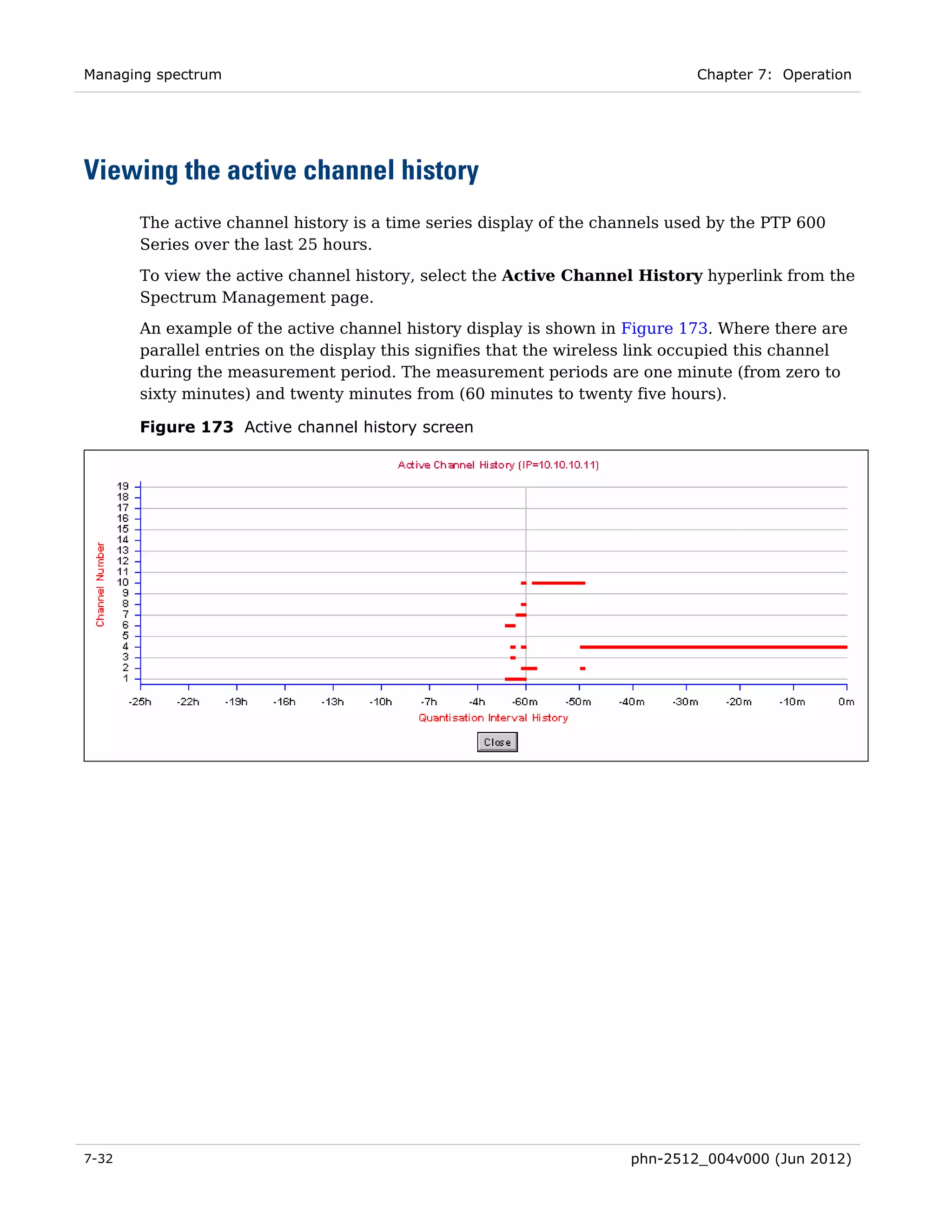
       PTP 600 supports the standard syslog protocol to log important configuration changes,
       status changes and events. The protocol complies with RFC 3164.

       PTP 600 creates syslog messages for configuration changes to any attribute that is
       accessible via the web-based interface, or via the enterprise MIB at the SNMP interface.
       PTP 600 additionally creates syslog messages for changes in any status variable displayed
       in the web-based interface.
       PTP 600 creates syslog messages on a number of events (for example successful and
       unsuccessful attempts to log in to the web-based interface).

       PTP 600 can be configured to send syslog messages to one or two standard syslog servers.
       Additionally, PTP 600 logs event notification messages locally. Locally-stored event
       messages survive reboot of the unit, and are overwritten only when the storage capacity is
       exhausted (approximately 2000 messages). The locally stored events can be reviewed
       using the web-based user interface.
       Only users with ‘Security Officer’ role are permitted to configure the syslog client. Users
       with Security Officer, System Administrator or Read Only roles are permitted to review the
       locally logged event messages.


1-54                                                                 phn-2512_004v000 (Jun 2012)
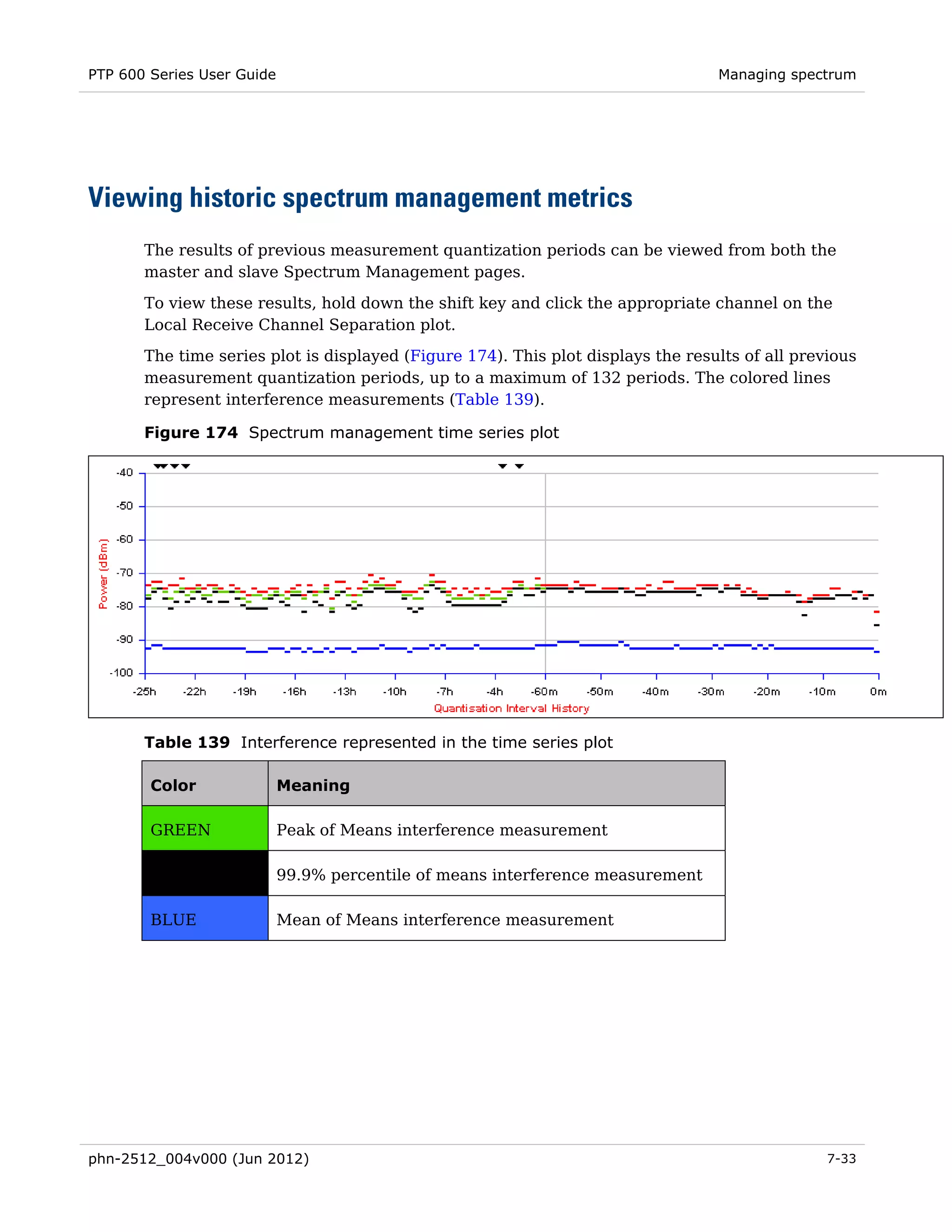
PTP 600 Series User Guide                                                        System management


AES license
       PTP 600 provides optional encryption using the Advanced Encryption Standard (AES).
       Encryption is not available in the standard PTP 600 system.
       AES upgrades are supplied as an access key purchased from your Cambium Point-to-Point
       distributor or solutions provider. The access key authorizes AES operation for one ODU.
       Two access keys are needed to operate AES on a link. The upgrade is applied by entering
       an access key together with the MAC address of the target ODU into the PTP License Key
       Generator web page, which may be accessed from the support website (see Contacting
       Cambium Networks on page 2).
       The License Key Generator creates a new license key that is delivered by email. The
       license key must be installed on the ODU. When the license key is installed, the ODU must
       be rebooted before AES can be enabled. Once applied, the AES upgrade is bound to a
       single ODU and is not transferrable.
       AES encryption may be used in the following ways:
       •   At the wireless port to encrypt data transmitted over the wireless link.
       •   At the SNMP management interface in the SNMPv3 mode.
       •   At the HTTPS/TLS management interface.
       •   At the RADIUS interface when PEAP (MS-CHAPv2) is used as the authentication
           method.

       Two levels of encryption are available to purchase:
       •   128-bit: This allows an operator to encrypt all traffic sent over the wireless link using
           128-bit encryption.
       •   256-bit: This allows an operator to encrypt traffic using either 128-bit or 256-bit
           encryption.
       Encryption must be configured with the same size key in each direction.
       AES encryption at the PTP 600 wireless port is based on pre-shared keys. An identical key
       must be entered at each end of the link.
       AES encryption for SNMPv3 or TLS is always based on a 128-bit key, regardless of level
       enabled in the PTP 600 license key.
       For more information, see:
       •   Task 3: Installing license keys on page 6-14
       •   Task 5: Configuring security on page 6-21


phn-2512_004v000 (Jun 2012)                                                                      1-55
System management                                                    Chapter 1: Product description


Critical security parameters
       Critical security parameters (CSPs) are as follows:
       •   Key of keys.
       •   AES encryption keys for the wireless interface.
       •   Private key for the HTTPS/TLS interface.
       •   Entropy value for the HTTPS/TLS interface.
       •   User account passwords for the web-based interface.
       CSPs can be erased (zeroized) using the Zeroize CSPs page of the web-based interface or
       by selecting the Zeroize CSPs option in Recovery mode.


Login information
       PTP 600 optionally provides details of the most recent successful login, and the most
       recent unsuccessful login attempt, for each user of the web-based interface.


Capacity upgrades
       Capacity upgrades are supplied as an access key purchased from your Cambium Point-to-
       Point distributor or solutions provider. The upgrade is applied by entering an access key
       together with the MAC address of the target ODU into the PTP License Key Generator web
       page, which may be accessed from the support website (see Contacting Cambium
       Networks on page 2).
       The License Key Generator creates a new license key delivered by email. The license key
       must be installed on the ODU as described in reference to Task 3: Installing license keys
       on page 6-14. Once applied, the capacity upgrade is bound to a single ODU and is not
       transferrable.


Software upgrade
       The management agent supports application software upgrade using either the web-based
       interface or the SNMP interface.
       PTP 600 software images are digitally signed, and the ODU will accept only images that
       contain a valid Cambium PTP digital signature. The ODU always requires a reboot to
       complete a software upgrade.


1-56                                                                 phn-2512_004v000 (Jun 2012)
PTP 600 Series User Guide                                                         System management


           Obtain the application software and this user guide from the support website BEFORE
           warranty expires.


           ODU software version must be the same at both ends of the link. Limited operation may
           sometimes be possible with dissimilar software versions, but such operation is not
           supported by Cambium.

       The management process for software upgrade is described in detail in Task 4: Upgrading
       software version on page 6-17.
       Software can be downgraded using Recovery mode as described in Recovery mode on
       page 1-57.


Recovery mode
       The PTP 600 recovery mode provides a means to recover from serious configuration errors
       including lost or forgotten passwords and unknown IP addresses.
       Recovery mode also allows new main application software to be loaded even when the
       integrity of the existing main application software image has been compromised. The most
       likely cause of an integrity problem with the installed main application software is where
       the power supply has been interrupted during an earlier software upgrade.

       The ODU operates in recovery mode in the following circumstances:
       •     When a checksum error occurs for the main application software image.
       •     When the PIDU recovery button is pressed at the same time as the ODU is rebooted or
             power cycled.


       Recovery mode options
       Options in recovery mode are as follows:
       •     Load new main application software.
       •     Reset all configuration data to factory default. This option resets IP and Ethernet
             configuration, and erases (zeroizes) critical security parameters.
       •     Reset IP and Ethernet configuration to factory default.
       •     Erase (zeroize) critical security parameters.
       •     Reboot with existing software and configuration.


           If recovery mode has been entered because of a checksum error, by default the ODU will
           reboot with existing software and configuration, following a 30 second wait.


phn-2512_004v000 (Jun 2012)                                                                        1-57
System management                                                   Chapter 1: Product description


       The recovery software image is installed during manufacture of the ODU and cannot be
       upgraded by operators.
       For detailed instructions on using the recovery mode, see Using recovery mode on page 7-
       53.


Further reading on system management
       For more information on system management, refer to the following:
       •   Security planning on page 2-40 describes how to plan for PTP 600 links to operate in
           secure modes, including SNMP and SNMPv3.
       •   Chapter 6: Configuration and alignment describes all configuration and alignment
           tasks that are performed when a PTP 600 link is deployed.
       •   Chapter 7: Operation provides instructions for operators of the PTP 600 web user
           interface.


1-58                                                                phn-2512_004v000 (Jun 2012)
PTP 600 Series User Guide                                                        FIPS 140-2 mode


FIPS 140-2 mode

       This section describes the (optional) FIPS 140-2 cryptographic mode of operation.
       PTP 600 provides an optional secure cryptographic mode of operation validated to Level 2
       of Federal Information Processing Standards Publication 140-2.


FIPS 140-2 capability
       A PTP 600 unit is capable of operating in the FIPS 140-2 mode when all of the following
       are true:
       •   The hardware security of the ODU is compatible with operation in the FIPS 140-2
           mode.
       •   The ODU license key has AES encryption enabled.
       •   The ODU license key has FIPS operation enabled.
       •   The ODU software image is validated for FIPS operation.


       Hardware security
       The ODU has compatible hardware security if the part number suffix on the external
       packaging is no earlier than the minimum listed in Table 7.

       Table 7 Minimum part number suffix for FIPS 140-2 mode

        Frequency variant       Part number suffix

        PTP 25600               BB

        PTP 45600               BB

        PTP 48600               AA

        PTP 49600               AA

        PTP 54600               EE

        PTP 58600               DD

        PTP 59600               BB

       The ODU will also have compatible hardware security if the part number suffix is earlier
       and PTP 600 Hardware Security Upgrade has been applied. The Hardware Security
       Upgrade Kit is available as Cambium part number WB3593AA.


phn-2512_004v000 (Jun 2012)                                                                  1-59
FIPS 140-2 mode                                                     Chapter 1: Product description


       Units with compatible hardware security have tamper-evident labels fitted as shown in
       Figure 22 and Figure 23.

       Figure 22 Tamper evident label on side edge of ODU


       Figure 23 Tamper evident label on top edge of ODU


       The ODU will have hardware security compatible with FIPS 140-2 if the hardware version
       displayed on the Status page contains the string ‘FPS’, as shown in Figure 24. This
       provides an alternative means of checking hardware where the ODU has already been
       deployed, and is in a physical location that makes it difficult to observe tamper-evident
       labels.

       Figure 24 FIPS 140-2 hardware version identification


       Validated software image
       FIPS validated software images are indicated by a FIPS- prefix to the file name, for
       example: FIPS-PTP600-09-01.DLD2. The general features of a FIPS validated software image
       are identical to those of the standard image with the same version number. For example,
       FIPS-PTP600-09-01.DLD2 is equivalent to PTP600-09-01.DLD2 apart from the ability of the
       FIPS image to operate in FIPS mode.

1-60                                                                phn-2512_004v000 (Jun 2012)
PTP 600 Series User Guide                                                         FIPS 140-2 mode


       Indication of FIPS 140-2 capability
       The FIPS 140-2 capability is indicated by a distinctive symbol displayed at the top of the
       navigation bar in the web-based interface, as shown in Figure 25.

       Figure 25 Indication of FIPS 140-2 capability


FIPS 140-2 mode
       PTP 600 operates in the FIPS 140-2 mode when all of the following are true:
       •   The PTP 600 is FIPS 140-2 capable.
       •   The HTTPS/TLS management interface is enabled.
       •   The HTTP management interface is disabled.
       •   AES encryption is enabled at the wireless interface.
       •   RADIUS authentication of web-based users is disabled.
       The Telnet management interface is automatically disabled in FIPS 140-2 mode. SNMP
       control of HTTP and Telnet is automatically disabled in FIPS 140-2 mode. Identity-Based
       User Accounts are automatically enabled in FIPS 140-2 mode.


       Secure mode alarm
       The secure mode alarm indicates that the unit is FIPS 140-2 capable, but has not been
       configured correctly for FIPS 140-2 operation. The secure mode alarm appears as shown in
       Figure 26.


phn-2512_004v000 (Jun 2012)                                                                    1-61
FIPS 140-2 mode                                                       Chapter 1: Product description


       Figure 26 Secure mode alarm


       Indication of FIPS 140-2 mode
       The PTP 600 is operating in FIPS 140-2 mode when the FIPS 140-2 capability logo is
       displayed in the navigation bar and the secure mode alarm is absent from the Home page.


       Exiting from the FIPS 140-2 operational mode
       A PTP 600 ODU in FIPS 140-2 operational mode can be prepared to accept new security
       configuration by zeroizing critical security parameters (CSPs). The unit remains FIPS 140-
       2 capable.


       Reverting to standard operation
       A FIPS 140-2 capable ODU can be used in standard (non-FIPS) mode by loading a standard
       (non-FIPS) software image and rebooting.
       The critical security parameters (CSPs) are zeroized when the unit is no longer FIPS 140-2
       capable.


Further reading on FIPS 140-2
       For more information on FIPS 140-2, refer to the following:
       •   Planning for FIPS 140-2 operation on page 2-41 describes how to prepare for FIPS 140-
           2 operation by obtaining the required cryptographic material and by configuring the
           PTP 600 system.
       •   Configuring for FIPS 140-2 applications on page 6-108 is a summary of all the
           configuration tasks that are necessary if the unit is to operate in FIPS 140-2 secure
           mode.
       •   Task 3: Installing license keys on page 6-14 describes how to ensure that FIPS 140-2
           operation is enabled by license key.


1-62                                                                  phn-2512_004v000 (Jun 2012)
PTP 600 Series User Guide                                                       FIPS 140-2 mode


       •   Task 4: Upgrading software version on page 6-17 describes how to ensure that the
           installed software version is FIPS 140-2 validated.
       •   Task 5: Configuring security on page 6-21 describes how to configure the PTP 600 in
           accordance with the network operator’s security policy.
       •   Exiting FIPS 140-2 or UC APL mode on page 7-34 describes how to disable FIPS 140-2
           operation.


phn-2512_004v000 (Jun 2012)                                                                1-63
Unified Capabilities Approved Product (UC APL) mode                   Chapter 1: Product description


Unified Capabilities Approved Product (UC APL) mode

       PTP 600 must be operated in the Unified Capabilities Approved Product List (UC APL)
       secure mode when it is deployed as part of a Unified Capabilities network.


UC APL capability
       A PTP 600 unit is capable of operating in the UC APL mode when all of the following are
       true:
       •   The hardware security of the ODU is compatible with operation in the FIPS 140-2
           mode.
       •   The ODU license key has AES encryption enabled.
       •   The ODU license key has UC APL operation enabled.
       •   The ODU software image is validated for UC APL operation.


       Hardware security
       Please refer to Hardware security on page 1-59.


       Validated software image
       UC APL validated software images are indicated by a UC_APL- prefix to the file name, for
       example: UC_APL-PTP600-10-00.DLD2. The general features of a UC APL validated software
       image are identical to those of the FIPS 140-2 image with the same version number. For
       example, UC_APL-PTP600-10-00.DLD2 is equivalent to PTP600-10-00.DLD2 apart from the
       ability of the UC APL image to operate in UC APL mode.


       Indication of UC APL capability
       The UC APL capability is indicated by a distinctive graphic displayed at the top of the
       navigation bar in the web-based interface, as shown in Figure 27.

       Figure 27 Indication of UC APL capability


1-64                                                                  phn-2512_004v000 (Jun 2012)
PTP 600 Series User Guide                              Unified Capabilities Approved Product (UC APL)
                                                                                                mode


UC APL mode
       PTP 600 operates in the UC APL mode when all of the following are true:
       •   The PTP 600 is UC APL capable.
       •   The HTTPS/TLS management interface is enabled.
       •   The HTTP management interface is disabled.
       •   AES encryption is enabled at the wireless interface.
       •   RADIUS authentication of web-based users is enabled with PEAP(MS-CHAPv2) as the
           selected authentication method.
       In the UC APL mode, the Telnet interface is automatically disabled, SNMP control of HTTP
       and Telnet is automatically disabled, and identity-based user accounts are automatically
       enabled.


       Secure mode alarm
       The Secure mode alarm indicates that the unit is UC APL capable, but has not been
       configured correctly for UC APL operation. The Secure mode alarm appears as shown in
       Figure 26.


       Indication of UC APL mode
       The PTP 600 is operating in UC APL mode when the UC APL capability graphic is
       displayed in the navigation bar and the Secure Mode Alarm is absent from the Home page.
       Alternatively, navigate to the Summary page of the Security Wizard and check that the
       Secure Mode Alarm is in the “Secure Mode Is Active” state.


       Exiting from the UC APL operational mode
       A PTP 600 ODU in UC APL operational mode can be prepared to accept new security
       configuration by zeroizing critical security parameters (CSPs). The unit remains UC APL
       capable.


       Reverting to standard operation
       A UC APL capable ODU can be used in standard mode by loading a standard (non-FIPS
       and non-UC APL) software image and rebooting.
       The critical security parameters (CSPs) are zeroized when the unit is no longer UC APL
       Capable.


phn-2512_004v000 (Jun 2012)                                                                     1-65
Unified Capabilities Approved Product (UC APL) mode                  Chapter 1: Product description


Further reading on UC APL
       For more information on UC APL, refer to the following:
       •   Planning for UC APL operation on page 2-42 describes how to prepare for FIPS 140-2
           operation by obtaining the required cryptographic material and by configuring the
           PTP 600 system.
       •   Configuring for UC APL applications on page 6-111 is a summary of all the
           configuration tasks that are necessary if the unit is to operate in UC APL secure mode.
       •   Task 3: Installing license keys on page 6-14 describes how to ensure that UC APL
           operation is enabled by license key.
       •   Task 4: Upgrading software version on page 6-17 describes how to ensure that the
           installed software version is UC APL validated.
       •   Task 5: Configuring security on page 6-21 describes how to configure the PTP 600 in
           accordance with the network operator’s security policy.
       •   Exiting FIPS 140-2 or UC APL mode on page 7-34 describes how to disable UC APL
           operation.


1-66                                                                 phn-2512_004v000 (Jun 2012)
PTP 600 Series User Guide


Chapter 2: Planning considerations

       This chapter provides information to help the user to plan a PTP 600 link.
       The following topics are described in this chapter:
       •   Regulatory planning on page 2-2 describes how to plan PTP 600 links to conform to the
           regulatory restrictions that apply in the country of operation.
       •   Site planning on page 2-6 describes factors to be considered when choosing sites for
           the ODU, PIDU and PTP-SYNC unit (if installed).
       •   Link planning on page 2-12 describes factors to be taken into account when planning
           links, such as range, path loss and throughput. Introduces the PTP LINKPlanner.
       •   Planning for connectorized units on page 2-17 describes factors to be taken into
           account when planning to use connectorized ODUs with external antennas in PTP 600
           links.
       •   Grounding and lightning protection on page 2-21 describes the grounding and
           lightning protection requirements of a PTP 600 installation.
       •   Configuration options for TDD synchronization on page 2-29 describes the different
           TDD synchronization methods that may be implemented.
       •   Mounting options for the PTP-SYNC GPS receiver on page 2-33 describes the
           requirements of the (optional) GPS receiver for PTP-SYNC.
       •   Data network planning on page 2-36 describes factors to be considered when planning
           PTP 600 data networks.
       •   Security planning on page 2-40 describes how to plan for PTP 600 links to operate in
           secure mode.
       •   Ordering components on page 2-52 describes how to select components for a planned
           PTP 600 link (as an alternative to PTP LINKPlanner). It specifies Cambium part
           numbers for PTP 600 components.


phn-2512_004v000 (Jun 2012)                                                                     2-1
Regulatory planning                                                   Chapter 2: Planning considerations


Regulatory planning

       This section describes how to plan PTP 600 links to conform to the regulatory restrictions
       that apply in the country of operation.


           It is the responsibility of the user to ensure that the PTP product is operated in
           accordance with local regulatory limits.


           Contact the applicable radio regulator to find out whether or not registration of the
           PTP 600 link is required.


Regulatory limits
       The local regulator may restrict frequency usage and channel width, and may limit the
       amount of conducted or radiated transmitter power. For details of these restrictions, refer
       to Examples of regulatory limits on page 4-57.
       Many countries impose EIRP limits (Allowed EIRP) on products operating in the bands
       used by the PTP 600 Series. For example, in the 5.4 GHz and 5.8 GHz bands, these limits
       are calculated as follows:
       •     In the 5.4 GHz band (5470 MHz to 5725 MHz), the EIRP must not exceed the lesser of
             30 dBm or (17 + 10 x Log Channel width in MHz) dBm.
       •     In the 5.8 GHz band (5725 MHz to 5875 MHz), the EIRP must not exceed the lesser of
             36 dBm or (23 + 10 x Log Channel width in MHz) dBm.
       Some countries (for example the USA) impose conducted power limits on products
       operating in the 5.8 GHz band.


Conforming to the limits
       Ensure the link is configured to conform to local regulatory requirements by installing
       license keys for the correct region code. In the following situations, the license key does
       not automatically prevent operation outside the regulations:
       •     When using connectorized ODUs with external antennas, the regulations may require
             the maximum transmit power to be reduced. To ensure that regulatory requirements
             are met for connectorized installations, refer to Calculating maximum power level for
             connectorized units on page 2-18.


2-2                                                                       phn-2512_004v000 (Jun 2012)
PTP 600 Series User Guide                                                          Regulatory planning


       •     When installing 5.4 GHz links in the USA, it may be necessary to avoid frequencies
             used by Terminal Doppler Weather Radar (TDWR) systems. For more information, refer
             to Avoidance of weather radars (USA only) on page 2-5.


Available spectrum
       The available spectrum for operation depends on the region. When configured with the
       appropriate license key, the unit will only allow operation on those channels which are
       permitted by the regulations.


           In Italy, there is a regulation which requires a general authorization of any 5.4 GHz radio
           link which is used outside the operator’s own premises. It is the responsibility of the
           installer or operator to have the link authorized. Details may be found at:
           http://www.sviluppoeconomico.gov.it/index.php?option=com_content&view=article&idme
           nu=672&idarea1=593&andor=AND&idarea2=1052&id=68433&sectionid=1,16&viewTy
           pe=1&showMenu=1&showCat=1&idarea3=0&andorcat=AND&partebassaType=0&idar
           eaCalendario1=0&MvediT=1&idarea4=0&showArchiveNewsBotton=0&directionidUser
           =0
           The form to be used for general authorization may be found at: 

           http://www.sviluppoeconomico.gov.it/images/stories/mise_extra/Allegato%20n19.doc

       Certain regulations have allocated certain channels as unavailable for use:
       •     ETSI has allocated part of the 5.4 GHz band to weather radar.
       •     UK and some other European countries have allocated part of the 5.8 GHz band to
             Road Transport and Traffic Telematics (RTTT) systems.
       For details of these restrictions, refer to Examples of regulatory limits on page 4-57.

       Where regulatory restrictions apply to certain channels, these channels are barred
       automatically by the use of the correct license key and region code. For example, at
       5.8 GHz in the UK and some other European countries, the RTTT band 5795 MHz to 5815
       MHz is barred. With the appropriate license key installed for this region, the PTP 600 will
       not operate on channels within this band.
       The number and identity of channels barred by the license key and region code is
       dependent on the channel bandwidth and channel raster selected.
       Barred channels are indicated by a ‘No Entry’ symbol displayed on the Spectrum
       Management web page, see Spectrum management in radar avoidance mode on page 7-28.


phn-2512_004v000 (Jun 2012)                                                                        2-3
Regulatory planning                                               Chapter 2: Planning considerations


Channel bandwidth
       Select the required channel bandwidth for the link. The selection depends upon the
       PTP 600 frequency variant and region code, as specified in Examples of regulatory limits
       on page 4-57.
       The wider the channel bandwidth, the greater the capacity. As narrower channel
       bandwidths take up less spectrum, selecting a narrow channel bandwidth may be a better
       choice when operating in locations where the spectrum is very busy.
       Lite versions of the PTP 600 products do not support a channel bandwidth of 5 MHz.
       Both ends of the link must be configured to operate on the same channel bandwidth.


Frequency selection

       Regions without mandatory radar detection
       In regions that do not mandate DFS, choose ‘i-DFS’ or ‘Fixed Frequency’:
       •   Intelligent Dynamic Frequency Selection (i-DFS): In this mode, the unit monitors
           the spectrum looking for the channel with the lowest level of interference. Statistical
           techniques are used to select the most appropriate transmit and receive channels. The
           unit can be configured such that it operates in i-DFS mode, but does not operate on
           selected channels. This allows a frequency plan to be implemented in cases where
           multiple links are installed in close proximity.
       •   Fixed Frequency: In this mode, the unit must be configured with a single fixed
           transmit frequency and a single fixed receive frequency. These may set to the same
           value or to different values. This mode should only be considered in exceptional
           circumstances, for example where it is known that are no sources of interference on
           the selected channels.


       Regions with mandatory radar detection
       The PTP 600 fully conforms to regional regulatory requirements for radar avoidance.
       In regions that mandate DFS, the unit first ensures that there is no radar activity on a
       given channel for a period of 60 seconds before radiating on that channel. Once a channel
       has been selected for operation, the unit will continually monitor for radar activity on the
       operating channel. If detected, it will immediately cease radiating and attempt to find a
       new channel.
       In DFS regions, choose ‘DFS’ or ‘DFS with i-DFS’:
       •   Dynamic Frequency Selection (DFS): Once a channel is selected, the unit will only
           attempt to find an alternative channel if radar activity has been detected on the
           operating channel.

2-4                                                                   phn-2512_004v000 (Jun 2012)
PTP 600 Series User Guide                                                          Regulatory planning


       •     DFS with i-DFS: In addition to switching channels on detection of radar, the unit will
             also switch to a channel which has a significantly lower level of interference than the
             current channel of operation. Before radiating on the newly selected channel, the unit
             must again ensure that there is no radar activity on the new channel for a period of 60
             seconds. This mode therefore provides the benefit of switching to a channel with lower
             interference but at the expense of an outage of approximately 60 to 120 seconds. For
             this reason, the threshold for switching channels is greater than when i-DFS is
             operating in a non-radar region.
       Radar avoidance requirements in the 5.4 GHz band are defined as follows:
       •     For the EU: in specification EN 301-893 version V1.5.1.
       •     For the US: in the specification FCC part 15.407 plus the later requirements covered in
             Important Regulatory Information in this User Guide.
       •     For Canada: in the specification RSS210 Annex 9 (Issue 7).

       Radar avoidance at 5.8 GHz is applicable to EU operation (not FCC/IC) and the
       requirements are defined in EN 302 502.


Avoidance of weather radars (USA only)
       To comply with FCC rules (KDB 443999: Interim Plans to Approve UNII Devices Operating
       in the 5470 - 5725 MHz Band with Radar Detection and DFS Capabilities), units which are
       installed within 35 km (22 miles) of a Terminal Doppler Weather Radar (TDWR) system (or
       have a line of sight propagation path to such a system) must be configured to avoid any
       frequency within +30 MHz or –30 MHz of the frequency of the TDWR device. This
       requirement applies even if the master is outside the 35 km (22 miles) radius but
       communicates with outdoor clients which may be within the 35 km (22 miles) radius of the
       TDWRs.

       The requirement for ensuring 30 MHz frequency separation is based on the best
       information available to date. If interference is not eliminated, a distance limitation based
       on line-of-sight from TDWR will need to be used. In addition, devices with bandwidths
       greater than 20 MHz may require greater frequency separation.
       When planning a link in the USA, visit http://spectrumbridge.com/udrs/home.aspx, enter
       the location of the planned link and search for TDWR radars. If a TDWR system is located
       within 35 km (22 miles) or has line of sight propagation to the PTP device, perform the
       following tasks:
       •     Register the installation on http://spectrumbridge.com/udrs/home.aspx.
       •     Make a list of channel center frequencies that must be barred, that is, those falling
             within +30 MHz or –30 MHz of the frequency of the TDWR radars.


           To comply with FCC rules, the affected channels must be barred during staging, before
           the units are allowed to radiate on site, as described in Barring channels on page 6-60.


phn-2512_004v000 (Jun 2012)                                                                          2-5
Site planning                                                       Chapter 2: Planning considerations


Site planning

       This section describes factors to be taken into account when choosing sites for the ODU,
       PIDU and PTP-SYNC unit (if installed).


ODU site selection
       When selecting a site for the ODU, consider the following factors:
       •     Height and location to ensure that people are kept away from the antenna; see
             Calculated distances and power compliance margins on page 4-51.
       •     Height and location to achieve the best radio path.
       •     Ability to meet the requirements specified in Grounding and lightning protection on
             page 2-21.
       •     Aesthetics and planning permission issues.
       •     Cable lengths; see Maximum cable lengths on page 2-7.
       •     The effect of strong winds on the installation; see Wind loading on page 2-9.
       •     The risk that hazardous gases will be present; see Hazardous locations on page 2-11.


PIDU site selection
       When selecting a site for the PIDU, consider the following factors:
       •     Indoor location with no possibility of condensation.
       •     Availability of a mains electricity supply.
       •     Accessibility for viewing status indicators and pressing Recovery switch.
       •     Cable lengths; see Maximum cable lengths on page 2-7.


           The use of DC supplies of less than 55v will reduce the usable distance between the PIDU
           and ODU (Figure 28).


2-6                                                                     phn-2512_004v000 (Jun 2012)
PTP 600 Series User Guide                                                                                    Site planning


       Figure 28 Relationship between DC voltage and cable length

                                   250


                                   200
           Cable length (metres)


                                   150


                                   100

                                     80


                                    50


                                     0
                                          45   46      47       48      49        50      51   52     53      54


PTP-SYNC site selection
       If PTP-SYNC is to be installed, consider the following factors when selecting a site:
       •                           Indoor location with no possibility of condensation.
       •                           Accessibility for viewing status indicators.
       •                           Cable lengths; see Maximum cable lengths on page 2-7.


Maximum cable lengths
       When PTP-SYNC is not installed:
       •                           The maximum permitted length of the copper Ethernet interface cable is 100 m (330 ft)
                                   from ODU to network terminating equipment.
       •                           If the copper Ethernet interface supplies power only (because fiber Ethernet is
                                   installed), the maximum permitted length of the copper Ethernet interface cable is
                                   240 m (790 ft) from ODU to PIDU.
       When PTP-SYNC is installed, the maximum permitted lengths of each section of the copper
       Ethernet interface cable are as specified in (Figure 29).


phn-2512_004v000 (Jun 2012)                                                                                             2-7
Site planning                                                                  Chapter 2: Planning considerations


       Figure 29 Cable length restrictions when PTP-SYNC is installed

        Maximum cable lengths when:                                    Maximum cable lengths when:
        either: PTP-SYNC model number is                               PTP-SYNC model number is
        WB3665AA,                                                      WB3665BB or greater,
        or: LPU model number is one of:              ODU               and LPU model number is WB2900D or
        WB2900A, WB2900B or WB2900C.                                   greater.


                                                     LPU
                                                                PTP 600 only


                             40 m
                            (130 ft)

                                                                                                  100 m
         60 m                                                                                    (330 ft)
        (200 ft)                                     LPU


                                                    PTP-
                                                    SYNC

                                        2m                          2m
                                       (6.5 ft)                    (6.5 ft)


                                                    PIDU

                             20 m
                            (65 ft)

                                                    Network
                                                  terminating
                                                  equipment


       The maximum lengths of the other copper Ethernet interfaces are specified in Table 8.

       Table 8 Maximum cable lengths of other copper Ethernet interfaces

        Interface        Interface                                                      Maximum
        type                                                                            length

        E1 or T1         ODU to network terminating equipment                           100 m (330 ft)

        OOBM             ODU to network terminating equipment                           100 m (330 ft)

        GPS              GPS receiver to PTP-SYNC                                       100 m (330 ft)


2-8                                                                                phn-2512_004v000 (Jun 2012)
PTP 600 Series User Guide                                                            Site planning


       Fiber
       The maximum permitted length of the fiber Ethernet interface cable (ODU to network
       equipment) depends upon which version of the SFP module is installed: 1000BaseSX (850
       nm) or 1000BaseLX (1310 nm). Other factors that determine maximum length are: core
       and cladding thickness, operating mode and bandwidth. Refer to Fiber specifications on
       page 4-6.


Wind loading
       Ensure that the site will not be prone to excessive wind loading.
       Antennas and equipment mounted on towers or buildings will subject the mounting
       structure to significant lateral forces when there is appreciable wind. Antennas are
       normally specified by the amount of force (in pounds) for specific wind strengths. The
       magnitude of the force depends on both the wind strength and size of the antenna.
       The ODU, with or without the integral antenna, is essentially a flat structure. The
       magnitude of the lateral force can be estimated from surface area and wind speed.


       Calculation of lateral force (metric)
       The magnitude of the lateral force can be estimated from:
           Force (in kilogrammes) = 0.1045aV2

            Where:                     Is:
                        a                    surface area in square meters
                        V                    wind speed in meters per second

       The lateral force produced by a single PTP 600 ODU (integrated or connectorized model)
       at different wind speeds is shown in Table 9.


phn-2512_004v000 (Jun 2012)                                                                     2-9
Site planning                                                      Chapter 2: Planning considerations


       Table 9 Lateral force – metric

        Type of ODU          Largest             Lateral force (Kg) at wind speed
                             surface area        (meters per second)
                             (square meters)
                                                 30      40      50          60      70

        Integrated           0.130              12       22      34          49      66

        Connectorized        0.093              9        16      24          35      48


       Calculation of lateral force (US)
       The magnitude of the lateral force can be estimated from:
            Force (in pounds) = 0.0042Av2

                Where:                  Is:
                         A                     surface area in square feet
                         v                     wind speed in miles per hour
       The lateral force produced by a single PTP 600 ODU (integrated or connectorized model)
       at different wind speeds is shown in Table 10.

       Table 10 Lateral force – US

        Type of ODU           Largest           Lateral force (lb) at wind speed
                              surface area      (miles per hour)
                              (square feet)
                                                80       100      120        140     150

        Integrated            1.36              36.6     57.1     82.3       146.2   228.5

        Connectorized         1.00              26.9     42       60.5       107.5   168.0


         When the connectorized ODU is used with external antennas, the figures from the
         antenna manufacturer for lateral force should be included to calculate the total loading
         on the mounting structure.


       Capabilities of the PTP 600 Series
       The structure and mounting brackets of the ODU are capable of withstanding wind speeds
       up to 242 kph (151 mph). Ensure that the structure to which the ODU is fixed to is also
       capable of withstanding the prevalent wind speeds and loads.


2-10                                                                     phn-2512_004v000 (Jun 2012)
PTP 600 Series User Guide                                                             Site planning


       Wind speed statistics
       Contact the national meteorological office for the country concerned to identify the likely
       wind speeds prevalent at the proposed location. Use this data to estimate the total wind
       loading on the support structures. Sources of information:
       •   US National Weather Service, http://www.nws.noaa.gov/
       •   UK Meteorological Office, www.meto.gov.uk


Hazardous locations
       Check that the ODUs will not be exposed to hazardous gases, as defined by Hazloc (USA)
       and ATEX (Europe). If there is a risk of such exposure, then order the PTP 54600 or
       PTP 58600 ATEX/Hazloc product variants, as these are intended for operation in locations
       with gas hazards. The ATEX and Hazloc standards limit the EIRP as shown in Table 11.

       Table 11 EIRP limits from ATEX and Hazloc standards

        ATEX gas group        Hazloc gas group      Typical gas type        Maximum EIRP
                                                                            (Watt)
        IIA                   D                     Propane                 6
        IIB                   C                     Ethylene                3.5

        IIC                   B                     Hydrogen                2
        IIC                   A                     Acetylene               2
       For more information, refer to:
       •   PTP 600 kits on page 2-52
       •   Hazardous location compliance on page 4-53
       •   The PTP 600 Series Hazardous Location Guide.


phn-2512_004v000 (Jun 2012)                                                                   2-11
Link planning                                                     Chapter 2: Planning considerations


Link planning

       This section describes factors to be taken into account when planning links, such as range,
       obstacles path loss and throughput. PTP LINKPlanner is recommended.


PTP LINKPlanner
       The Cambium PTP LINKPlanner software and user guide may be downloaded from the
       support website (see Contacting Cambium Networks on page 2).
       PTP LINKPlanner imports path profiles and predicts data rates and reliability over the
       path. It allows the system designer to try different antenna heights and RF power settings.
       It outputs an installation report that defines the parameters to be used for configuration,
       alignment and operation. The installation report can be used to compare the predicted and
       actual performance of the link.


Range and obstacles
       Calculate the range of the link and identify any obstacles that may affect radio
       performance.
       Perform a survey to identify all the obstructions (such as trees or buildings) in the path
       and to assess the risk of interference. This information is necessary in order to achieve an
       accurate link feasibility assessment.
       The PTP 600 Series is designed to operate in Non-Line-of-Sight (NLoS) and Line-of-Sight
       (LoS) environments. An NLOS environment is one in which there is no optical line-of-sight,
       that is, there are obstructions between the antennas.
       The PTP 600 Series will operate at ranges from 100 m (330 ft) to 200 km (124 miles),
       within 3 modes: 0-40 km (0-25 miles), 0-100 km (0-62 miles) and 0-200 km (0-124 miles).
       Operation of the system will depend on obstacles in the path between the units. Operation
       at 40 km (25 miles) or above will require a near line-of-sight path. Operation at 100 m (330
       ft) could be achieved with one unit totally obscured from the other unit, but with the
       penalty of transmitting at higher power in a non-optimal direction, thereby increasing
       interference in the band.


2-12                                                                  phn-2512_004v000 (Jun 2012)
PTP 600 Series User Guide                                                               Link planning


       LoS links in radar regions
       When planning an LoS link to operate in a radar detection region, ensure that receiver
       signal level is low enough to allow the PTP 600 to detect radar signals:
       •      With integrated antennas, the recommended minimum LoS operating range is
              180 meters (580 ft) for 5.4 GHz or 300 meters (990 ft) for 5.8 GHz. Shorter operating
              ranges will lead to excessive receiver signal levels.
       •      With higher gain connectorized antennas, the recommended minimum predicted
              receiver signal level (from LINKPlanner) is -53 dBm for 5.4 GHz or -58 dBm for
              5.8 GHz.


PTP LINKPlanner for synchronized networks
       TDD synchronization should be planned using PTP LINKPlanner. This will provide the
       necessary TDD Frame parameter values which are required to complete a synchronized
       installation. Please refer to the PTP LINKPlanner User Guide.


Path loss considerations
       Path loss is the amount of attenuation the radio signal undergoes between the two ends of
       the link.


       Calculating path loss
       The path loss is the sum of the attenuation of the path if there were no obstacles in the
       way (Free Space Path Loss), the attenuation caused by obstacles (Excess Path Loss) and a
       margin to allow for possible fading of the radio signal (Fade Margin). The following
       calculation needs to be performed to judge whether a particular link can be installed:

           L free _ space + Lexcess + L fade + Lseasonal < Lcapability

        Where:                       Is:

                 L free _ space             Free Space Path Loss (dB)

                 Lexcess                    Excess Path Loss (dB)

                 L fade                     Fade Margin Required (dB)

                 Lseasonal                  Seasonal Fading (dB)

                 Lcapability                Equipment Capability (dB)


phn-2512_004v000 (Jun 2012)                                                                     2-13
Link planning                                                    Chapter 2: Planning considerations


       Adaptive modulation
       Adaptive modulation ensures that the highest throughput that can be achieved
       instantaneously will be obtained, taking account of propagation and interference. When
       the link has been installed, web pages provide information about the link loss currently
       measured by the equipment, both instantaneously and averaged. The averaged value will
       require maximum seasonal fading to be added, and then the radio reliability of the link can
       be computed. For minimum error rates on TDM links, the maximum modulation mode
       should be limited to 64QAM 0.75.

       The values for (BPSK) are static receive sensitivity measurements. The other values are
       static receive sensitivity measurements with an AMOD threshold applied. The AMOD
       threshold applied is for a benign radio channel.
       When selecting a modulation mode, the system is influenced by the parameters listed in
       Table 12.

       Table 12 Parameters that influence modulation mode selection

        Parameter           Meaning

        Sensitivity         The combined receive input signal level on both horizontal and
                            vertical inputs that produces a Null BER Error ratio of 3x10⁻⁷.

        Output Power        The output power defaults to the region code limit selected for the
                            link in question. The output power will be reduced on the edge
                            channels and may vary if different region codes are selected.

        AMOD Threshold      The AMOD threshold is the combined receive input signal level on
                            both horizontal and vertical inputs that results in the link
                            consistently entering the receive modulation mode under
                            consideration as the signal level is increased.

        System Threshold    Thresholds for all modes except BPSK are for the relevant link
                            optimization AMOD thresholds. System threshold for BPSK is the
                            RPSK receive sensitivity.

        Max Link Loss       The maximum link loss for each modulation mode is derived from
                            the AMOD threshold for that mode (sensitivity threshold for BPSK)
                            and the maximum Region 1 center channel output power. The
                            figures assume integral antennas are used, with gain depending
                            upon frequency band as follows:
                                 23 dBi (5.9 GHz, 5.8 GHz and 5.4 GHz)
                                 22 dBi (4.8 GHz and 4.9 GHz)
                                 21.5 dBi (4.5 GHz)
                                 18 dBi (2.5 GHz)


2-14                                                                 phn-2512_004v000 (Jun 2012)
PTP 600 Series User Guide                                                            Link planning


System threshold, output power and link loss
       For details of the system threshold, output power and link loss for each frequency variant
       in all modulation modes for all available channel bandwidths, refer to System threshold,
       output power and link loss on page 4-28.


Calculating data rate capacity
       The data rate capacity of a PTP link is defined as the maximum end-to-end Ethernet
       throughput (including Ethernet headers) that it can support. It is assumed that Ethernet
       frames are 1500 octet. Data rate capacity is determined by the following factors:
       •   Product variant (PTP 600 Full or Lite)
       •   Link Symmetry
       •   Link Mode Optimization (IP or TDM)
       •   Modulation Mode
       •   Channel Bandwidth
       •   Link Range


       Calculation procedure
       To calculate the data rate capacity of a PTP 600 link, proceed as follows:

           1   Use the tables in Data throughput capacity on page 4-71 to look up the data
               throughput capacity rates (Tx, Rx and Both) for the required combination of:

                    Link Symmetry
                    Link Mode Optimization
                    Modulation Mode

                    Channel Bandwidth

           2   The tables contain data rates for PTP 600 Full only. If the ODUs are PTP 600
               Lite, divide the data rates by 2.

           3   The tables contain data rates for links of zero range. Use the curves in Range
               adjustment curves on page 4-82 to look up the Throughput Factor that must be
               applied to adjust the data rates for the actual range of the link.

           4   Multiply the data rates by the Throughput Factor to give the throughput
               capacity of the link.


phn-2512_004v000 (Jun 2012)                                                                   2-15
Link planning                                                          Chapter 2: Planning considerations


           There is a small difference between the rates for IP and TDM because there is
           fragmentation in TDM (for low priority traffic) which causes the throughput to be reduced
           by approximately 1% compared to the IP mode.


       Calculation example
       Suppose that the link characteristics are:
       •       Product variant = PTP 600 Lite
       •       Link Symmetry = 1:1
       •       Link Mode Optimization = TDM
       •       Modulation Mode = 64QAM 0.92 Dual
       •       Channel Bandwidth = 10 MHz
       •       Link Range = 60 km
       The calculation procedure for this example is as follows:

           1     Use Table 92 to look up the data throughput capacity rates:
                      Tx = 41.41 Mbits/s

                      Rx = 41.41 Mbits/s
                      Both = 82.81 Mbits/s

           2     Divide these rates by 2 to give PTP 600 Lite rates:
                      Tx = 20.70 Mbits/s
                      Rx = 20.70 Mbits/s
                      Both = 41.40 Mbits/s

           3     Use Figure 86 to look up the Throughput Factor for 1:1, TDM and Link Range 60
                 km. The factor is 0.86.

           4     Multiply the rates from Step 2 by the Throughput Factor from Step 3 to give the
                 throughput capacity of the link:
                      Tx = 17.80 Mbits/s
                      Rx = 17.80 Mbits/s

                      Both = 35.60 Mbits/s


2-16                                                                       phn-2512_004v000 (Jun 2012)
PTP 600 Series User Guide                                             Planning for connectorized units


Planning for connectorized units

       This section describes factors to be taken into account when planning to use connectorized
       ODUs with external antennas in PTP 600 links.


When to install connectorized units
       The majority of radio links can be successfully deployed with the integrated PTP 600.
       However the integrated units may not be sufficient in some areas, for example:
       •   Where the path is heavily obscured by dense woodland on an NLOS link.
       •   Where long LOS links (>23 km or >14 miles) are required.
       •   Where there are known to be high levels of interference.

       PTP LINKPlanner can be used to identify these areas of marginal performance.
       In these areas, connectorized ODUs and external antennas should be used.


Choosing external antennas
       When selecting external antennas, consider the following factors:
       •   The required antenna gain.
       •   Ease of mounting and alignment.
       •   Antenna polarization:
           o   For a simple installation process, select one dual-polarization antenna (as the
               integrated antenna) at each end.
           o   To achieve spatial diversity, select two single-polarization antennas at each end.
               Spatial diversity provides additional fade margin on very long LOS links where
               there is evidence of correlation of the fading characteristics on Vertical and
               Horizontal polarizations.
       For connectorized units operating in the USA or Canada 5.4 GHz or 5.8 GHz bands, choose
       external antennas from those listed in FCC and IC approved antennas on page 2-63. Do not
       install any other antennas.
       For links in other countries, it is not mandatory to choose antennas from FCC and IC
       approved antennas on page 2-63, but this may be used as a guide.
       If an EIRP limit is in force, refer to Calculating maximum power level for connectorized
       units on page 2-18.


phn-2512_004v000 (Jun 2012)                                                                      2-17
Planning for connectorized units                                     Chapter 2: Planning considerations


         Under Industry Canada regulations, this radio transmitter may only operate using an
         antenna of a type and maximum (or lesser) gain approved for the transmitter by Industry
         Canada. To reduce potential radio interference to other users, the antenna type and its
         gain should be so chosen that the equivalent isotropically radiated power (EIRP) is not
         more than that necessary for successful communication.
         Conformément à la réglementation d'Industrie Canada, le présent émetteur radio peut
         fonctionner avec une antenne d'un type et d'un gain maximal (ou inférieur) approuvé
         pour l'émetteur par Industrie Canada. Dans le but de réduire les risques de brouillage
         radioélectrique à l'intention des autres utilisateurs, il faut choisir le type d'antenne et son
         gain de sorte que la puissance isotrope rayonnée équivalente (p.i.r.e.) ne dépasse pas
         l'intensité nécessaire à l'établissement d'une communication satisfaisante.


Calculating maximum power level for connectorized units
       If a connectorized PTP 600 link is to be installed in a country that imposes an EIRP limit in
       the selected band, choose an external antenna and RF cable that will not cause the
       PTP 600 to exceed the EIRP limit. To calculate the highest setting of Maximum Power
       Level that will be permitted, use this formula:
            Maximum Power Level (dBm) =
            Allowed EIRP (dBm) – Antenna Gain (dBi) + Cable Loss (dB)

             Where:                          Is:
                         Maximum Power             the highest permissible setting of the
                         Level (dBm)               Maximum Power Level attribute in the
                                                   Step 2: Wireless Configuration page,
                         Allowed EIRP              the EIRP limit allowed by the regulations,
                         (dBm)
                         Antenna Gain              the gain of the chosen antenna,
                         (dBi)
                         Cable Loss (dB)           the loss of the RF cable connecting the
                                                   ODU to the antenna.


       As the PTP 54600 and PTP 58600 have an operating bandwidth from approximately 5 MHz
       to approximately 30 MHz, then the maximum allowed EIRP depends on the operating
       bandwidth of the radio as shown in Table 13.


2-18                                                                     phn-2512_004v000 (Jun 2012)
PTP 600 Series User Guide                                            Planning for connectorized units


       Table 13 Normal EIRP limits with operating channel bandwidth

        Operating                 Allowed EIRP (dBm)      Allowed EIRP (dBm)
        bandwidth (MHz)           at 5.4 GHz              at 5.8 GHz

        5                         24                      30

        10                        27                      33

        15                        28.8                    34.8

        30                        30                      36


       The settings to be used for regions with the EIRP limits in Table 13 (assuming short feeder
       cables) are shown in Table 14.

       Table 14 Setting maximum transmit power to meet general EIRP limits

        Antenna      Maximum           Operating           Set_Max_Transmit_Power
        size         available         bandwidth (MHz)     parameter setting (dBm)
                     antenna
                     gain (dBi)                            5.4 GHz          5.8 GHz

        2ft dish     29.4              5                   -6               0

                                       10                  -3               3

                                       15                  -2               4

                                       30                  1                7

        2.5ft dish   31.2              5                   Not allowed      -2

                                       10                  -5               1

                                       15                  -3               3

                                       30                  0                6

        3ft dish     33.4              5                   Not allowed      -4

                                       10                  -7               -1

                                       15                  -5               0

                                       30                  -2               3

        4ft dish     34.8              5                   Not allowed      -6

                                       10                  Not allowed      -3

                                       15                  -7               -1

                                       30                  -4               2


phn-2512_004v000 (Jun 2012)                                                                     2-19
Planning for connectorized units                                 Chapter 2: Planning considerations


         Table 14 has been calculated on the basis of 0.5 dB cable loss and the highest gain
         antennas per size of which Cambium are aware. At these operating frequencies, feeder
         losses even with short cables are unlikely ever to be below 0.5 dB for practical
         installations and cable diameters.


         Antenna Gain and Cable Loss must be entered correctly in the Installation Wizard, as they
         are used by the software to impose an automatic constaint on Maximum Power Level. For
         more information, see Step 2: Wireless configuration on page 6-49.


Calculating RF cable length (5.8 GHz FCC only)
       The 5.8 GHz band FCC approval for the product is based on tests with a cable loss
       between the ODU and antenna of not less than 1.2 dB. If cable loss is below 1.2 dB with a
       6 ft diameter external antenna, the connectorized PTP 600 may exceed the maximum
       radiated spurious emissions allowed under FCC 5.8 GHz rules.
       Cable loss depends mainly upon cable type and length. To meet or exceed the minimum
       loss of 1.2 dB, use cables of the type and length specified in Table 15 (source: Times
       Microwave). This data excludes connector losses.

       Table 15 RF cable lengths required to achieve 1.2 dB loss at 5.8 GHz

        RF cable type              Minimum cable length

        LMR100                     0.6 m (1.9 ft)

        LMR200                     1.4 m (4.6 ft)

        LMR300                     2.2 m (7.3 ft)

        LMR400                     3.4 m (11.1 ft)

        LMR600                     5.0 m (16.5 ft)


2-20                                                                 phn-2512_004v000 (Jun 2012)
PTP 600 Series User Guide                                        Grounding and lightning protection


Grounding and lightning protection

       This section describes the grounding and lightning protection requirements of a PTP 600
       installation.


        Electro-magnetic discharge (lightning) damage is not covered under warranty.
        The recommendations in this guide, when followed correctly, give the user the
        best protection from the harmful effects of EMD. However 100% protection is
        neither implied nor possible.


The need for power surge protection
       Structures, equipment and people must be protected against power surges (typically
       caused by lightning) by conducting the surge current to ground via a separate preferential
       solid path. The actual degree of protection required depends on local conditions and
       applicable local regulations. Cambium recommends that PTP 600 installation is contracted
       to a professional installer.


Standards
       Full details of lightning protection methods and requirements can be found in the
       international standards IEC 61024-1 and IEC 61312-1, the U.S. National Electric Code
       ANSI/NFPA No. 70-1984 or section 54 of the Canadian Electric Code.


        International and national standards take precedence over the requirements in this
        guide.


phn-2512_004v000 (Jun 2012)                                                                   2-21
Grounding and lightning protection                                  Chapter 2: Planning considerations


Lightning protection zones
       The ‘rolling sphere method’ (Figure 30) is used to determine where it is safe to mount
       equipment. An imaginary sphere, typically 50 meters in radius, is rolled over the
       structure. Where the sphere rests against the ground and a strike termination device (such
       as a finial or ground bar), all the space under the sphere is considered to be in the zone of
       protection (Zone B). Similarly, where the sphere rests on two finials, the space under the
       sphere is considered to be in the zone of protection.

               Figure 30 Rolling sphere method to determine the lightning protection zones


       Assess locations on masts, towers and buildings to determine if the location is in Zone A or
       Zone B:
       •    Zone A: In this zone a direct lightning strike is possible. Do not mount equipment in
            this zone.
       •    Zone B: In this zone, direct EMD (lightning) effects are still possible, but mounting in
            this zone significantly reduces the possibility of a direct strike. Mount equipment in
            this zone.


           Never mount equipment in Zone A. Mounting in Zone A may put equipment,
           structures and life at risk.


2-22                                                                    phn-2512_004v000 (Jun 2012)
PTP 600 Series User Guide                                          Grounding and lightning protection


General protection requirements
       To adequately protect a PTP 600 installation, both ground bonding and transient voltage
       surge suppression are required.


       Basic requirements
       The following basic protection requirements must be implemented:
       •   The equipment (ODU or GPS receiver for PTP-SYNC) must be in ‘Zone B’ (see
           Lightning protection zones on page 2-22).
       •   A lightning protection unit must be installed close to the ODU (the top LPU). The
           distance between the ODU and top LPU should be kept to a minimum.
       •   The drop cable length between the ODU and top LPU must not exceed 600 mm.
       •   The ODU and top LPU must be bonded in the following ways: top LPU to ODU; ODU to
           grounding system.
       •   An LPU must be installed within 600 mm (24 in) of the point at which the drop cable
           enters the building or equipment room.
       •   The drop cable must not be laid alongside a lightning air terminal.
       •   The drop cable shield must be bonded to the grounding system in order to prevent
           lightning creating a potential between the structure and cable, which could cause
           arcing, resulting in fire risk and damage to equipment.
       •   The drop cable shield must be grounded at the building entry point.
       •   All grounding cables must be a minimum size of 10 mm2 csa (8AWG), preferably 16
           mm2 csa (6AWG), or 25 mm2 csa (4AWG).


       Grounding cable requirements
       When routing, fastening and connecting grounding cables, the following requirements
       must be implemented:
       •   Grounding conductors must be run as short, straight, and smoothly as possible, with
           the fewest possible number of bends and curves.
       •   Grounding cables must not be installed with drip loops.
       •   All bends must have a minimum radius of 203 mm (8 in) and a minimum angle of 90°
           (Figure 31). A diagonal run is preferable to a bend, even though it does not follow the
           contour or run parallel to the supporting structure.
       •   All bends, curves and connections must be routed towards the grounding electrode
           system, ground rod, or ground bar.
       •   Grounding conductors must be securely fastened.


phn-2512_004v000 (Jun 2012)                                                                     2-23
Grounding and lightning protection                                Chapter 2: Planning considerations


       •   Braided grounding conductors must not be used.
       •   Approved bonding techniques must be used for the connection of dissimilar metals.


       Figure 31 Grounding cable minimum bend radius and angle


                     Radius not less
                   than 203 mm (8 in)
                                                                          Angle not less
                                                                            than 90°


Protection requirements for a mast or tower installation
       If the ODU is to be mounted on a metal tower or mast, then in addition to the general
       protection requirements (above), the following requirements must be observed:
       •   The equipment must be lower than the top of the tower or its lightning air terminal.
       •   The metal tower or mast must be correctly grounded.
       •   A grounding kit must be installed at the first point of contact between the drop cable
           and the tower, near the top.
       •   A grounding kit must be installed at the bottom of the tower, near the vertical to
           horizontal transition point. This grounding kit must be bonded to the tower or tower
           ground bus bar (TGB), if installed.
       •   If the tower is greater than 61 m (200 ft) in height, an additional grounding kit must be
           installed at the tower midpoint. Additional ground kits must be installed as necessary
           to reduce the distance between ground kits to 61 m (200 ft) or less.
       •   In high lightning prone geographical areas, additional ground kits should be installed
           at spacing between 15 to 22 m (50 to 75 ft). This is especially important on towers
           taller than 45 m (150 ft).
       A schematic example of a mast or tower installation is shown in Figure 32.


2-24                                                                  phn-2512_004v000 (Jun 2012)
PTP 600 Series User Guide                                                 Grounding and lightning protection


       Figure 32 Grounding and lightning protection on mast or tower

                                                                      Outdoor CAT5e cable: gel-filled,
                                                                      shielded with copper-plated steel
                              ODU
                  LPU                                                 CAT5e cable: foil or braid screened,
                                                                      with screened connectors

                                                                      PTP 600 ground cable

                    First point of contact between                    Top LPU direct ground cable
                    drop cable and tower                              (if mandated by regulations)

                                                                         Grounding system


                        Mid-point of tower


                                                                   Equipment building


                                                                   LPU
                           Bottom of tower
                                                                                  PIDU
                                                                                                  Network
             Tower                                                                                 switch
           ground bar
                                                       External
                                                      ground bar


                                             Ground ring


phn-2512_004v000 (Jun 2012)                                                                                  2-25
Grounding and lightning protection                                Chapter 2: Planning considerations


Protection requirements for a wall installation
       If the ODU is to be mounted on the wall of a building, then in addition to the general
       protection requirements (above), the following requirements must be observed:
       •   The equipment must be lower than the top of the building or its lightning air terminal.
       •   The building must be correctly grounded.
       A schematic example of a wall installation is shown in Figure 33.


       Figure 33 Grounding and lightning protection on wall


2-26                                                                  phn-2512_004v000 (Jun 2012)
PTP 600 Series User Guide                                          Grounding and lightning protection


Protection requirements on a high rise building
       If the ODU is to be mounted on a high rise building, it is likely that cable entry is at roof
       level (Figure 34) and the equipment room is several floors below (Figure 35). The following
       additional requirements must be observed:
       •   The ODU must be below the lightning terminals and finials.
       •   A grounding conductor must be installed around the roof perimeter, to form the main
           roof perimeter lightning protection ring.
       •   Air terminals are typically installed along the length of the main roof perimeter
           lightning protection ring typically every 6.1m (20ft).
       •   The main roof perimeter lightning protection ring must contain at least two down
           conductors connected to the grounding electrode system. The down conductors should
           be physically separated from one another, as far as practical.


       Figure 34 Grounding and lightning protection on building


phn-2512_004v000 (Jun 2012)                                                                     2-27
Grounding and lightning protection                                  Chapter 2: Planning considerations


       Protection inside a high rise building
       The following protection requirements must be observed inside multi-story or high rise
       buildings (Figure 35):
       •   The drop cable shield must be bonded to the building grounding system at the entry
           point to the building.
       •   The drop cable shield must be bonded to the building grounding system at the entry
           point to the equipment area.
       •   An LPU must be installed within 600 mm (24 in) of the entry point to the equipment
           area.


       Figure 35 Grounding and lightning protection inside high building

                                                                    CAT5e cable: gel-filled, shielded
                                                                    with copper-plated steel

                                                                    CAT5e cable: foil or braid screened,
                                                                    with screened connectors

                               ODU                                  PTP 600 ground cable

                                                                    Building ground system

                             LPU


                                                    Equipment area within a
                                       MGB              larger building


                                                PIDU
                                                               Network
                                       LPU                      switch


             To building ground ring


2-28                                                                     phn-2512_004v000 (Jun 2012)
PTP 600 Series User Guide                              Configuration options for TDD synchronization


Configuration options for TDD synchronization

       This section describes the different configuration options that may be used for
       implementing TDD synchronization in the PTP 600 Series. Schematic diagrams are
       included.
       The PTP 600 supports the following TDD synchronization configurations:
       •   Single link configuration with UltraSync on page 2-29.
       •   Single link configuration with PTP-SYNC on page 2-30.
       •   Cluster with PTP-SYNC and GPS receiver on page 2-31.
       •   Cluster with PTP-SYNC and no GPS receiver on page 2-32.


Single link configuration with UltraSync
       Each link requires an UltraSync GPS receiver, connected at the master ODU (Figure 36).
       The wireless configuration settings are:
       •   Master Slave Mode = ‘Master’.
       •   TDD Sync Device = ‘UltraSync’.


       Figure 36 TDD synchronization configuration – standalone with UltraSync


phn-2512_004v000 (Jun 2012)                                                                    2-29
Configuration options for TDD synchronization                              Chapter 2: Planning considerations


Single link configuration with PTP-SYNC
       Each link requires one PTP-SYNC unit connected to the master ODU and one compatible
       GPS receiver. Use this configuration where a site contains only one TDD master ODU. The
       GPS receiver and LPU can be replaced by an alternative compatible 1 Hz timing reference
       (Figure 37).
       The wireless configuration settings are:
       •   Master Slave Mode = ‘Master’.
       •   TDD Sync Device = ‘PTPSYNC’.
       •   Cluster Master Slave = ‘Cluster Master’.
       •   PTP Sync Site Reference = ‘GPS/1PPS External’.


       Figure 37 TDD synchronization configuration – single link with PTP-SYNC


                            GPS                                                              ODU
                          receiver


                                                                     PTP-SYNC
                                                      GPS/   SYNC   PIDU   ODU
                                                     SYNC IN OUT     IN    OUT


                                                                                   PIDU
                 Outdoor CAT5e cable: gel-filled,                                               Mains
                                                                                   ac in
                 shielded with copper-plated steel                                              supply
                                                                           ODU      LAN
                  CAT5e cable: foil or braid
                  screened, with screened
                  connectors
                 CAT5e cable: unscreened or screened

                 Ground cable                                                     Customer
                                                                                    LAN


2-30                                                                           phn-2512_004v000 (Jun 2012)
PTP 600 Series User Guide                               Configuration options for TDD synchronization


Cluster with PTP-SYNC and GPS receiver
       Each link requires one PTP-SYNC unit. Each site requires one compatible GPS receiver.
       Collocated PTP-SYNC units are connected together in a daisy-chain. Between two and ten
       PTP-SYNCs may be chained in this way. Use this configuration where a site contains
       collocated TDD master ODUs in an extended network and where multiple sites have TDD
       master ODUs (Figure 38).
       The wireless configuration settings are:
       •   Master Slave Mode = ‘Master’ (all ODUs in cluster).
       •   TDD Sync Device = ‘PTPSYNC’ (all ODUs in cluster).
       •   Cluster Master Slave = ‘Cluster Master’ (first ODU) and ‘Cluster Slave’ (others).
       •   PTP Sync Site Reference = ‘GPS/1PPS External’ (all ODUs in cluster).


       Figure 38 TDD synchronization configuration – cluster with PTP-SYNC and GPS


phn-2512_004v000 (Jun 2012)                                                                     2-31
Configuration options for TDD synchronization                    Chapter 2: Planning considerations


Cluster with PTP-SYNC and no GPS receiver
       Each link requires one PTP-SYNC unit. PTP-SYNC units are connected together in a daisy-
       chain. Between two and ten PTP-SYNCs may be chained in this way. One ODU is
       designated as a cluster timing master. Use this configuration where all master ODUs are
       collocated at a single site. As this configuration does not require a GPS receiver, it
       provides additional flexibility, particularly in applications requiring rapid deployment
       (Figure 39).
       The wireless configuration settings are:
       •   Master Slave Mode = ‘Master’ (all ODUs in cluster).
       •   TDD Sync Device = ‘PTPSYNC’ (all ODUs in cluster).
       •   Cluster Master Slave = ‘Cluster Master’ (first ODU) and ‘Cluster Slave’ (others).
       •   PTP Sync Site Reference = ‘Internal’ (all ODUs in cluster).


       Figure 39 TDD synchronization configuration – cluster with PTP-SYNC and no GPS


2-32                                                                 phn-2512_004v000 (Jun 2012)
PTP 600 Series User Guide                                Mounting options for the PTP-SYNC GPS receiver


Mounting options for the PTP-SYNC GPS receiver

       This section describes the requirements of the (optional) GPS receiver for PTP-SYNC.
       If PTP-SYNC is to be installed with a GPS receiver as the timing reference source, then the
       GPS receiver must be mounted as described in this section.


           Ensure that the GPS receiver module is mounted in a position where all protection
           requirements can be met.


           The GPS receiver is not approved for operation in locations where gas hazards exist, as
           defined by Hazloc (USA) and ATEX (Europe). If PTP-SYNC is required in a hazardous
           location then the timing reference source must be either a PTP 600 ODU or a cabled 1 Hz
           signal from a system approved for Hazardous locations.


GPS receiver location requirements
       The GPS receiver for PTP-SYNC must be mounted at a location that meets the following
       requirements:
       •     It must be possible to protect the installation as described in General protection
             requirements on page 2-23.
       •     It must have an un-interrupted view of the sky.
       •     It must receive an adequate signal from at least four GPS satellites.
       •     It must be mounted at least 1 m (3 ft), preferably 2 m (6 ft), away from other GPS
             receiving equipment.
       •     It must not be sited in the field of radiation of co-located radio communications
             equipment and should be positioned at a distance of at least 3 m (10 ft) away.
       Mount the GPS receiver on the wall of the equipment building, if there is a suitable
       location on the wall that can meet these requirements. Failing that, mount it on a metal
       tower or mast.


phn-2512_004v000 (Jun 2012)                                                                        2-33
Mounting options for the PTP-SYNC GPS receiver                   Chapter 2: Planning considerations


Mounting the GPS receiver module on the equipment building
       If mounting the GPS receiver for PTP-SYNC on the equipment building (Figure 40), select
       a position on the wall that meets the following requirements:
       •   It must be below the roof height of the equipment building or below the height of any
           roof-mounted equipment (such as air conditioning plant).
       •   It must be below the lightning air terminals.
       •   It must not project more than 600mm (24 inches) from the wall of the building.
       If these requirements cannot all be met, then the module must be mounted on a metal
       tower or mast.


       Figure 40 Grounding and lightning protection for GPS receiver on building


2-34                                                                 phn-2512_004v000 (Jun 2012)
PTP 600 Series User Guide                             Mounting options for the PTP-SYNC GPS receiver


Mounting the GPS receiver module on a metal tower or mast
       If mounting the GPS receiver module on a metal tower or mast (Figure 41), select a
       position that meets the following requirements:
       •   It must not be mounted any higher than is necessary to receive an adequate signal
           from four GPS satellites.
       •   It must be protected by a nearby lightning air terminal that projects farther out from
           the tower than the GPS receiver module.
       •   It must meet all the requirements stated in Protection requirements for a mast or tower
           installation on page 2-24.

       Figure 41 Grounding and lightning protection for GPS receiver on tower or mast


phn-2512_004v000 (Jun 2012)                                                                     2-35
Data network planning                                            Chapter 2: Planning considerations


Data network planning

       This section describes factors to be considered when planning PTP 600 data networks.


Management mode
       Decide how the PTP 600 will be managed.
       In many network applications the wireless link will provide the only communication path to
       a remote site. In such applications, ODUs and other network equipment at the remote site
       will be managed over the wireless link. For applications of this type, select either out-of-
       band or in-band management mode.

       Make sure that the same management mode is selected for ODUs at both ends of a link.
       See Management network on page 1-38 for further explanation of management modes.


       In-band modes
       In the in-band management modes, management traffic is multiplexed with customer
       traffic at a single physical interface.
       In the default in-band management mode, the management agent can be reached from
       the PIDU+ port at the local ODU, and (assuming that the wireless link is established) from
       the PIDU+ port at the remote ODU.
       In the alternative in-band local management mode, the IP interface of the management
       agent is always connected in a VLAN, and Ethernet frames in this management VLAN are
       filtered (discarded) at the wireless port. Use the in-band local management mode in
       networks that require only local access to the ODU management agent. For correct
       operation of in-band local management mode, ensure that the same management VLAN ID
       is configured at both ends of the link.


       Out-of-band modes
       In the out-of-band management modes, management traffic is segregated using a
       physically separate network interface connected to the AUX port of the ODU. Out-of-band
       management is available only in the PTP 45600, PTP 54600 OOBM and PTP 58600 OOBM
       variants.
       In out-of-band local management mode, the management agent can be reached only
       from the AUX port of the local ODU. This mode is appropriate during installation when the
       equipment is managed using a locally connected PC at each end of the link. It may
       additionally be useful where network management communication is based on a
       completely independent data network (for example, one based on a 3G cellular wireless
       terminal at each site).

2-36                                                                 phn-2512_004v000 (Jun 2012)
PTP 600 Series User Guide                                                     Data network planning


       In the out-of-band management mode, the management agent can be reached from the
       AUX port at the local ODU, and (assuming that the wireless link is established) the AUX
       port at the remote ODU. End-to-end out-of-band management is possible only when the
       network management mode is configured to “out-of-band” at every ODU.


        The capacity of the out of band network is approximately 500 kbit/s at the wireless
        interface. Use in-band management where the loading of the management network is
        likely to exceed this capacity.


VLAN membership
       Decide if the IP interface of the ODU management agent will be connected in a VLAN. If
       so, decide if this is a standard (IEEE 802.1Q) VLAN or provider bridged (IEEE 802.1ad)
       VLAN, and select the VLAN ID for this VLAN.
       Use of a separate management VLAN is strongly recommended. Use of the management
       VLAN helps to ensure that the ODU management agent cannot be accessed by customers.
       The in-band local management mode is not available unless the IP interface is connected in
       a VLAN.


Priority for management traffic
       Choose the Ethernet and IP (DSCP) priority for management traffic generated within the
       ODU management agent. The priority should be selected so as to be consistent with
       existing policy on priority of management traffic in the network. Use of a high priority is
       strongly recommended to ensure that management traffic is not discarded if the link is
       overloaded.
       Ensure that the priority assigned to management traffic is consistent with the quality of
       service scheme configured for bridged Ethernet traffic. If QoS for bridged traffic is based
       on the IP/MPLS scheme, set the DSCP management priority to map to a high priority
       queue. If QoS for bridged traffic is based on the Ethernet scheme, set the VLAN
       management priority to map to a high priority queue.


IP interface
       Choose an IP address for the IP interface of the ODU management agent. The IP address
       must be unique and valid for the connected network segment and VLAN.
       Find out the correct subnet mask and gateway IP address for this network segment and
       VLAN.


phn-2512_004v000 (Jun 2012)                                                                    2-37
Data network planning                                              Chapter 2: Planning considerations


       Ensure that the design of the data network permits bi-direction routing of IP datagrams
       between network management systems and the ODUs. For example, ensure that the
       gateway IP address identifies a router or other gateway that provides access to the rest of
       the data network.


Quality of service for bridged Ethernet traffic
       Decide how quality of service will be configured in PTP 600 to minimise frame loss and
       latency for high priority traffic. Wireless links often have lower data capacity than wired
       links or network equipment like switches and routers, and quality of service configuration
       is most critical at network bottlenecks.
       PTP 600 provides eight queues for traffic waiting for transmission over the wireless link.
       Q0 is the lowest priority queue and Q7 is the highest priority queue. Traffic is scheduled
       using strict priority; in other words, traffic in a given queue is transmitted when all higher-
       priority queues are empty.


       Layer 2 control protocols
       Select the transmission queue for each of the recognised layer 2 control protocols (L2CP).
       These protocols are essential to correct operation of the Ethernet network, and are
       normally mapped to a high priority queue. Ethernet frames that match one of the
       recognised L2CPs are not subject to the Ethernet and IP/MPLS classification described
       below.


       Priority schemes
       Select the priority scheme based on Ethernet priority or IP/MPLS priority to match QoS
       policy in the rest of the data network. Ethernet priority is also known as Layer 2 or link
       layer priority. IP/MPLS priority is also known as Layer 3 or network layer priority.


       Ethernet priority scheme
       Ethernet priority is encoded in a VLAN tag. Use the Ethernet priority scheme if the
       network carries traffic in customer or service provider VLANs, and the priority in the
       VLAN tag has been set to indicate the priority of each type of traffic. Select a suitable
       mapping from the Ethernet priority to the eight PTP 600 queues.
       An advantage of Ethernet priority is that any VLAN-tagged frame can be marked with a
       priority, regardless of the higher-layer protocols contained within the frame. A
       disadvantage of Ethernet priority is that the priority in the frame must be regenerated
       whenever traffic passes through a router.


2-38                                                                   phn-2512_004v000 (Jun 2012)
PTP 600 Series User Guide                                                    Data network planning


       IP/MPLS priority scheme
       IP priority is encoded in the DSCP field in an IPv4 or IPv6 header. The DSCP field provides
       64 levels of priority. Determine the DSCP values used in the network and select a suitable
       mapping from these DSCP values to the eight PTP 600 queues.
       An advantage of IP priority is that priority in the IP header is normally propagated
       transparently through a router. Also, the DSCP field supports a large number of distinct
       priority code points. A disadvantage of DSCP is that frames receive a single default
       classification if they contain a network layer protocol other than IPv4 or IPv6.

       MPLS priority is encoded in the traffic class (TC) field in the outermost MPLS label. Select
       a suitable mapping from MPLS TC to the eight PTP 600 queues.


Back-to-back links
       Avoid the use of direct cabled copper connections between two PIDUs. Where two or more
       links are deployed in a chain, use one of the following solutions:
       •   Copper or fiber connections between the PIDU and a suitable Ethernet switch or
           router.
       •   A fiber connection between two ODUs, with the ‘Ethernet Media Type to Use’ control
           set to ‘Fiber Media Only’. For more information, refer to the PTP 600 Series Optical
           Interface Upgrade Guide.


‘Green Ethernet’ switches
       Do not connect PTP 600 units to Ethernet networking products that control the level of the
       transmitted Ethernet signal based on the measured length of the Ethernet link, for
       example Green Ethernet products manufactured by D-Link Corporation. The Ethernet
       interfaces in these networking products do not work correctly when connected directly to
       the PTP 600 PIDU.


phn-2512_004v000 (Jun 2012)                                                                   2-39
Security planning                                                Chapter 2: Planning considerations


Security planning

       This section describes how to plan for PTP 600 links to operate in secure mode.


Planning for SNTP operation
       Before starting to configure Simple Network Time Protocol (SNTP):
       •   Identify the time zone and daylight saving requirements that apply to the system.
       •   Determine whether or not there is a requirement to synchronize the PTP 600 clock with
           an SNTP server at regular intervals. If SNTP server synchronization is not required, the
           clock can be set to run manually. The clock is battery backed and will continue to
           operate for several days after the ODU is switched off.
       •   If SNTP server synchronization is required, identify the details for one or two SNTP
           servers: IP address, port number and server key.
       •   For secure applications, the PTP 600 can be configured to authenticate received NTP
           messages using the DES protocol. This is a requirement when operating in UC APL
           secure mode.


Planning for HTTPS/TLS operation
       Before starting to configure HTTPS/TLS operation, ensure that the cryptographic material
       listed in Table 16 is available.

       Table 16 HTTPS/TLS security material

  Item              Description                                          Quantity required

  Key of Keys       An encryption key generated using a                  Two per link. For
                    cryptographic key generator. The key length is       greater security, each
                    dictated by the installed license key. License       link end should be
                    keys with AES-128 will require a key of keys of      allocated a unique Key
                    128-bits. License keys with AES-256 will require     of Keys.
                    a key of keys of 256-bits. The key output should
                    be in ASCII hexadecimal characters.


2-40                                                                   phn-2512_004v000 (Jun 2012)
PTP 600 Series User Guide                                                         Security planning


  Item               Description                                         Quantity required

  TLS Private        An RSA private key of size 1024 or 2048 bytes,      Two pairs per link.
  Key and Public     generated in either PKCS#1 or PKCS#5 format,        These items are unique
  Certificates       unencrypted, and encoded in the ASN.1 DER           to IP address.
                     format.
                     An X.509 certificate containing an RSA public
                     key, generated in either PKCS#1 or PKCS#5
                     format, unencrypted, and encoded in the ASN.1
                     DER format.
                     The public key certificate must form a valid pair
                     with the private key.

  User Defined       The banner provides warnings and notices to be      Normally one per link.
  Security           read by the user before logging in to the ODU.      This depends upon
  Banner             Use text that is appropriate to the network         network policy.
                     security policy.

  Entropy Input      This must be of size 512 bits (128 hexadecimal      Two per link. For
                     characters), output from a random number            greater security, each
                     generator.                                          link end should be
                                                                         allocated a unique
                                                                         Entropy Input.

  Wireless Link      An encryption key generated using a                 One per link. The same
  Encryption         cryptographic key generator. The key length is      encryption key is
  Key for AES        dictated by the selected AES encryption             required at each link
                     algorithm (128 or 256 bits).                        end.

  Port numbers       Port numbers allocated by the network.              As allocated by
  for HTTP,                                                              network.
  HTTPS and
  Telnet


Planning for FIPS 140-2 operation
       If the link is to operate in FIPS 140-2 secure mode, ensure that the following cryptographic
       material is generated using a FIPS-approved cryptographic generator:
       •   Key of Keys
       •   TLS Private Key and Public Certificates
       •   Entropy Input
       •   Wireless Link Encryption Key for AES
       Ensure that the web browsers used are enabled for HTTPS/TLS operation using FIPS-
       approved cipher specifications.


phn-2512_004v000 (Jun 2012)                                                                   2-41
Security planning                                                   Chapter 2: Planning considerations


       Ensure that following attributes of user accounts for the web-based management interface
       have been configured to match the operator’s network security policy:
       •     Auto Logout Period.
       •     Maximum Number of Login Attempts.
       •     Login Attempt Lockout.
       •     Minimum Password Change Period.
       •     Password Expiry Period.
       •     Webpage Session Control

       Ensure that the following are configured:
       •     Password complexity rules reset to ‘best practice’ values.
       •     User account passwords compliant with the network security policy.
       •     RADIUS authentication disabled.


           Configure all of the above correctly to ensure that PTP 600 is operating in compliance
           with the FIPS 140-2 validation.


Planning for UC APL operation
       If the link is to operate in UC APL secure mode, ensure that the following cryptographic
       material is generated using a FIPS-approved cryptographic generator:
       •     Key of Keys.
       •     TLS Private Key and Public Certificates (for the correct IP address):
             o   these should be encoded in DER format;
             o   maximum key size is 2048 bits.
       •     Entropy Input.
       •     Wireless Link Encryption Key for AES.
       Ensure that a Common Access Card (CAC) enabled computer is available for use as a
       network management workstation for managing the PTP 600 units.
       Determine the IP address of the CAC-enabled workstation; this will be configured in an
       Access Control List (ACL) in the PTP 600 units to prevent management access from other
       workstations.

       Determine the required DoD password complexity requirements from the latest version of
       the Application and Security Development Security Technical Implementation Guide
       (STIG). See, for example, Section 3.1.24.2 in Version 3 Release 4 of the STIG.


2-42                                                                      phn-2512_004v000 (Jun 2012)
PTP 600 Series User Guide                                                           Security planning


       Select an installation location that affords significant physical security. For example, a
       location at least 10 meters (33 feet) from ground level, on the outside of a protected
       building, or on a telecommunications tower surrounded by protective fencing.
       Ensure that the PTP 600 link will be installed behind the installation’s protective firewall,
       within the installation’s managed network infrastructure.
       Ensure that the following are available in the network:
       •     A RADIUS authentication server, capable of supporting the PEAP(MS-CHAPv2)
             authentication method. For example, Microsoft Windows Server 2003.
       •     An SNTP server supporting DES or MD5 authentication.
       •     A syslog server (also known as a syslog collector).


           Configure all of the above correctly to ensure that PTP 600 is operating in compliance
           with the UC APL validation.


Planning for SNMP operation

       Supported notifications
       The supported notifications are as follows:
       •     Cold start
       •     Wireless Link Up/Down
       •     DFS Channel Change
       •     DFS Impulse Interference
       •     Authentication Failure
       •     Ethernet Link Up/Down


       Supported MIBs
       Ensure that the following MIBs are loaded on the network management system.
       •     RFC-1493. BRIDGE-MIB
       •     RFC-2233. IF-MIB
       •     RFC-3411. SNMP-FRAMEWORK-MIB
       •     RFC-3412. SNMP-MPD-MIB
       •     RFC-3413. SNMP-TARGET-MIB
       •     RFC-3414. SNMP-USER-BASED-SM-MIB
       •     RFC-3415. SNMP-VIEW-BASED-ACM-MIB


phn-2512_004v000 (Jun 2012)                                                                     2-43
Security planning                                                 Chapter 2: Planning considerations


       •     RFC-3418. SNMPv2-MIB
       •     RFC-3826. SNMP-USM-AES-MIB
       •     PTP 600 Series proprietary MIB


           The proprietary MIBs are provided in the PTP 600 Series software download files in the
           support website (see Contacting Cambium Networks on page 2).


       Supported alarms
       PTP 600 supports the following diagnostic alarms:
       •     Region Code
       •     Install Status
       •     Install Arm State
       •     Unit Out Of Calibration
       •     Incompatible Region Codes
       •     Incompatible Master And Slave
       •     Data Port Configuration Mismatch
       •     No Wireless Channel Available
       •     SNTP Synchronization Failed
       •     Wireless Link Disabled Warning
       •     Data Port Disabled Warning
       •     Data Port Status
       •     Data Port Fiber Status
       •     Telecoms Channel A Status
       •     Telecoms Channel B Status
       •     Telecoms Channel A Loopback
       •     Telecoms Channel B Loopback
       •     TDD Synchronization Alarm
       •     Link Mode Optimization Mismatch
       •     Syslog Disabled Warning
       •     Syslog Local Nearly Full
       •     Syslog Local Wrapped
       •     Syslog Client Disabled Warning
       •     Secure Mode


2-44                                                                  phn-2512_004v000 (Jun 2012)
PTP 600 Series User Guide                                                       Security planning


       The web-based interface may be used to enable or disable generation of each supported
       SNMP notification or diagnostic alarm.


       Enabling SNMP
       Enable the SNMP interface for use by configuring the following attributes in the Remote
       Management page:
       •   SNMP State (default disabled)
       •   SNMP Version (default SNMPv1/2c)
       •   SNMP Port Number (default 161)
       When the SNMP Version is set to SNMPv1/2c the interface must be additionally configured
       by entering the following attributes:
       •   SNMP Trap IP Address
       •   SNMP Trap Port Number
       •   SNMP Community String


Planning for SNMPv3 operation

       SNMP security mode
       Decide how SNMPv3 security will be configured.
       MIB-based security management uses standard SNMPv3 MIBs to configure the user-based
       security model and the view-based access control model. This approach provides
       considerable flexibility, allowing a network operator to tailor views and security levels
       appropriate for different types of user. MIB-based security management may allow a
       network operator to take advantage of built-in security management capabilities of
       existing network managers.
       Web-based security management allows an operator to configure users, security levels,
       privacy and authentication protocols, and passphrases using the PTP 600 web-based
       management interface. The capabilities supported are somewhat less flexible than those
       supported using the MIB-based security management, but will be sufficient in many
       applications. Selection of web-based management for SNMPv3 security disables the MIB-
       based security management. PTP 600 does not support concurrent use of MIB-based and
       web-based management of SNMPv3 security.


phn-2512_004v000 (Jun 2012)                                                                 2-45
Security planning                                                   Chapter 2: Planning considerations


       Web-based management of SNMPv3 security
       Initial configuration of SNMPv3 security is available only to HTTP or HTTPS/TLS user
       accounts with security role of Security Officer.
       Identify the minimum security role of HTTP or HTTPS/TLS user accounts that will be
       permitted access for web-based management of SNMPv3 security. Two roles are available:
       •   System Administrator
       •   Security Officer

       Identify the format used for SNMP Engine ID. Three formats are available:
       •   MAC address (default)
       •   IP address
       •   Text string
       If SNMP Engine ID will be based on a text string, identify the text string required by the
       network management system. This is often based on some identifier that survives
       replacement of the PTP hardware.
       Identify the user names and security roles of initial SNMPv3 users. Two security roles are
       available:
       •   Read Only
       •   System Administrator
       Identify the security level for each of the security roles. Three security levels are available:
       •   No authentication, no privacy
       •   Authentication, no privacy
       •   Authentication, privacy

       If authentication is required, identify the protocol. Two authentication protocols are
       available:
       •   MD5
       •   SHA

       If privacy will be used, identify the protocol. Two privacy protocols are available:
       •   DES
       •   AES


       AES link encryption is only available to users who have purchased an appropriate license
       key.


2-46                                                                    phn-2512_004v000 (Jun 2012)
PTP 600 Series User Guide                                                         Security planning


       If authentication or authentication and privacy protocols are required, identify passphrases
       for each protocol for each SNMP user. It is considered good practice to use different
       passphrases for authentication and privacy. Passphrases must have length between 8 and
       32 characters, and may contain any of the characters listed in Table 17.

       Table 17 Permitted character set for SNMPv3 passphrases

            Character       Code       Character      Code

            <space>         32         ;              59

            !               33         <              60

            “               34         =              61

            #               35         >              62

            $               36         ?              63

            %               37         @              64

            &               38         A..Z           65..90

            '               39         [              91

            (               40                       92

            )               41         ]              93

            *               42         ^              94

            +               43         _              95

            ,               44         `              96

            -               45         a..z           97..122

            .               46         {              123

            /               47         |              124

            0..9            48..57     }              125

            :               58         ~              126


       Identify up to two SNMP users that will be configured to receive notifications (traps).
       Identify the IP address and UDP port number of the associated SNMP manager.


phn-2512_004v000 (Jun 2012)                                                                      2-47
Security planning                                                 Chapter 2: Planning considerations


       SNMPv3 default configuration (MIB-based)
       When SNMPv3 MIB-based Security Mode is enabled, the default configuration for the
       usmUserTable table is based on one initial user and four template users as listed in Table
       18.

       Table 18 Default SNMPv3 users

        Object           Entry 1

        Name             initial

        SecurityName     initial

        AuthProtocol     usmHMACMD5AuthProtocol

        PrivProtocol     usmDESPrivProtocol

        StorageType      nonVolatile


        Object           Entry 2                          Entry 3

        Name             templateMD5_DES                  templateSHA_DES

        SecurityName     templateMD5_DES                  templateSHA_DES

        AuthProtocol     usmHMACMD5AuthProtocol           usmHMACSAHAuthProtocol

        PrivProtocol     usmDESPrivProtocol               usmDESPrivProtocol

        StorageType      nonVolatile                      nonVolatile


        Object           Entry 4                          Entry 5

        Name             templateMD5_AES                  templateSHA_AES

        SecurityName     templateMD5_AES                  templateSHA_AES

        AuthProtocol     usmHMACMD5AuthProtocol           usmHMACSHAAuthProtocol

        PrivProtocol     usmAESPrivProtocol               usmAESPrivProtocol

        StorageType      nonVolatile                      nonVolatile


2-48                                                                    phn-2512_004v000 (Jun 2012)
PTP 600 Series User Guide                                                        Security planning


       VACM default configuration
       The default user initial is assigned to VACM group initial in the
       vacmSecurityToGroupTable table. The template users are not assigned to a group.

       PTP 600 creates default view trees and access as shown in Table 19 and Table 20.

       Table 19 Default VACM view trees

        Object              Entry 1                      Entry 2
        ViewName            internet                     restricted
        Subtree             1.3.6.1                      1.3.6.1
        Mask                “”                           “”
        Type                included                     included
        StorageType         nonVolatile                  nonVolatile

       Table 20 Default data fill for access table

        Object              Entry 1                      Entry 2
        GroupName           initial                      initial
        ContextPrefix       “”                           “”
        SecurityLevel       authNoPriv                   noAuthNoPriv
        ContextMatch        exact                        exact
        ReadViewName        internet                     restricted
        WriteViewName       internet                     “”
        NotifyViewName      internet                     restricted
        StorageType         nonVolatile                  nonVolatile


Planning for RADIUS operation
       Configure RADIUS where remote authentication is required for users of the web-based
       interface. Remote authentication has the following advantages:
       •   Control of passwords can be centralized.
       •   Management of user accounts can be more sophisticated For example, users can be
           prompted by email to change passwords at regular intervals. As another example,
           passwords can be checked for inclusion of dictionary words and phrases.
       •   Passwords can be updated without reconfiguring multiple network elements.
       •   User accounts can be disabled without reconfiguring multiple network elements.
       Remote authentication has one significant disadvantage in a wireless link product such as
       PTP 600. If the wireless link is down, a unit on the remote side of the broken link may be
       prevented from contacting a RADIUS Server, with the result that users are unable to
       access the web-based interface.


phn-2512_004v000 (Jun 2012)                                                                  2-49
Security planning                                                 Chapter 2: Planning considerations


       One useful strategy would be to combine RADIUS authentication for normal operation with
       a single locally-authenticated user account for emergency use.
       PTP 600 provides a choice of three authentication methods:
       •   CHAP
       •   MS-CHAPv2
       •   PEAP(MS-CHAPv2)
       PEAP(MS-CHAPv2) is supported for Microsoft Windows Server 2003.
       Ensure that the authentication method selected in PTP 600 is supported by the RADIUS
       server.
       RADIUS is not permitted in FIPS 140-2 applications. RADIUS and PEAP(MS-CHAPv2) are
       mandatory in UC APL applications.


       RADIUS attributes
       If the standard RADIUS attribute session-timeout (Type 27) is present in a RADIUS
       response, PTP 600 sets a maximum session length for the authenticated user. If the
       attribute is absent, the maximum session length is infinite.
       If the standard RADIUS attribute idle-timeout (Type 28) is present in a RADIUS response,
       PTP 600 overrides the Auto Logout Timer with this value in the authenticated session.

       If the vendor-specific RADIUS attribute auth-role is present in a RADIUS response,
       PTP 600 selects the role for the authenticated user according to auth-role. The supported
       values of auth-role are as follows:
       •   0: Invalid role. The user is not admitted.
       •   1: Read Only
       •   2: System Administrator
       •   3: Security Officer
       If the vendor-specific auth-role attribute is absent, but the standard service-type (Type 6)
       attribute is present, PTP 600 selects the role for the authenticated user according to
       service-type. The supported values of service-type are as follows:
       •   Login(1): Read Only
       •   Administrative(6): System Administrator
       •   NAS Prompt(7): Read Only
       If the auth-role and service-type attributes are absent, PTP 600 selects the Read Only role.
       The auth-role vendor-specific attribute is defined in Table 21.


2-50                                                                     phn-2512_004v000 (Jun 2012)
PTP 600 Series User Guide                                                             Security planning


       Table 21 Definition of auth-role vendor-specific attribute

        Field               Length   Value   Notes

        Type                1        26      Vendor-specific attribute.

        Length              1        12      Overall length of the attribute.

        Vendor ID           4        17713   The same IANA code used for the SNMP enterprise
                                             MIB.

        Vendor Type         1        1       auth-role

        Vendor              1        4       Length of the attribute specific part.
        Length

        Attribute-          4        0..3    Integer type (32-bit unsigned). Supported values:
        Specific                             invalid-role(0), readonly-role(1), system-admin-
                                             role(2), security-officer-role(3).


phn-2512_004v000 (Jun 2012)                                                                       2-51
Ordering components                                               Chapter 2: Planning considerations


Ordering components

       This section describes describes how to select components for a planned PTP 600 link (as
       an alternative to PTP LINKPlanner). It specifies Cambium part numbers for PTP 600
       components.


PTP 600 kits
       The PTP 600 is supplied as a 'Link' or an 'End' kit. A ‘Link’ kit contains components for
       both ends of a link (including two ODUs and two PIDU units). An 'End' kit contains
       components for one end of a link (including one ODU and one PIDU unit). The kits may
       contain either integrated ODUs (antennas included) or connectorized ODUs (separate
       antennas must be purchased).


       PTP 54600 and PTP 58600 variants
       PTP 54600 and PTP 58600 kits are supplied in two regional variants: one is for use in
       regions where FCC or IC licensing restrictions apply (FCC/IC), and the other is for use in
       ETSI countries or the rest of the world (ETSI/RoW).
       Table 22 and Table 23 indicate which PTP 54600 and PTP 58600 product variants may be
       deployed in each regulatory region.

       Table 22 PTP 54600 product variants available in each regulation

       Regulation             Lite and Full                ATEX/Hazloc                   OOBM

                              ETSI/RoW        FCC/IC       ETSI/RoW         FCC/IC

       Australia                      Yes

       Canada                                        Yes                           Yes

       ETSI                           Yes                         Yes

       FCC                                           Yes                           Yes

       Full Power                     Yes

       Full Power + Radar             Yes

       Korea                          Yes

       Mexico                                                                                   Yes

       Thailand                       Yes


2-52                                                                    phn-2512_004v000 (Jun 2012)
PTP 600 Series User Guide                                                   Ordering components


       Table 23 PTP 58600 product variants available in each regulation

        Regulation     Lite and Full              ATEX/Hazloc               OOBM

                       ETSI/RoW        FCC/IC     ETSI/RoW      FCC/IC

        Australia             Yes

        Bahrain               Yes

        Brazil                Yes

        Canada                              Yes

        China                 Yes

        Denmark               Yes                      Yes

        ETSI                  Yes                      Yes

        Eire                  Yes                      Yes

        FCC                                 Yes                       Yes

        Full Power            Yes                      Yes

        Germany               Yes                      Yes

        Hong Kong             Yes

        India                 Yes

        Korea                 Yes

        Mexico                                                                     Yes

        Norway                Yes

        Singapore             Yes

        Spain                 Yes                      Yes

        Taiwan                Yes

        Thailand              Yes

        UK                    Yes                      Yes


phn-2512_004v000 (Jun 2012)                                                                2-53
Ordering components                                               Chapter 2: Planning considerations


       Kit part numbers
       The following tables contain part numbers for all kit variants:
       •     Table 24: PTP 25600
       •     Table 25: PTP 45600
       •     Table 26: PTP 48600
       •     Table 27: PTP 49600
       •     Table 28: PTP 54600
       •     Table 29: PTP 58600
       •     Table 30: PTP 59600


           PTP 54600 and PTP 58600 units manufactured before the introduction of regional
           variants have the same part numbers as corresponding ETSI/RoW units, but are identified
           by an earlier part number suffix.

       Table 24 PTP 25600 kit part numbers

       Integrated or        Link or end       Part
       connectorized        complete          number

       Integrated           Link Complete     WB2782

       Integrated           End Complete      WB2784

       Connectorized        Link Complete     WB2783

       Connectorized        End Complete      WB2785


       Table 25 PTP 45600 kit part numbers

       Integrated or        Link or end       Part
       connectorized        complete          number

       Integrated           Link Complete     WB3040

       Integrated           End Complete      WB3041

       Connectorized        Link Complete     WB3044

       Connectorized        End Complete      WB3045


2-54                                                                     phn-2512_004v000 (Jun 2012)
PTP 600 Series User Guide                                                 Ordering components


       Table 26 PTP 48600 kit part numbers

        Integrated or       Link or end        Part
        connectorized       complete           number

        Integrated          Link Complete      WB3378

        Integrated          End Complete       WB3379

        Connectorized       Link Complete      WB3382

        Connectorized       End Complete       WB3383


       Table 27 PTP 49600 kit part numbers

        Integrated or       Link or end        Part
        connectorized       complete           number

        Integrated          Link Complete      WB3225

        Integrated          End Complete       WB3229

        Connectorized       Link Complete      WB3226

        Connectorized       End Complete       WB3230


       Table 28 PTP 54600 kit part numbers

        Product             Regional      Integrated or   Link or end     Part
        variant             variant       connectorized   complete        number

        Lite                ETSI/RoW      Integrated      Link Complete   BP5530BH15-2

        Lite                ETSI/RoW      Integrated      End Complete    BP5530BH15-1

        Lite                ETSI/RoW      Connectorized   Link Complete   BP5530BHC15-2

        Lite                ETSI/RoW      Connectorized   End Complete    BP5530BHC15-1

        Lite                FCC/IC        Integrated      Link Complete   WB3870

        Lite                FCC/IC        Integrated      End Complete    WB3871

        Lite                FCC/IC        Connectorized   Link Complete   WB3874

        Lite                FCC/IC        Connectorized   End Complete    WB3875

        Full                ETSI/RoW      Integrated      Link Complete   BP5530BH–2

        Full                ETSI/RoW      Integrated      End Complete    BP5530BH–1

        Full                ETSI/RoW      Connectorized   Link Complete   BP5530BHC–2

        Full                ETSI/RoW      Connectorized   End Complete    BP5530BHC–1

        Full                FCC/IC        Integrated      Link Complete   WB3868


phn-2512_004v000 (Jun 2012)                                                              2-55
Ordering components                                          Chapter 2: Planning considerations


       Product         Regional       Integrated or    Link or end        Part
       variant         variant        connectorized    complete           number

       Full            FCC/IC         Integrated       End Complete       WB3869

       Full            FCC/IC         Connectorized    Link Complete      WB3872

       Full            FCC/IC         Connectorized    End Complete       WB3873

       OOBM            -              Integrated       Link Complete      WB3768

       OOBM            -              Integrated       End Complete       WB3769

       OOBM            -              Connectorized    Link Complete      WB3770

       OOBM            -              Connectorized    End Complete       WB3771

       ATEX/Hazloc     ETSI/RoW       Integrated       Link Complete      WB3820

       ATEX/Hazloc     ETSI/RoW       Integrated       End Complete       WB3821

       ATEX/Hazloc     ETSI/RoW       Connectorized    Link Complete      WB3822

       ATEX/Hazloc     ETSI/RoW       Connectorized    End Complete       WB3823

       ATEX/Hazloc     FCC/IC         Integrated       Link Complete      WB3788

       ATEX/Hazloc     FCC/IC         Integrated       End Complete       WB3789

       ATEX/Hazloc     FCC/IC         Connectorized    Link Complete      WB3790

       ATEX/Hazloc     FCC/IC         Connectorized    End Complete       WB3791


       Table 29 PTP 58600 kit part numbers

       Product             Regional    Integrated or    Link or end        Part
       variant             variant     connectorized    complete           number

       Lite                ETSI/RoW    Integrated       Link Complete      BP5830BH15–2

       Lite                ETSI/RoW    Integrated       End Complete       BP5830BH15–1

       Lite                ETSI/RoW    Connectorized    Link Complete      BP5830BHC15–2

       Lite                ETSI/RoW    Connectorized    End Complete       BP5830BHC15–1

       Lite                FCC/IC      Integrated       Link Complete      WB3862

       Lite                FCC/IC      Integrated       End Complete       WB3863

       Lite                FCC/IC      Connectorized    Link Complete      WB3866

       Lite                FCC/IC      Connectorized    End Complete       WB3867

       Full                ETSI/RoW    Integrated       Link Complete      BP5830BH–2

       Full                ETSI/RoW    Integrated       End Complete       BP5830BH–1

       Full                ETSI/RoW    Connectorized    Link Complete      BP5830BHC–2

2-56                                                             phn-2512_004v000 (Jun 2012)
PTP 600 Series User Guide                                                 Ordering components


        Product             Regional      Integrated or   Link or end     Part
        variant             variant       connectorized   complete        number

        Full                ETSI/RoW      Connectorized   End Complete    BP5830BHC–1

        Full                FCC/IC        Integrated      Link Complete    WB3860

        Full                FCC/IC        Integrated      End Complete    WB3861

        Full                FCC/IC        Connectorized   Link Complete   WB3864

        Full                FCC/IC        Connectorized   End Complete    WB3865

        OOBM                -             Integrated      Link Complete   WB3764

        OOBM                -             Integrated      End Complete    WB3765

        OOBM                -             Connectorized   Link Complete   WB3766

        OOBM                -             Connectorized   End Complete    WB3767

        ATEX/Hazloc         ETSI/RoW      Integrated      Link Complete    WB3816

        ATEX/Hazloc         ETSI/RoW      Integrated      End Complete    WB3817

        ATEX/Hazloc         ETSI/RoW      Connectorized   Link Complete   WB3818

        ATEX/Hazloc         ETSI/RoW      Connectorized   End Complete    WB3819

        ATEX/Hazloc         FCC/IC        Integrated      Link Complete    WB3784

        ATEX/Hazloc         FCC/IC        Integrated      End Complete    WB3785

        ATEX/Hazloc         FCC/IC        Connectorized   Link Complete   WB3786

        ATEX/Hazloc         FCC/IC        Connectorized   End Complete    WB3787


       Table 30 PTP 59600 kit part numbers

        Integrated or       Link or end       Part
        connectorized       complete          number

        Integrated          Link Complete     WB3097

        Integrated          End Complete      WB3102

        Connectorized       Link Complete     WB3098

        Connectorized       End Complete      WB3103


phn-2512_004v000 (Jun 2012)                                                              2-57
Ordering components                                           Chapter 2: Planning considerations


       Kit inventory
       Table 31 lists PTP 600 kit components.

       Table 31 Inventory for PTP 600 kits

       Item                                     Notes

       ODUs                                     ODUs may be Integrated (as illustrated) or
                                                Connectorized.
                                                ‘End Complete’ kit contains one ODU with
                                                grounding cable.
                                                ‘Link Complete’ kit contains two ODUs with
                                                grounding cables.


       PIDU                                     ‘End Complete’ kit contains one PIDU unit.
                                                ‘Link Complete’ kit contains two PIDU units.


2-58                                                              phn-2512_004v000 (Jun 2012)
PTP 600 Series User Guide                                                        Ordering components


        Item                                          Notes

        Mounting bracket assembly                     ‘End Complete’ kit contains one bracket.

                                                      ‘Link Complete’ kit contains two brackets.


        Choice of mains leads (US, UK and EU)         ‘End Complete’ kit contains one US, one UK and
                                                      one EU lead.

                                                      ‘Link Complete’ kit contains two US, two UK and
                                                      two EU leads.

        Cable gland                                   ‘End Complete’ kit contains two glands.
                                                      ‘Link Complete’ kit contains four glands.


Other standard components
       In addition to ODU and PIDU kits, standard installations require the components listed in
       Table 32.

       Table 32 Inventory for standard installations

        Item                                               Notes

        Outdoor drop cable                                 Superior Essex BBDGe cable is supplied
                                                           by Cambium with the following lengths
                                                           and part numbers (other lengths are
                                                           available from Superior Essex):

                                                                ‘1000 ft Reel Outdoor Copper Clad
          Always use Cat5e cable that is gel-filled             CAT5E’. Cambium part number
          and shielded with copper-plated steel.                WB3175.
          Alternative types of drop cable are not               ‘328 ft (100 m) Reel Outdoor Copper
          supported by Cambium.                                 Clad CAT5E’. Cambium part number
                                                                WB3176.


phn-2512_004v000 (Jun 2012)                                                                        2-59
Ordering components                                           Chapter 2: Planning considerations


       Item                                          Notes

       RJ45 connectors                               ‘Tyco/AMP, Mod Plug RJ45 Unscreened,
                                                     25 pk’. Cambium part number WB3177.
                                                     ‘Tyco/AMP Crimp Tool’. Cambium part
         The specified connectors and crimp tool     number WB3211.
         are specific to Superior Essex BBDGe
         cable (they may not work with other types
         of cable).

       Cable glands                                  For protecting the drop cable entry
                                                     points. Glands are included in the ODU
                                                     and LPU kits, but additional glands may
                                                     be purchased from Cambium if required.
                                                     ‘PTP SER EMC CABLE GLAND
                                                     (GROUNDING)’. Quantity 10. Cambium,
                                                     part number WB1811.

       Cable hoisting grip                           For hoisting the drop cable up to the ODU
                                                     without damaging the gland or RJ45 plug.
                                                     Not supplied by Cambium.


       Cable grounding kits                          One kit is required per drop cable
                                                     grounding point.
                                                     ‘Cable Grounding Kits For 1/4" And 3/8"
                                                     Cable’. Cambium part number
                                                     01010419001.
                                                     Kit contents: grounding cable, self-
                                                     amalgamating tape, PVC tape, tie-wraps,
                                                     bolts, washers and nuts.


2-60                                                              phn-2512_004v000 (Jun 2012)
PTP 600 Series User Guide                                                  Ordering components


        Item                                         Notes

        Lightning Protection Unit (LPU) kit          Two kits are required per standard link
                                                     (total four LPUs).
                                                     For installations not in hazardous
                                                     locations, use: ‘LPU End Kit PTP600’.
                                                     Cambium part number WB2907D.
                                                     For installations in hazardous locations,
                                                     use: ‘LPU End Kit PTP400/600
                                                     Atex/Hazloc Compliant’. Cambium part
                                                     number WB3938A.
                                                     Kit contents: two LPUs, grounding cables,
                                                     600mm ODU to LPU cable, nuts, bolts
                                                     and glands.

        Cable ties, cable cleats.                    For securing cables. Purchase separately.

        Indoor Cat5e cable                           To connect the PIDU to network
                                                     equipment, use screened cable that meets
                                                     this specification:
          The connected network equipment must           Screening: Must be either foil
          feature screened RJ45 connectors               screen (FTP) or braided screen (STP)
          and must be connected to ground,               cable.
          otherwise the PIDU will not be grounded.
                                                         Connectors: Must use screened
                                                         RJ45 connectors with metal shells at
                                                         both ends.
                                                         Electrical connection: There must
                                                         be a continuous electrical connection
                                                         between both screened connectors.

        Drop cable tester                            An optional item for testing the
                                                     resistances between the RJ45 pins of the
                                                     drop cable. Order from the support
                                                     website (see Contacting Cambium
                                                     Networks on page 2) by completing the
                                                     order form.


phn-2512_004v000 (Jun 2012)                                                                2-61
Ordering components                                            Chapter 2: Planning considerations


Components required with connectorized ODUs
       Connectorized ODUs require the additional components listed in Table 33.

       Table 33 Additional inventory for connectorized ODUs

       Item                               Notes

       Antenna                            One required per link end (or two per link end for
                                          spatial diversity). Not supplied by Cambium.

                                          For connectorized units operating in the USA or
                                          Canada, choose external antennas from those listed in
                                          FCC and IC approved antennas on page 2-63.

       RF cable                           For connecting the ODU to the antenna. May be cable
                                          of type LMR100, LMR200, LMR300, LMR400 or
                                          LMR600. LMR400 is supplied by Cambium:
                                               ‘50 Ohm Braided Coaxial Cable - 75 meter’.
                                               Cambium part number 30010194001.

                                               ‘50 Ohm Braided Coaxial Cable - 500 meter’.
                                               Cambium part number 30010195001.

       N type male connectors             For connecting the RF cables to the ODU. Two
                                          connectors required per ODU. Use weatherproof
                                          connectors, preferably ones that are supplied with
                                          adhesive lined heat shrink sleeves that are fitted over
                                          the cable/connector interface.
                                          ‘RF CONNECTOR,N,MALE,STRAIGHT FOR CNT-400
                                          CABLE’. Cambium part number 09010091001.


                                            For the antenna end of the RF cable, refer to the
                                            antenna manufacturer’s instructions.

       Self-amalgamating and PVC tape     To weatherproof the RF connectors.

       Cable grounding kits               One kit is required per antenna cable grounding
                                          point.
                                          Refer to Table 32 for specifications and part numbers.

       Lightning arrestor                 For protecting the antenna cable at building entry,
                                          when the ODU is mounted indoors. One required per
                                          antenna cable.
                                          For example: Polyphaser LSXL-ME or LSXL.


2-62                                                               phn-2512_004v000 (Jun 2012)
PTP 600 Series User Guide                                                        Ordering components


       FCC and IC approved antennas
       For connectorized units operating in the USA or Canada, choose external antennas from
       Table 34 (5.4 GHz) or Table 35 and Table 36 (5.8 GHz). These are approved by the FCC for
       use with the product and are constrained by the following limits for single- or
       dual-polarization parabolic dish antennas:
       •     5.4 GHz - 34.9 dBi (33.4 dBi for 5 MHz bandwidth) per polarization or antenna.
       •     5.8 GHz - up to 37.7 dBi per polarization or antenna.


           Antennas not included in these tables are strictly prohibited for use with the PTP 600 in
           the specified bands.


           This radio transmitter ( IC certification number 109AO-5X250 ) has been approved by
           Industry Canada to operate with the antenna types listed below with the maximum
           permissible gain and required antenna impedance for each antenna type indicated.
           Antenna types not included in this list, having a gain greater than the maximum gain
           indicated for that type, are strictly prohibited for use with this device.

           Le présent émetteur radio (Numéro de certification IC 109AO-5X250) a été approuvé par
           Industrie Canada pour fonctionner avec les types d'antenne énumérés ci-dessous et ayant
           un gain admissible maximal et l'impédance requise pour chaque type d'antenne. Les
           types d'antenne non inclus dans cette liste, ou dont le gain est supérieur au gain maximal
           indiqué, sont strictement interdits pour l'exploitation de l'émetteur.


       Table 34 Allowed antennas for deployment in USA/Canada – 5.4 GHz

        Manufacturer          Antenna Type                                     Gain         Parabolic
                                                                               (dBi)        Dish

        Andrew                Andrew 2-foot Parabolic, P2F-52 (29.4dBi)        29.4         Y

        Andrew                Andrew 2-foot Dual-Pol Parabolic, PX2F-52        29.4         Y
                              (29.4dBi)

        Andrew                Andrew 3-foot Parabolic, P3F-52 (33.4dBi)        33.4         Y

        Andrew                Andrew 3-foot Dual-Pol Parabolic, PX3F-52        33.4         Y
                              (33.4dBi)

        Andrew                Andrew 4-foot Parabolic, P4F-52 (34.9dBi)        34.9         Y

        Andrew                Andrew 4-foot Dual-Pol Parabolic, PX4F-52        34.9         Y
                              (34.9dBi)


phn-2512_004v000 (Jun 2012)                                                                      2-63
Ordering components                                          Chapter 2: Planning considerations


       Manufacturer   Antenna Type                                      Gain          Parabolic
                                                                        (dBi)         Dish

       Gabriel        Gabriel 2-foot High Performance QuickFire         28.2          Y
                      Parabolic, HQF2-52-N

       Gabriel        Gabriel 4-foot High Performance QuickFire         34.4          Y
                      Parabolic, HQF4-52-N

       Gabriel        Gabriel 2-foot High Performance Dual              28.1          Y
                      QuickFire Parabolic, HQFD2-52-N

       Gabriel        Gabriel 4-foot High Performance Dual              34.3          Y
                      QuickFire Parabolic, HQFD4-52-N

       Gabriel        Gabriel 2-foot Standard QuickFire Parabolic,      28.5          Y
                      QF2-52-N

       Gabriel        Gabriel 2-foot Standard QuickFire Parabolic,      28.5          Y
                      QF2-52-N-RK

       Gabriel        Gabriel 2.5-foot Standard QuickFire Parabolic,    31.2          Y
                      QF2.5-52-N

       Gabriel        Gabriel 4-foot Standard QuickFire Parabolic,      34.8          Y
                      QF4-52-N

       Gabriel        Gabriel 4-foot Standard QuickFire Parabolic,      34.8          Y
                      QF4-52-N-RK

       Gabriel        Gabriel 2-foot Standard Dual QuickFire            28.4          Y
                      Parabolic, QFD2-52-N

       Gabriel        Gabriel 2.5-foot Standard Dual QuickFire          31.1          Y
                      Parabolic, QFD2.5-52-N

       Gabriel        Gabriel 2-foot Standard Dual QuickFire            28.4          Y
                      Parabolic, QFD2-52-N-RK

       Gabriel        Gabriel 4-foot Standard Dual QuickFire            34.7          Y
                      Parabolic, QFD4-52-N

       Gabriel        Gabriel 4-foot Standard Dual QuickFire            34.7          Y
                      Parabolic, QFD4-52-N-RK

       RadioWaves     Radio Waves 2-foot Dual-Pol Parabolic, SPD2-      28.1          Y
                      5.2 (28.1dBi)

       RadioWaves     Radio Waves 2-foot Parabolic, SP2-5.2             29            Y
                      (29.0dBi)

       RadioWaves     Radio Waves 3-foot Dual-Pol Parabolic, SPD3-      31.1          Y
                      5.2 (31.1dBi)


2-64                                                             phn-2512_004v000 (Jun 2012)
PTP 600 Series User Guide                                                     Ordering components


        Manufacturer        Antenna Type                                     Gain           Parabolic
                                                                             (dBi)          Dish

        RadioWaves          Radio Waves 3-foot Parabolic, SP3-5.2            31.4           Y
                            (31.4dBi)

        RadioWaves          Radio Waves 4-foot Dual-Pol Parabolic, SPD4-     34.4           Y
                            5.2 (34.4dBi)

        RadioWaves          Radio Waves 4-foot Parabolic, SP4-5.2            34.8           Y
                            (34.8dBi)

        RadioWaves          Radio Waves 2-foot Parabolic, SP2-2/5            28.3           Y
                            (28.3dBi)

        RadioWaves          Radio Waves 3-foot Parabolic, SP3-2/5            31.4           Y
                            (31.4dBi)

        RadioWaves          Radio Waves 4-foot Parabolic, SP4-2/5            34.6           Y
                            (34.6dBi)

        RFS                 RFS 2-foot Parabolic, SPF2-52AN or SPFX2-        27.9           Y
                            52AN (27.9dBi)

        RFS                 RFS 3-foot Parabolic, SPF3-52AN or SPFX3-        31.4           Y
                            52AN(31.4dBi)

        RFS                 RFS 4-foot Parabolic, SPF4-52AN or SPFX4-        33.9           Y
                            52AN(33.9dBi)

        RFS                 RFS 2-foot HP Parabolic, SDF2-52AN or            31.4           Y
                            SDFX2-52AN (31.4dBi)

        RFS                 RFS 4-foot HP Parabolic, SDF4-52AN or            33.9           Y
                            SDFX4-52AN (33.9dBi)


       Table 35 Allowed antennas for deployment in USA/Canada – 5.8 GHz

        Manufacturer        Antenna Type                             Gain           Flat    Parabolic
                                                                     (dBi)          Plate   Dish

        Andrew              Andrew 1-foot Flat Panel, FPA5250D12-N   23.6           Y
                            (23.6dBi)

        Andrew              Andrew 2-foot Flat Panel, FPA5250D24-N   28             Y
                            (28dBi)

        Gabriel             Gabriel 1-foot Flat Panel, DFPD1-52      23.5           Y
                            (23.5dBi)

        Gabriel             Gabriel 2-foot Flat Panel, DFPD2-52      28             Y
                            (28dBi)


phn-2512_004v000 (Jun 2012)                                                                     2-65
Ordering components                                            Chapter 2: Planning considerations


       Manufacturer   Antenna Type                                  Gain       Flat     Parabolic
                                                                    (dBi)      Plate    Dish

       MTI            MTI 17 inch Diamond Flat Panel, MT-           23         Y
                      485009 (23dBi)

       MTI            MTI 15 inch Dual-Pol Flat Panel,              23         Y
                      MT-485025/NVH (23dBi)

       MTI            MTI 2 ft Directional Flat Panel, MT-          28         Y
                      20004 (28dBi)

       MTI            MTI 2 ft Flat Panel, MT-486001 (28dBi)        28         Y

       RFS            RFS 1-foot Flat Panel, MA0528-23AN            23         Y
                      (23dBi)

       RFS            RFS 2-foot Flat Panel, MA0528-28AN            28         Y
                      (28dBi)

       Telectronics   Teletronics 2-foot Flat Plate Antenna,        28         Y
                      ANT-P5828 (28dBi)

       Andrew         Andrew 2-foot Parabolic, P2F-52               29.4                Y
                      (29.4dBi)

       Andrew         Andrew 2-foot Dual-Pol Parabolic, PX2F-       29.4                Y
                      52 (29.4dBi)

       Andrew         Andrew 3-foot Parabolic, P3F-52               33.4                Y
                      (33.4dBi)

       Andrew         Andrew 3-foot Dual-Pol Parabolic, PX3F-       33.4                Y
                      52 (33.4dBi)

       Andrew         Andrew 4-foot Parabolic, P4F-52               34.9                Y
                      (34.9dBi)

       Andrew         Andrew 4-foot Dual-Pol Parabolic, PX4F-       34.9                Y
                      52 (34.9dBi)

       Andrew         Andrew 6-foot Parabolic, P6F-52               37.6                Y
                      (37.6dBi)

       Andrew         Andrew 6-foot Dual-Pol Parabolic, PX6F-       37.6                Y
                      52 (37.6dBi)

       Gabriel        Gabriel 2-foot High Performance               28.2                Y
                      QuickFire Parabolic, HQF2-52-N

       Gabriel        Gabriel 4-foot High Performance               34.4                Y
                      QuickFire Parabolic, HQF4-52-N

       Gabriel        Gabriel 6-foot High Performance               37.4                Y
                      QuickFire Parabolic, HQF6-52-N


2-66                                                               phn-2512_004v000 (Jun 2012)
PTP 600 Series User Guide                                                      Ordering components


        Manufacturer        Antenna Type                               Gain       Flat    Parabolic
                                                                       (dBi)      Plate   Dish

        Gabriel             Gabriel 2-foot High Performance Dual       28.1               Y
                            QuickFire Parabolic, HQFD2-52-N

        Gabriel             Gabriel 4-foot High Performance Dual       34.3               Y
                            QuickFire Parabolic, HQFD4-52-N

        Gabriel             Gabriel 6-foot High Performance Dual       37.3               Y
                            QuickFire Parabolic, HQFD6-52-N

        Gabriel             Gabriel 2-foot Standard QuickFire          28.5               Y
                            Parabolic,
                            QF2-52-N

        Gabriel             Gabriel 2-foot Standard QuickFire          28.5               Y
                            Parabolic,
                            QF2-52-N-RK

        Gabriel             Gabriel 2.5-foot Standard QuickFire        31.2               Y
                            Parabolic, QF2.5-52-N

        Gabriel             Gabriel 4-foot Standard QuickFire          34.8               Y
                            Parabolic,
                            QF4-52-N

        Gabriel             Gabriel 4-foot Standard QuickFire          34.8               Y
                            Parabolic,
                            QF4-52-N-RK

        Gabriel             Gabriel 6-foot Standard QuickFire          37.7               Y
                            Parabolic,
                            QF6-52-N

        Gabriel             Gabriel 2-foot Standard Dual QuickFire     28.4               Y
                            Parabolic, QFD2-52-N

        Gabriel             Gabriel 2.5-foot Standard Dual QuickFire   31.1               Y
                            Parabolic, QFD2.5-52-N

        Gabriel             Gabriel 2-foot Standard Dual QuickFire     28.4               Y
                            Parabolic, QFD2-52-N-RK

        Gabriel             Gabriel 4-foot Standard Dual QuickFire     34.7               Y
                            Parabolic, QFD4-52-N

        Gabriel             Gabriel 4-foot Standard Dual QuickFire     34.7               Y
                            Parabolic, QFD4-52-N-RK

        Gabriel             Gabriel 6-foot Standard Dual QuickFire     37.7               Y
                            Parabolic, QFD6-52-N


phn-2512_004v000 (Jun 2012)                                                                   2-67
Ordering components                                           Chapter 2: Planning considerations


       Manufacturer   Antenna Type                                 Gain       Flat     Parabolic
                                                                   (dBi)      Plate    Dish

       RadioWaves     Radio Waves 2-foot Dual-Pol Parabolic,       28.1                Y
                      SPD2-5.2 (28.1dBi)

       RadioWaves     Radio Waves 2-foot Parabolic, SP2-5.2        29                  Y
                      (29.0dBi)

       RadioWaves     Radio Waves 3-foot Dual-Pol Parabolic,       31.1                Y
                      SPD3-5.2 (31.1dBi)

       RadioWaves     Radio Waves 3-foot Parabolic, SP3-5.2        31.4                Y
                      (31.4dBi)

       RadioWaves     Radio Waves 4-foot Dual-Pol Parabolic,       34.4                Y
                      SPD4-5.2 (34.4dBi)

       RadioWaves     Radio Waves 4-foot Parabolic, SP4-5.2        34.8                Y
                      (34.8dBi)

       RadioWaves     Radio Waves 6-foot Dual-Pol Parabolic,       37.5                Y
                      SPD6-5.2 (37.5dBi)

       RadioWaves     Radio Waves 6-foot Parabolic, SP6-5.2        37.7                Y
                      (37.7dBi)

       RadioWaves     Radio Waves 2-foot Parabolic, SP2-2/5        28.3                Y
                      (28.3dBi)

       RadioWaves     Radio Waves 3-foot Parabolic, SP3-2/5        31.4                Y
                      (31.4dBi)

       RadioWaves     Radio Waves 4-foot Parabolic, SP4-2/5        34.6                Y
                      (34.6dBi)

       RadioWaves     Radio Waves 6-foot Parabolic, SP6-2/5        37.7                Y
                      (37.7dBi)

       RFS            RFS 2-foot Parabolic, SPF2-52AN or           27.9                Y
                      SPFX2-52AN (27.9dBi)

       RFS            RFS 3-foot Parabolic, SPF3-52AN or           31.4                Y
                      SPFX3-52AN(31.4dBi)

       RFS            RFS 4-foot Parabolic, SPF4-52AN or           33.9                Y
                      SPFX4-52AN(33.9dBi)

       RFS            RFS 6-foot Parabolic, SPF6-52AN or           37.4                Y
                      SPFX6-52AN (37.4dBi)

       RFS            RFS 2-foot HP Parabolic, SDF2-52AN or        31.4                Y
                      SDFX2-52AN (31.4dBi)


2-68                                                              phn-2512_004v000 (Jun 2012)
PTP 600 Series User Guide                                                     Ordering components


        Manufacturer        Antenna Type                              Gain       Flat    Parabolic
                                                                      (dBi)      Plate   Dish

        RFS                 RFS 4-foot HP Parabolic, SDF4-52AN or     33.9               Y
                            SDFX4-52AN (33.9dBi)

        RFS                 RFS 6-foot HP Parabolic, SDF6-52AN or     37.4               Y
                            SDFX6-52AN (37.4dBi)

        StellaDoradus       StellaDoradus 45 inch Parabolic           33.8               Y
                            Antenna, 58PSD113


       Table 36 Sectored antennas for deployment in USA/Canada – 5.8 GHz

        Manufacturer        Antenna Type                      Gain     Beamwidt
                                                              (dBi)    h

        RadioWaves          SEC-55V-60-17                     17       60°
                            SEC-55H-60-17

                            SEC-55D-60-17

        RadioWaves          SEC-55V-90-16                     16       90°

                            SEC-55H-90-16
                            SEC-55D-90-16


phn-2512_004v000 (Jun 2012)                                                                  2-69
Ordering components                                                Chapter 2: Planning considerations


UltraSync installations
       UltraSync installations require the components listed in Table 37.


       Table 37 Additional inventory for UltraSync installations

       Item                                         Motes

       UltraSync kit                                ‘Memorylink UltraSync GPS 100M for
                                                    PTP 600’. Cambium part number WB3001.
                                                    The kit contains the following
                                                    components:

                                                        GPS synchronization unit.
                                                        Three attached terminated Ethernet
                                                        and sync cables and cable glands.
                                                        Mounting bracket and mounting
                                                        bracket bolts.
                                                        Outdoor rated UV resistant cable tie.

                                                        UltraSync user manual.


2-70                                                                   phn-2512_004v000 (Jun 2012)
PTP 600 Series User Guide                                                      Ordering components


PTP-SYNC installations
       PTP-SYNC installations require the additional components listed in Table 38.

       Table 38 Additional inventory for PTP-SYNC installations

        Item                                           Notes

        PTP-SYNC kit                                   ‘PTP-SYNC’. Cambium part number
                                                       WB3665.

                                                       Kit contents:
                                                            1 x PTP-SYNC unit
                                                            1 x M4 pan screw
                                                            2 x M4 washers
                                                            2 x M3 (6mm) torx drive screws
                                                            1 x lug for unit ground (cable not
                                                            supplied)
                                                            1 x Cat5e cable (length 1 meter)
                                                            Installation guide

        PTP-SYNC rack mount                            Required for rack-mounted PTP-SYNC
                                                       units.

                                                       ‘PTP800 CMU / PTP-SYNC 19” rack
                                                       mount installation kit’. Cambium part
                                                       number WB3486.
                                                       Kit contents:
                                                            1 x rack bracket
                                                            8 x M3 washers
                                                            8 x M3 screws
                                                            1 x rack mount blank plate
                                                            8 x M5 nuts
                                                            8 x M5 washers
                                                            2 x rack handles

        Cat5e cable                                    This is only required if the 1 meter
                                                       Cat5e cable supplied with the PTP-
                                                       SYNC kit is not long enough. It may be
                                                       up to 2 meters long.


phn-2512_004v000 (Jun 2012)                                                                   2-71
Ordering components                                              Chapter 2: Planning considerations


GPS receiver installations
       GPS receiver installations (for PTP-SYNC) require the components listed in Table 39.

       Table 39 Additional inventory for GPS receiver installations

       Item                                           Notes

       GPS receiver                                   ‘Trimble Acutime™Gold GPS receiver’.
                                                      Cambium part number WB3903.


       GPS adapter cable kit (optional)               Avoids the need to fit a 12 way circular
                                                      connector to the GPS drop cable.
                                                      ‘PTP-SYNC <-> Trimble Adapter Cable’.
                                                      Cambium part number WB3961.
                                                      Kit contents: adapter cable (GPS receiver
                                                      circular connector to RJ45 socket), RJ45
                                                      plug housing.

       Outdoor drop cable                             Refer to Table 32 for specifications and
                                                      part numbers.

       RJ45 connectors                                Refer to Table 32 for specifications and
                                                      part numbers.

       Cable grounding kits                           Refer to Table 32 for specifications and
                                                      part numbers.

       Lightning Protection Unit (LPU) kits           One kit is required per GPS receiver.
                                                      ‘LPU End Kit PTP 250/300/500’. Cambium
                                                      part number WB2978D.
                                                      Kit contents: LPU, grounding cable, nuts,
                                                      bolts and cable glands.

       As an alternative to the GPS adapter cable, the drop cable can be connected directly to the
       GPS unit via a 12 way circular connector, using the components and tools listed in Table
       40. This connection requires soldering.


2-72                                                                  phn-2512_004v000 (Jun 2012)
PTP 600 Series User Guide                                                     Ordering components


       Table 40 Recommended outdoor connectors for Trimble GPS receiver

        Item                          Manufacturer                   Part number

        12 way circular connector     Deutsch                        IMC26-2212X

        Size 22 crimp socket          Deutsch                        6862-201-22278

        Crimp tool                    Daniels Manufacturing Corp     MH860

        Positioner                    Daniels Manufacturing Corp     86-5

        Insertion / extraction tool   Deutsch                        6757-201-2201

        Adaptor                       Deutsch                        IMC2AD

        Self amalgamating tape


E1 or T1 installations
       E1 or T1 installations require the components listed in Table 41.

       Table 41 Additional inventory for E1 or T1 or OOBM installations

        Item                                      Notes

        Outdoor drop cable                        Refer to Table 32 for specifications and part
                                                  numbers.

        RJ45 connectors                           Refer to Table 32 for specifications and part
                                                  numbers.

        Cable grounding kits                      Refer to Table 32 for specifications and part
                                                  numbers.

        Lightning Protection Unit (LPU) kit       One kit is required per E1 or T1 link (total two
                                                  LPUs).
                                                  For installations not in hazardous locations,
                                                  use: ‘LPU End Kit PTP600’. Cambium part
                                                  number WB2907D.
                                                  For installations in hazardous locations, use:
                                                  ‘LPU End Kit PTP400/600 Atex/Hazloc
                                                  Compliant’. Cambium part number WB3938A.
                                                  Kit contents: two LPUs, grounding cables,
                                                  600mm ODU to LPU cable, nuts, bolts and
                                                  glands.


phn-2512_004v000 (Jun 2012)                                                                   2-73
Ordering components                                               Chapter 2: Planning considerations


       Item                                        Notes

       Telecoms network cable                      Purchase separately.


Fiber installations
       Fiber optic installations require the additional components listed in Table 42.

       Table 42 Additional inventory for fiber installations

       Item                                           Notes

       PTP 600 fiber upgrade kit                      Either: ‘SFP SX Gig-E Optical Pluggable
                                                      Module - 850 nm’. Cambium part number
       Either 1000BaseSX:
                                                      01010430001.
                                                      Or: ‘SFP LX Gig-E Optical Pluggable Module -
                                                      1310 nm’. Cambium part number
                                                      01010431001.

       Or 1000BaseLX:                                 Kit contents:
                                                           SFP fiber module (either 1000BaseSX or
                                                           1000BaseLX)
                                                           Extension tube (complete with ‘O’ ring
                                                           seal)
       Extension tube:                                     Weatherproofing gland
                                                           License key instructions and ID code


       Weatherproofing gland:


       Fiber optic cable and connectors               Purchase separately. For specification, refer
                                                      to Fiber optic cable and connectors on page 4-
                                                      8.


2-74                                                                  phn-2512_004v000 (Jun 2012)
PTP 600 Series User Guide


Chapter 3: Legal information

       This chapter provides legal notices including software license agreements.


           Intentional or unintentional changes or modifications to the equipment must not be made
           unless under the express consent of the party responsible for compliance. Any such
           modifications could void the user’s authority to operate the equipment and will void the
           manufacturer’s warranty.

       The following topics are described in this chapter:
       •     Cambium Networks end user license agreement on page 3-2
       •     Hardware warranty on page 3-19
       •     Limit of liability on page 3-20


phn-2512_004v000 (Jun 2012)                                                                    3-1
Cambium Networks end user license agreement                           Chapter 3: Legal information


Cambium Networks end user license agreement


Acceptance of this agreement
       In connection with Cambium’s delivery of certain proprietary software or products
       containing embedded or pre-loaded proprietary software, or both, Cambium is willing to
       license this certain proprietary software and the accompanying documentation to you only
       on the condition that you accept all the terms in this End User License Agreement
       (“Agreement”).
       IF YOU DO NOT AGREE TO THE TERMS OF THIS AGREEMENT, DO NOT USE THE
       PRODUCT OR INSTALL THE SOFTWARE. INSTEAD, YOU MAY, FOR A FULL REFUND,
       RETURN THIS PRODUCT TO THE LOCATION WHERE YOU ACQUIRED IT OR PROVIDE
       WRITTEN VERIFICATION OF DELETION OF ALL COPIES OF THE SOFTWARE. ANY USE
       OF THE SOFTWARE, INCLUDING BUT NOT LIMITED TO USE ON THE PRODUCT, WILL
       CONSTITUTE YOUR ACCEPTANCE TO THE TERMS OF THIS AGREEMENT.


Definitions
       In this Agreement, the word “Software” refers to the set of instructions for computers,
       in executable form and in any media, (which may include diskette, CD-ROM, downloadable
       internet, hardware, or firmware) licensed to you. The word “Documentation” refers to
       electronic or printed manuals and accompanying instructional aids licensed to you. The
       word “Product” refers to Cambium’s fixed wireless broadband devices for which the
       Software and Documentation is licensed for use.


Grant of license
       Cambium Networks Limited (“Cambium”) grants you (“Licensee” or “you”) a personal,
       nonexclusive, non-transferable license to use the Software and Documentation subject to
       the Conditions of Use set forth in “Conditions of use” and the terms and conditions of this
       Agreement. Any terms or conditions relating to the Software and Documentation
       appearing on the face or reverse side of any purchase order, purchase order
       acknowledgment or other order document that are different from, or in addition to, the
       terms of this Agreement will not be binding on the parties, even if payment is accepted.


3-2                                                                  phn-2512_004v000 (Jun 2012)
PTP 600 Series User Guide                               Cambium Networks end user license agreement


Conditions of use
       Any use of the Software and Documentation outside of the conditions set forth in this
       Agreement is strictly prohibited and will be deemed a breach of this Agreement.

       1. Only you, your employees or agents may use the Software and Documentation. You will
       take all necessary steps to insure that your employees and agents abide by the terms of
       this Agreement.
       2. You will use the Software and Documentation (i) only for your internal business
       purposes; (ii) only as described in the Software and Documentation; and (iii) in strict
       accordance with this Agreement.
       3. You may use the Software and Documentation, provided that the use is in conformance
       with the terms set forth in this Agreement.
           4. Portions of the Software and Documentation are protected by United States
           copyright laws, international treaty provisions, and other applicable laws. Therefore,
           you must treat the Software like any other copyrighted material (for example, a book
           or musical recording) except that you may either: (i) make 1 copy of the transportable
           part of the Software (which typically is supplied on diskette, CD-ROM, or downloadable
           internet), solely for back-up purposes; or (ii) copy the transportable part of the
           Software to a PC hard disk, provided you keep the original solely for back-up purposes.
           If the Documentation is in printed form, it may not be copied. If the Documentation is
           in electronic form, you may print out 1 copy, which then may not be copied. With
           regard to the copy made for backup or archival purposes, you agree to reproduce any
           Cambium copyright notice, and other proprietary legends appearing thereon. Such
           copyright notice(s) may appear in any of several forms, including machine-readable
           form, and you agree to reproduce such notice in each form in which it appears, to the
           extent it is physically possible to do so. Unauthorized duplication of the Software or
           Documentation constitutes copyright infringement, and in the United States is
           punishable in federal court by fine and imprisonment.
           5. You will not transfer, directly or indirectly, any product, technical data or software
           to any country for which the United States Government requires an export license or
           other governmental approval without first obtaining such license or approval.


phn-2512_004v000 (Jun 2012)                                                                      3-3
Cambium Networks end user license agreement                             Chapter 3: Legal information


Title and restrictions
       If you transfer possession of any copy of the Software and Documentation to another
       party outside of the terms of this agreement, your license is automatically terminated.
       Title and copyrights to the Software and Documentation and any copies made by you
       remain with Cambium and its licensors. You will not, and will not permit others to:
       (i) modify, translate, decompile, bootleg, reverse engineer, disassemble, or extract the
       inner workings of the Software or Documentation, (ii) copy the look-and-feel or
       functionality of the Software or Documentation; (iii) remove any proprietary notices,
       marks, labels, or logos from the Software or Documentation; (iv) rent or transfer all or
       some of the Software or Documentation to any other party without Cambium’s prior
       written consent; or (v) utilize any computer software or hardware which is designed to
       defeat any copy protection device, should the Software and Documentation be equipped
       with such a protection device. If the Software and Documentation is provided on multiple
       types of media (such as diskette, CD-ROM, downloadable internet), then you will only use
       the medium which best meets your specific needs, and will not loan, rent, lease, or transfer
       the other media contained in the package without Cambium’s written consent.
       Unauthorized copying of the Software or Documentation, or failure to comply with any of
       the provisions of this Agreement, will result in automatic termination of this license.


Confidentiality
       You acknowledge that all Software and Documentation contain valuable proprietary
       information and trade secrets and that unauthorized or improper use of the Software and
       Documentation will result in irreparable harm to Cambium for which monetary damages
       would be inadequate and for which Cambium will be entitled to immediate injunctive
       relief. If applicable, you will limit access to the Software and Documentation to those of
       your employees and agents who need to use the Software and Documentation for your
       internal business purposes, and you will take appropriate action with those employees and
       agents to preserve the confidentiality of the Software and Documentation, using the same
       degree of care to avoid unauthorized or improper disclosure as you use for the protection
       of your own proprietary software, but in no event less than reasonable care.
       You have no obligation to preserve the confidentiality of any proprietary information that:
       (i) was in the public domain at the time of disclosure; (ii) entered the public domain
       through no fault of yours; (iii) was given to you free of any obligation to keep it
       confidential; (iv) is independently developed by you; or (v) is disclosed as required by law
       provided that you notify Cambium prior to such disclosure and provide Cambium with a
       reasonable opportunity to respond.


3-4                                                                   phn-2512_004v000 (Jun 2012)
PTP 600 Series User Guide                            Cambium Networks end user license agreement


Right to use Cambium’s name
       Except as required in “Conditions of use”, you will not, during the term of this
       Agreement or thereafter, use any trademark of Cambium Networks, or any word or symbol
       likely to be confused with any Cambium Networks trademark, either alone or in any
       combination with another word or words.


Transfer
       The Software and Documentation may not be transferred to another party without the
       express written consent of Cambium, regardless of whether or not such transfer is
       accomplished by physical or electronic means. Cambium’s consent may be withheld at its
       discretion and may be conditioned upon transferee paying all applicable license fees and
       agreeing to be bound by this Agreement.


Updates
       During the first 12 months after purchase of a Product, or during the term of any
       executed Maintenance and Support Agreement for the Product, you are entitled to receive
       Updates. An “Update” means any code in any form which is a bug fix, patch, error
       correction, or minor enhancement, but excludes any major feature added to the Software.
       Updates are available for download at the support website.

       Major features may be available from time to time for an additional license fee. If
       Cambium makes available to you major features and no other end user license agreement
       is provided, then the terms of this Agreement will apply.


Maintenance
       Except as provided above, Cambium is not responsible for maintenance or field service
       of the Software under this Agreement.


phn-2512_004v000 (Jun 2012)                                                                  3-5
Cambium Networks end user license agreement                          Chapter 3: Legal information


Disclaimer
       CAMBIUM DISCLAIMS ALL WARRANTIES OF ANY KIND, WHETHER EXPRESS,
       IMPLIED, STATUTORY, OR IN ANY COMMUNICATION WITH YOU. CAMBIUM
       SPECIFICALLY DISCLAIMS ANY WARRANTY INCLUDING THE IMPLIED WARRANTIES
       OF MERCHANTABILTY, NONINFRINGEMENT, OR FITNESS FOR A PARTICULAR
       PURPOSE. THE SOFTWARE AND DOCUMENTATION ARE PROVIDED “AS IS.”
       CAMBIUM DOES NOT WARRANT THAT THE SOFTWARE WILL MEET YOUR
       REQUIREMENTS, OR THAT THE OPERATION OF THE SOFTWARE WILL BE
       UNINTERRUPTED OR ERROR FREE, OR THAT DEFECTS IN THE SOFTWARE WILL BE
       CORRECTED. CAMBIUM MAKES NO WARRANTY WITH RESPECT TO THE
       CORRECTNESS, ACCURACY, OR RELIABILITY OF THE SOFTWARE AND
       DOCUMENTATION. Some jurisdictions do not allow the exclusion of implied warranties,
       so the above exclusion may not apply to you.


Limitation of liability
       THE TOTAL LIABILITY OF CAMBIUM UNDER THIS AGREEMENT FOR DAMAGES
       WILL NOT EXCEED THE TOTAL AMOUNT PAID BY YOU FOR THE PRODUCT LICENSED
       UNDER THIS AGREEMENT. IN NO EVENT WILL CAMBIUM BE LIABLE IN ANY WAY
       FOR INCIDENTAL, CONSEQUENTIAL, INDIRECT, SPECIAL OR PUNITIVE DAMAGES OF
       ANY NATURE, INCLUDING WITHOUT LIMITATION, LOST BUSINESS PROFITS, OR
       LIABILITY OR INJURY TO THIRD PERSONS, WHETHER FORESEEABLE OR NOT,
       REGARDLESS OF WHETHER CAMBIUM HAS BEEN ADVISED OF THE POSSIBLITY OF
       SUCH DAMAGES. Some jurisdictions do not permit limitations of liability for incidental or
       consequential damages, so the above exclusions may not apply to you.


3-6                                                                phn-2512_004v000 (Jun 2012)
PTP 600 Series User Guide                              Cambium Networks end user license agreement


U.S. government
       If you are acquiring the Product on behalf of any unit or agency of the U.S.
       Government, the following applies. Use, duplication, or disclosure of the Software and
       Documentation is subject to the restrictions set forth in subparagraphs (c) (1) and (2) of
       the Commercial Computer Software – Restricted Rights clause at FAR 52.227-19 (JUNE
       1987), if applicable, unless being provided to the Department of Defense. If being
       provided to the Department of Defense, use, duplication, or disclosure of the Products is
       subject to the restricted rights set forth in subparagraph (c) (1) (ii) of the Rights in
       Technical Data and Computer Software clause at DFARS 252.227-7013 (OCT 1988), if
       applicable. Software and Documentation may or may not include a Restricted Rights
       notice, or other notice referring specifically to the terms and conditions of this Agreement.
       The terms and conditions of this Agreement will each continue to apply, but only to the
       extent that such terms and conditions are not inconsistent with the rights provided to you
       under the aforementioned provisions of the FAR and DFARS, as applicable to the
       particular procuring agency and procurement transaction.


Term of license
       Your right to use the Software will continue in perpetuity unless terminated as follows.
       Your right to use the Software will terminate immediately without notice upon a breach of
       this Agreement by you. Within 30 days after termination of this Agreement, you will
       certify to Cambium in writing that through your best efforts, and to the best of your
       knowledge, the original and all copies, in whole or in part, in any form, of the Software and
       all related material and Documentation, have been destroyed, except that, with prior
       written consent from Cambium, you may retain one copy for archival or backup purposes.
       You may not sublicense, assign or transfer the license or the Product, except as expressly
       provided in this Agreement. Any attempt to otherwise sublicense, assign or transfer any of
       the rights, duties or obligations hereunder is null and void.


Governing law
       This Agreement is governed by the laws of the United States of America to the extent
       that they apply and otherwise by the laws of the State of Illinois.


phn-2512_004v000 (Jun 2012)                                                                     3-7
Cambium Networks end user license agreement                            Chapter 3: Legal information


Assignment
       This agreement may not be assigned by you without Cambium’s prior written consent.


Survival of provisions
       The parties agree that where the context of any provision indicates an intent that it
       survives the term of this Agreement, then it will survive.


Entire agreement
       This agreement contains the parties’ entire agreement regarding your use of the
       Software and may be amended only in writing signed by both parties, except that
       Cambium may modify this Agreement as necessary to comply with applicable laws.


Third party software
       The software may contain one or more items of Third-Party Software supplied by other
       third-party suppliers. The terms of this Agreement govern your use of any Third-Party
       Software UNLESS A SEPARATE THIRD-PARTY SOFTWARE LICENSE IS INCLUDED, IN
       WHICH CASE YOUR USE OF THE THIRD-PARTY SOFTWARE WILL THEN BE GOVERNED
       BY THE SEPARATE THIRD-PARTY LICENSE.


       Trademarks
       Java™ Technology and/or J2ME™ : Java and all other Java-based marks are trademarks or
       registered trademarks of Sun Microsystems, Inc. in the U.S. and other countries.
       UNIX® : UNIX is a registered trademark of The Open Group in the United States and other
       countries.


       Net SNMP
       Various copyrights apply to this package, listed in various separate parts below. Please
       make sure that you read all the parts.
       ---- Part 1: CMU/UCD copyright notice: (BSD like) -----

3-8                                                                  phn-2512_004v000 (Jun 2012)
PTP 600 Series User Guide                               Cambium Networks end user license agreement


       Copyright 1989, 1991, 1992 by Carnegie Mellon University
       Derivative Work - 1996, 1998-2000
       Copyright 1996, 1998-2000 The Regents of the University of California
       All Rights Reserved
       Permission to use, copy, modify and distribute this software and its documentation for any
       purpose and without fee is hereby granted, provided that the above copyright notice
       appears in all copies and that both that copyright notice and this permission notice appear
       in supporting documentation, and that the name of CMU and The Regents of the
       University of California not be used in advertising or publicity pertaining to distribution of
       the software without specific written permission.
       CMU AND THE REGENTS OF THE UNIVERSITY OF CALIFORNIA DISCLAIM ALL
       WARRANTIES WITH REGARD TO THIS SOFTWARE, INCLUDING ALL IMPLIED
       WARRANTIES OF MERCHANTABILITY AND FITNESS. IN NO EVENT SHALL CMU OR
       THE REGENTS OF THE UNIVERSITY OF CALIFORNIA BE LIABLE FOR ANY SPECIAL,
       INDIRECT OR CONSEQUENTIAL DAMAGES OR ANY DAMAGES WHATSOEVER
       RESULTING FROM THE LOSS OF USE, DATA OR PROFITS, WHETHER IN AN ACTION
       OF CONTRACT, NEGLIGENCE OR OTHER TORTIOUS ACTION, ARISING OUT OF OR IN
       CONNECTION WITH THE USE OR PERFORMANCE OF THIS SOFTWARE.
       ---- Part 2: Networks Associates Technology, Inc copyright notice (BSD) -----
       Copyright © 2001-2003, Networks Associates Technology, Inc
       All rights reserved.
       Redistribution and use in source and binary forms, with or without modification, are
       permitted provided that the following conditions are met:
       •   Redistributions of source code must retain the above copyright notice, this list of
           conditions and the following disclaimer.
       •   Redistributions in binary form must reproduce the above copyright notice, this list of
           conditions and the following disclaimer in the documentation and/or other materials
           provided with the distribution.
       •   Neither the name of the Networks Associates Technology, Inc nor the names of its
           contributors may be used to endorse or promote products derived from this software
           without specific prior written permission.


phn-2512_004v000 (Jun 2012)                                                                      3-9
Cambium Networks end user license agreement                                Chapter 3: Legal information


       THIS SOFTWARE IS PROVIDED BY THE COPYRIGHT HOLDERS AND CONTRIBUTORS
       “AS IS” AND ANY EXPRESS OR IMPLIED WARRANTIES, INCLUDING, BUT NOT LIMITED
       TO, THE IMPLIED WARRANTIES OF MERCHANTABILITY AND FITNESS FOR A
       PARTICULAR PURPOSE ARE DISCLAIMED. IN NO EVENT SHALL THE COPYRIGHT
       HOLDERS OR CONTRIBUTORS BE LIABLE FOR ANY DIRECT, INDIRECT, INCIDENTAL,
       SPECIAL, EXEMPLARY, OR CONSEQUENTIAL DAMAGES (INCLUDING, BUT NOT
       LIMITED TO, PROCUREMENT OF SUBSTITUTE GOODS OR SERVICES; LOSS OF USE,
       DATA, OR PROFITS; OR BUSINESS INTERRUPTION) HOWEVER CAUSED AND ON ANY
       THEORY OF LIABILITY, WHETHER IN CONTRACT, STRICT LIABILITY, OR TORT
       (INCLUDING NEGLIGENCE OR OTHERWISE) ARISING IN ANY WAY OUT OF THE USE
       OF THIS SOFTWARE, EVEN IF ADVISED OF THE POSSIBILITY OF SUCH DAMAGE.
       ---- Part 3: Cambridge Broadband Ltd. copyright notice (BSD) -----
       Portions of this code are copyright © 2001-2003, Cambridge Broadband Ltd.

       All rights reserved.
       Redistribution and use in source and binary forms, with or without modification, are
       permitted provided that the following conditions are met:
       •   Redistributions of source code must retain the above copyright notice, this list of
           conditions and the following disclaimer.
       •   Redistributions in binary form must reproduce the above copyright notice, this list of
           conditions and the following disclaimer in the documentation and/or other materials
           provided with the distribution.
       •   The name of Cambridge Broadband Ltd. may not be used to endorse or promote
           products derived from this software without specific prior written permission.
       THIS SOFTWARE IS PROVIDED BY THE COPYRIGHT HOLDER “AS IS” AND ANY
       EXPRESS OR IMPLIED WARRANTIES, INCLUDING, BUT NOT LIMITED TO, THE
       IMPLIED WARRANTIES OF MERCHANTABILITY AND FITNESS FOR A PARTICULAR
       PURPOSE ARE DISCLAIMED. IN NO EVENT SHALL THE COPYRIGHT HOLDER BE
       LIABLE FOR ANY DIRECT, INDIRECT, INCIDENTAL, SPECIAL, EXEMPLARY, OR
       CONSEQUENTIAL DAMAGES (INCLUDING, BUT NOT LIMITED TO, PROCUREMENT OF
       SUBSTITUTE GOODS OR SERVICES; LOSS OF USE, DATA, OR PROFITS; OR BUSINESS
       INTERRUPTION) HOWEVER CAUSED AND ON ANY THEORY OF LIABILITY, WHETHER
       IN CONTRACT, STRICT LIABILITY, OR TORT (INCLUDING NEGLIGENCE OR
       OTHERWISE) ARISING IN ANY WAY OUT OF THE USE OF THIS SOFTWARE, EVEN IF
       ADVISED OF THE POSSIBILITY OF SUCH DAMAGE.
       ---- Part 4: Sun Microsystems, Inc. copyright notice (BSD) -----
       Copyright © 2003 Sun Microsystems, Inc., 4150 Network Circle, Santa Clara,
       California 95054, U.S.A. All rights reserved.

       Use is subject to license terms below.
       This distribution may include materials developed by third parties.


3-10                                                                      phn-2512_004v000 (Jun 2012)
PTP 600 Series User Guide                                 Cambium Networks end user license agreement


       Sun, Sun Microsystems, the Sun logo and Solaris are trademarks or registered trademarks
       of Sun Microsystems, Inc. in the U.S. and other countries.
       Redistribution and use in source and binary forms, with or without modification, are
       permitted provided that the following conditions are met:
       •   Redistributions of source code must retain the above copyright notice,       this list of
           conditions and the following disclaimer.
       •   Redistributions in binary form must reproduce the above copyright notice, this list of
           conditions and the following disclaimer in the documentation and/or other materials
           provided with the distribution.
       •   Neither the name of the Sun Microsystems, Inc. nor the names of its contributors may
           be used to endorse or promote products derived from this software without specific
           prior written permission.
       THIS SOFTWARE IS PROVIDED BY THE COPYRIGHT HOLDERS AND CONTRIBUTORS
       “AS IS” AND ANY EXPRESS OR IMPLIED WARRANTIES, INCLUDING, BUT NOT LIMITED
       TO, THE IMPLIED WARRANTIES OF MERCHANTABILITY AND FITNESS FOR A
       PARTICULAR PURPOSE ARE DISCLAIMED. IN NO EVENT SHALL THE COPYRIGHT
       HOLDERS OR CONTRIBUTORS BE LIABLE FOR ANY DIRECT, INDIRECT, INCIDENTAL,
       SPECIAL, EXEMPLARY, OR CONSEQUENTIAL DAMAGES (INCLUDING, BUT NOT
       LIMITED TO, PROCUREMENT OF SUBSTITUTE GOODS OR SERVICES; LOSS OF USE,
       DATA, OR PROFITS; OR BUSINESS INTERRUPTION) HOWEVER CAUSED AND ON ANY
       THEORY OF LIABILITY, WHETHER IN CONTRACT, STRICT LIABILITY, OR TORT
       (INCLUDING NEGLIGENCE OR OTHERWISE) ARISING IN ANY WAY OUT OF THE USE
       OF THIS SOFTWARE, EVEN IF ADVISED OF THE POSSIBILITY OF SUCH DAMAGE.
       ---- Part 5: Sparta, Inc copyright notice (BSD) -----
       Copyright © 2003-2008, Sparta, Inc

       All rights reserved.
       Redistribution and use in source and binary forms, with or without modification, are
       permitted provided that the following conditions are met:
       •   Redistributions of source code must retain the above copyright notice, this list of
           conditions and the following disclaimer.
       •   Redistributions in binary form must reproduce the above copyright notice, this list of
           conditions and the following disclaimer in the documentation and/or other materials
           provided with the distribution.
       •   Neither the name of Sparta, Inc nor the names of its contributors may be used to
           endorse or promote products derived from this software without specific prior written
           permission.


phn-2512_004v000 (Jun 2012)                                                                        3-11
Cambium Networks end user license agreement                             Chapter 3: Legal information


       THIS SOFTWARE IS PROVIDED BY THE COPYRIGHT HOLDERS AND CONTRIBUTORS
       “AS IS” AND ANY EXPRESS OR IMPLIED WARRANTIES, INCLUDING, BUT NOT LIMITED
       TO, THE IMPLIED WARRANTIES OF MERCHANTABILITY AND FITNESS FOR A
       PARTICULAR PURPOSE ARE DISCLAIMED. IN NO EVENT SHALL THE COPYRIGHT
       HOLDERS OR CONTRIBUTORS BE LIABLE FOR ANY DIRECT, INDIRECT, INCIDENTAL,
       SPECIAL, EXEMPLARY, OR CONSEQUENTIAL DAMAGES (INCLUDING, BUT NOT
       LIMITED TO, PROCUREMENT OF SUBSTITUTE GOODS OR SERVICES; LOSS OF USE,
       DATA, OR PROFITS; OR BUSINESS INTERRUPTION) HOWEVER CAUSED AND ON ANY
       THEORY OF LIABILITY, WHETHER IN CONTRACT, STRICT LIABILITY, OR TORT
       (INCLUDING NEGLIGENCE OR OTHERWISE) ARISING IN ANY WAY OUT OF THE USE
       OF THIS SOFTWARE, EVEN IF ADVISED OF THE POSSIBILITY OF SUCH DAMAGE.
       ---- Part 6: Cisco/BUPTNIC copyright notice (BSD) -----
       Copyright © 2004, Cisco, Inc and Information Network

       Center of Beijing University of Posts and Telecommunications.
       All rights reserved.
       Redistribution and use in source and binary forms, with or without modification, are
       permitted provided that the following conditions are met:
       •   Redistributions of source code must retain the above copyright notice, this list of
           conditions and the following disclaimer.
       •   Redistributions in binary form must reproduce the above copyright notice, this list of
           conditions and the following disclaimer in the documentation and/or other materials
           provided with the distribution.
       •   Neither the name of Cisco, Inc, Beijing University of Posts and Telecommunications,
           nor the names of their contributors may be used to endorse or promote products
           derived from this software without specific prior written permission.
       THIS SOFTWARE IS PROVIDED BY THE COPYRIGHT HOLDERS AND CONTRIBUTORS
       “AS IS” AND ANY EXPRESS OR IMPLIED WARRANTIES, INCLUDING, BUT NOT LIMITED
       TO, THE IMPLIED WARRANTIES OF MERCHANTABILITY AND FITNESS FOR A
       PARTICULAR PURPOSE ARE DISCLAIMED. IN NO EVENT SHALL THE COPYRIGHT
       HOLDERS OR CONTRIBUTORS BE LIABLE FOR ANY DIRECT, INDIRECT, INCIDENTAL,
       SPECIAL, EXEMPLARY, OR CONSEQUENTIAL DAMAGES (INCLUDING, BUT NOT
       LIMITED TO, PROCUREMENT OF SUBSTITUTE GOODS OR SERVICES; LOSS OF USE,
       DATA, OR PROFITS; OR BUSINESS INTERRUPTION) HOWEVER CAUSED AND ON ANY
       THEORY OF LIABILITY, WHETHER IN CONTRACT, STRICT LIABILITY, OR TORT
       (INCLUDING NEGLIGENCE OR OTHERWISE) ARISING IN ANY WAY OUT OF THE USE
       OF THIS SOFTWARE, EVEN IF ADVISED OF THE POSSIBILITY OF SUCH DAMAGE.
       ---- Part 7: Fabasoft R&D Software GmbH & Co KG copyright notice (BSD) -----

       Copyright © Fabasoft R&D Software GmbH & Co KG, 2003
       oss@fabasoft.com
       Author: Bernhard Penz


3-12                                                                  phn-2512_004v000 (Jun 2012)
PTP 600 Series User Guide                              Cambium Networks end user license agreement


       Redistribution and use in source and binary forms, with or without modification, are
       permitted provided that the following conditions are met:
       •   Redistributions of source code must retain the above copyright notice, this list of
           conditions and the following disclaimer.
       •   Redistributions in binary form must reproduce the above copyright notice, this list of
           conditions and the following disclaimer in the documentation and/or other materials
           provided with the distribution.
       •   The name of Fabasoft R&D Software GmbH & Co KG or any of its subsidiaries, brand
           or product names may not be used to endorse or promote products derived from this
           software without specific prior written permission.

       THIS SOFTWARE IS PROVIDED BY THE COPYRIGHT HOLDER “AS IS” AND ANY
       EXPRESS OR IMPLIED WARRANTIES, INCLUDING, BUT NOT LIMITED TO, THE
       IMPLIED WARRANTIES OF MERCHANTABILITY AND FITNESS FOR A PARTICULAR
       PURPOSE ARE DISCLAIMED. IN NO EVENT SHALL THE COPYRIGHT HOLDER BE
       LIABLE FOR ANY DIRECT, INDIRECT, INCIDENTAL, SPECIAL, EXEMPLARY, OR
       CONSEQUENTIAL DAMAGES (INCLUDING, BUT NOT LIMITED TO, PROCUREMENT OF
       SUBSTITUTE GOODS OR SERVICES; LOSS OF USE, DATA, OR PROFITS; OR BUSINESS
       INTERRUPTION) HOWEVER CAUSED AND ON ANY THEORY OF LIABILITY, WHETHER
       IN CONTRACT, STRICT LIABILITY, OR TORT (INCLUDING NEGLIGENCE OR
       OTHERWISE) ARISING IN ANY WAY OUT OF THE USE OF THIS SOFTWARE, EVEN IF
       ADVISED OF THE POSSIBILITY OF SUCH DAMAGE.


       OpenSSL
       Copyright (c) 1998-2008 The OpenSSL Project. All rights reserved.

       Redistribution and use in source and binary forms, with or without modification, are
       permitted provided that the following conditions are met:
       1. Redistributions of source code must retain the above copyright notice, this list of
       conditions and the following disclaimer.
       2. Redistributions in binary form must reproduce the above copyright notice, this list of
       conditions and the following disclaimer in the documentation and/or other materials
       provided with the distribution.
       3. All advertising materials mentioning features or use of this software must display the
       following acknowledgment:
       “This product includes software developed by the OpenSSL Project for use in the OpenSSL
       Toolkit. (http://www.openssl.org/)”
       4. The names “OpenSSL Toolkit” and “OpenSSL Project” must not be used to endorse or
       promote products derived from this software without prior written permission. For written
       permission, please contact openssl-core@openssl.org.
       5. Products derived from this software may not be called “OpenSSL” nor may “OpenSSL”
       appear in their names without prior written permission of the OpenSSL Project.


phn-2512_004v000 (Jun 2012)                                                                      3-13
Cambium Networks end user license agreement                              Chapter 3: Legal information


       6. Redistributions of any form whatsoever must retain the following acknowledgment:
       “This product includes software developed by the OpenSSL Project for use in the OpenSSL
       Toolkit (http://www.openssl.org/)”
       THIS SOFTWARE IS PROVIDED BY THE OpenSSL PROJECT “AS IS” AND ANY
       EXPRESSED OR IMPLIED WARRANTIES, INCLUDING, BUT NOT LIMITED TO, THE
       IMPLIED WARRANTIES OF MERCHANTABILITY AND FITNESS FOR A PARTICULAR
       PURPOSE ARE DISCLAIMED. IN NO EVENT SHALL THE OpenSSL PROJECT OR ITS
       CONTRIBUTORS BE LIABLE FOR ANY DIRECT, INDIRECT, INCIDENTAL, SPECIAL,
       EXEMPLARY, OR CONSEQUENTIAL DAMAGES (INCLUDING, BUT NOT LIMITED TO,
       PROCUREMENT OF SUBSTITUTE GOODS OR SERVICES; LOSS OF USE, DATA, OR
       PROFITS; OR BUSINESS INTERRUPTION) HOWEVER CAUSED AND ON ANY THEORY
       OF LIABILITY, WHETHER IN CONTRACT, STRICT LIABILITY, OR TORT (INCLUDING
       NEGLIGENCE OR OTHERWISE) ARISING IN ANY WAY OUT OF THE USE OF THIS
       SOFTWARE, EVEN IF ADVISED OF THE POSSIBILITY OF SUCH DAMAGE.


       This product includes cryptographic software written by Eric Young (eay@cryptsoft.com).
       This product includes software written by Tim Hudson (tjh@cryptsoft.com).
       Original SSLeay License
       Copyright © 1995-1998 Eric Young (eay@cryptsoft.com)

       All rights reserved.
       This package is an SSL implementation written by Eric Young (eay@cryptsoft.com). The
       implementation was written so as to conform with Netscapes SSL.

       This library is free for commercial and non-commercial use as long as the following
       conditions are adhered to. The following conditions apply to all code found in this
       distribution, be it the RC4, RSA, lhash, DES, etc., code; not just the SSL code. The SSL
       documentation included with this distribution is covered by the same copyright terms
       except that the holder is Tim Hudson (tjh@cryptsoft.com).
       Copyright remains Eric Young's, and as such any Copyright notices in the code are not to
       be removed.
       If this package is used in a product, Eric Young should be given attribution as the author of
       the parts of the library used. This can be in the form of a textual message at program
       startup or in documentation (online or textual) provided with the package.
       Redistribution and use in source and binary forms, with or without modification, are
       permitted provided that the following conditions are met:
        1. Redistributions of source code must retain the copyright notice, this list of conditions
       and the following disclaimer.
        2. Redistributions in binary form must reproduce the above copyright notice, this list of
       conditions and the following disclaimer in the documentation and/or other materials
       provided with the distribution.


3-14                                                                   phn-2512_004v000 (Jun 2012)
PTP 600 Series User Guide                               Cambium Networks end user license agreement


        3. All advertising materials mentioning features or use of this software must display the
       following acknowledgement:
       “This product includes cryptographic software written by Eric Young (eay@cryptsoft.com)”
       The word ‘cryptographic’ can be left out if the routines from the library being used are not
       cryptographic related.
       4. If you include any Windows specific code (or a derivative thereof) from the apps
       directory (application code) you must include an acknowledgement:
       “This product includes software written by Tim Hudson (tjh@cryptsoft.com)”
       THIS SOFTWARE IS PROVIDED BY ERIC YOUNG “AS IS” AND ANY EXPRESS OR
       IMPLIED WARRANTIES, INCLUDING, BUT NOT LIMITED TO, THE IMPLIED
       WARRANTIES OF MERCHANTABILITY AND FITNESS FOR A PARTICULAR PURPOSE
       ARE DISCLAIMED. IN NO EVENT SHALL THE AUTHOR OR CONTRIBUTORS BE LIABLE
       FOR ANY DIRECT, INDIRECT, INCIDENTAL, SPECIAL, EXEMPLARY, OR
       CONSEQUENTIAL DAMAGES (INCLUDING, BUT NOT LIMITED TO, PROCUREMENT OF
       SUBSTITUTE GOODS OR SERVICES; LOSS OF USE, DATA, OR PROFITS; OR BUSINESS
       INTERRUPTION) HOWEVER CAUSED AND ON ANY THEORY OF LIABILITY, WHETHER
       IN CONTRACT, STRICT LIABILITY, OR TORT (INCLUDING NEGLIGENCE OR
       OTHERWISE) ARISING IN ANY WAY OUT OF THE USE OF THIS SOFTWARE, EVEN IF
       ADVISED OF THE POSSIBILITY OF SUCH DAMAGE.

       The license and distribution terms for any publically available version or derivative of this
       code cannot be changed. i.e. this code cannot simply be copied and put under another
       distribution license [including the GNU Public License.]


       Zlib
       Copyright © 1995-2005 Jean-loup Gailly and Mark Adler
       This software is provided ‘as-is’, without any express or implied warranty. In no event will
       the authors be held liable for any damages arising from the use of this software.
       Permission is granted to anyone to use this software for any purpose, including
       commercial applications, and to alter it and redistribute it freely, subject to the following
       restrictions:
       1. The origin of this software must not be misrepresented; you must not claim that you
       wrote the original software. If you use this software in a product, an acknowledgment in
       the product documentation would be appreciated but is not required.
       2. Altered source versions must be plainly marked as such, and must not be
       misrepresented as being the original software.
       3. This notice may not be removed or altered from any source distribution.
       Jean-loup Gailly jloup@gzip.org
       Mark Adler madler@alumni.caltech.edu


phn-2512_004v000 (Jun 2012)                                                                      3-15
Cambium Networks end user license agreement                              Chapter 3: Legal information


       Libpng
       libpng versions 1.2.6, August 15, 2004, through 1.2.35, February 14, 2009, are Copyright
       © 2004, 2006-2008 Glenn Randers-Pehrson, and are distributed according to the same
       disclaimer and license as libpng-1.2.5 with the following individual added to the list of
       Contributing Authors
       Cosmin Truta
       libpng versions 1.0.7, July 1, 2000, through 1.2.5 - October 3, 2002, are Copyright © 2000-
       2002 Glenn Randers-Pehrson, and are distributed according to the same disclaimer and
       license as libpng-1.0.6 with the following individuals added to the list of Contributing
       Authors
       Simon-Pierre Cadieux

       Eric S. Raymond
       Gilles Vollant
       and with the following additions to the disclaimer:

       There is no warranty against interference with your enjoyment of the library or against
       infringement. There is no warranty that our efforts or the library will fulfil any of your
       particular purposes or needs. This library is provided with all faults, and the entire risk of
       satisfactory quality, performance, accuracy, and effort is with the user.
       libpng versions 0.97, January 1998, through 1.0.6, March 20, 2000, are Copyright © 1998,
       1999 Glenn Randers-Pehrson, and are distributed according to the same disclaimer and
       license as libpng-0.96, with the following individuals added to the list of Contributing
       Authors:
       Tom Lane
       Glenn Randers-Pehrson
       Willem van Schaik
       libpng versions 0.89, June 1996, through 0.96, May 1997, are Copyright © 1996, 1997
       Andreas Dilger
       Distributed according to the same disclaimer and license as libpng-0.88, with the following
       individuals added to the list of Contributing Authors:

       John Bowler
       Kevin Bracey
       Sam Bushell

       Magnus Holmgren
       Greg Roelofs
       Tom Tanner


3-16                                                                   phn-2512_004v000 (Jun 2012)
PTP 600 Series User Guide                               Cambium Networks end user license agreement


       libpng versions 0.5, May 1995, through 0.88, January 1996, are Copyright © 1995, 1996
       Guy Eric Schalnat, Group 42, Inc.
       For the purposes of this copyright and license, “Contributing Authors” is defined as the
       following set of individuals:

       Andreas Dilger
       Dave Martindale
       Guy Eric Schalnat

       Paul Schmidt
       Tim Wegner
       The PNG Reference Library is supplied “AS IS”. The Contributing Authors and Group 42,
       Inc. disclaim all warranties, expressed or implied, including, without limitation, the
       warranties of merchantability and of fitness for any purpose. The Contributing Authors
       and Group 42, Inc. assume no liability for direct, indirect, incidental, special, exemplary, or
       consequential damages, which may result from the use of the PNG Reference Library, even
       if advised of the possibility of such damage.
       Permission is hereby granted to use, copy, modify, and distribute this source code, or
       portions hereof, for any purpose, without fee, subject to the following restrictions:
       1. The origin of this source code must not be misrepresented.
       2. Altered versions must be plainly marked as such and must not be misrepresented as
       being the original source.
       3. This Copyright notice may not be removed or altered from any source or altered source
       distribution.

       The Contributing Authors and Group 42, Inc. specifically permit, without fee, and
       encourage the use of this source code as a component to supporting the PNG file format in
       commercial products. If you use this source code in a product, acknowledgment is not
       required but would be appreciated.
       A “png_get_copyright” function is available, for convenient use in “about” boxes and the
       like:
       printf("%s",png_get_copyright(NULL));
       Also, the PNG logo (in PNG format, of course) is supplied in the files "pngbar.png" and
       "pngbar.jpg (88x31) and "pngnow.png" (98x31).

       Libpng is OSI Certified Open Source Software. OSI Certified Open Source is a
       certification mark of the Open Source Initiative.
       Glenn Randers-Pehrson
       glennrp at users.sourceforge.net
       February 14, 2009


phn-2512_004v000 (Jun 2012)                                                                     3-17
Cambium Networks end user license agreement                             Chapter 3: Legal information


       Bzip2
       This program, "bzip2", the associated library "libbzip2", and all documentation, are
       copyright (C) 1996-2007 Julian R Seward. All rights reserved.
       Redistribution and use in source and binary forms, with or without modification, are
       permitted provided that the following conditions are met:
       1. Redistributions of source code must retain the above copyright notice, this list of
       conditions and the following disclaimer.
       2. The origin of this software must not be misrepresented; you must not claim that you
       wrote the original software. If you use this software in a product, an acknowledgment in
       the product documentation would be appreciated but is not required.
       3. Altered source versions must be plainly marked as such, and must not be
       misrepresented as being the original software.
       4. The name of the author may not be used to endorse or promote products derived from
       this software without specific prior written permission.

       THIS SOFTWARE IS PROVIDED BY THE AUTHOR “AS IS” AND ANY EXPRESS OR
       IMPLIED WARRANTIES, INCLUDING, BUT NOT LIMITED TO, THE IMPLIED
       WARRANTIES OF MERCHANTABILITY AND FITNESS FOR A PARTICULAR PURPOSE
       ARE DISCLAIMED. IN NO EVENT SHALL THE AUTHOR BE LIABLE FOR ANY DIRECT,
       INDIRECT, INCIDENTAL, SPECIAL, EXEMPLARY, OR CONSEQUENTIAL DAMAGES
       (INCLUDING, BUT NOT LIMITED TO, PROCUREMENT OF SUBSTITUTE GOODS OR
       SERVICES; LOSS OF USE, DATA, OR PROFITS; OR BUSINESS INTERRUPTION)
       HOWEVER CAUSED AND ON ANY THEORY OF LIABILITY, WHETHER IN CONTRACT,
       STRICT LIABILITY, OR TORT (INCLUDING NEGLIGENCE OR OTHERWISE) ARISING IN
       ANY WAY OUT OF THE USE OF THIS SOFTWARE, EVEN IF ADVISED OF THE
       POSSIBILITY OF SUCH DAMAGE.
       Julian Seward, jseward@bzip.org


       USB library functions
       Atmel Corporation
       2325 Orchard Parkway
       San Jose, Ca 95131
       Copyright (c) 2004 Atmel


3-18                                                                  phn-2512_004v000 (Jun 2012)
PTP 600 Series User Guide                                                        Hardware warranty


Hardware warranty

       Cambium’s standard hardware warranty is for one (1) year from date of shipment from
       Cambium or a Cambium Point-To-Point Distributor. Cambium warrants that hardware will
       conform to the relevant published specifications and will be free from material defects in
       material and workmanship under normal use and service. Cambium shall within this time,
       at its own option, either repair or replace the defective product within thirty (30) days of
       receipt of the defective product. Repaired or replaced product will be subject to the
       original warranty period but not less than thirty (30) days.


phn-2512_004v000 (Jun 2012)                                                                    3-19
Limit of liability                                                     Chapter 3: Legal information


Limit of liability

         IN NO EVENT SHALL CAMBIUM NETWORKS BE LIABLE TO YOU OR ANY OTHER
         PARTY FOR ANY DIRECT, INDIRECT, GENERAL, SPECIAL, INCIDENTAL,
         CONSEQUENTIAL, EXEMPLARY OR OTHER DAMAGE ARISING OUT OF THE USE OR
         INABILITY TO USE THE PRODUCT (INCLUDING, WITHOUT LIMITATION, DAMAGES
         FOR LOSS OF BUSINESS PROFITS, BUSINESS INTERRUPTION, LOSS OF BUSINESS
         INFORMATION OR ANY OTHER PECUNIARY LOSS, OR FROM ANY BREACH OF
         WARRANTY, EVEN IF CAMBIUM HAS BEEN ADVISED OF THE POSSIBILITY OF SUCH
         DAMAGES. (Some states do not allow the exclusion or limitation of incidental or
         consequential damages, so the above exclusion or limitation may not apply to you.) IN NO
         CASE SHALL CAMBIUM’S LIABILITY EXCEED THE AMOUNT YOU PAID FOR THE
         PRODUCT.


3-20                                                                 phn-2512_004v000 (Jun 2012)
PTP 600 Series User Guide


Chapter 4: Reference information

       This chapter contains reference information and regulatory notices that apply to the
       PTP 600 Series products.
       The following topics are described in this chapter:
       •   Equipment specifications on page 4-2 contains specifications of the ODU, PIDU and
           other equipment required for PTP 600 installations.
       •   Wireless specifications on page 4-9 contains specifications of the PTP 600 wireless
           interface, including RF bands, channel width and link loss.
       •   Data network specifications on page 4-43 contains specifications of the PTP 600
           Ethernet interface.
       •   Syslog message formats on page 4-45 describes the format and content of Syslog event
           messages.
       •   Compliance with safety standards on page 4-48 lists the safety specifications against
           which the PTP 600 has been tested and certified. It also describes how to keep RF
           exposure within safe limits.
       •   Compliance with radio regulations on page 4-55 describes how the PTP 600 complies
           with the radio regulations that are in force in various countries.
       •   Notifications on page 4-64 contains notifications made to regulatory bodies for the
           PTP 600.
       •   Data throughput tables on page 4-71 contains tables and graphs to support calculation
           of the data rate capacity that can be provided by PTP 600 configurations.


phn-2512_004v000 (Jun 2012)                                                                      4-1
Equipment specifications                                         Chapter 4: Reference information


Equipment specifications

       This section contains specifications of the ODU, PIDU and other equipment required for
       PTP 600 installations.


ODU specifications
       The PTP 600 ODU conforms to the specifications listed in Table 43, Table 44 and Table 45.
       These specifications apply to all PTP 600 product variants.

        Table 43 Integrated ODU physical specifications

        Category           Specification

        Dimensions         Width 370 mm (14.5 in), Height 370 mm (14.5 in),
                           Depth 95 mm (3.75 in)

        Weight             5.5 Kg (12.1 lbs) including bracket


        Table 44 Connectorized ODU physical specifications

        Category           Specification

        Dimensions         Width 305 mm (12 in), Height 305 mm (12 in),
                           Depth 105 mm (4.01 in)

        Weight             4.3 Kg (9.1 lbs) including bracket


       Table 45 ODU environmental specifications

        Category              Specification

        Temperature           -40°C (-40°F) to +60°C (140°F)

        Wind loading          150 mph (242 kph) maximum. See Wind loading on page 2-9
                              for a full description.

        Humidity              100% condensing

        Waterproofing         IP66

        UV exposure           10 year operational life (UL746C test evidence)


4-2                                                                phn-2512_004v000 (Jun 2012)
PTP 600 Series User Guide                                                    Equipment specifications


PIDU specifications
       The PTP 600 PIDU conforms to the specifications listed in Table 46, Table 47 and Table 48.
       These specifications apply to all PTP 600 product variants.

       Table 46 PIDU physical specifications

        Category            Specification

        Dimensions          Width 250 mm (9.75 in), Height 40 mm (1.5 in),
                            Depth 80 mm (3 in)

        Weight              0.864 Kg (1.9 lbs)


       Table 47 PIDU environmental specifications

        Category               Specification

        Temperature            -40°C (-40°F) to +60°C (140°F)

        Humidity               0 to 95% non-condensing

        Waterproofing          Not waterproof


       Table 48 PIDU electrical specifications

        Category                       Specification
        AC Input                       90 – 264 V AC, 47 – 60 Hz
        Alternative DC Input           37 – 60 V DC
        DC Output Voltage              For mains input: 55 V, +2V, -0V
                                       For DC input: Output voltage at maximum rated
                                       output current, not more than 1.5 V below the DC
                                       input voltage
        AC Input connector             IEC 320-C8, (figure of eight)
        DC Output current              1.4A
        Efficiency                     Better than 84%
        Over Current Protection        Hiccup current limiting, trip point set between 120%
                                       to 150% of full load current
        Hold up time                   At least 20 milliseconds


phn-2512_004v000 (Jun 2012)                                                                       4-3
Equipment specifications                                           Chapter 4: Reference information


PTP-SYNC specifications
       The PTP-SYNC unit conforms to the specifications listed in Table 49, Table 50 and Table
       51.

       Table 49 PTP-SYNC unit physical specifications

        Category           Specification

        Dimensions         Width excluding ears 174 mm (6.69 in)
                           Width including ears 196 mm (7.54 in)
                           Height 31.5 mm (1.21 in)
                           Depth 79 mm (3.04 in)

        Weight             0.485 Kg (1.1 lbs)


       Table 50 PTP-SYNC unit environmental specifications

        Category              Specification

        Temperature           -40°C (-40°F) to +60°C (140°F)

                              Suitable for use indoors, or outdoors within a
                              weatherproofed cabinet.

        Humidity              0 to 95% non-condensing

        Waterproofing         Not waterproof


       Table 51 PTP-SYNC unit electrical specifications

        Category                           Specification

        Power supply                       Integrated with PIDU

        Power consumption                  1.5 W max
                                           (extra power is required to supply a GPS
                                           receiver)


4-4                                                                  phn-2512_004v000 (Jun 2012)
PTP 600 Series User Guide                                                Equipment specifications


       There are two timing inputs to the PTP-SYNC unit: GPS/SYNC IN (RJ-45) (Table 52) and
       1PPS IN (SMA) (Table 53).

       Table 52 PTP-SYNC unit timing specifications - GPS/SYNC IN (RJ-45)

        Category                        Specification

        Signal type                     Differential 1 Hz signal

        Common mode range               –7 V to +7 V, relative to GPS/SYNC IN pin 2
                                        (ground)

        Maximum differential voltage    ±5 V

        Threshold                       ±0.4 V

        Impedance                       90 ohms to 110 ohms

        Pulse width                     1 μs to 500 ms

        Polarity                        Reference edge is when pin 3 (PPSA) is
                                        positive with respect to pin 6 (PPSB)

       Table 53 PTP-SYNC unit timing specifications - 1PPS IN (SMA)

        Category                        Specification

        Signal type                     1 Hz signal

        Pulse                           Positive pulse, reference edge is rising edge

        Maximum voltage                 5V

        Threshold                       0.4 V to 0.6 V

        Input impedance                 45 ohms to 55 ohms

        Pulse width                     1μs to 500ms


phn-2512_004v000 (Jun 2012)                                                                   4-5
Equipment specifications                                            Chapter 4: Reference information


       The pinouts of the PTP-SYNC unit GPS/SYNC IN port are specified in Table 54.

       Table 54 GPS/SYNC IN port pinouts

        Pin no.     Connector pinout      Signal description
                    signal name

        Pin 1       12VGPS                12 V output to GPS receiver module, 250 mA max

        Pin 2       GND                   Ground

        Pin 3       GPS_1PPSA             1 Hz pulse input

        Pin 4       GPS_RXDA              GPS receive data

        Pin 5       GPS_RXDB              GPS receive data

        Pin 6       GPS_1PPSB             1 Hz pulse input

        Pin 7       GPS_TXDA              GPS transmit data

        Pin 8       GPS_TXDB              GPS transmit data


           The GPS_1PPS, GPS_RXD and GPS_TXD signals conform to International
           Telecommunication Union (ITU) recommendation V.11 (RS422).


       Signal polarities
       A 1 PPS timing datum is detected when GPS_1PPSA goes positive relative to GPS_1PPSB.
       A serial data start bit is detected when GPS_RXDA (or GPS_TXDA) goes positive relative to
       GPS_RXDB (or GPS_TXDB).


Fiber specifications
       The characteristics of the laser device are:
       •     Type Class 1, Vertical Cavity Surface Emitting Laser
       •     Operating Wavelength 850nm or 1310nm
       •     EN60825-1 (1994) + A1:2002 +A2:2001
       There are two versions of the fiber interface upgrade kit; one contains a 1000BaseSX (850
       nm) SFP module (Table 55) and the other contains a 1000BaseLX (1310 nm) SFP module
       (Table 56). The components of these kits are not interchangeable. The fiber optic cable and
       fiber optic cable terminations are not supplied as part of the kits.


4-6                                                                   phn-2512_004v000 (Jun 2012)
PTP 600 Series User Guide                                                  Equipment specifications


       Table 55 Fiber Ethernet interface specifications (1000BaseSX)

        Core/          Mode           Bandwidth at       Maximum                 Insertion
        cladding                      850 nm             length of fiber         loss (dB)
        (microns)                     (MHz/km)           interface

        62.5/125       Multi          160                220 m (720 ft)          2.38

        62.5/125       Multi          200                275 m (900 ft)          2.6

        50/125         Multi          400                500 m (1640 ft)         3.37

        50/125         Multi          500                550 m (1800 ft)         3.56


       Table 56 Fiber Ethernet interface specifications (1000BaseLX)

        Core/          Mode           Bandwidth at       Maximum                 Insertion
        cladding                      1310 nm            length of fiber         loss (dB)
        (microns)                     (MHz/km)           interface

        62.5/125       Multi          500                550 m (1800 ft)         1.67

        50/125         Multi          400                550 m (1800 ft)         0.07

        50/125         Multi          500                550 m (1800 ft)         1.19

        10/125         Single         N/A                5000 m (16400 ft)       0.16


phn-2512_004v000 (Jun 2012)                                                                     4-7
Equipment specifications                                              Chapter 4: Reference information


       Fiber optic cable and connectors
       The fiber optic cable and connectors are not supplied as part of the fiber upgrade kit.
       Order them from a specialist fiber optic cable fabricator, quoting the specification shown
       in Figure 42.

       Figure 42 Fiber optic cable and connector specification


       This specification is based on the following considerations:
       •   Individual LC connectors are specified to aid installation and removal of the fiber optic
           cable assembly to and from the SFP module installed in the ODU.
       •   The finished diameter of the cable where the weatherproofing gland clamps the cable
           should be between 6 mm and 7 mm. If the finished diameter is less than 6 mm, the
           weatherproofing gland may not seal correctly. If the finished diameter is greater than
           7 mm it will be difficult to assemble the weatherproofing gland without damaging the
           fiber optic cable.
       •   Assembly can be made easier by fitting the weatherproofing gland before fitting the
           connectors to the fiber optic cable.
       •   LC connectors should be supplied with dust caps to prevent dust build up.


4-8                                                                     phn-2512_004v000 (Jun 2012)
PTP 600 Series User Guide                                                       Wireless specifications


Wireless specifications

       This section contains specifications of the PTP 600 wireless interface. These specifications
       include RF bands, channel bandwidth, spectrum settings, maximum power and link loss.


General wireless specifications
       Table 57 lists the wireless specifications that apply to all PTP 600 variants. Table 58 lists
       the wireless specifications that are specific to each frequency variant.

       Table 57 PTP 600 wireless specifications (all variants)

        Item                        Specification

        Channel selection           Manual selection (fixed frequency).
                                    Dynamic frequency selection (DFS or DFS with i-DFS)
                                    is available in radar avoidance regions.

        Manual power control        To avoid interference to other users of the band,
                                    maximum power can be set lower than the default
                                    power limit.

        Integrated antenna type     Flat plate antenna

        Duplex scheme               Symmetric fixed, asymmetric fixed or adaptive TDD

        Range                       Optical Line-of-Sight: 200 km (125 miles).
                                    Non-Line-of-Sight: 10 km (6 miles).

        Over-the-air encryption     Proprietary scrambling mechanism.

        Weather sensitivity         Sensitivity at higher modes may be reduced by
                                    adjusting the Adaptive Modulation Threshold.

        Error Correction            FEC


phn-2512_004v000 (Jun 2012)                                                                        4-9
Wireless specifications                                           Chapter 4: Reference information


        Table 58 PTP 600 wireless specifications (per frequency variant)

  Item              PTP           PTP        PTP       PTP       PTP         PTP        PTP
                    25600         45600      48600     49600     54600       58600      59600

  RF band           2.496-2.568   4.400 -    4.710 -   4.900 -   5.470 -     5.725 -    5.825 -
  (GHz)                           4.600      5.000     4.990     5.725       5.850      5.925
                    2.572-2.614
                    2.618-2.690

  Channel           5 MHz         5 MHz      5 MHz     5 MHz     5 MHz       5 MHz      5 MHz
  bandwidth         10 MHz        10 MHz     10 MHz    10 MHz    10 MHz      10 MHz     10 MHz
                    15 MHz        15 MHz     15 MHz    20 MHz    15 MHz      15 MHz     15 MHz
                    30 MHz        20 MHz     20 MHz              30 MHz      30 MHz     30 MHz
                                  30 MHz                         (*2)        (*2)

  Typical           5 dB          5 dB       5 dB      5 dB      6 dB        6 dB       6 dB
  receiver
  noise

  Typical           18 dBi        21.5 dBi   22 dBi    22 dBi    23 dBi      23 dBi     23 dBi
  antenna                                              (*1)
  gain
  (integrated)

  Antenna           18°           11°        11°       11°       8°          8°         8°
  beamwidth
  (integrated)

  Max path          157 dB        157 dB     157 dB    157 dB    169 dB      166 dB     166 dB
  loss (5 MHz
  channel)

        (*1) PTP 49600: maximum permitted antenna gain is 26 dBi.
        (*2) PTP 54600 and 58600: Lite versions do not support channel bandwidth 5 MHz.


4-10                                                                  phn-2512_004v000 (Jun 2012)
PTP 600 Series User Guide                                                     Wireless specifications


Available spectrum settings
       This section shows how the spectrum available to each PTP 600 frequency variant is
       divided into radio channels. This division is based on configured parameters such as region
       code, channel bandwidth, channel raster and lower center frequency. Refer to the
       appropriate frequency variant as follows:
       •     PTP 25600 available spectrum settings on page 4-11
       •     PTP 45600 available spectrum settings on page 4-13
       •     PTP 48600 available spectrum settings on page 4-16
       •     PTP 49600 available spectrum settings on page 4-20
       •     PTP 54600 available spectrum settings on page 4-21
       •     PTP 58600 available spectrum settings on page 4-23
       •     PTP 59600 available spectrum settings on page 4-26


       PTP 25600 available spectrum settings
       The supported 2.5GHz frequency range is split into three bands, according to the bands
       specified in the FCC BRS-EBS Post-Transition Band plan (only for PTP 25600 and region
       code 16):
       •     Lower: 2496 MHz to 2572 MHz with a 5.5MHz channel raster (76 MHz total).
       •     Middle: 2572 MHz to 2614 MHz with a 6 MHz channel raster (42 MHz total).
       •     Upper: 2618 MHz to 2690 MHz with a 5.5 MHz channel raster (76 MHz total).


           For the PTP 25600 product variant, the unit will only operate in Fixed Frequency mode,
           and the user is unable to select i-DFS.

       The PTP 25600 product variant support channel center frequencies as specified in Table
       59. The 30MHz Channel Bandwidth is not supported in the FCC region.


phn-2512_004v000 (Jun 2012)                                                                     4-11
Wireless specifications                                            Chapter 4: Reference information


        Table 59 PTP 25600 channel plan - FCC BRS-EBS Post-Transition Band

       Block          Channel     Channel center frequencies (MHz)
                      bandwidth
                      (MHz)

       Lower          5           2499.25, 2504.75, 2510.25, 2515.75, 2521.25, 2526.75,
       Band                       2532.25, 2537.75, 2543.25, 2548.75, 2554.25, 2559.75,
       Segment                    2565.25

                      10          2502, 2507.5, 2513, 2518.5, 2524, 2529.5, 2535, 2540.5,
                                  2546, 2551.5, 2557, 2562.5

                      15          2504.75, 2510.25, 2515.75, 2521.25, 2526.75, 2532.25,
                                  2537.75, 2543.25, 2548.75, 2554.25, 2559.75

                      30          2513, 2524, 2535, 2546

       Middle         5           2575, 2581, 2587, 2593, 2599, 2605, 2611
       Band
                      10          2578, 2584, 2590, 2596, 2602, 2608
       Segment
                      15          2581, 2587, 2593, 2599, 2605

                      30          2587, 2599

       Upper          5           2626.75, 2632.25, 2637.75, 2643.25, 2648.75, 2654.25,
       Band                       2659.75, 2665.25, 2670.75, 2676.25, 2681.75, 2687.25
       Segment
                      10          2629.5, 2635, 2640.5, 2646, 2651.5, 2657, 2662.5, 2668,
                                  2673.5, 2679, 2684.5

                      15          2632.25, 2637.75, 2643.25, 2648.75, 2654.25, 2659.75,
                                  2665.25, 2670.75, 2676.25, 2681.75

                      30          2640.5, 2651.5, 2662.5, 2673.5

        The channel center frequencies listed above have been selected to align with the so-called
        post-transition BRS channels as shown in Figure 43.
        The PTP 25600 frequency variant supports three portions of the BRS spectrum allocation.
        These are configurable at installation and constrain the wireless to operate in a limited
        portion of the Spectrum. The three frequency bands are as shown in Figure 43:
        •   Band 1: channels A, B, C and D (16.5 MHz blocks)
        •   Band 2: channels A through G (6 MHz blocks)
        •   Band 3: channels E, F, G and H (16.5 MHz blocks)


4-12                                                                 phn-2512_004v000 (Jun 2012)
PTP 600 Series User Guide                                                 Wireless specifications


       Figure 43 PTP 25600 BRS band channel assignments


       PTP 45600 available spectrum settings
       The PTP 45600 product variant does not apply any band edge power reduction.
       Region code 23: Adjustment of the lower center frequency allows the operator to slide
       the available frequency settings up and down the 4.5 GHz band in steps of 2 MHz. In the
       30 MHz (Figure 44) and 20 MHz (Figure 45) channel bandwidths, the PTP 45600 operates
       on a 10 MHz channel raster. In the 15 MHz (Figure 46), 10 MHz (Figure 47) and 5 MHz
       (Figure 48) channel bandwidths, the PTP 45600 variant operates on a 6 MHz channel
       raster. The channel raster is set to even center frequencies.


phn-2512_004v000 (Jun 2012)                                                                 4-13
Wireless specifications                                                                                       Chapter 4: Reference information


        Figure 44 PTP 45600 available spectrum in 30 MHz channel bandwidth (RC 23)

                             4416 4446 4476 4506 4536 4566
        LCF = 4416             4426 4456 4486 4516 4546 4576
                                 4436 4466 4496 4526 4556

                             4418 4448 4478 4508 4538 4568
        LCF = 4418
                               4428 4458 4488 4518 4548 4578
                                 4438 4468 4498 4528 4558

                              4420 4450 4480 4510 4540 4570
        LCF = 4420
                                4430 4460 4490 4520 4550 4580
                                  4440 4470 4500 4530 4560

                                 4422 4452 4482 4512 4542 4572
        LCF = 4422
                                   4432 4462 4492 4522 4552 4582
                                     4442 4472 4502 4532 4562

                                 4424 4454 4484 4514 4544 4574
        LCF = 4424
                                   4434 4464 4494 4524 4554 4584
                                     4444 4474 4504 4534 4564


                   4400 MHz                                                                                   4600 MHz


        Figure 45 PTP 45600 available spectrum in 20 MHz channel bandwidth (RC 23)

              4410          4430          4450          4470          4490          4510          4530          4550          4570          4590
LCF = 4410
                     4420          4440          4460          4480          4500          4520          4540          4560          4580


LCF = 4412     4412          4432          4452          4472          4492          4512          4532          4552          4572
                      4422          4442          4462          4482          4502          4522          4542          4562          4582


LCF = 4414      4414          4434          4454          4474          4494          4514          4534          4554          4574
                       4424          4444          4464          4484          4504          4524          4544          4564          4584


LCF = 4416         4416          4436          4456          4476          4496          4516          4536          4556          4576
                          4426          4446          4466          4486          4506          4526          4546          4566          4586


LCF = 4418         4418          4438          4458          4478          4498          4518          4538          4558          4578
                          4428          4448          4468          4488          4508          4528          4548          4568       4588


        4400 MHz                                                                                                                              4600 MHz


4-14                                                                                                             phn-2512_004v000 (Jun 2012)
PTP 600 Series User Guide                                               Wireless specifications


       Figure 46 PTP 45600 available spectrum in 15 MHz channel bandwidth (RC 23)


       Figure 47 PTP 45600 available spectrum in 10 MHz channel bandwidth (RC 23)


       Figure 48 PTP 45600 available spectrum in 5 MHz channel bandwidth (RC 23)


phn-2512_004v000 (Jun 2012)                                                               4-15
Wireless specifications                                           Chapter 4: Reference information


        Region code 24 (NTIA): In the 20 MHz (Figure 49) channel bandwidth, the PTP 45600
        variant operates on a 20 MHz channel raster. In the 10 MHz (Figure 50) channel
        bandwidth, the PTP 45600 variant operates on a 10 MHz channel raster.

        Figure 49 PTP 45600 available spectrum in 20 MHz channel bandwidth (RC 24)


        Figure 50 PTP 45600 available spectrum in 10 MHz channel bandwidth (RC 24)


        PTP 48600 available spectrum settings
        Region codes 15 and 23: Adjustment of the lower center frequency allows the operator
        to slide the available frequency settings up and down the 4.8 GHz band in steps of 1 MHz.
        In the 20 MHz (Figure 51) channel bandwidth, the PTP 48600 variant operates on a 10
        MHz channel raster. In the 15 MHz (Figure 52), 10 MHz (Figure 53) and 5 MHz (Figure
        54) channel bandwidths, the PTP 48600 variant operates on a 5 MHz channel raster. The
        default channel raster is set to even frequencies as that optimizes radio performance.


4-16                                                                 phn-2512_004v000 (Jun 2012)
PTP 600 Series User Guide                                                    Wireless specifications


       Figure 51 PTP 48600 available spectrum in 20 MHz channel bandwidth

                 4720 4740 4760 4780 4800 4820 4840 4860 4880 4900 4920 4940 4960 4980
  LCF = 4720
                    4730 4750 4770 4790 4810 4830 4850 4870 4890 4910 4930 4950 4970 4990

  LCF = 4721     4721 4741 4761 4781 4801 4821 4841 4861 4881 4901 4921 4941 4961 4981
                    4731 4751 4771 4791 4811 4831 4851 4871 4891 4911 4931 4951 4971

  LCF = 4722      4722 4742 4762 4782 4802 4822 4842 4862 4882 4902 4922 4942 4962 4982
                     4732 4752 4772 4792 4812 4832 4852 4872 4892 4912 4932 4952 4972

  LCF = 4723      4723 4743 4763 4783 4803 4823 4843 4863 4883 4903 4923 4943 4963 4983
                     4733 4753 4773 4793 4813 4833 4853 4873 4893 4913 4933 4953 4973

  LCF = 4724      4724 4744 4764 4784 4804 4824 4844 4864 4884 4904 4924 4944 4964 4984
                     4734 4754 4774 4794 4814 4834 4854 4874 4894 4914 4934 4954 4974

  LCF = 4725      4725 4745 4765 4785 4805 4825 4845 4865 4885 4905 4925 4945 4965 4985
                     4735 4755 4775 4795 4815 4835 4855 4875 4895 4915 4935 4955 4975

  LCF = 4726       4726 4746 4766 4786 4806 4826 4846 4866 4886 4906 4926 4946 4966 4986
                     4736 4756 4776 4796 4816 4836 4856 4876 4896 4916 4936 4956 4976

  LCF = 4727       4727 4747 4767 4787 4807 4827 4847 4867 4887 4907 4927 4947 4967 4987
                      4737 4757 4777 4797 4817 4837 4857 4877 4897 4917 4937 4957 4977

                   4728 4748 4768 4788 4808 4828 4848 4868 4888 4908 4928 4948 4968 4988
  LCF = 4728
                      4738 4758 4778 4798 4818 4838 4858 4878 4898 4918 4938 4958 4978

  LCF = 4729       4729 4749 4769 4789 4809 4829 4849 4869 4889 4909 4929 4949 4969 4989
                      4739 4759 4779 4799 4819 4839 4859 4879 4899 4919 4939 4959 4979


                                         Region Code 23                4940 MHz

           4710 MHz                          Region Code 15                             5000 MHz


phn-2512_004v000 (Jun 2012)                                                                    4-17
Wireless specifications                                        Chapter 4: Reference information


        Figure 52 PTP 48600 available spectrum in 15 MHz channel bandwidth


        Figure 53 PTP 48600 available spectrum in the 10 MHz channel bandwidth


4-18                                                             phn-2512_004v000 (Jun 2012)
PTP 600 Series User Guide                                               Wireless specifications


       Figure 54 PTP 48600 available spectrum in 5 MHz channel bandwidth


       Region code 24 (NTIA): In the 20 MHz (Figure 55) channel bandwidth, the PTP 48600
       variant operates on a 20 MHz channel raster. In the 10 MHz (Figure 56) channel
       bandwidth, the PTP 48600 variant operates on a 10 MHz channel raster. The channel
       raster is set to even center frequencies.

       Figure 55 PTP 48600 available spectrum in the 20 MHz channel bandwidth (RC 24)


       Figure 56 PTP 48600 available spectrum in 10 MHz channel bandwidth (RC 24)


phn-2512_004v000 (Jun 2012)                                                               4-19
Wireless specifications                                                    Chapter 4: Reference information


        PTP 49600 available spectrum settings
        In the 20 MHz (Figure 57), 10 MHz (Figure 58) and 5 MHz (Figure 59) channel
        bandwidths, the PTP 49600 variant operates on a 5 MHz channel raster.


         These tables contain data for one typical region code. The specified channel center
         frequencies may not be available in other region codes.

        The PTP 49600 product variant does not apply any band edge power reduction.


        Figure 57 PTP 49600 available spectrum in 20 MHz channel bandwidth


                          4950          4960          4970          4980
        LCF = 4950
                                 4955          4965          4975


                    4940 MHz                                         4990 MHz
        Figure 58 PTP 49600 available spectrum in the 10 MHz channel bandwidth


                          4945          4955          4965          4975
        LCF = 4945
                                 4950          4960          4970


                    4940 MHz                                         4990 MHz


        Figure 59 PTP 49600 available spectrum in the 5 MHz channel bandwidth


4-20                                                                         phn-2512_004v000 (Jun 2012)
PTP 600 Series User Guide                                                    Wireless specifications


       PTP 54600 available spectrum settings
       Adjustment of the lower center frequency allows the operator to slide the available
       frequency settings up and down the 5.4 GHz band in steps of 2 MHz.
       In the 30 MHz channel bandwidth (Figure 60), the PTP 54600 variant operates on a 10
       MHz channel raster. In the 15 MHz (Figure 61), 10 MHz (Figure 62) and 5 MHz (Figure
       63) channel bandwidths, the PTP 54600 variant operates on a 6 MHz channel raster. The
       channel raster is set to even center frequencies. The PTP 54600 product variant does not
       apply any band edge power reduction.


        These tables contain data for one typical region code. The specified channel center
        frequencies may not be available in other region codes.


       Figure 60 PTP 54600 available spectrum in 30 MHz channel bandwidth

                            5486 5516 5546 5576 5606 5636 5666 5696
       LCF = 5486             5496 5526 5556 5586 5616 5646 5676 5706
                                5506 5536 5566 5596 5626 5656 5686

                            5488 5518 5548 5578 5608 5638 5668 5698
       LCF = 5488
                              5498 5528 5558 5588 5618 5648 5678 5708
                                5508 5538 5568 5598 5628 5658 5688

       LCF = 5490            5490 5520 5550 5580 5610 5640 5670 5700
                               5500 5530 5560 5590 5620 5650 5680
                                 5510 5540 5570 5600 5630 5660 5690

       LCF = 5492            5492 5522 5552 5582 5612 5642 5672 5702
                               5502 5532 5562 5592 5622 5652 5682
                                 5512 5542 5572 5602 5632 5662 5692

       LCF = 5494            5494 5524 5554 5584 5614 5644 5674 5704
                               5504 5534 5564 5594 5624 5654 5684
                                 5514 5544 5574 5604 5634 5664 5694


                  5470 MHz                                                        5725 MHz


phn-2512_004v000 (Jun 2012)                                                                    4-21
Wireless specifications                                                                                                                                                                                                              Chapter 4: Reference information


         Figure 61 PTP 54600 available spectrum in 15 MHz channel bandwidth


         Figure 62 PTP 54600 available spectrum in 10 MHz channel bandwidth


         Figure 63 PTP 54600 available spectrum in 5 MHz channel bandwidth
             5       5       5       5       5       5       5       5       5       5       5       5       5       5       5       5       5       5       5       5       5       5       5       5       5       5       5       5       5       5       5       5       5       5       5       5       5       5       5       5       5       5
             4       4       4       4       4       5       5       5       5       5       5       5       5       5       5       5       5       5       5       5       5       6       6       6       6       6       6       6       6       6       6       6       6       6       6       6       6       6       7       7       7       7
LCF = 5474   7       8       8       9       9       0       1       1       2       2       3       4       4                               7       7       8       8       9       0       0       1       1       2       3       3       4       4       5       6       6       7       7               9
                                                                                                                     5       5       6                                                                                                                                                               8               9       0       0       1       2
             4       0       6       2       8       4       0       6       2       8       4       0       6       2       8       4       0       6       2       8       4       0       6       2       8       4       0       6       2       8       4       0       6       2       8       4       0       6       2       8       4       0

                 5       5       5       5       5       5       5       5       5       5       5       5       5       5       5       5       5       5       5       5       5       5       5       5       5       5       5       5       5       5       5       5       5       5       5       5       5       5       5       5       5
LCF = 5476       4       4       4       4       5       5       5       5       5       5       5       5       5       5       5       5       5       5       5       5       5       6       6       6       6       6       6       6       6       6       6       6       6       6       6       6       6       6       7       7       7
                 7       8       8       9       0       0       1       1       2       3       3       4       4       5       6       6       7       7       8       9       9       0       0       1       2       2       3       3       4       5       5       6       6       7       8       8       9       9       0       1       1
                 6       2       8       4       0       6       2       8       4       0       6       2       8       4       0       6       2       8       4       0       6       2       8       4       0       6       2       8       4       0       6       2       8       4       0       6       2       8       4       0       6


                 5       5       5       5       5       5       5       5       5       5       5       5       5       5       5       5       5       5       5       5       5       5       5       5       5       5       5       5       5       5       5       5       5       5       5       5       5       5       5       5       5
                 4       4       4       4       5       5       5       5       5       5       5       5       5       5       5       5       5       5       5       5       5       6       6       6       6       6       6       6       6       6       6       6       6       6       6       6       6       7       7       7       7
LCF = 5478       7       8       9       9       0       0       1       2       2       3       3       4       5                               7       8       8       9       9       0       1       1       2       2       3       4       4       5       5       6       7       7       8               9
                                                                                                                         5       6       6                                                                                                                                                               8               0       0       1       1
                 8       4       0       6       2       8       4       0       6       2       8       4       0       6       2       8       4       0       6       2       8       4       0       6       2       8       4       0       6       2       8       4       0       6       2       8       4       0       6       2       8


       5470 MHz
                                                                                                                                                                                                                                                                                                                                     5725 MHz


4-22                                                                                                                                                                                                                                             phn-2512_004v000 (Jun 2012)
PTP 600 Series User Guide                                                    Wireless specifications


       PTP 58600 available spectrum settings
       Adjustment of the lower center frequency allows the operator to slide the available
       frequency settings up and down the 5.8 GHz band in steps of 2 MHz.
       In the 30 MHz channel bandwidth (Figure 64), the PTP 58600 variant operates on a 10
       MHz channel raster. In the 15 MHz (Figure 65), 10 MHz (Figure 66) and 5 MHz (Figure
       67) channel bandwidths, the PTP 58600 variant operates on a 6 MHz channel raster. The
       channel raster is set to even center frequencies.


        These tables contain data for one typical region code. The specified channel center
        frequencies may not be available in other region codes.


       Figure 64 PTP 58600 available spectrum in 30 MHz channel bandwidth


phn-2512_004v000 (Jun 2012)                                                                    4-23
Wireless specifications                                        Chapter 4: Reference information


        Figure 65 PTP 58600 available spectrum in 15 MHz channel bandwidth


        Figure 66 PTP 58600 available spectrum in the 10 MHz channel bandwidth


        Figure 67 PTP 58600 available spectrum in 5 MHz channel bandwidth


4-24                                                             phn-2512_004v000 (Jun 2012)
PTP 600 Series User Guide                                                   Wireless specifications


       PTP 58600 transmit power reduction at the band edges
       Operation at or near the 5.8 GHz band edges can results in a lower maximum transmit
       power. In some configurations the PTP 600 Series solution reduces the power when
       operating at the edge channels. The amount of reduction, if any, is dependent on the
       region code of the region of operation. This currently only affects systems configured with
       region code 1. The power reductions in the edge channels for 5 MHz, 10 MHz, 15 MHz and
       30 MHz are presented in Table 60 (for region code 1 ONLY).


       Table 60 PTP 58600 band edge Tx power reduction

        Power Levels for        Channel Width (MHz)
        Channel Center
                                5        10      15       30

        5730                    25       N/A     N/A      N/A

        5732                    25       23      N/A      N/A

        5734                    25       25      N/A      N/A

        5736                    25       25      23       N/A

        5738                    25       25      25       N/A

        5740                    25       25      25       17

        5742 - 5750             25       25      25       21

        5752 - 5822             25       25      25       25

        5824 - 5832             25       25      25       21

        5834                    25       25      25       17

        5840                    25       25      23       N/A

        5842                    25       23      19       N/A

        5844                    25       19      N/A      N/A

        5846                    23       N/A     N/A      N/A


phn-2512_004v000 (Jun 2012)                                                                   4-25
Wireless specifications                                                    Chapter 4: Reference information


        PTP 59600 available spectrum settings
        Adjustment of the lower center frequency allows the operator to slide the available
        frequency settings up and down the 5.9 GHz band in steps of 2 MHz.
        In the 30 MHz channel bandwidth (Figure 68) the PTP 59600 variant operates on a 10
        MHz channel raster. In the 15 MHz (Figure 69), 10 MHz (Figure 70) and 5 MHz (Figure
        71) channel bandwidths, the PTP 59600 variant operates on a 6 MHz channel raster. The
        channel raster is set to even center frequencies.


         These tables contain data for one typical region code. The specified channel center
         frequencies may not be available in other region codes.

        The PTP 59600 product variant does not apply any band edge power reduction.

        Figure 68 PTP 59600 available spectrum in 30 MHz channel bandwidth


                              5840                 5870                 5900
        LCF = 5840                   5850                 5880                 5910
                                            5860                 5890

                              5842                 5872                 5902
        LCF = 5842
                                     5852                 5882
                                            5862                 5892

                               5844                 5874                 5904
        LCF = 5844
                                      5854                 5884
                                             5864                 5894

                                5846                 5876                 5906
        LCF = 5846
                                       5856                 5886
                                              5866                 5896

        LCF = 5848               5848                 5878                 5908
                                        5858                 5888
                                               5868                 5898


                   5825 MHz                                                           5925 MHz


4-26                                                                            phn-2512_004v000 (Jun 2012)
PTP 600 Series User Guide                                              Wireless specifications


       Figure 69 PTP 59600 available spectrum in 15 MHz channel bandwidth


                        5834 5852 5870 5888 5906
       LCF = 5834          5840 5858 5876 5894 5912
                              5846 5864 5882 5900

                        5836 5854 5872 5890 5908
       LCF = 5836          5842 5860 5878 5896 5914
                              5848 5866 5884 5902

                        5838 5856 5874 5892 5910
       LCF = 5838          5844 5862 5880 5898 5916
                              5850 5868 5886 5904


                 5825 MHz                                 5925 MHz


       Figure 70 PTP 59600 available spectrum in 10 MHz channel bandwidth


phn-2512_004v000 (Jun 2012)                                                              4-27
Wireless specifications                                          Chapter 4: Reference information


        Figure 71 PTP 59600 available spectrum in 5 MHz channel bandwidth


System threshold, output power and link loss
        The following tables specify the system threshold (dBm), output power (dBm) and
        maximum link loss (dB) per channel bandwidth and modulation mode:
        •   Table 61 - PTP 25600 - IP mode
        •   Table 62 - PTP 25600 - TDM mode
        •   Table 63 - PTP 45600 - IP mode
        •   Table 64 - PTP 45600 - TDM mode
        •   Table 65 - PTP 48600 - IP mode
        •   Table 66 - PTP 48600 - TDM mode
        •   Table 67 - PTP 49600 - IP mode
        •   Table 68 - PTP 49600 - TDM mode
        •   Table 69 - PTP 54600 - IP mode
        •   Table 70 - PTP 54600 - TDM mode
        •   Table 71 - PTP 58600 - IP mode
        •   Table 72 - PTP 58600 - TDM mode
        •   Table 73 - PTP 59600 - IP mode
        •   Table 74 - PTP 59600 - TDM mode


4-28                                                               phn-2512_004v000 (Jun 2012)
PTP 600 Series User Guide                                                      Wireless specifications


         Table 61 PTP 25600 - IP mode - threshold, power and link loss

                                                     Output
                     System threshold (dBm)                    Maximum link loss (dB)
                                                     power
Modulation           per channel bandwidth                     per channel bandwidth
                                                     (dBm)
mode
                     5       10      15      20      All       5         10        15         20
                     MHz     MHz     MHz     MHz     bands     MHz       MHz       MHz        MHz

BPSK 0.63 single     -97.6   -95.1   -93.0   -90.4   +23       156.6     154.1     152.0      149.4

QPSK 0.63 single     -93.9   -90.7   -90.5   -86.7   +23       152.9     149.7     146.6      145.7

QPSK 0.87 single     -90.7   -87.6   -87.5   -83.9   +23       149.7     146.6     146.5      142.9

16QAM 0.63
                     -89.1   -86.0   -86.0   -82.1   +23       148.0     145.5     145.0      140.4
single

16QAM 0.63 dual      -86.7   -83.9   -84.0   -79.4   +23       145.7     142.9     143.0      138.4

16QAM 0.87
                     -84.2   -82.5   -80.5   -76.5   +23       143.2     141.4     139.5      135.5
single

16QAM 0.87 dual      -81.0   -77.7   -77.4   -72.9   +23       140.0     136.6     136.4      131.9

64QAM 0.75
                     -81.6   -79.2   -77.4   -73.5   +23       140.6     138.2     136.4      132.4
single

64QAM 0.75 dual      -77.8   -74.7   -74.3   -69.8   +23       136.8     133.7     133.3      128.8

64QAM 0.92
                     -78.8   -76.3   -74.4   -70.3   +23       137.8     135.2     133.4      129.3
single

64QAM 0.92 dual      -75.5   -71.3   -71.9   -66.5   +23       134.5     130.3     130.9      125.5

256QAM 0.81
                     -77.2   -74.9   -72.9   -68.8   +23       136.2     133.9     131.9      127.8
single

256QAM 0.81 dual     -73.5   -70.1   -69.7   -65.1   +23       132.5     129.1     128.7      124.1


phn-2512_004v000 (Jun 2012)                                                                      4-29
Wireless specifications                                            Chapter 4: Reference information


         Table 62 PTP 25600 - TDM mode - threshold, power and link loss

                                                          Output
                          System threshold (dBm)                   Maximum link loss (dB)
                                                          power
                          per channel bandwidth                    per channel bandwidth
Modulation                                                (dBm)
mode
                          5       10      15      20      All      5       10       15       20
                          MHz     MHz     MHz     MHz     bands    MHz     MHz      MHz      MHz

BPSK 0.63 single          -97.6   -95.1   -93.0   -90.4   +23      156.6   154.1    152.0    149.4

QPSK 0.63 single          -91.6   -89.1   -88.2   -85.2   +23      150.6   148.1    147.2    144.2

QPSK 0.87 single          -88.3   -85.6   -85.1   -81.5   +23      147.3   144.6    144.1    140.5

16QAM 0.63 single         -86.4   -83.9   -83.5   -79.4   +23      145.4   142.9    142.5    138.4

16QAM 0.63 dual           -84.2   -80.8   -80.7   -76.6   +23      143.2   139.8    139.7    135.6

16QAM 0.87 single         -81.7   -78.1   -77.3   -73.6   +23      140.7   137.1    136.3    132.6

16QAM 0.87 dual           -78.6   -74.4   -74.3   -70.0   +23      137.6   133.4    133.3    129.0

64QAM 0.75 single         -78.8   -75.2   -74.2   -70.6   +23      137.8   134.2    133.2    129.6

64QAM 0.75 dual           -75.4   -71.0   -70.9   -66.7   +23      134.4   130.0    129.9    125.7

64QAM 0.92 single         -76.0   -73.4   -72.2   -68.6   +23      135.0   132.4    131.2    127.6

64QAM 0.92 dual           -73.5   -69.3   -68.9   -64.8   +23      132.5   128.2    127.9    123.8

256QAM 0.81
                          -73.4   -71.6   -69.1   -65.4   +23      132.4   130.6    128.1    124.4
single

256QAM 0.81 dual          -70.4   -67.6   -65.9   -61.6   +23      129.4   126.6    124.9    120.6


4-30                                                                 phn-2512_004v000 (Jun 2012)
PTP 600 Series User Guide                                                           Wireless specifications


       Table 63 PTP 45600 - IP mode - threshold, power and link loss

                                                            Outpu
                   System threshold (dBm)                   t       Maximum link loss (dB)
                   per channel bandwidth                    power   per channel bandwidth
Modulation                                                  (dBm)
mode
                                                    30
                   5        10      15      20              All     5       10      15       20      30
                                                    MH
                   MHz      MHz     MHz     MHz             bands   MHz     MHz     MHz      MHz     MHz
                                                    z
BPSK 0.63 single   -96.6    -93.7   -92.0   -90.4   -88.0    +27    166.6   163.7   162.0    160.4   158.0

QPSK 0.63 single   -92.0    -91.4   -89.3   -88.5   -85.8    +27    160.5   159.9   159.3    158.5   155.8

QPSK 0.87 single   -90.0    -87.6   -85.7   -84.9   -82.2    +27    160.0   157.6   155.7    154.9   152.2

16QAM 0.63
                   -88.3    -85.5   -83.3   -82.5   -80.1    +27    158.3   155.5   153.3    152.5   150.1
single

16QAM 0.63 dual    -85.5    -81.9   -79.5   -78.9   -77.1    +27    155.5   151.9   149.5    148.9   147.1

16QAM 0.87
                   -84.6    -80.7   -78.6   -77.8   -75.5    +27    154.6   150.7   148.6    147.8   145.5
single

16QAM 0.87 dual    -81.3    -77.3   -75.0   -74.3   -72.3    +27    151.3   147.3   145.0    144.3   142.3

64QAM 0.75
                   -81.2    -77.6   -75.5   -74.7   -72.4    +25    149.2   145.6   143.5    142.7   140.4
single

64QAM 0.75 dual    -78.2    -74.2   -71.8   -71.1   -69.3    +25    146.2   142.2   139.8    139.1   137.3

64QAM 0.92
                   -76.8    -73.1   -71.3   -70.0   -67.7    +25    144.8   141.1   139.3    138.0   135.7
single

64QAM 0.92 dual    -73.2    -69.4   -67.6   -66.9   -65.0    +25    141.2   137.4   135.6    134.9   133.0

256QAM 0.81
                                                    -65.3    +25                                     133.2
single
                            Not supported                                   Not supported
256QAM 0.81 dual                                    -62.2    +25                                     130.2


phn-2512_004v000 (Jun 2012)                                                                           4-31
Wireless specifications                                                Chapter 4: Reference information


        Table 64 PTP 45600 - TDM mode - threshold, power and link loss

                                                            Outpu
                    System threshold (dBm)                  t       Maximum link loss (dB)
                    per channel bandwidth                   power   per channel bandwidth
Modulation                                                  (dBm)
mode
                                            20      30
                    5       10      15                      All     5        10      15       20      30
                                            MH      MH
                    MHz     MHz     MHz                     bands   MHz      MHz     MHz      MHz     MHz
                                            z       z
BPSK 0.63 single    -96.6   -93.7   -92.0   -90.4   -88.0    +27    166.6    163.7   162.0    160.4   158.0

QPSK 0.63 single    -90.4   -89.1   -87.8   -86.0   -83.1    +27    158.1    155.4   153.3    151.6   149.5

QPSK 0.87 single    -88.1   -85.4   -83.3   -81.6   -79.5    +27    160.3    159.1   157.8    156.0   153.1

16QAM 0.63
                    -86.1   -82.8   -80.7   -79.2   -77.2    +27    156.1    152.8   150.7    149.2   147.2
single

16QAM 0.63 dual     -82.5   -79.1   -77.2   -75.6   -73.9    +27    152.5    149.1   147.2    145.6   143.9

16QAM 0.87
                    -81.2   -78.2   -76.1   -74.4   -72.0    +27    151.2    148.2   146.1    144.4   142.0
single

16QAM 0.87 dual     -77.7   -74.4   -72.4   -70.8   -69.2    +27    147.7    144.4   142.4    140.8   139.2

64QAM 0.75
                    -77.7   -74.5   -72.4   -70.7   -68.6    +25    145.7    142.5   140.4    138.7   136.6
single

64QAM 0.75 dual     -74.2   -70.9   -69.1   -67.5   -65.9    +25    142.2    138.9   137.1    135.5   133.9

64QAM 0.92
                    -75.9   -72.2   -70.2   -68.6   -66.5    +25    143.9    140.2   138.2    136.6   134.5
single

64QAM 0.92 dual     -71.7   -68.5   -66.8   -65.4   -63.7    +25    139.7    136.5   134.8    133.4   131.7

256QAM 0.81
                                                    -64.9    +25                                      132.9
single
                            Not supported                                     Not supported
256QAM 0.81 dual                                    -61.9    +25                                      129.9


4-32                                                                        phn-2512_004v000 (Jun 2012)
PTP 600 Series User Guide                                                     Wireless specifications


       Table 65 PTP 48600 - IP mode - threshold, power and link loss

                                                    Output
                    System Threshold (dBm)                         Maximum link loss (dB)
                                                    power
                    per channel bandwidth                          per channel bandwidth
                                                    (dBm)
Modulation
mode                                                5, 10,
                    5       10      15      20               20    5       10       15      20
                                                    15
                    MHz     MHz     MHz     MHz              MHz   MHz     MHz      MHz     MHz
                                                    MHz

BPSK 0.63 single    -98.6   -95.5   -93.3   -91.9    +27     +27   169.6   166.5    164.3   162.9

QPSK 0.63 single    -94.3   -90.7   -89.6   -87.5    +27     +27   165.3   161.7    160.6   158.5

QPSK 0.87 single    -90.8   -87.3   -85.9   -84.0    +27     +26   161.8   158.3    156.9   154.0

16QAM 0.63 single   -88.7   -85.2   -83.6   -81.8    +25     +25   157.7   154.2    152.6   150.8

16QAM 0.63 dual     -85.3   -81.6   -80.0   -78.5    +25     +25   154.3   150.6    149.0   147.5

16QAM 0.87 single   -84.4   -80.6   -78.8   -77.3    +25     +25   153.4   149.6    147.8   146.3

16QAM 0.87 dual     -81.0   -77.2   -75.9   -74.5    +25     +25   150.0   146.2    144.9   143.5

64QAM 0.75 single   -81.2   -77.7   -76.1   -74.7    +23     +23   148.2   144.7    143.1   141.7

64QAM 0.75 dual     -78.2   -74.7   -73.4   -71.9    +23     +23   145.2   141.7    140.4   138.9

64QAM 0.92 single   -77.0   -73.9   -72.7   -71.0    +21     +21   142.0   138.9    137.7   136.0

64QAM 0.92 dual     -74.0   -70.9   -69.7   -67.6    +21     +21   139.0   135.9    134.7   132.6

256QAM 0.81
                    -75.2   -71.9   -70.1   -68.0    +20     +20   139.2   135.9    134.1   132.0
single

256QAM 0.81 dual    -72.1   -68.4   -66.9   -64.5    +20     +20   136.1   132.4    130.9   128.5


phn-2512_004v000 (Jun 2012)                                                                     4-33
Wireless specifications                                             Chapter 4: Reference information


        Table 66 PTP 48600 - TDM mode - threshold, power and link loss

                     System Threshold (dBm)          Output power    Maximum link loss (dB)
                     per channel bandwidth           (dBm)           per channel bandwidth
Modulation
Mode                                                 5, 10,   20
                     5       10      15      20                      5       10        15      20
                                                     15       MHz
                     MHz     MHz     MHz     MHz                     MHz     MHz       MHz     MHz
                                                     MHz
BPSK 0.63 single     -98.6   -95.5   -93.3   -91.9     +27    +27    169.6   166.5     164.3   162.9

QPSK 0.63 single     -91.4   -88.8   -87.8   -85.7     +27    +27    162.4   159.8     158.8   156.7

QPSK 0.87 single     -87.9   -85.2   -83.5   -81.9     +27    +26    158.9   156.2     154.5   151.9

16QAM 0.63 single    -85.4   -82.7   -81.1   -79.6     +25    +25    154.4   151.7     150.1   148.6

16QAM 0.63 dual      -81.9   -79.5   -77.8   -76.5     +25    +25    150.9   148.5     146.8   145.5

16QAM 0.87 single    -81.0   -78.2   -76.8   -75.5     +25    +25    150.0   147.2     145.8   144.5

16QAM 0.87 dual      -77.8   -75.4   -74.0   -72.5     +25    +25    146.8   144.4     143.0   141.5

64QAM 0.75 single    -77.9   -75.2   -73.9   -72.6     +23    +23    144.9   142.2     140.9   139.6

64QAM 0.75 dual      -75.0   -72.6   -71.1   -69.3     +23    +23    142.0   139.6     138.1   136.3

64QAM 0.92 single    -76.5   -73.9   -72.3   -70.7     +21    +21    141.5   138.9     137.3   135.7

64QAM 0.92 dual      -73.3   -71.0   -69.0   -67.2     +21    +21    138.3   136.0     134.0   132.2

256QAM 0.81 single   -75.1   -72.3   -70.8   -69.3     +20    +20    139.1   136.3     134.8   133.3

256QAM 0.81 dual     -71.7   -69.3   -67.3   -65.4     +20    +20    135.7   133.3     131.3   129.4


4-34                                                                  phn-2512_004v000 (Jun 2012)
PTP 600 Series User Guide                                                Wireless specifications


       Table 67 PTP 49600 - IP mode - threshold, power and link loss


                                                     Output
                            System threshold (dBm)               Maximum link loss (dB)
                                                     power
                            per channel bandwidth                per channel bandwidth
                                                     (dBm)
Modulation mode

                            5       10       20      All         5       10           20
                            MHz     MHz      MHz     bands       MHz     MHz          MHz

BPSK 0.63 single            -98.6   -95.5   -91.9    +24         166.6   163.5        159.9

QPSK 0.63 single            -94.3   -90.7    -87.5   +24         162.3   158.7        155.5

QPSK 0.87 single            -90.8   -87.3    -84.0   +24         158.8   155.3        152.0

16QAM 0.63 single           -88.7   -85.2   -81.8    +24         156.7   153.2        149.8

16QAM 0.63 dual             -85.3   -81.6   -78.5    +24         153.3   149.6        146.5

16QAM 0.87 single           -84.4   -80.6   -77.3    +24         152.4   148.6        145.3

16QAM 0.87 dual             -81.0   -77.2   -74.5    +24         149.0   145.2        142.5

64QAM 0.75 single           -81.2   -77.7   -74.7    +23         148.2   144.7        141.7

64QAM 0.75 dual             -78.2   -74.7   -71.9    +23         145.2   141.7        138.9

64QAM 0.92 single           -77.0   -73.9   -71.0    +21         142.0   138.9        136.0

64QAM 0.92 dual             -74.0   -70.9   -67.6    +21         139.0   135.9        132.6

256QAM 0.81 single          -75.2   -71.9    -68.0   +20         139.2   135.9        132.0

256QAM 0.81 dual            -72.1   -68.4    -64.5   +20         136.1   132.4        128.5


phn-2512_004v000 (Jun 2012)                                                                4-35
Wireless specifications                                        Chapter 4: Reference information


        Table 68 PTP 49600 - TDM mode - threshold, power and link loss


                                                    Output
                          System threshold (dBm)                 Maximum link loss (dB)
                                                    power
                          per channel bandwidth                  per channel bandwidth
                                                    (dBm)
Modulation mode


                          5       10       20       All          5        10          20
                          MHz     MHz      MHz      bands        MHz      MHz         MHz

BPSK 0.63 single          -98.6   -95.5    -91.9    +24          166.6    163.5       159.9

QPSK 0.63 single          -91.4   -88.8    -85.7    +24          159.4    156.8       153.7

QPSK 0.87 single          -87.9   -85.2    -81.9    +24          155.9    153.2       149.9

16QAM 0.63 single         -85.4   -82.7    -79.6    +24          153.4    150.7       147.6

16QAM 0.63 dual           -81.9   -79.5    -76.5    +24          149.9    147.5       144.5

16QAM 0.87 single         -81.0   -78.2    -75.5    +24          149.0    146.2       143.5

16QAM 0.87 dual           -77.8   -75.4    -72.5    +24          145.8    143.4       140.5

64QAM 0.75 single         -77.9   -75.2    -72.6    +23          144.9    142.2       139.6

64QAM 0.75 dual           -75.0   -72.6    -69.3    +23          142.0    139.6       136.3

64QAM 0.92 single         -76.5   -73.9    -70.7    +21          141.5    138.9       135.7

64QAM 0.92 dual           -73.3   -71.0    -67.2    +21          138.3    136.0       132.2

256QAM 0.81 single        -75.1   -72.3    -69.3    +20          139.1    136.3       133.3

256QAM 0.81 dual          -71.7   -69.3    -65.4    +20          135.7    133.3       129.4


4-36                                                              phn-2512_004v000 (Jun 2012)
PTP 600 Series User Guide                                                Wireless specifications


       Table 69 PTP 54600 - IP mode - threshold, power and link loss

                                                      Output
                     System threshold (dBm)                    Maximum link loss (dB)
                                                      power
                     per channel bandwidth                     per channel bandwidth
Modulation                                            (dBm)
mode
                     5        10      15      30      All      5       10      15        30
                     MHz      MHz     MHz     MHz     bands    MHz     MHz     MHz       MHz

BPSK 0.63 single     -98.2    -94.6   -92.3   -88.9     +25    169.2   165.6   163.3     159.9

QPSK 0.63 single     -93.0    -90.0   -88.5   -82.9     +24    163.0   160.0   158.5     152.9

QPSK 0.87 single     -90.2    -86.7   -85.3   -80.1     +23    159.2   155.7   154.3     149.1

16QAM 0.63 single    -88.0    -83.8   -82.8   -78.3     +22    156.0   151.8   150.8     146.3

16QAM 0.63 dual      -84.3    -80.7   -79.3   -74.6     +22    152.3   148.7   147.3     142.6

16QAM 0.87 single    -82.4    -79.1   -78.2   -73.0     +20    148.4   145.1   144.2     139.0

16QAM 0.87 dual      -79.7    -75.7   -74.7   -70.6     +20    145.7   141.7   140.7     136.6

64QAM 0.75 single    -78.9    -76.4   -74.9   -70.3     +18    142.9   140.4   138.9     134.3

64QAM 0.75 dual      -76.5    -72.7   -71.6   -67.7     +18    140.5   136.7   135.6     131.7

64QAM 0.92 single    -74.4    -71.7   -70.4   -65.0     +18    138.4   135.7   134.4     129.0

64 QAM 0.92 dual     -70.7    -68.5   -66.9   -62.3     +18    134.7   132.5   130.9     126.3

256QAM 0.81 single   N/A      N/A     N/A     -63.6     +18    N/A     N/A     N/A       127.6

256QAM 0.81 dual     N/A      N/A     N/A     -60.5     +18    N/A     N/A     N/A       124.5


phn-2512_004v000 (Jun 2012)                                                                4-37
Wireless specifications                                            Chapter 4: Reference information


        Table 70 PTP 54600 - TDM mode - threshold, power and link loss

                                                          Output
                          System threshold (dBm)                   Maximum link loss (dB)
                                                          power
                          per channel bandwidth                    per channel bandwidth
Modulation                                                (dBm)
mode
                          5       10      15      30      All      5          10      15      30
                          MHz     MHz     MHz     MHz     bands    MHz        MHz     MHz     MHz

BPSK 0.63 single          -98.2   -94.6   -92.3   -88.9     +25    169.2      165.6   163.3   159.9

QPSK 0.63 single          -89.7   -88.3   -86.4   -81.4     +24    159.7      158.3   156.4   151.4

QPSK 0.87 single          -86.7   -84.3   -82.3   -78.4     +23    155.6      153.3   151.3   147.4

16QAM 0.63 single         -86.6   -81.8   -79.9   -76.0     +22    151.7      149.8   147.9   144.0

16QAM 0.63 dual           -83.7   -78.2   -76.5   -72.4     +22    148.8      146.3   144.5   140.4

16QAM 0.87 single         -78.8   -76.6   -75.5   -69.8     +20    144.8      142.6   141.5   135.8

16QAM 0.87 dual           -76.9   -73.9   -72.2   -68.7     +20    142.9      139.9   138.2   134.7

64QAM 0.75 single         -74.7   -72.2   -71.8   -66.6     +18    138.7      136.2   135.8   130.6

64QAM 0.75 dual           -73.0   -70.4   -68.8   -65.6     +18    137.0      134.4   132.8   129.6

64QAM 0.92 single         -70.9   -68.6   -67.4   -62.9     +18    134.9      132.6   131.4   126.9

64 QAM 0.92 dual          -68.2   -65.6   -64.2   -60.5     +18    132.1      129.6   128.2   124.5

256QAM 0.81 single        N/A     N/A     N/A     -65.4     +18    N/A        N/A     N/A     126.9

256QAM 0.81 dual          N/A     N/A     N/A     -60.5     +18    N/A        N/A     N/A     124.5


4-38                                                                     phn-2512_004v000 (Jun 2012)
PTP 600 Series User Guide                                                Wireless specifications


       Table 71 PTP 58600 - IP mode - threshold, power and link loss

                                                      Output
                     System threshold (dBm)                    Maximum link loss (dB)
                                                      power
Modulation           per channel bandwidth                     per channel bandwidth
                                                      (dBm)
mode
                     5        10      15      30      All      5       10      15        30
                     MHz      MHz     MHz     MHz     bands    MHz     MHz     MHz       MHz
BPSK 0.63 single     -95.1    -92.5   -90.8   -86.3     +25    166.1   163.5   161.8     157.3

QPSK 0.63 single     -91.9    -90.0   -87.7   -83.0     +24    161.9   160.0   157.7     153.0

QPSK 0.87 single     -88.7    -86.6   -84.8   -80.3     +23    157.7   155.6   153.8     149.3

16QAM 0.63 single    -86.0    -84.3   -82.4   -78.3     +22    154.0   152.3   150.4     146.3

16QAM 0.63 dual      -83.5    -80.4   -78.5   -75.3     +22    151.5   148.4   146.5     143.3

16QAM 0.87 single    -82.1    -79.5   -78.1   -72.5     +20    148.1   145.5   144.1     138.5

16QAM 0.87 dual      -79.2    -76.2   -73.9   -71.5     +20    145.2   142.2   139.9     137.5

64QAM 0.75 single    -78.8    -76.7   -75.2   -69.2     +18    142.8   140.7   139.2     133.2

64QAM 0.75 dual      -76.1    -73.1   -71.0   -67.7     +18    140.1   137.1   135.0     131.7

64QAM 0.92 single    -74.4    -72.5   -66.2   -65.0     +18    138.4   136.5   134.6     129.0

64 QAM 0.92 dual     -70.2    -69.1   -70.7   -61.5     +18    134.2   133.1   130.2     125.5

256QAM 0.81 single   N/A      N/A     N/A     -64.0     +18    N/A     N/A     N/A       128.0

256QAM 0.81 dual     N/A      N/A     N/A     -59.6     +18    N/A     N/A     N/A       123.6


phn-2512_004v000 (Jun 2012)                                                                4-39
Wireless specifications                                            Chapter 4: Reference information


        Table 72 PTP 58600 - TDM mode - threshold, power and link loss

                                                          Output
                          System threshold (dBm)                   Maximum link loss (dB)
                                                          power
Modulation                per channel bandwidth                    per channel bandwidth
                                                          (dBm)
mode
                          5       10      15      30      All      5          10       15      30
                          MHz     MHz     MHz     MHz     bands    MHz        MHz      MHz     MHz
BPSK 0.63 single          -95.1   -92.5   -90.8   -86.3     +25    166.1      163.5    161.8   157.3

QPSK 0.63 single          -88.7   -87.8   -86.0   -80.6     +24    158.7      157.8    155.9   150.6

QPSK 0.87 single          -85.5   -83.8   -81.6   -77.8     +23    154.5      152.8    150.6   146.8

16QAM 0.63 single         -82.0   -81.3   -79.1   -75.3     +22    150.0      149..3   147.1   143.3

16QAM 0.63 dual           -79.4   -77.6   -75.6   -71.7     +22    147.4      145.6    143.6   139.7

16QAM 0.87 single         -78.7   -76.3   -74.7   -71.2     +20    144.7      142.3    140.7   137.2

16QAM 0.87 dual           -75.1   -73.2   -71.0   -67.7     +20    141.0      139.2    137.0   133.7

64QAM 0.75 single         -74.4   -72.3   -70.6   -67.9     +18    138.4      136.3    134.6   131.9

64QAM 0.75 dual           -70.9   -69.5   -67.6   -64.0     +18    134.9      133.5    131.6   128.0

64QAM 0.92 single         -70.9   -68.0   -66.6   -63.1     +18    134.9      132.0    130.6   127.1

64 QAM 0.92 dual          -66.8   -64.6   -65.5   -58.7     +18    130.8      128.6    126.5   122.7

256QAM 0.81 single        N/A     N/A     N/A     -63.1     +18    N/A        N/A      N/A     127.1

256QAM 0.81 dual          N/A     N/A     N/A     -58.7     +18    N/A        N/A      N/A     122.7


4-40                                                                     phn-2512_004v000 (Jun 2012)
PTP 600 Series User Guide                                                Wireless specifications


       Table 73 PTP 59600 - IP mode - threshold, power and link loss

                                                      Output
                     System threshold (dBm)                    Maximum link loss (dB)
                                                      power
Modulation           per channel bandwidth                     per channel bandwidth
                                                      (dBm)
mode
                     5        10      15      30      All      5       10      15        30
                     MHz      MHz     MHz     MHz     bands    MHz     MHz     MHz       MHz
BPSK 0.63 single     -97.1    -94.1   -92.0   -88.7    +25.0   168.1   165.1   163.0     159.7

QPSK 0.63 single     -90.7    -88.1   -87.1   -82.5    +24.0   160.7   158.1   157.1     152.5

QPSK 0.87 single     -87.2    -84.4   -83.5   -79.3    +23.0   156.2   153.4   152.5     148.3

16QAM 0.63 single    -85.0    -81.9   -81.2   -77.1    +22.0   153.0   149.9   149.2     145.1

16QAM 0.63 dual      -81.9    -78.8   -77.5   -73.5    +22.0   149.9   146.8   145.5     141.5

16QAM 0.87 single    -80.9    -78.0   -76.7   -72.9    +20.0   146.9   143.9   142.7     138.9

16QAM 0.87 dual      -76.5    -73.9   -73.2   -70.0    +20.0   142.5   139.9   139.2     136.0

64QAM 0.75 single    -77.0    -74.6   -73.6   -70.3    +18.0   141.0   138.6   137.6     134.3

64QAM 0.75 dual      -73.1    -71.0   -70.4   -67.5    +18.0   137.1   135.0   134.4     131.5

64QAM 0.92 single    -72.1    -71.0   -68.9   -65.7    +18.0   136.1   135.0   132.9     129.7

64 QAM 0.92 dual     -70.2    -67.2   -66.1   -62.1    +18.0   134.2   131.1   130.1     126.1

256QAM 0.81 single   N/A      N/A     N/A     -63.9    +18.0   N/A     N/A     N/A       127.9

256QAM 0.81 dual     N/A      N/A     N/A     -59.9    +18.0   N/A     N/A     N/A       123.9


phn-2512_004v000 (Jun 2012)                                                                4-41
Wireless specifications                                            Chapter 4: Reference information


        Table 74 PTP 59600 - TDM mode - threshold, power and link loss

                                                          Output
                          System threshold (dBm)                   Maximum link loss (dB)
                                                          power
                          per channel bandwidth                    per channel bandwidth
Modulation                                                (dBm)
mode
                          5       10      15      30      All      5          10      15      30
                          MHz     MHz     MHz     MHz     bands    MHz        MHz     MHz     MHz

BPSK 0.63 single          -97.1   -94.1   -92.0   -88.7    +25.0   168.1      165.1   163.0   159.7

QPSK 0.63 single          -88.5   -86.1   -84.4   -79.4    +24.0   158.5      156.1   154.4   149.4

QPSK 0.87 single          -84.6   -81.9   -80.1   -76.0    +23.0   153.6      150.9   149.1   145.0

16QAM 0.63 single         -82.5   -79.6   -77.8   -73.7    +22.0   150.4      147.6   145.8   141.7

16QAM 0.63 dual           -78.8   -76.0   -74.1   -70.4    +22.0   146.8      144.0   142.1   138.4

16QAM 0.87 single         -78.3   -75.1   -73.7   -70.2    +20.0   144.3      141.1   139.7   136.2

16QAM 0.87 dual           -74.2   -71.6   -70.2   -66.9    +20.0   140.2      137.6   134.2   132.9

64QAM 0.75 single         -74.7   -71.4   -70.2   -67.3    +18.0   138.7      135.4   134.2   131.3

64QAM 0.75 dual           -70.9   -68.3   -66.8   -63.6    +18.0   134.8      132.2   130.8   127.6

64QAM 0.92 single         -71.2   -68.1   -67.0   -63.3    +18.0   135.2      132.0   131.0   127.3

64 QAM 0.92 dual          -66.7   -64.2   -62.7   -58.7    +18.0   130.7      128.2   126.7   122.7

256QAM 0.81 single        N/A     N/A     N/A     -63.3    +18.0   N/A        N/A     N/A     127.3

256QAM 0.81 dual          N/A     N/A     N/A     -58.7    +18.0   N/A        N/A     N/A     122.7


4-42                                                                     phn-2512_004v000 (Jun 2012)
PTP 600 Series User Guide                                                Data network specifications


Data network specifications

       This section contains specifications of the PTP 600 Ethernet and telecoms interfaces.


Ethernet and telecoms interfaces
       The PTP 600 Ethernet ports conform to the specifications listed in Table 75 and Table 76.

       Table 75 PTP 600 Ethernet bridging specifications

        Ethernet Bridging             Specification
        Protocol                      IEEE802.1; IEEE802.1p; IEEE802.3 compatible

        QoS                           IEEE 802.1p (eight levels), IEEE 802.1Q, IEEE 802.1ad,
                                      DSCP IPv4, DSCP IPv6, MPLS TC

        Interface                     10/100/1000BaseT (RJ-45), Supports MDI/MDIX Auto
                                      Crossover

        Data Rates                    See Data throughput tables on page 4-71.

        Maximum Ethernet Frame        2000 bytes
        Size

        Service classes for bridged   7 classes (out-of-band management mode)
        traffic
                                      8 classes (in-band management mode)


        Practical Ethernet rates will depend on network configuration, higher layer protocols and
        platforms used.
        Over the air throughput will be capped to the rate of the Ethernet interface at the
        receiving end of the link.

       Table 76 PTP 600 telecoms interface specifications

        Telecoms                      Specification

        Interfaces                    2 E1 balanced 120R or 2 T1 balanced 100R over a CAT5
                                      screened twisted pair cable.

        Jitter and Wander             Compliant with G.823/ G.824.

        Surge Protection and          Compliant with GR1089, EN60950.
        Power Cross


phn-2512_004v000 (Jun 2012)                                                                    4-43
Data network specifications                                        Chapter 4: Reference information


Layer 2 control protocols
       PTP 600 identifies Layer 2 control protocols by inspecting the Ethernet destination
       address of each bridged frame (Table 77).

       Table 77 Destination address in layer 2 control protocols

        Destination address                  Protocol

        01-80-c2-00-00-00 to 01-80-c2-00-    IEEE 802.1 bridge protocols
        00-0f

        01-80-c2-00-00-20 to 01-80-c2-00-    IEEE 802.1 Multiple Registration Protocol (MRP)
        00-2f

        01-80-c2-00-00-30 to 01-80-c2-00-    IEEE 802.1ag, Connectivity Fault Management
        00-3f                                (CFM)

        01-19-a7-00-00-00 to 01-19-a7-00-    Ring Automatic Protection Switching (R-APS)
        00-ff

        00-e0-2b-00-00-04                    Ethernet Automatic Protection Switching (EAPS)


4-44                                                                 phn-2512_004v000 (Jun 2012)
PTP 600 Series User Guide                                                  Syslog message formats


Syslog message formats

       This section describes the format and content of syslog messages.


Format of syslog server messages
       PTP 600 generates syslog messages in this format:
           SP = “ ” = %x20
           CO = “:” = %x3A
           SC = “;” = %x3B
           LT = “<” = %x3C
           GT = “>” = %x3E
           syslog = pri header SP message
           pri = LT “1”-“182” GT
           header = timestamp SP hostname
           timestamp = month SP days SP hours “:” minutes “:” seconds
           month =
           “Jan”|“Feb”|“Mar”|“Apr”|“May”|“Jun”|“Jul”|“Aug”|“Sep”|“Oct”|“Nov”|“Dec”
           days = “ 1”-“31”
           hours = “00”-“23”
           minutes = seconds = “00”-“59”
           hostname = “0.0.0.0”-“255.255.255.255”
           message = “PTP600” CO SP (configuration | status | event)
           configuration = “configuration” SC SP attribute-name SC SP (“Web
           user”|“SNMP user”|“SNTP”) SC SP “was=” previous-value SC SP “now=” new-
           value SC
           status = “status” SC SP attribute-name SC SP “was=” previous-value SC SP
           “now=” new-value SC
           event = “event” SC SP identifier SC SP event-message-content SC


Configuration and status messages
       Configuration and status messages contain all of the relevant attributes.
       This is an example of a configuration message:
           PTP600: configuration; IP Address; Web user; was=10.10.10.10;
           now=169.254.1.1;

       This is an example of a status message:
           PTP600: status; Data Port Status; was=Down; now=Up;


phn-2512_004v000 (Jun 2012)                                                                  4-45
Syslog message formats                                             Chapter 4: Reference information


Event messages
       Event messages are listed in Table 78. Definition of abbreviations:
              SC = ";"
              SP = " "
       This is an example of an event message:
              PTP600: event; auth_login; web user=MarkT; from=169.254.1.1; port=80;
              connection=HTTP; authentication=local;

       Table 78 Event messages

Facility        Severity     Identifier          Message content

security(4)     warning(4)   auth_idle
                                                 "Web user=" user-name SC SP
security(4)     info(6)      auth_login
                                                 "from=" IP-address SC SP
security(4)     warning(4)   auth_login_failed   "port=" port-number SC SP
                                                 "connection=" ("HTTP" | "HTTPS") SC SP
security(4)     warning(4)   auth_login_locked
                                                 "authentication=" ("local" | "RADIUS") SC
security(4)     info(6)      auth_logout

kernel(0)       warning(4)   cold_start          "PTP wireless bridge has reinitialized,
                                                 reason="
                                                 reset-reason SC

security(4)     warning(4)   License_update      "License Key updated" SC

syslog(5)       warning(4)   log_full            "Syslog local flash log is 90% full" SC

syslog(5)       warning(4)   log_wrap            "Syslog local flash log has wrapped" SC

security(4)     info(6)      radius_auth         "RADIUS user=" user-name SC SP
                                                 "server " ("1" | "2") " at " IP-address SP
                                                 "succeeded" SC

security(4)     warning(4)   radius_auth_fail    "RADIUS user=" user-name SC SP
                                                  "server " ("1" | "2") " at " IP-address SP
                                                 ("failed" | "succeeded" | "failed (no response)")
                                                 SC

security(4)     alert(1)     resource_low        "Potential DoS attack on packet ingress "
                                                 ("warning" | "cleared") SC

security(4)     warning(4)   sec_zeroize         "Critical Security Parameters (CSPs) zeroized"
                                                 SC

local6(22)      warning(4)   snmpv3_asn1         "ASN.1 parse error" SC

security(4)     warning(4)   snmpv3_auth         "Authentication failure" SC


4-46                                                                  phn-2512_004v000 (Jun 2012)
PTP 600 Series User Guide                                                      Syslog message formats


Facility      Severity      Identifier            Message content

local6(22)    warning(4)    snmpv3_decryption     "Decryption failure" SC

local6(22)    warning(4)    snmpv3_engine_id      "Unknown engine ID" SC

local6(22)    warning(4)    snmpv3_sec_level      "Unknown security level" SC

kernel(0)     warning(4)    sys_reboot            "System Reboot, reason=" reset-reason SC

security(4)   warning(4)    sys_software          "Software upgraded from " software-version
                            _upgrade              " to " software-version SC

                                                  software-version = ("25600" | "45600" |
                                                  "48600" | "49600" | "54600" | "58600" |
                                                  "59600") digit digit "-" digit digit ("" | "-FIPS" |
                                                  "-UCAPL") SC

local6(22)    warning(4)    telnet_idle

local6(22)    info(6)       telnet_login          "Telnet user=" user-name SC SP
                                                  "from=" IP-address SC SP
local6(22)    warning(4)    telnet_login_failed   "port=" port-number SC
local6(22)    info(6)       telnet_logout

local6(22)    info(6)       tftp_complete         "TFTP software upgrade finished" SC

local6(22)    info(6)       tftp_failure          "TFTP software upgrade failed, reason="
                                                  reason SC

local6(22)    info(6)       tftp_start            "TFTP software upgrade started" SC

NTP(12)       info(6)       time_auth             "SNTP authentication succeeded at
                                                  IP-address=" IP-address SC SP
                                                  "port-number=" port SC

NTP(12)       warning(4)    time_auth_failed      "SNTP authentication failed at IP-address="
                                                  IP-address SC SP "port-number=" port SC

NTP(12)       warning(4)    time_conn_failed      "SNTP connection failed at IP-address="
                                                  IP-address SC SP "port-number=" port SC SP
                                                  "reason=" reason SC


phn-2512_004v000 (Jun 2012)                                                                        4-47
Compliance with safety standards                                       Chapter 4: Reference information


Compliance with safety standards

       This section lists the safety specifications against which the PTP 600 has been tested and
       certified. It also describes how to keep RF exposure within safe limits.


Electrical safety compliance
       The PTP 600 hardware has been tested for compliance to the electrical safety
       specifications listed in Table 79.

       Table 79 PTP 600 safety compliance specifications

        Region               Specification

        USA                  UL 60950

        Canada               CSA C22.2 No.60950

        International        CB certified & certificate to IEC 60950


Electromagnetic compatibility (EMC) compliance
       The PTP 600 complies with European EMC Specification EN301 489-1 with testing carried
       out to the detailed requirements of EN301 489-4.


        For EN 61000-4-2: 1995 Electro Static Discharge (ESD), Class 2, 8 kV air, 4 kV contact
        discharge, the PTP 600 has been tested to ensure immunity to 15 kV air and 8 kV contact.


4-48                                                                     phn-2512_004v000 (Jun 2012)
PTP 600 Series User Guide                                         Compliance with safety standards


       Table 80 lists the EMC specification type approvals that have been granted for PTP 600
       frequency variants.

       Table 80 EMC emissions compliance

        Variant             Region        Specification (Type Approvals)

        PTP 25600           USA           FCC Part 15 (Class B)

        PTP 45600           US Federal

        PTP 48600           US Federal

        PTP 49600           USA           FCC Part 15B

        PTP 54600           USA           FCC Part 15 Class B

                            Canada        RSS Gen and RSS 210

                            Europe        EN55022 CISPR 22

        PTP 58600           USA           FCC Part 15 Class B

                            Canada        RSS Gen and RSS 210

                            Europe        EN55022 CISPR 22


Human exposure to radio frequency energy

       Standards
       Relevant standards (USA and EC) applicable when working with RF equipment are:
       •   ANSI IEEE C95.1-1991, IEEE Standard for Safety Levels with Respect to Human
           Exposure to Radio Frequency Electromagnetic Fields, 3 kHz to 300 GHz.
       •   Council recommendation of 12 July 1999 on the limitation of exposure of the general
           public to electromagnetic fields (0 Hz to 300 GHz) (1999/519/EC) and respective
           national regulations.
       •   Directive 2004/40/EC of the European Parliament and of the Council of 29 April 2004
           on the minimum health and safety requirements regarding the exposure of workers to
           the risks arising from physical agents (electromagnetic fields) (18th individual
           Directive within the meaning of Article 16(1) of Directive 89/391/EEC).


phn-2512_004v000 (Jun 2012)                                                                   4-49
Compliance with safety standards                                    Chapter 4: Reference information


       •     US FCC limits for the general population. See the FCC web site at http://www.fcc.gov,
             and the policies, guidelines, and requirements in Part 1 of Title 47 of the Code of
             Federal Regulations, as well as the guidelines and suggestions for evaluating
             compliance in FCC OET Bulletin 65.
       •     Health Canada limits for the general population. See the Health Canada web site at
             http://www.hc-sc.gc.ca/ewh-semt/pubs/radiation/99ehd-dhm237/limits-limites_e.html
             and Safety Code 6.
       •     EN 50383:2002 Basic standard for the calculation and measurement of
             electromagnetic field strength and SAR related to human exposure from radio base
             stations and fixed terminal stations for wireless telecommunication systems (110 MHz -
             40 GHz).
       •     BS EN 50385:2002 Product standard to demonstrate the compliances of radio base
             stations and fixed terminal stations for wireless telecommunication systems with the
             basic restrictions or the reference levels related to human exposure to radio frequency
             electromagnetic fields (110 MHz – 40 GHz) – general public.
       •     ICNIRP (International Commission on Non-Ionizing Radiation Protection) guidelines for
             the general public. See the ICNIRP web site at http://www.icnirp.de/ and Guidelines for
             Limiting Exposure to Time-Varying Electric, Magnetic, and Electromagnetic Fields.


       Power density exposure limit
       Install the radios for the PTP 600 family of PTP wireless solutions so as to provide and
       maintain the minimum separation distances from all persons.
       The applicable power density exposure limit from the standards (see Human exposure to
       radio frequency energy on page 4-49) is:
       10 W/m2 for RF energy in the 2.4-, 5.2-, 5.4-, 5.8- and 5.9 GHz frequency bands.


       Calculation of power density

           The following calculation is based on the ANSI IEEE C95.1-1991 method, as that provides
           a worst case analysis. Details of the assessment to EN50383:2002 can be provided, if
           required.


4-50                                                                   phn-2512_004v000 (Jun 2012)
PTP 600 Series User Guide                                           Compliance with safety standards


       Peak power density in the far field of a radio frequency point source is calculated as
       follows:

                  P .G
            S=
                 4π d 2
            Where:                      Is:
                          S                   power density in W/m2
                          P                   maximum average transmit power
                                              capability of the radio, in W

                          G                   total Tx gain as a factor, converted
                                              from dB
                          d                   distance from point source, in m


       Rearranging terms to solve for distance yields:

                  P.G
            d=
                  4π .S

       Calculated distances and power compliance margins
       Table 81 shows calculated minimum separation distances, recommended distances and
       resulting margins for each frequency band and antenna combination. These are
       conservative distances that include compliance margins. At these and greater separation
       distances, the power density from the RF field is below generally accepted limits for the
       general population.
       Explanation of terms used in Table 81:
           Tx burst – maximum average transmit power in burst (Watt)
           P – maximum average transmit power capability of the radio (Watt)
           G – total transmit gain as a factor, converted from dB
           S – power density (W/m2)
           d – minimum distance from point source (meters)
           R – recommended distances (meters)
           C – compliance factor


phn-2512_004v000 (Jun 2012)                                                                     4-51
Compliance with safety standards                               Chapter 4: Reference information


        Table 81 Power compliance margins

 Band        Antenna               Tx burst   P         G        S        d        R     C
                                   (W)        (W)                (W/      (m)      (m
                                                                 m 2)              )


 2.5 GHz     Integrated            0.25       0.2       63       10       0.32      2    6.0


 4.5 GHz     Integrated            0.5        0.4       158      10       0.71      5    7.0


 4.8 GHz     Integrated            0.5        0.4       158      10       0.71      5    7.0


             Connectorized         0.5        0.4       398      10       1.1       5    4.5


 4.9 GHz     Integrated            0.25       0.2       158      10       0.5       2    4.0


             Connectorized         0.25       0.2       398      10       0.8       5    6.25


 5.4 GHz     Integrated            0.005      0.004     200      10       0.08      1    12.5


             External 4ft Dish     0.00035    0.00028   2884     10       0.08


 5.8 GHz     Integrated            0.32       0.26      200      10       0.63      2    3.2


             External 2ft Flat     0.32       0.26      631      10       1.0       5    5.0
             Plate


             External 6ft Dish     0.32       0.26      6310     10       3.07     10    3.25


             External sectored     0.32       0.26      50.1     10       0.28      1    3.6
             antenna (60°)


 5.9 GHz     Integrated            0.32       0.16      200      10       0.63      2    4.0


             External 2ft Flat     0.32       0.16      631      10       1.0       5    5.0
             Plate


             External 6ft Dish     0.32       0.16      6310     10       3.07     10    3.25


4-52                                                             phn-2512_004v000 (Jun 2012)
PTP 600 Series User Guide                                          Compliance with safety standards


        Gain of antenna in dBi = 10*log(G).
        The regulations require that the power used for the calculations is the maximum power in
        the transmit burst subject to allowance for source-based time-averaging.

        At 5.4 GHz and EU 5.8 GHz, the products are generally limited to a fixed EIRP which can
        be achieved with the Integrated Antenna. The calculations above assume that the
        maximum EIRP allowed by the regulations is being transmitted.


        If there are no EIRP limits in the country of deployment, use the distance calculations for
        FCC 5.8 GHz for all frequency bands.

        At FCC 5.8 GHz, for antennas between 0.6m (2ft) and 1.8m (6ft), alter the distance
        proportionally to the antenna gain.
        At 2.5 GHz, for antennas between 1.2m (4ft) and 3.6m (12ft) the safe distance is
        increased to between 0.8m (2.6 ft) and 2.4m (7.8 ft).


Hazardous location compliance
       The PTP600-ATEX/Hazloc Series radio products have been certified for operation in the
       following hazardous locations:


       ATEX
       The products have been approved under an ‘Intrinsic Safety’ assessment as defined in
       EN60079-11:2007.
       The approval is given by certificate number TRAC09ATEX31224X, issued by TRaC Global,
       with the specific level of coverage shown below.
            II 3 G Ex ic IIC T4
           II - Equipment group (surface applications)
           3 - Equipment category (infrequent exposure)
           G - Atmosphere (Gas)
           ic - Protection concept (intrinsic safety)
           IIC - Gas group (up to and including Hydrogen and Acetylene)
           T4 - Temperature class (135°C)


phn-2512_004v000 (Jun 2012)                                                                    4-53
Compliance with safety standards                                   Chapter 4: Reference information


       Hazloc
       The products have been assessed and found compliant with the requirements of UL1604
       and CSA C22.2 No. 213 for the following conditions.
       The approval is given by MET Labs under File Reference E113068, with the specific level
       of coverage shown below.
           Complies with UL1604 and CSA C22.2 No. 213
           Class I - Gases, Vapors and Liquids (surface applications)
           Div – 2 (Infrequent Exposure)
           Gas Groups - A, B, C, D (up to and including Hydrogen and Acetylene)
           Operating Temperature Code - T4 (135oC)


4-54                                                                    phn-2512_004v000 (Jun 2012)
PTP 600 Series User Guide                                         Compliance with radio regulations


Compliance with radio regulations

       This section describes how the PTP 600 complies with the radio regulations that are in
       force in various countries.


        Changes or modifications not expressly approved by Cambium could void the user’s
        authority to operate the system.


Type approvals
       This system has achieved Type Approval in various countries around the world. This means
       that the system has been tested against various local technical regulations and found to
       comply. The frequency bands in which the system operates may be ‘unlicensed’ and, in
       these bands, the system can be used provided it does not cause interference. The system is
       not guaranteed protection against interference from other products and installations.

       Table 80 lists the radio specification type approvals that have been granted for PTP 600
       frequency variants.

       Table 82 Radio certifications

        Variant             Region        Specification (Type Approvals)

        PTP 49600           USA           FCC Part 90

                            Canada        RSS-111

        PTP 54600           USA           FCC Part 15 E

                            Canada        RSS 210 Issue 7, Annex 9

                            Europe        EN301 893 V1.5.1 with DFS testing using radar
                                          parameters

        PTP 58600           USA           FCC Part 15.247

                            CANADA        RSS 210 Issue 7, Annex 8

                            UK            IR 2007

                            Eire          ComReg 02/71R1

                            EU            EN302 502 v 1.2.1


phn-2512_004v000 (Jun 2012)                                                                   4-55
Compliance with radio regulations                                   Chapter 4: Reference information


FCC and ETSI compliance testing (without PTP-SYNC)
       Without PTP-SYNC installed, the system has been tested for compliance to both US (FCC)
       and European (ETSI) specifications. It has been shown to comply with the limits for
       emitted spurious radiation for a Class B digital device, pursuant to Part 15 of the FCC
       Rules in the USA and appropriate European ENs. These limits have been designed to
       provide reasonable protection against harmful interference. However the equipment can
       radiate radio frequency energy and, if not installed and used in accordance with the
       instructions, may cause harmful interference to other radio communications. There is no
       guarantee that interference will not occur in a particular installation.


         A Class B Digital Device is a device that is marketed for use in a residential environment,
         notwithstanding use in commercial, business and industrial environments.


         Notwithstanding that Cambium has designed (and qualified) the PTP 600 products to
         generally meet the Class B requirement to minimize the potential for interference, the
         PTP 600 product range is not marketed for use in a residential environment.


FCC and ETSI compliance testing (with PTP-SYNC)
       With PTP-SYNC installed, this equipment has been tested and found to comply with the
       limits for a Class A digital device, pursuant to Part 15 of the FCC Rules and with RSS-GEN
       of Industry Canada. These limits are designed to provide reasonable protection against
       harmful interference when the equipment is operated in a commercial environment. This
       equipment generates, uses, and can radiate radio frequency energy and, if not installed
       and used in accordance with the instruction manual, may cause harmful interference to
       radio communications. Operation of this equipment in a residential area is likely to cause
       harmful interference in which case the user will be required to correct the interference at
       his own expense.


         A Class A Digital Device is a device that is marketed for use in a commercial, industrial or
         business environment, exclusive of a device which is marketed for use by the general
         public or is intended to be used in the home.


4-56                                                                   phn-2512_004v000 (Jun 2012)
PTP 600 Series User Guide                                           Compliance with radio regulations


Examples of regulatory limits
       Examples of the regulatory limits that apply in typical regions of operation are in the
       following tables:
       •     Table 83 - PTP 25600
       •     Table 84 - PTP 45600
       •     Table 85 - PTP 48600
       •     Table 86 - PTP 49600
       •     Table 87 - PTP 54600
       •     Table 88 - PTP 58600
       •     Table 89 - PTP 59600


           In Canada, the EIRP limit in the 5470 - 5600 MHz and 5650 - 5725 MHz ( 5.4 GHz ) band
           is 1.0 W or (17 + 10 log10 B) dBm, whichever power is less. B is the 99% emission
           bandwidth in MHz according to RSS 210 Annex 9.2 (3).

           In Canada, NO operation is permitted in the band 5600 – 5650 MHz.

       Table 83 Licenses and region codes for PTP 25600

        Region       License /         Frequencies           DFS     Channel            Maximum
        code         regulation                                      bandwidth          power

        16           FCC Upper         2624 - 2690 MHz               5, 10, 15, 30      63 dBm
                                                                     MHz (*1)           EIRP (*2)

                     FCC Middle        2572 - 2614 MHz               5, 10, 15, 30      63 dBm
                                                                     MHz (*1)           EIRP (*2)

                     FCC Lower         2496 - 2568 MHz               5, 10, 15, 30      63 dBm
                                                                     MHz (*1)           EIRP (*2)

        18           Taiwan Upper      2660 - 2690 MHz               5, 10, 15          23 dBm
                                                                     MHz

                     Taiwan Middle     2595 - 2625 MHz               5, 10, 15          23 dBm
                                                                     MHz

                     Taiwan Lower      2565 - 2595 MHz               5, 10, 15          23 dBm
                                                                     MHz

       (*1) Region code 16: the 30 MHz bandwidth is not approved for 2.5 GHz in FCC regions.
       (*2) Region code 16: the EIRP limit is approximately 63 dBm + 10 x Log(360/Antenna
       Azimuth BW). PTP 25600 products are not able to exceed this EIRP limit with any available
       antenna.


phn-2512_004v000 (Jun 2012)                                                                      4-57
Compliance with radio regulations                                 Chapter 4: Reference information


       Table 84 Licenses and region codes for PTP 45600

        Region        License /       Frequencies         DFS       Channel                Max
        code          regulation                                    bandwidth              power

        23            US Federal      4400 - 4600 MHz               5, 10, 15, 20, 30      27 dBm
                                                                    MHz

        24            NTIA            4400 - 4600 MHz               10, 20 MHz             27 dBm


       Table 85 Licenses and region codes for PTP 48600

        Region       License /       Frequencies        DFS     Channel                 Max
        code         regulation                                 bandwidth               power

        14           USA/Canada      4940 - 4990 MHz            5, 10, 20 MHz           24 dBm
                     Public Safety                                                      (*1)

        15           US Federal      4710 - 5000 MHz            5, 10, 15, 20 MHz       27 dBm
                     Extended

        23           US Federal      4710 - 4940 MHz            5, 10, 15, 20 MHz       27 dBm

        24           NTIA            4700 - 4940 MHz            10, 20 MHz              27 dBm

       (*1) Region code 14: PTP 48600 Max Power depends upon Antenna Gain:
             o   If Antenna Gain < 26 dBi then Max Power = 24 dBm
             o   If Antenna Gain >= 26 dBi then Max Power = (50 – Antenna Gain) dBm


       Table 86 Licenses and region codes for PTP 49600

        Region       License /       Frequencies        DFS     Channel             Max power
        code         regulation                                 bandwidth

        14           USA/Canada      4940 - 4990 MHz            5, 10, 20 MHz       24 dBm (*1)
                     Public Safety

        17           UK, Licence     4940 - 4990 MHz            5, 10, 20 MHz       22 dBm
                     Required

        18           Hong Kong       4900 - 4950 MHz            5, 10, 20 MHz       24 dBm (*1)
                     Public Safety

        19           EU              4940 - 4990 MHz            5, 10, 20 MHz       (*2)
                     Broadband
                     Disaster
                     Recove


4-58                                                                 phn-2512_004v000 (Jun 2012)
PTP 600 Series User Guide                                           Compliance with radio regulations


       (*1) Region codes 14 and 18: PTP 49600 Max Power depends upon Antenna Gain:
             o   If Antenna Gain < 26 dBi then Max Power = 24 dBm
             o   If Antenna Gain >= 26 dBi then Max Power = (50 – Antenna Gain) dBm
       (*2) Region code 19: Max Power depends upon Channel Bandwidth and Antenna Gain:
             o   If Channel Bandwidth = 5 MHz then Max Power = (32 – Antenna Gain) dBm
             o   If Channel Bandwidth = 10 MHz then Max Power = (35 – Antenna Gain) dBm
             o   If Channel Bandwidth = 20 MHz then Max Power = (37 – Antenna Gain) dBm

       Table 87 Licenses and region codes for PTP 54600

        Region       License or    Frequencies    DFS     Channel             Max power
        code         regulation                           bandwidth

        12           FCC USA,      5470 - 5725    Yes     30 MHz              30 dBm EIRP
                     Mexico        MHz
                                                          15 MHz              27 dBm EIRP

                                                          10 MHz              25 dBm EIRP

                                                          5 MHz               22 dBm EIRP

        13           Canada,       5470 - 5600    Yes     30 MHz              30 dBm EIRP
                     Australia     MHz
                                                          15 MHz              27 dBm EIRP
                                   5650 - 5725
                                   MHz                    10 MHz              25 dBm EIRP

                                   (*1)                   5 MHz               22 dBm EIRP

        20           Thailand      5470 - 5725            5, 10, 15,          30 dBm EIRP
                                   MHz                    30 MHz

        21           Korea         5470 - 5650            15 MHz              27 dBm EIRP
                                   MHz
                                                          10 MHz              25 dBm EIRP

                                                          5 MHz               22 dBm EIRP

        26           ETSI          5470 - 5600    Yes     30 MHz              30 dBm EIRP
                                   MHz
                                                          15 MHz              27 dBm EIRP
                                   5650 - 5725
                                   MHz                    10 MHz              25 dBm EIRP

                                   (*1)                   5 MHz               22 dBm EIRP

       (*1) Region codes 13 and 26: the band 5600 MHz to 5650 MHz is reserved for the use of
       weather radars.


phn-2512_004v000 (Jun 2012)                                                                     4-59
Compliance with radio regulations                               Chapter 4: Reference information


       Table 88 Licenses and region codes for PTP 58600

        Region      License /        Frequencies   DFS    Channel            Max power
        code        regulation                            bandwidth

        1           FCC USA,         5725 - 5850          5, 10, 15 and 30   25 dBm
                    Canada,          MHz (*2)             MHz
                    Taiwan, Brazil

        2           China            5725 - 5850          30 MHz             32 dBm EIRP
                                     MHz
                                                          15 MHz             29 dBm EIRP

                                                          10 MHz             28 dBm EIRP

                                                          5 MHz              25 dBm EIRP

        3           Australia,       5725 - 5850          5, 10, 15, 30      36 dBm EIRP
                    Hong Kong,       MHz                  MHz
                    Mexico

        4           UK               5725 - 5795   Yes    30 MHz             35 dBm EIRP
                                     MHz
                                                          15 MHz             33 dBm EIRP
                                     5815 - 5850
                                     MHz
                                                          10 MHz             31 dBm EIRP
                                     (*1)
                                                          5 MHz              28 dBm EIRP


        5           Singapore        5725 - 5850          5, 10, 15, 30      30 dBm EIRP
                                     MHz                  MHz

        6           Eire             5725 - 5850          30 MHz             32 dBm EIRP
                                     MHz
                                                          15 MHz             29 dBm EIRP

                                                          10 MHz             28 dBm EIRP

                                                          5 MHz              25 dBm EIRP

        7           Norway           5725 - 5795   Yes    30 MHz             53 dBm EIRP
                                     MHz
                                                          15 MHz             51 dBm EIRP
                                     5815 - 5850
                                     MHz                  10 MHz             50 dBm EIRP

                                     (*1)                 5 MHz              47 dBm EIRP

        8           Full Power       5725 - 5850          5, 10, 15, 30      25 dBm
                                     MHz                  MHz

        10          Spain            5725 - 5795   Yes    30 MHz             35 dBm EIRP
                                     MHz
                                                          15 MHz             33 dBm EIRP


4-60                                                               phn-2512_004v000 (Jun 2012)
PTP 600 Series User Guide                                        Compliance with radio regulations


        Region     License /      Frequencies     DFS    Channel              Max power
        code       regulation                            bandwidth
                                  5815 - 5850            10 MHz               31 dBm EIRP
                                  MHz
                                                         5 MHz                28 dBm EIRP
                                  (*1)

        11         Korea          5725 - 5825            30 MHz               43 dBm EIRP
                                  MHz
                                                         15 MHz               41 dBm EIRP

                                                         10 MHz               40 dBm EIRP

                                                         5 MHz                37 dBm EIRP


        19         India          5825 - 5850            10, 15 MHz           36 dBm EIRP
                                  MHz
                                                         5 MHz                33 dBm EIRP


        20         Thailand       5725 - 5850            5, 10, 15, 30        30 dBm EIRP
                                  MHz                    MHz

        22         Germany        5755 - 5850     Yes    30 MHz               35 dBm EIRP
                                  MHz
                                                         15 MHz               33 dBm EIRP

                                                         10 MHz               31 dBm EIRP

                                                         5 MHz                28 dBm EIRP

        24         Bahrain        5725 - 5850     Yes    30 MHz               32 dBm EIRP
                                  MHz
                                                         15 MHz               29 dBm EIRP

                                                         10 MHz               28 dBm EIRP

                                                         5 MHz                25 dBm EIRP

        25         ETSI           5725 - 5850     Yes    30 MHz               35 dBm EIRP
                                  MHz
                                                         15 MHz               33 dBm EIRP

                                                         10 MHz               31 dBm EIRP

                                                         5 MHz                28 dBm EIRP

        27         Denmark        5725 - 5795     Yes    30 MHz               35 dBm EIRP
                                  5815 - 5850
                                                         15 MHz               33 dBm EIRP
                                  MHz
                                                         10 MHz               31 dBm EIRP
                                  (*1)
                                                         5 MHz                28 dBm EIRP

       (*1) Region codes 4, 7, 10 and 27: the 5795 MHz to 5815 MHz band is assigned for Road
       Transport and Traffic Telematics (RTTT).


phn-2512_004v000 (Jun 2012)                                                                  4-61
Compliance with radio regulations                                Chapter 4: Reference information


       (*2) Region code 1: reduced TX power at band edges.


         The 5.8 GHz license for India is addressed using both the PTP 58600 and PTP 59600
         frequency variants.


       Table 89 Licenses and region codes for 5.9 GHz

        Region      License /       Frequencies   DFS    Channel            Max power
        code        regulation                           bandwidth

        15          Unrestricted    5825 - 5925          5, 10, 15, 30      25 dBm
                                    MHz                  MHz


        16          Russia          5825 - 5925          5, 10, 15, 30       25 dBm
                                    MHz                  MHz


        17          India           5875 - 5925          10, 15, 30 MHz     36 dBm EIRP
                                    MHz
                                                         5 MHz              33 dBm EIRP


        19          India           5825 - 5875          10, 15, 30 MHz     36 dBm EIRP
                                    MHz
                                                         5 MHz              33 dBm EIRP


4-62                                                               phn-2512_004v000 (Jun 2012)
PTP 600 Series User Guide                                              Compliance with radio regulations


Default and alternative region codes
       Table 90 lists the default and alternative region codes that are provided when PTP 600
       products are shipped. The terms ‘default’ and ‘alternative’ are defined as follows:
       •   The product is shipped with a factory installed license key for the default region
           code.
       •   The product is shipped with a document that contains a license key for the alternative
           region code.
       If the link is to be installed in any permitted region other than the default or alternative,
       then obtain a new license key from the reseller or distributor.

       Table 90 Default and alternative region codes for PTP 600 variants

        Variant                   Default region code           Alternative region
                                  and regulation                code and regulation

        PTP 25600                 16 - FCC USA                  18 - Taiwan

        PTP 45600                 23 - US Federal               none

        PTP 48600                 15 - US Federal Extended      23 - US Federal

        PTP 49600                 14 - USA/Canada Public        18 - Hong Kong Public
                                  Safety                        Safety

        PTP 54600 FCC/IC          13 - Canada                   12 - FCC USA

        PTP 54600 ETSI/RoW        26 - ETSI                     13 - Australia

        PTP 54600 OOBM            12 - Mexico                   none

        PTP 58600 FCC/IC          1 - FCC USA, Canada,          none
                                  Taiwan, Brazil

        PTP 58600 ETSI/RoW        25 - ETSI                     4 - UK

        PTP 58600 OOBM            3 - Mexico                    none

        PTP 59600                 16 - Russia                   17 - India


phn-2512_004v000 (Jun 2012)                                                                        4-63
Notifications                                                       Chapter 4: Reference information


Notifications

        This section contains notifications of compliance with the radio regulations that are in
        force in various regions.


PTP 25600 regulatory compliance
        The PTP 25600 complies with the regulations that are in force in the USA. The relevant
        notifications are specified in this section.


        U.S. Federal Communication Commission (FCC) notification
        This device complies with Part 27 of the US FCC Rules and Regulations. Use of this
        product is limited to operators holding Licenses for the specific operating channels.

        This equipment has been tested and found to comply with the limits for a Class B digital
        device, pursuant to Part 15E of the US FCC Rules. These limits are designed to provide
        reasonable protection against harmful interference in a residential installation. This
        equipment generates, uses, and can radiate radio-frequency energy and, if not installed
        and used in accordance with these instructions, may cause harmful interference to radio
        communications. If this equipment does cause harmful interference to radio or television
        reception, which can be determined by turning the equipment on and off, the user is
        encouraged to correct the interference by one or more of the following measures:
        •   Increase the separation between the affected equipment and the unit;
        •   Connect the affected equipment to a power outlet on a different circuit from that which
            the receiver is connected to;
        •   Consult the dealer and/or experienced radio/TV technician for help.
        FCC IDs Certification Numbers are reproduced on the product label (Figure 72).

        Figure 72 FCC certifications on 2.5 GHz product label


        Where necessary, the end user is responsible for obtaining any National licenses required
        to operate this product and these must be obtained before using the product in any
        particular country. Contact the appropriate national administrations for details on the
        conditions of use for the bands in question and any exceptions that might apply.


4-64                                                                   phn-2512_004v000 (Jun 2012)
PTP 600 Series User Guide                                                             Notifications


PTP 49600 regulatory compliance
       The PTP 49600 complies with the regulations that are in force in the USA and Canada. The
       relevant notifications are specified in this section.


       PTP 49600 FCC and IC notification
       The system has been approved under FCC Part 90 and Industry Canada RSS-111 for Public
       Safety Agency usage. The installer or operator is responsible for obtaining the appropriate
       site licenses before installing or using the system.

       FCC IDs and Industry Canada Certification Numbers are reproduced on the product label
       (Figure 73).

       Figure 73 FCC and IC certifications on 4.9 GHz product label


PTP 54600 regulatory compliance
       The PTP 54600 complies with the regulations that are in force in the USA, Canada and
       Europe. The relevant notifications are specified in this section.


       PTP 54600 FCC and IC notification
       U.S. Federal Communication Commission (FCC) and Industry Canada (IC) Notification.
       This device complies with part 15.407 of the US FCC Rules and Regulations and with RSS-
       210 Issue 7 of Industry Canada. Operation is subject to the following two conditions: (1)
       This device may not cause harmful interference, and (2) This device must accept any
       interference received, including interference that may cause undesired operation. In
       Canada, users should be cautioned to take note that high power radars are allocated as
       primary users (meaning they have priority) of 5250 – 5350 MHz and 5470 – 5725 MHz and
       these radars could cause interference and/or damage to license-exempt local area
       networks (LELAN).
       For the connectorized version of the product and in order to reduce potential radio
       interference to other users, the antenna type and its gain should be so chosen that the
       equivalent isotropically radiated power (EIRP) is not more than that permitted by the
       regulations. The transmitted power must be reduced to achieve this requirement.


phn-2512_004v000 (Jun 2012)                                                                   4-65
Notifications                                                      Chapter 4: Reference information


        This equipment has been tested and found to comply with the limits for a Class B digital
        device, pursuant to Part 15 of the US FCC Rules and with RSS-210 of Industry Canada.
        These limits are designed to provide reasonable protection against harmful interference in
        a residential installation. This equipment generates, uses, and can radiate radio-frequency
        energy and, if not installed and used in accordance with these instructions, may cause
        harmful interference to radio communications. If this equipment does cause harmful
        interference to radio or television reception, which can be determined by turning the
        equipment on and off, the user is encouraged to correct the interference by one or more of
        the following measures:
        •   Increase the separation between the affected equipment and the unit;
        •   Connect the affected equipment to a power outlet on a different circuit from that which
            the receiver is connected to;
        •   Consult the dealer and/or experienced radio/TV technician for help.

        FCC IDs and Industry Canada Certification Numbers are reproduced on the product label
        (Figure 74).

        Figure 74 FCC and IC certifications on 5.4 GHz product label


        Where necessary, the end user is responsible for obtaining any National licenses required
        to operate this product and these must be obtained before using the product in any
        particular country. Contact the appropriate national administrations for details on the
        conditions of use for the bands in question and any exceptions that might apply.


        PTP 54600 European Union notification
        The PTP 54600 product is a two-way radio transceiver suitable for use in Broadband
        Wireless Access System (WAS), Radio Local Area Network (RLAN), or Fixed Wireless
        Access (FWA) systems. It is a Class 1 device and uses operating frequencies that are
        harmonized throughout the EU member states. The operator is responsible for obtaining
        any national licenses required to operate this product and these must be obtained before
        using the product in any particular country.
        Hereby, Cambium declares that the PTP 54600 product complies with the essential
        requirements and other relevant provisions of Directive 1999/5/EC. The declaration of
        conformity may be consulted at the support website (see Contacting Cambium Networks
        on page 2).
        The European R&TTE directive 1999/5/EC Certification Number is reproduced on the
        product label (Figure 75).


4-66                                                                   phn-2512_004v000 (Jun 2012)
PTP 600 Series User Guide                                                             Notifications


       Figure 75 European Union certification on 5.4 GHz product label


PTP 58600 regulatory compliance
       This system has achieved Type Approval in various countries around the world. This means
       that the system has been tested against various local technical regulations and found to
       comply. The frequency band in which the system operates is ‘license exempt’ and the
       system is allowed to be used provided it does not cause interference. The licensing
       authority does not guaranteed protection against interference from other products and
       installations.
       For the connectorized version of the product and in order to reduce potential radio
       interference to other users, the antenna type and its gain should be so chosen that the
       Effective Isotropically Radiated Power (EIRP) is not more than that permitted for
       successful communication.


       U.S. Federal Communication Commission (FCC)
       This device complies with part 15 of the US FCC Rules. Operation is subject to the
       following two conditions: (1) This device may not cause harmful interference, and (2) This
       device must accept any interference received, including interference that may cause
       undesired operation.
       This equipment has been tested and found to comply with the limits for a Class B digital
       device, pursuant to Part 15 of the US FCC Rules. These limits are designed to provide
       reasonable protection against harmful interference in a residential installation. This
       equipment generates, uses, and can radiate radio-frequency energy and, if not installed
       and used in accordance with these instructions, may cause harmful interference to radio
       communications. If this equipment does cause harmful interference to radio or television
       reception, which can be determined by turning the equipment on and off, the user is
       encouraged to correct the interference by one or more of the following measures:
       •   Increase the separation between the affected equipment and the unit;
       •   Connect the affected equipment to a power outlet on a different circuit from that which
           the receiver is connected to;
       •   Consult the dealer and/or experienced radio/TV technician for help.


phn-2512_004v000 (Jun 2012)                                                                   4-67
Notifications                                                            Chapter 4: Reference information


        Industry Canada (IC)
        This Class B digital apparatus complies with Canadian ICES-003.

        Cet appareil numérique de la classe B conforme á la norme NMB-003 du Canada.
        RSS-GEN issue 3 (7.1.3) Licence-Exempt Radio Apparatus:
                This device complies with Industry Canada license-exempt RSS standard(s). Operation
                is subject to the following two conditions: (1) this device may not cause interference,
                and (2) this device must accept any interference, including interference that may
                cause undesired operation of the device.
                Le présent appareil est conforme aux CNR d'Industrie Canada applicables aux
                appareils radio exempts de licence. L'exploitation est autorisée aux deux conditions
                suivantes : (1) l'appareil ne doit pas produire de brouillage, et (2) l'utilisateur de
                l'appareil doit accepter tout brouillage radioélectrique subi, même si le brouillage est
                susceptible d'en compromettre le fonctionnement.
        In Canada, high power radars are allocated as primary users (meaning they have priority)
        of the 5650 – 5850 MHz spectrum. These radars could cause interference or damage to
        license-exempt local area network (LE-LAN) devices.


        Product labels
        FCC IDs and Industry Canada Certification Numbers are reproduced on the product label
        (Figure 76).

        Figure 76 FCC and IC certifications on 5.8 GHz product label


        Where necessary, the end user is responsible for obtaining any National licenses required
        to operate this product and these must be obtained before using the product in any
        particular country. Contact the appropriate national administrations for details on the
        conditions of use for the bands in question and any exceptions that might apply.


        PTP 58600 European Union notification
        The PTP 58600 is a Class 2 device as it operates on frequencies that are not
        harmonized across the EU. Currently the product may only be operated in the UK, Eire
        (IRL), Germany, Norway and Denmark. However, the regulatory situation in Europe is
        changing and the radio spectrum may become available in other countries in future. See
        www.ero.dk for further information. The operator is responsible for obtaining any national
        licenses required to operate this product and these must be obtained before using the
        product in any particular country.


4-68                                                                       phn-2512_004v000 (Jun 2012)
PTP 600 Series User Guide                                                            Notifications


        This equipment operates as a secondary application, so it has no rights against harmful
        interference, even if generated by similar equipment, and must not cause harmful
        interference on systems operating as primary applications.

       Hereby, Cambium declares that the PTP 58600 product complies with the essential
       requirements and other relevant provisions of Directive 1999/5/EC. The declaration of
       conformity may be consulted at the support website (see Contacting Cambium Networks
       on page 2).
       The European R&TTE directive 1999/5/EC Certification Number is reproduced on the
       product label (Figure 77).

       Figure 77 European Union certification on 5.8 GHz product label


       PTP 58600 operation in the UK
       The PTP 58600 connectorized product has been notified for operation in the UK, and when
       operated in accordance with instructions for use it is compliant with UK Interface
       Requirement IR2007. For UK use, installations must conform to the requirements of
       IR2007 in terms of EIRP spectral density against elevation profile above the local horizon
       in order to protect Fixed Satellite Services. The frequency range 5795-5815 MHz is
       assigned to Road Transport & Traffic Telematics (RTTT) in the U.K. and shall not be used
       by FWA systems in order to protect RTTT devices. UK Interface Requirement IR2007
       specifies that radiolocation services shall be protected by a Dynamic Frequency Selection
       (DFS) mechanism to prevent co-channel operation in the presence of radar signals.


PTP 59600 regulatory compliance

       Russia
       This system has been tested for type approval in Russia of fixed link equipment under the
       heading of BPD TZS 12.
           Сертификат соответствия              Срок действия
           ОС-1-РД-0241                         с 28 октября 2008 г.


phn-2512_004v000 (Jun 2012)                                                                  4-69
Notifications                                                   Chapter 4: Reference information


Thailand notification


        This telecommunication equipment conforms to the requirements of the National
        Telecommunications Commission.


4-70                                                              phn-2512_004v000 (Jun 2012)
PTP 600 Series User Guide                                                       Data throughput tables


Data throughput tables

       This section contains tables and graphs to support calculation of the data rate capacity
       that can be provided by PTP 600 configurations, as follows:
       •     Data throughput capacity on page 4-71
       •     Range adjustment curves on page 4-82

       The calculation procedure is described in Calculating data rate capacity on page 2-15.


Data throughput capacity
       Table 91, Table 92, Table 93, Table 94 and Table 95 show the data throughput rates
       (Mbits/s) that are achieved when two PTP 600 Full ODUs are linked and the link distance
       (range) is 0 km. Use the curves in Range adjustment curves on page 4-82 to adjust these
       figures to allow for link range.


           When using these tables, be aware of the factors that affect data throughput, as listed
           below.

       Data throughput capacity is restricted by the following factors:
       •     PTP 600 Lite data rates are half the PTP 600 Full rates given in this section.
       •     Modulation Mode “256QAM 0.81 dual” is not available in all product variants and
             channel bandwidths.
       •     Throughput for Link Symmetry 2:1 is the same as that for 1:2, but the Tx and Rx data
             rates are swapped.
       •     The data rates for Adaptive symmetry apply to the most asymmetric case where the
             link has significant offered traffic in one direction only. The data rates for Adaptive
             symmetry with bidirectional offered traffic are the same as those for Link Symmetry =
             1:1 with Link Optimization = IP.


phn-2512_004v000 (Jun 2012)                                                                       4-71
Data throughput tables                                                Chapter 4: Reference information


       Table 91 Throughput for PTP 600 Full, link symmetry 1:1, link optimization IP

Modulation               30 MHz                     20 MHz                     15 MHz
Mode                     Tx       Rx       Both     Tx       Rx       Both     Tx      Rx      Both

256QAM 0.81              150.01   150.01   300.02   100.06   100.06   200.12   75.37   75.37   150.74
dual

64QAM 0.92 dual          126.39   126.39   252.78   84.30    84.30    168.61   63.50   63.50   127.01

64QAM 0.75 dual          103.28   103.28   206.57   68.89    68.89    137.78   51.89   51.89   103.79

16QAM 0.87 dual          80.35    80.35    160.70   53.60    53.60    107.19   40.37   40.37   80.74

16QAM 0.63 dual          57.76    57.76    115.52   38.53    38.53    77.06    29.02   29.02   58.04

256QAM 0.81              75.00    75.00    150.01   50.03    50.03    100.06   37.69   37.69   75.37
single

64QAM 0.92               63.19    63.19    126.39   42.15    42.15    84.30    31.75   31.75   63.50
single

64QAM 0.75               51.64    51.64    103.28   34.45    34.45    68.89    25.95   25.95   51.89
single

16QAM 0.87               40.17    40.17    80.35    26.80    26.80    53.59    20.18   20.18   40.37
single

16QAM 0.63               28.88    28.88    57.76    19.26    19.26    38.53    14.51   14.51   29.02
single

QPSK 0.87 single         20.09    20.09    40.17    13.40    13.40    26.79    10.09   10.09   20.18

QPSK 0.63 single         14.44    14.44    28.88    9.63     9.63     19.26    7.25    7.25    14.51

BPSK 0.63 single         7.22     7.22     14.44    4.81     4.81     9.63     3.63    3.63    7.25

       At zero range. All rates are in Mbit/s.


4-72                                                                    phn-2512_004v000 (Jun 2012)
PTP 600 Series User Guide                                                  Data throughput tables


    Table 91 Throughput for PTP 600 Full, link symmetry 1:1, link optimization IP (continued)

             Modulation         10 MHz                   5 MHz
             Mode               Tx      Rx      Both     Tx      Rx      Both

             256QAM 0.81        50.11   50.11   100.21   24.22   24.22   48.43
             dual

             64QAM 0.92 dual    42.22   42.22   84.43    20.40   20.40   40.80

             64QAM 0.75 dual    34.50   34.50   69.00    16.67   16.67   33.34

             16QAM 0.87 dual    26.84   26.84   53.68    12.97   12.97   25.94

             16QAM 0.63 dual    19.29   19.29   38.59    9.32    9.32    18.65

             256QAM 0.81        25.05   25.05   50.11    12.11   12.11   24.21
             single

             64QAM 0.92         21.11   21.11   42.21    10.20   10.20   20.40
             single

             64QAM 0.75         17.25   17.25   34.50    8.34    8.34    16.67
             single

             16QAM 0.87         13.42   13.42   26.84    6.48    6.48    12.97
             single

             16QAM 0.63         9.65    9.65    19.29    4.66    4.66    9.32
             single

             QPSK 0.87 single   6.71    6.71    13.42    3.24    3.24    6.48

             QPSK 0.63 single   4.82    4.82    9.64     2.33    2.33    4.66

             BPSK 0.63 single   2.41    2.41    4.82     1.16    1.16    2.33


phn-2512_004v000 (Jun 2012)                                                                  4-73
Data throughput tables                                               Chapter 4: Reference information


       Table 92 Throughput for PTP 600 Full, link symmetry 1:1, link optimization TDM

  Modulation             30 MHz                     20 MHz                   15 MHz
  Mode                   Tx       Rx       Both     Tx      Rx      Both     Tx      Rx      Both

  256QAM 0.81            140.87   140.87   281.74   96.01   96.01   192.02   72.92   72.92   145.83
  dual

  64QAM 0.92 dual        118.69   118.69   237.38   80.89   80.89   161.78   61.43   61.43   122.87

  64QAM 0.75 dual        96.99    96.99    193.98   66.10   66.10   132.21   50.20   50.20   100.41

  16QAM 0.87 dual        75.45    75.45    150.91   51.43   51.43   102.85   39.06   39.06   78.11

  16QAM 0.63 dual        54.24    54.24    108.48   36.97   36.97   73.94    28.08   28.08   56.15

  256QAM 0.81            70.43    70.43    140.87   48.00   48.00   96.01    36.46   36.46   72.91
  single

  64QAM 0.92             59.34    59.34    118.69   40.44   40.44   80.89    30.72   30.72   61.43
  single

  64QAM 0.75             48.49    48.49    96.99    33.05   33.05   66.10    25.10   25.10   50.20
  single

  16QAM 0.87             37.73    37.73    75.45    25.71   25.71   51.42    19.53   19.53   39.05
  single

  16QAM 0.63             27.12    27.12    54.24    18.48   18.48   36.97    14.04   14.04   28.07
  single

  QPSK 0.87 single       18.86    18.86    37.72    12.85   12.85   25.71    9.76    9.76    19.52

  QPSK 0.63 single       13.56    13.56    27.12    9.24    9.24    18.48    7.02    7.02    14.03

  BPSK 0.63 single       6.78     6.78     13.56    4.62    4.62    9.24     3.51    3.51    7.02

       At zero range. All rates are in Mbit/s.


4-74                                                                   phn-2512_004v000 (Jun 2012)
PTP 600 Series User Guide                                                 Data throughput tables


  Table 92 Throughput for PTP 600 Full, link symmetry 1:1, link optimization TDM (continued)

             Modulation         10 MHz                  5 MHz
             Mode               Tx      Rx      Both    Tx      Rx      Both

             256QAM 0.81        49.14   49.14   98.29   24.22   24.22   48.43
             dual

             64QAM 0.92 dual    41.41   41.41   82.81   20.40   20.40   40.80

             64QAM 0.75 dual    33.84   33.84   67.67   16.67   16.67   33.34

             16QAM 0.87 dual    26.32   26.32   52.64   12.97   12.97   25.94

             16QAM 0.63 dual    18.92   18.92   37.84   9.32    9.32    18.65

             256QAM 0.81        24.57   24.57   49.14   12.11   12.11   24.21
             single

             64QAM 0.92         20.70   20.70   41.40   10.20   10.20   20.40
             single

             64QAM 0.75         16.92   16.92   33.83   8.34    8.34    16.67
             single

             16QAM 0.87         13.16   13.16   26.32   6.48    6.48    12.97
             single

             16QAM 0.63         9.46    9.46    18.92   4.66    4.66    9.32
             single

             QPSK 0.87 single   6.58    6.58    13.16   3.24    3.24    6.48

             QPSK 0.63 single   4.73    4.73    9.46    2.33    2.33    4.66

             BPSK 0.63 single   2.36    2.36    4.73    1.16    1.16    2.33


phn-2512_004v000 (Jun 2012)                                                                 4-75
Data throughput tables                                               Chapter 4: Reference information


       Table 93 Throughput for PTP 600 Full, link symmetry 2:1, link optimization = IP

 Modulation              30 MHz                    20 MHz                      15 MHz
 Mode                    Tx       Rx      Both     Tx       Rx      Both       Tx       Rx      Both

 256QAM 0.81             198.58   99.29   297.88   133.42   66.71   200.12     100.50   50.25   150.74
 dual

 64QAM 0.92 dual         167.31   83.66   250.97   112.41   56.20   168.61     84.67    42.33   127.01

 64QAM 0.75 dual         136.73   68.36   205.09   91.86    45.93   137.78     69.19    34.59   103.79

 16QAM 0.87 dual         106.37   53.18   159.55   71.46    35.73   107.19     53.83    26.91   80.74

 16QAM 0.63 dual         76.47    38.23   114.70   51.37    25.68   77.06      38.70    19.35   58.04

 256QAM 0.81             99.29    49.64   148.94   66.71    33.35   100.06     50.25    25.12   75.37
 single

 64QAM 0.92              83.66    41.83   125.48   56.20    28.10   84.30      42.33    21.17   63.50
 single

 64QAM 0.75              68.36    34.18   102.54   45.93    22.96   68.89      34.59    17.30   51.89
 single

 16QAM 0.87              53.18    26.59   79.77    35.73    17.86   53.59      26.91    13.46   40.37
 single

 16QAM 0.63              38.23    19.11   57.35    25.68    12.84   38.53      19.35    9.67    29.02
 single

 QPSK 0.87 single        26.59    13.29   39.88    17.86    8.93    26.79      13.46    6.73    20.18

 QPSK 0.63 single        19.11    9.56    28.67    12.84    6.42    19.26      9.67     4.84    14.51

 BPSK 0.63 single        9.56     4.78    14.33    6.42     3.21    9.63       4.84     2.42    7.25

       At zero range. All rates are in Mbit/s.


4-76                                                                       phn-2512_004v000 (Jun 2012)
PTP 600 Series User Guide                                                 Data throughput tables


         Table 93 Throughput for PTP 600 Full, link symmetry 2:1, link optimization = IP
                                          (continued)

             Modulation         10 MHz
             Mode               Tx      Rx      Both

             256QAM 0.81        66.38   33.19   99.56
             dual

             64QAM 0.92 dual    55.92   27.96   83.88

             64QAM 0.75 dual    45.70   22.85   68.55

             16QAM 0.87 dual    35.55   17.78   53.33

             16QAM 0.63 dual    25.56   12.78   38.34

             256QAM 0.81        33.19   16.59   49.78
             single

             64QAM 0.92         27.96   13.98   41.94
             single

             64QAM 0.75         22.85   11.42   34.27
             single

             16QAM 0.87         17.78   8.89    26.66
             single

             16QAM 0.63         12.78   6.39    19.17
             single

             QPSK 0.87 single   8.89    4.44    13.33

             QPSK 0.63 single   6.39    3.19    9.58

             BPSK 0.63 single   3.19    1.60    4.79

       This combination is not available with Channel Bandwidth 5 MHz.


phn-2512_004v000 (Jun 2012)                                                                 4-77
Data throughput tables                                               Chapter 4: Reference information


       Table 94 Throughput for PTP 600 Full, link symmetry 2:1, link optimization = TDM

  Modulation             30 MHz                    20 MHz                    15 MHz
  Mode                   Tx       Rx      Both     Tx       Rx      Both     Tx      Rx      Both

  256QAM 0.81            193.06   96.53   289.58   130.66   65.33   195.99   98.83   49.42   148.25
  dual

  64QAM 0.92 dual        162.66   81.33   243.98   110.08   55.04   165.13   83.27   41.63   124.90

  64QAM 0.75 dual        132.92   66.46   199.38   89.96    44.98   134.94   68.05   34.02   102.07

  16QAM 0.87 dual        103.41   51.70   155.11   69.98    34.99   104.98   52.94   26.47   79.40

  16QAM 0.63 dual        74.34    37.17   111.50   50.31    25.15   75.46    38.05   19.03   57.08

  256QAM 0.81            96.53    48.26   144.79   65.33    32.66   97.99    49.42   24.71   74.12
  single

  64QAM 0.92             81.33    40.66   121.99   55.04    27.52   82.56    41.63   20.82   62.45
  single

  64QAM 0.75             66.46    33.23   99.69    44.98    22.49   67.47    34.02   17.01   51.03
  single

  16QAM 0.87             51.70    25.85   77.55    34.99    17.49   52.49    26.47   13.23   39.70
  single

  16QAM 0.63             37.17    18.58   55.75    25.15    12.58   37.73    19.03   9.51    28.54
  single

  QPSK 0.87 single       25.85    12.92   38.77    17.49    8.75    26.24    13.23   6.62    19.85

  QPSK 0.63 single       18.58    9.29    27.87    12.58    6.29    18.86    9.51    4.76    14.27

  BPSK 0.63 single       9.29     4.64    13.93    6.29     3.14    9.43     4.76    2.38    7.13

       At zero range. All rates are in Mbit/s.


4-78                                                                   phn-2512_004v000 (Jun 2012)
PTP 600 Series User Guide                                                Data throughput tables


       Table 94 Throughput for PTP 600 Full, link symmetry 2:1, link optimization = TDM
       (continued)

             Modulation         10 MHz
             Mode               Tx      Rx      Both

             256QAM 0.81        66.38   33.19   99.56
             dual

             64QAM 0.92 dual    55.92   27.96   83.88

             64QAM 0.75 dual    45.70   22.85   68.55

             16QAM 0.87 dual    35.55   17.78   53.33

             16QAM 0.63 dual    25.56   12.78   38.34

             256QAM 0.81        33.19   16.59   49.78
             single

             64QAM 0.92         27.96   13.98   41.94
             single

             64QAM 0.75         22.85   11.42   34.27
             single

             16QAM 0.87         17.78   8.89    26.66
             single

             16QAM 0.63         12.78   6.39    19.17
             single

             QPSK 0.87 single   8.89    4.44    13.33

             QPSK 0.63 single   6.39    3.19    9.58

             BPSK 0.63 single   3.19    1.60    4.79

       This combination is not available with Channel Bandwidth 5 MHz.


phn-2512_004v000 (Jun 2012)                                                                4-79
Data throughput tables                                               Chapter 4: Reference information


       Table 95 Throughput for PTP 600 Full, link symmetry Adaptive, link optimization = IP

 Modulation              30 MHz                    20 MHz                      15 MHz
 Mode                    Tx       Rx      Both     Tx       Rx      Both       Tx       Rx      Both

 256QAM 0.81             236.95   59.23   296.18   148.53   49.51   198.03     112.12   37.37   149.49
 dual

 64QAM 0.92 dual         199.63   49.91   249.54   125.14   41.71   166.85     94.46    31.49   125.95

 64QAM 0.75 dual         163.14   40.78   203.92   102.26   34.09   136.35     77.19    25.73   102.92

 16QAM 0.87 dual         126.91   31.73   158.64   79.55    26.52   106.07     60.05    20.02   80.07

 16QAM 0.63 dual         91.24    22.81   114.04   57.19    19.06   76.25      43.17    14.39   57.56

 256QAM 0.81             118.47   29.62   148.09   74.26    24.75   99.02      56.06    18.68   74.74
 single

 64QAM 0.92              99.82    24.95   124.77   62.57    20.85   83.42      47.23    15.74   62.97
 single

 64QAM 0.75              81.57    20.39   101.96   51.13    17.04   68.17      38.59    12.86   51.46
 single

 16QAM 0.87              63.46    15.86   79.32    39.78    13.26   53.03      30.02    10.01   40.03
 single

 16QAM 0.63              45.62    11.40   57.02    28.59    9.53    38.12      21.58    7.19    28.78
 single

 QPSK 0.87 single        31.73    7.93    39.66    19.89    6.63    26.51      15.01    5.00    20.01

 QPSK 0.63 single        22.81    5.70    28.51    14.30    4.76    19.06      10.79    3.60    14.39

 BPSK 0.63 single        11.40    2.85    14.25    7.15     2.38    9.53       5.39     1.80    7.19

       At zero range. All rates are in Mbit/s.


4-80                                                                       phn-2512_004v000 (Jun 2012)
PTP 600 Series User Guide                                                 Data throughput tables


      Table 95 Throughput for PTP 600 Full, link symmetry Adaptive, link optimization = IP
                                          (continued)

             Modulation         10 MHz
             Mode               Tx      Rx      Both

             256QAM 0.81        66.38   33.19   99.56
             dual

             64QAM 0.92 dual    55.92   27.96   83.88

             64QAM 0.75 dual    45.70   22.85   68.55

             16QAM 0.87 dual    35.55   17.78   53.33

             16QAM 0.63 dual    25.56   12.78   38.34

             256QAM 0.81        33.19   16.59   49.78
             single

             64QAM 0.92         27.96   13.98   41.94
             single

             64QAM 0.75         22.85   11.42   34.27
             single

             16QAM 0.87         17.78   8.89    26.66
             single

             16QAM 0.63         12.78   6.39    19.17
             single

             QPSK 0.87 single   8.89    4.44    13.33

             QPSK 0.63 single   6.39    3.19    9.58

             BPSK 0.63 single   3.19    1.60    4.79

       This combination is not available with Channel Bandwidth 5 MHz.


phn-2512_004v000 (Jun 2012)                                                                  4-81
Data throughput tables                                             Chapter 4: Reference information


Range adjustment curves
       Use these curves to look up the link Range and find the Throughput Factor that must be
       applied to adjust the 0 km data throughput rates for the required combination of Channel
       Bandwidth, Link Symmetry, Link Optimization, DFS and Link Range (km).

       Table 96 Range adjustment characteristics

        Channel      Link sym   Link opt     DFS               Curve           See figure
        width

        30 MHz       1:1        IP                             A               Figure 78

                                TDM                            B               Figure 79

                     2:1        IP                             C               Figure 80

                                TDM                            D               Figure 81

                     Adaptive   IP                             E               Figure 82
        20 MHz       1:1        IP                             L               Figure 87

                                TDM                            N               Figure 88

                     2:1        IP                             L               Figure 87

                                TDM                            O               Figure 89

                     Adaptive   IP                             C               Figure 80

        15 MHz       1:1        IP                             F               Figure 83

                                TDM                            G               Figure 84

                     2:1        IP           None              F               Figure 83

                                             FCC or ETSI       C               Figure 80

                                TDM          None              H               Figure 85

                                             FCC or ETSI       C               Figure 80

                     Adaptive   IP                             A               Figure 78

        10 MHz       1:1        IP                             F               Figure 83

                                TDM                            K               Figure 86

                     2:1        IP                             L               Figure 87

                                TDM                            L               Figure 87

                     Adaptive   IP                             L               Figure 87

        5 MHz        1:1        IP, TDM                        C               Figure 80


4-82                                                                 phn-2512_004v000 (Jun 2012)
PTP 600 Series User Guide                                           Data throughput tables


       Figure 78 PTP 600 range adjustment for data rates, curve A


       Figure 79 PTP 600 range adjustment for data rates, curve B


phn-2512_004v000 (Jun 2012)                                                           4-83
Data throughput tables                                         Chapter 4: Reference information


       Figure 80 PTP 600 range adjustment for data rates, curve C


       Figure 81 PTP 600 range adjustment for data rates, curve D


4-84                                                                phn-2512_004v000 (Jun 2012)
PTP 600 Series User Guide                                           Data throughput tables


       Figure 82 PTP 600 range adjustment for data rates, curve E


       Figure 83 PTP 600 range adjustment for data rates, curve F


phn-2512_004v000 (Jun 2012)                                                           4-85
Data throughput tables                                         Chapter 4: Reference information


       Figure 84 PTP 600 range adjustment for data rates, curve G


       Figure 85 PTP 600 range adjustment for data rates, curve H


4-86                                                                phn-2512_004v000 (Jun 2012)
PTP 600 Series User Guide                                           Data throughput tables


       Figure 86 PTP 600 range adjustment for data rates, curve K


       Figure 87 PTP 600 range adjustment for data rates, curve L


phn-2512_004v000 (Jun 2012)                                                           4-87
Data throughput tables                                         Chapter 4: Reference information


       Figure 88 PTP 600 range adjustment for data rates, curve N


       Figure 89 PTP 600 range adjustment for data rates, curve O


4-88                                                                phn-2512_004v000 (Jun 2012)
PTP 600 Series User Guide


Chapter 5: Installation

       This chapter describes how to install and test the hardware for a PTP 600 link. This
       chapter is arranged as follows:
       •   Preparing for installation on page 5-2: Describes the precautions to be observed and
           checks to be performed before proceeding with the installation.
       •   Installing the ODU and top LPU on page 5-4: Describes how to install the ODU
           (integrated or connectorized) and top Lightning Protection Unit (LPU) on the
           supporting structure.
       •   Installing connectorized antennas on page 5-10: Describes how to install separate
           antenna(s) for a connectorized ODU.
       •   Installing the drop cable and bottom LPU on page 5-16: Describes how to install the
           drop cable from the top LPU to the bottom LPU and PIDU, and to provide grounding
           for the installation.
       •   Installing the PIDU on page 5-29: Describes how to install the PIDU and connect it to
           the ODU and network cables.
       •   Installing a PTP-SYNC unit on page 5-32: Describes how to install a PTP-SYNC unit
           (optional).
       •   Installing a GPS receiver for PTP-SYNC on page 5-37: Describes how to install a GPS
           receiver (optional).
       •   Installing an E1 or T1 interface on page 5-50: Describes how to install an E1 or T1
           telecommunications interface (optional).
       •   Installing an OOBM interface on page 5-55: Describes how to install an out-of-band
           management interface (optional).
       •   Installing a fiber interface on page 5-57: Describes how to install a fiber optic interface
           (optional).


phn-2512_004v000 (Jun 2012)                                                                       5-1
Preparing for installation                                                    Chapter 5: Installation


Preparing for installation

        This section describes the checks to be performed before proceeding with the installation.


Unit pre-configuration
        It is common practice to pre-configure the units during staging before site installation by
        performing the following tasks from Chapter 6: Configuration and alignment:
              from Task 1: Connecting to the unit on page 6-3,
              to Task 10: Configuring remote access on page 6-80.
        If the units are to be pre-configured during staging, the safety precautions below MUST be
        observed.


Safety precautions before installation
        All national and local safety standards must be followed while developing a site, installing
        equipment, or performing maintenance.


            When installing the PTP 54600 and PTP 58600 ATEX/Hazloc product variants in
            hazardous locations, follow the instructions contained in the PTP 600 Series
            Hazardous Location Guide (supplied in box with the products), in addition to the
            instructions in this user guide.


            Ensure that personnel are not exposed to unsafe levels of RF energy. The units
            start to radiate as soon as they are powered up. Respect the safety standards
            defined in Compliance with safety standards on page 4-48, in particular the
            minimum separation distances.

        Observe the following guidelines:
        •     Never work in front of the antenna when the ODU is powered.
        •     Always power down the PIDU when connecting and disconnecting the drop cable from
              either the PIDU or ODU.


Protection requirements
        The installation must meet the requirements defined in Grounding and lightning protection
        on page 2-21.

5-2                                                                    phn-2512_004v000 (Jun 2012)
PTP 600 Series User Guide                                                     Preparing for installation


Selecting installation options
       Use the installation report to determine which installation options are required. Refer to
       PTP LINKPlanner on page 2-12.


Preparing personnel
       In no event shall Cambium Networks be liable for any injury or damage caused during the
       installation of the Cambium PTP 600.
       Ensure that only qualified personnel undertake the installation of a PTP 600 link.
       Ensure that all safety precautions are observed.


Preparing inventory
       Perform the following inventory checks:
       •   Check that an installation report is available and that it is based on the principles
           described in Chapter 2: Planning considerations.
       •   Check that the correct components are available, as described in Ordering components
           on page 2-52.
       •   Check the contents of all packages against their packing lists.


Preparing tools
       Check that following specific tools are available, in addition to general tools:
       •   13mm wrench and 22 mm wrench for use with the glands.
       •   RJ45 crimp tool (it must be the correct tool for the type of RJ45 being used).
       •   Personal Computer (PC) with 10, 100 or 1000 BaseT Ethernet.
       •   Either Internet Explorer 7, Internet Explorer 8, Firefox 3 or Firefox 3.5.
       •   Ethernet patch cables.


phn-2512_004v000 (Jun 2012)                                                                         5-3
Installing the ODU and top LPU                                               Chapter 5: Installation


Installing the ODU and top LPU

       Perform this task to install the ODU (integrated or connectorized) and top Lightning
       Protection Unit (LPU) on the supporting structure.

       This task consists of the following procedures:
       •     Checks and safety precautions on page 5-4
       •     Selecting a position for the ODU (connectorized) on page 5-5
       •     Selecting a mounting option for the top LPU on page 5-6
       •     Mounting the ODU and top LPU on page 5-7
       •     Connecting and grounding the ODU and top LPU on page 5-8
       •     Installing an UltraSync GPS receiver on page 5-9

       If a connectorized ODU is being installed, see also Installing connectorized antennas on
       page 5-10.


Checks and safety precautions

           To prevent failure of the assembly, take the following precautions:
           Do not remove the pre-fitted mounting bracket.
           Do not mount the ODU on poles with diameter less than 50mm (2”) or greater
           than 75mm (3”).
           Check that the integrated lifting eye and its fixing (Figure 91) are not damaged
           in any way and have not been exposed to a shock loading due to a fall.

           Do not reverse the rear bracket strap (Figure 90).

       Figure 90 Do not reverse the rear bracket strap


5-4                                                                    phn-2512_004v000 (Jun 2012)
PTP 600 Series User Guide                                            Installing the ODU and top LPU


       Check that the ODU is pre-fitted with a mounting bracket (designed to ease installation)
       and with ground cables (Figure 91).

       Figure 91 ODU with mounting bracket and earth bonding leads


Selecting a position for the ODU (connectorized)
       If the ODU is connectorized, select a mounting position that gives it maximum protection
       from the elements, but still allows easy access for connecting and weatherproofing the
       cables. To minimize cable losses, select a position where the antenna cable lengths can be
       minimized. If separate antennas are being deployed, it is not necessary to mount the ODU
       at the midpoint between the antennas.


phn-2512_004v000 (Jun 2012)                                                                     5-5
Installing the ODU and top LPU                                                   Chapter 5: Installation


Selecting a mounting option for the top LPU
         Select the most suitable mounting option for the top LPU (Figure 92).

         Figure 92 Top LPU mounting options

      Option 1 – LPU mounted back-to-back with      Option 2 – LPU mounted on pole with
      the ODU, on ODU bracket (recommended):        U-bolt supplied in LPU kit:
          Grounding system                             Grounding system

            Mounting pole
                                                          Mounting pole


         Top LPU
      mounted back-to-                               ODU mounted on
       back with the                                 pole with bracket
           ODU                                       supplied


                                                     Top LPU mounted
                                                     on pole with U-bolt
                                                     supplied in LPU kit
       ODU to
       top LPU
       ground
       cable
                                                    ODU to top LPU
                                                    ground cable

         Top LPU direct
         ground cable (if                            Top LPU direct
         mandated by local                           ground cable (if
         regulations)                  ODU           mandated by local
                                       ground        regulations)                           ODU
                                       cable                                                ground
                                                                                            cable

                                                      Drop cable
        Drop cable                                    grounding point
        grounding point


       Outdoor CAT5e cable:                         Outdoor CAT5e cable:
       gel-filled, shielded with                    gel-filled, shielded with
       copper-plated steel                          copper-plated steel


5-6                                                                        phn-2512_004v000 (Jun 2012)
PTP 600 Series User Guide                                              Installing the ODU and top LPU


Mounting the ODU and top LPU
       To mount the ODU and top LPU, proceed as follows:

         1    Attach the ODU bracket strap to the pole using M8 x 40 mm or M8 x 70 mm bolts,
              M8 flat washers and M8 coil washers.


              If LPU mounting option 1 (back-to-back) has been chosen, mount the LPU on the
              bracket bolts. The LPU must be vertical with cable glands facing downwards.

              Tighten to ensure the assembly grips, but can be adjusted on the pole.

         2    Use the integral safety loop (Figure 91) to hoist the ODU up to the bracket,
              observing the precautions described in Checks and safety precautions on page 5-4.

         3    Offer the ODU (with pre-fitted mounting bracket) to the bracket strap and affix
              using the captive M8 bolt. Tighten to ensure the assembly grips, but can be
              adjusted on the pole.


         4    Adjust the elevation and azimuth of the unit to achieve an approximate visual
              alignment (does not apply to connectorized ODUs). Tighten all three bracket bolts
              to the required torque setting of 14 Nm (11 lb ft).


                Do not over-tighten the bolts, as this may lead to failure of the assembly.

         5    If LPU mounting option 2 (U-bolt) has been chosen, mount the LPU using the U-
              bolt bracket. The LPU must be vertical with cable glands facing downwards.


phn-2512_004v000 (Jun 2012)                                                                       5-7
Installing the ODU and top LPU                                               Chapter 5: Installation


Connecting and grounding the ODU and top LPU
       To connect and ground the ODU and top LPU, proceed as follows:

         1     Check that the LPU kit includes a back-to-back cable with RJ45 connectors and
               glands at both ends (Figure 13). This is a short length (not more than 600 mm) to
               connect the ODU to the top LPU.

         2     Connect one end of the back-to-back cable to the PIDU port of the ODU, as
               described in Connecting an RJ45 and gland to a unit on page 5-21.


         3     Connect the other end of the back-to-back cable to the top LPU (either port), as
               described in Connecting an RJ45 and gland to a unit on page 5-21.

         4     Connect one ODU ground cable (small lug) to the top LPU.

         5     Connect the other ODU ground cable (large lug) to the to the supporting
               structure grounding point, within 0.3 meters (1 ft) of the ODU bracket and on the
               same metal (if necessary, remove paint and apply anti-oxidant compound first).


                 Do not attach grounding cables to the ODU mounting bracket bolts, as this
                 arrangement will not provide full protection.

         6     If local regulations mandate the independent grounding of all devices, then
               connect a third ground cable from the top LPU to the grounding system.

         7     To prevent corrosion and possible loss of ground continuity, weatherproof the
               grounding points.


5-8                                                                   phn-2512_004v000 (Jun 2012)
PTP 600 Series User Guide                                            Installing the ODU and top LPU


Installing an UltraSync GPS receiver
       If the chosen TDD synchronization method requires UltraSync GPS (see Configuration
       options for TDD synchronization on page 2-29), then perform this task to install the
       UltraSync receiver.
       The UltraSync GPS receiver replaces the back-to-back cable between the ODU and the top
       LPU (Figure 93).

       Figure 93 UltraSync deployment diagram


       Refer to the UltraSync user manual for details of the lengths and types of cable required to
       connect the UltraSync unit to the ODU and LPU.
       Mount the UltraSync unit on the supporting structure. Connect the UltraSync unit to the
       Aux and PIDU+ ports of the ODU and to the top LPU (Figure 94).

       Figure 94 UltraSync unit connections


phn-2512_004v000 (Jun 2012)                                                                     5-9
Installing connectorized antennas                                               Chapter 5: Installation


Installing connectorized antennas

       If the ODU is connectorized, perform this task to install separate antenna(s).


Preparing for connectorized installations
       Before proceeding with the installation, perform the following checks:
       •       Check that the correct components are available, as described in Ordering components
               on page 2-52.
       •       Check that the selected antenna conforms to the applicable regulatory restrictions, as
               described in FCC and IC approved antennas on page 2-63 and Compliance with radio
               regulations on page 4-55.
       •       Check that the correct tools are available. The tools required for mounting the
               antennas are specific to the antenna chosen. Refer to the antenna manufacturer’s
               instructions.


Mounting and connecting antennas
       To mount and connect the antenna(s), proceed as follows:

           1      Mount the antenna(s) according to manufacturer’s instructions. When using
                  separate antennas to achieve spatial diversity, mount one with Horizontal
                  polarization and the other with Vertical polarization.

           2      Connect the ODU to the antenna(s) with cables of type LMR100, LMR200,
                  LMR300, LMR400 or LMR600. Connect the ODU ‘V’ interface to the vertical
                  polarization antenna and connect the ODU ‘H interface to the horizontal
                  polarization antenna (Figure 5).


                    When using separate antennas to achieve spatial diversity, the antenna
                    cables will be disconnected from the ODU during the alignment procedure.
                    Therefore, do not weatherproof the ODU joints until antenna alignment is
                    complete.


5-10                                                                     phn-2512_004v000 (Jun 2012)
PTP 600 Series User Guide                                           Installing connectorized antennas


         3    If the ODU is to be mounted indoors, assemble the Polyphaser LSXL-ME or LSXL
              as shown:


         4    If the ODU is to be mounted indoors, install lightning arrestors at the building
              entry point. Connect the lighting arrestors to the master ground bar of the
              building:


         5    When dressing the antenna cables, form drip loops near the lower ends. These
              ensure that water is not constantly channeled towards the connectors.


phn-2512_004v000 (Jun 2012)                                                                      5-11
Installing connectorized antennas                                           Chapter 5: Installation


          6    If the ODU is mounted outdoors, weatherproof the N type connectors fitted to the
               ODU by following the procedure Weatherproofing an N type connector on page
               5-13. Weatherproof the antenna joints in the same way (unless the antenna
               manufacturer specifies a different method).

          7    Ground the antenna cables to the supporting structure at the correct points. They
               should be grounded within 0.3 meters (1 foot) of the ODU and antennas using the
               using the Cambium grounding kit (part number 01010419001):


                 A mast or tower may require additional grounding points, as specified in
                 Protection requirements for a mast or tower installation on page 2-24.


5-12                                                                 phn-2512_004v000 (Jun 2012)
PTP 600 Series User Guide                                          Installing connectorized antennas


         8    Dress the antenna cables and attach them to the supporting structure using site
              approved methods.


                Ensure that no undue strain is placed on the ODU or antenna connectors.
                Ensure that the cables do not flap in the wind, as flapping cables are prone to
                damage and induce unwanted vibrations in the supporting structure.


Weatherproofing an N type connector
       The following procedure should be used to weatherproof the N type connectors fitted to
       the connectorized ODU and antenna (if recommended by the antenna manufacturer).


        N type connectors should be tightened using a torque wrench, set to 15 lb in or 1.7 Nm. If
        a torque wrench is not available, N type connectors may be finger tightened.

       To weatherproof an N type connector, proceed as follows:

         1    Ensure the connection is tight. A torque wrench should be used if available:


         2    Wrap the connection with a layer of 19 mm (0.75 inch) PVC tape, starting 25 mm
              (1 inch) below the connector body. Overlap the tape to half-width and extend the
              wrapping to the body of the LPU. Avoid making creases or wrinkles:


phn-2512_004v000 (Jun 2012)                                                                    5-13
Installing connectorized antennas                                             Chapter 5: Installation


         3     Smooth tape edges:


         4     Cut a 125mm (5 inches) length of rubber tape (self amalgamating):


         5     Expand the width of the tape by stretching it so that it will wrap completely
               around the connector and cable:


         6     Press the tape edges together so that there are no gaps. The tape should extend
               25mm (1inch) beyond the PVC tape:


5-14                                                                   phn-2512_004v000 (Jun 2012)
PTP 600 Series User Guide                                         Installing connectorized antennas


         7    Wrap a layer of 50 mm (2 inch) PVC tape from bottom to top, starting from
              25 mm (1 inch) below the edge of the self-amalgamating tape, overlapping at half
              width.


         8    Repeat with a further four layers of 19 mm (0.75 inch) PVC tape, always
              overlapping at half width. Wrap the layers in alternate directions:

                   Second layer: top to bottom.
                   Third layer: bottom to top.
                   Fourth layer: top to bottom.
                   Fifth layer: bottom to top.
              The bottom edge of each layer should be 25 mm (1 inch) below the previous
              layer.


         9    Completed weatherproof connection:


phn-2512_004v000 (Jun 2012)                                                                   5-15
Installing the drop cable and bottom LPU                                      Chapter 5: Installation


Installing the drop cable and bottom LPU

       Perform this task to install the drop cable from the top LPU to the bottom LPU and PIDU,
       and to provide grounding and lightning protection for the installation.

       This task consists of the following procedures:
       •     Preparing drop cables on page 5-17.
       •     Assembling an RJ45 connector and gland on page 5-18.
       •     Installing and grounding the main drop cable on page 5-20.
       •     Connecting an RJ45 and gland to a unit on page 5-21.
       •     Disconnecting an RJ45 and gland from a unit on page 5-22.
       •     Making a drop cable ground point on page 5-23.
       •     Installing and grounding the drop cable at building entry on page 5-27.


           The drop cable and ground cable installation must meet the requirements defined in
           Grounding and lightning protection on page 2-21.


           To provide effective protection against lightning induced surges, grounding cables must
           be installed without drip loops and pointing down towards the ground.


           To avoid damage to the installation, do not connect or disconnect the drop cable when
           power is applied to the PIDU.


5-16                                                                   phn-2512_004v000 (Jun 2012)
PTP 600 Series User Guide                                     Installing the drop cable and bottom LPU


Preparing drop cables
       Perform this task to prepare the Cat5e cables that connect the ODU to the PIDU.


        Always use Cat5e cable that is gel-filled and shielded with copper-plated steel. Alternative
        types of cable are not supported by Cambium.


        The maximum permitted lengths of Cat5e cables are specified in Maximum cable lengths
        on page 2-7.

        For details of supported cables and recommended connectors, refer to Ordering
        components on page 2-52.


       ‘Main’ drop cable: To prepare a long section of drop cable to connect the top LPU to the
       bottom LPU:

         1    Cut off the approximate length required (allowing a bit of surplus), or leave it on the
              drum so that it can be unwound as the cable is hoisted.

         2    Slide one or more hoisting grips onto to the top end of the main drop cable:


              To determine the number of hoisting grips required, consult the grip manufacturer.

         3    Secure the hoisting grip to the cable using a special tool, as recommended by the
              manufacturer.

         4    Fit an RJ45 connector and gland to the top end only, as described in Assembling an
              RJ45 connector and gland on page 5-18.


       ‘LPU-PIDU’ drop cable: To prepare a short section of drop cable to connect the bottom
       LPU to the PIDU (or PTP-SYNC): cut off the approximate length required (allowing a bit of
       surplus), then fit an RJ45 connector and gland to the LPU end only, as described in
       Assembling an RJ45 connector and gland on page 5-18.


phn-2512_004v000 (Jun 2012)                                                                      5-17
Installing the drop cable and bottom LPU                                       Chapter 5: Installation


Assembling an RJ45 connector and gland
       Perform this task to prepare the outdoor Cat5e cable with connectors and glands.


       Safety precautions

           The metal screen of the drop cable is very sharp and may cause personal injury.

       When preparing the drop cable, take the following safety precautions:
       •     ALWAYS wear cut resistant gloves (check the label to ensure they are cut resistant).
       •     ALWAYS wear protective eyewear.
       •     ALWAYS use a rotary blade tool to strip the cable (DO NOT use a bladed knife). To use
             the rotary blade tool, fit it around the outer cable sheath and rotate the cutter around
             the cable once or twice. The stripped outer section can then be removed.


       Assembly
       Assemble the drop cable as shown in Figure 95. The gland is only required for outdoor
       connections, that it, at the ODU or LPU. The connection to the PIDU requires the RJ45
       plug but no gland.


5-18                                                                    phn-2512_004v000 (Jun 2012)
PTP 600 Series User Guide                                   Installing the drop cable and bottom LPU


       Figure 95 Correct cable preparation for drop cable of the supported type


        Check that the crimp tool matches the RJ45 connector being used, otherwise the cable or
        connector may be damaged.


        The cable inner sheath must be located correctly under the connector housing tang. If
        this is not done correctly, there is no strain relief on the cable terminations.

       Figure 96 shows the end of a drop cable fitted with an RJ45 plug and a gland.


phn-2512_004v000 (Jun 2012)                                                                    5-19
Installing the drop cable and bottom LPU                                     Chapter 5: Installation


       Figure 96 Drop cable with RJ45 and gland


Installing and grounding the main drop cable
       Perform this procedure to install the main drop cable, connect it to the top LPU, and
       ground it to the supporting structure.


         Follow all instructions provided by the hoisting grip manufacturer. Failure to do
         so may result in injury or death.

       To install and ground the main drop cable, proceed as follows:

          1    Hoist the main drop cable up to the top LPU using the hoisting grip and a hoist
               line. When the cable is in position and the grip handle is fastened to the
               supporting structure, remove the hoist line.

          2    Connect the top end of the main drop cable to the top LPU (unused port), as
               described in Connecting an RJ45 and gland to a unit on page 5-21.

          3    Lay the main drop cable as far as the building entry point, ensuring there is
               enough length to extend through the wall of the building to the bottom LPU.

          4    Attach the main drop cable to the supporting structure using site approved
               methods.

          5    Ground the drop cable to the supporting structure at the points shown in Figure
               32 (mast or tower installation) or Figure 33 (wall installation), as described in
               Making a drop cable ground point on page 5-23.


                 A mast or tower may require additional grounding points, as specified in
                 Protection requirements for a mast or tower installation on page 2-24.


5-20                                                                  phn-2512_004v000 (Jun 2012)
PTP 600 Series User Guide                                    Installing the drop cable and bottom LPU


Connecting an RJ45 and gland to a unit
       Perform this task to connect the drop cable to an ODU or LPU. This procedure contains
       illustrations of an ODU, but it applies in principle to both the ODU and the LPU.

       To connect the drop cable with a gland to a unit (LPU or ODU), proceed as follows:

         1    Insert the RJ45 plug into the socket in the unit, making sure that the locking tab
              snaps home.


         2    Support the drop cable and gently hand screw the gland body into the unit until
              the O ring seal is flush to the unit body.


                Do not fit the back shell prior to securing the gland body.

         3    Once the gland is fully hand screwed into the unit, tighten it with a spanner to
              torque 10 Nm (7.4 ftlbs).


phn-2512_004v000 (Jun 2012)                                                                      5-21
Installing the drop cable and bottom LPU                                     Chapter 5: Installation


          4    When the gland body has been fitted, tighten the gland back shell.


                 Do not over-tighten the gland back shell, as the internal seal and structure
                 may be damaged. The following example shows correctly tightened and over-
                 tightened gland back shells:


Disconnecting an RJ45 and gland from a unit
       Perform this task to disconnect the drop cable from an ODU or LPU. This procedure
       contains illustrations of an ODU, but it applies in principle to both the ODU and the LPUs.
       To disconnect the drop cable with a gland from a unit (LPU or ODU), proceed as follows:

          1    Remove the gland back shell.

          2    Wiggle the drop cable to release the tension of the gland body.


               When the tension in the glad body is released, a gap opens at the point shown in
               red in the above photograph.


5-22                                                                  phn-2512_004v000 (Jun 2012)
PTP 600 Series User Guide                                       Installing the drop cable and bottom LPU


           3      Unscrew the gland body.

           4      Use a small screwdriver to depress the RJ45 locking cap


           5      Unplug the RJ45.


Making a drop cable ground point
       Perform this task to connect the screen of the drop cable to the metal of the supporting
       structure using a cable grounding kit. The cable grounding kit for 1/4” and 3/8” cable
       (Figure 12) contains the following components:
       •       1 x grounding cable with grounding 2 hole lug fitted (M10)
       •       1 x self Amalgamating tape
       •       1 x PVC tape
       •       3 x tie wraps
       •       2 x bolt, washer and nut


           Ground cables must be installed without drip loops and pointing down towards the
           ground, otherwise they may not be effective.

       To ground the drop cable to a metal structure using the Cambium grounding kit (part
       number 01010419001), proceed as follows:

           1      Remove 60 mm (2.5 inches) of the drop cable outer sheath.


phn-2512_004v000 (Jun 2012)                                                                        5-23
Installing the drop cable and bottom LPU                                     Chapter 5: Installation


         2     Cut 38mm (1.5 inches) of rubber tape (self amalgamating) and fit to the ground
               cable lug. Wrap the tape completely around the lug and cable.


         3     Fold the ground wire strap around the drop cable screen and fit cable ties.


         4     Tighten the cable ties with pliers.


               Cut the surplus from the cable ties.


5-24                                                                  phn-2512_004v000 (Jun 2012)
PTP 600 Series User Guide                                  Installing the drop cable and bottom LPU


         5    Cut a 38mm (1.5 inches) section of self-amalgamating tape and wrap it
              completely around the joint between the drop and ground cables.


         6    Use the remainder of the self-amalgamating tape to wrap the complete assembly.
              Press the tape edges together so that there are no gaps.


         7    Wrap a layer of PVC tape from bottom to top, starting from 25 mm (1 inch) below
              and finishing 25 mm (1 inch) above the edge of the self-amalgamating tape, over
              lapping at half width.


phn-2512_004v000 (Jun 2012)                                                                   5-25
Installing the drop cable and bottom LPU                                     Chapter 5: Installation


         8     Repeat with a further four layers of PVC tape, always overlapping at half width.
               Wrap the layers in alternate directions:
                    Second layer: top to bottom.
                    Third layer: bottom to top.
                    Fourth layer: top to bottom.
                    Fifth layer: bottom to top.
               The edges of each layer should be 25mm (1 inch) above (A) and 25 mm (1 inch)
               below (B) the previous layer.


         9     Prepare the metal grounding point of the supporting structure to provide a good
               electrical contact with the grounding cable clamp. Remove paint, grease or dirt,
               if present. Apply anti-oxidant compound liberally between the two metals.

         10    Clamp the bottom lug of the grounding cable to the supporting structure using
               site approved methods.


                 Use a two-hole lug secured with fasteners in both holes. This provides better
                 protection than a single-hole lug.


5-26                                                                  phn-2512_004v000 (Jun 2012)
PTP 600 Series User Guide                                    Installing the drop cable and bottom LPU


Installing and grounding the drop cable at building entry
       Perform this procedure to install and ground the drop cable and LPU at the building (or
       cabinet) entry point (Figure 97).

       Figure 97 Grounding at building entry


       To run the drop cable into the building, proceed as follows:

         1    Make an entry point into the building and run the main drop cable into the
              building.

         2    Ground the drop cable to the external ground bar outside the building entry
              point, as described in Making a drop cable ground point on page 5-23.

         3    Install the bottom LPU inside the building, not more than 600 mm (24 in) from
              the building entry point. Mount the LPU with cable glands facing downwards.

         4    Ground the LPU to the master ground bar.

         5    Cut any surplus length from the bottom end of the main drop cable and fit an
              RJ45 connector and gland, as described in Assembling an RJ45 connector and
              gland on page 5-18.

         6    Connect the main drop cable to the LPU, as described in Connecting an RJ45 and
              gland to a unit on page 5-21.


phn-2512_004v000 (Jun 2012)                                                                     5-27
Installing the drop cable and bottom LPU                                     Chapter 5: Installation


          7    Connect the LPU-PIDU drop cable to the other port of the LPU, as described in
               Connecting an RJ45 and gland to a unit on page 5-21.

          8    Run the LPU-PIDU drop cable to the location of the PIDU (or PTP-SYNC).


         If it is necessary to disconnect the drop cable, refer to Disconnecting an RJ45 and gland
         from a unit on page 5-22.


5-28                                                                  phn-2512_004v000 (Jun 2012)
PTP 600 Series User Guide                                                         Installing the PIDU


Installing the PIDU

       Perform this task to install the PIDU and connect it to the ODU and network cables.
       This task consists of the following procedures:
       •     Mounting the PIDU on page 5-29
       •     Connecting the PIDU to the ODU cable on page 5-29
       •     Preparing the PIDU to LAN cable on page 5-31


Mounting the PIDU
       Mount the PIDU on a wall or other suitable mounting surface, at a height that protects it
       from flooding or rising damp.
       Mount it using the lugs provided, as this prevents the unit from being knocked or kicked
       and can help maintain link availability.

       Ensure that the Recovery switch can be accessed when mounting the unit.


           The PIDU is not waterproof and should be mounted away from sources of moisture. If
           mounted outdoors, the unit should be mounted in a moisture proof enclosure, preferably
           ventilated.


Connecting the PIDU to the ODU cable
       The cable from the ODU is connected to the PIDU by means of a concealed RJ45 socket.


           Plugging other equipment into the ODU RJ45 socket may damage the equipment due to
           the non-standard techniques employed to inject DC power into the 1000BaseT connection
           between the PIDU and the ODU. Plugging the ODU into other equipment may damage the
           ODU and/or the other equipment.


           Do not dress the PIDU cables too tightly, as this may make the connections unreliable.


           The connected network equipment must feature screened RJ45 connectors and must be
           connected to ground, otherwise the PIDU will not be grounded.


phn-2512_004v000 (Jun 2012)                                                                     5-29
Installing the PIDU                                                           Chapter 5: Installation


       To connect the PIDU to the cable from the ODU, proceed as follows:

          1    Form a drip loop on the PIDU end of the LPU-PIDU drop cable. The drip loop
               ensures that any moisture that runs down the cable into the cabinet or enclosure
               cannot enter the PIDU.
               This should be done first in order to avoid straining the RJ45 connector.

          2    Fit an RJ45 connector (but no gland) to the PIDU end of the LPU-PIDU drop
               cable.

          3    Undo the retaining screw and hinge back the cover.


          4    Plug in the cable from the LPU (or PTP-SYNC if installed), ensuring that it snaps
               home.


                 Depending upon the type of PIDU, the cover may hinge either vertically or
                 horizontally.


          5    Replace the cover and secure with the retaining screw.


5-30                                                                  phn-2512_004v000 (Jun 2012)
PTP 600 Series User Guide                                                       Installing the PIDU


Preparing the PIDU to LAN cable
       Prepare the Cat5e cable that will connect the PIDU to the network equipment. This cable
       must meet the following requirements:
       •     Use either foil screen (FTP) or braided screen (STP) cable.
       •     Use screened RJ45 connectors with metal shells at both ends.
       •     Ensure there is a continuous electrical connection between both screened connectors.


           The connected network equipment must feature screened RJ45 connectors and must be
           connected to ground, otherwise the PIDU will not be grounded

       The PIDU is not normally connected to the network equipment until antenna alignment is
       complete. See Task 15: Connecting link to the network on page 6-96.


phn-2512_004v000 (Jun 2012)                                                                   5-31
Installing a PTP-SYNC unit                                                   Chapter 5: Installation


Installing a PTP-SYNC unit

       If the chosen TDD synchronization method requires PTP-SYNC (see Configuration options
       for TDD synchronization on page 2-29), then perform this task to install a PTP-SYNC unit.

       This task consists of the following procedures:
       •     Preparing for PTP-SYNC installation on page 5-32
       •     Mounting the PTP-SYNC unit on page 5-33
       •     Connecting up the PTP-SYNC unit on page 5-34
       •     Powering up the PTP-SYNC installation on page 5-36


           The PTP-SYNC unit should not be installed in a domestic (home) environment as it is a
           Class A product. In a domestic environment, it may cause radio frequency (RF)
           interference in other appliances.


           The PTP-SYNC unit must be installed indoors in a non-condensing environment,
           otherwise it will be prone to water damage.


           To protect the PTP-SYNC from damage, disconnect the power supply from the PIDU
           before connecting up the PTP-SYNC.


Preparing for PTP-SYNC installation
       Check that the correct components are available, as described in Ordering components on
       page 2-52.


5-32                                                                  phn-2512_004v000 (Jun 2012)
PTP 600 Series User Guide                                                 Installing a PTP-SYNC unit


Mounting the PTP-SYNC unit
       Install the PTP-SYNC unit in the equipment building, either in a rack or on a wall.


       Rack mounting
       If the PTP-SYNC is to be in a rack, fix it to the rack mount using the M3 screws from the
       rack mount installation kit (Figure 98).

       Figure 98 Rack mount securing screws for PTP-SYNC


       Wall mounting
       If the PTP-SYNC is to be on a wall, mount it vertically with interfaces and cabling facing
       downwards (Figure 99).

       Figure 99 PTP-SYNC mounted on a wall


phn-2512_004v000 (Jun 2012)                                                                    5-33
Installing a PTP-SYNC unit                                                 Chapter 5: Installation


Connecting up the PTP-SYNC unit
       To connect the PTP-SYNC to the PIDU, ODU, GPS receiver (if fitted), and LPU (if fitted),
       proceed as follows:

          1    Disconnect the power supply from the PIDU.


          2    If using GPS, connect the cable from the GPS unit to the GPS/SYNC IN port.


          3    To link clustered PTP-SYNC units, connect the SYNC OUT port of the first PTP-
               SYNC to the GPS/SYNC IN port of the second PTP-SYNC in the chain. Repeat for
               subsequent PTP-SYNC units in the chain.


5-34                                                                phn-2512_004v000 (Jun 2012)
PTP 600 Series User Guide                                               Installing a PTP-SYNC unit


         4    Connect the cable from the PIDU to the PIDU IN port. A suitable 1 meter cable is
              included in the PTP-SYNC kit.


         5    Connect the cable from the ODU to the ODU OUT port.


         6    Use a grounding cable to connect the ground stud of the PTP-SYNC to the master
              ground bar of the building, or to the rack ground bar.


phn-2512_004v000 (Jun 2012)                                                                  5-35
Installing a PTP-SYNC unit                                                  Chapter 5: Installation


Powering up the PTP-SYNC installation
       To power up the installation, proceed as follows:

          1    Ensure that all cables are connected to the correct interfaces of the PTP-SYNC
               unit and the GPS receiver (if used). Ensure that the installation is correctly
               grounded.


                 Failure to do so may result in damage to the equipment.

          2    Connect the power supply to the PIDU.

          3    Within 90 seconds, the PTP-SYNC ’STATUS’ LED should blink once every second
               to show that satellite lock has been achieved.

          4    If the system does not operate correctly, refer to Testing PTP-SYNC on page 8-
               13.


5-36                                                                 phn-2512_004v000 (Jun 2012)
PTP 600 Series User Guide                                       Installing a GPS receiver for PTP-SYNC


Installing a GPS receiver for PTP-SYNC

       If PTP-SYNC is to be installed with a GPS receiver as the timing reference source, then
       perform this task to install a GPS receiver.

       This task consists of the following procedures:
       •     Mounting the GPS receiver on page 5-37
       •     Preparing GPS drop cables on page 5-38
       •     Assembling an RJ45 plug and housing for GPS on page 5-39
       •     Assembling a 12 way circular connector on page 5-42
       •     Installing the GPS drop cable on page 5-46
       •     Grounding the GPS drop cable on page 5-47
       •     Installing the GPS drop cable at building entry on page 5-49


           Prior to power-up of equipment, ensure that all cables are connected to the correct
           interfaces of the PTP-SYNC unit and the GPS receiver module. Failure to do so may result
           in damage to the equipment.


Mounting the GPS receiver
       Mount the GPS receiver (following manufacturer’s instructions) upon either an external
       wall or a metal tower or mast. For more information on these options, refer to Mounting
       options for the PTP-SYNC GPS receiver on page 2-33.


phn-2512_004v000 (Jun 2012)                                                                      5-37
Installing a GPS receiver for PTP-SYNC                                          Chapter 5: Installation


Preparing GPS drop cables
       Perform this task to prepare the Cat5e cables that connect the GPS to the PTP-SYNC.


         Always use Cat5e cable that is gel-filled and shielded with copper-plated steel. Alternative
         types of cable are not supported by Cambium.


         The maximum permitted lengths of Cat5e cables are specified in Maximum cable lengths
         on page 2-7.
         For details of supported cables and recommended connectors, refer to Ordering
         components on page 2-52.


       ‘Main’ drop cable: To prepare a long section of drop cable to connect the GPS to the
       LPU:

         1     Cut off the approximate length required (allowing a bit of surplus), or leave it on the
               drum so that it can be unwound as the cable is hoisted.

         2     Slide one or more hoisting grips onto to the top end of the GPS drop cable. To
               determine the number of hoisting grips required, consult the grip manufacturer.

         3     Secure the hoisting grip to the cable using a special tool, as recommended by the
               manufacturer.

         4     If a GPS adapter cable kit is available, attach the plug housing and an RJ45 plug to
               the top end of the main GPS drop cable, as described in Assembling an RJ45 plug
               and housing for GPS on page 5-39.

         5     If a GPS adapter cable kit is not available, fit a 12 way circular connector to the top
               end of the main drop cable as described in Assembling a 12 way circular connector
               on page 5-42.


       ‘LPU-PTP-SYNC’ drop cable: To prepare a short section of drop cable to connect the
       LPU to the PTP-SYNC: cut off the approximate length required (allowing a bit of surplus),
       then fit an RJ45 connector and gland to the LPU end only, as described in Assembling an
       RJ45 connector and gland on page 5-18.


5-38                                                                    phn-2512_004v000 (Jun 2012)
PTP 600 Series User Guide                                     Installing a GPS receiver for PTP-SYNC


Assembling an RJ45 plug and housing for GPS
       This procedure is only performed when a GPS adapter cable kit is available. This kit is
       used to connect the Trimble Acutime™ Gold GPS receiver to the GPS drop cable.

       The kit contains an adapter cable (GPS receiver circular connector to RJ45 socket) and an
       RJ45 plug housing. The plug housing should be assembled over the end of the drop cable
       to provide a sealed connection to the adapter cable.


        These instructions are for the preparation of the Cambium-supplied drop cable type
        (Superior Essex BBDGE). Other types of cable may need different preparation methods.

       To assemble the plug housing over the end of the drop cable, proceed as follows:

   1    Prepare the top end of the GPS drop cable.


   2    Install plug housing from the converter kit onto the prepared cable. Do not tighten the
        nuts at this stage.


phn-2512_004v000 (Jun 2012)                                                                    5-39
Installing a GPS receiver for PTP-SYNC                                         Chapter 5: Installation


   3     Install the RJ45 crimp plug.


         Start with tails over-length to assist insertion into load bar, then trim them to 5 mm (T).
         Connect the RJ45 pins to the following conductors (Superior Essex BBDGe colors):
         Pin 8 Brown
         Pin 7 Light Brown
         Pin 6 Green
         Pin 5 Light Blue
         Pin 4 Blue
         Pin 3 Light Green
         Pin 2 Orange
         Pin 1 Light Orange

   4     Assemble plug housing:
              Depress the RJ45 locking tab (A).

              Slide the plug housing assembly (B) over the RJ45 plug.
              Tighten the sealing nut (C). This is easier to fully tighten when the plug housing is
              mated to the socket of the adapter cable.


5-40                                                                    phn-2512_004v000 (Jun 2012)
PTP 600 Series User Guide                                   Installing a GPS receiver for PTP-SYNC


   5    Check the assembly. This is an exampled of an assembled plug housing on the end of a
        drop cable:


phn-2512_004v000 (Jun 2012)                                                                  5-41
Installing a GPS receiver for PTP-SYNC                                     Chapter 5: Installation


Assembling a 12 way circular connector
       This procedure is only performed when a GPS adapter cable kit is NOT available.
       A 12 way circular connector must be connected to the top end of the main GPS drop cable.


         This procedure requires a soldering iron and solder.


         The drop cable has solid copper conductors. There are a limited number of times each
         conductor can be bent before it fatigues and fails.

       Table 97 shows how the 12 way circular connector locations map to the PTP-SYNC RJ45
       pins. Figure 100 illustrates this mapping.

       Table 97 GPS 12 way circular connector to RJ45 pin mappings

 GPS             Function            Cat5e wire color              PTP-SYNC       PTP-SYNC
 connector                                                         (J10)          signal
                                     Conventional   Supported
 location                                                          RJ45 pin       name
                                                    drop cable

 1               DC Pwr (12V)        Orange/White   Light Orange   1              12VGPS

 2               RxB-                Brown/White    Light Brown    7              GPS_TXDA

 3               RxB+                Brown          Brown          8              GPS_TXDB

 4               TxB-                Blue           Blue           4              GPS_RXDA

 5               TxB+                Blue/White     Light Blue     5              GPS_RXDB

 6               RxA-                N.C            N.C            ---

 7               RxA+                N.C            N.C            ---

 8               TxA-                N.C            N.C            ---

 9               DC Ground           Orange         Orange         2              GND

 10              TxA+                N.C            N.C            ---

 11              Tx1PPS+             Green/White    Light Green    3              GPS_1PPSA

 12              Tx1PPS-             Green          Green          6              GPS_1PPSB


5-42                                                                phn-2512_004v000 (Jun 2012)
PTP 600 Series User Guide                                     Installing a GPS receiver for PTP-SYNC


       Figure 100 Inserting RJ45 pins into the 12 way circular connector


       To connect the drop cable to the 12 way circular connector, proceed as follows:

         1    Prepare the drop cable end as follows:
                   Bare back the cable outer and copper screen to 50mm.
                   Bare back the cable inner to 17mm.
                   Un-twist the cable pairs.
                   Strip the individual conductors to 5mm.


phn-2512_004v000 (Jun 2012)                                                                    5-43
Installing a GPS receiver for PTP-SYNC                                       Chapter 5: Installation


          2    Fit the plug outer, associated boot, and boot insert.


          3    Connect the socket contacts using either of the following techniques:

               Crimp
               Crimp the socket contacts onto each of the conductors using the correct crimp
               tool and positioner, setting the wire size selector to ‘3’ for 24AWG wire.


               Solder
               When soldering the socket contacts onto each of the conductors, ensure that there
               is no solder or flux residue on the outside of the contact. Care should also be
               taken that the individual conductor insulation does not peel back with the
               soldering heat, allowing possible shorts when assembled into the plug shell.


5-44                                                                   phn-2512_004v000 (Jun 2012)
PTP 600 Series User Guide                                       Installing a GPS receiver for PTP-SYNC


         4    Fit four ‘dummy’ contacts into the unused 12 way circular connector locations (6,
              7, 8 and 10), to provide strength and sealing. Push the contacts in from the pin
              insertion side.
              Pin insertion side:              Plug mating side:


         5    Insert the eight RJ45 contact pins into the pin insertion side of the 12 way circular
              connector in accordance with Figure 100.
              It is easiest to insert the pins from the center out, in descending order of Trimble
              location number, that is, 12, 11, 9, 5, 4, 3, 2, 1. Push the contacts in so that the
              shoulder on the contact fits into the hole in the plug shell. When all contacts have
              been fitted, push them in further to engage with the locking mechanism in the
              plug shell. This can be done by applying pressure to the contact with a small
              diameter stiff object, such as tweezers.


                If a contact is pushed in to the point where the locking mechanism engages
                before all of the contacts have been inserted it will limit the amount of room
                available to fit the remaining contacts, requiring harder bends to be applied.


         6    Fit the plug to its shell. The plastic ring fits inside the rubber boot and ensures a
              tight fit when the plug body is clipped onto the plug shell. Be aware that the plug
              body is a hard push fit onto the plug shell.


phn-2512_004v000 (Jun 2012)                                                                      5-45
Installing a GPS receiver for PTP-SYNC                                       Chapter 5: Installation


          7    Fit the strain relief clip.


Installing the GPS drop cable
       Perform this procedure to install the main GPS drop cable, connect it to the GPS, and
       ground it to the supporting structure.
       To install the main GPS drop cable, proceed as follows:

          1    Hoist the main GPS drop cable up to the GPS unit using the hoisting grip and a
               hoist line. When the cable is in position and the grip handle is fastened to the
               supporting structure, remove the hoist line.

          2    If a GPS adapter cable is available, use it to connect the main GPS drop cable to
               the GPS unit.


5-46                                                                  phn-2512_004v000 (Jun 2012)
PTP 600 Series User Guide                                      Installing a GPS receiver for PTP-SYNC


         3    If a GPS adapter cable is not available, connect the main GPS drop cable to the
              GPS unit via a 12 way circular connector. Weatherproof the connection as follows:
              Wrap a layer of self-amalgamating tape, starting 25mm below the bared back
              outer of the cable and finishing at the GPS housing.
              Wrap a layer of PVC tape, starting just below the start of the self-amalgamating
              tape and finishing at the GPS housing, overlapping at half width.
              Repeat with four more layers of PVC tape alternating the start and finish ends.


         4    Lay the main drop cable as far as the building entry point, ensuring there is
              enough length to extend through the wall of the building to the LPU.

         5    Attach the main GPS drop cable to the supporting structure using site approved
              methods.


Grounding the GPS drop cable
       Ground the drop cable to the supporting structure at the points shown in Figure 40 (wall
       installation) or Figure 41 (mast or tower installation). See Making a drop cable ground
       point on page 5-23.


        A mast or tower may require additional grounding points, as specified in Protection
        requirements for a mast or tower installation on page 2-24.


       Top grounding point when using GPS adapter cable
       If a GPS adapter cable has been installed (Figure 101), ground the drop cable at the point
       where the solid screen is already exposed, and weatherproof both the ground cable joint
       and the RJ45 connection.


phn-2512_004v000 (Jun 2012)                                                                     5-47
Installing a GPS receiver for PTP-SYNC                                        Chapter 5: Installation


       Figure 101 Grounding and weatherproofing requirements for GPS adapter cable


       Follow the procedure described in Making a drop cable ground point on page 5-23, but
       observe the following differences:
       •   There is no need to remove 60mm (2.5inches) of the drop cable outer sheath, as this
           has already been done.
       •   Wrap the top layer of self-amalgamating tape around the complete assembly (not just
           the ground cable joint), including the RJ45 connection with the GPS adapter cable
           (Figure 102).
       •   Wrap all five layers of PVC tape around the complete assembly (Figure 103). Wrap the
           layers in alternate directions: (1st) bottom to top; (2nd) top to bottom; (3rd) bottom to
           top; (4th) top to bottom; (5th) bottom to top. The edges of each layer should be 25mm (1
           inch) above (A) and 25 mm (1 inch) below (B) the previous layer.

       Figure 102 Wrapping self-amalgamating tape around the GPS adapter cable joint


5-48                                                                  phn-2512_004v000 (Jun 2012)
PTP 600 Series User Guide                                    Installing a GPS receiver for PTP-SYNC


       Figure 103 Wrapping PVC tape around the GPS adapter cable joint


       Check that the joint between the GPS adapter cable, drop cable and ground cable is fully
       weatherproofed (Figure 104).

       Figure 104 Grounding and weatherproofing example for GPS adapter cable


Installing the GPS drop cable at building entry
       Install and ground the main GPS drop cable and LPU at the building (or cabinet) entry
       point, and install the LPU-PTP-SYNC drop cable, as described in Installing and grounding
       the drop cable at building entry on page 5-27.

       Connect this cable to the PTP-SYNC unit as described in Connecting up the PTP-SYNC unit
       on page 5-34.


phn-2512_004v000 (Jun 2012)                                                                   5-49
Installing an E1 or T1 interface                                                Chapter 5: Installation


Installing an E1 or T1 interface

        Perform this task to install an optional E1 or T1 interface.
        This task consists of the following procedures:
        •       Preparing for E1 or T1 installation on page 5-50
        •       Installing E1 or T1 on page 5-50
        •       Testing the E1/T1 installation on page 5-53


Preparing for E1 or T1 installation
        Check that the correct components are available, as described in Ordering components on
        page 2-52.


            To prevent damage to the ODU while making or breaking the connections, ensure that
            power is removed from the system at the PIDU.


            The maximum permitted lengths of E1 or T1 cables are specified in Maximum cable
            lengths on page 2-7.


Installing E1 or T1
        To install an E1 or T1 interface, proceed as follows:

            1      Mount the top LPU for the E1 or T1 interface close to the ODU, using the U-bolt
                   bracket supplied with the PTP LPU kit.


5-50                                                                     phn-2512_004v000 (Jun 2012)
PTP 600 Series User Guide                                             Installing an E1 or T1 interface


         2    Connect and ground the top LPU for E1 or T1. The procedure is similar to that
              described in Connecting and grounding the ODU and top LPU on page 5-8, with
              the following differences:
                   Connect the E1/T1 back-to-back cable to the E1/T1 port of the ODU.


                   Connect a ground cable from the ODU to the E1/T1 top LPU.
                   If mandated by local regulations, then connect a ground cable from the E1/T1
                   top LPU to the grounding system.

         3    Install the main drop cable for E1 or T1 by following the procedure described in
              Installing the drop cable and bottom LPU on page 5-16.

         4    Install the bottom LPU for E1 or T1. The procedure is similar to that described in
              Installing and grounding the drop cable at building entry on page 5-27, except
              that the short drop cable is run to the site of the E1 or T1 patch panel.


phn-2512_004v000 (Jun 2012)                                                                      5-51
Installing an E1 or T1 interface                                              Chapter 5: Installation


          5      Configure the patch panel to connect the E1 or T1 drop cable to the telecoms
                 channels. The telecoms connection pin outs are specified in Table 98.


         If it is necessary to disconnect the E1/T1 cable from the ODU, refer to Disconnecting an
         RJ45 and gland from a unit on page 5-22.


        Table 98 E1 or T1 patch panel pin outs

         E1 or T1        Connector       120 Ohm signal     120 Ohm            Telecoms
         drop cable      Pinout          balanced           signal             channel
         RJ45 pin        Signal Name     twisted pair       balanced
         number                          RJ45 pin           twisted pair
                                         number             description

         Pin 1           E1T1A_TX-       Pin 2              Rx Ring            A

         Pin 2           E1T1A_TX+       Pin 1              Rx Tip             A

         Pin 3           E1T1A_RX-       Pin 5              Tx Ring            A

         Pin 4           E1T1B_TX-       Pin 2              Rx Ring            B

         Pin 5           E1T1B_TX+       Pin 1              Rx Tip             B

         Pin 6           E1T1A_RX+       Pin 4              Tx Tip             A

         Pin 7           E1T1B_RX-       Pin 5              Tx Ring            B

         Pin 8           E1T1B_RX+       Pin 4              Tx Tip             B


5-52                                                                   phn-2512_004v000 (Jun 2012)
PTP 600 Series User Guide                                           Installing an E1 or T1 interface


       Baluns
       The patch panel may include a Balun for transmission over 75 Ohm co-axial unbalanced
       lines. The Balun should conform to the requirements of ITU G703. An example of a Balun is
       shown in Figure 105. It allows the transmit and receive data carried over a 75 Ohm cable
       to be converted to a balanced form for transmission over a 120 Ohm signal balanced
       twisted pair. The balancing of E1/T1 120 Ohm signals is illustrated in Table 98.

       Figure 105 Example of a Balun


Testing the E1/T1 installation
       Test the telecoms links by performing loopback connection tests as described in
       Performing a telecoms loopback test on page 8-16.
       Before connecting the E1/T1 source, check the following resistances:
       •     Check the cable resistance between pins 3 & 6 (Green/White & Green) and 7 & 8
             (Brown/White & Brown). Check against Table 99 column 2.
       •     Check the cable resistance between pins 1 & 2 (Orange/White & Orange) and 4 & 5
             (Blue & Blue/White). Check against Table 99 column 3.

       Table 99 Resistance referenced to the E1/T1 source

        CAT-5 Length        Resistance between pins 3 &     Resistance between pins 1 &
        (Meters)            6 and pins 7 & 8 (ohms)         2 and pins 4 & 5 (ohms)

        0                   0.8                             1.3

        10                  2.5                             3.0

        20                  4.2                             4.7

        30                  5.9                             6.4

        40                  7.6                             8.2

        50                  9.3                             9.8

        60                  11.0                            11.5

        70                  12.7                            13.2


phn-2512_004v000 (Jun 2012)                                                                    5-53
Installing an E1 or T1 interface                                        Chapter 5: Installation


         CAT-5 Length        Resistance between pins 3 &   Resistance between pins 1 &
         (Meters)            6 and pins 7 & 8 (ohms)       2 and pins 4 & 5 (ohms)

         80                  14.4                          14.9

         90                  16.1                          18.2

         100                 17.8                          18.3


5-54                                                              phn-2512_004v000 (Jun 2012)
PTP 600 Series User Guide                                                Installing an OOBM interface


Installing an OOBM interface

       Perform this task to install an optional out-of-band management (OOBM) interface.
       Out-of-band management is only available in the PTP 45600, PTP 54600 OOBM and
       PTP 58600 OOBM product variants.
       This task consists of the following procedures:
       •       Preparing for OOBM installation on page 5-55
       •       Installing OOBM on page 5-55


Preparing for OOBM installation
       Check that the correct components are available, as described in Ordering components on
       page 2-52.


           To prevent damage to the ODU while making or breaking the connections, ensure that
           power is removed from the system at the PIDU.


           The maximum permitted lengths of OOBM cables are specified in Maximum cable lengths
           on page 2-7.


Installing OOBM
       To install an OOBM interface, proceed as follows:

           1      Mount the top LPU for the OOBM interface close to the ODU, using the U-bolt
                  bracket supplied with the PTP LPU kit.


phn-2512_004v000 (Jun 2012)                                                                     5-55
Installing an OOBM interface                                                Chapter 5: Installation


          2    Connect and ground the top LPU for OOBM. The procedure is similar to that
               described in Connecting and grounding the ODU and top LPU on page 5-8, with
               the following differences:
                    Connect the OOBM back-to-back cable to the AUX port of the ODU.

                    Connect a ground cable from the ODU to the OOBM top LPU.
                    If mandated by local regulations, then connect a ground cable from the
                    OOBM top LPU to the grounding system.

          3    Install the main drop cable for OOBM by following the procedure described in
               Installing the drop cable and bottom LPU on page 5-16.

          4    Install the bottom LPU for OOBM. The procedure is similar to that described in
               Installing and grounding the drop cable at building entry on page 5-27, except
               that the short drop cable is run to the site of the OOBM network terminating
               equipment.


         If it is necessary to disconnect the OOBM cable from the ODU, refer to Disconnecting an
         RJ45 and gland from a unit on page 5-22.


5-56                                                                 phn-2512_004v000 (Jun 2012)
PTP 600 Series User Guide                                                  Installing a fiber interface


Installing a fiber interface

       Perform this task to install an optional fiber optic interface.


Optical safety precautions

           The kit contains a Class 1 Laser product. When installing this product, observe
           the safety precautions in this section.


       Do not look into the laser beam
       Do not look into the source of the laser beam (fiber receptacle) directly or through a fiber
       system, as this is highly likely to damage vision.


       Remove the power supply
       Always remove power from the system before the fiber optic connection is made or
       unmade.


       Cap the connector
       When installing the Fiber interface, take either of the following precautions:
       •     Cap the fiber connector, or
       •     Mate the connector to an appropriate equipment connector.


       Label the indoor end
       Ensure that the ‘indoor’ end of the fiber is appropriately labeled to ensure that service
       personnel are aware the same Class 1 Laser hazard could exist at the indoor end of the
       cable.


phn-2512_004v000 (Jun 2012)                                                                       5-57
Installing a fiber interface                                                  Chapter 5: Installation


Inserting the SFP fiber module

          The SFP fiber module may be damaged by ESD. It is supplied in an ESD protective case.
          Observe ESD handling procedures when unpacking and installing the module.
          The performance of 1000BaseSX and 1000Base LX connections can be seriously affected
          by dust build up. Keep all dust covers in place until just before the connection is to be
          made.

        To insert the SFP module into the ODU, proceed as follows:

           1     Remove the blanking plug from the FIBER port of the ODU.


           2     Insert the SFP Module into the SFP receptacle of the FIBER port with the PCB
                 connector down and label up, as shown.


           3     Push the module home until it clicks into place.


5-58                                                                  phn-2512_004v000 (Jun 2012)
PTP 600 Series User Guide                                                Installing a fiber interface


         4    Remove the fiber dust protection cap.


Connecting the fiber optic cable

        The fiber optic cable assembly is very delicate. To avoid damage, handle it with extreme
        care. Ensure that the fiber optic cable does not twist during assembly, especially when
        fitting and tightening the weatherproofing gland.

       To connect the fiber optic cable to the SFP module, proceed as follows:

         1    Thread the gland and extension tube over the fiber optic cable as shown.
              Thread the gland onto the fiber optic cable before termination. It is possible to
              thread the LC connectors through the gland by separating the rubber seal into its
              component parts, then stretching them open with a sleeve spreading tool.


phn-2512_004v000 (Jun 2012)                                                                     5-59
Installing a fiber interface                                                     Chapter 5: Installation


           2     Remove the dust caps and plug the LC connectors into the SFP fiber module,
                 ensuring that they snap home.


           3     Fit the extension tube and tighten to hand tight plus 1/8 of a turn.


           4     Fit the weatherproof gland body and tighten to hand tight plus 1/8 of a turn.


           5     Fit the weatherproof gland nut and tighten until the rubber part of the gland gives
                 a good seal around the cable.


5-60                                                                     phn-2512_004v000 (Jun 2012)
PTP 600 Series User Guide                                                   Installing a fiber interface


         6    Do not over-tighten the gland, as there is a risk of damage to its internal seal and
              structure.


Removing the fiber optic cable
       To remove the fiber optic cable assembly the above procedure should be reversed. The LC
       connectors are removed by pressing their release tabs. When removing the LC connectors,
       take special care to ensure that the release mechanism does not snag on the threaded part
       of the hole in the ODU enclosure.


Removing the SFP fiber module
       Before attempting to remove the module, remove the fiber optic cable as described above.
       To remove the SFP module from the ODU, proceed as follows:

         1    Locate the plastic latches in the LC connectors.


phn-2512_004v000 (Jun 2012)                                                                        5-61
Installing a fiber interface                                                Chapter 5: Installation


           2     Using a screwdriver, push downwards to release the cables as shown.


           3     Locate the latch release mechanism of the SFP module.
                 1000BaseLX :


                 1000BaseSX:


           4     Using a screwdriver, release the SFP module latch with an upwards push.


           5     Remove the SFP module from the receptacle.


5-62                                                                 phn-2512_004v000 (Jun 2012)
PTP 600 Series User Guide


Chapter 6: Configuration and alignment

       This chapter describes all configuration and alignment tasks that are performed when a
       PTP 600 link is deployed.
       Observe the precautions in Preparing for configuration and alignment on page 6-2.
       Configure the two units (‘Master’ and ‘Slave’) by performing the following tasks:
       •     Task 1: Connecting to the unit on page 6-3
       •     Task 2: Configuring IP and Ethernet interfaces on page 6-7
       •     Task 3: Installing license keys on page 6-14
       •     Task 4: Upgrading software version on page 6-17
       •     Task 5: Configuring security on page 6-21
       •     Task 6: Configuring wireless and telecoms interfaces on page 6-43
       •     Task 7: Setting up SNMP agent on page 6-61
       •     Task 8: Configuring alarms and messages on page 6-75
       •     Task 9: Configuring syslog on page 6-78
       •     Task 10: Configuring remote access on page 6-80
       When all equipment has been installed at both link ends, perform the following tasks:
       •     Task 11: Aligning antennas on page 6-82
       •     Task 12: Updating system configuration on page 6-89
       •     Task 13: Checking wireless performance on page 6-92
       •     Task 14: Configuring quality of service on page 6-93
       •     Task 15: Connecting link to the network on page 6-96
       •     Task 16: Configuring the fiber interface on page 6-102
       •     Task 17: Saving the system configuration on page 6-107


           If FIPS 140-2 secure mode is required, refer to Configuring for FIPS 140-2 applications
           on page 6-108. If UC APL secure mode is required, refer to Configuring for UC APL
           applications on page 6-111.


phn-2512_004v000 (Jun 2012)                                                                     6-1
Preparing for configuration and alignment                     Chapter 6: Configuration and alignment


Preparing for configuration and alignment

       This section describes the checks to be performed before proceeding with unit
       configuration and antenna alignment.


Safety precautions during configuration and alignment
       All national and local safety standards must be followed while configuring the units and
       aligning the antennas.


           Ensure that personnel are not exposed to unsafe levels of RF energy. The units
           start to radiate as soon as they are powered up. Respect the safety standards
           defined in Compliance with safety standards on page 4-48, in particular the
           minimum separation distances.

       Observe the following guidelines:
       •     Never work in front of the antenna when the ODU is powered.
       •     Always power down the PIDU before connecting or disconnecting the drop cable from
             the PIDU, ODU or LPU.


Regulatory compliance during configuration and alignment
       All applicable radio regulations must be followed while configuring the units and aligning
       the antennas. For more information, refer to Compliance with radio regulations on page 4-
       55.


           USA only: if the system designer has provided a list of channels to be barred for TDWR
           radar avoidance, the affected channels must be barred during staging, before the units
           are allowed to radiate on site, otherwise FCC rules will be infringed.


Selecting configuration options
       Use the installation report to determine which configuration options are required. Refer to
       PTP LINKPlanner on page 2-12.


6-2                                                                    phn-2512_004v000 (Jun 2012)
PTP 600 Series User Guide                                         Task 1: Connecting to the unit


Task 1: Connecting to the unit

       This task consists of the following procedures:
       •       Configuring the management PC on page 6-3
       •       Connecting to the PC and powering up on page 6-5
       •       Logging into the web interface on page 6-5


Configuring the management PC
       To configure the local management PC to communicate with the PTP 600, proceed as
       follows:

           1      Select Properties for the Ethernet port.

           2      Select the Internet Protocol (TCP/IP) item:


           3      Click on Properties.


phn-2512_004v000 (Jun 2012)                                                                 6-3
Task 1: Connecting to the unit                                Chapter 6: Configuration and alignment


          4    Enter an IP address that is valid for the 169.254.X.X network, avoiding:

                    169.254.0.0 and 169.254.1.1 and 169.254.1.2
               A good example is 169.254.1.3:


          5    Enter a subnet mask of 255.255.0.0.
               Leave the default gateway blank.


6-4                                                                   phn-2512_004v000 (Jun 2012)
PTP 600 Series User Guide                                             Task 1: Connecting to the unit


Connecting to the PC and powering up
       To connect the PTP 600 to the PC and power up the unit, proceed as follows:

         1    Check that the ODU and PIDU are correctly connected.

         2    Connect the PC Ethernet port to the LAN port of the PIDU using a standard (not
              crossed) Ethernet cable.

         3    Apply mains or battery power to the PIDU. The green Power LED should
              illuminate continuously.

         4    After about 45 seconds, check that the orange Ethernet LED starts with 10 slow
              flashes.

         5    Check that the Ethernet LED then illuminates continuously.


        If the Power and Ethernet LEDs do not illuminate correctly, refer to Testing link end
        hardware on page 8-2.


Logging into the web interface

        If a PTP 600 link has been purchased, one unit will be factory configured as a Master unit
        with an IP address of 169.254.1.2. The other unit will be factory configured as a Slave
        unit with an IP address of 169.254.1.1.
        If a single PTP 600 unit has been purchased, it will be factory configured as a Slave unit
        with an IP address of 169.254.1.1.


phn-2512_004v000 (Jun 2012)                                                                     6-5
Task 1: Connecting to the unit                                Chapter 6: Configuration and alignment


       To log into the web interface as a system administrator, proceed as follows:

         1     Start the web browser from the management PC.

         2     Type the IP address of the unit into the address bar. The factory default IP address
               will be either 169.254.1.1 or 169.254.1.2. Press ENTER. The web interface menu
               and System Summary page are displayed:


         3     Select menu option System Administration. The login page is displayed:


         4     Leave the Password blank and select Login.

         5     Check that the PIDU Ethernet LED blinks randomly as traffic passes through. If it
               does not illuminate correctly, refer to Testing link end hardware on page 8-2.


6-6                                                                   phn-2512_004v000 (Jun 2012)
PTP 600 Series User Guide                                  Task 2: Configuring IP and Ethernet interfaces


Task 2: Configuring IP and Ethernet interfaces

       This task consists of the following procedures:
       •     Configuring the IP interface and management mode on page 6-7
       •     Reconnecting to the management PC on page 6-13
       •     Configuring quality of service on page 6-93


Configuring the IP interface and management mode
       The IP interface allows users to connect to the PTP 600 web interface, either from a locally
       connected computer or from a management network.


           Before setting Management Mode to ‘Out-of-Band’ or ‘In-Band’, ensure that the Master
           and Slave units are configured with different IP addresses, otherwise the management
           agent will not be able to distinguish the two units.


           Forcing Ethernet configuration is a last resort that should only be selected if problems
           are experienced with auto-negotiation.
           The Ethernet Auto Negotiation and Auto Neg Advertisement attributes must have the
           same settings in the PTP 600 and in connected network equipment. If they are not
           consistent, then a duplex mismatch will occur, resulting in greatly reduced data capacity.
           The Auto Neg Advertisement data rate must be within the capability of the connected
           network equipment, otherwise loss of service will occur.


           To configure the Ethernet link to run at a fixed speed and duplex, leave Ethernet Auto
           Negotiation set to ‘Enabled’ and set Auto Neg Advertisement to the required speed.


phn-2512_004v000 (Jun 2012)                                                                          6-7
Task 2: Configuring IP and Ethernet interfaces                Chapter 6: Configuration and alignment


       To configure the IP interface, proceed as follows:

          1    Select menu option System, Configuration, LAN Configuration. The LAN
               configuration page is displayed:


          2    Update IP Address, Subnet Mask and Gateway IP Address to meet network
               requirements (as specified by the network administrator).

          3    Review the other IP interface attributes and update them, if required (Table 100).

          4    If Management Mode has been set to ‘Out-of-Band Local’ or ‘Out-of-Band’, review
               and update the management port attributes (Table 101).

          5    Review and update the data port attributes (Table 102).

          6    Review and update the bridging attributes (Table 103).


6-8                                                                   phn-2512_004v000 (Jun 2012)
PTP 600 Series User Guide                                Task 2: Configuring IP and Ethernet interfaces


         7    Select Submit Updated System Configuration. The reboot verification page is
              displayed:


         8    Select Reboot Wireless Unit and then OK to confirm the reboot.


       Table 100 IP interface attributes

        Attribute             Meaning

        IP Address            Internet protocol (IP) address. This address is used by the family of
                              Internet protocols to uniquely identify this unit on a network.

        Subnet Mask           Defines the address range of the connected IP network.

        Gateway IP            The IP address of a computer on the current network that acts as a
        Address               gateway. A gateway acts as an entrance and exit to packets from
                              and to other networks.

        Use VLAN For          This controls whether or not the management interfaces
        Management            (WWW/SNMP/SMTP/SNTP) use VLAN tags.
        Interfaces


                                Ensure that the configured VLAN is accessible, otherwise it will
                                not be possible to access the unit following the next reboot.

                                The PTP 600 management function is only compatible with
                                single VLAN tagged packets. Any management packet with two
                                or more packets will be ignored.

        VLAN                  Only displayed when ‘Use VLAN for Management Interfaces’ is
        Management VID        enabled.
                              Enter the VLAN VID (range 0 to 4094) that will be included in
                              Ethernet frames generated by the management interfaces.

        VLAN                  Only displayed when ‘Use VLAN for Management Interfaces’ is
        Management            enabled.
        Priority
                              Enter the VLAN priority (range 0 to 7) that will be included in
                              Ethernet frames generated by the management interfaces.


phn-2512_004v000 (Jun 2012)                                                                        6-9
Task 2: Configuring IP and Ethernet interfaces                   Chapter 6: Configuration and alignment


        Attribute               Meaning

        Management              ‘Out-of-Band Local’ means that the web interface can be reached
        Mode                    from the management port (AUX) at the local unit only. This mode
                                allows the construction of a management network that is isolated
                                from the customer network. For more information, see Out-of-band
                                local management on page 1-40.
                                ‘Out-of-Band’ means that the web interface can be reached from
                                the management port (AUX) at both the local and remote units
                                (assuming that the wireless link is established). For more
                                information, see Out-of-band management on page 1-40.


                                  ‘Out-of-Band Local’ and ‘Out-of-Band’ are only available when
                                  the unit is an OOBM hardware variant.

                                ‘In-Band’ means that the web interface can be reached from the
                                data port (PIDU+) at both the local and remote units (assuming
                                that the wireless link is established). This is the default mode. For
                                more information, see In-band management on page 1-39.
                                ‘In-Band Local’ means that the web interface can be reached from
                                the data port (PIDU+) at the local unit only. If this is selected,
                                ensure that the same VLAN Management VID is configured at both
                                ends of the link. Only displayed when Use VLAN for Management
                                Interfaces is enabled. For more information, see In-band local
                                management on page 1-39.


       Table 101 Management port attributes

        Attribute               Meaning

        Management              Only displayed when Management Mode is set to
        Network Access          ‘Out-of-Band’.
        Enabled
                                ‘Yes’ means that the local out-of-band interface can be used to
                                access the remote management network.
                                ‘No’ means that the local management agent can still be accessed
                                from the remote management network and the local Out-of-Band
                                interface.

        Management Port         ‘Enabled’ means that configuration of the out-of-band management
        Auto Negotiation        Ethernet interface is automatically negotiated. This is the default
                                setting.
                                ‘Disabled’ means that configuration is forced.
                                Use the same setting for both ends of the link.


6-10                                                                     phn-2512_004v000 (Jun 2012)
PTP 600 Series User Guide                                Task 2: Configuring IP and Ethernet interfaces


        Attribute             Meaning

        Management Port       Only displayed when Management Port Auto Negotiation is set to
        Auto Neg              ‘Enabled’.
        Advertisement
                              Select the data rate that the auto-negotiation mechanism will
                              advertise as available on the the out-of-band management
                              Ethernet interface. Use the same setting for both ends of the link.
                              Only select a data rate that is within the capability of connected
                              network equipment, otherwise loss of service may occur.

                              The new setting will only take effect after a system reboot.

        Management Port       Only displayed when Management Port Auto Negotiation is set to
        Forced                ‘Disabled’.
        Configuration
                              This forces the speed and duplex setting of the out-of-band
                              management Ethernet interface. Over the air throughput will be
                              capped to the rate of the Ethernet interface at the receiving end of
                              the link.
                              Use the same setting for both ends of the link.


                                The same configuration must be forced on connected network
                                equipment, otherwise a duplex mismatch will occur and data
                                throughput will be greatly reduced.

        Management Port       This enables/disables the Auto Medium Dependent Interface
        Auto Mdix             (MDI)/Medium Dependent Interface Crossover (MDIX) capability.
                              Default is ‘Enabled’.

        Management Port       When enabled, this causes the out-of-band management Ethernet
        Wireless Down         link to be dropped briefly when the wireless link drops. This
        Alert                 signals to the connected network equipment that this link is no
                              longer available. Connected Ethernet switches can be configured
                              to forward Ethernet frames on an alternate path identified using
                              the Spanning Tree Protocol (STP).


       Table 102 Data port attributes

        Attribute             Meaning

        Data Port Auto        ‘Enabled’ means that configuration of the data Ethernet interface
        Negotiation           is automatically negotiated. This is the default setting.
                              ‘Disabled’ means that configuration is forced.
                              Use the same setting for both ends of the link.


phn-2512_004v000 (Jun 2012)                                                                        6-11
Task 2: Configuring IP and Ethernet interfaces                  Chapter 6: Configuration and alignment


        Attribute               Meaning

        Data Port Auto          Only displayed when Data Port Auto Negotiation is set to
        Neg                     ‘Enabled’.
        Advertisement
                                Select the data rate that the auto-negotiation mechanism will
                                advertise as available on the the data Ethernet interface. Use the
                                same setting for both ends of the link.
                                Only select a data rate that is within the capability of connected
                                network equipment, otherwise loss of service may occur.

                                The new setting will only take effect after a system reboot.

        Data Port Forced        Only displayed when Data Port Auto Negotiation is set to
        Configuration           ‘Disabled’.
                                This forces the speed and duplex setting of the data Ethernet
                                interface. Over the air throughput will be capped to the rate of the
                                Ethernet interface at the receiving end of the link.
                                Use the same setting for both ends of the link.


                                  The same configuration must be forced on connected network
                                  equipment, otherwise a duplex mismatch will occur and data
                                  throughput will be greatly reduced.

        Data Port Auto          This enables/disables the Auto Medium Dependent Interface
        Mdix                    (MDI)/Medium Dependent Interface Crossover (MDIX) capability.
                                Default is ‘Enabled’.

        Data Port Wireless      When enabled, this causes the data Ethernet link to be dropped
        Down Alert              briefly when the wireless link drops. This signals to the connected
                                network equipment that this link is no longer available. Connected
                                Ethernet switches can be configured to forward Ethernet frames
                                on an alternate path identified using the Spanning Tree Protocol
                                (STP).


6-12                                                                     phn-2512_004v000 (Jun 2012)
PTP 600 Series User Guide                                Task 2: Configuring IP and Ethernet interfaces


       Table 103 Bridging attributes

        Attribute             Meaning

        Local Packet          If Local Packet Filtering is enabled, the management agent learns
        Filtering             the location of end stations from the source addresses in received
                              management frames. The agent filters transmitted management
                              frames to ensure that the frame is transmitted at the Ethernet
                              (data or management) port, or over the wireless link as
                              appropriate. If the end station address is unknown, then
                              management traffic is transmitted at the Ethernet port and over
                              the wireless link.
                              In out-of-band local management mode, management frames are
                              not transmitted over the wireless link, and so address learning is
                              not active.


Reconnecting to the management PC
       If Management Mode has been set to ‘Out-of-Band Local’ or ‘Out-of-Band’, connect the
       PTP 600 to the local management PC via the OOBM interface (the AUX port of the ODU).
       If the IP Address, Subnet Mask and Gateway IP Address of the unit have been updated to
       meet network requirements, then reconfigure the local management PC to use an IP
       address that is valid for the network. Refer to Configuring the management PC on page 6-
       3.

       When the unit has rebooted, log in using the new IP address. Refer to Logging into the
       web interface on page 6-5.


phn-2512_004v000 (Jun 2012)                                                                       6-13
Task 3: Installing license keys                                Chapter 6: Configuration and alignment


Task 3: Installing license keys

        This task consists of the following procedures:
        •   Checking licensed capabilities on page 6-14
        •   Generating a new license key on page 6-15
        •   Entering a new license key on page 6-16
        Some PTP 600 products are supplied with two license keys: one installed at the factory and
        one alternative key.


Checking licensed capabilities
        To check that the capabilities of the installed license key meet the operator’s
        requirements, select menu option System, License Key. The Software License Key page
        is displayed (Figure 106). Check the attributes in the Capability summary section (Table
        104). These attributes (other than MAC Address) must be the same at both link ends,
        otherwise the link will not operate correctly. If the current capabilities (of the default and
        alternative license keys) do not meet the operator’s requirements, then determine the new
        requirements and perform Generating a new license key on page 6-15.

        Figure 106 Software License Key page


6-14                                                                    phn-2512_004v000 (Jun 2012)
PTP 600 Series User Guide                                               Task 3: Installing license keys


       Table 104 Capability summary attributes

        Attribute             Meaning

        Product Name          The name of the PTP 600 product variant.

        MAC Address           The MAC address of the PTP 600.

        Region Code           The region code prohibits the wireless unit from operating outside
                              the regulated limits. An invalid region code indicates a corrupted
                              license key.

        Security Level        The maximum configurable security level.
                              If FIPS 140-2 capability is required, ensure that the Security Level
                              is set to ‘FIPS’.

                              If UC APL capability is required, ensure that the Security Level is
                              set to ‘UC-APL’.

        Encryption            The encryption algorithms available for use at the wireless
        Algorithm             interface of the ODU. Encryption algorithm and keys must be the
                              same at BOTH ends of the link for it to function correctly. This
                              attribute is only displayed if the current license key permits
                              encryption.

        Frequency Variant     Frequency variant of the wireless unit.

        Bandwidth Variant     Bandwidth variant of the wireless unit.


Generating a new license key
       To generate a new license key to activate new licensed capabilities (for example Region
       Code, FIPS Security Level or Encryption Algorithm), proceed as follows:

         1    Purchase the required new capabilities from the Cambium authorized Point-To-
              Point dealer who supplied the PTP 600 link. The dealer will supply one or more
              access keys.

         2    Go to the PTP web support website (see Contacting Cambium Networks on page 2).

         3    Select Key Generator. The PTP License Key Generator form should be displayed.

         4    Enter the required details, including the access keys supplied by the dealer.

         5    Submit the web form. The PTP License Key Generator will respond with the new
              license key.


phn-2512_004v000 (Jun 2012)                                                                       6-15
Task 3: Installing license keys                               Chapter 6: Configuration and alignment


Entering a new license key
        To upgrade the unit to a new license key, proceed as follows:

          1    Select menu option System, License Key. The Software License Key page is
               displayed.

          2    Enter the new License Key.

          3    Select Validate license key. If the license key is valid, the Reboot Wireless Unit
               dialog is displayed:


          4    Select Reboot Wireless Unit and select OK to confirm.

          5    On completion, the unit restarts with the new license key.


6-16                                                                    phn-2512_004v000 (Jun 2012)
PTP 600 Series User Guide                                              Task 4: Upgrading software version


Task 4: Upgrading software version

       This task consists of the following procedures:
       •       Checking the installed software version on page 6-17
       •       Upgrading to a new software version on page 6-18


           Ensure that the correct units are upgraded, as units cannot easily be downgraded
           afterwards.
           If the link is operational, ensure that the remote end of the link is upgraded first using
           the wireless connection, and then the local end can be upgraded. Otherwise, the remote
           end may not be accessible.


Checking the installed software version
       To check the installed software version, proceed as follows:

           1      Select menu option Status. The System Status page is displayed.

           2      Note the installed Software Version (near the top of the page):


           3      If FIPS capability is required, check that the installed software is FIPS validated,
                  as indicated by a FIPS- prefix to the Software Version, for example:

                      FIPS-PTP600-10-01

           4      If UC APL capability is required, check that the installed software is UC APL
                  validated, as indicated by a UC_APL- prefix to the Software Version, for example:

                      UC_APL-PTP600-10-00.DLD2

           5      Go to the support website (see Contacting Cambium Networks on page 2) and
                  find Point-to-Point software updates. Check that the latest PTP 600 software
                  version (for example 600-10-01) is the same as the installed Software Version.

           6      If the software needs to be upgraded, either to the latest version or to a FIPS or
                  UC APL capable version, perform Upgrading to a new software version on page
                  6-18.


phn-2512_004v000 (Jun 2012)                                                                         6-17
Task 4: Upgrading software version                          Chapter 6: Configuration and alignment


Upgrading to a new software version
       To upgrade to a new software version, proceed as follows:

         1    Save the pre-upgrade system configuration as described in Saving the system
              configuration on page 6-107.

         2    Go to the support website (see Contacting Cambium Networks on page 2) and find
              Point-to-Point software updates. Download and save the required software image
              (for example
              PTP600-10-00.DLD2 or FIPS-PTP600-10-00.DLD2 or UC_APL-PTP600-10-00.DLD2).


                The FIPS image cannot be loaded unless the Security Level capability is FIPS
                or UC APL. The UC APL image cannot be loaded unless the Security Level
                capability is UC APL.

         3    Select menu option System, Software Upgrade. The Software Upgrade page is
              displayed:


         4    Select Browse. Navigate to the folder containing the downloaded software image
              and select Open.


6-18                                                                phn-2512_004v000 (Jun 2012)
PTP 600 Series User Guide                                         Task 4: Upgrading software version


         5    Select Upload Software Image. The Software Upgrade Confirmation page is
              displayed:


              If the upgrade is taking the ODU into or out of FIPS mode, an additional warning
              is displayed stating that the upgrade will cause automatic erasure of the critical
              security parameters (CSPs).

         6    Select Program Software Image into Non-Volatile Memory. The Progress
              Tracker page is displayed:


                The upgrade process should not be interrupted, as this can result in a corrupt
                main software image, which will result in the recovery image being booted at
                the next reset cycle.


phn-2512_004v000 (Jun 2012)                                                                    6-19
Task 4: Upgrading software version                           Chapter 6: Configuration and alignment


         7    On completion, the Software Upgrade Complete page is displayed:


              Select Reboot Wireless Unit and select OK to confirm. The unit begins the
              reboot process.

         8    The reboot process will take up to 120 seconds. During this time it will not be
              possible to communicate with the unit. After the reboot, check that the required
              software image is loaded and running.

         9    Save the post-upgrade system configuration as described in Saving the system
              configuration on page 6-107.


        If communication with the unit is not restored after 120 seconds, this could indicate a
        problem with the memory update process. If this happens, enter Recovery Mode as
        described in Using recovery mode on page 7-53.


6-20                                                                 phn-2512_004v000 (Jun 2012)
PTP 600 Series User Guide                                                 Task 5: Configuring security


Task 5: Configuring security

       Perform this task to configure the PTP 600 in accordance with the network operator’s
       security policy. Choose from the following procedures:
       •     Configuring AES encryption on page 6-22: to configure AES link encryption without
             HTTPS/TLS.
       •     Configuring HTTPS/TLS on page 6-23: to configure the unit to operate in HTTPS/TLS
             mode.
       •     Configuring local user accounts on page 6-33: to set user account options, password
             complexity and identity-based users.
       •     Changing own user password on page 6-39: for any user to change their own password.
       •     Protecting access to the summary and status pages on page 6-39: to apply password
             access to the System Summary and System Status pages.
       •     Configuring RADIUS authentication on page 6-40: to configure RADIUS server
             authentication of PTP 600 users.


           If FIPS 140-2 secure mode is required, refer to Configuring for FIPS 140-2 applications
           on page 6-108 instead of Configuring HTTPS/TLS on page 6-23.


           If UC APL secure mode is required, refer to Configuring for UC APL applications on page
           6-111 instead of Configuring HTTPS/TLS on page 6-23.


           Ensure that the operator’s security requirements are configured before connecting the
           PTP 600 to the network. Otherwise, security may be compromised.


phn-2512_004v000 (Jun 2012)                                                                      6-21
Task 5: Configuring security                                 Chapter 6: Configuration and alignment


Configuring AES encryption
       To configure AES link encryption (before the link is operational), proceed as follows:

        1    Check the capability summary in the Software License Key page to ensure that the
             current license key supports AES. If necessary, obtain an access key and generate a
             new license key, as described in Task 3: Installing license keys on page 6-14.

        2    Select menu option System, Configuration. The System Configuration page is
             displayed with encryption attributes:


        3    Select the Encryption Algorithm, either ‘AES 128-bit’ or ‘AES 256-bit’. The same
             algorithm must be used at both ends of the link.

        4    Enter and confirm the encryption key. The key consists of 32 or 64 case-insensitive
             hexadecimal characters. The same key must be used at both ends of the link.

        5    Select Submit Updated System Configuration. The reboot confirmation dialog is
             displayed:


        6    Select Reboot Wireless Unit and then OK to confirm.


6-22                                                                  phn-2512_004v000 (Jun 2012)
PTP 600 Series User Guide                                               Task 5: Configuring security


       Configuring AES encryption in an operational link

        Configuring link encryption over an operational link will necessitate a service outage.
        Therefore, the configuration process should be scheduled during a period of low link
        utilization.

       To enable AES encryption over an operational link, proceed as follows:

         1    Open two browsers.

         2    Log into the web interfaces at each end of the link.

         3    Perform Configuring AES encryption on page 6-22 at one unit.

         4    Perform Configuring AES encryption on page 6-22 at the other unit.

         5    Reboot both ends of the link. The software is designed to allow five seconds so
              that a user can command both ends of the link to reboot before the wireless link
              drops.


Configuring HTTPS/TLS
       Perform this procedure if the unit is required to operate in HTTPS/TLS mode. For more
       information, refer to Planning for HTTPS/TLS operation on page 2-40.


        If FIPS 140-2 secure mode is required, refer to Configuring for FIPS 140-2 applications
        on page 6-108 instead of this procedure.
        If UC APL secure mode is required, refer to Configuring for UC APL applications on page
        6-111 instead of this procedure.

       To configure HTTPS/TLS, proceed as follows:

         1   Ensure that the following cryptographic material has been generated:
                  Key Of Keys
                  TLS Private Key and Public Certificates (for the correct IP address)

                  User Defined Security Banner
                  Entropy Input
                  Wireless Link Encryption Key for AES

         2   Identify the Port numbers for HTTPS, HTTP and Telnet.


phn-2512_004v000 (Jun 2012)                                                                    6-23
Task 5: Configuring security                                      Chapter 6: Configuration and alignment


           3       Ensure that the web browsers used are enabled for HTTPS/TLS operation.

           4       Select menu option Management, Web, Local User Accounts and check that:
                       EITHER: Identity Based User Accounts are ‘Disabled’,
                       OR: Identity Based User Accounts are ‘Enabled’. and the current user's role
                       is Security Officer.

           5       Perform Task 3: Installing license keys on page 6-14 and ensure that the
                   installed license key meets all requirements including HTTPS/TLS compatibility:

                       Check that Encryption Algorithm is ‘AES….’.
                       If necessary, generate and enter a new license key with the above settings.

           6       To activate HTTPS/TLS mode, perform Using the Security Wizard on page 6-24.


Using the Security Wizard
       If the PTP 600 is to operate in secure mode, use the Security Wizard to review and
       configure HTTPS/TLS security related parameters.
       The Security Wizard is only available when both of the following conditions are true:
       •       The wireless unit has a license key with either 128-bit or 256-bit AES link encryption
               enabled,
       •       AND:
               o   EITHER: identity-based user accounts are disabled,
               o   OR: identity-based user accounts are enabled and the user's role is Security Officer.


       Starting security wizard
       Select menu option Security. The Security Configuration Wizard page is displayed (Figure
       107). Review the summary. If any updates are required, select Continue to Security
       Wizard.


6-24                                                                      phn-2512_004v000 (Jun 2012)
PTP 600 Series User Guide                                               Task 5: Configuring security


       Figure 107 Security Configuration Wizard page


       Step 1: Enter key of keys

        Erasing or changing the key of keys erases all critical security parameters (CSPs).

       The Step 1: Enter Key of Keys page is displayed (Figure 108). Enter the generated key of
       keys in both the Key Of Keys and Confirm Key Of Keys fields. Select Next.

       Figure 108 Step 1: Enter Key of Keys page


phn-2512_004v000 (Jun 2012)                                                                    6-25
Task 5: Configuring security                                    Chapter 6: Configuration and alignment


       Step 2: TLS private key and public certificate

         If the certificates expire, the unit will be unreachable. If this occurs, put the unit into
         recovery mode and erase all configuration. For more information, refer to Using recovery
         mode on page 7-53.

       The Step 2: TLS Private Key and Public Certificate page is displayed (Figure 109).
       If a valid TLS private key exists, then an SHA-1 thumbprint of the key is displayed. If this
       key is correct, then take no action. Otherwise, select Browse and select the generated
       private key file (.der).
       If a valid TLS public certificate exists, then an SHA-1 thumbprint of the certificate is
       displayed. If this certificate is correct, then take no action. Otherwise, select Browse and
       select the generated certificate file (.der).
       Select Next.

       Figure 109 Step 2: TLS Private Key and Public Certificate page


6-26                                                                     phn-2512_004v000 (Jun 2012)
PTP 600 Series User Guide                                             Task 5: Configuring security


       Step 3: User defined security banner
       The Step 3: User Security Banner page is displayed (Figure 110). Update the User Defined
       Security Banner (optional) and set the Acknowledgement to ‘No’ or ‘Yes’. This banner will
       be displayed every time a user attempts to login to the wireless unit. Select Next.


        For UC APL, the text reproduced in Security banner text for UC APL on page 6-114 is
        valid at the date of publication of this User Guide. UC APL requires Acknowledgement to
        be ‘Yes’.

       Figure 110 Step 3: User Security Banner page


phn-2512_004v000 (Jun 2012)                                                                  6-27
Task 5: Configuring security                                Chapter 6: Configuration and alignment


       Step 4: Login information settings
       The Step 4: Login Information Settings page is displayed (Figure 111). Set Display Login
       Information to ‘No’ or ‘Yes’. Select Next.

       Figure 111 Step 4: Login Information Settings page


6-28                                                                phn-2512_004v000 (Jun 2012)
PTP 600 Series User Guide                                                Task 5: Configuring security


       Step 5: Random number entropy input
       The Step 5: Random Number Entropy Input page is displayed (Figure 112).
       If valid entropy input exists, then an SHA-1 thumbprint of the input is displayed. If this
       input is correct, then take no action. Otherwise, enter the generated input in the Entropy
       Input and Confirm Entropy Input fields. Select Next.

       Figure 112 Step 5: Random Number Entropy Input page


       Step 6: Enter the wireless link encryption key
       The Step 6: Enter The Wireless Link Encryption Key page is displayed (Figure 113). The
       wireless link encryption key is used to encrypt all traffic over the PTP 600 wireless link.

       Select the applicable value in the Encryption Algorithm field. If a valid encryption key
       exists, then an SHA-1 thumbprint of the key is displayed. If this key is correct, then take no
       action. Otherwise, enter the generated key in the Wireless Link Encryption Key and
       Confirm Wireless Link Encryption Key fields. Select Next.

       Figure 113 Step 6: Enter Wireless Link Encryption Key page


phn-2512_004v000 (Jun 2012)                                                                     6-29
Task 5: Configuring security                                 Chapter 6: Configuration and alignment


       Step 7: HTTP and Telnet settings
       The Step 7: HTTP and Telnet Settings page is displayed (Figure 114). The PTP 600 can be
       remotely managed in four ways: HTTPS, HTTP, Telnet or SNMP. Review and update the
       HTTP and Telnet attributes (Table 105). Select Next.


         In FIPS and UC APL secure modes, the Telnet Access Enable attribute is automatically
         set to No, and the SNMP Control is automatically set to Disabled.

       Figure 114 Step 7: HTTP and Telnet Settings page


       Table 105 HTTP and Telnet attributes

        Attribute              Meaning

        HTTPS Port             The port number for HTTPS access. A value of zero means the
        Number                 wireless unit uses the default port.


                                HTTPS access is controlled by license key.


6-30                                                                 phn-2512_004v000 (Jun 2012)
PTP 600 Series User Guide                                                Task 5: Configuring security


        Attribute             Meaning

        HTTP Access           ‘No’ means that the unit will not respond to any requests on the
        Enabled               HTTP port.
                              ‘Yes’ means that the unit will respond to requests on the HTTP
                              port.
                              Remote management via HTTPS is not affected by this setting.

        Telnet Access         ‘No’ means that the unit will not respond to any requests on the
        Enabled               Telnet port.
                              ‘Yes’ means that the unit will respond to requests on the Telnet
                              port.

        SNMP Control of       ‘Disabled’ means that neither HTTP nor Telnet can be controlled
        HTTP And Telnet       remotely via SNMP.

                              ‘Enabled’ means that both HTTP and Telnet can be controlled
                              remotely via SNMP.


        If HTTP, Telnet and SNMP are all disabled (as required for FIPS 140-2 or UC APL mode),
        the secure web server becomes the only management tool for the ODU web interface. To
        reenter the web interface after Step 7 of the Security Wizard, use the URL
        https://aa.bb.cc.dd (where aa.bb.cc.dd is the IP address of the unit).


phn-2512_004v000 (Jun 2012)                                                                      6-31
Task 5: Configuring security                                  Chapter 6: Configuration and alignment


       Step 8: Commit security configuration
       Review all changes that have been made in the Security Wizard (Figure 115). To ensure
       that the changes take effect, select Commit Security Configuration. The unit reboots
       and the changes take effect.

       Figure 115 Step 8: Commit Security Configuration page


         If the Key of keys is entered or modified in the Security Wizard, user accounts are reset
         when Commit Security Configuration is selected. It is then necessary to reconfigure
         them.


6-32                                                                  phn-2512_004v000 (Jun 2012)
PTP 600 Series User Guide                                               Task 5: Configuring security


Configuring local user accounts
       Perform this task to ensure that user access to the web-based management interface is
       controlled in accordance with the network operator’s security policy. If identity-based user
       accounts are enabled, this procedure may only be performed by a Security Officer.


       Setting user account options
       Select menu option Management, Web, Local User Accounts. The User Accounts page
       is displayed (Figure 116). Review and update the User Account Management attributes
       (Table 106). If any attributes have been updated, select Submit User Account Updates.

       Figure 116 User Accounts page (identity-based user accounts not shown)


phn-2512_004v000 (Jun 2012)                                                                    6-33
Task 5: Configuring security                                      Chapter 6: Configuration and alignment


       Table 106 User account management attributes

        Attribute              Meaning

        Identity Based         When this is disabled, access to the web interface is controlled by a
        User Accounts          single system administration password.
                               When this is enabled, the identity-based user account attributes are
                               enabled. For more information, refer to Creating or updating identity-
                               based users on page 6-37.

        Auto Logout            The time without user activity that elapses before a user is
        Period                 automatically logged out (minutes).

        Minimum                The minimum time that elapses before a user is allowed to change a
        Password               password (minutes). A value of zero disables this feature.
        Change Period

        Password               The time that elapses before a password expires (days). A value of
        Expiry Period          zero disables this feature.

        Maximum                The maximum number of login attempts (with incorrect password)
        Number of              that are allowed before a user is locked out.
        Login Attempts
                               Also, the maximum number of password change attempts before a
                               user is locked out.

        Login Attempt          Action to be taken when a user is locked out.
        Lockout Action
                               ‘Timeout’ means the user is allowed to attempt to log in again after a
                               specified period.
                               ‘Disabled’ means the user is disabled.

        Login Attempt          The time that elapses before a locked out user is allowed to log in
        Lockout Period         again (minutes). Only displayed when Login Attempt Lockout Action
                               is set to ‘Timeout’.

        Webpage                When this is enabled, any attempt to open a new tab or browser
        Session Control        instance will force the user to re-enter password.

        Password               The action to be taken by the PTP 600 when a password expires.
        Expiry Action


6-34                                                                      phn-2512_004v000 (Jun 2012)
PTP 600 Series User Guide                                                 Task 5: Configuring security


       Setting password complexity
       Complete this procedure to configure password complexity rules for the web-based
       management interface. If identity-based user accounts are enabled, this task may only be
       performed by a Security Officer.


        If the unit is required to operate in FIPS 140-2 secure mode, password complexity
        configuration must be set to ‘Best Practise Values’.

       To set these options, proceed as follows:

         1    Select menu option Management, Web, Local User Accounts. The User
              Accounts page is displayed (Figure 116).

         2    Review and update the password complexity configuration attributes (Table 107).

         3    To reset all attributes to the best practice values (as shown in Table 107), select
              Set Best Practice values. This is required for FIPS 140-2.

         4    To return to default values, select Set Default Complexity.

         5    If any attributes have been updated, select Submit User Account Updates.


       Table 107 Password complexity configuration attributes

        Attribute              Meaning                                                 Best
                                                                                       practice

        Minimum Password       The minimum number of characters required in            10
        Length                 passwords.

        Password Can           ‘No’ means that passwords must not contain the          No
        Contain User Name      user name.
                               ‘Yes’ means that passwords may contain the user
                               name.

        Minimum Number         The minimum number of lowercase, uppercase,             2
        Of Specific            numeric and special characters required in
        Characters             passwords.
                               For example, if all values are set to 2, then
                               ‘FredBloggs’ will be rejected, but ‘FredBloggs(25)’
                               will be accepted.


phn-2512_004v000 (Jun 2012)                                                                       6-35
Task 5: Configuring security                                   Chapter 6: Configuration and alignment


        Attribute              Meaning                                                 Best
                                                                                       practice

        Maximum                The maximum number of consecutive repeated              2
        Consecutive            alphabetic, numeric and special characters
        Repeated               permitted in passwords.
        Characters
                               For example, if all values are set to 2, then ‘aaa’,
                               ‘XXX’, ‘999’ and ‘$$$’ will be rejected, but ‘aa’,
                               ‘XX’, ‘99’ or ‘$$’ will be accepted.

        Maximum                The maximum number of consecutive lowercase,            5
        Consecutive            uppercase and numeric characters permitted in
        Characters of a        passwords.
        Certain Type
                               For example, if all values are set to 5, then
                               ‘ALFRED’, ‘neuman’ and ‘834030’ will be rejected.

        Maximum Series         The maximum number of alphabetic and numeric            3
        Length                 characters permitted in passwords.

                               For example, if set to 3, then ‘abcd’, ‘WXYZ’ and
                               ‘0123’ will be rejected, but ‘abc’, ‘xyz’ and ‘123’
                               will be accepted.

        Maximum Repeated       The maximum sequence of characters that can be          3
        Pattern Length         repeated consecutively in passwords.

                               For example, if set to 3, then ‘BlahBlah’ and
                               ‘31st31st’ will be rejected, but ‘TicTicTock’ and
                               ‘GeeGee’ will be accepted. ‘Blah-Blah’ will be
                               accepted because the two sequences are not
                               consecutive.

        Match Reversed         ‘No’ means that reversed patterns are not               Yes
        Patterns               checked.
                               ‘Yes’ means that reversed patterns are checked.
                               For example, if Maximum Repeated Pattern
                               Length is set to 3 and Match Reversed Patterns is
                               set to ‘Yes’, then ‘AB1221BA’ will be rejected.

        Minimum                The minimum number of password characters that          4
        Characters That        must change every time a password is updated.
        Must Change

        Password Reuse         ‘Permitted’ means that a user may reuse a               Prohibited
                               previous password.
                               ‘Prohibited’ means that a user must not reuse a
                               previous password.


6-36                                                                    phn-2512_004v000 (Jun 2012)
PTP 600 Series User Guide                                                Task 5: Configuring security


        Attribute              Meaning                                                Best
                                                                                      practice

        Special Characters     User defined set of special characters used in         !"%&'()*+,-
                               password construction. The only characters             ./:;<=>?
                               permitted in a password are: (a-z), (A-Z), (0-9) and
                               any of the special characters entered here.


       Creating or updating identity-based users
       Perform this procedure to allow multiple users (from one to ten) to access the ODU with
       different levels of access. There are three defined levels of access: Security Officer, System
       Administrator and Read Only.

       If identity-based user accounts are already enabled, this task may only be performed by a
       user with role set to Security Officer.
       To create or update identity-based user accounts, select menu option Management, Web,
       Local User Accounts. The User Accounts page is displayed (Figure 116). Set the Identity
       Based User Accounts attribute to ‘Enabled’ (if it is not already set). The identity-based user
       account attributes are enabled for update (Figure 117). Create or update up to 10 user
       accounts (Table 108) and select Submit User Account Updates.

       Figure 117 Identity-based user accounts


phn-2512_004v000 (Jun 2012)                                                                      6-37
Task 5: Configuring security                                   Chapter 6: Configuration and alignment


       Table 108 Identity-based user accounts attributes

        Attribute              Meaning

        Name                   Enter a user name.

        Role                   Select a role from the list:
                                    Security Officer
                                    System Administrator
                                    Read Only


                                 At least one user must be assigned the Security Officer role. If
                                 RADIUS is enabled, then this rule is relaxed, in which case the
                                 RADIUS server(s) SHOULD be configured with at least one
                                 user with 'Security Officer' privileges.

        Password               Enter a password for the user. Passwords must comply with the
                               complexity rules (Table 107).

        Password Confirm       Retype the password to confirm.

        Force Password         Force this user to change their password when they next log on.
        Change

        Disable                Tick the box to disable a user account.


       Enforcing password changes
       To force a user to change their password when they next log in as a Security Officer,
       select menu option Management, Web, Local User Accounts, and tick that user’s Force
       Password Change box (Figure 117).


6-38                                                                     phn-2512_004v000 (Jun 2012)
PTP 600 Series User Guide                                               Task 5: Configuring security


Changing own user password
       This method is used for any user to change their own password.


        A security officer can change the passwords of other users using the User Accounts page,
        as described in Creating or updating identity-based users on page 6-37.

       Select menu option Change Password. The Change Password page is displayed (Figure
       118). Enter and confirm the new password (the factory default is blank). The new
       password must comply with the complexity rules (Table 107).

       Figure 118 Change Password page (System Administration example)


Protecting access to the summary and status pages
       By default, the Home and Status menu items are not protected by password. If a higher
       level of system security is required, password protection can be extended to these pages.
       Select menu option Management, Web, Web Properties. The Webpage Properties page
       is displayed (Figure 119). In the Web Properties attribute, uncheck the ‘Disable FrontPage
       login’ box, then select Apply Properties.


        If the System Administration Password has not yet been set, see Changing own user
        password on page 6-39.


phn-2512_004v000 (Jun 2012)                                                                    6-39
Task 5: Configuring security                                  Chapter 6: Configuration and alignment


       Figure 119 Webpage Properties page


Configuring RADIUS authentication
       This procedure is only performed when the PTP 600 unit requires RADIUS authentication.

       RADIUS authentication is only available when PTP 600 is configured for Identity-based
       User Accounts and when RADIUS servers are connected to the network.
       Only users with ‘Security Officer’ role are permitted to configure RADIUS authentication.


         When RADIUS is enabled, the Security Officer may disable all local user accounts, as
         described in Creating or updating identity-based users on page 6-37.


         At least one user with Security Officer privileges must exist and be enabled, in order to
         disable the RADIUS client.

       Select menu option Management, Web, Radius Configuration. The RADIUS
       Configuration page is displayed (Figure 120). Update the attributes as required (Table
       109). Select Submit RADIUS Configuration.


6-40                                                                  phn-2512_004v000 (Jun 2012)
PTP 600 Series User Guide                     Task 5: Configuring security


       Figure 120 RADIUS Configuration page


phn-2512_004v000 (Jun 2012)                                          6-41
Task 5: Configuring security                                   Chapter 6: Configuration and alignment


       Table 109 RADIUS Authentication attributes

        Attribute              Meaning

        RADIUS Client          ‘Enabled’ means that PTP 600 users may be authenticated via the
        Enabled                RADIUS servers.
                               ‘Disabled’ may only be selected if at least one user with Security
                               Officer privileges exists.

        RADIUS Primary         Specifies the primary server, determining the order in which the
        Server                 servers are tried.

        RADIUS Primary         Time (in minutes) to hold off trying to communicate with a
        Server Dead Time       previously unavailable RADIUS server. Setting the value to zero
                               disables the timer.

        RADIUS Server          Number of times the PTP 600 will retry after a RADIUS server fails
        Retries                to respond to an initial request.

        RADIUS Server          Time (in seconds) the PTP 600 will wait for a response from a
        Timeout                RADIUS server.

        Authentication         Method used by RADIUS to authenticate users.
        Method
                               PEAP(MS-CHAPv2) provides a secure tunnel using TLS and is
                               approved for FIPS 140-2.

        Authentication Server 1 and 2:

        RADIUS Server          The status of the RADIUS server. This contains the time of the last
        Status                 test and an indication of success or failure.
                               If the Authentication Server attributes are incorrect, the displayed
                               status is ‘server config not valid’.

        RADIUS Server IP       IP address of the RADIUS server.
        Address

        RADIUS Server          Network port used by RADIUS server for authentication services.
        Authentication
        Port

        RADIUS Server          Shared secret used in RADIUS server communications. May
        Shared Secret          contain alphabetic, numeric, special characters or spaces, but not
                               extended unicode characters. The maximum length is 127
                               characters.

        RADIUS Server          Shared secret confirmation.
        Shared Secret
        Confirm


6-42                                                                   phn-2512_004v000 (Jun 2012)
PTP 600 Series User Guide                          Task 6: Configuring wireless and telecoms interfaces


Task 6: Configuring wireless and telecoms interfaces

       The wireless and telecoms interfaces are configured using the installation wizard. The
       installation wizard may also be used to re-configure the Ethernet interface if required.

       The installation wizard consists of the following procedures:
       •   Starting installation wizard on page 6-43
       •   Step 1: Interface configuration on page 6-46
       •   Step 2: Wireless configuration on page 6-49
       •   Step 3: TDD synchronization (optional) on page 6-56
       •   Step 3 or 4: Confirm installation configuration on page 6-58
       For units operating within the FCC, certain channels may need to be barred from
       operation, as described in Barring channels on page 6-60.


Starting installation wizard
       To check that the wireless configuration meets network requirements, select menu option
       Installation. The response depends upon the state of the unit:
       •   If the unit is armed for alignment (factory default configuration), the Disarm
           Installation page is displayed (Figure 121).
       •   If the unit is not armed, the Current Installation Summary page (Figure 122) is
           displayed.
       Review the configuration:
       •   If it already meets requirements, skip this task and go to Task 11: Aligning antennas on
           page 6-82.
       •   If it does not meet requirements, execute the installation wizard by one of the following
           methods:
           o   From the Disarm Installation page (Figure 121), select Back.
           o   From the Current Installation Summary page (Figure 122), select Continue to
               Installlation Wizard.


phn-2512_004v000 (Jun 2012)                                                                       6-43
Task 6: Configuring wireless and telecoms interfaces      Chapter 6: Configuration and alignment


       Figure 121 Disarm Installation page (when unit is armed)


6-44                                                              phn-2512_004v000 (Jun 2012)
PTP 600 Series User Guide                     Task 6: Configuring wireless and telecoms interfaces


       Figure 122 Current installation summary page


phn-2512_004v000 (Jun 2012)                                                                  6-45
Task 6: Configuring wireless and telecoms interfaces           Chapter 6: Configuration and alignment


Step 1: Interface configuration
       Step 1 of the Installation wizard is for updating the interface configuration (Figure 123 or
       Figure 124). The attributes are described in Table 110. Update the attributes as required
       and select Next.


         If a copper loopback is used to test the E1 or T1 link (if enabled), ensure that the test set
         is configured manually. If the test set is allowed to configure automatically, neither it nor
         the ODU send a signal until they receive one, so the test appears to fail.


       Figure 123 Step 1: Interface Configuration page


6-46                                                                    phn-2512_004v000 (Jun 2012)
PTP 600 Series User Guide                        Task 6: Configuring wireless and telecoms interfaces


       Figure 124 Step 1: Interface Configuration page with T1 enabled


       Table 110 Step 1: Interface Configuration standard attributes

        Attribute             Meaning

        IP Address            Updated in Configuring the IP interface and management mode on
                              page 6-7.

        Subnet Mask           Updated in Configuring the IP interface and management mode on
                              page 6-7.

        Gateway IP            Updated in Configuring the IP interface and management mode on
        Address               page 6-7.

        Use VLAN For          Updated in Configuring the IP interface and management mode on
        Management            page 6-7.
        Interfaces

        VLAN                  Only displayed when Use VLAN for Management Interfaces is
        Management VID        enabled. Updated in Configuring the IP interface and management
                              mode on page 6-7.


phn-2512_004v000 (Jun 2012)                                                                     6-47
Task 6: Configuring wireless and telecoms interfaces            Chapter 6: Configuration and alignment


        Attribute               Meaning

        VLAN                    Only displayed when Use VLAN for Management Interfaces is
        Management              enabled. Updated in Configuring the IP interface and management
        Priority                mode on page 6-7.

        Management              Only displayed when Use VLAN for Management Interfaces is
        Mode                    enabled. Updated in Configuring the IP interface and management
                                mode on page 6-7.

        Telecoms                This allows the activation of the telecoms interface. The selection
        Interface               options are None, E1 or T1.

        Telecoms Channel        Only displayed when Telecoms Interface is set to ‘E1’ or ‘T1’
        Selection               (Figure 124). The PTP 600 can support one or two telecoms
                                channels (‘Channel A only’ or ‘Channels A and B’).

        Channel A Line          Only displayed when ‘E1’ or ‘T1’ are selected (Figure 124). Must
        Code                    match the setting of the device connected to channel A.

        Channel A Cable         Only displayed when ‘T1’ is selected (Figure 124). The length of the
        Length                  cable connecting the ODU to the channel A transceiver.

        Channel B Line          Only displayed when ‘E1’ or ‘T1’ are selected with ‘Channels A and
        Code                    B’ (Figure 124). Must match the setting of the device connected to
                                channel B.

        Channel B Cable         Only displayed when ‘T1’ is selected with ‘Channels A and B’
        Length                  (Figure 124). The length of the cable connecting the ODU to the
                                channel B transceiver.

        Lowest Telecoms         The lowest modulation mode at which telecoms data can be sent. If
        Modulation Mode         the link cannot sustain telecoms data in this mode then the
                                effective lowest modulation mode may differ.
                                In conjunction with the PTP LINKPlanner tool, this setting may be
                                used to optimize the latency for links which operate in consistently
                                high modulation modes. High data rate links are able to support
                                lower latencies.
                                The effective lowest modulation mode is displayed on the Telecoms
                                page.


6-48                                                                    phn-2512_004v000 (Jun 2012)
PTP 600 Series User Guide                         Task 6: Configuring wireless and telecoms interfaces


Step 2: Wireless configuration
       Step 2 of the Installation wizard is for updating the wireless configuration. Figure 125
       shows a typical example of the Wireless Configuration page. The actual contents of the
       page vary depending upon frequency variant, region code and the options selected. The
       attributes are described in Table 111.
       Update the attributes as required and select Next.

       Figure 125 Step 2: Wireless Configuration page (example)


phn-2512_004v000 (Jun 2012)                                                                      6-49
Task 6: Configuring wireless and telecoms interfaces             Chapter 6: Configuration and alignment


       Table 111 Step 2: Wireless Configuration attributes

        Attribute               Meaning

        Access Method           ‘Link Access’ means that the link is established between a pre-
                                paired Master and Slave.
                                ‘Link Name Access’ means that a link can only be established
                                between units that have identical Link Name attributes.
                                ‘Group Access’ means that a link can only be established between
                                units that have identical Group ID attributes.

        Link Name               Only displayed when Access Method is set to ‘Link Name Access’. A
                                link can only be established between units that have identical Link
                                Names.
                                Link Name may consist of letters (A-Z and a-z), numbers (0-9),
                                spaces, and the following special characters:
                                     (),-.,:<=>[]_{}

        Group ID                Only displayed when Access Method is set to ‘Group Access’. A link
                                can only be established between units that have identical Group
                                IDs.

        Target MAC              This is only displayed when Access Method is set to ‘Link Access’.
        Address                 This is the MAC Address of the peer unit that will be at the other
                                end of the wireless link. This is used by the system to ensure the
                                unit establishes a wireless link to the correct peer. The MAC
                                Address can be found embedded within the serial number of the
                                unit. The last six characters of the serial number are the last three
                                bytes of the unit’s MAC address.


                                  A PTP 600 Series system is shipped as a pair of units with pre-
                                  loaded correct MAC addresses. Target MAC addresses will
                                  only need to be entered if an existing unit has to be replaced in
                                  the field, or the unit configuration has been erased.

        Dual Payload            This controls whether the link takes advantage of the channel
                                condition to increase the link throughput. If set to ‘Disable’, the
                                robustness of the link is improved. The default value is ‘Enabled’.
                                This control is automatically set to ‘Enabled’ if either E1 or T1 is
                                enabled and Lowest Telecoms Modulation Mode is set to a Dual
                                Payload modulation.


6-50                                                                      phn-2512_004v000 (Jun 2012)
PTP 600 Series User Guide                          Task 6: Configuring wireless and telecoms interfaces


        Attribute             Meaning

        Master Slave          At this point it is necessary to decide which end will designate a
        Mode                  Master. The Master unit is the controlling unit with respect to the
                              point-to-point link and its maintenance. The master transmits until
                              the link is made, while the Slave listens for its peer and only
                              transmits when the peer has been identified.

        Link Mode             Optimizes the link behavior according to the type of traffic that will
        Optimization          be bridged. There are two modes to choose from: IP and TDM. For
                              more information, see Link mode optimization on page 1-27.

        TDD                   Enables the TDD synchronization feature. See TDD synchronization
        Synchronization       on page 1-34 for basic description and Step 3: TDD
        Mode                  synchronization (optional) on page 6-56 for installation and
                              configuration details.

        Encryption            This is only displayed when encryption is enabled by license key.
        Algorithm             The same algorithm must be used at both ends of the link. Updated
                              in Task 5: Configuring security on page 6-21.

        Encryption Key        This is only displayed when encryption is enabled by license key.
                              The same key must be used at both ends of the link. When identity
                              based user accounts are enabled, only the Security Officer can
                              change the encryption key. Updated in Task 5: Configuring
                              security on page 6-21.

        Confirm               This is only displayed when encryption is enabled by license key.
        Encryption Key        Must contain the same value as Encryption Key.

        Tx Max Power          This is the maximum transmit power (dBm) at which the unit will
                              transmit.
                              Set this to the value (dBm) for antenna alignment as recommended
                              in the installation report.


                                For short line of sight links, PTP LINKPlanner may recommend
                                a lower value for alignment than for normal operation.


phn-2512_004v000 (Jun 2012)                                                                       6-51
Task 6: Configuring wireless and telecoms interfaces            Chapter 6: Configuration and alignment


        Attribute               Meaning

        Ranging Mode            During installation, the wireless units perform “Automatic
                                Ranging”. The ranging mode allows the installer to control the
                                behavior of the system’s automatic ranging algorithms. The default
                                value is 0 to 40 km (0 to 25 miles). If the installer is required to
                                install a link of greater than 40 km (25 miles) then the ranging
                                mode attribute MUST be configured to ‘0 to 100km’ (0 to 62 miles)
                                or ‘0 to 200km’ (0 to 124 miles) mode depending on the range of
                                the link.


                                  If preferred, range functions can be configured to operate in
                                  miles, as described in Protecting access to the summary and
                                  status pages on page 6-39.

        Target Range            Installers that know the range between the two wireless units to
                                within ± 1 km can use the target range mode. The main advantage
                                of the target range mode is that it reduces the time taken by the
                                units to range. To use the target range mode the installer MUST
                                select Target Range as the ranging mode and enter the
                                approximate range in km in the Target range data entry field at
                                both ends of the link.

        Platform Variant        Chooses either an integrated unit, or a connectorized unit that
                                requires an external antenna.

        Antenna Gain            Only displayed when Platform Variant is set to ‘Connectorized’.
                                Gain of the antenna that is connected to the unit.

        Cable Loss              Only displayed when Platform Variant is set to ‘Connectorized’.
                                Loss in the cable between the ODU and the antenna.


                                  If there is a significant difference in length of the antenna
                                  cables for the two antenna ports, then the average value should
                                  be entered.

        Frequency Band          Only displayed for the PTP 25600 frequency variant, which
                                operates in one of three bands as described in Channel bandwidth
                                on page 2-4:
                                     Lower: 2496 MHz to 2568 MHz
                                     Middle: 2572 MHz to 2614 MHz
                                     Upper: 2624 MHz to 2690 MHz


6-52                                                                    phn-2512_004v000 (Jun 2012)
PTP 600 Series User Guide                          Task 6: Configuring wireless and telecoms interfaces


        Attribute             Meaning

        Channel               Users can choose a variable channel bandwidth for the available
        Bandwidth             spectrum. The choice of bandwidths depends upon the frequency
                              variant and region, as shown in Table 1.

        Link Symmetry         (Master only) Values of "Adaptive", "2 to 1", "1 to 1" and "1 to 2"
                              can be selected. The adaptive setting allows link symmetry to vary
                              dynamically in response to offered traffic load. The remaining
                              values select three options for fixed division between transmit and
                              receive time in the TDD frame of the master ODU. The first number
                              in the ratio represents the time allowed for the transmit direction
                              and the second number represents the time allowed for the receive
                              direction.
                              The appropriate matching Link Symmetry is set at the slave ODU
                              automatically. For example, if Link Symmetry is configured as ‘2 to
                              1’ at the master ODU, then the slave ODU will be set automatically
                              as ‘1 to 2’. In this example, the master-slave direction has double
                              the capacity of the slave-master direction.
                              Link Symmetry is subject to the following restrictions:
                                  ‘Adaptive’ is not supported in regions where radar avoidance
                                  is in use.
                                  ‘Adaptive’ is not supported when link optimization is set to
                                  ‘TDM’.
                                  ‘Adaptive’ is not supported in 5 MHz channel bandwidth.
                                  ‘2 to 1’ and ‘1 to 2’ are not supported in 5 MHz channel
                                  bandwidth.
                                  ‘2 to 1’ and ‘1 to 2’ are not supported when E1/T1 services are
                                  enabled.

        Spectrum              Is used to configure the PTP 600 Series Spectrum Management
        Management            features, see Managing spectrum on page 7-20 for more details. In
        Control               regions that do not mandate DFS (Radar Detection), the Spectrum
                              Management Control options are ‘i-DFS’ and ‘Fixed Frequency’. In
                              regions that mandate DFS (Radar Detection), the Spectrum
                              Management Control options are ‘DFS’ and ‘DFS with i-DFS’.
                              The Spectrum Management Control is disabled if the regulatory
                              requirement is fixed frequency only.


phn-2512_004v000 (Jun 2012)                                                                       6-53
Task 6: Configuring wireless and telecoms interfaces            Chapter 6: Configuration and alignment


        Attribute               Meaning

        Lower Center            Not displayed for the PTP 49600. Not displayed when Spectrum
        Frequency               Management Control is set to ‘Fixed Frequency’. The software for
                                the PTP 600 Series allows a user to optionally adjust the channel
                                center frequencies. Changing the Lower Center Frequency
                                attribute causes all channel center frequencies to be offset. It
                                effectively slides the channelization up or down.


                                  Because the 4.9 GHz spectrum is restricted by license, the
                                  Lower Center Frequency is fixed for the PTP 49600 and is
                                  therefore not displayed.


                                  The lower center frequency attribute must be configured to the
                                  same value for both the master and slave. Failure to do so will
                                  cause the wireless link to fail reestablishment. The only way to
                                  recover from this situation is to modify the Lower Center
                                  Frequency attribute so that they are identical on both the
                                  master and slave unit.

        Default Raster          This is only displayed when Spectrum Management Control is set
                                to ‘Fixed Frequency’. If this is set to ‘On’, the list of options
                                presented in the fixed Tx frequency box is limited by the default
                                raster.

        Fixed Tx                This is only displayed when Spectrum Management Control is set
        Frequency, Fixed        to ‘Fixed Frequency’. The software for the PTP 600 Series allows a
        Rx Frequency            user to optionally fix the Transmit and the Receive frequencies for
                                a wireless link. The settings must be compatible at each end of the
                                link. Once configured, the spectrum management software will not
                                attempt to move the wireless link to a channel with lower co-
                                channel or adjacent channel interference. Therefore this mode of
                                operation is only recommended for deployments where the
                                installer has a good understanding of the prevailing interference
                                environment.
                                See Fixed frequency example on page 6-55.


                                  A raster limits the selection of the Rx frequency based upon the
                                  setting of the Tx frequency.


6-54                                                                    phn-2512_004v000 (Jun 2012)
PTP 600 Series User Guide                          Task 6: Configuring wireless and telecoms interfaces


        Attribute             Meaning

        Tx Color Code, Rx     The Tx Color Code and Rx Color Code attributes need only be
        Color Code            considered when the unit is installed in a dense network
                              of synchronized PTP 600 units and where some of the PTP 600
                              units are operating on the same frequency. In this case, the value
                              would normally be derived by a network radio planner. In all other
                              cases, it is strongly recommended that this attribute is left at the
                              default value of ‘A’.


                                The value of Tx Color Code MUST always match the value of Rx
                                Color Code at the other end of the link.

        Automatic Tx          Automatic Transmit Power Control (ATPC) availability is frequency
        Power Control         variant dependent. When available, its default setting is ‘Enabled’.
                              If Master Slave Mode has been set to ‘Slave’, the additional option
                              ‘Enabled with ITPE’ is available. When selected, the unit calculates
                              its transmit power prior to enabling its transmitter in order to
                              minimize the interference caused to other user in the band.

        Installation Tones    ‘Disabled’ means that audio tones will not be emitted during
                              antenna alignment.

                              ‘Enabled’ means that audio tones will be emitted during antenna
                              alignment (the recommended option).


       Fixed frequency example
       Figure 126 shows an example of the fixed frequency configuration for a 30 MHz channel
       bandwidth. In this example, the Fixed Transmit Frequency is set to 4436 MHz and the
       Fixed Receive Frequency is set to 4436 MHz. Care must be taken when configuring the
       Fixed Transmit and Receive Frequencies to ensure that both frequencies are on the same
       channel raster as the Lower Center Frequency. For example, if the channel raster is 10
       MHz, both the Fixed Transmit and Receive Frequencies must be a multiple of 10 MHz from
       the Lower Center Frequency (4426 = 4416 + 10 MHz) and (4486 = 4416 + 10 MHz × 7).


phn-2512_004v000 (Jun 2012)                                                                       6-55
Task 6: Configuring wireless and telecoms interfaces          Chapter 6: Configuration and alignment


       Figure 126 Step 2: Wireless Configuration page (extract) for fixed frequency


Step 3: TDD synchronization (optional)
       To enable TDD Synchronization, set the TDD Synchronization Mode attribute to ‘Enabled’
       in the Step 2: Wireless Configuration page (Figure 125) and select Next. Step 3: TDD
       Synchronization page is displayed (Figure 127). The attributes are described in Table 112.
       Update the attributes as required and select Next.
       For more information on the available options, refer to Configuration options for TDD
       synchronization on page 2-29.
       When TDD Synchronization is enabled, the following restrictions apply:
       •   Ranging Mode and Target Range are disabled.
       •   Link Symmetry is forced to ‘1:1’ operation only.


6-56                                                                  phn-2512_004v000 (Jun 2012)
PTP 600 Series User Guide                          Task 6: Configuring wireless and telecoms interfaces


       Figure 127 Step 3: TDD Synchronization page


        The data required to populate this screen is available in PTP LINKPlanner.


       Table 112 Step 3: TDD Synchronization attributes

        Attribute             Meaning

        TDD Sync Device       Select the timing device that is to be used for TDD synchronization.

        Cluster Master        Only displayed when TDD Sync Device is set to ‘PTPSYNC’.
        Slave
                              ‘Cluster Master’ is the first ODU in the synchronization chain.
                              ‘Cluster Slave’ is the second or subsequent ODU in the chain.

        PTP-SYNC Site         Only displayed when TDD Sync Device is set to ‘PTPSYNC’.
        Reference
                              ‘Internal’ means standalone operation with no external timing
                              reference.
                              ‘GPS/1PPS External’ means that an external GPS receiver will
                              provide a 1 pps timing reference.

        Max Burst             The maximum duration of the burst opportunity. Select a value in
        Duration              the range 726 to 2176 microseconds.


phn-2512_004v000 (Jun 2012)                                                                       6-57
Task 6: Configuring wireless and telecoms interfaces            Chapter 6: Configuration and alignment


        Attribute               Meaning

        TDD Frame               Select a value in the range 1730 to 6410 microseconds.
        Duration

        TDD Frame Offset        The delay of the start of the TDD frame from the epoch of the
                                external timing reference. This permits the design of synchronized
                                networks in which the phase of the TDD frame is independent of
                                the master/slave function. Enter a value in the range from zero to
                                one microsecond less than the TDD Frame Duration.

        Slave Receive To        The duration of the gap between receive and transmit at the slave
        Transmit Gap            ODU.

        TDD Holdover            (Master only). ‘Strict’ means that the unit will not transmit when
        Mode                    synchronization is lost. ‘Best Effort’ means that the unit will
                                synchronize when there is a reference signal, but otherwise will
                                operate in unsynchronized mode.

        TDD Holdover            (Master only). Default value 10 minutes, maximum 60 minutes.
        Duration                Specifies duration of holdover period following loss of the external
                                timing reference for TDD synchronization.


Step 3 or 4: Confirm installation configuration
       Step 3 of the Installation wizard is provided for reviewing and confirming the wireless
       configuration parameters (Figure 128) (this becomes Step 4 if TDD Synchronization is
       enabled). The page contents vary depending upon the product variant and configuration
       options selected.
       If any of the Installation wizard attributes have been updated, select Confirm
       Configuration, Arm Installation and Reboot. The confirmation popup is displayed
       (Figure 129). Select OK to reboot.


         If any of the interface attributes have been updated in Step 1 of the Installation wizard,
         the local management PC will not be able to communicate after the changes are
         confirmed and the reboot occurs. If it is necessary to make further configuration changes
         using the local management PC, modify the network configuration of the PC Ethernet
         port to match the new IP and VLAN configuration of the unit.


6-58                                                                    phn-2512_004v000 (Jun 2012)
PTP 600 Series User Guide                       Task 6: Configuring wireless and telecoms interfaces


       Figure 128 Step 3: Confirm Installation Configuration page


       Figure 129 Reboot confirmation pop up


phn-2512_004v000 (Jun 2012)                                                                    6-59
Task 6: Configuring wireless and telecoms interfaces         Chapter 6: Configuration and alignment


Barring channels
       For units operating within the FCC, certain channels may need to be barred from
       operation.


         To comply with FCC rules, bar any channels that may interfere with TDWR radars. This
         must be done before the units are allowed to radiate on site. The system designer will
         have provided a list of any affected channels, based on the instructions in Avoidance of
         weather radars (USA only) on page 2-5.

       To bar channels, log into the master unit and select menu option System, Spectrum
       Management. The Spectrum Management page is displayed (Figure 166). Click on the
       appropriate channel center frequencies on the Local or Peer channel spectrum plots. When
       the confirmation dialog is displayed, select OK.


6-60                                                                  phn-2512_004v000 (Jun 2012)
PTP 600 Series User Guide                                          Task 7: Setting up SNMP agent


Task 7: Setting up SNMP agent

       If SNMP is enabled, when an event occurs, the SNMP agent on the PTP 600 sends a trap
       to whatever SNMP trap receivers have been configured.

       Depending upon which SNMP version is required, choose one of the following procedures:
       •   Configuring SNMPv3 agent on page 6-61
       •   Configuring SNMPv1/2c agent on page 6-70


Configuring SNMPv3 agent
       Perform this task to enable the PTP 600 to generate Simple Network Management
       Protocol version 3 (SNMPv3) traps.


       Starting SNMP wizard
       Select menu option Management, SNMP. The Current SNMP Summary page is
       displayed (Figure 130). Review the summary: if any updates are required, select Continue
       to SNMP Wizard.

       Figure 130 Current SNMP Summary page (when SNMP is disabled)


phn-2512_004v000 (Jun 2012)                                                                 6-61
Task 7: Setting up SNMP agent                                  Chapter 6: Configuration and alignment


       Step 1: SNMP configuration (for SNMPv3)
       When the Step 1: SNMP Configuration page is displayed, set SNMP State to ‘Enabled’ and
       set SNMP Version to ‘v3’. The page is redisplayed with SNMPv3 attributes (Figure 131).
       Update the attributes (Table 113) and select Next.

       Figure 131 Step 1: SNMP Configuration page (for SNMPv3)


       Table 113 Step 1: SNMP Configuration attributes (for SNMPv3)

        Attribute               Meaning

        SNMP Minimum            Minimum security level which is permitted to administer SNMP
        Privilege Level         security settings.

        SNMP State              Enables or disables SNMP.

        SNMP Access             Enables or disables access control to SNMP management by IP
        Control                 address.

        SNMP Access             A list of up to three IP addresses permitted to perform SNMP
        Control IP Address      management.
        1/2/3
                                Only displayed when SNMP Access Control is ‘Enabled’.

        SNMP Version            SNMP protocol version: v1/2c or v3.

        SNMP Security           ‘MIB-based’ means that SNMPv3 security parameters are
        Mode                    managed via SNMP MIBs.
                                ‘Web-based’ means that the SNMPv3 security parameters are not
                                available over SNMP, but instead are configured using the SNMP
                                Accounts page, as described in Step 3: SNMP user policy
                                configuration (for SNMPv3) on page 6-64.


6-62                                                                   phn-2512_004v000 (Jun 2012)
PTP 600 Series User Guide                                             Task 7: Setting up SNMP agent


        Attribute             Meaning

        SNMP Engine ID        Specifies whether the Engine ID is generated from the MAC
        Format                Address, IP Address or Text String.

        SNMP Engine ID        Only enabled when SNMP Engine ID Format is set to ‘Text
        Text                  String’. Text used to generate the SNMP Engine ID.

        SNMP Port             Enter the port that the SNMP agent is listening to for commands
        Number                from a management system.


       Step 2: SNMP MIB-II System Objects (for SNMPv3)
       The Step 2: SNMP MIB-II System Objects page is displayed (Figure 132). Update the
       attributes (Table 114) and select Next.

         1

         2
         3    .

         4

       Figure 132 Step 2: SNMP MIB-II System Objects page (for SNMPv3)


       Table 114 Step 2: SNMP MIB-II System Objects attributes (for SNMPv3)

        Attribute             Meaning

        Sys Contact           The name of the contact person for this managed node, together
                              with information on how to contact this person.

        Sys Name              An administratively-assigned name for this managed node. By
                              convention, this is the fully qualified domain name of the node.

        Sys Location          The physical location of this node, for example ‘Telephone closet,
                              3rd floor’.


phn-2512_004v000 (Jun 2012)                                                                      6-63
Task 7: Setting up SNMP agent                               Chapter 6: Configuration and alignment


       The next step depends upon which SNMP Security Mode is selected in the Step 1: SNMP
       Configuration page:
       •   If it is ‘Web-based’, go to Step 3: SNMP user policy configuration (for SNMPv3) on
           page 6-64.
       •   If it is ‘MIB-based’, go to Confirming SNMP configuration (for SNMPv3) on page 6-68.


       Step 3: SNMP user policy configuration (for SNMPv3)
       The Step 3: SNMP User Policy Configuration page is displayed (Figure 133). If the chosen
       SNMP Security Mode is ‘Web-based’, then SNMP user accounts must be configured to
       access the unit. SNMP users may have one of two security profiles: ‘System administrator’
       or ‘Read only’.
       Update the web-based security profile attributes (Table 115). These will determine which
       authentication and privacy protocols are required for SNMP users with roles ‘System
       administrator’ and ‘Read only’. Select Next.

       Figure 133 Step 3: SNMP User Policy Configuration page (for SNMPv3)


6-64                                                                phn-2512_004v000 (Jun 2012)
PTP 600 Series User Guide                                             Task 7: Setting up SNMP agent


       Table 115 Step 3: SNMP User Policy Configuration attributes (for SNMPv3)

        Attribute             Meaning

        Security Level        Defines the security level and associated protocols that are
                              required to allow SNMP users to access the PTP 600.
                              ‘No Auth No Priv’ means that users are not required to use
                              authentication or privacy protocols.
                              ‘Auth No Priv’ means that users are required to use only
                              authentication protocols.
                              ‘Auth Priv’ means that users are required to use both
                              authentication and privacy protocols.

        Authentication        The authentication protocol to be used to access the PTP 600 via
        Protocol              SNMP. This is disabled when Security Level is set to
                              ‘No Auth No Priv’.
                              ‘MD5’ means Message Digest Algorithm.

                              ‘SHA’ means NIST FIPS 180-1, Secure Hash Algorithm
                              SHA-1.

        Privacy Protocol      The privacy protocol to be used to access the PTP 600 via SNMP.
                              This is disabled when Security Level is set to ‘No Auth No Priv’ or
                              ‘Auth No Priv’.
                              ‘DES’ means Data Encryption Standard (DES) symmetric
                              encryption protocol.
                              ‘AES’ means Advanced Encryption Standard (AES) cipher
                              algorithm.


                               A user configured to use AES privacy protocol will not be able
                               to transmit and receive encrypted messages unless the license
                               key enables the AES capability.


phn-2512_004v000 (Jun 2012)                                                                    6-65
Task 7: Setting up SNMP agent                                  Chapter 6: Configuration and alignment


       Step 4: SNMP user accounts configuration (for SNMPv3)
       The Step 4: SNMP User Accounts Configuration page is displayed (Figure 134). If the
       chosen SNMP Security Mode is ‘Web-based’, then SNMP user accounts must be
       configured to access the unit. Update the individual user attributes (Table 116) for up to
       10 SNMP users. Select Next.

       Figure 134 Step 4: SNMP User Accounts Configuration page (for SNMPv3)


       Table 116 Step 4: SNMP User Accounts Configuration attributes (for SNMPv3)

        Attribute               Meaning

        Name                    Name to be used by the SNMP user to access the system.

        Role                    Selects which of the two web-based security profiles are applied to
                                this user: ‘System administrator’ or ‘Read only’.
                                Select ‘Disabled’ to disable the SNMP account.

        Auth/Priv               Indicates whether the Passphrase applies to authentication or
                                privacy protocols.


6-66                                                                    phn-2512_004v000 (Jun 2012)
PTP 600 Series User Guide                                             Task 7: Setting up SNMP agent


        Attribute             Meaning

        Passphrase            The phrase to be entered by this SNMP user to access the system
                              using an authentication or privacy protocol. Length must be
                              between 8 and 32 characters. May contain spaces.
                              The ‘Auth:’ Passphrase is hidden when Security Level for this
                              user’s Role is set to ‘No Auth No Priv’.
                              The ‘Priv:’ Passphrase is hidden when Security Level for this user’s
                              Role is set to ‘No Auth No Priv’ or ‘Auth No Priv’.

        Passphrase            Passphrase must be reentered to confirm it has not been mis-
        Confirm               keyed.


       Step 5: SNMP trap configuration (for SNMPv3)
       The Step 5: SNMP Trap Configuration page is displayed (Figure 135). Update the
       attributes (Table 117) and select Next.

       Figure 135 Step 5: SNMP Trap Configuration page (for SNMPv3)


phn-2512_004v000 (Jun 2012)                                                                    6-67
Task 7: Setting up SNMP agent                                   Chapter 6: Configuration and alignment


       Table 117 Step 5: SNMP Trap Configuration attributes (for SNMPv3)

        Attribute               Meaning

        SNMP Enabled            Select the events that will generate SNMP traps.
        Traps

        SNMP Trap IP            The IP address of the first SNMP server (trap receiver). This will
        Address 1               normally be the network management system, but it may be a
                                separate trap receiver.
                                Enter zeros to disable logging on the first SNMP server.

        SNMP Trap Port          The server 1 port at which SNMP traps are received.
        Number 1

        SNMP Trap User          The user name (and associated protocols) to use when sending
        Account 1               SNMP traps to server 1.

        SNMP Trap IP            The IP address of the second SNMP server (trap receiver). This will
        Address 2               normally be the network management system, but it may be a
                                separate trap receiver.
                                Enter zeros to disable logging on the second SNMP server.

        SNMP Trap Port          The server 2 port at which SNMP traps are received.
        Number 2

        SNMP Trap User          The user name (and associated protocols) to use when sending
        Account 2               SNMP traps to server 2.


       Confirming SNMP configuration (for SNMPv3)
       When the Confirm SNMP Configuration page (Figure 136) is displayed, review the settings
       and select either Back or Confirm SNMP Configuration and Reboot. When the settings
       are confirmed, the unit reboots.


6-68                                                                    phn-2512_004v000 (Jun 2012)
PTP 600 Series User Guide                                        Task 7: Setting up SNMP agent


       Figure 136 Confirm SNMP Configuration page (for SNMPv3)


phn-2512_004v000 (Jun 2012)                                                               6-69
Task 7: Setting up SNMP agent                             Chapter 6: Configuration and alignment


Configuring SNMPv1/2c agent
       Perform this task to enable the PTP 600 to generate Simple Network Management
       Protocol version 1 or 2c (SNMPv1 or SNMPv2c) traps.


       Start SNMP wizard
       To start the SNMP wizard, select menu option Management, SNMP. The Current SNMP
       Summary page is displayed (Figure 130). Review the summary. If any updates are
       required, select Continue to SNMP Wizard.


       Step 1: SNMP Configuration (for SNMPv1/2c)
       When the Step 1: SNMP Configuration page is displayed, set SNMP State to ‘Enabled’ and
       set SNMP Version to ‘v1/2c’. The page is redisplayed with SNMPv1/2c attributes (Figure
       137). Update the attributes (Table 118) and select Next.

       Figure 137 Step 1: SNMP Configuration page (for SNMPv1/2c)


6-70                                                              phn-2512_004v000 (Jun 2012)
PTP 600 Series User Guide                                             Task 7: Setting up SNMP agent


       Table 118 Step 1: SNMP Configuration attributes (for SNMPv1/2c)

        Attribute             Meaning

        SNMP Minimum          Minimum security level which is permitted to administer SNMP
        Privilege Level       security settings.

        SNMP State            Enables or disables SNMP.

        SNMP Access           Enables or disables access control to SNMP management by IP
        Control               address.

        SNMP Access           A list of up to three IP addresses permitted to perform SNMP
        Control IP Address    management.
        1/2/3
                              Only displayed when SNMP Access Control is ‘Enabled’.

        SNMP Version          SNMP protocol version: v1/2c or v3.

        SNMP Community        The SNMP community string acts like a password between the
        String                network management system and the distributed SNMP clients
                              (PTP 600 ODUs). Only if the community string is configured
                              correctly on all SNMP entities can the flow of management
                              information take place. By convention the default value is set to
                              ‘public’.

        SNMP Port             Enter the port that the SNMP agent is listening to for commands
        Number                from a management system.


       Step 2: SNMP MIB-II System Objects (for SNMPv1/2c)
       The Step 2: SNMP MIB-II System Objects page is displayed (Figure 138). Update the
       attributes (Table 119) and select Next.

       Figure 138 Step 2: SNMP MIB-II System Objects page (for SNMPv1/2c)


phn-2512_004v000 (Jun 2012)                                                                       6-71
Task 7: Setting up SNMP agent                                   Chapter 6: Configuration and alignment


       Table 119 Step 2: SNMP MIB-II System Objects attributes (for SNMPv1/2c)

        Attribute               Meaning

        Sys Contact             The name of the contact person for this managed node, together
                                with information on how to contact this person.

        Sys Name                An administratively-assigned name for this managed node. By
                                convention, this is the fully qualified domain name of the node.

        Sys Location            The physical location of this node, for example ‘Telephone closet,
                                3rd floor’.


       Step 3: SNMP Trap Configuration (for SNMPv1/2c)
       The Step 3: SNMP Trap Configuration page is displayed (Figure 139). Update the
       attributes (Table 120) and select Next.

       Figure 139 Step 3: SNMP Trap Configuration page (for SNMPv1/2c)


6-72                                                                    phn-2512_004v000 (Jun 2012)
PTP 600 Series User Guide                                             Task 7: Setting up SNMP agent


       Table 120 Step 3: SNMP Trap Configuration attributes (for SNMPv1/2c)

        Attribute             Meaning

        SNMP Trap             Select the SNMP protocol version to use for SNMP traps: ‘v1’ or
        Version               ‘v2c’.

        SNMP Enabled          Select the events that will generate SNMP traps.
        Traps

        SNMP Trap IP          The IP address of the first SNMP server (trap receiver). This will
        Address 1             normally be the network management system, but it may be a
                              separate trap receiver.
                              Enter zeros to disable logging on the first SNMP server.

        SNMP Trap Port        The server 1 port at which SNMP traps are received.
        Number 1

        SNMP Trap IP          The IP address of the second SNMP server (trap receiver). This will
        Address 2             normally be the network management system, but it may be a
                              separate trap receiver.
                              Enter zeros to disable logging on the second SNMP server.

        SNMP Trap Port        The server 2 port at which SNMP traps are received.
        Number 2


       Confirm SNMP Configuration (for SNMPv1/2c)
       When the Confirm SNMP Configuration page (Figure 140) is displayed, review the settings
       and select either Back or Confirm SNMP Configuration and Reboot. When the settings
       are confirmed, the unit reboots.


phn-2512_004v000 (Jun 2012)                                                                    6-73
Task 7: Setting up SNMP agent                          Chapter 6: Configuration and alignment


       Figure 140 Confirm SNMP Configuration page (for SNMPv1/2c)


6-74                                                           phn-2512_004v000 (Jun 2012)
PTP 600 Series User Guide                                  Task 8: Configuring alarms and messages


Task 8: Configuring alarms and messages

       This task consists of the following procedures:
       •   Configuring generation of diagnostics alarms on page 6-75
       •   Configuring generation of email messages on page 6-76


Configuring generation of diagnostics alarms
       Select menu option Management, Diagnostic Alarms. The Diagnostic Alarms page is
       displayed (Figure 141). To select which diagnostic alarms will be notified to the system
       administrator, tick the boxes against the required alarms. These alarms are described in
       Managing alarms on page 7-14. Select Submit Updated Configuration.

       Figure 141 Diagnostic Alarms page


phn-2512_004v000 (Jun 2012)                                                                   6-75
Task 8: Configuring alarms and messages                     Chapter 6: Configuration and alignment


Configuring generation of email messages
       To enable the PTP 600 to generate Simple Mail Transfer Protocol (SMTP) email messages
       to notify the system administrator when certain events occur, proceed as follows:

         1    Select menu option Management, Email. The Email Configuration page is
              displayed:


         2    Update the Email Configuration attributes (Table 121).

         3    Select Submit Updated Configuration. The Configuration Change Reboot dialog
              is displayed.

         4    Select Reboot Wireless Unit. The Reboot Confirmation dialog is displayed.

         5    Select OK. The reboot progress message is displayed. On completion, the unit
              restarts.


6-76                                                                   phn-2512_004v000 (Jun 2012)
PTP 600 Series User Guide                                   Task 8: Configuring alarms and messages


       Table 121 Email Configuration attributes

        Attribute             Meaning

        SMTP Email Alert      Controls the activation of the SMTP client.

        SMTP Enabled          The SMTP Enabled Messages attribute controls which email alerts
        Messages              the unit will send.

        SMTP Server IP        The IP address of the networked SMTP server.
        Address

        SMTP Server Port      The SMTP Port Number is the port number used by the networked
        Number                SMTP server. By convention the default value for the port number
                              is 25.

        SMTP Source           The email address used by the PTP 600 Series to log into the SMTP
        Email Address         server. This must be a valid email address that will be accepted by
                              your SMTP Server.

        SMTP Destination      The email address to which the PTP 600 Series will send the alert
        Email Address         messages.

        Send SMTP Test        Generate and send an email in order to test the SMTP settings. The
        Email                 tick box will self-clear when Submit is selected.


phn-2512_004v000 (Jun 2012)                                                                    6-77
Task 9: Configuring syslog                                    Chapter 6: Configuration and alignment


Task 9: Configuring syslog

       This task is only performed when system logging is required.
       For more information on syslog, refer to Managing event notification messages on page 7-
       19.


Configuring system logging (syslog)
       Only users with ‘Security Officer’ role are permitted to configure the syslog client.
       To configure system logging, select menu option Management, Syslog, Syslog
       configuration. The Syslog Configuration page is displayed (Figure 142). Update the
       attributes as required (Table 122) and select Submit Updated Configuration.


         To record Coordinated Universal Time (UTC time) in syslog messages, use the Time
         Configuration page to set Time Zone to ‘GMT 00.00’ and Daylight Saving to ‘Disabled’.
         For more information, see Setting the real-time clock on page 6-97.

       Figure 142 Syslog Configuration page


6-78                                                                  phn-2512_004v000 (Jun 2012)
PTP 600 Series User Guide                                                 Task 9: Configuring syslog


       Table 122 Syslog Configuration attributes

        Attribute             Meaning

        Syslog Client         ‘Enabled’ means that event messages are logged.
                              ‘Disabled’ means that event messages are not logged.

        Syslog Client Port    The client port from which syslog messages are sent.

        Syslog Server 1 and 2:

        Syslog Server IP      The IP address of the syslog server.
        Address
                              Enter zeros to disable logging on the syslog server.

        Syslog Server Port    The server port at which syslog messages are received.


phn-2512_004v000 (Jun 2012)                                                                    6-79
Task 10: Configuring remote access                         Chapter 6: Configuration and alignment


Task 10: Configuring remote access


Configuring web-based management attributes
       The HTTP and Telnet interfaces should be disabled if the HTTPS interface is configured.
       See Configuring HTTPS/TLS page 6-23.


        If the HTTP, HTTPS, Telnet and SNMP interfaces are all disabled, then it will be
        necessary to use the Recovery image to reset IP & Ethernet Configuration back to factory
        defaults to re-enable the interfaces.

       Select menu option Management, Web. The Web-Based Management page is displayed
       (Figure 143). Update the attributes as required (Table 123) and select Submit Updated
       Configuration.

       Figure 143 Web-Based Management page


       Table 123 Web-Based Management attributes

        Attribute             Meaning

        HTTPS Access          Only displayed when HTTPS is configured. Shows the current
        Enabled               status of HTTPS access (enabled or not).


6-80                                                               phn-2512_004v000 (Jun 2012)
PTP 600 Series User Guide                                         Task 10: Configuring remote access


        Attribute             Meaning

        HTTPS Port            Only displayed when HTTPS is configured. The port number for
        Number                HTTPS access. A value of zero means the wireless unit uses the
                              default port.

        HTTP Access           ‘No’ means that the unit will not respond to any requests on the
        Enabled               HTTP port.
                              ‘Yes’ means that the unit will respond to requests on the HTTP
                              port.
                              Remote management via HTTPS is not affected by this setting.

        HTTP Port             The port number for HTTP access. A value of zero means the
        Number                wireless unit uses the default port.

        Telnet Access         ‘No’ means that the unit will not respond to any requests on the
        Enabled               Telnet port.
                              ‘Yes’ means that the unit will respond to requests on the Telnet
                              port.

        Telnet Port           The port number for Telnet access. A value of zero means the
        Number                wireless unit uses the default port.

        Access Control        Enables or disables access control to web-based management by IP
                              address.

        Access Control IP     A list of up to three IP addresses permitted to perform web-based
        Address 1/2/3         management.
                              Only displayed when Access Control is ‘Enabled’.

        SNMP Control of       ‘Disabled’ means that neither HTTP nor Telnet can be controlled
        HTTP And Telnet       remotely via SNMP.
                              ‘Enabled’ means that both HTTP and Telnet can be controlled
                              remotely via SNMP.

        TFTP Client           ‘Disabled’ means that the unit will not respond to any TFTP
                              software download requests.
                              ‘Enabled’ means that software can be downloaded via TFTP, as
                              described in Upgrading software on page 7-49.

        Debug Access          ‘Yes’ means that Cambium Technical Support is allowed to access
        Enabled               the system to investigate faults.

        Cross Site Request    Enables or disables cross-site request forgery (XSRF) protection.
        Forgery Protection


phn-2512_004v000 (Jun 2012)                                                                      6-81
Task 11: Aligning antennas                                        Chapter 6: Configuration and alignment


Task 11: Aligning antennas

       Before performing this task, check that hardware installation is complete (apart from the
       network connections) at both the Master and Slave sites.

       This task consists of the following procedures:
       •       Starting up the units on page 6-82
       •       Checking that the units are armed on page 6-82
       •       Aligning antennas on page 6-83
       •       Aligning separate antennas for spatial diversity on page 6-84
       •       Monitoring received signal level on page 6-85.
       •       Disarming the units on page 6-88


Starting up the units
       To connect one of the units to a management PC and start up both units, proceed as
       follows:

           1      Select the unit from which this process is to be controlled; either Master or Slave.
                  This is the ‘local’ unit.

           2      Check that the management PC is connected to the local unit, powered up and
                  logged on.

           3      Start the local unit.

           4      Start the remote unit.

           5      Log into the local unit as described in Logging into the web interface on page 6-5.


Checking that the units are armed
       Select menu option Home. The System Summary page is displayed. Check that the Install
       Arm State is set to ‘Armed’ (Figure 144); this confirms that the units are ready for
       alignment.


6-82                                                                      phn-2512_004v000 (Jun 2012)
PTP 600 Series User Guide                                                    Task 11: Aligning antennas


       Figure 144 System Summary page (when unit is armed)


       If the units are not armed, execute the installation wizard as described in Task 6:
       Configuring wireless and telecoms interfaces on page 6-43.


Aligning antennas
       Use this procedure to align linked antennas (master and slave), whether integrated or
       connectorized.

       Prior to alignment, ensure that the following parameters are available:
       •     Location of both sites (latitude and longitude).
       •     Bearing to the other end of the link for both sites.
       •     Prediction of receive signal level for both ends of the link.
       •     Prediction of link loss.

       PTP LINKPlanner provides all of these parameters in the form of an installation report.
       If a connectorized ODU is installed at either site with two separate antennas for spatial
       diversity, refer to Aligning separate antennas for spatial diversity on page 6-84 before
       starting alignment.


           To achieve best results, make small incremental changes to elevation and azimuth.


           The action of tightening the mounting bolts can alter antenna alignment. This can be
           helpful when fine-tuning alignment, but it can also lead to misalignment. To prevent
           misalignment, continue to monitor receive signal level during final tightening of the bolts.


phn-2512_004v000 (Jun 2012)                                                                        6-83
Task 11: Aligning antennas                                     Chapter 6: Configuration and alignment


       To align the antennas, proceed as follows:

         1    At each end of the link, adjust the antenna to point at the other end of the link.
              This should be done with the aid of a compass.

         2    Without moving the master antenna, adjust the elevation and azimuth of the slave
              antenna to achieve the highest receive signal level (using one of the recommended
              methods in Monitoring received signal level on page 6-85).

         3    Without moving the Slave antenna, adjust the elevation and azimuth of the Master
              antenna to achieve the highest receive signal level (using one of the three
              recommended methods).

         4    Repeat steps 2 and 3 as necessary to fine-tune the alignment to find the center of
              the beam.

         5    When the antennas have been aligned on the center of the beam, verify that the
              receive level is within the predicted range (from the installation report). If this is
              not the case, go back to step 2.
              The current value of receive level can be verified by using the graphical
              installation method (see Method #2: graphical install on page 6-87) or by selecting
              menu option Status and monitoring the Receive Power attribute on the System
              Status page.

         6    If after repeated attempts to align, the receive level still does not lie within the
              predicted range, this may be because the data provided to the prediction tool
              (such as PTP LINKPlanner) is inaccurate. For example estimates of path
              obstructions, antenna heights or site locations may be inaccurate. Check this data
              and update the prediction as necessary.

         7    Once the antennas have been aligned correctly, tighten the integrated ODU (or
              connectorized antenna) mountings. To ensure that the action of tightening does
              not alter antenna alignment, continue to monitor received signal level.


Aligning separate antennas for spatial diversity
       If a connectorized ODU is installed at either site with two separate antennas for spatial
       diversity, proceed as follows:

         1    Connect the horizontal polarization antenna to the ODU, disconnect the vertical
              polarization antenna, then perform Aligning antennas on page 6-83.

         2    Connect the vertical polarization antenna to the ODU, disconnect the horizontal
              polarization antenna, then perform Aligning antennas on page 6-83.

         3    Re-connect the horizontal polarization antennas. The received signal level should
              increase.

         4    Weatherproof the antenna connections at the ‘H’ and ‘V’ interfaces of the ODUs,
              as described in Mounting and connecting antenna on page 5-10.


6-84                                                                    phn-2512_004v000 (Jun 2012)
PTP 600 Series User Guide                                                      Task 11: Aligning antennas


Monitoring received signal level
       The goal of antenna alignment is to find the center of the main beam. This is done by
       adjusting the antennas while monitoring the receive signal level. Choose one of two
       methods for monitoring receive signal level:
       •     Method #1: ODU installation tones on page 6-85
       •     Method #2: graphical install on page 6-87


       Method #1: ODU installation tones
       This is the first of two methods that may be used to monitor receive signal level during
       antenna alignment.
       The ODU emits audible tones during installation to assist with alignment. The pitch of the
       alignment tone is proportional to the received power of the wireless signals. Adjust the
       alignment of the unit in both azimuth and elevation until the highest pitch tone is
       achieved.


           When using ODU installation tones to align connectorized antennas, it may not be
           possible to hear the tones. To overcome this problem, either use an assistant, or use a
           stethoscope to give a longer reach.

       The tones and their meanings are described in Table 124. In each of the states detailed in
       the table, align the unit to give the highest pitch tone.

       Table 124 ODU installation tones

        State Name           Tone                State Description                  Pitch Indication
                             Description

        Free Channel         Regular beep        Executing band scan                N/A
        Search

        Scanning             Slow broken tone    Not demodulating the wanted        Rx Power
                                                 signal

        Synchronized        Fast broken tone     Demodulating the wanted            Rx Power
                                                 signal

        Registered           Solid tone          Both Master and Slave units        Rx Power
                                                 exchanging Radio layer MAC
                                                 management messages

        Alarm                Fast broken dual    A fatal error has occurred.
                             tone

       The term ‘wanted signal’ refers to that of the peer unit being installed.


phn-2512_004v000 (Jun 2012)                                                                          6-85
Task 11: Aligning antennas                                         Chapter 6: Configuration and alignment


           If, when in the Synchronized or Registered state, the tone varies wildly, there may be
           interference or a fast fading link. Installing in this situation may not give a reliable link.
           Investigate the cause of the problem.

       During alignment, the installation tones should exhibit the following behavior:
       •     Band scan: When first started up and from time to time, the Master unit will carry out
             a band scan to determine which channels are not in use. During this time, between 10
             and 15 seconds, the Master unit will not transmit and as a consequence of this neither
             will the Slave unit. During this time the installation tone on the master unit will drop
             back to the band scan state, and the Slave unit will drop back to the Scanning state
             with the pitch of the tone set to the background noise level. Alignment of the unit
             should cease during this time.
       •     Radar detection: If the unit is operating where mandatory radar avoidance
             algorithms are implemented, the ranging behavior may be affected. The Master has to
             monitor the initially chosen channel for 60 seconds to make sure it is clear of radar
             signals before transmitting. If a radar is detected during any of the installation phases,
             a further compulsory 60 seconds channel scan will take place as the master unit
             attempts to locate a new channel that is free of radar interference.
       •     Ranging: The PTP 600 Series does not require the user to enter the link range. The
             Master unit typically takes less than 60 seconds to determine the length of the link
             being installed. The Master unit will remain in the Scanning state until the range of the
             link has been established. The Master unit will only move to the Synchronized state
             when the range of the link has been established.
             The Slave unit does not have a ranging process. The slave unit will change to the
             Synchronized state as soon as the wanted signal is demodulated.
       •     Retrying same channel: If, at the end of the ranging period, the Registered state is
             not achieved due to interference or other reasons, the Master unit will retry twice more
             on the same channel before moving to another available channel. Should this occur it
             might take a number of minutes to establish a link in the Registered state.


6-86                                                                        phn-2512_004v000 (Jun 2012)
PTP 600 Series User Guide                                                 Task 11: Aligning antennas


       Method #2: graphical install
       This is the second of two methods that may be used to monitor receive signal level during
       antenna alignment.
       Select menu option Installation, Graphical Install. The Graphical Install page is
       displayed (Figure 145).

       Figure 145 Graphical installation page


       The screen displays the receive power over the last three minutes. This will allow the
       installer to slowly sweep the antenna during installation and monitor the variation in signal
       strength with angular position. The screen automatically refreshes every three seconds.
       The screen also displays the current state of the wireless link in two ways. First, the actual
       state of the wireless link is written in the top left corner of the screen. The instantaneous
       receive power bar also encodes the state of the wireless link using green to signify that the
       wireless link is up and red for all other states.
       The installation metric is simply the instantaneous receive power in dBm + 110.
       PDA version: To access the PDA version of the graphical installation tool, use a hidden
       URL -
       http://<ip-address>/pda.cgi. This link is only available to system administrators.


phn-2512_004v000 (Jun 2012)                                                                     6-87
Task 11: Aligning antennas                                       Chapter 6: Configuration and alignment


Disarming the units
       When antenna alignment is complete, both units in the link must be disarmed in order to:
       •     Turn off the audible alignment aid.
       •     Enable adaptive modulation.
       •     Fully enable spectrum management features (such as i-DFS, if configured).
       •     Clear unwanted installation information from the various systems statistics.
       •     Store the link range for fast link acquisition on link drop.
       •     Enable higher data rates.


           After 24 hours, the units will be disarmed automatically, provided that they are armed
           and that the link is up.

       To disarm the units, select menu option Installation. The Disarm Installation page is
       displayed (Figure 121). Select Disarm Installation Agent. The confirmation pages is
       displayed (Figure 146).

       Figure 146 Optional post-disarm configuration


       To proceed directly to Task 12: Updating system configuration on page 6-89, click the
       Configuration link on the above page.


6-88                                                                        phn-2512_004v000 (Jun 2012)
PTP 600 Series User Guide                                   Task 12: Updating system configuration


Task 12: Updating system configuration


Reviewing system configuration attributes
       When antenna alignment is complete and the units have been disarmed, the system
       configuration should be reviewed and updated as necessary.


        At this stage, Max Transmit Power must be set to the maximum value (dBm) for normal
        operation, as recommended in the installation report.


        When installing or operating the PTP 54600 and PTP 58600 ATEX/Hazloc
        product variants in hazardous locations, ensure that the EIRP and Max Transmit
        Power do not exceed ATEX or Hazloc limits, as specified in the PTP 600 Series
        Hazardous Location Guide (supplied in box with the products).

       To update the system configuration, select menu option System, Configuration. The
       System Configuration page is displayed (Figure 147). Update the attributes as required
       (Table 125), then select Submit Updated System Configuration.

       Figure 147 System Configuration page


phn-2512_004v000 (Jun 2012)                                                                   6-89
Task 12: Updating system configuration                         Chapter 6: Configuration and alignment


       Table 125 System Configuration attributes

        Attribute              Meaning

        Link Name              User defined identity for the unit. If Link Name Access is enabled,
                               this is updated in Step 2: Wireless configuration on page 6-49.

        Site Name              User defined name for the site, with additional notes (if required).

        Master Slave           Read only. Updated in Step 2: Wireless configuration on page 6-
        Mode                   49.

        Link Mode              Read only. Updated in Step 2: Wireless configuration on page 6-
        Optimization           49.

        Channel                Read only. Updated in Step 2: Wireless configuration on page 6-
        Bandwidth              49.

        Max Receive            The maximum mode the unit will use as its adaptive modulation.
        Modulation Mode        By default the Max Receive Modulation Mode is the highest mode
                               available.
                               For minimum error rates, set the maximum modulation mode to
                               the minimum necessary to carry the required traffic.

        Ethernet Capped        When enabled, this option will cap the wireless speed to a mode
        Max Wireless           that the connected Ethernet connection can sustain.
        Speed

        Max Transmit           This is the maximum transmit power at which the unit will
        Power                  operate, configurable in steps of 1 dB. Its maximum setting is
                               dependent on the region of operation and this is controlled by the
                               license key.

                               Set this to the maximum value (dBm) for normal operation as
                               recommended by PTP LINKPlanner. This may be a higher value
                               than that used for alignment.

        Antenna Gain           This is only displayed when Platform Variant is set to
                               ‘Connectorized’ in Step 2 of the Installation wizard. Updated in
                               Step 2: Wireless configuration on page 6-49.

        Cable Loss            This is only displayed when Platform Variant is set to
                              ‘Connectorized’ in Step 2 of the Installation wizard. Updated in
                              Step 2: Wireless configuration on page 6-49.


6-90                                                                    phn-2512_004v000 (Jun 2012)
PTP 600 Series User Guide                                      Task 12: Updating system configuration


        Attribute             Meaning

        EIRP                  This is only displayed when Platform Variant is set to
                              ‘Connectorized’ in Step 2 of the Installation wizard.
                              Effective Isotropic Radiated Power (EIRP) describes the strength
                              of the radio signal leaving the wireless unit. Use it to verify that
                              the link configuration (Max Transmit Power, Antenna Gain and
                              Cable Loss) does not exceed any applicable regulatory limit.

        Encryption            This is only displayed when AES encryption is enabled by licensed
        Algorithm             key. Updated in Task 5: Configuring security on page 6-21.

        Encryption Key        This is only displayed when AES encryption is enabled by licensed
                              key. Updated in Task 5: Configuring security on page 6-21.

        Confirm               This is only displayed when AES encryption is enabled by licensed
        Encryption Key        key. Updated in Task 5: Configuring security on page 6-21.


phn-2512_004v000 (Jun 2012)                                                                      6-91
Task 13: Checking wireless performance                      Chapter 6: Configuration and alignment


Task 13: Checking wireless performance


Comparing actual to predicted performance
       For at least one hour of operation after disarming, the link should be monitored to check
       that it is achieving predicted levels of performance.
       To check performance, select menu option System, Statistics. The System Statistic page
       is displayed (Figure 175). Monitor the following attributes:
       •   Link Loss
       •   Transmit Data Rate
       •   Receive Data Rate
       PTP LINKPlanner provides the prediction in the form of an installation report.
       For more information, refer to Managing spectrum on page 7-20.


6-92                                                                 phn-2512_004v000 (Jun 2012)
PTP 600 Series User Guide                                       Task 14: Configuring quality of service


Task 14: Configuring quality of service


Configuring quality of service
       To configure the classification of priority encoded Ethernet frames into up to eight traffic
       classes, select menu option System, Configuration, QoS Configuration. The QoS
       Configuration page is displayed (Figure 148 or Figure 149).

       Update the Layer 2 Control Protocols (Table 126) and Ethernet Priority Que mapping
       (Table 127) as required.
       To use IEEE 802.1Q classification rules, select Reset Default Priority Mappings. The
       802.1Q rules are shown in Table 127.
       Select Submit Updated Configuration.

       Figure 148 QoS Configuration page (Ethernet)


phn-2512_004v000 (Jun 2012)                                                                       6-93
Task 14: Configuring quality of service               Chapter 6: Configuration and alignment


        Figure 149 QoS Configuration page (IP/MPLS)


6-94                                                          phn-2512_004v000 (Jun 2012)
PTP 600 Series User Guide                                       Task 14: Configuring quality of service


       Table 126 Layer 2 Control Protocols

        Attribute             Meaning

        Bridge                The classification of each layer 2 control protocol (L2CP) to an
                              egress queue at the wireless port.
        MRP

        CFM

        R-APS

        EAPS

        Priority Scheme       Classification is based on fields in the Ethernet header (Layer 2) or
                              in the Network header (Layer 3).
                              The unit recognizes two network layer protocols: IP and MPLS.

        Unknown Protocol      The classification of unknown network protocols (not IP or MPLS)
                              to an egress queue at the wireless port.

                              Only displayed when Priority Scheme is IP/MPLS.


       Table 127 Ethernet Priority Queue settings

        VLAN Priority       QoS default traffic class     IEEE802.1Q traffic class

        P0                  Q0                            Q1

        P1                  Q1                            Q0

        P2                  Q1                            Q2

        P3                  Q1                            Q3

        P4                  Q1                            Q4

        P5                  Q1                            Q5

        P6                  Q1                            Q6

        P7                  Q1                            Q7

        Untagged            Q0                            Q1


phn-2512_004v000 (Jun 2012)                                                                       6-95
Task 15: Connecting link to the network                           Chapter 6: Configuration and alignment


Task 15: Connecting link to the network

       Perform this task to connect to the network and set the system clock.
       Depending upon the chosen management mode, perform one of the following procedures:
       •       Connecting to the network with in-band management on page 6-96
       •       Connecting to the network with out-of-band management on page 6-97

       When network connection is successful, perform this procedure:
       •       Setting the real-time clock on page 6-97


Connecting to the network with in-band management
       To connect to the network when in-band management has been configured, proceed as
       follows:

           1      Disconnect the local PC from the PIDU at the Master and Slave sites.

           2      At each site, connect the PIDU LAN ports to a router port, switch port or other
                  network equipment in the data network using the Cat5e cable that was prepared
                  for this purpose in Preparing the PIDU to LAN cable on page 5-31.

           3      Check that the Master and Slave units are reachable from the network
                  management system by opening the web interface to the management agents, or
                  by requesting ICMP echo response packets using the Ping application. The
                  network management system will normally be geographically remote from the
                  sites, so it may be necessary to request that this action is completed by co-
                  workers at the management center. Alternatively, it may be possible to use
                  remote login to the management system.

           4      Check the data network for correct operation across the wireless link. This may
                  be by requesting ICMP echo response packets between hosts in the connected
                  network segments, or by some more structured use of network testing tools.

           5      Select menu option Home or Status and check that the Wireless Link Status is
                  ‘Up’ on both units. If it is not ‘Up’, refer to Managing alarms and events on page
                  7-14.


6-96                                                                      phn-2512_004v000 (Jun 2012)
PTP 600 Series User Guide                                     Task 15: Connecting link to the network


Connecting to the network with out-of-band management
       To connect to the network with out-of-band management, proceed as follows:

         1    Disconnect the local PC from the PIDU at the Master and Slave sites.

         2    At each site, connect the OOBM drop cable to a router port, switch port or other
              network equipment in the management network. The OOBM drop cable was
              prepared for this purpose in Installing OOBM on page 5-55.

         3    Check that the Master and Slave units are reachable from the network
              management system by opening the web interface to the management agents, or
              by requesting ICMP echo response packets using the Ping application. The
              network management system will normally be geographically remote from the
              sites, so it may be necessary to request that this action is completed by co-
              workers at the management center. Alternatively, it may be possible to use
              remote login to the management system.

         4    At each site, connect the PIDU LAN ports to a router port, switch port or other
              network equipment in the customer data network using the Cat5e cable that was
              prepared for this purpose in Preparing the PIDU to LAN cable on page 5-31.

         5    Check the data network for correct operation across the wireless link. This may
              be by requesting ICMP echo response packets between hosts in the connected
              network segments, or by some more structured use of network testing tools.

         6    Select menu option Home or Status and check that the Wireless Link Status is
              ‘Up’ on both units. If it is not ‘Up’, refer to Managing alarms and events on page
              7-14.


Setting the real-time clock
       Perform this task to set the real-time clock of the PTP 600.


       Setting the real-time clock manually
       To keep time without connecting to a networked time server, select menu option
       Management, Time. The Time Configuration page is displayed (Figure 150). Set SNTP
       State to ‘Disabled’. Review and update the manual clock attributes (Table 128) and select
       Submit Updated Configuration.


phn-2512_004v000 (Jun 2012)                                                                     6-97
Task 15: Connecting link to the network                        Chapter 6: Configuration and alignment


       Figure 150 Time Configuration page (SNTP disabled)


       Table 128 Manual clock attributes

        Attribute              Meaning

        SNTP State             ‘Disabled’ means that the PTP 600 will keep time without
                               connecting to a networked time server.

        Set Time               Set hours, minutes and seconds.

        Set Date               Set year, month and day.

        Time Zone              Set the time zone offset from Greenwich Mean Time (GMT).

                               To set the clock to UTC time, set Time Zone to ‘GMT 00.00’.

        Daylight Saving        ‘Disabled’ means that daylight saving adjustments will not be
                               applied to the time. ‘Enabled’ means that daylight saving
                               adjustments will be applied, according to local rules.
                               To set the clock to UTC time, set Daylight Saving to ‘Disabled’.


       Setting the real-time clock to synchronize using SNTP
       To synchronize with a networked time server, select menu option Management, Time.
       The Time Configuration page is displayed (Figure 151). Set the SNTP State attribute to
       ‘Enabled’. Review and update the SNTP clock attributes (Table 129) and select Submit
       Updated Configuration.


6-98                                                                   phn-2512_004v000 (Jun 2012)
PTP 600 Series User Guide                                  Task 15: Connecting link to the network


       Figure 151 Time Configuration page (SNTP enabled)


phn-2512_004v000 (Jun 2012)                                                                  6-99
Task 15: Connecting link to the network                         Chapter 6: Configuration and alignment


        Table 129 SNTP clock attributes

        Attribute               Meaning

        SNTP State              ‘Enabled’ means that the ODU will obtain accurate date and time
                                updates from a networked time server.

        SNTP Primary            Specifies the primary SNTP server, determining the order in
        Server                  which the servers are tried.

        SNTP Primary            Time (in seconds) to wait before retrying communications with an
        Server Dead Time        unresponsive primary SNTP server. Setting the value to zero
                                disables the timer.

        SNTP Server             Number of times the PTP will retry after an SNTP server fails to
        Retries                 respond.

        SNTP Server             Time (in seconds) the PTP will wait for a response from an SNTP
        Timeout                 server.

        SNTP Poll Interval      The SNTP server polling interval.

        SNTP Server 1 and 2:

        SNTP Server Status      Status message reflecting the state of communications with the
                                SNTP server.

        SNTP Server IP          Enter the IP address of the networked SNTP server.
        Address

        SNTP Server Port        Enter the port number of the networked SNTP server. By
        Number                  convention the default value for the port number is 123.

        SNTP Server             Authentication protocol to be used with this SNTP server (None or
        Authentication          DES).
        Protocol

        SNTP Server Key         SNTP key identifier.
        Identifier
                                A key of zeros is reserved for testing.

        Server Key              Key used to authenticate SNTP communications.
                                For DES keys this must be 16 hexadecimal characters as per the
                                DES specification, with the least significant bit of each pair used
                                to maintain odd parity.

        Server Key Confirm      Must match the Server Key.

        Status:


6-100                                                                     phn-2512_004v000 (Jun 2012)
PTP 600 Series User Guide                                     Task 15: Connecting link to the network


        Attribute              Meaning

        SNTP Sync              This shows the current status of SNTP synchronization. If ‘No
                               Sync’ is displayed, then review the SNTP Server IP Address and
                               Port Number. A change of state may generate an SNMP trap or
                               SMTP email alert.

        SNTP Last Sync         This shows the date and time of the last SNTP synchronization.

        System Clock           This displays the local time, allowing for the Time Zone and
                               Daylight Saving settings.

        Local Time Settings:

        Time Zone              Set the time zone offset from Greenwich Mean Time (GMT).
                               To set the clock to UTC time, set Time Zone to ‘GMT 00.00’.

        Daylight Saving        ‘Disabled’ means that daylight saving adjustments will not be
                               applied to the time.
                               ‘Enabled’ means that daylight saving adjustments will be applied
                               to the time, according to local rules.

                               To set the clock to UTC time, set Daylight Saving to ‘Disabled’.


phn-2512_004v000 (Jun 2012)                                                                    6-101
Task 16: Configuring the fiber interface                        Chapter 6: Configuration and alignment


Task 16: Configuring the fiber interface

        This task is only performed when a fiber optic Ethernet interface is installed.
        This task consists of the following procedures:
        •   Obtaining the license key for Ethernet fiber support on page 6-102
        •   Connecting to the unit and checking for fiber support on page 6-102
        •   Entering the license key for Ethernet fiber support on page 6-103
        •   Connecting to the fiber network on page 6-104
        •   Configuring SFP on page 6-106


Obtaining the license key for Ethernet fiber support
        Before the fiber interface can be enabled, a new license key must be installed in the
        PTP 600 unit. Instructions on how to obtain the license key and a unique ID code are
        provided in a sealed envelope in the “PTP 600 Series Bridge Optical Interface Upgrade
        Kit” (Figure 152).

        Figure 152 Fiber license key instructions


        The new license key is specific to a single wireless unit. Prior to installation, obtain the
        license key from the Cambium website.


Connecting to the unit and checking for fiber support
        Connect the management PC to the PTP 600 unit, power up and log into the web interface
        as described in Task 1: Connecting to the unit on page 6-3.
        If the SFP fiber module has already been installed, an alarm is displayed on the System
        Summary page to indicate that an SFP module has been detected but the current license
        key does not include fiber support (Figure 153).


6-102                                                                    phn-2512_004v000 (Jun 2012)
PTP 600 Series User Guide                                       Task 16: Configuring the fiber interface


       Figure 153 Fiber license key alarm


       The absence of this alarm indicates either that the SFP module is not connected correctly,
       or that the current license key already includes fiber support.


Entering the license key for Ethernet fiber support
       Select menu option System, License Key (enter a userid and password, if requested). The
       Software License Key page is displayed. If the ‘Capability summary’ table includes the
       attribute ‘Ethernet Fiber Support’ then the unit already supports fiber connection (Figure
       154).

       Figure 154 Ethernet fiber support enabled


       If the attribute ‘Ethernet Fiber Support’ is not present, then it will be necessary to install
       the new license key. Proceed as follows:

         1    Make a note of the current license key, as it may be needed to reset the wireless
              unit to its current configuration.


phn-2512_004v000 (Jun 2012)                                                                       6-103
Task 16: Configuring the fiber interface                         Chapter 6: Configuration and alignment


          2    Enter the new license key exactly as it is written in the email sent as a result of
               registering the unique ID code and MAC address on the Cambium website.

          3    Select Validate license key.

          4    If the message "ERROR Invalid License Key" is displayed, then use the back
               button and re-enter the license key string. If this is still rejected, then contact
               Cambium support.

          5    If the license key is accepted, a prompt to reboot the wireless unit is displayed.
               Select Reboot Wireless Unit and OK to confirm the reboot.


Connecting to the fiber network
        When the unit has rebooted, check the System Summary page. The SFP alarm described in
        Connecting to the unit and checking for fiber support on page 6-102 should no longer be
        displayed.

        Disconnect the Cat5e cable from the PIDU+ port of the ODU. Connect the fiber optic cable
        from the ODU to the network.


         If the fiber interface becomes active, the PTP 600 unit will automatically switch to the
         fiber interface and will no longer communicate over the copper interface.

        Connect the management PC to the network and log into the ODU. Select menu option
        Status and confirm that the Ethernet Link Status attribute is set to ‘Fiber Link Up’ (Figure
        155).


6-104                                                                    phn-2512_004v000 (Jun 2012)
PTP 600 Series User Guide                       Task 16: Configuring the fiber interface


       Figure 155 Ethernet fiber link enabled


phn-2512_004v000 (Jun 2012)                                                       6-105
Task 16: Configuring the fiber interface                         Chapter 6: Configuration and alignment


Configuring SFP
        Select menu option System, SFP Configuration. The SFP Configuration page is
        displayed (Figure 156).


            If the SFP fiber module is not automatically sensed by the PTP 600 unit, the SFP
            Configuration menu option will not be available.

        Figure 156 SFP Configuration page


        This page contains a single user selectable attribute ‘Data Port Ethernet Media Type To
        Use’. This attribute has three options:
        •     ‘Auto Select (Fiber Preference)’ means that if a supported SFP module is present and is
              working, and the fiber carrier is present, the Ethernet service connects through fiber
              and the copper data port is not used. If the fiber link fails or loses the carrier signal,
              the Ethernet service falls back to the copper LAN connection.
        •     ‘Copper Media Only’ means that the Ethernet service connects through the copper port
              only and the Fiber SFP interface is disabled.
        •     ‘Fiber Media Only’ means that the Ethernet service connects through the Fiber SFP
              interface only and the copper port is disabled.
        The remaining attributes contain information read from the SFP fiber module.


6-106                                                                    phn-2512_004v000 (Jun 2012)
PTP 600 Series User Guide                                       Task 17: Saving the system configuration


Task 17: Saving the system configuration

       Save the system configuration in the following situations:
       •     After a new unit has been fully configured as described in this chapter.
       •     After any change has been made to the configuration.
       •     Before upgrading the unit to a new software version.
       •     After upgrading the unit to a new software version.


           The process for restoring a unit to a previously saved configuration is described in
           Restoring the system configuration on page 7-48.


Saving the system configuration
       To save the current configuration, select menu option System, Configuration, Save And
       Restore. The Save & Restore Configuration page is displayed (Figure 157). Select Save
       Configuration File and save the configuration file to a PC hard drive.
       The configuration file format is:
             MAC-mm-mm-mm_IP-iii-iii-iii-iii.cfg

              Where:     mm-mm-mm          Is:   MAC address of unit

                         iii-iii-iii-iii         IP address of unit.

       Figure 157 Save & Restore Configuration page


phn-2512_004v000 (Jun 2012)                                                                       6-107
Configuring for FIPS 140-2 applications                        Chapter 6: Configuration and alignment


Configuring for FIPS 140-2 applications

        This is a summary of all the configuration tasks that are necessary if the unit is to operate
        in FIPS 140-2 secure mode. For more information, refer to FIPS 140-2 mode on page 1-59
        and Planning for FIPS 140-2 operation on page 2-41.


Prerequisites for FIPS 140-2 configuration
        To confirm that all prerequisites for FIPS 140-2 are ready, proceed as follows:

         1    Ensure that the following cryptographic material has been generated using a FIPS-
              approved cryptographic generator:

                    Key Of Keys
                    TLS Private Key and Public Certificates (for the correct IP address)
                    Entropy Input
                    Wireless Link Encryption Key for AES

         2    Identify the Port number for HTTPS.

         3    Ensure that the web browsers used are enabled for HTTPS/TLS operation using
              FIPS-approved cipher specifications.

         4    Select menu option Management, Web, Local User Accounts and check that
              the current user's role is Security Officer.

         5    Perform Task 3: Installing license keys on page 6-14 and ensure that the installed
              license key meets all requirements including FIPS 140-2 compatibility:
                    Check that Security Level is ‘FIPS’.
                    Check that Encryption Algorithm is ‘AES….’.
                    If necessary, generate and enter a new license key with the above settings.

         6    Perform Task 4: Upgrading software version on page 6-17 and ensure that the
              installed software version is prefixed FIPS-. If necessary, upgrade to the latest
              FIPS validated image.

         7    To confirm that the above steps have been completed, check that the ‘FIPS 140-2
              Validated’ logo is displayed in the Navigation Bar:


6-108                                                                   phn-2512_004v000 (Jun 2012)
PTP 600 Series User Guide                                           Configuring for FIPS 140-2 applications


Configuration procedures for FIPS 140-2
       To activate FIPS 140-2 secure mode:
       •       Perform Using the Security Wizard on page 6-24.
       •       Perform Configuring local user accounts on page 6-33, taking care to complete the
               following additional settings:
               o   Select Set Best Practice Complexity.
               o   Configure appropriate identity-based user names and passwords.


Checking that the unit is in FIPS 140-2 secure mode
       To confirm that the unit is now in FIPS 140-2 secure mode, proceed as follows:

           1       Select menu option Security and check the Secure Mode Alarm value.

           2       If the alarm is ‘Secure mode is active’, the unit is in FIPS 140-2 secure mode and
                   no further action is needed.


           3       If the alarm is ‘Secure mode is not configured’, return to Using the Security
                   Wizard on page 6-24 and check that all Security Wizard settings are correct for
                   FIPS 140-2.


                   If this alarm is extant, it is also displayed in the System Summary page.

           4       If the alarm is ‘Secure mode is configured, but not active’, return to Step 7: HTTP
                   and Telnet settings on page 6-30 and check that HTTP Access Enabled is set to
                   ‘No’.


                   If this alarm is extant, it is also displayed in the System Summary page.


           If it is necessary to exit from FIPS 140-2 mode, refer to Exiting FIPS 140-2 or UC APL
           mode on page 7-34.


phn-2512_004v000 (Jun 2012)                                                                          6-109
Configuring for FIPS 140-2 applications                       Chapter 6: Configuration and alignment


HTTPS key size warning
        If the HTTPS key size warning alarm (Figure 158) is present in the Home page, no
        immediate action is necessary, as this alarm does not block the transition to FIPS 140-2
        secure mode. This alarm is produced because FIPS 140-2 recommends a TLS Private Key
        of at least 2048 bits, but a 1024 bit key has been entered. To clear this alarm, generate a
        new TLS certificate with key length of at least 2048 bits, then return to Step 2: TLS private
        key and public certificate on page 6-26.

        Figure 158 HTTPS key size warning alarm


6-110                                                                  phn-2512_004v000 (Jun 2012)
PTP 600 Series User Guide                                          Configuring for UC APL applications


Configuring for UC APL applications

       This is a summary of all the configuration tasks that are necessary if the unit is to operate
       in UC APL secure mode. For more information on UC APL secure mode, refer to Unified
       Capabilities Approved Product (UC APL) mode on page 1-64 and Planning for UC APL
       operation on page 2-42.


Prerequisites for UC APL configuration
       To confirm that all prerequisites for UC APL are ready, proceed as follows:

         1    Ensure that the following cryptographic material has been generated using a FIPS-
              approved cryptographic generator:
                  Key Of Keys.
                  TLS Private Key and Public Certificates (for the correct IP address): these
                  should be encoded in DER format; DES keys are required for NTP; maximum
                  key size is 2048 bits.
                  Entropy Input.
                  Wireless Link Encryption Key for AES.

         2    Obtain the following details:
                  Port number for HTTPS.

                  AAA server configuration details.
                  Syslog server details.
                  Authenticated NTP key material.
                  Approved security banner text.
                  DoD password complexity rules.
                  IP address of the CAC-enabled management workstation.

         3    Ensure that the web browsers used are enabled for HTTPS/TLS operation using
              FIPS-approved cipher specifications.

         4    Select menu option Management, Web, Local User Accounts and check that
              the current user's role is Security Officer.


phn-2512_004v000 (Jun 2012)                                                                     6-111
Configuring for UC APL applications                             Chapter 6: Configuration and alignment


         5    Perform Task 3: Installing license keys on page 6-14 and ensure that the installed
              license key meets all requirements including UC APL compatibility:
              Check that Security Level is ‘UC-APL’.
              Check that Encryption Algorithm is ‘AES….’.
              If necessary, generate and enter a new license key with the above settings.

         6    Perform Task 4: Upgrading software version on page 6-17 and ensure that the
              installed software version is prefixed UC_APL-. If necessary, upgrade to the latest
              UC APL validated image.

         7    To confirm that the above steps have been completed, check that the ‘UC-APL
              Validated’ logo is displayed in the Navigation Bar:


Configuration procedures for UC APL
        To activate UC APL secure mode, proceed as follows:

         1    Perform Using the Security Wizard on page 6-24, taking care to complete the
              following additional settings:
              In Step 3, set Require Acknowledgement of Notices to ‘Yes’.
              In Step 3, enter the standard security banner text defined for U.S. Government
              Information Systems. The text reproduced in Security banner text for UC APL on
              page 6-114 is valid at the date of publication of this User Guide.
              In Step 4, set Display Login Information to ‘Yes’.

         2    Perform Configuring web-based management attributes on page 6-80, taking care
              to complete the following additional settings:
                  a. Set Access Control to ‘Enabled’.

                  b. Enter the IP address of the CAC-enabled workstation as the Access Control
                     IP Address.

         3    Perform either Configuring SNMPv3 agent on page 6-61 or Configuring
              SNMPv1/2c agent on page 6-70, taking care to complete the following additional
              settings:
              In Step 1, set SMP Access Control to ‘Enabled’.
              In Step 1, enter up to three SNMP Access Control IP Address.

6-112                                                                   phn-2512_004v000 (Jun 2012)
PTP 600 Series User Guide                                        Configuring for UC APL applications


         4    Perform Configuring local user accounts on page 6-33, taking care to complete the
              following additional settings:
                 a. Configure password complexity as required by the latest version of the
                    Application and Security Development STIG.
                 b. Configure appropriate identity-based user names and passwords, taking
                    care to select Force Password Change for all users apart from the current
                    user.

         5    Perform Configuring RADIUS authentication on page 6-40, taking care to complete
              the following additional settings:
              Set RADIUS Client to ‘Enabled’.

              Set Authentication Method to ‘PEAP(MS-CHAPv2).
              Configure one or two authentication servers by entering their IP addresses and
              other attributes.

         6    Perform Setting the real-time clock to synchronize using SNTP on page 6-98,
              taking care to complete the following additional settings:
              Set SNTP State to ‘Enabled’.
              Configure one or two SNTP servers by entering their IP addresses and other
              attributes; set SNTP Server Authentication Protocol to ‘DES’ or ‘MD5’ and enter
              SNTP Server Key Identifier and Server Key to match the security settings of the
              SNTP servers.
              Set Time Zone to ‘GMT 00.00’.
              Set Daylight Saving to ‘Disabled’.

         7    Perform Configuring system logging (syslog) on page 6-78, taking care to complete
              the following additional settings:
              Set Syslog State to ‘Enabled’.

              Set Syslog Client to ‘Enabled’.
              Configure one or two syslog servers by entering their IP addresses and other
              attributes.


phn-2512_004v000 (Jun 2012)                                                                   6-113
Configuring for UC APL applications                            Chapter 6: Configuration and alignment


        Security banner text for UC APL
        This is the text for the security banner for UC APL, to be entered in Step 3 of the Security
        Wizard:
             You are accessing a U.S. Government (USG) Information System (IS) that is provided
             for USG-authorized use only. By using this IS (which includes any device attached to
             this IS), you consent to the following conditions:

             - The USG routinely intercepts and monitors communications on this IS for purposes
             including, but not limited to, penetration testing, COMSEC monitoring, network
             operations and defense, personnel misconduct (PM), law enforcement (LE), and
             counterintelligence (CI) investigations.

             - At any time, the USG may inspect and seize data stored on this IS.

             - Communications using, or data stored on, this IS are not private, are subject to
             routine monitoring, interception, and search, and may be disclosed or used for any
             USG-authorized purpose.

             - This IS includes security measures (e.g., authentication and access controls) to
             protect USG interests - not for your personal benefit or privacy.

             - Notwithstanding the above, using this IS does not constitute consent to PM, LE or CI
             investigative searching or monitoring of the content of privileged communications, or
             work product, related to personal representation or services by attorneys,
             psychotherapists, or clergy, and their assistants. Such communications and work
             product are private and confidential. See User Agreement for details.


         The above text is valid at the date of publication of this User Guide. Check for the latest
         DISA-approved version of this text.


Checking that the unit is in UC APL secure mode
        To confirm that the unit is now in UC APL secure mode, proceed as follows:

         1     Select menu option Security and check the Secure Mode Alarm value.

         2     If the alarm is ‘Secure mode is active’, the unit is in UC APL secure mode and no
               further action is needed.


         3     If the alarm is ‘Secure mode is not configured’, return to Using the Security
               Wizard on page 6-24 and check that all Security Wizard settings are correct for
               UC APL.


               If this alarm is extant, it is also displayed in the System Summary page.

6-114                                                                   phn-2512_004v000 (Jun 2012)
PTP 600 Series User Guide                                          Configuring for UC APL applications


         4    If the alarm is ‘Secure mode is configured, but not active’, return to Step 7: HTTP
              and Telnet settings on page 6-30 and check that HTTP Access Enabled is set to
              ‘No’.


              If this alarm is extant, it is also displayed in the System Summary page.


        If it is necessary to exit from UC APL mode, refer to Exiting FIPS 140-2 or UC APL mode
        on page 7-34.


HTTPS key size warning
       If the HTTPS key size warning alarm is present in the Home page:


       no immediate action is necessary, as this alarm does not block the transition to UC APL
       secure mode. This alarm is produced because FIPS140-2 (reference SP 800-131A)
       recommends a TLS Private Key of at least 2048 bits, but a 1024 bit key has been entered.
       To clear this alarm, generate a new TLS certificate with key length of at least 2048 bits,
       then return to Step 2: TLS private key and public certificate on page 6-26.


phn-2512_004v000 (Jun 2012)                                                                     6-115
Configuring for UC APL applications   Chapter 6: Configuration and alignment


6-116                                         phn-2512_004v000 (Jun 2012)
PTP 600 Series User Guide


Chapter 7: Operation

       This chapter provides instructions for operators of the PTP 600 web user interface.
       The following topics are described in this chapter:
       •   Web-based management on page 7-2
       •   Managing alarms and events on page 7-14
       •   Managing spectrum on page 7-20
       •   Managing security on page 7-34
       •   Managing performance on page 7-35
       •   Restoring, upgrading and rebooting on page 7-48
       •   Using recovery mode on page 7-53.


phn-2512_004v000 (Jun 2012)                                                                  7-1
Web-based management                                                        Chapter 7: Operation


Web-based management

      This section describes the layout and the main menu options of the PTP 600 web-based
      management interface. The following topics are covered:
      •   Accessing the web interface on page 7-2
      •   Using the menu options on page 7-3
      •   Viewing the system summary on page 7-5
      •   Viewing the system status on page 7-6


Accessing the web interface
      The web interface is best viewed using a screen resolution of at least 1024 x 768 pixels.
      The web pages have been tested with Internet Explorer 7, Internet Explorer 8, Firefox 3
      and Firefox 3.5. Other browsers have not been tested.
      To access the web interface, type the IP address of the unit into the browser address bar
      and press ENTER. The login page is displayed (Figure 159). Enter Username (if requested)
      and Password (if set) and select Login.

      Figure 159 Login page (with username)


7-2                                                                 phn-2512_004v000 (Jun 2012)
PTP 600 Series User Guide                                                   Web-based management


Using the menu options
       All web pages contain the menu navigation bar on the left hand side. The menu is used to
       navigate to other web pages. The currently selected option is always highlighted with a
       light blue background.
       Table 130 lists the procedures that may be performed from each menu option. Many of
       these procedures are part of the initial configuration and alignment process described in
       Chapter 6: Configuration and alignment.

       Table 130 Procedures performed from each menu option

        Menu option               Procedures

                                  Viewing the system summary on page 7-5
                                  Checking that the units are armed on page 6-82

                                  Viewing the system status on page 7-6
                                  Checking the installed software version on page 6-17


                                  Reviewing system configuration attributes on page 6-89
                                  Configuring AES encryption on page 6-22

                                  Configuring the IP interface and management mode on page 6-7

                                  Configuring quality of service on page 6-93

                                  Configuring SFP on page 6-106

                                  Performing a telecoms loopback test on page 8-16

                                  Saving the system configuration on page 6-107
                                  Restoring the system configuration on page 7-48

                                  Configuring spectrum usage at the master on page 7-20
                                  Viewing spectrum usage at the slave on page 7-23
                                  Barring channels on page 6-60

                                  Checking system statistics on page 7-35
                                  Comparing actual to predicted performance on page 6-92

                                  Checking detailed counters on page 7-41
                                  Test Ethernet packet errors reported by ODU on page 8-7

                                  Using the diagnostics plotter on page 7-45

                                  Downloading diagnostic data on page 7-46

phn-2512_004v000 (Jun 2012)                                                                   7-3
Web-based management                                               Chapter 7: Operation


       Menu option     Procedures

                       Checking licensed capabilities on page 6-14
                       Entering a new license key on page 6-16

                       Upgrading to a new software version on page 6-18

                       Rebooting or reviewing reboot reasons on page 7-52

                       Starting installation wizard on page 6-43
                       Disarming the units on page 6-88

                       Method #2: graphical install on page 6-87


                       Configuring web-based management attributes on page 6-80

                       Configuring local user accounts on page 6-33
                       Setting password complexity on page 6-35

                       Creating or updating identity-based users on page 6-37

                       Configuring RADIUS authentication on page 6-40

                       Protecting access to the summary and status pages on page 6-39
                       Checking system statistics on page 7-35

                       Configuring SNMPv3 agent on page 6-61
                       Configuring SNMPv1/2c agent on page 6-70

                       Configuring generation of email messages on page 6-76

                       Configuring generation of diagnostics alarms on page 6-75

                       Setting the real-time clock on page 6-97

                       Managing event notification messages on page 7-19

                       Configuring system logging (syslog) on page 6-78

                       Configuring HTTPS/TLS on page 6-23

                       Zeroizing critical security parameters on page 7-34

                       Changing own user password on page 6-39


7-4                                                       phn-2512_004v000 (Jun 2012)
PTP 600 Series User Guide                                                  Web-based management


Viewing the system summary
       To display the System Summary page, select menu option Home. The System Summary
       page (Figure 160) contains a high level summary of the status of the wireless link and
       associated equipment.

       Figure 160 System Summary page


       The System Summary page displays any uncleared system alarms below the System Clock
       attribute. Whenever system alarms are outstanding, a yellow warning triangle is displayed
       on the navigation bar. For more information, refer to Managing alarms on page 7-14.
       The attributes of the System Summary page are described in Table 131.

       Table 131 System Summary attributes

        Attribute             Meaning

        Wireless Link         Current status of the wireless link.
        Status
                              A green background with status text ‘Up’ means that the point-to-
                              point link is established.
                              A red background with suitable status text (for example
                              ‘Searching’) indicates that the link is not established.

        Link Name             The name of the PTP link, as set in the System Configuration page.

        Elapsed Time          The time (hh:mm:ss) that has elapsed since the last system reboot.
        Indicator
                              The system can reboot for several reasons, for example,
                              commanded reboot from the system reboot webpage, or a power
                              cycle of the equipment.

        System Clock          The system clock presented as local time, allowing for zone and
                              daylight saving.


phn-2512_004v000 (Jun 2012)                                                                     7-5
Web-based management                                                         Chapter 7: Operation


Viewing the system status
      To display the System Status page, select menu option Status.
      The System Status page (Figure 161) gives the user a detailed view of the operation of the
      PTP 600 Series from both the wireless and network perspectives.

      Figure 161 System Status page


      The page is subdivided into five categories:
      •   Equipment: This contains the unit’s inventory and identification information.
      •   Wireless: This presents the key wireless metrics, which are displayed as a series of
          measurements.
      •   Ethernet/Internet: This describes the unit’s network identity and connectivity.
      •   Telecoms: This describes the unit’s E1/T1 telecoms interface parameters.
      •   TDD Synchronization: This shows the status of TDD synchronization.
      The status page can be configured to refresh itself at an operator defined rate (if the user
      is logged in as system administrator). The refresh period defaults to 3600 seconds and can
      easily be changed to refresh at any period between 2 seconds and 3600 seconds. Pressing
      the Update Page Refresh Period button causes a new page refresh period to be adopted
      by the system. The page refresh mechanism uses a HTML Meta refresh command.
      Therefore the refresh is always initiated by the local browser and not by the PTP 600
      Series at this interval.


7-6                                                                 phn-2512_004v000 (Jun 2012)
PTP 600 Series User Guide                                                   Web-based management


       The two PTP 600 Series units are arranged in a master and slave relationship. The roles of
       the units in this relationship are displayed in the page title. The master unit will always
       have the title ‘- Master’, and the slave will always have ‘- Slave’ appended to the ‘Systems
       Status’ page title.

       The status page attributes are defined in Table 132.

       Table 132 System Status attributes

        Attribute             Meaning

        Link Name             The link name is allocated by the system administrator and is used
                              to identify the equipment on the network. The link name attribute
                              is limited to a maximum size of 63 ASCII characters.

        Site Name             The site name is allocated by the system administrator and can be
                              used as a generic scratch pad to describe the location of the
                              equipment or any other equipment related notes. The site name
                              attribute is limited to a maximum size of 63 ASCII characters.

        Software Version      The attribute describes the version of software installed on the
                              equipment. The format of the attributes is FFSSS-XX-YY where FF
                              is the frequency variant (2.5, 4.5, 5.4, 5.8 or 5.9 GHz), SSS is the
                              System Release, XX is the major release version and YY is the
                              minor release version.

        Hardware Version      The hardware version attribute contains all the combined hardware
                              version information. The attribute is formatted as DXX-RYY-Z
                              where DXX contain the version of the digital card, RYY contains the
                              version of the RF (radio frequency) card and Z describes the
                              antenna type which can be I (integrated) or C (connectorized).

        Region Code           The region code is used by the system to constrain the wireless to
                              operate within regulatory regime of the particular country. The
                              region code is encoded in the product license key. If the operator
                              wishes to change region code, a new license key must be obtained
                              from Cambium or the local point-to-point distributor or system
                              integrator.

        Elapsed Time          The elapsed time indicator attribute presents the total time in
        Indicator             years, days, hours, minutes and seconds since the last system
                              restart. The system can restart for several reasons, for example
                              commanded reboot from the system reboot web page, or a power
                              cycle of the equipment.

        Ethernet Link         This indicates the current status of the Ethernet link. A state of
        Status                ‘Up’ with a green background indicates that an Ethernet link is
                              established. A state of ‘Down’ with a red background indicates that
                              the Ethernet link is not established.


phn-2512_004v000 (Jun 2012)                                                                     7-7
Web-based management                                                        Chapter 7: Operation


       Attribute           Meaning

       Ethernet Speed      The negotiated speed and duplex setting of the Ethernet interface.
       and Duplex          The speed setting is specified in Mbps.
                           Full Duplex data transmission means that data can be transmitted
                           in both directions on a signal carrier at the same time. For
                           example, on a local area network with a technology that has full
                           duplex transmission; one workstation can be sending data on the
                           line while another workstation is receiving data.

                           Half Duplex data transmission means that data can be transmitted
                           in both directions on a signal carrier, but not at the same time. For
                           example, on a local area network using a technology that has half
                           duplex transmission, one workstation can send data on the line and
                           then immediately receive data on the line from the same direction
                           in which data was just transmitted.

       Remote IP Address   Hyperlink to the other side of the Link. The IP address of the peer
                           link is displayed if the Link is UP, otherwise ‘unavailable’ is
                           displayed.


7-8                                                                phn-2512_004v000 (Jun 2012)
PTP 600 Series User Guide                                                   Web-based management


        Attribute             Meaning

        Telecoms Channel      Indicate the current status of the telecoms channels. Channels
        A and B               which are disabled during installation are marked as such.
                              Correctly operating channels display "Up" on a green background,
                              but alarm conditions (described in Managing alarms on page 7-14)
                              have a red background.
                              The Telecoms Latency value, displayed in microseconds, is
                              determined when the wireless link starts and will remain the same
                              for a given wireless configuration. Section Telecoms circuits on
                              page 1-45 describes methods for reducing telecoms latency on links
                              which support high data rate modulation modes.

                              Under normal circumstances the unit will freely transition between
                              modulation modes to suit the wireless conditions. The "Single
                              Payload Lock" indicates that the ODU will prevent transitions from
                              Single Payload modes to the higher Dual Payload modes in order to
                              avoid loss of telecoms data. This field appears where such a
                              transition would pass through modes which cannot carry telecoms
                              data. This may be because, in order to control latency, the lowest
                              modulation mode has been set to a higher Single Payload mode.
                              In the absence of the Single Payload Lock the wireless will
                              transition to the faster Dual Payload modes as soon as the
                              conditions are appropriate. With the lock enabled, the wireless will
                              dwell in slower Single Payload modes whenever there are
                              operational telecoms links (operational links are shown as "Up" in
                              the telecoms channel field described above). When the lock is
                              actively preventing transitions, the value displayed changes from
                              "Enabled" to "Applied".

        TDD                   Displays the TDD Synchronization status for the link. For more
        Synchronization       information, refer to TDD synchronization status on page 7-12.

        Refresh Page          The Status page refreshes automatically according to the setting
        Period                entered here (in seconds). This attribute is only displayed when the
                              user is logged on as System Administrator.

        Wireless Link         As the attribute name suggests it displays the current status of the
        Status                wireless link. A state of ‘Up’ on a green background indicates that a
                              point-to-point link is established. A state of ‘Down’ on a red
                              background indicates that the wireless link is not established.

        Maximum               The maximum transmit power that the local wireless unit is
        Transmit Power        permitted to use to sustain a link.

        Remote Maximum        The maximum transmit power that the remote wireless unit is
        Transmit Power        permitted to use to sustain a link.


phn-2512_004v000 (Jun 2012)                                                                     7-9
Web-based management                                                     Chapter 7: Operation


       Attribute        Meaning

       Transmit Power   The maximum, mean, minimum and latest measurements of
                        Transmit Power (dBm). See Diagnostics calculated over time on
                        page 7-47.

       Receive Power    The maximum, mean, minimum and latest measurements of
                        Receive Power (dBm). See Diagnostics calculated over time on
                        page 7-47.

       Vector Error     The maximum, mean, minimum and latest measurements of Vector
                        Error (dB). See Diagnostics calculated over time on page 7-47.

                        Vector Error compares the received signal’s In phase / Quadrature
                        (IQ) modulation characteristics to an ideal signal to determine the
                        composite error vector magnitude.
                        The expected range for Vector Error is approximately -2 dB (NLOS
                        link operating at sensitivity limit on BPSK 0.67) to -33 dB (short
                        LOS link running 256 QAM 0.83).

       Link Loss        The maximum, mean, minimum and latest measurements of Link
                        Loss (dB). See Diagnostics calculated over time on page 7-47.

                        The link loss is the total attenuation of the wireless signal between
                        the two point-to-point units. The link loss calculation is presented
                        below:

                             Pll = PTx − PRx + g Tx + g Rx

                        Where:

                             Pll = Link Loss (dB)

                             PTx
                                   = Transmit power of the remote wireless unit (dBm)

                             PRx
                                   = Received signal power at the local unit (dBm)

                             gTx , g Rx
                                    = Antenna gain at the remote and local units
                            respectively (dBi). The antenna gain of the PTP 600 Series
                            (23.5 dBi) is used unless one or both of the units is a
                            Connectorized version.
                        For connectorized ODUs, the link loss calculation is modified to
                        allow for the increased antenna gains at each end of the link.

       Transmit Data    The maximum, mean, minimum and latest measurements of
       Rate             Transmit Data Rate (Mbps). See Diagnostics calculated over time
                        on page 7-47.
                        Expected data rates can be found in Data throughput tables on
                        page 4-71.


7-10                                                             phn-2512_004v000 (Jun 2012)
PTP 600 Series User Guide                                                  Web-based management


        Attribute             Meaning

        Receive Data Rate     The maximum, mean, minimum and latest measurements of
                              Receive Data Rate (Mbps). See Diagnostics calculated over time on
                              page 7-47.
                              Expected data rates can be found in Data throughput tables on
                              page 4-71.

        Link Capacity         The maximum aggregate data rate capacity available for user
                              traffic, assuming the units have been connected using Gigabit
                              Ethernet. The link capacity is variable and depends on the
                              prevailing wireless conditions as well as the distance (range)
                              between the two wireless units.

        Transmit              The modulation mode currently being used on the transmit
        Modulation Mode       channel. A list of all the modulation modes can be found in Data
                              throughput tables on page 4-71, where data rate calculations plots
                              are given for each available modulation mode.

        Receive               The modulation mode currently being used on the receive channel.
        Modulation Mode       A list of all the modulation modes can be found in Data throughput
                              tables on page 4-71, where data rate calculations plots are given
                              for each available modulation mode.

        Link Symmetry         A ratio that expresses the division between transmit and receive
                              time in the TDD frame. The first number in the ratio represents the
                              time allowed for the transmit direction and the second number
                              represents the time allowed for the receive direction.


                               Link Symmetry is configured at the master ODU only. The
                               appropriate matching Link Symmetry is set at the slave ODU
                               automatically. For example, if Link Symmetry is configured as
                               ‘2 to 1’ at the master ODU, then the slave ODU will be set
                               automatically as ‘1 to 2’. In this example, the master-slave
                               direction has double the capacity of the slave-master direction.


phn-2512_004v000 (Jun 2012)                                                                    7-11
Web-based management                                                            Chapter 7: Operation


       Attribute              Meaning

       Receive                This supplies the user with information regarding the receive
       Modulation Mode        modulation mode in use. Possible values are:
       Detail
                                   ‘Running at maximum receive mode’
                                   ‘Running at user-configured Max Modulation Mode’
                                   ‘Restricted due to byte errors on the wireless link or local
                                   Ethernet Tx Fifo Drops’
                                   ‘Restricted because a DFS channel change is in progress’

                                   ‘Restricted due to telecoms acquisition mode’
                                   ‘Restricted due to the low Ethernet link speed’
                                   ‘Limited by the wireless conditions’

       Range                  The range between the PTP 600 Series ODUs. This is displayed in
                              km by default, but can be changed to miles by updating the
                              ‘Distance Units’ attribute to imperial, as described in Protecting
                              access to the summary and status pages on page 6-39.


       TDD synchronization status
       The Status Page displays the TDD Synchronization status for the link.
       If TDD Synchronization is not enabled, the Attribute is set to ‘TDD Synchronization
       Inactive’ and the Value is set to ‘Timing System Not Connected’.
       If TDD Synchronization is enabled and the installation is rebooted, the Attribute is set to
       ‘TDD Synchronization Status’ and the Value is set to one of the following:
       •   ‘Locked’ (Figure 162)
       •   ‘Holdover’
       •   ‘Holdover (Not Connected)’
       •   ‘Acquiring Lock’
       •   ‘No Timing Reference’
       •   ‘Timing System Not Connected’ (Figure 163)
       •   ‘Initializing’


7-12                                                                   phn-2512_004v000 (Jun 2012)
PTP 600 Series User Guide                                          Web-based management


       Figure 162 Status page - TDD enabled and synchronized


       Figure 163 Status page - TDD enabled and not synchronized


phn-2512_004v000 (Jun 2012)                                                        7-13
Managing alarms and events                                                 Chapter 7: Operation


Managing alarms and events

       This section describes how to manage PTP 600 system alarms and events.
       This section contains the following procedures:
       •   Managing alarms on page 7-14.
       •   Managing email alerts on page 7-18.
       •   Managing event notification messages on page 7-19.


Managing alarms
       Whenever system alarms are outstanding, a yellow warning triangle is displayed on the
       navigation bar. The warning triangle is visible from all web pages. Click the warning
       triangle (or menu option Home) to return to the System Summary page and view the
       alarms. If the warning triangle disappears when it is clicked, it indicates that the
       outstanding alarms have been cleared.
       The alarm configuration procedure is described in Task 8: Configuring alarms and
       messages on page 6-75.

       The example in Figure 164 shows the warning triangle in the navigation bar and the
       ‘Channel A’ alarm displayed in the System Summary page. The alarms are defined in Table
       133.
       A change of state in most alarms generates an SNMP trap or an SMTP email alert.

       Figure 164 Alarm warning triangle


7-14                                                               phn-2512_004v000 (Jun 2012)
PTP 600 Series User Guide                                              Managing alarms and events


       Table 133 System alarms

        Alarm                 Meaning

        Channel A             The current status of telecoms channels A or B. Alarm conditions
                              are as follows:
        or
                                  ‘No Signal (Local)’: There is no telecoms signal present at
        Channel B
                                  the connection to the ODU at the local end.
                                  ‘No Signal (Remote)’: There is an absence of telecoms data
                                  across the wireless link.
                                  ‘No Signal (Local and Remote)’: The above two alarm
                                  conditions occur concurrently.
                                  ‘Remote Timing’: There is insufficient wireless capacity
                                  available to carry telecoms data. Under these conditions
                                  telecoms timing information is still sent to keep the telecoms
                                  clocks synchronized.
                                  ‘No Signal (Local) and Remote Timing’: Indicates both no
                                  local signal and remote timing.
                              In remote timing mode the ODU will transmit an Alarm Indication
                              Signal (AIS), consisting of all-ones, from the associated telecoms
                              interface.

        Channel A             The loopback status of telecoms channel A and B. These are
        Loopback              intended for installation testing and should be set to 'None' for
                              normal operation. The wire connections to a unit can be tested by
        or
                              applying a 'Copper' loopback to the local unit. The wireless
        Channel B             connection to the remote unit can be tested by applying a
        Loopback              'Wireless' loopback to the remote unit with no loopback on the
                              local unit.
                              The loopback can be disabled from the telecoms configuration
                              sub menu (see Performing a telecoms loopback test on page 8-
                              16).

        Data Port             See ‘Ethernet Configuration Mismatch’.
        Configuration
        Mismatch

        Data Port Disabled    See ‘Ethernet Link Disabled Warning’.
        Warning

        Data Port Fiber       See ‘Fiber Link Status’.
        Status

        Data Port Status      See ‘Ethernet Link Status’.


phn-2512_004v000 (Jun 2012)                                                                     7-15
Managing alarms and events                                                    Chapter 7: Operation


       Alarm                 Meaning

       Ethernet              Ethernet fragments (runt packets) have been detected when the
       Configuration         link is in full duplex. This indicates an auto-negotiation or forced
       Mismatch              configuration mismatch.

       Ethernet Link         The Ethernet link has been administratively disabled via the
       Disabled Warning      SNMP Interface. The Ethernet Interface MIB-II ifAdminStatus
                             attribute has been set to DOWN. To enable the Ethernet
                             interface, set the ifAdminStatus attribute to UP.

       Ethernet Link         A non-OK value indicates that the Ethernet link is down. The most
       Status                likely cause is that the unit has no Ethernet cable plugged into its
                             PIDU+ port.

       Fiber Link Status     A non-OK value indicates that the fiber link is down. There are
                             two possible causes:
                                 Either: the fiber link has been installed but disabled
                                 (because the license key does not include fiber support),
                                 Or: the fiber link could not be established even though a
                                 fiber carrier was detected (due perhaps to a broken TX fiber,
                                 or the link is disabled at the fiber link partner).

       Fips Operational      The unit is FIPS 140-2 capable, but has not been configured
       Mode Alarm            correctly for FIPS 140-2 operation. The FIPS operational mode
                             alarm values are:
                                 ‘FIPS mode is not configured’: The Security Wizard has not
                                 been completed.
                                 ‘FIPS mode is configured, but not active’: The Security
                                 Wizard has been completed, but the HTTP and Telnet
                                 management interfaces have not been disabled.

       Incompatible          A non-OK value indicates that the master and slave ends of the
       Master and Slave      wireless link are different hardware products, or have different
                             software versions. It is very unusual to detect this because
                             incompatible units will normally fail to establish a wireless link.
                             However, some combinations may establish a partial wireless link
                             and detect this situation.

       Incompatible          The two linked units have different region codes. To clear this
       Region Codes          alarm, obtain and install license keys for the same region code,
                             see Task 3: Installing license keys on page 6-14.


7-16                                                                 phn-2512_004v000 (Jun 2012)
PTP 600 Series User Guide                                               Managing alarms and events


        Alarm                 Meaning

        Install Arm State     A wireless unit is in installation mode. After installation, the
                              wireless unit should be disarmed. This will increase the data-
                              carrying capacity and stop the installation tone generator. The
                              wireless link is disarmed from the ‘Installation’ process, see
                              Disarming the units on page 6-88.

        Install Status        A non-OK value indicates that signaling was received with the
                              wrong MAC address. It is very unusual to detect this, because
                              units with wrongly configured Target MAC Address will normally
                              fail to establish a wireless link. However, rare circumstances may
                              establish a partial wireless link and detect this situation.

        Link Mode             The Master and Slave ODUs are configured to use different link
        Optimization          mode optimization methods (one is set to IP and the other TDM).
        Mismatch

        Management Port       Ethernet fragments (runt packets) have been detected when the
        Configuration         out-of-band management link is in full duplex. This indicates an
        Mismatch              auto-negotiation or forced configuration mismatch.

        Management Port       The out-of-band management link has been administratively
        Disabled Warning      disabled via the SNMP Interface.

        Management Port       A non-OK value indicates that the out-of-band management link is
        Status                down. The most likely cause is that the unit has no Ethernet cable
                              plugged into its AUX port.

        No Wireless           Spectrum Management was unable to locate a suitable wireless
        Channel Available     channel to operate on.

        Region Code           The installed license key contains an invalid region code. The
                              wireless unit is prohibited from operating outside the regulated
                              limits.

        SNTP                  SNTP has been enabled but the unit is unable to synchronize with
        Synchronization       the specified SNTP server. Setting the real-time clock on page 6-
        failed                97 explains how to configure SNTP.

        Syslog Local Enable   The local log of event messages has been enabled or disabled.
        Disable               See Task 9: Configuring syslog on page 6-78.

        Syslog Local Nearly   The local log of event messages is nearly full.
        Full

        Syslog Local          The local log of event messages is full and is now being
        Wrapped               overwritten by new messages.

        TDD                   The current status of the TDD Synchronization (OK, Timing
        Synchronization       System Failure, Not Synchronized).
        Alarm


phn-2512_004v000 (Jun 2012)                                                                      7-17
Managing alarms and events                                                   Chapter 7: Operation


       Alarm                 Meaning

       Unit Out Of           The unit is out of calibration and must be returned to the factory
       Calibration           using the RMA process for re-calibration.

       Wireless Link         The wireless link has been administratively disabled via the
       Disabled Warning      SNMP Interface. The wireless interface MIB-II ifAdminStatus
                             attribute has been set to DOWN. To enable the Ethernet
                             interface, set the ifAdminStatus attribute to UP.


Managing email alerts
       The management agent can be configured to generate alerts by electronic mail when
       certain events occur. The email message configuration procedure is described in Task 8:
       Configuring alarms and messages on page 6-75. The alerts are defined in Table 134.

       Table 134 Email alerts

       Alert                       Meaning

       Wireless Link Up Down       There has been a change in the status of the wireless link.

       DFS Channel Change          DFS has forced a change of channel.

       DFS Impulse Interference    DFS has detected impulse interference.

       Enabled Diagnostic          Diagnostic alarms have been enabled.
       Alarms

       Ethernet Link Up Down       There has been a change in the status of the Ethernet link
       (or Data Port Up Down)      or data port.

       Management Port Up          There has been a change in the status of the management
       Down                        port.

       Telecoms Channel Up         There has been a change in the status of the telecoms (E1
       Down                        or T1) channel.


7-18                                                                phn-2512_004v000 (Jun 2012)
PTP 600 Series User Guide                                              Managing alarms and events


Managing event notification messages
       When system logging is enabled, log entries are added to the internal log and (optionally)
       transmitted as UDP messages to one or two syslog servers.

       For more information about system logging, refer to:
       •   System logging (syslog) on page 1-54 describes the system logging feature.
       •   Syslog message formats on page 4-45 describes the format and content of Syslog event
           messages.
       •   Task 9: Configuring syslog on page 6-78 describes the system logging configuration
           procedure.

       To enable system logging, select menu option Management, Syslog, Syslog
       configuration. The Syslog Configuration page is displayed (Figure 142). Set the Syslog
       State attribute to ‘Enabled’.

       To view the log, select menu option Management, Syslog. The local log is displayed
       (Figure 165).

       Figure 165 Syslog local log


phn-2512_004v000 (Jun 2012)                                                                  7-19
Managing spectrum                                                             Chapter 7: Operation


Managing spectrum

       This section describes how to configure the spectrum management feature of the PTP 600
       and how to interpret spectrum management graphical plots.

       This section contains the following procedures:
       •     Configuring spectrum usage at the master on page 7-20
       •     Viewing spectrum usage at the slave on page 7-23
       •     Interpreting the spectrum management plots on page 7-24
       •     Viewing the active channel history on page 7-32
       •     Viewing historic spectrum management metrics on page 7-33


Configuring spectrum usage at the master
       All spectrum management configuration changes are applied at the master ODU only.
       These changes are then sent from the master to the slave, so that both master and slave
       keep identical copies of spectrum management configuration. It is therefore possible to
       swap master and slave roles on an active PTP 600 link without modifying Spectrum
       Management configuration.


           Before attempting to improve the performance of the spectrum management algorithm by
           changing the default configuration, consulting the Cambium Point-to-Point distributor or
           one of the system field support engineers.

       The default channelization can be modified by varying the lower center frequency attribute
       in the installation wizard, as described in Step 2: Wireless configuration on page 6-49.
       To configure spectrum usage at the master, log into the master ODU for the link. Select
       menu option System, Spectrum Management. The Spectrum Management page is
       displayed (Figure 166). Review and update the configuration attributes (Table 135) and
       select Submit configuration changes.

       Figure 166 illustrates 15 MHz operation; other channel bandwidths are similar. The width
       of the vertical green bar represents the channel width.


7-20                                                                  phn-2512_004v000 (Jun 2012)
PTP 600 Series User Guide                                                         Managing spectrum


       Figure 166 Spectrum Management as seen from the Master


       Table 135 Spectrum Management attributes

        Attribute             Meaning

        Page Refresh          The page refreshes automatically according to the setting entered
        Period                here (in seconds).

        Hopping Margin        Spectrum Management uses this margin when making a channel
                              hop decision. If the interference level of the target channel is lower
                              than that of the active channel by at least the Hopping Margin, the
                              link will hop to the target channel. The default setting is 3 dB in
                              non-radar regions, or 10 dB in radar regions.


phn-2512_004v000 (Jun 2012)                                                                     7-21
Managing spectrum                                                           Chapter 7: Operation


       Attribute            Meaning

       Asymmetric DFS       Only displayed in non-radar regions when i-DFS is enabled. The
                            default configuration of symmetric operation constrains the link to
                            operate symmetrically, using the same transmit and receive
                            channels. When in symmetric mode the slave unit will always
                            follow the master. If the master moves to a new channel the slave
                            will hop to the same channel. When the Point-to-Point link is
                            configured as an asymmetric link both the master and slave are
                            free to select the best channel from their own set of local
                            interference metrics.

       Spectrum             Only displayed in radar regions. The options are ‘DFS’ and ‘DFS
       Management           with i-DFS’.
       Control

       Hopping Period       The Spectrum Management algorithm evaluates the metrics every
       (not configurable)   ‘Hopping Period’ seconds (180 seconds by default) looking for a
                            channel with lower levels of interference. If a better channel is
                            located, Spectrum Management performs an automated channel
                            hop. If SNMP or SMTP alerts are enabled an SNMP TRAP or an
                            email alert is sent warning the system administrator of the channel
                            change.

       Hopping Counter      This is used to record the number of channel hops. The number in
                            the (+) brackets indicates the number of channel changes since the
                            last screen refresh.

       Interference         Spectrum Management uses the interference threshold to perform
       Threshold            instantaneous channel hops. If the measured interference on a
                            channel exceeds the specified threshold, then i-DFS will instruct
                            the wireless to immediately move to a better channel. If a better
                            channel cannot be found the PTP 600 Series will continue to use
                            the current active channel. (Default –85 dBm).

       Channel              This shows the value of the variable channel bandwidth selected.
       Bandwidth (not
       configurable)


       Barring a channel
       Channels can only be barred or unbarred from the master Spectrum Management web
       page. Refer to Barring channels on page 6-60.

       The channel bar will take effect immediately and is not related to the measurement
       quantization period.


7-22                                                                phn-2512_004v000 (Jun 2012)
PTP 600 Series User Guide                                                    Managing spectrum


Viewing spectrum usage at the slave
       To view spectrum usage at the slave, log into the slave ODU for the link. Select menu
       option System, Spectrum Management. The Spectrum Management page is displayed
       (Figure 167). If necessary, update the Page Refresh Period and select Submit
       configuration changes.
       Figure 167 illustrates 15 MHz operation; other channel bandwidths are similar. The width
       of the vertical green bar represents the channel width.

       Figure 167 Spectrum Management as seen from the Slave


phn-2512_004v000 (Jun 2012)                                                                7-23
Managing spectrum                                                              Chapter 7: Operation


Interpreting the spectrum management plots
       The Spectrum Management pages at the master and slave (Figure 166 and Figure 167)
       display two graphical plots:
       •     Local Receive Channel Spectrum
       •     Peer Receive Channel Spectrum
       A more detailed example of one of these plots is shown in Figure 168.

       Figure 168 Example spectrum management plot


           For more information, select the Help hyperlink from the Spectrum Management page.


       X axis and Y axis
       The X-axis shows a stylized view of the selectable wireless channels. Adjacent channels on
       the display have a 10 MHz overlap. Channels are displayed separately for clarity. The axis
       is labeled using the channel center frequencies in MHz.
       The Y-axis shows the interference power levels from –100 to –40 dBm.


7-24                                                                phn-2512_004v000 (Jun 2012)
PTP 600 Series User Guide                                                        Managing spectrum


       Channel states
       The active channel (channel 5 in Figure 168) is always marked using hatched green and
       white lines. The width of the hatching is directly proportional the channel bandwidth
       spectral occupancy of the channel.
       The individual channel metrics are displayed using a colored bar and an ‘I’ bar. The
       colored bar represents the channel state (Table 136).


       Table 136 Channel states represented in the spectrum management plot

        State           Meaning

                        The channel is currently in use, hosting the Point-to-Point
        Active
                        wireless link.

        Interference    The channel has interference above the interference threshold.

                        The channel has an interference level below the interference
        Available       threshold and is considered by the Spectrum Management
                        algorithm suitable for hosting the Point-to-Point link.

                        The system administrator has barred this channel from use. For
        Barred          improved visibility, an additional red ‘lock’ symbol is used to
                        indicate that a channel is barred.


phn-2512_004v000 (Jun 2012)                                                                   7-25
Managing spectrum                                                             Chapter 7: Operation


       Key metrics
       The ‘I’ bar and top of the colored bar represent three key metrics (Table 137). The vertical
       part of the ‘I’ bar represents the statistical spread between the peak and the mean of the
       statistical distribution.

       Table 137 Key metrics represented in the spectrum management plot

       Metric             Description                                       How represented

       Peak of Means      The largest mean interference measurement         Upper horizontal
                          encountered during the quantization period.       bar.
                          The peak of means is useful for detecting
                          slightly longer duration spikes in the
                          interference environment.

       Mean of Means      The arithmetic mean of the measured means         Lower horizontal
                          during a quantization period. The mean of         bar.
                          means is a coarse measure of signal
                          interference and gives an indication of the
                          average interference level measured during
                          the quantization period. The metric is not very
                          good at predicting intermittent interference
                          and is included to show the spread between
                          the Mean of Means, the 99.9% Percentile and
                          the Peak of Means.

       99.9%              The value of mean interference measurement        Top of the colored
       Percentile of      which 99.9% of all mean measurements fall         bar.
       the Means          below, during the quantization period. The
                          99.9% percentile metric is useful for detecting
                          short duration repetitive interference that by
                          its very nature has a minimal effect of the
                          mean of means.


        The arithmetic mean is the true power mean and not the mean of the values expressed in
        dBm.
        Spectrum Management uses the 99.9% Percentile as the prime interference
        measurement. All subsequent references to interference level refer to this percentile
        measurement.


7-26                                                                 phn-2512_004v000 (Jun 2012)
PTP 600 Series User Guide                                                        Managing spectrum


       Spectrum management in fixed frequency mode
       When the link is operating in fixed frequency mode, the Spectrum Management page uses
       two visual cues (Figure 169). The main page title has the ‘Fixed Frequency Mode’ suffix
       and the selected channels are identified by a red capital ‘F’.

       Figure 169 Spectrum Management Fixed Frequency Mode page


       Channel barring is disabled in fixed frequency mode; it is not required as dynamic channel
       hopping is prohibited in this mode.
       The only controls available to the master are the Page Refresh Period and Interference
       Threshold attributes. They will have no effect on the operation of the wireless link and will
       only effect the generation of the channel spectrum graphics.
       The active channel history menu is removed in this mode of operation, as channel hopping
       is prohibited.


phn-2512_004v000 (Jun 2012)                                                                    7-27
Managing spectrum                                                               Chapter 7: Operation


       Spectrum management in radar avoidance mode
       When the link is operating in radar avoidance mode, the Spectrum Management page
       (Figure 170 and Figure 171) contains the following additional information:
       •   The main page title has the ‘Radar Avoidance’ suffix.
       •   The only controls available to the master are the Interference Threshold attribute. This
           has no effect on the operation of the wireless link and will only affect the generation of
           the channel spectrum graphics.
       •   Extra color coding of the interference histogram is provided (Table 138).
       When operating with RTTT (Road transport and Traffic Telematics) Avoidance enabled or
       other regulatory restrictions on channel usage, the page contains the following additional
       information:
       •   All channels marked with a ‘no entry’ symbol with their associated statistics colored
           black are the prohibited channels. These channels are never used to host the wireless
           link, but CAC measurements are still taken so that adjacent channel biases can be
           calculated correctly and so the user can see if other equipment is in use.

       Figure 170 Spectrum Management page with radar avoidance - master


7-28                                                                   phn-2512_004v000 (Jun 2012)
PTP 600 Series User Guide                                                       Managing spectrum


             Figure 171 Spectrum Management page with radar avoidance - slave


phn-2512_004v000 (Jun 2012)                                                                  7-29
Managing spectrum                                                             Chapter 7: Operation


       Table 138 Channel states in the spectrum management plot (radar avoidance)

       State and
                      Meaning
       color

       Active         This channel is currently in use hosting the Point-to-Point wireless link.

       Interference   This channel has interference above the interference threshold

                      This channel has an interference level below the interference threshold
       Available      and is considered by the Spectrum Management algorithm suitable for
                      hosting the Point-to-Point link

                      The system administrator has barred this channel from use. Because the
                      low signal levels encountered when a unit is powered up in a laboratory
       Barred         environment prior to installation (which makes the grey of the channel
                      bar difficult to see). An additional red ‘lock’ symbol is used to indicate
                      that a channel is barred.

                      This channel needs to be monitored for one minute and found free
       Unavailable
                      of radar signal before it can be used for transmitting.

                      Impulsive Radar Interference has been detected on this channel and the
       Radar          channel is unavailable for 30 minutes. At the end of the 30 minute
       Detected       period a Channel Availability Check is required to demonstrate no radar
                      signals remain on this channel before it can be used for the radio link.

       Region Bar     This channel has been barred from use by the local region regulator


7-30                                                                 phn-2512_004v000 (Jun 2012)
PTP 600 Series User Guide                                                  Managing spectrum


       Spectrum management for the PTP 25600
       The PTP 25600 frequency variant can operate in three frequency bands. Figure 172 shows
       an example of a Lower Band with a 30 MHz channel bandwidth.

       Figure 172 PTP 25600 example of Spectrum Management page


phn-2512_004v000 (Jun 2012)                                                             7-31
Managing spectrum                                                             Chapter 7: Operation


Viewing the active channel history
       The active channel history is a time series display of the channels used by the PTP 600
       Series over the last 25 hours.

       To view the active channel history, select the Active Channel History hyperlink from the
       Spectrum Management page.
       An example of the active channel history display is shown in Figure 173. Where there are
       parallel entries on the display this signifies that the wireless link occupied this channel
       during the measurement period. The measurement periods are one minute (from zero to
       sixty minutes) and twenty minutes from (60 minutes to twenty five hours).

       Figure 173 Active channel history screen


7-32                                                                  phn-2512_004v000 (Jun 2012)
PTP 600 Series User Guide                                                         Managing spectrum


Viewing historic spectrum management metrics
       The results of previous measurement quantization periods can be viewed from both the
       master and slave Spectrum Management pages.

       To view these results, hold down the shift key and click the appropriate channel on the
       Local Receive Channel Separation plot.
       The time series plot is displayed (Figure 174). This plot displays the results of all previous
       measurement quantization periods, up to a maximum of 132 periods. The colored lines
       represent interference measurements (Table 139).

       Figure 174 Spectrum management time series plot


       Table 139 Interference represented in the time series plot

        Color               Meaning

        GREEN               Peak of Means interference measurement

        BLACK               99.9% percentile of means interference measurement

        BLUE                Mean of Means interference measurement


phn-2512_004v000 (Jun 2012)                                                                      7-33
Managing security                                                              Chapter 7: Operation


Managing security

       This section contains the following procedures:
       •     Exiting FIPS 140-2 or UC APL mode on page 7-34
       •     Zeroizing critical security parameters on page 7-34

       Other security configuration procedures are described in Task 5: Configuring security on
       page 6-21.


Exiting FIPS 140-2 or UC APL mode
       To exit from the FIPS 140-2 or UC APL mode, load PTP 600 software that is not FIPS 140-2
       or UC APL validated.


           The critical security parameters (CSPs) are zeroized when the unit is no longer FIPS 140-
           2 Capable.


Zeroizing critical security parameters
       Critical security parameters (CSPs) are as follows:
       •     Key of keys.
       •     AES encryption keys for the wireless interface.
       •     Private key for the HTTPS/TLS interface.
       •     Entropy value for the HTTPS/TLS interface.
       •     User account passwords for the web-based interface.

       To zeroize the CSPs, select option Security, Zeroize CSPs and then Select Zeroize CSPs
       and Reboot Wireless Unit. Confirm the reboot.
       Alternatively, select the Zeroize CSPs option in Recovery mode.


7-34                                                                   phn-2512_004v000 (Jun 2012)
PTP 600 Series User Guide                                                     Managing performance


Managing performance

       This section describes how to manage the performance of the PTP 600 link.
       This section contains the following procedures:
       •     Checking system statistics on page 7-35
       •     Checking detailed counters on page 7-41
       •     Using the diagnostics plotter on page 7-45
       •     Downloading diagnostic data on page 7-46
       •     Diagnostics calculated over time on page 7-47


Checking system statistics
       To check system statistics, select menu option System, Statistics. The System Statistic
       page is displayed (Figure 175).


           To enable or disable the display of commas in long integers (for example 1,234,567),
           select menu option Management, Web, Web Properties and update the Use Long
           Integer Comma Formatting attribute.


phn-2512_004v000 (Jun 2012)                                                                       7-35
Managing performance                               Chapter 7: Operation


       Figure 175 System Statistics page


7-36                                       phn-2512_004v000 (Jun 2012)
PTP 600 Series User Guide                                                    Managing performance


       System histograms
       The System Histograms attributes (Table 140) are presented as an array of four elements.
       These elements represent the maximum, mean, minimum and latest values respectively.
       The maximum, mean and minimum are calculated over a running one hour period.
       To reset all histograms and restart the measurement period, select Reset System
       Histograms and Measurement Period.

       Table 140 System Histograms attributes in the System Statistics page

        Attribute             Meaning

        Transmit Power        The transmit power histogram, calculated over a one hour period.

        Receive Power         The receive power histogram, calculated over a one hour period.

        Vector Error          The vector error measurement compares the received signal IQ
                              modulation characteristics to an ideal signal to determine the
                              composite vector error magnitude. The histogram is calculated
                              over a one hour period.

        Link Loss             The link loss measurement is calculated as follows:
                                  Peer_Tx_Power (dBm) – Local_Rx_Power (dBm) + 2 x
                                  Antenna_Pattern (dBi)
                              The histogram is calculated over a one hour period.

        Signal Strength       The Signal Strength Ratio is:
        Ratio
                                  Power received by the vertical antenna input (dB) ÷
                                  Power received by the horizontal antenna input (dB)
                              This ratio is presented as: max, mean, min, and latest in an
                              histogram format. The max, min and latest are true instantaneous
                              measurements; the mean is the mean of a set of one second means.
                              See Diagnostics calculated over time on page 7-47.

        Transmit Data         The data rate in the transmit direction, expressed in Mbps and
        Rate                  presented as: max, mean, min, and latest in an histogram format.
                              The max, min and latest are true instantaneous measurements; the
                              mean is the mean of a set of one second means. Expected data
                              rates can be found in Data throughput tables on page 4-71.

        Receive Data Rate     The data rate in the receive direction, expressed in Mbps and
                              presented as: max, mean, min, and latest in an histogram format.
                              The max, min and latest are true instantaneous measurements; the
                              mean is the mean of a set of one second means. Expected data
                              rates can be found in Data throughput tables on page 4-71


phn-2512_004v000 (Jun 2012)                                                                    7-37
Managing performance                                                            Chapter 7: Operation


       Attribute             Meaning

       Aggregate Data        The sum of the data rate in the directions expressed in Mbps and
       Rate                  presented as: max, mean, min, and latest in an histogram format.
                             The max, min and latest are true instantaneous measurements; the
                             mean is the mean of a set of one second means. Expected data
                             rates can be found in Data throughput tables on page 4-71.

       Histogram             The time over which the system histograms were collected.
       Measurement
       Period

       Signal Strength Ratio is an aid to debugging a link. If it has a large positive or negative
       value then investigate the following potential problems:
       •   An antenna coaxial lead may be disconnected.
       •   When spatial diversity is employed, the antenna with the lower value may be pointing
           in the wrong direction.
       •   When a dual polar antenna is deployed, the antenna may be directed using a side lobe
           rather than the main lobe.
       When there is a reflection from water on the link and spatial diversity is employed, then
       one expects large, slow swings in Signal Strength Ratio. This indicates the antenna system
       is doing exactly as intended.


       System counters
       The System Statistics page contains the following system counters:
       •   Data port counters (Table 141)
       •   Management port counters (Table 142)
       •   Wireless port counters and performance information (Table 143)
       The packet counter attributes each contain a number in parentheses; this shows the
       number of packets received since the last page refresh.
       To reset all system counters to zero, select Reset System Counters.


       Table 141 Data Port Counter attributes in the System Statistics page

       Attribute             Meaning

       Ethernet Tx           This displays the total number of good packets the bridge has sent
       Packets               for transmission by the local Ethernet interface.


7-38                                                                   phn-2512_004v000 (Jun 2012)
PTP 600 Series User Guide                                                      Managing performance


       Table 142 Management Port Counter attributes in the System Statistics page

        Attribute             Meaning

        Packets To            This displays the total number of good packets the bridge has
        Internal Stack        transmitted to the internal stack (for example, ARP requests, PING
                              requests, HTTP requests).

        Packets From          This displays the total number of good packets the bridge has
        Internal Stack        received from the internal stack (for example ARP responses, PING
                              replies, HTTP responses).


       Table 143 Wireless Port Counter attributes in the System Statistics page

        Attribute           Meaning

        Wireless Tx         This displays the total number of good packets the bridge has sent
        Packets             for transmission by the wireless interface.

        Wireless Rx         This displays the total number of good packets the bridge has
        Packets             received from the wireless interface.

        Link Symmetry       A ratio that expresses the division between transmit and receive
                            time in the TDD frame. The first number in the ratio represents the
                            time allowed for the transmit direction and the second number
                            represents the time allowed for the receive direction.

        Link Capacity       The maximum aggregate data capacity available for user traffic
                            under the current radio link conditions, assuming the units have
                            been connected using Gigabit Ethernet. The sum of the displayed
                            Transmit and Receive data rates may be lower than this figure if the
                            link isn't fully loaded by the current traffic profile.

        Transmit            The modulation mode currently being used on the transmit channel.
        Modulation          The number in brackets after the modulation mode and coding rate
        Mode                string is the effective data rate available to all MAC layer protocols.
                            List of all the modulation modes can be found in Data throughput
                            tables on page 4-71, where data rate calculations plots are given for
                            each available modulation mode.

        Receive             The modulation mode currently being used on the receive channel.
        Modulation          The number in brackets after the modulation mode and coding rate
        Mode                string is the effective data rate available to all MAC layer protocols.
                            List of all the modulation modes can be found in Data throughput
                            tables on page 4-71, where data rate calculations plots are given for
                            each available modulation mode.


phn-2512_004v000 (Jun 2012)                                                                     7-39
Managing performance                                                           Chapter 7: Operation


       Attribute           Meaning

       Receive             This supplies the user with information regarding the receive
       Modulation          modulation mode in use. Possible values are:
       Mode Detail
                                ‘Running at maximum receive mode’
                                ‘Running at user-configured Target Modulation Mode’
                                ‘Restricted because Installation is armed’
                                ‘Restricted because of byte errors on the wireless link’
                                ‘Restricted because a DFS channel change is in progress’

                                ‘Restricted due to the low Ethernet link speed’
                                ‘Limited by the radio conditions’

       Wireless Link       Expresses the link availability as a percentage of time since the first
       Availability        successful registration after a system restart, expressed as a
                           percentage to four decimal places.

       Byte Error Ratio    The ratio of detected Byte errors to the total number of bytes since
                           the last system reboot. This is a true measure of link quality as this
                           measurement is made continually using null frames when there is no
                           user data to transport.

       Counter             The time over which the system counters were collected.
       Measurement
       Period


       Other attributes
       The System Statistics page contains two other attributes (Table 144).
       After updating the Statistics Page Refresh Period field, select Submit Page Refresh
       Period.

       Table 144 Other attributes in the System Statistics page

       Attribute            Meaning

       Elapsed Time         Elapsed time since the last system reboot.
       Indicator

       Statistics Page      The statistics page refreshes automatically according to the setting
       Refresh Period       entered here (in seconds).


7-40                                                                  phn-2512_004v000 (Jun 2012)
PTP 600 Series User Guide                                                   Managing performance


Checking detailed counters
       The Detailed Counters page displays detailed statistics of the Ethernet Bridge and the
       underlying wireless performance.

       The Detailed Counters page is subdivided into two columns: Ethernet interface and
       wireless interface.
       To check detailed counters, select menu option System, Statistics, Detailed Counters.
       The Detailed Counters page is displayed (Figure 176). Review the detailed counters (Table
       145).


phn-2512_004v000 (Jun 2012)                                                                     7-41
Managing performance                               Chapter 7: Operation


       Figure 176 Detailed Counters page


7-42                                       phn-2512_004v000 (Jun 2012)
PTP 600 Series User Guide                                                    Managing performance


       Table 145 Detailed Counters attributes

        Attribute             Meaning

        Tx & Rx Octets        Total number of octets (bytes) transmitted or received over the
                              interface.

        Rx Drops              Total number of frames dropped due to the lack of sufficient
                              capacity in the receive buffer.

        Rx Packets            Total number of packets received by the interface. This includes
                              both good and bad packets.

        Rx Broadcasts         Total number of good broadcast packets.

        Rx Multicasts         Total number of good multicast packets.

        Rx CRC and Align      Total number of packets with CRC or frame alignment errors.

        Rx Undersize          Total number of packets received that are less than 64 bytes and
                              have a valid CRC.

        Rx Oversize           Total number of packets received that are greater than the
                              maximum number of bytes with a valid CRC.

        Rx Fragments          Total number of packets that are less than 64 bytes with an invalid
                              CRC (these packet types are also known as runts).

        Rx Jabbers            Total number of packets received that are greater than the
                              maximum number of bytes with an invalid CRC.

        Rx 64 Bytes           Total number 64 byte frames received.

        Rx 65 to 127 Bytes    Total number of frames received in the size range 65 to 127 bytes.

        Rx 128 to 255         Total number of frames received in the size range 128 to 255
        Bytes                 bytes.

        Rx 256 to 511         Total number of frames received in the size range 256 to 511
        Bytes                 bytes.

        Rx 512 to 1023        Total number of frames received in the size range 512 to 1023
        Bytes                 bytes.

        Rx 1024 to Max        Total number of frames received in the size range 1024 to
                              Maximum bytes.

        Tx Drops              Total number of frames dropped due excessive collisions, late
                              collision and frame ageing.

        Tx Packets            Total number of packets received by the interface. This includes
                              both good and bad packets.

        Tx Broadcasts         Total number of good broadcast packets.


phn-2512_004v000 (Jun 2012)                                                                     7-43
Managing performance                                                        Chapter 7: Operation


       Attribute            Meaning

       Tx Multicasts        Total number of good multicast packets.

       Tx Collisions        Total number frames experiencing collisions.

       Tx 64 Bytes          Total number 64 byte frames transmitted.

       Tx 65 to 127 Bytes   Total number frames transmitted in the size range 65 to 127 bytes.

       Tx 128 to 255        Total number frames transmitted in the size range 128 to 255
       Bytes                bytes.

       Tx 256 to 511        Total number frames transmitted in the size range 256 to 511
       Bytes                bytes.

       Tx 512 to 1023       Total number frames transmitted in the size range 512 to 1023
       Bytes                bytes.

       Tx 1024 to Max       Total number frames transmitted in the size range 1024 to
                            Maximum bytes.

       Tx FIFO Drops        Total number frames dropped due to lack of capacity in the
                            transmit buffer, for example when the PTP 600 Series is connected
                            to the local Ethernet at a connection speed of less than 1 Gbps.

       Rx & Tx Frames       Total number of received or transmitted frames for each Traffic
       Q0…Q7                Class (Q0 to Q7).

       Rx & Tx Pause        Total number of received or transmitted pause frames (Ethernet
       Frames               interface only).

       Packets To           The total number of good packets the bridge has transmitted to the
       Internal Stack       internal stack.

       Packets From         The total number of good packets the bridge has received from the
       Internal Stack       internal stack.

       Packets Ignored      The total number of bad packets the bridge has transmitted to the
       By Internal Stack    internal stack.

       Rx Classifier        Total number of received frames dropped due to the application of
       Drops                classifier rules.

       Detailed Counters    The statistics page refreshes automatically according to the setting
       Page Refresh         entered here (in seconds).
       Period


7-44                                                                phn-2512_004v000 (Jun 2012)
PTP 600 Series User Guide                                                     Managing performance


Using the diagnostics plotter
       To plot diagnostics, select menu option System, Diagnostics Plotter. The Diagnostics
       Plotter page is displayed (Figure 177).

       Use the Diagnostics Selector drop-down list to select a diagnostic type to plot (refer to
       Table 140 for definitions).
       Use the Trace Selection to select traces of the maximum, mean or minimum values of the
       diagnostic type. Maximum values are displayed in red, mean values are displayed in purple
       and minimum values are displayed in blue.
       Select Plot Selected Diagnostic. The trace is displayed in the graph.

       Figure 177 Diagnostic Plotter page


phn-2512_004v000 (Jun 2012)                                                                    7-45
Managing performance                                                           Chapter 7: Operation


       Changing the diagnostics refresh period
       The default refresh period is 3600 seconds (1 hour). If a much shorter refresh period is
       selected, for example 60 seconds, it is possible to monitor the performance of an
       operational PTP 600 link in real time.
       To change the diagnostics refresh period, select menu option System, Diagnostics
       Plotter. The Diagnostics Plotter page is displayed (Figure 177). Enter the required refresh
       frequency in the Page Refresh Period attribute.


Downloading diagnostic data
       To download diagnostics data, proceed as follows:

        1    Select menu option System, Diagnostics Plotter, CSV Download. The Generate
             Downloadable Diagnostics page is displayed:


        2    Use the drop-down list to select a diagnostic type to download.

        3    Select Generate Diagnostics. The Generate Downloadable Diagnostics page is
             redisplayed with the name of the generated CSV file.

        4    Click on the CSV file name and select Save File. Save the CSV file to the hard drive
             of the local computer.

        5    Open the CSV file in MS Excel and use it to generate reports and diagrams. The
             CSV file contains at most 5784 entries, recorded over a 32 day period:
                  3600 entries recorded in the last hour.
                  1440 entries recorded in the previous 24 hours.
                  744 entries recorded in the previous 31 days.


7-46                                                                 phn-2512_004v000 (Jun 2012)
PTP 600 Series User Guide                                                    Managing performance


Diagnostics calculated over time
       The System Status page (Figure 161) contains six diagnostic attributes that are calculated
       over time and presented as arrays of four elements (Figure 178). These attributes are
       defined in Table 132.

       Figure 178 Diagnostic attributes calculated over time (System Status page)


       The System Statistics page (Figure 175) contains eight diagnostic attributes; the above six
       plus Signal Strength Ratio and Aggregate Data Rate. These attributes are defined in Table
       140.
       The element arrays represent the following:
       •   Max: The maximum value measured over the last hour.
       •   Mean: The mean of a set of values recorded at one second intervals over the last hour.
       •   Min: The minimum value measured the last hour.
       •   Latest: The latest value measured.
       If the link has been running for less than one hour, then the values are calculated over the
       time that has elapsed since the link was established.
       These attributes can be plotted against time, downloaded and reset by using the
       Diagnostics Plotter page, as described in Using the diagnostics plotter on page 7-45.


phn-2512_004v000 (Jun 2012)                                                                    7-47
Restoring, upgrading and rebooting                                              Chapter 7: Operation


Restoring, upgrading and rebooting

       This section describes how to restore the system configuration, upgrade the software and
       reboot the unit.
       This section contains the following procedures:
       •     Restoring the system configuration on page 7-48
       •     Upgrading software on page 7-49
       •     Rebooting or reviewing reboot reasons on page 7-52


Restoring the system configuration
       Perform this procedure to restore a PTP 600 unit to a previously saved configuration. Refer
       to Task 17: Saving the system configuration on page 6-107 for instructions on when and
       how to save the configuration.


           The restore is only guaranteed to work if the installed software version has not been
           changed since the configuration file was saved. This is why the configuration should
           always be saved immediately after upgrading the software version.


       Licensed capabilities
       The license key is restored automatically if the configuration file is saved and then loaded
       on the same unit. However, the license key is not restored if the configuration file is loaded
       on a different unit. Before restoring configuration to a different PTP 600 unit, ensure that
       a valid license key is installed (with optional capabilities enabled where appropriate). For
       instructions, see Task 3: Installing license keys on page 6-14.


       Restoring from the configuration file
       To restore the system configuration from file, select menu option Configuration, Save
       And Restore. The Save & Restore Configuration page is displayed (Figure 157). Select
       Browse and navigate to the PC folder containing the saved configuration file (.cfg). Select
       Restore Configuration File and Reboot. Select OK to confirm the restore. The
       configuration file is uploaded and used to reconfigure the new unit to the same state as the
       old unit. On completion, the unit reboots.


7-48                                                                    phn-2512_004v000 (Jun 2012)
PTP 600 Series User Guide                                              Restoring, upgrading and rebooting


       Attributes excluded from save and restore
       Most of the configuration can be restored from the backup. However, certain attributes
       that were part of the configuration are not saved or restored automatically. Use the web
       interface to reconfigure the following attributes:
       •       Usernames, passwords and roles for the web-based interface.
       •       Password complexity controls
       •       Key of Keys
       •       HTTPS Entropy
       •       HTTPS Private Key
       •       HTTPS Public Key Certificate
       •       HTTP Access Enabled
       •       HTTPS Access Enabled
       •       Telnet Access Enabled
       •       HTTP Port Number
       •       HTTPS Port Number
       •       Telnet Port Number
       •       Encryption Algorithm
       •       Encryption Key
       •       SNMP Control Of HTTP And Telnet


Upgrading software
       For instructions on how to check the installed software version and upgrade to a new
       version, see Task 4: Upgrading software version on page 6-17.

       Alternatively, to upgrade software remotely using Trivial FTP (TFTP) triggered by SNMP,
       follow this procedure:

           1      Check that the TFTP client is enabled. Refer to Configuring web-based
                  management attributes on page 6-80.

           2      Set tFTP attributes as described in Table 146.

           3      Monitor tFTP attributes as described in Table 147.

           4      When the upgrade is complete, reboot the ODU to run the newly loaded software
                  image as described in Rebooting the unit on page 7-58.


phn-2512_004v000 (Jun 2012)                                                                          7-49
Restoring, upgrading and rebooting                                               Chapter 7: Operation


       Table 146 Setting tFTP attributes

        Attribute                    Meaning

        tFTPServerIPAddress          The IP address of the TFTP server from which the TFTP
                                     software upgrade file Name will be retrieved.
                                     For example, to set the TFTP server IP address for unit
                                     10.10.10.10 to 10.10.10.1, enter this command:
                                     snmpset_d.exe -v 2c -c public 10.10.10.10
                                     .iso.3.6.1.4.1.17713.1.9.5.0 a 10.10.10.1

        tFTPServerPortNumber         This setting is optional. The port number of the TFTP server
                                     from which the TFTP software upgrade file name will be
                                     retrieved (default=69).

        tFTPSoftwareUpgrade          The filename of the software upgrade to be loaded from
        FileName                     the TFTP server.
                                     For example, to set the TFTP software upgrade filename on
                                     10.10.10.10 to "B1095.dld", enter this command:
                                     snmpset_d.exe -v 2c -c public 10.10.10.10
                                     .iso.3.6.1.4.1.17713.1.9.7.0 s B1095.dld

        tFTPStartSoftware            Write '1' to this attribute to start the TFTP software upgrade
        Upgrade                      process. The attribute will be reset to 0 when the upgrade
                                     process has finished.
                                     For example, enter this command:
                                     snmpset_d.exe -v 2c -c public 10.10.10.10
                                     .iso.3.6.1.4.1.17713.1.9.8.0 i 1


7-50                                                                   phn-2512_004v000 (Jun 2012)
PTP 600 Series User Guide                                       Restoring, upgrading and rebooting


       Table 147 Monitoring tFTP attributes

        Attribute                     Meaning

        tFTPSoftwareUpgradeStatus     This is the current status of the TFTP software upgrade
                                      process. Values:
                                          idle(0)
                                          uploadinprogress(1)
                                          uploadsuccessfulprogrammingFLASH(2)
                                          upgradesuccessfulreboottorunthenewsoftwareimag
                                          e(3)

                                          upgradefailed(4).
                                      For example, enter this command:
                                      snmpget_d.exe -v 2c -c public 10.10.10.10
                                      .iso.3.6.1.4.1.17713.1.9.9.0

        tFTPSoftwareUpgradeStatus     This describes the status of the TFTP software upgrade
        Text                          process, including any error details.
                                      For example, enter this command:
                                      snmpget_d.exe -v 2c -c public 10.10.10.10
                                      .iso.3.6.1.4.1.17713.1.9.10.0

        tFTPSoftwareUpgradeStatus     This is used if tFTPSoftwareUpgradeStatusText is full
        AdditionalText                and there are more than 255 characters to report. It
                                      contains additional text describing the status of the
                                      TFTP software upgrade process, including any error
                                      details.

                                      For example, enter this command:
                                      snmpget_d.exe -v 2c -c public 10.10.10.10
                                      .iso.3.6.1.4.1.17713.1.9.11.0


phn-2512_004v000 (Jun 2012)                                                                   7-51
Restoring, upgrading and rebooting                                         Chapter 7: Operation


Rebooting or reviewing reboot reasons
       To reboot the ODU or view a list of previous reboot reasons, select menu option System,
       Reboot. The Reboot Wireless Unit page is displayed (Figure 179). Use the drop-down list
       to view the Previous Reasons For Reset/Reboot. If a reboot is required, select Reboot
       Wireless Unit. The Reboot Confirmation dialog is displayed (Figure 180). Select OK. The
       reboot progress message is displayed. On completion, the unit restarts.

       Figure 179 Reboot Wireless Unit page


       Figure 180 Reboot confirmation pop up


7-52                                                               phn-2512_004v000 (Jun 2012)
PTP 600 Series User Guide                                                   Using recovery mode


Using recovery mode

       The Cambium PTP 600 point-to-point wireless Ethernet bridges have a special mode of
       operation that allows the user to recover a unit from configuration errors or software
       image corruption. This section describes how to enter recovery mode and how to recover
       the unit.
       The following topics are described in this section:
       •   Entering recovery mode on page 7-53
       •   Selecting a recovery option on page 7-54
       •   Upgrading software image on page 7-56
       •   Resetting IP & Ethernet configuration on page 7-57
       •   Erasing configuration on page 7-58
       •   Rebooting the unit on page 7-58


Entering recovery mode
       The unit may enter recovery mode automatically, in response to some failures.

       To enter recovery mode manually, press the Recovery switch located on the underside of
       the PIDU while applying mains power (Figure 181), hold the Recovery switch in for
       between 10 and 20 seconds, then release it. The Ethernet LED will double-flash 10 times
       at power up.

       Figure 181 PIDU recovery switch location


phn-2512_004v000 (Jun 2012)                                                                7-53
Using recovery mode                                                         Chapter 7: Operation


Selecting a recovery option
       To select a recovery option when the unit is in recovery mode, access the web interface by
       entering the default IP address 169.254.1.1. The Recovery Image Warning page is
       displayed (Figure 182). Click on the warning page image. The Recovery Option Page is
       displayed (Figure 183). Review the Software Version and Recovery Reason (Table 148).
       Select a recovery option (Table 149).

       Figure 182 Recovery Image Warning page


       Figure 183 Recovery Options page


7-54                                                                phn-2512_004v000 (Jun 2012)
PTP 600 Series User Guide                                                    Using recovery mode


       Table 148 Recovery Options attributes

        Attribute                       Meaning

        Software Version                The software version of the recovery operating system
                                        permanently installed during manufacture.

        Recovery Reason                 The reason the unit is operating in Recovery mode,
                                        for example ‘Recovery button active’ or ‘Invalid or
                                        corrupt image’.

        MAC Address                     The MAC address shown here is the MAC address of
                                        the unit programmed during manufacture.


       Table 149 Recovery Options buttons

        Button                          Purpose

        Upgrade Software Image          Use this option to restore a working software version
                                        when software corruption is suspected, or when an
                                        incorrect software image has been loaded. Refer to
                                        Upgrading software image on page 7-56.

        Reset IP & Ethernet             Use this option to restore the IP and Ethernet
        Configuration back to factory   attributes to their defaults. Refer to Resetting IP &
        defaults                        Ethernet configuration on page 7-57.

        Erase Configuration             Use this option to erase the entire configuration of
                                        the unit. This will also erase factory settings such as
                                        target MAC address, range setting and license key.
                                        Refer to Erasing configuration on page 7-58.

        Zeroise Critical Security       Use this option to reset encryption keys and the
        Parameters                      system administrator password. Refer to Zeroizing
                                        critical security parameters on page 7-34.

        Reboot                          Use this option to reboot the unit. Refer to Rebooting
                                        the unit on page 7-58.


phn-2512_004v000 (Jun 2012)                                                                  7-55
Using recovery mode                                                              Chapter 7: Operation


Upgrading software image
       To restore a working software image from the Recovery Options page (Figure 183),
       proceed as follows:

         1   Select Browse.

         2   Navigate to the required software image. This may be the most recent image if
             software corruption is suspected, or an older image if an incorrect image has just
             been loaded. Click on the image and select OK.

         3   Select Upgrade Software Image. The Upgrade Progress Tracker page is
             displayed:


         4   When the Software Upgrade Complete page is displayed, check that the correct
             image has been downloaded:


         5   Select Reboot Wireless Unit. When the ‘Are you sure?’ pop up box is displayed,
             select OK.

         6   The unit will now reboot. The unit should restart in normal operational mode and
             the link should recover. If the unit or link fails to recover, refer to Testing link end
             hardware on page 8-2.


7-56                                                                    phn-2512_004v000 (Jun 2012)
PTP 600 Series User Guide                                                           Using recovery mode


Resetting IP & Ethernet configuration
       To reset IP and Ethernet configuration back to factory defaults from the Recovery Options
       page (Figure 183) , proceed as follows:
              3


         1        Select Reset IP & Ethernet Configuration back to factory defaults. The reset
                  pop up box is displayed:


         2        Record the IP address, as it will be needed to log into the unit after recovery.

         3        Select OK. The reset confirmation page is displayed:


         4        Select Reboot. When the ‘Are you sure?’ pop up box is displayed, select OK.

         5        The unit will now reboot. The unit should now start up in normal mode but with
                  the IP and Ethernet configuration reset to factory defaults. If the unit fails to
                  recover, refer to Testing link end hardware on page 8-2.


phn-2512_004v000 (Jun 2012)                                                                          7-57
Using recovery mode                                                            Chapter 7: Operation


Erasing configuration
       To erase the entire configuration of the unit from the Recovery Options page (Figure 183),
       proceed as follows:

         1   Select Erase Configuration. The erase pop up box is displayed:


         2   Select OK. The erase confirmation page is displayed:


         3   Select Reboot. When the ‘Are you sure?’ pop up box is displayed, select OK.

         4   The unit will now reboot. The unit should now start up in normal mode but with all
             configuration erased.

         5   If the unit fails to start up, refer to Testing link end hardware on page 8-2.


Rebooting the unit
       To reboot the unit from the Recovery Options page (Figure 183), select Reboot. When the
       ‘Are you sure?’ pop up box is displayed, select OK. The unit will now reboot. The unit
       should now start up in normal operational mode. If the unit fails to start up, refer to
       Testing link end hardware on page 8-2.

7-58                                                                  phn-2512_004v000 (Jun 2012)
PTP 600 Series User Guide


Chapter 8: Troubleshooting

       This chapter contains procedures for identifying and correcting faults in a PTP 600 link.
       These procedures can be performed either on a newly installed link, or on an operational
       link if communication is lost, or after a lightning strike.
       The following topics are described in this chapter:
       •   Testing link end hardware on page 8-2 describes how to test the link end hardware,
           either when it fails on startup, or after a lightning strike.
       •   Testing the radio link on page 8-11 describes how to test the link when there is no
           radio communication, or when it is unreliable, or when the data throughput rate is too
           low.
       •   Testing PTP-SYNC on page 8-13 describes how to test the PTP-SYNC unit and its
           connections when the PTP-SYNC LEDs do not illuminate correctly, or when a
           synchronization fault is suspected.
       •   Testing a telecoms link on page 8-16 describes how to perform a loopback test on an
           E1 or T1 link.
       •   Troubleshooting a fiber interface on page 8-18. Describes how to respond to any
           problems experienced when a fiber link is installed.


phn-2512_004v000 (Jun 2012)                                                                   8-1
Testing link end hardware                                               Chapter 8: Troubleshooting


Testing link end hardware

       This section describes how to test the link end hardware when it fails on startup or during
       operation.

       Before testing link end hardware, confirm that all outdoor drop cables, that is those that
       connect the ODU or GPS receiver (if installed) to equipment inside the building, are of the
       supported type, as defined in Ordering components on page 2-52.

       If an UltraSync GPS synchronization unit has been installed, but one or more of its status
       LEDs are not illuminated, refer to Test UltraSync GPS receiver on page 8-10.


Checking the PIDU LEDs
       When the PIDU is connected to the power supply, the expected LED sequence is:
       a. The Power (green) LED illuminates steadily.

       b. After about 45 seconds, the Ethernet (yellow) LED blinks slowly 10 times.
       c. The Ethernet (yellow) LED illuminates steadily, then blinks randomly to show Ethernet
          activity.
       If the expected LED sequence does not occur, or if a fault is suspected in the link end
       hardware, check the PIDU LED states and choose the correct test procedure:
       •   Power LED is off on page 8-3
       •   Power LED is blinking on page 8-3
       •   Ethernet LED did not blink 10 times on page 8-3
       •   Ethernet LED is off on page 8-4
       •   Ethernet LED blinks irregularly on page 8-5 (for example there is a short blink followed
           by a long blink)
       •   Power LED is on, Ethernet LED blinks randomly on page 8-5

       If a fault is suspected in the ODU-PIDU drop cable, perform Test resistance in the ODU
       cable on page 8-8.


8-2                                                                   phn-2512_004v000 (Jun 2012)
PTP 600 Series User Guide                                                       Testing link end hardware


Power LED is off
       Meaning: Either the PIDU is not receiving power from the AC/DC outlet, or there is a
       wiring fault in the ODU cable.

       Action: Remove the ODU cable from the PIDU and observe the effect on the Power LED:
       •       If the Power LED does not illuminate, confirm that the mains power supply is working,
               for example, check the plug and fuse (if fitted). If the power supply is working, report a
               suspected PIDU fault to Cambium.
       •       If the Power LED does illuminate, perform Test resistance in the ODU cable on page 8-
               8.


Power LED is blinking
       Meaning: There is a short circuit in the ODU cable.
       Action: Remove the ODU cable from the PIDU. Check that pins 4&5 and 7&8 are not
       crossed with pins 1&2 and 3&6. Check that the resistance between pins 1&8 is greater
       than 100K ohms. If either check fails, replace or repair the ODU cable.


Ethernet LED did not blink 10 times
       Meaning: There is an overloaded or short circuit in the power supply to the LPU and
       ODU.
       Action:

           1     Remove the ODU cable from the PIDU. Examine it for signs of damage. Check that
                 the ODU cable resistances are correct, as specified in Test resistance in the ODU
                 cable on page 8-8. If the ODU cable is suspect, replace it.

           2     Remove the LAN cable from the PIDU. Examine it for signs of damage. If the LAN
                 cable is suspect, replace it.


phn-2512_004v000 (Jun 2012)                                                                           8-3
Testing link end hardware                                                    Chapter 8: Troubleshooting


           3     Use the LPU (if installed) to check that power is available on the cable to the ODU.
                 Access the connections by rotating the LPU lid as shown:


                 Slacken the lid nut but do not remove it.

           4     Test that test point P1 on the LPU PCB corresponds to pin 1 on the RJ45. Repeat
                 for points P2 to P8.


                   This test is only valid if both the PIDU and the ODU are disconnected.

           5     Reconnect the ODU cable to the PIDU.

           6     Check that the PWR LED near the top right of the LPU PCB is illuminated to
                 indicate power in the Ethernet cable.

           7     If any test fails, replace or repair the cable that connects the PIDU to the LPU or
                 ODU.


Ethernet LED is off
       Meaning: There is no Ethernet traffic between the PIDU and ODU.
       Action: The fault may be in the LAN or ODU cable:
       •       Remove the LAN cable from the PIDU, examine it and confirm it is not faulty.
       •       If the PC connection is working, remove the ODU cable from the PIDU, examine it, and
               check that the wiring to pins 1&2 and 3&6 is correct and not crossed.


8-4                                                                       phn-2512_004v000 (Jun 2012)
PTP 600 Series User Guide                                                    Testing link end hardware


Ethernet LED blinks irregularly
       Meaning: If the Ethernet LED blinks irregularly, for example there is a short blink
       followed by a long blink, this indicates that the ODU has booted in recovery mode. The
       causes may be installation wiring or a corrupt ODU software load
       Action: Refer to Using recovery mode on page 7-53.


Power LED is on, Ethernet LED blinks randomly
       Meaning: Both LEDs are in their ‘normal’ states, implying that the PIDU is receiving
       power from the AC/DC outlet and there is normal Ethernet traffic between the PIDU and
       ODU.
       Action: If, in spite of this, a fault is suspected in the link end hardware:
       •   If the Ethernet connection to the network is only 10/100 BaseT, when 1000 BaseT is
           expected: remove the ODU cable from the PIDU, examine it, and check that the wiring
           to pins 4&5 and 7&8 is correct and not crossed.
       •   Follow the Ethernet packet test flowchart (Figure 184) and procedures below.


phn-2512_004v000 (Jun 2012)                                                                        8-5
Testing link end hardware                                                                            Chapter 8: Troubleshooting


       Figure 184 Ethernet packet test flowchart

                                     Perform “Test Ethernet
                                    packet errors reported by
                                              ODU”


                                      Ethernet Rx Packets       Yes
                                     counter increments too
                                            slowly?


                                            No


                              No      Ethernet Rx Crc And
                                      Align counter < 10?


                                           Yes


                                     Is PIDU Plus connected      No
                                      to Managed Switch or
                                            Router?


                                           Yes

                                     Perform “Test Ethernet
                                                     Yes
                                    packet errors reported by                    Perform “Test ping packet
                                    managed switch or router”                              loss”


                              No       Packet error rate <                         Number of lost packets               No
                                         1 in 1 million?                                   < 2?
                                                    Yes

                                          Yes                                                    Yes


         Perform “Test resistance                                                                            Perform “Test resistance
                                                                      No fault found
            in the ODU cable”                                                                                   in the ODU cable”


8-6                                                                                              phn-2512_004v000 (Jun 2012)
PTP 600 Series User Guide                                                  Testing link end hardware


       Test Ethernet packet errors reported by ODU
       Log into the unit and select Administration, Statistics, Detailed Counters. Select
       Reset System Counters at the bottom of the page and wait until the Ethernet Rx
       Packets counter has reached 1 million (the count will only update when the page is
       refreshed. If the counter does not increment or increments too slowly, because for
       example the PTP 600 is newly installed and there is no offered Ethernet traffic, then
       abandon this procedure and consider using the procedure Test ping packet loss on page 8-
       7.

       Check the Ethernet Rx Crc And Align counter. The test has passed if this is less than 10.


       Test Ethernet packet errors reported by managed switch or router
       If the ODU is connected to a managed Ethernet switch or router, it may be possible to
       monitor the error rate of Ethernet packets. Please refer to the user guide of the managed
       network equipment. The test has passed if the rate of packet errors reported by the
       managed Ethernet switch or router is less than 10 in 1 million packets.


       Test ping packet loss
       Using a computer, it is possible to generate and monitor packets lost between the PIDU
       and the ODU. This can be achieved by executing the Command Prompt application
       which is supplied as standard with Windows and MAC operating systems.
       To test ping packet loss, proceed as follows:

         1    Ensure that the IP address of the computer is configured appropriately for
              connection to the PTP 600 under test, and does not clash with other devices
              connected to the network.

         2    If the PIDU is connected to an Ethernet switch or router then connect the
              computer to a spare port, if available.

         3    If it is not possible to connect the computer to a spare port of an Ethernet switch
              or router, then the PIDU will need to be disconnected from the network in order
              to execute this test:

                  a. Disconnect the PIDU from the network.
                  b. Connect the computer directly to the LAN port of the PIDU.


                This will disrupt network traffic carried by the PTP 600 under test:

         4    On the computer, open the Command Prompt application.


phn-2512_004v000 (Jun 2012)                                                                      8-7
Testing link end hardware                                                 Chapter 8: Troubleshooting


         5     Send 1000 ping packets of length 1500 bytes. The process will take 1000 seconds,
               which is approximately 17 minutes.
               If the computer is running a Windows operating system, this is achieved by
               typing:
                ping –n 1000 –l 1500 <ipaddress>

                    where <ipaddress> is the IP address of the PTP 600 ODU under test.
               If the computer is running a MAC operating system, this is achieved by typing:
                ping –c 1000 –s 1492 <ipaddress>

                    where <ipaddress> is the IP address of the PTP 600 ODU under test.

         6     Record how many Ping packets have been lost. This is reported by Command
               Prompt on completion of the test.
               The test has passed if the number of lost packets is less than 2.


Test resistance in the ODU cable
       Perform this task to test the resistances between the RJ45 pins at the PIDU end of the
       ODU cable.
       Use the PTP drop cable tester (Figure 185) to make testing easier. This can be ordered
       from the support website (see Contacting Cambium Networks on page 2) by completing
       the order form.


        The values printed on the PTP drop cable tester are example values and should only be
        used for guidance.

       Figure 185 Drop cable tester (front and back views)


8-8                                                                    phn-2512_004v000 (Jun 2012)
PTP 600 Series User Guide                                                     Testing link end hardware


       If PTP-SYNC is not installed, unplug the drop cable from the ODU port of the PIDU. If PTP-
       SYNC is installed, unplug the drop cable from the ODU OUT port of the PTP-SYNC unit.
       Connect the drop cable tester to the end of the drop cable. Then, perform the tests
       described in Table 150. Record the results in the Result column, if this is helpful.

       Table 150 RJ45 cable resistance tests at the PIDU end

        Step    Test                                                                          Result


        1       Measure the resistance between pins 1 and 2.                                   Ohms

        2       Measure the resistance between pins 3 and 6.                                   Ohms

        3       Measure the resistance between pins 4 and 5.                                   Ohms

        4       Measure the resistance between pins 7 and 8.                                   Ohms

        5       Ensure that all the results of steps 1 to 4 are within 10% of each          PASS or
                other as follows:                                                             FAIL
                     Take the minimum result and multiply by 1.1.
                     If any of the remaining steps 1 to 4 results are greater than
                     this, the test has failed.

        6       Measure the resistance between pins 1 and 3. Subtract 0.2                      Ohms
                Ohms.

        7       Measure the resistance between pins 4 and 7. Subtract 0.8                      Ohms
                Ohms.

        8       Compare the results of steps 1 to 4 and steps 6 to 7 to the                 PASS or
                maximum allowed:                                                              FAIL

                     If the cable is carrying Ethernet, then the maximum allowed
                     is 20 Ohms.
                     If the cable is carrying only power to the ODU (Ethernet
                     over Fiber only), then the maximum allowed is 60 Ohms.
                If any of the steps 1 to 6 results are greater than the maximum
                allowed, the test has failed.

        9       Measure the resistance between pin 1 and the screen (ODU                     K Ohms
                ground). If it is less than 100K ohms (regardless of cable
                                                                                            PASS or
                length), the test has failed.
                                                                                              FAIL

        10      Measure the resistance between pin 8 and the screen (ODU                     K Ohms
                ground). If it is less than 100K ohms (regardless of cable
                                                                                            PASS or
                length), the test has failed.
                                                                                              FAIL


phn-2512_004v000 (Jun 2012)                                                                         8-9
Testing link end hardware                                                   Chapter 8: Troubleshooting


        Step      Test                                                                        Result


        11        Measure the resistance between pin 1 and pin 8:                            K Ohms

                      If UltraSync GPS is not fitted, and the resistance is less            PASS or
                      than 100K Ohms (regardless of cable length), the test has               FAIL
                      failed.
                      If UltraSync GPS is fitted, and the resistance is less than 2K
                      Ohms (regardless of cable length), the test has failed.


Test UltraSync GPS receiver
       The UltraSync GPS synchronization unit, if installed, is located between the ODU and the
       LPU. Use the status LEDs (Figure 186) to test the GPS unit.

       Figure 186 GPS synchronization unit


       To troubleshoot the UltraSync GPS synchronization unit, proceed as follows:
       •     Power supply: Check that the +3.3V and RF_ON LEDs are lit, indicating that the GPS
             is receiving power. If they are not lit, confirm that all link end hardware (PIDU, LPU,
             ODU and cabling) tests have been performed.
       •     Synchronization: Approximately 2 minutes after powering on, the GPS_FIX LED
             should be lit. If it is not, ensure the GPS is at a height of at least 1.8m above the
             ground, where there is an unobstructed path to the sky.
       •     Timing: When the GPS_FIX LED lights up, the PPS_OUT LED should begin blinking
             faintly at one pulse per second, indicating that sync is being generated. If does not,
             replace or repair the GPS synchronization unit.


8-10                                                                     phn-2512_004v000 (Jun 2012)
PTP 600 Series User Guide                                                        Testing the radio link


Testing the radio link

       This section describes how to test the link when there is no radio communication, when it
       is unreliable, when the data throughput rate is too low, or when a unit is causing radio or
       TV interference. It may be necessary to test the units at both ends of the link.


No activity
       If there is no wireless activity, proceed as follows:

         1    Check for Alarm conditions on Home page.

         2    Check that the software at each end of the link is the same version.

         3    Check that the Target Mac address is correctly configured at each end of the link.

         4    Check Range.

         5    Check Tx Power.

         6    Check License keys to ensure that both units are the same product variant.

         7    Check Master/Slave status for each unit and ensure that one unit is Master and
              the other unit is slave.

         8    Check that the link is not obstructed or the ODU misaligned.

         9    Check the DFS page at each end of the link and establish that there is a quiet
              wireless channel to use.

        10    If there are no faults found in the configuration and there is absolutely no wireless
              signal, retry the installation procedure.

        11    If this does not work then report a suspected ODU fault to Cambium.


Some activity
       If there is some activity but the link is unreliable or does not achieve the data rates
       required, proceed as follows:

         1    Check that the interference has not increased using the i-DFS measurements.

         2    If a quieter channel is available check that it is not barred.

         3    Check that the path loss is low enough for the communication rates required.

         4    Check that the ODU has not become misaligned.


phn-2512_004v000 (Jun 2012)                                                                       8-11
Testing the radio link                                                    Chapter 8: Troubleshooting


Radio and television interference
        If a PTP 600 unit is interfering with radio or television reception (this can be determined
        by turning the equipment off and on), attempt the following corrective actions:
        •   Realign or relocate the antenna.
        •   Increase the separation between the affected equipment and antenna.
        •   Connect the ODU and PoE power supply into a power outlet on a circuit different from
            that to which the receiver is connected.
        •   Contact Cambium Point-to-Point for assistance.


8-12                                                                   phn-2512_004v000 (Jun 2012)
PTP 600 Series User Guide                                                      Testing PTP-SYNC


Testing PTP-SYNC


Checking the PTP-SYNC LEDs
       If a fault is suspected in the PTP-SYNC or GPS hardware, check the PTP-SYNC LED states
       and use Table 151 to choose the correct test procedure.

       Table 151 PTP-SYNC indicator LED states

        LED         State       Description and test procedure

        GPS         Off         No GPS satellite data being received at the GPS/SYNC IN port.
                                Refer to GPS LED does not illuminate or blink on clustered
                                units on page 8-15.

                    On steady   GPS satellite data being received.
                    or blink

        SYNC        Off         No data being received at the SYNC OUT port.

                    On steady   Data being received at the SYNC OUT port.
                    or blink
                                The SYNC LED does not normally illuminate, even in cluster
                                configurations.

        STATUS       Off        No power. Refer to LEDs do not illuminate on page 8-14.

                    On steady   Power but no satellite lock. Refer to STATUS LED is on steady
                                on page 8-14.

                    Blink       Power and satellite lock at either the GPS/SYNC IN or 1PPS IN
                                port.

                    Double      Possible fault in GPS/SYNC IN or 1PPS IN cables. Refer to
                    blink (*)   STATUS LED double-blinks on page 8-14.

        ODU          Off        No signal being received from the ODU. Refer to ODU LED
                                does not illuminate within 90 seconds on page 8-14.

                    On          Communication with the ODU is established.

                    Blink red   Error in communication with ODU. Refer to ODU LED blinks
                    (*)         red on page 8-15,

       (*)These states are not available in PTP-SYNC model number WB3665AA. The model
       number is located underneath the unit, on the bar code label.


phn-2512_004v000 (Jun 2012)                                                                  8-13
Testing PTP-SYNC                                                        Chapter 8: Troubleshooting


LEDs do not illuminate
       Meaning: The PTP-SYNC unit is not powered up.
       Action: Ensure that there is a cable connection between the PIDU ‘ODU’ interface and the
       ‘PIDU IN’ interface of the PTP-SYNC unit. Confirm that the PIDU is powered up.


STATUS LED is on steady
       Meaning: There is power but no satellite lock. This probably indicates that a 1PPS
       synchronization pulse is not detected by the PTP-SYNC unit.
       Action: Depending on system configuration, take one of the following actions:
       •     System using a GPS receiver module - Ensure that there is a cable connection between
             the PTP-SYNC ‘GPS/SYNC IN’ interface and the LPU, also that there is a cable
             connection between the LPU and the GPS receiver module. Check that the GPS
             receiver module has an uninterrupted view of the sky.
       •     System using an alternative 1PPS timing source - Ensure that there is a cable
             connection between the PTP-SYNC ‘GPS/SYNC IN’ or ‘1PPS IN’ interface and the 1PPS
             timing source.
       •     On cluster slave units – Ensure that there is a cable connection between the slave
             GPS/SYNC IN interface and the SYNC OUT interface of the preceding unit in the chain.


STATUS LED double-blinks
       Meaning: There may be a fault in the GPS/SYNC IN or 1PPS IN cables.

       Action: Check the GPS wiring in accordance with Table 54.


           This state is not available in PTP-SYNC model number WB3665AA.


ODU LED does not illuminate within 90 seconds
       Meaning: There may be no communication between PTP-SYNC and ODU.
       Action: Ensure that the PTP-SYNC ‘ODU OUT’ interface is connected to the ODU (and
       LPUs if installed) via the drop cable.


8-14                                                                 phn-2512_004v000 (Jun 2012)
PTP 600 Series User Guide                                                       Testing PTP-SYNC


ODU LED blinks red
       Meaning: Error in communication with ODU. Possible causes are: fault in the ODU or
       PIDU cable, or maximum recommended cable lengths exceeded.

       Action: Confirm that the ODU and PIDU cables are not too long: see Maximum cable
       lengths on page 2-7. Check the ODU cable wiring by following the procedure described in
       Test resistance in the ODU cable on page 8-8.


GPS LED does not illuminate or blink on clustered units
       Meaning: This indicates a fault only when the timing source is a GPS receiver.

       Action: Table 152 describes the action to be taken depending upon the behavior of the
       ‘GPS’ LEDs at the master and slave(s).

       Table 152 Clustered PTP-SYNC units - ‘GPS’ LEDs Fault-finding

        Cluster timing      ‘GPS’ LED on         ‘GPS’ LED on           Diagnosis
        source              master               slave(s)

        GPS receiver        Blink                Blink                  OK
        providing NMEA
                            Off                  Any                    Fault in GPS unit or
        data
                                                                        GPS cable

                            Blink                Off                    Fault in daisy chain
                                                                        cable

        Alternative 1PPS    Off                  Off                    OK
        source, no NMEA
                            Off                  On                     Fault in alternative
        data
                                                                        1PPS source

        One ODU is          Off                  Off                    OK
        cluster timing
        master


phn-2512_004v000 (Jun 2012)                                                                    8-15
Testing a telecoms link                                                     Chapter 8: Troubleshooting


Testing a telecoms link

       If an E1 or T1 link has been installed, it may be helpful to test the link by performing a
       loopback test.

       This task consists of the following procedure:
       •       Performing a telecoms loopback test on page 8-16


Performing a telecoms loopback test
       The loopback test allows the telecoms data stream to be looped back at the copper or
       wireless interface. A typical T1 or E1 installation test might include a ‘Copper’ loopback on
       the local unit followed by a ‘Wireless’ loopback on the remote unit.


           The Telecoms page is only available when the Telecoms Interface has been set to either
           T1 or E1, as described in Task 6: Configuring wireless and telecoms interfaces on page 6-
           43.

       To perform a loopback test, proceed as follows:

           1      Select menu option System, Configuration, Telecoms. The Telecoms page is
                  displayed (Figure 187).

           2      Select the Telecoms Loopback option: ‘Copper’ or ‘Wireless’ for each channel to
                  be tested (A or B) (Table 153).

           3      Select Submit Updated System Configuration.

           4      Perform loopback tests.

           5      Reset Telecom Loopback to ‘None’ for operational use.
                  Alarms on the Home Page indicate the presence of loopbacks on either channel.


8-16                                                                      phn-2512_004v000 (Jun 2012)
PTP 600 Series User Guide                                                      Testing a telecoms link


       Figure 187 Telecoms page


       Table 153 Telecoms attributes

        Value                 Meaning

        None                  This is the required setting for an operational link.

        Copper                Connects the received data on a given telecoms interface to the
                              transmit interface.
                              May be used, in conjunction with a Bit Error Rate Tester, to
                              confirm that the correct connections have been made to the ODU.
                              This mode cannot be used for resistance tests, as it is only capable
                              of looping back valid telecoms signals.

        Wireless              Sends the telecoms data received from the wireless link back
                              across the link on the same telecoms channel.
                              The link may be checked using, for example, a Bit Error Rate
                              Tester to ensure that no errors are detected.


phn-2512_004v000 (Jun 2012)                                                                      8-17
Troubleshooting a fiber interface                                          Chapter 8: Troubleshooting


Troubleshooting a fiber interface

        If any problems are experienced when a fiber link is installed, refer to this section.


No response from the unit via 1000BaseT
        If the unit does not respond when connected via the 1000BaseT connection:
        •   Check that the Cat5e cables have been inserted correctly.
        •   Ensure that the network settings on your PC are correct.
        •   If a fiber connection has been made to your network, then remove it. In the default
            configuration, the wireless unit will ignore the copper connection if a fiber connection
            is available.
        •   Confirm that you have entered the IP address of the unit correctly into your browser.


No response from the unit via fiber
        If the unit does not respond when connected via the fiber interface:

        Browse to the unit over the wireless link (from a computer connected to the remote unit),
        and check whether the SFP Configuration menu option is available:
        •   If SFP Configuration is not available: switch off the power to the wireless unit;
            remove and then replace the SFP module; switch the unit back on and confirm that the
            SFP Configuration menu is now available.
        •   If SFP Configuration is available: check the Ethernet Link Status attribute on the
            System Status page to see if it indicates a fault.
        Trying swapping the transmit and receive fibers
        Remove and remake both ends of the fiber connection, ensuring that is no dust or other
        debris contaminating the connections.


License key is incorrect for optical
        If the license key which you have is incorrect then contact your distributor or reseller.


8-18                                                                    phn-2512_004v000 (Jun 2012)
PTP 600 Series User Guide                                            Troubleshooting a fiber interface


Fiber alarms are raised
       ALARM: An SFP is installed but has been disabled because your license key does
       not include Fiber support:
           This alarm indicates that the license key entered into the PTP 600 unit is invalid.
       ALARM: No Fiber link established but no LOS (i.e. an optical carrier is detected).
       Broken TX Fiber or link disabled at Fiber link partner?
           This alarm indicates that a signal is being received over the fiber interface but the
           transmit fiber is broken or the receiver at the far end is disabled.


phn-2512_004v000 (Jun 2012)                                                                      8-19
Troubleshooting a fiber interface     Chapter 8: Troubleshooting


8-20                                phn-2512_004v000 (Jun 2012)
PTP 600 Series User Guide


Glossary

        Term            Definition

        ARP             Address Resolution Protocol

        ATPC            Automatic Transmit Power Control

        BPSK            Binary Phase Shift Keying

        CSP             Critical Security Parameter

        DC              Direct Current

        DER             Distinguished Encoding Rules

        DFS             Dynamic Frequency Selection

        EIRP            Equivalent Isotropic Radiated Power

        ETSI            European Telecommunications Standards Institute

        FAQ             Frequently Asked Question

        FIPS            Federal Information Processing Standard

        GPS             Global Positioning System

        HTTP            Hypertext Transfer Protocol

        IEEE            Institute of Electrical and Electronic Engineers

        IP              Internet Protocol

        ISM             Industrial Scientific and Medical

        ITPE            Initial Transmit Power Estimate

        LAN             Local Area Network

        LOS             Line-of-Sight (clear line-of-sight, and Fresnel zone is clear)

        LPU             Lightning Protection Unit

        MAC             Medium Access Control Layer

        MDI             Medium Dependent Interface

        MDIX            Medium Dependent Interface Crossover

        MIB             Management Information Base

        NLOS            Non-Line-of-Sight

        NMEA            National Marine Electronics Association


phn-2512_004v000 (Jun 2012)                                                              I
Glossary


     Term       Definition

     ODU        Outdoor Unit

     OFDM       Orthogonal Frequency Division Multiplex

     PC         IBM Compatible Personal Computer

     PIDU       Powered Indoor Unit

     PTP        Point-to-Point

     QAM        Quadrature Amplitude Modulation

     RAM        Random Access Memory

     RF         Radio Frequency

     RSSI       Received Signal Strength Indication

     SELV       Safety Extra Low Voltage

     SMTP       Simple Mail Transport Protocol

     SNMP       Simple Network Management Protocol

     SNTP       Simple Network Time Protocol

     STP        Shielded Twisted Pair

     STP        Spanning Tree Protocol

     TCP        Transmission Control Protocol

     TLS        Transport Layer Security

     TDWR       Terminal Doppler Weather Radar

     URL        Universal Resource Location

     UTC time   Coordinated Universal Time

     UTP        Unshielded Twisted Pair

     UV         Ultraviolet

     VLAN       Virtual Local Area Network


II                                                        phn-2512_004v000 (Jun 2012)

Ptp600 user guide system release 10 03

  • 1.
    Cambium PTP 600 Series UserGuide System Release 600-10-03
  • 2.
    Accuracy While reasonable effortshave been made to assure the accuracy of this document, Cambium Networks assumes no liability resulting from any inaccuracies or omissions in this document, or from use of the information obtained herein. Cambium reserves the right to make changes to any products described herein to improve reliability, function, or design, and reserves the right to revise this document and to make changes from time to time in content hereof with no obligation to notify any person of revisions or changes. Cambium does not assume any liability arising out of the application or use of any product, software, or circuit described herein; neither does it convey license under its patent rights or the rights of others. It is possible that this publication may contain references to, or information about Cambium products (machines and programs), programming, or services that are not announced in your country. Such references or information must not be construed to mean that Cambium intends to announce such Cambium products, programming, or services in your country. Copyrights This document, Cambium products, and 3rd Party software products described in this document may include or describe copyrighted Cambium and other 3rd Party supplied computer programs stored in semiconductor memories or other media. Laws in the United States and other countries preserve for Cambium, its licensors, and other 3rd Party supplied software certain exclusive rights for copyrighted material, including the exclusive right to copy, reproduce in any form, distribute and make derivative works of the copyrighted material. Accordingly, any copyrighted material of Cambium, its licensors, or the 3rd Party software supplied material contained in the Cambium products described in this document may not be copied, reproduced, reverse engineered, distributed, merged or modified in any manner without the express written permission of Cambium. Furthermore, the purchase of Cambium products shall not be deemed to grant either directly or by implication, estoppel, or otherwise, any license under the copyrights, patents or patent applications of Cambium or other 3rd Party supplied software, except for the normal non-exclusive, royalty free license to use that arises by operation of law in the sale of a product. Restrictions Software and documentation are copyrighted materials. Making unauthorized copies is prohibited by law. No part of the software or documentation may be reproduced, transmitted, transcribed, stored in a retrieval system, or translated into any language or computer language, in any form or by any means, without prior written permission of Cambium. License Agreements The software described in this document is the property of Cambium and its licensors. It is furnished by express license agreement only and may be used only in accordance with the terms of such an agreement. High Risk Materials Components, units, or 3rd Party products used in the product described herein are NOT fault- tolerant and are NOT designed, manufactured, or intended for use as on-line control equipment in the following hazardous environments requiring fail-safe controls: the operation of Nuclear Facilities, Aircraft Navigation or Aircraft Communication Systems, Air Traffic Control, Life Support, or Weapons Systems (High Risk Activities). Cambium and its supplier(s) specifically disclaim any expressed or implied warranty of fitness for such High Risk Activities. © 2011 – 2012 Cambium Networks Limited. All Rights Reserved. phn-2512_004v000 (Jun 2012)
  • 3.
    PTP 600 SeriesUser Guide Safety and regulatory information This section describes important safety and regulatory guidelines that must be observed by personnel installing or operating PTP 600 equipment. Important safety information To prevent loss of life or physical injury, observe the safety guidelines in this section. Power lines Exercise extreme care when working near power lines. Working at heights Exercise extreme care when working at heights. Grounding and protective earth The Outdoor Unit (ODU) must be properly grounded to protect against lightning. It is the user’s responsibility to install the equipment in accordance with national regulations. In the USA, follow Section 810 of the National Electric Code, ANSI/NFPA No.70-1984 (USA). In Canada, follow Section 54 of the Canadian Electrical Code. These codes describe correct installation procedures for grounding the outdoor unit, mast, lead-in wire and discharge unit, size of grounding conductors and connection requirements for grounding electrodes. Other regulations may apply in different countries and therefore it is recommended that installation of the outdoor unit be contracted to a professional installer. PIDU Always use the Cambium Power Indoor Unit Plus (PIDU Plus PTP 300/500/600 Series) to power the ODU. Failure to use the Cambium supplied PIDU could result in equipment damage and will invalidate the safety certification and may cause a safety hazard. phn-2512_004v000 (Jun 2012) I
  • 4.
    Safety and regulatoryinformation Alternative DC supplies If an AC supply is not required or an additional back up DC supply is required, the DC supply is connected to the PIDU DC IN terminals. This is the only method of supplying external DC to the ODU. The DC supply must comply with the following requirements: • The voltage and polarity is correct and is applied to the correct terminals in the PIDU. • The power source is rated as Safety Extra Low Voltage (SELV). • The power source is rated to supply at least 1A continuously. • The power source cannot provide more than the Energy Hazard Limit as defined by IEC/EN/UL60950-1, Clause 2.5, Limited Power (The Energy Hazard Limit is 240VA). Powering down before servicing Always power down and unplug the equipment before servicing. Lightning protection unit (LPU) Do not remove the LPU printed circuit board when the LPU is connected to the power supply, as high voltages are present. Drop cable tester The drop cable tester must NEVER be used at the ODU end connected to power from the PIDU. It must only be used (with a multimeter) to test a cable with an ODU attached, not a cable with a PIDU attached. This is because the PIDU voltage exceeds the limit allowed in some countries for safe handling in wet conditions and therefore may create a safety hazard. Primary disconnect device The main power supply is the primary disconnect device. External cables Safety may be compromised if outdoor rated cables are not used for connections that will be exposed to the outdoor environment. Grounding PTP-SYNC In order to meet the safety requirements for deployment in Australia and New Zealand (AS/NZS 60950-1), the PTP-SYNC unit, if deployed, must be grounded to a Protective Ground in accordance with Local Electrical Regulations. II phn-2512_004v000 (Jun 2012)
  • 5.
    PTP 600 SeriesUser Guide RF exposure near the antenna Strong radio frequency (RF) fields will be present close to the antenna when the transmitter is on. Always turn off the power to the ODU before undertaking maintenance activities in front of the antenna. Minimum separation distances Install the ODUs so as to provide and maintain the minimum separation distances from all persons. The minimum separation distances for each frequency variant are specified in Calculated distances and power compliance margins on page 4-51. Important regulatory information The PTP 600 product is certified as an unlicensed device in frequency bands where it is not allowed to cause interference to licensed services (called primary users of the bands). Radar avoidance In countries where radar systems are the primary band users, the regulators have mandated special requirements to protect these systems from interference caused by unlicensed devices. Unlicensed devices must detect and avoid co-channel operation with radar systems. The PTP 600 provides detect and avoid functionality for countries and frequency bands requiring protection for radar systems. Installers and users must meet all local regulatory requirements for radar detection. To meet these requirements, users must set the correct license key and region code during commissioning of the the PTP 600. If this is not done, installers and users may be liable to civil and criminal penalties. Contact the Cambium helpdesk if more guidance is required. phn-2512_004v000 (Jun 2012) III
  • 6.
    Safety and regulatoryinformation USA and Canada specific information The USA Federal Communications Commission (FCC) has asked manufacturers to implement special features to prevent interference to weather radar systems that operate in the band 5600 MHz to 5650 MHz. These features must be implemented in all products able to operate outdoors in the band 5470 MHz to 5725 MHz. Manufacturers must ensure that such radio products cannot be configured to operate outside of FCC rules; specifically it must not be possible to disable or modify the radar protection functions that have been demonstrated to the FCC. In order to comply with these FCC requirements, Cambium supplies variants of the PTP 600 for operation in the USA or Canada. These variants are only allowed to operate with license keys and region codes that comply with FCC/IC rules. In particular, operation of radio channels overlapping the band 5600-5650 MHz is not allowed and these channels are permanently barred. In addition, other channels may also need to be barred when operating close to weather radar installations. To ensure compliance with FCC rules (KDB 443999: Interim Plans to Approve UNII Devices Operating in the 5470 - 5725 MHz Band with Radar Detection and DFS Capabilities), follow the instructions in Avoidance of weather radars (USA only) on page 2-5. Other variants of the PTP 600 are available for use in the rest of the world, but these variants are not supplied to the USA or Canada except under strict controls, when they are needed for export and deployment outside the USA or Canada. Specific expertise and training required for professional installers To ensure that the PTP 600 is installed and configured in compliance with the requirements of Industry Canada and the FCC, installers must have the radio engineering skills and training described in this section. This is particularly important when installing and configuring a PTP 600 system for operation in the 5.4 GHz UNII band. Avoidance of weather radars The installer must be familiar with the requirements in FCC KDB 443999. Essentially, the installer must be able to: • Access the FCC data base of weather radar location and channel frequencies. • Use this information to correctly configure the product (using the GUI) to avoid operation on channels that should be barred according to the guidelines that are contained in the KDB and explained in detail in this user guide. IV phn-2512_004v000 (Jun 2012)
  • 7.
    PTP 600 SeriesUser Guide External antennas When using a connectorized version of the product (as compared to the version with an integrated antenna), the conducted transmit power must be reduced to ensure the regulatory limit on transmitter EIRP is not exceeded. The installer must have an understanding of how to compute the effective antenna gain from the actual antenna gain and the feeder cable losses. The range of permissible values for maximum antenna gain and feeder cable losses are included in the user guide together with a sample calculation. The product GUI automatically applies the correct conducted power limit to ensure that it is not possible for the installation to exceed the EIRP limit, when the appropriate values for antenna gain and feeder cable losses are entered into the GUI. Ethernet networking skills The installer must have the ability to configure IP addressing on a PC and to set up and control products using a web browser interface. Lightning protection To protect outdoor radio installations from the impact of lightning strikes, the installer must be familiar with the normal procedures for site selection, bonding and grounding. Installation guidelines for the PTP 600 can be found in Chapter 2: Planning considerations and Chapter 5: Installation. Training The installer needs to have basic competence in radio and IP network installation. The specific requirements applicable to the PTP 600 should be gained by reading Chapter 5: Installation and Chapter 6: Configuration and alignment and by performing sample set ups at base workshop before live deployments. phn-2512_004v000 (Jun 2012) V
  • 8.
    Safety and regulatoryinformation VI phn-2512_004v000 (Jun 2012)
  • 9.
    PTP 600 SeriesUser Guide Contents Safety and regulatory information .................................................................................... I  Important safety information .................................................................................................. I  Important regulatory information ........................................................................................ III  About This User Guide ..................................................................................................... 1  General information ..................................................................................................................... 2  Version information................................................................................................................ 2  Contacting Cambium Networks ............................................................................................. 2  Problems and warranty ................................................................................................................ 4  Security advice ............................................................................................................................. 6  Warnings, cautions, and notes ..................................................................................................... 7  Caring for the environment.......................................................................................................... 8  Chapter 1:  Product description .................................................................................. 1-1  Overview of the PTP 600 ........................................................................................................... 1-2  Purpose ............................................................................................................................... 1-2  Key features ........................................................................................................................ 1-2  Typical deployment ............................................................................................................. 1-3  System components ............................................................................................................ 1-4  Product variants .................................................................................................................. 1-5  Outdoor unit (ODU) .................................................................................................................. 1-7  ODU description .................................................................................................................. 1-7  ODU interfaces .................................................................................................................... 1-8  Connectorized ODU antenna interfaces.............................................................................. 1-9  Mounting brackets .............................................................................................................. 1-9  Network connection .......................................................................................................... 1-10  Further reading on the ODU ............................................................................................. 1-11  Powered indoor unit (PIDU) .................................................................................................... 1-12  PIDU description ............................................................................................................... 1-12  PIDU interfaces ................................................................................................................. 1-12  Redundancy and alternative powering configurations ..................................................... 1-14  Remote LEDs and recovery switch ................................................................................... 1-15  Further reading on the PIDU ............................................................................................ 1-16  phn-2512_004v000 (Jun 2012) i
  • 10.
    Contents Cabling and lightning protection ............................................................................................ 1-17  PTP and lightning protection ............................................................................................ 1-17  Outdoor connections ......................................................................................................... 1-17  Indoor connections............................................................................................................ 1-18  Cable grounding kits ......................................................................................................... 1-18  Lightning protection units (LPUs) .................................................................................... 1-19  Further reading on cabling and lightning protection ....................................................... 1-21  PTP-SYNC unit ........................................................................................................................ 1-22  PTP-SYNC unit description ............................................................................................... 1-22  Model number ................................................................................................................... 1-22  PTP-SYNC unit interfaces ................................................................................................. 1-23  Further reading on PTP-SYNC .......................................................................................... 1-24  Wireless operation .................................................................................................................. 1-25  Time division duplexing .................................................................................................... 1-25  Link mode optimization..................................................................................................... 1-27  Link symmetry .................................................................................................................. 1-27  OFDM and channel bandwidth ......................................................................................... 1-28  Spectrum management ..................................................................................................... 1-28  Adaptive modulation ......................................................................................................... 1-30  MIMO ................................................................................................................................ 1-30  Intelligent dynamic frequency selection ........................................................................... 1-31  Radar avoidance................................................................................................................ 1-31  Encryption ......................................................................................................................... 1-32  Region codes ..................................................................................................................... 1-32  PTP networks .................................................................................................................... 1-33  TDD synchronization ......................................................................................................... 1-34  Further reading on wireless operation ............................................................................. 1-36  Ethernet bridging.................................................................................................................... 1-37  Customer network............................................................................................................. 1-37  Management network ....................................................................................................... 1-38  Back-to-back links ............................................................................................................. 1-41  Protocol model .................................................................................................................. 1-41  Further reading on Ethernet bridging .............................................................................. 1-44  Telecoms circuits .................................................................................................................... 1-45  Lowest telecoms modulation mode ................................................................................... 1-45  Fixed frequency operation ................................................................................................ 1-45  Further reading on telecoms circuits ............................................................................... 1-46  ii phn-2512_004v000 (Jun 2012)
  • 11.
    PTP 600 SeriesUser Guide System management ............................................................................................................... 1-47  Management agent ........................................................................................................... 1-47  Web server ........................................................................................................................ 1-47  RADIUS authentication ..................................................................................................... 1-49  SNMP ................................................................................................................................ 1-50  Simple Network Time Protocol (SNTP)............................................................................. 1-51  SNMPv3 security............................................................................................................... 1-51  System logging (syslog) .................................................................................................... 1-54  AES license........................................................................................................................ 1-55  Critical security parameters ............................................................................................. 1-56  Login information .............................................................................................................. 1-56  Capacity upgrades ............................................................................................................ 1-56  Software upgrade .............................................................................................................. 1-56  Recovery mode .................................................................................................................. 1-57  Further reading on system management .......................................................................... 1-58  FIPS 140-2 mode ..................................................................................................................... 1-59  FIPS 140-2 capability ........................................................................................................ 1-59  FIPS 140-2 mode ............................................................................................................... 1-61  Further reading on FIPS 140-2 ......................................................................................... 1-62  Unified Capabilities Approved Product (UC APL) mode ......................................................... 1-64  UC APL capability ............................................................................................................. 1-64  UC APL mode .................................................................................................................... 1-65  Further reading on UC APL .............................................................................................. 1-66  Chapter 2:  Planning considerations ........................................................................... 2-1  Regulatory planning .................................................................................................................. 2-2  Regulatory limits ................................................................................................................. 2-2  Conforming to the limits ..................................................................................................... 2-2  Available spectrum .............................................................................................................. 2-3  Channel bandwidth ............................................................................................................. 2-4  Frequency selection ............................................................................................................ 2-4  Avoidance of weather radars (USA only) ............................................................................ 2-5  Site planning ............................................................................................................................. 2-6  ODU site selection............................................................................................................... 2-6  PIDU site selection .............................................................................................................. 2-6  PTP-SYNC site selection...................................................................................................... 2-7  Maximum cable lengths ...................................................................................................... 2-7  Wind loading ....................................................................................................................... 2-9  phn-2512_004v000 (Jun 2012) iii
  • 12.
    Contents Hazardous locations .......................................................................................................... 2-11  Link planning .......................................................................................................................... 2-12  PTP LINKPlanner .............................................................................................................. 2-12  Range and obstacles ......................................................................................................... 2-12  PTP LINKPlanner for synchronized networks................................................................... 2-13  Path loss considerations ................................................................................................... 2-13  System threshold, output power and link loss .................................................................. 2-15  Calculating data rate capacity .......................................................................................... 2-15  Planning for connectorized units ............................................................................................ 2-17  When to install connectorized units .................................................................................. 2-17  Choosing external antennas .............................................................................................. 2-17  Calculating maximum power level for connectorized units .............................................. 2-18  Calculating RF cable length (5.8 GHz FCC only) .............................................................. 2-20  Grounding and lightning protection ....................................................................................... 2-21  The need for power surge protection ............................................................................... 2-21  Standards .......................................................................................................................... 2-21  Lightning protection zones ............................................................................................... 2-22  General protection requirements...................................................................................... 2-23  Protection requirements for a mast or tower installation................................................. 2-24  Protection requirements for a wall installation ................................................................ 2-26  Protection requirements on a high rise building .............................................................. 2-27  Configuration options for TDD synchronization ..................................................................... 2-29  Single link configuration with UltraSync .......................................................................... 2-29  Single link configuration with PTP-SYNC ......................................................................... 2-30  Cluster with PTP-SYNC and GPS receiver ........................................................................ 2-31  Cluster with PTP-SYNC and no GPS receiver ................................................................... 2-32  Mounting options for the PTP-SYNC GPS receiver ................................................................. 2-33  GPS receiver location requirements ................................................................................. 2-33  Mounting the GPS receiver module on the equipment building ....................................... 2-34  Mounting the GPS receiver module on a metal tower or mast ......................................... 2-35  Data network planning............................................................................................................ 2-36  Management mode ........................................................................................................... 2-36  VLAN membership ............................................................................................................ 2-37  Priority for management traffic ........................................................................................ 2-37  IP interface........................................................................................................................ 2-37  Quality of service for bridged Ethernet traffic ................................................................. 2-38  Back-to-back links ............................................................................................................. 2-39  iv phn-2512_004v000 (Jun 2012)
  • 13.
    PTP 600 SeriesUser Guide ‘Green Ethernet’ switches ................................................................................................. 2-39  Security planning .................................................................................................................... 2-40  Planning for SNTP operation ............................................................................................ 2-40  Planning for HTTPS/TLS operation ................................................................................... 2-40  Planning for FIPS 140-2 operation .................................................................................... 2-41  Planning for UC APL operation ......................................................................................... 2-42  Planning for SNMP operation ........................................................................................... 2-43  Planning for SNMPv3 operation ....................................................................................... 2-45  Planning for RADIUS operation ........................................................................................ 2-49  Ordering components.............................................................................................................. 2-52  PTP 600 kits ...................................................................................................................... 2-52  Other standard components .............................................................................................. 2-59  Components required with connectorized ODUs .............................................................. 2-62  UltraSync installations ...................................................................................................... 2-70  PTP-SYNC installations ..................................................................................................... 2-71  GPS receiver installations ................................................................................................. 2-72  E1 or T1 installations ........................................................................................................ 2-73  Fiber installations ............................................................................................................. 2-74  Chapter 3:  Legal information ..................................................................................... 3-1  Cambium Networks end user license agreement ..................................................................... 3-2  Acceptance of this agreement ............................................................................................. 3-2  Definitions ........................................................................................................................... 3-2  Grant of license ................................................................................................................... 3-2  Conditions of use ................................................................................................................. 3-3  Title and restrictions ........................................................................................................... 3-4  Confidentiality ..................................................................................................................... 3-4  Right to use Cambium’s name ............................................................................................ 3-5  Transfer ............................................................................................................................... 3-5  Updates ............................................................................................................................... 3-5  Maintenance........................................................................................................................ 3-5  Disclaimer ........................................................................................................................... 3-6  Limitation of liability ........................................................................................................... 3-6  U.S. government ................................................................................................................. 3-7  Term of license .................................................................................................................... 3-7  Governing law ..................................................................................................................... 3-7  Assignment .......................................................................................................................... 3-8  Survival of provisions .......................................................................................................... 3-8  phn-2512_004v000 (Jun 2012) v
  • 14.
    Contents Entire agreement ................................................................................................................ 3-8  Third party software ........................................................................................................... 3-8  Hardware warranty ................................................................................................................. 3-19  Limit of liability ....................................................................................................................... 3-20  Chapter 4:  Reference information .............................................................................. 4-1  Equipment specifications .......................................................................................................... 4-2  ODU specifications .............................................................................................................. 4-2  PIDU specifications ............................................................................................................. 4-3  PTP-SYNC specifications..................................................................................................... 4-4  Fiber specifications ............................................................................................................. 4-6  Wireless specifications .............................................................................................................. 4-9  General wireless specifications........................................................................................... 4-9  Available spectrum settings .............................................................................................. 4-11  System threshold, output power and link loss .................................................................. 4-28  Data network specifications .................................................................................................... 4-43  Ethernet and telecoms interfaces ..................................................................................... 4-43  Layer 2 control protocols .................................................................................................. 4-44  Syslog message formats .......................................................................................................... 4-45  Format of syslog server messages .................................................................................... 4-45  Configuration and status messages .................................................................................. 4-45  Event messages ................................................................................................................. 4-46  Compliance with safety standards .......................................................................................... 4-48  Electrical safety compliance ............................................................................................. 4-48  Electromagnetic compatibility (EMC) compliance ........................................................... 4-48  Human exposure to radio frequency energy..................................................................... 4-49  Hazardous location compliance ........................................................................................ 4-53  Compliance with radio regulations ......................................................................................... 4-55  Type approvals .................................................................................................................. 4-55  FCC and ETSI compliance testing (without PTP-SYNC) ................................................... 4-56  FCC and ETSI compliance testing (with PTP-SYNC) ........................................................ 4-56  Examples of regulatory limits ........................................................................................... 4-57  Default and alternative region codes ................................................................................ 4-63  Notifications ............................................................................................................................ 4-64  PTP 25600 regulatory compliance .................................................................................... 4-64  PTP 49600 regulatory compliance .................................................................................... 4-65  PTP 54600 regulatory compliance .................................................................................... 4-65  PTP 58600 regulatory compliance .................................................................................... 4-67  vi phn-2512_004v000 (Jun 2012)
  • 15.
    PTP 600 SeriesUser Guide PTP 59600 regulatory compliance .................................................................................... 4-69  Thailand notification ......................................................................................................... 4-70  Data throughput tables ........................................................................................................... 4-71  Data throughput capacity ................................................................................................. 4-71  Range adjustment curves .................................................................................................. 4-82  Chapter 5:  Installation ............................................................................................... 5-1  Preparing for installation .......................................................................................................... 5-2  Unit pre-configuration......................................................................................................... 5-2  Safety precautions before installation ................................................................................ 5-2  Protection requirements ..................................................................................................... 5-2  Selecting installation options .............................................................................................. 5-3  Preparing personnel ............................................................................................................ 5-3  Preparing inventory ............................................................................................................ 5-3  Preparing tools .................................................................................................................... 5-3  Installing the ODU and top LPU ............................................................................................... 5-4  Checks and safety precautions ........................................................................................... 5-4  Selecting a position for the ODU (connectorized) .............................................................. 5-5  Selecting a mounting option for the top LPU ..................................................................... 5-6  Mounting the ODU and top LPU ......................................................................................... 5-7  Connecting and grounding the ODU and top LPU .............................................................. 5-8  Installing an UltraSync GPS receiver ................................................................................. 5-9  Installing connectorized antennas .......................................................................................... 5-10  Preparing for connectorized installations ......................................................................... 5-10  Mounting and connecting antennas .................................................................................. 5-10  Weatherproofing an N type connector .............................................................................. 5-13  Installing the drop cable and bottom LPU .............................................................................. 5-16  Preparing drop cables ....................................................................................................... 5-17  Assembling an RJ45 connector and gland......................................................................... 5-18  Installing and grounding the main drop cable .................................................................. 5-20  Connecting an RJ45 and gland to a unit ........................................................................... 5-21  Disconnecting an RJ45 and gland from a unit .................................................................. 5-22  Making a drop cable ground point .................................................................................... 5-23  Installing and grounding the drop cable at building entry ............................................... 5-27  Installing the PIDU.................................................................................................................. 5-29  Mounting the PIDU ........................................................................................................... 5-29  Connecting the PIDU to the ODU cable ............................................................................ 5-29  Preparing the PIDU to LAN cable ..................................................................................... 5-31  phn-2512_004v000 (Jun 2012) vii
  • 16.
    Contents Installing a PTP-SYNC unit ..................................................................................................... 5-32  Preparing for PTP-SYNC installation ................................................................................ 5-32  Mounting the PTP-SYNC unit............................................................................................ 5-33  Connecting up the PTP-SYNC unit .................................................................................... 5-34  Powering up the PTP-SYNC installation ........................................................................... 5-36  Installing a GPS receiver for PTP-SYNC ................................................................................. 5-37  Mounting the GPS receiver ............................................................................................... 5-37  Preparing GPS drop cables ............................................................................................... 5-38  Assembling an RJ45 plug and housing for GPS ................................................................ 5-39  Assembling a 12 way circular connector .......................................................................... 5-42  Installing the GPS drop cable ........................................................................................... 5-46  Grounding the GPS drop cable ......................................................................................... 5-47  Installing the GPS drop cable at building entry................................................................ 5-49  Installing an E1 or T1 interface .............................................................................................. 5-50  Preparing for E1 or T1 installation ................................................................................... 5-50  Installing E1 or T1 ............................................................................................................ 5-50  Testing the E1/T1 installation ........................................................................................... 5-53  Installing an OOBM interface ................................................................................................. 5-55  Preparing for OOBM installation ...................................................................................... 5-55  Installing OOBM ............................................................................................................... 5-55  Installing a fiber interface ...................................................................................................... 5-57  Optical safety precautions ................................................................................................ 5-57  Inserting the SFP fiber module ......................................................................................... 5-58  Connecting the fiber optic cable ....................................................................................... 5-59  Removing the fiber optic cable ......................................................................................... 5-61  Removing the SFP fiber module ....................................................................................... 5-61  Chapter 6:  Configuration and alignment .................................................................... 6-1  Preparing for configuration and alignment .............................................................................. 6-2  Safety precautions during configuration and alignment .................................................... 6-2  Regulatory compliance during configuration and alignment ............................................. 6-2  Selecting configuration options .......................................................................................... 6-2  Task 1: Connecting to the unit .................................................................................................. 6-3  Configuring the management PC ........................................................................................ 6-3  Connecting to the PC and powering up .............................................................................. 6-5  Logging into the web interface ........................................................................................... 6-5  Task 2: Configuring IP and Ethernet interfaces ....................................................................... 6-7  Configuring the IP interface and management mode ......................................................... 6-7  viii phn-2512_004v000 (Jun 2012)
  • 17.
    PTP 600 SeriesUser Guide Reconnecting to the management PC ............................................................................... 6-13  Task 3: Installing license keys ................................................................................................ 6-14  Checking licensed capabilities .......................................................................................... 6-14  Generating a new license key ........................................................................................... 6-15  Entering a new license key ............................................................................................... 6-16  Task 4: Upgrading software version ....................................................................................... 6-17  Checking the installed software version ........................................................................... 6-17  Upgrading to a new software version ............................................................................... 6-18  Task 5: Configuring security ................................................................................................... 6-21  Configuring AES encryption ............................................................................................. 6-22  Configuring HTTPS/TLS .................................................................................................... 6-23  Using the Security Wizard ................................................................................................ 6-24  Configuring local user accounts........................................................................................ 6-33  Changing own user password ........................................................................................... 6-39  Protecting access to the summary and status pages ........................................................ 6-39  Configuring RADIUS authentication ................................................................................. 6-40  Task 6: Configuring wireless and telecoms interfaces ........................................................... 6-43  Starting installation wizard ............................................................................................... 6-43  Step 1: Interface configuration ......................................................................................... 6-46  Step 2: Wireless configuration .......................................................................................... 6-49  Step 3: TDD synchronization (optional) ............................................................................ 6-56  Step 3 or 4: Confirm installation configuration ................................................................ 6-58  Barring channels ............................................................................................................... 6-60  Task 7: Setting up SNMP agent .............................................................................................. 6-61  Configuring SNMPv3 agent .............................................................................................. 6-61  Configuring SNMPv1/2c agent ......................................................................................... 6-70  Task 8: Configuring alarms and messages.............................................................................. 6-75  Configuring generation of diagnostics alarms .................................................................. 6-75  Configuring generation of email messages ....................................................................... 6-76  Task 9: Configuring syslog ...................................................................................................... 6-78  Configuring system logging (syslog) ................................................................................. 6-78  Task 10: Configuring remote access ....................................................................................... 6-80  Configuring web-based management attributes ............................................................... 6-80  Task 11: Aligning antennas ..................................................................................................... 6-82  Starting up the units ......................................................................................................... 6-82  Checking that the units are armed ................................................................................... 6-82  Aligning antennas ............................................................................................................. 6-83  phn-2512_004v000 (Jun 2012) ix
  • 18.
    Contents Aligning separate antennas for spatial diversity .............................................................. 6-84  Monitoring received signal level ....................................................................................... 6-85  Disarming the units ........................................................................................................... 6-88  Task 12: Updating system configuration ................................................................................ 6-89  Reviewing system configuration attributes ...................................................................... 6-89  Task 13: Checking wireless performance ............................................................................... 6-92  Comparing actual to predicted performance .................................................................... 6-92  Task 14: Configuring quality of service .................................................................................. 6-93  Configuring quality of service ........................................................................................... 6-93  Task 15: Connecting link to the network ................................................................................ 6-96  Connecting to the network with in-band management ..................................................... 6-96  Connecting to the network with out-of-band management .............................................. 6-97  Setting the real-time clock ................................................................................................ 6-97  Task 16: Configuring the fiber interface............................................................................... 6-102  Obtaining the license key for Ethernet fiber support ..................................................... 6-102  Connecting to the unit and checking for fiber support................................................... 6-102  Entering the license key for Ethernet fiber support ....................................................... 6-103  Connecting to the fiber network ..................................................................................... 6-104  Configuring SFP .............................................................................................................. 6-106  Task 17: Saving the system configuration ............................................................................ 6-107  Saving the system configuration ..................................................................................... 6-107  Configuring for FIPS 140-2 applications .............................................................................. 6-108  Prerequisites for FIPS 140-2 configuration .................................................................... 6-108  Configuration procedures for FIPS 140-2 ....................................................................... 6-109  Checking that the unit is in FIPS 140-2 secure mode..................................................... 6-109  HTTPS key size warning ................................................................................................. 6-110  Configuring for UC APL applications .................................................................................... 6-111  Prerequisites for UC APL configuration ......................................................................... 6-111  Configuration procedures for UC APL ............................................................................ 6-112  Checking that the unit is in UC APL secure mode .......................................................... 6-114  HTTPS key size warning ................................................................................................. 6-115  Chapter 7:  Operation ................................................................................................. 7-1  Web-based management ........................................................................................................... 7-2  Accessing the web interface ............................................................................................... 7-2  Using the menu options ...................................................................................................... 7-3  Viewing the system summary ............................................................................................. 7-5  Viewing the system status .................................................................................................. 7-6  x phn-2512_004v000 (Jun 2012)
  • 19.
    PTP 600 SeriesUser Guide Managing alarms and events .................................................................................................. 7-14  Managing alarms .............................................................................................................. 7-14  Managing email alerts ...................................................................................................... 7-18  Managing event notification messages ............................................................................. 7-19  Managing spectrum ................................................................................................................ 7-20  Configuring spectrum usage at the master....................................................................... 7-20  Viewing spectrum usage at the slave ................................................................................ 7-23  Interpreting the spectrum management plots .................................................................. 7-24  Viewing the active channel history ................................................................................... 7-32  Viewing historic spectrum management metrics .............................................................. 7-33  Managing security .................................................................................................................. 7-34  Exiting FIPS 140-2 or UC APL mode................................................................................. 7-34  Zeroizing critical security parameters .............................................................................. 7-34  Managing performance ........................................................................................................... 7-35  Checking system statistics ................................................................................................ 7-35  Checking detailed counters............................................................................................... 7-41  Using the diagnostics plotter ............................................................................................ 7-45  Downloading diagnostic data ............................................................................................ 7-46  Diagnostics calculated over time ...................................................................................... 7-47  Restoring, upgrading and rebooting ....................................................................................... 7-48  Restoring the system configuration .................................................................................. 7-48  Upgrading software .......................................................................................................... 7-49  Rebooting or reviewing reboot reasons ............................................................................ 7-52  Using recovery mode .............................................................................................................. 7-53  Entering recovery mode .................................................................................................... 7-53  Selecting a recovery option .............................................................................................. 7-54  Upgrading software image ................................................................................................ 7-56  Resetting IP & Ethernet configuration ............................................................................. 7-57  Erasing configuration........................................................................................................ 7-58  Rebooting the unit............................................................................................................. 7-58  Chapter 8:  Troubleshooting ....................................................................................... 8-1  Testing link end hardware ........................................................................................................ 8-2  Checking the PIDU LEDs .................................................................................................... 8-2  Power LED is off.................................................................................................................. 8-3  Power LED is blinking ......................................................................................................... 8-3  Ethernet LED did not blink 10 times .................................................................................. 8-3  Ethernet LED is off.............................................................................................................. 8-4  phn-2512_004v000 (Jun 2012) xi
  • 20.
    Contents Ethernet LED blinks irregularly.......................................................................................... 8-5  Power LED is on, Ethernet LED blinks randomly ............................................................... 8-5  Test resistance in the ODU cable........................................................................................ 8-8  Test UltraSync GPS receiver ............................................................................................ 8-10  Testing the radio link .............................................................................................................. 8-11  No activity ......................................................................................................................... 8-11  Some activity ..................................................................................................................... 8-11  Radio and television interference ..................................................................................... 8-12  Testing PTP-SYNC................................................................................................................... 8-13  Checking the PTP-SYNC LEDs .......................................................................................... 8-13  LEDs do not illuminate...................................................................................................... 8-14  STATUS LED is on steady ................................................................................................. 8-14  STATUS LED double-blinks .............................................................................................. 8-14  ODU LED does not illuminate within 90 seconds ............................................................. 8-14  ODU LED blinks red .......................................................................................................... 8-15  GPS LED does not illuminate or blink on clustered units ................................................. 8-15  Testing a telecoms link ........................................................................................................... 8-16  Performing a telecoms loopback test ................................................................................ 8-16  Troubleshooting a fiber interface ........................................................................................... 8-18  No response from the unit via 1000BaseT ........................................................................ 8-18  No response from the unit via fiber .................................................................................. 8-18  License key is incorrect for optical ................................................................................... 8-18  Fiber alarms are raised ..................................................................................................... 8-19  Glossary ........................................................................................................................... I  xii phn-2512_004v000 (Jun 2012)
  • 21.
    PTP 600 SeriesUser Guide List of Figures Figure 1 Typical bridge deployment (grounding not shown) ........................................................ 1-4  Figure 2 PTP 600 Series integrated ODU (front and rear views) ................................................. 1-7  Figure 3 PTP 600 Series connectorized ODU (front and rear views)............................................ 1-7  Figure 4 ODU interfaces ............................................................................................................... 1-8  Figure 5 Connectorized ODU antenna interfaces ......................................................................... 1-9  Figure 6 Mod record label ........................................................................................................... 1-10  Figure 7 PIDU interfaces ............................................................................................................. 1-12  Figure 8 External DC supply only ............................................................................................... 1-14  Figure 9 External DC supply and AC supply ............................................................................... 1-14  Figure 10 External DC supply and redundant AC supply ........................................................... 1-15  Figure 11 Remote LED and recovery switch wiring.................................................................... 1-15  Figure 12 Cable grounding kit for 1/4” and 3/8” cable ............................................................... 1-18  Figure 13 LPU double end kit ..................................................................................................... 1-19  Figure 14 LPU single end kit ....................................................................................................... 1-20  Figure 15 PTP-SYNC kit .............................................................................................................. 1-22  Figure 16 PTP-SYNC front panel ................................................................................................. 1-23  Figure 17 TDD cycle .................................................................................................................... 1-26  Figure 18 Forwarding behavior in out-of-band local management mode ................................... 1-42  Figure 19 Forwarding behavior in out-of-band management mode ............................................ 1-42  Figure 20 Protocol layers between Ethernet and wireless interfaces ........................................ 1-43  Figure 21 Protocol layers between external interfaces and the management agent.................. 1-43  Figure 22 Tamper evident label on side edge of ODU ................................................................ 1-60  Figure 23 Tamper evident label on top edge of ODU.................................................................. 1-60  Figure 24 FIPS 140-2 hardware version identification ............................................................... 1-60  Figure 25 Indication of FIPS 140-2 capability............................................................................. 1-61  Figure 26 Secure mode alarm ..................................................................................................... 1-62  Figure 27 Indication of UC APL capability .................................................................................. 1-64  Figure 28 Relationship between DC voltage and cable length ..................................................... 2-7  Figure 29 Cable length restrictions when PTP-SYNC is installed ................................................. 2-8  Figure 30 Rolling sphere method to determine the lightning protection zones ......................... 2-22  Figure 31 Grounding cable minimum bend radius and angle ..................................................... 2-24  phn-2512_004v000 (Jun 2012) xiii
  • 22.
    List of Figures Figure32 Grounding and lightning protection on mast or tower ............................................... 2-25  Figure 33 Grounding and lightning protection on wall ............................................................... 2-26  Figure 34 Grounding and lightning protection on building ........................................................ 2-27  Figure 35 Grounding and lightning protection inside high building .......................................... 2-28  Figure 36 TDD synchronization configuration – standalone with UltraSync .............................. 2-29  Figure 37 TDD synchronization configuration – single link with PTP-SYNC .............................. 2-30  Figure 38 TDD synchronization configuration – cluster with PTP-SYNC and GPS ..................... 2-31  Figure 39 TDD synchronization configuration – cluster with PTP-SYNC and no GPS ................ 2-32  Figure 40 Grounding and lightning protection for GPS receiver on building ............................. 2-34  Figure 41 Grounding and lightning protection for GPS receiver on tower or mast ................... 2-35  Figure 42 Fiber optic cable and connector specification .............................................................. 4-8  Figure 43 PTP 25600 BRS band channel assignments ............................................................... 4-13  Figure 44 PTP 45600 available spectrum in 30 MHz channel bandwidth (RC 23) ..................... 4-14  Figure 45 PTP 45600 available spectrum in 20 MHz channel bandwidth (RC 23) ..................... 4-14  Figure 46 PTP 45600 available spectrum in 15 MHz channel bandwidth (RC 23) ..................... 4-15  Figure 47 PTP 45600 available spectrum in 10 MHz channel bandwidth (RC 23) ..................... 4-15  Figure 48 PTP 45600 available spectrum in 5 MHz channel bandwidth (RC 23) ....................... 4-15  Figure 49 PTP 45600 available spectrum in 20 MHz channel bandwidth (RC 24) ..................... 4-16  Figure 50 PTP 45600 available spectrum in 10 MHz channel bandwidth (RC 24) ..................... 4-16  Figure 51 PTP 48600 available spectrum in 20 MHz channel bandwidth .................................. 4-17  Figure 52 PTP 48600 available spectrum in 15 MHz channel bandwidth .................................. 4-18  Figure 53 PTP 48600 available spectrum in the 10 MHz channel bandwidth ............................ 4-18  Figure 54 PTP 48600 available spectrum in 5 MHz channel bandwidth .................................... 4-19  Figure 55 PTP 48600 available spectrum in the 20 MHz channel bandwidth (RC 24) ............... 4-19  Figure 56 PTP 48600 available spectrum in 10 MHz channel bandwidth (RC 24) ..................... 4-19  Figure 57 PTP 49600 available spectrum in 20 MHz channel bandwidth .................................. 4-20  Figure 58 PTP 49600 available spectrum in the 10 MHz channel bandwidth ............................ 4-20  Figure 59 PTP 49600 available spectrum in the 5 MHz channel bandwidth .............................. 4-20  Figure 60 PTP 54600 available spectrum in 30 MHz channel bandwidth .................................. 4-21  Figure 61 PTP 54600 available spectrum in 15 MHz channel bandwidth .................................. 4-22  Figure 62 PTP 54600 available spectrum in 10 MHz channel bandwidth .................................. 4-22  Figure 63 PTP 54600 available spectrum in 5 MHz channel bandwidth .................................... 4-22  Figure 64 PTP 58600 available spectrum in 30 MHz channel bandwidth .................................. 4-23  Figure 65 PTP 58600 available spectrum in 15 MHz channel bandwidth .................................. 4-24  Figure 66 PTP 58600 available spectrum in the 10 MHz channel bandwidth ............................ 4-24  Figure 67 PTP 58600 available spectrum in 5 MHz channel bandwidth .................................... 4-24  Figure 68 PTP 59600 available spectrum in 30 MHz channel bandwidth .................................. 4-26  xiv phn-2512_004v000 (Jun 2012)
  • 23.
    PTP 600 SeriesUser Guide Figure 69 PTP 59600 available spectrum in 15 MHz channel bandwidth .................................. 4-27  Figure 70 PTP 59600 available spectrum in 10 MHz channel bandwidth .................................. 4-27  Figure 71 PTP 59600 available spectrum in 5 MHz channel bandwidth .................................... 4-28  Figure 72 FCC certifications on 2.5 GHz product label .............................................................. 4-64  Figure 73 FCC and IC certifications on 4.9 GHz product label .................................................. 4-65  Figure 74 FCC and IC certifications on 5.4 GHz product label .................................................. 4-66  Figure 75 European Union certification on 5.4 GHz product label............................................. 4-67  Figure 76 FCC and IC certifications on 5.8 GHz product label .................................................. 4-68  Figure 77 European Union certification on 5.8 GHz product label............................................. 4-69  Figure 78 PTP 600 range adjustment for data rates, curve A ..................................................... 4-83  Figure 79 PTP 600 range adjustment for data rates, curve B ..................................................... 4-83  Figure 80 PTP 600 range adjustment for data rates, curve C..................................................... 4-84  Figure 81 PTP 600 range adjustment for data rates, curve D .................................................... 4-84  Figure 82 PTP 600 range adjustment for data rates, curve E ..................................................... 4-85  Figure 83 PTP 600 range adjustment for data rates, curve F ..................................................... 4-85  Figure 84 PTP 600 range adjustment for data rates, curve G .................................................... 4-86  Figure 85 PTP 600 range adjustment for data rates, curve H .................................................... 4-86  Figure 86 PTP 600 range adjustment for data rates, curve K..................................................... 4-87  Figure 87 PTP 600 range adjustment for data rates, curve L ..................................................... 4-87  Figure 88 PTP 600 range adjustment for data rates, curve N ..................................................... 4-88  Figure 89 PTP 600 range adjustment for data rates, curve O .................................................... 4-88  Figure 90 Do not reverse the rear bracket strap .......................................................................... 5-4  Figure 91 ODU with mounting bracket and earth bonding leads ................................................. 5-5  Figure 92 Top LPU mounting options ........................................................................................... 5-6  Figure 93 UltraSync deployment diagram .................................................................................... 5-9  Figure 94 UltraSync unit connections ........................................................................................... 5-9  Figure 95 Correct cable preparation for drop cable of the supported type ................................ 5-19  Figure 96 Drop cable with RJ45 and gland ................................................................................. 5-20  Figure 97 Grounding at building entry ....................................................................................... 5-27  Figure 98 Rack mount securing screws for PTP-SYNC ............................................................... 5-33  Figure 99 PTP-SYNC mounted on a wall ..................................................................................... 5-33  Figure 100 Inserting RJ45 pins into the 12 way circular connector ........................................... 5-43  Figure 101 Grounding and weatherproofing requirements for GPS adapter cable .................... 5-48  Figure 102 Wrapping self-amalgamating tape around the GPS adapter cable joint................... 5-48  Figure 103 Wrapping PVC tape around the GPS adapter cable joint ......................................... 5-49  Figure 104 Grounding and weatherproofing example for GPS adapter cable ............................ 5-49  Figure 105 Example of a Balun ................................................................................................... 5-53  phn-2512_004v000 (Jun 2012) xv
  • 24.
    List of Figures Figure106 Software License Key page ....................................................................................... 6-14  Figure 107 Security Configuration Wizard page......................................................................... 6-25  Figure 108 Step 1: Enter Key of Keys page ................................................................................ 6-25  Figure 109 Step 2: TLS Private Key and Public Certificate page ............................................... 6-26  Figure 110 Step 3: User Security Banner page .......................................................................... 6-27  Figure 111 Step 4: Login Information Settings page .................................................................. 6-28  Figure 112 Step 5: Random Number Entropy Input page .......................................................... 6-29  Figure 113 Step 6: Enter Wireless Link Encryption Key page .................................................... 6-29  Figure 114 Step 7: HTTP and Telnet Settings page.................................................................... 6-30  Figure 115 Step 8: Commit Security Configuration page ........................................................... 6-32  Figure 116 User Accounts page (identity-based user accounts not shown) ............................... 6-33  Figure 117 Identity-based user accounts .................................................................................... 6-37  Figure 118 Change Password page (System Administration example)....................................... 6-39  Figure 119 Webpage Properties page ......................................................................................... 6-40  Figure 120 RADIUS Configuration page ..................................................................................... 6-41  Figure 121 Disarm Installation page (when unit is armed) ........................................................ 6-44  Figure 122 Current installation summary page .......................................................................... 6-45  Figure 123 Step 1: Interface Configuration page ....................................................................... 6-46  Figure 124 Step 1: Interface Configuration page with T1 enabled ............................................ 6-47  Figure 125 Step 2: Wireless Configuration page (example) ....................................................... 6-49  Figure 126 Step 2: Wireless Configuration page (extract) for fixed frequency .......................... 6-56  Figure 127 Step 3: TDD Synchronization page ........................................................................... 6-57  Figure 128 Step 3: Confirm Installation Configuration page ...................................................... 6-59  Figure 129 Reboot confirmation pop up ..................................................................................... 6-59  Figure 130 Current SNMP Summary page (when SNMP is disabled) ........................................ 6-61  Figure 131 Step 1: SNMP Configuration page (for SNMPv3)..................................................... 6-62  Figure 132 Step 2: SNMP MIB-II System Objects page (for SNMPv3)....................................... 6-63  Figure 133 Step 3: SNMP User Policy Configuration page (for SNMPv3) ................................. 6-64  Figure 134 Step 4: SNMP User Accounts Configuration page (for SNMPv3) ............................ 6-66  Figure 135 Step 5: SNMP Trap Configuration page (for SNMPv3) ............................................ 6-67  Figure 136 Confirm SNMP Configuration page (for SNMPv3) ................................................... 6-69  Figure 137 Step 1: SNMP Configuration page (for SNMPv1/2c) ................................................ 6-70  Figure 138 Step 2: SNMP MIB-II System Objects page (for SNMPv1/2c) .................................. 6-71  Figure 139 Step 3: SNMP Trap Configuration page (for SNMPv1/2c) ....................................... 6-72  Figure 140 Confirm SNMP Configuration page (for SNMPv1/2c) .............................................. 6-74  Figure 141 Diagnostic Alarms page ............................................................................................ 6-75  Figure 142 Syslog Configuration page ........................................................................................ 6-78  xvi phn-2512_004v000 (Jun 2012)
  • 25.
    PTP 600 SeriesUser Guide Figure 143 Web-Based Management page ................................................................................. 6-80  Figure 144 System Summary page (when unit is armed) ........................................................... 6-83  Figure 145 Graphical installation page ....................................................................................... 6-87  Figure 146 Optional post-disarm configuration .......................................................................... 6-88  Figure 147 System Configuration page....................................................................................... 6-89  Figure 148 QoS Configuration page (Ethernet) .......................................................................... 6-93  Figure 149 QoS Configuration page (IP/MPLS) .......................................................................... 6-94  Figure 150 Time Configuration page (SNTP disabled) ............................................................... 6-98  Figure 151 Time Configuration page (SNTP enabled) ................................................................ 6-99  Figure 152 Fiber license key instructions ................................................................................. 6-102  Figure 153 Fiber license key alarm........................................................................................... 6-103  Figure 154 Ethernet fiber support enabled .............................................................................. 6-103  Figure 155 Ethernet fiber link enabled ..................................................................................... 6-105  Figure 156 SFP Configuration page .......................................................................................... 6-106  Figure 157 Save & Restore Configuration page ....................................................................... 6-107  Figure 158 HTTPS key size warning alarm ............................................................................... 6-110  Figure 159 Login page (with username) ....................................................................................... 7-2  Figure 160 System Summary page ............................................................................................... 7-5  Figure 161 System Status page .................................................................................................... 7-6  Figure 162 Status page - TDD enabled and synchronized .......................................................... 7-13  Figure 163 Status page - TDD enabled and not synchronized .................................................... 7-13  Figure 164 Alarm warning triangle ............................................................................................. 7-14  Figure 165 Syslog local log ......................................................................................................... 7-19  Figure 166 Spectrum Management as seen from the Master ..................................................... 7-21  Figure 167 Spectrum Management as seen from the Slave ....................................................... 7-23  Figure 168 Example spectrum management plot ....................................................................... 7-24  Figure 169 Spectrum Management Fixed Frequency Mode page .............................................. 7-27  Figure 170 Spectrum Management page with radar avoidance - master ................................... 7-28  Figure 171 Spectrum Management page with radar avoidance - slave ...................................... 7-29  Figure 172 PTP 25600 example of Spectrum Management page ............................................... 7-31  Figure 173 Active channel history screen ................................................................................... 7-32  Figure 174 Spectrum management time series plot ................................................................... 7-33  Figure 175 System Statistics page .............................................................................................. 7-36  Figure 176 Detailed Counters page ............................................................................................ 7-42  Figure 177 Diagnostic Plotter page ............................................................................................ 7-45  Figure 178 Diagnostic attributes calculated over time (System Status page) ............................. 7-47  Figure 179 Reboot Wireless Unit page ....................................................................................... 7-52  phn-2512_004v000 (Jun 2012) xvii
  • 26.
    List of Figures Figure180 Reboot confirmation pop up ..................................................................................... 7-52  Figure 181 PIDU recovery switch location ................................................................................. 7-53  Figure 182 Recovery Image Warning page ................................................................................. 7-54  Figure 183 Recovery Options page ............................................................................................. 7-54  Figure 184 Ethernet packet test flowchart ................................................................................... 8-6  Figure 185 Drop cable tester (front and back views) ................................................................... 8-8  Figure 186 GPS synchronization unit.......................................................................................... 8-10  Figure 187 Telecoms page .......................................................................................................... 8-17  xviii phn-2512_004v000 (Jun 2012)
  • 27.
    PTP 600 SeriesUser Guide List of Tables Table 1 PTP 600 Series frequency variants................................................................................... 1-5  Table 2 ODU interfaces ................................................................................................................. 1-8  Table 3 PIDU interface functions ................................................................................................ 1-13  Table 4 PIDU LED functions ........................................................................................................ 1-13  Table 5 PTP-SYNC interface functions ........................................................................................ 1-23  Table 6 PTP-SYNC LED functions ............................................................................................... 1-23  Table 7 Minimum part number suffix for FIPS 140-2 mode ........................................................ 1-59  Table 8 Maximum cable lengths of other copper Ethernet interfaces .......................................... 2-8  Table 9 Lateral force – metric ..................................................................................................... 2-10  Table 10 Lateral force – US ......................................................................................................... 2-10  Table 11 EIRP limits from ATEX and Hazloc standards .............................................................. 2-11  Table 12 Parameters that influence modulation mode selection ................................................ 2-14  Table 13 Normal EIRP limits with operating channel bandwidth ............................................... 2-19  Table 14 Setting maximum transmit power to meet general EIRP limits ................................... 2-19  Table 15 RF cable lengths required to achieve 1.2 dB loss at 5.8 GHz ...................................... 2-20  Table 16 HTTPS/TLS security material ....................................................................................... 2-40  Table 17 Permitted character set for SNMPv3 passphrases....................................................... 2-47  Table 18 Default SNMPv3 users ................................................................................................. 2-48  Table 19 Default VACM view trees.............................................................................................. 2-49  Table 20 Default data fill for access table ................................................................................... 2-49  Table 21 Definition of auth-role vendor-specific attribute ........................................................... 2-51  Table 22 PTP 54600 product variants available in each regulation ............................................ 2-52  Table 23 PTP 58600 product variants available in each regulation ............................................ 2-53  Table 24 PTP 25600 kit part numbers ......................................................................................... 2-54  Table 25 PTP 45600 kit part numbers ......................................................................................... 2-54  Table 26 PTP 48600 kit part numbers ......................................................................................... 2-55  Table 27 PTP 49600 kit part numbers ......................................................................................... 2-55  Table 28 PTP 54600 kit part numbers ......................................................................................... 2-55  Table 29 PTP 58600 kit part numbers ......................................................................................... 2-56  Table 30 PTP 59600 kit part numbers ......................................................................................... 2-57  Table 31 Inventory for PTP 600 kits ............................................................................................ 2-58  phn-2512_004v000 (Jun 2012) xix
  • 28.
    List of Tables Table32 Inventory for standard installations ............................................................................. 2-59  Table 33 Additional inventory for connectorized ODUs .............................................................. 2-62  Table 34 Allowed antennas for deployment in USA/Canada – 5.4 GHz ...................................... 2-63  Table 35 Allowed antennas for deployment in USA/Canada – 5.8 GHz ...................................... 2-65  Table 36 Sectored antennas for deployment in USA/Canada – 5.8 GHz ..................................... 2-69  Table 37 Additional inventory for UltraSync installations .......................................................... 2-70  Table 38 Additional inventory for PTP-SYNC installations ......................................................... 2-71  Table 39 Additional inventory for GPS receiver installations ..................................................... 2-72  Table 40 Recommended outdoor connectors for Trimble GPS receiver ..................................... 2-73  Table 41 Additional inventory for E1 or T1 or OOBM installations ............................................ 2-73  Table 42 Additional inventory for fiber installations ................................................................... 2-74  Table 43 Integrated ODU physical specifications ......................................................................... 4-2  Table 44 Connectorized ODU physical specifications ................................................................... 4-2  Table 45 ODU environmental specifications ................................................................................. 4-2  Table 46 PIDU physical specifications .......................................................................................... 4-3  Table 47 PIDU environmental specifications ................................................................................ 4-3  Table 48 PIDU electrical specifications ........................................................................................ 4-3  Table 49 PTP-SYNC unit physical specifications ........................................................................... 4-4  Table 50 PTP-SYNC unit environmental specifications ................................................................. 4-4  Table 51 PTP-SYNC unit electrical specifications ......................................................................... 4-4  Table 52 PTP-SYNC unit timing specifications - GPS/SYNC IN (RJ-45) ........................................ 4-5  Table 53 PTP-SYNC unit timing specifications - 1PPS IN (SMA) .................................................. 4-5  Table 54 GPS/SYNC IN port pinouts ............................................................................................. 4-6  Table 55 Fiber Ethernet interface specifications (1000BaseSX) .................................................. 4-7  Table 56 Fiber Ethernet interface specifications (1000BaseLX) .................................................. 4-7  Table 57 PTP 600 wireless specifications (all variants) ................................................................ 4-9  Table 58 PTP 600 wireless specifications (per frequency variant) ............................................. 4-10  Table 59 PTP 25600 channel plan - FCC BRS-EBS Post-Transition Band ................................... 4-12  Table 60 PTP 58600 band edge Tx power reduction................................................................... 4-25  Table 61 PTP 25600 - IP mode - threshold, power and link loss ................................................. 4-29  Table 62 PTP 25600 - TDM mode - threshold, power and link loss............................................. 4-30  Table 63 PTP 45600 - IP mode - threshold, power and link loss ................................................. 4-31  Table 64 PTP 45600 - TDM mode - threshold, power and link loss............................................. 4-32  Table 65 PTP 48600 - IP mode - threshold, power and link loss ................................................. 4-33  Table 66 PTP 48600 - TDM mode - threshold, power and link loss............................................. 4-34  Table 67 PTP 49600 - IP mode - threshold, power and link loss ................................................. 4-35  Table 68 PTP 49600 - TDM mode - threshold, power and link loss............................................. 4-36  xx phn-2512_004v000 (Jun 2012)
  • 29.
    PTP 600 SeriesUser Guide Table 69 PTP 54600 - IP mode - threshold, power and link loss ................................................. 4-37  Table 70 PTP 54600 - TDM mode - threshold, power and link loss ............................................. 4-38  Table 71 PTP 58600 - IP mode - threshold, power and link loss ................................................. 4-39  Table 72 PTP 58600 - TDM mode - threshold, power and link loss ............................................. 4-40  Table 73 PTP 59600 - IP mode - threshold, power and link loss ................................................. 4-41  Table 74 PTP 59600 - TDM mode - threshold, power and link loss ............................................. 4-42  Table 75 PTP 600 Ethernet bridging specifications .................................................................... 4-43  Table 76 PTP 600 telecoms interface specifications ................................................................... 4-43  Table 77 Destination address in layer 2 control protocols .......................................................... 4-44  Table 78 Event messages ............................................................................................................ 4-46  Table 79 PTP 600 safety compliance specifications .................................................................... 4-48  Table 80 EMC emissions compliance .......................................................................................... 4-49  Table 81 Power compliance margins........................................................................................... 4-52  Table 82 Radio certifications ....................................................................................................... 4-55  Table 83 Licenses and region codes for PTP 25600 .................................................................... 4-57  Table 84 Licenses and region codes for PTP 45600 .................................................................... 4-58  Table 85 Licenses and region codes for PTP 48600 .................................................................... 4-58  Table 86 Licenses and region codes for PTP 49600 .................................................................... 4-58  Table 87 Licenses and region codes for PTP 54600 .................................................................... 4-59  Table 88 Licenses and region codes for PTP 58600 .................................................................... 4-60  Table 89 Licenses and region codes for 5.9 GHz ........................................................................ 4-62  Table 90 Default and alternative region codes for PTP 600 variants.......................................... 4-63  Table 91 Throughput for PTP 600 Full, link symmetry 1:1, link optimization IP ........................ 4-72  Table 92 Throughput for PTP 600 Full, link symmetry 1:1, link optimization TDM ................... 4-74  Table 93 Throughput for PTP 600 Full, link symmetry 2:1, link optimization = IP .................... 4-76  Table 94 Throughput for PTP 600 Full, link symmetry 2:1, link optimization = TDM ................ 4-78  Table 95 Throughput for PTP 600 Full, link symmetry Adaptive, link optimization = IP ........... 4-80  Table 96 Range adjustment characteristics ................................................................................ 4-82  Table 97 GPS 12 way circular connector to RJ45 pin mappings ................................................. 5-42  Table 98 E1 or T1 patch panel pin outs ...................................................................................... 5-52  Table 99 Resistance referenced to the E1/T1 source .................................................................. 5-53  Table 100 IP interface attributes .................................................................................................. 6-9  Table 101 Management port attributes ...................................................................................... 6-10  Table 102 Data port attributes .................................................................................................... 6-11  Table 103 Bridging attributes ..................................................................................................... 6-13  Table 104 Capability summary attributes ................................................................................... 6-15  Table 105 HTTP and Telnet attributes ........................................................................................ 6-30  phn-2512_004v000 (Jun 2012) xxi
  • 30.
    List of Tables Table106 User account management attributes ........................................................................ 6-34  Table 107 Password complexity configuration attributes ........................................................... 6-35  Table 108 Identity-based user accounts attributes ..................................................................... 6-38  Table 109 RADIUS Authentication attributes ............................................................................. 6-42  Table 110 Step 1: Interface Configuration standard attributes .................................................. 6-47  Table 111 Step 2: Wireless Configuration attributes .................................................................. 6-50  Table 112 Step 3: TDD Synchronization attributes ..................................................................... 6-57  Table 113 Step 1: SNMP Configuration attributes (for SNMPv3) .............................................. 6-62  Table 114 Step 2: SNMP MIB-II System Objects attributes (for SNMPv3) ................................ 6-63  Table 115 Step 3: SNMP User Policy Configuration attributes (for SNMPv3) ........................... 6-65  Table 116 Step 4: SNMP User Accounts Configuration attributes (for SNMPv3) ...................... 6-66  Table 117 Step 5: SNMP Trap Configuration attributes (for SNMPv3) ...................................... 6-68  Table 118 Step 1: SNMP Configuration attributes (for SNMPv1/2c) ......................................... 6-71  Table 119 Step 2: SNMP MIB-II System Objects attributes (for SNMPv1/2c)............................ 6-72  Table 120 Step 3: SNMP Trap Configuration attributes (for SNMPv1/2c) ................................. 6-73  Table 121 Email Configuration attributes ................................................................................... 6-77  Table 122 Syslog Configuration attributes ................................................................................. 6-79  Table 123 Web-Based Management attributes ........................................................................... 6-80  Table 124 ODU installation tones ............................................................................................... 6-85  Table 125 System Configuration attributes ................................................................................ 6-90  Table 126 Layer 2 Control Protocols ........................................................................................... 6-95  Table 127 Ethernet Priority Queue settings................................................................................ 6-95  Table 128 Manual clock attributes .............................................................................................. 6-98  Table 129 SNTP clock attributes............................................................................................... 6-100  Table 130 Procedures performed from each menu option ............................................................ 7-3  Table 131 System Summary attributes ......................................................................................... 7-5  Table 132 System Status attributes .............................................................................................. 7-7  Table 133 System alarms ............................................................................................................ 7-15  Table 134 Email alerts ................................................................................................................ 7-18  Table 135 Spectrum Management attributes ............................................................................. 7-21  Table 136 Channel states represented in the spectrum management plot ................................ 7-25  Table 137 Key metrics represented in the spectrum management plot ..................................... 7-26  Table 138 Channel states in the spectrum management plot (radar avoidance)........................ 7-30  Table 139 Interference represented in the time series plot ....................................................... 7-33  Table 140 System Histograms attributes in the System Statistics page .................................... 7-37  Table 141 Data Port Counter attributes in the System Statistics page ...................................... 7-38  Table 142 Management Port Counter attributes in the System Statistics page ......................... 7-39  xxii phn-2512_004v000 (Jun 2012)
  • 31.
    PTP 600 SeriesUser Guide Table 143 Wireless Port Counter attributes in the System Statistics page ................................ 7-39  Table 144 Other attributes in the System Statistics page........................................................... 7-40  Table 145 Detailed Counters attributes ...................................................................................... 7-43  Table 146 Setting tFTP attributes ............................................................................................... 7-50  Table 147 Monitoring tFTP attributes ......................................................................................... 7-51  Table 148 Recovery Options attributes ....................................................................................... 7-55  Table 149 Recovery Options buttons........................................................................................... 7-55  Table 150 RJ45 cable resistance tests at the PIDU end ................................................................ 8-9  Table 151 PTP-SYNC indicator LED states ................................................................................. 8-13  Table 152 Clustered PTP-SYNC units - ‘GPS’ LEDs Fault-finding............................................... 8-15  Table 153 Telecoms attributes .................................................................................................... 8-17  phn-2512_004v000 (Jun 2012) xxiii
  • 32.
    List of Tables xxiv phn-2512_004v000 (Jun 2012)
  • 33.
    PTP 600 SeriesUser Guide About This User Guide This guide describes the planning, installation and operation of the Cambium PTP 600 Series of point-to-point wireless Ethernet bridges. It is intended for use by the system designer, system installer and system administrator. Users of this guide should have knowledge of the following areas: • Radio network design • Outdoor radio equipment installation • System installation, configuration, monitoring and fault finding System designers should refer to the following chapters: • Chapter 1: Product description • Chapter 2: Planning considerations • Chapter 3: Legal information • Chapter 4: Reference information Installers should refer to the following chapters: • Chapter 5: Installation • Chapter 6: Configuration and alignment • Chapter 8: Troubleshooting Operators should refer to the following chapters: • Chapter 1: Product description • Chapter 6: Configuration and alignment • Chapter 7: Operation • Chapter 8: Troubleshooting phn-2512_004v000 (Jun 2012) 1
  • 34.
    General information About This User Guide General information Version information The following shows the issue status of this document. Document issue Date of issue Remarks 001v000 Nov 2011 System Release 600-10-00 002v000 Feb 2012 System Release 600-10-00 (revised) 003v000 Mar 2012 System Release 600-10-02 004v000 Jun 2012 System Release 600-10-03 Contacting Cambium Networks Support website: http://www.cambiumnetworks.com/support Main website: http://www.cambiumnetworks.com Sales enquiries: solutions@cambiumnetworks.com Support enquiries: support@cambiumnetworks.com Telephone number list: http://www.cambiumnetworks.com/contact.php Address: Cambium Networks Limited, Linhay Business Park, Eastern Road, Ashburton, Devon, UK, TQ13 7UP 2 phn-2512_004v000 (Jun 2012)
  • 35.
    PTP 600 SeriesUser Guide General information Purpose Cambium Networks Point-To-Point (PTP) documents are intended to instruct and assist personnel in the operation, installation and maintenance of the Cambium PTP equipment and ancillary devices. It is recommended that all personnel engaged in such activities be properly trained. Cambium disclaims all liability whatsoever, implied or express, for any risk of damage, loss or reduction in system performance arising directly or indirectly out of the failure of the customer, or anyone acting on the customer's behalf, to abide by the instructions, system parameters, or recommendations made in this document. Cross references References to external publications are shown in italics. Other cross references, emphasized in blue text in electronic versions, are active links to the references. This document is divided into numbered chapters that are divided into sections. Sections are not numbered, but are individually named at the top of each page, and are listed in the table of contents. Feedback We appreciate feedback from the users of our documents. This includes feedback on the structure, content, accuracy, or completeness of our documents. Send feedback to support@cambiumnetworks.com. phn-2512_004v000 (Jun 2012) 3
  • 36.
    Problems and warranty About This User Guide Problems and warranty Reporting problems If any problems are encountered when installing or operating this equipment, follow this procedure to investigate and report: 1 Search this document and the software release notes of supported releases. 2 Visit the support website. 3 Ask for assistance from the Cambium product supplier. 4 Gather information from affected units, such as any available diagnostic downloads. 5 Escalate the problem by emailing or telephoning support. Repair and service If unit failure is suspected, obtain details of the Return Material Authorization (RMA) process from the support website. Warranty Cambium’s standard hardware warranty is for one (1) year from date of shipment from Cambium or a Cambium distributor. Cambium warrants that hardware will conform to the relevant published specifications and will be free from material defects in material and workmanship under normal use and service. Cambium shall within this time, at its own option, either repair or replace the defective product within thirty (30) days of receipt of the defective product. Repaired or replaced product will be subject to the original warranty period but not less than thirty (30) days. To register PTP products or activate warranties, visit the support website. For warranty assistance, contact the reseller or distributor. Using non-Cambium parts for repair could damage the equipment or void warranty. Contact Cambium for service and repair instructions. 4 phn-2512_004v000 (Jun 2012)
  • 37.
    PTP 600 SeriesUser Guide Problems and warranty Portions of Cambium equipment may be damaged from exposure to electrostatic discharge. Use precautions to prevent damage. phn-2512_004v000 (Jun 2012) 5
  • 38.
    Security advice About This User Guide Security advice Cambium Networks systems and equipment provide security parameters that can be configured by the operator based on their particular operating environment. Cambium recommends setting and using these parameters following industry recognized security practices. Security aspects to be considered are protecting the confidentiality, integrity, and availability of information and assets. Assets include the ability to communicate, information about the nature of the communications, and information about the parties involved. In certain instances Cambium makes specific recommendations regarding security practices, however the implementation of these recommendations and final responsibility for the security of the system lies with the operator of the system. 6 phn-2512_004v000 (Jun 2012)
  • 39.
    PTP 600 SeriesUser Guide Warnings, cautions, and notes Warnings, cautions, and notes The following describes how warnings and cautions are used in this document and in all documents of the Cambium Networks document set. Warnings Warnings precede instructions that contain potentially hazardous situations. Warnings are used to alert the reader to possible hazards that could cause loss of life or physical injury. A warning has the following format: Warning text and consequence for not following the instructions in the warning. Cautions Cautions precede instructions and are used when there is a possibility of damage to systems, software, or individual items of equipment within a system. However, this damage presents no danger to personnel. A caution has the following format: Caution text and consequence for not following the instructions in the caution. Notes A note means that there is a possibility of an undesirable situation or provides additional information to help the reader understand a topic or concept. A note has the following format: Note text. phn-2512_004v000 (Jun 2012) 7
  • 40.
    Caring for theenvironment About This User Guide Caring for the environment The following information describes national or regional requirements for the disposal of Cambium Networks supplied equipment and for the approved disposal of surplus packaging. In EU countries The following information is provided to enable regulatory compliance with the European Union (EU) directives identified and any amendments made to these directives when using Cambium equipment in EU countries. Disposal of Cambium equipment European Union (EU) Directive 2002/96/EC Waste Electrical and Electronic Equipment (WEEE) Do not dispose of Cambium equipment in landfill sites. In the EU, Cambium in conjunction with a recycling partner ensures that equipment is collected and recycled according to the requirements of EU environmental law. Disposal of surplus packaging Do not dispose of surplus packaging in landfill sites. In the EU, it is the individual recipient’s responsibility to ensure that packaging materials are collected and recycled according to the requirements of EU environmental law. In non-EU countries In non-EU countries, dispose of Cambium equipment and all surplus packaging in accordance with national and regional regulations. 8 phn-2512_004v000 (Jun 2012)
  • 41.
    PTP 600 SeriesUser Guide Chapter 1: Product description This chapter provides a high level description of the PTP 600 product. It describes in general terms the function of the product, the main product variants and typical deployment. It also describes the main hardware components. The following topics are described in this chapter: • Overview of the PTP 600 on page 1-2 introduces the key features, typical uses, product variants and components of the PTP 600. • Outdoor unit (ODU) on page 1-7 describes the ODU and its interfaces. • Powered indoor unit (PIDU) on page 1-12 describes the PIDU and its interfaces. • Cabling and lightning protection on page 1-17 describes the cabling and lightning protection components of a PTP 600 installation. • PTP-SYNC unit on page 1-22 describes the (optional) PTP-SYNC unit and its interfaces. This unit may be used to implement TDD synchronization. • Wireless operation on page 1-25 describes how the PTP 600 wireless link is operated, including modulation modes, power control and security. • Ethernet bridging on page 1-37 describes how the PTP 600 controls Ethernet data, in both the customer data and system management networks. • Telecoms circuits on page 1-45 describes how telecoms traffic (E1 or T1) may be carried over PTP 600 links. • System management on page 1-47 introduces the PTP 600 management system, including the web interface, installation, configuration, alerts and upgrades. • FIPS 140-2 mode on page 1-59 describes the (optional) FIPS 140-2 a mode of operation. • Unified Capabilities Approved Product (UC APL) mode on page 1-64 describes the (optional) UC APL mode of operation. phn-2512_004v000 (Jun 2012) 1-1
  • 42.
    Overview of thePTP 600 Chapter 1: Product description Overview of the PTP 600 This section introduces the key features, typical uses, product variants and components of the PTP 600. Purpose Cambium PTP 600 Series Bridge products are designed for Ethernet bridging over point- to-point microwave links in the licensed bands 2.5 GHz, 4.5 GHz, 4.8 GHz and 4.9 GHz, and in the unlicensed bands 5.4 GHz (ETSI Band B), 5.8 GHz (ETSI Band C and FCC ISM band) and 5.9 GHz. Users must ensure that the PTP 600 Series complies with local operating regulations. The PTP 600 Series acts as a transparent bridge between two segments of the operator’s network. In this sense, it can be treated as a virtual wired connection between two points. The PTP 600 Series forwards 802.3 Ethernet packets destined for the other part of the network and filters packets it does not need to forward. The system is transparent to higher-level protocols such as VLANs and Spanning Tree. Key features The key features of the PTP 600 Series include: • True non-line-of-sight (NLOS) operation by using a combination of Orthogonal Frequency Division Multiplexing (OFDM) modulation and Multiple-Input Multiple- Output (MIMO) techniques. • Wireless connections of up to 200km (124 miles) in near line-of-sight conditions and up to 10km (6 miles) in deep non-line-of-sight conditions. • Coexistence with other users of the band using a combination of Automatic Transmit Power Control (ATPC), Spectrum Management functionality and Antenna beam shape. • High link availability, through the use of adaptive modulation techniques that dynamically reduce the data throughput in severe or adverse conditions. • High system gain through high sensitivity antennas for improved signal recovery. • A radio system that operates on ultra-fast digital signal processors but is controlled by updateable firmware. • A built-in web server for advanced management capabilities including detailed radio signal diagnosis. 1-2 phn-2512_004v000 (Jun 2012)
  • 43.
    PTP 600 SeriesUser Guide Overview of the PTP 600 • A comprehensive range of security features to prevent unauthorized access to data. Optional AES encryption for data transmitted over the wireless, with 128-bit or 256-bit encryption keys. Optional HTTPS/TLS security on the web-based management interface. SNMPv3 with optional AES privacy and SHA1 authentication. Remote authentication using RADIUS. Benefit of the chosen bands The PTP 600 operates in bands that offer the dual benefits of high data throughput and good radio propagation characteristics. The wide band of spectrum available is subdivided into several channels such that multiple systems can operate in the vicinity without causing interference to one another. Similarity to 802.11a devices The PTP 600 Series products are not 802.11a devices. Although similar, they use different encoding and radio transmission systems from 802.11a. In areas where 802.11a systems are operating, the products will detect the 802.11a radio signals and choose a clear channel away from any interference. Avoiding interference from nearby devices At initialization, the PTP 600 Series monitors the available frequency channels to find a channel that is clear of interference. In operation, the PTP 600 Series continuously monitors the spectrum to ensure it is operating on the cleanest channel. Typical deployment The PTP 600 Series Bridge consists of a pair of units, deployed one at each end of the link. The radio link operates on a single frequency channel in each direction using Time Division Duplex (TDD). One unit is deployed as a master and the other as a slave. The master unit takes responsibility for controlling the link in both directions. The PTP 600 Series Bridge is aimed at a wide range of applications. An example application is an enterprise that has a requirement to connect together the Local Area Network (LAN) of two or more buildings as shown in Figure 1. phn-2512_004v000 (Jun 2012) 1-3
  • 44.
    Overview of thePTP 600 Chapter 1: Product description Figure 1 Typical bridge deployment (grounding not shown) System components Each end of the link consists of: • Outdoor Unit (ODU): An integrated (or connectorized) outdoor transceiver unit containing all the radio and networking electronics. • PIDU: An indoor connection box containing a mains power supply, status indicators and network connection port. • Cabling and lightning protection: Cat5e cables, grounding cables, connectors and lightning protection units (LPU). 1-4 phn-2512_004v000 (Jun 2012)
  • 45.
    PTP 600 SeriesUser Guide Overview of the PTP 600 Product variants The PTP 600 Series is available in the following product variants: • Frequency variants: There is a frequency variant for each license exempt frequency band, as well as the licensed 2.5 GHz band in the USA (Table 1). Check that local regulations allow the use of these frequency variants. • Integrated or Connectorized: All frequency variants are available in either Integrated (with attached antenna) or Connectorized (without an antenna) variants. • Link Complete or End Complete: The Link Complete kit consists of two ODUs and two PIDU units, pre-configured as a link. The End Complete kit consists of one ODU and one PIDU unit. • Lite or Full: Some frequency variants are available in either Lite or Full variants. Lite data rates are half those of Full. • FCC/IC or ETSI/RoW: The PTP 54600 and PTP 58600 are available in two regional variants: one is for use in regions where FCC or IC licensing restrictions apply (FCC/IC), and the other is for use in ETSI or the rest of the world (ETSI/RoW). • ATEX/Hazloc: The PTP 54600 and PTP 58600 are available in ATEX/Hazloc variants for operation in selected regions in locations where gas hazards exist, as defined by Hazloc (USA) and ATEX (Europe). • OOBM: The PTP 54600 and PTP 58600 are available in out-of-band management variants in selected regions. To identify the available combinations of the above variants, refer to PTP 600 kits on page 2-52. Table 1 PTP 600 Series frequency variants Variant Region Frequency Channel Channel Coverage Bandwidth Raster (MHz) (MHz) (MHz) PTP 25600 FCC BRS-EBS Post- 2496-2568 5, 10, 15, 30 5.5 Transition Band 2572-2614 5, 10, 15, 30 6 2618-2690 5, 10, 15, 30 5.5 PTP 45600 US Federal 4404-4596 5, 10, 15, 20 6 4404-4596 30 10 NTIA 4400-4600 10, 20 6 PTP 48600 US Federal 4710-4940 5, 10, 15, 20 5 phn-2512_004v000 (Jun 2012) 1-5
  • 46.
    Overview of thePTP 600 Chapter 1: Product description Variant Region Frequency Channel Channel Coverage Bandwidth Raster (MHz) (MHz) (MHz) US Federal Extended 4710-5000 5, 10, 15, 20 5 NTIA 4700-4940 10, 20 5 PTP 49600 USA/Canada Public Safety 4940-4990 5, 10, 20 5 UK, License Required 4940-4990 5, 10, 20 5 Hong Kong Public Safety 4900-4950 5, 10, 20 5 EU Broadband Disaster 4900-4950 5, 10, 20 5 Recovery PTP 54600 ETSI 5 GHz Band B 5470-5725 5, 10, 15 6 FCC UNII Band 5470-5725 30 10 PTP 58600 ETSI 5 GHz Band C 5725-5850 5, 10, 15 6 FCC ISM Band 5725-5850 30 10 PTP 59600 Russia 5825-5925 5, 10, 15 6 30 10 India 5875-5925 5, 10, 15 6 30 10 For PTP 25600, channel widths of 30 MHz are available where allowed by local regulations and subject to some restrictions on channel choice. For PTP 58600 ETSI 5 GHz Band C, use of the product is only allowed where permitted by country-specific regulations. 1-6 phn-2512_004v000 (Jun 2012)
  • 47.
    PTP 600 SeriesUser Guide Outdoor unit (ODU) Outdoor unit (ODU) This section describes the ODU and its interfaces. ODU description The ODU is a self-contained unit that houses both radio and networking electronics. The ODU is supplied in two configurations: integrated (attached to its own flat plate antenna, Figure 2) or connectorized (without an antenna, Figure 3). Figure 2 PTP 600 Series integrated ODU (front and rear views) Figure 3 PTP 600 Series connectorized ODU (front and rear views) phn-2512_004v000 (Jun 2012) 1-7
  • 48.
    Outdoor unit (ODU) Chapter 1: Product description Connectorized variant The connectorized ODU is designed to work with externally mounted antennas that have higher gains than the integrated antenna. Connectorized units can cope with more difficult radio conditions, as described in When to install connectorized units on page 2-17. ODU interfaces The ODU interfaces are illustrated in Figure 4 and described in Table 2. Figure 4 ODU interfaces Table 2 ODU interfaces Interface Function Ground studs For grounding the ODU to the supporting structure. The ground cables (supplied with the ODU) may be connected to either ground stud. E1/T1 RJ45 socket for optional E1 or T1 network connection (not via the PIDU). AUX Auxiliary RJ45 socket. In OOBM product variants, this may be used for connection to a management network for out-of- (SYNC) band management. In all product variants, it may be used for connection to an UltraSync GPS timing reference source. This is labeled ‘SYNC’ on older ODUs. FIBER Fiber optic socket for optional network connection (not via the PIDU) using a 1000BaseSX Fiber Optic cable. PIDU+ RJ45 socket for connecting to power supply and network via the PIDU. 1-8 phn-2512_004v000 (Jun 2012)
  • 49.
    PTP 600 SeriesUser Guide Outdoor unit (ODU) Connectorized ODU antenna interfaces The connectorized ODU also has interfaces to connect to an external antenna (Figure 5) via an N type connector with cable of type LMR100, LMR200, LMR300, LMR400 or LMR600. The ‘V’ interface is for vertical polarization and the ‘H interface is for horizontal polarization. Figure 5 Connectorized ODU antenna interfaces Mounting brackets The ODU is supplied with a bracket for mounting it to a pole of 50mm (2”) to 75mm (3”) in diameter. The bracket allows for adjustment in both azimuth and elevation. The bracket may be split to allow the pole mount section of the bracket to be mounted to the pole first. This allows the installer to take the weight of the unit and secure it, one handed, with a single mounting bolt. phn-2512_004v000 (Jun 2012) 1-9
  • 50.
    Outdoor unit (ODU) Chapter 1: Product description Network connection The network connection to a PTP 600 Series is made via a 1000BaseT Ethernet connection. Power is provided to the ODU over the 1000BaseT Ethernet connection using a patented non-standard powering technique. Very early releases of the PTP 600 Series platform used different powering and connection arrangements. Users of equipment prior to Mod Record 1 should refer to the User Guide shipped with the original equipment. The Mod Record label can be found on the back of the ODU as shown in Figure 6. Figure 6 Mod record label Fiber optic connection Alternatively, the network connection to a PTP 600 Series can be made using a 1000BaseSX or 1000BaseLX fiber Optic cable connected directly to the ODU. In this case power is still provided over the 1000BaseT Ethernet connection. If the fiber optic cable fails, the PTP 600 automatically falls back to the copper Ethernet connection, provided that the cable length does not exceed 100 m (330 ft). PTP 600 Series Fiber Interface Upgrade Kits can be obtained from your distributor, reseller or system integrator. For more information, refer to the PTP 600 Series Optical Interface Upgrade Guide. 1-10 phn-2512_004v000 (Jun 2012)
  • 51.
    PTP 600 SeriesUser Guide Outdoor unit (ODU) Further reading on the ODU For more information on the ODU, refer to the following: • ODU site selection on page 2-6 describes how to select a site for the ODU. • When to install connectorized units on page 2-17 describes when to choose connectorized ODUs and external antennas rather than integrated ODUs. • General protection requirements on page 2-23 describes the grounding and lightning protection requirements of a PTP 600 installation, including the ODU. • Ordering components on page 2-52 lists the components required for PTP 600 installations, including ODUs, with Cambium part numbers. • FCC and IC approved antennas on page 2-63 contains specifications of the antennas that may be used with connectorized ODUs. • ODU specifications on page 4-2 contains specifications of the ODU such as dimensions, weight and environmental requirements. • Installing the ODU and top LPU on page 5-4 describes how to install the ODU (integrated or connectorized) on the supporting structure. • Installing connectorized antennas on page 5-10 describes how to install separate antenna(s) for a connectorized ODU. • Task 11: Aligning antennas on page 6-82 describes how to align the antennas for both integrated and connectorized ODUs. phn-2512_004v000 (Jun 2012) 1-11
  • 52.
    Powered indoor unit(PIDU) Chapter 1: Product description Powered indoor unit (PIDU) This section describes the PIDU Plus PTP 300/500/600 Series and its interfaces. PIDU description The PIDU generates the ODU supply voltage from the mains supply (or from an external DC source) and injects this supply voltage into the ODU. The PIDU is connected to the ODU and network equipment using Cat5e cable with RJ45 connectors. The ODU should only be deployed using the supplied PIDU Plus PTP 300/500/600 Series. The PIDU ODU port is designed to connect only to PTP 300, PTP 500 or PTP 600 ODUs, LPUs or PTP-SYNC units. Do not connect any other equipment, as damage may occur. The PIDU Plus PTP 300/500/600 Series is not interchangeable with the PIDU Plus PTP 400 Series. PIDU interfaces The PIDU interfaces are illustrated in Figure 7 and described in Table 3 and Table 4. Figure 7 PIDU interfaces 1-12 phn-2512_004v000 (Jun 2012)
  • 53.
    PTP 600 SeriesUser Guide Powered indoor unit (PIDU) Table 3 PIDU interface functions Interface Function 100-240V 47-63Hz 1.8A Mains power input. DC In Alternative DC power supply input. Refer to Redundancy and alternative powering configurations on page 1-14. DC Out DC power output to a second PIDU. Used to provide power supply redundancy. Refer to Redundancy and alternative powering configurations on page 1-14. ODU RJ45 socket for connecting Cat5e cable to ODU. LAN RJ45 socket for connecting Cat5e cable to network. Recovery Used to recover the unit from configuration errors or software image corruption. Table 4 PIDU LED functions LED Function Power (green) Power supply detection Ethernet (yellow) Ethernet traffic detection For a full list of LED states and fault-finding actions, refer to Testing link end hardware on page 8-2. phn-2512_004v000 (Jun 2012) 1-13
  • 54.
    Powered indoor unit(PIDU) Chapter 1: Product description Redundancy and alternative powering configurations The PTP 600 Series can be powered from an external DC source and can be provided with power supply redundancy as follows: • External DC supply only (Figure 8): This configuration is for use where there is no mains supply. • External DC supply and AC supply (Figure 9): This configuration provides redundancy through the use of mains and DC supply. • External DC supply and redundant AC Supply (Figure 10): This configuration guards against mains failure and failure of the DC output of one PIDU. Figure 8 External DC supply only Figure 9 External DC supply and AC supply 1-14 phn-2512_004v000 (Jun 2012)
  • 55.
    PTP 600 SeriesUser Guide Powered indoor unit (PIDU) Figure 10 External DC supply and redundant AC supply Remote LEDs and recovery switch The PIDU provides a facility to connect remote LEDs and Recovery switch allowing the PIDU to be mounted inside an enclosure. At the left hand end of the PIDU under the ODU connection cover can be found a PCB header and three jumpers. Jumpers J906 and J907 should be removed and connection to the remote LEDs and Recovery switch made to J908 as shown in Figure 11. Figure 11 Remote LED and recovery switch wiring phn-2512_004v000 (Jun 2012) 1-15
  • 56.
    Powered indoor unit(PIDU) Chapter 1: Product description Further reading on the PIDU For more information on the PIDU, refer to the following: • PIDU site selection on page 2-6 describes how to select a location for the PIDU. • Ordering components on page 2-52 lists the components required for PTP 600 installations, including PIDU units, with Cambium part numbers. • PIDU specifications on page 4-3 contains specifications of the PIDU such as dimensions, weight, environmental and electrical requirements. • Installing the PIDU on page 5-29 describes how to install the PIDU, connect it to the ODU, and prepare the network cables. • Task 1: Connecting to the unit on page 6-3 describes how to connect the PIDU to a management PC to allow configuration and alignment of the PTP 600. • Task 15: Connecting link to the network on page 6-96 describes how to connect the PIDU to the network when configuration, installation and alignment are complete. • Testing link end hardware on page 8-2 describes how the PIDU is used when testing the link end hardware for suspected faults. 1-16 phn-2512_004v000 (Jun 2012)
  • 57.
    PTP 600 SeriesUser Guide Cabling and lightning protection Cabling and lightning protection This section describes the cabling and lightning protection components of a PTP 600 installation. PTP and lightning protection The PIDU meets the low level static discharge specifications identified in Electromagnetic compatibility (EMC) compliance on page 4-48 but does not provide lightning or surge suppression. The amount of lightning protection is dependent on regulatory requirements and the end user requirements. The standard ODU for the PTP 600 Series is fitted with surge limiting circuits and other features to minimize the risk of damage due to nearby lightning strikes. To be fully effective, these standard features require some additional equipment to be configured as part of the system installation. The units are not designed to survive direct lightning strike. For this reason they must not be installed in ‘Zone A’, as defined in Grounding and lightning protection on page 2-21. Mounting in Zone A may put equipment, structures and life at risk. Outdoor connections The term ‘drop cable’ refers to the cable that is used for all connections that terminate outside the building, for example, connections between the ODU, LPUs (if installed), GPS receiver (if installed) and the ODU port of the PIDU. For outdoor connections, always use Cat5e cable that is gel-filled and shielded with copper-plated steel. This is the only type of outdoor drop cable supported in this application. phn-2512_004v000 (Jun 2012) 1-17
  • 58.
    Cabling and lightningprotection Chapter 1: Product description Indoor connections The Cat5e cable that connects the PIDU to the network equipment must meet the following requirements: • Screening: Must be either foil screen (FTP) or braided screen (STP) cable. • Connectors: Must use screened RJ45 connectors with metal shells at both ends. • Electrical connection: There must be a continuous electrical connection between both screened connectors. The connected network equipment must feature screened RJ45 connectors and must be connected to ground, otherwise the PIDU will not be grounded, and this may increase the levels of unwanted radiation from the ODU - PIDU cables. The ODU network connection implements automatic MDI/MDI-X sensing and pair swapping, allowing connection to networking equipment that requires cross-over cables (MDI-X networks) or straight-through cables (MDI Networks). Cable grounding kits Drop cables must be grounded at the points specified in Grounding and lightning protection on page 2-21. One cable grounding kit (Figure 12) is required for each drop cable grounding point. Figure 12 Cable grounding kit for 1/4” and 3/8” cable 1-18 phn-2512_004v000 (Jun 2012)
  • 59.
    PTP 600 SeriesUser Guide Cabling and lightning protection Lightning protection units (LPUs) LPU double end kit The LPU double end kit (Figure 13) is required for ODU drop cables. One LPU is installed next to the ODU and the other is installed near the point at which the drop cable enters the building. Figure 13 LPU double end kit phn-2512_004v000 (Jun 2012) 1-19
  • 60.
    Cabling and lightningprotection Chapter 1: Product description LPU single end kit The LPU single end kit (Figure 14) is required for GPS drop cables, when GPS is the timing reference source for PTP-SYNC (optional). The LPU is installed near the point at which the drop cable enters the building. Figure 14 LPU single end kit 1-20 phn-2512_004v000 (Jun 2012)
  • 61.
    PTP 600 SeriesUser Guide Cabling and lightning protection Further reading on cabling and lightning protection For more information on cabling and lightning protection, refer to the following: • Maximum cable lengths on page 2-7 gives maximum permitted lengths of interface cables in PTP 600 installations. • Grounding and lightning protection on page 2-21 describes the grounding and lightning protection requirements of a PTP 600 installation. • Ordering components on page 2-52 lists the components required for PTP 600 installations, including cables, connectors, grounding kits and LPUs. • Installing the drop cable and bottom LPU on page 5-16 describes how to install the drop cable from the ODU to the LPU and PIDU, and to provide grounding for the installation. • Installing the PIDU on page 5-29 describes how to prepare the indoor cables to connect to the network. phn-2512_004v000 (Jun 2012) 1-21
  • 62.
    PTP-SYNC unit Chapter 1: Product description PTP-SYNC unit This section describes the (optional) PTP-SYNC unit and its interfaces. This unit may be used to implement TDD synchronization. PTP-SYNC unit description The PTP-SYNC unit (Figure 15) is an optional component. It is required when TDD synchronization is implemented using PTP-SYNC. It measures the difference between the TDD frame timing and a 1 Hz timing reference, and signals this time difference to the ODU. For more information on this feature, refer to TDD synchronization on page 1-34. The PTP-SYNC is a compact indoor unit mounted on a wall or a shelf or (using an optional rack mounting adaptor) in a standard 19 inch rack. It is powered using standard power- over-Ethernet from the PIDU. One PTP-SYNC unit is required for each synchronized link. Figure 15 PTP-SYNC kit Model number The PTP-SYNC model number (for example WB3665BB or WB3665AA) is located underneath the unit, on the bar code label. Legacy installations may incorporate PTP-SYNC model number WB3665AA. This model does not provide all of the LED states that are available in later models. Installations with this model are subject to shorter maximum cable lengths (see Maximum cable lengths on page 2-7). 1-22 phn-2512_004v000 (Jun 2012)
  • 63.
    PTP 600 SeriesUser Guide PTP-SYNC unit PTP-SYNC unit interfaces The PTP-SYNC front panel is illustrated in Figure 16. The annotated interfaces are described in Table 5 and Table 6. Figure 16 PTP-SYNC front panel Table 5 PTP-SYNC interface functions Number Description Function 1 GPS/SYNC IN Input from GPS receiver or from the daisy-chained SYNC OUT signal of another PTP-SYNC. 2 SYNC OUT Output to daisy-chained PTP-SYNC units. 3 USB Input for software upgrades. Contact Cambium for instructions. 4 1PPS IN Coaxial alternative to GPS/SYNC IN. Peak input voltage must not exceed 5 V. 5 LED bank LEDs and their functions are described in Table 6. 6 PIDU IN Input from PIDU. 7 ODU OUT Output to ODU. 8 Ground stud For connecting to a ground point. Table 6 PTP-SYNC LED functions LED Function GPS GPS satellite data detection. SYNC SYNC OUT port data detection. STATUS Power and satellite lock detection. ODU ODU signal detection. phn-2512_004v000 (Jun 2012) 1-23
  • 64.
    PTP-SYNC unit Chapter 1: Product description For a full list of LED states and fault-finding actions, refer to Testing PTP-SYNC on page 8-13. Further reading on PTP-SYNC For more information on PTP-SYNC and TDD synchronization, refer to the following: • TDD synchronization on page 1-34 describes how TDD synchronization is achieved using PTP-SYNC. • PTP-SYNC site selection on page 2-7 describes factors to be considered when choosing sites for the PTP-SYNC unit. • Configuration options for TDD synchronization on page 2-29 describes the different TDD synchronization methods that may be implemented using PTP-SYNC. • Mounting options for the PTP-SYNC GPS receiver on page 2-33 describes the requirements of the (optional) GPS receiver for PTP-SYNC. • Ordering components on page 2-52 lists the components required for PTP 600 installations, including PTP-SYNC and GPS units, with Cambium part numbers. • PTP-SYNC specifications on page 4-4 contains specifications of the PTP-SYNC unit that is supplied by Cambium for PTP 600 installations. • Installing a PTP-SYNC unit on page 5-32 describes how to install a PTP-SYNC unit. • Installing a GPS receiver for PTP-SYNC on page 5-37 describes how to install an optional GPS receiver for PTP-SYNC. • Task 6: Configuring wireless and telecoms interfaces on page 6-43 describes how to configure TDD synchronization. • Testing PTP-SYNC on page 8-13 describes how to test a PTP-SYNC installation when a fault is suspected. 1-24 phn-2512_004v000 (Jun 2012)
  • 65.
    PTP 600 SeriesUser Guide Wireless operation Wireless operation This section describes how the PTP 600 wireless link is operated, including modulation modes, power control and security. Time division duplexing TDD cycle PTP 600 links operate using Time Division Duplexing (TDD). They use a TDD cycle in which the ODUs alternately transmit and receive TDD bursts. The TDD cycle is illustrated in Figure 17. The steps in the cycle are as follows: 1. The TDD master transmits a burst to the TDD slave. 2. A delay occurs as the master-slave burst propagates over the link. 3. The slave receives the burst from the master. 4. The slave processes the master-slave burst. 5. The slave transmits a burst to the master. 6. A delay occurs as the slave-master burst propagates over the link. 7. The master receives the burst from the slave. 8. The master transmits the next burst to the slave. TDD frame parameters The TDD burst duration varies depending on the following: • Channel bandwidth • Link range • Link optimization mode • Link symmetry • Offered traffic loading. The TDD frame duration varies depending on the following: • TDD burst duration master-slave. • TDD burst duration slave-master. • Link range. phn-2512_004v000 (Jun 2012) 1-25
  • 66.
    Wireless operation Chapter 1: Product description The propagation delay in Step 2 is necessarily equal to the propagation delay in Step 6, and is determined solely by the link range. There will be added delays between rx and tx on the master and slave to minimize interference, as set up by the link planner or installer. Figure 17 TDD cycle TDD frame Frame duration Burst Burst duration 1 8 Master transmits Propagation delay 2 Slave receives 3 Slave receive to transmit delay 4 5 Slave transmits Propagation delay 6 Master receives 7 Channel selection The PTP 600 series links are capable of transmitting and receiving on the same channel or on different channels. In other words, the slave-master direction may use a different channel from the master-slave direction. Independent selection of transmit and receive frequencies can be useful in planned networks or for countering interference. When links operate in radar avoidance regions, each unit must monitor its transmit channel for the presence of radar signals, and thus transmit and receive channels are always identical. 1-26 phn-2512_004v000 (Jun 2012)
  • 67.
    PTP 600 SeriesUser Guide Wireless operation Link mode optimization Link mode optimization allows the PTP 600 link to be optimized according to the type of traffic that will be bridged. The link supports two modes, IP Traffic and TDM Traffic. IP traffic IP Traffic mode is optimized to provide the maximum possible link capacity. IP Traffic mode is an appropriate choice where applications in the bridged networks provide some measure of reliable transmission, and where very low latency is not critical. IP mode supports both fixed and adaptive link symmetry (see Link symmetry on page 1-27). TDM traffic TDM Traffic mode is optimized to provide the lowest possible latency. TDM Traffic mode additionally implements a more conservative approach to adaptive modulation, leading to lower error rates in fading channels at the expense of slightly lower link capacity. TDM Traffic mode is an appropriate choice for delay intolerant data without reliable transmission (for example voice over IP data). TDM mode is selected automatically when Telecom interfaces are enabled. Link symmetry The PTP 600 series provides four configuration options for apportioning the available capacity between the two link directions. • Symmetric: The Master and Slave have equal capacity. The PTP 600 series achieves this by allocating an equal Burst Duration for the Master and the Slave. • 2:1 The capacity in the direction Master to Slave is twice that of the direction Slave to Master. The PTP 600 series achieves this by setting the Burst Duration of the Master to twice that of the Slave. • 1:2 The capacity in the direction Slave to Master is twice that of the direction Master to Slave. The PTP 600 series achieves this by setting the Burst Duration of the Slave to twice that of the Master. The 2:1 and 1:2 modes are not available when TDD synchronization is enabled or when 5 MHz bandwidth is selected. phn-2512_004v000 (Jun 2012) 1-27
  • 68.
    Wireless operation Chapter 1: Product description • Adaptive: The capacity allocated to a given link direction is dependent on the offered level of network traffic in both link directions. If the level of offered traffic in both directions is equally high or equally low, the PTP 600 will allocate equal capacity to both directions. If however the offered level of traffic is greater in one direction, it is allocated a greater proportion of the overall link capacity. The PTP 600 series achieves this by increasing (or decreasing) the duration of the Transmit Burst in a given link direction as the offered level of network traffic increases (or decreases) in this same direction. This is done independently for the two directions. Adaptive mode is not available in the following configurations: o When link mode optimization is set to TDM Traffic (see Link mode optimization on page 1-27). o When TDD synchronization is enabled. o In regions where radar avoidance is operational (see Radar avoidance on page 1- 31). o When 5 MHz bandwidth is selected. OFDM and channel bandwidth The PTP 600 series transmits using Orthogonal Frequency Division Multiplexing (OFDM). This wideband signal consists of many equally spaced sub-carriers. Although each sub carrier is modulated at a low rate using conventional modulation schemes, the resultant data rate from all the sub-carriers is high. OFDM works exceptionally over a Non-Line-of- Sight (NLoS) channel. The channel bandwidth of the OFDM signal is configurable to one of five values: 5 MHz, 10 MHz, 15 MHz, 20 MHz and 30 MHz. Higher bandwidths provide greater link capacity at the expense of using more spectrum. Systems configured for a narrower channel bandwidth provide better receiver sensitivity and can also be an appropriate choice in deployments where the amount of free spectrum is limited. Each channel is offset in center frequency from its neighboring channel by 10 MHz or 6 MHz. The Channel Bandwidth must be configured to the same value at both ends of the link. Not all channel bandwidths are available in all regions or all frequency variants. Spectrum management The spectrum management feature of the PTP 600 Series monitors the available wireless spectrum and directs both ends of the wireless link to operate on a channel with a minimum level of co-channel and adjacent channel interference. 1-28 phn-2512_004v000 (Jun 2012)
  • 69.
    PTP 600 SeriesUser Guide Wireless operation Spectrum management measurements The PTP 600 Series performs two mean signal measurements per TDD cycle, per channel. This mean measurement represents the mean received signal power for the 40 microsecond measurement period. The Spectrum Management algorithm collects measurements equally from all channels. This process is called the Channel Availability Check (hereafter referred to by the acronym CAC). The CAC uses a round-robin channel selection process to collect an equal amount of measurements from each channel. The CAC measurement process is not altered by the channel barring process. Measurements are still collected for all channels irrespective of the number of barred channels. Measurement analysis Spectrum Management uses statistical analysis to process the received peak and mean measurement. The statistical analysis is based on a fixed, one minute, measurement quantization period. Spectrum Management collects data for the specified quantization period and only at the end of the period is the statistical analysis performed. The analysis produces three key metrics for each channel: • Peak of Means • 99.9% Percentile of the Means • Mean of Means These metrics are defined in Interpreting the spectrum management plots on page 7-24. Statistical summary The display of statistical measurement on the spectrum management page always shows a statistical summary of all channel measurement. The statistical summary is controlled by the Statistics Window attribute. This attribute defaults to a value of twenty minutes, which means that the mean and percentile values displayed for each channel are calculated over the 20 minute period. All channel decisions are made using the values computed over the statistics window period. Spectrum management in fixed frequency mode The transmit and receive frequencies can be fixed in a PTP 600 wireless link. Once fixed frequency mode is configured, the spectrum management software will not attempt to move the wireless link to a channel with lower co-channel and adjacent-channel interference. Therefore this mode of operation is only recommended for deployments where the installer has a good understanding of the prevailing interference environment (see Step 2: Wireless configuration on page 6-49). Care must also be taken to ensure that the frequency allocations at each end of the link are compatible. phn-2512_004v000 (Jun 2012) 1-29
  • 70.
    Wireless operation Chapter 1: Product description Fixed frequency mode is not available in regions where radar detection is required by the regulations. Adaptive modulation The PTP 600 series can transport data over the wireless link using a number of different modulation modes ranging from 256QAM 0.81 to BPSK 0.63. For a given channel bandwidth and TDD frame structure, each modulation mode transports data at a fixed rate. Also, the receiver requires a given signal to noise ratio in order to successfully demodulate a given modulation mode. Although the more complex modulations such as 256QAM 0.81 will transport data at a much higher rate than the less complex modulation modes, the receiver requires a much higher signal to noise ratio. The PTP 600 series provides an adaptive modulation scheme where the receiver constantly monitors the quality of the received signal and notifies the far end of the link of the optimum modulation mode with which to transmit. In this way, optimum capacity is achieved at all times. This is one of a number of features which allows the PTP 600 to operate in challenging non-line of sight radio channels. Specifications of capacity for all channel bandwidths, modulation modes and configurations are provided in Data throughput capacity on page 4-71. Specifications of receive level thresholds for each modulation mode (assuming no interference) are provided in the various system threshold tables in Chapter 4: Reference information. PTP LINKPlanner includes an estimate of mean data rate, the data rate provided by each modulation and the percentage of time spent in each modulation mode. MIMO Multiple-Input Multiple-Output (MIMO) techniques provide protection against fading and increase the probability that the receiver will decode a usable signal. When the effects of MIMO are combined with those of OFDM techniques and a high link budget, there is a high probability of a robust connection over a non-line-of-sight path. The PTP 600 transmits two signals on the same radio frequency, one of which is vertically polarized and the other horizontally polarized. The PTP 600 also has the ability to adapt between two modes of operation: • Dual Payload: When the radio channel conditions allow, the PTP 600 will transmit two different and parallel data streams, one on the vertical channel and one on the horizontal channel. This doubles the capacity of the PTP 600. 1-30 phn-2512_004v000 (Jun 2012)
  • 71.
    PTP 600 SeriesUser Guide Wireless operation • Single Payload: As the radio channel becomes more challenging, the PTP 600 has the ability to detect this and switch to a mode which transmits the same data stream on both vertical and horizontal channels. This provides polar diversity and is another key feature which allows the PTP 600 to operate in challenging non- line of sight radio channels. The two modes have been implemented by the introduction of two sets of modulation modes. The lower order modulations (BPSK 0.63 up to QPSK 0.87) are only available as single payload modes. Each of the higher order modulations (16QAM 0.63 to 256QAM 0.81) are available in single payload mode and dual payload mode. The switching between modes is automatically controlled by the adaptive modulation feature described in Adaptive modulation on page 1-30. The system automatically chooses between dual and single payload to try to increase the capacity of a link. However the user can disable the dual payload mode, forcing the more robust option of single payload. Intelligent dynamic frequency selection The PTP 600 series uses an interference mitigation technique known as Intelligent Dynamic Frequency Selection (i-DFS) (not available in the 2.5 GHz band). Both the Master and Slave continually monitor for interference on all channels and then select the best frequency of operation. This is a dynamic process where the PTP 600 can continually move channels in response to changes in interference. Two modes of operation are available: • First mode: the two link directions are forced to select the same frequency, determined by the Master. • Second mode: the frequency of operation can be determined independently for each direction. This mode is not permitted in radar regions. Radar avoidance In regions where protection of radars is part of the local regulations, the PTP 600 must detect interference from radar-like systems and avoid co-channel operation with these systems. To meet this requirement, the PTP 600 implements the following features: • The equipment can only transmit on available channels, of which there are none at initial power up. The radar detection algorithm will always scan a usable channel for 60 seconds for radar interference before making the channel an available channel. • This compulsory channel scan will mean that there is at least 60 seconds service outage every time radar is detected and that the installation time is extended by at least 60 seconds even if there is found to be no radar on the channel phn-2512_004v000 (Jun 2012) 1-31
  • 72.
    Wireless operation Chapter 1: Product description • When operating on a channel, the spectrum management algorithm implements a radar detection function which looks for impulsive interference on the operating channel. If impulsive interference is detected, spectrum management will mark the current operating channel as having detected radar (unavailable channel) and initiate a channel hop to an available channel. The previous operating channel will remain in the unavailable state for thirty minutes after the impulsive interference pulse was detected. • After the thirty minutes have expired the channel will be returned to the usable channel pool. There is a secondary requirement for bands requiring radar avoidance. Regulators have mandated that products provide a uniform loading of the spectrum across all devices. In general, this prevents operation with fixed frequency allocations. However: • ETSI regulations do allow frequency planning of networks (as that has the same effect of spreading the load across the spectrum). • The FCC does allow channels to be barred if there is actually interference on them. Fixed frequency allocation is not recommended in radar avoidance regions, as any radar detection would cause a system outage of at least 30 minutes. Encryption The PTP 600 supports optional encryption for data transmitted over the wireless link. The encryption algorithm used is the Advanced Encryption Standard (AES) with 128-bit and 256-bit key size. AES is a symmetric encryption algorithm approved by U.S. Government organizations (and others) to protect sensitive information. The AES implementation in PTP 600 is approved to FIPS-197. Encryption is enabled through the purchase of an upgrade. Region codes Some aspects of wireless operation are controlled, enforced or restricted according to a region code. PTP 600 region codes represent individual countries (for example Denmark) or regulatory regions (for example FCC or ETSI). Region codes affect the following aspects of wireless operation: • Maximum transmit power • Radar avoidance • Transmit power reduction in edge channels • Frequency range 1-32 phn-2512_004v000 (Jun 2012)
  • 73.
    PTP 600 SeriesUser Guide Wireless operation • Channel plan A region code is encoded in the PTP 600 license key. The region code can be changed by generating and entering a new license key. Some units are supplied with two alternative license keys for different region codes, one of which is factory configured. To avoid possible enforcement action by the country regulator, always operate links in accordance with local regulations. PTP networks Using Intelligent Dynamic Frequency Selection The Intelligent Dynamic Frequency Selection (i-DFS) feature allows a PTP 600 unit to select wireless channels for a lower level of radio frequency (RF) interference. This approach is appropriate where the network consists of a small number of PTP links, or where the RF interference is predominantly from equipment belonging to other operators. Using frequency planning Networks will benefit from the use of fixed channel allocations if (a) the network consists of multiple PTP links, and (b) RF interference predominantly arises from equipment in the same network. Frequency planning is the exercise of assigning operating channels to PTP units so as to minimize RF interference between links. Frequency planning must consider interference from any PTP unit to any other PTP unit in the network. Low levels of interference normally allow for stable operation and high link capacity. The frequency planning task is made more straightforward by use of the following techniques: • Using several different channels • Separating units located on the same mast • Using high performance (directional) external antennas For help with planning networks, refer to Chapter 2: Planning considerations, or contact your Cambium distributor or re-seller. phn-2512_004v000 (Jun 2012) 1-33
  • 74.
    Wireless operation Chapter 1: Product description Synchronized networks TDD synchronization can be used to relax constraints on the frequency planning of PTP networks. Synchronization has the following benefits: • Allows tighter frequency re-use, and thus wider channel bandwidth. • Allows more convenient collocation of units on a single mast. • Allows use of smaller or lower performance antennas. • Reduces inference, resulting in use of more efficient modulation modes. In a correctly designed synchronised network, all links are configured with the same TDD frame duration, and the TDD frame contains guard periods longer than the propagation delay between the most distant interfering units. Each synchronized unit is assigned to one of two phases. A master ODU can be assigned to either phase. A slave ODU must be assigned to a different phase from the associated master ODU. The phase is set by suitable configuration of TDD Frame Offset. TDD synchronization eliminates RF interference between units in the same phase. This means that frequency planning in a synchronized network is concerned only with interference between units in different phases. Frequency planning is still necessary, but the number of potential interference paths to be considered is halved. Frequency planning in a synchronized TDD network has approximately the same level of complexity as frequency planning in a Frequency Division Duplex (FDD) network. TDD synchronization Additional hardware Additional hardware is needed to synchronize PTP 600 links. Two alternative approaches are supported: • MemoryLink UltraSync GPS receiver: This unit contains a GPS receiver producing a 1 Hz timing reference locked to the GPS network. The UltraSync unit is connected directly to the Sync input at the master ODU. One UltraSync unit is required for each synchronized link. • PTP-SYNC: This option is the preferred solution. One PTP-SYNC unit is required for each master ODU. The PTP-SYNC unit is connected in line in the drop cable between the PIDU and the ODU, and is collocated with the PIDU. PTP 600 System Releases earlier than 600-08-04 do not support PTP-SYNC. 1-34 phn-2512_004v000 (Jun 2012)
  • 75.
    PTP 600 SeriesUser Guide Wireless operation Timing references for use with PTP-SYNC PTP-SYNC requires an external timing reference in all but the simplest networks. Up to ten PTP-SYNCs can be connected in a chain to share the timing signal from one timing reference. In the majority of applications, one reference is required for each site that contains PTP 600 master ODUs. The timing reference can be from any timing system that provides a 1 Hz signal, accurately synchronized in frequency and phase with a network-wide master timing reference. GPS timing receivers are a very practical way of obtaining a suitable reference. The PTP-SYNC is compatible with the following GPS timing receivers: • Trimble Acutime™ Gold GPS receiver In simple networks where all master ODUs are at a single site, the external reference can be omitted. In this case, one ODU acts as a reference for other collocated units. Configuring the TDD frame In synchronized operation, frame duration and burst duration must be configured directly in the web-based management interface. Frame duration must be identical across all links in a synchronized network. The PTP Link Planner provides a capability for computing suitable frame parameters in a synchronized network. Please refer to the Link Planner User Guide for guidance on configuring TDD synchronization. Link symmetry is always 1:1 in synchronized networks. Link capacity in synchronized networks The TDD frame duration is extended in synchronized networks to allow for the propagation delay of the longest link in the network and to incorporate additional guard periods. These guard periods protect against delayed interference from distant units in the same network. The longer frame duration results in slightly lower link capacity than for an equivalent non-synchronized link with the same channel bandwidth and modulation mode. However, TDD synchronization also reduces interference, and this may allow operation in higher modulation modes. The benefit of operating in a higher modulation mode normally outweighs the penalty of the slightly longer TDD frame. Advantages of PTP-SYNC over UltraSync PTP-SYNC has several advantages over the UltraSync solution: • PTP-SYNC does not require individual GPS receivers, nor must they be located close to the ODUs. This reduces the complexity and the cost of the installation on the mast. • The GPS receiver can be located anywhere with a clear view of the sky, offering additional flexibility in the installation. phn-2512_004v000 (Jun 2012) 1-35
  • 76.
    Wireless operation Chapter 1: Product description • The PTP-SYNC solution is compatible with standard 1 Hz interfaces, allowing an operator to take advantage of alternative timing references that may be already present at the site. • The recommended GPS receiver continues to provide accurate timing even after the number of received satellites has dropped down to one, leading to significantly better availability of the reference signal. • The PTP-SYNC offers the possibility of creating synchronized single-hub networks where no GPS receiver is required. Further reading on wireless operation For information on planning wireless operation, refer to the following: • Regulatory planning on page 2-2 describes the regulatory restrictions that affect radio spectrum usage, such as frequency range and radar avoidance. • Link planning on page 2-12 describes factors to be taken into account when planning links, such as range, path loss and data throughput, and introduces PTP LINKPlanner. • Wireless specifications on page 4-9 contains specifications of the PTP 600 wireless interface, such as RF bands, channel width, spectrum settings, maximum power and link loss. • Compliance with safety standards on page 4-48 lists the safety specifications against which the PTP 600 has been tested, and describes how to keep RF exposure within safe limits. • Compliance with radio regulations on page 4-55 describes how the PTP 600 complies with the radio regulations that are in force in various countries. • Notifications on page 4-64 contains notifications of compliance with the radio regulations that are in force in various regions. • Data throughput tables on page 4-71 contains tables and graphs to support calculation of the data rate capacity that can be provided by PTP 600 configurations. For information on configuring and operating the wireless link, refer to the following: • Task 6: Configuring wireless and telecoms interfaces on page 6-43 describes how to configure the wireless interface using the installation wizard. • Comparing actual to predicted performance on page 6-92 describes how to check that a newly installed link is achieving predicted levels of performance. • Managing performance on page 7-35 describes how to manage the performance of a PTP 600 link. • Testing the radio link on page 8-11 describes what to do if the radio link is not working, or it is unreliable, or the data throughput rate is too low. 1-36 phn-2512_004v000 (Jun 2012)
  • 77.
    PTP 600 SeriesUser Guide Ethernet bridging Ethernet bridging This section describes how the PTP 600 controls Ethernet data, in both the customer and system management networks. Customer network Transparent Ethernet service The PTP 600 Series provides an Ethernet service between the Ethernet port at a local ODU and the Ethernet port at an associated remote ODU. The Ethernet service is based on conventional layer two transparent bridging, and is equivalent to the Ethernet Private Line (EPL) service defined by the Metro Ethernet Forum (MEF). The service is transparent to untagged frames, standard VLAN frames, priority-tagged frames, provider bridged frames, Q-in-Q frames and provider backbone bridged frames. In each case, the service preserves MAC addresses, VLAN ID, Ethernet priority and Ethernet payload in the forwarded frame. The maximum frame size for bridged frames in the customer network is 2000 octets. Layer two control protocols The PTP 600 Series is transparent to layer two control protocols (L2CP) including: • Spanning tree protocol (STP), rapid spanning tree protocol (RSTP) • Multiple spanning tree protocol (MSTP) • Link aggregation control protocol (LACP) • Link OAM, IEEE 802.3ah • Port authentication, IEEE 802.1X • Ethernet local management interface (E-LMI), ITU-T Q.933. • Link layer discovery protocol (LLDP) • Multiple registration protocol (MRP) • Generic attribute registration protocol (GARP) The PTP 600 Series does not generate or respond to any L2CP traffic. phn-2512_004v000 (Jun 2012) 1-37
  • 78.
    Ethernet bridging Chapter 1: Product description Quality of service for bridged Ethernet traffic The PTP 600 Series supports eight traffic queues for Ethernet frames waiting for transmission over the wireless link. Ethernet frames are classified by inspection of the Ethernet destination address, the Ethernet priority code point in the outermost VLAN tag, the Differentiated Services Code Point (DSCP) in an IPv4 or IPv6 header, or the Traffic Class in an MPLS header. PTP 600 provides a configurable mapping between Ethernet, IP or MPLS priority and transmission queue, together with a simple way to restore a default mapping based on the recommended default in IEEE 802.1Q-2005. Untagged frames, or frames with an unknown network layer protocol, can be separately classified. Scheduling for transmission over the wireless link is by strict priority. In other words, a frame at the head of a given queue is transmitted only when all higher priority queues are empty. Fragmentation The PTP 600 Series minimizes latency and jitter for high-priority Ethernet traffic by fragmenting Ethernet frames before transmission over the wireless link. The fragment size is selected automatically according to channel bandwidth and modulation mode of the wireless link. Fragments are reassembled on reception, and incomplete Ethernet frames are discarded. Management network IP interface The PTP 600 ODU contains an embedded management agent with a single IP interface. Network management communication is exclusively based on IP and associated higher layer transport and application protocols. The default IP address of the management agent is 169.254.1.2 in the master ODU and 169.254.1.1 in the slave ODU. The PTP 600 does not require use of supplementary serial interfaces. MAC address The management agent end-station MAC address is recorded on the enclosure. The MAC address is not configurable by the user. 1-38 phn-2512_004v000 (Jun 2012)
  • 79.
    PTP 600 SeriesUser Guide Ethernet bridging VLAN membership The management agent can be configured to transmit and receive either untagged, priority-tagged, C-tagged (IEEE 802.1Q) or S-tagged (IEEE 802.1ad) frames. S-tagged frames must be single tagged, in other words, an S-tag with no encapsulated C-tag. The VLAN ID can be 0 (priority tagged) or in the range 1 to 4094. In-band management In the in-band management mode, the management agent can be reached from the PIDU+ port at the local ODU, and (assuming that the wireless link is established) the PIDU+ port at the remote ODU. Management frames in the customer network are processed by the management agent if (a) destination MAC address in the frame matches the ODU MAC address, and (b) the VLAN ID in the frame matches the VLAN configuration of the management agent. If Local Packet Filtering is enabled, unicast frames forwarded to the management agent are filtered, that is, not forwarded in the customer network. In-band quality of service Frames generated within the management agent may be assigned a configured Ethernet priority. Management frames are multiplexed with customer frames of the same priority for transmission at the wireless port. In-band local management In the in-band local management mode, the management agent can be reached from the PIDU+ port at the local ODU, but not from the PIDU+ port at the remote ODU. Management frames in the customer network are processed by the management agent if (a) destination MAC address in the frame matches the ODU MAC address, and (b) the VLAN ID in the frame matches the VLAN configuration of the management agent. All Ethernet frames in the management VLAN (regardless of destination address) are filtered (discarded) at the wireless port. In-band local management mode is useful in networks that require only local access for network management. For correct operation of in-band local management mode, ensure that the same management VLAN ID is configured at both ends of the link. phn-2512_004v000 (Jun 2012) 1-39
  • 80.
    Ethernet bridging Chapter 1: Product description Out-of-band management PTP 600 supports an end-to-end out-of-band management mode in which the management agent can be reached from the AUX port at the local ODU, and (assuming that the wireless link is established) the AUX port at the remote ODU. This management mode allows communication from the ODU management port to Ethernet end stations reached through the remote ODU, supporting construction of an extended management network that is isolated from the customer network. The capacity of the out-of-band management network is approximately 500 kbit/s in each direction. End-to-end out-of-band management is possible only when the network management mode is configured to “out-of-band” at every ODU. Out-of-band management is only available in the following product variants: • PTP 45600 • PTP 54600 OOBM • PTP 58600 OOBM Out-of-band quality of service Out-of-band management traffic is forwarded over the wireless link using a dedicated channel. The management channel represents a single traffic class, and the same quality of service is afforded to all management frames. Traffic in the management channel is fragmented for transmission over the wireless link to minimize the jitter imposed on high priority traffic in the customer network. The management channel has higher priority than traffic in the customer network. Out-of-band local management The out-of-band local management mode is similar to the standard out-of-band mode, except that management frames are not forwarded over the wireless link. Connection to the management agent is solely through the management port of the local ODU. Source address learning If Local Packet Filtering is enabled, the PTP 600 learns the location of end stations from the source addresses in received management frames. The agent filters transmitted management frames to ensure that the frame is transmitted at the Ethernet port, or over the wireless link as appropriate. If the end station address is unknown, then management traffic is transmitted at the Ethernet port and over the wireless link. 1-40 phn-2512_004v000 (Jun 2012)
  • 81.
    PTP 600 SeriesUser Guide Ethernet bridging Wireless link down alert The PTP 600 Series provides an optional indication of failure of the wireless link by means of a brief disconnection of the copper data port or the fiber data port. The Wireless link down alert can be used to trigger protection switching by Spanning Tree Protocol (STP) or Ethernet Automatic Protection Switching (EAPS) in a redundant network. Back-to-back links PTP 600 will not operate correctly if a direct cabled copper connection is made between two PIDUs. Where two or more links are deployed in a chain, use one of the following solutions: • Copper or fiber connections between the PIDU and a suitable Ethernet switch or router. • A fiber connection between two ODUs, with the ‘Ethernet Media Type to Use’ control set to ‘Fiber Media Only’. For more information, refer to the PTP 600 Series Optical Interface Upgrade Guide. Protocol model Ethernet bridging behavior at each end of the wireless link is equivalent to a two-port, managed, transparent MAC bridge where the two ports are: • Ethernet Port • Wireless Port Frames are transmitted at the Wireless port over a proprietary point-to-point circuit-mode link layer between ends of the PTP 600 link. Ethernet frames received at the Ethernet port, or generated internally within the management agent, are encapsulated within a lightweight MAC layer for transmission over the wireless link. In out-of-band local mode (Figure 18) and out-of-band mode (Figure 19), the management network (shown in red) is isolated from the customer data network (shown in blue). In out- of-band mode, the management network is isolated from the customer data at the wireless port by use of a separate service access point and associated dedicated logical channel. Ethernet frames will not leak between management and data networks, even in the presence of configuration errors. phn-2512_004v000 (Jun 2012) 1-41
  • 82.
    Ethernet bridging Chapter 1: Product description Figure 18 Forwarding behavior in out-of-band local management mode Figure 19 Forwarding behavior in out-of-band management mode Protocol layers involved in bridging between Ethernet and wireless interfaces are shown in Figure 20. Protocol layers involved in bridging between external interfaces and the management agent are shown in Figure 21. In these figures, the layers have the meanings defined in IEEE 802.1Q-2005. 1-42 phn-2512_004v000 (Jun 2012)
  • 83.
    PTP 600 SeriesUser Guide Ethernet bridging Figure 20 Protocol layers between Ethernet and wireless interfaces Figure 21 Protocol layers between external interfaces and the management agent phn-2512_004v000 (Jun 2012) 1-43
  • 84.
    Ethernet bridging Chapter 1: Product description Further reading on Ethernet bridging For more information on Ethernet bridging, refer to the following: • Data network planning on page 2-36 describes factors to be considered when planning PTP 600 data networks. • Data network specifications on page 4-43 contains specifications of the PTP 600 Ethernet interface. • Task 6: Configuring wireless and telecoms interfaces on page 6-43 describes how to configure the IP and Ethernet attributes of the PTP 600. • Reviewing system configuration attributes on page 6-89 describes how to review the IP and Ethernet attributes of the PTP 600. 1-44 phn-2512_004v000 (Jun 2012)
  • 85.
    PTP 600 SeriesUser Guide Telecoms circuits Telecoms circuits This section describes how telecoms traffic (E1 or T1) may be carried over PTP 600 links. The PTP 600 link provides native support for one or two E1 links, or one or two T1 links. The link relays unstructured E1 or T1 data and provides accurate timing transfer. Lowest telecoms modulation mode In narrow channel bandwidth and lower modulation modes, the link may have insufficient capacity to relay the E1/T1 payload; in this case, the wireless link continues to carry timing information in order to maintain accurate clock synchronization. The relay of telecoms data resumes automatically when the link reaches a suitable modulation mode. Links that are able to operate consistently in a high modulation mode can take advantage of lower link latency. This option is configured by setting the "Lowest Telecoms Modulation Mode" during installation. Appropriate settings for this control may be determined by using the PTP LINKPlanner tool. The reduction in latency is achieved by disabling the relay of telecoms data in lower modulation modes, and this necessarily results in somewhat lower availability for the telecoms circuit. The loss of availability can be estimated using the Link Planner. The unit will override the user setting of Lowest Telecoms Modulation Mode if the selected mode has insufficient capacity to carry the telecoms data, or if the mode demands very high latency and requires more buffering than the link can provide. When the effective mode differs for Single and Dual Payload operation two modes will be displayed: "Lowest Dual Payload Modulation Mode" and "Lowest Single Payload Modulation Mode". Fixed frequency operation In the PTP 600 link, data errors may occur during channel changes on an operational link. It may be appropriate to minimize channel-change-related errors in a link carrying Telecoms traffic by preventing channel changes initiated by i-DFS. This can be achieved by barring all channels except one in the Spectrum Management page, or alternately by selecting Fixed Frequency mode. These steps unavoidably disable interference avoidance mechanisms, and should not be taken if the risk of errors due to interference is more severe than the risk due to channel changes. Fixed frequency operation is not available when radar detection requirements exist in the frequency band. Channel barring is allowed in radar regions, but it is unwise to bar all channels except one, as any radar signals detected on that channel will drop the link for up to 30 minutes. phn-2512_004v000 (Jun 2012) 1-45
  • 86.
    Telecoms circuits Chapter 1: Product description Further reading on telecoms circuits For more information on telecoms circuits, refer to the following: • Installing an E1 or T1 interface on page 5-50 describes how to install the hardware for an E1 or T1 interface. • Task 6: Configuring wireless and telecoms interfaces on page 6-43 describes how to configure the telecoms interfaces using the installation wizard. • Performing a telecoms loopback test on page 8-16 describes how to test and E1 or T1 link when a fault is suspected. 1-46 phn-2512_004v000 (Jun 2012)
  • 87.
    PTP 600 SeriesUser Guide System management System management This section introduces the PTP 600 management system, including the web interface, installation, configuration, alerts and upgrades. Management agent PTP 600 equipment is managed through an embedded management agent. Management workstations, network management systems or PCs can be connected to this agent using a choice of two in-band and two out-of-band modes. These modes are described in detail in Management network on page 1-38. The management agent supports the following interfaces: • Hyper text transfer protocol (HTTP) • HTTP over transport layer security (HTTPS/TLS) • RADIUS authentication • TELNET • Simple network management protocol (SNMP) • Simple mail transfer protocol (SMTP) • Simple network time protocol (SNTP) • System logging (syslog) Web server The PTP 600 management agent contains a web server. The web server supports the HTTP and HTTPS/TLS interfaces. Operation of HTTPS/TLS is enabled by purchase of an optional AES upgrade as described in Task 3: Installing license keys on page 6-14. Web-based management offers a convenient way to manage the PTP 600 equipment from a locally connected computer or from a network management workstation connected through a management network, without requiring any special management software. The web-based interfaces are the only interfaces supported for installation of PTP 600, and for the majority of PTP 600 configuration management tasks. phn-2512_004v000 (Jun 2012) 1-47
  • 88.
    System management Chapter 1: Product description Web pages The web-based management interfaces provide comprehensive web-based fault, configuration, performance and security management functions organized into the following web-pages and groups: • Home: The Home web-page reports Wireless Link Status and basic information needed to identify the link. The Home page additionally lists all active alarm conditions • Status: The Status web-page reports the detailed status of the PTP 600. • System: These web-pages are used for configuration management, including IP and Ethernet, AES encryption keys, quality of service, software upgrade and installation of license keys. The System pages additionally provide detailed counters and diagnostic measurements used for performance management. • Installation: The Installation Wizard is used in the initial configuration of the PTP 600 and arming the unit ready for alignment. • Management: These web-pages are used to configure the network management interfaces. • Security: The Security Wizard is used to configure the HTTPS/TLS interface, and to operate the PTP 600 with optional enhanced security for FIPS 140-2 or UC APL applications. The Security Wizard is disabled until AES encryption is enabled by license key. • Change Password: The Change Password web-page changes the web-interface password of the active user. Users use this screen to change their own password. • Logout: Allows a user to log out from the web-based interface. Transport layer security The HTTPS/TLS interface provides the same set of web-pages as the HTTP interface, but allows HTTP traffic to be encrypted using Transport Layer Security (TLS). PTP 600 uses AES encryption for HTTPS/TLS. Operation of HTTPS/TLS is enabled by purchase of an optional AES upgrade as described in Task 3: Installing license keys on page 6-14. HTTPS/TLS requires installation of a private key and a public key certificate where the common name of the subject in the public key certificate is the IP address or host name of the PTP 600 unit. PTP 600 supports certificates with 1024-bit and 2048-bit key size. HTTPS/TLS operation is configured through the web-based interfaces using the Security Wizard. Details of the security material needed for HTTPS/TLS are provided in Security planning on page 2-40. The PTP 600 has no default public key certificate, and Cambium is not able to generate private keys or public key certificates for specific network applications. 1-48 phn-2512_004v000 (Jun 2012)
  • 89.
    PTP 600 SeriesUser Guide System management User account management PTP 600 allows a network operator to configure a policy for login attempts, the period of validity of passwords and the action taken on expiry of passwords. See Configuring local user accounts on page 6-33 for further details. Identity-based user accounts The PTP 600 web-based interface provides two methods of authenticating users: • Role-based user authentication allows the user, on entry of a valid password, to access all configuration capabilities and controls. This is the default method. • Identity-based user authentication supports up to 10 users with individual usernames and passwords. When identity-based user accounts are enabled, a security officer can define from one to ten user accounts, each of which may have one of the three possible roles: • Security officer. • System administrator. • Read only. Identity-based user accounts are enabled in the Local User Accounts page of the web- based interface. Password complexity PTP 600 allows a network operator to enforce a configurable policy for password complexity. Password complexity configuration additionally allows a pre-determined best practice configuration to be set. See Configuring local user accounts on page 6-33 for further details. RADIUS authentication PTP 600 supports remote authentication for users of the web interface using the Remote Authentication Dial-In User Service (RADIUS) with one of the following authentication methods: • Challenge Handshake Authentication Protocol (CHAP) • Microsoft CHAP Version 2 (MS-CHAPv2) • MS-CHAPv2 with Protected EAP. Operation of Protected EAP is enabled by purchase of an optional AES upgrade as described in Task 3: Installing license keys on page 6-14. phn-2512_004v000 (Jun 2012) 1-49
  • 90.
    System management Chapter 1: Product description PTP 600 supports connections to primary and secondary RADIUS servers. The RADIUS interface is configured through the RADIUS Authentication page of the web-based interfaces. PTP 600 RADIUS supports the standard Service Type attribute to indicate authentication roles of System Administrator and Read Only together with a vendor specific attribute to indicate authentication roles of Security Officer, System Administrator, and Read Only. Remote authentication can be used in addition to local authentication, or can be used as a replacement for local authentication. If remote and local authentications are used together, PTP 600 checks log in attempts against locally stored user credentials before submitting a challenge and response for remote authentication. Remote authentication is not attempted if the username and password match locally stored credentials. RADIUS is only available when PTP 600 is configured for Identity-based User Accounts. For more information, refer to Planning for RADIUS operation on page 2-49. PTP 600 supports Protected EAP with Microsoft Windows Server 2003. SNMP The management agent supports fault and performance management by means of an SNMP interface. The management agent is compatible with SNMP v1, SNMP v2c, and SNMPv3 using the following Management Information Bases (MIBs): • RFC-1493. BRIDGE-MIB. dot1dBase group. • RFC-2233. IF-MIB. Interfaces group, and ifXTable table. • RFC-3411. SNMP-FRAMEWORK-MIB. snmpEngine group. • RFC-3412. SNMP-MPD-MIB. snmpMPDStats group. • RFC-3413. SNMP-TARGET-MIB. snmpTargetObjects group and SNMP-NOTIFICATION- MIB snmpNotifyTable table. • RFC-3414. SNMP-USER-BASED-SM-MIB. usmStats group and usmUser group. • RFC-3415. SNMP-VIEW-BASED-ACM-MIB vacmMIBObjects group. • RFC-3418. SNMPv2-MIB. System group, SNMP group, and set group. • RFC-3826. SNMP-USM-AES-MIB. usmAesCfb128Protocol OID. • PTP 600 Series proprietary MIB. 1-50 phn-2512_004v000 (Jun 2012)
  • 91.
    PTP 600 SeriesUser Guide System management Simple Network Time Protocol (SNTP) The clock supplies accurate date and time information to the system. It can be set to run with or without a connection to a network time server (SNTP). It can be configured to display local time by setting the time zone and daylight saving in the Time web page. If an SNTP server connection is available, the clock can be set to synchronize with the server time at regular intervals. For secure applications, the PTP 600 can be configured to authenticate received NTP messages using the DES protocol. SNMPv3 security SNMP Engine ID PTP 600 supports three different formats for SNMP Engine ID: • MAC address • IP address • Configurable text string SNMPv3 security configuration is re-initialized when the SNMP Engine ID is changed. User-based security model PTP 600 supports the SNMPv3 user-based security model (USM) for up to 10 users, with MD5, SHA-1, DES and (subject to the license key) AES protocols in the following combinations: • No authentication, no privacy, • MD5, no privacy, • SHA-1, no privacy, • MD5, DES, • SHA-1, DES, • MD5, AES, • SHA-1, AES. Use of AES privacy requires the PTP 600 AES upgrade described in AES license on page 1- 55. The ODU will allow the creation of users configured with AES privacy protocol, regardless of license key. However, a user configured to use AES privacy protocol will not be able to transmit and receive encrypted messages unless the license key enables the AES capability. phn-2512_004v000 (Jun 2012) 1-51
  • 92.
    System management Chapter 1: Product description View-based access control model PTP 600 supports the SNMPv3 view-based access control model (VACM) with a single context. The context name is the empty string. The context table is read-only, and cannot be modified by users. Access to critical security parameters The SNMPv3 management interface does not provide access to critical security parameters (CSPs) of PTP 600. It is not possible to read or modify AES keys used to encrypt data transmitted at the wireless interface. Neither is it possible to read or modify security parameters associated with TLS protection of the web-based management interface. The recovery mode option to zeroize CSPs does not affect SNMPv3 configuration. MIB-based management of SNMPv3 security PTP 600 supports a standards-based approach to configuring SNMPv3 users and views through the SNMP MIB. This approach provides maximum flexibility in terms of defining views and security levels appropriate for different types of user. PTP 600 provides a default SNMPv3 configuration. This initial configuration is not secure, but it provides the means by which a secure configuration can be created using SNMPv3. The secure configuration should be configured in a controlled environment to prevent disclosure of the initial security keys necessarily sent as plaintext, or sent as encrypted data using a predictable key. The initial security information should not be configured over an insecure network. The default configuration is restored when any of the following occurs: • All ODU configuration data is erased. • All SNMP users are deleted using the SNMP management interface. • The SNMP Engine ID Format has been changed. • The SNMP Engine ID Format is IP Address AND the IP Address has been changed. • The SNMP Engine ID Format is Text String AND the text string has been changed. • The SNMP Engine ID Format is MAC Address AND configuration has been restored using a file saved from a different unit. • SNMPv3 Security Management is changed from web-based to MIB-based. The default user configuration is specified in SNMPv3 default configuration (MIB-based) on page 2-48. PTP 600 creates the initial user and template users with localized authentication and privacy keys derived from the passphrase string 123456789. Authentication keys for the templates users are fixed and cannot be changed. Any or all of the template users can be deleted. 1-52 phn-2512_004v000 (Jun 2012)
  • 93.
    PTP 600 SeriesUser Guide System management The default user initial is created with a view of the entire MIB, requiring authentication for SET operations. There is no access for template users. VACM grants access for requests sent with more than the configured security level. The default user initial will have read/write access to the whole of the MIB. This is described in further detail in View-based access control model on page 1-52. The template users have no access to the MIB in the default configuration. User initial will normally be used to create one or more additional users with secret authentication and privacy keys, and with appropriate access to the whole of the MIB or to particular views of the MIB according to the operator’s security policy. New users must be created by cloning template users. The user initial may then be deleted to prevent access using the well-known user name and keys. Alternatively, the keys associated with initial may be set to some new secret value. Web-based management of SNMPv3 security PTP 600 supports an alternative, web-based approach for configuring SNMPv3 security. In this case, the web-based interface allows users to specify SNMPv3 users, security levels, privacy and authentication protocols, and passphrases. Web-based management will be effective for many network applications, but the capabilities supported are somewhat less flexible than those supported using the MIB-based security management. Selection of web-based management for SNMPv3 security disables the MIB-based security management. Web-based management of SNMPv3 security allows for two security roles: • Read Only • System Administrator ‘Read Only’ and ‘System Administrator’ users are associated with fixed views allowing access to the whole of the MIB, excluding the objects associated with SNMPv3 security. System Administrators have read/write access as defined in the standard and proprietary MIBs. Web-based management of SNMPv3 security allows an operator to define the security levels and protocols for each of the security roles; all users with the same role share a common selection of security level and protocols. Web-based security configuration is re-initialized when any of the following occurs: • All ODU configuration data is erased. • The SNMP Engine ID Format has been changed. • The SNMP Engine ID Format is IP Address and the IP Address has been changed. • The SNMP Engine ID Format is Text String and the text string has been changed. phn-2512_004v000 (Jun 2012) 1-53
  • 94.
    System management Chapter 1: Product description • The SNMP Engine ID Format is MAC Address and configuration has been restored using a file saved from a different unit. • SNMPv3 Security Management is changed from MIB-based to web-based. Additionally, all SNMP user accounts are disabled when the authentication protocol, the privacy protocol, or the security level is changed. Downgrade of the license key A possible lockout condition exists if a user downgrades the PTP 600 license key so as to disable the AES capability when SNMPv3 users are configured with AES privacy and VACM is configured to require privacy. In this case, recovery is by either (a) restoring the correct license key, or (b) using recovery mode to erase all configuration and entering new configuration. Option (b) will cause default users and access configuration to be re-created. System logging (syslog) PTP 600 supports the standard syslog protocol to log important configuration changes, status changes and events. The protocol complies with RFC 3164. PTP 600 creates syslog messages for configuration changes to any attribute that is accessible via the web-based interface, or via the enterprise MIB at the SNMP interface. PTP 600 additionally creates syslog messages for changes in any status variable displayed in the web-based interface. PTP 600 creates syslog messages on a number of events (for example successful and unsuccessful attempts to log in to the web-based interface). PTP 600 can be configured to send syslog messages to one or two standard syslog servers. Additionally, PTP 600 logs event notification messages locally. Locally-stored event messages survive reboot of the unit, and are overwritten only when the storage capacity is exhausted (approximately 2000 messages). The locally stored events can be reviewed using the web-based user interface. Only users with ‘Security Officer’ role are permitted to configure the syslog client. Users with Security Officer, System Administrator or Read Only roles are permitted to review the locally logged event messages. 1-54 phn-2512_004v000 (Jun 2012)
  • 95.
    PTP 600 SeriesUser Guide System management AES license PTP 600 provides optional encryption using the Advanced Encryption Standard (AES). Encryption is not available in the standard PTP 600 system. AES upgrades are supplied as an access key purchased from your Cambium Point-to-Point distributor or solutions provider. The access key authorizes AES operation for one ODU. Two access keys are needed to operate AES on a link. The upgrade is applied by entering an access key together with the MAC address of the target ODU into the PTP License Key Generator web page, which may be accessed from the support website (see Contacting Cambium Networks on page 2). The License Key Generator creates a new license key that is delivered by email. The license key must be installed on the ODU. When the license key is installed, the ODU must be rebooted before AES can be enabled. Once applied, the AES upgrade is bound to a single ODU and is not transferrable. AES encryption may be used in the following ways: • At the wireless port to encrypt data transmitted over the wireless link. • At the SNMP management interface in the SNMPv3 mode. • At the HTTPS/TLS management interface. • At the RADIUS interface when PEAP (MS-CHAPv2) is used as the authentication method. Two levels of encryption are available to purchase: • 128-bit: This allows an operator to encrypt all traffic sent over the wireless link using 128-bit encryption. • 256-bit: This allows an operator to encrypt traffic using either 128-bit or 256-bit encryption. Encryption must be configured with the same size key in each direction. AES encryption at the PTP 600 wireless port is based on pre-shared keys. An identical key must be entered at each end of the link. AES encryption for SNMPv3 or TLS is always based on a 128-bit key, regardless of level enabled in the PTP 600 license key. For more information, see: • Task 3: Installing license keys on page 6-14 • Task 5: Configuring security on page 6-21 phn-2512_004v000 (Jun 2012) 1-55
  • 96.
    System management Chapter 1: Product description Critical security parameters Critical security parameters (CSPs) are as follows: • Key of keys. • AES encryption keys for the wireless interface. • Private key for the HTTPS/TLS interface. • Entropy value for the HTTPS/TLS interface. • User account passwords for the web-based interface. CSPs can be erased (zeroized) using the Zeroize CSPs page of the web-based interface or by selecting the Zeroize CSPs option in Recovery mode. Login information PTP 600 optionally provides details of the most recent successful login, and the most recent unsuccessful login attempt, for each user of the web-based interface. Capacity upgrades Capacity upgrades are supplied as an access key purchased from your Cambium Point-to- Point distributor or solutions provider. The upgrade is applied by entering an access key together with the MAC address of the target ODU into the PTP License Key Generator web page, which may be accessed from the support website (see Contacting Cambium Networks on page 2). The License Key Generator creates a new license key delivered by email. The license key must be installed on the ODU as described in reference to Task 3: Installing license keys on page 6-14. Once applied, the capacity upgrade is bound to a single ODU and is not transferrable. Software upgrade The management agent supports application software upgrade using either the web-based interface or the SNMP interface. PTP 600 software images are digitally signed, and the ODU will accept only images that contain a valid Cambium PTP digital signature. The ODU always requires a reboot to complete a software upgrade. 1-56 phn-2512_004v000 (Jun 2012)
  • 97.
    PTP 600 SeriesUser Guide System management Obtain the application software and this user guide from the support website BEFORE warranty expires. ODU software version must be the same at both ends of the link. Limited operation may sometimes be possible with dissimilar software versions, but such operation is not supported by Cambium. The management process for software upgrade is described in detail in Task 4: Upgrading software version on page 6-17. Software can be downgraded using Recovery mode as described in Recovery mode on page 1-57. Recovery mode The PTP 600 recovery mode provides a means to recover from serious configuration errors including lost or forgotten passwords and unknown IP addresses. Recovery mode also allows new main application software to be loaded even when the integrity of the existing main application software image has been compromised. The most likely cause of an integrity problem with the installed main application software is where the power supply has been interrupted during an earlier software upgrade. The ODU operates in recovery mode in the following circumstances: • When a checksum error occurs for the main application software image. • When the PIDU recovery button is pressed at the same time as the ODU is rebooted or power cycled. Recovery mode options Options in recovery mode are as follows: • Load new main application software. • Reset all configuration data to factory default. This option resets IP and Ethernet configuration, and erases (zeroizes) critical security parameters. • Reset IP and Ethernet configuration to factory default. • Erase (zeroize) critical security parameters. • Reboot with existing software and configuration. If recovery mode has been entered because of a checksum error, by default the ODU will reboot with existing software and configuration, following a 30 second wait. phn-2512_004v000 (Jun 2012) 1-57
  • 98.
    System management Chapter 1: Product description The recovery software image is installed during manufacture of the ODU and cannot be upgraded by operators. For detailed instructions on using the recovery mode, see Using recovery mode on page 7- 53. Further reading on system management For more information on system management, refer to the following: • Security planning on page 2-40 describes how to plan for PTP 600 links to operate in secure modes, including SNMP and SNMPv3. • Chapter 6: Configuration and alignment describes all configuration and alignment tasks that are performed when a PTP 600 link is deployed. • Chapter 7: Operation provides instructions for operators of the PTP 600 web user interface. 1-58 phn-2512_004v000 (Jun 2012)
  • 99.
    PTP 600 SeriesUser Guide FIPS 140-2 mode FIPS 140-2 mode This section describes the (optional) FIPS 140-2 cryptographic mode of operation. PTP 600 provides an optional secure cryptographic mode of operation validated to Level 2 of Federal Information Processing Standards Publication 140-2. FIPS 140-2 capability A PTP 600 unit is capable of operating in the FIPS 140-2 mode when all of the following are true: • The hardware security of the ODU is compatible with operation in the FIPS 140-2 mode. • The ODU license key has AES encryption enabled. • The ODU license key has FIPS operation enabled. • The ODU software image is validated for FIPS operation. Hardware security The ODU has compatible hardware security if the part number suffix on the external packaging is no earlier than the minimum listed in Table 7. Table 7 Minimum part number suffix for FIPS 140-2 mode Frequency variant Part number suffix PTP 25600 BB PTP 45600 BB PTP 48600 AA PTP 49600 AA PTP 54600 EE PTP 58600 DD PTP 59600 BB The ODU will also have compatible hardware security if the part number suffix is earlier and PTP 600 Hardware Security Upgrade has been applied. The Hardware Security Upgrade Kit is available as Cambium part number WB3593AA. phn-2512_004v000 (Jun 2012) 1-59
  • 100.
    FIPS 140-2 mode Chapter 1: Product description Units with compatible hardware security have tamper-evident labels fitted as shown in Figure 22 and Figure 23. Figure 22 Tamper evident label on side edge of ODU Figure 23 Tamper evident label on top edge of ODU The ODU will have hardware security compatible with FIPS 140-2 if the hardware version displayed on the Status page contains the string ‘FPS’, as shown in Figure 24. This provides an alternative means of checking hardware where the ODU has already been deployed, and is in a physical location that makes it difficult to observe tamper-evident labels. Figure 24 FIPS 140-2 hardware version identification Validated software image FIPS validated software images are indicated by a FIPS- prefix to the file name, for example: FIPS-PTP600-09-01.DLD2. The general features of a FIPS validated software image are identical to those of the standard image with the same version number. For example, FIPS-PTP600-09-01.DLD2 is equivalent to PTP600-09-01.DLD2 apart from the ability of the FIPS image to operate in FIPS mode. 1-60 phn-2512_004v000 (Jun 2012)
  • 101.
    PTP 600 SeriesUser Guide FIPS 140-2 mode Indication of FIPS 140-2 capability The FIPS 140-2 capability is indicated by a distinctive symbol displayed at the top of the navigation bar in the web-based interface, as shown in Figure 25. Figure 25 Indication of FIPS 140-2 capability FIPS 140-2 mode PTP 600 operates in the FIPS 140-2 mode when all of the following are true: • The PTP 600 is FIPS 140-2 capable. • The HTTPS/TLS management interface is enabled. • The HTTP management interface is disabled. • AES encryption is enabled at the wireless interface. • RADIUS authentication of web-based users is disabled. The Telnet management interface is automatically disabled in FIPS 140-2 mode. SNMP control of HTTP and Telnet is automatically disabled in FIPS 140-2 mode. Identity-Based User Accounts are automatically enabled in FIPS 140-2 mode. Secure mode alarm The secure mode alarm indicates that the unit is FIPS 140-2 capable, but has not been configured correctly for FIPS 140-2 operation. The secure mode alarm appears as shown in Figure 26. phn-2512_004v000 (Jun 2012) 1-61
  • 102.
    FIPS 140-2 mode Chapter 1: Product description Figure 26 Secure mode alarm Indication of FIPS 140-2 mode The PTP 600 is operating in FIPS 140-2 mode when the FIPS 140-2 capability logo is displayed in the navigation bar and the secure mode alarm is absent from the Home page. Exiting from the FIPS 140-2 operational mode A PTP 600 ODU in FIPS 140-2 operational mode can be prepared to accept new security configuration by zeroizing critical security parameters (CSPs). The unit remains FIPS 140- 2 capable. Reverting to standard operation A FIPS 140-2 capable ODU can be used in standard (non-FIPS) mode by loading a standard (non-FIPS) software image and rebooting. The critical security parameters (CSPs) are zeroized when the unit is no longer FIPS 140-2 capable. Further reading on FIPS 140-2 For more information on FIPS 140-2, refer to the following: • Planning for FIPS 140-2 operation on page 2-41 describes how to prepare for FIPS 140- 2 operation by obtaining the required cryptographic material and by configuring the PTP 600 system. • Configuring for FIPS 140-2 applications on page 6-108 is a summary of all the configuration tasks that are necessary if the unit is to operate in FIPS 140-2 secure mode. • Task 3: Installing license keys on page 6-14 describes how to ensure that FIPS 140-2 operation is enabled by license key. 1-62 phn-2512_004v000 (Jun 2012)
  • 103.
    PTP 600 SeriesUser Guide FIPS 140-2 mode • Task 4: Upgrading software version on page 6-17 describes how to ensure that the installed software version is FIPS 140-2 validated. • Task 5: Configuring security on page 6-21 describes how to configure the PTP 600 in accordance with the network operator’s security policy. • Exiting FIPS 140-2 or UC APL mode on page 7-34 describes how to disable FIPS 140-2 operation. phn-2512_004v000 (Jun 2012) 1-63
  • 104.
    Unified Capabilities ApprovedProduct (UC APL) mode Chapter 1: Product description Unified Capabilities Approved Product (UC APL) mode PTP 600 must be operated in the Unified Capabilities Approved Product List (UC APL) secure mode when it is deployed as part of a Unified Capabilities network. UC APL capability A PTP 600 unit is capable of operating in the UC APL mode when all of the following are true: • The hardware security of the ODU is compatible with operation in the FIPS 140-2 mode. • The ODU license key has AES encryption enabled. • The ODU license key has UC APL operation enabled. • The ODU software image is validated for UC APL operation. Hardware security Please refer to Hardware security on page 1-59. Validated software image UC APL validated software images are indicated by a UC_APL- prefix to the file name, for example: UC_APL-PTP600-10-00.DLD2. The general features of a UC APL validated software image are identical to those of the FIPS 140-2 image with the same version number. For example, UC_APL-PTP600-10-00.DLD2 is equivalent to PTP600-10-00.DLD2 apart from the ability of the UC APL image to operate in UC APL mode. Indication of UC APL capability The UC APL capability is indicated by a distinctive graphic displayed at the top of the navigation bar in the web-based interface, as shown in Figure 27. Figure 27 Indication of UC APL capability 1-64 phn-2512_004v000 (Jun 2012)
  • 105.
    PTP 600 SeriesUser Guide Unified Capabilities Approved Product (UC APL) mode UC APL mode PTP 600 operates in the UC APL mode when all of the following are true: • The PTP 600 is UC APL capable. • The HTTPS/TLS management interface is enabled. • The HTTP management interface is disabled. • AES encryption is enabled at the wireless interface. • RADIUS authentication of web-based users is enabled with PEAP(MS-CHAPv2) as the selected authentication method. In the UC APL mode, the Telnet interface is automatically disabled, SNMP control of HTTP and Telnet is automatically disabled, and identity-based user accounts are automatically enabled. Secure mode alarm The Secure mode alarm indicates that the unit is UC APL capable, but has not been configured correctly for UC APL operation. The Secure mode alarm appears as shown in Figure 26. Indication of UC APL mode The PTP 600 is operating in UC APL mode when the UC APL capability graphic is displayed in the navigation bar and the Secure Mode Alarm is absent from the Home page. Alternatively, navigate to the Summary page of the Security Wizard and check that the Secure Mode Alarm is in the “Secure Mode Is Active” state. Exiting from the UC APL operational mode A PTP 600 ODU in UC APL operational mode can be prepared to accept new security configuration by zeroizing critical security parameters (CSPs). The unit remains UC APL capable. Reverting to standard operation A UC APL capable ODU can be used in standard mode by loading a standard (non-FIPS and non-UC APL) software image and rebooting. The critical security parameters (CSPs) are zeroized when the unit is no longer UC APL Capable. phn-2512_004v000 (Jun 2012) 1-65
  • 106.
    Unified Capabilities ApprovedProduct (UC APL) mode Chapter 1: Product description Further reading on UC APL For more information on UC APL, refer to the following: • Planning for UC APL operation on page 2-42 describes how to prepare for FIPS 140-2 operation by obtaining the required cryptographic material and by configuring the PTP 600 system. • Configuring for UC APL applications on page 6-111 is a summary of all the configuration tasks that are necessary if the unit is to operate in UC APL secure mode. • Task 3: Installing license keys on page 6-14 describes how to ensure that UC APL operation is enabled by license key. • Task 4: Upgrading software version on page 6-17 describes how to ensure that the installed software version is UC APL validated. • Task 5: Configuring security on page 6-21 describes how to configure the PTP 600 in accordance with the network operator’s security policy. • Exiting FIPS 140-2 or UC APL mode on page 7-34 describes how to disable UC APL operation. 1-66 phn-2512_004v000 (Jun 2012)
  • 107.
    PTP 600 SeriesUser Guide Chapter 2: Planning considerations This chapter provides information to help the user to plan a PTP 600 link. The following topics are described in this chapter: • Regulatory planning on page 2-2 describes how to plan PTP 600 links to conform to the regulatory restrictions that apply in the country of operation. • Site planning on page 2-6 describes factors to be considered when choosing sites for the ODU, PIDU and PTP-SYNC unit (if installed). • Link planning on page 2-12 describes factors to be taken into account when planning links, such as range, path loss and throughput. Introduces the PTP LINKPlanner. • Planning for connectorized units on page 2-17 describes factors to be taken into account when planning to use connectorized ODUs with external antennas in PTP 600 links. • Grounding and lightning protection on page 2-21 describes the grounding and lightning protection requirements of a PTP 600 installation. • Configuration options for TDD synchronization on page 2-29 describes the different TDD synchronization methods that may be implemented. • Mounting options for the PTP-SYNC GPS receiver on page 2-33 describes the requirements of the (optional) GPS receiver for PTP-SYNC. • Data network planning on page 2-36 describes factors to be considered when planning PTP 600 data networks. • Security planning on page 2-40 describes how to plan for PTP 600 links to operate in secure mode. • Ordering components on page 2-52 describes how to select components for a planned PTP 600 link (as an alternative to PTP LINKPlanner). It specifies Cambium part numbers for PTP 600 components. phn-2512_004v000 (Jun 2012) 2-1
  • 108.
    Regulatory planning Chapter 2: Planning considerations Regulatory planning This section describes how to plan PTP 600 links to conform to the regulatory restrictions that apply in the country of operation. It is the responsibility of the user to ensure that the PTP product is operated in accordance with local regulatory limits. Contact the applicable radio regulator to find out whether or not registration of the PTP 600 link is required. Regulatory limits The local regulator may restrict frequency usage and channel width, and may limit the amount of conducted or radiated transmitter power. For details of these restrictions, refer to Examples of regulatory limits on page 4-57. Many countries impose EIRP limits (Allowed EIRP) on products operating in the bands used by the PTP 600 Series. For example, in the 5.4 GHz and 5.8 GHz bands, these limits are calculated as follows: • In the 5.4 GHz band (5470 MHz to 5725 MHz), the EIRP must not exceed the lesser of 30 dBm or (17 + 10 x Log Channel width in MHz) dBm. • In the 5.8 GHz band (5725 MHz to 5875 MHz), the EIRP must not exceed the lesser of 36 dBm or (23 + 10 x Log Channel width in MHz) dBm. Some countries (for example the USA) impose conducted power limits on products operating in the 5.8 GHz band. Conforming to the limits Ensure the link is configured to conform to local regulatory requirements by installing license keys for the correct region code. In the following situations, the license key does not automatically prevent operation outside the regulations: • When using connectorized ODUs with external antennas, the regulations may require the maximum transmit power to be reduced. To ensure that regulatory requirements are met for connectorized installations, refer to Calculating maximum power level for connectorized units on page 2-18. 2-2 phn-2512_004v000 (Jun 2012)
  • 109.
    PTP 600 SeriesUser Guide Regulatory planning • When installing 5.4 GHz links in the USA, it may be necessary to avoid frequencies used by Terminal Doppler Weather Radar (TDWR) systems. For more information, refer to Avoidance of weather radars (USA only) on page 2-5. Available spectrum The available spectrum for operation depends on the region. When configured with the appropriate license key, the unit will only allow operation on those channels which are permitted by the regulations. In Italy, there is a regulation which requires a general authorization of any 5.4 GHz radio link which is used outside the operator’s own premises. It is the responsibility of the installer or operator to have the link authorized. Details may be found at: http://www.sviluppoeconomico.gov.it/index.php?option=com_content&view=article&idme nu=672&idarea1=593&andor=AND&idarea2=1052&id=68433&sectionid=1,16&viewTy pe=1&showMenu=1&showCat=1&idarea3=0&andorcat=AND&partebassaType=0&idar eaCalendario1=0&MvediT=1&idarea4=0&showArchiveNewsBotton=0&directionidUser =0 The form to be used for general authorization may be found at:  http://www.sviluppoeconomico.gov.it/images/stories/mise_extra/Allegato%20n19.doc Certain regulations have allocated certain channels as unavailable for use: • ETSI has allocated part of the 5.4 GHz band to weather radar. • UK and some other European countries have allocated part of the 5.8 GHz band to Road Transport and Traffic Telematics (RTTT) systems. For details of these restrictions, refer to Examples of regulatory limits on page 4-57. Where regulatory restrictions apply to certain channels, these channels are barred automatically by the use of the correct license key and region code. For example, at 5.8 GHz in the UK and some other European countries, the RTTT band 5795 MHz to 5815 MHz is barred. With the appropriate license key installed for this region, the PTP 600 will not operate on channels within this band. The number and identity of channels barred by the license key and region code is dependent on the channel bandwidth and channel raster selected. Barred channels are indicated by a ‘No Entry’ symbol displayed on the Spectrum Management web page, see Spectrum management in radar avoidance mode on page 7-28. phn-2512_004v000 (Jun 2012) 2-3
  • 110.
    Regulatory planning Chapter 2: Planning considerations Channel bandwidth Select the required channel bandwidth for the link. The selection depends upon the PTP 600 frequency variant and region code, as specified in Examples of regulatory limits on page 4-57. The wider the channel bandwidth, the greater the capacity. As narrower channel bandwidths take up less spectrum, selecting a narrow channel bandwidth may be a better choice when operating in locations where the spectrum is very busy. Lite versions of the PTP 600 products do not support a channel bandwidth of 5 MHz. Both ends of the link must be configured to operate on the same channel bandwidth. Frequency selection Regions without mandatory radar detection In regions that do not mandate DFS, choose ‘i-DFS’ or ‘Fixed Frequency’: • Intelligent Dynamic Frequency Selection (i-DFS): In this mode, the unit monitors the spectrum looking for the channel with the lowest level of interference. Statistical techniques are used to select the most appropriate transmit and receive channels. The unit can be configured such that it operates in i-DFS mode, but does not operate on selected channels. This allows a frequency plan to be implemented in cases where multiple links are installed in close proximity. • Fixed Frequency: In this mode, the unit must be configured with a single fixed transmit frequency and a single fixed receive frequency. These may set to the same value or to different values. This mode should only be considered in exceptional circumstances, for example where it is known that are no sources of interference on the selected channels. Regions with mandatory radar detection The PTP 600 fully conforms to regional regulatory requirements for radar avoidance. In regions that mandate DFS, the unit first ensures that there is no radar activity on a given channel for a period of 60 seconds before radiating on that channel. Once a channel has been selected for operation, the unit will continually monitor for radar activity on the operating channel. If detected, it will immediately cease radiating and attempt to find a new channel. In DFS regions, choose ‘DFS’ or ‘DFS with i-DFS’: • Dynamic Frequency Selection (DFS): Once a channel is selected, the unit will only attempt to find an alternative channel if radar activity has been detected on the operating channel. 2-4 phn-2512_004v000 (Jun 2012)
  • 111.
    PTP 600 SeriesUser Guide Regulatory planning • DFS with i-DFS: In addition to switching channels on detection of radar, the unit will also switch to a channel which has a significantly lower level of interference than the current channel of operation. Before radiating on the newly selected channel, the unit must again ensure that there is no radar activity on the new channel for a period of 60 seconds. This mode therefore provides the benefit of switching to a channel with lower interference but at the expense of an outage of approximately 60 to 120 seconds. For this reason, the threshold for switching channels is greater than when i-DFS is operating in a non-radar region. Radar avoidance requirements in the 5.4 GHz band are defined as follows: • For the EU: in specification EN 301-893 version V1.5.1. • For the US: in the specification FCC part 15.407 plus the later requirements covered in Important Regulatory Information in this User Guide. • For Canada: in the specification RSS210 Annex 9 (Issue 7). Radar avoidance at 5.8 GHz is applicable to EU operation (not FCC/IC) and the requirements are defined in EN 302 502. Avoidance of weather radars (USA only) To comply with FCC rules (KDB 443999: Interim Plans to Approve UNII Devices Operating in the 5470 - 5725 MHz Band with Radar Detection and DFS Capabilities), units which are installed within 35 km (22 miles) of a Terminal Doppler Weather Radar (TDWR) system (or have a line of sight propagation path to such a system) must be configured to avoid any frequency within +30 MHz or –30 MHz of the frequency of the TDWR device. This requirement applies even if the master is outside the 35 km (22 miles) radius but communicates with outdoor clients which may be within the 35 km (22 miles) radius of the TDWRs. The requirement for ensuring 30 MHz frequency separation is based on the best information available to date. If interference is not eliminated, a distance limitation based on line-of-sight from TDWR will need to be used. In addition, devices with bandwidths greater than 20 MHz may require greater frequency separation. When planning a link in the USA, visit http://spectrumbridge.com/udrs/home.aspx, enter the location of the planned link and search for TDWR radars. If a TDWR system is located within 35 km (22 miles) or has line of sight propagation to the PTP device, perform the following tasks: • Register the installation on http://spectrumbridge.com/udrs/home.aspx. • Make a list of channel center frequencies that must be barred, that is, those falling within +30 MHz or –30 MHz of the frequency of the TDWR radars. To comply with FCC rules, the affected channels must be barred during staging, before the units are allowed to radiate on site, as described in Barring channels on page 6-60. phn-2512_004v000 (Jun 2012) 2-5
  • 112.
    Site planning Chapter 2: Planning considerations Site planning This section describes factors to be taken into account when choosing sites for the ODU, PIDU and PTP-SYNC unit (if installed). ODU site selection When selecting a site for the ODU, consider the following factors: • Height and location to ensure that people are kept away from the antenna; see Calculated distances and power compliance margins on page 4-51. • Height and location to achieve the best radio path. • Ability to meet the requirements specified in Grounding and lightning protection on page 2-21. • Aesthetics and planning permission issues. • Cable lengths; see Maximum cable lengths on page 2-7. • The effect of strong winds on the installation; see Wind loading on page 2-9. • The risk that hazardous gases will be present; see Hazardous locations on page 2-11. PIDU site selection When selecting a site for the PIDU, consider the following factors: • Indoor location with no possibility of condensation. • Availability of a mains electricity supply. • Accessibility for viewing status indicators and pressing Recovery switch. • Cable lengths; see Maximum cable lengths on page 2-7. The use of DC supplies of less than 55v will reduce the usable distance between the PIDU and ODU (Figure 28). 2-6 phn-2512_004v000 (Jun 2012)
  • 113.
    PTP 600 SeriesUser Guide Site planning Figure 28 Relationship between DC voltage and cable length 250 200 Cable length (metres) 150 100 80 50 0 45 46 47 48 49 50 51 52 53 54 PTP-SYNC site selection If PTP-SYNC is to be installed, consider the following factors when selecting a site: • Indoor location with no possibility of condensation. • Accessibility for viewing status indicators. • Cable lengths; see Maximum cable lengths on page 2-7. Maximum cable lengths When PTP-SYNC is not installed: • The maximum permitted length of the copper Ethernet interface cable is 100 m (330 ft) from ODU to network terminating equipment. • If the copper Ethernet interface supplies power only (because fiber Ethernet is installed), the maximum permitted length of the copper Ethernet interface cable is 240 m (790 ft) from ODU to PIDU. When PTP-SYNC is installed, the maximum permitted lengths of each section of the copper Ethernet interface cable are as specified in (Figure 29). phn-2512_004v000 (Jun 2012) 2-7
  • 114.
    Site planning Chapter 2: Planning considerations Figure 29 Cable length restrictions when PTP-SYNC is installed Maximum cable lengths when: Maximum cable lengths when: either: PTP-SYNC model number is PTP-SYNC model number is WB3665AA, WB3665BB or greater, or: LPU model number is one of: ODU and LPU model number is WB2900D or WB2900A, WB2900B or WB2900C. greater. LPU PTP 600 only 40 m (130 ft) 100 m 60 m (330 ft) (200 ft) LPU PTP- SYNC 2m 2m (6.5 ft) (6.5 ft) PIDU 20 m (65 ft) Network terminating equipment The maximum lengths of the other copper Ethernet interfaces are specified in Table 8. Table 8 Maximum cable lengths of other copper Ethernet interfaces Interface Interface Maximum type length E1 or T1 ODU to network terminating equipment 100 m (330 ft) OOBM ODU to network terminating equipment 100 m (330 ft) GPS GPS receiver to PTP-SYNC 100 m (330 ft) 2-8 phn-2512_004v000 (Jun 2012)
  • 115.
    PTP 600 SeriesUser Guide Site planning Fiber The maximum permitted length of the fiber Ethernet interface cable (ODU to network equipment) depends upon which version of the SFP module is installed: 1000BaseSX (850 nm) or 1000BaseLX (1310 nm). Other factors that determine maximum length are: core and cladding thickness, operating mode and bandwidth. Refer to Fiber specifications on page 4-6. Wind loading Ensure that the site will not be prone to excessive wind loading. Antennas and equipment mounted on towers or buildings will subject the mounting structure to significant lateral forces when there is appreciable wind. Antennas are normally specified by the amount of force (in pounds) for specific wind strengths. The magnitude of the force depends on both the wind strength and size of the antenna. The ODU, with or without the integral antenna, is essentially a flat structure. The magnitude of the lateral force can be estimated from surface area and wind speed. Calculation of lateral force (metric) The magnitude of the lateral force can be estimated from: Force (in kilogrammes) = 0.1045aV2 Where: Is: a surface area in square meters V wind speed in meters per second The lateral force produced by a single PTP 600 ODU (integrated or connectorized model) at different wind speeds is shown in Table 9. phn-2512_004v000 (Jun 2012) 2-9
  • 116.
    Site planning Chapter 2: Planning considerations Table 9 Lateral force – metric Type of ODU Largest Lateral force (Kg) at wind speed surface area (meters per second) (square meters) 30 40 50 60 70 Integrated 0.130 12 22 34 49 66 Connectorized 0.093 9 16 24 35 48 Calculation of lateral force (US) The magnitude of the lateral force can be estimated from: Force (in pounds) = 0.0042Av2 Where: Is: A surface area in square feet v wind speed in miles per hour The lateral force produced by a single PTP 600 ODU (integrated or connectorized model) at different wind speeds is shown in Table 10. Table 10 Lateral force – US Type of ODU Largest Lateral force (lb) at wind speed surface area (miles per hour) (square feet) 80 100 120 140 150 Integrated 1.36 36.6 57.1 82.3 146.2 228.5 Connectorized 1.00 26.9 42 60.5 107.5 168.0 When the connectorized ODU is used with external antennas, the figures from the antenna manufacturer for lateral force should be included to calculate the total loading on the mounting structure. Capabilities of the PTP 600 Series The structure and mounting brackets of the ODU are capable of withstanding wind speeds up to 242 kph (151 mph). Ensure that the structure to which the ODU is fixed to is also capable of withstanding the prevalent wind speeds and loads. 2-10 phn-2512_004v000 (Jun 2012)
  • 117.
    PTP 600 SeriesUser Guide Site planning Wind speed statistics Contact the national meteorological office for the country concerned to identify the likely wind speeds prevalent at the proposed location. Use this data to estimate the total wind loading on the support structures. Sources of information: • US National Weather Service, http://www.nws.noaa.gov/ • UK Meteorological Office, www.meto.gov.uk Hazardous locations Check that the ODUs will not be exposed to hazardous gases, as defined by Hazloc (USA) and ATEX (Europe). If there is a risk of such exposure, then order the PTP 54600 or PTP 58600 ATEX/Hazloc product variants, as these are intended for operation in locations with gas hazards. The ATEX and Hazloc standards limit the EIRP as shown in Table 11. Table 11 EIRP limits from ATEX and Hazloc standards ATEX gas group Hazloc gas group Typical gas type Maximum EIRP (Watt) IIA D Propane 6 IIB C Ethylene 3.5 IIC B Hydrogen 2 IIC A Acetylene 2 For more information, refer to: • PTP 600 kits on page 2-52 • Hazardous location compliance on page 4-53 • The PTP 600 Series Hazardous Location Guide. phn-2512_004v000 (Jun 2012) 2-11
  • 118.
    Link planning Chapter 2: Planning considerations Link planning This section describes factors to be taken into account when planning links, such as range, obstacles path loss and throughput. PTP LINKPlanner is recommended. PTP LINKPlanner The Cambium PTP LINKPlanner software and user guide may be downloaded from the support website (see Contacting Cambium Networks on page 2). PTP LINKPlanner imports path profiles and predicts data rates and reliability over the path. It allows the system designer to try different antenna heights and RF power settings. It outputs an installation report that defines the parameters to be used for configuration, alignment and operation. The installation report can be used to compare the predicted and actual performance of the link. Range and obstacles Calculate the range of the link and identify any obstacles that may affect radio performance. Perform a survey to identify all the obstructions (such as trees or buildings) in the path and to assess the risk of interference. This information is necessary in order to achieve an accurate link feasibility assessment. The PTP 600 Series is designed to operate in Non-Line-of-Sight (NLoS) and Line-of-Sight (LoS) environments. An NLOS environment is one in which there is no optical line-of-sight, that is, there are obstructions between the antennas. The PTP 600 Series will operate at ranges from 100 m (330 ft) to 200 km (124 miles), within 3 modes: 0-40 km (0-25 miles), 0-100 km (0-62 miles) and 0-200 km (0-124 miles). Operation of the system will depend on obstacles in the path between the units. Operation at 40 km (25 miles) or above will require a near line-of-sight path. Operation at 100 m (330 ft) could be achieved with one unit totally obscured from the other unit, but with the penalty of transmitting at higher power in a non-optimal direction, thereby increasing interference in the band. 2-12 phn-2512_004v000 (Jun 2012)
  • 119.
    PTP 600 SeriesUser Guide Link planning LoS links in radar regions When planning an LoS link to operate in a radar detection region, ensure that receiver signal level is low enough to allow the PTP 600 to detect radar signals: • With integrated antennas, the recommended minimum LoS operating range is 180 meters (580 ft) for 5.4 GHz or 300 meters (990 ft) for 5.8 GHz. Shorter operating ranges will lead to excessive receiver signal levels. • With higher gain connectorized antennas, the recommended minimum predicted receiver signal level (from LINKPlanner) is -53 dBm for 5.4 GHz or -58 dBm for 5.8 GHz. PTP LINKPlanner for synchronized networks TDD synchronization should be planned using PTP LINKPlanner. This will provide the necessary TDD Frame parameter values which are required to complete a synchronized installation. Please refer to the PTP LINKPlanner User Guide. Path loss considerations Path loss is the amount of attenuation the radio signal undergoes between the two ends of the link. Calculating path loss The path loss is the sum of the attenuation of the path if there were no obstacles in the way (Free Space Path Loss), the attenuation caused by obstacles (Excess Path Loss) and a margin to allow for possible fading of the radio signal (Fade Margin). The following calculation needs to be performed to judge whether a particular link can be installed: L free _ space + Lexcess + L fade + Lseasonal < Lcapability Where: Is: L free _ space Free Space Path Loss (dB) Lexcess Excess Path Loss (dB) L fade Fade Margin Required (dB) Lseasonal Seasonal Fading (dB) Lcapability Equipment Capability (dB) phn-2512_004v000 (Jun 2012) 2-13
  • 120.
    Link planning Chapter 2: Planning considerations Adaptive modulation Adaptive modulation ensures that the highest throughput that can be achieved instantaneously will be obtained, taking account of propagation and interference. When the link has been installed, web pages provide information about the link loss currently measured by the equipment, both instantaneously and averaged. The averaged value will require maximum seasonal fading to be added, and then the radio reliability of the link can be computed. For minimum error rates on TDM links, the maximum modulation mode should be limited to 64QAM 0.75. The values for (BPSK) are static receive sensitivity measurements. The other values are static receive sensitivity measurements with an AMOD threshold applied. The AMOD threshold applied is for a benign radio channel. When selecting a modulation mode, the system is influenced by the parameters listed in Table 12. Table 12 Parameters that influence modulation mode selection Parameter Meaning Sensitivity The combined receive input signal level on both horizontal and vertical inputs that produces a Null BER Error ratio of 3x10⁻⁷. Output Power The output power defaults to the region code limit selected for the link in question. The output power will be reduced on the edge channels and may vary if different region codes are selected. AMOD Threshold The AMOD threshold is the combined receive input signal level on both horizontal and vertical inputs that results in the link consistently entering the receive modulation mode under consideration as the signal level is increased. System Threshold Thresholds for all modes except BPSK are for the relevant link optimization AMOD thresholds. System threshold for BPSK is the RPSK receive sensitivity. Max Link Loss The maximum link loss for each modulation mode is derived from the AMOD threshold for that mode (sensitivity threshold for BPSK) and the maximum Region 1 center channel output power. The figures assume integral antennas are used, with gain depending upon frequency band as follows: 23 dBi (5.9 GHz, 5.8 GHz and 5.4 GHz) 22 dBi (4.8 GHz and 4.9 GHz) 21.5 dBi (4.5 GHz) 18 dBi (2.5 GHz) 2-14 phn-2512_004v000 (Jun 2012)
  • 121.
    PTP 600 SeriesUser Guide Link planning System threshold, output power and link loss For details of the system threshold, output power and link loss for each frequency variant in all modulation modes for all available channel bandwidths, refer to System threshold, output power and link loss on page 4-28. Calculating data rate capacity The data rate capacity of a PTP link is defined as the maximum end-to-end Ethernet throughput (including Ethernet headers) that it can support. It is assumed that Ethernet frames are 1500 octet. Data rate capacity is determined by the following factors: • Product variant (PTP 600 Full or Lite) • Link Symmetry • Link Mode Optimization (IP or TDM) • Modulation Mode • Channel Bandwidth • Link Range Calculation procedure To calculate the data rate capacity of a PTP 600 link, proceed as follows: 1 Use the tables in Data throughput capacity on page 4-71 to look up the data throughput capacity rates (Tx, Rx and Both) for the required combination of: Link Symmetry Link Mode Optimization Modulation Mode Channel Bandwidth 2 The tables contain data rates for PTP 600 Full only. If the ODUs are PTP 600 Lite, divide the data rates by 2. 3 The tables contain data rates for links of zero range. Use the curves in Range adjustment curves on page 4-82 to look up the Throughput Factor that must be applied to adjust the data rates for the actual range of the link. 4 Multiply the data rates by the Throughput Factor to give the throughput capacity of the link. phn-2512_004v000 (Jun 2012) 2-15
  • 122.
    Link planning Chapter 2: Planning considerations There is a small difference between the rates for IP and TDM because there is fragmentation in TDM (for low priority traffic) which causes the throughput to be reduced by approximately 1% compared to the IP mode. Calculation example Suppose that the link characteristics are: • Product variant = PTP 600 Lite • Link Symmetry = 1:1 • Link Mode Optimization = TDM • Modulation Mode = 64QAM 0.92 Dual • Channel Bandwidth = 10 MHz • Link Range = 60 km The calculation procedure for this example is as follows: 1 Use Table 92 to look up the data throughput capacity rates: Tx = 41.41 Mbits/s Rx = 41.41 Mbits/s Both = 82.81 Mbits/s 2 Divide these rates by 2 to give PTP 600 Lite rates: Tx = 20.70 Mbits/s Rx = 20.70 Mbits/s Both = 41.40 Mbits/s 3 Use Figure 86 to look up the Throughput Factor for 1:1, TDM and Link Range 60 km. The factor is 0.86. 4 Multiply the rates from Step 2 by the Throughput Factor from Step 3 to give the throughput capacity of the link: Tx = 17.80 Mbits/s Rx = 17.80 Mbits/s Both = 35.60 Mbits/s 2-16 phn-2512_004v000 (Jun 2012)
  • 123.
    PTP 600 SeriesUser Guide Planning for connectorized units Planning for connectorized units This section describes factors to be taken into account when planning to use connectorized ODUs with external antennas in PTP 600 links. When to install connectorized units The majority of radio links can be successfully deployed with the integrated PTP 600. However the integrated units may not be sufficient in some areas, for example: • Where the path is heavily obscured by dense woodland on an NLOS link. • Where long LOS links (>23 km or >14 miles) are required. • Where there are known to be high levels of interference. PTP LINKPlanner can be used to identify these areas of marginal performance. In these areas, connectorized ODUs and external antennas should be used. Choosing external antennas When selecting external antennas, consider the following factors: • The required antenna gain. • Ease of mounting and alignment. • Antenna polarization: o For a simple installation process, select one dual-polarization antenna (as the integrated antenna) at each end. o To achieve spatial diversity, select two single-polarization antennas at each end. Spatial diversity provides additional fade margin on very long LOS links where there is evidence of correlation of the fading characteristics on Vertical and Horizontal polarizations. For connectorized units operating in the USA or Canada 5.4 GHz or 5.8 GHz bands, choose external antennas from those listed in FCC and IC approved antennas on page 2-63. Do not install any other antennas. For links in other countries, it is not mandatory to choose antennas from FCC and IC approved antennas on page 2-63, but this may be used as a guide. If an EIRP limit is in force, refer to Calculating maximum power level for connectorized units on page 2-18. phn-2512_004v000 (Jun 2012) 2-17
  • 124.
    Planning for connectorizedunits Chapter 2: Planning considerations Under Industry Canada regulations, this radio transmitter may only operate using an antenna of a type and maximum (or lesser) gain approved for the transmitter by Industry Canada. To reduce potential radio interference to other users, the antenna type and its gain should be so chosen that the equivalent isotropically radiated power (EIRP) is not more than that necessary for successful communication. Conformément à la réglementation d'Industrie Canada, le présent émetteur radio peut fonctionner avec une antenne d'un type et d'un gain maximal (ou inférieur) approuvé pour l'émetteur par Industrie Canada. Dans le but de réduire les risques de brouillage radioélectrique à l'intention des autres utilisateurs, il faut choisir le type d'antenne et son gain de sorte que la puissance isotrope rayonnée équivalente (p.i.r.e.) ne dépasse pas l'intensité nécessaire à l'établissement d'une communication satisfaisante. Calculating maximum power level for connectorized units If a connectorized PTP 600 link is to be installed in a country that imposes an EIRP limit in the selected band, choose an external antenna and RF cable that will not cause the PTP 600 to exceed the EIRP limit. To calculate the highest setting of Maximum Power Level that will be permitted, use this formula: Maximum Power Level (dBm) = Allowed EIRP (dBm) – Antenna Gain (dBi) + Cable Loss (dB) Where: Is: Maximum Power the highest permissible setting of the Level (dBm) Maximum Power Level attribute in the Step 2: Wireless Configuration page, Allowed EIRP the EIRP limit allowed by the regulations, (dBm) Antenna Gain the gain of the chosen antenna, (dBi) Cable Loss (dB) the loss of the RF cable connecting the ODU to the antenna. As the PTP 54600 and PTP 58600 have an operating bandwidth from approximately 5 MHz to approximately 30 MHz, then the maximum allowed EIRP depends on the operating bandwidth of the radio as shown in Table 13. 2-18 phn-2512_004v000 (Jun 2012)
  • 125.
    PTP 600 SeriesUser Guide Planning for connectorized units Table 13 Normal EIRP limits with operating channel bandwidth Operating Allowed EIRP (dBm) Allowed EIRP (dBm) bandwidth (MHz) at 5.4 GHz at 5.8 GHz 5 24 30 10 27 33 15 28.8 34.8 30 30 36 The settings to be used for regions with the EIRP limits in Table 13 (assuming short feeder cables) are shown in Table 14. Table 14 Setting maximum transmit power to meet general EIRP limits Antenna Maximum Operating Set_Max_Transmit_Power size available bandwidth (MHz) parameter setting (dBm) antenna gain (dBi) 5.4 GHz 5.8 GHz 2ft dish 29.4 5 -6 0 10 -3 3 15 -2 4 30 1 7 2.5ft dish 31.2 5 Not allowed -2 10 -5 1 15 -3 3 30 0 6 3ft dish 33.4 5 Not allowed -4 10 -7 -1 15 -5 0 30 -2 3 4ft dish 34.8 5 Not allowed -6 10 Not allowed -3 15 -7 -1 30 -4 2 phn-2512_004v000 (Jun 2012) 2-19
  • 126.
    Planning for connectorizedunits Chapter 2: Planning considerations Table 14 has been calculated on the basis of 0.5 dB cable loss and the highest gain antennas per size of which Cambium are aware. At these operating frequencies, feeder losses even with short cables are unlikely ever to be below 0.5 dB for practical installations and cable diameters. Antenna Gain and Cable Loss must be entered correctly in the Installation Wizard, as they are used by the software to impose an automatic constaint on Maximum Power Level. For more information, see Step 2: Wireless configuration on page 6-49. Calculating RF cable length (5.8 GHz FCC only) The 5.8 GHz band FCC approval for the product is based on tests with a cable loss between the ODU and antenna of not less than 1.2 dB. If cable loss is below 1.2 dB with a 6 ft diameter external antenna, the connectorized PTP 600 may exceed the maximum radiated spurious emissions allowed under FCC 5.8 GHz rules. Cable loss depends mainly upon cable type and length. To meet or exceed the minimum loss of 1.2 dB, use cables of the type and length specified in Table 15 (source: Times Microwave). This data excludes connector losses. Table 15 RF cable lengths required to achieve 1.2 dB loss at 5.8 GHz RF cable type Minimum cable length LMR100 0.6 m (1.9 ft) LMR200 1.4 m (4.6 ft) LMR300 2.2 m (7.3 ft) LMR400 3.4 m (11.1 ft) LMR600 5.0 m (16.5 ft) 2-20 phn-2512_004v000 (Jun 2012)
  • 127.
    PTP 600 SeriesUser Guide Grounding and lightning protection Grounding and lightning protection This section describes the grounding and lightning protection requirements of a PTP 600 installation. Electro-magnetic discharge (lightning) damage is not covered under warranty. The recommendations in this guide, when followed correctly, give the user the best protection from the harmful effects of EMD. However 100% protection is neither implied nor possible. The need for power surge protection Structures, equipment and people must be protected against power surges (typically caused by lightning) by conducting the surge current to ground via a separate preferential solid path. The actual degree of protection required depends on local conditions and applicable local regulations. Cambium recommends that PTP 600 installation is contracted to a professional installer. Standards Full details of lightning protection methods and requirements can be found in the international standards IEC 61024-1 and IEC 61312-1, the U.S. National Electric Code ANSI/NFPA No. 70-1984 or section 54 of the Canadian Electric Code. International and national standards take precedence over the requirements in this guide. phn-2512_004v000 (Jun 2012) 2-21
  • 128.
    Grounding and lightningprotection Chapter 2: Planning considerations Lightning protection zones The ‘rolling sphere method’ (Figure 30) is used to determine where it is safe to mount equipment. An imaginary sphere, typically 50 meters in radius, is rolled over the structure. Where the sphere rests against the ground and a strike termination device (such as a finial or ground bar), all the space under the sphere is considered to be in the zone of protection (Zone B). Similarly, where the sphere rests on two finials, the space under the sphere is considered to be in the zone of protection. Figure 30 Rolling sphere method to determine the lightning protection zones Assess locations on masts, towers and buildings to determine if the location is in Zone A or Zone B: • Zone A: In this zone a direct lightning strike is possible. Do not mount equipment in this zone. • Zone B: In this zone, direct EMD (lightning) effects are still possible, but mounting in this zone significantly reduces the possibility of a direct strike. Mount equipment in this zone. Never mount equipment in Zone A. Mounting in Zone A may put equipment, structures and life at risk. 2-22 phn-2512_004v000 (Jun 2012)
  • 129.
    PTP 600 SeriesUser Guide Grounding and lightning protection General protection requirements To adequately protect a PTP 600 installation, both ground bonding and transient voltage surge suppression are required. Basic requirements The following basic protection requirements must be implemented: • The equipment (ODU or GPS receiver for PTP-SYNC) must be in ‘Zone B’ (see Lightning protection zones on page 2-22). • A lightning protection unit must be installed close to the ODU (the top LPU). The distance between the ODU and top LPU should be kept to a minimum. • The drop cable length between the ODU and top LPU must not exceed 600 mm. • The ODU and top LPU must be bonded in the following ways: top LPU to ODU; ODU to grounding system. • An LPU must be installed within 600 mm (24 in) of the point at which the drop cable enters the building or equipment room. • The drop cable must not be laid alongside a lightning air terminal. • The drop cable shield must be bonded to the grounding system in order to prevent lightning creating a potential between the structure and cable, which could cause arcing, resulting in fire risk and damage to equipment. • The drop cable shield must be grounded at the building entry point. • All grounding cables must be a minimum size of 10 mm2 csa (8AWG), preferably 16 mm2 csa (6AWG), or 25 mm2 csa (4AWG). Grounding cable requirements When routing, fastening and connecting grounding cables, the following requirements must be implemented: • Grounding conductors must be run as short, straight, and smoothly as possible, with the fewest possible number of bends and curves. • Grounding cables must not be installed with drip loops. • All bends must have a minimum radius of 203 mm (8 in) and a minimum angle of 90° (Figure 31). A diagonal run is preferable to a bend, even though it does not follow the contour or run parallel to the supporting structure. • All bends, curves and connections must be routed towards the grounding electrode system, ground rod, or ground bar. • Grounding conductors must be securely fastened. phn-2512_004v000 (Jun 2012) 2-23
  • 130.
    Grounding and lightningprotection Chapter 2: Planning considerations • Braided grounding conductors must not be used. • Approved bonding techniques must be used for the connection of dissimilar metals. Figure 31 Grounding cable minimum bend radius and angle Radius not less than 203 mm (8 in) Angle not less than 90° Protection requirements for a mast or tower installation If the ODU is to be mounted on a metal tower or mast, then in addition to the general protection requirements (above), the following requirements must be observed: • The equipment must be lower than the top of the tower or its lightning air terminal. • The metal tower or mast must be correctly grounded. • A grounding kit must be installed at the first point of contact between the drop cable and the tower, near the top. • A grounding kit must be installed at the bottom of the tower, near the vertical to horizontal transition point. This grounding kit must be bonded to the tower or tower ground bus bar (TGB), if installed. • If the tower is greater than 61 m (200 ft) in height, an additional grounding kit must be installed at the tower midpoint. Additional ground kits must be installed as necessary to reduce the distance between ground kits to 61 m (200 ft) or less. • In high lightning prone geographical areas, additional ground kits should be installed at spacing between 15 to 22 m (50 to 75 ft). This is especially important on towers taller than 45 m (150 ft). A schematic example of a mast or tower installation is shown in Figure 32. 2-24 phn-2512_004v000 (Jun 2012)
  • 131.
    PTP 600 SeriesUser Guide Grounding and lightning protection Figure 32 Grounding and lightning protection on mast or tower Outdoor CAT5e cable: gel-filled, shielded with copper-plated steel ODU LPU CAT5e cable: foil or braid screened, with screened connectors PTP 600 ground cable First point of contact between Top LPU direct ground cable drop cable and tower (if mandated by regulations) Grounding system Mid-point of tower Equipment building LPU Bottom of tower PIDU Network Tower switch ground bar External ground bar Ground ring phn-2512_004v000 (Jun 2012) 2-25
  • 132.
    Grounding and lightningprotection Chapter 2: Planning considerations Protection requirements for a wall installation If the ODU is to be mounted on the wall of a building, then in addition to the general protection requirements (above), the following requirements must be observed: • The equipment must be lower than the top of the building or its lightning air terminal. • The building must be correctly grounded. A schematic example of a wall installation is shown in Figure 33. Figure 33 Grounding and lightning protection on wall 2-26 phn-2512_004v000 (Jun 2012)
  • 133.
    PTP 600 SeriesUser Guide Grounding and lightning protection Protection requirements on a high rise building If the ODU is to be mounted on a high rise building, it is likely that cable entry is at roof level (Figure 34) and the equipment room is several floors below (Figure 35). The following additional requirements must be observed: • The ODU must be below the lightning terminals and finials. • A grounding conductor must be installed around the roof perimeter, to form the main roof perimeter lightning protection ring. • Air terminals are typically installed along the length of the main roof perimeter lightning protection ring typically every 6.1m (20ft). • The main roof perimeter lightning protection ring must contain at least two down conductors connected to the grounding electrode system. The down conductors should be physically separated from one another, as far as practical. Figure 34 Grounding and lightning protection on building phn-2512_004v000 (Jun 2012) 2-27
  • 134.
    Grounding and lightningprotection Chapter 2: Planning considerations Protection inside a high rise building The following protection requirements must be observed inside multi-story or high rise buildings (Figure 35): • The drop cable shield must be bonded to the building grounding system at the entry point to the building. • The drop cable shield must be bonded to the building grounding system at the entry point to the equipment area. • An LPU must be installed within 600 mm (24 in) of the entry point to the equipment area. Figure 35 Grounding and lightning protection inside high building CAT5e cable: gel-filled, shielded with copper-plated steel CAT5e cable: foil or braid screened, with screened connectors ODU PTP 600 ground cable Building ground system LPU Equipment area within a MGB larger building PIDU Network LPU switch To building ground ring 2-28 phn-2512_004v000 (Jun 2012)
  • 135.
    PTP 600 SeriesUser Guide Configuration options for TDD synchronization Configuration options for TDD synchronization This section describes the different configuration options that may be used for implementing TDD synchronization in the PTP 600 Series. Schematic diagrams are included. The PTP 600 supports the following TDD synchronization configurations: • Single link configuration with UltraSync on page 2-29. • Single link configuration with PTP-SYNC on page 2-30. • Cluster with PTP-SYNC and GPS receiver on page 2-31. • Cluster with PTP-SYNC and no GPS receiver on page 2-32. Single link configuration with UltraSync Each link requires an UltraSync GPS receiver, connected at the master ODU (Figure 36). The wireless configuration settings are: • Master Slave Mode = ‘Master’. • TDD Sync Device = ‘UltraSync’. Figure 36 TDD synchronization configuration – standalone with UltraSync phn-2512_004v000 (Jun 2012) 2-29
  • 136.
    Configuration options forTDD synchronization Chapter 2: Planning considerations Single link configuration with PTP-SYNC Each link requires one PTP-SYNC unit connected to the master ODU and one compatible GPS receiver. Use this configuration where a site contains only one TDD master ODU. The GPS receiver and LPU can be replaced by an alternative compatible 1 Hz timing reference (Figure 37). The wireless configuration settings are: • Master Slave Mode = ‘Master’. • TDD Sync Device = ‘PTPSYNC’. • Cluster Master Slave = ‘Cluster Master’. • PTP Sync Site Reference = ‘GPS/1PPS External’. Figure 37 TDD synchronization configuration – single link with PTP-SYNC GPS ODU receiver PTP-SYNC GPS/ SYNC PIDU ODU SYNC IN OUT IN OUT PIDU Outdoor CAT5e cable: gel-filled, Mains ac in shielded with copper-plated steel supply ODU LAN CAT5e cable: foil or braid screened, with screened connectors CAT5e cable: unscreened or screened Ground cable Customer LAN 2-30 phn-2512_004v000 (Jun 2012)
  • 137.
    PTP 600 SeriesUser Guide Configuration options for TDD synchronization Cluster with PTP-SYNC and GPS receiver Each link requires one PTP-SYNC unit. Each site requires one compatible GPS receiver. Collocated PTP-SYNC units are connected together in a daisy-chain. Between two and ten PTP-SYNCs may be chained in this way. Use this configuration where a site contains collocated TDD master ODUs in an extended network and where multiple sites have TDD master ODUs (Figure 38). The wireless configuration settings are: • Master Slave Mode = ‘Master’ (all ODUs in cluster). • TDD Sync Device = ‘PTPSYNC’ (all ODUs in cluster). • Cluster Master Slave = ‘Cluster Master’ (first ODU) and ‘Cluster Slave’ (others). • PTP Sync Site Reference = ‘GPS/1PPS External’ (all ODUs in cluster). Figure 38 TDD synchronization configuration – cluster with PTP-SYNC and GPS phn-2512_004v000 (Jun 2012) 2-31
  • 138.
    Configuration options forTDD synchronization Chapter 2: Planning considerations Cluster with PTP-SYNC and no GPS receiver Each link requires one PTP-SYNC unit. PTP-SYNC units are connected together in a daisy- chain. Between two and ten PTP-SYNCs may be chained in this way. One ODU is designated as a cluster timing master. Use this configuration where all master ODUs are collocated at a single site. As this configuration does not require a GPS receiver, it provides additional flexibility, particularly in applications requiring rapid deployment (Figure 39). The wireless configuration settings are: • Master Slave Mode = ‘Master’ (all ODUs in cluster). • TDD Sync Device = ‘PTPSYNC’ (all ODUs in cluster). • Cluster Master Slave = ‘Cluster Master’ (first ODU) and ‘Cluster Slave’ (others). • PTP Sync Site Reference = ‘Internal’ (all ODUs in cluster). Figure 39 TDD synchronization configuration – cluster with PTP-SYNC and no GPS 2-32 phn-2512_004v000 (Jun 2012)
  • 139.
    PTP 600 SeriesUser Guide Mounting options for the PTP-SYNC GPS receiver Mounting options for the PTP-SYNC GPS receiver This section describes the requirements of the (optional) GPS receiver for PTP-SYNC. If PTP-SYNC is to be installed with a GPS receiver as the timing reference source, then the GPS receiver must be mounted as described in this section. Ensure that the GPS receiver module is mounted in a position where all protection requirements can be met. The GPS receiver is not approved for operation in locations where gas hazards exist, as defined by Hazloc (USA) and ATEX (Europe). If PTP-SYNC is required in a hazardous location then the timing reference source must be either a PTP 600 ODU or a cabled 1 Hz signal from a system approved for Hazardous locations. GPS receiver location requirements The GPS receiver for PTP-SYNC must be mounted at a location that meets the following requirements: • It must be possible to protect the installation as described in General protection requirements on page 2-23. • It must have an un-interrupted view of the sky. • It must receive an adequate signal from at least four GPS satellites. • It must be mounted at least 1 m (3 ft), preferably 2 m (6 ft), away from other GPS receiving equipment. • It must not be sited in the field of radiation of co-located radio communications equipment and should be positioned at a distance of at least 3 m (10 ft) away. Mount the GPS receiver on the wall of the equipment building, if there is a suitable location on the wall that can meet these requirements. Failing that, mount it on a metal tower or mast. phn-2512_004v000 (Jun 2012) 2-33
  • 140.
    Mounting options forthe PTP-SYNC GPS receiver Chapter 2: Planning considerations Mounting the GPS receiver module on the equipment building If mounting the GPS receiver for PTP-SYNC on the equipment building (Figure 40), select a position on the wall that meets the following requirements: • It must be below the roof height of the equipment building or below the height of any roof-mounted equipment (such as air conditioning plant). • It must be below the lightning air terminals. • It must not project more than 600mm (24 inches) from the wall of the building. If these requirements cannot all be met, then the module must be mounted on a metal tower or mast. Figure 40 Grounding and lightning protection for GPS receiver on building 2-34 phn-2512_004v000 (Jun 2012)
  • 141.
    PTP 600 SeriesUser Guide Mounting options for the PTP-SYNC GPS receiver Mounting the GPS receiver module on a metal tower or mast If mounting the GPS receiver module on a metal tower or mast (Figure 41), select a position that meets the following requirements: • It must not be mounted any higher than is necessary to receive an adequate signal from four GPS satellites. • It must be protected by a nearby lightning air terminal that projects farther out from the tower than the GPS receiver module. • It must meet all the requirements stated in Protection requirements for a mast or tower installation on page 2-24. Figure 41 Grounding and lightning protection for GPS receiver on tower or mast phn-2512_004v000 (Jun 2012) 2-35
  • 142.
    Data network planning Chapter 2: Planning considerations Data network planning This section describes factors to be considered when planning PTP 600 data networks. Management mode Decide how the PTP 600 will be managed. In many network applications the wireless link will provide the only communication path to a remote site. In such applications, ODUs and other network equipment at the remote site will be managed over the wireless link. For applications of this type, select either out-of- band or in-band management mode. Make sure that the same management mode is selected for ODUs at both ends of a link. See Management network on page 1-38 for further explanation of management modes. In-band modes In the in-band management modes, management traffic is multiplexed with customer traffic at a single physical interface. In the default in-band management mode, the management agent can be reached from the PIDU+ port at the local ODU, and (assuming that the wireless link is established) from the PIDU+ port at the remote ODU. In the alternative in-band local management mode, the IP interface of the management agent is always connected in a VLAN, and Ethernet frames in this management VLAN are filtered (discarded) at the wireless port. Use the in-band local management mode in networks that require only local access to the ODU management agent. For correct operation of in-band local management mode, ensure that the same management VLAN ID is configured at both ends of the link. Out-of-band modes In the out-of-band management modes, management traffic is segregated using a physically separate network interface connected to the AUX port of the ODU. Out-of-band management is available only in the PTP 45600, PTP 54600 OOBM and PTP 58600 OOBM variants. In out-of-band local management mode, the management agent can be reached only from the AUX port of the local ODU. This mode is appropriate during installation when the equipment is managed using a locally connected PC at each end of the link. It may additionally be useful where network management communication is based on a completely independent data network (for example, one based on a 3G cellular wireless terminal at each site). 2-36 phn-2512_004v000 (Jun 2012)
  • 143.
    PTP 600 SeriesUser Guide Data network planning In the out-of-band management mode, the management agent can be reached from the AUX port at the local ODU, and (assuming that the wireless link is established) the AUX port at the remote ODU. End-to-end out-of-band management is possible only when the network management mode is configured to “out-of-band” at every ODU. The capacity of the out of band network is approximately 500 kbit/s at the wireless interface. Use in-band management where the loading of the management network is likely to exceed this capacity. VLAN membership Decide if the IP interface of the ODU management agent will be connected in a VLAN. If so, decide if this is a standard (IEEE 802.1Q) VLAN or provider bridged (IEEE 802.1ad) VLAN, and select the VLAN ID for this VLAN. Use of a separate management VLAN is strongly recommended. Use of the management VLAN helps to ensure that the ODU management agent cannot be accessed by customers. The in-band local management mode is not available unless the IP interface is connected in a VLAN. Priority for management traffic Choose the Ethernet and IP (DSCP) priority for management traffic generated within the ODU management agent. The priority should be selected so as to be consistent with existing policy on priority of management traffic in the network. Use of a high priority is strongly recommended to ensure that management traffic is not discarded if the link is overloaded. Ensure that the priority assigned to management traffic is consistent with the quality of service scheme configured for bridged Ethernet traffic. If QoS for bridged traffic is based on the IP/MPLS scheme, set the DSCP management priority to map to a high priority queue. If QoS for bridged traffic is based on the Ethernet scheme, set the VLAN management priority to map to a high priority queue. IP interface Choose an IP address for the IP interface of the ODU management agent. The IP address must be unique and valid for the connected network segment and VLAN. Find out the correct subnet mask and gateway IP address for this network segment and VLAN. phn-2512_004v000 (Jun 2012) 2-37
  • 144.
    Data network planning Chapter 2: Planning considerations Ensure that the design of the data network permits bi-direction routing of IP datagrams between network management systems and the ODUs. For example, ensure that the gateway IP address identifies a router or other gateway that provides access to the rest of the data network. Quality of service for bridged Ethernet traffic Decide how quality of service will be configured in PTP 600 to minimise frame loss and latency for high priority traffic. Wireless links often have lower data capacity than wired links or network equipment like switches and routers, and quality of service configuration is most critical at network bottlenecks. PTP 600 provides eight queues for traffic waiting for transmission over the wireless link. Q0 is the lowest priority queue and Q7 is the highest priority queue. Traffic is scheduled using strict priority; in other words, traffic in a given queue is transmitted when all higher- priority queues are empty. Layer 2 control protocols Select the transmission queue for each of the recognised layer 2 control protocols (L2CP). These protocols are essential to correct operation of the Ethernet network, and are normally mapped to a high priority queue. Ethernet frames that match one of the recognised L2CPs are not subject to the Ethernet and IP/MPLS classification described below. Priority schemes Select the priority scheme based on Ethernet priority or IP/MPLS priority to match QoS policy in the rest of the data network. Ethernet priority is also known as Layer 2 or link layer priority. IP/MPLS priority is also known as Layer 3 or network layer priority. Ethernet priority scheme Ethernet priority is encoded in a VLAN tag. Use the Ethernet priority scheme if the network carries traffic in customer or service provider VLANs, and the priority in the VLAN tag has been set to indicate the priority of each type of traffic. Select a suitable mapping from the Ethernet priority to the eight PTP 600 queues. An advantage of Ethernet priority is that any VLAN-tagged frame can be marked with a priority, regardless of the higher-layer protocols contained within the frame. A disadvantage of Ethernet priority is that the priority in the frame must be regenerated whenever traffic passes through a router. 2-38 phn-2512_004v000 (Jun 2012)
  • 145.
    PTP 600 SeriesUser Guide Data network planning IP/MPLS priority scheme IP priority is encoded in the DSCP field in an IPv4 or IPv6 header. The DSCP field provides 64 levels of priority. Determine the DSCP values used in the network and select a suitable mapping from these DSCP values to the eight PTP 600 queues. An advantage of IP priority is that priority in the IP header is normally propagated transparently through a router. Also, the DSCP field supports a large number of distinct priority code points. A disadvantage of DSCP is that frames receive a single default classification if they contain a network layer protocol other than IPv4 or IPv6. MPLS priority is encoded in the traffic class (TC) field in the outermost MPLS label. Select a suitable mapping from MPLS TC to the eight PTP 600 queues. Back-to-back links Avoid the use of direct cabled copper connections between two PIDUs. Where two or more links are deployed in a chain, use one of the following solutions: • Copper or fiber connections between the PIDU and a suitable Ethernet switch or router. • A fiber connection between two ODUs, with the ‘Ethernet Media Type to Use’ control set to ‘Fiber Media Only’. For more information, refer to the PTP 600 Series Optical Interface Upgrade Guide. ‘Green Ethernet’ switches Do not connect PTP 600 units to Ethernet networking products that control the level of the transmitted Ethernet signal based on the measured length of the Ethernet link, for example Green Ethernet products manufactured by D-Link Corporation. The Ethernet interfaces in these networking products do not work correctly when connected directly to the PTP 600 PIDU. phn-2512_004v000 (Jun 2012) 2-39
  • 146.
    Security planning Chapter 2: Planning considerations Security planning This section describes how to plan for PTP 600 links to operate in secure mode. Planning for SNTP operation Before starting to configure Simple Network Time Protocol (SNTP): • Identify the time zone and daylight saving requirements that apply to the system. • Determine whether or not there is a requirement to synchronize the PTP 600 clock with an SNTP server at regular intervals. If SNTP server synchronization is not required, the clock can be set to run manually. The clock is battery backed and will continue to operate for several days after the ODU is switched off. • If SNTP server synchronization is required, identify the details for one or two SNTP servers: IP address, port number and server key. • For secure applications, the PTP 600 can be configured to authenticate received NTP messages using the DES protocol. This is a requirement when operating in UC APL secure mode. Planning for HTTPS/TLS operation Before starting to configure HTTPS/TLS operation, ensure that the cryptographic material listed in Table 16 is available. Table 16 HTTPS/TLS security material Item Description Quantity required Key of Keys An encryption key generated using a Two per link. For cryptographic key generator. The key length is greater security, each dictated by the installed license key. License link end should be keys with AES-128 will require a key of keys of allocated a unique Key 128-bits. License keys with AES-256 will require of Keys. a key of keys of 256-bits. The key output should be in ASCII hexadecimal characters. 2-40 phn-2512_004v000 (Jun 2012)
  • 147.
    PTP 600 SeriesUser Guide Security planning Item Description Quantity required TLS Private An RSA private key of size 1024 or 2048 bytes, Two pairs per link. Key and Public generated in either PKCS#1 or PKCS#5 format, These items are unique Certificates unencrypted, and encoded in the ASN.1 DER to IP address. format. An X.509 certificate containing an RSA public key, generated in either PKCS#1 or PKCS#5 format, unencrypted, and encoded in the ASN.1 DER format. The public key certificate must form a valid pair with the private key. User Defined The banner provides warnings and notices to be Normally one per link. Security read by the user before logging in to the ODU. This depends upon Banner Use text that is appropriate to the network network policy. security policy. Entropy Input This must be of size 512 bits (128 hexadecimal Two per link. For characters), output from a random number greater security, each generator. link end should be allocated a unique Entropy Input. Wireless Link An encryption key generated using a One per link. The same Encryption cryptographic key generator. The key length is encryption key is Key for AES dictated by the selected AES encryption required at each link algorithm (128 or 256 bits). end. Port numbers Port numbers allocated by the network. As allocated by for HTTP, network. HTTPS and Telnet Planning for FIPS 140-2 operation If the link is to operate in FIPS 140-2 secure mode, ensure that the following cryptographic material is generated using a FIPS-approved cryptographic generator: • Key of Keys • TLS Private Key and Public Certificates • Entropy Input • Wireless Link Encryption Key for AES Ensure that the web browsers used are enabled for HTTPS/TLS operation using FIPS- approved cipher specifications. phn-2512_004v000 (Jun 2012) 2-41
  • 148.
    Security planning Chapter 2: Planning considerations Ensure that following attributes of user accounts for the web-based management interface have been configured to match the operator’s network security policy: • Auto Logout Period. • Maximum Number of Login Attempts. • Login Attempt Lockout. • Minimum Password Change Period. • Password Expiry Period. • Webpage Session Control Ensure that the following are configured: • Password complexity rules reset to ‘best practice’ values. • User account passwords compliant with the network security policy. • RADIUS authentication disabled. Configure all of the above correctly to ensure that PTP 600 is operating in compliance with the FIPS 140-2 validation. Planning for UC APL operation If the link is to operate in UC APL secure mode, ensure that the following cryptographic material is generated using a FIPS-approved cryptographic generator: • Key of Keys. • TLS Private Key and Public Certificates (for the correct IP address): o these should be encoded in DER format; o maximum key size is 2048 bits. • Entropy Input. • Wireless Link Encryption Key for AES. Ensure that a Common Access Card (CAC) enabled computer is available for use as a network management workstation for managing the PTP 600 units. Determine the IP address of the CAC-enabled workstation; this will be configured in an Access Control List (ACL) in the PTP 600 units to prevent management access from other workstations. Determine the required DoD password complexity requirements from the latest version of the Application and Security Development Security Technical Implementation Guide (STIG). See, for example, Section 3.1.24.2 in Version 3 Release 4 of the STIG. 2-42 phn-2512_004v000 (Jun 2012)
  • 149.
    PTP 600 SeriesUser Guide Security planning Select an installation location that affords significant physical security. For example, a location at least 10 meters (33 feet) from ground level, on the outside of a protected building, or on a telecommunications tower surrounded by protective fencing. Ensure that the PTP 600 link will be installed behind the installation’s protective firewall, within the installation’s managed network infrastructure. Ensure that the following are available in the network: • A RADIUS authentication server, capable of supporting the PEAP(MS-CHAPv2) authentication method. For example, Microsoft Windows Server 2003. • An SNTP server supporting DES or MD5 authentication. • A syslog server (also known as a syslog collector). Configure all of the above correctly to ensure that PTP 600 is operating in compliance with the UC APL validation. Planning for SNMP operation Supported notifications The supported notifications are as follows: • Cold start • Wireless Link Up/Down • DFS Channel Change • DFS Impulse Interference • Authentication Failure • Ethernet Link Up/Down Supported MIBs Ensure that the following MIBs are loaded on the network management system. • RFC-1493. BRIDGE-MIB • RFC-2233. IF-MIB • RFC-3411. SNMP-FRAMEWORK-MIB • RFC-3412. SNMP-MPD-MIB • RFC-3413. SNMP-TARGET-MIB • RFC-3414. SNMP-USER-BASED-SM-MIB • RFC-3415. SNMP-VIEW-BASED-ACM-MIB phn-2512_004v000 (Jun 2012) 2-43
  • 150.
    Security planning Chapter 2: Planning considerations • RFC-3418. SNMPv2-MIB • RFC-3826. SNMP-USM-AES-MIB • PTP 600 Series proprietary MIB The proprietary MIBs are provided in the PTP 600 Series software download files in the support website (see Contacting Cambium Networks on page 2). Supported alarms PTP 600 supports the following diagnostic alarms: • Region Code • Install Status • Install Arm State • Unit Out Of Calibration • Incompatible Region Codes • Incompatible Master And Slave • Data Port Configuration Mismatch • No Wireless Channel Available • SNTP Synchronization Failed • Wireless Link Disabled Warning • Data Port Disabled Warning • Data Port Status • Data Port Fiber Status • Telecoms Channel A Status • Telecoms Channel B Status • Telecoms Channel A Loopback • Telecoms Channel B Loopback • TDD Synchronization Alarm • Link Mode Optimization Mismatch • Syslog Disabled Warning • Syslog Local Nearly Full • Syslog Local Wrapped • Syslog Client Disabled Warning • Secure Mode 2-44 phn-2512_004v000 (Jun 2012)
  • 151.
    PTP 600 SeriesUser Guide Security planning The web-based interface may be used to enable or disable generation of each supported SNMP notification or diagnostic alarm. Enabling SNMP Enable the SNMP interface for use by configuring the following attributes in the Remote Management page: • SNMP State (default disabled) • SNMP Version (default SNMPv1/2c) • SNMP Port Number (default 161) When the SNMP Version is set to SNMPv1/2c the interface must be additionally configured by entering the following attributes: • SNMP Trap IP Address • SNMP Trap Port Number • SNMP Community String Planning for SNMPv3 operation SNMP security mode Decide how SNMPv3 security will be configured. MIB-based security management uses standard SNMPv3 MIBs to configure the user-based security model and the view-based access control model. This approach provides considerable flexibility, allowing a network operator to tailor views and security levels appropriate for different types of user. MIB-based security management may allow a network operator to take advantage of built-in security management capabilities of existing network managers. Web-based security management allows an operator to configure users, security levels, privacy and authentication protocols, and passphrases using the PTP 600 web-based management interface. The capabilities supported are somewhat less flexible than those supported using the MIB-based security management, but will be sufficient in many applications. Selection of web-based management for SNMPv3 security disables the MIB- based security management. PTP 600 does not support concurrent use of MIB-based and web-based management of SNMPv3 security. phn-2512_004v000 (Jun 2012) 2-45
  • 152.
    Security planning Chapter 2: Planning considerations Web-based management of SNMPv3 security Initial configuration of SNMPv3 security is available only to HTTP or HTTPS/TLS user accounts with security role of Security Officer. Identify the minimum security role of HTTP or HTTPS/TLS user accounts that will be permitted access for web-based management of SNMPv3 security. Two roles are available: • System Administrator • Security Officer Identify the format used for SNMP Engine ID. Three formats are available: • MAC address (default) • IP address • Text string If SNMP Engine ID will be based on a text string, identify the text string required by the network management system. This is often based on some identifier that survives replacement of the PTP hardware. Identify the user names and security roles of initial SNMPv3 users. Two security roles are available: • Read Only • System Administrator Identify the security level for each of the security roles. Three security levels are available: • No authentication, no privacy • Authentication, no privacy • Authentication, privacy If authentication is required, identify the protocol. Two authentication protocols are available: • MD5 • SHA If privacy will be used, identify the protocol. Two privacy protocols are available: • DES • AES AES link encryption is only available to users who have purchased an appropriate license key. 2-46 phn-2512_004v000 (Jun 2012)
  • 153.
    PTP 600 SeriesUser Guide Security planning If authentication or authentication and privacy protocols are required, identify passphrases for each protocol for each SNMP user. It is considered good practice to use different passphrases for authentication and privacy. Passphrases must have length between 8 and 32 characters, and may contain any of the characters listed in Table 17. Table 17 Permitted character set for SNMPv3 passphrases Character Code Character Code <space> 32 ; 59 ! 33 < 60 “ 34 = 61 # 35 > 62 $ 36 ? 63 % 37 @ 64 & 38 A..Z 65..90 ' 39 [ 91 ( 40 92 ) 41 ] 93 * 42 ^ 94 + 43 _ 95 , 44 ` 96 - 45 a..z 97..122 . 46 { 123 / 47 | 124 0..9 48..57 } 125 : 58 ~ 126 Identify up to two SNMP users that will be configured to receive notifications (traps). Identify the IP address and UDP port number of the associated SNMP manager. phn-2512_004v000 (Jun 2012) 2-47
  • 154.
    Security planning Chapter 2: Planning considerations SNMPv3 default configuration (MIB-based) When SNMPv3 MIB-based Security Mode is enabled, the default configuration for the usmUserTable table is based on one initial user and four template users as listed in Table 18. Table 18 Default SNMPv3 users Object Entry 1 Name initial SecurityName initial AuthProtocol usmHMACMD5AuthProtocol PrivProtocol usmDESPrivProtocol StorageType nonVolatile Object Entry 2 Entry 3 Name templateMD5_DES templateSHA_DES SecurityName templateMD5_DES templateSHA_DES AuthProtocol usmHMACMD5AuthProtocol usmHMACSAHAuthProtocol PrivProtocol usmDESPrivProtocol usmDESPrivProtocol StorageType nonVolatile nonVolatile Object Entry 4 Entry 5 Name templateMD5_AES templateSHA_AES SecurityName templateMD5_AES templateSHA_AES AuthProtocol usmHMACMD5AuthProtocol usmHMACSHAAuthProtocol PrivProtocol usmAESPrivProtocol usmAESPrivProtocol StorageType nonVolatile nonVolatile 2-48 phn-2512_004v000 (Jun 2012)
  • 155.
    PTP 600 SeriesUser Guide Security planning VACM default configuration The default user initial is assigned to VACM group initial in the vacmSecurityToGroupTable table. The template users are not assigned to a group. PTP 600 creates default view trees and access as shown in Table 19 and Table 20. Table 19 Default VACM view trees Object Entry 1 Entry 2 ViewName internet restricted Subtree 1.3.6.1 1.3.6.1 Mask “” “” Type included included StorageType nonVolatile nonVolatile Table 20 Default data fill for access table Object Entry 1 Entry 2 GroupName initial initial ContextPrefix “” “” SecurityLevel authNoPriv noAuthNoPriv ContextMatch exact exact ReadViewName internet restricted WriteViewName internet “” NotifyViewName internet restricted StorageType nonVolatile nonVolatile Planning for RADIUS operation Configure RADIUS where remote authentication is required for users of the web-based interface. Remote authentication has the following advantages: • Control of passwords can be centralized. • Management of user accounts can be more sophisticated For example, users can be prompted by email to change passwords at regular intervals. As another example, passwords can be checked for inclusion of dictionary words and phrases. • Passwords can be updated without reconfiguring multiple network elements. • User accounts can be disabled without reconfiguring multiple network elements. Remote authentication has one significant disadvantage in a wireless link product such as PTP 600. If the wireless link is down, a unit on the remote side of the broken link may be prevented from contacting a RADIUS Server, with the result that users are unable to access the web-based interface. phn-2512_004v000 (Jun 2012) 2-49
  • 156.
    Security planning Chapter 2: Planning considerations One useful strategy would be to combine RADIUS authentication for normal operation with a single locally-authenticated user account for emergency use. PTP 600 provides a choice of three authentication methods: • CHAP • MS-CHAPv2 • PEAP(MS-CHAPv2) PEAP(MS-CHAPv2) is supported for Microsoft Windows Server 2003. Ensure that the authentication method selected in PTP 600 is supported by the RADIUS server. RADIUS is not permitted in FIPS 140-2 applications. RADIUS and PEAP(MS-CHAPv2) are mandatory in UC APL applications. RADIUS attributes If the standard RADIUS attribute session-timeout (Type 27) is present in a RADIUS response, PTP 600 sets a maximum session length for the authenticated user. If the attribute is absent, the maximum session length is infinite. If the standard RADIUS attribute idle-timeout (Type 28) is present in a RADIUS response, PTP 600 overrides the Auto Logout Timer with this value in the authenticated session. If the vendor-specific RADIUS attribute auth-role is present in a RADIUS response, PTP 600 selects the role for the authenticated user according to auth-role. The supported values of auth-role are as follows: • 0: Invalid role. The user is not admitted. • 1: Read Only • 2: System Administrator • 3: Security Officer If the vendor-specific auth-role attribute is absent, but the standard service-type (Type 6) attribute is present, PTP 600 selects the role for the authenticated user according to service-type. The supported values of service-type are as follows: • Login(1): Read Only • Administrative(6): System Administrator • NAS Prompt(7): Read Only If the auth-role and service-type attributes are absent, PTP 600 selects the Read Only role. The auth-role vendor-specific attribute is defined in Table 21. 2-50 phn-2512_004v000 (Jun 2012)
  • 157.
    PTP 600 SeriesUser Guide Security planning Table 21 Definition of auth-role vendor-specific attribute Field Length Value Notes Type 1 26 Vendor-specific attribute. Length 1 12 Overall length of the attribute. Vendor ID 4 17713 The same IANA code used for the SNMP enterprise MIB. Vendor Type 1 1 auth-role Vendor 1 4 Length of the attribute specific part. Length Attribute- 4 0..3 Integer type (32-bit unsigned). Supported values: Specific invalid-role(0), readonly-role(1), system-admin- role(2), security-officer-role(3). phn-2512_004v000 (Jun 2012) 2-51
  • 158.
    Ordering components Chapter 2: Planning considerations Ordering components This section describes describes how to select components for a planned PTP 600 link (as an alternative to PTP LINKPlanner). It specifies Cambium part numbers for PTP 600 components. PTP 600 kits The PTP 600 is supplied as a 'Link' or an 'End' kit. A ‘Link’ kit contains components for both ends of a link (including two ODUs and two PIDU units). An 'End' kit contains components for one end of a link (including one ODU and one PIDU unit). The kits may contain either integrated ODUs (antennas included) or connectorized ODUs (separate antennas must be purchased). PTP 54600 and PTP 58600 variants PTP 54600 and PTP 58600 kits are supplied in two regional variants: one is for use in regions where FCC or IC licensing restrictions apply (FCC/IC), and the other is for use in ETSI countries or the rest of the world (ETSI/RoW). Table 22 and Table 23 indicate which PTP 54600 and PTP 58600 product variants may be deployed in each regulatory region. Table 22 PTP 54600 product variants available in each regulation Regulation Lite and Full ATEX/Hazloc OOBM ETSI/RoW FCC/IC ETSI/RoW FCC/IC Australia Yes Canada Yes Yes ETSI Yes Yes FCC Yes Yes Full Power Yes Full Power + Radar Yes Korea Yes Mexico Yes Thailand Yes 2-52 phn-2512_004v000 (Jun 2012)
  • 159.
    PTP 600 SeriesUser Guide Ordering components Table 23 PTP 58600 product variants available in each regulation Regulation Lite and Full ATEX/Hazloc OOBM ETSI/RoW FCC/IC ETSI/RoW FCC/IC Australia Yes Bahrain Yes Brazil Yes Canada Yes China Yes Denmark Yes Yes ETSI Yes Yes Eire Yes Yes FCC Yes Yes Full Power Yes Yes Germany Yes Yes Hong Kong Yes India Yes Korea Yes Mexico Yes Norway Yes Singapore Yes Spain Yes Yes Taiwan Yes Thailand Yes UK Yes Yes phn-2512_004v000 (Jun 2012) 2-53
  • 160.
    Ordering components Chapter 2: Planning considerations Kit part numbers The following tables contain part numbers for all kit variants: • Table 24: PTP 25600 • Table 25: PTP 45600 • Table 26: PTP 48600 • Table 27: PTP 49600 • Table 28: PTP 54600 • Table 29: PTP 58600 • Table 30: PTP 59600 PTP 54600 and PTP 58600 units manufactured before the introduction of regional variants have the same part numbers as corresponding ETSI/RoW units, but are identified by an earlier part number suffix. Table 24 PTP 25600 kit part numbers Integrated or Link or end Part connectorized complete number Integrated Link Complete WB2782 Integrated End Complete WB2784 Connectorized Link Complete WB2783 Connectorized End Complete WB2785 Table 25 PTP 45600 kit part numbers Integrated or Link or end Part connectorized complete number Integrated Link Complete WB3040 Integrated End Complete WB3041 Connectorized Link Complete WB3044 Connectorized End Complete WB3045 2-54 phn-2512_004v000 (Jun 2012)
  • 161.
    PTP 600 SeriesUser Guide Ordering components Table 26 PTP 48600 kit part numbers Integrated or Link or end Part connectorized complete number Integrated Link Complete WB3378 Integrated End Complete WB3379 Connectorized Link Complete WB3382 Connectorized End Complete WB3383 Table 27 PTP 49600 kit part numbers Integrated or Link or end Part connectorized complete number Integrated Link Complete WB3225 Integrated End Complete WB3229 Connectorized Link Complete WB3226 Connectorized End Complete WB3230 Table 28 PTP 54600 kit part numbers Product Regional Integrated or Link or end Part variant variant connectorized complete number Lite ETSI/RoW Integrated Link Complete BP5530BH15-2 Lite ETSI/RoW Integrated End Complete BP5530BH15-1 Lite ETSI/RoW Connectorized Link Complete BP5530BHC15-2 Lite ETSI/RoW Connectorized End Complete BP5530BHC15-1 Lite FCC/IC Integrated Link Complete WB3870 Lite FCC/IC Integrated End Complete WB3871 Lite FCC/IC Connectorized Link Complete WB3874 Lite FCC/IC Connectorized End Complete WB3875 Full ETSI/RoW Integrated Link Complete BP5530BH–2 Full ETSI/RoW Integrated End Complete BP5530BH–1 Full ETSI/RoW Connectorized Link Complete BP5530BHC–2 Full ETSI/RoW Connectorized End Complete BP5530BHC–1 Full FCC/IC Integrated Link Complete WB3868 phn-2512_004v000 (Jun 2012) 2-55
  • 162.
    Ordering components Chapter 2: Planning considerations Product Regional Integrated or Link or end Part variant variant connectorized complete number Full FCC/IC Integrated End Complete WB3869 Full FCC/IC Connectorized Link Complete WB3872 Full FCC/IC Connectorized End Complete WB3873 OOBM - Integrated Link Complete WB3768 OOBM - Integrated End Complete WB3769 OOBM - Connectorized Link Complete WB3770 OOBM - Connectorized End Complete WB3771 ATEX/Hazloc ETSI/RoW Integrated Link Complete WB3820 ATEX/Hazloc ETSI/RoW Integrated End Complete WB3821 ATEX/Hazloc ETSI/RoW Connectorized Link Complete WB3822 ATEX/Hazloc ETSI/RoW Connectorized End Complete WB3823 ATEX/Hazloc FCC/IC Integrated Link Complete WB3788 ATEX/Hazloc FCC/IC Integrated End Complete WB3789 ATEX/Hazloc FCC/IC Connectorized Link Complete WB3790 ATEX/Hazloc FCC/IC Connectorized End Complete WB3791 Table 29 PTP 58600 kit part numbers Product Regional Integrated or Link or end Part variant variant connectorized complete number Lite ETSI/RoW Integrated Link Complete BP5830BH15–2 Lite ETSI/RoW Integrated End Complete BP5830BH15–1 Lite ETSI/RoW Connectorized Link Complete BP5830BHC15–2 Lite ETSI/RoW Connectorized End Complete BP5830BHC15–1 Lite FCC/IC Integrated Link Complete WB3862 Lite FCC/IC Integrated End Complete WB3863 Lite FCC/IC Connectorized Link Complete WB3866 Lite FCC/IC Connectorized End Complete WB3867 Full ETSI/RoW Integrated Link Complete BP5830BH–2 Full ETSI/RoW Integrated End Complete BP5830BH–1 Full ETSI/RoW Connectorized Link Complete BP5830BHC–2 2-56 phn-2512_004v000 (Jun 2012)
  • 163.
    PTP 600 SeriesUser Guide Ordering components Product Regional Integrated or Link or end Part variant variant connectorized complete number Full ETSI/RoW Connectorized End Complete BP5830BHC–1 Full FCC/IC Integrated Link Complete WB3860 Full FCC/IC Integrated End Complete WB3861 Full FCC/IC Connectorized Link Complete WB3864 Full FCC/IC Connectorized End Complete WB3865 OOBM - Integrated Link Complete WB3764 OOBM - Integrated End Complete WB3765 OOBM - Connectorized Link Complete WB3766 OOBM - Connectorized End Complete WB3767 ATEX/Hazloc ETSI/RoW Integrated Link Complete WB3816 ATEX/Hazloc ETSI/RoW Integrated End Complete WB3817 ATEX/Hazloc ETSI/RoW Connectorized Link Complete WB3818 ATEX/Hazloc ETSI/RoW Connectorized End Complete WB3819 ATEX/Hazloc FCC/IC Integrated Link Complete WB3784 ATEX/Hazloc FCC/IC Integrated End Complete WB3785 ATEX/Hazloc FCC/IC Connectorized Link Complete WB3786 ATEX/Hazloc FCC/IC Connectorized End Complete WB3787 Table 30 PTP 59600 kit part numbers Integrated or Link or end Part connectorized complete number Integrated Link Complete WB3097 Integrated End Complete WB3102 Connectorized Link Complete WB3098 Connectorized End Complete WB3103 phn-2512_004v000 (Jun 2012) 2-57
  • 164.
    Ordering components Chapter 2: Planning considerations Kit inventory Table 31 lists PTP 600 kit components. Table 31 Inventory for PTP 600 kits Item Notes ODUs ODUs may be Integrated (as illustrated) or Connectorized. ‘End Complete’ kit contains one ODU with grounding cable. ‘Link Complete’ kit contains two ODUs with grounding cables. PIDU ‘End Complete’ kit contains one PIDU unit. ‘Link Complete’ kit contains two PIDU units. 2-58 phn-2512_004v000 (Jun 2012)
  • 165.
    PTP 600 SeriesUser Guide Ordering components Item Notes Mounting bracket assembly ‘End Complete’ kit contains one bracket. ‘Link Complete’ kit contains two brackets. Choice of mains leads (US, UK and EU) ‘End Complete’ kit contains one US, one UK and one EU lead. ‘Link Complete’ kit contains two US, two UK and two EU leads. Cable gland ‘End Complete’ kit contains two glands. ‘Link Complete’ kit contains four glands. Other standard components In addition to ODU and PIDU kits, standard installations require the components listed in Table 32. Table 32 Inventory for standard installations Item Notes Outdoor drop cable Superior Essex BBDGe cable is supplied by Cambium with the following lengths and part numbers (other lengths are available from Superior Essex): ‘1000 ft Reel Outdoor Copper Clad Always use Cat5e cable that is gel-filled CAT5E’. Cambium part number and shielded with copper-plated steel. WB3175. Alternative types of drop cable are not ‘328 ft (100 m) Reel Outdoor Copper supported by Cambium. Clad CAT5E’. Cambium part number WB3176. phn-2512_004v000 (Jun 2012) 2-59
  • 166.
    Ordering components Chapter 2: Planning considerations Item Notes RJ45 connectors ‘Tyco/AMP, Mod Plug RJ45 Unscreened, 25 pk’. Cambium part number WB3177. ‘Tyco/AMP Crimp Tool’. Cambium part The specified connectors and crimp tool number WB3211. are specific to Superior Essex BBDGe cable (they may not work with other types of cable). Cable glands For protecting the drop cable entry points. Glands are included in the ODU and LPU kits, but additional glands may be purchased from Cambium if required. ‘PTP SER EMC CABLE GLAND (GROUNDING)’. Quantity 10. Cambium, part number WB1811. Cable hoisting grip For hoisting the drop cable up to the ODU without damaging the gland or RJ45 plug. Not supplied by Cambium. Cable grounding kits One kit is required per drop cable grounding point. ‘Cable Grounding Kits For 1/4" And 3/8" Cable’. Cambium part number 01010419001. Kit contents: grounding cable, self- amalgamating tape, PVC tape, tie-wraps, bolts, washers and nuts. 2-60 phn-2512_004v000 (Jun 2012)
  • 167.
    PTP 600 SeriesUser Guide Ordering components Item Notes Lightning Protection Unit (LPU) kit Two kits are required per standard link (total four LPUs). For installations not in hazardous locations, use: ‘LPU End Kit PTP600’. Cambium part number WB2907D. For installations in hazardous locations, use: ‘LPU End Kit PTP400/600 Atex/Hazloc Compliant’. Cambium part number WB3938A. Kit contents: two LPUs, grounding cables, 600mm ODU to LPU cable, nuts, bolts and glands. Cable ties, cable cleats. For securing cables. Purchase separately. Indoor Cat5e cable To connect the PIDU to network equipment, use screened cable that meets this specification: The connected network equipment must Screening: Must be either foil feature screened RJ45 connectors screen (FTP) or braided screen (STP) and must be connected to ground, cable. otherwise the PIDU will not be grounded. Connectors: Must use screened RJ45 connectors with metal shells at both ends. Electrical connection: There must be a continuous electrical connection between both screened connectors. Drop cable tester An optional item for testing the resistances between the RJ45 pins of the drop cable. Order from the support website (see Contacting Cambium Networks on page 2) by completing the order form. phn-2512_004v000 (Jun 2012) 2-61
  • 168.
    Ordering components Chapter 2: Planning considerations Components required with connectorized ODUs Connectorized ODUs require the additional components listed in Table 33. Table 33 Additional inventory for connectorized ODUs Item Notes Antenna One required per link end (or two per link end for spatial diversity). Not supplied by Cambium. For connectorized units operating in the USA or Canada, choose external antennas from those listed in FCC and IC approved antennas on page 2-63. RF cable For connecting the ODU to the antenna. May be cable of type LMR100, LMR200, LMR300, LMR400 or LMR600. LMR400 is supplied by Cambium: ‘50 Ohm Braided Coaxial Cable - 75 meter’. Cambium part number 30010194001. ‘50 Ohm Braided Coaxial Cable - 500 meter’. Cambium part number 30010195001. N type male connectors For connecting the RF cables to the ODU. Two connectors required per ODU. Use weatherproof connectors, preferably ones that are supplied with adhesive lined heat shrink sleeves that are fitted over the cable/connector interface. ‘RF CONNECTOR,N,MALE,STRAIGHT FOR CNT-400 CABLE’. Cambium part number 09010091001. For the antenna end of the RF cable, refer to the antenna manufacturer’s instructions. Self-amalgamating and PVC tape To weatherproof the RF connectors. Cable grounding kits One kit is required per antenna cable grounding point. Refer to Table 32 for specifications and part numbers. Lightning arrestor For protecting the antenna cable at building entry, when the ODU is mounted indoors. One required per antenna cable. For example: Polyphaser LSXL-ME or LSXL. 2-62 phn-2512_004v000 (Jun 2012)
  • 169.
    PTP 600 SeriesUser Guide Ordering components FCC and IC approved antennas For connectorized units operating in the USA or Canada, choose external antennas from Table 34 (5.4 GHz) or Table 35 and Table 36 (5.8 GHz). These are approved by the FCC for use with the product and are constrained by the following limits for single- or dual-polarization parabolic dish antennas: • 5.4 GHz - 34.9 dBi (33.4 dBi for 5 MHz bandwidth) per polarization or antenna. • 5.8 GHz - up to 37.7 dBi per polarization or antenna. Antennas not included in these tables are strictly prohibited for use with the PTP 600 in the specified bands. This radio transmitter ( IC certification number 109AO-5X250 ) has been approved by Industry Canada to operate with the antenna types listed below with the maximum permissible gain and required antenna impedance for each antenna type indicated. Antenna types not included in this list, having a gain greater than the maximum gain indicated for that type, are strictly prohibited for use with this device. Le présent émetteur radio (Numéro de certification IC 109AO-5X250) a été approuvé par Industrie Canada pour fonctionner avec les types d'antenne énumérés ci-dessous et ayant un gain admissible maximal et l'impédance requise pour chaque type d'antenne. Les types d'antenne non inclus dans cette liste, ou dont le gain est supérieur au gain maximal indiqué, sont strictement interdits pour l'exploitation de l'émetteur. Table 34 Allowed antennas for deployment in USA/Canada – 5.4 GHz Manufacturer Antenna Type Gain Parabolic (dBi) Dish Andrew Andrew 2-foot Parabolic, P2F-52 (29.4dBi) 29.4 Y Andrew Andrew 2-foot Dual-Pol Parabolic, PX2F-52 29.4 Y (29.4dBi) Andrew Andrew 3-foot Parabolic, P3F-52 (33.4dBi) 33.4 Y Andrew Andrew 3-foot Dual-Pol Parabolic, PX3F-52 33.4 Y (33.4dBi) Andrew Andrew 4-foot Parabolic, P4F-52 (34.9dBi) 34.9 Y Andrew Andrew 4-foot Dual-Pol Parabolic, PX4F-52 34.9 Y (34.9dBi) phn-2512_004v000 (Jun 2012) 2-63
  • 170.
    Ordering components Chapter 2: Planning considerations Manufacturer Antenna Type Gain Parabolic (dBi) Dish Gabriel Gabriel 2-foot High Performance QuickFire 28.2 Y Parabolic, HQF2-52-N Gabriel Gabriel 4-foot High Performance QuickFire 34.4 Y Parabolic, HQF4-52-N Gabriel Gabriel 2-foot High Performance Dual 28.1 Y QuickFire Parabolic, HQFD2-52-N Gabriel Gabriel 4-foot High Performance Dual 34.3 Y QuickFire Parabolic, HQFD4-52-N Gabriel Gabriel 2-foot Standard QuickFire Parabolic, 28.5 Y QF2-52-N Gabriel Gabriel 2-foot Standard QuickFire Parabolic, 28.5 Y QF2-52-N-RK Gabriel Gabriel 2.5-foot Standard QuickFire Parabolic, 31.2 Y QF2.5-52-N Gabriel Gabriel 4-foot Standard QuickFire Parabolic, 34.8 Y QF4-52-N Gabriel Gabriel 4-foot Standard QuickFire Parabolic, 34.8 Y QF4-52-N-RK Gabriel Gabriel 2-foot Standard Dual QuickFire 28.4 Y Parabolic, QFD2-52-N Gabriel Gabriel 2.5-foot Standard Dual QuickFire 31.1 Y Parabolic, QFD2.5-52-N Gabriel Gabriel 2-foot Standard Dual QuickFire 28.4 Y Parabolic, QFD2-52-N-RK Gabriel Gabriel 4-foot Standard Dual QuickFire 34.7 Y Parabolic, QFD4-52-N Gabriel Gabriel 4-foot Standard Dual QuickFire 34.7 Y Parabolic, QFD4-52-N-RK RadioWaves Radio Waves 2-foot Dual-Pol Parabolic, SPD2- 28.1 Y 5.2 (28.1dBi) RadioWaves Radio Waves 2-foot Parabolic, SP2-5.2 29 Y (29.0dBi) RadioWaves Radio Waves 3-foot Dual-Pol Parabolic, SPD3- 31.1 Y 5.2 (31.1dBi) 2-64 phn-2512_004v000 (Jun 2012)
  • 171.
    PTP 600 SeriesUser Guide Ordering components Manufacturer Antenna Type Gain Parabolic (dBi) Dish RadioWaves Radio Waves 3-foot Parabolic, SP3-5.2 31.4 Y (31.4dBi) RadioWaves Radio Waves 4-foot Dual-Pol Parabolic, SPD4- 34.4 Y 5.2 (34.4dBi) RadioWaves Radio Waves 4-foot Parabolic, SP4-5.2 34.8 Y (34.8dBi) RadioWaves Radio Waves 2-foot Parabolic, SP2-2/5 28.3 Y (28.3dBi) RadioWaves Radio Waves 3-foot Parabolic, SP3-2/5 31.4 Y (31.4dBi) RadioWaves Radio Waves 4-foot Parabolic, SP4-2/5 34.6 Y (34.6dBi) RFS RFS 2-foot Parabolic, SPF2-52AN or SPFX2- 27.9 Y 52AN (27.9dBi) RFS RFS 3-foot Parabolic, SPF3-52AN or SPFX3- 31.4 Y 52AN(31.4dBi) RFS RFS 4-foot Parabolic, SPF4-52AN or SPFX4- 33.9 Y 52AN(33.9dBi) RFS RFS 2-foot HP Parabolic, SDF2-52AN or 31.4 Y SDFX2-52AN (31.4dBi) RFS RFS 4-foot HP Parabolic, SDF4-52AN or 33.9 Y SDFX4-52AN (33.9dBi) Table 35 Allowed antennas for deployment in USA/Canada – 5.8 GHz Manufacturer Antenna Type Gain Flat Parabolic (dBi) Plate Dish Andrew Andrew 1-foot Flat Panel, FPA5250D12-N 23.6 Y (23.6dBi) Andrew Andrew 2-foot Flat Panel, FPA5250D24-N 28 Y (28dBi) Gabriel Gabriel 1-foot Flat Panel, DFPD1-52 23.5 Y (23.5dBi) Gabriel Gabriel 2-foot Flat Panel, DFPD2-52 28 Y (28dBi) phn-2512_004v000 (Jun 2012) 2-65
  • 172.
    Ordering components Chapter 2: Planning considerations Manufacturer Antenna Type Gain Flat Parabolic (dBi) Plate Dish MTI MTI 17 inch Diamond Flat Panel, MT- 23 Y 485009 (23dBi) MTI MTI 15 inch Dual-Pol Flat Panel, 23 Y MT-485025/NVH (23dBi) MTI MTI 2 ft Directional Flat Panel, MT- 28 Y 20004 (28dBi) MTI MTI 2 ft Flat Panel, MT-486001 (28dBi) 28 Y RFS RFS 1-foot Flat Panel, MA0528-23AN 23 Y (23dBi) RFS RFS 2-foot Flat Panel, MA0528-28AN 28 Y (28dBi) Telectronics Teletronics 2-foot Flat Plate Antenna, 28 Y ANT-P5828 (28dBi) Andrew Andrew 2-foot Parabolic, P2F-52 29.4 Y (29.4dBi) Andrew Andrew 2-foot Dual-Pol Parabolic, PX2F- 29.4 Y 52 (29.4dBi) Andrew Andrew 3-foot Parabolic, P3F-52 33.4 Y (33.4dBi) Andrew Andrew 3-foot Dual-Pol Parabolic, PX3F- 33.4 Y 52 (33.4dBi) Andrew Andrew 4-foot Parabolic, P4F-52 34.9 Y (34.9dBi) Andrew Andrew 4-foot Dual-Pol Parabolic, PX4F- 34.9 Y 52 (34.9dBi) Andrew Andrew 6-foot Parabolic, P6F-52 37.6 Y (37.6dBi) Andrew Andrew 6-foot Dual-Pol Parabolic, PX6F- 37.6 Y 52 (37.6dBi) Gabriel Gabriel 2-foot High Performance 28.2 Y QuickFire Parabolic, HQF2-52-N Gabriel Gabriel 4-foot High Performance 34.4 Y QuickFire Parabolic, HQF4-52-N Gabriel Gabriel 6-foot High Performance 37.4 Y QuickFire Parabolic, HQF6-52-N 2-66 phn-2512_004v000 (Jun 2012)
  • 173.
    PTP 600 SeriesUser Guide Ordering components Manufacturer Antenna Type Gain Flat Parabolic (dBi) Plate Dish Gabriel Gabriel 2-foot High Performance Dual 28.1 Y QuickFire Parabolic, HQFD2-52-N Gabriel Gabriel 4-foot High Performance Dual 34.3 Y QuickFire Parabolic, HQFD4-52-N Gabriel Gabriel 6-foot High Performance Dual 37.3 Y QuickFire Parabolic, HQFD6-52-N Gabriel Gabriel 2-foot Standard QuickFire 28.5 Y Parabolic, QF2-52-N Gabriel Gabriel 2-foot Standard QuickFire 28.5 Y Parabolic, QF2-52-N-RK Gabriel Gabriel 2.5-foot Standard QuickFire 31.2 Y Parabolic, QF2.5-52-N Gabriel Gabriel 4-foot Standard QuickFire 34.8 Y Parabolic, QF4-52-N Gabriel Gabriel 4-foot Standard QuickFire 34.8 Y Parabolic, QF4-52-N-RK Gabriel Gabriel 6-foot Standard QuickFire 37.7 Y Parabolic, QF6-52-N Gabriel Gabriel 2-foot Standard Dual QuickFire 28.4 Y Parabolic, QFD2-52-N Gabriel Gabriel 2.5-foot Standard Dual QuickFire 31.1 Y Parabolic, QFD2.5-52-N Gabriel Gabriel 2-foot Standard Dual QuickFire 28.4 Y Parabolic, QFD2-52-N-RK Gabriel Gabriel 4-foot Standard Dual QuickFire 34.7 Y Parabolic, QFD4-52-N Gabriel Gabriel 4-foot Standard Dual QuickFire 34.7 Y Parabolic, QFD4-52-N-RK Gabriel Gabriel 6-foot Standard Dual QuickFire 37.7 Y Parabolic, QFD6-52-N phn-2512_004v000 (Jun 2012) 2-67
  • 174.
    Ordering components Chapter 2: Planning considerations Manufacturer Antenna Type Gain Flat Parabolic (dBi) Plate Dish RadioWaves Radio Waves 2-foot Dual-Pol Parabolic, 28.1 Y SPD2-5.2 (28.1dBi) RadioWaves Radio Waves 2-foot Parabolic, SP2-5.2 29 Y (29.0dBi) RadioWaves Radio Waves 3-foot Dual-Pol Parabolic, 31.1 Y SPD3-5.2 (31.1dBi) RadioWaves Radio Waves 3-foot Parabolic, SP3-5.2 31.4 Y (31.4dBi) RadioWaves Radio Waves 4-foot Dual-Pol Parabolic, 34.4 Y SPD4-5.2 (34.4dBi) RadioWaves Radio Waves 4-foot Parabolic, SP4-5.2 34.8 Y (34.8dBi) RadioWaves Radio Waves 6-foot Dual-Pol Parabolic, 37.5 Y SPD6-5.2 (37.5dBi) RadioWaves Radio Waves 6-foot Parabolic, SP6-5.2 37.7 Y (37.7dBi) RadioWaves Radio Waves 2-foot Parabolic, SP2-2/5 28.3 Y (28.3dBi) RadioWaves Radio Waves 3-foot Parabolic, SP3-2/5 31.4 Y (31.4dBi) RadioWaves Radio Waves 4-foot Parabolic, SP4-2/5 34.6 Y (34.6dBi) RadioWaves Radio Waves 6-foot Parabolic, SP6-2/5 37.7 Y (37.7dBi) RFS RFS 2-foot Parabolic, SPF2-52AN or 27.9 Y SPFX2-52AN (27.9dBi) RFS RFS 3-foot Parabolic, SPF3-52AN or 31.4 Y SPFX3-52AN(31.4dBi) RFS RFS 4-foot Parabolic, SPF4-52AN or 33.9 Y SPFX4-52AN(33.9dBi) RFS RFS 6-foot Parabolic, SPF6-52AN or 37.4 Y SPFX6-52AN (37.4dBi) RFS RFS 2-foot HP Parabolic, SDF2-52AN or 31.4 Y SDFX2-52AN (31.4dBi) 2-68 phn-2512_004v000 (Jun 2012)
  • 175.
    PTP 600 SeriesUser Guide Ordering components Manufacturer Antenna Type Gain Flat Parabolic (dBi) Plate Dish RFS RFS 4-foot HP Parabolic, SDF4-52AN or 33.9 Y SDFX4-52AN (33.9dBi) RFS RFS 6-foot HP Parabolic, SDF6-52AN or 37.4 Y SDFX6-52AN (37.4dBi) StellaDoradus StellaDoradus 45 inch Parabolic 33.8 Y Antenna, 58PSD113 Table 36 Sectored antennas for deployment in USA/Canada – 5.8 GHz Manufacturer Antenna Type Gain Beamwidt (dBi) h RadioWaves SEC-55V-60-17 17 60° SEC-55H-60-17 SEC-55D-60-17 RadioWaves SEC-55V-90-16 16 90° SEC-55H-90-16 SEC-55D-90-16 phn-2512_004v000 (Jun 2012) 2-69
  • 176.
    Ordering components Chapter 2: Planning considerations UltraSync installations UltraSync installations require the components listed in Table 37. Table 37 Additional inventory for UltraSync installations Item Motes UltraSync kit ‘Memorylink UltraSync GPS 100M for PTP 600’. Cambium part number WB3001. The kit contains the following components: GPS synchronization unit. Three attached terminated Ethernet and sync cables and cable glands. Mounting bracket and mounting bracket bolts. Outdoor rated UV resistant cable tie. UltraSync user manual. 2-70 phn-2512_004v000 (Jun 2012)
  • 177.
    PTP 600 SeriesUser Guide Ordering components PTP-SYNC installations PTP-SYNC installations require the additional components listed in Table 38. Table 38 Additional inventory for PTP-SYNC installations Item Notes PTP-SYNC kit ‘PTP-SYNC’. Cambium part number WB3665. Kit contents: 1 x PTP-SYNC unit 1 x M4 pan screw 2 x M4 washers 2 x M3 (6mm) torx drive screws 1 x lug for unit ground (cable not supplied) 1 x Cat5e cable (length 1 meter) Installation guide PTP-SYNC rack mount Required for rack-mounted PTP-SYNC units. ‘PTP800 CMU / PTP-SYNC 19” rack mount installation kit’. Cambium part number WB3486. Kit contents: 1 x rack bracket 8 x M3 washers 8 x M3 screws 1 x rack mount blank plate 8 x M5 nuts 8 x M5 washers 2 x rack handles Cat5e cable This is only required if the 1 meter Cat5e cable supplied with the PTP- SYNC kit is not long enough. It may be up to 2 meters long. phn-2512_004v000 (Jun 2012) 2-71
  • 178.
    Ordering components Chapter 2: Planning considerations GPS receiver installations GPS receiver installations (for PTP-SYNC) require the components listed in Table 39. Table 39 Additional inventory for GPS receiver installations Item Notes GPS receiver ‘Trimble Acutime™Gold GPS receiver’. Cambium part number WB3903. GPS adapter cable kit (optional) Avoids the need to fit a 12 way circular connector to the GPS drop cable. ‘PTP-SYNC <-> Trimble Adapter Cable’. Cambium part number WB3961. Kit contents: adapter cable (GPS receiver circular connector to RJ45 socket), RJ45 plug housing. Outdoor drop cable Refer to Table 32 for specifications and part numbers. RJ45 connectors Refer to Table 32 for specifications and part numbers. Cable grounding kits Refer to Table 32 for specifications and part numbers. Lightning Protection Unit (LPU) kits One kit is required per GPS receiver. ‘LPU End Kit PTP 250/300/500’. Cambium part number WB2978D. Kit contents: LPU, grounding cable, nuts, bolts and cable glands. As an alternative to the GPS adapter cable, the drop cable can be connected directly to the GPS unit via a 12 way circular connector, using the components and tools listed in Table 40. This connection requires soldering. 2-72 phn-2512_004v000 (Jun 2012)
  • 179.
    PTP 600 SeriesUser Guide Ordering components Table 40 Recommended outdoor connectors for Trimble GPS receiver Item Manufacturer Part number 12 way circular connector Deutsch IMC26-2212X Size 22 crimp socket Deutsch 6862-201-22278 Crimp tool Daniels Manufacturing Corp MH860 Positioner Daniels Manufacturing Corp 86-5 Insertion / extraction tool Deutsch 6757-201-2201 Adaptor Deutsch IMC2AD Self amalgamating tape E1 or T1 installations E1 or T1 installations require the components listed in Table 41. Table 41 Additional inventory for E1 or T1 or OOBM installations Item Notes Outdoor drop cable Refer to Table 32 for specifications and part numbers. RJ45 connectors Refer to Table 32 for specifications and part numbers. Cable grounding kits Refer to Table 32 for specifications and part numbers. Lightning Protection Unit (LPU) kit One kit is required per E1 or T1 link (total two LPUs). For installations not in hazardous locations, use: ‘LPU End Kit PTP600’. Cambium part number WB2907D. For installations in hazardous locations, use: ‘LPU End Kit PTP400/600 Atex/Hazloc Compliant’. Cambium part number WB3938A. Kit contents: two LPUs, grounding cables, 600mm ODU to LPU cable, nuts, bolts and glands. phn-2512_004v000 (Jun 2012) 2-73
  • 180.
    Ordering components Chapter 2: Planning considerations Item Notes Telecoms network cable Purchase separately. Fiber installations Fiber optic installations require the additional components listed in Table 42. Table 42 Additional inventory for fiber installations Item Notes PTP 600 fiber upgrade kit Either: ‘SFP SX Gig-E Optical Pluggable Module - 850 nm’. Cambium part number Either 1000BaseSX: 01010430001. Or: ‘SFP LX Gig-E Optical Pluggable Module - 1310 nm’. Cambium part number 01010431001. Or 1000BaseLX: Kit contents: SFP fiber module (either 1000BaseSX or 1000BaseLX) Extension tube (complete with ‘O’ ring seal) Extension tube: Weatherproofing gland License key instructions and ID code Weatherproofing gland: Fiber optic cable and connectors Purchase separately. For specification, refer to Fiber optic cable and connectors on page 4- 8. 2-74 phn-2512_004v000 (Jun 2012)
  • 181.
    PTP 600 SeriesUser Guide Chapter 3: Legal information This chapter provides legal notices including software license agreements. Intentional or unintentional changes or modifications to the equipment must not be made unless under the express consent of the party responsible for compliance. Any such modifications could void the user’s authority to operate the equipment and will void the manufacturer’s warranty. The following topics are described in this chapter: • Cambium Networks end user license agreement on page 3-2 • Hardware warranty on page 3-19 • Limit of liability on page 3-20 phn-2512_004v000 (Jun 2012) 3-1
  • 182.
    Cambium Networks enduser license agreement Chapter 3: Legal information Cambium Networks end user license agreement Acceptance of this agreement In connection with Cambium’s delivery of certain proprietary software or products containing embedded or pre-loaded proprietary software, or both, Cambium is willing to license this certain proprietary software and the accompanying documentation to you only on the condition that you accept all the terms in this End User License Agreement (“Agreement”). IF YOU DO NOT AGREE TO THE TERMS OF THIS AGREEMENT, DO NOT USE THE PRODUCT OR INSTALL THE SOFTWARE. INSTEAD, YOU MAY, FOR A FULL REFUND, RETURN THIS PRODUCT TO THE LOCATION WHERE YOU ACQUIRED IT OR PROVIDE WRITTEN VERIFICATION OF DELETION OF ALL COPIES OF THE SOFTWARE. ANY USE OF THE SOFTWARE, INCLUDING BUT NOT LIMITED TO USE ON THE PRODUCT, WILL CONSTITUTE YOUR ACCEPTANCE TO THE TERMS OF THIS AGREEMENT. Definitions In this Agreement, the word “Software” refers to the set of instructions for computers, in executable form and in any media, (which may include diskette, CD-ROM, downloadable internet, hardware, or firmware) licensed to you. The word “Documentation” refers to electronic or printed manuals and accompanying instructional aids licensed to you. The word “Product” refers to Cambium’s fixed wireless broadband devices for which the Software and Documentation is licensed for use. Grant of license Cambium Networks Limited (“Cambium”) grants you (“Licensee” or “you”) a personal, nonexclusive, non-transferable license to use the Software and Documentation subject to the Conditions of Use set forth in “Conditions of use” and the terms and conditions of this Agreement. Any terms or conditions relating to the Software and Documentation appearing on the face or reverse side of any purchase order, purchase order acknowledgment or other order document that are different from, or in addition to, the terms of this Agreement will not be binding on the parties, even if payment is accepted. 3-2 phn-2512_004v000 (Jun 2012)
  • 183.
    PTP 600 SeriesUser Guide Cambium Networks end user license agreement Conditions of use Any use of the Software and Documentation outside of the conditions set forth in this Agreement is strictly prohibited and will be deemed a breach of this Agreement. 1. Only you, your employees or agents may use the Software and Documentation. You will take all necessary steps to insure that your employees and agents abide by the terms of this Agreement. 2. You will use the Software and Documentation (i) only for your internal business purposes; (ii) only as described in the Software and Documentation; and (iii) in strict accordance with this Agreement. 3. You may use the Software and Documentation, provided that the use is in conformance with the terms set forth in this Agreement. 4. Portions of the Software and Documentation are protected by United States copyright laws, international treaty provisions, and other applicable laws. Therefore, you must treat the Software like any other copyrighted material (for example, a book or musical recording) except that you may either: (i) make 1 copy of the transportable part of the Software (which typically is supplied on diskette, CD-ROM, or downloadable internet), solely for back-up purposes; or (ii) copy the transportable part of the Software to a PC hard disk, provided you keep the original solely for back-up purposes. If the Documentation is in printed form, it may not be copied. If the Documentation is in electronic form, you may print out 1 copy, which then may not be copied. With regard to the copy made for backup or archival purposes, you agree to reproduce any Cambium copyright notice, and other proprietary legends appearing thereon. Such copyright notice(s) may appear in any of several forms, including machine-readable form, and you agree to reproduce such notice in each form in which it appears, to the extent it is physically possible to do so. Unauthorized duplication of the Software or Documentation constitutes copyright infringement, and in the United States is punishable in federal court by fine and imprisonment. 5. You will not transfer, directly or indirectly, any product, technical data or software to any country for which the United States Government requires an export license or other governmental approval without first obtaining such license or approval. phn-2512_004v000 (Jun 2012) 3-3
  • 184.
    Cambium Networks enduser license agreement Chapter 3: Legal information Title and restrictions If you transfer possession of any copy of the Software and Documentation to another party outside of the terms of this agreement, your license is automatically terminated. Title and copyrights to the Software and Documentation and any copies made by you remain with Cambium and its licensors. You will not, and will not permit others to: (i) modify, translate, decompile, bootleg, reverse engineer, disassemble, or extract the inner workings of the Software or Documentation, (ii) copy the look-and-feel or functionality of the Software or Documentation; (iii) remove any proprietary notices, marks, labels, or logos from the Software or Documentation; (iv) rent or transfer all or some of the Software or Documentation to any other party without Cambium’s prior written consent; or (v) utilize any computer software or hardware which is designed to defeat any copy protection device, should the Software and Documentation be equipped with such a protection device. If the Software and Documentation is provided on multiple types of media (such as diskette, CD-ROM, downloadable internet), then you will only use the medium which best meets your specific needs, and will not loan, rent, lease, or transfer the other media contained in the package without Cambium’s written consent. Unauthorized copying of the Software or Documentation, or failure to comply with any of the provisions of this Agreement, will result in automatic termination of this license. Confidentiality You acknowledge that all Software and Documentation contain valuable proprietary information and trade secrets and that unauthorized or improper use of the Software and Documentation will result in irreparable harm to Cambium for which monetary damages would be inadequate and for which Cambium will be entitled to immediate injunctive relief. If applicable, you will limit access to the Software and Documentation to those of your employees and agents who need to use the Software and Documentation for your internal business purposes, and you will take appropriate action with those employees and agents to preserve the confidentiality of the Software and Documentation, using the same degree of care to avoid unauthorized or improper disclosure as you use for the protection of your own proprietary software, but in no event less than reasonable care. You have no obligation to preserve the confidentiality of any proprietary information that: (i) was in the public domain at the time of disclosure; (ii) entered the public domain through no fault of yours; (iii) was given to you free of any obligation to keep it confidential; (iv) is independently developed by you; or (v) is disclosed as required by law provided that you notify Cambium prior to such disclosure and provide Cambium with a reasonable opportunity to respond. 3-4 phn-2512_004v000 (Jun 2012)
  • 185.
    PTP 600 SeriesUser Guide Cambium Networks end user license agreement Right to use Cambium’s name Except as required in “Conditions of use”, you will not, during the term of this Agreement or thereafter, use any trademark of Cambium Networks, or any word or symbol likely to be confused with any Cambium Networks trademark, either alone or in any combination with another word or words. Transfer The Software and Documentation may not be transferred to another party without the express written consent of Cambium, regardless of whether or not such transfer is accomplished by physical or electronic means. Cambium’s consent may be withheld at its discretion and may be conditioned upon transferee paying all applicable license fees and agreeing to be bound by this Agreement. Updates During the first 12 months after purchase of a Product, or during the term of any executed Maintenance and Support Agreement for the Product, you are entitled to receive Updates. An “Update” means any code in any form which is a bug fix, patch, error correction, or minor enhancement, but excludes any major feature added to the Software. Updates are available for download at the support website. Major features may be available from time to time for an additional license fee. If Cambium makes available to you major features and no other end user license agreement is provided, then the terms of this Agreement will apply. Maintenance Except as provided above, Cambium is not responsible for maintenance or field service of the Software under this Agreement. phn-2512_004v000 (Jun 2012) 3-5
  • 186.
    Cambium Networks enduser license agreement Chapter 3: Legal information Disclaimer CAMBIUM DISCLAIMS ALL WARRANTIES OF ANY KIND, WHETHER EXPRESS, IMPLIED, STATUTORY, OR IN ANY COMMUNICATION WITH YOU. CAMBIUM SPECIFICALLY DISCLAIMS ANY WARRANTY INCLUDING THE IMPLIED WARRANTIES OF MERCHANTABILTY, NONINFRINGEMENT, OR FITNESS FOR A PARTICULAR PURPOSE. THE SOFTWARE AND DOCUMENTATION ARE PROVIDED “AS IS.” CAMBIUM DOES NOT WARRANT THAT THE SOFTWARE WILL MEET YOUR REQUIREMENTS, OR THAT THE OPERATION OF THE SOFTWARE WILL BE UNINTERRUPTED OR ERROR FREE, OR THAT DEFECTS IN THE SOFTWARE WILL BE CORRECTED. CAMBIUM MAKES NO WARRANTY WITH RESPECT TO THE CORRECTNESS, ACCURACY, OR RELIABILITY OF THE SOFTWARE AND DOCUMENTATION. Some jurisdictions do not allow the exclusion of implied warranties, so the above exclusion may not apply to you. Limitation of liability THE TOTAL LIABILITY OF CAMBIUM UNDER THIS AGREEMENT FOR DAMAGES WILL NOT EXCEED THE TOTAL AMOUNT PAID BY YOU FOR THE PRODUCT LICENSED UNDER THIS AGREEMENT. IN NO EVENT WILL CAMBIUM BE LIABLE IN ANY WAY FOR INCIDENTAL, CONSEQUENTIAL, INDIRECT, SPECIAL OR PUNITIVE DAMAGES OF ANY NATURE, INCLUDING WITHOUT LIMITATION, LOST BUSINESS PROFITS, OR LIABILITY OR INJURY TO THIRD PERSONS, WHETHER FORESEEABLE OR NOT, REGARDLESS OF WHETHER CAMBIUM HAS BEEN ADVISED OF THE POSSIBLITY OF SUCH DAMAGES. Some jurisdictions do not permit limitations of liability for incidental or consequential damages, so the above exclusions may not apply to you. 3-6 phn-2512_004v000 (Jun 2012)
  • 187.
    PTP 600 SeriesUser Guide Cambium Networks end user license agreement U.S. government If you are acquiring the Product on behalf of any unit or agency of the U.S. Government, the following applies. Use, duplication, or disclosure of the Software and Documentation is subject to the restrictions set forth in subparagraphs (c) (1) and (2) of the Commercial Computer Software – Restricted Rights clause at FAR 52.227-19 (JUNE 1987), if applicable, unless being provided to the Department of Defense. If being provided to the Department of Defense, use, duplication, or disclosure of the Products is subject to the restricted rights set forth in subparagraph (c) (1) (ii) of the Rights in Technical Data and Computer Software clause at DFARS 252.227-7013 (OCT 1988), if applicable. Software and Documentation may or may not include a Restricted Rights notice, or other notice referring specifically to the terms and conditions of this Agreement. The terms and conditions of this Agreement will each continue to apply, but only to the extent that such terms and conditions are not inconsistent with the rights provided to you under the aforementioned provisions of the FAR and DFARS, as applicable to the particular procuring agency and procurement transaction. Term of license Your right to use the Software will continue in perpetuity unless terminated as follows. Your right to use the Software will terminate immediately without notice upon a breach of this Agreement by you. Within 30 days after termination of this Agreement, you will certify to Cambium in writing that through your best efforts, and to the best of your knowledge, the original and all copies, in whole or in part, in any form, of the Software and all related material and Documentation, have been destroyed, except that, with prior written consent from Cambium, you may retain one copy for archival or backup purposes. You may not sublicense, assign or transfer the license or the Product, except as expressly provided in this Agreement. Any attempt to otherwise sublicense, assign or transfer any of the rights, duties or obligations hereunder is null and void. Governing law This Agreement is governed by the laws of the United States of America to the extent that they apply and otherwise by the laws of the State of Illinois. phn-2512_004v000 (Jun 2012) 3-7
  • 188.
    Cambium Networks enduser license agreement Chapter 3: Legal information Assignment This agreement may not be assigned by you without Cambium’s prior written consent. Survival of provisions The parties agree that where the context of any provision indicates an intent that it survives the term of this Agreement, then it will survive. Entire agreement This agreement contains the parties’ entire agreement regarding your use of the Software and may be amended only in writing signed by both parties, except that Cambium may modify this Agreement as necessary to comply with applicable laws. Third party software The software may contain one or more items of Third-Party Software supplied by other third-party suppliers. The terms of this Agreement govern your use of any Third-Party Software UNLESS A SEPARATE THIRD-PARTY SOFTWARE LICENSE IS INCLUDED, IN WHICH CASE YOUR USE OF THE THIRD-PARTY SOFTWARE WILL THEN BE GOVERNED BY THE SEPARATE THIRD-PARTY LICENSE. Trademarks Java™ Technology and/or J2ME™ : Java and all other Java-based marks are trademarks or registered trademarks of Sun Microsystems, Inc. in the U.S. and other countries. UNIX® : UNIX is a registered trademark of The Open Group in the United States and other countries. Net SNMP Various copyrights apply to this package, listed in various separate parts below. Please make sure that you read all the parts. ---- Part 1: CMU/UCD copyright notice: (BSD like) ----- 3-8 phn-2512_004v000 (Jun 2012)
  • 189.
    PTP 600 SeriesUser Guide Cambium Networks end user license agreement Copyright 1989, 1991, 1992 by Carnegie Mellon University Derivative Work - 1996, 1998-2000 Copyright 1996, 1998-2000 The Regents of the University of California All Rights Reserved Permission to use, copy, modify and distribute this software and its documentation for any purpose and without fee is hereby granted, provided that the above copyright notice appears in all copies and that both that copyright notice and this permission notice appear in supporting documentation, and that the name of CMU and The Regents of the University of California not be used in advertising or publicity pertaining to distribution of the software without specific written permission. CMU AND THE REGENTS OF THE UNIVERSITY OF CALIFORNIA DISCLAIM ALL WARRANTIES WITH REGARD TO THIS SOFTWARE, INCLUDING ALL IMPLIED WARRANTIES OF MERCHANTABILITY AND FITNESS. IN NO EVENT SHALL CMU OR THE REGENTS OF THE UNIVERSITY OF CALIFORNIA BE LIABLE FOR ANY SPECIAL, INDIRECT OR CONSEQUENTIAL DAMAGES OR ANY DAMAGES WHATSOEVER RESULTING FROM THE LOSS OF USE, DATA OR PROFITS, WHETHER IN AN ACTION OF CONTRACT, NEGLIGENCE OR OTHER TORTIOUS ACTION, ARISING OUT OF OR IN CONNECTION WITH THE USE OR PERFORMANCE OF THIS SOFTWARE. ---- Part 2: Networks Associates Technology, Inc copyright notice (BSD) ----- Copyright © 2001-2003, Networks Associates Technology, Inc All rights reserved. Redistribution and use in source and binary forms, with or without modification, are permitted provided that the following conditions are met: • Redistributions of source code must retain the above copyright notice, this list of conditions and the following disclaimer. • Redistributions in binary form must reproduce the above copyright notice, this list of conditions and the following disclaimer in the documentation and/or other materials provided with the distribution. • Neither the name of the Networks Associates Technology, Inc nor the names of its contributors may be used to endorse or promote products derived from this software without specific prior written permission. phn-2512_004v000 (Jun 2012) 3-9
  • 190.
    Cambium Networks enduser license agreement Chapter 3: Legal information THIS SOFTWARE IS PROVIDED BY THE COPYRIGHT HOLDERS AND CONTRIBUTORS “AS IS” AND ANY EXPRESS OR IMPLIED WARRANTIES, INCLUDING, BUT NOT LIMITED TO, THE IMPLIED WARRANTIES OF MERCHANTABILITY AND FITNESS FOR A PARTICULAR PURPOSE ARE DISCLAIMED. IN NO EVENT SHALL THE COPYRIGHT HOLDERS OR CONTRIBUTORS BE LIABLE FOR ANY DIRECT, INDIRECT, INCIDENTAL, SPECIAL, EXEMPLARY, OR CONSEQUENTIAL DAMAGES (INCLUDING, BUT NOT LIMITED TO, PROCUREMENT OF SUBSTITUTE GOODS OR SERVICES; LOSS OF USE, DATA, OR PROFITS; OR BUSINESS INTERRUPTION) HOWEVER CAUSED AND ON ANY THEORY OF LIABILITY, WHETHER IN CONTRACT, STRICT LIABILITY, OR TORT (INCLUDING NEGLIGENCE OR OTHERWISE) ARISING IN ANY WAY OUT OF THE USE OF THIS SOFTWARE, EVEN IF ADVISED OF THE POSSIBILITY OF SUCH DAMAGE. ---- Part 3: Cambridge Broadband Ltd. copyright notice (BSD) ----- Portions of this code are copyright © 2001-2003, Cambridge Broadband Ltd. All rights reserved. Redistribution and use in source and binary forms, with or without modification, are permitted provided that the following conditions are met: • Redistributions of source code must retain the above copyright notice, this list of conditions and the following disclaimer. • Redistributions in binary form must reproduce the above copyright notice, this list of conditions and the following disclaimer in the documentation and/or other materials provided with the distribution. • The name of Cambridge Broadband Ltd. may not be used to endorse or promote products derived from this software without specific prior written permission. THIS SOFTWARE IS PROVIDED BY THE COPYRIGHT HOLDER “AS IS” AND ANY EXPRESS OR IMPLIED WARRANTIES, INCLUDING, BUT NOT LIMITED TO, THE IMPLIED WARRANTIES OF MERCHANTABILITY AND FITNESS FOR A PARTICULAR PURPOSE ARE DISCLAIMED. IN NO EVENT SHALL THE COPYRIGHT HOLDER BE LIABLE FOR ANY DIRECT, INDIRECT, INCIDENTAL, SPECIAL, EXEMPLARY, OR CONSEQUENTIAL DAMAGES (INCLUDING, BUT NOT LIMITED TO, PROCUREMENT OF SUBSTITUTE GOODS OR SERVICES; LOSS OF USE, DATA, OR PROFITS; OR BUSINESS INTERRUPTION) HOWEVER CAUSED AND ON ANY THEORY OF LIABILITY, WHETHER IN CONTRACT, STRICT LIABILITY, OR TORT (INCLUDING NEGLIGENCE OR OTHERWISE) ARISING IN ANY WAY OUT OF THE USE OF THIS SOFTWARE, EVEN IF ADVISED OF THE POSSIBILITY OF SUCH DAMAGE. ---- Part 4: Sun Microsystems, Inc. copyright notice (BSD) ----- Copyright © 2003 Sun Microsystems, Inc., 4150 Network Circle, Santa Clara, California 95054, U.S.A. All rights reserved. Use is subject to license terms below. This distribution may include materials developed by third parties. 3-10 phn-2512_004v000 (Jun 2012)
  • 191.
    PTP 600 SeriesUser Guide Cambium Networks end user license agreement Sun, Sun Microsystems, the Sun logo and Solaris are trademarks or registered trademarks of Sun Microsystems, Inc. in the U.S. and other countries. Redistribution and use in source and binary forms, with or without modification, are permitted provided that the following conditions are met: • Redistributions of source code must retain the above copyright notice, this list of conditions and the following disclaimer. • Redistributions in binary form must reproduce the above copyright notice, this list of conditions and the following disclaimer in the documentation and/or other materials provided with the distribution. • Neither the name of the Sun Microsystems, Inc. nor the names of its contributors may be used to endorse or promote products derived from this software without specific prior written permission. THIS SOFTWARE IS PROVIDED BY THE COPYRIGHT HOLDERS AND CONTRIBUTORS “AS IS” AND ANY EXPRESS OR IMPLIED WARRANTIES, INCLUDING, BUT NOT LIMITED TO, THE IMPLIED WARRANTIES OF MERCHANTABILITY AND FITNESS FOR A PARTICULAR PURPOSE ARE DISCLAIMED. IN NO EVENT SHALL THE COPYRIGHT HOLDERS OR CONTRIBUTORS BE LIABLE FOR ANY DIRECT, INDIRECT, INCIDENTAL, SPECIAL, EXEMPLARY, OR CONSEQUENTIAL DAMAGES (INCLUDING, BUT NOT LIMITED TO, PROCUREMENT OF SUBSTITUTE GOODS OR SERVICES; LOSS OF USE, DATA, OR PROFITS; OR BUSINESS INTERRUPTION) HOWEVER CAUSED AND ON ANY THEORY OF LIABILITY, WHETHER IN CONTRACT, STRICT LIABILITY, OR TORT (INCLUDING NEGLIGENCE OR OTHERWISE) ARISING IN ANY WAY OUT OF THE USE OF THIS SOFTWARE, EVEN IF ADVISED OF THE POSSIBILITY OF SUCH DAMAGE. ---- Part 5: Sparta, Inc copyright notice (BSD) ----- Copyright © 2003-2008, Sparta, Inc All rights reserved. Redistribution and use in source and binary forms, with or without modification, are permitted provided that the following conditions are met: • Redistributions of source code must retain the above copyright notice, this list of conditions and the following disclaimer. • Redistributions in binary form must reproduce the above copyright notice, this list of conditions and the following disclaimer in the documentation and/or other materials provided with the distribution. • Neither the name of Sparta, Inc nor the names of its contributors may be used to endorse or promote products derived from this software without specific prior written permission. phn-2512_004v000 (Jun 2012) 3-11
  • 192.
    Cambium Networks enduser license agreement Chapter 3: Legal information THIS SOFTWARE IS PROVIDED BY THE COPYRIGHT HOLDERS AND CONTRIBUTORS “AS IS” AND ANY EXPRESS OR IMPLIED WARRANTIES, INCLUDING, BUT NOT LIMITED TO, THE IMPLIED WARRANTIES OF MERCHANTABILITY AND FITNESS FOR A PARTICULAR PURPOSE ARE DISCLAIMED. IN NO EVENT SHALL THE COPYRIGHT HOLDERS OR CONTRIBUTORS BE LIABLE FOR ANY DIRECT, INDIRECT, INCIDENTAL, SPECIAL, EXEMPLARY, OR CONSEQUENTIAL DAMAGES (INCLUDING, BUT NOT LIMITED TO, PROCUREMENT OF SUBSTITUTE GOODS OR SERVICES; LOSS OF USE, DATA, OR PROFITS; OR BUSINESS INTERRUPTION) HOWEVER CAUSED AND ON ANY THEORY OF LIABILITY, WHETHER IN CONTRACT, STRICT LIABILITY, OR TORT (INCLUDING NEGLIGENCE OR OTHERWISE) ARISING IN ANY WAY OUT OF THE USE OF THIS SOFTWARE, EVEN IF ADVISED OF THE POSSIBILITY OF SUCH DAMAGE. ---- Part 6: Cisco/BUPTNIC copyright notice (BSD) ----- Copyright © 2004, Cisco, Inc and Information Network Center of Beijing University of Posts and Telecommunications. All rights reserved. Redistribution and use in source and binary forms, with or without modification, are permitted provided that the following conditions are met: • Redistributions of source code must retain the above copyright notice, this list of conditions and the following disclaimer. • Redistributions in binary form must reproduce the above copyright notice, this list of conditions and the following disclaimer in the documentation and/or other materials provided with the distribution. • Neither the name of Cisco, Inc, Beijing University of Posts and Telecommunications, nor the names of their contributors may be used to endorse or promote products derived from this software without specific prior written permission. THIS SOFTWARE IS PROVIDED BY THE COPYRIGHT HOLDERS AND CONTRIBUTORS “AS IS” AND ANY EXPRESS OR IMPLIED WARRANTIES, INCLUDING, BUT NOT LIMITED TO, THE IMPLIED WARRANTIES OF MERCHANTABILITY AND FITNESS FOR A PARTICULAR PURPOSE ARE DISCLAIMED. IN NO EVENT SHALL THE COPYRIGHT HOLDERS OR CONTRIBUTORS BE LIABLE FOR ANY DIRECT, INDIRECT, INCIDENTAL, SPECIAL, EXEMPLARY, OR CONSEQUENTIAL DAMAGES (INCLUDING, BUT NOT LIMITED TO, PROCUREMENT OF SUBSTITUTE GOODS OR SERVICES; LOSS OF USE, DATA, OR PROFITS; OR BUSINESS INTERRUPTION) HOWEVER CAUSED AND ON ANY THEORY OF LIABILITY, WHETHER IN CONTRACT, STRICT LIABILITY, OR TORT (INCLUDING NEGLIGENCE OR OTHERWISE) ARISING IN ANY WAY OUT OF THE USE OF THIS SOFTWARE, EVEN IF ADVISED OF THE POSSIBILITY OF SUCH DAMAGE. ---- Part 7: Fabasoft R&D Software GmbH & Co KG copyright notice (BSD) ----- Copyright © Fabasoft R&D Software GmbH & Co KG, 2003 oss@fabasoft.com Author: Bernhard Penz 3-12 phn-2512_004v000 (Jun 2012)
  • 193.
    PTP 600 SeriesUser Guide Cambium Networks end user license agreement Redistribution and use in source and binary forms, with or without modification, are permitted provided that the following conditions are met: • Redistributions of source code must retain the above copyright notice, this list of conditions and the following disclaimer. • Redistributions in binary form must reproduce the above copyright notice, this list of conditions and the following disclaimer in the documentation and/or other materials provided with the distribution. • The name of Fabasoft R&D Software GmbH & Co KG or any of its subsidiaries, brand or product names may not be used to endorse or promote products derived from this software without specific prior written permission. THIS SOFTWARE IS PROVIDED BY THE COPYRIGHT HOLDER “AS IS” AND ANY EXPRESS OR IMPLIED WARRANTIES, INCLUDING, BUT NOT LIMITED TO, THE IMPLIED WARRANTIES OF MERCHANTABILITY AND FITNESS FOR A PARTICULAR PURPOSE ARE DISCLAIMED. IN NO EVENT SHALL THE COPYRIGHT HOLDER BE LIABLE FOR ANY DIRECT, INDIRECT, INCIDENTAL, SPECIAL, EXEMPLARY, OR CONSEQUENTIAL DAMAGES (INCLUDING, BUT NOT LIMITED TO, PROCUREMENT OF SUBSTITUTE GOODS OR SERVICES; LOSS OF USE, DATA, OR PROFITS; OR BUSINESS INTERRUPTION) HOWEVER CAUSED AND ON ANY THEORY OF LIABILITY, WHETHER IN CONTRACT, STRICT LIABILITY, OR TORT (INCLUDING NEGLIGENCE OR OTHERWISE) ARISING IN ANY WAY OUT OF THE USE OF THIS SOFTWARE, EVEN IF ADVISED OF THE POSSIBILITY OF SUCH DAMAGE. OpenSSL Copyright (c) 1998-2008 The OpenSSL Project. All rights reserved. Redistribution and use in source and binary forms, with or without modification, are permitted provided that the following conditions are met: 1. Redistributions of source code must retain the above copyright notice, this list of conditions and the following disclaimer. 2. Redistributions in binary form must reproduce the above copyright notice, this list of conditions and the following disclaimer in the documentation and/or other materials provided with the distribution. 3. All advertising materials mentioning features or use of this software must display the following acknowledgment: “This product includes software developed by the OpenSSL Project for use in the OpenSSL Toolkit. (http://www.openssl.org/)” 4. The names “OpenSSL Toolkit” and “OpenSSL Project” must not be used to endorse or promote products derived from this software without prior written permission. For written permission, please contact openssl-core@openssl.org. 5. Products derived from this software may not be called “OpenSSL” nor may “OpenSSL” appear in their names without prior written permission of the OpenSSL Project. phn-2512_004v000 (Jun 2012) 3-13
  • 194.
    Cambium Networks enduser license agreement Chapter 3: Legal information 6. Redistributions of any form whatsoever must retain the following acknowledgment: “This product includes software developed by the OpenSSL Project for use in the OpenSSL Toolkit (http://www.openssl.org/)” THIS SOFTWARE IS PROVIDED BY THE OpenSSL PROJECT “AS IS” AND ANY EXPRESSED OR IMPLIED WARRANTIES, INCLUDING, BUT NOT LIMITED TO, THE IMPLIED WARRANTIES OF MERCHANTABILITY AND FITNESS FOR A PARTICULAR PURPOSE ARE DISCLAIMED. IN NO EVENT SHALL THE OpenSSL PROJECT OR ITS CONTRIBUTORS BE LIABLE FOR ANY DIRECT, INDIRECT, INCIDENTAL, SPECIAL, EXEMPLARY, OR CONSEQUENTIAL DAMAGES (INCLUDING, BUT NOT LIMITED TO, PROCUREMENT OF SUBSTITUTE GOODS OR SERVICES; LOSS OF USE, DATA, OR PROFITS; OR BUSINESS INTERRUPTION) HOWEVER CAUSED AND ON ANY THEORY OF LIABILITY, WHETHER IN CONTRACT, STRICT LIABILITY, OR TORT (INCLUDING NEGLIGENCE OR OTHERWISE) ARISING IN ANY WAY OUT OF THE USE OF THIS SOFTWARE, EVEN IF ADVISED OF THE POSSIBILITY OF SUCH DAMAGE. This product includes cryptographic software written by Eric Young (eay@cryptsoft.com). This product includes software written by Tim Hudson (tjh@cryptsoft.com). Original SSLeay License Copyright © 1995-1998 Eric Young (eay@cryptsoft.com) All rights reserved. This package is an SSL implementation written by Eric Young (eay@cryptsoft.com). The implementation was written so as to conform with Netscapes SSL. This library is free for commercial and non-commercial use as long as the following conditions are adhered to. The following conditions apply to all code found in this distribution, be it the RC4, RSA, lhash, DES, etc., code; not just the SSL code. The SSL documentation included with this distribution is covered by the same copyright terms except that the holder is Tim Hudson (tjh@cryptsoft.com). Copyright remains Eric Young's, and as such any Copyright notices in the code are not to be removed. If this package is used in a product, Eric Young should be given attribution as the author of the parts of the library used. This can be in the form of a textual message at program startup or in documentation (online or textual) provided with the package. Redistribution and use in source and binary forms, with or without modification, are permitted provided that the following conditions are met: 1. Redistributions of source code must retain the copyright notice, this list of conditions and the following disclaimer. 2. Redistributions in binary form must reproduce the above copyright notice, this list of conditions and the following disclaimer in the documentation and/or other materials provided with the distribution. 3-14 phn-2512_004v000 (Jun 2012)
  • 195.
    PTP 600 SeriesUser Guide Cambium Networks end user license agreement 3. All advertising materials mentioning features or use of this software must display the following acknowledgement: “This product includes cryptographic software written by Eric Young (eay@cryptsoft.com)” The word ‘cryptographic’ can be left out if the routines from the library being used are not cryptographic related. 4. If you include any Windows specific code (or a derivative thereof) from the apps directory (application code) you must include an acknowledgement: “This product includes software written by Tim Hudson (tjh@cryptsoft.com)” THIS SOFTWARE IS PROVIDED BY ERIC YOUNG “AS IS” AND ANY EXPRESS OR IMPLIED WARRANTIES, INCLUDING, BUT NOT LIMITED TO, THE IMPLIED WARRANTIES OF MERCHANTABILITY AND FITNESS FOR A PARTICULAR PURPOSE ARE DISCLAIMED. IN NO EVENT SHALL THE AUTHOR OR CONTRIBUTORS BE LIABLE FOR ANY DIRECT, INDIRECT, INCIDENTAL, SPECIAL, EXEMPLARY, OR CONSEQUENTIAL DAMAGES (INCLUDING, BUT NOT LIMITED TO, PROCUREMENT OF SUBSTITUTE GOODS OR SERVICES; LOSS OF USE, DATA, OR PROFITS; OR BUSINESS INTERRUPTION) HOWEVER CAUSED AND ON ANY THEORY OF LIABILITY, WHETHER IN CONTRACT, STRICT LIABILITY, OR TORT (INCLUDING NEGLIGENCE OR OTHERWISE) ARISING IN ANY WAY OUT OF THE USE OF THIS SOFTWARE, EVEN IF ADVISED OF THE POSSIBILITY OF SUCH DAMAGE. The license and distribution terms for any publically available version or derivative of this code cannot be changed. i.e. this code cannot simply be copied and put under another distribution license [including the GNU Public License.] Zlib Copyright © 1995-2005 Jean-loup Gailly and Mark Adler This software is provided ‘as-is’, without any express or implied warranty. In no event will the authors be held liable for any damages arising from the use of this software. Permission is granted to anyone to use this software for any purpose, including commercial applications, and to alter it and redistribute it freely, subject to the following restrictions: 1. The origin of this software must not be misrepresented; you must not claim that you wrote the original software. If you use this software in a product, an acknowledgment in the product documentation would be appreciated but is not required. 2. Altered source versions must be plainly marked as such, and must not be misrepresented as being the original software. 3. This notice may not be removed or altered from any source distribution. Jean-loup Gailly jloup@gzip.org Mark Adler madler@alumni.caltech.edu phn-2512_004v000 (Jun 2012) 3-15
  • 196.
    Cambium Networks enduser license agreement Chapter 3: Legal information Libpng libpng versions 1.2.6, August 15, 2004, through 1.2.35, February 14, 2009, are Copyright © 2004, 2006-2008 Glenn Randers-Pehrson, and are distributed according to the same disclaimer and license as libpng-1.2.5 with the following individual added to the list of Contributing Authors Cosmin Truta libpng versions 1.0.7, July 1, 2000, through 1.2.5 - October 3, 2002, are Copyright © 2000- 2002 Glenn Randers-Pehrson, and are distributed according to the same disclaimer and license as libpng-1.0.6 with the following individuals added to the list of Contributing Authors Simon-Pierre Cadieux Eric S. Raymond Gilles Vollant and with the following additions to the disclaimer: There is no warranty against interference with your enjoyment of the library or against infringement. There is no warranty that our efforts or the library will fulfil any of your particular purposes or needs. This library is provided with all faults, and the entire risk of satisfactory quality, performance, accuracy, and effort is with the user. libpng versions 0.97, January 1998, through 1.0.6, March 20, 2000, are Copyright © 1998, 1999 Glenn Randers-Pehrson, and are distributed according to the same disclaimer and license as libpng-0.96, with the following individuals added to the list of Contributing Authors: Tom Lane Glenn Randers-Pehrson Willem van Schaik libpng versions 0.89, June 1996, through 0.96, May 1997, are Copyright © 1996, 1997 Andreas Dilger Distributed according to the same disclaimer and license as libpng-0.88, with the following individuals added to the list of Contributing Authors: John Bowler Kevin Bracey Sam Bushell Magnus Holmgren Greg Roelofs Tom Tanner 3-16 phn-2512_004v000 (Jun 2012)
  • 197.
    PTP 600 SeriesUser Guide Cambium Networks end user license agreement libpng versions 0.5, May 1995, through 0.88, January 1996, are Copyright © 1995, 1996 Guy Eric Schalnat, Group 42, Inc. For the purposes of this copyright and license, “Contributing Authors” is defined as the following set of individuals: Andreas Dilger Dave Martindale Guy Eric Schalnat Paul Schmidt Tim Wegner The PNG Reference Library is supplied “AS IS”. The Contributing Authors and Group 42, Inc. disclaim all warranties, expressed or implied, including, without limitation, the warranties of merchantability and of fitness for any purpose. The Contributing Authors and Group 42, Inc. assume no liability for direct, indirect, incidental, special, exemplary, or consequential damages, which may result from the use of the PNG Reference Library, even if advised of the possibility of such damage. Permission is hereby granted to use, copy, modify, and distribute this source code, or portions hereof, for any purpose, without fee, subject to the following restrictions: 1. The origin of this source code must not be misrepresented. 2. Altered versions must be plainly marked as such and must not be misrepresented as being the original source. 3. This Copyright notice may not be removed or altered from any source or altered source distribution. The Contributing Authors and Group 42, Inc. specifically permit, without fee, and encourage the use of this source code as a component to supporting the PNG file format in commercial products. If you use this source code in a product, acknowledgment is not required but would be appreciated. A “png_get_copyright” function is available, for convenient use in “about” boxes and the like: printf("%s",png_get_copyright(NULL)); Also, the PNG logo (in PNG format, of course) is supplied in the files "pngbar.png" and "pngbar.jpg (88x31) and "pngnow.png" (98x31). Libpng is OSI Certified Open Source Software. OSI Certified Open Source is a certification mark of the Open Source Initiative. Glenn Randers-Pehrson glennrp at users.sourceforge.net February 14, 2009 phn-2512_004v000 (Jun 2012) 3-17
  • 198.
    Cambium Networks enduser license agreement Chapter 3: Legal information Bzip2 This program, "bzip2", the associated library "libbzip2", and all documentation, are copyright (C) 1996-2007 Julian R Seward. All rights reserved. Redistribution and use in source and binary forms, with or without modification, are permitted provided that the following conditions are met: 1. Redistributions of source code must retain the above copyright notice, this list of conditions and the following disclaimer. 2. The origin of this software must not be misrepresented; you must not claim that you wrote the original software. If you use this software in a product, an acknowledgment in the product documentation would be appreciated but is not required. 3. Altered source versions must be plainly marked as such, and must not be misrepresented as being the original software. 4. The name of the author may not be used to endorse or promote products derived from this software without specific prior written permission. THIS SOFTWARE IS PROVIDED BY THE AUTHOR “AS IS” AND ANY EXPRESS OR IMPLIED WARRANTIES, INCLUDING, BUT NOT LIMITED TO, THE IMPLIED WARRANTIES OF MERCHANTABILITY AND FITNESS FOR A PARTICULAR PURPOSE ARE DISCLAIMED. IN NO EVENT SHALL THE AUTHOR BE LIABLE FOR ANY DIRECT, INDIRECT, INCIDENTAL, SPECIAL, EXEMPLARY, OR CONSEQUENTIAL DAMAGES (INCLUDING, BUT NOT LIMITED TO, PROCUREMENT OF SUBSTITUTE GOODS OR SERVICES; LOSS OF USE, DATA, OR PROFITS; OR BUSINESS INTERRUPTION) HOWEVER CAUSED AND ON ANY THEORY OF LIABILITY, WHETHER IN CONTRACT, STRICT LIABILITY, OR TORT (INCLUDING NEGLIGENCE OR OTHERWISE) ARISING IN ANY WAY OUT OF THE USE OF THIS SOFTWARE, EVEN IF ADVISED OF THE POSSIBILITY OF SUCH DAMAGE. Julian Seward, jseward@bzip.org USB library functions Atmel Corporation 2325 Orchard Parkway San Jose, Ca 95131 Copyright (c) 2004 Atmel 3-18 phn-2512_004v000 (Jun 2012)
  • 199.
    PTP 600 SeriesUser Guide Hardware warranty Hardware warranty Cambium’s standard hardware warranty is for one (1) year from date of shipment from Cambium or a Cambium Point-To-Point Distributor. Cambium warrants that hardware will conform to the relevant published specifications and will be free from material defects in material and workmanship under normal use and service. Cambium shall within this time, at its own option, either repair or replace the defective product within thirty (30) days of receipt of the defective product. Repaired or replaced product will be subject to the original warranty period but not less than thirty (30) days. phn-2512_004v000 (Jun 2012) 3-19
  • 200.
    Limit of liability Chapter 3: Legal information Limit of liability IN NO EVENT SHALL CAMBIUM NETWORKS BE LIABLE TO YOU OR ANY OTHER PARTY FOR ANY DIRECT, INDIRECT, GENERAL, SPECIAL, INCIDENTAL, CONSEQUENTIAL, EXEMPLARY OR OTHER DAMAGE ARISING OUT OF THE USE OR INABILITY TO USE THE PRODUCT (INCLUDING, WITHOUT LIMITATION, DAMAGES FOR LOSS OF BUSINESS PROFITS, BUSINESS INTERRUPTION, LOSS OF BUSINESS INFORMATION OR ANY OTHER PECUNIARY LOSS, OR FROM ANY BREACH OF WARRANTY, EVEN IF CAMBIUM HAS BEEN ADVISED OF THE POSSIBILITY OF SUCH DAMAGES. (Some states do not allow the exclusion or limitation of incidental or consequential damages, so the above exclusion or limitation may not apply to you.) IN NO CASE SHALL CAMBIUM’S LIABILITY EXCEED THE AMOUNT YOU PAID FOR THE PRODUCT. 3-20 phn-2512_004v000 (Jun 2012)
  • 201.
    PTP 600 SeriesUser Guide Chapter 4: Reference information This chapter contains reference information and regulatory notices that apply to the PTP 600 Series products. The following topics are described in this chapter: • Equipment specifications on page 4-2 contains specifications of the ODU, PIDU and other equipment required for PTP 600 installations. • Wireless specifications on page 4-9 contains specifications of the PTP 600 wireless interface, including RF bands, channel width and link loss. • Data network specifications on page 4-43 contains specifications of the PTP 600 Ethernet interface. • Syslog message formats on page 4-45 describes the format and content of Syslog event messages. • Compliance with safety standards on page 4-48 lists the safety specifications against which the PTP 600 has been tested and certified. It also describes how to keep RF exposure within safe limits. • Compliance with radio regulations on page 4-55 describes how the PTP 600 complies with the radio regulations that are in force in various countries. • Notifications on page 4-64 contains notifications made to regulatory bodies for the PTP 600. • Data throughput tables on page 4-71 contains tables and graphs to support calculation of the data rate capacity that can be provided by PTP 600 configurations. phn-2512_004v000 (Jun 2012) 4-1
  • 202.
    Equipment specifications Chapter 4: Reference information Equipment specifications This section contains specifications of the ODU, PIDU and other equipment required for PTP 600 installations. ODU specifications The PTP 600 ODU conforms to the specifications listed in Table 43, Table 44 and Table 45. These specifications apply to all PTP 600 product variants. Table 43 Integrated ODU physical specifications Category Specification Dimensions Width 370 mm (14.5 in), Height 370 mm (14.5 in), Depth 95 mm (3.75 in) Weight 5.5 Kg (12.1 lbs) including bracket Table 44 Connectorized ODU physical specifications Category Specification Dimensions Width 305 mm (12 in), Height 305 mm (12 in), Depth 105 mm (4.01 in) Weight 4.3 Kg (9.1 lbs) including bracket Table 45 ODU environmental specifications Category Specification Temperature -40°C (-40°F) to +60°C (140°F) Wind loading 150 mph (242 kph) maximum. See Wind loading on page 2-9 for a full description. Humidity 100% condensing Waterproofing IP66 UV exposure 10 year operational life (UL746C test evidence) 4-2 phn-2512_004v000 (Jun 2012)
  • 203.
    PTP 600 SeriesUser Guide Equipment specifications PIDU specifications The PTP 600 PIDU conforms to the specifications listed in Table 46, Table 47 and Table 48. These specifications apply to all PTP 600 product variants. Table 46 PIDU physical specifications Category Specification Dimensions Width 250 mm (9.75 in), Height 40 mm (1.5 in), Depth 80 mm (3 in) Weight 0.864 Kg (1.9 lbs) Table 47 PIDU environmental specifications Category Specification Temperature -40°C (-40°F) to +60°C (140°F) Humidity 0 to 95% non-condensing Waterproofing Not waterproof Table 48 PIDU electrical specifications Category Specification AC Input 90 – 264 V AC, 47 – 60 Hz Alternative DC Input 37 – 60 V DC DC Output Voltage For mains input: 55 V, +2V, -0V For DC input: Output voltage at maximum rated output current, not more than 1.5 V below the DC input voltage AC Input connector IEC 320-C8, (figure of eight) DC Output current 1.4A Efficiency Better than 84% Over Current Protection Hiccup current limiting, trip point set between 120% to 150% of full load current Hold up time At least 20 milliseconds phn-2512_004v000 (Jun 2012) 4-3
  • 204.
    Equipment specifications Chapter 4: Reference information PTP-SYNC specifications The PTP-SYNC unit conforms to the specifications listed in Table 49, Table 50 and Table 51. Table 49 PTP-SYNC unit physical specifications Category Specification Dimensions Width excluding ears 174 mm (6.69 in) Width including ears 196 mm (7.54 in) Height 31.5 mm (1.21 in) Depth 79 mm (3.04 in) Weight 0.485 Kg (1.1 lbs) Table 50 PTP-SYNC unit environmental specifications Category Specification Temperature -40°C (-40°F) to +60°C (140°F) Suitable for use indoors, or outdoors within a weatherproofed cabinet. Humidity 0 to 95% non-condensing Waterproofing Not waterproof Table 51 PTP-SYNC unit electrical specifications Category Specification Power supply Integrated with PIDU Power consumption 1.5 W max (extra power is required to supply a GPS receiver) 4-4 phn-2512_004v000 (Jun 2012)
  • 205.
    PTP 600 SeriesUser Guide Equipment specifications There are two timing inputs to the PTP-SYNC unit: GPS/SYNC IN (RJ-45) (Table 52) and 1PPS IN (SMA) (Table 53). Table 52 PTP-SYNC unit timing specifications - GPS/SYNC IN (RJ-45) Category Specification Signal type Differential 1 Hz signal Common mode range –7 V to +7 V, relative to GPS/SYNC IN pin 2 (ground) Maximum differential voltage ±5 V Threshold ±0.4 V Impedance 90 ohms to 110 ohms Pulse width 1 μs to 500 ms Polarity Reference edge is when pin 3 (PPSA) is positive with respect to pin 6 (PPSB) Table 53 PTP-SYNC unit timing specifications - 1PPS IN (SMA) Category Specification Signal type 1 Hz signal Pulse Positive pulse, reference edge is rising edge Maximum voltage 5V Threshold 0.4 V to 0.6 V Input impedance 45 ohms to 55 ohms Pulse width 1μs to 500ms phn-2512_004v000 (Jun 2012) 4-5
  • 206.
    Equipment specifications Chapter 4: Reference information The pinouts of the PTP-SYNC unit GPS/SYNC IN port are specified in Table 54. Table 54 GPS/SYNC IN port pinouts Pin no. Connector pinout Signal description signal name Pin 1 12VGPS 12 V output to GPS receiver module, 250 mA max Pin 2 GND Ground Pin 3 GPS_1PPSA 1 Hz pulse input Pin 4 GPS_RXDA GPS receive data Pin 5 GPS_RXDB GPS receive data Pin 6 GPS_1PPSB 1 Hz pulse input Pin 7 GPS_TXDA GPS transmit data Pin 8 GPS_TXDB GPS transmit data The GPS_1PPS, GPS_RXD and GPS_TXD signals conform to International Telecommunication Union (ITU) recommendation V.11 (RS422). Signal polarities A 1 PPS timing datum is detected when GPS_1PPSA goes positive relative to GPS_1PPSB. A serial data start bit is detected when GPS_RXDA (or GPS_TXDA) goes positive relative to GPS_RXDB (or GPS_TXDB). Fiber specifications The characteristics of the laser device are: • Type Class 1, Vertical Cavity Surface Emitting Laser • Operating Wavelength 850nm or 1310nm • EN60825-1 (1994) + A1:2002 +A2:2001 There are two versions of the fiber interface upgrade kit; one contains a 1000BaseSX (850 nm) SFP module (Table 55) and the other contains a 1000BaseLX (1310 nm) SFP module (Table 56). The components of these kits are not interchangeable. The fiber optic cable and fiber optic cable terminations are not supplied as part of the kits. 4-6 phn-2512_004v000 (Jun 2012)
  • 207.
    PTP 600 SeriesUser Guide Equipment specifications Table 55 Fiber Ethernet interface specifications (1000BaseSX) Core/ Mode Bandwidth at Maximum Insertion cladding 850 nm length of fiber loss (dB) (microns) (MHz/km) interface 62.5/125 Multi 160 220 m (720 ft) 2.38 62.5/125 Multi 200 275 m (900 ft) 2.6 50/125 Multi 400 500 m (1640 ft) 3.37 50/125 Multi 500 550 m (1800 ft) 3.56 Table 56 Fiber Ethernet interface specifications (1000BaseLX) Core/ Mode Bandwidth at Maximum Insertion cladding 1310 nm length of fiber loss (dB) (microns) (MHz/km) interface 62.5/125 Multi 500 550 m (1800 ft) 1.67 50/125 Multi 400 550 m (1800 ft) 0.07 50/125 Multi 500 550 m (1800 ft) 1.19 10/125 Single N/A 5000 m (16400 ft) 0.16 phn-2512_004v000 (Jun 2012) 4-7
  • 208.
    Equipment specifications Chapter 4: Reference information Fiber optic cable and connectors The fiber optic cable and connectors are not supplied as part of the fiber upgrade kit. Order them from a specialist fiber optic cable fabricator, quoting the specification shown in Figure 42. Figure 42 Fiber optic cable and connector specification This specification is based on the following considerations: • Individual LC connectors are specified to aid installation and removal of the fiber optic cable assembly to and from the SFP module installed in the ODU. • The finished diameter of the cable where the weatherproofing gland clamps the cable should be between 6 mm and 7 mm. If the finished diameter is less than 6 mm, the weatherproofing gland may not seal correctly. If the finished diameter is greater than 7 mm it will be difficult to assemble the weatherproofing gland without damaging the fiber optic cable. • Assembly can be made easier by fitting the weatherproofing gland before fitting the connectors to the fiber optic cable. • LC connectors should be supplied with dust caps to prevent dust build up. 4-8 phn-2512_004v000 (Jun 2012)
  • 209.
    PTP 600 SeriesUser Guide Wireless specifications Wireless specifications This section contains specifications of the PTP 600 wireless interface. These specifications include RF bands, channel bandwidth, spectrum settings, maximum power and link loss. General wireless specifications Table 57 lists the wireless specifications that apply to all PTP 600 variants. Table 58 lists the wireless specifications that are specific to each frequency variant. Table 57 PTP 600 wireless specifications (all variants) Item Specification Channel selection Manual selection (fixed frequency). Dynamic frequency selection (DFS or DFS with i-DFS) is available in radar avoidance regions. Manual power control To avoid interference to other users of the band, maximum power can be set lower than the default power limit. Integrated antenna type Flat plate antenna Duplex scheme Symmetric fixed, asymmetric fixed or adaptive TDD Range Optical Line-of-Sight: 200 km (125 miles). Non-Line-of-Sight: 10 km (6 miles). Over-the-air encryption Proprietary scrambling mechanism. Weather sensitivity Sensitivity at higher modes may be reduced by adjusting the Adaptive Modulation Threshold. Error Correction FEC phn-2512_004v000 (Jun 2012) 4-9
  • 210.
    Wireless specifications Chapter 4: Reference information Table 58 PTP 600 wireless specifications (per frequency variant) Item PTP PTP PTP PTP PTP PTP PTP 25600 45600 48600 49600 54600 58600 59600 RF band 2.496-2.568 4.400 - 4.710 - 4.900 - 5.470 - 5.725 - 5.825 - (GHz) 4.600 5.000 4.990 5.725 5.850 5.925 2.572-2.614 2.618-2.690 Channel 5 MHz 5 MHz 5 MHz 5 MHz 5 MHz 5 MHz 5 MHz bandwidth 10 MHz 10 MHz 10 MHz 10 MHz 10 MHz 10 MHz 10 MHz 15 MHz 15 MHz 15 MHz 20 MHz 15 MHz 15 MHz 15 MHz 30 MHz 20 MHz 20 MHz 30 MHz 30 MHz 30 MHz 30 MHz (*2) (*2) Typical 5 dB 5 dB 5 dB 5 dB 6 dB 6 dB 6 dB receiver noise Typical 18 dBi 21.5 dBi 22 dBi 22 dBi 23 dBi 23 dBi 23 dBi antenna (*1) gain (integrated) Antenna 18° 11° 11° 11° 8° 8° 8° beamwidth (integrated) Max path 157 dB 157 dB 157 dB 157 dB 169 dB 166 dB 166 dB loss (5 MHz channel) (*1) PTP 49600: maximum permitted antenna gain is 26 dBi. (*2) PTP 54600 and 58600: Lite versions do not support channel bandwidth 5 MHz. 4-10 phn-2512_004v000 (Jun 2012)
  • 211.
    PTP 600 SeriesUser Guide Wireless specifications Available spectrum settings This section shows how the spectrum available to each PTP 600 frequency variant is divided into radio channels. This division is based on configured parameters such as region code, channel bandwidth, channel raster and lower center frequency. Refer to the appropriate frequency variant as follows: • PTP 25600 available spectrum settings on page 4-11 • PTP 45600 available spectrum settings on page 4-13 • PTP 48600 available spectrum settings on page 4-16 • PTP 49600 available spectrum settings on page 4-20 • PTP 54600 available spectrum settings on page 4-21 • PTP 58600 available spectrum settings on page 4-23 • PTP 59600 available spectrum settings on page 4-26 PTP 25600 available spectrum settings The supported 2.5GHz frequency range is split into three bands, according to the bands specified in the FCC BRS-EBS Post-Transition Band plan (only for PTP 25600 and region code 16): • Lower: 2496 MHz to 2572 MHz with a 5.5MHz channel raster (76 MHz total). • Middle: 2572 MHz to 2614 MHz with a 6 MHz channel raster (42 MHz total). • Upper: 2618 MHz to 2690 MHz with a 5.5 MHz channel raster (76 MHz total). For the PTP 25600 product variant, the unit will only operate in Fixed Frequency mode, and the user is unable to select i-DFS. The PTP 25600 product variant support channel center frequencies as specified in Table 59. The 30MHz Channel Bandwidth is not supported in the FCC region. phn-2512_004v000 (Jun 2012) 4-11
  • 212.
    Wireless specifications Chapter 4: Reference information Table 59 PTP 25600 channel plan - FCC BRS-EBS Post-Transition Band Block Channel Channel center frequencies (MHz) bandwidth (MHz) Lower 5 2499.25, 2504.75, 2510.25, 2515.75, 2521.25, 2526.75, Band 2532.25, 2537.75, 2543.25, 2548.75, 2554.25, 2559.75, Segment 2565.25 10 2502, 2507.5, 2513, 2518.5, 2524, 2529.5, 2535, 2540.5, 2546, 2551.5, 2557, 2562.5 15 2504.75, 2510.25, 2515.75, 2521.25, 2526.75, 2532.25, 2537.75, 2543.25, 2548.75, 2554.25, 2559.75 30 2513, 2524, 2535, 2546 Middle 5 2575, 2581, 2587, 2593, 2599, 2605, 2611 Band 10 2578, 2584, 2590, 2596, 2602, 2608 Segment 15 2581, 2587, 2593, 2599, 2605 30 2587, 2599 Upper 5 2626.75, 2632.25, 2637.75, 2643.25, 2648.75, 2654.25, Band 2659.75, 2665.25, 2670.75, 2676.25, 2681.75, 2687.25 Segment 10 2629.5, 2635, 2640.5, 2646, 2651.5, 2657, 2662.5, 2668, 2673.5, 2679, 2684.5 15 2632.25, 2637.75, 2643.25, 2648.75, 2654.25, 2659.75, 2665.25, 2670.75, 2676.25, 2681.75 30 2640.5, 2651.5, 2662.5, 2673.5 The channel center frequencies listed above have been selected to align with the so-called post-transition BRS channels as shown in Figure 43. The PTP 25600 frequency variant supports three portions of the BRS spectrum allocation. These are configurable at installation and constrain the wireless to operate in a limited portion of the Spectrum. The three frequency bands are as shown in Figure 43: • Band 1: channels A, B, C and D (16.5 MHz blocks) • Band 2: channels A through G (6 MHz blocks) • Band 3: channels E, F, G and H (16.5 MHz blocks) 4-12 phn-2512_004v000 (Jun 2012)
  • 213.
    PTP 600 SeriesUser Guide Wireless specifications Figure 43 PTP 25600 BRS band channel assignments PTP 45600 available spectrum settings The PTP 45600 product variant does not apply any band edge power reduction. Region code 23: Adjustment of the lower center frequency allows the operator to slide the available frequency settings up and down the 4.5 GHz band in steps of 2 MHz. In the 30 MHz (Figure 44) and 20 MHz (Figure 45) channel bandwidths, the PTP 45600 operates on a 10 MHz channel raster. In the 15 MHz (Figure 46), 10 MHz (Figure 47) and 5 MHz (Figure 48) channel bandwidths, the PTP 45600 variant operates on a 6 MHz channel raster. The channel raster is set to even center frequencies. phn-2512_004v000 (Jun 2012) 4-13
  • 214.
    Wireless specifications Chapter 4: Reference information Figure 44 PTP 45600 available spectrum in 30 MHz channel bandwidth (RC 23) 4416 4446 4476 4506 4536 4566 LCF = 4416 4426 4456 4486 4516 4546 4576 4436 4466 4496 4526 4556 4418 4448 4478 4508 4538 4568 LCF = 4418 4428 4458 4488 4518 4548 4578 4438 4468 4498 4528 4558 4420 4450 4480 4510 4540 4570 LCF = 4420 4430 4460 4490 4520 4550 4580 4440 4470 4500 4530 4560 4422 4452 4482 4512 4542 4572 LCF = 4422 4432 4462 4492 4522 4552 4582 4442 4472 4502 4532 4562 4424 4454 4484 4514 4544 4574 LCF = 4424 4434 4464 4494 4524 4554 4584 4444 4474 4504 4534 4564 4400 MHz 4600 MHz Figure 45 PTP 45600 available spectrum in 20 MHz channel bandwidth (RC 23) 4410 4430 4450 4470 4490 4510 4530 4550 4570 4590 LCF = 4410 4420 4440 4460 4480 4500 4520 4540 4560 4580 LCF = 4412 4412 4432 4452 4472 4492 4512 4532 4552 4572 4422 4442 4462 4482 4502 4522 4542 4562 4582 LCF = 4414 4414 4434 4454 4474 4494 4514 4534 4554 4574 4424 4444 4464 4484 4504 4524 4544 4564 4584 LCF = 4416 4416 4436 4456 4476 4496 4516 4536 4556 4576 4426 4446 4466 4486 4506 4526 4546 4566 4586 LCF = 4418 4418 4438 4458 4478 4498 4518 4538 4558 4578 4428 4448 4468 4488 4508 4528 4548 4568 4588 4400 MHz 4600 MHz 4-14 phn-2512_004v000 (Jun 2012)
  • 215.
    PTP 600 SeriesUser Guide Wireless specifications Figure 46 PTP 45600 available spectrum in 15 MHz channel bandwidth (RC 23) Figure 47 PTP 45600 available spectrum in 10 MHz channel bandwidth (RC 23) Figure 48 PTP 45600 available spectrum in 5 MHz channel bandwidth (RC 23) phn-2512_004v000 (Jun 2012) 4-15
  • 216.
    Wireless specifications Chapter 4: Reference information Region code 24 (NTIA): In the 20 MHz (Figure 49) channel bandwidth, the PTP 45600 variant operates on a 20 MHz channel raster. In the 10 MHz (Figure 50) channel bandwidth, the PTP 45600 variant operates on a 10 MHz channel raster. Figure 49 PTP 45600 available spectrum in 20 MHz channel bandwidth (RC 24) Figure 50 PTP 45600 available spectrum in 10 MHz channel bandwidth (RC 24) PTP 48600 available spectrum settings Region codes 15 and 23: Adjustment of the lower center frequency allows the operator to slide the available frequency settings up and down the 4.8 GHz band in steps of 1 MHz. In the 20 MHz (Figure 51) channel bandwidth, the PTP 48600 variant operates on a 10 MHz channel raster. In the 15 MHz (Figure 52), 10 MHz (Figure 53) and 5 MHz (Figure 54) channel bandwidths, the PTP 48600 variant operates on a 5 MHz channel raster. The default channel raster is set to even frequencies as that optimizes radio performance. 4-16 phn-2512_004v000 (Jun 2012)
  • 217.
    PTP 600 SeriesUser Guide Wireless specifications Figure 51 PTP 48600 available spectrum in 20 MHz channel bandwidth 4720 4740 4760 4780 4800 4820 4840 4860 4880 4900 4920 4940 4960 4980 LCF = 4720 4730 4750 4770 4790 4810 4830 4850 4870 4890 4910 4930 4950 4970 4990 LCF = 4721 4721 4741 4761 4781 4801 4821 4841 4861 4881 4901 4921 4941 4961 4981 4731 4751 4771 4791 4811 4831 4851 4871 4891 4911 4931 4951 4971 LCF = 4722 4722 4742 4762 4782 4802 4822 4842 4862 4882 4902 4922 4942 4962 4982 4732 4752 4772 4792 4812 4832 4852 4872 4892 4912 4932 4952 4972 LCF = 4723 4723 4743 4763 4783 4803 4823 4843 4863 4883 4903 4923 4943 4963 4983 4733 4753 4773 4793 4813 4833 4853 4873 4893 4913 4933 4953 4973 LCF = 4724 4724 4744 4764 4784 4804 4824 4844 4864 4884 4904 4924 4944 4964 4984 4734 4754 4774 4794 4814 4834 4854 4874 4894 4914 4934 4954 4974 LCF = 4725 4725 4745 4765 4785 4805 4825 4845 4865 4885 4905 4925 4945 4965 4985 4735 4755 4775 4795 4815 4835 4855 4875 4895 4915 4935 4955 4975 LCF = 4726 4726 4746 4766 4786 4806 4826 4846 4866 4886 4906 4926 4946 4966 4986 4736 4756 4776 4796 4816 4836 4856 4876 4896 4916 4936 4956 4976 LCF = 4727 4727 4747 4767 4787 4807 4827 4847 4867 4887 4907 4927 4947 4967 4987 4737 4757 4777 4797 4817 4837 4857 4877 4897 4917 4937 4957 4977 4728 4748 4768 4788 4808 4828 4848 4868 4888 4908 4928 4948 4968 4988 LCF = 4728 4738 4758 4778 4798 4818 4838 4858 4878 4898 4918 4938 4958 4978 LCF = 4729 4729 4749 4769 4789 4809 4829 4849 4869 4889 4909 4929 4949 4969 4989 4739 4759 4779 4799 4819 4839 4859 4879 4899 4919 4939 4959 4979 Region Code 23 4940 MHz 4710 MHz Region Code 15 5000 MHz phn-2512_004v000 (Jun 2012) 4-17
  • 218.
    Wireless specifications Chapter 4: Reference information Figure 52 PTP 48600 available spectrum in 15 MHz channel bandwidth Figure 53 PTP 48600 available spectrum in the 10 MHz channel bandwidth 4-18 phn-2512_004v000 (Jun 2012)
  • 219.
    PTP 600 SeriesUser Guide Wireless specifications Figure 54 PTP 48600 available spectrum in 5 MHz channel bandwidth Region code 24 (NTIA): In the 20 MHz (Figure 55) channel bandwidth, the PTP 48600 variant operates on a 20 MHz channel raster. In the 10 MHz (Figure 56) channel bandwidth, the PTP 48600 variant operates on a 10 MHz channel raster. The channel raster is set to even center frequencies. Figure 55 PTP 48600 available spectrum in the 20 MHz channel bandwidth (RC 24) Figure 56 PTP 48600 available spectrum in 10 MHz channel bandwidth (RC 24) phn-2512_004v000 (Jun 2012) 4-19
  • 220.
    Wireless specifications Chapter 4: Reference information PTP 49600 available spectrum settings In the 20 MHz (Figure 57), 10 MHz (Figure 58) and 5 MHz (Figure 59) channel bandwidths, the PTP 49600 variant operates on a 5 MHz channel raster. These tables contain data for one typical region code. The specified channel center frequencies may not be available in other region codes. The PTP 49600 product variant does not apply any band edge power reduction. Figure 57 PTP 49600 available spectrum in 20 MHz channel bandwidth 4950 4960 4970 4980 LCF = 4950 4955 4965 4975 4940 MHz 4990 MHz Figure 58 PTP 49600 available spectrum in the 10 MHz channel bandwidth 4945 4955 4965 4975 LCF = 4945 4950 4960 4970 4940 MHz 4990 MHz Figure 59 PTP 49600 available spectrum in the 5 MHz channel bandwidth 4-20 phn-2512_004v000 (Jun 2012)
  • 221.
    PTP 600 SeriesUser Guide Wireless specifications PTP 54600 available spectrum settings Adjustment of the lower center frequency allows the operator to slide the available frequency settings up and down the 5.4 GHz band in steps of 2 MHz. In the 30 MHz channel bandwidth (Figure 60), the PTP 54600 variant operates on a 10 MHz channel raster. In the 15 MHz (Figure 61), 10 MHz (Figure 62) and 5 MHz (Figure 63) channel bandwidths, the PTP 54600 variant operates on a 6 MHz channel raster. The channel raster is set to even center frequencies. The PTP 54600 product variant does not apply any band edge power reduction. These tables contain data for one typical region code. The specified channel center frequencies may not be available in other region codes. Figure 60 PTP 54600 available spectrum in 30 MHz channel bandwidth 5486 5516 5546 5576 5606 5636 5666 5696 LCF = 5486 5496 5526 5556 5586 5616 5646 5676 5706 5506 5536 5566 5596 5626 5656 5686 5488 5518 5548 5578 5608 5638 5668 5698 LCF = 5488 5498 5528 5558 5588 5618 5648 5678 5708 5508 5538 5568 5598 5628 5658 5688 LCF = 5490 5490 5520 5550 5580 5610 5640 5670 5700 5500 5530 5560 5590 5620 5650 5680 5510 5540 5570 5600 5630 5660 5690 LCF = 5492 5492 5522 5552 5582 5612 5642 5672 5702 5502 5532 5562 5592 5622 5652 5682 5512 5542 5572 5602 5632 5662 5692 LCF = 5494 5494 5524 5554 5584 5614 5644 5674 5704 5504 5534 5564 5594 5624 5654 5684 5514 5544 5574 5604 5634 5664 5694 5470 MHz 5725 MHz phn-2512_004v000 (Jun 2012) 4-21
  • 222.
    Wireless specifications Chapter 4: Reference information Figure 61 PTP 54600 available spectrum in 15 MHz channel bandwidth Figure 62 PTP 54600 available spectrum in 10 MHz channel bandwidth Figure 63 PTP 54600 available spectrum in 5 MHz channel bandwidth 5 5 5 5 5 5 5 5 5 5 5 5 5 5 5 5 5 5 5 5 5 5 5 5 5 5 5 5 5 5 5 5 5 5 5 5 5 5 5 5 5 5 4 4 4 4 4 5 5 5 5 5 5 5 5 5 5 5 5 5 5 5 5 6 6 6 6 6 6 6 6 6 6 6 6 6 6 6 6 6 7 7 7 7 LCF = 5474 7 8 8 9 9 0 1 1 2 2 3 4 4 7 7 8 8 9 0 0 1 1 2 3 3 4 4 5 6 6 7 7 9 5 5 6 8 9 0 0 1 2 4 0 6 2 8 4 0 6 2 8 4 0 6 2 8 4 0 6 2 8 4 0 6 2 8 4 0 6 2 8 4 0 6 2 8 4 0 6 2 8 4 0 5 5 5 5 5 5 5 5 5 5 5 5 5 5 5 5 5 5 5 5 5 5 5 5 5 5 5 5 5 5 5 5 5 5 5 5 5 5 5 5 5 LCF = 5476 4 4 4 4 5 5 5 5 5 5 5 5 5 5 5 5 5 5 5 5 5 6 6 6 6 6 6 6 6 6 6 6 6 6 6 6 6 6 7 7 7 7 8 8 9 0 0 1 1 2 3 3 4 4 5 6 6 7 7 8 9 9 0 0 1 2 2 3 3 4 5 5 6 6 7 8 8 9 9 0 1 1 6 2 8 4 0 6 2 8 4 0 6 2 8 4 0 6 2 8 4 0 6 2 8 4 0 6 2 8 4 0 6 2 8 4 0 6 2 8 4 0 6 5 5 5 5 5 5 5 5 5 5 5 5 5 5 5 5 5 5 5 5 5 5 5 5 5 5 5 5 5 5 5 5 5 5 5 5 5 5 5 5 5 4 4 4 4 5 5 5 5 5 5 5 5 5 5 5 5 5 5 5 5 5 6 6 6 6 6 6 6 6 6 6 6 6 6 6 6 6 7 7 7 7 LCF = 5478 7 8 9 9 0 0 1 2 2 3 3 4 5 7 8 8 9 9 0 1 1 2 2 3 4 4 5 5 6 7 7 8 9 5 6 6 8 0 0 1 1 8 4 0 6 2 8 4 0 6 2 8 4 0 6 2 8 4 0 6 2 8 4 0 6 2 8 4 0 6 2 8 4 0 6 2 8 4 0 6 2 8 5470 MHz 5725 MHz 4-22 phn-2512_004v000 (Jun 2012)
  • 223.
    PTP 600 SeriesUser Guide Wireless specifications PTP 58600 available spectrum settings Adjustment of the lower center frequency allows the operator to slide the available frequency settings up and down the 5.8 GHz band in steps of 2 MHz. In the 30 MHz channel bandwidth (Figure 64), the PTP 58600 variant operates on a 10 MHz channel raster. In the 15 MHz (Figure 65), 10 MHz (Figure 66) and 5 MHz (Figure 67) channel bandwidths, the PTP 58600 variant operates on a 6 MHz channel raster. The channel raster is set to even center frequencies. These tables contain data for one typical region code. The specified channel center frequencies may not be available in other region codes. Figure 64 PTP 58600 available spectrum in 30 MHz channel bandwidth phn-2512_004v000 (Jun 2012) 4-23
  • 224.
    Wireless specifications Chapter 4: Reference information Figure 65 PTP 58600 available spectrum in 15 MHz channel bandwidth Figure 66 PTP 58600 available spectrum in the 10 MHz channel bandwidth Figure 67 PTP 58600 available spectrum in 5 MHz channel bandwidth 4-24 phn-2512_004v000 (Jun 2012)
  • 225.
    PTP 600 SeriesUser Guide Wireless specifications PTP 58600 transmit power reduction at the band edges Operation at or near the 5.8 GHz band edges can results in a lower maximum transmit power. In some configurations the PTP 600 Series solution reduces the power when operating at the edge channels. The amount of reduction, if any, is dependent on the region code of the region of operation. This currently only affects systems configured with region code 1. The power reductions in the edge channels for 5 MHz, 10 MHz, 15 MHz and 30 MHz are presented in Table 60 (for region code 1 ONLY). Table 60 PTP 58600 band edge Tx power reduction Power Levels for Channel Width (MHz) Channel Center 5 10 15 30 5730 25 N/A N/A N/A 5732 25 23 N/A N/A 5734 25 25 N/A N/A 5736 25 25 23 N/A 5738 25 25 25 N/A 5740 25 25 25 17 5742 - 5750 25 25 25 21 5752 - 5822 25 25 25 25 5824 - 5832 25 25 25 21 5834 25 25 25 17 5840 25 25 23 N/A 5842 25 23 19 N/A 5844 25 19 N/A N/A 5846 23 N/A N/A N/A phn-2512_004v000 (Jun 2012) 4-25
  • 226.
    Wireless specifications Chapter 4: Reference information PTP 59600 available spectrum settings Adjustment of the lower center frequency allows the operator to slide the available frequency settings up and down the 5.9 GHz band in steps of 2 MHz. In the 30 MHz channel bandwidth (Figure 68) the PTP 59600 variant operates on a 10 MHz channel raster. In the 15 MHz (Figure 69), 10 MHz (Figure 70) and 5 MHz (Figure 71) channel bandwidths, the PTP 59600 variant operates on a 6 MHz channel raster. The channel raster is set to even center frequencies. These tables contain data for one typical region code. The specified channel center frequencies may not be available in other region codes. The PTP 59600 product variant does not apply any band edge power reduction. Figure 68 PTP 59600 available spectrum in 30 MHz channel bandwidth 5840 5870 5900 LCF = 5840 5850 5880 5910 5860 5890 5842 5872 5902 LCF = 5842 5852 5882 5862 5892 5844 5874 5904 LCF = 5844 5854 5884 5864 5894 5846 5876 5906 LCF = 5846 5856 5886 5866 5896 LCF = 5848 5848 5878 5908 5858 5888 5868 5898 5825 MHz 5925 MHz 4-26 phn-2512_004v000 (Jun 2012)
  • 227.
    PTP 600 SeriesUser Guide Wireless specifications Figure 69 PTP 59600 available spectrum in 15 MHz channel bandwidth 5834 5852 5870 5888 5906 LCF = 5834 5840 5858 5876 5894 5912 5846 5864 5882 5900 5836 5854 5872 5890 5908 LCF = 5836 5842 5860 5878 5896 5914 5848 5866 5884 5902 5838 5856 5874 5892 5910 LCF = 5838 5844 5862 5880 5898 5916 5850 5868 5886 5904 5825 MHz 5925 MHz Figure 70 PTP 59600 available spectrum in 10 MHz channel bandwidth phn-2512_004v000 (Jun 2012) 4-27
  • 228.
    Wireless specifications Chapter 4: Reference information Figure 71 PTP 59600 available spectrum in 5 MHz channel bandwidth System threshold, output power and link loss The following tables specify the system threshold (dBm), output power (dBm) and maximum link loss (dB) per channel bandwidth and modulation mode: • Table 61 - PTP 25600 - IP mode • Table 62 - PTP 25600 - TDM mode • Table 63 - PTP 45600 - IP mode • Table 64 - PTP 45600 - TDM mode • Table 65 - PTP 48600 - IP mode • Table 66 - PTP 48600 - TDM mode • Table 67 - PTP 49600 - IP mode • Table 68 - PTP 49600 - TDM mode • Table 69 - PTP 54600 - IP mode • Table 70 - PTP 54600 - TDM mode • Table 71 - PTP 58600 - IP mode • Table 72 - PTP 58600 - TDM mode • Table 73 - PTP 59600 - IP mode • Table 74 - PTP 59600 - TDM mode 4-28 phn-2512_004v000 (Jun 2012)
  • 229.
    PTP 600 SeriesUser Guide Wireless specifications Table 61 PTP 25600 - IP mode - threshold, power and link loss Output System threshold (dBm) Maximum link loss (dB) power Modulation per channel bandwidth per channel bandwidth (dBm) mode 5 10 15 20 All 5 10 15 20 MHz MHz MHz MHz bands MHz MHz MHz MHz BPSK 0.63 single -97.6 -95.1 -93.0 -90.4 +23 156.6 154.1 152.0 149.4 QPSK 0.63 single -93.9 -90.7 -90.5 -86.7 +23 152.9 149.7 146.6 145.7 QPSK 0.87 single -90.7 -87.6 -87.5 -83.9 +23 149.7 146.6 146.5 142.9 16QAM 0.63 -89.1 -86.0 -86.0 -82.1 +23 148.0 145.5 145.0 140.4 single 16QAM 0.63 dual -86.7 -83.9 -84.0 -79.4 +23 145.7 142.9 143.0 138.4 16QAM 0.87 -84.2 -82.5 -80.5 -76.5 +23 143.2 141.4 139.5 135.5 single 16QAM 0.87 dual -81.0 -77.7 -77.4 -72.9 +23 140.0 136.6 136.4 131.9 64QAM 0.75 -81.6 -79.2 -77.4 -73.5 +23 140.6 138.2 136.4 132.4 single 64QAM 0.75 dual -77.8 -74.7 -74.3 -69.8 +23 136.8 133.7 133.3 128.8 64QAM 0.92 -78.8 -76.3 -74.4 -70.3 +23 137.8 135.2 133.4 129.3 single 64QAM 0.92 dual -75.5 -71.3 -71.9 -66.5 +23 134.5 130.3 130.9 125.5 256QAM 0.81 -77.2 -74.9 -72.9 -68.8 +23 136.2 133.9 131.9 127.8 single 256QAM 0.81 dual -73.5 -70.1 -69.7 -65.1 +23 132.5 129.1 128.7 124.1 phn-2512_004v000 (Jun 2012) 4-29
  • 230.
    Wireless specifications Chapter 4: Reference information Table 62 PTP 25600 - TDM mode - threshold, power and link loss Output System threshold (dBm) Maximum link loss (dB) power per channel bandwidth per channel bandwidth Modulation (dBm) mode 5 10 15 20 All 5 10 15 20 MHz MHz MHz MHz bands MHz MHz MHz MHz BPSK 0.63 single -97.6 -95.1 -93.0 -90.4 +23 156.6 154.1 152.0 149.4 QPSK 0.63 single -91.6 -89.1 -88.2 -85.2 +23 150.6 148.1 147.2 144.2 QPSK 0.87 single -88.3 -85.6 -85.1 -81.5 +23 147.3 144.6 144.1 140.5 16QAM 0.63 single -86.4 -83.9 -83.5 -79.4 +23 145.4 142.9 142.5 138.4 16QAM 0.63 dual -84.2 -80.8 -80.7 -76.6 +23 143.2 139.8 139.7 135.6 16QAM 0.87 single -81.7 -78.1 -77.3 -73.6 +23 140.7 137.1 136.3 132.6 16QAM 0.87 dual -78.6 -74.4 -74.3 -70.0 +23 137.6 133.4 133.3 129.0 64QAM 0.75 single -78.8 -75.2 -74.2 -70.6 +23 137.8 134.2 133.2 129.6 64QAM 0.75 dual -75.4 -71.0 -70.9 -66.7 +23 134.4 130.0 129.9 125.7 64QAM 0.92 single -76.0 -73.4 -72.2 -68.6 +23 135.0 132.4 131.2 127.6 64QAM 0.92 dual -73.5 -69.3 -68.9 -64.8 +23 132.5 128.2 127.9 123.8 256QAM 0.81 -73.4 -71.6 -69.1 -65.4 +23 132.4 130.6 128.1 124.4 single 256QAM 0.81 dual -70.4 -67.6 -65.9 -61.6 +23 129.4 126.6 124.9 120.6 4-30 phn-2512_004v000 (Jun 2012)
  • 231.
    PTP 600 SeriesUser Guide Wireless specifications Table 63 PTP 45600 - IP mode - threshold, power and link loss Outpu System threshold (dBm) t Maximum link loss (dB) per channel bandwidth power per channel bandwidth Modulation (dBm) mode 30 5 10 15 20 All 5 10 15 20 30 MH MHz MHz MHz MHz bands MHz MHz MHz MHz MHz z BPSK 0.63 single -96.6 -93.7 -92.0 -90.4 -88.0 +27 166.6 163.7 162.0 160.4 158.0 QPSK 0.63 single -92.0 -91.4 -89.3 -88.5 -85.8 +27 160.5 159.9 159.3 158.5 155.8 QPSK 0.87 single -90.0 -87.6 -85.7 -84.9 -82.2 +27 160.0 157.6 155.7 154.9 152.2 16QAM 0.63 -88.3 -85.5 -83.3 -82.5 -80.1 +27 158.3 155.5 153.3 152.5 150.1 single 16QAM 0.63 dual -85.5 -81.9 -79.5 -78.9 -77.1 +27 155.5 151.9 149.5 148.9 147.1 16QAM 0.87 -84.6 -80.7 -78.6 -77.8 -75.5 +27 154.6 150.7 148.6 147.8 145.5 single 16QAM 0.87 dual -81.3 -77.3 -75.0 -74.3 -72.3 +27 151.3 147.3 145.0 144.3 142.3 64QAM 0.75 -81.2 -77.6 -75.5 -74.7 -72.4 +25 149.2 145.6 143.5 142.7 140.4 single 64QAM 0.75 dual -78.2 -74.2 -71.8 -71.1 -69.3 +25 146.2 142.2 139.8 139.1 137.3 64QAM 0.92 -76.8 -73.1 -71.3 -70.0 -67.7 +25 144.8 141.1 139.3 138.0 135.7 single 64QAM 0.92 dual -73.2 -69.4 -67.6 -66.9 -65.0 +25 141.2 137.4 135.6 134.9 133.0 256QAM 0.81 -65.3 +25 133.2 single Not supported Not supported 256QAM 0.81 dual -62.2 +25 130.2 phn-2512_004v000 (Jun 2012) 4-31
  • 232.
    Wireless specifications Chapter 4: Reference information Table 64 PTP 45600 - TDM mode - threshold, power and link loss Outpu System threshold (dBm) t Maximum link loss (dB) per channel bandwidth power per channel bandwidth Modulation (dBm) mode 20 30 5 10 15 All 5 10 15 20 30 MH MH MHz MHz MHz bands MHz MHz MHz MHz MHz z z BPSK 0.63 single -96.6 -93.7 -92.0 -90.4 -88.0 +27 166.6 163.7 162.0 160.4 158.0 QPSK 0.63 single -90.4 -89.1 -87.8 -86.0 -83.1 +27 158.1 155.4 153.3 151.6 149.5 QPSK 0.87 single -88.1 -85.4 -83.3 -81.6 -79.5 +27 160.3 159.1 157.8 156.0 153.1 16QAM 0.63 -86.1 -82.8 -80.7 -79.2 -77.2 +27 156.1 152.8 150.7 149.2 147.2 single 16QAM 0.63 dual -82.5 -79.1 -77.2 -75.6 -73.9 +27 152.5 149.1 147.2 145.6 143.9 16QAM 0.87 -81.2 -78.2 -76.1 -74.4 -72.0 +27 151.2 148.2 146.1 144.4 142.0 single 16QAM 0.87 dual -77.7 -74.4 -72.4 -70.8 -69.2 +27 147.7 144.4 142.4 140.8 139.2 64QAM 0.75 -77.7 -74.5 -72.4 -70.7 -68.6 +25 145.7 142.5 140.4 138.7 136.6 single 64QAM 0.75 dual -74.2 -70.9 -69.1 -67.5 -65.9 +25 142.2 138.9 137.1 135.5 133.9 64QAM 0.92 -75.9 -72.2 -70.2 -68.6 -66.5 +25 143.9 140.2 138.2 136.6 134.5 single 64QAM 0.92 dual -71.7 -68.5 -66.8 -65.4 -63.7 +25 139.7 136.5 134.8 133.4 131.7 256QAM 0.81 -64.9 +25 132.9 single Not supported Not supported 256QAM 0.81 dual -61.9 +25 129.9 4-32 phn-2512_004v000 (Jun 2012)
  • 233.
    PTP 600 SeriesUser Guide Wireless specifications Table 65 PTP 48600 - IP mode - threshold, power and link loss Output System Threshold (dBm) Maximum link loss (dB) power per channel bandwidth per channel bandwidth (dBm) Modulation mode 5, 10, 5 10 15 20 20 5 10 15 20 15 MHz MHz MHz MHz MHz MHz MHz MHz MHz MHz BPSK 0.63 single -98.6 -95.5 -93.3 -91.9 +27 +27 169.6 166.5 164.3 162.9 QPSK 0.63 single -94.3 -90.7 -89.6 -87.5 +27 +27 165.3 161.7 160.6 158.5 QPSK 0.87 single -90.8 -87.3 -85.9 -84.0 +27 +26 161.8 158.3 156.9 154.0 16QAM 0.63 single -88.7 -85.2 -83.6 -81.8 +25 +25 157.7 154.2 152.6 150.8 16QAM 0.63 dual -85.3 -81.6 -80.0 -78.5 +25 +25 154.3 150.6 149.0 147.5 16QAM 0.87 single -84.4 -80.6 -78.8 -77.3 +25 +25 153.4 149.6 147.8 146.3 16QAM 0.87 dual -81.0 -77.2 -75.9 -74.5 +25 +25 150.0 146.2 144.9 143.5 64QAM 0.75 single -81.2 -77.7 -76.1 -74.7 +23 +23 148.2 144.7 143.1 141.7 64QAM 0.75 dual -78.2 -74.7 -73.4 -71.9 +23 +23 145.2 141.7 140.4 138.9 64QAM 0.92 single -77.0 -73.9 -72.7 -71.0 +21 +21 142.0 138.9 137.7 136.0 64QAM 0.92 dual -74.0 -70.9 -69.7 -67.6 +21 +21 139.0 135.9 134.7 132.6 256QAM 0.81 -75.2 -71.9 -70.1 -68.0 +20 +20 139.2 135.9 134.1 132.0 single 256QAM 0.81 dual -72.1 -68.4 -66.9 -64.5 +20 +20 136.1 132.4 130.9 128.5 phn-2512_004v000 (Jun 2012) 4-33
  • 234.
    Wireless specifications Chapter 4: Reference information Table 66 PTP 48600 - TDM mode - threshold, power and link loss System Threshold (dBm) Output power Maximum link loss (dB) per channel bandwidth (dBm) per channel bandwidth Modulation Mode 5, 10, 20 5 10 15 20 5 10 15 20 15 MHz MHz MHz MHz MHz MHz MHz MHz MHz MHz BPSK 0.63 single -98.6 -95.5 -93.3 -91.9 +27 +27 169.6 166.5 164.3 162.9 QPSK 0.63 single -91.4 -88.8 -87.8 -85.7 +27 +27 162.4 159.8 158.8 156.7 QPSK 0.87 single -87.9 -85.2 -83.5 -81.9 +27 +26 158.9 156.2 154.5 151.9 16QAM 0.63 single -85.4 -82.7 -81.1 -79.6 +25 +25 154.4 151.7 150.1 148.6 16QAM 0.63 dual -81.9 -79.5 -77.8 -76.5 +25 +25 150.9 148.5 146.8 145.5 16QAM 0.87 single -81.0 -78.2 -76.8 -75.5 +25 +25 150.0 147.2 145.8 144.5 16QAM 0.87 dual -77.8 -75.4 -74.0 -72.5 +25 +25 146.8 144.4 143.0 141.5 64QAM 0.75 single -77.9 -75.2 -73.9 -72.6 +23 +23 144.9 142.2 140.9 139.6 64QAM 0.75 dual -75.0 -72.6 -71.1 -69.3 +23 +23 142.0 139.6 138.1 136.3 64QAM 0.92 single -76.5 -73.9 -72.3 -70.7 +21 +21 141.5 138.9 137.3 135.7 64QAM 0.92 dual -73.3 -71.0 -69.0 -67.2 +21 +21 138.3 136.0 134.0 132.2 256QAM 0.81 single -75.1 -72.3 -70.8 -69.3 +20 +20 139.1 136.3 134.8 133.3 256QAM 0.81 dual -71.7 -69.3 -67.3 -65.4 +20 +20 135.7 133.3 131.3 129.4 4-34 phn-2512_004v000 (Jun 2012)
  • 235.
    PTP 600 SeriesUser Guide Wireless specifications Table 67 PTP 49600 - IP mode - threshold, power and link loss Output System threshold (dBm) Maximum link loss (dB) power per channel bandwidth per channel bandwidth (dBm) Modulation mode 5 10 20 All 5 10 20 MHz MHz MHz bands MHz MHz MHz BPSK 0.63 single -98.6 -95.5 -91.9 +24 166.6 163.5 159.9 QPSK 0.63 single -94.3 -90.7 -87.5 +24 162.3 158.7 155.5 QPSK 0.87 single -90.8 -87.3 -84.0 +24 158.8 155.3 152.0 16QAM 0.63 single -88.7 -85.2 -81.8 +24 156.7 153.2 149.8 16QAM 0.63 dual -85.3 -81.6 -78.5 +24 153.3 149.6 146.5 16QAM 0.87 single -84.4 -80.6 -77.3 +24 152.4 148.6 145.3 16QAM 0.87 dual -81.0 -77.2 -74.5 +24 149.0 145.2 142.5 64QAM 0.75 single -81.2 -77.7 -74.7 +23 148.2 144.7 141.7 64QAM 0.75 dual -78.2 -74.7 -71.9 +23 145.2 141.7 138.9 64QAM 0.92 single -77.0 -73.9 -71.0 +21 142.0 138.9 136.0 64QAM 0.92 dual -74.0 -70.9 -67.6 +21 139.0 135.9 132.6 256QAM 0.81 single -75.2 -71.9 -68.0 +20 139.2 135.9 132.0 256QAM 0.81 dual -72.1 -68.4 -64.5 +20 136.1 132.4 128.5 phn-2512_004v000 (Jun 2012) 4-35
  • 236.
    Wireless specifications Chapter 4: Reference information Table 68 PTP 49600 - TDM mode - threshold, power and link loss Output System threshold (dBm) Maximum link loss (dB) power per channel bandwidth per channel bandwidth (dBm) Modulation mode 5 10 20 All 5 10 20 MHz MHz MHz bands MHz MHz MHz BPSK 0.63 single -98.6 -95.5 -91.9 +24 166.6 163.5 159.9 QPSK 0.63 single -91.4 -88.8 -85.7 +24 159.4 156.8 153.7 QPSK 0.87 single -87.9 -85.2 -81.9 +24 155.9 153.2 149.9 16QAM 0.63 single -85.4 -82.7 -79.6 +24 153.4 150.7 147.6 16QAM 0.63 dual -81.9 -79.5 -76.5 +24 149.9 147.5 144.5 16QAM 0.87 single -81.0 -78.2 -75.5 +24 149.0 146.2 143.5 16QAM 0.87 dual -77.8 -75.4 -72.5 +24 145.8 143.4 140.5 64QAM 0.75 single -77.9 -75.2 -72.6 +23 144.9 142.2 139.6 64QAM 0.75 dual -75.0 -72.6 -69.3 +23 142.0 139.6 136.3 64QAM 0.92 single -76.5 -73.9 -70.7 +21 141.5 138.9 135.7 64QAM 0.92 dual -73.3 -71.0 -67.2 +21 138.3 136.0 132.2 256QAM 0.81 single -75.1 -72.3 -69.3 +20 139.1 136.3 133.3 256QAM 0.81 dual -71.7 -69.3 -65.4 +20 135.7 133.3 129.4 4-36 phn-2512_004v000 (Jun 2012)
  • 237.
    PTP 600 SeriesUser Guide Wireless specifications Table 69 PTP 54600 - IP mode - threshold, power and link loss Output System threshold (dBm) Maximum link loss (dB) power per channel bandwidth per channel bandwidth Modulation (dBm) mode 5 10 15 30 All 5 10 15 30 MHz MHz MHz MHz bands MHz MHz MHz MHz BPSK 0.63 single -98.2 -94.6 -92.3 -88.9 +25 169.2 165.6 163.3 159.9 QPSK 0.63 single -93.0 -90.0 -88.5 -82.9 +24 163.0 160.0 158.5 152.9 QPSK 0.87 single -90.2 -86.7 -85.3 -80.1 +23 159.2 155.7 154.3 149.1 16QAM 0.63 single -88.0 -83.8 -82.8 -78.3 +22 156.0 151.8 150.8 146.3 16QAM 0.63 dual -84.3 -80.7 -79.3 -74.6 +22 152.3 148.7 147.3 142.6 16QAM 0.87 single -82.4 -79.1 -78.2 -73.0 +20 148.4 145.1 144.2 139.0 16QAM 0.87 dual -79.7 -75.7 -74.7 -70.6 +20 145.7 141.7 140.7 136.6 64QAM 0.75 single -78.9 -76.4 -74.9 -70.3 +18 142.9 140.4 138.9 134.3 64QAM 0.75 dual -76.5 -72.7 -71.6 -67.7 +18 140.5 136.7 135.6 131.7 64QAM 0.92 single -74.4 -71.7 -70.4 -65.0 +18 138.4 135.7 134.4 129.0 64 QAM 0.92 dual -70.7 -68.5 -66.9 -62.3 +18 134.7 132.5 130.9 126.3 256QAM 0.81 single N/A N/A N/A -63.6 +18 N/A N/A N/A 127.6 256QAM 0.81 dual N/A N/A N/A -60.5 +18 N/A N/A N/A 124.5 phn-2512_004v000 (Jun 2012) 4-37
  • 238.
    Wireless specifications Chapter 4: Reference information Table 70 PTP 54600 - TDM mode - threshold, power and link loss Output System threshold (dBm) Maximum link loss (dB) power per channel bandwidth per channel bandwidth Modulation (dBm) mode 5 10 15 30 All 5 10 15 30 MHz MHz MHz MHz bands MHz MHz MHz MHz BPSK 0.63 single -98.2 -94.6 -92.3 -88.9 +25 169.2 165.6 163.3 159.9 QPSK 0.63 single -89.7 -88.3 -86.4 -81.4 +24 159.7 158.3 156.4 151.4 QPSK 0.87 single -86.7 -84.3 -82.3 -78.4 +23 155.6 153.3 151.3 147.4 16QAM 0.63 single -86.6 -81.8 -79.9 -76.0 +22 151.7 149.8 147.9 144.0 16QAM 0.63 dual -83.7 -78.2 -76.5 -72.4 +22 148.8 146.3 144.5 140.4 16QAM 0.87 single -78.8 -76.6 -75.5 -69.8 +20 144.8 142.6 141.5 135.8 16QAM 0.87 dual -76.9 -73.9 -72.2 -68.7 +20 142.9 139.9 138.2 134.7 64QAM 0.75 single -74.7 -72.2 -71.8 -66.6 +18 138.7 136.2 135.8 130.6 64QAM 0.75 dual -73.0 -70.4 -68.8 -65.6 +18 137.0 134.4 132.8 129.6 64QAM 0.92 single -70.9 -68.6 -67.4 -62.9 +18 134.9 132.6 131.4 126.9 64 QAM 0.92 dual -68.2 -65.6 -64.2 -60.5 +18 132.1 129.6 128.2 124.5 256QAM 0.81 single N/A N/A N/A -65.4 +18 N/A N/A N/A 126.9 256QAM 0.81 dual N/A N/A N/A -60.5 +18 N/A N/A N/A 124.5 4-38 phn-2512_004v000 (Jun 2012)
  • 239.
    PTP 600 SeriesUser Guide Wireless specifications Table 71 PTP 58600 - IP mode - threshold, power and link loss Output System threshold (dBm) Maximum link loss (dB) power Modulation per channel bandwidth per channel bandwidth (dBm) mode 5 10 15 30 All 5 10 15 30 MHz MHz MHz MHz bands MHz MHz MHz MHz BPSK 0.63 single -95.1 -92.5 -90.8 -86.3 +25 166.1 163.5 161.8 157.3 QPSK 0.63 single -91.9 -90.0 -87.7 -83.0 +24 161.9 160.0 157.7 153.0 QPSK 0.87 single -88.7 -86.6 -84.8 -80.3 +23 157.7 155.6 153.8 149.3 16QAM 0.63 single -86.0 -84.3 -82.4 -78.3 +22 154.0 152.3 150.4 146.3 16QAM 0.63 dual -83.5 -80.4 -78.5 -75.3 +22 151.5 148.4 146.5 143.3 16QAM 0.87 single -82.1 -79.5 -78.1 -72.5 +20 148.1 145.5 144.1 138.5 16QAM 0.87 dual -79.2 -76.2 -73.9 -71.5 +20 145.2 142.2 139.9 137.5 64QAM 0.75 single -78.8 -76.7 -75.2 -69.2 +18 142.8 140.7 139.2 133.2 64QAM 0.75 dual -76.1 -73.1 -71.0 -67.7 +18 140.1 137.1 135.0 131.7 64QAM 0.92 single -74.4 -72.5 -66.2 -65.0 +18 138.4 136.5 134.6 129.0 64 QAM 0.92 dual -70.2 -69.1 -70.7 -61.5 +18 134.2 133.1 130.2 125.5 256QAM 0.81 single N/A N/A N/A -64.0 +18 N/A N/A N/A 128.0 256QAM 0.81 dual N/A N/A N/A -59.6 +18 N/A N/A N/A 123.6 phn-2512_004v000 (Jun 2012) 4-39
  • 240.
    Wireless specifications Chapter 4: Reference information Table 72 PTP 58600 - TDM mode - threshold, power and link loss Output System threshold (dBm) Maximum link loss (dB) power Modulation per channel bandwidth per channel bandwidth (dBm) mode 5 10 15 30 All 5 10 15 30 MHz MHz MHz MHz bands MHz MHz MHz MHz BPSK 0.63 single -95.1 -92.5 -90.8 -86.3 +25 166.1 163.5 161.8 157.3 QPSK 0.63 single -88.7 -87.8 -86.0 -80.6 +24 158.7 157.8 155.9 150.6 QPSK 0.87 single -85.5 -83.8 -81.6 -77.8 +23 154.5 152.8 150.6 146.8 16QAM 0.63 single -82.0 -81.3 -79.1 -75.3 +22 150.0 149..3 147.1 143.3 16QAM 0.63 dual -79.4 -77.6 -75.6 -71.7 +22 147.4 145.6 143.6 139.7 16QAM 0.87 single -78.7 -76.3 -74.7 -71.2 +20 144.7 142.3 140.7 137.2 16QAM 0.87 dual -75.1 -73.2 -71.0 -67.7 +20 141.0 139.2 137.0 133.7 64QAM 0.75 single -74.4 -72.3 -70.6 -67.9 +18 138.4 136.3 134.6 131.9 64QAM 0.75 dual -70.9 -69.5 -67.6 -64.0 +18 134.9 133.5 131.6 128.0 64QAM 0.92 single -70.9 -68.0 -66.6 -63.1 +18 134.9 132.0 130.6 127.1 64 QAM 0.92 dual -66.8 -64.6 -65.5 -58.7 +18 130.8 128.6 126.5 122.7 256QAM 0.81 single N/A N/A N/A -63.1 +18 N/A N/A N/A 127.1 256QAM 0.81 dual N/A N/A N/A -58.7 +18 N/A N/A N/A 122.7 4-40 phn-2512_004v000 (Jun 2012)
  • 241.
    PTP 600 SeriesUser Guide Wireless specifications Table 73 PTP 59600 - IP mode - threshold, power and link loss Output System threshold (dBm) Maximum link loss (dB) power Modulation per channel bandwidth per channel bandwidth (dBm) mode 5 10 15 30 All 5 10 15 30 MHz MHz MHz MHz bands MHz MHz MHz MHz BPSK 0.63 single -97.1 -94.1 -92.0 -88.7 +25.0 168.1 165.1 163.0 159.7 QPSK 0.63 single -90.7 -88.1 -87.1 -82.5 +24.0 160.7 158.1 157.1 152.5 QPSK 0.87 single -87.2 -84.4 -83.5 -79.3 +23.0 156.2 153.4 152.5 148.3 16QAM 0.63 single -85.0 -81.9 -81.2 -77.1 +22.0 153.0 149.9 149.2 145.1 16QAM 0.63 dual -81.9 -78.8 -77.5 -73.5 +22.0 149.9 146.8 145.5 141.5 16QAM 0.87 single -80.9 -78.0 -76.7 -72.9 +20.0 146.9 143.9 142.7 138.9 16QAM 0.87 dual -76.5 -73.9 -73.2 -70.0 +20.0 142.5 139.9 139.2 136.0 64QAM 0.75 single -77.0 -74.6 -73.6 -70.3 +18.0 141.0 138.6 137.6 134.3 64QAM 0.75 dual -73.1 -71.0 -70.4 -67.5 +18.0 137.1 135.0 134.4 131.5 64QAM 0.92 single -72.1 -71.0 -68.9 -65.7 +18.0 136.1 135.0 132.9 129.7 64 QAM 0.92 dual -70.2 -67.2 -66.1 -62.1 +18.0 134.2 131.1 130.1 126.1 256QAM 0.81 single N/A N/A N/A -63.9 +18.0 N/A N/A N/A 127.9 256QAM 0.81 dual N/A N/A N/A -59.9 +18.0 N/A N/A N/A 123.9 phn-2512_004v000 (Jun 2012) 4-41
  • 242.
    Wireless specifications Chapter 4: Reference information Table 74 PTP 59600 - TDM mode - threshold, power and link loss Output System threshold (dBm) Maximum link loss (dB) power per channel bandwidth per channel bandwidth Modulation (dBm) mode 5 10 15 30 All 5 10 15 30 MHz MHz MHz MHz bands MHz MHz MHz MHz BPSK 0.63 single -97.1 -94.1 -92.0 -88.7 +25.0 168.1 165.1 163.0 159.7 QPSK 0.63 single -88.5 -86.1 -84.4 -79.4 +24.0 158.5 156.1 154.4 149.4 QPSK 0.87 single -84.6 -81.9 -80.1 -76.0 +23.0 153.6 150.9 149.1 145.0 16QAM 0.63 single -82.5 -79.6 -77.8 -73.7 +22.0 150.4 147.6 145.8 141.7 16QAM 0.63 dual -78.8 -76.0 -74.1 -70.4 +22.0 146.8 144.0 142.1 138.4 16QAM 0.87 single -78.3 -75.1 -73.7 -70.2 +20.0 144.3 141.1 139.7 136.2 16QAM 0.87 dual -74.2 -71.6 -70.2 -66.9 +20.0 140.2 137.6 134.2 132.9 64QAM 0.75 single -74.7 -71.4 -70.2 -67.3 +18.0 138.7 135.4 134.2 131.3 64QAM 0.75 dual -70.9 -68.3 -66.8 -63.6 +18.0 134.8 132.2 130.8 127.6 64QAM 0.92 single -71.2 -68.1 -67.0 -63.3 +18.0 135.2 132.0 131.0 127.3 64 QAM 0.92 dual -66.7 -64.2 -62.7 -58.7 +18.0 130.7 128.2 126.7 122.7 256QAM 0.81 single N/A N/A N/A -63.3 +18.0 N/A N/A N/A 127.3 256QAM 0.81 dual N/A N/A N/A -58.7 +18.0 N/A N/A N/A 122.7 4-42 phn-2512_004v000 (Jun 2012)
  • 243.
    PTP 600 SeriesUser Guide Data network specifications Data network specifications This section contains specifications of the PTP 600 Ethernet and telecoms interfaces. Ethernet and telecoms interfaces The PTP 600 Ethernet ports conform to the specifications listed in Table 75 and Table 76. Table 75 PTP 600 Ethernet bridging specifications Ethernet Bridging Specification Protocol IEEE802.1; IEEE802.1p; IEEE802.3 compatible QoS IEEE 802.1p (eight levels), IEEE 802.1Q, IEEE 802.1ad, DSCP IPv4, DSCP IPv6, MPLS TC Interface 10/100/1000BaseT (RJ-45), Supports MDI/MDIX Auto Crossover Data Rates See Data throughput tables on page 4-71. Maximum Ethernet Frame 2000 bytes Size Service classes for bridged 7 classes (out-of-band management mode) traffic 8 classes (in-band management mode) Practical Ethernet rates will depend on network configuration, higher layer protocols and platforms used. Over the air throughput will be capped to the rate of the Ethernet interface at the receiving end of the link. Table 76 PTP 600 telecoms interface specifications Telecoms Specification Interfaces 2 E1 balanced 120R or 2 T1 balanced 100R over a CAT5 screened twisted pair cable. Jitter and Wander Compliant with G.823/ G.824. Surge Protection and Compliant with GR1089, EN60950. Power Cross phn-2512_004v000 (Jun 2012) 4-43
  • 244.
    Data network specifications Chapter 4: Reference information Layer 2 control protocols PTP 600 identifies Layer 2 control protocols by inspecting the Ethernet destination address of each bridged frame (Table 77). Table 77 Destination address in layer 2 control protocols Destination address Protocol 01-80-c2-00-00-00 to 01-80-c2-00- IEEE 802.1 bridge protocols 00-0f 01-80-c2-00-00-20 to 01-80-c2-00- IEEE 802.1 Multiple Registration Protocol (MRP) 00-2f 01-80-c2-00-00-30 to 01-80-c2-00- IEEE 802.1ag, Connectivity Fault Management 00-3f (CFM) 01-19-a7-00-00-00 to 01-19-a7-00- Ring Automatic Protection Switching (R-APS) 00-ff 00-e0-2b-00-00-04 Ethernet Automatic Protection Switching (EAPS) 4-44 phn-2512_004v000 (Jun 2012)
  • 245.
    PTP 600 SeriesUser Guide Syslog message formats Syslog message formats This section describes the format and content of syslog messages. Format of syslog server messages PTP 600 generates syslog messages in this format: SP = “ ” = %x20 CO = “:” = %x3A SC = “;” = %x3B LT = “<” = %x3C GT = “>” = %x3E syslog = pri header SP message pri = LT “1”-“182” GT header = timestamp SP hostname timestamp = month SP days SP hours “:” minutes “:” seconds month = “Jan”|“Feb”|“Mar”|“Apr”|“May”|“Jun”|“Jul”|“Aug”|“Sep”|“Oct”|“Nov”|“Dec” days = “ 1”-“31” hours = “00”-“23” minutes = seconds = “00”-“59” hostname = “0.0.0.0”-“255.255.255.255” message = “PTP600” CO SP (configuration | status | event) configuration = “configuration” SC SP attribute-name SC SP (“Web user”|“SNMP user”|“SNTP”) SC SP “was=” previous-value SC SP “now=” new- value SC status = “status” SC SP attribute-name SC SP “was=” previous-value SC SP “now=” new-value SC event = “event” SC SP identifier SC SP event-message-content SC Configuration and status messages Configuration and status messages contain all of the relevant attributes. This is an example of a configuration message: PTP600: configuration; IP Address; Web user; was=10.10.10.10; now=169.254.1.1; This is an example of a status message: PTP600: status; Data Port Status; was=Down; now=Up; phn-2512_004v000 (Jun 2012) 4-45
  • 246.
    Syslog message formats Chapter 4: Reference information Event messages Event messages are listed in Table 78. Definition of abbreviations: SC = ";" SP = " " This is an example of an event message: PTP600: event; auth_login; web user=MarkT; from=169.254.1.1; port=80; connection=HTTP; authentication=local; Table 78 Event messages Facility Severity Identifier Message content security(4) warning(4) auth_idle "Web user=" user-name SC SP security(4) info(6) auth_login "from=" IP-address SC SP security(4) warning(4) auth_login_failed "port=" port-number SC SP "connection=" ("HTTP" | "HTTPS") SC SP security(4) warning(4) auth_login_locked "authentication=" ("local" | "RADIUS") SC security(4) info(6) auth_logout kernel(0) warning(4) cold_start "PTP wireless bridge has reinitialized, reason=" reset-reason SC security(4) warning(4) License_update "License Key updated" SC syslog(5) warning(4) log_full "Syslog local flash log is 90% full" SC syslog(5) warning(4) log_wrap "Syslog local flash log has wrapped" SC security(4) info(6) radius_auth "RADIUS user=" user-name SC SP "server " ("1" | "2") " at " IP-address SP "succeeded" SC security(4) warning(4) radius_auth_fail "RADIUS user=" user-name SC SP "server " ("1" | "2") " at " IP-address SP ("failed" | "succeeded" | "failed (no response)") SC security(4) alert(1) resource_low "Potential DoS attack on packet ingress " ("warning" | "cleared") SC security(4) warning(4) sec_zeroize "Critical Security Parameters (CSPs) zeroized" SC local6(22) warning(4) snmpv3_asn1 "ASN.1 parse error" SC security(4) warning(4) snmpv3_auth "Authentication failure" SC 4-46 phn-2512_004v000 (Jun 2012)
  • 247.
    PTP 600 SeriesUser Guide Syslog message formats Facility Severity Identifier Message content local6(22) warning(4) snmpv3_decryption "Decryption failure" SC local6(22) warning(4) snmpv3_engine_id "Unknown engine ID" SC local6(22) warning(4) snmpv3_sec_level "Unknown security level" SC kernel(0) warning(4) sys_reboot "System Reboot, reason=" reset-reason SC security(4) warning(4) sys_software "Software upgraded from " software-version _upgrade " to " software-version SC software-version = ("25600" | "45600" | "48600" | "49600" | "54600" | "58600" | "59600") digit digit "-" digit digit ("" | "-FIPS" | "-UCAPL") SC local6(22) warning(4) telnet_idle local6(22) info(6) telnet_login "Telnet user=" user-name SC SP "from=" IP-address SC SP local6(22) warning(4) telnet_login_failed "port=" port-number SC local6(22) info(6) telnet_logout local6(22) info(6) tftp_complete "TFTP software upgrade finished" SC local6(22) info(6) tftp_failure "TFTP software upgrade failed, reason=" reason SC local6(22) info(6) tftp_start "TFTP software upgrade started" SC NTP(12) info(6) time_auth "SNTP authentication succeeded at IP-address=" IP-address SC SP "port-number=" port SC NTP(12) warning(4) time_auth_failed "SNTP authentication failed at IP-address=" IP-address SC SP "port-number=" port SC NTP(12) warning(4) time_conn_failed "SNTP connection failed at IP-address=" IP-address SC SP "port-number=" port SC SP "reason=" reason SC phn-2512_004v000 (Jun 2012) 4-47
  • 248.
    Compliance with safetystandards Chapter 4: Reference information Compliance with safety standards This section lists the safety specifications against which the PTP 600 has been tested and certified. It also describes how to keep RF exposure within safe limits. Electrical safety compliance The PTP 600 hardware has been tested for compliance to the electrical safety specifications listed in Table 79. Table 79 PTP 600 safety compliance specifications Region Specification USA UL 60950 Canada CSA C22.2 No.60950 International CB certified & certificate to IEC 60950 Electromagnetic compatibility (EMC) compliance The PTP 600 complies with European EMC Specification EN301 489-1 with testing carried out to the detailed requirements of EN301 489-4. For EN 61000-4-2: 1995 Electro Static Discharge (ESD), Class 2, 8 kV air, 4 kV contact discharge, the PTP 600 has been tested to ensure immunity to 15 kV air and 8 kV contact. 4-48 phn-2512_004v000 (Jun 2012)
  • 249.
    PTP 600 SeriesUser Guide Compliance with safety standards Table 80 lists the EMC specification type approvals that have been granted for PTP 600 frequency variants. Table 80 EMC emissions compliance Variant Region Specification (Type Approvals) PTP 25600 USA FCC Part 15 (Class B) PTP 45600 US Federal PTP 48600 US Federal PTP 49600 USA FCC Part 15B PTP 54600 USA FCC Part 15 Class B Canada RSS Gen and RSS 210 Europe EN55022 CISPR 22 PTP 58600 USA FCC Part 15 Class B Canada RSS Gen and RSS 210 Europe EN55022 CISPR 22 Human exposure to radio frequency energy Standards Relevant standards (USA and EC) applicable when working with RF equipment are: • ANSI IEEE C95.1-1991, IEEE Standard for Safety Levels with Respect to Human Exposure to Radio Frequency Electromagnetic Fields, 3 kHz to 300 GHz. • Council recommendation of 12 July 1999 on the limitation of exposure of the general public to electromagnetic fields (0 Hz to 300 GHz) (1999/519/EC) and respective national regulations. • Directive 2004/40/EC of the European Parliament and of the Council of 29 April 2004 on the minimum health and safety requirements regarding the exposure of workers to the risks arising from physical agents (electromagnetic fields) (18th individual Directive within the meaning of Article 16(1) of Directive 89/391/EEC). phn-2512_004v000 (Jun 2012) 4-49
  • 250.
    Compliance with safetystandards Chapter 4: Reference information • US FCC limits for the general population. See the FCC web site at http://www.fcc.gov, and the policies, guidelines, and requirements in Part 1 of Title 47 of the Code of Federal Regulations, as well as the guidelines and suggestions for evaluating compliance in FCC OET Bulletin 65. • Health Canada limits for the general population. See the Health Canada web site at http://www.hc-sc.gc.ca/ewh-semt/pubs/radiation/99ehd-dhm237/limits-limites_e.html and Safety Code 6. • EN 50383:2002 Basic standard for the calculation and measurement of electromagnetic field strength and SAR related to human exposure from radio base stations and fixed terminal stations for wireless telecommunication systems (110 MHz - 40 GHz). • BS EN 50385:2002 Product standard to demonstrate the compliances of radio base stations and fixed terminal stations for wireless telecommunication systems with the basic restrictions or the reference levels related to human exposure to radio frequency electromagnetic fields (110 MHz – 40 GHz) – general public. • ICNIRP (International Commission on Non-Ionizing Radiation Protection) guidelines for the general public. See the ICNIRP web site at http://www.icnirp.de/ and Guidelines for Limiting Exposure to Time-Varying Electric, Magnetic, and Electromagnetic Fields. Power density exposure limit Install the radios for the PTP 600 family of PTP wireless solutions so as to provide and maintain the minimum separation distances from all persons. The applicable power density exposure limit from the standards (see Human exposure to radio frequency energy on page 4-49) is: 10 W/m2 for RF energy in the 2.4-, 5.2-, 5.4-, 5.8- and 5.9 GHz frequency bands. Calculation of power density The following calculation is based on the ANSI IEEE C95.1-1991 method, as that provides a worst case analysis. Details of the assessment to EN50383:2002 can be provided, if required. 4-50 phn-2512_004v000 (Jun 2012)
  • 251.
    PTP 600 SeriesUser Guide Compliance with safety standards Peak power density in the far field of a radio frequency point source is calculated as follows: P .G S= 4π d 2 Where: Is: S power density in W/m2 P maximum average transmit power capability of the radio, in W G total Tx gain as a factor, converted from dB d distance from point source, in m Rearranging terms to solve for distance yields: P.G d= 4π .S Calculated distances and power compliance margins Table 81 shows calculated minimum separation distances, recommended distances and resulting margins for each frequency band and antenna combination. These are conservative distances that include compliance margins. At these and greater separation distances, the power density from the RF field is below generally accepted limits for the general population. Explanation of terms used in Table 81: Tx burst – maximum average transmit power in burst (Watt) P – maximum average transmit power capability of the radio (Watt) G – total transmit gain as a factor, converted from dB S – power density (W/m2) d – minimum distance from point source (meters) R – recommended distances (meters) C – compliance factor phn-2512_004v000 (Jun 2012) 4-51
  • 252.
    Compliance with safetystandards Chapter 4: Reference information Table 81 Power compliance margins Band Antenna Tx burst P G S d R C (W) (W) (W/ (m) (m m 2) ) 2.5 GHz Integrated 0.25 0.2 63 10 0.32 2 6.0 4.5 GHz Integrated 0.5 0.4 158 10 0.71 5 7.0 4.8 GHz Integrated 0.5 0.4 158 10 0.71 5 7.0 Connectorized 0.5 0.4 398 10 1.1 5 4.5 4.9 GHz Integrated 0.25 0.2 158 10 0.5 2 4.0 Connectorized 0.25 0.2 398 10 0.8 5 6.25 5.4 GHz Integrated 0.005 0.004 200 10 0.08 1 12.5 External 4ft Dish 0.00035 0.00028 2884 10 0.08 5.8 GHz Integrated 0.32 0.26 200 10 0.63 2 3.2 External 2ft Flat 0.32 0.26 631 10 1.0 5 5.0 Plate External 6ft Dish 0.32 0.26 6310 10 3.07 10 3.25 External sectored 0.32 0.26 50.1 10 0.28 1 3.6 antenna (60°) 5.9 GHz Integrated 0.32 0.16 200 10 0.63 2 4.0 External 2ft Flat 0.32 0.16 631 10 1.0 5 5.0 Plate External 6ft Dish 0.32 0.16 6310 10 3.07 10 3.25 4-52 phn-2512_004v000 (Jun 2012)
  • 253.
    PTP 600 SeriesUser Guide Compliance with safety standards Gain of antenna in dBi = 10*log(G). The regulations require that the power used for the calculations is the maximum power in the transmit burst subject to allowance for source-based time-averaging. At 5.4 GHz and EU 5.8 GHz, the products are generally limited to a fixed EIRP which can be achieved with the Integrated Antenna. The calculations above assume that the maximum EIRP allowed by the regulations is being transmitted. If there are no EIRP limits in the country of deployment, use the distance calculations for FCC 5.8 GHz for all frequency bands. At FCC 5.8 GHz, for antennas between 0.6m (2ft) and 1.8m (6ft), alter the distance proportionally to the antenna gain. At 2.5 GHz, for antennas between 1.2m (4ft) and 3.6m (12ft) the safe distance is increased to between 0.8m (2.6 ft) and 2.4m (7.8 ft). Hazardous location compliance The PTP600-ATEX/Hazloc Series radio products have been certified for operation in the following hazardous locations: ATEX The products have been approved under an ‘Intrinsic Safety’ assessment as defined in EN60079-11:2007. The approval is given by certificate number TRAC09ATEX31224X, issued by TRaC Global, with the specific level of coverage shown below. II 3 G Ex ic IIC T4 II - Equipment group (surface applications) 3 - Equipment category (infrequent exposure) G - Atmosphere (Gas) ic - Protection concept (intrinsic safety) IIC - Gas group (up to and including Hydrogen and Acetylene) T4 - Temperature class (135°C) phn-2512_004v000 (Jun 2012) 4-53
  • 254.
    Compliance with safetystandards Chapter 4: Reference information Hazloc The products have been assessed and found compliant with the requirements of UL1604 and CSA C22.2 No. 213 for the following conditions. The approval is given by MET Labs under File Reference E113068, with the specific level of coverage shown below. Complies with UL1604 and CSA C22.2 No. 213 Class I - Gases, Vapors and Liquids (surface applications) Div – 2 (Infrequent Exposure) Gas Groups - A, B, C, D (up to and including Hydrogen and Acetylene) Operating Temperature Code - T4 (135oC) 4-54 phn-2512_004v000 (Jun 2012)
  • 255.
    PTP 600 SeriesUser Guide Compliance with radio regulations Compliance with radio regulations This section describes how the PTP 600 complies with the radio regulations that are in force in various countries. Changes or modifications not expressly approved by Cambium could void the user’s authority to operate the system. Type approvals This system has achieved Type Approval in various countries around the world. This means that the system has been tested against various local technical regulations and found to comply. The frequency bands in which the system operates may be ‘unlicensed’ and, in these bands, the system can be used provided it does not cause interference. The system is not guaranteed protection against interference from other products and installations. Table 80 lists the radio specification type approvals that have been granted for PTP 600 frequency variants. Table 82 Radio certifications Variant Region Specification (Type Approvals) PTP 49600 USA FCC Part 90 Canada RSS-111 PTP 54600 USA FCC Part 15 E Canada RSS 210 Issue 7, Annex 9 Europe EN301 893 V1.5.1 with DFS testing using radar parameters PTP 58600 USA FCC Part 15.247 CANADA RSS 210 Issue 7, Annex 8 UK IR 2007 Eire ComReg 02/71R1 EU EN302 502 v 1.2.1 phn-2512_004v000 (Jun 2012) 4-55
  • 256.
    Compliance with radioregulations Chapter 4: Reference information FCC and ETSI compliance testing (without PTP-SYNC) Without PTP-SYNC installed, the system has been tested for compliance to both US (FCC) and European (ETSI) specifications. It has been shown to comply with the limits for emitted spurious radiation for a Class B digital device, pursuant to Part 15 of the FCC Rules in the USA and appropriate European ENs. These limits have been designed to provide reasonable protection against harmful interference. However the equipment can radiate radio frequency energy and, if not installed and used in accordance with the instructions, may cause harmful interference to other radio communications. There is no guarantee that interference will not occur in a particular installation. A Class B Digital Device is a device that is marketed for use in a residential environment, notwithstanding use in commercial, business and industrial environments. Notwithstanding that Cambium has designed (and qualified) the PTP 600 products to generally meet the Class B requirement to minimize the potential for interference, the PTP 600 product range is not marketed for use in a residential environment. FCC and ETSI compliance testing (with PTP-SYNC) With PTP-SYNC installed, this equipment has been tested and found to comply with the limits for a Class A digital device, pursuant to Part 15 of the FCC Rules and with RSS-GEN of Industry Canada. These limits are designed to provide reasonable protection against harmful interference when the equipment is operated in a commercial environment. This equipment generates, uses, and can radiate radio frequency energy and, if not installed and used in accordance with the instruction manual, may cause harmful interference to radio communications. Operation of this equipment in a residential area is likely to cause harmful interference in which case the user will be required to correct the interference at his own expense. A Class A Digital Device is a device that is marketed for use in a commercial, industrial or business environment, exclusive of a device which is marketed for use by the general public or is intended to be used in the home. 4-56 phn-2512_004v000 (Jun 2012)
  • 257.
    PTP 600 SeriesUser Guide Compliance with radio regulations Examples of regulatory limits Examples of the regulatory limits that apply in typical regions of operation are in the following tables: • Table 83 - PTP 25600 • Table 84 - PTP 45600 • Table 85 - PTP 48600 • Table 86 - PTP 49600 • Table 87 - PTP 54600 • Table 88 - PTP 58600 • Table 89 - PTP 59600 In Canada, the EIRP limit in the 5470 - 5600 MHz and 5650 - 5725 MHz ( 5.4 GHz ) band is 1.0 W or (17 + 10 log10 B) dBm, whichever power is less. B is the 99% emission bandwidth in MHz according to RSS 210 Annex 9.2 (3). In Canada, NO operation is permitted in the band 5600 – 5650 MHz. Table 83 Licenses and region codes for PTP 25600 Region License / Frequencies DFS Channel Maximum code regulation bandwidth power 16 FCC Upper 2624 - 2690 MHz 5, 10, 15, 30 63 dBm MHz (*1) EIRP (*2) FCC Middle 2572 - 2614 MHz 5, 10, 15, 30 63 dBm MHz (*1) EIRP (*2) FCC Lower 2496 - 2568 MHz 5, 10, 15, 30 63 dBm MHz (*1) EIRP (*2) 18 Taiwan Upper 2660 - 2690 MHz 5, 10, 15 23 dBm MHz Taiwan Middle 2595 - 2625 MHz 5, 10, 15 23 dBm MHz Taiwan Lower 2565 - 2595 MHz 5, 10, 15 23 dBm MHz (*1) Region code 16: the 30 MHz bandwidth is not approved for 2.5 GHz in FCC regions. (*2) Region code 16: the EIRP limit is approximately 63 dBm + 10 x Log(360/Antenna Azimuth BW). PTP 25600 products are not able to exceed this EIRP limit with any available antenna. phn-2512_004v000 (Jun 2012) 4-57
  • 258.
    Compliance with radioregulations Chapter 4: Reference information Table 84 Licenses and region codes for PTP 45600 Region License / Frequencies DFS Channel Max code regulation bandwidth power 23 US Federal 4400 - 4600 MHz 5, 10, 15, 20, 30 27 dBm MHz 24 NTIA 4400 - 4600 MHz 10, 20 MHz 27 dBm Table 85 Licenses and region codes for PTP 48600 Region License / Frequencies DFS Channel Max code regulation bandwidth power 14 USA/Canada 4940 - 4990 MHz 5, 10, 20 MHz 24 dBm Public Safety (*1) 15 US Federal 4710 - 5000 MHz 5, 10, 15, 20 MHz 27 dBm Extended 23 US Federal 4710 - 4940 MHz 5, 10, 15, 20 MHz 27 dBm 24 NTIA 4700 - 4940 MHz 10, 20 MHz 27 dBm (*1) Region code 14: PTP 48600 Max Power depends upon Antenna Gain: o If Antenna Gain < 26 dBi then Max Power = 24 dBm o If Antenna Gain >= 26 dBi then Max Power = (50 – Antenna Gain) dBm Table 86 Licenses and region codes for PTP 49600 Region License / Frequencies DFS Channel Max power code regulation bandwidth 14 USA/Canada 4940 - 4990 MHz 5, 10, 20 MHz 24 dBm (*1) Public Safety 17 UK, Licence 4940 - 4990 MHz 5, 10, 20 MHz 22 dBm Required 18 Hong Kong 4900 - 4950 MHz 5, 10, 20 MHz 24 dBm (*1) Public Safety 19 EU 4940 - 4990 MHz 5, 10, 20 MHz (*2) Broadband Disaster Recove 4-58 phn-2512_004v000 (Jun 2012)
  • 259.
    PTP 600 SeriesUser Guide Compliance with radio regulations (*1) Region codes 14 and 18: PTP 49600 Max Power depends upon Antenna Gain: o If Antenna Gain < 26 dBi then Max Power = 24 dBm o If Antenna Gain >= 26 dBi then Max Power = (50 – Antenna Gain) dBm (*2) Region code 19: Max Power depends upon Channel Bandwidth and Antenna Gain: o If Channel Bandwidth = 5 MHz then Max Power = (32 – Antenna Gain) dBm o If Channel Bandwidth = 10 MHz then Max Power = (35 – Antenna Gain) dBm o If Channel Bandwidth = 20 MHz then Max Power = (37 – Antenna Gain) dBm Table 87 Licenses and region codes for PTP 54600 Region License or Frequencies DFS Channel Max power code regulation bandwidth 12 FCC USA, 5470 - 5725 Yes 30 MHz 30 dBm EIRP Mexico MHz 15 MHz 27 dBm EIRP 10 MHz 25 dBm EIRP 5 MHz 22 dBm EIRP 13 Canada, 5470 - 5600 Yes 30 MHz 30 dBm EIRP Australia MHz 15 MHz 27 dBm EIRP 5650 - 5725 MHz 10 MHz 25 dBm EIRP (*1) 5 MHz 22 dBm EIRP 20 Thailand 5470 - 5725 5, 10, 15, 30 dBm EIRP MHz 30 MHz 21 Korea 5470 - 5650 15 MHz 27 dBm EIRP MHz 10 MHz 25 dBm EIRP 5 MHz 22 dBm EIRP 26 ETSI 5470 - 5600 Yes 30 MHz 30 dBm EIRP MHz 15 MHz 27 dBm EIRP 5650 - 5725 MHz 10 MHz 25 dBm EIRP (*1) 5 MHz 22 dBm EIRP (*1) Region codes 13 and 26: the band 5600 MHz to 5650 MHz is reserved for the use of weather radars. phn-2512_004v000 (Jun 2012) 4-59
  • 260.
    Compliance with radioregulations Chapter 4: Reference information Table 88 Licenses and region codes for PTP 58600 Region License / Frequencies DFS Channel Max power code regulation bandwidth 1 FCC USA, 5725 - 5850 5, 10, 15 and 30 25 dBm Canada, MHz (*2) MHz Taiwan, Brazil 2 China 5725 - 5850 30 MHz 32 dBm EIRP MHz 15 MHz 29 dBm EIRP 10 MHz 28 dBm EIRP 5 MHz 25 dBm EIRP 3 Australia, 5725 - 5850 5, 10, 15, 30 36 dBm EIRP Hong Kong, MHz MHz Mexico 4 UK 5725 - 5795 Yes 30 MHz 35 dBm EIRP MHz 15 MHz 33 dBm EIRP 5815 - 5850 MHz 10 MHz 31 dBm EIRP (*1) 5 MHz 28 dBm EIRP 5 Singapore 5725 - 5850 5, 10, 15, 30 30 dBm EIRP MHz MHz 6 Eire 5725 - 5850 30 MHz 32 dBm EIRP MHz 15 MHz 29 dBm EIRP 10 MHz 28 dBm EIRP 5 MHz 25 dBm EIRP 7 Norway 5725 - 5795 Yes 30 MHz 53 dBm EIRP MHz 15 MHz 51 dBm EIRP 5815 - 5850 MHz 10 MHz 50 dBm EIRP (*1) 5 MHz 47 dBm EIRP 8 Full Power 5725 - 5850 5, 10, 15, 30 25 dBm MHz MHz 10 Spain 5725 - 5795 Yes 30 MHz 35 dBm EIRP MHz 15 MHz 33 dBm EIRP 4-60 phn-2512_004v000 (Jun 2012)
  • 261.
    PTP 600 SeriesUser Guide Compliance with radio regulations Region License / Frequencies DFS Channel Max power code regulation bandwidth 5815 - 5850 10 MHz 31 dBm EIRP MHz 5 MHz 28 dBm EIRP (*1) 11 Korea 5725 - 5825 30 MHz 43 dBm EIRP MHz 15 MHz 41 dBm EIRP 10 MHz 40 dBm EIRP 5 MHz 37 dBm EIRP 19 India 5825 - 5850 10, 15 MHz 36 dBm EIRP MHz 5 MHz 33 dBm EIRP 20 Thailand 5725 - 5850 5, 10, 15, 30 30 dBm EIRP MHz MHz 22 Germany 5755 - 5850 Yes 30 MHz 35 dBm EIRP MHz 15 MHz 33 dBm EIRP 10 MHz 31 dBm EIRP 5 MHz 28 dBm EIRP 24 Bahrain 5725 - 5850 Yes 30 MHz 32 dBm EIRP MHz 15 MHz 29 dBm EIRP 10 MHz 28 dBm EIRP 5 MHz 25 dBm EIRP 25 ETSI 5725 - 5850 Yes 30 MHz 35 dBm EIRP MHz 15 MHz 33 dBm EIRP 10 MHz 31 dBm EIRP 5 MHz 28 dBm EIRP 27 Denmark 5725 - 5795 Yes 30 MHz 35 dBm EIRP 5815 - 5850 15 MHz 33 dBm EIRP MHz 10 MHz 31 dBm EIRP (*1) 5 MHz 28 dBm EIRP (*1) Region codes 4, 7, 10 and 27: the 5795 MHz to 5815 MHz band is assigned for Road Transport and Traffic Telematics (RTTT). phn-2512_004v000 (Jun 2012) 4-61
  • 262.
    Compliance with radioregulations Chapter 4: Reference information (*2) Region code 1: reduced TX power at band edges. The 5.8 GHz license for India is addressed using both the PTP 58600 and PTP 59600 frequency variants. Table 89 Licenses and region codes for 5.9 GHz Region License / Frequencies DFS Channel Max power code regulation bandwidth 15 Unrestricted 5825 - 5925 5, 10, 15, 30 25 dBm MHz MHz 16 Russia 5825 - 5925 5, 10, 15, 30 25 dBm MHz MHz 17 India 5875 - 5925 10, 15, 30 MHz 36 dBm EIRP MHz 5 MHz 33 dBm EIRP 19 India 5825 - 5875 10, 15, 30 MHz 36 dBm EIRP MHz 5 MHz 33 dBm EIRP 4-62 phn-2512_004v000 (Jun 2012)
  • 263.
    PTP 600 SeriesUser Guide Compliance with radio regulations Default and alternative region codes Table 90 lists the default and alternative region codes that are provided when PTP 600 products are shipped. The terms ‘default’ and ‘alternative’ are defined as follows: • The product is shipped with a factory installed license key for the default region code. • The product is shipped with a document that contains a license key for the alternative region code. If the link is to be installed in any permitted region other than the default or alternative, then obtain a new license key from the reseller or distributor. Table 90 Default and alternative region codes for PTP 600 variants Variant Default region code Alternative region and regulation code and regulation PTP 25600 16 - FCC USA 18 - Taiwan PTP 45600 23 - US Federal none PTP 48600 15 - US Federal Extended 23 - US Federal PTP 49600 14 - USA/Canada Public 18 - Hong Kong Public Safety Safety PTP 54600 FCC/IC 13 - Canada 12 - FCC USA PTP 54600 ETSI/RoW 26 - ETSI 13 - Australia PTP 54600 OOBM 12 - Mexico none PTP 58600 FCC/IC 1 - FCC USA, Canada, none Taiwan, Brazil PTP 58600 ETSI/RoW 25 - ETSI 4 - UK PTP 58600 OOBM 3 - Mexico none PTP 59600 16 - Russia 17 - India phn-2512_004v000 (Jun 2012) 4-63
  • 264.
    Notifications Chapter 4: Reference information Notifications This section contains notifications of compliance with the radio regulations that are in force in various regions. PTP 25600 regulatory compliance The PTP 25600 complies with the regulations that are in force in the USA. The relevant notifications are specified in this section. U.S. Federal Communication Commission (FCC) notification This device complies with Part 27 of the US FCC Rules and Regulations. Use of this product is limited to operators holding Licenses for the specific operating channels. This equipment has been tested and found to comply with the limits for a Class B digital device, pursuant to Part 15E of the US FCC Rules. These limits are designed to provide reasonable protection against harmful interference in a residential installation. This equipment generates, uses, and can radiate radio-frequency energy and, if not installed and used in accordance with these instructions, may cause harmful interference to radio communications. If this equipment does cause harmful interference to radio or television reception, which can be determined by turning the equipment on and off, the user is encouraged to correct the interference by one or more of the following measures: • Increase the separation between the affected equipment and the unit; • Connect the affected equipment to a power outlet on a different circuit from that which the receiver is connected to; • Consult the dealer and/or experienced radio/TV technician for help. FCC IDs Certification Numbers are reproduced on the product label (Figure 72). Figure 72 FCC certifications on 2.5 GHz product label Where necessary, the end user is responsible for obtaining any National licenses required to operate this product and these must be obtained before using the product in any particular country. Contact the appropriate national administrations for details on the conditions of use for the bands in question and any exceptions that might apply. 4-64 phn-2512_004v000 (Jun 2012)
  • 265.
    PTP 600 SeriesUser Guide Notifications PTP 49600 regulatory compliance The PTP 49600 complies with the regulations that are in force in the USA and Canada. The relevant notifications are specified in this section. PTP 49600 FCC and IC notification The system has been approved under FCC Part 90 and Industry Canada RSS-111 for Public Safety Agency usage. The installer or operator is responsible for obtaining the appropriate site licenses before installing or using the system. FCC IDs and Industry Canada Certification Numbers are reproduced on the product label (Figure 73). Figure 73 FCC and IC certifications on 4.9 GHz product label PTP 54600 regulatory compliance The PTP 54600 complies with the regulations that are in force in the USA, Canada and Europe. The relevant notifications are specified in this section. PTP 54600 FCC and IC notification U.S. Federal Communication Commission (FCC) and Industry Canada (IC) Notification. This device complies with part 15.407 of the US FCC Rules and Regulations and with RSS- 210 Issue 7 of Industry Canada. Operation is subject to the following two conditions: (1) This device may not cause harmful interference, and (2) This device must accept any interference received, including interference that may cause undesired operation. In Canada, users should be cautioned to take note that high power radars are allocated as primary users (meaning they have priority) of 5250 – 5350 MHz and 5470 – 5725 MHz and these radars could cause interference and/or damage to license-exempt local area networks (LELAN). For the connectorized version of the product and in order to reduce potential radio interference to other users, the antenna type and its gain should be so chosen that the equivalent isotropically radiated power (EIRP) is not more than that permitted by the regulations. The transmitted power must be reduced to achieve this requirement. phn-2512_004v000 (Jun 2012) 4-65
  • 266.
    Notifications Chapter 4: Reference information This equipment has been tested and found to comply with the limits for a Class B digital device, pursuant to Part 15 of the US FCC Rules and with RSS-210 of Industry Canada. These limits are designed to provide reasonable protection against harmful interference in a residential installation. This equipment generates, uses, and can radiate radio-frequency energy and, if not installed and used in accordance with these instructions, may cause harmful interference to radio communications. If this equipment does cause harmful interference to radio or television reception, which can be determined by turning the equipment on and off, the user is encouraged to correct the interference by one or more of the following measures: • Increase the separation between the affected equipment and the unit; • Connect the affected equipment to a power outlet on a different circuit from that which the receiver is connected to; • Consult the dealer and/or experienced radio/TV technician for help. FCC IDs and Industry Canada Certification Numbers are reproduced on the product label (Figure 74). Figure 74 FCC and IC certifications on 5.4 GHz product label Where necessary, the end user is responsible for obtaining any National licenses required to operate this product and these must be obtained before using the product in any particular country. Contact the appropriate national administrations for details on the conditions of use for the bands in question and any exceptions that might apply. PTP 54600 European Union notification The PTP 54600 product is a two-way radio transceiver suitable for use in Broadband Wireless Access System (WAS), Radio Local Area Network (RLAN), or Fixed Wireless Access (FWA) systems. It is a Class 1 device and uses operating frequencies that are harmonized throughout the EU member states. The operator is responsible for obtaining any national licenses required to operate this product and these must be obtained before using the product in any particular country. Hereby, Cambium declares that the PTP 54600 product complies with the essential requirements and other relevant provisions of Directive 1999/5/EC. The declaration of conformity may be consulted at the support website (see Contacting Cambium Networks on page 2). The European R&TTE directive 1999/5/EC Certification Number is reproduced on the product label (Figure 75). 4-66 phn-2512_004v000 (Jun 2012)
  • 267.
    PTP 600 SeriesUser Guide Notifications Figure 75 European Union certification on 5.4 GHz product label PTP 58600 regulatory compliance This system has achieved Type Approval in various countries around the world. This means that the system has been tested against various local technical regulations and found to comply. The frequency band in which the system operates is ‘license exempt’ and the system is allowed to be used provided it does not cause interference. The licensing authority does not guaranteed protection against interference from other products and installations. For the connectorized version of the product and in order to reduce potential radio interference to other users, the antenna type and its gain should be so chosen that the Effective Isotropically Radiated Power (EIRP) is not more than that permitted for successful communication. U.S. Federal Communication Commission (FCC) This device complies with part 15 of the US FCC Rules. Operation is subject to the following two conditions: (1) This device may not cause harmful interference, and (2) This device must accept any interference received, including interference that may cause undesired operation. This equipment has been tested and found to comply with the limits for a Class B digital device, pursuant to Part 15 of the US FCC Rules. These limits are designed to provide reasonable protection against harmful interference in a residential installation. This equipment generates, uses, and can radiate radio-frequency energy and, if not installed and used in accordance with these instructions, may cause harmful interference to radio communications. If this equipment does cause harmful interference to radio or television reception, which can be determined by turning the equipment on and off, the user is encouraged to correct the interference by one or more of the following measures: • Increase the separation between the affected equipment and the unit; • Connect the affected equipment to a power outlet on a different circuit from that which the receiver is connected to; • Consult the dealer and/or experienced radio/TV technician for help. phn-2512_004v000 (Jun 2012) 4-67
  • 268.
    Notifications Chapter 4: Reference information Industry Canada (IC) This Class B digital apparatus complies with Canadian ICES-003. Cet appareil numérique de la classe B conforme á la norme NMB-003 du Canada. RSS-GEN issue 3 (7.1.3) Licence-Exempt Radio Apparatus: This device complies with Industry Canada license-exempt RSS standard(s). Operation is subject to the following two conditions: (1) this device may not cause interference, and (2) this device must accept any interference, including interference that may cause undesired operation of the device. Le présent appareil est conforme aux CNR d'Industrie Canada applicables aux appareils radio exempts de licence. L'exploitation est autorisée aux deux conditions suivantes : (1) l'appareil ne doit pas produire de brouillage, et (2) l'utilisateur de l'appareil doit accepter tout brouillage radioélectrique subi, même si le brouillage est susceptible d'en compromettre le fonctionnement. In Canada, high power radars are allocated as primary users (meaning they have priority) of the 5650 – 5850 MHz spectrum. These radars could cause interference or damage to license-exempt local area network (LE-LAN) devices. Product labels FCC IDs and Industry Canada Certification Numbers are reproduced on the product label (Figure 76). Figure 76 FCC and IC certifications on 5.8 GHz product label Where necessary, the end user is responsible for obtaining any National licenses required to operate this product and these must be obtained before using the product in any particular country. Contact the appropriate national administrations for details on the conditions of use for the bands in question and any exceptions that might apply. PTP 58600 European Union notification The PTP 58600 is a Class 2 device as it operates on frequencies that are not harmonized across the EU. Currently the product may only be operated in the UK, Eire (IRL), Germany, Norway and Denmark. However, the regulatory situation in Europe is changing and the radio spectrum may become available in other countries in future. See www.ero.dk for further information. The operator is responsible for obtaining any national licenses required to operate this product and these must be obtained before using the product in any particular country. 4-68 phn-2512_004v000 (Jun 2012)
  • 269.
    PTP 600 SeriesUser Guide Notifications This equipment operates as a secondary application, so it has no rights against harmful interference, even if generated by similar equipment, and must not cause harmful interference on systems operating as primary applications. Hereby, Cambium declares that the PTP 58600 product complies with the essential requirements and other relevant provisions of Directive 1999/5/EC. The declaration of conformity may be consulted at the support website (see Contacting Cambium Networks on page 2). The European R&TTE directive 1999/5/EC Certification Number is reproduced on the product label (Figure 77). Figure 77 European Union certification on 5.8 GHz product label PTP 58600 operation in the UK The PTP 58600 connectorized product has been notified for operation in the UK, and when operated in accordance with instructions for use it is compliant with UK Interface Requirement IR2007. For UK use, installations must conform to the requirements of IR2007 in terms of EIRP spectral density against elevation profile above the local horizon in order to protect Fixed Satellite Services. The frequency range 5795-5815 MHz is assigned to Road Transport & Traffic Telematics (RTTT) in the U.K. and shall not be used by FWA systems in order to protect RTTT devices. UK Interface Requirement IR2007 specifies that radiolocation services shall be protected by a Dynamic Frequency Selection (DFS) mechanism to prevent co-channel operation in the presence of radar signals. PTP 59600 regulatory compliance Russia This system has been tested for type approval in Russia of fixed link equipment under the heading of BPD TZS 12. Сертификат соответствия Срок действия ОС-1-РД-0241 с 28 октября 2008 г. phn-2512_004v000 (Jun 2012) 4-69
  • 270.
    Notifications Chapter 4: Reference information Thailand notification This telecommunication equipment conforms to the requirements of the National Telecommunications Commission. 4-70 phn-2512_004v000 (Jun 2012)
  • 271.
    PTP 600 SeriesUser Guide Data throughput tables Data throughput tables This section contains tables and graphs to support calculation of the data rate capacity that can be provided by PTP 600 configurations, as follows: • Data throughput capacity on page 4-71 • Range adjustment curves on page 4-82 The calculation procedure is described in Calculating data rate capacity on page 2-15. Data throughput capacity Table 91, Table 92, Table 93, Table 94 and Table 95 show the data throughput rates (Mbits/s) that are achieved when two PTP 600 Full ODUs are linked and the link distance (range) is 0 km. Use the curves in Range adjustment curves on page 4-82 to adjust these figures to allow for link range. When using these tables, be aware of the factors that affect data throughput, as listed below. Data throughput capacity is restricted by the following factors: • PTP 600 Lite data rates are half the PTP 600 Full rates given in this section. • Modulation Mode “256QAM 0.81 dual” is not available in all product variants and channel bandwidths. • Throughput for Link Symmetry 2:1 is the same as that for 1:2, but the Tx and Rx data rates are swapped. • The data rates for Adaptive symmetry apply to the most asymmetric case where the link has significant offered traffic in one direction only. The data rates for Adaptive symmetry with bidirectional offered traffic are the same as those for Link Symmetry = 1:1 with Link Optimization = IP. phn-2512_004v000 (Jun 2012) 4-71
  • 272.
    Data throughput tables Chapter 4: Reference information Table 91 Throughput for PTP 600 Full, link symmetry 1:1, link optimization IP Modulation 30 MHz 20 MHz 15 MHz Mode Tx Rx Both Tx Rx Both Tx Rx Both 256QAM 0.81 150.01 150.01 300.02 100.06 100.06 200.12 75.37 75.37 150.74 dual 64QAM 0.92 dual 126.39 126.39 252.78 84.30 84.30 168.61 63.50 63.50 127.01 64QAM 0.75 dual 103.28 103.28 206.57 68.89 68.89 137.78 51.89 51.89 103.79 16QAM 0.87 dual 80.35 80.35 160.70 53.60 53.60 107.19 40.37 40.37 80.74 16QAM 0.63 dual 57.76 57.76 115.52 38.53 38.53 77.06 29.02 29.02 58.04 256QAM 0.81 75.00 75.00 150.01 50.03 50.03 100.06 37.69 37.69 75.37 single 64QAM 0.92 63.19 63.19 126.39 42.15 42.15 84.30 31.75 31.75 63.50 single 64QAM 0.75 51.64 51.64 103.28 34.45 34.45 68.89 25.95 25.95 51.89 single 16QAM 0.87 40.17 40.17 80.35 26.80 26.80 53.59 20.18 20.18 40.37 single 16QAM 0.63 28.88 28.88 57.76 19.26 19.26 38.53 14.51 14.51 29.02 single QPSK 0.87 single 20.09 20.09 40.17 13.40 13.40 26.79 10.09 10.09 20.18 QPSK 0.63 single 14.44 14.44 28.88 9.63 9.63 19.26 7.25 7.25 14.51 BPSK 0.63 single 7.22 7.22 14.44 4.81 4.81 9.63 3.63 3.63 7.25 At zero range. All rates are in Mbit/s. 4-72 phn-2512_004v000 (Jun 2012)
  • 273.
    PTP 600 SeriesUser Guide Data throughput tables Table 91 Throughput for PTP 600 Full, link symmetry 1:1, link optimization IP (continued) Modulation 10 MHz 5 MHz Mode Tx Rx Both Tx Rx Both 256QAM 0.81 50.11 50.11 100.21 24.22 24.22 48.43 dual 64QAM 0.92 dual 42.22 42.22 84.43 20.40 20.40 40.80 64QAM 0.75 dual 34.50 34.50 69.00 16.67 16.67 33.34 16QAM 0.87 dual 26.84 26.84 53.68 12.97 12.97 25.94 16QAM 0.63 dual 19.29 19.29 38.59 9.32 9.32 18.65 256QAM 0.81 25.05 25.05 50.11 12.11 12.11 24.21 single 64QAM 0.92 21.11 21.11 42.21 10.20 10.20 20.40 single 64QAM 0.75 17.25 17.25 34.50 8.34 8.34 16.67 single 16QAM 0.87 13.42 13.42 26.84 6.48 6.48 12.97 single 16QAM 0.63 9.65 9.65 19.29 4.66 4.66 9.32 single QPSK 0.87 single 6.71 6.71 13.42 3.24 3.24 6.48 QPSK 0.63 single 4.82 4.82 9.64 2.33 2.33 4.66 BPSK 0.63 single 2.41 2.41 4.82 1.16 1.16 2.33 phn-2512_004v000 (Jun 2012) 4-73
  • 274.
    Data throughput tables Chapter 4: Reference information Table 92 Throughput for PTP 600 Full, link symmetry 1:1, link optimization TDM Modulation 30 MHz 20 MHz 15 MHz Mode Tx Rx Both Tx Rx Both Tx Rx Both 256QAM 0.81 140.87 140.87 281.74 96.01 96.01 192.02 72.92 72.92 145.83 dual 64QAM 0.92 dual 118.69 118.69 237.38 80.89 80.89 161.78 61.43 61.43 122.87 64QAM 0.75 dual 96.99 96.99 193.98 66.10 66.10 132.21 50.20 50.20 100.41 16QAM 0.87 dual 75.45 75.45 150.91 51.43 51.43 102.85 39.06 39.06 78.11 16QAM 0.63 dual 54.24 54.24 108.48 36.97 36.97 73.94 28.08 28.08 56.15 256QAM 0.81 70.43 70.43 140.87 48.00 48.00 96.01 36.46 36.46 72.91 single 64QAM 0.92 59.34 59.34 118.69 40.44 40.44 80.89 30.72 30.72 61.43 single 64QAM 0.75 48.49 48.49 96.99 33.05 33.05 66.10 25.10 25.10 50.20 single 16QAM 0.87 37.73 37.73 75.45 25.71 25.71 51.42 19.53 19.53 39.05 single 16QAM 0.63 27.12 27.12 54.24 18.48 18.48 36.97 14.04 14.04 28.07 single QPSK 0.87 single 18.86 18.86 37.72 12.85 12.85 25.71 9.76 9.76 19.52 QPSK 0.63 single 13.56 13.56 27.12 9.24 9.24 18.48 7.02 7.02 14.03 BPSK 0.63 single 6.78 6.78 13.56 4.62 4.62 9.24 3.51 3.51 7.02 At zero range. All rates are in Mbit/s. 4-74 phn-2512_004v000 (Jun 2012)
  • 275.
    PTP 600 SeriesUser Guide Data throughput tables Table 92 Throughput for PTP 600 Full, link symmetry 1:1, link optimization TDM (continued) Modulation 10 MHz 5 MHz Mode Tx Rx Both Tx Rx Both 256QAM 0.81 49.14 49.14 98.29 24.22 24.22 48.43 dual 64QAM 0.92 dual 41.41 41.41 82.81 20.40 20.40 40.80 64QAM 0.75 dual 33.84 33.84 67.67 16.67 16.67 33.34 16QAM 0.87 dual 26.32 26.32 52.64 12.97 12.97 25.94 16QAM 0.63 dual 18.92 18.92 37.84 9.32 9.32 18.65 256QAM 0.81 24.57 24.57 49.14 12.11 12.11 24.21 single 64QAM 0.92 20.70 20.70 41.40 10.20 10.20 20.40 single 64QAM 0.75 16.92 16.92 33.83 8.34 8.34 16.67 single 16QAM 0.87 13.16 13.16 26.32 6.48 6.48 12.97 single 16QAM 0.63 9.46 9.46 18.92 4.66 4.66 9.32 single QPSK 0.87 single 6.58 6.58 13.16 3.24 3.24 6.48 QPSK 0.63 single 4.73 4.73 9.46 2.33 2.33 4.66 BPSK 0.63 single 2.36 2.36 4.73 1.16 1.16 2.33 phn-2512_004v000 (Jun 2012) 4-75
  • 276.
    Data throughput tables Chapter 4: Reference information Table 93 Throughput for PTP 600 Full, link symmetry 2:1, link optimization = IP Modulation 30 MHz 20 MHz 15 MHz Mode Tx Rx Both Tx Rx Both Tx Rx Both 256QAM 0.81 198.58 99.29 297.88 133.42 66.71 200.12 100.50 50.25 150.74 dual 64QAM 0.92 dual 167.31 83.66 250.97 112.41 56.20 168.61 84.67 42.33 127.01 64QAM 0.75 dual 136.73 68.36 205.09 91.86 45.93 137.78 69.19 34.59 103.79 16QAM 0.87 dual 106.37 53.18 159.55 71.46 35.73 107.19 53.83 26.91 80.74 16QAM 0.63 dual 76.47 38.23 114.70 51.37 25.68 77.06 38.70 19.35 58.04 256QAM 0.81 99.29 49.64 148.94 66.71 33.35 100.06 50.25 25.12 75.37 single 64QAM 0.92 83.66 41.83 125.48 56.20 28.10 84.30 42.33 21.17 63.50 single 64QAM 0.75 68.36 34.18 102.54 45.93 22.96 68.89 34.59 17.30 51.89 single 16QAM 0.87 53.18 26.59 79.77 35.73 17.86 53.59 26.91 13.46 40.37 single 16QAM 0.63 38.23 19.11 57.35 25.68 12.84 38.53 19.35 9.67 29.02 single QPSK 0.87 single 26.59 13.29 39.88 17.86 8.93 26.79 13.46 6.73 20.18 QPSK 0.63 single 19.11 9.56 28.67 12.84 6.42 19.26 9.67 4.84 14.51 BPSK 0.63 single 9.56 4.78 14.33 6.42 3.21 9.63 4.84 2.42 7.25 At zero range. All rates are in Mbit/s. 4-76 phn-2512_004v000 (Jun 2012)
  • 277.
    PTP 600 SeriesUser Guide Data throughput tables Table 93 Throughput for PTP 600 Full, link symmetry 2:1, link optimization = IP (continued) Modulation 10 MHz Mode Tx Rx Both 256QAM 0.81 66.38 33.19 99.56 dual 64QAM 0.92 dual 55.92 27.96 83.88 64QAM 0.75 dual 45.70 22.85 68.55 16QAM 0.87 dual 35.55 17.78 53.33 16QAM 0.63 dual 25.56 12.78 38.34 256QAM 0.81 33.19 16.59 49.78 single 64QAM 0.92 27.96 13.98 41.94 single 64QAM 0.75 22.85 11.42 34.27 single 16QAM 0.87 17.78 8.89 26.66 single 16QAM 0.63 12.78 6.39 19.17 single QPSK 0.87 single 8.89 4.44 13.33 QPSK 0.63 single 6.39 3.19 9.58 BPSK 0.63 single 3.19 1.60 4.79 This combination is not available with Channel Bandwidth 5 MHz. phn-2512_004v000 (Jun 2012) 4-77
  • 278.
    Data throughput tables Chapter 4: Reference information Table 94 Throughput for PTP 600 Full, link symmetry 2:1, link optimization = TDM Modulation 30 MHz 20 MHz 15 MHz Mode Tx Rx Both Tx Rx Both Tx Rx Both 256QAM 0.81 193.06 96.53 289.58 130.66 65.33 195.99 98.83 49.42 148.25 dual 64QAM 0.92 dual 162.66 81.33 243.98 110.08 55.04 165.13 83.27 41.63 124.90 64QAM 0.75 dual 132.92 66.46 199.38 89.96 44.98 134.94 68.05 34.02 102.07 16QAM 0.87 dual 103.41 51.70 155.11 69.98 34.99 104.98 52.94 26.47 79.40 16QAM 0.63 dual 74.34 37.17 111.50 50.31 25.15 75.46 38.05 19.03 57.08 256QAM 0.81 96.53 48.26 144.79 65.33 32.66 97.99 49.42 24.71 74.12 single 64QAM 0.92 81.33 40.66 121.99 55.04 27.52 82.56 41.63 20.82 62.45 single 64QAM 0.75 66.46 33.23 99.69 44.98 22.49 67.47 34.02 17.01 51.03 single 16QAM 0.87 51.70 25.85 77.55 34.99 17.49 52.49 26.47 13.23 39.70 single 16QAM 0.63 37.17 18.58 55.75 25.15 12.58 37.73 19.03 9.51 28.54 single QPSK 0.87 single 25.85 12.92 38.77 17.49 8.75 26.24 13.23 6.62 19.85 QPSK 0.63 single 18.58 9.29 27.87 12.58 6.29 18.86 9.51 4.76 14.27 BPSK 0.63 single 9.29 4.64 13.93 6.29 3.14 9.43 4.76 2.38 7.13 At zero range. All rates are in Mbit/s. 4-78 phn-2512_004v000 (Jun 2012)
  • 279.
    PTP 600 SeriesUser Guide Data throughput tables Table 94 Throughput for PTP 600 Full, link symmetry 2:1, link optimization = TDM (continued) Modulation 10 MHz Mode Tx Rx Both 256QAM 0.81 66.38 33.19 99.56 dual 64QAM 0.92 dual 55.92 27.96 83.88 64QAM 0.75 dual 45.70 22.85 68.55 16QAM 0.87 dual 35.55 17.78 53.33 16QAM 0.63 dual 25.56 12.78 38.34 256QAM 0.81 33.19 16.59 49.78 single 64QAM 0.92 27.96 13.98 41.94 single 64QAM 0.75 22.85 11.42 34.27 single 16QAM 0.87 17.78 8.89 26.66 single 16QAM 0.63 12.78 6.39 19.17 single QPSK 0.87 single 8.89 4.44 13.33 QPSK 0.63 single 6.39 3.19 9.58 BPSK 0.63 single 3.19 1.60 4.79 This combination is not available with Channel Bandwidth 5 MHz. phn-2512_004v000 (Jun 2012) 4-79
  • 280.
    Data throughput tables Chapter 4: Reference information Table 95 Throughput for PTP 600 Full, link symmetry Adaptive, link optimization = IP Modulation 30 MHz 20 MHz 15 MHz Mode Tx Rx Both Tx Rx Both Tx Rx Both 256QAM 0.81 236.95 59.23 296.18 148.53 49.51 198.03 112.12 37.37 149.49 dual 64QAM 0.92 dual 199.63 49.91 249.54 125.14 41.71 166.85 94.46 31.49 125.95 64QAM 0.75 dual 163.14 40.78 203.92 102.26 34.09 136.35 77.19 25.73 102.92 16QAM 0.87 dual 126.91 31.73 158.64 79.55 26.52 106.07 60.05 20.02 80.07 16QAM 0.63 dual 91.24 22.81 114.04 57.19 19.06 76.25 43.17 14.39 57.56 256QAM 0.81 118.47 29.62 148.09 74.26 24.75 99.02 56.06 18.68 74.74 single 64QAM 0.92 99.82 24.95 124.77 62.57 20.85 83.42 47.23 15.74 62.97 single 64QAM 0.75 81.57 20.39 101.96 51.13 17.04 68.17 38.59 12.86 51.46 single 16QAM 0.87 63.46 15.86 79.32 39.78 13.26 53.03 30.02 10.01 40.03 single 16QAM 0.63 45.62 11.40 57.02 28.59 9.53 38.12 21.58 7.19 28.78 single QPSK 0.87 single 31.73 7.93 39.66 19.89 6.63 26.51 15.01 5.00 20.01 QPSK 0.63 single 22.81 5.70 28.51 14.30 4.76 19.06 10.79 3.60 14.39 BPSK 0.63 single 11.40 2.85 14.25 7.15 2.38 9.53 5.39 1.80 7.19 At zero range. All rates are in Mbit/s. 4-80 phn-2512_004v000 (Jun 2012)
  • 281.
    PTP 600 SeriesUser Guide Data throughput tables Table 95 Throughput for PTP 600 Full, link symmetry Adaptive, link optimization = IP (continued) Modulation 10 MHz Mode Tx Rx Both 256QAM 0.81 66.38 33.19 99.56 dual 64QAM 0.92 dual 55.92 27.96 83.88 64QAM 0.75 dual 45.70 22.85 68.55 16QAM 0.87 dual 35.55 17.78 53.33 16QAM 0.63 dual 25.56 12.78 38.34 256QAM 0.81 33.19 16.59 49.78 single 64QAM 0.92 27.96 13.98 41.94 single 64QAM 0.75 22.85 11.42 34.27 single 16QAM 0.87 17.78 8.89 26.66 single 16QAM 0.63 12.78 6.39 19.17 single QPSK 0.87 single 8.89 4.44 13.33 QPSK 0.63 single 6.39 3.19 9.58 BPSK 0.63 single 3.19 1.60 4.79 This combination is not available with Channel Bandwidth 5 MHz. phn-2512_004v000 (Jun 2012) 4-81
  • 282.
    Data throughput tables Chapter 4: Reference information Range adjustment curves Use these curves to look up the link Range and find the Throughput Factor that must be applied to adjust the 0 km data throughput rates for the required combination of Channel Bandwidth, Link Symmetry, Link Optimization, DFS and Link Range (km). Table 96 Range adjustment characteristics Channel Link sym Link opt DFS Curve See figure width 30 MHz 1:1 IP A Figure 78 TDM B Figure 79 2:1 IP C Figure 80 TDM D Figure 81 Adaptive IP E Figure 82 20 MHz 1:1 IP L Figure 87 TDM N Figure 88 2:1 IP L Figure 87 TDM O Figure 89 Adaptive IP C Figure 80 15 MHz 1:1 IP F Figure 83 TDM G Figure 84 2:1 IP None F Figure 83 FCC or ETSI C Figure 80 TDM None H Figure 85 FCC or ETSI C Figure 80 Adaptive IP A Figure 78 10 MHz 1:1 IP F Figure 83 TDM K Figure 86 2:1 IP L Figure 87 TDM L Figure 87 Adaptive IP L Figure 87 5 MHz 1:1 IP, TDM C Figure 80 4-82 phn-2512_004v000 (Jun 2012)
  • 283.
    PTP 600 SeriesUser Guide Data throughput tables Figure 78 PTP 600 range adjustment for data rates, curve A Figure 79 PTP 600 range adjustment for data rates, curve B phn-2512_004v000 (Jun 2012) 4-83
  • 284.
    Data throughput tables Chapter 4: Reference information Figure 80 PTP 600 range adjustment for data rates, curve C Figure 81 PTP 600 range adjustment for data rates, curve D 4-84 phn-2512_004v000 (Jun 2012)
  • 285.
    PTP 600 SeriesUser Guide Data throughput tables Figure 82 PTP 600 range adjustment for data rates, curve E Figure 83 PTP 600 range adjustment for data rates, curve F phn-2512_004v000 (Jun 2012) 4-85
  • 286.
    Data throughput tables Chapter 4: Reference information Figure 84 PTP 600 range adjustment for data rates, curve G Figure 85 PTP 600 range adjustment for data rates, curve H 4-86 phn-2512_004v000 (Jun 2012)
  • 287.
    PTP 600 SeriesUser Guide Data throughput tables Figure 86 PTP 600 range adjustment for data rates, curve K Figure 87 PTP 600 range adjustment for data rates, curve L phn-2512_004v000 (Jun 2012) 4-87
  • 288.
    Data throughput tables Chapter 4: Reference information Figure 88 PTP 600 range adjustment for data rates, curve N Figure 89 PTP 600 range adjustment for data rates, curve O 4-88 phn-2512_004v000 (Jun 2012)
  • 289.
    PTP 600 SeriesUser Guide Chapter 5: Installation This chapter describes how to install and test the hardware for a PTP 600 link. This chapter is arranged as follows: • Preparing for installation on page 5-2: Describes the precautions to be observed and checks to be performed before proceeding with the installation. • Installing the ODU and top LPU on page 5-4: Describes how to install the ODU (integrated or connectorized) and top Lightning Protection Unit (LPU) on the supporting structure. • Installing connectorized antennas on page 5-10: Describes how to install separate antenna(s) for a connectorized ODU. • Installing the drop cable and bottom LPU on page 5-16: Describes how to install the drop cable from the top LPU to the bottom LPU and PIDU, and to provide grounding for the installation. • Installing the PIDU on page 5-29: Describes how to install the PIDU and connect it to the ODU and network cables. • Installing a PTP-SYNC unit on page 5-32: Describes how to install a PTP-SYNC unit (optional). • Installing a GPS receiver for PTP-SYNC on page 5-37: Describes how to install a GPS receiver (optional). • Installing an E1 or T1 interface on page 5-50: Describes how to install an E1 or T1 telecommunications interface (optional). • Installing an OOBM interface on page 5-55: Describes how to install an out-of-band management interface (optional). • Installing a fiber interface on page 5-57: Describes how to install a fiber optic interface (optional). phn-2512_004v000 (Jun 2012) 5-1
  • 290.
    Preparing for installation Chapter 5: Installation Preparing for installation This section describes the checks to be performed before proceeding with the installation. Unit pre-configuration It is common practice to pre-configure the units during staging before site installation by performing the following tasks from Chapter 6: Configuration and alignment: from Task 1: Connecting to the unit on page 6-3, to Task 10: Configuring remote access on page 6-80. If the units are to be pre-configured during staging, the safety precautions below MUST be observed. Safety precautions before installation All national and local safety standards must be followed while developing a site, installing equipment, or performing maintenance. When installing the PTP 54600 and PTP 58600 ATEX/Hazloc product variants in hazardous locations, follow the instructions contained in the PTP 600 Series Hazardous Location Guide (supplied in box with the products), in addition to the instructions in this user guide. Ensure that personnel are not exposed to unsafe levels of RF energy. The units start to radiate as soon as they are powered up. Respect the safety standards defined in Compliance with safety standards on page 4-48, in particular the minimum separation distances. Observe the following guidelines: • Never work in front of the antenna when the ODU is powered. • Always power down the PIDU when connecting and disconnecting the drop cable from either the PIDU or ODU. Protection requirements The installation must meet the requirements defined in Grounding and lightning protection on page 2-21. 5-2 phn-2512_004v000 (Jun 2012)
  • 291.
    PTP 600 SeriesUser Guide Preparing for installation Selecting installation options Use the installation report to determine which installation options are required. Refer to PTP LINKPlanner on page 2-12. Preparing personnel In no event shall Cambium Networks be liable for any injury or damage caused during the installation of the Cambium PTP 600. Ensure that only qualified personnel undertake the installation of a PTP 600 link. Ensure that all safety precautions are observed. Preparing inventory Perform the following inventory checks: • Check that an installation report is available and that it is based on the principles described in Chapter 2: Planning considerations. • Check that the correct components are available, as described in Ordering components on page 2-52. • Check the contents of all packages against their packing lists. Preparing tools Check that following specific tools are available, in addition to general tools: • 13mm wrench and 22 mm wrench for use with the glands. • RJ45 crimp tool (it must be the correct tool for the type of RJ45 being used). • Personal Computer (PC) with 10, 100 or 1000 BaseT Ethernet. • Either Internet Explorer 7, Internet Explorer 8, Firefox 3 or Firefox 3.5. • Ethernet patch cables. phn-2512_004v000 (Jun 2012) 5-3
  • 292.
    Installing the ODUand top LPU Chapter 5: Installation Installing the ODU and top LPU Perform this task to install the ODU (integrated or connectorized) and top Lightning Protection Unit (LPU) on the supporting structure. This task consists of the following procedures: • Checks and safety precautions on page 5-4 • Selecting a position for the ODU (connectorized) on page 5-5 • Selecting a mounting option for the top LPU on page 5-6 • Mounting the ODU and top LPU on page 5-7 • Connecting and grounding the ODU and top LPU on page 5-8 • Installing an UltraSync GPS receiver on page 5-9 If a connectorized ODU is being installed, see also Installing connectorized antennas on page 5-10. Checks and safety precautions To prevent failure of the assembly, take the following precautions: Do not remove the pre-fitted mounting bracket. Do not mount the ODU on poles with diameter less than 50mm (2”) or greater than 75mm (3”). Check that the integrated lifting eye and its fixing (Figure 91) are not damaged in any way and have not been exposed to a shock loading due to a fall. Do not reverse the rear bracket strap (Figure 90). Figure 90 Do not reverse the rear bracket strap 5-4 phn-2512_004v000 (Jun 2012)
  • 293.
    PTP 600 SeriesUser Guide Installing the ODU and top LPU Check that the ODU is pre-fitted with a mounting bracket (designed to ease installation) and with ground cables (Figure 91). Figure 91 ODU with mounting bracket and earth bonding leads Selecting a position for the ODU (connectorized) If the ODU is connectorized, select a mounting position that gives it maximum protection from the elements, but still allows easy access for connecting and weatherproofing the cables. To minimize cable losses, select a position where the antenna cable lengths can be minimized. If separate antennas are being deployed, it is not necessary to mount the ODU at the midpoint between the antennas. phn-2512_004v000 (Jun 2012) 5-5
  • 294.
    Installing the ODUand top LPU Chapter 5: Installation Selecting a mounting option for the top LPU Select the most suitable mounting option for the top LPU (Figure 92). Figure 92 Top LPU mounting options Option 1 – LPU mounted back-to-back with Option 2 – LPU mounted on pole with the ODU, on ODU bracket (recommended): U-bolt supplied in LPU kit: Grounding system Grounding system Mounting pole Mounting pole Top LPU mounted back-to- ODU mounted on back with the pole with bracket ODU supplied Top LPU mounted on pole with U-bolt supplied in LPU kit ODU to top LPU ground cable ODU to top LPU ground cable Top LPU direct ground cable (if Top LPU direct mandated by local ground cable (if regulations) ODU mandated by local ground regulations) ODU cable ground cable Drop cable Drop cable grounding point grounding point Outdoor CAT5e cable: Outdoor CAT5e cable: gel-filled, shielded with gel-filled, shielded with copper-plated steel copper-plated steel 5-6 phn-2512_004v000 (Jun 2012)
  • 295.
    PTP 600 SeriesUser Guide Installing the ODU and top LPU Mounting the ODU and top LPU To mount the ODU and top LPU, proceed as follows: 1 Attach the ODU bracket strap to the pole using M8 x 40 mm or M8 x 70 mm bolts, M8 flat washers and M8 coil washers. If LPU mounting option 1 (back-to-back) has been chosen, mount the LPU on the bracket bolts. The LPU must be vertical with cable glands facing downwards. Tighten to ensure the assembly grips, but can be adjusted on the pole. 2 Use the integral safety loop (Figure 91) to hoist the ODU up to the bracket, observing the precautions described in Checks and safety precautions on page 5-4. 3 Offer the ODU (with pre-fitted mounting bracket) to the bracket strap and affix using the captive M8 bolt. Tighten to ensure the assembly grips, but can be adjusted on the pole. 4 Adjust the elevation and azimuth of the unit to achieve an approximate visual alignment (does not apply to connectorized ODUs). Tighten all three bracket bolts to the required torque setting of 14 Nm (11 lb ft). Do not over-tighten the bolts, as this may lead to failure of the assembly. 5 If LPU mounting option 2 (U-bolt) has been chosen, mount the LPU using the U- bolt bracket. The LPU must be vertical with cable glands facing downwards. phn-2512_004v000 (Jun 2012) 5-7
  • 296.
    Installing the ODUand top LPU Chapter 5: Installation Connecting and grounding the ODU and top LPU To connect and ground the ODU and top LPU, proceed as follows: 1 Check that the LPU kit includes a back-to-back cable with RJ45 connectors and glands at both ends (Figure 13). This is a short length (not more than 600 mm) to connect the ODU to the top LPU. 2 Connect one end of the back-to-back cable to the PIDU port of the ODU, as described in Connecting an RJ45 and gland to a unit on page 5-21. 3 Connect the other end of the back-to-back cable to the top LPU (either port), as described in Connecting an RJ45 and gland to a unit on page 5-21. 4 Connect one ODU ground cable (small lug) to the top LPU. 5 Connect the other ODU ground cable (large lug) to the to the supporting structure grounding point, within 0.3 meters (1 ft) of the ODU bracket and on the same metal (if necessary, remove paint and apply anti-oxidant compound first). Do not attach grounding cables to the ODU mounting bracket bolts, as this arrangement will not provide full protection. 6 If local regulations mandate the independent grounding of all devices, then connect a third ground cable from the top LPU to the grounding system. 7 To prevent corrosion and possible loss of ground continuity, weatherproof the grounding points. 5-8 phn-2512_004v000 (Jun 2012)
  • 297.
    PTP 600 SeriesUser Guide Installing the ODU and top LPU Installing an UltraSync GPS receiver If the chosen TDD synchronization method requires UltraSync GPS (see Configuration options for TDD synchronization on page 2-29), then perform this task to install the UltraSync receiver. The UltraSync GPS receiver replaces the back-to-back cable between the ODU and the top LPU (Figure 93). Figure 93 UltraSync deployment diagram Refer to the UltraSync user manual for details of the lengths and types of cable required to connect the UltraSync unit to the ODU and LPU. Mount the UltraSync unit on the supporting structure. Connect the UltraSync unit to the Aux and PIDU+ ports of the ODU and to the top LPU (Figure 94). Figure 94 UltraSync unit connections phn-2512_004v000 (Jun 2012) 5-9
  • 298.
    Installing connectorized antennas Chapter 5: Installation Installing connectorized antennas If the ODU is connectorized, perform this task to install separate antenna(s). Preparing for connectorized installations Before proceeding with the installation, perform the following checks: • Check that the correct components are available, as described in Ordering components on page 2-52. • Check that the selected antenna conforms to the applicable regulatory restrictions, as described in FCC and IC approved antennas on page 2-63 and Compliance with radio regulations on page 4-55. • Check that the correct tools are available. The tools required for mounting the antennas are specific to the antenna chosen. Refer to the antenna manufacturer’s instructions. Mounting and connecting antennas To mount and connect the antenna(s), proceed as follows: 1 Mount the antenna(s) according to manufacturer’s instructions. When using separate antennas to achieve spatial diversity, mount one with Horizontal polarization and the other with Vertical polarization. 2 Connect the ODU to the antenna(s) with cables of type LMR100, LMR200, LMR300, LMR400 or LMR600. Connect the ODU ‘V’ interface to the vertical polarization antenna and connect the ODU ‘H interface to the horizontal polarization antenna (Figure 5). When using separate antennas to achieve spatial diversity, the antenna cables will be disconnected from the ODU during the alignment procedure. Therefore, do not weatherproof the ODU joints until antenna alignment is complete. 5-10 phn-2512_004v000 (Jun 2012)
  • 299.
    PTP 600 SeriesUser Guide Installing connectorized antennas 3 If the ODU is to be mounted indoors, assemble the Polyphaser LSXL-ME or LSXL as shown: 4 If the ODU is to be mounted indoors, install lightning arrestors at the building entry point. Connect the lighting arrestors to the master ground bar of the building: 5 When dressing the antenna cables, form drip loops near the lower ends. These ensure that water is not constantly channeled towards the connectors. phn-2512_004v000 (Jun 2012) 5-11
  • 300.
    Installing connectorized antennas Chapter 5: Installation 6 If the ODU is mounted outdoors, weatherproof the N type connectors fitted to the ODU by following the procedure Weatherproofing an N type connector on page 5-13. Weatherproof the antenna joints in the same way (unless the antenna manufacturer specifies a different method). 7 Ground the antenna cables to the supporting structure at the correct points. They should be grounded within 0.3 meters (1 foot) of the ODU and antennas using the using the Cambium grounding kit (part number 01010419001): A mast or tower may require additional grounding points, as specified in Protection requirements for a mast or tower installation on page 2-24. 5-12 phn-2512_004v000 (Jun 2012)
  • 301.
    PTP 600 SeriesUser Guide Installing connectorized antennas 8 Dress the antenna cables and attach them to the supporting structure using site approved methods. Ensure that no undue strain is placed on the ODU or antenna connectors. Ensure that the cables do not flap in the wind, as flapping cables are prone to damage and induce unwanted vibrations in the supporting structure. Weatherproofing an N type connector The following procedure should be used to weatherproof the N type connectors fitted to the connectorized ODU and antenna (if recommended by the antenna manufacturer). N type connectors should be tightened using a torque wrench, set to 15 lb in or 1.7 Nm. If a torque wrench is not available, N type connectors may be finger tightened. To weatherproof an N type connector, proceed as follows: 1 Ensure the connection is tight. A torque wrench should be used if available: 2 Wrap the connection with a layer of 19 mm (0.75 inch) PVC tape, starting 25 mm (1 inch) below the connector body. Overlap the tape to half-width and extend the wrapping to the body of the LPU. Avoid making creases or wrinkles: phn-2512_004v000 (Jun 2012) 5-13
  • 302.
    Installing connectorized antennas Chapter 5: Installation 3 Smooth tape edges: 4 Cut a 125mm (5 inches) length of rubber tape (self amalgamating): 5 Expand the width of the tape by stretching it so that it will wrap completely around the connector and cable: 6 Press the tape edges together so that there are no gaps. The tape should extend 25mm (1inch) beyond the PVC tape: 5-14 phn-2512_004v000 (Jun 2012)
  • 303.
    PTP 600 SeriesUser Guide Installing connectorized antennas 7 Wrap a layer of 50 mm (2 inch) PVC tape from bottom to top, starting from 25 mm (1 inch) below the edge of the self-amalgamating tape, overlapping at half width. 8 Repeat with a further four layers of 19 mm (0.75 inch) PVC tape, always overlapping at half width. Wrap the layers in alternate directions: Second layer: top to bottom. Third layer: bottom to top. Fourth layer: top to bottom. Fifth layer: bottom to top. The bottom edge of each layer should be 25 mm (1 inch) below the previous layer. 9 Completed weatherproof connection: phn-2512_004v000 (Jun 2012) 5-15
  • 304.
    Installing the dropcable and bottom LPU Chapter 5: Installation Installing the drop cable and bottom LPU Perform this task to install the drop cable from the top LPU to the bottom LPU and PIDU, and to provide grounding and lightning protection for the installation. This task consists of the following procedures: • Preparing drop cables on page 5-17. • Assembling an RJ45 connector and gland on page 5-18. • Installing and grounding the main drop cable on page 5-20. • Connecting an RJ45 and gland to a unit on page 5-21. • Disconnecting an RJ45 and gland from a unit on page 5-22. • Making a drop cable ground point on page 5-23. • Installing and grounding the drop cable at building entry on page 5-27. The drop cable and ground cable installation must meet the requirements defined in Grounding and lightning protection on page 2-21. To provide effective protection against lightning induced surges, grounding cables must be installed without drip loops and pointing down towards the ground. To avoid damage to the installation, do not connect or disconnect the drop cable when power is applied to the PIDU. 5-16 phn-2512_004v000 (Jun 2012)
  • 305.
    PTP 600 SeriesUser Guide Installing the drop cable and bottom LPU Preparing drop cables Perform this task to prepare the Cat5e cables that connect the ODU to the PIDU. Always use Cat5e cable that is gel-filled and shielded with copper-plated steel. Alternative types of cable are not supported by Cambium. The maximum permitted lengths of Cat5e cables are specified in Maximum cable lengths on page 2-7. For details of supported cables and recommended connectors, refer to Ordering components on page 2-52. ‘Main’ drop cable: To prepare a long section of drop cable to connect the top LPU to the bottom LPU: 1 Cut off the approximate length required (allowing a bit of surplus), or leave it on the drum so that it can be unwound as the cable is hoisted. 2 Slide one or more hoisting grips onto to the top end of the main drop cable: To determine the number of hoisting grips required, consult the grip manufacturer. 3 Secure the hoisting grip to the cable using a special tool, as recommended by the manufacturer. 4 Fit an RJ45 connector and gland to the top end only, as described in Assembling an RJ45 connector and gland on page 5-18. ‘LPU-PIDU’ drop cable: To prepare a short section of drop cable to connect the bottom LPU to the PIDU (or PTP-SYNC): cut off the approximate length required (allowing a bit of surplus), then fit an RJ45 connector and gland to the LPU end only, as described in Assembling an RJ45 connector and gland on page 5-18. phn-2512_004v000 (Jun 2012) 5-17
  • 306.
    Installing the dropcable and bottom LPU Chapter 5: Installation Assembling an RJ45 connector and gland Perform this task to prepare the outdoor Cat5e cable with connectors and glands. Safety precautions The metal screen of the drop cable is very sharp and may cause personal injury. When preparing the drop cable, take the following safety precautions: • ALWAYS wear cut resistant gloves (check the label to ensure they are cut resistant). • ALWAYS wear protective eyewear. • ALWAYS use a rotary blade tool to strip the cable (DO NOT use a bladed knife). To use the rotary blade tool, fit it around the outer cable sheath and rotate the cutter around the cable once or twice. The stripped outer section can then be removed. Assembly Assemble the drop cable as shown in Figure 95. The gland is only required for outdoor connections, that it, at the ODU or LPU. The connection to the PIDU requires the RJ45 plug but no gland. 5-18 phn-2512_004v000 (Jun 2012)
  • 307.
    PTP 600 SeriesUser Guide Installing the drop cable and bottom LPU Figure 95 Correct cable preparation for drop cable of the supported type Check that the crimp tool matches the RJ45 connector being used, otherwise the cable or connector may be damaged. The cable inner sheath must be located correctly under the connector housing tang. If this is not done correctly, there is no strain relief on the cable terminations. Figure 96 shows the end of a drop cable fitted with an RJ45 plug and a gland. phn-2512_004v000 (Jun 2012) 5-19
  • 308.
    Installing the dropcable and bottom LPU Chapter 5: Installation Figure 96 Drop cable with RJ45 and gland Installing and grounding the main drop cable Perform this procedure to install the main drop cable, connect it to the top LPU, and ground it to the supporting structure. Follow all instructions provided by the hoisting grip manufacturer. Failure to do so may result in injury or death. To install and ground the main drop cable, proceed as follows: 1 Hoist the main drop cable up to the top LPU using the hoisting grip and a hoist line. When the cable is in position and the grip handle is fastened to the supporting structure, remove the hoist line. 2 Connect the top end of the main drop cable to the top LPU (unused port), as described in Connecting an RJ45 and gland to a unit on page 5-21. 3 Lay the main drop cable as far as the building entry point, ensuring there is enough length to extend through the wall of the building to the bottom LPU. 4 Attach the main drop cable to the supporting structure using site approved methods. 5 Ground the drop cable to the supporting structure at the points shown in Figure 32 (mast or tower installation) or Figure 33 (wall installation), as described in Making a drop cable ground point on page 5-23. A mast or tower may require additional grounding points, as specified in Protection requirements for a mast or tower installation on page 2-24. 5-20 phn-2512_004v000 (Jun 2012)
  • 309.
    PTP 600 SeriesUser Guide Installing the drop cable and bottom LPU Connecting an RJ45 and gland to a unit Perform this task to connect the drop cable to an ODU or LPU. This procedure contains illustrations of an ODU, but it applies in principle to both the ODU and the LPU. To connect the drop cable with a gland to a unit (LPU or ODU), proceed as follows: 1 Insert the RJ45 plug into the socket in the unit, making sure that the locking tab snaps home. 2 Support the drop cable and gently hand screw the gland body into the unit until the O ring seal is flush to the unit body. Do not fit the back shell prior to securing the gland body. 3 Once the gland is fully hand screwed into the unit, tighten it with a spanner to torque 10 Nm (7.4 ftlbs). phn-2512_004v000 (Jun 2012) 5-21
  • 310.
    Installing the dropcable and bottom LPU Chapter 5: Installation 4 When the gland body has been fitted, tighten the gland back shell. Do not over-tighten the gland back shell, as the internal seal and structure may be damaged. The following example shows correctly tightened and over- tightened gland back shells: Disconnecting an RJ45 and gland from a unit Perform this task to disconnect the drop cable from an ODU or LPU. This procedure contains illustrations of an ODU, but it applies in principle to both the ODU and the LPUs. To disconnect the drop cable with a gland from a unit (LPU or ODU), proceed as follows: 1 Remove the gland back shell. 2 Wiggle the drop cable to release the tension of the gland body. When the tension in the glad body is released, a gap opens at the point shown in red in the above photograph. 5-22 phn-2512_004v000 (Jun 2012)
  • 311.
    PTP 600 SeriesUser Guide Installing the drop cable and bottom LPU 3 Unscrew the gland body. 4 Use a small screwdriver to depress the RJ45 locking cap 5 Unplug the RJ45. Making a drop cable ground point Perform this task to connect the screen of the drop cable to the metal of the supporting structure using a cable grounding kit. The cable grounding kit for 1/4” and 3/8” cable (Figure 12) contains the following components: • 1 x grounding cable with grounding 2 hole lug fitted (M10) • 1 x self Amalgamating tape • 1 x PVC tape • 3 x tie wraps • 2 x bolt, washer and nut Ground cables must be installed without drip loops and pointing down towards the ground, otherwise they may not be effective. To ground the drop cable to a metal structure using the Cambium grounding kit (part number 01010419001), proceed as follows: 1 Remove 60 mm (2.5 inches) of the drop cable outer sheath. phn-2512_004v000 (Jun 2012) 5-23
  • 312.
    Installing the dropcable and bottom LPU Chapter 5: Installation 2 Cut 38mm (1.5 inches) of rubber tape (self amalgamating) and fit to the ground cable lug. Wrap the tape completely around the lug and cable. 3 Fold the ground wire strap around the drop cable screen and fit cable ties. 4 Tighten the cable ties with pliers. Cut the surplus from the cable ties. 5-24 phn-2512_004v000 (Jun 2012)
  • 313.
    PTP 600 SeriesUser Guide Installing the drop cable and bottom LPU 5 Cut a 38mm (1.5 inches) section of self-amalgamating tape and wrap it completely around the joint between the drop and ground cables. 6 Use the remainder of the self-amalgamating tape to wrap the complete assembly. Press the tape edges together so that there are no gaps. 7 Wrap a layer of PVC tape from bottom to top, starting from 25 mm (1 inch) below and finishing 25 mm (1 inch) above the edge of the self-amalgamating tape, over lapping at half width. phn-2512_004v000 (Jun 2012) 5-25
  • 314.
    Installing the dropcable and bottom LPU Chapter 5: Installation 8 Repeat with a further four layers of PVC tape, always overlapping at half width. Wrap the layers in alternate directions: Second layer: top to bottom. Third layer: bottom to top. Fourth layer: top to bottom. Fifth layer: bottom to top. The edges of each layer should be 25mm (1 inch) above (A) and 25 mm (1 inch) below (B) the previous layer. 9 Prepare the metal grounding point of the supporting structure to provide a good electrical contact with the grounding cable clamp. Remove paint, grease or dirt, if present. Apply anti-oxidant compound liberally between the two metals. 10 Clamp the bottom lug of the grounding cable to the supporting structure using site approved methods. Use a two-hole lug secured with fasteners in both holes. This provides better protection than a single-hole lug. 5-26 phn-2512_004v000 (Jun 2012)
  • 315.
    PTP 600 SeriesUser Guide Installing the drop cable and bottom LPU Installing and grounding the drop cable at building entry Perform this procedure to install and ground the drop cable and LPU at the building (or cabinet) entry point (Figure 97). Figure 97 Grounding at building entry To run the drop cable into the building, proceed as follows: 1 Make an entry point into the building and run the main drop cable into the building. 2 Ground the drop cable to the external ground bar outside the building entry point, as described in Making a drop cable ground point on page 5-23. 3 Install the bottom LPU inside the building, not more than 600 mm (24 in) from the building entry point. Mount the LPU with cable glands facing downwards. 4 Ground the LPU to the master ground bar. 5 Cut any surplus length from the bottom end of the main drop cable and fit an RJ45 connector and gland, as described in Assembling an RJ45 connector and gland on page 5-18. 6 Connect the main drop cable to the LPU, as described in Connecting an RJ45 and gland to a unit on page 5-21. phn-2512_004v000 (Jun 2012) 5-27
  • 316.
    Installing the dropcable and bottom LPU Chapter 5: Installation 7 Connect the LPU-PIDU drop cable to the other port of the LPU, as described in Connecting an RJ45 and gland to a unit on page 5-21. 8 Run the LPU-PIDU drop cable to the location of the PIDU (or PTP-SYNC). If it is necessary to disconnect the drop cable, refer to Disconnecting an RJ45 and gland from a unit on page 5-22. 5-28 phn-2512_004v000 (Jun 2012)
  • 317.
    PTP 600 SeriesUser Guide Installing the PIDU Installing the PIDU Perform this task to install the PIDU and connect it to the ODU and network cables. This task consists of the following procedures: • Mounting the PIDU on page 5-29 • Connecting the PIDU to the ODU cable on page 5-29 • Preparing the PIDU to LAN cable on page 5-31 Mounting the PIDU Mount the PIDU on a wall or other suitable mounting surface, at a height that protects it from flooding or rising damp. Mount it using the lugs provided, as this prevents the unit from being knocked or kicked and can help maintain link availability. Ensure that the Recovery switch can be accessed when mounting the unit. The PIDU is not waterproof and should be mounted away from sources of moisture. If mounted outdoors, the unit should be mounted in a moisture proof enclosure, preferably ventilated. Connecting the PIDU to the ODU cable The cable from the ODU is connected to the PIDU by means of a concealed RJ45 socket. Plugging other equipment into the ODU RJ45 socket may damage the equipment due to the non-standard techniques employed to inject DC power into the 1000BaseT connection between the PIDU and the ODU. Plugging the ODU into other equipment may damage the ODU and/or the other equipment. Do not dress the PIDU cables too tightly, as this may make the connections unreliable. The connected network equipment must feature screened RJ45 connectors and must be connected to ground, otherwise the PIDU will not be grounded. phn-2512_004v000 (Jun 2012) 5-29
  • 318.
    Installing the PIDU Chapter 5: Installation To connect the PIDU to the cable from the ODU, proceed as follows: 1 Form a drip loop on the PIDU end of the LPU-PIDU drop cable. The drip loop ensures that any moisture that runs down the cable into the cabinet or enclosure cannot enter the PIDU. This should be done first in order to avoid straining the RJ45 connector. 2 Fit an RJ45 connector (but no gland) to the PIDU end of the LPU-PIDU drop cable. 3 Undo the retaining screw and hinge back the cover. 4 Plug in the cable from the LPU (or PTP-SYNC if installed), ensuring that it snaps home. Depending upon the type of PIDU, the cover may hinge either vertically or horizontally. 5 Replace the cover and secure with the retaining screw. 5-30 phn-2512_004v000 (Jun 2012)
  • 319.
    PTP 600 SeriesUser Guide Installing the PIDU Preparing the PIDU to LAN cable Prepare the Cat5e cable that will connect the PIDU to the network equipment. This cable must meet the following requirements: • Use either foil screen (FTP) or braided screen (STP) cable. • Use screened RJ45 connectors with metal shells at both ends. • Ensure there is a continuous electrical connection between both screened connectors. The connected network equipment must feature screened RJ45 connectors and must be connected to ground, otherwise the PIDU will not be grounded The PIDU is not normally connected to the network equipment until antenna alignment is complete. See Task 15: Connecting link to the network on page 6-96. phn-2512_004v000 (Jun 2012) 5-31
  • 320.
    Installing a PTP-SYNCunit Chapter 5: Installation Installing a PTP-SYNC unit If the chosen TDD synchronization method requires PTP-SYNC (see Configuration options for TDD synchronization on page 2-29), then perform this task to install a PTP-SYNC unit. This task consists of the following procedures: • Preparing for PTP-SYNC installation on page 5-32 • Mounting the PTP-SYNC unit on page 5-33 • Connecting up the PTP-SYNC unit on page 5-34 • Powering up the PTP-SYNC installation on page 5-36 The PTP-SYNC unit should not be installed in a domestic (home) environment as it is a Class A product. In a domestic environment, it may cause radio frequency (RF) interference in other appliances. The PTP-SYNC unit must be installed indoors in a non-condensing environment, otherwise it will be prone to water damage. To protect the PTP-SYNC from damage, disconnect the power supply from the PIDU before connecting up the PTP-SYNC. Preparing for PTP-SYNC installation Check that the correct components are available, as described in Ordering components on page 2-52. 5-32 phn-2512_004v000 (Jun 2012)
  • 321.
    PTP 600 SeriesUser Guide Installing a PTP-SYNC unit Mounting the PTP-SYNC unit Install the PTP-SYNC unit in the equipment building, either in a rack or on a wall. Rack mounting If the PTP-SYNC is to be in a rack, fix it to the rack mount using the M3 screws from the rack mount installation kit (Figure 98). Figure 98 Rack mount securing screws for PTP-SYNC Wall mounting If the PTP-SYNC is to be on a wall, mount it vertically with interfaces and cabling facing downwards (Figure 99). Figure 99 PTP-SYNC mounted on a wall phn-2512_004v000 (Jun 2012) 5-33
  • 322.
    Installing a PTP-SYNCunit Chapter 5: Installation Connecting up the PTP-SYNC unit To connect the PTP-SYNC to the PIDU, ODU, GPS receiver (if fitted), and LPU (if fitted), proceed as follows: 1 Disconnect the power supply from the PIDU. 2 If using GPS, connect the cable from the GPS unit to the GPS/SYNC IN port. 3 To link clustered PTP-SYNC units, connect the SYNC OUT port of the first PTP- SYNC to the GPS/SYNC IN port of the second PTP-SYNC in the chain. Repeat for subsequent PTP-SYNC units in the chain. 5-34 phn-2512_004v000 (Jun 2012)
  • 323.
    PTP 600 SeriesUser Guide Installing a PTP-SYNC unit 4 Connect the cable from the PIDU to the PIDU IN port. A suitable 1 meter cable is included in the PTP-SYNC kit. 5 Connect the cable from the ODU to the ODU OUT port. 6 Use a grounding cable to connect the ground stud of the PTP-SYNC to the master ground bar of the building, or to the rack ground bar. phn-2512_004v000 (Jun 2012) 5-35
  • 324.
    Installing a PTP-SYNCunit Chapter 5: Installation Powering up the PTP-SYNC installation To power up the installation, proceed as follows: 1 Ensure that all cables are connected to the correct interfaces of the PTP-SYNC unit and the GPS receiver (if used). Ensure that the installation is correctly grounded. Failure to do so may result in damage to the equipment. 2 Connect the power supply to the PIDU. 3 Within 90 seconds, the PTP-SYNC ’STATUS’ LED should blink once every second to show that satellite lock has been achieved. 4 If the system does not operate correctly, refer to Testing PTP-SYNC on page 8- 13. 5-36 phn-2512_004v000 (Jun 2012)
  • 325.
    PTP 600 SeriesUser Guide Installing a GPS receiver for PTP-SYNC Installing a GPS receiver for PTP-SYNC If PTP-SYNC is to be installed with a GPS receiver as the timing reference source, then perform this task to install a GPS receiver. This task consists of the following procedures: • Mounting the GPS receiver on page 5-37 • Preparing GPS drop cables on page 5-38 • Assembling an RJ45 plug and housing for GPS on page 5-39 • Assembling a 12 way circular connector on page 5-42 • Installing the GPS drop cable on page 5-46 • Grounding the GPS drop cable on page 5-47 • Installing the GPS drop cable at building entry on page 5-49 Prior to power-up of equipment, ensure that all cables are connected to the correct interfaces of the PTP-SYNC unit and the GPS receiver module. Failure to do so may result in damage to the equipment. Mounting the GPS receiver Mount the GPS receiver (following manufacturer’s instructions) upon either an external wall or a metal tower or mast. For more information on these options, refer to Mounting options for the PTP-SYNC GPS receiver on page 2-33. phn-2512_004v000 (Jun 2012) 5-37
  • 326.
    Installing a GPSreceiver for PTP-SYNC Chapter 5: Installation Preparing GPS drop cables Perform this task to prepare the Cat5e cables that connect the GPS to the PTP-SYNC. Always use Cat5e cable that is gel-filled and shielded with copper-plated steel. Alternative types of cable are not supported by Cambium. The maximum permitted lengths of Cat5e cables are specified in Maximum cable lengths on page 2-7. For details of supported cables and recommended connectors, refer to Ordering components on page 2-52. ‘Main’ drop cable: To prepare a long section of drop cable to connect the GPS to the LPU: 1 Cut off the approximate length required (allowing a bit of surplus), or leave it on the drum so that it can be unwound as the cable is hoisted. 2 Slide one or more hoisting grips onto to the top end of the GPS drop cable. To determine the number of hoisting grips required, consult the grip manufacturer. 3 Secure the hoisting grip to the cable using a special tool, as recommended by the manufacturer. 4 If a GPS adapter cable kit is available, attach the plug housing and an RJ45 plug to the top end of the main GPS drop cable, as described in Assembling an RJ45 plug and housing for GPS on page 5-39. 5 If a GPS adapter cable kit is not available, fit a 12 way circular connector to the top end of the main drop cable as described in Assembling a 12 way circular connector on page 5-42. ‘LPU-PTP-SYNC’ drop cable: To prepare a short section of drop cable to connect the LPU to the PTP-SYNC: cut off the approximate length required (allowing a bit of surplus), then fit an RJ45 connector and gland to the LPU end only, as described in Assembling an RJ45 connector and gland on page 5-18. 5-38 phn-2512_004v000 (Jun 2012)
  • 327.
    PTP 600 SeriesUser Guide Installing a GPS receiver for PTP-SYNC Assembling an RJ45 plug and housing for GPS This procedure is only performed when a GPS adapter cable kit is available. This kit is used to connect the Trimble Acutime™ Gold GPS receiver to the GPS drop cable. The kit contains an adapter cable (GPS receiver circular connector to RJ45 socket) and an RJ45 plug housing. The plug housing should be assembled over the end of the drop cable to provide a sealed connection to the adapter cable. These instructions are for the preparation of the Cambium-supplied drop cable type (Superior Essex BBDGE). Other types of cable may need different preparation methods. To assemble the plug housing over the end of the drop cable, proceed as follows: 1 Prepare the top end of the GPS drop cable. 2 Install plug housing from the converter kit onto the prepared cable. Do not tighten the nuts at this stage. phn-2512_004v000 (Jun 2012) 5-39
  • 328.
    Installing a GPSreceiver for PTP-SYNC Chapter 5: Installation 3 Install the RJ45 crimp plug. Start with tails over-length to assist insertion into load bar, then trim them to 5 mm (T). Connect the RJ45 pins to the following conductors (Superior Essex BBDGe colors): Pin 8 Brown Pin 7 Light Brown Pin 6 Green Pin 5 Light Blue Pin 4 Blue Pin 3 Light Green Pin 2 Orange Pin 1 Light Orange 4 Assemble plug housing: Depress the RJ45 locking tab (A). Slide the plug housing assembly (B) over the RJ45 plug. Tighten the sealing nut (C). This is easier to fully tighten when the plug housing is mated to the socket of the adapter cable. 5-40 phn-2512_004v000 (Jun 2012)
  • 329.
    PTP 600 SeriesUser Guide Installing a GPS receiver for PTP-SYNC 5 Check the assembly. This is an exampled of an assembled plug housing on the end of a drop cable: phn-2512_004v000 (Jun 2012) 5-41
  • 330.
    Installing a GPSreceiver for PTP-SYNC Chapter 5: Installation Assembling a 12 way circular connector This procedure is only performed when a GPS adapter cable kit is NOT available. A 12 way circular connector must be connected to the top end of the main GPS drop cable. This procedure requires a soldering iron and solder. The drop cable has solid copper conductors. There are a limited number of times each conductor can be bent before it fatigues and fails. Table 97 shows how the 12 way circular connector locations map to the PTP-SYNC RJ45 pins. Figure 100 illustrates this mapping. Table 97 GPS 12 way circular connector to RJ45 pin mappings GPS Function Cat5e wire color PTP-SYNC PTP-SYNC connector (J10) signal Conventional Supported location RJ45 pin name drop cable 1 DC Pwr (12V) Orange/White Light Orange 1 12VGPS 2 RxB- Brown/White Light Brown 7 GPS_TXDA 3 RxB+ Brown Brown 8 GPS_TXDB 4 TxB- Blue Blue 4 GPS_RXDA 5 TxB+ Blue/White Light Blue 5 GPS_RXDB 6 RxA- N.C N.C --- 7 RxA+ N.C N.C --- 8 TxA- N.C N.C --- 9 DC Ground Orange Orange 2 GND 10 TxA+ N.C N.C --- 11 Tx1PPS+ Green/White Light Green 3 GPS_1PPSA 12 Tx1PPS- Green Green 6 GPS_1PPSB 5-42 phn-2512_004v000 (Jun 2012)
  • 331.
    PTP 600 SeriesUser Guide Installing a GPS receiver for PTP-SYNC Figure 100 Inserting RJ45 pins into the 12 way circular connector To connect the drop cable to the 12 way circular connector, proceed as follows: 1 Prepare the drop cable end as follows: Bare back the cable outer and copper screen to 50mm. Bare back the cable inner to 17mm. Un-twist the cable pairs. Strip the individual conductors to 5mm. phn-2512_004v000 (Jun 2012) 5-43
  • 332.
    Installing a GPSreceiver for PTP-SYNC Chapter 5: Installation 2 Fit the plug outer, associated boot, and boot insert. 3 Connect the socket contacts using either of the following techniques: Crimp Crimp the socket contacts onto each of the conductors using the correct crimp tool and positioner, setting the wire size selector to ‘3’ for 24AWG wire. Solder When soldering the socket contacts onto each of the conductors, ensure that there is no solder or flux residue on the outside of the contact. Care should also be taken that the individual conductor insulation does not peel back with the soldering heat, allowing possible shorts when assembled into the plug shell. 5-44 phn-2512_004v000 (Jun 2012)
  • 333.
    PTP 600 SeriesUser Guide Installing a GPS receiver for PTP-SYNC 4 Fit four ‘dummy’ contacts into the unused 12 way circular connector locations (6, 7, 8 and 10), to provide strength and sealing. Push the contacts in from the pin insertion side. Pin insertion side: Plug mating side: 5 Insert the eight RJ45 contact pins into the pin insertion side of the 12 way circular connector in accordance with Figure 100. It is easiest to insert the pins from the center out, in descending order of Trimble location number, that is, 12, 11, 9, 5, 4, 3, 2, 1. Push the contacts in so that the shoulder on the contact fits into the hole in the plug shell. When all contacts have been fitted, push them in further to engage with the locking mechanism in the plug shell. This can be done by applying pressure to the contact with a small diameter stiff object, such as tweezers. If a contact is pushed in to the point where the locking mechanism engages before all of the contacts have been inserted it will limit the amount of room available to fit the remaining contacts, requiring harder bends to be applied. 6 Fit the plug to its shell. The plastic ring fits inside the rubber boot and ensures a tight fit when the plug body is clipped onto the plug shell. Be aware that the plug body is a hard push fit onto the plug shell. phn-2512_004v000 (Jun 2012) 5-45
  • 334.
    Installing a GPSreceiver for PTP-SYNC Chapter 5: Installation 7 Fit the strain relief clip. Installing the GPS drop cable Perform this procedure to install the main GPS drop cable, connect it to the GPS, and ground it to the supporting structure. To install the main GPS drop cable, proceed as follows: 1 Hoist the main GPS drop cable up to the GPS unit using the hoisting grip and a hoist line. When the cable is in position and the grip handle is fastened to the supporting structure, remove the hoist line. 2 If a GPS adapter cable is available, use it to connect the main GPS drop cable to the GPS unit. 5-46 phn-2512_004v000 (Jun 2012)
  • 335.
    PTP 600 SeriesUser Guide Installing a GPS receiver for PTP-SYNC 3 If a GPS adapter cable is not available, connect the main GPS drop cable to the GPS unit via a 12 way circular connector. Weatherproof the connection as follows: Wrap a layer of self-amalgamating tape, starting 25mm below the bared back outer of the cable and finishing at the GPS housing. Wrap a layer of PVC tape, starting just below the start of the self-amalgamating tape and finishing at the GPS housing, overlapping at half width. Repeat with four more layers of PVC tape alternating the start and finish ends. 4 Lay the main drop cable as far as the building entry point, ensuring there is enough length to extend through the wall of the building to the LPU. 5 Attach the main GPS drop cable to the supporting structure using site approved methods. Grounding the GPS drop cable Ground the drop cable to the supporting structure at the points shown in Figure 40 (wall installation) or Figure 41 (mast or tower installation). See Making a drop cable ground point on page 5-23. A mast or tower may require additional grounding points, as specified in Protection requirements for a mast or tower installation on page 2-24. Top grounding point when using GPS adapter cable If a GPS adapter cable has been installed (Figure 101), ground the drop cable at the point where the solid screen is already exposed, and weatherproof both the ground cable joint and the RJ45 connection. phn-2512_004v000 (Jun 2012) 5-47
  • 336.
    Installing a GPSreceiver for PTP-SYNC Chapter 5: Installation Figure 101 Grounding and weatherproofing requirements for GPS adapter cable Follow the procedure described in Making a drop cable ground point on page 5-23, but observe the following differences: • There is no need to remove 60mm (2.5inches) of the drop cable outer sheath, as this has already been done. • Wrap the top layer of self-amalgamating tape around the complete assembly (not just the ground cable joint), including the RJ45 connection with the GPS adapter cable (Figure 102). • Wrap all five layers of PVC tape around the complete assembly (Figure 103). Wrap the layers in alternate directions: (1st) bottom to top; (2nd) top to bottom; (3rd) bottom to top; (4th) top to bottom; (5th) bottom to top. The edges of each layer should be 25mm (1 inch) above (A) and 25 mm (1 inch) below (B) the previous layer. Figure 102 Wrapping self-amalgamating tape around the GPS adapter cable joint 5-48 phn-2512_004v000 (Jun 2012)
  • 337.
    PTP 600 SeriesUser Guide Installing a GPS receiver for PTP-SYNC Figure 103 Wrapping PVC tape around the GPS adapter cable joint Check that the joint between the GPS adapter cable, drop cable and ground cable is fully weatherproofed (Figure 104). Figure 104 Grounding and weatherproofing example for GPS adapter cable Installing the GPS drop cable at building entry Install and ground the main GPS drop cable and LPU at the building (or cabinet) entry point, and install the LPU-PTP-SYNC drop cable, as described in Installing and grounding the drop cable at building entry on page 5-27. Connect this cable to the PTP-SYNC unit as described in Connecting up the PTP-SYNC unit on page 5-34. phn-2512_004v000 (Jun 2012) 5-49
  • 338.
    Installing an E1or T1 interface Chapter 5: Installation Installing an E1 or T1 interface Perform this task to install an optional E1 or T1 interface. This task consists of the following procedures: • Preparing for E1 or T1 installation on page 5-50 • Installing E1 or T1 on page 5-50 • Testing the E1/T1 installation on page 5-53 Preparing for E1 or T1 installation Check that the correct components are available, as described in Ordering components on page 2-52. To prevent damage to the ODU while making or breaking the connections, ensure that power is removed from the system at the PIDU. The maximum permitted lengths of E1 or T1 cables are specified in Maximum cable lengths on page 2-7. Installing E1 or T1 To install an E1 or T1 interface, proceed as follows: 1 Mount the top LPU for the E1 or T1 interface close to the ODU, using the U-bolt bracket supplied with the PTP LPU kit. 5-50 phn-2512_004v000 (Jun 2012)
  • 339.
    PTP 600 SeriesUser Guide Installing an E1 or T1 interface 2 Connect and ground the top LPU for E1 or T1. The procedure is similar to that described in Connecting and grounding the ODU and top LPU on page 5-8, with the following differences: Connect the E1/T1 back-to-back cable to the E1/T1 port of the ODU. Connect a ground cable from the ODU to the E1/T1 top LPU. If mandated by local regulations, then connect a ground cable from the E1/T1 top LPU to the grounding system. 3 Install the main drop cable for E1 or T1 by following the procedure described in Installing the drop cable and bottom LPU on page 5-16. 4 Install the bottom LPU for E1 or T1. The procedure is similar to that described in Installing and grounding the drop cable at building entry on page 5-27, except that the short drop cable is run to the site of the E1 or T1 patch panel. phn-2512_004v000 (Jun 2012) 5-51
  • 340.
    Installing an E1or T1 interface Chapter 5: Installation 5 Configure the patch panel to connect the E1 or T1 drop cable to the telecoms channels. The telecoms connection pin outs are specified in Table 98. If it is necessary to disconnect the E1/T1 cable from the ODU, refer to Disconnecting an RJ45 and gland from a unit on page 5-22. Table 98 E1 or T1 patch panel pin outs E1 or T1 Connector 120 Ohm signal 120 Ohm Telecoms drop cable Pinout balanced signal channel RJ45 pin Signal Name twisted pair balanced number RJ45 pin twisted pair number description Pin 1 E1T1A_TX- Pin 2 Rx Ring A Pin 2 E1T1A_TX+ Pin 1 Rx Tip A Pin 3 E1T1A_RX- Pin 5 Tx Ring A Pin 4 E1T1B_TX- Pin 2 Rx Ring B Pin 5 E1T1B_TX+ Pin 1 Rx Tip B Pin 6 E1T1A_RX+ Pin 4 Tx Tip A Pin 7 E1T1B_RX- Pin 5 Tx Ring B Pin 8 E1T1B_RX+ Pin 4 Tx Tip B 5-52 phn-2512_004v000 (Jun 2012)
  • 341.
    PTP 600 SeriesUser Guide Installing an E1 or T1 interface Baluns The patch panel may include a Balun for transmission over 75 Ohm co-axial unbalanced lines. The Balun should conform to the requirements of ITU G703. An example of a Balun is shown in Figure 105. It allows the transmit and receive data carried over a 75 Ohm cable to be converted to a balanced form for transmission over a 120 Ohm signal balanced twisted pair. The balancing of E1/T1 120 Ohm signals is illustrated in Table 98. Figure 105 Example of a Balun Testing the E1/T1 installation Test the telecoms links by performing loopback connection tests as described in Performing a telecoms loopback test on page 8-16. Before connecting the E1/T1 source, check the following resistances: • Check the cable resistance between pins 3 & 6 (Green/White & Green) and 7 & 8 (Brown/White & Brown). Check against Table 99 column 2. • Check the cable resistance between pins 1 & 2 (Orange/White & Orange) and 4 & 5 (Blue & Blue/White). Check against Table 99 column 3. Table 99 Resistance referenced to the E1/T1 source CAT-5 Length Resistance between pins 3 & Resistance between pins 1 & (Meters) 6 and pins 7 & 8 (ohms) 2 and pins 4 & 5 (ohms) 0 0.8 1.3 10 2.5 3.0 20 4.2 4.7 30 5.9 6.4 40 7.6 8.2 50 9.3 9.8 60 11.0 11.5 70 12.7 13.2 phn-2512_004v000 (Jun 2012) 5-53
  • 342.
    Installing an E1or T1 interface Chapter 5: Installation CAT-5 Length Resistance between pins 3 & Resistance between pins 1 & (Meters) 6 and pins 7 & 8 (ohms) 2 and pins 4 & 5 (ohms) 80 14.4 14.9 90 16.1 18.2 100 17.8 18.3 5-54 phn-2512_004v000 (Jun 2012)
  • 343.
    PTP 600 SeriesUser Guide Installing an OOBM interface Installing an OOBM interface Perform this task to install an optional out-of-band management (OOBM) interface. Out-of-band management is only available in the PTP 45600, PTP 54600 OOBM and PTP 58600 OOBM product variants. This task consists of the following procedures: • Preparing for OOBM installation on page 5-55 • Installing OOBM on page 5-55 Preparing for OOBM installation Check that the correct components are available, as described in Ordering components on page 2-52. To prevent damage to the ODU while making or breaking the connections, ensure that power is removed from the system at the PIDU. The maximum permitted lengths of OOBM cables are specified in Maximum cable lengths on page 2-7. Installing OOBM To install an OOBM interface, proceed as follows: 1 Mount the top LPU for the OOBM interface close to the ODU, using the U-bolt bracket supplied with the PTP LPU kit. phn-2512_004v000 (Jun 2012) 5-55
  • 344.
    Installing an OOBMinterface Chapter 5: Installation 2 Connect and ground the top LPU for OOBM. The procedure is similar to that described in Connecting and grounding the ODU and top LPU on page 5-8, with the following differences: Connect the OOBM back-to-back cable to the AUX port of the ODU. Connect a ground cable from the ODU to the OOBM top LPU. If mandated by local regulations, then connect a ground cable from the OOBM top LPU to the grounding system. 3 Install the main drop cable for OOBM by following the procedure described in Installing the drop cable and bottom LPU on page 5-16. 4 Install the bottom LPU for OOBM. The procedure is similar to that described in Installing and grounding the drop cable at building entry on page 5-27, except that the short drop cable is run to the site of the OOBM network terminating equipment. If it is necessary to disconnect the OOBM cable from the ODU, refer to Disconnecting an RJ45 and gland from a unit on page 5-22. 5-56 phn-2512_004v000 (Jun 2012)
  • 345.
    PTP 600 SeriesUser Guide Installing a fiber interface Installing a fiber interface Perform this task to install an optional fiber optic interface. Optical safety precautions The kit contains a Class 1 Laser product. When installing this product, observe the safety precautions in this section. Do not look into the laser beam Do not look into the source of the laser beam (fiber receptacle) directly or through a fiber system, as this is highly likely to damage vision. Remove the power supply Always remove power from the system before the fiber optic connection is made or unmade. Cap the connector When installing the Fiber interface, take either of the following precautions: • Cap the fiber connector, or • Mate the connector to an appropriate equipment connector. Label the indoor end Ensure that the ‘indoor’ end of the fiber is appropriately labeled to ensure that service personnel are aware the same Class 1 Laser hazard could exist at the indoor end of the cable. phn-2512_004v000 (Jun 2012) 5-57
  • 346.
    Installing a fiberinterface Chapter 5: Installation Inserting the SFP fiber module The SFP fiber module may be damaged by ESD. It is supplied in an ESD protective case. Observe ESD handling procedures when unpacking and installing the module. The performance of 1000BaseSX and 1000Base LX connections can be seriously affected by dust build up. Keep all dust covers in place until just before the connection is to be made. To insert the SFP module into the ODU, proceed as follows: 1 Remove the blanking plug from the FIBER port of the ODU. 2 Insert the SFP Module into the SFP receptacle of the FIBER port with the PCB connector down and label up, as shown. 3 Push the module home until it clicks into place. 5-58 phn-2512_004v000 (Jun 2012)
  • 347.
    PTP 600 SeriesUser Guide Installing a fiber interface 4 Remove the fiber dust protection cap. Connecting the fiber optic cable The fiber optic cable assembly is very delicate. To avoid damage, handle it with extreme care. Ensure that the fiber optic cable does not twist during assembly, especially when fitting and tightening the weatherproofing gland. To connect the fiber optic cable to the SFP module, proceed as follows: 1 Thread the gland and extension tube over the fiber optic cable as shown. Thread the gland onto the fiber optic cable before termination. It is possible to thread the LC connectors through the gland by separating the rubber seal into its component parts, then stretching them open with a sleeve spreading tool. phn-2512_004v000 (Jun 2012) 5-59
  • 348.
    Installing a fiberinterface Chapter 5: Installation 2 Remove the dust caps and plug the LC connectors into the SFP fiber module, ensuring that they snap home. 3 Fit the extension tube and tighten to hand tight plus 1/8 of a turn. 4 Fit the weatherproof gland body and tighten to hand tight plus 1/8 of a turn. 5 Fit the weatherproof gland nut and tighten until the rubber part of the gland gives a good seal around the cable. 5-60 phn-2512_004v000 (Jun 2012)
  • 349.
    PTP 600 SeriesUser Guide Installing a fiber interface 6 Do not over-tighten the gland, as there is a risk of damage to its internal seal and structure. Removing the fiber optic cable To remove the fiber optic cable assembly the above procedure should be reversed. The LC connectors are removed by pressing their release tabs. When removing the LC connectors, take special care to ensure that the release mechanism does not snag on the threaded part of the hole in the ODU enclosure. Removing the SFP fiber module Before attempting to remove the module, remove the fiber optic cable as described above. To remove the SFP module from the ODU, proceed as follows: 1 Locate the plastic latches in the LC connectors. phn-2512_004v000 (Jun 2012) 5-61
  • 350.
    Installing a fiberinterface Chapter 5: Installation 2 Using a screwdriver, push downwards to release the cables as shown. 3 Locate the latch release mechanism of the SFP module. 1000BaseLX : 1000BaseSX: 4 Using a screwdriver, release the SFP module latch with an upwards push. 5 Remove the SFP module from the receptacle. 5-62 phn-2512_004v000 (Jun 2012)
  • 351.
    PTP 600 SeriesUser Guide Chapter 6: Configuration and alignment This chapter describes all configuration and alignment tasks that are performed when a PTP 600 link is deployed. Observe the precautions in Preparing for configuration and alignment on page 6-2. Configure the two units (‘Master’ and ‘Slave’) by performing the following tasks: • Task 1: Connecting to the unit on page 6-3 • Task 2: Configuring IP and Ethernet interfaces on page 6-7 • Task 3: Installing license keys on page 6-14 • Task 4: Upgrading software version on page 6-17 • Task 5: Configuring security on page 6-21 • Task 6: Configuring wireless and telecoms interfaces on page 6-43 • Task 7: Setting up SNMP agent on page 6-61 • Task 8: Configuring alarms and messages on page 6-75 • Task 9: Configuring syslog on page 6-78 • Task 10: Configuring remote access on page 6-80 When all equipment has been installed at both link ends, perform the following tasks: • Task 11: Aligning antennas on page 6-82 • Task 12: Updating system configuration on page 6-89 • Task 13: Checking wireless performance on page 6-92 • Task 14: Configuring quality of service on page 6-93 • Task 15: Connecting link to the network on page 6-96 • Task 16: Configuring the fiber interface on page 6-102 • Task 17: Saving the system configuration on page 6-107 If FIPS 140-2 secure mode is required, refer to Configuring for FIPS 140-2 applications on page 6-108. If UC APL secure mode is required, refer to Configuring for UC APL applications on page 6-111. phn-2512_004v000 (Jun 2012) 6-1
  • 352.
    Preparing for configurationand alignment Chapter 6: Configuration and alignment Preparing for configuration and alignment This section describes the checks to be performed before proceeding with unit configuration and antenna alignment. Safety precautions during configuration and alignment All national and local safety standards must be followed while configuring the units and aligning the antennas. Ensure that personnel are not exposed to unsafe levels of RF energy. The units start to radiate as soon as they are powered up. Respect the safety standards defined in Compliance with safety standards on page 4-48, in particular the minimum separation distances. Observe the following guidelines: • Never work in front of the antenna when the ODU is powered. • Always power down the PIDU before connecting or disconnecting the drop cable from the PIDU, ODU or LPU. Regulatory compliance during configuration and alignment All applicable radio regulations must be followed while configuring the units and aligning the antennas. For more information, refer to Compliance with radio regulations on page 4- 55. USA only: if the system designer has provided a list of channels to be barred for TDWR radar avoidance, the affected channels must be barred during staging, before the units are allowed to radiate on site, otherwise FCC rules will be infringed. Selecting configuration options Use the installation report to determine which configuration options are required. Refer to PTP LINKPlanner on page 2-12. 6-2 phn-2512_004v000 (Jun 2012)
  • 353.
    PTP 600 SeriesUser Guide Task 1: Connecting to the unit Task 1: Connecting to the unit This task consists of the following procedures: • Configuring the management PC on page 6-3 • Connecting to the PC and powering up on page 6-5 • Logging into the web interface on page 6-5 Configuring the management PC To configure the local management PC to communicate with the PTP 600, proceed as follows: 1 Select Properties for the Ethernet port. 2 Select the Internet Protocol (TCP/IP) item: 3 Click on Properties. phn-2512_004v000 (Jun 2012) 6-3
  • 354.
    Task 1: Connectingto the unit Chapter 6: Configuration and alignment 4 Enter an IP address that is valid for the 169.254.X.X network, avoiding: 169.254.0.0 and 169.254.1.1 and 169.254.1.2 A good example is 169.254.1.3: 5 Enter a subnet mask of 255.255.0.0. Leave the default gateway blank. 6-4 phn-2512_004v000 (Jun 2012)
  • 355.
    PTP 600 SeriesUser Guide Task 1: Connecting to the unit Connecting to the PC and powering up To connect the PTP 600 to the PC and power up the unit, proceed as follows: 1 Check that the ODU and PIDU are correctly connected. 2 Connect the PC Ethernet port to the LAN port of the PIDU using a standard (not crossed) Ethernet cable. 3 Apply mains or battery power to the PIDU. The green Power LED should illuminate continuously. 4 After about 45 seconds, check that the orange Ethernet LED starts with 10 slow flashes. 5 Check that the Ethernet LED then illuminates continuously. If the Power and Ethernet LEDs do not illuminate correctly, refer to Testing link end hardware on page 8-2. Logging into the web interface If a PTP 600 link has been purchased, one unit will be factory configured as a Master unit with an IP address of 169.254.1.2. The other unit will be factory configured as a Slave unit with an IP address of 169.254.1.1. If a single PTP 600 unit has been purchased, it will be factory configured as a Slave unit with an IP address of 169.254.1.1. phn-2512_004v000 (Jun 2012) 6-5
  • 356.
    Task 1: Connectingto the unit Chapter 6: Configuration and alignment To log into the web interface as a system administrator, proceed as follows: 1 Start the web browser from the management PC. 2 Type the IP address of the unit into the address bar. The factory default IP address will be either 169.254.1.1 or 169.254.1.2. Press ENTER. The web interface menu and System Summary page are displayed: 3 Select menu option System Administration. The login page is displayed: 4 Leave the Password blank and select Login. 5 Check that the PIDU Ethernet LED blinks randomly as traffic passes through. If it does not illuminate correctly, refer to Testing link end hardware on page 8-2. 6-6 phn-2512_004v000 (Jun 2012)
  • 357.
    PTP 600 SeriesUser Guide Task 2: Configuring IP and Ethernet interfaces Task 2: Configuring IP and Ethernet interfaces This task consists of the following procedures: • Configuring the IP interface and management mode on page 6-7 • Reconnecting to the management PC on page 6-13 • Configuring quality of service on page 6-93 Configuring the IP interface and management mode The IP interface allows users to connect to the PTP 600 web interface, either from a locally connected computer or from a management network. Before setting Management Mode to ‘Out-of-Band’ or ‘In-Band’, ensure that the Master and Slave units are configured with different IP addresses, otherwise the management agent will not be able to distinguish the two units. Forcing Ethernet configuration is a last resort that should only be selected if problems are experienced with auto-negotiation. The Ethernet Auto Negotiation and Auto Neg Advertisement attributes must have the same settings in the PTP 600 and in connected network equipment. If they are not consistent, then a duplex mismatch will occur, resulting in greatly reduced data capacity. The Auto Neg Advertisement data rate must be within the capability of the connected network equipment, otherwise loss of service will occur. To configure the Ethernet link to run at a fixed speed and duplex, leave Ethernet Auto Negotiation set to ‘Enabled’ and set Auto Neg Advertisement to the required speed. phn-2512_004v000 (Jun 2012) 6-7
  • 358.
    Task 2: ConfiguringIP and Ethernet interfaces Chapter 6: Configuration and alignment To configure the IP interface, proceed as follows: 1 Select menu option System, Configuration, LAN Configuration. The LAN configuration page is displayed: 2 Update IP Address, Subnet Mask and Gateway IP Address to meet network requirements (as specified by the network administrator). 3 Review the other IP interface attributes and update them, if required (Table 100). 4 If Management Mode has been set to ‘Out-of-Band Local’ or ‘Out-of-Band’, review and update the management port attributes (Table 101). 5 Review and update the data port attributes (Table 102). 6 Review and update the bridging attributes (Table 103). 6-8 phn-2512_004v000 (Jun 2012)
  • 359.
    PTP 600 SeriesUser Guide Task 2: Configuring IP and Ethernet interfaces 7 Select Submit Updated System Configuration. The reboot verification page is displayed: 8 Select Reboot Wireless Unit and then OK to confirm the reboot. Table 100 IP interface attributes Attribute Meaning IP Address Internet protocol (IP) address. This address is used by the family of Internet protocols to uniquely identify this unit on a network. Subnet Mask Defines the address range of the connected IP network. Gateway IP The IP address of a computer on the current network that acts as a Address gateway. A gateway acts as an entrance and exit to packets from and to other networks. Use VLAN For This controls whether or not the management interfaces Management (WWW/SNMP/SMTP/SNTP) use VLAN tags. Interfaces Ensure that the configured VLAN is accessible, otherwise it will not be possible to access the unit following the next reboot. The PTP 600 management function is only compatible with single VLAN tagged packets. Any management packet with two or more packets will be ignored. VLAN Only displayed when ‘Use VLAN for Management Interfaces’ is Management VID enabled. Enter the VLAN VID (range 0 to 4094) that will be included in Ethernet frames generated by the management interfaces. VLAN Only displayed when ‘Use VLAN for Management Interfaces’ is Management enabled. Priority Enter the VLAN priority (range 0 to 7) that will be included in Ethernet frames generated by the management interfaces. phn-2512_004v000 (Jun 2012) 6-9
  • 360.
    Task 2: ConfiguringIP and Ethernet interfaces Chapter 6: Configuration and alignment Attribute Meaning Management ‘Out-of-Band Local’ means that the web interface can be reached Mode from the management port (AUX) at the local unit only. This mode allows the construction of a management network that is isolated from the customer network. For more information, see Out-of-band local management on page 1-40. ‘Out-of-Band’ means that the web interface can be reached from the management port (AUX) at both the local and remote units (assuming that the wireless link is established). For more information, see Out-of-band management on page 1-40. ‘Out-of-Band Local’ and ‘Out-of-Band’ are only available when the unit is an OOBM hardware variant. ‘In-Band’ means that the web interface can be reached from the data port (PIDU+) at both the local and remote units (assuming that the wireless link is established). This is the default mode. For more information, see In-band management on page 1-39. ‘In-Band Local’ means that the web interface can be reached from the data port (PIDU+) at the local unit only. If this is selected, ensure that the same VLAN Management VID is configured at both ends of the link. Only displayed when Use VLAN for Management Interfaces is enabled. For more information, see In-band local management on page 1-39. Table 101 Management port attributes Attribute Meaning Management Only displayed when Management Mode is set to Network Access ‘Out-of-Band’. Enabled ‘Yes’ means that the local out-of-band interface can be used to access the remote management network. ‘No’ means that the local management agent can still be accessed from the remote management network and the local Out-of-Band interface. Management Port ‘Enabled’ means that configuration of the out-of-band management Auto Negotiation Ethernet interface is automatically negotiated. This is the default setting. ‘Disabled’ means that configuration is forced. Use the same setting for both ends of the link. 6-10 phn-2512_004v000 (Jun 2012)
  • 361.
    PTP 600 SeriesUser Guide Task 2: Configuring IP and Ethernet interfaces Attribute Meaning Management Port Only displayed when Management Port Auto Negotiation is set to Auto Neg ‘Enabled’. Advertisement Select the data rate that the auto-negotiation mechanism will advertise as available on the the out-of-band management Ethernet interface. Use the same setting for both ends of the link. Only select a data rate that is within the capability of connected network equipment, otherwise loss of service may occur. The new setting will only take effect after a system reboot. Management Port Only displayed when Management Port Auto Negotiation is set to Forced ‘Disabled’. Configuration This forces the speed and duplex setting of the out-of-band management Ethernet interface. Over the air throughput will be capped to the rate of the Ethernet interface at the receiving end of the link. Use the same setting for both ends of the link. The same configuration must be forced on connected network equipment, otherwise a duplex mismatch will occur and data throughput will be greatly reduced. Management Port This enables/disables the Auto Medium Dependent Interface Auto Mdix (MDI)/Medium Dependent Interface Crossover (MDIX) capability. Default is ‘Enabled’. Management Port When enabled, this causes the out-of-band management Ethernet Wireless Down link to be dropped briefly when the wireless link drops. This Alert signals to the connected network equipment that this link is no longer available. Connected Ethernet switches can be configured to forward Ethernet frames on an alternate path identified using the Spanning Tree Protocol (STP). Table 102 Data port attributes Attribute Meaning Data Port Auto ‘Enabled’ means that configuration of the data Ethernet interface Negotiation is automatically negotiated. This is the default setting. ‘Disabled’ means that configuration is forced. Use the same setting for both ends of the link. phn-2512_004v000 (Jun 2012) 6-11
  • 362.
    Task 2: ConfiguringIP and Ethernet interfaces Chapter 6: Configuration and alignment Attribute Meaning Data Port Auto Only displayed when Data Port Auto Negotiation is set to Neg ‘Enabled’. Advertisement Select the data rate that the auto-negotiation mechanism will advertise as available on the the data Ethernet interface. Use the same setting for both ends of the link. Only select a data rate that is within the capability of connected network equipment, otherwise loss of service may occur. The new setting will only take effect after a system reboot. Data Port Forced Only displayed when Data Port Auto Negotiation is set to Configuration ‘Disabled’. This forces the speed and duplex setting of the data Ethernet interface. Over the air throughput will be capped to the rate of the Ethernet interface at the receiving end of the link. Use the same setting for both ends of the link. The same configuration must be forced on connected network equipment, otherwise a duplex mismatch will occur and data throughput will be greatly reduced. Data Port Auto This enables/disables the Auto Medium Dependent Interface Mdix (MDI)/Medium Dependent Interface Crossover (MDIX) capability. Default is ‘Enabled’. Data Port Wireless When enabled, this causes the data Ethernet link to be dropped Down Alert briefly when the wireless link drops. This signals to the connected network equipment that this link is no longer available. Connected Ethernet switches can be configured to forward Ethernet frames on an alternate path identified using the Spanning Tree Protocol (STP). 6-12 phn-2512_004v000 (Jun 2012)
  • 363.
    PTP 600 SeriesUser Guide Task 2: Configuring IP and Ethernet interfaces Table 103 Bridging attributes Attribute Meaning Local Packet If Local Packet Filtering is enabled, the management agent learns Filtering the location of end stations from the source addresses in received management frames. The agent filters transmitted management frames to ensure that the frame is transmitted at the Ethernet (data or management) port, or over the wireless link as appropriate. If the end station address is unknown, then management traffic is transmitted at the Ethernet port and over the wireless link. In out-of-band local management mode, management frames are not transmitted over the wireless link, and so address learning is not active. Reconnecting to the management PC If Management Mode has been set to ‘Out-of-Band Local’ or ‘Out-of-Band’, connect the PTP 600 to the local management PC via the OOBM interface (the AUX port of the ODU). If the IP Address, Subnet Mask and Gateway IP Address of the unit have been updated to meet network requirements, then reconfigure the local management PC to use an IP address that is valid for the network. Refer to Configuring the management PC on page 6- 3. When the unit has rebooted, log in using the new IP address. Refer to Logging into the web interface on page 6-5. phn-2512_004v000 (Jun 2012) 6-13
  • 364.
    Task 3: Installinglicense keys Chapter 6: Configuration and alignment Task 3: Installing license keys This task consists of the following procedures: • Checking licensed capabilities on page 6-14 • Generating a new license key on page 6-15 • Entering a new license key on page 6-16 Some PTP 600 products are supplied with two license keys: one installed at the factory and one alternative key. Checking licensed capabilities To check that the capabilities of the installed license key meet the operator’s requirements, select menu option System, License Key. The Software License Key page is displayed (Figure 106). Check the attributes in the Capability summary section (Table 104). These attributes (other than MAC Address) must be the same at both link ends, otherwise the link will not operate correctly. If the current capabilities (of the default and alternative license keys) do not meet the operator’s requirements, then determine the new requirements and perform Generating a new license key on page 6-15. Figure 106 Software License Key page 6-14 phn-2512_004v000 (Jun 2012)
  • 365.
    PTP 600 SeriesUser Guide Task 3: Installing license keys Table 104 Capability summary attributes Attribute Meaning Product Name The name of the PTP 600 product variant. MAC Address The MAC address of the PTP 600. Region Code The region code prohibits the wireless unit from operating outside the regulated limits. An invalid region code indicates a corrupted license key. Security Level The maximum configurable security level. If FIPS 140-2 capability is required, ensure that the Security Level is set to ‘FIPS’. If UC APL capability is required, ensure that the Security Level is set to ‘UC-APL’. Encryption The encryption algorithms available for use at the wireless Algorithm interface of the ODU. Encryption algorithm and keys must be the same at BOTH ends of the link for it to function correctly. This attribute is only displayed if the current license key permits encryption. Frequency Variant Frequency variant of the wireless unit. Bandwidth Variant Bandwidth variant of the wireless unit. Generating a new license key To generate a new license key to activate new licensed capabilities (for example Region Code, FIPS Security Level or Encryption Algorithm), proceed as follows: 1 Purchase the required new capabilities from the Cambium authorized Point-To- Point dealer who supplied the PTP 600 link. The dealer will supply one or more access keys. 2 Go to the PTP web support website (see Contacting Cambium Networks on page 2). 3 Select Key Generator. The PTP License Key Generator form should be displayed. 4 Enter the required details, including the access keys supplied by the dealer. 5 Submit the web form. The PTP License Key Generator will respond with the new license key. phn-2512_004v000 (Jun 2012) 6-15
  • 366.
    Task 3: Installinglicense keys Chapter 6: Configuration and alignment Entering a new license key To upgrade the unit to a new license key, proceed as follows: 1 Select menu option System, License Key. The Software License Key page is displayed. 2 Enter the new License Key. 3 Select Validate license key. If the license key is valid, the Reboot Wireless Unit dialog is displayed: 4 Select Reboot Wireless Unit and select OK to confirm. 5 On completion, the unit restarts with the new license key. 6-16 phn-2512_004v000 (Jun 2012)
  • 367.
    PTP 600 SeriesUser Guide Task 4: Upgrading software version Task 4: Upgrading software version This task consists of the following procedures: • Checking the installed software version on page 6-17 • Upgrading to a new software version on page 6-18 Ensure that the correct units are upgraded, as units cannot easily be downgraded afterwards. If the link is operational, ensure that the remote end of the link is upgraded first using the wireless connection, and then the local end can be upgraded. Otherwise, the remote end may not be accessible. Checking the installed software version To check the installed software version, proceed as follows: 1 Select menu option Status. The System Status page is displayed. 2 Note the installed Software Version (near the top of the page): 3 If FIPS capability is required, check that the installed software is FIPS validated, as indicated by a FIPS- prefix to the Software Version, for example: FIPS-PTP600-10-01 4 If UC APL capability is required, check that the installed software is UC APL validated, as indicated by a UC_APL- prefix to the Software Version, for example: UC_APL-PTP600-10-00.DLD2 5 Go to the support website (see Contacting Cambium Networks on page 2) and find Point-to-Point software updates. Check that the latest PTP 600 software version (for example 600-10-01) is the same as the installed Software Version. 6 If the software needs to be upgraded, either to the latest version or to a FIPS or UC APL capable version, perform Upgrading to a new software version on page 6-18. phn-2512_004v000 (Jun 2012) 6-17
  • 368.
    Task 4: Upgradingsoftware version Chapter 6: Configuration and alignment Upgrading to a new software version To upgrade to a new software version, proceed as follows: 1 Save the pre-upgrade system configuration as described in Saving the system configuration on page 6-107. 2 Go to the support website (see Contacting Cambium Networks on page 2) and find Point-to-Point software updates. Download and save the required software image (for example PTP600-10-00.DLD2 or FIPS-PTP600-10-00.DLD2 or UC_APL-PTP600-10-00.DLD2). The FIPS image cannot be loaded unless the Security Level capability is FIPS or UC APL. The UC APL image cannot be loaded unless the Security Level capability is UC APL. 3 Select menu option System, Software Upgrade. The Software Upgrade page is displayed: 4 Select Browse. Navigate to the folder containing the downloaded software image and select Open. 6-18 phn-2512_004v000 (Jun 2012)
  • 369.
    PTP 600 SeriesUser Guide Task 4: Upgrading software version 5 Select Upload Software Image. The Software Upgrade Confirmation page is displayed: If the upgrade is taking the ODU into or out of FIPS mode, an additional warning is displayed stating that the upgrade will cause automatic erasure of the critical security parameters (CSPs). 6 Select Program Software Image into Non-Volatile Memory. The Progress Tracker page is displayed: The upgrade process should not be interrupted, as this can result in a corrupt main software image, which will result in the recovery image being booted at the next reset cycle. phn-2512_004v000 (Jun 2012) 6-19
  • 370.
    Task 4: Upgradingsoftware version Chapter 6: Configuration and alignment 7 On completion, the Software Upgrade Complete page is displayed: Select Reboot Wireless Unit and select OK to confirm. The unit begins the reboot process. 8 The reboot process will take up to 120 seconds. During this time it will not be possible to communicate with the unit. After the reboot, check that the required software image is loaded and running. 9 Save the post-upgrade system configuration as described in Saving the system configuration on page 6-107. If communication with the unit is not restored after 120 seconds, this could indicate a problem with the memory update process. If this happens, enter Recovery Mode as described in Using recovery mode on page 7-53. 6-20 phn-2512_004v000 (Jun 2012)
  • 371.
    PTP 600 SeriesUser Guide Task 5: Configuring security Task 5: Configuring security Perform this task to configure the PTP 600 in accordance with the network operator’s security policy. Choose from the following procedures: • Configuring AES encryption on page 6-22: to configure AES link encryption without HTTPS/TLS. • Configuring HTTPS/TLS on page 6-23: to configure the unit to operate in HTTPS/TLS mode. • Configuring local user accounts on page 6-33: to set user account options, password complexity and identity-based users. • Changing own user password on page 6-39: for any user to change their own password. • Protecting access to the summary and status pages on page 6-39: to apply password access to the System Summary and System Status pages. • Configuring RADIUS authentication on page 6-40: to configure RADIUS server authentication of PTP 600 users. If FIPS 140-2 secure mode is required, refer to Configuring for FIPS 140-2 applications on page 6-108 instead of Configuring HTTPS/TLS on page 6-23. If UC APL secure mode is required, refer to Configuring for UC APL applications on page 6-111 instead of Configuring HTTPS/TLS on page 6-23. Ensure that the operator’s security requirements are configured before connecting the PTP 600 to the network. Otherwise, security may be compromised. phn-2512_004v000 (Jun 2012) 6-21
  • 372.
    Task 5: Configuringsecurity Chapter 6: Configuration and alignment Configuring AES encryption To configure AES link encryption (before the link is operational), proceed as follows: 1 Check the capability summary in the Software License Key page to ensure that the current license key supports AES. If necessary, obtain an access key and generate a new license key, as described in Task 3: Installing license keys on page 6-14. 2 Select menu option System, Configuration. The System Configuration page is displayed with encryption attributes: 3 Select the Encryption Algorithm, either ‘AES 128-bit’ or ‘AES 256-bit’. The same algorithm must be used at both ends of the link. 4 Enter and confirm the encryption key. The key consists of 32 or 64 case-insensitive hexadecimal characters. The same key must be used at both ends of the link. 5 Select Submit Updated System Configuration. The reboot confirmation dialog is displayed: 6 Select Reboot Wireless Unit and then OK to confirm. 6-22 phn-2512_004v000 (Jun 2012)
  • 373.
    PTP 600 SeriesUser Guide Task 5: Configuring security Configuring AES encryption in an operational link Configuring link encryption over an operational link will necessitate a service outage. Therefore, the configuration process should be scheduled during a period of low link utilization. To enable AES encryption over an operational link, proceed as follows: 1 Open two browsers. 2 Log into the web interfaces at each end of the link. 3 Perform Configuring AES encryption on page 6-22 at one unit. 4 Perform Configuring AES encryption on page 6-22 at the other unit. 5 Reboot both ends of the link. The software is designed to allow five seconds so that a user can command both ends of the link to reboot before the wireless link drops. Configuring HTTPS/TLS Perform this procedure if the unit is required to operate in HTTPS/TLS mode. For more information, refer to Planning for HTTPS/TLS operation on page 2-40. If FIPS 140-2 secure mode is required, refer to Configuring for FIPS 140-2 applications on page 6-108 instead of this procedure. If UC APL secure mode is required, refer to Configuring for UC APL applications on page 6-111 instead of this procedure. To configure HTTPS/TLS, proceed as follows: 1 Ensure that the following cryptographic material has been generated: Key Of Keys TLS Private Key and Public Certificates (for the correct IP address) User Defined Security Banner Entropy Input Wireless Link Encryption Key for AES 2 Identify the Port numbers for HTTPS, HTTP and Telnet. phn-2512_004v000 (Jun 2012) 6-23
  • 374.
    Task 5: Configuringsecurity Chapter 6: Configuration and alignment 3 Ensure that the web browsers used are enabled for HTTPS/TLS operation. 4 Select menu option Management, Web, Local User Accounts and check that: EITHER: Identity Based User Accounts are ‘Disabled’, OR: Identity Based User Accounts are ‘Enabled’. and the current user's role is Security Officer. 5 Perform Task 3: Installing license keys on page 6-14 and ensure that the installed license key meets all requirements including HTTPS/TLS compatibility: Check that Encryption Algorithm is ‘AES….’. If necessary, generate and enter a new license key with the above settings. 6 To activate HTTPS/TLS mode, perform Using the Security Wizard on page 6-24. Using the Security Wizard If the PTP 600 is to operate in secure mode, use the Security Wizard to review and configure HTTPS/TLS security related parameters. The Security Wizard is only available when both of the following conditions are true: • The wireless unit has a license key with either 128-bit or 256-bit AES link encryption enabled, • AND: o EITHER: identity-based user accounts are disabled, o OR: identity-based user accounts are enabled and the user's role is Security Officer. Starting security wizard Select menu option Security. The Security Configuration Wizard page is displayed (Figure 107). Review the summary. If any updates are required, select Continue to Security Wizard. 6-24 phn-2512_004v000 (Jun 2012)
  • 375.
    PTP 600 SeriesUser Guide Task 5: Configuring security Figure 107 Security Configuration Wizard page Step 1: Enter key of keys Erasing or changing the key of keys erases all critical security parameters (CSPs). The Step 1: Enter Key of Keys page is displayed (Figure 108). Enter the generated key of keys in both the Key Of Keys and Confirm Key Of Keys fields. Select Next. Figure 108 Step 1: Enter Key of Keys page phn-2512_004v000 (Jun 2012) 6-25
  • 376.
    Task 5: Configuringsecurity Chapter 6: Configuration and alignment Step 2: TLS private key and public certificate If the certificates expire, the unit will be unreachable. If this occurs, put the unit into recovery mode and erase all configuration. For more information, refer to Using recovery mode on page 7-53. The Step 2: TLS Private Key and Public Certificate page is displayed (Figure 109). If a valid TLS private key exists, then an SHA-1 thumbprint of the key is displayed. If this key is correct, then take no action. Otherwise, select Browse and select the generated private key file (.der). If a valid TLS public certificate exists, then an SHA-1 thumbprint of the certificate is displayed. If this certificate is correct, then take no action. Otherwise, select Browse and select the generated certificate file (.der). Select Next. Figure 109 Step 2: TLS Private Key and Public Certificate page 6-26 phn-2512_004v000 (Jun 2012)
  • 377.
    PTP 600 SeriesUser Guide Task 5: Configuring security Step 3: User defined security banner The Step 3: User Security Banner page is displayed (Figure 110). Update the User Defined Security Banner (optional) and set the Acknowledgement to ‘No’ or ‘Yes’. This banner will be displayed every time a user attempts to login to the wireless unit. Select Next. For UC APL, the text reproduced in Security banner text for UC APL on page 6-114 is valid at the date of publication of this User Guide. UC APL requires Acknowledgement to be ‘Yes’. Figure 110 Step 3: User Security Banner page phn-2512_004v000 (Jun 2012) 6-27
  • 378.
    Task 5: Configuringsecurity Chapter 6: Configuration and alignment Step 4: Login information settings The Step 4: Login Information Settings page is displayed (Figure 111). Set Display Login Information to ‘No’ or ‘Yes’. Select Next. Figure 111 Step 4: Login Information Settings page 6-28 phn-2512_004v000 (Jun 2012)
  • 379.
    PTP 600 SeriesUser Guide Task 5: Configuring security Step 5: Random number entropy input The Step 5: Random Number Entropy Input page is displayed (Figure 112). If valid entropy input exists, then an SHA-1 thumbprint of the input is displayed. If this input is correct, then take no action. Otherwise, enter the generated input in the Entropy Input and Confirm Entropy Input fields. Select Next. Figure 112 Step 5: Random Number Entropy Input page Step 6: Enter the wireless link encryption key The Step 6: Enter The Wireless Link Encryption Key page is displayed (Figure 113). The wireless link encryption key is used to encrypt all traffic over the PTP 600 wireless link. Select the applicable value in the Encryption Algorithm field. If a valid encryption key exists, then an SHA-1 thumbprint of the key is displayed. If this key is correct, then take no action. Otherwise, enter the generated key in the Wireless Link Encryption Key and Confirm Wireless Link Encryption Key fields. Select Next. Figure 113 Step 6: Enter Wireless Link Encryption Key page phn-2512_004v000 (Jun 2012) 6-29
  • 380.
    Task 5: Configuringsecurity Chapter 6: Configuration and alignment Step 7: HTTP and Telnet settings The Step 7: HTTP and Telnet Settings page is displayed (Figure 114). The PTP 600 can be remotely managed in four ways: HTTPS, HTTP, Telnet or SNMP. Review and update the HTTP and Telnet attributes (Table 105). Select Next. In FIPS and UC APL secure modes, the Telnet Access Enable attribute is automatically set to No, and the SNMP Control is automatically set to Disabled. Figure 114 Step 7: HTTP and Telnet Settings page Table 105 HTTP and Telnet attributes Attribute Meaning HTTPS Port The port number for HTTPS access. A value of zero means the Number wireless unit uses the default port. HTTPS access is controlled by license key. 6-30 phn-2512_004v000 (Jun 2012)
  • 381.
    PTP 600 SeriesUser Guide Task 5: Configuring security Attribute Meaning HTTP Access ‘No’ means that the unit will not respond to any requests on the Enabled HTTP port. ‘Yes’ means that the unit will respond to requests on the HTTP port. Remote management via HTTPS is not affected by this setting. Telnet Access ‘No’ means that the unit will not respond to any requests on the Enabled Telnet port. ‘Yes’ means that the unit will respond to requests on the Telnet port. SNMP Control of ‘Disabled’ means that neither HTTP nor Telnet can be controlled HTTP And Telnet remotely via SNMP. ‘Enabled’ means that both HTTP and Telnet can be controlled remotely via SNMP. If HTTP, Telnet and SNMP are all disabled (as required for FIPS 140-2 or UC APL mode), the secure web server becomes the only management tool for the ODU web interface. To reenter the web interface after Step 7 of the Security Wizard, use the URL https://aa.bb.cc.dd (where aa.bb.cc.dd is the IP address of the unit). phn-2512_004v000 (Jun 2012) 6-31
  • 382.
    Task 5: Configuringsecurity Chapter 6: Configuration and alignment Step 8: Commit security configuration Review all changes that have been made in the Security Wizard (Figure 115). To ensure that the changes take effect, select Commit Security Configuration. The unit reboots and the changes take effect. Figure 115 Step 8: Commit Security Configuration page If the Key of keys is entered or modified in the Security Wizard, user accounts are reset when Commit Security Configuration is selected. It is then necessary to reconfigure them. 6-32 phn-2512_004v000 (Jun 2012)
  • 383.
    PTP 600 SeriesUser Guide Task 5: Configuring security Configuring local user accounts Perform this task to ensure that user access to the web-based management interface is controlled in accordance with the network operator’s security policy. If identity-based user accounts are enabled, this procedure may only be performed by a Security Officer. Setting user account options Select menu option Management, Web, Local User Accounts. The User Accounts page is displayed (Figure 116). Review and update the User Account Management attributes (Table 106). If any attributes have been updated, select Submit User Account Updates. Figure 116 User Accounts page (identity-based user accounts not shown) phn-2512_004v000 (Jun 2012) 6-33
  • 384.
    Task 5: Configuringsecurity Chapter 6: Configuration and alignment Table 106 User account management attributes Attribute Meaning Identity Based When this is disabled, access to the web interface is controlled by a User Accounts single system administration password. When this is enabled, the identity-based user account attributes are enabled. For more information, refer to Creating or updating identity- based users on page 6-37. Auto Logout The time without user activity that elapses before a user is Period automatically logged out (minutes). Minimum The minimum time that elapses before a user is allowed to change a Password password (minutes). A value of zero disables this feature. Change Period Password The time that elapses before a password expires (days). A value of Expiry Period zero disables this feature. Maximum The maximum number of login attempts (with incorrect password) Number of that are allowed before a user is locked out. Login Attempts Also, the maximum number of password change attempts before a user is locked out. Login Attempt Action to be taken when a user is locked out. Lockout Action ‘Timeout’ means the user is allowed to attempt to log in again after a specified period. ‘Disabled’ means the user is disabled. Login Attempt The time that elapses before a locked out user is allowed to log in Lockout Period again (minutes). Only displayed when Login Attempt Lockout Action is set to ‘Timeout’. Webpage When this is enabled, any attempt to open a new tab or browser Session Control instance will force the user to re-enter password. Password The action to be taken by the PTP 600 when a password expires. Expiry Action 6-34 phn-2512_004v000 (Jun 2012)
  • 385.
    PTP 600 SeriesUser Guide Task 5: Configuring security Setting password complexity Complete this procedure to configure password complexity rules for the web-based management interface. If identity-based user accounts are enabled, this task may only be performed by a Security Officer. If the unit is required to operate in FIPS 140-2 secure mode, password complexity configuration must be set to ‘Best Practise Values’. To set these options, proceed as follows: 1 Select menu option Management, Web, Local User Accounts. The User Accounts page is displayed (Figure 116). 2 Review and update the password complexity configuration attributes (Table 107). 3 To reset all attributes to the best practice values (as shown in Table 107), select Set Best Practice values. This is required for FIPS 140-2. 4 To return to default values, select Set Default Complexity. 5 If any attributes have been updated, select Submit User Account Updates. Table 107 Password complexity configuration attributes Attribute Meaning Best practice Minimum Password The minimum number of characters required in 10 Length passwords. Password Can ‘No’ means that passwords must not contain the No Contain User Name user name. ‘Yes’ means that passwords may contain the user name. Minimum Number The minimum number of lowercase, uppercase, 2 Of Specific numeric and special characters required in Characters passwords. For example, if all values are set to 2, then ‘FredBloggs’ will be rejected, but ‘FredBloggs(25)’ will be accepted. phn-2512_004v000 (Jun 2012) 6-35
  • 386.
    Task 5: Configuringsecurity Chapter 6: Configuration and alignment Attribute Meaning Best practice Maximum The maximum number of consecutive repeated 2 Consecutive alphabetic, numeric and special characters Repeated permitted in passwords. Characters For example, if all values are set to 2, then ‘aaa’, ‘XXX’, ‘999’ and ‘$$$’ will be rejected, but ‘aa’, ‘XX’, ‘99’ or ‘$$’ will be accepted. Maximum The maximum number of consecutive lowercase, 5 Consecutive uppercase and numeric characters permitted in Characters of a passwords. Certain Type For example, if all values are set to 5, then ‘ALFRED’, ‘neuman’ and ‘834030’ will be rejected. Maximum Series The maximum number of alphabetic and numeric 3 Length characters permitted in passwords. For example, if set to 3, then ‘abcd’, ‘WXYZ’ and ‘0123’ will be rejected, but ‘abc’, ‘xyz’ and ‘123’ will be accepted. Maximum Repeated The maximum sequence of characters that can be 3 Pattern Length repeated consecutively in passwords. For example, if set to 3, then ‘BlahBlah’ and ‘31st31st’ will be rejected, but ‘TicTicTock’ and ‘GeeGee’ will be accepted. ‘Blah-Blah’ will be accepted because the two sequences are not consecutive. Match Reversed ‘No’ means that reversed patterns are not Yes Patterns checked. ‘Yes’ means that reversed patterns are checked. For example, if Maximum Repeated Pattern Length is set to 3 and Match Reversed Patterns is set to ‘Yes’, then ‘AB1221BA’ will be rejected. Minimum The minimum number of password characters that 4 Characters That must change every time a password is updated. Must Change Password Reuse ‘Permitted’ means that a user may reuse a Prohibited previous password. ‘Prohibited’ means that a user must not reuse a previous password. 6-36 phn-2512_004v000 (Jun 2012)
  • 387.
    PTP 600 SeriesUser Guide Task 5: Configuring security Attribute Meaning Best practice Special Characters User defined set of special characters used in !"%&'()*+,- password construction. The only characters ./:;<=>? permitted in a password are: (a-z), (A-Z), (0-9) and any of the special characters entered here. Creating or updating identity-based users Perform this procedure to allow multiple users (from one to ten) to access the ODU with different levels of access. There are three defined levels of access: Security Officer, System Administrator and Read Only. If identity-based user accounts are already enabled, this task may only be performed by a user with role set to Security Officer. To create or update identity-based user accounts, select menu option Management, Web, Local User Accounts. The User Accounts page is displayed (Figure 116). Set the Identity Based User Accounts attribute to ‘Enabled’ (if it is not already set). The identity-based user account attributes are enabled for update (Figure 117). Create or update up to 10 user accounts (Table 108) and select Submit User Account Updates. Figure 117 Identity-based user accounts phn-2512_004v000 (Jun 2012) 6-37
  • 388.
    Task 5: Configuringsecurity Chapter 6: Configuration and alignment Table 108 Identity-based user accounts attributes Attribute Meaning Name Enter a user name. Role Select a role from the list: Security Officer System Administrator Read Only At least one user must be assigned the Security Officer role. If RADIUS is enabled, then this rule is relaxed, in which case the RADIUS server(s) SHOULD be configured with at least one user with 'Security Officer' privileges. Password Enter a password for the user. Passwords must comply with the complexity rules (Table 107). Password Confirm Retype the password to confirm. Force Password Force this user to change their password when they next log on. Change Disable Tick the box to disable a user account. Enforcing password changes To force a user to change their password when they next log in as a Security Officer, select menu option Management, Web, Local User Accounts, and tick that user’s Force Password Change box (Figure 117). 6-38 phn-2512_004v000 (Jun 2012)
  • 389.
    PTP 600 SeriesUser Guide Task 5: Configuring security Changing own user password This method is used for any user to change their own password. A security officer can change the passwords of other users using the User Accounts page, as described in Creating or updating identity-based users on page 6-37. Select menu option Change Password. The Change Password page is displayed (Figure 118). Enter and confirm the new password (the factory default is blank). The new password must comply with the complexity rules (Table 107). Figure 118 Change Password page (System Administration example) Protecting access to the summary and status pages By default, the Home and Status menu items are not protected by password. If a higher level of system security is required, password protection can be extended to these pages. Select menu option Management, Web, Web Properties. The Webpage Properties page is displayed (Figure 119). In the Web Properties attribute, uncheck the ‘Disable FrontPage login’ box, then select Apply Properties. If the System Administration Password has not yet been set, see Changing own user password on page 6-39. phn-2512_004v000 (Jun 2012) 6-39
  • 390.
    Task 5: Configuringsecurity Chapter 6: Configuration and alignment Figure 119 Webpage Properties page Configuring RADIUS authentication This procedure is only performed when the PTP 600 unit requires RADIUS authentication. RADIUS authentication is only available when PTP 600 is configured for Identity-based User Accounts and when RADIUS servers are connected to the network. Only users with ‘Security Officer’ role are permitted to configure RADIUS authentication. When RADIUS is enabled, the Security Officer may disable all local user accounts, as described in Creating or updating identity-based users on page 6-37. At least one user with Security Officer privileges must exist and be enabled, in order to disable the RADIUS client. Select menu option Management, Web, Radius Configuration. The RADIUS Configuration page is displayed (Figure 120). Update the attributes as required (Table 109). Select Submit RADIUS Configuration. 6-40 phn-2512_004v000 (Jun 2012)
  • 391.
    PTP 600 SeriesUser Guide Task 5: Configuring security Figure 120 RADIUS Configuration page phn-2512_004v000 (Jun 2012) 6-41
  • 392.
    Task 5: Configuringsecurity Chapter 6: Configuration and alignment Table 109 RADIUS Authentication attributes Attribute Meaning RADIUS Client ‘Enabled’ means that PTP 600 users may be authenticated via the Enabled RADIUS servers. ‘Disabled’ may only be selected if at least one user with Security Officer privileges exists. RADIUS Primary Specifies the primary server, determining the order in which the Server servers are tried. RADIUS Primary Time (in minutes) to hold off trying to communicate with a Server Dead Time previously unavailable RADIUS server. Setting the value to zero disables the timer. RADIUS Server Number of times the PTP 600 will retry after a RADIUS server fails Retries to respond to an initial request. RADIUS Server Time (in seconds) the PTP 600 will wait for a response from a Timeout RADIUS server. Authentication Method used by RADIUS to authenticate users. Method PEAP(MS-CHAPv2) provides a secure tunnel using TLS and is approved for FIPS 140-2. Authentication Server 1 and 2: RADIUS Server The status of the RADIUS server. This contains the time of the last Status test and an indication of success or failure. If the Authentication Server attributes are incorrect, the displayed status is ‘server config not valid’. RADIUS Server IP IP address of the RADIUS server. Address RADIUS Server Network port used by RADIUS server for authentication services. Authentication Port RADIUS Server Shared secret used in RADIUS server communications. May Shared Secret contain alphabetic, numeric, special characters or spaces, but not extended unicode characters. The maximum length is 127 characters. RADIUS Server Shared secret confirmation. Shared Secret Confirm 6-42 phn-2512_004v000 (Jun 2012)
  • 393.
    PTP 600 SeriesUser Guide Task 6: Configuring wireless and telecoms interfaces Task 6: Configuring wireless and telecoms interfaces The wireless and telecoms interfaces are configured using the installation wizard. The installation wizard may also be used to re-configure the Ethernet interface if required. The installation wizard consists of the following procedures: • Starting installation wizard on page 6-43 • Step 1: Interface configuration on page 6-46 • Step 2: Wireless configuration on page 6-49 • Step 3: TDD synchronization (optional) on page 6-56 • Step 3 or 4: Confirm installation configuration on page 6-58 For units operating within the FCC, certain channels may need to be barred from operation, as described in Barring channels on page 6-60. Starting installation wizard To check that the wireless configuration meets network requirements, select menu option Installation. The response depends upon the state of the unit: • If the unit is armed for alignment (factory default configuration), the Disarm Installation page is displayed (Figure 121). • If the unit is not armed, the Current Installation Summary page (Figure 122) is displayed. Review the configuration: • If it already meets requirements, skip this task and go to Task 11: Aligning antennas on page 6-82. • If it does not meet requirements, execute the installation wizard by one of the following methods: o From the Disarm Installation page (Figure 121), select Back. o From the Current Installation Summary page (Figure 122), select Continue to Installlation Wizard. phn-2512_004v000 (Jun 2012) 6-43
  • 394.
    Task 6: Configuringwireless and telecoms interfaces Chapter 6: Configuration and alignment Figure 121 Disarm Installation page (when unit is armed) 6-44 phn-2512_004v000 (Jun 2012)
  • 395.
    PTP 600 SeriesUser Guide Task 6: Configuring wireless and telecoms interfaces Figure 122 Current installation summary page phn-2512_004v000 (Jun 2012) 6-45
  • 396.
    Task 6: Configuringwireless and telecoms interfaces Chapter 6: Configuration and alignment Step 1: Interface configuration Step 1 of the Installation wizard is for updating the interface configuration (Figure 123 or Figure 124). The attributes are described in Table 110. Update the attributes as required and select Next. If a copper loopback is used to test the E1 or T1 link (if enabled), ensure that the test set is configured manually. If the test set is allowed to configure automatically, neither it nor the ODU send a signal until they receive one, so the test appears to fail. Figure 123 Step 1: Interface Configuration page 6-46 phn-2512_004v000 (Jun 2012)
  • 397.
    PTP 600 SeriesUser Guide Task 6: Configuring wireless and telecoms interfaces Figure 124 Step 1: Interface Configuration page with T1 enabled Table 110 Step 1: Interface Configuration standard attributes Attribute Meaning IP Address Updated in Configuring the IP interface and management mode on page 6-7. Subnet Mask Updated in Configuring the IP interface and management mode on page 6-7. Gateway IP Updated in Configuring the IP interface and management mode on Address page 6-7. Use VLAN For Updated in Configuring the IP interface and management mode on Management page 6-7. Interfaces VLAN Only displayed when Use VLAN for Management Interfaces is Management VID enabled. Updated in Configuring the IP interface and management mode on page 6-7. phn-2512_004v000 (Jun 2012) 6-47
  • 398.
    Task 6: Configuringwireless and telecoms interfaces Chapter 6: Configuration and alignment Attribute Meaning VLAN Only displayed when Use VLAN for Management Interfaces is Management enabled. Updated in Configuring the IP interface and management Priority mode on page 6-7. Management Only displayed when Use VLAN for Management Interfaces is Mode enabled. Updated in Configuring the IP interface and management mode on page 6-7. Telecoms This allows the activation of the telecoms interface. The selection Interface options are None, E1 or T1. Telecoms Channel Only displayed when Telecoms Interface is set to ‘E1’ or ‘T1’ Selection (Figure 124). The PTP 600 can support one or two telecoms channels (‘Channel A only’ or ‘Channels A and B’). Channel A Line Only displayed when ‘E1’ or ‘T1’ are selected (Figure 124). Must Code match the setting of the device connected to channel A. Channel A Cable Only displayed when ‘T1’ is selected (Figure 124). The length of the Length cable connecting the ODU to the channel A transceiver. Channel B Line Only displayed when ‘E1’ or ‘T1’ are selected with ‘Channels A and Code B’ (Figure 124). Must match the setting of the device connected to channel B. Channel B Cable Only displayed when ‘T1’ is selected with ‘Channels A and B’ Length (Figure 124). The length of the cable connecting the ODU to the channel B transceiver. Lowest Telecoms The lowest modulation mode at which telecoms data can be sent. If Modulation Mode the link cannot sustain telecoms data in this mode then the effective lowest modulation mode may differ. In conjunction with the PTP LINKPlanner tool, this setting may be used to optimize the latency for links which operate in consistently high modulation modes. High data rate links are able to support lower latencies. The effective lowest modulation mode is displayed on the Telecoms page. 6-48 phn-2512_004v000 (Jun 2012)
  • 399.
    PTP 600 SeriesUser Guide Task 6: Configuring wireless and telecoms interfaces Step 2: Wireless configuration Step 2 of the Installation wizard is for updating the wireless configuration. Figure 125 shows a typical example of the Wireless Configuration page. The actual contents of the page vary depending upon frequency variant, region code and the options selected. The attributes are described in Table 111. Update the attributes as required and select Next. Figure 125 Step 2: Wireless Configuration page (example) phn-2512_004v000 (Jun 2012) 6-49
  • 400.
    Task 6: Configuringwireless and telecoms interfaces Chapter 6: Configuration and alignment Table 111 Step 2: Wireless Configuration attributes Attribute Meaning Access Method ‘Link Access’ means that the link is established between a pre- paired Master and Slave. ‘Link Name Access’ means that a link can only be established between units that have identical Link Name attributes. ‘Group Access’ means that a link can only be established between units that have identical Group ID attributes. Link Name Only displayed when Access Method is set to ‘Link Name Access’. A link can only be established between units that have identical Link Names. Link Name may consist of letters (A-Z and a-z), numbers (0-9), spaces, and the following special characters: (),-.,:<=>[]_{} Group ID Only displayed when Access Method is set to ‘Group Access’. A link can only be established between units that have identical Group IDs. Target MAC This is only displayed when Access Method is set to ‘Link Access’. Address This is the MAC Address of the peer unit that will be at the other end of the wireless link. This is used by the system to ensure the unit establishes a wireless link to the correct peer. The MAC Address can be found embedded within the serial number of the unit. The last six characters of the serial number are the last three bytes of the unit’s MAC address. A PTP 600 Series system is shipped as a pair of units with pre- loaded correct MAC addresses. Target MAC addresses will only need to be entered if an existing unit has to be replaced in the field, or the unit configuration has been erased. Dual Payload This controls whether the link takes advantage of the channel condition to increase the link throughput. If set to ‘Disable’, the robustness of the link is improved. The default value is ‘Enabled’. This control is automatically set to ‘Enabled’ if either E1 or T1 is enabled and Lowest Telecoms Modulation Mode is set to a Dual Payload modulation. 6-50 phn-2512_004v000 (Jun 2012)
  • 401.
    PTP 600 SeriesUser Guide Task 6: Configuring wireless and telecoms interfaces Attribute Meaning Master Slave At this point it is necessary to decide which end will designate a Mode Master. The Master unit is the controlling unit with respect to the point-to-point link and its maintenance. The master transmits until the link is made, while the Slave listens for its peer and only transmits when the peer has been identified. Link Mode Optimizes the link behavior according to the type of traffic that will Optimization be bridged. There are two modes to choose from: IP and TDM. For more information, see Link mode optimization on page 1-27. TDD Enables the TDD synchronization feature. See TDD synchronization Synchronization on page 1-34 for basic description and Step 3: TDD Mode synchronization (optional) on page 6-56 for installation and configuration details. Encryption This is only displayed when encryption is enabled by license key. Algorithm The same algorithm must be used at both ends of the link. Updated in Task 5: Configuring security on page 6-21. Encryption Key This is only displayed when encryption is enabled by license key. The same key must be used at both ends of the link. When identity based user accounts are enabled, only the Security Officer can change the encryption key. Updated in Task 5: Configuring security on page 6-21. Confirm This is only displayed when encryption is enabled by license key. Encryption Key Must contain the same value as Encryption Key. Tx Max Power This is the maximum transmit power (dBm) at which the unit will transmit. Set this to the value (dBm) for antenna alignment as recommended in the installation report. For short line of sight links, PTP LINKPlanner may recommend a lower value for alignment than for normal operation. phn-2512_004v000 (Jun 2012) 6-51
  • 402.
    Task 6: Configuringwireless and telecoms interfaces Chapter 6: Configuration and alignment Attribute Meaning Ranging Mode During installation, the wireless units perform “Automatic Ranging”. The ranging mode allows the installer to control the behavior of the system’s automatic ranging algorithms. The default value is 0 to 40 km (0 to 25 miles). If the installer is required to install a link of greater than 40 km (25 miles) then the ranging mode attribute MUST be configured to ‘0 to 100km’ (0 to 62 miles) or ‘0 to 200km’ (0 to 124 miles) mode depending on the range of the link. If preferred, range functions can be configured to operate in miles, as described in Protecting access to the summary and status pages on page 6-39. Target Range Installers that know the range between the two wireless units to within ± 1 km can use the target range mode. The main advantage of the target range mode is that it reduces the time taken by the units to range. To use the target range mode the installer MUST select Target Range as the ranging mode and enter the approximate range in km in the Target range data entry field at both ends of the link. Platform Variant Chooses either an integrated unit, or a connectorized unit that requires an external antenna. Antenna Gain Only displayed when Platform Variant is set to ‘Connectorized’. Gain of the antenna that is connected to the unit. Cable Loss Only displayed when Platform Variant is set to ‘Connectorized’. Loss in the cable between the ODU and the antenna. If there is a significant difference in length of the antenna cables for the two antenna ports, then the average value should be entered. Frequency Band Only displayed for the PTP 25600 frequency variant, which operates in one of three bands as described in Channel bandwidth on page 2-4: Lower: 2496 MHz to 2568 MHz Middle: 2572 MHz to 2614 MHz Upper: 2624 MHz to 2690 MHz 6-52 phn-2512_004v000 (Jun 2012)
  • 403.
    PTP 600 SeriesUser Guide Task 6: Configuring wireless and telecoms interfaces Attribute Meaning Channel Users can choose a variable channel bandwidth for the available Bandwidth spectrum. The choice of bandwidths depends upon the frequency variant and region, as shown in Table 1. Link Symmetry (Master only) Values of "Adaptive", "2 to 1", "1 to 1" and "1 to 2" can be selected. The adaptive setting allows link symmetry to vary dynamically in response to offered traffic load. The remaining values select three options for fixed division between transmit and receive time in the TDD frame of the master ODU. The first number in the ratio represents the time allowed for the transmit direction and the second number represents the time allowed for the receive direction. The appropriate matching Link Symmetry is set at the slave ODU automatically. For example, if Link Symmetry is configured as ‘2 to 1’ at the master ODU, then the slave ODU will be set automatically as ‘1 to 2’. In this example, the master-slave direction has double the capacity of the slave-master direction. Link Symmetry is subject to the following restrictions: ‘Adaptive’ is not supported in regions where radar avoidance is in use. ‘Adaptive’ is not supported when link optimization is set to ‘TDM’. ‘Adaptive’ is not supported in 5 MHz channel bandwidth. ‘2 to 1’ and ‘1 to 2’ are not supported in 5 MHz channel bandwidth. ‘2 to 1’ and ‘1 to 2’ are not supported when E1/T1 services are enabled. Spectrum Is used to configure the PTP 600 Series Spectrum Management Management features, see Managing spectrum on page 7-20 for more details. In Control regions that do not mandate DFS (Radar Detection), the Spectrum Management Control options are ‘i-DFS’ and ‘Fixed Frequency’. In regions that mandate DFS (Radar Detection), the Spectrum Management Control options are ‘DFS’ and ‘DFS with i-DFS’. The Spectrum Management Control is disabled if the regulatory requirement is fixed frequency only. phn-2512_004v000 (Jun 2012) 6-53
  • 404.
    Task 6: Configuringwireless and telecoms interfaces Chapter 6: Configuration and alignment Attribute Meaning Lower Center Not displayed for the PTP 49600. Not displayed when Spectrum Frequency Management Control is set to ‘Fixed Frequency’. The software for the PTP 600 Series allows a user to optionally adjust the channel center frequencies. Changing the Lower Center Frequency attribute causes all channel center frequencies to be offset. It effectively slides the channelization up or down. Because the 4.9 GHz spectrum is restricted by license, the Lower Center Frequency is fixed for the PTP 49600 and is therefore not displayed. The lower center frequency attribute must be configured to the same value for both the master and slave. Failure to do so will cause the wireless link to fail reestablishment. The only way to recover from this situation is to modify the Lower Center Frequency attribute so that they are identical on both the master and slave unit. Default Raster This is only displayed when Spectrum Management Control is set to ‘Fixed Frequency’. If this is set to ‘On’, the list of options presented in the fixed Tx frequency box is limited by the default raster. Fixed Tx This is only displayed when Spectrum Management Control is set Frequency, Fixed to ‘Fixed Frequency’. The software for the PTP 600 Series allows a Rx Frequency user to optionally fix the Transmit and the Receive frequencies for a wireless link. The settings must be compatible at each end of the link. Once configured, the spectrum management software will not attempt to move the wireless link to a channel with lower co- channel or adjacent channel interference. Therefore this mode of operation is only recommended for deployments where the installer has a good understanding of the prevailing interference environment. See Fixed frequency example on page 6-55. A raster limits the selection of the Rx frequency based upon the setting of the Tx frequency. 6-54 phn-2512_004v000 (Jun 2012)
  • 405.
    PTP 600 SeriesUser Guide Task 6: Configuring wireless and telecoms interfaces Attribute Meaning Tx Color Code, Rx The Tx Color Code and Rx Color Code attributes need only be Color Code considered when the unit is installed in a dense network of synchronized PTP 600 units and where some of the PTP 600 units are operating on the same frequency. In this case, the value would normally be derived by a network radio planner. In all other cases, it is strongly recommended that this attribute is left at the default value of ‘A’. The value of Tx Color Code MUST always match the value of Rx Color Code at the other end of the link. Automatic Tx Automatic Transmit Power Control (ATPC) availability is frequency Power Control variant dependent. When available, its default setting is ‘Enabled’. If Master Slave Mode has been set to ‘Slave’, the additional option ‘Enabled with ITPE’ is available. When selected, the unit calculates its transmit power prior to enabling its transmitter in order to minimize the interference caused to other user in the band. Installation Tones ‘Disabled’ means that audio tones will not be emitted during antenna alignment. ‘Enabled’ means that audio tones will be emitted during antenna alignment (the recommended option). Fixed frequency example Figure 126 shows an example of the fixed frequency configuration for a 30 MHz channel bandwidth. In this example, the Fixed Transmit Frequency is set to 4436 MHz and the Fixed Receive Frequency is set to 4436 MHz. Care must be taken when configuring the Fixed Transmit and Receive Frequencies to ensure that both frequencies are on the same channel raster as the Lower Center Frequency. For example, if the channel raster is 10 MHz, both the Fixed Transmit and Receive Frequencies must be a multiple of 10 MHz from the Lower Center Frequency (4426 = 4416 + 10 MHz) and (4486 = 4416 + 10 MHz × 7). phn-2512_004v000 (Jun 2012) 6-55
  • 406.
    Task 6: Configuringwireless and telecoms interfaces Chapter 6: Configuration and alignment Figure 126 Step 2: Wireless Configuration page (extract) for fixed frequency Step 3: TDD synchronization (optional) To enable TDD Synchronization, set the TDD Synchronization Mode attribute to ‘Enabled’ in the Step 2: Wireless Configuration page (Figure 125) and select Next. Step 3: TDD Synchronization page is displayed (Figure 127). The attributes are described in Table 112. Update the attributes as required and select Next. For more information on the available options, refer to Configuration options for TDD synchronization on page 2-29. When TDD Synchronization is enabled, the following restrictions apply: • Ranging Mode and Target Range are disabled. • Link Symmetry is forced to ‘1:1’ operation only. 6-56 phn-2512_004v000 (Jun 2012)
  • 407.
    PTP 600 SeriesUser Guide Task 6: Configuring wireless and telecoms interfaces Figure 127 Step 3: TDD Synchronization page The data required to populate this screen is available in PTP LINKPlanner. Table 112 Step 3: TDD Synchronization attributes Attribute Meaning TDD Sync Device Select the timing device that is to be used for TDD synchronization. Cluster Master Only displayed when TDD Sync Device is set to ‘PTPSYNC’. Slave ‘Cluster Master’ is the first ODU in the synchronization chain. ‘Cluster Slave’ is the second or subsequent ODU in the chain. PTP-SYNC Site Only displayed when TDD Sync Device is set to ‘PTPSYNC’. Reference ‘Internal’ means standalone operation with no external timing reference. ‘GPS/1PPS External’ means that an external GPS receiver will provide a 1 pps timing reference. Max Burst The maximum duration of the burst opportunity. Select a value in Duration the range 726 to 2176 microseconds. phn-2512_004v000 (Jun 2012) 6-57
  • 408.
    Task 6: Configuringwireless and telecoms interfaces Chapter 6: Configuration and alignment Attribute Meaning TDD Frame Select a value in the range 1730 to 6410 microseconds. Duration TDD Frame Offset The delay of the start of the TDD frame from the epoch of the external timing reference. This permits the design of synchronized networks in which the phase of the TDD frame is independent of the master/slave function. Enter a value in the range from zero to one microsecond less than the TDD Frame Duration. Slave Receive To The duration of the gap between receive and transmit at the slave Transmit Gap ODU. TDD Holdover (Master only). ‘Strict’ means that the unit will not transmit when Mode synchronization is lost. ‘Best Effort’ means that the unit will synchronize when there is a reference signal, but otherwise will operate in unsynchronized mode. TDD Holdover (Master only). Default value 10 minutes, maximum 60 minutes. Duration Specifies duration of holdover period following loss of the external timing reference for TDD synchronization. Step 3 or 4: Confirm installation configuration Step 3 of the Installation wizard is provided for reviewing and confirming the wireless configuration parameters (Figure 128) (this becomes Step 4 if TDD Synchronization is enabled). The page contents vary depending upon the product variant and configuration options selected. If any of the Installation wizard attributes have been updated, select Confirm Configuration, Arm Installation and Reboot. The confirmation popup is displayed (Figure 129). Select OK to reboot. If any of the interface attributes have been updated in Step 1 of the Installation wizard, the local management PC will not be able to communicate after the changes are confirmed and the reboot occurs. If it is necessary to make further configuration changes using the local management PC, modify the network configuration of the PC Ethernet port to match the new IP and VLAN configuration of the unit. 6-58 phn-2512_004v000 (Jun 2012)
  • 409.
    PTP 600 SeriesUser Guide Task 6: Configuring wireless and telecoms interfaces Figure 128 Step 3: Confirm Installation Configuration page Figure 129 Reboot confirmation pop up phn-2512_004v000 (Jun 2012) 6-59
  • 410.
    Task 6: Configuringwireless and telecoms interfaces Chapter 6: Configuration and alignment Barring channels For units operating within the FCC, certain channels may need to be barred from operation. To comply with FCC rules, bar any channels that may interfere with TDWR radars. This must be done before the units are allowed to radiate on site. The system designer will have provided a list of any affected channels, based on the instructions in Avoidance of weather radars (USA only) on page 2-5. To bar channels, log into the master unit and select menu option System, Spectrum Management. The Spectrum Management page is displayed (Figure 166). Click on the appropriate channel center frequencies on the Local or Peer channel spectrum plots. When the confirmation dialog is displayed, select OK. 6-60 phn-2512_004v000 (Jun 2012)
  • 411.
    PTP 600 SeriesUser Guide Task 7: Setting up SNMP agent Task 7: Setting up SNMP agent If SNMP is enabled, when an event occurs, the SNMP agent on the PTP 600 sends a trap to whatever SNMP trap receivers have been configured. Depending upon which SNMP version is required, choose one of the following procedures: • Configuring SNMPv3 agent on page 6-61 • Configuring SNMPv1/2c agent on page 6-70 Configuring SNMPv3 agent Perform this task to enable the PTP 600 to generate Simple Network Management Protocol version 3 (SNMPv3) traps. Starting SNMP wizard Select menu option Management, SNMP. The Current SNMP Summary page is displayed (Figure 130). Review the summary: if any updates are required, select Continue to SNMP Wizard. Figure 130 Current SNMP Summary page (when SNMP is disabled) phn-2512_004v000 (Jun 2012) 6-61
  • 412.
    Task 7: Settingup SNMP agent Chapter 6: Configuration and alignment Step 1: SNMP configuration (for SNMPv3) When the Step 1: SNMP Configuration page is displayed, set SNMP State to ‘Enabled’ and set SNMP Version to ‘v3’. The page is redisplayed with SNMPv3 attributes (Figure 131). Update the attributes (Table 113) and select Next. Figure 131 Step 1: SNMP Configuration page (for SNMPv3) Table 113 Step 1: SNMP Configuration attributes (for SNMPv3) Attribute Meaning SNMP Minimum Minimum security level which is permitted to administer SNMP Privilege Level security settings. SNMP State Enables or disables SNMP. SNMP Access Enables or disables access control to SNMP management by IP Control address. SNMP Access A list of up to three IP addresses permitted to perform SNMP Control IP Address management. 1/2/3 Only displayed when SNMP Access Control is ‘Enabled’. SNMP Version SNMP protocol version: v1/2c or v3. SNMP Security ‘MIB-based’ means that SNMPv3 security parameters are Mode managed via SNMP MIBs. ‘Web-based’ means that the SNMPv3 security parameters are not available over SNMP, but instead are configured using the SNMP Accounts page, as described in Step 3: SNMP user policy configuration (for SNMPv3) on page 6-64. 6-62 phn-2512_004v000 (Jun 2012)
  • 413.
    PTP 600 SeriesUser Guide Task 7: Setting up SNMP agent Attribute Meaning SNMP Engine ID Specifies whether the Engine ID is generated from the MAC Format Address, IP Address or Text String. SNMP Engine ID Only enabled when SNMP Engine ID Format is set to ‘Text Text String’. Text used to generate the SNMP Engine ID. SNMP Port Enter the port that the SNMP agent is listening to for commands Number from a management system. Step 2: SNMP MIB-II System Objects (for SNMPv3) The Step 2: SNMP MIB-II System Objects page is displayed (Figure 132). Update the attributes (Table 114) and select Next. 1 2 3 . 4 Figure 132 Step 2: SNMP MIB-II System Objects page (for SNMPv3) Table 114 Step 2: SNMP MIB-II System Objects attributes (for SNMPv3) Attribute Meaning Sys Contact The name of the contact person for this managed node, together with information on how to contact this person. Sys Name An administratively-assigned name for this managed node. By convention, this is the fully qualified domain name of the node. Sys Location The physical location of this node, for example ‘Telephone closet, 3rd floor’. phn-2512_004v000 (Jun 2012) 6-63
  • 414.
    Task 7: Settingup SNMP agent Chapter 6: Configuration and alignment The next step depends upon which SNMP Security Mode is selected in the Step 1: SNMP Configuration page: • If it is ‘Web-based’, go to Step 3: SNMP user policy configuration (for SNMPv3) on page 6-64. • If it is ‘MIB-based’, go to Confirming SNMP configuration (for SNMPv3) on page 6-68. Step 3: SNMP user policy configuration (for SNMPv3) The Step 3: SNMP User Policy Configuration page is displayed (Figure 133). If the chosen SNMP Security Mode is ‘Web-based’, then SNMP user accounts must be configured to access the unit. SNMP users may have one of two security profiles: ‘System administrator’ or ‘Read only’. Update the web-based security profile attributes (Table 115). These will determine which authentication and privacy protocols are required for SNMP users with roles ‘System administrator’ and ‘Read only’. Select Next. Figure 133 Step 3: SNMP User Policy Configuration page (for SNMPv3) 6-64 phn-2512_004v000 (Jun 2012)
  • 415.
    PTP 600 SeriesUser Guide Task 7: Setting up SNMP agent Table 115 Step 3: SNMP User Policy Configuration attributes (for SNMPv3) Attribute Meaning Security Level Defines the security level and associated protocols that are required to allow SNMP users to access the PTP 600. ‘No Auth No Priv’ means that users are not required to use authentication or privacy protocols. ‘Auth No Priv’ means that users are required to use only authentication protocols. ‘Auth Priv’ means that users are required to use both authentication and privacy protocols. Authentication The authentication protocol to be used to access the PTP 600 via Protocol SNMP. This is disabled when Security Level is set to ‘No Auth No Priv’. ‘MD5’ means Message Digest Algorithm. ‘SHA’ means NIST FIPS 180-1, Secure Hash Algorithm SHA-1. Privacy Protocol The privacy protocol to be used to access the PTP 600 via SNMP. This is disabled when Security Level is set to ‘No Auth No Priv’ or ‘Auth No Priv’. ‘DES’ means Data Encryption Standard (DES) symmetric encryption protocol. ‘AES’ means Advanced Encryption Standard (AES) cipher algorithm. A user configured to use AES privacy protocol will not be able to transmit and receive encrypted messages unless the license key enables the AES capability. phn-2512_004v000 (Jun 2012) 6-65
  • 416.
    Task 7: Settingup SNMP agent Chapter 6: Configuration and alignment Step 4: SNMP user accounts configuration (for SNMPv3) The Step 4: SNMP User Accounts Configuration page is displayed (Figure 134). If the chosen SNMP Security Mode is ‘Web-based’, then SNMP user accounts must be configured to access the unit. Update the individual user attributes (Table 116) for up to 10 SNMP users. Select Next. Figure 134 Step 4: SNMP User Accounts Configuration page (for SNMPv3) Table 116 Step 4: SNMP User Accounts Configuration attributes (for SNMPv3) Attribute Meaning Name Name to be used by the SNMP user to access the system. Role Selects which of the two web-based security profiles are applied to this user: ‘System administrator’ or ‘Read only’. Select ‘Disabled’ to disable the SNMP account. Auth/Priv Indicates whether the Passphrase applies to authentication or privacy protocols. 6-66 phn-2512_004v000 (Jun 2012)
  • 417.
    PTP 600 SeriesUser Guide Task 7: Setting up SNMP agent Attribute Meaning Passphrase The phrase to be entered by this SNMP user to access the system using an authentication or privacy protocol. Length must be between 8 and 32 characters. May contain spaces. The ‘Auth:’ Passphrase is hidden when Security Level for this user’s Role is set to ‘No Auth No Priv’. The ‘Priv:’ Passphrase is hidden when Security Level for this user’s Role is set to ‘No Auth No Priv’ or ‘Auth No Priv’. Passphrase Passphrase must be reentered to confirm it has not been mis- Confirm keyed. Step 5: SNMP trap configuration (for SNMPv3) The Step 5: SNMP Trap Configuration page is displayed (Figure 135). Update the attributes (Table 117) and select Next. Figure 135 Step 5: SNMP Trap Configuration page (for SNMPv3) phn-2512_004v000 (Jun 2012) 6-67
  • 418.
    Task 7: Settingup SNMP agent Chapter 6: Configuration and alignment Table 117 Step 5: SNMP Trap Configuration attributes (for SNMPv3) Attribute Meaning SNMP Enabled Select the events that will generate SNMP traps. Traps SNMP Trap IP The IP address of the first SNMP server (trap receiver). This will Address 1 normally be the network management system, but it may be a separate trap receiver. Enter zeros to disable logging on the first SNMP server. SNMP Trap Port The server 1 port at which SNMP traps are received. Number 1 SNMP Trap User The user name (and associated protocols) to use when sending Account 1 SNMP traps to server 1. SNMP Trap IP The IP address of the second SNMP server (trap receiver). This will Address 2 normally be the network management system, but it may be a separate trap receiver. Enter zeros to disable logging on the second SNMP server. SNMP Trap Port The server 2 port at which SNMP traps are received. Number 2 SNMP Trap User The user name (and associated protocols) to use when sending Account 2 SNMP traps to server 2. Confirming SNMP configuration (for SNMPv3) When the Confirm SNMP Configuration page (Figure 136) is displayed, review the settings and select either Back or Confirm SNMP Configuration and Reboot. When the settings are confirmed, the unit reboots. 6-68 phn-2512_004v000 (Jun 2012)
  • 419.
    PTP 600 SeriesUser Guide Task 7: Setting up SNMP agent Figure 136 Confirm SNMP Configuration page (for SNMPv3) phn-2512_004v000 (Jun 2012) 6-69
  • 420.
    Task 7: Settingup SNMP agent Chapter 6: Configuration and alignment Configuring SNMPv1/2c agent Perform this task to enable the PTP 600 to generate Simple Network Management Protocol version 1 or 2c (SNMPv1 or SNMPv2c) traps. Start SNMP wizard To start the SNMP wizard, select menu option Management, SNMP. The Current SNMP Summary page is displayed (Figure 130). Review the summary. If any updates are required, select Continue to SNMP Wizard. Step 1: SNMP Configuration (for SNMPv1/2c) When the Step 1: SNMP Configuration page is displayed, set SNMP State to ‘Enabled’ and set SNMP Version to ‘v1/2c’. The page is redisplayed with SNMPv1/2c attributes (Figure 137). Update the attributes (Table 118) and select Next. Figure 137 Step 1: SNMP Configuration page (for SNMPv1/2c) 6-70 phn-2512_004v000 (Jun 2012)
  • 421.
    PTP 600 SeriesUser Guide Task 7: Setting up SNMP agent Table 118 Step 1: SNMP Configuration attributes (for SNMPv1/2c) Attribute Meaning SNMP Minimum Minimum security level which is permitted to administer SNMP Privilege Level security settings. SNMP State Enables or disables SNMP. SNMP Access Enables or disables access control to SNMP management by IP Control address. SNMP Access A list of up to three IP addresses permitted to perform SNMP Control IP Address management. 1/2/3 Only displayed when SNMP Access Control is ‘Enabled’. SNMP Version SNMP protocol version: v1/2c or v3. SNMP Community The SNMP community string acts like a password between the String network management system and the distributed SNMP clients (PTP 600 ODUs). Only if the community string is configured correctly on all SNMP entities can the flow of management information take place. By convention the default value is set to ‘public’. SNMP Port Enter the port that the SNMP agent is listening to for commands Number from a management system. Step 2: SNMP MIB-II System Objects (for SNMPv1/2c) The Step 2: SNMP MIB-II System Objects page is displayed (Figure 138). Update the attributes (Table 119) and select Next. Figure 138 Step 2: SNMP MIB-II System Objects page (for SNMPv1/2c) phn-2512_004v000 (Jun 2012) 6-71
  • 422.
    Task 7: Settingup SNMP agent Chapter 6: Configuration and alignment Table 119 Step 2: SNMP MIB-II System Objects attributes (for SNMPv1/2c) Attribute Meaning Sys Contact The name of the contact person for this managed node, together with information on how to contact this person. Sys Name An administratively-assigned name for this managed node. By convention, this is the fully qualified domain name of the node. Sys Location The physical location of this node, for example ‘Telephone closet, 3rd floor’. Step 3: SNMP Trap Configuration (for SNMPv1/2c) The Step 3: SNMP Trap Configuration page is displayed (Figure 139). Update the attributes (Table 120) and select Next. Figure 139 Step 3: SNMP Trap Configuration page (for SNMPv1/2c) 6-72 phn-2512_004v000 (Jun 2012)
  • 423.
    PTP 600 SeriesUser Guide Task 7: Setting up SNMP agent Table 120 Step 3: SNMP Trap Configuration attributes (for SNMPv1/2c) Attribute Meaning SNMP Trap Select the SNMP protocol version to use for SNMP traps: ‘v1’ or Version ‘v2c’. SNMP Enabled Select the events that will generate SNMP traps. Traps SNMP Trap IP The IP address of the first SNMP server (trap receiver). This will Address 1 normally be the network management system, but it may be a separate trap receiver. Enter zeros to disable logging on the first SNMP server. SNMP Trap Port The server 1 port at which SNMP traps are received. Number 1 SNMP Trap IP The IP address of the second SNMP server (trap receiver). This will Address 2 normally be the network management system, but it may be a separate trap receiver. Enter zeros to disable logging on the second SNMP server. SNMP Trap Port The server 2 port at which SNMP traps are received. Number 2 Confirm SNMP Configuration (for SNMPv1/2c) When the Confirm SNMP Configuration page (Figure 140) is displayed, review the settings and select either Back or Confirm SNMP Configuration and Reboot. When the settings are confirmed, the unit reboots. phn-2512_004v000 (Jun 2012) 6-73
  • 424.
    Task 7: Settingup SNMP agent Chapter 6: Configuration and alignment Figure 140 Confirm SNMP Configuration page (for SNMPv1/2c) 6-74 phn-2512_004v000 (Jun 2012)
  • 425.
    PTP 600 SeriesUser Guide Task 8: Configuring alarms and messages Task 8: Configuring alarms and messages This task consists of the following procedures: • Configuring generation of diagnostics alarms on page 6-75 • Configuring generation of email messages on page 6-76 Configuring generation of diagnostics alarms Select menu option Management, Diagnostic Alarms. The Diagnostic Alarms page is displayed (Figure 141). To select which diagnostic alarms will be notified to the system administrator, tick the boxes against the required alarms. These alarms are described in Managing alarms on page 7-14. Select Submit Updated Configuration. Figure 141 Diagnostic Alarms page phn-2512_004v000 (Jun 2012) 6-75
  • 426.
    Task 8: Configuringalarms and messages Chapter 6: Configuration and alignment Configuring generation of email messages To enable the PTP 600 to generate Simple Mail Transfer Protocol (SMTP) email messages to notify the system administrator when certain events occur, proceed as follows: 1 Select menu option Management, Email. The Email Configuration page is displayed: 2 Update the Email Configuration attributes (Table 121). 3 Select Submit Updated Configuration. The Configuration Change Reboot dialog is displayed. 4 Select Reboot Wireless Unit. The Reboot Confirmation dialog is displayed. 5 Select OK. The reboot progress message is displayed. On completion, the unit restarts. 6-76 phn-2512_004v000 (Jun 2012)
  • 427.
    PTP 600 SeriesUser Guide Task 8: Configuring alarms and messages Table 121 Email Configuration attributes Attribute Meaning SMTP Email Alert Controls the activation of the SMTP client. SMTP Enabled The SMTP Enabled Messages attribute controls which email alerts Messages the unit will send. SMTP Server IP The IP address of the networked SMTP server. Address SMTP Server Port The SMTP Port Number is the port number used by the networked Number SMTP server. By convention the default value for the port number is 25. SMTP Source The email address used by the PTP 600 Series to log into the SMTP Email Address server. This must be a valid email address that will be accepted by your SMTP Server. SMTP Destination The email address to which the PTP 600 Series will send the alert Email Address messages. Send SMTP Test Generate and send an email in order to test the SMTP settings. The Email tick box will self-clear when Submit is selected. phn-2512_004v000 (Jun 2012) 6-77
  • 428.
    Task 9: Configuringsyslog Chapter 6: Configuration and alignment Task 9: Configuring syslog This task is only performed when system logging is required. For more information on syslog, refer to Managing event notification messages on page 7- 19. Configuring system logging (syslog) Only users with ‘Security Officer’ role are permitted to configure the syslog client. To configure system logging, select menu option Management, Syslog, Syslog configuration. The Syslog Configuration page is displayed (Figure 142). Update the attributes as required (Table 122) and select Submit Updated Configuration. To record Coordinated Universal Time (UTC time) in syslog messages, use the Time Configuration page to set Time Zone to ‘GMT 00.00’ and Daylight Saving to ‘Disabled’. For more information, see Setting the real-time clock on page 6-97. Figure 142 Syslog Configuration page 6-78 phn-2512_004v000 (Jun 2012)
  • 429.
    PTP 600 SeriesUser Guide Task 9: Configuring syslog Table 122 Syslog Configuration attributes Attribute Meaning Syslog Client ‘Enabled’ means that event messages are logged. ‘Disabled’ means that event messages are not logged. Syslog Client Port The client port from which syslog messages are sent. Syslog Server 1 and 2: Syslog Server IP The IP address of the syslog server. Address Enter zeros to disable logging on the syslog server. Syslog Server Port The server port at which syslog messages are received. phn-2512_004v000 (Jun 2012) 6-79
  • 430.
    Task 10: Configuringremote access Chapter 6: Configuration and alignment Task 10: Configuring remote access Configuring web-based management attributes The HTTP and Telnet interfaces should be disabled if the HTTPS interface is configured. See Configuring HTTPS/TLS page 6-23. If the HTTP, HTTPS, Telnet and SNMP interfaces are all disabled, then it will be necessary to use the Recovery image to reset IP & Ethernet Configuration back to factory defaults to re-enable the interfaces. Select menu option Management, Web. The Web-Based Management page is displayed (Figure 143). Update the attributes as required (Table 123) and select Submit Updated Configuration. Figure 143 Web-Based Management page Table 123 Web-Based Management attributes Attribute Meaning HTTPS Access Only displayed when HTTPS is configured. Shows the current Enabled status of HTTPS access (enabled or not). 6-80 phn-2512_004v000 (Jun 2012)
  • 431.
    PTP 600 SeriesUser Guide Task 10: Configuring remote access Attribute Meaning HTTPS Port Only displayed when HTTPS is configured. The port number for Number HTTPS access. A value of zero means the wireless unit uses the default port. HTTP Access ‘No’ means that the unit will not respond to any requests on the Enabled HTTP port. ‘Yes’ means that the unit will respond to requests on the HTTP port. Remote management via HTTPS is not affected by this setting. HTTP Port The port number for HTTP access. A value of zero means the Number wireless unit uses the default port. Telnet Access ‘No’ means that the unit will not respond to any requests on the Enabled Telnet port. ‘Yes’ means that the unit will respond to requests on the Telnet port. Telnet Port The port number for Telnet access. A value of zero means the Number wireless unit uses the default port. Access Control Enables or disables access control to web-based management by IP address. Access Control IP A list of up to three IP addresses permitted to perform web-based Address 1/2/3 management. Only displayed when Access Control is ‘Enabled’. SNMP Control of ‘Disabled’ means that neither HTTP nor Telnet can be controlled HTTP And Telnet remotely via SNMP. ‘Enabled’ means that both HTTP and Telnet can be controlled remotely via SNMP. TFTP Client ‘Disabled’ means that the unit will not respond to any TFTP software download requests. ‘Enabled’ means that software can be downloaded via TFTP, as described in Upgrading software on page 7-49. Debug Access ‘Yes’ means that Cambium Technical Support is allowed to access Enabled the system to investigate faults. Cross Site Request Enables or disables cross-site request forgery (XSRF) protection. Forgery Protection phn-2512_004v000 (Jun 2012) 6-81
  • 432.
    Task 11: Aligningantennas Chapter 6: Configuration and alignment Task 11: Aligning antennas Before performing this task, check that hardware installation is complete (apart from the network connections) at both the Master and Slave sites. This task consists of the following procedures: • Starting up the units on page 6-82 • Checking that the units are armed on page 6-82 • Aligning antennas on page 6-83 • Aligning separate antennas for spatial diversity on page 6-84 • Monitoring received signal level on page 6-85. • Disarming the units on page 6-88 Starting up the units To connect one of the units to a management PC and start up both units, proceed as follows: 1 Select the unit from which this process is to be controlled; either Master or Slave. This is the ‘local’ unit. 2 Check that the management PC is connected to the local unit, powered up and logged on. 3 Start the local unit. 4 Start the remote unit. 5 Log into the local unit as described in Logging into the web interface on page 6-5. Checking that the units are armed Select menu option Home. The System Summary page is displayed. Check that the Install Arm State is set to ‘Armed’ (Figure 144); this confirms that the units are ready for alignment. 6-82 phn-2512_004v000 (Jun 2012)
  • 433.
    PTP 600 SeriesUser Guide Task 11: Aligning antennas Figure 144 System Summary page (when unit is armed) If the units are not armed, execute the installation wizard as described in Task 6: Configuring wireless and telecoms interfaces on page 6-43. Aligning antennas Use this procedure to align linked antennas (master and slave), whether integrated or connectorized. Prior to alignment, ensure that the following parameters are available: • Location of both sites (latitude and longitude). • Bearing to the other end of the link for both sites. • Prediction of receive signal level for both ends of the link. • Prediction of link loss. PTP LINKPlanner provides all of these parameters in the form of an installation report. If a connectorized ODU is installed at either site with two separate antennas for spatial diversity, refer to Aligning separate antennas for spatial diversity on page 6-84 before starting alignment. To achieve best results, make small incremental changes to elevation and azimuth. The action of tightening the mounting bolts can alter antenna alignment. This can be helpful when fine-tuning alignment, but it can also lead to misalignment. To prevent misalignment, continue to monitor receive signal level during final tightening of the bolts. phn-2512_004v000 (Jun 2012) 6-83
  • 434.
    Task 11: Aligningantennas Chapter 6: Configuration and alignment To align the antennas, proceed as follows: 1 At each end of the link, adjust the antenna to point at the other end of the link. This should be done with the aid of a compass. 2 Without moving the master antenna, adjust the elevation and azimuth of the slave antenna to achieve the highest receive signal level (using one of the recommended methods in Monitoring received signal level on page 6-85). 3 Without moving the Slave antenna, adjust the elevation and azimuth of the Master antenna to achieve the highest receive signal level (using one of the three recommended methods). 4 Repeat steps 2 and 3 as necessary to fine-tune the alignment to find the center of the beam. 5 When the antennas have been aligned on the center of the beam, verify that the receive level is within the predicted range (from the installation report). If this is not the case, go back to step 2. The current value of receive level can be verified by using the graphical installation method (see Method #2: graphical install on page 6-87) or by selecting menu option Status and monitoring the Receive Power attribute on the System Status page. 6 If after repeated attempts to align, the receive level still does not lie within the predicted range, this may be because the data provided to the prediction tool (such as PTP LINKPlanner) is inaccurate. For example estimates of path obstructions, antenna heights or site locations may be inaccurate. Check this data and update the prediction as necessary. 7 Once the antennas have been aligned correctly, tighten the integrated ODU (or connectorized antenna) mountings. To ensure that the action of tightening does not alter antenna alignment, continue to monitor received signal level. Aligning separate antennas for spatial diversity If a connectorized ODU is installed at either site with two separate antennas for spatial diversity, proceed as follows: 1 Connect the horizontal polarization antenna to the ODU, disconnect the vertical polarization antenna, then perform Aligning antennas on page 6-83. 2 Connect the vertical polarization antenna to the ODU, disconnect the horizontal polarization antenna, then perform Aligning antennas on page 6-83. 3 Re-connect the horizontal polarization antennas. The received signal level should increase. 4 Weatherproof the antenna connections at the ‘H’ and ‘V’ interfaces of the ODUs, as described in Mounting and connecting antenna on page 5-10. 6-84 phn-2512_004v000 (Jun 2012)
  • 435.
    PTP 600 SeriesUser Guide Task 11: Aligning antennas Monitoring received signal level The goal of antenna alignment is to find the center of the main beam. This is done by adjusting the antennas while monitoring the receive signal level. Choose one of two methods for monitoring receive signal level: • Method #1: ODU installation tones on page 6-85 • Method #2: graphical install on page 6-87 Method #1: ODU installation tones This is the first of two methods that may be used to monitor receive signal level during antenna alignment. The ODU emits audible tones during installation to assist with alignment. The pitch of the alignment tone is proportional to the received power of the wireless signals. Adjust the alignment of the unit in both azimuth and elevation until the highest pitch tone is achieved. When using ODU installation tones to align connectorized antennas, it may not be possible to hear the tones. To overcome this problem, either use an assistant, or use a stethoscope to give a longer reach. The tones and their meanings are described in Table 124. In each of the states detailed in the table, align the unit to give the highest pitch tone. Table 124 ODU installation tones State Name Tone State Description Pitch Indication Description Free Channel Regular beep Executing band scan N/A Search Scanning Slow broken tone Not demodulating the wanted Rx Power signal Synchronized Fast broken tone Demodulating the wanted Rx Power signal Registered Solid tone Both Master and Slave units Rx Power exchanging Radio layer MAC management messages Alarm Fast broken dual A fatal error has occurred. tone The term ‘wanted signal’ refers to that of the peer unit being installed. phn-2512_004v000 (Jun 2012) 6-85
  • 436.
    Task 11: Aligningantennas Chapter 6: Configuration and alignment If, when in the Synchronized or Registered state, the tone varies wildly, there may be interference or a fast fading link. Installing in this situation may not give a reliable link. Investigate the cause of the problem. During alignment, the installation tones should exhibit the following behavior: • Band scan: When first started up and from time to time, the Master unit will carry out a band scan to determine which channels are not in use. During this time, between 10 and 15 seconds, the Master unit will not transmit and as a consequence of this neither will the Slave unit. During this time the installation tone on the master unit will drop back to the band scan state, and the Slave unit will drop back to the Scanning state with the pitch of the tone set to the background noise level. Alignment of the unit should cease during this time. • Radar detection: If the unit is operating where mandatory radar avoidance algorithms are implemented, the ranging behavior may be affected. The Master has to monitor the initially chosen channel for 60 seconds to make sure it is clear of radar signals before transmitting. If a radar is detected during any of the installation phases, a further compulsory 60 seconds channel scan will take place as the master unit attempts to locate a new channel that is free of radar interference. • Ranging: The PTP 600 Series does not require the user to enter the link range. The Master unit typically takes less than 60 seconds to determine the length of the link being installed. The Master unit will remain in the Scanning state until the range of the link has been established. The Master unit will only move to the Synchronized state when the range of the link has been established. The Slave unit does not have a ranging process. The slave unit will change to the Synchronized state as soon as the wanted signal is demodulated. • Retrying same channel: If, at the end of the ranging period, the Registered state is not achieved due to interference or other reasons, the Master unit will retry twice more on the same channel before moving to another available channel. Should this occur it might take a number of minutes to establish a link in the Registered state. 6-86 phn-2512_004v000 (Jun 2012)
  • 437.
    PTP 600 SeriesUser Guide Task 11: Aligning antennas Method #2: graphical install This is the second of two methods that may be used to monitor receive signal level during antenna alignment. Select menu option Installation, Graphical Install. The Graphical Install page is displayed (Figure 145). Figure 145 Graphical installation page The screen displays the receive power over the last three minutes. This will allow the installer to slowly sweep the antenna during installation and monitor the variation in signal strength with angular position. The screen automatically refreshes every three seconds. The screen also displays the current state of the wireless link in two ways. First, the actual state of the wireless link is written in the top left corner of the screen. The instantaneous receive power bar also encodes the state of the wireless link using green to signify that the wireless link is up and red for all other states. The installation metric is simply the instantaneous receive power in dBm + 110. PDA version: To access the PDA version of the graphical installation tool, use a hidden URL - http://<ip-address>/pda.cgi. This link is only available to system administrators. phn-2512_004v000 (Jun 2012) 6-87
  • 438.
    Task 11: Aligningantennas Chapter 6: Configuration and alignment Disarming the units When antenna alignment is complete, both units in the link must be disarmed in order to: • Turn off the audible alignment aid. • Enable adaptive modulation. • Fully enable spectrum management features (such as i-DFS, if configured). • Clear unwanted installation information from the various systems statistics. • Store the link range for fast link acquisition on link drop. • Enable higher data rates. After 24 hours, the units will be disarmed automatically, provided that they are armed and that the link is up. To disarm the units, select menu option Installation. The Disarm Installation page is displayed (Figure 121). Select Disarm Installation Agent. The confirmation pages is displayed (Figure 146). Figure 146 Optional post-disarm configuration To proceed directly to Task 12: Updating system configuration on page 6-89, click the Configuration link on the above page. 6-88 phn-2512_004v000 (Jun 2012)
  • 439.
    PTP 600 SeriesUser Guide Task 12: Updating system configuration Task 12: Updating system configuration Reviewing system configuration attributes When antenna alignment is complete and the units have been disarmed, the system configuration should be reviewed and updated as necessary. At this stage, Max Transmit Power must be set to the maximum value (dBm) for normal operation, as recommended in the installation report. When installing or operating the PTP 54600 and PTP 58600 ATEX/Hazloc product variants in hazardous locations, ensure that the EIRP and Max Transmit Power do not exceed ATEX or Hazloc limits, as specified in the PTP 600 Series Hazardous Location Guide (supplied in box with the products). To update the system configuration, select menu option System, Configuration. The System Configuration page is displayed (Figure 147). Update the attributes as required (Table 125), then select Submit Updated System Configuration. Figure 147 System Configuration page phn-2512_004v000 (Jun 2012) 6-89
  • 440.
    Task 12: Updatingsystem configuration Chapter 6: Configuration and alignment Table 125 System Configuration attributes Attribute Meaning Link Name User defined identity for the unit. If Link Name Access is enabled, this is updated in Step 2: Wireless configuration on page 6-49. Site Name User defined name for the site, with additional notes (if required). Master Slave Read only. Updated in Step 2: Wireless configuration on page 6- Mode 49. Link Mode Read only. Updated in Step 2: Wireless configuration on page 6- Optimization 49. Channel Read only. Updated in Step 2: Wireless configuration on page 6- Bandwidth 49. Max Receive The maximum mode the unit will use as its adaptive modulation. Modulation Mode By default the Max Receive Modulation Mode is the highest mode available. For minimum error rates, set the maximum modulation mode to the minimum necessary to carry the required traffic. Ethernet Capped When enabled, this option will cap the wireless speed to a mode Max Wireless that the connected Ethernet connection can sustain. Speed Max Transmit This is the maximum transmit power at which the unit will Power operate, configurable in steps of 1 dB. Its maximum setting is dependent on the region of operation and this is controlled by the license key. Set this to the maximum value (dBm) for normal operation as recommended by PTP LINKPlanner. This may be a higher value than that used for alignment. Antenna Gain This is only displayed when Platform Variant is set to ‘Connectorized’ in Step 2 of the Installation wizard. Updated in Step 2: Wireless configuration on page 6-49. Cable Loss This is only displayed when Platform Variant is set to ‘Connectorized’ in Step 2 of the Installation wizard. Updated in Step 2: Wireless configuration on page 6-49. 6-90 phn-2512_004v000 (Jun 2012)
  • 441.
    PTP 600 SeriesUser Guide Task 12: Updating system configuration Attribute Meaning EIRP This is only displayed when Platform Variant is set to ‘Connectorized’ in Step 2 of the Installation wizard. Effective Isotropic Radiated Power (EIRP) describes the strength of the radio signal leaving the wireless unit. Use it to verify that the link configuration (Max Transmit Power, Antenna Gain and Cable Loss) does not exceed any applicable regulatory limit. Encryption This is only displayed when AES encryption is enabled by licensed Algorithm key. Updated in Task 5: Configuring security on page 6-21. Encryption Key This is only displayed when AES encryption is enabled by licensed key. Updated in Task 5: Configuring security on page 6-21. Confirm This is only displayed when AES encryption is enabled by licensed Encryption Key key. Updated in Task 5: Configuring security on page 6-21. phn-2512_004v000 (Jun 2012) 6-91
  • 442.
    Task 13: Checkingwireless performance Chapter 6: Configuration and alignment Task 13: Checking wireless performance Comparing actual to predicted performance For at least one hour of operation after disarming, the link should be monitored to check that it is achieving predicted levels of performance. To check performance, select menu option System, Statistics. The System Statistic page is displayed (Figure 175). Monitor the following attributes: • Link Loss • Transmit Data Rate • Receive Data Rate PTP LINKPlanner provides the prediction in the form of an installation report. For more information, refer to Managing spectrum on page 7-20. 6-92 phn-2512_004v000 (Jun 2012)
  • 443.
    PTP 600 SeriesUser Guide Task 14: Configuring quality of service Task 14: Configuring quality of service Configuring quality of service To configure the classification of priority encoded Ethernet frames into up to eight traffic classes, select menu option System, Configuration, QoS Configuration. The QoS Configuration page is displayed (Figure 148 or Figure 149). Update the Layer 2 Control Protocols (Table 126) and Ethernet Priority Que mapping (Table 127) as required. To use IEEE 802.1Q classification rules, select Reset Default Priority Mappings. The 802.1Q rules are shown in Table 127. Select Submit Updated Configuration. Figure 148 QoS Configuration page (Ethernet) phn-2512_004v000 (Jun 2012) 6-93
  • 444.
    Task 14: Configuringquality of service Chapter 6: Configuration and alignment Figure 149 QoS Configuration page (IP/MPLS) 6-94 phn-2512_004v000 (Jun 2012)
  • 445.
    PTP 600 SeriesUser Guide Task 14: Configuring quality of service Table 126 Layer 2 Control Protocols Attribute Meaning Bridge The classification of each layer 2 control protocol (L2CP) to an egress queue at the wireless port. MRP CFM R-APS EAPS Priority Scheme Classification is based on fields in the Ethernet header (Layer 2) or in the Network header (Layer 3). The unit recognizes two network layer protocols: IP and MPLS. Unknown Protocol The classification of unknown network protocols (not IP or MPLS) to an egress queue at the wireless port. Only displayed when Priority Scheme is IP/MPLS. Table 127 Ethernet Priority Queue settings VLAN Priority QoS default traffic class IEEE802.1Q traffic class P0 Q0 Q1 P1 Q1 Q0 P2 Q1 Q2 P3 Q1 Q3 P4 Q1 Q4 P5 Q1 Q5 P6 Q1 Q6 P7 Q1 Q7 Untagged Q0 Q1 phn-2512_004v000 (Jun 2012) 6-95
  • 446.
    Task 15: Connectinglink to the network Chapter 6: Configuration and alignment Task 15: Connecting link to the network Perform this task to connect to the network and set the system clock. Depending upon the chosen management mode, perform one of the following procedures: • Connecting to the network with in-band management on page 6-96 • Connecting to the network with out-of-band management on page 6-97 When network connection is successful, perform this procedure: • Setting the real-time clock on page 6-97 Connecting to the network with in-band management To connect to the network when in-band management has been configured, proceed as follows: 1 Disconnect the local PC from the PIDU at the Master and Slave sites. 2 At each site, connect the PIDU LAN ports to a router port, switch port or other network equipment in the data network using the Cat5e cable that was prepared for this purpose in Preparing the PIDU to LAN cable on page 5-31. 3 Check that the Master and Slave units are reachable from the network management system by opening the web interface to the management agents, or by requesting ICMP echo response packets using the Ping application. The network management system will normally be geographically remote from the sites, so it may be necessary to request that this action is completed by co- workers at the management center. Alternatively, it may be possible to use remote login to the management system. 4 Check the data network for correct operation across the wireless link. This may be by requesting ICMP echo response packets between hosts in the connected network segments, or by some more structured use of network testing tools. 5 Select menu option Home or Status and check that the Wireless Link Status is ‘Up’ on both units. If it is not ‘Up’, refer to Managing alarms and events on page 7-14. 6-96 phn-2512_004v000 (Jun 2012)
  • 447.
    PTP 600 SeriesUser Guide Task 15: Connecting link to the network Connecting to the network with out-of-band management To connect to the network with out-of-band management, proceed as follows: 1 Disconnect the local PC from the PIDU at the Master and Slave sites. 2 At each site, connect the OOBM drop cable to a router port, switch port or other network equipment in the management network. The OOBM drop cable was prepared for this purpose in Installing OOBM on page 5-55. 3 Check that the Master and Slave units are reachable from the network management system by opening the web interface to the management agents, or by requesting ICMP echo response packets using the Ping application. The network management system will normally be geographically remote from the sites, so it may be necessary to request that this action is completed by co- workers at the management center. Alternatively, it may be possible to use remote login to the management system. 4 At each site, connect the PIDU LAN ports to a router port, switch port or other network equipment in the customer data network using the Cat5e cable that was prepared for this purpose in Preparing the PIDU to LAN cable on page 5-31. 5 Check the data network for correct operation across the wireless link. This may be by requesting ICMP echo response packets between hosts in the connected network segments, or by some more structured use of network testing tools. 6 Select menu option Home or Status and check that the Wireless Link Status is ‘Up’ on both units. If it is not ‘Up’, refer to Managing alarms and events on page 7-14. Setting the real-time clock Perform this task to set the real-time clock of the PTP 600. Setting the real-time clock manually To keep time without connecting to a networked time server, select menu option Management, Time. The Time Configuration page is displayed (Figure 150). Set SNTP State to ‘Disabled’. Review and update the manual clock attributes (Table 128) and select Submit Updated Configuration. phn-2512_004v000 (Jun 2012) 6-97
  • 448.
    Task 15: Connectinglink to the network Chapter 6: Configuration and alignment Figure 150 Time Configuration page (SNTP disabled) Table 128 Manual clock attributes Attribute Meaning SNTP State ‘Disabled’ means that the PTP 600 will keep time without connecting to a networked time server. Set Time Set hours, minutes and seconds. Set Date Set year, month and day. Time Zone Set the time zone offset from Greenwich Mean Time (GMT). To set the clock to UTC time, set Time Zone to ‘GMT 00.00’. Daylight Saving ‘Disabled’ means that daylight saving adjustments will not be applied to the time. ‘Enabled’ means that daylight saving adjustments will be applied, according to local rules. To set the clock to UTC time, set Daylight Saving to ‘Disabled’. Setting the real-time clock to synchronize using SNTP To synchronize with a networked time server, select menu option Management, Time. The Time Configuration page is displayed (Figure 151). Set the SNTP State attribute to ‘Enabled’. Review and update the SNTP clock attributes (Table 129) and select Submit Updated Configuration. 6-98 phn-2512_004v000 (Jun 2012)
  • 449.
    PTP 600 SeriesUser Guide Task 15: Connecting link to the network Figure 151 Time Configuration page (SNTP enabled) phn-2512_004v000 (Jun 2012) 6-99
  • 450.
    Task 15: Connectinglink to the network Chapter 6: Configuration and alignment Table 129 SNTP clock attributes Attribute Meaning SNTP State ‘Enabled’ means that the ODU will obtain accurate date and time updates from a networked time server. SNTP Primary Specifies the primary SNTP server, determining the order in Server which the servers are tried. SNTP Primary Time (in seconds) to wait before retrying communications with an Server Dead Time unresponsive primary SNTP server. Setting the value to zero disables the timer. SNTP Server Number of times the PTP will retry after an SNTP server fails to Retries respond. SNTP Server Time (in seconds) the PTP will wait for a response from an SNTP Timeout server. SNTP Poll Interval The SNTP server polling interval. SNTP Server 1 and 2: SNTP Server Status Status message reflecting the state of communications with the SNTP server. SNTP Server IP Enter the IP address of the networked SNTP server. Address SNTP Server Port Enter the port number of the networked SNTP server. By Number convention the default value for the port number is 123. SNTP Server Authentication protocol to be used with this SNTP server (None or Authentication DES). Protocol SNTP Server Key SNTP key identifier. Identifier A key of zeros is reserved for testing. Server Key Key used to authenticate SNTP communications. For DES keys this must be 16 hexadecimal characters as per the DES specification, with the least significant bit of each pair used to maintain odd parity. Server Key Confirm Must match the Server Key. Status: 6-100 phn-2512_004v000 (Jun 2012)
  • 451.
    PTP 600 SeriesUser Guide Task 15: Connecting link to the network Attribute Meaning SNTP Sync This shows the current status of SNTP synchronization. If ‘No Sync’ is displayed, then review the SNTP Server IP Address and Port Number. A change of state may generate an SNMP trap or SMTP email alert. SNTP Last Sync This shows the date and time of the last SNTP synchronization. System Clock This displays the local time, allowing for the Time Zone and Daylight Saving settings. Local Time Settings: Time Zone Set the time zone offset from Greenwich Mean Time (GMT). To set the clock to UTC time, set Time Zone to ‘GMT 00.00’. Daylight Saving ‘Disabled’ means that daylight saving adjustments will not be applied to the time. ‘Enabled’ means that daylight saving adjustments will be applied to the time, according to local rules. To set the clock to UTC time, set Daylight Saving to ‘Disabled’. phn-2512_004v000 (Jun 2012) 6-101
  • 452.
    Task 16: Configuringthe fiber interface Chapter 6: Configuration and alignment Task 16: Configuring the fiber interface This task is only performed when a fiber optic Ethernet interface is installed. This task consists of the following procedures: • Obtaining the license key for Ethernet fiber support on page 6-102 • Connecting to the unit and checking for fiber support on page 6-102 • Entering the license key for Ethernet fiber support on page 6-103 • Connecting to the fiber network on page 6-104 • Configuring SFP on page 6-106 Obtaining the license key for Ethernet fiber support Before the fiber interface can be enabled, a new license key must be installed in the PTP 600 unit. Instructions on how to obtain the license key and a unique ID code are provided in a sealed envelope in the “PTP 600 Series Bridge Optical Interface Upgrade Kit” (Figure 152). Figure 152 Fiber license key instructions The new license key is specific to a single wireless unit. Prior to installation, obtain the license key from the Cambium website. Connecting to the unit and checking for fiber support Connect the management PC to the PTP 600 unit, power up and log into the web interface as described in Task 1: Connecting to the unit on page 6-3. If the SFP fiber module has already been installed, an alarm is displayed on the System Summary page to indicate that an SFP module has been detected but the current license key does not include fiber support (Figure 153). 6-102 phn-2512_004v000 (Jun 2012)
  • 453.
    PTP 600 SeriesUser Guide Task 16: Configuring the fiber interface Figure 153 Fiber license key alarm The absence of this alarm indicates either that the SFP module is not connected correctly, or that the current license key already includes fiber support. Entering the license key for Ethernet fiber support Select menu option System, License Key (enter a userid and password, if requested). The Software License Key page is displayed. If the ‘Capability summary’ table includes the attribute ‘Ethernet Fiber Support’ then the unit already supports fiber connection (Figure 154). Figure 154 Ethernet fiber support enabled If the attribute ‘Ethernet Fiber Support’ is not present, then it will be necessary to install the new license key. Proceed as follows: 1 Make a note of the current license key, as it may be needed to reset the wireless unit to its current configuration. phn-2512_004v000 (Jun 2012) 6-103
  • 454.
    Task 16: Configuringthe fiber interface Chapter 6: Configuration and alignment 2 Enter the new license key exactly as it is written in the email sent as a result of registering the unique ID code and MAC address on the Cambium website. 3 Select Validate license key. 4 If the message "ERROR Invalid License Key" is displayed, then use the back button and re-enter the license key string. If this is still rejected, then contact Cambium support. 5 If the license key is accepted, a prompt to reboot the wireless unit is displayed. Select Reboot Wireless Unit and OK to confirm the reboot. Connecting to the fiber network When the unit has rebooted, check the System Summary page. The SFP alarm described in Connecting to the unit and checking for fiber support on page 6-102 should no longer be displayed. Disconnect the Cat5e cable from the PIDU+ port of the ODU. Connect the fiber optic cable from the ODU to the network. If the fiber interface becomes active, the PTP 600 unit will automatically switch to the fiber interface and will no longer communicate over the copper interface. Connect the management PC to the network and log into the ODU. Select menu option Status and confirm that the Ethernet Link Status attribute is set to ‘Fiber Link Up’ (Figure 155). 6-104 phn-2512_004v000 (Jun 2012)
  • 455.
    PTP 600 SeriesUser Guide Task 16: Configuring the fiber interface Figure 155 Ethernet fiber link enabled phn-2512_004v000 (Jun 2012) 6-105
  • 456.
    Task 16: Configuringthe fiber interface Chapter 6: Configuration and alignment Configuring SFP Select menu option System, SFP Configuration. The SFP Configuration page is displayed (Figure 156). If the SFP fiber module is not automatically sensed by the PTP 600 unit, the SFP Configuration menu option will not be available. Figure 156 SFP Configuration page This page contains a single user selectable attribute ‘Data Port Ethernet Media Type To Use’. This attribute has three options: • ‘Auto Select (Fiber Preference)’ means that if a supported SFP module is present and is working, and the fiber carrier is present, the Ethernet service connects through fiber and the copper data port is not used. If the fiber link fails or loses the carrier signal, the Ethernet service falls back to the copper LAN connection. • ‘Copper Media Only’ means that the Ethernet service connects through the copper port only and the Fiber SFP interface is disabled. • ‘Fiber Media Only’ means that the Ethernet service connects through the Fiber SFP interface only and the copper port is disabled. The remaining attributes contain information read from the SFP fiber module. 6-106 phn-2512_004v000 (Jun 2012)
  • 457.
    PTP 600 SeriesUser Guide Task 17: Saving the system configuration Task 17: Saving the system configuration Save the system configuration in the following situations: • After a new unit has been fully configured as described in this chapter. • After any change has been made to the configuration. • Before upgrading the unit to a new software version. • After upgrading the unit to a new software version. The process for restoring a unit to a previously saved configuration is described in Restoring the system configuration on page 7-48. Saving the system configuration To save the current configuration, select menu option System, Configuration, Save And Restore. The Save & Restore Configuration page is displayed (Figure 157). Select Save Configuration File and save the configuration file to a PC hard drive. The configuration file format is: MAC-mm-mm-mm_IP-iii-iii-iii-iii.cfg Where: mm-mm-mm Is: MAC address of unit iii-iii-iii-iii IP address of unit. Figure 157 Save & Restore Configuration page phn-2512_004v000 (Jun 2012) 6-107
  • 458.
    Configuring for FIPS140-2 applications Chapter 6: Configuration and alignment Configuring for FIPS 140-2 applications This is a summary of all the configuration tasks that are necessary if the unit is to operate in FIPS 140-2 secure mode. For more information, refer to FIPS 140-2 mode on page 1-59 and Planning for FIPS 140-2 operation on page 2-41. Prerequisites for FIPS 140-2 configuration To confirm that all prerequisites for FIPS 140-2 are ready, proceed as follows: 1 Ensure that the following cryptographic material has been generated using a FIPS- approved cryptographic generator: Key Of Keys TLS Private Key and Public Certificates (for the correct IP address) Entropy Input Wireless Link Encryption Key for AES 2 Identify the Port number for HTTPS. 3 Ensure that the web browsers used are enabled for HTTPS/TLS operation using FIPS-approved cipher specifications. 4 Select menu option Management, Web, Local User Accounts and check that the current user's role is Security Officer. 5 Perform Task 3: Installing license keys on page 6-14 and ensure that the installed license key meets all requirements including FIPS 140-2 compatibility: Check that Security Level is ‘FIPS’. Check that Encryption Algorithm is ‘AES….’. If necessary, generate and enter a new license key with the above settings. 6 Perform Task 4: Upgrading software version on page 6-17 and ensure that the installed software version is prefixed FIPS-. If necessary, upgrade to the latest FIPS validated image. 7 To confirm that the above steps have been completed, check that the ‘FIPS 140-2 Validated’ logo is displayed in the Navigation Bar: 6-108 phn-2512_004v000 (Jun 2012)
  • 459.
    PTP 600 SeriesUser Guide Configuring for FIPS 140-2 applications Configuration procedures for FIPS 140-2 To activate FIPS 140-2 secure mode: • Perform Using the Security Wizard on page 6-24. • Perform Configuring local user accounts on page 6-33, taking care to complete the following additional settings: o Select Set Best Practice Complexity. o Configure appropriate identity-based user names and passwords. Checking that the unit is in FIPS 140-2 secure mode To confirm that the unit is now in FIPS 140-2 secure mode, proceed as follows: 1 Select menu option Security and check the Secure Mode Alarm value. 2 If the alarm is ‘Secure mode is active’, the unit is in FIPS 140-2 secure mode and no further action is needed. 3 If the alarm is ‘Secure mode is not configured’, return to Using the Security Wizard on page 6-24 and check that all Security Wizard settings are correct for FIPS 140-2. If this alarm is extant, it is also displayed in the System Summary page. 4 If the alarm is ‘Secure mode is configured, but not active’, return to Step 7: HTTP and Telnet settings on page 6-30 and check that HTTP Access Enabled is set to ‘No’. If this alarm is extant, it is also displayed in the System Summary page. If it is necessary to exit from FIPS 140-2 mode, refer to Exiting FIPS 140-2 or UC APL mode on page 7-34. phn-2512_004v000 (Jun 2012) 6-109
  • 460.
    Configuring for FIPS140-2 applications Chapter 6: Configuration and alignment HTTPS key size warning If the HTTPS key size warning alarm (Figure 158) is present in the Home page, no immediate action is necessary, as this alarm does not block the transition to FIPS 140-2 secure mode. This alarm is produced because FIPS 140-2 recommends a TLS Private Key of at least 2048 bits, but a 1024 bit key has been entered. To clear this alarm, generate a new TLS certificate with key length of at least 2048 bits, then return to Step 2: TLS private key and public certificate on page 6-26. Figure 158 HTTPS key size warning alarm 6-110 phn-2512_004v000 (Jun 2012)
  • 461.
    PTP 600 SeriesUser Guide Configuring for UC APL applications Configuring for UC APL applications This is a summary of all the configuration tasks that are necessary if the unit is to operate in UC APL secure mode. For more information on UC APL secure mode, refer to Unified Capabilities Approved Product (UC APL) mode on page 1-64 and Planning for UC APL operation on page 2-42. Prerequisites for UC APL configuration To confirm that all prerequisites for UC APL are ready, proceed as follows: 1 Ensure that the following cryptographic material has been generated using a FIPS- approved cryptographic generator: Key Of Keys. TLS Private Key and Public Certificates (for the correct IP address): these should be encoded in DER format; DES keys are required for NTP; maximum key size is 2048 bits. Entropy Input. Wireless Link Encryption Key for AES. 2 Obtain the following details: Port number for HTTPS. AAA server configuration details. Syslog server details. Authenticated NTP key material. Approved security banner text. DoD password complexity rules. IP address of the CAC-enabled management workstation. 3 Ensure that the web browsers used are enabled for HTTPS/TLS operation using FIPS-approved cipher specifications. 4 Select menu option Management, Web, Local User Accounts and check that the current user's role is Security Officer. phn-2512_004v000 (Jun 2012) 6-111
  • 462.
    Configuring for UCAPL applications Chapter 6: Configuration and alignment 5 Perform Task 3: Installing license keys on page 6-14 and ensure that the installed license key meets all requirements including UC APL compatibility: Check that Security Level is ‘UC-APL’. Check that Encryption Algorithm is ‘AES….’. If necessary, generate and enter a new license key with the above settings. 6 Perform Task 4: Upgrading software version on page 6-17 and ensure that the installed software version is prefixed UC_APL-. If necessary, upgrade to the latest UC APL validated image. 7 To confirm that the above steps have been completed, check that the ‘UC-APL Validated’ logo is displayed in the Navigation Bar: Configuration procedures for UC APL To activate UC APL secure mode, proceed as follows: 1 Perform Using the Security Wizard on page 6-24, taking care to complete the following additional settings: In Step 3, set Require Acknowledgement of Notices to ‘Yes’. In Step 3, enter the standard security banner text defined for U.S. Government Information Systems. The text reproduced in Security banner text for UC APL on page 6-114 is valid at the date of publication of this User Guide. In Step 4, set Display Login Information to ‘Yes’. 2 Perform Configuring web-based management attributes on page 6-80, taking care to complete the following additional settings: a. Set Access Control to ‘Enabled’. b. Enter the IP address of the CAC-enabled workstation as the Access Control IP Address. 3 Perform either Configuring SNMPv3 agent on page 6-61 or Configuring SNMPv1/2c agent on page 6-70, taking care to complete the following additional settings: In Step 1, set SMP Access Control to ‘Enabled’. In Step 1, enter up to three SNMP Access Control IP Address. 6-112 phn-2512_004v000 (Jun 2012)
  • 463.
    PTP 600 SeriesUser Guide Configuring for UC APL applications 4 Perform Configuring local user accounts on page 6-33, taking care to complete the following additional settings: a. Configure password complexity as required by the latest version of the Application and Security Development STIG. b. Configure appropriate identity-based user names and passwords, taking care to select Force Password Change for all users apart from the current user. 5 Perform Configuring RADIUS authentication on page 6-40, taking care to complete the following additional settings: Set RADIUS Client to ‘Enabled’. Set Authentication Method to ‘PEAP(MS-CHAPv2). Configure one or two authentication servers by entering their IP addresses and other attributes. 6 Perform Setting the real-time clock to synchronize using SNTP on page 6-98, taking care to complete the following additional settings: Set SNTP State to ‘Enabled’. Configure one or two SNTP servers by entering their IP addresses and other attributes; set SNTP Server Authentication Protocol to ‘DES’ or ‘MD5’ and enter SNTP Server Key Identifier and Server Key to match the security settings of the SNTP servers. Set Time Zone to ‘GMT 00.00’. Set Daylight Saving to ‘Disabled’. 7 Perform Configuring system logging (syslog) on page 6-78, taking care to complete the following additional settings: Set Syslog State to ‘Enabled’. Set Syslog Client to ‘Enabled’. Configure one or two syslog servers by entering their IP addresses and other attributes. phn-2512_004v000 (Jun 2012) 6-113
  • 464.
    Configuring for UCAPL applications Chapter 6: Configuration and alignment Security banner text for UC APL This is the text for the security banner for UC APL, to be entered in Step 3 of the Security Wizard: You are accessing a U.S. Government (USG) Information System (IS) that is provided for USG-authorized use only. By using this IS (which includes any device attached to this IS), you consent to the following conditions: - The USG routinely intercepts and monitors communications on this IS for purposes including, but not limited to, penetration testing, COMSEC monitoring, network operations and defense, personnel misconduct (PM), law enforcement (LE), and counterintelligence (CI) investigations. - At any time, the USG may inspect and seize data stored on this IS. - Communications using, or data stored on, this IS are not private, are subject to routine monitoring, interception, and search, and may be disclosed or used for any USG-authorized purpose. - This IS includes security measures (e.g., authentication and access controls) to protect USG interests - not for your personal benefit or privacy. - Notwithstanding the above, using this IS does not constitute consent to PM, LE or CI investigative searching or monitoring of the content of privileged communications, or work product, related to personal representation or services by attorneys, psychotherapists, or clergy, and their assistants. Such communications and work product are private and confidential. See User Agreement for details. The above text is valid at the date of publication of this User Guide. Check for the latest DISA-approved version of this text. Checking that the unit is in UC APL secure mode To confirm that the unit is now in UC APL secure mode, proceed as follows: 1 Select menu option Security and check the Secure Mode Alarm value. 2 If the alarm is ‘Secure mode is active’, the unit is in UC APL secure mode and no further action is needed. 3 If the alarm is ‘Secure mode is not configured’, return to Using the Security Wizard on page 6-24 and check that all Security Wizard settings are correct for UC APL. If this alarm is extant, it is also displayed in the System Summary page. 6-114 phn-2512_004v000 (Jun 2012)
  • 465.
    PTP 600 SeriesUser Guide Configuring for UC APL applications 4 If the alarm is ‘Secure mode is configured, but not active’, return to Step 7: HTTP and Telnet settings on page 6-30 and check that HTTP Access Enabled is set to ‘No’. If this alarm is extant, it is also displayed in the System Summary page. If it is necessary to exit from UC APL mode, refer to Exiting FIPS 140-2 or UC APL mode on page 7-34. HTTPS key size warning If the HTTPS key size warning alarm is present in the Home page: no immediate action is necessary, as this alarm does not block the transition to UC APL secure mode. This alarm is produced because FIPS140-2 (reference SP 800-131A) recommends a TLS Private Key of at least 2048 bits, but a 1024 bit key has been entered. To clear this alarm, generate a new TLS certificate with key length of at least 2048 bits, then return to Step 2: TLS private key and public certificate on page 6-26. phn-2512_004v000 (Jun 2012) 6-115
  • 466.
    Configuring for UCAPL applications Chapter 6: Configuration and alignment 6-116 phn-2512_004v000 (Jun 2012)
  • 467.
    PTP 600 SeriesUser Guide Chapter 7: Operation This chapter provides instructions for operators of the PTP 600 web user interface. The following topics are described in this chapter: • Web-based management on page 7-2 • Managing alarms and events on page 7-14 • Managing spectrum on page 7-20 • Managing security on page 7-34 • Managing performance on page 7-35 • Restoring, upgrading and rebooting on page 7-48 • Using recovery mode on page 7-53. phn-2512_004v000 (Jun 2012) 7-1
  • 468.
    Web-based management Chapter 7: Operation Web-based management This section describes the layout and the main menu options of the PTP 600 web-based management interface. The following topics are covered: • Accessing the web interface on page 7-2 • Using the menu options on page 7-3 • Viewing the system summary on page 7-5 • Viewing the system status on page 7-6 Accessing the web interface The web interface is best viewed using a screen resolution of at least 1024 x 768 pixels. The web pages have been tested with Internet Explorer 7, Internet Explorer 8, Firefox 3 and Firefox 3.5. Other browsers have not been tested. To access the web interface, type the IP address of the unit into the browser address bar and press ENTER. The login page is displayed (Figure 159). Enter Username (if requested) and Password (if set) and select Login. Figure 159 Login page (with username) 7-2 phn-2512_004v000 (Jun 2012)
  • 469.
    PTP 600 SeriesUser Guide Web-based management Using the menu options All web pages contain the menu navigation bar on the left hand side. The menu is used to navigate to other web pages. The currently selected option is always highlighted with a light blue background. Table 130 lists the procedures that may be performed from each menu option. Many of these procedures are part of the initial configuration and alignment process described in Chapter 6: Configuration and alignment. Table 130 Procedures performed from each menu option Menu option Procedures Viewing the system summary on page 7-5 Checking that the units are armed on page 6-82 Viewing the system status on page 7-6 Checking the installed software version on page 6-17 Reviewing system configuration attributes on page 6-89 Configuring AES encryption on page 6-22 Configuring the IP interface and management mode on page 6-7 Configuring quality of service on page 6-93 Configuring SFP on page 6-106 Performing a telecoms loopback test on page 8-16 Saving the system configuration on page 6-107 Restoring the system configuration on page 7-48 Configuring spectrum usage at the master on page 7-20 Viewing spectrum usage at the slave on page 7-23 Barring channels on page 6-60 Checking system statistics on page 7-35 Comparing actual to predicted performance on page 6-92 Checking detailed counters on page 7-41 Test Ethernet packet errors reported by ODU on page 8-7 Using the diagnostics plotter on page 7-45 Downloading diagnostic data on page 7-46 phn-2512_004v000 (Jun 2012) 7-3
  • 470.
    Web-based management Chapter 7: Operation Menu option Procedures Checking licensed capabilities on page 6-14 Entering a new license key on page 6-16 Upgrading to a new software version on page 6-18 Rebooting or reviewing reboot reasons on page 7-52 Starting installation wizard on page 6-43 Disarming the units on page 6-88 Method #2: graphical install on page 6-87 Configuring web-based management attributes on page 6-80 Configuring local user accounts on page 6-33 Setting password complexity on page 6-35 Creating or updating identity-based users on page 6-37 Configuring RADIUS authentication on page 6-40 Protecting access to the summary and status pages on page 6-39 Checking system statistics on page 7-35 Configuring SNMPv3 agent on page 6-61 Configuring SNMPv1/2c agent on page 6-70 Configuring generation of email messages on page 6-76 Configuring generation of diagnostics alarms on page 6-75 Setting the real-time clock on page 6-97 Managing event notification messages on page 7-19 Configuring system logging (syslog) on page 6-78 Configuring HTTPS/TLS on page 6-23 Zeroizing critical security parameters on page 7-34 Changing own user password on page 6-39 7-4 phn-2512_004v000 (Jun 2012)
  • 471.
    PTP 600 SeriesUser Guide Web-based management Viewing the system summary To display the System Summary page, select menu option Home. The System Summary page (Figure 160) contains a high level summary of the status of the wireless link and associated equipment. Figure 160 System Summary page The System Summary page displays any uncleared system alarms below the System Clock attribute. Whenever system alarms are outstanding, a yellow warning triangle is displayed on the navigation bar. For more information, refer to Managing alarms on page 7-14. The attributes of the System Summary page are described in Table 131. Table 131 System Summary attributes Attribute Meaning Wireless Link Current status of the wireless link. Status A green background with status text ‘Up’ means that the point-to- point link is established. A red background with suitable status text (for example ‘Searching’) indicates that the link is not established. Link Name The name of the PTP link, as set in the System Configuration page. Elapsed Time The time (hh:mm:ss) that has elapsed since the last system reboot. Indicator The system can reboot for several reasons, for example, commanded reboot from the system reboot webpage, or a power cycle of the equipment. System Clock The system clock presented as local time, allowing for zone and daylight saving. phn-2512_004v000 (Jun 2012) 7-5
  • 472.
    Web-based management Chapter 7: Operation Viewing the system status To display the System Status page, select menu option Status. The System Status page (Figure 161) gives the user a detailed view of the operation of the PTP 600 Series from both the wireless and network perspectives. Figure 161 System Status page The page is subdivided into five categories: • Equipment: This contains the unit’s inventory and identification information. • Wireless: This presents the key wireless metrics, which are displayed as a series of measurements. • Ethernet/Internet: This describes the unit’s network identity and connectivity. • Telecoms: This describes the unit’s E1/T1 telecoms interface parameters. • TDD Synchronization: This shows the status of TDD synchronization. The status page can be configured to refresh itself at an operator defined rate (if the user is logged in as system administrator). The refresh period defaults to 3600 seconds and can easily be changed to refresh at any period between 2 seconds and 3600 seconds. Pressing the Update Page Refresh Period button causes a new page refresh period to be adopted by the system. The page refresh mechanism uses a HTML Meta refresh command. Therefore the refresh is always initiated by the local browser and not by the PTP 600 Series at this interval. 7-6 phn-2512_004v000 (Jun 2012)
  • 473.
    PTP 600 SeriesUser Guide Web-based management The two PTP 600 Series units are arranged in a master and slave relationship. The roles of the units in this relationship are displayed in the page title. The master unit will always have the title ‘- Master’, and the slave will always have ‘- Slave’ appended to the ‘Systems Status’ page title. The status page attributes are defined in Table 132. Table 132 System Status attributes Attribute Meaning Link Name The link name is allocated by the system administrator and is used to identify the equipment on the network. The link name attribute is limited to a maximum size of 63 ASCII characters. Site Name The site name is allocated by the system administrator and can be used as a generic scratch pad to describe the location of the equipment or any other equipment related notes. The site name attribute is limited to a maximum size of 63 ASCII characters. Software Version The attribute describes the version of software installed on the equipment. The format of the attributes is FFSSS-XX-YY where FF is the frequency variant (2.5, 4.5, 5.4, 5.8 or 5.9 GHz), SSS is the System Release, XX is the major release version and YY is the minor release version. Hardware Version The hardware version attribute contains all the combined hardware version information. The attribute is formatted as DXX-RYY-Z where DXX contain the version of the digital card, RYY contains the version of the RF (radio frequency) card and Z describes the antenna type which can be I (integrated) or C (connectorized). Region Code The region code is used by the system to constrain the wireless to operate within regulatory regime of the particular country. The region code is encoded in the product license key. If the operator wishes to change region code, a new license key must be obtained from Cambium or the local point-to-point distributor or system integrator. Elapsed Time The elapsed time indicator attribute presents the total time in Indicator years, days, hours, minutes and seconds since the last system restart. The system can restart for several reasons, for example commanded reboot from the system reboot web page, or a power cycle of the equipment. Ethernet Link This indicates the current status of the Ethernet link. A state of Status ‘Up’ with a green background indicates that an Ethernet link is established. A state of ‘Down’ with a red background indicates that the Ethernet link is not established. phn-2512_004v000 (Jun 2012) 7-7
  • 474.
    Web-based management Chapter 7: Operation Attribute Meaning Ethernet Speed The negotiated speed and duplex setting of the Ethernet interface. and Duplex The speed setting is specified in Mbps. Full Duplex data transmission means that data can be transmitted in both directions on a signal carrier at the same time. For example, on a local area network with a technology that has full duplex transmission; one workstation can be sending data on the line while another workstation is receiving data. Half Duplex data transmission means that data can be transmitted in both directions on a signal carrier, but not at the same time. For example, on a local area network using a technology that has half duplex transmission, one workstation can send data on the line and then immediately receive data on the line from the same direction in which data was just transmitted. Remote IP Address Hyperlink to the other side of the Link. The IP address of the peer link is displayed if the Link is UP, otherwise ‘unavailable’ is displayed. 7-8 phn-2512_004v000 (Jun 2012)
  • 475.
    PTP 600 SeriesUser Guide Web-based management Attribute Meaning Telecoms Channel Indicate the current status of the telecoms channels. Channels A and B which are disabled during installation are marked as such. Correctly operating channels display "Up" on a green background, but alarm conditions (described in Managing alarms on page 7-14) have a red background. The Telecoms Latency value, displayed in microseconds, is determined when the wireless link starts and will remain the same for a given wireless configuration. Section Telecoms circuits on page 1-45 describes methods for reducing telecoms latency on links which support high data rate modulation modes. Under normal circumstances the unit will freely transition between modulation modes to suit the wireless conditions. The "Single Payload Lock" indicates that the ODU will prevent transitions from Single Payload modes to the higher Dual Payload modes in order to avoid loss of telecoms data. This field appears where such a transition would pass through modes which cannot carry telecoms data. This may be because, in order to control latency, the lowest modulation mode has been set to a higher Single Payload mode. In the absence of the Single Payload Lock the wireless will transition to the faster Dual Payload modes as soon as the conditions are appropriate. With the lock enabled, the wireless will dwell in slower Single Payload modes whenever there are operational telecoms links (operational links are shown as "Up" in the telecoms channel field described above). When the lock is actively preventing transitions, the value displayed changes from "Enabled" to "Applied". TDD Displays the TDD Synchronization status for the link. For more Synchronization information, refer to TDD synchronization status on page 7-12. Refresh Page The Status page refreshes automatically according to the setting Period entered here (in seconds). This attribute is only displayed when the user is logged on as System Administrator. Wireless Link As the attribute name suggests it displays the current status of the Status wireless link. A state of ‘Up’ on a green background indicates that a point-to-point link is established. A state of ‘Down’ on a red background indicates that the wireless link is not established. Maximum The maximum transmit power that the local wireless unit is Transmit Power permitted to use to sustain a link. Remote Maximum The maximum transmit power that the remote wireless unit is Transmit Power permitted to use to sustain a link. phn-2512_004v000 (Jun 2012) 7-9
  • 476.
    Web-based management Chapter 7: Operation Attribute Meaning Transmit Power The maximum, mean, minimum and latest measurements of Transmit Power (dBm). See Diagnostics calculated over time on page 7-47. Receive Power The maximum, mean, minimum and latest measurements of Receive Power (dBm). See Diagnostics calculated over time on page 7-47. Vector Error The maximum, mean, minimum and latest measurements of Vector Error (dB). See Diagnostics calculated over time on page 7-47. Vector Error compares the received signal’s In phase / Quadrature (IQ) modulation characteristics to an ideal signal to determine the composite error vector magnitude. The expected range for Vector Error is approximately -2 dB (NLOS link operating at sensitivity limit on BPSK 0.67) to -33 dB (short LOS link running 256 QAM 0.83). Link Loss The maximum, mean, minimum and latest measurements of Link Loss (dB). See Diagnostics calculated over time on page 7-47. The link loss is the total attenuation of the wireless signal between the two point-to-point units. The link loss calculation is presented below: Pll = PTx − PRx + g Tx + g Rx Where: Pll = Link Loss (dB) PTx = Transmit power of the remote wireless unit (dBm) PRx = Received signal power at the local unit (dBm) gTx , g Rx = Antenna gain at the remote and local units respectively (dBi). The antenna gain of the PTP 600 Series (23.5 dBi) is used unless one or both of the units is a Connectorized version. For connectorized ODUs, the link loss calculation is modified to allow for the increased antenna gains at each end of the link. Transmit Data The maximum, mean, minimum and latest measurements of Rate Transmit Data Rate (Mbps). See Diagnostics calculated over time on page 7-47. Expected data rates can be found in Data throughput tables on page 4-71. 7-10 phn-2512_004v000 (Jun 2012)
  • 477.
    PTP 600 SeriesUser Guide Web-based management Attribute Meaning Receive Data Rate The maximum, mean, minimum and latest measurements of Receive Data Rate (Mbps). See Diagnostics calculated over time on page 7-47. Expected data rates can be found in Data throughput tables on page 4-71. Link Capacity The maximum aggregate data rate capacity available for user traffic, assuming the units have been connected using Gigabit Ethernet. The link capacity is variable and depends on the prevailing wireless conditions as well as the distance (range) between the two wireless units. Transmit The modulation mode currently being used on the transmit Modulation Mode channel. A list of all the modulation modes can be found in Data throughput tables on page 4-71, where data rate calculations plots are given for each available modulation mode. Receive The modulation mode currently being used on the receive channel. Modulation Mode A list of all the modulation modes can be found in Data throughput tables on page 4-71, where data rate calculations plots are given for each available modulation mode. Link Symmetry A ratio that expresses the division between transmit and receive time in the TDD frame. The first number in the ratio represents the time allowed for the transmit direction and the second number represents the time allowed for the receive direction. Link Symmetry is configured at the master ODU only. The appropriate matching Link Symmetry is set at the slave ODU automatically. For example, if Link Symmetry is configured as ‘2 to 1’ at the master ODU, then the slave ODU will be set automatically as ‘1 to 2’. In this example, the master-slave direction has double the capacity of the slave-master direction. phn-2512_004v000 (Jun 2012) 7-11
  • 478.
    Web-based management Chapter 7: Operation Attribute Meaning Receive This supplies the user with information regarding the receive Modulation Mode modulation mode in use. Possible values are: Detail ‘Running at maximum receive mode’ ‘Running at user-configured Max Modulation Mode’ ‘Restricted due to byte errors on the wireless link or local Ethernet Tx Fifo Drops’ ‘Restricted because a DFS channel change is in progress’ ‘Restricted due to telecoms acquisition mode’ ‘Restricted due to the low Ethernet link speed’ ‘Limited by the wireless conditions’ Range The range between the PTP 600 Series ODUs. This is displayed in km by default, but can be changed to miles by updating the ‘Distance Units’ attribute to imperial, as described in Protecting access to the summary and status pages on page 6-39. TDD synchronization status The Status Page displays the TDD Synchronization status for the link. If TDD Synchronization is not enabled, the Attribute is set to ‘TDD Synchronization Inactive’ and the Value is set to ‘Timing System Not Connected’. If TDD Synchronization is enabled and the installation is rebooted, the Attribute is set to ‘TDD Synchronization Status’ and the Value is set to one of the following: • ‘Locked’ (Figure 162) • ‘Holdover’ • ‘Holdover (Not Connected)’ • ‘Acquiring Lock’ • ‘No Timing Reference’ • ‘Timing System Not Connected’ (Figure 163) • ‘Initializing’ 7-12 phn-2512_004v000 (Jun 2012)
  • 479.
    PTP 600 SeriesUser Guide Web-based management Figure 162 Status page - TDD enabled and synchronized Figure 163 Status page - TDD enabled and not synchronized phn-2512_004v000 (Jun 2012) 7-13
  • 480.
    Managing alarms andevents Chapter 7: Operation Managing alarms and events This section describes how to manage PTP 600 system alarms and events. This section contains the following procedures: • Managing alarms on page 7-14. • Managing email alerts on page 7-18. • Managing event notification messages on page 7-19. Managing alarms Whenever system alarms are outstanding, a yellow warning triangle is displayed on the navigation bar. The warning triangle is visible from all web pages. Click the warning triangle (or menu option Home) to return to the System Summary page and view the alarms. If the warning triangle disappears when it is clicked, it indicates that the outstanding alarms have been cleared. The alarm configuration procedure is described in Task 8: Configuring alarms and messages on page 6-75. The example in Figure 164 shows the warning triangle in the navigation bar and the ‘Channel A’ alarm displayed in the System Summary page. The alarms are defined in Table 133. A change of state in most alarms generates an SNMP trap or an SMTP email alert. Figure 164 Alarm warning triangle 7-14 phn-2512_004v000 (Jun 2012)
  • 481.
    PTP 600 SeriesUser Guide Managing alarms and events Table 133 System alarms Alarm Meaning Channel A The current status of telecoms channels A or B. Alarm conditions are as follows: or ‘No Signal (Local)’: There is no telecoms signal present at Channel B the connection to the ODU at the local end. ‘No Signal (Remote)’: There is an absence of telecoms data across the wireless link. ‘No Signal (Local and Remote)’: The above two alarm conditions occur concurrently. ‘Remote Timing’: There is insufficient wireless capacity available to carry telecoms data. Under these conditions telecoms timing information is still sent to keep the telecoms clocks synchronized. ‘No Signal (Local) and Remote Timing’: Indicates both no local signal and remote timing. In remote timing mode the ODU will transmit an Alarm Indication Signal (AIS), consisting of all-ones, from the associated telecoms interface. Channel A The loopback status of telecoms channel A and B. These are Loopback intended for installation testing and should be set to 'None' for normal operation. The wire connections to a unit can be tested by or applying a 'Copper' loopback to the local unit. The wireless Channel B connection to the remote unit can be tested by applying a Loopback 'Wireless' loopback to the remote unit with no loopback on the local unit. The loopback can be disabled from the telecoms configuration sub menu (see Performing a telecoms loopback test on page 8- 16). Data Port See ‘Ethernet Configuration Mismatch’. Configuration Mismatch Data Port Disabled See ‘Ethernet Link Disabled Warning’. Warning Data Port Fiber See ‘Fiber Link Status’. Status Data Port Status See ‘Ethernet Link Status’. phn-2512_004v000 (Jun 2012) 7-15
  • 482.
    Managing alarms andevents Chapter 7: Operation Alarm Meaning Ethernet Ethernet fragments (runt packets) have been detected when the Configuration link is in full duplex. This indicates an auto-negotiation or forced Mismatch configuration mismatch. Ethernet Link The Ethernet link has been administratively disabled via the Disabled Warning SNMP Interface. The Ethernet Interface MIB-II ifAdminStatus attribute has been set to DOWN. To enable the Ethernet interface, set the ifAdminStatus attribute to UP. Ethernet Link A non-OK value indicates that the Ethernet link is down. The most Status likely cause is that the unit has no Ethernet cable plugged into its PIDU+ port. Fiber Link Status A non-OK value indicates that the fiber link is down. There are two possible causes: Either: the fiber link has been installed but disabled (because the license key does not include fiber support), Or: the fiber link could not be established even though a fiber carrier was detected (due perhaps to a broken TX fiber, or the link is disabled at the fiber link partner). Fips Operational The unit is FIPS 140-2 capable, but has not been configured Mode Alarm correctly for FIPS 140-2 operation. The FIPS operational mode alarm values are: ‘FIPS mode is not configured’: The Security Wizard has not been completed. ‘FIPS mode is configured, but not active’: The Security Wizard has been completed, but the HTTP and Telnet management interfaces have not been disabled. Incompatible A non-OK value indicates that the master and slave ends of the Master and Slave wireless link are different hardware products, or have different software versions. It is very unusual to detect this because incompatible units will normally fail to establish a wireless link. However, some combinations may establish a partial wireless link and detect this situation. Incompatible The two linked units have different region codes. To clear this Region Codes alarm, obtain and install license keys for the same region code, see Task 3: Installing license keys on page 6-14. 7-16 phn-2512_004v000 (Jun 2012)
  • 483.
    PTP 600 SeriesUser Guide Managing alarms and events Alarm Meaning Install Arm State A wireless unit is in installation mode. After installation, the wireless unit should be disarmed. This will increase the data- carrying capacity and stop the installation tone generator. The wireless link is disarmed from the ‘Installation’ process, see Disarming the units on page 6-88. Install Status A non-OK value indicates that signaling was received with the wrong MAC address. It is very unusual to detect this, because units with wrongly configured Target MAC Address will normally fail to establish a wireless link. However, rare circumstances may establish a partial wireless link and detect this situation. Link Mode The Master and Slave ODUs are configured to use different link Optimization mode optimization methods (one is set to IP and the other TDM). Mismatch Management Port Ethernet fragments (runt packets) have been detected when the Configuration out-of-band management link is in full duplex. This indicates an Mismatch auto-negotiation or forced configuration mismatch. Management Port The out-of-band management link has been administratively Disabled Warning disabled via the SNMP Interface. Management Port A non-OK value indicates that the out-of-band management link is Status down. The most likely cause is that the unit has no Ethernet cable plugged into its AUX port. No Wireless Spectrum Management was unable to locate a suitable wireless Channel Available channel to operate on. Region Code The installed license key contains an invalid region code. The wireless unit is prohibited from operating outside the regulated limits. SNTP SNTP has been enabled but the unit is unable to synchronize with Synchronization the specified SNTP server. Setting the real-time clock on page 6- failed 97 explains how to configure SNTP. Syslog Local Enable The local log of event messages has been enabled or disabled. Disable See Task 9: Configuring syslog on page 6-78. Syslog Local Nearly The local log of event messages is nearly full. Full Syslog Local The local log of event messages is full and is now being Wrapped overwritten by new messages. TDD The current status of the TDD Synchronization (OK, Timing Synchronization System Failure, Not Synchronized). Alarm phn-2512_004v000 (Jun 2012) 7-17
  • 484.
    Managing alarms andevents Chapter 7: Operation Alarm Meaning Unit Out Of The unit is out of calibration and must be returned to the factory Calibration using the RMA process for re-calibration. Wireless Link The wireless link has been administratively disabled via the Disabled Warning SNMP Interface. The wireless interface MIB-II ifAdminStatus attribute has been set to DOWN. To enable the Ethernet interface, set the ifAdminStatus attribute to UP. Managing email alerts The management agent can be configured to generate alerts by electronic mail when certain events occur. The email message configuration procedure is described in Task 8: Configuring alarms and messages on page 6-75. The alerts are defined in Table 134. Table 134 Email alerts Alert Meaning Wireless Link Up Down There has been a change in the status of the wireless link. DFS Channel Change DFS has forced a change of channel. DFS Impulse Interference DFS has detected impulse interference. Enabled Diagnostic Diagnostic alarms have been enabled. Alarms Ethernet Link Up Down There has been a change in the status of the Ethernet link (or Data Port Up Down) or data port. Management Port Up There has been a change in the status of the management Down port. Telecoms Channel Up There has been a change in the status of the telecoms (E1 Down or T1) channel. 7-18 phn-2512_004v000 (Jun 2012)
  • 485.
    PTP 600 SeriesUser Guide Managing alarms and events Managing event notification messages When system logging is enabled, log entries are added to the internal log and (optionally) transmitted as UDP messages to one or two syslog servers. For more information about system logging, refer to: • System logging (syslog) on page 1-54 describes the system logging feature. • Syslog message formats on page 4-45 describes the format and content of Syslog event messages. • Task 9: Configuring syslog on page 6-78 describes the system logging configuration procedure. To enable system logging, select menu option Management, Syslog, Syslog configuration. The Syslog Configuration page is displayed (Figure 142). Set the Syslog State attribute to ‘Enabled’. To view the log, select menu option Management, Syslog. The local log is displayed (Figure 165). Figure 165 Syslog local log phn-2512_004v000 (Jun 2012) 7-19
  • 486.
    Managing spectrum Chapter 7: Operation Managing spectrum This section describes how to configure the spectrum management feature of the PTP 600 and how to interpret spectrum management graphical plots. This section contains the following procedures: • Configuring spectrum usage at the master on page 7-20 • Viewing spectrum usage at the slave on page 7-23 • Interpreting the spectrum management plots on page 7-24 • Viewing the active channel history on page 7-32 • Viewing historic spectrum management metrics on page 7-33 Configuring spectrum usage at the master All spectrum management configuration changes are applied at the master ODU only. These changes are then sent from the master to the slave, so that both master and slave keep identical copies of spectrum management configuration. It is therefore possible to swap master and slave roles on an active PTP 600 link without modifying Spectrum Management configuration. Before attempting to improve the performance of the spectrum management algorithm by changing the default configuration, consulting the Cambium Point-to-Point distributor or one of the system field support engineers. The default channelization can be modified by varying the lower center frequency attribute in the installation wizard, as described in Step 2: Wireless configuration on page 6-49. To configure spectrum usage at the master, log into the master ODU for the link. Select menu option System, Spectrum Management. The Spectrum Management page is displayed (Figure 166). Review and update the configuration attributes (Table 135) and select Submit configuration changes. Figure 166 illustrates 15 MHz operation; other channel bandwidths are similar. The width of the vertical green bar represents the channel width. 7-20 phn-2512_004v000 (Jun 2012)
  • 487.
    PTP 600 SeriesUser Guide Managing spectrum Figure 166 Spectrum Management as seen from the Master Table 135 Spectrum Management attributes Attribute Meaning Page Refresh The page refreshes automatically according to the setting entered Period here (in seconds). Hopping Margin Spectrum Management uses this margin when making a channel hop decision. If the interference level of the target channel is lower than that of the active channel by at least the Hopping Margin, the link will hop to the target channel. The default setting is 3 dB in non-radar regions, or 10 dB in radar regions. phn-2512_004v000 (Jun 2012) 7-21
  • 488.
    Managing spectrum Chapter 7: Operation Attribute Meaning Asymmetric DFS Only displayed in non-radar regions when i-DFS is enabled. The default configuration of symmetric operation constrains the link to operate symmetrically, using the same transmit and receive channels. When in symmetric mode the slave unit will always follow the master. If the master moves to a new channel the slave will hop to the same channel. When the Point-to-Point link is configured as an asymmetric link both the master and slave are free to select the best channel from their own set of local interference metrics. Spectrum Only displayed in radar regions. The options are ‘DFS’ and ‘DFS Management with i-DFS’. Control Hopping Period The Spectrum Management algorithm evaluates the metrics every (not configurable) ‘Hopping Period’ seconds (180 seconds by default) looking for a channel with lower levels of interference. If a better channel is located, Spectrum Management performs an automated channel hop. If SNMP or SMTP alerts are enabled an SNMP TRAP or an email alert is sent warning the system administrator of the channel change. Hopping Counter This is used to record the number of channel hops. The number in the (+) brackets indicates the number of channel changes since the last screen refresh. Interference Spectrum Management uses the interference threshold to perform Threshold instantaneous channel hops. If the measured interference on a channel exceeds the specified threshold, then i-DFS will instruct the wireless to immediately move to a better channel. If a better channel cannot be found the PTP 600 Series will continue to use the current active channel. (Default –85 dBm). Channel This shows the value of the variable channel bandwidth selected. Bandwidth (not configurable) Barring a channel Channels can only be barred or unbarred from the master Spectrum Management web page. Refer to Barring channels on page 6-60. The channel bar will take effect immediately and is not related to the measurement quantization period. 7-22 phn-2512_004v000 (Jun 2012)
  • 489.
    PTP 600 SeriesUser Guide Managing spectrum Viewing spectrum usage at the slave To view spectrum usage at the slave, log into the slave ODU for the link. Select menu option System, Spectrum Management. The Spectrum Management page is displayed (Figure 167). If necessary, update the Page Refresh Period and select Submit configuration changes. Figure 167 illustrates 15 MHz operation; other channel bandwidths are similar. The width of the vertical green bar represents the channel width. Figure 167 Spectrum Management as seen from the Slave phn-2512_004v000 (Jun 2012) 7-23
  • 490.
    Managing spectrum Chapter 7: Operation Interpreting the spectrum management plots The Spectrum Management pages at the master and slave (Figure 166 and Figure 167) display two graphical plots: • Local Receive Channel Spectrum • Peer Receive Channel Spectrum A more detailed example of one of these plots is shown in Figure 168. Figure 168 Example spectrum management plot For more information, select the Help hyperlink from the Spectrum Management page. X axis and Y axis The X-axis shows a stylized view of the selectable wireless channels. Adjacent channels on the display have a 10 MHz overlap. Channels are displayed separately for clarity. The axis is labeled using the channel center frequencies in MHz. The Y-axis shows the interference power levels from –100 to –40 dBm. 7-24 phn-2512_004v000 (Jun 2012)
  • 491.
    PTP 600 SeriesUser Guide Managing spectrum Channel states The active channel (channel 5 in Figure 168) is always marked using hatched green and white lines. The width of the hatching is directly proportional the channel bandwidth spectral occupancy of the channel. The individual channel metrics are displayed using a colored bar and an ‘I’ bar. The colored bar represents the channel state (Table 136). Table 136 Channel states represented in the spectrum management plot State Meaning The channel is currently in use, hosting the Point-to-Point Active wireless link. Interference The channel has interference above the interference threshold. The channel has an interference level below the interference Available threshold and is considered by the Spectrum Management algorithm suitable for hosting the Point-to-Point link. The system administrator has barred this channel from use. For Barred improved visibility, an additional red ‘lock’ symbol is used to indicate that a channel is barred. phn-2512_004v000 (Jun 2012) 7-25
  • 492.
    Managing spectrum Chapter 7: Operation Key metrics The ‘I’ bar and top of the colored bar represent three key metrics (Table 137). The vertical part of the ‘I’ bar represents the statistical spread between the peak and the mean of the statistical distribution. Table 137 Key metrics represented in the spectrum management plot Metric Description How represented Peak of Means The largest mean interference measurement Upper horizontal encountered during the quantization period. bar. The peak of means is useful for detecting slightly longer duration spikes in the interference environment. Mean of Means The arithmetic mean of the measured means Lower horizontal during a quantization period. The mean of bar. means is a coarse measure of signal interference and gives an indication of the average interference level measured during the quantization period. The metric is not very good at predicting intermittent interference and is included to show the spread between the Mean of Means, the 99.9% Percentile and the Peak of Means. 99.9% The value of mean interference measurement Top of the colored Percentile of which 99.9% of all mean measurements fall bar. the Means below, during the quantization period. The 99.9% percentile metric is useful for detecting short duration repetitive interference that by its very nature has a minimal effect of the mean of means. The arithmetic mean is the true power mean and not the mean of the values expressed in dBm. Spectrum Management uses the 99.9% Percentile as the prime interference measurement. All subsequent references to interference level refer to this percentile measurement. 7-26 phn-2512_004v000 (Jun 2012)
  • 493.
    PTP 600 SeriesUser Guide Managing spectrum Spectrum management in fixed frequency mode When the link is operating in fixed frequency mode, the Spectrum Management page uses two visual cues (Figure 169). The main page title has the ‘Fixed Frequency Mode’ suffix and the selected channels are identified by a red capital ‘F’. Figure 169 Spectrum Management Fixed Frequency Mode page Channel barring is disabled in fixed frequency mode; it is not required as dynamic channel hopping is prohibited in this mode. The only controls available to the master are the Page Refresh Period and Interference Threshold attributes. They will have no effect on the operation of the wireless link and will only effect the generation of the channel spectrum graphics. The active channel history menu is removed in this mode of operation, as channel hopping is prohibited. phn-2512_004v000 (Jun 2012) 7-27
  • 494.
    Managing spectrum Chapter 7: Operation Spectrum management in radar avoidance mode When the link is operating in radar avoidance mode, the Spectrum Management page (Figure 170 and Figure 171) contains the following additional information: • The main page title has the ‘Radar Avoidance’ suffix. • The only controls available to the master are the Interference Threshold attribute. This has no effect on the operation of the wireless link and will only affect the generation of the channel spectrum graphics. • Extra color coding of the interference histogram is provided (Table 138). When operating with RTTT (Road transport and Traffic Telematics) Avoidance enabled or other regulatory restrictions on channel usage, the page contains the following additional information: • All channels marked with a ‘no entry’ symbol with their associated statistics colored black are the prohibited channels. These channels are never used to host the wireless link, but CAC measurements are still taken so that adjacent channel biases can be calculated correctly and so the user can see if other equipment is in use. Figure 170 Spectrum Management page with radar avoidance - master 7-28 phn-2512_004v000 (Jun 2012)
  • 495.
    PTP 600 SeriesUser Guide Managing spectrum Figure 171 Spectrum Management page with radar avoidance - slave phn-2512_004v000 (Jun 2012) 7-29
  • 496.
    Managing spectrum Chapter 7: Operation Table 138 Channel states in the spectrum management plot (radar avoidance) State and Meaning color Active This channel is currently in use hosting the Point-to-Point wireless link. Interference This channel has interference above the interference threshold This channel has an interference level below the interference threshold Available and is considered by the Spectrum Management algorithm suitable for hosting the Point-to-Point link The system administrator has barred this channel from use. Because the low signal levels encountered when a unit is powered up in a laboratory Barred environment prior to installation (which makes the grey of the channel bar difficult to see). An additional red ‘lock’ symbol is used to indicate that a channel is barred. This channel needs to be monitored for one minute and found free Unavailable of radar signal before it can be used for transmitting. Impulsive Radar Interference has been detected on this channel and the Radar channel is unavailable for 30 minutes. At the end of the 30 minute Detected period a Channel Availability Check is required to demonstrate no radar signals remain on this channel before it can be used for the radio link. Region Bar This channel has been barred from use by the local region regulator 7-30 phn-2512_004v000 (Jun 2012)
  • 497.
    PTP 600 SeriesUser Guide Managing spectrum Spectrum management for the PTP 25600 The PTP 25600 frequency variant can operate in three frequency bands. Figure 172 shows an example of a Lower Band with a 30 MHz channel bandwidth. Figure 172 PTP 25600 example of Spectrum Management page phn-2512_004v000 (Jun 2012) 7-31
  • 498.
    Managing spectrum Chapter 7: Operation Viewing the active channel history The active channel history is a time series display of the channels used by the PTP 600 Series over the last 25 hours. To view the active channel history, select the Active Channel History hyperlink from the Spectrum Management page. An example of the active channel history display is shown in Figure 173. Where there are parallel entries on the display this signifies that the wireless link occupied this channel during the measurement period. The measurement periods are one minute (from zero to sixty minutes) and twenty minutes from (60 minutes to twenty five hours). Figure 173 Active channel history screen 7-32 phn-2512_004v000 (Jun 2012)
  • 499.
    PTP 600 SeriesUser Guide Managing spectrum Viewing historic spectrum management metrics The results of previous measurement quantization periods can be viewed from both the master and slave Spectrum Management pages. To view these results, hold down the shift key and click the appropriate channel on the Local Receive Channel Separation plot. The time series plot is displayed (Figure 174). This plot displays the results of all previous measurement quantization periods, up to a maximum of 132 periods. The colored lines represent interference measurements (Table 139). Figure 174 Spectrum management time series plot Table 139 Interference represented in the time series plot Color Meaning GREEN Peak of Means interference measurement BLACK 99.9% percentile of means interference measurement BLUE Mean of Means interference measurement phn-2512_004v000 (Jun 2012) 7-33
  • 500.
    Managing security Chapter 7: Operation Managing security This section contains the following procedures: • Exiting FIPS 140-2 or UC APL mode on page 7-34 • Zeroizing critical security parameters on page 7-34 Other security configuration procedures are described in Task 5: Configuring security on page 6-21. Exiting FIPS 140-2 or UC APL mode To exit from the FIPS 140-2 or UC APL mode, load PTP 600 software that is not FIPS 140-2 or UC APL validated. The critical security parameters (CSPs) are zeroized when the unit is no longer FIPS 140- 2 Capable. Zeroizing critical security parameters Critical security parameters (CSPs) are as follows: • Key of keys. • AES encryption keys for the wireless interface. • Private key for the HTTPS/TLS interface. • Entropy value for the HTTPS/TLS interface. • User account passwords for the web-based interface. To zeroize the CSPs, select option Security, Zeroize CSPs and then Select Zeroize CSPs and Reboot Wireless Unit. Confirm the reboot. Alternatively, select the Zeroize CSPs option in Recovery mode. 7-34 phn-2512_004v000 (Jun 2012)
  • 501.
    PTP 600 SeriesUser Guide Managing performance Managing performance This section describes how to manage the performance of the PTP 600 link. This section contains the following procedures: • Checking system statistics on page 7-35 • Checking detailed counters on page 7-41 • Using the diagnostics plotter on page 7-45 • Downloading diagnostic data on page 7-46 • Diagnostics calculated over time on page 7-47 Checking system statistics To check system statistics, select menu option System, Statistics. The System Statistic page is displayed (Figure 175). To enable or disable the display of commas in long integers (for example 1,234,567), select menu option Management, Web, Web Properties and update the Use Long Integer Comma Formatting attribute. phn-2512_004v000 (Jun 2012) 7-35
  • 502.
    Managing performance Chapter 7: Operation Figure 175 System Statistics page 7-36 phn-2512_004v000 (Jun 2012)
  • 503.
    PTP 600 SeriesUser Guide Managing performance System histograms The System Histograms attributes (Table 140) are presented as an array of four elements. These elements represent the maximum, mean, minimum and latest values respectively. The maximum, mean and minimum are calculated over a running one hour period. To reset all histograms and restart the measurement period, select Reset System Histograms and Measurement Period. Table 140 System Histograms attributes in the System Statistics page Attribute Meaning Transmit Power The transmit power histogram, calculated over a one hour period. Receive Power The receive power histogram, calculated over a one hour period. Vector Error The vector error measurement compares the received signal IQ modulation characteristics to an ideal signal to determine the composite vector error magnitude. The histogram is calculated over a one hour period. Link Loss The link loss measurement is calculated as follows: Peer_Tx_Power (dBm) – Local_Rx_Power (dBm) + 2 x Antenna_Pattern (dBi) The histogram is calculated over a one hour period. Signal Strength The Signal Strength Ratio is: Ratio Power received by the vertical antenna input (dB) ÷ Power received by the horizontal antenna input (dB) This ratio is presented as: max, mean, min, and latest in an histogram format. The max, min and latest are true instantaneous measurements; the mean is the mean of a set of one second means. See Diagnostics calculated over time on page 7-47. Transmit Data The data rate in the transmit direction, expressed in Mbps and Rate presented as: max, mean, min, and latest in an histogram format. The max, min and latest are true instantaneous measurements; the mean is the mean of a set of one second means. Expected data rates can be found in Data throughput tables on page 4-71. Receive Data Rate The data rate in the receive direction, expressed in Mbps and presented as: max, mean, min, and latest in an histogram format. The max, min and latest are true instantaneous measurements; the mean is the mean of a set of one second means. Expected data rates can be found in Data throughput tables on page 4-71 phn-2512_004v000 (Jun 2012) 7-37
  • 504.
    Managing performance Chapter 7: Operation Attribute Meaning Aggregate Data The sum of the data rate in the directions expressed in Mbps and Rate presented as: max, mean, min, and latest in an histogram format. The max, min and latest are true instantaneous measurements; the mean is the mean of a set of one second means. Expected data rates can be found in Data throughput tables on page 4-71. Histogram The time over which the system histograms were collected. Measurement Period Signal Strength Ratio is an aid to debugging a link. If it has a large positive or negative value then investigate the following potential problems: • An antenna coaxial lead may be disconnected. • When spatial diversity is employed, the antenna with the lower value may be pointing in the wrong direction. • When a dual polar antenna is deployed, the antenna may be directed using a side lobe rather than the main lobe. When there is a reflection from water on the link and spatial diversity is employed, then one expects large, slow swings in Signal Strength Ratio. This indicates the antenna system is doing exactly as intended. System counters The System Statistics page contains the following system counters: • Data port counters (Table 141) • Management port counters (Table 142) • Wireless port counters and performance information (Table 143) The packet counter attributes each contain a number in parentheses; this shows the number of packets received since the last page refresh. To reset all system counters to zero, select Reset System Counters. Table 141 Data Port Counter attributes in the System Statistics page Attribute Meaning Ethernet Tx This displays the total number of good packets the bridge has sent Packets for transmission by the local Ethernet interface. 7-38 phn-2512_004v000 (Jun 2012)
  • 505.
    PTP 600 SeriesUser Guide Managing performance Table 142 Management Port Counter attributes in the System Statistics page Attribute Meaning Packets To This displays the total number of good packets the bridge has Internal Stack transmitted to the internal stack (for example, ARP requests, PING requests, HTTP requests). Packets From This displays the total number of good packets the bridge has Internal Stack received from the internal stack (for example ARP responses, PING replies, HTTP responses). Table 143 Wireless Port Counter attributes in the System Statistics page Attribute Meaning Wireless Tx This displays the total number of good packets the bridge has sent Packets for transmission by the wireless interface. Wireless Rx This displays the total number of good packets the bridge has Packets received from the wireless interface. Link Symmetry A ratio that expresses the division between transmit and receive time in the TDD frame. The first number in the ratio represents the time allowed for the transmit direction and the second number represents the time allowed for the receive direction. Link Capacity The maximum aggregate data capacity available for user traffic under the current radio link conditions, assuming the units have been connected using Gigabit Ethernet. The sum of the displayed Transmit and Receive data rates may be lower than this figure if the link isn't fully loaded by the current traffic profile. Transmit The modulation mode currently being used on the transmit channel. Modulation The number in brackets after the modulation mode and coding rate Mode string is the effective data rate available to all MAC layer protocols. List of all the modulation modes can be found in Data throughput tables on page 4-71, where data rate calculations plots are given for each available modulation mode. Receive The modulation mode currently being used on the receive channel. Modulation The number in brackets after the modulation mode and coding rate Mode string is the effective data rate available to all MAC layer protocols. List of all the modulation modes can be found in Data throughput tables on page 4-71, where data rate calculations plots are given for each available modulation mode. phn-2512_004v000 (Jun 2012) 7-39
  • 506.
    Managing performance Chapter 7: Operation Attribute Meaning Receive This supplies the user with information regarding the receive Modulation modulation mode in use. Possible values are: Mode Detail ‘Running at maximum receive mode’ ‘Running at user-configured Target Modulation Mode’ ‘Restricted because Installation is armed’ ‘Restricted because of byte errors on the wireless link’ ‘Restricted because a DFS channel change is in progress’ ‘Restricted due to the low Ethernet link speed’ ‘Limited by the radio conditions’ Wireless Link Expresses the link availability as a percentage of time since the first Availability successful registration after a system restart, expressed as a percentage to four decimal places. Byte Error Ratio The ratio of detected Byte errors to the total number of bytes since the last system reboot. This is a true measure of link quality as this measurement is made continually using null frames when there is no user data to transport. Counter The time over which the system counters were collected. Measurement Period Other attributes The System Statistics page contains two other attributes (Table 144). After updating the Statistics Page Refresh Period field, select Submit Page Refresh Period. Table 144 Other attributes in the System Statistics page Attribute Meaning Elapsed Time Elapsed time since the last system reboot. Indicator Statistics Page The statistics page refreshes automatically according to the setting Refresh Period entered here (in seconds). 7-40 phn-2512_004v000 (Jun 2012)
  • 507.
    PTP 600 SeriesUser Guide Managing performance Checking detailed counters The Detailed Counters page displays detailed statistics of the Ethernet Bridge and the underlying wireless performance. The Detailed Counters page is subdivided into two columns: Ethernet interface and wireless interface. To check detailed counters, select menu option System, Statistics, Detailed Counters. The Detailed Counters page is displayed (Figure 176). Review the detailed counters (Table 145). phn-2512_004v000 (Jun 2012) 7-41
  • 508.
    Managing performance Chapter 7: Operation Figure 176 Detailed Counters page 7-42 phn-2512_004v000 (Jun 2012)
  • 509.
    PTP 600 SeriesUser Guide Managing performance Table 145 Detailed Counters attributes Attribute Meaning Tx & Rx Octets Total number of octets (bytes) transmitted or received over the interface. Rx Drops Total number of frames dropped due to the lack of sufficient capacity in the receive buffer. Rx Packets Total number of packets received by the interface. This includes both good and bad packets. Rx Broadcasts Total number of good broadcast packets. Rx Multicasts Total number of good multicast packets. Rx CRC and Align Total number of packets with CRC or frame alignment errors. Rx Undersize Total number of packets received that are less than 64 bytes and have a valid CRC. Rx Oversize Total number of packets received that are greater than the maximum number of bytes with a valid CRC. Rx Fragments Total number of packets that are less than 64 bytes with an invalid CRC (these packet types are also known as runts). Rx Jabbers Total number of packets received that are greater than the maximum number of bytes with an invalid CRC. Rx 64 Bytes Total number 64 byte frames received. Rx 65 to 127 Bytes Total number of frames received in the size range 65 to 127 bytes. Rx 128 to 255 Total number of frames received in the size range 128 to 255 Bytes bytes. Rx 256 to 511 Total number of frames received in the size range 256 to 511 Bytes bytes. Rx 512 to 1023 Total number of frames received in the size range 512 to 1023 Bytes bytes. Rx 1024 to Max Total number of frames received in the size range 1024 to Maximum bytes. Tx Drops Total number of frames dropped due excessive collisions, late collision and frame ageing. Tx Packets Total number of packets received by the interface. This includes both good and bad packets. Tx Broadcasts Total number of good broadcast packets. phn-2512_004v000 (Jun 2012) 7-43
  • 510.
    Managing performance Chapter 7: Operation Attribute Meaning Tx Multicasts Total number of good multicast packets. Tx Collisions Total number frames experiencing collisions. Tx 64 Bytes Total number 64 byte frames transmitted. Tx 65 to 127 Bytes Total number frames transmitted in the size range 65 to 127 bytes. Tx 128 to 255 Total number frames transmitted in the size range 128 to 255 Bytes bytes. Tx 256 to 511 Total number frames transmitted in the size range 256 to 511 Bytes bytes. Tx 512 to 1023 Total number frames transmitted in the size range 512 to 1023 Bytes bytes. Tx 1024 to Max Total number frames transmitted in the size range 1024 to Maximum bytes. Tx FIFO Drops Total number frames dropped due to lack of capacity in the transmit buffer, for example when the PTP 600 Series is connected to the local Ethernet at a connection speed of less than 1 Gbps. Rx & Tx Frames Total number of received or transmitted frames for each Traffic Q0…Q7 Class (Q0 to Q7). Rx & Tx Pause Total number of received or transmitted pause frames (Ethernet Frames interface only). Packets To The total number of good packets the bridge has transmitted to the Internal Stack internal stack. Packets From The total number of good packets the bridge has received from the Internal Stack internal stack. Packets Ignored The total number of bad packets the bridge has transmitted to the By Internal Stack internal stack. Rx Classifier Total number of received frames dropped due to the application of Drops classifier rules. Detailed Counters The statistics page refreshes automatically according to the setting Page Refresh entered here (in seconds). Period 7-44 phn-2512_004v000 (Jun 2012)
  • 511.
    PTP 600 SeriesUser Guide Managing performance Using the diagnostics plotter To plot diagnostics, select menu option System, Diagnostics Plotter. The Diagnostics Plotter page is displayed (Figure 177). Use the Diagnostics Selector drop-down list to select a diagnostic type to plot (refer to Table 140 for definitions). Use the Trace Selection to select traces of the maximum, mean or minimum values of the diagnostic type. Maximum values are displayed in red, mean values are displayed in purple and minimum values are displayed in blue. Select Plot Selected Diagnostic. The trace is displayed in the graph. Figure 177 Diagnostic Plotter page phn-2512_004v000 (Jun 2012) 7-45
  • 512.
    Managing performance Chapter 7: Operation Changing the diagnostics refresh period The default refresh period is 3600 seconds (1 hour). If a much shorter refresh period is selected, for example 60 seconds, it is possible to monitor the performance of an operational PTP 600 link in real time. To change the diagnostics refresh period, select menu option System, Diagnostics Plotter. The Diagnostics Plotter page is displayed (Figure 177). Enter the required refresh frequency in the Page Refresh Period attribute. Downloading diagnostic data To download diagnostics data, proceed as follows: 1 Select menu option System, Diagnostics Plotter, CSV Download. The Generate Downloadable Diagnostics page is displayed: 2 Use the drop-down list to select a diagnostic type to download. 3 Select Generate Diagnostics. The Generate Downloadable Diagnostics page is redisplayed with the name of the generated CSV file. 4 Click on the CSV file name and select Save File. Save the CSV file to the hard drive of the local computer. 5 Open the CSV file in MS Excel and use it to generate reports and diagrams. The CSV file contains at most 5784 entries, recorded over a 32 day period: 3600 entries recorded in the last hour. 1440 entries recorded in the previous 24 hours. 744 entries recorded in the previous 31 days. 7-46 phn-2512_004v000 (Jun 2012)
  • 513.
    PTP 600 SeriesUser Guide Managing performance Diagnostics calculated over time The System Status page (Figure 161) contains six diagnostic attributes that are calculated over time and presented as arrays of four elements (Figure 178). These attributes are defined in Table 132. Figure 178 Diagnostic attributes calculated over time (System Status page) The System Statistics page (Figure 175) contains eight diagnostic attributes; the above six plus Signal Strength Ratio and Aggregate Data Rate. These attributes are defined in Table 140. The element arrays represent the following: • Max: The maximum value measured over the last hour. • Mean: The mean of a set of values recorded at one second intervals over the last hour. • Min: The minimum value measured the last hour. • Latest: The latest value measured. If the link has been running for less than one hour, then the values are calculated over the time that has elapsed since the link was established. These attributes can be plotted against time, downloaded and reset by using the Diagnostics Plotter page, as described in Using the diagnostics plotter on page 7-45. phn-2512_004v000 (Jun 2012) 7-47
  • 514.
    Restoring, upgrading andrebooting Chapter 7: Operation Restoring, upgrading and rebooting This section describes how to restore the system configuration, upgrade the software and reboot the unit. This section contains the following procedures: • Restoring the system configuration on page 7-48 • Upgrading software on page 7-49 • Rebooting or reviewing reboot reasons on page 7-52 Restoring the system configuration Perform this procedure to restore a PTP 600 unit to a previously saved configuration. Refer to Task 17: Saving the system configuration on page 6-107 for instructions on when and how to save the configuration. The restore is only guaranteed to work if the installed software version has not been changed since the configuration file was saved. This is why the configuration should always be saved immediately after upgrading the software version. Licensed capabilities The license key is restored automatically if the configuration file is saved and then loaded on the same unit. However, the license key is not restored if the configuration file is loaded on a different unit. Before restoring configuration to a different PTP 600 unit, ensure that a valid license key is installed (with optional capabilities enabled where appropriate). For instructions, see Task 3: Installing license keys on page 6-14. Restoring from the configuration file To restore the system configuration from file, select menu option Configuration, Save And Restore. The Save & Restore Configuration page is displayed (Figure 157). Select Browse and navigate to the PC folder containing the saved configuration file (.cfg). Select Restore Configuration File and Reboot. Select OK to confirm the restore. The configuration file is uploaded and used to reconfigure the new unit to the same state as the old unit. On completion, the unit reboots. 7-48 phn-2512_004v000 (Jun 2012)
  • 515.
    PTP 600 SeriesUser Guide Restoring, upgrading and rebooting Attributes excluded from save and restore Most of the configuration can be restored from the backup. However, certain attributes that were part of the configuration are not saved or restored automatically. Use the web interface to reconfigure the following attributes: • Usernames, passwords and roles for the web-based interface. • Password complexity controls • Key of Keys • HTTPS Entropy • HTTPS Private Key • HTTPS Public Key Certificate • HTTP Access Enabled • HTTPS Access Enabled • Telnet Access Enabled • HTTP Port Number • HTTPS Port Number • Telnet Port Number • Encryption Algorithm • Encryption Key • SNMP Control Of HTTP And Telnet Upgrading software For instructions on how to check the installed software version and upgrade to a new version, see Task 4: Upgrading software version on page 6-17. Alternatively, to upgrade software remotely using Trivial FTP (TFTP) triggered by SNMP, follow this procedure: 1 Check that the TFTP client is enabled. Refer to Configuring web-based management attributes on page 6-80. 2 Set tFTP attributes as described in Table 146. 3 Monitor tFTP attributes as described in Table 147. 4 When the upgrade is complete, reboot the ODU to run the newly loaded software image as described in Rebooting the unit on page 7-58. phn-2512_004v000 (Jun 2012) 7-49
  • 516.
    Restoring, upgrading andrebooting Chapter 7: Operation Table 146 Setting tFTP attributes Attribute Meaning tFTPServerIPAddress The IP address of the TFTP server from which the TFTP software upgrade file Name will be retrieved. For example, to set the TFTP server IP address for unit 10.10.10.10 to 10.10.10.1, enter this command: snmpset_d.exe -v 2c -c public 10.10.10.10 .iso.3.6.1.4.1.17713.1.9.5.0 a 10.10.10.1 tFTPServerPortNumber This setting is optional. The port number of the TFTP server from which the TFTP software upgrade file name will be retrieved (default=69). tFTPSoftwareUpgrade The filename of the software upgrade to be loaded from FileName the TFTP server. For example, to set the TFTP software upgrade filename on 10.10.10.10 to "B1095.dld", enter this command: snmpset_d.exe -v 2c -c public 10.10.10.10 .iso.3.6.1.4.1.17713.1.9.7.0 s B1095.dld tFTPStartSoftware Write '1' to this attribute to start the TFTP software upgrade Upgrade process. The attribute will be reset to 0 when the upgrade process has finished. For example, enter this command: snmpset_d.exe -v 2c -c public 10.10.10.10 .iso.3.6.1.4.1.17713.1.9.8.0 i 1 7-50 phn-2512_004v000 (Jun 2012)
  • 517.
    PTP 600 SeriesUser Guide Restoring, upgrading and rebooting Table 147 Monitoring tFTP attributes Attribute Meaning tFTPSoftwareUpgradeStatus This is the current status of the TFTP software upgrade process. Values: idle(0) uploadinprogress(1) uploadsuccessfulprogrammingFLASH(2) upgradesuccessfulreboottorunthenewsoftwareimag e(3) upgradefailed(4). For example, enter this command: snmpget_d.exe -v 2c -c public 10.10.10.10 .iso.3.6.1.4.1.17713.1.9.9.0 tFTPSoftwareUpgradeStatus This describes the status of the TFTP software upgrade Text process, including any error details. For example, enter this command: snmpget_d.exe -v 2c -c public 10.10.10.10 .iso.3.6.1.4.1.17713.1.9.10.0 tFTPSoftwareUpgradeStatus This is used if tFTPSoftwareUpgradeStatusText is full AdditionalText and there are more than 255 characters to report. It contains additional text describing the status of the TFTP software upgrade process, including any error details. For example, enter this command: snmpget_d.exe -v 2c -c public 10.10.10.10 .iso.3.6.1.4.1.17713.1.9.11.0 phn-2512_004v000 (Jun 2012) 7-51
  • 518.
    Restoring, upgrading andrebooting Chapter 7: Operation Rebooting or reviewing reboot reasons To reboot the ODU or view a list of previous reboot reasons, select menu option System, Reboot. The Reboot Wireless Unit page is displayed (Figure 179). Use the drop-down list to view the Previous Reasons For Reset/Reboot. If a reboot is required, select Reboot Wireless Unit. The Reboot Confirmation dialog is displayed (Figure 180). Select OK. The reboot progress message is displayed. On completion, the unit restarts. Figure 179 Reboot Wireless Unit page Figure 180 Reboot confirmation pop up 7-52 phn-2512_004v000 (Jun 2012)
  • 519.
    PTP 600 SeriesUser Guide Using recovery mode Using recovery mode The Cambium PTP 600 point-to-point wireless Ethernet bridges have a special mode of operation that allows the user to recover a unit from configuration errors or software image corruption. This section describes how to enter recovery mode and how to recover the unit. The following topics are described in this section: • Entering recovery mode on page 7-53 • Selecting a recovery option on page 7-54 • Upgrading software image on page 7-56 • Resetting IP & Ethernet configuration on page 7-57 • Erasing configuration on page 7-58 • Rebooting the unit on page 7-58 Entering recovery mode The unit may enter recovery mode automatically, in response to some failures. To enter recovery mode manually, press the Recovery switch located on the underside of the PIDU while applying mains power (Figure 181), hold the Recovery switch in for between 10 and 20 seconds, then release it. The Ethernet LED will double-flash 10 times at power up. Figure 181 PIDU recovery switch location phn-2512_004v000 (Jun 2012) 7-53
  • 520.
    Using recovery mode Chapter 7: Operation Selecting a recovery option To select a recovery option when the unit is in recovery mode, access the web interface by entering the default IP address 169.254.1.1. The Recovery Image Warning page is displayed (Figure 182). Click on the warning page image. The Recovery Option Page is displayed (Figure 183). Review the Software Version and Recovery Reason (Table 148). Select a recovery option (Table 149). Figure 182 Recovery Image Warning page Figure 183 Recovery Options page 7-54 phn-2512_004v000 (Jun 2012)
  • 521.
    PTP 600 SeriesUser Guide Using recovery mode Table 148 Recovery Options attributes Attribute Meaning Software Version The software version of the recovery operating system permanently installed during manufacture. Recovery Reason The reason the unit is operating in Recovery mode, for example ‘Recovery button active’ or ‘Invalid or corrupt image’. MAC Address The MAC address shown here is the MAC address of the unit programmed during manufacture. Table 149 Recovery Options buttons Button Purpose Upgrade Software Image Use this option to restore a working software version when software corruption is suspected, or when an incorrect software image has been loaded. Refer to Upgrading software image on page 7-56. Reset IP & Ethernet Use this option to restore the IP and Ethernet Configuration back to factory attributes to their defaults. Refer to Resetting IP & defaults Ethernet configuration on page 7-57. Erase Configuration Use this option to erase the entire configuration of the unit. This will also erase factory settings such as target MAC address, range setting and license key. Refer to Erasing configuration on page 7-58. Zeroise Critical Security Use this option to reset encryption keys and the Parameters system administrator password. Refer to Zeroizing critical security parameters on page 7-34. Reboot Use this option to reboot the unit. Refer to Rebooting the unit on page 7-58. phn-2512_004v000 (Jun 2012) 7-55
  • 522.
    Using recovery mode Chapter 7: Operation Upgrading software image To restore a working software image from the Recovery Options page (Figure 183), proceed as follows: 1 Select Browse. 2 Navigate to the required software image. This may be the most recent image if software corruption is suspected, or an older image if an incorrect image has just been loaded. Click on the image and select OK. 3 Select Upgrade Software Image. The Upgrade Progress Tracker page is displayed: 4 When the Software Upgrade Complete page is displayed, check that the correct image has been downloaded: 5 Select Reboot Wireless Unit. When the ‘Are you sure?’ pop up box is displayed, select OK. 6 The unit will now reboot. The unit should restart in normal operational mode and the link should recover. If the unit or link fails to recover, refer to Testing link end hardware on page 8-2. 7-56 phn-2512_004v000 (Jun 2012)
  • 523.
    PTP 600 SeriesUser Guide Using recovery mode Resetting IP & Ethernet configuration To reset IP and Ethernet configuration back to factory defaults from the Recovery Options page (Figure 183) , proceed as follows: 3 1 Select Reset IP & Ethernet Configuration back to factory defaults. The reset pop up box is displayed: 2 Record the IP address, as it will be needed to log into the unit after recovery. 3 Select OK. The reset confirmation page is displayed: 4 Select Reboot. When the ‘Are you sure?’ pop up box is displayed, select OK. 5 The unit will now reboot. The unit should now start up in normal mode but with the IP and Ethernet configuration reset to factory defaults. If the unit fails to recover, refer to Testing link end hardware on page 8-2. phn-2512_004v000 (Jun 2012) 7-57
  • 524.
    Using recovery mode Chapter 7: Operation Erasing configuration To erase the entire configuration of the unit from the Recovery Options page (Figure 183), proceed as follows: 1 Select Erase Configuration. The erase pop up box is displayed: 2 Select OK. The erase confirmation page is displayed: 3 Select Reboot. When the ‘Are you sure?’ pop up box is displayed, select OK. 4 The unit will now reboot. The unit should now start up in normal mode but with all configuration erased. 5 If the unit fails to start up, refer to Testing link end hardware on page 8-2. Rebooting the unit To reboot the unit from the Recovery Options page (Figure 183), select Reboot. When the ‘Are you sure?’ pop up box is displayed, select OK. The unit will now reboot. The unit should now start up in normal operational mode. If the unit fails to start up, refer to Testing link end hardware on page 8-2. 7-58 phn-2512_004v000 (Jun 2012)
  • 525.
    PTP 600 SeriesUser Guide Chapter 8: Troubleshooting This chapter contains procedures for identifying and correcting faults in a PTP 600 link. These procedures can be performed either on a newly installed link, or on an operational link if communication is lost, or after a lightning strike. The following topics are described in this chapter: • Testing link end hardware on page 8-2 describes how to test the link end hardware, either when it fails on startup, or after a lightning strike. • Testing the radio link on page 8-11 describes how to test the link when there is no radio communication, or when it is unreliable, or when the data throughput rate is too low. • Testing PTP-SYNC on page 8-13 describes how to test the PTP-SYNC unit and its connections when the PTP-SYNC LEDs do not illuminate correctly, or when a synchronization fault is suspected. • Testing a telecoms link on page 8-16 describes how to perform a loopback test on an E1 or T1 link. • Troubleshooting a fiber interface on page 8-18. Describes how to respond to any problems experienced when a fiber link is installed. phn-2512_004v000 (Jun 2012) 8-1
  • 526.
    Testing link endhardware Chapter 8: Troubleshooting Testing link end hardware This section describes how to test the link end hardware when it fails on startup or during operation. Before testing link end hardware, confirm that all outdoor drop cables, that is those that connect the ODU or GPS receiver (if installed) to equipment inside the building, are of the supported type, as defined in Ordering components on page 2-52. If an UltraSync GPS synchronization unit has been installed, but one or more of its status LEDs are not illuminated, refer to Test UltraSync GPS receiver on page 8-10. Checking the PIDU LEDs When the PIDU is connected to the power supply, the expected LED sequence is: a. The Power (green) LED illuminates steadily. b. After about 45 seconds, the Ethernet (yellow) LED blinks slowly 10 times. c. The Ethernet (yellow) LED illuminates steadily, then blinks randomly to show Ethernet activity. If the expected LED sequence does not occur, or if a fault is suspected in the link end hardware, check the PIDU LED states and choose the correct test procedure: • Power LED is off on page 8-3 • Power LED is blinking on page 8-3 • Ethernet LED did not blink 10 times on page 8-3 • Ethernet LED is off on page 8-4 • Ethernet LED blinks irregularly on page 8-5 (for example there is a short blink followed by a long blink) • Power LED is on, Ethernet LED blinks randomly on page 8-5 If a fault is suspected in the ODU-PIDU drop cable, perform Test resistance in the ODU cable on page 8-8. 8-2 phn-2512_004v000 (Jun 2012)
  • 527.
    PTP 600 SeriesUser Guide Testing link end hardware Power LED is off Meaning: Either the PIDU is not receiving power from the AC/DC outlet, or there is a wiring fault in the ODU cable. Action: Remove the ODU cable from the PIDU and observe the effect on the Power LED: • If the Power LED does not illuminate, confirm that the mains power supply is working, for example, check the plug and fuse (if fitted). If the power supply is working, report a suspected PIDU fault to Cambium. • If the Power LED does illuminate, perform Test resistance in the ODU cable on page 8- 8. Power LED is blinking Meaning: There is a short circuit in the ODU cable. Action: Remove the ODU cable from the PIDU. Check that pins 4&5 and 7&8 are not crossed with pins 1&2 and 3&6. Check that the resistance between pins 1&8 is greater than 100K ohms. If either check fails, replace or repair the ODU cable. Ethernet LED did not blink 10 times Meaning: There is an overloaded or short circuit in the power supply to the LPU and ODU. Action: 1 Remove the ODU cable from the PIDU. Examine it for signs of damage. Check that the ODU cable resistances are correct, as specified in Test resistance in the ODU cable on page 8-8. If the ODU cable is suspect, replace it. 2 Remove the LAN cable from the PIDU. Examine it for signs of damage. If the LAN cable is suspect, replace it. phn-2512_004v000 (Jun 2012) 8-3
  • 528.
    Testing link endhardware Chapter 8: Troubleshooting 3 Use the LPU (if installed) to check that power is available on the cable to the ODU. Access the connections by rotating the LPU lid as shown: Slacken the lid nut but do not remove it. 4 Test that test point P1 on the LPU PCB corresponds to pin 1 on the RJ45. Repeat for points P2 to P8. This test is only valid if both the PIDU and the ODU are disconnected. 5 Reconnect the ODU cable to the PIDU. 6 Check that the PWR LED near the top right of the LPU PCB is illuminated to indicate power in the Ethernet cable. 7 If any test fails, replace or repair the cable that connects the PIDU to the LPU or ODU. Ethernet LED is off Meaning: There is no Ethernet traffic between the PIDU and ODU. Action: The fault may be in the LAN or ODU cable: • Remove the LAN cable from the PIDU, examine it and confirm it is not faulty. • If the PC connection is working, remove the ODU cable from the PIDU, examine it, and check that the wiring to pins 1&2 and 3&6 is correct and not crossed. 8-4 phn-2512_004v000 (Jun 2012)
  • 529.
    PTP 600 SeriesUser Guide Testing link end hardware Ethernet LED blinks irregularly Meaning: If the Ethernet LED blinks irregularly, for example there is a short blink followed by a long blink, this indicates that the ODU has booted in recovery mode. The causes may be installation wiring or a corrupt ODU software load Action: Refer to Using recovery mode on page 7-53. Power LED is on, Ethernet LED blinks randomly Meaning: Both LEDs are in their ‘normal’ states, implying that the PIDU is receiving power from the AC/DC outlet and there is normal Ethernet traffic between the PIDU and ODU. Action: If, in spite of this, a fault is suspected in the link end hardware: • If the Ethernet connection to the network is only 10/100 BaseT, when 1000 BaseT is expected: remove the ODU cable from the PIDU, examine it, and check that the wiring to pins 4&5 and 7&8 is correct and not crossed. • Follow the Ethernet packet test flowchart (Figure 184) and procedures below. phn-2512_004v000 (Jun 2012) 8-5
  • 530.
    Testing link endhardware Chapter 8: Troubleshooting Figure 184 Ethernet packet test flowchart Perform “Test Ethernet packet errors reported by ODU” Ethernet Rx Packets Yes counter increments too slowly? No No Ethernet Rx Crc And Align counter < 10? Yes Is PIDU Plus connected No to Managed Switch or Router? Yes Perform “Test Ethernet Yes packet errors reported by Perform “Test ping packet managed switch or router” loss” No Packet error rate < Number of lost packets No 1 in 1 million? < 2? Yes Yes Yes Perform “Test resistance Perform “Test resistance No fault found in the ODU cable” in the ODU cable” 8-6 phn-2512_004v000 (Jun 2012)
  • 531.
    PTP 600 SeriesUser Guide Testing link end hardware Test Ethernet packet errors reported by ODU Log into the unit and select Administration, Statistics, Detailed Counters. Select Reset System Counters at the bottom of the page and wait until the Ethernet Rx Packets counter has reached 1 million (the count will only update when the page is refreshed. If the counter does not increment or increments too slowly, because for example the PTP 600 is newly installed and there is no offered Ethernet traffic, then abandon this procedure and consider using the procedure Test ping packet loss on page 8- 7. Check the Ethernet Rx Crc And Align counter. The test has passed if this is less than 10. Test Ethernet packet errors reported by managed switch or router If the ODU is connected to a managed Ethernet switch or router, it may be possible to monitor the error rate of Ethernet packets. Please refer to the user guide of the managed network equipment. The test has passed if the rate of packet errors reported by the managed Ethernet switch or router is less than 10 in 1 million packets. Test ping packet loss Using a computer, it is possible to generate and monitor packets lost between the PIDU and the ODU. This can be achieved by executing the Command Prompt application which is supplied as standard with Windows and MAC operating systems. To test ping packet loss, proceed as follows: 1 Ensure that the IP address of the computer is configured appropriately for connection to the PTP 600 under test, and does not clash with other devices connected to the network. 2 If the PIDU is connected to an Ethernet switch or router then connect the computer to a spare port, if available. 3 If it is not possible to connect the computer to a spare port of an Ethernet switch or router, then the PIDU will need to be disconnected from the network in order to execute this test: a. Disconnect the PIDU from the network. b. Connect the computer directly to the LAN port of the PIDU. This will disrupt network traffic carried by the PTP 600 under test: 4 On the computer, open the Command Prompt application. phn-2512_004v000 (Jun 2012) 8-7
  • 532.
    Testing link endhardware Chapter 8: Troubleshooting 5 Send 1000 ping packets of length 1500 bytes. The process will take 1000 seconds, which is approximately 17 minutes. If the computer is running a Windows operating system, this is achieved by typing: ping –n 1000 –l 1500 <ipaddress> where <ipaddress> is the IP address of the PTP 600 ODU under test. If the computer is running a MAC operating system, this is achieved by typing: ping –c 1000 –s 1492 <ipaddress> where <ipaddress> is the IP address of the PTP 600 ODU under test. 6 Record how many Ping packets have been lost. This is reported by Command Prompt on completion of the test. The test has passed if the number of lost packets is less than 2. Test resistance in the ODU cable Perform this task to test the resistances between the RJ45 pins at the PIDU end of the ODU cable. Use the PTP drop cable tester (Figure 185) to make testing easier. This can be ordered from the support website (see Contacting Cambium Networks on page 2) by completing the order form. The values printed on the PTP drop cable tester are example values and should only be used for guidance. Figure 185 Drop cable tester (front and back views) 8-8 phn-2512_004v000 (Jun 2012)
  • 533.
    PTP 600 SeriesUser Guide Testing link end hardware If PTP-SYNC is not installed, unplug the drop cable from the ODU port of the PIDU. If PTP- SYNC is installed, unplug the drop cable from the ODU OUT port of the PTP-SYNC unit. Connect the drop cable tester to the end of the drop cable. Then, perform the tests described in Table 150. Record the results in the Result column, if this is helpful. Table 150 RJ45 cable resistance tests at the PIDU end Step Test Result 1 Measure the resistance between pins 1 and 2. Ohms 2 Measure the resistance between pins 3 and 6. Ohms 3 Measure the resistance between pins 4 and 5. Ohms 4 Measure the resistance between pins 7 and 8. Ohms 5 Ensure that all the results of steps 1 to 4 are within 10% of each PASS or other as follows: FAIL Take the minimum result and multiply by 1.1. If any of the remaining steps 1 to 4 results are greater than this, the test has failed. 6 Measure the resistance between pins 1 and 3. Subtract 0.2 Ohms Ohms. 7 Measure the resistance between pins 4 and 7. Subtract 0.8 Ohms Ohms. 8 Compare the results of steps 1 to 4 and steps 6 to 7 to the PASS or maximum allowed: FAIL If the cable is carrying Ethernet, then the maximum allowed is 20 Ohms. If the cable is carrying only power to the ODU (Ethernet over Fiber only), then the maximum allowed is 60 Ohms. If any of the steps 1 to 6 results are greater than the maximum allowed, the test has failed. 9 Measure the resistance between pin 1 and the screen (ODU K Ohms ground). If it is less than 100K ohms (regardless of cable PASS or length), the test has failed. FAIL 10 Measure the resistance between pin 8 and the screen (ODU K Ohms ground). If it is less than 100K ohms (regardless of cable PASS or length), the test has failed. FAIL phn-2512_004v000 (Jun 2012) 8-9
  • 534.
    Testing link endhardware Chapter 8: Troubleshooting Step Test Result 11 Measure the resistance between pin 1 and pin 8: K Ohms If UltraSync GPS is not fitted, and the resistance is less PASS or than 100K Ohms (regardless of cable length), the test has FAIL failed. If UltraSync GPS is fitted, and the resistance is less than 2K Ohms (regardless of cable length), the test has failed. Test UltraSync GPS receiver The UltraSync GPS synchronization unit, if installed, is located between the ODU and the LPU. Use the status LEDs (Figure 186) to test the GPS unit. Figure 186 GPS synchronization unit To troubleshoot the UltraSync GPS synchronization unit, proceed as follows: • Power supply: Check that the +3.3V and RF_ON LEDs are lit, indicating that the GPS is receiving power. If they are not lit, confirm that all link end hardware (PIDU, LPU, ODU and cabling) tests have been performed. • Synchronization: Approximately 2 minutes after powering on, the GPS_FIX LED should be lit. If it is not, ensure the GPS is at a height of at least 1.8m above the ground, where there is an unobstructed path to the sky. • Timing: When the GPS_FIX LED lights up, the PPS_OUT LED should begin blinking faintly at one pulse per second, indicating that sync is being generated. If does not, replace or repair the GPS synchronization unit. 8-10 phn-2512_004v000 (Jun 2012)
  • 535.
    PTP 600 SeriesUser Guide Testing the radio link Testing the radio link This section describes how to test the link when there is no radio communication, when it is unreliable, when the data throughput rate is too low, or when a unit is causing radio or TV interference. It may be necessary to test the units at both ends of the link. No activity If there is no wireless activity, proceed as follows: 1 Check for Alarm conditions on Home page. 2 Check that the software at each end of the link is the same version. 3 Check that the Target Mac address is correctly configured at each end of the link. 4 Check Range. 5 Check Tx Power. 6 Check License keys to ensure that both units are the same product variant. 7 Check Master/Slave status for each unit and ensure that one unit is Master and the other unit is slave. 8 Check that the link is not obstructed or the ODU misaligned. 9 Check the DFS page at each end of the link and establish that there is a quiet wireless channel to use. 10 If there are no faults found in the configuration and there is absolutely no wireless signal, retry the installation procedure. 11 If this does not work then report a suspected ODU fault to Cambium. Some activity If there is some activity but the link is unreliable or does not achieve the data rates required, proceed as follows: 1 Check that the interference has not increased using the i-DFS measurements. 2 If a quieter channel is available check that it is not barred. 3 Check that the path loss is low enough for the communication rates required. 4 Check that the ODU has not become misaligned. phn-2512_004v000 (Jun 2012) 8-11
  • 536.
    Testing the radiolink Chapter 8: Troubleshooting Radio and television interference If a PTP 600 unit is interfering with radio or television reception (this can be determined by turning the equipment off and on), attempt the following corrective actions: • Realign or relocate the antenna. • Increase the separation between the affected equipment and antenna. • Connect the ODU and PoE power supply into a power outlet on a circuit different from that to which the receiver is connected. • Contact Cambium Point-to-Point for assistance. 8-12 phn-2512_004v000 (Jun 2012)
  • 537.
    PTP 600 SeriesUser Guide Testing PTP-SYNC Testing PTP-SYNC Checking the PTP-SYNC LEDs If a fault is suspected in the PTP-SYNC or GPS hardware, check the PTP-SYNC LED states and use Table 151 to choose the correct test procedure. Table 151 PTP-SYNC indicator LED states LED State Description and test procedure GPS Off No GPS satellite data being received at the GPS/SYNC IN port. Refer to GPS LED does not illuminate or blink on clustered units on page 8-15. On steady GPS satellite data being received. or blink SYNC Off No data being received at the SYNC OUT port. On steady Data being received at the SYNC OUT port. or blink The SYNC LED does not normally illuminate, even in cluster configurations. STATUS Off No power. Refer to LEDs do not illuminate on page 8-14. On steady Power but no satellite lock. Refer to STATUS LED is on steady on page 8-14. Blink Power and satellite lock at either the GPS/SYNC IN or 1PPS IN port. Double Possible fault in GPS/SYNC IN or 1PPS IN cables. Refer to blink (*) STATUS LED double-blinks on page 8-14. ODU Off No signal being received from the ODU. Refer to ODU LED does not illuminate within 90 seconds on page 8-14. On Communication with the ODU is established. Blink red Error in communication with ODU. Refer to ODU LED blinks (*) red on page 8-15, (*)These states are not available in PTP-SYNC model number WB3665AA. The model number is located underneath the unit, on the bar code label. phn-2512_004v000 (Jun 2012) 8-13
  • 538.
    Testing PTP-SYNC Chapter 8: Troubleshooting LEDs do not illuminate Meaning: The PTP-SYNC unit is not powered up. Action: Ensure that there is a cable connection between the PIDU ‘ODU’ interface and the ‘PIDU IN’ interface of the PTP-SYNC unit. Confirm that the PIDU is powered up. STATUS LED is on steady Meaning: There is power but no satellite lock. This probably indicates that a 1PPS synchronization pulse is not detected by the PTP-SYNC unit. Action: Depending on system configuration, take one of the following actions: • System using a GPS receiver module - Ensure that there is a cable connection between the PTP-SYNC ‘GPS/SYNC IN’ interface and the LPU, also that there is a cable connection between the LPU and the GPS receiver module. Check that the GPS receiver module has an uninterrupted view of the sky. • System using an alternative 1PPS timing source - Ensure that there is a cable connection between the PTP-SYNC ‘GPS/SYNC IN’ or ‘1PPS IN’ interface and the 1PPS timing source. • On cluster slave units – Ensure that there is a cable connection between the slave GPS/SYNC IN interface and the SYNC OUT interface of the preceding unit in the chain. STATUS LED double-blinks Meaning: There may be a fault in the GPS/SYNC IN or 1PPS IN cables. Action: Check the GPS wiring in accordance with Table 54. This state is not available in PTP-SYNC model number WB3665AA. ODU LED does not illuminate within 90 seconds Meaning: There may be no communication between PTP-SYNC and ODU. Action: Ensure that the PTP-SYNC ‘ODU OUT’ interface is connected to the ODU (and LPUs if installed) via the drop cable. 8-14 phn-2512_004v000 (Jun 2012)
  • 539.
    PTP 600 SeriesUser Guide Testing PTP-SYNC ODU LED blinks red Meaning: Error in communication with ODU. Possible causes are: fault in the ODU or PIDU cable, or maximum recommended cable lengths exceeded. Action: Confirm that the ODU and PIDU cables are not too long: see Maximum cable lengths on page 2-7. Check the ODU cable wiring by following the procedure described in Test resistance in the ODU cable on page 8-8. GPS LED does not illuminate or blink on clustered units Meaning: This indicates a fault only when the timing source is a GPS receiver. Action: Table 152 describes the action to be taken depending upon the behavior of the ‘GPS’ LEDs at the master and slave(s). Table 152 Clustered PTP-SYNC units - ‘GPS’ LEDs Fault-finding Cluster timing ‘GPS’ LED on ‘GPS’ LED on Diagnosis source master slave(s) GPS receiver Blink Blink OK providing NMEA Off Any Fault in GPS unit or data GPS cable Blink Off Fault in daisy chain cable Alternative 1PPS Off Off OK source, no NMEA Off On Fault in alternative data 1PPS source One ODU is Off Off OK cluster timing master phn-2512_004v000 (Jun 2012) 8-15
  • 540.
    Testing a telecomslink Chapter 8: Troubleshooting Testing a telecoms link If an E1 or T1 link has been installed, it may be helpful to test the link by performing a loopback test. This task consists of the following procedure: • Performing a telecoms loopback test on page 8-16 Performing a telecoms loopback test The loopback test allows the telecoms data stream to be looped back at the copper or wireless interface. A typical T1 or E1 installation test might include a ‘Copper’ loopback on the local unit followed by a ‘Wireless’ loopback on the remote unit. The Telecoms page is only available when the Telecoms Interface has been set to either T1 or E1, as described in Task 6: Configuring wireless and telecoms interfaces on page 6- 43. To perform a loopback test, proceed as follows: 1 Select menu option System, Configuration, Telecoms. The Telecoms page is displayed (Figure 187). 2 Select the Telecoms Loopback option: ‘Copper’ or ‘Wireless’ for each channel to be tested (A or B) (Table 153). 3 Select Submit Updated System Configuration. 4 Perform loopback tests. 5 Reset Telecom Loopback to ‘None’ for operational use. Alarms on the Home Page indicate the presence of loopbacks on either channel. 8-16 phn-2512_004v000 (Jun 2012)
  • 541.
    PTP 600 SeriesUser Guide Testing a telecoms link Figure 187 Telecoms page Table 153 Telecoms attributes Value Meaning None This is the required setting for an operational link. Copper Connects the received data on a given telecoms interface to the transmit interface. May be used, in conjunction with a Bit Error Rate Tester, to confirm that the correct connections have been made to the ODU. This mode cannot be used for resistance tests, as it is only capable of looping back valid telecoms signals. Wireless Sends the telecoms data received from the wireless link back across the link on the same telecoms channel. The link may be checked using, for example, a Bit Error Rate Tester to ensure that no errors are detected. phn-2512_004v000 (Jun 2012) 8-17
  • 542.
    Troubleshooting a fiberinterface Chapter 8: Troubleshooting Troubleshooting a fiber interface If any problems are experienced when a fiber link is installed, refer to this section. No response from the unit via 1000BaseT If the unit does not respond when connected via the 1000BaseT connection: • Check that the Cat5e cables have been inserted correctly. • Ensure that the network settings on your PC are correct. • If a fiber connection has been made to your network, then remove it. In the default configuration, the wireless unit will ignore the copper connection if a fiber connection is available. • Confirm that you have entered the IP address of the unit correctly into your browser. No response from the unit via fiber If the unit does not respond when connected via the fiber interface: Browse to the unit over the wireless link (from a computer connected to the remote unit), and check whether the SFP Configuration menu option is available: • If SFP Configuration is not available: switch off the power to the wireless unit; remove and then replace the SFP module; switch the unit back on and confirm that the SFP Configuration menu is now available. • If SFP Configuration is available: check the Ethernet Link Status attribute on the System Status page to see if it indicates a fault. Trying swapping the transmit and receive fibers Remove and remake both ends of the fiber connection, ensuring that is no dust or other debris contaminating the connections. License key is incorrect for optical If the license key which you have is incorrect then contact your distributor or reseller. 8-18 phn-2512_004v000 (Jun 2012)
  • 543.
    PTP 600 SeriesUser Guide Troubleshooting a fiber interface Fiber alarms are raised ALARM: An SFP is installed but has been disabled because your license key does not include Fiber support: This alarm indicates that the license key entered into the PTP 600 unit is invalid. ALARM: No Fiber link established but no LOS (i.e. an optical carrier is detected). Broken TX Fiber or link disabled at Fiber link partner? This alarm indicates that a signal is being received over the fiber interface but the transmit fiber is broken or the receiver at the far end is disabled. phn-2512_004v000 (Jun 2012) 8-19
  • 544.
    Troubleshooting a fiberinterface Chapter 8: Troubleshooting 8-20 phn-2512_004v000 (Jun 2012)
  • 545.
    PTP 600 SeriesUser Guide Glossary Term Definition ARP Address Resolution Protocol ATPC Automatic Transmit Power Control BPSK Binary Phase Shift Keying CSP Critical Security Parameter DC Direct Current DER Distinguished Encoding Rules DFS Dynamic Frequency Selection EIRP Equivalent Isotropic Radiated Power ETSI European Telecommunications Standards Institute FAQ Frequently Asked Question FIPS Federal Information Processing Standard GPS Global Positioning System HTTP Hypertext Transfer Protocol IEEE Institute of Electrical and Electronic Engineers IP Internet Protocol ISM Industrial Scientific and Medical ITPE Initial Transmit Power Estimate LAN Local Area Network LOS Line-of-Sight (clear line-of-sight, and Fresnel zone is clear) LPU Lightning Protection Unit MAC Medium Access Control Layer MDI Medium Dependent Interface MDIX Medium Dependent Interface Crossover MIB Management Information Base NLOS Non-Line-of-Sight NMEA National Marine Electronics Association phn-2512_004v000 (Jun 2012) I
  • 546.
    Glossary Term Definition ODU Outdoor Unit OFDM Orthogonal Frequency Division Multiplex PC IBM Compatible Personal Computer PIDU Powered Indoor Unit PTP Point-to-Point QAM Quadrature Amplitude Modulation RAM Random Access Memory RF Radio Frequency RSSI Received Signal Strength Indication SELV Safety Extra Low Voltage SMTP Simple Mail Transport Protocol SNMP Simple Network Management Protocol SNTP Simple Network Time Protocol STP Shielded Twisted Pair STP Spanning Tree Protocol TCP Transmission Control Protocol TLS Transport Layer Security TDWR Terminal Doppler Weather Radar URL Universal Resource Location UTC time Coordinated Universal Time UTP Unshielded Twisted Pair UV Ultraviolet VLAN Virtual Local Area Network II phn-2512_004v000 (Jun 2012)