Total Station DTM-502 Series
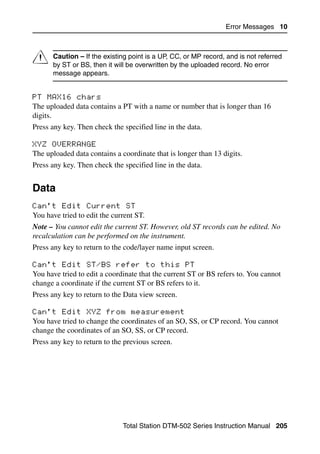
        Instruction Manual


            DTM-522
            DTM-532
            DTM-552


                             H162E 05.10.TH.8
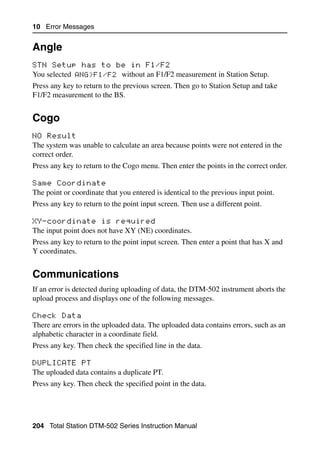
Contact Information                                   – Consult the dealer or an experienced radio/TV
Nikon-Trimble Co. Limited                               technician for help.

Copyright and Trademarks
© 2005, Nikon-Trimble Co. Limited. All rights
reserved.
                                                         C         Warning – This equipment has
                                                                   been certified to comply with the
                                                                   limits for a Class B personal
All trademarks are the property of their                           computer and peripherals,
respective owners.                                                 pursuant to Subpart B of Part 15
It is prohibited to alter this manual in part or                   of FCC Rules. Only peripherals
whole without express permission.                                  (computer input/output devices,
The contents of this manual are subject to change                  terminals, printers, etc.) certified
without notice. Although every effort has been                     to comply with the Class B limits
made to ensure the accuracy of this manual,                        may be attached to this
please contact your dealer if you find anything in                 equipment. Operation with
it that is incorrect or unclear.                                   non-certified personal computer
                                                                   and/or peripherals is likely to
Release Notice                                                     result in interference to radio and
This is the October 2005 release of the Total                      TV reception. The connection of
Station DTM-502 Series Instruction Manual, part                    a non-shielded equipment
number H162E. It applies to release 05.10.TH.8                     interface cable to this equipment
of the Total Station DTM-502 series.                               will invalidate the FCC
                                                                   Certification of this device and
Notices
                                                                   may cause interference levels
USA                                                                which exceed the limits
FCC 15B Class B satisfied.                                         established by the FCC for this
                                                                   equipment.
This equipment has been tested and found to
comply with the limits for a Class B personal                      You are cautioned that changes
computer and peripherals, pursuant to Part 15 of                   or modifications not expressly
the FCC Rules. These limits are designed to                        approved by the party
provide reasonable protection against harmful                      responsible for compliance could
interference in a residential installation. This                   void your authority to operate the
equipment generates, uses and can radiate radio                    equipment.
frequency energy and, if not installed and used in
accordance with the instructions, may cause
harmful interference to radio communications.         European Union
However, there is no guarantee that interference      EU EMC Directive satisfied.
will not occur in a particular installation.
If this equipment does cause harmful interference
to radio or television reception, which can be        Canada
determined by turning the equipment off and on,       This Class B digital apparatus meets all
the user is encouraged to try to correct the          requirements of the Canadian Interference-
interference by one or more of the following          Causing Equipment Regulations.
measures:                                             Cet appareil numérique de la Class B respecte
– Reorient or relocate the receiving antenna.         toutes les exigences du Règlement sur le matériel
– Increase the separation between the equipment       brouilleur du Canada.
  and receiver.
– Connect the equipment into an outlet on a
  circuit different from that to which the receiver
  is connected.
Taiwan
Battery Recycling
Requirements
The product contains a
removable battery. Taiwanese
regulations require that waste batteries are
recycled.
Notice to Our European
Union Customers
For product recycling instructions and
more information, please go to:
www.trimble.com/environment/summ
ary.html
Recycling in Europe
To recycle Trimble WEEE,
call: +31 497 53 2430,
and ask for the “WEEE associate,”
or mail a request for recycling instructions to:
Trimble Europe BV
c/o Menlo Worldwide Logistics
Meerheide 45
5521 DZ Eersel, NL
Safety                            1


 In this chapter:

          Introduction
          LED Safety
          Warnings and Cautions
Safety


Introduction
For your safety, read this instruction manual carefully and thoroughly before using
the DTM-502 series instrument. Although Nikon products are designed for
maximum safety, using them incorrectly or disregarding the instructions can cause
personal injury or property damage.
You should also read the instruction manual for the battery charger, and the
documentation for any other equipment that you use with a DTM-502 series
instrument.
Note – Always keep the manual near the instrument for easy reference.


vi   Total Station DTM-502 Series Instruction Manual
Safety


LED Safety
The DTM-552/532/522 is a Class 1 LED instrument.
Class 1 LED instruments do not require any special precautions, signage or training
for LED safety.

Specifications for LED emission

Wave length        850 nm
Drive method       CW
Output power       < 200 µW
Repetition rate    15 KHz

Safety class

E.U.               EN60825-1/Am.2:2001 (IEC60825-1/Am.2:2001), class 1
Japan              JIS C6802-1997, class 1


                              Total Station DTM-502 Series Instruction Manual vii
Safety


Warnings and Cautions
The following conventions are used to indicate safety instructions:


C        Warning – Warnings alert you to situations that could cause death or serious
         injury.


C        Caution – Cautions alert you to situations that could cause injury or property
         damage.

Always read and follow the instructions carefully.


Warnings
Before using the instrument, read the following warnings and follow the
instructions that they provide:


C        Warning – Never look at the sun through the telescope. If you do, you may
         damage or lose your eyesight.


C        Warning – DTM-502 series instruments are not designed to be
         explosion-proof. Do not use the instrument in coal mines, in areas
         contaminated with coal dust, or near other flammable substances.


C        Warning – Never disassemble, modify, or repair the instrument yourself. If you
         do, you may receive electric shocks or burns, or the instrument may catch fire.
         You may also impair the accuracy of the instrument.


C        Warning – Use only the specified battery charger (part number Q-75U/E) to
         charge the battery pack (part number BC-80). Using other chargers, such as
         a charger with part number Q-7U/E or Q-7C, may cause the battery pack to
         catch fire or rupture. (The BC-80 cannot be charged by the Q-7U/E or Q-7C.)


viii   Total Station DTM-502 Series Instruction Manual
Safety


C   Warning – Do not cover the battery charger while the battery pack is being
    recharged. The charger must be able to dissipate heat adequately. Coverings
    such as blankets or clothing can cause the charger to overheat.


C   Warning – Avoid recharging the battery pack in humid or dusty places, in
    direct sunlight, or near heat sources. Do not recharge the battery pack when it
    is wet. If you do, you may receive electric shocks or burns, or the battery pack
    may overheat or catch fire.


C   Warning – Although the battery pack (part number BC-80) has an auto-reset
    circuit breaker, you should take care not to short circuit the contacts. Short
    circuits can cause the battery pack to catch fire or burn you.


C   Warning – Never burn or heat the battery. Doing so may cause the battery to
    leak or rupture. A leaking or ruptured battery can cause serious injury.


C   Warning – Before storing the battery pack or battery charger, cover the
    contact points with insulation tape. If you do not cover the contact points, the
    battery pack or charger may short circuit, causing fire, burns, or damage to
    the instrument.


                              Total Station DTM-502 Series Instruction Manual ix
Safety


Cautions
Before using the instrument, read the following cautions and follow the instructions
that they provide:


C        Caution – Do not use controls or adjustments, or carry out any procedures,
         other than those specified in this document. Otherwise you may be exposed
         to hazardous radiation.


C        Caution – The tops of the tripod ferrules are very sharp. When handling or
         carrying the tripod, take care to avoid injuring yourself on the ferrules.


C        Caution – Before carrying the tripod or the instrument in the carrying case,
         check the shoulder strap and its clasp. If the strap is damaged or the clasp is
         not securely fastened, the carrying case may fall, causing personal injury or
         instrument damage.


C        Caution – Before setting up the tripod, make sure that no-one’s hands or feet
         are underneath it. When the legs of the tripod are being driven into the
         ground, they could pierce hands or feet.


C        Caution – After mounting the instrument on the tripod, securely fasten the
         thumb screws on the tripod legs. If the thumb screws are not securely
         fastened, the tripod may collapse, causing personal injury or instrument
         damage.


C        Caution – After mounting the instrument on the tripod, securely fasten the
         clamp screw on the tripod. If the clamp screw is not securely fastened, the
         instrument may fall off the tripod, causing personal injury or instrument
         damage.


C        Caution – Securely fasten the leveling base clamp knob. If the knob is not
         securely fastened, the leveling base may come loose or fall off when you lift
         the instrument, causing personal injury or instrument damage.


x   Total Station DTM-502 Series Instruction Manual
Safety


C   Caution – Before you pick up the instrument by the carrying handle, make
    sure that the battery pack is clamped securely in place, and that the battery
    mounting buttons are set in the vertical (LOCK) position. If the battery pack is
    not securely fastened, the main unit may come loose or fall off when you lift
    the instrument, causing personal injury or instrument damage.


C   Caution – Do not stack objects on the plastic carrying case, or use it as a
    stool. The plastic carrying case is unstable and its surface is slippery.
    Stacking or sitting on the plastic carrying case may cause personal injury or
    instrument damage.


C   Caution – Do not swing or throw the plumb bob. You could injure yourself or
    other people.


C   Caution – Before charging the battery pack, read the instruction manual for
    the quick charger (part number Q-75U/E).


                              Total Station DTM-502 Series Instruction Manual xi
Safety


xii   Total Station DTM-502 Series Instruction Manual
Contents
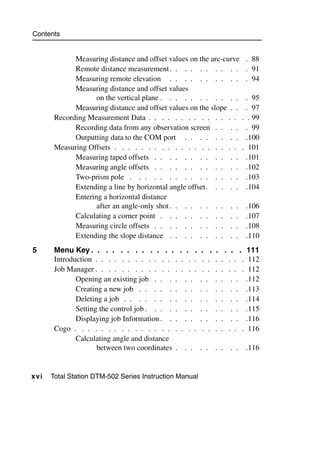
    Safety . . . . . . . .     .   .    .    . . . .    .    .   .   .    .    . . . .     .    .   . .v
    Introduction . . . . . .   .   .   .    . . . . .    .   .   .   .   .    . . . . .     .   .   . .vi
    LED Safety . . . . . .     .   .   .    . . . . .    .   .   .   .   .    . . . . .     .   .   . vii
    Warnings and Cautions      .   .   .    . . . . .    .   .   .   .   .    . . . . .     .   .   . viii
1   Introduction . . . . . . . . . .                         . . .        . .    .       . . . .        1
    Welcome . . . . . . . . . . . . . .                      . . .        . .    .   .    . . . .       2
           Instrument accuracy and display.                    . .       . .     .   .     . . . .      2
    Parts of the Instrument . . . . . . . .                   . . .       . .    .   .    . . . .       4
    Maintenance . . . . . . . . . . . . .                    . . .        . .    .   .    . . . .       6
2   Preparation. . . . . . . . . . . . . . . .                                   .       . . . .       9
    Unpacking and Packing the Instrument . . . . . .                             .   .    . . . .     10
           Unpacking . . . . . . . . . . . . .                                   .   .     . . .      10
           Packing . . . . . . . . . . . . . .                                   .   .     . . .      10
    Charging and Discharging the Battery Pack . . . .                            .   .    . . . .     10
    Detaching and Re-Attaching the Battery Pack. . .                             .   .    . . . .     13
    Setting Up the Tripod . . . . . . . . . . . . . .                            .   .    . . . .     15
    Centering . . . . . . . . . . . . . . . . . . .                              .   .    . . . .     16
           Centering using the optical plummet . . .                             .   .     . . .      16
           Centering using a plumb bob . . . . . .                               .   .     . . .      17
    Leveling. . . . . . . . . . . . . . . . . . . .                              .   .    . . . .     17
    Sighting . . . . . . . . . . . . . . . . . . . .                             .   .    . . . .     18
    Setting Up the Prism Reflector. . . . . . . . . .                            .   .    . . . .     19
           Adjusting the height of the tribrach adapter                          .   .     . . .      20
           Changing the direction of the prism . . .                             .   .     . . .      20
           Setting the prism constant . . . . . . .                              .   .     . . .      20
           Setting the position of the target plate . .                          .   .     . . .      21


                 Total Station DTM-502 Series Instruction Manual x ii i
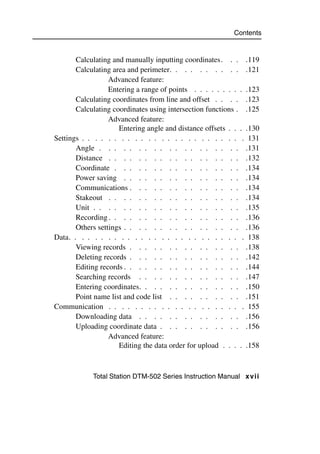
Contents


        Face-1/Face-2 Measurements . . . . . . . . . . . . . . . . 21
3       Getting Started . . . . . . . . . . . . . . . . . . . 23
        Turning the Instrument On and Off . . . . . . . . . . . . . . 24
                Turning on the instrument . . . . . . . . . . . . 24
                Turning off the instrument . . . . . . . . . . . . 25
        Selecting a Language . . . . . . . . . . . . . . . . . . . . 26
        Changing Regional Configuration Pre-sets . . . . . . . . . . 27
        Display and Key Functions . . . . . . . . . . . . . . . . . 29
                Status bar . . . . . . . . . . . . . . . . . . . 32
                Adjusting lighting and sound levels . . . . . . . . . 34
                [DSP] key . . . . . . . . . . . . . . . . . . . 35
                [MODE] key . . . . . . . . . . . . . . . . . . . 37
                [COD] key . . . . . . . . . . . . . . . . . . . 39
                [HOT] key . . . . . . . . . . . . . . . . . . . 40
                Bubble indicator . . . . . . . . . . . . . . . . 42
                [LG] key. . . . . . . . . . . . . . . . . . . . 43
                [USR] keys . . . . . . . . . . . . . . . . . . . 43
                [DAT] key . . . . . . . . . . . . . . . . . . . 45
        List Display . . . . . . . . . . . . . . . . . . . . . . . . 45
        Inputting Data . . . . . . . . . . . . . . . . . . . . . . . 46
                Entering a point name or number . . . . . . . . . 46
                Entering a code. . . . . . . . . . . . . . . . . 50
                           Advanced feature: Searching for a code
                               by using the first character . . . . . . . . 51
                Entering values in feet and inches . . . . . . . . . 52
        Jobs . . . . . . . . . . . . . . . . . . . . . . . . . . . . 53
                Creating a new job . . . . . . . . . . . . . . . 53
        Measuring Distances . . . . . . . . . . . . . . . . . . . . 55
                Sighting a prism reflector. . . . . . . . . . . . . 55
                Measuring distances . . . . . . . . . . . . . . . 56


x iv   Total Station DTM-502 Series Instruction Manual
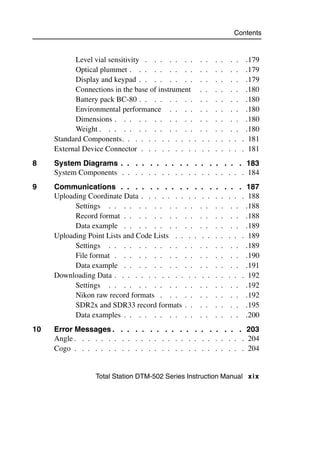
Contents


           Measurement settings .    . .   . .   . .   . .   . .   . .   . 57
4   Applications . . . . . . . . . . . . . . . . . . . . 59
    HA Reset and Angle Operations . . . . . . . . . . . . . . . 60
           Setting the horizontal angle to 0 . . . . . . . . . . 60
           Entering the horizontal angle . . . . . . . . . . . 60
           Recording a foresight point after
                  repeat angle measurement . . . . . . . . . 60
           Face-1/Face-2 measurement . . . . . . . . . . . 61
           Horizontal angle hold . . . . . . . . . . . . . . 62
    Station Setup. . . . . . . . . . . . . . . . . . . . . . . . 62
           Setting up a station with known coordinates
                  or azimuth. . . . . . . . . . . . . . . . 63
                      Advanced feature: Measuring F1 and F2 . . . 65
           Setting up a station using multiple point resection . . . 67
                      Advanced feature: Viewing and deleting a
                          measurement in resection . . . . . . . . . 70
           Setting up the station quickly without coordinates . . . 71
           Determining station elevation . . . . . . . . . . . 72
           Checking and resetting the backsight direction . . . . 73
           Two-point resection along a known line . . . . . . . 75
    Stakeout . . . . . . . . . . . . . . . . . . . . . . . . . . 77
           Specifying the stakeout point by angle and distance . . 77
           Specifying the stakeout point by coordinates . . . . . 80
                      Advanced feature: Specifying a stakeout list
                          by range input . . . . . . . . . . . . . . . 82
           DivLine S-O . . . . . . . . . . . . . . . . . 83
           RefLine S-O . . . . . . . . . . . . . . . . . 84
    Program Key. . . . . . . . . . . . . . . . . . . . . . . . 86
           Measuring distance and offset values
                  along a specified line . . . . . . . . . . . 86


                  Total Station DTM-502 Series Instruction Manual xv
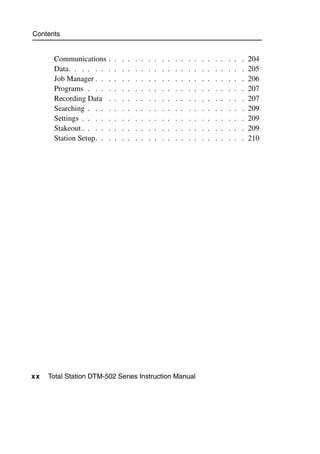
Contents


             Measuring distance and offset values on the arc-curve               . 88
             Remote distance measurement . . . . . . . . . .                     . 91
             Measuring remote elevation . . . . . . . . . .                      . 94
             Measuring distance and offset values
                    on the vertical plane . . . . . . . . . . .                  . 95
             Measuring distance and offset values on the slope . .               . 97
       Recording Measurement Data . . . . . . . . . . . . . .                   . . 99
             Recording data from any observation screen . . . .                  . 99
             Outputting data to the COM port . . . . . . . .                     .100
       Measuring Offsets . . . . . . . . . . . . . . . . . . .                  . 101
             Measuring taped offsets . . . . . . . . . . . .                     .101
             Measuring angle offsets . . . . . . . . . . . .                     .102
             Two-prism pole . . . . . . . . . . . . . . .                        .103
             Extending a line by horizontal angle offset. . . . .                 .104
             Entering a horizontal distance
                    after an angle-only shot . . . . . . . . . .                 .106
             Calculating a corner point . . . . . . . . . . .                    .107
             Measuring circle offsets . . . . . . . . . . . .                    .108
             Extending the slope distance . . . . . . . . . .                    .110
5      Menu Key . . . . . . . . . . . .           . . .    . .   .       . . . 111
       Introduction . . . . . . . . . . . . .     . . .    . .   .   .    . . . 112
       Job Manager . . . . . . . . . . . . .      . . .    . .   .   .    . . . 112
              Opening an existing job . . . .       . .   . .    .   .     . . .112
              Creating a new job . . . . . .        . .   . .    .   .     . . .113
              Deleting a job . . . . . . . .        . .   . .    .   .     . . .114
              Setting the control job . . . . .     . .   . .    .   .     . . .115
              Displaying job Information . . .      . .   . .    .   .     . . .116
       Cogo . . . . . . . . . . . . . . . .       . . .    . .   .   .    . . . 116
              Calculating angle and distance
                     between two coordinates .     . .    . .    . .      . .    .116


xvi   Total Station DTM-502 Series Instruction Manual
Contents


       Calculating and manually inputting coordinates. . . .119
       Calculating area and perimeter. . . . . . . . . . .121
                  Advanced feature:
                  Entering a range of points . . . . . . . . . .123
       Calculating coordinates from line and offset . . . . .123
       Calculating coordinates using intersection functions . .125
                  Advanced feature:
                     Entering angle and distance offsets . . . .130
Settings . . . . . . . . . . . . . . . . . . . . . . . . . 131
       Angle . . . . . . . . . . . . . . . . . . . .131
       Distance . . . . . . . . . . . . . . . . . . .132
       Coordinate . . . . . . . . . . . . . . . . . .134
       Power saving . . . . . . . . . . . . . . . . .134
       Communications . . . . . . . . . . . . . . . .134
       Stakeout . . . . . . . . . . . . . . . . . . .134
       Unit . . . . . . . . . . . . . . . . . . . . .135
       Recording . . . . . . . . . . . . . . . . . . .136
       Others settings . . . . . . . . . . . . . . . . .136
Data. . . . . . . . . . . . . . . . . . . . . . . . . . . 138
       Viewing records . . . . . . . . . . . . . . . .138
       Deleting records . . . . . . . . . . . . . . . .142
       Editing records . . . . . . . . . . . . . . . . .144
       Searching records . . . . . . . . . . . . . . .147
       Entering coordinates. . . . . . . . . . . . . . .150
       Point name list and code list . . . . . . . . . . .151
Communication . . . . . . . . . . . . . . . . . . . . . 155
       Downloading data . . . . . . . . . . . . . . .156
       Uploading coordinate data . . . . . . . . . . . .156
                  Advanced feature:
                     Editing the data order for upload . . . . .158


            Total Station DTM-502 Series Instruction Manual xvii
Contents


                  Uploading a point name list or code list   . .    .   .     . .    .158
           1sec-Keys . . . . . . . . . . . . . . . . .        . .   .   .    . .    . 159
                  [MSR] key settings . . . . . . . . .       . .    .   .     . .    .159
                  [DSP] key settings . . . . . . . . .       . .    .   .     . .    .160
                  [USR] key settings . . . . . . . . .       . .    .   .     . .    .161
                  [S-O] key settings . . . . . . . . .       . .    .   .     . .    .161
                  [DAT] key settings . . . . . . . . .       . .    .   .     . .    .162
           Calibration . . . . . . . . . . . . . . . .        . .   .   .    . .    . 162
           Time . . . . . . . . . . . . . . . . . . .         . .   .   .    . .    . 162
6          Checking and Adjustment . . . . . . .             .    . . . .           . 165
           Checking and Adjusting the Plate Level . . .      .   . . . . .           . 166
           Checking and Adjusting the Circular Level . .     .   . . . . .           . 166
           Checking and Adjusting the Optical Plummet .      .   . . . . .           . 167
           Zero Point Errors of Vertical Scale and
                 Horizontal Angle Corrections . . . . .       . .   .   .    . . . 168
                 Checking . . . . . . . . . . . .            . .    .   .     . . .168
                 Adjusting . . . . . . . . . . . .           . .    .   .     . . .168
           Checking the Instrument Constant . . . . . .       . .   .   .    . . . 172
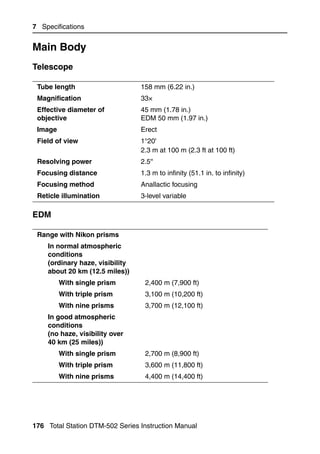
7          Specifications. . . . . . . . . .         . . .    . .   .       . . . 175
           Main Body . . . . . . . . . . . . .       . . .    . .   .   .    . . . 176
                 Telescope . . . . . . . . . .         . .   . .    .   .     . . .176
                 EDM . . . . . . . . . . . .           . .   . .    .   .     . . .176
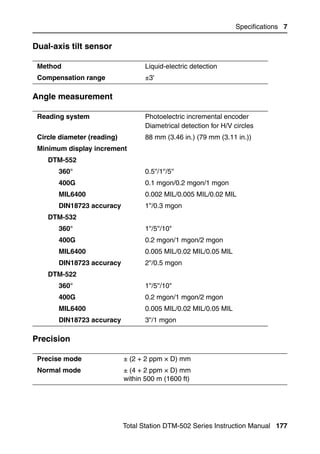
                 Dual-axis tilt sensor . . . . . .     . .   . .    .   .     . . .177
                 Angle measurement . . . . . .         . .   . .    .   .     . . .177
                 Precision . . . . . . . . . .         . .   . .    .   .     . . .177
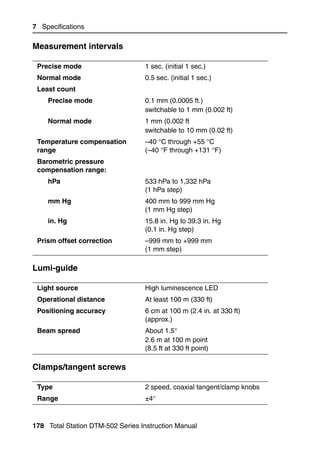
                 Measurement intervals . . . .         . .   . .    .   .     . . .178
                 Lumi-guide . . . . . . . . .          . .   . .    .   .     . . .178
                 Clamps/tangent screws . . . .         . .   . .    .   .     . . .178
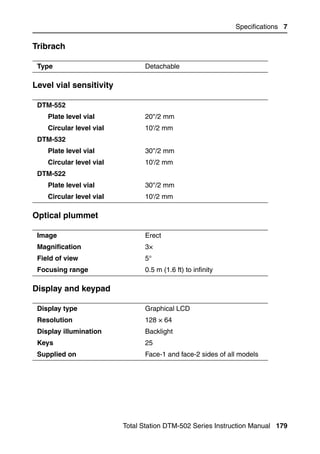
                 Tribrach . . . . . . . . . .          . .   . .    .   .     . . .179


x v i ii   Total Station DTM-502 Series Instruction Manual
Contents


           Level vial sensitivity . . . . . . .     .    . . . . . .179
           Optical plummet . . . . . . . . .        .    . . . . . .179
           Display and keypad . . . . . . . .       .    . . . . . .179
           Connections in the base of instrument    .    . . . . . .180
           Battery pack BC-80 . . . . . . . .       .    . . . . . .180
           Environmental performance . . . .        .    . . . . . .180
           Dimensions . . . . . . . . . . .         .    . . . . . .180
           Weight . . . . . . . . . . . . .         .    . . . . . .180
     Standard Components. . . . . . . . . . . .         . . . . . . . 181
     External Device Connector . . . . . . . . .        . . . . . . . 181
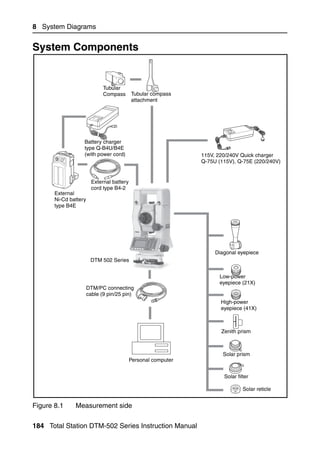
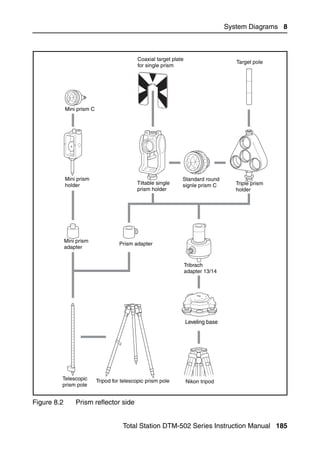
8    System Diagrams . . . . . . . . . . . . . . . . . 183
     System Components . . . . . . . . . . . . . . . . . . . 184
9    Communications . . . . . . . . . . .            . .   .       . . . 187
     Uploading Coordinate Data . . . . . . . . .     . .   .   .    . . . 188
           Settings . . . . . . . . . . . .         . .    .   .     . . .188
           Record format . . . . . . . . . .        . .    .   .     . . .188
           Data example . . . . . . . . . .         . .    .   .     . . .189
     Uploading Point Lists and Code Lists . . . .    . .   .   .    . . . 189
           Settings . . . . . . . . . . . .         . .    .   .     . . .189
           File format . . . . . . . . . . .        . .    .   .     . . .190
           Data example . . . . . . . . . .         . .    .   .     . . .191
     Downloading Data . . . . . . . . . . . . .      . .   .   .    . . . 192
           Settings . . . . . . . . . . . .         . .    .   .     . . .192
           Nikon raw record formats . . . . .       . .    .   .     . . .192
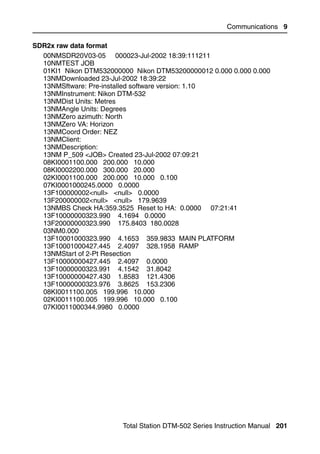
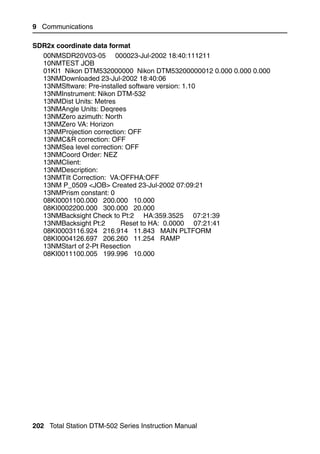
           SDR2x and SDR33 record formats . .       . .    .   .     . . .195
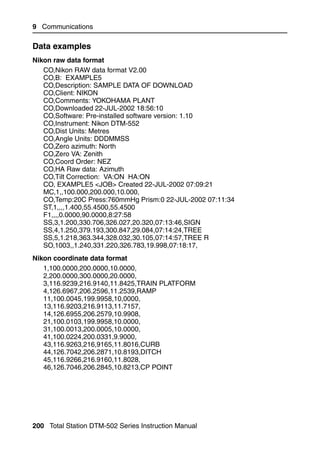
           Data examples . . . . . . . . . .        . .    .   .     . . .200
10   Error Messages . . . . . . . . . . . . . . . . . . 203
     Angle . . . . . . . . . . . . . . . . . . . . . . . . . . 204
     Cogo . . . . . . . . . . . . . . . . . . . . . . . . . . 204


                 Total Station DTM-502 Series Instruction Manual x ix
Contents


      Communications     .   .   .   .   .   .   .   .   .   .   .   .   .   .   .   .   .   .   .   .   .   204
      Data. . . . . .    .   .   .   .   .   .   .   .   .   .   .   .   .   .   .   .   .   .   .   .   .   205
      Job Manager . .    .   .   .   .   .   .   .   .   .   .   .   .   .   .   .   .   .   .   .   .   .   206
      Programs . . .     .   .   .   .   .   .   .   .   .   .   .   .   .   .   .   .   .   .   .   .   .   207
      Recording Data     .   .   .   .   .   .   .   .   .   .   .   .   .   .   .   .   .   .   .   .   .   207
      Searching . . .    .   .   .   .   .   .   .   .   .   .   .   .   .   .   .   .   .   .   .   .   .   209
      Settings . . . .   .   .   .   .   .   .   .   .   .   .   .   .   .   .   .   .   .   .   .   .   .   209
      Stakeout . . . .   .   .   .   .   .   .   .   .   .   .   .   .   .   .   .   .   .   .   .   .   .   209
      Station Setup. .   .   .   .   .   .   .   .   .   .   .   .   .   .   .   .   .   .   .   .   .   .   210


xx   Total Station DTM-502 Series Instruction Manual
CHAPTER


                                                                 1
Introduction                                                                1


 In this chapter:

          Welcome
          Parts of the Instrument
          Maintenance


                            Total Station DTM-502 Series Instruction Manual 1
1 Introduction


Welcome                                                                             1.1

Thank you for purchasing this Nikon product.
This instruction manual was written for the users of Electronic Total Station
DTM-502 series instruments. Before you operate a DTM-502 series instrument,
read this manual carefully. In particular, pay attention to the warnings and cautions
that appear in the Safety section at the front of the manual. Before you begin, you
should also read the maintenance instructions. For more information, see
Maintenance, page 6.

Instrument accuracy and display                                                    11.1
One of the benefits of the Nikon DTM-302, NPL-302, and DTM-502 series
products is ease-of-use. The software for these three product series has been
designed to make it easy for you to learn to operate one model of instrument and
apply that knowledge to the other models with little additional training. A
DTM-302 series user can easily operate the non-prism NPL-302 series instruments
or the higher accuracy DTM-502 series instruments.
There are some subtle differences in the software between these different product
families. Some of these differences stem from additional capabilities or features
available in some models. For example, the DTM-502 series offers the Lumi-Guide
functionality, which guides the rodman to the correct stake-out position quickly and
easily. The NPL-302 series offers reflectorless operation, allowing you to take
measurements to points inaccessible with a prism. This manual shows the unique
capabilities and features available in the DTM-502 series instrument.


2 Total Station DTM-502 Series Instruction Manual
Introduction 1

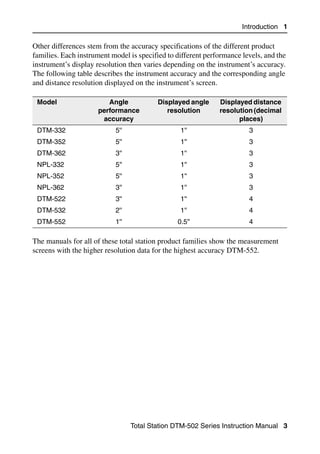
Other differences stem from the accuracy specifications of the different product
families. Each instrument model is specified to different performance levels, and the
instrument’s display resolution then varies depending on the instrument’s accuracy.
The following table describes the instrument accuracy and the corresponding angle
and distance resolution displayed on the instrument’s screen.

 Model                   Angle            Displayed angle     Displayed distance
                      performance            resolution       resolution (decimal
                       accuracy                                     places)
 DTM-332                   5''                   1''                    3
 DTM-352                   5''                   1''                    3
 DTM-362                   3''                   1''                    3
 NPL-332                   5''                   1''                    3
 NPL-352                   5''                   1''                    3
 NPL-362                   3''                   1''                    3
 DTM-522                   3''                   1''                    4
 DTM-532                   2''                   1''                    4
 DTM-552                   1''                  0.5''                   4

The manuals for all of these total station product families show the measurement
screens with the higher resolution data for the highest accuracy DTM-552.


                                 Total Station DTM-502 Series Instruction Manual 3
1 Introduction


Parts of the Instrument                                                               1.2

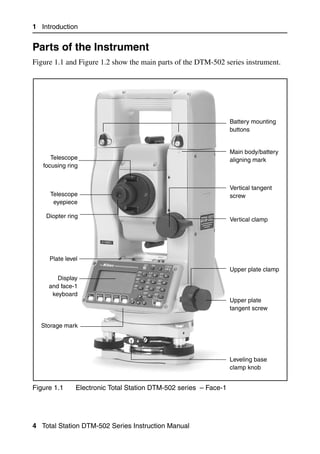
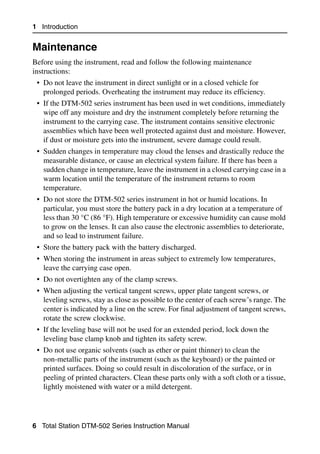
Figure 1.1 and Figure 1.2 show the main parts of the DTM-502 series instrument.


                                                                  Battery mounting
                                                                  buttons


                                                                  Main body/battery
      Telescope                                                   aligning mark
   focusing ring


                                                                  Vertical tangent
     Telescope                                                    screw
      eyepiece

    Diopter ring
                                                                  Vertical clamp


     Plate level
                                                                  Upper plate clamp
        Display
     and face-1
      keyboard
                                                                  Upper plate
                                                                  tangent screw

  Storage mark


                                                                  Leveling base
                                                                  clamp knob


Figure 1.1     Electronic Total Station DTM-502 series – Face-1


4 Total Station DTM-502 Series Instruction Manual
Introduction 1


                                                                         Battery pack
                                                                         and carrying
  Optical sight                                                          handle
        (finder)

    Lumi-guide
    transmitter


      Objective                                                          Horizontal axis
                                                                         indication mark


                                                                        Optical plummet
     Display and
 face-2 keyboard


 Leveling base
                                                                      Data output/
                                                                      external power
                                                                      input connector
  Circular level
                                                                      (Input voltage
                                                                      7.2 – 11 V DC)
    Base plate
                                                                         Leveling screw


Figure 1.2         Electronic Total Station DTM-502 series – Face-2


                                    Total Station DTM-502 Series Instruction Manual 5
1 Introduction


Maintenance                                                                          1.3

Before using the instrument, read and follow the following maintenance
instructions:
 • Do not leave the instrument in direct sunlight or in a closed vehicle for
   prolonged periods. Overheating the instrument may reduce its efficiency.
 • If the DTM-502 series instrument has been used in wet conditions, immediately
   wipe off any moisture and dry the instrument completely before returning the
   instrument to the carrying case. The instrument contains sensitive electronic
   assemblies which have been well protected against dust and moisture. However,
   if dust or moisture gets into the instrument, severe damage could result.
 • Sudden changes in temperature may cloud the lenses and drastically reduce the
   measurable distance, or cause an electrical system failure. If there has been a
   sudden change in temperature, leave the instrument in a closed carrying case in a
   warm location until the temperature of the instrument returns to room
   temperature.
 • Do not store the DTM-502 series instrument in hot or humid locations. In
   particular, you must store the battery pack in a dry location at a temperature of
   less than 30 °C (86 °F). High temperature or excessive humidity can cause mold
   to grow on the lenses. It can also cause the electronic assemblies to deteriorate,
   and so lead to instrument failure.
 • Store the battery pack with the battery discharged.
 • When storing the instrument in areas subject to extremely low temperatures,
   leave the carrying case open.
 • Do not overtighten any of the clamp screws.
 • When adjusting the vertical tangent screws, upper plate tangent screws, or
   leveling screws, stay as close as possible to the center of each screw’s range. The
   center is indicated by a line on the screw. For final adjustment of tangent screws,
   rotate the screw clockwise.
 • If the leveling base will not be used for an extended period, lock down the
   leveling base clamp knob and tighten its safety screw.
 • Do not use organic solvents (such as ether or paint thinner) to clean the
   non-metallic parts of the instrument (such as the keyboard) or the painted or
   printed surfaces. Doing so could result in discoloration of the surface, or in
   peeling of printed characters. Clean these parts only with a soft cloth or a tissue,
   lightly moistened with water or a mild detergent.


6 Total Station DTM-502 Series Instruction Manual
Introduction 1

• To clean the optical lenses, lightly wipe them with a soft cloth or a lens tissue
  that is moistened with alcohol.
• The reticle plate cover has been correctly
  mounted. Do not release it or subject it to
  excessive force to make it watertight.
• Press the cap that covers the data
  output/external power input connector
  terminal until it clicks into place. The
  instrument is not watertight if the cap is
  not attached securely, or when the data
  output/external power input connector is         Reticle plate cover
  used.
• The carrying case is designed to be watertight, but you should not leave it
  exposed to rain for an extended period. If exposure to rain is unavoidable, make
  sure that the carrying case is placed with the Nikon nameplate facing upward.
• The BC-80 battery pack contains a Ni-MH battery. When disposing of the
  battery pack, follow the laws or rules of your municipal waste system.
• The instrument can be damaged by static electricity from the human body
  discharged through the data output/external power input connector. Before
  handling the instrument, touch any other conductive material once to remove
  static electricity.


                                Total Station DTM-502 Series Instruction Manual 7
1 Introduction


8 Total Station DTM-502 Series Instruction Manual
CHAPTER


                                                                2
Preparation                                                                2


 In this chapter:

          Unpacking and Packing the Instrument
          Charging and Discharging the Battery Pack
          Detaching and Re-Attaching the Battery Pack
          Setting Up the Tripod
          Centering
          Leveling
          Sighting
          Setting Up the Prism Reflector
          Face-1/Face-2 Measurements


                           Total Station DTM-502 Series Instruction Manual 9
2 Preparation


Unpacking and Packing the Instrument                                                2.1

Note – Handle the DTM-502 instrument gently to protect it from shocks and
excessive vibration.

Unpacking                                                                          21.1
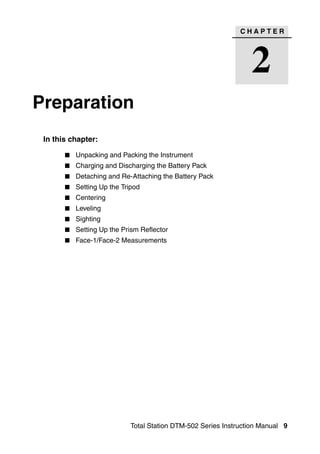
To unpack the instrument, grip the carrying
handle and gently remove the instrument from
the carrying case.

Packing                                        21.2
Note – Store the instrument with the battery
pack attached.
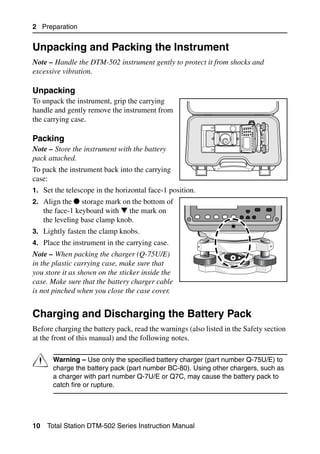
To pack the instrument back into the carrying
case:
1. Set the telescope in the horizontal face-1 position.
2. Align the      storage mark on the bottom of
     the face-1 keyboard with the mark on
     the leveling base clamp knob.
3. Lightly fasten the clamp knobs.
4. Place the instrument in the carrying case.
Note – When packing the charger (Q-75U/E)
in the plastic carrying case, make sure that
you store it as shown on the sticker inside the
case. Make sure that the battery charger cable
is not pinched when you close the case cover.


Charging and Discharging the Battery Pack                                           2.1

Before charging the battery pack, read the warnings (also listed in the Safety section
at the front of this manual) and the following notes.


C       Warning – Use only the specified battery charger (part number Q-75U/E) to
        charge the battery pack (part number BC-80). Using other chargers, such as
        a charger with part number Q-7U/E or Q7C, may cause the battery pack to
        catch fire or rupture.


10    Total Station DTM-502 Series Instruction Manual
Preparation 2


C     Warning – Do not cover the battery charger while the battery pack is being
      recharged. The charger must be able to dissipate heat adequately. Coverings
      such as blankets or clothing can cause the charger to overheat.


C     Warning – Avoid recharging the battery pack in humid or dusty places, in
      direct sunlight, or near heat sources. Do not recharge the battery pack when it
      is wet. If you do, you may receive electric shocks or burns, or the battery pack
      may overheat or catch fire.


C     Warning – Although the battery pack (part number BC-80) has an auto-reset
      circuit breaker, you should take care not to short circuit the contacts. Short
      circuits can cause the battery pack to catch fire or burn you.


C     Warning – Never burn or heat the battery. Doing so may cause the battery to
      leak or rupture. A leaking or ruptured battery can cause serious injury.


C     Warning – Before storing the battery pack or battery charger, cover the
      contact points with insulation tape. If you do not cover the contact points, the
      battery pack or charger may short circuit, causing fire, burns, or damage to
      the instrument.


C     Caution – Before charging the battery pack, read the instruction manual for
      the quick charger (part number Q-75U/E).


Important notes
 • Charge the battery pack indoors where the ambient temperature is between
   0 °C and 40 °C (between 32 °F and 104 °F). If you try to charge the battery
   when the ambient temperature is outside this range, the protective circuit will
   work and prevent it from being charged normally.
 • To prevent malfunction, keep the charging plug clean.
 • If the CHARGE indicator blinks repeatedly after charging starts, there is a
   problem with the battery pack. Do not use or charge the battery pack any further,
   and contact your dealer.


                               Total Station DTM-502 Series Instruction Manual 11
2 Preparation

 • If the ambient temperature drops below 0 °C (32 °F) while the battery pack is
   charging, the charger stops charging the battery pack. When the ambient
   temperature rises above 0 °C (32 °F), charging resumes. Charging will be
   completed within two hours from restarting.
 • If the CHARGE indicator remains lit for more than three hours, and the ambient
   temperature during charging was within the specified operational range
   (0 °C through 40 °C or 32 °F through 104 °F), there is a problem with the
   battery pack. Do not use or charge the battery pack any further, and contact your
   dealer.
 • During charging or discharging, the battery pack and quick charger will become
   warm. This is normal.
 • After charging the battery pack, do not recharge it until it has been fully
   discharged. Recharging a fully charged battery pack lowers its performance.
 • If the battery pack is used at low temperatures (below –20 °C or –4 °F), its
   capacity is reduced, and it will allow less operation time than a battery pack used
   at normal (room) temperature.
 • If a battery pack is not used for a long period, it cannot be charged to its full
   capacity again. To improve the battery pack’s capacity, charge and discharge it
   several times.
 • You can use a battery charger with part number Q-70U/E or Q-70C to charge a
   battery pack with part number BC-80. However, these chargers cannot fully
   charge this battery pack.
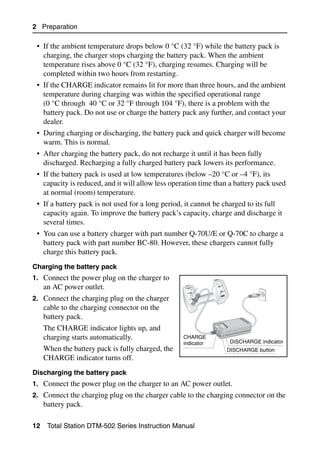
Charging the battery pack
1. Connect the power plug on the charger to
     an AC power outlet.
2. Connect the charging plug on the charger
     cable to the charging connector on the
     battery pack.
     The CHARGE indicator lights up, and
     charging starts automatically.                CHARGE
                                                   indicator      DISCHARGE indicator
     When the battery pack is fully charged, the                 DISCHARGE button
     CHARGE indicator turns off.
Discharging the battery pack
1. Connect the power plug on the charger to an AC power outlet.
2. Connect the charging plug on the charger cable to the charging connector on the
     battery pack.

12    Total Station DTM-502 Series Instruction Manual
Preparation 2

3. Press the DISCHARGE button on the battery charger.
   The DISCHARGE indicator lights up, and the charger starts to discharge the
   battery. When discharging is completed, the DISCHARGE indicator turns off.
   Then the CHARGE indicator lights up, and charging starts automatically.
To stop discharging the battery pack, press the DISCHARGE button again.
Note – The battery pack can be recharged repeatedly. If you recharge the battery
pack while it still has enough power to operate the instrument, however, it will last
for a shorter period. This is called the memory effect. If you experience the memory
effect, discharge the battery pack as described above and then recharge it. This
returns the battery pack to its full capacity. We recommend that you discharge the
battery pack in this way at least once every ten charges.


Detaching and Re-Attaching the Battery Pack                                        2.1

Detaching the BC-80 battery pack


C      Caution – Avoid touching the contacts on the battery pack.

1. If the instrument is turned on, press [PWR] to turn it off.
2. Set the battery mounting buttons in the
   horizontal (UNLOCK) position. To do this,
   turn each button inward.
3. While pressing both battery mounting
   buttons, lift the battery pack off the main
   body of the instrument.


                                 Total Station DTM-502 Series Instruction Manual 13
2 Preparation

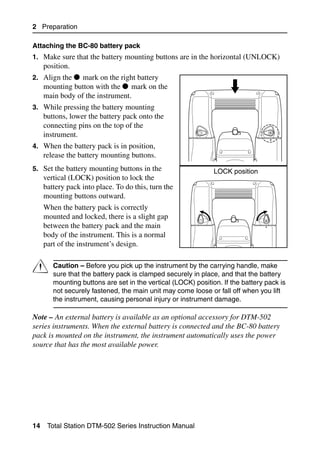
Attaching the BC-80 battery pack
1. Make sure that the battery mounting buttons are in the horizontal (UNLOCK)
     position.
2. Align the     mark on the right battery
     mounting button with the mark on the
     main body of the instrument.
3. While pressing the battery mounting
     buttons, lower the battery pack onto the
     connecting pins on the top of the
     instrument.
4. When the battery pack is in position,
     release the battery mounting buttons.
5. Set the battery mounting buttons in the                     LOCK position
     vertical (LOCK) position to lock the
     battery pack into place. To do this, turn the
     mounting buttons outward.
     When the battery pack is correctly
     mounted and locked, there is a slight gap
     between the battery pack and the main
     body of the instrument. This is a normal
     part of the instrument’s design.


C       Caution – Before you pick up the instrument by the carrying handle, make
        sure that the battery pack is clamped securely in place, and that the battery
        mounting buttons are set in the vertical (LOCK) position. If the battery pack is
        not securely fastened, the main unit may come loose or fall off when you lift
        the instrument, causing personal injury or instrument damage.

Note – An external battery is available as an optional accessory for DTM-502
series instruments. When the external battery is connected and the BC-80 battery
pack is mounted on the instrument, the instrument automatically uses the power
source that has the most available power.


14    Total Station DTM-502 Series Instruction Manual
Preparation 2


Setting Up the Tripod                                                               2.1


C     Caution – The tops of the tripod ferrules are very sharp. When handling or
      carrying the tripod, take care to avoid injuring yourself on the ferrules.

1. Open the tripod legs enough to for the instrument to be stable.
2. Locate the tripod directly over the station point. To check the tripod’s position,
   look through the center hole in the tripod head.
3. Firmly press the tripod ferrules into the ground.
4. Level the top surface of the tripod head.
   Note – If you want to use the plumb bob to center the instrument (see Centering,
   page 16), you must level the tripod head precisely.
5. Securely fasten the thumb screws on the tripod legs.
6. Place the instrument on the tripod head.
7. Insert the tripod mounting screw into the center hole of the base plate of the
   instrument.
8. Tighten the tripod mounting screw.
Note – Do not carry the instrument while it is attached to a tripod.


                               Total Station DTM-502 Series Instruction Manual 15
2 Preparation


Centering                                                                              2.1

When you center the instrument, you align its central axis precisely over the station
point. To center the instrument, you can either use the optical plummet or a plumb
bob.

Centering using the optical plummet                                                21.1
Note – If you require high accuracy, check and adjust the optical plummet before
you center the instrument. For detailed instructions, see Checking and Adjusting the
Optical Plummet, page 167.
To center the instrument using the optical plummet:
1. Set up the instrument on the tripod. For detailed instructions, see Setting Up the
     Tripod, page 15.
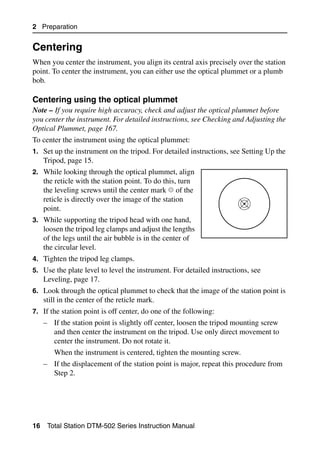
2. While looking through the optical plummet, align
     the reticle with the station point. To do this, turn
     the leveling screws until the center mark of the
     reticle is directly over the image of the station
     point.
3. While supporting the tripod head with one hand,
     loosen the tripod leg clamps and adjust the lengths
     of the legs until the air bubble is in the center of
     the circular level.
4. Tighten the tripod leg clamps.
5. Use the plate level to level the instrument. For detailed instructions, see
     Leveling, page 17.
6. Look through the optical plummet to check that the image of the station point is
     still in the center of the reticle mark.
7. If the station point is off center, do one of the following:
     – If the station point is slightly off center, loosen the tripod mounting screw
       and then center the instrument on the tripod. Use only direct movement to
       center the instrument. Do not rotate it.
        When the instrument is centered, tighten the mounting screw.
     – If the displacement of the station point is major, repeat this procedure from
       Step 2.


16    Total Station DTM-502 Series Instruction Manual
Preparation 2

Centering using a plumb bob                                                         20.1
1. Set up the instrument on the tripod. For detailed instructions, see Setting Up the
   Tripod, page 15.
2. Hang the plumb line on the hook of the tripod mounting screw.
3. Adjust the length of the plumb line so that the tip of the plumb bob is at the
   height of the station point.
4. Loosen the tripod mounting screw slightly.
5. Using both hands to support the outer side of the leveling base, carefully slide
   the instrument about on the tripod head until the tip of the plumb bob is
   positioned over the exact center of the station point.
   Note – To confirm that the instrument is precisely aligned, check its position
   from two directions at right angles to each other.


Leveling                                                                              2.1

When you level the instrument, you make the vertical axis of the instrument exactly
vertical. To level the instrument, use the plate level.
To level the instrument:
1. Loosen the upper plate clamp.
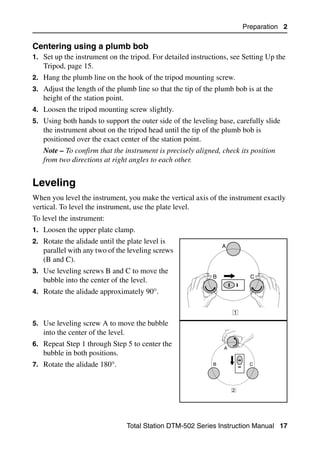
2. Rotate the alidade until the plate level is
                                                                 A
   parallel with any two of the leveling screws
   (B and C).
3. Use leveling screws B and C to move the
                                                             B             C
   bubble into the center of the level.
4. Rotate the alidade approximately 90°.


                                                                     1

5. Use leveling screw A to move the bubble
   into the center of the level.
6. Repeat Step 1 through Step 5 to center the
                                                                 A
   bubble in both positions.
7. Rotate the alidade 180°.                                  B             C


                                                                     2


                                   Total Station DTM-502 Series Instruction Manual 17
2 Preparation

8. If the bubble in the plate level remains centered, the instrument is level. If the
   bubble moves off center, adjust the plate level. For detailed instructions, see
   Checking and Adjusting the Plate Level, page 166.


Sighting                                                                                 2.1

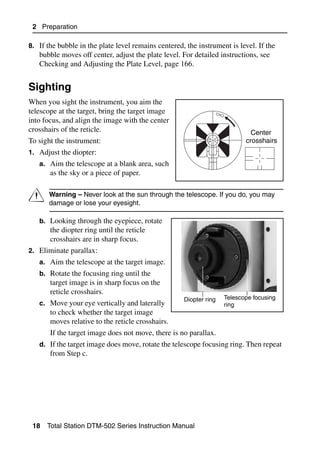
When you sight the instrument, you aim the
telescope at the target, bring the target image
into focus, and align the image with the center
crosshairs of the reticle.                                                   Center
To sight the instrument:                                                   crosshairs
1. Adjust the diopter:
   a. Aim the telescope at a blank area, such
       as the sky or a piece of paper.


C      Warning – Never look at the sun through the telescope. If you do, you may
       damage or lose your eyesight.

   b. Looking through the eyepiece, rotate
       the diopter ring until the reticle
       crosshairs are in sharp focus.
2. Eliminate parallax:
   a. Aim the telescope at the target image.
   b. Rotate the focusing ring until the
       target image is in sharp focus on the
       reticle crosshairs.
                                                     Diopter ring   Telescope focusing
   c. Move your eye vertically and laterally                        ring
       to check whether the target image
       moves relative to the reticle crosshairs.
       If the target image does not move, there is no parallax.
   d. If the target image does move, rotate the telescope focusing ring. Then repeat
       from Step c.


 18   Total Station DTM-502 Series Instruction Manual
Preparation 2


Setting Up the Prism Reflector                                                         2.1

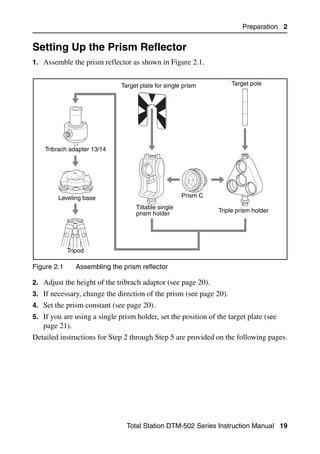
1. Assemble the prism reflector as shown in Figure 2.1.


                              Target plate for single prism         Target pole


    Tribrach adapter 13/14


        Leveling base                                Prism C
                                   Tiltable single
                                   prism holder                 Triple prism holder


             Tripod

Figure 2.1      Assembling the prism reflector

2. Adjust the height of the tribrach adaptor (see page 20).
3. If necessary, change the direction of the prism (see page 20).
4. Set the prism constant (see page 20).
5. If you are using a single prism holder, set the position of the target plate (see
   page 21).
Detailed instructions for Step 2 through Step 5 are provided on the following pages.


                                Total Station DTM-502 Series Instruction Manual 19
2 Preparation

Adjusting the height of the tribrach adapter                                       20.1
The tribrach adapter has two height settings. To use the prism reflector with a
DTM-502 series instrument, use the lower height setting.
To adjust the height of the tribrach adapter:
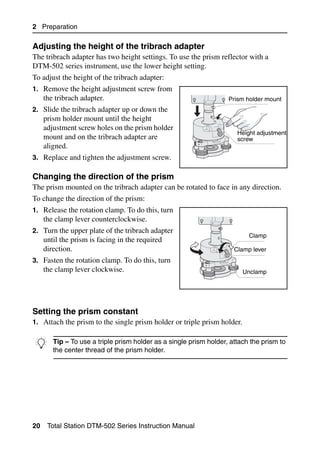
1. Remove the height adjustment screw from
     the tribrach adapter.                                       Prism holder mount
2. Slide the tribrach adapter up or down the
     prism holder mount until the height
     adjustment screw holes on the prism holder
                                                                    Height adjustment
     mount and on the tribrach adapter are                          screw
     aligned.
3. Replace and tighten the adjustment screw.

Changing the direction of the prism                                                20.1
The prism mounted on the tribrach adapter can be rotated to face in any direction.
To change the direction of the prism:
1. Release the rotation clamp. To do this, turn
     the clamp lever counterclockwise.
2. Turn the upper plate of the tribrach adapter
                                                                          Clamp
     until the prism is facing in the required
     direction.                                                    Clamp lever
3. Fasten the rotation clamp. To do this, turn
     the clamp lever clockwise.                                          Unclamp


Setting the prism constant                                                         20.1
1. Attach the prism to the single prism holder or triple prism holder.


B Tip center thread of the prism holder.a single prism holder, attach the prism to
  the
      – To use a triple prism holder as


20    Total Station DTM-502 Series Instruction Manual
Preparation 2

2. Set the prism constant. To do this, hold down
   [MSR1] or [MSR2] for one second. For more
   information, see Measurement settings,
   page 57.
   Note – The prism constant of a Nikon prism is
   always 0, whether it is attached to a single
   prism holder or a triple prism holder.

If your prism constant is not 0mm, then directly enter the prism constant value
in the Const field. For example, if your prism constant is 30mm, enter 30mm in the
Const field on the instrument.


Setting the position of the target plate                                            20.1
If using a single prism, make sure that the target plate is aligned with the tribrach
adapter and the prism.
To set the position of the target plate:
1. Use the two set screws supplied to attach                           Center on axis
   the target plate to the single prism holder.
2. Move the target plate within the screw
   holes until the apex of the wedge pattern is
   aligned with the vertical axis of the prism
   and the tribrach adapter.


Face-1/Face-2 Measurements                                                              2.1

You can take a measurement from either face of the instrument. To change the face,
rotate the instrument 180° on its base, and rotate the telescope 180° within the
standard.
By averaging the Face-1 and Face-2 measurement values, you can cancel out most
constant mechanical errors. Some errors, such as vertical axis error, cannot be
cancelled out by averaging Face-1 and Face-2 measurements.


C      Caution – When rotating the telescope, take care not to catch your finger in
       the gap between the instrument’s standard and the telescope.


                                 Total Station DTM-502 Series Instruction Manual 21
2 Preparation

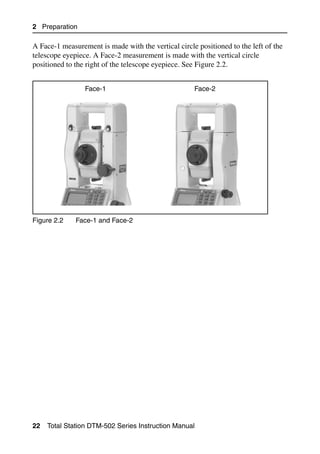
A Face-1 measurement is made with the vertical circle positioned to the left of the
telescope eyepiece. A Face-2 measurement is made with the vertical circle
positioned to the right of the telescope eyepiece. See Figure 2.2.


                 Face-1                              Face-2


Figure 2.2    Face-1 and Face-2


22   Total Station DTM-502 Series Instruction Manual
CHAPTER


                                                                 3
Getting Started                                                             3


 In this chapter:

          Turning the Instrument On and Off
          Selecting a Language
          Changing Regional Configuration Pre-sets
          Display and Key Functions
          List Display
          Inputting Data
          Jobs
          Measuring Distances


                           Total Station DTM-502 Series Instruction Manual 23
3 Getting Started


Turning the Instrument On and Off                                                   3.1


Turning on the instrument                                                          31.1
1. To turn on the instrument, press [PWR]. The
   start-up screen appears. It shows the current
   temperature, pressure, date, and time.


2. To change the temperature or pressure value,
   use [^] or [v] to move the cursor to the field that
   you want to change. Then press [ENT].


3. If you want to initialize the horizontal angle,
   rotate the alidade.
4. Tilt the telescope until it passes the horizontal
   position on Face-1.


If you have entered your name or your company’s
name in the Owner’s detail field, the text from this
field appears on the start-up screen. To set the
Owner’s detail field, go to MENU > Settings
> Other. For more information, see page 136.


Once you start to use an initialized HA, you must rotate the alidade to initialize the
HA every time you turn on the instrument. If you do this, you can maintain a fixed HA
orientation even if the instrument has moved while it is turned off.
If you tilt the telescope before you rotate the alidade, the horizontal angle is not
initialized, and the instrument uses the previous HA reading.


24 Total Station DTM-502 Series Instruction Manual
Getting Started 3

Turning off the instrument                                                      30.1
To turn the instrument off, press [PWR] and [ENT].


Then do one of the following:

 Press ...                    To ...
 [ENT] again                  turn off the instrument
 the Reset softkey            reboot the program and re-start the instrument
 the Sleep softkey            put the instrument into power-saving mode
 [ESC]                        cancel the power-off process and return to the
                              previous screen


If you press the Reset softkey, the software is rebooted and the Basic
Measurement Screen (BMS) appears without an open job.


Sleep mode
If you press the Sleep softkey in the Press [ENT]
→ OFF screen, or enable the Power Save setting
(see Power saving, page 134), the instrument goes
into sleep mode.
When the instrument is in sleep mode, it wakes up
if any of the following occurs:
 • You press a key
 • The instrument receives a remote control command
 • You rotate the alidade
 • You tilt the telescope


                                Total Station DTM-502 Series Instruction Manual 25
3 Getting Started


Selecting a Language                                                                3.1

The Nikon total station supports one Language Pack at a time. The Language Pack
is a set of up to three different languages installed on the instrument from which the
user can select. Several Language Packs are available for the Nikon total stations.
 • Language Pack #1: English, French, Spanish
 • Language Pack #2: English, German, Italian
 • Language Pack #3: English, Chinese, Russian


1. To select a different language, power on
   the instrument and press [ESC] and [3] at the
   Tilt Telescope screen.
   The Select Language screen appears. Up to
   three languages are available in the
   installed Language Pack. The screen shows
   which languages are currently available on
   the instrument.
   The current language selection is highlighted.
2. Press [^] or [v] to highlight the required
   language and then press [ENT.]
3. The instrument reboots and displays the
   start-up Tilt Telescope screen in the
   selected language.


Language Pack #1 is the default Language Pack installed at the factory. Other
Language Packs can be installed at an authorized Nikon total station service
provider.


26 Total Station DTM-502 Series Instruction Manual
Getting Started 3


Changing Regional Configuration Pre-sets                                            3.1

To provide easier configuration for common regional settings, you can quickly
configure the Nikon total station to a pre-set combination of default regional
settings. The Regional Configuration screen appears only after the language
configuration is complete, the instrument has rebooted, and the telescope has been
tilted. To change the regional configuration pre-sets:
1. Follow the steps in Selecting a Language, page 26.
   Once the instrument reboots and the
   telescope is tilted, the Regional
   Configuration screen appears.
2. Press [^] or [v] to highlight the required
   regional settings and then press [ENT].
3. If you do not want to change the current
   settings, press [ESC] and quit. The
   instrument will continue to use the last configured settings that were configured.
The settings affected by the Regional Configuration screen are:

Table 3.1      Regional Configuration Pre-sets

Category            Setting       Europe           International    United States

Angle
                    VA zero       Zenith           Zenith           Zenith


                    Resolution    1"(See note)     1"(See note)     1"(See note)
                    HA corr.      On               On               On
                    HA            Azimuth          Azimuth          Azimuth
Distance
                    Scale         1.000000         1.000000         1.000000
                    T-P corr.     On               On               On
                    Sea Level     Off              Off              Off
                    C&R corr.     0.132            0.132            0.132
Coordinates
                    Order         ENZ              ENZ              NEZ


                                 Total Station DTM-502 Series Instruction Manual 27
3 Getting Started

Table 3.1    Regional Configuration Pre-sets

Category            Setting     Europe         International   United States

                    Label       ENZ            ENZ             NEZ
                    AZ zero     North          North           North
Power Save
                    Main Unit   Off            Off             Off
                    EDM Unit    3 minutes      3 minutes       3 minutes
                    Sleep       5 minutes      5 minutes       5 minutes
Communication
                    Ext. Comm Nikon            Nikon           Nikon
                    Baud        4800           4800            4800
                    Length      8              8               8
                    Parity      None           None            None
                    Stop bit    1              1               1
Stakeout
                    Add PT      1000           1000            1000
                    LG Dist     1.00 feet      1.00 feet       1.00 feet
                                (0.30m)        (0.30m)         (0.30m)
Units
                    Angle       GON            GON             DEG
                    Distance    meters         meters          US-ft
                    Temp        °C             °C              °F
                    Press       mm Hg          mm Hg           In Hg
Rec
                    Store DB    RAW&XYZ        RAW&XYZ         RAW&XYZ
                    Rec LG      On             On              On
                    Data Rec    Internal       Internal        Internal
Others


28 Total Station DTM-502 Series Instruction Manual
Getting Started 3

Table 3.1     Regional Configuration Pre-sets

Category          Setting       Europe            International    United States

                  XYZ disp      Fast              Fast             Fast
                  2nd Unit      None              None             None
                  Sig Beep      On                On               On
                  Split ST      No                No               No
                  CD Input      <ABC>             <ABC>            <ABC>
                  Owner’s       Blank             Blank            Blank
                  Detail

Note – The Angle resolution for the higher accuracy DTM-552 is 0.5” for all
regions.
The default regional configuration pre-set is “United States” settings. For more
information, see Settings, page 131.


Display and Key Functions                                                          3.1

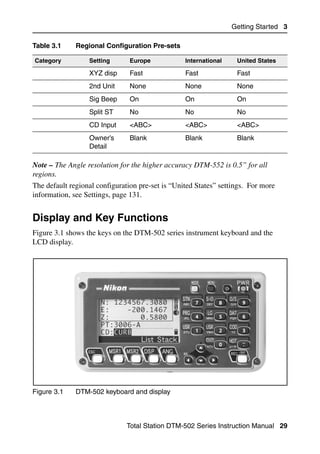
Figure 3.1 shows the keys on the DTM-502 series instrument keyboard and the
LCD display.


Figure 3.1    DTM-502 keyboard and display


                               Total Station DTM-502 Series Instruction Manual 29
3 Getting Started

Table 3.2 summarizes the functions of the DTM-502 keys.

Table 3.2    Key functions

Key           Function                                               Details
              Turns the instrument on or off.                        page 24


              Illumination key. Turns the backlight on or off.        page 34
              Provides access to the 4-switch window if held down for
              one second.
              Displays the MENU screen.                              page 111


              Changes the key input mode between alphanumeric        page 37
              and numeric if pressed when you are in a PT or CD
              field.
              Activates Qcode mode if pressed when you are In the
              Basic Measurement Screen (BMS).
              Records measured data, moves on to the next screen, page 99
              or confirms and accepts the entered data in input mode.
              You have the option to record the measurement as a CP
              record instead of an SS record, if you hold this key down
              for one second in the Basic Measurement Screen
              (BMS).
              The instrument outputs the current measurement data
              (PT, HA, VA, and SD) on the COM port if you press this
              key in the BMS or in a Stakeout observation screen.
              (The Data Rec settings must be set to COM.)
              Returns to the previous screen.
              In numeric or alphanumeric mode, deletes input.


              Starts distance measurement, using the measure mode page 55
              settings for the [MSR1] key.
              Displays measurement mode settings, if held down for
              one second.


30 Total Station DTM-502 Series Instruction Manual
Getting Started 3

Table 3.2   Key functions (continued)

Key         Function                                                 Details
            Starts distance measurement, using the measure mode page 55
            settings for the [MSR2] key.
            Displays measurement mode settings, if held down for
            one second.
            Moves to the next available display screen.              page 58
            Changes the fields that appear on the DSP1, DSP2,
            and DSP3 screens, if held down for one second.
            Displays the Angle menu.                                 page 60


            Displays the Station Setup menu.                         page 62
            In numeric mode, enters 7. In alphanumeric mode,
            enters A, B, C, or 7.

            Displays the Stakeout menu.                              page 77
            Shows stakeout settings, if held down for one second.
            In numeric mode, enters 8. In alphanumeric mode,
            enters D, E, F, or 8.
            Displays the Offset Point Measurement menu.              page 101
            In numeric mode, enters 9. In alphanumeric mode,
            enters G, H, I, or 9.

            Displays the Programs menu, which contains additional page 86
            measuring programs.
            In numeric mode, enters 4. In alphanumeric mode,
            enters J, K, L, or 4.
            Turns the Lumi-guide on or off.                          page 43
            In numeric mode, enters 5. In alphanumeric mode,
            enters M, N, O, or 5.

            Displays RAW, XYZ, or STN data, depending on your        page 45
            setting.
            In numeric mode, enters 6. In alphanumeric mode,
            enters P, Q, R, or 6.


                           Total Station DTM-502 Series Instruction Manual 31
3 Getting Started

Table 3.2     Key functions (continued)

Key            Function                                                    Details
               Executes the function that is assigned to the [USR1] key.   page 43
               In numeric mode, enters 1. In alphanumeric mode,
               enters S, T, U, or 1.
               Executes the function that is assigned to the [USR2] key.
               In numeric mode, enters 2. In alphanumeric mode,
               enters V, W, X, or 2.
               Opens a window where you can enter a code. The              page 39
               default code value is the last code entered.
               In numeric mode, enters 3. In alphanumeric mode,
               enters Y, Z, a space, or 3.
               Displays the (HOT) menu, which includes Height of       page 40
               Target, Temp-Press, Target, Note recording, and Default
               PT settings.
               In numeric mode, enters – (minus). In alphanumeric
               mode, enters . (period), – (minus), or + (plus).
               Displays the Bubble indicator.                              page 42
               In numeric mode, enters 0. In alphanumeric mode,
               enters *, /, =, or 0.


Status bar                                                                           31.1
The status bar appears on the right side of
                                                                            Status bar
every screen. It contains icons that indicate
the status of various system functions.


Signal indicator
The signal indicator shows the reflected light intensity:
         Level 4 (maximum)

         Level 3


32 Total Station DTM-502 Series Instruction Manual
Getting Started 3


         Level 2

         Level 1 (minimum)

         If this icon is blinking, the signal is flickering.

         If this icon is blinking rapidly, the signal is low.
         If this icon is blinking slowly, there is no signal.
         If there is no icon, analog power for EDM is off.


Input mode indicator
The Input mode indicator only appears when you are entering points or coordinates.
It shows the data input mode:
          Input mode is numeric. Press a key on the number pad to enter the
          number printed on the key.
          Input mode is alphabetic. Press a key on the number pad to enter the first
          letter printed beside the key. Press the key repeatedly to cycle through all
          the letters assigned to that key.
          For example, to enter the letter O in alphabetic mode, press [5] three times.

Lumi-guide indicator
The Lumi-guide indicator shows the status of the Lumi-guide tracking light:
         Lumi-guide tracking light is on.

         If there is no icon, the Lumi-guide tracking light is turned off.


Battery indicator
The battery indicator shows the battery voltage level:
         Level 4 (Full)

         Level 3

         Level 2

         Level 1

         Battery low


                                  Total Station DTM-502 Series Instruction Manual 33
3 Getting Started

If the battery level is critically low, the following
message appears:


Adjusting lighting and sound levels                                                      31.2

LCD backlight
To turn the LCD backlight on or off, press the illumination key           . To adjust the
backlight level, use the 4-switch window described below.
4-switch window
Use the 4-switch window to adjust lighting and
sound settings for the instrument.
To open the 4-switch window from any screen,
hold down the Illumination key for one second.
To cycle through the settings for a switch, press
the number beside that switch. For example, to
turn the backlight on or off, press [1].
Alternatively, to highlight the switch that you want to set, press [^] or [v]. Then press
[ENT] to cycle through the settings for that switch. For example, to adjust the reticle
light brightness, press [^] or [v] repeatedly until the reticle light switch is highlighted.
Then press [ENT] repeatedly until the required brightness level is reached.
Switch 1 (backlight)

          LCD backlight is on.

          LCD backlight is off.

Switch 2 (reticle light)

          Reticle light is on the maximum setting.

          Reticle light is on the medium setting.

          Reticle light is on the minimum setting.

          Reticle light is off.


34 Total Station DTM-502 Series Instruction Manual
Getting Started 3

Switch 3 (Lumi-guide)

         Lumi-guide tracking light is on.

         Lumi-guide tracking light is off.

Switch 4 (Sound)

         Sound is on.

         Sound is off.

Contrast adjustment window
When the 4-switch window is open, press [<] or [>]
to display the contrast adjustment window. Then
press [^] or [v] to change the contrast level. The
arrow indicates the current contrast level. To
return to the 4-switch window, press [<] or [>].
When you have finished changing display light
and sound settings, press [ESC] to close the
4-switch or contrast adjustment window.

[DSP] key                                                                         31.3
Use the key to change the current display screen or to change display settings.
Switching between display screens
When several display screens are available, the
DSP indicator appears at the top left of the screen,
and the screen indicator (for example, 1/4)
appears at the top right.


To move to the next available screen, press [DSP].


                                Total Station DTM-502 Series Instruction Manual 35
3 Getting Started

For example, if the DSP2 screen is currently
displayed, press [DSP] to move to the DSP3 screen.
The screen indicator changes from 2/4 to 3/4.


When the secondary distance unit is set, an
additional screen is available. It shows the HD,
VD, and SD values. For information on setting the
secondary distance unit, see page 136.
The smallest unit of display for distances
measured in feet-and-inches is 1/16 in. Smaller
units are impractical in the field. When the actual
value is greater than 99999'11''15/16, the “>”
symbol is shown. If the actual distance is less than -9999'11''15/16, the “ ” (solid
triangle) symbol is shown. This does not affect calculations. The precise value is
used internally in all cases.

Customizing items in the Basic Measurement Screen (BMS)
To customize the items that are displayed on the DSP1, DSP2, and DSP3 screens:
1. Hold down [DSP] for one second.
2. Use the arrow keys [^], [v], [<], and [>] to
    highlight the item that you want to change.
3. Use the      and softkeys to scroll through the
    list of items that can be displayed for this item.
    The items that you can choose from are HA,
    AZ, HL, VA, V%, SD, VD, HD, Z, and (none).
4. To save your changes, press the Save softkey. Alternatively, highlight the last
   item for DSP3 and press [ENT]. The DSP screens show the items you have
    selected.

Except for the (none) item, you cannot display the same item on more than one line
of the same screen.
The items displayed in the DSP1, DSP2, DSP3, and DSP4 screens are also used in
the corresponding Stakeout screens (SO2, SO3, SO4, and SO5).
You can also customize the displayed items in Stakeout.


36 Total Station DTM-502 Series Instruction Manual
Getting Started 3


Header characters
The following header characters can be used in DSP screens:
A colon (:) indicates that tilt correction is applied
to the value.
A hash symbol (#) indicates that tilt correction is
off.
An underscore (_) under the tilt correction
character indicates that Sea Level Correction or
Scale factor is applied.


[MODE] key                                                                         30.1
Use the [MODE] key to change the keyboard mode for the current screen.
Changing input mode while entering points or codes
When the cursor is in a point (PT) or code (CD)
field, press [MODE] to change the input mode
between alphanumeric (A) and numeric (1).


The input mode indicator in the status bar changes
to show the current input mode.


When the cursor is in a height (HT) field, only numeric input mode is available.
Pressing [MODE] has no effect when the cursor is in a HT field.


                               Total Station DTM-502 Series Instruction Manual 37
3 Getting Started

Quick code measurement mode
1. To activate Quick code measurement mode,
   press [MODE] in the BMS.


   The PT field shows the default point name.
2. Press any numeric key ([0] through [9]) to start
   measuring and recording points.
   A list of the numeric keys and their assigned
   feature codes appears on the right side of the
   screen.
   For example, when you press [6], the code
   assigned to 6 is selected, and the instrument
   starts a measurement.


3. If you have set the record mode to Confirm
   (see Measurement settings, page 57), the
   Record PT screen appears after each
   measurement.
   Do one of the following:
   – To record the point, press [ENT].
   – To return to the BMS, press [ESC].

To assign a new feature code to a numeric key, press [^] or [v] to highlight the code
that you want to change. Then press the Edit softkey.
You can use the DSP softkey to change the values shown in the measurement box,
in the same way as you use the [DSP] key in the Basic Measurement Screen (BMS).

4. To return to the BMS from the Qcode screen, press [MODE] or [ESC].


38 Total Station DTM-502 Series Instruction Manual
Getting Started 3

[COD] key                                                                         30.1
In the BMS, press [COD] to change the default feature code that will appear in the CD
field when you record a point.
Setting the default code
When you press [COD] in the BMS, a window for
entering the feature code appears.
You can use the List and Stack softkeys to
enter the code.


Qcode observations
To enter the Quick code observation routine, press
the Qcode softkey.
In this function, you can use the ten numeric keys
to both select a feature code and shoot a point.


To change the measurement mode for the Quick
code observation, press the Sett softkey.


In Quick code measurement, the Rec mode can only be set to Confirm or ALL.


                               Total Station DTM-502 Series Instruction Manual 39
3 Getting Started

[HOT] key                                                                                 30.2
The HOT key menu is available on any
observation screen. To display the HOT key menu,
press [HOT].


Changing the height of the target
To change the height of the target, press [HOT] to
display the HOT menu. Then either press [1] or
select HT and press [ENT].
Enter the height of the target, or press the Stack
softkey to display the HT stack. The HT stack
stores the last 20 HT values entered.
Setting the temperature and pressure
To set the current temperature and pressure, press
[HOT] to display the HOT menu. Then either press
[2] or select Temp-Press and press [ENT]. Enter
the ambient temperature and pressure. The ppm
value is updated automatically.


Selecting the target set
A target set specifies settings for the target type,
the prism constant, and height of target. When you
change the selected target set, all three settings are
changed. You can use this function to quickly
switch between two types of target, such as a
reflector sheet and a prism. You can prepare up to
five target sets.
Press [HOT] to display the HOT menu. Then either press [3], or select Target and
press [ENT]. A list of the five target sets appears. To select a target set, either press the
corresponding numeric key ([1] through [5]), or use [^] or [v] to highlight the target set
in the list and press [ENT].


40 Total Station DTM-502 Series Instruction Manual
Getting Started 3

To change the settings defined in a target set, highlight the target set in the list.
Then press the Edit softkey.

   Type            Prism/Sheet
   Const           –999 to 999 mm
   HT              –9.9900 to 99.9900 m


HT can be left blank in the target set. If you leave it blank, the current HT value is
always applied to the measurement.
When a target set is selected, the Type and Const values are copied to both [MSR1]
and [MSR2] settings, and to the measurements in Qcode. If you have specified a
value for HT, this value is also copied to the current HT.

Entering a field note
To enter a field note, press [HOT] to display the
HOT menu. Then either press [4], or select Note
and press [ENT].
This function can be used at any time on any
observation screen.
Each note can be up to 50 characters.
The note is stored as a CO record in the raw data.


To display a list of previously used notes, press
the Stack softkey. The stack stores the last 20
notes.
Use [^] or [v] to highlight a note in the list. Then
press [ENT] to select the note.


                                  Total Station DTM-502 Series Instruction Manual 41
3 Getting Started

Setting the default point name
To change the default point name, press [HOT] to
display the HOT menu. Then press [5], or select
Default PT and press [ENT].
This function is available from any observation
screen.
Modify the default point name for the next record.
Press [ENT] to confirm the new default point name.
The new point name is appears as the default PT
name on the input screen.


Bubble indicator                                                                   30.3
The bubble indicator is automatically displayed if the instrument goes out of level
while the compensators are turned on.
To display the bubble indicator in an observation screen, press       .
To turn the leveling compensators on or off, press
[<] or [>]. When the leveling compensators are
turned off, the text OFF appears on the screen.


If the instrument is more than ±3'30" out of level,
the text OVER appears on the screen.
To return to the observation screen, press [ESC] or
[ENT] .


The current setting of leveling compensators is indicated by header characters (:, #,
:, and #) after field labels (such as HA, VA, SD, and HD) in observation screens. For
more information, see Header characters, page 37.


42 Total Station DTM-502 Series Instruction Manual
Getting Started 3

[LG] key                                                                              30.4
To turn the Lumi-guide tracking light on or off,
press [LG] in the Basic Measurement Screen
(BMS) or in any other measurement screen.
The Lumi-guide icon in the status bar shows
whether the Lumi-guide tracking light is turned on
or off. For more information, see Status bar,
page 32.

[USR] keys                                                                            30.5
If you use a function frequently in the field, you can assign it to the [USR1] or [USR2]
key. Whenever you press a [USR] key, the function that is assigned to that key is
activated directly.
The following functions can be assigned to the [USR] keys:
 • Input HT
 • BS Check
 • Base XYZ
 • Default PT
 • Select Target
 • Input Temp-Press
 • Input Note
 • The following menus, or a single function from one of these menus:
   – Cogo
   – O/S
   – PRG
By default, Input HT is assigned to [USR1], and no function is assigned to [USR2].
Hold down the [USR] key for one second to display
the list of functions that can be assigned to the
key. The currently assigned function is indicated
by an asterisk (*) beside the function name.
To change the function that assigned to the key,
press [^] or [v] to highlight the function. Then press
[ENT].


                                 Total Station DTM-502 Series Instruction Manual 43
3 Getting Started

If an item on the list has an arrow (->) beside it,
this item is a menu. If you highlight a menu item
and then press [ENT], a sub-menu appears.


The first item on the sub-menu ends with the text
[MENU]. If you select this item, the whole menu
is assigned to the [USR] key.
To assign a specific function from the sub-menu,
press [^] or [v] to highlight the function. Then press
[ENT].
Once you have assigned a function to a [USR] key,
it is called directly whenever you press that [USR]
key in the BMS.


To change the type of data that is assigned to the
[USR] keys in MENU > 1sec-Keys > [USR].
For more information, see [USR] key settings,
page 161.


44 Total Station DTM-502 Series Instruction Manual
Getting Started 3

[DAT] key                                                                           30.6
Use the [DAT] key to quickly access data in the current job from observation screens.
When you press [DAT] in the BMS or in
observation screens in functions such as Stakeout,
2Pt RefLine, and Arc RefLine, the assigned data
in the current job appears.


Hold down [DAT] for one second in the BMS or an
observation screen to display the Select Format
screen. Use this screen to change the type of data
that is assigned to [DAT]. Press [1] or select
DAT [MENU] to display the Data menu
whenever you press [DAT].
When you select an option from this screen, the
change is applied immediately, and the selected
data type appears.
Press [ESC] to return to the previous observation
screen.


To change the type of data that is assigned to
[DAT], go to MENU > 1sec-Keys > [DAT].
For more information, see [DAT] key settings,
page 162.


List Display                                                                         3.1

Available jobs or data appear in a list display when you do any of the following:
 • view or edit data (MENU > Data)
 • open the code list, point list, or Job Manager (MENU > Job)
 • search for points or codes


                                Total Station DTM-502 Series Instruction Manual 45
3 Getting Started

In the list, the current cursor position is shown in
reverse video (it appears as white text on a black
background).
Press [^] or [v] move the cursor one line up or down.
If the Page Up icon appears, there are more
pages before the current page. Press [<] to move up
one page.
If the Page Down icon     appears, there are more pages after the current page. Press
[>] to move down one page.
To select an item from the list, move the cursor onto the item and press [ENT].


Inputting Data                                                                       3.2


Entering a point name or number                                                     32.1
You can use numeric or alphanumeric names up to 16 characters long to identify
points.
The default name for a new point is the last point name entered, with the last digit
incremented. For example, if the last point name was A100, the default name for the
next point is A101.
If the last character of the previous point name is alphabetic, the default point name
is the last point name.
When the cursor is in a PT (point) field, there are several ways to specify a point, or
input coordinates.
Entering an existing point
When you enter a known point name or number,
the coordinates of that point are displayed briefly.
A short beep sounds before the next screen
appears or the next field is selected.


46 Total Station DTM-502 Series Instruction Manual
Getting Started 3


To adjust the duration of the coordinate window
display, go to MENU > Settings >
Others. To leave the window open until you
press [ENT], set the XYZ disp field to +ENT. For
more information, see page 136.


Entering a new point
When you input a new point name or number, a
coordinate input screen appears. Enter the point’s
coordinates in NE, NEZ, or elevation-only (Z)
format.


Press [ENT] on the last line (the CD field) to store
the point in the current job.


Pressing [ENT] without a point name
To use a point without recording the coordinates,
press [ENT] in a PT field, without entering a point
name.


The input coordinates are used in the calculation.
They are not saved in the database.


                                 Total Station DTM-502 Series Instruction Manual 47
3 Getting Started

Specifying a wildcard (*)
If you include an asterisk (*) when you enter a
point or code name, a list of points that match the
entered text appears.


Use [^] or [v] to move the cursor to the point that
you want to use. Then press [ENT].
If the Page Up or Page Down icons are
displayed, use [<] or [>] to page up or page down
the list.
When you select a point from the list, its
coordinates are displayed and a beep sounds.


Recording an instant measurement
You can also input a point by recording an instant
measurement. To do this, press the MSR softkey.


An observation screen appears.
Press [MSR1] or [MSR2] to start a measurement. To
change the height of the target, press the HT
softkey.


To go to the point recording screen when you have
finished the measurement, press [ENT].
Enter the point or code name. Press [ENT].


48 Total Station DTM-502 Series Instruction Manual
Getting Started 3


When you move the cursor to a field, the current
or default value appears in inverted text (this is
the default “Replace All” input mode).


Press [>] to change the input mode to Overwrite
mode and highlight the first character. Press [<] to
move the cursor the end of the string.


Entering a point from the stack
The point stack is a list of recently used points. To
display the stack, press the Stack softkey when
the cursor is in the PT field.
Use [^] or [v] to move the cursor to the point that
you want to use. Then press [ENT].
When you return to the point input screen, the
selected point name is entered in the PT field,
incremented by one. For example, if you selected
the A101 point, A102 appears in the PT field.


The stack shows the last 20 point names used, in chronological order from last used
to first used.

Entering a point from the point list
To display a list of existing points, press the List
softkey when the cursor is in the PT field.
Use [^] or [v] to move the cursor to the point that
you want to use. Then press [ENT].


                                 Total Station DTM-502 Series Instruction Manual 49
3 Getting Started

When you return to the point input screen, the
selected point name is entered in the PT field. You
can add digits or alphabetic characters if required.


Entering a code                                                                  32.2
The CD (Code) field always defaults to the last code used. You can change the
selected code on the input point screen, or you can press [COD] in the BMS. For more
information, see [COD] key, page 39.
You can use numeric or alphanumeric names up to 16 characters long to identify
codes.
Entering a code directly
To enter a code directly, press [MODE] to change the
input mode to alphanumeric or numeric mode.
Then use the keypad to enter the code.


Entering a code from the stack
The code stack is a list of recently used codes. The
stack may contain up to 20 codes.
To display the stack, press the Stack softkey
when the cursor is in the CD field.

Use [^] or [v] to move the cursor to the code that
you want to use. Then press [ENT].
The selected code is copied to the CD field.


When the instrument is rebooted, the code stack is cleared.


50 Total Station DTM-502 Series Instruction Manual
Getting Started 3

Entering a code from the code list
To display a list of existing codes, press the List
softkey when the cursor is in the CD field.
To edit the code list, go to MENU > Data >
Code List. For more information, see Editing
an item in the point list or code list, page 152.
Use [^] or [v] to highlight the feature code that you
want to use. Then press [ENT].


A layer has an arrow at the end of the code label.
If you highlight a layer in the list and then press
[ENT], the codes and layers in that layer are
displayed.
When you return to the input screen, the selected
code is entered in the CD field.

Items are shown in alphabetic order.
You can also use the first character search to quickly find a code. For more
information, see Advanced feature: Searching for a code by using the first
character, page 51.


Advanced feature: Searching for a code by using the first
character
To find a code quickly when the code list appears,
use the first-character search.
For example, to see feature codes that begin with
T, use the keypad to enter the letter T. To do this,
press [1] twice.
After each press of the key, the input mode field
displays the selected letter. For example, if you
press [1], S appears. If you quickly press [1] again,
T appears. If you do not press the [1] key again, the
letter T is selected.


                                 Total Station DTM-502 Series Instruction Manual 51
3 Getting Started

Once you have selected a letter, the cursor moves
to the feature code beginning with that letter.
If there is no code beginning with that letter, the
cursor moves to the next available letter.


Qcodes
Quick codes (Qcodes) let you shoot and record
many points with feature codes in the field. You
can register up to ten Quick codes. To register
Qcodes, press the Edit softkey. For more
information, see Quick code measurement mode,
page 38.

Press [MODE] to switch Qcodes on or off.
Press the Edit softkey to change the Qcode. You can edit the entire code, or just
the number at the end of the code.
You can still use [DSP] to change the background displays.


Entering values in feet and inches                                                 32.3
When either US Survey Feet (US-Ft) or International Feet (I-Ft) is selected as the
distance unit, you can enter and display distances, HIs, HTs, and coordinate values
either in decimal feet, or in feet and inches For more information, see Unit,
page 135, and Others settings, page 136.
To enter values in feet and inches in an input screen, enter the elements, separated
by periods (.), in the following format:
<Feet> [.] <Inches> [.] <Numerator> [.] <Denominator> [ENT]
            (0–11)        (0–15)          (0–99)

The default denominator is 16. If the denominator
is 16, you do not have to enter it, and it is not
displayed on the screen.


52 Total Station DTM-502 Series Instruction Manual
Getting Started 3

For example, if you enter
[2] [.] [0] [8] [.] [5] [.] [ENT], it appears as 2'08   5/ (2
feet, 8 and 5/16ths inches).


The following examples show how various values
are entered:

 To enter ...                                           Type ...
 65' 5 3/8"                                             [6] [5] [.] [5] [.] [3] [.] [8] [ENT]
 65'                                                    [6] [5] [ENT]
 65' 5"                                                 [6] [5] [.] [5] [ENT]
 65' 5 3/8"                                             [6] [5] [.] [5] [.] [6] [ENT]
 5 3/8"                                                 [0] [.] [5] [.] [3] [.] [8] [ENT] or [0] [.] [5] [.] [6]
                                                        [ENT]


The numerator and denominator that you enter are automatically converted to the
closest value from the following list: 0, 1/8, 1/4, 3/8, 1/2, 5/8, 3/4, 7/8, 1/16, 3/16,
5/16, 7/16, 9/16, 11/16, 13/16, 15/16.
If the denominator is 16, it is not shown on the screen.


Jobs                                                                                                                3.3

To record data on the instrument, you must create or open a job.


C       Caution – Before you use the instrument for the first time, check the job
        settings.


Creating a new job                                                                                                 33.1
1. Press [MENU] to open the MENU screen.
2. Press [1] to open the Job Manager.
3. Press the Creat softkey to open the Create
    Job screen.


                                        Total Station DTM-502 Series Instruction Manual 53
3 Getting Started

4. Enter the job name.


5. Press the Sett softkey to check the job
   settings. You cannot change a job’s settings
   once you have created the job.
6. Press [ENT] in the last field of the Job Sett
   screen to create the new job.


If either of the messages MAX 32JOBs or Data Full appears, delete at least one
existing job to free space. You cannot free space by deleting records in an existing
job.

Creating a control job
A control job, or common file, stores coordinate data that is used by several field
jobs. You can create a control job in the office.
1. Press [MENU] to open the MENU screen.
2. Press [1] or select Job to open the Job
   Manager.
3. Move the cursor to the job that you want to use
   as the control job.
4. Press the Ctrl softkey.
5. Press the Yes softkey.
For more information, see Creating a control job,
page 54.


When you enter a point name or number, the system searches in the current job
first. If the point is not found in the current job, the search is automatically extended
to the control job. If the point is found in the control job, the selected point is copied
to the current job as a UP record.


54 Total Station DTM-502 Series Instruction Manual
Getting Started 3

Jobs created before version 1.10
The current database version is 1.10. Jobs prefixed
with ? were created in earlier versions of the
database, and cannot be used in version 1.10.


If a job is from an earlier version, you cannot open
it, set it as the control job, or display its job
information. However, you can use the DEL
softkey to delete it.


Jobs created in version 1.02 or earlier are not compatible with version 1.10 or later.
Download all jobs before you update the software that is running on the instrument.


Measuring Distances                                                                        3.1


Sighting a prism reflector                                                                31.1


C      Warning – Never look at the sun through the telescope. If you do, you may
       damage or lose your eyesight.


For information on how to assemble the prism reflector, see Setting Up the Prism
Reflector, page 19.

Sight the telescope to see crosshairs at the center of the
prism reflector.


                                                                Sighting a single prism


                                Total Station DTM-502 Series Instruction Manual 55
3 Getting Started

When a reflected lightwave is detected, the signal level is
indicated.


                                                               Sighting a tiltable single prism
Measuring distances                                     31.2
To take a distance measurement, press [MSR1] or
[MSR2] in the Basic Measurement Screen (BMS) or
in any observation screen.


While the instrument is taking a measurement, the
prism constant appears in a small font.


If the average count is set to 0, measurements are
taken continuously until you press [MSR1], [MSR2],
or [ESC]. Each time a measurement is taken, the
distance is updated.
If the average count is set to a value from 1 to 99,
the averaged distance appears after the last shot.
The field name SD changes to SDx to indicate the
averaged data.


56 Total Station DTM-502 Series Instruction Manual
Getting Started 3

If the signal level is insufficient to take a measurement, the signal icon flashes on
and off. For more information, see Status bar, page 32.

To change the height of target (HT), temperature,
or pressure, press [HOT]. For more information,
see [HOT] key, page 40.


Settings that relate to corrections
(T-P corr, Sea Level, C&R corr., and Map
projection) are included in the job settings. These
settings are job-specific. If you need to change
any of these settings, you must create a new job.
For more information, see Job settings, page 113,
and Settings, page 131.


Measurement settings                                                                31.3
To view the measurement settings,hold down
[MSR1] or [MSR2] for one second.
Use [^] or [v] to move the cursor between the fields.
Use [<] or [>] to change the value in the selected
field.


 Field                         Values
 Target                        Prism
                               Sheet
 Const (prism constant)        –999 mm through 999 mm
 Mode                          Prec0.1mm
                               Prec1mm
                               Normal1mm
                               Normal10mm
 AVE (Average count)            0 (Continuous) through 99
 Rec mode                      One of the following:
                               MSR only
                               Confirm
                               ALL


                                 Total Station DTM-502 Series Instruction Manual 57
3 Getting Started

Target field
If the measurement is started with the Target field
set to Prism, there is a dash “–” in front of the
prism constant.
If the measurement is started with the Target field
set to Sheet, there is a right parenthesis “)” in
front of the prism constant.
The symbol then constantly runs from left to right over the prism constant in the
display.


The Target setting is used to apply better cyclic-error adjustment in distance
measurement. It efficiently eliminates multipath reflection.

Rec mode field

The Rec mode setting controls how the [MSR1] and [MSR2] keys operate in the BMS.
The MSR only setting is the default measurement mode. After a measurement, the
instrument stops in the BMS and waits for you to press [ENT] before recording the
point.
The Confirm setting displays the Record PT screen before data is recorded.
The ALL setting is a quick shooting and recording mode. The instrument
automatically records the point using the default PT/CD. The instrument then
returns to the BMS for the next measurement.


58 Total Station DTM-502 Series Instruction Manual
CHAPTER


                                                                4
Applications                                                               4


 In this chapter:

          HA Reset and Angle Operations
          Station Setup
          Stakeout
          Program Key
          Recording Measurement Data
          Measuring Offsets


                          Total Station DTM-502 Series Instruction Manual 59
4 Applications


HA Reset and Angle Operations                                                     4.1

To open the Angle menu, press [ANG] in the BMS.
To select a command from this menu, either press
the corresponding number key, or press [<] or [>] to
highlight the command and then press [ENT]

Setting the horizontal angle to 0                41.1
To reset the horizontal angle to 0, press [1] or select 0-Set in the Angle menu. The
display returns to the Basic Measurement Screen (BMS).

Entering the horizontal angle                                                    41.2
To display the HA Input screen, press [2] or select
Input in the Angle menu. Use the numeric keys
to enter the horizontal angle. Then press [ENT].


To enter 123°45'50", type [1] [2] [3] [.] [4] [5] [5] [0].
The displayed value is rounded to the minimum angle increment.


Recording a foresight point after repeat angle measurement                       41.3
1. To activate repeat angle measurement, press
   [3] or select Rept. in the Angle menu.
     HR=0 appears.
2. Sight the backsight and press [ENT].


3. Sight the foresight and press [ENT].
     The horizontal angle is accumulated and the
     value is held again.
4. To end repeat angle measurement, press [ESC].


60    Total Station DTM-502 Series Instruction Manual
Applications 4

5. When you have accumulated enough
   horizontal angle between the backsight and the
   foresight, press [MSR1] or [MSR2] to take a
   measurement to the foresight.


   The averaged horizontal angle appears. This
   value is fixed until the process is finished or
   cancelled.
   HRx = HR∑ ÷ N
   HA = BSAz + HRx (normalized)
   HRx is not updated even if the instrument is
   moved.
6. Press [ENT] to store the foresight as a CP
   record. Check the PT, HT, and CD values.
   Then press [ENT] to record.


In repeat angle measurement, the HA is replaced by HR∑. The number of repeat
angles appears at the top of the screen (for example, N= 5).
Horizontal angles can be measured up to 1999°59'59"5.
This function stores both raw and XYZ data as CP records, regardless of the Store
DB setting.


Face-1/Face-2 measurement                                                         40.1


Use Face-1/Face-2 (F1/F2) measurements to obtain maximum accuracy for
measuring angles. Using F1/F2 measurements effectively cancels out mechanical
constant error, except for some special errors such as the vertical axis error. For
more information, see Face-1/Face-2 Measurements, page 21.


To take F1/F2 data without taking a distance
measurement, press [4] or select F1/F2 in the
Angle menu.


                                Total Station DTM-502 Series Instruction Manual 61
4 Applications

If you have already taken a distance measurement
to the target, you can initiate F1/F2 averaging by
flipping the telescope to the other face.


For the HA to be adjusted from a F1/F2
measurement, the Backsight must also have
been measured in F1/F2 during the station setup.


Horizontal angle hold                                  40.2
To hold the horizontal angle to the current value,
press [5] or select Hold in the Angle menu.
To set the horizontal angle to the displayed value,
press [ENT] or the Set softkey.
To cancel the process and return to the Basic
Measurement Screen (BMS), press [ESC] or the
Abrt softkey.


Station Setup                                           4.1

To open the Stn Setup menu, press [STN] in the
BMS.
To select a command from this menu, press the
corresponding number key. Alternatively, press [<]
or [>] to highlight the command and then press
[ENT]. Press [^] or [v] to move up or down one page.
The last function used is highlighted.


62   Total Station DTM-502 Series Instruction Manual
Applications 4

Setting up a station with known coordinates or azimuth                        41.1
1. Press [1] or select Known in the Stn Setup
   menu.
2. Enter a point name or number in the ST field.
   – If the input point number or name is an
     existing point, its coordinates are displayed
     and the cursor moves to the HI (Height of
     instrument) field.
   – If the point is new, a coordinate input
     screen appears. Enter the coordinates for
     the point. Press [ENT] after each field. When
     you press [ENT] in the CD field, the new
     point is stored.
   – If the specified point has a code, the code
     appears in the CD field.
3. Enter the instrument height in the HI field and
   then press [ENT].


   The Backsight screen appears.
4. Select an input method for defining the
   backsight point.
   – To sight the backsight by entering
     coordinates, see below.
   – To sight the backsight by entering the
     azimuth and angle, see page 66.


                               Total Station DTM-502 Series Instruction Manual 63
4 Applications

Sighting the backsight by entering coordinates


                                 X
             Z                                                      Backsight point
                           Xb
                                                                    (Xb, Yb, Zb)


                                Instrument height

                 X0                                 Station point
                                                    (Xi, Yi, Zi)
                                                                                 Y
                                         Y0                  Yb


1. To enter coordinates for the backsight point
   (BS), press [1] or select Coord in the
     Backsight screen.
2. Enter the point name. If the point exists in the
     job, its coordinates are shown.
3. If you intend to take a distance measurement
     to the BS, enter the height of target in the HT
     field.


4. Sight the BS on Face-1 (F1). Press [ENT] to
     complete the setup.
     – To record a full shot (with HA, VA, and SD
       values) to the BS, press [MSR1] or [MSR2].
     AZ     Azimuth calculated by coordinates
     – If you are measuring to a known
       coordinate BS, press [DSP] to display a QA
       screen. The QA screen shows the dHD and
       dVD values, which indicate the difference
       between the measured distance and the
       distance calculated from the known
       coordinates.


64    Total Station DTM-502 Series Instruction Manual
Applications 4

5. To record the station, press [ENT].
6. To finish the station setup after taking a
   distance measurement, press [ENT]. ST and F1
   records are stored to the current job.


Advanced feature: Measuring F1 and F2
To take an angle shot and proceed to the next
measurement on Face-2, press the F2 softkey.


To go directly to the Face-2 measurement after
taking a distance measurement to the BS on
Face-1, flip the telescope. The instrument
automatically detects F1/F2.


Press [ENT] on Face-2. The delta screen appears.
To record a CP record which stores the averaged
HA, VA, and SD from the F1/F2 data, press the
CP softkey. To record only the ST and F1/F2
records, without a CP record, press the OK
softkey.


                                Total Station DTM-502 Series Instruction Manual 65
4 Applications

Sighting the backsight by entering the azimuth angle


                                         X
       Z                                                          Backsight point

                     Instrument height                  Azimuth


       X0                                     Station point
                                              (Xi, Yi, Zi)
                                                                                    Y
                                         Y0


1. To enter the azimuth angle to the backsight
   point, press [2] or select Angle in the
     Backsight screen.


2. If there is no point name for the BS, press [ENT]
     on the BS field.


3. In the AZ field, enter the azimuth angle to the
     BS point.


     If you press [ENT] without entering a value in
     the AZ field, the azimuth is automatically set
     to 0°00'00".
4. Sight the BS point and press [ENT]. ST and F1
     records are stored in the job.
     You can also use the F2 softkey for F1/F2
     measurements. See Advanced feature:
     Measuring F1 and F2, page 65.


66    Total Station DTM-502 Series Instruction Manual
Applications 4

Setting up a station using multiple point resection                                                                  40.1
A resection sets up the station using angle/distance measurements to known points.


                               X
       Z


                                   Height 1


                                                                                               Height 2
                       X1                     Known point 1
                                              (X1, Y1, Z1)
                  X2
                                                                                         Known point 2
                                                                                         (X2, Y2, Z2)

                                              Instrument height

       X0                                                         Station point (Xi, Yi, Zi)

                                                                                                  Y
                    Y1                                  Y0         Y2


You can use a maximum of 10 points in a resection. Measurements can be distance
and angle, or angle only. Calculation starts automatically when enough
measurements are taken.
You can delete poor observations and recalculate if necessary. You can also select
the BS point.

If the angle between known point 1 and known point 2 (measured from the station
point) is extremely acute or extremely oblique, the resulting solution will be less
reliable geometrically. For geometric reliability, select known point locations (or
station point locations) that are widely spaced.

1. To start the resection, press [2] or select
   Resection in the Stn Setup menu.


2. Enter the point name for the first observation
   point (PT1).


                                   Total Station DTM-502 Series Instruction Manual 67
4 Applications

3. Enter the target height and press [ENT].


4. Sight PT1 and press [MSR1] or [MSR2].
     To use the F2 softkey for F1/F2
     measurements, see Advanced feature:
     Measuring F1 and F2, page 65.


5. To proceed to the next point, press [ENT].


6. Enter the second point (PT2) and its height of
     target.


7. Measure to PT2 and press [ENT].
     When the instrument has enough data, it
     calculates the station (STN) coordinates.


     – If more than the minimum required data is
       available, a standard deviation screen
       appears.
     – To take measurements to strengthen
       geometry of the resection, press the Add
       softkey. For information about the View
       softkey, see Advanced feature: Viewing
       and deleting a measurement in resection, page 70.


68    Total Station DTM-502 Series Instruction Manual
Applications 4

8. When the results are satisfactory, record the
   station. To do this, press [ENT] or the REC
   softkey.


9. Enter the height of instrument, if required.
   Press [ENT]. The ST field defaults to the last
   recorded PT + 1.
10. To change the station name, move to the ST
   field and edit or replace the text.


If you have set Split ST to Yes, the ST field defaults to the last recorded ST
value + 1. For more information, see Others settings, page 136.

   BS defaults to the first observed point.
11. To change the BS, press the Change softkey.


12. Select the BS point that you want to use and
    press [ENT].


13. To finish the resection setup, move the cursor
    to the BS field and press [ENT].


The minimum data required for a resection is either three angle shots, or one angle
shot and one distance shot. If you use a distance shot, the distance between the
target points must be greater than the measured distance.
Stn-Z is calculated from distance-measured data. If no distances are measured,
then Stn-Z is calculated using angle-only measurements to points with 3D
coordinates.


                                Total Station DTM-502 Series Instruction Manual 69
4 Applications

Advanced feature: Viewing and deleting a measurement in
resection
To check the measurements to each known point,
press the View softkey on the calculated STN
(sigma or coordinate) screen.


     dHA   Distributed HA errors in each direction
     dVD   VD errors between measured distance
           and calculated distance
     dHD   HD errors between measured distance
           and calculated distance
To delete a measurement (because of large sigma
values, for example), highlight the measurement
data or display the detail screen for the measurement. Then press the DEL softkey.
The STN coordinates are automatically recalculated.
To continue resection observations, press the Add
softkey. The input screen for the next PT appears.


70   Total Station DTM-502 Series Instruction Manual
Applications 4

Setting up the station quickly without coordinates                               40.1
The station point (ST) in this function defaults to a new point number. For the new
point, MP (0, 0, 0) is stored as the coordinates. When the ST is manually changed to
a known point name, the station is set up on the coordinates of the known point.
1. To enter Quick Station setup, press [3] or select
   Quick in the Stn Setup menu.


   ST      Station point (defaults to the last
           recorded PT + 1, or ST + 1, depending
           on the Split ST setting)
   HI      Height of instrument
   BS      Backsight point (blank)
   AZ      Backsight azimuth (defaults to zero)
2. No default PT is assigned to the BS. Leave this
   field blank, or enter a BS point name.
3. The backsight azimuth (AZ) defaults to zero,
   but you can change this.
4. To complete the station setup, sight the BS and
   press [ENT].
   When you press [ENT] in the AZ field, both HA and AZ are reset to the value you
   have entered.

Even if both ST and BS are known points, this function does not calculate the
backsight angle (AZ) automatically. To calculate the AZ between two known points
(ST and BS), use Station Setup > Known. For more information, see
Setting up a station with known coordinates or azimuth, page 63.


                                  Total Station DTM-502 Series Instruction Manual 71
4 Applications

Determining station elevation                                                   40.1
1. Press [4] or select Remote BM in the Stn
     Setup menu.


2. Enter the BM point and press [ENT]. When the
     point is found, it appears briefly. The cursor
     then moves to the HT field.
3. Enter the HT and press [ENT].


4. Sight the BM point and press [MSR1] or [MSR2].


5. To take an F1/F2 measurement, press the F2
     softkey or flip the telescope to Face-2 after a
     distance measurement.


     The updated station coordinates are displayed.
     You can change the HI in this screen.
6. To record the updated STN, press [ENT].


When the HI is changed, the Z coordinate is updated before the station is recorded.
You must complete a station setup before you use the Remote Benchmark function.


72    Total Station DTM-502 Series Instruction Manual
Applications 4

Checking and resetting the backsight direction                                     40.1


You must complete a station setup before you use the BS check function.
This function always refers to the backsight point from the last ST record stored in
the current open job.

1. To enter the backsight (BS) check function,
   press [5] or select BS Check in the Stn Setup
   menu.


   HA      Current HA reading
   BS      The HA to the BS in the last station
           setup. Enter station coordinates for
           observations without recording data
2. Do one of the following:
   – To reset the horizontal angle to the HA set
     in the last station setup sight the BS and press the Reset softkey or press
     [ENT].
   – To cancel the process and return to the BMS, press the Abrt softkey or
     press [ESC].


                                Total Station DTM-502 Series Instruction Manual 73
4 Applications

Base XYZ function:

Base XYZ does not store a ST record, so the BS Check cannot check the backsight
when you enter a station using Base XYZ.
To store raw data, use one of the other functions in the Stn Setup menu. This
function does not store an ST record in the job.
You can use this function without an open job. If there is an open job when you use
this function, a CO record is stored to indicate that the instrument’s base
coordinates have changed.

1. To enter the Base XYZ function, press [6] or
     select Base XYZ in the Stn Setup menu.


     The current instrument XYZ values are shown
     as the default.


2. Enter the new instrument XYZ values and
   press [ENT].
3. Do one of the following:
     – To reset the horizontal angle, enter a value in the HA field and press [ENT].
     – If you do not need to reset the HA, leave
       the HA field blank and press [ENT].
     The display returns to the BMS.


74    Total Station DTM-502 Series Instruction Manual
Applications 4

Two-point resection along a known line                                         40.1
1. To enter the Known Line function, press [7] or
   select Known Line in the Stn Setup menu.


2. Enter a known point as P1.
   If you enter a new point name, a coordinate
   input screen appears.


   Sight P1 and press [MSR1] or [MSR2] to take a
   measurement. Press [ENT].


3. Choose how you want to define a known line:
   – To define the line by entering P2
     coordinates, press [1] or select By Coord.
   – To define the line by entering the azimuth,
     press [2] or select By Angle.
4. If you select By Angle, the azimuth input
   screen appears. Enter the angle value and press
   [ENT].


   A measurement screen appears.
5. Sight P2 and press [MSR1] or [MSR2] to take a
   measurement. Press [ENT].


                                Total Station DTM-502 Series Instruction Manual 75
4 Applications

     After the measurement to P2 is completed, the
     coordinates of the station are calculated.
6. To record the station, press [ENT] or the REC
     softkey.


7. To check your measurement, press the DSP
     softkey. If you defined the line by entering its
     azimuth, HD and VD between P1 and P2 are
     displayed.
     If you defined the line by entering the P2
     coordinates, the difference of HD (dHD) and
     VD (dZ) between your measurement data and
     input coordinate data are displayed.
8. Enter the station name, the height of
     instrument (HI), and a feature code (CD) if
     required. The station name defaults to the last
     recorded PT + 1, or last recorded ST + 1,
     depending on the Split ST setting.

9. Backsight (BS) defaults to the first point (P1).
     To change it, highlight the BS field and then
     press the Change softkey.


10. To finish the setup and record the station, press
    [ENT] in the BS field.


     Sample records
     CO, Temperature:20C Pressure:1013hPa Prism:0 …
     ST,9005, ,265, ,1.2350,150.40300,150.40300
     F1,265,1.6040,79.0010,90.30150,89.35260,
     F1,200,1.4590,50.2300,269.4035,93.50110,
     CO, P1-P2 HD=122.0350 VD=0.5600


76    Total Station DTM-502 Series Instruction Manual
Applications 4


Stakeout                                                                                 4.1


                                FiLL

                                       OUT
                    R
                                 CUT


                                       L
                    IN
                                                                    IN           OUT

                                                                            Height
                                                                            of target


                                                                             R

                                                                             L


                                                                             FILL
                                                                             CUT


To display the Stakeout menu, press [S-O].


Specifying the stakeout point by angle and distance                                     41.1
1. To display the input screen for the distance and angle to the target, press [1] or
   select HA-HD in the Stakeout menu.
2. Enter the values and press [ENT].
   HD      Horizontal distance from station point to
           stakeout point
   dVD     Vertical distance from station point to
           stakeout point
   HA      Horizontal angle to stakeout point


                                Total Station DTM-502 Series Instruction Manual 77
4 Applications


If you press [ENT] without entering HA, the current HA is used.

3. Rotate the instrument until the dHA is close to
     0°00'00".
4. Sight the target and press [MSR1] or [MSR2].


     When the measurement is completed, the
     differences between the target position and the
     stakeout point are displayed.
     dHA         Difference in horizontal angle to the
                 target point
     R/L         Right/Left (Lateral error)
     IN/OUT      In/Out (Longitudinal error)
     CUT/FIL Cut/Fill
     Once a measurement is taken, the Cut/Fill value and Z coordinate are updated as
     the VA is changed.

If you press [HOT] in any observation screen, the
HOT key menu appears. You can use this menu at
any time to change HT and T-P.


78    Total Station DTM-502 Series Instruction Manual
Applications 4

Using [DSP] to switch between display screens
Press [DSP] to switch between the Stakeout display screens. The following screens
are available:
    S-O1                 S-O2                   S-O3              S-O4
   dHA←                    HA                   HA                  HL
     R←                    VA                   VD                  V%
                           SD                   HD                  HD
    OUT↑
    CUT↑

    S-O5                 S-O6                   S-O7              S-O8
      X                    dX                   rSD                 HD
      Y                    dY                   rVD                 VD
      Z                    dZ                   rHD                 SD


The S-O8 screen is only available if the secondary distance unit is set. For more
information, see Others settings, page 136.
Every time you press [DSP], the next screen appears. If you press [DSP] in the last
screen (S-O7, or S-O8 if the secondary distance unit is set), the S-O1 screen
appears.
To customize the S-O2, S-O3, and S-O4 screens, hold down [DSP] for one second.
For more information, see Customizing items in the Basic Measurement Screen
(BMS), page 36.
To record the stakeout point, press [ENT]. PT
defaults to the last recorded PT+1.
Press [ENT] to record the point.


After recording the point, it returns to the
observation screen. You can continue observation,
or press [ESC] to input another angle and distance
for stakeout.


                                   Total Station DTM-502 Series Instruction Manual 79
4 Applications

Specifying the stakeout point by coordinates             40.1
1. To start a stakeout by coordinates, press [2] or
     select XYZ in the Stakeout menu.


2. Enter the point name that you want to stake
   and press [ENT].
     You can also specify the point by code or
     radius from the instrument.


     If several points are found, they are displayed
     in a list. Use [^] or [v] to move up and down the
     list. Use [<] or [>] to move up or down one page.
3. Highlight a point in the list and press [ENT].


     The delta angle and the distance to the target
     are shown.
4. Rotate the instrument until the dHA is close to
   0°00'00". Press [MSR1] or [MSR2].
     dHA    Difference in horizontal angle to the
            target point
     HD     Distance to the target point
5. Ask the rodman to adjust the target position.
     When the target is on the intended position,
     the displayed errors become 0.0000 m (or
     0.0000 ft).
     dHA        Difference in horizontal angle to the
                target point
     R/L        Right/Left (Lateral error)
     IN/OUT     In/Out (Longitudinal error)
     CUT/FIL Cut/Fill


80    Total Station DTM-502 Series Instruction Manual
Applications 4


To switch between display screens, press [DSP]. This function works as in the angle-
distance stakeout, except that the screen counter (for example, S-O1/8) is not
displayed. For more information, see Using [DSP] to switch between display screens,
page 79.

During observation, you can use the flashing Lumi-guide to indicate distance.
To set the tolerance for the Lumi-guide flash speed, press [S-O] in any observation
screen. For more information, see Stakeout, page 134.
Once a measurement is taken, the Cut/Fill value and Z coordinate are updated as
the VA is changed.

6. To record the point, press [ENT]. PT defaults to
   the specified PT + 1000.


Use the Add Constant field in MENU >
Settings > Stakeout to specify an
integer that is added to the point number being
staked to generate a new number for recording
the staked point. The default value is 1000. For
example, when you stake out PT3 with an Add
Constant of 1000, the default number for SO
record is 1003. For more information, see
Stakeout, page 134.

After recording the point, the display returns to
the observation screen. When you press [ESC], the
display returns to the PT/CD/R input screen. If
you entered the stakeout point using a single point
name, the PT defaults to the last PT + 1.

If you selected a point from the list, the display
returns to the list, unless all points have been
selected. Press [ESC] to return to the point input
screen.


                                Total Station DTM-502 Series Instruction Manual 81
4 Applications

Advanced feature: Specifying a stakeout list by range input
1. To input points by range, press the Fr/To
     softkey in the PT field.


2. Enter the start point (Fr) and the end point
     (To). The range between Fr and To must be
     less than 1001 points.


     If existing points are found between Fr and To,
     a point list appears.
     To highlight a point, press [^] or [v]. To go to the
     stakeout observation screen, press [ENT].


     If you have assigned a control job, and
     additional points are found in the control job,
     the Ctrl softkey appears under the list.


82    Total Station DTM-502 Series Instruction Manual
Applications 4

DivLine S-O                                                                        40.1
This function divides the line between the instrument and the first target by an input
span number. It then guides you to stake out the points, one by one.
1. Press [3] or select DivLine S-O in the
   Stakeout menu.


2. Set up the baseline. To do this, sight the target
   on the line (the end point) and press [MSR1] or
   [MSR2].


3. Enter the total stake number in the Span total
   field.


   The observation screen for the first stake (from
   the instrument) appears.
4. Sight the prism and press [MSR1] or [MSR2].


5. Use [^] or [v] to change the guide point. You can
   calculate and guide up to double the number of
   the stakes.


6. To record the point as an SO record, press
   [ENT].


                                Total Station DTM-502 Series Instruction Manual 83
4 Applications


For example, if you measure to the end point at 100 m from the instrument and set
the span total to 2, the following four points are calculated and can be staked:


                                <1/2>        <2/2>   <3/2>   <4/2>

                         HD     50 m         100 m   150 m   200 m


RefLine S-O                                                                        40.1
This function allows you to stake out a point based on the Sta, O/S, and dZ to a
specified line.
1. Press [4] or select
     RefLine S-O in the Stakeout menu.


2. Enter the first point (P1) of the line.


If you press [ENT] without entering a PT name, you
can enter temporary coordinates which are not
recorded in the job.
Alternatively, press the MSR softkey to measure a
point.


84    Total Station DTM-502 Series Instruction Manual
Applications 4

3. Enter the second point (P2) of the line.


4. Enter offsets to the line.
   Press [ENT] in a blank field to enter the value
   0.0000.
   Sta     Distance from P1 along the line
   O/S     Distance perpendicular to the line
   (+)     Right side of the P1−P2 line
   (-)     Left side of the P1−P2 line
   dZ      Difference in height from the line
5. Rotate the instrument until the dHA is close to
   0°00'00".
6. Sight the target and press [MSR1] or [MSR2].


   When a distance measurement is taken, the
   difference from the design point appears.
7. To record the point as an SO record, press
   [ENT].


Using [DSP] to switch between display screens
You can use [DSP] to switch between display screens. This function works as in the
angle-distance stakeout. For more information, see Using [DSP] to switch between
display screens, page 79.


                                Total Station DTM-502 Series Instruction Manual 85
4 Applications


Program Key                                                    4.1

To display the Programs menu, press [PRG].

Measuring distance and offset values along a specified line   41.1
1. Press [1] or select 2Pt RefLine in the
     Programs menu.


2. Enter the first point for the reference line.
     Alternatively (to enter the point by
     measuring), press the MsrPT softkey.


Direct Measurement screen
Press the MsrPT softkey to display a direct
measurement screen.
Sight the target and press [MSR1] or [MSR2]. The
Record PT screen appears.
If you press [ESC] in the Record PT screen, the
measured point is used but not recorded in the
job.

3. Enter the second point for the reference line.


4. Enter an asterisk (*) in the PT field to perform
     a wildcard search. A list of matching points
     appears. Highlight a point in the list and then
     press [ENT].


86    Total Station DTM-502 Series Instruction Manual
Applications 4


                                           PT2                          Prism
                                                              dZ                 PT2
                  Sta                O/S


                                     Prism       PT1
        PT1                                                Sta

                    Plain view                              Side view


5. Sight the prism or reflective sheet and press
   [MSR1] or [MSR2].


   Sta        Horizontal distance from P1 to the
              measure point along the P1-P2 line
   O/S        Horizontal offset from the P1-P2 line to the measured point
   dZ         Vertical offset from the P1-P2 line to the measured point

Using [DSP] to switch between display screens
Press [DSP] to switch between the Stakeout display screens. The following screens
are available:
    REF1                   REF2                  REF3               REF4
     Sta                         X                HA                    HA
     O/S                         Y                VA                    VD
      dZ                         Z                SD                    HD

    REF5
     HD
     VD
     SD

The REF5 screen is only available if the secondary distance unit is set. For more
information, see Others settings, page 136.
Every time you press [DSP], the next screen appears. If you press [DSP] in the last
screen (REF4 or REF5), the REF1 screen appears.


                                     Total Station DTM-502 Series Instruction Manual 87
4 Applications

To store the point and its offset distance
information, press [ENT].
Enter the point name and feature code.
You can also use this screen to change the HT
value.
     Sample records
     CO, 2pt-Ref Pt:16 & Pt:13 Az:311.2932
     CO, Sta= -12.6876 Offset= 1.3721 dZ= 0.0971
     SS,17,1.0000,6.9202,18.4700,80.3120,15:48:48,2REF-LINE


Measuring distance and offset values on the arc-curve         40.1
1. Press [2] or select Arc RefLine in the
     Programs menu.


2. Enter the start of the curve point (P1) and the
     azimuth of its tangent line (AZ1).
3. To enter P1 by direct measurement, press the
     MSR softkey.


4. Choose a method to define the arc.


     P2 can be any point on the tangent line that is
     to exit the curve.


88    Total Station DTM-502 Series Instruction Manual
Applications 4

5. In the radius (Rad) field, enter a positive value
   for a clockwise curve. Enter a negative value
   for a counterclockwise curve.


When all factors have been entered, the instrument calculates the curve.
If the curve length (Len) is too large for a circle of
the given radius, it is shortened.


 To ...                                        Press ...
 switch between display screens                [DSP]
 change HT                                     [HOT]
 record points                                 [ENT]


                                 Total Station DTM-502 Series Instruction Manual 89
4 Applications

Using [DSP] to switch between display screens
Press [DSP] to switch between the Stakeout display screens. The following screens
are available:
     ARC1               ARC2                 ARC3                 ARC4
      Sta                  X                   HA                   HA
      O/S                  Y                   VA                   VD
       dZ                  Z                   SD                   HD


     ARC5
      HD
      VD
      SD

The ARC5 screen is only available if the secondary distance unit is set. For more
information, see Others settings, page 136.
Every time you press [DSP], the next screen appears. If you press [DSP] in the last
screen (ARC4 or ARC5), the ARC1 screen appears.
To record the point, press [ENT] on any observation
screen. The arc is stored in comment records.


     Sample records
     CO,Arc P1:583 AZ1=0.0000 P2:102
     CO, AZ2=311.2932 Radius=50.0000 Length=125.6637
     CO, Sta= -12.6876 Offset= 1.3721 dZ= 0.0971
     SS,17,1.0000,6.9202,18.4700,80.3120,15:48:48,2REF-LINE


90    Total Station DTM-502 Series Instruction Manual
Applications 4

Remote distance measurement                                                               40.1
This function measures the horizontal distance, vertical distance, and slope distance
between two points.


                                                          2nd sighting point


                             rSD
    1st sighting                                            rVD
           point

                                   rHD

    Horizontal angle 0 direction
                                                          2nd sighting point

                      rHA


     1st sighting
            point


                                          Station point


   rSD      Slope distance between two points
   rHD      Horizontal distance between two points
   rVD      Vertical distance between two points
   rV%      Percentage of grade (rVD/rHD) × 100%
   rGD      Vertical grade (rHD/rVD) :1
   rAZ      Azimuth from first point to second point


                                         Total Station DTM-502 Series Instruction Manual 91
4 Applications

Measuring between the current and the first point measured
1. To enter the RDM (Radial) function, press [3]
     or select RDM(Radial) in the Programs
     menu.


2. Sight the first point and press [MSR1] or [MSR2].


     The distance from the station point to the first
     point appears.
3. Sight the second point and press [MSR1] or
   [MSR2]. The distances between the first and
     second point are displayed.
     rSD    Slope distance between two points
     rVD    Vertical distance between two points
     rHD    Horizontal distance between two points
4. To change display screens, press [DSP].
     rAZ    Azimuth from first point to second point
     rV%    Percentage of grade (rVD/rHD) × 100%
     rGD    Vertical grade (rHD/rVD): 1


5. To record the distance and angle information
   as a comment record, press [ENT] in the 1/2 or
     2/2 observation screen.


     Default point numbers are displayed. You can
     change these point numbers. To record a note,
     press [ENT] in the To field.


92    Total Station DTM-502 Series Instruction Manual
Applications 4


Data that you save in RDM functions is stored in RM records. For more information,
see RM records, page 140. When you download data in Nikon RAW format, they
are output as comment (CO) records.

Measuring between the current point and the immediately preceding point
1. To enter the RDM (Continuous) function,
   press [4] or select RDM(Cont.)in the
   Programs menu.
2. Follow the procedure as for a radial RDM
   measurement. For more information, see
   Measuring between the current and the first
   point measured, page 92.


                 Difference between “1:Cont.” and “2:Radial”

                      P3                                            P3
                                                                                  P4
                                      P4
                                                       P2
         P2


                                              P1
  P1


              1:Cont.
              (The preceding two points are             2:Radial.
              subject to calculation.)                  (Calculations are made with
                                                        reference to the first point.)


                                  Total Station DTM-502 Series Instruction Manual 93
4 Applications

Measuring remote elevation                                                     40.1


                                 Arbitrary point        A prism is required
                                                        only at the sighting
                                                        (target) point


                                  Sighting point
      Station point


1. To enter the Remote Elevation Measurement
   function, press [5] or select REM in the
     Programs menu.


2. Enter the height of target.


3. Sight the target point and press [MSR1] or
   [MSR2].


4. Loosen the vertical clamp, and turn the
     telescope to aim at an arbitrary point.
     The difference in elevation (Vh) appears.


94    Total Station DTM-502 Series Instruction Manual
Applications 4


You can use an REM measurement to update the height of target. Take a
measurement to the prism, sight the bottom of the prism pole, and press [ENT].


Measuring distance and offset values on the vertical plane                       40.1


                                                 Baseline


1. To enter the 2-Pt Reference Plane function,
   press [6] or select
   V-Plane in the Programs menu.


2. Enter two points to define the plane.
   – To enter the point by direct measurement,
     press the MSR softkey.


   When you press the MSR softkey, a temporary
   observation screen appears.
3. Press [MSR1] or [MSR2]. The Record PT screen
   appears.


                               Total Station DTM-502 Series Instruction Manual 95
4 Applications

4. Enter a value in the PT and CD fields. Press
   [ENT].


5. Enter the second point on the vertical plane.
   Press [ENT].


Once the plane is defined, the calculated Sta and
dZ values are updated as you move the telescope.
No distance measurement is required.
     Sta    Horizontal distance from P1 to the
            target point along the baseline
     dZ     Vertical distance from P1 to the target
            point

Using [DSP] to switch between display screens
Press [DSP] to switch between the plane display screens. The following screens are
available:
     PLN1                PLN2                 PLN3
      Sta                   X                    HA
       dZ                   Y                    VA
                            Z

Every time you press [DSP], the next screen appears. If you press [DSP] in the last
screen (PLN3), the PLN1 screen appears.
To record the point, press [ENT] on any screen (V-
PLN1/3 to V-PLN3/3).
Enter PT and CD. Then press [ENT].


     Sample records
     CO,Vertical Ref Plane Pt1:516-A1 Pt2:530
     CO,Sta=68.021 dz=17.459
     SS,30123-A48,1.5480,16.4020,40.4720,89.0730,14:22:47,


96    Total Station DTM-502 Series Instruction Manual
Applications 4

Measuring distance and offset values on the slope                               40.1


                                                   Target
                                       b           (X,Y,Z)      P3
                  P2                                         (X3,Y3,Z3)
               (X2,Y2,Z2)


                                       a       P1
                                            (X1,Y1,Z1)
        Stn

1. To enter the 3-Pt Reference Plane function,
   press [7] or select
   S-Plane in the Programs menu.


2. Enter three points to define the slope plane. To
   enter the point by direct measurement, press
   the MSR softkey.


   If you press [ENT] in a blank field, an input
   screen for temporary coordinates appears.
   These coordinates will not be stored.


   When you have entered the temporary
   coordinates, <Keyed-in XYZ> appears
   instead of the PT name.


                                Total Station DTM-502 Series Instruction Manual 97
4 Applications


If the plane is defined by two points (by
selecting 2Pt), the vertical plane is the
same as the plane used in the V-Pln
function, but the indicating factors are Sta
and dZ, not a and b. For more information,
see Measuring distance and offset values
on the vertical plane, page 95.


     Once the plane is defined, the calculated a and
     b values are updated as you move the
     telescope. No distance measurement is
     required.
     a        Distance between P1 and the point that
              is perpendicular to the target point
              along the P1-P2 line
     b        Length of the perpendicular line from the target point to the P1-P2 line

Using [DSP] to switch between display screens
Press [DSP] to switch between the plane display screens. The following screens are
available:
     PLN1                  PLN2                 PLN3
          a                   X                  HA
          b                   Y                  VA
                              Z

Every time you press [DSP], the next screen appears. If you press [DSP] in the last
screen (PLN3), the PLN1 screen appears.
To record the point, press [ENT] on any screen
(S-PLN1/3 to S-PLN3/3).
Enter PT and CD. Then press [ENT].


     Sample records
     CO,3ptPlane P1:1062 P2:2902 P3:1547
     CO,a=31.497 b=14.239
     SS,30123-A49,1.6110,0.0000,234.3210,86.0955,16:07:18,


98       Total Station DTM-502 Series Instruction Manual
Applications 4


Recording Measurement Data                                                        4.1


Recording data from any observation screen                                       41.1
To record points on observation screens, press
[ENT].
PT defaults to the last recorded PT + 1.
You can enter the PT name from the point list or
the point stack. For more information, see
Entering a point from the point list, page 49, and
Entering a point from the stack, page 49.
You can also use the code list or the code stack. For more information, see Entering
a code from the code list, page 51, and Entering a code from the stack, page 50.
To record the point, press [ENT] on the last field.
When recording sideshots, stakeout records and
control shots from the Rept function, you can
choose to store raw data only, XYZ data only, or
both. For more information, see Recording,
page 136.


If HA or VA is moved after you take a measurement but before you press [ENT], the
angle recorded is the angle shown when [ENT] is pressed.
In an angle-only record, SD is always recorded as 0.0000.
If the point name that you want to record already
exists in the job, an error message appears.
Depending on the type of existing record, you can
overwrite the old record with the new data. For
more information, see Recording Data, page 207.


Hold down [ENT] for one second to record the
measurement as a CP record.


                                 Total Station DTM-502 Series Instruction Manual 99
4 Applications

Outputting data to the COM port                                                41.2
If you press [ENT] while the [COM] icon appears in
an observation screen, a line of data is output to
the COM port.


Note – If [COM] appears, data is not stored to the job when you press [ENT].
The format of the output data is defined by the
setting of the Ext.Comm field in MENU >
Settings > Comm. For more information, see
Communications, page 134.


To output data on the COM port when you press
[ENT], set the Data Rec field in MENU >
Settings > Rec to COM. For more
information, see Recording, page 136.


   Sample output records through COM port
   When the Ext.Comm field is set to NIKON:
   TR PN: PT8 SD:000066626 HA:003856010 VA:008048500 HT:0000061757
   (TR PN: point name SD HA VA HT; when ACK is returned, PN is incremented.)

   When the Ext.Comm field is set to SET:
   0006662 0804806 0394324 97
   (SD VA HA Chk-SUM)


100   Total Station DTM-502 Series Instruction Manual
Applications 4


Measuring Offsets                                                                 4.2


Measuring taped offsets                                                          42.1
1. To enter the taped offset function, press [1] or
   select Tape in the Offset menu.


   If you have not taken a distance measurement
   before entering this function, a temporary
   measurement screen appears.
2. Sight the target and press [MSR1] or [MSR2].


3. Enter offset distances from the measured
   point. Use [^] or [v] to move to the appropriate
   offset field.


                           Left (-)       Up (+)


                                                        Out (+)


                                             Down (-)


                        In (-)
                                                      Right (+)


                                 Total Station DTM-502 Series Instruction Manual 101
4 Applications

   You can enter any combination of taped offset
   distances to specify the point.
4. To go to the recording PT screen, press [ENT] in
   the last field.


   The calculated coordinates are shown.
5. Enter a PT (and CD) value.
6. Press [ENT] to record the point.
   Raw data is also recalculated, based on the
   taped offset value.

Measuring angle offsets                                                          40.1
1. To enter the angle offset function, press [2] or
   select Angle in the Offset menu.


   If you have not taken a distance measurement
   before entering this function, a temporary
   measurement screen appears.
2. Sight the target and press [MSR1] or [MSR2].


3. To take the angle offset, rotate the alidade and
   telescope. The measured distance (HD)
   remains unchanged.
4. To record the offset point, press [ENT] or the OK
   softkey.
   The XYZ data is also recalculated, based on
   the new angle.

You can record an angle offset in the Basic Measurement Screen (BMS). After
taking a distance measurement, rotate the alidade and/or telescope. Then press
[ENT] to record the measured distance with the updated angle value. If you use this
method, the dimension of the angle offset is not stored as a CO record. To store the
CO record, use the O/S function.


102   Total Station DTM-502 Series Instruction Manual
Applications 4

Two-prism pole                                                                    40.1
1. To enter the two-prism pole function, press [3]
   or select 2Prism Pole in the Offset menu.


2. Sight the first prism and press [MSR1] or [MSR2].


3. Sight the second prism and press [MSR1] or
   [MSR2].


4. Enter the distance between the second prism
   and the target point. Alternatively, if you do
   not need QA information, you can leave the
   distance between the first and the second
   prism blank.

5. If you do enter a P1-P2 distance, the QA
   screen appears. Compare the entered value and
   the measured distance to check the accuracy of
   the observation.
6. To record the point, press [ENT] or the OK
   softkey.


   Sample records
   SS,14,0.0000,38.9200,271.0350,89.2630,11:04:15,DITCH
   CO,2Prism O/S: P1-P2= 0.5090( 0.5060) P2-Tgt= 0.5020
In this sample data, 0.5090 is the measured value. 0.5060 is the entered value.


                               Total Station DTM-502 Series Instruction Manual 103
4 Applications

Extending a line by horizontal angle offset                                          40.1
1. To enter the line extension (by HA) function,
   press [4] or select +Line by HA in the Offset
   menu.


2. Sight the first prism (or target) and press [MSR1]
   or [MSR2].
   The display moves to the next screen.


3. Sight the second prism (or target) and press
   [MSR1] or [MSR2].


4. Sight the alternative place on the same vertical
   line as the required target point.


5. To calculate the coordinates and the raw data of the target point, press [ENT].


104   Total Station DTM-502 Series Instruction Manual
Applications 4

6. To record the point, enter a PT (and CD) value
   and press [ENT]. The height of target is fixed to
   0.0000 for the offset point.


   Sample records
   SS, 40, 0.0000, 48.3304, 169.20370, 82.02470, 10:52:37
   CO, PT1, 0.0000, 48.3020,169.19165, 83.58565
   CO, PT2, 0.0000, 48.3155,168.54250, 85.42440
   CO, O/S MSR:40 0.0000 0.0000 169.20370 87.02340

The calculated point (TGT) is stored as a SS record.
Measurements to the first and second target (P1 and P2) are stored as comment
records (PT1 and PT2). The last record records the angle measurement to the ALT
(vertically offset point from the actual target point).


                               Total Station DTM-502 Series Instruction Manual 105
4 Applications

Entering a horizontal distance after an angle-only shot                            40.1


This function is useful when the instrument is very close to the point and it is
difficult to take a measurement using the EDM.

1. To enter the Input HD function, press [5] or
   select Input HD in the Offset menu.


2. Turn the telescope in the direction of the point
   that you want to store.
3. Enter the HD. Usually this is the taped
   distance from the instrument point.


4. Enter a PT (and CD) value and press [ENT].
   The target point is calculated and recorded as
   an SS record.


   Sample records
   SS,158,0.0000,77.0518,62.08380,108.06510,11:51:48,
   CO, Input HD:76.1243


106   Total Station DTM-502 Series Instruction Manual
Applications 4

Calculating a corner point                                                     40.1
1. To enter the corner point function, press [6] or
   select Corner in the Offset menu.
2. Take a distance measurement to the first prism
   (or target) on the wall. Press [MSR1] or [MSR2].


3. Sight a second point on the same wall with the
   first point measurement. Press [MSR1] or [MSR2].


4. Sight the first point on the second wall. Press
   [MSR1] or [MSR2].


5. If the two walls are at right angles, press the
   Calc softkey to calculate the corner point by
   three points.


6. If you take a measurement to a fourth point,
   the corner point can be calculated as the
   intersection of two walls (P1-P2 and P3-P4).
   The default elevation is given by P4.


                               Total Station DTM-502 Series Instruction Manual 107
4 Applications

7. Enter a PT (and CD) value. The height of
   target (HT) defaults to the value used in the
   last measurement.
8. To record the corner point, press [ENT].


   Sample records
   SS, 58, 0.0000, 48.3304, 169.19165, 82.02470, 10:52:37, FLOOR2
   CO, PT1, 1.0080, 48.3020,169.19165, 83.58565
   CO, PT2, 1.0080, 48.3155,128.54250, 85.42440
   CO, O/S MSR:40 0.0000 0.0000 169.20370 87.02340

The calculated corner point is stored as an SS record.
The next three or four comment records are measured points. For example:
CO, Point name (fixed to PT1, PT2 etc.), HT, SD, HA, VA.


Measuring circle offsets                                                        40.1
1. To enter the circle center calculation function,
   press [7] or select Circle in the Offset menu.


   If you have not taken a measurement to the
   circle before entering this function, a
   temporary measurement screen appears.


2. Sight any point on the surface of the circle and
   press [MSR1] or [MSR2].


If you use a prism attached to the surface of the circle for the distance
measurement, press the +SD softkey to eliminate the offset error (from the attached
point to the measured surface of the prism) before you press [ENT].


108   Total Station DTM-502 Series Instruction Manual
Applications 4

3. Sight one edge of the circle and press [ENT].


If you have taken a distance measurement to the center of the circle, press the
Calc softkey to calculate the offset using one edge angle observation.

4. Sight the other edge of the circle and press
   [ENT].
   The instrument calculates and records the
   center of the circle.


   It also calculates the coordinates of the center
   point and the radius of the circle.
5. To record the point, press [ENT] or the OK
   softkey.


   Sample records
   SS,71,1.5000,37.0518,32.08380,81.06510,11:51:48,
   CO, PT1, 0.0000, 0.0000,47.05350, 83.58560
   CO, PT2, 0.0000, 0.0000, 29.53010, 83.58560
   CO,O/S MSR:71 1.5555 36.5418 38.28360 81.06510
   CO,Radius of circle 0.356
   CO,Input +SD:0.0020

The calculated point (center of the circle) is stored as an SS record.
The following one or two comment records are angle-measured points. For
example:
CO, Point name (fixed to PT1/ PT2), HT(0.0000), SD(0.0000), HA, VA.
If you press the +SD softkey before you sight Edge1, the input value is recorded at
the end.


                              Total Station DTM-502 Series Instruction Manual 109
4 Applications

Extending the slope distance                            40.1
1. To enter the function for extending the slope
   distance, press [8] or select Input dSD in the
   Offset menu.


   If you have not taken a distance measurement
   before entering this function, a temporary
   measurement screen appears.


2. Enter the slope distance that you need to add
   or subtract. You can enter any value from
   –99.990 through +99.990 m (–328.000
   through +328.000 ft).
3. To record the point, press [ENT].


   Sample records
   SS,83,1.5000,77.0518,62.08380,81.06510,11:51:48,
   CO,O/S MSR:83 1.5555 76.5518 62.08380 81.06510


110   Total Station DTM-502 Series Instruction Manual
CHAPTER


                                                                5
Menu Key                                                                   5


 In this chapter:

          Introduction
          Job Manager
          Cogo
          Settings
          Data
          Communication
          1sec-Keys
          Calibration
          Time


                         Total Station DTM-502 Series Instruction Manual 111
5 Menu Key


Introduction                                                                            5.1

Use the MENU screen to access important
functions and settings.
To display the MENU screen, press the [MENU] key.


Job Manager                                        5.2

Use the job manager to open, create, delete, and
manage jobs. To open the Job Manager, press [1] or
select Job on the MENU screen.
If there are jobs stored on the instrument, the job
list appears, showing all the stored jobs. The
newest job appears at the top of the list.
If there are no jobs stored, the Create Job screen appears. See Creating a new job,
page 113.

Opening an existing job                                                                52.1
The job list shows all the jobs stored on the
instrument, in descending date order.
The following symbols may be used to provide
extra information about jobs:


 Symbol         Meaning
 *              Current job.
 @              Control job.
 !              Some of the job settings are different from the current job.
 ?              Job was created in an older DB. Older files cannot be opened in
                version 1.10 or later of the software.

Press [^] or [v] to move up or down the job list. Press [ENT] to open the highlighted job.
When you open a job, all job settings are automatically changed to match those used
in the open job.


112   Total Station DTM-502 Series Instruction Manual
Menu Key 5

Creating a new job                                                              52.2
1. Press the Creat softkey in the job list.


2. Enter a job name of up to eight characters.
   Press [ENT].
3. Do one of the following:


   – To check the job settings, press the Sett
     softkey.
   – To create a new job using the current job
     settings, press [ENT] or the OK softkey.


Job settings
The following settings are set when a job is created, and cannot be changed. This
ensures that the data in a job is correctly stored in the database, and that all
necessary corrections are applied when you store each record.
   Scale Factor      0.999600 to 1.000400
   T-P correction    ON/OFF
   Sea Level         ON/OFF
   C&R correction    OFF/0.132/0.200


   Angle unit        DEG/GON/MIL
   Distance unit     Metre/US-Ft/I-Ft
   Temp unit         °C/°F
   Press unit        hPa/mmHg/inHg


                              Total Station DTM-502 Series Instruction Manual 113
5 Menu Key


If you select US-Ft or I-Ft, an additional settings
screen appears. Use this screen to specify
whether to display values in Decimal-Ft or Ft-
Inch.


   VA zero         Zenith/Horizon/
                   Compass
   AZ zero         North/South
   Order           NEZ/ENZ
   HA              Azimuth/0 to BS
To move between fields, press [^] or [v].
Alternatively, to move to the next field, press [ENT].
To change the setting in the selected field, press [<] or [>].
To confirm the job settings and create the job, press [ENT] in the last field (HA).
These settings are separate from other temporary settings.

Deleting a job                                                                        50.1


C       Caution – There is no undelete function in the Job Manager. Before you
        press [ENT] or select DEL, make sure that the selected job is the one that you
        want to delete.

1. In the job list, highlight the job that you want
   to delete.


2. Press the DEL softkey. A confirmation screen
   appears.
3. Do one of the following:
   – To delete the selected job, press [ENT] or the
     DEL softkey.


114   Total Station DTM-502 Series Instruction Manual
Menu Key 5

   – To cancel the deletion and return to the previous screen, press [ESC] or the
     Abrt softkey.
   After you delete a job, the display returns to
   the job list.


Setting the control job                                                              50.1
If you search for a point when a control job is specified, and the system cannot find
the point in the current job, the control job is also searched. If the point is found in
the control job, it is copied to the current job as a UP record.
A control job has the same format as a standard job. You can open and modify it like
any other job, and you can use it to record any measured data.
To set the control job:
1. Highlight the job that you want to use.
2. Press the Ctrl softkey.


   A confirmation screen appears.
3. Do one of the following:
   – To set the selected job as the control job,
     press [ENT] or the Yes softkey.
   – To cancel the process, press [ESC] or the No
     softkey.

If a control job is already assigned, the newly
assigned control job replaces it as the control job.
To clear the control job selected, highlight the
current control job in the job list and press the
Ctrl softkey. Then press [ENT] or the Yes
softkey to confirm.


                               Total Station DTM-502 Series Instruction Manual 115
5 Menu Key

Displaying job Information                                                50.1
To display job information, highlight the job name
and then press the Info softkey.


The Information screen shows the number of
records in the job, the free space, and the date
when the job was created. Free space indicates
how many points can be stored in the job.
To return to the job list, press any key.


Cogo                                                                       5.1

Use the Cogo menu to perform coordinate
geometry (COGO) calculations. You can access
this menu at any time from any observation or PT
input screen.
To open the Cogo menu, press [2] or select Cogo
on the MENU screen.

Calculating angle and distance between two coordinates                    51.1
To open the Inverse menu, press [1] or select Inverse in the Cogo menu.
PT-PT inverse
PT-PT calculates the distance and the angle between two input points.
To calculate a PT-PT inverse:
1. Press [1] or select PT-PT in the Inverse menu.


2. Enter the first point number or name. Press
   [ENT].


116   Total Station DTM-502 Series Instruction Manual
Menu Key 5


If you press [ENT] without entering a point name, a coordinate input screen appears,
and you can enter coordinates. These coordinates are not stored to the database. If
you want to store the point, specify a new point name.

3. Type the second point number/name and press
   [ENT]. The MSR softkey allows you to shoot the
   point on the spot to use it in the calculation.


   The azimuth, horizontal distance, and vertical
   distance from the first point to the second
   point are displayed.
4. Do one of the following:


   – To return to the PT input screen, press
     [ESC].
   – To return to the COGO menu, press [ENT].
   – To change the contents of the result screen,
     press [DSP].
       Gd     Grade (HD/VD)
       V%     100/Gd
       rSD    Slope distance PT1 to PT2

3Pt angle
The 3Pt Angle function calculates the angle
between two lines defined by three points.
To calculate a 3Pt angle:
1. Press [2] or select 3Pt Angle in the Inverse
   menu.
   P1 is the base point. Two lines are to be
   defined by P2 and P3, both from P1.
2. Enter the point name, or use the MSR softkey
   to take a measurement to the point.


                               Total Station DTM-502 Series Instruction Manual 117
5 Menu Key

3. Enter the second point (P2) to define the
   baseline (P1-P2). The angle (dHA) is
   measured from the baseline.


4. Enter the third point (P3) to define the second
   line (P1-P3).


When you press the MSR softkey, a temporary measuring screen appears. Sight the
target and press [MSR1] or [MSR2] to take a measurement.
After the measurement, a recording point screen
appears. To store the measured point, enter the
PT, HT, and CD values and press [ENT]. To use the
point without recording it, press [ESC].


   When you have entered three points, the
   instrument calculates the angle and distances.
5. Do one of the following:
   – To return to the Inverse menu, press [ENT].
   – To return to the Input BasePt screen, press
     [ESC].


118   Total Station DTM-502 Series Instruction Manual
Menu Key 5

Calculating and manually inputting coordinates                                    50.1
To enter the Input menu, press [2] or select Input
in the Cogo menu. There are three functions in
this menu for recording new coordinate points.
Azimuth+HD input


To calculate a coordinate by an angle and distance
input from the base point (P1), press [1] or select
AZ+HD in the Input menu.


Enter the base point (P1). Type the point name and
press [ENT].


Enter the azimuth, horizontal distance, and
vertical distance. Then press [ENT].


To enter 123°45'45", type 123.4545 and press
[ENT].
If you do not enter a value in the dVD field, the
value 0.0000 is used.


A recording point screen with the calculated
coordinates appears. PT defaults to the last
recorded PT + 1.
Press [ENT] to store the point.


                                  Total Station DTM-502 Series Instruction Manual 119
5 Menu Key

Traverse
To open the Traverse (2Pt Angle) function, press
[2] or select Traverse in the Input menu.
Traverse function calculates a new point based on
the two defined points and angle, horizontal and
vertical distances from the line defined by those
two points.
To enter P1 and P2, enter point names or take
measurements to targets.


Enter the plus-minus angle, horizontal distance,
and vertical distance from the baseline defined by
P1-P2.
If you do not enter a value in the dVD field, the
value 0.0000 is used.
When you press [ENT] in the dVD field, a new
point is calculated. The PT name defaults to the
last recorded PT + 1.
To record the new point and return to the point
input screen, press [ENT].
P1 (base PT) defaults to the previously recorded
PT. P2 defaults to the previous P1.


To continuously calculate a new point, enter +Ang, HD, and dVD from the previous
bearing line. This is a convenient way to enter Traverse points.


120   Total Station DTM-502 Series Instruction Manual
Menu Key 5

Entering coordinates
To manually enter the XYZ coordinates, press [3]
or select Input XYZ in the Input menu.
The PT name defaults to the last recorded PT + 1.


Enter the coordinates using the numeric keys. To
move to the next field, press [ENT] or [v] in a field


To store the point as an MP record and return to
the point input screen, press [ENT] in the Z field.
The default PT is incremented to the next value.


You can record NE, NEZ, or Z-only data to the database.


Calculating area and perimeter                                                  50.2
To calculate an area or perimeter, press [3] or select
Area & Perim in the Cogo menu.
To take a measurement, enter the first point and
press [ENT], or press the MSR softkey.


In the upper right corner of the screen, a counter
indicates how many points you have entered.
To input point numbers consecutively, use the
Fr/To softkey. For more information, see
Advanced feature: Entering a range of points,
page 123.


                                Total Station DTM-502 Series Instruction Manual 121
5 Menu Key

If you enter a new point name, you can enter new
coordinates and record the point. If you do not
want to record the point, press [ENT] without
entering a value in the PT field. An XY coordinate
input screen appears.

Continue to enter points until you have defined all
the points in the lot. Then, press [v] to calculate the
area and perimeter.


The first and last points that you enter are joined to close the area.
You must enter the points in the order in which they define the lot.
You can enter up to 99 points.

Press [ENT] to store the calculated values as an area
(AR) record, or press [ESC] to return to the Cogo
menu.


If you chose to store the area, enter a name to
identify the area and then press [ENT].


When you download data in Nikon RAW format, area (AR) records are output as
comment (CO) records.


122   Total Station DTM-502 Series Instruction Manual
Menu Key 5

Advanced feature: Entering a range of points
To quickly enter a sequential range of points, use
the range input function. To access this function,
press the Fr/To softkey in the No. 01 or No. 02
input screens.


Enter the start point name in the Fr field and the
end point name in the To field. You can include
letters and hyphens in the point names, but the last
character must be numeric.


Press [ENT] in To field to start searching for
matching points. The counter shows the number
of matching points found.


When the search is complete, you are returned to
the Input PT screen.
Press the Calc softkey to calculate the area and
perimeter, or enter point names in the PT field.
Press [ESC] to return to the Input PT screen with
the preceding point name.

Calculating coordinates from line and offset                                   50.3
To enter the Line & offset function, press [4] or select Line & O/S in the Cogo
menu.
Enter the base point (P1).


                               Total Station DTM-502 Series Instruction Manual 123
5 Menu Key

Specify the azimuth bearing. To do this, enter a value in the AZ or P2 field. P2 is a
second point on the line.


Enter the horizontal distance along the baseline
(Sta), the horizontal distance perpendicular to the
line (O/S), and the vertical distance (dVD).


A negative value in the Sta field means
the opposite direction along the defined
bearing line.
A negative value in the O/S field is for the
left-hand side of the bearing line.


To calculate the coordinates of the point (PM),
press [ENT] in the dVD field. You can change the Z
coordinate here.


124   Total Station DTM-502 Series Instruction Manual
Menu Key 5

To record the point, press [ENT] in the CD field.


The coordinates are stored as a CC record. Line
definition information and Sta, O/S, and dVD
values are stored in comment (CO) records.


Calculating coordinates using intersection functions                            50.4
To enter the Intersection menu, press [3] or select Intersection in the Cogo
menu. There are four functions in this menu for calculating coordinates.
Calculating a bearing-bearing intersection
A bearing-bearing intersection is the intersection point of two lines.
1. To calculate a bearing-bearing intersection,
   press [1] or select Brng-Brng in the
   Intersection menu.


2. Enter the first point name and press [ENT].
   Alternatively, to measure directly to the point,
   press the MSR softkey.


3. Define the first line by azimuth.


                               Total Station DTM-502 Series Instruction Manual 125
5 Menu Key

4. To define the line by two points, press the Pts
   softkey. The Fr field defaults to the P1 point,
   but you can change the selected point. In the
   To field, enter or measure to the second point.
   For more information about the O/S softkey,
   see Advanced feature: Entering angle and
   distance offsets, page 130.
5. Do one of the following:
   – To return to the previous screen, press [ENT]. The calculated value appears in
     the AZ field.
   – To go to the next screen, press [ENT].
6. Define the second line by two points or by P2
   and AZ.


7. To calculate the coordinates of the intersection
   point, press [ENT] in the AZ field.
   The calculated coordinates are displayed. You
   can input a Z coordinate if necessary.
8. Enter a value in the PT field and in the CD
   field.
9. To record the point, press [ENT].
   Sample records
   CO,Int BB P1:P10 AZ:330.54175-90.00000
   CO, P2:408 AZ:100.0000+0.0000
   CC,A123,,4567.3080,200.1467,-1.2056,POT


Calculating a bearing-distance intersection
1. Press [2] or select Brng-Dist in the
   Intersection menu.
   Brng-Dist calculates the intersection point
   formed by one line and one distance (radius).


126   Total Station DTM-502 Series Instruction Manual
Menu Key 5

2. Enter a point on the line.
   The line can be defined by two points or by a
   point and an azimuth.


3. Enter the second point (P2) as the center of the
   circle.


4. Enter the distance from P2.
   – To define the distance (HD) by two points,
     press the Pts softkey.


   – To calculate the coordinates of the
     intersection point, press [ENT] in the HD
     field.


5. If there are two results, the first solution
   appears graphically relative to the P1-P2 line.
   To display the second solution, press [<] or [>].
6. To record the point, press [ENT] when the
   required solution appears.
7. Enter a Z coordinate if necessary.
8. To move to the PT and CD fields, press [ENT].


   Sample records
   CO,Int BD P1:4672 AZ:330.54175+0.00000
   CO, P2:71 HD:100.0000
   CC,504,,-839.3065,347.6682,,SIGN


                                Total Station DTM-502 Series Instruction Manual 127
5 Menu Key

Calculating a distance-distance intersection
1. Press [3] or select Dist-Dist in the Intersection menu.
2. Enter the first point name and press [ENT], or
   press the MSR softkey to measure directly to
   the point.


3. Enter the distance from P1 and press [ENT].
4. To define the distance (HD) by two points,
   press the Pts softkey.


5. Enter P2 and the distance from P2 (HD).
6. To calculate the coordinates of the intersection
   point, press [ENT] in the HD field.


7. Press [<] or [>] to display the second solution.
8. To record the point, press [ENT] when the
   required solution appears.


9. Enter a Z coordinate if necessary. Press [ENT] to
   move to the PT and CD fields.


   Sample records
   CO,Int DD P1:486 HD:330.6020
   CO, P2:7 HD:100.0000
   CC,505,,236.5817,50.0461,0.0000,


128   Total Station DTM-502 Series Instruction Manual
Menu Key 5

Calculating a point-line intersection
1. Press [4] or select Pt-Line in the Intersection menu.
2. Enter the first point name and press [ENT], or
   press the MSR softkey to measure directly to
   the point.


3. Enter the azimuth, or press the Pts softkey to
   enter another point name on the line.


4. Enter the perpendicular point to the line, or
   press the MSR softkey to take a measurement
   to the point.
5. To calculate the coordinates of the intersection
   point, press [ENT].
   If P1 and P2 are 3D points, the Z coordinate of
   the perpendicular point is calculated relative to
   the P1-P2 slope.
6. Enter PT and CD then press [ENT] to record the
   point.


   Sample records
   CO,Int PtLine P1:38 AZ:90.00000+0.00000
   CO, P2:506
   CC,A-123,,4567.3080,200.1467,-1.2056,POT


                              Total Station DTM-502 Series Instruction Manual 129
5 Menu Key

Advanced feature: Entering angle and distance offsets
To display the offset input screen, press the O/S
softkey.


In the Ang field, enter a positive value to rotate the
line clockwise. Enter a negative value to rotate the
line counterclockwise.


In the O/S field, enter a positive value to specify an offset to the right. Enter a
negative value to specify an offset to the left.


130   Total Station DTM-502 Series Instruction Manual
Menu Key 5


Settings                                                                               5.1

To display the Settings menu, press [2] or select
Settings on the MENU screen.
Use this menu to configure the initial job settings.


Some job settings, specified in the following
sections, cannot be changed once a job is
created. If any of these settings are changed while
a job is open, a confirmation screen appears,
asking you to create a new job with the new
settings, or to work with those settings without
recording any data. For more information, see
Settings, page 209.


Angle                                                                              51.1
To open the Angle menu, press [1] or select
Angle in the Settings menu.
   VA zero        Zenith/Horizon/Compass


The VA zero job setting cannot be changed once a job is created.

   Resolution     For DTM-552, 0.5"/1"/5" or 0.1 mgon/0.2 mgon/1 mgon
                  For DTM-532 and DTM-522, 1"/5"/10" or
                  0.2 mgon/1 mgon/2 mgon
   HA corr        OFF/ON

When this field is set to ON, ACH and Trunnion axis compensation is applied to
horizontal angle readings.

   HA             0 to BS/Azimuth

The HA job setting cannot be changed once a job is created.
When this field is set to Azimuth, the horizontal angle (HA) that appears and
recorded is in Azimuth value. When this field is set to 0 to BS, HA is in HA zero to
BS value.


                              Total Station DTM-502 Series Instruction Manual 131
5 Menu Key

Distance                                                                                                51.2
To open the Distance menu, press [2] or select
Distance in the Settings menu.
   Scale            Numeric value between
                    0.999600 and 1.000400
   T-P corr.        ON/OFF
   Sea Level        ON/OFF
   C&R corr.        OFF/0.132/0.200

The Scale, T-P corr., Sea Level, and C&R corr. job settings cannot be changed once
a job is created.

Temperature and Pressure corrections
   SD               Slope dist. (before adj.)
   SD'              Slope dist. (after adj.)
   K                Compensation coefficient
   P                Pressure (hPa)
   T                Temperature (°C)


                                                                   10000.0
                          106 × P × ⎛ -------------------------------------------- ⎞             -
                                                   ⎝ 13.5951 × 980.665⎠
                K = 275 – ---------------------------------------------------------------------------
                                                      237 + T

                                                          K
                                      SD' = ⎛ 1 + --------------------⎞ × SD
                                                                     -
                                            ⎝     1000000⎠


Sea Level correction
   HD               Horizontal dist. (before adj.)
   HD'              Horizontal dist. (after adj.)
   ZSTN             Instrument-Z
   Re               6370 km


                                  HD × R e
                          HD' = ------------------------
                                R e + Z STN


132    Total Station DTM-502 Series Instruction Manual
Menu Key 5

Curvature and Refraction correction
Because the surface of the earth is curved, the vertical difference (VD and Z) at the
measurement point, as referenced to the horizontal plane, inevitably includes some
error. This error is called curvature error. Also, because the density of the air
surrounding the earth decreases with altitude, light is refracted at different rates at
different altitudes. The error caused by this change in refraction is called refraction
error.


                Curvature error (A A')                    Refraction error (A A1')
                         P        A'
                                           Horizontal
                                           direction                                 A1'
                                 A                                                   A1
                        O
                                                                P                    A'


   HD             Horizontal dist. (before adj.)
   HD'            Horizontal dist. (after adj.)
   VD             Vertical dist. (before adj.)
   VD'            Vertical dist. (after adj.)
   SD             Slope dist
   VA             Vertical angle
   Re             6370 km
   k              C&R constant (0.132 or 0.200)


                                               2
                                SD sin ( 2VA )
                     HD' = HD – ----------------------------------- ⎛ 1 – k⎞
                                                                          --
                                                                           -
                                             2R e                   ⎝     2⎠


                                                2
                                HD
                     VD' = VD + ---------- ( 1 – k )
                                         -
                                 2R e


                                  Total Station DTM-502 Series Instruction Manual 133
5 Menu Key

Coordinate                                                                      51.3
To open the Coordinate menu, press [3] or select
Coord. in the Settings menu.
   Order       NEZ/ENZ
   Label       XYZ/YXZ/NEZ(ENZ)
   AZ          North/South

The Order and AZ job settings cannot be changed once a job is created.


Power saving                                                                    51.4
To open the Power Save menu, press [4] or select
PwrSave in the Settings menu.
   Main Unit      OFF/5min/10min/30min
   EDM Unit       OFF/At Once/0.1min/
                  0.5min/3min/10min
   Sleep          OFF/1min/3min/5min

Communications                                                                  51.5
To open the Communication menu, press [5] or
select Comm. in the Settings menu.
   Ext.Comm       NIKON/SET
   Baud           1200/2400/4800/9600/
                  19200/38400bps
   Length         7/8
   Parity         EVEN/ODD/NONE
   Stop bit       1/2

Stakeout                                                                        51.6
Press [6] or select Stakeout in the Settings
menu to open the Stakeout menu.
   Add PT         Integer between 1 and 999,999


This field sets the default point number to record observed data in stakeout.


134   Total Station DTM-502 Series Instruction Manual
Menu Key 5

   LG Dist        0 to 9.99 m (32.8 ft)


                                                1Hz
                              3 Hz (In)                       10 Hz (Out)
                            slightly faster                    very fast


                                                  “LG dist”


                                              Design Pt


If SIGNAL-LOW is detected at the instrument, the Lumi-guide flashes very slowly
(0.5 Hz).
The LG distance guide provides the rodman with approximate In/Out information to
the design point in Stakeout, by changing the speed at which the Lumi-guide
indicator flashes.

Unit                                                                               51.7
To open the Unit menu, press [7] or select Unit in
the Settings menu.
   Angle          DEG (Degree)
                  GON (GON)
                  MIL (Mil6400)
   Distance       Meter/US-Ft/I-F

If you select US-Ft or I-Ft, an additional settings
screen appears. Use this screen to specify
whether to display values in Decimal-Ft or
Ft-Inch.


   Temp           °C (Celsius)
                  °F (Fahrenheit)
   Press          hPa/mmHg/inHg

The Angle, Distance, Temp, and Press job settings cannot be changed once a job is
created.


                               Total Station DTM-502 Series Instruction Manual 135
5 Menu Key

Recording                                                                          51.8
To open the Rec menu, press [8] or select Angle
in the Settings menu.
   Store DB RAW/XYZ/RAW+XYZ
              This setting determines whether raw
              and/or coordinate data is stored
              when you record SS, CP, or SO
              records in the Basic Measurement
              Screen (BMS) or Stakeout screen.
   Rec LG     ON/OFF
              If you set this field to ON, when you record a point from the BMS, the
              Lumi-guide is turned on for two seconds.
   Data Rec Internal/COM
              Set this field to COM to output data on the COM port when you press
              [ENT] in the BMS or a Stakeout screen. The data is not stored to the job
              file. For more information, see Outputting data to the COM port,
              page 100.

Others settings                                                                    51.9
To open the Others menu, press [9] or select
Other in the Settings menu.


   XYZ disp Fast/Norm/Slow/+ENT
              Defines speed to move to the next
              screen after showing XYZ of the
              input PT
   2nd Unit   None/Meter/US-Ft/I-Ft
              When the Secondary unit is set to a unit, an extra display screen is
              available in the BMS, stakeout observation screens, and 2-pt
              reference line screens. The extra screen shows the HD, VD, and SD in
              the secondary unit.

If you select US-Ft or I-Ft, an additional settings
screen appears. Use this screen to specify
whether to display values in Decimal-Ft or Ft-
Inch.


136   Total Station DTM-502 Series Instruction Manual
Menu Key 5

   Sig Beep ON/OFF
   Split ST   No/Yes
              Select Yes to separate the point numbers of station points from other
              record type point numbers.

If you set the Split ST field to Yes, an additional
setting screen appears. Use this screen to specify
the starting ST number.


   CD Input ABC/123
              Sets the default input mode when a CD field appears.
   Owner’s Detail      Up to 20 characters
                       Enter your name or the name
                       of your company. If you enter
                       a value in this field, it
                       appears at start-up.


B Tip – Toconfigureeasier configuration forto a pre-set combination of default
  quickly
           provide
                   the Nikon total station
                                            common regional settings, you can

      regional settings. For more information, see Changing Regional Configuration
      Pre-sets, page 27.


B Tip more information on changing the language settings, on the instrument.
  For
      – The Nikon total station supports up to 3 languages
                                                           see page 26.


                               Total Station DTM-502 Series Instruction Manual 137
5 Menu Key


Data                                                                              5.2

Use the Data menu to view or edit records. To
display the Data menu, press [4] on the MENU
screen.


Viewing records                                                                  52.1


You can view data at any time, even in an observation screen or while entering
points.

Viewing raw data
To show the raw data records in a list, press [1] on
the Data menu screen.
When you first view the raw data, the last four raw
records in the current job are displayed. Use [^] or
[v] to scroll through the records.

To see detailed information for the selected
records, press [ENT].
To return to the record list, press [ESC].


SS, CP, F1, F2 records
Raw SS, CP, F1, and F2 records contain PT, HT, CD, HA, VA, and SD fields.
SS records are sideshots (topo shots). All shots from the Basic Measurement Screen
(BMS) are stored as SS records.
CP records are shots taken in the Angle or Repeat menus, or in the BMS. For more
information, see Recording a foresight point after repeat angle measurement,
page 60, and Recording data from any observation screen, page 99.
F1 and F2 records are Face-1 and Face-2 measurements.
When the Store DB setting is set to RAW+XYZ, press [DSP] to switch between the
first screen (showing HA, VA, SD, PT, and HT) and the second screen (showing X,
Y, Z, PT, and CD).
Coordinates are not available in F1 or F2 records.


138   Total Station DTM-502 Series Instruction Manual
Menu Key 5

When you take more than one measurement to the same point and choose to
overwrite the XYZ data, the old raw record becomes raw data only. As a result, only
one SS(RAW) record keeps its corresponding SS(XYZ) record. Other SS(RAW)
records to the same point no longer have coordinates available.
ST records
ST (station) records contain ST, HI, BS, and AZ fields.
Press [DSP] to switch between the first screen (showing ST, HI, BS, and AZ) and the
second screen (showing X, Y, Z, PT, and CD).
When you assign a new ST point name in MENU > Stn Setup > Quick, the
coordinates of the station is recorded as (0, 0, 0).
SO records
SO records are stakeout shots. These are shots recorded in stakeout functions.
When the Store DB setting is set to RAW+XYZ, press [DSP] to switch between the
first screen (showing HA, VA, SD, PT, and HT), the second screen (showing X, Y,
Z, PT, and CD), and the third screen (showing dX, dY, dZ, PT, and CD).
The dX, dY, and dZ fields store the difference between the stakeout shot’s actual
position and its planned position. These fields are downloaded as comment records
in Nikon RAW format.
CO records
A CO record is a comment added to the job from the system.
For example, when you change the Stn-Z using
the Remote Benchmark function, or you reset the
horizontal angle using the BSCheck function, the
system writes a comment record.


When you input a Stn-XYZ by Base-XYZ
function, the recorded station appears as a
comment record.


                              Total Station DTM-502 Series Instruction Manual 139
5 Menu Key

SY records
When you complete a station setup, a SY record is
stored. This record contains the Temperature,
Pressure, and Prism Constant values.


RM records
When you record measurements in RDM (Cont)
or RDM (Rad), they are labeled as RM records.
Each RM record consists of two screens.


Press [DSP] to switch between the first screen
(showing From, To, rHD, and rVD) and the
second screen (showing rAZ, rSD, rV%, and
rGD).
When you download data in Nikon RAW format,
RM records are output as comment (CO) records.
AR records
An AR record stores an area and perimeter calculation.
When you download data in Nikon RAW format,
AR records are output as comment (CO) records.


View coordinate data
When you press [2] or select XYZ data in the
Data menu, coordinate data appears in a list, with
the newest record at the bottom of the screen. Use
[^] or [v] to scroll through the records. Use [<] or [>]
to move up or down one page.


140   Total Station DTM-502 Series Instruction Manual
Menu Key 5

Press [ENT] to see more detailed information about
the selected record.


The header (XYZ,YXZ,NEZ, or ENZ) depends on the Coord. Label setting in MENU
> Settings > Coord. For more information, see Coordinate, page 134.

UP, MP, CC, and RE records
All coordinate records contain PT, CD, X, Y, and Z fields.
UP records are uploaded point coordinates. MP records are manually input point
coordinates. CC records are points calculated in Cogo, and RE records are points
calculated in Resection.
When the Store data setting is set to RAW+XYZ or to XYZ, shots in the BMS (SS
records), in various O/S functions (SS records), in 2Pt-RefLine and Arc-RefLine in
PRG (SS records) and in some Stakeout functions (SO records) store coordinate
records as well. The format of the data is the same as other coordinate records.
View records by station
To view records by station, press [3] or select
ST->SS/SO/CP in the Data menu.


A list of all stations appears.
Use [^] or [v] to highlight the station name that you
want to view. Use [<] or [>] to move up or down one
page.


To view detailed information about the selected
station, press [ENT].


                                  Total Station DTM-502 Series Instruction Manual 141
5 Menu Key

To display all the observation data from the
selected station in chronological order, press [ENT]
again.


Detailed data is as for raw data. For detailed information about each point type and
format, see Viewing raw data, page 138.


Deleting records                                                                    52.2

Deleting raw records
In the RAW screen, use [^] or [v] to highlight the
record that you want to delete. Then press the DEL
softkey.


A confirmation screen appears. To delete the
selected record, press [ENT] or the Yes softkey.


If the Store DB setting is set to Both, the system also deletes the corresponding
coordinate data when you delete an SS, SO, or CP record.
You can also delete raw data by pressing the
DEL softkey in the detailed display screen for the
record.


142   Total Station DTM-502 Series Instruction Manual
Menu Key 5

Deleting coordinate records
In the XYZ screen, use [^] or [v] to highlight the
record that you want to delete. Then press the DEL
softkey.


A confirmation screen appears.
To delete the selected record, press [ENT] or the
Yes softkey.
To cancel the deletion of data, press [ESC] or the
No softkey.


You can also delete coordinate data by pressing
the DEL softkey in the detailed display screen for
the record.


If the record that you want to delete is referred by
an ST record, a confirmation message appears.


Deleting station records
In the Station screen, use [^] or [v] to highlight the
record that you want to delete. Then press the DEL
softkey.


                                Total Station DTM-502 Series Instruction Manual 143
5 Menu Key

A confirmation screen appears.
Press [ENT] or the Yes softkey to delete the
selected record.


A reconfirmation screen appears. Press the DEL
softkey to confirm deletion.
There is no undelete function on the instrument.
Before you press the DEL softkey, make sure that
you have selected the correct station record. You
cannot press [ENT] in this screen.
All observations from the station that you selected
are deleted.


When you delete a ST record in the raw data view or the station data view, all the
observation data from the station is also deleted.


Editing records                                                                      52.3
For any point record, you can edit the point name (PT), feature code (CD), height of
target (HT), height of instrument (HI), backsight point (BS), and backsight azimuth
(AZ).

You cannot edit the CD field for SO, F1, or F2 records.
You cannot edit the HA, VA, or SD values.

Editing raw records
1. Do one of the following:
   – In the RAW screen, highlight the record
     that you want to edit. Then press the Edit
     softkey.


144   Total Station DTM-502 Series Instruction Manual
Menu Key 5

   – In the detailed data screen, press the Edit
     softkey.


2. Use [^] or [v] to highlight a field. Then modify
   the value in the selected field.


When you change the HT of an SS, SO, or CP measurement record, its Z
coordinate is recalculated.

3. When you press [ENT] on the last line of the edit
   screen, a confirmation screen appears.
4. Do one of the following:
   – To accept the changes and return to the
     data view screen, press [ENT] or the Yes
     softkey.
   – To return to the edit screen, press [ESC] or
     the No softkey.


Editing coordinate records
You can edit PT, CD, and coordinate values in coordinate records.

You cannot edit the coordinate record for the current station.


                               Total Station DTM-502 Series Instruction Manual 145
5 Menu Key

1. Do one of the following:
   – In the XYZ screen, use [^] or [v] to highlight
     the record that you want to edit. Then press
     the Edit softkey.


   – In the detailed data screen, press the Edit
     softkey.


2. Use [^] or [v] to highlight a field. Then modify
   the value in the selected field.
3. To finish editing, press [ENT] in the CD field.


   A confirmation screen appears.


4. Do one of the following:

   – To accept the changes and return to the
     data view screen, press [ENT] or the Yes
     softkey.
   – To go back to the edit screen, press [ESC] or
     the No softkey.


146   Total Station DTM-502 Series Instruction Manual
Menu Key 5

Editing station records
Note – The system will not recalculate measurements if you change the station
record. All coordinate and raw data observed from an edited station record must be
recalculated in your postprocessing software.
In the RAW screen, use [^] or [v] to highlight the
station record that you want to edit. Then press the
Edit softkey.


You can edit any field in the ST record, but the
instrument does not recalculate any measurements
from this station.
Press [ENT] in the AZ field to confirm the change.


If you change the ST or HI values, the coordinates of observation points are not
recalculated. A comment record is stored to record the change. The following
example shows a comment record for a changed HI value:
        CO,HI changed at ST:9012 Old HI= 1.3456m
If you change the BS or AZ values, raw records are not recalculated. A comment
record is stored to record the change.


Searching records                                                                  50.1
You can search for records by their type, point name, code, or by any combination
of these values.
Searching raw records
In the RAW screen, press the Srch softkey to
access the raw data search function.


                               Total Station DTM-502 Series Instruction Manual 147
5 Menu Key

To find a point by name, enter the name in the PT
field and press [ENT] twice.


You can use the asterisk (*) as a wildcard. For
example, when you enter 30* in the PT field, the
search matches the points named 300, 301, 302,
3000A2, and 3010.


To search by point type, move to the Type field
and use [<] or [>] to change the selected point
type. The options are ALL, ST, SS, SO, CP, CO,
CO(SY), and CO(RDM).


If you selected ST, SO, F1, or F2 in the Type field, you do not have to enter a value
in the CD field. Press [ENT] in the PT field to start the search.
If you selected CO, CO(SY), or CO(RDM) in the Type field, you cannot enter a value
in the PT or CD fields. Press [ENT] in the Type field to start the search.

If more than one point matches the search criteria,
the matching points are displayed in a list.
Use [^] or [v] to highlight the point you want to use.
Then press [ENT] to select it.


Detailed data for the selected record appears.
Press the DSP softkey to change the fields shown.
Press [ESC] to return to the list.


148   Total Station DTM-502 Series Instruction Manual
Menu Key 5


If no point matches the specified criteria, an error
screen appears. Press any key to return to the
data screen.


Searching coordinate records
In the XYZ screen, press the Srch softkey to
access the XYZ data search function.


To find a coordinate by name, enter the name in
the PT field and press [ENT] twice.


You can use the asterisk (*) as a wildcard. For
example, when you enter 500* in the PT field,
the search matches the points named 500, 500-1,
500-A, and 5000.


To search by point type, move to the Type field
and use [<] or [>] to change the selected point
type. The options are ALL, MP, UP, CC, and RE.


                               Total Station DTM-502 Series Instruction Manual 149
5 Menu Key

If more than one point matches the search criteria,
the matching points are displayed in a list.
Use [^] or [v] to highlight the point you want to use.
Press [ENT] to select it.


Detailed data for the selected record appears.
Press the DSP softkey to change the fields shown.
Press [ESC] to return to the list.


If no point matches the specified criteria, an error
screen appears. Press any key to return to the
data screen.


Entering coordinates                                     50.2
In the XYZ screen, press the Input softkey to
display a new input point screen.


The PT field defaults to the last recorded PT + 1,
but you can change the value shown.
Enter the PT and CD and then press [ENT] to enter
coordinates.


Use the numeric keys to enter the coordinates.
Press [ENT] or [v] in each field to move to the next
field.
When you press [ENT] in the CD field, the point is
stored as an MP record.


150   Total Station DTM-502 Series Instruction Manual
Menu Key 5

After you have recording a point, the next point
input screen is shown with the updated default PT.


You can record NE, NEZ, or Z-only data to the database.


Point name list and code list                                                           50.3
The instrument stores two list files: a list of PT names and a list of CD names. The
structure and functionality of these files is the same.
 • The PT name list is useful if you have to handle more than one patterns of point
   names in the field. For example, you may need to use points named 1, 2, 3 …, as
   well as points named A1, A2, A3 ….
 • The code list is a prepared list of feature codes. You can use it to store your own
   codes.
Press [4] or select PT name List in the Data
menu to open the point name list.
Press [5] or select Code list to open the code
list.


The point or code names and layers are shown in
alphabetic order. Use the four softkeys to
customize the list.


You can store up to 254 points, codes, or layers in each list.
Each list entry can be up to 16 characters long.
You can use the first character search to find a point, code, or layer in the list. In the
list screen, enter the first character of the name you want to find to jump to that part
of the list. For more information, see Advanced feature: Searching for a code by
using the first character, page 51.


                               Total Station DTM-502 Series Instruction Manual 151
5 Menu Key

Deleting points, codes, or layers
In the point or code list, use [^] or [v] to highlight
the item you want to delete. Then press the DEL
softkey.


A confirmation screen appears. Press [ENT] or the
Yes softkey to delete the item.


Press [ESC] or the No softkey to cancel the
deletion.


To delete a whole layer, highlight the layer name
in the list and press the DEL softkey. All codes
and layers in the selected layer are deleted.


Editing an item in the point list or code list
Use [^] or [v] to highlight the item that you want to
edit. Then press the Edit softkey.


An editing screen appears. For points, the Edit
Item screen appears. It contains only the PT field.
For codes, the Edit Code screen appears,
containing the CD field and the REC field.
Edit the text shown and then press [ENT].


152   Total Station DTM-502 Series Instruction Manual
Menu Key 5

A confirmation screen appears. Press [ENT] or the
Yes softkey to accept the changes and update the
list.


Edit code list
The Edit Code screen has two fields. The CD field
contains the text that appears in the list screen.
The REC field is optional. It contains the text that
is stored in the job. If you leave the REC field
blank, the value in the CD field is used.


You can use the REC field to use familiar words or
codes on the screen, but store a numeric code in
the job. For example, if you set the CD field to
MANHOLE and the REC field to 1155, the text
MANHOLE appears on the screen, but the code
1155 is stored.


If you press the Edit softkey when a layer name
appears, only the Lyr field appears. To save
changes to the layer name, press [ENT] in the Lyr
field.


Adding a point name
In the point list, press the Add softkey to add a
new point name to the current layer.


                               Total Station DTM-502 Series Instruction Manual 153
5 Menu Key

Enter a new point name and then press [ENT].


The point name is added to the current layer and
the list is updated.


Adding a code
In the code list, press the Add softkey to add a
new feature code to the current layer.


Enter the feature code in the CD field. Press
[MODE] to change between alphabetic and numeric
input mode.


You can use the REC field to define a numeric
identifier for each feature code. This is optional: If
there is a value in the REC field, this value is
stored. If you leave the REC field blank, the CD
value is stored.

Press [ENT] to add the new code and update the
code list.


154   Total Station DTM-502 Series Instruction Manual
Menu Key 5

Adding a layer
1. In the point or code list, press the Layer
   softkey.


2. Enter the name of the new layer.
3. To change between alphabetic and numeric
   input mode, press [MODE]. To store the new
   layer, press [ENT].


   The new layer is added to the list in alphabetic
   order.


Communication                                                                  5.1

Use the Communication menu to download or
upload data. To display the Communication menu,
press [5] or select Comm. on the MENU screen.


                              Total Station DTM-502 Series Instruction Manual 155
5 Menu Key

Downloading data                                         51.1
To go to the download settings screen, press [1] or
select Download in the Communication menu.


   Format          NIKON
                   SDR2x
                   SDR33
   Data            RAW
                   Coordinate
To display the total number of records that will be
downloaded, press [ENT] in the Data field.


As each record in the current job is output from
the instrument (downloaded), the current line
number is updated.


After downloading is completed, you can choose
to delete the current job.
To delete the current job, press [4]. To return to the
Basic Measurement Screen (BMS), press [ESC] or
the Abrt softkey.


Uploading coordinate data                                51.2
To upload coordinate data from a computer, press
[2] or select Upload XYZ in the Communication
menu.


156   Total Station DTM-502 Series Instruction Manual
Menu Key 5

The default data format appears. To change the
order of data fields, press the Edit softkey. For
more information, see Advanced feature: Editing
the data order for upload, page 158.
Otherwise, just press [ENT].


Press the Job softkey to go to the Job Manager screen. For more information, see
Job Manager, page 112.

To change the communication settings, press the
Comm softkey. The serial port settings must match
the settings used by the terminal software on the
computer.


Use an RS-232C cable to connect the instrument
to the computer.
The Free space field shows the number of points
that can be stored.
Press [ENT] to put the instrument in receive mode.
Then use the Send Text File command in the
terminal program on the computer to start sending data.

In the terminal program, set flow control to Xon/Xoff.

As each point is received by the instrument, the
value in the Records field is incremented.


If you press [ESC] during data upload, the upload is canceled and the display returns
to the Communication menu. Records that were received before you pressed [ESC]
are stored in the job.
The system truncates any code that is longer than 16 characters.
Duplicate points
If the existing point is a UP, CC, or MP record, and it is not referred to by any ST or
BS, it is automatically overwritten by the uploaded point. No error message appears.


                               Total Station DTM-502 Series Instruction Manual 157
5 Menu Key

Advanced feature: Editing the data order for upload
1. To open the Data Fields screen, press the
   Edit softkey.


2. To move between the fields, press [<] or [>].
3. To change the selected item in a field, use the
      and softkeys. The options are PT, N, E,
   Z, CD, or blank.
4. To save your changes and return to the
   previous screen, press the Save softkey.
For example, if your original data is as follows:
   1, UB, 30.000, 20.000, L1
and you set the data fields to PT N E CD, then the uploaded data is:
   PT=1, N=30.000, E=20.000, CD=L1
Uploading coordinates without points
You can upload data without points. If you do not include a point in the format
definition, each line of data is automatically assigned the next available point
number. To help you to select points in the field, make sure that you store an
identifier in the CD field.

The data format cannot include duplicate items. Use PT, N, E, Z and CD once each
in the data format.
To skip some items in your original file, set the corresponding field to blank.


Uploading a point name list or code list                                           50.1


When you upload a code list, it always replaces the existing code list on the
instrument.

To upload a point name list via cable, press [3] or select PT List in the
Communication menu.


158   Total Station DTM-502 Series Instruction Manual
Menu Key 5

To upload a code list, press [4] or select Code
List.


Connect the RS-232C cable.
Start a terminal program on the computer.
To put the instrument into receive mode, press
[ENT] or the OK softkey.


The counter is updated as each line in the list is
stored.
You can store up to 254 codes or point names.


If a code or point name is longer than 16 characters, it is truncated.


1sec-Keys                                                                        5.1

Use the 1sec-Keys menu to configure the settings
for the one-second keys, [MSR], [DSP], [USR], [S-O],
and [DAT]. To access this menu, press [6] or select
1sec-Keys in the MENU screen.


[MSR] key settings                                   51.1
To change settings for the [MSR1] and [MSR2] keys,
press [1] or select [MSR] in the 1sec-Keys menu.


                               Total Station DTM-502 Series Instruction Manual 159
5 Menu Key

There are two [MSR] keys:
    – To change the settings for the [MSR1] key,
      press [1] or select MSR1.
    – To change the settings for the [MSR2] key,
      press [2] or select MSR2.
Each [MSR] key has five settings.
In the Const and AVE fields, use the numeric keys
to enter values. In the other fields, use [<] or [>] to
change the settings.


B Tip – Youone second. the settings screen by holding down [MSR1] or
  [MSR2] for
             can also access


[DSP] key settings                                                        51.2
To change the display items in the BMS and in
Stakeout observation screens, press [2] or select
[DSP] in the 1sec-Keys menu.


To move the cursor, use [<], [>] , [^], or [v]. To change
the display item, press either the softkey or the
  softkey.
To save the changes, press [ENT] at the last line of
<DSP3> or press the Save softkey.


B Tip –second. also access the DSP settings screen by holding down [DSP] for
  one
        You can


160   Total Station DTM-502 Series Instruction Manual
Menu Key 5

[USR] key settings                                                              51.3
To change the functions that are assigned to the
[USR1] and [USR2] keys, press [3] or select [USR] in
the 1sec-Keys menu.


There are two [USR] keys. The function that is
assigned to each key appears beside the key name.
   – To change the settings for the [USR1] key,
     press [1] or select USR1.
   – To change the settings for the [USR2] key,
     press [2] or select USR2.
In the Select Functions screen, the asterisk (*)
indicates the function that is currently assigned to
the key.
To highlight a function, use [^] or [v]. To assign that
function to the selected [USR] key, press [ENT].


[S-O] key settings                                                              51.4
To enter the Stakeout settings screen, press [4] or
select [S-O] in the 1sec-Keys menu.


There are two Stakeout settings. For more
information, see Stakeout, page 134.


                                Total Station DTM-502 Series Instruction Manual 161
5 Menu Key

[DAT] key settings                                      51.5
1. To change the settings for the [DAT] key, press
   [5] or select [DAT] in the 1sec-Keys menu.


   The asterisk (*) indicates the currently
   selected view format.
2. To move the cursor, use [^] or [v].
3. To change the format displayed by [DAT], press
   [ENT].


Calibration                                              5.1

Use the Calibration screen to calibrate the
instrument. To open the Calibration screen, press
[7] or select Calibrat. on the MENU screen.
For more information, see Adjusting, page 168.


Time                                                     5.2

Use the Date & Time screen to set the current date
and time.
1. To open the Date & Time screen, press [8] or
   select Time on the MENU screen.


   The current date and time settings are
   displayed.
2. Enter the date in Year-Month-Day format. For
   example, to change the date to June 18, 2002,
   press
   [2] [0] [0] [2] [ENT] [6] [ENT] [1] [8] [ENT].


162   Total Station DTM-502 Series Instruction Manual
Menu Key 5

   If the highlighted part of the field (for example, the year) is already correct, you
   can just press [ENT] to use the current value. For example, if the date is already set
   to June 24, 2002, and you want to change the date to June 18, 2002, press [ENT]
   [ENT] [1] [8] [ENT].
3. To move to the Time field, press [ENT] in the
   Date field.
4. Enter the time in 24-hour format. For example,
   to set the time to 4:35 PM, press
    [1] [6] [ENT] [3] [5] [ENT].
5. Do one of the following:
   – To finish setting the date and time, press [ENT] in the Minutes field.
   – To cancel the input, press [ESC].


                               Total Station DTM-502 Series Instruction Manual 163
5 Menu Key


164   Total Station DTM-502 Series Instruction Manual
CHAPTER


                                                                    6
Checking and Adjustment                                                          6


 In this chapter:

          Checking and Adjusting the Plate Level
          Checking and Adjusting the Circular Level
          Checking and Adjusting the Optical Plummet
          Zero Point Errors of Vertical Scale and Horizontal Angle Corrections
          Checking the Instrument Constant


                         Total Station DTM-502 Series Instruction Manual 165
6 Checking and Adjustment


Checking and Adjusting the Plate Level                                                 6.1

The axis of the plate level vial must be at right angles to the vertical axis of the
instrument.
To check and adjust the plate level:
1. Set up the instrument on the tripod.
2. Follow the leveling procedures described in Leveling, page 17.
3. Rotate the alidade 180°.
4. Check whether the bubble is in the center of the vial.
5. If the bubble is not in the center of the vial, adjust the plate level:
   a. Using the adjusting pin supplied, rotate
       the plate level’s adjustment screw until
       the bubble has moved half of the
       distance back to the center.

                                                         Nikon


   b. Using leveling screw A, move the
       bubble into the center of the vial.
   c. Repeat from Step 4.                                            A


                                                                 B           C


                                                                         2


Checking and Adjusting the Circular Level                                              6.1

Once you have checked and adjusted the plate
level, check the circular level.
If the bubble is not in the center of the level,
use the adjusting pin to rotate the three
adjustment screws until the bubble is centered.


166 Total Station DTM-502 Series Instruction Manual
Checking and Adjustment 6


Checking and Adjusting the Optical Plummet                                        6.2

The optical axis of the plummet must be aligned with the vertical axis of the
instrument.
To check and adjust the optical plummet:
1. Place the instrument on the tripod. You do not have to level the instrument.
2. Place a thick sheet of paper marked with an X
   on the ground below the instrument.
   While you are looking through the optical
   plummet, adjust the leveling screws until the
   image of the X is in the center of the reticle
   mark .


3. Rotate the alidade 180°.

   If the marked image is in the same position in
                                                                            P
   the center of the reticle mark, no adjustment is
   required


4. If the image is not in the same position, adjust
   the optical plummet:
   a. Use the supplied hexagonal wrench to turn the
       adjustment screws until the image of the X is in
       Position P. Position P is the center point of the
       line connecting the X and the center of the
       reticle mark .
   b. Repeat from Step 2.


                              Total Station DTM-502 Series Instruction Manual 167
6 Checking and Adjustment


Zero Point Errors of Vertical Scale and Horizontal
Angle Corrections                                  6.1


Checking                                                                          61.1
1. Set up the instrument on the tripod.
2. Follow the leveling procedures described in Leveling, page 17.
3. Flip the telescope to the Face-1 position.
4. Sight a target that is within 45° of the horizontal plane.
5. Read the vertical angle from the VA1 field in the Basic Measurement Screen
   (BMS).
6. Rotate the instrument 180° and flip the telescope to the Face-2 position.
7. Read the vertical angle from the VA2 field.
8. Add the two vertical angles together, VA1 + VA2.
   – No adjustment is required if the zero reference for vertical angles (VA zero
     setting) is set to Zenith, and VA1 + VA2 equals 360°.
   – No adjustment is required if the zero reference for vertical angles (VA zero
     setting) is set to Horizon, and VA1 + VA2 is either 180° or 540°.
   – An adjustment is required if VA1 + VA2 is not one of the values listed above.
   Note – The difference between the vertical angle reading the relevant angle
   (either 360° for Zenith, or 180° or 540° for Horizon) is called the altitude
   constant.

Adjusting                                                                         60.1
There are two steps in the calibration program. Usually you only complete the first
step that is described below, because the trunnion axis is finely adjusted
mechanically.
To make a major adjustment to the trunnion axis error compensation, however, you
can complete the second step that is described below and make three sets of
observations.


168 Total Station DTM-502 Series Instruction Manual
Checking and Adjustment 6


To set the parameters for trunnion axis error
compensation, establish two targets at a                                  Second
horizontal distance of at least 30 m from the                             target
instrument. The first target should be
placed on the horizontal plane and the
second should be more than 30° above the
horizontal plane.                                                         First
Before you set the trunnion axis                                          target
compensation value, you must complete
three sets of F1/F2 observations to these
two points.
Even if you complete the second step, the
instrument cannot store a trunnion axis
error compensation of more than 30". If the error is more than 30", the instrument
needs a mechanical check.

To enter the calibration screen, press [MENU] and [7].


First step
1. Take an F1 measurement to a target on the
   horizon. Press [ENT].
   The vertical angle is shown in the
   V0 dir= Horiz setting.
   VA1       Face-1 vertical angle (tilt-off value)
   HA1       Face-1 horizontal angle (tilt-off value)
   X1        Face-1 X axis tilt value
   Y1        Face-1 Y axis tilt value
   If you sight a target that has a VA of more than
   3°, a warning message flashes on the third
   line.


                                  Total Station DTM-502 Series Instruction Manual 169
6 Checking and Adjustment

   When you have taken the measurement, the
   message on the bottom line changes from DO
   NOT TOUCH to Turn to F2.


2. Take an F2 measurement to the same target.
   Press [ENT].


   VA2    Face-2 vertical angle (tilt-off value)
   HA2    Face-2 horizontal angle (tilt-off value)
   X2     Face-2 X axis tilt value
   Y2     Face-2 Y axis tilt value
   When the observation on F2 is completed, four
   parameters are displayed.
3. Do one of the following:
   – To return to the first observation screen,
     press [ESC] or the Redo softkey.
   – To set parameters on the instrument, press
     [ENT] or the OK softkey.
4. To go to the second step (trunnion axis compensation), press the Trun softkey.

If the HA corr. setting is set to OFF, the ACH
parameter is not applied to horizontal angle
readings. If this setting is set to ON, both of the
ACH and trunnion-axis parameters are applied to
HA. If you do not complete the second step, the
trunnion-axis parameter remains set to zero, and
only the ACH parameter is applied. For more
information, see Angle, page 131.
If ACV, ACH, X, or Y is out of range, OVER
appears. Press any key to return to the first observation screen.


170 Total Station DTM-502 Series Instruction Manual
Checking and Adjustment 6

Second step
1. Sight the second target that is placed more
   than 30 degrees above the horizontal plane.


2. Press [ENT] to take angle measurements in the
   following order:
   – Face-2 to P2
   – Face-1 to P2
   – Face-1 to P1 (Horizontal)
   – Face-2 to P1 (Horizontal)
   – Face-2 to P2
   – Face-1 to P2
   – Face-1 to P1 (Horizontal)
   – Face-2 to P1 (Horizontal)
   – Face-2 to P2
   – Face-1 to P2
   The tolerance in angle reading to each
   direction is 10". To maintain the accuracy of
   the instrument, you must take shots with
   extreme care. If the dHA to the same direction
   is more than 10", an error message appears,
   and you must remeasure all three sets of
   points.
   After three sets of F1/F2 observations, the
   instrument calculates the trunnion axis
   parameter and the updated ACH (the average
   of each set).
3. Do one of the following:
   – To return to the measurement screen for
     the first set of F1 measurements, press [ESC] or the Redo softkey.
   – To go to the next set of observations for a more accurate result, press the
     Cont softkey. You can record up to ten sets.
   – To store the parameter and return to the BMS, press [ENT] or the END softkey.

                              Total Station DTM-502 Series Instruction Manual 171
6 Checking and Adjustment

4. If HA corr. is set to OFF when you finish
   updating the trunnion axis parameter, a
   message appears. The message asks if you
   want to change the setting. To change the
   setting, press the Yes softkey.


Trunnion axis compensation
The trunnion axis error is reported when the vertical axis and the trunnion axis
(horizontal axis) are not perpendicular to each other. The sighting axis error is from
the sighting and the trunnion axes. These two errors can be compensated by
applying the Tr-axis and ACH parameters on this instrument to horizontal angle
readings.


                                                          ACH


                                   Tr-axis


Because the amount of compensation changes according to the vertical angle, when
compensation is enabled there is a slight movement in horizontal angle even if you
clamp the tangent screw.


Checking the Instrument Constant                                                    6.1

The instrument constant is a numerical value used to automatically correct for the
displacement between the mechanical and electrical centers when measuring
distances. The instrument constant is set by the manufacturer before the instrument
is shipped. However, to ensure the highest operational accuracy, we recommend that
you check the instrument constant several times a year.


172 Total Station DTM-502 Series Instruction Manual
Checking and Adjustment 6

To check the instrument constant, you can either compare a correctly measured base
line with the distance measured by the EDM, or follow the procedure below.


                 P                About 100 m                          Q


                 P                               R                     Q

To check the instrument constant:
1. Set up the instrument at Point P, in as flat an area as possible.
2. Set up a reflector prism at Point Q, 100 m away from Point P. Make sure that
   you take the prism constant into account.
3. Measure the distance between Point P and Point Q (PQ).
4. Install a reflector prism on the tripod at Point P.
5. Set up another tripod at Point R, on the line between Point P and Point Q.
6. Transfer the DTM-502 instrument to the tripod at Point R.
7. Measure the distance from Point R to Point P (RP), and from Point R to Point Q
   (RQ).
8. Compare the value of PQ to the value RP + RQ. The difference should be within
   the specified range of error for the instrument (±2 mm + 2 ppm × distance).
9. At 100 m distance, the error range is ±2.2 mm. If the error is out of range,
   contact your dealer.
10. Move the DTM-502 to other points on the line between Point P and Point Q.
11. Repeat Step 5 through Step 10 several times.


                               Total Station DTM-502 Series Instruction Manual 173
6 Checking and Adjustment

12. Calculate the average of all the values of RP, and the average of all the values of
   RQ.
13. Compare the value of PQ to averaged RP + averaged RQ. The difference should
   be within the specified range of error for the instrument (±2 mm + 2 ppm ×
   distance).
   At 100 m distance, the error range is ±2.2 mm. If the error is out of range,
   contact your dealer.


174 Total Station DTM-502 Series Instruction Manual
CHAPTER


                                                               7
Specifications                                                            7


 In this chapter:

          Main Body
          Standard Components
          External Device Connector


                        Total Station DTM-502 Series Instruction Manual 175
7 Specifications


Main Body                                                                    7.1


Telescope                                                                   71.1


 Tube length                     158 mm (6.22 in.)
 Magnification                   33×
 Effective diameter of           45 mm (1.78 in.)
 objective                       EDM 50 mm (1.97 in.)
 Image                           Erect
 Field of view                   1°20'
                                 2.3 m at 100 m (2.3 ft at 100 ft)
 Resolving power                 2.5''
 Focusing distance               1.3 m to infinity (51.1 in. to infinity)
 Focusing method                 Anallactic focusing
 Reticle illumination            3-level variable

EDM                                                                         71.2


 Range with Nikon prisms
    In normal atmospheric
    conditions
    (ordinary haze, visibility
    about 20 km (12.5 miles))
         With single prism        2,400 m (7,900 ft)
         With triple prism        3,100 m (10,200 ft)
         With nine prisms         3,700 m (12,100 ft)
    In good atmospheric
    conditions
    (no haze, visibility over
    40 km (25 miles))
         With single prism        2,700 m (8,900 ft)
         With triple prism        3,600 m (11,800 ft)
         With nine prisms         4,400 m (14,400 ft)


176 Total Station DTM-502 Series Instruction Manual
Specifications 7

Dual-axis tilt sensor                                                          71.3


 Method                             Liquid-electric detection
 Compensation range                 ±3'

Angle measurement                                                              71.4


 Reading system                     Photoelectric incremental encoder
                                    Diametrical detection for H/V circles
 Circle diameter (reading)          88 mm (3.46 in.) (79 mm (3.11 in.))
 Minimum display increment
    DTM-552
       360°                         0.5''/1''/5''
       400G                         0.1 mgon/0.2 mgon/1 mgon
       MIL6400                      0.002 MIL/0.005 MIL/0.02 MIL
       DIN18723 accuracy            1''/0.3 mgon
    DTM-532
       360°                         1''/5''/10"
       400G                         0.2 mgon/1 mgon/2 mgon
       MIL6400                      0.005 MIL/0.02 MIL/0.05 MIL
       DIN18723 accuracy            2''/0.5 mgon
    DTM-522
       360°                         1''/5''/10"
       400G                         0.2 mgon/1 mgon/2 mgon
       MIL6400                      0.005 MIL/0.02 MIL/0.05 MIL
       DIN18723 accuracy            3''/1 mgon

Precision                                                                      71.5


 Precise mode                ± (2 + 2 ppm × D) mm
 Normal mode                 ± (4 + 2 ppm × D) mm
                             within 500 m (1600 ft)


                             Total Station DTM-502 Series Instruction Manual 177
7 Specifications

Measurement intervals                                                    71.6


 Precise mode                     1 sec. (initial 1 sec.)
 Normal mode                      0.5 sec. (initial 1 sec.)
 Least count
    Precise mode                  0.1 mm (0.0005 ft.)
                                  switchable to 1 mm (0.002 ft)
    Normal mode                   1 mm (0.002 ft
                                  switchable to 10 mm (0.02 ft)
 Temperature compensation         –40 °C through +55 °C
 range                            (–40 °F through +131 °F)
 Barometric pressure
 compensation range:
    hPa                           533 hPa to 1,332 hPa
                                  (1 hPa step)
    mm Hg                         400 mm to 999 mm Hg
                                  (1 mm Hg step)
    in. Hg                        15.8 in. Hg to 39.3 in. Hg
                                  (0.1 in. Hg step)
 Prism offset correction          –999 mm to +999 mm
                                  (1 mm step)

Lumi-guide                                                               71.7


 Light source                     High luminescence LED
 Operational distance             At least 100 m (330 ft)
 Positioning accuracy             6 cm at 100 m (2.4 in. at 330 ft)
                                  (approx.)
 Beam spread                      About 1.5°
                                  2.6 m at 100 m point
                                  (8.5 ft at 330 ft point)

Clamps/tangent screws                                                    71.8


 Type                             2 speed, coaxial tangent/clamp knobs
 Range                            ±4°


178 Total Station DTM-502 Series Instruction Manual
Specifications 7

Tribrach                                                                  71.9


 Type                           Detachable

Level vial sensitivity                                                   71.10


 DTM-552
    Plate level vial            20''/2 mm
    Circular level vial         10'/2 mm
 DTM-532
    Plate level vial            30''/2 mm
    Circular level vial         10'/2 mm
 DTM-522
    Plate level vial            30''/2 mm
    Circular level vial         10'/2 mm

Optical plummet                                                          71.11


 Image                          Erect
 Magnification                  3×
 Field of view                  5°
 Focusing range                 0.5 m (1.6 ft) to infinity

Display and keypad                                                       71.12


 Display type                   Graphical LCD
 Resolution                     128 × 64
 Display illumination           Backlight
 Keys                           25
 Supplied on                    Face-1 and face-2 sides of all models


                          Total Station DTM-502 Series Instruction Manual 179
7 Specifications

Connections in the base of instrument                              71.13


 Communications
    Type                          RS-232C
    Maximum baud rate             38400 bps asynchronous
 External power supply             7.2 V through 11 V DC
 input voltage

Battery pack BC-80                                                 71.14


 Output voltage                   7.2 V DC rechargeable
 Continuous operation time        10.5 hours
                                  (angle/distance measurements)

Environmental performance                                          71.15


 Operating temperature range      –20 °C through +50 °C
                                  (–4 °F through +122 °F)
 Storage temperature range        –25 °C through +60 °C
                                  (–13 °F through +140 °F)

Dimensions                                                         71.16


 Main unit                        166 mm W × 156 mm D × 365 mm H
 Carrying case                    488 mm W × 282 mm D × 261 mm H

Weight                                                             71.17


 Main unit                        4.9 kg (10.80 lbs), approx.


 Battery BC-80                    0.6 kg (1.32 lbs), approx.
 Carrying case                    4.0 kg (8.82 lbs), approx.
 Quick charger Q-75U/E            0.45 kg (0.99 lbs)


180 Total Station DTM-502 Series Instruction Manual
Specifications 7


Standard Components                                                               7.2

 • DTM-502 main body
 • Battery pack BC-80
 • Quick charger Q-75U or Q-75E
 • Tool set
 • Objective lens cap
 • Vinyl cover
 • Total Station DTM-502 Series Instruction Manual
   (this document)
 • Carrying case
 • Shoulder strap


External Device Connector                                                         7.3

This connector can be used to connect to an external power source or to
communicate with an external device.
Before using the external device connector, make sure that the external device meets
the specifications below.

 Input voltage                       7.2 V to 11 V DC
 System                              RS-232C
 Signal level                        ±9 V standard
 Maximum baud rate                   38400 bps asynchronous
 Compatible male connector           Hirose HR10A-7P-6P or HR10-7P-6P


C     Caution – Except for the connection shown in Figure 8.1 on page 184, use of
      this connector is at your own risk.


C     Caution – Use only the male connectors specified above. Using other
      connectors will damage the instrument.


                             Total Station DTM-502 Series Instruction Manual 181
7 Specifications

The external device connector is a Hirose HR 10A-7R-6S female connector. The
pinouts for connecting it to an external device connector are shown below:

 Pin         Signal    Description
 1           RxD       Receive data (Input)
                                                                      6         1
 2           TxD       Send data (Output)
                                                                          HRS
 3           +         Power                                      5                 2
 5           –         Ground                                         4         3
 4, 6                  No connection


C       Caution – Use only the pin connections shown above. Using other
        connections will damage the instrument.

To connect to an external power source, supply power to Pin 3 (power terminal) and
Pin 5 (ground terminal) on the instrument. The instrument will use the external
power source even if the carrying handle battery BC-80 is attached.


C       Caution – Make sure that the power supplied is within the rated input range
        (7.2 V to 11 V, 1 A maximum). Power supplied outside this range will damage
        the instrument.

To communicate with an external device, connect the RS-232C signal from the
external device to Pin 1 (input terminal) and to Pin 2 (output terminal) on the
instrument.
Cap the data output/external power input connector securely while not in use. The
instrument is not watertight if the cap is not attached or not attached securely, and
when the data output/external power input connector is in use.
The instrument can be damaged by static electricity from the human body
discharged through the data output/external power input connector. Before handling
the instrument, touch any other conductive material once to remove static
electricity.


182 Total Station DTM-502 Series Instruction Manual
CHAPTER


                                                             8
System Diagrams                                                         8


 In this chapter:

          System Components


                      Total Station DTM-502 Series Instruction Manual 183
8 System Diagrams


System Components                                                                                8.1


                              Tubular
                              Compass       Tubular compass
                                            attachment


                   Battery charger
                   type Q-B4U/B4E
                   (with power cord)                            115V, 220/240V Quick charger
                                                                Q-75U (115V), Q-75E (220/240V)


                         External battery
                         cord type B4-2
       External
       Ni-Cd battery
       type B4E


                                                                     Diagonal eyepiece
                        DTM 502 Series


                                                                      Low-power
                                                                      eyepiece (21X)
                       DTM/PC connecting
                       cable (9 pin/25 pin)
                                                                       High-power
                                                                       eyepiece (41X)


                                                                       Zenith prism


                                                                        Solar prism
                                            Personal computer


                                                                        Solar filter

                                                                                 Solar reticle


Figure 8.1     Measurement side

184 Total Station DTM-502 Series Instruction Manual
System Diagrams 8


                                              Coaxial target plate
                                                                                        Target pole
                                              for single prism


             Mini prism C


             Mini prism                                          Standard round
             holder                          Tiltable single     signle prism C         Triple prism
                                             prism holder                               holder


             Mini prism
                                      Prism adapter
             adapter


                                                                     Tribrach
                                                                     adapter 13/14


                                                                     Leveling base


         Telescopic         Tripod for telescopic prism pole         Nikon tripod
         prism pole


Figure 8.2       Prism reflector side


                                       Total Station DTM-502 Series Instruction Manual 185
8 System Diagrams


186 Total Station DTM-502 Series Instruction Manual
CHAPTER


                                                                9
Communications                                                             9


 In this chapter:

          Uploading Coordinate Data
          Uploading Point Lists and Code Lists
          Downloading Data


                         Total Station DTM-502 Series Instruction Manual 187
9 Communications


Uploading Coordinate Data                                          9.1


Settings                                                          91.1
To configure the transmission speed and other
settings, go to MENU > Settings > Comm.
For more information, see Communications,
page 134.

Record format                                  91.2
You can upload coordinate records in the
following formats:

   PT      ,       X     ,      Y      ,       Z         ,   CD

   PT              X            Y              Z             CD

   PT      ,       X     ,      Y      ,       Z

   PT              X            Y              Z

   PT      ,       X     ,      Y      ,   ,        CD

   PT              X            Y              CD

   PT      ,       X     ,      Y      ,   ,

   PT      ,       X     ,      Y      ,

   PT      ,   ,   ,     Z      ,     CD

   PT      ,   ,   ,     Z


188 Total Station DTM-502 Series Instruction Manual
Communications 9

The record formats shown above use the following codes:

 Code          Description                    Length
 PT            Point number                   Up to 16 digits
 X             Actual X coordinate            Variable length
 Y             Actual Y coordinate            Variable length
 Z             Actual Z coordinate            Variable length
 CD            Feature code                   Up to 16 characters


Data example                                                                  91.3
     20100,6606.165,1639.383,30.762,RKBSS
     20104,1165611.6800,116401.4200,00032.8080
     20105 5967.677 1102.343 34.353 MANHOLE
     20106 4567.889 2340.665 33.444 PT1
     20107 5967.677 1102.343 34.353
     20109,4657.778,2335.667,,PT2
     20111,4657.778,2335.667
     20113 4657.778 2335.667
     20115,,,34.353,MANHOLE
     20117,,,33.444


Uploading Point Lists and Code Lists                                           9.2


Settings                                                                      92.1
To configure the transmission speed and other
settings, go to MENU > Settings > Comm.
For more information, see Communications,
page 134.


                              Total Station DTM-502 Series Instruction Manual 189
9 Communications

File format                                                                    92.2
PT lists and code lists use the same record format. Use the filenames POINT.LST
for a PT list, and CODE.LST for a code list.


    DEFAULT                                  The first line of the file must
    {                                        contain the text “DEFAULT” in
      String1 , Code1                        capital letters.
      Layer2
      {
          String2-1, Code2-1
          String2-2, Code2-2
      }
      Layer3
      {                                      Curly brackets { } group items
          Layer 3-1                          together under the preceding
          {                                  line.
              String3-1-1, Code3-1-1
                                             For example, Layer 3-1
              String3-1-2, Code3-1-2
          }                                  contains String 3-1-1 and
          String3-2, Code3-2                 String 3-1-2.
          String3-3, Code3-3                 Layer 3 contains the five
      }                                      items from Layer 3-1 to
      String4, Code4                         String 3-3.
      String5, Code5
      String6, Code6
      String7, Code7                         “String” represents characters
    }                                        that are displayed on the
                                             screen. “Code” represents
                                             characters that are stored in
                                             the database.


Figure 9.1    Record format for PT lists and code lists


190 Total Station DTM-502 Series Instruction Manual
Communications 9

Data example                                                          92.3
  DEFAULT
  {
               “STRUCTURES”
               {
                     “TREE”, “S0001”
                     “FENCE”, “S0002”
                     “MAIL BOX”, “S0003”
                     “FLOWER BED”, “S0004”
               }
               “ROADS”
               {
                     “MANHOLE”, “R0001”
                     “CENTER LINE”
                     {
                           “WHITE”, “R002-W”
                           “YELLOW”, “R002-Y”
                     }
                     “SIDEWALK”, “R0003”
                     “CROSSING”, “R0004”
                     “BRIDGE”, “R0005”
                     “SIGNAL”, “R0006”
                     “HIGHWAY STAR”, “R0007”
               }
               “RAILWAY”
               {
                     “CROSSING”, “RW001”
                     “STATION”, “RW002”
                     “SIGNAL”, “RW003”
                     “BRIDGE”, “RW004”
                     “TUNNEL”, “RW005”
               }
  }


                      Total Station DTM-502 Series Instruction Manual 191
9 Communications


Downloading Data                                               9.3


Settings                                                      93.1
To configure the transmission speed and other
settings, go to MENU > Settings > Comm.
For more information, see Communications,
page 134.

Nikon raw record formats                         93.2

Coordinate records

type , pt , (pt id) , northing , easting , elevation , code

type         One of the following codes:
             UP      Uploaded point
             MP      Manually input point
             CC      Calculated coordinate
             RE      Resection point
pt           Point number
(pt id)      (Point ID)
northing     Northing of the coordinate
easting      Easting of the coordinate
elevation    Elevation of the coordinate
code         Feature code

Station records

 ST , stnpt , (stnid) , bspt , (bs id) , hi , bsazim , bsha

ST           Station record identifier (fixed text)
stnpt        Station point number
(stn id)     (Station ID)
bspt         Backsight point number
(bs id)      (Backsight ID)
hi           Height of instrument
bsazim       Backsight azimuth
bsha         Backsight horizontal angle


192 Total Station DTM-502 Series Instruction Manual
Communications 9

Control point records

CP , pt , (pt id) , ht , sd , ha , va , time , code

CP           Control point record identifier (fixed text)
pt           Point number
(pt id)      (Point ID)
ht           Height of target
sd           Slope distance
ha           Horizontal angle
va           Vertical angle
time         24-hour time stamp
code         Feature code

Sideshot records

SS , pt , ht , sd , ha , va , time , code

SS           Sideshot record identifier (fixed text)
pt           Point number
ht           Height of target
sd           Slope distance
ha           Horizontal angle
va           Vertical angle
time         24-hour time stamp
code         Feature code


                             Total Station DTM-502 Series Instruction Manual 193
9 Communications

Stakeout records

SO , pt , (sopt) , ht , sd , ha , va , time ,

SO           Stakeout record identifier (fixed text)
pt           Recorded point number
(sopt)       (Original number of point staked)
ht           Height of target
sd           Slope distance
ha           Horizontal angle
va           Vertical angle
time         24-hour time stamp

F1/F2 records

face , pt , ht , sd , ha , va , time

face         One of the following:
             F1     Shot taken using Face-1 (fixed text)
             F2     Shot taken using Face-2 (fixed text)
pt           Point number
ht           Height of target
sd           Slope distance
ha           Horizontal angle
va           Vertical angle
time         24-hour time stamp

Comment/note records

 CO , text

CO           Comment record identifier (fixed text)
text         Comment text


194 Total Station DTM-502 Series Instruction Manual
Communications 9

SDR2x and SDR33 record formats                                          93.3

Header record

00NM ver 0000 datetime ang dist press temp coor 1

1–4      00NM       Header record identifier (fixed text)
5–20     ver        SDR download version. One of the following:
                    SDR20V03-05 SDR2x
                    SDR33V04-01 SDR33
21–24    0000       Not used
25–40    datetime   Download date and time (in hours and minutes)
41       ang        Angle units. One of the following:
                    1      Degrees
                    2      Gons
                    4      Mils
42       dist       Distance units. One of the following:
                    1      Meters
                    2      Feet
43       press      Pressure units. One of the following:
                    1      mm Hg
                    2      In. Hg
                    3      hPa
44       temp       Temperature units. One of the following:
                    1      Celsius
                    2      Fahrenheit
45       coor       Coordinate order. One of the following:
                    1      NEZ
                    2      ENZ
46       1          Not used


                        Total Station DTM-502 Series Instruction Manual 195
9 Communications

Instrument record

01KI1 instr serNo Instr serNo 1 zero VA 0.000 0.000 0.000

1–5       01KI1           Instrument record identifier (fixed text)
6–21,     instr           Instrument make and model
28–43
22–27,    serNo           Instrument serial number
44–49
50        1               Not used
51        zero VA         The reference point for vertical angles. One of the
                          following:
                          1       Zenith
                          2       Horizon
52–61,    0.000           Not used
62–71,    0.000           Not used
72–81,    0.000           Not used

Station details record

02KI stnpt northing easting elevation hi desc

1–4           02KI           Station details record identifier (fixed text)
5–8 (2x),     stnpt          Station point number
5–20 (33)
9–18 (2x),    northing       Northing of station
21–36 (33)
19–28 (2x),   easting        Easting of station
37–52 (33)
29–38 (2x),   elevation      Elevation of station
53–68 (33)
39–48 (2x),   hi             Height of instrument
69–84 (33)
49–64 (2x),   desc           Station description
85–100 (33)


196 Total Station DTM-502 Series Instruction Manual
Communications 9

Target details record

03NM ht

1–4           03NM        Target details record identifier (fixed text)
5–14 (2x),    ht          Height of target
5–20 (33)

Backsight bearing details record

07KI stnpt bspt bsazim ha

1–4           07KI        Backsight bearing details record identifier
                          (fixed text)
5–8 (2x),     stnpt       Station point number
5–20 (33)
9–12 (2x),    bspt        Backsight point number
21–36 (33)
13–22 (2x),   bsazim      Backsight azimuth
37–52 (33)
23–32 (2x),   ha          Horizontal angle
53–68 (33)

Coordinates record

08KI pt northing easting elevation desc

1–4           08KI        Coordinates record identifier (fixed text)
5–8 (2x),     pt          Point number
5–20 (33)
9–18 (2x),    northing    Northing of the coordinate
21–36 (33)
19–28 (2x),   easting     Easting of the coordinate
37–52 (33)
29–38 (2x),   elevation   Elevation of the coordinate
53–68 (33)
39–54 (2x),   desc        Feature code
69–84 (33)


                           Total Station DTM-502 Series Instruction Manual 197
9 Communications

Observation record

09MC stnpt pt sd va ha desc

1–4           09MC         Observation record identifier (fixed text)
5–8 (2x),     stnpt        Station point number
5–20 (33)
9–12 (2x),    pt           Observed point number
21–36 (33)
13–22 (2x),   sd           Slope distance
37–52 (33)
23–32 (2x),   va           Vertical angle
53–68 (33)
33–42 (2x),   ha           Horizontal angle
69–84 (33)
43–58 (2x),   desc         Feature code
85–100 (33)


198 Total Station DTM-502 Series Instruction Manual
Communications 9

Job identifier record

10NM jobid 1 incZ T&Pcorr C&Rcorr refcon sealev

1–4           10NM         Job identifier record ID (fixed text)
5–8 (2x),     jobid        Job name/title
5–20 (33)
Note – The following fields occur only in SDR33 format.
21            1            Point ID length option
22            incZ         2D or 3D coordinates. One of the following:
                           1       2D
                           2       3D
23            T&Pcorr      Atmospheric correction. One of the following:
                           1       Off
                           2       On
24            C&Rcorr      Curvature and refraction correction. One of the
                           following:
                           1       Off
                           2       On
25            refcon       Refraction constant. One of the following:
                           1       0.132
                           2       0.200
26            sealev       Sea level correction. One of the following:
                           1       Off
                           2       On

Note record

13NM note

1–4           13NM         Note record ID (fixed text)
5–64          note         Note text


                            Total Station DTM-502 Series Instruction Manual 199
9 Communications

Data examples                                               93.4

Nikon raw data format
   CO,Nikon RAW data format V2.00
   CO,B: EXAMPLE5
   CO,Description: SAMPLE DATA OF DOWNLOAD
   CO,Client: NIKON
   CO,Comments: YOKOHAMA PLANT
   CO,Downloaded 22-JUL-2002 18:56:10
   CO,Software: Pre-installed software version: 1.10
   CO,Instrument: Nikon DTM-552
   CO,Dist Units: Metres
   CO,Angle Units: DDDMMSS
   CO,Zero azimuth: North
   CO,Zero VA: Zenith
   CO,Coord Order: NEZ
   CO,HA Raw data: Azimuth
   CO,Tilt Correction: VA:ON HA:ON
   CO, EXAMPLE5 <JOB> Created 22-JUL-2002 07:09:21
   MC,1,,100.000,200.000,10.000,
   CO,Temp:20C Press:760mmHg Prism:0 22-JUL-2002 07:11:34
   ST,1,,,,1.400,55.4500,55.4500
   F1,,,,0.0000,90.0000,8:27:58
   SS,3,1.200,330.706,326.027,20.320,07:13:46,SIGN
   SS,4,1.250,379.193,300.847,29.084,07:14:24,TREE
   SS,5,1.218,363.344,328.032,30.105,07:14:57,TREE R
   SO,1003,,1.240,331.220,326.783,19.998,07:18:17,
Nikon coordinate data format
   1,100.0000,200.0000,10.0000,
   2,200.0000,300.0000,20.0000,
   3,116.9239,216.9140,11.8425,TRAIN PLATFORM
   4,126.6967,206.2596,11.2539,RAMP
   11,100.0045,199.9958,10,0000,
   13,116.9203,216.9113,11.7157,
   14,126.6955,206.2579,10.9908,
   21,100.0103,199.9958,10.0000,
   31,100.0013,200.0005,10.0000,
   41,100.0224,200.0331,9.9000,
   43,116.9263,216,9165,11.8016,CURB
   44,126.7042,206.2871,10.8193,DITCH
   45,116.9266,216.9160,11.8028,
   46,126.7046,206.2845,10.8213,CP POINT


200 Total Station DTM-502 Series Instruction Manual
Communications 9

SDR2x raw data format
  00NMSDR20V03-05 000023-Jul-2002 18:39:111211
  10NMTEST JOB
  01KI1 Nikon DTM532000000 Nikon DTM53200000012 0.000 0.000 0.000
  13NMDownloaded 23-Jul-2002 18:39:22
  13NMSftware: Pre-installed software version: 1.10
  13NMInstrument: Nikon DTM-532
  13NMDist Units: Metres
  13NMAngle Units: Degrees
  13NMZero azimuth: North
  13NMZero VA: Horizon
  13NMCoord Order: NEZ
  13NMClient:
  13NMDescription:
  13NM P_509 <JOB> Created 23-Jul-2002 07:09:21
  08KI0001100.000 200.000 10.000
  08KI0002200.000 300.000 20.000
  02KI0001100.000 200.000 10.000 0.100
  07KI0001000245.0000 0.0000
  13F100000002<null> <null> 0.0000
  13F200000002<null> <null> 179.9639
  13NMBS Check HA:359.3525 Reset to HA: 0.0000 07:21:41
  13F10000000323.990 4.1694 0.0000
  13F20000000323.990 175.8403 180.0028
  03NM0.000
  13F10001000323.990 4.1653 359.9833 MAIN PLATFORM
  13F10001000427.445 2.4097 328.1958 RAMP
  13NMStart of 2-Pt Resection
  13F10000000427.445 2.4097 0.0000
  13F10000000323.991 4.1542 31.8042
  13F10000000427.430 1.8583 121.4306
  13F10000000323.976 3.8625 153.2306
  08KI0011100.005 199.996 10.000
  02KI0011100.005 199.996 10.000 0.100
  07KI0011000344.9980 0.0000


                        Total Station DTM-502 Series Instruction Manual 201
9 Communications

SDR2x coordinate data format
  00NMSDR20V03-05 000023-Jul-2002 18:40:111211
  10NMTEST JOB
  01KI1 Nikon DTM532000000 Nikon DTM53200000012 0.000 0.000 0.000
  13NMDownloaded 23-Jul-2002 18:40:06
  13NMSftware: Pre-installed software version: 1.10
  13NMInstrument: Nikon DTM-532
  13NMDist Units: Metres
  13NMAngle Units: Deqrees
  13NMZero azimuth: North
  13NMZero VA: Horizon
  13NMProjection correction: OFF
  13NMC&R correction: OFF
  13NMSea level correction: OFF
  13NMCoord Order: NEZ
  13NMClient:
  13NMDescription:
  13NMTilt Correction: VA:OFFHA:OFF
  13NM P_0509 <JOB> Created 23-Jul-2002 07:09:21
  13NMPrism constant: 0
  08KI0001100.000 200.000 10.000
  08KI0002200.000 300.000 20.000
  13NMBacksight Check to Pt:2 HA:359.3525 07:21:39
  13NMBacksight Pt:2      Reset to HA: 0.0000 07:21:41
  08KI0003116.924 216.914 11.843 MAIN PLTFORM
  08KI0004126.697 206.260 11.254 RAMP
  13NMStart of 2-Pt Resection
  08KI0011100.005 199.996 10.000


202 Total Station DTM-502 Series Instruction Manual
CHAPTER


                                                              10
Error Messages                                                             10


 In this chapter:

          Angle
          Cogo
          Communications
          Data
          Job Manager
          Programs
          Recording Data
          Searching
          Settings
          Stakeout
          Station Setup


                          Total Station DTM-502 Series Instruction Manual 203
10 Error Messages


Angle                                                                                 10.1


STN Setup has to be in F1/F2                                                         101.1
You selected ANG>F1/F2 without an F1/F2 measurement in Station Setup.
Press any key to return to the previous screen. Then go to Station Setup and take
F1/F2 measurement to the BS.


Cogo                                                                                  10.2


NO Result                                                                            102.1
The system was unable to calculate an area because points were not entered in the
correct order.
Press any key to return to the Cogo menu. Then enter the points in the correct order.

Same Coordinate                                                                      102.2
The point or coordinate that you entered is identical to the previous input point.
Press any key to return to the point input screen. Then use a different point.

XY-coordinate is required                                                            102.3
The input point does not have XY (NE) coordinates.
Press any key to return to the point input screen. Then enter a point that has X and
Y coordinates.


Communications                                                                        10.3

If an error is detected during uploading of data, the DTM-502 instrument aborts the
upload process and displays one of the following messages.

Check Data                                                                           103.1
There are errors in the uploaded data. The uploaded data contains errors, such as an
alphabetic character in a coordinate field.
Press any key. Then check the specified line in the data.

DUPLICATE PT                                                                         103.2
The uploaded data contains a duplicate PT.
Press any key. Then check the specified point in the data.


204 Total Station DTM-502 Series Instruction Manual
Error Messages 10


C     Caution – If the existing point is a UP, CC, or MP record, and is not referred
      by ST or BS, then it will be overwritten by the uploaded record. No error
      message appears.


PT MAX16 chars                                                                    103.3
The uploaded data contains a PT with a name or number that is longer than 16
digits.
Press any key. Then check the specified line in the data.

XYZ OVERRANGE                                                                     103.4
The uploaded data contains a coordinate that is longer than 13 digits.
Press any key. Then check the specified line in the data.


Data                                                                               10.4


Can't Edit Current ST                                                             104.1
You have tried to edit the current ST.
Note – You cannot edit the current ST. However, old ST records can be edited. No
recalculation can be performed on the instrument.
Press any key to return to the code/layer name input screen.

Can't Edit ST/BS refer to this PT                                                 104.2
You have tried to edit a coordinate that the current ST or BS refers to. You cannot
change a coordinate if the current ST or BS refers to it.
Press any key to return to the Data view screen.

Can't Edit XYZ from measurement                                                   104.3
You have tried to change the coordinates of an SO, SS, or CP record. You cannot
change the coordinates of an SO, SS, or CP record.
Press any key to return to the previous screen.


                              Total Station DTM-502 Series Instruction Manual 205
10 Error Messages

DELETE Stn-XYZ                                                                       104.4
You have tried to delete a coordinate record that the current ST or BS refers to. You
must confirm that you want to delete a coordinate record that the current ST or BS
refers to.

 To ...                                                      Press ...
 delete XYZ                                                  the DEL softkey
 return to the previous screen without deleting XYZ          [ESC] or the Abrt softkey


Job Manager                                                                              10.5


Cannot Assign                                                                        105.1
You have tried to set the current job as the control file.
Press any key to return to the previous screen. Then select a different job.

Can't Create                                                                         105.2
There is no space available to create a job or record a point.
Press any key to return to the Job Manager. Then use the DEL softkey to delete old
jobs.

Existing Job                                                                         105.3
You have entered an existing job name for a new job.
Press any key and then change the name for the new job.

MAX 32Jobs                                                                           105.4
You are trying to create a new job when the maximum number of jobs (32) is
already stored.
Press any key to return to the Job Manager. Then use the DEL softkey to delete old
jobs.


206 Total Station DTM-502 Series Instruction Manual
Error Messages 10


Programs                                                                             10.6


NO Stn Setup                                                                        106.1
You did not perform a station setup or BS check before entering the Programs
function.

 To ...                            Press ...
 go to the Stn Setup menu          [2] or select Stn Setup
 return to the BMS                 [ESC]
 go to the Programs menu           [1] or select Continue


C         Warning – Selecting Continue does not resume the last ST record. You
          should only use the Continue option if you are sure that the previous ST
          coordinates and the current HA orientation are correct. Otherwise, records in
          the Programs function may not be correct.


XY&Z coordinate are required                                                        106.2
Three-dimensional coordinates are required in S-Plane function.
Press any key to return to the point input screen. Then enter a three-dimensional
point.


Recording Data                                                                       10.7


DATA FULL                                                                           107.1
The data storage is full.
Press any key to return to the Basic Measurement Screen (BMS). Then:

 To ...                                        Go to ...
 delete unnecessary data                       MENU > Data
 delete jobs                                   MENU > Job

DUPLICATE PT                                                                        107.2
The input PT you are trying to record already exists in the current job. An existing
coordinate record cannot be overwritten by measured data.
Press any key to return to the point input screen. Change PT.


                                 Total Station DTM-502 Series Instruction Manual 207
10 Error Messages

Duplicate PT                                                                      107.3
The input PT you are trying to record already exists in the current job as an SS, SO,
or CP record. An existing SS, SO, or CP record can be overwritten by measured
data.

 To ...                                          Press ...
 return to the PT input screen                   [ESC] or the Abrt softkey
 record RAW data and update XYZ data             the XYZ softkey
 record RAW data only                            the RAW softkey

No Open Job                                                                       107.4
No job is open.

 To ...                                          Press ...
 open the job list, if there are existing jobs   [1] or select Select job
 create a new job                                [2] or select Create job
 return to the previous screen                   [ESC]

NO Stn Setup                                                                      107.5
There is no station record in the current job, or a station setup or BS check has not
been done since the program was rebooted.

 To ...                             Press ...
 continue recording                 [1] or select Continue. If there is already
                                    an ST record in the job, the message CO,
                                    Use current orientation
                                    appears.
 go to the Stn Setup menu           [2] or select STN Setup
 return to the previous screen      [ESC]

OVER RANGE                                                                        107.6
You are trying to record a coordinate with more than 13 digits
Press any key to return to the previous screen. Then check the current ST
coordinate.


208 Total Station DTM-502 Series Instruction Manual
Error Messages 10


Searching                                                                               10.8


PT Not Found                                                                           108.1
There is no point that matches the criteria you entered.
Press any key to return to the point input screen.
This message may appear in any function where the PT/CD is input, such as Station
Setup or Stakeout.


Settings                                                                                10.9


Job Settings will be changed                                                           109.1
You have changed one or more of the following job settings:
 • VA zero or HA in the Angle screen (see Angle, page 131)
 • Scale, T-P, Sea Lvl, or C&R in the Distance screen (see Distance, page 132)
 • Coord or Az Zero in the Coordinates screen (see Coordinate, page 134)
 • Angle, Dist, Temp, or Press in the Unit screen (see Unit, page 135)

 To ...                                              Press ...
 discard the changes to the job settings             [ESC] or the Abrt softkey. The
                                                     current job remains open.
 close the current job and save the changes          [ENT] or the OK softkey
 to the job settings

   Note – To record a point using the new settings, create a new job using the new
   settings.


Stakeout                                                                               10.10


Input Error                                                                           1010.1
The point name style used in the Fr field is not the same as the style used in the To
field. For example, the Fr field style is 1, and the To field style is A200.
Press any key to return to the Fr/To input screen. Then re-enter the point name,
using the same naming style in both fields.


                              Total Station DTM-502 Series Instruction Manual 209
10 Error Messages

NO Stn Setup                                                                      1010.2
You did not perform a station setup or BS check before entering the Stakeout
function.

 To...                              Press ...
 go to the Stn Setup menu           [2] or select Stn Setup
 return to the Basic                [ESC]
 Measurement Screen (BMS)
 go to the Stakeout menu            [1] or select Continue


C        Caution – Selecting Continue does not resume the last ST record. You
         should only use the Continue option if you are sure that the previous ST
         coordinates and the current HA orientation are correct. Otherwise, records in
         the Stakeout function may not be correct.


Station Setup                                                                      10.11


Calc ST Failed Need additional PT                                                 1011.1
Calculating ST failed in resection. This message may appear after you have deleted
a point the View shots screen.
Press any key to return to the PT input screen. Take another shot to calculate the ST
coordinate.

Same Coordinate                                                                   1011.2
The input PT or coordinate is identical to the current station in STN/1:Known, or
the same coordinate or point name/number is found in Resection.
Press any key to return to the PT input screen. Then use a different PT.


210 Total Station DTM-502 Series Instruction Manual
Error Messages 10

Space LOW                                                                         1011.3
There is not enough space to record a station when you start any of the Station
Setup functions.

 To ...                   Press ...
 return to the BMS        press [ESC] or the Abrt softkey. Use the DEL
                          softkey in Job Manager to delete old jobs.
 continue                 press [ENT] or the OK softkey. You may not be able
                          to record the whole process.

XY-coordinate is required                                                         1011.4
The input point for ST/BS does not have N/E coordinates.
Press any key to return to the PT input screen. Then use a PT that has N/E
coordinates.

Z-coordinate is required                                                          1011.5
The input point for Benchmark does not have a Z coordinate.
Press any key to return to the PT input screen. Then use a PT that has a
Z coordinate.


                              Total Station DTM-502 Series Instruction Manual 211
10 Error Messages


212 Total Station DTM-502 Series Instruction Manual

Nikon DTN502 instruction-manual-english

  • 1.
    Total Station DTM-502Series Instruction Manual DTM-522 DTM-532 DTM-552 H162E 05.10.TH.8
  • 2.
    Contact Information – Consult the dealer or an experienced radio/TV Nikon-Trimble Co. Limited technician for help. Copyright and Trademarks © 2005, Nikon-Trimble Co. Limited. All rights reserved. C Warning – This equipment has been certified to comply with the limits for a Class B personal All trademarks are the property of their computer and peripherals, respective owners. pursuant to Subpart B of Part 15 It is prohibited to alter this manual in part or of FCC Rules. Only peripherals whole without express permission. (computer input/output devices, The contents of this manual are subject to change terminals, printers, etc.) certified without notice. Although every effort has been to comply with the Class B limits made to ensure the accuracy of this manual, may be attached to this please contact your dealer if you find anything in equipment. Operation with it that is incorrect or unclear. non-certified personal computer and/or peripherals is likely to Release Notice result in interference to radio and This is the October 2005 release of the Total TV reception. The connection of Station DTM-502 Series Instruction Manual, part a non-shielded equipment number H162E. It applies to release 05.10.TH.8 interface cable to this equipment of the Total Station DTM-502 series. will invalidate the FCC Certification of this device and Notices may cause interference levels USA which exceed the limits FCC 15B Class B satisfied. established by the FCC for this equipment. This equipment has been tested and found to comply with the limits for a Class B personal You are cautioned that changes computer and peripherals, pursuant to Part 15 of or modifications not expressly the FCC Rules. These limits are designed to approved by the party provide reasonable protection against harmful responsible for compliance could interference in a residential installation. This void your authority to operate the equipment generates, uses and can radiate radio equipment. frequency energy and, if not installed and used in accordance with the instructions, may cause harmful interference to radio communications. European Union However, there is no guarantee that interference EU EMC Directive satisfied. will not occur in a particular installation. If this equipment does cause harmful interference to radio or television reception, which can be Canada determined by turning the equipment off and on, This Class B digital apparatus meets all the user is encouraged to try to correct the requirements of the Canadian Interference- interference by one or more of the following Causing Equipment Regulations. measures: Cet appareil numérique de la Class B respecte – Reorient or relocate the receiving antenna. toutes les exigences du Règlement sur le matériel – Increase the separation between the equipment brouilleur du Canada. and receiver. – Connect the equipment into an outlet on a circuit different from that to which the receiver is connected.
  • 3.
    Taiwan Battery Recycling Requirements The productcontains a removable battery. Taiwanese regulations require that waste batteries are recycled. Notice to Our European Union Customers For product recycling instructions and more information, please go to: www.trimble.com/environment/summ ary.html Recycling in Europe To recycle Trimble WEEE, call: +31 497 53 2430, and ask for the “WEEE associate,” or mail a request for recycling instructions to: Trimble Europe BV c/o Menlo Worldwide Logistics Meerheide 45 5521 DZ Eersel, NL
  • 5.
    Safety 1 In this chapter: Introduction LED Safety Warnings and Cautions
  • 6.
    Safety Introduction For your safety,read this instruction manual carefully and thoroughly before using the DTM-502 series instrument. Although Nikon products are designed for maximum safety, using them incorrectly or disregarding the instructions can cause personal injury or property damage. You should also read the instruction manual for the battery charger, and the documentation for any other equipment that you use with a DTM-502 series instrument. Note – Always keep the manual near the instrument for easy reference. vi Total Station DTM-502 Series Instruction Manual
  • 7.
    Safety LED Safety The DTM-552/532/522is a Class 1 LED instrument. Class 1 LED instruments do not require any special precautions, signage or training for LED safety. Specifications for LED emission Wave length 850 nm Drive method CW Output power < 200 µW Repetition rate 15 KHz Safety class E.U. EN60825-1/Am.2:2001 (IEC60825-1/Am.2:2001), class 1 Japan JIS C6802-1997, class 1 Total Station DTM-502 Series Instruction Manual vii
  • 8.
    Safety Warnings and Cautions Thefollowing conventions are used to indicate safety instructions: C Warning – Warnings alert you to situations that could cause death or serious injury. C Caution – Cautions alert you to situations that could cause injury or property damage. Always read and follow the instructions carefully. Warnings Before using the instrument, read the following warnings and follow the instructions that they provide: C Warning – Never look at the sun through the telescope. If you do, you may damage or lose your eyesight. C Warning – DTM-502 series instruments are not designed to be explosion-proof. Do not use the instrument in coal mines, in areas contaminated with coal dust, or near other flammable substances. C Warning – Never disassemble, modify, or repair the instrument yourself. If you do, you may receive electric shocks or burns, or the instrument may catch fire. You may also impair the accuracy of the instrument. C Warning – Use only the specified battery charger (part number Q-75U/E) to charge the battery pack (part number BC-80). Using other chargers, such as a charger with part number Q-7U/E or Q-7C, may cause the battery pack to catch fire or rupture. (The BC-80 cannot be charged by the Q-7U/E or Q-7C.) viii Total Station DTM-502 Series Instruction Manual
  • 9.
    Safety C Warning – Do not cover the battery charger while the battery pack is being recharged. The charger must be able to dissipate heat adequately. Coverings such as blankets or clothing can cause the charger to overheat. C Warning – Avoid recharging the battery pack in humid or dusty places, in direct sunlight, or near heat sources. Do not recharge the battery pack when it is wet. If you do, you may receive electric shocks or burns, or the battery pack may overheat or catch fire. C Warning – Although the battery pack (part number BC-80) has an auto-reset circuit breaker, you should take care not to short circuit the contacts. Short circuits can cause the battery pack to catch fire or burn you. C Warning – Never burn or heat the battery. Doing so may cause the battery to leak or rupture. A leaking or ruptured battery can cause serious injury. C Warning – Before storing the battery pack or battery charger, cover the contact points with insulation tape. If you do not cover the contact points, the battery pack or charger may short circuit, causing fire, burns, or damage to the instrument. Total Station DTM-502 Series Instruction Manual ix
  • 10.
    Safety Cautions Before using theinstrument, read the following cautions and follow the instructions that they provide: C Caution – Do not use controls or adjustments, or carry out any procedures, other than those specified in this document. Otherwise you may be exposed to hazardous radiation. C Caution – The tops of the tripod ferrules are very sharp. When handling or carrying the tripod, take care to avoid injuring yourself on the ferrules. C Caution – Before carrying the tripod or the instrument in the carrying case, check the shoulder strap and its clasp. If the strap is damaged or the clasp is not securely fastened, the carrying case may fall, causing personal injury or instrument damage. C Caution – Before setting up the tripod, make sure that no-one’s hands or feet are underneath it. When the legs of the tripod are being driven into the ground, they could pierce hands or feet. C Caution – After mounting the instrument on the tripod, securely fasten the thumb screws on the tripod legs. If the thumb screws are not securely fastened, the tripod may collapse, causing personal injury or instrument damage. C Caution – After mounting the instrument on the tripod, securely fasten the clamp screw on the tripod. If the clamp screw is not securely fastened, the instrument may fall off the tripod, causing personal injury or instrument damage. C Caution – Securely fasten the leveling base clamp knob. If the knob is not securely fastened, the leveling base may come loose or fall off when you lift the instrument, causing personal injury or instrument damage. x Total Station DTM-502 Series Instruction Manual
  • 11.
    Safety C Caution – Before you pick up the instrument by the carrying handle, make sure that the battery pack is clamped securely in place, and that the battery mounting buttons are set in the vertical (LOCK) position. If the battery pack is not securely fastened, the main unit may come loose or fall off when you lift the instrument, causing personal injury or instrument damage. C Caution – Do not stack objects on the plastic carrying case, or use it as a stool. The plastic carrying case is unstable and its surface is slippery. Stacking or sitting on the plastic carrying case may cause personal injury or instrument damage. C Caution – Do not swing or throw the plumb bob. You could injure yourself or other people. C Caution – Before charging the battery pack, read the instruction manual for the quick charger (part number Q-75U/E). Total Station DTM-502 Series Instruction Manual xi
  • 12.
    Safety xii Total Station DTM-502 Series Instruction Manual
  • 13.
    Contents Safety . . . . . . . . . . . . . . . . . . . . . . . . . . . .v Introduction . . . . . . . . . . . . . . . . . . . . . . . . . . . .vi LED Safety . . . . . . . . . . . . . . . . . . . . . . . . . . . vii Warnings and Cautions . . . . . . . . . . . . . . . . . . . . . viii 1 Introduction . . . . . . . . . . . . . . . . . . . . 1 Welcome . . . . . . . . . . . . . . . . . . . . . . . . . 2 Instrument accuracy and display. . . . . . . . . . . 2 Parts of the Instrument . . . . . . . . . . . . . . . . . . . 4 Maintenance . . . . . . . . . . . . . . . . . . . . . . . . 6 2 Preparation. . . . . . . . . . . . . . . . . . . . . 9 Unpacking and Packing the Instrument . . . . . . . . . . . . 10 Unpacking . . . . . . . . . . . . . . . . . . 10 Packing . . . . . . . . . . . . . . . . . . . 10 Charging and Discharging the Battery Pack . . . . . . . . . . 10 Detaching and Re-Attaching the Battery Pack. . . . . . . . . 13 Setting Up the Tripod . . . . . . . . . . . . . . . . . . . . 15 Centering . . . . . . . . . . . . . . . . . . . . . . . . . 16 Centering using the optical plummet . . . . . . . . 16 Centering using a plumb bob . . . . . . . . . . . 17 Leveling. . . . . . . . . . . . . . . . . . . . . . . . . . 17 Sighting . . . . . . . . . . . . . . . . . . . . . . . . . . 18 Setting Up the Prism Reflector. . . . . . . . . . . . . . . . 19 Adjusting the height of the tribrach adapter . . . . . 20 Changing the direction of the prism . . . . . . . . 20 Setting the prism constant . . . . . . . . . . . . 20 Setting the position of the target plate . . . . . . . 21 Total Station DTM-502 Series Instruction Manual x ii i
  • 14.
    Contents Face-1/Face-2 Measurements . . . . . . . . . . . . . . . . 21 3 Getting Started . . . . . . . . . . . . . . . . . . . 23 Turning the Instrument On and Off . . . . . . . . . . . . . . 24 Turning on the instrument . . . . . . . . . . . . 24 Turning off the instrument . . . . . . . . . . . . 25 Selecting a Language . . . . . . . . . . . . . . . . . . . . 26 Changing Regional Configuration Pre-sets . . . . . . . . . . 27 Display and Key Functions . . . . . . . . . . . . . . . . . 29 Status bar . . . . . . . . . . . . . . . . . . . 32 Adjusting lighting and sound levels . . . . . . . . . 34 [DSP] key . . . . . . . . . . . . . . . . . . . 35 [MODE] key . . . . . . . . . . . . . . . . . . . 37 [COD] key . . . . . . . . . . . . . . . . . . . 39 [HOT] key . . . . . . . . . . . . . . . . . . . 40 Bubble indicator . . . . . . . . . . . . . . . . 42 [LG] key. . . . . . . . . . . . . . . . . . . . 43 [USR] keys . . . . . . . . . . . . . . . . . . . 43 [DAT] key . . . . . . . . . . . . . . . . . . . 45 List Display . . . . . . . . . . . . . . . . . . . . . . . . 45 Inputting Data . . . . . . . . . . . . . . . . . . . . . . . 46 Entering a point name or number . . . . . . . . . 46 Entering a code. . . . . . . . . . . . . . . . . 50 Advanced feature: Searching for a code by using the first character . . . . . . . . 51 Entering values in feet and inches . . . . . . . . . 52 Jobs . . . . . . . . . . . . . . . . . . . . . . . . . . . . 53 Creating a new job . . . . . . . . . . . . . . . 53 Measuring Distances . . . . . . . . . . . . . . . . . . . . 55 Sighting a prism reflector. . . . . . . . . . . . . 55 Measuring distances . . . . . . . . . . . . . . . 56 x iv Total Station DTM-502 Series Instruction Manual
  • 15.
    Contents Measurement settings . . . . . . . . . . . . . . 57 4 Applications . . . . . . . . . . . . . . . . . . . . 59 HA Reset and Angle Operations . . . . . . . . . . . . . . . 60 Setting the horizontal angle to 0 . . . . . . . . . . 60 Entering the horizontal angle . . . . . . . . . . . 60 Recording a foresight point after repeat angle measurement . . . . . . . . . 60 Face-1/Face-2 measurement . . . . . . . . . . . 61 Horizontal angle hold . . . . . . . . . . . . . . 62 Station Setup. . . . . . . . . . . . . . . . . . . . . . . . 62 Setting up a station with known coordinates or azimuth. . . . . . . . . . . . . . . . 63 Advanced feature: Measuring F1 and F2 . . . 65 Setting up a station using multiple point resection . . . 67 Advanced feature: Viewing and deleting a measurement in resection . . . . . . . . . 70 Setting up the station quickly without coordinates . . . 71 Determining station elevation . . . . . . . . . . . 72 Checking and resetting the backsight direction . . . . 73 Two-point resection along a known line . . . . . . . 75 Stakeout . . . . . . . . . . . . . . . . . . . . . . . . . . 77 Specifying the stakeout point by angle and distance . . 77 Specifying the stakeout point by coordinates . . . . . 80 Advanced feature: Specifying a stakeout list by range input . . . . . . . . . . . . . . . 82 DivLine S-O . . . . . . . . . . . . . . . . . 83 RefLine S-O . . . . . . . . . . . . . . . . . 84 Program Key. . . . . . . . . . . . . . . . . . . . . . . . 86 Measuring distance and offset values along a specified line . . . . . . . . . . . 86 Total Station DTM-502 Series Instruction Manual xv
  • 16.
    Contents Measuring distance and offset values on the arc-curve . 88 Remote distance measurement . . . . . . . . . . . 91 Measuring remote elevation . . . . . . . . . . . 94 Measuring distance and offset values on the vertical plane . . . . . . . . . . . . 95 Measuring distance and offset values on the slope . . . 97 Recording Measurement Data . . . . . . . . . . . . . . . . 99 Recording data from any observation screen . . . . . 99 Outputting data to the COM port . . . . . . . . .100 Measuring Offsets . . . . . . . . . . . . . . . . . . . . 101 Measuring taped offsets . . . . . . . . . . . . .101 Measuring angle offsets . . . . . . . . . . . . .102 Two-prism pole . . . . . . . . . . . . . . . .103 Extending a line by horizontal angle offset. . . . . .104 Entering a horizontal distance after an angle-only shot . . . . . . . . . . .106 Calculating a corner point . . . . . . . . . . . .107 Measuring circle offsets . . . . . . . . . . . . .108 Extending the slope distance . . . . . . . . . . .110 5 Menu Key . . . . . . . . . . . . . . . . . . . . . 111 Introduction . . . . . . . . . . . . . . . . . . . . . . . 112 Job Manager . . . . . . . . . . . . . . . . . . . . . . . 112 Opening an existing job . . . . . . . . . . . . .112 Creating a new job . . . . . . . . . . . . . . .113 Deleting a job . . . . . . . . . . . . . . . . .114 Setting the control job . . . . . . . . . . . . . .115 Displaying job Information . . . . . . . . . . . .116 Cogo . . . . . . . . . . . . . . . . . . . . . . . . . . 116 Calculating angle and distance between two coordinates . . . . . . . . . .116 xvi Total Station DTM-502 Series Instruction Manual
  • 17.
    Contents Calculating and manually inputting coordinates. . . .119 Calculating area and perimeter. . . . . . . . . . .121 Advanced feature: Entering a range of points . . . . . . . . . .123 Calculating coordinates from line and offset . . . . .123 Calculating coordinates using intersection functions . .125 Advanced feature: Entering angle and distance offsets . . . .130 Settings . . . . . . . . . . . . . . . . . . . . . . . . . 131 Angle . . . . . . . . . . . . . . . . . . . .131 Distance . . . . . . . . . . . . . . . . . . .132 Coordinate . . . . . . . . . . . . . . . . . .134 Power saving . . . . . . . . . . . . . . . . .134 Communications . . . . . . . . . . . . . . . .134 Stakeout . . . . . . . . . . . . . . . . . . .134 Unit . . . . . . . . . . . . . . . . . . . . .135 Recording . . . . . . . . . . . . . . . . . . .136 Others settings . . . . . . . . . . . . . . . . .136 Data. . . . . . . . . . . . . . . . . . . . . . . . . . . 138 Viewing records . . . . . . . . . . . . . . . .138 Deleting records . . . . . . . . . . . . . . . .142 Editing records . . . . . . . . . . . . . . . . .144 Searching records . . . . . . . . . . . . . . .147 Entering coordinates. . . . . . . . . . . . . . .150 Point name list and code list . . . . . . . . . . .151 Communication . . . . . . . . . . . . . . . . . . . . . 155 Downloading data . . . . . . . . . . . . . . .156 Uploading coordinate data . . . . . . . . . . . .156 Advanced feature: Editing the data order for upload . . . . .158 Total Station DTM-502 Series Instruction Manual xvii
  • 18.
    Contents Uploading a point name list or code list . . . . . . .158 1sec-Keys . . . . . . . . . . . . . . . . . . . . . . . . 159 [MSR] key settings . . . . . . . . . . . . . . . .159 [DSP] key settings . . . . . . . . . . . . . . . .160 [USR] key settings . . . . . . . . . . . . . . . .161 [S-O] key settings . . . . . . . . . . . . . . . .161 [DAT] key settings . . . . . . . . . . . . . . . .162 Calibration . . . . . . . . . . . . . . . . . . . . . . . 162 Time . . . . . . . . . . . . . . . . . . . . . . . . . . 162 6 Checking and Adjustment . . . . . . . . . . . . . 165 Checking and Adjusting the Plate Level . . . . . . . . . . 166 Checking and Adjusting the Circular Level . . . . . . . . . 166 Checking and Adjusting the Optical Plummet . . . . . . . . 167 Zero Point Errors of Vertical Scale and Horizontal Angle Corrections . . . . . . . . . . . . 168 Checking . . . . . . . . . . . . . . . . . . .168 Adjusting . . . . . . . . . . . . . . . . . . .168 Checking the Instrument Constant . . . . . . . . . . . . . 172 7 Specifications. . . . . . . . . . . . . . . . . . . 175 Main Body . . . . . . . . . . . . . . . . . . . . . . . 176 Telescope . . . . . . . . . . . . . . . . . . .176 EDM . . . . . . . . . . . . . . . . . . . . .176 Dual-axis tilt sensor . . . . . . . . . . . . . . .177 Angle measurement . . . . . . . . . . . . . . .177 Precision . . . . . . . . . . . . . . . . . . .177 Measurement intervals . . . . . . . . . . . . .178 Lumi-guide . . . . . . . . . . . . . . . . . .178 Clamps/tangent screws . . . . . . . . . . . . .178 Tribrach . . . . . . . . . . . . . . . . . . .179 x v i ii Total Station DTM-502 Series Instruction Manual
  • 19.
    Contents Level vial sensitivity . . . . . . . . . . . . . .179 Optical plummet . . . . . . . . . . . . . . . .179 Display and keypad . . . . . . . . . . . . . . .179 Connections in the base of instrument . . . . . . .180 Battery pack BC-80 . . . . . . . . . . . . . . .180 Environmental performance . . . . . . . . . . .180 Dimensions . . . . . . . . . . . . . . . . . .180 Weight . . . . . . . . . . . . . . . . . . . .180 Standard Components. . . . . . . . . . . . . . . . . . . 181 External Device Connector . . . . . . . . . . . . . . . . 181 8 System Diagrams . . . . . . . . . . . . . . . . . 183 System Components . . . . . . . . . . . . . . . . . . . 184 9 Communications . . . . . . . . . . . . . . . . . 187 Uploading Coordinate Data . . . . . . . . . . . . . . . . 188 Settings . . . . . . . . . . . . . . . . . . .188 Record format . . . . . . . . . . . . . . . . .188 Data example . . . . . . . . . . . . . . . . .189 Uploading Point Lists and Code Lists . . . . . . . . . . . 189 Settings . . . . . . . . . . . . . . . . . . .189 File format . . . . . . . . . . . . . . . . . .190 Data example . . . . . . . . . . . . . . . . .191 Downloading Data . . . . . . . . . . . . . . . . . . . . 192 Settings . . . . . . . . . . . . . . . . . . .192 Nikon raw record formats . . . . . . . . . . . .192 SDR2x and SDR33 record formats . . . . . . . . .195 Data examples . . . . . . . . . . . . . . . . .200 10 Error Messages . . . . . . . . . . . . . . . . . . 203 Angle . . . . . . . . . . . . . . . . . . . . . . . . . . 204 Cogo . . . . . . . . . . . . . . . . . . . . . . . . . . 204 Total Station DTM-502 Series Instruction Manual x ix
  • 20.
    Contents Communications . . . . . . . . . . . . . . . . . . . . . 204 Data. . . . . . . . . . . . . . . . . . . . . . . . . . . 205 Job Manager . . . . . . . . . . . . . . . . . . . . . . . 206 Programs . . . . . . . . . . . . . . . . . . . . . . . . 207 Recording Data . . . . . . . . . . . . . . . . . . . . . 207 Searching . . . . . . . . . . . . . . . . . . . . . . . . 209 Settings . . . . . . . . . . . . . . . . . . . . . . . . . 209 Stakeout . . . . . . . . . . . . . . . . . . . . . . . . . 209 Station Setup. . . . . . . . . . . . . . . . . . . . . . . 210 xx Total Station DTM-502 Series Instruction Manual
  • 21.
    CHAPTER 1 Introduction 1 In this chapter: Welcome Parts of the Instrument Maintenance Total Station DTM-502 Series Instruction Manual 1
  • 22.
    1 Introduction Welcome 1.1 Thank you for purchasing this Nikon product. This instruction manual was written for the users of Electronic Total Station DTM-502 series instruments. Before you operate a DTM-502 series instrument, read this manual carefully. In particular, pay attention to the warnings and cautions that appear in the Safety section at the front of the manual. Before you begin, you should also read the maintenance instructions. For more information, see Maintenance, page 6. Instrument accuracy and display 11.1 One of the benefits of the Nikon DTM-302, NPL-302, and DTM-502 series products is ease-of-use. The software for these three product series has been designed to make it easy for you to learn to operate one model of instrument and apply that knowledge to the other models with little additional training. A DTM-302 series user can easily operate the non-prism NPL-302 series instruments or the higher accuracy DTM-502 series instruments. There are some subtle differences in the software between these different product families. Some of these differences stem from additional capabilities or features available in some models. For example, the DTM-502 series offers the Lumi-Guide functionality, which guides the rodman to the correct stake-out position quickly and easily. The NPL-302 series offers reflectorless operation, allowing you to take measurements to points inaccessible with a prism. This manual shows the unique capabilities and features available in the DTM-502 series instrument. 2 Total Station DTM-502 Series Instruction Manual
  • 23.
    Introduction 1 Other differencesstem from the accuracy specifications of the different product families. Each instrument model is specified to different performance levels, and the instrument’s display resolution then varies depending on the instrument’s accuracy. The following table describes the instrument accuracy and the corresponding angle and distance resolution displayed on the instrument’s screen. Model Angle Displayed angle Displayed distance performance resolution resolution (decimal accuracy places) DTM-332 5'' 1'' 3 DTM-352 5'' 1'' 3 DTM-362 3'' 1'' 3 NPL-332 5'' 1'' 3 NPL-352 5'' 1'' 3 NPL-362 3'' 1'' 3 DTM-522 3'' 1'' 4 DTM-532 2'' 1'' 4 DTM-552 1'' 0.5'' 4 The manuals for all of these total station product families show the measurement screens with the higher resolution data for the highest accuracy DTM-552. Total Station DTM-502 Series Instruction Manual 3
  • 24.
    1 Introduction Parts ofthe Instrument 1.2 Figure 1.1 and Figure 1.2 show the main parts of the DTM-502 series instrument. Battery mounting buttons Main body/battery Telescope aligning mark focusing ring Vertical tangent Telescope screw eyepiece Diopter ring Vertical clamp Plate level Upper plate clamp Display and face-1 keyboard Upper plate tangent screw Storage mark Leveling base clamp knob Figure 1.1 Electronic Total Station DTM-502 series – Face-1 4 Total Station DTM-502 Series Instruction Manual
  • 25.
    Introduction 1 Battery pack and carrying Optical sight handle (finder) Lumi-guide transmitter Objective Horizontal axis indication mark Optical plummet Display and face-2 keyboard Leveling base Data output/ external power input connector Circular level (Input voltage 7.2 – 11 V DC) Base plate Leveling screw Figure 1.2 Electronic Total Station DTM-502 series – Face-2 Total Station DTM-502 Series Instruction Manual 5
  • 26.
    1 Introduction Maintenance 1.3 Before using the instrument, read and follow the following maintenance instructions: • Do not leave the instrument in direct sunlight or in a closed vehicle for prolonged periods. Overheating the instrument may reduce its efficiency. • If the DTM-502 series instrument has been used in wet conditions, immediately wipe off any moisture and dry the instrument completely before returning the instrument to the carrying case. The instrument contains sensitive electronic assemblies which have been well protected against dust and moisture. However, if dust or moisture gets into the instrument, severe damage could result. • Sudden changes in temperature may cloud the lenses and drastically reduce the measurable distance, or cause an electrical system failure. If there has been a sudden change in temperature, leave the instrument in a closed carrying case in a warm location until the temperature of the instrument returns to room temperature. • Do not store the DTM-502 series instrument in hot or humid locations. In particular, you must store the battery pack in a dry location at a temperature of less than 30 °C (86 °F). High temperature or excessive humidity can cause mold to grow on the lenses. It can also cause the electronic assemblies to deteriorate, and so lead to instrument failure. • Store the battery pack with the battery discharged. • When storing the instrument in areas subject to extremely low temperatures, leave the carrying case open. • Do not overtighten any of the clamp screws. • When adjusting the vertical tangent screws, upper plate tangent screws, or leveling screws, stay as close as possible to the center of each screw’s range. The center is indicated by a line on the screw. For final adjustment of tangent screws, rotate the screw clockwise. • If the leveling base will not be used for an extended period, lock down the leveling base clamp knob and tighten its safety screw. • Do not use organic solvents (such as ether or paint thinner) to clean the non-metallic parts of the instrument (such as the keyboard) or the painted or printed surfaces. Doing so could result in discoloration of the surface, or in peeling of printed characters. Clean these parts only with a soft cloth or a tissue, lightly moistened with water or a mild detergent. 6 Total Station DTM-502 Series Instruction Manual
  • 27.
    Introduction 1 • Toclean the optical lenses, lightly wipe them with a soft cloth or a lens tissue that is moistened with alcohol. • The reticle plate cover has been correctly mounted. Do not release it or subject it to excessive force to make it watertight. • Press the cap that covers the data output/external power input connector terminal until it clicks into place. The instrument is not watertight if the cap is not attached securely, or when the data output/external power input connector is Reticle plate cover used. • The carrying case is designed to be watertight, but you should not leave it exposed to rain for an extended period. If exposure to rain is unavoidable, make sure that the carrying case is placed with the Nikon nameplate facing upward. • The BC-80 battery pack contains a Ni-MH battery. When disposing of the battery pack, follow the laws or rules of your municipal waste system. • The instrument can be damaged by static electricity from the human body discharged through the data output/external power input connector. Before handling the instrument, touch any other conductive material once to remove static electricity. Total Station DTM-502 Series Instruction Manual 7
  • 28.
    1 Introduction 8 TotalStation DTM-502 Series Instruction Manual
  • 29.
    CHAPTER 2 Preparation 2 In this chapter: Unpacking and Packing the Instrument Charging and Discharging the Battery Pack Detaching and Re-Attaching the Battery Pack Setting Up the Tripod Centering Leveling Sighting Setting Up the Prism Reflector Face-1/Face-2 Measurements Total Station DTM-502 Series Instruction Manual 9
  • 30.
    2 Preparation Unpacking andPacking the Instrument 2.1 Note – Handle the DTM-502 instrument gently to protect it from shocks and excessive vibration. Unpacking 21.1 To unpack the instrument, grip the carrying handle and gently remove the instrument from the carrying case. Packing 21.2 Note – Store the instrument with the battery pack attached. To pack the instrument back into the carrying case: 1. Set the telescope in the horizontal face-1 position. 2. Align the storage mark on the bottom of the face-1 keyboard with the mark on the leveling base clamp knob. 3. Lightly fasten the clamp knobs. 4. Place the instrument in the carrying case. Note – When packing the charger (Q-75U/E) in the plastic carrying case, make sure that you store it as shown on the sticker inside the case. Make sure that the battery charger cable is not pinched when you close the case cover. Charging and Discharging the Battery Pack 2.1 Before charging the battery pack, read the warnings (also listed in the Safety section at the front of this manual) and the following notes. C Warning – Use only the specified battery charger (part number Q-75U/E) to charge the battery pack (part number BC-80). Using other chargers, such as a charger with part number Q-7U/E or Q7C, may cause the battery pack to catch fire or rupture. 10 Total Station DTM-502 Series Instruction Manual
  • 31.
    Preparation 2 C Warning – Do not cover the battery charger while the battery pack is being recharged. The charger must be able to dissipate heat adequately. Coverings such as blankets or clothing can cause the charger to overheat. C Warning – Avoid recharging the battery pack in humid or dusty places, in direct sunlight, or near heat sources. Do not recharge the battery pack when it is wet. If you do, you may receive electric shocks or burns, or the battery pack may overheat or catch fire. C Warning – Although the battery pack (part number BC-80) has an auto-reset circuit breaker, you should take care not to short circuit the contacts. Short circuits can cause the battery pack to catch fire or burn you. C Warning – Never burn or heat the battery. Doing so may cause the battery to leak or rupture. A leaking or ruptured battery can cause serious injury. C Warning – Before storing the battery pack or battery charger, cover the contact points with insulation tape. If you do not cover the contact points, the battery pack or charger may short circuit, causing fire, burns, or damage to the instrument. C Caution – Before charging the battery pack, read the instruction manual for the quick charger (part number Q-75U/E). Important notes • Charge the battery pack indoors where the ambient temperature is between 0 °C and 40 °C (between 32 °F and 104 °F). If you try to charge the battery when the ambient temperature is outside this range, the protective circuit will work and prevent it from being charged normally. • To prevent malfunction, keep the charging plug clean. • If the CHARGE indicator blinks repeatedly after charging starts, there is a problem with the battery pack. Do not use or charge the battery pack any further, and contact your dealer. Total Station DTM-502 Series Instruction Manual 11
  • 32.
    2 Preparation •If the ambient temperature drops below 0 °C (32 °F) while the battery pack is charging, the charger stops charging the battery pack. When the ambient temperature rises above 0 °C (32 °F), charging resumes. Charging will be completed within two hours from restarting. • If the CHARGE indicator remains lit for more than three hours, and the ambient temperature during charging was within the specified operational range (0 °C through 40 °C or 32 °F through 104 °F), there is a problem with the battery pack. Do not use or charge the battery pack any further, and contact your dealer. • During charging or discharging, the battery pack and quick charger will become warm. This is normal. • After charging the battery pack, do not recharge it until it has been fully discharged. Recharging a fully charged battery pack lowers its performance. • If the battery pack is used at low temperatures (below –20 °C or –4 °F), its capacity is reduced, and it will allow less operation time than a battery pack used at normal (room) temperature. • If a battery pack is not used for a long period, it cannot be charged to its full capacity again. To improve the battery pack’s capacity, charge and discharge it several times. • You can use a battery charger with part number Q-70U/E or Q-70C to charge a battery pack with part number BC-80. However, these chargers cannot fully charge this battery pack. Charging the battery pack 1. Connect the power plug on the charger to an AC power outlet. 2. Connect the charging plug on the charger cable to the charging connector on the battery pack. The CHARGE indicator lights up, and charging starts automatically. CHARGE indicator DISCHARGE indicator When the battery pack is fully charged, the DISCHARGE button CHARGE indicator turns off. Discharging the battery pack 1. Connect the power plug on the charger to an AC power outlet. 2. Connect the charging plug on the charger cable to the charging connector on the battery pack. 12 Total Station DTM-502 Series Instruction Manual
  • 33.
    Preparation 2 3. Pressthe DISCHARGE button on the battery charger. The DISCHARGE indicator lights up, and the charger starts to discharge the battery. When discharging is completed, the DISCHARGE indicator turns off. Then the CHARGE indicator lights up, and charging starts automatically. To stop discharging the battery pack, press the DISCHARGE button again. Note – The battery pack can be recharged repeatedly. If you recharge the battery pack while it still has enough power to operate the instrument, however, it will last for a shorter period. This is called the memory effect. If you experience the memory effect, discharge the battery pack as described above and then recharge it. This returns the battery pack to its full capacity. We recommend that you discharge the battery pack in this way at least once every ten charges. Detaching and Re-Attaching the Battery Pack 2.1 Detaching the BC-80 battery pack C Caution – Avoid touching the contacts on the battery pack. 1. If the instrument is turned on, press [PWR] to turn it off. 2. Set the battery mounting buttons in the horizontal (UNLOCK) position. To do this, turn each button inward. 3. While pressing both battery mounting buttons, lift the battery pack off the main body of the instrument. Total Station DTM-502 Series Instruction Manual 13
  • 34.
    2 Preparation Attaching theBC-80 battery pack 1. Make sure that the battery mounting buttons are in the horizontal (UNLOCK) position. 2. Align the mark on the right battery mounting button with the mark on the main body of the instrument. 3. While pressing the battery mounting buttons, lower the battery pack onto the connecting pins on the top of the instrument. 4. When the battery pack is in position, release the battery mounting buttons. 5. Set the battery mounting buttons in the LOCK position vertical (LOCK) position to lock the battery pack into place. To do this, turn the mounting buttons outward. When the battery pack is correctly mounted and locked, there is a slight gap between the battery pack and the main body of the instrument. This is a normal part of the instrument’s design. C Caution – Before you pick up the instrument by the carrying handle, make sure that the battery pack is clamped securely in place, and that the battery mounting buttons are set in the vertical (LOCK) position. If the battery pack is not securely fastened, the main unit may come loose or fall off when you lift the instrument, causing personal injury or instrument damage. Note – An external battery is available as an optional accessory for DTM-502 series instruments. When the external battery is connected and the BC-80 battery pack is mounted on the instrument, the instrument automatically uses the power source that has the most available power. 14 Total Station DTM-502 Series Instruction Manual
  • 35.
    Preparation 2 Setting Upthe Tripod 2.1 C Caution – The tops of the tripod ferrules are very sharp. When handling or carrying the tripod, take care to avoid injuring yourself on the ferrules. 1. Open the tripod legs enough to for the instrument to be stable. 2. Locate the tripod directly over the station point. To check the tripod’s position, look through the center hole in the tripod head. 3. Firmly press the tripod ferrules into the ground. 4. Level the top surface of the tripod head. Note – If you want to use the plumb bob to center the instrument (see Centering, page 16), you must level the tripod head precisely. 5. Securely fasten the thumb screws on the tripod legs. 6. Place the instrument on the tripod head. 7. Insert the tripod mounting screw into the center hole of the base plate of the instrument. 8. Tighten the tripod mounting screw. Note – Do not carry the instrument while it is attached to a tripod. Total Station DTM-502 Series Instruction Manual 15
  • 36.
    2 Preparation Centering 2.1 When you center the instrument, you align its central axis precisely over the station point. To center the instrument, you can either use the optical plummet or a plumb bob. Centering using the optical plummet 21.1 Note – If you require high accuracy, check and adjust the optical plummet before you center the instrument. For detailed instructions, see Checking and Adjusting the Optical Plummet, page 167. To center the instrument using the optical plummet: 1. Set up the instrument on the tripod. For detailed instructions, see Setting Up the Tripod, page 15. 2. While looking through the optical plummet, align the reticle with the station point. To do this, turn the leveling screws until the center mark of the reticle is directly over the image of the station point. 3. While supporting the tripod head with one hand, loosen the tripod leg clamps and adjust the lengths of the legs until the air bubble is in the center of the circular level. 4. Tighten the tripod leg clamps. 5. Use the plate level to level the instrument. For detailed instructions, see Leveling, page 17. 6. Look through the optical plummet to check that the image of the station point is still in the center of the reticle mark. 7. If the station point is off center, do one of the following: – If the station point is slightly off center, loosen the tripod mounting screw and then center the instrument on the tripod. Use only direct movement to center the instrument. Do not rotate it. When the instrument is centered, tighten the mounting screw. – If the displacement of the station point is major, repeat this procedure from Step 2. 16 Total Station DTM-502 Series Instruction Manual
  • 37.
    Preparation 2 Centering usinga plumb bob 20.1 1. Set up the instrument on the tripod. For detailed instructions, see Setting Up the Tripod, page 15. 2. Hang the plumb line on the hook of the tripod mounting screw. 3. Adjust the length of the plumb line so that the tip of the plumb bob is at the height of the station point. 4. Loosen the tripod mounting screw slightly. 5. Using both hands to support the outer side of the leveling base, carefully slide the instrument about on the tripod head until the tip of the plumb bob is positioned over the exact center of the station point. Note – To confirm that the instrument is precisely aligned, check its position from two directions at right angles to each other. Leveling 2.1 When you level the instrument, you make the vertical axis of the instrument exactly vertical. To level the instrument, use the plate level. To level the instrument: 1. Loosen the upper plate clamp. 2. Rotate the alidade until the plate level is A parallel with any two of the leveling screws (B and C). 3. Use leveling screws B and C to move the B C bubble into the center of the level. 4. Rotate the alidade approximately 90°. 1 5. Use leveling screw A to move the bubble into the center of the level. 6. Repeat Step 1 through Step 5 to center the A bubble in both positions. 7. Rotate the alidade 180°. B C 2 Total Station DTM-502 Series Instruction Manual 17
  • 38.
    2 Preparation 8. Ifthe bubble in the plate level remains centered, the instrument is level. If the bubble moves off center, adjust the plate level. For detailed instructions, see Checking and Adjusting the Plate Level, page 166. Sighting 2.1 When you sight the instrument, you aim the telescope at the target, bring the target image into focus, and align the image with the center crosshairs of the reticle. Center To sight the instrument: crosshairs 1. Adjust the diopter: a. Aim the telescope at a blank area, such as the sky or a piece of paper. C Warning – Never look at the sun through the telescope. If you do, you may damage or lose your eyesight. b. Looking through the eyepiece, rotate the diopter ring until the reticle crosshairs are in sharp focus. 2. Eliminate parallax: a. Aim the telescope at the target image. b. Rotate the focusing ring until the target image is in sharp focus on the reticle crosshairs. Diopter ring Telescope focusing c. Move your eye vertically and laterally ring to check whether the target image moves relative to the reticle crosshairs. If the target image does not move, there is no parallax. d. If the target image does move, rotate the telescope focusing ring. Then repeat from Step c. 18 Total Station DTM-502 Series Instruction Manual
  • 39.
    Preparation 2 Setting Upthe Prism Reflector 2.1 1. Assemble the prism reflector as shown in Figure 2.1. Target plate for single prism Target pole Tribrach adapter 13/14 Leveling base Prism C Tiltable single prism holder Triple prism holder Tripod Figure 2.1 Assembling the prism reflector 2. Adjust the height of the tribrach adaptor (see page 20). 3. If necessary, change the direction of the prism (see page 20). 4. Set the prism constant (see page 20). 5. If you are using a single prism holder, set the position of the target plate (see page 21). Detailed instructions for Step 2 through Step 5 are provided on the following pages. Total Station DTM-502 Series Instruction Manual 19
  • 40.
    2 Preparation Adjusting theheight of the tribrach adapter 20.1 The tribrach adapter has two height settings. To use the prism reflector with a DTM-502 series instrument, use the lower height setting. To adjust the height of the tribrach adapter: 1. Remove the height adjustment screw from the tribrach adapter. Prism holder mount 2. Slide the tribrach adapter up or down the prism holder mount until the height adjustment screw holes on the prism holder Height adjustment mount and on the tribrach adapter are screw aligned. 3. Replace and tighten the adjustment screw. Changing the direction of the prism 20.1 The prism mounted on the tribrach adapter can be rotated to face in any direction. To change the direction of the prism: 1. Release the rotation clamp. To do this, turn the clamp lever counterclockwise. 2. Turn the upper plate of the tribrach adapter Clamp until the prism is facing in the required direction. Clamp lever 3. Fasten the rotation clamp. To do this, turn the clamp lever clockwise. Unclamp Setting the prism constant 20.1 1. Attach the prism to the single prism holder or triple prism holder. B Tip center thread of the prism holder.a single prism holder, attach the prism to the – To use a triple prism holder as 20 Total Station DTM-502 Series Instruction Manual
  • 41.
    Preparation 2 2. Setthe prism constant. To do this, hold down [MSR1] or [MSR2] for one second. For more information, see Measurement settings, page 57. Note – The prism constant of a Nikon prism is always 0, whether it is attached to a single prism holder or a triple prism holder. If your prism constant is not 0mm, then directly enter the prism constant value in the Const field. For example, if your prism constant is 30mm, enter 30mm in the Const field on the instrument. Setting the position of the target plate 20.1 If using a single prism, make sure that the target plate is aligned with the tribrach adapter and the prism. To set the position of the target plate: 1. Use the two set screws supplied to attach Center on axis the target plate to the single prism holder. 2. Move the target plate within the screw holes until the apex of the wedge pattern is aligned with the vertical axis of the prism and the tribrach adapter. Face-1/Face-2 Measurements 2.1 You can take a measurement from either face of the instrument. To change the face, rotate the instrument 180° on its base, and rotate the telescope 180° within the standard. By averaging the Face-1 and Face-2 measurement values, you can cancel out most constant mechanical errors. Some errors, such as vertical axis error, cannot be cancelled out by averaging Face-1 and Face-2 measurements. C Caution – When rotating the telescope, take care not to catch your finger in the gap between the instrument’s standard and the telescope. Total Station DTM-502 Series Instruction Manual 21
  • 42.
    2 Preparation A Face-1measurement is made with the vertical circle positioned to the left of the telescope eyepiece. A Face-2 measurement is made with the vertical circle positioned to the right of the telescope eyepiece. See Figure 2.2. Face-1 Face-2 Figure 2.2 Face-1 and Face-2 22 Total Station DTM-502 Series Instruction Manual
  • 43.
    CHAPTER 3 Getting Started 3 In this chapter: Turning the Instrument On and Off Selecting a Language Changing Regional Configuration Pre-sets Display and Key Functions List Display Inputting Data Jobs Measuring Distances Total Station DTM-502 Series Instruction Manual 23
  • 44.
    3 Getting Started Turningthe Instrument On and Off 3.1 Turning on the instrument 31.1 1. To turn on the instrument, press [PWR]. The start-up screen appears. It shows the current temperature, pressure, date, and time. 2. To change the temperature or pressure value, use [^] or [v] to move the cursor to the field that you want to change. Then press [ENT]. 3. If you want to initialize the horizontal angle, rotate the alidade. 4. Tilt the telescope until it passes the horizontal position on Face-1. If you have entered your name or your company’s name in the Owner’s detail field, the text from this field appears on the start-up screen. To set the Owner’s detail field, go to MENU > Settings > Other. For more information, see page 136. Once you start to use an initialized HA, you must rotate the alidade to initialize the HA every time you turn on the instrument. If you do this, you can maintain a fixed HA orientation even if the instrument has moved while it is turned off. If you tilt the telescope before you rotate the alidade, the horizontal angle is not initialized, and the instrument uses the previous HA reading. 24 Total Station DTM-502 Series Instruction Manual
  • 45.
    Getting Started 3 Turningoff the instrument 30.1 To turn the instrument off, press [PWR] and [ENT]. Then do one of the following: Press ... To ... [ENT] again turn off the instrument the Reset softkey reboot the program and re-start the instrument the Sleep softkey put the instrument into power-saving mode [ESC] cancel the power-off process and return to the previous screen If you press the Reset softkey, the software is rebooted and the Basic Measurement Screen (BMS) appears without an open job. Sleep mode If you press the Sleep softkey in the Press [ENT] → OFF screen, or enable the Power Save setting (see Power saving, page 134), the instrument goes into sleep mode. When the instrument is in sleep mode, it wakes up if any of the following occurs: • You press a key • The instrument receives a remote control command • You rotate the alidade • You tilt the telescope Total Station DTM-502 Series Instruction Manual 25
  • 46.
    3 Getting Started Selectinga Language 3.1 The Nikon total station supports one Language Pack at a time. The Language Pack is a set of up to three different languages installed on the instrument from which the user can select. Several Language Packs are available for the Nikon total stations. • Language Pack #1: English, French, Spanish • Language Pack #2: English, German, Italian • Language Pack #3: English, Chinese, Russian 1. To select a different language, power on the instrument and press [ESC] and [3] at the Tilt Telescope screen. The Select Language screen appears. Up to three languages are available in the installed Language Pack. The screen shows which languages are currently available on the instrument. The current language selection is highlighted. 2. Press [^] or [v] to highlight the required language and then press [ENT.] 3. The instrument reboots and displays the start-up Tilt Telescope screen in the selected language. Language Pack #1 is the default Language Pack installed at the factory. Other Language Packs can be installed at an authorized Nikon total station service provider. 26 Total Station DTM-502 Series Instruction Manual
  • 47.
    Getting Started 3 ChangingRegional Configuration Pre-sets 3.1 To provide easier configuration for common regional settings, you can quickly configure the Nikon total station to a pre-set combination of default regional settings. The Regional Configuration screen appears only after the language configuration is complete, the instrument has rebooted, and the telescope has been tilted. To change the regional configuration pre-sets: 1. Follow the steps in Selecting a Language, page 26. Once the instrument reboots and the telescope is tilted, the Regional Configuration screen appears. 2. Press [^] or [v] to highlight the required regional settings and then press [ENT]. 3. If you do not want to change the current settings, press [ESC] and quit. The instrument will continue to use the last configured settings that were configured. The settings affected by the Regional Configuration screen are: Table 3.1 Regional Configuration Pre-sets Category Setting Europe International United States Angle VA zero Zenith Zenith Zenith Resolution 1"(See note) 1"(See note) 1"(See note) HA corr. On On On HA Azimuth Azimuth Azimuth Distance Scale 1.000000 1.000000 1.000000 T-P corr. On On On Sea Level Off Off Off C&R corr. 0.132 0.132 0.132 Coordinates Order ENZ ENZ NEZ Total Station DTM-502 Series Instruction Manual 27
  • 48.
    3 Getting Started Table3.1 Regional Configuration Pre-sets Category Setting Europe International United States Label ENZ ENZ NEZ AZ zero North North North Power Save Main Unit Off Off Off EDM Unit 3 minutes 3 minutes 3 minutes Sleep 5 minutes 5 minutes 5 minutes Communication Ext. Comm Nikon Nikon Nikon Baud 4800 4800 4800 Length 8 8 8 Parity None None None Stop bit 1 1 1 Stakeout Add PT 1000 1000 1000 LG Dist 1.00 feet 1.00 feet 1.00 feet (0.30m) (0.30m) (0.30m) Units Angle GON GON DEG Distance meters meters US-ft Temp °C °C °F Press mm Hg mm Hg In Hg Rec Store DB RAW&XYZ RAW&XYZ RAW&XYZ Rec LG On On On Data Rec Internal Internal Internal Others 28 Total Station DTM-502 Series Instruction Manual
  • 49.
    Getting Started 3 Table3.1 Regional Configuration Pre-sets Category Setting Europe International United States XYZ disp Fast Fast Fast 2nd Unit None None None Sig Beep On On On Split ST No No No CD Input <ABC> <ABC> <ABC> Owner’s Blank Blank Blank Detail Note – The Angle resolution for the higher accuracy DTM-552 is 0.5” for all regions. The default regional configuration pre-set is “United States” settings. For more information, see Settings, page 131. Display and Key Functions 3.1 Figure 3.1 shows the keys on the DTM-502 series instrument keyboard and the LCD display. Figure 3.1 DTM-502 keyboard and display Total Station DTM-502 Series Instruction Manual 29
  • 50.
    3 Getting Started Table3.2 summarizes the functions of the DTM-502 keys. Table 3.2 Key functions Key Function Details Turns the instrument on or off. page 24 Illumination key. Turns the backlight on or off. page 34 Provides access to the 4-switch window if held down for one second. Displays the MENU screen. page 111 Changes the key input mode between alphanumeric page 37 and numeric if pressed when you are in a PT or CD field. Activates Qcode mode if pressed when you are In the Basic Measurement Screen (BMS). Records measured data, moves on to the next screen, page 99 or confirms and accepts the entered data in input mode. You have the option to record the measurement as a CP record instead of an SS record, if you hold this key down for one second in the Basic Measurement Screen (BMS). The instrument outputs the current measurement data (PT, HA, VA, and SD) on the COM port if you press this key in the BMS or in a Stakeout observation screen. (The Data Rec settings must be set to COM.) Returns to the previous screen. In numeric or alphanumeric mode, deletes input. Starts distance measurement, using the measure mode page 55 settings for the [MSR1] key. Displays measurement mode settings, if held down for one second. 30 Total Station DTM-502 Series Instruction Manual
  • 51.
    Getting Started 3 Table3.2 Key functions (continued) Key Function Details Starts distance measurement, using the measure mode page 55 settings for the [MSR2] key. Displays measurement mode settings, if held down for one second. Moves to the next available display screen. page 58 Changes the fields that appear on the DSP1, DSP2, and DSP3 screens, if held down for one second. Displays the Angle menu. page 60 Displays the Station Setup menu. page 62 In numeric mode, enters 7. In alphanumeric mode, enters A, B, C, or 7. Displays the Stakeout menu. page 77 Shows stakeout settings, if held down for one second. In numeric mode, enters 8. In alphanumeric mode, enters D, E, F, or 8. Displays the Offset Point Measurement menu. page 101 In numeric mode, enters 9. In alphanumeric mode, enters G, H, I, or 9. Displays the Programs menu, which contains additional page 86 measuring programs. In numeric mode, enters 4. In alphanumeric mode, enters J, K, L, or 4. Turns the Lumi-guide on or off. page 43 In numeric mode, enters 5. In alphanumeric mode, enters M, N, O, or 5. Displays RAW, XYZ, or STN data, depending on your page 45 setting. In numeric mode, enters 6. In alphanumeric mode, enters P, Q, R, or 6. Total Station DTM-502 Series Instruction Manual 31
  • 52.
    3 Getting Started Table3.2 Key functions (continued) Key Function Details Executes the function that is assigned to the [USR1] key. page 43 In numeric mode, enters 1. In alphanumeric mode, enters S, T, U, or 1. Executes the function that is assigned to the [USR2] key. In numeric mode, enters 2. In alphanumeric mode, enters V, W, X, or 2. Opens a window where you can enter a code. The page 39 default code value is the last code entered. In numeric mode, enters 3. In alphanumeric mode, enters Y, Z, a space, or 3. Displays the (HOT) menu, which includes Height of page 40 Target, Temp-Press, Target, Note recording, and Default PT settings. In numeric mode, enters – (minus). In alphanumeric mode, enters . (period), – (minus), or + (plus). Displays the Bubble indicator. page 42 In numeric mode, enters 0. In alphanumeric mode, enters *, /, =, or 0. Status bar 31.1 The status bar appears on the right side of Status bar every screen. It contains icons that indicate the status of various system functions. Signal indicator The signal indicator shows the reflected light intensity: Level 4 (maximum) Level 3 32 Total Station DTM-502 Series Instruction Manual
  • 53.
    Getting Started 3 Level 2 Level 1 (minimum) If this icon is blinking, the signal is flickering. If this icon is blinking rapidly, the signal is low. If this icon is blinking slowly, there is no signal. If there is no icon, analog power for EDM is off. Input mode indicator The Input mode indicator only appears when you are entering points or coordinates. It shows the data input mode: Input mode is numeric. Press a key on the number pad to enter the number printed on the key. Input mode is alphabetic. Press a key on the number pad to enter the first letter printed beside the key. Press the key repeatedly to cycle through all the letters assigned to that key. For example, to enter the letter O in alphabetic mode, press [5] three times. Lumi-guide indicator The Lumi-guide indicator shows the status of the Lumi-guide tracking light: Lumi-guide tracking light is on. If there is no icon, the Lumi-guide tracking light is turned off. Battery indicator The battery indicator shows the battery voltage level: Level 4 (Full) Level 3 Level 2 Level 1 Battery low Total Station DTM-502 Series Instruction Manual 33
  • 54.
    3 Getting Started Ifthe battery level is critically low, the following message appears: Adjusting lighting and sound levels 31.2 LCD backlight To turn the LCD backlight on or off, press the illumination key . To adjust the backlight level, use the 4-switch window described below. 4-switch window Use the 4-switch window to adjust lighting and sound settings for the instrument. To open the 4-switch window from any screen, hold down the Illumination key for one second. To cycle through the settings for a switch, press the number beside that switch. For example, to turn the backlight on or off, press [1]. Alternatively, to highlight the switch that you want to set, press [^] or [v]. Then press [ENT] to cycle through the settings for that switch. For example, to adjust the reticle light brightness, press [^] or [v] repeatedly until the reticle light switch is highlighted. Then press [ENT] repeatedly until the required brightness level is reached. Switch 1 (backlight) LCD backlight is on. LCD backlight is off. Switch 2 (reticle light) Reticle light is on the maximum setting. Reticle light is on the medium setting. Reticle light is on the minimum setting. Reticle light is off. 34 Total Station DTM-502 Series Instruction Manual
  • 55.
    Getting Started 3 Switch3 (Lumi-guide) Lumi-guide tracking light is on. Lumi-guide tracking light is off. Switch 4 (Sound) Sound is on. Sound is off. Contrast adjustment window When the 4-switch window is open, press [<] or [>] to display the contrast adjustment window. Then press [^] or [v] to change the contrast level. The arrow indicates the current contrast level. To return to the 4-switch window, press [<] or [>]. When you have finished changing display light and sound settings, press [ESC] to close the 4-switch or contrast adjustment window. [DSP] key 31.3 Use the key to change the current display screen or to change display settings. Switching between display screens When several display screens are available, the DSP indicator appears at the top left of the screen, and the screen indicator (for example, 1/4) appears at the top right. To move to the next available screen, press [DSP]. Total Station DTM-502 Series Instruction Manual 35
  • 56.
    3 Getting Started Forexample, if the DSP2 screen is currently displayed, press [DSP] to move to the DSP3 screen. The screen indicator changes from 2/4 to 3/4. When the secondary distance unit is set, an additional screen is available. It shows the HD, VD, and SD values. For information on setting the secondary distance unit, see page 136. The smallest unit of display for distances measured in feet-and-inches is 1/16 in. Smaller units are impractical in the field. When the actual value is greater than 99999'11''15/16, the “>” symbol is shown. If the actual distance is less than -9999'11''15/16, the “ ” (solid triangle) symbol is shown. This does not affect calculations. The precise value is used internally in all cases. Customizing items in the Basic Measurement Screen (BMS) To customize the items that are displayed on the DSP1, DSP2, and DSP3 screens: 1. Hold down [DSP] for one second. 2. Use the arrow keys [^], [v], [<], and [>] to highlight the item that you want to change. 3. Use the and softkeys to scroll through the list of items that can be displayed for this item. The items that you can choose from are HA, AZ, HL, VA, V%, SD, VD, HD, Z, and (none). 4. To save your changes, press the Save softkey. Alternatively, highlight the last item for DSP3 and press [ENT]. The DSP screens show the items you have selected. Except for the (none) item, you cannot display the same item on more than one line of the same screen. The items displayed in the DSP1, DSP2, DSP3, and DSP4 screens are also used in the corresponding Stakeout screens (SO2, SO3, SO4, and SO5). You can also customize the displayed items in Stakeout. 36 Total Station DTM-502 Series Instruction Manual
  • 57.
    Getting Started 3 Headercharacters The following header characters can be used in DSP screens: A colon (:) indicates that tilt correction is applied to the value. A hash symbol (#) indicates that tilt correction is off. An underscore (_) under the tilt correction character indicates that Sea Level Correction or Scale factor is applied. [MODE] key 30.1 Use the [MODE] key to change the keyboard mode for the current screen. Changing input mode while entering points or codes When the cursor is in a point (PT) or code (CD) field, press [MODE] to change the input mode between alphanumeric (A) and numeric (1). The input mode indicator in the status bar changes to show the current input mode. When the cursor is in a height (HT) field, only numeric input mode is available. Pressing [MODE] has no effect when the cursor is in a HT field. Total Station DTM-502 Series Instruction Manual 37
  • 58.
    3 Getting Started Quickcode measurement mode 1. To activate Quick code measurement mode, press [MODE] in the BMS. The PT field shows the default point name. 2. Press any numeric key ([0] through [9]) to start measuring and recording points. A list of the numeric keys and their assigned feature codes appears on the right side of the screen. For example, when you press [6], the code assigned to 6 is selected, and the instrument starts a measurement. 3. If you have set the record mode to Confirm (see Measurement settings, page 57), the Record PT screen appears after each measurement. Do one of the following: – To record the point, press [ENT]. – To return to the BMS, press [ESC]. To assign a new feature code to a numeric key, press [^] or [v] to highlight the code that you want to change. Then press the Edit softkey. You can use the DSP softkey to change the values shown in the measurement box, in the same way as you use the [DSP] key in the Basic Measurement Screen (BMS). 4. To return to the BMS from the Qcode screen, press [MODE] or [ESC]. 38 Total Station DTM-502 Series Instruction Manual
  • 59.
    Getting Started 3 [COD]key 30.1 In the BMS, press [COD] to change the default feature code that will appear in the CD field when you record a point. Setting the default code When you press [COD] in the BMS, a window for entering the feature code appears. You can use the List and Stack softkeys to enter the code. Qcode observations To enter the Quick code observation routine, press the Qcode softkey. In this function, you can use the ten numeric keys to both select a feature code and shoot a point. To change the measurement mode for the Quick code observation, press the Sett softkey. In Quick code measurement, the Rec mode can only be set to Confirm or ALL. Total Station DTM-502 Series Instruction Manual 39
  • 60.
    3 Getting Started [HOT]key 30.2 The HOT key menu is available on any observation screen. To display the HOT key menu, press [HOT]. Changing the height of the target To change the height of the target, press [HOT] to display the HOT menu. Then either press [1] or select HT and press [ENT]. Enter the height of the target, or press the Stack softkey to display the HT stack. The HT stack stores the last 20 HT values entered. Setting the temperature and pressure To set the current temperature and pressure, press [HOT] to display the HOT menu. Then either press [2] or select Temp-Press and press [ENT]. Enter the ambient temperature and pressure. The ppm value is updated automatically. Selecting the target set A target set specifies settings for the target type, the prism constant, and height of target. When you change the selected target set, all three settings are changed. You can use this function to quickly switch between two types of target, such as a reflector sheet and a prism. You can prepare up to five target sets. Press [HOT] to display the HOT menu. Then either press [3], or select Target and press [ENT]. A list of the five target sets appears. To select a target set, either press the corresponding numeric key ([1] through [5]), or use [^] or [v] to highlight the target set in the list and press [ENT]. 40 Total Station DTM-502 Series Instruction Manual
  • 61.
    Getting Started 3 Tochange the settings defined in a target set, highlight the target set in the list. Then press the Edit softkey. Type Prism/Sheet Const –999 to 999 mm HT –9.9900 to 99.9900 m HT can be left blank in the target set. If you leave it blank, the current HT value is always applied to the measurement. When a target set is selected, the Type and Const values are copied to both [MSR1] and [MSR2] settings, and to the measurements in Qcode. If you have specified a value for HT, this value is also copied to the current HT. Entering a field note To enter a field note, press [HOT] to display the HOT menu. Then either press [4], or select Note and press [ENT]. This function can be used at any time on any observation screen. Each note can be up to 50 characters. The note is stored as a CO record in the raw data. To display a list of previously used notes, press the Stack softkey. The stack stores the last 20 notes. Use [^] or [v] to highlight a note in the list. Then press [ENT] to select the note. Total Station DTM-502 Series Instruction Manual 41
  • 62.
    3 Getting Started Settingthe default point name To change the default point name, press [HOT] to display the HOT menu. Then press [5], or select Default PT and press [ENT]. This function is available from any observation screen. Modify the default point name for the next record. Press [ENT] to confirm the new default point name. The new point name is appears as the default PT name on the input screen. Bubble indicator 30.3 The bubble indicator is automatically displayed if the instrument goes out of level while the compensators are turned on. To display the bubble indicator in an observation screen, press . To turn the leveling compensators on or off, press [<] or [>]. When the leveling compensators are turned off, the text OFF appears on the screen. If the instrument is more than ±3'30" out of level, the text OVER appears on the screen. To return to the observation screen, press [ESC] or [ENT] . The current setting of leveling compensators is indicated by header characters (:, #, :, and #) after field labels (such as HA, VA, SD, and HD) in observation screens. For more information, see Header characters, page 37. 42 Total Station DTM-502 Series Instruction Manual
  • 63.
    Getting Started 3 [LG]key 30.4 To turn the Lumi-guide tracking light on or off, press [LG] in the Basic Measurement Screen (BMS) or in any other measurement screen. The Lumi-guide icon in the status bar shows whether the Lumi-guide tracking light is turned on or off. For more information, see Status bar, page 32. [USR] keys 30.5 If you use a function frequently in the field, you can assign it to the [USR1] or [USR2] key. Whenever you press a [USR] key, the function that is assigned to that key is activated directly. The following functions can be assigned to the [USR] keys: • Input HT • BS Check • Base XYZ • Default PT • Select Target • Input Temp-Press • Input Note • The following menus, or a single function from one of these menus: – Cogo – O/S – PRG By default, Input HT is assigned to [USR1], and no function is assigned to [USR2]. Hold down the [USR] key for one second to display the list of functions that can be assigned to the key. The currently assigned function is indicated by an asterisk (*) beside the function name. To change the function that assigned to the key, press [^] or [v] to highlight the function. Then press [ENT]. Total Station DTM-502 Series Instruction Manual 43
  • 64.
    3 Getting Started Ifan item on the list has an arrow (->) beside it, this item is a menu. If you highlight a menu item and then press [ENT], a sub-menu appears. The first item on the sub-menu ends with the text [MENU]. If you select this item, the whole menu is assigned to the [USR] key. To assign a specific function from the sub-menu, press [^] or [v] to highlight the function. Then press [ENT]. Once you have assigned a function to a [USR] key, it is called directly whenever you press that [USR] key in the BMS. To change the type of data that is assigned to the [USR] keys in MENU > 1sec-Keys > [USR]. For more information, see [USR] key settings, page 161. 44 Total Station DTM-502 Series Instruction Manual
  • 65.
    Getting Started 3 [DAT]key 30.6 Use the [DAT] key to quickly access data in the current job from observation screens. When you press [DAT] in the BMS or in observation screens in functions such as Stakeout, 2Pt RefLine, and Arc RefLine, the assigned data in the current job appears. Hold down [DAT] for one second in the BMS or an observation screen to display the Select Format screen. Use this screen to change the type of data that is assigned to [DAT]. Press [1] or select DAT [MENU] to display the Data menu whenever you press [DAT]. When you select an option from this screen, the change is applied immediately, and the selected data type appears. Press [ESC] to return to the previous observation screen. To change the type of data that is assigned to [DAT], go to MENU > 1sec-Keys > [DAT]. For more information, see [DAT] key settings, page 162. List Display 3.1 Available jobs or data appear in a list display when you do any of the following: • view or edit data (MENU > Data) • open the code list, point list, or Job Manager (MENU > Job) • search for points or codes Total Station DTM-502 Series Instruction Manual 45
  • 66.
    3 Getting Started Inthe list, the current cursor position is shown in reverse video (it appears as white text on a black background). Press [^] or [v] move the cursor one line up or down. If the Page Up icon appears, there are more pages before the current page. Press [<] to move up one page. If the Page Down icon appears, there are more pages after the current page. Press [>] to move down one page. To select an item from the list, move the cursor onto the item and press [ENT]. Inputting Data 3.2 Entering a point name or number 32.1 You can use numeric or alphanumeric names up to 16 characters long to identify points. The default name for a new point is the last point name entered, with the last digit incremented. For example, if the last point name was A100, the default name for the next point is A101. If the last character of the previous point name is alphabetic, the default point name is the last point name. When the cursor is in a PT (point) field, there are several ways to specify a point, or input coordinates. Entering an existing point When you enter a known point name or number, the coordinates of that point are displayed briefly. A short beep sounds before the next screen appears or the next field is selected. 46 Total Station DTM-502 Series Instruction Manual
  • 67.
    Getting Started 3 Toadjust the duration of the coordinate window display, go to MENU > Settings > Others. To leave the window open until you press [ENT], set the XYZ disp field to +ENT. For more information, see page 136. Entering a new point When you input a new point name or number, a coordinate input screen appears. Enter the point’s coordinates in NE, NEZ, or elevation-only (Z) format. Press [ENT] on the last line (the CD field) to store the point in the current job. Pressing [ENT] without a point name To use a point without recording the coordinates, press [ENT] in a PT field, without entering a point name. The input coordinates are used in the calculation. They are not saved in the database. Total Station DTM-502 Series Instruction Manual 47
  • 68.
    3 Getting Started Specifyinga wildcard (*) If you include an asterisk (*) when you enter a point or code name, a list of points that match the entered text appears. Use [^] or [v] to move the cursor to the point that you want to use. Then press [ENT]. If the Page Up or Page Down icons are displayed, use [<] or [>] to page up or page down the list. When you select a point from the list, its coordinates are displayed and a beep sounds. Recording an instant measurement You can also input a point by recording an instant measurement. To do this, press the MSR softkey. An observation screen appears. Press [MSR1] or [MSR2] to start a measurement. To change the height of the target, press the HT softkey. To go to the point recording screen when you have finished the measurement, press [ENT]. Enter the point or code name. Press [ENT]. 48 Total Station DTM-502 Series Instruction Manual
  • 69.
    Getting Started 3 Whenyou move the cursor to a field, the current or default value appears in inverted text (this is the default “Replace All” input mode). Press [>] to change the input mode to Overwrite mode and highlight the first character. Press [<] to move the cursor the end of the string. Entering a point from the stack The point stack is a list of recently used points. To display the stack, press the Stack softkey when the cursor is in the PT field. Use [^] or [v] to move the cursor to the point that you want to use. Then press [ENT]. When you return to the point input screen, the selected point name is entered in the PT field, incremented by one. For example, if you selected the A101 point, A102 appears in the PT field. The stack shows the last 20 point names used, in chronological order from last used to first used. Entering a point from the point list To display a list of existing points, press the List softkey when the cursor is in the PT field. Use [^] or [v] to move the cursor to the point that you want to use. Then press [ENT]. Total Station DTM-502 Series Instruction Manual 49
  • 70.
    3 Getting Started Whenyou return to the point input screen, the selected point name is entered in the PT field. You can add digits or alphabetic characters if required. Entering a code 32.2 The CD (Code) field always defaults to the last code used. You can change the selected code on the input point screen, or you can press [COD] in the BMS. For more information, see [COD] key, page 39. You can use numeric or alphanumeric names up to 16 characters long to identify codes. Entering a code directly To enter a code directly, press [MODE] to change the input mode to alphanumeric or numeric mode. Then use the keypad to enter the code. Entering a code from the stack The code stack is a list of recently used codes. The stack may contain up to 20 codes. To display the stack, press the Stack softkey when the cursor is in the CD field. Use [^] or [v] to move the cursor to the code that you want to use. Then press [ENT]. The selected code is copied to the CD field. When the instrument is rebooted, the code stack is cleared. 50 Total Station DTM-502 Series Instruction Manual
  • 71.
    Getting Started 3 Enteringa code from the code list To display a list of existing codes, press the List softkey when the cursor is in the CD field. To edit the code list, go to MENU > Data > Code List. For more information, see Editing an item in the point list or code list, page 152. Use [^] or [v] to highlight the feature code that you want to use. Then press [ENT]. A layer has an arrow at the end of the code label. If you highlight a layer in the list and then press [ENT], the codes and layers in that layer are displayed. When you return to the input screen, the selected code is entered in the CD field. Items are shown in alphabetic order. You can also use the first character search to quickly find a code. For more information, see Advanced feature: Searching for a code by using the first character, page 51. Advanced feature: Searching for a code by using the first character To find a code quickly when the code list appears, use the first-character search. For example, to see feature codes that begin with T, use the keypad to enter the letter T. To do this, press [1] twice. After each press of the key, the input mode field displays the selected letter. For example, if you press [1], S appears. If you quickly press [1] again, T appears. If you do not press the [1] key again, the letter T is selected. Total Station DTM-502 Series Instruction Manual 51
  • 72.
    3 Getting Started Onceyou have selected a letter, the cursor moves to the feature code beginning with that letter. If there is no code beginning with that letter, the cursor moves to the next available letter. Qcodes Quick codes (Qcodes) let you shoot and record many points with feature codes in the field. You can register up to ten Quick codes. To register Qcodes, press the Edit softkey. For more information, see Quick code measurement mode, page 38. Press [MODE] to switch Qcodes on or off. Press the Edit softkey to change the Qcode. You can edit the entire code, or just the number at the end of the code. You can still use [DSP] to change the background displays. Entering values in feet and inches 32.3 When either US Survey Feet (US-Ft) or International Feet (I-Ft) is selected as the distance unit, you can enter and display distances, HIs, HTs, and coordinate values either in decimal feet, or in feet and inches For more information, see Unit, page 135, and Others settings, page 136. To enter values in feet and inches in an input screen, enter the elements, separated by periods (.), in the following format: <Feet> [.] <Inches> [.] <Numerator> [.] <Denominator> [ENT] (0–11) (0–15) (0–99) The default denominator is 16. If the denominator is 16, you do not have to enter it, and it is not displayed on the screen. 52 Total Station DTM-502 Series Instruction Manual
  • 73.
    Getting Started 3 Forexample, if you enter [2] [.] [0] [8] [.] [5] [.] [ENT], it appears as 2'08 5/ (2 feet, 8 and 5/16ths inches). The following examples show how various values are entered: To enter ... Type ... 65' 5 3/8" [6] [5] [.] [5] [.] [3] [.] [8] [ENT] 65' [6] [5] [ENT] 65' 5" [6] [5] [.] [5] [ENT] 65' 5 3/8" [6] [5] [.] [5] [.] [6] [ENT] 5 3/8" [0] [.] [5] [.] [3] [.] [8] [ENT] or [0] [.] [5] [.] [6] [ENT] The numerator and denominator that you enter are automatically converted to the closest value from the following list: 0, 1/8, 1/4, 3/8, 1/2, 5/8, 3/4, 7/8, 1/16, 3/16, 5/16, 7/16, 9/16, 11/16, 13/16, 15/16. If the denominator is 16, it is not shown on the screen. Jobs 3.3 To record data on the instrument, you must create or open a job. C Caution – Before you use the instrument for the first time, check the job settings. Creating a new job 33.1 1. Press [MENU] to open the MENU screen. 2. Press [1] to open the Job Manager. 3. Press the Creat softkey to open the Create Job screen. Total Station DTM-502 Series Instruction Manual 53
  • 74.
    3 Getting Started 4.Enter the job name. 5. Press the Sett softkey to check the job settings. You cannot change a job’s settings once you have created the job. 6. Press [ENT] in the last field of the Job Sett screen to create the new job. If either of the messages MAX 32JOBs or Data Full appears, delete at least one existing job to free space. You cannot free space by deleting records in an existing job. Creating a control job A control job, or common file, stores coordinate data that is used by several field jobs. You can create a control job in the office. 1. Press [MENU] to open the MENU screen. 2. Press [1] or select Job to open the Job Manager. 3. Move the cursor to the job that you want to use as the control job. 4. Press the Ctrl softkey. 5. Press the Yes softkey. For more information, see Creating a control job, page 54. When you enter a point name or number, the system searches in the current job first. If the point is not found in the current job, the search is automatically extended to the control job. If the point is found in the control job, the selected point is copied to the current job as a UP record. 54 Total Station DTM-502 Series Instruction Manual
  • 75.
    Getting Started 3 Jobscreated before version 1.10 The current database version is 1.10. Jobs prefixed with ? were created in earlier versions of the database, and cannot be used in version 1.10. If a job is from an earlier version, you cannot open it, set it as the control job, or display its job information. However, you can use the DEL softkey to delete it. Jobs created in version 1.02 or earlier are not compatible with version 1.10 or later. Download all jobs before you update the software that is running on the instrument. Measuring Distances 3.1 Sighting a prism reflector 31.1 C Warning – Never look at the sun through the telescope. If you do, you may damage or lose your eyesight. For information on how to assemble the prism reflector, see Setting Up the Prism Reflector, page 19. Sight the telescope to see crosshairs at the center of the prism reflector. Sighting a single prism Total Station DTM-502 Series Instruction Manual 55
  • 76.
    3 Getting Started Whena reflected lightwave is detected, the signal level is indicated. Sighting a tiltable single prism Measuring distances 31.2 To take a distance measurement, press [MSR1] or [MSR2] in the Basic Measurement Screen (BMS) or in any observation screen. While the instrument is taking a measurement, the prism constant appears in a small font. If the average count is set to 0, measurements are taken continuously until you press [MSR1], [MSR2], or [ESC]. Each time a measurement is taken, the distance is updated. If the average count is set to a value from 1 to 99, the averaged distance appears after the last shot. The field name SD changes to SDx to indicate the averaged data. 56 Total Station DTM-502 Series Instruction Manual
  • 77.
    Getting Started 3 Ifthe signal level is insufficient to take a measurement, the signal icon flashes on and off. For more information, see Status bar, page 32. To change the height of target (HT), temperature, or pressure, press [HOT]. For more information, see [HOT] key, page 40. Settings that relate to corrections (T-P corr, Sea Level, C&R corr., and Map projection) are included in the job settings. These settings are job-specific. If you need to change any of these settings, you must create a new job. For more information, see Job settings, page 113, and Settings, page 131. Measurement settings 31.3 To view the measurement settings,hold down [MSR1] or [MSR2] for one second. Use [^] or [v] to move the cursor between the fields. Use [<] or [>] to change the value in the selected field. Field Values Target Prism Sheet Const (prism constant) –999 mm through 999 mm Mode Prec0.1mm Prec1mm Normal1mm Normal10mm AVE (Average count) 0 (Continuous) through 99 Rec mode One of the following: MSR only Confirm ALL Total Station DTM-502 Series Instruction Manual 57
  • 78.
    3 Getting Started Targetfield If the measurement is started with the Target field set to Prism, there is a dash “–” in front of the prism constant. If the measurement is started with the Target field set to Sheet, there is a right parenthesis “)” in front of the prism constant. The symbol then constantly runs from left to right over the prism constant in the display. The Target setting is used to apply better cyclic-error adjustment in distance measurement. It efficiently eliminates multipath reflection. Rec mode field The Rec mode setting controls how the [MSR1] and [MSR2] keys operate in the BMS. The MSR only setting is the default measurement mode. After a measurement, the instrument stops in the BMS and waits for you to press [ENT] before recording the point. The Confirm setting displays the Record PT screen before data is recorded. The ALL setting is a quick shooting and recording mode. The instrument automatically records the point using the default PT/CD. The instrument then returns to the BMS for the next measurement. 58 Total Station DTM-502 Series Instruction Manual
  • 79.
    CHAPTER 4 Applications 4 In this chapter: HA Reset and Angle Operations Station Setup Stakeout Program Key Recording Measurement Data Measuring Offsets Total Station DTM-502 Series Instruction Manual 59
  • 80.
    4 Applications HA Resetand Angle Operations 4.1 To open the Angle menu, press [ANG] in the BMS. To select a command from this menu, either press the corresponding number key, or press [<] or [>] to highlight the command and then press [ENT] Setting the horizontal angle to 0 41.1 To reset the horizontal angle to 0, press [1] or select 0-Set in the Angle menu. The display returns to the Basic Measurement Screen (BMS). Entering the horizontal angle 41.2 To display the HA Input screen, press [2] or select Input in the Angle menu. Use the numeric keys to enter the horizontal angle. Then press [ENT]. To enter 123°45'50", type [1] [2] [3] [.] [4] [5] [5] [0]. The displayed value is rounded to the minimum angle increment. Recording a foresight point after repeat angle measurement 41.3 1. To activate repeat angle measurement, press [3] or select Rept. in the Angle menu. HR=0 appears. 2. Sight the backsight and press [ENT]. 3. Sight the foresight and press [ENT]. The horizontal angle is accumulated and the value is held again. 4. To end repeat angle measurement, press [ESC]. 60 Total Station DTM-502 Series Instruction Manual
  • 81.
    Applications 4 5. Whenyou have accumulated enough horizontal angle between the backsight and the foresight, press [MSR1] or [MSR2] to take a measurement to the foresight. The averaged horizontal angle appears. This value is fixed until the process is finished or cancelled. HRx = HR∑ ÷ N HA = BSAz + HRx (normalized) HRx is not updated even if the instrument is moved. 6. Press [ENT] to store the foresight as a CP record. Check the PT, HT, and CD values. Then press [ENT] to record. In repeat angle measurement, the HA is replaced by HR∑. The number of repeat angles appears at the top of the screen (for example, N= 5). Horizontal angles can be measured up to 1999°59'59"5. This function stores both raw and XYZ data as CP records, regardless of the Store DB setting. Face-1/Face-2 measurement 40.1 Use Face-1/Face-2 (F1/F2) measurements to obtain maximum accuracy for measuring angles. Using F1/F2 measurements effectively cancels out mechanical constant error, except for some special errors such as the vertical axis error. For more information, see Face-1/Face-2 Measurements, page 21. To take F1/F2 data without taking a distance measurement, press [4] or select F1/F2 in the Angle menu. Total Station DTM-502 Series Instruction Manual 61
  • 82.
    4 Applications If youhave already taken a distance measurement to the target, you can initiate F1/F2 averaging by flipping the telescope to the other face. For the HA to be adjusted from a F1/F2 measurement, the Backsight must also have been measured in F1/F2 during the station setup. Horizontal angle hold 40.2 To hold the horizontal angle to the current value, press [5] or select Hold in the Angle menu. To set the horizontal angle to the displayed value, press [ENT] or the Set softkey. To cancel the process and return to the Basic Measurement Screen (BMS), press [ESC] or the Abrt softkey. Station Setup 4.1 To open the Stn Setup menu, press [STN] in the BMS. To select a command from this menu, press the corresponding number key. Alternatively, press [<] or [>] to highlight the command and then press [ENT]. Press [^] or [v] to move up or down one page. The last function used is highlighted. 62 Total Station DTM-502 Series Instruction Manual
  • 83.
    Applications 4 Setting upa station with known coordinates or azimuth 41.1 1. Press [1] or select Known in the Stn Setup menu. 2. Enter a point name or number in the ST field. – If the input point number or name is an existing point, its coordinates are displayed and the cursor moves to the HI (Height of instrument) field. – If the point is new, a coordinate input screen appears. Enter the coordinates for the point. Press [ENT] after each field. When you press [ENT] in the CD field, the new point is stored. – If the specified point has a code, the code appears in the CD field. 3. Enter the instrument height in the HI field and then press [ENT]. The Backsight screen appears. 4. Select an input method for defining the backsight point. – To sight the backsight by entering coordinates, see below. – To sight the backsight by entering the azimuth and angle, see page 66. Total Station DTM-502 Series Instruction Manual 63
  • 84.
    4 Applications Sighting thebacksight by entering coordinates X Z Backsight point Xb (Xb, Yb, Zb) Instrument height X0 Station point (Xi, Yi, Zi) Y Y0 Yb 1. To enter coordinates for the backsight point (BS), press [1] or select Coord in the Backsight screen. 2. Enter the point name. If the point exists in the job, its coordinates are shown. 3. If you intend to take a distance measurement to the BS, enter the height of target in the HT field. 4. Sight the BS on Face-1 (F1). Press [ENT] to complete the setup. – To record a full shot (with HA, VA, and SD values) to the BS, press [MSR1] or [MSR2]. AZ Azimuth calculated by coordinates – If you are measuring to a known coordinate BS, press [DSP] to display a QA screen. The QA screen shows the dHD and dVD values, which indicate the difference between the measured distance and the distance calculated from the known coordinates. 64 Total Station DTM-502 Series Instruction Manual
  • 85.
    Applications 4 5. Torecord the station, press [ENT]. 6. To finish the station setup after taking a distance measurement, press [ENT]. ST and F1 records are stored to the current job. Advanced feature: Measuring F1 and F2 To take an angle shot and proceed to the next measurement on Face-2, press the F2 softkey. To go directly to the Face-2 measurement after taking a distance measurement to the BS on Face-1, flip the telescope. The instrument automatically detects F1/F2. Press [ENT] on Face-2. The delta screen appears. To record a CP record which stores the averaged HA, VA, and SD from the F1/F2 data, press the CP softkey. To record only the ST and F1/F2 records, without a CP record, press the OK softkey. Total Station DTM-502 Series Instruction Manual 65
  • 86.
    4 Applications Sighting thebacksight by entering the azimuth angle X Z Backsight point Instrument height Azimuth X0 Station point (Xi, Yi, Zi) Y Y0 1. To enter the azimuth angle to the backsight point, press [2] or select Angle in the Backsight screen. 2. If there is no point name for the BS, press [ENT] on the BS field. 3. In the AZ field, enter the azimuth angle to the BS point. If you press [ENT] without entering a value in the AZ field, the azimuth is automatically set to 0°00'00". 4. Sight the BS point and press [ENT]. ST and F1 records are stored in the job. You can also use the F2 softkey for F1/F2 measurements. See Advanced feature: Measuring F1 and F2, page 65. 66 Total Station DTM-502 Series Instruction Manual
  • 87.
    Applications 4 Setting upa station using multiple point resection 40.1 A resection sets up the station using angle/distance measurements to known points. X Z Height 1 Height 2 X1 Known point 1 (X1, Y1, Z1) X2 Known point 2 (X2, Y2, Z2) Instrument height X0 Station point (Xi, Yi, Zi) Y Y1 Y0 Y2 You can use a maximum of 10 points in a resection. Measurements can be distance and angle, or angle only. Calculation starts automatically when enough measurements are taken. You can delete poor observations and recalculate if necessary. You can also select the BS point. If the angle between known point 1 and known point 2 (measured from the station point) is extremely acute or extremely oblique, the resulting solution will be less reliable geometrically. For geometric reliability, select known point locations (or station point locations) that are widely spaced. 1. To start the resection, press [2] or select Resection in the Stn Setup menu. 2. Enter the point name for the first observation point (PT1). Total Station DTM-502 Series Instruction Manual 67
  • 88.
    4 Applications 3. Enterthe target height and press [ENT]. 4. Sight PT1 and press [MSR1] or [MSR2]. To use the F2 softkey for F1/F2 measurements, see Advanced feature: Measuring F1 and F2, page 65. 5. To proceed to the next point, press [ENT]. 6. Enter the second point (PT2) and its height of target. 7. Measure to PT2 and press [ENT]. When the instrument has enough data, it calculates the station (STN) coordinates. – If more than the minimum required data is available, a standard deviation screen appears. – To take measurements to strengthen geometry of the resection, press the Add softkey. For information about the View softkey, see Advanced feature: Viewing and deleting a measurement in resection, page 70. 68 Total Station DTM-502 Series Instruction Manual
  • 89.
    Applications 4 8. Whenthe results are satisfactory, record the station. To do this, press [ENT] or the REC softkey. 9. Enter the height of instrument, if required. Press [ENT]. The ST field defaults to the last recorded PT + 1. 10. To change the station name, move to the ST field and edit or replace the text. If you have set Split ST to Yes, the ST field defaults to the last recorded ST value + 1. For more information, see Others settings, page 136. BS defaults to the first observed point. 11. To change the BS, press the Change softkey. 12. Select the BS point that you want to use and press [ENT]. 13. To finish the resection setup, move the cursor to the BS field and press [ENT]. The minimum data required for a resection is either three angle shots, or one angle shot and one distance shot. If you use a distance shot, the distance between the target points must be greater than the measured distance. Stn-Z is calculated from distance-measured data. If no distances are measured, then Stn-Z is calculated using angle-only measurements to points with 3D coordinates. Total Station DTM-502 Series Instruction Manual 69
  • 90.
    4 Applications Advanced feature:Viewing and deleting a measurement in resection To check the measurements to each known point, press the View softkey on the calculated STN (sigma or coordinate) screen. dHA Distributed HA errors in each direction dVD VD errors between measured distance and calculated distance dHD HD errors between measured distance and calculated distance To delete a measurement (because of large sigma values, for example), highlight the measurement data or display the detail screen for the measurement. Then press the DEL softkey. The STN coordinates are automatically recalculated. To continue resection observations, press the Add softkey. The input screen for the next PT appears. 70 Total Station DTM-502 Series Instruction Manual
  • 91.
    Applications 4 Setting upthe station quickly without coordinates 40.1 The station point (ST) in this function defaults to a new point number. For the new point, MP (0, 0, 0) is stored as the coordinates. When the ST is manually changed to a known point name, the station is set up on the coordinates of the known point. 1. To enter Quick Station setup, press [3] or select Quick in the Stn Setup menu. ST Station point (defaults to the last recorded PT + 1, or ST + 1, depending on the Split ST setting) HI Height of instrument BS Backsight point (blank) AZ Backsight azimuth (defaults to zero) 2. No default PT is assigned to the BS. Leave this field blank, or enter a BS point name. 3. The backsight azimuth (AZ) defaults to zero, but you can change this. 4. To complete the station setup, sight the BS and press [ENT]. When you press [ENT] in the AZ field, both HA and AZ are reset to the value you have entered. Even if both ST and BS are known points, this function does not calculate the backsight angle (AZ) automatically. To calculate the AZ between two known points (ST and BS), use Station Setup > Known. For more information, see Setting up a station with known coordinates or azimuth, page 63. Total Station DTM-502 Series Instruction Manual 71
  • 92.
    4 Applications Determining stationelevation 40.1 1. Press [4] or select Remote BM in the Stn Setup menu. 2. Enter the BM point and press [ENT]. When the point is found, it appears briefly. The cursor then moves to the HT field. 3. Enter the HT and press [ENT]. 4. Sight the BM point and press [MSR1] or [MSR2]. 5. To take an F1/F2 measurement, press the F2 softkey or flip the telescope to Face-2 after a distance measurement. The updated station coordinates are displayed. You can change the HI in this screen. 6. To record the updated STN, press [ENT]. When the HI is changed, the Z coordinate is updated before the station is recorded. You must complete a station setup before you use the Remote Benchmark function. 72 Total Station DTM-502 Series Instruction Manual
  • 93.
    Applications 4 Checking andresetting the backsight direction 40.1 You must complete a station setup before you use the BS check function. This function always refers to the backsight point from the last ST record stored in the current open job. 1. To enter the backsight (BS) check function, press [5] or select BS Check in the Stn Setup menu. HA Current HA reading BS The HA to the BS in the last station setup. Enter station coordinates for observations without recording data 2. Do one of the following: – To reset the horizontal angle to the HA set in the last station setup sight the BS and press the Reset softkey or press [ENT]. – To cancel the process and return to the BMS, press the Abrt softkey or press [ESC]. Total Station DTM-502 Series Instruction Manual 73
  • 94.
    4 Applications Base XYZfunction: Base XYZ does not store a ST record, so the BS Check cannot check the backsight when you enter a station using Base XYZ. To store raw data, use one of the other functions in the Stn Setup menu. This function does not store an ST record in the job. You can use this function without an open job. If there is an open job when you use this function, a CO record is stored to indicate that the instrument’s base coordinates have changed. 1. To enter the Base XYZ function, press [6] or select Base XYZ in the Stn Setup menu. The current instrument XYZ values are shown as the default. 2. Enter the new instrument XYZ values and press [ENT]. 3. Do one of the following: – To reset the horizontal angle, enter a value in the HA field and press [ENT]. – If you do not need to reset the HA, leave the HA field blank and press [ENT]. The display returns to the BMS. 74 Total Station DTM-502 Series Instruction Manual
  • 95.
    Applications 4 Two-point resectionalong a known line 40.1 1. To enter the Known Line function, press [7] or select Known Line in the Stn Setup menu. 2. Enter a known point as P1. If you enter a new point name, a coordinate input screen appears. Sight P1 and press [MSR1] or [MSR2] to take a measurement. Press [ENT]. 3. Choose how you want to define a known line: – To define the line by entering P2 coordinates, press [1] or select By Coord. – To define the line by entering the azimuth, press [2] or select By Angle. 4. If you select By Angle, the azimuth input screen appears. Enter the angle value and press [ENT]. A measurement screen appears. 5. Sight P2 and press [MSR1] or [MSR2] to take a measurement. Press [ENT]. Total Station DTM-502 Series Instruction Manual 75
  • 96.
    4 Applications After the measurement to P2 is completed, the coordinates of the station are calculated. 6. To record the station, press [ENT] or the REC softkey. 7. To check your measurement, press the DSP softkey. If you defined the line by entering its azimuth, HD and VD between P1 and P2 are displayed. If you defined the line by entering the P2 coordinates, the difference of HD (dHD) and VD (dZ) between your measurement data and input coordinate data are displayed. 8. Enter the station name, the height of instrument (HI), and a feature code (CD) if required. The station name defaults to the last recorded PT + 1, or last recorded ST + 1, depending on the Split ST setting. 9. Backsight (BS) defaults to the first point (P1). To change it, highlight the BS field and then press the Change softkey. 10. To finish the setup and record the station, press [ENT] in the BS field. Sample records CO, Temperature:20C Pressure:1013hPa Prism:0 … ST,9005, ,265, ,1.2350,150.40300,150.40300 F1,265,1.6040,79.0010,90.30150,89.35260, F1,200,1.4590,50.2300,269.4035,93.50110, CO, P1-P2 HD=122.0350 VD=0.5600 76 Total Station DTM-502 Series Instruction Manual
  • 97.
    Applications 4 Stakeout 4.1 FiLL OUT R CUT L IN IN OUT Height of target R L FILL CUT To display the Stakeout menu, press [S-O]. Specifying the stakeout point by angle and distance 41.1 1. To display the input screen for the distance and angle to the target, press [1] or select HA-HD in the Stakeout menu. 2. Enter the values and press [ENT]. HD Horizontal distance from station point to stakeout point dVD Vertical distance from station point to stakeout point HA Horizontal angle to stakeout point Total Station DTM-502 Series Instruction Manual 77
  • 98.
    4 Applications If youpress [ENT] without entering HA, the current HA is used. 3. Rotate the instrument until the dHA is close to 0°00'00". 4. Sight the target and press [MSR1] or [MSR2]. When the measurement is completed, the differences between the target position and the stakeout point are displayed. dHA Difference in horizontal angle to the target point R/L Right/Left (Lateral error) IN/OUT In/Out (Longitudinal error) CUT/FIL Cut/Fill Once a measurement is taken, the Cut/Fill value and Z coordinate are updated as the VA is changed. If you press [HOT] in any observation screen, the HOT key menu appears. You can use this menu at any time to change HT and T-P. 78 Total Station DTM-502 Series Instruction Manual
  • 99.
    Applications 4 Using [DSP]to switch between display screens Press [DSP] to switch between the Stakeout display screens. The following screens are available: S-O1 S-O2 S-O3 S-O4 dHA← HA HA HL R← VA VD V% SD HD HD OUT↑ CUT↑ S-O5 S-O6 S-O7 S-O8 X dX rSD HD Y dY rVD VD Z dZ rHD SD The S-O8 screen is only available if the secondary distance unit is set. For more information, see Others settings, page 136. Every time you press [DSP], the next screen appears. If you press [DSP] in the last screen (S-O7, or S-O8 if the secondary distance unit is set), the S-O1 screen appears. To customize the S-O2, S-O3, and S-O4 screens, hold down [DSP] for one second. For more information, see Customizing items in the Basic Measurement Screen (BMS), page 36. To record the stakeout point, press [ENT]. PT defaults to the last recorded PT+1. Press [ENT] to record the point. After recording the point, it returns to the observation screen. You can continue observation, or press [ESC] to input another angle and distance for stakeout. Total Station DTM-502 Series Instruction Manual 79
  • 100.
    4 Applications Specifying thestakeout point by coordinates 40.1 1. To start a stakeout by coordinates, press [2] or select XYZ in the Stakeout menu. 2. Enter the point name that you want to stake and press [ENT]. You can also specify the point by code or radius from the instrument. If several points are found, they are displayed in a list. Use [^] or [v] to move up and down the list. Use [<] or [>] to move up or down one page. 3. Highlight a point in the list and press [ENT]. The delta angle and the distance to the target are shown. 4. Rotate the instrument until the dHA is close to 0°00'00". Press [MSR1] or [MSR2]. dHA Difference in horizontal angle to the target point HD Distance to the target point 5. Ask the rodman to adjust the target position. When the target is on the intended position, the displayed errors become 0.0000 m (or 0.0000 ft). dHA Difference in horizontal angle to the target point R/L Right/Left (Lateral error) IN/OUT In/Out (Longitudinal error) CUT/FIL Cut/Fill 80 Total Station DTM-502 Series Instruction Manual
  • 101.
    Applications 4 To switchbetween display screens, press [DSP]. This function works as in the angle- distance stakeout, except that the screen counter (for example, S-O1/8) is not displayed. For more information, see Using [DSP] to switch between display screens, page 79. During observation, you can use the flashing Lumi-guide to indicate distance. To set the tolerance for the Lumi-guide flash speed, press [S-O] in any observation screen. For more information, see Stakeout, page 134. Once a measurement is taken, the Cut/Fill value and Z coordinate are updated as the VA is changed. 6. To record the point, press [ENT]. PT defaults to the specified PT + 1000. Use the Add Constant field in MENU > Settings > Stakeout to specify an integer that is added to the point number being staked to generate a new number for recording the staked point. The default value is 1000. For example, when you stake out PT3 with an Add Constant of 1000, the default number for SO record is 1003. For more information, see Stakeout, page 134. After recording the point, the display returns to the observation screen. When you press [ESC], the display returns to the PT/CD/R input screen. If you entered the stakeout point using a single point name, the PT defaults to the last PT + 1. If you selected a point from the list, the display returns to the list, unless all points have been selected. Press [ESC] to return to the point input screen. Total Station DTM-502 Series Instruction Manual 81
  • 102.
    4 Applications Advanced feature:Specifying a stakeout list by range input 1. To input points by range, press the Fr/To softkey in the PT field. 2. Enter the start point (Fr) and the end point (To). The range between Fr and To must be less than 1001 points. If existing points are found between Fr and To, a point list appears. To highlight a point, press [^] or [v]. To go to the stakeout observation screen, press [ENT]. If you have assigned a control job, and additional points are found in the control job, the Ctrl softkey appears under the list. 82 Total Station DTM-502 Series Instruction Manual
  • 103.
    Applications 4 DivLine S-O 40.1 This function divides the line between the instrument and the first target by an input span number. It then guides you to stake out the points, one by one. 1. Press [3] or select DivLine S-O in the Stakeout menu. 2. Set up the baseline. To do this, sight the target on the line (the end point) and press [MSR1] or [MSR2]. 3. Enter the total stake number in the Span total field. The observation screen for the first stake (from the instrument) appears. 4. Sight the prism and press [MSR1] or [MSR2]. 5. Use [^] or [v] to change the guide point. You can calculate and guide up to double the number of the stakes. 6. To record the point as an SO record, press [ENT]. Total Station DTM-502 Series Instruction Manual 83
  • 104.
    4 Applications For example,if you measure to the end point at 100 m from the instrument and set the span total to 2, the following four points are calculated and can be staked: <1/2> <2/2> <3/2> <4/2> HD 50 m 100 m 150 m 200 m RefLine S-O 40.1 This function allows you to stake out a point based on the Sta, O/S, and dZ to a specified line. 1. Press [4] or select RefLine S-O in the Stakeout menu. 2. Enter the first point (P1) of the line. If you press [ENT] without entering a PT name, you can enter temporary coordinates which are not recorded in the job. Alternatively, press the MSR softkey to measure a point. 84 Total Station DTM-502 Series Instruction Manual
  • 105.
    Applications 4 3. Enterthe second point (P2) of the line. 4. Enter offsets to the line. Press [ENT] in a blank field to enter the value 0.0000. Sta Distance from P1 along the line O/S Distance perpendicular to the line (+) Right side of the P1−P2 line (-) Left side of the P1−P2 line dZ Difference in height from the line 5. Rotate the instrument until the dHA is close to 0°00'00". 6. Sight the target and press [MSR1] or [MSR2]. When a distance measurement is taken, the difference from the design point appears. 7. To record the point as an SO record, press [ENT]. Using [DSP] to switch between display screens You can use [DSP] to switch between display screens. This function works as in the angle-distance stakeout. For more information, see Using [DSP] to switch between display screens, page 79. Total Station DTM-502 Series Instruction Manual 85
  • 106.
    4 Applications Program Key 4.1 To display the Programs menu, press [PRG]. Measuring distance and offset values along a specified line 41.1 1. Press [1] or select 2Pt RefLine in the Programs menu. 2. Enter the first point for the reference line. Alternatively (to enter the point by measuring), press the MsrPT softkey. Direct Measurement screen Press the MsrPT softkey to display a direct measurement screen. Sight the target and press [MSR1] or [MSR2]. The Record PT screen appears. If you press [ESC] in the Record PT screen, the measured point is used but not recorded in the job. 3. Enter the second point for the reference line. 4. Enter an asterisk (*) in the PT field to perform a wildcard search. A list of matching points appears. Highlight a point in the list and then press [ENT]. 86 Total Station DTM-502 Series Instruction Manual
  • 107.
    Applications 4 PT2 Prism dZ PT2 Sta O/S Prism PT1 PT1 Sta Plain view Side view 5. Sight the prism or reflective sheet and press [MSR1] or [MSR2]. Sta Horizontal distance from P1 to the measure point along the P1-P2 line O/S Horizontal offset from the P1-P2 line to the measured point dZ Vertical offset from the P1-P2 line to the measured point Using [DSP] to switch between display screens Press [DSP] to switch between the Stakeout display screens. The following screens are available: REF1 REF2 REF3 REF4 Sta X HA HA O/S Y VA VD dZ Z SD HD REF5 HD VD SD The REF5 screen is only available if the secondary distance unit is set. For more information, see Others settings, page 136. Every time you press [DSP], the next screen appears. If you press [DSP] in the last screen (REF4 or REF5), the REF1 screen appears. Total Station DTM-502 Series Instruction Manual 87
  • 108.
    4 Applications To storethe point and its offset distance information, press [ENT]. Enter the point name and feature code. You can also use this screen to change the HT value. Sample records CO, 2pt-Ref Pt:16 & Pt:13 Az:311.2932 CO, Sta= -12.6876 Offset= 1.3721 dZ= 0.0971 SS,17,1.0000,6.9202,18.4700,80.3120,15:48:48,2REF-LINE Measuring distance and offset values on the arc-curve 40.1 1. Press [2] or select Arc RefLine in the Programs menu. 2. Enter the start of the curve point (P1) and the azimuth of its tangent line (AZ1). 3. To enter P1 by direct measurement, press the MSR softkey. 4. Choose a method to define the arc. P2 can be any point on the tangent line that is to exit the curve. 88 Total Station DTM-502 Series Instruction Manual
  • 109.
    Applications 4 5. Inthe radius (Rad) field, enter a positive value for a clockwise curve. Enter a negative value for a counterclockwise curve. When all factors have been entered, the instrument calculates the curve. If the curve length (Len) is too large for a circle of the given radius, it is shortened. To ... Press ... switch between display screens [DSP] change HT [HOT] record points [ENT] Total Station DTM-502 Series Instruction Manual 89
  • 110.
    4 Applications Using [DSP]to switch between display screens Press [DSP] to switch between the Stakeout display screens. The following screens are available: ARC1 ARC2 ARC3 ARC4 Sta X HA HA O/S Y VA VD dZ Z SD HD ARC5 HD VD SD The ARC5 screen is only available if the secondary distance unit is set. For more information, see Others settings, page 136. Every time you press [DSP], the next screen appears. If you press [DSP] in the last screen (ARC4 or ARC5), the ARC1 screen appears. To record the point, press [ENT] on any observation screen. The arc is stored in comment records. Sample records CO,Arc P1:583 AZ1=0.0000 P2:102 CO, AZ2=311.2932 Radius=50.0000 Length=125.6637 CO, Sta= -12.6876 Offset= 1.3721 dZ= 0.0971 SS,17,1.0000,6.9202,18.4700,80.3120,15:48:48,2REF-LINE 90 Total Station DTM-502 Series Instruction Manual
  • 111.
    Applications 4 Remote distancemeasurement 40.1 This function measures the horizontal distance, vertical distance, and slope distance between two points. 2nd sighting point rSD 1st sighting rVD point rHD Horizontal angle 0 direction 2nd sighting point rHA 1st sighting point Station point rSD Slope distance between two points rHD Horizontal distance between two points rVD Vertical distance between two points rV% Percentage of grade (rVD/rHD) × 100% rGD Vertical grade (rHD/rVD) :1 rAZ Azimuth from first point to second point Total Station DTM-502 Series Instruction Manual 91
  • 112.
    4 Applications Measuring betweenthe current and the first point measured 1. To enter the RDM (Radial) function, press [3] or select RDM(Radial) in the Programs menu. 2. Sight the first point and press [MSR1] or [MSR2]. The distance from the station point to the first point appears. 3. Sight the second point and press [MSR1] or [MSR2]. The distances between the first and second point are displayed. rSD Slope distance between two points rVD Vertical distance between two points rHD Horizontal distance between two points 4. To change display screens, press [DSP]. rAZ Azimuth from first point to second point rV% Percentage of grade (rVD/rHD) × 100% rGD Vertical grade (rHD/rVD): 1 5. To record the distance and angle information as a comment record, press [ENT] in the 1/2 or 2/2 observation screen. Default point numbers are displayed. You can change these point numbers. To record a note, press [ENT] in the To field. 92 Total Station DTM-502 Series Instruction Manual
  • 113.
    Applications 4 Data thatyou save in RDM functions is stored in RM records. For more information, see RM records, page 140. When you download data in Nikon RAW format, they are output as comment (CO) records. Measuring between the current point and the immediately preceding point 1. To enter the RDM (Continuous) function, press [4] or select RDM(Cont.)in the Programs menu. 2. Follow the procedure as for a radial RDM measurement. For more information, see Measuring between the current and the first point measured, page 92. Difference between “1:Cont.” and “2:Radial” P3 P3 P4 P4 P2 P2 P1 P1 1:Cont. (The preceding two points are 2:Radial. subject to calculation.) (Calculations are made with reference to the first point.) Total Station DTM-502 Series Instruction Manual 93
  • 114.
    4 Applications Measuring remoteelevation 40.1 Arbitrary point A prism is required only at the sighting (target) point Sighting point Station point 1. To enter the Remote Elevation Measurement function, press [5] or select REM in the Programs menu. 2. Enter the height of target. 3. Sight the target point and press [MSR1] or [MSR2]. 4. Loosen the vertical clamp, and turn the telescope to aim at an arbitrary point. The difference in elevation (Vh) appears. 94 Total Station DTM-502 Series Instruction Manual
  • 115.
    Applications 4 You canuse an REM measurement to update the height of target. Take a measurement to the prism, sight the bottom of the prism pole, and press [ENT]. Measuring distance and offset values on the vertical plane 40.1 Baseline 1. To enter the 2-Pt Reference Plane function, press [6] or select V-Plane in the Programs menu. 2. Enter two points to define the plane. – To enter the point by direct measurement, press the MSR softkey. When you press the MSR softkey, a temporary observation screen appears. 3. Press [MSR1] or [MSR2]. The Record PT screen appears. Total Station DTM-502 Series Instruction Manual 95
  • 116.
    4 Applications 4. Entera value in the PT and CD fields. Press [ENT]. 5. Enter the second point on the vertical plane. Press [ENT]. Once the plane is defined, the calculated Sta and dZ values are updated as you move the telescope. No distance measurement is required. Sta Horizontal distance from P1 to the target point along the baseline dZ Vertical distance from P1 to the target point Using [DSP] to switch between display screens Press [DSP] to switch between the plane display screens. The following screens are available: PLN1 PLN2 PLN3 Sta X HA dZ Y VA Z Every time you press [DSP], the next screen appears. If you press [DSP] in the last screen (PLN3), the PLN1 screen appears. To record the point, press [ENT] on any screen (V- PLN1/3 to V-PLN3/3). Enter PT and CD. Then press [ENT]. Sample records CO,Vertical Ref Plane Pt1:516-A1 Pt2:530 CO,Sta=68.021 dz=17.459 SS,30123-A48,1.5480,16.4020,40.4720,89.0730,14:22:47, 96 Total Station DTM-502 Series Instruction Manual
  • 117.
    Applications 4 Measuring distanceand offset values on the slope 40.1 Target b (X,Y,Z) P3 P2 (X3,Y3,Z3) (X2,Y2,Z2) a P1 (X1,Y1,Z1) Stn 1. To enter the 3-Pt Reference Plane function, press [7] or select S-Plane in the Programs menu. 2. Enter three points to define the slope plane. To enter the point by direct measurement, press the MSR softkey. If you press [ENT] in a blank field, an input screen for temporary coordinates appears. These coordinates will not be stored. When you have entered the temporary coordinates, <Keyed-in XYZ> appears instead of the PT name. Total Station DTM-502 Series Instruction Manual 97
  • 118.
    4 Applications If theplane is defined by two points (by selecting 2Pt), the vertical plane is the same as the plane used in the V-Pln function, but the indicating factors are Sta and dZ, not a and b. For more information, see Measuring distance and offset values on the vertical plane, page 95. Once the plane is defined, the calculated a and b values are updated as you move the telescope. No distance measurement is required. a Distance between P1 and the point that is perpendicular to the target point along the P1-P2 line b Length of the perpendicular line from the target point to the P1-P2 line Using [DSP] to switch between display screens Press [DSP] to switch between the plane display screens. The following screens are available: PLN1 PLN2 PLN3 a X HA b Y VA Z Every time you press [DSP], the next screen appears. If you press [DSP] in the last screen (PLN3), the PLN1 screen appears. To record the point, press [ENT] on any screen (S-PLN1/3 to S-PLN3/3). Enter PT and CD. Then press [ENT]. Sample records CO,3ptPlane P1:1062 P2:2902 P3:1547 CO,a=31.497 b=14.239 SS,30123-A49,1.6110,0.0000,234.3210,86.0955,16:07:18, 98 Total Station DTM-502 Series Instruction Manual
  • 119.
    Applications 4 Recording MeasurementData 4.1 Recording data from any observation screen 41.1 To record points on observation screens, press [ENT]. PT defaults to the last recorded PT + 1. You can enter the PT name from the point list or the point stack. For more information, see Entering a point from the point list, page 49, and Entering a point from the stack, page 49. You can also use the code list or the code stack. For more information, see Entering a code from the code list, page 51, and Entering a code from the stack, page 50. To record the point, press [ENT] on the last field. When recording sideshots, stakeout records and control shots from the Rept function, you can choose to store raw data only, XYZ data only, or both. For more information, see Recording, page 136. If HA or VA is moved after you take a measurement but before you press [ENT], the angle recorded is the angle shown when [ENT] is pressed. In an angle-only record, SD is always recorded as 0.0000. If the point name that you want to record already exists in the job, an error message appears. Depending on the type of existing record, you can overwrite the old record with the new data. For more information, see Recording Data, page 207. Hold down [ENT] for one second to record the measurement as a CP record. Total Station DTM-502 Series Instruction Manual 99
  • 120.
    4 Applications Outputting datato the COM port 41.2 If you press [ENT] while the [COM] icon appears in an observation screen, a line of data is output to the COM port. Note – If [COM] appears, data is not stored to the job when you press [ENT]. The format of the output data is defined by the setting of the Ext.Comm field in MENU > Settings > Comm. For more information, see Communications, page 134. To output data on the COM port when you press [ENT], set the Data Rec field in MENU > Settings > Rec to COM. For more information, see Recording, page 136. Sample output records through COM port When the Ext.Comm field is set to NIKON: TR PN: PT8 SD:000066626 HA:003856010 VA:008048500 HT:0000061757 (TR PN: point name SD HA VA HT; when ACK is returned, PN is incremented.) When the Ext.Comm field is set to SET: 0006662 0804806 0394324 97 (SD VA HA Chk-SUM) 100 Total Station DTM-502 Series Instruction Manual
  • 121.
    Applications 4 Measuring Offsets 4.2 Measuring taped offsets 42.1 1. To enter the taped offset function, press [1] or select Tape in the Offset menu. If you have not taken a distance measurement before entering this function, a temporary measurement screen appears. 2. Sight the target and press [MSR1] or [MSR2]. 3. Enter offset distances from the measured point. Use [^] or [v] to move to the appropriate offset field. Left (-) Up (+) Out (+) Down (-) In (-) Right (+) Total Station DTM-502 Series Instruction Manual 101
  • 122.
    4 Applications You can enter any combination of taped offset distances to specify the point. 4. To go to the recording PT screen, press [ENT] in the last field. The calculated coordinates are shown. 5. Enter a PT (and CD) value. 6. Press [ENT] to record the point. Raw data is also recalculated, based on the taped offset value. Measuring angle offsets 40.1 1. To enter the angle offset function, press [2] or select Angle in the Offset menu. If you have not taken a distance measurement before entering this function, a temporary measurement screen appears. 2. Sight the target and press [MSR1] or [MSR2]. 3. To take the angle offset, rotate the alidade and telescope. The measured distance (HD) remains unchanged. 4. To record the offset point, press [ENT] or the OK softkey. The XYZ data is also recalculated, based on the new angle. You can record an angle offset in the Basic Measurement Screen (BMS). After taking a distance measurement, rotate the alidade and/or telescope. Then press [ENT] to record the measured distance with the updated angle value. If you use this method, the dimension of the angle offset is not stored as a CO record. To store the CO record, use the O/S function. 102 Total Station DTM-502 Series Instruction Manual
  • 123.
    Applications 4 Two-prism pole 40.1 1. To enter the two-prism pole function, press [3] or select 2Prism Pole in the Offset menu. 2. Sight the first prism and press [MSR1] or [MSR2]. 3. Sight the second prism and press [MSR1] or [MSR2]. 4. Enter the distance between the second prism and the target point. Alternatively, if you do not need QA information, you can leave the distance between the first and the second prism blank. 5. If you do enter a P1-P2 distance, the QA screen appears. Compare the entered value and the measured distance to check the accuracy of the observation. 6. To record the point, press [ENT] or the OK softkey. Sample records SS,14,0.0000,38.9200,271.0350,89.2630,11:04:15,DITCH CO,2Prism O/S: P1-P2= 0.5090( 0.5060) P2-Tgt= 0.5020 In this sample data, 0.5090 is the measured value. 0.5060 is the entered value. Total Station DTM-502 Series Instruction Manual 103
  • 124.
    4 Applications Extending aline by horizontal angle offset 40.1 1. To enter the line extension (by HA) function, press [4] or select +Line by HA in the Offset menu. 2. Sight the first prism (or target) and press [MSR1] or [MSR2]. The display moves to the next screen. 3. Sight the second prism (or target) and press [MSR1] or [MSR2]. 4. Sight the alternative place on the same vertical line as the required target point. 5. To calculate the coordinates and the raw data of the target point, press [ENT]. 104 Total Station DTM-502 Series Instruction Manual
  • 125.
    Applications 4 6. Torecord the point, enter a PT (and CD) value and press [ENT]. The height of target is fixed to 0.0000 for the offset point. Sample records SS, 40, 0.0000, 48.3304, 169.20370, 82.02470, 10:52:37 CO, PT1, 0.0000, 48.3020,169.19165, 83.58565 CO, PT2, 0.0000, 48.3155,168.54250, 85.42440 CO, O/S MSR:40 0.0000 0.0000 169.20370 87.02340 The calculated point (TGT) is stored as a SS record. Measurements to the first and second target (P1 and P2) are stored as comment records (PT1 and PT2). The last record records the angle measurement to the ALT (vertically offset point from the actual target point). Total Station DTM-502 Series Instruction Manual 105
  • 126.
    4 Applications Entering ahorizontal distance after an angle-only shot 40.1 This function is useful when the instrument is very close to the point and it is difficult to take a measurement using the EDM. 1. To enter the Input HD function, press [5] or select Input HD in the Offset menu. 2. Turn the telescope in the direction of the point that you want to store. 3. Enter the HD. Usually this is the taped distance from the instrument point. 4. Enter a PT (and CD) value and press [ENT]. The target point is calculated and recorded as an SS record. Sample records SS,158,0.0000,77.0518,62.08380,108.06510,11:51:48, CO, Input HD:76.1243 106 Total Station DTM-502 Series Instruction Manual
  • 127.
    Applications 4 Calculating acorner point 40.1 1. To enter the corner point function, press [6] or select Corner in the Offset menu. 2. Take a distance measurement to the first prism (or target) on the wall. Press [MSR1] or [MSR2]. 3. Sight a second point on the same wall with the first point measurement. Press [MSR1] or [MSR2]. 4. Sight the first point on the second wall. Press [MSR1] or [MSR2]. 5. If the two walls are at right angles, press the Calc softkey to calculate the corner point by three points. 6. If you take a measurement to a fourth point, the corner point can be calculated as the intersection of two walls (P1-P2 and P3-P4). The default elevation is given by P4. Total Station DTM-502 Series Instruction Manual 107
  • 128.
    4 Applications 7. Entera PT (and CD) value. The height of target (HT) defaults to the value used in the last measurement. 8. To record the corner point, press [ENT]. Sample records SS, 58, 0.0000, 48.3304, 169.19165, 82.02470, 10:52:37, FLOOR2 CO, PT1, 1.0080, 48.3020,169.19165, 83.58565 CO, PT2, 1.0080, 48.3155,128.54250, 85.42440 CO, O/S MSR:40 0.0000 0.0000 169.20370 87.02340 The calculated corner point is stored as an SS record. The next three or four comment records are measured points. For example: CO, Point name (fixed to PT1, PT2 etc.), HT, SD, HA, VA. Measuring circle offsets 40.1 1. To enter the circle center calculation function, press [7] or select Circle in the Offset menu. If you have not taken a measurement to the circle before entering this function, a temporary measurement screen appears. 2. Sight any point on the surface of the circle and press [MSR1] or [MSR2]. If you use a prism attached to the surface of the circle for the distance measurement, press the +SD softkey to eliminate the offset error (from the attached point to the measured surface of the prism) before you press [ENT]. 108 Total Station DTM-502 Series Instruction Manual
  • 129.
    Applications 4 3. Sightone edge of the circle and press [ENT]. If you have taken a distance measurement to the center of the circle, press the Calc softkey to calculate the offset using one edge angle observation. 4. Sight the other edge of the circle and press [ENT]. The instrument calculates and records the center of the circle. It also calculates the coordinates of the center point and the radius of the circle. 5. To record the point, press [ENT] or the OK softkey. Sample records SS,71,1.5000,37.0518,32.08380,81.06510,11:51:48, CO, PT1, 0.0000, 0.0000,47.05350, 83.58560 CO, PT2, 0.0000, 0.0000, 29.53010, 83.58560 CO,O/S MSR:71 1.5555 36.5418 38.28360 81.06510 CO,Radius of circle 0.356 CO,Input +SD:0.0020 The calculated point (center of the circle) is stored as an SS record. The following one or two comment records are angle-measured points. For example: CO, Point name (fixed to PT1/ PT2), HT(0.0000), SD(0.0000), HA, VA. If you press the +SD softkey before you sight Edge1, the input value is recorded at the end. Total Station DTM-502 Series Instruction Manual 109
  • 130.
    4 Applications Extending theslope distance 40.1 1. To enter the function for extending the slope distance, press [8] or select Input dSD in the Offset menu. If you have not taken a distance measurement before entering this function, a temporary measurement screen appears. 2. Enter the slope distance that you need to add or subtract. You can enter any value from –99.990 through +99.990 m (–328.000 through +328.000 ft). 3. To record the point, press [ENT]. Sample records SS,83,1.5000,77.0518,62.08380,81.06510,11:51:48, CO,O/S MSR:83 1.5555 76.5518 62.08380 81.06510 110 Total Station DTM-502 Series Instruction Manual
  • 131.
    CHAPTER 5 Menu Key 5 In this chapter: Introduction Job Manager Cogo Settings Data Communication 1sec-Keys Calibration Time Total Station DTM-502 Series Instruction Manual 111
  • 132.
    5 Menu Key Introduction 5.1 Use the MENU screen to access important functions and settings. To display the MENU screen, press the [MENU] key. Job Manager 5.2 Use the job manager to open, create, delete, and manage jobs. To open the Job Manager, press [1] or select Job on the MENU screen. If there are jobs stored on the instrument, the job list appears, showing all the stored jobs. The newest job appears at the top of the list. If there are no jobs stored, the Create Job screen appears. See Creating a new job, page 113. Opening an existing job 52.1 The job list shows all the jobs stored on the instrument, in descending date order. The following symbols may be used to provide extra information about jobs: Symbol Meaning * Current job. @ Control job. ! Some of the job settings are different from the current job. ? Job was created in an older DB. Older files cannot be opened in version 1.10 or later of the software. Press [^] or [v] to move up or down the job list. Press [ENT] to open the highlighted job. When you open a job, all job settings are automatically changed to match those used in the open job. 112 Total Station DTM-502 Series Instruction Manual
  • 133.
    Menu Key 5 Creatinga new job 52.2 1. Press the Creat softkey in the job list. 2. Enter a job name of up to eight characters. Press [ENT]. 3. Do one of the following: – To check the job settings, press the Sett softkey. – To create a new job using the current job settings, press [ENT] or the OK softkey. Job settings The following settings are set when a job is created, and cannot be changed. This ensures that the data in a job is correctly stored in the database, and that all necessary corrections are applied when you store each record. Scale Factor 0.999600 to 1.000400 T-P correction ON/OFF Sea Level ON/OFF C&R correction OFF/0.132/0.200 Angle unit DEG/GON/MIL Distance unit Metre/US-Ft/I-Ft Temp unit °C/°F Press unit hPa/mmHg/inHg Total Station DTM-502 Series Instruction Manual 113
  • 134.
    5 Menu Key Ifyou select US-Ft or I-Ft, an additional settings screen appears. Use this screen to specify whether to display values in Decimal-Ft or Ft- Inch. VA zero Zenith/Horizon/ Compass AZ zero North/South Order NEZ/ENZ HA Azimuth/0 to BS To move between fields, press [^] or [v]. Alternatively, to move to the next field, press [ENT]. To change the setting in the selected field, press [<] or [>]. To confirm the job settings and create the job, press [ENT] in the last field (HA). These settings are separate from other temporary settings. Deleting a job 50.1 C Caution – There is no undelete function in the Job Manager. Before you press [ENT] or select DEL, make sure that the selected job is the one that you want to delete. 1. In the job list, highlight the job that you want to delete. 2. Press the DEL softkey. A confirmation screen appears. 3. Do one of the following: – To delete the selected job, press [ENT] or the DEL softkey. 114 Total Station DTM-502 Series Instruction Manual
  • 135.
    Menu Key 5 – To cancel the deletion and return to the previous screen, press [ESC] or the Abrt softkey. After you delete a job, the display returns to the job list. Setting the control job 50.1 If you search for a point when a control job is specified, and the system cannot find the point in the current job, the control job is also searched. If the point is found in the control job, it is copied to the current job as a UP record. A control job has the same format as a standard job. You can open and modify it like any other job, and you can use it to record any measured data. To set the control job: 1. Highlight the job that you want to use. 2. Press the Ctrl softkey. A confirmation screen appears. 3. Do one of the following: – To set the selected job as the control job, press [ENT] or the Yes softkey. – To cancel the process, press [ESC] or the No softkey. If a control job is already assigned, the newly assigned control job replaces it as the control job. To clear the control job selected, highlight the current control job in the job list and press the Ctrl softkey. Then press [ENT] or the Yes softkey to confirm. Total Station DTM-502 Series Instruction Manual 115
  • 136.
    5 Menu Key Displayingjob Information 50.1 To display job information, highlight the job name and then press the Info softkey. The Information screen shows the number of records in the job, the free space, and the date when the job was created. Free space indicates how many points can be stored in the job. To return to the job list, press any key. Cogo 5.1 Use the Cogo menu to perform coordinate geometry (COGO) calculations. You can access this menu at any time from any observation or PT input screen. To open the Cogo menu, press [2] or select Cogo on the MENU screen. Calculating angle and distance between two coordinates 51.1 To open the Inverse menu, press [1] or select Inverse in the Cogo menu. PT-PT inverse PT-PT calculates the distance and the angle between two input points. To calculate a PT-PT inverse: 1. Press [1] or select PT-PT in the Inverse menu. 2. Enter the first point number or name. Press [ENT]. 116 Total Station DTM-502 Series Instruction Manual
  • 137.
    Menu Key 5 Ifyou press [ENT] without entering a point name, a coordinate input screen appears, and you can enter coordinates. These coordinates are not stored to the database. If you want to store the point, specify a new point name. 3. Type the second point number/name and press [ENT]. The MSR softkey allows you to shoot the point on the spot to use it in the calculation. The azimuth, horizontal distance, and vertical distance from the first point to the second point are displayed. 4. Do one of the following: – To return to the PT input screen, press [ESC]. – To return to the COGO menu, press [ENT]. – To change the contents of the result screen, press [DSP]. Gd Grade (HD/VD) V% 100/Gd rSD Slope distance PT1 to PT2 3Pt angle The 3Pt Angle function calculates the angle between two lines defined by three points. To calculate a 3Pt angle: 1. Press [2] or select 3Pt Angle in the Inverse menu. P1 is the base point. Two lines are to be defined by P2 and P3, both from P1. 2. Enter the point name, or use the MSR softkey to take a measurement to the point. Total Station DTM-502 Series Instruction Manual 117
  • 138.
    5 Menu Key 3.Enter the second point (P2) to define the baseline (P1-P2). The angle (dHA) is measured from the baseline. 4. Enter the third point (P3) to define the second line (P1-P3). When you press the MSR softkey, a temporary measuring screen appears. Sight the target and press [MSR1] or [MSR2] to take a measurement. After the measurement, a recording point screen appears. To store the measured point, enter the PT, HT, and CD values and press [ENT]. To use the point without recording it, press [ESC]. When you have entered three points, the instrument calculates the angle and distances. 5. Do one of the following: – To return to the Inverse menu, press [ENT]. – To return to the Input BasePt screen, press [ESC]. 118 Total Station DTM-502 Series Instruction Manual
  • 139.
    Menu Key 5 Calculatingand manually inputting coordinates 50.1 To enter the Input menu, press [2] or select Input in the Cogo menu. There are three functions in this menu for recording new coordinate points. Azimuth+HD input To calculate a coordinate by an angle and distance input from the base point (P1), press [1] or select AZ+HD in the Input menu. Enter the base point (P1). Type the point name and press [ENT]. Enter the azimuth, horizontal distance, and vertical distance. Then press [ENT]. To enter 123°45'45", type 123.4545 and press [ENT]. If you do not enter a value in the dVD field, the value 0.0000 is used. A recording point screen with the calculated coordinates appears. PT defaults to the last recorded PT + 1. Press [ENT] to store the point. Total Station DTM-502 Series Instruction Manual 119
  • 140.
    5 Menu Key Traverse Toopen the Traverse (2Pt Angle) function, press [2] or select Traverse in the Input menu. Traverse function calculates a new point based on the two defined points and angle, horizontal and vertical distances from the line defined by those two points. To enter P1 and P2, enter point names or take measurements to targets. Enter the plus-minus angle, horizontal distance, and vertical distance from the baseline defined by P1-P2. If you do not enter a value in the dVD field, the value 0.0000 is used. When you press [ENT] in the dVD field, a new point is calculated. The PT name defaults to the last recorded PT + 1. To record the new point and return to the point input screen, press [ENT]. P1 (base PT) defaults to the previously recorded PT. P2 defaults to the previous P1. To continuously calculate a new point, enter +Ang, HD, and dVD from the previous bearing line. This is a convenient way to enter Traverse points. 120 Total Station DTM-502 Series Instruction Manual
  • 141.
    Menu Key 5 Enteringcoordinates To manually enter the XYZ coordinates, press [3] or select Input XYZ in the Input menu. The PT name defaults to the last recorded PT + 1. Enter the coordinates using the numeric keys. To move to the next field, press [ENT] or [v] in a field To store the point as an MP record and return to the point input screen, press [ENT] in the Z field. The default PT is incremented to the next value. You can record NE, NEZ, or Z-only data to the database. Calculating area and perimeter 50.2 To calculate an area or perimeter, press [3] or select Area & Perim in the Cogo menu. To take a measurement, enter the first point and press [ENT], or press the MSR softkey. In the upper right corner of the screen, a counter indicates how many points you have entered. To input point numbers consecutively, use the Fr/To softkey. For more information, see Advanced feature: Entering a range of points, page 123. Total Station DTM-502 Series Instruction Manual 121
  • 142.
    5 Menu Key Ifyou enter a new point name, you can enter new coordinates and record the point. If you do not want to record the point, press [ENT] without entering a value in the PT field. An XY coordinate input screen appears. Continue to enter points until you have defined all the points in the lot. Then, press [v] to calculate the area and perimeter. The first and last points that you enter are joined to close the area. You must enter the points in the order in which they define the lot. You can enter up to 99 points. Press [ENT] to store the calculated values as an area (AR) record, or press [ESC] to return to the Cogo menu. If you chose to store the area, enter a name to identify the area and then press [ENT]. When you download data in Nikon RAW format, area (AR) records are output as comment (CO) records. 122 Total Station DTM-502 Series Instruction Manual
  • 143.
    Menu Key 5 Advancedfeature: Entering a range of points To quickly enter a sequential range of points, use the range input function. To access this function, press the Fr/To softkey in the No. 01 or No. 02 input screens. Enter the start point name in the Fr field and the end point name in the To field. You can include letters and hyphens in the point names, but the last character must be numeric. Press [ENT] in To field to start searching for matching points. The counter shows the number of matching points found. When the search is complete, you are returned to the Input PT screen. Press the Calc softkey to calculate the area and perimeter, or enter point names in the PT field. Press [ESC] to return to the Input PT screen with the preceding point name. Calculating coordinates from line and offset 50.3 To enter the Line & offset function, press [4] or select Line & O/S in the Cogo menu. Enter the base point (P1). Total Station DTM-502 Series Instruction Manual 123
  • 144.
    5 Menu Key Specifythe azimuth bearing. To do this, enter a value in the AZ or P2 field. P2 is a second point on the line. Enter the horizontal distance along the baseline (Sta), the horizontal distance perpendicular to the line (O/S), and the vertical distance (dVD). A negative value in the Sta field means the opposite direction along the defined bearing line. A negative value in the O/S field is for the left-hand side of the bearing line. To calculate the coordinates of the point (PM), press [ENT] in the dVD field. You can change the Z coordinate here. 124 Total Station DTM-502 Series Instruction Manual
  • 145.
    Menu Key 5 Torecord the point, press [ENT] in the CD field. The coordinates are stored as a CC record. Line definition information and Sta, O/S, and dVD values are stored in comment (CO) records. Calculating coordinates using intersection functions 50.4 To enter the Intersection menu, press [3] or select Intersection in the Cogo menu. There are four functions in this menu for calculating coordinates. Calculating a bearing-bearing intersection A bearing-bearing intersection is the intersection point of two lines. 1. To calculate a bearing-bearing intersection, press [1] or select Brng-Brng in the Intersection menu. 2. Enter the first point name and press [ENT]. Alternatively, to measure directly to the point, press the MSR softkey. 3. Define the first line by azimuth. Total Station DTM-502 Series Instruction Manual 125
  • 146.
    5 Menu Key 4.To define the line by two points, press the Pts softkey. The Fr field defaults to the P1 point, but you can change the selected point. In the To field, enter or measure to the second point. For more information about the O/S softkey, see Advanced feature: Entering angle and distance offsets, page 130. 5. Do one of the following: – To return to the previous screen, press [ENT]. The calculated value appears in the AZ field. – To go to the next screen, press [ENT]. 6. Define the second line by two points or by P2 and AZ. 7. To calculate the coordinates of the intersection point, press [ENT] in the AZ field. The calculated coordinates are displayed. You can input a Z coordinate if necessary. 8. Enter a value in the PT field and in the CD field. 9. To record the point, press [ENT]. Sample records CO,Int BB P1:P10 AZ:330.54175-90.00000 CO, P2:408 AZ:100.0000+0.0000 CC,A123,,4567.3080,200.1467,-1.2056,POT Calculating a bearing-distance intersection 1. Press [2] or select Brng-Dist in the Intersection menu. Brng-Dist calculates the intersection point formed by one line and one distance (radius). 126 Total Station DTM-502 Series Instruction Manual
  • 147.
    Menu Key 5 2.Enter a point on the line. The line can be defined by two points or by a point and an azimuth. 3. Enter the second point (P2) as the center of the circle. 4. Enter the distance from P2. – To define the distance (HD) by two points, press the Pts softkey. – To calculate the coordinates of the intersection point, press [ENT] in the HD field. 5. If there are two results, the first solution appears graphically relative to the P1-P2 line. To display the second solution, press [<] or [>]. 6. To record the point, press [ENT] when the required solution appears. 7. Enter a Z coordinate if necessary. 8. To move to the PT and CD fields, press [ENT]. Sample records CO,Int BD P1:4672 AZ:330.54175+0.00000 CO, P2:71 HD:100.0000 CC,504,,-839.3065,347.6682,,SIGN Total Station DTM-502 Series Instruction Manual 127
  • 148.
    5 Menu Key Calculatinga distance-distance intersection 1. Press [3] or select Dist-Dist in the Intersection menu. 2. Enter the first point name and press [ENT], or press the MSR softkey to measure directly to the point. 3. Enter the distance from P1 and press [ENT]. 4. To define the distance (HD) by two points, press the Pts softkey. 5. Enter P2 and the distance from P2 (HD). 6. To calculate the coordinates of the intersection point, press [ENT] in the HD field. 7. Press [<] or [>] to display the second solution. 8. To record the point, press [ENT] when the required solution appears. 9. Enter a Z coordinate if necessary. Press [ENT] to move to the PT and CD fields. Sample records CO,Int DD P1:486 HD:330.6020 CO, P2:7 HD:100.0000 CC,505,,236.5817,50.0461,0.0000, 128 Total Station DTM-502 Series Instruction Manual
  • 149.
    Menu Key 5 Calculatinga point-line intersection 1. Press [4] or select Pt-Line in the Intersection menu. 2. Enter the first point name and press [ENT], or press the MSR softkey to measure directly to the point. 3. Enter the azimuth, or press the Pts softkey to enter another point name on the line. 4. Enter the perpendicular point to the line, or press the MSR softkey to take a measurement to the point. 5. To calculate the coordinates of the intersection point, press [ENT]. If P1 and P2 are 3D points, the Z coordinate of the perpendicular point is calculated relative to the P1-P2 slope. 6. Enter PT and CD then press [ENT] to record the point. Sample records CO,Int PtLine P1:38 AZ:90.00000+0.00000 CO, P2:506 CC,A-123,,4567.3080,200.1467,-1.2056,POT Total Station DTM-502 Series Instruction Manual 129
  • 150.
    5 Menu Key Advancedfeature: Entering angle and distance offsets To display the offset input screen, press the O/S softkey. In the Ang field, enter a positive value to rotate the line clockwise. Enter a negative value to rotate the line counterclockwise. In the O/S field, enter a positive value to specify an offset to the right. Enter a negative value to specify an offset to the left. 130 Total Station DTM-502 Series Instruction Manual
  • 151.
    Menu Key 5 Settings 5.1 To display the Settings menu, press [2] or select Settings on the MENU screen. Use this menu to configure the initial job settings. Some job settings, specified in the following sections, cannot be changed once a job is created. If any of these settings are changed while a job is open, a confirmation screen appears, asking you to create a new job with the new settings, or to work with those settings without recording any data. For more information, see Settings, page 209. Angle 51.1 To open the Angle menu, press [1] or select Angle in the Settings menu. VA zero Zenith/Horizon/Compass The VA zero job setting cannot be changed once a job is created. Resolution For DTM-552, 0.5"/1"/5" or 0.1 mgon/0.2 mgon/1 mgon For DTM-532 and DTM-522, 1"/5"/10" or 0.2 mgon/1 mgon/2 mgon HA corr OFF/ON When this field is set to ON, ACH and Trunnion axis compensation is applied to horizontal angle readings. HA 0 to BS/Azimuth The HA job setting cannot be changed once a job is created. When this field is set to Azimuth, the horizontal angle (HA) that appears and recorded is in Azimuth value. When this field is set to 0 to BS, HA is in HA zero to BS value. Total Station DTM-502 Series Instruction Manual 131
  • 152.
    5 Menu Key Distance 51.2 To open the Distance menu, press [2] or select Distance in the Settings menu. Scale Numeric value between 0.999600 and 1.000400 T-P corr. ON/OFF Sea Level ON/OFF C&R corr. OFF/0.132/0.200 The Scale, T-P corr., Sea Level, and C&R corr. job settings cannot be changed once a job is created. Temperature and Pressure corrections SD Slope dist. (before adj.) SD' Slope dist. (after adj.) K Compensation coefficient P Pressure (hPa) T Temperature (°C) 10000.0 106 × P × ⎛ -------------------------------------------- ⎞ - ⎝ 13.5951 × 980.665⎠ K = 275 – --------------------------------------------------------------------------- 237 + T K SD' = ⎛ 1 + --------------------⎞ × SD - ⎝ 1000000⎠ Sea Level correction HD Horizontal dist. (before adj.) HD' Horizontal dist. (after adj.) ZSTN Instrument-Z Re 6370 km HD × R e HD' = ------------------------ R e + Z STN 132 Total Station DTM-502 Series Instruction Manual
  • 153.
    Menu Key 5 Curvatureand Refraction correction Because the surface of the earth is curved, the vertical difference (VD and Z) at the measurement point, as referenced to the horizontal plane, inevitably includes some error. This error is called curvature error. Also, because the density of the air surrounding the earth decreases with altitude, light is refracted at different rates at different altitudes. The error caused by this change in refraction is called refraction error. Curvature error (A A') Refraction error (A A1') P A' Horizontal direction A1' A A1 O P A' HD Horizontal dist. (before adj.) HD' Horizontal dist. (after adj.) VD Vertical dist. (before adj.) VD' Vertical dist. (after adj.) SD Slope dist VA Vertical angle Re 6370 km k C&R constant (0.132 or 0.200) 2 SD sin ( 2VA ) HD' = HD – ----------------------------------- ⎛ 1 – k⎞ -- - 2R e ⎝ 2⎠ 2 HD VD' = VD + ---------- ( 1 – k ) - 2R e Total Station DTM-502 Series Instruction Manual 133
  • 154.
    5 Menu Key Coordinate 51.3 To open the Coordinate menu, press [3] or select Coord. in the Settings menu. Order NEZ/ENZ Label XYZ/YXZ/NEZ(ENZ) AZ North/South The Order and AZ job settings cannot be changed once a job is created. Power saving 51.4 To open the Power Save menu, press [4] or select PwrSave in the Settings menu. Main Unit OFF/5min/10min/30min EDM Unit OFF/At Once/0.1min/ 0.5min/3min/10min Sleep OFF/1min/3min/5min Communications 51.5 To open the Communication menu, press [5] or select Comm. in the Settings menu. Ext.Comm NIKON/SET Baud 1200/2400/4800/9600/ 19200/38400bps Length 7/8 Parity EVEN/ODD/NONE Stop bit 1/2 Stakeout 51.6 Press [6] or select Stakeout in the Settings menu to open the Stakeout menu. Add PT Integer between 1 and 999,999 This field sets the default point number to record observed data in stakeout. 134 Total Station DTM-502 Series Instruction Manual
  • 155.
    Menu Key 5 LG Dist 0 to 9.99 m (32.8 ft) 1Hz 3 Hz (In) 10 Hz (Out) slightly faster very fast “LG dist” Design Pt If SIGNAL-LOW is detected at the instrument, the Lumi-guide flashes very slowly (0.5 Hz). The LG distance guide provides the rodman with approximate In/Out information to the design point in Stakeout, by changing the speed at which the Lumi-guide indicator flashes. Unit 51.7 To open the Unit menu, press [7] or select Unit in the Settings menu. Angle DEG (Degree) GON (GON) MIL (Mil6400) Distance Meter/US-Ft/I-F If you select US-Ft or I-Ft, an additional settings screen appears. Use this screen to specify whether to display values in Decimal-Ft or Ft-Inch. Temp °C (Celsius) °F (Fahrenheit) Press hPa/mmHg/inHg The Angle, Distance, Temp, and Press job settings cannot be changed once a job is created. Total Station DTM-502 Series Instruction Manual 135
  • 156.
    5 Menu Key Recording 51.8 To open the Rec menu, press [8] or select Angle in the Settings menu. Store DB RAW/XYZ/RAW+XYZ This setting determines whether raw and/or coordinate data is stored when you record SS, CP, or SO records in the Basic Measurement Screen (BMS) or Stakeout screen. Rec LG ON/OFF If you set this field to ON, when you record a point from the BMS, the Lumi-guide is turned on for two seconds. Data Rec Internal/COM Set this field to COM to output data on the COM port when you press [ENT] in the BMS or a Stakeout screen. The data is not stored to the job file. For more information, see Outputting data to the COM port, page 100. Others settings 51.9 To open the Others menu, press [9] or select Other in the Settings menu. XYZ disp Fast/Norm/Slow/+ENT Defines speed to move to the next screen after showing XYZ of the input PT 2nd Unit None/Meter/US-Ft/I-Ft When the Secondary unit is set to a unit, an extra display screen is available in the BMS, stakeout observation screens, and 2-pt reference line screens. The extra screen shows the HD, VD, and SD in the secondary unit. If you select US-Ft or I-Ft, an additional settings screen appears. Use this screen to specify whether to display values in Decimal-Ft or Ft- Inch. 136 Total Station DTM-502 Series Instruction Manual
  • 157.
    Menu Key 5 Sig Beep ON/OFF Split ST No/Yes Select Yes to separate the point numbers of station points from other record type point numbers. If you set the Split ST field to Yes, an additional setting screen appears. Use this screen to specify the starting ST number. CD Input ABC/123 Sets the default input mode when a CD field appears. Owner’s Detail Up to 20 characters Enter your name or the name of your company. If you enter a value in this field, it appears at start-up. B Tip – Toconfigureeasier configuration forto a pre-set combination of default quickly provide the Nikon total station common regional settings, you can regional settings. For more information, see Changing Regional Configuration Pre-sets, page 27. B Tip more information on changing the language settings, on the instrument. For – The Nikon total station supports up to 3 languages see page 26. Total Station DTM-502 Series Instruction Manual 137
  • 158.
    5 Menu Key Data 5.2 Use the Data menu to view or edit records. To display the Data menu, press [4] on the MENU screen. Viewing records 52.1 You can view data at any time, even in an observation screen or while entering points. Viewing raw data To show the raw data records in a list, press [1] on the Data menu screen. When you first view the raw data, the last four raw records in the current job are displayed. Use [^] or [v] to scroll through the records. To see detailed information for the selected records, press [ENT]. To return to the record list, press [ESC]. SS, CP, F1, F2 records Raw SS, CP, F1, and F2 records contain PT, HT, CD, HA, VA, and SD fields. SS records are sideshots (topo shots). All shots from the Basic Measurement Screen (BMS) are stored as SS records. CP records are shots taken in the Angle or Repeat menus, or in the BMS. For more information, see Recording a foresight point after repeat angle measurement, page 60, and Recording data from any observation screen, page 99. F1 and F2 records are Face-1 and Face-2 measurements. When the Store DB setting is set to RAW+XYZ, press [DSP] to switch between the first screen (showing HA, VA, SD, PT, and HT) and the second screen (showing X, Y, Z, PT, and CD). Coordinates are not available in F1 or F2 records. 138 Total Station DTM-502 Series Instruction Manual
  • 159.
    Menu Key 5 Whenyou take more than one measurement to the same point and choose to overwrite the XYZ data, the old raw record becomes raw data only. As a result, only one SS(RAW) record keeps its corresponding SS(XYZ) record. Other SS(RAW) records to the same point no longer have coordinates available. ST records ST (station) records contain ST, HI, BS, and AZ fields. Press [DSP] to switch between the first screen (showing ST, HI, BS, and AZ) and the second screen (showing X, Y, Z, PT, and CD). When you assign a new ST point name in MENU > Stn Setup > Quick, the coordinates of the station is recorded as (0, 0, 0). SO records SO records are stakeout shots. These are shots recorded in stakeout functions. When the Store DB setting is set to RAW+XYZ, press [DSP] to switch between the first screen (showing HA, VA, SD, PT, and HT), the second screen (showing X, Y, Z, PT, and CD), and the third screen (showing dX, dY, dZ, PT, and CD). The dX, dY, and dZ fields store the difference between the stakeout shot’s actual position and its planned position. These fields are downloaded as comment records in Nikon RAW format. CO records A CO record is a comment added to the job from the system. For example, when you change the Stn-Z using the Remote Benchmark function, or you reset the horizontal angle using the BSCheck function, the system writes a comment record. When you input a Stn-XYZ by Base-XYZ function, the recorded station appears as a comment record. Total Station DTM-502 Series Instruction Manual 139
  • 160.
    5 Menu Key SYrecords When you complete a station setup, a SY record is stored. This record contains the Temperature, Pressure, and Prism Constant values. RM records When you record measurements in RDM (Cont) or RDM (Rad), they are labeled as RM records. Each RM record consists of two screens. Press [DSP] to switch between the first screen (showing From, To, rHD, and rVD) and the second screen (showing rAZ, rSD, rV%, and rGD). When you download data in Nikon RAW format, RM records are output as comment (CO) records. AR records An AR record stores an area and perimeter calculation. When you download data in Nikon RAW format, AR records are output as comment (CO) records. View coordinate data When you press [2] or select XYZ data in the Data menu, coordinate data appears in a list, with the newest record at the bottom of the screen. Use [^] or [v] to scroll through the records. Use [<] or [>] to move up or down one page. 140 Total Station DTM-502 Series Instruction Manual
  • 161.
    Menu Key 5 Press[ENT] to see more detailed information about the selected record. The header (XYZ,YXZ,NEZ, or ENZ) depends on the Coord. Label setting in MENU > Settings > Coord. For more information, see Coordinate, page 134. UP, MP, CC, and RE records All coordinate records contain PT, CD, X, Y, and Z fields. UP records are uploaded point coordinates. MP records are manually input point coordinates. CC records are points calculated in Cogo, and RE records are points calculated in Resection. When the Store data setting is set to RAW+XYZ or to XYZ, shots in the BMS (SS records), in various O/S functions (SS records), in 2Pt-RefLine and Arc-RefLine in PRG (SS records) and in some Stakeout functions (SO records) store coordinate records as well. The format of the data is the same as other coordinate records. View records by station To view records by station, press [3] or select ST->SS/SO/CP in the Data menu. A list of all stations appears. Use [^] or [v] to highlight the station name that you want to view. Use [<] or [>] to move up or down one page. To view detailed information about the selected station, press [ENT]. Total Station DTM-502 Series Instruction Manual 141
  • 162.
    5 Menu Key Todisplay all the observation data from the selected station in chronological order, press [ENT] again. Detailed data is as for raw data. For detailed information about each point type and format, see Viewing raw data, page 138. Deleting records 52.2 Deleting raw records In the RAW screen, use [^] or [v] to highlight the record that you want to delete. Then press the DEL softkey. A confirmation screen appears. To delete the selected record, press [ENT] or the Yes softkey. If the Store DB setting is set to Both, the system also deletes the corresponding coordinate data when you delete an SS, SO, or CP record. You can also delete raw data by pressing the DEL softkey in the detailed display screen for the record. 142 Total Station DTM-502 Series Instruction Manual
  • 163.
    Menu Key 5 Deletingcoordinate records In the XYZ screen, use [^] or [v] to highlight the record that you want to delete. Then press the DEL softkey. A confirmation screen appears. To delete the selected record, press [ENT] or the Yes softkey. To cancel the deletion of data, press [ESC] or the No softkey. You can also delete coordinate data by pressing the DEL softkey in the detailed display screen for the record. If the record that you want to delete is referred by an ST record, a confirmation message appears. Deleting station records In the Station screen, use [^] or [v] to highlight the record that you want to delete. Then press the DEL softkey. Total Station DTM-502 Series Instruction Manual 143
  • 164.
    5 Menu Key Aconfirmation screen appears. Press [ENT] or the Yes softkey to delete the selected record. A reconfirmation screen appears. Press the DEL softkey to confirm deletion. There is no undelete function on the instrument. Before you press the DEL softkey, make sure that you have selected the correct station record. You cannot press [ENT] in this screen. All observations from the station that you selected are deleted. When you delete a ST record in the raw data view or the station data view, all the observation data from the station is also deleted. Editing records 52.3 For any point record, you can edit the point name (PT), feature code (CD), height of target (HT), height of instrument (HI), backsight point (BS), and backsight azimuth (AZ). You cannot edit the CD field for SO, F1, or F2 records. You cannot edit the HA, VA, or SD values. Editing raw records 1. Do one of the following: – In the RAW screen, highlight the record that you want to edit. Then press the Edit softkey. 144 Total Station DTM-502 Series Instruction Manual
  • 165.
    Menu Key 5 – In the detailed data screen, press the Edit softkey. 2. Use [^] or [v] to highlight a field. Then modify the value in the selected field. When you change the HT of an SS, SO, or CP measurement record, its Z coordinate is recalculated. 3. When you press [ENT] on the last line of the edit screen, a confirmation screen appears. 4. Do one of the following: – To accept the changes and return to the data view screen, press [ENT] or the Yes softkey. – To return to the edit screen, press [ESC] or the No softkey. Editing coordinate records You can edit PT, CD, and coordinate values in coordinate records. You cannot edit the coordinate record for the current station. Total Station DTM-502 Series Instruction Manual 145
  • 166.
    5 Menu Key 1.Do one of the following: – In the XYZ screen, use [^] or [v] to highlight the record that you want to edit. Then press the Edit softkey. – In the detailed data screen, press the Edit softkey. 2. Use [^] or [v] to highlight a field. Then modify the value in the selected field. 3. To finish editing, press [ENT] in the CD field. A confirmation screen appears. 4. Do one of the following: – To accept the changes and return to the data view screen, press [ENT] or the Yes softkey. – To go back to the edit screen, press [ESC] or the No softkey. 146 Total Station DTM-502 Series Instruction Manual
  • 167.
    Menu Key 5 Editingstation records Note – The system will not recalculate measurements if you change the station record. All coordinate and raw data observed from an edited station record must be recalculated in your postprocessing software. In the RAW screen, use [^] or [v] to highlight the station record that you want to edit. Then press the Edit softkey. You can edit any field in the ST record, but the instrument does not recalculate any measurements from this station. Press [ENT] in the AZ field to confirm the change. If you change the ST or HI values, the coordinates of observation points are not recalculated. A comment record is stored to record the change. The following example shows a comment record for a changed HI value: CO,HI changed at ST:9012 Old HI= 1.3456m If you change the BS or AZ values, raw records are not recalculated. A comment record is stored to record the change. Searching records 50.1 You can search for records by their type, point name, code, or by any combination of these values. Searching raw records In the RAW screen, press the Srch softkey to access the raw data search function. Total Station DTM-502 Series Instruction Manual 147
  • 168.
    5 Menu Key Tofind a point by name, enter the name in the PT field and press [ENT] twice. You can use the asterisk (*) as a wildcard. For example, when you enter 30* in the PT field, the search matches the points named 300, 301, 302, 3000A2, and 3010. To search by point type, move to the Type field and use [<] or [>] to change the selected point type. The options are ALL, ST, SS, SO, CP, CO, CO(SY), and CO(RDM). If you selected ST, SO, F1, or F2 in the Type field, you do not have to enter a value in the CD field. Press [ENT] in the PT field to start the search. If you selected CO, CO(SY), or CO(RDM) in the Type field, you cannot enter a value in the PT or CD fields. Press [ENT] in the Type field to start the search. If more than one point matches the search criteria, the matching points are displayed in a list. Use [^] or [v] to highlight the point you want to use. Then press [ENT] to select it. Detailed data for the selected record appears. Press the DSP softkey to change the fields shown. Press [ESC] to return to the list. 148 Total Station DTM-502 Series Instruction Manual
  • 169.
    Menu Key 5 Ifno point matches the specified criteria, an error screen appears. Press any key to return to the data screen. Searching coordinate records In the XYZ screen, press the Srch softkey to access the XYZ data search function. To find a coordinate by name, enter the name in the PT field and press [ENT] twice. You can use the asterisk (*) as a wildcard. For example, when you enter 500* in the PT field, the search matches the points named 500, 500-1, 500-A, and 5000. To search by point type, move to the Type field and use [<] or [>] to change the selected point type. The options are ALL, MP, UP, CC, and RE. Total Station DTM-502 Series Instruction Manual 149
  • 170.
    5 Menu Key Ifmore than one point matches the search criteria, the matching points are displayed in a list. Use [^] or [v] to highlight the point you want to use. Press [ENT] to select it. Detailed data for the selected record appears. Press the DSP softkey to change the fields shown. Press [ESC] to return to the list. If no point matches the specified criteria, an error screen appears. Press any key to return to the data screen. Entering coordinates 50.2 In the XYZ screen, press the Input softkey to display a new input point screen. The PT field defaults to the last recorded PT + 1, but you can change the value shown. Enter the PT and CD and then press [ENT] to enter coordinates. Use the numeric keys to enter the coordinates. Press [ENT] or [v] in each field to move to the next field. When you press [ENT] in the CD field, the point is stored as an MP record. 150 Total Station DTM-502 Series Instruction Manual
  • 171.
    Menu Key 5 Afteryou have recording a point, the next point input screen is shown with the updated default PT. You can record NE, NEZ, or Z-only data to the database. Point name list and code list 50.3 The instrument stores two list files: a list of PT names and a list of CD names. The structure and functionality of these files is the same. • The PT name list is useful if you have to handle more than one patterns of point names in the field. For example, you may need to use points named 1, 2, 3 …, as well as points named A1, A2, A3 …. • The code list is a prepared list of feature codes. You can use it to store your own codes. Press [4] or select PT name List in the Data menu to open the point name list. Press [5] or select Code list to open the code list. The point or code names and layers are shown in alphabetic order. Use the four softkeys to customize the list. You can store up to 254 points, codes, or layers in each list. Each list entry can be up to 16 characters long. You can use the first character search to find a point, code, or layer in the list. In the list screen, enter the first character of the name you want to find to jump to that part of the list. For more information, see Advanced feature: Searching for a code by using the first character, page 51. Total Station DTM-502 Series Instruction Manual 151
  • 172.
    5 Menu Key Deletingpoints, codes, or layers In the point or code list, use [^] or [v] to highlight the item you want to delete. Then press the DEL softkey. A confirmation screen appears. Press [ENT] or the Yes softkey to delete the item. Press [ESC] or the No softkey to cancel the deletion. To delete a whole layer, highlight the layer name in the list and press the DEL softkey. All codes and layers in the selected layer are deleted. Editing an item in the point list or code list Use [^] or [v] to highlight the item that you want to edit. Then press the Edit softkey. An editing screen appears. For points, the Edit Item screen appears. It contains only the PT field. For codes, the Edit Code screen appears, containing the CD field and the REC field. Edit the text shown and then press [ENT]. 152 Total Station DTM-502 Series Instruction Manual
  • 173.
    Menu Key 5 Aconfirmation screen appears. Press [ENT] or the Yes softkey to accept the changes and update the list. Edit code list The Edit Code screen has two fields. The CD field contains the text that appears in the list screen. The REC field is optional. It contains the text that is stored in the job. If you leave the REC field blank, the value in the CD field is used. You can use the REC field to use familiar words or codes on the screen, but store a numeric code in the job. For example, if you set the CD field to MANHOLE and the REC field to 1155, the text MANHOLE appears on the screen, but the code 1155 is stored. If you press the Edit softkey when a layer name appears, only the Lyr field appears. To save changes to the layer name, press [ENT] in the Lyr field. Adding a point name In the point list, press the Add softkey to add a new point name to the current layer. Total Station DTM-502 Series Instruction Manual 153
  • 174.
    5 Menu Key Entera new point name and then press [ENT]. The point name is added to the current layer and the list is updated. Adding a code In the code list, press the Add softkey to add a new feature code to the current layer. Enter the feature code in the CD field. Press [MODE] to change between alphabetic and numeric input mode. You can use the REC field to define a numeric identifier for each feature code. This is optional: If there is a value in the REC field, this value is stored. If you leave the REC field blank, the CD value is stored. Press [ENT] to add the new code and update the code list. 154 Total Station DTM-502 Series Instruction Manual
  • 175.
    Menu Key 5 Addinga layer 1. In the point or code list, press the Layer softkey. 2. Enter the name of the new layer. 3. To change between alphabetic and numeric input mode, press [MODE]. To store the new layer, press [ENT]. The new layer is added to the list in alphabetic order. Communication 5.1 Use the Communication menu to download or upload data. To display the Communication menu, press [5] or select Comm. on the MENU screen. Total Station DTM-502 Series Instruction Manual 155
  • 176.
    5 Menu Key Downloadingdata 51.1 To go to the download settings screen, press [1] or select Download in the Communication menu. Format NIKON SDR2x SDR33 Data RAW Coordinate To display the total number of records that will be downloaded, press [ENT] in the Data field. As each record in the current job is output from the instrument (downloaded), the current line number is updated. After downloading is completed, you can choose to delete the current job. To delete the current job, press [4]. To return to the Basic Measurement Screen (BMS), press [ESC] or the Abrt softkey. Uploading coordinate data 51.2 To upload coordinate data from a computer, press [2] or select Upload XYZ in the Communication menu. 156 Total Station DTM-502 Series Instruction Manual
  • 177.
    Menu Key 5 Thedefault data format appears. To change the order of data fields, press the Edit softkey. For more information, see Advanced feature: Editing the data order for upload, page 158. Otherwise, just press [ENT]. Press the Job softkey to go to the Job Manager screen. For more information, see Job Manager, page 112. To change the communication settings, press the Comm softkey. The serial port settings must match the settings used by the terminal software on the computer. Use an RS-232C cable to connect the instrument to the computer. The Free space field shows the number of points that can be stored. Press [ENT] to put the instrument in receive mode. Then use the Send Text File command in the terminal program on the computer to start sending data. In the terminal program, set flow control to Xon/Xoff. As each point is received by the instrument, the value in the Records field is incremented. If you press [ESC] during data upload, the upload is canceled and the display returns to the Communication menu. Records that were received before you pressed [ESC] are stored in the job. The system truncates any code that is longer than 16 characters. Duplicate points If the existing point is a UP, CC, or MP record, and it is not referred to by any ST or BS, it is automatically overwritten by the uploaded point. No error message appears. Total Station DTM-502 Series Instruction Manual 157
  • 178.
    5 Menu Key Advancedfeature: Editing the data order for upload 1. To open the Data Fields screen, press the Edit softkey. 2. To move between the fields, press [<] or [>]. 3. To change the selected item in a field, use the and softkeys. The options are PT, N, E, Z, CD, or blank. 4. To save your changes and return to the previous screen, press the Save softkey. For example, if your original data is as follows: 1, UB, 30.000, 20.000, L1 and you set the data fields to PT N E CD, then the uploaded data is: PT=1, N=30.000, E=20.000, CD=L1 Uploading coordinates without points You can upload data without points. If you do not include a point in the format definition, each line of data is automatically assigned the next available point number. To help you to select points in the field, make sure that you store an identifier in the CD field. The data format cannot include duplicate items. Use PT, N, E, Z and CD once each in the data format. To skip some items in your original file, set the corresponding field to blank. Uploading a point name list or code list 50.1 When you upload a code list, it always replaces the existing code list on the instrument. To upload a point name list via cable, press [3] or select PT List in the Communication menu. 158 Total Station DTM-502 Series Instruction Manual
  • 179.
    Menu Key 5 Toupload a code list, press [4] or select Code List. Connect the RS-232C cable. Start a terminal program on the computer. To put the instrument into receive mode, press [ENT] or the OK softkey. The counter is updated as each line in the list is stored. You can store up to 254 codes or point names. If a code or point name is longer than 16 characters, it is truncated. 1sec-Keys 5.1 Use the 1sec-Keys menu to configure the settings for the one-second keys, [MSR], [DSP], [USR], [S-O], and [DAT]. To access this menu, press [6] or select 1sec-Keys in the MENU screen. [MSR] key settings 51.1 To change settings for the [MSR1] and [MSR2] keys, press [1] or select [MSR] in the 1sec-Keys menu. Total Station DTM-502 Series Instruction Manual 159
  • 180.
    5 Menu Key Thereare two [MSR] keys: – To change the settings for the [MSR1] key, press [1] or select MSR1. – To change the settings for the [MSR2] key, press [2] or select MSR2. Each [MSR] key has five settings. In the Const and AVE fields, use the numeric keys to enter values. In the other fields, use [<] or [>] to change the settings. B Tip – Youone second. the settings screen by holding down [MSR1] or [MSR2] for can also access [DSP] key settings 51.2 To change the display items in the BMS and in Stakeout observation screens, press [2] or select [DSP] in the 1sec-Keys menu. To move the cursor, use [<], [>] , [^], or [v]. To change the display item, press either the softkey or the softkey. To save the changes, press [ENT] at the last line of <DSP3> or press the Save softkey. B Tip –second. also access the DSP settings screen by holding down [DSP] for one You can 160 Total Station DTM-502 Series Instruction Manual
  • 181.
    Menu Key 5 [USR]key settings 51.3 To change the functions that are assigned to the [USR1] and [USR2] keys, press [3] or select [USR] in the 1sec-Keys menu. There are two [USR] keys. The function that is assigned to each key appears beside the key name. – To change the settings for the [USR1] key, press [1] or select USR1. – To change the settings for the [USR2] key, press [2] or select USR2. In the Select Functions screen, the asterisk (*) indicates the function that is currently assigned to the key. To highlight a function, use [^] or [v]. To assign that function to the selected [USR] key, press [ENT]. [S-O] key settings 51.4 To enter the Stakeout settings screen, press [4] or select [S-O] in the 1sec-Keys menu. There are two Stakeout settings. For more information, see Stakeout, page 134. Total Station DTM-502 Series Instruction Manual 161
  • 182.
    5 Menu Key [DAT]key settings 51.5 1. To change the settings for the [DAT] key, press [5] or select [DAT] in the 1sec-Keys menu. The asterisk (*) indicates the currently selected view format. 2. To move the cursor, use [^] or [v]. 3. To change the format displayed by [DAT], press [ENT]. Calibration 5.1 Use the Calibration screen to calibrate the instrument. To open the Calibration screen, press [7] or select Calibrat. on the MENU screen. For more information, see Adjusting, page 168. Time 5.2 Use the Date & Time screen to set the current date and time. 1. To open the Date & Time screen, press [8] or select Time on the MENU screen. The current date and time settings are displayed. 2. Enter the date in Year-Month-Day format. For example, to change the date to June 18, 2002, press [2] [0] [0] [2] [ENT] [6] [ENT] [1] [8] [ENT]. 162 Total Station DTM-502 Series Instruction Manual
  • 183.
    Menu Key 5 If the highlighted part of the field (for example, the year) is already correct, you can just press [ENT] to use the current value. For example, if the date is already set to June 24, 2002, and you want to change the date to June 18, 2002, press [ENT] [ENT] [1] [8] [ENT]. 3. To move to the Time field, press [ENT] in the Date field. 4. Enter the time in 24-hour format. For example, to set the time to 4:35 PM, press [1] [6] [ENT] [3] [5] [ENT]. 5. Do one of the following: – To finish setting the date and time, press [ENT] in the Minutes field. – To cancel the input, press [ESC]. Total Station DTM-502 Series Instruction Manual 163
  • 184.
    5 Menu Key 164 Total Station DTM-502 Series Instruction Manual
  • 185.
    CHAPTER 6 Checking and Adjustment 6 In this chapter: Checking and Adjusting the Plate Level Checking and Adjusting the Circular Level Checking and Adjusting the Optical Plummet Zero Point Errors of Vertical Scale and Horizontal Angle Corrections Checking the Instrument Constant Total Station DTM-502 Series Instruction Manual 165
  • 186.
    6 Checking andAdjustment Checking and Adjusting the Plate Level 6.1 The axis of the plate level vial must be at right angles to the vertical axis of the instrument. To check and adjust the plate level: 1. Set up the instrument on the tripod. 2. Follow the leveling procedures described in Leveling, page 17. 3. Rotate the alidade 180°. 4. Check whether the bubble is in the center of the vial. 5. If the bubble is not in the center of the vial, adjust the plate level: a. Using the adjusting pin supplied, rotate the plate level’s adjustment screw until the bubble has moved half of the distance back to the center. Nikon b. Using leveling screw A, move the bubble into the center of the vial. c. Repeat from Step 4. A B C 2 Checking and Adjusting the Circular Level 6.1 Once you have checked and adjusted the plate level, check the circular level. If the bubble is not in the center of the level, use the adjusting pin to rotate the three adjustment screws until the bubble is centered. 166 Total Station DTM-502 Series Instruction Manual
  • 187.
    Checking and Adjustment6 Checking and Adjusting the Optical Plummet 6.2 The optical axis of the plummet must be aligned with the vertical axis of the instrument. To check and adjust the optical plummet: 1. Place the instrument on the tripod. You do not have to level the instrument. 2. Place a thick sheet of paper marked with an X on the ground below the instrument. While you are looking through the optical plummet, adjust the leveling screws until the image of the X is in the center of the reticle mark . 3. Rotate the alidade 180°. If the marked image is in the same position in P the center of the reticle mark, no adjustment is required 4. If the image is not in the same position, adjust the optical plummet: a. Use the supplied hexagonal wrench to turn the adjustment screws until the image of the X is in Position P. Position P is the center point of the line connecting the X and the center of the reticle mark . b. Repeat from Step 2. Total Station DTM-502 Series Instruction Manual 167
  • 188.
    6 Checking andAdjustment Zero Point Errors of Vertical Scale and Horizontal Angle Corrections 6.1 Checking 61.1 1. Set up the instrument on the tripod. 2. Follow the leveling procedures described in Leveling, page 17. 3. Flip the telescope to the Face-1 position. 4. Sight a target that is within 45° of the horizontal plane. 5. Read the vertical angle from the VA1 field in the Basic Measurement Screen (BMS). 6. Rotate the instrument 180° and flip the telescope to the Face-2 position. 7. Read the vertical angle from the VA2 field. 8. Add the two vertical angles together, VA1 + VA2. – No adjustment is required if the zero reference for vertical angles (VA zero setting) is set to Zenith, and VA1 + VA2 equals 360°. – No adjustment is required if the zero reference for vertical angles (VA zero setting) is set to Horizon, and VA1 + VA2 is either 180° or 540°. – An adjustment is required if VA1 + VA2 is not one of the values listed above. Note – The difference between the vertical angle reading the relevant angle (either 360° for Zenith, or 180° or 540° for Horizon) is called the altitude constant. Adjusting 60.1 There are two steps in the calibration program. Usually you only complete the first step that is described below, because the trunnion axis is finely adjusted mechanically. To make a major adjustment to the trunnion axis error compensation, however, you can complete the second step that is described below and make three sets of observations. 168 Total Station DTM-502 Series Instruction Manual
  • 189.
    Checking and Adjustment6 To set the parameters for trunnion axis error compensation, establish two targets at a Second horizontal distance of at least 30 m from the target instrument. The first target should be placed on the horizontal plane and the second should be more than 30° above the horizontal plane. First Before you set the trunnion axis target compensation value, you must complete three sets of F1/F2 observations to these two points. Even if you complete the second step, the instrument cannot store a trunnion axis error compensation of more than 30". If the error is more than 30", the instrument needs a mechanical check. To enter the calibration screen, press [MENU] and [7]. First step 1. Take an F1 measurement to a target on the horizon. Press [ENT]. The vertical angle is shown in the V0 dir= Horiz setting. VA1 Face-1 vertical angle (tilt-off value) HA1 Face-1 horizontal angle (tilt-off value) X1 Face-1 X axis tilt value Y1 Face-1 Y axis tilt value If you sight a target that has a VA of more than 3°, a warning message flashes on the third line. Total Station DTM-502 Series Instruction Manual 169
  • 190.
    6 Checking andAdjustment When you have taken the measurement, the message on the bottom line changes from DO NOT TOUCH to Turn to F2. 2. Take an F2 measurement to the same target. Press [ENT]. VA2 Face-2 vertical angle (tilt-off value) HA2 Face-2 horizontal angle (tilt-off value) X2 Face-2 X axis tilt value Y2 Face-2 Y axis tilt value When the observation on F2 is completed, four parameters are displayed. 3. Do one of the following: – To return to the first observation screen, press [ESC] or the Redo softkey. – To set parameters on the instrument, press [ENT] or the OK softkey. 4. To go to the second step (trunnion axis compensation), press the Trun softkey. If the HA corr. setting is set to OFF, the ACH parameter is not applied to horizontal angle readings. If this setting is set to ON, both of the ACH and trunnion-axis parameters are applied to HA. If you do not complete the second step, the trunnion-axis parameter remains set to zero, and only the ACH parameter is applied. For more information, see Angle, page 131. If ACV, ACH, X, or Y is out of range, OVER appears. Press any key to return to the first observation screen. 170 Total Station DTM-502 Series Instruction Manual
  • 191.
    Checking and Adjustment6 Second step 1. Sight the second target that is placed more than 30 degrees above the horizontal plane. 2. Press [ENT] to take angle measurements in the following order: – Face-2 to P2 – Face-1 to P2 – Face-1 to P1 (Horizontal) – Face-2 to P1 (Horizontal) – Face-2 to P2 – Face-1 to P2 – Face-1 to P1 (Horizontal) – Face-2 to P1 (Horizontal) – Face-2 to P2 – Face-1 to P2 The tolerance in angle reading to each direction is 10". To maintain the accuracy of the instrument, you must take shots with extreme care. If the dHA to the same direction is more than 10", an error message appears, and you must remeasure all three sets of points. After three sets of F1/F2 observations, the instrument calculates the trunnion axis parameter and the updated ACH (the average of each set). 3. Do one of the following: – To return to the measurement screen for the first set of F1 measurements, press [ESC] or the Redo softkey. – To go to the next set of observations for a more accurate result, press the Cont softkey. You can record up to ten sets. – To store the parameter and return to the BMS, press [ENT] or the END softkey. Total Station DTM-502 Series Instruction Manual 171
  • 192.
    6 Checking andAdjustment 4. If HA corr. is set to OFF when you finish updating the trunnion axis parameter, a message appears. The message asks if you want to change the setting. To change the setting, press the Yes softkey. Trunnion axis compensation The trunnion axis error is reported when the vertical axis and the trunnion axis (horizontal axis) are not perpendicular to each other. The sighting axis error is from the sighting and the trunnion axes. These two errors can be compensated by applying the Tr-axis and ACH parameters on this instrument to horizontal angle readings. ACH Tr-axis Because the amount of compensation changes according to the vertical angle, when compensation is enabled there is a slight movement in horizontal angle even if you clamp the tangent screw. Checking the Instrument Constant 6.1 The instrument constant is a numerical value used to automatically correct for the displacement between the mechanical and electrical centers when measuring distances. The instrument constant is set by the manufacturer before the instrument is shipped. However, to ensure the highest operational accuracy, we recommend that you check the instrument constant several times a year. 172 Total Station DTM-502 Series Instruction Manual
  • 193.
    Checking and Adjustment6 To check the instrument constant, you can either compare a correctly measured base line with the distance measured by the EDM, or follow the procedure below. P About 100 m Q P R Q To check the instrument constant: 1. Set up the instrument at Point P, in as flat an area as possible. 2. Set up a reflector prism at Point Q, 100 m away from Point P. Make sure that you take the prism constant into account. 3. Measure the distance between Point P and Point Q (PQ). 4. Install a reflector prism on the tripod at Point P. 5. Set up another tripod at Point R, on the line between Point P and Point Q. 6. Transfer the DTM-502 instrument to the tripod at Point R. 7. Measure the distance from Point R to Point P (RP), and from Point R to Point Q (RQ). 8. Compare the value of PQ to the value RP + RQ. The difference should be within the specified range of error for the instrument (±2 mm + 2 ppm × distance). 9. At 100 m distance, the error range is ±2.2 mm. If the error is out of range, contact your dealer. 10. Move the DTM-502 to other points on the line between Point P and Point Q. 11. Repeat Step 5 through Step 10 several times. Total Station DTM-502 Series Instruction Manual 173
  • 194.
    6 Checking andAdjustment 12. Calculate the average of all the values of RP, and the average of all the values of RQ. 13. Compare the value of PQ to averaged RP + averaged RQ. The difference should be within the specified range of error for the instrument (±2 mm + 2 ppm × distance). At 100 m distance, the error range is ±2.2 mm. If the error is out of range, contact your dealer. 174 Total Station DTM-502 Series Instruction Manual
  • 195.
    CHAPTER 7 Specifications 7 In this chapter: Main Body Standard Components External Device Connector Total Station DTM-502 Series Instruction Manual 175
  • 196.
    7 Specifications Main Body 7.1 Telescope 71.1 Tube length 158 mm (6.22 in.) Magnification 33× Effective diameter of 45 mm (1.78 in.) objective EDM 50 mm (1.97 in.) Image Erect Field of view 1°20' 2.3 m at 100 m (2.3 ft at 100 ft) Resolving power 2.5'' Focusing distance 1.3 m to infinity (51.1 in. to infinity) Focusing method Anallactic focusing Reticle illumination 3-level variable EDM 71.2 Range with Nikon prisms In normal atmospheric conditions (ordinary haze, visibility about 20 km (12.5 miles)) With single prism 2,400 m (7,900 ft) With triple prism 3,100 m (10,200 ft) With nine prisms 3,700 m (12,100 ft) In good atmospheric conditions (no haze, visibility over 40 km (25 miles)) With single prism 2,700 m (8,900 ft) With triple prism 3,600 m (11,800 ft) With nine prisms 4,400 m (14,400 ft) 176 Total Station DTM-502 Series Instruction Manual
  • 197.
    Specifications 7 Dual-axis tiltsensor 71.3 Method Liquid-electric detection Compensation range ±3' Angle measurement 71.4 Reading system Photoelectric incremental encoder Diametrical detection for H/V circles Circle diameter (reading) 88 mm (3.46 in.) (79 mm (3.11 in.)) Minimum display increment DTM-552 360° 0.5''/1''/5'' 400G 0.1 mgon/0.2 mgon/1 mgon MIL6400 0.002 MIL/0.005 MIL/0.02 MIL DIN18723 accuracy 1''/0.3 mgon DTM-532 360° 1''/5''/10" 400G 0.2 mgon/1 mgon/2 mgon MIL6400 0.005 MIL/0.02 MIL/0.05 MIL DIN18723 accuracy 2''/0.5 mgon DTM-522 360° 1''/5''/10" 400G 0.2 mgon/1 mgon/2 mgon MIL6400 0.005 MIL/0.02 MIL/0.05 MIL DIN18723 accuracy 3''/1 mgon Precision 71.5 Precise mode ± (2 + 2 ppm × D) mm Normal mode ± (4 + 2 ppm × D) mm within 500 m (1600 ft) Total Station DTM-502 Series Instruction Manual 177
  • 198.
    7 Specifications Measurement intervals 71.6 Precise mode 1 sec. (initial 1 sec.) Normal mode 0.5 sec. (initial 1 sec.) Least count Precise mode 0.1 mm (0.0005 ft.) switchable to 1 mm (0.002 ft) Normal mode 1 mm (0.002 ft switchable to 10 mm (0.02 ft) Temperature compensation –40 °C through +55 °C range (–40 °F through +131 °F) Barometric pressure compensation range: hPa 533 hPa to 1,332 hPa (1 hPa step) mm Hg 400 mm to 999 mm Hg (1 mm Hg step) in. Hg 15.8 in. Hg to 39.3 in. Hg (0.1 in. Hg step) Prism offset correction –999 mm to +999 mm (1 mm step) Lumi-guide 71.7 Light source High luminescence LED Operational distance At least 100 m (330 ft) Positioning accuracy 6 cm at 100 m (2.4 in. at 330 ft) (approx.) Beam spread About 1.5° 2.6 m at 100 m point (8.5 ft at 330 ft point) Clamps/tangent screws 71.8 Type 2 speed, coaxial tangent/clamp knobs Range ±4° 178 Total Station DTM-502 Series Instruction Manual
  • 199.
    Specifications 7 Tribrach 71.9 Type Detachable Level vial sensitivity 71.10 DTM-552 Plate level vial 20''/2 mm Circular level vial 10'/2 mm DTM-532 Plate level vial 30''/2 mm Circular level vial 10'/2 mm DTM-522 Plate level vial 30''/2 mm Circular level vial 10'/2 mm Optical plummet 71.11 Image Erect Magnification 3× Field of view 5° Focusing range 0.5 m (1.6 ft) to infinity Display and keypad 71.12 Display type Graphical LCD Resolution 128 × 64 Display illumination Backlight Keys 25 Supplied on Face-1 and face-2 sides of all models Total Station DTM-502 Series Instruction Manual 179
  • 200.
    7 Specifications Connections inthe base of instrument 71.13 Communications Type RS-232C Maximum baud rate 38400 bps asynchronous External power supply 7.2 V through 11 V DC input voltage Battery pack BC-80 71.14 Output voltage 7.2 V DC rechargeable Continuous operation time 10.5 hours (angle/distance measurements) Environmental performance 71.15 Operating temperature range –20 °C through +50 °C (–4 °F through +122 °F) Storage temperature range –25 °C through +60 °C (–13 °F through +140 °F) Dimensions 71.16 Main unit 166 mm W × 156 mm D × 365 mm H Carrying case 488 mm W × 282 mm D × 261 mm H Weight 71.17 Main unit 4.9 kg (10.80 lbs), approx. Battery BC-80 0.6 kg (1.32 lbs), approx. Carrying case 4.0 kg (8.82 lbs), approx. Quick charger Q-75U/E 0.45 kg (0.99 lbs) 180 Total Station DTM-502 Series Instruction Manual
  • 201.
    Specifications 7 Standard Components 7.2 • DTM-502 main body • Battery pack BC-80 • Quick charger Q-75U or Q-75E • Tool set • Objective lens cap • Vinyl cover • Total Station DTM-502 Series Instruction Manual (this document) • Carrying case • Shoulder strap External Device Connector 7.3 This connector can be used to connect to an external power source or to communicate with an external device. Before using the external device connector, make sure that the external device meets the specifications below. Input voltage 7.2 V to 11 V DC System RS-232C Signal level ±9 V standard Maximum baud rate 38400 bps asynchronous Compatible male connector Hirose HR10A-7P-6P or HR10-7P-6P C Caution – Except for the connection shown in Figure 8.1 on page 184, use of this connector is at your own risk. C Caution – Use only the male connectors specified above. Using other connectors will damage the instrument. Total Station DTM-502 Series Instruction Manual 181
  • 202.
    7 Specifications The externaldevice connector is a Hirose HR 10A-7R-6S female connector. The pinouts for connecting it to an external device connector are shown below: Pin Signal Description 1 RxD Receive data (Input) 6 1 2 TxD Send data (Output) HRS 3 + Power 5 2 5 – Ground 4 3 4, 6 No connection C Caution – Use only the pin connections shown above. Using other connections will damage the instrument. To connect to an external power source, supply power to Pin 3 (power terminal) and Pin 5 (ground terminal) on the instrument. The instrument will use the external power source even if the carrying handle battery BC-80 is attached. C Caution – Make sure that the power supplied is within the rated input range (7.2 V to 11 V, 1 A maximum). Power supplied outside this range will damage the instrument. To communicate with an external device, connect the RS-232C signal from the external device to Pin 1 (input terminal) and to Pin 2 (output terminal) on the instrument. Cap the data output/external power input connector securely while not in use. The instrument is not watertight if the cap is not attached or not attached securely, and when the data output/external power input connector is in use. The instrument can be damaged by static electricity from the human body discharged through the data output/external power input connector. Before handling the instrument, touch any other conductive material once to remove static electricity. 182 Total Station DTM-502 Series Instruction Manual
  • 203.
    CHAPTER 8 System Diagrams 8 In this chapter: System Components Total Station DTM-502 Series Instruction Manual 183
  • 204.
    8 System Diagrams SystemComponents 8.1 Tubular Compass Tubular compass attachment Battery charger type Q-B4U/B4E (with power cord) 115V, 220/240V Quick charger Q-75U (115V), Q-75E (220/240V) External battery cord type B4-2 External Ni-Cd battery type B4E Diagonal eyepiece DTM 502 Series Low-power eyepiece (21X) DTM/PC connecting cable (9 pin/25 pin) High-power eyepiece (41X) Zenith prism Solar prism Personal computer Solar filter Solar reticle Figure 8.1 Measurement side 184 Total Station DTM-502 Series Instruction Manual
  • 205.
    System Diagrams 8 Coaxial target plate Target pole for single prism Mini prism C Mini prism Standard round holder Tiltable single signle prism C Triple prism prism holder holder Mini prism Prism adapter adapter Tribrach adapter 13/14 Leveling base Telescopic Tripod for telescopic prism pole Nikon tripod prism pole Figure 8.2 Prism reflector side Total Station DTM-502 Series Instruction Manual 185
  • 206.
    8 System Diagrams 186Total Station DTM-502 Series Instruction Manual
  • 207.
    CHAPTER 9 Communications 9 In this chapter: Uploading Coordinate Data Uploading Point Lists and Code Lists Downloading Data Total Station DTM-502 Series Instruction Manual 187
  • 208.
    9 Communications Uploading CoordinateData 9.1 Settings 91.1 To configure the transmission speed and other settings, go to MENU > Settings > Comm. For more information, see Communications, page 134. Record format 91.2 You can upload coordinate records in the following formats: PT , X , Y , Z , CD PT X Y Z CD PT , X , Y , Z PT X Y Z PT , X , Y , , CD PT X Y CD PT , X , Y , , PT , X , Y , PT , , , Z , CD PT , , , Z 188 Total Station DTM-502 Series Instruction Manual
  • 209.
    Communications 9 The recordformats shown above use the following codes: Code Description Length PT Point number Up to 16 digits X Actual X coordinate Variable length Y Actual Y coordinate Variable length Z Actual Z coordinate Variable length CD Feature code Up to 16 characters Data example 91.3 20100,6606.165,1639.383,30.762,RKBSS 20104,1165611.6800,116401.4200,00032.8080 20105 5967.677 1102.343 34.353 MANHOLE 20106 4567.889 2340.665 33.444 PT1 20107 5967.677 1102.343 34.353 20109,4657.778,2335.667,,PT2 20111,4657.778,2335.667 20113 4657.778 2335.667 20115,,,34.353,MANHOLE 20117,,,33.444 Uploading Point Lists and Code Lists 9.2 Settings 92.1 To configure the transmission speed and other settings, go to MENU > Settings > Comm. For more information, see Communications, page 134. Total Station DTM-502 Series Instruction Manual 189
  • 210.
    9 Communications File format 92.2 PT lists and code lists use the same record format. Use the filenames POINT.LST for a PT list, and CODE.LST for a code list. DEFAULT The first line of the file must { contain the text “DEFAULT” in String1 , Code1 capital letters. Layer2 { String2-1, Code2-1 String2-2, Code2-2 } Layer3 { Curly brackets { } group items Layer 3-1 together under the preceding { line. String3-1-1, Code3-1-1 For example, Layer 3-1 String3-1-2, Code3-1-2 } contains String 3-1-1 and String3-2, Code3-2 String 3-1-2. String3-3, Code3-3 Layer 3 contains the five } items from Layer 3-1 to String4, Code4 String 3-3. String5, Code5 String6, Code6 String7, Code7 “String” represents characters } that are displayed on the screen. “Code” represents characters that are stored in the database. Figure 9.1 Record format for PT lists and code lists 190 Total Station DTM-502 Series Instruction Manual
  • 211.
    Communications 9 Data example 92.3 DEFAULT { “STRUCTURES” { “TREE”, “S0001” “FENCE”, “S0002” “MAIL BOX”, “S0003” “FLOWER BED”, “S0004” } “ROADS” { “MANHOLE”, “R0001” “CENTER LINE” { “WHITE”, “R002-W” “YELLOW”, “R002-Y” } “SIDEWALK”, “R0003” “CROSSING”, “R0004” “BRIDGE”, “R0005” “SIGNAL”, “R0006” “HIGHWAY STAR”, “R0007” } “RAILWAY” { “CROSSING”, “RW001” “STATION”, “RW002” “SIGNAL”, “RW003” “BRIDGE”, “RW004” “TUNNEL”, “RW005” } } Total Station DTM-502 Series Instruction Manual 191
  • 212.
    9 Communications Downloading Data 9.3 Settings 93.1 To configure the transmission speed and other settings, go to MENU > Settings > Comm. For more information, see Communications, page 134. Nikon raw record formats 93.2 Coordinate records type , pt , (pt id) , northing , easting , elevation , code type One of the following codes: UP Uploaded point MP Manually input point CC Calculated coordinate RE Resection point pt Point number (pt id) (Point ID) northing Northing of the coordinate easting Easting of the coordinate elevation Elevation of the coordinate code Feature code Station records ST , stnpt , (stnid) , bspt , (bs id) , hi , bsazim , bsha ST Station record identifier (fixed text) stnpt Station point number (stn id) (Station ID) bspt Backsight point number (bs id) (Backsight ID) hi Height of instrument bsazim Backsight azimuth bsha Backsight horizontal angle 192 Total Station DTM-502 Series Instruction Manual
  • 213.
    Communications 9 Control pointrecords CP , pt , (pt id) , ht , sd , ha , va , time , code CP Control point record identifier (fixed text) pt Point number (pt id) (Point ID) ht Height of target sd Slope distance ha Horizontal angle va Vertical angle time 24-hour time stamp code Feature code Sideshot records SS , pt , ht , sd , ha , va , time , code SS Sideshot record identifier (fixed text) pt Point number ht Height of target sd Slope distance ha Horizontal angle va Vertical angle time 24-hour time stamp code Feature code Total Station DTM-502 Series Instruction Manual 193
  • 214.
    9 Communications Stakeout records SO, pt , (sopt) , ht , sd , ha , va , time , SO Stakeout record identifier (fixed text) pt Recorded point number (sopt) (Original number of point staked) ht Height of target sd Slope distance ha Horizontal angle va Vertical angle time 24-hour time stamp F1/F2 records face , pt , ht , sd , ha , va , time face One of the following: F1 Shot taken using Face-1 (fixed text) F2 Shot taken using Face-2 (fixed text) pt Point number ht Height of target sd Slope distance ha Horizontal angle va Vertical angle time 24-hour time stamp Comment/note records CO , text CO Comment record identifier (fixed text) text Comment text 194 Total Station DTM-502 Series Instruction Manual
  • 215.
    Communications 9 SDR2x andSDR33 record formats 93.3 Header record 00NM ver 0000 datetime ang dist press temp coor 1 1–4 00NM Header record identifier (fixed text) 5–20 ver SDR download version. One of the following: SDR20V03-05 SDR2x SDR33V04-01 SDR33 21–24 0000 Not used 25–40 datetime Download date and time (in hours and minutes) 41 ang Angle units. One of the following: 1 Degrees 2 Gons 4 Mils 42 dist Distance units. One of the following: 1 Meters 2 Feet 43 press Pressure units. One of the following: 1 mm Hg 2 In. Hg 3 hPa 44 temp Temperature units. One of the following: 1 Celsius 2 Fahrenheit 45 coor Coordinate order. One of the following: 1 NEZ 2 ENZ 46 1 Not used Total Station DTM-502 Series Instruction Manual 195
  • 216.
    9 Communications Instrument record 01KI1instr serNo Instr serNo 1 zero VA 0.000 0.000 0.000 1–5 01KI1 Instrument record identifier (fixed text) 6–21, instr Instrument make and model 28–43 22–27, serNo Instrument serial number 44–49 50 1 Not used 51 zero VA The reference point for vertical angles. One of the following: 1 Zenith 2 Horizon 52–61, 0.000 Not used 62–71, 0.000 Not used 72–81, 0.000 Not used Station details record 02KI stnpt northing easting elevation hi desc 1–4 02KI Station details record identifier (fixed text) 5–8 (2x), stnpt Station point number 5–20 (33) 9–18 (2x), northing Northing of station 21–36 (33) 19–28 (2x), easting Easting of station 37–52 (33) 29–38 (2x), elevation Elevation of station 53–68 (33) 39–48 (2x), hi Height of instrument 69–84 (33) 49–64 (2x), desc Station description 85–100 (33) 196 Total Station DTM-502 Series Instruction Manual
  • 217.
    Communications 9 Target detailsrecord 03NM ht 1–4 03NM Target details record identifier (fixed text) 5–14 (2x), ht Height of target 5–20 (33) Backsight bearing details record 07KI stnpt bspt bsazim ha 1–4 07KI Backsight bearing details record identifier (fixed text) 5–8 (2x), stnpt Station point number 5–20 (33) 9–12 (2x), bspt Backsight point number 21–36 (33) 13–22 (2x), bsazim Backsight azimuth 37–52 (33) 23–32 (2x), ha Horizontal angle 53–68 (33) Coordinates record 08KI pt northing easting elevation desc 1–4 08KI Coordinates record identifier (fixed text) 5–8 (2x), pt Point number 5–20 (33) 9–18 (2x), northing Northing of the coordinate 21–36 (33) 19–28 (2x), easting Easting of the coordinate 37–52 (33) 29–38 (2x), elevation Elevation of the coordinate 53–68 (33) 39–54 (2x), desc Feature code 69–84 (33) Total Station DTM-502 Series Instruction Manual 197
  • 218.
    9 Communications Observation record 09MCstnpt pt sd va ha desc 1–4 09MC Observation record identifier (fixed text) 5–8 (2x), stnpt Station point number 5–20 (33) 9–12 (2x), pt Observed point number 21–36 (33) 13–22 (2x), sd Slope distance 37–52 (33) 23–32 (2x), va Vertical angle 53–68 (33) 33–42 (2x), ha Horizontal angle 69–84 (33) 43–58 (2x), desc Feature code 85–100 (33) 198 Total Station DTM-502 Series Instruction Manual
  • 219.
    Communications 9 Job identifierrecord 10NM jobid 1 incZ T&Pcorr C&Rcorr refcon sealev 1–4 10NM Job identifier record ID (fixed text) 5–8 (2x), jobid Job name/title 5–20 (33) Note – The following fields occur only in SDR33 format. 21 1 Point ID length option 22 incZ 2D or 3D coordinates. One of the following: 1 2D 2 3D 23 T&Pcorr Atmospheric correction. One of the following: 1 Off 2 On 24 C&Rcorr Curvature and refraction correction. One of the following: 1 Off 2 On 25 refcon Refraction constant. One of the following: 1 0.132 2 0.200 26 sealev Sea level correction. One of the following: 1 Off 2 On Note record 13NM note 1–4 13NM Note record ID (fixed text) 5–64 note Note text Total Station DTM-502 Series Instruction Manual 199
  • 220.
    9 Communications Data examples 93.4 Nikon raw data format CO,Nikon RAW data format V2.00 CO,B: EXAMPLE5 CO,Description: SAMPLE DATA OF DOWNLOAD CO,Client: NIKON CO,Comments: YOKOHAMA PLANT CO,Downloaded 22-JUL-2002 18:56:10 CO,Software: Pre-installed software version: 1.10 CO,Instrument: Nikon DTM-552 CO,Dist Units: Metres CO,Angle Units: DDDMMSS CO,Zero azimuth: North CO,Zero VA: Zenith CO,Coord Order: NEZ CO,HA Raw data: Azimuth CO,Tilt Correction: VA:ON HA:ON CO, EXAMPLE5 <JOB> Created 22-JUL-2002 07:09:21 MC,1,,100.000,200.000,10.000, CO,Temp:20C Press:760mmHg Prism:0 22-JUL-2002 07:11:34 ST,1,,,,1.400,55.4500,55.4500 F1,,,,0.0000,90.0000,8:27:58 SS,3,1.200,330.706,326.027,20.320,07:13:46,SIGN SS,4,1.250,379.193,300.847,29.084,07:14:24,TREE SS,5,1.218,363.344,328.032,30.105,07:14:57,TREE R SO,1003,,1.240,331.220,326.783,19.998,07:18:17, Nikon coordinate data format 1,100.0000,200.0000,10.0000, 2,200.0000,300.0000,20.0000, 3,116.9239,216.9140,11.8425,TRAIN PLATFORM 4,126.6967,206.2596,11.2539,RAMP 11,100.0045,199.9958,10,0000, 13,116.9203,216.9113,11.7157, 14,126.6955,206.2579,10.9908, 21,100.0103,199.9958,10.0000, 31,100.0013,200.0005,10.0000, 41,100.0224,200.0331,9.9000, 43,116.9263,216,9165,11.8016,CURB 44,126.7042,206.2871,10.8193,DITCH 45,116.9266,216.9160,11.8028, 46,126.7046,206.2845,10.8213,CP POINT 200 Total Station DTM-502 Series Instruction Manual
  • 221.
    Communications 9 SDR2x rawdata format 00NMSDR20V03-05 000023-Jul-2002 18:39:111211 10NMTEST JOB 01KI1 Nikon DTM532000000 Nikon DTM53200000012 0.000 0.000 0.000 13NMDownloaded 23-Jul-2002 18:39:22 13NMSftware: Pre-installed software version: 1.10 13NMInstrument: Nikon DTM-532 13NMDist Units: Metres 13NMAngle Units: Degrees 13NMZero azimuth: North 13NMZero VA: Horizon 13NMCoord Order: NEZ 13NMClient: 13NMDescription: 13NM P_509 <JOB> Created 23-Jul-2002 07:09:21 08KI0001100.000 200.000 10.000 08KI0002200.000 300.000 20.000 02KI0001100.000 200.000 10.000 0.100 07KI0001000245.0000 0.0000 13F100000002<null> <null> 0.0000 13F200000002<null> <null> 179.9639 13NMBS Check HA:359.3525 Reset to HA: 0.0000 07:21:41 13F10000000323.990 4.1694 0.0000 13F20000000323.990 175.8403 180.0028 03NM0.000 13F10001000323.990 4.1653 359.9833 MAIN PLATFORM 13F10001000427.445 2.4097 328.1958 RAMP 13NMStart of 2-Pt Resection 13F10000000427.445 2.4097 0.0000 13F10000000323.991 4.1542 31.8042 13F10000000427.430 1.8583 121.4306 13F10000000323.976 3.8625 153.2306 08KI0011100.005 199.996 10.000 02KI0011100.005 199.996 10.000 0.100 07KI0011000344.9980 0.0000 Total Station DTM-502 Series Instruction Manual 201
  • 222.
    9 Communications SDR2x coordinatedata format 00NMSDR20V03-05 000023-Jul-2002 18:40:111211 10NMTEST JOB 01KI1 Nikon DTM532000000 Nikon DTM53200000012 0.000 0.000 0.000 13NMDownloaded 23-Jul-2002 18:40:06 13NMSftware: Pre-installed software version: 1.10 13NMInstrument: Nikon DTM-532 13NMDist Units: Metres 13NMAngle Units: Deqrees 13NMZero azimuth: North 13NMZero VA: Horizon 13NMProjection correction: OFF 13NMC&R correction: OFF 13NMSea level correction: OFF 13NMCoord Order: NEZ 13NMClient: 13NMDescription: 13NMTilt Correction: VA:OFFHA:OFF 13NM P_0509 <JOB> Created 23-Jul-2002 07:09:21 13NMPrism constant: 0 08KI0001100.000 200.000 10.000 08KI0002200.000 300.000 20.000 13NMBacksight Check to Pt:2 HA:359.3525 07:21:39 13NMBacksight Pt:2 Reset to HA: 0.0000 07:21:41 08KI0003116.924 216.914 11.843 MAIN PLTFORM 08KI0004126.697 206.260 11.254 RAMP 13NMStart of 2-Pt Resection 08KI0011100.005 199.996 10.000 202 Total Station DTM-502 Series Instruction Manual
  • 223.
    CHAPTER 10 Error Messages 10 In this chapter: Angle Cogo Communications Data Job Manager Programs Recording Data Searching Settings Stakeout Station Setup Total Station DTM-502 Series Instruction Manual 203
  • 224.
    10 Error Messages Angle 10.1 STN Setup has to be in F1/F2 101.1 You selected ANG>F1/F2 without an F1/F2 measurement in Station Setup. Press any key to return to the previous screen. Then go to Station Setup and take F1/F2 measurement to the BS. Cogo 10.2 NO Result 102.1 The system was unable to calculate an area because points were not entered in the correct order. Press any key to return to the Cogo menu. Then enter the points in the correct order. Same Coordinate 102.2 The point or coordinate that you entered is identical to the previous input point. Press any key to return to the point input screen. Then use a different point. XY-coordinate is required 102.3 The input point does not have XY (NE) coordinates. Press any key to return to the point input screen. Then enter a point that has X and Y coordinates. Communications 10.3 If an error is detected during uploading of data, the DTM-502 instrument aborts the upload process and displays one of the following messages. Check Data 103.1 There are errors in the uploaded data. The uploaded data contains errors, such as an alphabetic character in a coordinate field. Press any key. Then check the specified line in the data. DUPLICATE PT 103.2 The uploaded data contains a duplicate PT. Press any key. Then check the specified point in the data. 204 Total Station DTM-502 Series Instruction Manual
  • 225.
    Error Messages 10 C Caution – If the existing point is a UP, CC, or MP record, and is not referred by ST or BS, then it will be overwritten by the uploaded record. No error message appears. PT MAX16 chars 103.3 The uploaded data contains a PT with a name or number that is longer than 16 digits. Press any key. Then check the specified line in the data. XYZ OVERRANGE 103.4 The uploaded data contains a coordinate that is longer than 13 digits. Press any key. Then check the specified line in the data. Data 10.4 Can't Edit Current ST 104.1 You have tried to edit the current ST. Note – You cannot edit the current ST. However, old ST records can be edited. No recalculation can be performed on the instrument. Press any key to return to the code/layer name input screen. Can't Edit ST/BS refer to this PT 104.2 You have tried to edit a coordinate that the current ST or BS refers to. You cannot change a coordinate if the current ST or BS refers to it. Press any key to return to the Data view screen. Can't Edit XYZ from measurement 104.3 You have tried to change the coordinates of an SO, SS, or CP record. You cannot change the coordinates of an SO, SS, or CP record. Press any key to return to the previous screen. Total Station DTM-502 Series Instruction Manual 205
  • 226.
    10 Error Messages DELETEStn-XYZ 104.4 You have tried to delete a coordinate record that the current ST or BS refers to. You must confirm that you want to delete a coordinate record that the current ST or BS refers to. To ... Press ... delete XYZ the DEL softkey return to the previous screen without deleting XYZ [ESC] or the Abrt softkey Job Manager 10.5 Cannot Assign 105.1 You have tried to set the current job as the control file. Press any key to return to the previous screen. Then select a different job. Can't Create 105.2 There is no space available to create a job or record a point. Press any key to return to the Job Manager. Then use the DEL softkey to delete old jobs. Existing Job 105.3 You have entered an existing job name for a new job. Press any key and then change the name for the new job. MAX 32Jobs 105.4 You are trying to create a new job when the maximum number of jobs (32) is already stored. Press any key to return to the Job Manager. Then use the DEL softkey to delete old jobs. 206 Total Station DTM-502 Series Instruction Manual
  • 227.
    Error Messages 10 Programs 10.6 NO Stn Setup 106.1 You did not perform a station setup or BS check before entering the Programs function. To ... Press ... go to the Stn Setup menu [2] or select Stn Setup return to the BMS [ESC] go to the Programs menu [1] or select Continue C Warning – Selecting Continue does not resume the last ST record. You should only use the Continue option if you are sure that the previous ST coordinates and the current HA orientation are correct. Otherwise, records in the Programs function may not be correct. XY&Z coordinate are required 106.2 Three-dimensional coordinates are required in S-Plane function. Press any key to return to the point input screen. Then enter a three-dimensional point. Recording Data 10.7 DATA FULL 107.1 The data storage is full. Press any key to return to the Basic Measurement Screen (BMS). Then: To ... Go to ... delete unnecessary data MENU > Data delete jobs MENU > Job DUPLICATE PT 107.2 The input PT you are trying to record already exists in the current job. An existing coordinate record cannot be overwritten by measured data. Press any key to return to the point input screen. Change PT. Total Station DTM-502 Series Instruction Manual 207
  • 228.
    10 Error Messages DuplicatePT 107.3 The input PT you are trying to record already exists in the current job as an SS, SO, or CP record. An existing SS, SO, or CP record can be overwritten by measured data. To ... Press ... return to the PT input screen [ESC] or the Abrt softkey record RAW data and update XYZ data the XYZ softkey record RAW data only the RAW softkey No Open Job 107.4 No job is open. To ... Press ... open the job list, if there are existing jobs [1] or select Select job create a new job [2] or select Create job return to the previous screen [ESC] NO Stn Setup 107.5 There is no station record in the current job, or a station setup or BS check has not been done since the program was rebooted. To ... Press ... continue recording [1] or select Continue. If there is already an ST record in the job, the message CO, Use current orientation appears. go to the Stn Setup menu [2] or select STN Setup return to the previous screen [ESC] OVER RANGE 107.6 You are trying to record a coordinate with more than 13 digits Press any key to return to the previous screen. Then check the current ST coordinate. 208 Total Station DTM-502 Series Instruction Manual
  • 229.
    Error Messages 10 Searching 10.8 PT Not Found 108.1 There is no point that matches the criteria you entered. Press any key to return to the point input screen. This message may appear in any function where the PT/CD is input, such as Station Setup or Stakeout. Settings 10.9 Job Settings will be changed 109.1 You have changed one or more of the following job settings: • VA zero or HA in the Angle screen (see Angle, page 131) • Scale, T-P, Sea Lvl, or C&R in the Distance screen (see Distance, page 132) • Coord or Az Zero in the Coordinates screen (see Coordinate, page 134) • Angle, Dist, Temp, or Press in the Unit screen (see Unit, page 135) To ... Press ... discard the changes to the job settings [ESC] or the Abrt softkey. The current job remains open. close the current job and save the changes [ENT] or the OK softkey to the job settings Note – To record a point using the new settings, create a new job using the new settings. Stakeout 10.10 Input Error 1010.1 The point name style used in the Fr field is not the same as the style used in the To field. For example, the Fr field style is 1, and the To field style is A200. Press any key to return to the Fr/To input screen. Then re-enter the point name, using the same naming style in both fields. Total Station DTM-502 Series Instruction Manual 209
  • 230.
    10 Error Messages NOStn Setup 1010.2 You did not perform a station setup or BS check before entering the Stakeout function. To... Press ... go to the Stn Setup menu [2] or select Stn Setup return to the Basic [ESC] Measurement Screen (BMS) go to the Stakeout menu [1] or select Continue C Caution – Selecting Continue does not resume the last ST record. You should only use the Continue option if you are sure that the previous ST coordinates and the current HA orientation are correct. Otherwise, records in the Stakeout function may not be correct. Station Setup 10.11 Calc ST Failed Need additional PT 1011.1 Calculating ST failed in resection. This message may appear after you have deleted a point the View shots screen. Press any key to return to the PT input screen. Take another shot to calculate the ST coordinate. Same Coordinate 1011.2 The input PT or coordinate is identical to the current station in STN/1:Known, or the same coordinate or point name/number is found in Resection. Press any key to return to the PT input screen. Then use a different PT. 210 Total Station DTM-502 Series Instruction Manual
  • 231.
    Error Messages 10 SpaceLOW 1011.3 There is not enough space to record a station when you start any of the Station Setup functions. To ... Press ... return to the BMS press [ESC] or the Abrt softkey. Use the DEL softkey in Job Manager to delete old jobs. continue press [ENT] or the OK softkey. You may not be able to record the whole process. XY-coordinate is required 1011.4 The input point for ST/BS does not have N/E coordinates. Press any key to return to the PT input screen. Then use a PT that has N/E coordinates. Z-coordinate is required 1011.5 The input point for Benchmark does not have a Z coordinate. Press any key to return to the PT input screen. Then use a PT that has a Z coordinate. Total Station DTM-502 Series Instruction Manual 211
  • 232.
    10 Error Messages 212Total Station DTM-502 Series Instruction Manual