INTRODUCTION
Jira, developed by Atlassian, stands
as a robust project management
tool at the forefront of modern
project collaboration. It's not just a
platform; it's a catalyst for efficient
and streamlined project workflows.
WHY JIRA FOR PROJECT
MANAGEMENT?
Emphasize its flexibility, scalability, and adaptability.
key features
Issue Tracking: Efficient tracking,
prioritization, and assignment of tasks.
1.
Customizable Workflows: Tailored
processes to match specific project needs.
2.
Agile Methodology Support: Scrum and
Kanban support for iterative project
management.
3.
Integration Capabilities: Seamless integration
with various third-party tools and applications.
4.
Advanced Reporting and Dashboards:
Powerful reporting features for project
progress and team productivity analysis.
5.
CREATING AN
ISSUE IN JIRA
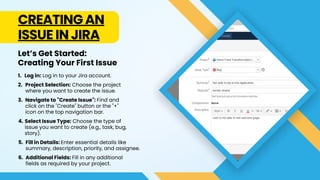
Log in: Log in to your Jira account.
1.
Project Selection: Choose the project
where you want to create the issue.
2.
Navigate to "Create Issue": Find and
click on the "Create" button or the "+"
icon on the top navigation bar.
3.
Let’s Get Started:
Creating Your First Issue
Select Issue Type: Choose the type of
issue you want to create (e.g., task, bug,
story).
4.
Fill in Details: Enter essential details like
summary, description, priority, and assignee.
5.
Additional Fields: Fill in any additional
fields as required by your project.
6.
Let’s Get Started:
Creating Your First Issue
Attachments and Comments: Attach
relevant files and add comments if
needed.
7.
Set Due Date: Optionally, set a due
date for the issue.
8.
Submit: Click the "Create" button to
submit the new issue.
9.
Confirmation: You'll receive a
confirmation and the new issue will
be added to the project.
10.
That's it! You've successfully
created a new issue in Jira.
ADVANCED ISSUE
CREATION TECHNIQUES
Beyond the Basics: Advanced Issue Creation
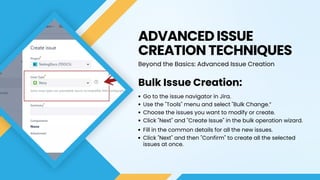
Bulk Issue Creation:
Go to the issue navigator in Jira.
Use the "Tools" menu and select "Bulk Change.”
Choose the issues you want to modify or create.
Click "Next" and "Create Issue" in the bulk operation wizard.
Fill in the common details for all the new issues.
Click "Next" and then "Confirm" to create all the selected
issues at once.
ADVANCED ISSUE
CREATION TECHNIQUES
Beyond the Basics: Advanced Issue Creation
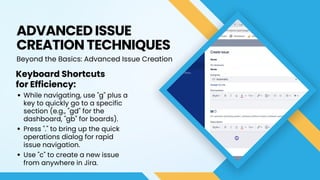
Keyboard Shortcuts
for Efficiency:
While navigating, use "g" plus a
key to quickly go to a specific
section (e.g., "gd" for the
dashboard, "gb" for boards).
Press "." to bring up the quick
operations dialog for rapid
issue navigation.
Use "c" to create a new issue
from anywhere in Jira.
TIPS FOR EFFICIENT
ISSUE MANAGEMENT
Discuss the use of labels,
components, and versions.
Labels serve as versatile markers, allowing you
to tag issues with keywords or phrases that
enhance searchability and categorization. For
instance, you might use labels to denote
priority levels, feature types, or specific teams
responsible for the task. By consistently
applying labels, you create a more organized
and searchable issue database, simplifying
the retrieval of relevant information.
TIPS FOR EFFICIENT
ISSUE MANAGEMENT
Discuss the use of labels,
components, and versions.
Components provide a structural way to
break down your project into manageable
units. They represent distinct modules,
features, or functional areas. Assigning issues
to specific components enhances clarity
about which part of the project they pertain to.
This aids in project planning and issue
tracking, as you can quickly identify and
address tasks associated with particular
components.
TIPS FOR EFFICIENT
ISSUE MANAGEMENT
Discuss the use of labels,
components, and versions.
Versions offer a systematic approach to
managing your project's release cycles.
Assigning issues to specific versions enables
you to track progress towards release
milestones. This is particularly valuable for
software development projects, ensuring that
tasks are aligned with the intended release
and allowing for efficient monitoring of feature
implementation and bug fixes.
CONCLUSION
In summary, Jira stands as a powerhouse in modern
project collaboration, offering flexibility, scalability,
and adaptability. From the basics of issue creation to
advanced techniques like bulk operations and
keyboard shortcuts, we've explored how to navigate
this robust tool effectively. Tips for efficient issue
management, including the strategic use of labels,
components, and versions, underscore the
importance of organization and clarity. Jira's
features, coupled with these insights, create a
seamless project management experience, ensuring
teams can efficiently track, prioritize, and execute
tasks, ultimately driving projects toward success.

Project Harmony: Achieving Flow with Jira's Issue Creation Mastery

  • 1.
    INTRODUCTION Jira, developed byAtlassian, stands as a robust project management tool at the forefront of modern project collaboration. It's not just a platform; it's a catalyst for efficient and streamlined project workflows.
  • 2.
    WHY JIRA FORPROJECT MANAGEMENT? Emphasize its flexibility, scalability, and adaptability. key features Issue Tracking: Efficient tracking, prioritization, and assignment of tasks. 1. Customizable Workflows: Tailored processes to match specific project needs. 2. Agile Methodology Support: Scrum and Kanban support for iterative project management. 3. Integration Capabilities: Seamless integration with various third-party tools and applications. 4. Advanced Reporting and Dashboards: Powerful reporting features for project progress and team productivity analysis. 5.
  • 3.
    CREATING AN ISSUE INJIRA Log in: Log in to your Jira account. 1. Project Selection: Choose the project where you want to create the issue. 2. Navigate to "Create Issue": Find and click on the "Create" button or the "+" icon on the top navigation bar. 3. Let’s Get Started: Creating Your First Issue Select Issue Type: Choose the type of issue you want to create (e.g., task, bug, story). 4. Fill in Details: Enter essential details like summary, description, priority, and assignee. 5. Additional Fields: Fill in any additional fields as required by your project. 6.
  • 4.
    Let’s Get Started: CreatingYour First Issue Attachments and Comments: Attach relevant files and add comments if needed. 7. Set Due Date: Optionally, set a due date for the issue. 8. Submit: Click the "Create" button to submit the new issue. 9. Confirmation: You'll receive a confirmation and the new issue will be added to the project. 10. That's it! You've successfully created a new issue in Jira.
  • 5.
    ADVANCED ISSUE CREATION TECHNIQUES Beyondthe Basics: Advanced Issue Creation Bulk Issue Creation: Go to the issue navigator in Jira. Use the "Tools" menu and select "Bulk Change.” Choose the issues you want to modify or create. Click "Next" and "Create Issue" in the bulk operation wizard. Fill in the common details for all the new issues. Click "Next" and then "Confirm" to create all the selected issues at once.
  • 6.
    ADVANCED ISSUE CREATION TECHNIQUES Beyondthe Basics: Advanced Issue Creation Keyboard Shortcuts for Efficiency: While navigating, use "g" plus a key to quickly go to a specific section (e.g., "gd" for the dashboard, "gb" for boards). Press "." to bring up the quick operations dialog for rapid issue navigation. Use "c" to create a new issue from anywhere in Jira.
  • 7.
    TIPS FOR EFFICIENT ISSUEMANAGEMENT Discuss the use of labels, components, and versions. Labels serve as versatile markers, allowing you to tag issues with keywords or phrases that enhance searchability and categorization. For instance, you might use labels to denote priority levels, feature types, or specific teams responsible for the task. By consistently applying labels, you create a more organized and searchable issue database, simplifying the retrieval of relevant information.
  • 8.
    TIPS FOR EFFICIENT ISSUEMANAGEMENT Discuss the use of labels, components, and versions. Components provide a structural way to break down your project into manageable units. They represent distinct modules, features, or functional areas. Assigning issues to specific components enhances clarity about which part of the project they pertain to. This aids in project planning and issue tracking, as you can quickly identify and address tasks associated with particular components.
  • 9.
    TIPS FOR EFFICIENT ISSUEMANAGEMENT Discuss the use of labels, components, and versions. Versions offer a systematic approach to managing your project's release cycles. Assigning issues to specific versions enables you to track progress towards release milestones. This is particularly valuable for software development projects, ensuring that tasks are aligned with the intended release and allowing for efficient monitoring of feature implementation and bug fixes.
  • 10.
    CONCLUSION In summary, Jirastands as a powerhouse in modern project collaboration, offering flexibility, scalability, and adaptability. From the basics of issue creation to advanced techniques like bulk operations and keyboard shortcuts, we've explored how to navigate this robust tool effectively. Tips for efficient issue management, including the strategic use of labels, components, and versions, underscore the importance of organization and clarity. Jira's features, coupled with these insights, create a seamless project management experience, ensuring teams can efficiently track, prioritize, and execute tasks, ultimately driving projects toward success.