Project Assignment 2: Building a Multi-Threaded Web Server
This project assignment is due at the end of the seventh week of
the course and is worth 7% of your total grade.
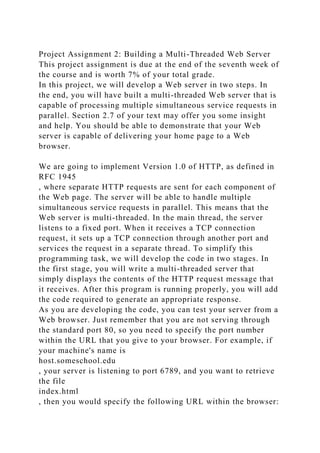
In this project, we will develop a Web server in two steps. In
the end, you will have built a multi-threaded Web server that is
capable of processing multiple simultaneous service requests in
parallel. Section 2.7 of your text may offer you some insight
and help. You should be able to demonstrate that your Web
server is capable of delivering your home page to a Web
browser.
We are going to implement Version 1.0 of HTTP, as defined in
RFC 1945
, where separate HTTP requests are sent for each component of
the Web page. The server will be able to handle multiple
simultaneous service requests in parallel. This means that the
Web server is multi-threaded. In the main thread, the server
listens to a fixed port. When it receives a TCP connection
request, it sets up a TCP connection through another port and
services the request in a separate thread. To simplify this
programming task, we will develop the code in two stages. In
the first stage, you will write a multi-threaded server that
simply displays the contents of the HTTP request message that
it receives. After this program is running properly, you will add
the code required to generate an appropriate response.
As you are developing the code, you can test your server from a
Web browser. Just remember that you are not serving through
the standard port 80, so you need to specify the port number
within the URL that you give to your browser. For example, if
your machine's name is
host.someschool.edu
, your server is listening to port 6789, and you want to retrieve
the file
index.html
, then you would specify the following URL within the browser:
http://host.someschool.edu:6789/index.html
If you omit ":6789," the browser will assume port 80, which
most likely will not have a server listening on it.
When the server encounters an error, it sends a response
message with the appropriate HTML source so that the error
information is displayed in the browser window.
Web Server in Java: Part A
In the following steps, we will go through the code for the first
implementation of our Web server. Wherever you see "?," you
will need to supply a missing detail.
Our first implementation of the Web server will be multi-
threaded, where the processing of each incoming request will
take place inside a separate thread of execution. This allows the
server to service multiple clients in parallel, or to perform
multiple file transfers to a single client in parallel. When we
create a new thread of execution, we need to pass to the
Thread's constructor an instance of some class that implements
the
Runnable
interface. This is the reason why we define a separate class
called
HttpRequest
. The structure of the Web server is shown below:
import java.io.* ;
import java.net.* ;
import java.util.* ;
public final class WebServer
{
public static void main(String argv[]) throws Exception
{
. . .
}
}
final class HttpRequest implements Runnable
{
. . .
}
Normally, Web servers process service requests that they
receive through well-known Port #80. You can choose any port
higher than 1024, but remember to use the same port number
when making requests to your Web server from your browser.
public static void main(String argv[]) throws Exception
{
// Set the port number.
int port = 6789;
. . .
}
Next, we open a socket and wait for a TCP connection request.
Since we will be servicing request messages indefinitely, we
place the listen operation inside of an infinite loop. This means
that we will have to terminate the Web server by pressing ^C on
the keyboard.
// Establish the listen socket.
?
// Process HTTP service requests in an infinite loop.
while (true) {
// Listen for a TCP connection request.
?
. . .
}
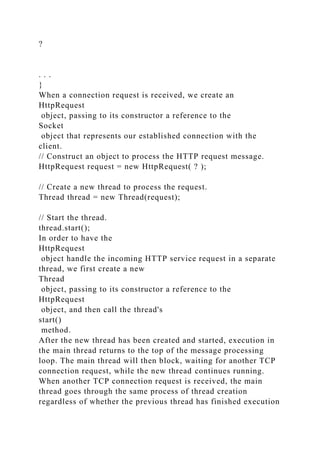
When a connection request is received, we create an
HttpRequest
object, passing to its constructor a reference to the
Socket
object that represents our established connection with the
client.
// Construct an object to process the HTTP request message.
HttpRequest request = new HttpRequest( ? );
// Create a new thread to process the request.
Thread thread = new Thread(request);
// Start the thread.
thread.start();
In order to have the
HttpRequest
object handle the incoming HTTP service request in a separate
thread, we first create a new
Thread
object, passing to its constructor a reference to the
HttpRequest
object, and then call the thread's
start()
method.
After the new thread has been created and started, execution in
the main thread returns to the top of the message processing
loop. The main thread will then block, waiting for another TCP
connection request, while the new thread continues running.
When another TCP connection request is received, the main
thread goes through the same process of thread creation
regardless of whether the previous thread has finished execution
or is still running.
This completes the code in
main()
. For the remainder of the lab, it remains to develop the
HttpRequest
class.
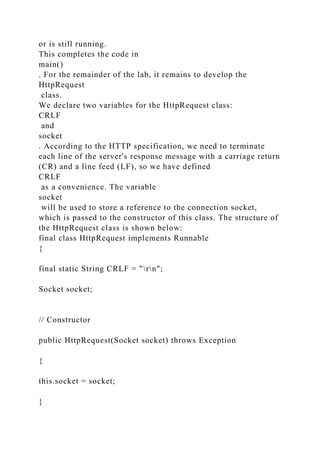
We declare two variables for the HttpRequest class:
CRLF
and
socket
. According to the HTTP specification, we need to terminate
each line of the server's response message with a carriage return
(CR) and a line feed (LF), so we have defined
CRLF
as a convenience. The variable
socket
will be used to store a reference to the connection socket,
which is passed to the constructor of this class. The structure of
the HttpRequest class is shown below:
final class HttpRequest implements Runnable
{
final static String CRLF = "rn";
Socket socket;
// Constructor
public HttpRequest(Socket socket) throws Exception
{
this.socket = socket;
}
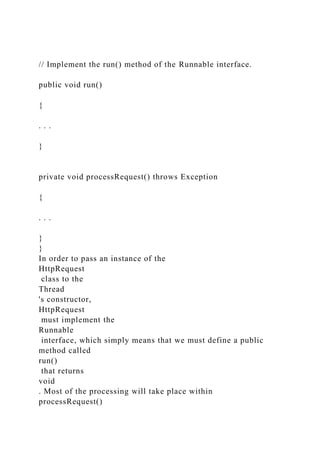
// Implement the run() method of the Runnable interface.
public void run()
{
. . .
}
private void processRequest() throws Exception
{
. . .
}
}
In order to pass an instance of the
HttpRequest
class to the
Thread
's constructor,
HttpRequest
must implement the
Runnable
interface, which simply means that we must define a public
method called
run()
that returns
void
. Most of the processing will take place within
processRequest()
, which is called from within
run()
.
Up until this point, we have been throwing exceptions, rather
than catching them. However, we cannot throw exceptions from
run()
, because we must strictly adhere to the declaration of
run()
in the
Runnable
interface, which does not throw any exceptions. We will place
all of the processing code in
processRequest()
, and from there, throw exceptions to
run()
. Within
run()
, we explicitly catch and handle exceptions with a try/catch
block.
// Implement the run() method of the Runnable interface.
public void run()
{
try {
processRequest();
} catch (Exception e) {
System.out.println(e);
}
}
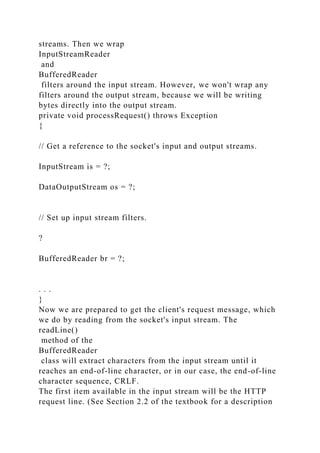
Now, let's develop the code within
processRequest()
. We first obtain references to the socket's input and output
streams. Then we wrap
InputStreamReader
and
BufferedReader
filters around the input stream. However, we won't wrap any
filters around the output stream, because we will be writing
bytes directly into the output stream.
private void processRequest() throws Exception
{
// Get a reference to the socket's input and output streams.
InputStream is = ?;
DataOutputStream os = ?;
// Set up input stream filters.
?
BufferedReader br = ?;
. . .
}
Now we are prepared to get the client's request message, which
we do by reading from the socket's input stream. The
readLine()
method of the
BufferedReader
class will extract characters from the input stream until it
reaches an end-of-line character, or in our case, the end-of-line
character sequence, CRLF.
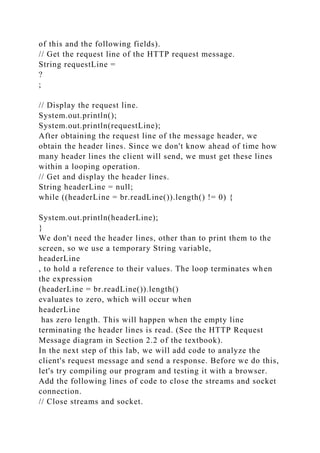
The first item available in the input stream will be the HTTP
request line. (See Section 2.2 of the textbook for a description
of this and the following fields).
// Get the request line of the HTTP request message.
String requestLine =
?
;
// Display the request line.
System.out.println();
System.out.println(requestLine);
After obtaining the request line of the message header, we
obtain the header lines. Since we don't know ahead of time how
many header lines the client will send, we must get these lines
within a looping operation.
// Get and display the header lines.
String headerLine = null;
while ((headerLine = br.readLine()).length() != 0) {
System.out.println(headerLine);
}
We don't need the header lines, other than to print them to the
screen, so we use a temporary String variable,
headerLine
, to hold a reference to their values. The loop terminates when
the expression
(headerLine = br.readLine()).length()
evaluates to zero, which will occur when
headerLine
has zero length. This will happen when the empty line
terminating the header lines is read. (See the HTTP Request
Message diagram in Section 2.2 of the textbook).
In the next step of this lab, we will add code to analyze the
client's request message and send a response. Before we do this,
let's try compiling our program and testing it with a browser.
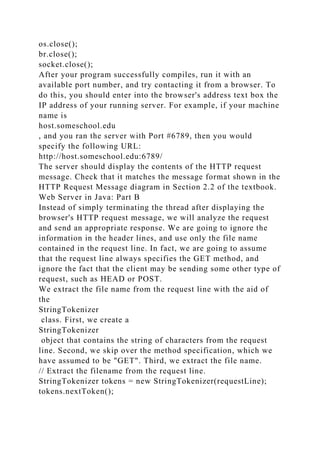
Add the following lines of code to close the streams and socket
connection.
// Close streams and socket.
os.close();
br.close();
socket.close();
After your program successfully compiles, run it with an
available port number, and try contacting it from a browser. To
do this, you should enter into the browser's address text box the
IP address of your running server. For example, if your machine
name is
host.someschool.edu
, and you ran the server with Port #6789, then you would
specify the following URL:
http://host.someschool.edu:6789/
The server should display the contents of the HTTP request
message. Check that it matches the message format shown in the
HTTP Request Message diagram in Section 2.2 of the textbook.
Web Server in Java: Part B
Instead of simply terminating the thread after displaying the
browser's HTTP request message, we will analyze the request
and send an appropriate response. We are going to ignore the
information in the header lines, and use only the file name
contained in the request line. In fact, we are going to assume
that the request line always specifies the GET method, and
ignore the fact that the client may be sending some other type of
request, such as HEAD or POST.
We extract the file name from the request line with the aid of
the
StringTokenizer
class. First, we create a
StringTokenizer
object that contains the string of characters from the request
line. Second, we skip over the method specification, which we
have assumed to be "GET". Third, we extract the file name.
// Extract the filename from the request line.
StringTokenizer tokens = new StringTokenizer(requestLine);
tokens.nextToken();
// skip over the method, which should be "GET"
String fileName = tokens.nextToken();
// Prepend a "." so that file request is within the current
directory.
fileName = "." + fileName;
Because the browser precedes the filename with a slash, we
prefix a dot so that the resulting pathname starts within the
current directory.
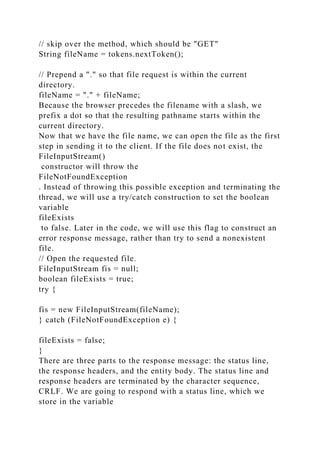
Now that we have the file name, we can open the file as the first
step in sending it to the client. If the file does not exist, the
FileInputStream()
constructor will throw the
FileNotFoundException
. Instead of throwing this possible exception and terminating the
thread, we will use a try/catch construction to set the boolean
variable
fileExists
to false. Later in the code, we will use this flag to construct an
error response message, rather than try to send a nonexistent
file.
// Open the requested file.
FileInputStream fis = null;
boolean fileExists = true;
try {
fis = new FileInputStream(fileName);
} catch (FileNotFoundException e) {
fileExists = false;
}
There are three parts to the response message: the status line,
the response headers, and the entity body. The status line and
response headers are terminated by the character sequence,
CRLF. We are going to respond with a status line, which we
store in the variable
statusLine
, and a single response header, which we store in the variable
contentTypeLine
. In the case of a request for a nonexistent file, we return
404 Not Found
in the status line of the response message, and include an error
message in the form of an HTML document in the entity body.
// Construct the response message.
String statusLine = null;
String contentTypeLine = null;
String entityBody = null;
if (fileExists) {
statusLine =
?
;
contentTypeLine = "Content-type: " +
contentType( fileName ) + CRLF;
} else {
statusLine =
?
;
contentTypeLine =
?
;
entityBody = "" +
"Not Found" +
"Not Found";
}
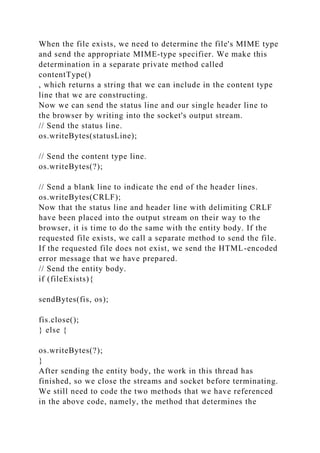
When the file exists, we need to determine the file's MIME type
and send the appropriate MIME-type specifier. We make this
determination in a separate private method called
contentType()
, which returns a string that we can include in the content type
line that we are constructing.
Now we can send the status line and our single header line to
the browser by writing into the socket's output stream.
// Send the status line.
os.writeBytes(statusLine);
// Send the content type line.
os.writeBytes(?);
// Send a blank line to indicate the end of the header lines.
os.writeBytes(CRLF);
Now that the status line and header line with delimiting CRLF
have been placed into the output stream on their way to the
browser, it is time to do the same with the entity body. If the
requested file exists, we call a separate method to send the file.
If the requested file does not exist, we send the HTML-encoded
error message that we have prepared.
// Send the entity body.
if (fileExists){
sendBytes(fis, os);
fis.close();
} else {
os.writeBytes(?);
}
After sending the entity body, the work in this thread has
finished, so we close the streams and socket before terminating.
We still need to code the two methods that we have referenced
in the above code, namely, the method that determines the
MIME type,
contentType()
, and the method that writes the requested file onto the socket's
output stream. Let's first take a look at the code for sending the
file to the client.
private static void sendBytes(FileInputStream fis, OutputStream
os)
throws Exception
{
// Construct a 1K buffer to hold bytes on their way to the
socket.
byte[] buffer = new byte[1024];
int bytes = 0;
// Copy requested file into the socket's output stream.
while((bytes = fis.read(buffer)) != -1 ) {
os.write(buffer, 0, bytes);
}
}
Both
read()
and
write()
throw exceptions. Instead of catching these exceptions and
handling them in our code, we throw them to be handled by the
calling method.
The variable,
buffer
, is our intermediate storage space for bytes on their way from
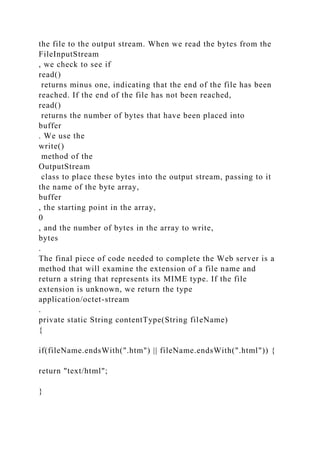
the file to the output stream. When we read the bytes from the
FileInputStream
, we check to see if
read()
returns minus one, indicating that the end of the file has been
reached. If the end of the file has not been reached,
read()
returns the number of bytes that have been placed into
buffer
. We use the
write()
method of the
OutputStream
class to place these bytes into the output stream, passing to it
the name of the byte array,
buffer
, the starting point in the array,
0
, and the number of bytes in the array to write,
bytes
.
The final piece of code needed to complete the Web server is a
method that will examine the extension of a file name and
return a string that represents its MIME type. If the file
extension is unknown, we return the type
application/octet-stream
.
private static String contentType(String fileName)
{
if(fileName.endsWith(".htm") || fileName.endsWith(".html")) {
return "text/html";
}
if(?) {
?;
}
if(?) {
?;
}
return "application/octet-stream;"
}
There is a lot missing from this method. For instance, nothing is
returned for .gif or .jpeg files. Add the missing file types
yourself, so that the components of your home page are sent
with the content type correctly specified in the content type
header line. For GIFs, the MIME type is
image/gif
,
and for JPEGs, it is
image/jpeg
.
This completes the code for the second phase of development of
your Web server. Try running the server from the directory
where your home page is located, and try viewing your home
page files with a browser. Remember to include a port specifier
in the URL of your home page, so that your browser doesn't try
to connect to the default Port 80. When you connect to the
running Web server with the browser, examine the GET
message requests that the Web server receives from the browser.
Deliverables:
1.
Captured screenshots demonstrating that your system works
with explanation,
2.
Copy of your completed code used in your server system,
3.
Provide a summary of your experiences in working this project
and include what you learned as a part of this exercise, and
4.
Include a Wireshark printout with the message sequences.

Project Assignment 2 Building a Multi-Threaded Web ServerThis pro.docx

  • 1.
    Project Assignment 2:Building a Multi-Threaded Web Server This project assignment is due at the end of the seventh week of the course and is worth 7% of your total grade. In this project, we will develop a Web server in two steps. In the end, you will have built a multi-threaded Web server that is capable of processing multiple simultaneous service requests in parallel. Section 2.7 of your text may offer you some insight and help. You should be able to demonstrate that your Web server is capable of delivering your home page to a Web browser. We are going to implement Version 1.0 of HTTP, as defined in RFC 1945 , where separate HTTP requests are sent for each component of the Web page. The server will be able to handle multiple simultaneous service requests in parallel. This means that the Web server is multi-threaded. In the main thread, the server listens to a fixed port. When it receives a TCP connection request, it sets up a TCP connection through another port and services the request in a separate thread. To simplify this programming task, we will develop the code in two stages. In the first stage, you will write a multi-threaded server that simply displays the contents of the HTTP request message that it receives. After this program is running properly, you will add the code required to generate an appropriate response. As you are developing the code, you can test your server from a Web browser. Just remember that you are not serving through the standard port 80, so you need to specify the port number within the URL that you give to your browser. For example, if your machine's name is host.someschool.edu , your server is listening to port 6789, and you want to retrieve the file index.html , then you would specify the following URL within the browser:
  • 2.
    http://host.someschool.edu:6789/index.html If you omit":6789," the browser will assume port 80, which most likely will not have a server listening on it. When the server encounters an error, it sends a response message with the appropriate HTML source so that the error information is displayed in the browser window. Web Server in Java: Part A In the following steps, we will go through the code for the first implementation of our Web server. Wherever you see "?," you will need to supply a missing detail. Our first implementation of the Web server will be multi- threaded, where the processing of each incoming request will take place inside a separate thread of execution. This allows the server to service multiple clients in parallel, or to perform multiple file transfers to a single client in parallel. When we create a new thread of execution, we need to pass to the Thread's constructor an instance of some class that implements the Runnable interface. This is the reason why we define a separate class called HttpRequest . The structure of the Web server is shown below: import java.io.* ; import java.net.* ; import java.util.* ; public final class WebServer { public static void main(String argv[]) throws Exception { . . .
  • 3.
    } } final class HttpRequestimplements Runnable { . . . } Normally, Web servers process service requests that they receive through well-known Port #80. You can choose any port higher than 1024, but remember to use the same port number when making requests to your Web server from your browser. public static void main(String argv[]) throws Exception { // Set the port number. int port = 6789; . . . } Next, we open a socket and wait for a TCP connection request. Since we will be servicing request messages indefinitely, we place the listen operation inside of an infinite loop. This means that we will have to terminate the Web server by pressing ^C on the keyboard. // Establish the listen socket. ? // Process HTTP service requests in an infinite loop. while (true) { // Listen for a TCP connection request.
  • 4.
    ? . . . } Whena connection request is received, we create an HttpRequest object, passing to its constructor a reference to the Socket object that represents our established connection with the client. // Construct an object to process the HTTP request message. HttpRequest request = new HttpRequest( ? ); // Create a new thread to process the request. Thread thread = new Thread(request); // Start the thread. thread.start(); In order to have the HttpRequest object handle the incoming HTTP service request in a separate thread, we first create a new Thread object, passing to its constructor a reference to the HttpRequest object, and then call the thread's start() method. After the new thread has been created and started, execution in the main thread returns to the top of the message processing loop. The main thread will then block, waiting for another TCP connection request, while the new thread continues running. When another TCP connection request is received, the main thread goes through the same process of thread creation regardless of whether the previous thread has finished execution
  • 5.
    or is stillrunning. This completes the code in main() . For the remainder of the lab, it remains to develop the HttpRequest class. We declare two variables for the HttpRequest class: CRLF and socket . According to the HTTP specification, we need to terminate each line of the server's response message with a carriage return (CR) and a line feed (LF), so we have defined CRLF as a convenience. The variable socket will be used to store a reference to the connection socket, which is passed to the constructor of this class. The structure of the HttpRequest class is shown below: final class HttpRequest implements Runnable { final static String CRLF = "rn"; Socket socket; // Constructor public HttpRequest(Socket socket) throws Exception { this.socket = socket; }
  • 6.
    // Implement therun() method of the Runnable interface. public void run() { . . . } private void processRequest() throws Exception { . . . } } In order to pass an instance of the HttpRequest class to the Thread 's constructor, HttpRequest must implement the Runnable interface, which simply means that we must define a public method called run() that returns void . Most of the processing will take place within processRequest()
  • 7.
    , which iscalled from within run() . Up until this point, we have been throwing exceptions, rather than catching them. However, we cannot throw exceptions from run() , because we must strictly adhere to the declaration of run() in the Runnable interface, which does not throw any exceptions. We will place all of the processing code in processRequest() , and from there, throw exceptions to run() . Within run() , we explicitly catch and handle exceptions with a try/catch block. // Implement the run() method of the Runnable interface. public void run() { try { processRequest(); } catch (Exception e) { System.out.println(e); } } Now, let's develop the code within processRequest() . We first obtain references to the socket's input and output
  • 8.
    streams. Then wewrap InputStreamReader and BufferedReader filters around the input stream. However, we won't wrap any filters around the output stream, because we will be writing bytes directly into the output stream. private void processRequest() throws Exception { // Get a reference to the socket's input and output streams. InputStream is = ?; DataOutputStream os = ?; // Set up input stream filters. ? BufferedReader br = ?; . . . } Now we are prepared to get the client's request message, which we do by reading from the socket's input stream. The readLine() method of the BufferedReader class will extract characters from the input stream until it reaches an end-of-line character, or in our case, the end-of-line character sequence, CRLF. The first item available in the input stream will be the HTTP request line. (See Section 2.2 of the textbook for a description
  • 9.
    of this andthe following fields). // Get the request line of the HTTP request message. String requestLine = ? ; // Display the request line. System.out.println(); System.out.println(requestLine); After obtaining the request line of the message header, we obtain the header lines. Since we don't know ahead of time how many header lines the client will send, we must get these lines within a looping operation. // Get and display the header lines. String headerLine = null; while ((headerLine = br.readLine()).length() != 0) { System.out.println(headerLine); } We don't need the header lines, other than to print them to the screen, so we use a temporary String variable, headerLine , to hold a reference to their values. The loop terminates when the expression (headerLine = br.readLine()).length() evaluates to zero, which will occur when headerLine has zero length. This will happen when the empty line terminating the header lines is read. (See the HTTP Request Message diagram in Section 2.2 of the textbook). In the next step of this lab, we will add code to analyze the client's request message and send a response. Before we do this, let's try compiling our program and testing it with a browser. Add the following lines of code to close the streams and socket connection. // Close streams and socket.
  • 10.
    os.close(); br.close(); socket.close(); After your programsuccessfully compiles, run it with an available port number, and try contacting it from a browser. To do this, you should enter into the browser's address text box the IP address of your running server. For example, if your machine name is host.someschool.edu , and you ran the server with Port #6789, then you would specify the following URL: http://host.someschool.edu:6789/ The server should display the contents of the HTTP request message. Check that it matches the message format shown in the HTTP Request Message diagram in Section 2.2 of the textbook. Web Server in Java: Part B Instead of simply terminating the thread after displaying the browser's HTTP request message, we will analyze the request and send an appropriate response. We are going to ignore the information in the header lines, and use only the file name contained in the request line. In fact, we are going to assume that the request line always specifies the GET method, and ignore the fact that the client may be sending some other type of request, such as HEAD or POST. We extract the file name from the request line with the aid of the StringTokenizer class. First, we create a StringTokenizer object that contains the string of characters from the request line. Second, we skip over the method specification, which we have assumed to be "GET". Third, we extract the file name. // Extract the filename from the request line. StringTokenizer tokens = new StringTokenizer(requestLine); tokens.nextToken();
  • 11.
    // skip overthe method, which should be "GET" String fileName = tokens.nextToken(); // Prepend a "." so that file request is within the current directory. fileName = "." + fileName; Because the browser precedes the filename with a slash, we prefix a dot so that the resulting pathname starts within the current directory. Now that we have the file name, we can open the file as the first step in sending it to the client. If the file does not exist, the FileInputStream() constructor will throw the FileNotFoundException . Instead of throwing this possible exception and terminating the thread, we will use a try/catch construction to set the boolean variable fileExists to false. Later in the code, we will use this flag to construct an error response message, rather than try to send a nonexistent file. // Open the requested file. FileInputStream fis = null; boolean fileExists = true; try { fis = new FileInputStream(fileName); } catch (FileNotFoundException e) { fileExists = false; } There are three parts to the response message: the status line, the response headers, and the entity body. The status line and response headers are terminated by the character sequence, CRLF. We are going to respond with a status line, which we store in the variable
  • 12.
    statusLine , and asingle response header, which we store in the variable contentTypeLine . In the case of a request for a nonexistent file, we return 404 Not Found in the status line of the response message, and include an error message in the form of an HTML document in the entity body. // Construct the response message. String statusLine = null; String contentTypeLine = null; String entityBody = null; if (fileExists) { statusLine = ? ; contentTypeLine = "Content-type: " + contentType( fileName ) + CRLF; } else { statusLine = ? ; contentTypeLine = ? ; entityBody = "" + "Not Found" + "Not Found"; }
  • 13.
    When the fileexists, we need to determine the file's MIME type and send the appropriate MIME-type specifier. We make this determination in a separate private method called contentType() , which returns a string that we can include in the content type line that we are constructing. Now we can send the status line and our single header line to the browser by writing into the socket's output stream. // Send the status line. os.writeBytes(statusLine); // Send the content type line. os.writeBytes(?); // Send a blank line to indicate the end of the header lines. os.writeBytes(CRLF); Now that the status line and header line with delimiting CRLF have been placed into the output stream on their way to the browser, it is time to do the same with the entity body. If the requested file exists, we call a separate method to send the file. If the requested file does not exist, we send the HTML-encoded error message that we have prepared. // Send the entity body. if (fileExists){ sendBytes(fis, os); fis.close(); } else { os.writeBytes(?); } After sending the entity body, the work in this thread has finished, so we close the streams and socket before terminating. We still need to code the two methods that we have referenced in the above code, namely, the method that determines the
  • 14.
    MIME type, contentType() , andthe method that writes the requested file onto the socket's output stream. Let's first take a look at the code for sending the file to the client. private static void sendBytes(FileInputStream fis, OutputStream os) throws Exception { // Construct a 1K buffer to hold bytes on their way to the socket. byte[] buffer = new byte[1024]; int bytes = 0; // Copy requested file into the socket's output stream. while((bytes = fis.read(buffer)) != -1 ) { os.write(buffer, 0, bytes); } } Both read() and write() throw exceptions. Instead of catching these exceptions and handling them in our code, we throw them to be handled by the calling method. The variable, buffer , is our intermediate storage space for bytes on their way from
  • 15.
    the file tothe output stream. When we read the bytes from the FileInputStream , we check to see if read() returns minus one, indicating that the end of the file has been reached. If the end of the file has not been reached, read() returns the number of bytes that have been placed into buffer . We use the write() method of the OutputStream class to place these bytes into the output stream, passing to it the name of the byte array, buffer , the starting point in the array, 0 , and the number of bytes in the array to write, bytes . The final piece of code needed to complete the Web server is a method that will examine the extension of a file name and return a string that represents its MIME type. If the file extension is unknown, we return the type application/octet-stream . private static String contentType(String fileName) { if(fileName.endsWith(".htm") || fileName.endsWith(".html")) { return "text/html"; }
  • 16.
    if(?) { ?; } if(?) { ?; } return"application/octet-stream;" } There is a lot missing from this method. For instance, nothing is returned for .gif or .jpeg files. Add the missing file types yourself, so that the components of your home page are sent with the content type correctly specified in the content type header line. For GIFs, the MIME type is image/gif , and for JPEGs, it is image/jpeg . This completes the code for the second phase of development of your Web server. Try running the server from the directory where your home page is located, and try viewing your home page files with a browser. Remember to include a port specifier in the URL of your home page, so that your browser doesn't try to connect to the default Port 80. When you connect to the running Web server with the browser, examine the GET message requests that the Web server receives from the browser. Deliverables: 1.
  • 17.
    Captured screenshots demonstratingthat your system works with explanation, 2. Copy of your completed code used in your server system, 3. Provide a summary of your experiences in working this project and include what you learned as a part of this exercise, and 4. Include a Wireshark printout with the message sequences.