Workday Recruiting
Talent Acquisition Job Aid
WORKDAY RECRUITING
NOTE: WORKDAY IS CONSTANTLY UPDATING THEIR TOOLS, SO THIS JOB AID
MAY NOT REFLECT EXACTLY WHAT YOU SEE IN WORKDAY.
Workday Recruiting
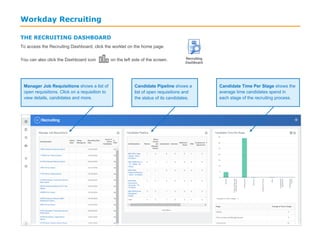
THE RECRUITING DASHBOARD
To access the Recruiting Dashboard, click the worklet on the home page.
You can also click the Dashboard icon on the left side of the screen.
Manager Job Requisitions shows a list of
open requisitions. Click on a requisition to
view details, candidates and more.
Candidate Pipeline shows a
list of open requisitions and
the status of its candidates.
Candidate Time Per Stage shows the
average time candidates spend in
each stage of the recruiting process.
Workday Recruiting
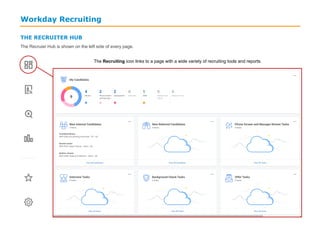
THE RECRUITER HUB
The Recruier Hub is shown on the left side of every page.
The Recruiting icon links to a page with a wide variety of recruiting tools and reports.
Workday Recruiting
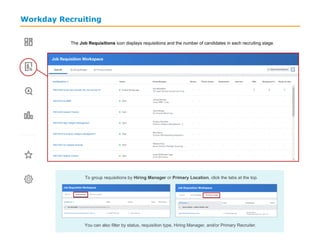
The Job Requisitions icon displays requisitions and the number of candidates in each recruiting stage.
To group requisitions by Hiring Manager or Primary Location, click the tabs at the top.
You can also filter by status, requisition type, Hiring Manager, and/or Primary Recruiter.
Workday Recruiting
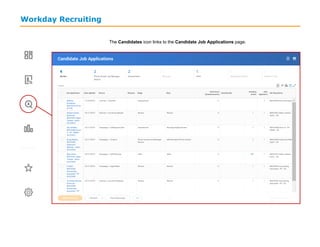
The Candidates icon links to the Candidate Job Applications page.
Workday Recruiting
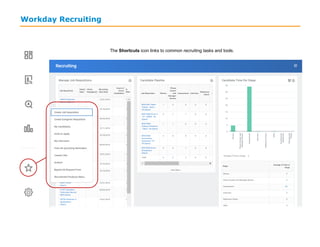
The Shortcuts icon links to common recruiting tasks and tools.
Workday Recruiting
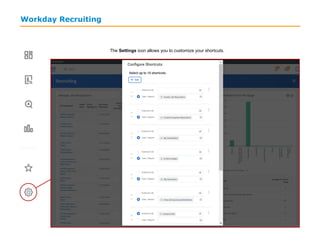
The Settings icon allows you to customize your shortcuts.
Workday Recruiting
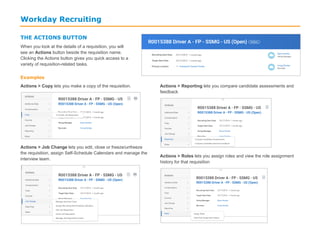
THE ACTIONS BUTTON
When you look at the details of a requisition, you will
see an Actions button beside the requisition name.
Clicking the Actions button gives you quick access to a
variety of requisition-related tasks.
Examples
Actions > Copy lets you make a copy of the requisition.
Actions > Job Change lets you edit, close or freeze/unfreeze
the requisition, assign Self-Schedule Calendars and manage the
interview team.
Actions > Reporting lets you compare candidate assessments and
feedback
Actions > Roles lets you assign roles and view the role assignment
history for that requisition
Workday Recruiting
THE SEARCH BAR
The search bar is one of the most powerful features of Workday. It appears on every page, so you can search from anywhere—no need to
return to the home page. You can search for people, processes, tasks, reports and business data using the search bar.
Searching for Candidates or Requisitions
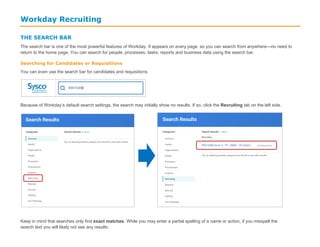
You can even use the search bar for candidates and requisitions.
Because of Workday’s default search settings, the search may initially show no results. If so, click the Recruiting tab on the left side.
Keep in mind that searches only find exact matches. While you may enter a partial spelling of a name or action, if you misspell the
search text you will likely not see any results.
Workday Recruiting
MANAGING CANDIDATES
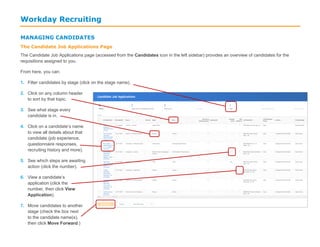
The Candidate Job Applications Page
The Candidate Job Applications page (accessed from the Candidates icon in the left sidebar) provides an overview of candidates for the
requisitions assigned to you.
From here, you can:
1. Filter candidates by stage (click on the stage name).
2. Click on any column header
to sort by that topic.
3. See what stage every
candidate is in.
4. Click on a candidate’s name
to view all details about that
candidate (job experience,
questionnaire responses,
recruiting history and more).
5. See which steps are awaiting
action (click the number).
6. View a candidate’s
application (click the
number, then click View
Application).
7. Move candidates to another
stage (check the box next
to the candidate name(s),
then click Move Forward.)
Workday Recruiting
Managing Candidates by Requisition
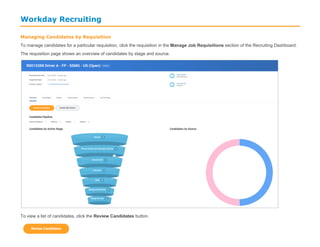
To manage candidates for a particular requisition, click the requisition in the Manage Job Requisitions section of the Recruiting Dashboard.
The requisition page shows an overview of candidates by stage and source.
To view a list of candidates, click the Review Candidates button.
Workday Recruiting
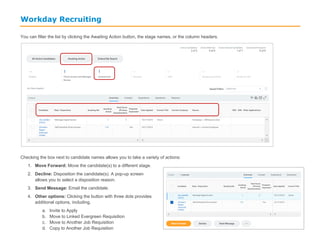
You can filter the list by clicking the Awaiting Action button, the stage names, or the column headers.
Checking the box next to candidate names allows you to take a variety of actions:
1. Move Forward: Move the candidate(s) to a different stage.
2. Decline: Disposition the candidate(s). A pop-up screen
allows you to select a disposition reason.
3. Send Message: Email the candidate.
4. Other options: Clicking the button with three dots provides
additional options, including.
a. Invite to Apply
b. Move to Linked Evergreen Requisition
c. Move to Another Job Requisition
d. Copy to Another Job Requisition
Workday Recruiting
MANAGING JOB POSTINGS
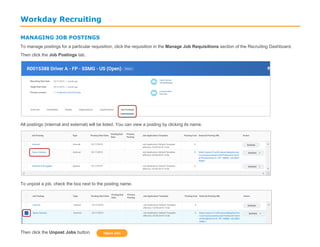
To manage postings for a particular requisition, click the requisition in the Manage Job Requisitions section of the Recruiting Dashboard.
Then click the Job Postings tab.
All postings (internal and external) will be listed. You can view a posting by clicking its name.
To unpost a job, check the box next to the posting name.
Then click the Unpost Jobs button.

Presentation on Workday for recruiters overview

  • 1.
    Workday Recruiting Talent AcquisitionJob Aid WORKDAY RECRUITING NOTE: WORKDAY IS CONSTANTLY UPDATING THEIR TOOLS, SO THIS JOB AID MAY NOT REFLECT EXACTLY WHAT YOU SEE IN WORKDAY.
  • 2.
    Workday Recruiting THE RECRUITINGDASHBOARD To access the Recruiting Dashboard, click the worklet on the home page. You can also click the Dashboard icon on the left side of the screen. Manager Job Requisitions shows a list of open requisitions. Click on a requisition to view details, candidates and more. Candidate Pipeline shows a list of open requisitions and the status of its candidates. Candidate Time Per Stage shows the average time candidates spend in each stage of the recruiting process.
  • 3.
    Workday Recruiting THE RECRUITERHUB The Recruier Hub is shown on the left side of every page. The Recruiting icon links to a page with a wide variety of recruiting tools and reports.
  • 4.
    Workday Recruiting The JobRequisitions icon displays requisitions and the number of candidates in each recruiting stage. To group requisitions by Hiring Manager or Primary Location, click the tabs at the top. You can also filter by status, requisition type, Hiring Manager, and/or Primary Recruiter.
  • 5.
    Workday Recruiting The Candidatesicon links to the Candidate Job Applications page.
  • 6.
    Workday Recruiting The Shortcutsicon links to common recruiting tasks and tools.
  • 7.
    Workday Recruiting The Settingsicon allows you to customize your shortcuts.
  • 8.
    Workday Recruiting THE ACTIONSBUTTON When you look at the details of a requisition, you will see an Actions button beside the requisition name. Clicking the Actions button gives you quick access to a variety of requisition-related tasks. Examples Actions > Copy lets you make a copy of the requisition. Actions > Job Change lets you edit, close or freeze/unfreeze the requisition, assign Self-Schedule Calendars and manage the interview team. Actions > Reporting lets you compare candidate assessments and feedback Actions > Roles lets you assign roles and view the role assignment history for that requisition
  • 9.
    Workday Recruiting THE SEARCHBAR The search bar is one of the most powerful features of Workday. It appears on every page, so you can search from anywhere—no need to return to the home page. You can search for people, processes, tasks, reports and business data using the search bar. Searching for Candidates or Requisitions You can even use the search bar for candidates and requisitions. Because of Workday’s default search settings, the search may initially show no results. If so, click the Recruiting tab on the left side. Keep in mind that searches only find exact matches. While you may enter a partial spelling of a name or action, if you misspell the search text you will likely not see any results.
  • 10.
    Workday Recruiting MANAGING CANDIDATES TheCandidate Job Applications Page The Candidate Job Applications page (accessed from the Candidates icon in the left sidebar) provides an overview of candidates for the requisitions assigned to you. From here, you can: 1. Filter candidates by stage (click on the stage name). 2. Click on any column header to sort by that topic. 3. See what stage every candidate is in. 4. Click on a candidate’s name to view all details about that candidate (job experience, questionnaire responses, recruiting history and more). 5. See which steps are awaiting action (click the number). 6. View a candidate’s application (click the number, then click View Application). 7. Move candidates to another stage (check the box next to the candidate name(s), then click Move Forward.)
  • 11.
    Workday Recruiting Managing Candidatesby Requisition To manage candidates for a particular requisition, click the requisition in the Manage Job Requisitions section of the Recruiting Dashboard. The requisition page shows an overview of candidates by stage and source. To view a list of candidates, click the Review Candidates button.
  • 12.
    Workday Recruiting You canfilter the list by clicking the Awaiting Action button, the stage names, or the column headers. Checking the box next to candidate names allows you to take a variety of actions: 1. Move Forward: Move the candidate(s) to a different stage. 2. Decline: Disposition the candidate(s). A pop-up screen allows you to select a disposition reason. 3. Send Message: Email the candidate. 4. Other options: Clicking the button with three dots provides additional options, including. a. Invite to Apply b. Move to Linked Evergreen Requisition c. Move to Another Job Requisition d. Copy to Another Job Requisition
  • 13.
    Workday Recruiting MANAGING JOBPOSTINGS To manage postings for a particular requisition, click the requisition in the Manage Job Requisitions section of the Recruiting Dashboard. Then click the Job Postings tab. All postings (internal and external) will be listed. You can view a posting by clicking its name. To unpost a job, check the box next to the posting name. Then click the Unpost Jobs button.